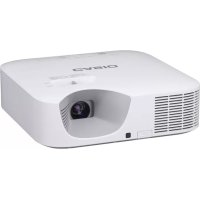
XJ-450 - Projector CASIO - Free user manual and instructions
Find the device manual for free XJ-450 CASIO in PDF.


User questions about XJ-450 CASIO
0 question about this device. Answer the ones you know or ask your own.
Ask a new question about this device
Download the instructions for your Projector in PDF format for free! Find your manual XJ-450 - CASIO and take your electronic device back in hand. On this page are published all the documents necessary for the use of your device. XJ-450 by CASIO.
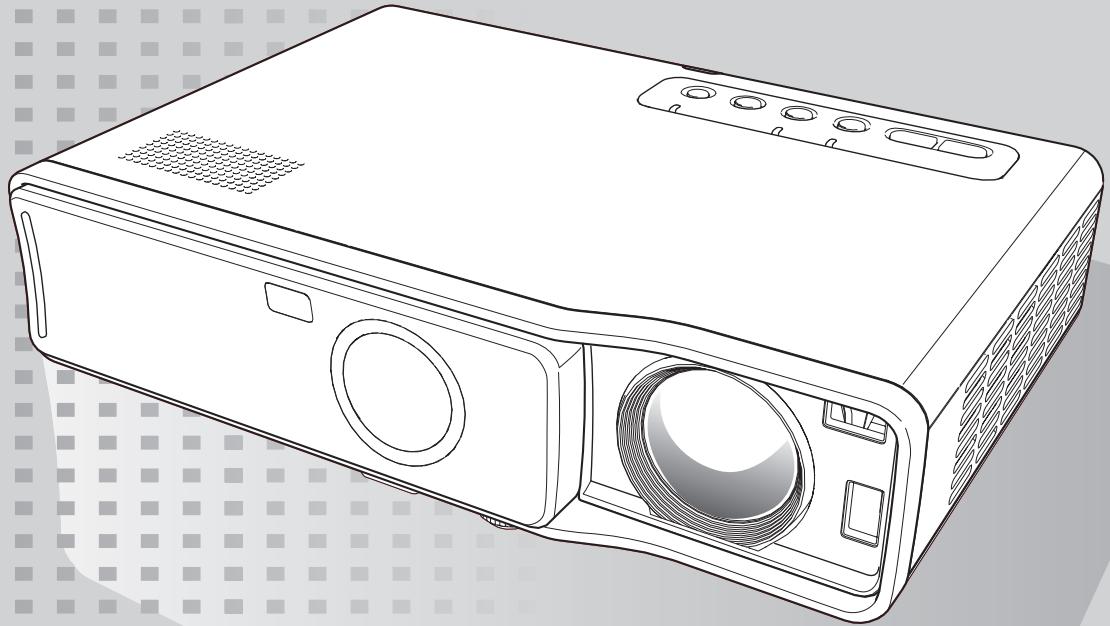
USER MANUAL XJ-450 CASIO
Keep this manual in a safe place for future reference.
- Digital Light Processing™, DLP™, Digital Micromirror Device™, and DMD™ are trademarks of Texas Instruments Incorporated of the United States.
- Microsoft, Windows, Windows NT, Windows XP, and the Windows logo are registered trademarks or trademarks of Microsoft Corporation of the United States in the United States and other countries.
- Apple and Macintosh are registered trademarks of Apple Computer, Inc. of the United States.
- Other company and product names may be registered trademarks or trademarks of their respective owners.
Thank you for selecting this CASIO product. Be sure to read these "Safety Precautions" before trying to use it. After reading this User's Guide, keep it in a safe place for future reference.
About safety symbols
Various symbols are used in this User's Guide and on the product itself to ensure safe use, and to protect you and others against the risk of injury and against material damage. The meaning of each of the symbols is explained below.
| Danger | This symbol indicates a condition that, if ignored or applied incorrectly, creates the risk of death or serious personal injury. |
| Warning | This symbol indicates a condition that, if ignored or applied incorrectly, could possibly create the risk of death or serious personal injury. |
| Caution | This symbol indicates a condition that, if ignored or applied incorrectly, could possibly create the risk of personal injury or material damage. |
Icon Examples

A triangle indicates a situation against which you need to exercise caution. The example shown here indicates you should take precaution against electric shock.

A circle with a line through it indicates information about an action that you should not perform. The specific action is indicated by the figure inside the circle. The example shown here means disassembly is prohibited.

A black circle indicates information about an action that you must perform. The specific action is indicated by the figure inside the circle. The example shown here indicates you must unplug the power cord from the power outlet.
Precautions During Use

Warning
Smoke, odor, heat, loud noise, and other abnormalities

Should you ever notice smoke, strange odor, or loud noise being emitted by the projector, or any other abnormality, immediately stop using the projector.
Continued use creates the risk of fire and electric shock. Immediately perform the following steps.
- Unplug the projector.
- Contact your original dealer or authorized CASIO service center.
Malfunction

Immediately stop using the projector if the screen appears abnormal, if sound is not produced, or if any other abnormal operation occurs even though you are operating the projector correctly. Continued use creates the risk of fire and electric shock. Immediately perform the following steps.
- Turn off the projector.
- Unplug the projector.
- Contact your original dealer or authorized CASIO service center.
Power cord

Misuse of the power cord creates the risk of fire and electric shock. Make sure that you always observe the following precautions.
- Make sure that you use a power source with the same voltage as that specified for the projector.
- Do not overload a power outlet with too many devices.
Power cord

A damaged power cord creates the risk of fire and electric shock. Make sure that you always observe the following precautions.
- Never place heavy objects on the power cord and never expose it to heat.
- Make sure the power cord is not pinched between the wall and the rack or table where the projector is located, and never cover the power cord with a cushion or other object.
- Never try to modify the power cord, allow it to become damaged, or subject it to excessive bending.
- Do not twist the power cord or pull on it.
Power cord

Never touch the power cord or plug while your hands are wet. Doing so creates the risk of electric shock.
Water and foreign matter

Never allow water to get on the projector. Water creates the risk of fire and electric shock.

Never place a vase or any other container of water on top of the projector. Water creates the risk of fire and electric shock.

Water or other liquid, or foreign matter (metal, etc.) getting into the projector creates the risk of fire and electric shock. Should anything get inside the projector, immediately perform the following steps.
- Turn off the projector.
- Unplug the projector.
- Contact your original dealer or authorized CASIO service center.
Disassembly and modification

Never try to take the projector apart or modify it in any way. The projector contains a large number of high-voltage components that create the risk of electric shock and burn injury. Be sure to leave all internal inspection, adjustment, and repair up to your original dealer or authorized CASIO service center.
Dropping and impact

Continued use of the projector after it has been damaged by dropping or other mistreatment creates the risk of fire and electric shock. Immediately perform the following steps.
- Turn off the projector.
-
Unplug the projector.
-
Contact your original dealer or authorized CASIO service center.
- Disposal by burning

Never try to dispose of the projector by burning it. Doing so can cause an explosion, which creates the risk of fire and personal injury.
- Looking into the lens or vents while lamp is on

Never look directly into the lens or vents while lamp is on. The strong light emitted by the projector creates the risk of eye damage.
Blocking the vents

Never allow the intake vents (on the bottom or back of the projector) or the exhaust vents (on the side of the projector) to become blocked. Doing so causes internal heat build up, which creates the risk of fire and breakdown of the projector. Touching the projector while it is hot creates the risk of burn injury. Make sure that you always observe the following precautions.
- Allow at least 30~cm (11.8 inches) between the projector and walls.
- Do not insert the projector into any space where air circulation is poor.
- Never cover the projector with a blanket or any similar item.
- Never use the projector on a carpet, blanket, towel, or other soft material.
- Never stand the projector up on either end during use.
Projector cabinet

Never open the projector's cabinet. Doing so creates the risk of electric shock.
Cleaning

Before cleaning the projector, be sure to turn it off and unplug it from the power outlet. Failure to do so creates the risk of electric shock.
- Exhaust vents
The exhaust vents become very hot while the projector is running. Never touch them. Doing so creates the risk of burn injury. The areas near the exhaust vents also become quite hot. Never locate objects made of plastic or other heat-sensitive materials near or under the projector. Doing so creates the risk of deformation and discoloration of the object.
Front cover
Be sure to open the front cover before turning on the projector. Never close the front cover while the projector is in use.
Location
Never locate the projector in any of the following types of locations. Doing so creates the risk of fire and electric shock.
Near an area subject to strong vibration
- An area subject to large amounts of moisture or dust
In a kitchen or other area exposed to oil smoke
Near a heater, on a heated carpet, or in an area exposed to direct sunlight
- An area subject to temperature extremes (Operating temperature range is 5^ C to 35^ C (41 to 95^ F ).
- Heavy objects
Never place heavy objects on the projector or climb on top of the projector. Doing so creates the risk of fire and electric shock.
Water
Never locate the projector in a bathroom or anywhere else there is the chance that it will be splashed with water.
Unstable location

Never place the projector on an unstable surface or on a high shelf. Doing so can cause it to fall, creating the risk of personal injury.
Using the projector on a base with casters
Whenever using the projector on a base that has casters, make sure that you lock the casters when not moving the base.
Lightening
During a lightening storm, do not touch the plug of the projector's power cord.
Remote controller

Never try to take the remote controller apart or modify it in any way. Doing so creates the risk of electric shock, burn injury, and other personal injury. Be sure to leave all internal inspection, adjustment, and repair up to your original dealer or authorized CASIO Service Center.

Never allow the remote controller to become wet. Water creates the risk of fire and electric shock.

Caution
Power cord

Misuse of the power cord creates the risk of fire and electric shock. Make sure that you always observe the following precautions.
- Do not locate the power cord near a stove.
- When unplugging the power cord, always grasp the plug, and do not pull on the power cord.
Power cord

Misuse of the power cord creates the risk of fire and electric shock. Make sure that you always observe the following precautions.
- Insert the plug into the power outlet as far as it will go.
After using the projector, turn it off and allow it to cool down. Next, unplug it from the power outlet. - Unplug the projector from the power outlet if you do not plan to use it for a long time.
- To avoid the built up of dust between the prongs of the plug, unplug it from the power outlet and clean between the prongs at least once a year.
- Before moving the projector, be sure to turn it off and unplug it from the power outlet first.
- Backup of important data

Be sure to keep separate written records of all data stored in projector memory. Memory data can be lost due to breakdown, maintenance, etc.
Lens effect
Never have an aquarium or any other object that produces a lens effect in front of the projector while the lamp is on. Such an object creates the risk of fire.
Lens
Never touch the lens with your hand.
Battery Precautions

Warning
Misuse of batteries can cause them to leak and stain the area around them, or to explode, creating the risk of fire and personal injury. Make sure that you always observe the following precautions.

- Never try to take batteries apart and do not allow them to become shorted.
- Never expose batteries to heat or throw them into fire.
- Never mix old batteries and new ones.
- Never mix batteries of different types.
- Never try to charge batteries.
Take care that batteries are oriented correctly when you load them.

Caution
Misuse of batteries can cause them to leak and stain the area around them, or to explode, creating the risk of fire and personal injury. Make sure that you always observe the following precautions.

- Use only the type of batteries that is specified for the remote controller.
Dead batteries
Be sure to remove batteries from the remote controller as soon as they go dead.

- Remove batteries from the remote controller if you do not plan to use it for a long time.
- Disposing of batteries
Make sure that you dispose of used batteries in accordance with the rules and regulations in your local area.
Lamp Precautions

Warning
Lamp removal

Never remove the lamp from the projector immediately after using it. The lamp becomes very hot during use, creating the risk of burn injury. Turn off the projector. After the POWER/STANDBY indicator changes to steady (not flashing) amber, unplug the projector from the power outlet. Next, wait for at least 60 minutes before removing the lamp.
- Specified lamp type

Use only the lamp type that is specified for this projector. Use of any other type of lamp creates the risk of fire and breakdown.

Caution
Lamp replacement

Before replacing the lamp, be sure to turn off the projector and unplug it from the power outlet. Failure to do so creates the risk of electric shock.
Take care when replacing a broken lamp. A broken lamp can cause glass fragments to be scattered inside the lamp housing. Glass inside of the lamp housing may also be discharged from the projector's vent exhaust ports. Gas inside of the lamp includes mercury, so be sure to ventilate the area whenever the lamp breaks. Should you accidentally inhale gas fumes or should gas fumes get into your eyes, immediately contact a physician.
- Broken lamp

Never attempt to replace a broken lamp on your own. The projector uses a mercury lamp with high internal pressure as its light source. Should the lamp break, be sure to contact your original dealer or authorized CASIO service center to request replacement. Attempting to replace a broken lamp on your own creates the risk of personal injury due to broken glass or dispersed mercury.
Operating Precautions
Lamp Handling Precautions

Caution
-
Continued use of a lamp that has passed its lamp life increases the risk of the lamp rupturing. Replace the lamp with a new one as soon as possible after the replacement message appears.
-
Never touch the glass of the lamp with your fingers. Doing so can damage the lamp and shorten its life.
- The light source lamp is a consumable item. The average life of a lamp is approximately 2000 hours. After 2000 hours, a message appears to alert you to the need of lamp replacement. However, note that the characteristics of a particular lamp or lamp operating conditions can cause the lamp to start to go dim or even fail before the message appears.
- Lamps are guaranteed for 90 days from the date of purchase or for 500 hours operation, whichever comes first.
- A mercury lamp with high internal pressure is used as the light source. A lamp that is weakened by impact, damage, or expiration of its lamp life may explode or fail to light if exposed to loud noise. Note that the performance of the lamp differs greatly from lamp to lamp, and due to conditions under which a lamp is used.
- The replacement message appears and the LAMP indicator flashes red after the lamp life is reached. When this happens, replace the lamp using the instructions provided in this User's Guide.
- If the lamp continues to be used after its lamp life is reached, after 100 hours the projector will enter a cool down state and then go into standby. The projector will not turn on again until you replace the lamp.
Lamp Replacement Precautions
- When the lamp life is reached, the message "It is time to replace the lamp. Use the procedure in the User's Guide to replace the lamp as soon as possible." appears on the display for about 10 seconds, and the LAMP indicator starts to flash red in one-second intervals. Replace the lamp as soon as possible after the message appears or the LAMP indicator flashes.
- Replace the lamp with a special YL-40 replacement lamp, which should be available from your original dealer.
- Turn off the projector. After the POWER/STANDBY indicator changes to steady (not flashing) amber, unplug the projector from the power outlet. Next, wait for at least 60 minutes before removing the lamp. Note that the lamp cartridge becomes very hot during normal use and during standby. Handling it when hot creates the risk of burn injury.
-
The lamp contains mercury. Dispose of old lamps in accordance with the rules and regulations of your local jurisdiction.
-
When replacing the lamp, use the special screwdriver that comes with the YL-40 replacement lamp.
Other Precautions
This projector is made of precision components. Failure to observe the following precautions can result in inability to correctly save data and malfunction.
-
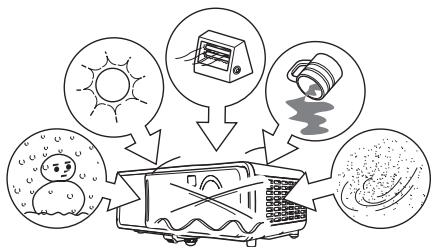
Never use or store the projector in the following locations. Doing so creates the risk of malfunction of and damage to the projector.
-
Locations subjected to electrostatic charge
- Locations subjected to temperature extremes
- Locations where there is extreme moisture
- Locations subjected to sudden temperature changes
- Locations where there is a lot of dust
- On a shaky, slanted, or otherwise unstable surface
- Locations where there is the danger of getting wet
-
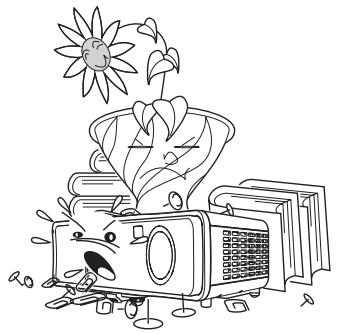
Avoid using the projector under the following conditions. Such conditions create the risk of malfunction of and damage to the projector.
-
Avoid areas subject to temperature extremes (operating temperature range is 5^ to 35^ (41 to 95^ ).
- Never place heavy objects on the projector or climb on top of the projector.
- Never insert or allow foreign objects to drop into the projector.
- Never place a vase or any other container of water on top of the projector.
- Never leave dead batteries inside the remote controller for a long time.
Batteries can leak, which leads to malfunction of and damage to the remote controller.
Clean with a soft, dry cloth.
When very dirty, use a soft cloth that has been dampened in a weak solution of water and a mild neutral detergent. Wring all excess water from the cloth before wiping. Never use thinner, benzene, or any other volatile agent to clean the projector. Doing so can remove its markings and cause staining of the case.
- Missing Screen Dots
Though this projector is manufactured using the most advanced digital technology available today, some of the dots on the screen may be missing. This is normal, and does not indicate malfunction.
- The contents of this User's Guide are subject to change without notice.
- Copying of this manual, either in part or its entirety, is forbidden. You are allowed to use this manual for your own personal use. Any other use is forbidden without the permission of CASIO COMPUTER CO., LTD.
- CASIO COMPUTER CO., LTD. shall not be held liable for any lost profits or claims from third parties arising out of the use of this product or this manual.
- CASIO COMPUTER CO., LTD. shall not be held liable for any loss or lost profits due to loss of data caused by malfunction or maintenance of this product, or any other reason.
- The sample screens shown in this manual are for illustrative purposes only, and appear differently from the screens actually produced by the product.
Contents
Safety Precautions 3
About safety symbols 3
Icon Examples 3
Precautions During Use 4
Battery Precautions 8
Lamp Precautions 9
Operating Precautions 10
Features and Functions 15
General Guide 16
Remote Controller 24
General Guide 24
Loading Remote Controller Batteries 27
Using the Laser Pointer 28
Remote Controller Signal Range 29
Getting Ready 30
Setting Up the Projector 30
Setup Precautions 33
Projector Angle to the Screen 34
Adjusting the Projector Elevation Angle 35
Rear Projection (From the Back of the Screen) 37
Connecting a Computer to the Projector (Video and Audio) 37
Connecting a Computer to the Projector's USB Port 38
Connecting to a Standard Video Device 39
Connecting to a Component Video Output Device 40
Turning On the Projector 41
Turning Off the Projector 44
Projection Operations 46
Projecting onto a Screen 46
Keystone Correction (KEYSTONE) 53
Adjusting the Volume Level (VOL +/-) 56
Enlarging the Projected Image (D-ZOOM + / - 57
Using Picture-in-Picture (P-IN-P) 59
Muting the Image and Audio (MUTE) 61
Freezing the Projected Image (FREEZE) 62
Operating the Computer with the Remote Controller (Wireless Mouse) 62
Using the Setup Menu 64
Setup Menu Overview 64
Before Configuring Menu Settings 67
Setup Menu Screen Operations 68
Setup Menu Reference 77
Image Adjustment 77
Volume Adjustment 82
Screen Settings 83
Input Settings 89
Option Settings1 92
Option Settings2. 106
Operational Info. 109
Restore All Defaults 110
User Maintenance 111
Cleaning the Projector 111
Replacing the Lamp 111
Troubleshooting 119
Indicators and Alert Tones 119
Projector Troubleshooting 122
Appendix 124
Specifications 124
Computer System Requirements for USB Connection 125
Supported Signals 126
Features and Functions
The following are some of the major features and functions of this product.
278 × 64 × 197 ~mm ( 10.9 × 2.5 × 7.8 inch), 2.4 ~kg (5.3 lbs) lightweight and compact data projector
Though it is compact and lightweight enough to go just about anywhere, the projector's high-luminosity (2800ANSI lumen) allows clear projection of images, even in a brightly lit room.
■Auto Focus, auto vertical and horizontal keystone correction
The press of a key automatically focuses the image and performs vertical and horizontal keystone correction for a perfect projected image.
Power zoom and power focus
Zooming and focusing of the projected image can be performed using the remote controller.
Laser pointer built into the remote controller
The remote controller unit also doubles as a laser pointer. During a presentation, you can use the pointer to indicate items within the projected image.
Versatile projection range
The shortest projection distance is 0.8 meters (2.62 feet), which means that very little space is required for projection. 2X zoom makes it possible to produce a projected image of the size you want from a range of possible distances. To project onto a 60-inch screen, for example, you can set up the projector anywhere from 1.6 meters (5.25 feet) to 3.2 meters (10.5 feet) from the screen.
A selection of possible input sources
Possible input sources are a computer's RGB signal, a video device's VIDEO/S-VIDEO signal, and a component video signal (Y·Cb/Pb·Cr/Pr).
Versatile projection functions
A collection of powerful projection tools let you enlarge a specific part of the projected image with digital zoom, use picture-in-picture to insert a video input sub-window into a projected computer image, and much more.
Remote controller also performs computer mouse functions
You can use the remote controller that comes with the projector to perform mouse operations on the computer connected to the projector's USB port, to perform page up and page down operations, and more. The remote controller helps to make presentations more effective.
General Guide
This section defines the names and explains the main functions of each part of the projector.
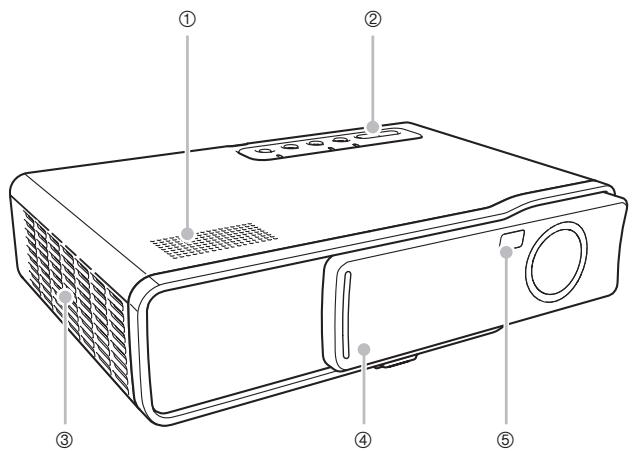
[Front/Top/Left side]
① Speaker
: Outputs audio input through the AUDIO terminal.
[Back, Terminals] (page 19)
② Key and Indicator Panel
: This panel includes the [] (power) key and various indicators.
[Key and Indicator Panel] (page 21)
③ Exhaust vents
: Exhaust air for cooling.
Setup Precautions (page 33)

Warning
- Never allow the exhaust vents to become blocked, and make sure there is at least 30~cm (11.8 inches) clearance around the projector. Restricted vents can cause heat to build up, creating the risk of fire and malfunction.
- Never touch the areas around the exhaust vents. These areas can become very hot, and create the risk of burn injury.
④ Front cover
: Protects the projection lens. Slide the cover open to extend the lens before turning on the projector.
⑤ Remote control signal receiver : Receives the remote control signal.
Remote Controller Signal Range (page 29)
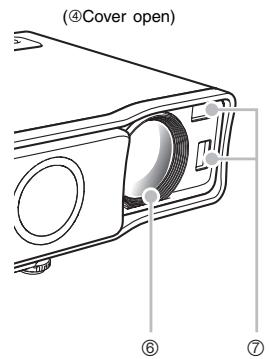
(6) Lens
: Projects the image from the projector.

Warning
Never look into the lens while the projector is turned on.
Sensors
: Measures the distance between the projector and screen.

Caution
- Finger smudges or dirt on the sensors can cause keystone correction problems. Should the sensors ever become soiled, wipe them clean using a commercially available lens cloth or optical lens paper, like those for eyeglasses or camera lenses.
[Bottom]
![CASIO XJ-450 - [Bottom] - 1](/content/2025/01/129500/images/b31f45ffdc62ad9510399645dd2cddf0007239f6d55fc98e8c7be9b1d4c21e31.jpg)
① Elevation adjustment foot : Rotate to change the angle of the projector.
To change the projector elevation angle (page 35)
② Release button : Press to release the elevation adjustment foot.
③ Left, right adjustment feet (2) : Rotate for fine adjustment of the left and right angle of the projector.
To change the projector elevation angle (page 35)
④ Intake vents : Intake air for cooling.
Setup Precautions (page 33)
| Warning | Never allow the intake vents on the back or the bottom of the projector to become blocked. Restricted vents can cause heat to build up, creating the risk of fire and malfunction. |
⑤ Lamp cover : Open this cover to replace the lamp.
To replace the lamp (page 114)
[Back, Terminals]
![CASIO XJ-450 - [Back, Terminals] - 1](/content/2025/01/129500/images/4a2af029ab7777d607bdaf90cea22036ddcb3e2cecc20a2e535f3a8ce0bdb903.jpg)
① RGB input terminal
: For connection to the video output terminal of a computer or component video device using the bundled Mini D-Sub cable or the optional component video cable (YK-3).
Connecting a Computer to the Projector (Video and Audio) (page 37)
Connecting to a Component Video Output Device (page 40)
② USB port
: For connection to a USB port of a computer using the bundled USB cable.
Connecting a Computer to the Projector's USB Port (page 38)
③ Remote control signal receiver : Receives the remote control signal.
Remote Controller Signal Range (page 29)
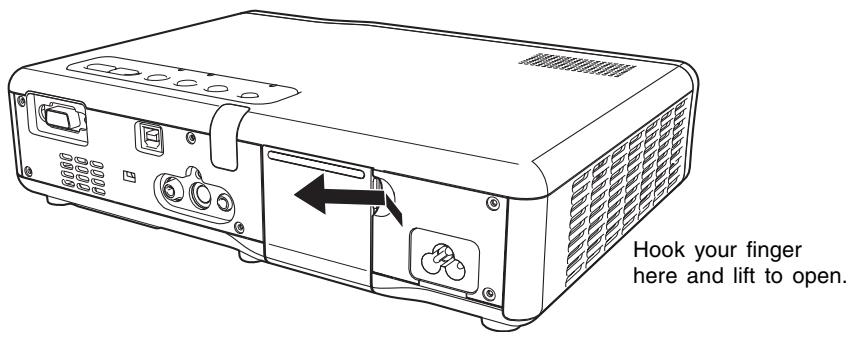
④ Projection key panel cover : Protects a key panel for projection operations.
⑤ Intake vents
: Intake air for cooling.
Setup Precautions (page 33)
![CASIO XJ-450 - [Back, Terminals] - 2](/content/2025/01/129500/images/820ba55241227b6d896297acfec10a67bd0ae6749f8704cb230cdad2ff00776f.jpg)
Warning
Never allow the intake vents on the back or the bottom of the projector to become blocked. Restricted vents can cause heat to build up, creating the risk of fire and malfunction.
⑥ Anti-theft lock hole
: An anti-theft chain can be passed through this hole. Visit the Kensington Lock Website at http://www.kensington.com/ for more information.
⑦VIDEO input terminal
: For connection to the VIDEO output terminal of a video device using the bundled video cable.
Connecting to a Standard Video Device (page 39)
S-VIDEO input terminal
: For connection to the S-VIDEO output terminal of a video device using a commercially available S-video cable.
⑨ AUDIO input terminal
: For connection to the audio output terminal of a computer or video device using a commercially available audio cable (0.3.5mm stereo).
Connecting a Computer to the Projector (Video and Audio) (page 37)
Connecting to a Standard Video Device (page 39)
10 Power connector
: For connection of the bundled AC power cord.
Turning On the Projector(page 41)
Using the Projection Key Panel
You can use the keys on the projection key panel to control the projector when the remote controller is not available for some reason.
Opening and Closing the Projection Key Panel Cover
[Key and Indicator Panel]
![CASIO XJ-450 - [Key and Indicator Panel] - 1](/content/2025/01/129500/images/0d4f123df4d8f1ee0624b1251df7ecc1a5f5a818f082c3d305009f0bbed4c5ca.jpg)
① TEMP indicator : Indicates the error status of the projector.
Indicators and Alert Tones (page 119)
② LAMP indicator : Indicates the current lamp status.
Indicators and Alert Tones (page 119)
Replacing the Lamp (page 111)
③ POWER/STANDBY indicator : Indicates the current projector status.
Turning On the Projector(page 41)
Indicators and Alert Tones (page 119)
④ [ZOOM] keys : Press to change the size of the projected image.
Zoom and Focus (page 50)
⑤ [AF/AK] key : Press to perform Auto Focus and auto keystone correction. Auto Keystone Correction and Auto Focus (page 53)
[AUTO] key : Automatically adjusts the projected image in accordance with RGB input. Auto Adjustment of an RGB Image (page 51)
⑦ [INPUT] key : Press to cycle through available projector input sources. Manually Selecting the Input Source (page 48)
⑧ [O] (power) key : Turns projector power on and off. Turning On the Projector (page 41)
![CASIO XJ-450 - [Key and Indicator Panel] - 2](/content/2025/01/129500/images/c79ae7a637c8c5087ab3e892cb2361064f07948e05dc5942a8f54aaccd90eec7.jpg)
[Projection Key Panel]
① [MENU] key : Press this key to display the projector setup menu on the projected image. Using the Setup Menu (page 64)
(2) [KEYSTONE] key : Press this key to automatically correct the projected image and remove vertical and horizontal keystoning.
Keystone Correction (KEYSTONE) (page 53)
[ESC] key : Use this key to perform the operations described below. When a menu screen is displayed, to back-step to the previous screen (F page 68) To perform a mouse right-click operation on the computer connected to the projector's USB port. (F page 62)
^4 Cursor keys : Use these keys to perform the operations described below.
- To move the highlighting (selection cursor) on the menu screen ( page 68)
- To perform mouse operations on the computer connected to the projector's USB port (F page 62)
*In this manual, cursor key operations are indicated as [], [], [], [] .
⑤ [ENTER] key : Use this key to perform the operations described below.
- To execute the command currently highlighted on the menu screen (Fpage 68)
- To perform a mouse left-click operation on the computer connected to the projector's USB port. (F page 62)
(6) [FOCUS] keys : Press to adjust focus.
Zoom and Focus (page 50)
![CASIO XJ-450 - [Key and Indicator Panel] - 3](/content/2025/01/129500/images/650a43373dddc9c7d815c64f1e84339456a44367c13386449cfdd475cfb2d8cf.jpg)
- You can disable certain key operations, if you want. For details, see "Option Settings1 Key Lock" on page 94.
Remote Controller
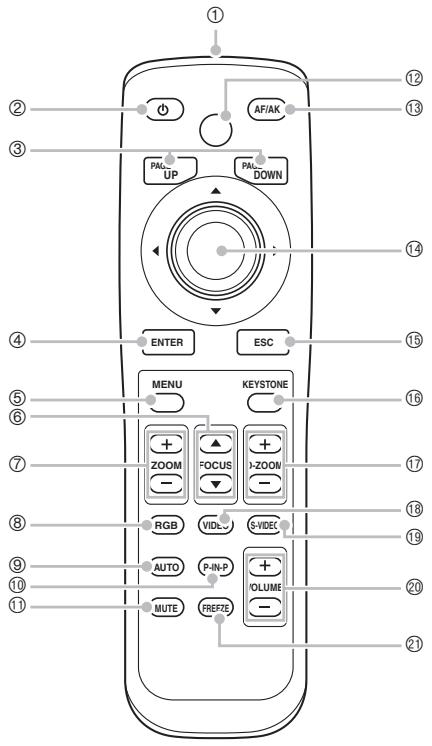
This section defines the names and explains the main functions of each part of the remote controller.
General Guide

Warning
- Keep the remote controller out of the hands of young children, and never allow a young child to operate the remote controller. The laser pointer built into the remote controller can cause eye damage and loss of sight if pointed directly into a person's eyes.
- Never try to take the remote controller apart or modify it in any way. Doing so creates the risk of electric shock, burn injury, and other personal injury. Be sure to leave all internal inspection, adjustment, and repair up to your original dealer or authorized CASIO Service Center.
- Never allow the remote controller to become wet. Water creates the risk of fire and electric shock.
NOTE
- The asterisks (*) in the following explanations indicate keys that have the same names and functions as keys on the projector itself. Note that the operations of remote controller keys ⑧, ⑬, and ⑲ can be performed using the projector's [INPUT] key.
- Some remote controller keys have the same names as projector keys. Unless stated otherwise in this manual, the remote controller keys perform the same functions as their corresponding projector keys.
① Remote controller signal/laser signal emitter
CLASS 1 LED PRODUCT
② [] (power) key : Turns projector power on and off. Turning On the Projector (page 41)
③ [PAGEUP] / [PAGEDOWN] keys: Press to perform page up and page down operations on the computer connected to the projector's USB port. Operating the Computer with the Remote Controller (Wireless Mouse) (page 62)
④ [ENTER] key : Use this key to perform the operations described below.
- To execute the command currently highlighted on the menu screen (F page 68)
- To perform a mouse left-click operation on the computer connected to the projector's USB port. (F page 62)
⑤ [MENU] key : Press this key to display the projector setup menu on the projected image. Using the Setup Menu (page 64)
^6 [FOCUS / ] keys : Press to adjust focus. Zoom and Focus (page 50)
⑦ [ZOOM +/-] keys : Press to change the size of the projected image. Zoom and Focus (page 50)
[RGB] key : Press to select the RGB input terminal as the input source. Manually Selecting the Input Source (page 48)
^ 念 [AUTO] key : Automatically adjusts the projected image in accordance with RGB input. Auto Adjustment of an RGB Image (page 51)
[10] [P-IN-P] key : When projecting RGB (computer) input, press this key to project video input in a sub-window. Using Picture-in-Picture (P-IN-P) (page 59)
① [MUTE] key : Press to momentarily cut off the projected image and audio output from the projector's speaker. Muting the Image and Audio (MUTE) (page 61)
[LASER] key
: Hold down to emit a laser beam that you can use as a pointer. The [AF/AK] key lights red while this key is depressed to indicate that the laser beam is being emitted.
Using the Laser Pointer (page 28)

Warning
- Never look directly at the laser beam. Doing so creates the risk of eye damage and loss of sight.
- Never point the laser beam at another person. Shining the laser beam into the eyes of another creates the risk of eye damage and loss of sight.
- Keep the remote controller out of the reach of young children, and never allow a young child to operate the remote controller.
[13] *[AF/AK] key : Press to perform Auto Focus and auto keystone correction.
Auto Keystone Correction and Auto Focus (page 53)
^14 *Cursor keys : Use these keys to perform the operations described below.
To move the highlighting (selection cursor) on the menu screen ( page 68)
- To perform mouse operations on the computer connected to the projector's USB port (F page 62)
* In this manual, cursor key operations are indicated as [▲], [▼], [▶], [◁].
^15 *[ESC] key : Use this key to perform the operations described below.
- When a menu screen is displayed, to back-step to the previous screen (Fpage 68)
-
To perform a mouse right-click operation on the computer connected to the projector's USB port. (Fpage 62)
-
[KEYSTONE] key : Press this key to automatically correct the projected image and remove vertical and horizontal keystoneing.
Keystone Correction (KEYSTONE) (page 53)
[17] [D-ZOOM +] / [D-ZOOM -] keys: Press the [+] key to increase the size of the projected image, and the [-] key to decrease it.
Enlarging the Projected Image (D-ZOOM + / - page 57)
[VIDEO] key : Press to select the VIDEO input terminal as the input
[ S - VIDEO ] key : Press t
Manually Selecting the Input Source (page 48)
[10] [VOL +] / [VOL -] keys : Press the [+] key to increase volume, and the [-] key to
decrease volume.
Adjusting the Volume Level (VOL +/-) (page 56)
[FREEZE] key : Freezes the projected image.
Freezing the Projected Image (FREEZE) (page 62)
Loading Remote Controller Batteries
Before you can use the remote controller for the first time, you need to load the two batteries that come with it.
Important!
- Be sure to use alkaline batteries only.
Replace remote controller batteries with a set of new ones whenever the remote controller does not work or if you need to move the remote controller very close to the projector before it will work.

Caution
Misuse of batteries can cause them to leak and stain of the area around them, or to explode, creating the risk of fire and personal injury. Make sure that you always observe the following precautions.
- Take care that batteries are oriented correctly when you load them.
- Never mix old batteries and new ones.
- Never mix batteries of different types.
- Use only battery type that is specified for use with the remote controller.
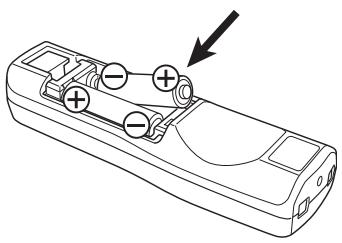
To load remote controller batteries
- Remove the battery cover from the back of the remote controller.
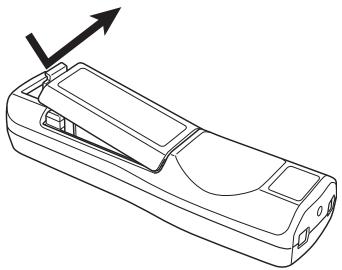
-
If there are old batteries inside the case, remove them.
-
Load two new batteries into the case, making sure that their positive (+) and negative (-) ends are facing correctly.
- Replace the battery cover on the back of the remote controller.
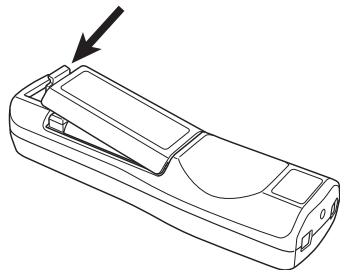
Using the Laser Pointer
The remote controller includes a laser pointer that you can use during a presentation to indicate a specific item within an image. The laser is a 1mW/Class 2 Laser, which qualifies as a "Designated Specified Product" under Japan's "Consumer Product Safety Law".
- Holding down the [LASER] key causes a red laser beam to be emitted from the front edge of the remote controller. Use the laser beam to point to the object you want to indicate in the image.
- The [AF/AK] key lights red while this key is depressed to indicate that the laser beam is being emitted.

Warning
- Never look directly at the laser beam. Doing so creates the risk of eye damage and loss of sight.
- Never point the laser beam at another person. Shining the laser beam into the eyes of another creates the risk of eye damage and loss of sight.
- Keep the remote controller out of the reach of young children, and never allow a young child to operate the remote controller.
Remote Controller Signal Range
When performing an operation on the remote controller, point it at the remote control signal port on the back or front of the projector. The following illustration shows the range of the remote controller signal.
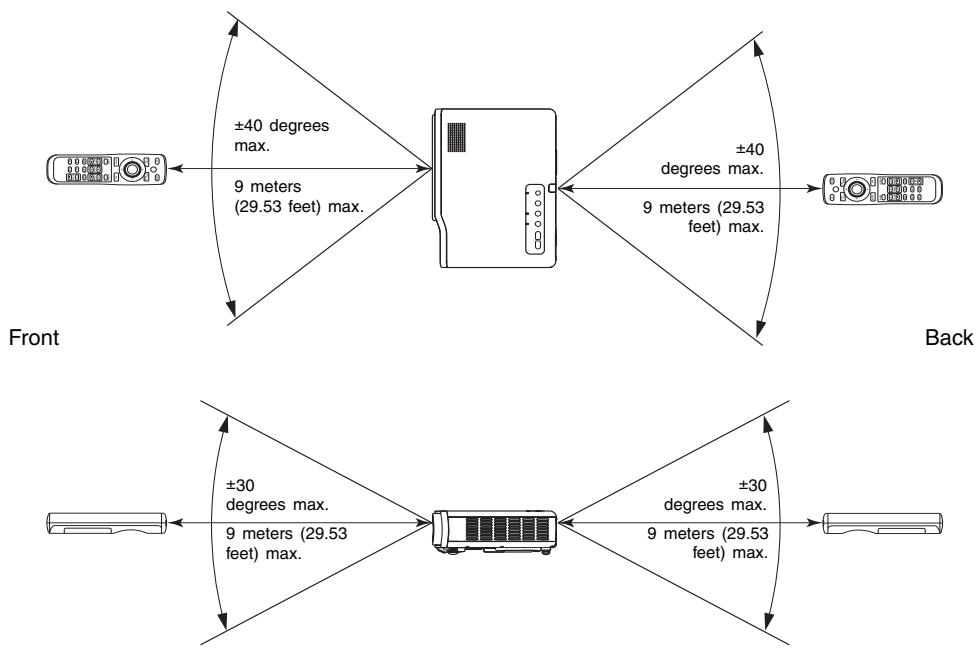
Getting Ready
This section explains how to set up the projector to get it ready for use, and how to connect it to an input source (computer or video device).
It also includes information about how to turn on the projector, how to select the display language the first time you turn it on, and precautions you need to keep in mind concerning the power supply.
Setting Up the Projector
Locate the projector on a desk, table, or stand that is firm and level. Make sure to allow sufficient space around the sides and back of the projector for proper ventilation.
- The following illustrations show how the projector should be oriented for optimum projection relative to the screen.
Viewed from Above
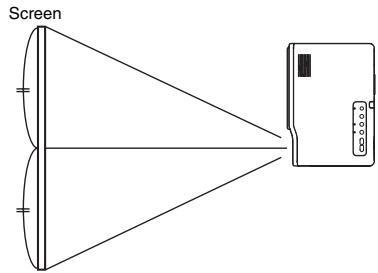
The center of the projector's lens should be aligned with the horizontal center of the screen.
Viewed from the Side
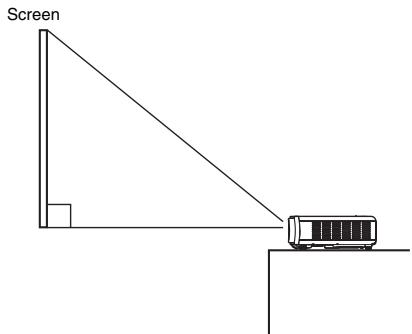
Make sure the projector is at a right angle to the screen.
Important!
- You can place the projector on a surface that is angled up to 30 degrees up or down during use. Angling the projector more than 30 degrees up or down can cause rupture or premature aging of the projector's lamp, or malfunction of the projector.
NOTE
-
The above setup enables proper projection without any image correction. If the projector is at an angle to the screen, a phenomenon called "keystoning" will occur, which causes the sides, and/or the top and bottom of the image to be different lengths. The projector comes with a keystone correction feature that automatically corrects the image. See "Keystone Correction (KEYSTONE)" on page 53 for information about keystone correction.
-
The allowable projection range is from 0.8 meter (2.62 feet) to 16 meters (52.49 feet), which is the distance from the surface of the lens to the screen.
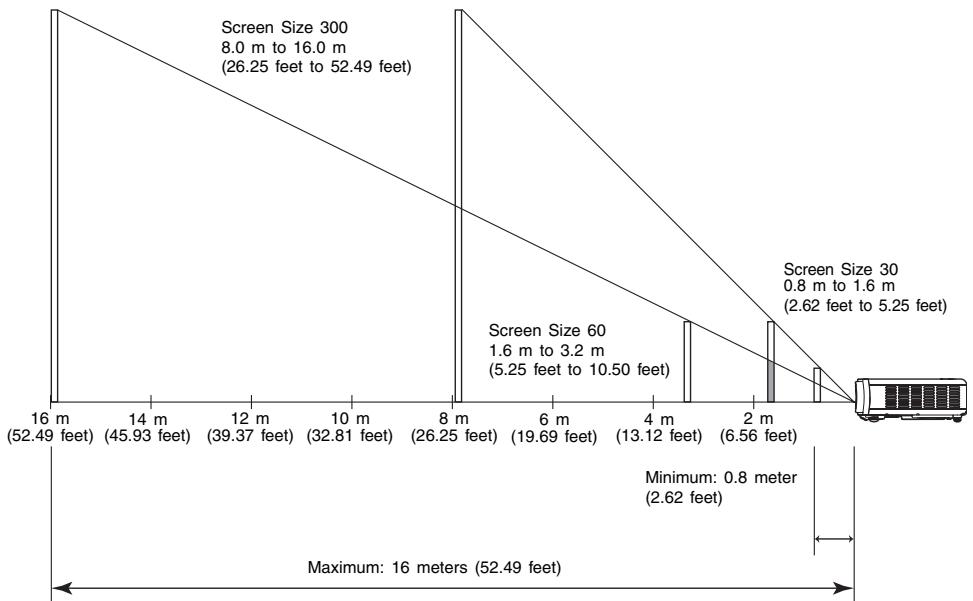
The following table shows the relationship between the distance and projected image size.
| Projection Size | Projection Distance | ||||
| Screen Size | Diagonal (cm) | Minimum Distance (m) | Maximum Distance (m) | Minimum Distance (feet) | Maximum Distance (feet) |
| 30 | 76 | 0.8 | 1.6 | 2.62 | 5.25 |
| 40 | 102 | 1.1 | 2.1 | 3.61 | 6.89 |
| 60 | 152 | 1.6 | 3.2 | 5.25 | 10.50 |
| 80 | 203 | 2.1 | 4.3 | 6.89 | 14.11 |
| 100 | 254 | 2.7 | 5.3 | 8.86 | 17.39 |
| 120 | 305 | 3.2 | 6.4 | 10.50 | 21.00 |
| 150 | 381 | 4.0 | 8.0 | 13.12 | 26.25 |
| 200 | 508 | 5.3 | 10.7 | 17.39 | 35.10 |
| 250 | 635 | 6.7 | 13.3 | 21.98 | 43.64 |
| 300 | 762 | 8.0 | 16.0 | 26.25 | 52.49 |
- The minimum/maximum distances in the above table define the ranges within which manual focus is possible. The ranges for Auto Focus and auto keystone correction are smaller.
Important!
- Note that the distances provided above are for reference only. Actual distances will be within ± 5% of those provided.
Setup Precautions
Note that the condition of the environment where you use the projector greatly affects its performance. Make sure that the following are the conditions of projector setup whenever you use it.
- Use a conveniently located power outlet that you can reach easily when you need to unplug the projector.
- Do not place any objects within the area indicated by the dashed line in the illustration below. Be especially careful that you never block intake and exhaust vents.
- Do not allow the intake vents on the bottom of the projector to become blocked.
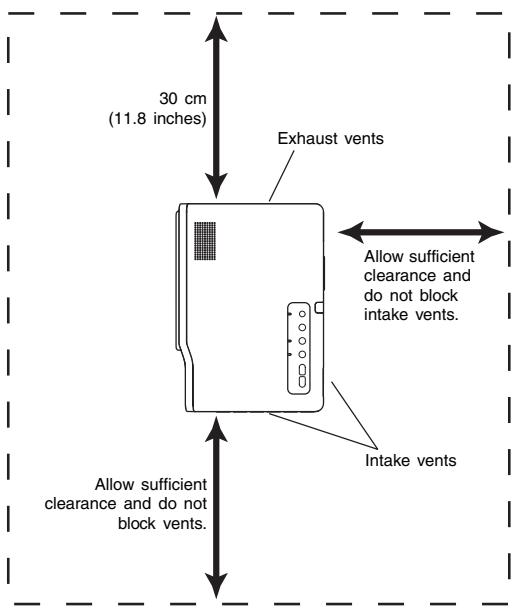
- Do not locate any objects near the projector while it is in use. Keep all items at least 30~cm (11.8 inches) away from the exhaust vents.
- The vents become quite hot while the projector is in use. Never touch the vents with your hands. Also, the areas near the exhaust vents also become quite hot. Never locate objects made of plastic or other heat-sensitive materials near or under the projector. Doing so creates the risk of deformation and discoloration of the object.
- Avoid placing the projector on a surface that is unstable or prone to vibration. Never place the projector on top of a carpet, blanket, towel, or other soft material.
- Do not locate the projector where it will be exposed to direct sunlight.
- Avoid locations where there are large amounts of dust and moisture.
- Keep the projector away from speakers, TVs, radios, and other devices that generate magnetism, as well as from heaters.
Projector Angle to the Screen
The following shows the allowable angle that the projector can be positioned relative to the screen.
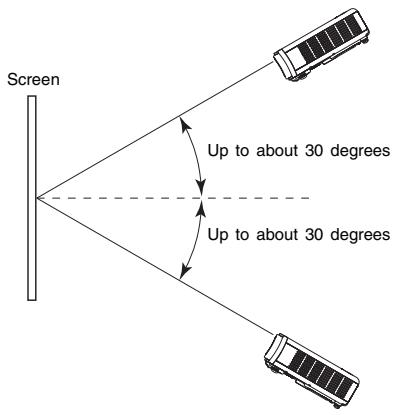
Vertical
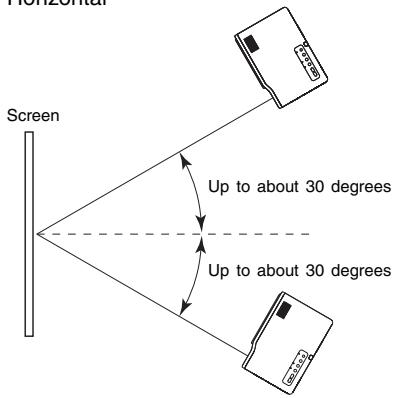
Horizontal
Important!
- The angles shown in the above illustration are subject to the following conditions.
- Projection of an image from a computer (Resolution: 1024 × 768 ; Vertical Frequency: 60Hz)
Resize Image To Fit: On - Actual correction ranges are affected by the type of signal being projected, zoom, the "Resize Image To Fit" setting, the aspect ratio setting, and other factors.
Adjusting the Projector Elevation Angle
You can change the elevation angle of the projector in a range of 0 to 8 degrees. You can also make fine adjustments to the left and right side elevation angle when necessary.
To change the projector elevation angle
-
Lift up the front of the projector and press the release button.
-
This causes the elevation adjustment foot to drop from the bottom of the projector.
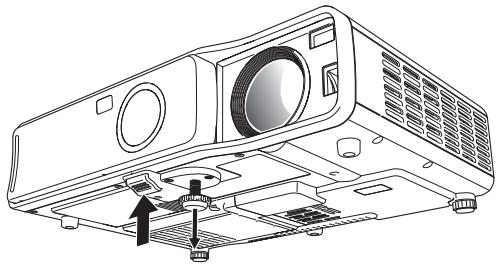
- While holding down the release button, raise and lower the front of the projector until the elevation adjustment foot is approximately the length you need.
- Release the release button to lock the elevation adjustment foot in its current position.
- Rotate the elevation adjustment foot for fine adjustment of its length.
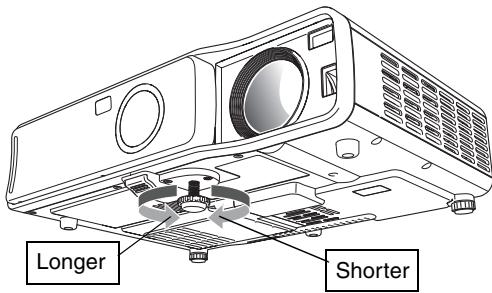
- Use the left and right adjustment feet to further fine adjust the elevation angle.
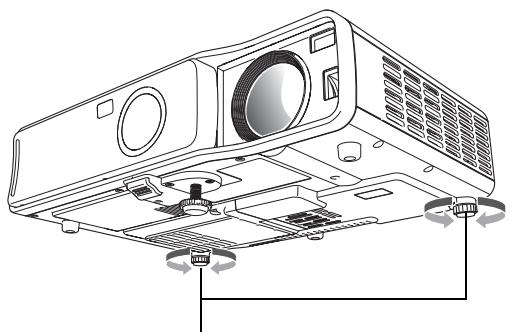
Rotate to adjust horizontal alignment.
Important!
- To retract the elevation adjustment foot, hold down the release button and slide the elevation adjustment foot back into the projector. Never try to forcibly change the elevation adjustment foot position without pressing the release button.
Rear Projection (From the Back of the Screen)
Distances and angles for rear projection are the same as those for front projection. In the case of rear projection, however, left/right orientation is opposite that of front projection, so you need to configure the setup menu accordingly. For details, see "Screen Settings Projection Mode" on page 86.
Connecting a Computer to the Projector (Video and Audio)
You can use the projector to project an image of video output from a computer. You can also output audio from the computer through the projector's speaker.
Important!
- Always turn off the projector and the computer before connecting them.
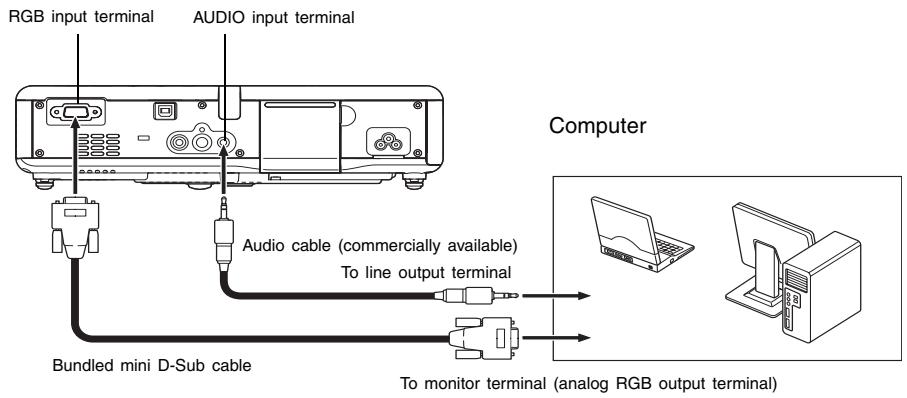
Projector
- You can use the bundled mini D-Sub cable to connect to a D-Sub 15-pin type monitor terminal. For other types of monitor terminals (like the one on the old model Macintosh), you need to purchase an optional adapter. See the documentation that came with your computer for information about its terminal.
- The analog RGB video output display mode (resolution and frequency combination) of your computer may not allow proper operation with the projector. See "Supported Signals" on page 126 for information about the computer display modes supported by this projector.
Connecting a Computer to the Projector's USB Port
After you connect a computer to the projector's USB port, you can use the remote controller to perform computer mouse operations, and previous page and next page operations. The illustration shows how to connect to the USB port.
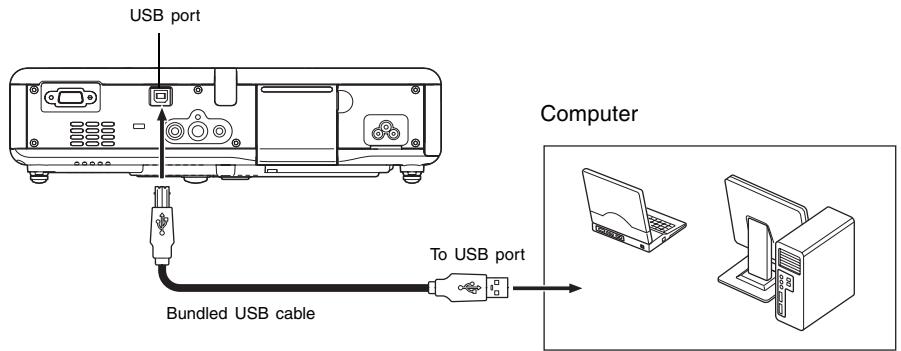
Projector
- For details about computer requirements, see "Computer System Requirements for USB Connection" on page 125.
- For details about operation over a USB connection, see "Operating the Computer with the Remote Controller (Wireless Mouse)" on page 62.
Connecting to a Standard Video Device
You can use the projector to project an image from a video deck, TV, video camera, or other video device. You can also output audio from the video device through the projector's speaker.
Important!
- Always turn off the projector and the video device before connecting them.
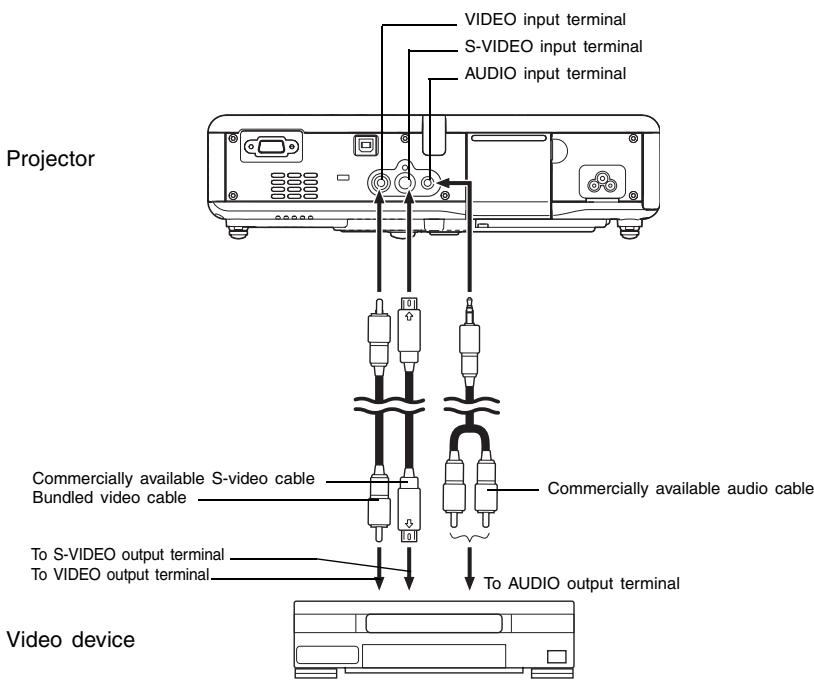
- You can use the bundled video cable to connect to a pin jack (RCA) type VIDEO output terminal. When connecting a video camera or other video device with a special video output terminal, use the special cable that comes with the video device. For details, see the documentation that comes with the video device.
- Note that the projector is equipped with separate circuits for the VIDEO input terminal and S-VIDEO input terminal. Make sure you connect the video device to the correct terminal. The projector lets you switch the input source between RGB (or Component), VIDEO, and S-VIDEO whenever you want.
Connecting to a Component Video Output Device
Some video devices are equipped with a component video output terminal. You can use an optionally available component video cable (YK-3) to connect the RGB input terminal of the projector to the component video output terminal of a video device.
Important!
- Always turn off the projector and the video device before connecting them.
Projector
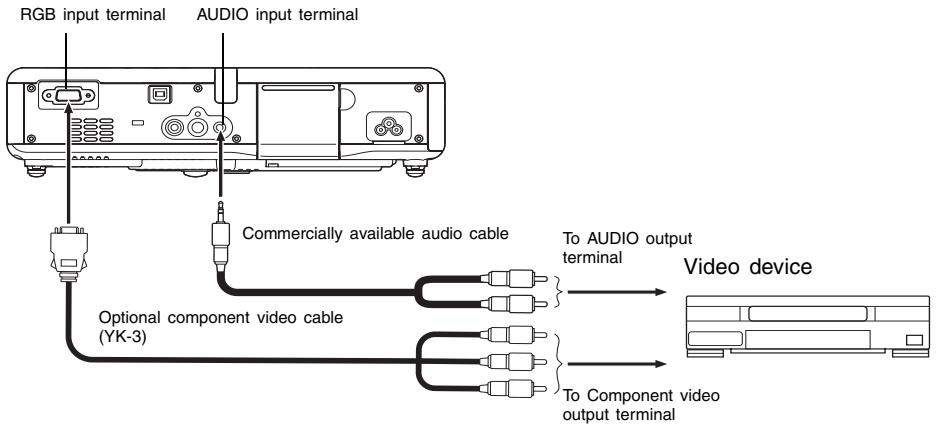
- Component video output terminals come in 3-terminal sets: Y-Cb-Cr or Y-Pb-Pr. Be sure to match the colors of the plugs on the optional YK-3 component video cable with the colors of the terminals (Green: Y; Blue: Cb/Pb; Red: Cr/Pr).
- You can use the optional YK-3 component video cable to connect to pin jack (RCA) type component video output terminals. The projector does not support connection to any other type of terminal.
- Note that connection only to an analog component video output terminal is supported. Connection to a digital output terminal is not supported.
- In order to connect to a component video terminal, you must use the setup menu to configure input settings. For details, see "Input Settings RGB Input" on page 89.
Turning On the Projector
Before performing any of the operations in this section, make sure you first set up the projector (page 30) and connect to an output device (pages 37 to 40).
AC Power Cord Precautions
- Make sure that you use a power source with the same voltage as that specified for the projector.
- Do not share the outlet supplying power to the projector with other devices. If you are using an extension cord, make sure that the ampere rating of the extension cord is compatible with the power consumption value of this projector.
- Never use the power cord while it is still bundled together.
- Never place objects on top of the power cord and do not step on it.
- Never pull on the power cord. When unplugging it, grasp the plug.
- Use a conveniently located power outlet that you can reach easily when you need to unplug the projector.
- If you need more information about the power supply, contact your original dealer or authorized CASIO service center.
To turn on the projector
- Use the bundled AC power cord to plug the projector into a power outlet.
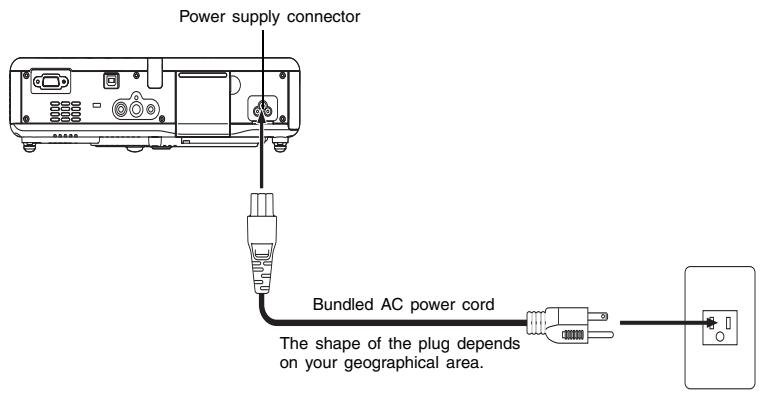
- Plugging into a power outlet causes the three indicators on the top of the projector to light amber. After a short while, two of the indicators will go out and only the POWER/STANDBY indicator will remain lit amber, which indicates the standby state.
-
Note that the projector will not turn on if you press the [O] (power) key while all three indicators are lit amber. Wait until the projector is in the standby state before trying to turn it on.
-
Turn on the computer or video device that is connected to the projector.
-
If the projector's front cover is closed, open it.
-
Press the [O] (power) key.
-
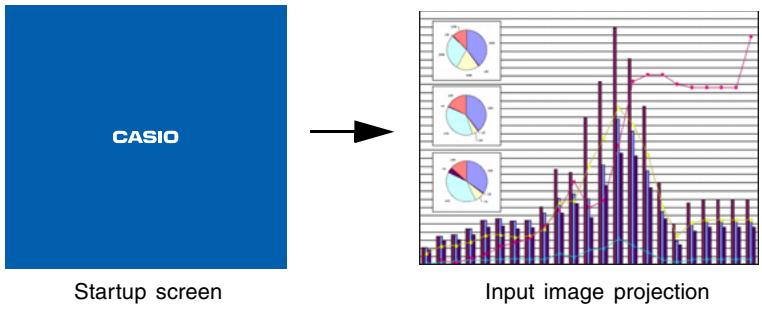
This causes the POWER/STANDBY indicator to flash green, which indicates that the projector is warming up. After a short while, the start up screen will be projected (warm up is still in progress).
- After warm up is complete, POWER/STANDBY indicator stops flashing and remains lit green, and the projector starts projecting an image from the device connected to it. It normally takes about 60 seconds from the point that warm up starts until an image is projected from the connected device.
- A "Language" window will be projected the first time you turn on the projector. Use the procedure under "Specifying the Display Message Language" on page 43 to configure the language settings.
NOTE
- You can configure the startup screen so it shows a custom logo you created yourself, or so nothing appears at startup. For details, see "Option Settings1 Custom Logo Settings" on page 99 and "Screen Settings Startup Screen" on page 87.
- If the projector is configured for low-noise mode operation, the LAMP indicator lights green when warm up starts. See "Option Settings1 Low-noise Mode" on page 93 for information about the low noise mode.
- For details about projection operations, see "Projecting onto a Screen" on page 46.
Specifying the Display Message Language
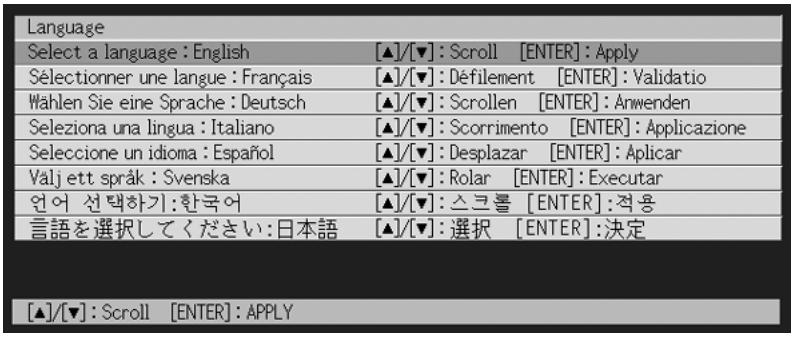
A "Language" window will be projected the first time you turn on the projector. Use the menu on this screen to specify the display language you want to use.
-
Use the cursor [▲] and [▼] keys to highlight the language you want to use.
-
Note that the choice of languages available on the "Language" window will depend on whether your projector's serial number starts with the letter A (such as: A791AA42...) or the letter B (such as: B791AA42...).
| If the serial number starts with this letter: | You can select from among these languages: |
| A | English, French, German, Italian, Spanish, Swedish, Korean, Japanese, |
| B | English, Spanish, Chinese (Simplified), Chinese (Traditional), Japanese |
A Model
B Model
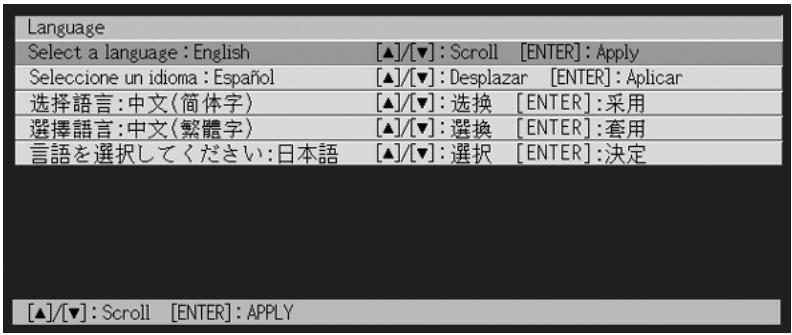
2. Press the [ENTER] key.
- This applies the selected language, closes the "Language" window, and displays the projected image from the connected device.
![CASIO XJ-450 - Press the [ENTER] key. - 1](/content/2025/01/129500/images/289d1ae2a97879bc66a4583675f563a82e13a4efdea9f85c052cf713c726cf54.jpg)
- You can change the display language selection later, if you need to. For details, see "Option Settings1 Language" on page 105.
- For details about projection operations, see "Projecting onto a Screen" on page 46.
Turning Off the Projector
Caution
- When you turn off the projector, the lamp goes out and the projector goes into a cool down state. Note that you will not be able to turn the projector back on again while it is cooling down.
- The projector may remain quite hot for a while after you turn it off. Avoid touching the projector after you turn it off.
- Note that the projector may still be quite warm even after it completes its cool down procedure. Before packing up the projector, it is recommended that you check to make sure that the fan is stopped and that the projector is no longer warm.
To turn off the projector
1. Press the [O] (power) key.
- This causes a confirmation message like the one shown below to appear in the center of the projection screen.
![CASIO XJ-450 - Press the [O] (power) key. - 1](/content/2025/01/129500/images/e8be9d3fcadc178a40854b2c324a8efe890802230f4b4a8fe65041895d764645.jpg)
-
If you do not turn off the projector the confirmation message will disappear automatically after about 10 seconds. The confirmation message will also disappear if you press [ESC] key.
-
To turn off the projector, press the [O] (power) key again in response to the confirmation message.
-
This causes the projector lamp to go out and stops projection.
- Also the POWER/STANDBY indicator starts to flash amber, which indicates that the projector is cooling down. It takes about 120 seconds from the start of cool down until the projector turns off.
- The projector will not turn back on again while it is cooling down.
-
After cool down is finished, the POWER/STANDBY indicator on the top of the projector will light amber, which indicates the standby state. You can now turn the projector back on, if you want.
-
After confirming that cool down is complete, unplug the AC power cord from the power outlet.
Caution
- Note that the projector may still be quite warm even after it completes its cool down procedure. Before packing up the projector, it is recommended that you check to make sure that the fan is stopped and that the projector is no longer warm.
- This causes the POWER/STANDBY indicator to go out.
- After ensuring that the projector and the connected computer or video device are turned off, disconnect the connecting cables from the projector and the connected device.
- Close the front cover.
Auto Power Off
Auto Power Off automatically turns off the projector whenever there is no input signal from the currently selected input source, and no operation is performed on the projector for about 10 minutes.
When Auto Power Off is triggered, the projector first enters a cool down state, the same as it does when you press the [] (power) key to turn it off.
- The POWER/STANDBY indicator flashes amber to indicate that the projector is cooling down. It takes about 120 seconds from the start of cool down until the projector turns off.
- The projector will not turn back on again while it is cooling down.
- After cool down is finished, the POWER/STANDBY indicator on the top of the projector to lights amber, which indicates the standby state. You can now turn the projector back on, if you want.
NOTE
- You can turn off Auto Power Off, if you want. See "Option Settings1 Auto Power Off" on page 94.
Projection Operations
This section explains operations that are related to projection of an image.
Projecting onto a Screen
This section explains the basic steps for projecting an image.
Basic Flow
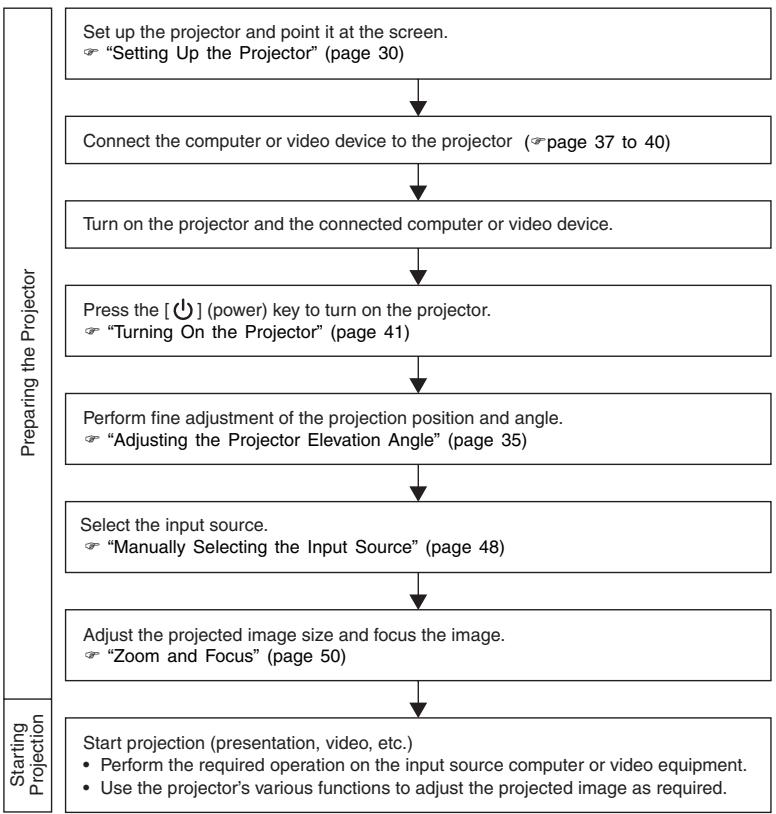
Auto Input Source Selection
When you turn on the projector, it checks the status of each input source (whether or not the input source is sending a signal) in the sequence shown below. It automatically selects the first input source it finds that is sending an input signal, and projects the applicable image.

If the RGB input terminal is connected to a computer and the S-VIDEO input terminal is connected to a video deck and signals are being supplied by both, for example, the projector automatically selects RGB input when it is turned on. The currently selected input source name is shown in the upper right corner of the projection screen.
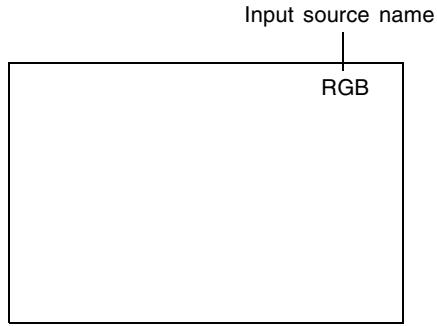
NOTE
- If the projector does not find any input signal, the message "No signal input" appears in place of the input source name.
- Whether the displayed input source name shows [RGB] or [Component] depends on the current "Input Settings RGB Input" (page 89) setting that is configured on the projector's setup menu.
| If the input source name shows this: | It means this input is selected: |
| RGB | RGB |
| Component | Component video |
For information about configuring setup menu settings, see "Using the Setup Menu" on page 64. For information about component video, see "Connecting to a Component Video Output Device" on page 40.
- Note that the projector does not select the input source automatically when "Off" is selected for the "Option Settings1 Auto Input Detect" (page 92) setting on the setup menu.
Manually Selecting the Input Source
The procedure you should use to select the input source depends on whether you are using projector keys or remote controller keys.
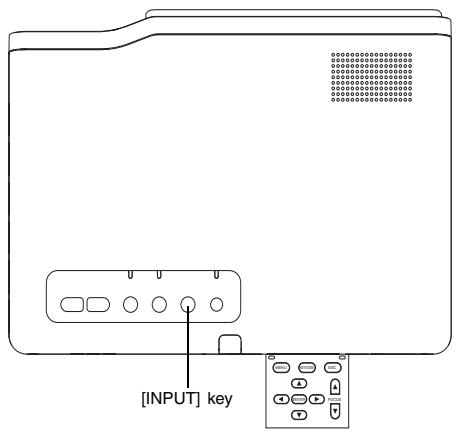
[Projector]
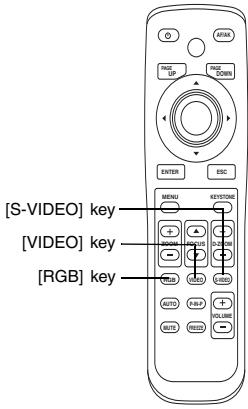
[Remote Controller]
To select the input source using projector keys
On the projector, press the [INPUT] key to cycle through input sources in the sequence shown below.

To select the input source using remote controller keys
On the remote controller, press the [RGB], [VIDEO], or [S-VIDEO] key to select the input source you want.
NOTE
- The currently selected input source name is shown in the upper right corner of the projection screen.
- If the currently selected input source is not sending an input signal, the message "No signal input" appears in place of the input source name.
- Whether the displayed input source name shows [RGB] or [Component] depends on the current "Input Settings RGB Input" (page 89) setting that is configured on the projector's setup menu.
| If the input source name shows this: | It means this input is selected: |
| RGB | RGB |
| Component | Component video |
For information about configuring setup menu settings, see "Using the Setup Menu" on page 64. For information about component video, see "Connecting to a Component Video Output Device" on page 40.
Zoom and Focus
Use the [ZOOM] keys to adjust the image size, and the [FOCUS] keys to focus the image.
To adjust image size
-
Hold down the [ZOOM +] key to increase the size of the image or the [ZOOM -] key to decrease it.
-
This causes the zoom indicator, which indicates the current zoom setting, to appear on the image.

-
Release the [ZOOM] key when the image is the size you want.
-
The zoom indicator will disappear from the image automatically if you do not perform any further key operation for a certain amount of time.
To focus the image
-
Hold down [FOCUS ] or [FOCUS ] to adjust the focus.
-
This causes the focus indicator, which indicates the current focus setting, to appear on the image.

-
When the focus is the way you want, release the [FOCUS] key.
-
The focus indicator will disappear from the image automatically if you do not perform any further key operation for a certain amount of time.
NOTE
- You can also focus automatically by pressing the [AF/AK] key. For more information, see "Auto Keystone Correction and Auto Focus" (page 53).
- The focus and zoom indicators may not appear under certain conditions (when the startup logo is displayed, when the image and audio are muted, during password input, etc.) Though the indicators do not appear, focus and zoom adjustment can still be performed by pressing the applicable keys.
Auto Adjustment of an RGB Image
When the input source is RGB (computer), the projector automatically adjusts vertical and horizontal positioning, frequency, and phase whenever it detects an RGB signal (following input source selection, power up, etc.) You can also execute an automatic adjustment operation by pressing the [AUTO] key.
NOTE
- You can turn off auto adjustment (page 93) when you want to disable auto adjustment and maintain manual settings.
- The projected image may become distorted while an auto adjustment operation is in progress.
- The [AUTO] key is disabled whenever S-VIDEO, VIDEO, or Component is selected as the input source.
- If an image is unclear following the auto adjustment operation, you can use the menu to adjust items manually. For details, see "Image Adjustment" on page 77.
Full-screen Display of an RGB Image
The projector outputs images using XGA (1024 pixels × 768 pixels) video resolution. When the input signal from the computer connected to the projector is not an XGA signal, "Resize Image To Fit" automatically enlarges or reduces the image so it matches the projector's video resolution and fills the entire screen. The following shows how different input signals from a computer are adjusted during projection.
| Input Signal Example | Projected Image |
| 800×600 | |
| 1024×768 | |
| 1280×1024 |

- Resizing of an input image by "Resize Image To Fit" can call coarsening of the image or can cause part of the image to be cut off. If this happens, try turning off "Resize Image To Fit". See "Screen Settings Resize Image to Fit" on page 85 for more information.
Keystone Correction (KEYSTONE)
When the projector is at an angle to the screen it is projecting on, the projected image may have different length left and right edges, or top and bottom edges. This phenomenon is called, "keystoning". This projector comes with functions for automatic as well as manual keystone correction, which provides a regularly shaped projected image.
Important!
- Keystone correction (auto or manual) can cause distortion of the projected image. If this happens try moving the screen and/or projector so they are oriented close to the configuration shown under "Setting Up the Projector" on page 30.
NOTE
- Depending on the angle between the screen and projector, keystone correction can cause the corrected image to be smaller than the original (uncorrected) image, or it can cause deterioration of the image. If keystone correction causes problems with your image, relocate the screen and/or projector so the line between them is as straight as possible.
Auto Keystone Correction and Auto Focus
Under the initial default configuration of the projector, the AF/AK mode is configured so both auto keystone correction and Auto Focus are performed when you press the [AF/AK] key. You can also configure settings of the Continuous AF/AK Mode.
AF/AK
Auto keystone correction and Auto Focus are enabled when [AF/AK] is selected for "Option Settings2 AF/AK Mode" (page 106) on the setup menu. Note that this is the initial default setting. With this setting, auto keystone correction and Auto Focus are performed automatically whenever the [AF/AK] key is pressed.
Continuous AF/AK
Continuous auto keystone correction and Auto Focus are enabled when [Continuous AF/AK] is selected for "Option Settings2 AF/AK Mode" (page 106) on the setup menu. This function comes in handy when it is necessary to project to a surface that is far away from the projector or at a sharp angle from the projector.
When Continuous AF/AK is enabled, pressing the [AF/AK] key once enters a pre-focus mode, which displays an alignment chart and starts continuous Auto Focus. Pressing the [AF/AK] key again performs auto keystone correction.
Note also that the projector automatically enters the Continuous AF/AK mode whenever projector power is turned on while [Continuous AF/AK] is selected for "Option Settings2 Power On AF/AK Mode" (page 107) on the setup menu.
Performing Auto Keystone Correction and Auto Focus while AF/AK is Enabled
Perform the following steps while [AF/AK] is selected for "Option Settings2 AF/AK Mode" (page 106) on the setup menu.
1. Press the [AF/AK] key.
- This automatically focuses the image and performs auto keystone correction.
Performing Auto Keystone Correction and Auto Focus while Continuous AF/AK is Enabled
Perform the following steps while [Continuous AF/AK] is selected for "Option Settings2 AF/AK Mode" (page 106) on the setup menu.
1. Press the [AF/AK] key.
- This enters the pre-focus mode, which projects an alignment chart like the one shown below.
- The size of the alignment chart depends on screen and projector setup conditions.
![CASIO XJ-450 - Press the [AF/AK] key. - 1](/content/2025/01/129500/images/79a5422261ce8f71ef13461769eb87da3ac6ff9c791b4270932443d2aeedb79d.jpg)
- Adjust the angle and position of the projector as required so the projected chart fits within the screen area.
-
Press the [AF/AK] key again.
-
This performs auto keystone correction.
Auto Adjustment at Power On
While [Continuous AF/AK] is selected for "Option Settings2 Power On AF/AK Mode" (page 107) on the setup menu, turning on the projector automatically enters the pre-focus mode and projects the positioning chart. Perform the procedure starting from step 2 under "Performing Auto Keystone Correction and Auto Focus while Continuous AF/AK is Enabled" above.

- When [AF] is selected for "Option Settings2 AF/AK Mode" on the setup menu, only Auto Focus is performed when the [AF/AK] key is pressed.
- If the message "Outside of Auto Focus range. Relocate the projector to change the distance from the screen, and then press the AF/AK button." appears, try moving the screen and/or projector so the distance between them is within the auto focus range (approximately 0.8 to 4 meters). Note that the actual auto focus range will depend on screen and projector setup conditions, and other factors. When the distance is outside the auto focus range, use manual focus.
- Note that certain screen and projector conditions, and other environmental factors may make it impossible to perform auto keystone correction and Auto Focus correctly. In this case, adjust settings manually.
- Proper Auto keystone correction and Auto Focus are not possible if the projector is not on a level surface. Make sure you set up the projector correctly, in accordance with the information under "Getting Ready" (page 30).
Manual Keystone Correction
Manual keystone correction can be used to correct for both vertical and horizontal keystoning.
To use manual keystone correction
1. Press the [KEYSTONE] key.
- This causes the keystone correction screen to appear on the projected image.
![CASIO XJ-450 - Press the [KEYSTONE] key. - 1](/content/2025/01/129500/images/c42114574ab53e89c38c85a7b75ecfe48fbd20133f7857c9e37f9fc09b9a5113.jpg)
2. Use the [] and [] keys to select either "Vertical Keystone Correction" or "Horizontal Keystone Correction".
- Use the [▲] and [▶] keys to correct for keystoning.
Each press of [A] or [B] shifts the indicator on the currently selected bar left or right.
![CASIO XJ-450 - Use the [] and [] keys to select either "Vertical Keystone Correction" or "Horizontal Keystone Correction". - 1](/content/2025/01/129500/images/e5a4ebb435366b376ddfa536437bd88d6b85010fd44b28d653bb5269538350ec.jpg)
-
Repeat steps 2 and 3 to perform keystone correction for the other direction, if you want.
-
After the settings are the way you want, press the [ESC] key or the [KEYSTONE] key.
-
This causes the keystone correction screen to disappear.
NOTE
- The allowable ranges for manual keystone correction are -30 to +30 degrees vertically, and -30 to +30 degrees horizontally.
Adjusting the Volume Level (VOL +/−)
You can use the remote controller keys to adjust the volume level of the audio that is output from the projector's speaker.
To adjust the volume level
-
On the remote controller, press the [VOL +] or [VOL -] key.
-
This causes the [Volume] screen to appear on the projected image.

- Press the [VOL +] key or the [▶] key to increase the volume, or the [VOL -] or [▲] key to lower the volume.
-
After the setting is the way you want, press the [ESC] key.
-
This causes the [Volume] screen to disappear.
Enlarging the Projected Image (D-ZOOM +/-)
You can use the remote controller's zoom keys to enlarge a specific part of the projected image up to four times its original size.
To enlarge part of the projected image
-
On the remote controller, press the [D-ZOOM +] or [D-ZOOM -] key.
-
This causes a cross cursor to appear on the projected image.
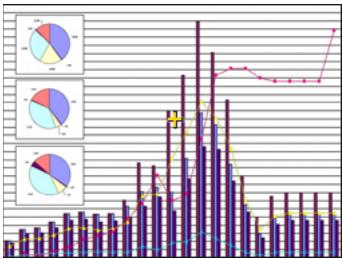
- Use the remote controller's cursor keys to move the cross cursor to the part of the image that you want in the center of the enlarged image.
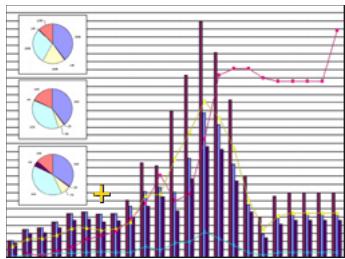
- On the remote controller, press the [D-ZOOM +] key to enlarge the image.
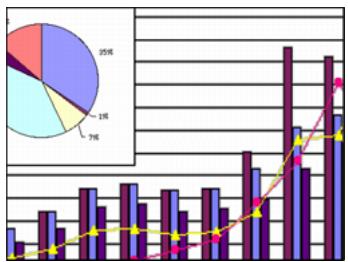
- You can press the [D-ZOOM +] key again to further enlarge the image, up to 4 times.
- You can back step through the image enlargements by pressing the [D-ZOOM -] key.
-
You can shift the zoomed image up, down, left, or right by pressing the applicable remote controller cursor key.
-
To exit image enlargement and return the image to its original size, press the remote controller's [ESC] key.
Using Picture-in-Picture (P-IN-P)
While RGB is selected as the input source, you can display a sub-window that simultaneously displays the image being input through the VIDEO or S-VIDEO terminal. This function is called "picture-in-picture" or "P-IN-P".
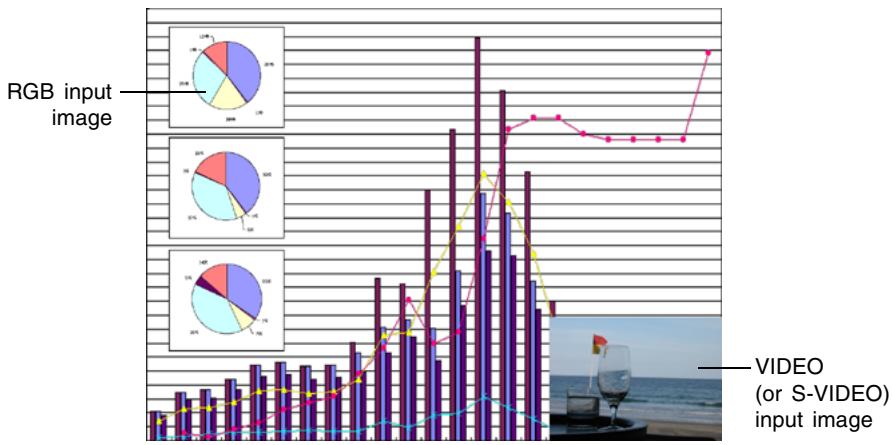
NOTE
- The initial default setting for the sub-window input source isVIDEO. Use the setup menu when you want to change the sub-window input source to S-VIDEO. For details, see "Input Settings P-in-P Input" on page 90.
- Note that P-IN-P can be used only when RGB is selected as the input source. It is not available while any other input source is selected.
- If Component is selected for "Input Settings RGB Input" on the setup menu, you need to change the setting to RGB in order to use picture-in-picture. Note that the initial default setting for "Input Settings RGB Input" is RGB.
To display the sub-window
-
On the remote controller, press the [RGB] key to select RGB as the input source.
-
You can also select the input source using the projector's [INPUT] key.
-
On the remote controller, press the [P-IN-P] key to display the subwindow.
-
This causes the sub-window, containing the image input through the VIDEO or S-VIDEO terminal, to appear on the projected image. The sub-window will be located at the position that was used the last time a sub-window was displayed. The initial default location is the lower right corner.
- You can leave the sub-window where it is, or move it to another location within the projected image. See "To change the location of the sub-window" for more information.
-
You can also select one of three sizes for the sub-window. See "To change the size of the sub-window" for more information.
-
To close the sub-window, press the remote controller's [P-IN-P] key or the [ESC] key.
To change the location of the sub-window
While a sub-window is displayed, use the remote controller's cursor keys to move it to one of the nine locations shown below.
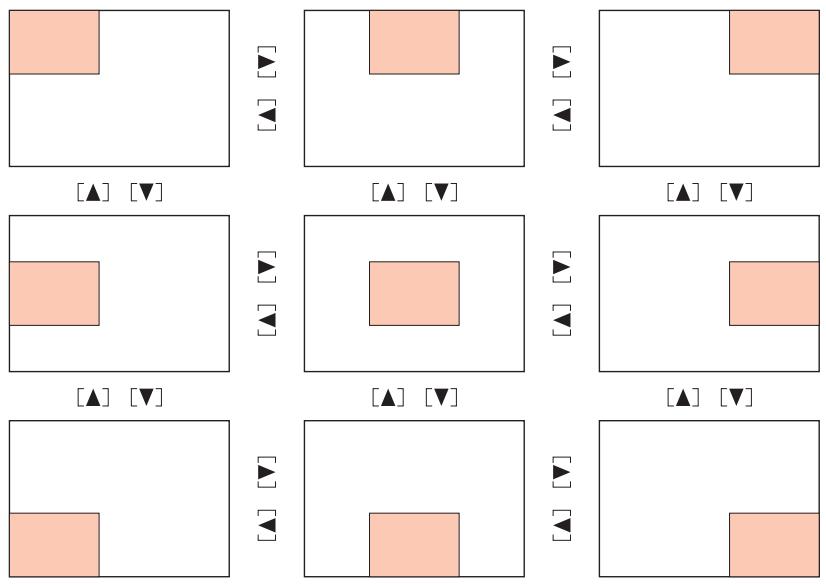
To change the size of the sub-window
While a sub-window is displayed, use the [D-ZOOM +] and [D-ZOOM -] keys to select one of the three available sub-window sizes (small, medium, large).
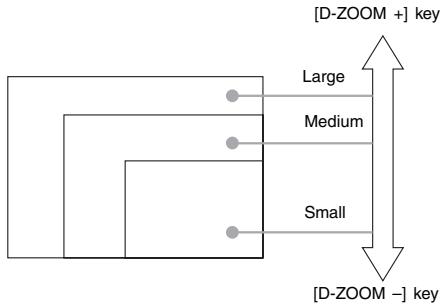
Important!
- When RGB is selected as the input source, certain signal types (1600 × 1200 UXGA signal, for example) do not support selection of the large sub-window size.
Muting the Image and Audio (MUTE)
The mute function causes the projected image to go to black screen, and stop output of the audio from the speaker.
To mute the image and audio
- On the remote controller, press the [MUTE] key.
- This causes the projected image to go to a black screen, and stops output from the speaker.
- To restore the image and audio, press the [MUTE] key again or press the [ESC] key.
NOTE
- You can select a black screen, blue screen, or a logo screen for the mute function. For details, see "Screen Settings Mute Screen" on page 88.
Freezing the Projected Image (FREEZE)
The freeze function stores the current projected image in projector memory, and projects it as a still image.
To freeze the projected image
- On the remote controller, press the [FREEZE] key.
- This freezes the image that was being projected when you pressed the [FREEZE] key.
- To unfreeze the image, press the [FREEZE] key again or press the [ESC] key.
Operating the Computer with the Remote Controller (Wireless Mouse)
You can use the remote controller as a wireless mouse to perform mouse operations on the computer that is connected to the projector. Wireless mouse capabilities really come in handy when you need to open a presentation software file for projection during a meeting or presentation.
Important!
- To use the remote controller as a wireless mouse, the computer must be connected to the projector by the USB cable that comes with the projector. For details, see "Connecting a Computer to the Projector's USB Port" on page 38.
- Note that wireless mouse capabilities are available only when RGB is selected as the input source and there is RGB input from the computer to the projector.
To operate the computer with the remote controller
- Use the mini D-Sub cable and USB cable that come with the projector to connect the computer to the projector. After that, turn on the projector and the computer.
See the following for more information.
Connecting a Computer to the Projector (Video and Audio) (page 37)
Connecting a Computer to the Projector's USB Port (page 38)
-
On the remote controller, press the [RGB] key to select RGB as the input source.
-
You can also select the input source using the projector's [INPUT] key.
3. Use the remote controller to perform mouse operations as described below.
| To do this: | Use this remote controller key: |
| Move the pointer on the computer screen up, down, left, or right | Cursor key |
| Scroll up one page | [PAGE UP] |
| Scroll down one page | [PAGE DOWN] |
| Perform a left-click operation | [ENTER] |
| Perform a right-click operation | [ESC] |
NOTE
- Note that wireless mouse operations are not possible while a manual keystone correction (page 55), volume adjustment (page 56), image enlargement (page 57), or P-IN-P (page 59) operation is in progress, or while the menu is displayed (page 64). Wireless mouse capabilities will be restored as soon as the operation that disabled them is complete.
- Note that wireless mouse operation is not supported when the input signal from the computer is larger than XGA, and "Resize Image To Fit" (page 85) is turned off. Wireless mouse operation will be supported for an input signal that is larger than XGA if "Resize Image To Fit" is turned on.
- Note that drag-and-drop is not supported by wireless mouse operations.
Using the Setup Menu
This section explains how to configure setup menu settings, and provides details about each of the settings.
Setup Menu Overview
Pressing the [MENU] key while an image is being projected displays the setup menu on the projected image. The setup menu can be used to configure a variety of different projector settings. See the "Setup Menu Setting List" on page 65 for details about the settings that are available.
Using the Setup Menu Setting List
- The settings that can be configured and the settings that appear on the item depend on the input source that is currently selected. Under "Input Source" in the following list, there is a column for each of the input sources listed below. A “○” in a column means that the menu item to the left is displayed for that input source, while “×” indicates that the menu item is not displayed.
| Column name: | Input source: |
| R | RGB |
| C | Component |
| S | S-VIDEO |
| V | VIDEO |
| No Signal | No signal being input |
- The "Sub-menu Item Type" column shows the type of the applicable sub-menu item. Refer to the pages noted below for more information about each item type.
Value Setting: Specifies a numeric value ( page 70).
Selection: Allows selection from multiple options (page 71).
Setting Screen: Numeric value specification or option selection on a separate setting screen (F page 71).
Execution: Initialized a setting ( page 74).
Information: Displays information only (F page 73).
- The "See page" column shows where you should go for more information.
Setup Menu Setting List
| Main menu | Sub-menu | Sub-menu Item Type | Input source | See page | ||||
| R | C | S | V | No Signal | ||||
| Image Adjustment | Brightness | Value Setting | ○ | ○ | ○ | ○ | × | page 77 |
| Contrast | Value Setting | ○ | ○ | ○ | ○ | × | page 77 | |
| Sharpness | Value Setting | ○ | ○ | ○ | ○ | × | page 77 | |
| Saturation | Value Setting | × | × | ○ | ○ | × | page 77 | |
| Tint | Value Setting | × | × | *2 | *2 | × | page 77 | |
| Gamma Mode | Setting Screen | ○ | ○ | ○ | ○ | × | page 78 | |
| Color Balance | Setting Screen | ○ | ○ | ○ | ○ | × | page 78 | |
| Vertical Position | Value Setting | ○ | ○ | ○ | ○ | × | page 80 | |
| Horizontal Position | Value Setting | ○ | ○ | ○ | ○ | × | page 80 | |
| Frequency | Value Setting | ○ | × | × | × | × | page 81 | |
| Phase | Value Setting | ○ | × | × | × | × | page 81 | |
| Noise Filter | Selection | ○ | × | × | × | × | page 81 | |
| Restore Menu Defaults | Execution | ○ | ○ | ○ | ○ | × | page 82 | |
| Volume Adjustment | Volume | Value Setting | ○ | ○ | ○ | ○ | *1 | page 82 |
| Restore Menu Defaults | Execution | ○ | ○ | ○ | ○ | ○ | page 82 | |
| Screen Settings | Vertical Keystone Correction | Value Setting | ○ | ○ | ○ | ○ | ○ | page 83 |
| Horizontal Keystone Correction | Value Setting | ○ | ○ | ○ | ○ | ○ | page 83 | |
| Aspect Ratio | Selection | × | *3 | ○ | ○ | × | page 84 | |
| Resize Image To Fit | Selection | ○ | × | × | × | × | page 85 | |
| Projection Mode | Selection | ○ | ○ | ○ | ○ | ○ | page 86 | |
| Ceiling Mount | Selection | ○ | ○ | ○ | ○ | ○ | page 86 | |
| Startup Screen | Selection | ○ | ○ | ○ | ○ | ○ | page 87 | |
| No Signal Screen | Selection | ○ | ○ | ○ | ○ | ○ | page 87 | |
| Mute Screen | Selection | ○ | ○ | ○ | ○ | ○ | page 88 | |
| Restore Menu Defaults | Execution | ○ | ○ | ○ | ○ | ○ | page 88 | |
| Input Settings | RGB Input | Selection | ○ | ○ | × | × | *4 | page 89 |
| Video Signal | Setting Screen | × | × | × | ○ | *5 | page 89 | |
| S-Video Signal | Setting Screen | × | × | ○ | × | *6 | page 89 | |
| P-in-P Input | Selection | ○ | × | × | × | *7 | page 90 | |
| Signal Name Indicator | Selection | ○ | ○ | ○ | ○ | ○ | page 91 | |
| Special Signal | Setting Screen | ○ | × | × | × | *7 | page 91 | |
| Restore Menu Defaults | Execution | ○ | ○ | ○ | ○ | ○ | page 92 | |
1 This setting is for the currently selected input source.
2 This setting can be configured only for an NTSC or NTSC4.43 signal.
3 This setting can be selected only when the aspect ratio of the input signal is 4:3.
4 This setting can be configured only when the input source is RGB/Component.
5 This setting can be configured only when the input source is VIDEO.
6 This setting can be configured only when the input source is S-VIDEO.
Setup Menu Setting List
| Main menu | Sub-menu | Sub-menu Item Type | Input source | See page | ||||
| R | C | S | V | No Signal | ||||
| Option Settings1 | Auto Input Detect | Selection | ○ | ○ | ○ | ○ | ○ | page 92 |
| Auto Adjust | Selection | ○ | × | × | × | *8 | page 93 | |
| Low-noise Mode | Selection | ○ | ○ | ○ | ○ | ○ | page 93 | |
| Auto Power Off | Selection | ○ | ○ | ○ | ○ | ○ | page 94 | |
| Key Lock | Selection | ○ | ○ | ○ | ○ | ○ | page 94 | |
| Power On Password | Special*7 | ○ | ○ | ○ | ○ | ○ | page 95 | |
| Custom Logo Settings | Special*9 | ○ | ○ | ○ | ○ | × | page 99 | |
| Language | Setting Screen | ○ | ○ | ○ | ○ | ○ | page 105 | |
| Alert Tones | Selection | ○ | ○ | ○ | ○ | ○ | page 105 | |
| Restore Menu Defaults | Execution | ○ | ○ | ○ | ○ | ○ | page 106 | |
| Option Settings2 | AF/AK Mode | Selection | ○ | ○ | ○ | ○ | ○ | page 106 |
| Power On AF/AK Mode | Selection | ○ | ○ | ○ | ○ | ○ | page 107 | |
| Zoom Memory | Selection | ○ | ○ | ○ | ○ | ○ | page 108 | |
| Restore Menu Default | Execution | ○ | ○ | ○ | ○ | ○ | page 108 | |
| Operational Info | Lamp Time | Information | ○ | ○ | ○ | ○ | ○ | page 109 |
| Reset Lamp Time | Execution | ○ | ○ | ○ | ○ | ○ | page 109 | |
| Input Signal | Information | ○ | ○ | ○ | ○ | ○ | page 109 | |
| Signal Name | Information | ○ | ○ | ○ | ○ | × | page 109 | |
| Index | Information | ○ | ○ | × | × | × | page 109 | |
| Resolution | Information | ○ | × | × | × | × | page 109 | |
| Horizontal Frequency | Information | ○ | ○ | ○ | ○ | × | page 109 | |
| Vertical Frequency | Information | ○ | ○ | ○ | ○ | × | page 109 | |
| Scan System | Information | ○ | ○ | × | × | × | page 109 | |
| Restore All Defaults | Restore All Defaults | Execution | ○ | ○ | ○ | ○ | ○ | page 110 |
7 This is a special sub-menu item that is different from other types. For details, see “Option Settings1 → Power On Password” on page 95.
8 This setting can be configured only when the input source is RGB.
*9 This is a special sub-menu item that is different from other types. For details, see “Option Settings1 → Custom Logo Settings” on page 99.
Before Configuring Menu Settings
Always remember that the settings you configure on the setup menu are applied for the input source (RGB, Component, S-VIDEO, VIDEO) that was selected when you displayed the setup menu. Note the following important points.
- The items that appear on the setup menu depend on the currently selected input source and other factors.
Some items apply to a certain specific input source, while some apply to multiple input sources.
- Even for menu items that are common to multiple input sources, the setting range or selectable options may differ according to the input source.
- With certain exceptions, there are basically two types of settings that can be configured for multiple input sources. One type lets you configure different settings for each individual input source. The other type applies a single setting to all input sources. The volume level setting, for example, lets you configure a different setting for each input source, while the keystone correction setting lets you configure a single common setting for all input sources.
NOTE
- For details about how settings are saved, and other details, see "Setup Menu Reference" on page 77.
Setup Menu Screen Operations
This section explains projector operations you need to perform while configuring setup menu settings. It also provides details about each sub-menu item type.
Basic Setup Menu Operations
The following is the general flow of the steps you need to perform when configuring setup menu operations.
-
Select the input source whose settings you want to configure.
-
Press the [MENU] key.
-
This causes the setup menu screen to appear in the center of the projected image.
- The setup menu has a main menu on the left side. On the right side is a sub-menu of settings that can be configured for the currently selected main menu item.
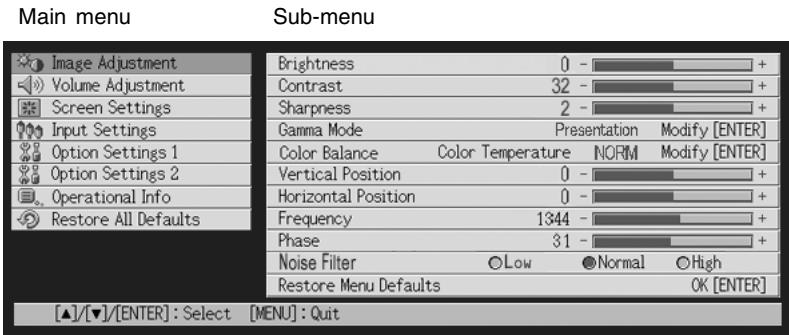
-
The items that appear in the sub-menu depend on the currently selected input source, and whether or not a signal is being input from the input source. For details, see "Setup Menu Overview" on page 64.
-
Use the [] and [] keys to select the main menu whose sub-menu contains the settings you want to configure.
-
The settings for the selected main menu item appear in the sub-menu.
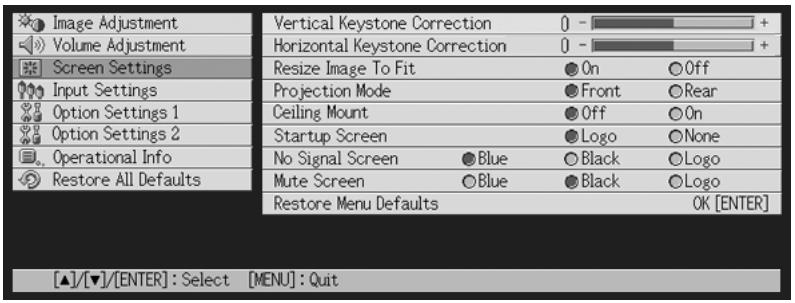
-
Press the [ENTER] key.
-
This selects the top item in the sub-menu.
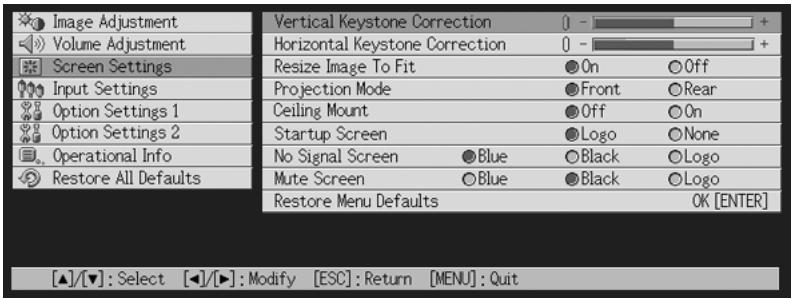
- Use the [] and [] keys to select the sub-menu item whose setting you want to change.
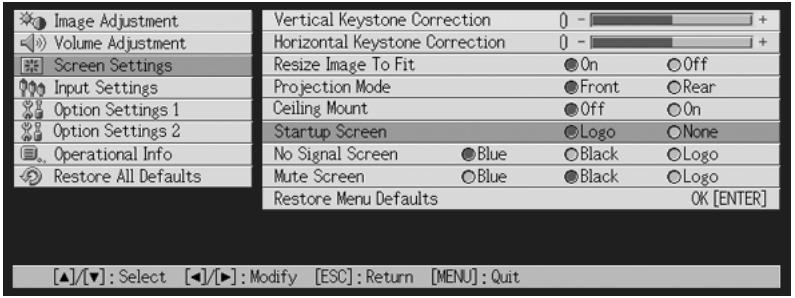
6. Change the setting or select an option to configure the currently selected sub-menu item.
- The operation you need to perform depends on the sub-menu item type. See "Setup Menu Overview" on page 64 for more information.
- For information about how to configure settings for each sub-menu item, see "Sub-menu Operations" on page 70.
- After configuring the settings of one sub-menu item, you can repeat steps 5 and 6 to select another item on the same sub-menu and configure its setting.
- If you want to configure the settings of another main menu item, press the [ESC] key to exit the current sub-menu. Next, repeat steps 3 through 6 to select another main menu item and change the settings of its sub-menu.
7. Press the [MENU] key to exit the setup menu.
- This causes the setup menu to disappear from the projected image.
Sub-menu Operations
This section explains steps you need to perform in order to configure settings for each submenu item type (value, selection, setting screen, execution, information).
Value Setting Type Sub-menu Item
This type of sub-menu item consists of a value and a bar graph.
Examples: Image Adjustment Brightness; Screen Settings Vertical Keystone Correction
Operation: Press the [<] key to make the value smaller, or the [▶] key to make it larger. A value can be selected within the range that the indicator is able to move within the selected bar. Depending on conditions, the indicator may not move all the way to either end of the bar.
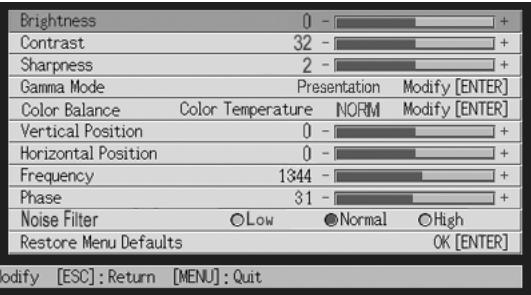
Selection Type Sub-menu Item
This type of sub-menu item provides a number of options from which you can choose.
Example : Screen Settings Startup Screen
Operation: The currently selected option is indicated by a black button next to it. Use the [▲] and [▶] keys to move between the selections, which causes the buttons next to them to become either black (selected) or white (deselect).
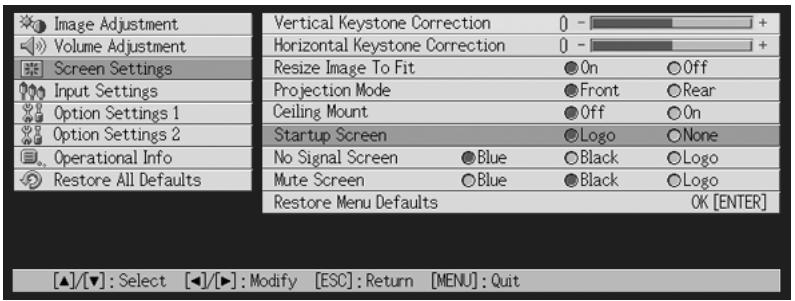
NOTE
- For details about the options that are available for each selection type sub-menu item, see "Setup Menu Reference" on page 77.
Setting Screen Type Sub-menu Item
This type of sub-menu item displays a separate screen that you use to configure its settings.
Examples: Image Adjustment Gamma Mode; Option Settings1 Language, etc.
Operation: The following example shows how to configure settings for Input Settings Video Signal, S-Video Signal
-
Press the [VIDEO] key to select the VIDEO input terminal as the input source.
-
Perform steps 2 through 4 under "Basic Setup Menu Operations" on page 68. On the "Input Settings" main menu, select the "Video Signal" sub-menu item.
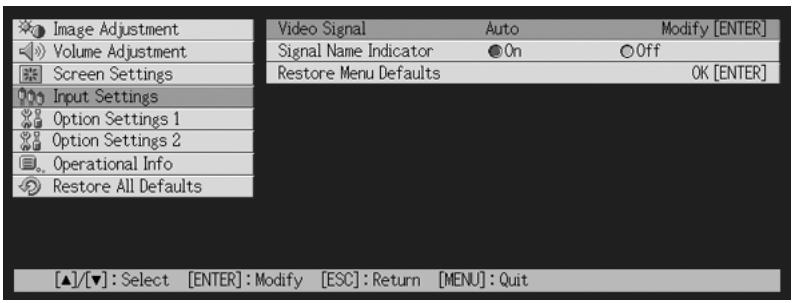
-
Press the [ENTER] key.
-
This displays the video signal selection screen shown below.
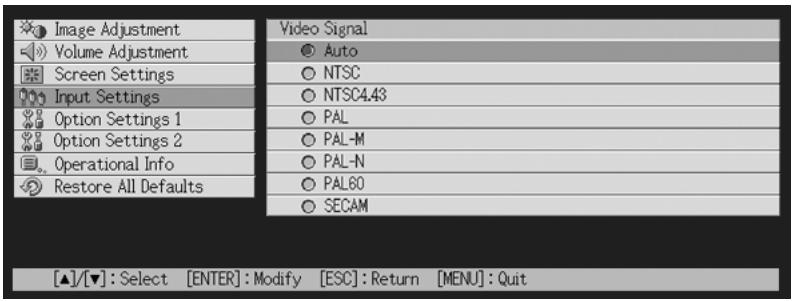
-
Use the [] and [] keys to highlight the item you want to select, and then press the [ENTER] key.
-
After you are finished configuring the settings, press the [ESC] key to close the setting screen and return to the sub-menu screen.
-
After you are finished, press the [MENU] key to exit the setup menu.
NOTE
- Note that the available settings and configuration procedures depend on the setting screen. See "Setup Menu Reference" on page 77 for details about each sub-menu item.
Execution Type Sub-menu Item
This type of sub-menu item returns a setting to its initial default value.
Examples: Image Adjustment Restore Menu Defaults; Operational Info Reset Lamp Time
Initializing Settings (page 74)
Resetting the Lamp Time (page 117)
Information Type Sub-menu Item
This type of sub-menu item provides status and setup information.
Example: Operational Info Lamp Time; Operational Info Input Signal
Refer to the following for details about the type of information that is available using the information type sub-menu items.
Operational Info (page 109)
Operational Info Input Signal (page 109)
Operational Info Signal Name (page 109)
Operational Info Index (page 109)
Operational Info Resolution (page 109)
Operational Info Horizontal Frequency (page 109)
Operational Info Vertical Frequency (page 109)
Operational Info Scan System (page 109)
Initializing Settings
The setup menu lets you initialize the settings of a particular main menu item, or for all setup menu items.
To initialize the settings of a particular main menu item
Example: To initialize the settings of the "Image Adjustment" main menu item.
Important!
- Performing the following procedure returns all of the sub-menu items under the currently selected main menu item to their initial default settings.
-
Initializing the settings of the "Image Adjustment" main menu item returns the "Vertical Position", "Horizontal Position", "Frequency", and "Phase" settings of the current signal type only (XGA/60Hz, UXGA/60Hz, etc.) to their initial defaults.
-
Select the input source whose settings you want to initialize.
- Perform steps 2 through 4 under "Basic Setup Menu Operations" on page 68. Select the "Image Adjustment" main menu, and then select the "Restore Menu Defaults" sub-menu item.
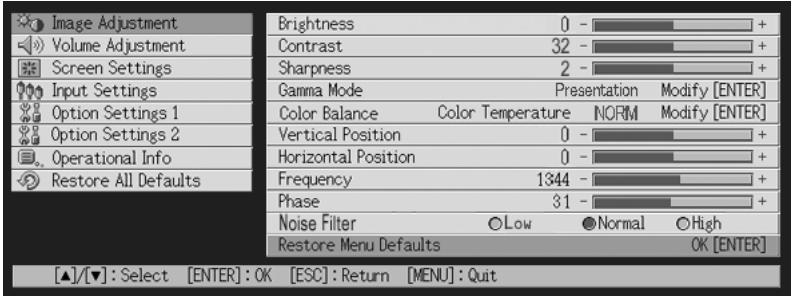
3. Press the [ENTER] key.
- This displays a confirmation message asking if you want to initialize settings.
![CASIO XJ-450 - Press the [ENTER] key. - 1](/content/2025/01/129500/images/8a4ae534255573e696fa8f4f850f820732c0ec42bdbd72123058f9f209f57314.jpg)
-
Use the [] and [] keys to select [Yes].
-
Press the [ENTER] key to initialize the menu's settings, or the [ESC] key to exit the initialize operation without doing anything.
-
Pressing the [ENTER] key returns all of the sub-menu items on the currently selected main menu to their initial default settings.
To initialize all menu settings
Important!
-
Performing the following procedure initializes all sub-menu items for all menus, except for the language (Option Settings1 Language) and the lamp time (Operational Info Lamp Time).
Note that initialization does not delete the custom logo. -
Perform steps 1 through 4 under "Basic Setup Menu Operations" on page 68. Select the "Restore All Defaults" main menu, and then select the "Restore All Defaults" sub-menu item.
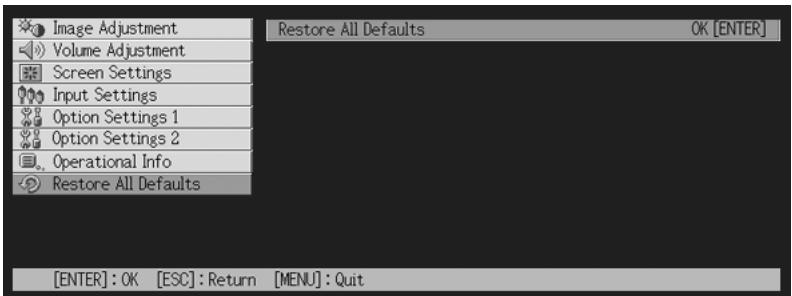
2. Press the [ENTER] key.
- This displays a confirmation message asking if you want to initialize all settings.
![CASIO XJ-450 - Press the [ENTER] key. - 1](/content/2025/01/129500/images/54f9f09d323f4143caa755633c48b6779eadc678fec4b97d2df55ad0ce6b3ad9.jpg)
-
Use the [] and [] keys to select [Yes].
-
Press the [ENTER] key to initialize all menu settings, or the [ESC] key to exit the initialize operation without doing anything.
-
Pressing the [ENTER] key initializes all menu items except for "Language" and "Lamp Time".
Setup Menu Reference
This section provides detailed explanations about the contents for all of the setup menu items.

- The titles in this section use the format: Main Menu Item Sub-menu Item.
Image Adjustment
Image Adjustment Brightness
This sub-menu adjusts the brightness of the projected image. A larger value produces a brighter image.
- This setting is not possible when there is no input signal.
- A different setting can be configured and is stored for each input source.
■Image Adjustment Contrast
This sub-menu adjusts the contrast of the projected image. A larger value produces a stronger contrast.
- This setting is not possible when there is no input signal.
- A different setting can be configured and is stored for each input source.
Image Adjustment Sharpness
This sub-menu adjusts the sharpness of the projected image. A larger value makes the image sharper, while a smaller value makes it softer.
- This setting is not possible when there is no input signal.
- A different setting can be configured and is stored for each input source.
■Image Adjustment Saturation
This sub-menu adjusts the color saturation of the projected image. A larger value increase color saturation.
- This setting is not possible when the input source is RGB/Component and when there is no input signal.
- A different setting can be configured and is stored for each input source.
■Image Adjustment Tint
This sub-menu adjusts the tint of the projected image. A larger value makes the overall image more reddish, while a smaller value makes the overall image more bluish.
- This setting is not possible when the input source is RGB/Component and when there is no input signal.
- A different setting can be configured and is stored for each input source.
■Image Adjustment Gamma Mode
This sub-menu lets you select the gamma mode for the projected image.
Input Source Specific Menu Items
| Input Source | Available Items (Parentheses indicate defaults.) |
| RGB | Standard, (Presentation), Theater, Graphics/Blackboard |
| Component | Standard, Presentation, (Theater), Graphics/Blackboard |
| S-VIDEO | |
| VIDEO | |
| No Signal | None |
Setting Explanations
Standard: Standard gamma mode
Presentation: Emphasis on clarity to make text easy to read
Theater: Emphasis on reproduction of moderate color tones and dark image areas
Graphics: Emphasis on color gradations and contrast
Blackboard: Optimizes color correction for projection onto a blackboard.
Setting Storage
A different setting is stored for each input source.
■Image Adjustment Color Balance
This sub-menu lets you adjust the color balance of the projected image. There are two methods you can use to adjust color balance, selecting a preset color temperature value or adjusting the red, green, or blue components of each color.
- Note that you can adjust the color balance either by selecting a color temperature value or by adjusting color components. You cannot do both.
Color balance settings cannot be configured when there is no input signal. - A different setting can be configured and is stored for each input source.
Adjusting Color Balance by Selecting a Color Temperature Value
You can use the procedure below to adjust color balance by selecting one of three color temperatures (low, normal, high).
Changing the color temperature of an image alters its whiteness. A lower color temperature makes whites redder, while a higher color temperature makes them bluer.
1. On the "Image Adjustment" main menu, select the "Color Balance" submenu item, and then press the [ENTER] key.
-
This displays the color balance setting screen.
-
Use the [] and [] keys to select "Color Temperature", and then press the [ENTER] key.
-
This causes a marker to appear at the beginning of the "Color Temperature" line, which indicates that color temperature value selection is enabled.
![CASIO XJ-450 - On the "Image Adjustment" main menu, select the "Color Balance" submenu item, and then press the [ENTER] key. - 1](/content/2025/01/129500/images/158389c44217ede3f479df809bd80b10acae2758c1336e8b4b9de64bac694340.jpg)
- Use the [<] and [>] keys to select the color temperature setting you want.
- After the setting is the way you want, press the [MENU] key.
Adjusting Color Balance by Adjusting Color Components
Instead of specifying a color temperature to adjust color balance, you can also individually adjust the relative intensity of the red, green, and blue components.
-
On the "Image Adjustment" main menu, select the "Color Balance" submenu item, and then press the [ENTER] key.
-
This displays the color balance setting screen.
-
Use the [] and [] keys to select "Color", and then press the [ENTER] key.
-
This causes a marker to appear at the beginning of the "Color" line, which indicates that color adjustment is enabled.
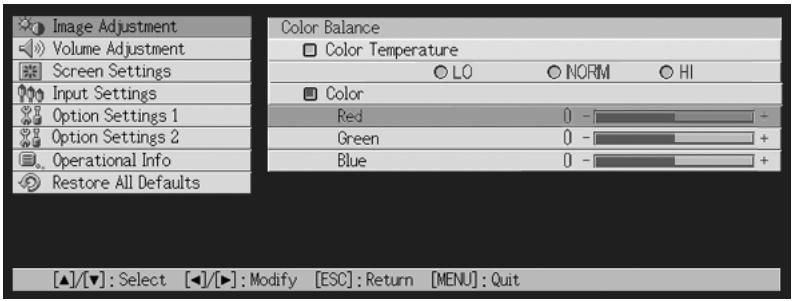
-
Use the [] and [] keys to select the color you want to adjust, and then use the [] and [] keys to adjust it.
-
After all the settings are the way you want, press the [MENU] key.
Image Adjustment Vertical Position
This sub-menu lets you adjust the vertical position of the input source image within the projection area.
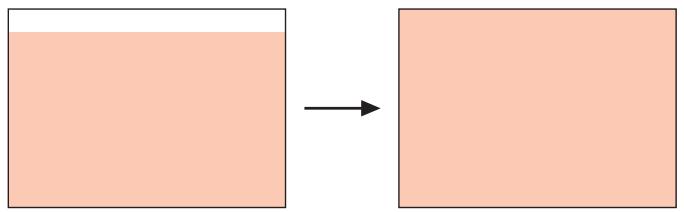
- This setting is not possible when there is no input signal.
- "Image Adjustment" main menu item settings are saved for the current signal type only (XGA/60Hz, UXGA/60Hz, etc.), and not for the input signal source. Note, however, that the number of signal type settings that can be saved is limited. Exceeding the limit causes the oldest setting to be deleted automatically.
■Image Adjustment Horizontal Position
This sub-menu lets you adjust the horizontal position of the input source image within the projection area.
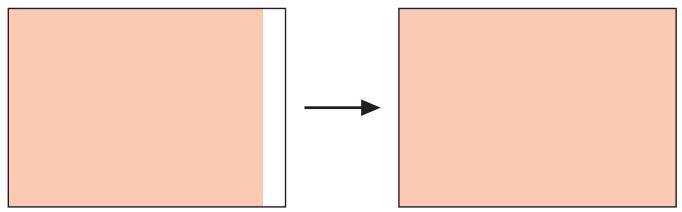
- This setting is not possible when there is no input signal.
- See "Image Adjustment Vertical Position" for details about how settings are saved.
■Image Adjustment Frequency
This sub-menu lets you manually control the frequency of the image.
Normally, the projector is able to adjust the frequency automatically. If there are vertical bands in the projected image, however, it means that automatic adjustment is not possible for some reason. When this happens use this setting to adjust the image frequency.
- This setting is possible only when RGB is selected as the input source.
- Settings are saved for each signal type (XGA/60Hz, UXGA/60Hz, etc.). Note, however, that the number of signal type settings that can be saved is limited. Exceeding the limit causes the oldest setting to be deleted automatically.
Important!
- If, for some reason, your manual frequency settings cause the image input from the computer to disappear from the projection, you can press the [AUTO] key to perform an auto adjust operation (page 51), which should cause the image to reappear.
■Image Adjustment Phase
This sub-menu lets you manually control the phase of the image.
Normally, the projector is able to adjust the phase automatically. If there are color errors or flickering in the projected image, however, it means that automatic adjustment is not possible for some reason. When this happens use this setting to adjust the image phase.
- This setting is possible only when RGB is selected as the input source.
- See "Image Adjustment Frequency" for details about how settings are saved.
■Image Adjustment Noise Filter
This sub-menu provides a choice of noise filter levels to remove digital noise from the projected image when RGB is selected as the input source. Note that the noise filter may not be able to remove certain types of digital noise.
- This setting is possible only when RGB is selected as the input source. The setting is saved for the RGB input source only.
- Turning off the projector automatically returns this sub-menu to its initial default setting (Normal).
Input Source Specific Menu Items
| Input Source | Available Items (Parentheses indicate defaults.) |
| RGB | Low, (Normal), High |
| Component | None |
| S-VIDEO | |
| VIDEO | |
| No Signal |
■Image Adjustment Restore Menu Defaults
This sub-menu returns all of the sub-menu items on the Image Adjustment main menu to their initial default settings.
- You can perform initialization even when there is no input signal. In this case, the initialization is performed for the currently selected input source.
- "Image Adjustment" main menu "Vertical Position", "Horizontal Position", "Frequency", and "Phase" settings are initialized for the current signal type (XGA/60Hz, UXGA/60Hz, etc.) only.
- For details about the initialization procedure, see "To initialize the settings of a particular main menu item" on page 74.
Volume Adjustment
Volume Adjustment Volume
This sub-menu can be used to adjust the volume level of the projector's speaker. This setting is also linked to volume settings made with the remote controller's [VOL +] and [VOL -] keys.
- Changing this setting when there is no input signal changes the volume setting of the currently selected signal source.
- A different setting is stored for each input source.
Volume Adjustment Restore Menu Defaults
This sub-menu returns Volume to its initial default setting.
- You can perform initialization even when there is no input signal. In this case, the initialization is performed for the currently selected input source.
- Initialization is performed separately for each input source.
- For details about the initialization procedure, see "To initialize the settings of a particular main menu item" on page 74.
Screen Settings
■ Screen Settings Vertical Keystone Correction
This sub-menu lets you correct for vertical keystoneing of the projected image.
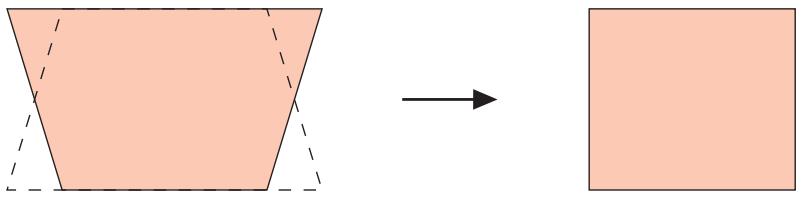
- Vertical keystone correction can be performed regardless of the currently selected input source.
- A single setting is stored, which is applied to all input sources.
■ Screen Settings Horizontal Keystone Correction
This sub-menu lets you correct for horizontal keystoning of the projected image.
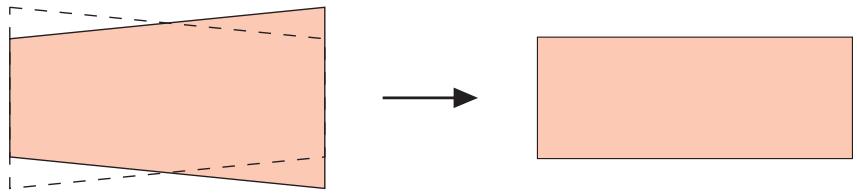
- Horizontal keystone correction can be performed regardless of the currently selected input source.
- A single setting is stored, which is applied to all input sources.
■Screen Settings Aspect Ratio
This sub-menu lets you select the aspect ratio (ratio between the vertical and horizontal dimensions) of the projected image.
Input Source Specific Menu Items
| Input Source | Available Items (Parentheses indicate defaults.) |
| RGB | None |
| Component | (4:3), 16:9 |
| S-VIDEO | |
| VIDEO | |
| No Signal | None |
Setting Explanations
4:3: Sets the aspect ratio of the projected image to 4:3 (same as a standard TV screen). This setting is normally used when S-VIDEO or VIDEO is selected as the input source.
16:9: Sets the aspect ratio of the projected image to 16:9 (same as a movie screen or high-definition TV screen). Using this setting when the input source image is a 16:9 image that has been squeezed to a 4:3 image causes the image to be projected with its normal 16:9 aspect ratio.
Setting Storage
A different setting is stored for each input source.
NOTE
- When a component signal with an aspect ratio of 16:9 is sent from the input source, the aspect ratio of the projected image is automatically switched to 16:9. In this case, this setting cannot be changed.
Important!
- Using this projector to reduce, enlarge, or otherwise alter an image for business purposes or public display may infringe upon the rights of the individual who holds the copyright of the image.
■Screen Settings Resize Image to Fit
When RGB is selected as the input source and the video resolution of the connected computer is anything other than XGA (1024 × 768 pixels), "Resize Image To Fit" automatically enlarges or reduces the input image so it matches the video resolution of the projector and fills the entire screen.
Input Source Specific Menu Items
| Input Source | Available Items (Parentheses indicate defaults.) |
| RGB | (On), Off |
| Component | None |
| S-VIDEO | |
| VIDEO | |
| No Signal |
Setting Explanations
On: When the input signal from the computer connected to the projector is not an XGA signal, the image is automatically enlarged or reduced so it matches the projector's video resolution and fills the entire screen.
Off: Turns off resizing of the image input from the computer. If the image input from the computer is smaller than XGA, the size of the projected image will also be smaller. When the image input from the computer is larger than XGA, only the center part of the image that corresponds to XGA size is projected.
NOTE
- Resizing of an input image by "Resize Image To Fit" can call coarsening of the image or can cause part of the image to be cut off. If this happens, try turning off "Resize Image To Fit". Note, however, that turning off "Resize Image To Fit" can cause the projected image to become smaller, or it can cause only the center part of the image to be projected.
Setting Storage
This setting is possible only when RGB is selected as the input source. The setting is saved for the RGB input source only.
■Screen Settings Projection Mode
Use this sub-menu to specify whether projection will be from the front of the screen or the back of the screen.
Input Source Specific Menu Items
| Input Source | Available Items (Parentheses indicate defaults.) |
| RGB | (Front), Rear |
| Component | |
| S-VIDEO | |
| VIDEO | |
| No Signal |
Setting Explanations
Front: For projection from the front of the screen.
Rear: For projection from the back of the screen. This setting flips the front projected image horizontally.
Setting Storage
A single setting is stored, which is applied to all input sources.
Screen Settings Ceiling Mount
Use this sub-menu to configure the projector for use in an installation in which it is positioned upside down.
Input Source Specific Menu Items
| Input Source | Available Items (Parentheses indicate defaults.) |
| RGB | On, (Off) |
| Component | |
| S-VIDEO | |
| VIDEO | |
| No Signal |
Setting Explanations
On: Flips the projected image horizontally and vertically.
Off: Projects a normal image.
Setting Storage
A single setting is stored, which is applied to all input sources.
■Screen Settings Startup Screen
Use this sub-menu to specify whether or not a startup screen should be projected whenever the projector is turned on.
Input Source Specific Menu Items
| Input Source | Available Items (Parentheses indicate defaults.) |
| RGB | (Logo), None |
| Component | |
| S-VIDEO | |
| VIDEO | |
| No Signal |
Setting Explanations
Logo: Projects the logo screen as the startup screen.
A built-in logo screen is the initial default startup screen. You can also create a custom logo, if you want. For details, see "Option Settings1 Custom Logo Settings" on page 99.
None: No startup screen is projected.
Setting Storage
A single setting is stored, which is applied to all input sources.
■Screen Settings No Signal Screen
This sub-menu lets you specify what should be projected when there is no input signal to the projector.
Input Source Specific Menu Items
| Input Source | Available Items (Parentheses indicate defaults.) |
| RGB | (Blue), Black, Logo |
| Component | |
| S-VIDEO | |
| VIDEO | |
| No Signal |
Setting Explanations
Blue: Displays a blue screen when there is no input signal.
Black: Displays a black screen when there is no input signal.
Logo: Displays a logo screen when there is no input signal.
A built-in logo screen is the initial default startup screen. You can also create a custom logo, if you want. For details, see "Option Settings1 Custom Logo Settings" on page 99.
Setting Storage
A single setting is stored, which is applied to all input sources.
■Screen Settings Mute Screen
This sub-menu lets you specify what should be projected during mute (page 61).
Input Source Specific Menu Items
| Input Source | Available Items (Parentheses indicate defaults.) |
| RGB | Blue, (Black), Logo |
| Component | |
| S-VIDEO | |
| VIDEO | |
| No Signal |
Setting Explanations
Blue: Displays a blue screen during mute.
Black: Displays a black screen during mute.
Logo: Displays a logo screen during mute.
A built-in logo screen is the initial default startup screen. You can also create a custom logo, if you want. For details, see "Option Settings1 Custom Logo Settings" on page 99.
Setting Storage
A single setting is stored, which is applied to all input sources.
■Screen Settings Restore Menu Defaults
This sub-menu returns all of the sub-menu items on the Screen settings main menu to their initial default settings.
- You can perform initialization even when there is no input signal. In this case, the initialization is performed for the currently selected input source.
- Basically, initialization initializes the settings of the current input source. Note, however, that the following settings are always initialized, regardless of the currently selected input source.
Vertical keystone correction
Horizontal keystone correction
Projection Mode
Ceiling Mount
Startup screen
No signal screen
Mute screen
- For details about the initialization procedure, see "To initialize the settings of a particular main menu item" on page 74.
Input Settings
■Input Settings RGB Input
This sub-menu lets you specify the type of input signal in accordance with the device connected to the projector's RGB terminal.
Input Source Specific Menu Items
| Input Source | Available Items (Parentheses indicate defaults.) |
| RGB | (RGB), Component |
| Component | |
| S-VIDEO | None |
| VIDEO | |
| No Signal | (RGB), Component * Only when the currently selected input source is RGB or Component. |
Setting Explanations
RGB: Select this setting when a computer is connected to the projector's RGB input terminal. For details about connection, see "Connecting a Computer to the Projector (Video and Audio)" on page 37.
Component: Select this setting when the projector's RGB input terminal is connected to the component video output terminal of a video device using an optionally available YK-3 component video cable. For details about connection, see "Connecting to a Component Video Output Device" on page 40.
Setting Storage
This setting is saved for the RGB input terminal only.
■Input Settings Video Signal, S-Video Signal
This sub-menu specifies the input signal for the projector's VIDEO and S-VIDEO input terminals.
Input Source Specific Menu Items
| Input Source | Available Items (Parentheses indicate defaults.) |
| RGB | None |
| Component | |
| S-VIDEO | (Auto), NTSC, NTSC4.43, PAL, PAL-M, PAL-N, PAL60, SECAM |
| VIDEO | |
| No Signal | (Auto), NTSC, NTSC4.43, PAL, PAL-M, PAL-N, PAL60, SECAM * Only when the currently selected input source is VIDEO or S-VIDEO. |
Setting Explanations
Auto: Select this setting to have the projector switch the video signal system automatically in accordance with the input signal from the video device that is connected to the VIDEO or S-VIDEO input terminal. This is the setting you should normally use.
Other settings: Each setting selects the applicable video system. Use these settings when you want to specify only one specific video signal for the VIDEO and S-VIDEO input terminal.
Setting Storage
This setting is saved for the VIDEO and S-VIDEO input terminal only.
■Input Settings P-in-P Input
This sub-menu lets you select the input source for the image that appears in the P-in-P sub-window (page 59).
Input Source Specific Menu Items
| Input Source | Available Items (Parentheses indicate defaults.) |
| RGB | (VIDEO), S-VIDEO |
| Component | None |
| S-VIDEO | |
| VIDEO | |
| No Signal | (VIDEO), S-VIDEO * Only when the currently selected input source is RGB. |
Setting Explanations
VIDEO: Select VIDEO as the input source of the sub-window.
S-VIDEO: Select S-VIDEO as the input source of the sub-window.
Setting Storage
This setting is saved for the RGB input terminal only.
■Input Settings Signal Name Indicator
This sub-menu lets you specify whether or not the name of the currently selected input source should be displayed in the projected image.
Input Source Specific Menu Items
| Input Source | Available Items (Parentheses indicate defaults.) |
| RGB | (On), Off |
| Component | |
| S-VIDEO | |
| VIDEO | |
| No Signal |
Setting Explanations
On: Turns on display of the name of the currently selected input source in the projected image.
Off: Turns off display of the input source name.
Setting Storage
A single setting is stored, which is applied to all input sources.
■Input Settings Special Signal
When a computer is connected to the RGB input terminal, the projector automatically detects the type of RGB signal being sent from the computer and projects the image. Some signals, however, cannot be detected properly by the projector. When auto detection is not possible for some reason, try using this setting for a computer signal with a resolution of SXGA (1280 × 1024) or SXGA+ (1400 × 1050).
Input Source Specific Menu Items
| Input Source | Available Items (Parentheses indicate defaults.) |
| RGB | 1280 × 1024, (1400 × 1050) |
| Component | None |
| S-VIDEO | |
| VIDEO | |
| No Signal | * Only when the currently selected input source is RGB. |
Setting Explanations
1280 × 1024 : Specifies an SXGA (1280 × 1024) resolution RGB signal.
1400 × 1050 : Specifies an SXGA+ (1400 × 1050) resolution RGB signal.
Setting Storage
This setting is saved for the RGB input terminal only.
■Input Settings Restore Menu Defaults
This sub-menu returns all of the sub-menu items on the Input Settings main menu to their initial default settings.
- You can perform initialization even when there is no input signal. In this case, the initialization is performed for the currently selected input source.
- Basically, initialization initializes the settings of the current input source. Note, however, that the signal name indicator setting is always initialized, regardless of the currently selected input source.
- For details about the initialization procedure, see "To initialize the settings of a particular main menu item" on page 74.
Option Settings1
Option Settings1 Auto Input Detect
This sub-menu lets you specify whether auto detect of the input source should be performed whenever the projector is turned on (page 47).
Input Source Specific Menu Items
| Input Source | Available Items (Parentheses indicate defaults.) |
| RGB | (On), Off |
| Component | |
| S-VIDEO | |
| VIDEO | |
| No Signal |
Setting Explanations
On: Turns on auto detection of the input source whenever the projector is turned on.
Off: Turns off auto detection of the input source whenever the projector is turned on.
Setting Storage
A single setting is stored, which is applied to all input sources.
Option Settings1 Auto Adjust
This sub-menu lets you specify whether or not auto adjustment should be performed (page 51) when RGB is selected as the input source.
Input Source Specific Menu Items
| Input Source | Available Items (Parentheses indicate defaults.) |
| RGB | (On), Off |
| Component | None |
| S-VIDEO | |
| VIDEO | |
| No Signal | (On), Off * Only when the currently selected input source is RGB. |
Setting Explanations
On: Turns on auto adjustment, which is performed when RGB is selected as the input source.
Off: Turns off auto adjustment.
Setting Storage
This setting is saved for the RGB input terminal only.
Option Settings1 Low-noise Mode
The low-noise mode reduces the luminosity of the projection lamp and the speed of the cooling fan, allowing quieter projector operation.
Input Source Specific Menu Items
| Input Source | Available Items (Parentheses indicate defaults.) |
| RGB | On, (Off) |
| Component | |
| S-VIDEO | |
| VIDEO | |
| No Signal |
Setting Explanations
On (low-noise mode): This mode reduces luminosity and fan motor speed for quieter operation than the normal mode.
Off (normal mode): This mode projects at normal luminosity.
Setting Storage
A single setting is stored, which is applied to all input sources.
Option Settings1 Auto Power Off
This sub-menu lets you turn Auto Power Off (page 45) on or off.
Input Source Specific Menu Items
| Input Source | Available Items (Parentheses indicate defaults.) |
| RGB | (On), Off |
| Component | |
| S-VIDEO | |
| VIDEO | |
| No Signal |
Setting Explanations
On: Turns on Auto Power Off.
Off: Turns off Auto Power Off.
Setting Storage
A single setting is stored, which is applied to all input sources.
Option Settings1 Key Lock
This sub-menu lets you turn key lock on and off.
Input Source Specific Menu Items
| Input Source | Available Items (Parentheses indicate defaults.) |
| RGB | On, (Off) |
| Component | |
| S-VIDEO | |
| VIDEO | |
| No Signal |
Setting Explanations
On: Turns on key lock and disables projector keys.
Off: Turns off key lock and enables projector keys.
Setting Storage
A single setting is stored, which is applied to all input sources.
NOTE
- Besides the menu operation explained above, the following operations can also be used to turn off key lock.
While the projector is on: Hold down the projector's [ESC] key for about five seconds.
While the projector is off: Simultaneously hold down the projector's [ESC] and [O] (power) keys for about five seconds. This turns on the projector and also turns off key lock.
- You can use the above projector operations to turn off key lock if the remote controller batteries unexpectedly go dead, etc.
Option Settings1 Power On Password
This sub-menu lets you turn the power on password on and off.
While the password is turned on, projector operation is impossible unless the correct password is entered.
Initial Factory Default Password
The following is the 8-key operation you should perform to input the initial factory default password.
[AF/AK], [PAGUP], [PAGEDOWN], [▲], [▼], [◇], [▶], [MENU]
Important!
- Note that the projector's password is not really a "word", but rather a series of remote controller key operations.
- If you need to keep projector operation secure, be sure to change the initial factory default password to a different one as soon as possible.
- The password can be input using the remote controller only. Optimum security is ensured by turning on the password and keeping the remote controller with you.
- If you forget your password, contact your original dealer or authorized CASIO Service Center. There, your projector will be initialized to its initial factory default settings. In addition to the password, all other projector settings (except for the lamp time) will be returned to their initial factory defaults.
Input Source Specific Menu Items
| Input Source | Available Items (Parentheses indicate defaults.) |
| RGB | On, (Off) |
| Component | |
| S-VIDEO | |
| VIDEO | |
| No Signal |
Setting Explanation
On: Turns on the power on password, which requires input of a password to turn on the projector.
Off: Turns off the password, which allows the projector to be operated without inputting a password.
Setting Storage
A single setting is stored, which is applied to all input sources.
Using the Password Input Dialog Box
The password input dialog box will appear when any one of the following occurs. The text inside the dialog box depends on the type of operation you are performing.
- When you turn on the projector while the password is turned on
- When you turn the password on or off
- When you change the password
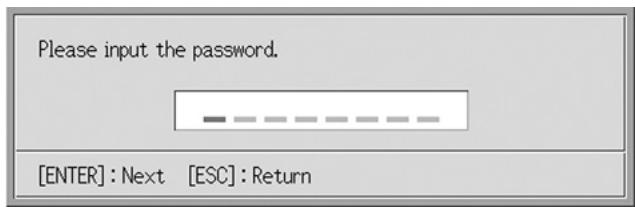
When this dialog box is shown, perform a remote controller key operation for each of the password input positions. The following explains how to input numbers.
- When the password input dialog box first appears, all of its input positions are blank, and the cursor is flashing at the first (leftmost) input position.
- The cursor is used to select an input position for input.
- You can perform any one of the 20 remote controller key operations shown below when inputting a password.
[AF/AK], [PAGEUP], [PAGEDOWN], [MENU], [KEYSTONE], [D-ZOOM +], [D-ZOOM -], [RGB], [VIDEO], [S-VIDEO], [AUTO], [P-IN-P], [MUTE], [FREEZE], [VOL +], [VOL -], [▲], [▼], [▲], [▶]
Each time you perform a remote controller key operation, "■" appears at the current input position, and the cursor moves to the next input position to the right.
- A password can be from one to eight key operations long.
After performing all of the key operations you want, press the [ENTER] key.
To display the power on password setting screen
-
Perform steps 1 through 4 under "Basic Setup Menu Operations" on page 68. Select the "Option Settings1" main menu, and then select the "Power On Password" sub-menu item.
-
Press the [ENTER] key.
-
This displays a password input dialog box like the one shown below.
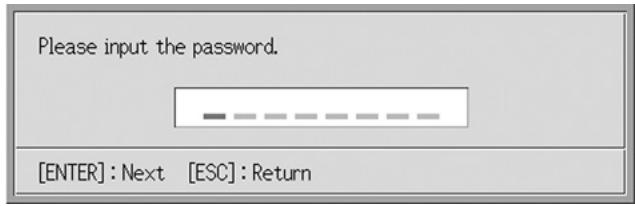
-
Input the current password.
-
For information about how to input the password, see "Using the Password Input Dialog Box".
-
Press the [ENTER] key.
-
If the password you input does not match the currently registered password, the message "The password you input is wrong". appears. Press the [ESC] key to return to step 1.
- If the password you input matches the registered password, pressing [ENTER] above displays the power on password setting screen.
To turn the power on password on and off
- Display the power on password setting screen.
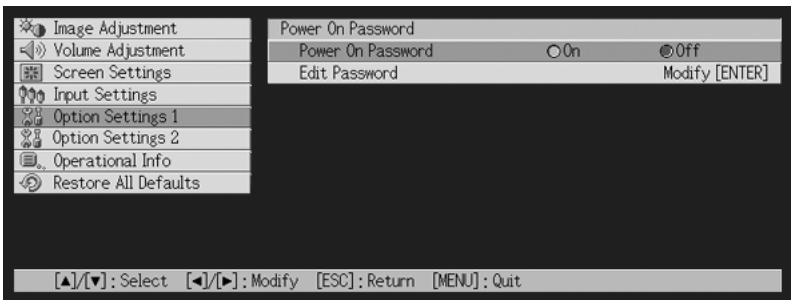
-
See "To display the power on password setting screen" on page 97.
-
Use the [▲] and [▼] keys to select "Power On Password", if you want.
-
Use the [<] and [>] keys to turn the power on password on or off.
-
Changing the power on password setting causes the message like the one shown below to appear.
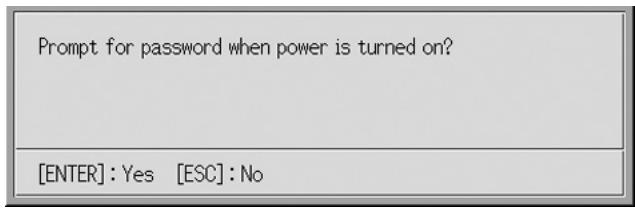
- Press the [ENTER] key to change the setting. If you do not want to change the setting, press the [ESC] key.
To change the power on password
- Display the power on password setting screen.
- See "To display the power on password setting screen" on page 97.
- Use the [] and [] keys to select "Change Password".
-
Press the [ENTER] key.
-
This displays the new password input dialog.
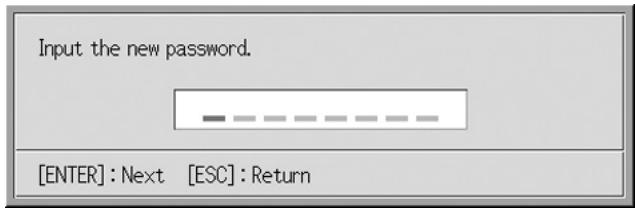
-
Input the new password, and then press the [ENTER] key.
-
This displays a dialog box for re-inputting the password for confirmation.
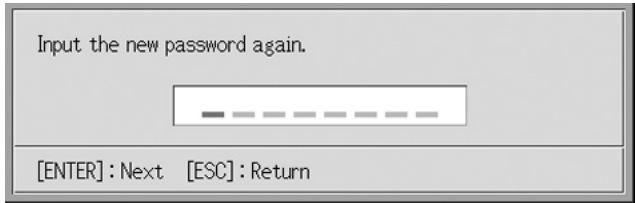
-
Re-input the same password you input in step 4, and then press [ENTER].
-
If the two passwords you input were identical, the message "Your new password has been registered." appears. Press the [ESC] key.
- If the password you input here is different from the one you input in step 4 the message "The two passwords you input are different." appears. Press the [ESC] key to return to step 1.
Option Settings1 Custom Logo Settings
With this sub-menu, you can cut part of the projected screen and use it to create an original logo, which you can display for the startup screen, the no signal screen, and the mute screen. An original logo that you create is called a "custom logo". The custom logo settings let you create a custom logo, view your custom logo, and perform other operations.
- Custom logo settings cannot be configured when there is no input signal.
- A single custom logo is stored, which is applied to all input sources.
Capturing a Custom Logo Image
You can create a custom logo by capturing part of an image that is currently being projected by the projector.
Important!
- The display size and position of a custom logo created by capturing an image depend on the configuration of the following settings when you capture the image: Logo Vertical, Logo Horizontal, Custom Logo Zoom, Background Color, and Resolution. Make sure that you configure these settings the way you want before performing the image capture operation. For details of these operations, see "Configuring Custom Logo Capture Settings" on page 102.
To capture a custom logo
- Project the still image that you want to use as the custom logo.
- Perform steps 1 through 4 under "Basic Setup Menu Operations" on page 68. Select the "Option Settings1" main menu, and then select the "Custom Logo Settings" sub-menu item.
-
Press the [ENTER] key.
-
This displays the custom logo settings screen.
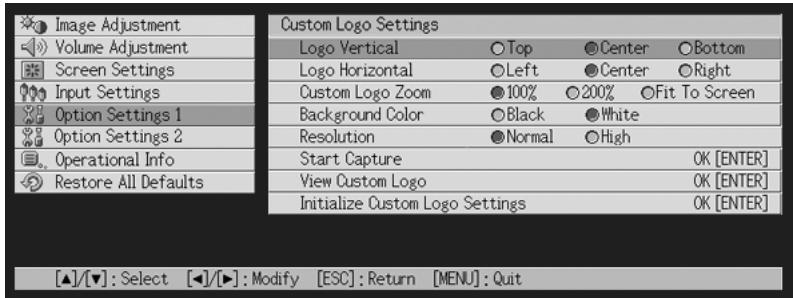
-
Use the [] and [] keys to select "Start Capture", and then press the [ENTER] key.
-
This causes a cross cursor to appear in the projected image.
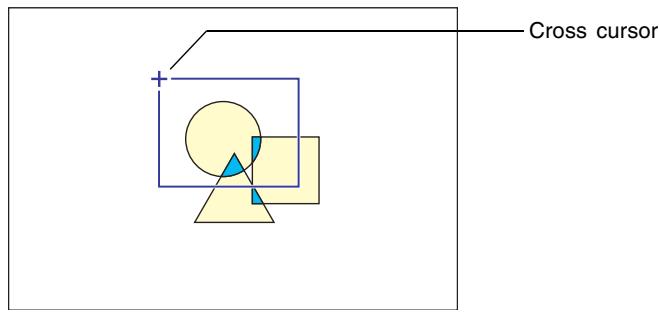
- Use the cursor keys to move the cross cursor to the location where you want the upper left corner of the selection boundary to be.
-
Press the [ENTER] key.
-
This fixes the current cross cursor location as the upper left corner of the selection boundary.
-
Use the cursor keys to move the cross cursor and draw the selection boundary.
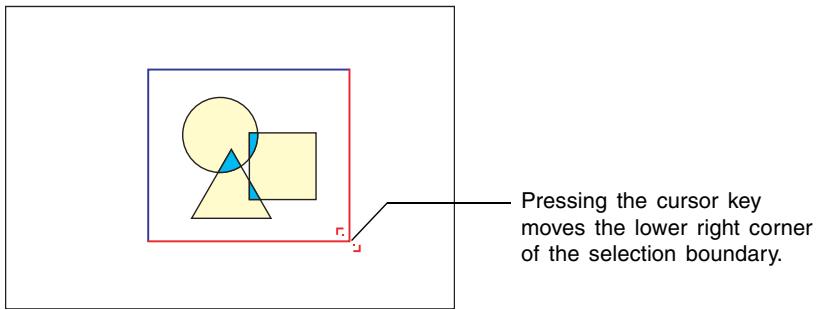
- When the area you want to capture is enclosed by the selection boundary, press the [ENTER] key.
- This causes the message "Start image capture and registration as custom logo?" to appear.
- Press the [ENTER] key to capture the image enclosed by the selection boundary.
- After a few moments, a dialog box with the message "Image capture and registration as custom logo complete!" appears to let you know when the capture operation is complete.
10.To view the custom logo (captured image), press the [ENTER] key. - This projects the custom logo. After you are finished viewing it, press the [ESC] key to return to custom logo setting screen in step 3.
- Press the [MENU] key to exit the setup menu.
Configuring Custom Logo Capture Settings
Before capturing a custom logo, configure the following settings to control its position, zoom, and other parameters when it is projected.
| Setting | Available Items (Parentheses indicate defaults.) |
| Logo Vertical | Top, (Center), Bottom |
| Logo Horizontal | Left, (Center), Right |
| Custom Logo Zoom | (100%), 200%, Resize Image To Fit |
| Background Color | (White), Black |
| Resolution | (Normal), High |

- The "Logo Vertical", "Logo Horizontal", and "Background Color" settings are not used when the zoom setting is "Resize Image To Fit".
- Note that you cannot change the above settings for a custom logo after you capture it.
- The following are some examples of how the above settings affect the custom logo.
Logo Vertical: Center
Logo Horizontal: Center
Custom Logo Zoom: 100%
Background Color: White
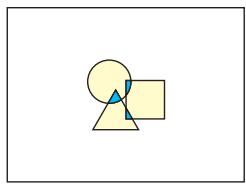
Logo Vertical: Center
Logo Horizontal: Center
Custom Logo Zoom: 200%
Background Color: White
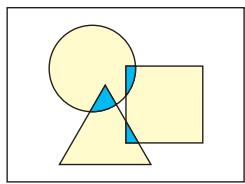
Logo Vertical: Bottom
Logo Horizontal: Left
Custom Logo Zoom: 100%
Background Color: White

Logo Vertical: Center
Logo Horizontal: Center
Custom Logo Zoom: 100%
Background Color: Black
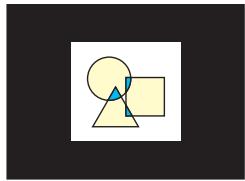
- If an error occurs with the "High" resolution setting, try changing the resolution setting to "Normal". This will increase the chance of a successful capture. If you experience problems capturing with the "Normal" setting, it may also mean that the area you are trying to capture is too large. Try selecting a smaller area.
To configure custom logo settings
- Perform steps 2 and 3 under "To capture a custom logo" on page 100 to display the custom logo setting screen.
- Use the [] and [] keys to select the custom logo item whose setting you want to change.
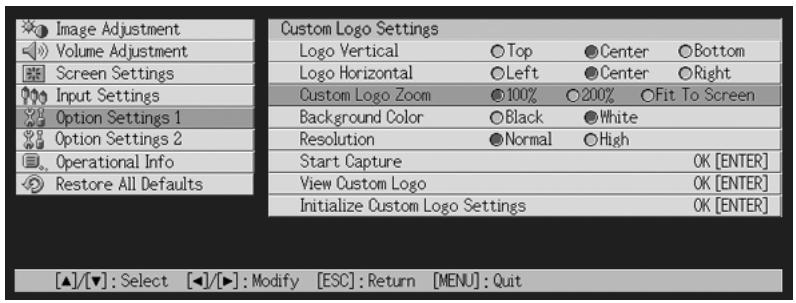
- Use the [▲] and [▷] keys to select the setting you want. The button next to the currently selected setting is black (●).
- Repeat steps 2 and 3 to configure all of the custom logo settings you want.
- After you are finished, press the [MENU] key to exit the setup menu.
To view the current custom logo
- Perform steps 2 and 3 under "To capture a custom logo" on page 100 to display the custom logo setting screen.
-
Use the [] and [] keys to select "View Custom Logo", and then press the [ENTER] key.
-
This projects the currently registered custom logo.
-
To return to the custom logo setting screen, press the [ESC] key.
- Press the [MENU] key to exit the setup menu.
To initialize the custom logo
NOTE
-
Initializing custom logo settings clears the currently registered custom logo and returns all of the settings of the custom logo setting screen to their initial defaults.
-
Perform steps 2 and 3 under "To capture a custom logo" on page 100 to display the custom logo setting screen.
-
Use the [] and [] keys to select "Initialize Custom Logo Settings", and then press the [ENTER] key.
-
This displays a confirmation message asking if you want to initialize custom logo settings.
-
Use the [] and [] keys to select [Yes].
-
Press the [ENTER] key to initialize the custom logo settings, or the [ESC] key to exit the initialize operation without doing anything.
-
Pressing the [ENTER] key initializes settings and returns to the custom logo settings screen.
-
Pressing the [ESC] key returns to the custom logo settings screen without initializing anything.
-
Press the [MENU] key to exit the setup menu.
NOTE
- Initializing the custom logo settings and deleting the custom logo causes the projector's preset logo to appear when "Logo" is selected for the startup screen (page 87), no signal screen (page 87), and mute screen (page 88).
Option Settings1 Language
This sub-menu lets you specify the language to use for messages, setup menus, etc.
- Note that the choice of languages will depend on whether your projector's serial number starts with the letter A (such as: A791AA42...) or the letter B (such as: B791AA42...).
Input Source Specific Menu Items
| Input Source | Available Items |
| RGB | A Model: English, French, German, Italian, Spanish, Swedish, Korean, Japanese |
| Component | B Model: English, Spanish, Chinese (Simplified), Chinese (Traditional), Japanese |
| S-VIDEO | |
| VIDEO | |
| No Signal |
Setting Storage
A single setting is stored, which is applied to all input sources.
NOTE
- This setting is required the first time you turn on the projector. For more information, see "Specifying the Display Message Language" on page 43.
Option Settings1 Alert Tones
This sub-menu lets you turn alert tones on and off.
Input Source Specific Menu Items
| Input Source | Available Items (Parentheses indicate defaults.) |
| RGB | (On), Off |
| Component | |
| S-VIDEO | |
| VIDEO | |
| No Signal |
Setting Explanations
On: Turns on error alert, which sounds a tone when an error occurs.
Off: Turns off error alert.
Setting Storage
A single setting is stored, which is applied to all input sources.
NOTE
- For details about the alert tone that sounds for each type of error when the alert tone is turned on, see "Indicators and Alert Tones" on page 119.
Option Settings1 Restore Menu Defaults
This sub-menu returns all of the sub-menu items on the Option Settings1 main menu to their initial default settings.
- You can perform initialization even when there is no input signal. In this case, the initialization is performed for the currently selected input source.
- The Auto Adjust item is initialized only when RGB is selected as the input source. All other items are always initialized, regardless of the currently selected input source.
- For details about the initialization procedure, see "To initialize the settings of a particular main menu item" on page 74.
Option Settings2
■Option Settings2 AF/AK Mode
This sub-menu item specifies the [AF/AK] key function.
Input Source Specific Menu Items
| Input Source | Available Items (Parentheses indicate defaults.) |
| RGB | (AF/AK), Continuous AF/AK, AF |
| Component | |
| S-VIDEO | |
| VIDEO | |
| No Signal |
Setting Explanations
AF/AK:
Assigns the AF/AK Mode to the [AF/AK] key. Pressing the [AF/AK] key while this setting is selected performs Auto Focus and auto keystone correction.
Continuous AF/AK:
Assigns the Continuous AF/AK Mode to the [AF/AK] key. Pressing the [AF/AK] key while this setting is selected displays an alignment chart and performs a continuous Auto Focus operation. Pressing the [AF/AK] key again performs auto keystone correction.
AF:
Assigns the AF Mode to the [AF/AK] key. Pressing the [AF/AK] key while this setting is selected performs Auto Focus only.
Setting Storage
A single setting is stored, which is applied to all input sources.
NOTE
- For details about [AF/AK] key operation and the various modes that can be assigned to it (AF/AK Mode, Continuous AF/AK Mode, AF Mode), see "Auto Keystone Correction and Auto Focus" (page 53).
■Option Settings2 Power On AF/AK Mode
You can specify either of two different auto adjustment operations to be performed whenever the projector is turned on.
Input Source Specific Menu Items
| Input Source | Available Items (Parentheses indicate defaults.) |
| RGB | Continuous AF/AK, (Off) |
| Component | |
| S-VIDEO | |
| VIDEO | |
| No Signal |
Setting Explanations
Continuous AF/AK: Turning on the projector while this setting is selected displays an alignment chart and performs a continuous Auto Focus operation. Pressing the [AF/AK] key at this time performs auto keystone correction.
Off: Turning on the projector while this setting is selected restores the focus and keystone correction settings that were in effect when the projector was last turned off.
Setting Storage
A single setting is stored, which is applied to all input sources.
NOTE
- When Continuous AF/AK is selected as the power on AF/AK mode, a custom logo is not projected when power is turned on even if one is specified as the startup screen (page 87).
- For more information about Continuous AF/AK, see "Auto Keystone Correction and Auto Focus" (page 53).
- For information about the focus setting, see "To focus the image" (page 50). For information about keystone correction, see "Keystone Correction (KEYSTONE)" (page 53).
- When Continuous AF/AK is turned off, turning off projector power while focus is near its maximum or minimum setting can cause the projected image to be out of focus the next time power is turned on. If this happens, adjust focus manually or press the [AF/AK] key.
Option Settings2 Zoom Memory
Zoom memory lets you save the zoom setting when the projector is turned off, so it can be restored automatically the next time the projector is turned on.
Input Source Specific Menu Items
| Input Source | Available Items (Parentheses indicate defaults.) |
| RGB | On, (Off) |
| Component | |
| S-VIDEO | |
| VIDEO | |
| No Signal |
Setting Explanations
On: Turning on the projector while this setting is selected restores the zoom setting that was in effect when the projector was last turned off.
Off: Turning on the projector while this setting is selected causes the image to be projected at its maximum size.
Setting Storage
A single setting is stored, which is applied to all input sources.

- For details about the zoom setting, see "To adjust image size" (page 50).
Option Settings2 Restore Menu Defaults
This sub-menu returns all of the sub-menu items on the Option Settings2 main menu to their initial default settings.
- You can perform initialization even when there is no input signal. In this case, the initialization is performed for the currently selected input source.
- For details about the initialization procedure, see "To initialize the settings of a particular main menu item" on page 74.
Operational Info
Operational Info Lamp Time
This sub-menu item shows the cumulative number of hours the current lamp has been used to date.
Use this value as a reference when deciding whether or not the current lamp needs to be replaced. For details about replacing the lamp, see "Replacing the Lamp" on page 111.
Operational Info Reset Lamp Time
Use this submenu item to reset the lamp time to 0 hours. For details about replacing the lamp and the initialization procedure, see "Replacing the Lamp" on page 111.
Operational Info Input Signal
This sub-menu item shows the currently selected input signal (RGB, Component, S-VIDEO, or VIDEO). "None" is indicated here when there is no input signal.
Operational Info Signal Name
This sub-menu item shows the signal name of the signal input to the projector. The "Signal Name" column of the table under "Supported Signals" on page 126 shows the signal names that are displayed by this sub-manu item.
Operational Info Index
This sub-menu item appears only when RGB or Component is the input signal. It shows projector internal information.
Operational Info Resolution
This sub-menu item appears only when RGB is the input signal, and shows the resolution of the RGB input signal in terms of vertical and horizontal pixels.
Operational Info Horizontal Frequency
This sub-menu item appears only when RGB, Component, S-VIDEO, or VIDEO is the input signal. It shows the horizontal frequency of the input signal.
Operational Info Vertical Frequency
This sub-menu item appears only when RGB, Component, S-VIDEO, or VIDEO is the input signal. It shows the vertical frequency of the input signal.
Operational Info Scan System
This sub-menu item appears only when RGB or Component is the input signal, and shows the scanning frequency of the input signal. The input signal is interlace or non-interlace for RGB signal input, and interlace or progressive for Component signal input.
This sub-menu returns all of sub-menu items on all main menus to their initial default settings. This operation can be performed regardless of the currently selected input source and regardless of whether or not a signal is currently being input.
For details about this initialization procedure, see "To initialize all menu settings" on page 75.
User Maintenance
This section explains user maintenance procedures, including lamp replacement and projector cleaning.
Cleaning the Projector
Always turn off the projector before cleaning it.
Cleaning the Projector Exterior
Wipe the exterior of the projector with a soft cloth that has been moistened in a weak solution of water and a mild neutral detergent. Be sure to wring all excess moisture from the cloth before wiping.
Never use benzene, alcohol, thinner, or any other volatile agent for cleaning.
Cleaning the Lens
Carefully wipe the lens with a commercially available lens cloth or optical lens paper, like those for eyeglasses or camera lenses. When cleaning the lens, be very careful to avoid scratching it.
Cleaning the Sensors
Carefully wipe the sensors with a commercially available lens cloth or optical lens paper, like those for eyeglasses or camera lenses.
Replacing the Lamp

Caution
-
Continued use of a lamp that has passed its lamp life increases the risk of the lamp rupturing. Replace the lamp with a new one as soon as possible after the replacement message appears.
-
The light source lamp is a consumable item. The average life of a lamp is approximately 2000 hours. After 2000 hours, a message appears to alert you to the need of lamp replacement. However, note that the characteristics of a particular lamp or lamp operating conditions can cause the lamp to start to go dim or even fail before the message appears.
To check the current lamp use time
- Press the [MENU] key to display the setup menu.
2. Press the [] key to select the "Operational Info" main menu.
- The "Lamp Time" sub-menu item shows the number of hours that the current lamp has been used.
![CASIO XJ-450 - Press the [] key to select the "Operational Info" main menu. - 1](/content/2025/01/129500/images/cc6cb42463c355847a2af3988aaae7a9ddda284cc1e0af123b782ddd8631681a.jpg)
![CASIO XJ-450 - Press the [] key to select the "Operational Info" main menu. - 2](/content/2025/01/129500/images/fed2b444be09cd16547fdbcf1ed64eec9314107bf8cd77aca9cf0366440869e7.jpg)
3. Press the [MENU] key to exit the setup menu.
When to replace the lamp
The LAMP indicator starts to flash red and the message shown below appears whenever the lamp time exceeds 2000 hours.
It is time to replace the lamp. Use the procedure in the User's Guide to replace the lamp as soon as possible.
When this message appears, replace the lamp as soon as possible using the procedure under "Replacing the Lamp" on page 113.
Note that the above message will disappear about 10 seconds after you turn on the projector, even if you do not replace the lamp.
You will be able to continue using the projector without replacing the lamp until the lamp time reaches 100 hours. At that time, the LAMP indicator will stop flashing and remain lit red, the following message will appear for about 10 seconds, and then the projector will turn off automatically.
The lamp has exceeded its service life! The projector will not turn on until you replace the lamp.
When this message appears, replace the lamp immediately using the procedure under "Replacing the Lamp" on page 113.
Replacing the Lamp
| Caution | • During normal use, the lamp and the area around it become extremely hot. Before replacing the lamp, turn off the projector and wait for the cool down operation (indicated when the POWER/STANDBY indicator is flashing amber) to finish. Next, disconnect the AC power cord from the projector, and wait for at least 60 minutes to allow it to cool down even further. Touching the lamp or the area around it during operation or immediately after turning off the projector creates the risk of serious burn injury. • Replace the lamp using the YL-40 optional lamp cartridge only. • The projector uses a mercury lamp with high internal pressure as its light source. A lamp that is weakened by impact, damage, or expiration of its lamp life may explode or fail to light. Note that the performance of the lamp differs greatly from lamp to lamp, and due to conditions under which a lamp is used. • Never touch the glass of the lamp with your fingers. Doing so can cause the lamp to rupture and shorten its life. • A broken lamp can cause glass fragments to be scattered inside the lamp housing. Gas inside of the lamp housing may also be discharged from the projector's vent exhaust ports. Gas inside of the lamp includes mercury, so be sure to ventilate the area whenever the lamp breaks. Should you accidentally inhale gas fumes or should gas fumes get into your eyes, immediately contact a physician. • Should the lamp break, take care to avoid personal injury on the glass fragments. Never try to replace a broken lamp on your own. Be sure to contract your original dealer or authorized CASIO service center to request replacement. • The lamp contains mercury. Dispose of old lamps in accordance with the rules and regulations of your local jurisdiction. |
Important!
- Disposing of the Lamp (U.S.A. Only) This product utilizes a lamp containing mercury. Disposal of the lamp may be regulated due to environmental considerations. For disposal or recycling information, please contact your local authorities or the Electronic Industries Alliance: http://www.eiae.org.
To replace the lamp
Important!
-
When replacing the lamp, use the special screwdriver that comes with the YL-40 replacement lamp. The projector does not come with a screwdriver.
-
Turn off the projector and unplug its AC power cord.
- Wait for about 60 minutes to allow the projector's current lamp to cool down completely.
- Turn over the projector and place it on top of a desk or on some other stable surface.
- Loosen the lamp cover screws, and then remove the lamp cover.
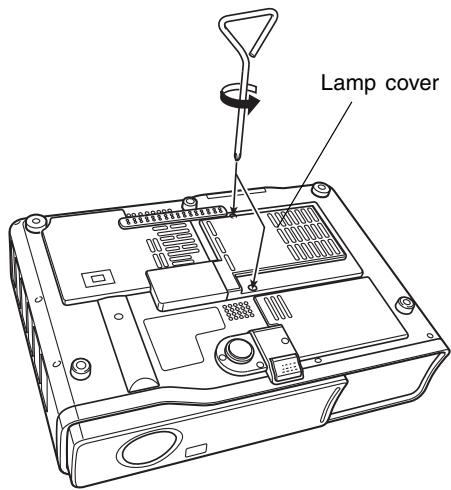
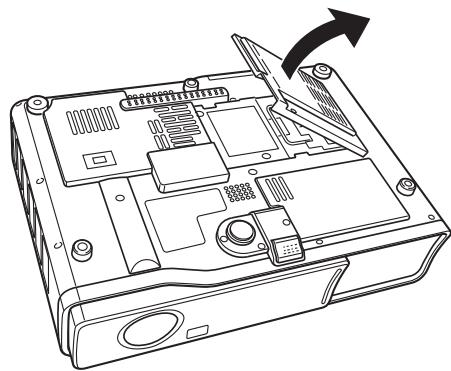
- Loosen the three screws securing the lamp cartridge.
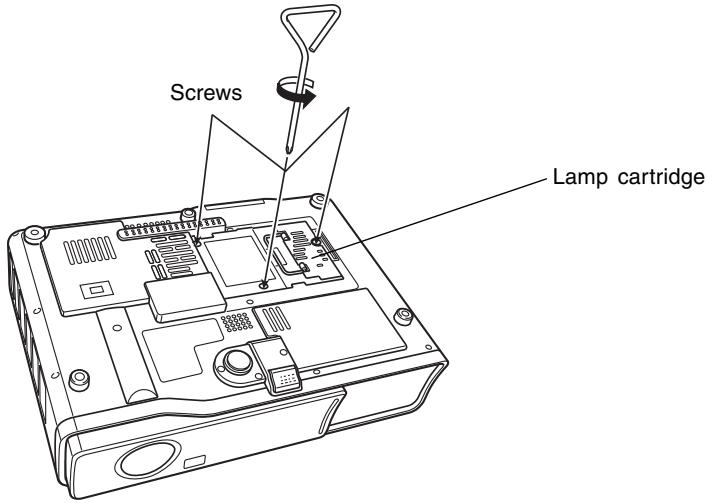
- Use the lamp cartridge handle to pull the lamp cartridge from the projector.
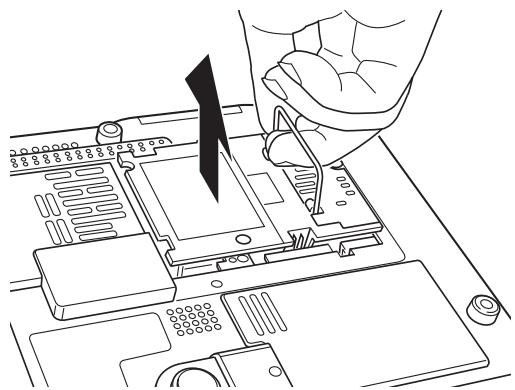
-
Insert the new lamp cartridge as far as it will go, as shown in the illustration.
-
After inserting the lamp cartridge, lay its handle down in the position shown in the illustration under step 5 on page 115.
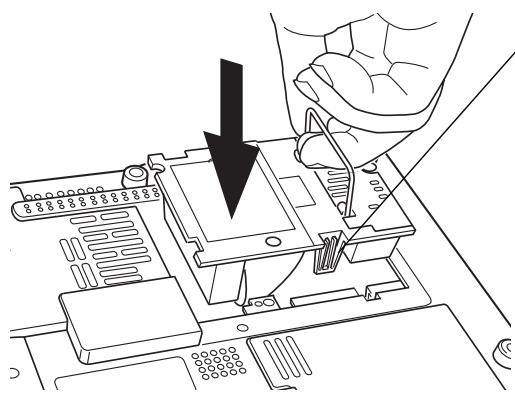
Make sure that the grooves on either side of the lamp cartridge align properly with the grooves on either side of the lamp housing.
Caution
-
Never touch the lamp with your hand. Doing so can cause the lamp to rupture and shorten its life.
-
Secure the lamp cartridge with the three screws.
-
Return the lamp cover to its original position, and secure it with the two screws.
-
After replacing the lamp, be sure to perform the procedure under "Resetting the Lamp Time" on page 117.
Resetting the Lamp Time
The reset lamp time operation you need to perform depends on when you replace the lamp.
It is time to replace the lamp. Use the procedure in the User's Guide to replace the lamp as soon as possible.
If you replace the lamp when the above message appears, use the procedure under "To reset the lamp time" on page 117.
The lamp has exceeded its service life! The projector will not turn on until you replace the lamp.
If you replace the lamp after the above message appears, use the procedure under "To reset the lamp time after exceeding the lamp life" on page 118.
To reset the lamp time
-
Use the procedure under "To turn on the projector" on page 41 to turn on the projector.
-
There is no need to connect a computer or video device to the projector if you plan only to reset the lamp time.
-
Press the [MENU] key to display the setup menu.
-
Press the [] key to select "Operational Info", and then press the [ENTER] key.
-
On the sub-menu that appears, select "Reset Lamp Time".
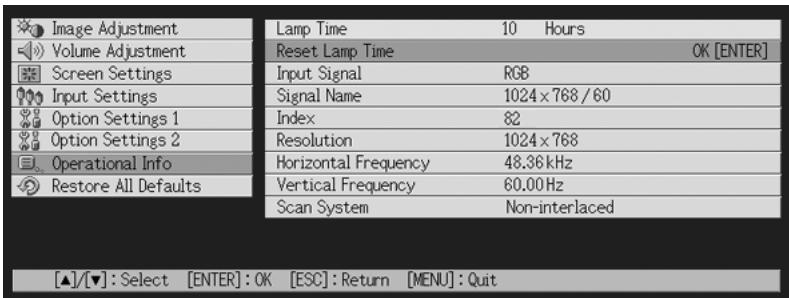
-
Press the [ENTER] key.
-
This causes the message "Reset lamp time?" to appear.
-
Press the [▲] key to select "Yes", and then press the [ENTER] key.
- This resets the lamp time to 0 hours.
- Press the [MENU] key to exit the setup menu.
- This causes the setup menu to disappear from the projected image.
To reset the lamp time after exceeding the lamp life
If you use the existing lamp until its life is exceeded, you will not be able to turn on the projector even after you replace the lamp with a new one. Perform the following procedure to initialize the lamp time in this case, which will make it possible to turn on the projector.
- Use the bundled AC power cord to plug the projector into a power outlet.
- Connecting to a power outlet causes the POWER/STANDBY and LAMP indicators on the top of the projector to light red, which indicates that the lamp has exceeded its service life.
- While holding down the projector's [▲] key, hold down the [AUTO] key for about five seconds.
- This will reset the lamp time, cause the POWER/STANDBY indicator to change from red to amber, and also cause the LAMP indicator to go out.
- Press the [O] (power) key to ensure that the projector turns on normally.
Troubleshooting
This section explains how to interpret the projector's indicators, and what you need to do when you experience problems with projector operation.
Indicators and Alert Tones
The status of the indicators let you know the current operational status of the projector. This section provides details about indicators, and about the error alert tones.
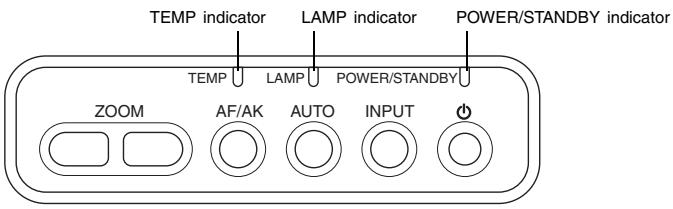
Normal Operation Indicators
- "POWER" in the following table stands for the "POWER/STANDBY" indicator.
| When this indicator is this | It means this | See page | |
| POWER: | Amber steady | You have just plugged the AC cord into a power outlet. Wait until the projector enters the standby state (see below) before trying to turn on power. | 41 |
| TEMP: | Amber steady | ||
| LAMP: | Amber steady | ||
| POWER: | Amber steady | Standby state: The AC power cord is plugged in and the projector is in standby. | 41 |
| POWER: | Green flashing | Projector is warming up after being turned on. | |
| POWER: | Green steady | Projector is on and standing by for use. | |
| POWER: | Amber flashing | Projector is cooling down after being turned off. | 44 |
| LAMP: | Green steady | Projector is in the low noise mode. | 93 |
Error Indicators
- "POWER" in the following table stands for the "POWER/STANDBY" indicator.
- "O" in the "Alert" column indicates that the projector will emit four long beeps when an error occurs. "△" in the "Alert" column indicates that the projector will emit two short beeps when an error occurs. Note that alert tones sound only when "On" is specified for "Option Settings1 → Alert Tones".
- When an error occurs, wait until cool down is complete and the fan stops before unplugging the AC power cord. If you unplug the AC power cord while the fan is still operating, an error may occur when you plug the AC power cord back in.
| Indicator | Alert | Description | |
| POWER : Amber flashing → Red steady | ○ | An operational problem was caused by external noise or some other factor. After confirming that the POWER/STANDBY indicator is lit red (steady) and that the fan has stopped, unplug the AC power cord. After the indicator goes out, plug the AC power cord back in and turn on the projector again. If the error occurs again when you turn power back on, contact your original dealer or authorized CASIO Service Center. | |
| TEMP : Red steady | |||
| POWER : Amber flashing → Red steady | ○ | There is some problem with the fan. After confirming that the POWER/STANDBY indicator is lit red (steady) and that the fan has stopped, unplug the AC power cord. After the indicator goes out, plug the AC power cord back in and turn on the projector again. If the error occurs again when you turn power back on, contact your original dealer or authorized CASIO Service Center. | |
| TEMP : Red flashing (0.5-second interval) | |||
| POWER : Amber flashing → Red steady | ○ | Power has turned off automatically due to internal overheating. Perform the following steps. ① After confirming that the POWER/STANDBY indicator is lit red, unplug the AC power cord and wait for about 60 minutes to allow the projector to cool down. ② Check for any blocking of the projector's intake vents and exhaust vents, and make sure that there is sufficient space around the projector. “Setup Precautions” (page 33). ③ Plug the AC power cord back in, and turn on the projector again. | |
| TEMP : Red flashing (1-second interval) | |||
| POWER : Amber flashing → Red steady | ○ | Power has turned off automatically due to a lamp problem. After confirming that the POWER/STANDBY indicator is lit red, unplug the AC power cord, then plug it back in and turn on the projector again. If this does not correct the problem, wait for the projector to cool down and then check the lamp cartridge for damage. If there is nothing wrong with the lamp cartridge, take it to your original dealer or authorized CASIO Service Center. | |
| TEMP : Red flashing (0.5-second interval) | |||
| LAMP : Red flashing (0.5-second interval) | |||
| POWER : Amber flashing → Red steady | ○ | Power has turned off automatically because the lamp cover is open. Perform the following steps. ① After confirming that the POWER/STANDBY indicator is lit red, unplug the AC power cord and wait for about 60 minutes to allow the projector to cool down. ② Close the lamp cover. ≈ “To replace the lamp” (page 114). ③ Plug the AC power cord back in, and turn on the projector again. | |
| TEMP : Amber flashing | |||
| POWER : Amber flashing → Red steady | ○ | Internal memory error. After confirming that the POWER/STANDBY indicator is lit red, unplug the AC power cord, wait for about 60 minutes to allow the projector to cool down, and then take it to your original dealer or authorized CASIO Service Center. | |
| TEMP : Red flashing (2-second interval) | |||
| POWER : Green steady | △ | It is time to replace the lamp. Replace the lamp following the steps under “Replacing the Lamp” on page 111. | |
| LAMP : Red flashing (1-second interval) | |||
| POWER : Amber flashing → Red steady | ○ | The allowable life for the lamp has been exceeded, and the projector will not turn on. Replace the lamp following the steps under “Replacing the Lamp” on page 111. | |
| LAMP : Red steady | |||
Projector Troubleshooting
Check the following items whenever you experience any problem with the projector.
| Problem | Cause and Recommended Action | See page |
| The projector does not turn on when I press the [()](power) key. | If the POWER/STANDBY indicator is not lit, the AC power cord may not be connected correctly. →Make sure the AC power cord is connected correctly to the projector and the power outlet. | 41 |
| If the TEMP or LAMP indicator remains flashing or lit, it means some type of error has occurred. →See “Error Indicators”. | 120 | |
| The projector does not project any image from the connected device. | The connected computer or video device may not be turned on, or it may not be outputting a video signal. →Make sure the connected computer or video device is turned on, and perform the required operation on it to output a video signal. | — |
| The correct output source is not selected on the projector. →On the projector, select the input source that corresponds to the device whose image you are trying to project. | 48 | |
| The projector does not correctly project the image from the connected device. | Images may not project correctly when you have the component output terminal of a video device connected to the RGB terminal of the projector. →Try using the projector's VIDEO input terminal or S-VIDEO input terminal. | 39 |
| Images sent from a computer over an RGB cable may not project correctly if [Component] is selected for the “Input Settings → RGB Input” menu setting. →Turn off the projector and disconnect the AC cord and RGB cable. Next, reconnect the AC cord only and turn on power. Change the “Input Settings → RGB Input” menu setting to [RGB]. Try projecting again. | 89 | |
| When RGB/Component is selected as the input source, the color of the projected image or the image itself is abnormal. | The settings configured on the setup menu's “Input Settings → RGB Input” menu may not be compatible with the device connected to the RGB input terminal. → Use the setup menu to configure the “Input Settings → RGB Input” menu settings to correct the problem. | 89 |
| The projector keys to not work. | Key lock or power on password may be turned on. → Turn off key lock and/or power on password. | 94 |
| The remote controller does not work. | The remote controller batteries may be dead. → Replace the batteries. | 27 |
| The remote controller may be too far from the projector. → Make sure the remote controller is within the allowable range when you operate it. | 29 | |
| The auto keystone correction function (AF/AK) does not work correctly. | The sensors may have finger smudges or dirt on them. → Carefully wipe the sensors with a commercially available lens cloth or optical lens paper, like those for eyeglasses or camera lenses. | 111 |
| There may be an obstruction between the sensors and the screen. → Remove the obstruction. | - | |
| The TEMP or LAMP indicator is flashing or lit. | → See “Error Indicators”. | 120 |
| The message “It is time to replace the lamp.” is being projected. | It is time to replace the lamp. → Replace the lamp. | 111 |
| The message “The lamp has exceeded its service life!” is being projected. | The allowable life for the lamp has been exceeded, and the projector will not turn on. → Replace the lamp. | 111 |
Specifications
| Model Name | XJ-450 | |
| Projection System | DLP (DMD, single panel) | |
| DMD | Size | 0.7inch |
| Number of Pixels | XGA (1024 × 768) | |
| Projection Lens | Auto, optical zoom (×2); auto focus F = 2.0 to 2.8 f = 20 to 40mm | |
| Light Source | 250W high-pressure mercury lamp | |
| RGB input terminal | RGB mini D-Sub 15-pin × 1 (Also used as component signal input terminal.) | |
| VIDEO input terminal | RCA pin jack × 1 | |
| S-VIDEO input terminal | Mini DIN4-pin × 1 | |
| Audio input terminal | Stereo mini jack × 1 | |
| Audio output | 1W monaural | |
| USB port | USB TYPE B | |
| Environment | Operating Temperature: 5 to 35°C (41 to 95°F) Operating Humidity: 20 to 80% (non-condensation) | |
| Power Requirements | 100-240V AC, 50/60Hz | |
| Dimensions | 278(W) × 64(H) × 197(D) mm (excluding projections) (10.9 × 2.5 × 7.8 inch) | |
| Weight | Approximately 2.4kg (5.3 lbs) | |
| Display Languages | A Model: English, French, German, Italian, Spanish, Swedish, Korean, Japanese | |
| B Model: English, Spanish, Chinese (Simplified), Chinese (Traditional), Japanese | ||
- Specifications are subject to change without notice.
Computer System Requirements for USB Connection
The following are the minimum Windows and Macintosh computer system requirements for USB connection with the projector.
Windows
IBM PC/AT or compatible computer with USB port and Windows 98, 98SE, Me, 2000 Professional, or XP preinstalled
■ Macintosh
Macintosh computer with USB port and OS 8.6 to 9, 10.1, or 10.2 preinstalled
NOTE
- Normal USB operation may not be possible under certain system configurations.
- Proper operation is not guaranteed on computers that have been upgraded from another version operating system.
Supported Signals
RGB Signal
| Signal Name | Resolution | Horizontal Frequency (kHz) | Vertical Frequency (Hz) | |
| VESA | 640 × 350/85 | 640 × 350 | 37.9 | 85 |
| 640 × 400/85 | 640 × 400 | 37.9 | 85 | |
| 720 × 400/85 | 720 × 400 | 37.9 | 85 | |
| 640 × 480/60 | 640 × 480 | 31.5 | 60 | |
| 640 × 480/72 | 640 × 480 | 37.9 | 73 | |
| 640 × 480/75 | 640 × 480 | 37.5 | 75 | |
| 640 × 480/85 | 640 × 480 | 43.3 | 85 | |
| 800 × 600/56 | 800 × 600 | 35.2 | 56 | |
| 800 × 600/60 | 800 × 600 | 37.9 | 60 | |
| 800 × 600/72 | 800 × 600 | 48.1 | 72 | |
| 800 × 600/75 | 800 × 600 | 46.9 | 75 | |
| 800 × 600/85 | 800 × 600 | 53.7 | 85 | |
| 1024 × 768/43i | 1024 × 768 | 35.5 | 87 | |
| 1024 × 768/60 | 1024 × 768 | 48.4 | 60 | |
| 1024 × 768/70 | 1024 × 768 | 56.5 | 70 | |
| 1024 × 768/75 | 1024 × 768 | 60.0 | 75 | |
| 1024 × 768/85 | 1024 × 768 | 68.7 | 85 | |
| 1152 × 864/75 | 1152 × 864 | 67.5 | 75 | |
| 1280 × 960/60 | 1280 × 960 | 60.0 | 60 | |
| 1280 × 960/85 | 1280 × 960 | 85.9 | 85 | |
| 1280 × 1024/60 | 1280 × 1024 | 64.0 | 60 | |
| 1280 × 1024/75 | 1280 × 1024 | 80.0 | 75 | |
| 1280 × 1024/85 | 1280 × 1024 | 91.1 | 85 | |
| 1600 × 1200/60 | 1600 × 1200 | 75.0 | 60 | |
| APPLE | 640 × 480/67M13 | 640 × 480 | 35.0 | 67 |
| 832 × 624/75M16 | 832 × 624 | 49.7 | 75 | |
| 1024 × 768/75M19 | 1024 × 768 | 60.2 | 75 | |
| 1152 × 870/75M21 | 1152 × 870 | 68.7 | 75 | |
| 640 × 480/117iM | 640 × 480 | 56.0 | 117 | |
| 800 × 600/95iM | 800 × 600 | 59.0 | 95 | |
| 1024 × 768/75iM | 1024 × 768 | 59.0 | 75 | |
| NEC | 640 × 400/56 | 640 × 400 | 24.8 | 56 |
| Other | 1400 × 1050/A | 1400 × 1050 | 64.0 | 59 |
| 1400 × 1050/B | 1400 × 1050 | 64.0 | 60 | |
| 1152 × 864/70 | 1152 × 864 | 64.0 | 70 | |
| 1152 × 864/85 | 1152 × 864 | 77.5 | 85 | |
| 1280 × 960/75 | 1280 × 960 | 75.0 | 75 |
Component Signal
| Signal Name | Horizontal Frequency (kHz) | Vertical Frequency (Hz) | |
| HDTV | 1080i60 | 33.7 | 60 |
| 720p60 | 45.0 | 60 | |
| SDTV | 576p50 | 31.3 | 50 |
| 576i50 | 16.6 | 50 | |
| 480p60 | 31.5 | 60 | |
| 480i60 | 15.7 | 60 |
Video/S-Video Signal
| Signal Name | Horizontal Frequency (kHz) | Vertical Frequency (Hz) |
| NTSC | 15.7 | 60 |
| NTSC4.43 | 15.7 | 60 |
| PAL | 15.6 | 50 |
| PAL-M | 15.7 | 60 |
| PAL-N | 15.6 | 50 |
| PAL60 | 15.7 | 60 |
| SECAM | 15.6 | 50 |
- Listing of a device in the above table does not guarantee that you will be able to display its images correctly.
- When “ 640 × 350/85 ” is the input signal, the “Operational Info” sub-menu items show 640 × 400/85 information.
- When “1024 × 768/75iM” is the input signal, the “Operational Info” sub-menu items show “1024 × 768/75” information.
- If you experience problems projecting the image of a “ 1280 × 1024/60 ”, “ 1400 × 1050/A ” or “ 1400 × 1050/B ” signal, you may be able to obtain a correct image by changing to “Special Signal”.
GUIDELINES LAID DOWN BY FCC RULES FOR USE OF THIS UNIT IN THE U.S.A. (not applicable to other areas).
NOTICE
This equipment has been tested and found to comply with the limits for a Class B digital device, pursuant to Part 15 of the FCC Rules. These limits are designed to provide reasonable protection against harmful interference in a residential installation. This equipment generates uses and can radiate radio frequency energy and, if not installed and used in accordance with the instructions, may cause harmful interference to radio communication. However, there is no guarantee that interference will not occur in a particular installation. If this equipment does cause harmful interference to radio or television reception, which can be determined by turning the equipment off and on, the user is encouraged to try to correct the interference by one or more of the following measures:
Reorient or relocate the receiving antenna.
- Increase the separation between the equipment and receiver.
- Connect the equipment into an outlet on a circuit different from that to which the receiver is connected.
- Consult the dealer or an experienced radio/TV technician for help.
FCC WARNING
Changes or modifications not expressly approved by the party responsible for compliance could void the user's authority to operate the equipment.
Proper connectors must be used for connection to host computer and/or peripherals in order to meet FCC emission limits.
Connector cable.....XJ-450 unit to PC
Declaration of Conformity
Model Number:XJ-450
Trade Name: CASIO COMPUTER CO., LTD.
Responsible party: CASIO, INC.
Address:570 MT. PLEASANT AVENUE, DOVER, NEW JERSEY 07801
Telephone number:973-361-5400
This device complies with Part 15 of the FCC Rules, Operation is subject to the following two conditions:
(1) This device may not cause harmful interference, and (2) this device must accept any interference received, including interference that may cause undesired operation.

Tested To Comply With FCC Standards
FOR HOME OR OFFICE USE
NL