
SF-4990 - Electronic Planner CASIO - Free user manual and instructions
Find the device manual for free SF-4990 CASIO in PDF.
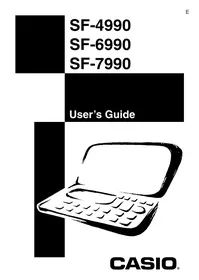


| Product Type | Electronic Organizer |
| Brand | CASIO |
| Model | SF-4990 |
| Dimensions (unfolded) | 11.1 × 145 × 178 mm |
| Dimensions (folded) | 14.7 × 145 × 91 mm |
| Weight (with batteries) | Approx. 130 g |
| Power Supply | 2 CR2032 lithium batteries |
| Display Type | 17-column × 6-line LCD with EL backlight |
| User Memory Capacity | 256 KB (approx. 7,300 Directory entries, 8,900 memos, 6,100 appointments) |
| Available Languages | English, French, Spanish, German, Italian, Portuguese |
| Main Functions | Phone Directory, Memo, Calendar, Task List, Expenses, Birthdays, Calendar (1901-2099), Clock (local and world), Calculator, Conversions (currency, metric), Secret function, Data communication |
| Clock Function | Local time, world time (33 cities), daily alarm, appointment alarm |
| Calculator | 10 digits, arithmetic operations, constants, independent memory, percentages |
| Data Communication | Between two SF Units (SB-63 cable) or to PC (SB-65 cable, FA-127 software) |
| Battery Life | Approx. 1 year (1 hour/day usage, backlight 2 times/day, daily alarm) |
| Operating Temperature | 0°C to 40°C |
| Maintenance | Clean with a soft, slightly damp cloth (water and mild detergent). Do not use solvents. |
| Security | Secret function with password (4 characters) to protect data |
| Repairability | Replace batteries (CR2032) by user. Reset via RESET button. For any other repairs, consult a CASIO dealer. |
Frequently Asked Questions - SF-4990 CASIO
User questions about SF-4990 CASIO
0 question about this device. Answer the ones you know or ask your own.
Ask a new question about this device
Download the instructions for your Electronic Planner in PDF format for free! Find your manual SF-4990 - CASIO and take your electronic device back in hand. On this page are published all the documents necessary for the use of your device. SF-4990 by CASIO.
USER MANUAL SF-4990 CASIO
GUIDELINES LAID DOWN BY FCC RULES FOR USE OF THIS UNIT IN THE U.S.A. (not applicable to other areas).
NOTICE
This equipment has been tested and found to comply with the limits for a Class B digital device, pursuant to Part 15 of the FCC Rules. These limits are designed to provide reasonable protection against harmful interference in a residential installation. This equipment generates, uses and can radiate radio frequency energy and, if not installed and used in accordance with the instructions, may cause harmful interference to radio communications. However, there is no guarantee that interference will not occur in a particular installation. If this equipment does cause harmful interference to radio or television reception, which can be determined by turning the equipment off and on, the user is encouraged to try to correct the interference by one or more of the following measures:
Reorient or relocate the receiving antenna. - Increase the separation between the equipment and receiver. - Connect the equipment into an outlet on a circuit different from that to which the receiver is connected. - Consult the dealer or an experienced radio/TV technician for help.
FCC WARNING
Changes or modifications not expressly approved by the party responsible for compliance could void the user's authority to operate the equipment.
Proper connectors must be used for connection to host computer and/or peripherals in order to meet FCC emission limits.
Connector SB-63.... SF Unit to SF Unit
Connector SB-65....SF Unit to PC
Declaration of Conformity
Model Number: SF-4990/SF-6990/SF-7990
Trade Name: CASIO COMPUTER CO., LTD.
Responsible party: CASIO, INC.
Address: 570 MT. PLEASANT AVENUE, DOVER, NEW JERSEY 07801
Telephone number: 973-361-5400
This device complies with Part 15 of the FCC Rules. Operation is subject to the following two conditions: (1) This device may not cause harmful interference, and (2) this device must accept any interference received, including interference that may cause undesired operation.
IMPORTANT!
Please keep your manual and all information handy for future reference.
Use the following procedure to load batteries and reset the unit before using it for the first time.
- Slide the battery compartment cover in the direction indicated by the arrow.
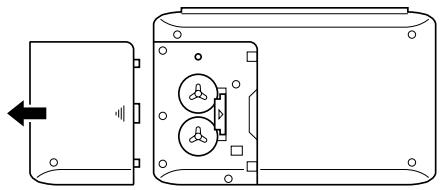
- Slide the battery switch to the "REPLACE ①" setting.
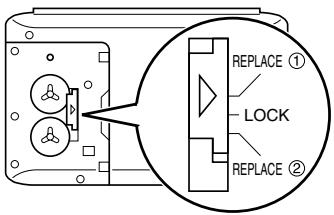
- Load the new battery into the battery compartment, making sure that the positive (+) side of the new battery is facing up (so you can see it).
- Slide the battery switch to the "REPLACE ②" setting and repeat step 3 for the other battery.
- Be sure to load two new CR2032 batteries only. Never mix an old battery with a new one.
- Slide the battery switch to the "LOCK" setting.
- Replace the battery compartment cover.
- Press ON/OFF to switch power on.
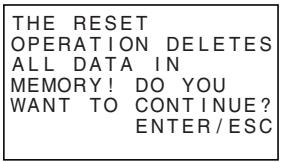
- If message does not appear, open the battery compartment and press the RESET button.
- Press ENTER.
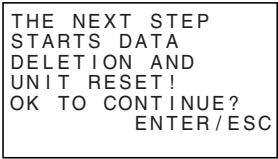
- Press ENTER.
- After the RESET operation is complete, the LANGUAGE screen appears on the display.
- Use the procedure under "To select the system language" on page 5 to select a system language.
- Check the Home Time setting and make changes if necessary (page 65).
About the EL backlight
- This unit is equipped with an EL backlight that allows easy viewing of display contents in a theater, or anywhere else where lighting is dim.
- Note, however, that frequent or extended use of the EL backlight, or using it under cold conditions shortens battery life.
The following shows how backlight use affects battery life under controlled test conditions.*
| Backlight Operation | Battery Life |
| 3 minutes per hour | Approximately 45 hours |
| 15 minutes per hour | Approximately 25 hours |
* Test Conditions
Temperature: 25°C - "Battery Life" is the number of hours before battery failure when the unit is left on with 5 minutes of a processing operation and 55 minutes of continuous display only (no processing operation) per hour, plus the backlight operation described below. - "Backlight Operation" is the number of minutes the backlight is turned on per hour during the display only (no processing operation) period. - The above battery life values are based on Panasonic CR2032 batteries.
Important!
- The EL backlight may fail to operate when battery power is low, in order to conserve remaining battery power and protect data stored in memory.
- The low battery message may appear even when battery power is not low if you turn on the EL backlight under cold conditions. We recommend that you do not use the EL backlight under cold conditions.
Congratulations on your selection of CASIO's new SF-4990/SF-6990/SF-7990 (referred to as SF Unit in this manual). This innovative new personal data management tool features a selection of powerful functions, including:
Telephone Directory Memo Mode Schedule Keeper To Do Mode - Expense Mode Anniversary Mode Calendar - Clock with Home Time and World Time functions - Calculator Conversion Mode - Secret Function Data Communication
Functions are specially designed to be easy to understand and use, making your personal data management easier than ever before.
- All data stored in memory is erased if the SF Unit should malfunction, when you have it repaired, when the batteries go dead, and whenever you remove the batteries. Be sure to make written back up copies of all important data.
- CASIO COMPUTER CO., LTD. assumes no responsibility for any damage or loss resulting from the use of this manual. CASIO COMPUTER CO., LTD. assumes no responsibility for any loss or claims by third parties which may arise through the use of the SF Unit.
- CASIO COMPUTER CO., LTD. assumes no responsibility for any damage or loss caused by deletion of data as a result of malfunction, repairs, or battery replacement. Be sure to back up all important data on other media to protect against its loss.
- Company names and product names used in this manual may be registered trademarks or trademarks of others.
Multiple Language Capability
Your SF unit is capable of producing messages in any one of six different languages (English, French, Spanish, German, Italian, Portuguese). Use the following procedure to select the language you want.
To select the system language
- Press ON/OFF to switch power on.
- Enter the Telephone Directory Mode.
- You could enter Memo, Anniversary, Schedule Keeper, To Do, Expense, Calendar, Home Time or World Time here.
- Press FUNCTION once or twice to display the function menu.
- Press the applicable number key to select LANGUAGE.
- The above operation causes a list of six languages to appear on the display. The language that is currently selected is highlighted on the display.
- Select the language you want to use.
- You can directly specify a language by pressing the number key that corresponds to the language you want to use.
| 1 ENGLISH |
| 2 FRANCAIS |
| 3 ESPANOL |
| 4 DEUTSCH |
| 5 ITALIANO |
| 6 PORTUGUES |
| CODE |
- You can also select a language by using the up or down arrow keys to move the highlighting around the menu until the language you want to use is highlighted.
- While the language you want to use is selected (highlighted), press ENTER.
- To exit the language-selection menu without changing the current language, press ESC.
- You also need to specify the system language you want whenever you perform the RESET operation (page 19).
About this manual...
This manual is divided into 7 parts.
PART 1 Getting Started
Be sure to read this part of the manual before doing anything else! It includes important information that you need to know in order to use the SF Unit correctly.
PART 2 Operation Reference
This part of the manual gives you more detail about the fundamental operation of the SF Unit. It provides all of the detail you need to help you use the SF Unit to its full potential. It also helps you to get acquainted with the keys, features, and functions of the SF Unit. It tells you where everything is located, what the display indicators mean, how to adjust the display contrast, and other important information.
PART 3 Data Management Functions
This part of the manual details the versatile data management functions of the SF Unit. It describes the procedures required for data storage, recall, and editing in the Telephone Directory, the Memo Mode, the Schedule Keeper, the To Do Mode, the Expense Mode, and the Anniversary Mode.
PART 4 Timekeeping Functions
Your SF Unit includes powerful timekeeping functions that help to keep you on time all the time. The Home Time function lets you set the current time for your home, specifying 12-hour or 24-hour format, standard time or summer time, even your hometown name. The World Time function gives you instant access to the current time in any one of 33 cities around the globe.
PART 5 Calculator Functions
The SF Unit also gives you the capability to perform all of the mathematical operations available on today's calculators.
Conversion modes describe functions for converting between three national currencies, or between metric and yard denominations.
PART 6 Data Communications
The data communications capabilities of the SF Unit let you transfer data between two SF Units, or between the SF Unit and a personal computer.
PART 7 Technical Reference
This part of the manual provides technical information on troubleshooting, user maintenance, specifications, etc.
Manual conventions
This manual uses the following conventions when mentioning key operations and functions within text.
- Keys are indicated using upper-case bold characters LIKE THESE.
- When a key has more than one function, only the function under discussion at that time will be noted. With the ON/OFF key, for example, ON will be used to indicate switching the SF Unit on, while OFF will be used to indicate switching the SF Unit off.
- Text that appears on the display of the unit is represented in this manual using a font that is different from the explanatory text. The display text "NAME?" for example represented as: NAME?. Note that operation of this unit's SHIFT key is different from that normally found on a computer's keyboard. For the operation SHIFT .com, for example, you should not hold down the SHIFT key while you press .com. Instead, you should press and then release the SHIFT key, and then press the .com key.
Contents
Before using the unit for the first time. 1
About the EL backlight 3
Introduction - SF-4990/SF-6990/SF-7990 4
Multiple Language Capability 5
About this manual 6
Manual conventions 7
PART 1 - Getting Started 13
Read this first! 13
Make back up copies of important data! 13
About the "DATA ERROR!" message. 13
General Precautions 15
About the Power Supply 15
Low Battery Message 16
Battery Precautions 16
To replace the batteries 18
Resetting the SF Unit's Memory 19
To reset the SF Unit's memory 19
PART 2 - Operation Reference 21
General Guide 21
Setting Up the SF Unit 22
To switch power on and off 22
About the Auto Power Off function 22
To turn on the EL backlight 22
To adjust the display contrast 23
To select a mode 23
To check the memory status 24
To use the FUNCTION key 25
About the SOUND menu 25
To switch the key input and schedule alarm tone on and off 25
About alarm types 26
Inputting Letters, Numbers and Symbols 27
To input letters and numbers 27
To input upper-case and lower-case letters 27
To shift the keyboard 27
To input accented characters 28 To input other symbols 28 To correct, delete or insert characters 29 Date and time input 29
PART 3 - Data Management Functions 30
To enter a mode 30 About display formats 30
Using the Telephone Directory 32
Inputting Telephone Directory data 32 Where to find other information 34
Using the Memo Mode 35
To input Memo Mode data 35 To insert a new Memo Mode data item between two items in memory ... 36 Where to find other information 36
Using the Calendar 37
To display the calendar 37 To scroll through calendars 38 About the date cursor.. 38 To specify a month and date for display in the Calendar Mode 38 To highlight and unhighlight specific dates 38 To highlight days of the week for multiple months 39 To unhighlight days of the week for multiple months 39
Using the Schedule Keeper 40
To enter the Schedule Keeper 40 To specify a date 40 About Schedule Keeper data and initial displays 41 To input Schedule Keeper data 41 Using Schedule Alarms 42 To set a schedule alarm when inputting data 42 To set or change a schedule alarm for an existing data entry 43 To view a data entry's current schedule alarm setting 43 To delete a specific schedule alarm 43 Where to find other information 43
Using the Expense Mode 44
About Expense Mode data items and data entries 44 About Expense Mode Display formats 45 To enter the Expense Mode 46
To edit labels 46 To specify a date 47 To input Expense Mode data 47 To calculate expense totals for a specific period 48 About the total amount display 50 Where to find other information 50
Using the To Do Mode 51
To input To Do Mode data 51 About the To Do list 51 To check and uncheck To Do items 51 Where to find other information 52
Using the Anniversary Mode 53
About Anniversary Mode Display formats 53 To enter the Anniversary Mode 54 To input Anniversary Mode data 54 Where to find other information 54
Recalling data stored in memory 55
To locate data using index search 55 To locate data using initial character search 55 To locate data using mode search 56
Editing, Deleting and Copying data 57
To edit a data item 57 To delete a single data item 57 To delete all data items in a mode 57 To delete multiple data items in the Schedule Keeper Mode or Expense Mode 58 To move a Schedule Keeper data to a different date 58 To move an Expense Mode data item to a different date 59 To copy a data item 59
Memory Management Operation 59
Using the Secret function 60
To create a secret memory area 60 To enter an existing secret memory area 61 To edit an existing password 61 To transfer data from the open memory area to the secret memory area 62 To transfer data from the secret memory area to the open memory area 62
PART 4 - Timekeeping Functions 63
Using the Home Time function 63
About Home Time displays. 63 To display the Home Time 64 To set the Home Time zone 64 To set the Home Time 65 To switch the Home Time between 12-hour and 24-hour format 65 To switch the Home Time between standard and daylight saving time ... 66 To set the Daily Alarm 66 About the daily alarm 67 To select the date format 67
Using the World Time function 68
To display the World Time 68 To set the World Time zone 68 To switch a World Time zone between standard and daylight saving time 68 City List 69
PART 5 - Calculator Functions 70
Using the Calculator 70
To enter the Calculator Mode 70 About the Calculator Mode keys. 70 To perform calculations 72 To perform constant calculations 73 To correct errors in calculations 73 About calculation errors 73 To clear errors 74
Using the Currency Conversion Mode 75
To enter the Currency Conversion Mode 75 To set an exchange rate 75 To view the current Currency Conversion Mode rates 76 To perform a currency conversion 76 To change the currency name and rate 76 About conversion errors 77 To clear errors 77
Using the Metric Conversion Mode 78
To enter the Metric Conversion Mode 78 To perform a metric conversion 78
PART 6 - Data Communications 79
Setting Up for Data Communications 79
To connect the SF-4990/SF-6990/SF-7990 to another SF Unit 79 Performing data communications between an SF Unit and a personal computer 80 To set the SF Unit hardware parameters 81 About communications parameters 81 To set up the SF Unit to receive data 82
Sending Data 84
About data transfer types 84 To send all data items 85 To send one month of Calendar data (highlights) 86 To send all Telephone Directory, Memo Mode, To Do Mode, or Anniversary Mode data 86 To send all Schedule Keeper, Calendar or Expense Mode data in a specific period 87
PART 7 - Technical Reference 88
Keys 88
Storage Capacity 91
Auto Sort Sequence 93
Message Table 94
Specifications 96
Read this first!
You must be familiar with the following information in order to use the SF Unit correctly. It tells you what to do in order to avoid losing important data stored in memory. Please be sure to read the following before using the SF Unit!
Make back up copies of important data!
Your SF Unit employs electronic memory, which makes it possible to store large volumes of data and to recall stored data quickly and easily. Data is retained as long as power is supplied by the batteries. This means that should batteries go dead, or if you make a mistake while replacing batteries, the data stored in memory may be damaged or lost entirely. Data contents can also be damaged or lost due to strong electrostatic charge, strong impact, or extremes in temperature and humidity.
All of this means that you should make back up copies of important data in a notebook in case any of the above conditions occur.
About the "DATA ERROR!..." message...
Whenever you turn on the power of the SF Unit, it performs a self-check before beginning operation. If a problem is discovered during the self-check, the SF Unit displays the "DATA ERROR!...." message.
Note
- The above message always appears in English, regardless of the system language setting.
If this is the first time you ever turned on the SF Unit...
Perform the RESET procedure under "Before using the unit for the first time" on page 1, starting from step 9.
If this is not the first time you are using the SF Unit...
There is probably a problem with the data in memory (data error). Note that once data is lost it cannot be recovered. Such data errors are generally caused by one of the following problems.
- Interruption of battery power.
- Severe electrostatic charge, impact, change in temperature, or change in humidity.
- Hardware problem.
After a data error is discovered, you will not be able to input or edit data. In order to return memory to normal (allowing further input and editing of data), you must perform the RESET operation to clear the memory of all data.
"THE RESET OPERATION DELETES ALL DATA IN MEMORY! DO YOU WANT TO CONTINUE?"
Press ENTER to reset the unit.
If you still have trouble after trying the RESET operation, you may have a hardware problem. If so, consult with your nearest CASIO dealer.
General Precautions
- Never try to take the SF Unit apart.
- Avoid strong impact and sudden temperature changes.
- At very low temperatures, the display response time may slow down or the display may fail completely. This is temporary and correct operation should return at normal temperature.
- To avoid serious damage to the SF Unit caused by leaking batteries, replace batteries once every two years, regardless of how much you use the SF Unit during that time.
- Never use thinner, benzine or other volatile agents to clean the exterior of the SF Unit. Instead, wipe it off with a soft cloth dampened in a solution of water and a mild, neutral detergent. Wring the cloth out until it is almost dry.
- If the SF Unit is exposed to strong electrostatic charge, the display may dim or the SF Unit may lock up. To correct this situation, switch power off, and then remove and then replace the batteries.
- Do not press the keys with a pen, pencil or other sharp object.
- The SF Unit may cause interference with radio or television reception. Keep it away from such appliances when you are using it.
Leaving the backlight on for long periods greatly reduces battery life!
About the Power Supply
The SF Unit is powered by two CR2032 lithium batteries. Replace batteries as soon as possible after low battery power is indicated by any of the following.
- Low battery message appears on the display
- Blank display when power is turned on
- Dim display figures even after display contrast is adjusted
- Failure of the backlight to turn on
Caution
- All data stored in memory is lost if you remove both batteries at the same time.
- Be sure that you keep a separate copy of all important data that you store in the SF Unit.
Low Battery Message
A message appears on the display to warn you when the batteries power drops below a certain level. Should battery power drop too low, data in memory may be corrupted or lost. Whenever a low battery power message appears on the display, be sure to stop operation of the SF Unit and replace batteries as soon as possible.
Important!
- Whenever the message "WEAK BATTERIES! CONSULT YOUR USER'S GUIDE IMMEDIATELY!" appears, be sure to replace all batteries.
- The low battery message may appear even when battery power is not low if you turn on the EL backlight under cold conditions. We recommend that you do not use the EL backlight under cold conditions.
- Actual battery life is affected by a variety of factors including battery manufacturer, the amount of time batteries spend in storage before you use them, and the temperature of the location where you are using the SF unit.
Battery Precautions
Incorrectly using batteries can cause them to burst or leak, possibly damaging the interior of the SF Unit. Note the following precautions.
- Be sure that the positive (+) side of each battery is facing up (so you can see it).

- Never mix batteries of different types.

- Never mix old batteries and new ones.

- Never leave dead batteries in the battery compartment.
- Remove the batteries if you do not plan to use the SF Unit for a long period.
- Replace batteries at least once every year, no matter how much you use the SF Unit during that period.
- Never try to recharge the batteries supplied with the SF Unit.
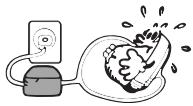
- Do not expose batteries to direct heat, let them become shorted, or try to take them apart.


- Should a battery leak, clean out the battery compartment of the SF Unit immediately, taking care to avoid letting the battery fluid come into direct contact with your skin.
Keep batteries out of the reach of small children. If swallowed, consult with a physician immediately.
The batteries that come with this unit discharge slightly during shipment and storage. Because of this, they may require replacement sooner than the normal expected battery life.
To replace the batteries
- Press ON/OFF to switch power off.
- Slide the battery compartment cover in the direction indicated by the arrow.
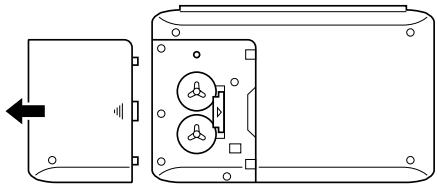
- Slide the battery switch to the "REPLACE ①" setting. Insert a thin, pointed object into (A) and remove the old battery.
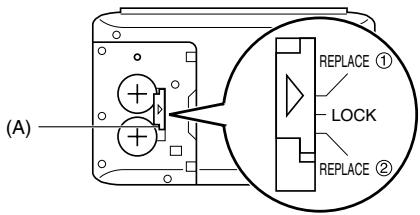
Caution
Be sure to remove only one battery at a time. Otherwise, you will lose all data stored in memory.
- Replace the old battery with a new one, making sure that the positive (+) side of the new battery is facing up (so you can see it).
- Slide the battery switch to the "REPLACE ②" setting and repeat step 4 for the other battery.
- Be sure to load two new CR2032 batteries at the same time. Never mix an old battery with a new one.
- Slide the battery switch to the "LOCK" setting.
- Replace the battery compartment cover.
Resetting the SF Unit's Memory
Warning!
The following procedure erases all data stored in the memory of the SF Unit. Perform the following operation only when you want to delete all data and initialize the settings of the SF Unit.
Remember - you should always keep copies of important data by writing it down, by transferring it to a personal computer or other SF Unit (SF-4990, 6990, 7990 only).
To reset the SF Unit's memory
- Press ON/OFF to switch power on.
- Open the battery compartment and press the RESET button.
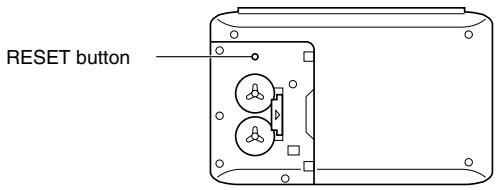
- At this time the following message appears on the display.
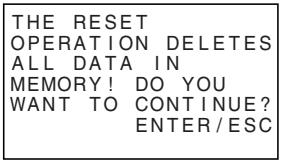
3. Press ENTER.
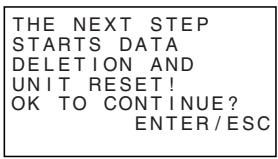
Warning!
The next step deletes all data stored in the SF Unit's memory. Make sure that you really want to delete the data before you continue!
- Press ENTER to start the RESET procedure.
- After the RESET operation is complete, the LANGUAGE screen appears on the display.
- Use the procedure under "To select the system language" on page 5 to select a system language. After you set the system language, the Home Time Screen appears.
- Check the Home Time setting and make changes if necessary (page 65).
Following the reset operation described above, the Home Time display appears and the SF Unit settings are initialized as noted below.
Home Time: NEW YORK TUE 1/JAN/2002 12:00AM 12-hour format
World Time 1: LONDON World Time 2: TOKYO Daily Alarm: 12:00 AM Sound: Schedule Daily alarm Key — ON
Messages: English Character input: CAPS
General Guide
The following illustration shows the names of the main controls of the SF-4990/ SF-6990/SF-7990.
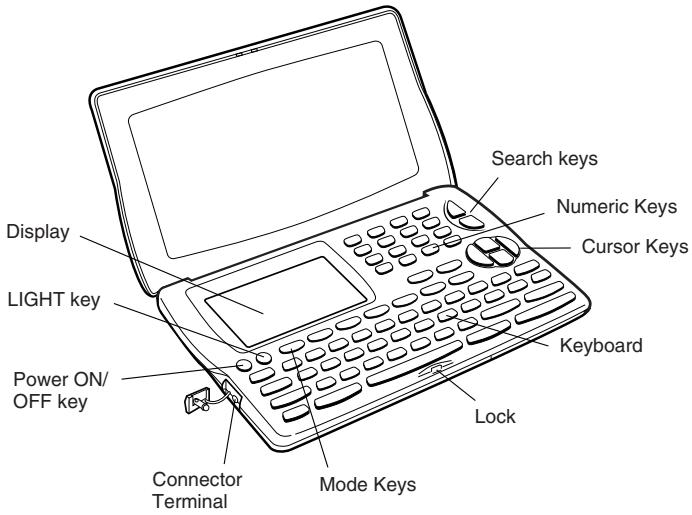
Setting Up the SF Unit
After batteries are loaded, use the following procedures to set up the SF Unit for operation.
To switch power on and off
- Press ON/OFF to switch power on.
- The initial screen for the mode that was selected when you last switched power off appears on the display.
- If the message shown on page 13 appears on the display, follow the procedures described on page 14.
- If a low battery power message appears on the display or if the display remains blank when you turn power on, replace batteries as soon as possible.
- Press ON/OFF again to switch power off.
About the Auto Power Off function...
The SF Unit is equipped with an Auto Power Off function that switches power off automatically whenever you do not perform any key operation for about six minutes. To restore power, press ON/OFF.
To turn on the EL backlight
Pressing LIGHT causes the backlight to turn on for about 8 seconds, and then turn off automatically.
Leaving the backlight on for long periods greatly reduces battery life!
You can manually turn the backlight off by pressing LIGHT again.
Failure of the backlight to turn on indicates low battery power. Replace batteries as soon as possible.
To adjust the display contrast
- Enter the Telephone Directory Mode.
- You can enter any mode except the Calculator Mode and Conversion Mode here.
- Press FUNCTION once or twice to display the function menu.
- Press the applicable number key to select CONTRAST.
- Use the left and right arrow keys to adjust the contrast.
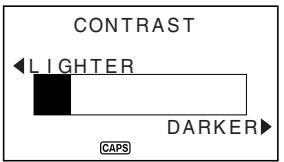
- After you are finished, press ESC to clear the contrast adjustment display.
To select a mode
Press one of the mode keys to select the mode you want.
In cases where two modes are assigned to the same key, each press of a key toggles between the two modes.

Telephone Directory Mode for storing personal name, company name, home phone number, work phone number, fax number, mobile phone number, e-mail address, Web page URL, and street address, plus one user-definable field. There are two Telephone Directory Mode storage areas named TEL1 and TEL2. Each press of this key toggles between them.

- Displays any monthly calendar from January 1901 through December 2099.
- Schedule Keeper Mode for storage of appointments scheduled for specific dates and times, and setting of Schedule Alarms to remind you of your appointments.

- The Expense Mode lets you store expense data, including payment date, payment method, description, etc. You can also produce totals for a specific period of time.
- The Anniversary Mode lets you store information about anniversaries and other regularly occurring events.

Memo Mode for storage of unformatted data in a kind of electronic notebook.

To Do Mode for storage of reminders of things to do. You can affix a check mark to items as you complete them.

Home Time/World Time 1, 2 Modes for display of the current time in your hometown and other locations around the globe. For example, you can set New York as your home time and London as the world time.

The Conversion Mode lets you select between currency conversion and metric conversion.

Calculator Mode for basic calculations with the touch of a key.
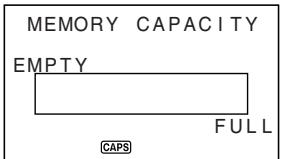
To check the memory status
Press the FUNCTION key to display the function menu, and then select MEMORY CHECK.
You can enter any mode except the Calculator Mode, Conversion Mode and Home/World Time Mode here.
To use the FUNCTION key
Press the FUNCTION key to display a function menu that makes it possible to perform functions that are not marked on the unit's keys.

Just like in the above example display, all of the functions included in a function menu have a number at the beginning. Press the number key that corresponds to the function you want to perform.
Whenever a function menu item's leading number is replaced by "X", it means you can't select that menu item in the operation you are performing.
About the SOUND menu...
The sound menu lets you switch the key input tone and the Schedule Alarm of the SF Unit on and off.
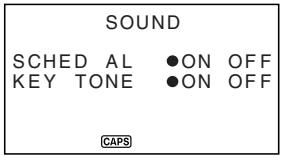
The on/off status of each SOUND menu item is indicated by a dot (●) as shown above.
- For information about turning the Daily Alarm on and off, see "To set the Daily Alarm" on page 66.
To switch the key input and schedule alarm tone on and off
- Press FUNCTION once or twice to display the function menu.
- Press the applicable number key to select SOUND.
- Use the triangle and inverted triangle keys to move the dot to the item you want to change.
- Use the left and right arrow keys to switch the key input tone or an alarm tone on and off.
- Press ENTER to store your setting and clear the SOUND menu.
About alarm types
This unit has two types of alarms: the Daily Alarm and Schedule Alarm. The following describes each of these alarms.
Daily Alarm
The Daily Alarm sounds at the same time everyday, when the Home Time reaches the time you have set as the Daily Alarm (page 66).
Schedule Alarm
The Schedule Alarm sounds at the specified time on a specified date. Use the Schedule Keeper Mode to set this type of alarm (page 42).
An alarm tone sounds for about 20 seconds and an alarm message appears on the display whenever an alarm time is reached, even if unit power is switched off. You can stop the alarm by pressing any key and then press ESC to return to the display that was shown before the alarm began to sound.
Important!
- An alarm will not sound if that type of alarm is switched off on the SOUND menu. This is especially important to remember when you want to use Schedule Alarms. For details on how to switch alarms on, see "About the SOUND menu..." on page 25.
- If the Daily Alarm set in the Home Time Mode and a Schedule alarm set in the Schedule Mode are set for the same time, the Schedule alarm takes precedence. This means that the Schedule message appears on the display when the alarm time is reached.
- The alarm does not sound if you are performing a data communications operation when the alarm time is reached.
- The alarm may fail to sound if battery power is too low.
Note
If the message "SECRET DATA!" appears on the display, it means that an alarm time set in the secret memory area (see page 60) was reached.
Inputting Letters, Numbers and Symbols
The following describes the basic input operations for the SF Unit. Note that you can use the following operations to input data only in the Telephone Directory, the Memo Mode, the Schedule Keeper, the To Do Mode, the Expense Mode, and the Anniversary Mode.
In all of the following operations, the input or correction is performed at the current cursor location. To move the cursor around the display, use the left, down, up, and right cursor keys.
Note
Every character and symbol you input is counted as an input character. The new-line symbol (left arrow) is also counted as an input character. The maximum number of input characters that can be stored for each data item is 384.
To input letters and numbers
Press the key that is marked with the letter or number that you want to input.
To input upper-case and lower-case letters
Press CAPS to switch the keyboard between upper-case and lower-case letters. The indicator "CAPS" on the display shows that the keyboard is shift-locked for upper-case letters.
- The upper-case/lower-case setting you make with CAPS remains in effect until you change it, even when you switch the SF Unit off.
- A shift-lock operation using CAPS affects the letter keys only. It does not shift the number keys for punctuation symbol input.
To shift the keyboard
Press SHIFT to temporarily shift the keyboard. Pressing SHIFT and then the Q, W, E, R, T, Y, U, I, O or P key inputs the symbol marked above the key. Pressing SHIFT and then the L key inputs ".com". The indicator "SHIFT" on the display shows that the keyboard is shifted.
To input accented characters
Press the CODE key and confirm that the "CODE" indicator is on the display. Next, input the character. The following character accents are available.
Umlaut (A,E,I,O,U,a,e,i,o,u) CODE V - Acute Accent (Á, É, ò, Ó, ù, á, é, é, ò, ò) ......... CODE Z - Grave Accent (Ä, ṅ, ἄ, ὑ, Ḉ, Ḁ, ḥ, Ḥ, Ḿ) ......... CODE X Circumflex (A, E, I, O, U, a, e, i, o, u) ......... CODE C Tilde (Ã, Õ, Ñ, ã, õ, ñ) CODE B Cedilla (Ç, ç) CODE N - Eszett (ß) CODE M
To input other symbols
- Press SYMBOL to display a menu of numbered symbols. There are a total of 8 symbol menu screens.
Symbols: ! " # $ % & ' ( ) * + , - . / : ; < = > ? @ [ \ ] ^ _ ` { | } ~ ¡ ¢ £ ¤ ¥ ¦ § ¨ © ª « ¬ ® ¯ ° ± ² ³ ´ µ ¶ · ¸ ¹ º » ¼ ½ ¾ ¿ × ÷ ← → ↔ ↑ ↓ √ ∞ ≈ ≠ ≤ ≥
- To clear the symbol menu from the display without inputting a symbol, press ESC.
- Use ▲ and ▼ to scroll through the symbol menu screens until the one that contains the symbol you want appears on the display.
- Press the number key (1 thru 8) that matches the number to the left of the symbol you want to input. The symbol is input at the current cursor position and the symbol menu is cleared from the display.
To input the date stamp
To input the date, press SHIFT and then press CODE.
The date stamp can be used during text data input.
To correct, delete or insert characters
To correct a character, simply move the cursor to the location of the character and input the character you want to change to.
To delete a character, move the cursor to the character you want to delete and press DEL.
To insert a character, move the cursor to the desired position. Press INS and then type the character you want.
Date and time input
The following guidelines apply to inputting dates and times in the Schedule Keeper and Anniversary Modes, and dates in the Expense Mode.
Years can be input within the range of 1901 through 2099. - Use 12-hour format if the Home Time is set for 12-hour format or 24-hour format if the Home Time is set for 24-hour format. - You do not have to input the minutes if they are "00". If you are using 12-hour time format, press AM/PM to specify AM or PM. - All illegal input (13 for the month, for example) is ignored.
This part of the manual describes how to input and store data in the Telephone Directory, Memo, Schedule Keeper, To Do, Expense and Anniversary Modes. It also describes how the Calendar Mode can be used in combination with the Schedule Keeper Mode.
To enter a mode
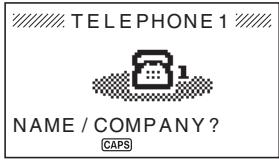
Press the mode key that corresponds to the mode that you want to enter. When you enter the Telephone Directory, Memo Mode, To Do Mode or Anniversary Mode, an initial screen appears on the display.
In cases where two modes are assigned to the same key, each press of a key toggles between the two modes.
About display formats
There are two display formats used in the Telephone Directory, Memo Mode, Schedule Keeper, To Do Mode, Expense Mode and Anniversary Mode: a data display format and an index display format. The data display shows all of the data entries contained in a data item, while an index display abbreviates each data item into one or two lines. The index display makes it possible to quickly scroll through data items to find the one that you want.
Press ENTER to change from the index display to the data display. To return to the index display from the data display, press ESC.
Data Display
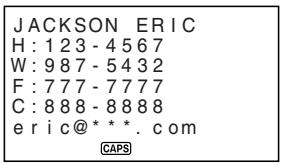
You can scroll through a data display line-by-line using the △ and ▽ cursor keys. If you press △ and ▽, the display scrolls data item-by-data item.
Index Display
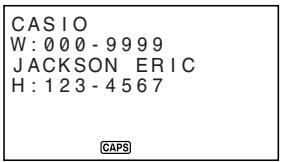
You can scroll through an index display data item-by-data item using the △ and ▽ cursor keys. If you press △ and ▽, the display scrolls one screen at a time.
Using the Telephone Directory
The innovative Telephone Directory Mode of the SF Unit lets you input ①NAME/COMPANY ②HOME ③WORK ④FAX ⑤CELL ⑥E-MAIL ⑦URL ⑧ADDRESS ⑨FREE for instant look up when you need them. It also gives you a user-definable item that you can use to record birthdays, hobbies, or any other information you want. Each Telephone Directory data item can contain up to 384 characters (including newline symbols).
The Telephone Directory Mode has two storage areas named TEL 1 and TEL 2. Pressing TEL while you are inputting or editing data in one storage area discards the data you are working on and displays the initial screen of the other storage area.
Inputting Telephone Directory data
Use the following procedure to input Telephone Directory data.
Note
- Telephone Directory data is automatically sorted according to NAME/COMPANY entries. See "Auto Sort Sequence" for information on how this unit sorts data.
To input Telephone Directory data
Example: To input the following data.
Name: ERIC JACKSON
Phone Number: 123-4567(HOME), 987-5432(WORK)
FAX: 777-7777 CELL: 888-8888
E-mail address: eric@***.com
URL: http://www.eric-jackson/com
ADDRESS: 1910 T.D. STREET
FREE: BIRTHDAY MAY 5th.1975
- Enter the Telephone Directory Mode.
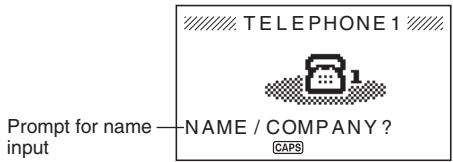
- Input the name with the last name first (or company name), since the data is sorted according to the name entry.
- Press ENTER. You can press the key in place of the ENTER key.
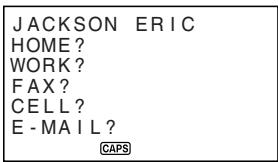
- Input the HOME telephone number.
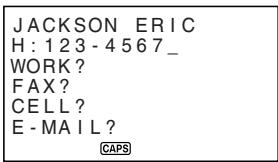
- After inputting a telephone number, press ENTER to advance to WORK telephone number input.
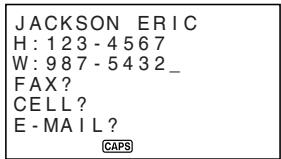
- Input data for the WORK, FAX, CELL, E-MAIL, URL, and ADDRESS entries.
- After inputting all of the data in step 6, press ENTER to advance to the FREE entry.
- Input any other information you want.
- After inputting all of the data you want, press ENTER to store it in memory.
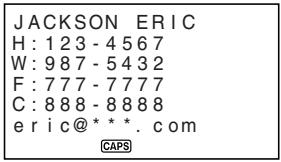
- Press ENTER after inputting the last item (FREE) to store the record.
Where to find other information
- For information on searching for and recalling data already stored in memory, see "Recalling data stored in memory" on page 55.
- For information on editing, deleting and copying data already stored in memory, see "Editing, Deleting and Copying data" on page 57.
Using the Memo Mode
The Memo Mode of the SF Unit is like a pad of electronic memo paper that lets you store information in any format you want. You can input Memo Mode data by adding new memos to the end of data already in memory, or you can insert new memo data between two existing Memo Mode data items. Each Memo Mode data item can contain up to 384 characters (including newline symbols).
To input Memo Mode data
1. Enter the Memo Mode.
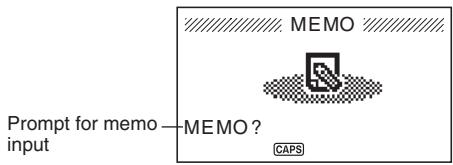
- Input the first line of memo data you want to store, and then press ← . Note that the first line of memo data is treated as the memo's name. Because of this, it is a good idea to use a short descriptive title as the first line.
- Input the rest of your data.
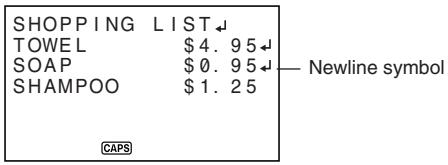
- After inputting all of the data you want, press ENTER to store it in memory.
To insert a new Memo Mode data item between two items in memory
- Enter the Memo Mode.
- Recall the data item you want to come after the new data item you are about to input, and move the name of the data item into the top line of the display. (See "Recalling data stored in memory" on page 55)
- Input the new data item.
- Press SHIFT ENTER to store the new data item.
- If you press ENTER without pressing SHIFT, the new data item is automatically stored at the end of the data already existing in memory.
Where to find other information
- For information on searching for and recalling data already stored in memory, see "Recalling data stored in memory" on page 55.
- For information on editing, deleting and copying data already stored in memory, see "Editing, Deleting and Copying data" on page 57.
Using the Calendar
The calendar is pre-programmed to display full-month calendars of any month from January 1901 through December 2099.
To display the calendar
Press CALN/SCHD to enter the Calendar Mode.
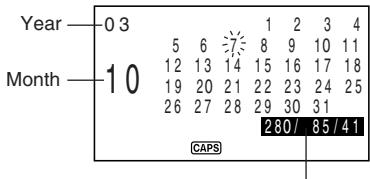
These values indicate (from left to right) the day number from the beginning of the year, the number of days until the end of the year, and the week number from the beginning of the year. The week number count uses Sunday as the first day of the week. The first week of each year starts with January 1 no matter what day of the week it falls on.
- The dates on each calendar are shown starting from Sunday (on the far left) through Saturday (on the far right).
- The above procedure displays the calendar that contains the date currently set in the Home Time display.
- If you press CALN/SCHD while the Home Time display is shown, the calendar appears with the current date flashing within the calendar.
- When you press CALN/SCHD right after you are in the Schedule Keeper or the Expense Mode, the calendar that contains the Schedule Keeper or the Expense Mode date you were viewing appears. In this case, the Schedule Keeper or the Expense Mode date you were viewing appears flashing within the calendar.
To scroll through calendars
- Press CALN/SCHD to enter the Calendar Mode.
- Use the △ and ▽ cursor keys to scroll sequentially through the calendars. Holding down either key scrolls at high speed.
Use △ and ▽ to scroll through the calendars one month at a time. Holding down either key scrolls at high speed.
About the date cursor...
- The date cursor flashes at a date in a calendar to indicate that the date is selected.
- You can move the date cursor around the calendar using the △, ▽, ◁, and ▷ cursor keys.
- You can also move the date cursor using □+ and □-. For example, □+ 3 □= moves it forward three days, while □- 4 □= moves it back four days.
To specify a month and date for display in the Calendar Mode
- Press CALN/SCHD to enter the Calendar Mode.
- Input the year, month, and date of the calendar you want to display.
- Press ENTER.
This displays the calendar for the date you specified.
Example: To display January 1, 2002
- While the calendar is on the display, input 2002 01 01 to specify the year, month, and day.
- Press ENTER. This displays the calendar for January 2002, with the date cursor located at January 1.
To highlight and unhighlight specific dates
- Press CALN/SCHD to enter the Calendar Mode.
- Display the calendar that contains the date you want to highlight.
- You can either scroll through calendars using and , or you can specify the year, month and date.
- Use the date cursor to select the date that you want to highlight.
- Press ← to highlight the date currently selected by the date cursor. To unhighlight the date, press ← again.
To highlight days of the week for multiple months
- Press CALN/SCHD to enter the Calendar Mode.
- Press FUNCTION once or twice to display the function menu.
- Press the applicable number key to select HOLIDAY SET.
- To clear the function menu without highlighting anything, press ESC.
- Move the cursor, input the period you want to set, and then press ENTER.
- Use the cursor keys to select the day of the week you want to highlight.
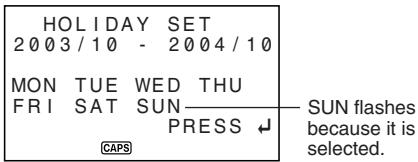
- Press ← to specify the currently selected day of the week for highlighting.
- When a day of the week is specified for highlighting, its abbreviation appears highlighted (reverse field) on the display. To deselect (unhighlight) a day of the week, select it and press ←
- After specifying all of the days of the week you want highlighted during the period you specified in steps 2 through 4 above, press ENTER to highlight the applicable dates.
To unhighlight days of the week for multiple months
- Press CALN/SCHD to enter the Calendar Mode.
- Press FUNCTION once or twice to display the function menu.
- Press the applicable number key to select HOLIDAY CLEAR.
- To exit function menu without unhighlighting anything, press ESC.
- Perform steps 4 through 6 under "To highlight days of the week for multiple months" above to select the days of the week you want to unhighlight.
- Press ENTER to unhighlight the applicable dates.
Using the Schedule Keeper
The Schedule Keeper lets you store data about your appointments to keep you on time all the time. It lets you input the time and a description of your appointment. You can even set Schedule Alarms that remind you when it is time to get ready for your appointments. When you input data for a specific date, a marker appears next to that date on the calendar to let you keep track of your schedule at a glance. Each Schedule Keeper data can contain up to 384 characters, including newline symbols.
Note
- When there is a lot of Schedule Keeper data stored in memory, operations such as display of the calendar and data communication take more time.
To enter the Schedule Keeper
You can use either of the two following methods to enter the Schedule Keeper.
- Press CALN/SCHD twice. The Schedule Keeper screen for the current date set on the Home Time display appears.
- Display the calendar and move the cursor to the date you want, then press CALN/SCHD. The Schedule Keeper screen for the day you select appears on the display.
To specify a date
Schedule Keeper data is stored along with its date, with the date being treated as a separate data entry. You can use either of the two following methods to specify a date.
- Press CALN/SCHD to enter the Calendar Mode, and then use ◀ and ▾ to display the calendar that includes the date you want to specify.
- Move the flashing cursor to the date you want to specify, and then press CALN/SCHD.
An index display appears if the date already has data assigned to it. If the date does not have any data assigned to it, an initial screen appears.
About Schedule Keeper data and initial displays...
Schedule Keeper information is stored under dates, with each date acting as a unit called a data item. Each data item is made up of a number of data entries.
In the Schedule Keeper, the appearance of the currently displayed date depends on whether or not Schedule Keeper data is already stored under that date.
No data stored
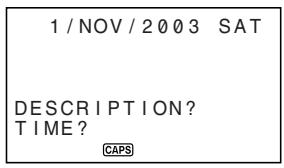
Data already stored (Index Display)
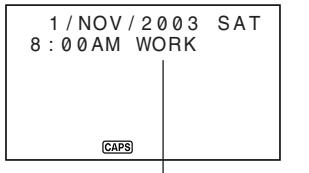
Schedule Keeper data entry
To input Schedule Keeper data
- Enter the Schedule Keeper, and specify the date as described under "To specify a date".
- Input a description of the appointment.
- Press ENTER (or ). If you are using 12-hour time format, press AM/PM to specify AM or PM.
- Press ENTER.
- This causes "ALARM?" to flash on the display. If you want to set a schedule alarm, input the schedule alarm time. See "To set a schedule alarm when inputting data."
- If you do not want to set a schedule alarm, advance to the next step without inputting anything.
- Press ENTER to store the Schedule Keeper record.
Using Schedule Alarms
You can set schedule alarms for Schedule Keeper data entries to help you keep on time for important appointments.
To set a schedule alarm when inputting data
- Enter the Schedule Keeper and input data, using the procedures described in steps 1 through 4 under "To input Schedule Keeper data" on page 41.
- Whenever the prompt "ALARM?" is flashing on the display, input the schedule alarm time. Use the ▶ and ◀ cursor keys to move between the hour and minutes setting.
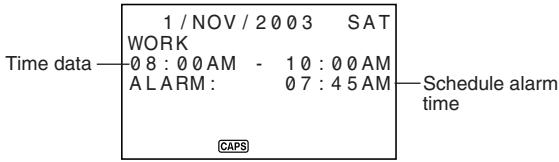
- Whenever the schedule alarm setting is flashing on the display, press DEL to clear the alarm time and display the prompt "ALARM?". Input the alarm time using the same procedure described above.
- After inputting the data, press ENTER to store it into memory.
- If you attempt to set a schedule alarm time that is already set for another data entry, the message "ALARM TIME ALREADY USED OR PASSED!" appears on the display. Then the data is stored without a schedule alarm.
- If you attempt to set a schedule alarm time that is already passed, the message "ALARM TIME ALREADY USED OR PASSED!" appears on the display. Then the data is stored without a schedule alarm.
To set or change a schedule alarm for an existing data entry
- Enter the Schedule Keeper and recall the data for which you want to set or change a schedule alarm. Press EDIT.
- Press ▽ until the cursor moves to the Schedule Alarm time.
- Input the schedule alarm time. Use the ◀ and ▶ cursor keys to move between the hour and minutes setting.
- Whenever the schedule alarm setting is flashing on the display, pressing DEL clears the alarm time and displays the prompt "ALARM?". Input the alarm time using the same procedure described above.
- After inputting the data, press ENTER to store it into memory. Schedule alarm times are also displayed on the data display.
To view a data entry's current schedule alarm setting
To view a schedule alarm setting, enter the Schedule Keeper Mode and display the data display for the applicable date.
To delete a specific schedule alarm
- Enter the Schedule Keeper and recall the data for which you want to delete the schedule alarm. Press EDIT.
- Press until the schedule alarm time flashes.
- Press DEL to delete the currently set schedule alarm time.
- After deleting the alarm time, press ENTER to store the entry into memory.
Where to find other information
- For information on searching for and recalling data already stored in memory, see "Recalling data stored in memory" on page 55.
- For information on editing, deleting and copying data already stored in memory, see "Editing, Deleting and Copying data" on page 57.
Using the Expense Mode
The Expense Mode lets you store expense data, including payment date, payment amount, payment method, expense type and description. You can also produce total for other period of time.
About Expense Mode data items and data entries...
Each Expense Mode data item is made up of the following five data entries.
| Data Entry | Description |
| Date | Year/Month/Date |
| Amount | Numbers up to eight digits long can be input |
| Expense Type | 6 expense types, including “MEAL,” “MISC” “ENTER”T and others are preset for you to choose from. These preset labels can be edited freely. |
| Payment Type | 4 payment types, including “CASH,” “CARD”, “CHEQUE” and “OTHER” are preset for you to choose from. |
| Note | Up to 331 Characters |
- You can edit the 6 Expense Type labels using the procedures described on page 46.
About Expense Mode Display formats
As with the other modes, Expense Mode data can be displayed using an Index Display or a Data Display. The following describes the contents of each type of display.
Index Display
The Index Display shows data day-by-day.
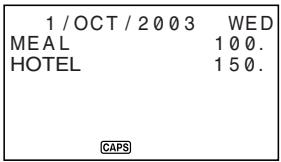
- In the Index Display, only the first seven characters of the name are shown.
- Up to three entries are shown, along with payment type or expense type.
Data Display
The Data Display shows all of the details for a specific entry.
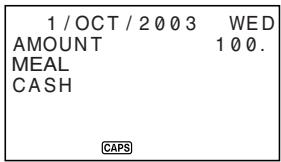
- Press ENTER to change from the index display to the data display. To return to the index display from the data display, press ESC.
To enter the Expense Mode
You can use either of the two following methods to enter the Expense Mode.
- Press EXP/ANNI. The Expense Mode screen for the current date (as noted on the Home Time display) appears*.
- Display the calendar, move the cursor to the date you want, and then press EXP/ANNI. The Expense Mode screen for the day you selected appears on the display.
- If you press EXP/ANNI while in the Schedule Keeper Mode, the Expense Mode screen for the date you were viewing in the Schedule Keeper Mode appears.
To edit labels
Use the following procedure to change the labels assigned to expense.
- Press EXP/ANNI to enter the Expense Mode.
- Press FUNCTION once or twice to display the function menu.
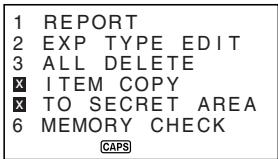
- Press the applicable number key to select EXP TYPE EDIT.
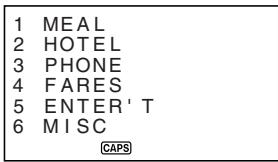
- Use and to select the item whose label you want to change.
- While the label you want to change is selected, input the text for the label to which you want to change.
- Labels can be up to 14 characters long.
- After you make all of the changes you want, press ENTER to store them in memory.
- The new labels will be displayed when you next input new data.
To specify a date
Expense Mode data is stored along with its date, with the date being treated as a separate data entry. You can use either of the two following methods to specify a date.
- Press CALN/SCHD to enter the Calendar Mode, and then use and to display the calendar that includes the date you want to specify.
- Move the flashing cursor to the date you want to specify, and then press EXP/ANNI.
An index display appears if the date already has data assigned to it. If the date does not have any data assigned to it, an initial screen appears.
To input Expense Mode data
- Press EXP/ANNI to enter the Expense Mode, and specify a date using the procedure described under "To specify a date."
- Input the amount of the expense and press ENTER.
- You can input an amount up to 99999999.
- The list of expense type labels takes up two screens. Use the up and down arrow keys to switch between screens. While a screen is displayed, use number keys 1 through 6 to select the expense type label you want.
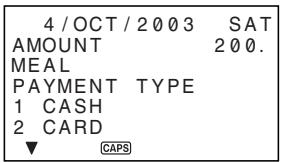
- The list of payment type labels takes up two screens. Use the up and down arrow keys to switch between screens. While a screen is displayed, use number keys 1 through 4 to select the payment type label you want.
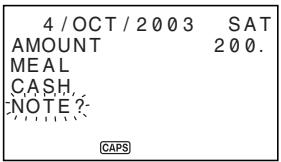
- Input a note of the expense, along with any other comments you want to include.
- After you finish inputting data, you can use the up and down arrow keys to scroll through the data entries and make any changes that you want.
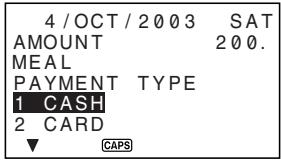
- Whenever you return to the expense type or payment type item, the currently selected label is highlighted on the display.
- Press ENTER to store the data item in memory.
To calculate expense totals for a specific period
Use the following procedure to calculate totals (subtotals for each type and grand total) for data in the Expense Mode.
- Press EXP/ANNI to enter the Expense Mode.
- Press FUNCTION to display the function menu, and then select REPORT.
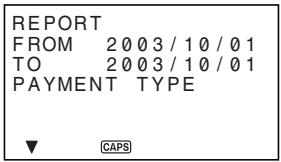
- Use the right and left arrow keys to move the cursor, input a starting date (FROM) and ending date (TO), and then press ENTER.
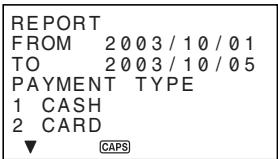
- Select a PAYMENT TYPE and input its number.
- Press ENTER to calculate totals for the period you specified in accordance with the conditions you specified.
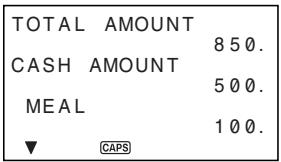
- This operation produces a total for each PAYMENT TYPE or EXPENSE TYPE, plus a grand total. This example here shows totalization according to EXPENSE TYPE.
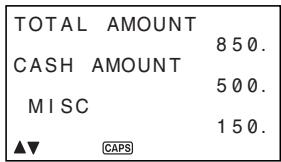
- If all of the data cannot fit on the display, use and to scroll two lines at a time.
- To return to the normal Expense Mode screen, press ESC.
About the total amount display
The amount for each type subtotal and the grand total can be an amount with an integer up to 10 digits long. This means that the maximum value is 9,999,999,999. Any value greater than this is displayed as " * ***".
Where to find other information
- For information on searching for and recalling data already stored in memory, see "Recalling data stored in memory" on page 55.
- For information on editing, deleting and copying data already stored in memory, see "Editing, Deleting, and Copying data" on page 57.
Using the To Do Mode
The To Do Mode gives you a handy list of things to do. You can input To Do data by adding new items to end of those already in memory. Each To Do Mode item can contain up to 384 characters (including newline symbols).
To input To Do Mode data
- Enter the To Do Mode.
- Input the text you want in the To Do list.
- A check box is automatically inserted at the beginning of the To Do item. After you finish the task described in the To Do list, you can check it or delete it.
- After inputting data, press ENTER to store it.
- Input a date and then press ENTER to store the data.
About the To Do list
Items in the To Do list are sorted by the date.
There are two types of items: unchecked items and checked items. Unchecked items come first in the To Do list, and they always start with a blank box. Checked items are at the bottom of the To Do list, and they start with a box that has a check mark inside.
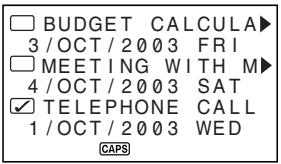
To check and uncheck To Do items
- Enter the To Do Mode.
- Use the search procedures described under "Recalling data stored in memory" on page 55 to find the item you want to check or uncheck.
- Using the procedure described under "To locate data using index search", move the item you want to check or uncheck into the top line of the Index Display.
4. Press ENTER.
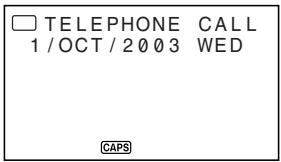
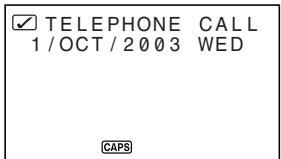
- When the data display is on the screen, press ENTER again.
This inputs a check mark into the check box. - To remove the check mark from a check box, display the data display and then press ENTER.
Where to find other information
- For information on searching for and recalling data already stored in memory, see "Recalling data stored in memory" on page 55.
- For information on editing, deleting and copying data already stored in memory, see "Editing, Deleting and Copying data" on page 57.
Using the Anniversary Mode
You can use the Anniversary Mode to store data about anniversaries, and other events that occur on a yearly basis. Each anniversary item can contain up to 384 characters (including new line symbols).
About Anniversary Mode Display formats
As with the other modes, Anniversary Mode data can be displayed using an index display or a data display. The following describes the contents of each type of display.
Index Display
The index display shows data day-by-day.
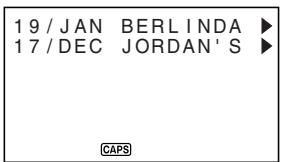
- Only the first eight characters of the description appears on the index display. Data is sorted by date.
Data Display
The data display shows all of the details for a specific entry.
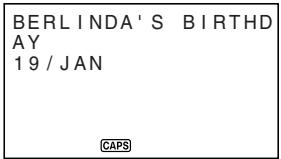
To enter the Anniversary Mode
Press EXP/ANNI twice. This displays the Anniversary Mode initial screen.
To input Anniversary Mode data
- Press EXP/ANNI twice to enter the Anniversary Mode.
- In response to the "DESCRIPTION?" prompt, input a description of the appointment.
- Press ENTER.
- This inputs the current data for the appointment data and causes the "WHEN?" prompt to disappear.
- Use ▸ and ◂ to move the cursor, and input the date.
- Press ENTER to store the appointment in memory.
Where to find other information
- For information on searching for and recalling data already stored in memory, see "Recalling data stored in memory" on page 55.
- For information on editing, deleting and copying data already stored in memory, see "Editing, Deleting and Copying data" on page 57.
Recalling data stored in memory
The following search capability lets you recall data stored in memory quickly and easily.
- With index search, you scroll through an index display of data items.
- With initial character search, you specify the data item you are looking for by inputting the first few letters of an entry.
- With mode search, you specify the data item you are looking for by inputting characters that might occur anywhere in any one of its entries.
Note
If you perform a mode search in the Telephone Directory, however, only the NAME/COMPANY entries are searched. Other entries are not searched.
Each of the above search procedures produces an index display of the found data items. You can then use ENTER to switch to the full data display of the data item you want.
To locate data using index search
- Enter the mode you want to search.
- Press △ or ▽ to scroll through the index display. You can also scroll to the next page of items by pressing △ or ▽.
- In the Telephone Directory, Memo Mode, To Do and Anniversary Mode, pressing ↓ when the initial screen of the mode is displayed starts the index display from the first data item, while pressing ↑ starts from the last data item.
- When the data item you are looking for is in the top of the display (the line immediately below the date in the Schedule Keeper Mode and Expense Mode), press ENTER to switch to the full data display.
To locate data using initial character search
- Enter the mode you want to search.
- Enter the first few characters of the entry for the data item you want to look for.
- You can input one or more characters.
- Press ↓ or ↑ to start the search. An index display of all data items in the mode whose initial characters match those that you specified appears on the display.
- To clear the "SEARCH" indicator from the display (and cancel the current search operation), press ESC. The search operation is also canceled when you change modes, or by any data edit or input operation.
- If no data item matches your specification, or there is no data stored in memory, the message "NOT FOUND!" appears on the display.
- Scroll through the index display item-by-item using ◀ and ▾. You can also scroll to the next page of items by pressing ◀ or ▾.
- When the entry of the data item you are looking for is in the top line (second line in the Schedule Keeper Mode) of the display, press ENTER to switch to the full data display.
To locate data using mode search
Use the same procedures as described under "To locate data using initial character search", but press SHIFT and then ∇ or △ to start the search.
Editing, Deleting and Copying data
To edit a data item
- Enter the mode you want to edit a data item.
- Use index search, initial character search, or mode search to find the data item you want to edit.
- Move the entry of the data item you want to edit into the top line (second line in the Schedule Keeper Mode and the Expense Mode) of the index display.
- At this point, you may want to switch to the full data display by pressing ENTER. The following steps are the same regardless of whether you are continuing from the index display or the data display.
- Press EDIT.
- Make any changes you want.
- To cancel the editing operation without making any changes, press ESC.
- After making the changes you want, press ENTER to store the data item with its new changes.
To delete a single data item
- Enter the mode you want to delete a data item.
- Use index search, initial character search, or mode search to find the data item you want to delete.
- Move the entry of the data item you want to delete into the top line (second line in the Schedule Keeper Mode and the Expense Mode) of the index display.
- Press DEL.
- Press ENTER to clear the data item you selected or ESC to abort the operation without deleting anything.
- Remember that the delete operation cannot be undone.
To delete all data items in a mode
Important!
Use the following procedure to delete all data items in the Telephone Directory, Memo Mode, To Do Mode and Anniversary Mode. To delete multiple data items in the Schedule Keeper Mode and Expense Mode, see the procedure under "To delete multiple data items in the Schedule Keeper Mode or Expense Mode".
- Enter the mode where you want to delete all data items.
- Press FUNCTION once or twice to display the function menu.
- Press the applicable number key to select ALL DELETE.
- To clear the function menu without deleting anything, press ESC.
- Press ENTER to delete all data items in the current mode or ESC to abort the operation without deleting anything.
- Remember that the delete operation cannot be undone.
To delete multiple data items in the Schedule Keeper Mode or Expense Mode
- Enter the Schedule Keeper Mode or Expense Mode.
- Press FUNCTION once or twice to display the function menu.
- Press the applicable number key to select ALL DELETE.
To clear the function menu without deleting anything, press ESC.
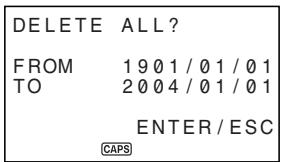
- You can use the left and right arrow keys to move the cursor between the starting date and ending date and change the days, months, and years.
- Input the year, month and date up to which you want to delete Schedule Keeper or Expense Mode data.
- Press ENTER to delete all Schedule Keeper or Expense Mode data items during the period that you specified above, or ESC to abort the operation without deleting anything.
- Remember that the delete operation cannot be undone.
To move a Schedule Keeper data to a different date
You can move Schedule Keeper Mode data from one date to another by changing the date on the EDIT screen. See "To edit a data item" on page 57 for more information.
To move an Expense Mode data item to a different date
You can move Expense Mode data from one date to another by changing the date on the EDIT screen. See "To edit a data item" on page 57 for more information.
To copy a data item
The Copy Function lets you duplicate selected data. This function helps to cut down input time when you have multiple data items with similar data. You simply copy the original and then make any necessary changes to create a new data item.
- Enter the mode you want to copy a data item.
- Search for and display the data you want to copy.
- Press FUNCTION once or twice to display the function menu.
- Press the applicable number key to select ITEM COPY.
- At this time, the copy of the data you selected in step 2 above appears, along with the cursor.
- Make any changes you want.
- In the case of Schedule Keeper, Expense Mode, To Do and Anniversary data, you can also change the date setting.
- After you are finished making changes, press ENTER to store the new data in memory.
Memory Management Operation
Performing the memory management operation cleans up the addresses of user data in RAM, which increases the size of the memory area that is available for storage.
Note
- The memory of your SF Unit is designed to make your normal data input and recall operations as quick and efficient as possible. After repeated storage and deletion of data, however, you may find that you are unable to store new data, even though the number of data items in memory is less than the specified maximum. When this happens, you need to perform memory management, which cleans up data memory and frees up more space.
- Enter any mode besides the Calculator Mode or the Conversion Mode.
- Press FUNCTION once or twice to display the function menu.
- Press the applicable number key to select MEMORY MANAGE.
- Press ENTER.
- To cancel the memory management operation, press ESC.
- To cancel the memory management operation, press ESC.
Using the Secret function
The Secret Function ensures that your personal data is kept private, but providing you with the means to restrict access to those who know your secret password. You can store Telephone Directory, Memo Mode, Schedule Keeper, To Do Mode, Expense Mode and Anniversary Mode data in the secret memory area.
Important!
Once you register a password, there is no way to delete it without performing the RESET operation described on page 19. If you forget your password, you will not be able to recall data stored in the secret memory area, and you also will not be able to use the Secret Function unless you perform the RESET operation. Be sure that you do not forget your password!
To create a secret memory area
- Enter the Telephone Directory, Memo Mode, Schedule Keeper, To Do Mode, Expense Mode or Anniversary Mode.
- Press SECRET to display the password input screen.
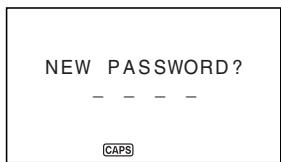
- Enter the word you want to use as your secret password, and then press ENTER.
- You can use up to 4 letters, numbers and symbols in a password.
- Enter the password again, and then press ENTER. The following shows an example display for the Telephone Directory.
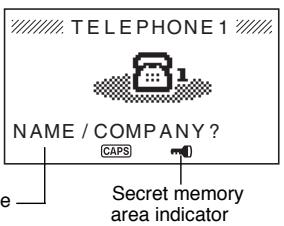
- While in the secret memory area, you can change modes, input data, edit data, recall data, and delete data using the procedures explained under each mode in this manual.
- To exit the secret memory area (and return to the open memory area), press SECRET.
- At this time, the “□” indicator disappears from the display.
To enter an existing secret memory area
- Enter the Telephone Directory, Memo Mode, Schedule Keeper, To Do Mode, Expense Mode or Anniversary Mode.
- Press SECRET to display the password input screen.
Password?
CAPS
- Enter the password.
- Press ENTER to enter the secret memory area for the mode you selected in step 1 above.
- If the password you enter in step 3 does not match the one that is registered, the message "password MISMATCH!" appears.
To edit an existing password
- Use the procedure under "To enter an existing secret memory area" to enter the secret memory area.
- Press FUNCTION once or twice to display the function menu.
- Press the applicable number key to select PASSWORD EDIT.
This displays the message "PASSWORD EDIT NEW PASSWORD?" 4. Input a new password and then press ENTER. This displays the message "PLS RE-TYPE NEW PASSWORD!" 5. Re-input the password you input in step 4. 6. Press ENTER. - If the password matches the one you input in step 4, the message "PASSWORD OK!" appears, and the new password is registered. - If the two passwords do not match, the message "PASSWORD MISMATCH!" appears, and the password input screen in step 4 reappears.
To transfer data from the open memory area to the secret memory area
- While not in the secret memory area, enter the Telephone Directory, Memo Mode, Schedule Keeper, To Do Mode, Expense Mode, or Anniversary Mode.
- Note that this procedure will not be possible if you do not have a password registered. Register a password first.
- Search for and display the data you want to move.
- Press FUNCTION once or twice to display the function menu.
- Press the applicable number key to select TO SECRET AREA.
- At this time, a prompt appears on the display asking you for the password registered for the secret memory area.
- Enter the password.
- Press ENTER to transfer the selected data from the open memory area to the secret memory area, or ESC to abort the operation without transferring anything.
- If the password you enter in step 5 does not match the one that is registered, the message "PASSWORD MISMATCH!" appears.
- When you transfer data to the secret memory area, it is automatically deleted from the open memory area.
To transfer data from the secret memory area to the open memory area
- Enter the Telephone Directory, Memo Mode, Schedule Keeper, To Do Mode, Expense Mode, or Anniversary Mode.
- Enter the secret memory area.
- Search for and display the data you want to move.
- Press FUNCTION once or twice to display the function menu.
- Press the applicable number key to select TO OPEN AREA.
- Press ENTER to transfer the selected data from the secret memory area to the open memory area, or ESC to abort the operation without transferring anything.
- When you transfer data to the open memory area, it is automatically deleted from the secret memory area.
- After data transfer is complete, the data display of the area to which you transferred data appears.
Using the Home Time function
The Home Time function shows you the current time and date in the time zone you preset as your Home Time zone. You also can set a daily alarm that sounds at the same time each day.
About Home Time displays...
There are two types of Home Time displays.
Home Time Display
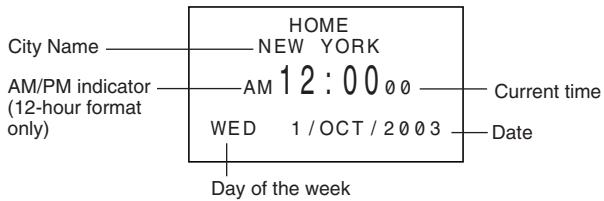
Alarm Display
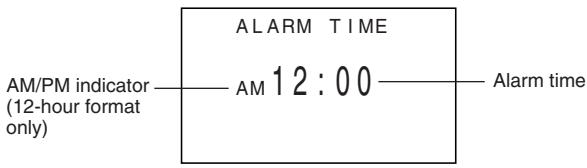
Use CLOCK to switch between the Home Time display and the Alarm display.
To display the Home Time
Press CLOCK to display the current Home Time.
To set the Home Time zone
- Press CLOCK to display the current Home Time.
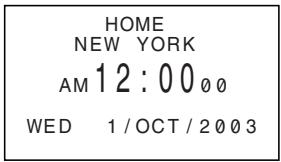
- Press FUNCTION to display the function menu.
- Press the applicable number key to select TIME ZONE.
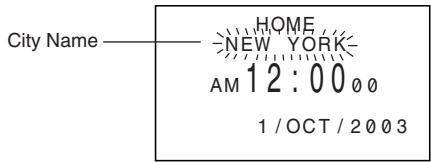
- Use the triangle and nabla cursor keys to change the flashing time zone. Note that the city name changes as you do.
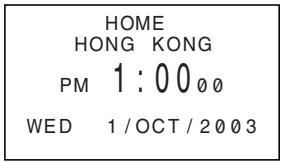
- When the time zone that you want for the Home Time is flashing (and the city name you want is shown on the display), press ENTER to register the new zone.
To set the Home Time
- Display the current Home Time.
- Press EDIT.
- The current hour setting on the display flashes because it is selected.
- Use the left and right cursor keys to move the flashing selection around the Home Time display. When any number is selected (flashing), you can change it by entering a new value.
- You can change the Home Time setting even if summer time (DST) is selected.
- Use 12-hour format if the Home Time is set for 12-hour format or 24-hour format if the Home Time is set for 24-hour format. Each press of AM/PM toggles between AM and PM.
- All illegal input (26 for the hour, 65 for the minutes) is ignored. Years can be input within the range of 1901 through 2099.
- After you set the time and date, press ENTER to store them. The seconds count of the timepiece resets to "00" when you press ENTER.
To switch the Home Time between 12-hour and 24-hour format
Pressing 12/24 while the Home Time is displayed toggles it between 12-hour format and 24-hour format.
- The 12-hour/24-hour setting is set up as a toggle setting. This means that each time you select the 12/24 HOURS item in the function menu, the Home Time display switches from its present setting to the opposite one.
- The 12-hour/24-hour setting you make is applied for the time displays in the Schedule Keeper, Home Time and World Time display.
To switch the Home Time between standard and daylight saving time
- Display the current Home Time.
- Press DST to toggle DST on and off.
- The standard/DST setting is set up as a toggle setting. This means that each time you press DST key, the Home Time display switches from its present setting to the opposite one.
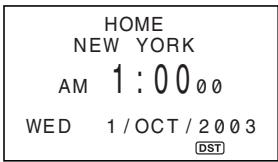
- The following shows an example display with the DST indicator (which indicates that DST is on).
To set the Daily Alarm
- Display the current Home Time.
- Press CLOCK several times to display the current daily alarm setting.
- Press EDIT.
- The alarm's hour setting on the display flashes because it is selected.
- Use the left and right cursor keys to move the flashing selection between the hour and the minutes setting. When either value is selected (flashing), you can change it by entering a new value.
- Use 12-hour format if the Home Time is set for 12-hour format or 24-hour format if the Home Time is set for 24-hour format. Each press of AM/PM toggles between AM and PM.
- All illegal input (26 for the hour, 65 for the minutes) is ignored.
- After you set the alarm time, press ENTER.
- Use the left and right arrow keys to select the Daily Alarm on/off setting you want.
- Press ENTER to store it.
- The right arrow on the display indicates that the daily alarm is turned on.
About the daily alarm...
Once you set the daily alarm, it sounds at the same time every day (as long as the ALARM TIME setting is ON).
To select the date format
- Display the current Home Time.
- Press FUNCTION to display the function menu.
- Press the applicable number key to select DATE FORMAT.
- Select a format by entering its number.
The following shows an example of each format
1 D/M/Y: 1/JAN/2004 2 M/D/Y: JAN/1/2004 3 Y/M/D: 2004/1/1
- The date format you specify here is applied in the Schedule, Expense, Anniversary, and To Do modes.
Using the World Time function
With the World Time function, you can view the current time in any one of 33 cities around the world. You can register two cities as World Time cities. The times and dates that appear in the World Time displays are based on the current Home Time setting.
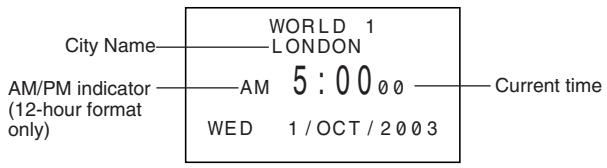
To display the World Time
While the Home Time is shown, press CLOCK to display the World Time 1. Pressing the CLOCK key again displays World Time 2.
- The time zone that you last selected when displaying the World Time appears on the display.
To set the World Time zone
Enter the World Time Mode and perform the same procedure as that described under "To set the Home Time zone" on page 64. You can make separate settings for World Time 1 and World Time 2.
To switch a World Time zone between standard and daylight saving time
Select the World Time zone that you want to set summer time for, and then perform the same procedure as that described under "To switch the Home Time between standard and daylight saving time" on page 66.
City List
| Time Difference | City Name | Other Cities in Zone |
| -11 | ||
| -10 | HONOLULU | |
| -09 | ANCHORAGE | |
| -08 | LOS ANGELES | Seattle, Las Vegas |
| SAN FRANCISCO | ||
| -07 | DENVER | El Paso |
| -06 | MEXICO CITY | Dallas, Houston, Chicago |
| -05 | NEW YORK | Washington D.C., Boston, Montreal |
| LIMA | ||
| -04 | CARACAS | Santiago |
| -03 | RIO DE JANEIRO | Buenos Aires |
| -02 | ||
| -01 | ||
| +00 | LONDON | Greenwich Mean Time |
| +01 | PARIS | Madrid, Amsterdam |
| ROME | ||
| +02 | CAIRO | Helsinki, Beirut, Jerusalem |
| ATHENS | ||
| ISTANBUL | ||
| +03 | MOSCOW | Kuwait, Nairobi |
| +3:30 | TEHRAN | |
| +04 | DUBAI | Abu Dhabi |
| +4:30 | KABUL | |
| +05 | MALE | |
| +5:30 | DELHI | Mumbai, Calcutta, Colombo |
| +06 | DHAKA | |
| +07 | BANGKOK | Jakarta, Hanoi |
| +08 | HONG KONG | Taipei, Singapore, Manila |
| BEIJING | ||
| DENPASAR | ||
| +09 | TOKYO | Seoul, Pyongyang |
| +9:30 | ADELAIDE | Darwin |
| +10 | SYDNEY | |
| GUAM | ||
| +11:00 | NOUMEA | |
| +12:00 | AUCKLAND | Wellington |
Using the Calculator
Whenever you enter the Calculator Mode, some of the keys on the SF Unit keyboard take on calculator functions.
To enter the Calculator Mode
Press CAL to enter the Calculator Mode.
About the Calculator Mode keys...
The following illustration shows the SF Unit keys that are used in the Calculator Mode.
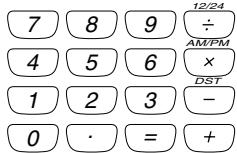

- AC — clears the calculator completely (except the calculator memory).
- Use C to clear a value if you have not yet entered the operator following that value.
- Use the number keys (0 through 9) to enter values. Press the club symbol to input a decimal point. Use MC, MR, M- and M+ for calculator memory operations.
MC - clears the calculator memory.
MR - recalls the current calculator memory contents.
M- — subtracts the currently displayed value from the current memory contents. You can also press M- to execute a calculation, with the result being subtracted from the memory contents.
M+ — adds the currently displayed value to the current memory contents. You can also press M+ to execute a calculation, with the result being added to the memory contents.
- Use +, -, × and ÷ to specify the arithmetic operation that is marked above each key.
- Use +/- to change the sign.
- = — executes a calculation and displays its result. Use % for percentage calculations.
To perform calculations
| AC | 0. | |
| 53 + 123 - 63 = | 53+123-63= | 113. |
| 963 × (23 - 56) = | 23-56×963= | -31779. |
| (56 × 3 - 89) ÷ 5.2 + 63 = | 56×3-89÷5.2 | |
| +63= | 78.19230769 | |
| 123456 × 741852 = | 123456×741852= | E 9.158608051 |
| C | 9.158608051 | |
| 2 × (-3) = | 2×3+/-= | -6 |
| 12 + 23 = | 23+12= | K+ 35. |
| 45 + 23 = | 45= | K+ 68. |
| 78 + 23 = | 78= | K+ 101. |
| 7 - 5.6 = | 5.6- -7= | K- 1.4 |
| 2 - 5.6 = | 2= | K- -3.6 |
| 2.3 × 12 = | 12××2.3= | K× 27.6 |
| 4.5 × 12 = | 4.5= | K× 54. |
| 45 + 9.6 = | 9.6÷÷45= | K+ 4.6875 |
| 78 + 9.6 = | 78= | K+ 8.125 |
| 12% of 1500 | 1500×12% | |
| Percentage of 660 against 880 | 660÷880% | |
| 15% add-on of 2500 | 2500×15%+ | |
| 25% discount of 3500 | 3500×25%= | |
| What will the selling price and profit be when the purchasing price of an item is 480 and the profit rate to the selling price is 25%? | 480+25% | |
| If you made80 last week and $100 this week, what is the percent increase? | 100-80% | |
| 80 × 9 = 720 | MC80×9M+ | M 720. |
| (-) 50 × 6 = 300 | 50×6M- | M 300. |
| (+ ) 20 × 3 = 60 | 20×3M+ | M 60. |
| 480 | MR 480. |
To perform constant calculations

3+2
- Enter the Calculator Mode.
- Enter the calculation, pressing the arithmetic operator key twice. This will cause the "K" indicator to appear on the display to indicate a constant calculation.
- You can use this constant calculation technique for addition, subtraction, multiplication, and division.


- Press = to display the initial result (in this case, 5).
- Press = again to add 3 to the result (in this case, 5 + 3 = 8 ).
- You can repeat the above operation as many times as you like. Each time you press = , the previous result obtained is added to, subtracted from, multiplied by, or divided by the value to the left of the arithmetic operator. To clear a constant calculation, press AC.
To correct errors in calculations
If you enter a wrong value, press C and then enter the correct value.
If you press the wrong arithmetic operator key (+, -, ×, ÷) , simply press the correct key before entering anything else.
About calculation errors...
Whenever an error occurs, the indicator "E" appears on the display.
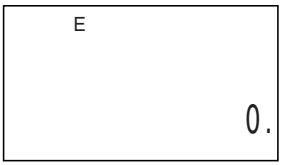
The following conditions all result in errors.
- When the number of digits in the mantissa of an intermediate or a final result exceeds 10 digits.
- When the number of digits in the mantissa of a value stored in memory exceeds 10 digits. In this case, the SF Unit automatically retains the last value stored that did not exceed 10 digits. Division by zero.
To clear errors
Press C to continue with the same calculation. If you want to clear the calculation and start again, press AC.
Using the Currency Conversion Mode
The Currency Conversion Mode lets you perform currency conversions. You can also define cross rates to perform conversions between different currency pairs.
To enter the Currency Conversion Mode
- Press CONVERSION to enter the Conversion Mode.
- Press 1 to select CURRENCY CON.
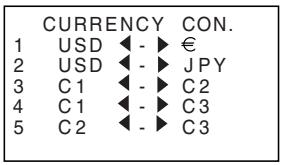
To set an exchange rate
- Initially this mode is set up to convert between dollars ($), euro (€), and yen (¥).
- Be sure to set the correct rates before performing currency conversions.
- You can change currency names and specify the exchange rate to use for conversions.
Example
Set the following conversion rates.
$1 = €1.14
- Enter the Currency Conversion Mode.
- Press 1 to select 1 USD ↔ €.
- Press EDIT.
- Press .
- Input the current exchange rate for the number of euros ② per dollar ①.
- Press ENTER.
To view the current Currency Conversion Mode rates
In the Currency Conversion Mode, select the currency whose rate you want to check, and then press EDIT then to display the rate.
To perform a currency conversion
Example
How many euros (€) are $50 (dollars)?
- Enter the Currency Conversion Mode.
- Press 1 to select 1 USD -
- Enter 50.
- Press to convert from dollars to euros.
The converted value appears on the display. - Pressing converts from euros to dollars.
To change the currency name and rate
Example 1
To specify an exchange rate of €1 (euro) = £1.63 (GBP)
- Enter the Currency Conversion Mode.
- Press 3 to select C1 ↔ C2.
- Press EDIT.
- Input €.
- Press ▶ as many times as necessary to move the cursor to C2 and then input GBP.
- You can input up to five characters for a currency name.
- Use the ▼ key to move the cursor to the RATE input item.
- Enter 1.63.
- If you make a mistake while inputting the value, press C to clear it, and then re-input.
- Press ENTER. This stores the input value.
Example 2
To specify an exchange rate of €1 (euro) = DM1.948261 (DEM)
- Press ESC to go back to the Current Conversion Mode initial display.
This displays the rates you set in Example 1. 10. Press 4 to select C1 ↔ C3. - If there is already a rate assigned to C1, it appears at this time. In this example, “” is input for C1, so the display shows ↔ C3. 11. Press EDIT. 12. Press → as many times as necessary to move the cursor to C3, and then input D E M. 13. Use the ∇ key to move the cursor to the RATE input item. 14. Enter 1.948261. - You can input up to 10 digits for a rate. 15. Press ENTER. This stores the input value. - Conversion No.5 will be automatically set when No.3 & 4 have been registered. The currency name and exchange rate of No.5 are changed automatically.
About conversion errors...
Whenever an error occurs, the indicator "E" appears on the display.
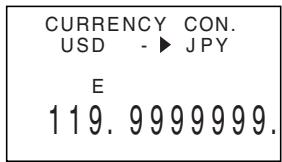
The following condition results in error.
- When the number of digits in the mantissa of an intermediate or a final result exceeds 10 digits.
To clear errors
Press AC or C to clear the conversion errors.
Using the Metric Conversion Mode
Use this mode to convert between meters and yards, kilograms and pounds, Fahrenheit and Celsius, etc.
To enter the Metric Conversion Mode
- Press CONVERSION to enter the Conversion Mode.
- Press 2 to select METRIC CON.
To perform a metric conversion
Example 1
To convert 5 yards to meters.
- Enter the Metric Conversion Mode.
- Press 1 to select yd ◀–▶ m.
- Enter 5.
- Press ▶ to convert from yards to meters.
The result of the conversion appears on the display. - Pressing ◀ converts from meters to yards.
Example 2
To convert 28 degrees Celsius to Fahrenheit
- Enter the Metric Conversion Mode.
- Press ▽.
- Press 2 to select °C ◀–▶ °F.
- Enter 28.
- Press ▶ to convert from Celsius to Fahrenheit.
The result of the conversion appears on the display. - Pressing ◀ converts from Fahrenheit to Celsius. - When converting to Fahrenheit, the result is rounded off to an integer. When converting to Celsius, the result is rounded off to one decimal place.
Data communications capabilities let you transfer data between two CASIO SF Units, or between this unit and a personal computer. You can perform such operations in the Telephone Directory, Memo, Schedule Keeper, Calendar, To Do, Expense or Anniversary modes.
Data communication is supported with the following SF Unit models: SF-4990, SF-6990, SF-7990.
Data transfer to other SF Units is possible by connecting to a computer running FA-127 Version 1.5 software.
Setting Up for Data Communications
The following describes what you should do to set up for data communications between two SF Units, or between this unit and a personal computer.
To connect the SF-4990/SF-6990/SF-7990 to another SF Unit
- Make sure that the power of both units is switched off.
- Open the covers of the data communication jacks of the two SF Units.
- Connect the two units using the optional SB-63 cable.
- The 3-pin plug of the SB-63 cable is a two-step type. When attaching the plug, be sure to push it firmly into the jacks as far as it will go.
Important!
- Be sure to close the connector covers of the SF Units when you are not performing data communications.
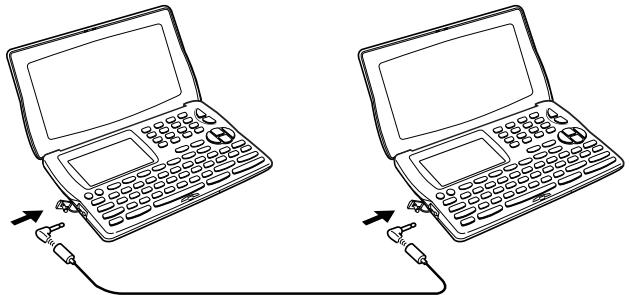
Performing data communications between an SF Unit and a personal computer
See the manual that comes with FA-127 Version 1.5 for details on connecting to a computer and setting up for communication.
Note
- The CASIO Data Communication Package may not be included with certain SF Units models. If your unit does not come with the Data Communication Package, contact your dealer about purchasing one. Please note that there are a number of different CASIO Data Communication Packages to suit various computers and SF Unit types. Because of this, you should note the following important points when purchasing a Data Communication Package. If you have any question about which package you need, consult with your dealer.
- Make sure the Data Communication Package is designed for use with your particular model of personal computer.
- If the proper Data Communication Package is not yet available in your area, consult with your dealer to find out when it is scheduled to go on sale.
- For information on how to connect the SF Unit with a personal computer, see the user's manual that comes with a Data Communication Package.
To set the SF Unit hardware parameters
- Press FUNCTION once or twice to display the function menu.
- Press the applicable number key to select DATA COMM.
- Press 3 to select SET UP PAR.
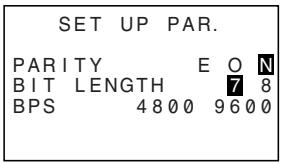
- The highlighted items on the display are the parameters that are currently set.
- The PARITY parameter is flashing because it is selected.
- Use the triangle and inverted triangle cursor keys to change the selected parameter on the display.
- Use the left and right cursor keys to change the highlighted setting of the currently selected parameter.
- When the parameters are set the way you want them, press ENTER to store them in memory.
About communications parameters...
Communications parameters make it possible for two communicating units to understand each other. The following explanations are provided for your information only. The only thing you need to remember is that the parameters of the send unit and the receive unit must be identical. Otherwise you will not be able to transfer data successfully.
PARITY
Parity is used for error detection during data exchanges. You can set the SF Unit parity as even (E), odd (O), or none (N).
BIT LENGTH
The bit length parameter states how many bits are to be used for each character. You can set the SF Unit bit length as 7 bits or 8 bits.
BPS
The letters "BPS" stand for "bits per second," and this setting represents the speed at which data is sent. The SF Unit lets you set a speed of either 4800 or 9600.
To set up the SF Unit to receive data
- While an initial screen is displayed, press FUNCTION once or twice to display the function menu.
- If you want the received data to be stored in the secret memory area, you should also enter the secret memory area at this point. If you are in the open memory area on the receiving unit, received data is stored into the open memory area.
- Press the applicable number key to select DATA COMM.
- Press 2 to select RECEIVE.
RECEIVE OK
TO STOP PRESS ESC
- This message indicates that the receive unit is standing by for data. Perform the required procedures to start sending data from another SF Unit, or a personal computer (see the Interface Unit manual for details).
- To abort the receive operation at any time, press ESC.
- This procedure is the same regardless of whether the data is received from another SF Unit or from a personal computer.
- The display changes to the following once the SF Unit starts receiving data.
RECEIVING
ITEM NO
TO STOP PRESS ESC
16
Receive data item count
The number of data items received is counted on the display. - If an error occurs during the receive operation, the message "TRANSMIT ERROR!" appears on the display. Press ESC to clear the error message. - Received data is added to the data already stored in memory. If the memory becomes full during the receive operation, the message "MEMORY FULL!" appears and data transfer stops. Press ESC to clear the error message. - If an alarm (Daily Alarm or Schedule Alarm) is reached while data is being received, the alarm does not sound until the data receive operation is complete.
Sending Data
This section tells you how to operate the SF Unit to send data to another SF Unit, or to a personal computer. There are a number of possible procedures you can use, depending on the mode and how many data items you want to send.
About data transfer types...
There are a number of different ways you can transfer data.
Mode Data Items
This method is used to send all data items stored in the Telephone Directory, Memo Mode, To Do Mode, Calendar or Anniversary Mode from the SF Unit. With the Schedule Keeper or Expense Mode, this procedure can be used to send all the data stored in a specific period (from one date to another).
For the Calendar Mode, this procedure makes it possible to send all the highlight data in a specific period (from one month to another).
Month Data
This method lets you send the highlight data for a specific month in the Calendar Mode.
All Data Items
With this method, you can send all data items stored in the Telephone Directory, Memo Mode, Anniversary Mode, Schedule Keeper, To Do Mode, Expense Mode and the Calendar from the SF Unit.
Note
- If an alarm (Daily Alarm or Schedule Alarm) is reached while data is being sent, the alarm does not sound until the data send operation is complete.
To send all data items
- While an initial screen is displayed, press FUNCTION once or twice to display the function menu.
- Note that this operation sends all open memory area data or all secret memory area data. Make sure you are in the memory area you want (open or secret) before proceeding.
- Press the applicable number key to select DATA COMM.
- Press 1 to select SEND.
- Press 2 to select ALL DATA.
- Press ENTER to start the send operation or ESC to abort the operation without sending anything.
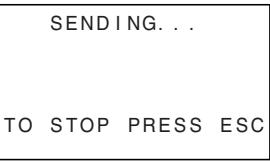
- Data is sent in the sequence: Telephone Directory, Memo Mode, Anniversary Mode, Schedule Keeper, Calendar, To Do Mode, Expense Mode.
- To abort the send operation at any time, press ESC.
- If an error occurs during the send operation, the message "TRANSMIT ERROR!" appears on the display. Press ESC to clear the error message.
- When sending data to a personal computer, certain mode data may be disregarded, depending upon the version of software you are using for SF data handling on the personal computer.
- After the send operation is complete, the display returns to the screen of the mode you were in when you started this procedure.
To send one month of Calendar data (highlights)
- In the Calendar Mode, press FUNCTION once or twice to display the function menu.
- Press the applicable number key to select DATA COMM.
- Press 1 to select SEND.
- Press 1 to select MODE DATA.
- Specify the period whose highlights you want to send.
- Press ENTER to start the send operation or ESC to abort the operation without sending anything.
- If the corresponding calendar in the receiving unit already contains highlighted dates, the received data is ignored. You have to clear the corresponding data in the receiving unit before it can receive highlight data.
- To abort the send operation at any time, press ESC.
- If an error occurs during the send operation, the message "TRANSMIT ERROR!" appears on the display. Press ESC to clear the error message.
- After the send operation is complete, the display returns to the initial screen when you started this procedure.
To send all Telephone Directory, Memo Mode, To Do Mode, or Anniversary Mode data
- In the Telephone Directory, Memo Mode, To Do Mode, or Anniversary Mode, press FUNCTION once or twice to display the function menu.
- You can perform the following operation while in the open memory area or the secret memory area.
- Press the applicable number key to select DATA COMM.
- Press 1 to select SEND.
- Press 1 to select MODE DATA.
- Press ENTER to start the send operation or ESC to abort the operation without sending anything.
- To abort the send operation at any time, press ESC.
- If an error occurs during the send operation, the message "TRANSMIT ERROR!" appears on the display. Press ESC to clear the error message.
- After the send operation is complete, the display returns to the initial screen of the mode you were in when you started this procedure.
To send all Schedule Keeper, Calendar or Expense Mode data in a specific period
- In the Schedule Keeper, Calendar or Expense Mode, press FUNCTION once or twice to display the function menu.
- You can perform the following operation while in the open memory area or the secret memory area.
- Press the applicable number key to select DATA COMM.
- Press 1 to select SEND.
- Press 1 to select MODE DATA.
| SEND DATA? | |
| FROM | 1901/01/01 |
| TO | 2002/01/01 |
| ENTER / ESC | |
- Using the left and right arrow keys to move the cursor, input the starting and ending dates of the period. For example, to send data from January 1, 2004 to April 1, 2004, press the right arrow key to move the cursor under the month (2004/01/01) and press 4.
- After specifying the ending date, press ENTER. Press ENTER to start the send operation, or press ESC to abort the operation without sending anything.
- To abort the send operation at any time, press ESC.
- If an error occurs during the send operation, the message "TRANSMIT ERROR!" appears on the display. Press ESC to clear the error message.
- After the send operation is complete, the display returns to the Schedule Keeper, Calendar, or Expense Mode screen.
Keys
| Key Cap | Name | Function |
| ON/OFF | Power On/Off key | Press this key to switch power on/off. |
| LIGHT | Light key | Press this key to light up the display. |
| TEL | Telephone Directory key | Press this key to enter the Telephone Directory. Press this key to toggle between TEL 1 and TEL 2. |
| CALN/SCHD | Calendar/Schedule Mode key | Press this key to enter the Calendar Mode or Schedule Keeper. |
| EXP/ANNI | Expense and Anniversary Mode key | Press this key to enter the Expense Mode or Anniversary Mode. |
| MEMO | Memo Mode key | Press this key to enter the Memo Mode. |
| TO DO | To Do Mode key | Press this key to enter the To Do Mode. |
| CAL | Calculator Mode key | Press this key to enter the Calculator Mode. |
| CLOCK | Clock key | Press this key to display the current Home Time, World Time and Alarm Time. |
| SECRET | Secret key | Use this key to register a password, to access the secret memory area, and to exit the secret memory area. |
| CONVERSION | Conversion Mode key | Press this key to enter the Currency or Metric Conversion Mode. |
| ESC | Escape key | Press this key to interrupt any operation. Press this key to switch from the data screen to the index screen. |
| CAPS | Caps key | Press this key to shift-lock the keyboard between upper-case and lower-case characters. |
| SHIFT | Shift key | Press this key to temporarily shift the keyboard for one character. |
| CODE | Code key | Use this key to input accented characters. |
| FUNCTION | Function key | Press this key to display function menus. |
| SPACE | Space key | Press this key to input a space. |
| SYMBOL | Symbol key | Press this key to display a menu of symbols on the display. |
| ENTER | Enter key | • Press this key to store input data into memory. • Press this key to switch from the index screen to the data screen. |
| EDIT | Edit key | Use this key to edit data in any mode. |
| INS | Insert key | Press this key to open a space at the current cursor position. |
| DEL | Delete key | Press this key to delete the character at the current cursor position. |
| ← | Newline key | • Press this key to create a new line within a data entry. • Press this key to highlight and unhighlight dates in the Calendar Mode. |
| ▲▼ | Search key | Press this key to start a search for data stored in memory. |
| ▷ | Cursor Right key | Press this key to move the cursor to the right. |
| ◁ | Cursor Left key | Press this key to move the cursor to the left. |
| ▲ | Cursor Up key | Press this key to move the cursor up, or to scroll the display. |
| ▼ | Cursor Down key | Press this key to move the cursor down, or to scroll the display. |
| 1 | Numeric keys | Press these keys to enter the corresponding number. |
| ? | ||
| 0 | ||
| A | Letter keys | Press these keys to enter the corresponding letter. Use the CAPS to switch between upper-case and lower-case letters. |
| ? | ||
| Z |
For information on the AC, C, MC, MR, M-, M+, %, +/-, +, -, x, ÷, and = keys, see "About the Calculator Mode keys..." on page 70.
Storage Capacity
The 256K (SF-4990)/512K (SF-6990)/1M (SF-7990) bytes memory capacity includes a 258,696 (SF-4990)/520,840 (SF-6990)/1,045,128 (SF-7990) bytes user area. The following shows examples of what this means for the storage of data in each mode.
Telephone Directory
Approximately 7,300 (SF-4990)/14,800 (SF-6990)/29,800 (SF-7990), under the following conditions:
8-character name
10-character telephone number
Approximately 4,700 (SF-4990)/9,400 (SF-6990)/19,000 (SF-7990), under the following conditions:
8-character name
10-character telephone number
20-character E-mail
Memo
Approximately 8,900 (SF-4990)/17,900 (SF-6990)/36,000 (SF-7990), 20-character memos.
Schedule Keeper
Approximately 6,100 (SF-4990)/12,400 (SF-6990)/24,800 (SF-7990), under the following conditions:
1 item per day, 20 characters per item
30 days per month
Starting time specified, alarm time set
Approximately 6,100 (SF-4990)/12,400 (SF-6990)/24,800 (SF-7990), under the following conditions:
1 item per day, 20 characters per item
30 days per month
Starting time specified, no alarm time
To Do
Approximately 7,600 (SF-4990)/15,300 (SF-6990)/30,700 (SF-7990), 20-character items.
Expense
Approximately 7,300 (SF-4990)/14,800 (SF-6990)/29,800 (SF-7990), under the following conditions:
up to $999.99 per amount item
8-character payment type
8-character expense type
Anniversary
Approximately 11,700 (SF-4990)/23,600 (SF-6990)/47,500 (SF-7990), under the following conditions:
10 characters per item
Auto Sort Sequence
Telephone Directory data items are automatically sorted in alphabetical order according to the first letter in the NAME entry. The following table shows the sequence used for data sorts.
| 1 | § | 31 | = | 61 | [ | 91 | { | 121 | ã | 151 | ij |
| 2 | (space) | 32 | > | 62 | \ | 92 | i | 122 | ê | 152 | æ |
| 3 | ! | 33 | ? | 63 | ] | 93 | } | 123 | i | 153 | ç |
| 4 | ” | 34 | @ | 64 | ^ | 94 | ~ | 124 | ô | 154 | ã |
| 5 | # | 35 | A | 65 | a | 95 | Á | 125 | ú | 155 | ø |
| 6 | $ | 36 | B | 66 | b | 96 | É | 126 | ü | 156 | £ |
| 7 | % | 37 | C | 67 | c | 97 | í | 127 | Á | 157 | ¥ |
| 8 | & | 38 | D | 68 | d | 98 | Ó | 128 | É | 158 | Ω |
| 9 | , | 39 | E | 69 | e | 99 | Ü | 129 | i | 159 | a |
| 10 | ( | 40 | F | 70 | f | 100 | À | 130 | Ö | 160 | ø |
| 11 | ) | 41 | G | 71 | g | 101 | É | 131 | Ü | 161 | x |
| 12 | * | 42 | H | 72 | h | 102 | ì | 132 | Ä | 162 | ÷ |
| 13 | + | 43 | I | 73 | i | 103 | Ö | 133 | Ö | 163 | ± |
| 14 | , | 44 | J | 74 | j | 104 | Ü | 134 | Ñ | 164 | ° |
| 15 | — | 45 | K | 75 | k | 105 | Â | 135 | IJ | 165 | 2 |
| 16 | . | 46 | L | 76 | l | 106 | É | 136 | Æ | 166 | 3 |
| 17 | / | 47 | M | 77 | m | 107 | ì | 137 | Ç | 167 | μ |
| 18 | 0 | 48 | N | 78 | n | 108 | Ó | 138 | Á | 168 | 1/2 |
| 19 | 1 | 49 | O | 79 | o | 109 | Ü | 139 | Φ | 169 | 1/4 |
| 20 | 2 | 50 | P | 80 | p | 110 | ì | 140 | β | 170 | 3/4 |
| 21 | 3 | 51 | Q | 81 | q | 111 | á | 141 | ¶ | 171 | f |
| 22 | 4 | 52 | R | 82 | r | 112 | é | 142 | ¢ | 172 | | |
| 23 | 5 | 53 | S | 83 | s | 113 | ì | 143 | ä | 173 | Fr |
| 24 | 6 | 54 | T | 84 | t | 114 | ó | 144 | è | 174 | ← |
| 25 | 7 | 55 | U | 85 | u | 115 | ú | 145 | ì | 175 | → |
| 26 | 8 | 56 | V | 86 | v | 116 | à | 146 | ö | 176 | √ |
| 27 | 9 | 57 | W | 87 | w | 117 | è | 147 | ü | 177 | € |
| 28 | : | 58 | X | 88 | x | 118 | ì | 148 | ã | ||
| 29 | ; | 59 | Y | 89 | y | 119 | ò | 149 | ō | ||
| 30 | < | 60 | Z | 90 | z | 120 | ù | 150 | ñ |
Message Table
| Message | Meaning | Action |
| NOT FOUND! | Data specified in search operation does not exist in memory or no data is stored in memory. | Change specification or cancel search. |
| MEMORY FULL! | No more room in memory for storage of data. | Delete unnecessary data items from memory, and then perform the memory management procedure (page 59). |
| ALARM TIME ALREADY USED OR PASSED! | Attempt to set a Schedule Keeper alarm time that is already used for another entry or time is already passed. | Set a different alarm time or change the existing alarm time to another one. Set a different alarm time (for a future time/date). |
| SECRET DATA! | Alarm for a secret memory area data item is sounding. | Enter the secret memory area to veiw details of the alarm. |
| PASSWORD MISMATCH! | Attempt to enter the secret memory area using a password that does not match the one preset for the secret area. | Use the correct password. |
| TRANSMIT ERROR! | Error during data communications. | Cancel the data communications operation and try again. |
| DATA ERROR! CHECK YOUR USER'S GUIDE FOR PROCEDURE! | Data corrupted by strong impact, electrostatic charge, etc. | See page 13 of this manual. |
| WEAK BATTERIES! CONSULT YOUR USER'S GUIDE IMMEDIATELY! | The batteries are getting weak. | Replace batteries immediately (page 16). |
Specifications
Model: SF-4990/SF-6990/SF-7990
Main Modes:
Telephone Directory 1, 2, Memo, Schedule Keeper, To Do, Expense, Anniversary, Calendar, Home Time, World Time, Calculator, Currency Conversion, and Metric Conversion.
Data storage:
Storage and recall of telephone, memo, schedule, to do, expense, anniversary data; calendar display; secret memory area; editing; memory status display.
Clock:
Home Time, World time 1, 2; schedule alarm; daily alarm; accuracy under normal temperatures: average ±3 seconds per day.
Calculation:
10-digit arithmetic calculations; arithmetic constants (+, -, ×, ÷); independent memory; percentages; 20-digit approximations; other mixed calculations.
General:
Display element: 17-column × 6-line LCD.
Memory capacity: SF-4990: 256KB.
SF-6990: 512KB.
SF-7990: 1MB.
Main component: LSI.
Power supply: 2 lithium batteries (CR2032).
Power consumption: 0.1W
Battery life: Approximately 1 year under the following test conditions: Unit turned on one hour each day (5 minutes operation, 55 minutes no operation), with two backlight operations, one Daily Alarm operation per day and Hourly Time Signal turned on.
Auto power off: Approximately 6 minutes after last key operation
Operating temperature: 0°C to 40°C (32°F to 104°F)
Dimensions:
Unfolded: 11.1H × 145W × 178D mm (7/16"H × 5 11/16"W × 7"D)
Folded: 14.7H × 145W × 91D mm (9/16"H × 5 11/16"W × 3 9/16"D)
Weight: Approximately 130g (4.6 oz) including batteries
CASIO
CASIO COMPUTER CO., LTD.
6-2, Hon-machi 1-chome Shibuya-ku, Tokyo 151-8543, Japan
- GUIDELINES LAID DOWN BY FCC RULES FOR USE OF THIS UNIT IN THE U.S.A. (NOT APPLICABLE TO OTHER AREAS)
- NOTICE
- FCC WARNING
- DECLARATION OF CONFORMITY
- IMPORTANT
- ABOUT THE EL BACKLIGHT
- TEST CONDITIONS
- MULTIPLE LANGUAGE CAPABILITY
- TO SELECT THE SYSTEM LANGUAGE
- ABOUT THIS MANUAL
- PART 1 GETTING STARTED
- PART 2 OPERATION REFERENCE
- PART 3 DATA MANAGEMENT FUNCTIONS
- PART 4 TIMEKEEPING FUNCTIONS
- PART 5 CALCULATOR FUNCTIONS
- PART 6 DATA COMMUNICATIONS
- PART 7 TECHNICAL REFERENCE
- MANUAL CONVENTIONS
- CONTENTS
- BEFORE USING THE UNIT FOR THE FIRST TIME
- INTRODUCTION - SF-4990/SF-6990/SF
- PART 1 - GETTING STARTED
- PART 2 - OPERATION REFERENCE
- SETTING UP THE SF UNIT
- INPUTTING LETTERS, NUMBERS AND SYMBOLS
- PART 3 - DATA MANAGEMENT FUNCTIONS
- USING THE TELEPHONE DIRECTORY
- USING THE MEMO MODE
- USING THE CALENDAR
- USING THE SCHEDULE KEEPER
- USING THE EXPENSE MODE
- USING THE TO DO MODE
- USING THE ANNIVERSARY MODE
- RECALLING DATA STORED IN MEMORY
- EDITING, DELETING AND COPYING DATA
- MEMORY MANAGEMENT OPERATION
- USING THE SECRET FUNCTION
- PART 4 - TIMEKEEPING FUNCTIONS
- USING THE HOME TIME FUNCTION
- USING THE WORLD TIME FUNCTION
- PART 5 - CALCULATOR FUNCTIONS
- USING THE CALCULATOR
- USING THE CURRENCY CONVERSION MODE
- USING THE METRIC CONVERSION MODE
- PART 6 - DATA COMMUNICATIONS
- SETTING UP FOR DATA COMMUNICATIONS
- SENDING DATA
- PART 7 - TECHNICAL REFERENCE
- KEYS
- STORAGE CAPACITY
- AUTO SORT SEQUENCE
- MESSAGE TABLE
- SPECIFICATIONS
- READ THIS FIRST
- MAKE BACK UP COPIES OF IMPORTANT DATA
- ABOUT THE "DATA ERROR!..." MESSAGE
- NOTE
- GENERAL PRECAUTIONS
- ABOUT THE POWER SUPPLY
- CAUTION
- LOW BATTERY MESSAGE
- BATTERY PRECAUTIONS
- TO REPLACE THE BATTERIES
- RESETTING THE SF UNIT'S MEMORY
- WARNING
- TO RESET THE SF UNIT'S MEMORY
- PRESS ENTER
- GENERAL GUIDE
- TO SWITCH POWER ON AND OFF
- ABOUT THE AUTO POWER OFF FUNCTION
- TO TURN ON THE EL BACKLIGHT
- TO ADJUST THE DISPLAY CONTRAST
- TO SELECT A MODE
- TO CHECK THE MEMORY STATUS
- TO USE THE FUNCTION KEY
- ABOUT THE SOUND MENU
- TO SWITCH THE KEY INPUT AND SCHEDULE ALARM TONE ON AND OFF
- ABOUT ALARM TYPES
- DAILY ALARM
- SCHEDULE ALARM
- TO INPUT LETTERS AND NUMBERS
- TO INPUT UPPER-CASE AND LOWER-CASE LETTERS
- TO SHIFT THE KEYBOARD
- TO INPUT ACCENTED CHARACTERS
- TO INPUT OTHER SYMBOLS
- TO INPUT THE DATE STAMP
- TO CORRECT, DELETE OR INSERT CHARACTERS
- DATE AND TIME INPUT
- TO ENTER A MODE
- ABOUT DISPLAY FORMATS
- DATA DISPLAY
- INDEX DISPLAY
- INPUTTING TELEPHONE DIRECTORY DATA
- TO INPUT TELEPHONE DIRECTORY DATA
- WHERE TO FIND OTHER INFORMATION
- TO INPUT MEMO MODE DATA
- ENTER THE MEMO MODE
- TO INSERT A NEW MEMO MODE DATA ITEM BETWEEN TWO ITEMS IN MEMORY
- TO DISPLAY THE CALENDAR
- TO SCROLL THROUGH CALENDARS
- ABOUT THE DATE CURSOR
- TO SPECIFY A MONTH AND DATE FOR DISPLAY IN THE CALENDAR MODE
- TO HIGHLIGHT AND UNHIGHLIGHT SPECIFIC DATES
- TO HIGHLIGHT DAYS OF THE WEEK FOR MULTIPLE MONTHS
- TO UNHIGHLIGHT DAYS OF THE WEEK FOR MULTIPLE MONTHS
- TO ENTER THE SCHEDULE KEEPER
- TO SPECIFY A DATE
- ABOUT SCHEDULE KEEPER DATA AND INITIAL DISPLAYS
- TO INPUT SCHEDULE KEEPER DATA
- USING SCHEDULE ALARMS
- TO SET A SCHEDULE ALARM WHEN INPUTTING DATA
- TO SET OR CHANGE A SCHEDULE ALARM FOR AN EXISTING DATA ENTRY
- TO VIEW A DATA ENTRY'S CURRENT SCHEDULE ALARM SETTING
- TO DELETE A SPECIFIC SCHEDULE ALARM
- ABOUT EXPENSE MODE DATA ITEMS AND DATA ENTRIES
- ABOUT EXPENSE MODE DISPLAY FORMATS
- TO ENTER THE EXPENSE MODE
- TO EDIT LABELS
- TO INPUT EXPENSE MODE DATA
- TO CALCULATE EXPENSE TOTALS FOR A SPECIFIC PERIOD
- ABOUT THE TOTAL AMOUNT DISPLAY
- TO INPUT TO DO MODE DATA
- ABOUT THE TO DO LIST
- TO CHECK AND UNCHECK TO DO ITEMS
- ABOUT ANNIVERSARY MODE DISPLAY FORMATS
- TO ENTER THE ANNIVERSARY MODE
- TO INPUT ANNIVERSARY MODE DATA
- TO LOCATE DATA USING INDEX SEARCH
- TO LOCATE DATA USING INITIAL CHARACTER SEARCH
- TO LOCATE DATA USING MODE SEARCH
- TO EDIT A DATA ITEM
- TO DELETE A SINGLE DATA ITEM
- TO DELETE ALL DATA ITEMS IN A MODE
- TO DELETE MULTIPLE DATA ITEMS IN THE SCHEDULE KEEPER MODE OR EXPENSE MODE
- TO MOVE A SCHEDULE KEEPER DATA TO A DIFFERENT DATE
- TO MOVE AN EXPENSE MODE DATA ITEM TO A DIFFERENT DATE
- TO COPY A DATA ITEM
- TO CREATE A SECRET MEMORY AREA
- TO ENTER AN EXISTING SECRET MEMORY AREA
- TO EDIT AN EXISTING PASSWORD
- TO TRANSFER DATA FROM THE OPEN MEMORY AREA TO THE SECRET MEMORY AREA
- TO TRANSFER DATA FROM THE SECRET MEMORY AREA TO THE OPEN MEMORY AREA
- ABOUT HOME TIME DISPLAYS
- HOME TIME DISPLAY
- ALARM DISPLAY
- TO DISPLAY THE HOME TIME
- TO SET THE HOME TIME ZONE
- TO SET THE HOME TIME
- TO SWITCH THE HOME TIME BETWEEN 12-HOUR AND 24-HOUR FORMAT
- TO SWITCH THE HOME TIME BETWEEN STANDARD AND DAYLIGHT SAVING TIME
- TO SET THE DAILY ALARM
- ABOUT THE DAILY ALARM
- TO SELECT THE DATE FORMAT
- TO DISPLAY THE WORLD TIME
- TO SET THE WORLD TIME ZONE
- TO SWITCH A WORLD TIME ZONE BETWEEN STANDARD AND DAYLIGHT SAVING TIME
- TO ENTER THE CALCULATOR MODE
- ABOUT THE CALCULATOR MODE KEYS
- TO PERFORM CALCULATIONS
- TO PERFORM CONSTANT CALCULATIONS
- TO CORRECT ERRORS IN CALCULATIONS
- ABOUT CALCULATION ERRORS
- TO CLEAR ERRORS
- TO ENTER THE CURRENCY CONVERSION MODE
- TO SET AN EXCHANGE RATE
- EXAMPLE
- TO VIEW THE CURRENT CURRENCY CONVERSION MODE RATES
- TO PERFORM A CURRENCY CONVERSION
- TO CHANGE THE CURRENCY NAME AND RATE
- ABOUT CONVERSION ERRORS
- TO ENTER THE METRIC CONVERSION MODE
- TO PERFORM A METRIC CONVERSION
- TO CONNECT THE SF-4990/SF-6990/SF-7990 TO ANOTHER SF UNIT
- PERFORMING DATA COMMUNICATIONS BETWEEN AN SF UNIT AND A PERSONAL COMPUTER
- TO SET THE SF UNIT HARDWARE PARAMETERS
- ABOUT COMMUNICATIONS PARAMETERS
- PARITY
- BIT LENGTH
- BPS
- TO SET UP THE SF UNIT TO RECEIVE DATA
- ABOUT DATA TRANSFER TYPES
- MODE DATA ITEMS
- MONTH DATA
- ALL DATA ITEMS
- TO SEND ALL DATA ITEMS
- TO SEND ONE MONTH OF CALENDAR DATA (HIGHLIGHTS)
- TO SEND ALL TELEPHONE DIRECTORY, MEMO MODE, TO DO MODE, OR ANNIVERSARY MODE DATA
- TO SEND ALL SCHEDULE KEEPER, CALENDAR OR EXPENSE MODE DATA IN A SPECIFIC PERIOD
- TELEPHONE DIRECTORY
- MEMO
- SCHEDULE KEEPER
- TO DO
- EXPENSE
- ANNIVERSARY
- MAIN MODES
- DATA STORAGE
- CLOCK
- CALCULATION
- GENERAL
- CASIO
Brand : CASIO
Model : SF-4990
Category : Electronic Planner