
iMac 27" Retina 5K - Desktop computer APPLE - Free user manual and instructions
Find the device manual for free iMac 27" Retina 5K APPLE in PDF.


| Product Type | Desktop Computer |
| Model | iMac 27" Retina 5K |
| Brand | Apple |
| Display Size | 27 inches (68.6 cm) |
| Display Resolution | 5120 x 2880 pixels (5K) |
| Processor | Intel Core i5 or i7 (varies by configuration) |
| Memory (RAM) | Up to 64 GB DDR4 |
| Storage | Up to 2 TB SSD or Fusion Drive |
| Graphics | AMD Radeon Pro 500 series |
| Operating System | macOS (latest version compatible) |
| Dimensions (Height) | 51.6 cm (20.3 inches) |
| Dimensions (Width) | 65.0 cm (25.6 inches) |
| Dimensions (Depth) | 20.3 cm (8.0 inches) |
| Weight | 9.54 kg (21.0 lbs) |
| Power Supply | Built-in 310W power supply |
| Connectors | 2x Thunderbolt 3 (USB-C), 4x USB 3.0, SDXC card slot, Ethernet, 3.5mm headphone jack |
| Wireless Connectivity | Wi-Fi 802.11ac, Bluetooth 4.2 |
| Camera | FaceTime HD 1080p |
| Audio | Stereo speakers, microphone |
| Care and Cleaning | Disconnect power before cleaning; use a soft, lint-free cloth; avoid liquids; do not spray cleaners directly; keep vents clear. |
| Safety Precautions | Do not block ventilation openings; operate on a stable surface; avoid extreme temperatures; unplug during storms or if unused for long periods. |
| Spare Parts and Repairability | Repairs should be performed by Apple Authorized Service Providers; some components may be user-replaceable (e.g., RAM), but many are soldered. |
| General Information | All-in-one desktop designed for creative professionals; includes Retina 5K display with P3 wide color and 500 nits brightness. |
Frequently Asked Questions - iMac 27" Retina 5K APPLE
User questions about iMac 27" Retina 5K APPLE
0 question about this device. Answer the ones you know or ask your own.
Ask a new question about this device
Download the instructions for your Desktop computer in PDF format for free! Find your manual iMac 27" Retina 5K - APPLE and take your electronic device back in hand. On this page are published all the documents necessary for the use of your device. iMac 27" Retina 5K by APPLE.
USER MANUAL iMac 27" Retina 5K APPLE
Welcome to your new iMac.
Let us show you around.
This guide shows you what's on your Mac, helps you set it up, and gets you up and running with tips for the apps you'll use every day.
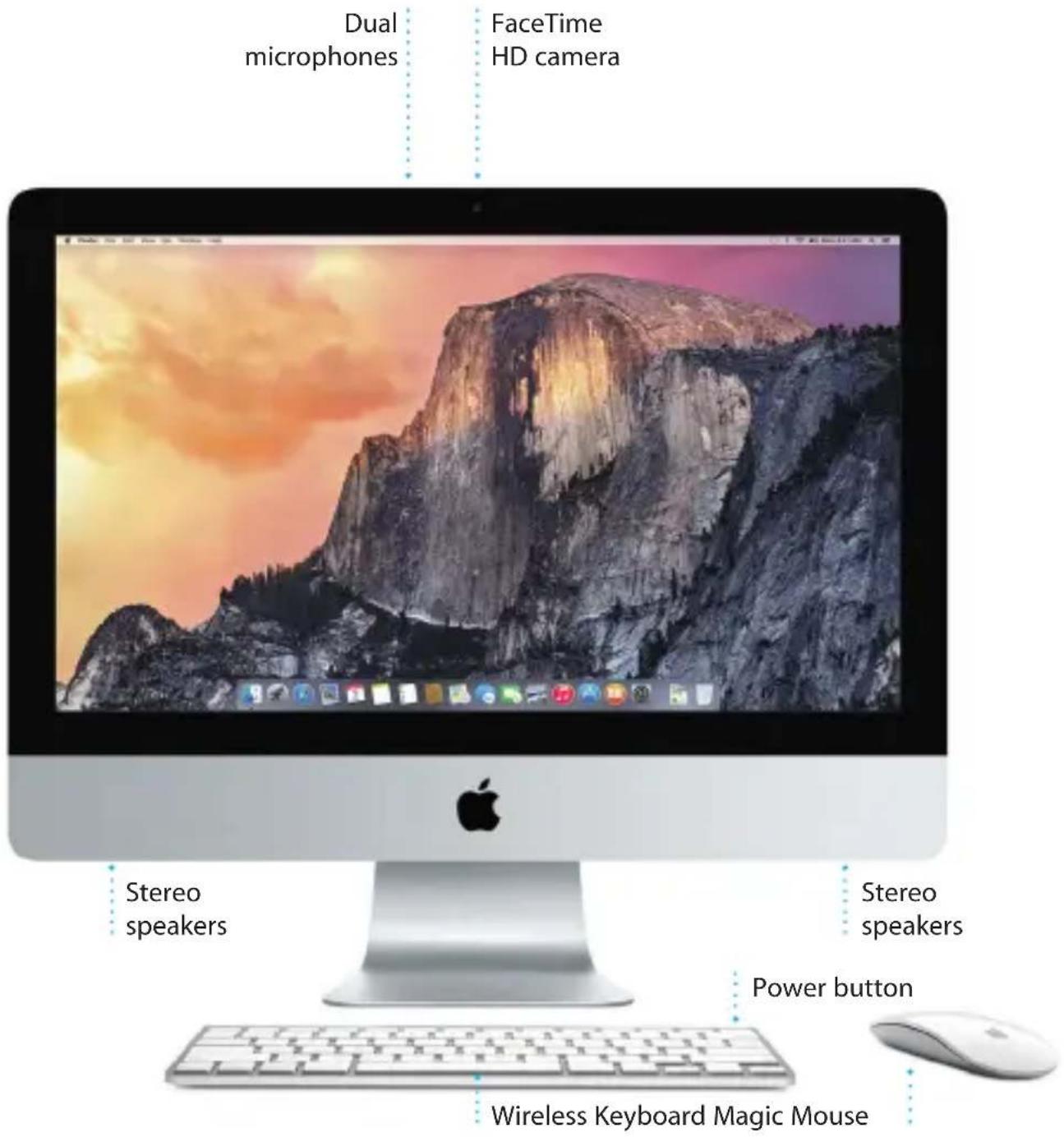


To learn more about ports and connectors, go to support.apple.com/kb/HT2494.
Let's get started
Press the power button to start up your iMac, and Setup Assistant guides you through a few simple steps to get you up and running. It walks you through connecting to your Wi-Fi network and creating a user account. And it can transfer your documents, email, photos, music, and movies to your new Mac from another Mac or PC.
Sign in with your Apple ID in Setup Assistant. This sets up your account in the Mac App Store and the iTunes Store, and in apps like Messages and FaceTime, so they're ready the first time you open them. It also sets up iCloud, so apps such as Mail, Contacts, Calendar, and Safari have all your latest information. If you don't have an Apple ID, create one in Setup Assistant.

To learn more about transferring files to your new Mac, go to support.apple.com/kb/HT6408.
Using your Magic Mouse
Your Apple Magic Mouse comes with two AA batteries and is already paired with your iMac using Bluetooth, so as soon as you turn on the mouse you'll be ready to go. To adjust the tracking, clicking, and scrolling speed or to add secondary button support, choose System Preferences from the Apple menu, then click Mouse. Here are some tips on getting the most out of your Magic Mouse.

Turn on mouse
Slide the power button on the bottom of the mouse.

natural_image
Close-up of a human hand holding a white computer mouse with a blue circular button on the index finger (no text or symbols visible)Two-button click
Enable Secondary Click in System Preferences to use right and left click.

natural_image
Hand holding a white computer mouse with a blue upward arrow (no text or symbols visible)Screen zoom
Hold down the Control key and scroll with one finger to enlarge items on your screen.

natural_image
Hand holding a white computer mouse with a blue circular button (no text or symbols visible)Click
Click or double-click anywhere on the surface.

natural_image
Hand pressing a white computer mouse with blue directional arrows indicating motion (no text or symbols)360° scroll
Brush one finger along the surface to scroll or pan in any direction.

natural_image
Close-up of a human hand with a blue double-headed arrow indicating rotation or motion (no text or symbols)Two-finger swipe
Swipe left and right to move through Safari pages or browse photos in iPhoto.
Get to know your desktop
The desktop is where you can find everything and do anything on your Mac. The Dock at the bottom of the screen is a place to keep the apps you use most. It's also where you can open System Preferences, which lets you customize your desktop and other settings. Click the Finder icon to get to all your files and folders.
The menu bar at the top has useful information about your Mac. To check the status of your wireless Internet connection, click the Wi-Fi icon. Your Mac automatically connects to the network you chose during setup. You can also find anything on your Mac and look up information using Spotlight.

Find the app you want
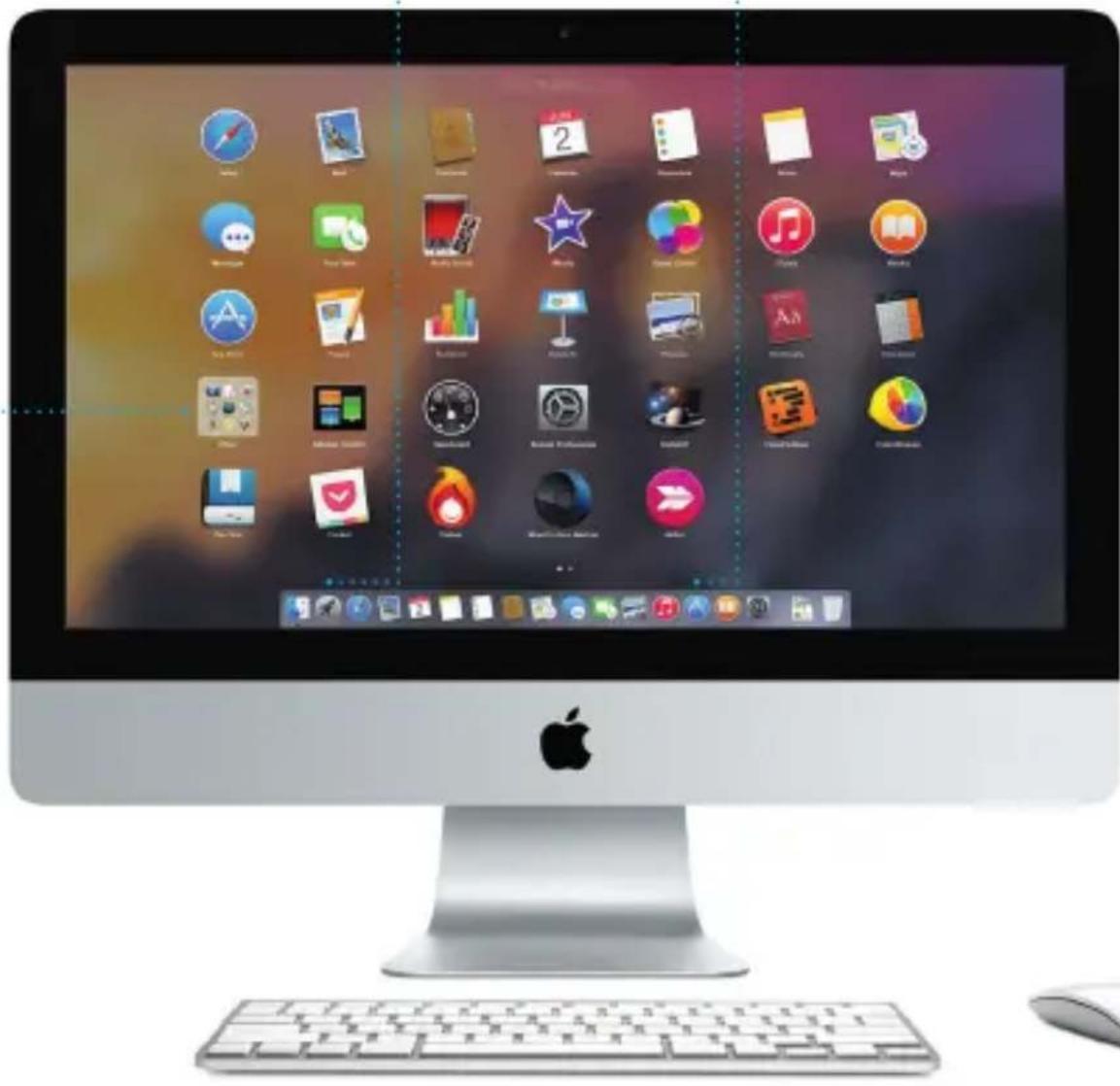
Your Mac comes with great apps you can use to make the most of your photos, create documents, browse the web, and more. Use Launchpad to easily find all the apps on your Mac. Arrange apps any way you want and even group them in folders.
Find new apps on the Mac App Store. When you download an app you like, it appears in Launchpad. The Mac App Store lets you know when app and OS X updates are available, and can update them automatically.
Folders
Group apps by dragging one on top of another.
Open Launchpad
Click the icon in the Dock.
Browse the Mac App Store
Click the icon in the Dock.
Be up to date across all your devices
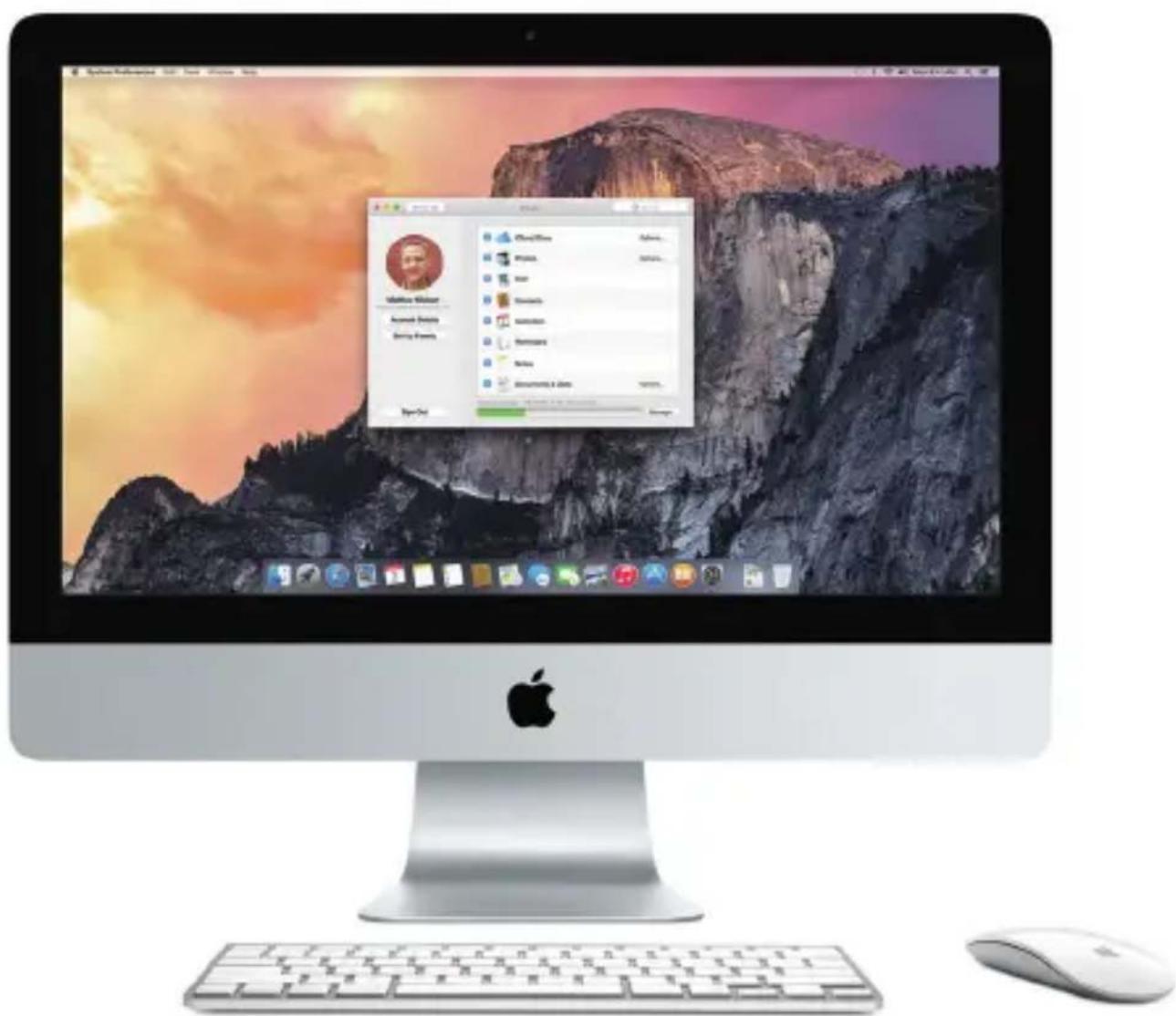
iCloud lets you access your music, photos, calendars, contacts, documents, and more from your Mac, iOS devices, and even your PC. It keeps everything up to date automatically.
Create a Pages document, take a photo, or buy a song with one device, and it's instantly available on all the others. With iCloud Drive, you can store your files in iCloud and organize them any way you like. Family Sharing makes it easy to share family members' iTunes Store, App Store, and iBooks Store purchases. iCloud helps you locate and protect your Mac if you misplace it. To choose the iCloud features you want, click System Preferences in the Dock and click iCloud.
Use your Mac and iOS devices together
When you sign in to iCloud on your Mac and iOS devices* they recognize when they're near each other, enabling amazing features. You can make and receive iPhone calls on your Mac, using your Mac as a speakerphone. SMS messages sent to your iPhone appear in Messages on your Mac, so you can keep track of all your conversations. With Instant Hotspot, your Mac can automatically use the personal hotspot on your iPhone. And with Handoff, you can start an activity on your Mac and pick it up right where you left off on your iOS device—and vice versa.
iPhone calls
Make an iPhone call or send a text message by clicking a phone number on your Mac.
Handoff
An app icon appears in the Dock when an activity is handed off to your Mac.

natural_image
Desktop setup with a macOS monitor, smartphone, keyboard, and desktop computer (no visible text or symbols on main devices)*Requires a device running iOS 8. Your Mac and iOS device must be signed in to the same iCloud account.

Safari
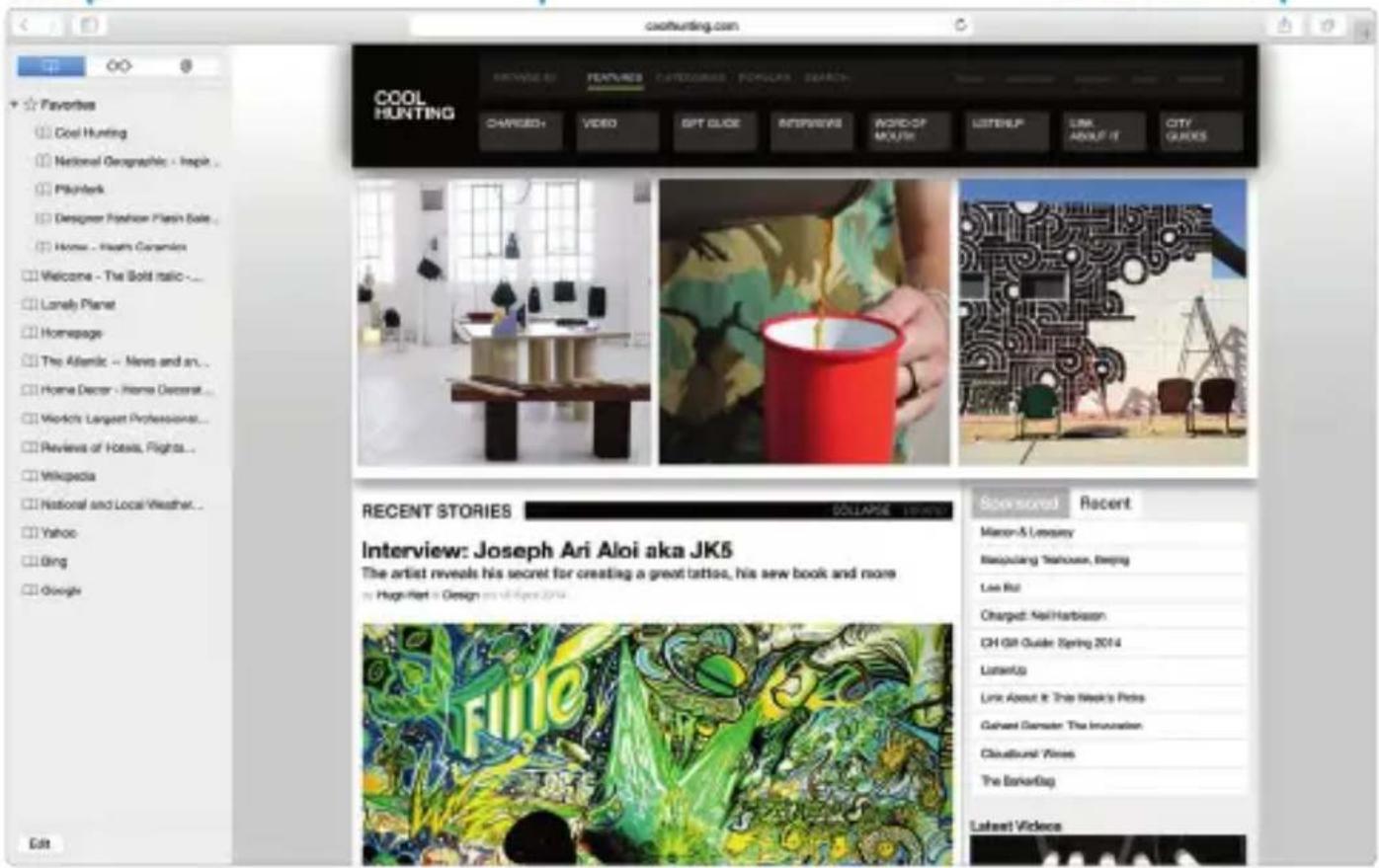
Safari is the best way to surf the web on your Mac. Just click in the Smart Search field and see icons for your favorite websites, or type a search term or web address—Safari knows the difference and will send you to the right place. You can save pages
to your Reading List to read later, and check out Shared Links for pages posted by people you follow on Twitter and LinkedIn. The Tab view organizes all of your tabs and makes it easy to locate the one you're looking for.

Sidebar
Your bookmarks, Reading List, and Shared Links appear in the Sidebar.
Favorites view
Click the Smart Search field to see icons for your favorite websites.

Share
Easily send webpages or share them with your social networks.

Mail lets you manage all your email accounts from a single, ad-free inbox. It works with popular email services like iCloud, Gmail, Yahoo Mail, and AOL Mail. With Mail Drop, large attachments are automatically
uploaded to iCloud. And Markup lets you fill out and sign forms or annotate a PDF. The first time you open Mail, Setup Assistant helps you get started.


One-stop email
View all your accounts in Mail.

Conversation view See all the email messages from a conversation thread

Search
Quickly narrow search results to find exactly what you want.


Calendar
Keep track of your busy schedule with Calendar. You can create separate calendars—one for home, another for school, and a third for work. See all your calendars in a single window, or choose to see just the ones you want. Create and send invitations to events, then see who has responded. Add a location to an event, and Calendar will include a map, calculate travel time, and even display the weather forecast. Use iCloud to automatically update calendars on all your devices or share calendars with other iCloud users.


Messages
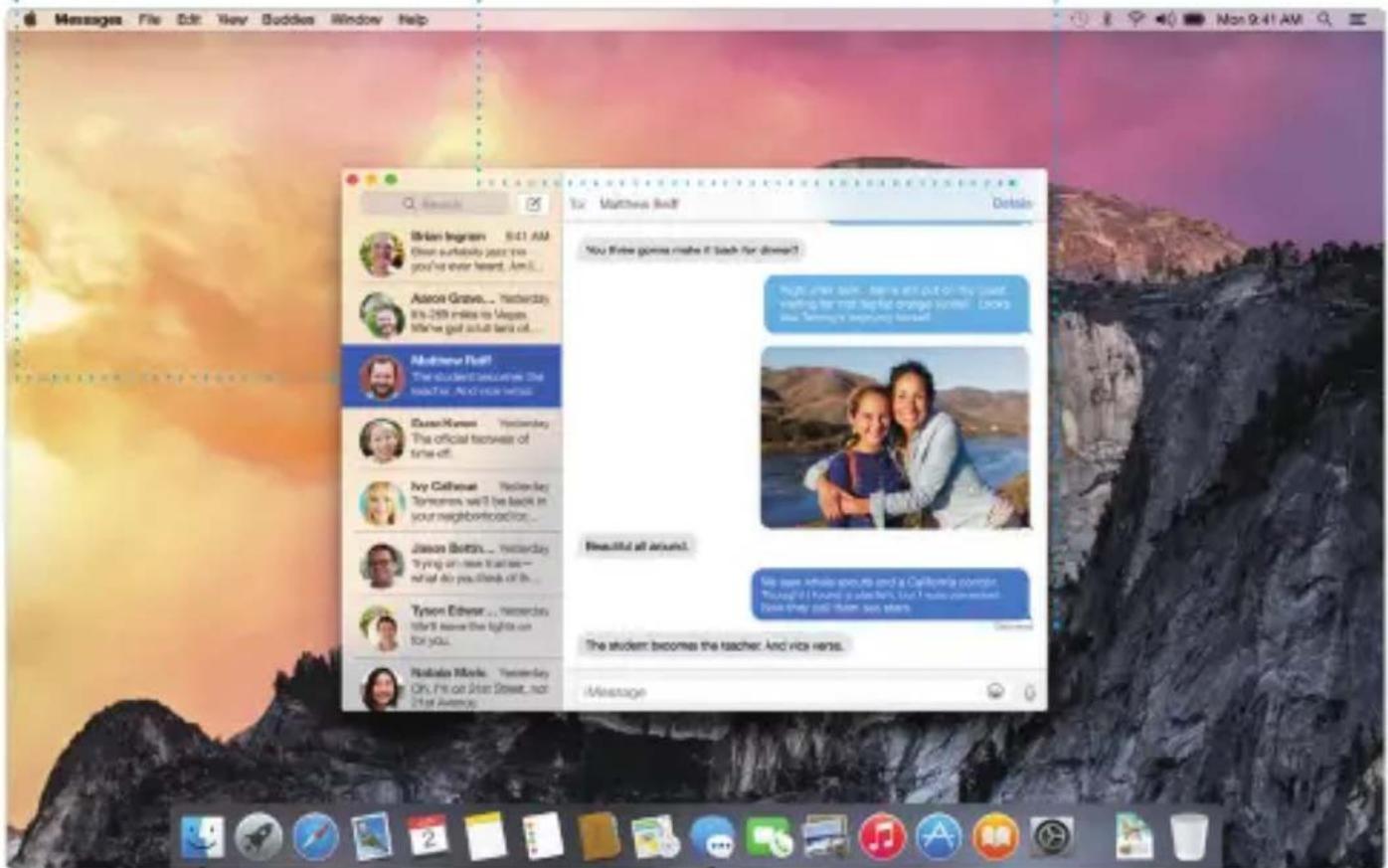
Just log in with your Apple ID, and you can send and receive both iMessage and SMS messages, including text, photos, videos, and more, to your friends on a Mac, iPad, iPhone, or iPod touch. With iMessage, you can even start a conversation on one device and pick it up on another. You can easily start and manage group conversations, including adding a title and new participants. And if you want to talk to someone face to face, you can start a FaceTime video call* right from a conversation in Messages.

Replies in progress
Three dots mean your friend is typing a reply.
Manage conversations
Click Details to start a FaceTime call or see the attachments from your conversation.
Delivery receipts
See when your message has arrived.
*Requires FaceTime-enabled device for both caller and recipient. Not available in all areas.

Maps
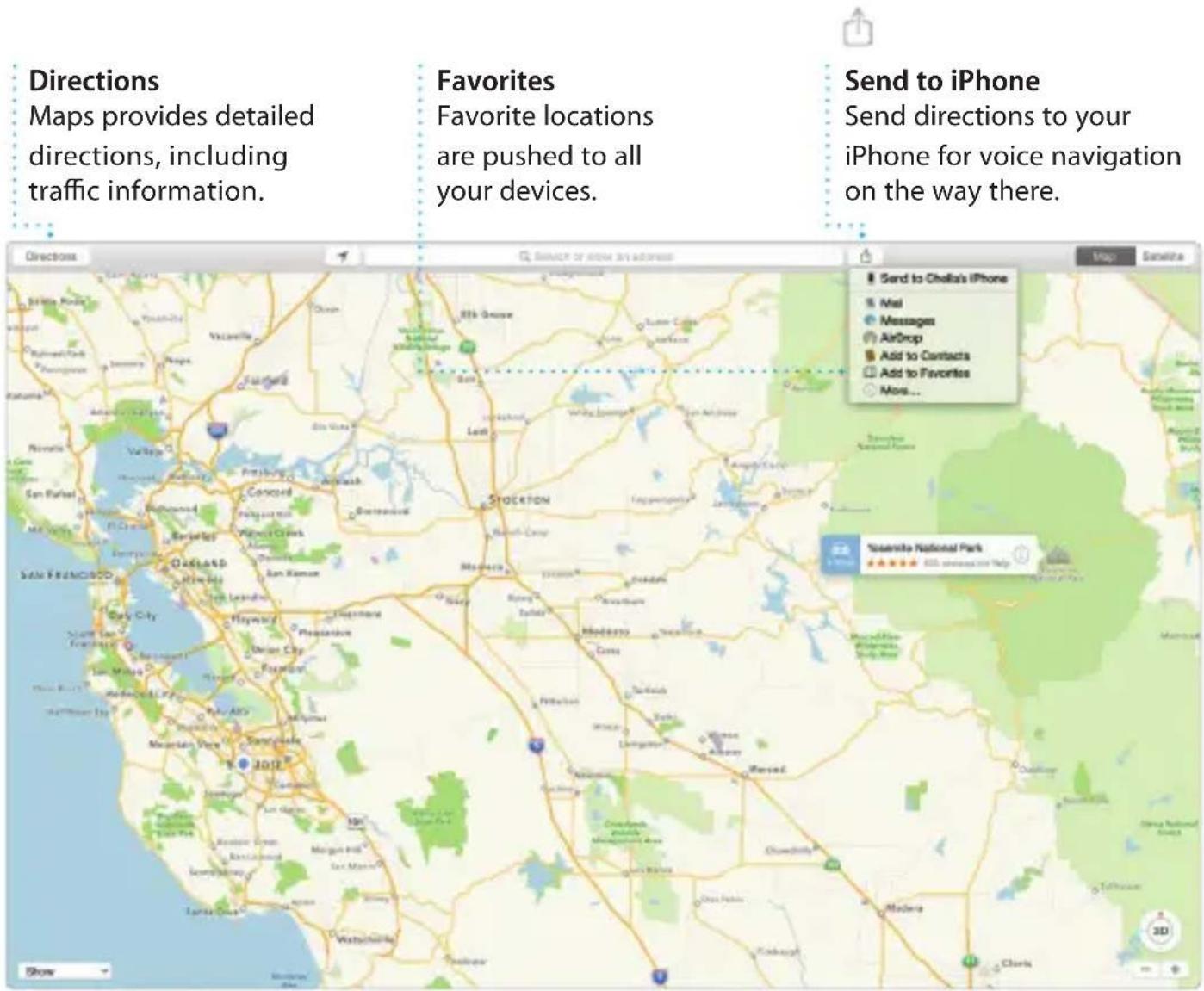
Explore new destinations and get directions on your Mac with Maps. View locations using standard or satellite imagery, or use Flyover to soar through select cities in photorealistic 3D. You can look up information for local points of interest like restaurants and hotels, and Maps shows you phone numbers, photos, and even Yelp reviews. Once you find your destination, Maps provides point-to-point directions that you can send to your iPhone for turn-by-turn voice navigation.

Spotlight
Spotlight is an easy way to find anything on your Mac—documents, contacts, apps, messages, and more. No matter what you're doing on your Mac, you can access Spotlight through its menu icon or by using the Command-Space keyboard
shortcut. Just start typing, and Spotlight shows you rich previews of your results. You can use Spotlight to look up information from sources like Wikipedia, Bing, news, Maps, movies, and more,* and to convert currencies and units of measure.
Results
See Spotlight results on the left and scroll through them.
Previews
Interact with previews right from Spotlight.
Easy access
Click the Spotlight icon in the menu bar or press Command-Space.

*Not all features are available in all areas.

iTunes
iTunes makes it easy to enjoy your favorite music, movies, TV shows, and more on your Mac. iTunes includes the iTunes Store, where
you can find classics or new favorites. It also includes iTunes Radio, a great way to discover music.

Your library
View your music, movies, TV shows, podcasts, and more.
iTunes Radio
Enjoy free streaming radio tailored from top music in the iTunes Store.
iTunes Store
Discover and buy new music, movies, and more.


natural_image
Three unrelated icons: a camera, a purple star, and an electric guitar (no text or symbols)iPhoto, iMovie, and GarageBand
iPhoto, iMovie, and GarageBand give you amazing ways to create and share your photos, movies, and music. iPhoto helps you organize your library by Faces, Places, and Events, and create gorgeous photo books, cards,
and calendars. iMovie lets you turn your home videos into beautiful movies and epic Hollywood-style trailers. And GarageBand has everything you need to learn to play an instrument, write music, or record a song.

Events
Simply move your cursor to quickly skim through the photos in any Event.

Projects
Easily create and order personalized books, cards, and calendars.

Share
Post your favorites to Facebook or share them with iCloud or Messages.

iPhoto

Pages, Numbers, and Keynote
Create stunning documents, spreadsheets, and presentations on your Mac. Beautiful templates give you a great head start—simply add your own words and photos. And customizing everything is a snap
with the context-sensitive Format Panel. You can even open and edit Microsoft Office files. And you can quickly and easily share a link to your work with Mail or Messages, right from your toolbar.
Add graphics and more
Create media-rich documents with images, movies, charts, and more.

Share
Easily share a link to your work with Mail or Messages.
Format Panel
Your tools are just a click away with the intelligent Format Panel.

An important note
Please read this document and the safety information in the Important Product Information Guide carefully before you first use your computer.
Learn more
You can find more information, watch demos, and learn even more about iMac features at www.apple.com/imac.
Help
You can often find answers to your questions, as well as instructions and troubleshooting information, in Mac Help. Click the Finder icon, click Help in the menu bar, and choose Mac Help. You can also use Safari to get online help at www.apple.com/support.
OS X Utilities
If you have a problem with your Mac, OS X Utilities can help you restore your software and data from a Time Machine backup or reinstall OS X and Apple apps. If your Mac detects a problem, it opens OS X Utilities automatically. Or you can open it manually by restarting your computer while holding down the Command and R keys.
Support
Your iMac comes with 90 days of technical support and one year of hardware repair warranty coverage at an Apple Retail Store or an Apple Authorized Service Provider. Visit www.apple.com/support/imac for iMac technical support. Or call 1-800-275-2273. In Canada, call 1-800-263-3394.



- Welcome to your new iMac.
- Let us show you around.
- Let's get started
- Using your Magic Mouse
- Turn on mouse
- Two-button click
- Screen zoom
- Click
- 360° scroll
- Two-finger swipe
- Get to know your desktop
- Find the app you want
- Folders
- Open Launchpad
- Browse the Mac App Store
- Be up to date across all your devices
- Use your Mac and iOS devices together
- iPhone calls
- Handoff
- Safari
- Sidebar
- Favorites view
- Share
- One-stop email
- Search
- Calendar
- Messages
- Replies in progress
- Manage conversations
- Delivery receipts
- Maps
- Spotlight
- Results
- Previews
- Easy access
- iTunes
- Your library
- iTunes Radio
- iTunes Store
- iPhoto, iMovie, and GarageBand
- Events
- Projects
- Pages, Numbers, and Keynote
- Add graphics and more
- Format Panel
- An important note
- Learn more
- Help
- OS X Utilities
- Support
Brand : APPLE
Model : iMac 27" Retina 5K
Category : Desktop computer