
MP-CL1A - Projector SONY - Free user manual and instructions
Find the device manual for free MP-CL1A SONY in PDF.


| Product Type | Portable Pico Projector |
| Brand | Sony |
| Model | MP-CL1A |
| Display Technology | Laser (MEMS laser scanning) |
| Resolution | 1920 x 720 pixels (HD) |
| Brightness | Up to 200 lumens |
| Contrast Ratio | 80,000:1 |
| Projection Size | 20 to 120 inches |
| Projection Distance | 0.5 to 5 meters |
| Focus | Manual |
| Keystone Correction | Not available (fixed) |
| Connectivity | HDMI (MHL compatible), USB Type-C (power & data), USB Type-A |
| Wireless | Wi-Fi (Miracast), Bluetooth (audio only) |
| Built-in Speaker | Mono, 0.5W |
| Battery Type | Lithium-ion rechargeable |
| Battery Life | Up to 2 hours (video), up to 4 hours (presentation) |
| Power Supply | 5V/2A USB charging (AC adapter not included) |
| Dimensions (W x H x D) | 125 x 80 x 14 mm |
| Weight | 210 g (including stand) |
| Color | Black with aluminum finish |
| Operating Temperature | 5°C to 35°C |
| Built-in Tripod Mount | Yes (1/4 inch thread) |
| Recommended Cleaning | Use a soft dry cloth; avoid liquid cleaners |
| Safety | Class 1 laser product; do not stare into beam |
| Repairability | Battery and light source not user-replaceable |
Frequently Asked Questions - MP-CL1A SONY
User questions about MP-CL1A SONY
0 question about this device. Answer the ones you know or ask your own.
Ask a new question about this device
Download the instructions for your Projector in PDF format for free! Find your manual MP-CL1A - SONY and take your electronic device back in hand. On this page are published all the documents necessary for the use of your device. MP-CL1A by SONY.
USER MANUAL MP-CL1A SONY
© 2016 Sony Corporation
Printed in Korea
3-MPA-011-01
MP-CL1A MP-CL1A
Table of Contents
Checking the Bundled Items....4
Parts and Controls....5
About the status of lamp 6
Getting Started 7
Charging the projector 7
Turning the power on....8
Using the lens cover stand....8
Connecting your Device....10
Projecting the Contents or Screen of the Connecting Device....11
Connecting via screen mirroring 11
Connecting via HDMI or MHL cable 12
Connecting to External Speakers or Headphones ..14
Connecting via Bluetooth® connection.... 14
Connecting using a cable....16
Troubleshooting....17
Specifications....18
Notes on Use....19
Trademarks 22
WARNING....22
More information
Refer to "Help Guide" in the menu for details about how to use the projector.
[ ⓘ Information] → [ ?Help guide]
"Help Guide" is also available on the Internet.
http://www.sony.net/SonyInfo/Support/
Please read the following instructions carefully before using the projector, and retain this manual for future reference.
CAUTION
- Use of controls or adjustments or performance of procedures other than those specified herein may result in hazardous radiation exposure.
- Do not point the laser light directly at eyes or people, nor look into it. Doing so may cause serious injuries such as loss of eyesight.
Checking the Bundled Items
- Projector (1)
- Lens cover stand (1) (see pages 8 to 9)
- USB cable (1)
- Carrying pouch (1)
- Startup Guide (this manual, 1)
Parts and Controls

1 Strap hole
2 Micro USB jack
(only for charging the projector)
3 ⏻ (power) button
4 Jog lever (-/ENTER/+) Use this lever to select a menu item.
5 Speaker
6 HDMI/MHL IN jack
7 AUDIO OUT jack
8 USB OUT jack (for power supply)
9 Ventilation holes
10 (charge) lamp (red/orange/green)
11 ⏻ (power) lamp (white)
12 Lens
Laser radiates from this aperture.
About the status of lamp
The ⏻ (power) lamp and the ⚡(charge) lamp indicate the following projector conditions.
White ⏻
| Status of lamp Projector condition | |
| ○ | Power on |
| – Power off | |
| ☀ · · · ⚙ · · · ⚙ | Overheat* |
* The projector will may shut down automatically.
Orange → □
| Status of lamp Projector condition | |
| Charging | |
| - Finished charging / Disconnected | |
| Status of lamp Battery remaining | |
| 70% to 100% remaining | |
| 30% to 70% remaining | |
| 0% to 30% remaining | |
| Empty* | |
* The ⏻ (power) lamp (white) blinks at the same time.
Green →
| Status of lamp Projector condition | |
| Supplying power* | |
| Low battery** | |
* Connect the projector to the AC adaptor only when supplying power to the other device by using an MHL connection.
** When connected with USB or MHL out
| Status of lamp Projector condition | |
| Malfunction | |
Getting Started
Charging the projector
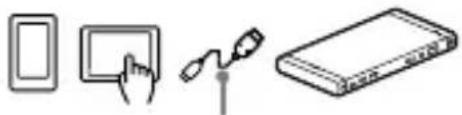
1 Connect the projector to a wall outlet with the USB cable (supplied) and an AC adaptor (sold separately).
The (charge) lamp lights in amber while charging.
AC adaptor

Turning the power on
1 Press and hold the ⏻ (power) button for longer than one second. The ⏻ (power) lamp lights.
To turn off the projector, press and hold the ⏻ (power) button for longer than one second.
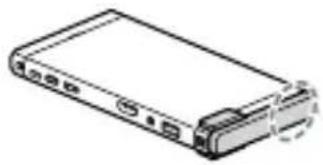
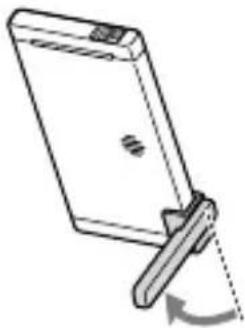
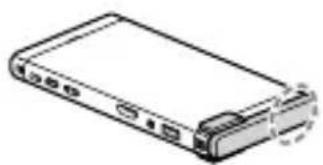
Using the lens cover stand
When protecting the projector's lens
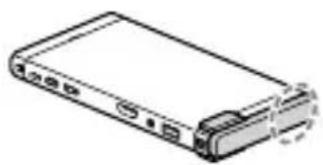
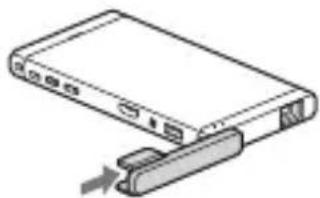
Attach the lens cover stand by sliding from left to right.
1

natural_image
Illustration of a device with an attached cable or connector (no text or symbols visible)2

natural_image
Line drawing of a rectangular electronic device with ports and a handle (no text or symbols)When projecting on a wall or in front
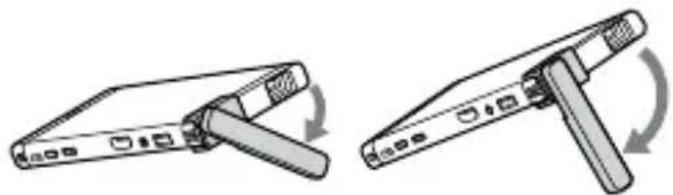
Attach the lens cover stand by sliding from left to right, then rotate the stand and adjust the tilt of the projector to set the projection position.
1

natural_image
Illustration of a device with an attached cable or connector (no text or symbols visible)2

natural_image
Illustration of a computer monitor with a scroll wheel, showing no text or symbols
natural_image
Diagram of a handheld device with a lever and scroll, showing no text or symbolsWhen projecting on the ceiling
Attach the lens cover stand by sliding it from the bottom to the top, then rotate the stand.
1

natural_image
Simple line drawing of a rectangular device with a handle and arrow indicating rotation (no text or symbols)2
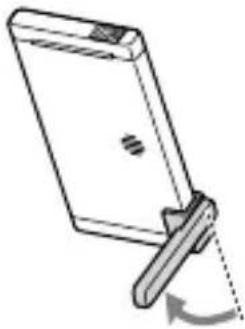
natural_image
Simple line drawing of a smartphone with a lever and scroll, no text or symbols presentNotes
- When taking out the projector from the carrying pouch, hold its body tightly.

natural_image
Diagram of a device with a rolled-up sheet and circular arrows indicating motion or force (no text or symbols)- Slide the lens cover stand when you attach or remove it from the projector.
Connecting your Device
- Android device page 11 or page 12
You can connect your device by using screen mirroring or an MHL connection if your device is compatible.
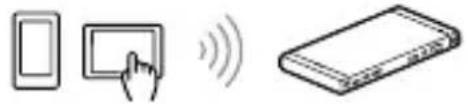
Screen mirroring (see page 11)
natural_image
Simple line drawings of a device with a hand interacting with a screen and a wireless signal icon next to a closed book (no text or symbols)MHL connection (see page 12)

natural_image
Simple line drawings of four electronic devices: a tablet, a screen with a scroll, and a closed book (no text or symbols)MHL cable (sold separately)
- iOS device page 12
You can connect your device by using an HDMI connection. For the HDMI connection, an Apple Digital AV adapter is required.

natural_image
Illustration of five different electronic devices: a screen, a touchscreen, a plug, and a USB drive (no text or symbols present)Apple Digital AV adapter (sold separately)
HDMI cable (sold separately)
• HDMI device (PC, game, and so on) → page 12
You can connect your device by using an HDMI connection.

natural_image
Illustration of five different devices: laptop, game controller, rolled documents, cable with connector, and rectangular book (no text or symbols)HDMI cable (sold separately)
Projecting the Contents or Screen of the Connecting Device
To enhance your viewing experience
- Project in a dark setting for best picture quality
- Project close to viewing surface in medium-light
- Project with confidence – it will focus automatically
You can connect other devices to the projector by using screen mirroring or cables.
Connecting via screen mirroring
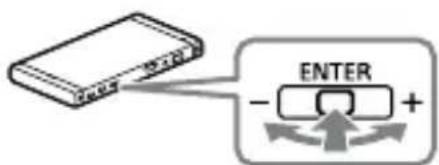
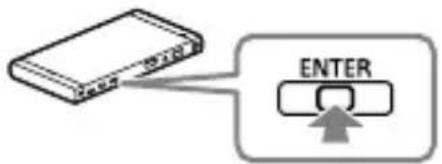
1 Press the jog lever while at the "ENTER" position to display the menu of the projector.

flowchart
graph TD
    A["Device"] --> B["ENTER"]
    style B fill:#f9f,stroke:#333
2 Select [ -out change] - [ Screen mirroring] in the menu.
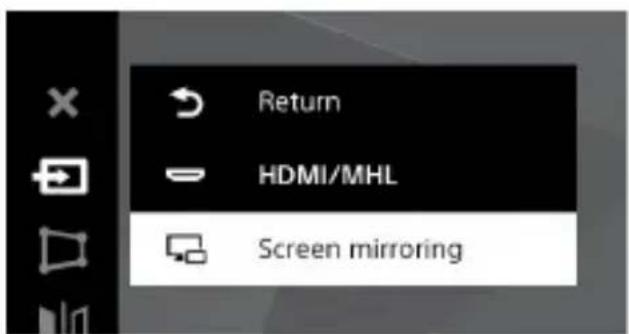
3 Enable the screen mirroring function of your device.
A list of connectable devices is displayed on the screen of your device.
For details, refer to the instruction manual of your device.
4 Select the projector (MP-CL1A) in the list.
5 Select [ Return] - [ ] in the menu of the projector to exit the menu.
The screen of the connected device is projected.
Notes
- Screen mirroring utilizes Miracast technology. Therefore, a connection can be formed with devices including PC that comply with Miracast. It is necessary for the transmitting device to support HDCP (High-bandwidth Digital Content Protection) 2.0/2.1/2.2.
- Apple devices cannot connect via screen mirroring. It requires an Apple Digital AV adapter (sold separately).
- Depending on the specification of the AC adaptor or the projecting contents, the battery remaining may decrease while connecting to the AC adaptor.
Connecting via HDMI or MHL cable
1 Connect other devices to the HDMI/MHL IN jack using an HDMI cable (sold separately) or MHL cable (sold separately).
2 Press the jog lever while at the "ENTER" position to display the menu of the projector.

3 Select [ - input change] - [ HDMI/MHL] in the menu.

4 Select [ Return] - [ ] to exit the menu.
The content of the connected device is projected.
Notes
- Not all video devices have HDMI connectivity or MHL connectivity. To see if your video device has any of these capabilities, check its specifications or contact its manufacturer.
• Apple devices require an Apple Digital AV adapter (sold separately). - Depending on the specification of the AC adaptor or the projecting contents, the battery remaining may decrease while connecting to the AC adaptor.
Connecting to External Speakers or Headphones
You can connect your speaker or headphone to the projector by using Bluetooth connection or cables.
When you use a Bluetooth connection and screen mirroring connection simultaneously, connect your device to the projector by the Bluetooth connection first.
Connecting via Bluetooth® connection
1 Set your speaker or headphone to pairing mode.
For details, refer to the instruction manual of your device.
2 Press the jog lever while at the "ENTER" position to display the menu of the projector.
3 Select [Bluetooth function] - [Bluetooth function ON] in the menu.

The Bluetooth mark (gray) appears on the screen, and the projector shifts into the pairing mode.
4 Select [ Device list] in the menu.

5 Select the device you want to connect with the projector from [Available devices] (or [Paired devices]), then select [Connect]. If passkey* entry is required, refer to the instruction manual or manufacturer of the device.
* A Passkey may be called a "Passcode," a "PIN code," a "PIN number," or a "Password."
6 Make sure that the Bluetooth mark color in the screen is blue. If the mark color is gray, it means it is unconnected. In this case, retry steps 1 and from 4 to 5.
Connected (Blue)

Unconnected (Gray)
7 Select [Close] - [ ] in the menu of the projector to exit the menu.
Hints
- While you use a Bluetooth connection, screen mirroring connection is available via the 5 GHz wireless network only. Depending on your country or device, the specifications of the projector may not allow you to perform a simultaneous connection to Bluetooth and screen mirroring function.
- When sound synchronization problems occur, use the lip-sync function. Depending on the specifications of your speaker, headphones, or device, a sound synchronization problem may occur even if the lip-sync function is ON.
- Depending on the Bluetooth device, the projector may be connected with your speakers or headphones automatically as soon as they are paired.
- The Bluetooth connection of the projector is only available for connecting with external Bluetooth speakers or headphones.
- If your Bluetooth device is not displayed on [Available devices], select [Refresh] and wait until your device is displayed.
- When you connect a device other than the paired device to the projector, select [Refresh] to update the available device list.
- You can add up to 10 devices in [Paired devices].
- Select [Forget] to delete your device from [Paired devices].
Connecting using a cable
1 Connect your speaker or headphone to the AUDIO OUT jack using a cable.
Troubleshooting
The power does not turn on.
- If the remaining battery power is low or insufficient, charge the battery.
- Use the projector in a location with an ambient temperature of between 0 °C and 35 °C.
- Try turning the power off and on again.
The projector automatically shuts down during use.
- The battery may be depleted. Charge the battery.
- Check that the sleep timer is not turned on in the [Sleep timer] menu.
- The projector automatically shuts down when it overheats. Let it cool down before you operate it again.
- When the projector is in use, connected via MHL and powered by AC adaptor, the rate of power consumption may be more than the rate of charge. Depending on the remaining battery power, the projector may shut down. In the event this happens,
disconnect the MHL connection and connect the projector to a wall outlet to charge with USB cable (supplied) and an AC power adaptor (not supplied).
The ⏻ (power) lamp (white) and the ➡(charge) lamp (red) blink at the same time.
- An internal error may have occurred. Try turning the power off and on again.
The ⏻ (power) lamp (white) and the ➡(charge) lamp (orange) blink at the same time.
- The battery is almost depleted. Charge the battery.
Other devices cannot connect to the projector.
- Not all video devices have HDMI connectivity, MHL connectivity, or screen mirroring function. To see if your video device has any of these capabilities, check its specifications or contact its manufacturer.
An image becomes blurred.
- Set up "Optical alignment" or "Biphase alignment". For details, refer to the "Help Guide".
The projector stops responding.
- Press the power button for more than 15 seconds. Take this action only when the projector freezes. Do not take this action at a normal time.
Specifications
Design and specifications are subject to change without notice.
Dimensions: Approx. 77.0 mm x 149.5 mm x 13.0 mm (3 1/8 inches × 6 inches × 17/32 inches) (W/H/L)
Weight: Approx. 210 g (7.4 oz.)
Operating temperature: 0 °C to 35 °C (32 °F to 95 °F)
Wi-Fi standards supported (Indoor use only in India): IEEE 802.11 a/b/g/n (2.4 GHz/5 GHz)
Bluetooth Specifications Communication system: Bluetooth specification version 3.0 (A2DP, SBC)
Frequency band: 2.4 GHz band (2.4000 GHz - 2.4835 GHz) Modulation method: FHSS Compatible Bluetooth profiles*1 A2DP (Advanced Audio Distribution Profile) Supported Codec*2: SBC*3
Output resolution: 1,920 × 720
Audio output: Φ3.5 Audio Jack Speaker output: 1.0 W
HDMI/MHL input: HDMI/MHL 2 (HDCP1.4)
Diagonal projection image size (under completely dark room): 40 inches at projection distance of 1.15 m/Max.120 inches at projection distance of 3.45 m
Brightness: Average: 32 lumens/Equivalent Brightness: 40 lumens (30% white area)
Color reproducibility: Full color (16,770,000 colors)
Aspect ratio: 16:9
Contrast ratio: 80,000:1
Continuous projecting time (Full charge): Approx. 120 minutes
Light source/light source life: Laser diode/Approx. 10,000 hours
Laser class: Class 3R Wavelength: 445 nm to 639 nm
Beam divergence: 4.5 mrad.
Pulse Frequency: 60 Hz
Output : 206 mW
FOV (horizontal): 42.1°
Input: DC5 V/1.5 A
Li-ion Battery: DC3.8 V/3400 mAh
Charging time: Via AC power adaptor (not supplied): Approx.
3.3 hours
Via USB Type A port:
Approx. 6.3 hours
Output: DC5 V/1.5 A, 1 port
*1 Bluetooth profiles are standardized according to the purpose of the Bluetooth device.
^*2 Codec indicates the audio signal compression and conversion format.
*3 SBC stands for Subband Codec.
Notes on Use
- Do not point the laser light at a mirror, etc. as the reflected laser light may be harmful to eyes.
- Do not use the projector in areas where the use of wireless communications devices is prohibited, such as on airplanes or in hospitals. The projector emits radio wave and may affect electronic and medical appliances (pacemakers, etc.).
- Do not operate the unit if it has been wet or otherwise damaged, to prevent against electric shock, explosion and/or injury.
- Magnetic or electric noise may cause the noise from the projector to become louder or interfere with its wireless communications.
- While using, TV, radio or tuner interference may occur. Use the projector away from these products.
- Access points may not be discovered correctly when there are multiple Wi-Fi access points that use the same channel.
• Children should only use the projector under adult supervision. Keep the projector out of reach of infants.
- Do not block the ventilation holes with hands, etc. When using the projector, be sure to use the stand (supplied) to prevent the ventilation holes from being blocked. Failure to do so would be dangerous as it may result in overheat of the projector.
- Do not put any foreign objects in the ventilation holes.
-
Do not insert your fingernails into the ventilation holes and other slots, nor hook your fingernails on the gaps while using the projector.
-
Do not short-circuit the projector. Do not allow metal objects such as hairpins to come into contact with the projector or its terminals.
- Do not disassemble or modify the projector.
- The battery is built-in with the projector and cannot be removed.
- Do not place the projector in fire nor heat it in a microwave oven or oven.
- Do not allow the projector to get wet with fresh water, sea water, milk, soft drinks or soap water. Do not use the projector while wet.
- Do not use or store the projector in a place where temperature is extremely high, such as near a fire, under direct sunlight, near a heater or in a car parked in the sun. Do not use the projector in a place with poor ventilation, such as while wrapped in a quilt/blanket or in a bag.
- Do not apply a strong impact to the projector. Avoid hitting it with a hammer, putting any heavy object on top, stepping on it or dropping it.
- Avoid continuous contact between your skin and the projector while charging or in use. Doing so may cause
low-temperature burns. Be careful of heat transmitted through clothes as it may also cause low-temperature burns.
- Before connecting a portable device to the projector, attach the portable device's battery pack. Connecting a portable device while its battery is removed may cause loss of data or damage to the portable device.
- It has been reported that some portable devices may incur sudden loss of data recorded to memory whether or not they are used with the projector (for details, refer to the user manual supplied with the portable device). Before using the projector, be sure to back up data recorded to memory. Sony is not liable for loss of data.
- Do not touch or stick your finger into the connection parts.
- Refer also to the manual of the device that you use in conjunction with the projector as you may need to operate the device in order to use it with the projector.
- Sony is not liable for damage or loss resulting from the use of the projector, or for any claim from a third party.
- Sony is not liable for problems with your PC, cell phone or other hardware arising from the use of the projector; the suitability of the product for specific hardware, software, or peripherals; operating conflicts with other installed software; data loss; or other accidental or unavoidable damages.
- Sony is not liable for financial damages, lost profits, claims from third parties, etc., arising from the use of the projector.
- If a malfunction occurs, stop use and contact your Sony dealer or authorized Sony service facility.
- HDMI/MHL cable is not supplied. Recommend to use Sony High Speed HDMI cable. Apple devices require an Apple Digital AV adapter (sold separately).
- When the projector body gets warm with use, the ⏻ (power) lamp (white) blinks or the ⏻ (power) lamp (white) and the
→(charge) lamp (red) blink at the same time. In this case, stop using the projector.
- Keep the distance between your device and the projector at 10 m or less when you connect your device to the projector via a Bluetooth connection.
The effective range of the Bluetooth connection may become shorter depending on the conditions.
- Use the projector in a place where there is no dust or cigarette smoke because the projector is a precision apparatus.
- Before use, take the projector out of the carrying porch.
- Use on a stable or flat surface when using the projector with the lens cover stand.
- Do not place the projector close to credit and other cards. Doing so may result in the loss of recorded data.
Trademarks
- The terms HDMI and HDMI High-Definition Multimedia Interface, and the HDMI Logo are trademarks or registered trademarks of HDMI Licensing LLC in the United States and other countries.
- MHL, Mobile High-Definition Link and the MHL Logo are trademarks or registered trademarks of MHL Licensing, LLC.
- Wi-Fi, the Wi-Fi CERTIFIED logo are registered trademarks of the Wi-Fi Alliance.
- In addition, system and product names used in this manual are, in general, trademarks or registered trademarks of their respective developers or manufacturers. However, the ^TM or ^® marks are not used in all cases in this manual.
- Incorporates the PicoP® display technology developed by Microvision, Inc.
- The Bluetooth® word mark and logos are registered trademarks owned by Bluetooth SIG, Inc. and any use of such marks by Sony Corporation is under license. Other trademarks and trade
names are those of their respective owners.
• Mac is a registered trademark of Apple Inc. in the United States and other countries.
- iPhone is a trademark or a registered trademark of Apple Inc.
WARNING
This device complies with part 15 of the FCC Rules. Operation is subject to the following two conditions: (1) This device may not cause harmful interference, and (2) this device must accept any interference received, including interference that may cause undesired operation. Any changes or modifications (including the antennas) to this device that are not expressly approved by the manufacturer may void the user's authority to operate the equipment.
FCC RF Radiation Exposure Statement: FCC RF Radiation Exposure Statement: This equipment complies with FCC RF Radiation exposure limits set forth for an uncontrolled
environment. This device and its antenna must not be co-located or operating in conjunction with any other antenna or transmitter.
Note : This equipment has been tested and found to comply with the limits for a Class B digital device, pursuant to part 15 of the FCC Rules. These limits are designed to provide reasonable protection against harmful interference in a residential installation This equipment generates, uses and can radiate radio frequency energy and, if not installed and used in accordance with the instructions, may cause harmful interference to radio communications, However, there is no guarantee that interference will not occur in a particular installation. If this equipment does cause harmful interference to radio or television reception, which can be determined by turning the equipment off and on, the user is encouraged to try to correct the interference by one or more of the following measures:
- Reorient or relocate the receiving antenna.
- Increase the separation between the equipment and receiver.
- Connect the equipment into an outlet on a circuit different from that to which the receiver is connected.
- Consult the dealer or an experienced radio/TV technician for help.
Modifications not expressly approved by the manufacturer could void your authority to operate the equipment under FCC rules.
LASER ENERGY - EXPOSURE NEAR APERTURE MAY CAUSE BURNS
RECYCLING LITHIUM-ION BATTERIES

USA and Canada Only
Lithium-Ion batteries are recyclable.
You can help preserve our environment by returning your used rechargeable batteries to the collection and recycling location nearest you.
For more information regarding recycling of rechargeable batteries, call toll free 1-800-822-8837, or visit
http://www.call2recycle.org
Caution: Do not handle damaged or leaking Lithium-Ion batteries.

natural_image
Simple black-and-white triangular warning symbol with a checkmark inside (no text or numbers)
The year and month of manufacture is printed on the bottom of this product at the left. The first four digits stand for the year and the last two stand for the month.
Complies with IDA Standards DA104328
This equipment should be installed and operated with a minimum distance of 20 centimeters between the radiator and your body.
*For USA only.
Customer Service
Phone: (877) 440-3453 or (956) 795-4660 U.S.A.
e-mail: snl.service@am.sony.com
INTERNET: http://www.sony.com/battery
LIMITED WARRANTY
U.S. and Canada only – For one year from the original date of purchase of the product.
Sony Electronics Inc. solely for purchases made in the United States and Sony of Canada Ltd. solely for purchases made in Canada (collectively "Sony") warrants this product against defects in material or workmanship for the original owner and any subsequent end user owner(s) ("You" or "Your") for the time period set forth above as set forth herein. Pursuant to this Limited Warranty, Sony will, at its option, (i) repair the product using new or refurbished parts or (ii) replace the product with a new or recertified/refurbished product of the same (or similar) model. For purposes of this Limited Warranty, "recertified" or "refurbished" means a product or part that has been returned to its original specifications. In the event of a defect, these are Your exclusive remedies.
Sony does not warrant that the operation of the product will be uninterrupted or error-free.
Term: For the time period set forth above from the original date of purchase of the product when purchased directly from Sony or Sony authorized dealer (To determine if a dealer is in the Sony authorized dealer network, please visit US: www.sony.com/retailers;
Canada: https://dealerlocator.sony.ca/locator; or contact Sony directly), Sony will, at its option, repair or replace with a new, recertified or refurbished product or part, any product or part determined to be defective.
This Limited Warranty covers only the hardware components packaged with the product. It does not cover separate accessories, technical assistance for hardware or software usage and it does not cover any software products whether or not contained in the product, and other included content; any such software or other included content is provided "AS IS" unless expressly provided for in any enclosed software Limited Warranty or End User License Agreement. Please refer to the End User License Agreement(s) included with the product for Your rights and obligations with respect to the software or other included content. If You purchased an extended service plan, please refer to the service plan for the coverage, duration and terms of service. Extended service plans are not governed by this Limited Warranty.
To obtain warranty service, You must deliver the product, in either its original packaging or packaging affording an equal degree of protection to a Sony authorized service center together with a dated purchase receipt in order to obtain warranty service. Sony cannot guarantee that it will be able to repair any product under this warranty or make a product exchange without risk to or loss of software or data. It is Your responsibility to remove or backup any removable media or parts, data, software or other materials You may have stored or preserved on Your product. It is likely that any media or parts, data,
software, or other materials (like pictures, music, videos, etc.) will be lost or reformatted during service and Sony will not be responsible for any such damage or loss. Contact the following for specific instructions on how to obtain warranty service for Your product:
For purchases made in the UNITED STATES:
Visit Sony's Website: www.sony.com/support
Or call the Customer Experience Center: 1-800-222-SONY (7669)
To register Your product or for contact information to purchase accessories or parts go to Sony's Website
For purchases made in CANADA:
Visit Sony's Website: www.sony.ca/support
Or call the Customer Experience Center: 1-877-899-SONY (7669)
To register Your product or for contact information to purchase accessories or parts go to Sony's Website
On-site service for televisions of certain dimensions may be available to a customer living within a 50km radius of an authorized Sony service facility, provided the residence can be accessed by an on-road service vehicle.
Repair/Replacement Warranty: This Limited Warranty shall apply to any repair, replacement part or replacement, recertified or refurbished product for the remainder of the original Limited Warranty period or for ninety (90) days, whichever is longer. Any parts or product replaced under this Limited Warranty will become the property of Sony. Any replacement, recertified or refurbished product provided under this Limited Warranty may, at Sony's
option, vary in color and/or cosmetic design from the original product and may not include any original engraving or similar customization/personalization.
Sony is not responsible for, and this Limited Warranty does not cover, any damage arising from a failure to operate the product within its intended uses, or otherwise follow the owner's manual and safety instructions relating to the product's use and installation. This Limited Warranty only covers product issues caused by defects in material or workmanship during ordinary consumer use. This Limited Warranty does not cover products purchased from sources other than Sony or a Sony authorized dealer (including non-authorized online auctions), or issues due to: (i) outdoor exposure and other acts of nature; (ii) power surges; (iii) accidental damage; (iv) abuse; (v) limitations of technology; (vi) cosmetic damage; (vii) contact with liquid, heat, humidity or perspiration, sand, smoke, or foreign materials; (viii) use of parts or supplies not sold or authorized by Sony; (ix) servicing not authorized or performed by Sony or a Sony authorized service center; (x) computer or internet viruses, bugs, worms, or Trojan Horses; (xi) malfunctions due to peripherals/accessories; (xii) modifications of or to any part of the product, including "rooting" or other modifications to control the behavior of the product or any factory installed operating system; (xiii) consumable parts such as batteries; or (xiv) any product where the factory-applied serial number has been altered or removed from the product. Further, to the extent this product incorporates use of a display, please note that a display contains hundreds of thousands of individual
pixels, and displays typically contain a small number of pixels that do not function properly. This Limited Warranty does not cover up to .01% pixel outages (small dot picture elements that are dark or incorrectly illuminated).
This Limited Warranty does not cover Sony products sold "AS IS" or "WITH ALL FAULTS" or consumables (such as fuses or disposable batteries). Sony will not replace missing components from any package purchased "Open Box" or "AS IS". This Limited Warranty is valid only in the United States and Canada (as applicable).
LIMITATION ON DAMAGES: SONY SHALL NOT BE LIABLE FOR ANY INCIDENTAL OR CONSEQUENTIAL DAMAGES FOR BREACH OF ANY EXPRESS OR IMPLIED WARRANTY OR CONDITION ON THIS PRODUCT. NOR SHALL RECOVERY OF ANY KIND AGAINST SONY BE GREATER THAN THE ORIGINAL PURCHASE PRICE OF THE PRODUCT FROM SONY OR AN AUTHORIZED SONY DEALER.
DURATION OF IMPLIED WARRANTIES OR CONDITIONS: EXCEPT TO THE EXTENT PROHIBITED BY APPLICABLE LAW, ANY IMPLIED WARRANTY OF MERCHANTABILITY OR FITNESS FOR A PARTICULAR PURPOSE ON THIS PRODUCT IS LIMITED IN DURATION TO THE DURATION OF THIS LIMITED WARRANTY.
Some jurisdictions do not allow the exclusion or limitation of incidental or consequential damages, or allow limitations on how long an implied warranty lasts, so the above limitations or exclusions may not apply to You. This Limited Warranty gives You specific legal rights and You may have other rights which vary from jurisdiction to
jurisdiction.
For purchases made in the U.S.: Read the following Dispute Resolution/Arbitration provision carefully. It details Your rights and instructions should a dispute related to the product arise.
What Happens If We Have A Dispute: Should a dispute or claim arise related to the product, Your purchase and/or use of the product, the terms of this Limited Warranty, or any service provided under the terms of this Limited Warranty (including any repair or replacement) ("Dispute"), You and Sony agree that the Dispute shall be resolved exclusively through binding arbitration. YOU UNDERSTAND AND ACKNOWLEDGE THAT BY AGREEING TO ARBITRATION, YOU ARE GIVING UP THE RIGHT TO LITIGATE (OR PARTICIPATE IN AS A PARTY OR CLASS MEMBER) IN ANY DISPUTES IN COURT. You also agree that ANY DISPUTE RESOLUTION PROCEEDING WILL ONLY CONSIDER YOUR INDIVIDUAL CLAIMS, AND BOTH PARTIES AGREE NOT TO HAVE ANY DISPUTE HEARD AS A CLASS ACTION, REPRESENTATIVE ACTION, CONSOLIDATED ACTION, OR PRIVATE ATTORNEY GENERAL ACTION. Despite the above, You have the right to litigate any Dispute on an individual basis in small claims court or other similar court of limited jurisdiction, to the extent the amount at issue does not exceed \$15,000, and as long as such court has proper jurisdiction and all other requirements (including the amount in controversy) are satisfied.
Arbitration Instructions. To begin Arbitration, either You or Sony must make a written demand to the other for
arbitration. The Arbitration will take place before a single arbitrator. The arbitration will be administered in keeping with the Expedited Procedures of the Commercial Arbitration Rules and the Supplementary Proceedings for Consumer-Related disputes (“Rules”) of the American Arbitration Association (“AAA”), when applicable and in effect when the claim is filed. You may get a copy of AAA’s Rules by contacting AAA at (800) 778-7879 or visiting www.adr.org. The filing fees to begin and carry out arbitration will be shared between You and Sony, but in no event shall Your fees ever exceed the amount allowable by the special rules for Consumers Disputes provided for by AAA, at which point Sony will cover all additional administrative fees and expenses. This does not prohibit the Arbitrator from giving the winning party their fees and expenses of the arbitration when appropriate pursuant to the Rules. Unless You and Sony agree differently, the arbitration will take place in the county and state where You live, and applicable federal or state law shall govern the substance of any Dispute during the arbitration. However, the Federal Arbitration Act, 9 U.S.C. § 1, et seq., will govern the arbitration itself and not any state law on arbitration. The Arbitrator’s decision will be binding and final, except for a limited right of appeal under the Federal Arbitration Act.
Opt-Out Instructions. IF YOU DO NOT WISH TO BE BOUND BY THE BINDING ARBITRATION PROVISION,
THEN: (1) You must notify Sony in writing within 30 days of the date that You purchased the product; (2) Your written notification must be mailed to Sony Electronics Inc., 16535 Via Esprillo, MZ 1105, San Diego CA 92127, Attn:
Legal Department; AND (3) Your written notification must include (a) Your NAME, (b) Your ADDRESS, (c) the DATE You purchased the product, and (d) a clear statement that "YOU DO NOT WISH TO RESOLVE DISPUTES WITH ANY SONY ELECTRONICS ENTITY THROUGH ARBITRATION AND/ OR BE BOUND BY THE CLASS ACTION WAIVER."
Opting out of this dispute resolution procedure will not affect the coverage of the Limited Warranty in any way, and You will continue to enjoy the benefits of the Limited Warranty. (T31-1)

C€ 0678

CERTIFIED
HDMI ^TM
HIGH-DEFINITION MULTIMEDIA INTERFACE
*MHL™
Índice
[ ⓘ Information] → [ ?Help guide]
PROYECTOR PORTATIL
MODELO MP-CL1A
POR FAVOR LEA DETALLADAMENTE ESTE MANUAL DE INSTRUCCIONES ANTES DE CONECTAR Y OPERAR ESTE EQUIPO. RECUERDE QUE EL MAL USO DE ESTE APARATO PODRIA ANULAR LA GARANTIA.
natural_image
Illustration of a device with an attached cable or connector (no text or symbols visible)2
natural_image
Line drawing of a rectangular electronic device with ports and a side panel (no text or symbols)natural_image
Illustration of a device with an attached cable or connector (no text or symbols visible)2

natural_image
Illustration of a computer monitor with a scroll wheel, showing no text or symbols
natural_image
Diagram of a handheld device with a scroll wheel and arrow indicating rotation (no text or symbols)natural_image
Simple line drawing of a rectangular device with a handle and arrow indicating rotation (no text or symbols)2

natural_image
Simple line drawing of a smartphone with a lever and scroll, no text or symbols presentNotas
natural_image
Diagram of a device with a rolled-up sheet and circular arrows indicating motion or movement (no text or symbols)natural_image
Simple line drawings of a device with a hand interacting with a screen and a closed book, all without any text or symbols.natural_image
Illustration of four electronic devices: a screen, a hand interacting with a screen, a pen, and a closed book (no text or symbols)natural_image
Illustration of five different electronic devices: a screen, a hand interacting with a screen, a plug, a cable, and a hard drive (no text or symbols present)natural_image
Illustration of five different devices: laptop, gaming console, photo album, cable with connector, and hardcover (no text or symbols)[ ⓘ Information] → [ ?Help guide]
natural_image
Illustration of a USB flash drive with an external cable (no text or symbols)2

natural_image
Line drawing of a rectangular electronic device with ports and connectors (no text or symbols)natural_image
Illustration of a USB flash drive with an external port and cable (no text or symbols)2

natural_image
Simple line drawing of a device with a handle and scroll, no text or symbols present
natural_image
Diagram of a mechanical device with a lever and rotating arrow (no text or symbols)Ao projetar no teto
natural_image
Simple line drawing of a rectangular device with a handle and arrow indicating rotation (no text or symbols)2

natural_image
Simple line drawing of a smartphone with a lever and scroll, no text or symbols presentNotas
natural_image
Diagram of a device with a rolled-up sheet and circular arrows indicating motion or force (no text or symbols)natural_image
Simple line drawings of a device with a hand interacting with a screen and a closed book, all without any text or symbols.natural_image
Line drawings of four electronic devices: a tablet, a screen with a finger, a pen tip, and a closed book (no text or symbols)natural_image
Pure electrical circuit components without any text or symbolsAdaptador AV digital da Apple (vendido separadamente)
natural_image
Illustration of five different electronic devices: laptop, game controller, cable, and hard drive (no text or symbols)Classe do laser: Classe 3R
Comprimento de onda: 445 nm a 639 nm
[① Information] → [?Help guide]
natural_image
Diagram of a computer RAM module with an attached USB cable (no text or symbols)2

natural_image
Line drawing of a rectangular electronic device with ports and a side panel (no text or symbols)벽 또는 정면에 투영하는 경우
natural_image
Diagram of a device with ports and an attached cable, showing no text or symbols2

natural_image
Diagram showing two mechanical device configurations with rotating arms (no text or symbols)천장에 투영하는 경우
natural_image
Simple line drawing of a rectangular device with a handle and a small protrusion, no text or symbols present.2

natural_image
Line drawing of a smartphone with a lever and curved arrow indicating rotation (no text or symbols)주의점
natural_image
Illustration of a rolled-up document or scroll with a circular arrow indicating rotation (no text or symbols present)natural_image
Simple line drawings of a device with a hand interacting with a screen and a wireless signal icon next to a closed book (no text or symbols)
natural_image
Four line-drawn icons: a tablet, a hand pointing at a screen, a pen tip with a string, and a closed book (no text or symbols)MHL 케이블(별매품)
- iOS 장치 → 12페이지
natural_image
Illustration of five different objects: a laptop, game controller, rolled documents, cable with wires, and a closed book (no text or symbols)HDMI 케이블(별매품)
[ ⓘ Information] → [? Help guide]
natural_image
Diagram of a device with an attached cable or connector, showing ports and a directional arrow (no text or symbols present)2

natural_image
Line drawing of a rectangular electronic device with ports labeled S18 and 3000 (no text or symbols beyond labels)natural_image
Diagram of a device with ports and an attached cable, showing no text or symbols2

natural_image
Illustration of a computer monitor with an open button and scroll, showing no text or symbols.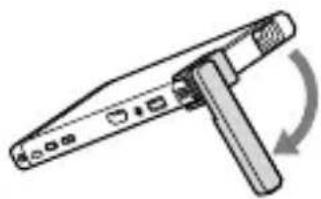
natural_image
Diagram of a mechanical device with a lever and curved arrow indicating rotation (no text or symbols)natural_image
Simple line drawing of a rectangular object with a handle and a small protrusion, no text or symbols present.2
natural_image
Simple line drawing of a smartphone with a lever and curved arrow indicating rotation (no text or symbols)หมายเหตุ
natural_image
Diagram of a device with a cable wrapped around it, showing two circular components (no text or symbols)natural_image
Simple line drawings of a device with a screen, hand icon, and wireless signal icon (no text or symbols)
natural_image
Four simple line drawings: a rectangle, a tablet with a hand, a pen tip, and a closed book (no text or symbols)natural_image
Illustration of five different electronic devices: laptop, game controller, battery pack, cable, and hardcover (no text or symbols)A2DP (Advanced Audio Distribution Profile)
[① Information] → [? Help guide]
“說明指南”也有網路版。
http://www.sony.net/SonyInfo/Support/

natural_image
Diagram of a device with a USB cable inserted into a slot (no text or symbols)2
natural_image
Line drawing of a rectangular electronic device with ports and connectors (no text or symbols)在牆壁或前方投影時
natural_image
Illustration of a computer hard drive with a USB cable and connector (no text or symbols)2
natural_image
Diagram showing two mechanical device configurations with rotating arms (no text or symbols)在天花板投影時
natural_image
Line drawing of a rectangular electronic device with a handle and cable, no text or symbols present2

natural_image
Line drawing of a smartphone with a lever and scroll, no text or symbols present注意
natural_image
Illustration of a rolled-up document or paper being inserted into a device (no text or symbols visible)natural_image
Simple line drawings of a device with a hand interacting with a screen and a separate book icon emitting sound waves (no text or symbols)MHL連接
(請參閱第12頁)
natural_image
Illustration of four electronic devices: a tablet, a hand interacting with a screen, a pen tip, and a closed book (no text or symbols)MHL纜線(另售)
natural_image
Illustration of five different electronic devices: laptop, game controller, cable, pen, and book (no text or symbols)HDMI纜線(另售)
投射連接裝置的內容或畫面
若要提升您的觀賞體驗
natural_image
Abstract geometric pattern with interlocking arrows forming a star-like shape (no text or symbols)廢電池請回收
生產國別:韓国
製造廠商:Sony Corporation
進口商:台灣索尼股份有限公司
地址:台北市長春路145號5樓
諮詢專線:4499111
[① Information]→ [? Help guide]
产品中有害物质的名称及含量
natural_image
Illustration of a USB flash drive with an external port and cable attachment (no text or symbols)2
natural_image
Line drawing of a rectangular electronic device with ports and connectors (no text or symbols)当投影到墙壁或前方时
natural_image
Illustration of a computer drive with an open rear panel and cable (no text or symbols)2

natural_image
Diagram showing two views of a device with lever mechanism, no text or symbols present当投影到天花板上时
natural_image
Simple line drawing of a rectangular device with a handle and arrow indicating rotation (no text or symbols)2

natural_image
Simple line drawing of a smartphone with a lever and curved arrow indicating rotation (no text or symbols)注意
natural_image
Illustration of a rolled-up document or scroll with a magnified inset showing a circular detail (no text or symbols)natural_image
Simple line drawings of a device with a hand interacting with a screen and a separate rectangular book with a Wi-Fi signal (no text or symbols)MHL连接
(参见第16页)

natural_image
Illustration of four common objects: a tablet, a hand interacting with the screen, a pen tip, and a closed book (no text or symbols)MHL电缆(另售)
natural_image
Illustration of five different electronic devices and tools: a tablet, a screen with a plug, a square connector, a pen tip, and a rectangular device (no text or symbols present)Apple数字AV适配器
(另售)
HDMI电缆
(另售)
natural_image
Illustration of five different electronic devices: laptop, game controller, cable, and USB drive (no text or symbols)HDMI电缆(另售)
投影连接设备的内容或画面
增强您的观看体验
natural_image
Illustration of four common objects: a tablet, a hand interacting with it, a pen tip, and a closed book (no text or symbols)natural_image
Three icons: a smartphone, a hand interacting with a screen, and a closed book with wireless signal (no text or symbols)natural_image
Illustration of five different electronic devices: a screen, a touch screen, a connector, a plug, and a hardcover (no text or symbols present)natural_image
Illustration of five different electronic devices: laptop, gaming console, battery pack, cable, and hardcover (no text or symbols)natural_image
Diagram of a smartphone with a lever and curved arrow indicating rotation (no text or symbols)2

natural_image
Simple line drawing of a rectangular device with a handle and arrow indicating rotation (no text or symbols)1
ملاحظات
• سمه بإحكام.

natural_image
Diagram of a mechanical component with two circular features, no text or symbols presentبهاز العرض. ج
تشخيل الطاقة
natural_image
Line drawing of a rectangular electronic device with ports labeled Q000, Q10, and Q20 (no text or symbols on the body)2
natural_image
Diagram of a device with an attached cable or connector, showing ports and a directional arrow (no text or symbols present)1
natural_image
Diagram of a mechanical tool with a rotating arrow indicating rotation (no text or symbols)
natural_image
Illustration of a computer monitor with an open screen and scroll, showing no text or symbols.2

natural_image
Illustration of a computer drive with a USB cable inserted (no text or symbols)1
[?Help guide] ← [information]
جدول المحتويات


- Table of Contents
- Checking the Bundled Items....4
- Parts and Controls....5
- Getting Started 7
- Connecting your Device....10
- Projecting the Contents or Screen of the Connecting Device....11
- Connecting to External Speakers or Headphones ..14
- Troubleshooting....17
- Specifications....18
- Notes on Use....19
- Trademarks 22
- WARNING....22
- More information
- CAUTION
- Checking the Bundled Items
- Parts and Controls
- About the status of lamp
- Getting Started
- Charging the projector
- Turning the power on
- Using the lens cover stand
- When projecting on a wall or in front
- When projecting on the ceiling
- Notes
- Connecting your Device
- Projecting the Contents or Screen of the Connecting Device
- To enhance your viewing experience
- Connecting via screen mirroring
- Connecting via HDMI or MHL cable
- Connecting to External Speakers or Headphones
- Connecting via Bluetooth® connection
- Select [Close] - [ ] in the menu of the projector to exit the menu.
- Hints
- Connecting using a cable
- Troubleshooting
- The power does not turn on.
- The projector automatically shuts down during use.
- The ⏻ (power) lamp (white) and the ➡(charge) lamp (red) blink at the same time.
- The ⏻ (power) lamp (white) and the ➡(charge) lamp (orange) blink at the same time.
- Other devices cannot connect to the projector.
- An image becomes blurred.
- The projector stops responding.
- Specifications
- Notes on Use
- Trademarks
- WARNING
- LASER ENERGY - EXPOSURE NEAR APERTURE MAY CAUSE BURNS
- RECYCLING LITHIUM-ION BATTERIES
- USA and Canada Only
- Complies with IDA Standards DA104328
- Customer Service
- LIMITED WARRANTY
- For purchases made in the UNITED STATES:
- For purchases made in CANADA:
- Opt-Out Instructions. IF YOU DO NOT WISH TO BE BOUND BY THE BINDING ARBITRATION PROVISION,
- Índice
- PROYECTOR PORTATIL
- MODELO MP-CL1A
- Notas
- Ao projetar no teto
- 주의점
- หมายเหตุ
- 在天花板投影時
- 注意
- 投射連接裝置的內容或畫面
- 廢電池請回收
- 当投影到墙壁或前方时
- 投影连接设备的内容或画面
- 增强您的观看体验
- جدول المحتويات
Brand : SONY
Model : MP-CL1A
Category : Projector