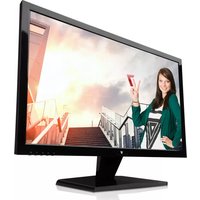
L27000WHS-9E - Monitor V7 - Free user manual and instructions
Find the device manual for free L27000WHS-9E V7 in PDF.


| Product Type | Monitor |
| Brand | V7 |
| Model | L27000WHS-9E |
| Screen Size | 27 inches |
| Resolution | 1920 x 1080 (Full HD) |
| Aspect Ratio | 16:9 |
| Refresh Rate | 60 Hz |
| Panel Type | LED |
| Connectivity | HDMI, VGA, Audio Out |
| Power Consumption | 30W (typical), <0.5W (standby) |
| Dimensions (W x H x D) | 24.2 x 17.7 x 7.9 inches (with stand) |
| Weight | 12.3 lbs (5.6 kg) |
| VESA Mount Compatible | 100 x 100 mm |
| In the Box | Monitor, Stand, Base, Power Cable, HDMI Cable, VGA Cable, User Manual |
| Safety Features | Anti-glare screen, Kensington lock slot |
| Cleaning Instructions | Wipe with soft dry cloth; do not use liquid cleaners |
| Repairability | No user-serviceable parts; contact V7 support for service |
| Warranty | 3 years limited warranty |
Frequently Asked Questions - L27000WHS-9E V7
User questions about L27000WHS-9E V7
0 question about this device. Answer the ones you know or ask your own.
Ask a new question about this device
Download the instructions for your Monitor in PDF format for free! Find your manual L27000WHS-9E - V7 and take your electronic device back in hand. On this page are published all the documents necessary for the use of your device. L27000WHS-9E by V7.
USER MANUAL L27000WHS-9E V7
The v7 LED Monitor provides superior image quality with vivid colors and lifelike images. Our LED backlight technology saves you up to 40% energy and yields blacker blacks, pure white and more clearly defined grays for a vivid picture.
Safety Precautions and Maintenance
- Use a clean, soft cloth to clean the screen.
- Do not sue ammonia based liquids.
- Do not cover the ventilation holes on the back.
- Avoid placing the monitor near a heater
- Place the monitor in a secure portion to avoid falling
- Do not place heavy items on the monitor or powercard.
- Do not open the back pane
Contents
Power cord
• Warranty Card
- User's manua CD
Features
• 16.7 million colors
- On-Screen Display (OLED) is easy to use with a simple layout
- Auto function - 2 no settings are defined, it will auto adjust to optimum settings
Basic Setup
- Insert the desired cable into the matching connector on your computer.

......

2014年1月1日

HUV connector

Audio connector
- Connect the power cord from the motor power supply to an outlet.
- To turn on the monitor, press the power button
Monitor Controls
The control panel has five buttons to adjust the monitor settings.
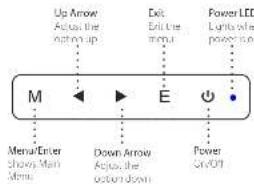
Adjustment Settings


Brightness Image
Secondary Sex
Merulen Main Me
Lvera Sumentes
| Brightness - Contract | Active double double | |
| Active double or double | ||
| Eco | Standard | Non-1.5 cm, mode |
| Tech | Test applied on mode | |
| Guns | Guns applied on mode | |
| Mobile | Mobile phone and telephone mode | |
| User 1.2PPI | User set 1 | |
| User 2.2PPI | User set 2 | |
| DCR | ON | Onset on |
| DFT | Onset on |
1 - Dynamic Contrast Ratio





| I Position | Notes the picture horizontal position | |
| V Postor | - | Adjust the image in vertical position |
| Clock | - | Adjust the picture to the horizontal position |
| Photo | Adjust the image, photo, and view the horizontal position | |
| Aspect | Auto | Adjust the visual objects of the image, view the object name: 2014 (RGB=20.1, orange=27) |
| Water | Adjust the image object name to view the object name | |
| 3 | Adjust the image object name to view the object name |
| Color is mp | Warm | Seat warm color warm tempur |
| Cool | Hot or cold color warm tempur | |
| SGB (GB) | Soat 2/18 color temperature | |
| User | Hot water in temperature | |
| Red | - | Hot turns and color warm tempur |
| Green | - | Hotly turn, heat or cold tempur |
| Blue | - | Very cool, heat or cold tempur |
Subveru
Deictor
Main Meruiter
OSD Setting
ecordaly
Subsea
Description
| Language | Select the language classes by OED micro-English French German, Empirical English, Latin American English, Latin American British, South African | |
| OED-POS- | - | Apply the language classes |
| OED-VPOS- | - | Apply OED foreign languages |
| OED Time- | - | Apply the language classes |
| Transparency- | - | Apply OED proficiency |
Mall Meu Leen

Reset
Second
| Image Auto Adjust - | Auto adjust the internal level for section lines and track the line |
| Color Auto Adjustment - | Audio write balance |
| Reset | Auto set to be stationary |
| Auto Power Down | Signal-impedance, amplitude 1000mm |
Sobriela
Description
Main Merußet

Misc
Second day
Subtrend
Description
| Signal Source | VGA | VGA signal output |
| DAI | DIAI signal output | |
| IFM129* | IFM129 signal input | |
| Mode | ON | onset ON |
| OUT | Sound On (only label for the mode output) | |
| Volume* | Input source volume is by the label for the mode output |
*Note: For VOLUME function, please ensure the audio is connected to the sound card of the computer or to the output source of any media player with a 3.5 mm stereo socket.
Trouble Shooting
No Image on Screen
• Check if the power button has been switched on
- Verify the brightness and contrast of the monitor is within the normal setting.
- Check if the power indicator is flashing. If so, it's indicates that the monitor is not receiving the input signal
- If the signal indicator is a notebook or laptop, make sure that the signal has been switched to screen mode.
• Make sure that the computer is turned on and is not sleeping.
• Make sure that the correct input is selected.
- Do not open the back panel.
Out of Focus
• Check if the image signal cable is inserted properly.
Flashing Screen
• The power's insufficient to connect the monitor or is too weak.
• To avoid a magnetic field around the monitor, move devices like speakers, fluorescent lights, AC transformers, table fans, etc. farther away.
- By pressing the ExL Key, the Auto Adjust. Image function will automatically apply optimized settings to the display.
Wrong or Unusual Color
- Fred, green blue, or any of the color disappears, check to see if the signal cord is connected properly. If the club is loose it might cause a bad connection.
• Try connecting another PC for comparison.
Horizontal Screen Rolling
• Selrighter the signal cable.
Cleaning
Cleaning The Monitor
• Make sure that the monitor power has been switched off.
• Do not spray any liquid on the screen or on the plastic panel directly.
Cleaning the Screen
• Use a clean, soft cloth to clean the screen.
- If needed, compensate soft cloth with non ammonia/non-alcohol glass cleaner to clean the screen.
Cleaning the Plastic Panel
- Use a soft, dry cloth. It needed, dampen a soft cloth with non-ammonia/non-acohol glass cleaner.

natural_image
Abstract blue geometric logo resembling a stylized letter or symbol (no text or symbols present)
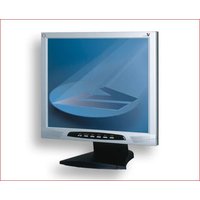
Brand : V7
Model : L27000WHS-9E
Category : Monitor