
Emma - Karaoke system BIGBEN INTERACTIVE - Free user manual and instructions
Find the device manual for free Emma BIGBEN INTERACTIVE in PDF.


| Product Type | Karaoke System |
| Brand | Bigben Interactive |
| Model | Emma |
| Dimensions (approx.) | 30 cm x 20 cm x 10 cm |
| Weight | 1.5 kg |
| Power Source | USB-C 5V DC or 4 x AA batteries (not included) |
| Microphone | Wired dynamic microphone included |
| Bluetooth | Yes, for music streaming from smartphone/tablet |
| Audio Output | Built-in speaker, 3.5 mm headphone jack |
| Voice Effects | Echo and pitch control |
| Playback Modes | Bluetooth, AUX input, USB flash drive (MP3) |
| LED Lights | Multi-color party lights |
| Material | Plastic housing |
| Maintenance | Wipe with a soft dry cloth; do not use liquids |
| Safety Warnings | Keep away from water and heat sources; not for children under 3 years |
| Spare Parts | Microphone, USB cable, AUX cable (available separately) |
| Repairability | User replaceable batteries; speaker and electronics not serviceable |
| Included Accessories | 1 microphone, 1 USB cable, 1 AUX cable, user manual |
Frequently Asked Questions - Emma BIGBEN INTERACTIVE
User questions about Emma BIGBEN INTERACTIVE
0 question about this device. Answer the ones you know or ask your own.
Ask a new question about this device
Download the instructions for your Karaoke system in PDF format for free! Find your manual Emma - BIGBEN INTERACTIVE and take your electronic device back in hand. On this page are published all the documents necessary for the use of your device. Emma by BIGBEN INTERACTIVE.
USER MANUAL Emma BIGBEN INTERACTIVE
KARAOKEpROBOTp
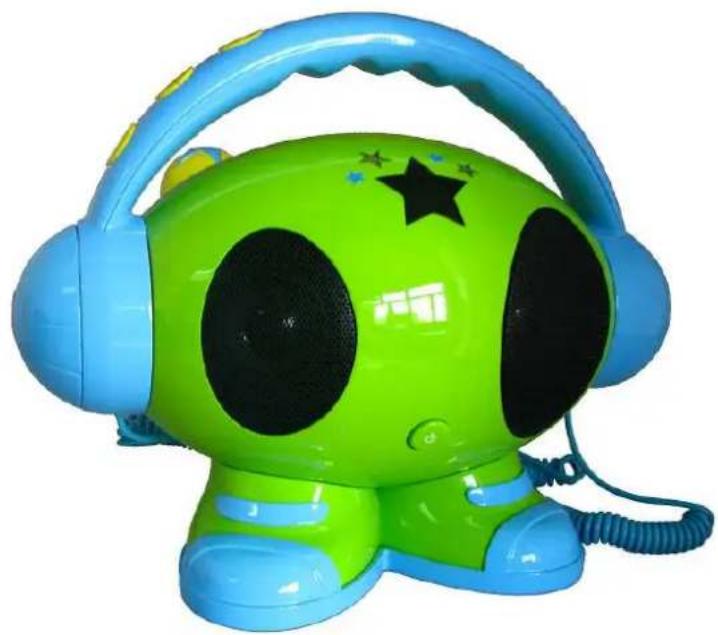
OPERATINGpINSTRUCTIONSp
PLEASE READ OPERATING INSTRUCTIONS CAREFULLY BEFORE USE AND KEEP FOR FUTURE REFERENCE3
- Parts / Buttons

| 1. Speakers | 12. Play/Pause button ▶II |
| 2. Green LED star: indicates microphone function is on | 13. Input: USB/AUX/Internal Memory |
| 3. LED display 14. Microphone function: On/Off | |
| 4. Red LED star: indicates unit is recording 15. DEL: Delete | |
| 5. Microphone volume up/down 16. REC: Record | |
| 6. Music volume up/down 17. Microphone On/Off button | |
| 7. Power On/Off button 18. Microphones | |
| 8. Battery compartment 19. USB port | |
| 9. Stop button ■ | 20. Headphone jack |
| 10. Next ➞ | 21. USB for PC |
| 11. Back 22. AUX-IN jack | |
2. Getting started
i. Batteries (should only be handled by adults):
Use a screwdriver to remove the cover of the battery compartment (8). Insert 4 AA batteries and close the cover.
ii. Press the Power button (7) to turn the power on.
3. USB playback – Connecting a USB flash drive / AUX-IN cable (included)
Make sure to store your music on a USB flash drive or in the unit's internal memory before playing.
i. Insert the USB flash drive into the USB port (19), or
ii. Connect the AUX-IN cable to the AUX-IN jack (22).
iii. Select USB or AUX (13) input.
iv. The total number of tracks will appear on the LED display.
v. The music will play automatically starting from the first track. The LED display shows the current song number.
vi. Press Next (10) to play the next track or Back (11) to play the previous track (only with USB input).
vii. Adjust the music volume to increase or decrease the volume of the speakers.
viii. Play/Pause (12): press Pause to pause and press Play again to resume playback.
ix. Press Stop (9) to stop the music (only with USB input).
** With AUX input there are no Stop, Next and Back functions.
4. Using the microphone
i. Take one of the microphones (18) and switch it ON (17).
ii. Turn the Microphone function (14) ON. The Green LED star (2) indicates the microphone function is on.
iii. Hold the microphone 1-2 cm in front of your mouth. Adjust the microphone volume (5) and sing along with the music.
iv. When finished, turn the microphone OFF (17) and turn the microphone function OFF (14).
5. Internal memory playback
You must save your music files in MP3 format to the internal memory before playing or playback will not work.
Select Internal Memory input. The music you have saved will play automatically starting from the first track.
Remark: Please note that only the USB keys with format FAT32 and under a capacity of 32Gb can be read by the unit.
6. Recording
i. Select USB or AUX (13) input to play the music.
ii. Turn the microphone ON (17) as indicated in step 4.
iii. Press the REC button (16). The Red LED star (4) will turn on, indicating the unit is recording.
iv. Sing along with the music.
v. Press Pause (12) to pause the recording and press Play (12) to continue recording.
vi. To finish recording, press the Stop (9) button. The Red LED star (4) will turn off.
i. The recorded song is saved as the last file in the internal memory.
ii. With Internal Memory input, press Next/Back to search for the recorded song. Once the song has been selected, it will play automatically.
**When recording, the Next/Back functions do not work.
7. Deleting songs (only works with Internal Memory input, not with USB or AUX input)
vii. Select Internal Memory input (13).
i. To delete the current song, press DEL (15). When the LED display shows "DL", press DEL (15) again to confirm.
ii. To delete more songs, press Next (10) / Back (11) to select the song number.
iii. Press DEL (15).
iv. When the LED display shows "DL", press DEL (15) again to confirm you want to delete the file.
8. Connecting the USB cable (included) to a PC
i. Connect the USB cable to the computer and the USB port for PC (21).
ii. Press Stop (9) to stop playback and recording.
i. The LED display indicates "PC" when you are connected to the internal memory.
Transferring music files from the internal memory to a PC
i. On your PC, click on "My Computer" to search for the device.
ii. Select the device; the screen shows the recorded songs in 2 folders:
■ REC AUX
■ REC USB
iii. Copy/paste or drag & drop the music files from the device to the computer.
iv. You can also listen to the files directly from the computer.
v. Once finished, disconnect the USB cable from the PC and the USB port for PC (21).
Important: Do not disconnect the Karaoke Player Robot while transferring music. This could result in data loss or corrupt files.
9. Headphones (not included)
Plug headphones equipped with 3.5 mm jack and impedance of 8 ohms or greater into the
headphone jack.
** When using headphones, the speakers are disconnected.
10. Troubleshooting
| Problem Possible cause | Solution | |
| The unit does not work | Batteries are low | Replace the batteries |
| Batteries are not inserted correctly | Mare sure that the + and – symbols on the batteries match those on the battery compartment. | |
| Unit is on but no sound can be heard | No music stored in the internal memory | 1. Save music to internal memory2. Follow step 8 |
11. WARNING! Risk of hearing impairment

- Set the volume on the playback device to low before connecting the headphones to the sound source.
- Avoid excessive volume, particularly over extended periods or frequent use. Excessive volume can result in permanent hearing impairment.
12. Please switch off the unit after use to conserve battery power.
Power: DC6V 4 x AA batteries
Imported by BIGBEN INTERACTIVE SA
396, Rue de la Voyette
CRT2 - FRETIN
CS 90414
59814 LESQUIN Cedex – France
www.bigben.eu
Don't discard electrical and electronic appliances with regular waste.
• Take them to an official collection point.
• Some components may be hazardous to health and the environment.
p
Imported by BIGBEN INTERACTIVE SA
396, Rue de la Voyette
CRT2 - FRETIN
CS 90414
59814 LESQUIN Cedex - France
www.bigben.eu

Made in China


ó bigben


- OPERATINGPINSTRUCTIONSP
- GETTING STARTED
- USB PLAYBACK – CONNECTING A USB FLASH DRIVE / AUX-IN CABLE (INCLUDED)
- USING THE MICROPHONE
- INTERNAL MEMORY PLAYBACK
- RECORDING
- DELETING SONGS (ONLY WORKS WITH INTERNAL MEMORY INPUT, NOT WITH USB OR AUX INPUT)
- CONNECTING THE USB CABLE (INCLUDED) TO A PC
- TRANSFERRING MUSIC FILES FROM THE INTERNAL MEMORY TO A PC
- HEADPHONES (NOT INCLUDED)
- TROUBLESHOOTING
- WARNING! RISK OF HEARING IMPAIRMENT
- PLEASE SWITCH OFF THE UNIT AFTER USE TO CONSERVE BATTERY POWER
- DON'T DISCARD ELECTRICAL AND ELECTRONIC APPLIANCES WITH REGULAR WASTE
- Ó BIGBEN
Brand : BIGBEN INTERACTIVE
Model : Emma
Category : Karaoke system