
GXT 155C - Mouse TRUST - Free user manual and instructions
Find the device manual for free GXT 155C TRUST in PDF.


| Product type | Wired gaming mouse |
| Brand | Trust |
| Model | GXT 155C |
| Dimensions (L x W x H) | Approximately 125 x 68 x 40 mm |
| Weight | Approximately 110 g (without cable) |
| Power supply | USB 2.0, powered via cable |
| Number of buttons | 6 programmable buttons |
| Sensor | Optical, resolution up to 3200 DPI |
| Backlighting | Customizable RGB |
| Main features | DPI adjustment, programmable buttons, RGB backlighting, scroll wheel |
| Care and cleaning | Clean with a slightly damp soft cloth. Do not use abrasive products. |
| Safety | Do not expose to moisture or extreme temperatures. Disconnect before cleaning. |
| Spare parts and repairability | Not applicable. No user-replaceable parts. |
| Compatible operating systems | Windows 7/8/10/11, macOS 10.11 or later |
| Warranty | 2 years |
Frequently Asked Questions - GXT 155C TRUST
User questions about GXT 155C TRUST
0 question about this device. Answer the ones you know or ask your own.
Ask a new question about this device
Download the instructions for your Mouse in PDF format for free! Find your manual GXT 155C - TRUST and take your electronic device back in hand. On this page are published all the documents necessary for the use of your device. GXT 155C by TRUST.
USER MANUAL GXT 155C TRUST




GXT 155 Gaming Mouse - USER'S MANUAL
Trust
Index
| Language | Page |
| English | 2 |
| Deutsch | 5 |
| Français | 8 |
| Italiano | 11 |
| Español | 14 |
| Português | 17 |
| Nederlands | 20 |
| Dansk | 23 |
| Suomi | 26 |
| Norsk | 29 |
| Svenska | 32 |
| Polski | 35 |
| Česky | 38 |
| Slovenčina | 41 |
| Magyar | 44 |
| Română | 47 |
| Български | 50 |
| Русский | 53 |
| Ελληνικά | 56 |
| Türkçe | 59 |
| Hrvatski | 62 |
| Slovenski | 65 |
| српски | 68 |
| Brasileiro | 71 |
| العربية | 74 |
GXT 155 Gaming Mouse - USER'S MANUAL
Trust
Mouse layout
a - Button 1 (left mouse button)
b - Button 3 (Scroll wheel)
c - Scroll wheel LED (Profile indicator)
| Yellow | Profile 1 |
| Green | Profile 2 |
| Blue | Profile 3 |
| Purple | Profile 4 |
| Red | Profile 5 |
d - Button 2 (default function = right mouse click)
e - Button 4 (default function = triple mouse click)
f - Button 5 (default function = DPI+)
g - Button 6 (default function = DPI-)
h - Side Buttons 7-11
i - Profile switch (not programmable)
j - Adjustable weights compartment
Installation
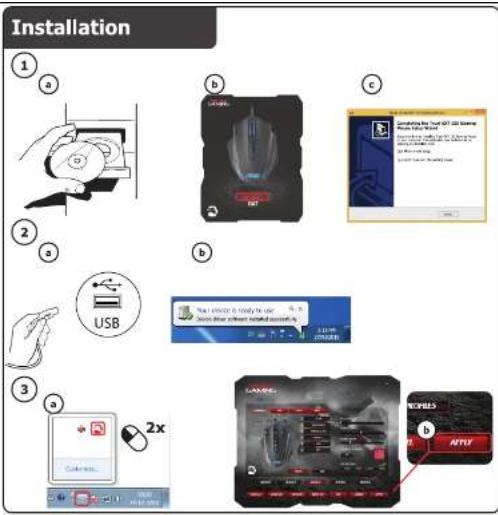
a - Insert the Trust CD-ROM into your CD drive. - Click "Run Setup.exe – Published by Trust International BV".
-
b - Click "Install driver". c - Click 'Finish' when the installation is completed.
-
a - Connect the mouse to the USB port of the PC. b - Wait until the message 'Your device is ready to use' appears.
a - Start the mouse configuration software (located in the taskbar). b - You can now start to configure the mouse. In the manual will be referred to 'Apply' to update the mouse.
The mouse can store 5 different profiles. You can instantly switch between these profiles by assigning the profile switch function to one of the 11 buttons, or use the profile switch at the bottom of the mouse.
GXT 155 Gaming Mouse - USER'S MANUAL
Trust
Button programming
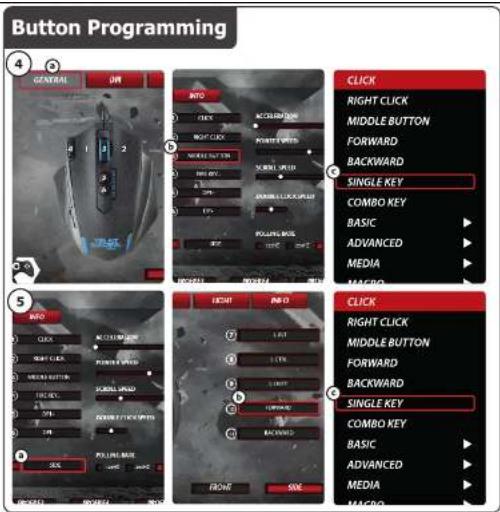
4. Assign a function.
a - Click on the 'General' tab.
b - Click on the button which you want to re-assign.
c - Click on the function that you want to assign.
- Click on 'Apply' → The mouse is beeing updated.
5. Assign a function to the side buttons.
a - In the 'General' tab click on 'side' to view the side buttons.
b - Click on the button which you want to re-assign.
c - Click on the function that you want to assign.
- Click on 'Apply' → The mouse is beeing updated.
DPI Settings
6. Change the DPI settings (profiles and DPI settings are linked)
a - Click on 'DPI'.
b - Change the DPI settings by moving the sliders.
c Click the DPI number to enable or disable this setting.
- Click on 'Apply' → The mouse is beeing updated.
To set the X and Y axis separately, Untick the 'LINK XY' box.
Light Manager Settings
7. Change the LED light
a - Click on 'Light'.
b - Select the desired LED color Or pick a custom color.
c - Change the brightness level and breathing speed.
- Click on 'Apply' → The mouse is beeing updated.
GXT 155 Gaming Mouse - USER'S MANUAL
Trust
Macro Settings
- Create a macro. (Store a sequence of keys in the software) Go to the 'General' tab.
a - Click on the button witch you want to re-assign.
b - Hover over 'Macro'.
- Click on 'Macro Manager'.
c - Create an new macro by clicking on 'New'.
- Enter the name of the new macro.
- Click on 'OK'.
- Record a macro.
a - Select a created macro.
b - Click on the record button to start recording the preferd keyboard sequence.
- When you're finished creating your macro. Click the stop button.
c - Mouse actions can be added, by using the menu on the right. (after recording)
- Close the 'macro manager' when your done creating macros.
Assign a macro.
- To assign a macro follow steps 8 a/b and choose the preferred macro from the function list.
- Click on 'Apply' → The mouse is beeing updated.
Profile Settings
- Select a profile
a - Select one of the 5 profiles bij clicking on the preferred profile.
- Save or Load a custom setup
a - Click on 'Save as' to save a setup or 'Load File' to load a setup.
b - Enter a name for the mouse setup, or choose the preferred profile to load.
- Click on 'Save/Open'
- Your mouse setup is now saved/loaded.
- Click on 'Restore' to restore 1 profile. (currently selected profile)
b - Click on 'OK' to reset all settings.
- Click on 'Apply' → The mouse is beeing updated.
GXT 155 Gaming Mouse - USER'S MANUAL
Trust
Stille inn lys (Light Manager Settings)
7. Endre LED-lys
a - Umetnite Trust CD-ROM u CD pogon. - Kliknite na „Run Setup.exe – Published by Trust International BV“ [„Pokreni Setup.exe – Published by Trust International BV“].
b - Kliknite na „Install driver“ [„Instaliraj upravljački program“]. c - Kliknite na „Finish“ [„Dovršeno“] kada instalacija bude završena.
a - Priključite miša na USB priključak na računalu. b - Pričekajte dok se ne pojavi poruka „Your device is ready to use“ [„Vaš uređaj je spreman za uporabu“].
a - Pokrenite program za konfiguraciju miša (nalazi se na traci sa zadacima). b - Sada možete započeti s konfiguriranjem miša. U priručniku će biti navedeno „Apply“ [„Primijeni“] da ažurirate miša.
Miš može pohraniti 5 različitih profila. Možete odmah prebacivati između tih profila dodjeljivanjem funkcije zamjena profila jednoj od 11 tipki, ili koristite prekidač profila na dnu miša.
GXT 155 Gaming Mouse - USER'S MANUAL
Trust
Programiranje tipki
4. Zadavanje funkcije.
a - V CD pogon vstavite Trust CD-ROM. - Kliknite »Run Setup.exe – Published by Trust International BV« [»Zaženi Setup.exe – Published by Trust International BV«].
a - Stavite Trust CD-ROM u CD drajv. - Kliknite „Run Setup.exe – Published by Trust International BV“ [„Pokreni Setup.exe – Published by Trust International BV“].
b - Kliknite „Install driver“ [„Instaliraj drajver“]. c - Kliknite „Finish“ [„Završi“] kada instalacija bude završena.
a- Priključite miš na USB priključak računara. b- Sačekajte dok se ne pojavi poruka „Your device is ready to use“ [„Vaš uređaj je spreman za upotrebu“].
a- Pokrenite softver za podešavanje miša (nalazi se na paleti sa zadacima). 3. b - Sada možete početi s podešavanjem miša. U ovom priručniku komanda „Apply“ [„Primeni“] odnosi se na ažuriranje miša.
- GXT 155 Gaming Mouse - USER'S MANUAL
- Trust
- Mouse layout
- Installation
- Button programming
- Assign a function.
- Assign a function to the side buttons.
- DPI Settings
- Change the DPI settings (profiles and DPI settings are linked)
- Light Manager Settings
- Change the LED light
- Macro Settings
- Assign a macro.
- Profile Settings
- Stille inn lys (Light Manager Settings)
- Endre LED-lys
- Programiranje tipki
- Zadavanje funkcije.
Brand : TRUST
Model : GXT 155C
Category : Mouse