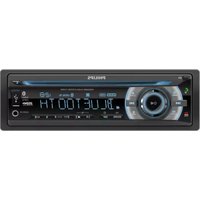
CarStudio CEM2300BT - Car radio PHILIPS - Free user manual and instructions
Find the device manual for free CarStudio CEM2300BT PHILIPS in PDF.


| Product Type | Car Stereo with Bluetooth |
| Brand | Philips |
| Model | CarStudio CEM2300BT |
| Dimensions (W x H x D) | 178 mm x 50 mm x 100 mm (standard DIN) |
| Weight | Approx. 0.5 kg |
| Power Supply | 12V DC (negative ground) |
| Maximum Power Output | 4 x 50 Watts |
| Bluetooth | Yes, for hands-free calling and audio streaming |
| USB Port | Front USB for media playback and charging |
| AUX Input | 3.5 mm front auxiliary input |
| Radio Tuner | FM/AM with RDS (Radio Data System) |
| Preset Stations | FM: 18 presets, AM: 12 presets |
| Playback Media | USB, AUX, Bluetooth streaming (no CD) |
| Supported Audio Formats | MP3, WMA, WAV |
| Display | LCD with white backlight |
| Remote Control | Includes wired remote control |
| Key Features | Bluetooth, USB, AUX, FM/AM/RDS, remote control |
| Recommended Usage | Car audio upgrade for music and calls |
| Maintenance | Clean with a soft, dry cloth; avoid liquids |
| Safety | Disconnect negative battery terminal before installation |
| Spare Parts & Repairability | Contact Philips customer support for spare parts; not user-serviceable |
| Warranty | Standard manufacturer warranty (typically 1-2 years) |
Frequently Asked Questions - CarStudio CEM2300BT PHILIPS
User questions about CarStudio CEM2300BT PHILIPS
0 question about this device. Answer the ones you know or ask your own.
Ask a new question about this device
Download the instructions for your Car radio in PDF format for free! Find your manual CarStudio CEM2300BT - PHILIPS and take your electronic device back in hand. On this page are published all the documents necessary for the use of your device. CarStudio CEM2300BT by PHILIPS.
USER MANUAL CarStudio CEM2300BT PHILIPS
Always there to help you
Register your product and get support at
www.philips.com/support

CEM2300BT

User manual
PHILIPS
Contents
1 Safety 2
2 Your car audio system 3
Introduction 3
What's in the box 3
Overview of the system 4
3 Install the car audio system 7
Connect wires 7
Mount into the dashboard 8
Attach the front panel 9
4 Get started 10
For the first time use 10
Set the time format 10
Set the clock 10
Turn on 11
Switch music listening zone 11
Mute the button beep 11
5 Listen to radio 11
Tune to a radio station 11
Store radio stations in memory 12
Tune to a preset station 12
6 Play from hard media
Play a disc 12
Play from a USB storage device 12
7 Use Bluetooth devices
Connect a device 14
Play audio from a Bluetooth device 15
Make a call 15
8 Listen to an external player
Charge your USB device 16
10 Adjust sound 17
11 Adjust system settings 17
12 Others 18
Reset 18
Replace fuse 18
13 Product information 19
14 Troubleshooting 20
General 20
About the Bluetooth device 20
15 Notice 21
Compliance 21
Care of the environment 21
Trademark notice 22
Copyright 22
1 Safety
Read and understand all instructions before you use your apparatus. If damage is caused by failure to follow instructions, the warranty does not apply.
- This apparatus is designed for negative ground (earth) 12 V DC operation only.
- To ensure safe driving, adjust the volume to a safe and comfortable level.
- Improper fuses can cause damage or fire. When you need to change the fuse, consult a professional.
- Use only the supplied mounting hardware for a safe and secure installation.
- To avoid short circuit, do not expose the apparatus to rain or water.
- Never insert objects into the ventilation slots or other openings on the apparatus.
- Clean the apparatus and frame with a soft, damp cloth. Never use substances such as alcohol, chemicals or household cleaners on the apparatus.
- Never place any objects other than discs into the apparatus.
- Never use solvents such as benzene, thinner, cleaners available commercially, or anti-static sprays intended for discs.
- Visible and invisible laser radiation when open. Avoid exposure to beam.

Caution
- Use of controls or adjustments or performance of procedures other than herein may result in hazardous laser exposure or other unsafe operation.
- The apparatus shall not be exposed to dripping or splashing.
- Do not place any sources of danger on the apparatus (e.g. liquid filled objects, lighted candles).
2 Your car audio system
Congratulations on your purchase, and welcome to Philips! To fully benefit from the support that Philips offers, register your product at www.philips.com/welcome.
Introduction
With the in-car audio system, you can listen to
• FM or AM (MW) radio,
• Audio from a CD or MP3 disc,
• Audio from a USB storage device,
• Audio from a Bluetooth device, and
• Audio from an external player.
playable media:
• Disc
• Audio CD, MP3-CD, WMA-CD
- CD-R, CD-RW
- USB storage device
- Compatibility: USB 2.0, USB 1.1
• Class support: MSC (Mass Storage Class)
• Maximum capacity: 32 GB
- Files
- File system: FAT16, FAT32
• Maximum number of folders: 99
• Maximum number of tracks/files: 999
• Maximum level of directory: 8 - .mp3 files
Sampling frequencies: 32 kHz, 44.1 kHz, 48 kHz
Bitrates: 8-320 kbps and variable bitrates
- .wma files
Versions: V4, V7, V8, V9 (L1 and L2)
Sampling frequencies: 44.1 kHz, 48 kHz
Bitrates: 64-192 kbps and variable bitrates
• ID3 tag V2.0 or later
- Unsupported files:
AAC, WAV, and PCM files DRM protected WMA files (.wav, .m4a, .m4p, .mp4, and .aac) WMA files in lossless format
What's in the box
Check and identify the contents of your package:

① Main unit (with a sleeve)
② Carrying case (with the front panel included)
③ Trim plate
④ Disassembly tool x 2
⑤ Rubber cushion
⑥ Screw x 1
⑦ ISO male connectors
⑧ User manual
Overview of the system


①

- Unlock the front panel.
②

- Press to return to the previous menu.
- Press and hold to access the system menu.
③

- For .wma and .mp3 tracks, press to select the previous folder.
- In radio mode, press to select a tuner band.
- Press and hold to activate the selection of listening zones.
④
Disc slot
5
LCD screen
6

- Eject the disc from the disc compartment.
⑦

- Connect to a USB storage device.
⑧
AUDIO IN
- Connect to the audio output socket (usually the headphone socket) of an external device.
⑨ ▶116
- Start, pause, or resume the play of tracks.
- In radio mode, press to select the preset radio station of No. 6.
- In radio mode, press and hold to store the current radio station at channel No. 6.
⑩ 5
- In radio mode, press to select the preset radio station of No. 5.
- In radio mode, press and hold to store the current radio station at channel No. 5.
⑪ SHUF 4
- In radio mode, press to select the preset radio station of No. 4.
- In radio mode, press and hold to store the current radio station at channel No. 4.
- For .wma and .mp3 tracks, press repeatedly to select a play mode: play all tracks randomly ([SHU ALL]), play tracks in the current folder randomly ([SHU FLD]), or play all tracks in the storage device in sequence ([SHU OFF]).
12 3 REP
- In radio mode, press to select the preset radio station of No. 3.
- In radio mode, press and hold to store the current radio station at channel No. 3.
- For .wma and .mp3 tracks, press repeatedly to select a repeat mode: repeat the current track ([REP ONE]), repeat all tracks in the current folder ([RPT FLD]), or repeat all tracks in the storage device ([RPT ALL]).
⑬ 2
- In radio mode, press to select the preset radio station of No. 2.
- In radio mode, press and hold to store the current radio station at channel No. 2.
- For .wma and .mp3 tracks, press to access the folder list.
14 1
- In radio mode, press to select the preset radio station of No. 1.
- In radio mode, press and hold to store the current radio station at channel No. 1.
- For .wma and .mp3 tracks, press to access the track list.
⑮ ⊕/DISP
- Press repeatedly to display available information about the current track.
- Press repeatedly to display available RDS information.
- Press and hold to display the set clock.
⑯ AS/SOURCE
- Press repeatedly to select a source.
- In radio mode, press and hold to activate the automatic search of radio stations.
17
- For .wma and .mp3 tracks, press to select the next folder.
- In radio mode, press to select a tuner band.
- Press and hold to enable or disable the DBB (dynamic bass boost) sound effect.
18 ①咪
- Press to turn on the system.
- Press and hold to turn off the system.
- Press to mute the speakers or release them from mute status.
- Press to confirm an option.
- Rotate to switch between menu options.
- Rotate to adjust the volume level.
19 EQ AUDIO
- Press repeatedly to select a preset sound equalizer.
- Press and hold to activate the setup of bass, treble, balance, and fader.
20
|◀◀▶▶|
- Tune to a radio station.
- Press to skip to the previous or next track.
- Press and hold to rewind a track or search fast forward.
21
- Press to hang up an ongoing call.
- When there is an incoming call, press to reject it.
- When it is not in a call, press to enable or disable the MAX Sound feature.
22
- When there is an incoming call, press to answer.
- When it is not in a call, press and hold to redial the last called number.
- In a call, press and hold to transfer the voice between the phone and the car speakers.
23
RESET
- Press to reset the system to factory default settings.
3 Install the car audio system

Caution
- Use the controls only as stated in this user manual.
Always follow the instructions in this chapter in sequence.
These instructions are for a typical installation. However, if your car has different requirements, make the adjustment accordingly. If you have any question regarding installation kits, consult your local retailer.

Note
- This system is designed for negative ground (earth) 12V DC operation only.
• Always install this system in the car dashboard. Other locations can be dangerous as the rear of the system heats up during use. - To avoid short-circuit: before you connect, make sure that the ignition is off.
• Make sure that you connect the yellow and red power supply leads after all other leads are connected.
• Make sure that all loose leads are insulated with electrical tape. - Make sure that the leads do not get caught under screws or iron parts that will move (e.g. seat rail).
• Make sure that all ground (earth) leads are run to a common ground (earth) point. - Use only the supplied mounting hardware for a safe and secure installation.
- Improper fuses can cause damage or fire. When you need to change the fuse, consult a professional.
- When you connect other devices to this system, make sure that the rating of the car circuit is higher than the total fuse value of all the connected devices.
- Never connect speaker wires to the metal body or chassis of the car.
- Never connect speaker wires with stripes to one another.
Connect wires

Note
- Consult a professional to connect CEM2300BT as instructed below.
1 Check the car's wiring carefully and connect them to the the male connector.

| ISO male connectors | Connect to |
| a Green strip, black-edged green strip | Left speaker (Rear) |
| b White strip, black-edged white strip | Left speaker (Front) |
| c Gray strip, black-edged gray strip | Right speaker (Front) |
| d Purple strip, black-edged purple strip | Right speaker (Rear) |
| e Red Ignition key +12V | DC when ON/ACC |
| f Blue Motor/electric | antenna relay control lead |
| g White edged blue strip | Amplifier relay control lead |
| h Black | Ground |
| i Yellow | To the +12V car battery which is energized at all times |
2 Connect the antenna and amplifier as illustrated, if applicable.

| Connector Connect to | |
| 1 ANTENNA Antenna | |
| 2 Socket for ISO male connectors | As indicated in Step 1 above |
| 3 REAR LINE OUT R (Socket) | Rear right speaker |
| 4 REAR LINE OUT L (Socket) | Rear left speaker |
| 5 OE REMOTE (Purple) OE Remote | |
| 6 OE REMOTE (Black) Ground | |
| 7 External Mic (Black connector) | External microphone |

Tip
- The pin arrangement for the ISO connectors depends on the type of vehicle you drive. Be sure to make proper connections to prevent damage to the unit.
Mount into the dashboard
1 If the car does not have an on-board drive or navigation computer, disconnect the negative terminal of the car battery.
- If you disconnect the car battery in a car that has an on-board drive or navigation computer, the computer may lose its memory. - If the car battery is not disconnected, to avoid short-circuit, ensure that the bare wires do not touch each other.
2 Ensure that car dashboard opening is within these measurements:

3 Remove the mounting sleeve with the supplied disassembly tools.

4 Install the sleeve into the dashboard and bend the tabs outward to fix the sleeve.

Note
- If the unit is not fixed by sleeve but by the supplied screws, skip this step.
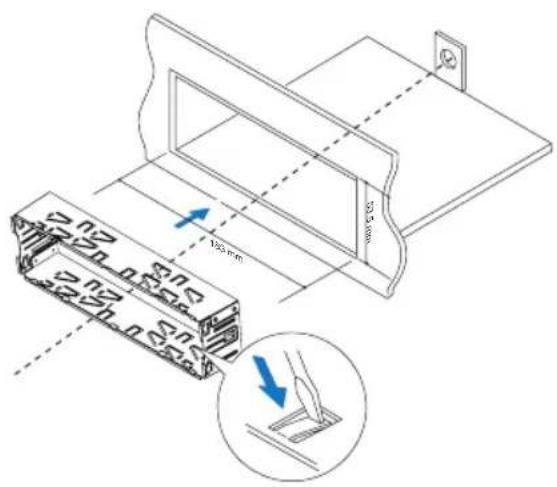
5 Place the supplied rubber cushion over the end of the mounting bolt.

6 Slide the unit into the dashboard until you hear a click sound.

7 Reconnect the negative terminal of the car battery.
Attach the front panel
1 Insert the notch on the front panel to the chassis on the main unit.

2 Press the left end of the front panel inwards until it is securely locked with a "click".

Detach the front panel

Note
- Before you detach the front panel, make sure that the system is turned off.
1 Press to release the front panel.
2 Pull the front panel outwards to remove it.

4 Get started
For the first time use

Note
- Select correct country/region for this unit, otherwise the unit can not work properly.
1 Press turn the unit on.
→ [SELECT OPERATING REGION] is displayed.
2 Rotate 0 select an option:
• [USA] (United States)
• [LATIN] (Latin America)
• [EUROPE] (Western Europe)
• [RUSSIA] (Russia)
• [MID-EAST] (Middle East)
• [ASIA] (Pacific)
• [JAPAN] (Japan)
• [AUSTRILIA] (Australia)
3 Press ☐okconfirm.
Set the time format
1 Press and hold
2 Press or repeatedly until [CLOCK FORMAT] is displayed.
3 Rotate 0 select a setting.
• [CLK 12H]: 12-hour time format
• [CLK 24H]: 24-hour time format
Set the clock
1 Press and hold
2 Press or repeatedly until [CLOCK SET] is displayed.
3 Rotate to set the hour.
4 Press to confirm.
5 Rotate α1 set the minute.
6 Press to confirm.
Display the clock
In any mode, press and hold Ⓓ until the clock is displayed.
- Press any key to cancel the clock display.
Turn on
• To turn on the unit, press . ⏻*
- To turn off the unit, press and hold ①② until the unit is turned off.
Switch music listening zone
Philips' innovative Zone technology enables driver or passengers to enjoy music with the best speakers balance and experience more vivid spacial effect as the artist is intended to create. You can switch the music listening zone from driver to passengers for the best speaker sound settings in car.
1 Press and hold ▲ ZONE
→ The current setting is displayed.
2 Press ✦ to select a setting.
• [ALL]
• [FRONT] (Front)
• [RIGHT] (Right)
• [LEFT] (Left)
Mute the button beep
Each time you press a button, the unit beeps. You can turn this beep sound on or off.
1 Press and hold 2 Min.
2 Press or repeatedly until [BEEP TONE] is displayed.
3 Rotate to select a setting:
• [BEEP ON]: turn the beep sound on.
• [BEEP OFF]: turn the beep sound off.
5 Listen to radio
Tune to a radio station
1 Press SOURCE repeatedly to select radio mode.
2 Press or repeatedly to select a band: [FM1], [FM2], [FM3], [AM1], or [AM2].
3 Press and hold ◀◀ until the frequency digit is flashed.
4 Press to tune to a radio station manually.
→ The radio station is broadcasts
- To search for a radio station automatically, press ◀◀ or ▶▶
Select tuner region
You can select suitable country/region of the radio.
1 Press and hold 5
2 Press or repeatedly until [AREA] is displayed..
3 Rotate to select a region.
• [USA] (United States)
• [LATIN] (Latin America)
• [EUROPE] (Western Europe)
• [RUSSIA] (Russia)
• [MID-EAST] (Middle East)
• [ASIA] (Asia Pacific)
• [JAPAN] (Japan)
• [AUSTRILIA] (Australia)
4 Press to confirm.
Select tuner sensitivity
To receive more radio stations or only stations with strong signal, you can adjust the tuner sensitivity.
1 Press and hold
2 Press or repeatedly until [LOCAL] is displayed.
3 Rotate to select a setting.
- [LOCAL ON] (local on): only stations with strong signal can be broadcast.
- [LOCAL OFF] (local off): stations with strong and weak signals can be broadcast.
Store radio stations in memory
You can store up to 6 stations in each band.
Store stations automatically
- In Radio mode, press and hold AS until [STORE - - -] is displayed. → The six strongest stations of the selected band are saved in preset channel automatically.
Store stations manually
1 Tune to a station that you want to store.
2 Press a numeric button for 3 seconds.
→ The station is saved in the selected channel.
Tune to a preset station
- Press a numeric key to select a preset station.
6 Play from hard media
You can use this system to listen to audios that are stored on a compatible disc or USB storage device.
Play a disc

Note
• You cannot play a CD encoded with copyright protection technologies.
- Ensure that the disc contains playable content.
Insert a CD with the printed side facing up.
→ Play starts automatically.
• To pause CD play, press ▶6.
• To resume CD play, press ▶6 again.
- To skip to the previous/next track, press ◀◀ or ▶▶.
- To search backward/forward rapidly within the current track, press and hold ◀◀ or ▶▶
• To eject the CD, press ▲ on the front panel.

Tip
- If the disc is blocked in the disc compartment, press and hold ▲ until the disc comes out.
Play from a USB storage device
This system can play .mp3 and .wma files that are copied onto a compatible storage device.

Note
- Gibson Innovations does not guarantee compatibility with all storage devices.
- NTFS (New Technology File System) file system is not supported.

1 Connect a compatible USB storage device.
2 Press AS/SOURCE repeatedly to switch the source to [USB].
3 If the play does not start, press ▶6
Control play
Button Function
▲ / ▼ Press repeatedly to select a folder.
▶11 6 Start, pause or resume play.
◀◀◀ / ▶▶▶▶▶▶▶▶▶▶▶▶▶▶▶▶▶▶▶▶▶▶▶▶▶▶▶▶▶▶▶▶▶▶▶▶▶▶▶▶▶▶▶▶▶▶▶▶▶▶▶▶▶▶▶▶▶▶▶▶▶▶▶▶▶▶▶▶▶▶▶▶▶▶▶▶▶▶▶▶▶▶▶▶▶▶▶▶▶▶▶▶▶▶▶▶▶▶▶▶▶>
◀◀◀ / ▶Press and hold to rewind a track or search forward fast.
DISP Press repeatedly to display available information about the current track.
3 REP Press repeatedly to select a repeat mode:
- [REP TRK] (repeat one track): play current track repeatedly.
- [REP FLD] (repeat a folder): play all tracks in the current folder repeatedly.
- [REP ALL] (repeat all tracks): play all tracks repeatedly.
SHUF 4
Press repeatedly to select a play mode:
- [SHUF FLD]: start random play for all tracks in the current folder.
- [SHUF ALL]: start random play for all tracks.
- [SHUF OFF]: cancel shuffle play.
Switch tracks
During play, you can switch tracks or folders quickly.
Switch tracks directly
1 Press 1to access the track list.
→ The file name of current track scrolls.
2 Rotate toggle through tracks.
3 Press to play the selected track.
Switch folders for a track
1 Press 2 access the folder list.
→ The name of current folder scrolls.
2 Rotate ⬤ toggle through folders.
3 Press to select the folder.
→ The system starts playing the first track under the folder.
7 Use Bluetooth devices
With this car audio system, you can listen to audio from a player or make a call through Bluetooth.
Connect a device

Note
- Gibson Innovations does not guarantee the compatibility with all Bluetooth devices.
- Before pairing a device with this system, read its user manual for Bluetooth compatibility.
• Make sure that Bluetooth function is enabled on your device, and your device is set as visible to all other Bluetooth devices. - At one time, you can connect only one Bluetooth device to this system.
- The operational range between this system and a Bluetooth device is approximately 3 meters (9 feet).
- Any obstacle between this system and a Bluetooth device can reduce the operational range.
- Keep away from any other electronic device that may cause interference.
On your device, follow the steps below.
1 Search for Bluetooth devices.
2 In the device list, select CEM2300BT.
3 Enter the default password "0000", and then confirm the password entry.
If the pairing succeeds, [PAIRED] is displayed on the LCD screen of this system.
4 Enable or permit the connection with CEM2300BT.
→ If the connection succeeds, [CONNECTED] scrolls and Ⓤ is displayed on the LCD screen of this system.
If the connection fails, [FAILED] is displayed on the LCD screen of this system.
Disconnect a device
1 Press and hold to access the system menu.
2 Press or repeatedly until [DISCONN] is displayed.
3 Press ①味
→ [WAIT] is displayed with -, --, and --- blinking alternately until [DISCNN OK] scrolls.

Tip
- You can also complete the disconnection on your device.
Reconnect a device
Some Bluetooth devices support the automatic reconnection with a paired Bluetooth device. If your device does not support automatic reconnection, reconnect it with this system manually.
1 Press and hold to access the system menu.
2 Press or repeatedly until [CONNECT] is displayed.
3 Press ⏱️咪
→ [WAIT] is displayed with -, --, and --- blinking alternately until [CONNECTED] scrolls or [FAILED] appears. → If [CONNECTED] scrolls, this system is reconnected to the last connected device.

Tip
- You can also complete the reconnection on your device.
Play audio from a Bluetooth device
If the connected Bluetooth device supports Advanced Audio Distribution Profile (A2DP), you can listen to tracks that are stored on the device through the system. If the device also supports Audio Video Remote Control Profile (AVRCP) profile, you can control play on the system.
1 Play a track on the connected device.
2 Press SOURCE repeatedly to switch the source to [BT AUDIO].
→ Play starts automatically.
• To pause or resume play, press ▶6.
- To skip to the previous or next track, press ◀◀◀/▶▶

Note
- If the connected device does not support the AVRCP profile, control play on the connected device.
Make a call

Note
- Keep the Bluetooth connection active between the system and your mobile phone.
Call a number
On your mobile phone, call a number.
→ [CALLING] is displayed.
Redial the last called number
When it is not in a call, press and hold q
→ [REDIAL] is displayed.
Pick up an incoming call
When the system receives an incoming call, the phone number or [PHONE IN] is displayed.
Press ω to answer the call.
Reject an incoming call
Press and hold 📄 until [END] is displayed.
End a call
To end an on-going call, press 爲
Transfer a call to mobile phone
By default, the voice comes from the loudspeakers during a call.
1 Press and hold until [TRANSFER] is displayed. → The loudspeakers are muted, and the voice comes from your mobile phone only.
2 Take up your mobile phone for the conversation.
8 Listen to an external player
You can use the system to amplify the audio input from an external player, for example, MP3 player.

1 Press AS/SOURCE repeatedly to switch the source to [AUDIO IN].
2 Connect an audio input cable with a 3.5 mm connector on both ends between
- the AUDIO IN socket on the front panel, and
- the audio output socket (usually the headphone socket) on the external player.
3 Play audio on the external player.
9 Charge your USB device
You can charge your USB device, for example, smart phone, with this product.

Note
- The output voltage through the USB socket is 5 V with output current 1.0 A.
Connect your USB device to this product with USB cable. Once the USB device is connected and recognized, it begins to charge automatically.
10 Adjust sound
The following operations are applicable to all supported media.
Button Function
| ○※ | Rotate to increase or decrease the volume level. |
| ○※ | Press to mute or restore sound. |
| When it is not in a call, press to enable or disable the MAX Sound feature. | |
| ▼DBB | Press and hold to enable or disable the Dynamic Bass Boost (DBB) effect. |
| EQAUDIO | Press to select a preset sound equalizer.[OPTIMAL] (optimal)[FLAT] (flat)[POP] (pop)[USER] (user)[TECHNO] (techno)[ROCK] (rock)[CLASSIC] (classic)[JAZZ] (jazz) |
| EQAUDIO | 1 Press and hold to activate the setup of customized sound equalizer.2 Press ▲ or ▼ repeatedly to select the item to be adjusted:[BASS] (bass) range: -7 to +7.[TREBLE] (treble) range: -7 to +7.[BAL] (balance) range: 12L to 12R. (L = left speaker, R = right speaker)[FADER] (fader) range: 12R to 12F. (R = rear speaker, F = front speaker)3 Rotate ⊙ to select a value. |
11 Adjust system settings
1 Press to access system settings.
2 Press or repeatedly until one of the following settings scrolls.
• [BEEP TONE], [DIMMER], [DEMO], [BLACK OUT], or [DANCE]
3 Rotate to change the setting.
| [BEEP TONE] | [BEEP ON] Enable the beep sound of buttons. | |
| [BEEP OFF] Disable the beep sound of buttons. | ||
| [DIMMER] | [DIMMER HIGH] Increase the brightness level of the screen. | |
| [DIMMER LOW] | Decrease the brightness level of the screen. | |
| [DEMO] | [DEMO ON] | Demonstrate all features after the system stays inactive for 2 minutes. |
| [DEMO OFF] | Disable the demo mode. | |
| [BLACK OUT] | [BKO 10 S] Turn off the screen automatically 10 seconds after last operation. | |
| [BKO 20 S] Turn off the screen automatically 20 seconds after last operation. | ||
| [BKO OFF] Never turn off the screen. | ||
| [DANCE] [DANCE ON] Enable the spectrum on the LCD display. | ||
12 Others
Reset
You can reset the unit to its default setting.
1 Detach the front panel.
2 Press the reset button by using a ball-point pen or a similar tool.
→ Preset adjustments such as preset channels and sound adjustments are erased.

Replace fuse
If there is no power, check the fuse and replace if it is damaged.
1 Check the electric connection.
2 Remove the damaged fuse from the rear panel.
3 Insert a new fuse with the same specification (15 A).


Note
- If the new fuse gets damaged again, there may be an internal malfunction. Consult your local retailer.
13 Product information

Note
- Product information is subject to change without prior notice.
General
| Power supply 12 V DC (11 V - 16 V), negative ground | |
| Fuse 15 A | |
| Suitable speaker impedance | 4 - 8 Ω |
| Maximum power output | 50 W × 4 |
| Continuous power output | 22 W × 4 RMS(4 Ω 10% T.H.D.) |
| Pre-Amp output voltage | 2.5V |
| Aux-in level 500 mV | |
| Dimensions(W × H × D) | 181.5 × 52 × 191.4 mm |
| Weight 1.47 kg | |
Radio
| Frequency range - FM | 87.5 - 108.0 MHz |
| Frequency range - AM(MW) | 522 - 1620 KHz (9 kHz)530 - 1710 kHz (10 kHz) |
| Usable sensitivity - FM | 8 μV |
| Usable sensitivity - AM(MW) | 30 μV |
Bluetooth
| Output power | Class 2 |
| Frequency band | 2.4000 GHz - 2.4835 GHz ISM Band |
| Range 3 meters (free space) | |
| Standard Bluetooth 2.0 specification | |
14 Troubleshooting

Warning
- Never remove the casing of this product.
To keep the warranty valid, never try to repair the product yourself.
If you encounter problems when using this device, check the following points before requesting service. If the problem remains unsolved, go to the Philips Web page (www.philips.com/support). When you contact the Consumer Care, make sure that the product is nearby and the model number and serial number are available.
General
No power or no sound.
- Car engine is not on. Turn the car engine on.
- Cable is not correctly connected. Check connections.
- Fuse is burnt. Replace fuse.
• Volume is too low. Adjust volume. - If the above solutions cannot help, press RESET button.
- Ensure that the track played is of a compatible format.
Noise in broadcasts.
• Signals are too weak. Select other stations with stronger signals.
- Check the connection of the car antenna.
- Change broadcast from Stereo to mono.
Cannot play disc
- Ensure that the disc label is inserted with the printed side facing up.
- Wipe the disc with fibre cleaning cloth from the centre to the edge in a straight line.
-
This disc may be defective. Play another disc.
-
Ensure that the CD is a finalised CD/CD-R/CD-RW.
- Ensure that the CD is not encoded with copyright protection technologies.
The CD skips tracks
- Ensure that the CD is not damaged or dirty.
- Ensure that random mode is deactivated.
Disc cannot be ejected
- Press and hold

Preset stations lost.
- Battery cable is not correctly connected. Connect the battery cable to the terminal that is always live.
Display show ERR-12
- USB data error. Check the USB device.
About the Bluetooth device
Music playback is unavailable on the system even after successful Bluetooth connection.
• The device cannot be used with the system to play music.
The audio quality is poor after connection with a Bluetooth-enabled device.
- The Bluetooth reception is poor. Move the device closer to the system or remove any obstacle between the device and the system.
Cannot connect with the system.
• The device does not support the profiles required for the system.
- The Bluetooth function of the device is not enabled. Refer to the user manual of the device to find out how to enable the function.
• The system is not in the pairing mode.
• The system is already connected with another Bluetooth-enabled device. Disconnect that device or all other connected devices and then try again.
The paired mobile phone connects and disconnects constantly.
- The Bluetooth reception is poor. Move the mobile phone closer to the system or remove any obstacle between the mobile phone and the system.
- Some mobile phones may connect and disconnect constantly when you make or end calls. This does not indicate any malfunction of the system.
- For some mobile phones, the Bluetooth connection may be deactivated automatically as a power-saving feature. This does not indicate any malfunction of the system.
15 Notice
Any changes or modifications made to this device that are not expressly approved by Gibson Innovations may void the user's authority to operate the equipment.
Compliance
This apparatus includes this label:

Care of the environment
Disposal of your old product

Your product is designed and manufactured with high quality materials and components, which can be recycled and reused. Do not throw away the product with the normal household waste at the end of its life, but hand it in at an official collection point or recycling. By doing this, you help to preserve the environment.
Environmental information
All unnecessary packaging has been omitted. We have tried to make the packaging easy to separate into three materials: cardboard (box), polystyrene foam (buffer) and polyethylene (bags, protective foam sheet.) Your system consists of materials which can be recycled and reused if disassembled by a specialized company. Please observe the local regulations regarding the disposal of packaging materials, exhausted batteries and old equipment.
Trademark notice
The Bluetooth® word mark and logos are registered trademarks owned by Bluetooth SIG, Inc. and any use of such marks by Gibson Innovations Limited is under license. Other trademarks and trade names are those of their respective owners.

Windows Media and the Windows logo are trademarks, or registered trademarks of Microsoft Corporation in the United States and/or other countries.
Other trademarks and trade names are those of their respective owners.
Copyright
2015 © Gibson Innovations Limited. All rights reserved.
Specifications are subject to change without notice. Philips and the Philips' Shield Emblem are registered trademarks of Koninklijke Philips N.V. and are used under license from Koninklijke Philips N.V.. Gibson Innovations reserves the right to change products at any time without being obliged to adjust earlier supplies accordingly.

2015 © Gibson Innovations Limited. All rights reserved.
This product has been manufactured by, and is sold under the responsibility of Gibson Innovations Ltd., and Gibson Innovations Ltd. is the warrantor in relation to this product. Philips and the Philips Shield Emblem are registered trademarks of Koninklijke Philips N.V. and are used under license from Koninklijke Philips N.V.
CEM2300BT_55/85_UM_V2.0



- ALWAYS THERE TO HELP YOU
- CONTENTS
- 1 SAFETY 2
- 2 YOUR CAR AUDIO SYSTEM 3
- 3 INSTALL THE CAR AUDIO SYSTEM 7
- 4 GET STARTED 10
- 5 LISTEN TO RADIO 11
- 6 PLAY FROM HARD MEDIA
- 7 USE BLUETOOTH DEVICES
- 8 LISTEN TO AN EXTERNAL PLAYER
- CHARGE YOUR USB DEVICE 16
- 10 ADJUST SOUND 17
- 11 ADJUST SYSTEM SETTINGS 17
- 12 OTHERS 18
- 13 PRODUCT INFORMATION 19
- 14 TROUBLESHOOTING 20
- 15 NOTICE 21
- 1 SAFETY
- CAUTION
- 2 YOUR CAR AUDIO SYSTEM
- INTRODUCTION
- WHAT'S IN THE BOX
- OVERVIEW OF THE SYSTEM
- ⑨ ▶116
- ⑩ 5
- ⑪ SHUF 4
- 12 3 REP
- ⑬ 2
- 14 1
- ⑮ ⊕/DISP
- ⑯ AS/SOURCE
- 17
- 18 ①咪
- 19 EQ AUDIO
- 20
- ◀◀
- 21
- 22
- 23
- RESET
- 3 INSTALL THE CAR AUDIO SYSTEM
- NOTE
- CONNECT WIRES
- 2 CONNECT THE ANTENNA AND AMPLIFIER AS ILLUSTRATED, IF APPLICABLE
- TIP
- MOUNT INTO THE DASHBOARD
- 1 IF THE CAR DOES NOT HAVE AN ON-BOARD DRIVE OR NAVIGATION COMPUTER, DISCONNECT THE NEGATIVE TERMINAL OF THE CAR BATTERY
- 2 ENSURE THAT CAR DASHBOARD OPENING IS WITHIN THESE MEASUREMENTS
- 3 REMOVE THE MOUNTING SLEEVE WITH THE SUPPLIED DISASSEMBLY TOOLS
- ATTACH THE FRONT PANEL
- DETACH THE FRONT PANEL
- 4 GET STARTED
- FOR THE FIRST TIME USE
- SET THE TIME FORMAT
- SET THE CLOCK
- DISPLAY THE CLOCK
- TURN ON
- SWITCH MUSIC LISTENING ZONE
- MUTE THE BUTTON BEEP
- 5 LISTEN TO RADIO
- TUNE TO A RADIO STATION
- SELECT TUNER REGION
- SELECT TUNER SENSITIVITY
- STORE RADIO STATIONS IN MEMORY
- STORE STATIONS AUTOMATICALLY
- STORE STATIONS MANUALLY
- TUNE TO A PRESET STATION
- PLAY A DISC
- PLAY FROM A USB STORAGE DEVICE
- CONTROL PLAY
- BUTTON FUNCTION
- SHUF 4
- SWITCH TRACKS
- SWITCH TRACKS DIRECTLY
- SWITCH FOLDERS FOR A TRACK
- CONNECT A DEVICE
- DISCONNECT A DEVICE
- RECONNECT A DEVICE
- PLAY AUDIO FROM A BLUETOOTH DEVICE
- MAKE A CALL
- CALL A NUMBER
- REDIAL THE LAST CALLED NUMBER
- PICK UP AN INCOMING CALL
- REJECT AN INCOMING CALL
- END A CALL
- TRANSFER A CALL TO MOBILE PHONE
- 9 CHARGE YOUR USB DEVICE
- 10 ADJUST SOUND
- 11 ADJUST SYSTEM SETTINGS
- 12 OTHERS
- REPLACE FUSE
- 13 PRODUCT INFORMATION
- 14 TROUBLESHOOTING
- WARNING
- GENERAL
- ABOUT THE BLUETOOTH DEVICE
- THE PAIRED MOBILE PHONE CONNECTS AND DISCONNECTS CONSTANTLY
- 15 NOTICE
- COMPLIANCE
- CARE OF THE ENVIRONMENT
- ENVIRONMENTAL INFORMATION
- TRADEMARK NOTICE
- COPYRIGHT
Brand : PHILIPS
Model : CarStudio CEM2300BT
Category : Car radio