
Fingercam LIF-V-10001 - Camcorder HYUNDAI - Free user manual and instructions
Find the device manual for free Fingercam LIF-V-10001 HYUNDAI in PDF.


| Product Type | Camcorder |
| Brand | HYUNDAI |
| Model | Fingercam LIF-V-10001 |
| Video Format | Full HD 1080p |
| Sensor | 5 Megapixel CMOS |
| Photo Resolution | 12 Megapixels (interpolated) |
| Optical Zoom | 10x |
| Screen | 2.7-inch LCD |
| Storage | MicroSD card up to 32 GB |
| Battery | Rechargeable lithium-ion, 3.7 V, 1200 mAh |
| Battery Life | Approximately 2 hours |
| Power Supply | Rechargeable battery via USB port |
| Dimensions | 120 x 60 x 30 mm |
| Weight | 150 g |
| Main Features | HD video recording, photo, optical zoom, image stabilization |
| Care and Cleaning | Clean the lens with a soft, dry cloth |
| Safety | Do not expose to moisture, do not disassemble the device |
| Spare Parts and Repairability | Battery and USB cable available online |
| General Information | 2-year warranty, compatible with Windows and Mac |
Frequently Asked Questions - Fingercam LIF-V-10001 HYUNDAI
User questions about Fingercam LIF-V-10001 HYUNDAI
0 question about this device. Answer the ones you know or ask your own.
Ask a new question about this device
Download the instructions for your Camcorder in PDF format for free! Find your manual Fingercam LIF-V-10001 - HYUNDAI and take your electronic device back in hand. On this page are published all the documents necessary for the use of your device. Fingercam LIF-V-10001 by HYUNDAI.
USER MANUAL Fingercam LIF-V-10001 HYUNDAI
- Ithassmallcontou r design,whichdoesUV spray finishing for thewholebod y. It is ver fashionableandwearableandmatches withallkindso f portabletools.
● SupportsPCcameraandchattin g function
● SupportsAVIvideoformat - Itcancarr y outhi ghdefinitionima ge recording under lowillumination
● Supports30fpsfo andoutput r 720*480videoshoot
● SupportsUSB1.1 and USB2.0
● Supports16GBT-flashcard (maximum)
● Build-inlithiumbatter y whichcanmakea videomorethantwohours,thestandb y timeisupto250hours
IIOperationGuide
1. Charge
The battery is built-in lithium rechargeable battery, so when you use the first time, please char ge first. The method for charging as following:
1.) Connectcomputer:useUSBcabletoconnectthe computer,thenitcanbechar ged.
2.) Use adaptor: connect char g er plug with USBcable, then plu g into electrical connector receptacle, it can be charged.
Notice:whenbatter y power isnotenou gh,Fingercam willenter intoprotectionmode,soitcannotbeturnon. Pleasecharge for itnow.
2. Powerontovideo
Presspower buttonslightly, blueindicator lightbegins to bright, nowitentersintostartupread y mode, which canenter intostandb y modequickly. Pressrecord/stopbuttonslightly, blue indicator lightbe ginstobright,
redindicator lightstartstoflashslowl y.Atthistime,it beginstomakeavideo.Theresolutionfo r videofileis 720*480,andframenumber is29-30fps/s.Thenshort pressrecord/stopbutton,videoisstoppedandsaved automatically.After r saving theredindicato r light remainslight.I f youneedtocontinuetovideo,please pressrecord/stopbuttonsli ghtl y oncemore.
Notice:
a. PleasemakesureT-flash (MicroSD) cardhas been inserted, if not, it will be power off automatically after 30 seconds.
b. Themaximumcapacit y of T - flash card is 16 GB
c. Savin g fileneedscertainty, sopleasedon't pressoperationbuttoncontinuously in order to avoid saving unsmoothly and generating incompletefile.
d. When youmakeavideo, please focus on the object and keep 50 cmunde r sufficient illumination.
Thenthevideowillberi ght, naturalcolor, clea r and stable.
3.Soundcontrolvideo (optional)
Presspower buttonslightly, blueindicator lightbe gins tobright, nowitentersintostartupread y mode, which canente r intostandb y modequickly. A t t h a t t i m e , pressMODEbuttonslightly, and then youcanswitch intosoundcontrolvideomode. Nowblueindicator light always brights, redindicator lightflashquickly (indicate soundcontrolstandb y mode). Whendecibelo f videos morethan60, thenitwillbevideoautomaticall y. A t t h e moment, blueindicator lightalways brights, red indicator lightflashslowl y. (Indicateunder sound controlvideo)
Whensoundcontrolstarts, the shortest shoot time is 2 minutes. After 2 minutes, there is no sound, the
Fingercamwillsavefileautomatically andswitchinto standby mode. If therestillhassoundafte r 2 minutes, theFin gercamwillcontinuetoshoot.
4. Powerof f
Under videomodeo r standby mode, pleaseon g press power button3seconds, thenreleasetillindicato r goes out. Thenthemachineisturnedoff.
5. Auto-powerof f function
The Fin gercam will save file and turn of f automatically as following g:
a. When you shoot video without enough power, file will be saved automatically, then auto-power off.
b.Whendiskspaceo f theFin gercamisnot enough,after indicator goesoutimmediatel y,filewill besavedautomatically y thenauto-power off.
c. Unde r standby mode, without an y operation in 45 seconds, it will be auto - power off.
6. Connectingcomputer
Itcanconnectscompute r under power off mode, standby modeo r videomode, afte r that which can be used as Udisk, whocancop y, cut and paste, delete file.
When you connect it with USB port, a portable disk mark will be seen after several seconds. Red indicate lightalwa ys brights, blue indicate lightwillbefrom flashed quickly to alwa ys brights.
Notice:
a. When youconnectcomputer,i fthemachine cannotbeidentified,o r notseetheportableUdis k mark in30seconds,pleaseinsertita gain.
b.Itisbette r copy or cutvideofileintocompute r hardwarethenpla y.Videofilewhichissavedinthe machineispla yeddirectl y willcauseunsmoothpla y, thereasonisthat giganticdatacannotbetransmitted synchronously.
7.PCCamera
When youfirstusePCcamera,pleaseinstalldriver.
Thedrive r nameisSPCA1528_V2220_M...Setup.exe, which is placed in attached yDinst when pleasedoublepressthisdocument, andaspe r guide todo. After thattherewillbeanAMCAPicononthe computer desk.
Underpower of or power onmode, use USBcableto connectcomputer, themodeisUdis k mode. Then shortpressMODEbutton, at thismomentitcanbe switched into PCcameramode. Thendoublepress AMCAPiconcanbeusedasPCcamera.
8. Reset
Whenmachineworksabnormalfo r illeg aloperationo r other unknownreasons,itneedstobereset.The specificoperationmethodasfollowin g:
Useslimpoletopresstheresetbutton, and then finish oneresetoperation.
9. Charge
Threetimesbeforechar g ing tochar ge m o r e t h a n 1 2 hours,makethebatter y toachievemaximum efficiency.
Startchar ging, redindicato r lightoftenbrightandblue indicator lightflashin c slowly. Whenchar ging 3 \~ 4 hourscontinuouslyfully chargedblueindicato r lightare oftenbright.
10. Notice
Suitableusing situation: PleasefollowState'slaw. Donotuseitille gally.
Worktemperature: Please use it under normal temperature and avoid using g under unsuitable body temperature.
Workhumidit y: Please use it under agreeable human atmosphere humidit y. Pleasedon't makethe product wetore x pose in r ari which without waterproof function.
Shooting illumination: Please use it under enough lightsources; donotaim the camera at the sun and other strong lightsources in order r not todama ge optical part so f an apparatus.
Cleaning requirements: Pleasedon'tusetheproduct under toolar gedustdensit y atmospheresoasnotto affectvideoeffectsfor taintedlensandothe r parts.
Wastetreatment: Pleasepa yattentiontoprotect environment, nottothrowtheproductoptionall y. In order to avoidexplosion, pleasenotthrowproductinto fire.
Pleasedon'tfilmandtakepictures of other persons without their permission.
For moreinformationpleasevisitwww.m y-hyundai.de
HYUNDAI Fingercam
Manueld'utilisateur


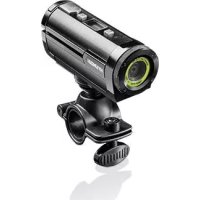
Brand : HYUNDAI
Model : Fingercam LIF-V-10001
Category : Camcorder