
HTS2200 - Home Theater System PHILIPS - Free user manual and instructions
Find the device manual for free HTS2200 PHILIPS in PDF.


| Product Type | Home Theater System |
| Brand | Philips |
| Model | HTS2200 |
| Dimensions (Main Unit) | 360 x 360 x 120 mm |
| Weight (Main Unit) | 3.5 kg |
| Power Supply | AC 100-240 V, 50/60 Hz |
| Power Consumption | 45 W (standby < 1 W) |
| Audio Output Channels | 2.1 channels |
| Total Output Power (RMS) | 100 W |
| Disc Playback | DVD, DVD±R/RW, CD, CD-R/RW |
| Built-in Decoders | Dolby Digital, DTS |
| Radio Tuner | FM (with RDS) |
| Inputs | HDMI (ARC), USB, AUX (3.5mm), Composite Video |
| Outputs | HDMI, Composite Video, Subwoofer Pre-out |
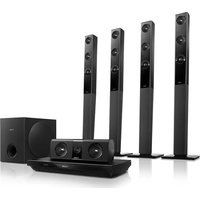
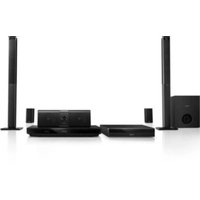
| Speaker System | 2 satellite speakers + passive subwoofer |
| Maintenance & Cleaning | Wipe with a dry soft cloth; avoid solvents |
| Safety | Do not expose to moisture or extreme temperatures |
| Spare Parts / Repairability | Remote, speakers, power cord; service by qualified personnel |
| General Information | User manual available for free download in PDF |
Frequently Asked Questions - HTS2200 PHILIPS
User questions about HTS2200 PHILIPS
0 question about this device. Answer the ones you know or ask your own.
Ask a new question about this device
Download the instructions for your Home Theater System in PDF format for free! Find your manual HTS2200 - PHILIPS and take your electronic device back in hand. On this page are published all the documents necessary for the use of your device. HTS2200 by PHILIPS.
USER MANUAL HTS2200 PHILIPS
Register your product and get support at
www.philips.com/welcome
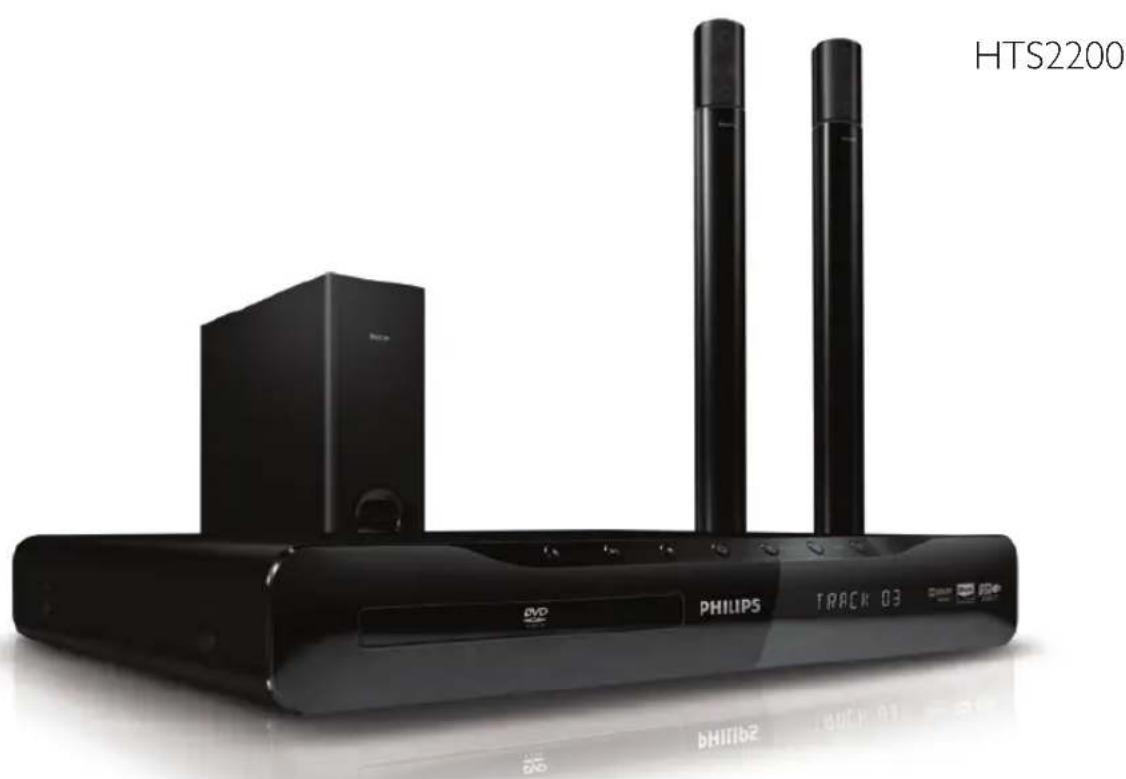
EN User manual
ZH-CN 用户手册
PHILIPS
Contents
1 Notice 2
Copyright
About Progressive Scan 2
Trademarks 2
2 Important 3
Safety
Product care 3
Disposal of your old product and batteries 4
3 Your home theater 4
Main unit 4
Remote control 5
4 Connect your home theater 6
Connectors 6
Connect to the TV 6
Connect audio from TV or other devices 7
5 Use your home theater 7
Before you start 7
Choose your sound 7
Play a disc 8
Play from a USB storage device 9
More play features for disc or USB 9
Play from radio 10
Play audio from TV or other devices 10
6 Change settings 11
Change general settings 11
Change video settings 11
Change preference settings 12
7 Update software 12
Check software version 12
Update software from a CD-R or USB 12
8 Product specifications 13
9 Troubleshooting 14
10 Index 15
EN 1
1 Notice
Copyright

Be responsible Respect copyrights
This item incorporates copy protection technology that is protected by U.S. patents and other intellectual property rights of Rovi Corporation. Reverse engineering and disassembly are prohibited.
About Progressive Scan
Consumers should note that not all high definition television sets are fully compatible with this product and may cause artifacts to be displayed in the picture. In case of 525 or 625 progressive scan picture problems, it is recommended that the user switch the connection to the 'standard definition' output. If there are questions regarding our TV set compatibility with this model 525p and 625p DVD player, please contact our customer service center.
Trademarks
Manufactured under license from Dolby Laboratories. Dolby and the double-D symbol are trademarks of Dolby Laboratories.
DivX, DivX Certified and associated logos are registered trademarks of DivX, Inc. and are used under license.
DivX Ultra Certified to play DivX video with advanced features and premium content.
ABOUT DIVX VIDEO: DivX® is a digital video format created by DivX, Inc. This is an official DivX Certified device that plays DivX video. Visit www.divx.com for more information and software tools to convert your files into DivX video.
ABOUT DIVX VIDEO-ON-DEMAND: This DivX Certified® device must be registered in order to play DivX Video-on-Demand (VOD) content. To generate the registration code, locate the DivX VOD section in your device setup menu. Go to vod.divx.com with this code to complete the registration process and learn more about DivX VOD.
2 Important
Read and understand all instructions before you use your home theater. If damage is caused by failure to follow instructions, the warranty does not apply.
Safety
Risk of electric shock or fire!
- Never expose the product and accessories to rain or water. Never place liquid containers, such as vases, near the product. If liquids are spilt on or into the product, disconnect it from the power outlet immediately. Contact Philips Consumer Care to have the product checked before use.
- Never place the product and accessories near naked flames or other heat sources, including direct sunlight.
Never insert objects into the ventilation slots or other openings on the product.
Where the mains plug or an appliance coupler is used as the disconnect device, the disconnect device shall remain readily operable.
- Disconnect the product from the power outlet before lightning storms.
- When you disconnect the power cord, always pull the plug, never the cable.
Risk of short circuit or fire!
- Before you connect the product to the power outlet, ensure that the power voltage matches the value printed on the back or bottom of the product. Never connect the product to the power outlet if the voltage is different.
Risk of injury or damage to the home theater!
- For wall-mountable products, use only the supplied wall mount bracket. Secure the wall mount to a wall that can support the combined weight of the product and the wall mount. Koninklijke Philips Electronics N.V. bears no responsibility for improper wall mounting that results in accident, injury or damage.
For speakers with stands, use only the supplied stands. Secure the stands to the speakers tightly. Place the assembled stands on flat, level surfaces that can support the combined weight of the speaker and stand.
Never place the product or any objects on power cords or on other electrical equipment.
If the product is transported in temperatures below 5°C, unpack the product and wait until its temperature matches room temperature before connecting it to the power outlet.
Visible and invisible laser radiation when open. Avoid exposure to beam.
Do not touch the disc optical lens inside the disc compartment.
Risk of overheating!
- Never install this product in a confined space. Always leave a space of at least four inches around the product for ventilation. Ensure curtains or other objects never cover the ventilation slots on the product.
Risk of contamination!
Do not mix batteries (old and new or carbon and alkaline, etc.).
Remove batteries if they are exhausted or if the remote control is not to be used for a long time.
Batteries contain chemical substances; they should be disposed of properly.
Product care
Do not insert any objects other than discs into the disc compartment.
Do not insert warped or cracked discs into the disc compartment.
Remove discs from the disc compartment if you are not using the product for an extended period of time.
Only use a microfiber cloth to clean the product.
Disposal of your old product and batteries

Your product is designed and manufactured with high quality materials and components, which can be recycled and reused.

When this crossed-out wheeled bin symbol is attached to a product, it means that the product is covered by the European Directive 2002/96/EC. Please inform yourself about the local separate collection system for electrical and electronic products.
Please act according to your local rules and do not dispose of your old products with your normal household waste.
Correct disposal of your old product helps to prevent potential negative consequences for the environment and human health.

Your product contains batteries covered by the European Directive 2006/66/EC, which cannot be disposed with normal household waste.
Please inform yourself about the local rules on separate collection of batteries because correct disposal helps to prevent negative consequences for the environment and human health.
3 Your home theater
Congratulations on your purchase, and welcome to Philips! To fully benefit from the support that Philips offers, register your home theater at www.philips.com/welcome.
Main unit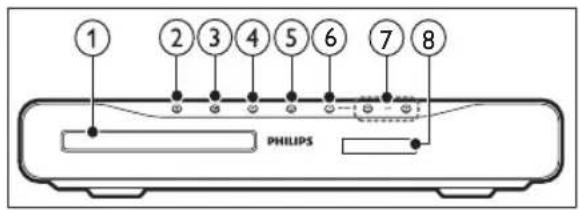
① Disc compartment
② ▲ (Open/Close)
Opens or closes the disc compartment.
③ ▶ II (Play/Pause)
Starts, pauses or resumes play.
④ ■ (Stop)
- Stops play.
• In radio mode, erases the current preset radio station.
⑤ ⏻ (Standby-On)
Switches the home theater on or to standby.
⑥ SOURCE
Selects an audio/video source for the home theater.
⑦ ∠+/-
Increases or decreases volume.
⑧ Display panel
EN
Remote control
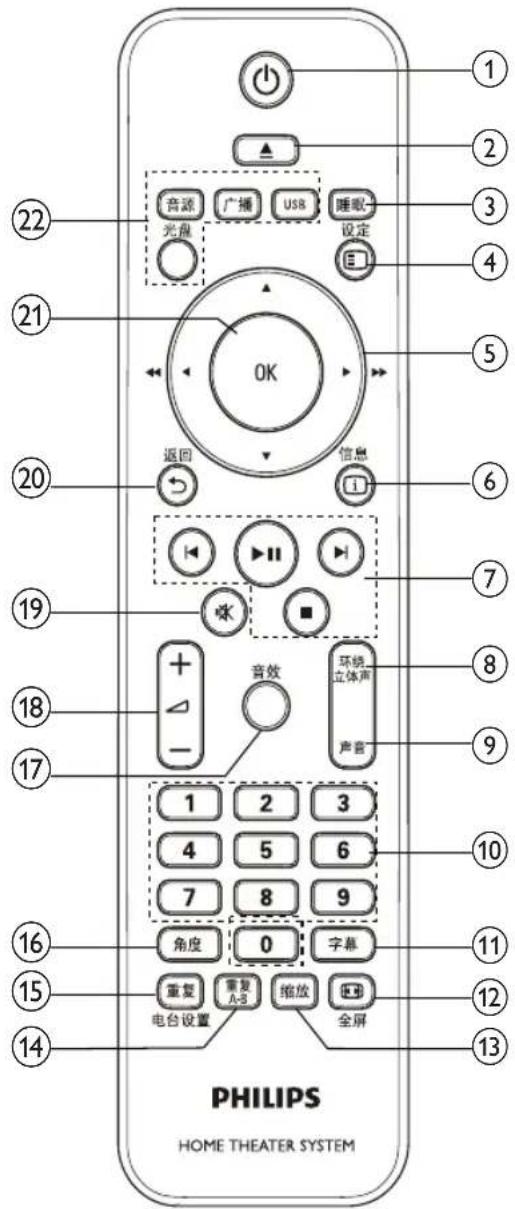
Switches the home theater on or to standby.
② ▲ (Open/Close)
Opens or closes the disc compartment.

Switches the home theater to standby after the preset time selected.
④ 设定 -
Accesses or exits the setup menu.
⑤ ▲▼◀ (Navigation buttons)
- Navigate menus. In video mode, press left or right to fast backward or fast forward. • In radio mode, press left or right to search a radio station; press up or down to fine tune a radio frequency.
Displays information about what is playing.
⑦ Playback buttons
Control playback.
⑧ Surround Sound
Switches to surround sound or stereo sound.

Selects an audio language or channel.
⑩ Numeric buttons
Selects an item to play.

Selects subtitle language for video.
Full screen
Fits the picture format to the TV screen.

Zooms into a video scene or picture.

Marks two points within a chapter or track or repeat play, or turns off repeat mode.
15 Radio settings
• Selects a repeat mode. • In radio mode, programs radio stations.

Displays options for different camera angles.

Selects a sound mode.
18 +/-
Increases or decreases volume.
⑲ (Mute)
Mutes or restores volume.
⑳ ← - Back
Returns to a previous menu screen.
⑳ OK
Confirms an entry or selection.
②2 Source buttons
• Audio source: Selects an audio input source. • Radio: Switches to FM radio. • USB: Switches to USB storage device. • Disc: Switches to disc source.
4 Theater
This section helps you connect your home theater to a TV and other devices. The basic connections of the home theater with its accessories are provided in the Quick Start. For a comprehensive interactive guide, see www.connectivityguide.philips.com.

Note
• Refer to the type plate at the back or bottom of the product for identification and supply ratings. • Before you make or change any connections, ensure that all devices are disconnected from the power outlet.
Connectors
Side connectors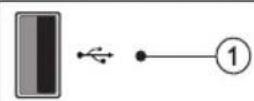
① ✉ (USB)
Audio, video or picture input from a USB storage device.
Back connectors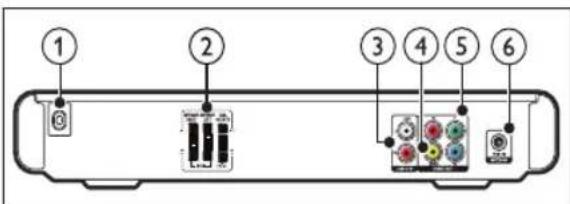
① AC MAINS~ (AC input)
Connects to the power supply.
② SPEAKERS
Connects to the supplied speakers and subwoofer.

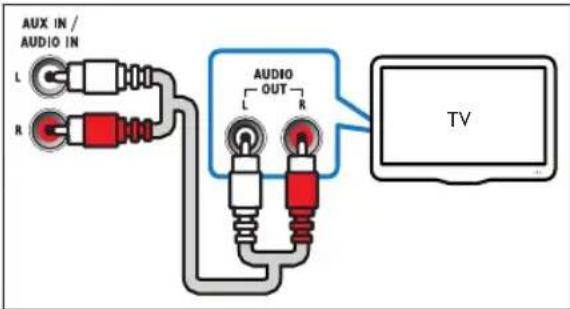
AUDIO IN-AUX
Connects to the analog audio output on the TV or an analog device.
④ VIDEO OUT-VIDEO
Connects to the composite video input on the TV.
⑤ VIDEO OUT-Y Pb Pr
Connects to the component video input on the TV.
⑥ FM ANTENNA
Connects the FM antenna for radio reception.
Connect to the TV
Connect your home theater directly to a TV through one of the following connectors (from highest to basic quality video):
① Component video
② Composite video
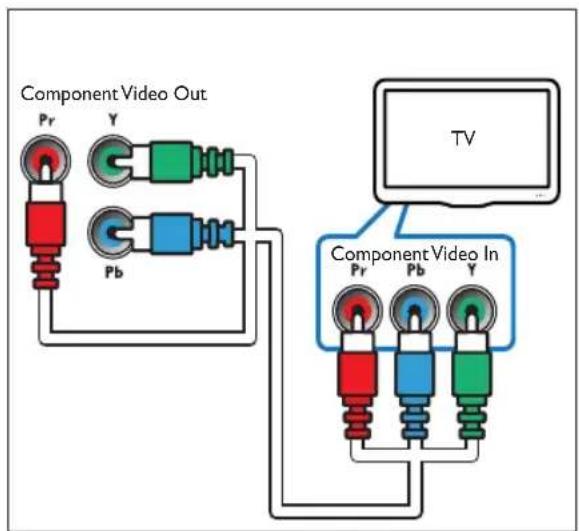
Option 1: Connect to the TV through YPbPr (component video)

Note
The component video cable or connector might be labeled Y Cb Cr or YUV.
(Cable not supplied)
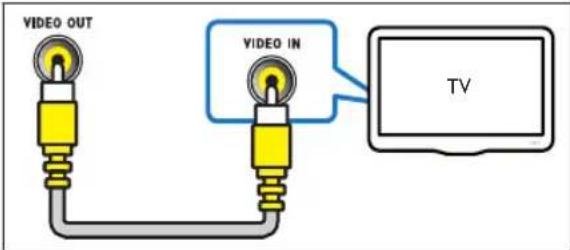
Option 2: Connect to the TV through composite video (CVBS)

Note
- The composite video cable or connector might be labeled AV IN, VIDEO IN, COMPOSITE or BASEBAND.
Connect audio from TV or other devices
Use your home theater to play audio from the TV or other devices such as a cable box.

Tip
Press SOURCE repeatedly to select the audio output of your connection.
(Cable not supplied)
5 Use your home theater
This section helps you use the home theater to play media from a wide range of sources.
Before you start
Check that you:
• Make the necessary connections and complete the setup as described in the Quick Start. - Switch the TV to the correct source for the home theater.
Choose your sound
This section helps you choose the ideal sound for your video or music.
Change sound mode
Select predefined sound modes to suit your video or music.
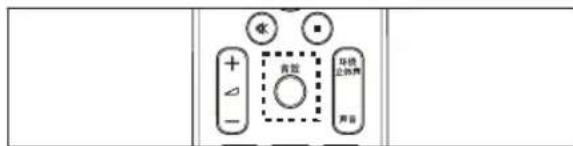
Press SOUND repeatedly to cycle through the available sound modes.
| Sound mode | Description |
| ACTION / ROCK | Enhanced low and high-range. Ideal for action movies and rock or pop music. |
| DRAMA / JAZZ | Clear mid and high-range. Ideal for drama movies and jazz music. |
| CONCERT CLASSIC | /Neutral sound. Ideal for live concerts and classical music. |
| SPORTS | Moderate mid-range and surround effects for clear vocals and the atmosphere of a live sport venue. |
| NIGHT | Dynamically controlled sound mode suitable for watching movies at night or for non-intrusive background music. |
Change surround sound mode
Experience an immersive audio experience with surround sound modes.
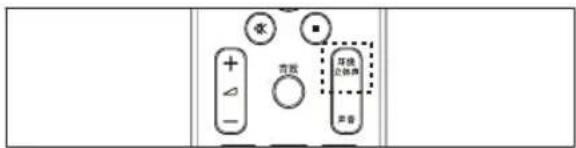
Press SURROUND repeatedly to cycle through the available surround modes.
Option Description
| VIRTUAL SURR | Creates a highly compelling 5.1 channel listening experience. |
| STEREO | Two-channel stereo sound. Ideal for listening to music. |
Play a disc
The home theater can play a wide variety of discs, including video, audio and mixed media (for example, a CD-R that contains JPEG pictures and MP3 music).
1 Insert a disc into the home theater. 2 Press DISC.
→ The disc plays or the disc main menu appears.
3 Press the following buttons to control play:
Button Action
| Navigation buttons | Navigate menus. |
| OK | Confirms an entry or selection. |
| ▶II | Starts, pauses or resumes play. |
| ■ | Stops play. |
| ◀/▶ | Skips to the previous or next track, chapter or fi le. |
| ◀◀/▶ | Fast backwards or fast forwards. Press repeatedly to change the search speed. |
| 缩放 | Zooms into a video scene or picture. |
| 重复A-B | Marks two points within a chapter or track for repeat play, or turns off repeat mode. |
| -全屏 | Fits the picture format to the TV screen. |
Use video options
Access several useful features while viewing video.

Note
Available video options depend on the video source.
| Button Action | |
| ▲ /▼ | Searches slow-backward or slow-forward. Press repeatedly to change the search speed.For VCD/SVCD, slow-backward search is not available. |
| 声音 | Selects an audio language or channel. |
| 字幕 | Selects subtitle language for video. |
| 1 -信息 | Displays information about what is playing. |
| 重复 | Repeats a chapter or title. |
| 重复A-B | Marks two points within a chapter for repeat play, or turns off repeat mode. |
| 角度 | Displays options for different camera angles. |
Use picture options
Access several useful features while viewing pictures.
| Button Action | |
| ▲ /▼ | Rotates the picture counter-clockwise or clockwise. |
| ◄ /► | Skips to the previous or next picture. |
| 重复 | Repeats a single fi le in the folder or repeats the entire folder. |
| 1 -信息 | Displays photo albums in a thumbnail overview. |
Use audio options
Access several useful features while audio is played.
| Button | Action |
| 重复 | Repeats a track or the entire disc. |
| 重复A-B | Marks two points within a track for repeat play, or turns off repeat mode. |
Play from a USB storage device
The home theater is fitted with a USB connector that allows you to view pictures, listen to music, or watch movies stored on a USB storage device.
1 Connect the USB storage device to the home theater.
2 Press USB. A content browser appears. 3 Select a file, then press OK. 4 Press the playback buttons to control play (see 'Play a disc' on page 8).

Note
- If the USB storage device does not fit into the connector, use a USB extension cable.
- The home theater does not support digital cameras that need a computer program to display photos.
- The USB storage device must be FAT or DOS-formatted, and Mass Storage Class compliant.
More play features for disc or USB
Several advanced features are available for video or picture playback from a disc or USB storage device.
Play a musical slideshow
Play music and pictures simultaneously to create a musical slideshow. The files must be stored on the same disc or USB storage device.
1 Play a music track.
2 Navigate to the picture file, then press OK to start slideshow.
3 Press to stop slideshow. 4 Press again to stop music.
Quick skip play to a specific time
Quick skip to a specific part of a video by entering the time of a scene.
1 During video play, press INFO.
2 Press the Navigation buttons and OK to select:
• [TT Time] : Title time. • [Ch Time] : Chapter time. • [Disc Time] : Disc time. • [Track Time] : Track time.
3 Enter the time of the scene, then press OK.
Play from radio
The home theater can store up to 40 radio stations.
1 Check that the FM antenna is connected.
2 Press
" → AUTO INSTALL...PRESS PLAY' appears
on the display panel if you have not installed any radio stations. Press ▶II.
3 Press the following buttons to control play:
Button Action
| ◀/▶ | Selects a preset radio station. |
| ◀◀/▶ | Searches for a radio station. |
| ▲▼ | Fine tunes a radio frequency. |
| ■ | Press and hold to erase the preset radio station.Press to stop the installation of radio stations. |
| 电台设置 | Manual: Press once to access program mode, and press again to store the radio station.Automatic: Press and hold for five seconds to reinstall radio stations. |

Note
• AM and digital radio are not supported. - If no stereo signal is detected, or if fewer than five stations are found, you are prompted to install the radio stations again. - For the best reception, place the antenna away from the TV or other sources of radiation.
Change tuning grid
In some countries, you can switch the FM tuning grid between 50 kHz and 100 kHz. Changing tuning grid erases all preset radio stations.
1 Press 2 Press 3 Press and hold until 'GRID 9' (50 kHz) or 'GRID 10' (100 kHz) is displayed.
Play audio from TV or other devices
Press SOURCE repeatedly to select the audio output of the connected device.
6 Change settings
This section helps you to change the settings of your home theater.

Caution
- Most of the settings are already configured with the best value for the home theater. Unless you have a specific reason to change a setting, it is best to leave it at the default value.
1
Press SETTINGS
→ The following menu appears.
| Symbol | Description |
 | [General Setup] |
 | [Video Setup] |
 | [Preference Setup] |
Select a setup menu, then press OK.
See the following sections for information about how to change the settings of your home theater.
Press BACK to return to the previous menu, or press SETUP to exit.

Note
• You cannot change a setting that is grayed out.
Change general settings
1
Press SETUP
2 Select [General Setup], then press OK.
3 Select and adjust the following settings:
• [OSD Language] : Selects the on-screen display menu language. • [Screen Saver] : Enables or disables screen saver mode. If enabled, the screen enters idle mode after 10 minutes of inactivity (for example, in pause or stop mode). • [DivX® VOD Code] : Displays the DivX VOD registration code for the home theater.
4 Press OK to confirm your choice.

Note
Before you purchase DivX videos and play them on the home theater, register the home theater on www.divx.com using the DivX VOD code.
Change video settings
1
Press SETUP.
2 Select [Video Setup], then press OK.
3 Select and adjust the following settings:
- [TV System] : Selects a TV system that is compatible with the TV. • [TV Display] : Selects a picture display format to fit the TV screen. • [Screen Fit] : Selects a full screen format that best fits to the TV screen. • [Picture Settings] : Selects a predefined color setting. • [Progressive] : Enables or disables progressive scan mode.
4 Press OK to confirm your choice.

Note
- The best setting is automatically selected for the TV. If you need to change the setting, ensure that the TV supports the new setting.
- Some video settings depend on the video source, ensure that the disc and the TV support the setting or feature.
Change preference settings
1 Press SETUP. 2 Select [Preference Setup], then press OK.
3 Select and adjust the following settings:
• [Audio] : Selects audio language for video. • [Subtitle] : Selects subtitle language for video. • [Disc Menu] : Selects menu language for video disc. • [Parental] : Restricts access to discs that are recorded with ratings. To play all discs irrespective of the rating, select level '8'. • [PBC] : Displays or skips the content menu for VCD and SVCD discs. • [Password] : Sets or changes a PIN code to play a restricted disc. Enter '0000' if you do not have a PIN or if you have forgotten your PIN. • [DivX Subtitle] : Selects a character set that supports the DivX subtitle. • [Version Info.]: Displays the software version for the home theater. • [Default] : Resets the home theater to the default settings programmed at the factory.
4 Press OK to confirm your choice.

Note
- If your preferred disc language is not available, you can select [Other] from the list and enter the 4-digit language code which can be found at the back of this manual.
- If you select a language that is not available on a disc, the home theater uses the default language of the disc.
- You cannot reset disc lock, password (PIN code) and parental control settings to their default values.
7 Update software
To check for new updates, compare the current software version of your home theater with the latest software version (if available) on the Philips web site.
Check software version
1
Press SETUP
2 Select [Preference Setup] > [Version Info.], then press OK.
The software version is displayed.
Update software from a CD-R or USB
1 Check for the latest software version on www.philips.com/support. • Search for your model and click on 'software&drivers'. 2 Download the software onto a CD-R or USB storage device. 3 Insert the CD-R or connect the USB storage device to the home theater. 4 Follow the instructions on the TV to confirm the update.
When complete, the home theater automatically switches off and on again.
• If not, disconnect the power cord for a few seconds and then reconnect it.

Caution
- Do not turn off the power or remove the CD-R or USB storage device when the software update is in progress because you might damage the home theater.
EN
8 Product specifications

Note
- Specification and design are subject to change without notice.
Region code
The type plate on the back or bottom of the home theater shows which regions it supports
| Country | DVD | |
| Europe, United Kingdom |  |  |
| Asia Pacific, Taiwan, Korea |  |  |
| Latin America |  |  |
| Australia, New Zealand |  |  |
| Russia, India |  |  |
| China |  |  |
Playback media
DVD-Video, DVD+R/+RW, DVD-R/-RW, CD-R/CD-RW, Audio CD, Video CD/SVCD, Picture CD, MP3-CD, WMA-CD, DivX-CD, USB storage device
File Format
• Audio: .mp3, .wma • Video: .divx, .divx ultra, .mpeg, .mpg, .wmv (simple profile) • Picture: .jpeg, .jpg
Amplifier
• Total output power: 150 W RMS (30% THD), 120 W RMS (10% THD) • Frequency response: 20 Hz-20 kHz / ±3dB • Signal-to-noise ratio: > 65 dB (CCIR) / (A-weighted) - Input sensitivity: - AUX: 1 mV • Signal system: PAL / NTSC
Video
Audio
Sampling frequency:
MP3: 32 kHz, 44.1 kHz, 48 kHz WMA: 44.1 kHz, 48 kHz
Constant bit rate:
MP3: 112 kbps - 320 kbps WMA: 48 kbps - 192 kbps
Radio
Tuning range: FM 87.5-108 MHz (50 kHz)
Signal-to-noise ratio: FM 50 dB
Frequency response: FM 180 Hz-10 kHz / ±6dB
USB
Compatibility: USB
Class support: UMS (USB Mass Storage Class)
File system: FAT16, FAT32 Maximum memory support: < 160GB
Main Unit
Power supply: 110-240V, ~50-60 Hz
• Power consumption: 50 W • Standby power consumption: ≤ 0.9 W • Dimensions (WxHxD): 360 × 58 × 303 (mm)
• Weight: 2.3 kg
Subwoofer
- Impedance: 12 ohm Speaker drivers: 165 mm (6.5") woofer
• Dimensions (WxHxD): 123 × 309 × 369 (mm)
• Weight: 3.81 kg Cable length: 4 m
Speakers
• System: full range satellite - Speaker impedance: 3 ohm Speaker drivers: 76 mm (3") full range
• Dimensions (WxHxD): 254 × 1001 × 254 (mm)
• Weight: 3.71 kg Cable length: 4 m
Laser specification
• Type: Semiconductor laser GaAlAs (CD) • Wave length: 645 - 665 nm (DVD), 770 - 800 nm (CD) • Output power: 6 mW (DVD), 7 mW (VCD/CD) • Beam divergence: 60 degrees.
9 Troubleshooting

Warning
- Risk of electric shock. Never remove the casing of the product.
To keep the warranty valid, never try to repair the product yourself.
If you have problems using this product, check the following points before you request service. If you still have a problem, register your product and get support at www.philips.com/welcome.
If you contact Philips, you will be asked for the model and serial number of your product. The model number and serial number are on the back or bottom of your product. Write the numbers here:
Model No. ____
Serial No. ____
Main unit
The buttons on this home theater do not work.
Disconnect the home theater from the power outlet for a few minutes, then reconnect.
Picture
No picture.
• Ensure that the TV is switched to the correct source for this home theater. - If this happens when you change the TV system, switch to its default mode: 1) Press ▲. 2) Press ◀. 3) Press SUBTITLE. - If this happens when you switch on the progressive scan mode, switch to its default mode: 1) Press ▲. 2) Press ◀. 3) Press AUDIO.
Sound
No sound.
- Ensure that the audio cables are connected and select the correct input source (for example, AUDIO) for the device you want to play.
No sound from TV program.
- Connect an audio cable from the audio input on the home theater to the audio output on the TV, then press 音源 repeatedly to select the correct audio source.
Distorted sound or echo.
- Ensure that the TV volume is muted or set to minimum if you are playing audio through the home theater.
Play
Disc cannot be played.
Clean the disc. •
Ensure that the home theater supports the disc (see 'Product specifications' on page 13). Ensure that the home theater supports the region code of the DVD.
• For DVD±RW or DVD±R, ensure that the disc is finalized.
DivX video files cannot be played.
- Ensure that the DivX file is encoded according to the 'Home Theater Profile' with the DivX encoder. • Ensure that the DivX video file is complete.
DivX subtitles do not display correctly.
- Ensure that the subtitle file name is the same as the movie file name.
- Select the correct character set: 1) Press ☑ - 设定. 2) Select [Preference Setup]. 3) Select [DivX Subtitle]. 4) Select a supported character set. 5) Press OK.
The contents of a USB storage device cannot be read.
- Ensure that the format of the USB storage device is compatible with the home theater (see 'Product specifications' on page 13).
- Ensure that the USB storage device is formatted with a file system that is supported by the home theater.
'No entry' or 'x' sign appears on the TV.
• The operation is not possible.
10 Index
A
amplifier 13
audio
connection 7
C
care 3
change settings 11
connect
audio from TV 7,10
guide 6
other devices 7
TV 6
connectors 6
contact us 14
D
disc
play 8
supported discs 13
disposal of your product 4
F
file formats 13
O
overview
connectors 6
main unit 4
remote control 5
P
picture
slide show 9
troubleshooting 14
play
disc 8
options 8
radio 10
troubleshooting 14
USB storage device 9
product care
product specifications 13
progressive scan 2
R
radio
play
program
tune
tuning grid 10
recycle
region code
remote control
repeat
S
safety
slideshow
play musical slideshow 9
software
update
version
sound
mode 7
surround 8
troubleshooting 14
T
time search video 9
troubleshooting 14
TV
audio from TV 7,10
connect
U
USB
play 9
software update 12
3
EN 15


- CONTENTS
- NOTICE
- IMPORTANT
- YOUR HOME THEATER
- CONNECT YOUR HOME THEATER
- USE YOUR HOME THEATER
- CHANGE SETTINGS
- UPDATE SOFTWARE
- PRODUCT SPECIFICATIONS
- TROUBLESHOOTING
- INDEX
- COPYRIGHT
- ABOUT PROGRESSIVE SCAN
- TRADEMARKS
- SAFETY
- RISK OF ELECTRIC SHOCK OR FIRE
- RISK OF SHORT CIRCUIT OR FIRE
- RISK OF INJURY OR DAMAGE TO THE HOME THEATER
- RISK OF OVERHEATING
- RISK OF CONTAMINATION
- PRODUCT CARE
- DISPOSAL OF YOUR OLD PRODUCT AND BATTERIES
- REMOTE CONTROL
- THEATER
- NOTE
- CONNECTORS
- ① ✉ (USB)
- ① AC MAINS~ (AC INPUT)
- ② SPEAKERS
- AUDIO IN-AUX
- ④ VIDEO OUT-VIDEO
- ⑤ VIDEO OUT-Y PB PR
- ⑥ FM ANTENNA
- CONNECT TO THE TV
- CONNECT AUDIO FROM TV OR OTHER DEVICES
- TIP
- BEFORE YOU START
- CHOOSE YOUR SOUND
- CHANGE SOUND MODE
- CHANGE SURROUND SOUND MODE
- PLAY A DISC
- USE VIDEO OPTIONS
- USE PICTURE OPTIONS
- USE AUDIO OPTIONS
- PLAY FROM A USB STORAGE DEVICE
- MORE PLAY FEATURES FOR DISC OR USB
- PLAY A MUSICAL SLIDESHOW
- QUICK SKIP PLAY TO A SPECIFIC TIME
- PLAY FROM RADIO
- CHANGE TUNING GRID
- PLAY AUDIO FROM TV OR OTHER DEVICES
- CAUTION
- CHANGE GENERAL SETTINGS
- CHANGE VIDEO SETTINGS
- CHANGE PREFERENCE SETTINGS
- CHECK SOFTWARE VERSION
- UPDATE SOFTWARE FROM A CD-R OR USB
- REGION CODE
- PLAYBACK MEDIA
- FILE FORMAT
- AMPLIFIER
- VIDEO
- AUDIO
- RADIO
- USB
- MAIN UNIT
- SUBWOOFER
- SPEAKERS
- LASER SPECIFICATION
- WARNING
- PICTURE
- NO PICTURE
- SOUND
- NO SOUND
- NO SOUND FROM TV PROGRAM
- DISTORTED SOUND OR ECHO
- PLAY
- DISC CANNOT BE PLAYED
- DIVX VIDEO FILES CANNOT BE PLAYED
- DIVX SUBTITLES DO NOT DISPLAY CORRECTLY
- THE CONTENTS OF A USB STORAGE DEVICE CANNOT BE READ
- NO ENTRY' OR 'X' SIGN APPEARS ON THE TV
- A
- C
- D
- F
- O
- P
- R
- S
- T
- U
Brand : PHILIPS
Model : HTS2200
Category : Home Theater System