
Octiv 650 M650EUK - Docking Station ALTEC LANSING - Free user manual and instructions
Find the device manual for free Octiv 650 M650EUK ALTEC LANSING in PDF.


| Product type | Docking station / Bluetooth speaker |
| Brand | Altec Lansing |
| Model | Octiv 650 M650EUK |
| Dimensions (W x D x H) | Approximately 27 x 10 x 12 cm |
| Weight | Approximately 1.2 kg |
| Power | Rechargeable lithium-ion battery (2200 mAh), mains adapter included |
| Battery life | Up to 8 hours of playback |
| Connectivity | Bluetooth 2.1 + EDR, USB port for charging, 3.5 mm auxiliary input |
| Key features | Wireless audio playback, docking station for iPod/iPhone, alarm, stereo speakers |
| Compatibility | iPod (5th generation and later), iPhone (3GS and later), Bluetooth devices |
| Care and cleaning | Wipe with a soft, dry cloth; do not use abrasive products |
| Safety | Do not expose to moisture, extreme temperatures, or direct sunlight |
| Spare parts and repairability | Battery not user-replaceable; contact customer service |
| General information | Release year: approximately 2011; manual available online |
Frequently Asked Questions - Octiv 650 M650EUK ALTEC LANSING
User questions about Octiv 650 M650EUK ALTEC LANSING
0 question about this device. Answer the ones you know or ask your own.
Ask a new question about this device
Download the instructions for your Docking Station in PDF format for free! Find your manual Octiv 650 M650EUK - ALTEC LANSING and take your electronic device back in hand. On this page are published all the documents necessary for the use of your device. Octiv 650 M650EUK by ALTEC LANSING.
USER MANUAL Octiv 650 M650EUK ALTEC LANSING
Thank you for purchasing the Altec Lansing Octiv 650 speaker system. Designed specifically to work with your iPhone or iPod, this docking/charging speaker system re-imagines room-filling sound with elegance of line and intelligent design that's as unobtrusive as it is powerful. It's the epitome of stylish audio performance.
Please carefully read this User Guide for instructions on setting up and using your Octiv 650 speaker system.
Prior to installing or operating the Altec Lansing Octiv 650 speaker system, refer to the important product safety information.
Getting Assistance
The answers to most setup and performance questions can be found in the Troubleshooting section of this guide. You can also consult the frequently asked questions (FAQ) in the customer support section of our Web site at www.alteclansing.com.
If you live in North America and still can't find the information you need, please call our customer service team for assistance before returning this product to your retailer under their return policy.
Tel: 800-258-3288 (Toll Free in US and Canada)
Email: csupport@alteclansing.com
If you live outside of North America, please visit our Web site at www.alteclansing.com and select your region to locate your country's distributor.
For the most up-to-date information, be sure to check our Web site at www.alteclansing.com.
International Distribution
International customers: For information regarding the distribution of Altec Lansing products in your country, please visit www.alteclansing.com and click on your region.
Registering Your Product
Visit www.alteclansing.com to register your product online, so we can provide you with the best possible service and technical support.
FCC Compliance
Changes or modifications not expressly approved by the party responsible for compliance could void the user's authority to operate this equipment.
This device complies with Part 15 of the FCC Rules. Operation is subject to the following two conditions:
1) This device may not cause harmful interference, and
2) This device must accept any interference received, including interference that may cause undesired operation.
Safety Information

The lightning flash with arrowhead, within an equilateral triangle, is intended to alert the user to the presence of uninsulated "dangerous voltage" within the product's enclosure that may be of sufficient magnitude to constitute a risk of electric shock to persons.

Caution: To prevent the risk of electric shock, do not remove cover (or back). No user-serviceable parts inside. Refer servicing to qualified service personnel.

The exclamation point within an equilateral triangle is intended to alert the user to the presence of important operating and maintenance (servicing) instructions in the literature accompanying the appliance.
CAUTION
To prevent electric shock do not use this (polarized) plug with an extension cord, receptacle or other outlet unless the blades can be fully inserted to prevent blade exposure.
WARNING
To reduce the risk of fire or electric shock, do not expose this appliance to rain or moisture.
IMPORTANT SAFETY INSTRUCTIONS
- Read these instructions.
- Keep these instructions.
- Heed all warnings.
- Follow all instructions.
- Do not use this apparatus near water. This apparatus shall not be exposed to dripping or splashing, and no objects filled with liquids, such as vases, shall be placed on the apparatus.
- Clean only with dry cloth.
- Do not block any ventilation openings. Install in accordance with the manufacturer's instructions.
- Do not install near any heat sources such as radiators, heat registers, stoves, or other apparatus (including amplifiers) that produce heat.
-
Do not defeat the safety purpose of the polarized or grounding-type plug. A polarized plug has two blades with one wider than the other. A grounding type plug has two blades and a third grounding prong. The wide blade or the third prong are provided for your safety. If the provided plug does not fit into your outlet, consult an electrician for the replacement of the obsolete outlet.
-
Protect the power cord from being walked on or pinched particularly at plugs, convenience receptacles, and the point where they exit from the apparatus.
- Only use attachments/accessories specified by the manufacturer.
- Use only with the cart, stand, tripod, bracket, or table specified by the manufacturer or sold with the apparatus. When a cart is used, use caution when moving the cart/apparatus combination to avoid injury from tip-over.
- Unplug this apparatus during lightning storms or when unused for long periods of time.
- Refer all servicing to qualified service personnel. Servicing is required when the apparatus has been damaged in any way, such as power-supply cord or plug is damaged, liquid has been spilled or objects have fallen into the apparatus, the apparatus has been exposed to rain or moisture, does not operate normally, or has been dropped.
- Do not install in an area which impedes the access to the power plug. Disconnecting the power plug is the only way to completely remove power to the product and must be readily accessible at all times.
Please read FCC information and important safety logos on the bottom of the unit.
Contents
Welcome....ii
Safety Information 1
Package Contents....3
Speaker Features and Indicators 4
Full-featured Remote Details....5
Getting Started....5
How to Find Your Desired Song or Video....7
How to Play/Pause Your Music or Video....7
How to Adjust the Volume....7
How to Adjust Bass and Treble Levels....8
Setting EQ Controls....8
How to Listen to Your iPhone or iPod 9
How to Output Video to an External Monitor or TV....9
How to Navigate the iPod Menu on Your iPhone or iPod 10
How to Charge Your iPhone or iPod .... 10
How to Listen to Your Non-docking Portable Device....10
How to Maintain Your Speaker System....11
Troubleshooting....12
Warranty 16
Package Contents

Speaker Features and Indicators


Full-featured Remote Details
NOTE For best results, aim the full-featured remote toward the Octiv 650 speaker system.

Getting Started
Place your Altec Lansing Octiv 650 speaker system on a desk, bookshelf, counter, or other hard surface.
WARNING The Octiv 650 features an exposed subwoofer on the bottom of the speaker system. When placing your Octiv 650, be careful to avoid bumping the subwoofer against sharp corners or setting the system on top of sharp objects. This could damage the subwoofer.
WARNING In order to prevent accidentally dropping your iPhone or iPod, be sure to remove it from the docking station before picking up the speaker system.
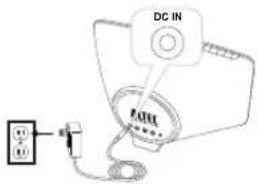
How to Install the AC Adapter
1 Connect the AC adapter cable plug into the speaker system's jack.
The jack is located on the back of the system.
2 Plug the AC adapter into the wall outlet.
WARNING Use of another AC adapter may damage the product. Use only the supplied AC adapter.
Getting Started
How to Connect the Full-Featured Remote Battery
The remote battery (included) will need to be installed before the remote will function; in order to do this please follow the instructions below:
1 Pull the battery holder out about halfway.
The battery holder is located on the lower end of the back of the remote. Use a fingernail to pull the latch toward the centerline of remote while using another fingernail to simultaneously pull the battery holder out of the remote.
2 Remove the battery from the plastic bag where you found the remote and insert into the battery holder so that the "+" sign is facing up.
3 Push the battery holder back into the remote, making sure the battery stays in place.
You will hear and feel the latch click.
NOTE Please discard used batteries properly.
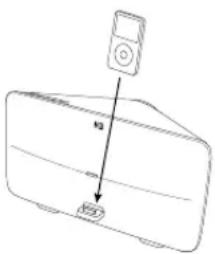
How to Dock Your iPhone or iPod
Place your iPhone or iPod into position.
Align your iPhone or iPod's connection port with the dock connector on the Octiv 650 speaker system. Slide your iPhone or iPod onto the dock connector.
How to Turn On Your Speaker System
1 Make sure you have power to the unit.
Ensure the AC adapter is connected to the system and plugged into the wall. See the Getting Started section for more information.
2 Turn the unit on.
Press the ⏻ button on either the speaker system or the remote.
How to Turn Off Your Speaker System
Turn off the unit.
Press the ⏻ button on either the speaker system or the remote.
NOTE After a few minutes of no use, the speaker system will automatically turn itself off.
How to Find Your Desired Song or Video
Use the remote to locate the song or video you want to enjoy.
Skip to the beginning of the current song or video.
Press the button on the remote.
Skip to the beginning of the next song or video.
Press the ▶ button on the remote.
Rewind the currently playing song or video.
While a song or video is playing, press and hold the ◀ button on the remote. This gives you high-speed reverse search of the current song or video.
Fast-forward the currently playing song or video.
While a song or video is playing, press and hold the ➕ button on the remote. This gives you high-speed forward search of the current song or video.
How to Play/Pause Your Music or Video
The remote is capable of controlling playback on your iPhone or iPod.
Begin playing a selected music track or video.
Press the ▶button on the remote. Sound from your device will start playing through the speaker. And if you have your speaker system configured to do so, video will display on your external monitor or TV. See the How to Output Video to an External Monitor or TV section.
Pause the selected track or video.
Press the ▶ button again on the remote. The music or video will be paused.
How to Adjust the Volume
Turn up the volume.
Press the “+” button on the speaker system or the “VOL +” button on the remote until the desired volume is reached.
Turn down the volume.
Press the “-” button on the speaker system or the “VOL -” button on the remote until the desired volume is reached.
Mute the sound.
Press the "MUTE" button on the remote. To unmute the sound, press the "MUTE" button again.
How to Adjust Bass and Treble Levels Setting EQ Controls
How to Adjust the Bass Level Using the Onboard Controls
Increase the bass level.
While depressing the "BASS" button, repeatedly press the "+" button, or press and hold the "+" button.
Decrease the bass level.
While depressing the "BASS" button, repeatedly press the "-" button, or press and hold the "-" button.
How to Adjust the Treble Level Using the Onboard Controls
Increase the treble level.
While depressing the "TREBLE" button, repeatedly press the "+" button, or press and hold the "+" button.
Decrease the treble level.
While depressing the "TREBLE" button, repeatedly press the "-" button, or press and hold the "-" button.
How to Adjust the Bass Level Using the Remote
Press the "BASS +" button to increase the bass.
Press the "BASS -" button to decrease the bass.
How to Adjust the Treble Level Using the Remote
Press the "TREBLE +" button to increase the treble.
Press the "TREBLE -" button to decrease the treble.
How to Select Your Desired EQ Preset
On the remote control, press the button that corresponds with your desired EQ setting:
- ROCK
• ALTEC EQ - HIPHOP
- POP
- CUSTOM
How to Adjust the Multi-Band Graphic EQ
An app is available from the iTunes store for personalizing the multi-band equalizer built into the Octiv 650. See www.apple.com/itunes for more information.
How to Restore Factory Default EQ Settings
1 Ensure that your Octiv 650 speaker system is powered on.
2 Press and hold the button on the speaker system until the Power LED stops flashing.
How to Listen to Your iPhone or iPod
1 Dock your iPhone or iPod in the Altec Lansing Octiv 650 speaker system.
2 Turn on your speaker system.
3 Find your desired song or video.
4 Start playing your song or video.
5 Adjust the volume.
NOTE Whenever your iPhone or iPod is docked, it is charging until fully charged.

How to Output Video to an External Monitor or TV
The "VIDEO" button on the speaker system allows the user to change its video output mode. There are three available modes:
- Off: Video pass through disabled, indicated by 1 LED when the video button is pressed. Video will play on the iPhone or iPod screen only.
- Composite: Indicated by 2 LEDs when the video button is pressed. Video will play on an external composite video monitor, if connected. Connect a single RCA cable from the blue RCA jack labeled "COMP Pb & CVBS OUT" on the back of the speaker to the composite input jack (yellow RCA) on your monitor or television.
- Component: Indicated by 3 LEDs when the video button is pressed. Video will play on an external component RGB video monitor, if connected. Connect the blue, green, and red RCA outputs labeled "COMP Pb & CVBS OUT," "COMP Y OUT" and
"COMP Pr OUT" on the back of the speaker to the respective color inputs on your monitor or television with a 3-connector RCA cable.
Press the "VIDEO" button to cycle through settings: Component, Off and Composite. The video output mode is set to Component by default at the factory.
How to Connect a Newer iPhone or iPod touch
On newer iPhone and iPod touch devices that use the iOS operating system, you need to configure the speaker system to tell the iPhone or iPod what type of video output you are using. Pressing the "VIDEO" button cycles through "Component," "Off" and "Composite" video output modes, in that order. The factory default setting is "Component."
1 Ensure your cable connections from the speaker system to your monitor or TV are correct for your desired output mode.
2 Configure the speaker system for your desired output mode: For component video playback, you don't have to do anything. The Octiv 650 speaker system is set to "Component" at the factory. For composite playback, press the "VIDEO" button twice (assuming the speaker system is in "Component" mode) to set the speaker system to "Composite" mode.
3 If video does not automatically start playing on your TV or external monitor, press play again on your device.
NOTE When the speaker system external video mode is set to "Off," video will play back on your iPhone or iPod touch only.
How to Navigate the iPod Menu on Your iPhone or iPod
In iPod mode, you can use the navigation keys on the remote to choose songs from your music library and videos from your video library:
Press the "MENU▲" button to scroll up within a menu screen.
Press the "MENU▼" button to scroll down within a menu screen.
Press the "MENU◀" button to go up a menu level. (On older iPod models, pressing and holding this button will take you back to the top-level menu. On 6th-generation iPod nano models, this button provides no functionality.)
Press the "SELECT" button to make a selection within a menu.
How to Charge Your iPhone or iPod
Whenever your iPhone or iPod is docked and your Altec Lansing Octiv 650 speaker system is plugged into an AC outlet, your iPhone or iPod is charging (until fully charged) – even if the speaker system is switched off.
How to Listen to Your Non-docking Portable Device
If you have a non-docking portable audio or video device, you can enjoy it through your Altec Lansing Octiv 650 speaker system as well. Just connect it via the AUX jack. Here's how:

1 Locate a 3.5mm stereo cable (not included).
2 Plug one end of the stereo cable into your device.
Your device should have either a headphone or LINE OUT jack for you to plug into.
3 Plug the other end of the stereo cable into your speaker system's AUX jack.
The AUX jack is located on the back of the speaker system.
4 Turn on your speaker system.
5 Turn on your device.
6 Find your desired song or video.
7 Start playing the song or video.
8 Adjust the volume.
NOTE You may need to adjust the device volume also. Your device's volume should be set to approximately 3/4 volume and adjusted from there.
How to Maintain Your Speaker System
Place your speaker system on a level surface away from sources of direct sunlight or excessive heat.
Protect your furniture with a piece of cloth or other protective material when placing your speaker system on a natural wood or lacquered finish.
Clean your speaker system with only a dry cloth. Cleaning agents, such as benzene, thinner or similar materials, can damage the surface of the unit.
Troubleshooting
| Symptom Possible Problem Solution | ||
| Speaker system doesn't respond (no power) | AC adapter isn't plugged into a wall outlet or the connector isn't plugged into the power supply jack on the back of the speaker system. | Plug the AC adapter into a wall outlet and plug the connector into the power supply jack on the back of the speaker system. |
| Wall outlet is not functioning. Plug another device into the same outlet to confirm the outlet is working. | ||
| The power isn't turned on. | Turn on the speaker system by pressing the button. The Power LED lights up. | |
| iPhone or iPod doesn't dock properly | iPhone or iPod didn't install properly. | Remove your iPhone or iPod from the dock and check for obstructions on the connectors in the dock and on your iPhone or iPod. Then reseat it in the dock. |
| Device case is preventing iPhone or iPod from installing properly. | Remove your iPhone or iPod from the dock. Remove the iPhone or iPod from its case. Then reseat your iPhone or iPod in the dock. | |
| iPhone or iPod doesn't respond to the speaker system or remote | iPhone or iPod is not installed properly. | Remove your iPhone or iPod from the dock and check for obstructions on the connectors in the dock and on your iPhone or iPod. Then reseat it in the dock. |
| Device case is preventing iPhone or iPod from installing properly. | Remove your iPhone or iPod from the dock. Remove the iPhone or iPod from its case. Then reseat your iPhone or iPod in the dock. | |
| Your iPhone or iPod software is too old. | Upgrade software on your iPhone or iPod. For details, visit www.apple.com/ipod/download. | |
| iPhone or iPod is locked up. Please make sure your iPhone or iPod is working properly before docking into the unit. Please refer to your iPhone or iPod manual for details. | ||
Troubleshooting
| Symptom Possible Problem Solution | ||
| iPhone or iPod didn't charge | iPhone or iPod is not installed properly. | Remove your iPhone or iPod from the dock and check for obstructions on the connectors in the dock and on your iPhone or iPod. Then reseat it in the dock. |
| Device case is preventing iPhone or iPod from installing properly. | Remove your iPhone or iPod from the dock. Remove the iPhone or iPod from its case. Then reseat your iPhone or iPod in the dock. | |
| iPhone or iPod is locked up. Please make sure your iPhone or iPod is working properly before docking into the unit. Please refer to your iPhone or iPod manual for details. | ||
| AC adapter isn't plugged into a wall outlet, or the connector is not plugged into the power supply jack on the back of the speaker system. | Plug the AC adapter into a wall outlet and plug the connector into the supply jack on the speaker system. | |
| Sound is distorted | Volume level is set too high. Decrease the volume. | |
| Sound source is distorted. If the iPhone or iPod original sound source (sound file) is of poor quality, distortion and noise are easily noticed with high-power speakers. Try a different audio source such as a music CD. | ||
Troubleshooting
| Symptom Possible Problem Solution | ||
| No video output | Speaker system is in the wrong video mode. | On newer iPhone and iPod touch devices that use the iOS operating system:1. Ensure your cable connections from the speaker system to your monitor or TV are correct for your selected output mode.2. Play a movie on your iPhone or iPod touch3. Press the “VIDEO” button until you get video on your device.4. Then press the “VIDEO” button once for “Composite” or twice for “Component” output. |
| On older iPods, you select the video output type via the iPod player’s video settings:1. Ensure your cable connections from the speaker system to your monitor or TV are correct for your selected output mode.2. Cycle through video output modes on your iPod until you see video on your external monitor or TV.NOTE The “VIDEO” button provides no functionality for older iPod models. | ||
| Full-featured remote doesn’t work | Battery is weak. Replace current battery with a new battery. | |
| Full-featured remote is not pointed toward the speaker system. | Point the full-featured remote toward the Altec Lansing speaker system and move within 10 feet of the unit. | |
Troubleshooting
| Symptom Possible Problem Solution | ||
| No sound from the AUX device, such as an MP3 player or CD player connected to the AUX jack | Cable is not properly connected to the source or the speaker system. | Ensure the cable is properly connected between the source and the Octiv 650 speaker system. |
| Volume on the device is set too low. | Increase the volume on the device to approximately 3/4 full volume. | |
| The speaker system exhibits erratic or unexpected behavior; controls do not function | Static electricity, momentary interruption of power or abnormal operating conditions may be responsible. | 1. Remove your iPhone or iPod.2. Disconnect the AC adapter cable plug from the speaker system's jack.3. Wait 20 – 30 seconds.4. While you wait, reset your iPhone or iPod.5. Reconnect the AC adapter cable plug to the speaker system's jack.6. Turn on the speaker system and check for erratic behavior. For example, adjust the volume and see if the LEDs change.7. If the speaker system still exhibits erratic behavior (for example, the LEDs do not change as you adjust the volume), restore the unit's factory defaults:A. Ensure that your Octiv 650 speaker system is powered on.B. Press and hold the ⏻ button on the speaker system until the Power LED stops flashing.8. Reinstall your iPhone or iPod on the dock. |
Warranty
ALTEC LANSING ONE-YEAR LIMITED WARRANTY
What Does the Warranty Cover?
Altec Lansing warrants that its products shall be free from defects in materials or workmanship, with the exceptions stated below.
What Is the Period of Coverage?
This warranty runs for one year from the date of purchase. The term of any warranties implied by law shall expire when your limited warranty expires. Some states and/or Member States in the European Union do not allow limitations on how long an implied warranty lasts, so the above limitation may not apply to you.
What Does the Warranty Not Cover?
This warranty does not cover any defect, malfunction or failure that occurs as a result of: improper installation; misuse or failure to follow the product directions; abuse; or use with improper, unintended or faulty equipment. (For information on proper installation, operation and use consult the manual supplied with the product. If you require a replacement manual, you may download a manual from www.alteclansing.com.) Also, consequential and incidental damages are not recoverable under this warranty. Some states do not allow the exclusion or limitation of incidental or consequential damages, so the above limitation or exclusion may not apply to you.
What Will Altec Lansing Do to Correct the Problem?
Altec Lansing will, at its option, repair or replace any product that proves to be defective in material or workmanship. If your product is no longer being manufactured, or is out of stock, at its option, Altec Lansing may replace your product with a similar or better Altec Lansing product.
How to Get Warranty Service
To get a covered product repaired or replaced, you must contact Altec Lansing during the warranty period by email (csupport@alteclansing.com). You must include in your email, your name, address, email address, telephone number, date of purchase and a complete description of the problem you are experiencing. In the United States, you may alternatively contact Altec Lansing by telephone at 1-800-ALTEC88 – please be prepared to provide the same information. If the problem appears to be related to a defect in material or workmanship, upon proof of purchase Altec Lansing will provide you a return authorization and instructions for return shipment. Return shipments shall be at the customer's expense. You should insure the shipment as appropriate because you are responsible for the product until it arrives at Altec Lansing.
How Will State Law Affect Your Rights?
This warranty gives you specific legal rights, and you may also have other rights which vary from state to state. Please note that in the European Union, you as a consumer might have other legal rights under national legislation of European Union Member States governing the sale of Altec Lansing's goods. Those rights are not affected by this guarantee.
The above limited warranties and remedies are sole warranties and remedies available to purchaser, if, and to the extent, valid and enforceable under the applicable law.
DISPOSAL OF OLD ELECTRICAL AND ELECTRONIC EQUIPMENT
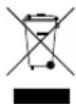
This symbol on the product or on its packaging indicates that this product shall not be treated as household waste. Instead it shall be handed over to the applicable collection point for the recycling of electrical and electronic equipment. By ensuring this product is disposed of correctly, you will help prevent potential negative consequences for the environment and human
health, which could otherwise be caused by inappropriate waste handling of this product. The recycling of materials will help to conserve natural resources. For more detailed information about recycling of this product, please contact your local city office or your household waste disposal service.
Bienvenue
Mise en route
Introducción
EUROPE Flexport 5th floor, Radanweg 60, 1043 NT, Amsterdam, The Netherlands
ASIA/PACIFIC 23/F, Office Tower, Shun Hing Square Diwang Commercial Centre, 5002 Shen Nan Dong Road, Shenzhen, China 518008
"Made for iPhone" and "Made for iPod" mean that an electronic accessory has been designed to connect specifically to iPhone and iPod players, and has been certified by the developer to meet Apple performance standards. Apple is not responsible for the operation of this device or its compliance with safety and regulatory standards. Please note that the use of this accessory with iPhone or iPod may affect wireless performance.
Product specifications and appearance are subject to change without notice.
©2010 Aitec Lansing, LLC. All rights reserved.
ALTEC, ALTEC LANSING, the Altec Lansing logo. Hear What's Next, and Octiv are trademarks or registered trademarks of Altec Lansing, LLC.
iPhone and iPod is a trademark of Apple Inc., registered in the U.S. and other countries. All other trademarks appearing herein are the property of their respective owners.
Designed by Altec Lansing in the USA. Made in China. A14095 R02


- GETTING ASSISTANCE
- INTERNATIONAL DISTRIBUTION
- REGISTERING YOUR PRODUCT
- FCC COMPLIANCE
- SAFETY INFORMATION
- CAUTION
- WARNING
- IMPORTANT SAFETY INSTRUCTIONS
- CONTENTS
- FULL-FEATURED REMOTE DETAILS
- GETTING STARTED
- HOW TO FIND YOUR DESIRED SONG OR VIDEO
- HOW TO PLAY/PAUSE YOUR MUSIC OR VIDEO
- HOW TO ADJUST THE VOLUME
- HOW TO ADJUST BASS AND TREBLE LEVELS SETTING EQ CONTROLS
- INCREASE THE BASS LEVEL
- DECREASE THE BASS LEVEL
- INCREASE THE TREBLE LEVEL
- DECREASE THE TREBLE LEVEL
- HOW TO LISTEN TO YOUR IPHONE OR IPOD
- HOW TO OUTPUT VIDEO TO AN EXTERNAL MONITOR OR TV
- HOW TO NAVIGATE THE IPOD MENU ON YOUR IPHONE OR IPOD
- HOW TO CHARGE YOUR IPHONE OR IPOD
- HOW TO LISTEN TO YOUR NON-DOCKING PORTABLE DEVICE
- HOW TO MAINTAIN YOUR SPEAKER SYSTEM
- WARRANTY
- ALTEC LANSING ONE-YEAR LIMITED WARRANTY
- WHAT DOES THE WARRANTY COVER
- WHAT IS THE PERIOD OF COVERAGE
- WHAT DOES THE WARRANTY NOT COVER
- WHAT WILL ALTEC LANSING DO TO CORRECT THE PROBLEM
- HOW TO GET WARRANTY SERVICE
- HOW WILL STATE LAW AFFECT YOUR RIGHTS
- DISPOSAL OF OLD ELECTRICAL AND ELECTRONIC EQUIPMENT
- BIENVENUE
- MISE EN ROUTE
- INTRODUCCIÓN
Brand : ALTEC LANSING
Model : Octiv 650 M650EUK
Category : Docking Station