
MX740 - Home Theater System PHILIPS - Free user manual and instructions
Find the device manual for free MX740 PHILIPS in PDF.


| Product Type | Home Theater System |
| Model | MX740 |
| Brand | Philips |
| Amplifier Power (RMS) | 1000 W total |
| Speaker Configuration | 5.1 channel |
| Disc Playback | DVD, DVD±R/RW, CD, CD-R/RW, MP3-CD, WMA, JPEG |
| Audio Decoders | Dolby Digital, DTS |
| Radio Tuner | FM |
| Connectivity | HDMI out, composite video out, coaxial digital in, analog audio in, USB |
| Dimensions (main unit) | 360 x 58 x 320 mm |
| Weight (main unit) | 3.5 kg |
| Power Supply | AC 220-240 V, 50/60 Hz |
| Power Consumption | 100 W (standby < 0.5 W) |
| Remote Control | Yes, included |
| Cleaning | Wipe with a soft dry cloth; avoid solvents |
| Safety | Class II laser product; do not open housing |
| Spare Parts / Repairability | Contact Philips service center for spare parts |
Frequently Asked Questions - MX740 PHILIPS
User questions about MX740 PHILIPS
0 question about this device. Answer the ones you know or ask your own.
Ask a new question about this device
Download the instructions for your Home Theater System in PDF format for free! Find your manual MX740 - PHILIPS and take your electronic device back in hand. On this page are published all the documents necessary for the use of your device. MX740 by PHILIPS.
USER MANUAL MX740 PHILIPS
Important notes for users in the U.K.
Mains plug
This apparatus is fitted with an approved 13 Amp plug. To change a fuse in this type of plug proceed as follows:
1 Remove fuse cover and fuse.
2 Fix new fuse which should be a BS1362 5 Amp, A.S.T.A. or BSI approved type.
3 Refit the fuse cover.
If the fitted plug is not suitable for your socket outlets, it should be cut off and an appropriate plug fitted in its place. If the mains plug contains a fuse, this should have a value of 5 Amp. If a plug without a fuse is used, the fuse at the distribution board should not be greater than 5 Amp.
Note: The severed plug must be disposed of to avoid a possible shock hazard should it be inserted into a 13 Amp socket elsewhere.
How to connect a plug
The wires in the mains lead are coloured with the following code: blue = neutral (N), brown = live (L).
As these colours may not correspond with the colour markings identifying the terminals in your plug, proceed as follows:
- Connect the blue wire to the terminal marked N or coloured black.
- Connect the brown wire to the terminal marked L or coloured red.
- Do not connect either wire to the earth terminal in the plug, marked E (or 12 ) or coloured green (or green and yellow).
Before replacing the plug cover, make certain that the cord grip is clamped over the sheath of the lead - not simply over the two wires.
Copyright in the U.K.
Recording and playback of material may require consent. See Copyright Act 1956 and The Performer's Protection Acts 1958 to 1972.
Italia
The following should be read instead of the original text on page 7:
MUTE ....Mutes the sound of the receiver in all modes, except TV.
Mutes the sound of your Philips TV set if your remote control is in TV mode.
Switches the source selected on your remote control (e.g. VCR, TV) to standby. When pressed longer than 2 seconds, the receiver switches to standby.
Français
Scope of supply....4
Maintenance....4
Setup 4
Environmental information....4
Trademark acknowledgment....4
Controls
Remote control
Remote control usage....6
Remote control buttons 7
Connectors
Connections
Audio connections....9
System control bus, CINEMA LINK 10
Video connections (FR 760 only)....10
Mains 11
Speaker connections....11
TV as the center speaker....11
Antenna connections 11
FRONT AV / GAME cap (FR 760 only)....11
System setup
Positioning of the speakers 12
Speaker setup and testing....12
Power handling 12
Headphones 12
Display
Menus
Receiver menu....14
TV menu 15
Source selection
SOURCE SELECTOR....16
About 6 CHANNEL / DVD INPUT....16
Playback, recording
Playing a source....17
Adjusting the sound....17
Recording from a source....17
Surround sound
About surround sound....18
Switching surround sound 18
Surround sound settings....18
Tuner
Tuning to radio stations....19
Switching FM sensitivity 19
Storing radio stations 19
Tuning to stored radio stations....20
Resorting stored radio station....20
Naming radio stations 20
Clearing station names....20
RDS 21
RDS News and Traffic Announcement......21
Technical data
Receiver....22
Speakers (supplied with MX 740 only)....22
Troubleshooting
Warning....23
Troubleshooting....23
This product complies with the radio interference requirements of the European Community.
Scope of supply
This receiver is supplied including:
- a remote control
- 2 batteries for the remote control, size AA
- a system bus cable for the CINEMA LINK connection
- a loop antenna
- a wire antenna
- 5 loudspeakers including 5 speaker cables (MX 740 only)
- a quick installation card (MX 740 only)
– this instruction booklet
Maintenance
Clean the receiver with a soft, slightly dampened, lint-free cloth. Do not use any cleaning agents as they may have a corrosive effect.
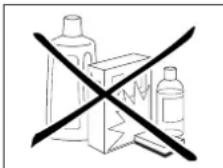
Do not expose the receiver to humidity, rain, sand or excessive heat (caused by heating equipment or direct sunlight).
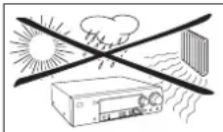
Setup
If you have stacked the components of your system, the receiver must be on top. Place the receiver on a flat, hard, stabile surface. Do not cover any vents and leave 50 cm above and 10 cm left and right of the receiver free for ventilation.
For good reception the loop antenna should not be placed on top of, or beneath VCRs, CD recorders, DVD players, TVs and other radiation sources.
Environmental information
All redundant packing material has been omitted. We have done our utmost to make the packaging easily separable into three mono materials: cardboard (box), polystyrene foam (buffer) and polyethylene (bags, protective foam sheet).
Your set consists of materials which can be recycled if disassembled by a specialized company. Please observe the local regulations regarding the disposal of packing materials, exhausted batteries and old equipment.
As an ENERGY STAR® partner, Philips has determined that this product meets the ENERGY STAR® guidelines for energy efficiency.

Trademark acknowledgment
"DOLBY", "DOLBY DIGITAL", "PRO LOGIC" and the double-D symbol □□ are trademarks of Dolby Laboratories.
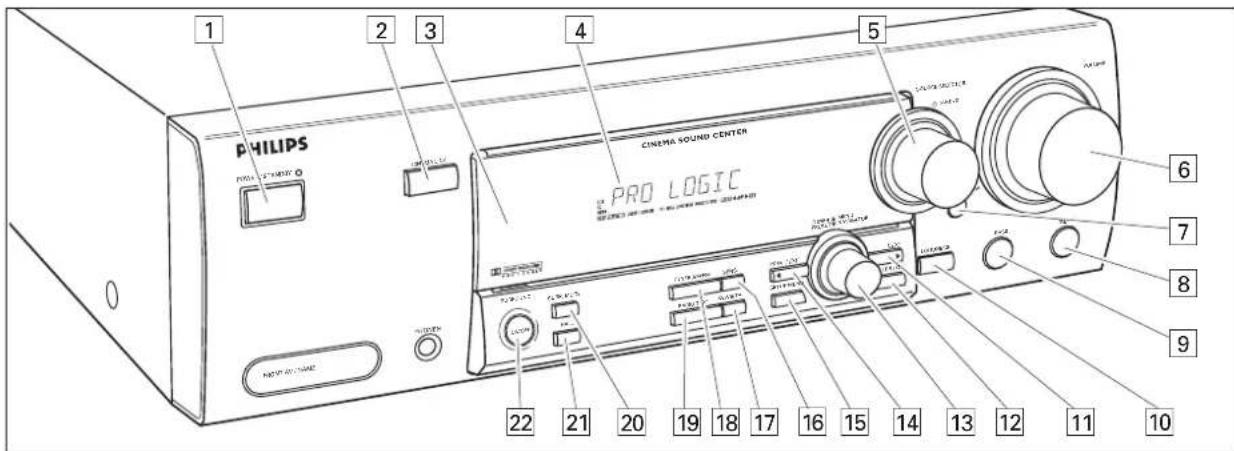
1 POWER / STANDBY.....Switches the receiver on and off.
2 CINEMA LINK .... Switches the system control bus between the receiver and the TV on and off.
3 Sensor for the infrared remote control.
4 ......Display
5 SOURCE SELECTOR ..... Selects the different audio and video connectors.
6 VOLUME......Increases and decreases the volume level.
7 FRONT AV....Selects the FRONT AV / GAME input (FR 760 only).
8 TREBLE....Adjusts the treble when used in combination with VOLUME.
9 BASS....Adjusts the bass when used in combination with VOLUME.
10 LOUDNESS Switches LOUDNESS on and off.
11 NEXT ▶......TUNER: searches radio stations.
MENU: switches to the next
menu level.
12 ENTER / OK.....Confirms selected menu values.
13 TUNER PRESET ◆ MENU NAVIGATOR
TUNER: switches to the next and previous stored radio station. MENU: moves upwards and downwards.
14 ◀ PREV. / EXIT ......TUNER: searches radio stations.
MENU: switches to the previous
menu level.
15 SETUP MENU ...... Switches the menu on and off.
16 SENS. Switches between low and high tuner sensitivity.
17 NEWS/TA....Switches the RDS news and RDS traffic announcement on and off.
18 TUNER AM/FM ...... Switches the wavebands of the tuner.
19 RADIO TEXT ...... Scrolls through the different RDS information.
20 SURR. MODE....Switches through the different speaker configurations.
21 HALL....Switches HALL on and off.
22 SURROUND ON/OFF .... Switches between the last selected surround mode and stereo.
Remote control usage
Open the battery compartment of the remote control and insert 2 alkaline batteries, type AA (R06, UM-3).
Remove batteries if they are flat or if the remote control is not going to be used for a long time.
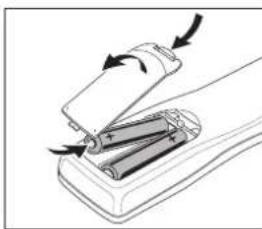
natural_image
Diagram of a battery being inserted into a slot, showing internal components and arrows indicating direction (no text or symbols)Batteries contain chemical substances, so they should be disposed of properly.
The buttons on the remote control work the same way as the corresponding ones on the receiver.
Additional appliances can only be controlled if they are working with the RC-5 and the RC-6 code system.
Important!
You have to press a source button for longer than 1 second to switch the sound source on the receiver. Pressing a source button for less than 1 second will only switch the remote control to use the commands for the selected product.
The remote control remains tuned to the selected source until another source button on the remote control is pressed. This enables you to operate additional sources (i.e. winding a tape) without changing the source on the receiver.
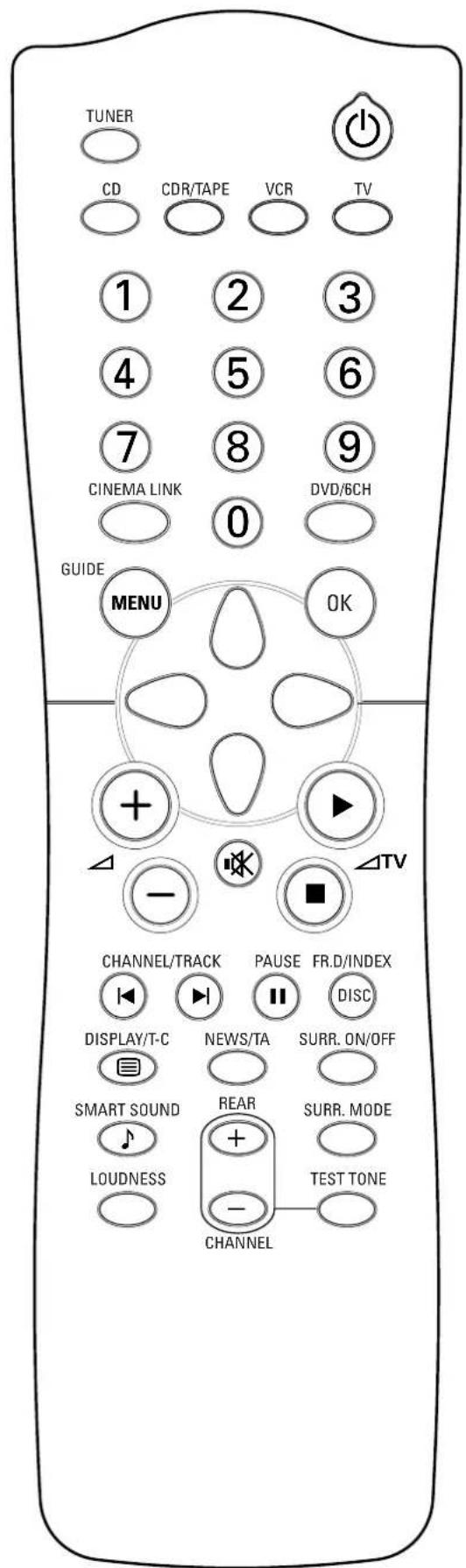
Remote control buttons
Switches the receiver to standby.
TUNER, CD, CDR/TAPE,
TV, VCR, DVD/6CH.....Switches the remote control to the commands of the different products. Selects the sources if pressed longer than 1 second.
1-0....Keys in numbers for tracks, stations or frequencies. Numbers consisting of two figures must be keyed in within 2 seconds.
CINEMA LINK....Switches the connection between the receiver and the TV on and off.
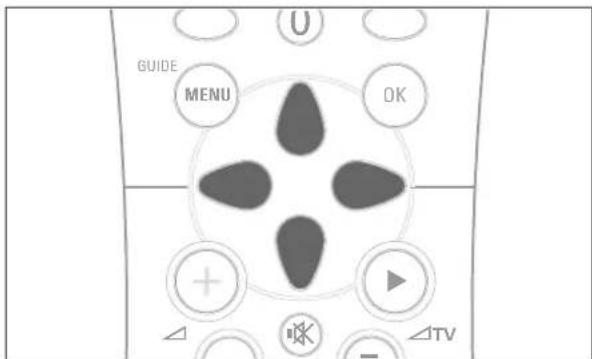
MENU GUIDE ....TUNER: Switches the receiver menu on and off. DVD, TV: Switches the DVD/TV menu on and off.
OK.....Confirms menu options.
Arrow buttons ....TUNER: Moves in the menus. Right/left arrows are tuning up/down. CD, CDR: Left/right arrows are searching backwards/forwards, up/down arrows are selecting the next/previous track.
+ ....Increases the receiver volume.
- ......Decreases the receiver volume.
Mutes the sound of the receiver.
▶ △TV ......Increases the TV volume. CD, CDR, VCR, DVD: Starts playback.
■ △TV ....Decreases the TV volume. CD, CDR, VCR, DVD: Stops playback.
CHANNEL/TRACK ...Selects the previous preset tuner station.
VCR: Rewinds the tape.
CD, CDR, DVD: Selects the previous track.
TV: Selects the previous channel.
▶ CHANNEL/TRACK ...Selects the next preset tuner station.
VCR: Fast forwards the tape.
CD, CDR, DVD: Selects the next track.
TV: Selects the next channel.
■ PAUSE......CD, CDR, VCR, DVD: Pauses playback.
DISC FR.D./INDEX ......CD-, CDR-, DVD-Changers:
Switches to the next disc.
TUNER: Switches to FREQUENCY DIRECT.
VCR: Switches the index search on and off.
DISPLAY/T-C......TUNER: Switches between station name, frequency and radio text.
CD, CDR: Switches between the different time displays.
TV: Switches teletext on and off.
DVD: Switches between title and chapter.
NEWS/TA ......Switches the functions NEWS and TRAFFIC ANNOUNCEMENT on and off.
SURR. ON/OFF......Switches SURROUND SOUND on and off.
SMART SOUND .....Scrolls through the different smart sounds.
+ / - REAR ....Increases/decreases the volume of the rear speakers. While test tone is on, the volume of the speakers you are hearing can be increased/decreased with these buttons.
SURR. MODE......Scrolls through the different surround modes.
LOUDNESS ...... Switches LOUDNESS on and off.
TEST TONE .... Switches the test tone on and off. While test tone is on, the volume of the speakers you are hearing can be increased/decreased with
+ / - REAR.
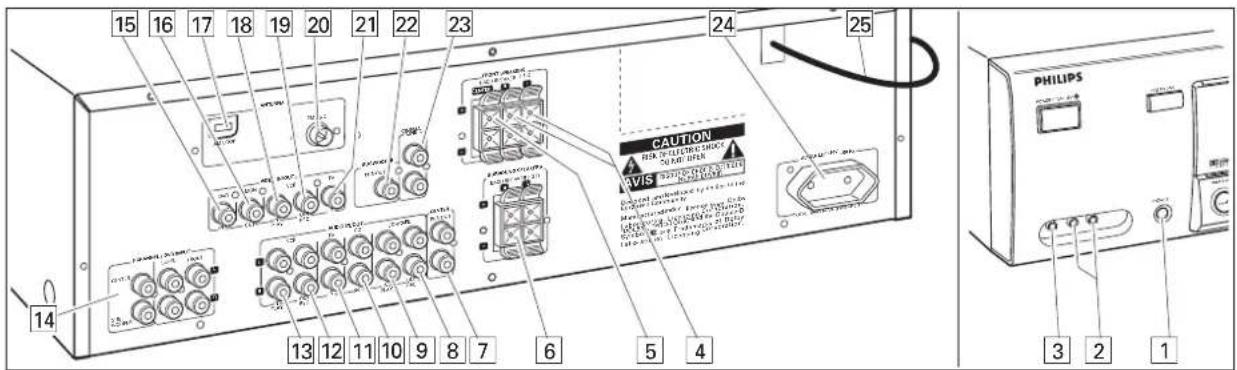
Connectors Connectors name Connect to:
| 6.3 mm headphone socket at the front | 1 PHONES | A headphone with a 6.3 mm plug. |
| Audio and video inputs at the front (FR 760 only) and game consoles. | 2 FRONT AV / GAME | Left and right audio out sockets of appliances such as video cameras |
| 3 FRONT AV / GAME | Video out sockets of appliances such as video cameras and game consoles. | |
| FRONT SPEAKERS | 4|R, L Right and left front speaker. | ||
| 5 CENTER Center speaker. | ||
| SURROUND SPEAKERS 6R, L Right and left surround speaker. | ||
| AUDIO IN/OUT | 8 CDR/TAPE OUT | Input of a CD recorder or a tape deck. |
| 9 CDR/TAPE IN | Output of a CD recorder or a tape deck. | |
| 10 CD IN | Output of a CD player. | |
| 11 TV IN | Output of a TV. | |
| 12 VCR OUT | Input of a video recorder. | |
| 13 VCR IN | Output of a video recorder. | |
| 6-channel input | 14 6 CHANNEL/DVD INPUT | 6-channel output of appliances such as DVD or Laserdisc players. |
| VIDEO IN/OUT (FR 760 only) | 15 DVD IN | Output of a DVD player. |
| 16 MON OUT | Input of a monitor (e. g. the TV). | |
| 18 VCR IN | Output of a video recorder. | |
| 19 VCR OUT | Input of a video recorder (for recording). | |
| 21 TV IN | Output of a TV. | |
| Antenna connectors | 17 AM LOOP | Frame antenna supplied. |
| 20 FM 75 Ω | Wire antenna supplied or exterior antenna. | |
| Preamplified outputs | 7 CENTER PRE-OUT | Input of a TV when it is used as the center speaker (only possible when the CINEMA LINK system bus is connected). |
| 22 SUBWOOFER PRE-OUT | Input of a powered subwoofer. | |
| System control bus | 23 CINEMA LINK | System control bus sockets of a Philips TV with CINEMA LINK. |
| Mains outlet | 24 AC OUTLET | Supplies same voltage as mains. Up to 100 W total permitted load. |
| Mains lead | 25 | After all other connections have been made, connect the mains lead to the wall socket. |
Audio connections
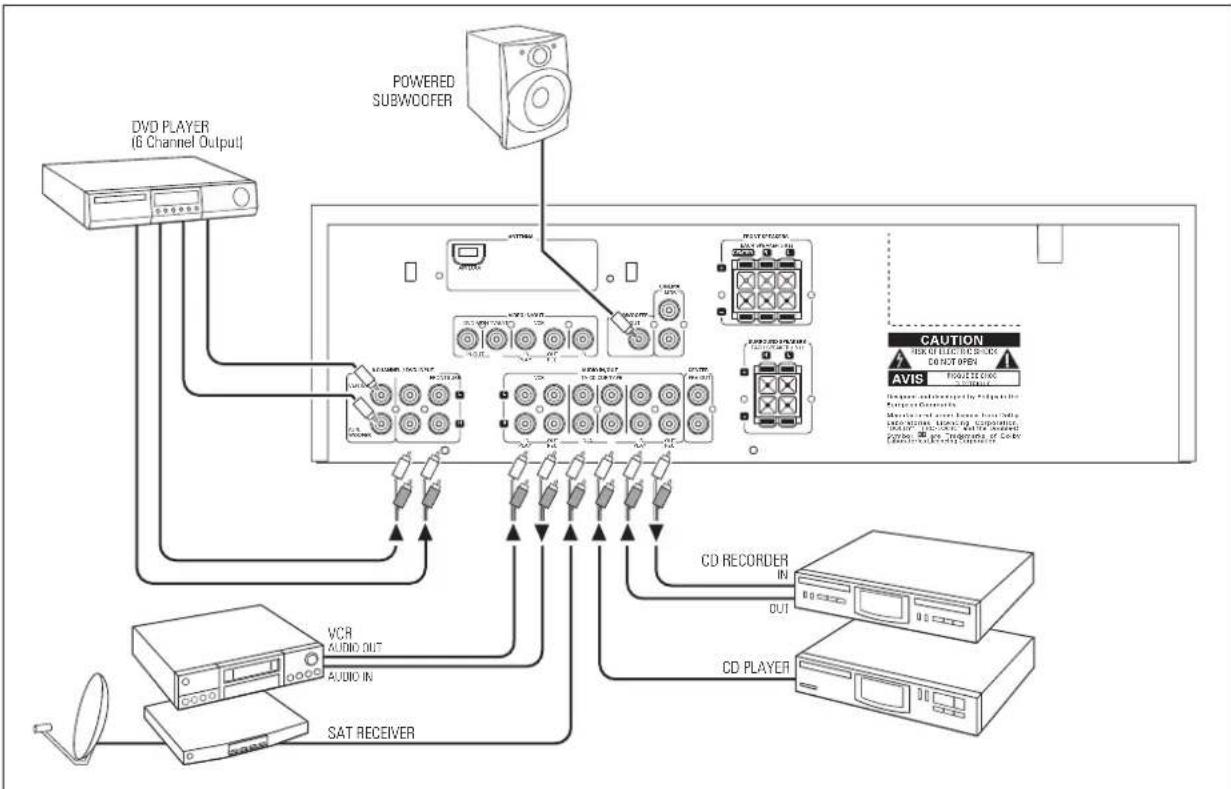
flowchart
graph TD
    A["DVD PLAYER (6 Channel Output)"] --> B["POWERED SUBWOCOFER"]
    B --> C["CD RECORDED OUTPUT"]
    C --> D["AVIS"]
    D --> E["CAUTION"]
    E --> F["CD PLAYER"]
    F --> G["CD RECORDER IN OUT"]
    G --> H["VCR AUDIO OUT"]
    H --> I["SAT RECEIVER"]
    I --> J["Sat Receiver"]
    C --> K["AC/DC Receiver"]
    K --> L["AC/DC Receiver"]
    L --> M["AC/DC Receiver"]
    M --> N["AC/DC Receiver"]
    N --> O["AC/DC Receiver"]
    O --> P["AC/DC Receiver"]
    P --> Q["AC/DC Receiver"]
    Q --> R["AC/DC Receiver"]
    R --> S["AC/DC Receiver"]
    S --> T["AC/DC Receiver"]
    T --> U["AC/DC Receiver"]
    U --> V["AC/DC Receiver"]
    V --> W["AC/DC Receiver"]
    W --> X["AC/DC Receiver"]
    X --> Y["AC/DC Receiver"]
    Y --> Z["AC/DC Receiver"]
    Z --> AA["AC/DC Receiver"]
    AA --> AB["AC/DC Receiver"]
    AB --> AC["AC/DC Receiver"]
    AC --> AD["AC/DC Receiver"]
    AD --> AE["AC/DC Receiver"]
    AE --> AF["AC/DC Receiver"]
    AF --> AG["AC/DC Receiver"]
    AG --> AH["AC/DC Receiver"]
    AH --> AI["AC/DC Receiver"]
    AI --> AJ["AC/DC Receiver"]
    AJ --> AK["AC/DC Receiver"]
    AK --> AL["AC/DC Receiver"]
    AL --> AM["AC/DC Receiver"]
    AM --> AN["AC/DC Receiver"]
    AN --> AO["AC/DC Receiver"]
    AO --> AP["AC/DC Receiver"]
    AP --> AQ["AC/DC Receiver"]
    AQ --> AR["AC/DC Receiver"]
    AR --> AS["AC/DC Receiver"]
System control bus, CINEMA LINK
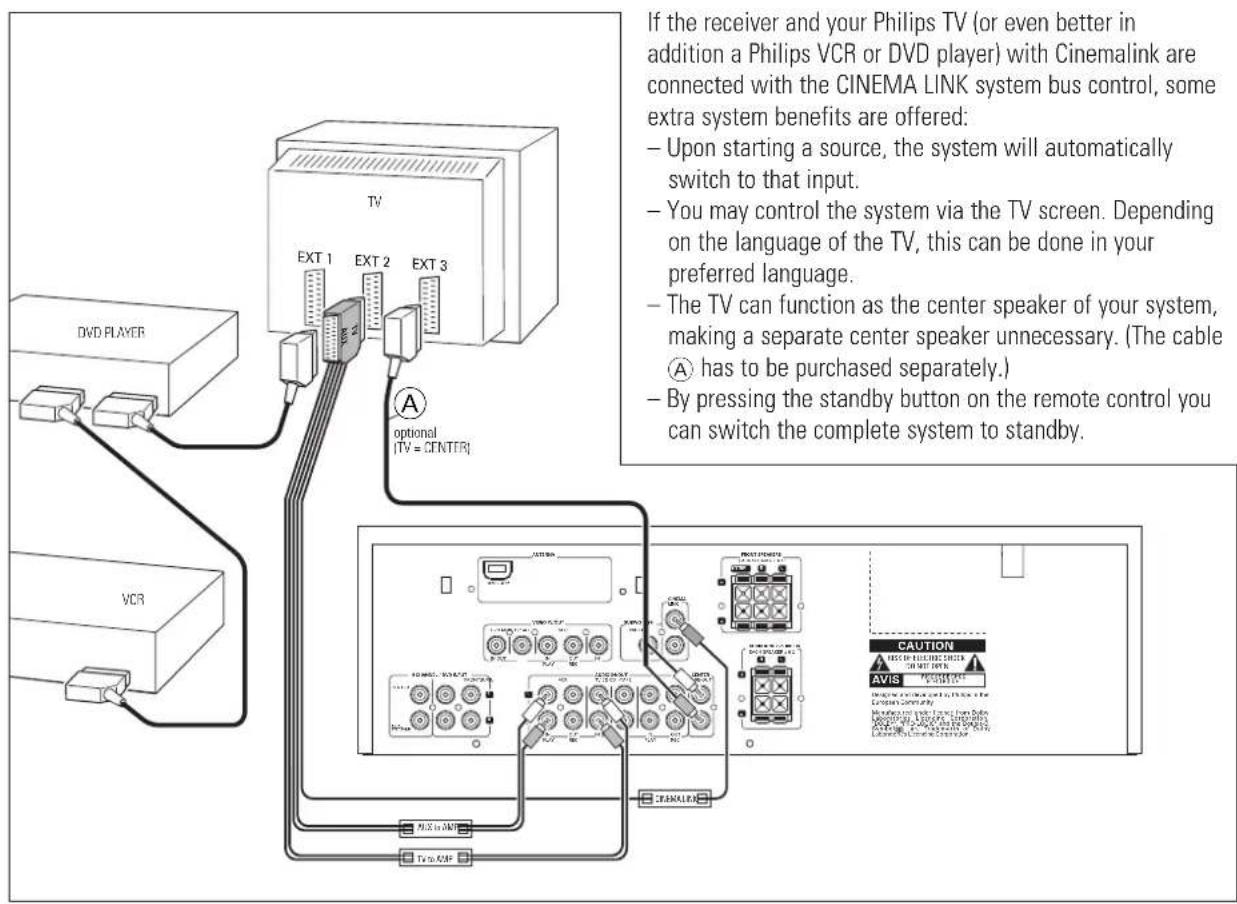
Video connections (FR 760 only)
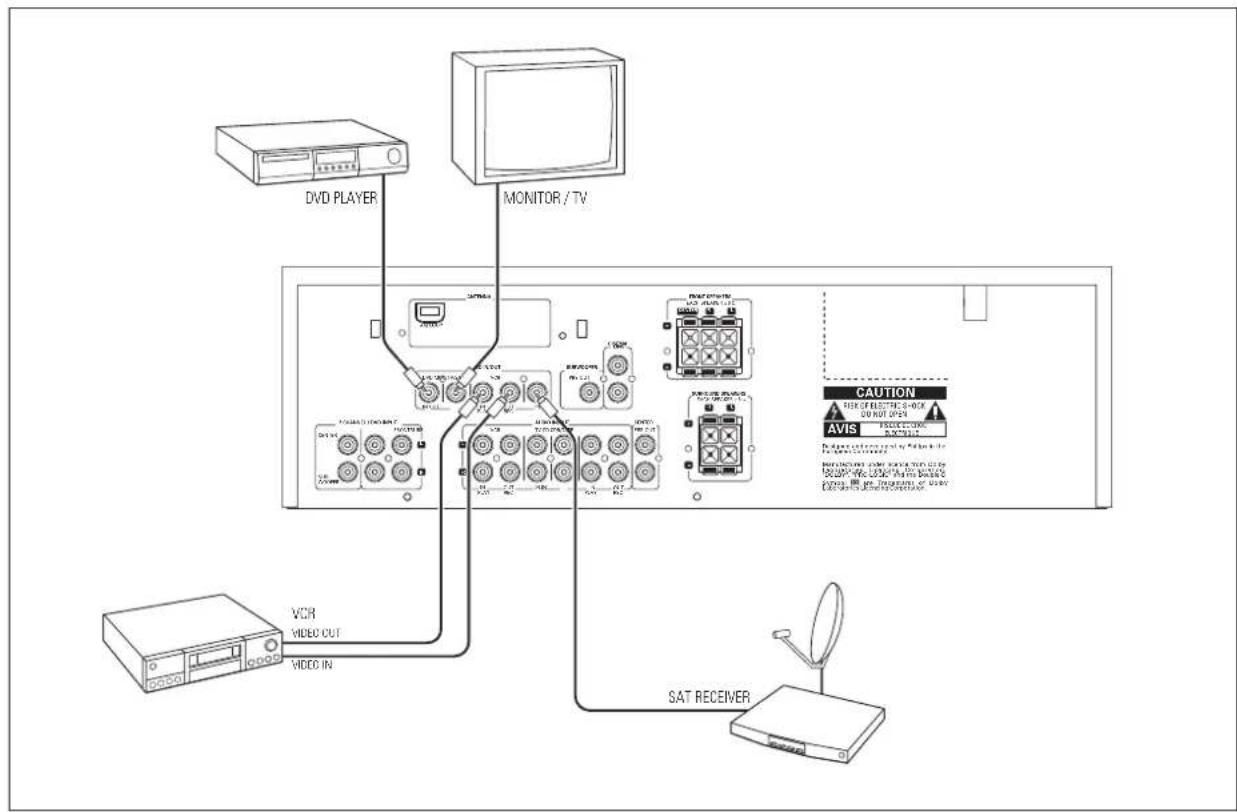
flowchart
graph TD
    A[" DVD PLAYER "] --> B[" MONITOR / TV "]
    B --> C[" VCR VIDEO OUT "]
    B --> D[" VCR VIDEO IN "]
    C --> E[" SAT RECEIVER "]
    D --> E
    E --> F[" AVIS "]
    F --> G[" CAUTION "]
    G --> H[" Monitor / TV "]
    H --> I[" DVD Player "]
    style A fill:#f9f,stroke:#333
    style B fill:#ccf,stroke:#333
    style C fill:#cfc,stroke:#333
    style D fill:#fcc,stroke:#333
    style E fill:#cff,stroke:#333
    style F fill:#ffc,stroke:#333
    style G fill:#fcc,stroke:#333
    style H fill:#ffc,stroke:#333
Mains
The type plate is located on the rear of the receiver.
1 Check whether the mains voltage as shown on the type plate corresponds to your local mains voltage. If it does not, consult your dealer or service organization.
2 Connect the mains cable to the wall socket.
To disconnect the set from the mains completely, remove the mains plug from the wall socket.
For users in the U. K.: please follow the instructions on page 2.
Speaker connections
The speaker connections on the receiver are click-fit connectors. Use them as shown below.
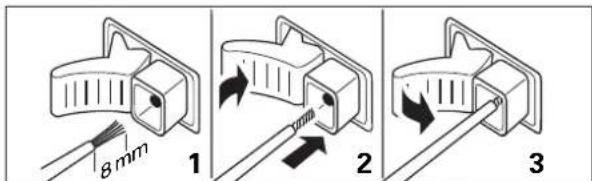
1 Always connect the coloured (or marked) wire to the coloured terminal and the black (or unmarked) wire to the black terminal.
2 Connect:
- Left front speaker to L (red and black)
- Right front speaker to R (red and black)
– Center speaker to CENTER (blue and black) - Left surround speaker to SURROUND L (grey and black)
- Right surround speaker to SURROUND R (grey and black)
TV as the center speaker
You may use your Philips TV with CINEMA LINK as the center speaker. For TVs with a scart connector an additional audio cinch-to-scart cable is needed. For TV's with cinch connectors additional cinch cables are needed. Look into the instruction manual of your TV on how to use it as the center speaker.
Antenna connections
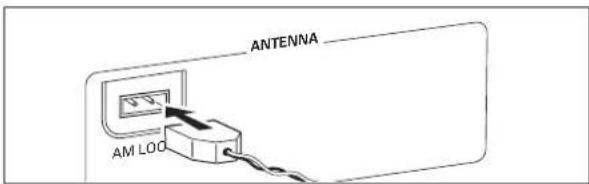
AM (MW) antenna
The loop antenna supplied is for indoor use only. Position the antenna as far away as possible from the receiver, the TV, the cables, a DVD player, a VCR and other radiation sources.
1 Fit the plug of the frame antenna to AM LOOP as shown below.
2 Position the antenna as far away as possible from radiation sources.
3 Turn the antenna for optimum reception.
FM antenna
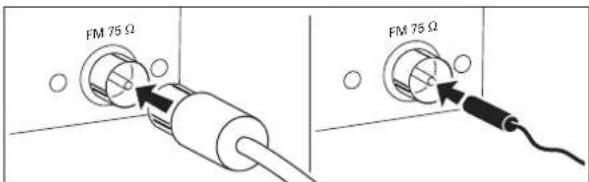
The wire antenna supplied can only be used to receive nearby stations. For better reception we recommend using a cable antenna system or an outdoor antenna.
1 Fit the supplied wire antenna to FM 75 Ω as shown below.
2 Move the antenna in different positions for optimum reception.
- If you are using a cable antenna system or an outdoor antenna, fit the antenna plug to FM 75 Ω instead of the wire antenna.
FRONT AV / GAME cap (FR 760 only)
- To remove the FRONT AV / GAME cap, press on the right side of the cap.
- Insert the cap from below to close the compartment.
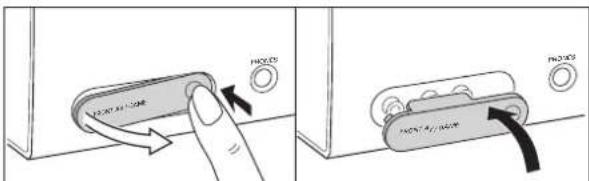
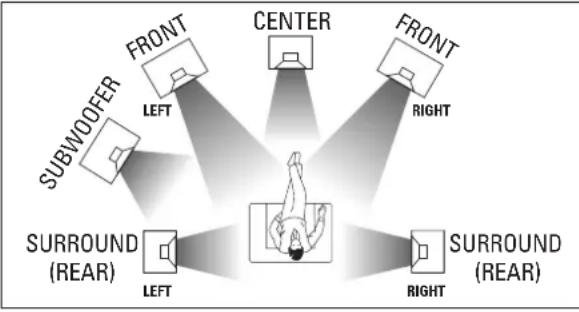
Positioning of the speakers
General hints for positioning
Avoid positioning the speakers in a corner or on the floor as this will boost the bass tones too much. Placing the speakers behind curtains, furniture, etc. will reduce the treble response. The listener should always be able to "see" the speakers.
Each room has different acoustic characteristics and the positioning possibilities are often limited. You can find the best position for your speakers by referring to the picture above.
As a minimum we recommend 5 speakers (2 front, a center, 2 surround) for good surround sound. It is possible to reproduce some kind of surround sound with fewer speakers. This is done by redirecting the signals which are foreseen for the missing speakers to the existing ones. See "Menus" on how to set up the receiver correctly for the number and size of the speakers used.
Positioning the front speakers
The front speakers should be placed right and left in front of the listening position like usual stereo speakers.
Positioning the center speaker
The center speaker should be placed in the center between the two front speakers, e. g. underneath or on top of the TV. The best height for the center speaker is the height of the listener's ears (while seated).
Positioning the surround speakers
The surround speakers should face each other and be in line with, or slightly behind the listener.
Positioning the subwoofer
A subwoofer can be used to enhance the bass performance of your system dramatically. The subwoofer can be positioned anywhere in the room, because it is not possible to locate the source of deep tones. Nevertheless, you should not place the subwoofer in the middle of a room, since the bass could be severely weakened. Do not place any object on the subwoofer.
Speaker setup and testing
The relative volume of the speakers must be adjusted for optimal surround sound. You should be at your usual listening position when adjusting the speaker volume. See “Receiver menus” on how to set up the receiver for the used speakers. Ideally, the volume in the listening position should be the same from all speakers.
1 Press POWER / STANDBY to switch on the receiver.
2 Press TEST TONE on the remote control.
→A test tone coming from the different speakers is heard.
3 Press +/− REAR on the remote control to increase/decrease the volume of the actual speaker.
4 Press TEST TONE on the remote control.
▶The test tone stops.
Note: If you are not completely satisfied with the volume settings, we recommend making minor adjustments to them during surround sound playback.
Power handling
If the receiver is used at very high power, it can produce distortions which may seriously damage your speakers. If distortions occur, reduce the volume and the tone controls to a level where the sound is acceptable again.
To avoid overheating of the set a safety circuit has been built in. Therefore your set may disconnect under extreme conditions. If this happens, switch the set off and let it cool down before reusing it.
Headphones
Connecting headphones to PHONES will switch off the speakers. The receiver switches to STEREO and surround sound will be reduced to a stereo signal which is reproducible by standard headphones.
Disconnecting the headphones switches on the speakers again. If you wish to enjoy surround sound again, switch the receiver back to surround sound.
Display
The display of the receiver is divided into 3 sections, which are to be used for the following:
Menu indication
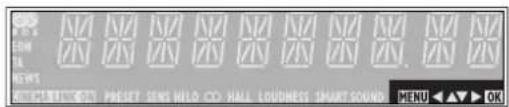
These signs show you if the menu is on or off and indicate in which direction you may move.
MENU ......Menu is on.
◀......You may move backwards to the previous menu topic using ◀ PREV. / EXIT ("left" key on the remote control).
▲......You may move up in an option list using
◆ MENU NAVIGATOR ("up" key on the remote control).
You may move down in an option list using ◆ MENU NAVIGATOR ("down" key on the remote control).
▶.....You may move forward to the next menu topic using NEXT ▶ ("right" key on the remote control).
You may confirm the displayed value.
Status lights
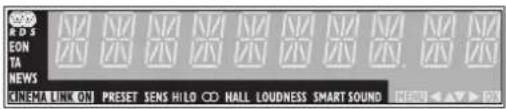
Signs showing you various settings and information about the status of the receiver.
PRESET ....Tuner is tuned to a preset radio station.
SENS HI.....Tuner is switched to high sensitivity.
SENS LO....Tuner is switched to low sensitivity.
CINEMA LINK ON .....CINEMA LINK is active.
©©......An FM station is being received in stereo.
SMART SOUND.....One of the preset sound settings of the receiver is being used.
An RDS station is being received.
EON....An RDS station with EON is being received.
HALL....HALL effect is on.
TA....RDS traffic announcement is on.
NEWS....RDS news announcement is on.
LOUDNESS ....LOUDNESS is switched on.
Information area
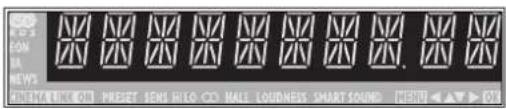
This area is used for feedback of the receiver, tuner frequencies, menu options, values and scrolling text messages.
Receiver menu
The receiver is equipped with a menu system. The menu is used for the setup of the receiver. The different menu options are related to each other in a logical way. Let's assume you have no center speaker connected, and therefore switched CENTER LS to NO. If you try to use VOL CENTER, a message will be scrolled that this is not possible (INSTALL CENTER SPEAKER).
The menu always works the same way. Arrows in the display show you the possible moving directions.
1 Press SETUP MENU.
→MENU, and * VOL BAL is displayed.
- You can exit the menu at any time by pressing SETUP MENU.
2 Turn ◆ MENU NAVIGATOR until the desired option (or a value) is displayed.
3 Press NEXT ▶ to choose the displayed option (or ENTER / OK to confirm a value). - You can leave any option (values remain unchanged) by pressing ◀PREV. / EXIT.
Menu structure
* VOL BAL
Adjusts the relative volume balance between the connected speakers.
TEST TONE
Test tone: on/off
VOL FR-L
Volume front left speaker: -50...+50
VOL FR-R
Volume front right speaker: -50...+50
VOL CENTER
Volume center speaker: -50...+50
VOL REAR-L
Volume rear left speaker: -50...+50
VOL REAR-R
Volume rear right speaker: -50...+50
VOL SUBW
Volume subwoofer: -50...+50
* LS SETUP
Selects the used speakers. Chooses the speaker sizes of the used speakers, for optimal sound reproduction. The distance between the usual listening position and the speakers defines the delay time for the surround sound.
Note: When using the 6 CHANNEL / DVD IN input, these values cannot be changed.
- CENTER LS
  Center speaker present: yes/no
- REAR LS
  Rear speakers present: yes/no
- CENTR SIZE
  Center speaker: small/large
- DIST L/R
  Distance to front speakers: 1...10 m
  DIST REAR
  Distance to rear speakers: 1...10 m
* TUNER
Setup for preset radio stations (see "TUNER" for details).
— AUTO INST
Stores radio stations automatically
— MAN INST
Stores radio stations manually
— GIVE NAME
Allows to assign names to stored radio stations
— RESHUFFLE
Resorts stored radio stations
TV menu
If the receiver is connected to a Philips CINEMA LINK TV via the CINEMA LINK system control bus sockets (see "CONNECTIONS"), you may use the TV to set up the system. An option called RECEIVER will be added to the TV menu.
If CINEMA LINK is on, adjustments on the receiver will be shown on the TV screen for a few seconds. Consult the instruction booklet of your TV on how to use the TV menu. The options offered may vary by TV model.
Switching the connection
- Press CINEMA LINK to switch the connection between the receiver and the TV either on or off.
If the connection is switched on, CINEMA LINK ON is displayed.
Note: We recommend switching CINEMA LINK off during recording. This avoids unwanted interruptions due to switching TV functions.
If CINEMA LINK is switched on and the TV menu is active, TV MENU is displayed and the menu and sound functions on the receiver are locked.
SOURCE SELECTOR
When selecting a source by turning SOURCE SELECTOR, the audio inputs – and video inputs (FR 760 only) – with the corresponding name are activated. The incoming signal is reproduced by all audio and – if the source includes a video signal – video outputs of the receiver.
Source selected.....Connectors used
6 CH / DVD......6 CHANNEL / DVD INPUT audio input and DVD IN video input (FR 760 only)
TUNER ....The tuner part of the receiver is used, all inputs are switched off.
CD......CD IN audio input
CDR/TAPE......CDR/TAPE IN audio input
TV....TV IN audio input and TV IN video input (FR 760 only)
VCR....VCR IN audio input and VCR IN video input (FR 760 only)
About 6 CHANNEL / DVD INPUT
The 6 CHANNEL / DVD INPUT can be used to connect a device with a built-in multichannel decoder (e.g. Dolby Digital, DTS, etc.) and 6-channel output connector, i. e. a high end DVD player.
When using the 6 CHANNEL / DVD INPUT audio input, the receiver works as a multichannel amplifier. The source reproduces surround sound and sends it to the receiver divided into the necessary channels. Therefore the SURROUND ON/OFF, HALL and SURR. MODE button have no effect since the provided signal is already multichannel.
From a source which is connected to the
6 CHANNEL / DVD INPUT audio input cannot be recorded.
Playing a source
1 Press POWER / STANDBY to switch on the receiver.
2 Turn SOURCE SELECTOR to select a source.
▶The name of the source is displayed.
- You can select the FRONT AV/GAME input by pressing FRONT AV (FR 760 only).
3 Start playback of the source as usual.
Adjusting the sound
- Turn VOLUME to adjust the volume.
→VOLUME and the volume level between 0 and 50 is displayed.
1 Press BASS or TREBLE.
→BASS or TREBLE and the actual value are displayed briefly. Then TURN VOLUME KNOB TO CHANGE is scrolled.
2 Turn VOLUME to adjust the bass or treble.
→BASS or TREBLE and the actual value are displayed.
Note : If VOLUME is not turned within 5 seconds or if any other control is used, the bass or treble adjustment is switched off.
- Press ⬆ SMART SOUND on the remote control to scroll through the built-in smart sounds: MOVIE, SPEECH, MUSIC, MULTIMEIRA and PERSONAL. (PERSONAL is the user-defined bass and treble setting.) ▶SMART SOUND is displayed and the name of the chosen sound profile is scrolled once if smart sound is on.
- Press LOUDNESS to switch loudness either on or off. →LOUDNESS is displayed if loudness is on.
Recording from a source
If you wish to record from a source you must select it with SOURCE SELECTOR. The incoming signal is reproduced by all audio and – if the source includes a video signal – video outputs of the receiver. The sound settings do not affect the recording.
1 Turn SOURCE SELECTOR (or press FRONT AV - FR 760 only) to select the source you want to record from.
→The name of the source is displayed.
2 Prepare the desired recording appliance. It must be connected to one of the outputs of the receiver.
3 Start recording on the recording appliance.
4 Start the playback of the source as usual.
Notes: - The audio and video signal of VCR IN is not reproduced by VCR OUT. The same applies to the audio signal of CDR/TAPE IN to CDR/TAPE OUT.
- From a source which is connected to the 6 CHANNEL / DVD IN audio input cannot be recorded.
About surround sound
Surround sound gives you a complete new listening sensation. You will have the feeling of being in the middle of the action, because sound is coming from everywhere around you. Look out for TV broadcasts, audio and video tapes and discs with the DOLEY SURROUND or DOLEY digital marks which are encoded for multichannel surround sound.
Notice that DVD discs do not always carry full multichannel surround. To be sure that a disc is multichannel encoded consult your dealer.
Most ordinary stereo tapes and discs can be replayed using surround sound settings with good results. If the reproduction is distorted in surround mode, switch to normal stereo mode.
The availability of the various surround sound modes described depends on the number of speakers used and the incoming sound information.
Switching surround sound
With surround sound on, you can switch through the different surround modes. Note that the possibilities are related to speaker setup defined in the receivers menu.
1 Press SURROUND ON/OFF to switch on the surround sound.
The surround mode in use is scrolled.
2 Press SURR. MODE repeatedly to listen to the different surround modes (if available).
→The surround mode in use is scrolled.
3 Press HALL to switch hall either on or off.
→HALL is displayed if hall is on.
4 Press SURROUND ON/OFF to switch off the surround sound.
→SURROUND OFF is scrolled.
Note: Switching surround sound has no effect when using the 6 CHANNEL / DVD IN input.
Surround sound settings
HALL
The sound reproduction is enhanced and a slight echo is added. This gives the impression of being in a large room.
SURROUND (PRO LOGIC)
The surround mode enables normal surround sound reproduction with 4 or 5 speakers.
FRONT-3 STEREO (PRO LOGIC)
The surround sound is muted. 3 Stereo lets you listen to surround sound without using the surround speakers.
STEREO
All sound is reproduced and played through the front left and right speakers. This enables standard stereo reproduction.
Tuning to radio stations
You can search for radio stations by scanning the frequency band. You can also key in the frequency of a known radio station. If an FM station is being broadcast and received in stereo, is shown.
Searching for radio stations
1 Turn SOURCE SELECTOR to select the tuner.
→TUNER is displayed.
2 Select a waveband by pressing TUNER AM/FM repeatedly.
→The selected waveband is displayed.
3 Keep ◀ or ▶ pressed for approximately 1 second.
→SEARCH is displayed and the tuner tunes to a station with sufficient strength.
4 Repeat this procedure until you find the desired station.
- To fine tune to a weak transmitter, briefly press ◀ or ▶ as often as necessary for optimum reception.
Tuning to a radio station by frequency (with the remote control only)
1 Press TUNER.
→TUNER is displayed.
2 Press FR. D..
→_ is displayed.
3 Use 1–0 to key in the frequency of a radio station.
Note: Only valid numbers within the frequency range of the tuner can be keyed in.
Switching FM sensitivity
You can switch the tuner to a lower search sensitivity, to search for stations with a strong signal only (FM only).
1 Turn SOURCE SELECTOR to select the tuner.
→TUNER is displayed.
2 Press SENS. on the receiver.
▶ Either SENS HI or SENS LO is displayed for 5 seconds.
Note: While searching for radio stations, the actual sensitivity is displayed. In this case, SENS LO means the tuner is only looking for radio stations with a strong signal.
Storing radio stations
You may store up to 30 radio stations in the memory. The receiver can select and program radio stations by itself or you can choose them yourself.
Automatic programming
1 Choose * TUNER from the menu and press NEXT ▶.
2 Choose AUTO INST and press NEXT ▶.
The preset number where programming will start, the waveband and RUTO are displayed.
3 Turn TUNER PRESET ♦ to change the preset number where programming should start.
4 Use TUNER AM/FM to switch to the desired waveband.
5 Press ENTER / OK to start programming.
▶ AUTO INST flashes and all available radio stations are programmed, this may take a few minutes. Programming is done when AUTO INST stops flashing.
Manual programming
1 Choose * TUNER from the menu and press NEXT ▶.
2 Choose MAN INST and press NEXT ▶.
→A preset number, the waveband and the frequency are displayed.
3 Turn TUNER PRESET ♦ to change to the preset number where the radio station should be stored.
4 Tune to the desired radio station (see "Searching for radio stations").
5 Press ENTER / OK to confirm your selection.
→STORED is displayed briefly. The radio station is programmed at the chosen preset number.
6 Select and store all desired radio stations this way.
Tuning to stored radio stations
1 Turn SOURCE SELECTOR to TUNER to select the tuner.
→TUNER is displayed.
2 Turn TUNER PRESET to select a preset radio station. PRESET, the preset number and station are displayed.
Resorting stored radio stations
After programming radio stations, you might want to change their sequence. RESHUFFLE allows you to exchange the positions of presets.
1 Choose * TUNER from the menu and press NEXT ▶.
2 Choose RESHUFFLE and press NEXT ▶.
▶ PRESET, a preset number and station are displayed.
3 Turn TUNER PRESET ♦ to select a preset station.
4 Press ENTER / OK to confirm the selection.
→The selected preset number (--) and a second preset number are displayed.
5 Turn TUNER PRESET ◆ to select the other preset station.
6 Press ENTER / OK to confirm the exchange.
→RESHUFFLED is displayed briefly and these two preset numbers are swapped.
Naming radio stations
It is possible to assign a name to any of the preset radio stations. RDS station names also can be overwritten.
1 Choose * TUNER from the menu and press NEXT ▶.
2 Choose GIVE NAME and press NEXT▶.
→A preset radio station is displayed.
3 Turn TUNER PRESET ♦ to select the preset to be renamed.
4 Press ENTER / OK to confirm your selection.
→The existing name or ____ is displayed.
5 Turn TUNER PRESET ◆ to select a letter and NEXT ▶ or ◀PREV. to move to the next or previous position.
6 After you have entered the entire name, press ENTER / OK to confirm.
→STORED is displayed and the name is stored.
Note: If you want to use the transmitted RDS station name again, simply clear the given name.
Clearing station names
1 Use the menu option * TUNER, choose GIVE NAME.
→A preset radio station is displayed.
2 Turn ◆ MENU NAVIGATOR to select the name to be cleared.
3 Press ENTER / OK to confirm your selection.
4 Press ◀ PREV. while the first letter is flashing.
→□L is flashing to the left of the station name.
5 Press ENTER / OK to clear the station name.
Or, if you have changed your mind,
press ◀PREV. to leave the station name as it is.
RDS R.D.S
Radio Data System is a service that allows FM stations to send additional information. If you are receiving an RDS station, and the station name are displayed.
Switching through different RDS information
- Press RADIO TEXT on the receiver repeatedly to switch through the following information (if available):
– Radio text messages
- RDS clock
- Frequency
- Station name
Note: The time signal broadcasted from certain radio stations may not always be accurate.
RDS News and Traffic Announcement
It is possible to set up the tuner in such a way that any playback is interrupted by news or traffic information of a chosen RDS station. Announcement functions only work if the necessary RDS signals are being broadcast.
If RDS stations are also carrying an EON signal (Enhanced Other Networks), EON is displayed. This signal enables the tuner to search not only the chosen RDS station, but the whole EON station network for news and traffic information.
1 Tune to the desired RDS station.
2 Press NEWS/TA:
Once to display NEWS, this switches on the news announcement function.
Twice to display TA, this switches on the traffic announcement function.
Three times to display TA and NEWS, this switches on both announcement functions.
3 Select and play any other source as usual.
▶While news or traffic information is being broadcast the receiver will switch to tuner and NEWS or TA will flash.
4 Press NEWS/TA until the display indication disappears to switch off the function(s).
or
Press NEWS/TA during an announcement to switch off the function(s).
Note: Be sure to switch the news and traffic announcement off during recording, otherwise these announcements will also be recorded.
Subject to modification without notice.
General
Power consumption (FR 740, MX 740) ....210 W
Power consumption (FR 760) 255 W
Standby power consumption....< 2 W
Dimensions, w × h × d ......435 × 135 × 350 mm
Weight (FR 740, MX 740) 8.6 kg
Weight (FR 760) 9.4 kg
Amplifier part (0.7 % THD, 6 Ω, 1 kHz)
Output power, stereo mode (FR 740, MX 740) (DIN)...2 × 60 W
Output power, surround mode (FR 740, MX 740)
Front 2 × 60 W
Center 60 W
Surround....2 × 60 W
Output power, stereo mode (FR 760) (DIN)....2 × 100 W
Output power, surround mode (FR 760)
Front 2×100 W
Center 100 W
Surround....2 × 100 W
Bass ±9 dB at 100 Hz
Treble ±9 dB at 10 kHz
Loudness....+6 dB at 100 Hz (-30 dB); +3 dB at 10 kHz (-30 dB)
Total harmonic distortion....0.05 % at 1 kHz, 5 W
Frequency response 20–20,000 Hz, ±1 dB
S/N ratio ≥ 82 dB
Stereo separation (1 kHz) ≥45 dB
Crosstalk (1 kHz) ....≤-65 dB
Inputs
Linear inputs....250 mV/47 kΩ
6 CH 250 mV/40 kΩ
Front AV (FR 760 only) 250 mV/22 kΩ
Outputs
Power supply AC outlet (switched)......totally max. 100 W
Linear outputs....250 mV/1 kΩ
Subwoofer pre-out....0.8 V/1 kΩ
Center pre-out....0.8 V/1 kΩ
Headphones....8-600 Ω (3 V e.m.f., 60 Ω)
Speakers ≥ 6 Ω
Tuner part
Wave range
FM 87.5–108.0 MHz
MW....531-1,602 kHz
LW 153–279 kHz
Sensitivity
Stereo FM 41 dBf
Mono FM....15 dBf
Total harmonic distortion
Stereo FM 0.3%
Mono FM....0.85 %
Frequency response 63–12,500 Hz ±1 dB
S/N ratio
Stereo FM....55 dB
Mono FM....60 dB
Channel separation....35 dB at 1 kHz
Speakers (supplied with MX 740 only)Receiver
Subject to modification without notice.
Front speakers
Impedance....6 Ω
Frequency range 40–20,000 Hz
Power handling capacity....60 W
Power handling capacity – peak 120 W
Sensitivity....89 dB
Drivers ....1 ×5 ¼" woofers, 1 × 2" tweeter
Passive radiator 1 × 6 ^1/8 woofer
Crossover frequencies 4,000 Hz
Dimensions, h × w × d 421 × 219 × 191 mm
Weight......approx. 2.5 kg
Rear speakers
Impedance....6 Ω
Frequency range 100–20,000 Hz
Power handling capacity....60 W
Power handling capacity – peak 120 W
Sensitivity....89 dB
Drivers....1 × 4" full range
Passive radiator 1 × 6 ^1/2 woofer
Crossover frequencies 4,500 Hz
Dimensions, h × w × d .....179 × 181 × 92 mm
Weight......approx. 0.7 kg each
Center speaker
Impedance....6 Ω
Frequency range 75–20,000 Hz
Power handling capacity....60 W
Power handling capacity – peak 120 W
Sensitivity....89 dB
Drivers 2 × 4" woofers, 1 × 2" tweeter
Crossover frequencies 4,500 Hz
Dimensions, h × w × d ..... 131 × 435 × 122 mm
Weight......approx. 1.6 kg
WARNING
Under no circumstances should you try to repair anything by yourself, as this will invalidate the guarantee. Do not open the set as there is a risk of electric shock.
If a fault occurs, first check the points listed below before taking the speakers for repair.
If you are unable to solve a problem by following these hints, consult your dealer or service center.
PROBLEM POSSIBLE CAUSE SOLUTION
| No sound VOLUME is not correctly adjusted. Adjust the VOLUME. | ||
| Headphones are connected. Disconnect headphones. | ||
| The wrong source is selected. Turn SOURCE SELECTOR to select the correct source. | ||
| No sound on the left or right side | One speaker is wrongly connected. Connect the speaker properly. | |
| A speaker cable is damaged. Replace the cable. | ||
| Volume balance in the receiver menu is wrongly adjusted. in the receiver menu. | Adjust VOL FR-L and VOL FR-R | |
| Poor sound or no sound at the center or surround speakers | SURROUND mode is not switched on. | Press SURROUND ON/OFF to switch on the surround sound. |
| Surround and/or center speakers are not (properly) connected. | Connect the speakers properly. | |
| Surround and/or center speakers are switched off in the LS SETUP menu. | Set speaker present to YES. | |
| A speaker cable is damaged. Replace the cable. | ||
| Poor bass sound | Speakers are not in phase. | Connect the coloured (or marked) wires to the coloured terminals and the black (or unmarked) wires to the black terminals. |
| Bad sound | Badly matching setting for the given type of music or sound. | Correct the sound settings on the receiver. |
| Surround sound level is too low or too high | The level of the surround sound is not properly adjusted. | Adjust the level of the surround sound on the receiver. |
| Center sound level is too low or too high | The sound level of the center channel is not properly adjusted. | Adjust the level of the center channel on the receiver. |
| Only center speaker is heard in Dolby Surround Pro Logic | A mono signal is reproduced. | Choose a different sound source or switch off surround sound. |
| Bad radio reception, automatic programming does not work properly | Receiver or antenna is positioned near a radiation source such as a TV, CD player, CD recorder, DVD player, etc. | Change the position of the interfering unit or try to switch it off. |
Meet Philips at the Internet
http://www.philips.com

- Important notes for users in the U.K.
- Mains plug
- How to connect a plug
- Copyright in the U.K.
- Italia
- Français
- Controls
- Remote control
- Connectors
- Connections
- System setup
- Display
- Menus
- Source selection
- Playback, recording
- Surround sound
- Tuner
- Technical data
- Troubleshooting
- Scope of supply
- Maintenance
- Setup
- Environmental information
- Trademark acknowledgment
- TUNER PRESET ◆ MENU NAVIGATOR
- Remote control usage
- Batteries contain chemical substances, so they should be disposed of properly.
- Important!
- Remote control buttons
- System control bus, CINEMA LINK
- Video connections (FR 760 only)
- Mains
- The type plate is located on the rear of the receiver.
- For users in the U. K.: please follow the instructions on page 2.
- Speaker connections
- TV as the center speaker
- Antenna connections
- AM (MW) antenna
- FM antenna
- FRONT AV / GAME cap (FR 760 only)
- Positioning of the speakers
- General hints for positioning
- Positioning the front speakers
- Positioning the center speaker
- Positioning the surround speakers
- Positioning the subwoofer
- Speaker setup and testing
- Power handling
- Headphones
- Receiver menu
- Menu structure
- TV menu
- Switching the connection
- SOURCE SELECTOR
- Source selected.....Connectors used
- About 6 CHANNEL / DVD INPUT
- Playing a source
- Adjusting the sound
- Recording from a source
- About surround sound
- Switching surround sound
- Surround sound settings
- Tuning to radio stations
- Searching for radio stations
- Tuning to a radio station by frequency (with the remote control only)
- Switching FM sensitivity
- Storing radio stations
- Automatic programming
- Manual programming
- Tuning to stored radio stations
- Resorting stored radio stations
- Naming radio stations
- Clearing station names
- RDS R.D.S
- Switching through different RDS information
- RDS News and Traffic Announcement
- General
- Amplifier part (0.7 % THD, 6 Ω, 1 kHz)
- Inputs
- Outputs
- Tuner part
- Speakers (supplied with MX 740 only)Receiver
- Front speakers
- Rear speakers
- Center speaker
- WARNING
- Meet Philips at the Internet
- http://www.philips.com
Brand : PHILIPS
Model : MX740
Category : Home Theater System