
SB5200A - Docking Station PHILIPS - Free user manual and instructions
Find the device manual for free SB5200A PHILIPS in PDF.


| Brand | Philips |
| Model | SB5200A |
| Product Type | Docking Station with Built-in Speakers |
| Dimensions (approx) | 200 x 150 x 100 mm |
| Weight (approx) | 1.2 kg |
| Power Supply | AC 100-240 V, 50/60 Hz |
| Compatible Devices | Apple iPod, iPhone, iPad (lightning or 30-pin via adapter) |
| Charging | Charges connected device while docked |
| Audio Power | 2 x 10 W RMS |
| Frequency Response | 60 Hz – 20 kHz |
| Remote Control | Included (battery type: CR2025) |
| Alarm Function | Yes, dual alarm with snooze |
| FM Radio | Yes, with 20 presets |
| Auxiliary Input | 3.5 mm AUX input on rear |
| USB Port | For charging external devices (5 V, 1 A) |
| Display | LCD with white backlight |
| Cleaning | Wipe with a soft, dry cloth; do not use liquids |
| Safety | Do not expose to rain or moisture; use only supplied AC adapter |
| Repairability | Refer to user manual for spare parts list; professional service recommended |
| Warranty | 1 year (varies by region) |
Frequently Asked Questions - SB5200A PHILIPS
User questions about SB5200A PHILIPS
0 question about this device. Answer the ones you know or ask your own.
Ask a new question about this device
Download the instructions for your Docking Station in PDF format for free! Find your manual SB5200A - PHILIPS and take your electronic device back in hand. On this page are published all the documents necessary for the use of your device. SB5200A by PHILIPS.
USER MANUAL SB5200A PHILIPS
Always there to help you
Register your product and get support at
www.philips.com/support
SB5200

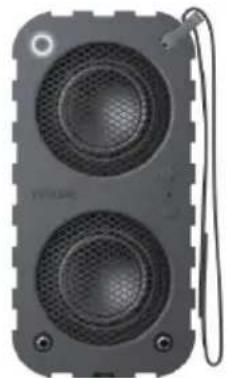
natural_image
Exterior view of a black electronic device with two speakers and a cable (no visible text or symbols)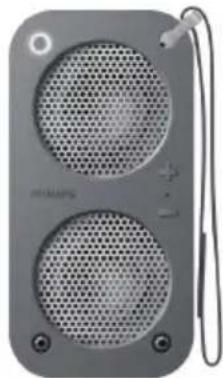
natural_image
Exterior view of a modern office building (no signage)User manual
PHILIPS

2014 © WOOX Innovations Limited. All rights reserved.
Philips and the Philips' Shield Emblem are registered trademarks of Koninklijke Philips N.V. and are used by WOOX Innovations Limited under license from Koninklijke Philips N.V.
SB5200_77_Short User Manual_EN_V1.0

llimportant
Safety
Only use attachments/accessories specified by the manufacturer.
Use only power supplies listed in the user manual.
The product shall not be exposed to dripping or splashing.
Do not place any sources of danger on the product (e.g. liquid filled objects, lighted candles).
Batteries (battery pack or batteries installed) shall not be exposed to excessive heat such as sunshine, fire or the like.
Where the plug of the Direct Plug-in Adapter is used as the disconnect device, the disconnect device shall remain readily operable.

Warning
- Never remove the casing of this apparatus.
• Never lubricate any part of this apparatus. - Never place this apparatus on other electrical equipment.
- Keep this apparatus away from direct sunlight, naked flames or heat.
- Ensure that you always have easy access to the power cord, plug or adaptor to disconnect the apparatus from the power.
Compliance

Note
• The type plate is located on the back of the product.
Care of the environment
Environmental information
All unnecessary packaging has been omitted. We have tried to make the packaging easy to separate into three materials: cardboard (box), polystyrene foam (buffer) and polyethylene (bags, protective foam sheet.)
Your system consists of materials which can be recycled and reused if disassembled by a specialized company. Please observe the local regulations regarding the disposal of packaging materials, and old equipment.
Your product is designed and manufactured with high quality materials and components, which can be recycled and reused.

Please inform yourself about the local separate collection system for electrical and electronic products.
Please act according to your local rules and do not dispose of your old products with your normal household waste. Correct disposal of your old product helps to prevent potential negative consequences for the environment and human health. Please inform yourself about the local rules on separate collection of batteries because correct disposal helps to prevent negative consequences for the environmental and human health.
Always bring your product to a professional to remove the built-in battery.
Notice

Bluetooth
The Bluetooth® word mark and logos are registered trademarks owned by Bluetooth SIG, Inc. and any use of such marks by Philips is under license.
Specifications are subject to change without notice. Trademarks are the property of Koninklijke Philips Electronics N.V or their respective owners. Philips reserves the right to change products at any time without being obliged to adjust earlier supplies accordingly.
Specifications
The image is too blurry to recognize any text content.
Rated output power 2×5
WITHD 10%
Signal to noise ratio: (5.0)
AUDIO-IN: input sensitivity
500 mV RM
Bluetooth
Standard Bluesool Standard
Version 2.1 + EDR
Frequency band: 7402
2.480 GHz ISM Band
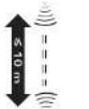
Range 10 m (free space)
Cannabis
Power supply
AC/DC adapter
KSASB0241200150HU
Input: 100.240 V\~50/60
-7.064
Output: 17 VDC, 15 A
7.4V, 1350 mAh Li
ion polymer internal
rechargeable battery
Charging
5V DC, 0.5 A for USB.
Maximum 0.7 A for cover
adapter (power of)
Power consumption (AC
power)
Operation: 10 W
Temperature & Humidity
0°C to 45°C, 5% to 90%
Humidity for all climates
(Operation) 40 °C to 70
°C, 5% to 95% (Storage)
Dimensions
Main unit (W × H × D):
176×88×70mm
Weight
Main Unit: 0.95 kg

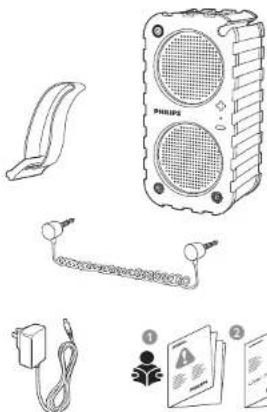
natural_image
Illustration of various electronic devices including a speaker, earphone, cable, and power plug (no text or symbols present)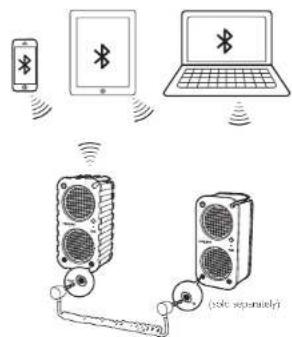
natural_image
Pure electrical circuit lines without any symbolsThrough Bluetooth, connect the SB5200 speaker with your Bluetooth device, such as an iPad iPhone, Android phone, or laptop. To get more powerful sound use the audio cable to hook two, three or more SB5200 speakers together.
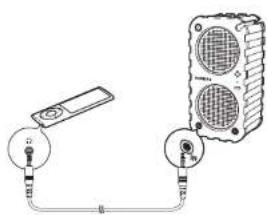
Through an MP3 Ink cable, you can also connect the speaker to an audio device, such as an MP3 player.

Switch on & Connect
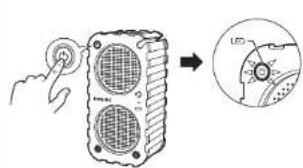
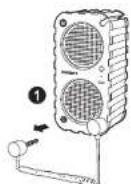
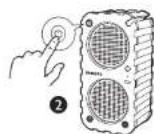
Press ① to switch on. Ready for
pairing Blue light flashes
If there is no action on SB5200
for 5 minutes, \$35200 switches
off automatically
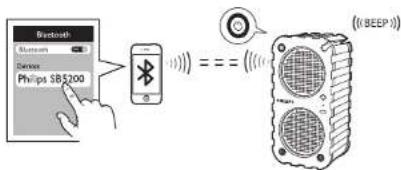
On your Bluetooth device.
activate Bluetooth and search
for SB5200
Corrected: Blue light is always on.
Next time you switch on SB520C, the
speaker connects to the last paired
device automatically.
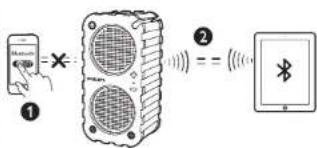
To connect 535200 to another Bluetooth device switch off Bluetooth on current Bluetooth device.

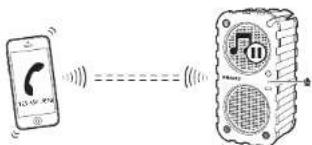
When there is an incoming call, music play pauses.
Pick up the phone call on your mobile phone. You
can talk through the microphone on SB5200 Music
play resumes when your phone call ends.

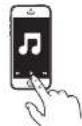
Play
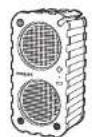
The music streaming may be interrupted by obstacles between the device and 545700, such as walks or other devices nearby that operate in the same frequency.
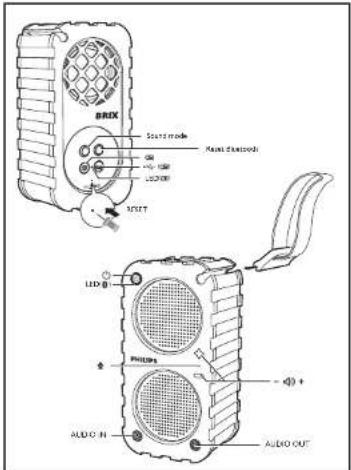
Source mode
Press the button repeatedly to switch between the indoor and outdoor sound effects.
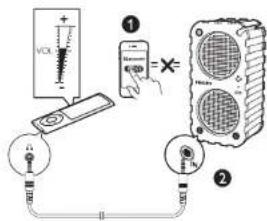
To play through the MP3 ink cable, switch off Bluetooth on the Bluetooth device.
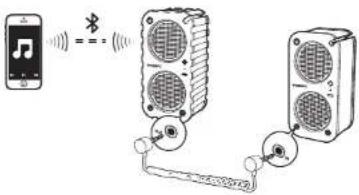
To play music from multiple speakers, do the following:
1. Use the audio cable to correct two speakers, one plug in the OU socket and the other plug in the IN socket.
7. On the fuel chain device, convert to a speaker:
The first speaker words as the master one. Select your source options on the master's speaker:

natural_image
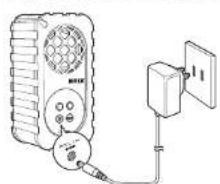
Simple line drawing of a portable electronic device connected to a wall-mounted power outlet (no text or symbols)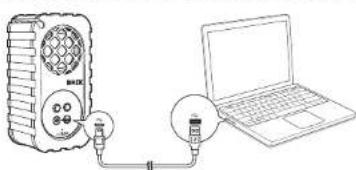
natural_image
Line drawing of a device connected to a laptop via two light bulbs (no text or symbols present)
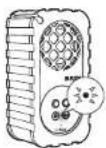
Battery low: Flashing red light
Chargingongoing:Green light always on
Charging complete: Light off
Note: During battery charging through the USB connector, music play on SBF200 reduces to a low volume level.
Reset BluetoothCharge
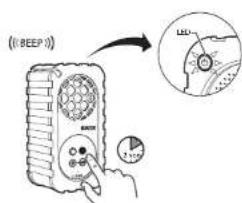
SB5200 can remember three paired devices. The fourth paired device will replace the first one. To clear the paired devices from your speaker, press and hold the button until the blue light flashes.
On the speaker, you enter the pairing mode. On the paired device, 1. unpair SB5200; 2. search for and connect Philips SB5200 again.



Brand : PHILIPS
Model : SB5200A
Category : Docking Station