
SPE2020CC - Hard Drive PHILIPS - Free user manual and instructions
Find the device manual for free SPE2020CC PHILIPS in PDF.


| Product type | External hard drive |
| Brand | Philips |
| Model | SPE2020CC |
| Storage capacity | 1 TB |
| Interface | USB 3.0 |
| Rotation speed | 5400 RPM |
| Dimensions (L x W x H) | 11.5 x 7.5 x 1.2 cm |
| Weight | 150 g |
| Power supply | USB bus (self-powered) |
| Max transfer rate | 5 Gbps |
| Form factor | 2.5 inches |
| Compatible operating systems | Windows, macOS |
| Package contents | Hard drive, USB cable, quick start guide |
| Main functions | Portable storage, plug-and-play, backup |
| Care and cleaning | Soft dry cloth, avoid moisture |
| Security | No built-in hardware encryption |
| Spare parts and repairability | Not user-serviceable, after-sales service |
| General information | 2-year warranty |
Frequently Asked Questions - SPE2020CC PHILIPS
User questions about SPE2020CC PHILIPS
0 question about this device. Answer the ones you know or ask your own.
Ask a new question about this device
Download the instructions for your Hard Drive in PDF format for free! Find your manual SPE2020CC - PHILIPS and take your electronic device back in hand. On this page are published all the documents necessary for the use of your device. SPE2020CC by PHILIPS.
USER MANUAL SPE2020CC PHILIPS
4 What's in the box?
5 How to connect this external hard disk to your computer?
5 How to safely disconnect?
6 How to install for Mac
7 Warranty, Environment and Safety
8 Specifications
Important note
When the computer does not recognize the hard disk (some computers provide insufficient bus power), we advise you to use the USB power cable supplied together with this product. For instructions and more information, see page 5.
How to find warranty information?
Browse to the Philips warranty folder on the hard disk or look on www.philips.com/welcome

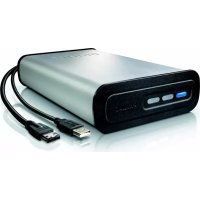
A: External hard disk B: Mini USB cable


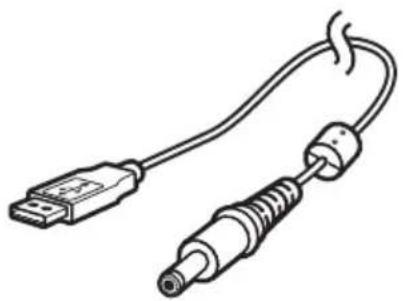
C: Quick Start Guide D: USB power cable

How to connect this external hard disk on your system?
EN

Connect the USB cable to the hard disk, and to an empty USB port of the computer.
A drive icon, Philips External Hard Disk, appears in Windows Explorer and the blue light should light up. (The computer sometimes needs to be restarted, before you can use the new hardware).

When Windows does not recognize the hard disk (some PCs or laptops provide insufficient bus power on one USB port), plug the additional USB power cable (D) into an empty USB port of your computer.
How to safely disconnect?
I Double-click the Safely Remove Hardware icon in the system tray in the lower right part of the screen.
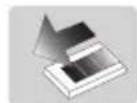
2 In the window that appears, select the name of the device that is to be removed, then click the Stop button.
3 When the Stop a hardware device screen appears, check that the correct information is displayed, and then click the OK button.
4 When the message Safe to remove hardware appears, remove the drive from the computer's USB port.
EN
How to use the software
The CoSoSys Carry it Easy software allows you to password protect your files. To launch the software, double-click on the CarryitEasy.exe file on the hard disk icon in your Windows explorer. Follow the instructions on your screen to get started.
See the Carry it Easy manual in the folder ‘Manuals’ on your hard disk for more instructions and more information.
How to install for Mac
The hard disk is preconfigured for Windows 2000, Windows XP and Windows Vista, with a NTFS file system. For Mac, the hard disk needs to be formatted to FAT32.
How to find warranty information?
Browse to the Philips warranty folder on the hard disk or look on www.philips.com/welcome
You need Adobe Reader software to open these files.
If you don't have Adobe Reader, you can download it for free on www.adobe.com.
The Philips warranty may not apply if damage is caused by accidents, shock, misuse or neglect.

Be responsible Respect copyrights
'The making of unauthorized copies of copy-protected material including computer programs, files, broadcasts and sound recordings, may be an infringement of copyrights and constitute a criminal offence. This equipment should not be used for such purposes.'
WEEE mark: 'Information to the Consumer'.
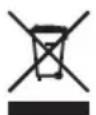
Disposal of your old product
Your product is designed and manufactured with high quality materials and components, which can be recycled and reused. Please inform yourself about the local separate collection system for electrical and electronic products, including those marked by the crossed-out wheel bin symbol. Please act according to your local rules and do not dispose of your old products with your normal household waste.
WARNING
Plastic bags can be dangerous.
To avoid danger of suffocation, keep this bag away from babies and small children.
Although this product has been designed with utmost care for long-lasting performance. Philips does advise you to handle electronics with good care:
Avoid contact with water, exposure to extreme forces.
Please make sure you place the device in a well-ventilated environment, to ensure longest possible lifetime and optimal performance.
Specifications
Technical Specifications:
Interface Hi-Speed USB 2.0
Transfer speed 480 Mb/s
Rotational speed 5400 rpm
Cache memory 8 MB
System requirements USB1.1 (USB 2.0 for max. transfer speed)
Windows 2000, Windows XP, Windows Vista
For interactive help and support:
www.philips.com/welcome
For software updates and frequently asked questions:
www.philips.com/storageupdates
Table des matières

A: Disque dur externe B: Câble mini-USB


Be responsible Respect copyrights
A: Externe Festplatte B: Mini USB-Kabel


Be responsible Respect copyrights

C: Korte handleiding D: USB-voedingskabel
Be responsible Respect copyrights
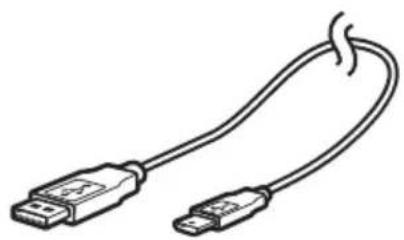
A: Disco duro externo B: Cable mini USB


Be responsible Respect copyrights

A: Disco rigido esterno B: Cavo mini USB
IT
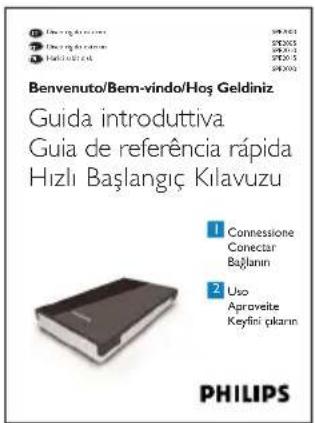

Be responsible Respect copyrights

Be responsible Respect copyrights

A: Harici sabit disk B: Mini USB kablosu
TR

Be responsible Respect copyrights
Specifications subject to change without notice.
All dimensions shown are approximate.
All rights reserved.
Reproduction, copying, usage, modifying, hiring, renting, public performance,
transmission and/or broadcasting in whole or part is prohibited without the written consent of Philips Electronics N.V.

- IMPORTANT NOTE
- HOW TO FIND WARRANTY INFORMATION
- HOW TO CONNECT THIS EXTERNAL HARD DISK ON YOUR SYSTEM
- HOW TO SAFELY DISCONNECT
- EN
- HOW TO USE THE SOFTWARE
- HOW TO INSTALL FOR MAC
- BE RESPONSIBLE RESPECT COPYRIGHTS
- WEEE MARK: 'INFORMATION TO THE CONSUMER
- DISPOSAL OF YOUR OLD PRODUCT
- WARNING
- SPECIFICATIONS
- TABLE DES MATIÈRES
- TR
Brand : PHILIPS
Model : SPE2020CC
Category : Hard Drive