
GT-R (2014) - Car NISSAN - Free user manual and instructions
Find the device manual for free GT-R (2014) NISSAN in PDF.


| Product Type | Car |
| Brand | Nissan |
| Model | GT-R (2014) |
| Category | Sports Coupe |
| Manual Language | English |
| Number of Pages | 314 |
| File Format | |
| Download Source | notice-facile.com |
| Dimensions (L x W x H) | 182.5 in x 74.7 in x 53.9 in |
| Weight | Approx. 3,924 lbs |
| Engine Type | 3.8L Twin-Turbo V6 |
| Horsepower | 545 hp @ 6,400 rpm |
| Transmission | 6-Speed Dual-Clutch Automatic |
| Drivetrain | All-Wheel Drive |
| Fuel Type | Premium Unleaded |
| Fuel Economy (City/Highway/Combined) | 16 mpg / 22 mpg / 18 mpg |
| Seating Capacity | 4 |
| Cargo Volume | 9.0 cu ft |
| Safety Features | ABS, Stability Control, Traction Control, Airbags (front, side, curtain), Rearview Camera |
| Maintenance | Oil change every 5,000 miles, spark plugs every 60,000 miles |
| Cleaning | Use car shampoo and microfiber cloth; avoid abrasive cleaners |
| Spare Parts | Available from Nissan dealerships or authorized retailers |
| Warranty | 3 years/36,000 miles basic, 5 years/60,000 miles powertrain |
Frequently Asked Questions - GT-R (2014) NISSAN
User questions about GT-R (2014) NISSAN
0 question about this device. Answer the ones you know or ask your own.
Ask a new question about this device
Download the instructions for your Car in PDF format for free! Find your manual GT-R (2014) - NISSAN and take your electronic device back in hand. On this page are published all the documents necessary for the use of your device. GT-R (2014) by NISSAN.
USER MANUAL GT-R (2014) NISSAN
For your safety, read carefully and keep in this vehicle.
Tableof Contents
| Introduction | 0 |
| AboutMultifunctiondisplaysystem | 1 |
| Navigation | 2 |
| Audiosystem | 3 |
| Bluetooth® Hands-FreePhoneSystem | 4 |
| Heaterandairconditioner | 5 |
| Viewingtechnicalinformation | 6 |
| Othersettings | 7 |
| Voicerecognition | 8 |
| Monitorsystem | 9 |
| Multifunctionmeter | 10 |
| Generalsysteminformation | 11 |
| Troubleshootingguide | 12 |
| Index | 13 |
0Introduction
Howtousethismanual....0-2
Forsafeoperation....0-2
Referencesymbols....0-2
Safetyinformation....0-2
Functionsdisabledwhiledriving....0-4
Laserproduct....0-5
Trademarks....0-5
HOWTOUSETHISMANUAL
Thismanualusesspecialwords,symbolsand icons,organizedbyfunction.
Pleaserefertothefollowingitemsandfamiliarize yourselfwiththem.
FORSAFEOPERATION

WARNING
Thisisusedtoindicateahazardthat couldcauseddeathorseriouspersonal injury.Toavoidorreducetherisk, followtheinformationandinstructions exactly.

CAUTION
Thisisusedtoindicateahazardthat couldcauseminorormoderatepersonalinjury.Toavoidorreducetherisk, followtheinformationandinstructions carefully.
NOTICE
Thisisusedtoindicateahazardthat couldcausedamagetoyourvehicle.To avoidorreducetherisk,followthe informationandinstructions.
REFERENCESYMBOLS

INFO:
This indicates information that is necessary for efficient use of your vehicle or accessories.

Referencepage:
This indicates the title and pagethat you should refer to.
<>:
This indicates a button on the control panel. [ ]:
This indicates a key/item displayed on the screen.

VoiceCommand:
This indicates an operation by voice command.
SAFETYINFORMATION
This system is primarily designed to help you reach your destination, and it also performs other functions as outlined in this manual. However, you, the driver, must us the system safely and properly. Information concerning road conditions, traffic signs and the availability of services may not always be up-to-date. The system is not as substitute for safe, proper and legal driving.
Beforeusingthenavigationsystem, pleaseread thefollowingsafetyinformation.Alwaysusethe systemasoutlinedinthismanual.

WARNING
- When the driver want to operate then navigation system or set the centerdial, first park the vehicle in a safelocation and set the parking brake. Operating the system while driving and distract the driver and may result in a serious accident.
- Donotrelyonrouteguidancealone. Alwaysbe surethatall driving maneuversarelegalandsafein ordertoavoidaccidents.
- Donotdisassembleormodifythis system.Ifyoudo,itmayresultin accidents,fireorelectricalshock.
- Ifyounoticeanyforeignobjectsin thesystemhardware,spillliquidon thesystemornoticesmokeora smellcomingfromit,stopusingthe systemimmediatelyandcontacta GT-RcertifiedNISSANdealer.Ignoringsuchconditionsmayleadto accidents,fireorelectricalshock.

CAUTION
- Donotusethissystemifyounotice anymalfunctionssuchasafrozen screenorthelackofsound.Continueduseofthesystemmayresult inaccidents,fireorelectricalshock.
- Somestates/provincesmayhave lawslimiting the use of video screens while driving. Use this system only where it is legal to do so.
- Extremetemperatureconditions [below -4°F (-20°C) and above 158°F(70°C)] could affect the performance of the system.
NOTICE
Donotkeepthenavigationsystem runningwiththeenginestopped.Doing somaydischargethevehiclebattery. Whenyousethenavigationsystem, alwayskeeptheengine running.
FUNCTIONSDISABLEDWHILEDRIVING

Toensuresafedriving, some functions cannot beoperated or havelimited operation when the vehicle drivingspeed is above 5 MPH (8 km/h).
Theon-screentextandkeysfortheserestricted functionswillbe"grayed-out"ormuted and cannotbeselectedwhiledriving.Insomecases, ascreenmessagewillappearindicatinga restrictedfunction.
Restrictedfunctionswhiledrivinginclude:
- Character(letterandnumber)inputscreen duringdestinationentry(streetaddress, phonenumber,freewayentrance/exit,intersection,citycenter)
- Placesearchbynameandcityname
- Scrollingandviewingofcertainnavigation lists
- Adding/editingaddressbookentries
- Adding/editinghomelocation
●Storingcurrentposition,information,destinations
These functions will become available again when the vehicles speed is reduced to 5 MPH (8 km/h).
Destinationfunctionsavailablewhiledriving include:
•Home
- AddressBook
●PreviousDestinations
●PreviousStartPoint
-StoredRoutes
- DeleteDestination
- Mapinput
LASERPRODUCTTRADEMARKS
ThissystemiscertifiedasaClass1laser product.
ThesystemcomplieswithDHHSRules21CFR Chapter1, SubchapterJ.

WARNING
- Donotdisassembleormodifythis system.Therearenouserservice-ablepartsinthissystem.
- lfmaintenance,adjustmentsand operationsotherthanthosespecifiedinthismanualareattempted, injuryduetolaserradiationand exposurecouldoccur.
Nav
TRAFFIC
RequiredSiriusXMSatelliteRadioandNavTrafficmonthlysubscriptionsaresoldseparately. NavTrafficareonlyavailableinselectmarkets. Formoreinformation,
seewww.siriusxm.com/navtraffic.
Nav
WEATHER
RequiredSiriusXMSatelliteRadioandNavWeatherXMmonthlysubscriptionsaresold separately.NavWeatherXMismonlyavailablein selectmarkets.Formoreinformation,
seewww.siriusxm.com/navweather.

Bluetooth
Bluetooth ® isatrademarkowned
byBluetoothSIG,Inc.,and
licensedtoClarionCo.,Ltd.
MEMO
0-6Introduction
1AboutMultifunctiondisplaysystem
Featuresofmultifunctiondisplaysystem....1-2
Navigationsystem....1-2
Multifunctionmeter....1-2
Controlbuttonsandfunctions....1-6
Controlpanel....1-6
Digitalmediaslots....1-9
Steeringswitch....1-10
Start-upscreen....1-11
Basicoperation....1-12
Menuscreenandhowtooperate....1-12
Listscreen....1-14
Touchpaneloperation....1-15
Exampleoftouchpaneloperation....1-15
Howtoinputlettersandnumbers....1-16
Character(lettersandnumbers)inputscreen.....1-16
Numberinputscreen....1-17
FEATURESOFMULTIFUNCTION DISPLAYSYSTEM
NAVIGATIONSYSTEM
ContainedwithinNISSAN'sauthenticnavigation system, thenavigation and audiosystems are all available for use.
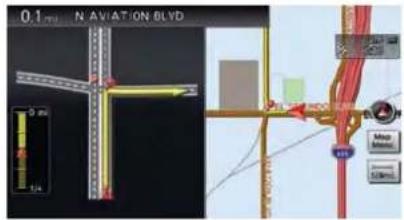
Navigationscreen

Audioscreen
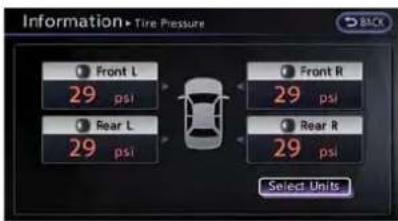
Informationscreen
Availableitems:
●Navigationfunction
2—"2.Navigation"
•Audio
"3.Audiosystem"
-Bluetooth® Hands-FreePhone
- Bluetooth ® Hands-FreePhone System"
●Heater/airconditioner
"5.Heaterandairconditioner"
●Vehicleinformation/Trafficinformation
"6.Viewingtechnicalinformation"
- Systemsetting
7.Othersettings"
•Voicerecognition
"8.Voicerecognition"
•RearViewMonitor
"9.Monitorsystem"
MULTIFUNCTIONMETER

WARNING
- Usetheinformationfromthemulti functionmeterstrictlyasareferencetomakeyourdrivingmore comfortable. Thereadingsarenot meanttopreventaccidentscaused byrecklessdrivingorpoordriving conditions(duetoweather,road condition,etc.).Alwaysobeyall trafficregulationsandpostspeed limits.
- Operatingthemultifunctionmeter whiledrivingcanleadtoacrash resultinginseriousinjuriesor death.Alwaysparkthevehicleina safeplacebeforeoperatingthedisplayscreen.
- Lookatthedisplayscreenonly brieflywhiledriving.Keepyoureyes ontheroad.Inattentivedrivingmay leadtoacrashresultinginserious injuriesordeath.
1-2 About Multifunction display system
Performance and vehicle information
Driverscancustomizethepanelbychoosingup tosixinformationgaugesfortheinformationthey wouldlikedisplayed.
"Customviewscreen"(page10-7)

Customviewscreen(threepanels)
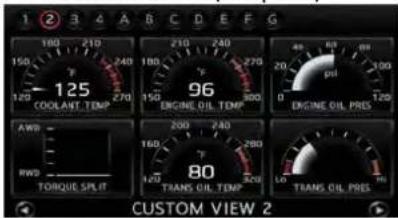
Customviewscreen(sixpanels)
Vehicleinformationitems:
●Enginecoolanttemperature
-Engineoiltemperature
-Engineoilpressure
●Transmissionoilpressure
●Transmissionoiltemperature
- Boostpressure
etc.
Informationforimprovingdriving smoothness
WARNING
Usetheinformationfromthemulti functionmeterstrictlyasareference to makeyourdrivingmorecomfortable. Thereadingsarenotmeanttoprevent accidentscausedbyrecklessdrivingor poordrivingconditions(duetoweather, roadcondition,etc.).Alwaysobeyall trafficregulationsandpostedspeed limits.
Thesystemcanbeusedtomonitoryourdriving skills,bydisplayingtheg-forceexertedonthe vehiclewhenyouaccelerate,brakeandsteer.

Accelerationscreen

Brakingscreen
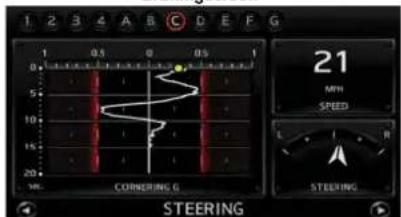
Steeringscreen
Vehicleinformationitems:
- Accelerationscreen
—Acceleratorpedalposition
—Boostpressure
—Resultantfore/aftg-forceexertedonthe vehicle
"Accelerationscreen" (page10-17)
- Brakingscreen
—Brakepedalposition
—Speed
—Resultantfore/aftg-forceexertedon vehicle
"Brakingscreen"(page10-19)
-Steeringscreen
—Steeringangle
—Speed
—Resultantlateralg-forceexertedonthe vehicle
"Steeringscreen"(page10-21)
Informationforfueleconomyim-provement
Displaysthesetectedgearforoptimumfuel economyandtheresultingfueleconomyinformation.
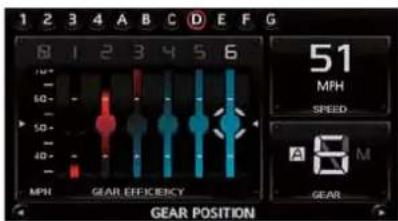
Gearpositionscreen

Fueleconomyscreen
Contentsoffueleconomyinformation:
●Gearpositionscreen
—Gearposition
—Speed
—Fueleconomyforeachgear/Torquemap
"Gearpositionscreen" (page10-22)
●Fueleconomyscreen
—Fueleconomy(history)
—Fueleconomy(real-time)
—Recentfueleconomy
"Fueleconomyscreen" (page10-23)
Tripcalculator
This allows youtorecord your driving time and waypoints. It also display the history for both functions.

Stopwatchscreen

Driver'sNotesScreen
1-4 About Multifunction display system
Availableitems:
-Stopwatchscreen
—Timelog
—Speed
—Elapsedtime
"Stopwatchscreen"(page10-25)
- Driver's NotesScreen
—Marklist
—Remainingestimatedfuelcruisingrange
(distancetoempty)
—Totaldistancetraveled
"Driver'snotesscreen"
(page10-28)
CONTROLBUTTONSAND FUNCTIONS
CONTROLPANEL
Navigation, Multifunctionmeter
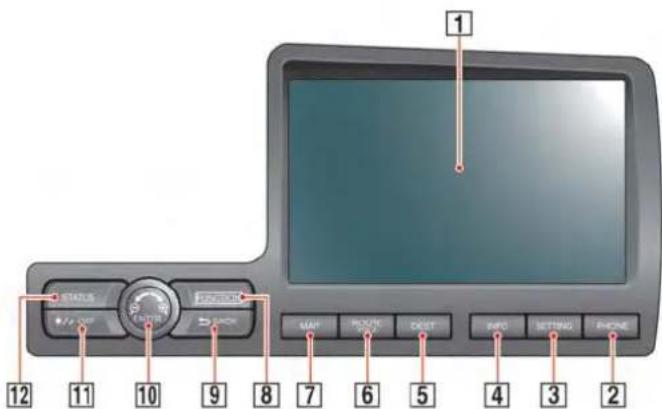
1 Monitor:
Multifunctionscreensappearhere.
2
Pushtoaccessthephonesettings.
3
Pushtoaccessthesystemsettings.
4
Pushtodisplaythevehicleinformationandthe navigationinformation,suchasGPSandversion information,etc.
5
Pushtoenteradestination. Various methods for enteringadestinationareavailable.
6
Pushtoaccessguidancecontrolfunctions (guidancecancellation, routepriority, waypoint settingsontheroute, etc.).
7
Pushtodisplaythecurrentlocationmapscreen.
8
Pushtodisplaythemultifunctionmeterscreen.
1-6 About Multifunction display system
9
Pushtoreturntothepreviousscreen.Ina settingsscreen,thisbuttoncanalsobeusedto applythesetting.Inacharacterinputscreen,this buttoncanalsodeletethecharactersthathave beenentered.
10 Centerdial/
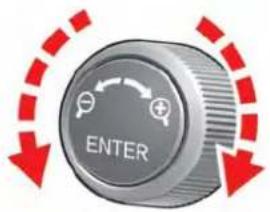
Turntohighlightanitemonthescreenoradjusta setting.Pushtoselectthehighlighteditemonthe screen.Usethecenterdialtoadjustthemap scale.Ifthisbuttonispushedwhileamapis displayed,themapmenuscreenisdisplayed.
11
Pushtoswitchbetweenthedayscreen(bright) andthenightscreen(dark).Pushandholdtoturn offthedisplay.Pushagaintoturnonthedisplay.
12
Pushtodisplaythecurrentstatusoftheair conditioner,radio,audio,vehicleinformation (drivabledistanceandaveragefueleconomy) andnavigationsystems.
Audiosystem

1 /:
Turnthisswitchtomanuallytunetheradio frequency.Pushtheswitchtoconfigurethe soundsettings.WhenusingCD(including MP3/WMA/AACfilesondisk)/DVD/USBmemory/Bluetooth® streamingaudio/iPod® playeryou canchangethealbumorfoldertobeplayed.
2 Presetstations<1>-<6>:
Usethesebuttonstotogglebetweenthestations presetinthesystem.Pushingandholdinganyof thepresetstationbuttonswillsavethestation youarelisteningto.
3 VOLcontrolknob/
ON-OFFbutton:
Turnthisswitchtoadjustthevolumeofthe stereo.Pushthisswitchtoturntheaudiosystem ONorOFF.
4 :
PushtoswitchbetweenCD/DVD/USBmemory/Bluetooth® streamingaudio/iPod® player/AUX(if soequipped)screens.
5 < >
Pushtosearchforatrack/stationautomaticallyor tofast-forwardwhenlisteningtomusic.
6 < >
Pushtosearchforatrack/stationautomaticallyor torewindwhenlisteningtomusic.
7
PushtoswitchtoanSiriusXMsatelliteradio band.
8 :
Pushtoswitchfromtherandommodetorepeat modewhilelisteningtomusic.
9
Pushtotunetheradiofromlowtohigh frequencies. Theradiowillstopateachbroadcastingstationfor5seconds. Whenoperating theCDplayer, pushtopreviewthefirst5 secondsofeachCDtrack.
10 :
Pushtoswitchtoadifferentradioband.
Heaterandairconditioner


PushthistoturnthedualtemperaturemodeON/OFF.Turntheswitchtotheleftorrighttoadjust thepassenger-sidetemperature.
1
Pushthistosettheairconditionertothe automaticmode.Turnthedialtoadjustthecabin temperature.Whenindualmode,thisswitch adjuststhedriver-sidetemperature.
2 < >
Pushthistorecirculatetheairinthecabin.
3 :
WhenthefanisON, pushing this button turns the airconditioner ON/OFF.
4 < >
PushtoturnthefrontdefrosterON/OFF.
5
TurningthisdialturnsthefanON. Thisdialalso controlsthefanspeed.Pushthedialtoturnthe fanOFF.
6 <
Pushtoventilatefreshairintothecabin.
7
Pushtoselectbetweenendashboardorfeetair ventilators.
8
PushtoturnthereardefrosterON/OFF.
1-8 About Multifunction display system
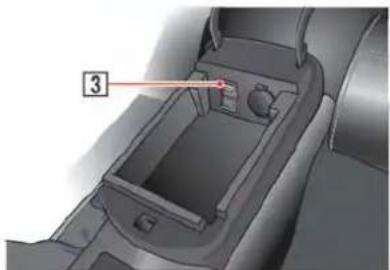
DIGITALMEDIASLOTS


USBconnector:
ConnecttoplayaniPod ® oraUSBmemory.

CD/DVDslot:
InsertaCD/DVD.


PushtoejectaCD/DVD.
STEERINGSWITCH
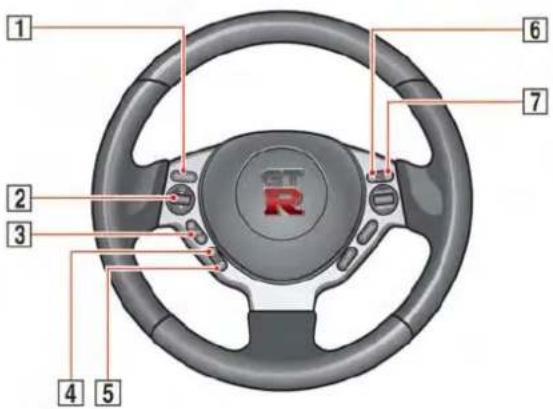
1 :
Pushthesourceselectswitchtochangethe modeinthesequenceofAM,FM,XM,iPod CD,DVD,USBmemoryandBluetoothstreaming audio.Iftheyarenotreadytofunction,those modeswillbeskipped.
2 :
Allowsyoutoadjustthevolume.
3 :
This can be used when operating the audio system. Push these seek button to select a radio station or as song. Push and hold these seek buttons and the system will automatically select a station
folderordisc.
4 <>
Pushtoentervoicerecognitionmode.
5 <>
Pushtodisplaythehands-freephoneoperation
screen.
6
When using the stopwatch, push this button to record there required travel time. When Driver's Notes is active, pushing this will record your present position as away point.
7 :
Pushtostart/stopthetimerontheStopwatch screenortheDriver'sNotesscreen(when displayed).
1-10 About Multifunction display system
START-UPSCREEN

- Thenavigationsystemstartswhenthe ignitionswitchispushedtotheACCor ONposition.

- Aftertheengineisstarted, theoperation instructionswillonlybedisplayedthefirst timethescreenisdisplayed.

●Theoperationsinstructionscreenwilldisappearautomaticallyafterafewsecondsor whenyoustarttooperatethescreen.
- Thesystemsavesthescreendisplayedat thetimetheengineisturnedoff.
- "Clarion" logoiseregisteredtrademarkof ClarionCo.,Ltd.andthe"POLYPHONY DIGITAL" logoiseregisteredtrademarkof PolyphonyDigitalCorporation.
BASICOPERATION
MENUSCREENANDHOWTOOPERATE
Menuscreensandtheirpurposes

Push
Howtoselectamenuitem:
Example:
- Turn the center dial clockwise or counterclockwise. An item is highlighted accordingly.
1-12 About Multifunction display system
- Toselect the preferred menu item, highlight the item and push
. Then next screen is displayed.
3.Push

INFO:
Dependingonthemenuselected,pushing
Usingcontrolstoadjustvalues, levels, etc.

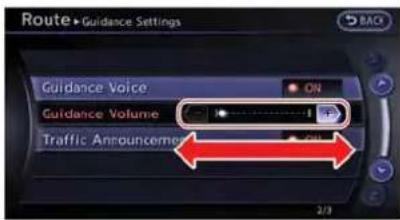
Therearethreemainmethodsyoucanuseto controlthenavigationsystem:thecenterdialor thetouchpanel. Usethesecontrolstoadjustthe volumeofphoneandvoiceguidance, thedisplay brightness, etc.
Howtoadjust:
-
Highlight the preferred setting item and push
. The color of the corresponding adjustment item changes. -
Use the centerdial orthetouch panel, and the value or bar indicating levels increases or decreases accordingly.
3.Pushor toapplythe setting.

INFO:
- Youcanalsoadjustthevolumeofphoneand voiceguidance,etc.bytiltingthesteering switchupanddown.
- Thissameadjustmentcanalsobemadeby thetouchpaneloperation.
"Listscreen"(page1-14)
LISTSCREEN

Aftersearchingforapointofinterest,alist screenisdisplayed.
Dependingonthelistdisplayed, it can be sorted.
Itemsdisplayedinlist
① Highlightthepreferreditemfromthelistandpush
② Distancefromthecurrentlocation
③ Directiontothepointofinterest
④ Iftheentirelistcannotbedisplayedonthe screen,thesystemdisplaysthetotalnumberof itemsinthelistandtheentrynumberofthe selecteditem.Turnthecenterdialorpushtheup ordownbuttonsofthemaindirectionalbuttons toscrollthelist.
⑤ Anitemthatstartswiththeselectedletterwillbe displayedatthetopofthelist.
⑥ Highlightandpush
⑦ Whenthelistissortedbytheshortestdistance, theselectedlocationcanbeconfirmedinthe previewdisplayedontherightsideofthescreen.
⑧ Highlightandpush
1-14 About Multifunction display system
TOUCHPANELOPERATION
With this system, it is possible to set the center dialand touch panel operation to perform the same operations.
Thismanualdescribestheoperationsusingthe centerdial.
Fortheoperationsthatdifferfromthoseofthe centerdialandforusefulmethodsforusingthe touchpaneloperation,refertoeachsection.
Examples of operations performed using the touchpanel operation are described here.
Selectingitem

Whentheitemistouched,thenextscreenis displayed.
Touch[+]or[-]locatedontherightandleftof thebargraphtoperformtheadjustment.
Scrollingmessageorlist

Touch[] or [ ] to scroll them messageorlist.
Touch[ ] or [ ]toskiptothenextpage.
Inputtinglettersandnumbers
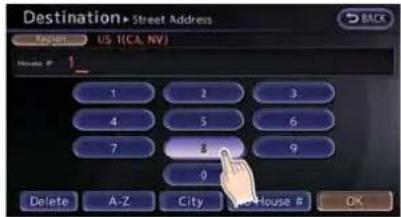
- Touchtheletterornumber.
- Touch[Delete]todeleteacharacter.Push andhold[Delete]todeleteallofthe characters.
HOWTOINPUTLETTERSAND NUMBERS
CHARACTER(lettersandnumbers) INPUTSCREEN
Alphanumericcharactersareenteredtoseta destination, searchforafacility, editstored locations, etc.
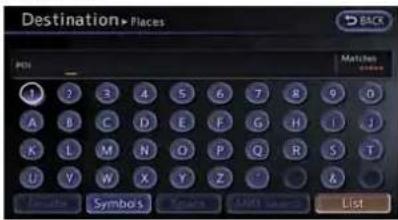
- Use the touch panel or center dial to highlight a character on the displayed keyboard.
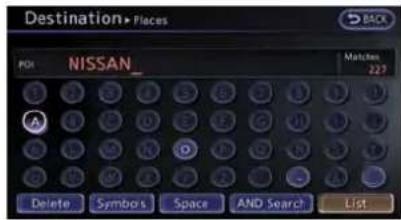
2.Push

3.Push
Pushandhold
Highlight[Space]andpush

- After finishing the entry, highlight[List] and push
.

INFO:
- Push
- Touch[BACK]onthescreentoreturnto theprevioussscreenevenwhencharactershavebeenentered.
- Thelistscreenappearsautomatically whentexthasbeenenteredandthe matchinglistitemshavebeennarrowed downtoanumberthatwillfitonthe screen.

Symbolinputscreen
- Symbolkeysaredisplayedbyhighlighting [Symbols]andpushing
1-16 About Multifunction display system
NUMBERINPUTSCREEN
Aphonenumberorastreetnumbercanalsobe enteredasasearchmethodtolookfora destination.Performthefollowingprocedureto enteranumber.

INFO:
Onlythelocationsincludedinthemapdata databasecanbesearchedforbyaphone number.

- Usethetouchpanelorcenterdialto highlightanumberonthedisplayedkeyboard.

2.Push

3.Push
Pushandhold
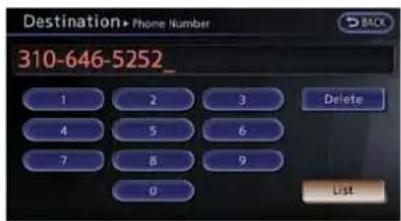
- After finishing the entry, highlight[List] and push
.

INFO:
- Push
onthecontrolpanelto returntothepreviousscreen,butonlyafter deletingallthenumbersentered. - Touch[BACK]onthescreentoreturntothe previoussscreenevenwhennumbershave beenentered.
MEMO
1-18 About Multifunction display system
2Navigation
Featuresofthisnavigationsystem....2-3
Routeguidance....2-3
Placesofinterest(Places)directory....2-3
Addressbook....2-3
Avoidarea....2-3
XMNavTraffic ® information....2-3
Automaticreroute....2-4
Detour....2-4
BirdviewTM 2-4
Voiceguidance....2-4
Mapsettings....2-5
Maptypes....2-5
Birdview™ (3D)map....2-6
Buildinggraphics....2-6
Displayingcurrentvehiclelocation....2-7
Movingmap....2-7
Changingscaleofmap....2-9
Changingmapview....2-11
Mapviewsettings....2-13
Lookingatinformationonmap....2-17
Mapmenuscreen....2-19
Mapsymbols....2-22
Settingdestination....2-23
Destinationscreen....2-23
Findingaddress....2-25
Findingplace....2-27
Settinghomeasdestination....2-32
Searchingfromaddressbook....2-33
Settingpreviousdestination....2-34
Settingpreviousstartpoint....2-35
Settingfromstoredroutes....2-36
Settingbyphonenumber....2-37
Settingfreewayentrance/exit....2-38
Settingintersection....2-39
Settingcitycenter....2-41
Settingpointonmap....2-42
Deleteddestination....2-43
Routeguidance....2-44
Proceduresaftersettingdestination....2-44
Aboutrouteguidance....2-48
Routescreen....2-54
Routeguidancesettings....2-68
Storingalocation/route....2-72
Storinglocation....2-72
Storingroute....2-75
Storingtrackedroute....2-76
Storingavoidarea....2-77
Editingaddressbook....2-78
Deletingstoreditem....2-88
Transferringinformationto/fromaddressbook.....2-91
Navigationsetting....2-92
Basicoperation....2-92
Speedlimitindicationonmap....2-93
Othernavigationsettings....2-93
Deletestoreditems....2-97
Resetallnavigationsettingstodefault....2-97
FEATURES OF THIS NAVIGATION SYSTEM
ROUTEGUIDANCE
ThemainfeaturesoftheNISSANNavigation Systemarevisualguidanceandvoiceguidance inselectedmapcoverageareas.Utilizinga networkofGPS(GlobalPositioningSystem) satellites,theNISSANNavigationSystemtracks thelocationonthemapandnavigatestoa preferredlocation.
Oncethedestinationissetinamapcoverage area, theNISSANNavigationSystemwill calculatearoutefromthecurrentlocationto thedestination. Thereal-timemapdisplay and turn-by-turnvoiceguidanceleadsthedriver alongtheroute. Thesefeaturescanbeespeciallyhelpfulwhendrivingtounfamiliarlocations.
Thesystemmaybeunabletosetadestination and/orcalculatearoutewhentedestinationis outsidethemapcoveragearea.Additionally, voiceguidancemaynotbeavailableifthe destinationisoutsidethemapcoveragearea. Formoreinformationonhowtosetadestination,refertosection4.
PLACESOFINTEREST(Places)DIRECTORY
TheNISSANNavigationSystemoffersan extensiveplacesofinterest(Places)directory inmapcoverageareas. This directoryincludes a widevarietyofdestinationsrangingfromgas stations,ATMs,andrestaurantstocasinos,ski resorts,shoppingcentersandbusinesses. A pointofinterestcanbesearchedbycategory, nameorphonenumber. Afterselecting a destination,theNISSANNavigationSystemwill calculatearoutetothatdestination.
ThePlacesdirectoryhasmanyuses. For example, the directory can be sorted by the various types of restaurants near the current location. If an ATMorgasstation is needed, the NISSANNavigation System can navigate to the closest preferred location.
FormoreinformationonhowtousethePlaces directory, refertosection4.
ADDRESSBOOK
TheAddressBookcanstoreupto300locations frommapcoverageareasintoapersonal directory. Thisisespeciallyusefulforfrequently visitedlocations,suchasclients,relativesand friends.TheAddressBookfunctionallowseasy accesstofrequentlyvisitedlocationswhen settingthemasyourdestination.
FormoreinformationonhowtousetheAddress Book, refertosection6.
AVOIDAREA
TheAvoidAreafunctionsetsareasorfreeways thattheNISSANNavigationSystemdoesnot includeinthesuggestedroutewhencalculating routes. Forexample,ifafreewayorareathatis alwayscongestedwithtraffic.
FormoreinformationontheAvoidAreafunction, refertosection6.
XMNavTraffic® INFORMATION
When available, the Nav Traffic Information broadcast may help to avoid delays due to traffic incidents. Traffic jams, roadwork, closed roads around the current location, etc. are represented graphically on themapby icons depicting the nature of the event. Incidents on theroute area automatically brought to the attention when they are approached.
TheNavTrafficInformationfeature,viathe guidancemode,mayhelptodetouraround trafficproblems.Formoreinformationonthe NavTrafficInformationfeature,refertosection6.
AUTOMATICREROUTE
When detecting a deviation from the suggested route, the NISSANNavigation System will automatically recalculate anewrout to the destination.
FormoreinformationontheAutomaticreroute function, refertosection2.
DETOUR
Tomakeadetourduetotrafficconditions,the Detourfunctioncalculatesanalternativeroute. TheNISSANNavigationSystemcancalculatea routeusingsecondaryroadsthatwillreturnto primaryroadsafteraspecifiednumberofmiles.
FormoreinformationontheDetourfunction, refertosection2.
Birdview™

Twomaptypes,the2D(PlanView)mapand BirdviewTM (3D)map,areavailableinthe
NISSANNavigationSystem.Birdview TM map displaysthemapfromanelevatedperspective. InBirdview TM map,itiseasytorecognizean imageoftheroutebecauseitprovidesa panoramicviewoveralongdistance.
FormoreinformationonBirdview TM map, refer tosection2.
VOICEGUIDANCE
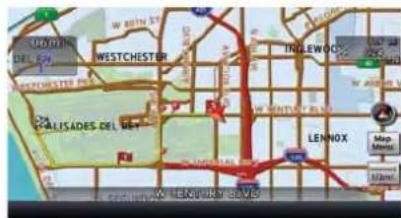
Routeguidanceisprovidedthroughvoiceand visualinstructions.Voiceguidanceannounces theappropriatedirectionswhenapproachingan intersectiontoturn.
Formoreinformationonvoiceguidance,referto section2.
2-4Navigation
MAPSETTINGS
MAPTYPES
Twotypesofmapviewsareavailable:2Dmap andBirdview TM (3D)map.
2Dmap
The2Dmapdisplaysthemapina2-dimensional environmentsimilartoaroadmap.

Screeninformation:
① Vehicleicon:
Indicate the current vehicle location and the direction of travel.
② Guidepoint: Indicatesaguidepointontheroute.
③ Remainingtimeanddistancetothe destination:
Indicates the approximateremaining time and distancetothedestinationorwaypoint. This indicator will appear when a destination or waypoint is set and route guidance is started.
Whenthevehicleisnotdrivenonthesuggested route,thescreendisplaythedirectiontothe destinationandthedistancetothedestination fromthecurrentvehicleposition.
"Switchingestimatedarrivaltimedisplay" (page2-70)
④ Suggestedroute: Appearsinboldyellowduringrouteguidance.
⑤ /Directionindicator: Indicate the directional setting of themap. Touch theicontochangethesetting.
- Northalwayspointingup. - Directionofthevehiclealwayspointingup. "Settingmaporientation"(page2-14)
⑥ Scaleindicator: Indicatesthescaleofthemap.Touchtheiconto displaythescalebar. Themapscalecanbeadjustedusingthescale bar.
"Operatingwithtouchpaneloperation" (page2-7)
⑦ Arrow: Indicate the distance to the next guide point and the turning direction at that guide point.
⑧ 1 Storedlocation(orange): Displaysthelocationsthataarestoredinthe AddressBook.Iconscanbechangedaccording topersonalpreferences.
"Storinglocation"(page2-72) ⑨ AvoidArea(greenorblue): Displaystheareastoavoidthataarestoredinthe AddressBookwithgreenorblueicons.During
Navigation2-5
theroutesearch,therouteguidanceisperformed bysearchingforaroutethatavoidsthoseareas. "Storingavoidarea"(page2-77)
⑩ Streetname:
Displaysthenameofthestreetthevehicleis currentlydrivingon.
⑪ Trafficindicator:
Displaysthereceptionconditionofthetraffic informationtransmittedfromtheprovider. Green:Receptionconditionisgood. Gray:Receptionconditionisnotgood. Nomark:SubscriptiontoNavTrafficserviceisnot detected.
Birdview™ (3D)MAP
Birdview™ displaysthemapfromanelevated perspective.InBirdview™,itiseasytorecognizeanimageoftheroutebecauseitprovidesa panoramicviewoveralongdistance.

INFO:
NotethefollowingitemsabouttheBirdview display.
- "Birdview TM isaregisteredtrademarkof ClarionCo.,Ltd.
- ThemapinBirdview TM alwaysappearswith thecurrentforwarddirectionfacingup.
BUILDINGGRAPHICS
Inanareawherethebuildinggraphicsare storedinthemapdata,thebuildinggraphicsare displayedwhenthemapiszoomedin.Onthe 2Dmapdisplay,thesearecalled"Building footprintgraphics",andontheBirdview display,thesearecalled"3Dbuildinggraphics".
Themethodtolookatthemapisthesamefor the2DandBirdview TM maps.
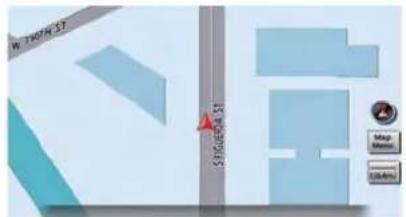
Buildingfootprintgraphics(2Dmap)
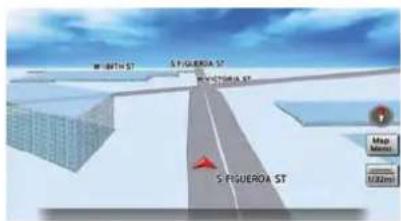
3Dbuildinggraphics(Birdview TM map)
INFO:
Inanareawherethebuildinggraphicsarenot storedinthemapdata,thenormalmapis displayedevenwhenthemapiszoomedin.
2-6Navigation
DISPLAYINGCURRENTVEHICLELOCATION Operatingwithcontrolpanel


The basic mapscreendisplaysthecurrent location (the position where the vehicle mark is located). Push
Operatingwithtouchpaneloperation
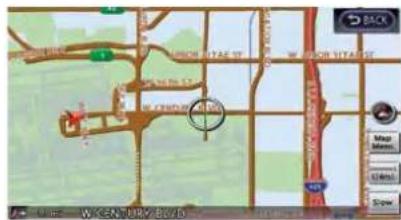
Aftermovingthemap,touch[BACK]onthemap screentodisplaythecurrentlocationmap screen.
MOVINGMAP
Theoperationsformovingacrossthemapare differentbetweenthe2DandBirdview TM maps.
2Dmap

- Touch the screen.
Thecrosspointerisdisplayed, and the touchedpositionissetasthecenterofthe screen.

- Touchthedirectiontomoveto. Themap continuestoscrollwhilethescreenis touched.
INFO:
While driving, scrolling on themapis limited to a specified distance. If themapscreenissettothebuildingfootprint graphics, themap cannot be scrolled while driving.
Fine-tuningthecursorposition:

- Touch[Slow].
The8-directionalkeyisdisplayed.
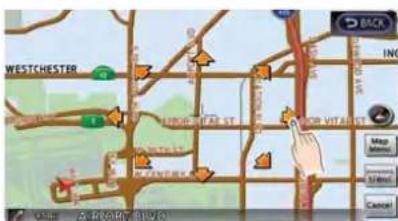
- Touch the 8-directional keyto adjust the crosspointer position. Touch [BACK] to complettheadjustment.
INFO:
Fine-tuning the cursor position is not possible while driving.
Birdview™ (3D)map

- Touch the screen.
Thecrosspointerand8-directionalkeyare displayed.

- Touchthedirectiontomoveto. Themap continuestoscrollwhilethescreenis touched.
2-8Navigation
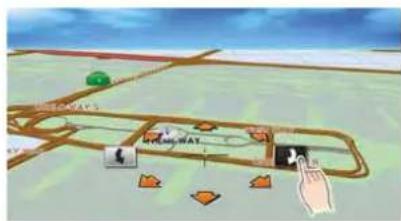
- Touch[] or [] tochangethedirectionof themap.

:Rotatesthemapclockwise.
: Rotatesthemapcounterclockwise.

INFO:
While driving, scrolling on them aapis limited to a specified distance.
CHANGINGSCALEOFMAP Operatingwithcenterdial


-
Turnthecenterdialwhenthemapscreenis displayed. Themapscaleisdisplayedatthe rightsideofthescreen.
-
Usethecenterdialtoadjustthemapscale.
1 Clockwise:Zoomin
2 Counterclockwise:Zoomout

INFO:
Freezoom:
Dependingonthesetting,usingthecenterdial tochangethemapscalemayadjustthescale normally,oritmayengagethefreezoom(finer scaleadjustmentinsmallersteps).
1 "Othernavigationsettings"(page2-93)
Operatingwithtouchpaneloperation

1.Touch[].

Thescaleisdisplayed.

- Touch[ZOOMIN]or[ZOOMOUT]to changethescale.

INFO:
Freezoom:
Oncethe[SmallStepZoombyDial]issettoON inthesettingscreen,thescalecanbechanged insmallerstepswhen[ZOOMIN]or[ZOOM OUT]ispushedandheldthanwheneither buttonisbrieflypushed. Ifbrieflypushed,theoperationreturnstonormal.

Settingbyvoicecommand
1.Push< >locatedonthesteeringwheel.
- Afterthetonesounds, speakacommand.
Tochangethemapscale:
"ZoomIn<1 to 14> "(AlternateCommand Mode)
"ZoomOut<1to14> "(AlternateCommand Mode)
Mapscale
Anyrequiredmapscale(mapcoverage)between320miles(640km)and1/64ofamile (25m)canbeselected.
Scalelevelfor2DmapandBirdview TM map (3D)display:
| NormalMap | USUnitsMetricUnits | |
| 320miles640km | ||
| 80miles | 160km | |
| 32miles | 64km | |
| 8miles | 16km | |
| 5miles | 10km | |
| 2miles | 4km | |
| 1mile | 2km | |
| 1/2mile | 1km | |
| 1/4mile | 500m | |
| 1/8mile | 200m | |
| 1/16mile | 100m | |
| 1/32mile | 50m | |
| Showsbuild-ingfootprint graphics | 1/32mile | 50m |
| 1/64mile | 25m | |
2-10Navigation
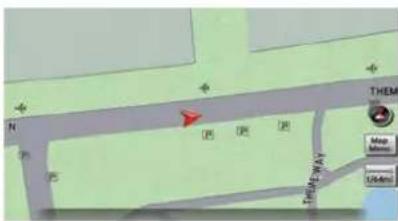
Example: Themostdetailedlevel(2Dmap)
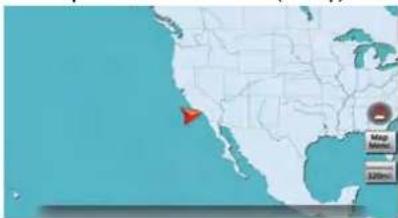
Example: Thewidestlevel(2Dmap)

Example: Themostdetailedlevel(Birdview TM map)

Example: Thewidestlevel(Birdview TM map)
INFO:
Thetrafficinformationiconsarenotdisplayedon themapscreenwhenthemapscaleissetto32 miles(64km)orhigher.
"Trafficinformationdisplayandscalelevels"(page6-11)
CHANGINGMAPVIEW
Themapviewcanbechangedbetweenthe2D andBirdview TM maps.Themapcanalsobe displayedinthesplitscreenmode.
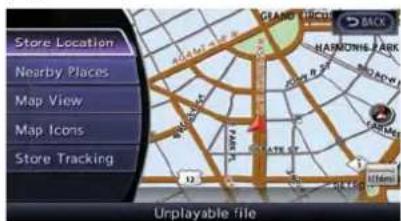
- Push
while the current location mapscreen is displayed.

- Highlight[MapView]andpush
.

- Highlight[ChangeView] and pushtheright button of the directional buttons.
- Highlight the preferred map view and push
. The indicator of these selected map view illuminates. - Thedisplayautomaticallyreturnstothemap screen.
Availableviews
•[2DMap]:
Switchestothe2Dmap.
•[Birdview(3D)]:
SwitchestotheBirdview TM map.
•[Split:2DMap]:
Changestothesplitscreenmodeandboth halvesdisplaymapsin2D.
•[Split:BirdviewMap]:
Changestothesplitscreenmodeandthe lefthalfdisplaysthemapin2Dandtheright halfdisplaysthemapinBirdview TM.
2-12Navigation
i INFO:
- Whenthesplitscreenmodeisselected, the mapsettingsfortheleftscreencanbe changedindependently.
"Settingleftscreendisplay" (page2-16)
- If the splitscreenmode is selected, the normal maps scrolling and scale adjustment are set in theright screen. However, if an iconistouched before adjusting them map directionorscale, then each screen can be adjusted independently.
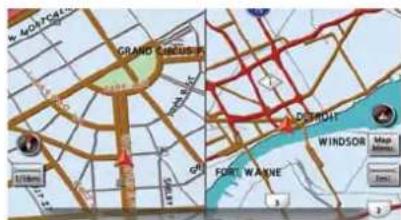
Split:2DMap

Split:Birdview™ Map
Othersettings
Themapviewcanalsobesetbyperformingthe followingprocedure.

1.Push
2. Highlight[Navigation]andpush
3. Highlight[MapView]andpush
4. Highlight[Change View] and push
- Highlight the preferred item and push
.

Settingbyvoicecommand
1.Push< we >locatedonthesteeringwheel.
- Afterthetonesounds, speakacommand.
- Todisplaythe2Dmap: "PlanViewmap"(AlternateCommand Mode)
- TodisplaytheBirdview TM map: "Birdviewmap"(AlternateCommandMode)
MAPVIEWSETTINGS
Othersettingsarealsoavailableforthemap screen,suchaschangingthemapdirection, mapcolor,Birdview TM angle,etc.
Basicoperation

1.Push

- Highlight[MapView]andpush
.
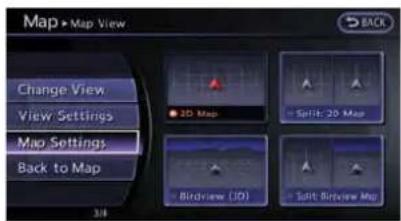
- Highlight [Map Settings] and push
.
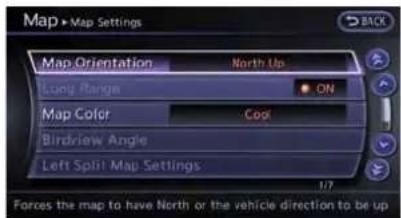
- Highlight the preferred item and push
.
Availablesettingitems
- [MapOrientation]: SetsthemapdirectiontoNorthUpor HeadingUp. "Settingmaporientation"(page2-14)
•[LongRange]:
Setsthelongrangemapviewdisplayon/off.
"Settingslongrangemapview" (page2-15)
- [MapColor]:
Changesthemapcolor.
"Settingmapcolor"(page2-15)
•[BirdviewAngle]:
ChangestheBirdview TM angle.
“ChangingBirdview TM angle”
(page2-16)
•[LeftSplitMapSettings]:
Setsthemapsettingsfortheleftscreenof
thesplitmap.
"Settingleftscreendisplay" (page2-16)
- [ShowallFreewayExitsonRoute]/[Auto.ShowTurnListonFreeway]:
Setsthedisplayofthefreewayexitinformationon/off.
Showexitinformationonfreeways" (page2-52)
Othersettings:
Theorientationofthemapcanalsobesetby performingthefollowingprocedure.

1.Push
2. Highlight[Navigation]andpush
3. Highlight[MapView] and push
Settingmaporientation
Themapdirection(orientation)canalsobe changedinthe2Dmap.Thesesettingsare availableonlyinthe2Dmapor2D/2Dsplitmap.
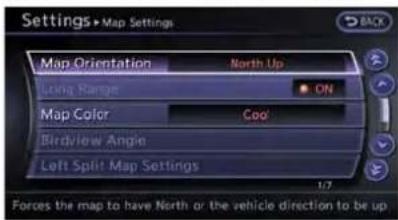
- Highlight[MapOrientation] and push
.

- Highlight the preferred map orientation and push
. The indicator of the selected map orientation illuminates.
3.Push
Availablemaporientations
•[NorthUp]: Thetopofthemapremainsorientedtothe north.
•[HeadingUp]: Thetopofthemapfollowsthetraveling direction.

INFO:
If themaporientation is switched, the icon displayed in the lower left corner is also switched.
NorthUp
:HeadingUp
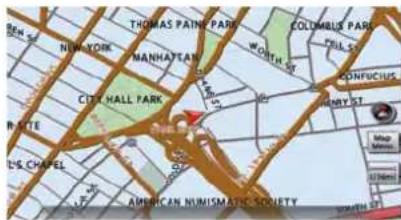
NorthUp

HeadingUp

INFO:
Thedirectionofthemapcanalsobechangedby touchingtheicononthemapscreen.

Settingbyvoicecommand
1.Push< >locatedonthesteeringwheel.
2. Afterthetonesounds, speakacommand.
Tochargethemapdirection:
"NorthUp"(AlternateCommandMode)
"HeadingUp"(AlternateCommandMode)
Settingslongrangemapview
Thepositionofthevehicleiconcanbechanged toviewawiderareainthetravelingdirection.If thisfunctionisactivated,thevehicleiconis locatedslightlylowerthanthecenterofthe screen.

- Highlight [Long Range] and push
.The indicatorilluminates.
2.Push
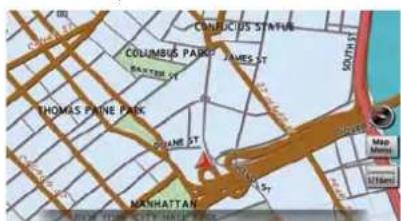
LongRangeMapView

INFO:
[LongRange]isdisplayedonlywhen[Heading Up]isselected.
Settingmapcolor
Themapcolorcanbechangedtoawarmor coolcolor,oralightcolor,toemphasizethe trafficinformation.

- Highlight[MapColor]andpush
.
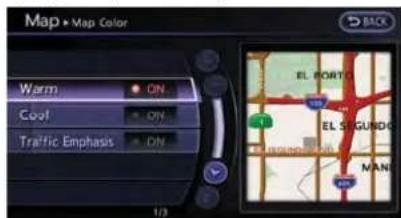
- Highlight the preferred map color and push
. The indicator light of these selected color illuminates.
Availablemapcolors
The following map colors are available.
•[Warm]: Setswarmcolorsforthemapcoloring.
•[Cool]: Setscoolcolorsforthemapcoloring.
•[TrafficEmphasis]: Setslightcolorsforthemapcoloringto emphasizethetrafficinformation.
INFO:
Theeffectofthesettingchangescanbe confirmedonthepreviewdisplayedontheright sideofthescreen.
ChangingBirdview TM angle
TheBirdview TM anglecanbechanged. ThissettingisavailableonlyintheBirdview mapor2D/Birdview TM splitmap.

- Highlight[BirdviewAngle] and push
.

- Adjust the Birdview TM angle bypassing the maindirectional buttons or rotating the centerdial.
3.Push
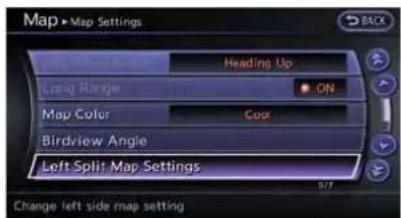
Settingleftscreendisplay
Whenthesplitscreenisdisplayed, themap settingsoftheleftscreencanbechanged.
2-16Navigation
- Highlight[LeftSplitMapSettings]andpush
.

- Highlight the preferred map setting and push
.
3.Push
Availablesettingitems
•[MapOrientation]:
Themapdirectioncanbeselectedas follows.
—[NorthUp]: Thetopofthemapremainsorientedto thenorth.
—[HeadingUp]: Thetopofthemapfollowsthetraveling direction.
•[LongRange]:
Positionsthevehicleiconslightlylowerthan thecenterofthescreen.Thisoffersawider
viewinthetravelingdirection.
•[MapScale]:
Displaysascaleontheleftsideofthe screen. Usehistochangethescaleofa map.

INFO:
- Thesettingsoftherightscreenarethesame asthesettingsofthefullscreenmap.
●Theicononthemapcanalsobechanged bytouchingthedirectionandscaleofth map.
LOOKINGATINFORMATIONON MAP
Iconscanbedisplayedonthemap, and informationaboutdestinationsandlandmarks canbedisplayed.
Displayingmapicons
Themapiconscanbedisplayedorhiddenby type.
1.Push

- HighlightMapIconsandpush
.

- Highlight the preferred icon and push
. The icon display setting toggles between on and off each time is pushed. The indicator of these selected icon illuminates.

4.Push
i INFO:
If theyareregisteredinthemapdata, thebrand iconswillbedisplayedonthemapinsteadofthe generalmapiconslistedbelow.
Mapiconsthatcanbedisplayed
The followingmapitemscanbedisplayed.
- Restaurant
GasStation
Hotel
• ATM
• R RestArea
Othersettings:
Themapiconscanalsobesetbyperformingthe followingprocedure.

1.Push
2. Highlight[Navigation]andpush
3. HighlightMapIconsandpush
INFO:
Themapiconsarenotdisplayedonthemap screenwhenthemapscaleissetto1/4mile (500m)orhigherinthe2Dmap,orto1 mile(2 km)orhigherintheBirdview TM map.
Mapscrollinginformation
Informationaboutthelocation,onwhichthe centerofthecrosspointerisplacedbyscrolling onthemap,canbesettobedisplayed.
1.Push

- Highlight[Navigation] and push
.
2-18Navigation

- Highlight[Others]andpush
.
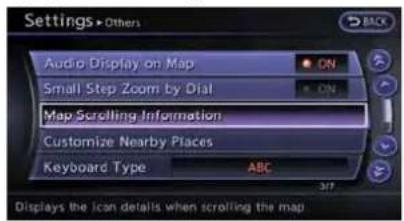
- Highlight[MapScrollingInformation] and push
.
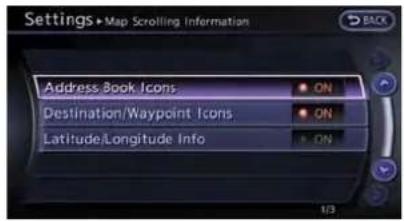
- Highlight the preferred information item and push
. The indicator of the selected information item illuminates.
The following information items are available.
• [AddressBookIcons]
• [Destination/WaypointIcons]
• [Latitude/LongitudeInfo]

6.Push
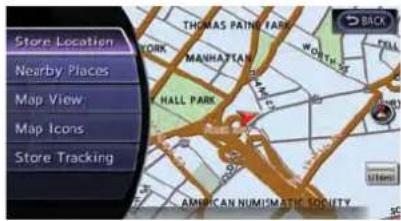
MAPMENUSCREEN
Push
This menu can be used to access helpful functions quickly, such as setting a destination and searching for point so interest nearby.
Therearevariousmethodsusedtoselecta menuitem.Useamethoddescribedearlierin thismanual.
"Menuscreensandtheirpurposes" (page1-12)

INFO:
Withthetouchpaneloperation,thesame screencanbedisplayedbytouching[Map Menu]locatedonthemapscreen.
Currentlocationmapscreen
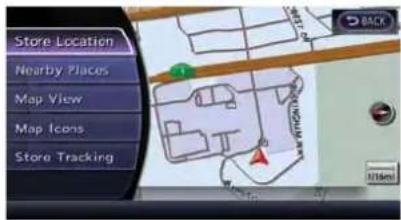
If
locationmapscreenisdisplayed, the following options are available.
•[StoreLocation]:
Storesthecurrentvehiclelocationinthe AddressBook.Thestoredlocationcanbe retrievedasnecessarytosetitasa destination_waypoint).
"Storinglocation"(page2-72)
•[NearbyPlaces]:
Searchesforpointsofinterestnearthe currentvehiclelocation,suchasrestaurants andgasstations,etc.
"Findingnearbyplace"(page2-27)
•[MapView]:
Performsmapoperationssuchasthe switchingofmaptypeandthesettingof maporientationandscale.
"Mapsettings"(page2-5)
•MapIcons:
Displaysmapiconsof certainpointsof interest(suchasrestaurantsandgasstations,etc.)onthemaparoundthecurrent vehiclelocation.
"Displayingmapicons"(page2-17)
- [StoreTracking]:
StoresintheAddressBooktheroute travelledfromthestartingpointtothe currentlocation.
"Storingtrackedroute"(page2-76)
Scrolledlocationmapscreen

If
•[NewDest.]:
Setsthedestinationtothemaplocation where
"Settingpointonmap"(page2-42)
•[AddtoRoute]:
Setsthemaplocationwhere
"Settingdestinationorwaypoint" (page2-56)
•[NearbyPlaces]:
Searchesforpointsofinterestnearthemap locationwhere
Usethesamesearchmethodastheonefor [Places].
"Findingnearbyplace"(page2-27)
•[StoreLocation]:
Storethemaplocationwhere
"Storinglocation"(page2-72)
•[Delete]:
Deletesastoredlocation.Todelete,place thecrosspointeroverthecorresponding icon.
•[IncidentDetail]:
Thisfunctioncanbeselectedonlywhenthe trafficinformationiconisdisplayed.Displays thedetailsofthetrafficinformationicon.
Placethecrosspointerovertheicontobe checked.
2-20Navigation

INFO:
IncidentdetailsareafeatureofTrafficInformation, andthataNavTrafficsubscriptionis requiredinordertoreceiveTrafficInformation.
Navigation2-21
MAPSYMBOLS
Thisnavigationsystemusessymbolstodisplayfacilities.
2-dimensionalicons(PlanView)

Airport

Golf Course

Museum

Shopping Center

Amusement Park

Gas Station

Open Parking Area

Sports Complex

Bank

Historical Monument

Park & Ride

Station

City Hall

Hotel or Motel

Parking Garage

Super Market

Commuter Rail Station

Library

Police Station

Tourist Office

Courthouse

Marina

Rest Area

University or College

Ferry Terminal

Military Base

Restaurant
2-22Navigation
Roadcolor
Theroadtypesaredifferentiatedbycolors.
Freeway:
(Redorlightred(zoomedin))
Mainroad:
(Brownordarkyellow)
Narrowstreet:
Gray
Roadwithincompletemapdata:
(Darkgreen)
Trafficinformationonmap
WithasubscriptiontotheNavTrafficservice, trafficinformationisdisplayed.
"Viewingavailabletrafficinformation" (page6-7)
FreeFlow:
→ (Green)
Moderatetraffic:
→ (Yellow)
Heavytraffic:
→ (Red)
Sectionaffectedbyseriousiastrafficevent: (Purple)
The following traffic information icons maybe
displayed
Accident
Closedroad
Information
Roadwork
Slipperyroad
Weather
Incident
SETTINGDESTINATION
DESTINATIONSCREEN
Thereareseveralmethodsthatcanbeusedto setadestination.Understandtheadvantagesof eachmethodandselectthebestmethodfor findingandsettingapreferreddestination.
Basicoperation
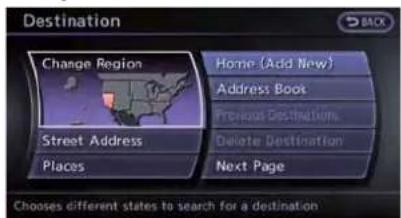
1.Push
- Highlight the preferred destination setting method and push
.
Availablesettingitems
- StreetAddress:
Searchesforadestinationbyaddress.
-Places:
Searchesforadestinationfromvarious categoriesofbusinessesorlocations.
Searchesforadestinationfromvarious categoriesofbusinessorlocations,or searchesfromthefacilitiesinZAGAT.
Navigation2-23
Home:
Searchesforaroutefromthecurrent locationtothepreviouslystoredhome destination.
- AddressBook:
Searchesforadestinationfromthelistofthe
storedlocations.
●PreviousDestinations:
Searchesforadestinationfromtheprevious destinations.
- DeleteDestination:
Delete the currently set destination.
●PreviousStartPoint:
Setsthepreviousstartingpointasthe destination.
-StoredRoutes:
Selectsastoredroute.
- PhoneNumber:
Searchesforapointofinterestbya telephonenumber.
Availablesettingitems(nextpagescreen)
i INFO:
Thesystemcannotsearchforalocationusing residentialphonenumbers.
●FreewayEntrance/Exit:
Searchesforadestinationfromafreeway entrance/exit.
- Intersection:
Searchesforadestinationfromintersections.
●CityCenter:
Setsthecenterofacityasthedestination.
Changingregion
Whensettingadestination, the location can be narrowed down by specifying there region or city.
Specifyingregion:

1.Push
- Highlight[ChangeRegion] and push
.

- Highlight the preferred region and push
.
Availablesettingitems
•US1:CA,NV
•US2:AZ,CO,ID,MT,NM,OR,UT,WA,WY
•US3:IA,KS,MN,MO, ND,NE,SD
•US4:AR,LA,MS,OK,TX
•US5:IL,IN,MI,WI
•US6:DC,DE,KY,MD,OH,PA,VA,WV
•US7:CT,MA,ME,NH,NJ,NY,RI,VT
•US8:AL,FL,GA,NC, SC,TN
•US9:AK
•US10:HI
•Canada
- PuertoRico
●VirginIslands

- Itisalsopossibletoselectaregionby touchingthemapontherightsideofthe screen.
- It is not possible to search for a route from the continental United States to Hawaii, Puerto Rico and Virgin Islands.
Specifyingcity:
Whensearchingforadestinationwith"Places", "FreewayEntrance/Exit", "Intersection"or"City Center",thesearchcanbenarroweddownby specifyingthecity.
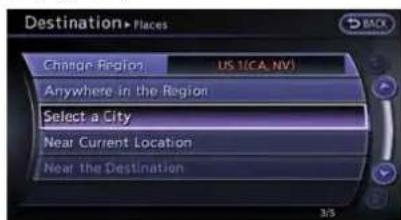
- Highlight [Select a City] and push
.

2.Enterthenameofthecity, highlight[List] andpush
Alistscreenisdisplayed.

- Thesamescreenwillbedisplayedwhen allocationissearchedfromastreet address,andwhen[City]ishhighlighted and
ispushedonthescreen. "Findingaddress"(page2-25)
- Highlight[Last5Cities]andpush

- Highlight the city of the destination from the list and push
.

Insomecases, whenacitynamehasbeen entered, thenumberofmatchingdestinations in the "Matches" columnmaybedifferentfrom the number displayed on the list screen. If this occurs, entermorecharacterstofurtherreduce thenumberofmatches.
FINDINGADDRESS
When the address of the destination is known, use the following method to enter the address and then have the system calculate a route. A location near the preferred destination can also be searched by entering the house number if the map data contains therelevant data.
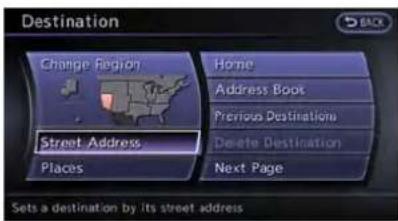
1.Push

2.Enterthehousenumber, highlight[OK] and push

3.Enterthenameofthestreet.Afterfinishing the entry, highlight[List] and push
INFO:
When[City]ishhighlightedand
"Specifyingcity"(page2-25)
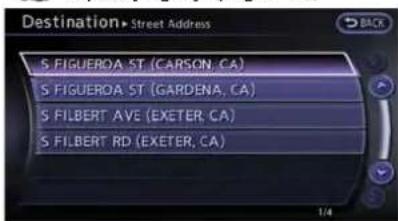
- Highlight the correct street of the destination from the list and push
.
i INFO:
Insomecases,whenastreetnamehas beenentered,thenumberofmatching destinationsinthe"Matches"columnmay bedifferentfromthenumberdisplayedon thelistscreen.Ifthisoccurs,entermore characterstofurtherreducethenumberof matches.

5.Theentirerouteisshownonthemap. Highlight[Start]afterconfirmingthelocation ofthedisplayeddestination,andpush
2-26Navigation

INFO:
Evenaftersettingadestination, thelocation ofthedestinationcanbeadjusted, theroute canbestored, etc.
"Proceduresaftersettingdestination" (page2-44)

Settingbyvoicecommand
1.Push<ウェ>locatedonthesteeringwheel.
- Afterthetonesounds, speakacommand.
Tosetthedestinationfromastreetaddress:
"Navigation""Address"(StandardMode)
"Address"(AlternateCommandMode)

INFO:
When using a voice command to set a street name, it is recommended that the complete street name is stated.
Examples:
Correctinput-NorthElmStreet EastJeffersonBoulevard
Incorrectinput-ElmStreet EastJefferson
FINDINGPLACE
Thereare3methodsthatcanbeusedtosetthe destinationtoplacesofinterest:typingthe name,choosingacategoryorselectinga ZAGATreviewedlocation.Tohelpimprove searching,differentstartpointscanbechosen tosearchfromsuchasnearcurrentlocation,nearthedestinationorcitycenter.
Findingnearbyplace
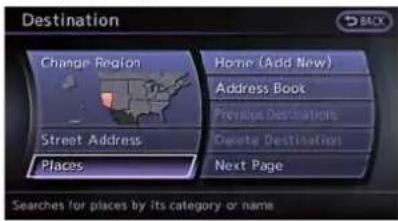
1.Push
- Highlight[Places]andpush
.
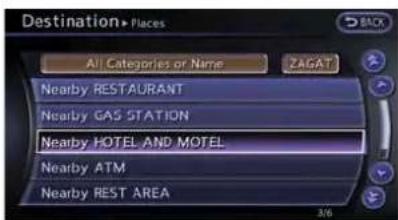
- Highlight the preferred nearby category from the list and push
. Alist screen is displayed.

INFO:
Highlight[CustomizeNearbyPlaces]to customizethenearbyplaceslisttoshow categoriesthatarefrequentlyused.
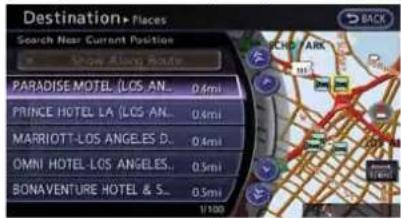
- Highlight the preferred destination from the list, and push
. The position of these selected location is displayed in the preview on the right side of the screen.

INFO:
• Amaximumof100facilitiescanbe displayedonthelistscreen.
- If the suggested route is already set, the system display the facilities located along the route. Todisplay all the icons, deactivate [ShowAlongRoute].
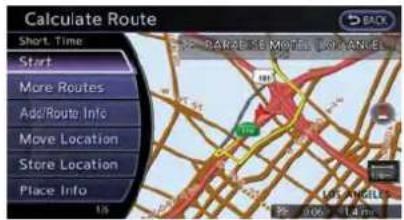
5.Theentirerouteisshownonthemap. Highlight[Start]afterconfirmingthelocation ofthedisplayeddestination,andpush

INFO:
If there is a route al ready set, then newly selected location can substitute apreviously set destination or can be added to a route al ready set.
Othersettings:

Thedestinationcanalsobesetbypushing

Settingbyvoicecommand
1.Push< >locatedonthesteeringwheel.
2. Afterthetonesounds, speakacommand.
Todisplaythenearbycategorylistandselectthe destinationfromit:
"Navigation""Places"(StandardMode)
"Places"(AlternateCommandMode)
Searchingbyothermethods

1.Push
2. Highlight[Places]andpush

- Highlight[AllCategoriesorName]andpush
.

- Setthenarrowingdownconditionsforthe landmarksandpush
.
INFO:
Highlight[ChangeRegion]andpush
"Changingregion"(page2-24)

INFO:
If[Select a City] is highlighted and
"Specifyingcity"(page2-25)
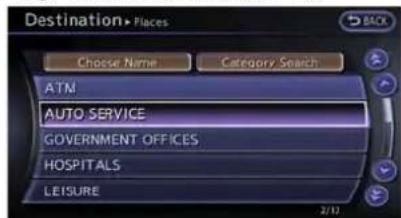
- Highlightthemaincategoryfromthelistand push
.

INFO:
Toselectacategorybydirectlyinputtingthe categoryname, highlight[CategorySearch] andpush

- Highlight the subcategory and push
.
i INFO:
Subcategoriesmaynotexistdepending on the category that is selected.
Navigation2-29
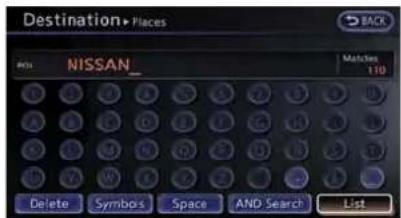
7.Enterthenameofthedestinationfacilityand highlight[List], and thenpush
INFO:
- Itisnotnecessarytoenterthefacility namecompletely.ltisalsopossibleto displaythelistscreenonlybyhighlighting [List]withoutenteringthefacilityname andpushing
. - Thenumberofnarroweddownpointsare displayedinthe"Matches"column.
- Uptotwokeywords(partofthefacility name)canbeenteredbyhighlighting [ANDSearch]andpushing
afterenteringthefirstfacilityname.

i INFO:
Thefacilitynamecanalsobeentered directlybyhighlighting[ChooseName]on themaincategorielistscreenandpushing
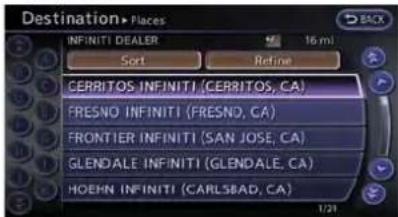
- Highlight the preferred destination from the list, and push
.
INFO:
- Byhighlighting[Sort]andpushing
,optionscanbesortedfrom [ByName]or[ByDist].Whenselecting [ByDist.],thepositionoftheselected locationisdisplayedinthepreviewon therightsideofthescreen. - Insomecases, when a facility name has been entered, then number of matching destinations in the "Matches" column may be different from the number displayed on the list screen. If this occurs,
entermorecharacterstofurtherreduce thenumberofmatches.
- Thesearchconditionscanbechanged byhighlighting[Refine].

9.Theentirerouteisshownonthemap. Highlight[Start]afterconfirmingthelocation of the displayed destination and push
i INFO:
Evenaftersettingadestination, the location of the destination can be adjusted, theroute can bestored, etc.
10 "Proceduresaftersettingdestination" (page2-44)
2-30Navigation
SearchingforrestaurantusingZA-GAT

1.Push
2. Highlight[Places]andpush

- Highlight[ZAGAT]andpush
.

- Highlight the preferred state and push
. Alist screen is displayed.

- Highlight the preferred city and push
. Alist screen is displayed.
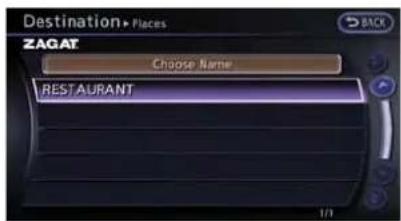
- Highlight[RESTAURANT] and push
.Alistscreenisdisplayed.
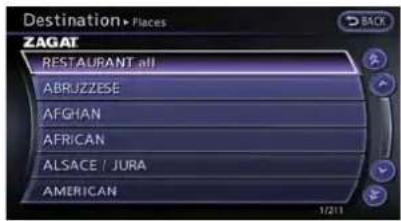
- Highlight the preferred category and push
. A listscreen is displayed.

- Highlight the preferred sorting order and push
. Alist screen is displayed.
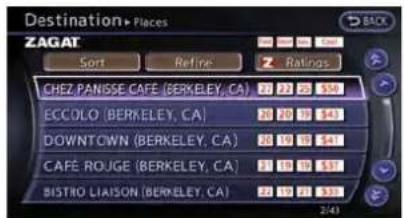
- Highlight the preferred destination facility from the list, and then push
.
INFO:
- Byhighlighting[Sort]andpushing
,sortingoptionscanbese-lectedtore-sortthelist. - Thesearchconditionscanbechanged byhighlighting[Refine].
- Byhighlighting[Ratings]andpushing
,anexplanationoftheZAGAT ratingscanbedisplayed.

- Theentirerouteisshownonthemap. Highlight[Start]afterconfirmingthelocation of thedisplayeddestinationandpushing
. Thesystemsetsthedestination totheselectedlocationandstartscalculatingaroute.
INFO:
Evenaftersettingdestination, the location of the destination can be adjusted, theroute can be stored, etc. “Proceduresaftersettingdestination” (page2-44)
©2009ZagatSurvey,LLC.ZagatSurveyisa registeredtrademarkofZagatSurvey,LLC.
SETTINGHOMEASDESTINATION
Thehomelocationcanbesetasthedestination towhichthesystemcalculatesaroute. This functionisespeciallyusefulwhensearchingfor aroutetoreturntothehomelocation.

1.Push
- Highlight[Home]andpush
.

- The homelocation is displayed, and the system set the homelocation as the destination.

INFO:
If the homelocation is not stored yet, the system will automatically display a screen for storing it.
"Storinglocation"(page2-72)

- Theentireroutetothehomelocationis shownonthemap.Highlight[Start]after confirmingthelocationofthedisplayed destination, and push
. The systemsetsthedestinationtotheselected locationandstartscalculatingaroute.

Settingbyvoicecommand
1.Push< >locatedonthesteeringwheel.
2. Afterthetonesounds, speakacommand.
Tosetthehomelocationasthedestination:
"Navigation""Home"(StandardMode)
"Home"(AlternateCommandMode)
SEARCHINGFROMADDRESS BOOK
Storingfrequentlyuseddestinationsinthe AddressBookmakesiteasyforthesystemto setandcalculatearoute.Toutilizethisfunction moreeffectively,destinationsthataforeften traveledtoshouldbestoredinadvance.

1.Push
2. Highlight [Address Book] and push
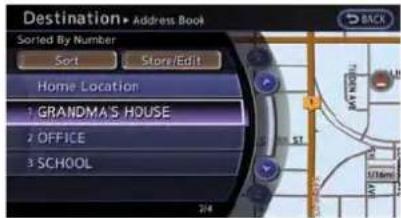
- Highlight the preferred location from the list and push
.

INFO:
Selecting[Sort]displayalistofvarioussort functions.Tousethesortfunctions,stored locationsmustbesetinadvance.
"Storinglocation"(page2-72)


INFO:
- SortedByNumber: TheAddressBookentriesaredisplayed inascendingnumericalorder.
- SortedByName: TheAddressBookentriesaredisplayed inalphabeticorder.
- SortedByIcon: Byselectingaparticularicon,alistthat containsonlytheAddressBookentries associatedwiththaticonisdisplayed.
- SortedByGroup: Byselectingaparticulargroup(family, friends,leisure,etc.),theselectedgroup isdisplayedatthetopofthelist.
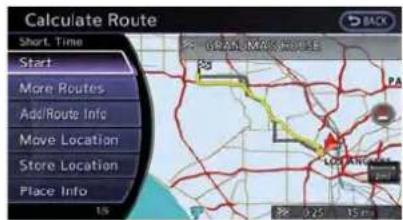
- Theentirerouteisshownonthemap.
Highlight[Start]afterconfirmingthelocation
ofthedisplayeddestination,andpush
. Thesystemsetsthedestination totheselectedlocationandstartscalculat- ingaroute.

INFO:
Evenaftersettingadestination, thelocation of thedestination can be adjusted, theroutecan bestored, etc.
"Proceduresaftersettingdestination" (page2-44)

Settingbyvoicecommand
1.Push< we >locatedonthesteeringwheel.
- Afterthetonesounds, speakacommand.
TosetthedestinationfromtheAddressBook:
"Navigation""AddressBook"(StandardMode)
"Addressbook"(AlternateCommandMode)
SETTINGPREVIOUSDESTINATION
Itispossibletosethedestinationtoallocation thathasbeenpreviouslysetasadestinationand havethesystemcalculatearoute.Upto300 previousdestinationswillbeautomatically stored.
If thenumberofpreviousdestinationsexceeds 300,theoldestonewillbereplacedbythe newestone.

1.Push
- Highlight[PreviousDestinations]andpush
.Alistscreenisdisplayed.

- Highlight the preferred destination from the listandpush
.
INFO:
Thelistcanbesortedbyselecting[ByDate] or[ByName].Highlight[ByDate]tosortthe listinchronologicalorder.Highlight[By Name]tosortthelistinalalphabeticalorder.

- Theentirerouteisshownonthemap.
Highlight[Start]afterconfirmingthelocation
ofthedisplayeddestination,andpush
. Thesystemsetsthedestination totheselectedlocationandstartscalculat- ingaroute.
INFO:
Evenaftersettingadestination, thelocation of thedestination can be adjusted, theroutecan bestored, etc.
10 "Proceduresaftersettingdestination" (page2-44)
Settingbyvoicecommand
1.Push< >locatedonthesteeringwheel.
- Afterthetonesounds, speakacommand.
Todisplaythepreviousdestinationslist:
"Navigation""PreviousDestinations"(Standard Mode)
"PreviousDestinations"(AlternateCommand Mode)
SETTINGPREVIOUSSTARTPOINT
Itispossibletosetthedestinationtothestart pointofapreviousrouteguidanceandhavethe systemcalculatearoute.

1.Push
- Highlight[NextPage]andpush
.
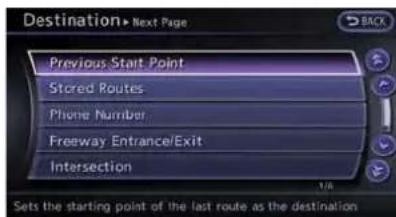
- Highlight[PreviousStartPoint]andpush
.

- The previous start point tisset as a destination, and the entire route is shown on the map. Highlight [Start] after confirming the location of the displayed destination, and push
. The system set the destination to these selected location and start calculating a route.

INFO:
Evenaftersettingadestination, thelocation of thedestination can be adjusted, theroutecan bestored, etc.
"Proceduresaftersettingdestination" (page2-44)

Settingbyvoicecommand
1.Push< >locatedonthesteeringwheel.
- Afterthetonesounds, speakacommand.
Tosetapreviousstartpointasthedestination: "PreviousStartPoint"(AlternateCommand Mode)
SETTINGFROMSTOREDROUTES
Itispossibletoselectapreferredroutefromthe storedroutes.

1.Push
- Highlight[NextPage]andpush
.

- HighlightStoredRoutes and push
.Alistscreenisdisplayed.
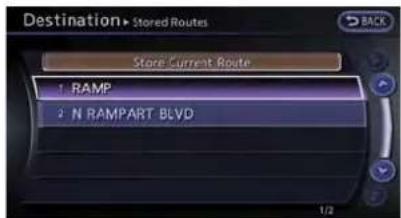
- Highlight the preferred route from the list and push
. Therout to the destination issue.
2-36Navigation

5.Theentirerouteisshownonthemap.
Highlight[Start]afterconfirmingthelocation of the displayeddestination, and push

INFO:
- Evenaftersettingadestination, the location of the destination can be adjusted, the location can be stored, etc.
"Proceduresaftersettingdestination" (page2-44)
- Thestoredrouteincludesonlylocations (destinationandwaypoints)androutecal-culationconditions,nottherouteitself. Therefore,whenthedestinationissetusing astoredroute,adifferentroutemaybe suggestedifthecurrentvehiclelocationis differentfromtheonewhentheroutewas
stored.
SETTINGBYPHONENUMBER
If the phonenumber of a facility is known, it is possible to search for a facility by entering the phonenumber, and havethesystem calculate a route.

INFO:
- Telephonenumbersthatwerestoredfor storeddestinationscanalsobeused.
- If the are acode of the specified telephone number does not exist in them ap data, the system cannot search forth elocation.
- Onlythelocationsincludedinthedatabase inthemapdatacanbesearchedbythe phonenumber.Residentialphonenumbers cannotbeusedtosearchforalocation.

1.Push
2. Highlight[NextPage]andpush
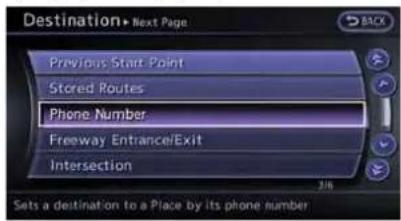
- Highlight [Phone Number] and push
. Thetelephonenumberinput screenisdisplayed.

4.Enterthetelephonenumberincludingthe areacode.
5. After finishing the entry, highlight[List] and push
"Numberinputscreen"(page1-17)

6.Alistscreenisdisplayediftherearetwoormoresearchresults.Highlightthepreferreddestinationfromthe listandpush
Aconfirmationscreenfortheplacename andthelocationisdisplayed,andthesystem startscalculating.

7.Theentirerouteisshownonthemap. Highlight[Start]afterconfirmingthelocation ofthedisplayeddestination,andpush
2-38Navigation
ingaroute.
INFO:
Evenaftersettingadestination, thelocation of thedestination can be adjusted, theroutecan bestored, etc.
"Proceduresaftersettingdestination" (page2-44)
SETTINGFREEWAYENTRANCE/EXIT
Itispossibletosetthedestinationtoan entranceorexitofafreewayandhavethe systemcalculatearoute.

1.Push
- Highlight[NextPage]andpush
.

- Highlight[FreewayEntrance/Exit]andpush
.Acharacterinputscreenis displayed.
![Destination+ Freeway Entrance/Exit Region: US [CA, NV] Freeway CA_ Matches 136 1 2 3 4 5 6 7 8 9 Delete Symbol's Space List](/content/2026/06/1276278/images/49e96b2b136f49c7ca1744b7f4184494ce84a0d831463ff9ee5a4cfeed42ad4a.jpg)
4.Enterthenameofthefreeway.
- After finishing the entry, highlight[List] and push
.

- Highlight the freeway of the destination from the list, and push
.
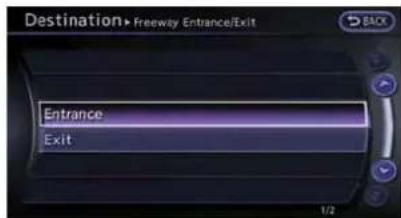
- Highlight[Entrance]or[Exit]andpush
.Alistscreenisdisplayed.

- Select the preferred destination from the list.
The position of these selected location is displayed in the preview on the right side of the screen. Then, push
.
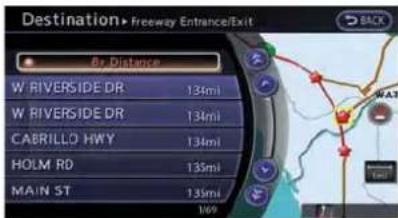
i INFO:
Select[ByDistance]tosortthelistbythe nearestdistance.

9.Theentirerouteisshownonthemap. Highlight[Start]afterconfirmingthelocation ofthedisplayeddestination,andpush
i INFO:
Evenaftersettingadestination, thelocation of thedestination can be adjusted, theroutecan bestored, etc.
"Proceduresaftersettingdestination" (page2-44)
SETTING INTERSECTION
Itispossibletosetanintersectionofanytwo streetsasthedestinationandhavethesystem calculatearoute.
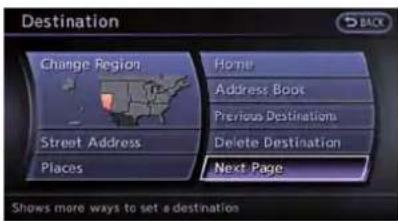
1.Push
2.Highlight[NextPage]andpush
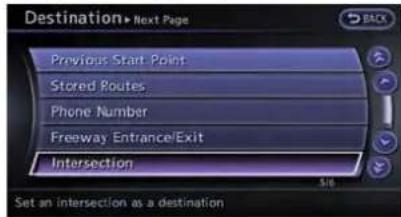
- Highlight [Intersection] and push
.Acharacterinputscreenis displayed.

4.Enterthenameofthe1ststreet.
Afterfinishingtheentry, highlight[List] and push
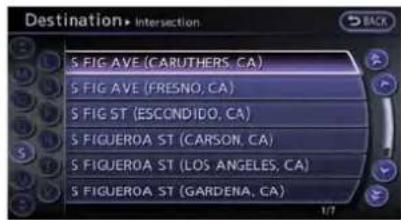
- Highlightastreetasthe1ststreetfromthe listandpush
.Acharacterinput screenisdisplayed.
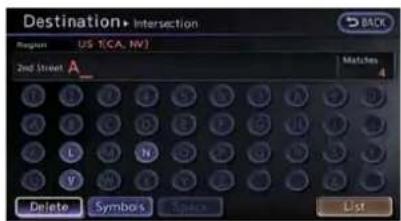
6.Enterthenameofthe2ndstreet.
Afterfinishingtheentry, highlight[List] and push

- Highlightastreetasthe2ndstreetfromthe listandpush
.
2-40Navigation

8.Theentirerouteisshownonthemap.
Highlight[Start]afterconfirmingthelocation of the displayeddestination, and push

INFO:
Evenaftersettingadestination, thelocation of thedestination can be adjusted, theroutecan bestored, etc.
"Proceduresaftersettingdestination" (page2-44)
SETTINGCITYCENTER
Itispossibletosethecenterofacityasa destinationandhavethesystemcalculatea route.
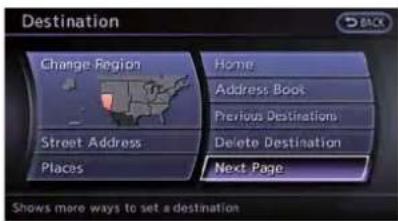
1.Push
- Highlight[NextPage]andpush
.

- Highlight [City Center] and push
.Acharacterinputscreenis displayed.

4.Enterthenameofthecity, highlight[List] andpush

INFO:
Highlight[Last 5 Cities] and push

- Highlight the preferred destination from the listandpush
. The position of the selected location is displayed in the preview
ontherightsideofthescreen.


INFO:
Select[ByDistance]tosortthelistbythe nearestdistance.

- Theselecteddestinationisdisplayedatthe centerofthemap.Highlight[Start]after confirmingthelocationofthedisplayed destination,andpush
.
Thesystemsetsthedestinationtothe selectedlocationandstartscalculatinga
2-42Navigation
route.

INFO:
Evenaftersettingadestination, thelocation ofthedestinationcanbeadjusted,theroute canbestored,etc.
"Proceduresaftersettingdestination" (page2-44)
SETTINGPOINTONMAP
Itispossibletosetalocationsrolledtoonthe mapasthedestinationandhavethesystem calculatearoute.

- Scrollthemap, placethecrosspointerover the preferred location, and push
.

INFO:
- Themapscaleshouldbeadjustedto searchforalocationmoreeffectively. - Thepointontheblinkingroadwherethe centerofthecrosspointerislocatedcan besetasadestination.

- Highlight[NewDest.] and push
.

INFO:
Fortheitemsotherthan[NewDest.],referto "Mapmenuscreen".
"Scrolledlocationmapscreen" (page2-20)

- Thesystemsetsthedestinationtothe selectedlocationandstartscalculatinga route.
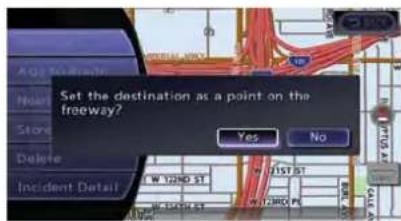
INFO:
Ifapointonafreewayissetasthedestination,a confirmationmessageisdisplayed.
DELETEDESTINATION
Itispossibletodeleteadestinationandall waypointsthathavealreadybeenset.

-
Press
. -
Select[Delete Destination] and press
.

3.Aconfirmationmessageisdisplayed.Select [Yes]andpress
Thedestinationandthewaypointsare deleted.
i INFO:
Thedeleteddestinationandwaypointsarenot abletobereactivated.
Settingbyvoicecommand
1.Push< onthesteeringwheel.
- Afterthetonesounds, speakacommand.
Todeleteadestinationandallwaypoints:
"DeleteDestination"(AlternateCommand Mode)
ROUTEGUIDANCE
PROCEDURESAFTERSETTING DESTINATION
Afterperformingaroutesearch,theroute guidancecanbeimmediatelystarted.Also,itis possibletoconfirmorchangearoute.

Availableitemsaftersettingdestination
•[Start]:
Startsrouteguidancetotheselected destination.
"Startingrouteguidance"(page2-44)
•[MoreRoutes]:
Displays3alternativeroutes.
"Selectingroute"(page2-44)
•[Add/Routelinfo]:
Displaystherouteinformation.Adestination orawaypointcanalsobeaded.
"Confirmingroute"(page2-45)
•[MoveLocation]:
Displaysamapscreen. Thelocationofthe destinationcanbeadjusted.
"Movinglocationofdestination" (page2-46)
•[StoreLocation]:
StoresthelocationintheAddressBook.
"Storinglocation"(page2-47)
•[Placelinfo]:
Displaysinformationaboutthefacilitythat hasbeensetasthedestination,ifitis includedinthemapdata.
"Viewinginformationaboutsearched location"(page2-47)

INFO:
- Ifnooperationshavebeenperformedonthe systemforseveralseconds,[Start]isautomaticallyselected,andthesystemstarts routeguidance.
- Whenusingwaypoints,[MoreRoutes]is disabled. Aftertherouteisstarted, push
"Editingroute"(page2-56)
- Evenifthemapscreenistouchedor directionalbuttonsotherthantheupor downbuttonarepushed,thesamemap screenaswhen[MoveLocation]isselected isdisplayed.
Startingrouteguidance
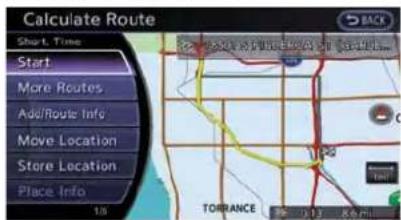
- Highlight [Start] and push
. Routeguidancestarts.
Selectingroute

- Highlight [More Routes] and push
.

- Highlight the preferred route condition and push
. - Thedisplayautomaticallyreturnstothemap screen.
Availablerouteconditions
•Short.Time:
Prioritizesbytheshortesttime.
•Min.Freeway:
Minimizestheuseoffreeways.
•Short.Dist.:
Prioritizesbytheshortestdistance.
i INFO:
- Whentherouteisselected, apreviewis displayedontherightsideofthescreen.
●The3routesmaynotalwaysbedifferent.
Confirmingroute

- Highlight[Add/RouteInfo] and push
. - Highlight the preferred information item and push
.
3.Pushtoreturntotheprevious screen.

Availableinformation
•[TurnList]:
Displaysthedetailsofthesuggestedroute.
"Usingturnlist"(page2-61)
•[Preview]:
Thesystemwilltracetheplannedroute goingforwardorinreverse.
"Usingroutepreview"(page2-61)
•[AddWayPt.]:
Editstheroutebyaddingawaypointora destination.
"Addingdestinationorwaypoint" (page2-46)
•[StoreRoute]:
Storesacalculatedroute.Amaximumof5
routescanbestored.Storedroutescanbe
easilyretrievedand set asthesuggested
route.
"Storingroute"(page2-75)
•[MapScroll]:
Displaysamapscreenwherethelocationof thedestinationcanbeconfirmed.Evenifthe mapscreenistouchedordirectionalbuttons otherthantheupordownbuttonare pushed,thesamemapscreenaswhen [MapScroll]isselecteddisdisplayed.
Addingdestinationorwaypoint:
Beforestartingrouteguidance, destinations and/orwaypointscanbeadded.Atotalof6 destinationsorwaypointscanbeset.

- Highlight [Add Way Pt.] and push
.
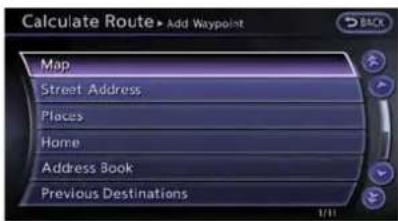
- Set additional destinations or waypoints and push
.
Themethodofsearchingforalocationisthe sameastheoneforadestination. "Settingdestination"(page2-23)

- Highlight[AddDestination]or[AddWaypoint]andpush
.
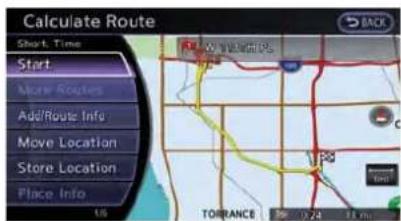
- Thesystemstartscalculatingaroutethat includestheaddeddestinationorwaypoint. Whenthecalculationisfinished,therouteis displayed.

INFO:
- Ifawaypointwasadded,[MoreRoutes] cannotbeselected.
- Ifadestinationwasadded,theprior destinationbecomesawaypoint.
Movinglocationofdestination
The location of the destination can be adjusted by moving the crosspointer across sthemap.
2-46Navigation

- Highlight[MoveLocation] and push
.
INFO:
Thescreenforadjustingthelocationalso changesbytouchingthemapscreendisplayedontherightsideofthescreen.
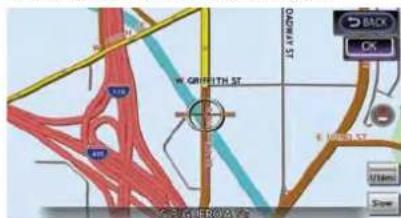
- Adjust the location by moving the cross pointer across the map and push
. The location of the destination is modified.
INFO:
Evenifthemapscreenistouchedorthe directionalbuttonsotherthantheupordown buttonareoperated,thesamemapscreenas when[MoveLocation]isselecteddisdisplayed.
Storinglocation
Asearchedlocationcanbestoredinthe AddressBook.Thenitcanbeeasilyretrieved andsetasadestination(orwaypoint).
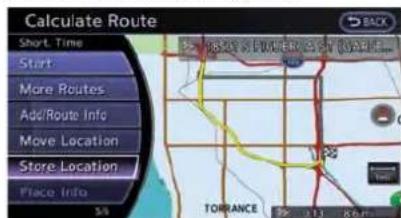
- Highlight[StoreLocation] and push
.

- ThelocationisstoredintheAddressBook. Thecorrespondingiconisdisplayedatthe setlocationonthemap.
Viewinginformationaboutsearched location
Information(streetaddressandphonenumber) aboutplacesstoredinthemapdatacanbe displayed.

- Select[PlaceInfo] and push
.

Navigation2-47
- Information about the location is displayed.
3.Push

INFO:
- If[Call]isdisplayedontherightsideofthe screen,itispossibletocallthelocation indicated.
- TheBluetooth Hands-FreePhonesystem isrequiredtobeactiveandthecellular phoneconnectedtocallthelocationindicated.
- Informationaboutlocationsisnotdisplayed whiledriving.
ABOUTROUTEGUIDANCE
Aftersettingtheroute,select[Start]tobegin routeguidance.
Throughout route guidance, the system navigates youth through the guide points using visual and voice guidance.

CAUTION
- Thenavigationsystem'svisualand voiceguidanceisforreferencepurposesonly.Thecontentsofthe guidancemaybeinappropriatedependingonthesituation.
- Followalltrafficregulationswhen drivingalongthesuggestedroute (e.g.,one-waytraffic).
"Routeguidance"(page11-8)
Voiceguidanceduringrouteguidance
Whenapproachingaguidepoint(intersectionor corner),destination,etc.duringrouteguidance, voiceguidanceannouncestheremainingdistanceand/orturningdirection.Push<ROUTE
VOICE>torepeatvoiceguidance.
2-48Navigation
![graph TD A["1"] --> B["2"] B --> C["3"] C --> D["4"] D --> E["Motor Control Unit"] style A fill:#f9f,stroke:#333 style B fill:#ccf,stroke:#333 style C fill:#cfc,stroke:#333 style D fill:#fcc,stroke:#333 style E fill:#cff,stroke:#333](/content/2026/06/1276278/images/68fb7694d231c317fab6f9f9a65579ff5896c79c9c47f847ba9e7ba43405dd98.jpg)
Exampleofvoiceguidance:
① "Inaboutonequartermile(400meters),right (left)turn."
"Right(left)turnahead."
② "Inaboutonequartermile(400meters)freeway entranceonyourrightonto(roadnumberand direction)."
"Freewayentranceonyourrightonto(road numberanddirection)."
③ "Inaboutonemile(1.6kilometers),exitonyour right."
"Exitonyourright."
④ "Youhavearrivedatyourdestination.Ending routeguidance."
Guidancescreensandpreview mode
Routeguidancedisplaysmapscreensand variousinformationaccordingtothesituation.

When routeguidance starts, the Small Turn Arrowon Mapis displayed in the upper left corner of themapscreen. This arrow indicates the turning direction at then next guide point (corner or intersection). The distance is also displayed. At the top of the screen, the distance to then next guide point and then name of then next street to turn onto are displayed. Also, there may be cases that next street names are announced. The Small Turn Arrowon Map can be enabled by disabled by the user.
"Displayingsmallturnarrowonmap" (page2-69)
Enlargedintersectionview:

Whenapproachingaguidepoint,thesystem automaticallychangestothesplitscreen and showsanenlargedviewoftheintersection on theleftscreen. Afterpassingthrough the intersection,thesystemautomaticallyreturns tothefullscreenmode.Toswitchtothefull screenmodewhilethenlargedintersection viewisdisplayed,push
Junctionguidance:

While driving on a freeway, when the vehicle is approximately 1 mile (approximately 2 km) from junction, the system automatically switch the splits screen and displays an enlarged view of the junction (3D) on the left screen. After passing the junction, the system automatically return to the full screen mode. To switch the full screen modewhile the enlarged junction view is displayed, push
Turnlist:

Dependingonthesetting,thesystemcan constantlydisplaythesplitscreenandshow theturnlistontheleftscreen.Whenapproachingaguidepoint,theleftscreenautomatically switchestoanenlargedviewoftheintersection.Toswitchto thefullscreen mode,push
Guidancescreensettings
Theguidancescreencanbedisplayedatall timesevenwhenthevehicleislocatedaway fromtheguidepoint. Varioustypesofscreens canbeset.
Splitscreensettings:
Thedisplaysettingontheleft-handsidescreen shownduringrouteguidancecanbechanged.

1.Push
- Highlight[MapView]andpush
.

-
Highlight[View Settings] and push
. -
Highlight the preferred screen and push
. The indicator of these selected screen illuminates. -
Intersection

Themapscreenandtheenlargedintersection viewcanbedisplayedatthesametime.
Push
•Turnlist

Thelistscreenforshowingtheguidepointsto
thedestinationandthemapscreencanbe displayedatthesametime.Anenlarged intersectionviewisautomaticallydisplayed whenthevehicleapproachestheguidepoint.
The turnlist can be cscrolled using the center dial, themaindirectional buttons or by touching the up/down button on the screen.
Push
•FuelEconomy

The current fuel consumption rate, average fuel consumption rate, instantaneous consumption rate and distance to empty can be displayed on the map screen. An enlarged intersection view is automatically displayed when the vehicle approach is achieved by the map screen.
Push
Push
enlargedviewoftheintersectionisautomatically displayed. Todisplaythefueleconomyinformation, push
Todisplaythemapscreen, push
NOTICE
Usethevaluesdisplayedonthefuel economyscreenasaguide.Whenthe fuelgaugeindicatesemptyorthelow fuelwarninglightilluminatesevenif thedistancetoemptyreadingindicates asufficientamountoffuelremains, refuelthevehicleassoonaspossible.
•Fullmap
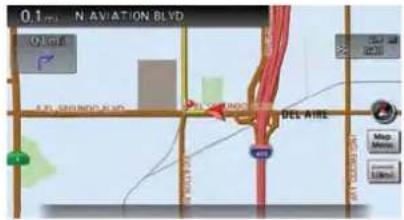
The current location map is displayed. An enlarged intersection view is automatically displayed when the vehicle approaches the guide point.
When an enlarged intersection view is displayed, pushing
Showexitinformationonfreeways:
Whenthevehicletravelsonahighwayoratoll road, the display automatically provides exit information in the turnlist.

1.Push
- Highlight[MapView]andpush
.

- Highlight[Map Settings] and push
.
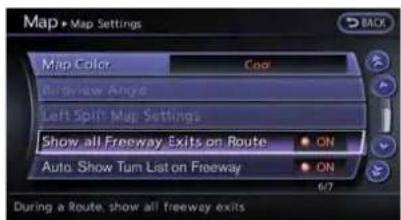
- Highlight[ShowallFreewayExitsonRoute] or[Auto.ShowTurnListonFreeway] and push
. The indicator illuminates whentheitemisset.
5.Push
•Showingfreewayexitinformation

When[ShowallFreewayExitsonRoute]isset toONandtherouteincludesthefreewayortoll
2-52Navigation
road, allexitsalongtheroutewhichhaveexit informationwillbeshownintheturnlist. Theexit informationisshownasicons.

- Displayingturnlistautomaticallyon freeway
When[Auto.ShowTurnListonFreeway]isset toON, theturnlistwillbeautomatically displayedwhilethevehicletravelsonafreeway ortollroad.
- Selectingawaypointfromtheexit informationlist
Whenexitinformationisdisplayedontheturn list,awaypointtoafacilitylocatednearthe freewayexitcanbesetasawaypoint.

- Highlighttheexitwheretheexitinformation iconisdisplayed, andpush
. The categorylistscreenisdisplayed.
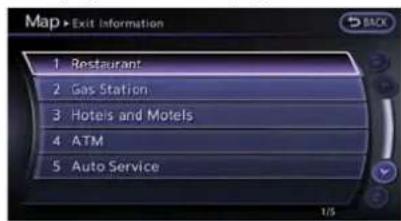
- Highlightthelandmarkcategoryandpush
. Thelistscreenforshowing facilitieslocatednearthefreewayexitis displayed.

- Highlight the preferred facility fortheway-point and push
.

- Thewaypointisset, andtheroutesearchis performed.
"Proceduresaftersettingdestination" (page2-44)
ROUTESCREEN

WARNING
Alwaysstopthevehicleinasafe locationbeforemodifyingtheroute conditions.
Modifyingtherouteconditionswhile drivingmaycauseanaccident.
During route guidance, theroute conditions can be modified and theroute information can be confirmed. Set route conditions according to personal preference.
Basicoperation

1.Push
- Highlight the preferred setting item and push
.
2-54Navigation
3.Push
Availablesettingitems
-
[CancelRoute/ResumeRoute]:
Cancelsthecurrentrouteguidance.A canceledroutecanalsobereactivated.If thesuggestedrouteiscanceled,[Cancel Route]changesto[ResumeRoute].
"Canceling/reactivatingroute" (page2-55) -
[Edit/AddtoRoute]:
Editoraddadestinationorwaypointstothe routethatisalreadyset.
"Editingroute"(page2-56)
•[Routelinfo]:
Confirmtheroutebytherouteinformationor simulation. Theconfirmedroutecanalsobe stored.
"Confirmingroute"(page2-60)
•[GuidanceSettings]:
Activatesordeactivatesroute,voiceguidanceand/ortrafficannouncementand adjustthevolumelevelofvoiceguidance. "Guidancesettings"(page2-62)
•[Recalculate]:
Manuallysearchfortherouteagainafter changingthesearchconditionandhavethe systemcalculatearoute.
"Recalculateroute"(page2-63)
•[Detour]:
Adetourofaspecifieddistancecanbe calculated.
"Settingdetourroute"(page2-64)
•[TrafficDetour]:
Manuallysearchforanalternativdetour routetakingthetrafficinformationinto consideration.
"Searchingfordetourroutetaking trafficinformationintoconsideration" (page2-64)
Changestheroutecalculationconditions anywherealongtheroute.
"Settingconditionsforroutecalculation"(page2-65)
Canceling/reactivatingroute
Aroutehatisalreadysetcanbecanceledat anytime. Ifarouteisdeleted, thedestination andwaypointsarealsocanceled.
Itisalsopossibletoreactivateacanceledroute.

INFO:
Cancelingaroutedoesnotdeletethedestinationandwaypointinformationcompletely.To deletethedestinationandwaypointscompletely.
"Deleteddestination"(page2-43)
Cancelingroute:

1.Push
2. Highlight[CancelRoute] and push

3.Aconfirmationmessageisdisplayed.
Highlight[Yes]andpush

Settingbyvoicecommand
1.Push< >locatedonthesteeringwheel.
2. Afterthetonesounds, speakacommand.
Tocancelaroute:
"CancelRoute"(AlternateCommandMode)
Reactivatingroute:

1.Push
2. Highlight[Resume Route] and push

- A confirmation message is displayed. Highlight[Yes] and push
. The canceled route is reactivated.

INFO:
Ifanewrouteisset, the canceled route cannot be reactivated.
Editingroute

1.Push
2. Highlight[Edit/AddtoRoute]andpush
3. Highlight the preferred condition and push
4.Push
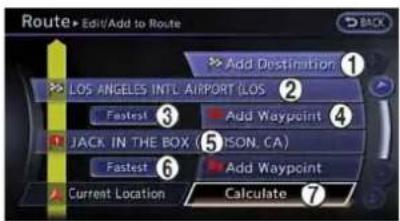
Availablesettingitems
① Addsadestination.
"Settingdestinationorwaypoint" (page2-56)
② Currentdestination:
Changesordeletesthedestination.
"Editing/deletingdestinationorwaypoint" (page2-57)
③ Conditionforcalculatingaroutetothedestination:
Changestheconditionsforcalculatingarouteto thedestination.
"Changingroutecalculationconditions" (page2-59)
④ Addsawaypoint.
"Settingdestinationorwaypoint" (page2-56)
⑤ Currentwaypoint:
Changesordeletesthewaypoint.
"Editing/deletingdestinationorwaypoint" (page2-57)
⑥ Conditionforcalculatingaroutetoawaypoint: Changestheconditionsforcalculatingarouteto awaypoint.
"Changingroutecalculationconditions" (page2-59)
⑦ [Calculate]:
Manuallysearchfortherouteagainafterchangingthesearchconditionsandhavethesystem calculatearoute.
"Changingroutecalculationconditions" (page2-59)
Settingdestinationorwaypoint:
Adestinationorwaypointcanbeaddedtothe routethathasalreadybeenset.Atotalof6 destinationsorwaypointscanbeset.

1.Push
- Highlight[Edit/AddtoRoute]andpush
.
2-56Navigation
- Highlight[AddDestination]or[AddWaypoint]andpush
.
If[AddDestination]isselected, thecurrent destinationchangestoawaypoint.

4.Setadestinationorwaypoint.Themethodof searchingforadestinationorwaypointisthe sameastheoneforadestination.
"Settingdestination"(page2-23)

- Theselectedlocationisdisplayedatthe centerofthemap.Highlight[AddtoRoute] afterconfirmingthelocationandpush
.
INFO:
Evenaftersettingadestination/waypoint, thedestination/waypointlocationcanbe adjusted,theroutecanbestored,etc.
Editing/deletingdestinationorwaypoint"(page2-57)

-
Returntothe[EditRoute]screen.Setthe routeconditionsasnecessary.
-
Highlight[Calculate]andpush
. Thesystemwillrecalculatetheroutes. After theroutesearchiscompleted, the display will automatically return to the current location mapscreen.
INFO:
- Thepriorrouteisautomaticallydeleted.
- Addedwaypointsandsearchconditionswill notbetakenintoconsiderationfortheroute calculationuntil[Calculate]ishhighlighted and
ispushed.
Editing/deletingdestinationorwaypoint:
Thedestinationorwaypointthathasalready beensetcanbemodifiedordeleted.
Ifalocationismodifiedordeletedwhena suggestedrouteisalreadyset, theprior suggestedroutewillberecalculatedaccordingly.

1.Push
-
Highlight[Edit/AddtoRoute]andpush
. -
Highlightadestinationorwaypointthatis alreadysetandpush
.

- Highlight[MoveDest.]tomodifythelocation andpush
.
"Movinglocationofdestination" (page2-46)
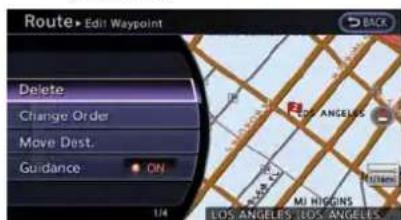
- Highlight[Delete]andpush
to deletethelocation.

6.Aconfirmationmessageisdisplayed.Confirmthecontentsofthemessage, highlight [Yes]andpush
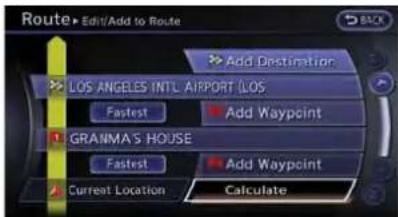
- By highlighting [Calculate] and pushing
, the system will recalculate the routes. After the route search is completed, the display will automatically return to the current location mapscreen.
INFO:
- If the destination is deleted, the final waypoint of the route becomes the destination.
- Evenifthemapscreenistouched,thesame mapscreenaswhen[MoveDest.]is selectedisdisplayed.
Changingorderofdestinationandwaypoints:
Theorderofadestinationandwaypointsthat havealreadybeensetcanbechanged.

1.Push
2. Highlight[Edit/AddtoRoute]andpush
3. Highlightadestinationorwaypointthatis alreadysetandpush

- Highlight [Change Order] and push
.Alistofthedestinationand waypointsisdisplayed.
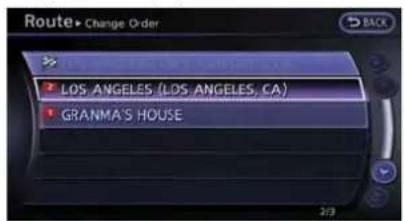
- Highlightapreferreddestinationorwaypoint toreplacethepreviouslyselecteddestinationorwaypointandpush
.

6.Amessageisdisplayedandtheorderofthe destinationorwaypointischanged.

- By highlighting [Calculate] and pushing
, the system will recalculate the routes. After the route search is complete, the display will automatically return to the current location mapscreen.
Changingroutecalculationconditions:
Each section of the route between waypoints can have different route calculation conditions. Aftersetting these conditions, the entire route can be calculated.

1.Push
-
Highlight[Edit/AddtoRoute]andpush
. -
Highlight the preferred section of a route to the destination or waypoint and push
.
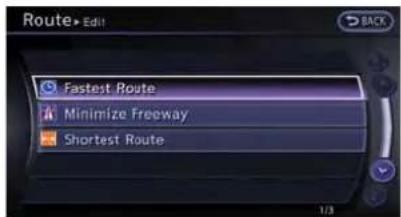
Navigation2-59
- Highlight the preferred condition and push
.
Availableconditions

[MinimizeFreeway]
:[ShortestRoute]

- The conditions have been changed and the display return to the [EditRoute] screen.
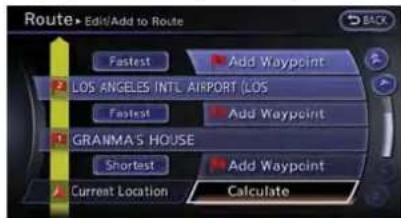
- By highlighting[Calculate] and pushing
, the system will recalculate the routes. After the route search is completed, the display will automatically return to the current location mapscreen.

INFO:
- Therecalculatedroutemaynotbethe shortestroutebecausethesystemprioritizesroadsthatareeasytodriveforsafety reasons.
- Iftherouteconditionsaresetfrom[Route Settings], allsectionsintherouteare subjecttothesamerouteconditions. This applies even if different route conditions have been set for different sections in [Edit Route].
Confirmingroute
When the suggested route is displayed after calculation, theroute information can be confirmed or the suggested route can be simulated.
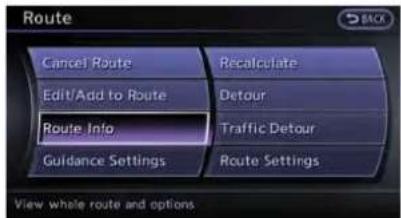
Basicoperation:
1.Push
- Highlight[RoutingInfo]andpush
.

- Highlight the preferred item and push
.
2-60Navigation
Availablesettingitems
•[TurnList]: Displaysthedetailsofthesuggestedroute. "Usingturnlist"(page2-61)
- [Preview]: Thesystemwilltracetheplannedroute goingforwardorinreverse. "Usingroutepreview"(page2-61)
•[Simulation]: Displaysasimulationofthesuggested route. Thisfunctionprovidesadetailed imageoftheroutewithvoiceguidance. “Confirmingroutebysimulation” (page2-62)
- [StoreRoute]: Storesacalculatedroute.Amaximumof5 routescanbestored.Storedroutescanbe easilyretrievedandsetasthesuggested route. "Storingroute"(page2-75)
- [MapScroll]: Displaysamapscreenwherethelocationof thedestinationcanbeconfirmed. Evenifthemapscreenistouchedor directionalbuttonsotherthantheupor downbuttonarepushed,thesamemap screenaswhen[MapScroll]isselectedis displayed.
Usingturnlist:

- Highlight[TurnList]andpush
. - The information (e.g., intersections) can be confirmed on the other to the destination by scrolling the screen using the up and down switches of them in directional buttons or the centerdial.
3.Push
Usingroutepreview:

- Highlight[Preview]andpush
. - Highlightthepreferredkeyandpush
.
:Movesforwardinthedirectionofthe destination.
:Movesbackwardinthedirectionofthe startingpoint.
/ Rausestheroutepreview.
3.Push
Confirmingroutebysimulation:

- Highlight[Simulation]andpush
. - Highlight the preferred key and push
.
" :Pausesthesimulation.
:Resumesthesimulation.
:Endsthesimulation.
3.Push
Guidancesettings
Variousguidancesettingscanbeset.

Basicoperation:
1.Push
2. Highlight[GuidanceSettings] and push
3. Highlight the preferred item and push
4.Push

Availablesettingitems
•[GuidanceVoice]:
Activatesordeactivatesvoiceguidance. The indicatorilluminatesifvoiceguidanceis activated.
•[GuidanceVolume]:
Adjuststhevolumelevelofvoiceguidance.
•[TrafficAnnouncement]:
Provide the announcement of traffic information event on a route.

Settingbyvoicecommand
1.Push< >locatedonthesteeringwheel.
2. Afterthetonesounds, speakacommand.
ToturntheVoiceGuidanceONorOFF:
"VoiceGuidanceOn/Off"(AlternateCommandMode)
2-62Navigation
Recalculateroute
Aroutecanbemanuallysearchedagainafter changingthesearchcondition.Whenthe vehicledeviatesfromthesuggestedroute,the routefromthecurrentlocationtothedestination isautomaticallysearchedagain.
Manuallyre-searchingroute:

1.Push
2. Highlight [Recalculate] and push

- Amessageisdisplayed, andtherouteis recalculated.
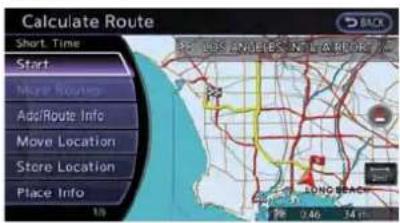
- Settherouteconditions. After finishing the setting, highlight [Start] and push
.
17 "Proceduresaftersettingdestination" (page2-44)
INFO:
Whenawaypointhasbeensetontheroute,the systemwillsearchforonlyonerouteevenif routerecalculationisperformed.
SettingAutoReroute:
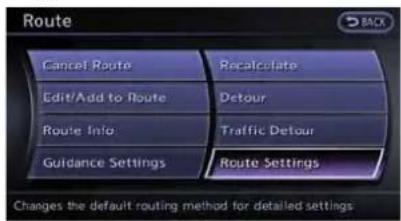
1.Push
2. Highlight[Route Settings] and push

- Highlight[OtherRoutingChoices]andpush
.

- Highlight [Auto Reroute] and push
. The indicator illuminates. When the current location maps screen or route settings screen is displayed, the system recalculates a row with the set conditions. "Detailed routesettings" (page 2-66)
Settingdetourroute
Todetourfromthesuggestedroute,aroute detouringforaspecifieddistancecanbe calculated.

1.Push
2. Highlight[Detour]andpush

- Highlightadetourdistanceandpush
.
Aftercalculatingthedetour,thesystemdisplays thedetourrouteonthemap.
INFO:
- Whenthevehiclehasdeviatedfromthe suggestedroute, [Detour]cannotbe selected.
- If the system cannot calculate adetour with the specified conditions, it displays the previous suggested route.
- If the vehicle is traveling very fast, the detour route may start from a location that the vehicle has already passed.
Searchingfordetourroutetaking trafficinformationintoconsideration
When a serious traffic event occurs on the route, or if the system finds a faster route, a detour alert willpop upautomatically. If the automatic alert is not noticed, a detour can also be manually searched.
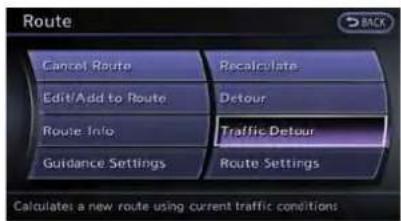
1.Push
2. Highlight [Traffic Detour] and push
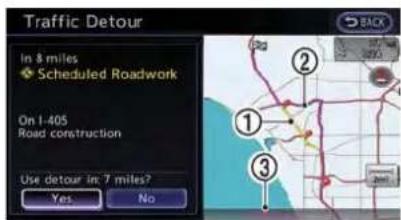
-
Whentedetoursearchissuccessful, detailedinformationaboutthedetourroute (leftscreen)andthecomparisonscreenof thetworoutes(rightscreen)aredisplayed.
① Originalroute(yellow)
② Detourroute(pink)
③ Thechangeofdistanceandestimatedtravel timetodestinationwhenthedetourrouteis taken. -
To accept the suggested detour route, highlight [Yes], and then push
.

INFO:
- Ifnorouteisset,or[UseRealTimeTraffic Information]isturnedoff,thisfunction cannotbeoperated.
- Ifadetourrouteisnotselectedandno furtheractionisperformed,thedetourroute willbeautomaticallycanceled.
- Thedetoursuggestioncanberetrievedeven afterthemessagedisappearsbymanually selecting[TrafficDetour].Thesystemwill thensearchforthedetouragainand suggestsadetourifoneisavailableatthat time.
- WithoutasubscriptiontoanNavTraffic broadcast, it will not be possible to get a trafficdetourorapplysettingsforfunctions related to traffic information. Amessage
appearswhenarelatedmenuitemis selected.
- See "NOTESONNavTrafficINFORMATION" for further information.
NotesonNavTrafficinformation" (page11-11)
Automaticdetourguidance:
When[AutoReroute]and[UseRealTimeTraffic Information]areturnedoninthedetailedroute settings,amessagewillautomaticallypopup whenthesystemfindsadetour.
"Detailedroutesettings"(page2-66)

-
If a traffic jamoraserious traffic problem occurs on the route, the automatic detour route search starts and messages appopsup if a detour is found.
-
To accept the suggested detour route, highlight [Yes] and push
.

INFO:
- Ifnooperationisperformedforoneminite after the message is displayed, the message disappears. Thedetourwill notbeaccepted, andthecurrentsuggestedroutewillremain unchanged.
- When[TrafficAnnouncement]isturnedonin theguidancesettings,thesystemwill announcevoiceguidanceatthesametime thatthemessageappearsonthescreen. "Guidancesettings"(page2-62)
Settingconditionsforroutecalculation
Searchconditionsettings:
Theroutecanberecalculatedafterchangingthe routecalculationconditionsanywherealongthe route.
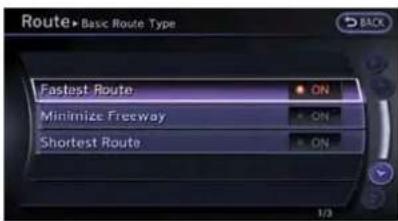
1.Push
2. Highlight[Route Settings] and push
3. Highlight[BasicRouteType]andpush
4. Highlight the preferred condition and push
5. When the conditions are set, the system starts calculating the order with the new conditions, and the current location map screen is displayed.
Availableconditions
- ●[MinimizeFreeway]:
Minimizestheuseofmotorways.
•[ShortestRoute]:
Prioritizesbytheshortestroute.

INFO:
Onlyoneoftheseconditionscanbeutilizedata time.

Settingbyvoicecommand
1.Push<

locatedonthesteeringwheel.
- Afterthetonesounds, speakacommand.
Tosetconditionsfortheroutecalculation (AlternateCommandMode):
"FastestRoute"
"MinimizeFreewayRoute"
"ShortestRoute"
Detailed routesettings:
Detailed conditions can be set for a route calculation.

1.Push
2. Highlight[Route Settings] and push
3. Highlight[OtherRoutingChoices]andpush
4. Highlight the preferred condition and push
5. If RouteSettings is exited after changing the settings, the system start calculating therout with thenew conditions.
Availablesettingitems
●[MinimizeTollRoads]:
Minimizestheuseoftollroads.
•[UseTimeRestrictedRoads]:
Usesanyroadssubjecttotimerestrictions.
•[UseStatisticalTrafficInformation]:
Usesstatisticaltrafficinformationthatis storedinthemapdata.
•[UseRealTimeTrafficInformation]:
Usesthelatesttrafficinformationreceived viatheSiriusXMbroadcast.
- [UseAvoidAreaSettings]:
Enablestheavoidareasetting.
•[UseFerries]: Includestheuseofferries.
- [UseLearnedRoutes]:
Usestheroadsthataremostfrequently traveledwiththehelpofself-learning technology.
●[AutoReroute]:
Ifthevehicledeviatesfromthesuggested route, thesystemautomatically recalculates aroutethatleadsthevehicletothe suggestedroute.
- Therecalculatedroutemaynotbethe shortestroutebecausethesystemprioritizesroadsthatareeasytodriveforsafety reasons.
- Ifrouteconditionsaresetfrom[Route Settings], allsectionsintherouteare subjecttothesamerouteconditionseven thoughdifferentrouteconditionshavebeen setfordifferentsectionsin[Edit/Addto Route].
- If[UseTimeRestrictedRoads]isdeactivated,thesystemcalculatesaroutewithout anyconsiderationoftheregulationsconcerningthetimeordayoftheweek.Therefore,thesuggestedroutemayincludearoad

subjecttotrafficregulationsconcerningthe timeordayoftheweek.Whendrivingalong theroute,alwaysfollowalltrafficregulations regardlessofwhether[UseTimeRestricted Roads]issettoonoroff.
- If the system cannot calculate any alternative routes, it displays the previous route.
- If the vehicle greatly deviates from the suggested route, the system calculates a new route.
- Statisticaltrafficinformationisbasedon previoustrafficdata. Whenthetrafficsituationrapidlychangesduetounexpected accidents,constructionwork,trafficrestrictions,emergencies,etc.,theprediction accuracyofthesystemmaybereduced.
- Trafficjaminformationdisplayonthemap screenisnotstatisticaltrafficinformation.
- When[UseStatisticalTrafficInformation]is turnedon,thesystemmayleadtoaroad whereatrafficjamoccursortoadetour eventhoughheshortestroutedoesnot haveatrafficjam.
-
Evenwhen[UseRealTimeTrafficInformation]isturnedon,iftrafficinformationhas notbeenprovidedforthearea,sometimesit ispossiblethatadetourwillnotbeindicatedinalocationwhereatrafficjamoccurs.
-
Thesystemmaynotleadtoadetouriftraffic closureoratrafficjamoccursfarfromthe presentlocation.
- Thesystemcalculatestoreducethetime requiredfortheentireroutefromthestartto thedestination.Iftherearenoappropriate routes,thesystemmayleadtoaroutewhere atrafficjamoccursinsteadofleadingtoa detour.
- Thissystemcanlearnandmemorizethe routethatismostfrequentlyused. However, despitedrivingonthesamerouteseveral timessothatthesystemcanlearntheroute, thesystemmayhavedifficultylearningthe routeunderthefollowingconditions.
- [UseTimeRestrictedRoads]issettoon.
- [UseRealTimeTrafficInformation]issettoon.
ROUTEGUIDANCESETTINGS
Variousguidanceinformationcanbesettobe playedduringrouteguidanceandtherouteand/orvoiceguidancecanbeactivatedordeactivated.
Basicoperation

1.Push
2. Highlight[Navigation]andpush
3. Highlight[GuidanceSettings]andpush
4. Highlight the preferred item and push
5.Push

Availablesettingitems
•[GuidanceVolume]:
Adjuststhevolumelevelofvoiceguidance.
"Guidancesettings"(page2-62)
•[GuidanceVoice]:
Activatesordeactivatesvoiceguidance.
The indicator illuminates if voice guidance is activated.
"Guidancesettings"(page2-62)
•[TrafficAnnouncement]:
Provides an announcement of traffic information event on the route.
"Guidancesettings"(page2-62)
•[VoiceGuidanceSettings]:
Setsadvancedsettingsforthevoiceguidanceannouncedatguidepoints.
"Routeguidancesettings" (page2-68)
•[GuidanceDisplaySettings]:
Activatesordeactivatessmallturnarrow displayonthemap.
"Displayingsmallturnarrowonmap" (page2-69)
•[EstimatedTime]:
Switchesthedisplayoftheestimatedtravel timetothedestinationorwaypointthatis displayedonthemapscreen.
"Switchingestimatedarrivaltimedis-play"(page2-70)
•[Others]:
—[SetAverageSpeeds]:
Sets an average vehicle speed for each typeofroad,whichisreflectedinthe calculationoftherequiredtimetothe destination.
1 "Setaveragespeeds"(page2-70)
—[AutoReroute]:
If the vehicle deviates from the suggested route, the system automatically recalculates a route that leads the vehicle to the suggested route.
"Setting AutoReroute" (page 2-63)
Settingvoiceguidanceatintersections

1.Push
2. Highlight[Navigation] and push
3. Highlight[GuidanceSettings]andpush
4. Highlight[VoiceGuidanceSettings] and push

- Highlight[IntersectionGuidanceSettings] andpush
.

- Highlight the preferred item and push
.
Availablesettingitems
•[VoiceAnnouncements]:
Setshowmanytimesthevoiceguidanceis announcedbeforethevehiclereachesan intersection.
- Highlight[VoiceAnnouncements] and push
. - Highlight the preferred item and push
.
—[Full]:
Thesystemannouncesthreekindsof voiceguidance: "TurningPoint", "1 Guide" and "2Guide".
—[Concise]:
Thesystemannouncestwokindsof voiceguidance:"TurningPoint"and"1 Guide".
•[TurningPoint]:
Turnsonthesoundthatchimeswhena maneuverissupposedtobeoccurring.
Displayingsmallturnarrowonmap
Theguidancescreendisplayedwhenthevehicle passesthroughanintersectioncanbechanged.

1.Push
2. Highlight[Navigation]andpush
3. Highlight[GuidanceSettings] and push
4. Highlight[GuidanceDisplaySettings] and push

- Highlight[SmallTurnArrowonMap] and push
toactivateordeactivate SmallTurnArrowontheMap(simplifiedturn indicator)displayedintheupperleftcorner ofthemapscreen.Theindicatorilluminates iftheSmallTurnArrowontheMapis displayed.
Switchingestimatedarrivaltime display
Thedisplayofthetraveltimeonthemapscreen canbeswitchedbetweenthetraveltimetothe destinationandthetraveltimetothewaypoint.
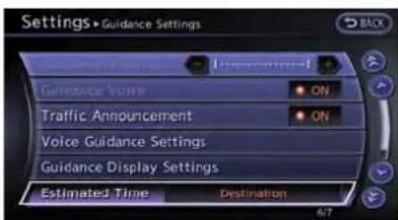
2-70Navigation
Example: Switching the display to the travel time to the waypoint
1.Push
2. Highlight[Navigation] and push
3. Highlight[GuidanceSettings]andpush
4. Highlight[Estimated Time] and push

- Highlight[Waypoint]andpush
. The indicator for these selected condition illuminates.
6.Push

- Theicondisplayonthemapscreenis switched, and the travel timetothewaypoint is displayed.
Displayedicon

:Displayofthetraveltimetothedestination
:Displayofthetraveltimetothewaypoint
Setaveragespeeds
The required time to the destination can be calculated based on the vehicle speeds.
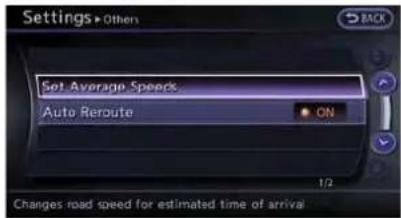
1.Push
2. Highlight[Navigation]andpush
3. Highlight[GuidanceSettings]andpush
4. Highlight[Others]andpush
5. Highlight[SetAverageSpeeds]andpush
6. Highlight the preferred item and push
7. Use themaindirectional buttons or the centerdialtomakean adjustment. The speed can be increased/decreased by 5 MPH (5km/h).
8. After finishing the setting, push
9.Push
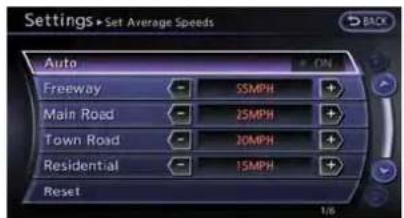
Availablesettingitems
•[Auto]:
IfsettoON, the system automatically calculates there required timeto the destination, the indicator illuminates and the speed settings cannot be changed.
•[Freeway]:
Adjusttheaveragevehiclespeedona freewaybymovingthemaindirectional buttonsorthecenterdialinthedirection of[+]or[-].
•[MainRoad]:
Adjusttheaveragevehiclespeedonamain roadbymovingthemaindirectionalbuttons or thecenterdialinthedirectionof[+]or [-].
•[TownRoad]:
Adjusttheaveragevehiclespeedonatown roadbymovingthemaindirectionalbuttons or thecenterdialinthedirectionof[+]or [-].
•[Residential]:
Adjusttheaveragevehiclespeedina residentialareabymovingthemaindirectionalbuttonsorthecenterdialinthe directionof[+]or[-].
•[Reset]:
Setstheaveragevehiclespeedstothe defaultvalues.
STORINGALOCATION/ROUTE
STORINGLOCATION
Oftenvisitedlocationscanbestoredinthe AddressBook. Thestoreaddressescanbe easilyretrievedtosetthemasadestinationor waypoint.

INFO:
- TheAddressBookcanstoreupto300 locations.
- Newinformationplacedinthesamestorage positionwilloverwritetheolddata.
Storinglocationbysearching
Afteralocationissearchedoronce, it can be stored for future use.
1.Push
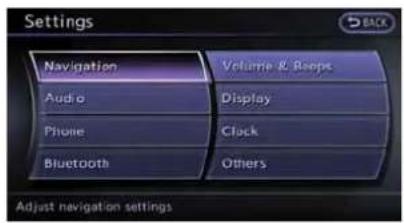
- Highlight[Navigation]andpush
.

- Highlight [Address Book] and push
.
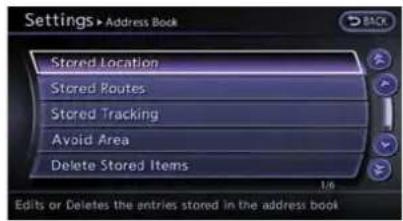
- Highlight[StoredLocation] and push
.

5.Highlight[HomeLocation(None)]or[Add New]andpush
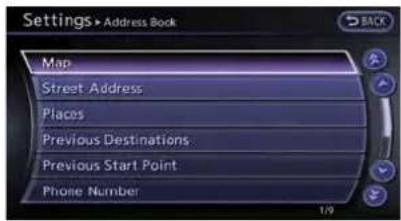
- Highlight the appropriate method to search for allocation and push
. "Settingdestination" (page 2-23)
2-72Navigation

- When a preferred location is displayed at the center of the map, confirm the address of the location and push
. A message is displayed, and the address of the location is stored in the AddressBook.

- Adjust the location of the restored item and edit the content of the restored item as necessary. After finishing these setting, highlight [OK] and push
.
INFO:
- Whenthelocationisstoredinthe AddressBook,[AddressBook]canbe usedtosearchforthelocation.
- Alocationcanbeadjustedbyselecting [MoveLocation]usingthesamemethod astheoneforadestination.
"Movinglocationofdestination" (page2-46)
Othersettings:
Anaddresscanalsobestoredusingthe followingprocedure.

1.Push
2. Highlight [Address Book] and push
3. Highlight[Store/Edit]andpush
- Highlight[AddNew]andpush
. - Highlight the appropriate method to search for allocation and push
. The address of these searched location is stored. "Settingdestination"(page2-23)
Storingcurrentvehiclelocation

1.Push
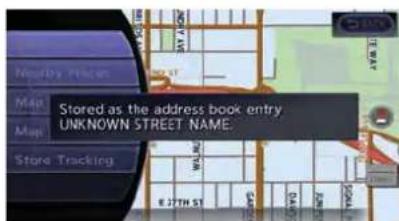
Navigation2-73
- Highlight[Store Location] and push
.Amessageisdisplayed, and thecurrentvehiclelocationisstoredinthe AddressBook.

- The icon representing the stored location is displayed on themap.
Push
i INFO:
The location is stored in the first available position number in the Address Booklist.
Storinglocationbymovingmap
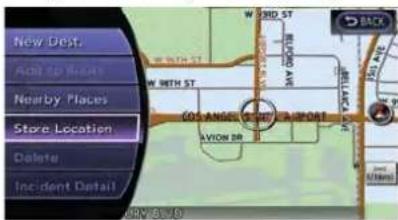
- Movetothepreferredlocationonthemap andpush
.
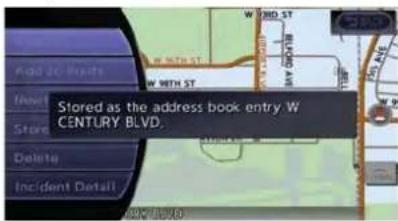
- Highlight[Store Location] and push
. A message is displayed, and the address of the location is stored in the AddressBook.

- The icon representing the stored location is displayed on themap.
Push
INFO:
Theaddressisstoredinthefirstavailable positionnumberintheAddressBooklist.
2-74Navigation
STORINGROUTE
A maximum of 5 calculated routes can be stored. Stored routes can be easily retrieved and set asthesuggested route.

INFO:
Storedrouteincludesonlylocations(destination andwaypoints)androutecalculationconditions, nottherouteitself.
1.Push

- Highlight[RouteInfo]andpush
.

- Highlight [Store Route] and push
.

- A confirmation message is displayed. Confirm the content of the message, highlight [Yes] and push
.
Thecurrentrouteisstored.
Othersettings
Aroutecanalsobestoredusingthefollowing procedure.

1.Push
2. Highlight[Navigation]andpush
3. Highlight [Address Book] and push
4. HighlightStoredRoutes and push
5. Highlight[StoreCurrentRoute] and push
6.Aconfirmationmessageisdisplayed. Confirmthecontentsofthemessage, highlight [Yes]andpush

INFO:
- The route is stored in the first available position number in the store current route list.
- A maximum of 5 routes can be stored. When 5routesarestoredintheAddressBook, a newroutecannotbestoreduntilarouteis deleted.
"Deletingstoreditem"(page2-88)
- Ifanywaypointsarenotsetontheroute, the routecannotbestored.
STORING TRACKED ROUTE
Atravelledrouteuptothecurrentlocationcan bestored.Amaximumof5trackedroutescan bestored.

1.Push
2.Push

- Highlight[StoreTracking] and push
.

4.Aconfirmationmessageisdisplayed.
Confirmthecontentsofthemessage,high-light[Yes]andpush
Thetrackedrouteyouhavetraveledis stored.
5.Push
INFO:
- A maximum of 5 tracked routes can be stored. When 5 tracked routes are stored in the AddressBook, anew tracked route cannot be stored until a tracked route is deleted. "Deletingstoreditem" (page2-88)
- Thetrackedrouteisstoredinthefirst availablepositionnumberinthestore trackinglist.
Other settings
Atrackedroutecanalso bestoredusingthe followingprocedure.
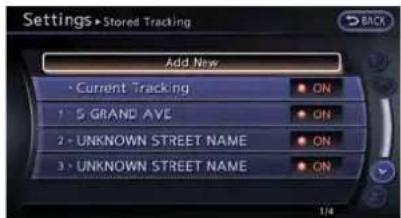
1.Push
2. Highlight[Navigation]andpush
3. Highlight [Address Book] and push
4. Highlight[StoredTracking] and push
5. Highlight[AddNew]andpush
i INFO:
Atrackedroutecan onlybestored usingthe settingscreenwhen[CurrentTracking]issetto on.
STORINGAVOIDAREA
AnAvoidAreacanbestored.
TheAvoidAreaisanareathatcanbeexcluded fromaroute,suchasaroadthatisalways congested.OnceAvoidAreasarestored,the systemavoidsththoseareaswhencalculatinga route.Upto10AvoidAreasanbestored.
1.Push
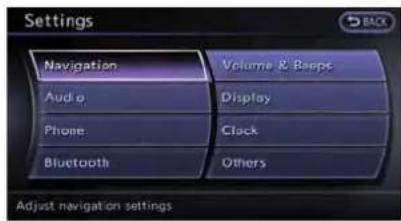
- Highlight[Navigation] and push

- Highlight [Address Book] and push
.
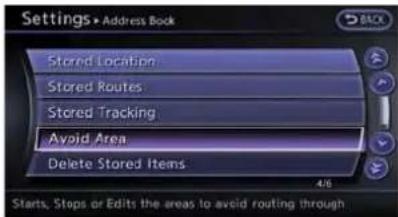
- Highlight[AvoidArea]andpush
.

- Highlight[AddNew]andpush
.

INFO:
A maximum of 10 Avoid Areas can be stored. When 10 Avoid Areas are already stored, a new Avoid Areas cannot be stored until a currently stored Avoid Areas is deleted. "Deleting stored item" (page 2-88)

- Highlight the appropriate method to search for allocation and push
.
"Settingdestination"(page2-23)
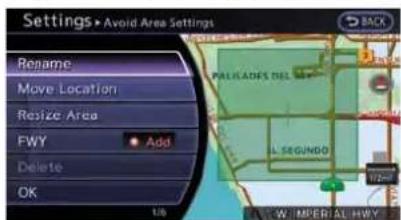
Navigation2-77
- Set the following items forthesearched location.
Availablesettingitems:
• [Rename]:
Changesthename.
"Rename"(page2-86)
• [MoveLocation]:
AdjuststhelocationoftheAvoidArea.
"MoveLocation"(page2-86)
- [ResizeArea]:
AdjuststherangeoftheAvoidArea.
"ResizeArea"(page2-87)
• [FWY]:
AvoidsFreeways.
"FWY"(page2-87)
• [Delete]:
Deletestheavoidarea.
"Delete"(page2-87)
- After finishing the setting, highlight[OK] and push
.
EDITINGADDRESSBOOK
ItemsstoredintheAddressBookcanbe modified.Thesesettingscanbeeditedtomake thenavigationsystemmoreuseful.
Basicoperation

1.Push
2. Highlight[Navigation]andpush
3. Highlight [Address Book] and push
4. Highlight the preferred item and push
Availablesettingitems
•[StoredLocation]:
Editstheinformationofastoredhomeand Address.
"Editingstoredhomeandaddress" (page2-79)
- "Editingstoredroute"(page2-84)
- [StoredTracking]:
Editstheinformationofastoredtracked route.
"Editingstoredtracking"(page2-84)
●[AvoidArea]:
EditstheinformationofastoredAvoidArea.
"Editingavoidarea"(page2-86) - "Deletingallstoreditems"(page2-89)
•[TransferAddressBook]:
Imports or exports the data of the stored itemsusingaUSBmemory.
2-78Navigation
Editingstoredhomeandaddress

- Highlight[StoredLocation] and push
. - Highlight the stored homelocation or preferred store address and push
.
INFO:
Highlighting[Sort]displayalistofvarious sortfunctions.
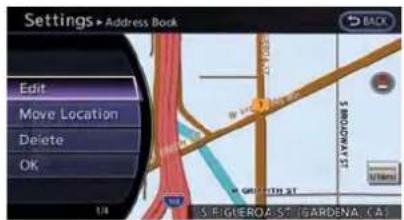
- Highlight the preferred item and push
.
Availablesettingitems
•[Edit]:
Editsthestoredaddressinformation.
•[MoveLocation]:
Adjuststhelocationofthestoredaddress.
•[Delete]:
Deletesthestoredaddress.
•[OK]:
Appliesthesettings.
Othersettings:
Astoreaddresscanalsobeeditedusingthe followingprocedure.

1.Push
2. Highlight [Address Book] and push
- Highlight[Store/Edit]andpush
.
Minoradjustmentofhomeorstored address
When[Edit]isselected,youcaneditthe followingitemsofthehomeorstoredlocation canbeedited.
•[ShowIcononMap]:
•Name:
•Voicetag:
•[Icon]:
•[Sound]:
•[Direction]:
•[Distance]:
•[PhoneNo.]:
•Group:
•EntryNumbers:
ShowIcononMap:
Displaysthehomeiconorthestoredaddress icononthemap.

- Highlight[ShowIcononMap]andpush
. - The indicator illuminates when the item is set. Thenthesystem display the icon on themap.
Name(onlyforstoredlocations):
Changesthenameofastoredlocation.

- Highlight[Name]andpush
. Acharacterinputscreenisdisplayed.

2.Enterthepreferrednameforthestored location.
"Howtoinputlettersandnumbers" (page1-16)
3. Highlight[OK]andpush
Voicetag(onlyforstoredlocations):

- Highlight[Voicetag]andpush
.
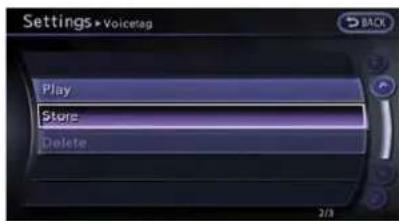
- Highlight[Store]andpush
.
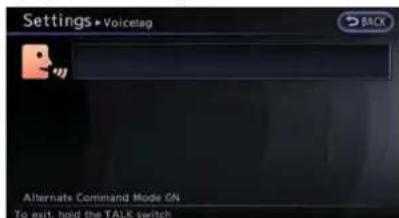
- Abeepsounds, and the systemer the voice command reception mode.
- Speakthename/wordtobeusedas Voicetag.
- The Voicetagisstored, provided the system recognizes it.
2-80Navigation

INFO:
●AVoicetagcannotbestored,overwrittenor playedwhiledriving.
- TheAddressBookcanstoreupto100 Voicetags.
●Highlight[Play]toconfirmthestoredVoice-tag.
- Highlight[Delete]todeleteastoredVoice-tag.
- IfaVoicetagisalreadystored,select [Restore]tore-recordtheVoicetag.
Icon:
Changestheiconofthehomeorstoredaddress tothepreferredone.Bychangingtheicons,the usageofthe[ByIcon]optionofthesortfunction canbeoptimizedmoreeffectively([Sort]menu situation).

- Highlight[Icon]andpush
. Alistoficonsisdisplayed.

- Highlight the preferred icon and push
. - Theiconischanged.
Sound:
Setsthetoneofthealarmthatsoundswhenthe vehicleapproachesthehomeorastored address.

- Highlight[Sound]andpush
. Asoundlistisdisplayed.

- Select the preferred alarm tone and push
.
The indicator of these selected alarm tone illuminates.
Direction:
Setsthealarmtosoundwhenapproachingfrom aspecificdirection.

Navigation2-81
- Highlight[Direction]andpush
.
Amapscreenwiththehomeorstored locationlocatedonthemapcenteris displayed.
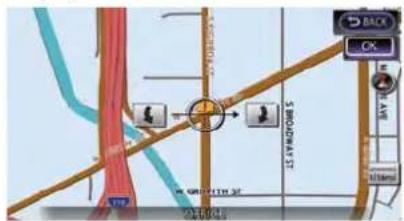
- Setthedirectionthatsoundsthealarmand push
.
Theselecteddirectionisset.
i INFO:
Afterthedirectionissetand[Direction]is selectedandsetagain,aconfirmationmessage isdisplayed. Confirmthecontentsofthe message, highlight[Yes]andpush
Distance:
Setsthealarmtosoundwhenreachinga specificdistancetothehomeorstoredaddress.

- Highlight[Distance] and push
.
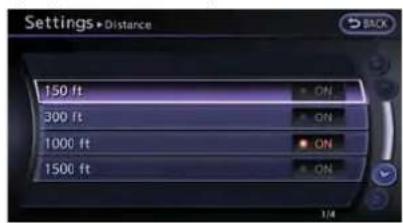
- Highlight the preferred distance option and push
. The indicator of the selected distance illuminates.
Availabledistanceoptions:
- 150feet(50m)
-300feet(100m) - 1000feet(300m)
- 1500feet(500m)
i INFO:
Oncethedirectionandthedistancetosoundan alarmareset,thesystemwillsoundthealarm whenthevehicleentersthetriggeringzone.
Phonenumber:
Storesthetelephonenumberofthehomeora storedlocation.

- Highlight[PhoneNo.] and push
. Thetelephonenumberentryscreenis displayed.
2-82Navigation

2.Enterthetelephonenumberofthehomeor storedlocation.
"Numberinputscreen"(page1-17)
- Highlight[OK]andpush
.
Thetelephonenumberisstored.

INFO:
If the phonenumber of the home or alocation is stored, the phonenumber can be used to search for the destination even if it is not included in the map data.
Group(onlyforstoredlocations):
Thisgroupsthestoredlocations.
Bygroupingthestoredlocations,the[ByGroup] optionofthesortfunctioncanbeusedmore effectivelyinthe[SortEntries]mode.
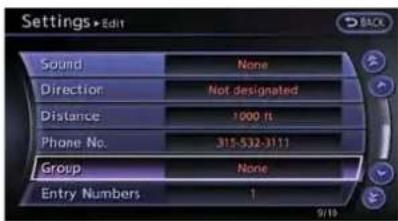
- Highlight[Group]andpush
.

- Highlight the preferred group and push
.
When the indicator of these selected group illuminates, the stored location is classified into the applicable group.
EntryNumbers(onlyforstoredlocations):
Indexthepositionnumbersofanytwostored locationsinthelist.

- Highlight[Entry Numbers] and push
.
Alistofstoredlocationsisdisplayed.
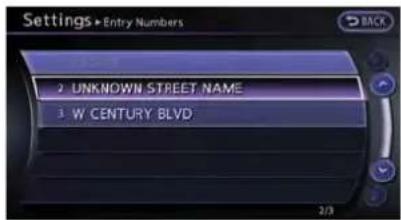
- Highlight the stored addresse that you want to change and push
. The position numbers of these selected stored locations are changed.
Editingstoredroute
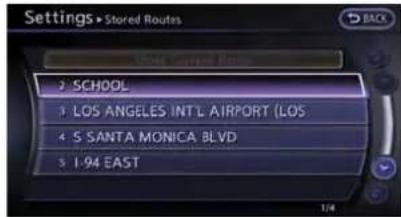
- Highlight[Stored Routes] and push
. - Highlight the preferred store route and push
.
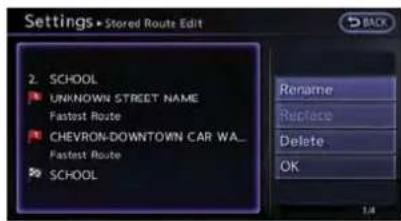
- Highlight the preferred item to edit from the list on the right side of the screen and push
. - After finishing the editing, highlight[OK] and push
.
2-84Navigation
i INFO:
If[StoreCurrentRoute]isselected, thesystem storesthecurrentroute.
Availablesettingitems
•[Rename]:
Changesthename.
"Character(lettersandnumbers)input screen"(page1-16)
•[Replace]:
Overwritesthestoredroutetothecurrent route.
•[Delete]:
Deletesthestoredroute.
•[OK]:
Appliesthesettings.
Editingstoredtracking

- Highlight[StoredTracking] and push
. - Highlightthestoreddetrackedrouteandpush
.Whenthe"ON"indicatorisnot illuminated, push .The indicator illuminates, and the Editscreenisdisplayed. If ispushedwhilethe"ON" indicatorisilluminated, the indicator turns off.
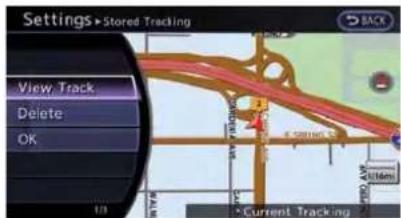
- Highlight the preferred item and push
.
Availablesettingitems(Currenttracking)
•[ViewTrack]:
Displaystetrackedrouteuptothecurrent location.
•[Delete]:
Deletesthestoredcurrenttracking.
•[OK]:
Appliesthesettings.

Available setting items (Stored tracked routes)
•[ViewTrack]:
Displaysastoredtrackedrouteonthemap.
•[Rename]:
Changesthename.
"Character(lettersandnumbers)input screen"(page1-16)
•[Replace]:
Overwrite the stored tracked route to the current tracked route.
•[Delete]:
Deletesthestoredtrackedroute.
•[OK]:
Appliesthesettings.
Displayingatrackedroute:
Thestoredtrackedroutecanbedisplayedon themapasnecessary.

-
Highlight[StoredTracking] and push
. -
Highlightatrackedroutetodisplayonthe mapscreen, andpush
. The "ON" indicator illuminates, and the Edit screen is displayed.

- After confirming the location to display the tracked route, highlight[OK] and push
. The screen return to the previous screen.
4.Push

INFO:
- Currenttrackingisdisplayedupto6 miles(10km).
- Storedtrackingisdisplayedupto12 miles(20km).
Editingavoidarea
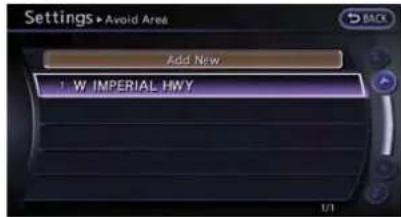
- Highlight[AvoidArea]andpush
. - Highlight the preferred Avoid Area and push
.

- Highlight the preferred items and push
.
Availablesettingitems
• [Rename]:
Changesthename.
- [MoveLocation]:
AdjuststhelocationoftheAvoidArea.
• [ResizeArea]:
AdjuststherangeoftheAvoidArea.
• [FWY]:
Avoidsfreeways.
- [Delete]:
DeletestheAvoidArea.
• [OK]:
Appliesthesetting.
- After finishing the setting, highlight[OK] and push
.

INFO:
AnAvoidAreacanbeaddedbyselecting[Add New].
"Storingavoidarea"(page2-77)
Rename:
ChangesthenameofanAvoidArea.

- Highlight[Rename]andpush
. A characterinputscreenisdisplayed.
2.Enterthepreferrednamefortheavoidarea. - Highlight[OK]andpush
.The nameisstored.
MoveLocation:
AdjuststhelocationoftheAvoidArea.

-
Highlight[Move Location] and push
. -
Adjust the location of the Avoid Area.
- After adjusting the location, push
.
ResizeArea:
AdjuststherangeoftheAvoidArea.

- Highlight [Resize Area] and push
. - Highlighttherangefrom5availablelevels.
- After highlighting the range, push
.
FWY:
Setstheroutetoavoidfreeways.

1. Highlight[FWY].
ToincludefreewaysintheAvoidArea.push

- The Avoid Area is displayed in green if it includes a freeway or in blue if it does not include a freeway.
![NISSAN GT-R (2014) - Highlight[FWY]. - 2](/content/2026/06/1276278/images/c1e90ee8e598b6d536f145f6358f5d5fce461ee0b16b533a2af68ccd160d7b56.jpg)
INFO:
If the current vehicle location is set to avoid Area, the system will not provide a provider's guidance.
Delete:
DeletestheAvoidArea.
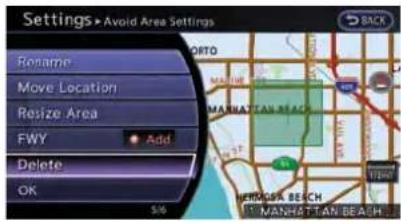
1. Highlight[Delete]andpush.
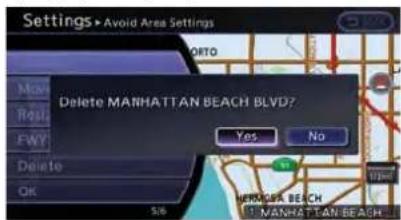
2.Aconfirmationmessageisdisplayed.Confirmthecontentsofthemessage, highlight [Yes]andpush
DELETINGSTOREDITEM
The locations and routes in the Address Book can be deleted. Twodeletion methods are available: deleting an individual item and deleting all stored items.
NOTICE
Deleteditemscannotberestored.Beforedeletinganitem,alwaysmakesure thattheitemistrulynotnecessary.
Deletingstoreditemindividually
Youcandeletestoredaddresses, routes, tracking and avoid areas individually.

1.Push
2. Highlight[Navigation]andpush
2-88Navigation

- Highlight [Address Book] and push
.
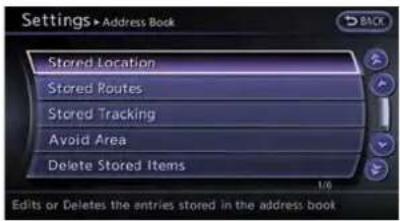
Example:[StoredLocation]ishhighlighted.
- Highlight the preferred item for deletion and push
.

- Highlight the preferred location / route for deletion and push
.
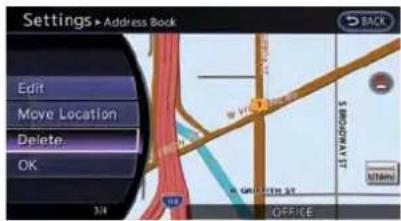
- Highlight[Delete]andpush
.

7.Aconfirmationmessageisdisplayed.Confirmthecontentsofthemessage, highlight [Yes]andpush
Othersettings:
Astoreaddresscanalsobedeletedusingthe followingprocedure.

1.Push
-
Highlight[Address Book] and push
. -
Highlight[Store/Edit] and push
. -
Highlight[EditorDeleteanEntry]andpush
. -
Highlightapreferredaddressandpush
.
"Settingdestination"(page2-23)
i INFO:
Thisprocedure applies only for deleting a stored home or address. A stored route, tracking or avoid area cannot be deleted using this procedure.
Deletingindividualitemonmap
- Alignthecrosspointeroverthepreferred storedlocationfordeletionbymovingonthe map.Thenpush
.

- Highlight[Delete]andpush
.
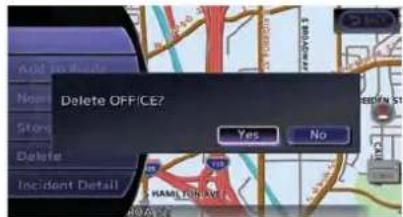
3.Aconfirmationmessageisdisplayed.Confirmthecontentsofthemessage, highlight [Yes]andpush
The store ditemis deleted from the Address Book.
Deletingallstoreditems

1.Push
- Highlight[Navigation]andpush
.

- Highlight[Address Book] and push
.

- HighlightDeleteStoredItemsandpush
.

- Highlight the preferred item for deletion and push
.
Itemsthatcanbedeleted
- [DeleteHomeLocation]:
Deletesthehomelocation.
- [DeleteCurrentTracking]: Delete the current tracked route.
- [DeletePreviousDestinations]: Deletesalloroneoftheprevious destinations.

6.Aconfirmationmessageisdisplayed.Con-
firmthecontentsofthemessage, highlight
[Yes]andpush
Othersettings:
Allstoredaddressescanalsobedeletedusing thefollowingprocedure.
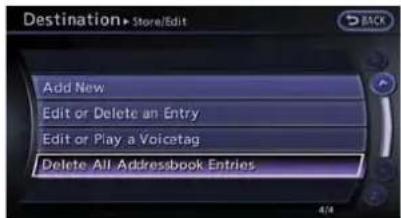
1.Push
2. Highlight [Address Book] and push
2-90Navigation
-
Highlight[Store/Edit] and push
. -
Highlight[DeleteAllAddressbookEntries] andpush
.
"Settingdestination"(page2-23)
INFO:
Thisprocedure applies only for deleting a stored home or address. Astoredroute, tracking or avoid area cannot be deleted using this procedure.
TRANSFERRINGINFORMATIONTO/ FROMADDRESSBOOK
The information of the stored home and addresses can be exported and imported using a USB memory.

- Insert a USB memory and push
.
INFO:
RefertothevehicleOwner'sManualforthe locationoftheUSBconnector.
- Highlight[Navigation]andpush
.
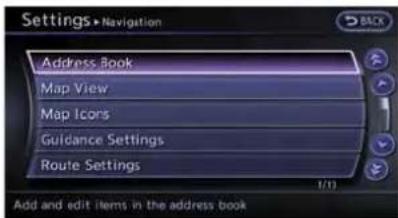
- Highlight [Address Book] and push
.

- Highlight[TransferAddressBook]andpush
.
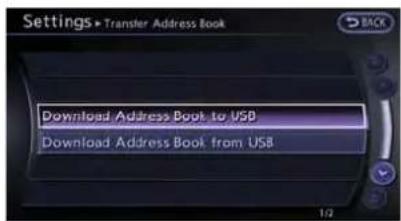
- Highlight[DownloadAddressBooktoUSB] or[DownloadAddressBookfromUSB] and push
.
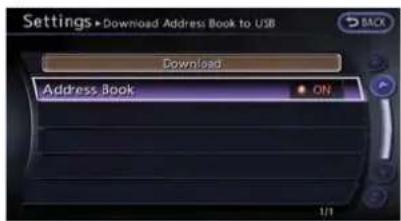
- Highlightastoreditem.The[ON]indicator illuminates.

- Highlight[Download]andpush
.
NOTICE
DonotremovetheUSBmemoryuntil thesystemcompletelyimportsorex-portsthedata.

INFO:
If the USB memory already hasted data for a stored address, a confirmation message is displayed. Once overwritten, the original data cannot be recovered.
NAVIGATIONSETTING
Thenavigationsystemcanbesetindetailsto meetthepreference.
BASICOPERATION

1.Push
2. Highlight[Navigation]andpush
3. Highlight the preferred setting item and push
Availablesettingitems
- [AddressBook]:
Storelocationsandroutes,andeditthe storeditems.
"Storinglocation"(page2-72)
•[MapView]:
Setthedisplaymethodandthedirectionof themap.
"Changingmapview"(page2-11)
2-92Navigation
- "Displayingmapicons"(page2-17)
•[GuidanceSettings]: Setthevariousfunctionsfortheroute guidance. "Guidancesettings"(page2-62) -
"Detailedroutesettings"(page2-66)
- informationsystem. "Trafficinformationsettings" (page6-11)
- informationsystem.
“Weatherinformationsettings”
(page6-20)
•[SpeedLimitInfo]: Displayspeedlimitinformation. "Speedlimitindicationonmap" (page2-93)
•[Others]: Displayothersettingitems. “Othernavigationsettings” (page2-93)
- [DeleteStoredInformation]: Deletestoredlocationsandthehome settingintheAddressBook. "Deletestoreditems"(page2-97)
- [DeleteAllPreviousDestinations]: Deleteallpreviousdestinations. "Deletestoreditems"(page2-97)
- [DeletePreviousStartingPoint]: Deleteallpreviousstartingpoints. "Deletetestoreditems"(page2-97)
- [ResetAllNavigationSettingstoDefault]: Resetallofthesettingstodedefault. "Resetallnavigationsettingstode- fault"(page2-97)
SPEEDLIMITINDICATIONONMAP
Turnthe[SpeedLimitInfo]displayonoroff. The indicatorlightilluminateswhenthespeedlimit displayfunctionissettoon.
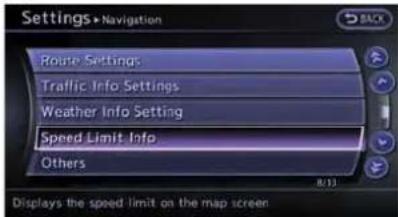
- Highlight[SpeedLimitInfo] and push
.

- Highlight[SpeedLimitIndicationonMap]to togglethefunctionbetweenonandoff.The indicatorlightilluminateswhenthespeed limitdisplayfunctionissettoon.
OTHERNAVIGATION SETTINGS BasicOperation

Navigation2-93
1.Push
2. Highlight[Navigation]andpush
3.Highlight[Others]andpush
4. Highlight the preferred setting item and push
Availablesettingitems
•[AudioDisplayonMap]:
Allowstheaudioinformationtobedisplayed atalltimes.
"Displayingaudioinformationonmap screen"(page2-94)
•[SmallStepZoombyDial]:
Setsthefreezoomfunctiononoroff.When thissettingison,itispossibletoadjustthe scaleinsmallerstepsthanwithnormalscale adjustment.
•[MapScrollingInformation]:
Setsthesystemsothatwhenthemap scrollstheinformationaboutthelocation alignedatthecenterofthecrosspointeris displayed.
"Mapscrollinginformation" (page2-18)
- [CustomizeNearbyPlaces]:
Setthecategoryoffrequentlyvisitedlandmarks.
"CustomizingNearbyPlaces" (page2-94)
2-94Navigation
●[KeyboardType]:
Switchesthekeyboardlayoutforthecharacterinputscreen.
"Settingskeyboardlayoutofcharacter inputscreen"(page2-95)
•[NorthUpwhenZoomOut]:
WhenthissettningisON, theorientation of themapisautomaticallychangedtoNorth Upwhenthewidestmapscaleisselected. TheorientationischangedtoNorthUpeven whenHeadingUpisset.
- [AdjustCurrentLocation]:
Correctsthepositionofthecurrentlocation.
"Adjustingcurrentvehiclelocation" (page2-96)
Displayingaudioinformationon mapscreen
Theoperatingstatusofaudiofunctionscanbe displayedonthemapscreen.

-
Highlight[Others]andpush
. -
Highlight[AudioDisplayonMap]andpush
.Theindicatorilluminateswhen theitemisset.
3.Push

- Onthebottomofthemapscreen, the operatingstatusofanaudio/visualfunction isdisplayedataltimes.
CustomizingNearbyPlaces
The categories can be customized for searching places of interest nearby.
Themodifiedlistofplacesofinterestcanbe usedforsearchingforalocationusing[Places].
1 "Findingplace"(page2-27)

- Highlight[Others]andpush
. - Highlight[CustomizeNearbyPlaces] and push
.

- Highlight the preferred item and push
. Themain category lists displayed.
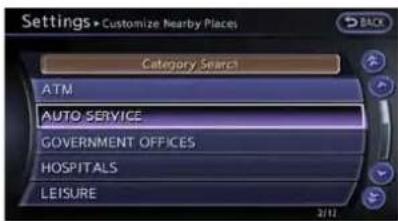
- Highlight a main category and push
. Thesubcategorylistisdisplayed. Highlight[CategorySearch]and push . The preferred category can also be input directly.
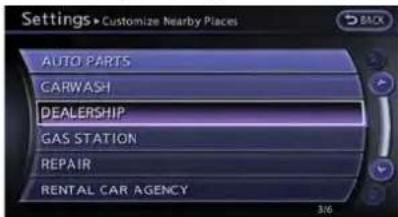
- Highlight a sub category and push
. The category setting is modified.
6.Push
Settingskeyboardlayoutofcharacterinputscreen
Dependingontheuser'spreferenceforthe keyboardlayoutofcharacterinputscreen,the ABClayoutorQWERTYlayoutcanbeselected.
Example: SwitchingtotheQWERTYlayout

- Highlight[Others]andpush
. - Highlight [Keyboard Type] and push
.

Navigation2-95
- Highlight[QWERTY] and push
. The indicator illuminates when the item is set.
4.Push
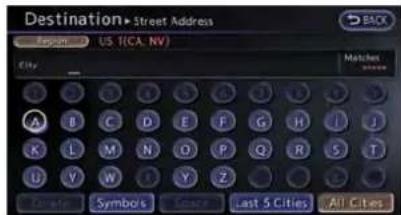
ABClayout

QWERTYlayout
Adjustingcurrentvehiclelocation
If the vehicle icon indicating the current vehicle location is not in the correct position, the location of the vehicle icon on themapscreen can be adjusted.

INFO:
- Regardlessofthemapviewsetting, themap isdisplayedinPlanViewwhenadjustingthe positionofthevehicleicon.
- When correcting the position of the vehicle icon, themapis automatically displayed in the NorthUpmode. After finishing the correction, themaprestore the current orientation setting.
- Thepositionanddirectionofthevehicleicon maybemisaligneddependingonthe externalconditionsandenvironment.
- If the vehicle icon is misaligned, drive for a while in location where the GPS signals can be received. This may correct the position of the vehicle icon.
"Vehicleicon"(page12-4)
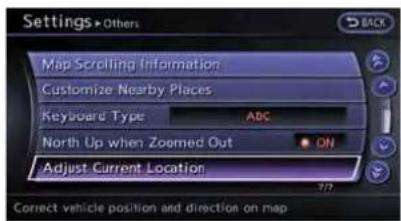
- Highlight[Others]andpush
. - Highlight[AdjustCurrentLocation] and push
.The current location map screen is displayed.

- Adjust the position of the vehicle icon.
Afteradjustingthepositionofthevehicle icon,push

- Adjust the direction of the vehicle icon.
Afteradjustingthedirectionofthevehicle icon,push

5.Amessageisdisplayed,andtheadjusted vehiclelocationisstored.
DELETESTOREDITEMS
Delete store ditem from settings screen.
BasicOperation

-
Highlight[Navigation]andpush
. -
Highlight the preferred item that you want to delete and push
.
Availableitems
- [DeletesStoredInformation]: Deletethestoredlocationandhome.
- [DeleteAllPreviousDestinations]: Deleteallpreviousdestinations.
- DeletePreviousStartPoint: Deleteallpreviousstartpoint.
RESETALLNAVIGATION SETTINGS TODEFAULT
Thisrestoresvarioussettings(display, volume level, etc.) tothedefaultsettings.

INFO:
Thememorycontents,suchasthestored locations,willnotbedeleted.

-
Highlight[Navigation]andpush
. -
Highlight[ResetAllNavigationSettingsto Default]andpush
.

Navigation2-97
- A confirmation message is displayed. Confirm the content of the message, highlight [Yes] and push
.
2-98Navigation
MEMO
Navigation2-99
MEMO
2-100Navigation
3Audiosystem
Audiosystem....3-2
Audiooperationprecautions....3-2
Antenna....3-12
FM-AM-SATradiowithCompactDisc
(CD)player....3-12
DVD(DigitalVersatileDisc)playeroperation....3-16
USBmemoryoperation....3-18
Bluetooth ® streamingaudio....3-21
iPod playeroperation....3-24
CD/DVD/USBmemorycareandcleaning....3-26
CarphoneorCBradio....3-27
AUDIOSYSTEM
AUDIOOPERATIONPRECAUTIONS
Radio
PushtheignitionswitchtotheACCorON positionandpushtheradiobandselectbutton toturnotheradio.Ifyoulistentotheradiowith theenginenotrunning,theignitionswitch shouldbepushedtotheACCposition.
Radioreceptionisaffectedbystationsignal strength,distancefromradiotransmitter,buildings,bridges,mountainsandotherexternal influences.Intermittentchangesinreception qualitynormallyarecausedbytheseexternal influences.
Usingacellularphoneinornearthe vehiclemayinfluenceradioreception quality.
Radioreception:
YourNISSANradiosystemisequipped with state-of-the-artelectronic circuitstoenhance radioreception. These circuits are designed to extend reception range, and to enhance the quality of that reception.
Howevertherearesomegeneralcharacteristics of both FM and AM radiosignal that can affect radioreception quality in an moving vehicle, even when the finest equipment is used. These characteristics are completely normal in a given
receptionarea, and donot indicate anymal-function in your NISSAN radiosystem.
Receptionconditionswillconstantlychange becauseofvehiclemovement.Buildings,terrain, signaldistanceandinterferencefromother vehiclescanworkagainstidealreception. Describedbelowaresomeofthefactorthat canaffectyourradioreception.
Somecellularphonesorotherdevicesmay causeinterferenceorabuzzingnoisetocome fromtheaudiosystemspeakers.Storingthe deviceinadifferentlocationmayreduceor eliminatethenoise.

FMradioreception:
Range:FMrangeisnormallylimitedto25to30 miles(40to48km),withmonaural(single channel)FMhavingslightlymorerangethan stereoFM.Externalinfluencesmaysometimes interferewithFMstationreceptionevenifthe FMstationiswithin25miles(40km).The strength of the FM signal is directly related to the distancebetweenthetransmitterandreceiver. FMsignalsfollowaline-of-sightpath,exhibiting manyofthesamecharacteristicsaslight. For exampletheywillreflectoffobjects.
Fadeanddrift: Asyour vehiclemovesawayfrom astationtransmitter,thesignalswilltendtofade and/ordrift.
Static and flutter: During signal interference from buildings, large hills or dueto antennaposition, usually inconjunction within increased distance from the station transmitter, static or flutter can be heard. This can be reduced by lowering the treblesetting to reduce the trebler response.
Multipathreception: Because of the reflective characteristics of FM signals, direct and reflected signals reach thereceiver at the same time. Thesignals may cancel each other, resulting in momentary flutter or loss of sound.
AMradioreception:
AMsignals, because of their low frequency, can bendaround objects and skip along the ground. In addition, the signals can be announced off the ionosphere and bent back to earth. Because of these characteristics, AMsignals are also subject to interference as they travel from transmittentoreceiver.
Fading: Occurswhilethevehicleispassing throughfreewayunderpassesorinareaswith manytallbuildings.Itcanalsooccurforseveral secondsduringionosphericurbulenceevenin areaswherenoobstaclesexist.
Static: Caused by thunderstorms, electrical powerlines, electric signs and event traffic lights.
Satelliteradioreception:
Whenthesatelliteradioisusedforthefirsttime orthebatteryhasbeenreplaced,thesatellite radiomaynotworkproperly.Thisisnota malfunction.Waitmorethan10minuteswiththe satelliteradioONandthevehicleoutsideofany metalorlargebuildingforthesatelliteradioto receiveallofthenecessarydata.
Thesatelliteradiomoderequiresanactive SiriusXMSatelliteRadiosubscription.ThesatelliteradioisnotavailableinAlaska,Hawaiiand Guam.
Thesatelliteradioperformancemaybeaffected
ifcargocarriedontheroofblocksthesatellite radiosignal.
If possible, donotputcargonearthesatellite antenna.
Abuildupoficeonthesatelliteradioantenna canaffectsatelliteradioperformance.Remove theicetorestoresatelliteradioreception.
CompactDisc(CD)player

- DonotforceacompactdiscintotheCD insertslot. This could damage the CD and/or CDchanger/player.
- Trying to load a CD with the CD door closed could damage the CD and/or CD changer.
- Duringcoldweatherorrainydays,theplayer maymalfunctionduetothehumidity.Ifthis occurs,removetheCDanddehumidifyor ventilatetheplayercompletely.
●Theplayermayskipwhiledrivingonrough roads. - The CD players sometimes cannot function when the passenger compartment temperature is extremely high. Decreasethetemperature before use.
- Onlyusehighquality4.7in(12cm)round discsthathavethe"COMPACTdiscDIGITALAUDIO"logoonthediscorpackaging.
- DonotexposetheCDtodirectsunlight.
- CDsthatarefpoorquality, dirty, scratched, coveredwithfingerprints, orthathavepin holesmaynotworkproperly.
●The following CDsmaynotworkproperly:
—Copycontrolcompactdiscs(CCCD)
—Recordablecompactdiscs(CD-R)
—Rewritablecompactdiscs(CD-RW) - DonotusethefollowingCDsastheymay causetheCDplayertomalfunction.
-3.1in(8cm)discs
—CDsthatarenotround
—CDswithapaperlabel
—CDsthatarewarped, scratched, or have abnormaledges
- Thisaudiosystemcanonlyplayprerecorded CDs.lthasnocapabilitiestorecordorburn CDs.
- If the CD cannot be played, one of the following messages will be displayed. CHECKDISC:
—ConfirmthattheCDisinsertedcorrectly (thelabelsideisfacingup,etc.).
—ConfirmthattheCD is notbentor warpedanditisfreeofscratches.
PUSHEJECT:
Thisisanerrorduetothetemperatureinside theplayeristoohigh.RemovetheCDby pushingtheEJECTbutton,andafterashort timereinserttheCD.TheCDcanbeplayed whenthetemperatureoftheplayerreturns tonormal.
UNPLAYABLE:
Thefileisunplayableinthisaudiosystem (onlyMP3,WMAorAACCD).
DVD(DigitalVersatileDisc)player
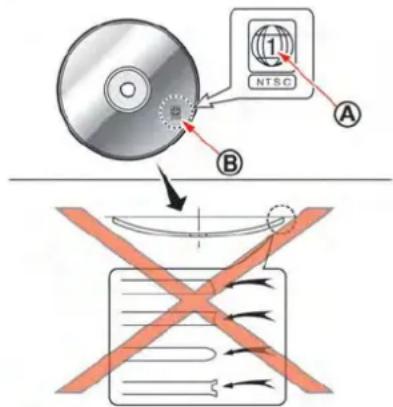
- DonotforceacompactdiscintotheCD/DVDinsertslot.ThiscoulddamagetheCD/DVDplayer.
- Duringcoldweatherorrainydays,theplayer may malfunction due to humidity. If this occurs,removetheCD/DVDanddehumidify orventilatetheplayercompletely.
●Theplayermayskipwhiledrivingonrough roads.
●The CD/DVD players sometimes cannot function when the passenger compartment temperature is extremely high. Decreases the temperature before use.
- Onlyusehighquality4.7in(12cm)round discsthathavethe"COMPACTdiscDIGITALAUDIO"or"DVDVideo"logoonthe discorpackaging.
- DonotexposetheCD/DVDtodirect sunlight.
- CD/DVDsthatareofpoorquality, dirty, scratched, coveredwithfingerprints, orthat havepinholesmaynotworkproperly.
- The following CD/DVDs are not guaranteed to play:
- Copy control compact discs (CCCD)
- Recordable compact discs (CD-R)
- Rewritable compact discs (CD-RW)
- Recordable DVDs (DVD ± R, DVD ± RDL)
- Rewritable DVDs (DVD ± RW, DVD ± RW DL)
- DonotusethefollowingCD/DVDsasthey maycausetheCD/DVDplayertomalfunction.
- 3.1in(8cm)discs
- CD/DVDsthatarenotround
—CD/DVDswithapaperlabel
—CD/DVDsthatarewarped, scratched or haveabnormaledges
—This audiosystem can only play pre-recorded CD/DVDs. Ithas nocapabilities to record or burn CD/DVDs.
- If the CD/DVD cannot be played, one of the
followingmessageswillbedisplayed.
DiscReadError:
—ConfirmthattheCD/DVDisinserted correctly(thelabelsideisfacingup, etc.).
—ConfirmthattheCD/DVDisnotbentor warpedanditisfreeofscratches.
PleaseEjectDisc:
—This maybe an error due to the temperature insidethe player being too high. Removethe CD/DVD bypassing the EJECT button, and after a short time reinsert the CD/DVD. The CD/DVD can be played when the temperature of the player returnstonormal. If the error persists, consult your local retailership.
UnplayableFile:
—Thefilemaybecopyprotected.
—ThefileisnotMP3,WMA,AAC,M4Aor DivX ® type.
RegionInvalid: —TheDVDisnotforregion1orallregions. UseDVDswitharegioncode“1”, “ALL” or “1included”foryourDVDentertainmentsystem.(The regioncode A is displayedasasmallsymbolprintedon thetopoftheDVD B.)Thisvehicle-installedDVDplayercannotplayDVDs witharegioncodeotherthan“1” or “ALL”.
Copyrightandtrademark:
- ThetechnologyprotectedbytheU.S.patent andotherintellectualpropertyrightsowned byMacrovisionCorporationandotherright holdersisadoptedforthissystem.
- Thiscopyrightprotectedtechnologycannot beusedwithoutapermitfromMacrovision Corporation.Itislimitedtobepersonaluse, etc.,aslongasthepermitfromMacrovision Corporationisnotissued.
- Modifyingordisassemblingisprohibited.
●Dolbydigitalismanufacturedunderlicense fromDolbyLaboratories,Inc.
●Dolbyand thedoubleDmark “ DOLBY” are trademarksofDolbyLaboratories, Inc.
- DTS andDTSDigitalSurround "●dts"are registeredtrademarksofDigitalTheater Systems,Inc.
Parentallevel(parentalcontrol):
DVDswiththeparentalcontrolsettingcanbe playedwiththissystem.Pleaseuseyourown judgementtosettheparentalcontrolwiththe system.
Discselection:
The following disc formats can be played with the DVD drive.
•DVD-VIDEO
•VIDEO-CD
- CD-DA(ConventionalCompactDisc)
•DTS-CD
USB(UniversalSerialBus)

WARNING
DonotconnectordisconnecttheUSB devicewhiledriving.Doingsocanbea distraction.Ifdistractedyoucouldlose controlofyourvehicleandcausean accidentorseriousinjury.

CAUTION
- DonotforcetheUSBdeviceintothe USBport.InsertingtheUSBdevice tiltedorup-side-downintotheport maydamagetheUSBdeviceand theport.MakesurethattheUSB deviceisconnectedcorrectlyinto theUSBport.
- DonotgrabtheUSBportcover(if soequipped)whenpullingtheUSB deviceoutoftheport.Thiscould damagetheportandthecover.
- DonotleavetheUSBcableina placewhereitcanbepulledunintentionally.Pullingthecablemay breakthewire,USBdeviceorthe port.
•Toavoiddamageandlossoffunc- tionwhenusingaUSBdevice,note thefollowingprecautions.
—Donotbendthecableexcessively(1.6in(40mm)radius minimum).
—Donottwistthecableexcessively(morethan180degrees).
—Donotpullordropthecable.
—DonothitorpresstheUSBport orUSBdevicewithhands,feet, orobjects.
—Donotstoreobjectswithsharp edgesinthestorageareawhere thecableisstored.
—DonotleavetheUSBdevice and attacheddevicesinthevehicle compartment. Whennotinuse forextendedperiodsoftime, storethecableandUSBdevice inaclean, dust freeenvironment atroomtemperatureandwith-outdirectsunexposure.
—Donotusethecableforany other purposeesthanitsintended useinthevehicle.
The vehicle is not equipped with a USB device. USB devices should be purchased separately as necessary.
This system cannot be used to format USB devices. To form a USB device, use a personal computer.
Insomestates/area, the USB device for the front seats play only sound without images for
regulatoryreasons, even when the vehicle is parked.
This systems supports various USB memory devices, USB hard drives and Pod players. Some USB devices may not be supported by this system.
- PartitionedUSBdevicesmaynotbeplayed correctly.
- Somecharactersusedinotherlanguages (Chinese, Japanese, etc.) are not displayed properly on display. Using English language characters with a USB device is recommended.
GeneralnotesforUSBuse:
- TheUSBdevicemaynotfunctionwhenthe passengercompartmenttemperatureisextremelyhigh.Lowerthetemperaturebefore use.
- Duringcoldweatherorrainydays,theplayer maymalfunctionduetohumidity.Ifthis occurs,removetheUSBdeviceanddehumidifyorventilatetheUSBplayercompletely.
- DonotconnectaUSBdeviceifaconnector, cableorUSBportiswet. Allow the connector,cable,andUSBporttodry completelybeforeconnectingtheUSB device.(Waitfor24hoursormoreuntil isdry.)IftheconnectorandUSBportare
exposedtofluidsotherthanwater,evaporativeresiduemaycauseashortcircuit betweentheconnectorpinsandUSBport. Inthiscase,replacethecableandUSBport. OtherwisedamagetotheUSBdeviceanda lossoffunctionmayoccur.
- If the cable is damaged (insulation cut, connectors cracked, contaminations such as liquids, dust, dirt, etc. in the connectors), do not use the cable. Replace the cable with a new one.
- DonotputaUSBdeviceinalocationwhere staticelectricityoccurs,electricalnoiseis generatedorhotairfromtheairconditioner blowsdirectlyonit.Doingsomaycausethe datastoredontheUSBdevicetobe corrupted.
NotesforiPoduse:
iPodisatrademarkofAppleInc., registered in the U.S. and other countries.
- ImproperlypluggingintheiPodmaycausea checkmarktobedisplayedonandoff (flickering).AlwaysmakesurethattheiPod isconnectedproperly.
●AniPodnano(1stGeneration)mayremain infastforwardorrewindmodeifitis connectedduringaseekoperation.Inthis case,pleasemanuallyresettheiPod.
- AniPodnano(2ndGeneration)willcontinue tofast-forwardorrewindifitisdisconnectedduringaseekoperation.
●Anincorrectsongtitlemayappearwhenthe PlayModeischangedwhileusinganiPod nano(2ndGeneration)
●Audiobooksmaynotplayinthesameorder astheyappearonaniPod.
●Largevideofilescauseslowresponsesinan iPod. The vehiclecenterdisplaymaymomentarily blackout, but will soon recover.
- IfaniPodautomaticallyselectslargevideo fileswhileintheshufflemode,thevehicle centerdisplaymaymomentarilyblackout, butwillsoonrecover.
CompressedAudioFiles(MP3/WMA/AAC/ATRAC3)
Explanationofterms:
- MP3—MP3isshortforMovingPictures ExpertsGroupAudioLayer3.MP3isthe mostwellknowncompresseddigitalaudio fileformat.Thisformatallowsfornear"CD quality"sound,butatafractionofthesize of normalaudiofiles.MP3conversionofan audiotrackcanreducethefilesizeby approximatelya10:1 ratio(Sampling:44.1 kHz,Bitrate:128kbps)withvirtuallyno perceptiblelossinquality.Thecompression
reducescertainpartsofsoundthatseem inaudibletomostpeople.
- WMA—WindowsMediaAudio(WMA)isa compressedaudioformatcreatedbyMicrosoftanalternativetoMP3.TheWMA codeoffersgreaterfilecompressionthan theMP3codec,enablingstorageofmore digitalaudiotracksinthesameamountof spacewhencomparedtoMP3satthesame levelofquality.
- AAC/M4A—AdvancedAudioCoding (AAC)isalossyaudiocompressionformat. Audiofilesthathavebeenencodedwith AACaregenerallysmallerinsizeanddeliver ahigherqualityofsoundthanMP3.
- Bitrate—Bitratedenotesthenumberof bitspersecondusedbyadigitalmusicfile. Thesizeandqualityofacompresseddigital audiofileisdeterminedbythebitrateused whenencodingthefile.
- Samplingfrequency—Samplingfrequency istherateatwhichthesamplesofasignal areconvertedfromanalogtodigital(A/D conversion)persecond.
- Multisession—Multisessionisoneofthe methodsforwritingdatatomedia.Writing dataoncetothemediaiscalledasinglesession,andwritingmorethanonceis calledamultisession.
3-8 Audiosystem
- ID3/WMATag—TheID3/WMAtagisthe partoftheencodedMP3orWMAfilethat containsinformationaboutthedigitalmusic filesuchassongtitle,artist,albumtitle, encodingbitrate,tracktimeduration,etc. ID3taginformationisdisplayedonthe Album/Artist/Tracktitlelineonthedisplay.
*Windows ® and WindowsMedia ® areregistered trademarksortrademarksofMicrosoft CorporationintheUnitedStatesofAmerica and/orothercountries.
![graph TD A["ROOT FOLDER"] --> B["1"] A --> C["2"] A --> D["3"] A --> E["4"] A --> F["5"] A --> G["6"] A --> H["7"] H --> I["FOLDER"] H --> J["MP3/WMA/AAC"]](/content/2026/06/1276278/images/c0c82f01c119cf413a14d525526c5b28163daa33ef17ef5f80c9ec64fb892107.jpg)
Playbackorder:
- Thefoldernamesoffoldersnotcontaining compressedaudiofilesarenotshowninthe display.
-
Ifthereisafileinthetoplevelofadisc/USB, "RootFolder" is displayed.
-
The playbackorderistheorderinwhichthe fileswerewrittenbythewritingsoftware,so thefilesmightnotplayinthedesiredorder.
●Music playback order of compressed audio filesis as illustrated in the figure.
Specificationchart:
| SupportedmediaCD,CD-R,CD-RW,DVD-ROM,DVD±R | CD,CD-R,CD-RW,DVD-ROM,DVD±R,DVD±RW,DVD±RDL:ISO9660LEVEL1,ISO9660LEVEL2,Romeo,Joliet*ISO9660Level3(packetwriting)isnotsupported.*FilessavedusingtheLiveFileSystemcomponent(onaWindowsVista-basedcomputer)arenotsupported.UDFBridge(UDF1.02+ISO9660),UDF1.5,UDF2.0*VDF1.5/VDF2.0(packetwriting)isnotsupported. | ||
| USBmemory:FAT16,FAT32 | |||
| Supported versions*1 | MP3 | VersionMPEG1AudioLayer3 | |
| Samplingfrequency | 8kHz-48kHz | ||
| Bitrate8kbps-320kbps,VBR*4 | |||
| WMA*2 | VersionWMA7,WMA8,WMA9 | ||
| Samplingfrequency32kHz-48kHz | |||
| Bitrate32kbps-192kbps,VBR*4 | |||
| AAC | VersionMPEG-AAC | ||
| Samplingfrequency8kHz-96kHz | |||
| Bitrate16kbps-320kbps,VBR*4 | |||
| Taginformation(SongtitleandArtistname) | ID3tagVER1.0,VER1.1,VER2.2,VER2.3,VER2.4(MP3only) | ||
| WMAtag(WMAonly) | |||
| Folderlevels | Withnavigationsystem:Folderlevels:8,Folders:255(includingrootfolder),Files:512(Max.255filesforonefolder)Folderlevels:8,Foldersandfiles:999(Max.255filesforonefolder) | ||
| Displayablecharactercodes*3 | 01:ASCII,02:ISO-8859-1,03:UNICODE(UTF-16BOMBigEndian),04:UNICODE(UTF-16Non-BOMBig Endian),05:UNICODE(UTF-8),06:UNICODE(Non-UTF-16BOMLittleEndian),07:SHIFT-JIS | ||
*1 Filescreatedwithacombinationof48kHzsamplingfrequencyand64kbpsbitratecannotbeplayed.
*2ProtectedWMAfiles(DRM)cannotbeplayed.
*3Availableecodesdependonwhatkindofmedia,versionsandinformationaregoingtobedisplayed.
*4WhenVBRfilesareplayed,theplaybacktimemaynotbedisplayedcorrectly.
3-10 Audiosystem
CompressedVideoFiles
Explanationofterms:
- DivX -DivX referstotheDivX codec ownedbyDivX,Inc.usedforalossy compressionofvideobasedonMPEG-4.
●AVI-AVIstandsforAudioVideolInterleave. Itisastandardfileformatoriginatedby MicrosoftCorporation.A".divx"encodedfile canbesavedintothe".avi"fileformatfor playbackonthissystemifitmeetsthe requirementsstatedinthetableinthis section.However,notallthe".avi"filesare playablethissystemsincedifferent encodingscanbeusedthantheDivX codec. - ASF-ASFstandsforAdvancedSystems Format.ItisafileformatownedbyMicrosoft Corporation. Note:Only".asf"filesthatmeet therequirementsstatedinthetableinthis sectioncanbeplayed.
- Bitrate—Bitratedenotesthenumberof bitspersecondusedbyadigitalvideofile. Thesizeandqualityofacompresseddigital audiofileisdeterminedbythebitrateused whenencodingthefile.
RequirementforSupportingVideoPlayback:
| MediaCD,CD-R,CD-RW,DVD,DVD±R,DVD±RW,DVD±RWDL,USB2.0Memory | |||
| FileSystemsCD, | CD-R,CD-RW,DVD,DVD±R,DVD±RW,DVD±RWDL | ISO9660LEVEL1,ISO9660LEVEL2,Romeo,Joliet,UDFBridge(UDF1.02+ISO9660),UDF1.5,UDF2.0-ISO9660Level3(packetwriting)isnotsupported.-FilessavedusingtheLiveFileSystemcomponent(onaWindows Vista-basedcomputer)arenotsupported.-VDF1.5/VDF2.0(packetwriting)isnotsupported. | |
| USBMemory | FAT16,FAT32 | ||
| File Types | .divx,.avi | Video Codecs | DivX3, DivX4, DivX5, DivX6 |
| AudioCodecs | MP3,MPEG2.5AudioLayer3,AC3,LPCM | ||
| .asf | VideoCodec | ISO-MPEG4 | |
| AudioCodec | G.726 | ||
| Bit Rates | .divx,.avi | Maximum Average | 4Mbps |
| MaximumPeak | 8Mbps | ||
| Resolution | .divx,.avi | Minimum | 32 × 32 |
| Maximum | 720 × 480 | ||
| .asf | Minimum | 32 × 32 | |
| Maximum | 720 × 576 | ||
Bluetooth ® streamingaudio
- SomeBluetooth audiodevicesmaynotbe recognizedbythein-vehicleaudiosystem.
-
It isnecessary to setup the wireless connection between incompatible Bluetooth ® audiodevice and their vehicle Bluetooth ® module before using the Bluetooth ® streaming audio.
-
Operating procedure of the Bluetooth streaming audiowill vary depending on the device. Makes sure it is understood how to operate an audiodevice before using it with this system.
●TheBluetooth ® streamingaudiomaybe stoppedunderthefollowingconditions:
—Receivingahands-freecall.
—Checkingtheconnectiontothehands-freephone.
- DonotplaceaBluetooth audiodevicein anareasurroundedbymetalorfaraway fromthein-vehicleBluetooth modulo to preventtonequalitydegradationandwirelessconnectiondisruption.
- Whileanaudiodeviceisconnectedthrough aBluetooth wirelessconnection,thebatterypowerofthedevicemaydischarge quickerthanusual.
●This systems supports the Bluetooth Audio Distribution Profile(A2DP, AVRCP). - Bluetooth isatrademarkownedbyBluetoothSIG, Inc.
Bluetooth®
ANTENNA
Windowantenna

Theantennapatternisprintedinsidetherear window.

CAUTION
- Donotplacemetalizedfilmnearthe rearwindowglassorattachany metalpartstoit. This may cause poor reception or noise.
- Whencleaningtheinsideoftherear window,becarefulnottoscratchor damagetherearwindowantenna. Lightlywipealongtheantennawith adampenedsoftcloth.
FM-AM-SATRADIOWITHCOM- PACTDISC(CD)PLAYER
Thesatelliteradiomode requires an active SiriusXMSatelliteRadiosubscription.Thesatelliteradioisnotavailable in Alaska, Hawaii and Guam.
It may take some time to receive the activation signal after subscribing the Sirius XMSatellite Radio. After receiving the activations signal, an available channel list will be automatically updated in the radio. Push the ignitions switch from LOCK to ACC to update the channel list.
Audiomainoperation
Headunit:
The autoloudness circuitenhancesthelowand highfrequencyrangesautomaticallyinboth radioreceptionandCD playback.
ON-OFF/Volumecontrol:
PushtheignitionswitchtotheACCorON position, and then push the ON-OFF button while the system is of to turn on the last audio source (i.e. FMorCD), which was playing immediately before the system was turned off. While the system is on, pushing the ON-OFF button turn the system off.
TurntheVOLcontrolknobtoadjustthevolume.
Adjustingtonequalityandspeakerbalance:
ToadjustBass, Treble, BalanceandFade, push theAudiocontrolknob. Whenthedisplayshows the setting you want to change (Bass, Treble, BalanceandFade), rotate the Audiocontrol knob to set the desired setting. “Audiosettings”(page7-3)
Switchingthedisplay:
Pushing
FM-AM-SATradiooperation

FM/AMradiobandselect:
Pushing
AM→FM1→FM2→AM
SiriusXMSatelliteRadiobandselect:
Pushing
XM1→XM2→XM3→XM1
When
Thelastchannelplayedwillalsocomeonwhen theON·OFFbuttonispushedtoON.
ThesatelliteradioisnotavailableinAlaska, HawaiiandGuam.
If another audio source is playing when
Whenthestereobroadcastsignalisweak, the radiowillautomaticallychangefromstereoto monauralreception.
TUNE(Tuning):
- ForAMandFMradio TunntheradioTUNEknobformanualtuning.
-ForSiriusXMSatelliteRadio TunntheradioTUNEknobtoseekchannels fromallofthecategorieswhenanycategory isnotselected.
SEEKtuning/CATEGORY(CAT):
-ForAMandFMradio
Push<◀>or<>totunefromlowto highorhightlowfrequenciesandtostop atthenextbroadcastingstation.
-ForSiriusXMSatelliteRadio
Push<◀◀◀>or<>to:netothefirst
channelofthenextorpreviouscategory.
Durationsatelliteradioreception, the following notices will be displayed under certain conditions.
●NOSIGNAL(Nosignalisreceivedwhilethe SATtunerisconnected.)
- OFFAIR(Broadcastingsignedoff)
- CHECKANTENNA (Antenna connection error)
- LOADING(When the initial setting is performed)
- UPDATING(Whenthesatelliteradiosubscriptionisnotactive)
SCAN SCANtuning:
Push
If
① to ⑥ Stationmemoryoperations:
12 stations/channelscanbesetfortheFMband (6eachforFM1 and FM2), 18 for SiriusXM SatelliteRadio (6eachforXM1, XM2 and XM3) and 6 stationscanbesetfortheAMband.
- Choosetheradiobandusingtheradioband selectbutton.
- Tunetothedesiredstation/channelusing <▶>, <▶>,
or the radio TUNEknob. - Pushandholdthedesiredstationpreset button ① to ⑥ untiltheradiomutes.
-
Thestationindicatorwillthencomeonand thesoundwillresume.Memorizingisnow complete.
-
Other button scan beset in the same manner.
If the batterycable is disconnected, or if the fuse opens, theradiomemory will be erased. In that case, reset the desired stations/channels.
List(AMandFMradio):
When[List]onthedisplayisselectedwhilethe FMorAMradioisbeingplayed,thepreset stationlistwillbedisplayed.
Ifoneofthe6presetstationslistedistouched andheld, thecurrentstationwillbestoredasthe newpreset.
Menu(SiriusXMSatelliteRadio):
When[Menu]onthedisplayisselectedwhile theSiriusXMSatelliteRadioisbeingplayed,the menulistwillbedisplayed.
The following items are available.
- PresetList
Displaythepresetchannellist.Ifoneofthe 6presetstationslistedistouchedandheld, thecurrentstationwillbestoredasthenew preset.
- CustomizeChannelList
Selectsspecificchannelstoskipwhileusing theTUNE,SEEK/CATEGORYorMenu-Categoriesfeature.
●FavoriteArtists&Songs
Storesthecurrentartistorsongthatisbeing played.Touch[Alert]toberemindedwhen thestoredartistorsongisplayingona stationwhilelisteningtoSiriusXMSatellite Radio.
- Categories
Selecting a category will go to the first channelinthatcategoryasdefinedby SiriusXMSatelliteRadio.
- DirectTune
Inputsthechannelnumberbyusinga keypad.
CompactDisc(CD)playeroperation
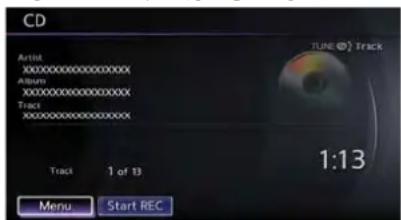
PushtheignitionswitchtotheACCorON positionandinserttheCompactDisc(CD)into theslotwiththelabelsidefacingup.TheCDwill beguidedautomaticallyintotheslotandstart playing.
3-14 Audiosystem
AfterloadingtheCD, thenumberoftrackson theCDandtheplaytimewillappearonthe display.
Iftheradioisalreadyoperating, itwillautomaticallyturnoffandtheCDwillplay.
If the system has been turned off while the CD was playing, pushing the ON·OFF button will start the CD.
Donotuse3.1in(8cm)discs.
PLAY:
When
When
Menu:
When[Menu]onthedisplayisselectedwhile theCDisbeingplayed,themenuscreenwillbe displayed.Thefollowingmenuoptionsare available.
- FolderList(forCDwithcompressedaudio files)
Displaysthefolderlist.
-TrackList
Displaysthetracklist.
-PlayMode
Selectaplaymodefromthefollowingitems.
—Normal
-1 FolderRepeat(forCDwithcompressedaudiofiles)
-1TrackRepeat
-1DiscRandom
—1 FolderRandom(forCDwithcompressedaudiofiles)
Next/PreviousTrackandFastForward/Rewind:
When < (fastforward) or < (rewind) is pushed from more than 1.5 seconds while the CDis being played, the CD will play while fast forwarding or rewinding. When the button is released, the CD will return on normal play speed.
When< →>or<>ispushedforlessthan
1.5secondswhiletheCDisbeingplayed,the nexttrackorthebeginningofthecurrenttrack ontheCDwillbeplayed.

REPEAT(RPT), RANDOM(RDM):
When
(CD)

(CDwithcompressedaudiofiles)


CDEJECT:
When the CDEJECT button is pushed with the CD loaded, the CD will bee ejected.
WhenthisbuttonispushedwhiletheCDis beingplayed,theCDwillbeejected.
If the CD comes out and is not removed, it will be pulled back into the slot to protect it.
DVD(DigitalVersatileDisc)PLAYER OPERATION
Precautions
StarttheenginewhenusingtheDVDentertainmentsystem.
Movieswillnotbeshownonthefrontdisplay whilethevehicleisinanydrivepositionto reducedriverdistraction.Audioisavailable whenamovieisplayed.Toviewmoviesinthe frontdisplay,stopthevehicleinasafelocation, movetheshiftlevertotheP(Park)positionand applytheparkingbrake.

WARNING
•The driver must not attempt to operate the DVD system or wear the headphones while the vehicle is in motion so that full attention may begivent vehicle operation.
- Donotattempttomodifythesystem todisplayamovieonthefront screenwhilethevehicleisbeing driven.Doingsomaydistractthe driverandmaycauseacollisionand seriouspersonalinjuryordeath.

CAUTION
- OnlyoperatetheDVDwhilethe vehicleengineisrunning.Operating theDVDforextendedperiodsof timewiththeengineOFFcandis- chargethevehiclebattery.
- Donotallowthesystemtogetwet. Excessivemoisturesuchasspilled liquidsmaycausethesystem to malfunction.
- WhileplayingVIDEO-CDmedia, this DVDplayerdoesnotguarantee completefunctionalityofallIVIDEO-CDformats.
Displaysettings
To adjust the front display mode, push
ToadjustthedisplayON/OFF,brightness,tint,colorandcontrast,select[DisplayAdjustment] andthenselecteachkey.
Thenyoucanadjusteachitemusingthecenter dial. Afterchangeshavebeenmadepush
PlayingaDVD
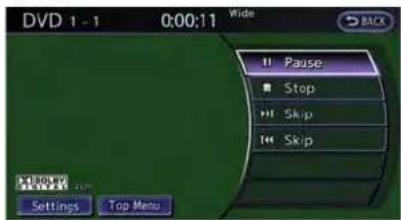
DISC-AUXbutton:
Parkthevehicleinasafelocationforthe frontseatoccupantstooperatetheDVD drivewhilewatchingtheimages.
Push
WhenaDVDisloaded, it will bere played automatically.
Theoperationscreen willbe turned on when
DVDoperationkeys:
WhentheDVDdisplayingwithouttheoperation screen being shown, you may use the touch screentoselectitemsfromthedisplayedvideo. Youmayalsousethecenterdialtoselectan
itemfromthedisplayedvideo.Whenthe operationscreenisbeingshown,usethecenter dialortouchscreentoselectanitemfromthe displayedmenus.

PAUSE:
Select[ ]topausetheDVD.Toresume playingtheDVD,use[PLAY].

PLAY:
Select[ ]tostartplayingtheDVD,for example,afterpausingtheDVD.

STOP:
Select[ ■ ]tostopplayingtheDVD.

Next
PreviousChapter:
Select[▶]or[]toskipthechapter(s)of thediscforward/backward.Thechapterswill advance/gobackthenumberoftimesthiskeyis selected.

/Com
mercialSkip:
ThisfunctionisonlyforDVD-VIDEO,DVD-VR. Select[ ]or[]toskipforwardor backwardsbythesetamountasdefinedinthe DVDSettingsmenu.
TopMenu:
When[TopMenu]isselectedinthescreen whileaDVDisbeingplayed,thetopmenu specifictoeachdiscwillbedisplayed.For details,seetheinstructionsonthedisc.
DVDsettings

Example
Select[Settings]toadjustthefollowingsettings.
Key(DVD-VIDEO):
KeysfortheDVDmenuoperation aredisplayed.

: Movethe cursortoselectaDVDmenu.
Enter: Entertheselectedmenu.
Move:Changethe display locationbymoving theoperation key.
Back: Return to the previous screen.

Hide: Hide theoperationkey.
TitleMenu (DVD-VIDEO):
Somemenusspecifictoeachdiscwillbe shown. For details, see the instructions on the disc.
TitleSearch(DVD-VIDEO, DVD-VR):
Thescenewiththespecifiedtitlewillbe displayed each time the [+] side or [-] side is selected.
GroupSearch(VIDEO CD):
A scene in the specified group will be displayed eachtime the[+]sideor[-]sideisselected.
10KeySearch(DVD-VIDEO,VIDEO-CD,CD-DA,DVD-VR):
Select[10KeySearch]toopenthenumber entryscreen.Input thenumberto besearched andselect[OK].ThespecifiedTitle/Chapteror Group/Trackwillbe played.
SelectNo. (VIDEO-CD):
Select[SelectNo.] to openthenumberentry screen. Input the number to be searched and select [OK]. The specified scene will be played.
Angle(DVD-VIDEO):
If the DVD contains different angles (such as moving images), the current image angle can be switched to another one. Select [Angle]. The angle will change each time the [+] side or [-] side is selected.
Audio system
AngleMark(DVD-VIDEO):
Whenthisitemisturnedon,ananglemarkwill beshownonthebottomofthescreenifthe scenecanbeseenfromadifferentangle.
MenuSkip(DVD-VIDEO):
DVDmenusareautomaticallyconfiguredand thecontentswillbeplayeddirectlywhen[Menu Skip]isturnedon. Notethatsomediscsmaynot beplayeddirectlyevenifthisitemisturnedon.
CMSkip(DVD-VIDEO):
Select[CMSkip].Choosethesettingtimefrom 15,30or60secondsbyselectingthe[+]side or[-]side.
Toadjusttheimagequalityofthescreen,select thepreferredadjustmentitems.
Audio:
Select the preferred language for audio.
Subtitle(DVD-VIDEO,DVD-VR):
Select the preferred language for subtitles.
DisplayMode(DVD-VIDEO,VIDEO-CD, DVD-VR):
Selectfromthe"Full","Wide","Normal"or"Cinema"modes.
TitleList(DVD-VR):
Selectthepreferredtitlefromthelist.
PlayMode:
Select the preferred playmode.
PG/PLMode(DVD-VR):
Selectthe"PG"or"PL"mode.
USBMEMORYOPERATION
Audiomainoperation

OpentheconsolelidandconnectaUSB memory as illustrated. Then, push
If the system has been turned off while the USB memory was playing, pushing the ON-OFF/VOL control knob will start the USB memory.

CAUTION
- Dependingonsizeandshapeof USBdevice,theconsolelidmaynot fullyclose.Donotforceconsolelid closedasthismaydamageUSB device.
- DonotforcetheUSBdeviceintothe USBport.InsertingtheUSBdevice tiltedorup-side-downintotheport maydamagetheUSBdeviceand theport.MakesurethattheUSB deviceisconnectedcorrectlyinto theUSBport.(SomeUSBdevices comewitha markasaguide. Makesurethatthemarkisfacing thecorrectdirectionbeforeinsertingthedevice.)
- DonotlocateobjectsneartheUSB device to prevent the objects from leaning on the USB device and the port. Pressure from the objects may damage the USB device and the port.
Fileselection

Whentherearebothaudioandmoviefilesinthe
USBmemory, themodeselectscreenis displayed. Select the preferred content stoplay.
Whenthereisonlyonetypeoffile, theaudioor movieoperationscreenisdisplayedandstarts toplay.
Ifavideofilerestrictsthenumberofplaybacks,a pop-upscreenwillappeartoconfirmitisokto play.Answeryesornoasrequestedbythe display.
Audiofileoperation
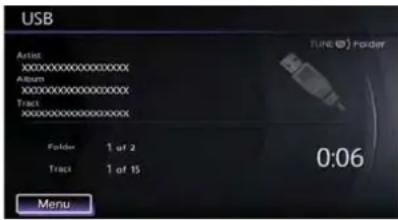
PLAY:
When
IfanotheraudiosourceisplayingandaUSB memoryisinserted, push
Next/PreviousFileandFastForward/Re-wind:
When<→(Rewind)or<→(FastForward)ispushedformorethan1.5seconds whileaUSBmemoryisbeingplayed,theUSB memorywillplaywhileforwardingorrewinding. Whenthebuttonisreleased,theUSBmemory willreturntonormalplayspeed.
When< →>or< ↔>ispushedforlessthan 1.5secondswhiletheUSBmemoryisbeing played,thenexttrackorthebeginningofthe currenttrackontheUSBmemorywillbeplayed.
Thecenterdialcanalsobeusedtoselecttracks whentheUSBmemoryisbeingplayed.
Folderselection:
TochangetoanotherfolderintheUSBmemory, turnthefolderselectororchooseafolder displayedonthescreenusingthecenterdial.
RDM RPT
REPEAT(RPT), RANDOM(RDM):
When
Tochangetheplaymode, push

Menu:
Therearesomeoptionsavailableduringplay-back.Selectoneofthefollowingoptionsthat aredisplayedonthescreenifnecessary.Refer tothefollowinginformationforeachitem.
- MoviePlayback
Switchtothemovie playbackmode. This item is displayed only when a USB memory contains movie files.
- FolderList/TrackList
Displaysthefolderortracklist.[Movie Playback]isalsodisplayedinthislistscreen, andenablesswitchingtothemovie playback mode.
-PlayMode
Select the preferred playmode.
Moviefileoperation

Parkthevehicleinasafelocationforthe frontseatoccupantstoooperatetheUSB memorywhilewatchingtheimages.
PLAY:
When
IfanotheraudiosourceisplayingandaUSB memoryisinserted, push
Operationkeys:
TooperatetheUSBmemory,selectthedesired keydisplayedontheoperationscreenusingthe centerdial.

Pause
Select[ ]topausethemoviefile.Toresume playingthemoviefile,select[ ▶ ].

Play
Select[ ▶ ]tostartplayingamoviefile,for example,afterpausingamoviefile.

STOP
Select[ ■ ]tostopplayingamoviefile.

Skip(Nextchapter)
Select[▶]toskipthechapter(s)ofthedisc forward.Thechapterswilladvancethenumber oftimes

Skip(Previouschapter)
Select[ ◀◀ ]toskipthechapter(s)ofthedisc backward.Thechapterswillgobackthenumber oftimes[ ◀◀ ]isselected.
List:
Select[List]onthemoviefileoperationscreen todisplaythefilelist.
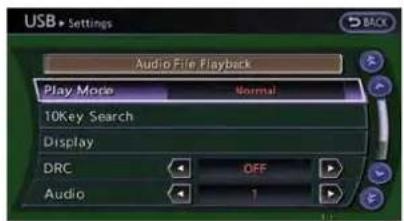
Example
Settings:
Select[Settings]toadjustthefollowingsettings.
•AudioFilePlayback
Switchtotheaudioplaybackmode. This itemisdisplayedonlywhentheUSB memorycontainstheaudiofiles.
-PlayMode
Selectthe"Normal"or"1TrackRepeat"play mode.
•10KeySearch
Select[10KeySearch]toopenthenumber entryscreen.
Inputthenumbertobesearchedandselect [OK].
Thespecifiedfolder/filewillbeplayed.
•Display
Toadjusttheimagequalityofthescreen, selectthepreferredadjustmentitems.
•DRC
DRC(DynamicRangeCompression) automatically adjuststhesoundtrackvolume leveltomaintainamoreevensoundtothe speakers.
•Audio
Select the preferred language for audio.
- Subtitle
Select the preferred language for subtitle.
-DisplayMode
Selectthe "Normal", "Wide", "Cinema" or "Full" mode.
BLUETOOTH® STREAMINGAUDIO
YourvehicleisequippedwithBluetooth StreamingAudio.Ifyouhaveacompatible Bluetooth® devicewithstreamingaudio(A2DP profile),youcansetupthewirelessconnection betweenyourBluetooth® deviceandthein-vehicleaudiosystem.Thisconnectionallows youtolistentothaeudiofromtheBluetooth® deviceusingyourvehiclespeakers.Italsomay allowbasiccontrolofthedeviceforplayingand skippingaudiofilesusingtheAVRCPBluetooth® profile.AllBluetooth® Devicesdonot havethesamelevelofcontrolsforAVRCP. PleaseconsultthemanualforyourBluetooth® Deviceformoredetails.
OnceyourBluetooth ® deviceisconnectedto their-vehicleaudiosystem, itwillautomatically reconnectwheneverthedeviceispresentinthe vehicleandyouselectBluetooth ® Audiofrom youraudiosystem. Youdonotneedtomanually reconnectforeachusage.
Regulatoryinformation
FCCRegulatoryinformation:
- CAUTION: Tomaintaincompliance with FCC's RFexposureguidelines, use only the supplied antenna. Unauthorized antenna, modification, or attachment scould damage the transmitter and may violate FCCregula-
Audiosystem3-21
tions.
●Operationissubjecttothefollowingtwo conditions:
1. This device may not cause interference and
2. This device must accept any interference, including interference that may cause undesired operation of the device
ICRegulatoryinformation:
●Operationissubjecttothefollowingtwo conditions:
1. This device may not cause interference, and
2. This device must accept any interference, including interference that may cause undesired operation of the device.
- ThisClassBdigitalapparatusmeetsall requirementsoftheCanadianInterference-CausingEquipmentRegulations.
Bluetoothtrademark:
Bluetooth®
Bluetooth ® isattrademarkowned byBluetoothSIG,Inc.
Connectingprocedure

1.Push

2.Select[ConnectBluetooth].
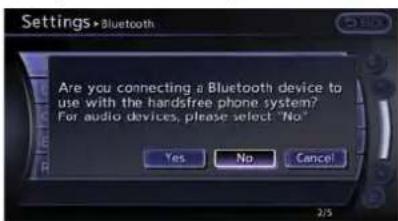
3.Aconfirmationscreenwillbedisplayed. Select[No].
Note: Selecting[Yes] will only connect the handsfreephone portion of a Bluetooth device.

4.ChooseaPINcodetousewiththe compatibleBluetooth® audiodeviceusing thenumberinputscreen.ThePINcodewill needtobeenteredintotheBluetooth® audiodeviceafterstep5.Select[OK].

3-22Audiosystem
- Thestandbymessagescreenwillappear. OperatethecompatibleBluetooth audio device. Pleaserefertothedevice'sowners manualfortheBluetooth audioconnection instructionsforyourspecificdevice. Whentheconnectioniscompleted, the screenwillreturntotheBluetooth setup display.
Audiomainoperation

PushtheignitionswitchtotheACCorON position.Then,push
Theabilitytopause,changetracks,fastforward,rewind,randomizeandrepeatmusicmaybe differentbetweendevices.Someorallofthese functionsmaynotbesupportedoneachdevice.
DISC-AUXbutton:
When
Next/PreviousTrackandFastForward/Rewind:
When<-->>or<>ispushedformorethan 1.5secondswhileaBluetooth® audiofileis beingplayed,theBluetooth® audiodevicewill playwhileforwardingorrewinding.Whenthe buttonisreleased,theBluetooth® audiodevice willreturntonormalplayspeed.
When< →>or< >iepushedforlessthan 1.5secondswhileaBluetooth audiofileis beingplayed,thenexttrackorthebeginningof thecurrenttrackontheBluetooth audiodevice willbeplayed.Thecenterdialcanalsobeused toselecttrackwhentheBluetooth audioplay modescreenisshownonthedisplay.(“Bluetooth audio”willbeindicatedontheheaderof thescreen.)
RDM RPT REPEAT(RPT), RANDOM(RDM):
Tochangetheplaymode, push
Normal→ShuffleAllTracks→ShuffleGroup →Repeat1Track→RepeatAllTracks→ RepeatGroup→Normal
Operationkeys:
TooperateaBluetooth ® audiodevice,selecta keydisplayedontheoperationscreenusingthe centerdial.
Play
Select[ ▶ ]tostartplayingwhenpausing. Selectthiskeyagaintopausetheaudioplay.
II Pause
Select[ ■ ]topausetheBluetooth audio device.Selectthiskeyagaintoresumeplaying.
PlayMode:
Theplaymodesettingdisplaywillappearwhen [Menu]isselected.
Choosethepreferredplaymodefromthe followingitems.
•Shuffle
Choose "ShuffleOFF", "ShuffleAllTracks" and "ShuffleGroup".
- Repeat
Choose from "RepeatOFF", "Repeat1 Track", "RepeatAllTracks" and "Repeat Group".
Bluetooth® settings

TosetuptheBluetooth ® devicesystemtothe preferredsettings, push
Bluetooth:
If this setting is turned off, the connection between the Bluetooth devices and their vehicle Bluetooth module will be canceled.
ConnectBluetooth:
ConnectstotheBluetooth device.Upto5 devicescanberegistered.
"Connectingprocedure"(page3-22)
ConnectedDevices:
Registereddevicesareshownonthelist.Select aBluetooth® devicefromthelist, the following optionswillbeavailable.
Select
Select[Select]toconnecttheselected devicetothevehicle.Ifthereisadifferent devicecurrentlyconnected,theselected devicewillreplacethecurrentdevice.
•Edit
RenametheselectedBluetooth ® device usingthekeypaddisplayedonthescreen.
"Howtoinputlettersandnumbers" (page1-16)
Delete
DeletetheselectedBluetooth ® device.
EditBluetoothInfo:
Changethenamebroadcastedbythissystem overBluetooth ® . ChangethePINcodethatis enteredwhenconnectingahandsfreedeviceto thissystem.
ReplaceConnectedPhone:
Replace the Bluetooth connection with a connected Bluetooth cellular phone.
4Bluetooth® Hands-FreePhoneSystem"
OpentheconsolelidandconnecttheiPod cabletotheUSBconnector.lftheiPod supportschargingviaUSB,thebatteryofthe iPod® willbechargedwhileconnectedtothe vehicle.
DependingontheversionoftheiPod ® , the displayontheiPod ® showsaNISSANor AccessoryAttachedscreenwhentheconnectioniscompleted.WhentheiPod ® isconnected tothevehicle,theiPod ® musiclibrarycanonly
beoperatedbythevehicleaudiocontrols.
* i P o ® disatrademarkofAppleInc., registered in the U.S. and other countries.

CAUTION
- Depending on size and shape of iPod ® and iPod ® cable, the console lid may not fully close. Donot force console lid closed as this may damage iPod ® and iPod ® cable.
- DonotforcetheiPod cableinto theUSBport.InsertingtheiPod cabletiltedorup-side-downinto the portmaydamagetheiPod cable andtheport.Makesurethatthe iPod cableisconnectedcorrectly intotheUSBport.(SomeiPod cablecomewithamarksa guide.Makesurethatthemarkis facingthecorrectdirectionbefore insertingtheiPod cable.)
- DonotlocateobjectsneartheiPod cabletopreventtheobjectsfrom leaningontheiPod cableandthe port.Pressurefromtheobjectsmay damagetheiPod cableandthe port.
Compatibility
The following models are available:
●FifthgenerationiPod (version1.2.3or later)
- iPodClassic ® (version1.1.1 or later)
- FirstgenerationiPodtouch orlater) ® (version2.0.0
- SecondgenerationiPodtouch (version 1.2.3orlater)
- FirstgenerationiPodnano (version1.3.1or later)
- SecondgenerationiPodnano (version 1.1.3orlater)
- ThirdgenerationiPodnano (version1.1 or later)
- Fourthgeneration iPodnano or later) ® (version1.0.2
Makesurethat theiPod ® versionisupdated.
Audiomainoperation
PushtheignitionswitchtotheACCorON position.Then,push
If the system has been turned off while the Pod was playing, pushing the ON-OFF button will start the Pod.
PLAY:
When
Interface:
TheinterfaceforiPod operationshownonthe vehiclecenterdisplayissimilartotheiPod interface. Use the center dial and
The following items can be chosen from the menulistscreen. For further information about each item, see the iPod ® Owner's Manual.
●Now Playing
-Playlists
•Artists
•Albums
•Songs
- Podcasts
-Genres
•Composers
• Audiobooks
- ShuffleSongs
The followingtouch-panelbuttonsshownonthe screenarealsoavailable:
- MENU :returnstothepreviousscreen.
• ▶:plays/pausesthemusicselected.
Next/PreviousTrackandFastForward/Rewind:
When< -->>or<>ispushedformorethan 1.5secondswhiletheiPod ® isplaying,the iPod® willplaywhilefastforwardingorrewinding.Whenthebuttonisreleased,theiPod ® will returntothenormalplayspeed.
When<-->or<>iepushedforlessthan 1.5secondswhiletheiPod®isplaying,thenext trackorthebeginningofthecurrenttrackonthe iPod®willbeplayed.
Thecenterdialcanalsobeusedtoselecttracks whentheiPod ® isplaying.

REPEAT(RPT), RANDOM(RDM):
When
![graph TD A["Shuffle Off Repeat Off"] --> B["Shuffle Off Repeat One"] B --> C["Shuffle Off Repeat All"] C --> D["Shuffle Songs Repeat Off"] D --> E["Shuffle Songs Repeat All"] E --> F["Shuffle Albums Repeat All"] F --> G["Shuffle Albums Repeat Off"] G --> A](/content/2026/06/1276278/images/b9a59cd646ab9359f0fb25c6247ba5aaccf172b9e2d8bb7143687e6a59361d18.jpg)
CD/DVD/USBMEMORYCAREAND CLEANING
CD/DVD

-
HandleaCD/DVDbyitsedges.Nevertouch thesurfaceofthedisc.Donotbendthe disc.
●Alwaysplacethediscsinthestoragecase whentheyarenotbeingused. -
Tocleanadisc, wipethesurface from the centertotheouteredge using a clean, soft cloth. Donotwipethediscusing a circular motion. Donotuseaconventional recordcleaner or alcohol intended for industrial use.
- Anewdiscmayberoughontheinnerand outeredges.Removetheroughedgesby rubbingtheinnerandouteredgeswiththe sideofapenorpencilasillustrated.
USBmemory
- NevertouchtheterminalportionoftheUSB memory.
- DonotplaceheavyobjectsontheUSB memory.
- DonotstoretheUSBmemoryinhighly humidlocations.
- DonotexposetheUSBmemorytodirect sunlight.
- DonotspillanyliquidsontheUSBmemory. RefertotheUSBmemoryOwner'sManualfor thedetails.
CARPHONEorCBRADIO
WheninstallingacarphoneoraCBradioin yourvehicle,besuretoobservethefollowing cautions,otherwisethenewequipmentmay adverselyaffecttheelectroniccontrolmodules andelectroniccontrolsystemharness.

WARNING
- Acellularphoneshouldnotbeused foranypurposewhiledrivingsofull attentionmaybegiventovehicle operation.Somejurisdictionsprohibittheuseofcellularphoneswhile driving.
- If you must make a call while your vehicle is in motion, the hands-free cellular phone operational mode (if so equipped) is highly recommended. Exercise extremecution at all times of full attention maybe giventovehicle operation.
- If you are unable to devote full attention to vehicle operation while talking on the phone, pulloff the road to as a location and stop your vehicle.

CAUTION
- Keeptheantennaasfarawayas possiblefromtheelectroniccontrol modules.
- Keeptheantennawiremorethan8 in(20cm)awayfromtheelectronic controlsystemharness.Donot routetheantennawirenexttoany harness.
- Adjusttheantennastanding-wave ratioasrecommendedbytheman- ufacturer.
- Connectthegroundwirefromthe CBradiochassistothebody.
•Fordetails, consult your NISSAN dealer or GT-Rcertified NISSAN dealer.
MEMO
3-28 Audiosystem
4Bluetooth ® Hands-FreePhoneSystem
Bluetooth® Hands-FreePhoneSystem....4-2
Regulatoryinformation....4-3
Voicecommands....4-3
Connectingprocedure....4-4
Phoneselection....4-4
QuickDial....4-4
Makingacall....4-6
Receivingacall....4-6
Duringacall....4-7
Phonesetting....4-7
BLUETOOTH® HANDS-FREEPHONE SYSTEM

WARNING
- Useaphoneafterstoppingyour vehicleinasafelocation.Ifyou havetouseaphonewhiledriving, exerciseextremecautionatall timessofullattentionmaybegiven tovehicleoperation.
- If you are unable to devote full attention to vehicle operation while talking on the phone, pulloff the road to as a location and stop your vehicle.

CAUTION
To avoid draining the vehicle battery, use a phone after starting the engine.
YourvehicleisequippedwithBluetooth Hands-FreePhoneSystem.Ifyouareanowner ofacompatibleBluetooth enabledcellular phone,youcansetupthewirelessconnection betweenyourcellularphoneandthein-vehicle phonemodule.WithBluetooth wirelesstechnology,youcanmakeorreceiveatelephonecall withyourcellularphoneinyourpocket.
Onceacellularphoneisconnectedtothein-vehiclephonemodule,nophoneconnecting procedureisrequired anymore.Your phoneis automaticallyconnectedwiththein-vehicle phonemodulewhentheignitionswitchis pushedtotheONpositionwiththeregistered cellularphoneturnedonandcarriedinthe vehicle.
You can register up to 5 different Bluetooth® cellularphonesinthein-vehiclephonemodule. However, you cantalkononlyonecellularphone atatime.
TheNISSANVoiceRecognitionsystemsupportsthephonecommands,sodialingaphone numberusingyourvoiceispossible.
"8.Voicerecognition"
BeforeusingtheBluetooth ® Hands-FreePhone System, refertothefollowingnotes.
- Setupthewirelessconnectionbetweena compatiblecellularphoneandthein-vehicle phonemodulebeforeusingtheBluetooth Hands-FreePhoneSystem.
- Some Bluetooth enabled cellular phones may not be recognized by their vehicle phonemodule. Please visit www.nissanusa.com/bluetoothforarecommendedphonelist.
- You will not be able to use a hands-free phoneunderthefollowingconditions:
— Yourvehicleisoutsideofthetelephone servicearea.
— Yourvehicleisinanareawhereitis difficulttoreceiveradiowaves;suchasin atunnel,inanundergroundparking garage,behindatallbuildingorina mountainousarea.
— Yourcellularphoneislockedinordernot tobedialed.
- Whentheradiowaveconditionisnotideal orambientsoundistooloud, itmaybe difficulttoheartheotherperson'svoice duringacall.
- Immediately after the ignition switch is pushed to the ON position, it maybe impossible to receive a call for a short period of time.
- Donotplacethecellularphoneinanarea surroundedbymetalorfarawayfromthein-vehiclephonemoduletopreventtonequality degradationandwirelessconnectiondisruption.
●Whileacellularphoneisconnectedthrough theBluetooth ® wirelessconnection,the batterypowerofthecellularphonemay dischargequickerthanusual.
- IftheBluetooth ® Hands-FreePhoneSystem seemstobemalfunctioning,pleasevisit www.nissanusa.com/bluetoothfortrouble-shootinghelp.
- Somecellularphonesorotherdevicesmay causeinterferenceorabuzzingnoiseto comefromtheaudiosystemspeakers. Storingthedeviceinadifferentlocation mayreduceoreliminatethenoise.
- RefertothecellularphoneOwner'sManual regardingthetelephonepairingprocedure specifictoyourphone,batterycharging, cellularphoneantenna,etc.
●Theantennadisplayonthemonitorwillnot coincidewiththeantennadisplayofsome cellularphones. - Keeptheinteriorofthevehicleasquietas possibletohearthecaller'svoiceclearlyas wellastominimizeitsechoes.
- Ifreceptionbetweencallersisunclear, adjustingtheincomingoroutgoingcall volumemayimprovetheclarity.
REGULATORYINFORMATION
FCCRegulatoryinformation
- CAUTION: Tomaintaincompliance with FCC's RFexposureguidelines, use only the supplied antenna. Unauthorized antenna, modification, or attachment could damage the transmitter and may violate FCC regulations.
-
Operationissubjecttothefollowingtwo conditions:
-
this device may not cause interference and
-
this device must accept any interference, including interference that may cause undesired operation of the device
ICRegulatoryinformation
- Operationissubjecttothefollowingtwo conditions:(1)thisdevicemaynotcause interference,and(2)thisdevicemustaccept anyinterference,includinginterferencethat maycauseundesiredoperationofthe device.
- ThisClassBdigitalapparatusmeetsall requirementsoftheCanadianInterference-CausingEquipmentRegulations.
Bluetoothtrademark:
Bluetooth
Bluetooth ® isattrademarkowned byBluetoothSIG,Inc.,
VOICECOMMANDS
Youcanusevoicecommandstooperatevarious Bluetooth® Hands-FreePhoneSystemfeatures usingtheNISSANVoiceRecognitionsystem.
8.Voicerecognition"
CONTROLBUTTONS
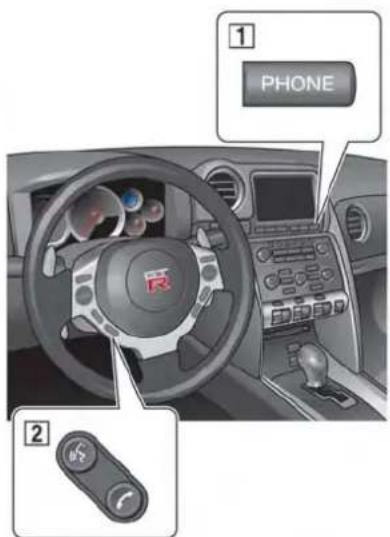

PHONEbutton button
CONNECTINGPROCEDURE

1.Push
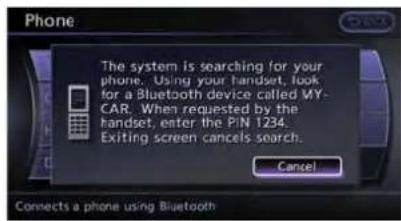
- WhenaPINcodeappearsonthescreen, operatethecompatibleBluetooth cellular phonetoenterthePINcode.
Theconnectingprocedureofthecellular phonevariesaccordingtoeachcellular phone.SeethecellularphoneOwner's Manualforthedetails.Youcanalsovisit www.nissanusa.com/bluetoothorcall
NISSANConsumerAffairsDepartmentfor instructionsonpairingNISSANrecommendedcellularphones.
When the connection process is completed, the screen will return to the Phonemeu display.
PHONESELECTION
Upto5cellularphonescanberegisteredtothe system.Toswitchtoconnectanothercellular phone,push
QUICKDIAL
Thisvehiclehastwophonebooksavailablefor hands-freeuse.Dependingonthephone,the systemmayautomaticallydownloadtheentire cellphone'sphonebookintothe"Phonebook".
"Phonesetting"(page4-7)
Ifaphonebookdoesnotautomaticallydown- load, the quick dial may be set for up to 1,000 entries. This phonebookallowstherecordingof aname tospeakwhileusingvoicerecognition.

1.Push
2. Select[AddNew]atthetopofthescreen.
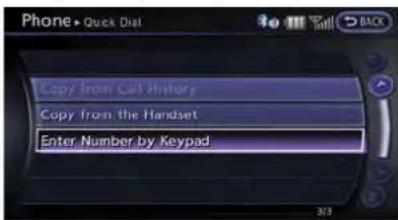
- Choosethemethodforenteringthephone-bookentry.Forthisexample,select[Enter NumberbyKeypad].
4.Enterthedigitsandselect[OK]. "Howtoinputlettersandnumbers" (page1-16)

- Select[Voicetag]torecordanametospeak when using NISSANVoice Recognition system.
- Select[Store] and preparetospeak the nameafterthetone.
- Whenthevoicetagissuccessfullysaved, select[OK]tosavethephonebookentry.
- After the phone book entry is saved, it will show as clean that is ready to call the number. Press
to return to the quick dial.
Therearedifferentmethodstoinputaphone number.Selectoneofthefollowingoptions insteadof[EnterNumberbyKeypad]instep3.
•[CopyfromCallHistory]:
Thesystemwillshowalistofincoming, outgoingormissedcallsthatweredown-loadedfromtheconnectedcellularphone (dependingonthephone'scompatibility). Selectoneoftheseentriestosaveinthe
quickdial.
•[CopyfromtheHandset]:
Thesystemwillshowtheconnectedcellular phone'sphonebookthatwasdownloaded (dependingonthephone'scompatibility). Selectoneoftheseentriestosaveinthe quickdial.
EditingtheQuickDial
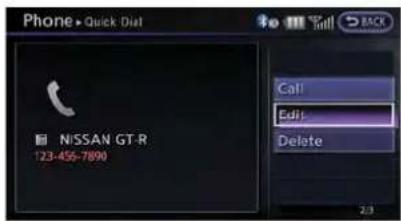
1.Push
2. Select the desired entry from the displayed list.
3.Select[Edit].
4. Select the desired item to change.
Bluetooth® Hands-FreePhoneSystem4-5
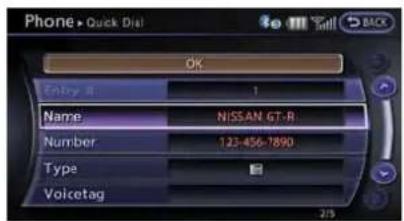
The followingeditingitemsareavailable:
•[Entry#]:
Changesthedisplayednumberofthe selectedentry.
•[Name]:
Editthenameoftheentryusingthekeypad displayedonthescreen.
•[Number]:
Editthephonenumberusingthekeypad displayedonthescreen.
•[Type]:
Selectaniconfromtheiconlist.
•[Voicetag]:
Confirmandstorethevoicetag.Voicetags alloweasydialingusingtheNISSANVoice Recognitionsystem.
"8.Voicerecognition"
Todeleteanentry,select[Delete]atstep3.
MAKINGACALL

Tomakeacall, follow this procedure.
1.Push
2. Select[Phonebook] on the "PHONE" menu.
3. Select the desired entry from the list.
4. Confirm the correct entry by selecting for the correct number from the list.

- Select[Call]tostartdialingthenumber.
Therearedifferentmethodstomakeacall. Selectoneofthefollowingoptionsinsteadof [Phonebook]instep2above.
•[QuickDial]:
Selectanentrystoredinthequickdial.
•[CallHistory]:
Selectanoutgoing, incomingormissedcall downloadedfromyourcellphone(dependingonyourphone'scompatibility).
•[DialNumber]:
Input the phonenumbermanually using the keypaddisplayedonthescreen.
"Howtoinputlettersandnumbers" (page1-16)
RECEIVINGACALL

When you hearaphonering, the display will changeto the incoming call mode. Toreceive a call, perform one of the following procedures
listedbelow.
- Select[Answer].
2.Push
3.Push< >onthesteeringwheel.
Therearesomeoptionsavailablewhenreceiving acall.Selectoneofthefollowingdisplayedon thescreen.
•[Answer]:
Acceptanincomingcalltotalk.
•[HoldCall]:
Putanincomingcallonhold.
•[RejectCall]:
Rejectanincomingcall.
Tofinishthecall, performoneofthe followingprocedureslistedbelow.
- Select[Hangup].
2.Push
3.Push< >onthesteeringwheel.
DURINGACALL

Therearesomeoptionsavailableduringacall. Selectoneofthefollowingdisplayedonthe screenifnecessary.
•[Hangup]:
Finishthecall.
•[UseHandset]:
Transferthecalltothecellularphone.
•[Mute]:
Muteyourvoicetotheperson.
•[Keypad]:
Usingthetouchtone, senddigitstothe connectedpartyforusingservicessuchas voicemail.
•[CancelMute]:
Thiswillappearafter[Mute]isselected. Mutewillbecanceled.
Toadjusttheperson'svoicetobelouderor quieter,pushthevolumecontrolswitch(+or-)
onthesteeringwheelorturnthevolumecontrol knobontheinstrumentpanelwhiletalkingon thephone. This adjustment is also available in the SETTINGmode.
PHONESETTING

TosetuptheBluetooth Hands-FreePhone Systemtoyourpreferredsettings, push
EditQuickDial
Quickdialregistrationandediting/deletingthe registeredquickdialcanbeperformed.
DeleteQuickDial
The quickdialentriescan bedeleted all at the same time or one by one.
DownloadPhonebook
DownloadthecontactsregisteredinaBluetooth® cellularphone.Availabilityofthisfunction dependsoneachcellularphone.Thememory downloadingprocedurefromthecellularphone alsovariesaccordingtoeachcellularphone. SeecellularphoneOwner'sManualfordetails.
Volume&Ringtone
The following kind of phone volume can be set. Pushing
•[Ringtone]/[IncomingCall]/[Outgoing Call]:
To increase or decrease the volume, select [Ringtone], [IncomingCall] or [Outgoing Call] and adjust it with the centerdial.
•[AutomaticHold]:
Whenthisfunctionisactivated,anincoming phonecallisautomaticallyheld.
•[VehicleRingtone]:
Whenthisfunctionisactivated,aspecific ringtonethatisdifferentfromthecellular phonewillsoundwhenreceivingacall.
AutoDownload
Whenthisitemisactivatedandsupportedbya compatiblephone, thephonebookofthehands-freephoneisautomaticallydownloadedatthe sametimethatthehands-freephoneisconnected.
MEMO
Bluetooth® Hands-FreePhoneSystem4-9
MEMO
4-10Bluetooth ® Hands-FreePhoneSystem
5Heaterandairconditioner
Operation precautions....5-2
Howtoviewscreen....5-2
Automaticoperation....5-2
Cooling and/or dehumidified heating (AUTO)....5-2
Heating(A/COFF)....5-3
Dehumidifieddefrostingordefogging....5-4
Manualoperation....5-4
Fanspeedcontrol....5-4
Airrecirculation....5-4
Outsideaircirculation....5-5
Automaticairintakecontrol....5-5
Airflowcontrol....5-5
ToturnthesystemOFF....5-5
Ventilators....5-6
Operatingtips....5-6
In-cabinmicrofilter....5-6
Servicingairconditioner....5-7
OPERATIONPRECAUTIONS

WARNING
•Theairconditionercoolingfunction operatesonlywhentheengineis running.
- Donotleavechildrenoradultswho wouldnormallyrequirethesupport ofothersaloneinyourvehicle.Pets shouldnotbeleftaloneeither.On hot,sunnydays,temperaturesina closedvehiclecouldquicklybecome highenoughtocausesevereor possiblyfatalinjuriestopeopleor animals.
- Donotusetherecirculationmode forlongperiodsasitmaycausethe interiorairtobecomestaleandthe windowstofogup.
Starttheengineandoperatetheheaterandair conditionersystem.
Youcanindividuallysetthedriverandfront passengersidetemperatureusingeachtemperaturecontrolbutton.
HOWTOVIEWSCREEN
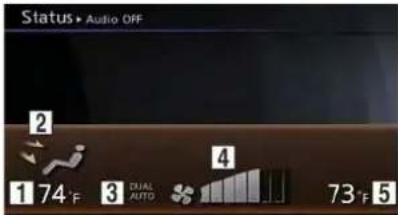
Push
1 Displaysthetemperaturesettingforthedriver side.
2 Displaystheventilatormode.
3 Displaysthattheairconditionerissettothe AUTOmodewhentheDUALmodeisturnedto ON.
4 Displaysthefanspeedsetting.
5 Displaysthetemperaturesettingforthepassengerside.
AUTOMATICOPERATION
COOLINGAND/ORDEHUMIDIFIED HEATING(AUTO)
Thismodemaybeusedallyearround. The systemworksautomaticallytocontroltheinside temperature, airflowdistributionandfanspeed after the preferred temperatureissetmanually.

1.Push

- Operatethedriversidetemperaturecontrol dialtosetthedesiredtemperature.
Adjust the temperature to about 75° F ( 24° C) for normal operation.
- Thetemperatureofthepassengercompartmentwillbemaintainedautomatically.Airflowdistributionandfanspeed willalsobecontrolledautomatically.

- You can individually set driver and front passengersidetemperature using each temperature controldial. When
the passengersidetemperature controldialis operated, the DUAL indicator will come on. Toturnoff the passengerside temperature control, push .
Avisiblemistmaybeseencomingfromthe ventilatorsinhot,humidconditionsastheairis cooledrapidly.Thisdoesnotindicateamal-function.
HEATING(A/COFF)
Theairconditionerdoesnotactivateinthis mode.Whenyouneedtoheatonly,usethis mode.

1.Push.TheA/Cindicatorwillturnoff.

- Operatethetemperaturecontroldialtoset thedesiredtemperature.
- Thetemperatureofthepassengercompartmentwillbemaintainedautomatically.Air flowdistributionandfanspeedarealso controlledautomatically.
Heaterandairconditioner5-3
- Donotsetthetemperaturelowerthanthe outsideairtemperature. Otherwisethe systemmaynotworkproperly.
- Notrecommendedifwindowsfogup.
DEHUMIDIFIEDDEFROSTINGor DEFOGGING

- Pushthefrontdefrosterbutton<>The indicatorlightonthebuttonwillcomeon.
- Operatethetemperaturecontroldialtoset thedesiredtemperature.
- To quickly remove ice from the outside of the windows, turn the fans speed controldial < * > and set it to them a maximum m position.
- As soon as possible after the windshield is clean, push
to return to the automode.
5-4Heaterandairconditioner
- When the front defroster button < > is pushed, the air conditioner will automatically be turned on at outside temperature above 23°F (-5°C) to defog the windshield, and the air recirculatemodewill automatically be turned off.
Outside air is drawn into the passenger compartment to improvethedefogging performance.
MANUALOPERATION
FANSPEEDCONTROL

Turn the fan speed control dial < * > to manuallycontrolthefanspeed.
Push
AIRRECIRCULATION

Pushtheintakeaircontrolbutton<>to recirculateinteriorairinsidethevehicle.The indicatorlight" "willcomeon.
Theairrecirculationmodecannotbeactivated when the air conditioner is in the front defrosting mode".
OUTSIDE AIRCIRCULATION
Pushtheoutsideaircirculationbutton<>to changetheaircirculationfromtheintakeairto theoutsideair.Theindicatorlight" "will comeon.
AUTOMATICAIRINTAKECONTROL
IntheAUTOmode,theintakeairwillbe controlledautomatically.Tomanuallycontrol theintakeair.pushtheintakeaircontrolbutton
<>.Toreturntotheautomaticcontrolmode, pushtheintakeaircontrolbutton< >for about2seconds.Theindicatorlightswillflash twice,andthentheintakeairwillbecontrolled automatically.
AIRFLOWCONTROL

Pushing
→:Airflowsfromcenterandsideventilators.
:Airflowsfromcenterandsideventilators andfootoutlets.
Airflowsmainlyfromfootoutlets.
Airflowsfromdefrosterandfootoutlets.
TOTURNTHESYSTEMOFF

Push
VENTILATORSOPERATINGTIPSIN-CABINMICROFILTER
A

B

©


B
Thedirectionoftheairflowcanbeadjustedby
Ⓐ opening, Ⓑ closingor Ⓐ adjusting.
Thesensors ① and ② ontheinstrument panelhelpmaintainaconstanttemperature.Do notputanythingonoraroundthesesensors.
Theairconditioningsystemisequippedwithan in-cabinmicrofilterwhichcollectsdirt,pollen, dust,etc.Tomakesuretheairconditionerheats, defogs,andventilatesefficiently,replace the filterinaccordancewiththemaintenance scheduleintheNISSANServiceandMaintenanceGuide.Toreplacethefilter,contacta NISSANdealerorGT-RcertifiedNISSAN dealer.
Thefiltershouldbereplacedifairflowis extremelydecreasedorwhenwindowsfog upeasilywhenoperatingheaterorair conditioningsystem.
5-6Heaterandairconditioner
SERVICINGAIRCONDITIONER
The airconditioningsysteminyourNISSANis chargedwitharefrigerantdesignedwiththe environmentinmind. Thisrefrigerantwillnot harmtheearth'sozonelayer. However, specialchargingequipmentandlubricantare requiredwhenservicingyourNISSANairconditioner. Usingimproperrefrigerantsorlubricantswillcauseseveredamagetoyourair conditioningsystem. RefertothevehicleOwner'sManual.
YourNISSANdealerorGT-RcertifiedNISSAN dealerwillbeabletoserviceyourenvironmentallyfriendlyairconditioningsystem.

WARNING
Thesystemcontainsrefrigerantunder highpressure.Toavoidpersonalinjury, anyairconditionerservicesshouldbe doneonlybyanexperiencedtechnician withtheproperequipment.
MEMO
5-8Heaterandairconditioner
6Viewingtechnicalinformation
Statusscreen....6-2
Informationscreen....6-2
Basicoperation....6-2
Viewinginformationaboutcurrentvehiclelocation......6-3
Basicoperation....6-3
Vehicleinformationdisplay....6-4
Fueleconomyinformation....6-4
Tirepressureinformation....6-4
Maintenanceinformation......6-6
Viewingavailabletrafficinformation....6-7
Basicoperation....6-8
Infoonroute....6-8
Nearbytrafficinfo....6-9
Displayurgenttrafficinformation....6-9
Trafficinformationonmap....6-10
Trafficinformationsettings....6-11
Viewingavailableweatherinformation....6-12
Displayingweatherinformationscreen....6-13
Destinationweatheronsuggestedroutescreen...6-19
Automaticallydisplaywarnings/watches....6-20
Mapupdate....6-21
Viewingnavigationsystemversioninformation......6-22
Basicoperation....6-22
ViewingGPScurrentlocationinformation......6-22
Basicoperation....6-22
STATUSSCREENINFORMATIONSCREEN
Bypushing
Eachtime

INFO:
Therearedifferentstatusscreensdisplayed dependingonvariousfactors,suchasthe currentlyactivemode,whetheradestination hasbeensetornot,etc.
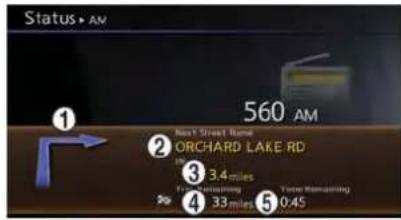
Whenaroutetothedestinationissetandthe audiosystemison,ascreensimilartotheone aboveappears.
① Turningdirectionatthenextintersection
② Nameofthenextstreet
③ Distancetothenextintersection
④ Distanceremainingtothedestination

Remainingtimetothedestination
Whenaroutetothedestinationisnotsetand theaudiosystemisoff,ascreensimilartothe oneaboveappears.
This screensetsordisplaysvariousinformation that is helpful for using the vehicles safely and comfortably.
Availableitemsincludethevehicleinformation, TrafficInfo.setup,currentlocationinformation, GPSinformation, Voicerecognitionlistandmap version.

INFO:
AnNavTrafficsubscriptionisnecessarytoview TrafficInfo.
BASICOPERATION

1.Push
2. Highlight the preferred item and push
6-2Viewingtechnicalinformation
Availableitems
•[FuelEconomy]:
Displaysthefueleconomyinformation.
"Fueleconomyinformation"(page6-4)
•[TirePressure]:
Displaysthetirepressureinformation.
"Tirepressureinformation"(page6-4)
•[Maintenance]:
Displaysthevehiclemaintenanceinformation.
"Maintenanceinformation"(page6-6)
•[Whereaml?]:
Displaysinformationregardingthecurrent vehiclelocation.
"Viewinginformationaboutcurrent vehiclelocation"(page6-3)
•[TrafficInfo]:
AllowsTrafficInfo.setup.
"Viewingavailabletrafficinformation" (page6-7)
•[WeatherInfo]:
Displaysweatherinformation.
"Viewingavailableweatherinformation"(page6-12)
•[Others]:
—[MapUpdate]:
Displaythemapversionandenable updatingofthemapdata.
"Mapupdate"(page6-21)
—[NavigationVersion]:
Displaysthecurrentnavigationsystem version.
17 "Viewingnavigationsystemversion information" (page6-22)
—[GPSPosition]:
DisplaysGPSinformationregardingthe currentvehiclelocation.
"ViewingGPScurrentlocationinformation"(page6-22)
—[VoiceRecognition]:
Displaysthevoicerecognitionlist.
"8.Voicerecognition"
VIEWINGINFORMATIONABOUT CURRENTVEHICLELOCATION
This display the information about the vehicle location on therout when driving according to route guidance.
BASICOPERATION

1.Push
- Highlight [Where aml?] and push
.
3.Push
Contentsofvehiclelocationinformation
① NextStreet:
Displaysthenextstreetontheroute.
② CurrentStreet:
Displaysthecurrentstreetontheroute.
③ PreviousStreet:
Displaysthepreviousstreetontheroute.
④ Displaysthedistancetothenextintersectionon theroute.
⑤ Displaysthedistancetraveledfromtheprevious intersectionontheroute.

Settingbyvoicecommand
1.Push< >locatedonthesteeringwheel.
2. Afterthetonesounds, speakacommand.
Todisplaytheinformationaboutthevehicle location:
"Information""Whereaml?"(StandardMode)
"Whereaml?"(AlternateCommandMode)
VEHICLEINFORMATIONDISPLAY
FUELECONOMYINFORMATION
Thedistancetoempty,averagefueleconomy andcurrentfueleconomy(shownontheright sidebar)willbedisplayedforreference.

ToresettheAverageFuelEconomy, highlight [ResetFuelEco] and push
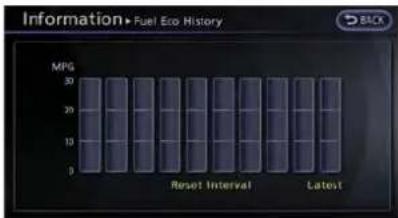
If[FuelEcoHistory]ishighlighted and
The unit can be converted between "US" and "Metric".
Unitsettings" (page7-9)

Settingbyvoicecommand
- Push< >locatedonthesteeringwheel.
- Afterthetonesounds, speakacommand.
Todisplaythefueleconomyinformation: "Information""FuelEconomy"(StandardMode) "FuelEconomy"(AlternateCommandMode)
TIREPRESSUREINFORMATION
Thetirepressurewillbedisplayedforreference.

Thepressureindication***psi"onthescreen meansthatthetirepressureisbeingmeasured. Afterafewdrivingtrips,thepressureforeach tirewillbedisplayed.
Incaseoflowtirepressure,LOWPRESSURE informationwillbedisplayedonthescreen.
Checkthepressureforalltires.
Tirepressurerisesandfallsdependingonthe heatcausedbythevehicle'stravelingcondition andthetemperature.
Tochangethemeasurementunits, highlight [SelectUnits] and press
Unitsettings(TirePressure)("page7-10)

WARNING
- Whenawheelisreplaced, tire pressurewillnotbeindicated, the TPMSwillnotfunctionandthelow tirepressurewarninglightwillflash forapproximately1 minute. The lightwillremainonafter1minute. ContactyourNISSANdealerorGT-R certifiedNISSANdealerassoonas possiblefortirereplacementand/or systemresetting.
- ReplacingtireswiththosenotoriallyspecifiedbyNISSANcould affecttheproperoperationofthe TPMS.
Tirepressure
Whenthesystemdetectslowtirepressure, the followingmessageisdisplayed.
●Lowpressure
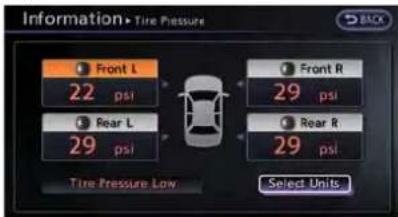
Thelow-pressuretireisdisplayedinorange,and awarningmessageappears.
- Flattire
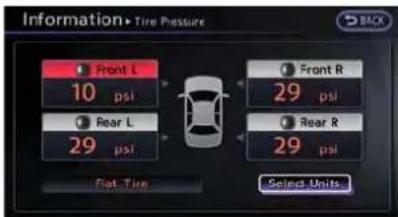
If the system detects acupuncture, the punctured tire is displayed in red, and a warning message appears.
- TPMSmalfunction
![graph TD A["Front L\n** psi"] --> C["Car"] B["Rear L\n** psi"] --> C D["Front R\n** psi"] --> C E["Rear R\n** psi"] --> C F["Select Units"] --> C](/content/2026/06/1276278/images/d689cdca5d9486b74f819d7755d98d01ada2d2e1aeb78a56e3cb5fa407e701dc.jpg)
IfthereisaTPMSmalfunction, the tire pressures arenotdisplayed. Thesystemdisplays 1** instead of apressurevalue.

INFO:
If the tire pressure is slow, a warning message will also be displayed in Vehicle Information display.

Settingbyvoicecommand
1.Push< we >locatedonthesteeringwheel.
- Afterthetonesounds, speakacommand.
Todisplaythetirepressureinformation:
"TirePressure"(AlternateCommandMode)
MAINTENANCEINFORMATION
Themaintenanceintervalscanbedisplayedfor yourdesiredmaintenanceitems.

Tosetthemaintenanceintervalfortheengineoil, oilfilter,tireandotherreminders,chooseanitem andpush
Youcanalsosettodisplayamessagetoremind youthatthemaintenanceneedstobeperformed.
The following examples show to set the engine oil maintenance information. Use the same step to set the other maintenance information.
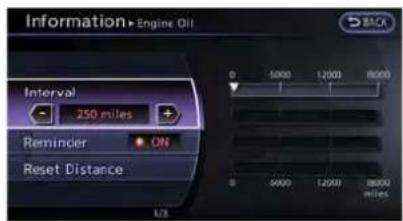
- Resetthedrivingdistancetothenew maintenanceschedule.
-
Settheinterval(mileage)ofthemaintenance schedule. Todeterminetherecommended maintenanceinterval, refertoyour"NISSAN ServiceandMaintenanceGuide".
-
Todisplaythereminderautomaticallywhen thesettripdistanceisreached, highlight [Reminder]andpush
. -
ToreturnthedisplaytoMAINTENANCE INFO., push
.
Maintenanceinformationdisplaycannotbe operatedwhenthevehicleismoving.Stopthe vehicleinasafeplacetoseetheinformation.
The unit can be converted between "US" and "Metric".
Unitsettings"(page7-9)

TheReminderwillbeautomaticallydisplayedas shownwhenbothofthefollowingconditionsare met:
- thevehicleisdriventhesetdistanceandthe ignitionswitchispushedtotheLOCK position.
- theignitionswitchispushedtotheACCor ONpositionthenexttimeyoudrivethe vehicleafterthesetvaluehasbeenreached.
Toreturntothepreviousdisplayafterthe maintenancereminderscreenisdisplayed,push
Themaintenancereminder screenis displayed each time the ignition switch is pushed to the ONpositionunlessoneofthefollowingoperationsisperformed:
- "ResetDistance"isselected.
- "Reminder"issettoOFF.
●themaintenanceintervalissetagain.

Settingbyvoicecommand
1.Push< >locatedonthesteeringwheel.
2. Afterthetonesounds, speakacommand.
Todisplaythemaintenanceinformation:
"Information""Maintenance"(StandardMode)
"Maintenance"(AlternateCommandMode)
VIEWINGAVAILABLETRAFFIC INFORMATION
NavTrafficinformationisasubscriptionservice offeredbySiriusXMSatelliteRadio.
This service provides real-time information regarding traffic flow, accidents, road construction and other incidents, where available.
NavTrafficcombinesinformationfromcommercialandpublictrafficdataprovidersincluding governmentdepartmentsoftransportation,police,emergencyservices,roadsensors,cameras andaircraftreports. Thetrafficinformationis broadcasttothevehiclebytheSiriusXM satellites. Availabletrafficinformationonthe routethedriverselecteddisshownonthe navigationscreensotrafficconditionsbetween youandthedestinationareknown.Threetypes ofreal-timetrafficinformationformajorroadwaysareshownonthenavigationsystem:
*Unscheduledtrafficdataforexample, accidentsanddisabledvehicles.
*Scheduledtrafficdata,forexampleroad constructionandroadclosures.
*Trafficflowinformation(rateofspeeddata).

WARNING
NavTrafficinformationisnotasubstituteforattentivedriving.Trafficconditionschangeconstantlyandemergency situationscanarisewithoutwarning. RelyingonlyonNavTrafficinformation mayleadtoacollisionandcouldresult inseriouspersonalinjury.
NOTE:
Flowinformationisprovidedonlyfor roadsequippedwithtrafficsensorsand isnotavailableinallmarketscoveredby theservice.Flowdatamaynotbeavailable onportionsofaroadthatisunder construction.
NavTrafficinformationisavailableinlimited markets.Tosubscribeortocheckifthisservice isavailableinthearea:
call1-866-635-2349orseewww.siriusxm.com/navtraffic

INFO:
If a contract is not completed for Nav Traffic information service, am message appears, and it will not be possible to check the information on the traffic information system.
BASICOPERATION

1.Push
2. Highlight[TrafficInfo]andpush
3. Highlight the preferred information and push
4.Push
Push
Availableitems
•[InfoonRoute]:
Displaysthelistoftrafficinformationfound ontherecommendedroutefromthecurrent vehiclelocationtothedestination.
•[NearbyTrafficInfo]:
Displaysthelistoftrafficinformationaround thecurrentvehiclelocation.
INFOONROUTE
Thisisonlyavailablewhenarouteisset.
Thelistoftrafficinformationfoundonthe recommendedroutefromthecurrentvehicle locationtothedestinationisdisplayed.The detailedinformationaboutdisplayedeventscan alsobechecked.
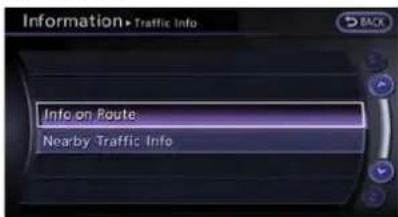
- Highlight[Info on Route] and push
.Alistscreenisdisplayed.

- Highlighttheeventtocheckthedetailed information, and push
.

- Themapscreencenteredaroundthe selectedeventisdisplayed.Ontheleft screen,thedetailedinformationaboutthe eventisdisplayed.
Themessagecanbescrolledusingtheup/downbuttonofthedirectionalswitchorthe steeringwheel.
6-8Viewingtechnicalinformation
4.Push
NEARBYTRAFFICINFO.
Thelistofavailabletrafficinformationaroundthe currentvehiclelocationisdisplayed.

- Highlight[Nearby TrafficInfo] and push
.Alistscreenisdisplayed.

- Highlighttheeventtocheckthedetailed informationforandpush
.

- Themapscreencenteredaroundthe selectedeventisdisplayed.Ontheleft screen,thedetailedinformationaboutthe eventisdisplayed.Themessagecanbe scrolledusingtheup/downbuttonofdirectionalswitchorthesteeringwheel.
4.Pushtoreturntotheprevious screen.
DISPLAYURGENTTRAFFICINFORMATION
When an urgent event is found around the current vehicle location, a message popsup automatically with a voice announcement.

Themessageincludestheicon, eventtype, eventinformationandthedirectdistancefrom thecurrentlocationtotheevent.

INFO:
- Urgenttrafficinformationisdisplayedregardlessofwhetherthetrafficinformation systemisonoroff.
- When there are multipleurgent events, the event with the shortest direct distance from the current location is displayed.
- If theurgenteventisontherecommended route, and ifadetourisfound, thedetour routenotificationscreenisdisplayed when the vehicle approached the detourpoint.
TRAFFICINFORMATIONONMAP
With subscription to Nav Traffic service, traffic information is displayed on both Plan View and Birdview™ mapscreen.
See "NotesonTrafficInformation" for further information.
NotesonNavTrafficinformation" (page11-11)
Screeninformation
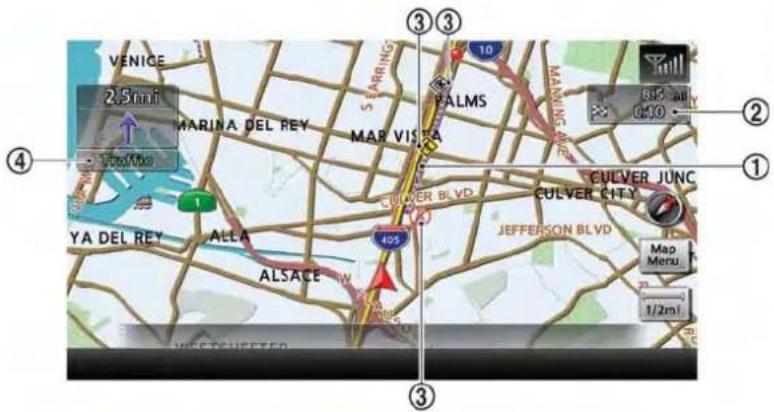
① Roadconditions
FreeFlow: → (Green)
Moderatetraffic: → (Yellow)
Heavytraffic: → (Red)
Sectionaffectedbyseriousustrafficevent: (Purple)
② Estimated travel time to destination calculated with consideration of traffic information on route.
③ Trafficinformationicon:
Iftherouteisnotalreadyset,allofthetraffic informationiconsonthemapscreenaredisplayedincolor.Whetherouteisalreadyset,the iconsontheroutearedisplayedincolor,andthe
:Accident
:Closedroad
i:Information
:Roadwork
6-10Viewingtechnicalinformation

:Slipperyroad

:Weather

:Incident

Trafficindicator:
Displaysthereceptionconditionoftrafficinformationtransmittedfromtheprovider.
Green:Receptionconditionisgood.
Gray:Receptionconditionisnotgood.
Nomark: Subscription to Nav Traffic service is not detected.
Trafficinformationdisplayandscale levels
| 2DmapandBirdviewMap | |
| 5miles10km | |
| 2miles4km | |
| 1mile2km | |
| 1/2mile1km | |
| 1/4mile500m | |
| 1/8mile200m | |
| 1/16mile100m | |
| 1/32mile50m | |
| 1/64mile25m | |
Checkingdetailedinformationfor trafficinformationiconsonmap

- Placethecrosspointeroverthetraffic informationicon. The general description of the icon is displayed.
2.Push

- Themapscreencenteredaroundthe selected event is displayed. On the left screen, the detailed information about the
eventisdisplayed.Youcanscrollthe message by using the up/down button of thedirectionalswitchorthesteeringwheel.
4.Push
TRAFFICINFORMATION SETTINGS
This displays or changes the settings for the trafficinformationrelatedfunctions.
1.Push
-
Highlight[Navigation]andpush
. -
Highlight [Traffic Info Settings] and push
.
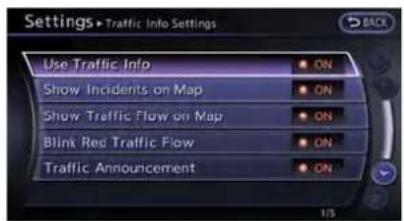
- Highlight the preferred setting and push
. The indicator for these selected setting illuminates.
Availablesettingitems
- Use TrafficInfo.: Enables all traffic information related functions.
●ShowIncidentsonMap: Displaysthetrafficincidents(e.g.,accident) onthemapscreen.
•ShowTrafficFlowonMap: Displaysthetrafficiflowwithanarrowonthe mapscreen. - BlinkRedTrafficFlow: Blinkstheredtrafficflowlinesthatrepresent congestions.
- TrafficAnnouncements: Announcesthetrafficinformationeventon theroute.
6-12 Viewingtechnicalinformation
INFO:
- Evenwhen "ShowTrafficFlowonMap" and "ShowIncidentsonMap" aresettooff, the listdisplayof "InfoonRoute" and "Nearby TrafficInfo" will not be affected.
- Evenwhen"TrafficAnnouncement"issetto off,therouteguidancewillnotbeaffected. Also,theannouncementofemergency informationandweatherinformationwillnot beturnedoff.
Settingbyvoicecommand
1.Push< >locatedonthesteeringwheel.
2. Afterthetonesounds, speakacommand.
Toturnonoroffthetrafficinformationsystem:
"Information""TrafficInformation"(Standard Mode)
"TrafficInformation"(AlternateCommandMode)
VIEWINGAVAILABLEWEATHER INFORMATION
NavWeatherXMinformationisasubscription serviceofferedbySiriusXMSatelliteRadio.
Thisserviceprovidesreal-timeinformation regardingcurrentweather,temperature,warnings,roadconditionsandforecastswhere available. Theweatherinformationisbroadcast tothevehiclebytheSiriusXMSatelliteRadio.
Theserviceenablesyoutoviewthefollowing informationonthenavigationsystem.
- Currentweatherinformationiconofthe destinationonthescreenofsuggested route
●Detailedweatherinformationandforecasts ofanareaofinterest - Countrywideandlocalmapswiththe currentweather,temperature,warningsand roadconditioninformation
●Listofwarning/watcheseventsdetected aroundthecurrentlocation - Pop-upmessagesonthenavigationscreen withvoiceannouncementswhenwarnings andwatchesaredetectedaroundthe currentlocation

WARNING
NavWeatherXMinformationisnota substituteforattentivedriving.Weather conditions change constantly and emergencysituationscanarisewithout warning. Relying only on Nav-WeatherXMinformationcouldresultin seriouspersonalinjury.
NavWeatherXMinformationisavailableinlimitedmarkets.Tosubscribetoorcheckifthisserviceisavailableinthearea,call1-866-635-2349oraccesswww.siriusxm.com/navweather.

INFO:
- lfacontractisnotcompletedforthe NavWeatherXMinformationservice,amessageappearsanditwillnotbepossibleto checktheinformationonthetrafficinformation system.
●Theweatherinformationisavailableonlyfor areasthatprovideweatherinformationto NavWeatherXM.
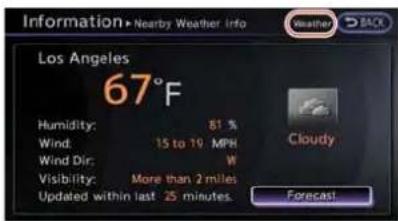

INFO:
ThereceptionconditionoftheNavWeatherXM informationtransmittedfromtheprovidercanbe confirmedusingthe"Weather"indicatoronthe upperrightsideofthescreen. Green:Thereceptionconditionisgood. Gray:Thereceptionconditionisnotgood. Nomark:AsubscriptiontotheNavWeatherXM serviceisnotdetected.
DISPLAYINGWEATHERINFORMATIONSCREEN
BasicOperation
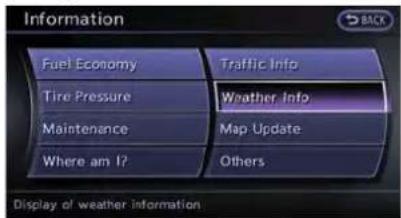
1.Push
2. Highlight [WeatherInfo] and push
3. Highlight the preferred information and push
4.Push
Availableitems
●CurrentWeatherandForecasts:
Displays current weather information and three-day forecasts.
●WarningsandWatchesHistory:
Displays a list of warnings and watches recently detected around the current loca-
Viewingtechnicalinformation
tion.
-WeatherMap:
Displaysthecurrentweathermapforthe preferredarea.
- TemperatureMap:
Displaysthecurrenttemperaturemapforthe preferredarea.
-WarningsMap:
Displaysthecurrentwatches/warningsmap forthepreferredarea.
●RoadConditionMap:
Displaysthecurrentroadconditionmapfor thepreferredarea.
Selectingcity
Whendisplayingvariousweatherinformation screensbypushing
Thecitycanbespecifiedbyselectingonefrom thelistthatisdisplayed.

1.Push
- Highlight[Weather Info] and push
.

- Highlight the preferred information and push
.

- Highlight [Select Other City from Menu] and push
.
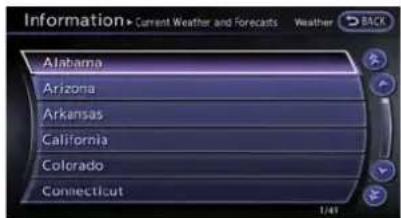
- Highlight the preferred state from the list and push
.
6-14Viewingtechnicalinformation
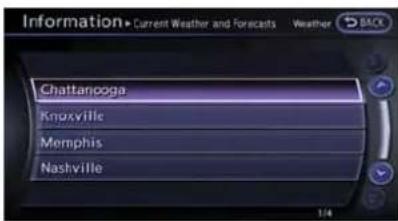
- Highlight the preferred city from the list and push
.
i INFO:
[SelectOtherCityfromMenu]isnotavailable whiledriving.
Currentweatherandforecasts
The current weather information and three-day forecast for the current location, the destination or the preferred city.

- Highlight[CurrentWeatherandForecasts] andpush
.

- Highlight the preferred area and push
.
INFO:
- [WeatherInfoonDestination]isnot availableunlessadestinationissetfor therouteguidance.
- Whenadestinationisnotset,nearby weatherinformationisdisplayed.

3.Aweatherinformationscreenisdisplayed. Highlight[Forecast]andpush
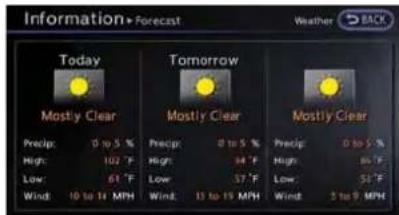
- The forecasts screen is displayed. A three-day forecast can be confirmed for the preferred area.
5.Pushtoreturntotheprevious screen.Push

Settingbyvoicecommand
1.Push< >locatedonthesteeringwheel.
2. Afterthetonesounds, speakacommand.
Todisplaythelistforweatherinformation:
"WeatherInformation"(AlternateCommand Mode)
Warningsandwatcheshistory
Alistcanbedisplayedforthewarning/watch eventsdetectedaroundthecurrentlocation.The detailedinformationofeacheventcanalsobe displayed.
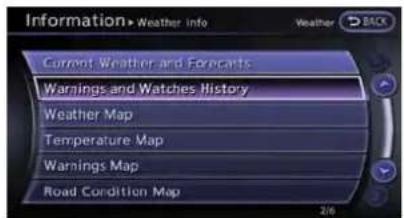
- Highlight[WarningsandWatchesHistory] andpush
.Alistwarning/watch eventsaroundthecurrentlocationisdis-played.

- Highlighttheeventtocheckthedetailed informationandpush
.
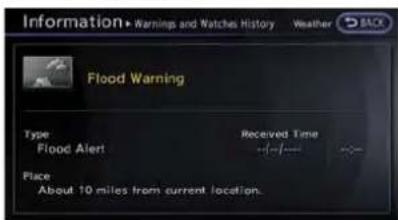
- Ascreenwithdetailedinformationofthe eventisdisplayed.
4.Pushtoreturntotheprevious screen.Push
WeatherMap
The current weather map can be confirmed for the current location, the destination, the entire country or the preferred city.
- Highlight [Weather Map] and push
.

- Highlight the preferred map areapush
.

INFO:
[DestinationMap]isnotavailableunlessa destinationissetfortherouteguidance.

- A weather map is displayed. The weather and precipitation level are shown by colors.
6-16Viewingtechnicalinformation
4.Push

INFO:
Touch[Legend]todisplaythemaplegend.

Settingbyvoicecommand
1.Push< >locatedonthesteeringwheel.
- Afterthetonesounds, speakacommand.
Todisplaythelistforweathermap:
"WeatherMap"(AlternateCommandMode)
TemperatureMap
The current temperature map can be confirmed for the current location, the destination, the entire country or the preferred city.
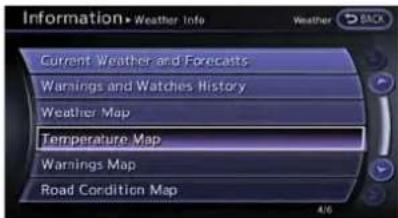
- Highlight[TemperatureMap] and push
.

- Highlight the preferred map area and push
.

INFO:
- [DestinationMap]isnotavailableunless adestinationissetfortherouteguidance.
- Whenadestinationisnotset,anearby weathermapisdisplayed.

- A temperature map is displayed. The temperature information is shown by numbers and colors.
4.Push

INFO:
Touch[Legend]todisplaythemaplegend.
WarningsMap
The current warning/watch information can be confirmed for the current location, the destination, the entire country or the preferred city.

- Highlight[WarningsMap] and push
.
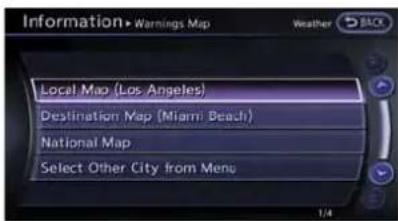
- Highlight the preferred map area and push
.
i INFO:
[DestinationMap]isnotavailableunlessa destinationissetfortherouteguidance.
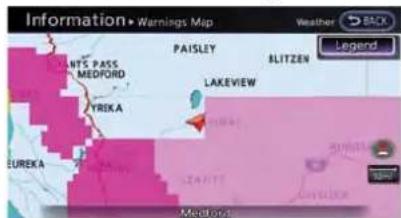
3.Awarning/watchmapisdisplayed.Warning andwatchinformationisshownbycolors.
4.Push

i INFO:
Touch[Legend]todisplaythemaplegend.
RoadConditionMap
The current road condition can be confirmed for the current location, the destination, the entire country or the preferred city.

- Highlight[RoadConditionMap]andpush
.
6-18Viewingtechnicalinformation

- Highlight the preferred map area and push
.
INFO:
[DestinationMap]isnotavailableunlessa destinationissetfortherouteguidance.
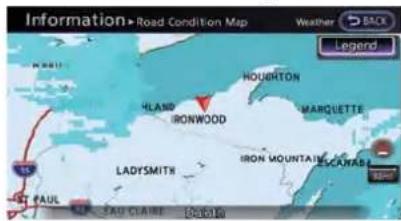
- Aroadconditionmapisdisplayed. Theroad conditionsareshownbycolors.
4.Pushtoreturntotheprevious screen.Push
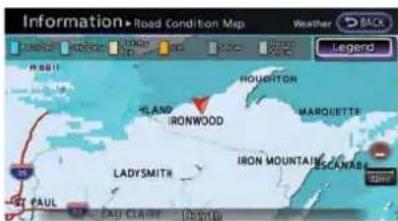
INFO:
Touch[Legend]todisplaythemaplegend.
DESTINATIONWEATHERONSUGGESTEDROUTESCREEN
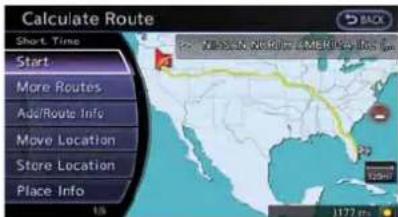
Onthescreenofthesuggestedrouteafter settingadestination, thecurrentweather informationaroundthedestinationisdisplayed viaicons.
Weatherinformationicons
| ClearMostlyClear | |
| PartlyCloudy | |
| MostlyCloudy | |
| Cloudy | |
| Haze | |
| Fog | |
| Rain,LightRain | |
| HailHeavyRain | |
| FreezingRain/Ice | |
| SnowHeavySnow | |
| Dust/SandSmoke/Ash | |
| Thunderstorm | |
| Tornado/Funnel Cloud |
Viewingtechnicalinformation6-19
AUTOMATICALLYDISPLAYWARNINGS/WATCHES
When an urgent warning/watch is detected around the current vehicle location, a message pops up automatically with a voice announcement.

Themessageincludetheweathericonandtext describingtheevent.
INFO:
●Thepop-upmessagesandannouncements canbesettoonoroff.
"Weatherinformationsettings" (page6-20)
- If multiple warning/watch events are detected, they will be displayed in order starting with the one having the shortest lineard distance from the vehicle.
Weatherinformationsettings
Thesettingscanbeconfirmedandchangedfor theurgentweatherinformationrelatedfunctions.
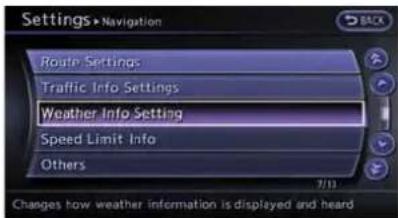
1.Push
-
Highlight[Navigation]andpush
. -
HighlightWeatherInfoSetting andpush
. -
Highlight the preferred setting and push
. The indicator for the setting illuminates.
Availablesettingitems
- DisplayanAlertforWeatherWarnings: Displaysamessagescreenautomatically whenthesystemdetectsurgentwarning information.
- DisplayanAlertforWeatherWatches: Displaysamessagescreenautomatically whenthesystemdetectsurgentwatch information.
●VoiceAnnouncements: Providesurgentinformationannouncements for warningsandwatchesaroundthe currentlocation.
Typesofwarnings/watches
| Category | Warnings/Watches |
| Tornado | TornadoWatch,Tornado |
| Hurricane | InlandHurricaneWind,HurricaneForceWind,Hurricane,Typhoon |
| Storm | SevereThunderstormWatch,Se-vereThunderstorm,Storm,TropicalStorm,InlandTropicalStorm,DustStorm |
| Flood | FloodWatch,FlashFlood,CoastalFlood,LakeshoreFlood,HighSurf,Flood |
| CategoryWarnings/Watches |
| WinterWinterWatch,HeavySnow,HeavySleet,LakeEffectSnow,Freeze,HeavyFreezingSpray,Blizzard,IceStorm,WinterStorm |
| WindWindWatch,HighWind,WindChill,Gale |
| ExtremesExcessiveHeat |
| OtherRedFlag,Tsunami,Avalanche,SpecialMarine,Earthquake,LawEnforcement,HazardousMaterials,NuclearPowerPlant,RadiologicalHazard,CivilDanger,Fire,ShelterinPlace,Volcano,OtherWatches,OtherWarnings |

INFO:
- The "OtherWatches" category in the "Other" category includes Inland Hurricane Watch, Hurricane Watch, Typhoon Watch, Tropical Storm Watch, Inland Tropical Storm Watch and Fire Weather Watch.
- The "OtherWarnings" category in the "Other" category includes Dense Fog Warning, Freezing Fog Warning, Extreme Cold Warning, Frost Warning, Hydrologic Warning, Ashfall Warning, Air Stagnation Warning, Low Water Warning, Ice Accretion Warning, Dense Smoke Warning, Dense Smoke Advisory, Freezing Fog Advisory, Dense Fog Advisory, Ashfall Advisory and
AirStagnationAdvisory.
MAP UPDATE
Newmapdatacanbedownloaded.
- Push
.

-
Highlight [Map Update] and push
. -
Insert the DVD containing the new map data.

- Highlight [DVD Update] and push
.

INFO:
- RefertothevehicleOwner'sManualforthe locationoftheDVDslot.
- DonotejecttheDVDwhileupdating the mapdata.Doingsowillresultinan incompleteupdate.
- ToorderupdatedDVD-ROMsoradditional DVD-ROMs,contactyourNISSANdealeror GT-RcertifiedNISSANdealer.
NOTICE
InhandlingtheDVD-ROM, be careful on the following points.
- DonottrytobendtheDVD-ROM. Donotuseanydiskthatisbentor cracked.
- Donotuseanybenzine,thinner,or antistaticsprayonthem.
- Donotputonanystickerorwrite anythingoneithersurface.
- If you need to clean it, dosowith a soft cloth by wiping from the centre outward.
- DonotuseaDVD Laser Lens Cleanersastheymaycausethe DVD playertomalfunction.
6-22Viewingtechnicalinformation
VIEWINGNAVIGATIONSYSTEM VERSIONINFORMATION
Thisdisplaysthemapversioninformation.
BASICOPERATION
1.Push
2. Highlight[NavigationVersion] and push
3.Push
VIEWINGGPSCURRENTLOCATION INFORMATION
This displays GPS information, such as the positioning status, latitude/longitude, altitude and satellite locations.
BASICOPERATION
1.Push
2. Highlight[Others]andpush
3. Highlight[GPS Position] and push
4.Push
| (green)Satellitesarcavailable. | |
| (gray)Satellitesarebeingsearchedor. |
MEMO
6-24Viewingtechnicalinformation
7Othersettings
Settingsscreen....7-2
Basicoperation....7-2
Audiosettings....7-3
Displaysettings....7-4
Basicoperation....7-4
Displayadjustment....7-4
Settingcolortheme....7-5
Volumeadjustment....7-6
Basicoperation....7-6
Clocksettings....7-7
Basicoperation....7-7
Comfortsettings....7-8
Languageandunitsettings....7-9
Languagesettings....7-9
Unitsettings....7-9
Unitsettings(TirePressure)....7-10
Imageviewer....7-11
Fullscreendisplay....7-11
Settingtheimageviewer....7-11
SETTINGSSCREEN
Thenavigationsystemcanbecustomizedto makeiteasierforyoutouse.
BASICOPERATION

1.Push
- Highlight the preferred setting item and push
.
Availablesettingitems
•[Navigation]:
Adjustvarioussettingsofthenavigation system.
"Navigationsetting"(page2-92)
•[Audio]:
Adjuststheaudiosettings.
"Audiosettings"(page7-3)
•[Phone]:
AdjustsvarioussettingsoftheBluetooth Hands-FreePhoneSystem.
"Phonesetting"(page4-7)
•[Bluetooth]:
SetBluetooth ® AudioandPhone.
"Bluetooth® settings"(page3-24)
•[Volume&Beeps]:
Adjuststhevolumeandsetsthebeep function.
"Volumeadjustment"(page7-6)
•[Display]:
Adjuststhedisplay.
"Displaysettings"(page7-4)
•[Clock]:
Changestheclocksettings.
"Clocksettings"(page7-7)
•[Others]:
—[Comfort]:
Thisitemisdisplayedwhentheignition switchisintheONposition.
"Comfortsettings"(page7-8)
—[Language&Units]:
Changesthelanguageormeasurement units.
"Languageandunitsettings" (page7-9)
—[VoiceRecognition]:
Adjustsvarioussettingsofthevoice recognitionsystem.
"8.Voicerecognition"
—[Camera]:
TurnsONorOFFthepredictedcourse linedisplay.
"Camerasettings"(page9-7)
—[ImageViewer]:
DisplaystheimagefilesintheUSB memory.
1 "Imageviewer"(page7-11)
7-2Othersettings
AUDIOSETTINGS
Thisallowstoyouadjustthespeakertone qualityandsoundbalance.
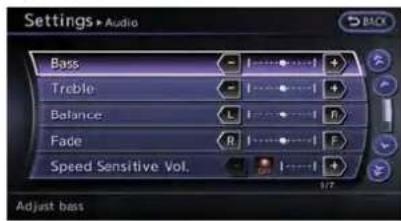
1.Push
-
Highlight[Audio]andpush
. -
Highlight the preferred adjustment item and push
. -
Usethecenterdialtoadjustthetonequality orsoundbalance.
-
After settings, push
or to apply the setting.
6.Push
Push
Availableitems
•[Bass]:
Adjustthetonequalityofthebassby rotatingthecenterdialinthedirectionof
[+]or[-].
•[Treble]:
Adjustthetonequalityofthetrebleby rotatingthecenterdialinthedirectionof[+] or[-].
•[Balance]:
Adjustthesoundlevelbetweentheleftand rightspeakersbyrotatingthecenterdialin thedirectionof[Left]or[Right].
•[Fade]:
Adjustthesoundlevelbetweenthefrontand rearspeakersbyrotatingthecenterdialin thedirectionof[Front]or[Rear].
- [SeedSensitiveVol.]:
Thesoundvolumeisincreasedaccording to thevehiclespeed.Usetocenterdialto adjusttheeffectlevelbetween0(OFF)to5.
•[DivX ⑩ RegistrationCode]:
Theregistrationcodeforadevicethatis usedtodownload DivX ® fileswill be displayedonthescreen.Ifadiscisloaded oraUSBmemoryisconnectedtotheaudio system,thisfunctionwillnotbeactivated.
•[DisplayAlbumCoverArt]:
WhenthisitemisturnedtoON,thealbum coverimageisdisplayedwhenplaying compressedmusicfilesthroughaCD, DVDorUSBdevice.Whentheimageis
notproperlyembeddedinthefileordevice, theimagewillnotbedisplayed.

INFO:
Pushing and turning the AUDIOknobcan also adjust the tone equality and sound balance.
DISPLAYSETTINGS
Thismenuturnsonandoffthedisplay,adjust theimagequalityofthenavigationscreenand changethecolorofthemenuscreen.
BASICOPERATION
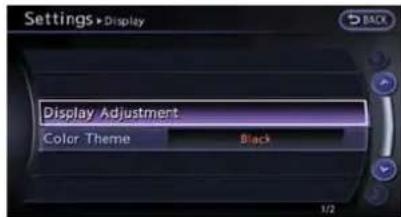
1.Push
2. Highlight[Display]andpush
3. Highlight the preferred adjustment item and push
Availablesettingitems
•[DisplayAdjustment]
Turnonandoffthedisplayandadjustthe imagequalityofthenavigationscreen.
•[ColorTheme]
Setthecolorofthemenuscreen.
DISPLAYADJUSTMENT
Thismenuturnsonandoffthedisplayand adjuststheimagequalityofthenavigation screen.
Basicoperation
- Highlight(DisplayAdjustment]andpush
. - Highlight the preferred adjustment item and push
. - Usethecenterdialtoadjusttothepreferred setting.
- Aftersetting, push
or to apply the setting.
5.Pushtoreturntotheprevious screen.Push
Availablesettingitems
•[Display]:
Turnonoroffthescreen.
"Display"(page7-4)
•[Brightness]: Adjust the screen brightness. "Brightness"(page 7-5)
•[Contrast]: Adjustthescreencontrast. "Contrast"(page7-5)
•[BackgroundColor]:
Setthebackgroundcolor. "Backgroundcolor"(page7-5)
Display

Toturnoffthedisplay, push
Thedisplaycanalsobeturnedoffbypushing andholding< */ OFF>formorethan2 seconds.

When any button is pushed with the displayoff, the display turnson. The display will automatically turn off when there is nos witch operation
7-4Othersettings
for5seconds.
Toturnonthedisplay,push< ✦/ OFF>.
Brightness

Adjustthedisplaybrightnessbyrotatingthe centerdialinthedirectionof[+]or[-].
Eachtime[+]or[-]ispushed,thedisplay brightnesschanges.
Contrast

Adjustthedisplaycontrastbyrotatingthecenter dialinthedirectionof[+]or[-].
Eachtime[+]or[-]ispushed,thedisplay contrastchanges.
BackgroundColor
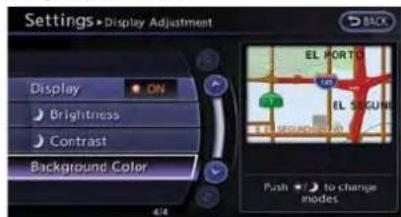
Selecttotogglebetweenthedayscreenand nightscreen.

Dayscreen
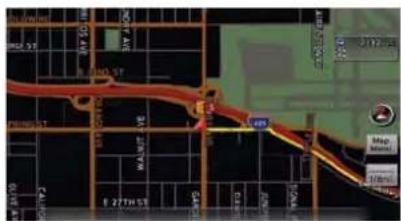
Nightscreen

INFO:
Thebackgroundcolorsettingcanalsobe changedusingthe< */ OFF>.
SETTINGCOLORTHEME
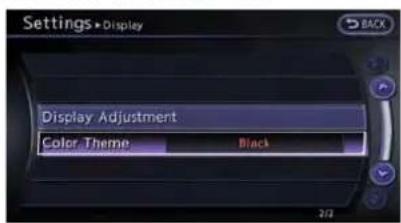
- Highlight [Color Theme] and push
.

- Highlight the preferred menu color and push
.
VOLUMEADJUSTMENT
Thisturnsonandoff,aswellasadjusts,the phonefunction(ringer,incomingandoutgoing volume),thevoiceguidefunctionandthebeep function.
BASICOPERATION
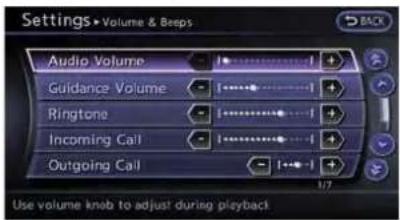
1.Push
-
Highlight[Volume&Beeps]andpush
. -
Highlight the preferred adjustment item and push
. -
Usethecenterdialtoadjustthevolume. Push
tosettoonoroff. -
Aftersetting, push
or to apply the setting.
6.Push
Availablesettingitems
•[AudioVolume]:
Adjustthevolumeleveloftheaudiosystem byrotatingthecenterdialinthedirectionof [+]or[-].
•[GuidanceVolume]:
Adjustthevolumelevelofvoiceguidanceby rotatingthecenterdialinthedirectionof[+] or[-].
•[Ringtone]:
Adjustthevolumeleveloftheringtoneby rotatingthecenterdialinthedirectionof[+] or[-].
•[IncomingCall]:
Adjust the incoming call volume by rotating the centerdial in the direction of [+] or [-] .
•[OutgoingCall]:
Adjust the outgoing call volume by rotating the centerdial in the direction of [+] or [-] .
•[SwitchBeeps]:
Selecttotogglethebeepfunctionbetween onandoff.Theindicatorlightilluminates whenthebeepfunctionissettoon.The beepsoundswhenpushingandholdinga buttonorwhenaprohibitedoperationis performed.
•[GuidanceVoice]:
Selecttotogglethevoiceguidancefunction betweenonandoff.Theindicatorlight illuminateswhenthevoiceguidancefunctionissettoon.
CLOCKSETTINGS
Thischangestheclocksettings.
BASICOPERATION
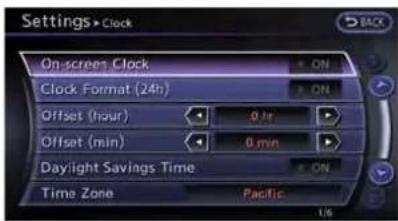
1.Push
2. Highlight[Clock] and push
3. Highlight the preferred adjustment item and push
4. Usethecenterdialtoadjusttothepreferred setting.Push
5. Aftersetting, push
6.Push
Availablesettingitems
•[On-screenClock]:
Selecttotoggletheclockdisplaylocatedin thetoprightcornerofthedisplaybetween onandoff.Theindicatorlightilluminates
whentheclockdisplayissettoon.
- [ClockFormat(24h)]:
Select the clock format between 12-hour and 24-hour times. The indicator light illuminates when the clock is set to the 24-hour format.
•[Offset(hour)]:
Usethecenterdialtoadjusttheoffsetvalue (between-12and+12).
•[Offset(min)]:
Usethecenterdialtoadjusttheoffsetvalue (between-59and+59).
•[DaylightSavingsTime]:
Selecttotogglethedaylightsavingstime settingbetweenonandoff.Theindicator lightilluminateswhenthedaylightsavings timesettingissettoon.
•[TimeZone]:
Selectanappropriatetimezonefromthelist thatappearswhenthisitemishhighlighted.
—Pacific
—Mountain
—Central
—Eastern
—Atlantic
—Newfoundland
—Hawaii
—Alaska
COMFORTSETTINGS
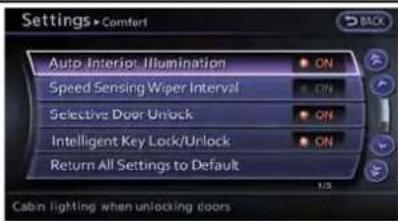
Thiskeydoesnotappearonthedisplayuntilthe ignitionswitchispushedtotheONposition.
1.Push
2. Highlight[Comfort]andpush
3. Highlight the preferred setting item and push
4. Aftersetting, push
5.Push
Availableitems
●AutolnteriorIllumination:
WhenthisitemisturnedtoON,theinterior lightswillilluminateifanydoorisunlocked.
●SpeedSensingWiperInterval:
WhenthisitemisturnedtoON,thewiper intervalisadjustedautomaticallyaccording tothevehiclespeed.
- SelectiveDoorUnlock:
WhenthisitemisturnedtoON,onlythe driver'sdoorisunlockedfirstafterthedoor unlockoperation.Whenthodoorhandle requestswitchonthdriver'sorfront passenger'ssidedoorispushedtobe unlocked,onlythecorrespondingdooris unlockedfirst.Allthedoorscanbeunlocked ifthedoorunlockoperationisperformed againwithin60seconds.
WhenthisitemisturnedtoOFF, allthe doorswillbeunlockedafterthedoorunlock operationisperformedonce.
●IntelligentKeyLock/Unlock:
WhenthisitemisturnedtoON,doorlock/unlockfunctionbypushingthedoorhandle requestswitchwillbeactivated.
- ReturnAllSettingstoDefault:
Selectthisitem, push
LANGUAGEANDUNITSETTINGS
Thischangesthelanguageandmeasurement unitusedinthesystem.
LANGUAGE SETTINGS

1.Push
2. Highlight[Others]andpush
3. Highlight(Language&Units]andpush
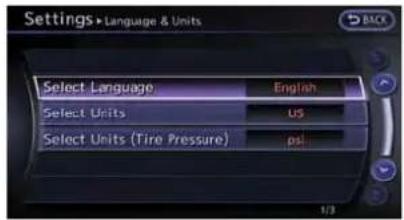
- Highlight[SelectLanguage] and push
.

- Highlight the preferred setting item and push
. The indicator light of the selected item illuminates.
Availablelanguages
• [English]
• [Franc,ais]
• [Español]
NOTICE
Donotchangetheignitionswitch positionwhilechangingthelanguage. Doingsomaycauseasystemmalfunction.
UNITSETTINGS

1.Push
2. Highlight[Others]andpush
3. Highlight(Language&Units]andpush
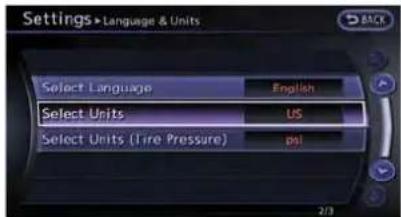
- Highlight [Select Units] and push
.

- Highlight the preferred unit and push
. The indicator of these selected unit illuminates.
Availableunits
US:
mile, MPH, °F, MPG
Metric:
km, km/h, °C, L/100km
6.Push
UNITSETTINGS(TirePressure)
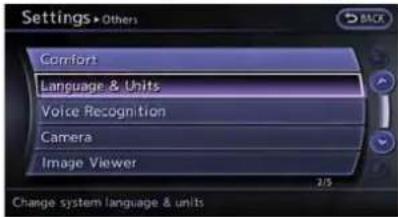
1.Push
2. Highlight[Others]andpush
3. Highlight [Language/Units] and push
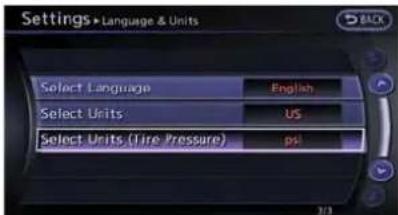
- Highlight[SelectUnits(TirePressure)] and push
.

- Highlight the preferred unit and push
. The indicator of these selected unit illuminates.
Availableunits
psi
- kPa
6.Push
7-10 Othersettings
IMAGEVIEWER
The image files in the USB memory will be displayed.

- Press
.
2.Select[Others]andpress. - Select [Image Viewer] and press
.
The image of these selected file is displayed on the right side of the screen.
When anumberoffolders are included in the USB memory, select a folder from the list and push

FULLSCREENDISPLAY
Thefullscreendisplaywillappearwhenselecting[FullScreenDisplay]andpress
TooperatethImageViewerortochangethe settings,selectthedesiredkey.
• (Start)
Select" ▶ "andpush
- (Stop)
Select" □ "andpush
(Next)
Select" "andpush
(Previous)
Select " " and push
TheImageViewersettingdisplaywillappear whenselecting[Settings]onthefullscreen displayandpushing
- SlideshowSpeed Choose[SlideshowSpeed]and push
- SlideshowOrder
Choose [Slideshow Order] and push
Operatingtips
- Onlyfilesthatmeetthefollowingconditions willbedisplayed.
— Fileformat:JPEG(".jpg"or".jpeg")
— Filesize:2MBorless
— Display size: 1,536 × 2,048 pixels or less - Ifanelectronic device(suchasadigital camera) is directly connected to the vehicle using a USB cable, no imagewill be displayed on the screen.
- If the filename is istoolong, some filenames may not be entirely displayed.
MEMO
7-12 Othersettings
8Voicerecognition
NISSANVoiceRecognition....8-2
Standardmode....8-2
Confirminghowtousevoicecommands....8-2
UsingVoiceRecognitionSystem....8-4
Beforestarting....8-4
Givingvoicecommands....8-4
Voicecommandexamples....8-9
AlternateCommandMode....8-13
DisplayinghowtooperateVoice
RecognitionSystem....8-13
Confirminghowtousevoicecommands....8-14
UsingVoiceRecognitionSystem....8-17
Beforestarting....8-17
Givingvoicecommands....8-17
Systemfeedbackannouncementmodes......8-22
Settingalternatecommandmode....8-22
Speakeradaptation....8-22
Voicecommandexamples....8-24

NISSANVOICERECOGNITION
NISSANVoiceRecognitionallowshands-free operationofthenavigationsystemandother systemsequippedonthisvehicle,inoneoftwo modes,StandardModeorAlternateCommand Mode.StandardModeallowstheoperationof Navigation,Phone,Audio,InformationandHelp.
The command that are available are always shown on the display and announced by the system. Toperform operations, simply follow the prompts given by the system. In Standard Mode, hands-free operation of Changemap view, Routeselection and Bluetooth Audio, etc. is not available through Voice Recognition.
AlternateCommandModeallowsadvanced operations. Whenthismodeisactive, an expandedlistofcommandscanbespokenafter pushing < , andthevoicecommandmenu promptsareturnedoff. Notethatinthismode therecognitionsuccessratemaybeaffected becausethenumberofavailablecommandsand waysofspeakingeachcommandareincreased. Otherwise, itisrecommendedthatAlternate CommandModebeturnedOFFandStandard Modebeusedforthebestrecognitionperformance.
"AlternateCommandMode"(page8-13)
INFO:
- Toimprove recognitions success when Alternate Command Mode is active, try using the Speaker Adaptation function available in that mode.
“Speakeradaptation”(page8-22) Otherwise, it is recommended that Alternate Command Mode be turned OFF and Standard Mode be used for the best recognition performance. - Forthevoicecommandsfortheaudio, phoneandothersystems, refertothe vehicleOwner'sManual. The following sections referonlytothenavigation, phoneand informationsystems.
- If the air conditionerissetto "Auto", the fan speed is automatically lowered so that commands can be recognized more easily.
STANDARDMODE
CONFIRMINGHOWTOUSEVOICE COMMANDS
Whenoperatingthevoicerecognitionsystem forthefirsttimeorifhelpispreferredtousethe system,theUserGuidecanbedisplayed.
Itispossibletoconfirmhowtousevoice commandsbyaccessingasimplifiedUser Guide,whichcontainsbasicinstructionsand tutorialsforseveralvoicecommands.
Basicoperation
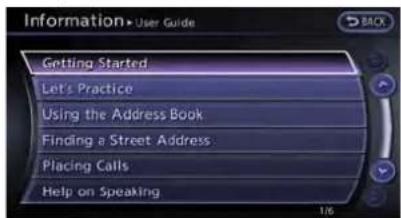
- Push
. - Highlight[Others]andpush
. - Highlight[VoiceRecognition]andpush
. -
Highlight [User Guide] and push
. -
Highlight the preferred item and push
.
Availableitems
- voicerecognitionsystem.
- [Let'sPractice]: Modeforpracticefollowingthesystem voice.
•[UsingtheAddressBook]: Tutorialforenteringadestinationbythe AddressBook.
•[FindingaStreetAddress]: Tutorialforenteringadestinationbystreet address. - [PlacingCalls]: Tutorialformakingaphonecallbyvoice commandoperation.Refertothevehicle Owner'sManualfordetails.
- correctcommandrecognitionbythesystem.
i INFO:
TheCommandListfeatureisonlyavailablewhen AlternateCommandModeisactive.
GettingStarted
Beforeusingthevoicerecognitionsystemfor thefirsttime,itispossibletoconfirmhowtouse commandsbyviewingtheGettingStarted sectionoftheUserGuide.

- Highlight[Getting Started] and push
. - To confirm the page, scroll the screen using the up and down switches of them in directional buttons or the center dial.
Practicingvoice commands
Practiceforusingthevoicerecognitionfunction canbeperformedbyrepeatingaphonenumber afterthesystemannouncesit.

- Highlight[Let's Practice]andpush
. - Practice voice commands in accordance with the audioguidance.
Tutorials onoperation ofvoice recognition system
Whenselecting[UsingtheAddressBook], [FindingaStreetAddress]or[PlacingCalls], thesystemdisplaytutorialsonhowtoperform theseoperationsusingvoicerecognition.

Usefultipsforcorrectoperation
Itispossibletodisplayusefulspeakinginformationthatmayhelpthesystemtoacceptavoice commandcorrectly.
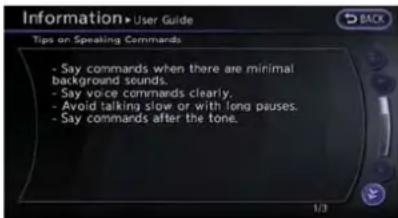
- HighlightHelponSpeakingandpush
. - To confirm the page, scroll the screen using the up and down switches of them in directional buttons or the center dial.
USINGVOICERECOGNITIONSYSTEM
Initialization
WhentheignitionswitchispushedtotheON position, VoiceRecognitionisinitialized, which takesafewseconds. Whencompleted, the systemisreadytoacceptvoicecommands.If
< ispushedbeforetheinitializationcom- pletes, thedisplaywillshowthemessage: "Systemnotready".
8-4 Voicerecognition
BEFORESTARTING
Togetthebestrecognitionperformancefrom VoiceRecognition,observethefollowingitems.
- The interior of the vehicles should be as possible. Closethewindowsto eliminate the surrounding noises (traffic noise and vibrations sounds, etc.), which may prevent the system from correctly recognizing the voice commands.
- Wait until the tone sounds before speaking a command.
- Speakinanaturalconversationalvoice withoutpausingbetweenwords.
GIVINGVOICECOMMANDS
1.Push< locatedonthesteeringwheel.
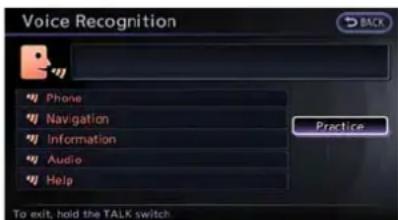
2.Alistofcommandsappearsonthescreen, and the system provides the voice menu prompt"WouldyouliketoaccessPhone, Navigation,Information,AudioorHelp?".
- Afterthetonesoundsandtheicononthe screenchangesfrom[ ] to [ ], speak a command.
- Continuetofollowthevoicemenuprompts andspeakafterthetonesoundsuntilthe preferredoperationiscompleted.
Operatingtips
●Speakacommandafterthetone.
- Commandsthatareavailablearealways shownonthedisplayandspokenthrough voicemenuprompts.Commandsotherthan thosethataredisplayedarenotaccepted. Followthepromptsgivenbythesystem.
- If the command is not accepted, the system announces, "Pleasesayagain". Repeat the command in a clear voice.
- Push
- Tocancelthecommand, pushandhold < _>. Themessage, "Voice canceled" will be announced.
- Push< >tostopthevoicepromptand givethecommandatonce.Rememberto waitforthetonebeforespeaking.
- Toadjustthevolumeofthesystemfeedback, pushthevolumecontrolbuttons<+> or<->onthesteeringwheelorusethe audiosystemvolumecontrolknobwhilethe
systemismakinganannouncement.
Howtospeaknumbers
NISSANVoiceRecognitionrequiresacertain waytospeaknumberswhengivingvoice commands.Refertothefollowingexamples.
Generalrule:
Onlysingledigits0(zero)to9canbeused.(For example,ifspeaking500,"fivezerozero"canbe used,but"fivehundred"cannot.)
Examples:
1-800-662-6200
"Oneeightzerozerosixsixtwosixtwozero zero"
ImprovingRecognitionofPhonenumber: Recognitionofphonenumberscanbeimproved byspeakingthephonenumberin3groupsof numbers. Forexample,tocall800-662-6200, speak "EightZeroZero"first,andthesystemwill thenasktospeakthenextthreedigits.Then, speak "SixSixTwo".Afterrecognition,the systemwillthenasktospeakthelast4digits. Speak,"SixTwoZeroZero".Usingthismethod ofphonedigitentrycanimproverecognition performance.

INFO:
Forbestrecognition, speak "zero" for the number "0" and "oh" for the letter "o".
CommandList
CategoryCommand:
| CommandAction | |
| NavigationOperatesNavigationfunction. | |
| PhoneOperatesPhonefunction. | |
| InformationDisplaysvehicleInformationfunction. | |
| AudioOperatesAudiofunction. | |
| HelpDisplaysUserGuide. |
NavigationCommand:
| CommandAction | |
| HomeSetsaroutetothehomethatisstoredintheAddressBook. | |
| Address | Searches for a location by the street address specified, and sets a route (for continental U.S. and Canada only). |
| PlacesSetsaroutetoafacilitynearthecurrentvehiclelocation. | |
| AddressBook | SearchesforstoredinformationintheAddressBook. |
| PreviousDestinations | Setsaroutetoapreviousdestination. |
InformationCommand:
| CommandAction | |
| FuelEconomyDisplaysfueleconomyinformation. | |
| MaintenanceDisplaysmaintenanceinformation. | |
| TrafficInformationTurnsthetrafficinformationsystem | monoroff. |
| WhereamI?Displaysthecurrentlocation. |
VehiclePhoneCommand:
| CommandAction | ||
| DialNumberMakesacalltoaspokenphonenumbrerupto10digits. | ||
| QuickDialMakesacalltoacontactthatisstoredinthequickdial. | ||
| PhonebookMakesacalltoacontactthatisstoredinthemobilephone. | ||
| CallhistoryIncomingCallsMakesacalltotheincomingcallnumber. | ||
| InternationalCallMakesaninternationalcallbyallowingmorethan10digitstobespoken. | ||
AudioCommand:
| CommandAction | |
| AMTurnstotheAMband,selectingthestationlastplayed. | |
| FMTurnstotheFMband,selectingthestationlastplayed. | |
| XMTurnstotheSiriusXMSatelliteRadio,selectingthechannellastplayed. | |
| CDStartstoplayaCD. | |
GeneralCommands:
| CommandAction | |
| GobackCorrectsthelastrecognitionresulttoreturn | othepreviousscreen |
| ExitCancelsVoiceRecognition |
VOICECOMMANDEXAMPLES
Tousethevoicerecognitionfunction, speaking onecommandissometimessufficient, but at othertimesitisnecessarytospeaktwoormore commands. Asexamples, someadditionalbasic operationsthatcanbeperformedbyvoice commandsaredescribedhere.
Example1: Placingcalltophone number800-662-6200
1.Push<>locatedonthesteeringwheel.

- Thesystemannounces, "Wouldyouliketo accessPhone, Navigation, Information, AudioorHelp?".
3.Speak"Phone".

4.Speak"DialNumber".

5.Speak"800".
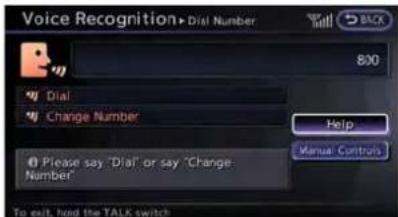
- Thesystemannounces, "Pleasesaynext threedigitsordial, or saychangenumber". Speak "662".
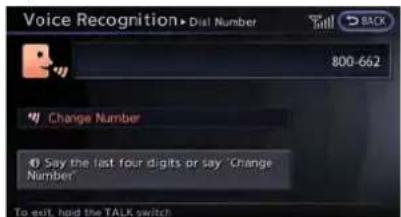
- Thesystemannounces, "Pleasesaylastfour digitsorsaychangenumber". Speak "6200".

- Thesystemannounces, "DialorChange Number?". Speak "Dial".

- Thesystemmakesacallto800-662-6200.

INFO:
- Speaking "800-662-6200"(10continuous digits)or"662-6200"(7continuousdigits)isacceptable,iftheareacodeisnot necessary.Howeverthe3-3-4digitgroupingisrecommendedforimprovedrecognition.

"Howtospeaknumbers"(page8-17)
- TheNISSANvoicerecognitionsystemisnot limitedtorecognizingphonenumbersof only7or10digits.Todialanumberina formatotherthanthe3-3-4-digitgrouping, usethe"InternationalCall"command.
- If "ChangeNumber" is spokenduring phone number entry, the system will automatically request that then number berepeated using the 3-3-4 format. In this case pleases speak
8-10 Voicerecognition
theareacodefirstandthenfollowthe prompts.
- Donotadda"1"infrontoftheareacode whenspeakingphonenumbers.
- If the system does not recognize a voice command, pleasetry repeating the command using an natural voice. Speaking too slowly ortooloudly may further decrease recognition performance.
Example2: Placing international call tophonenumber011-81-111-222-333
1.Push<>locatedonthesteeringwheel.

- Thesystemannounces, "Wouldyouliketo accessPhone, Navigation, Information, AudioorHelp?".
3.Speak"Phone".
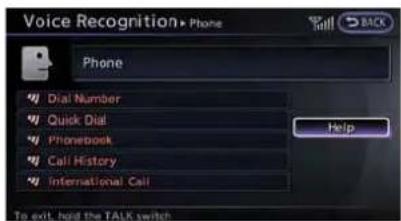
4.Speak"InternationalCall".
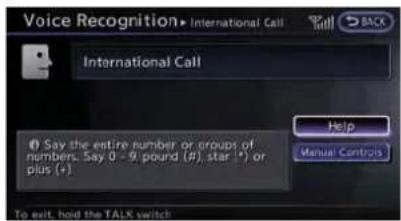
5.Speak"01181111222333".
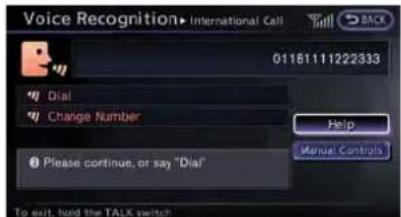
6.Speak"Dial".

- Thesystemmakesacallto011-81-111-222-333.
i INFO:
Anydigitinputformatisavailableinthe InternationalNumberinputprocess.
Example3:Settingdestinationby streetaddress
1.Push<>locatedonthesteeringwheel.

- Thesystemannounces, "Wouldyouliketo accessPhone, Navigation, Information, AudioorHelp?".
3.Speak"Navigation".

- Speak "Address".
INFO:
Press

5.Speakthenameofthestate,"California".
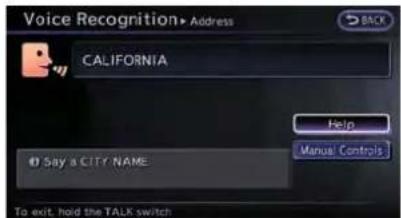
6.Speakthenameofthecity,"Gardena".

- Voicefeedbackwillbeprovidedwhenthe commandisaccepted,andthelistofcity namesisdisplayed.
- Afterthetonesoundsandtheicononthe screenchangesagain, speak "Four".
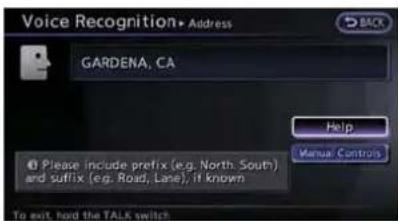
- Speakthenameofthestreet, "South Figueroastreet".

INFO:
- Onlytheofficialstreetnamesstoredin themapdatabasecanberecognizedby thesystem.Toimproveaccuracy,speak thestreetnamepreciselyandinclude Boulevard,Way,North,South,etc.,if known.Ifunsureofthefullname,speakingonlypartofthestreetnamesuchas "Figueroa"isacceptable,butrecognition accuracymaybereduced.
- Tocorrecttheenteredcity,streetor housenumber,speak"ChangeCity", "ChangeStreet" or "ChangeHouse Number".

- Voicefeedbackwillbeprovidedwhenthe commandisaccepted,andthelistofstreet namesappears.
- Afterthetonesoundsandtheicononthe screenchangesagain, speak "One".
![Voice Recognition• Address S. FIGUEROA ST GARDENA, CA House # Range: [ 1430 - 19299 ] Say "No House Number" to use the default location on the street. Help Manual Controls To exit, held the TALK switch](/content/2026/06/1276278/images/931f3bb9e72ab01737d4f6238d9ded200ffd5057a5f076e72bec8d57442a67b3.jpg)
12.Speakthehousenumber.
"Howtospeaknumbers"(page8-5)

INFO:
If the housenumber is unknown, speak "No housenumber".
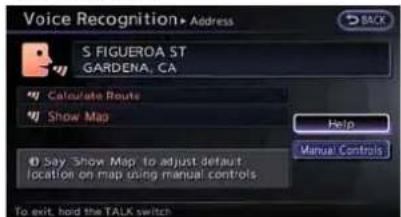
13.Toconfirmthedestinationlocationonthe map,speak"ShowMap".Tocalculatea route,speak"CalculateRoute".
8-12 Voicerecognition
ALTERNATECOMMANDMODE
The following section is applicable when Alternate Command Mode is active.
"Settingalternatecommandmode" (page8-22)
WhenAlternateCommandModeisactive,an expandedlistofcommandscanbeusedafter pushing<.Inthismode,availablecommandsarenotfullyshownonthedisplayor prompted.Reviewtheexpandedcommandlist, availablewhenthismodeisactive.SeeexamplesofAlternateCommandModescreens. Otherwise,itisrecommendedthatAlternate CommandModebeturnedOFFandStandard Modebeusedforthebestrecognitionperformance.
"Confirmingvoicecommands" (page8-13)
DISPLAYINGHOWTOOPERATE VOICERECOGNITIONSYSTEM
Whenoperatingthevoicerecognitionsystem forthefirtstimeorifhelpispreferredtousethe system,theCommandList(availableonly in AlternateCommandMode)ortheUserGuide areavailable.
Basicoperation
1.Push
2. Highlight[Others]andpush
3. Highlight[Voice Recognition] and push
4. Highlight the preferred item and push
Availableitems
- [CommandList]: Alistofvoicecommandsthatthesystem canacceptisdisplayed.
- [UserGuide]: Asimplifiedoperationmanualofthevoice recognitionsystemcanbedisplayedand howtousethevoicecommandscanbe confirmed.

TheCommandListfeatureisonlyavailablewhen AlternateCommandModeisactive.
Confirmingvoicecommands
When controlling the system by voice commands for the first time or if an appropriate voice command is unknown, confirming the voice command lists.
The following information describes how to display then navigation command list and the helplist. For information about the operations of other functions, refer to the vehicle Owner's Manual.
Example: Displayingthenavigationcommandlist:
1.Push
2. Highlight[Others]andpush
3. Highlight[VoiceRecognition] and push

- Highlight[CommandList] and push
.

5. Highlight the preferred item and push .
Availableitems
- PhoneCommands
- NavigationCommands
• InformationCommands - AudioCommands
- HelpCommands

- To confirm the list, scroll the screen using the up and down switches of them in directional buttons or the center dial.
7.Pushtoreturntotheprevious screen.
CONFIRMINGHOWTOUSEVOICE COMMANDS
Itispossibletoconfirmhowtousevoice commandsbyaccessingasimplifiedUser Guide,whichcontainsbasicinstructionsand tutorialsforseveralvoicecommands.
Basicoperation

1.Push
2. Highlight[Others]andpush
3. Highlight[Voice Recognition]andpush
4. Highlight [User Guide] and push
5. Highlight the preferred item and push
Availableitems
- voicerecognitionsystem.
- [Let'sPractice]:
Modeforpracticefollowingthesystem voice.
•[UsingtheAddressBook]: Tutorialforsettingadestinationbythe AddressBook.
•[FindingaStreetAddress]: Tutorialforenteringadestinationbystreet address. - [PlacingCalls]: Tutorialformarkingaphonecallbyvoice commandoperation.
-
correctcommandrecognitionbythesystem.
•[VoiceRecognitionSettings]: Describestheavailablevoicerecognition settings. - [AdaptingtheSystemtoYourVoice]: Tutorialadaptingthesystemtotheuser's voice.
GettingStarted
Beforeusingthevoicerecognitionsystemfor thefirsttime,itispossibletoconfirmhowtouse commandsbyviewingtheGettingStarted sectionoftheUserGuide.
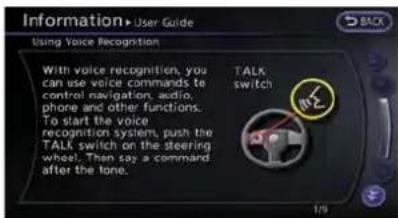
- Highlight[Getting Started] and push
. - To confirm the page, scroll the screen using the up and down switches of them in directional buttons or the center dial.
Practicingvoicecommands
Practiceforusingthevoicerecognitionfunction canbeperformedbyrepeatingaphraseafter thesystemannouncesit.
- Highlight[Let's Practice] and push
. - Practice voice commands in accordance with the audioguidance.
Tutorialsonoperationofvoicere-cognitionsystem
Whenselecting[UsingtheAddressBook], [FindingaStreetAddress]or[PlacingCalls], thesystemdisplaytutorialsonhowtoperform theseoperationsusingvoicerecognition.
Example:With[UsingtheAddressBook]high-lighted
- Highlight[UsingtheAddressBook] and push
. Thetutorialstarts.

- The voice guided demonstrates how to speak when giving commands.
- Whenthetutorialiscompleted, thesystem automatically switch the Menuscreen.
Usefultipsforcorrectoperation
Itispossibletodisplayusefulspeakingtipsthat mayhelpthesystemtoacceptavoicecommand correctly.

- HighlightHelponSpeakingandpush
. - To confirm the page, scroll the screen using the up and down switches of them in directional buttons or the center dial.
Voicerecognitionsettings
Thesettingsforeasyoperationofthevoice recognitionsystemaredisplayed.

- Highlight[VoiceRecognitionSettings] and push
. - To confirm the page, scroll the screen using the up and down switch of them in directional buttons or the center dial.
AdaptingVoiceRecognitionSystem toYourVoice
Thevoicerecognitionsystemisequippedwitha learningfunctiontoadapttotheuser'svoicefor betterrecognition.Itispossibletoconfirmhow tooperatethelearningfunctionthroughthis tutorial.

- Highlight[AdaptingtheSystemtoYour Voice]andpush
.Thetutorial starts.
8-16Voicerecognition
- The voice guided demonstrate the step that havetobe performed.
- Whenthetutorialiscompleted, thesystem automatically switch the Menuscreen.
USINGVOICERECOGNITIONSYSTEM
Initialization
WhentheignitionswitchispushedtotheON position,VoiceRecognitionisinitialized,which takesafewseconds.Whencompleted,the systemisreadytoacceptvoicecommands.If < 1>ispushedbeforetheinitializationcom- pletes,thedisplaywillshowthemessage: "Systemnotready".
BEFORESTARTING
Togetthebestrecognitionperformanceoutof VoiceRecognition,observethefollowing:
- The interior of the vehicles should be as possible. Closet hewindowsto eliminate the surrounding noises (traffic noise and vibrations sounds, etc.), which may prevent the system from correctly recognizing the voice commands.
- Waituntilthetonesoundsbeforespeakinga command.
- Speakinanaturalconversationalvoice withoutpausingbetweenwords.
GIVINGVOICECOMMANDS
1.Push< locatedonthesteeringwheel.

2.Alistofcommandsappearsonthescreen, andthesystemannounces, "Pleasesaya command".
- After the tones sounds and the icon on the screen changes from [ ] to [ ], speak a command.
Operatingtips
- If the command is not recognized, the system announces, "Pleasesayagain". Repeat the command in a clear voice.
- Push
once to return to the previous screen. - Tocancelthecommand, pushandhold < _#.Themessage, "Voice canceled" will be announced.
- Push< >tostopthevoicepromptand givethecommandatonce.Rememberto waitforthetonebeforespeaking.
- To adjust the volume of the system feedback, push the volume control buttons [+] or [-] on the steering wheel or set the audio system volume control knob while the system is making an announcement.
Howtospeaknumbers
NISSANVoiceRecognitionrequiresacertain waytospeak numberswhengiving voice commands. Refertothefollowingexamples.
Generalrule:
Onlysingledigits0(zero)to9canbeused. For example, tospeak500, "fivezerozero" can be used, but "fivehundred" cannot.
Examples:
1-800-662-6200
"Oneeightzerozerosixsixtwosixtwozero zero"
ImprovingRecognitionofPhonenumber: Recognitionofphonenumberscanbeimproved byspeakingthephonenumberin3groupsof numbers. Forexample,tocall800-662-6200, speak "EightZeroZero"first,andthesystemwill thenasktospeakthenextthreedigits.Then, speak "SixSixTwo".Afterrecognition,the systemwillthenasktospeakthelast4digits. Speak,"SixTwoZeroZero".Usingthismethod ofphonedigitentrycanimproverecognition performance.

INFO:
Forbestrecognition, speak "zero" for the number "0" and "oh" for the letter "o".
8-18 Voicerecognition
CommandList
NavigationCommand:
| CommandAction | |
| HomeSetsaroutetoyourhomelocation. | |
| AddressSetsaroutetothestreetaddresssthatyouspecify(forcontinentalU.S.andCanadaonly). | |
| PlacesSetsaroutetoafacilitynearthecurrentvehiclelocation. | |
| AddressBookSetsaroutetoalocationstoredintheAddressBook. | |
| PreviousDestinationsSetsaroutetoapreallyentereddestination. | |
| PreviousStartPointSetsaroutetothepreviousstartingpoint. | |
| MinimizeFreewayRouteSetstheroutesearchconditionominimizetheusageoffreeways. | |
| FastestRouteSetstheroutesearchconditiontofindthefastesttime. | |
| ShortestRouteSetstheroutesearchconditiontofindtheshortestdistance. | |
| CancelRouteStopsthecurrentroutebutcanberesumedbyusing. | |
| DeleteDestinationDeletestheentireroute(destinationandwaypoints). | |
| BirdviewMapDisplaysthemapinBirdview | TM(3D). |
| PlanviewMapDisplaysthemapinPlanView(2D). | |
| NorthUp | LocksthemaptomakeNorthalwayspointup. |
| HeadingUp | Locksthevehicleindicatortomakeitalwayspointup. |
| ZoomIn<1 to 13>Increasesthemagnificationofthemapbythenumberofstepsspecified. | |
| Zoom Out <1 to 13> | Decreases the magnification of the map by the number of steps specified. |
| Voice Guidance On/Off | Turns the navigation guidance on and off. |
| GuidanceVoiceRepeat | Speaksthecurrentnavigationguidance. |

INFO:
Thewordsinitalicsarevariable.
InformationCommand:
| CommandAction | |
| FuelEconomyDisplaysfueleconomyinformation. | |
| TirePressureDisplaystirepressureinformation. | |
| MaintenanceDisplaysmaintenanceinformation. | |
| WhereamI?Displaysthecurrentlocation. | |
| TrafficInformationTurnsthetrafficinformationsystemonoroff. | |
| WeatherInformationDisplaysweatherinformation. | |
| WeatherMapDisplaystheweathermap. | |
VehiclePhoneCommand:
| CommandAction | ||
| DialNumberMakesacalltoaspokenphonenumber. | ||
| QuickDialMakesacalltoacontactthatisstoredinthequickdial. | ||
| PhonebookMakesacalltoacontactthatisstoredinthemobilephone. | ||
| Call History | Incoming Calls | Makes a call to the incoming call number. |
| OutgoingCalls | Makesacalltothedialednumber. | |
| MissedCalls | MakesacalltotheMissedcallsnumber. | |
| InternationalCall | Makesaninternationalcallbyallowingmorethan10digitstobespoken. | |
AudioCommand:
| CommandAction | |
| CDStartstoplayaCD. | |
| FMTurnstotheFMband,selectingthestationlastplayed. | |
| AMTurnstotheAMband,selectingthestationlastplayed. | |
| XMTurnstotheSiriusXMSatelliteRadioband,selectingthechannellastplayed. | |
| USBTurnsontheUSBmemory. | |
| BluetoothAudioTurnsontheBluetoothaudioplayer. | |
| AUXTurnsontheAUX. |
GeneralCommand:
| CommandAction | |
| GobackCorrectsthelastrecognitionresulttoreturntothepreviousscreen | |
| ExitCancelsVoiceRecognition | |
HelpCommand:
| CommandAction | |
| NavigationCommandsDisplaysthenavigation | commandlist. |
| PhoneCommandsDisplaysthephonecommandlist. | |
| AudioCommandsDisplaystheaudiocommandlist. | |
| InformationCommandsDisplaystheinformation | commandlist. |
| HelpCommandsDisplaysthehelpcommandlist. | |
| UserGuide | DisplaystheUserGuide |
| Speaker Adaptation | The system memorizes the voices of up to three persons for better voice recognition performance. |
SYSTEMFEEDBACKANNOUNCEMENTMODES
Itispossibletoselecttwomodes,longorshort, fortheannouncementbythesystem.
Howtoset
1.Push
2. Highlight[Others]andpush
3. Highlight[VoiceRecognition]andpush

- Highlight[MinimizeVoiceFeedback] and push
.The indicator illuminates, and the system announcement mode switchestotheshortmode.
5.Pushtoreturntotheprevious screen.Push
8-22Voicerecognition
SETTINGALTERNATECOMMAND MODE
Thismodeenablestheoperationofthedisplay andaudiothroughVoiceRecognition.Whenthis modeisactive,anexpandedlistofcommands can be spoken after pushing
Thismodecanbeturnedonoroff.
Howtoset
1.Push
2. Highlight[Others]andpush
3. Highlight[Voice Recognition] and push

- Highlight [Alternate Command Mode] and push
.Aconfirmationmessageis displayed. Highlight[Yes]andpush . The indicator illuminates, and AlternateCommandModeswitchestoON.
5.Pushtoreturntotheprevious screen.Push
SPEAKERADAPTATION
Thevoicerecognitionsystemhasafunctionto learntheuser'svoiceforbettervoicerecognition performance.
The system can memorize the voices of up to threepersons.
Havingsystem learnuser's voice
1.Push
2. Highlight[Others]andpush
3. Highlight[VoiceRecognition]andpush

- Highlight[SpeakerAdaptation]andpush
.

- Highlight the user whose voice is memorized by the system, and push
.
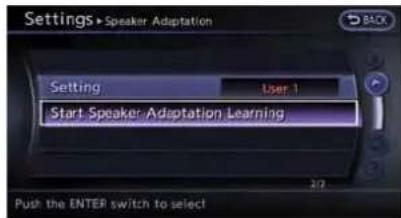
- Highlight[StartSpeakerAdaptationLearning]andpush
.
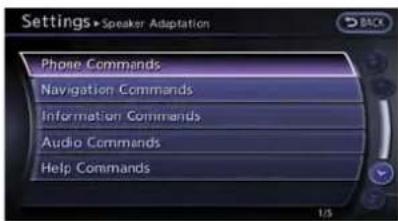
- Highlightthevoicecommandcategorytobe learnedbythesystem, andpush
. Thevoicecommandcategorylistisdisplayed.
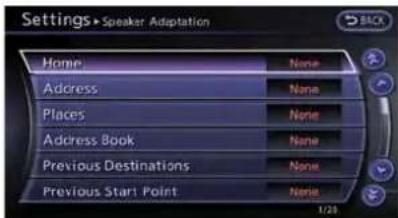
- Highlightthevoicecommandtobelearned bythesystem, andpush
. The voicerecognitionsystemstarts.

-
Thesystemannounces, "Pleasesaya command".
-
Afterthetonesoundsandtheicononthe screenchangesfrom[ E ] to [ ], speak command.
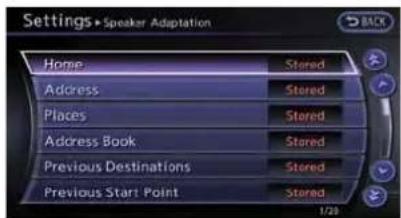
- Whenthesystemhasrecognizedthevoice command, thevoiceoftheuserislearned. Push
oncetoreturntothe previousscreen.

INFO:
With[ContinuousLearning]settoon,the systemdoesnotgobacktothecommand listscreen,allowingtocontinuevoice commandlearningbythesystem.
- If the system has learned the command correctly, "None" will change to "Stored".
Editingregistereditems
Itispossibletoeditusernamesandselect learningfunctionsettings.
1.Push
2. Highlight[Others]andpush
3. Highlight[Voice Recognition] and push
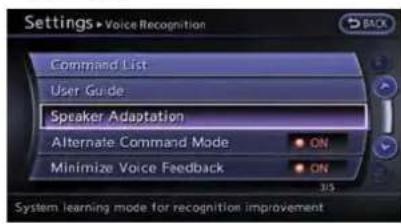
- Highlight[SpeakerAdaptation]andpush
.
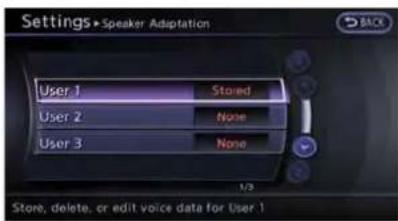
- Highlight a userto edit, and push
.
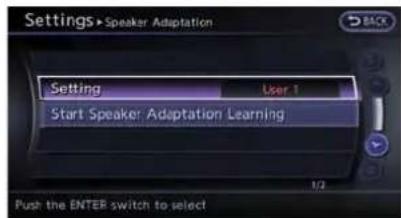
- Highlight[Setting]andpush
.

- Highlightanitemtoedit, and push
.
Settingitems
- [EditUserName]:
Edittheusername.
- [DeleteVoiceData]:
Resettheuservoiceethatthevoice recognitionsystemhaslearned.
• [ContinuousLearning]:
Havethesystemlearnthevoicecommands of the user in succession, without selectingcommandsonebyone.
VOICECOMMANDEXAMPLES
Tousethevoicerecognitionfunction, speaking onecommandissometimessufficient, but at other times it is necessary to speak two or more commands. As examples, some additional basic operations by voice commands are described here.
8-24Voicerecognition
Example1: Switchingmapto2D (PlanView)mode

1.Push<>locatedonthesteeringwheel.
2. Thesystemannounces, "Pleasesaya command".
3. Afterthetonesoundsandtheicononthe
screenchangesfrom[ ] to [ ], speak
"PlanViewMap".
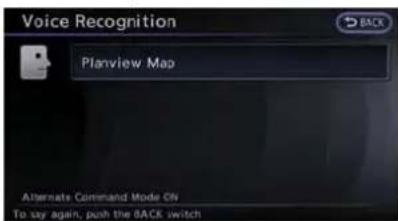
- Voicefeedbackwillbeprovidedwhenthe commandisaccepted,andthemapis displayedin2D(PlanView).
Example2:Settingdestination usingplaceslist
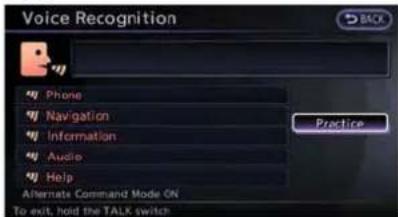
1.Push<>locatedonthesteeringwheel.
2. Thesystemannounces, "Pleasesaya command".
3. After the tones sounds and the icon on the screen changes from [ ] to [ ], speak "Places".

-
Ifarouteisalreadyset, choose "Near CurrentLocation", "AlongRoute" or "Near Destination".
-
Afterthetonesoundsandtheicononthe screenchangesagain, speak "AlongRoute".

- Voicefeedbackwillbeprovidedwhenthe commandisaccepted,andthelistofplaces ofinterestcategoriesappears.
- Afterthetonesoundsandtheicononthe screenchangesagain, speak "Two".

-
Voicefeedbackwillbeprovidedwhenthe commandisaccepted,andthelistofplaces ofinterestinthecategoriyspecifiedinthe previousstepappears.
-
Afterthetonesoundsandtheicononthe screenchangesagain, speak "One".
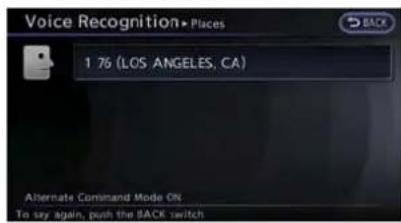
- Voicefeedbackwillbeprovidedwhenthe commandisaccepted,andthesystem startscalculatingaroutetotheselected facility.
Example3:Settingdestinationby streetaddress
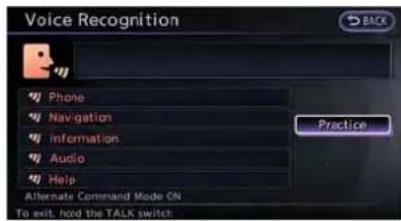
1.Push<>locatedonthesteeringwheel.
-
Thesystemannounces, "Pleasesaya command".
-
Speak "Address".
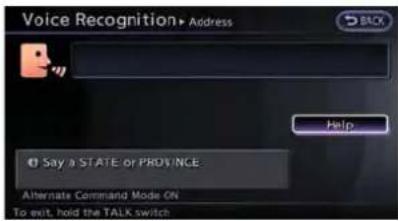
- Speakthenameofthestate, "California".

5.Speakthenameofthecity,"Gardena".

- Speakthenameofthestreet, "South Figueroastreet".
INFO:
Speakthestreetnamepreciselyincluding boulevard,way,north,south,etc.InAlternateCommandMode,thesystemdoesnot recognizeabbreviatednameswhentheyare spoken.Inthiscase,thesystemdoesnot accept“Figueroastreet”or“Figueroa”.
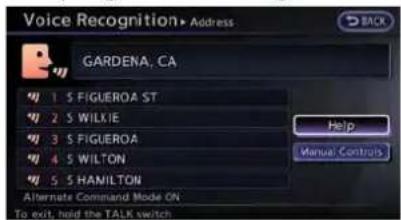
8-26Voicerecognition
- Voicefeedbackwillbeprovidedwhenthe commandisaccepted,andthelistofstreet namesappears.
- Afterthetonesoundsandtheicononthe screenchangesagain, speak "One".
![Voice Recognition Address S FIGUEROA ST GARDENA, CA House # Range: [ 14300 - 19299 ] Say "No House Number" to use the default location on the street. Alternate Command Mode On To exit, hold the TALK switch Help Manual Controls](/content/2026/06/1276278/images/301a3c5da4f102a20cfa2609bb32681afbb0afed3d1899e31f95b2da5c74a6be.jpg)
10.Toconfirmthedestinationlocationonthe map,speak"ShowMap".Tocalculatea route,speak"CalculateRoute".
- Speak the house number. "Howtospeak numbers" (page 8-17)
INFO:
If the housenumber is unknown, speak "No housenumber".

MEMO
8-28Voicerecognition
9Monitorsystem
RearViewmonitor....9-2
Howtoreaddisplayedlines....9-2
AboutRearViewMonitor....9-3
Howtoparkwithpredictedcourselines....9-5
Operatingtips....9-6
Camerasettings....9-7

REARVIEWMONITOR
Whentheshiftleverisshiftedintothe"R" (Reverse)position,themonitordisplayshows theviewtotherearofthevehicle.
Thesystemisdesignedasanaidtothedriverin detectinglargestationaryobjectstohelpavoid damagingthevehicle. Thesystemwillnotdetect smallobjectsbelowthebumperandmaynot detectobjectsclosetothebumperoronthe ground.

WARNING
•TheRearViewMonitorisaconveniencebutitisnotasubstitutefor properbackingup.Alwaysturnand checkthatitissafetodosobefore backingup.Alwaysbackupslowly.
- ObjectsviewedintheRearView
Monitordifferfromactualdistance
becauseawide-anglelensisused.
ObjectsintheRearViewMonitor
willappearvisuallyoppositelike
onesviewedintheinsideandout-
sidemirrors.
- Makesurethatthetrunkissecurely closedwhenbackingup.
•Underneaththebumperandthe cornerareasofthebumpercannot beviewedontheRearViewmonitor
becauseofitsmonitoringrange limitation.
- Donotputanythingonthecamera. Therearviewcameraisinstalled abovethelicenseplate.
- When washing the vehicle with high-pressurewater, besurenotto sprayitaround the camera. Otherwise, water may enter the camera unit causing water condensation on the lens, malfunction, fireor an electric shock.
- Donotstrikethecamera.Itisa precisioninstrument. Otherwise, it may malfunctionorcausedamage resultinginafireoranelectric shock.

CAUTION
Thereisaplasticcoveroverthecamera. Donotscratchthecoverwhencleaning dirtorsnowfromthecover.
HOWTOREADDISPLAYEDLINES
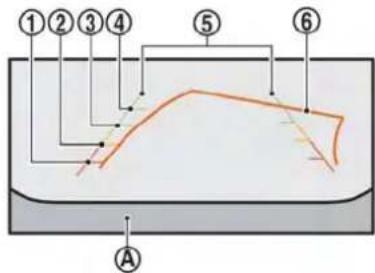
Guidinglineswhichindicatethevehiclewidth anddistancestoobjectswithreferencetothe bumperline (A) aredisplayedonthemonitor.
Distanceguidelines:
Indicated distances from the bumper.
●Redline ①:approx.1.5ft(0.5m)
●Yellowline ②:approx.3ft(1m)
●Greenline ③:approx.7ft(2m)
●Greenline ④:approx.10ft(3m)
Vehiclewidthguidelines ⑤: Indicatethevehiclewidthwhenbackingup.
Predictedcourselines ⑥:
Indicatethepredictedcoursewhenbackingup. Thepredictedcourselineswillbedisplayedon themonitorwhentheshiftleverisinthe"R" (Reverse)positionandthesteeringwheelis turned.Thepredictedcourselineswillmove dependingonhowmuchthesteeringwheelis turnedandwillnotbedisplayedwhilethe steeringwheelisintheneutralposition.
HowtoadjustRearViewscreen
ToadjusttheBrightness, Tint, Color, Contrast and BlackLeveloftheRearViewMonitor, press
DonotadjusttheBrightness, Tint, Color, ContrastandBlackLeveloftheRearView Monitorwhilethevehicleismoving.
ABOUTREARVIEWMONITOR
Differencebetweenpredicted and actualdistances
The distance guideline and the vehicle width guidelines should be used as reference only when the vehicle is on a level, paved surface. The distance viewed on the monitor is for reference only and maybe different from the actual distance between the vehicle and displayed objects.
Backinguponasteepuphill:

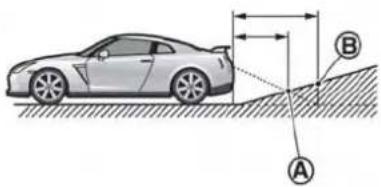
Whenbackingupthevehicleupahill, the distanceguidelinesandthevehiclewidthguide linesareshowncloserthantheactualdistance. Forexample,thedisplayshows3ft(1.0m) to theplace Ⓐ ,buttheactual3ft(1.0m) distanceonthehillistheplace Ⓑ .Notethat anyobjectonthehillisfurtherthanitappearson
Monitorsystem9-3
themonitor.
Backinguponasteepdownhill:


Whenbackingupthevehicledownahill,the distanceguidelinesandthevehiclewidthguide linesareshownfurtherthantheactualdistance. Forexample,thedisplayshows3ft(1.0m)to theplace Ⓐ,buttheactual1.0m(3ft)
distanceonthehillistheplace Ⓑ .Notethat anyobjectonthehilliscloserthanitappearson themonitor.
Backingupnearaprojectingobject:


Thepredictedcourselines Ⓐ donottouchthe objectinthedisplay.However,thevehiclemay hittheobjectifitprojectsovertheactual
backingupcourse.
Backingupbehindaprojectingobject:


Theposition C is shown further than the position B in the display. However, the position C is actually at the same distance astheposition A. The vehicle may hit the object when backing up to the position
HOWTOPARKWITHPREDICTED COURSELINES

WARNING
- Alwaysturnandcheckthatitissafe toparkyourcarbeforebackingup. Alwaysbackupslowly.
- Usethedisplayedlinesasareference.Thelinesarehighlyaffected bythenumberofoccupants,fuel level,vehicleposition,roadconditionandroadgrade.
- If the tires are replaced with different-sized tires, the predicted course line may not be displayed correctly.
- Onasnow-coveredorslipperyroad, theremaybeadifferencebetween thepredictedcourselineandthe actualcourseline.
- If the battery is disconnected or becomes discharged, the predicted courelines may be displayed in correctly. If this occurs, drivethe vehicle on a straight road form more than 5 minutes.
-
When the steering wheel is turned with the ignition switch in the ACC position, the predicted courselines may be displayed incorrectly.
-
The displayed line will appear slightly offtotheright because the rearviewcameraisnotinstalled in therearcenterofthevehicle.
- Thedistanceguidelineandthe vehiclewidthguidelineshouldbe usedasareferenceonlywhenthe vehicleisonalevelpavedsurface. Thedistanceviewedonthemonitor isforreferenceonlyandmaybe differentthantheactualdistance betweenthevehicleanddisplayed objects.
- Whenbackingupthevehicleupa hill,objectsviewedinthemonitor arefurtherthantheyappear.When backingupthevehicledownahill, objectsviewedinthemonitorare closerthantheyappear.Use the insidemirrororglanceoveryour shouldertoproperlyjudgedistancetootherobjects.
Thevehiclewidthandpredictedcourse linesarewiderthantheactualwidthand course.
theobjectprojectsovertheactualbackingup course.


- Visually check that the parkingspace is safe before parking your vehicle.
- The Rear View of the vehicle is displayed on the screen Ⓐ as illustrated when the shift lever is moved to the "R" (Reverse) position.

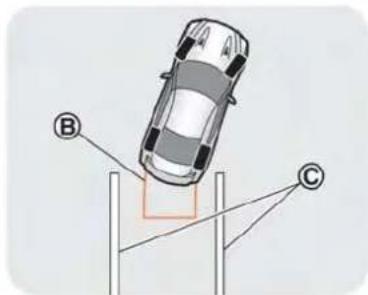
3.Slowlybackupthevehicle,adjustingthe steeringwheelsothatthepredictedcourse lines Ⓑ entertheparkingspace Ⓒ.
4. Maneuverthesteeringwheeltomakethe vehiclewidthguidelines Ⓓ paralleltothe parkingspace Ⓒ whilereferringtothe predictedcourselines.
- Whenthevehicleisparkedinthespace completely, movetheshiftlevertothe "P"(Park)positionandapplytheparking brake
OPERATINGTIPS
- Whentheshiftleverisshiftedtothe"R" (Reverse)position,themonitorscreenautomaticallychangestotheRearViewMonitor mode.However,theradiocanbeheard.
- It may take sometime until the Rear View Monitor is displayed after the shift lever has been shifted to "R" from another position or another position from "R". Objects maybe distorted momentarily until the Rear View Monitorscreen is displayed completely.
- Whenthetemperatureisextremelyhighor low,thescreenmaynotclearlydisplay objects. Thisisnotamalfunction.
- When strong light directly enter the camera, objects may not be displayed clearly. This is not a malfunction.
- Thescreenmayflickerunderfluorescent light. Thisisnotamalfunction.
-
ThecolorsofobjectsontheRearView Monitormaydiffersomewhatfromthoseof theactualobject.
-
Objectsonthemonitormaynotbeclearina darkplaceoratnight. This is not a malfunction.
- Ifdirt, rainorsnowattachestothecamera, theRearViewMonitormaynotclearlydisplayobjects.Cleanthecamera.
- Donotusealcohol, benzineorthinnerto cleanthecamera. This will cause discoloration. Tocleanthecamera, wipewithacloth dampened with diluted mild cleaning agent and then wipewithadrycloth.
- Donotdamagethecameraasthemonitor screenmaybeadverselyaffected.
- Donotusewaxonthecamerawindow. Wipeoffanywaxwithacleancloth dampenedwithmilddetergentdilutedwith water.
CAMERASETTINGS
Displayofpredictedcourselinescanbesetto ONorOFF.

If therearviewmonitorisnotinoperation, set according to the following procedure.
1.Push
2. Select[Others] and press
3. Select[Camera] and press
4. Select[PredictiveCourseLines] and press
MEMO
9-8 Monitorsystem
10Multifunctionmeter
Aboutmultifunctionmeter....10-2
Safetynotes....10-2
Multifunctionmeterlist....10-2
Basicoperation....10-4
Howtoviewthefunctionmeterscreen....10-4
Howtoswitchscreens....10-6
Customviewscreen....10-7
Selectingpanel....10-7
Performanceandvehicleinformationpanel......10-10
Drivingsupportscreen....10-17
Accelerationscreen....10-17
Brakingscreen....10-19
Steeringscreen....10-21
Gearpositionscreen....10-22
Fueleconomyscreen....10-23
Drivingrecordscreen....10-25
Stopwatchscreen....10-25
Driver'snotesscreen....10-28
ABOUTMULTIFUNCTIONMETER
Themultifunctionmeterallowsyoutoseethe vehiclestatusandtheresultsofdrivingoperation.
SAFETYNOTES
Foryourdrivingsafetypleasereadthefollowing warnings.

WARNING
- Use the information from them multi function meter strictly as areferencetomake your driving more comfortable. Thereadings are not meant to prevent accidents caused byreckless driving or poordriving conditions (duetoweather, road condition, etc.). Always obey all traffic regulations and posted speed limits.
- Operatingthemultifunctionmeter whiledrivingcanleadtoacrash resultinginseriousinjuriesor death.Alwaysparkthevehicleina safeplacebeforeoperatingthedisplayscreen.
- Lookatthedisplayscreenonly brieflywhiledriving.Keepyoureyes ontheroad.Inattentivedrivingmay leadtoacrashresultinginserious
injuriesordeath.

INFO:
●Theinformationdisplayedonthemulti functionmeterisforreferencepurposes only.Duetoroadconditionsandtemperature,theinformationdisplayedbythesystem may vary from actual driving conditions.
- Youcanselecttheunitsthatthemulti functionmeterdisplays.
"Languageandunitsettings" (page7-9)
MULTIFUNCTIONMETERLIST
The following information can be displayed on them multifunctionmeter.
Performance and vehicle information


The driver can select uptosix different meter to be displayed.
Informationforimprovingdriving smoothness

WARNING
Use the information from them multi function meter strictly as a reference to make your driving more comfortable. Thereadings are not meant to prevent accidents caused by reckless driving or poordriving conditions (duetoweather, road condition, etc.). Always obey all traffic regulations and posted speed limits.
Acceleration:

Display the accelerator pedal position, boost pressure and the force being exerted on the vehicle.
Braking:

Displaysthebrakepedalposition,vehiclespeed andtheg-forcebeingexertedonthevehicle.
Steering:

Displaysthesteeringangle,vehiclespeedand theg-forcebeingexertedonthevehicle.
Informationforfueleconomyim-provement
Gearposition:

Displaysthegearposition,vehiclespeedand eachgear'sfueleconomylevel/torquemap.
Fueleconomy:

Displaysthefueleconomyinformation.
Tripcalculator.
Stopwatch:

Displaystherecordeddrivingtime,vehicle speedandelapsedtimeandsavesthehistory foreachofthesefunctions.
Driver'snotes:

Displaythedrivinghistory(waypointspassed), remainingfuel/estimatedcruisingrange(Distancetoempty)andthedistancedriven.
BASICOPERATION
Push
Informationdisplayonthemultifunctionmeter displaywilldifferdependingonyourintended useofthedisplay.Youcanchoosetoselectthe metersthatbestsuityourneeds.
HOWTOVIEWTHEFUNCTIONME- TERSCREEN
Thevehicle'sdisplayisdividedintodifferent panelsthatdisplayvehicleinformation.
10-4Multifunctionmeter
Screeninformation
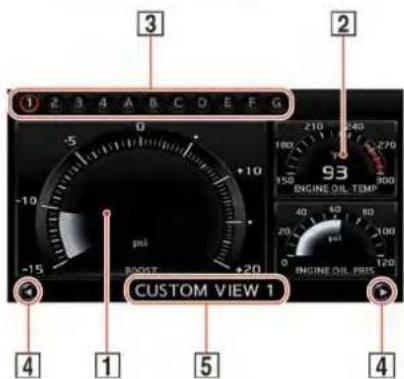
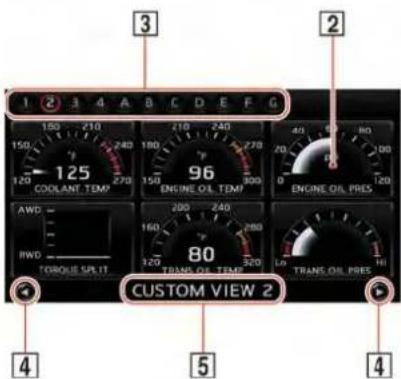
1 Largepanel:
Displaysthevehicleinformationmeterdisplay, digitaldisplayandgaugedisplay. Thisfeatureis onlyavailableinthe3-panelldisplaymode. Touch thepaneltoselectanothermetertodisplay.

"Performanceandvehicleinformationpanel"(page10-10)
2 Smallpanel:
Thisdisplayissimplerthanthelargedisplay. Touchthepaneltoselectanothermeterto display.

"Performanceandvehicleinformationpanel"(page10-10)
3 Screennumber:
Thisnumberorletteridentifiesthescreenthat youarecurrentlyviewing.Touchthescreen numbertodisplaythecorrespondingscreen. "Selectusingtouchpanel"(page10-8)
4 Screenswitching:
Scrollsthroughthescreens.Touch tothepreviousscreen.Touch thenextscreen.
toreturn oproceedto
"Selectusingtouchpanel"(page10-8)
5 Screentitle:
Displaysthetitleofthescreencurrentlydis- played.
HOWTOSWITCHSCREEN


Operatethecenterdialorthetouchpanelto selectthescreensthatyouwouldliketodisplay onthemultifunctionmeterscreen.
Selectingscreenusingcenterdial
Turnthecenterdialandtouchthescreenthat youwouldliketodisplay.Thecolorofthepage youhavechosenwillchange,andthemulti functionmeterscreenwillbedisplayed.
Selectingscreenusingtouchpanel
Selectingscreenbynumber:
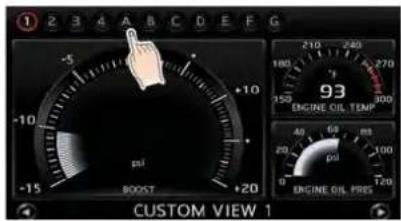
Select the screen that you would like to display. Themultifunction meters screen you selected will appear.
Selectingscreenbyscrollingthrough screens:

10-6Multifunctionmeter
TouchWitherchtouch,thescreens willscrollthroughinorder.
Theprevioussscreenwillbedisplayed.
:Thenextscreenwillbedisplayed.
CUSTOMVIEWSCREEN
Thisscreenallowsyoutodisplaytheperformanceandvehicleinformation,asneeded,in orderforyoutouseyourvehicleunderoptimum conditions.Youcandisplayseveralvehicle informationpanelsatonce.Eachpanelldisplays digitalgaugesinthescreenarea.
SELECTINGPANEL
Selectthepanelyouwouldliketodisplayand thenplaceitwhereyouwouldlikeittobe displayed.Youcanconfigurethescreento displaybetween1 and4customviewpanels.
Selectusingcenterdial
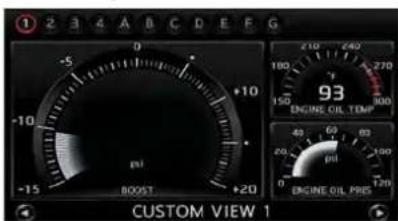
- Display the panely you would to change and push
. The paneldisplay will change.

- Select the panely you would like to change and push
. Themeter selection screen will be displayed.
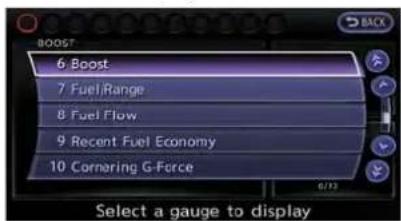
- Select the item you would like to display and push
.Thedisplayedpanelwill change.
Selectusingtouchpanel
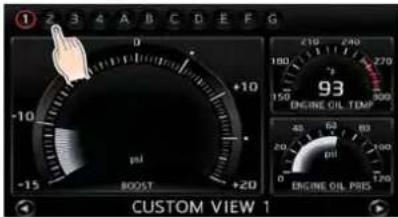
- Touch the screen number you would like to change.

- Touch the panely you would like to change. Themeterselections screen will be displayed.

- Touch the item you would like to display. The displayed panel will change.
Panellist
Thereisadifferencebetweentheitemsthatyou canselectaslargeorsmallpanels.
| No.ItemLargepanelSmallpanel | |||
| 1EngineCoolantTemperature | |||
| 2EngineOilTemperature | |||
| 3EngineOilPressure | |||
| 4TransmissionOilTemperature | |||
| 5TransmissionOilPressure | |||
| 6Bopst | |||
| 7Speed | — | ||
| 8Fuel/Range | |||
| 9FuelFlow | |||
| 10 | RecentFuelEconomy | ||
| 11 | Torque split | — | |
| 12 | Accel pedal | — | |
10-8Multifunctionmeter
| No.ItemLargepanelSmallpanel | ||
| 13Brakepedal—○ | ||
| 14Steering—○ | ||
| 15Corneringg-force○ ○ | ||
| 16Accel/Brakingg-force○ ○ | ||
| 17Totalg-force○ ○ | ||
| 18Clock—○ | ||
| 19ResettheCUSTOMVIEW#(1-4 CentDefault○ | ○ |

INFO:
●Eachpanelselectedwillbesaved
- Panelswillremainsavedinthesystemeven aftertheengineisturnedoff.
- Two of the same panels cannot be displayed atthesametime.
- Two of the same panels of different sizes cannot bedisplayedatthesametime.
- Panels that have not been assigned a displayitemremainempty.
Initializing display
The modified display will return to the screen that was first configured.
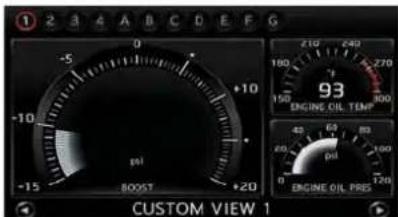
- Display the screen you would like to initialize andpush
.
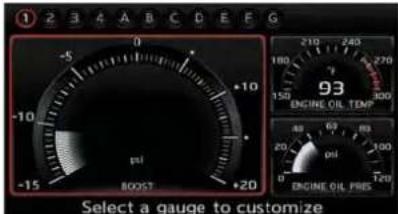
- Selectthepanelandpush
.

- Highlight [Reset the CUSTOM VIEW 1 to Default] and push
.

INFO:
Whenoperatingthetouchpaneltoinitializethe display, the same procedure used to select a meterisperformed.
"Selectusingtouchpanel"(page10-8)
PERFORMANCEANDVEHICLEINFORMATIONPANEL
Theappearanceofeachpanelvaries. Theway thatlargepanelsandsmallpanelsaredisplayed alsodiffers, evenwhenthesamemechanical informationisdisplayed.
Enginecoolanttemperature
Displaysthetemperatureoftheenginecoolant.

Largepanelscreen

Smallpanelscreen
i INFO:
- Whenthismeterdisplaysinred, reduce the operationspeedoftheengine(RPMs) and driveatareducedspeed.
- Drivingwhiletheenginecoolanttemperatureishhighmaycauseenginedamage.
- WhenscreensotherthantheFUNCTION screenaredisplayed, thescreenwillnot change, evenifthemetervaluesregistered zonereadings.
Engineoiltemperature
Displaystheengineoiltemperaturereading.
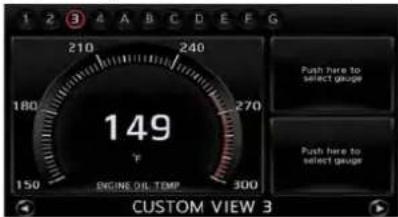
Largepanelscreen

Smallpanelscreen
INFO:
- Whenthismeterdisplaysinred, reduce the operationspeedoftheengine(RPMs) and driveatareducedspeed.
- Drivingwhiletheengineoiltemperatureis highmaycauseenginedamage.
- WhenscreensotherthantheFUNCTION screenaredisplayed, thescreenwillnot change, evenifthemetervaluesregistered zonereadings.
Engineoilpressure
Display the engine oil pressure. Thereading on this dial will change based on the enginespeed (RPM) and oil temperature.
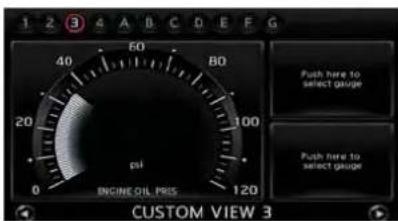
Largepanelscreen

Smallpanelscreen
Transmissionoiltemperature
Displaysthetransmissionoiltemperature.
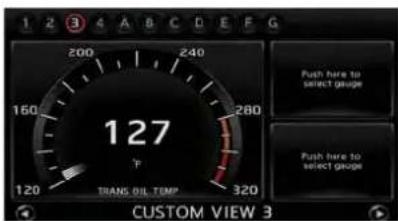
Largepanelscreen

Smallpanelscreen
INFO:
- When the transmission oil temperature increase to over 284°F (140°C) the color of the meter display turn stored. However, the vehicle can be driven until the temperature reaches 295°F (146°C). When the color of the meter display turns red, because the oil is deteriorated, replace the transmission and differential oil after driving.
●Afterfirststartingtheengine, it may take a short period of time for the oil pressure to stabilize. This is not a malfunction.
- WhenscreensotherthantheFUNCTION screenaredisplayed,thescreenwillnot change,evenifthemetervaluesregistered zonereadings.
Transmissionoilpressure
Displaysthetransmissionoilpressure.

Largepanelscreen
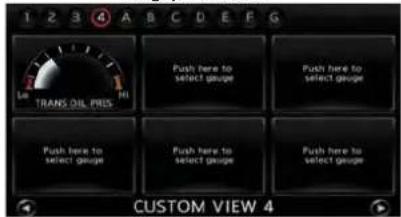
Smallpanelscreen
Multifunctionmeter10-11

INFO:
- The oil pressure gaugemaymomentarily have a high reading, but this is a result of oil pressures suppression and does not indicate amalfunction.
- Ifthemeterreadsredfrequently, have your vehicle inspected at GT-RcertifiedNISSAN dealer.
- WhenscreensotherthantheFUNCTION screenaredisplayed, thescreenwillnot change, evenifthemetervaluesregistered zonereadings.
Boost
Displaysenginechargingpressure.

Largepanelscreen
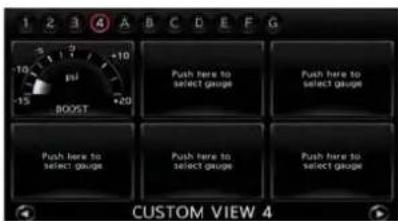
Smallpanelscreen
Speed
Displaysthevehiclespeed. Thiscanonlybe displayedasasmallpanel.

Smallpanelscreen
Fuel/Range
Displaytheamountoffuelremainingandthe estimatedcruisingrange.

Largepanelscreen

Smallpanelscreen
10-12Multifunctionmeter
NOTICE
Evenwhentravelingadistancefor whichthereisasufficientamountof fuel,refuelwhenthegasgaugeapproachesemptyorwhenthefuelwarninglightilluminates.
Fuelflow
Displaystheamountoffuelinjectedintothe enginebythefuelinjector.

Largepanelscreen

Smallpanelscreen
Recentfueleconomy
Inthelargepanel, thismeterdisplay the timeline off fuel consumption foreach minute over the past twenty minutes. In the small panel, this meter displays fuel consumption readings over the past twenty seconds.

Largepanelscreen
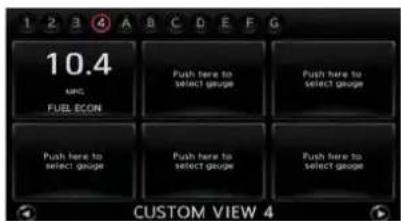
Smallpanelscreen

INFO:
- Thesmallpanelwilldisplay"-.-":
—whenthevehicleisstopped
—forthefirstfewmomentsofdriving
●The large panel will not display a graph while the vehicle is stopped.
Torquesplit
Displaystheamountofforwarddistributed torque. Thiscanonlybedisplayedasasmall panel.

Smallpanelscreen

INFO:
Drivingoveraseamintheroadmayaddfront torque, but this is not an anomaly.
Accelpedal
Displaystheacceleratorpedalposition. This can only be displayed as a small panel.

Smallpanelscreen
Brakepedal
Displaysthebrakepedalposition. Thiscanonly bedisplayedasasmallpanel.

Smallpanelscreen

INFO:
Thereading that the brakemeter displays when the pedalis being depressed may vary, depending on the vehicles speed and road conditions. The brakemeter may not display are reading of "100%" even when the brake is being fully depressed. This is not a malfunction.
Steering
Displaysthesteeringangle. Thiscanonlybe displayedasasmallpanel.

Smallpanelscreen

INFO:
Theamountofg-forceexertedonthevehicle, anddisplayedonthemeter,willvarydepending onthedrivingspeed.
CorneringG
Displaysthelateralg-forceexertedonthe vehicle.Inthelargepanel, thismeterdisplays readingsforthepast20seconds.Inthesmall panel, thismeterdisplaysthelateralg-force beingexertedonthevehicleatthetimeofthe reading. Whenturningtotheleft, theresultingg-forceisdisplayedontherightsideofthescreen. Whenturningtotheright, theresultingg-force isdisplayedontheleftsideofthescreen.The redzonereadingsareconfiguredtofunctionas
aguideforsmoothdriving.

WARNING
- Use the information from them multi function meter strictly as are reference to make your driving more comfortable. Thereadings are not meant to prevent accidents caused by reckless driving or poordriving conditions (duetoweather, road condition, etc.). Always obey all traffic regulations and posted speed limits.
- Redzonereadingsareconfiguredto functiononlyasaguideforsmooth driving. Thereadingsarenotintendedtopreventaccidentscaused byrecklessdriving.

Largepanelscreen

Smallpanelscreen

INFO:
- Duetotheslopeofaroad, thismetermay registerg-force even when the vehicle is stopped. This is not a malfunction.
- WhentheVDCortheABSisactivated, a markwillappearonthefarleftsideofthe panel(largepanelonly).
- Thescaleofthereadoutisadjustedautomaticallytoaccommodatereadingsthat exceedtheupperlimitofthemeter.
Accel/BrakingG
Displaysthefore/aftg-forceexertedonthe vehicle.Inthelargepanel,thismeterdisplays readingsforthepast20seconds.Inthesmall panel,thismeterdisplaysfore/aftg-forcebeing exertedonthevehicleatthetimeofthereading. Whenaccelerating,theresultingg-forceis displayedatthetopofthepanel.When decelerating,theresultingg-forceisdisplayed atthebottomofthepanel.Theredzone readingsareconfiguredtofunctionasaguide forsmoothdriving.

WARNING
- Usetheinformationfromthemulti functionmeterstrictlyasareferencetomakeyourdrivingmore comfortable.Thereadingsarenot meanttopreventaccidentscaused byrecklessdrivingorpoordriving conditions(duetoweather,road condition,etc.).Alwaysobeyall trafficregulationsandpostedspeed limits. - Redzonereadingsareconfiguredto functiononlyasaguideforsmooth driving.Thereadingsarenotintendedtopreventaccidentscaused
Multifunctionmeter10-15
byrecklessdriving.

Largepanelscreen

Smallpanelscreen

INFO:
- Duetotheslopeofaroad, thismetermay registerg-force even when the vehicle is stopped. This is not a malfunction.
- WhentheVDCortheABSisactivated, a markwillappearonthefarleftsideofthe panel(largepanelonly).
- Thescaleofthereadoutisadjustedautomaticallytoaccommodatereadingsthat exceedtheupperlimitofthemeter.
Totalg-force
Displaysthetotalcombinedg-forceexertedon thevehicle.Inthelargepanel, thismeter displaysreadingsforthepast20seconds.In thesmallpanel, thismeterdisplaysthetotal combinedg-forcebeingexertedonthevehicle atthetimeofthereading.Theredzonereadings areconfiguredtofunctionasaguideforsmooth driving.

WARNING
- Use the information from them multi function meter strictly as are reference to make your driving more comfortable. Thereings are not meant to prevent accidents caused by reckless driving or poordriving conditions (duetoweather, road condition, etc.). Always obey all traffic regulations and posted speed limits.
- Redzonereadingsareconfiguredto functiononlyasaguideforsmooth driving.Thereadingsarenot in-
tendedtopreventaccidentscaused byrecklessdriving.
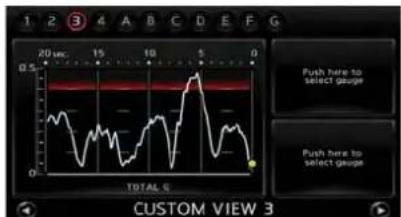
Largepanelscreen
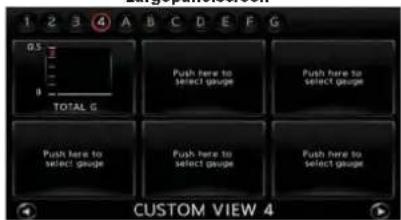
Smallpanelscreen

INFO:
- Duetotheslopeofaroad, thismetermay registerg-force even when the vehicle is stopped. This is not a malfunction.
- WhentheVDCortheABSisactivated, a markwillappearonthefarleftsideofthe panel(largepanelonly).
- Thescaleofthereadoutisadjustedautomaticallytoaccommodatereadingsthat exceedtheupperlimitofthemeter.
Clock
Displaysthecurrenttime.Thiscanonlybe displayedasasmallpanel.
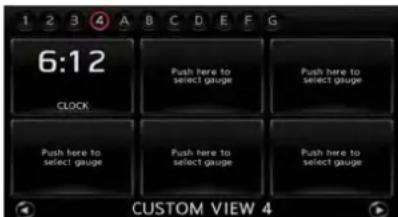
Smallpanelscreen

INFO:
- ThedisplayedclocktimeissetbytheGPS system.
-
Theclocktimemaynotbedisplayedonthe screenwhenthesystemisnotreceivinga GPSsignal,evenwhenthesystemissetto displaythetime.
-
Youcanchoosetodisplaytheclockinthe 12-hour/24-hourformat.
"Clocksettings"(page7-7)
DRIVINGSUPPORTSCREEN
ACCELERATIONSCREEN
The accelerationscreendisplaystheresultsof howthevehiclebehavesbasedonthemannerin whichyouoperatethevehicle.Theinformation displayedisforconfirmationpurposes.The resultsofhowyouusetheacceleratorpedal canbedisplayedasanaccelerationg-force timeline.Youcanusethisinformationtoimprove youroperationoftheacceleratorpedal.

WARNING
- Usetheinformationfromthemulti functionmeterstrictlyasareferencetomakeyourdrivingmore comfortable. Thereadingsarenot meanttopreventaccidentscaused byrecklessdrivingorpoordriving conditions(duetoweather,road condition,etc.). Alwaysobeyall trafficregulationsandpostspeed limits.
- Redzonereadingsareconfiguredto functiononlyasaguideforsmooth driving. Thereadingsarenotintendedtopreventaccidentscaused byrecklessdriving.
Howtoviewscreen

1 ACCELG(timelinegraph): Displaystheaccelerationexertedonthevehicle. The verticalreadoutillustratestheprogressof accelerationandthehorizontalreadouttracksthe accelerationtimelineofthepast20seconds.
2 Redzonedisplay: Thecolorofthegraphwillchangewhenthe vehicleacceleratesbeyondapresetlevelofg-force.
3 G-meter: Displaystheg-forcecurrentlybeingexertedon thevehicle.
4 BOOST:
Displaystheenginechargerpressure.
5 ACCELPEDAL: Displaystheacceleratorpedalposition.
i INFO:
- Thispanelonlydisplaysaccelerationinformationwhenthevehicleisaccelerating.It doesnotdisplayanyaccelerationinformationwhenthevehicleisdecelerating.
- Duetotheslopeofaroad, thismetermay registerg-force even when the vehicle is stopped. This is not a malfunction.
- WhentheVDCortheABSisactivated, a markwillappearonthefarleftofthepanel (largepanelonly).
- Thescaleofthereadoutisadjustedautomaticallytoaccommodatereadingsthat exceedtheupperlimitofthemeter.
Using results screensto improve driving
INFO:
Thissectionexplainshowtousethedriving timelinescreens. Use this information to make your drivingsmoother.
Timelineanddrivingthatshowsmooth operationofacceleratorpedal:

1 Depressing the accelerator pedals slowly and smoothly will result in smoothly rising line.
2 Whendepressingtheacceleratorgradually,the angleofthelineslopesgentlyupwards.
3 Asyoubringthevehicletoaconstantspeedby slowlystabilizingtheangleoftheaccelerator pedal,theaccelerationpanelwilldisplaythisasa graduallylevelinghorizontalline.
Displayingtimelineofquickandsudden accelerationanddriving:
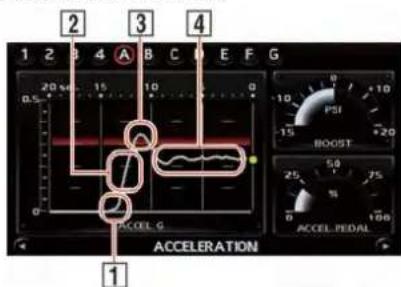
1 Quicklydepressingtheacceleratorpedalwill resultinasteepclimbingline.
2 Whentheacceleratorisbeingdepressedquickly, theangleofthelineslopesupwardsatasteep angle.
3 Releasing the accelerator pedal quickly will result in apointed line
4 Heretheacceleratorisbeingdepressedand releasedrepeatedly. Theresultinglinedisplayed appearswavy. Repeatedlydepressingandreleasingtheacceleratorpedalwillresultinawavy line.
BRAKINGSCREEN
Thebrakingscreendisplaystheresultsofhow thevehiclebehavesbasedonthemannerin whichthedriveroperatesthevehicle.The informationdisplayedisforconfirmationpurposes.Theresultsofhowthebrakepedalis usedaredisplayedasatimelineofg-force exertedonthevehicleduringdeceleration.Use theinformationtoimproveyouoperationofthe brakepedal.

WARNING
- Usetheinformationfromthemulti functionmeterstrictlyasareferencetomakeyourdrivingmore comfortable. Thereadingsarenot meanttopreventaccidentscaused byrecklessdrivingorpoordriving conditions(duetoweather,road condition,etc.).Alwaysobeyall trafficregulationsandpostspeed limits.
- Redzonereadingsareconfiguredto functiononlyasaguideforsmooth driving. Thereadingsarenotintendedtopreventaccidentscaused byrecklessdriving.
Howtoviewthescreen

1 BRAKEG(timelinegraph):
Displaysthedecelerationoftheg-forcebeing exertedonthevehicle.Theverticalreadout illustratestheprogressofaccelerationandthe horizontalreadouttracksthedecelerationtime-lineofthepast20seconds.
2 Redzonedisplay:
Thecolorofthegraphwillchangewhenthelevel ofg-forceexertedonthevehiclewhiledeceleratingexceedsapresetlevel.
3 G-meter:
Displaystheg-forcecurrentlybeingexerteddue
onthevehicleduetodeceleration.
4 SPEED: Displaysthecurrentdrivingspeed.
5 BRAKEPEDAL: Displaysthebrakepedalposition.

INFO:
- Thereadingthatthebrakemeterdisplays whenthepedalisbeingdepressedmay vary,dependingonthevehiclespeedand roadconditions.Thebrakemetermaynot displayareadingof"100%"evenwhenthe brakeisbeingfullydepressed.Thisisnota malfunction.
- Thispanelonlydisplaysaccelerationinformationwhenthevehicleisdecelerating.It doesnotdisplayanyaccelerationinformationwhenthevehicleisaccelerating.
- Duetotheslopeofaroad, thismetermay registerg-force even when the vehicle is stopped. This is not a malfunction.
- WhentheVDCortheABSisactivated, a markwillappearonthefarleftsideofthe panel(largepanelonly).
- Thescaleofthereadoutisadjustedautomaticallytoaccommodatereadingsthat exceedtheupperlimitofthemeter.
Using resultscreenstoimprove driving

INFO:
Thissectionexplainshowtousethedriving timelinescreens. Use this information to make your drivingsmoother.
Timelineanddrivingthatshowsmooth operationofbrakepedal:

1 Depressingthebrakepedalslowlyandsmoothly willresultinasmoothlydroppingline.
2 Bygraduallydepressingthebrakepedal,the angleofthelineslopesgentlydownwards.
3 Slowlyreleasingthebrakepedalresultsina stabledeceleration. Thetimelinedisplaygradually becomesastraighthorizontalline.
4 Whenyoureleasethebrakepedalslowly,theline ofthebrakingpanelslopesgentlyupwards.
Timelineanddrivingthatshowsudden operationofbrakepedal:

1 Because the brake pedal is being depressed quickly, the angle of the helined drop soffatasteep angle.
2 Quickapplicationofthebrakepedalresultsina steepdroppingline.
3 Whenthebrakepedalisrepeatedlydepressed andreleased,theresultinglineappearswavy.
4 Because the brake pedal was depressed quickly the vehicle stopped abruptly. The graph becomes perpendicular to the timescale.
STEERINGSCREEN
Thesteeringscreenallowsyoutoconfirmhow thevehiclerespondstoyourdrivingbydisplayingtheresultsofhowyouoperatethevehicle. Theresultsofyourdrivingaredisplayedasa timelineoftheg-forceexertedonthevehicle. Usethedisplayedinformationtoimproveyour steeringsmoothness.

WARNING
- Use the information from them multi function meter strictly as are reference to your driving more comfortable. Thereadings are not meant to prevent accidents caused by reckless driving or poordriving conditions (duetoweather, road condition, etc.). Always obey all traffic regulations and posted speed limits.
- Redzonereadingsareconfiguredto functiononlyasaguideforsmooth driving. Thereadingsarenotintendedtopreventaccidentscaused byrecklessdriving.
Howtoviewscreen

2
1
2
5
1 CORNERINGG(timelinegraphoflateralg-force):
Displaysthelateralg-forceexertedonthe vehicle.Thehorizontalreadoutdisplayslateral g-forcewhiletheverticalreadoutdisplaysa timelineofthepast20secondsofdriving.G-forceexertedonthevehiclewhenturningleftis displayedontherightsideofthescreen.G-force exertedonthevehiclewhenturningrights displayedontheleftsideofthescreen.Theg-forcetimelinewibegintoscrolldownautomaticallyafterashortperiodoftime.
2 Redzonedisplay:
The color of the graph will change when the level of g-force exerted on the vehicle while decelerating exceeds apreset level.
3 G-meter:
Displaystheg-forcecurrentlybeingexertedon thevehicleduetodeceleration.

SPEED:
Displaysthecurrentdrivingspeed.

STEERING:
Displaystheangleofthesteeringwheel.

INFO:
●Theextenttowhichthesteeringofthe vehicleisdisplayonthemetermayvary dependingonthevehiclespeed.
- Duetotheslopeofaroad, thismetermay registerg-force even when the vehicle is stopped. This is not a malfunction
- WhentheVDCortheABSisactivated, a markwillappearonthefarleftsideofthe panel(largepanelonly).
- Thescaleofthereadoutisadjustedautomaticallytoaccommodatereadingsthat exceedtheupperlimitofthemeter.
Using results screensto improve driving
Thissectionexplainshowtousethedriving timelinescreens. Use this information to make your drivingsmoother.

INFO:
The criteria for smooth driving may vary depending on road conditions. Use this information for reference purposes only.
Timelineanddrivingthatshowsmooth handlingwhendrivingthroughS-curve:
3

1
2
1 Turnthesteeringwheelslowlyandtheangleof thegraphslopesgently.
2 Turningthewheelslowlythroughtheturnwill resultinasmooth,curvingline.
3 Byturningthesteeringwheelslowlybacktoits previousposition,thelineonthegraphtimeline returnstoitsstandardpositionandthevehicle stabilizes.
Timelineanddrivingthatshowsudden turningofsteeringwheel:
2
3
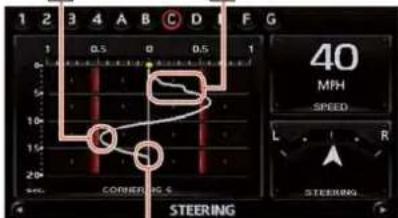
1
1 Because the wheel is turned quickly, the buildup of the line is very sudden.
2 Whenthewheelisturnedbackquickly, the resultinglineappearsasapoint.
3 Whenthesteeringwheelisbeingturnedinan erraticmanner,thevehicleisveeringabruptly. Becauseofthis,thelineonthepanelfluctuates withoutsettling.
GEARPOSITIONSCREEN
TheGEARPOSITIONscreendisplaysthegear youarecurrentlyin, thecurrentspeed, and the fueleconomylevelforeachgear. This allows you to verify the best gear mouse at your current drivingspeed. Use this panel to improve your operation of the shift lever or paddleshifters.
Howtoviewscreen
3
4
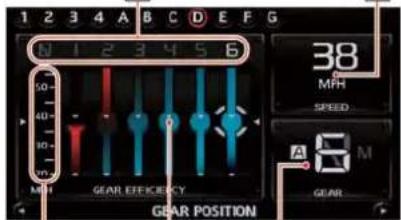
2
1
5
1 GEAREFFICIENCY(displaysthefueleconomy level):
Display the current fueleconomy level of each gear. The lighter the blue color displayed, the better the fuele economy will be. The lighter the red color displayed, the higher the torque will be.
2 Speedometer(vertical):
Displaysthecurrentspeed. This scale changes with the speed of the vehicle.
3 Selectedgear(horizontal):
Displaysthecurrentlyselectedgear.
4 SPEED: Displaysthecurrentspeed.
5 GEAR(gearposition): Displaysgearshiftingmodeandgearposition.
●Gearshiftingmode:Arange/Mrange
●Gearposition:N/P/R/1-6
INFO:
WhenusingtheMrangemode, if you are unable to changeto the gear that you want, the position indicator light will turn off.
Using results screensto improve driving
Thissection explains changing gearstosuit driving conditions.
INFO:
Thedisplayedfueleconomylevelforeachgear isonlyanestimationandmaydifferfromthe actualfueleconomy.
Selectinggearforfueleconomy:

1
1 Withthemostappropriate gear for fueleconomy selected, for the currents speed of the vehicle, the vehicle is being driven in an efficient gear.
Changinggearsforenginebrakingor power:

1
Thebestgearfordrivingpowerisselected, but in this example, it is also the least fuel efficient gear.
FUELECONOMYSCREEN
TheFUELECONOMYscreenallowsyouto verifythefuelefficiencyofyourdriving. Use this information to make your driving more fuel efficient.
Howtoviewscreen

1
3
1 FUELEFFICIENCY(timelineoffueleconomy): Displaysthefueleconomytimelineofthepast20 minutes. The vertical readoutdisplaysthefuel economy(onascaleof10) and the horizontal readoutdisplaysthetimelineofthelast20 minutes.
2 RECENTFUELECON.(fueleconomyovera givensection): Displaysthefueleconomyforthepast20 secondswhilethevehicleisbeingdriven.
Multifunctionmeter10-23
3 FUELEFFICIENCY(fueleconomylevel(real time)): Displaysthecurrentfueleconomylevel(measuredonascaleof10).Thehigherthisvalueis, thebetterthefueleconomylevel.
INFO:
Drivingataconstantspeed(noacceleration or deceleration)willresultinimprovedfueleconomy.
Using results screensto improve driving
Thissectionexplainshowtousethetimeline informationconfirmedfromtheresultscreens. Usethisinformationtomakeyourdrivingmore fueefficient.
INFO:
Theecodrivinglevelreadingsareestimations. Theactualfueleconomymaydiffer.
Timelineanddrivingofgoodfueleconomy:
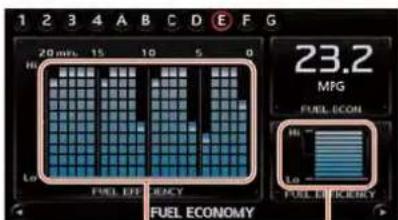
1
2
1 Theaveragefueleconomylevelishigh, indicating fuel-efficientdriving.
2 Thecurrentfueleconomylevelisshowntobe veryhigh.
Timelineanddrivingofpoorfueleconomy:
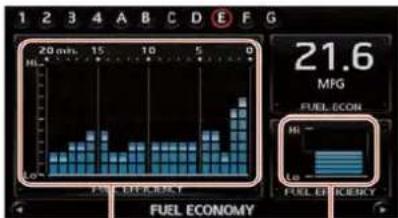
1
2
1 Theaveragefueleconomylevelislow, indicating poorfuelefficiency.
2 Thecurrentfueleconomylevelislow.
10-24Multifunctionmeter
DRIVINGRECORDSCREEN
Thisallowsyoutomeasure/displaythetimeline andwaypointhistoryoveragiventime.
STOPWATCHSCREEN
With the STOPWATCH screen you can measure a segment of time or passing time. You can also display and save recorded timelines and data.
Howtoviewscreen

1 TIMELOG: Prominentlydisplaysthecurrenttimebeing measured. Themeasuredtimesaredisplayedin alist.Thesystemcanstoreupto99itemsinits memory.
2 Timer-on-indicator: Thetimer-on-indicatorwillflashwhenthestop-watchfunctionisactive.
3 SPEED:
Displaysthevehiclespeedwhiledriving.
4 ELAPSEDTIME:
Displaysthetotalelapsedtimemeasuredsince thestopwatchfunctionwasstarted.
Measuringtimeddistance
Tomeasurethetimeddistance,use

- With the STOPWATCH screendisplayed, push
. Thetimer-on-indicator will flash when the stopwatch function is active.

- Each time you push
the displayed timewill berecorded into the system and will be viewable in the list.

3.Push

INFO:
●TheSTOPWATCHfunctioncanonlybe usedwhentheclockisactivated.
- Ifusing the driver's notes, the STOP WATCH function is unavailable. Tousethe STOPWATCH function, first finishing the driver's notes.
- If the ignition is in the OFF position, you will not be able to set the STOPWATCH function.
- If the ignition is put into the ACCortheOFF position while using the timer, timing will end.
- Thetimerwillcontinuetimingwhileyou displayotherscreensuntilyoupush
- Themaximumtimethatthesystemtimercan displayisarecordedtimeofupto9hours 59minutesand59.99seconds.
- Whentiminghasfinished, theuppertimer willresetto00:00.0
- When therecorded time and the finished recording time are displayed, they temporarily interrupt the timerecorder display and are displayed in large numbers. Therecorded timewill disappear automatically after 5-10 seconds.
- Whenscreensotherthanthemultifunction meteraredisplayed,theSTOPWATCH screenwillnotinterruptthedisplay.
Checkingtimeddistancelist
Youcanreviewthelistofpastmeasuredtimes.

- Select[TIMELOG].Thelistscreenwillbe displayed.

- Selecttherecordyouwouldliketodisplay. Themenuscreenwillbedisplayed.

- Select[StopWatchTimes]. Thedetailsof theselectedrecordwillbedisplayed.

INFO:
Youcanuseeitherthecenterdialorthetouch paneltoscrollthroughthelist.
SavingtoUSBmemory
Youcansavethetimerecordssavedinthe systemontoaUSBmemory.
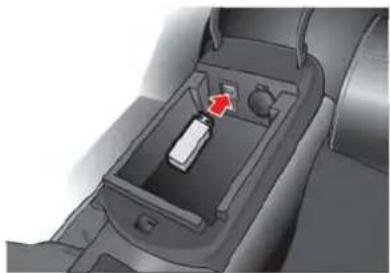
10-26Multifunctionmeter
- Insert the USB memory in themediaslot.

- Select[TIMELOG]. Thelistscreenwillbe displayed.
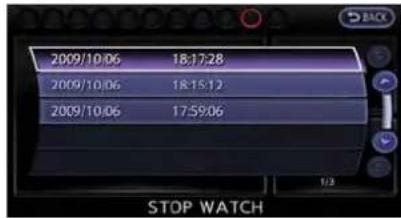
- Selecttherecordyouwouldliketodisplay. Themenuscreenwillbedisplayed.

- Select[TransferStopWatchTimestampoUSB Memory]. Thetimerecordissavedtothe USBmemory.
NOTICE
InsertingobjectsotherthanaUSB memoryintotheUSBconnectorcan causeddamage.Donotinsertanything otherthanaUSBmemoryintotheUSB connector.
INFO:
- TimerecordsaresavedtotheUSBmemory intheCSVformat.
- WhilerecordsarebeingsavedtotheUSB memory, donotchangethekeypositionor removetheUSBmemory.
- TosaveallrecordstotheUSBmemory, select[TransferAllStopWatchTimestamp USBMem.].
Deletingrecords
Usethefollowingproceduredeletetime recordssavedinthesystem.

- Select[TIMELOG].Thelistscreenwillbe displayed.
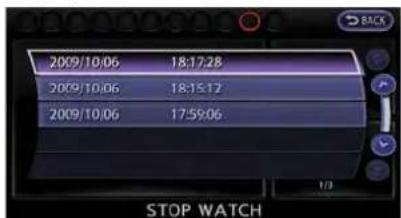
- Selecttherecordyouwouldliketodisplay. Themenuscreenwillbedisplayed.
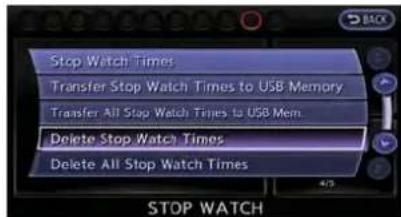
- Select[DeleteStopWatchTimes]. The messagescreenwillbedisplayed.
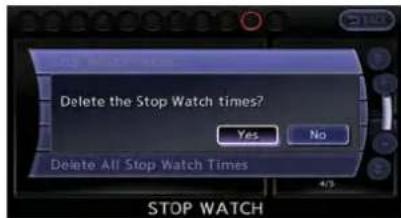
- Select[YES]. Thetimerecordwillbe deleted.
INFO:
- You cannot recover deleted records.
- Todeleteallrecordsselect[DeleteAllStop WatchTimes].
DRIVER'SNOTESSCREEN
You can record the waypoint that you pass using the DRIVER'S NOTES screen.
Howtoviewscreen

1 MARKLIST_waypointlist):
Displaysalistofwaypointssavedautomaticallyor manually.
2 Timerindicator: Flasheswhilethetimerisoperating.
3 FUEL/RANGE:
Displaystheamountoffuelandthedistancethe
vehiclecantravelontheremainingfuel
4 TRIPDISTANCE:
Displaysthedrivingtimemeasuredstartingfrom whentheDriver'snotesfunctionwasactivated.
NOTICE
Evenwhentecruisingdistancedis- playsthatthevehiclehasasufficient amountoffueltotravelagivendis- tance,whenthefuelindicatorap- proachesE (empty),or thefuel warning light illuminates, be sure to fuelyourvehicle.
Timingwaypoints
Tomeasureawaypoint, use

10-28Multifunctionmeter
- With the DRIVER'S NOTES screendis-played, push
. The DRIVER'S NOTES function will activate, and the timer indicator will flash.
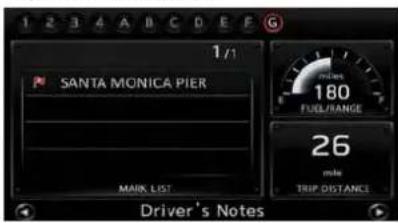
- Passthowapoint. Thewaypointwillbe automaticallyrecordedandwillbedisplayed inthelist.

3.Push
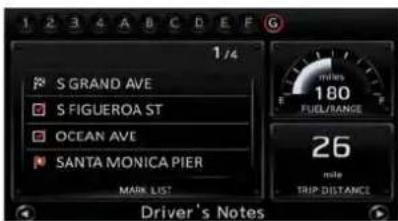
4.Push
Thewaypointwillbedisplayedasdescribed below:
- Thenameofthewaypointthatwasselected when
waspushed - Stateline/provincialborder(nameofstate/provinceentered)
- Pointwherethenameoftheroadchanged
- PlacewherethevehiclewasputinP(park)
i INFO:
●TheSTOPWATCHfunctioncanonlybe usedwhentheclockisactivated.
- When the STOPWATCH function is activated, you cannot set the waypoint timer. This is the waypoint timer after use of the STOPWATCH function is completed.
●Evenifyoustoptheengine,whenRESUME issettoON,thetimerwillnotresetandyou willbeabletocontinuetimingyourtravel.
- Ifaroadwaywithalongnamehasbeen recordedasawaypoint,thecityandstate/provincenamesmaynotbedisplayed.
- Ifaplacenamethatisnotcontainedinthe mapdataisrecordedasawaypoint,the waypointwillbedisplayedbylongitudeand latitude.
- Town/city/state/provincenamesconfigured inregionsettingswillonlybedisplayedon theDestinationscreenforregionsinwhich thevehicleislocated.
AboutDriver'snotesicon:
:Ordinaryroad
When your vehicle enters a road, then a name of the road is recorded.
:Tollroad
When your vehicle enters at all road, then name of the road is recorded.
○ :U.S.highways
When your vehicle enters a U.S. highways, the name of the road is recorded.

:Freeway
When your vehicle enters a freeway, then one of the freeway is recorded.

:Parking
WhentheshiftleverisputintothePposition, thevehicle'scurrentlocationisrecorded.

:Checkpoint
When

:Startpoint
When

:Destination
When
Confirminglistofwaypoints
You can review the list of past trips you have made.
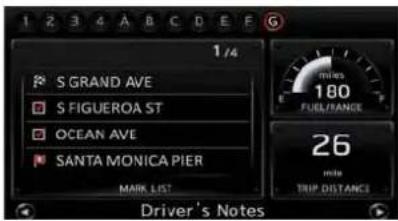
- Select[MARKLIST].Thelistscreenwillbe displayed.
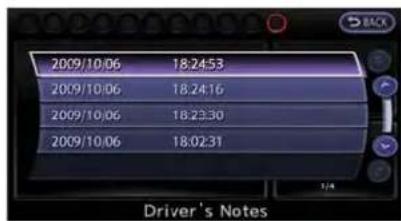
- Selecttherecordyouwouldliketodisplay. Themenuscreenwillbedisplayed.
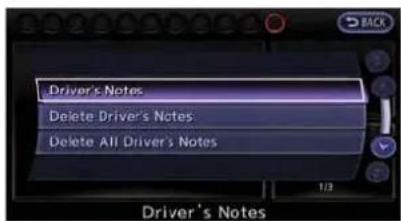
- Select[Driver's Notes]. Thedetailsofthe selectedrecordwillbedisplayed.

INFO:
Youcanuseeitherthecenterdialorthetouch paneltoscrollthroughthelist.
Deletingrecords
Thisallowsyoutodeletewaypointrecordsthat aresavedinthesystem.

- Select[MARKLIST].Thelistscreenwillbe displayed.

- Selecttherecordyouwouldliketodisplay. Themenuscreenwillbedisplayed.
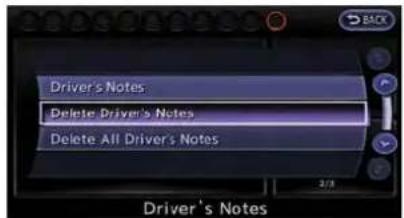
- Select[DeleteDriver'sNotes]. Themessage screenwillbedisplayed.
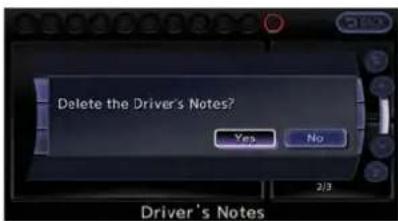
- Select[YES]. Thetimerecordwillbe deleted.
i INFO:
- You cannot recover deleted records.
- Todeleteallrecords,select[DeleteAll Driver'sNotes].
MEMO
10-32Multifunctionmeter
11 Generalsysteminformation
Currentvehiclelocation....11-2
Displayofcurrentvehiclelocation....11-2
WhatisGPS(GlobalPositioningSystem)?......11-2
Incorrectdisplayofvehicleposition....11-3
DetailedMapCoverageAreas(MCA)for navigationsystem....11-5
Whengrayroadisdisplayedonmap....11-6
Routecalculation....11-6
Routeguidance....11-8
Basicsofvoiceguidance....11-8
Directionsprovidedanddistancestoguidepoints...11-8
Repeatingvoiceguidance....11-10
Notesonvoiceguidance....11-10
NotesonNavTrafficinformation....11-11
NotesonNavWeatherXMinformation....11-12
Mapdata....11-13
Howtoordermapdataupdates....11-13
Aboutmapdata....11-13
End-userterms....11-14
Howtohandledisplay....11-16
Characteristicsofliquidcrystaldisplay....11-16
Maintenanceofdisplay....11-17

CURRENTVEHICLELOCATION
DISPLAYOFCURRENTVEHICLE LOCATION
This navigation system combines the data obtained from the vehicle (by gyrosensor) and from GPS (Global Positioning System) satellites to calculate the current location of the vehicle. This position is displayed throughout a route guidance to a destination.
WHATISGPS(GlobalPositioning System)?
GPSisapositiondetectingsystemthatuses satellitesdeployedbytheU.S.government.This navigationsystemreceivesradiosignalsfrom threeormoredifferentsatellitesthatorbit 13,049miles(21,000km)abovetheearthin space,anddetectsthepositionofthevehicleby utilizingtheprincipleoftriangulation.
Positioningadjustment
When the system judge that the vehicle position information is not accurate based on vehicles speed and gyro sensor data calculations, the system will automatically adjust the position of the vehicle icon using GPS signals.
ReceivingsignalsfromGPSsatellites
ThereceptionofGPSsignalscanbeweak, dependingontheenvironment.Vehiclesinthe followingareas/environmentsmaynotreceive GPSsignals(indicatorcolor:gray).

●Insidetunnelsorparkinggarages
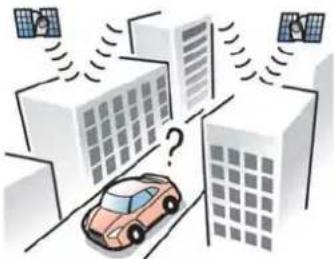
●Areaswithnumeroustallbuildings
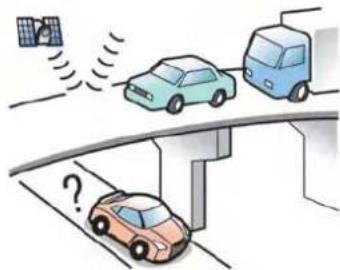
● Undermulti-layeredhighways

●Undermanylargetrees
11-2 Generalsysteminformation

•Inacanyon

INFO:
TheGPSantennaislocatedontheinstrument panelinsidethevehicle.Donotplaceany objects,especiallymobilephonesortransceivers,ontheinstrumentpanel.Because the strengthoftheGPSsignalisapproximatelyone billionthofthatofTVwaves,phonesand transceiverswillaffectormaytotallydisrupt thesignal.
DisplayofGPSinformation
GPSinformationcanbedisplayed.
"ViewingGPScurrentlocationinformation"(page6-22)
NOTICE
Routeguidanceprovidedbythenavigationsystemdoesnottakecarpoollane drivingintoconsideration,especially whencarpoollanesareseparatedfrom otherroadlanes.
INCORRECTDISPLAYOFVEHICLE POSITION
The following cases may affect the display accuracy of the vehicle's position or traveling direction. The accuracy will return to normal if the driving conditions return to normal.

- Whenthereisasimilarroadnearby.
- Whenthevehicleistravelinginanareawitha gridpatternroadsystem.

- WhenthevehicleispassingthroughalargeY-shapedintersection/junction.
- Whenthevehicleistravelingonacontinuous, slowlycurvingroad.

- Whenthevehicleistravelingonaroadwith repeatingS-shapedcurves.
- Whenthevehicleisonaloopbridge.

- Whenthevehicleisonasnow-coveredor unpavedroad.

- When repeatedly turning left or right, or driving in zigzags.
11-4 Generalsysteminformation

- Whenthevehicleisrotatedonaparkinglot turntablewhiletheignitionswitchisoff.

- Whendrivingonaroadnotdisplayedonthemap screenoraroadthathasbeenchangeddueto additionalconstructionorotherreasons.
- WhentheGPSpositioningaccuracyislow.
INFO:
- The vehicle icon may be misaligned when starting the vehicle just after starting the engine.
- Thevehicleiconmayalsobemisalignedif differentsizedtiresortirechainsare installed.
- Thesystemhasafunctionthatautomatically correctsthevehicleiconpositionwhenitis misalignedfromtheactualposition.
●VehiclepositioncorrectionbyGPSmaynot functionwhenthevehicleisstopped. - If the vehicle icon position does not return to normaleven after driving for awhile, correct the vehicle icon position manually.
"Adjustingcurrentvehiclelocation"
DETAILEDMAPCOVERAGEAREAS (MCA)FORNAVIGATIONSYSTEM
This system is designed to help guiding to the destination, and it also performs other functions as outlined in this manual. However, the system must be used safely and properly. Information concerning road conditions, traffic signs and the availability of services may not always be up-to-date. The system is not as substitute for safe, proper and legal driving. Map data covers select metropolitan areas in the United States and Canada.
Mapdataincludestwotypesofareas:"Detailed coverageareas" providingalldetailedroaddata andotherareasshowing"Mainroadsonly".
NOTICE
Detailedmapdataisnotavailablein manyareasandisgenerallylimitedto selectmajormetropolitanareas.
WHENGRAYROADISDISPLAYED ONMAP
- When you are driving on a road displayed in gray after the vehicle has deviated from the suggested routing during route guidance, automatic rerouting may not start immediately.
- Thenavigationsystemdoesnotprovide routeguidanceforroadsdisplayedindark green. Therefore,ifthedestinationisseton aroaddisplayedindarkgreen,theenlarged mapdisplaywillreturntotheordinarymap screenatsomepointonasuggestedroute thatisnearthedestination.Also,voice guidancewillstopatsomepointona suggestedroutethatisnearthedestination.
- Placesinformationandstreetnamesnear roadsdisplayingraymaynotbecontainedinthemapdata.
ROUTECALCULATION
- Theremaybecasesthatcarpoollanesare includedonasuggestedroutewhenthe automaticreroutingfunctionisactivated, evenifthe"UseTimeRestrictedRoads"is turnedoff.
Settingconditionsforroutecalculation" (page2-65) - Thenavigationsystemdoesnotprovide routeguidanceforroadsdisplayedindark green.
- If the destination is set on dark green road, the enlarged map display will switch to the ordinary maps screen at some point and suggest a route that is near the destination. The distance and direction to the endpoint of the suggested route will be displayed in the lower right corner of the screen. Also, at this time, voice guidance will announce, "Therout to the destination includes roads through incomplete map areas. Voice guidance will not be provided in these areas".
When approaching the endpoint of the suggested route, voice guidance will announce, "Entering the road within incomplete map data. Usethedirectionarrow and distance information to proceed to your destination."
Toreachthedestination, refertothemap screen. Alwaysfollowactualroadsand
regulationsanddrivesafely.
- Thesuggestedroutemaynotbetheshortest,norareothercircumstancessuchas trafficjamsconsidered.
- Because of the inevitable difference in road conditions and circumstances between the time you use this system and the time the information was produced for them, data, there may be discrepancies in roads and regulations. In such cases, follow the actual information available.
- During route calculation, themap will not scroll, however the vehicle icon will move with the actual vehicle's movement.
- During route calculation, button such as
- Insomecases, after the calculation is complete, the calculated routemay not be immediately displayed.
●Waypointsthathavebeenpassedwillbe disregardedbyreroutingcalculation. - Ifyouscrollthemapwhilethesuggested routeisbeingdrawn, it may takemoretime to finishdrawing.
- Ifwaypointsareset, thesystemcalculates multiplieroutesbetweenwaypointssimultaneously, and the following may result.
—If one section between waypoints cannot be calculated, none of the result will be displayed.
—Theroutemaynotconnectcompletelyat
somewaypoints.
—TheroutemayrequireaU-turncloseto
somewaypoints.
- Routecalculationmaynotbecompleted in the following cases.
—If there is nomain road with in a range of 1.5 miles (2.5 km) from the vehicle, a messages sayings will appear on the screen. Try recalculating when the vehicle is closer to an in road.
—If there is nomain road with in a range of 1.5 miles (2.5 km) from the destination or waypoint, am messages sayings will appear on the screen. Try setting the location closerto a main road.
—Ifthevehicleistooclosetothedestinationoriftherearenoroadstothedestination,amessagesayingsowillappearonthescreen.
—Ifitisimpossibletoreachthedestination orwaypointsbecauseoftrafficregulations,etc.
—Iftheonlyroutetoreachthedestination orwaypointsisextremelycomplicated.
—If the destination, current vehicle position or waypoint is within the "Avoid Area".
—Ifapartoftherouteisincludedinthe "AvoidArea".
- The following may occur when there is displayed.
—If you calculate route on main road, the starting point of other out may not exactly match the current vehicle location.
—The endpoint of the outemay not exactly match the destination.
—If you calculate a route on an main road, the system may display a route from another main road. This maybe because the position of the vehicle icon is not accurate. In this case, park the vehicle in asafelocation and reset the vehicle icon, or continued driving to see if the position of the vehicle icon is automatically adjusted before recalculating the route.
—Therearecasesin whichthesystem shows an indirect route to reach the destinationorwaypoints, if yousetthem fromstoredorfacilityinformation. In ordertocorrectthis, youmustbecareful aboutthetrafficdirection, especially
whenlaneswithdifferenttraveldirections areshownseparately, suchasinter-changesandserviceareas.
—This system makes no distinction between limited traffic control and total control(blockage). It may show an indirect route even if the road is usable.
—Evenifthefreewaypreferenceissetto OFF,aroutethatusesthefreewaymay besuggested.
—EveniftheferrypreferenceissettoOFF, aroutethatusesaferrylinemaybe suggested.
—Ferrylines, excluding those that are only for pedestrians, bicycles and motor-cycles, are stored in this system. Take into consideration the travel time required and operational condition before deciding whether one is them not.
ROUTEGUIDANCE

INFO:
Thesystemwillonlyannouncestreetnames whenthesystemlanguageissettoEnglish. Streetnamesarenotannouncedwhenthe systemissettoFranc,ais(French).
BASICSOFVOICEGUIDANCE
Voiceguidanceannounceswhichdirectionto turnwhenapproachinganintersectioninwhich aturnisnecessary.
NOTICE
•Theremaybesomecasesinwhich voiceguidanceandactualroad conditionsdonotcorrespond.This mayoccurbecauseofdiscrepancies betweentheactualroadandthe informationonthemapdata,oritis duetothevehicle'sspeed.
•Incasevoiceguidancedoesnot correspondtotheactualroadconditions,followtheinformationobtainedfromtrafficsignsornoticesontheroad.
- Routeguidanceprovidedbythe navigationsystemdoesnottake carpoollanedrivingintoconsidera-
tion,especiallywhencarpoollanes areseparated fromotherroad lanes.
DIRECTIONSPROVIDEDANDDIS- TANCESTOGUIDEPOINTS
Directionswilldiffer,dependingontheroad type.
Notificationofintersectiononor- dinaryroad

-
"Inaboutonequartermile(400meters), right(left)turn."
-
"Right(left)turnahead."
Notificationofconsecutiveinter- sectionsonordinaryroads

Whentheroadhasthreeormoreconsecutive intersectionsahead, voiceguidancewillannouncethefollowing.
-
"Inaboutonequartermile(400meters), right(left)turn, theninaboutonequarter mile(100meters)left(right)turn."
-
"Left(right)turnahead,theninaboutone quartermile(100meters)right(left)turn."
Notificationoffreewayentrance

- "Inaboutonequartermile(400meters) freewayentranceonyourrightonto(road numberanddirection)."
- "Freewayentranceonyourrightonto(road numberanddirection)."
Notificationoffreewayjunction

- "Inaboutonemile(1.6kilometers), keep to theright(left) onto(roadnumber and direction), theninaboutonequartermile (400 meters) keep totheright(left)."
- "Keepotheright(left)onto(roadnumber anddirection), theninaboutonequarter mile(400meters)keepotheright(left) onto(roadnumberanddirection)."
- "Keepotheright(left)onto(roadnumber anddirection)."
Notificationoffreewayexit
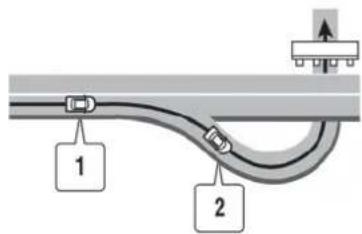
Generalsysteminformation11-9
- "Inaboutonemile(1.6kilometers),exiton yourright."
- "Takethesecondexitonyourright."
Notificationwhenapproachingdestination
Ordinaryroad:
When approaching the destination, voice guidance will announce, "You have arrived at your destination. Ending route guidance." Tofinally reach your destination, referto themapscreen.
Darkgreenroad:
Afterpassingthelastturningpointona suggestedroute,voiceguidancewillannounce, "Theroutetoyourdestinationincludesroads throughincompletemapareas.Voiceguidance willnotbeprovidedintheseareas."When approachingtheendpointofthesuggested road,voiceguidancewillannounce, "Entering theroadwithincompletemapdata.Pleaseuse thedirectionarrowanddistanceinformationto proceedtoyourdestination."
REPEATINGVOICEGUIDANCE
This function is available throughout route guidance, from the time after the route calculation is completed until the vehicle arrives at the destination. Push

INFO:
- If
is pushed when the vehicle is deviating from the suggested route and when the automatic reroute function is off, voice guidance will announce, "Proceed to the highlighted route." - If
is pushed when the vehicle is going in the wrong direction, voice guidance will announce: "Please make a legal U-turn if possible."
NOTESONVOICEGUIDANCE
- Voice guidance in this system should be regarded as supplementary function. Whendriving the vehicle, checktheroute on themap and follow the actual roads and traffic regulations.
-
Voiceguidanceisactivatedonlyforinter-sectionswithcertainconditions.Theremay becasesthatthevehiclehastoturn,but voiceguidanceisnotprovided.
-
Voiceguidancecontentsmayvary,dependingonthedirectionoftheturnandthetype ofintersection.
●Thevoiceguidancetimingwillvarydependingonthesituation. - When the vehicle has deviated from the suggestedroute, voiceguidanceisnot available. Thesystemwillnotannouncethis. Refertothemapandrecalculatetheroute. “Recalculateroute”(page2-63)
- Voiceguidancemaynotaccuratelycorrespondwithroadnumbersanddirectionsat freewayjunctions.
●Voiceguidancemaynotaccuratelycorrespondtostreetnamesatfreewayexits. - Thedisplayedstreetnamesmaysometimes differfromtheactualnames,or"UNKNOWNSTREETNAME"maybedis-played.
-
Voiceguidanceisnot availablewhenthe [GuidanceVoice]isturnedoff. "Volumeadjustment"(page7-6)
●Voiceguidancewillstartwhenthevehicle enters the suggested route. Refer to the mapfordirectionstothestartingpointofthe route. -
Whenapproachingawaypoint,voiceguidancewillannounce,"Youhavearrivedat waypoint1(2,3,4,...)."Voiceguidancewill switchtothenextsectionoftheroute.When voiceguidanceisnotavailable,refertothe mapfordirections.
- In some cases, voice guidance ends before arrival at the destination. Referto the destination icon on them are to reach the destination.
- If the system recognizes on which sidethe destination (waypoint) is located, voice guidance will announce "ontheright/left" after announcing the arrival at the destination.
- Voiceguidancemaybepartiallyoperational orinoperativeduetotheangleofroadsatan intersection.
- Because freewaylane information is available only for approximately 7,000 major freeways in North America, it is not possible to display information for all junctions and exits.
- Freewayexitinformationmaydifferfromthe informationontheactualexitsigns.
- Becauseitisnotpossibletoconsiderdata concerningroadsthatareseasonallyavailableorunavailable,aroutemaybedisplayed thatdoesnotmatchtheactualtraffic
restrictions.Besuretofollowtheactual trafficrestrictionswhiledriving.
- CanadaandAlaskacontainmanyroadswith incompletemapdata.Asaresult,when searchingforaroute,theroutemayinclude roadswithincompletedata.Inregions whereroaddataisnotcomplete,voice guidancemaystopforlongperiodsoftime. Besuretofollowtheactualtrafficrestrictionswhiledriving.
NOTESONNavTraffic INFORMATION
- TheNavTrafficinformationserviceisnot providedforsomecities.Inaddition,the citiesforwhichthetrafficinformationservice isprovidedmaybechanged.
- In some cases, infrastructure problems may prevent the completed display of the traffic information. This is not a malfunction.
- Duetoinfrastructureproblems,orduetothe timewhenthetrafficinformationservice broadcastisreceived,thedisplayedinformationmaydifferfromtheactualtraffic conditions.
- Depending on the traffic information, a detour route may be slower than the original route.
●NavTrafficisaserviceofSiriusXMSatellite Radio.NavTrafficisonlyavailableinselect marketsandissubjecttodataavailability. ReceptionoftheSiriusXMsignalmayvary depending on location. It requires a monthly premiumsubscription.Theserviceprovider issolelyresponsibleforthequalityand accuracyoftheinformationprovided.All feesandprogrammingare subjectto change.FormoredetailsontheNavTraffic service,termsandconditions,pleasevisit www.siriusxm.com/navtraffic. YoucanalsocontactSiriusXMSatellite Radioat1-866-635-2349.
NOTES ONNAVWEATHERXM INFORMATION
●AsofJanuary31,2009,theNavTraffic servicecovers80majormetropolitanmarkets.Forthemostcurrentlistofmarkets covered,pleaserefertowww.siriusxm.com/navtraffic,orcallSiriusXMSatelliteRadio customersupportat1-866-635-2349.
- Duetoroadmaintenance, infrastructure problems (e.g. malfunctionofroadsensors, outageofcentralcomputerofinfrastructure) ornaturaldisasters, there are times when someoralltrafficinformationmay not be available.
- Incidentinformationisbasedonhuman collection. Notallincidentsthathavehappenedarecollectedandprovided.
- Duetoinfrastructureproblems,ortransmissiondelay,therearetimeswhenthe informationmaydifferfromtheactualcondition.Alwaysobservesafedrivingpractices andfollowalltrafficregulations.
- Duetothecoverageandqualityoftraffic informationandroadconditions,itisnot alwayspossibleforthesystemtoprovide theshortesttimerouteevenwhentraffic informationisconsidered.
- Trafficinformationthatisdisplayedmay differfrominformationfromothermedia (e.g.,radio),asothermediamayuse differentinformationsources.
- TheNavWeatherXMinformationserviceis notprovidedforsomecities.Inaddition,the citiesforwhichtheweatherinformation serviceisprovidedmaybechanged.
- In some cases, infrastructure problems may prevent the completed display of the weather information. This is not a malfunction.
- Duetoinfrastructureproblems,orduetothe timewhtheweatherinformationservice broadcastisreceived,thedisplayedinformationmaydifferfromtheactualweather conditions.
●NavWeatherXMisaserviceofSiriusXM SatelliteRadio.NavWeatherXMisonly availableinselectmarketsandissubject todataavailability.ReceptionoftheSiriusXMsignalmayvarydependingonlocation.It requires amonthly premium subscription.Theserviceproviderissolely responsibleforthequalityandaccuracyof theinformationprovided.Allfeesand programmingaresubjectto change.For moredetailsontheNavWeatherXMservice, termsandconditions,pleasevisit www.siriusxm.com/navweather.YoucanalsocontactSiriusXMSatellite Radioat1-866-635-2349.
●NavWeatherXMisdesignedtoprovidereal-timeweatherandforecastinginformationin yourgeneralvicinity.Discrepanciesmaybe encounteredbetweenthesystem andyour actuallocation.Roadsystemandweather changesmayaffect theaccuracy ofthe informationprovided.Relyonyourcommon sense to decidewhethertofollowa specifiedroute.Detailedcoverageisnot availableineverycityorroadway.
MAPDATA
HOWTOORDERMAPDATAUPDATES
To order updated map data, contact the NISSANNAVIGATION SYSTEM HELP DESK. Seethecontact information on the inside front cover of this manual.
ABOUTMAPDATA
-
Thismapdatahasbeenpreparedby HITACHI,LTD.underlicencefromZENRIN CO.,LTD.andNAVTEQ.ZENRINCO.,LTD. hasadded,processedanddigitizeddata basedonthedigitalroadmapdataof NavigationTechnologiesCorporation.Due totheproductiontimingofthemapdata, somenewroadsmaynotbeincludedinthis mapdataorsomeofthenamesorroads maybedifferentfromthoseatthetimeyou usethismapdata.
-
Trafficcontrol and regulation data used in this map datam may be different from those at the time you use this map datadueto the dataproduction timing. When driving your vehicle, follow the actual traffic controls signs and notices on theroads.
-
Reproducing or copying this map software is strictly prohibited by law.
PublishedbyNissanNorthAmerica,Inc.
© 2006Navigation Technologies. All rights reserved.
Certainbusiness data providedbyinfoUSA,Inc., Omaha,NE,Copyright
© 1993-2008NAVTEQ.AllRightsReserved.
© 2008, AllRightsReserved.
© ZENRINCO.,LTD.2009.Allrightsreserved.
© ZENRINUSA, INC. 2008. All rights reserved.
© 2008ZagatSurvey,LLC.

WARNING
- This navigation system should not be used to replace your own judgement. No itinerary suggested by this navigation system should ever override any highway regulations, your own judgement, or a knowledge of safe driving practices. Donot follow then navigation system's suggested itinerary if it would cause you to perform dangerous or illegal activity, place you in an dangerous situation, or take you into an area you consider unsafe.
- The advice provided by then navigation systemistoberegarded as a suggestion only. Theremay be times when the navigation system displays the vehicle's location incorrectly, fail to suggest the shortest route, or fail to direct you to the desired destination. In such instances, rely on your own driving judgement, taking into account the driving conditions at the time.
- Donotusethenavigationsystemto locateemergencyservices. Thedata basedoesnotcontainacomplete listingofemergencyservicessuch aspolicestations,firehalls,hospitalsandwalk-inclinics.Please showdiscretionandaskfordirectionsinsuchinstances.
- Asthedriver, youaloneareresponsible for your drivingsafety.
—Inordertoavoidatrafficaccident, donotoperatethesystem while driving.
—Inordertoavoidatrafficaccident,operatethe systemonly whenthevehicleisstoppedata safeplace andthe parking
brakeison.
—Inordertoavoidatrafficaccidentortrafficoffence,rememberthatactualroadconditions andtrafficregulationstakeprecedenceovertheinformation containedonthenavigationsystem.
—The Software may contain inaccurate or incomplete information due to the passage of time, changing circumstances, and the sources of information used. Pleasurespect current traffic conditions and regulations at all times while driving.
—Whereactualroadconditions andhighwayregulationsdiffer fromtheinformationcontained onthenavigationsystem,abide bythehighwayregulations.
—Keeptheamountoftimespent viewingthescreenwhiledriving toastrictminimum.
Thenavigationsystemdoesnotprovide, norrepresentinanywayinformationon: trafficandhighwayregulations;technical aspectsofthevehicleincludingweight, height,width,loadandspeedlimits;road conditionsincludinggrade,percentageof inclineandsurfaceconditions;obstacles suchastheheightandwidthofbridges andtunnels;andothercurrentdrivingor roadconditions.Alwaysrelyonyourown judgementwhendrivingacar,takinginto accountcurrentdrivingconditions.
Themarksofcompaniesdisplayedbythis producttoindicatebusinesslocationsarethe marksoftheirrespectiveowners. Theuseof suchmarksinthisproductdoesnotimplyany sponsorship,approval,orendorsementbysuch companiesofthisproduct.
END-USERTERMS
Thedata("Data")isprovidedforyourpersonal, internaluseonlyandnotforresale.Itis protectedbycopyright,andissubjecttothe followingtermsandconditionswhichareagreed tobyyou,ontheonehand,andHITACHI ("HITACHI")anditslicensors(includingtheir licensorsandsuppliers)ontheotherhand.
© 2008NAVTEQ.Allrightsreserved.
TheDataforareasofCanadaincludesinforma-
tiontakenwithpermissionfromCanadian authorities,including: © HerMajestytheQueen inRightofCanada, © Queen'sPrinterfor Ontario, © CanadaPostCorporation,Geo-Base®.
NAVTEQholdsanon-exclusivelicensefromthe UnitedStatesPostalService ® topublishand sellZIP+4 ® information.
© UnitedStatesPostalService ® 2008. Prices are not established, controlled or approved by the United States Postal Service ® . The following trademarks and registrations are owned by the USPS:United States Postal Service, USPS, and ZIP+4.
Termsandconditions
PersonalUseOnly.YouagreetousethisData togetherwithNissanAutomotiveProductsfor thesolelypersonal,non-commercialpurposes forwhichyouwerlicensed,andnotforservice bureau,timesharingorothersimilarpurposes. Accordingly,butsubjecttotherestrictionsset forthinthefollowingparagraphs,youmaycopy thisDataonlyasnecessaryforyourpersonal useto(i)viewit,and(ii)saveit,providedthat youdonotremoveanycopyrightnoticesthat appearanddonotmodifytheDatainanyway. Youagreenottotherwisereproduce,copy, modify,decompile,disassembleorreverse
engineeranyportionofthisData, and may not transferordistributeitinanyform, for any purpose, except to the extent permitted by mandatory laws. Multi-discsets may only be transferred or sold as a completes as provided by HITACH land notas as subset thereof.
Restrictions. Except where you have been specifically licensed to todos by HITACHI, and without limiting the preceding paragraph, you may not (a) use this Data with any products, systems, or applications installed otherwise connected to in communication with vehicles, capable of vehicle navigation, positioning, dispatch, real timerout guidance, fleet management similar applications; or (b) with or in communication with any positioning devices or an automobile wireless-connected electronic computer devices, including without limitation cellular phones, palmtop and handheld computers, pagers, and personal digital assistants or PDAs.
Warning. The Datamay contain in accurate or incomplete information dueto the passage of time, changing circumstances, sources used and thenature of collecting comprehensive geographic data, any of which may lead to incorrect results.
No Warranty. This Data is provided to you "as is," and you agree to use it at your own risk. HITACHI and its licensors (and their licensors and suppliers) make no guarantees, representations or warranties of any kind, expressor implied, arising by law or otherwise, including but not limited to, content, quality, accuracy, completeness, effectiveness, reliability, fitness for particular purpose, usefulness, useor resultstobe obtained from this Data, orthat the Data or server will be uninterrupted or error-free.
DisclaimerofWarranty: HITACHIANDITS LICENSORS (INCLUDING THEIR LICENSORS AND SUPPLIERS) DISCLAIMANY WARRANTIES, EXPRESSOR IMPLIED, OF QUALITY, PERFORMANCE, MERCHANTABILITY, FITNESS FOR APARTICULAR PURPOSE OR NONINFRINGEMENT. Some States, Territories and Countries donotallow certain warranty exclusions, soto that extent the above exclusion may not apply to you.
DisclaimerofLiability: HITACHIANDITS LICENSORS (INCLUDING THEIR LICENSORS AND SUPPLIERS) SHALL NOT BELIABLE TO YOU: IN RESPECT OF ANY CLAIM, DEMAND ORACTION, IR RESPECTIVE OF THENATURE OF THE CAUSE OF THE CLAIM, DEMANDOR ACTIONALLEGING ANY LOSS, INJURY OR DAMAGES, DIRECTOR INDIRECT, WHICH
MAYRESULTFROMTHEUSEORPOSSESSIONOFTHEINFORMATION;ORFORANY LOSSOFPROFIT,REVENUE,CONTRACTS ORSAVINGS,ORANYOTHERDIRECT, INDIRECT,INCIDENTAL,SPECIALOR CONSEQUENTIALDAMAGESARISINGOUTOF YOURUSEOFORINABILITYTOUSETHIS INFORMATION,ANYDEFECTINTHEINFORMATION,OR THEBREACHOFTHESE TERMSORCONDITIONS,WHETHERINAN ACTIONINCONTRACTORTORT ORBASED ONAWARRANTY,EVENIFHITACHIORITS LICENSORSHAVEBEENADVISEDOFTHE POSSIBILITYOFSUCHDAMAGES.Some States,TerritoriesandCountriesdonotallow certainliabilityexclusionsordamageslimitations,sotothatextenttheabovemaynotapply toyou.
ExportControl.Youagreenottoexportfrom anywhereanypartoftheDataprovidedtoyouor anydirectproductthereofexceptincompliance with,andwithallicensesandapprovals requiredunder,applicableexportlaws,rules andregulations.
EntireAgreement. Thesetermsandconditionsconstitutetheentireagreementbetween HITACHI(anditslicensors,includingtheir licensorsandsuppliers)andyoupertainingto thesubjectmatterhereof,andsupersedesin
theirentiretyanyandallwrittenororalagreementspreviouslyexistingbetweenuswithrespecttosuchsubjectmatter.
GoverningLaw. TheabovetermsandconditionsshallbegovernedbythelawsoftheStateofIllinois,withoutgivingeffectto(i)itsconflictoflawsprovisions,or(ii)theUnitedNationsConventionforContractsfortheInternationalSaleofGoods,whichisexplicitlyexcluded.YouagreetosubmittothejurisdictionoftheStateofIllinoisforanyandalldisputes,claimsandactionsarisingfromorinconnectionwiththeDataprovidedtoyouhereunder.
GovernmentEndUsers.IftheDataisbeing acquiredbyoronbehalfoftheUnitedStates governmentoranyotherentityseekingor applyingrightssimilartothosecustomarily claimedbytheUnitedStatesgovernment, NAVTEQData(hereinafter“Data”)isa“commercialitem”asthattermisdefinedat48C.F.R. (“FAR”)2.101,islicensedinaccordancewith ENDUSERTERMS,andeachcopyoftheData deliveredorotherwisefurnishedshallbemarked andembeddedasappropriatewiththefollowing “NoticeOfUse,” andshallbetreated in accordancewithsuchNotice:
NOTICEOFUSE
CONTRACTOR(MANUFACTURER/SUPPLIER) NAME:NAVTEQ
CONTRACTOR(MANUFACTURER/SUPPLIER) ADDRESS:425WestRandolphSt.,Chicago, Illinois60606
ThisDataisacommercialitemasdefinedinFAR 2.101 andissubjecttoEND-USERTERMSunder whichthisDatawasprovided.
© 2008NAVTEQ-Allrightsreserved.
If the Contracting Officer, federal government agency, or any federal official refuse to set the legend provided herein, the Contracting Officer, federal government agency, or any federal official must notify NAVTEQ prior to seeking additional or alternative rights in the Data.
HOWTOHANDLEDISPLAY
Thedisplayisaliquidcrystaldisplayandshould behandledwithcare.

WARNING
Neverdisassemblethedisplay.Some partsutilizeextremelyhighvoltage. Touchingthemmayresultinserious personalinjury.
CHARACTERISTICSOFLIQUID CRYSTALDISPLAY
- If the temperature inside the vehicle is especially low, the display will stay relatively dimorthemovement of the images maybe slow. These conditions are normal. The display will function normally when the interior of the vehicle has warmed up.
- Somepixelsinthedisplayaredarkeror brighterthanothers. Thisconditionisan inherentcharacteristicofliquidcrystaldisplays, anditisnotamalfunction.
- Aremnantofthepreviousdisplayimagemay remainonthescreen. This screenburnis inherentindisplays, and it is not a malfunction.

INFO:
Thescreenmaybecomedistortedbystrong magneticfields.
MAINTENANCEOFDISPLAY

CAUTION
- Tocleanthedisplay,neverusea roughcloth,alcohol,benzine,thinnerandanykindofsolventorpaper towelwith a chemical cleaning agent.Theywillscratchordeterioratethepanel.
- Donotsplashanyliquidsuchas waterorcarfragranceonthedis-play.Contactwithliquidwillcause thesystemtomalfunction.
Tocleanthedisplayscreen,useadry,softcloth. Ifadditionalcleaningisnecessary,useasmall amountofneutraldetergentwithasoftcloth. Neverspraythescreenwithwaterordetergent. Dampentheclothfirst,thenwipethescreen.
MEMO
11-18 Generalsysteminformation
12Troubleshootingguide
Customerassistance....12-2
Navigation....12-3
Basicoperations....12-3
Vehicleicon....12-4
Routecalculationandvisualguidance....12-6
Voiceguidance....12-8
Trafficinformation....12-9
Audiosystem....12-10
Bluetooth ® Hands-FreePhoneSystem......12-11
Voicerecognition....12-12
Monitorsystem....12-13

CUSTOMERASSISTANCE
ForassistanceorinquiriesabouttheNISSAN NavigationSystem,ortoorderupdatedmap data,contacttheNISSANNAVIGATIONSYSTEMHELPDESK.Seethecontactinformation ontheinsidefrontcoverofthismanual.
12-2 Troubleshooting guide
NAVIGATION
BASICOPERATIONS
| SymptomPossiblecausePossibles | solution | |
| Noimageisdisplayed.Thebrightnessisatthelowestsetting. | Adjustthebrightnessofthedisplay. | |
| Thesysteminthevideomode.Pushonthecon | trolpaneltochangethe mode. "3.Audiosystem" | |
| Thedisplysturnedoff.Pushtoturnonthedisplay. | *1) | |
| Novoiceguidanceisavailable. or Thevolumeistoohighortoolow. | Thevolumeisnotsetcorrectly,oritisturnedoff.Adjustthevolume ofvoiceguidance. | |
| Voiceguidanceisnotprovidedforcertainstreets(roads displayedingray). | Thisisnotamalfunction. | |
| No map is displayed on the screen. | A screen other than map screen is displayed. | Push. |
| The screen is too dim. The movement is slow. | The temperature in the interior of the vehicle is low. | Wait until the interior of the vehicle has warmed up. |
| Somepixelsinthedisplayaredarkerorbrighterthan others. | Thisconditionisaninherentcharacteristicofliquid crystaldisplays. | Thisisnotamalfunction. |
| Somemenuitemscannotbeselected. | Somemenuitemsbecomeunavailablewhilethevehicle isdriven. | Parkthevehicleinasafelocation,andthenoperatethe navigationsystem. |
VEHICLEICON
| SymptomPossiblecausePossiblesolution | ||
| Namesofroadsandlocationsdiffer betweenPlanViewandBirdviewTM. | Thisisbecausethequantityofthedisplayedinformationisreducedsothat thescreendoesnotbecometoocrowded.Thereisalsoachancethat namesoftheroadsorlocationsmaybedisplayedmultipletimes,andthe namesappearingonthescreenmaybedifferentbecauseofaprocessing procedure. | Thisisnotamalfunction. |
| Thevehicleiconisnotdisplayedinthe correctposition. | Thevehiclewastransportedaftertheignitionswitchwaspushedoff,for example,byaferryorcartransporter. | DrivethevehicleforawhileonaroadwhereGPS signalscanbereceived. |
| Thepositionanddirectionofthevehicleiconmaybeincorrectdepending onthedrivingenvironmentsandthelevelsofpositioningaccuracyofthe navigationsystem. | Thisisnotamalfunction.Drivethevehicleforawhile toautomaticallycorrectthepositionanddirectionof thevehicleicon. "Currentvehiclelocation"(page11-2) | |
| Whenthevehicleistravelingonanew road,thevehicleiconislocatedon anotherroadnearby. | Becausethenewroadisnotstoredinthemapdata,thesystem automaticallyplacesthevehicleicononthenearestroadavailable. | Updatedroadinformationwillbeincludedinthenext versionofthemapdata. |
| Thescreendoesnotswitchtothenight screenevenafterturningontheheadlights. | Thedaytimescreenwassetthelasttimetheheadlightswereturnedon.Setthescreentothenightscreenmodeusingwhenturningontheheadlights.“Displaysettings”(page7-4) | |
| Themapdoesnotscrollevenwhenthe vehicleismoving. | Thecurrentlocationmapscreenisnotdisplayed.Push. | |
| The vehicle icon is not displayed. | The current location map screen is not displayed. | Push. |
| TheGPSindicatoronthescreen remainsgray. | GPSsignalscannotbereceivedundercertainconditions,suchasina parkinggarage,onaroadwithmanytallbuildings,etc. | Driveonanopen,straightroadforawhile. |
| GPSsignalscannotbereivedbecauseobjectsareplacedonthe instrumentpanel. | Removetheobjectsfromtheinstrumentpanel. | |
| AsufficientnumberofGPSsatellitesisnotavailable.Waitforthesatellitestomovetoblocationsavailable forthenavigationsystem. | ||
12-4 Troubleshooting guide
| SymptomPossiblecausePossiblesolution | ||
| Thelocationofthevehicleiconismisalignedfromtheactualposition. | Whenusingtirechainsorreplacingthetires,speedcalculationsbasedonthespeedsensormaybeincorrect. | Drivethevehicleforawhile(atapproximately19MPH(30km/h)forabout30minutes)toautomaticallycorrectthevehicleiconposition.Ifthisdoesnotcorrectthevehicleiconposition,contactyourNISSANdealerorGT-RcertifiedNISSANdealer. |
| Themapdatahasamistakeorisincomplete(thevehicleiconpositionisalwaysmisalignedinthesamearea). | Updatedroadinformationwillbeincludedinthenextversionofthemapdata. |
ROUTECALCULATIONANDVISUAL GUIDANCE
| SymptomPossiblecause | Possiblesolution | |
| Waypointsarenotincludedintheautoreroutecalculation. | Waypointsthathavebeenalreadypassedarenotincludedintheautoreroutecalculation. | Togotothatwaypointagain,edittheroute. |
| Route information is not displayed. | Route calculation has not yet been performed. | Set the destination and perform route calculation. |
| Thevehicleisnotonthesuggestedroute.Driveonthesuggestedroute. | ||
| Routeguidanceissettooff.Turnonrouteguidance. | ||
| Routeinformationisnotprovidedforcertaintypesofroads(roadsdisplayingray). | Thisisnotamalfunction. | |
| Theautoreroutecalculation(ordetourcalculation)suggeststhesamerouteastheonepreviouslysuggested. | Routecalculationstookpriorityconditionsintoconsideration,butthesameroutewascalculated. | Thisisnotamalfunction. |
| Awaypointcannotbeadded.Fivewaypointsa | realreadysetontheroute,includingonesthatthevehiclehasalreadypassed. | Amaximumof5waypointscanbesetontheroute.Togoto6ormorewaypoints,performroutecalculationsmultipletimesasnecessary. |
| [Calculate]mustbeselectedforroutecalculationafterWaypointsareselectedfromthe“Edit/AdddtoRoute”screen. | Highlight[Calculate]andpush afterselect-ingwaypoints . | |
| The suggested route is not displayed. | Roads near the destination cannot be calculated. | Reset the destination to a main or ordinary road, andrecalcatetheroute. |
| Thestartingpointanddestinationaretooclose.Setamoredistantdestination. | ||
| The starting point and destination are too far away. | Divide the trip by selecting one or two intermediatedestinations,andperformroutecalculationsmultipletimes. | |
| Therearetimerestrictedroads(bythedayoftheweek,bytime)nearthecurrentvehiclelocationordestination. | Set[UseTimeRestrictedRoads]tooff.\( \text{Settingconditionsforroutecalculation}"page2-65) | |
| A part of the route is not displayed. | The suggested route includes narrow streets (roads displayed in gray). | This is not a malfunction. |
12-6 Troubleshooting guide
| SymptomPossiblecausePossiblesolution | ||
| Thepartoftheroutethatthevehiclehas alreadypassedisdeleted. | Arouteismanagedbysectionsbetweenwaypoints.lfthevehicle passedthefirstwaypoint,thesectionbetweenthestartingpointand thewaypointisdeleted(itmaynotbedeleteddependingonthearea). | Thisisnotamalfunction. |
| Anindirectrouteissuggested.lftherearerestrictions(suchasone-waystreets)onroadsclosetothe startingpointordestination,thesystemmaysuggestanindirectroute. | Adjustthelocationofthestartingpointordestination. | |
| Thesystemmaysuggestanindirectroutebecauseroutecalculation doesnottakeintoconsiderationsomeareassuchasnarrowstreets (grayroads). | ||
| Thelandmarkinformationdoesnot correspondtotheactualinformation. | Thismaybecausedbyinsufficientorincorrectmapdata.Updatedinformation willbeincludedinthenextversion ofthemapdata. | |
| Thesuggestedroutedoesnotexactly connecttothestartingpoint,waypoints, ordestination. | Thereisnodataforroutecalculationclosertotheselocations.Setthestartingpoint,waypointsanddestinationona mainroad,andperformroutecalculation. | |
VOICEGUIDANCE
| SymptomPossiblecausePossiblesolution | ||
| Voiceguidanceisnotavailable.Voiceguidanceis | sonlyavailableatcertainintersectionsmarkedwith somecases,voiceguidanceisnotavailableevenwhenthevehicleshould makeaturn. | Thisisnotamalfunction. |
| Thevehiclehasdeviatedfromthesuggestedroute.Gobacktothesuggestedrouteorrequestroute calculationagain. | ||
| Voiceguidanceissettooff.Turnonvoiceguidance. | ||
| Routeguidanceissettooff.Turnonrouteguidance. | ||
| Theguidancecontentdoesnotcorrespond totheactualcondition. | Thecontentofvoiceguidancemayvary,dependingonthetypesof intersectionsatwhichturnsaremade. | Followalltrafficrulesandregulations. |
12-8 Troubleshooting guide
TRAFFICINFORMATION
| SymptomPossiblecausePossiblesolution | ||
| Thetrafficinformationisnotdisplayed. | Thetrafficinformationisnotsettoon.Setthetrafficinformationnoon. | |
| Thevehicleisinanareawheretrafficinformationisnotavailable. | Scrolltoanareawheretrafficinformationisavailable. | |
| ThesubscriptiontoNavTrafficisincomplete,orthesub-scriptiontoNavTraffichasexpired. | CheckthesubscriptionstatusofNavTraffic. | |
| Themapscaleissetatalevelwherethedisplayoficonsisimpossible. | Checkthatthemapscaleissetatalevelinwhichthedisplayoficonsispossible."Trafficinformationdisplayandscalelevels"(page6-11) | |
| WiththeautomaticdetourroutesearchON,nodetourrouteissettoavoidcon-gestedareas. | Thereisnofasterroutecomparedtothecurrentroute,basedontheroadnetworkandtrafficinformation. | Theautomaticdetoursearchisnotintendedforavoidingtrafficjams.Itsearchesforthefastestroutetakingintoconsiderationsuchthingsastrfficjams.Followthecurrentroute.Alsosee"NOTESONTRAFFICINFORMATION"forfurtherinformation. |
| Theroutedoesnotavoidaroadsectionwithtrafficinfor-mationstatingthatitisclosedduetoroadconstruction. | Thenavigationsystemisdesignednottoavoidthiseventbecausetheactualperiodofclosuremaydifferfromthedeclaredroadworkperiod. | Observetheactualroadconditionsandfollowtheinstructionsontheroadfordetourwhennecessary.lftheroadactuallyisclosed,usethedetourfunctionandsetthedetourdistancetoavoidtheroadsectionthatisclosed. |
AUDIOSYSTEM
| SymptomCauseandCountermeasure | |
| Cannotplay | CheckifthediscorUSBdevicewasinsertedcorrectly. |
| Checkifthediscisscratchedordirty. | |
| Check if there is condensation inside the player, and if there is, wait until the condensation is gone (about 1 hour) before using the player. | |
| Ifthereisatemperatureincreaseerror,theplayerwillplaycorrectlyafteritreturnstothenormaltemperature. | |
| If there is a mixture of music CD files (CD-DA data) and compressed audio files on a CD, only the music CD files (CD-DA data) will be played. | |
| Files with extensions other than ".MP3 (.mp3)", ".WMA (.wma)", ".AAC (.aac)", ".M4A (.m4a)", or ".AA3 (.aa3)" cannot be played. In addition,thecharactercodesandnumberofcharactersforfoldernamesandfilenameshouldbeincompliancewiththe specifications. | |
| Check if the disc or the file is generated in an irregular format. This may occur depending on the variation or the setting of compressed audiowritingapplicationsorothertexteditingapplications. | |
| Checkifthefinalizationprocess,suchassessioncloseanddiscclose,isdoneforthedisc. | |
| CheckifthediscorUSBdeviceisprotectedbycopyright. | |
| PoorsoundqualityCheckifthediscisscratchedordirty. | |
| Ittakesarelativelylongtimebefore themusicstartsplaying. | If there are many folder or file levels on the disc or USB device, some time may be required before the music starts playing. |
| Musiccutsofforskips | The writing software and hardware combination might not match, or the writing speed, writing depth, writing width, etc., might not matchthespecifications.Tryusingtheslowestwritingspeed. |
| SkippingwithhighbitratefilesSkippingmayoccurwithlargequantitiesofdata,suchasforhighbitratedata. | |
| Moveimmediatelytothenextsong whenplaying. | If an unsupported compressed audio file has been given a supported extension like .MP3, or when play is prohibited by copyright protection,theplayerwillskiptothenextsong. |
| Thesongsdonot playbackinthe desiredorder. | The playback order is the order in which the files were written by the writing software, so the files might not play in the desired order. |
| Random/ShufflemaybeactiveontheaudiosystemoronaUSBdevice. | |
12-10 Troubleshootingguide
BLUETOOTH® HANDS-FREEPHONE SYSTEM
The system should respond correctly to all voice commands without difficulty. If problems are encountered, try the following solutions.
Where the solutions are listed by number, try each solution in turn, starting with number 1, until the problem is resolved.
| SymptomSolution | |
| Systemfailstointerpretthecommand correctly. | 1.Ensurethatthecommandisvalid. |
| 2.Ensurethatthecommandisspokenafterthetone. | |
| 3.Speakclearlywithoutpausingbetweenwordsandatalevelappropriatetotheambientnoiselevelinthevehicle. | |
| 4. Ensure that the ambient noise level is not excessive (for example, windows open or defroster on). NOTE: If it is too noisy to use thephone,itislikelythatthevoicecommandswillnotberecognized. | |
| 5.Ifmorethanonecommandwassaidatatime,trysayingthecommandsseparately. | |
| Thesystemconsistentlyselectsthe wrongvoicetag. | 1.Ensurethatthevoicetagrequestedmatcheswhatwasoriginallystored. "Voicetag(onlyforstoredlocations)("page2-80) |
| 2.Replaceoneofthenamesbeingconfusedwithanewname. |
VOICERECOGNITION
| SymptomPossiblecausePossiblesolution | ||
| Thesystemdoesnotaccept thevoicecommand. or Thesystemacceptsthevoice commandincorrectly. | Theinteriorofthevehicleistoonoisy.Closethewindowsorhaveother | occupantsbequiet. |
| Thevolumeofthevoiceistoolow.Speaklouder. | ||
| Thevolumeofthevoiceistooloud.Speaksofter. | ||
| Pronunciationisunclear.Speakclearly. | ||
| Thevoicecommanddisgivenbeforethevoicerecognition systemisready. | Push< onthesteeringwheel,andspeakacommandafterthetone sounds. | |
| 8secondsormorehavepassedafterpushing< onthe steeringwheel. | Makesuretospeakacommandwithin8secondsafterthebeeptone sounds. | |
| Onlyalimitedrangeofvoicecommandsisusableforeach screen. | Useacorrectvoicecommandappropriateforthecurrentscreen. | |

INFO:
Forthebestrecognition, speak appropriate commands. Commandlists are available earlier in this manual.
StandardMode:
"CommandList"(page8-6)
AlternateCommandMode:

"CommandList"(page8-19)
12-12 Troubleshooting guide
MONITORSYSTEM
| SymptomPossiblecausePossiblesolution | ||
| Theimageonthedisplayisnotclear.Moisturedropssuchasra | horsnowformonthecameralens. | Gentlywipeoffthedropswithsoftcloth. |
| Lightsuchassunlightoraheadlightbeamfromanothervehicledirectlyentersthecamera. | Thisisnotamalfunction.Itwillreturnnormalwhenthelightdisappears. | |
| Moisturecondensationoccursinthecameralensduetorapidtemperaturechange. | Thisisnotamalfunction.Itwillreturnnormalafterdrivingforashortperiodoftime. | |
| Objectsonthedisplaymaynotbeclearinadarkplaceoratnight. | Adjustthebrightnessorthecontrastsettingsofthescreen. | |
| Theimageonthedisplayflickers.Thevehicleisunderfluorescentlight.Thisisnotamalfunction. | ||
| Thecolorsoftheobjectonthedisplaylookdifferentfromthoseoftheactualobject. | Thisisatypicalphenomenonforcameras.Thisisnotamalfunction. | |
| Image does not appear on the display. | The shift lever is not shifted to the "R" position. | Shift the shift lever to the "R"(Reverse) position. |
| Image on the display is not clearly visible. | Strong light or reflected light enters the camera. | This is not a malfunction. |
MEMO
12-14 Troubleshooting guide
13Index
A
Aboutmapdata....11-13
Aboutmultifunctionmeter....10-2
Aboutrouteguidance....2-48
Accelerationscreen....10-17
Addressbook....2-3
Airflowcontrol....5-5
Airrecirculation....5-4
AlternateCommandMode....8-13
Antenna....3-12
Audiooperationprecautions....3-2
Audiosettings....7-3
Audiosystem....3-2,12-10
Automaticairintakecontrol....5-5
Automaticoperation....5-2
Automaticreroute....2-4
Automaticallydisplaywarnings/watches....6-20
Avoidarea....2-3
B
Basicsofvoiceguidance....11-8
Beforestarting....8-4,8-17
BirdviewTM 2-4
BirdviewTM (3D)map....2-6
Bluetooth® Hands-FreePhoneSystem....4-2,12-11
Bluetooth ® streamingaudio....3-21
Brakingscreen....10-19
Buildinggraphics....2-6
C
Camerasettings....9-7
CarphoneorCBradio....3-27
CD/DVD/USBmemorycareandcleaning......3-26
Changingmapview....2-11
Changingscaleofmap....2-9
Character(lettersandnumbers)inputscreen....1-16
Characteristicsofliquidcrystaldisplay....11-16
Clocksettings....7-7
Comfortsettings....7-8
Confirminghowtousevoicecommands....8-2,8-14
Connectingprocedure....4-4
Controlbuttons....4-4
Controlbuttonsandfunctions....1-6
Controlpanel....1-6
Coolingand/ordehumidifiedheating(AUTO)......5-2
Currentvehiclelocation....11-2
Customviewscreen....10-7
Customerassistance....12-2
D
Dehumidifieddefrostingordefogging....5-4
Deleteddestination....2-43
Deletestoreditems....2-97
Deletingstoreditem....2-88
Destinationscreen....2-23
Destinationweatheronsuggested
routescreen....6-19
DetailedMapCoverageAreas(MCA)for
navigationsystem....11-5
Detour....2-4
Digitalmediaslots....1-9
Directionsprovidedanddistancesto
guidepoints....11-8
Displayadjustment....7-4
Displayofcurrentvehiclelocation....11-2
Displaysettings....7-4
Displayurgenttrafficinformation....6-9
Displayingcurrentvehiclelocation....2-7
DisplayinghowtooperateVoice
RecognitionSystem....8-13
Displayingweatherinformationscreen....6-13
Driver'snotesscreen....10-28
Drivingrecordscreen....10-25
Drivingsupportscreen....10-17
Duringacall....4-7
DVD(DigitalVersatileDisc)playeroperation.....3-16
E
Editingaddressbook....2-78
End-userterms....11-14
Exampleoftouchpaneloperation....1-15
F
Fanspeedcontrol....5-4
Featuresofmultifunctiondisplaysystem....1-2
Featuresofthisnavigationsystem....2-3
Findingaddress....2-25
Findingplace 2-27
FM-AM-SATradiowithCompactDisc
(CD)player....3-12
Forsafeoperation....0-2
Fueleconomyinformation....6-4
Fueleconomyscreen....10-23
Fullscreendisplay....7-11
Functionsdisabledwhiledriving....0-4
G
Gearpositionscreen....10-22
Givingvoicecommands....8-4,8-17
H
Heating(A/COFF)....5-3
Howtohandledisplay....11-16
Howtoinputlettersandnumbers....1-16
Howtoordermapdataupdates....11-13
Howtoparkwithpredictedcourselines....9-5
Howtoreaddisplayedlines....9-2
Howtoswitchscreens....10-6
Howtousethismanual....0-2
Howtoviewscreen....5-2
Howtoviewthefunctionmeterscreen....10-4
I
Imageviewer....7-11
In-cabinmicrofilter....5-6
Incorrectdisplayofvehicleposition....11-3
Infoonroute....6-8
Informationscreen....6-2
iPod ® playeroperation....3-24
L
Languageandunitsettings....7-9
Languagesettings....7-9
Laserproduct....0-5
Listscreen....1-14
Lookingatinformationonmap....2-17
M
Maintenanceinformation....6-6
Maintenanceofdisplay....11-17
Makingacall....4-6
Manualoperation....5-4
Mapdata....11-13
Mapmenuscreen....2-19
Mapsettings....2-5
Mapsymbols....2-22
Maptypes....2-5
Mapupdate....6-21
Mapviewsettings....2-13
Menuscreenandhowtooperate....1-12
Movingmap....2-7
Multifunctionmeter....1-2
Multifunctionmeterlist....10-2
N
Navigation....12-3
Navigationsetting....2-92
Navigationsystem....1-2
Nearbytrafficinfo....6-9
NISSANVoiceRecognition....8-2
NotesonNavTrafficinformation....11-11
NotesonNavWeatherXMinformation....11-12
Notesonvoiceguidance....11-10
Numberinputscreen....1-17
0
Othernavigationsettings....2-93
Outsideaircirculation....5-5
P
Performance and vehicle information panel.....10-10
Phoneselection....4-4
Phonesetting....4-7
Placesofinterest(places)directory....2-3
Proceduresaftersettingdestination....2-44
Q
QuickDial....4-4
R
RearViewmonitor....9-2
Receivingacall....4-6
Referencesymbols....0-2
Regulatoryinformation....4-3
Repeatingvoiceguidance....11-10
Resetallnavigationsettingstodefault....2-97
Routecalculation....11-6
Route calculation and visual guidance....12-6
Routeguidance....2-3,2-44,11-8
Routeguidancesettings....2-68
Routescreen....2-54
S
Safetyinformation....0-2
Safetynotes....10-2
Searchingfromaddressbook....2-33
Selectingpanel....10-7
Servicingairconditioner....5-7
Settingalternatecommandmode....8-22
Settingbyphonenumber....2-37
Settingcitycenter....2-41
Settingcolortheme....7-5
Settingdestination....2-23
Settingfreewayentrance/exit....2-38
Settingfromstoredroutes....2-36
Settinghomeasdestination....2-32
Settingintersection....2-39
Settingpointonmap....2-42
Settingpreviousdestination....2-34
Settingpreviousstartpoint....2-35
Settingtheimageviewer....7-11
Settingsscreen....7-2
Speakeradaptation....8-22
Speedlimitindicationonmap....2-93
Standardmode....8-2
Start-upscreen....1-11
Statusscreen....6-2
Steeringscreen....10-21
Steeringswitch....1-10
Stopwatchscreen....10-25
Storingalocation/route....2-72
Storingavoidarea....2-77
Storinglocation....2-72
Storingroute....2-75
Storingtrackedroute....2-76
Systemfeedbackannouncementmodes......8-22
T
Tirepressureinformation....6-4
ToturnthesystemOFF....5-5
Touchpaneloperation....1-15
Trademarks....0-5
Trafficinformation....12-9
Trafficinformationonmap....6-10
Trafficinformationsettings....6-11
Transferringinformationto/fromaddressbook....2-91
U
Unitsettings....7-9
Unitsettings(TirePressure)....7-10
USBmemoryoperation....3-18
UsingVoiceRecognitionSystem....8-4,8-17
V
Vehicleicon....12-4
Vehicleinformationdisplay....6-4
Ventilators....5-6
Viewingavailabletrafficinformation......6-7
Viewingavailableweatherinformation......6-12
ViewingGPScurrentlocationinformation......6-22
Viewinginformationaboutcurrent
vehiclelocation....6-3
Viewingnavigationsystemversioninformation....6-22
Voicecommandexamples....8-9,8-24
Voicecommands....4-3
Voiceguidance....2-4,12-8
Voicerecognition....12-12
Volumeadjustment....7-6
W
WhatisGPS(GlobalPositioningSystem)?......11-2
Whengrayroadisdisplayedonmap....11-6
X
XMNavTraffic ® information....2-3

Printing: December 2012 (17)
Publication No.: NA14E OR35UO
Printed in U.S.A.
R35-N
- 0INTRODUCTION
- HOWTOUSETHISMANUAL
- FORSAFEOPERATION
- WARNING
- CAUTION
- NOTICE
- REFERENCESYMBOLS
- INFO
- SAFETYINFORMATION
- LASERPRODUCTTRADEMARKS
- TRAFFIC
- WEATHER
- 1ABOUTMULTIFUNCTIONDISPLAYSYSTEM
- FEATURESOFMULTIFUNCTION DISPLAYSYSTEM
- NAVIGATIONSYSTEM
- MULTIFUNCTIONMETER
- PERFORMANCE AND VEHICLE INFORMATION
- INFORMATIONFORIMPROVINGDRIVING SMOOTHNESS
- INFORMATIONFORFUELECONOMYIM-PROVEMENT
- TRIPCALCULATOR
- CONTROLBUTTONSAND FUNCTIONS
- CONTROLPANEL
- NAVIGATION, MULTIFUNCTIONMETER
- ABOUT MULTIFUNCTION DISPLAY SYSTEM
- 1
- 2 PRESETSTATIONS
- 3 VOLCONTROLKNOB
- 4
- 5
- 6
- 7
- 8
- 9
- 10
- 2
- 3
- START-UPSCREEN
- BASICOPERATION
- MENUSCREENANDHOWTOOPERATE
- MENUSCREENSANDTHEIRPURPOSES
- HOWTOSELECTAMENUITEM
- USINGCONTROLSTOADJUSTVALUES, LEVELS, ETC
- HOWTOADJUST
- ITEMSDISPLAYEDINLIST
- TOUCHPANELOPERATION
- HOWTOINPUTLETTERSAND NUMBERS
- CHARACTER(LETTERSANDNUMBERS) INPUTSCREEN
- SYMBOLINPUTSCREEN
- NUMBERINPUTSCREEN
- 2NAVIGATION
- FEATURES OF THIS NAVIGATION SYSTEM
- ROUTEGUIDANCE
- PLACESOFINTEREST(PLACES)DIRECTORY
- ADDRESSBOOK
- AVOIDAREA
- XMNAVTRAFFIC® INFORMATION
- AUTOMATICREROUTE
- DETOUR
- MAPSETTINGS
- MAPTYPES
- 2DMAP
- SCREENINFORMATION
- BIRDVIEW™ (3D)MAP
- BUILDINGGRAPHICS
- 2-6NAVIGATION
- DISPLAYINGCURRENTVEHICLELOCATION OPERATINGWITHCONTROLPANEL
- OPERATINGWITHTOUCHPANELOPERATION
- MOVINGMAP
- 2-8NAVIGATION
- CHANGINGSCALEOFMAP OPERATINGWITHCENTERDIAL
- SETTINGBYVOICECOMMAND
- MAPSCALE
- CHANGINGMAPVIEW
- AVAILABLEVIEWS
- 2-12NAVIGATION
- I INFO
- OTHERSETTINGS
- MAPVIEWSETTINGS
- AVAILABLESETTINGITEMS
- SETTINGMAPORIENTATION
- AVAILABLEMAPORIENTATIONS
- SETTINGSLONGRANGEMAPVIEW
- SETTINGMAPCOLOR
- AVAILABLEMAPCOLORS
- CHANGINGBIRDVIEW TM ANGLE
- SETTINGLEFTSCREENDISPLAY
- 2-16NAVIGATION
- LOOKINGATINFORMATIONON MAP
- DISPLAYINGMAPICONS
- MAPICONSTHATCANBEDISPLAYED
- MAPSCROLLINGINFORMATION
- 2-18NAVIGATION
- MAPMENUSCREEN
- SCROLLEDLOCATIONMAPSCREEN
- MAPSYMBOLS
- 2-DIMENSIONALICONS(PLANVIEW)
- ROADCOLOR
- TRAFFICINFORMATIONONMAP
- SETTINGDESTINATION
- DESTINATIONSCREEN
- AVAILABLESETTINGITEMS(NEXTPAGESCREEN)
- CHANGINGREGION
- SPECIFYINGREGION
- SPECIFYINGCITY
- FINDINGADDRESS
- FINDINGPLACE
- FINDINGNEARBYPLACE
- 2-30NAVIGATION
- SEARCHINGFORRESTAURANTUSINGZA-GAT
- SETTINGHOMEASDESTINATION
- SEARCHINGFROMADDRESS BOOK
- SETTINGPREVIOUSDESTINATION
- SETTINGPREVIOUSSTARTPOINT
- SETTINGFROMSTOREDROUTES
- SETTINGBYPHONENUMBER
- SETTINGFREEWAYENTRANCE/EXIT
- SETTING INTERSECTION
- SETTINGCITYCENTER
- 2-42NAVIGATION
- SETTINGPOINTONMAP
- DELETEDESTINATION
- PROCEDURESAFTERSETTING DESTINATION
- AVAILABLEITEMSAFTERSETTINGDESTINATION
- STARTINGROUTEGUIDANCE
- SELECTINGROUTE
- AVAILABLEROUTECONDITIONS
- CONFIRMINGROUTE
- AVAILABLEINFORMATION
- ADDINGDESTINATIONORWAYPOINT
- MOVINGLOCATIONOFDESTINATION
- STORINGLOCATION
- VIEWINGINFORMATIONABOUTSEARCHED LOCATION
- ABOUTROUTEGUIDANCE
- VOICEGUIDANCEDURINGROUTEGUIDANCE
- EXAMPLEOFVOICEGUIDANCE
- GUIDANCESCREENSANDPREVIEW MODE
- GUIDANCESCREENSETTINGS
- SPLITSCREENSETTINGS
- SHOWEXITINFORMATIONONFREEWAYS
- DISPLAYINGTURNLISTAUTOMATICALLYON FREEWAY
- SELECTINGAWAYPOINTFROMTHEEXIT INFORMATIONLIST
- ROUTESCREEN
- CANCELING/REACTIVATINGROUTE
- SETTINGDESTINATIONORWAYPOINT
- EDITING/DELETINGDESTINATIONORWAYPOINT
- CHANGINGORDEROFDESTINATIONANDWAYPOINTS
- CHANGINGROUTECALCULATIONCONDITIONS
- AVAILABLECONDITIONS
- USINGTURNLIST
- USINGROUTEPREVIEW
- GUIDANCESETTINGS
- RECALCULATEROUTE
- SETTINGDETOURROUTE
- SEARCHINGFORDETOURROUTETAKING TRAFFICINFORMATIONINTOCONSIDERATION
- AUTOMATICDETOURGUIDANCE
- SETTINGCONDITIONSFORROUTECALCULATION
- SEARCHCONDITIONSETTINGS
- DETAILED ROUTESETTINGS
- ROUTEGUIDANCESETTINGS
- SETTINGVOICEGUIDANCEATINTERSECTIONS
- DISPLAYINGSMALLTURNARROWONMAP
- SWITCHINGESTIMATEDARRIVALTIME DISPLAY
- SETAVERAGESPEEDS
- STORINGALOCATION/ROUTE
- STORINGLOCATIONBYSEARCHING
- STORINGCURRENTVEHICLELOCATION
- STORINGLOCATIONBYMOVINGMAP
- 2-74NAVIGATION
- STORINGROUTE
- STORING TRACKED ROUTE
- OTHER SETTINGS
- STORINGAVOIDAREA
- EDITINGADDRESSBOOK
- MINORADJUSTMENTOFHOMEORSTORED ADDRESS
- SHOWICONONMAP
- NAME(ONLYFORSTOREDLOCATIONS)
- VOICETAG(ONLYFORSTOREDLOCATIONS)
- ICON
- SOUND
- DIRECTION
- DISTANCE
- AVAILABLEDISTANCEOPTIONS
- PHONENUMBER
- 2-82NAVIGATION
- GROUP(ONLYFORSTOREDLOCATIONS)
- ENTRYNUMBERS(ONLYFORSTOREDLOCATIONS)
- AVAILABLESETTINGITEMS(CURRENTTRACKING)
- AVAILABLE SETTING ITEMS (STORED TRACKED ROUTES)
- DISPLAYINGATRACKEDROUTE
- RENAME
- MOVELOCATION
- RESIZEAREA
- FWY
- HIGHLIGHT[FWY]
- DELETE
- HIGHLIGHT[DELETE]ANDPUSH
- DELETINGSTOREDITEM
- DELETINGSTOREDITEMINDIVIDUALLY
- DELETINGINDIVIDUALITEMONMAP
- DELETINGALLSTOREDITEMS
- ITEMSTHATCANBEDELETED
- TRANSFERRINGINFORMATIONTO/ FROMADDRESSBOOK
- NAVIGATIONSETTING
- SPEEDLIMITINDICATIONONMAP
- OTHERNAVIGATION SETTINGS BASICOPERATION
- DISPLAYINGAUDIOINFORMATIONON MAPSCREEN
- CUSTOMIZINGNEARBYPLACES
- SETTINGSKEYBOARDLAYOUTOFCHARACTERINPUTSCREEN
- ADJUSTINGCURRENTVEHICLELOCATION
- DELETESTOREDITEMS
- AVAILABLEITEMS
- RESETALLNAVIGATION SETTINGS TODEFAULT
- 3AUDIOSYSTEM
- AUDIOSYSTEM
- AUDIOOPERATIONPRECAUTIONS
- RADIO
- USINGACELLULARPHONEINORNEARTHE VEHICLEMAYINFLUENCERADIORECEPTION QUALITY
- RADIORECEPTION
- FMRADIORECEPTION
- AMRADIORECEPTION
- SATELLITERADIORECEPTION
- PUSHEJECT
- UNPLAYABLE
- COPYRIGHTANDTRADEMARK
- PARENTALLEVEL(PARENTALCONTROL)
- DISCSELECTION
- USB(UNIVERSALSERIALBUS)
- GENERALNOTESFORUSBUSE
- NOTESFORIPODUSE
- COMPRESSEDAUDIOFILES(MP3/WMA/AAC/ATRAC3)
- EXPLANATIONOFTERMS
- PLAYBACKORDER
- COMPRESSEDVIDEOFILES
- BLUETOOTH ® STREAMINGAUDIO
- BLUETOOTH®
- ANTENNA
- WINDOWANTENNA
- FM-AM-SATRADIOWITHCOM- PACTDISC(CD)PLAYER
- AUDIOMAINOPERATION
- HEADUNIT
- ON-OFF/VOLUMECONTROL
- ADJUSTINGTONEQUALITYANDSPEAKERBALANCE
- SWITCHINGTHEDISPLAY
- FM/AMRADIOBANDSELECT
- TUNE(TUNING)
- SEEKTUNING/CATEGORY(CAT)
- SCAN SCANTUNING
- ① TO ⑥ STATIONMEMORYOPERATIONS
- LIST(AMANDFMRADIO)
- MENU(SIRIUSXMSATELLITERADIO)
- PLAY
- MENU
- PLAYMODE
- NEXT/PREVIOUSTRACKANDFASTFORWARD/REWIND
- REPEAT(RPT), RANDOM(RDM)
- (CD)
- (CDWITHCOMPRESSEDAUDIOFILES)
- CDEJECT
- DVD(DIGITALVERSATILEDISC)PLAYER OPERATION
- PRECAUTIONS
- DISPLAYSETTINGS
- DISC-AUXBUTTON
- PARKTHEVEHICLEINASAFELOCATIONFORTHE FRONTSEATOCCUPANTSTOOPERATETHEDVD DRIVEWHILEWATCHINGTHEIMAGES
- DVDOPERATIONKEYS
- PAUSE
- STOP
- NEXT
- PREVIOUSCHAPTER
- COM
- MERCIALSKIP
- TOPMENU
- KEY(DVD-VIDEO)
- TITLEMENU (DVD-VIDEO)
- TITLESEARCH(DVD-VIDEO, DVD-VR)
- GROUPSEARCH(VIDEO CD)
- 10KEYSEARCH(DVD-VIDEO,VIDEO-CD,CD-DA,DVD-VR)
- SELECTNO. (VIDEO-CD)
- ANGLE(DVD-VIDEO)
- ANGLEMARK(DVD-VIDEO)
- MENUSKIP(DVD-VIDEO)
- CMSKIP(DVD-VIDEO)
- AUDIO
- SUBTITLE(DVD-VIDEO,DVD-VR)
- DISPLAYMODE(DVD-VIDEO,VIDEO-CD, DVD-VR)
- TITLELIST(DVD-VR)
- PG/PLMODE(DVD-VR)
- USBMEMORYOPERATION
- NEXT/PREVIOUSFILEANDFASTFORWARD/RE-WIND
- FOLDERSELECTION
- RDM RPT
- MOVIEPLAYBACK
- FOLDERLIST/TRACKLIST
- PARKTHEVEHICLEINASAFELOCATIONFORTHE FRONTSEATOCCUPANTSTOOOPERATETHEUSB MEMORYWHILEWATCHINGTHEIMAGES
- OPERATIONKEYS
- SKIP(NEXTCHAPTER)
- SKIP(PREVIOUSCHAPTER)
- LIST
- SETTINGS
- AUDIOFILEPLAYBACK
- 10KEYSEARCH
- DISPLAY
- DRC
- SUBTITLE
- DISPLAYMODE
- BLUETOOTH® STREAMINGAUDIO
- REGULATORYINFORMATION
- FCCREGULATORYINFORMATION
- ICREGULATORYINFORMATION
- CONNECTINGPROCEDURE
- 3-22AUDIOSYSTEM
- RDM RPT REPEAT(RPT), RANDOM(RDM)
- II PAUSE
- SHUFFLE
- REPEAT
- BLUETOOTH
- CONNECTBLUETOOTH
- CONNECTEDDEVICES
- SELECT
- EDIT
- EDITBLUETOOTHINFO
- REPLACECONNECTEDPHONE
- COMPATIBILITY
- INTERFACE
- CD/DVD/USBMEMORYCAREAND CLEANING
- CD/DVD
- USBMEMORY
- CARPHONEORCBRADIO
- 4BLUETOOTH ® HANDS-FREEPHONESYSTEM
- BLUETOOTH® HANDS-FREEPHONE SYSTEM
- TO AVOID DRAINING THE VEHICLE BATTERY, USE A PHONE AFTER STARTING THE ENGINE
- VOICECOMMANDS
- PHONESELECTION
- QUICKDIAL
- [COPYFROMCALLHISTORY]
- [COPYFROMTHEHANDSET]
- EDITINGTHEQUICKDIAL
- [ENTRY#]
- [NAME]
- [NUMBER]
- [TYPE]
- [VOICETAG]
- [QUICKDIAL]
- [CALLHISTORY]
- [DIALNUMBER]
- EDITQUICKDIAL
- DELETEQUICKDIAL
- DOWNLOADPHONEBOOK
- VOLUME&RINGTONE
- [RINGTONE]/[INCOMINGCALL]/[OUTGOING CALL]
- [AUTOMATICHOLD]
- [VEHICLERINGTONE]
- AUTODOWNLOAD
- 5HEATERANDAIRCONDITIONER
- OPERATIONPRECAUTIONS
- AUTOMATICOPERATION
- COOLINGAND/ORDEHUMIDIFIED HEATING(AUTO)
- HEATING(A/COFF)
- DEHUMIDIFIEDDEFROSTINGOR DEFOGGING
- 5-4HEATERANDAIRCONDITIONER
- MANUALOPERATION
- FANSPEEDCONTROL
- AIRRECIRCULATION
- OUTSIDE AIRCIRCULATION
- AUTOMATICAIRINTAKECONTROL
- AIRFLOWCONTROL
- TOTURNTHESYSTEMOFF
- VENTILATORSOPERATINGTIPSIN-CABINMICROFILTER
- 5-6HEATERANDAIRCONDITIONER
- SERVICINGAIRCONDITIONER
- 6VIEWINGTECHNICALINFORMATION
- STATUSSCREENINFORMATIONSCREEN
- 6-2VIEWINGTECHNICALINFORMATION
- VIEWINGINFORMATIONABOUT CURRENTVEHICLELOCATION
- CONTENTSOFVEHICLELOCATIONINFORMATION
- VEHICLEINFORMATIONDISPLAY
- FUELECONOMYINFORMATION
- TIREPRESSUREINFORMATION
- TIREPRESSURE
- MAINTENANCEINFORMATION
- VIEWINGAVAILABLETRAFFIC INFORMATION
- NOTE
- INFOONROUTE
- NEARBYTRAFFICINFO
- DISPLAYURGENTTRAFFICINFORMATION
- CHECKINGDETAILEDINFORMATIONFOR TRAFFICINFORMATIONICONSONMAP
- TRAFFICINFORMATION SETTINGS
- VIEWINGAVAILABLEWEATHER INFORMATION
- DISPLAYINGWEATHERINFORMATIONSCREEN
- SELECTINGCITY
- 6-14VIEWINGTECHNICALINFORMATION
- CURRENTWEATHERANDFORECASTS
- WARNINGSANDWATCHESHISTORY
- WEATHERMAP
- TEMPERATUREMAP
- WARNINGSMAP
- ROADCONDITIONMAP
- DESTINATIONWEATHERONSUGGESTEDROUTESCREEN
- AUTOMATICALLYDISPLAYWARNINGS/WATCHES
- WEATHERINFORMATIONSETTINGS
- MAP UPDATE
- VIEWINGNAVIGATIONSYSTEM VERSIONINFORMATION
- VIEWINGGPSCURRENTLOCATION INFORMATION
- 7OTHERSETTINGS
- SETTINGSSCREEN
- 7-2OTHERSETTINGS
- AUDIOSETTINGS
- DISPLAYADJUSTMENT
- 7-4OTHERSETTINGS
- VOLUMEADJUSTMENT
- CLOCKSETTINGS
- COMFORTSETTINGS
- LANGUAGEANDUNITSETTINGS
- AVAILABLELANGUAGES
- AVAILABLEUNITS
- UNITSETTINGS(TIREPRESSURE)
- IMAGEVIEWER
- FULLSCREENDISPLAY
- OPERATINGTIPS
- 8VOICERECOGNITION
- NISSANVOICERECOGNITION
- STANDARDMODE
- CONFIRMINGHOWTOUSEVOICE COMMANDS
- GETTINGSTARTED
- PRACTICINGVOICE COMMANDS
- TUTORIALS ONOPERATION OFVOICE RECOGNITION SYSTEM
- USEFULTIPSFORCORRECTOPERATION
- USINGVOICERECOGNITIONSYSTEM
- INITIALIZATION
- BEFORESTARTING
- GIVINGVOICECOMMANDS
- HOWTOSPEAKNUMBERS
- GENERALRULE
- EXAMPLES
- COMMANDLIST
- VOICECOMMANDEXAMPLES
- EXAMPLE1: PLACINGCALLTOPHONE NUMBER800-662-6200
- VOICERECOGNITION
- EXAMPLE2: PLACING INTERNATIONAL CALL TOPHONENUMBER011-81-111-222-333
- EXAMPLE3:SETTINGDESTINATIONBY STREETADDRESS
- ALTERNATECOMMANDMODE
- DISPLAYINGHOWTOOPERATE VOICERECOGNITIONSYSTEM
- CONFIRMINGVOICECOMMANDS
- EXAMPLE: DISPLAYINGTHENAVIGATIONCOMMANDLIST
- HIGHLIGHT THE PREFERRED ITEM AND PUSH
- PRACTICINGVOICECOMMANDS
- TUTORIALSONOPERATIONOFVOICERE-COGNITIONSYSTEM
- VOICERECOGNITIONSETTINGS
- ADAPTINGVOICERECOGNITIONSYSTEM TOYOURVOICE
- 8-16VOICERECOGNITION
- SYSTEMFEEDBACKANNOUNCEMENTMODES
- HOWTOSET
- SETTINGALTERNATECOMMAND MODE
- SPEAKERADAPTATION
- HAVINGSYSTEM LEARNUSER'S VOICE
- EDITINGREGISTEREDITEMS
- EXAMPLE1: SWITCHINGMAPTO2D (PLANVIEW)MODE
- EXAMPLE2:SETTINGDESTINATION USINGPLACESLIST
- 9MONITORSYSTEM
- REARVIEWMONITOR
- DISTANCEGUIDELINES
- PREDICTEDCOURSELINES ⑥
- HOWTOADJUSTREARVIEWSCREEN
- ABOUTREARVIEWMONITOR
- DIFFERENCEBETWEENPREDICTED AND ACTUALDISTANCES
- HOWTOPARKWITHPREDICTED COURSELINES
- CAMERASETTINGS
- 10MULTIFUNCTIONMETER
- ABOUTMULTIFUNCTIONMETER
- SAFETYNOTES
- INJURIESORDEATH
- MULTIFUNCTIONMETERLIST
- HOWTOVIEWTHEFUNCTIONME- TERSCREEN
- HOWTOSWITCHSCREEN
- SELECTINGSCREENUSINGCENTERDIAL
- SELECTINGSCREENUSINGTOUCHPANEL
- CUSTOMVIEWSCREEN
- SELECTINGPANEL
- PANELLIST
- INITIALIZING DISPLAY
- PERFORMANCEANDVEHICLEINFORMATIONPANEL
- ENGINECOOLANTTEMPERATURE
- ENGINEOILTEMPERATURE
- ENGINEOILPRESSURE
- TRANSMISSIONOILTEMPERATURE
- TRANSMISSIONOILPRESSURE
- BOOST
- SPEED
- FUEL/RANGE
- FUELFLOW
- RECENTFUELECONOMY
- TORQUESPLIT
- ACCELPEDAL
- BRAKEPEDAL
- STEERING
- CORNERINGG
- ACCEL/BRAKINGG
- TOTALG-FORCE
- CLOCK
- DRIVINGSUPPORTSCREEN
- ACCELERATIONSCREEN
- USING RESULTS SCREENSTO IMPROVE DRIVING
- BRAKINGSCREEN
- USING RESULTSCREENSTOIMPROVE DRIVING
- TIMELINEANDDRIVINGTHATSHOWSMOOTH OPERATIONOFBRAKEPEDAL
- TIMELINEANDDRIVINGTHATSHOWSUDDEN OPERATIONOFBRAKEPEDAL
- STEERINGSCREEN
- TIMELINEANDDRIVINGTHATSHOWSMOOTH HANDLINGWHENDRIVINGTHROUGHS-CURVE
- TIMELINEANDDRIVINGTHATSHOWSUDDEN TURNINGOFSTEERINGWHEEL
- GEARPOSITIONSCREEN
- HOWTOVIEWSCREEN
- FUELECONOMYSCREEN
- DRIVINGRECORDSCREEN
- STOPWATCHSCREEN
- MEASURINGTIMEDDISTANCE
- CHECKINGTIMEDDISTANCELIST
- SAVINGTOUSBMEMORY
- DELETINGRECORDS
- DRIVER'SNOTESSCREEN
- TIMINGWAYPOINTS
- ABOUTDRIVER'SNOTESICON
- CONFIRMINGLISTOFWAYPOINTS
- 11 GENERALSYSTEMINFORMATION
- CURRENTVEHICLELOCATION
- DISPLAYOFCURRENTVEHICLE LOCATION
- WHATISGPS(GLOBALPOSITIONING SYSTEM)
- POSITIONINGADJUSTMENT
- RECEIVINGSIGNALSFROMGPSSATELLITES
- GENERALSYSTEMINFORMATION
- DISPLAYOFGPSINFORMATION
- INCORRECTDISPLAYOFVEHICLE POSITION
- DETAILEDMAPCOVERAGEAREAS (MCA)FORNAVIGATIONSYSTEM
- WHENGRAYROADISDISPLAYED ONMAP
- ROUTECALCULATION
- BASICSOFVOICEGUIDANCE
- DIRECTIONSPROVIDEDANDDIS- TANCESTOGUIDEPOINTS
- NOTIFICATIONOFCONSECUTIVEINTER- SECTIONSONORDINARYROADS
- NOTIFICATIONWHENAPPROACHINGDESTINATION
- REPEATINGVOICEGUIDANCE
- NOTESONVOICEGUIDANCE
- NOTESONNAVTRAFFIC INFORMATION
- NOTES ONNAVWEATHERXM INFORMATION
- MAPDATA
- HOWTOORDERMAPDATAUPDATES
- ABOUTMAPDATA
- BRAKEISON
- END-USERTERMS
- TERMSANDCONDITIONS
- NOTICEOFUSE
- HOWTOHANDLEDISPLAY
- CHARACTERISTICSOFLIQUID CRYSTALDISPLAY
- MAINTENANCEOFDISPLAY
- 12TROUBLESHOOTINGGUIDE
- CUSTOMERASSISTANCE
- NAVIGATION
- TROUBLESHOOTING GUIDE
- 13INDEX
- A
- B
- C
- D
- E
- F
- G
- H
- I
- L
- M
- N
- 0
- P
- Q
- R
- S
- T
- U
- V
- W
- X
Brand : NISSAN
Model : GT-R (2014)
Category : Car