
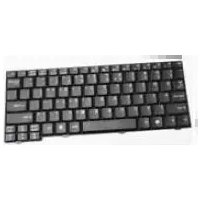
Keyboard UI - Keyboard ACER - Free user manual and instructions
Find the device manual for free Keyboard UI ACER in PDF.


Pick your language and provide your email: we'll send you a specifically translated version.
| Product Type | Keyboard |
| Brand | Acer |
| Model | Keyboard UI |
| Dimensions (W x D x H) | Approx. 440 x 140 x 25 mm |
| Weight | Approx. 500 g |
| Power Source | USB bus-powered or 2x AAA batteries (wireless model) |
| Interface | USB wired or 2.4 GHz wireless |
| Key Layout | Standard QWERTY with numeric keypad |
| Multimedia Keys | Dedicated keys for volume, playback, and shortcuts |
| Compatibility | Windows, macOS, Linux |
| Cleaning Instructions | Wipe with a soft, dry cloth; avoid liquids |
| Safety Precautions | Do not expose to moisture or extreme temperatures |
| Spare Parts Availability | Not available separately; contact Acer support |
| Repairability | Non-user-serviceable; seek professional repair |
| Warranty | Standard Acer warranty (varies by region) |
Frequently Asked Questions - Keyboard UI ACER
Is the Acer Keyboard UI compatible with Mac?
Yes, the Acer Keyboard UI works with macOS, but some multimedia keys may require additional configuration.
How do I clean my Acer Keyboard UI?
Disconnect the keyboard and gently wipe the surface with a soft, dry cloth. For stubborn stains, slightly dampen the cloth with water. Do not use harsh chemicals.
Does the keyboard require batteries?
If you have the wireless version, it requires 2 AAA batteries. The wired version is powered via USB.
What is the warranty period for the Acer Keyboard UI?
The warranty typically lasts 1 year from the date of purchase, but it may vary by region. Check your local Acer support for details.
Can I use this keyboard with a tablet or smartphone?
If the keyboard is wired, you may need an OTG adapter for Android devices. The wireless version can connect to devices that support USB receivers or Bluetooth (if applicable).
How do I replace the keycaps on my Acer Keyboard UI?
Keycaps are not designed to be user-replaceable. If a keycap is damaged, contact Acer support for assistance.
Why are some keys not working?
First, restart your computer. Check the connection (USB port or batteries). If the issue persists, try cleaning under the keys or contact Acer support.
Is the keyboard spill-resistant?
The Acer Keyboard UI is not officially spill-resistant. Avoid liquids near the keyboard to prevent damage.
Where can I download the driver for this keyboard?
Most standard keyboards are plug-and-play. If needed, drivers are available on the official Acer support website under your keyboard model.
How do I pair the wireless version with my computer?
Insert the USB receiver into a free port. Install batteries, then turn on the keyboard. It should automatically connect. If not, press the connect button (if available).
User questions about Keyboard UI ACER
0 question about this device. Answer the ones you know or ask your own.
Ask a new question about this device
No questions yet. Be the first to ask one.
Download the instructions for your Keyboard in PDF format for free! Find your manual Keyboard UI - ACER and take your electronic device back in hand. On this page are published all the documents necessary for the use of your device. Keyboard UI by ACER.
USER MANUAL Keyboard UI ACER


Manual assistant
Powered by Anthropic
Waiting for your message
Product information
Brand : ACER
Model : Keyboard UI
Category : Keyboard