
C50s - Surveillance Camera Tenda - Free user manual and instructions
Find the device manual for free C50s Tenda in PDF.


| Product Type | Surveillance Camera |
| Brand | Tenda |
| Model | C50s |
| Resolution | 1920 x 1080 (Full HD) |
| Night Vision | Yes, up to 10 meters |
| Field of View | 110° |
| Connectivity | Wi-Fi 802.11 b/g/n |
| Audio | Two-way audio with built-in microphone and speaker |
| Motion Detection | Yes, with push notifications |
| Storage | MicroSD card up to 128 GB (not included), cloud storage optional |
| Power Supply | DC 5V/1A via USB cable |
| Dimensions | 70 x 70 x 115 mm |
| Weight | 120 g |
| Weatherproof | IP65 (indoor/outdoor use recommended under eaves) |
| Mounting | Wall or ceiling mount with included bracket |
| Compatibility | iOS and Android via Tenda Smart app |
| Security | Encrypted video transmission, password protection |
| Maintenance | Wipe lens with soft, dry cloth; keep SD card slot cover closed |
| Spare Parts | USB power cable and mounting screws available from Tenda |
| Reparability | Not user-serviceable; contact Tenda support for repairs |
Frequently Asked Questions - C50s Tenda
User questions about C50s Tenda
0 question about this device. Answer the ones you know or ask your own.
Ask a new question about this device
Download the instructions for your Surveillance Camera in PDF format for free! Find your manual C50s - Tenda and take your electronic device back in hand. On this page are published all the documents necessary for the use of your device. C50s by Tenda.
USER MANUAL C50s Tenda
Tenda® is the registered trademark of Shenzhen Tenda Technology Co., Ltd. All the products and product names mentioned here in are the trademarks or registered trademarks of their respective holders. Copyright of the whole product as integration, including its accessories and software, belongs to Shenzhen Tenda Technology Co., Ltd. Without prior expressed written permission from Shenzhen Tenda Technology Co., Ltd, any individual or party is not allowed to copy, plagiarize, reproduce, or translate it into other languages.
All photos and product specifications mentioned in this manual are for references only. Upgrades of software and hardware may occur; Tenda reserves the right to revise this publication and to make changes in the content hereof without obligation to notify any person or organization of such revisions or changes. If you would like to know more about our product information, please visit our website at http://www.tendacn.com
Contents
1. Product overview ....6
1.1 Package list ....6
1.2 System Requirement....6
1.3 Introduction......6
1.4 Features....6
1.5 Hardware overview....7
2. Installation....8
2.1.Hardware installation....8
2.1.1 Wall install....8
2.1.2 Hardware Connection ....8
3. Smartphone View and Install....9
3.1 "CloudNeteye" download and install....9
3.1.1 Iphone 9
3.1.2 Android smartphone .... 10
3.2 Add IP Camera....10
3.2.1 IOS....10
3.2.2 Android 11
3.3 IP Camera Live View ....12
3.4 IP Camera setting and management ....13
3.4.1 Android smartphone ....13
3.4.1.1 Edit Camera....14
3.4.1.2 View Event ...... 15
3.4.2 Iphone ....15
3.4.2.1 Advanced Setting....16
3.4.2.2 Event: 17
- PC View and Install....17
4.1 Software function....17
4.1.1 Video display .... 18
4.1.2 Main Functions .... 18
4.1.2.1 System setting....18
4.1.2.2 Playback, Browse snapshots and Event list....21
4.1.2.3 About....22
4.1.3 Display setting 22
4.1.4 Device setting 22
4.1.4.1 Edit Camera 22
4.1.4.1.1 Schedule Recording....23
4.1.4.1.2 Remote settings....23
4.1.4.1.3 Remote device information ....24
4.1.4.2 Add/Delete IP Cam....24
4.1.4.3 Play/Stop all camera 25
4.1.4.4 Move device UP/DOWN....25
4.1.4.5 Export/Import device....25
- Web View and Setting ....25
5.1 How to log in Web....25
5.2. Web Configuration ...... 26
5.2.1 View video....26
5.2.2 Settings....27
5.2.2.1 Status....27
5.2.2.2 Network settings....28
5.2.2. 2.1 TCP/IP ......28
5.2.2.2 WiFi....29
5.2.2.2.3 DDNS....30
5.2.2.2.4 FTP....31
5.2.2.2.5 Email....32
5.2.2.3 Camera Settings....32
5.2.2.3.1 OSD....32
5.2.2.3.2 Video....33
5.2.2.3.3 Motion Detect .... 33
5.2.2.3.4 Night Vision....34
5.2.2.4 Alarm and Record....35
5.2.2.4.1 Motion Alarm ....35
5.2.2.4.2 Record Settings....35
5.2.2.5 System Settings....36
5.2.2.5.1 Time....36
5.2.2.5.2 User Management....36
5.2.2.5.3 Disk Management....37
5.2.2.5.4 Device Maintenance ....38
Addendum 1: FAQ ....38
Addendum 2: Environmental protection download....41
1. Product overview
1.1 Package list
Please check carefully if all listed items are included in the package as below:
1、One IP-Camera;
2、One Quick Installation Guide;
3、Mounting bracket set;
4、One RJ45 Cable;
5、One Power adapter;
Note: Please do connect the power adapter to an electrical outlet that matches the adapter's rated input voltage, otherwise it will damage the device and don't belong to warranty. If any item mentioned above is missing or damaged, contact the place of purchase immediately.
1.2 System Requirement
- CPU: 2.0GHz or above (recommend 3.0GHz)
2.RAM: 256MB or above(recommend 1.0GB) - Graphic card: 64MHz or above
4.OS: Windows 7, Vista, XP, Mac OS, Windows 8. - Internet Explorer6.0 or above, or compatible browser, Firefox etc
- Android 2.3 or above
7.IOS 4.3 or above
1.3 Introduction
Tenda super easy IP Camera provides a professional home or small business surveillance Solution. Through our mobile phone APPs “CloudNeteye” and PC software “CloudNeteyeForPC” users can remote view directly, without DDNS domain name or setting any Port mapping on router.
1.4 Features
1.HD plus IRCUT(HD series): 720p HD Video Quality, you can get rich detail and crisp image quality. With IRCUT to ensure that the images are real color.
2.PTZ: You can PTZ control, move to the area you want to see, cover wider areas. (PTZ camera)
3.Plug and Play: Based on P2P cloud Technology, no need to configure the wireless router and DDNS, then you can view immediately, so easy.
4.Remote Viewing: With "CloudNeteye" APPs, users can remote view through the smartphone and tablet PC; with "CloudNeteyeForPC" software, you can remote view by your computer.
5.H.264 Video Compression(HD series): H.264 video compression technology, need the minimum bandwidth network traffic while high image quality, more suitable for smartphone viewing.
6. Night Vision: This device can work well during the day, with infrared LED, it can also work at the night, round-the-clock surveillance.
7. Wi-Fi Connect: Use Wi-Fi, camera easily connect to a wireless router. You can easily get rid of the trouble of deployment the Ethernet cable.
8. Micro SD/TF storage(HD series): You can store image and video on your Micro SD/TF card.
9. Motion detection and alarm: If you need to monitor a certain area, when an exception occurs in the region, trigger an alarm automatically, send alarm information by e-mail, FTP.
10. Two-way audio : Not just screen monitor, you can also voice intercom. When you find the abnormal situation, you can be reminded by voice intercom, to ensure safety.
1.5 Hardware overview
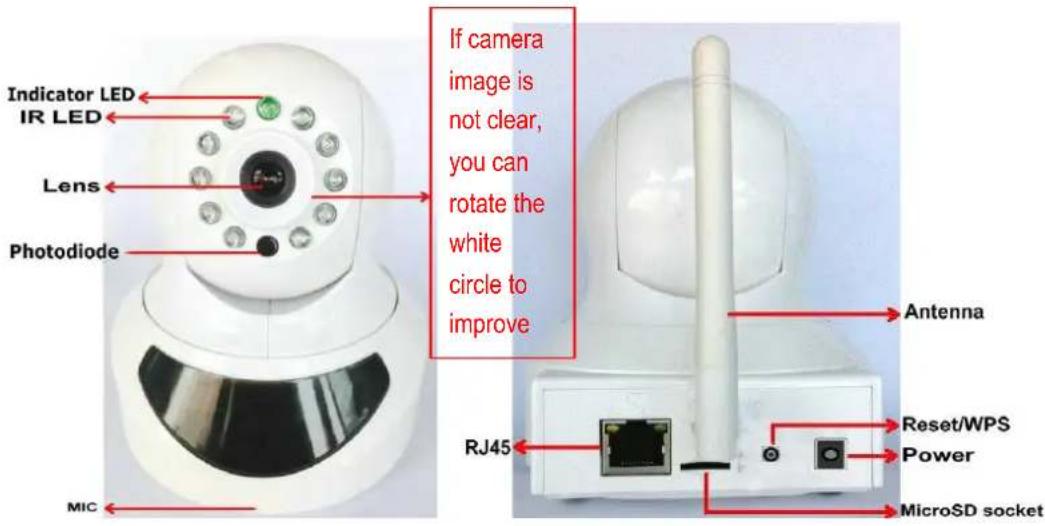
C50s
2. Installation
2.1.Hardware installation
2.1.1 Wall install
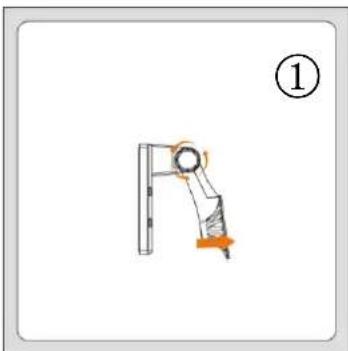
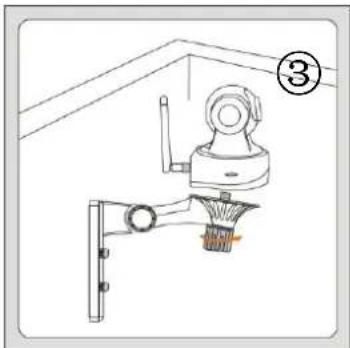
According to your needs, refer to the figure to install.
natural_image
Diagram of a mechanical arm with a circular head and orange motion arrow, labeled (1), no text or symbols present.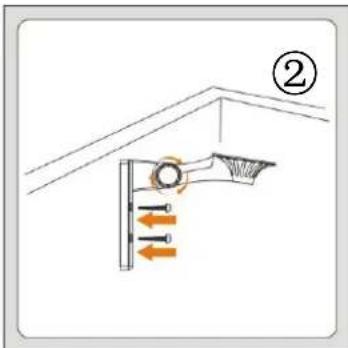
natural_image
Diagram of a bathroom fixture with a showerhead and bucket, no text or symbols presentFigure 1: Turn the collar on the bracket to loosen it then move the camera to the position you want.
Figure 2: Turn the collar on the bracket to tighten it, then fix the bracket to the wall using screws.
Figure 3: Camera connect to bracket, turn the collar on the bracket clockwise to tighten it.
2.1.2 Hardware Connection
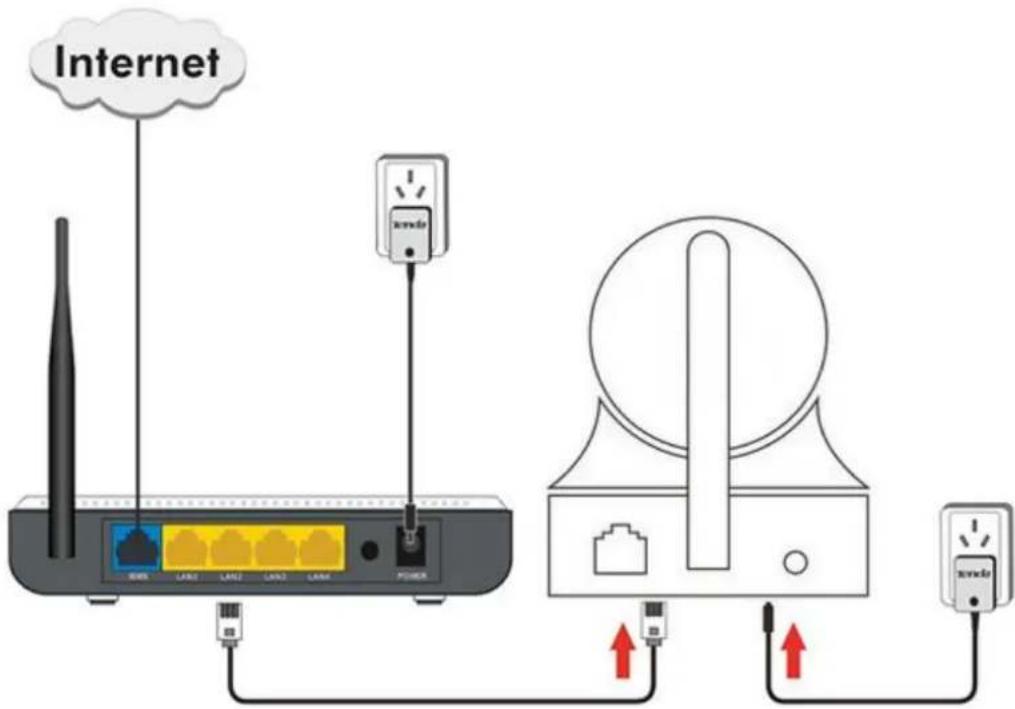
Take out the camera, connect included power adapter to camera, then connect Ethernet cable between the camera and LAN port on your router.
Note: If your Router connected to a MODEM. The camera is unable to connect to the port of the MODEM.
3. Smartphone View and Install
3.1 "CloudNeteye" download and install
You can choose any the following way to download and install "CloudNeteye".
3.1.1 Iphone
Way 1: Serach "CloudNeteye" in APP Store, download it and install.
Way 2: Scan the following QR code into the App Store to download "CloudNeteye" and install.


natural_image
Stylized icon of a helmet with swirling patterns, no text or symbols present3.1.2 Android smartphone
Way 1: Search "CloudNeteye" in Google Play, download it and install.
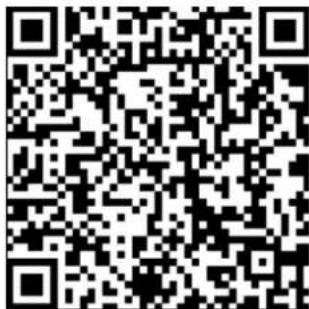
Way 2: Scan the following QR code into Google Play to download "CloudNeteye" and install.

natural_image
Stylized icon of a stylized character with swirling lines and a circular head, set against an orange background (no text or symbols)3.2 Add IP Camera
As following, we will introduce how to add IP camera based on different operating systems IOS and Android.
3.2.1 IOS
-
Run "CloudNeteye" APP on your Iphone.
-
You can choose one of following way A. B. C, to add camera.
A: If your Iphone and IP camera is connected to the same router, "CloudNeteye" will search the IP Camera automatically, and appear in the following screen.
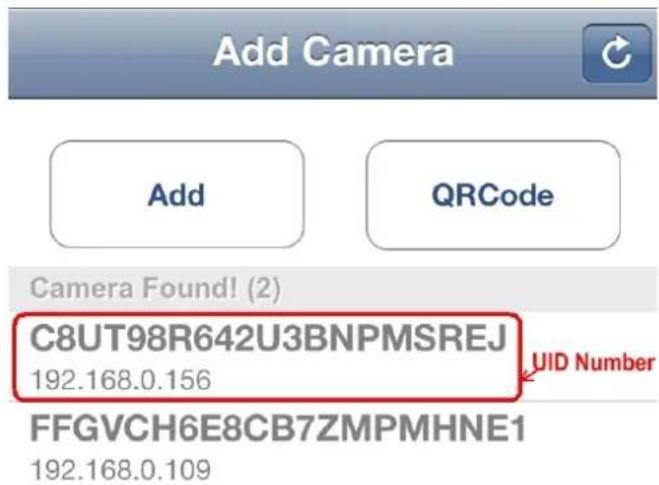
You just need to click the camera UID Number, input password"admin"; then click "Save" to finish add camera.
For some reason if your Iphone can't find camera automatically, pls click "Add" or "QRCode" as the following screen.
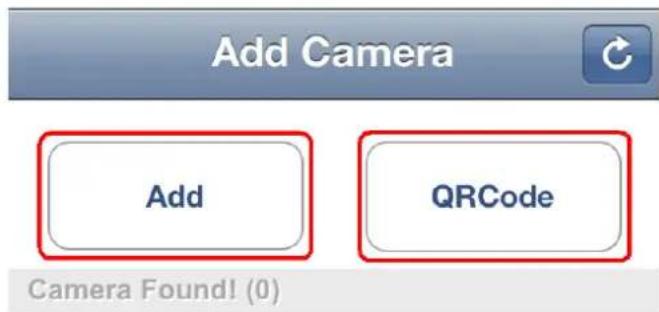
B: Recommend to scan QR code to add camera. Click "QRCode", and scan the UID QR code at the bottom of the camera; input password "admin"; click "Save" to finish add camera.
C: Also, you can click "Add" to input camera UID number manually. (UID number is 20 alphanumeric below the UID QR code). Then input password "admin", click "Save" to finish add camera
Note: Because the UID number is case sensitive, please input the correct font format.
3.2.2 Android
- Run "CloudNeteye" on your smartphone.
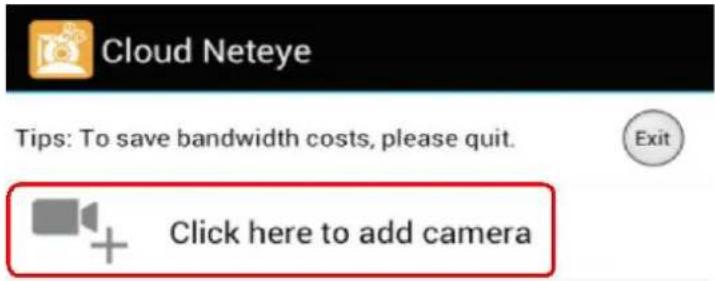
- Touch "Click here to add camera" in the following screen.
- You can choose one of following way A. B. C, to add camera.
A: If your smartphone and IP Camera is connected to the same router, click "Search" to add camera, as show in the following screen. Touch the UID number, then input password "admin", click "OK" to finish add camera.
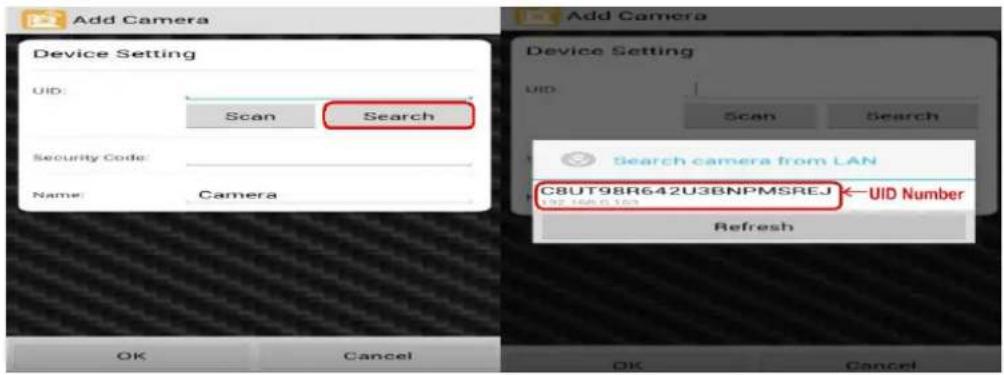
For some reason if your smartphone can't find camera automatically, pls click "Scan" to add.
B: Scan the UID QR code at the bottom of the camera, input password "admin", Click "OK" to finish add camera.
C: Input UID number manually as show in the following picture; then input password" admin ", click "OK" to finish add camera. (UID number is 20 alphanumeric below the UID QR code)
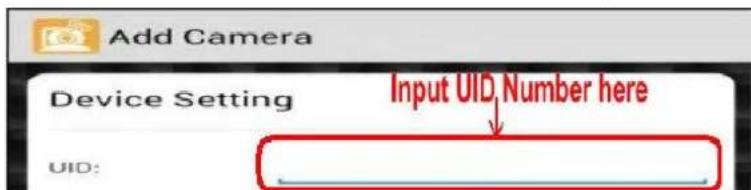
Note: Because the UID number is case sensitive, please input the correct font format.
3.3 IP Camera Live View
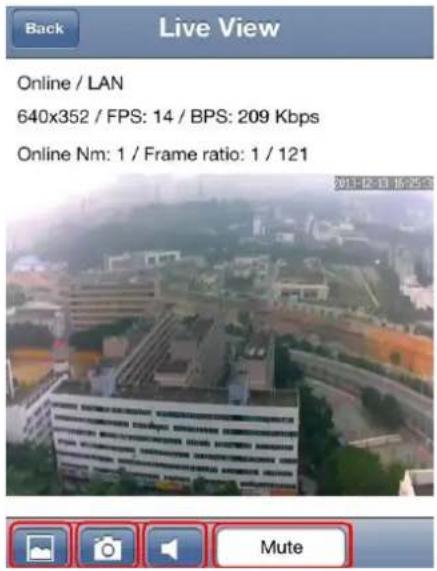
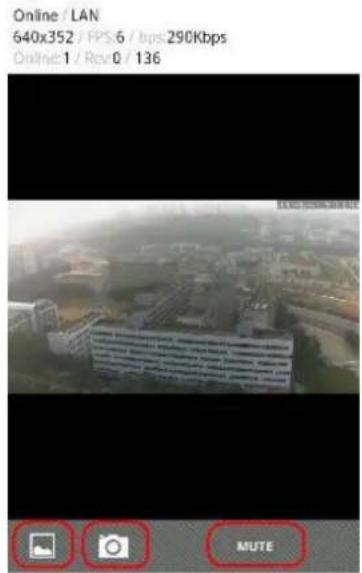
After finish add IP camera(camera shows on line), you can view video, control PTZ, snapshot, listen and speak etc.
IOS
Android
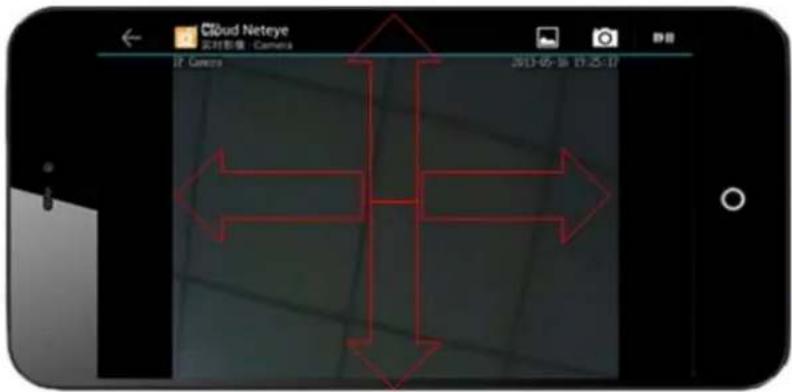
You can control PTZ by Finger sliding on screen, UP, Down, Left and Right.
3.4 IP Camera setting and management
3.4.1 Android smartphone
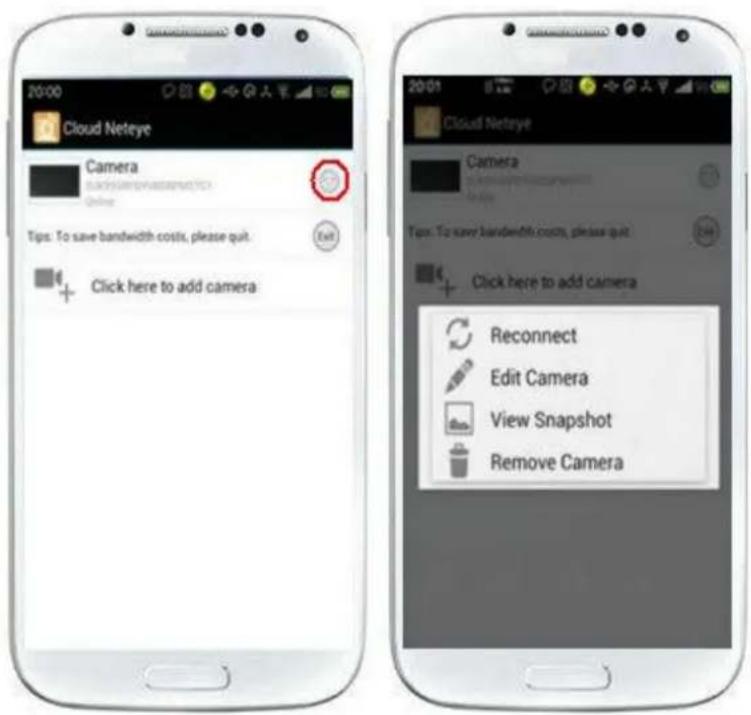
Select device and hold on 3 seconds or click “ ” button near the device to do parameters settings. User can set reconnect, edit camera, view snapshot and remove camera.
3.4.1.1 Edit Camera
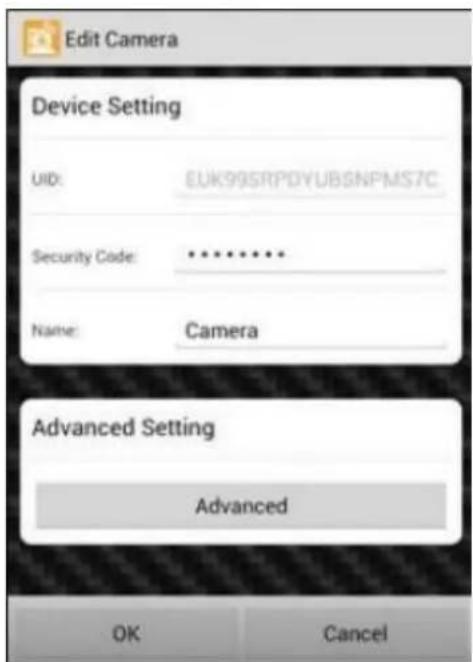
Advanced Setting
a) Can modify the camera's password
b) Can adjust common video parameters: video quality, video flip, video mirror, Environment mode
c) WiFi setting
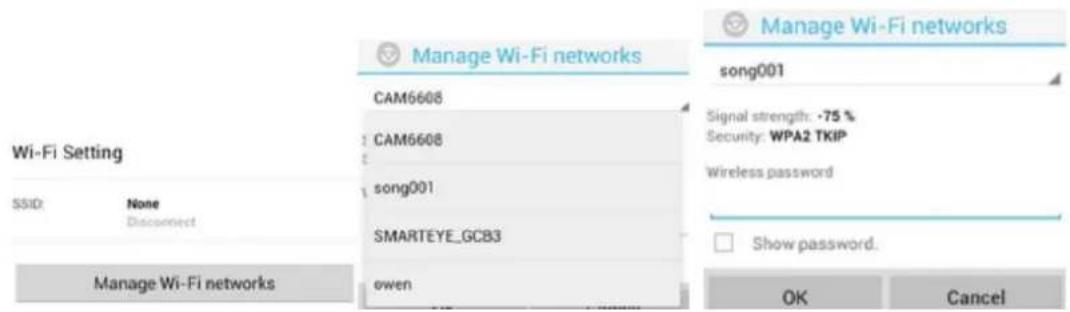
Click "Manage Wi-Fi networks" to enter searched wireless list, and then you can select usable wireless network.
d) Even Setting
-
Motion detection: If this function OFF, then the camera don't send motion detection alarm. If choose Low\Medium\High\Max means motion detection function ON. When sensitivity higher, then the camera trigger alarm more easily; default area is full screen.
-
Notification: There is 4 alarm modes, Silent, Tones only, Vibrate only, Ringtone and Vibrate.
e) Recording Setting: There is 3 options, Off, Full time, Alarm. If choose “Off”, camera stop recording; if choose “Full time”, camera record all day; if choose “Alarm”, camera start recording after motion detection (need device’s motion detection ON, and insert MicroSD/TF card).
f) Format SDCard: click this button, format MicroSD/TF card (need camera with memory card, otherwise without this button)
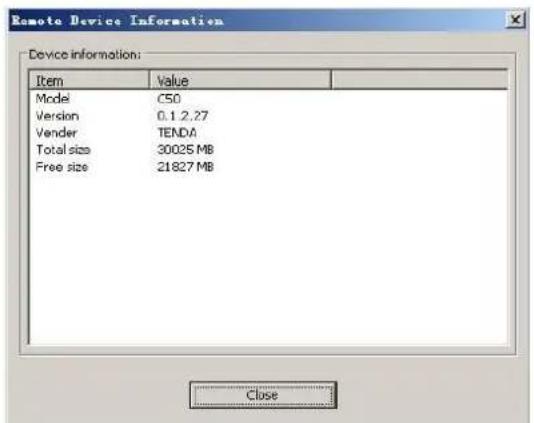
g) Device Information: Display Model, Version, Vender, Total size, Free size.
- Motion detection: If this function OFF, then the camera don't send motion detection alarm. If choose Low\Medium\High\Max means motion detection function ON. When sensitivity higher, then the camera trigger alarm more easily; default area is full screen.
- Notification: There is 4 alarm modes, Silent, Tones only, Vibrate only, Ringtone and Vibrate. e) Recording Setting: There is 3 options, Off, Full time, Alarm. If choose "Off", camera stop recording; if choose "Full time", camera record all day; if choose "Alarm", camera start recording after motion detection (need device's motion detection ON, and insert MicroSD/TF card). f) Format SDCard: click this button, format MicroSD/TF card (need camera with memory card, otherwise without this button) g) Device Information: Display Model, Version, Vender, Total size, Free size.
3.4.1.2 View Event
Click "View Event", can check full time recording and motion detection recording.
3.4.2 Iphone
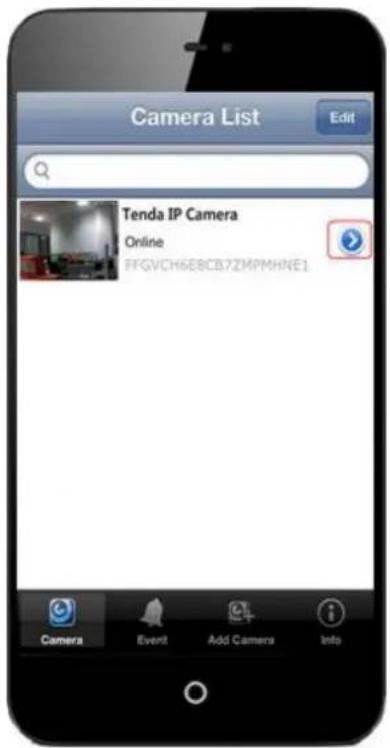
Click “ ” button beside the camera list, can do parameter settings and reconnect camera. User can view event, add camera, view info.
3.4.2.1 Advanced Setting
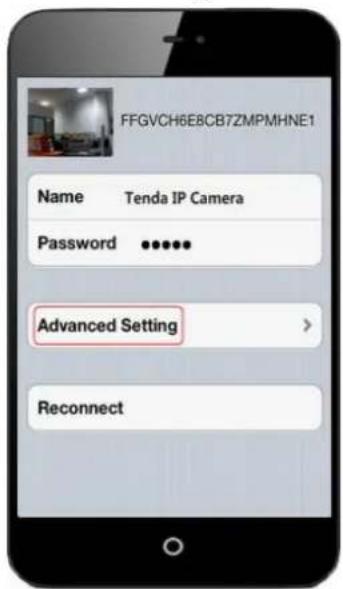
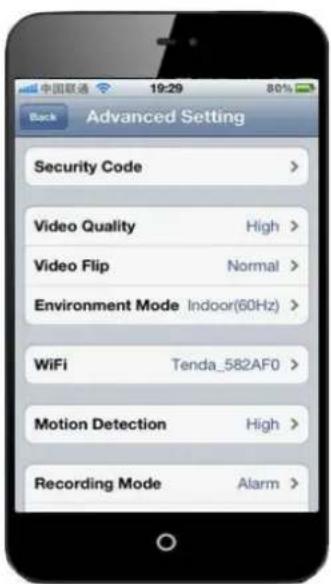
a) Security Code: can change the camera password
b) Video setting: can adjust common video parameters: Video quality, video flip, video mirror, Environment mode
c) WiFi: Click "WiFi" to enter searched wireless list, and then you can select usable wireless network.
d) Motion Detection: If this function OFF, camera can't send motion detection alarm. If choose Low\Medium\High\Max means motion detection function ON. When sensitivity higher, then the camera trigger alarm more easily; default area is full screen.
e) Recording Mode: With 3 options Off/Full Time/Alarm. If choose "Off", camera stop recording; "Full time", camera will record all the time; recommended "Alarm", camera record after trigger motion detection alarm (need motion detection function ON and device with MicroSD/TF card)
f) Format SDCard: click this button, then format the memory card (need camera with card, otherwise, without this option
g) About Device: dispaly camera model, version, vender, total size and free size of memory card.
3.4.2.2 Event: can view the full time recording or alarm recording of camera
4. PC View and Install
According to addendum 2 "Environmental protection download", download "CloudNeteyeForPC" software.
4.1 Software function
Below pictures are the screenshot of "CloudNeteyeForPC", we will explain detailed based
on the above 4 functions:
4.1.1 Video display
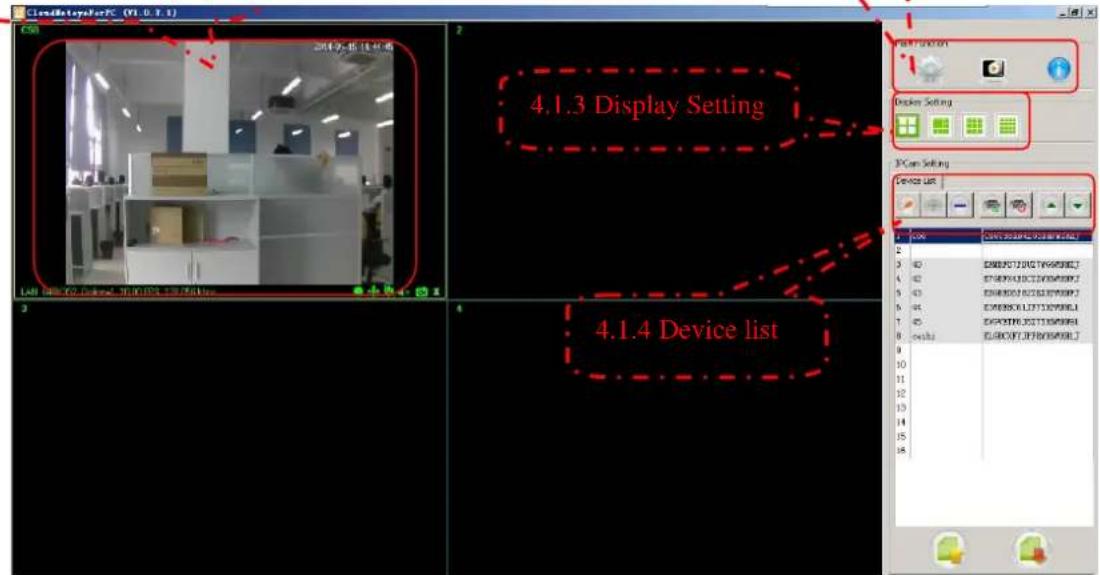
4.1.1 Video display
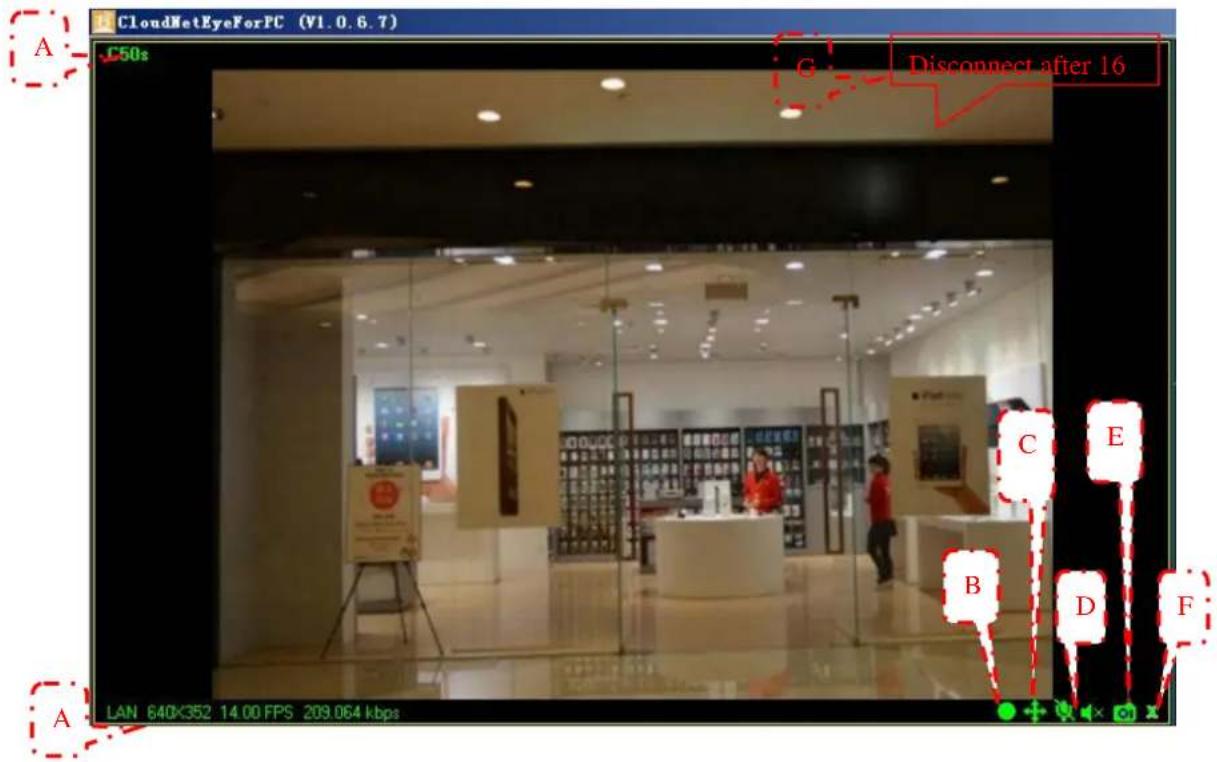
A. Show IP cam info, include name, connection way (LAN、P2P、RLY), resolutions and FPS.
B. Record manually. Click this button, when it shows in red, recording start; click again, recording stop. This function is available when full time or schedule recording closed.
C. Control the IP Cam rotation manually. (need IP camera with pan tilt).
D. Two-way audio function, include listen and talk (need IP camera support this function).
E. Snapshot function.
F. Disconnect IP Cam function by manual.
G. When IP Cam connect as Relay, connection will close automatically after 1 minute. Users need re-connect the camera manually. When disconnect, recording and alarm function is not available.
4.1.2 Main Functions
4.1.2.1 System setting

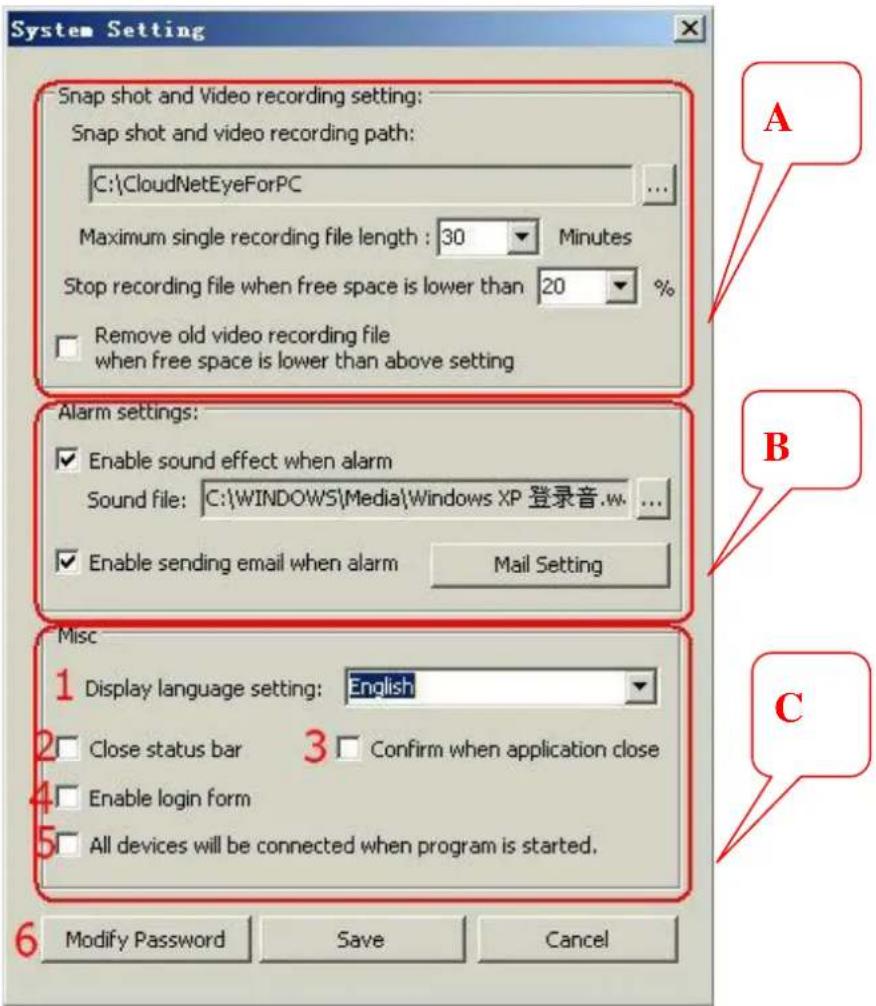
A: Snap shot and video recording path setting.
Users click “...” to choose the disk and file in your computer to save snapshot and video recording.
Users can set the length of single recording.
Users can set the camera stop recording when how many free space left in your disk.
Users can set to remove old video recording file when the free space is lower than setting.
B: Alarm settings
This function is available in condition of motion detection. When users closed motion detection in smartphone APP setting, camera can't alarm triggered.
Alarm can set as following:
1) Event recording, pls see 5.4 for reference.
2) Alarm sound effect, users can set the sound all way format file in your computer.
3) Send email when alarm, users can set their email address through Mail Setting.
Note 1: The following form is the parameter configuration of different email server:
| Email server | SMTP host | SMTP host port |
| Yahoo | smtp.mail.yahoo.com | 25 |
| Sohu | smtp.sohu.com | 25 |
| Gmail | smtp.gmail.com | 465 |
| Tom | smtp.tom.com | 25 |
After fill the information, pls click "Test", choose "Allow" in appear tips, and click "Save" to finish all email setting.
Pls see below picture for reference:
![Email Setting Email information Email subject: Alarm:[DevName] Email content: Alarm from [DevName]([UID]Event: [Event] Can edit the email content Email server setting SMTP host*: smtp.163.com SMTP host port : 25 Mail From : cl951357258@163.com Recipient*: cl951357258@sina.com ( Seprate different email by ',') Enable SMTP Authenticated Account: cl951357258@163.com Password: ••••••••••• Test Save Cancel](/content/2026/06/1270404/images/00496933e97c31851b25da23a14a96e7eb41e34c24d69d40eaf4625cfdf23c94.jpg)
C: Misc setting
1) Set display language
2) Set if close the status bar
3) Confirm when application close
4) Can choose if enable the login form
5) Set all device will be connected when program is started.
6) You can modify the password of the camera here.
4.1.2.2 Playback, Browse snapshots and Event list

1) Playback
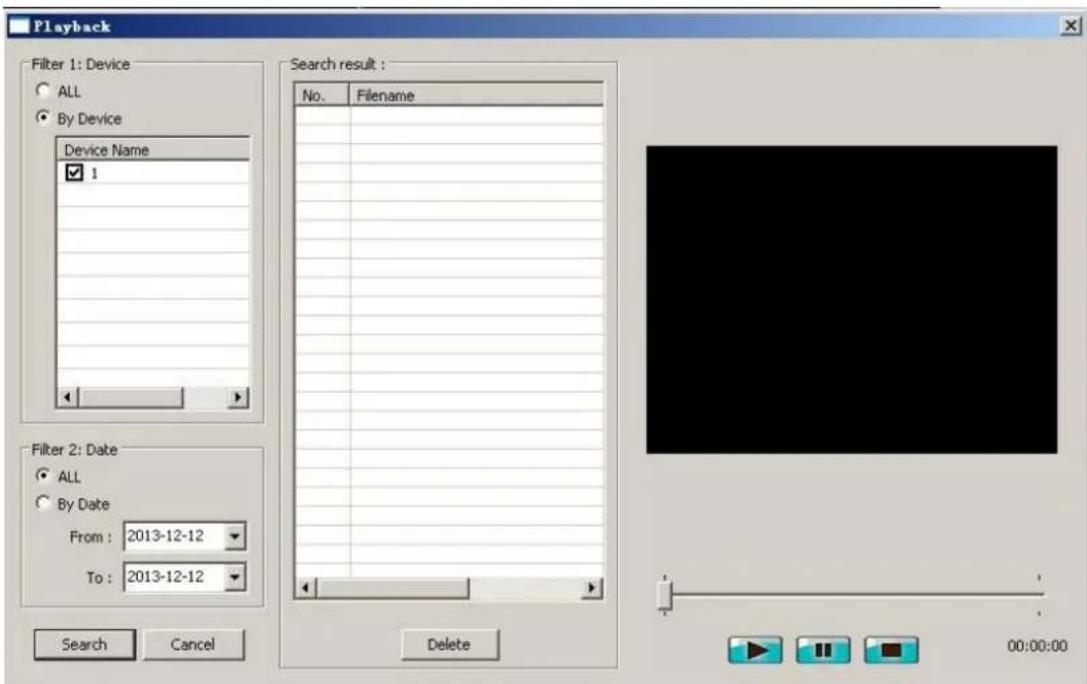
Search function, users can search all recording files of one or more camera in a certain time.
Delete function, can delete unnecessary files.
Users can view the payback of the recording, include play, pause, stop, drag watch and full screen view.
Snapshot function, check snapshot pictures.
Event list
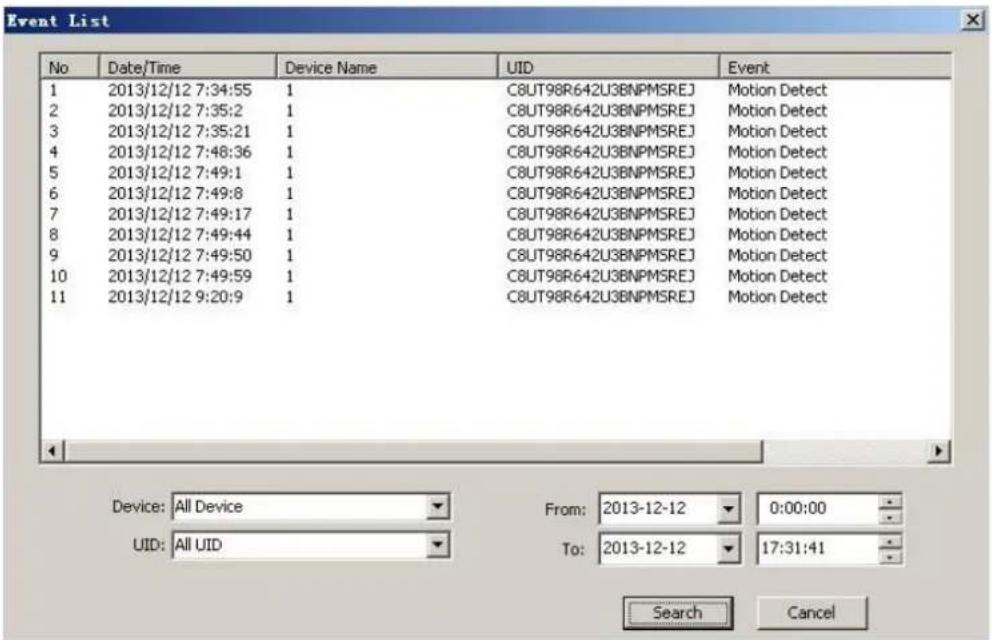
Search function, users can search all even list of one or more camera in a certain time.
4.1.2.3 About

show CloudNeteye version.
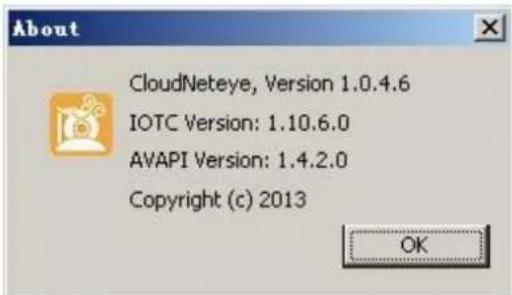
4.1.3 Display setting
Display split, include 4, 6, 9, 16 split pane, double click to full screen view.
4.1.4 Device setting
4.1.4.1 Edit Camera
Choose some one IP camera in device list, click “Schedule Recording”, can do “Schedule Recording”, “Remote Setting” and “Remote Device Info”
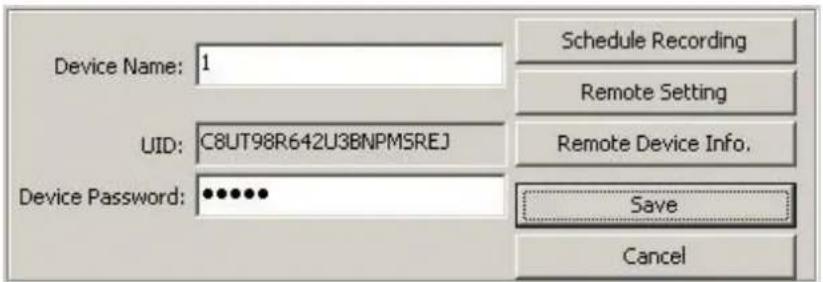
4.1.4.1.1 Schedule Recording
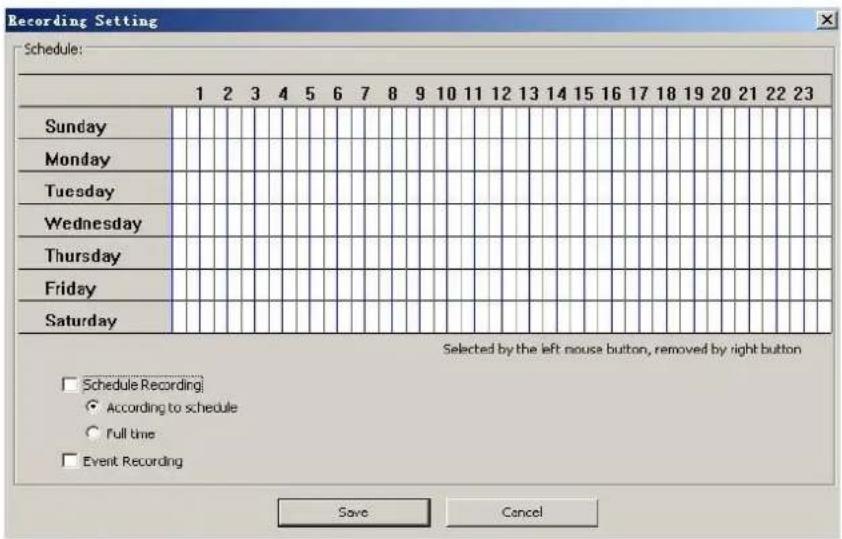
1) Full-time recording. When open this function, manual recording function will stop.
2) According to the schedule. When this function start, manual recording function will stop.
3) Event recording. This function is available in condition of motion detection. When users closed motion detection in smartphone APP setting, camera can't alarm triggered.
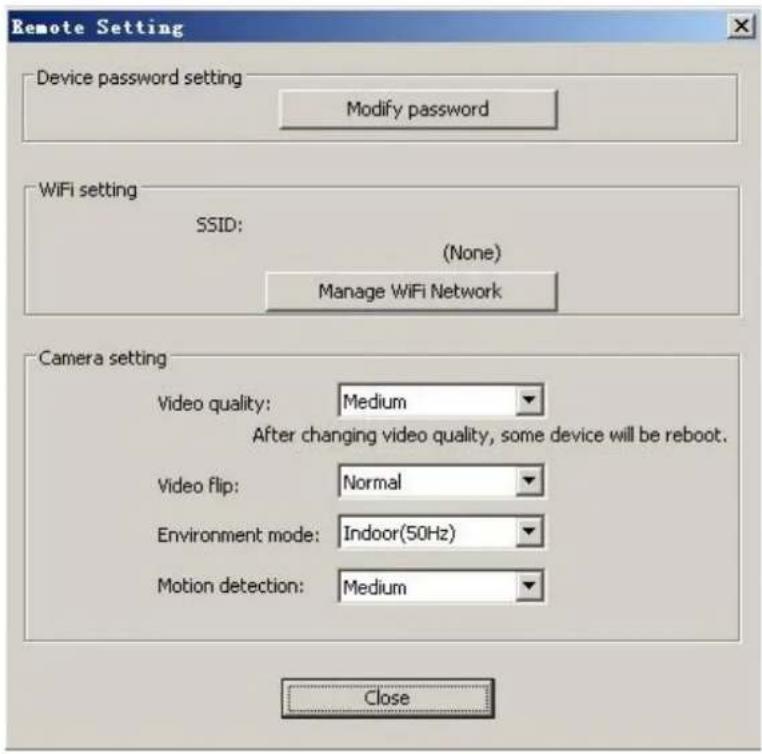
4.1.4.1.2 Remote settings
Include Device password setting, WIFI setting, Camera video quality, video flip, environment mode and motion detection settings.
Note: WiFi setting: click "Manager WiFi Network"→ click "WIFI SSID", choose one available
network in the following list; input password, then click "Save".
4.1.4.1.3 Remote device information, check the camera info.
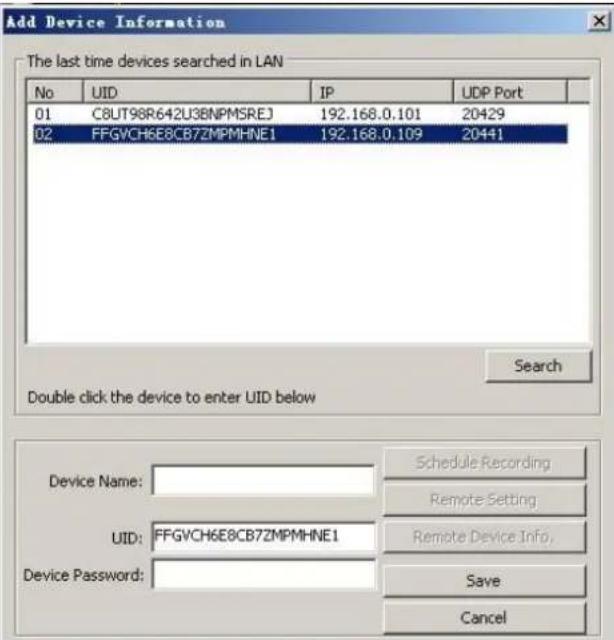
4.1.4.2 Add/Delete IP Cam, search IP Cam or add manually, can support max 16 cameras view at the same time. (when the button is in blue color, then can add or delete).

, search IP Cam or add manually, can support max
4.1.4.3 Play/Stop all camera , can support max 16 camera connect or stop at the same time.
4.1.4.4 Move device UP/DOWN, change the camera's turn by up or down.
4.1.4.5 Export/Import device, export or import camera's information in form of text.
5. Web View and Setting
5.1 How to log in Web
You can log in the Web through the following two ways:
Way 1: Run "C50s Setup Wizard" to enter Web.
According to addendum 2 “Environmental protection download”, download “C50s Setup Wizard” software.
Double click “C50s Setup.exe”, run this software, click “ Next ” according guide info, until to following page.
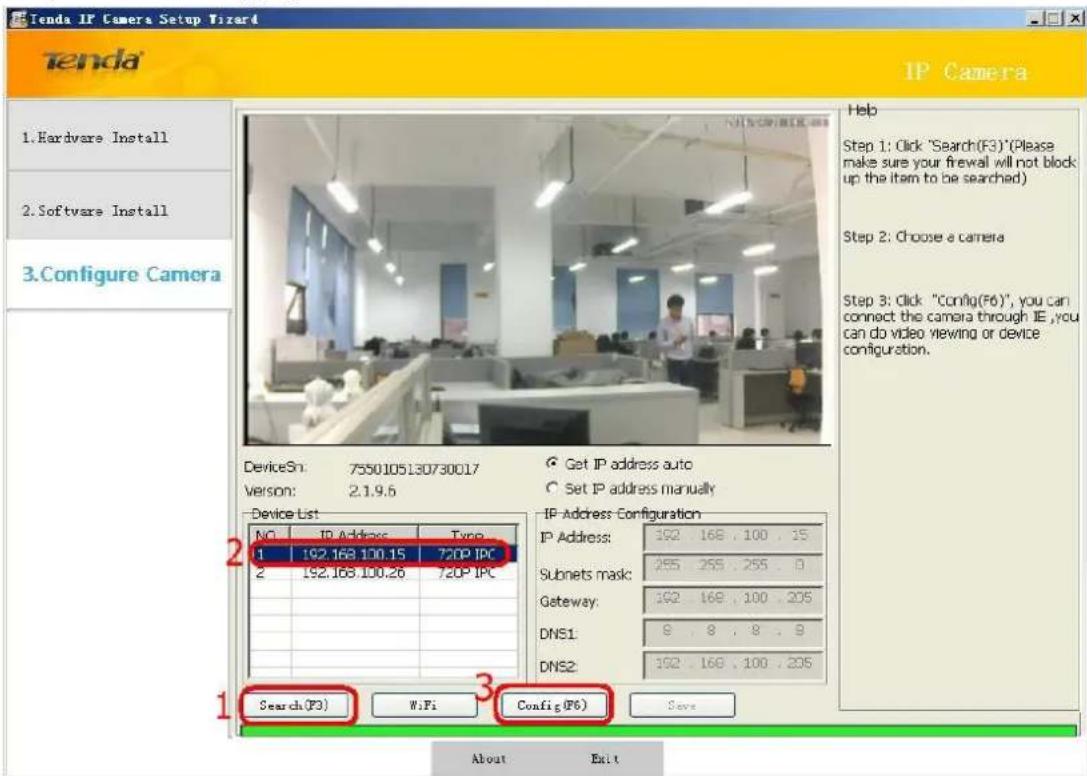
As show on the picture, click “_”, (pls closed the firewall and antivirus software in your computer and make the DHCP server is ON in your Router); select camera in “Device list”; then click “Config(F6)”, input “admin” in both user name and password on the appearing login window, and then click “LOGIN” to enter the Web UI. You will then be able to watch videos or do system settings.
Way 2: Use “CloudNeteye” APPs in smartphone, search camera and find IP address, then input the IP address in browser to enter the Web. Pls refer to User Manual “3.2 Add IP Camera” section, use search IP camera function. In the device list info “192.168.X.X” means the camera’s IP address. Open a browser in your computer, input the IP address and press “Enter”, input “admin” in both user name and password on the appearing login window, and then click “LOGIN” to enter the Web.
5.2. Web Configuration
5.2.1 View video
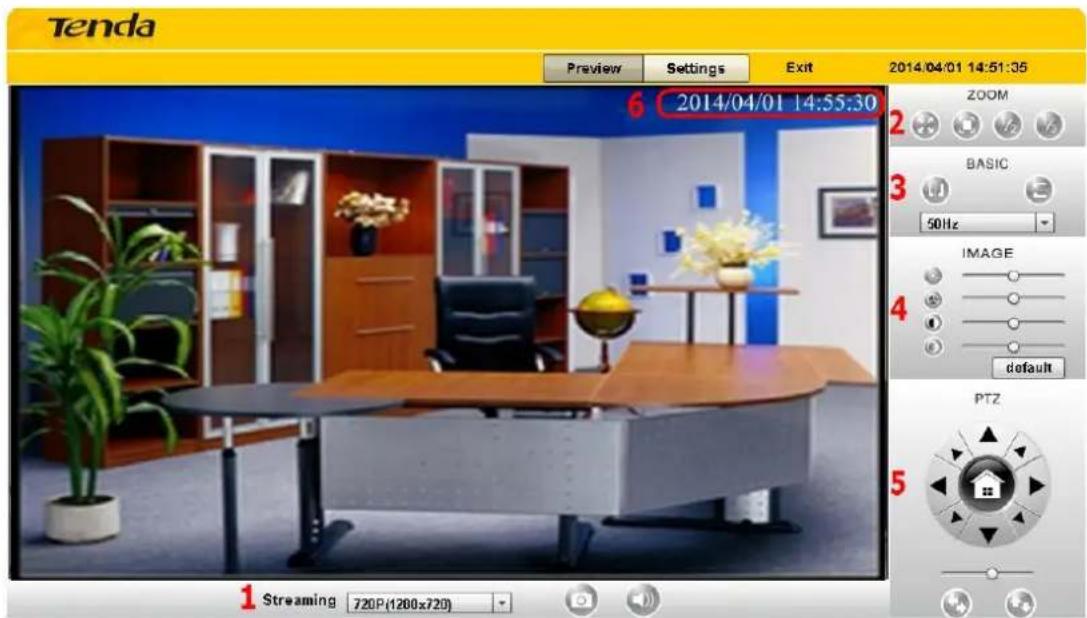
1) Streaming: Display connection status and video steaming.
You can set video straming as 720P(1280x720); 360P(640x360) and 180P(320x180).
Snapshot: Picture snapshot
Audio: You can turn on/off the audio
2) Zoom: Set the view screen size, can be full screen; original size; 1/2 size and 1/3 size.
3) Basic: Set picture Mirror/Flip; set video mode 50Hz or 60Hz.
4) IMAGE: Set Brightness, Hue, Saturation, Contrast or factory default.
5) PTZ: You can click up, down, left, right arrow to control the camera moving, click button to center the camera.
6) Display the device name and time

5.2.2 Settings
5.2.2.1 Status
| Device Info | ||
| Device Name: | Camera | |
| Device Mode: | C50s | |
| Device SN: | 01034A | |
| Firmware Version: | 2.1.9.6 | |
| Ethernet | ||
| Network Mode: | Static IP | |
| IP Address: | 192.168.104.107 | |
| Netmask: | 255.255.255.0 | |
| Gateway: | 192.168.104.1 | |
| MAC Address: | 00:72:05:01:03:4A | |
| DNS | ||
| Preferred DNS server: | 8.8.8.8 | |
| Alternate DNS server: | 172.16.100.205 | |
| DDNS | ||
| DDNS Status: | Disable | |
| UPNP | ||
| UPNP Status: | Enable | |
| Extern IP Address: | 192.168.100.205 | |
| SD Card | ||
| SD Card Status: | not insert the SD Card. | |
You can check some information of the device, example of software version, web version, Mac address, TF/SD card status.
Tips:
① The device supports max 32G MicroSD card. Please format the MicroSD card to FAT32 before use the card on camera. Please check if the MicroSD Card matches the camera or not before purchasing the MicroSD Card.
② Please insert the MicroSD card when the device power off, otherwise damage the MicroSD card or the device can't read MicroSD card.
5.2.2.2 Network settings
5.2.2. 2.1 TCP/IP
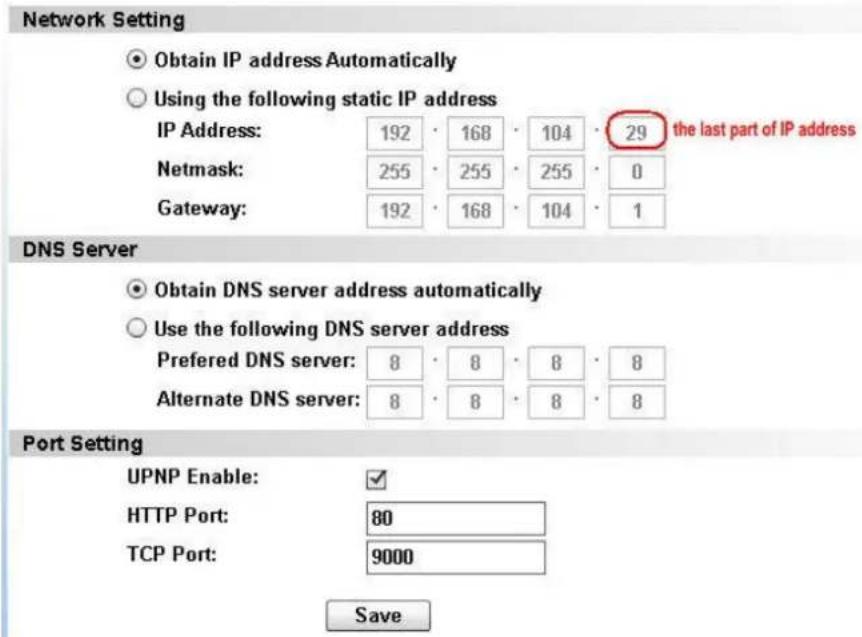
- Network setting: There is two ways to assign IP address, one is "Obtain IP Address
Automatically” (DHCP), one is “Using the following static IP address” (set manually); the default one is “Obtain IP Address Automatically”. If you want to change the IP address of the camera, choose “Using the following static IP address”, and modify last part of IP address as show on above picture.
- DNS Server: If you choose "Obtain IP Address Automatically", the DNS Server will be
"Obtain DNS server address automatically"; If you choose "Using the following static IP address", you can fill the DNS server info according to your network.
- Port setting: The default HTTP port is 80, if you do not modify the port, you can directly enter the camera IP in the web address field; if you change the port, you need to add ": " and port number behind the IP address. For example: If you modify the port is 8081, the camera IP address is 192.168.0.10. You must enter 192.168.0.10:8081 to access camera.
Note: When you modify the parameters, you need to click "Save" to save your settings.
5.2.2.2.2 WiFi
Login camera in wired connection and enter Wi-Fi setting, and then operate as the following
steps.
Wlan Setting
Wlan Enable:
SSID:
Wlan Mode:
Security:
Password:

Wifi List
| SN | SSID | Security | Status | Signal | |
| 1 | Tenda | WPA2-TKIP | Connected | 66% | ▲ |
| 2 | WPA2-AES | Disconnected | 93% | ||
| 3 | Ezagoo_C8DBB7 | WPA2-AES | Disconnected | 80% | |
| 4 | wifi10 | None | Disconnected | 78% | |
| 5 | Tenda_4AD788 | None | Disconnected | 76% | |
| 6 | VLAN100 | None | Disconnected | 75% | ▼ |
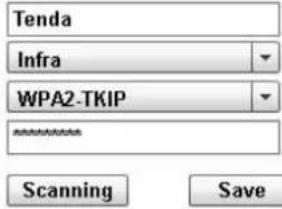
Select "WLAN Enable" and click "Scanning", and then select wireless Router in Wifi List, enter its password, click "Save" to save the wireless settings. After setting successfully, please pull out network cable, then you can use the wireless function.
5.2.2.2.3 DDNS
DDNS Setting
DDNS Enable
DDNS Server:
Domain/Hostname:
User Name:
Password:
DDNS update time:
Server Address:

www.dyndns.com
guest.dyndns.org
guest
大林大林
120
WWW.DYNDNS.COM

10, Max 1440(one day))
WWW.3322.ORG
Save
User can also use third party DDNS, such as www.dynddns.com, User applies a free domain name from this website and fills the info into below blanks and saves the settings. Then enter into the Web page of your Router to do port mapping. Then you can remote access to the camera by your PC.
Note: 1. The IP of the camera should be fixed IP address, otherwise it's unable to set the port mapping.
- Using the third party DDNS, if the http port is not 80, the port number should be added to the domain name with "":. Example: http://chen.dynddns:8081.
Note: 1: We suggest you use P2P UID in our "CloudNeteyeForPC" software for remote view.
2: If there is any question about remote access setting, pls see addendum 1 for reference.
3: When you modify the parameters, you need to click "Save" to save your settings.
5.2.2.2.4 FTP
The device will snap live pictures and send them to FTP server when alarming, but need to set the FTP setting correctly.
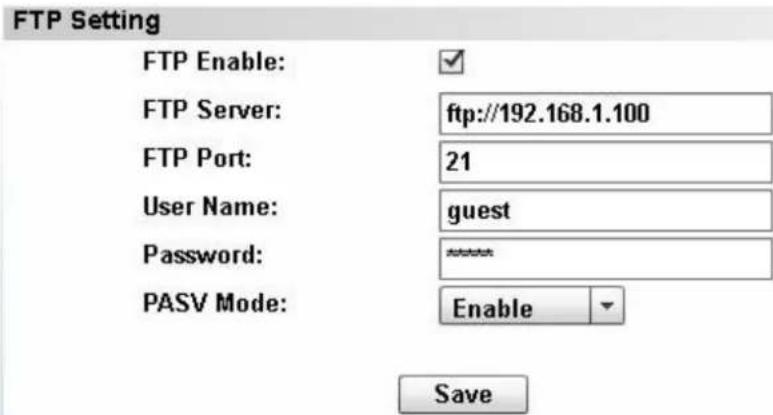
Before to use FTP function, please get the following ready.
1) FTP user name and password
2) FTP storage space and the authority
3) Create sub-category to store the video or pictures.
Note: The password should not be special character, otherwise the camera can't identify it.
Recommended to use MicroSD card for saving.
5.2.2.2.5 Email
When it detects alarming, it can send email to your appointed email box, but you need to set email service parameters correctly. As shown below, click "Save" to save these parameters.
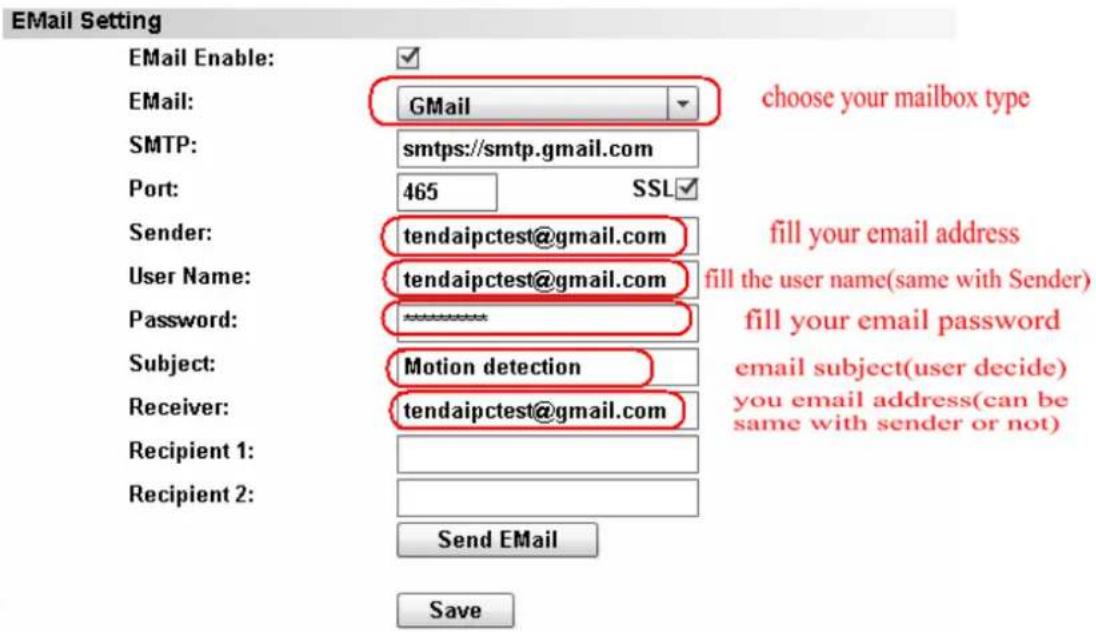
Note: After fill all parameters, pls click "Send Email" to send test email.
5.2.2.3 Camera Settings
5.2.2.3.1 OSD
Choose "OSD Enable", then you select which information show on the view video screen.
OSD Setting
OSD Enable:

Camera name:
Camera
Display:
○ Dispaly camera name
○ Display date and time
- Display camera name and time
Year/month/day hour:minute:second
○ Month/day/year hour:minute:second
○ Day/month/Year hour:minute:second
Save
5.2.2.3.2 Video
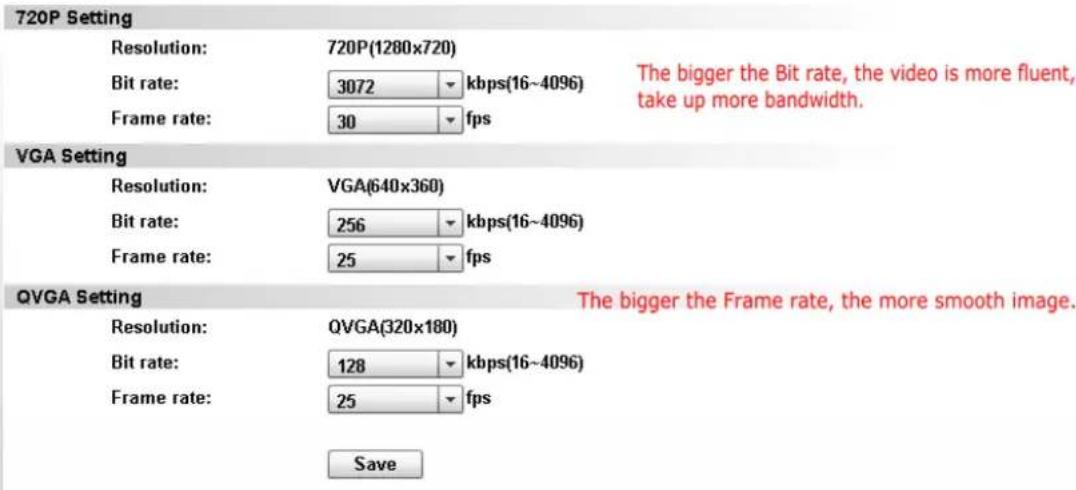
Note: When you modify the parameters, you need to click Apply to save your settings.
5.2.2.3.3 Motion Detect
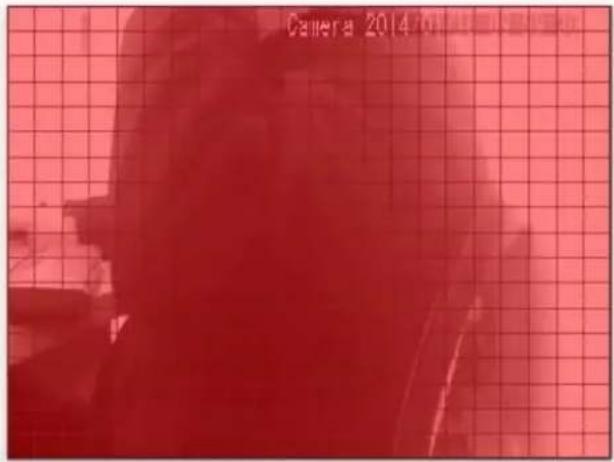
If users set to monitor certain area, when there is exception occurs in this area, it will trigger alarm. In the sensitivity options, when sensitivity higher, more easily to trigger alarm.
If the motion detection windows was designated, and then click "Save". If an exception occurs in the selected windows, alarm is triggered automatically, then send the pictures to the corresponding mailbox.
Motion Detect Setting
Motion Detect Enable:

Motion Detect Sens:

Motion Detect Area:

Save
1) Motion Detect Sens: You can set the sensitivity as Highest, High, Normal, Low and Lowest.
2) Motion Detect Area: You can select Full screen detect or Custom Area. For custom area, you can choose any area you want to monitor. When choose "Custom Area", pls note the red color area is detection area.
5.2.2.3.4 Night Vision
Night Vision Setting
Infrared light control:
Auto
○ Enable
○ Disable
Save
You can set the infrared light control mode as Auto, Enable and Disable. The camera will switch to Night Mode in the case of poor lighting, when select "Auto". When the camera is in Night Mode, the image of the camera is black and white. If in the day, you see the image of the
camera is black and white, you can increase lighting or turn off the Night Mode to solve it. If select "Enable", the IR LEDs will be ON, and start Night Mode with black and white image. If select "Disable", the Night Mode was closed and camera can't work normally at night (there is no lighting).
5.2.2.4 Alarm and Record
5.2.2.4.1 Motion Alarm
If users set to monitor certain area, when there is exception occurs in this area, it will trigger alarm. Users can set the alarm mode.
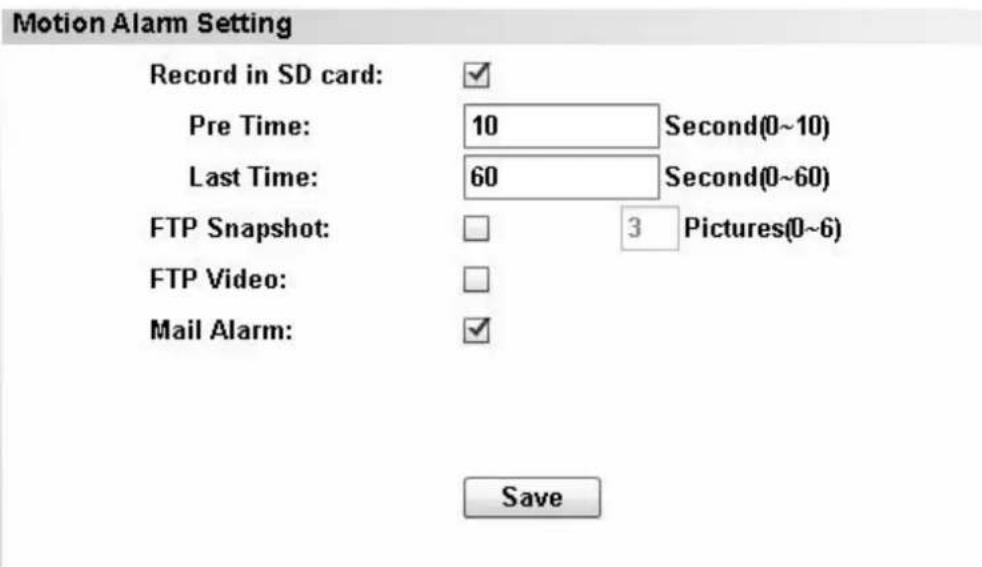
Record in SD card: Camera will record video to SD card which inside the camera when alarm. Pre Time: You can choose how many seconds to start record before alarm happened. The max is 10 seconds. Last time: You can set the time recording keep, the max one is 60 seconds.
FTP Snapshot: The device will snap live pictures and send them to FTP server when alarming.
FTP Video: The device will save video and send them to FTP server when alarming trigger.
Mail Alarm: The device will snap live pictures and send them to your email address which settled in "Email Settings" when alarming.
5.2.2.4.2 Record Settings
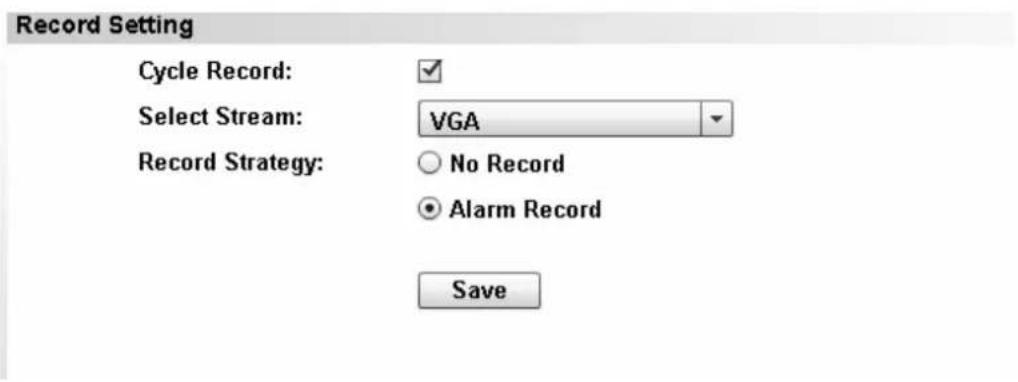
Cycle Record: When choose “Cycle Record”, the old recording files in MicroSD card will replaced by new ones. When don’t select this option, the camera will stop recording when the MicroSD card is full. The factory default one is “Cycle Record”.
Select Stream Setting: User can set the video stream when record as 720P, VGA(360P) and QVGA(180P). The smaller the video stream, take up less space of memory card. The factory default one is VGA(640*360).
Record Strategy: Users can set the record model, No Record, Alarm Record. The factory default one is “Alarm Record” ON.
5.2.2.5 System Settings
5.2.2.5.1 Time
First time you use the camera, maybe the time on the picture is incorrect. Because the camera need to get the current time by Internet. If the camera connect to Internet, the time of the camera will update automatically in a moment.
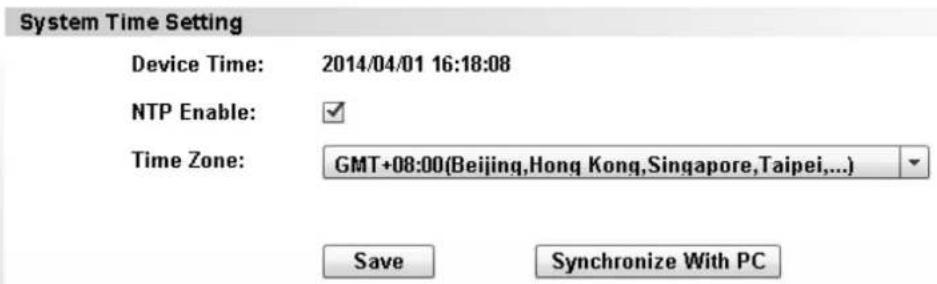
Please select the time zone at first and then select NTP Enable, or click "Synchronize With PC" to obtain time from local computer.
Note: Pls click "Save" to save the settings.
5.2.2.5.2 User Management
User setting
Group
Username
Password
Confirm password
Administrator
admin
Operator
user
Visitor
guest
Modify
There are 3 levels of user authorization in it.
- Administrator: “admin” has the highest authority, can do any settings. The factory default password: admin.
◆ User: user can only operate the device but can't do any settings. The default password is user.
◆ Guest: User can view the video, but can't operate the device. The default password is guest.
Note: Pls change these 3 level passwords when your first use to ensure your safety.
Pls click "Modify" to save the settings.
5.2.2.5.3 Disk Management
You can format the MicroSD card which insert the camera; and can check the card info, free space, total space.
Disk Management
Storage Info:
not insert the SD Card.
Free Space:
OMBytes
Total Space:
OMBytes
Format SD
5.2.2.5.4 Device Maintenance
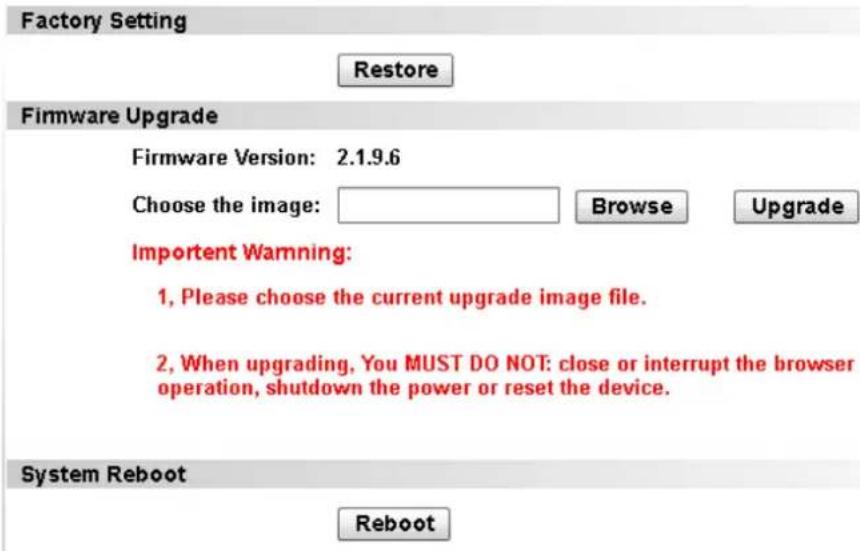
1) Factory Setting
Restore factory default
2) Firmware Upgrade
The firmware upgrade is for updating system firmware and web UI.
3) System Reboot
You can reboot the device.
Addendum 1: FAQ
- After I connect the camera according to guide of Setup Wizard, and add camera by smartphone scanning UID QR code, it shows "Unknown device", why?
When run "CloudNeteye" for the first time, pls make sure your smartphone and camera connect to the same Wi-Fi router.
(1) Check the camera's power connection is normal or not. Check the camera's LED is on or not, if not bright, then check the camera's power connection.
(2) Check the camera connect to Internet correctly or not. Camera must connect to the
Router's LAN port, and check the Router's LAN port LED is on or not. If no light, replace the Ethernet cable and try again.
Note: The camera is unable to connect to the port of DSL MODEM, Cable MODEM, PON MODEM that cascade to the Router.
(3) If still can't view camera, pls enter Router configuration page to check if the DHCP function is ON. (need DHCP function ON, because our IP Camera' IP default to obtain from DHCP server).
- When view with smartphone, camera shows "On Line", but the picture is black screen, and need wait for a moment, then the image display correctly. Why?
Because the video quality level is set to high, and the network is not good enough, so the camera response delayed. Pls change setting according to the next steps: Click “ ” or “ ”
→click “Edit Camera” or “Advanced setting”→“Video quality”, reduce a level (quality levels are Max/High/Medium/Low/Min).
- Run "CloudNeteye" APP on smartphones, why can't search camera?
Before running "CloudNeteye" APP, please according to the quick installation guide instruction, run setup wizard, complete the camera configuration.
Before running CloudNeteye APP, please ensure that your smartphone and the camera is connected to the same Router. Smartphone can via WI-FI to connect to the Router.
- Why I fail to recording. When click “Record to TF/SD Card”, then click “Apply” to save setting, But after I refresh the page, the status still “Off”. PIs reset browser first: Tool→
Internet Option→Advanced→Reset. Close browser, and enter again. If the problem is still not solved, then because that browser is not compatible with. Pls change another browser, like IE6, IE8 and so on.
- Why videos on camera are not true in color?
Cameras with CMOS chips are sensitive to light. Videos may not look good in color with dark light or equipped infrared lens. To avoid this problem, please use CMOS cameras with dual filter or a color lens.
- Why smartphone viewing image is not clear?
Because the CloudNeteye default value of video quality is low, so the resolution is limited, you can set by yourself. Run CloudNeteye, find the small triangle in device list, touch it enter into "
Edit camera” ->” Advanced Settings” ->”Advanced” ->”Video setting” ->”Video Quality” page, change video quality to “Medium”, “High” or “Max”. Note: The video quality is higher, the greater consumption of mobile broadband traffic. To save your smartphone broadband traffic, select the appropriate video quality.
- Why my camera cannot connect to the existing wireless Router?
Before you can use connect to the existing wireless Router. you must first connect your PC to the camera via an Ethernet cable and then enter WEB UI to configure some basic settings; or use "CloudNeteye" or "CloudNeteyeForPC" to set WiFi.
- My camera cannot be reset. What should I do?
Press the Reset button for about ten seconds when your camera is connected to power source.
- Why do I have to reconfigure the camera to wirelessly connect to my wireless router every
time when the router restarts? Sometimes I cannot even search the wireless network of my router.
A. Manually set your wireless router's channel to any number between 1-11. Do NOT use channel 12 or channel 13.
B. Make sure your router's SSID is a combination of letters and numbers and does not include any special characters, Chinese characters or symbols!
C. Manually specify your wireless router's security settings, say, WPA2-PSK, AES. Do NOT use the Auto option.
D. After you configured your router as required above, connect your PC to the camera via an Ethernet cable.
E. Open camera's web page, search and select the router's SSID.
F. Enter the router's security key.
G. First disconnect the Ethernet cable and power supply from the camera and then reconnect the camera to a power source.
H. Restart the camera and the problem will be resolved.
- Why it is too slow when watched from my phone?
Please watch it via a 3G or WIFI connection. 2G connection may not be good enough for the service. But sometimes the 3G network is not nice either. Try lowering the resolution on your mobile phone if you use a H.264 format camera.
- Is the camera's wireless connection secured? Can others connect to my camera?
The camera's wireless connection is well secured with WEP/WPA/WPA2 wireless encryptions.
- What wireless protocols does the camera support?
It supports 802.11b/g/n and wireless transmission rate up to 150Mbps.
Addendum 2: Environmental protection download
Official Website Download: Click here enter official website download.
Cloud Driver Download: Click here enter cloud driver download.
Video Training: Click here to obtain video training.
- Contents
- Product overview ....6
- Installation....8
- Smartphone View and Install....9
- Product overview
- Package list
- System Requirement
- Introduction
- Features
- Hardware overview
- Installation
- 2.1.Hardware installation
- Wall install
- Hardware Connection
- Smartphone View and Install
- "CloudNeteye" download and install
- Iphone
- Android smartphone
- Add IP Camera
- IOS
- Android
- IP Camera Live View
- IP Camera setting and management
- Android smartphone
- Edit Camera
- Advanced Setting
- View Event
- Iphone
- Advanced Setting
- Event: can view the full time recording or alarm recording of camera
- PC View and Install
- Software function
- Video display
- Main Functions
- System setting
- Playback, Browse snapshots and Event list
- About
- Display setting
- Device setting
- Edit Camera
- Schedule Recording
- Remote settings
- Remote device information, check the camera info.
- Web View and Setting
- How to log in Web
- Web Configuration
- View video
- Settings
- Status
- Network settings
- 2.1 TCP/IP
- WiFi
- Wlan Setting
- DDNS
- DDNS Setting
- FTP
- Camera Settings
- OSD
- OSD Setting
- Video
- Motion Detect
- Motion Detect Setting
- Night Vision
- Night Vision Setting
- Alarm and Record
- Motion Alarm
- Record Settings
- System Settings
- Time
- User Management
- User setting
- Disk Management
- Disk Management
- Device Maintenance
- Addendum 1: FAQ
- Addendum 2: Environmental protection download
Brand : Tenda
Model : C50s
Category : Surveillance Camera