Edimax IC-7113W - Surveillance Camera

IC-7113W - Surveillance Camera Edimax - Free user manual and instructions

Find the device manual for free IC-7113W Edimax in PDF.

📄 146 pages English EN Download 💬 AI Question 10 questions ⚙️ Specs
Notice Edimax IC-7113W - page 142
View the manual : Français FR English EN
Pick your language and provide your email: we'll send you a specifically translated version.
Product Type PTX Network Surveillance Camera (digital pan/tilt/zoom)
Brand Edimax
Model IC-7113W
Video Resolution 720p HD (1280 x 720) in H.264 and MJPEG
Night Vision Yes, IR LED with automatic switching
Horizontal Rotation Angle 355°
Vertical Tilt Angle 120°
Audio Built-in microphone, speaker for listening and music broadcasting
Local Storage MicroSD (card not included), NAS, PC recording via software
Network Connectivity Wi-Fi 802.11b/g/n, Ethernet 10/100 RJ45
Built-in Sensors Temperature and humidity
Motion Detection Yes, with configurable zones and scheduled programming
Sound Detection Yes, with sensitivity adjustment
Notifications By email, FTP, push to smartphone (EdiLife)
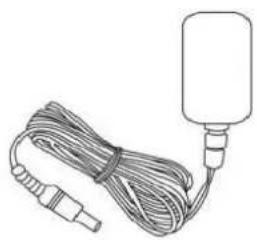
Power Supply 5V DC power adapter (included)
Dimensions (approx.) 120 x 120 x 135 mm
Weight (approx.) 350 g
Maintenance and Cleaning Clean the lens and housing with a soft, dry cloth. Do not use abrasive products or water.
Security Administrator password authentication, WPA/WPA2 encryption, anonymous connection possible
Spare Parts and Repairability No spare parts available. The device can only be repaired by a qualified technician.

Frequently Asked Questions - IC-7113W Edimax

How to set up the camera for the first time?
Plug in the camera and wait for the LED to blink slowly red. Download the EdiLife application on your smartphone or use EdiView Finder on PC. Follow the instructions to connect the camera to your Wi-Fi network. Once connected, the LED turns solid green.
How to access the camera remotely from the Internet?
Use the unique Cloud ID printed on the camera label. Enter IDCloud.myedimax.com in a browser (e.g., 001109010204.myedimax.com). Enter the administrator password to view the live stream. You can also use the EdiLife application.
What to do if the red LED blinks rapidly?
Rapid blinking indicates the camera is starting up or resetting. Wait a few minutes. If it persists, perform a factory reset by holding the WPS/Reset button for 10 seconds until the LED blinks rapidly, then release.
How to reset the camera to factory settings?
Press and hold the WPS/Reset button on the back for at least 10 seconds. Release when the LED blinks rapidly red. The camera restarts and all settings revert to default values.
How to record videos on an SD card?
Insert a microSD card into the slot on the back. Access the web management interface (via the camera's IP address). Go to Storage Settings > SD Card Settings to enable cyclic or scheduled recording. You can also trigger manual recording from the live view.
Motion detection is not working correctly, what to do?
Check that motion detection is enabled in the Events > Motion Detection menu. Adjust the sensitivity and threshold in the Detection Zone tab. Make sure the schedule is configured correctly. If the problem persists, reduce the sensitivity to avoid false alarms.
How to change the administrator password?
Log in to the camera's management interface. Go to System > Basic. Enter the new password in the Administrator Password field and confirm. Click Save Settings. By default, the password is 1234.
Can I use the camera without Wi-Fi?
Yes, you can connect the camera to your network via an RJ45 Ethernet cable. Plug the cable between the camera and your router. The camera will work in wired mode. You can then configure Wi-Fi if desired, but once connected via Ethernet, Wi-Fi is optional.
How to update the camera firmware?
Download the latest firmware from www.edimax.com for model IC-7113W. Log in to the management interface, go to System > Advanced. Click Browse to select the downloaded file, then click Upgrade Firmware. Never turn off power during the update.
The camera is not connecting to Wi-Fi, why?
Check that the SSID and Wi-Fi password are correct. Make sure your router is 2.4 GHz compatible (the camera does not support 5 GHz). If you are using EdiView Finder on Windows, Wi-Fi configuration is automatic. For Mac users, you must configure manually via the web interface after connecting the camera via Ethernet.

User questions about IC-7113W Edimax

0 question about this device. Answer the ones you know or ask your own.

Ask a new question about this device

The email remains private: it is only used to notify you if someone responds to your question.

No questions yet. Be the first to ask one.

Download the instructions for your Surveillance Camera in PDF format for free! Find your manual IC-7113W - Edimax and take your electronic device back in hand. On this page are published all the documents necessary for the use of your device. IC-7113W by Edimax.

USER MANUAL IC-7113W Edimax

No.3, Wu-Chuan 3rd Road, Wu-Gu, New Taipei City 24891, Taiwan

Email: support@edimax.com.tw

Edimax Technology Europe B.V.

Fijenhof 2, 5652 AE Eindhoven, The Netherlands

Email: support@edimax.nl

Edimax Computer Company

3350 Scott Blvd., Bldg.15 Santa Clara, CA 95054, USA

Live Tech Support: 1(800) 652-6776

Email: support@edimax.com

Copyright @ Edimax Technology Co., Ltd. all rights reserved. No part of this publicaon may be reproduced, transmied, transcribed, stored in a retrieval system, or translated into any language or computer language, in any form or by any means, electronic, mechanical, magnec, opcal, chemical, manual or otherwise, without the prior written permission from Edimax Technology Co., Ltd.

Edimax Technology Co., Ltd. makes no representaons or warranes, either expressed or implied, with respect to the contents hereof and specifically disclaims any warranes, merchantability, or tness for any parcular purpose. Any soware described in this manual is sold or licensed as is. Should the programs prove defecve following their purchase, the buyer (and not this company, its distributor, or its dealer) assumes the enre cost of all necessary servicing, repair, and any incidental or consequential damages resulting from any defect in the soware. Edimax Technology Co., Ltd. reserves the right to revise this publicaon and to make changes from me to me in the contents hereof without the obligaon to nofy any person of such revision or changes.

The product you have purchased and the setup screen may appear slightly dierent from those shown in this QIG. For more informaon about this product, please refer to the user manual on the CD-ROM. The soware and specicaons are subject to change without noce. Please visit our website www.edimax.com for updates. All brand and product names menoned in this manual are trademarks and/or registered trademarks of their respective holders.

Edimax Technology Co., Ltd.

Add: No. 3, Wu-Chuan 3rd Rd., Wu-Ku Industrial Park, New Taipei City, Taiwan

Noce According to GNU General Public License Version 2

Certain Edimax products include soware code developed by third pares, soware code is subject to the GNU General Public License ("GPL") or GNU Lesser General Public License ("LGPL"). Please see the GNU (www.gnu.org) and LPGL (www.gnu.org) Websites to view the terms of each license.

The GPL Code and LGPL Code used in Edimax products are distributed without any warranty and are subject to the copyrights of their authors. For details, see the GPL Code and LGPL Code licenses. You can download the rmware-les at http://www.edimax.com under "Download" page.

VI-3. Congurer 16 Channel Viewer ....111

Federal Communication Commission Interference Statement......140

EU Declaraon of Conformity ....141

IC-7113W

KEIMAN Quick Transformation Guide

GIR

Simple illustration of a CD or DVD disc (no text or symbols)

CD-ROM

Line drawing of a cable with connectors and a cylindrical device attached (no text or symbols)

Adaptateur secteur

Line drawing of a coiled cable with two connectors (no text or symbols)

Câble Ethernet

Edimax IC-7113W - Federal Communication Commission Interference Statement......140 - 5
Pied de xaon

Edimax IC-7113W - Federal Communication Commission Interference Statement......140 - 6
Vis

I-5. Réinialiser

Download on the App Store

QR code with central logo containing 'IDIMAX' and Wi-Fi symbol

QR code with embedded logo for XDIMAX, likely linking to a digital service or website.

Wi-Fi Setup Select Wi-Fi + Connect to a HiSeq Network waiting.

WI-FI Setup Due to Security, please change default configuration below New Device Name House Cam New password .......... Confirm password .......... Show password Done

Wi-Fi Setup Wi-Fi Password SSID:chichi Please enter your Wi-Fi password ****** Show password Cancel OK JackwAP Jackchen

Edimax IC-7113W - I-5. Réinialiser - 7

EdiLife House Cam

House Cam 2015-06-24 11:27:29

Setup Utility Multi-Language QIG Multi-Language User Manual 16-Channel Viewer Include Advice Reader Exit EDIMAX NETWORKS MANUAL SOFTWARE | Network Cameras www.edimax.com | Contact Us

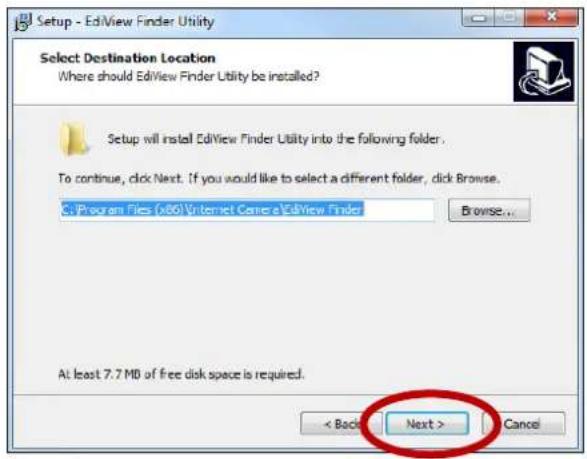
Setup - EdView Finder Utility Select Destination Location Where should EdView Finder Utility be installed? Setup will install EdView Finder Utility into the following folder. To continue, click Next. If you would like to select a different folder, click Browse. C:\Program Files (x86) Internet Canes\…

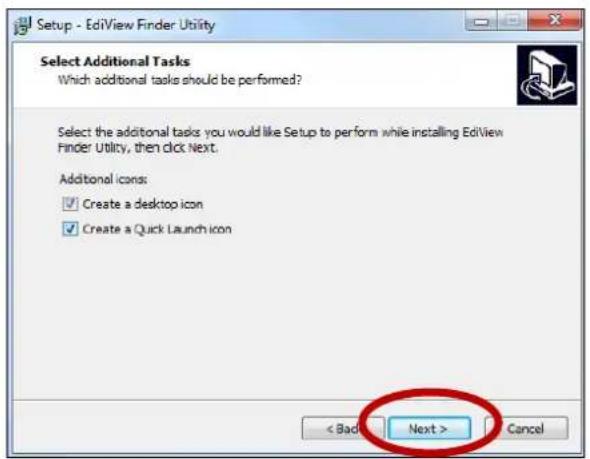
Setup - EdiView Finder Utility Select Additional Tasks Which additional tasks should be performed? Select the additional tasks you would like Setup to perform while installing EdiView Finder Utility, then click Next. Additional icons: ✓ Create a desktop icon ✓ Create a Quick Launch icon < Back Next…

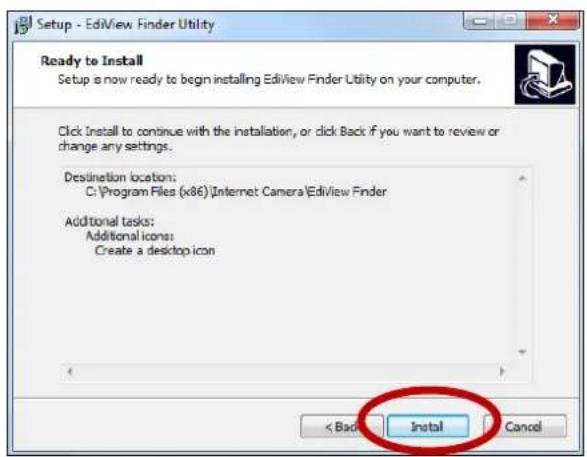
Setup - EdView Finder Utility Ready to Install Setup is now ready to begin installing EdView Finder Utility on your computer. Click Install to continue with the installation, or click Back if you want to review or change any settings. Destination location: C:\Program Files (x86)\Internet Camera\EdVi…

EdView Finder Utility

Your camera is connected to the cloud. This is a wireless network camera. Do you want to set up a wireless connection? No Yes

II-2-2. Mac

Blue folder icon inside a red circle labeled 'Mac' (no additional text or symbols)

EdiView Finder Obtaining IP address from DHCP server, please wait for a second... Success

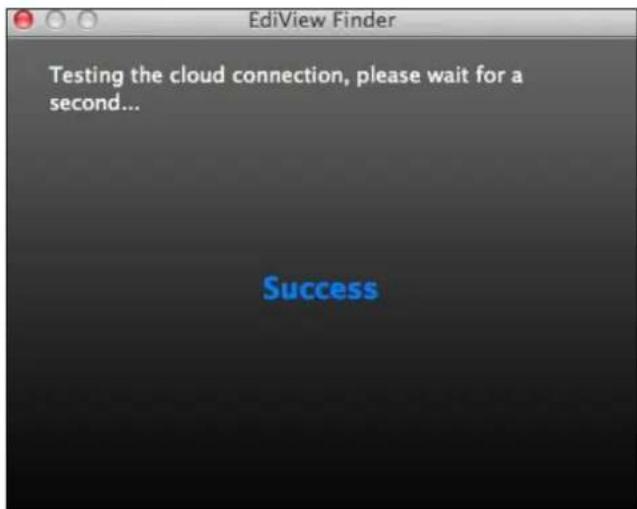
Testing the cloud connection, please wait for a second... Success

Admin DHCP Static IP IP Address 192.168.77.198 Subnet Mask 255.255.248.0 Gateway 192.168.2.1 DNS 192.168.2.1 Cancel OK Advanced

WPS Router

Internet Explorer - Security Warning Do you want to run this ActiveX control? Name: Java(TM) SE Runtime Environment 6 Update 13 Publisher: Sun Microsystems, Inc. Run Don't Run This ActiveX control was previously added to your computer when you installed another program, or when Windows was installed…

C
Available Network Refresh Click "Refresh" to see available networks Matt OBM_68U IBR-6208AC_2.4_high power OBM to LAN EdimaxHQ Edimax IP CAM_2.4G Edimax_Home EdiView.SetupEE OBM-SMB-2.4G OBM_WAP1750_G EdiView23

D
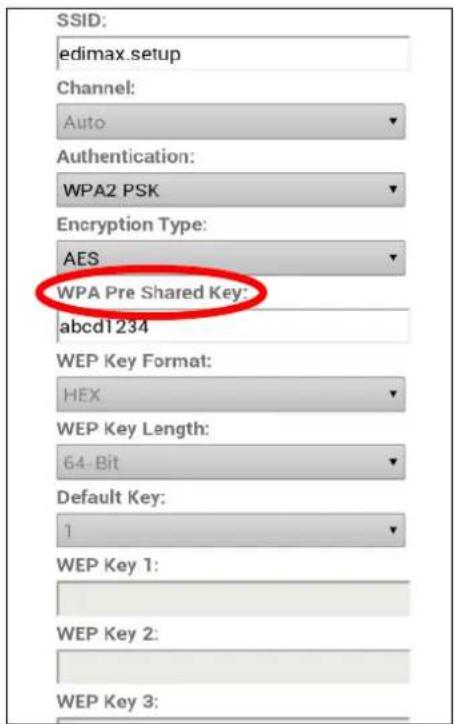
SSID: edimax.setup Channel: Auto Authentication: WPA2 PSK Encryption Type: AES WPA Pre Shared Key: abcd1234 WEP Key Format: HEX WEP Key Length: 64-Bit Default Key: 1 WEP Key 1: WEP Key 2: WEP Key 3:

WEP Key 2: WEP Key 3: WEP Key 4: E Save settings WPS Self PinCode: 90588235 Access PBC mode: Start PBC Configure via PinCode: Registrar SSID: Start PIN

C

ConnectedSSIDBSSIDSignalChannelEncryption
chichi74:DA:38:03:51:501WPA2PSK(AES)
FC:75:16:EC:F9:8811WPA2PSK(AES)

SSID: chichi Channel: 1 ▼ Authentication: WPA2 PSK ▼ Encryption Type: AES ▼ D WPA Pre Shared Key: ...... Show WEP Key Format: HEX ▼ WEP Key Length: 64-Bit ▼ Default Key: 1 ▼ WEP Key 1: Show WEP Key 2: WEP Key 3: WEP Key 4: Save settings E

Self PinCode: 90588235

Access PBC mode: Start PBC

Configure via PinCode: Registrar SSID:

Start PIN

IGD (UPnP Port Forward)

IGD Enable (UPnP Port Forward):

Enable Disable

IGD Configuration (External Port):

IGD Fully Automation (Auto) IGD Semi Automation (Manually)

External HTTP Port :

10000

External RTSP Port :

20000

HD Profile (HD Quality Setting)

H264 Resolution : 1280x720

Maximum Frame Rate : 15 ▼

H264 Maximum Bit Rate : 1Mbps

SD Profile (SD Quality Setting)

H264 Resolution : 640x360

Maximum Frame Rate : 15 ▼

H264 Maximum Bit Rate : 1Mbps

Small Profile (Mobile Quality Setting)

H264 Resolution : 320x176

Maximum Frame Rate : 15

H264 Maximum Bit Rate : 0.25Mbps ▼

MJPEG Profile (Picture Quality Setting)

MJPEG Resolution : 640x360

Maximum Frame Rate : 15

MJPEG Quality : High

Power Frequency : 60 HZ ▼

Rotate Image : 0° ▼

OSD : On ▼

This page allows you to configure the music playlist, you can select additional songs (up to 5 songs) to add to the playlist. Click the scan button to scan music folder from SD card.

Note: Music must be .mp3 with sampling rate 8KHz - 48KHz.

2 show mp3 files

Upload mp3 file

MP3 Filename:

1 Choose File No file chosen

upload

Upload Event File to FTP :

Edimax IC-7113W - Upload mp3 file - 1

Enable

Edimax IC-7113W - Upload mp3 file - 2

Disable

Send Event File to Email :

Edimax IC-7113W - Upload mp3 file - 3

Enable

Edimax IC-7113W - Upload mp3 file - 4

Disable

Video Recording Time :

10 second

Edimax IC-7113W - Upload mp3 file - 5

Save Video To Local Storage

Save Event Files to NAS or SD :

Edimax IC-7113W - Save Video To Local Storage - 1

Enable

Edimax IC-7113W - Save Video To Local Storage - 2

Disable

Video Recording Time :

5 Minute

Edimax IC-7113W - Save Video To Local Storage - 3

Upload Event File to FTP :

Enable

◎ Disable

Send Event File to Email :

Enable

◎ Disable

Video Recording Time :

10 second

Save Video To Local Storage

Save Event Files to NAS or SD :

◎ Enable

Disable

Video Recording Time :

5 Minute

Save settings

Sound Level
Save

IV-4-3-2. FTP

Reconnected to Internet alert:

Edimax IC-7113W - IV-4-3-2. FTP - 1

On Off

Environment Sensor Alert:

Edimax IC-7113W - IV-4-3-2. FTP - 2

On Off

Save settings

Status: Disconnected NAS IP & Sharing Resource : \ NAS Server IP \ Path \ (Folder) Notification for space full : Enable Disable Cycle Recording : Enable Disable Max Recording File Time : 5 Minute Authentication : Anonymous Username : Password :

Notify when space is not enough :

Edimax IC-7113W - IV-4-3-2. FTP - 4

Enable

Edimax IC-7113W - IV-4-3-2. FTP - 5

Disable

Cycle Recording :

Edimax IC-7113W - IV-4-3-2. FTP - 6

Enable

Edimax IC-7113W - IV-4-3-2. FTP - 7

Disable

Max Recording File Time :

5 Minute

Edimax IC-7113W - IV-4-3-2. FTP - 8

Format SD Card

Unmount

Save settings

File Management
Event
Schedule
Manual

Network Camera Name:

IC-C46242

Administrator Password:

Edimax IC-7113W - IV-4-3-2. FTP - 9

Confirm Password:

Edimax IC-7113W - IV-4-3-2. FTP - 10

LED Indicators:

Edimax IC-7113W - IV-4-3-2. FTP - 11

On

Edimax IC-7113W - IV-4-3-2. FTP - 12

Off

- Keep Network Settings

Default Settings

Enviroment Sensor Data

Reset to Default

Humidity Sensor: RH%

Send a Notice When Humidity Exceeds 90 RH% Send a Notice When Humidity is Below 10 RH% Send an Alert to Email ○ Enable ● Disable

IGD (UPnP Port Forward)

Link Status :UPNP port forward successful
External IP Address :114.45.202.85
External HTTP Port :24755
External RTSP Port :26224

Edimax IC-7113W - IV-4-3-2. FTP - 14

Manual assistant
Powered by Anthropic
Waiting for your message
Product information

Brand : Edimax

Model : IC-7113W

Category : Surveillance Camera