
CMP-MOBDOCK40 - Docking Station KONIG - Free user manual and instructions
Find the device manual for free CMP-MOBDOCK40 KONIG in PDF.


| Product Type | Laptop Docking Station |
| Brand | König |
| Model | CMP-MOBDOCK40 |
| Dimensions (L x W x H) | Approx. 25 x 10 x 3 cm |
| Weight | Approx. 350 g |
| Power Supply | 12 V / 3 A power adapter (included) |
| USB Ports | 3 USB 3.0 ports + 1 USB-C port with Power Delivery |
| Video Ports | 1 HDMI (up to 4K@30Hz), 1 VGA |
| Network Connectivity | 1 Gigabit Ethernet RJ45 port |
| Audio Output | 3.5 mm headphone/microphone combo jack |
| Memory Card Reader | SD / microSD (up to 512 GB) |
| Compatibility | Windows, macOS, Chrome OS, Linux (plug & play) |
| Main Features | Universal docking station: extends laptop ports, charges up to 60W via USB-C, multiple display support |
| Care and Cleaning | Unplug before cleaning; use a slightly damp soft cloth; do not use harsh chemicals |
| Safety | Overvoltage, short circuit, and overheat protection |
| Spare Parts and Repairability | Repairability index not provided; spare parts available on request from customer service |
| General Information | 2-year warranty; comes with power adapter and USB-C cable |
Frequently Asked Questions - CMP-MOBDOCK40 KONIG
User questions about CMP-MOBDOCK40 KONIG
0 question about this device. Answer the ones you know or ask your own.
Ask a new question about this device
Download the instructions for your Docking Station in PDF format for free! Find your manual CMP-MOBDOCK40 - KONIG and take your electronic device back in hand. On this page are published all the documents necessary for the use of your device. CMP-MOBDOCK40 by KONIG.
USER MANUAL CMP-MOBDOCK40 KONIG
natural_image
Exterior view of a black KONIG hard disk drive with mounting base (no text or symbols on the device body)MANUAL (p. 2)
USB 3.0 2.5"/3.5" HDD DOCK
MODE D'EMPLOI (p. 8)
STATION HDD USB 3.0 2,5"/3,5"
MANUALE (p. 14)
STAZIONE HDD 2,5"/3,5" USB 3.0
HASZNÁLATI ÚTMUTATÓ (o. 20.)
USB 3.0 2,5"/3,5" HDD DOKKOLÓ
MANUAL DE USO (p. 17)
PUERTO USB 3.0 2,5"/3,5" HDD
KÄYTTÖOHJE (s. 23)
USB 3.0 2,5"/3,5" HDD -TELAKKA
This SATA Drive Dock offers a USB 3.0 SuperSpeed transmission rate of up to 5 Gbps. The computer is capable of reading and writing to the external drive at its maximum speed, but it is also backward compatible with the USB 2.0 host controller of your computer. (Using a USB 3.0 host controller is recommended.)
The drive dock is plug and play. One Touch Back-up feature allows users to copy files from their PC to the external drive.
Main Feature
- Supports 2.5"/3.5" SATA HDD
- USB 3.0 transfer rate of up to 5 Gbps
- Hot swappable; Plug and Play
- Back-up software for quick data copy
Minimum System Requirements
Works with Windows® XPx86/ XPx64/ Vista x86/ Vista x64/Win 7 x86/ Win 7 x64
Note: Windows system has to be with NEC USB3.0 Host.
Take a look to the CMP-MOBDOCK40


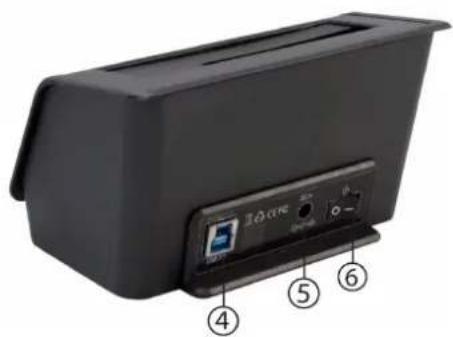
1 One Touch Backup Button
2 HDD Access LED 5 Power DC Jack
3 Power LED 6 Power Switch
4 USB3.0 Connector
Assembly
Insert the hard drive
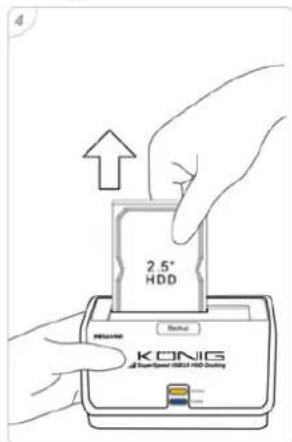
- Steps 1 & 2: The docking supports 2.5" or 3.5" SATA HDD. Directly plug the hard disk into the SATA connector, as shown below in photos 1 and 2
- Step 3 & 4: You can easily hot-swap the HDD by directly pulling it out of the docking station, as shown below in photos 3 and 4

Starting Using CMP-MOBDOCK40
After installing the drive into the docking station, attach the power adapter and turn on the power switch to start using the external drive. The CMP-MOBDOCK40 supports driverless installation in Windows® XP, Vista and 7; just plug and play.
Note: USB 3.0 standard is compliant with Windows® XP, Vista, 7; further compatibility of other OS or system may be updated without prior notice by their manufacturers.
Formatting the Hard Disk
The entire drive has to be formatted before use. If using a drive which has been formatted before, there is no need to format again. Follow the steps below:
- Right click My Computer and select Manage
- Management window will show up. Click Disk Management under Storage
- Computer Management window will list all the disks in the computer
- Right click on partition disk and click New Partition
- New Partition Wizard will show up, click Next
- Select the Primary partition or Extended partition that you want, click Next
- Fill in the numbers of capacity that you prefer to partition, click Next
Note: Format tool was provided by Windows®, the maximum capacity of FAT32 is 32 GB.
-
Select Assign the following drive letter, click Next
-
Select Format this partition with the following settings and choose the File system that you want
-
You can enter the Volume label that you want. Choose perform a quick format, click Next
-
You can see a new partition in the Disk Management
-
The new disk can be seen on the computer
Back-up Function
Back-up function is available when using the CMP-MOBDOCK40 as a back-up drive. Please find the Back-up software from the CD-ROM and install it to your computer. After successfully installing the back-up software, there will be a user manual of back-up software included in your system simultaneously.
Note: Back-up software supports USB mode only.
Note: Back-up software is compliant with Windows® 2000/XP 32bit/Vista 32bit/7 32bit.
Disconnecting the drive
Caution: To prevent data loss, always be sure to finish all active applications before shutting down the drive.
Under Windows
- Double-click the Safely Remove Hardware icon in your system tray (typically located on the bottom right corner of your desktop)
- Select the appropriate device from the list and click "Stop". Click "OK" to confirm your selection of the drive to be disconnected
- Click "Close" and ensure that the drive is powered already off
Safety precautions:


To reduce risk of electric shock, this product should ONLY be opened by an authorized technician when service is required. Disconnect the product from mains and other equipment if a problem should occur. Do not expose the product to water or moisture.
Maintenance:
Clean only with a dry cloth. Do not use cleaning solvents or abrasives.
Warranty:
No guarantee or liability can be accepted for any changes and modifications of the product or damage caused due to incorrect use of this product.
General:
Designs and specifications are subject to change without notice.
All logos brands and product names are trademarks or registered trademarks of their respective holders and are hereby recognized as such.
Keep this manual and packaging for future reference.
Attention:

This product is marked with this symbol. It means that used electrical and electronic products should not be mixed with general household waste. There is a separate collections system for these products.
DEUTSCH
Einführung

1 One Touch Backup-painike

1 Backup knappen med One Touch
2 HDD Access LED
3 Ström LED
4 USB 3.0 kontakt
5 Ström DC jack
6 Strömbrytare
Montering
Sätt in härddisken

1 One Touch Backup Tast
2 HDD Adgang LED 5 Strømforsyning DC Stik
3 Strømforsyning LED
4 USB3.0 Forbindelse
6 Strømknap
Montage
Sæt harddisken i.
1 Ettrykks backup-knapp 4 USB3.0-tilkobling
2 LED-lys for HDD-tilgang 5 Strømplugg
3 Strøm-LED 6 Strømbryter
Montering
Sett inn harddisken


- Main Feature
- Minimum System Requirements
- Assembly
- Insert the hard drive
- Starting Using CMP-MOBDOCK40
- Formatting the Hard Disk
- Back-up Function
- Disconnecting the drive
- Under Windows
- Safety precautions:
- Maintenance:
- Warranty:
- General:
- Attention:
- DEUTSCH
- Einführung
- Montering
- Sätt in härddisken
- Montage
- Sæt harddisken i.
- Sett inn harddisken
Brand : KONIG
Model : CMP-MOBDOCK40
Category : Docking Station