
MC-610 - Mouse ModeCom - Free user manual and instructions
Find the device manual for free MC-610 ModeCom in PDF.


| Product Type | Wireless Optical Mouse |
| Brand | ModeCom |
| Model | MC-610 |
| Dimensions (L x W x H) | 120 x 70 x 40 mm |
| Weight | 100 g (excluding batteries) |
| Connectivity | 2.4 GHz Wireless via USB Nano Receiver |
| Power Source | 2 x AA Batteries (not included) |
| Battery Life | Approximately 12 months (typical usage) |
| Sensor Type | Optical, 1000 DPI |
| Number of Buttons | 5 (Left, Right, Scroll/Click, Forward, Back) |
| Scroll Wheel | Yes, with tilt function |
| Compatible Operating Systems | Windows, macOS, Linux, Chrome OS |
| Color | Black |
| Recommended Use | Office, everyday computing |
| Cleaning Instructions | Wipe with a soft, dry cloth. Do not use liquids or abrasives. |
| Storage Conditions | Dry place, temperature between -10°C and 60°C |
| Safety Warnings | Keep away from water and heat sources. Remove batteries if not used for long periods. |
| Spare Parts Available | Batteries (AA), USB receiver (if lost, use any standard nano receiver) |
| Repairability | Not user-serviceable; contact support for issues |
| Package Contents | Mouse, USB receiver, Quick start guide |
| Warranty | 2 years limited manufacturer warranty |
Frequently Asked Questions - MC-610 ModeCom
User questions about MC-610 ModeCom
0 question about this device. Answer the ones you know or ask your own.
Ask a new question about this device
Download the instructions for your Mouse in PDF format for free! Find your manual MC-610 - ModeCom and take your electronic device back in hand. On this page are published all the documents necessary for the use of your device. MC-610 by ModeCom.
USER MANUAL MC-610 ModeCom
INNOVATION G-LASER MOUSE
MC-610
MODE COM
INNOVATION G-LASER MOUSE
MC-610
Thank you for choosing a high quality computer mouse MC-610.
The computer mouse MC-610 has been created with a view to customers who work with notebooks and appreciate mobility. Owing to the compact size, the mouse is not only an ideal match for a portable computer but is also very functional. A great advantage of the mouse is its ergonomic shape and a high quality of accomplishment. The device has been designed to ensure a high comfort at work. Consequently, even a long
work with the mouse does not cause hands ischemia or the feeling of discomfort. MC-610 has a high resolution of 1600 DPI and incorporates the latest technical solutions like the button of changing the resolution, 4-directional scrolling and the G-Laser function which allows to use the mouse on glass textures. The additional merit of the mouse is the application of „backward” and „forward” buttons which facilitate web pages browsing.
Mode Com places a high value on the quality of its products to not only fulfil but also surpass customers requirements. Products are created with the modern view and the latest technology in mind.
Choose better future – choose Mode Com!
MODE COM
Package Contents
G-Laser Mouse
CD Driver
Instruction Manual
The Description for Each Part
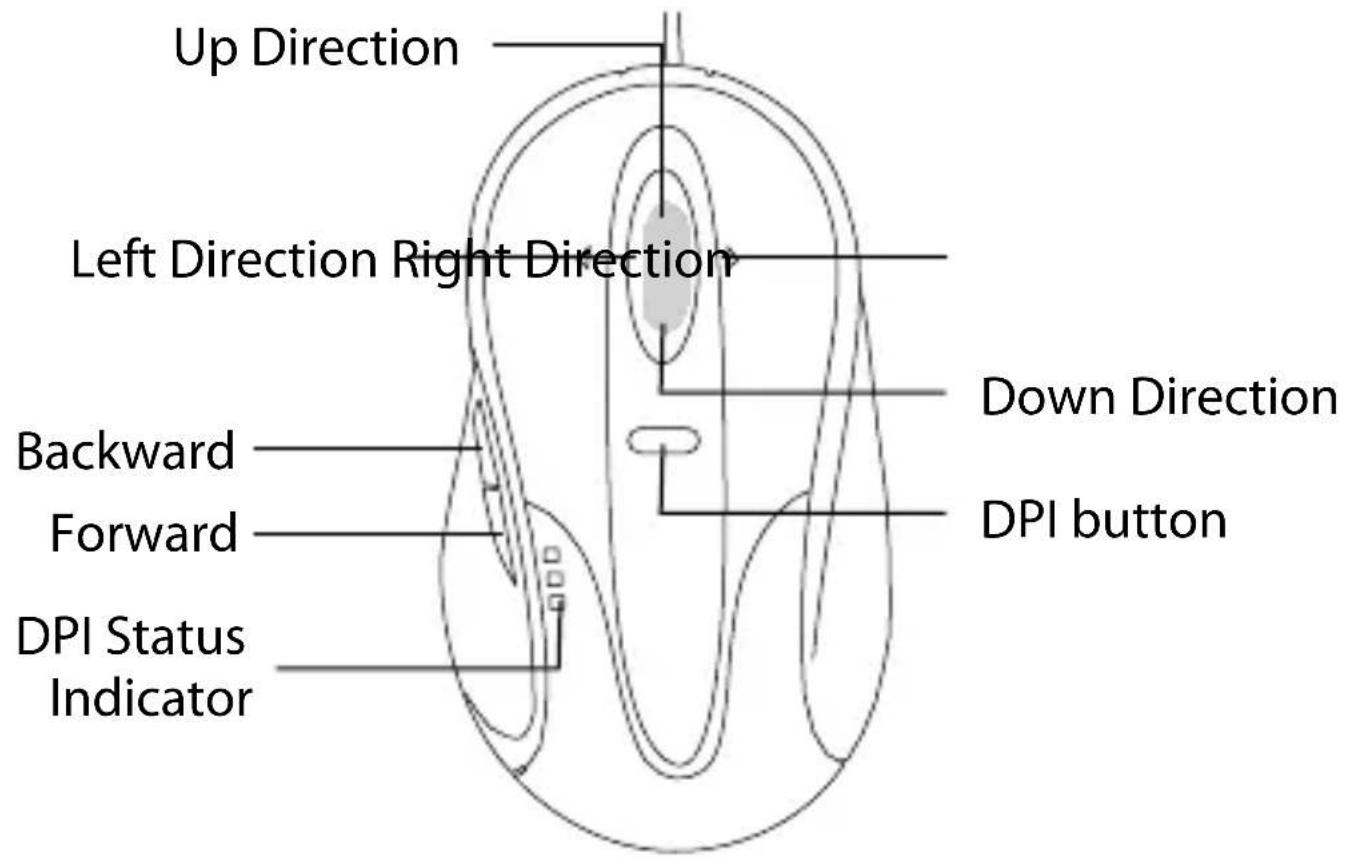
The Feature
Adjustable DPI Button
- Adjustable DPI Button: 1600DPI / 1200DPI / 800DPI
- User can set up different „DPI“ – different speed with adjustable „DPI“ button in preference
4 Direction Scrolling
- Special mechanism to support 4 direction scrolling by one wheel key only
- Scrolling up & down for Vertical bar control, Left & right for Horizontal bar control
Double Lens Technology
• 100% Eye Safety
• High Quality Lens
• Super Sensitivity For Working on Almost 99% Surfaces
Multi Function
• To combine function of Internet Page forward and backward
- Just click the multi function key, you can feel the convenience of internet browsing
DPI Status Indicator
- Friendly & Different LED color to indicate "DPI Status"
- Red LED: 800 DPI, Green LED: 1200 DPI, Orange LED: 1600DPI
Hardware Installation
• How to connect your mouse:
- Plug the USB Interface plug into the USB port of PC or Notebook
- You can use the function of "Multi Function" and „DPI speed Function" after connection
Note:
-
The mouse will have the „4 Direction Function“ after the installation of software (Please refer to the software installation)
-
It doesn't need the driver for „4 Direction Function“, if the system supports „Tilt Wheel“ software under „VISTA System“
• How to change the DPI setting of speed for Laser mouse:
Users may now use adjustable DPI button to speed up or slow down the pace of the mouse at their fi ngertips.
| Resolution: Recommend for: | Recommended resolution of display | |
| 800 DPI | Slow-Speed and normal accuracy player (suitable for using in Word, Excel and other Offi ce software etc.) | 1024×768 |
| 1200 DPI | Required average accuracy Player (suitable for using in Offi ce software, gamer and professional designer.) | 1152×864 |
MODE COM
| 1600 DPI | High-Speed and required pinpoint accuracy player (suitable for Gamer or professional disigner.) | 1280×960 |
Software installation
• How to install the mouse software:
Attention: Please uninstall any previous mouse drivers be- fore installing the mouse software.
The Steps of installation:
Step 1: Connect the mouse USB cable to the USB port.
Step 2: Put the CD driver into „CD ROM" properly and follow the „on screen" instruction to complete your installation.
You will see a mouse icon 📋 appears at the right bottom of your task bar.
1) Click "Next" to begin the installation

MODE COM
2) Select Destination Location, then click "Next"

3) Select Start Menu Folder, then click "Next"

MODE COM
4) Click "Install"

5) Start Installation

MODE COM
6) Click "Finish"

Setting the Software:
After fi nishing installation of software, will pop out at the bottom right corner of the screen. Double click the button and you will open the setting menu.

MODE COM
• Key Function setting
The scroll of this mouse has the setting function. Besides the general hot key setting, it also has special function settings. Details as below:

Uninstall the software:
• How to uninstall the software:
1) Click „Start" of Window System from the task bar and choose "Programs"
2) Select „MC-610“ and select uninstall „„MC-610 Innovation G-Laser Mouse”.
Q & A
Q: What's G-Laser mouse and what's the feature for G-Laser?
- It can work on almost 99% surfaces.
- It can work wherever you work so the performance is around 30x than standard optical mouse.
- The G-Laser mouse utilizes the brand new technology - Double Lens technology which is more convenient at work.
MODE COM
INNOVATION G-LASER MOUSE
MC-610
MODE COM
MODE COM
MODE COM
Environment protection:

This symbol on our product nameplates proves its com-patibility with the EU Directive2002/96 concerning pro-per disposal of waste electric and electronic equipment
(WEEE). By using the appropriate disposal systems you prevent the potential negative consequences of wrong product take-back that can pose risks to the environment and human health. The symbol indicates that this product must not be disposed of with your other waste. You must hand it over to a designated collection point for the recycling of electrical and electronic equipment waste. The disposal of the product should obey all the specific Community waste management legislations. Contact your local city office, your waste disposal service or the place of purchase for more information on the collection.
Weight of the device: 85g
Copyright©2007 Mode Com Ltd. Mode Com is a registered trademark of Mode Com Ltd.
Ochrona środowiska:


- MC-610
- MODE COM
- INNOVATION G-LASER MOUSE
- CHOOSE BETTER FUTURE – CHOOSE MODE COM
- PACKAGE CONTENTS
- THE DESCRIPTION FOR EACH PART
- THE FEATURE
- ADJUSTABLE DPI BUTTON
- 4 DIRECTION SCROLLING
- DOUBLE LENS TECHNOLOGY
- MULTI FUNCTION
- DPI STATUS INDICATOR
- HARDWARE INSTALLATION
- NOTE
- HOW TO CHANGE THE DPI SETTING OF SPEED FOR LASER MOUSE
- SOFTWARE INSTALLATION
- HOW TO INSTALL THE MOUSE SOFTWARE
- THE STEPS OF INSTALLATION
- CLICK "INSTALL
- START INSTALLATION
- CLICK "FINISH
- SETTING THE SOFTWARE
- KEY FUNCTION SETTING
- UNINSTALL THE SOFTWARE
- HOW TO UNINSTALL THE SOFTWARE
- Q & A
- ENVIRONMENT PROTECTION
- OCHRONA ŚRODOWISKA
Brand : ModeCom
Model : MC-610
Category : Mouse