
Swivel Pro Touch Triple - Tracking SideTrak - Free user manual and instructions
Find the device manual for free Swivel Pro Touch Triple SideTrak in PDF.


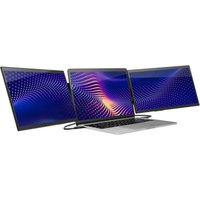
| Product Type | Portable Triple Monitor Setup |
| Model | Swivel Pro Touch Triple |
| Screen Size (per monitor) | 13.3 inches |
| Resolution | 1920 x 1080 (Full HD) |
| Touchscreen | Yes, 10-point multitouch, supports Microsoft Pen Protocol |
| Display Technology | IPS |
| Connectivity | USB-C (with USB-A adapter included) |
| Power | Powered via USB-C (optional USB wall charger for triple setup) |
| Mounting | Magnetic metal plate attached to laptop; swivel, slide, rotate |
| Kickstand | Integrated kickstand for laptop hinge support |
| Weight (per monitor) | Approx. 1.5 lbs (0.68 kg) |
| Dimensions (per monitor) | Approx. 12.2 x 8.0 x 0.5 in (31 x 20.3 x 1.3 cm) |
| Compatibility | Windows, Mac (touchscreen not compatible with MacBook), Chromebook (no driver needed) |
| Driver Requirement | DisplayLink driver for non-compatible USB-C ports |
| Operating Temperature | 32–104°F (0–40°C) |
| Storage Temperature | -4–140°F (-20–60°C) |
| Warranty | 1-year limited liability warranty |
| Spare Parts | Available at sidetrak.com (metal plates, cords) |
| Care and Cleaning | Use a soft, dry cloth to clean screen and casing |
| Safety | Device-safe magnets; do not expose to liquids or extreme temperatures |
| Package Contents | 2 monitors, USB-C cords (short and long), metal plates, removal tool, mounting guide |
Frequently Asked Questions - Swivel Pro Touch Triple SideTrak
User questions about Swivel Pro Touch Triple SideTrak
0 question about this device. Answer the ones you know or ask your own.
Ask a new question about this device
Download the instructions for your Tracking in PDF format for free! Find your manual Swivel Pro Touch Triple - SideTrak and take your electronic device back in hand. On this page are published all the documents necessary for the use of your device. Swivel Pro Touch Triple by SideTrak.
USER MANUAL Swivel Pro Touch Triple SideTrak
natural_image
Two laptops displayed against a blue and white background, one black blank and one black with a cable (no text or symbols visible)sidetrak.com


SIDETRAK
Welcome to a more productive you! No matter where you work from, it may be at the office, at home, or even a coffee shop, we would love to see your new multi-monitor setup!

sidetrak.com

@sidetrakmonitor

@sidetrakmonitor

@sidetrak.monitor
Contact Us
customerservice@sidetrak.com
(240) 580-8725
Contents
4 Component List
5 Installation
12 Operating Instructions
13 | Features
15 Second Monitor Setup
19 Configuration for PC
20 Configuration for Mac
21 | FAQs
23 Troubleshooting
25 Technical Specifications
26 Limited Liability Warranty
Component List Swivel Pro
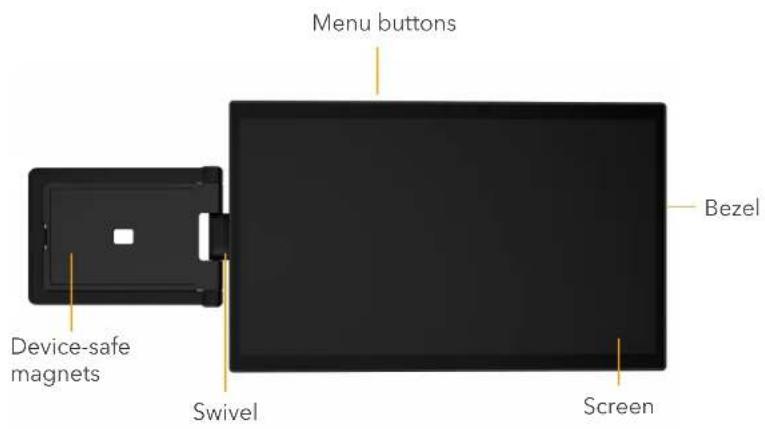

What's in the box
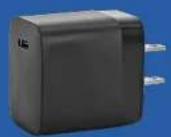
Optional USB wall charger

USB-C to USB-C cord with USB-A adapter Short - 22"

USB-C to USB-C cord with USB-A adapter Long - 42"



Two metal plates Removal tool Dual unit adapter tool
*Not needed for single unit
Installation (Two Options)

Connecting your SideTrak Swivel Pro

Check the ports on your laptop.
To connect your SideTrak Swivel, use the USB-C to USB-C cord.
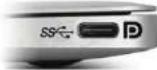
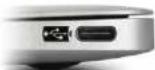
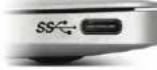
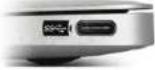
Check your USB-C port for the symbols shown in the table below. If you have one of the green checked symbols, then your USB-C port is compatible.
NOTE: Apple MacBook ports are compatible even if there are no symbols next to them. Touchscreen functionality is not compatible with MacBook models.

Watch the installation video here.
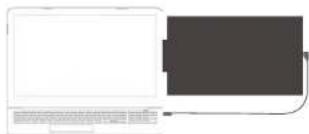
natural_image
Illustration of a laptop connected to a battery pack (no text or symbols visible)USB-C to USB-C cord
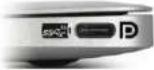 |  |  |  |  |  |  |  |
 |  |  |  |  |  |  |  |
 | [wgx7] | All Apple |  | 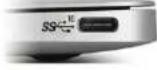 |  | 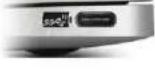 |  |
2 If you have a laptop that lacks a compatible USB-C port, or doesn't have a USB-C port at all, you will need to download the DisplayLink driver.
If you have a Chromebook that lacks a USB-C port, you do not need to download the DisplayLink driver.
3 If you are setting up a triple screen, you may need to provide additional power to run both monitors. If supplemental power is required, use the optional USB wall charger.
If your laptop only has one USB-C port, the SideTrak USB-C cord will prevent access for other devices. In this instance, you can use a hub that provides additional USB-C ports. Check out SideTrak USB-C Hub.
Troubleshooting Issues? See page 18.

Download
DisplayLink
Driver

Purchase SideTrak
USB-C Hub
Attach SideTrak Swivel Pro to your laptop
1 Close laptop.
Make sure your SideTrak is unplugged from the laptop and the laptop is closed.
Left-side attachment.
To install your monitor on the left of your laptop, make sure the opening is facing away from you.

Right-side attachment.
To install the monitor on the right of your laptop, make sure the laptop opening is facing you.

2 Align mounting guide.
Use the mounting guide that comes in your box to attach the metal plate to either the left or the right of your laptop.
If you have the triple screen setup, you will need to attach metal plates to both the left and the right side of your laptop.
NOTE: If you have a single Swivel Pro monitor but would like to have a triple screen setup you can buy a second Swivel Pro.
Left-side attachment.
With the laptop opening facing away from you, place the mounting guide on top of your laptop and align the right edge of the mounting guide to the right side of your laptop.
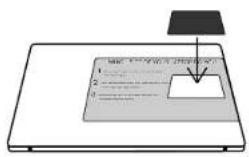

This is how the monitor will look once attached.
Right-side attachment.
With the laptop opening facing you, place the mounting guide on top of your laptop and align the right edge of the mounting guide to the right side of your laptop.


This is how the monitor will look once attached.
1 Adhere stick-on metal plate.
Peel the backing from ONE (1) of the stick-on metal plates and insert it into the open space on the mounting guide. Make sure to align the SideTrak logo in the bottom right corner.
Before attaching your SideTrak, give the metal plate a few minutes to allow the adhesive to properly grip your laptop.
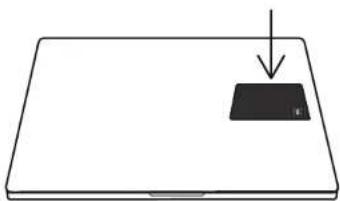
natural_image
Simple line drawing of a laptop with a black tray and an arrow pointing to it (no text or symbols)Apply light pressure for 10 seconds and remove the mounting guide from your laptop.
NOTE: The metal plate will be semi-permanently adhered to your laptop. If you would not like the metal plate adhered directly onto your laptop, we recommend using a plastic laptop case or skin.
IMPORTANT: If you are installing a triple screen SideTrak setup, flip to the next page for second metal plate placement instructions before moving on to step 4 (attaching your Swivel Pro).

Attach SideTrak Swivel Pro onto laptop.
After giving the metal plate a few minutes to adhere, clip the monitor to the metal plate on your laptop.
It is easiest to clip when the monitor and mounting frame aren't folded. Wiggle the monitor's mounting frame, if it pops off it is not fully clicked in. You will hear a loud click when it is properly placed. Then, simply plug in and you'll be all set to start using your new SideTrak Swivel Pro monitor!
NOTE: If you DID NOT purchase a triple screen pack, but have just installed a second plate for your second monitor (purchased another SideTrak single to create a triple setup), flip to page 18 to adjust your monitors so they can nest on your laptop when closed.

Learn more about setting up your triple screen.
Triple screen setup

Attach first metal plate!
Using the single screen attachment guide (opposite side) attach first screen before continuing.


Rotate and align laptop.
Rotate your laptop, so the metal plate you just attached is on your right. Align the left edge of this paper to the left edge of your laptop.
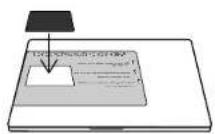

Fold guide for metal plate spacing.
Fold the paper on the solid blue line. If needed fold the paper in a different spot until the metal plate is revealed.


Align to metal plate.
Align the blue dotted line to the top and bottom of your already placed metal plate.

OPTIONAL: Use tape to keep the paper in place.
Installation cont.

4 Adhere stick-on metal plate.
Peel the backing from ONE (1) stick-on metal plate and insert it into the open space on the mounting guide. Apply light pressure for 10 seconds. Remove guide from the laptop.
5 Attach SideTrak Swivel Pro to laptop.
Clip your monitor to the metal plate on your laptop. Use the small opening on the monitor's mounting frame to help guide you.
Through the open space on the mounting frame, you should be able to see the line that goes across the metal plate. It's easiest to clip when the monitor is fully extended. You will hear a loud click when its properly placed.
6 Now plug in and you're ready to use your SideTrak Swivel Pro!
Operating Instructions
Adjust settings
To adjust the presets, picture, and color settings of your screen press the smallest button along the monitor edge to bring up the main menu. Use the largest button along the monitor edge to highlight your desired menu option and use the smallest button to select your desired settings.
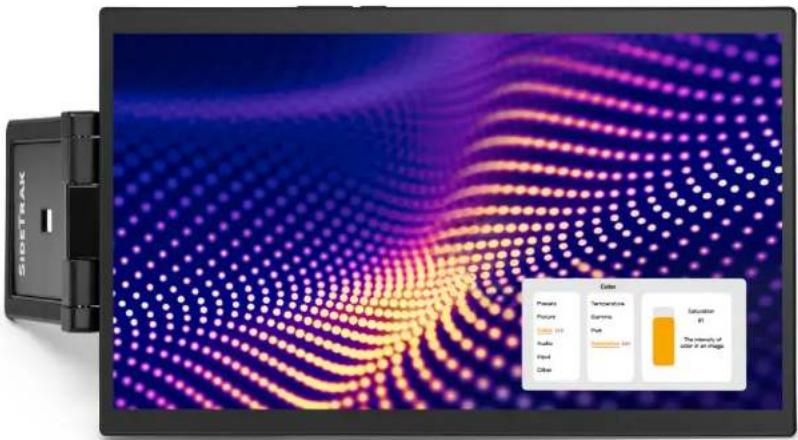
Features

Slide
SideTrak's magnets glide across the attached metal plate so you can slide your SideTrak out and adjust to your viewing preferences.

natural_image
Pure diagram of a device with a black handle and control knob, no text or symbols present
natural_image
Simple diagram showing a black rectangular object with an arrow pointing to it and a white rectangular box with a small symbol inside, connected by a yellow arrow (no text or labels)Swivel
Pivot screen forward to set screen to your preferred view and be ready to work in seconds. Pivot screen 180° backward to have screen lay over laptop for easy packing and travel.

natural_image
Illustration of a laptop and a black tablet with a circular arrow symbol on the top right (no text or symbols present)
You can pivot and swivel the SideTrak screen to adjust to your viewing preferences. Move forward or backward, upward or downward.
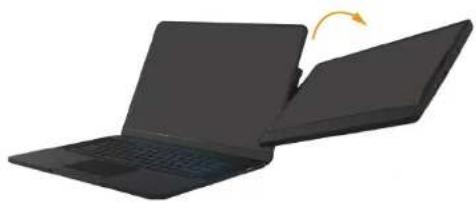
natural_image
Illustration of a black laptop with a curved arrow indicating rotation (no text or symbols)
natural_image
Two black laptops with blank screens, one partially open and one closed, with a yellow curved arrow indicating rotation (no text or symbols)Rotate
Swivel or rotate your screen 180° to easily share your screen with others. Your screen will auto-rotate when you swivel it!
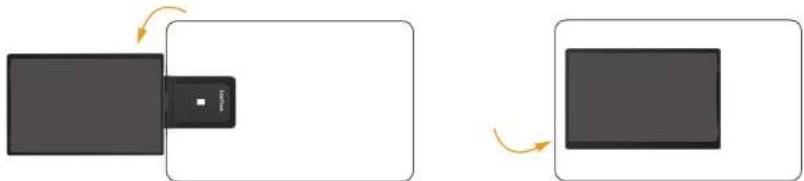
natural_image
Two rectangular devices with arrows indicating rotation or movement, no text or symbols presentBack of open laptop Back of open laptop
If you have any issues with auto-rotate, here is how you can manually rotate your screen:
- MacBook: Launch system Preferences, hold down Command+Option keys WHILE clicking on "Display" icon. Look for newly visible "Rotation" drop down menu and select 180°.
- PC: Right click to select "Display settings" from the dialogue box. Select "Landscape (flipped)" from orientation options. You may be able to use shortcut: CTRL+ALT+arrow keys.
Kickstand
SideTrak Swivel includes a kickstand you can use to support your laptop's hinge. Simply clip out the kickstand from the mounting frame and adjust the kickstand to your preferred viewing angle.

natural_image
Diagram showing a device with a speaker icon and a separate screen, no readable text or symbols present.Touchscreen
Supporting Microsoft Pen Protocol, the Swivel Pro's premium glass touchscreen features highly responsive 10-point multitouch technology to ensure quick and easy browsing.
NOTE: The touchscreen functionality is not compatible with Apple MacBook models.
Second Monitor Setup

If you purchased the second monitor separately
When you purchase the triple screen setup, the monitors come setup ready for installation. If you purchased the second monitor separately, one monitor will need a raised mounting plate while the other is flush with (will lay flat against) the screen, as shown in the image to the right. Adjusting the mounting frame will help the monitors nest with each other when closed.
If you purchased the second monitor separately, both mounting plates will be the same, both will be flush with the screen when closed.
In order for these monitors to nest with each when closed, you will have to raise one of the monitor's mounting frames. Follow the steps on the next page to raise the mounting frame.

natural_image
Two black electronic devices with 'SUDETRAK' labels, placed side by side (no additional text or symbols visible)Raised mounting frame Frame flush with screen
IMPORTANT: Change only ONE of your monitors. The other monitor's mounting frame must remain flush with the screen.
Steps to raising your mounting frame
Remember to only do this to ONE of your monitors and only if you bought monitors separately and not in a triple screen pack.
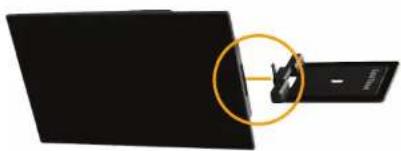
1 Turn the mounting frame perpendicular to the monitor. This will reveal two screws on each side of the monitor.

2 Use the provided adapter tool to unscrew the 2 screws, one from each side of the mounting frame. This will separate out the mounting frame from the monitor.
natural_image
Close-up of a black electronic device with a yellow circle highlighting a small mechanical component (no visible text or symbols)3 Turn the separated mounting frame 180°.

natural_image
Two black rectangular objects with a small inset showing a device, one with a curved arrow indicating rotation (no text or symbols)4 Put the screws back in.
Once reattached, you can now attach the second monitor to your laptop the same way you did the first one but on the opposite side of the laptop.
Follow instructions on page 7-9 to install monitor.
Before turning 180° After turning 180°
Nesting the monitors
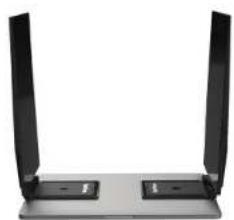
1 Attach Swivels to laptop.
Follow instructions on page 9 to attach Swivels.
natural_image
Exterior view of a dual-lane electronic device with two vertical connectors (no text or symbols visible)3 Fold second monitor (with raised frame).
Closed the monitor with the raised mounting frame. This will allow the monitors to nest nicely.

natural_image
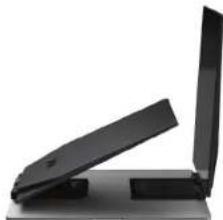
Two black electronic devices with open lid, shown from different angles (no text or symbols visible)2 Fold monitor closest to laptop.
The monitor that has the mounting frame flush with the screen should be the first monitor closed.
natural_image
Exterior view of a black electronic device with a flat top and side panel (no text or symbols visible)NOTE: If you close the monitor with the raised mounting frame first, it will not nest nicely and will look like this:


How to attach and detach your SideTrak
SideTrak's metal plate will stay on your laptop, making it easy for you to attach and detach your SideTrak whenever you need!
To reattach your SideTrak, angle the SideTrak slightly, "hooking" the mounting frame to the top of the metal plate. You should feel SideTrak click onto the magnets. Wiggle the monitor's mounting frame and if it pops off then it is not fully clicked in. You will hear a loud click when it is properly placed.
QUICK TIP: Your SideTrak doesn't need to be removed to store with your laptop. SideTrak stays securely attached to the metal plate and has a protective cushion for your laptop.

natural_image
White laptop with a black abstract chair beside it, no visible text or symbolsHow to permanently remove the metal plate
Use the plastic removal tool included with your SideTrak to remove adhesive from the laptop surface.
Follow the steps above to reattach or to use your SideTrak with a different laptop, use the spare metal plate included!
Configuration for PC

Configuring a second screen on a PC
1 Right click on a blank part of your laptop's home screen.
2 Select "Screen Resolution" from the drop-down menu.
This will pull up a display settings dialogue box. The SideTrak should automatically register as screen 2.
3 Drag and drop screen icons to match your setup.
If your SideTrak is installed to slide out to the left of your laptop, arrange your screens to reflect this.
4 Select "Extend these displays" to use the SideTrak as an extension of your laptop.
Best for personal use.
5 Select "Duplicate these displays" to use the SideTrak as a copy of your laptop screen.
Best for presenting.

Display settings dialogue box on Windows 7 and older.
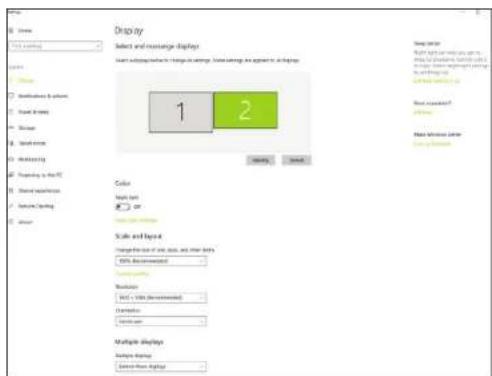
Display settings dialogue box on Windows 10 and newer.

Configuration for Mac
Configuring a second screen on a Mac
1 Select the "System Preferences" icon from the dock.
2 Select "Displays" from the menu that appears. This will pull up a display settings dialogue box. The
3 Select "Arrangement" tab at the top of the window, then drag and drop the screen icons to match your setup..
If your SideTrak is installed to slide out to the left of your laptop, arrange your screens to reflect this.
4 The SideTrak will automatically be set up to work as an extension of your laptop.
Best for personal use.
5 Select "Mirror displays" to use the SideTrak as a copy of your laptop screen.
Best for presenting.

Display settings dialogue box on Mac operating systems.
Do I need a download?
If you don't have a compatible USB-C port on your laptop or don't have a USB-C port at all, then you will need to download the DisplayLink driver.
Is my laptop compatible with SideTrak?
Check the ports on your laptop (reference the symbols shown on page 5).
If you have a laptop that lacks a compatible USB-C port, or doesn't have a USB-C port at all, you will need to download the DisplayLink driver.
If you have a Chromebook that lacks a USB a USB-C port, you do not need to download the DisplayLink driver.
Will the SideTrak work with Mac and PC?
SideTrak should be compatible with all Mac and PC laptops manufactured after 2015. Touchscreen functionality is not compatible with Apple MacBook models.
Can the SideTrak be placed on the left of my laptop?
Yes! Simply attach SideTrak monitor frame aligned with the left edge of your laptop.
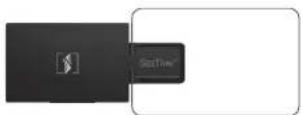
Back of open laptop
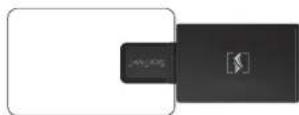
Back of open laptop
Can the SideTrak flip around?
Yes! Just swivel or rotate the screen 180° so you can easily share your screen.

Back of open laptop
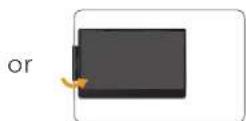
Back of open laptop
What if I don't want a metal plate on my laptop?
To continue using SideTrak with your laptop, the metal plate will need to remain on your laptop.
A laptop case, skin or cover is compatible with SideTrak, and will also avoid sticking plates directly onto the laptop itself.
To permanently remove the metal plate, use the included removal tool.
Can the SideTrak work when not attached to a laptop (by magnet)?
Yes, you can use SideTrak as a freestanding monitor in landscape or portrait mode.
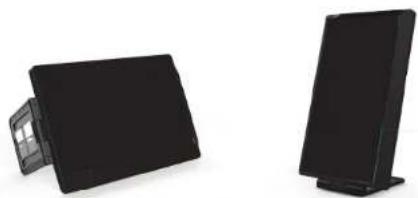
natural_image
Two black rectangular electronic devices with a grid-patterned front panel, shown against a white background (no text or symbols visible)Are SideTrak's magnets safe to have near other electronic devices and credit cards?
Yes. The SideTrak uses device-safe magnets that will not interfere with screens or data.
What if I need a new cord or a new metal plate? Replacement parts can be purchased at www.sidetrak.com
Follow the link to sidetrak.com

Q What warranty is included with the SideTrak? The SideTrak includes a 1-year limited liability warranty.
Troubleshooting


SideTrak will not turn on and/or load.
- Make sure your laptop is turned on and open.
- If possible, update your computer to the latest software.
- Make sure you have a compatible USB-C port (check page 6) to use the USB-C to USB-C cord.
- Test different ports on your computer when plugging in your SideTrak.
- Try the SideTrak on another computer (preferably a computer with a different operating system).
- Test the SideTrak with a different USB-C cord if you have an extra.
- If you are still having trouble with your SideTrak, contact us. We are happy to help you!

I accidentally put the metal plate in the wrong place.
- Use included removal tool to remove adhesive from laptop surface.
- Attach provided spare metal plate in desired location.

SideTrak won't clip onto metal plate.
- It is easiest to clip when the monitor and mounting frame aren't folded.
- Line up SideTrak with the top of the metal plate, "hooking" the mounting frame to the top of the metal plate.
- Wiggle the monitor's mounting frame and if it pops off then it is not fully clicked in.
- You will hear a loud click when properly placed.
For more troubleshooting issues please visit our troubleshooting page:
https://luxor.my.site.com/SideTrakSupport/s/

My SideTrak monitor's touchscreen isn't working when plugged into my PC.
Some PC users may need to manually enable touchscreen functionality. This can be accomplished by opening the Device Manager, selecting Human Interface Devices, and then selecting the HID-compliant touchscreen that corresponds with the SideTrak monitor (there will be two or more monitors listed). Once you identify and select the SideTrak from the list, click the Action tab at the top of the window, thezzn select Enable Device.

Technical Specifications


Limited Liability Warranty
This limited warranty gives you specific legal rights and you may also have other rights. Which vary from state to state. The limited warranty can also be found online at sidetrak.com/pages/warranty and in the documentation we provide with this product. We warranty that during the warranty period, the product will be free from defects in materials and workmanship. We limit the duration and remedies of all implied warranties, including without limitation the warranties of merchantability and fitness for a particular purpose to the duration of this express limited warranty. Some states do not allow limitations of how long an implied warranty lasts, so the above limitation may not apply to you. Our responsibility for defective goods is limited to replacement or refund as described below in this warranty statement.

Who may use this warranty?
Stand Steady Company, LLC located at address 8315 Lee Highway, Suite 350, Fairfax, VA 22031 ("we") extend this limited warranty only to the consumer who originally purchased the product ("you"). It does not extend to any subsequent owner or other transferee of the product.

What does this warranty cover?
This limited warranty covers defected in materials and workmanship of the SideTrak Monitor (the "product") for the Warranty Period as defined below.

What does this warranty not cover?
This limited warranty does not cover any damage due to: (a) transportation; (b) storage; (c) improper use; (d) failure to follow the product instructions or to preform any preventative maintenance; (e) modifications; (f) unauthorized repair; (g) normal wear and tear; or (h) external causes such as accidents, abuse, or other actions or events beyond our reasonable control.

What is the period of coverage?
This limited warranty starts on the date of your purchase and lasts for 1 year (the "Warranty Period"). The Warranty Period is not extended if we replace or repair the product or extend a refund. We may change the availability of this limited warranty at our discretion, but any changes will not be retroactive.

What are your remedies under this warranty?
With respect to any defective product during the Warranty Period, we will, in our sole discretion, either: (a) replace or repair such product (or the defective part) free of charge or (b) refund the purchase price of such product. We will also pay for shipping and handling fees to return the repaired or replacement product to you if we elect to replace or repair the defective product.

How do you obtain warranty service?
To obtain warranty service, you must call 240-580-8725 or email our customer service department at customerservice@sidetrak.com during the Warranty Period to receive warranty service. No warranty service will be provided without customer contact within the Warranty Period.

Limitation of Liability
The remedies described above are your sole and exclusive remedies and our entire liability for any breach of this limited warranty. Our liability shall under no circumstances exceed the actual amount paid by you for the defective product, nor shall we under any circumstances be liable for any consequential, incidental, special or punitive damages or losses, whether direct or indirect. Some states do not allow the exclusive or limitation of incidental or consequential damages, so the above or exclusion may not apply to you.

natural_image
Abstract geometric logo design with white angular shapes on blue background (no text or symbols)SIDETRAK
YOUR EVERYDAY, REIMAGINED.

- SIDETRAK
- Contact Us
- Contents
- Component List Swivel Pro
- Installation (Two Options)
- Connecting your SideTrak Swivel Pro
- Check the ports on your laptop.
- Attach SideTrak Swivel Pro to your laptop
- Close laptop.
- Left-side attachment.
- Right-side attachment.
- Align mounting guide.
- Adhere stick-on metal plate.
- Attach SideTrak Swivel Pro onto laptop.
- Triple screen setup
- Attach first metal plate!
- Rotate and align laptop.
- Fold guide for metal plate spacing.
- Align to metal plate.
- Installation cont.
- Adhere stick-on metal plate.
- Attach SideTrak Swivel Pro to laptop.
- Now plug in and you're ready to use your SideTrak Swivel Pro!
- Operating Instructions
- Adjust settings
- Features
- Slide
- Swivel
- Rotate
- Kickstand
- Touchscreen
- Second Monitor Setup
- If you purchased the second monitor separately
- Steps to raising your mounting frame
- Nesting the monitors
- Attach Swivels to laptop.
- Fold second monitor (with raised frame).
- Fold monitor closest to laptop.
- How to attach and detach your SideTrak
- How to permanently remove the metal plate
- Configuration for PC
- Configuring a second screen on a PC
- Configuration for Mac
- Configuring a second screen on a Mac
- Do I need a download?
- Is my laptop compatible with SideTrak?
- Will the SideTrak work with Mac and PC?
- Can the SideTrak be placed on the left of my laptop?
- Can the SideTrak flip around?
- What if I don't want a metal plate on my laptop?
- Can the SideTrak work when not attached to a laptop (by magnet)?
- Are SideTrak's magnets safe to have near other electronic devices and credit cards?
- What if I need a new cord or a new metal plate? Replacement parts can be purchased at www.sidetrak.com
- Q What warranty is included with the SideTrak? The SideTrak includes a 1-year limited liability warranty.
- Troubleshooting
- SideTrak will not turn on and/or load.
- I accidentally put the metal plate in the wrong place.
- SideTrak won't clip onto metal plate.
- My SideTrak monitor's touchscreen isn't working when plugged into my PC.
- Technical Specifications
- Limited Liability Warranty
- Who may use this warranty?
- What does this warranty cover?
- What does this warranty not cover?
- What is the period of coverage?
- What are your remedies under this warranty?
- How do you obtain warranty service?
- Limitation of Liability
Brand : SideTrak
Model : Swivel Pro Touch Triple
Category : Tracking