
DPH-50U - Telephony D-LINK - Free user manual and instructions
Find the device manual for free DPH-50U D-LINK in PDF.


| Product Type | USB VoIP Phone Adapter |
| Brand | D-Link |
| Model | DPH-50U |
| Category | Telephony |
| Interface | USB 2.0 |
| Dimensions (approx.) | 200 x 70 x 60 mm |
| Weight (approx.) | 200 g |
| Power Supply | USB powered (5V, 500mA) |
| Display | LCD with backlight |
| Keypad | Alphanumeric keypad with navigation buttons |
| Handset | Integrated handset with earpiece and microphone |
| VoIP Protocols | SIP (RFC 3261), Skype (via bundled software) |
| Call Features | Caller ID, call waiting, call hold, mute, redial, speed dial, volume control |
| Audio Codecs | G.711, G.726, G.729AB |
| Echo Cancellation | Acoustic echo cancellation (AEC) |
| Compatibility | Windows XP/Vista/7/8/10, Mac OS X, Linux (limited) |
| Installation | Plug and play with included software |
| Maintenance & Cleaning | Wipe exterior with a soft, dry cloth; avoid liquids |
| Safety Precautions | Keep away from water and high temperatures; do not disassemble |
| Spare Parts & Repairability | No user-replaceable parts; contact D-Link support |
| General Information | D-Link DPH-50U USB VoIP Phone; designed for Skype and SIP-based services |
Frequently Asked Questions - DPH-50U D-LINK
User questions about DPH-50U D-LINK
0 question about this device. Answer the ones you know or ask your own.
Ask a new question about this device
Download the instructions for your Telephony in PDF format for free! Find your manual DPH-50U - D-LINK and take your electronic device back in hand. On this page are published all the documents necessary for the use of your device. DPH-50U by D-LINK.
USER MANUAL DPH-50U D-LINK
The DPH-50U VoIP USB Phone Adapter is an exciting new device that let's you make and receive Skype™ calls using your standard telephone handset.
After you follow the simple installation you will be able to do the following:
- Continue to make and receive regular calls as you normally do
- Make and receive Skype™ calls using your standard telephone
- Forward Skype™ calls to your mobile phone
- Make Skype™ calls from your mobile phone even when you are away from your computer
- Switch between a Skype™ call and a regular phone call
Please view the readme.txt that is installed with the DPH-50U driver. It lists any known issues that may exist.
2. Package Contents
The DPH-50U package includes the following (note that your particular hardware and cables may look slightly different than shown below).
| 1. DPH-50U | 2. USB Cable |
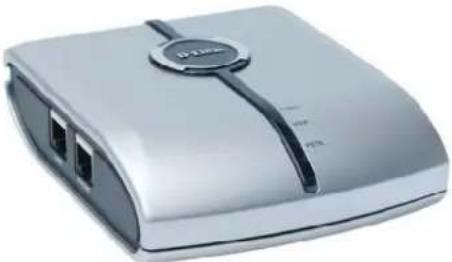 |  |
| 3. Telephone Cable | 4. CD-ROM |
 | 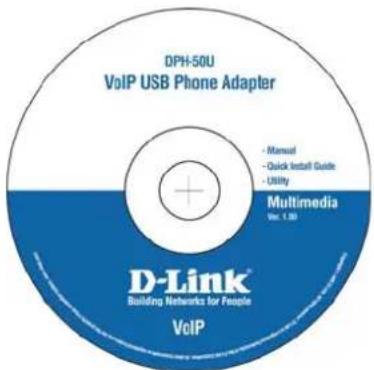 |
3. Requirements
In order to install the DPH-50U VoIP USB Phone Adapter you will need the following:
- DPH-50U VoIP USB Phone Adapter
- USB cable
- RJ11 cable
- Telephone (regular telephone, cordless phone, DECT phone, ...)
- Telephone service (for conf call, 3 way calling and forwarding features)
- Broadband internet service is recommended
- PC with the following minimum specifications:
o Pentium 400MHz or equivalent
- Windows 2000 or XP
○ Available USB port (1.0, 1.1 or 2.0)
○ Skype™ version 1.1.079 or higher (www.skype.com) must be installed
○ 128MB RAM
- 10MB available hard disk space
- CD-ROM drive to install DPH-50U software from the supplied CD-ROM
Note that the DPH-50U VoIP USB Phone Adapter must be connected directly to the PC USB port or to an AC Powered USB hub. It CANNOT be installed on a bus powered USB hub.
4. DPH-50U Installation
DO NOT CONNECT THE DPH-50U VoIP USB Phone Adapter TO YOUR COMPUTER UNTIL INSTRUCTED TO DO SO BY THE DPH-50U INSTALLATION WIZARD
The following instructions will guide you to through the process of installing the DPH-50U VoIP USB Phone Adapter.
The installation procedure is to:
• Install Skype™ (step 1 below)
- Start the DPH-50U software installation (step 2 below)
- Plug in the DPH-50U WHEN INSTRUCTED TO DO SO (step 2 below)
- Verify the installation is OK (step 3 below)
- Connect a telephone handset to the DPH-50U (step 4 below)
- Connect the DPH-50U to the wall jack (step 5 below). Note that this is optional and only required for the forwarding and conferencing features.
- Use your DPH-50U to make and receive Skype™ calls
The detailed instructions follow:
STEP 1: If Skype™ is not already installed on your computer, visit http://www.skype.com and follow the instructions there to install Skype™. Verify that Skype™ is working before installing the DPH-50U.
STEP 2: Insert the supplied CD-ROM into your PC CD-ROM drive. The installation should start automatically. Please press "Install Utility"

You will see the following popup. Press Yes to proceed or No to cancel.

You will see the End User License Agreement. Click the "I have read ..." checkbox and press the I Agree button as shown below.

You will see the following progress bar below indicating that the installation is proceeding.

Wait until you see the following popup and press the OK button.

Connect the USB cable to the D-Link VoIP USB Phone Adapter USB port as shown below:

natural_image
Close-up of a white electronic device with a USB port and a red circle highlighting it (no text or symbols visible)The other end of the USB cable must be connected to a USB port on your computer as shown below,
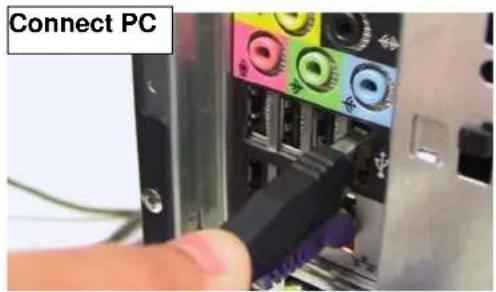

or to an AC Powered USB hub.
The D-Link USB Phone Adapter MUST not be connected to a bus powered USB hub.
You will see the following Windows New Hardware Found Wizard.
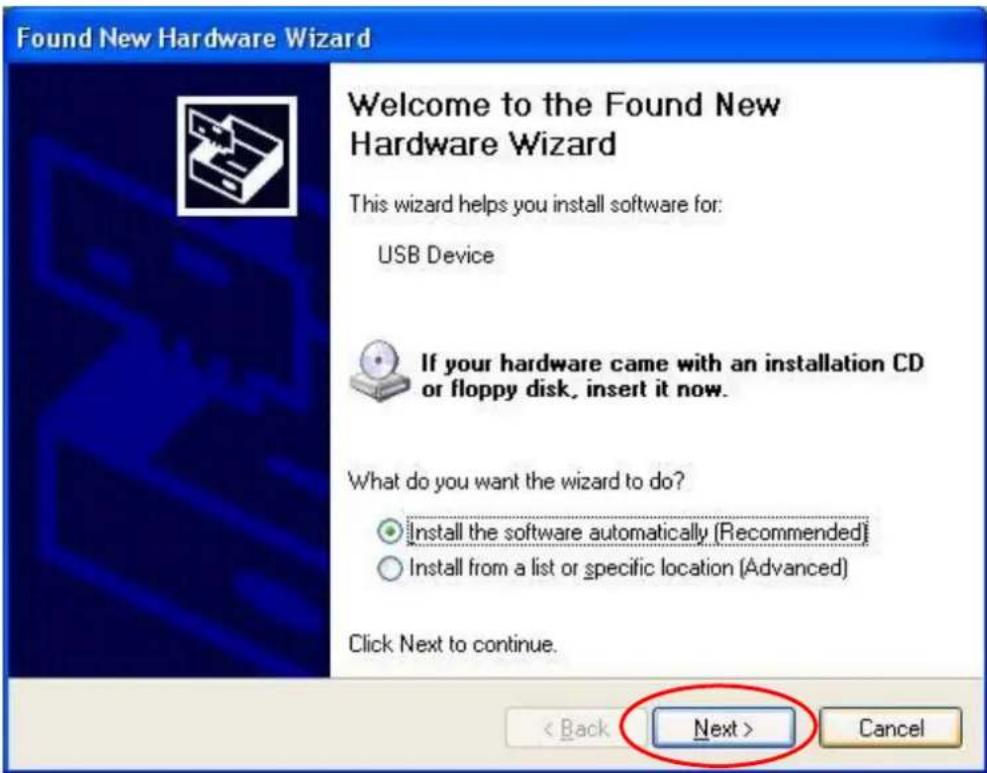
Select Install the software automatically (Recommended) and press the Next button.
The installation will continue and you will see the following screen.
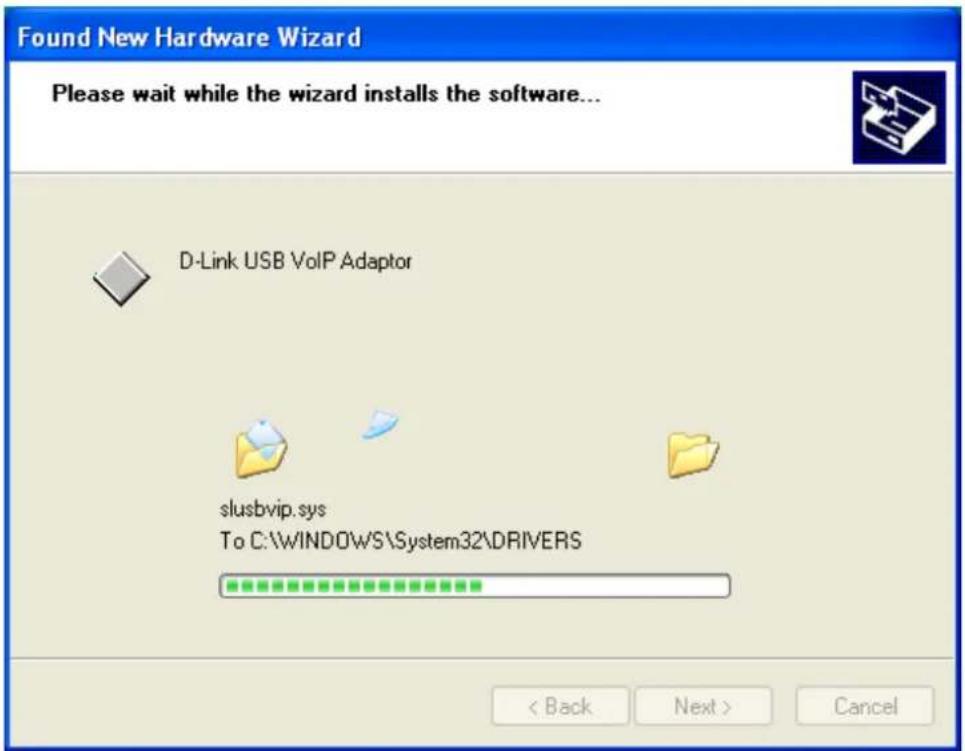
When you see the following screen, press the Finish button.

Then you will see the following Windows New Hardware Found Wizard screen.

Select Install the software automatically (Recommended) and press the Next button.
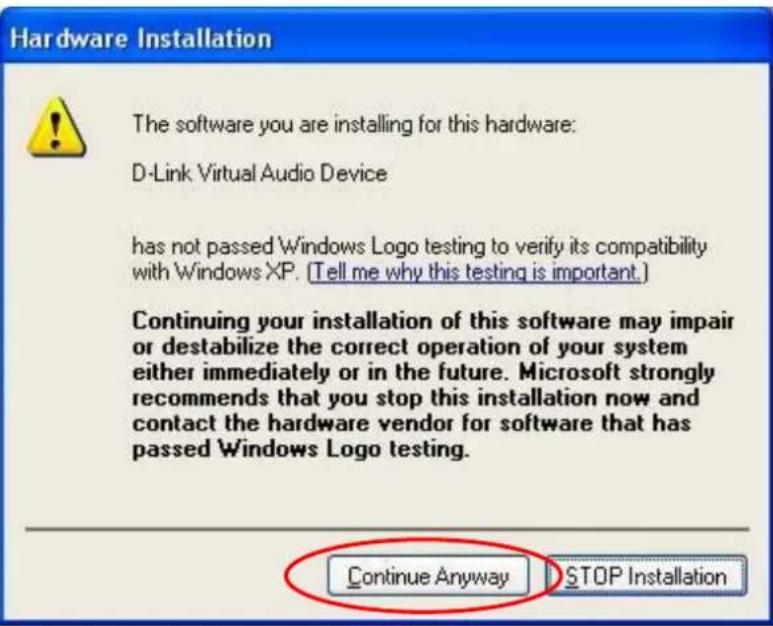
The installation will continue and you will see the following screen.

When you see the following screen, press the Continue Anyway button.
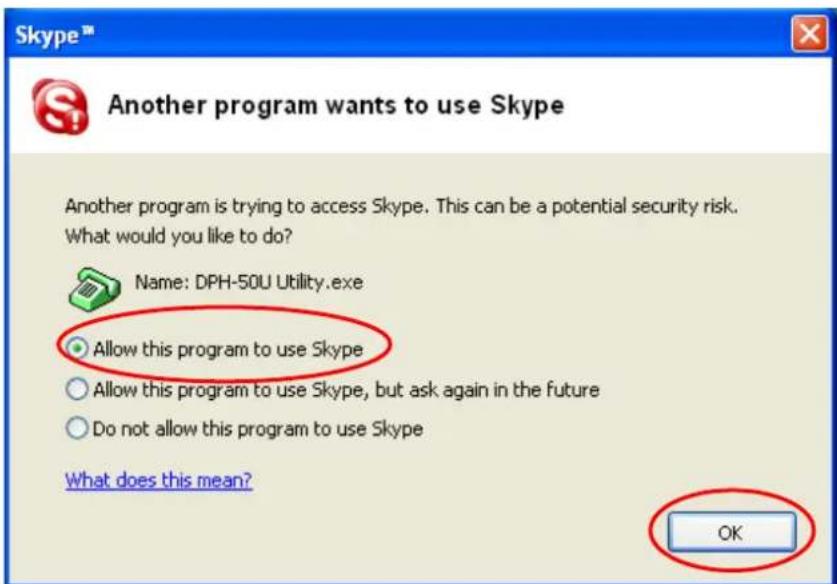
When you will see the following screen, select the option, "allow this program to use Skype" and press the OK button.
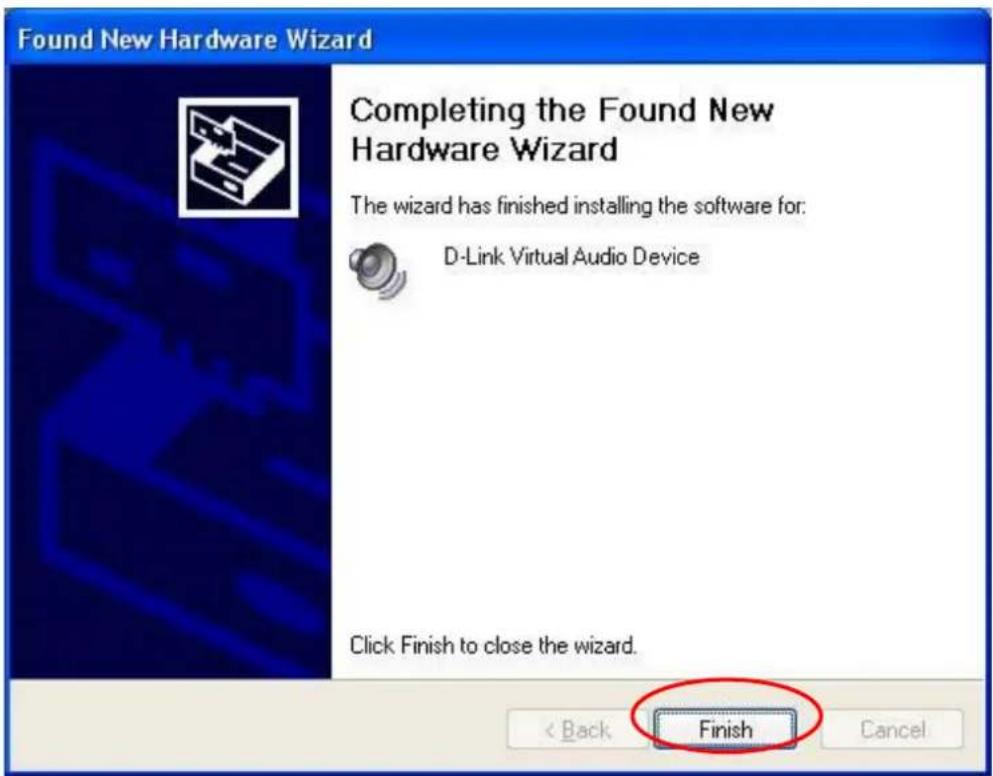
When you see the following screen, press the Finish button.
STEP 3: When the installation completes you should see the following message appear near your system tray and a new telephone icon (circled in red below) in your system tray as shown below.
The telephone icon indicates that the DPH-50U software is installed and running and that you can start making calls via DPH-50U and the DPH-50U VoIP USB Phone Adapter.


You will see a new program group named D-Link USB Phone Adapter, accessed from the Start button -> All Programs as shown below.

STEP 4: Connect a standard telephone handset to the DPH-50U phone jack using a telephone cable as shown below

STEP 5: Connect a telephone cable between the DPH-50U line jack and a wall jack as shown below. Note that this is only required for making regular phone calls or for forwarding Skype calls to your mobile (or other off-site) phone or for toll bypass applications.

natural_image
Diagram showing connection between a device with two Ethernet ports and cable links (no text or symbols)You final configuration should resemble the following.

flowchart
graph LR
    A["Wall Phone Jack"] -->|Phone Cable| B["DPH-50U"]
    C["Analogy Phone or Cordless Phone"] -->|Phone Cable| B
    B -->|USB Cable| D["PC or Laptop"]
    B -->|USB Cable| E["LapTop"]
5. Enabling DPH-50U
In order to use DPH-50U and it's features, (1) the DPH-50U VoIP USB Phone Adapter must be plugged into the PC, (2) a telephone handset must be plugged into the DPH-50U VoIP USB Phone Adapter, (3) the DPH-50U VoIP USB Phone Adapter must be connected to the telephone wall jack ^1 and (4) the DPH-50U agent must be running (see green telephone in the Windows System Tray).
(note 1 – this is only required for making regular phone calls or for forwarding Skype calls to your mobile (or other off-site) phone or for toll bypass applications)
If the DPH-50U Agent is not running (i.e. no green telephone in the system tray), make sure the DPH-50U VoIP USB Phone Adapter is connected to the PC and start the DPH-50U as shown below (Start -> All Programs -> D-Link VoIP USB Phone Adapter -> D-Link):
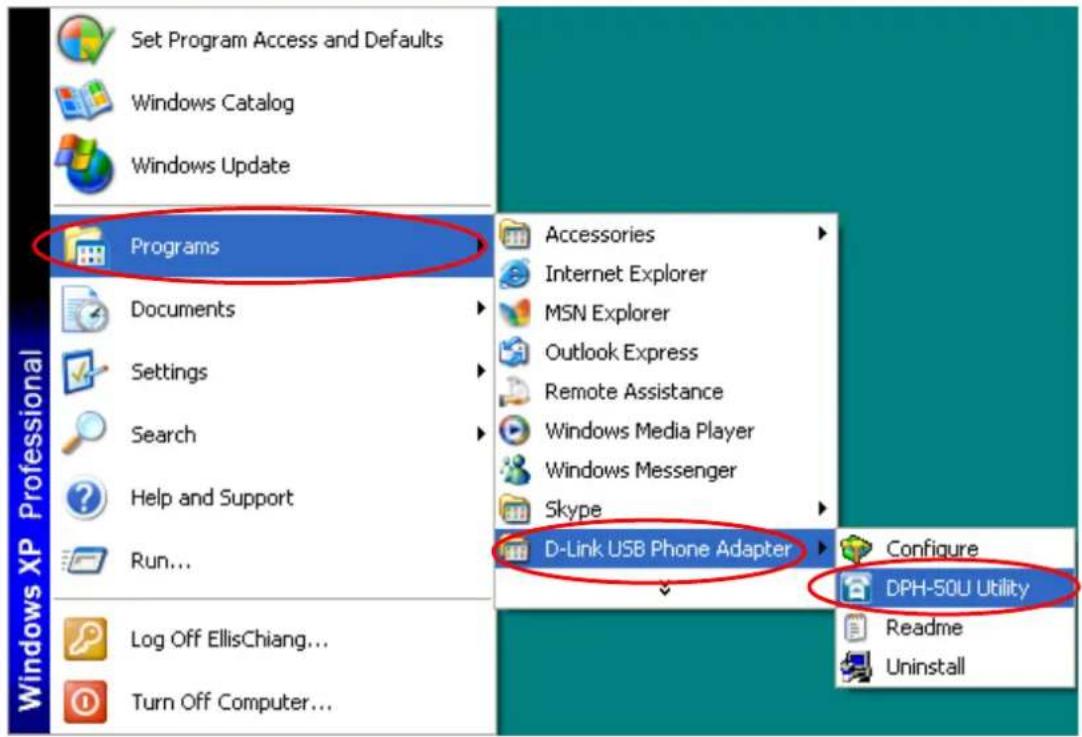
You may see the following screen, select the option, "allow this program to use Skype" and press the OK button.

You should now see the DPH-50U in the Windows System Tray as shown below.

You are now ready to use the DPH-50U VoIP USB Phone Adapter.
6. DPH-50U States
When the DPH-50U VoIP USB Phone Adapter is installed and the software is installed properly, then you will see a green phone in the system tray as shown below.

If the DPH-50U is running and the DPH-50U VoIP USB Phone Adapter is removed or Skype is not running, then the telephone will be red as shown below.

During an incoming or outgoing Skype call, the telephone handset will jiggle as shown below, indicating an VoIP call is being initiated.
6.1 DPH-50U LEDs
The DPH-50U VoIP USB Phone Adapter typically has 3 LEDs as illustrated below. Note that the status of LEDs on your DPH-50U may be different.

- When the DPH-50U VoIP USB Phone Adapter is installed and the software is installed properly, then the Power LED will be lit red indicating the DPH-50U VoIP USB Phone Adapter is receiving power.
• The VoIP LED indicates a VoIP call
• The PSTN LED indicates a PSTN call
6.2 Testing DPH-50U
Skype provides a useful feature to test your connection. It is called Echo123. If you send “callme” in a chat with echo123, the echo123 service will call you and let you leave a message which will be played back to you. This will help you verify that the DPH-50U VoIP USB Phone Adapter, D-Link driver and the telephone are all connected and installed properly.
Add Echo123 to your Skype contact list from the Skype Tools menu -> Add to Contact List entry as shown below:

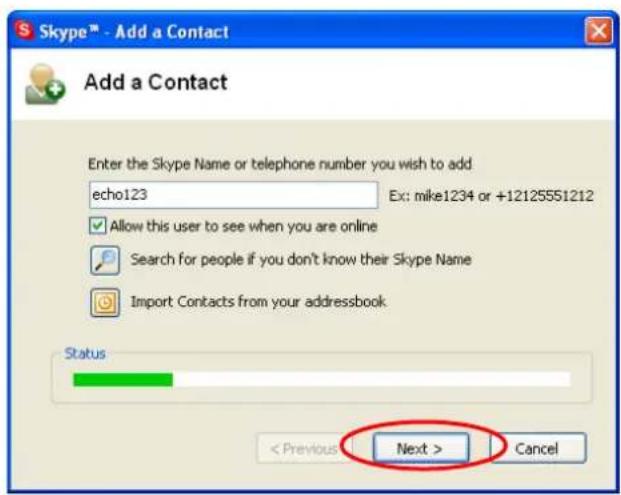
When Echo123 is added, click on the chat button as shown below.

You will see the following chat screen and you should enter "callme" and press the Enter key on your keyboard.
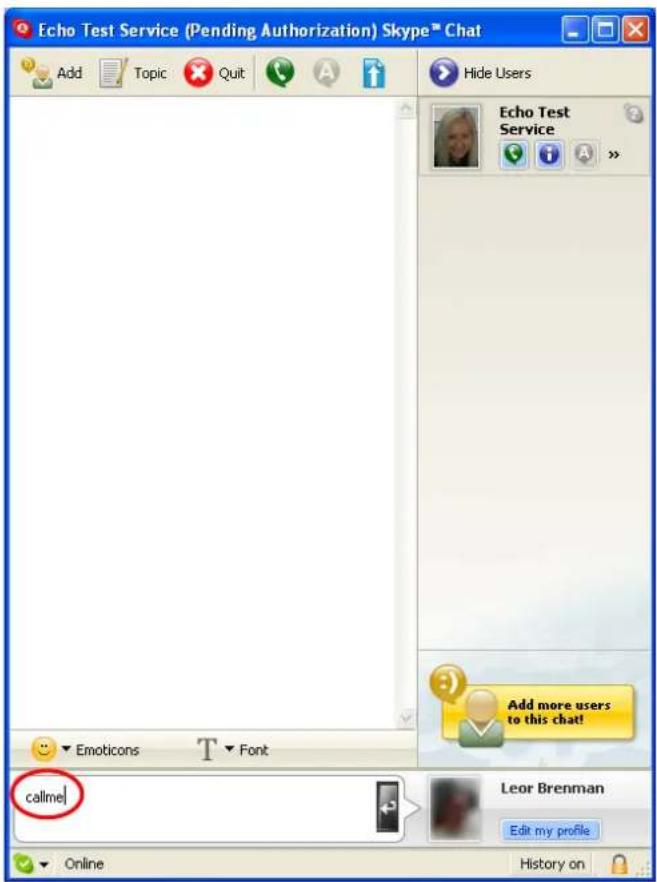
Within 10-20 seconds, you should see the following screen, and the telephone connected to the DPH-50U VoIP USB Phone Adapter should ring. Pick up the handset and follow the instructions. The Echo Test Service will ask you to leave a message which will be played back immediately. This will help you verify that the DPH-50U VoIP USB Phone Adapter, DPH-50U driver and the telephone handset are all connected and installed properly.

When the test concludes you can press OK on the following screen.

and then press Finish on the following screen.

7. Making and Receiving Calls
You can continue to use the telephone handset connected to the DPH-50U VoIP USB Phone Adapter to make and receive standard telephone calls as you used without any change. To make a standard phone call, just pick up the handset and dial as you normally would. To answer (receive) a standard phone call just pick up the handset when the phone rings.
When you receive an incoming Skype™ call, the handset connected to the DP-50U will ring. If you handset supports Alphanumeric Caller ID, then the Skype username will be displayed on the handset's screen where the standard caller ID information is displayed. To answer the call, just pick up the handset and speak as you normally would. To end the call, simply hang up the handset as you normally would.
If you have SkypeOut™, you can use the DPH-50U connected handset to make SkypeOut™ calls by picking up the handset, pressing ##, to indicate to the DPH-50U that this is not a standard call but a Skype call, dialing as per the SkypeOut™ recommended dialing sequence, 00 + country code + telephone number (e.g. 001 617 555 1212) and pressing the asterisk (*) key.
In order to make a call to a Skype™ contact, you will need to use the Skype™ program to assign a speed dial (as described in the next section) to each person you would like to call from the DPH-50U connected handset. Then simply pick up the handset, press ##, to indicate to the DPH-50U that this is not a standard call but a Skype call, you will hear a new dial-tone, press the speed dial number (e.g. 22) and then press the asterisk (*) key.
7.1 Setting Up Skype Speed Dial
This section describes how to setup speed dials in Skype ^™ . This is required in order to use a DPH-50U connected handset to dial to a Skype ^™ contact. It is not required for making SkypeOut ^™ calls using a DPH-50U connected handset.
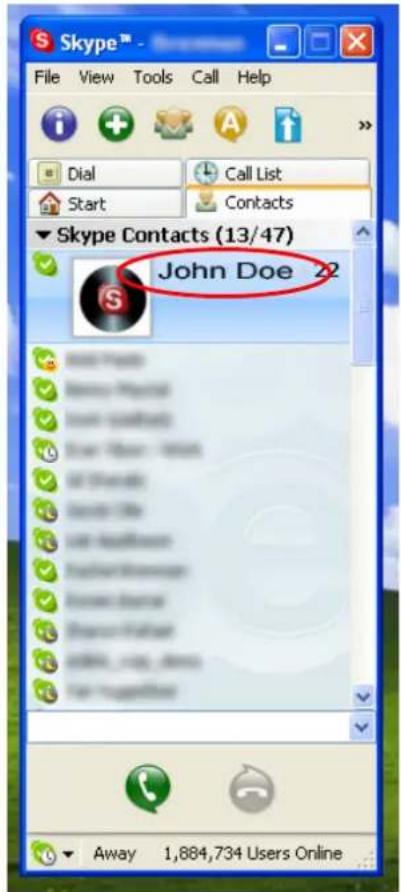
Step 1: Right click on the desired contact as shown below and select Assign Speed-Dial:

Step 2: Enter the desired speed dial number (e.g. 22) as shown below and press the OK button.
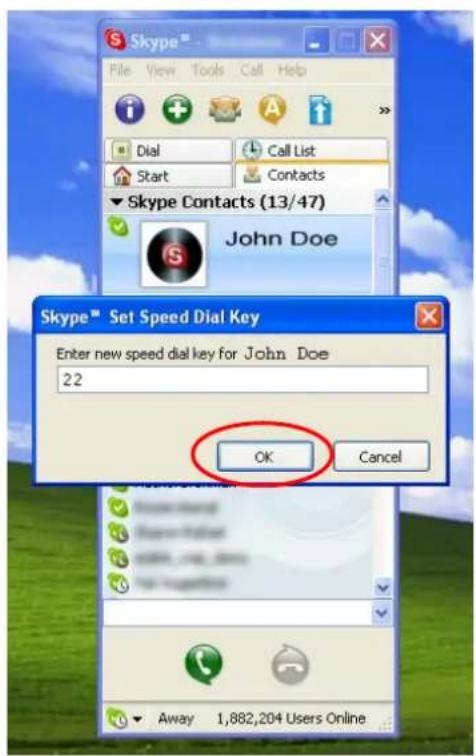
Step 3: You will now see an indication that the Skype™ contact has a speed dial associated with them as shown below.
7.2 Switching Between VoIP and Regular Calls
While on a regular phone call you may receive a Skype™ call or while on a Skype™ call you may receive a regular call. The DPH-50U will indicate an incoming call with an audible tone and you can switch between the two and back and forth by pressing #1.
While on a regular phone call, if you receive a Skype call, you can see the Skype username on your telephone (if it has alphanumeric CLID display).
7.3 Conference Call Between VoIP and Regular Calls
While on a regular phone call you may receive a Skype™ call or while on a Skype™ call you may receive a regular call. The DPH-50U will indicate an incoming call with an audible tone. You can press #1 to put the current call session on hold and answer the incoming call. Then press #2 to conduct a 3-way conference call.
7.4 Forwarding Calls
The DPH-50U can be configured to forward incoming Skype ^™ calls to another telephone number, such as your mobile phone. It can also forward incoming telephone calls to a Skype ^™ or SkypeOut ^™ call. Right click on the Skype Agent (green telephone in the Windows System Tray) and select configure as shown below.

You will see the DPH-50U configuration screen as shown below.

Press the Call Forwarding tab to see the Call Forwarding parameters as shown below.

In order to forward incoming Skype™ calls to a telephone number such as your mobile phone, change the VOIP to Phone Line settings as follows:
- Check the Enable Call Forward checkbox as shown below
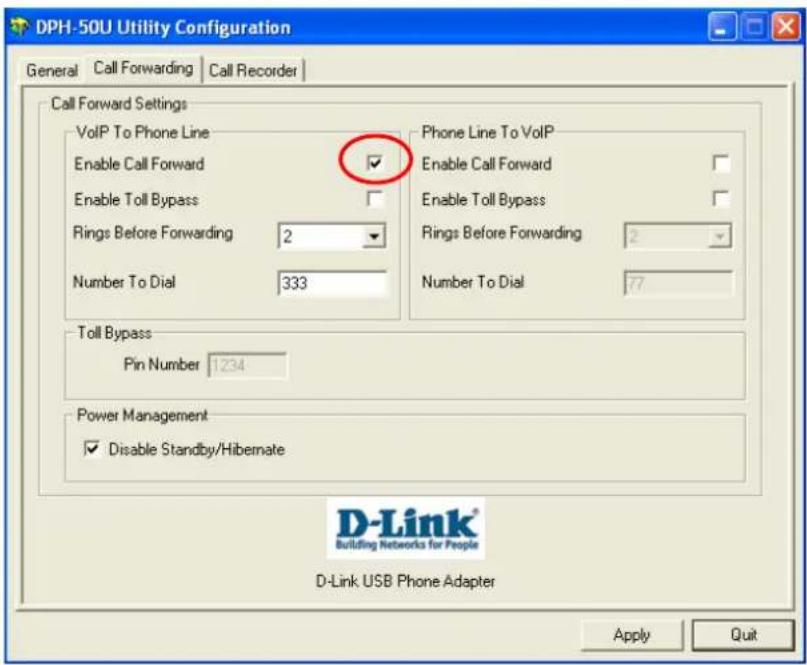
- Select the number of rings before the forwarding takes place as shown below.
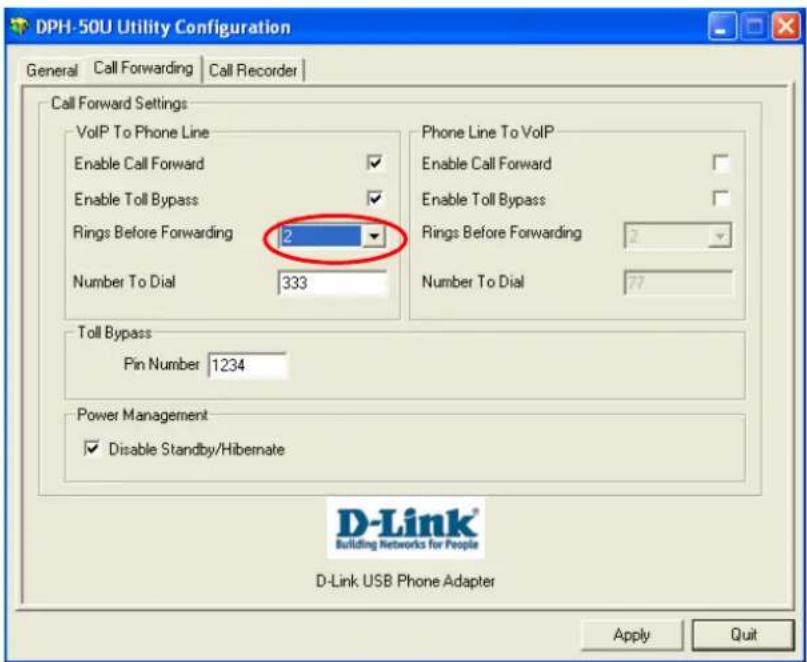
- Then select the telephone that should be dialed on the telephone line and press the Apply and/or Exit button as shown below. Enter the telephone exactly as you would dial it if you were to pick up a telephone directly connected to the phone line.

If you are on a PBX, you may need to press a digit to get an outside line (i.e. 9). In this case you would enter 9,,16175551212.
In order to forward incoming regular calls to a VoIP call, such as through SkypeOut™ or to a Skype account, enter speed dial number (e.g. 77) associated with the Skype User without the * key (as shown above).or enter the SkypeOut™ number (e.g. 0016175551212).
7.5 Toll Bypass
Toll bypass is similar to forwarding, except the incoming caller hears a beep, enters a password and then dials out an arbitrary number instead of fixed forwarding as described in the previous section.
There are two common scenarios for this. You can call in from your mobile phone to the computer that the DPH-50U is connected to and make a low cost SkypeOut international call. This is useful if you are in the same geographical location as DPH-50U and want to make international calls.
The second common scenario is you Skype to the computer that the DPH-50U is connected to and make a low cost local call over the PSTN line. This is useful if you are traveling abroad and want to make a low cost local call (in the geographical location that the DPH-50U is in).
Right click on the Skype Agent (green telephone in the Windows System Tray) and select configure as shown below.

You will see the DPH-50U configuration screen as shown below.

Press the Call Forwarding tab to see the Call Forwarding parameters as shown below.

In order to enable toll bypass of incoming PSTN calls, change the Phone Line to VOIP settings as follows:
- Check the Enable Toll Bypass checkbox as shown below
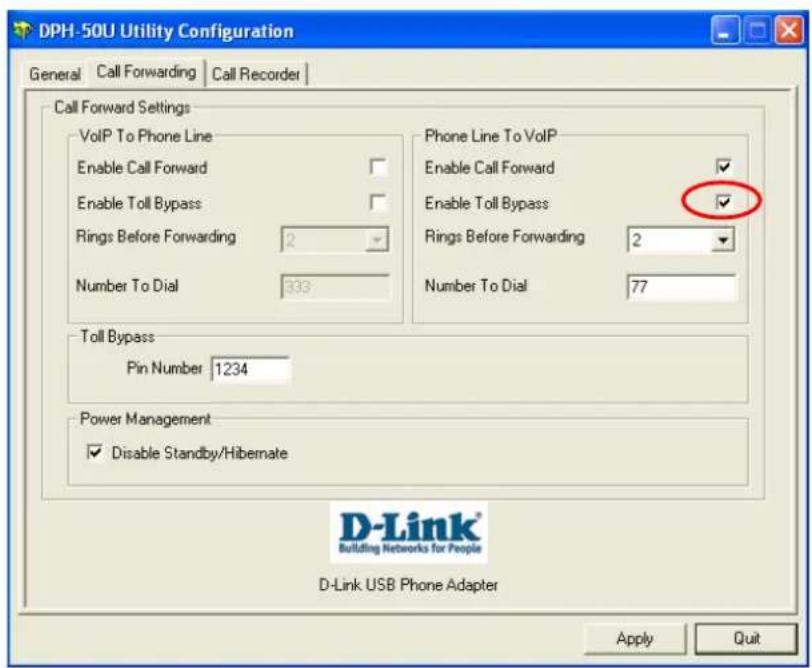
- Select the number of rings before the forwarding takes place as shown below.

Set your password and press apply as shown below

When you call into your telephone line you will hear a beep. Enter the pin code followed by the * button and then enter the Skype speed dial (e.g. 77) or the SkypeOut telephone number (e.g. 00 + country code + telephone number) followed by the * button.
In order perform toll bypass on an incoming Skype call, enable Toll Bypass in the VoIP to Phone Line section. When you Skype into the DPH-50U, you will hear a beep. Enter the pin code followed by the * button and then enter the telephone number you want to dial on the PSTN line followed by the * key.
7.6 Skype Voicemail
With DPH-50U active, the attached telephone handset can be used to check for, and listen to your Skype voicemail.
When you have a new Skype voicemail that you have not listened to, you will hear an intermittent beep in the VoIP dial tone.
If you have no new voicemail (i.e. either no voicemail or voicemail that you have already listened to), the standard VoIP dial tone will be heard.
You can access your voice mail only when there is no call in progress.
In order to access your voicemail:
- Pick up the attached telephone handset
- Press ‘##’ to get VoIP dial tone
- If a new Skype voice message exists the VoIP dial tone will have an intermittent beep
-
Press '*' to access voice mail mode
-
Once in voice mail mode the first message is played automatically
-
At the end of each message a trailing 'beep' is played
-
At the end of the last messages a trailing 'beep-beep-beep' is played
-
During the playing of current message and within 5 seconds following the end of message the you can press the 1, 2, 3, 9 in order to perform the following actions:
-
If you don't enter any valid key within 5 sec after message has ended, the system will behave as if you pressed '3'
| User Action Key | |
| Repeat current message 1 | |
| Delete current message, move to next 2 | |
| Keep current message, move to next 3 | |
| Delete all messages 9 |
To exit voicemail mode press ‘##’ or place the attached telephone in the handset (i.e. on hook). Alternatively, pressing ‘#1’ will also exit voicemail mode. In either case, the currently playing message will be stopped.
7.7 Recorder
With DPH-50U active, the attached telephone handset can be used to check for, and listen to your Skype voicemail.
The call recorder is accessed and configured through the DPH-50U Utility Call Recorder tab as shown below.

You can change the default location where the recordings will be stored by pressing the button (with three dots) immediately to the right of the location field. The folder containing the recordings can be accessed by pressing the Open Folder button. With the location folder open you can access the individual recordings.
Recordings are named according to the following naming convention:
Call_
For example, Call_15-7-2005_11:55:45.wav.
The wave files can be played through any application that supports wave files (e.g. Windows Media Player).
Recording is controlled by two mechanisms: automatic and manual.
Manual recording has two modes:
- Through the Call Recorder screen above - controlled by pressing the record (red dot) and stop (black square) buttons.
- From the telephone handset – controlled by pressing the #7 keys (start recording) and #9 keys (stop recording) on the telephone handset connected to DPH-50U.
Automatic recording is controlled through the Call Recorder screen by selecting one of the following:
- Inactive – automatic recording is disabled
- Record Next Call – only the next call will be recorded
- Record All Calls – all calls will be recorded
- Record pass-through calls – forwarded calls are recorded
THE DPH-50U STORES FILES TO YOUR HARD DISK DRIVE. D-Link IS NOT RESPONSIBLE FOR ANY TECHNICAL OR LEGAL ISSUES THAT MAY ARISE FROM USING THE RECORDING FUNCTION.
7.8 Changing the Default Settings
You can change the default settings for sending a call, activating a Skype™ call, switching between a Skype™ call and a regular call (call waiting) and conference calling, by running the DPH-50U configuration.
Right click on the DPH-50U and select Configure as shown below.

You will see the configuration tab as shown below.

The Initiate Voip Call – press these keys to get a VoIP dial-tone. You can now dial a SkypeOut™ call or a Skype™ speed dial call from your telephone handset.
The Send Key – press this key following the phone number (or speed dial number) when making a VoIP call.
The Call Waiting Sequence – press these keys during a call to switch between a VoIP and regular call. For example to switch from a regular telephone call to an incoming Skype™ call or to switch from a Skype™ call to an incoming regular phone call.
The Conference Key Sequence – while on a Skype call and you receive a regular call or while on a regular call and you receive a Skype call, press these keys conference together the two calls.
Press the Restore Defaults button if you want to restore all sequences to their factory shipped settings.
8. Disabling DPH-50U
In order to disable DPH-50U, right click on the DPH-50U in the system tray and select Quit as shown below.

You can now disconnect the DPH-50U from the PC.
9. Uninstall
In order to uninstall the DPH-50U, click on the uninstall utility in the DPH-50U program group accessed from the Start button -> All Programs -> DPH-50U.

You will see the uninstall indicator as follows.

When the uninstall indicator disappears, the un-installation is complete.
10. Installing a New Version
When you install a new version of DPH-50U software, at the end you will see a slightly different Skype warning message as shown below. Select "Allow this program to use Skype" and press OK as shown below:

11. Troubleshooting
The first step in troubleshooting is to read the readme.txt that appears in the DPH-50U program group. It contains a list of known issues for the current DP-50U driver version.
To find out the driver version, right click on the DPH-50U (green telephone in the system tray) and select About.

You will see the DPH-50U Utility About screen below.

Q1. Common Fix
If DPH-50U was working OK and suddenly stops working properly (e.g. stops responding to incoming rings or you cannot get a VoIP dialtone) try the following:
- Quit the DPH-50U (right click on the green telephone in the System Tray and select Quit)
- Quit the Skype application
● Unplug the DPH-50U VoIP USB Phone Adapter - Wait 30 seconds
● Plug in the DPH-50U VoIP USB Phone Adapter - Start Skype
● Start the DPH-50U software
Q2. Wrong Device Installed
If you insert the DPH-50U on a Windows XP SP2 PC "prior" to installing the software, the adapter will be incorrectly installed as a other USB Modem.
Simply proceed to install the DPH-50U software and it will resolve the issue
and install the adapter properly.
Q3. DPH-50U does not appear to be responding to incoming calls
There are several reasons why DPH-50U may not function.
- DPH-50U may not work properly with some 4 wire (multiline) phones
- Make sure the DPH-50U is connected to the PC and DPH-50U software is running (green phone in the Windows System Tray).
- Make sure the handset is connected to the phone jack on the DPH-50U and not the line jack
- If the Skype™ application was terminated for any reason while the DPH-50U software was running, you will need to exit the DPH-50U software and then restart it.
- Some telephone handsets require a battery to be installed in order to ring. If your handset supports a battery, make sure there is a battery installed and that the battery is not depleted.
Q4. Cannot hear dial-tone when I pick up the handset connected to the DPH-50U
Check to make sure that the handset is connected to the correct jack on the DPH-50U
Q5. Cannot hear the Skype™ call in telephone handset
Check to make sure that Skype is configured to use the D-Link Audio device as it's Audio In and Audio Out Sound Device.
This is done as following:
Select Options from the Skype™ Tools Menu as shown below.
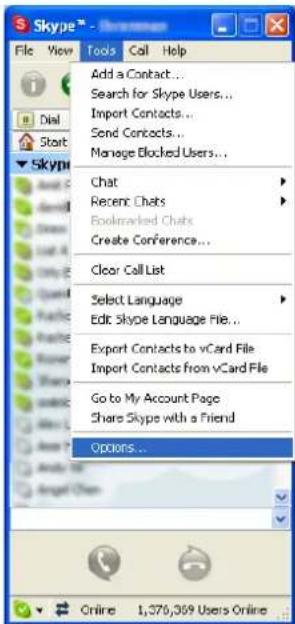
and then select Sound Devices as shown below.

Check the Audio In and Audio Out list boxes and make sure D-Link Virtual Audio device is selected.
Q6. Call Forwarding is not working properly
- Make sure that a telephone cable is plugged into the DPH-50U line jack and to the wall phone plug
- Try to dial the telephone number as you have entered in the DPH-50U Call Forwarding dialog box
- If you are on a PBX, make sure you have entered enough commas after the 9 (for example) to make sure that DPH-50U waits for the dial tone before dialing the telephone number
- Package Contents
- Requirements
- DPH-50U Installation
- DO NOT CONNECT THE DPH-50U VoIP USB Phone Adapter TO YOUR COMPUTER UNTIL INSTRUCTED TO DO SO BY THE DPH-50U INSTALLATION WIZARD
- Enabling DPH-50U
- DPH-50U States
- DPH-50U LEDs
- Testing DPH-50U
- Making and Receiving Calls
- Setting Up Skype Speed Dial
- Switching Between VoIP and Regular Calls
- Conference Call Between VoIP and Regular Calls
- Forwarding Calls
- Toll Bypass
- Skype Voicemail
- Recorder
- Manual recording has two modes:
- THE DPH-50U STORES FILES TO YOUR HARD DISK DRIVE. D-Link IS NOT RESPONSIBLE FOR ANY TECHNICAL OR LEGAL ISSUES THAT MAY ARISE FROM USING THE RECORDING FUNCTION.
- Changing the Default Settings
- Disabling DPH-50U
- Uninstall
- Installing a New Version
- Troubleshooting
- Q1. Common Fix
- Q2. Wrong Device Installed
- Q3. DPH-50U does not appear to be responding to incoming calls
- Q4. Cannot hear dial-tone when I pick up the handset connected to the DPH-50U
- Q5. Cannot hear the Skype™ call in telephone handset
- Q6. Call Forwarding is not working properly
Brand : D-LINK
Model : DPH-50U
Category : Telephony