Deebot D76 - Vacuum Cleaner NECCHI - Free user manual and instructions
Find the device manual for free Deebot D76 NECCHI in PDF.


User questions about Deebot D76 NECCHI
0 question about this device. Answer the ones you know or ask your own.
Ask a new question about this device
Download the instructions for your Vacuum Cleaner in PDF format for free! Find your manual Deebot D76 - NECCHI and take your electronic device back in hand. On this page are published all the documents necessary for the use of your device. Deebot D76 by NECCHI.
USER MANUAL Deebot D76 NECCHI
Robot Vacuum Cleaner
Deebot
7 Series User Guide
Thanks for purchasing ECOVACS Deebot patented Robot Vacuum Cleaner products.Hope you can enjoy it Thanks again for your choice!
Thank you for your choice!
Content
This User Guide is for all Deebot 7Series products
1. Safety Instruction...... 6
User Guide.... 6
Power Supply for the Product.....Use of Remote
The Spectrum of Product Use.... 7
Notes before Cleaning.... 8
Child Safety....8
Battery Replacement and Disposal.... 9
About the SD Card.... 9
Resource Utilization.... 9
When Product is in Failure.... 9
2. Content in the Original Package and Technical Parameter....10
3. Parts Description 13
The Host 13
LCD and Control Panel.... 15
4. Robot Charging.... 15
Assembly Charging Block.... 15
Charging.... 16
5. Power On/Pause/Power Off.... 17
Power On.... 17
Pause.... 17
Power Off.... 17
6. Mode Selection....18
Automatic Cleaning Mode.... 18
Border Cleaning Mode.... 18
Fixed Point Cleaning Mode.... 19
Intensive Cleaning Mode.... 19
Go Back Mode.... 19
7. Automatic Charging.... 20
8. Automatic dust emptying (For D76)... 20
9. Appointment Timing.... 21
Appointment time setting.... 21
Set Frequency and Cancel Timing.... 22
10.Remote Control 23
Battery Placement.... 23
Control 23
11.Virtual Wall.... 24
Battery Placement.... 24
Use of Virtual Wall.... 25
12. Border tape 25
13. Day-to-Day Storage 26
14. Intelligent Voice...... 26
15.Handheld vacuum cleaner (For D76)... 27
16. Maintenance.... 28
The Main Unit Cleaning.... 28
Dust Box Cleaning.... 28
Sponge filter and dust box cleaning.... 30
Main Brush Cleaning.... 30
Dust container Cleaning.... 30
Dust container assembly.... 31
Filtration Cleaning.... 31
Side Brush Cleaning.... 33
replace sidebrush.... 33
Driving Wheel Cleaning.... 33
Up-Ground Height Sensor Cleaning.... 33
Dust Sensor Cleaning.... 34
Replacing the batteries .... 34
17. Alarm function.... 35
18. Common Failure....36
19. Other Problems.... 37
1. Safety Instruction
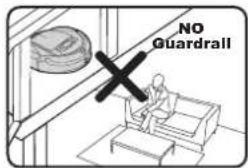
text_image
NO Guardrail
Warning : Where there is a drop off in the cleaning area due to a step or stairs and they are not carpeted, you should operate the unit to see that the unit can detect the step without falling over the edge. It may become necessary to place a physical barrier at the edge to keep the unit from falling over the drop but make sure the physical barrier is high enough so that you or a family member will not trip on the barrier and cause themselves injury.

text_image
Set up GuardrailNote:
▶ Do not open the equipment. The components inside the robot host are beyond repair by user himself, such as remote control and virtual wall.
This product is only for domestic use, not suitable for industry or outdoor surroundings.
▶ Please do not press LCD.
▶ Please follows the instruction of the host and the user manual to insert the SD card. If you insert the card in the wrong direction and cause destroy of the product, we cannot offer the maintenance service.
The User Guide
Please conform to the basic safety precautions as follows:
- Read the content in this user guide carefully and install the robot according to the detailed instructions.
● Safekeeping this guide. If you transfer this machine to another person, please make sure attach this booklet.
● Any inconsistent operation with this guide would probably cause serious damage to both human being and the machine itself.
Power Supply for the Product
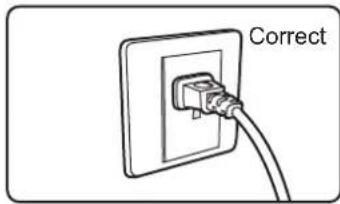
text_image
Correct
text_image
Electricity leakage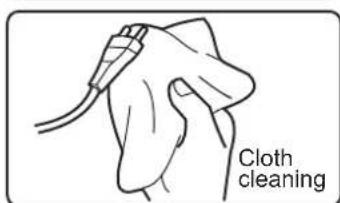
text_image
Cloth cleaning
text_image
Draw out the plug● The power supply is from a Ni-MH chargeable battery inside the host of the robot and it is specially assigned with a charging block to do recyclable charge.
- Please double check the marked supply voltage on the charging block and make sure it is applied according to the instructions.
- Do not use the damaged power cord or plug, while contact our after-sales service or find our authorized supplier to maintain.
- As the charging block is heavy, please never drag the block via pulling it's power cord.
- Remember never to twist and swing or screw the power cord excessively, neither to block it when close the door.
We should not put heavy things on it as well.
- Do not let power cord touch hot or sharp surfaces.
- Do not draw out the plug by pulling the cord.
- Keep wet hands away from the plug or machine.
- Pull the plug out of socket when you no longer use the charging block for some time.
● Use dry cloth to wipe the dust on the plug frequently.
The Spectrum of the Product Use
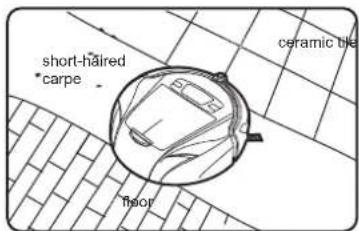
text_image
short-haired carpe ceramic tile floor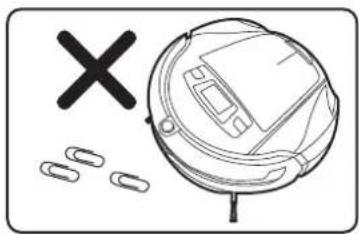
natural_image
Diagram showing a vacuum cleaner with a cross mark and scattered circular components (no text or symbols)
natural_image
Simple line drawing of a magnifying glass over a circular object with a cross mark, no text or symbols present.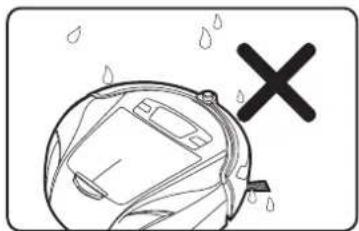
natural_image
Illustration of a car with a cross symbol indicating pollution or damage (no text or symbols present)
natural_image
Simple line drawing of a sun, a globe, and a cross symbol (no text or labels)● This robot is applicable to domestic sweeping, including wooden floor, rubber floor, ceramic tile, linoleum and medium or short-haired carpet however, it is inapplicable to long-haired carpet.
- It can not be used for the floor as below:
---- Have water on the surface (including flammable liquids), such as wet floor.
---- Inside toilet, shower room or other humid situation.
---- Staircase
---- The room with furnace or flame
● The following objects are definitely forbidden:
---- Not extinguished soot, burning cigarette butts or match, because these objects would cause fire.
---- Sharp objects like glass debris, pin, paper clip, stones, gypsum, and large piece of paper. These things may block the machine.
Water or other kind of liquid, especially detergent, kerosene, petrol, paint, alcohol, perfume, as well as carpet or floor cleaning solution. It would make the interior of the machine wet, so that may cause short-circuit.
---- The toner of laser printer and copier which may bring fire and explosion.
- Please keep the machine away from hot source such as oven and fireplace, because the hot can distort the crust.
- Do not use the machine in the surroundings with any explosion risk. For example, at gas station, oil depot, chemical plant and so on.
● Never use the machine outdoors. As rain or solid dust may get inside it and cause damage. - Do not repair or change any performance by yourself.
● Do not throw or bend the machine. - Do not dampen it, or else the short-circuit would cause fire or electric shock accident.
● Take care of routine maintenance and keep it in a clean place. - Do not expose the machine in the extreme hot or cold surroundings. This product is not allowed to long-time kept in the temperature below zero or over thirty degree.
- Do not keep the machine in the liquid or expose it to high humidity.
- Do not place the machine close to burning cigarette or fire.
Notes before Cleaning
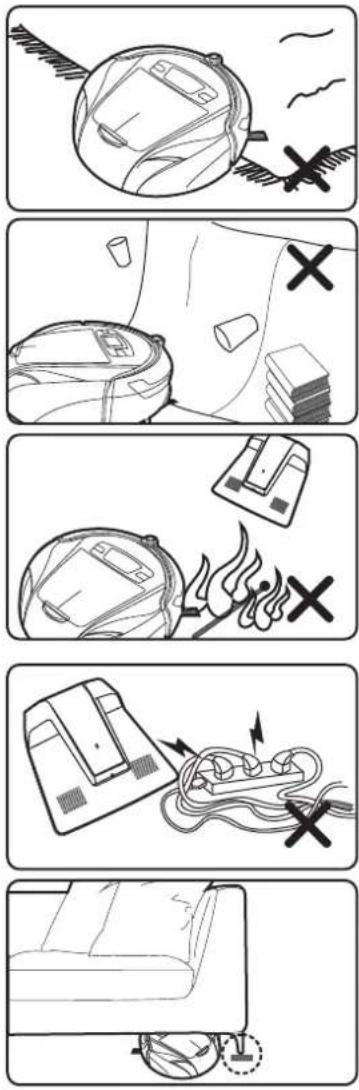
● Take extra care of the robot when the first it works. Please remove the obstacles when it is beyond the robot. Try to avoid the situation that the robot stops working.
● Make precautions to solve the problem which may make the cleaning in trouble, such as:
---- Keep the easily knock over objects in a safe place.
---- Permian the edge of the carpet.
---- The hanging table cloth and curtain should not touch the ground.
---- The flammable object should be cut from the fire source.
---- Sort out the tangled power cord on the floor.
- Check whether the main brush is correctly fixed inside the robot before cleaning.
● Examine if the dust box is empty and insure it is fixed before it works.
● See if up-ground height sensor and dust sensor are wiped clean. - If only one single room need to be cleaned please close the door.
● Virtual wall, as well as border tape can be used to restrict the working area.
Child Safety
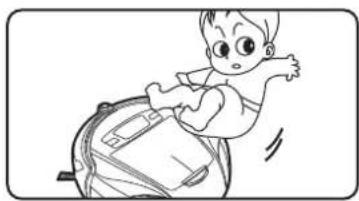
- his appliance is not intended for use by persons (including children) with reduced physical, sensory or mental capabilities, or lack of experience and knowledge, unless they have been given supervision or instruction concerning use of the appliance by a person responsible for their safety.
● Children should be supervised to ensure that they do not play with the appliance.

natural_image
Cartoon illustration of a girl running on a ball with a briefcase, no text or symbols present● Take good care of the product and keep it beyond child and people who can not judge danger nearby. Extra attention should be paid when it starts working.
- You should get the person inside the room know that the machine is working, in order to avoid man-made damage like tripping.
- Do not take robot as toy. Carefully attention should be paid when child or pet is around.
● The plastic package may bring danger of asphyxia and is supposed to keep away from child.
Batter y Replacement and Disposal

natural_image
Technical line drawing of a mechanical component with no visible text or symbols- There is potential danger if you use other producer's battery and charging block. The damage cause hence is not within the warranty.
- Please dispose the spent battery properly, because there is hazardous substance which may pollute the environment.
- Conform with local environmental legislation and dispose it at the recovery site.
About the SD Card
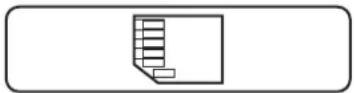
- SD card will be a little hot during the working. Please be careful when take out the card.
● Do power off before taking out the SD card.
Resource Utilization

- Do not take the package material as domestic garbage and discard it freely.
- Please deliver the package material to proper recovery site for recycle.
When Product is in Failure
- Do not repair or disassemble the machine when there is damage of the power cord or failure of.
- Contact our after-sales service or our designate maintenance organization for professional repair.
Keep away from the broken LCD

natural_image
Simple black-and-white diagram of a rectangular frame with side handles (no text or symbols)- If the LCD display destroyed, please keep away from the broken LCD in case of be wounded.
Cor rect Disposal of this product
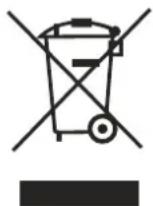
- This marking indicates that this product should not be disposed with other household wastes throughout the EU. To prevent possible harm to the environment or human health from uncontrolled waste disposal, recycle it responsibly to promote the sustainable reuse of material resources. To return your used device, please use the return and collection systems or contact the retailer where the product was purchased. They can take this product for environmental safe recycling.
2. Content (For D73)

natural_image
Line drawing of a circular robotic vacuum cleaner with control panel and sensor array (no text or symbols)Main Unit
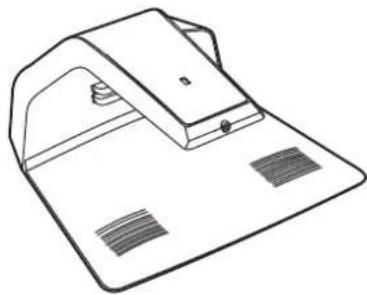
natural_image
Line drawing of a mechanical device with a curved top and base plate (no text or symbols)Charging block Virtual wall

natural_image
Line drawing of a mechanical component with mounting holes and a vented slot (no text or symbols)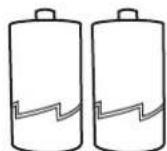
Battery for virtual wall
text_image
BOYA-5 Robot Vacuum Cleaner Erobot * 30000000000000000000000000000000000000000000000000000000000000000000000000000000000000000User Guide
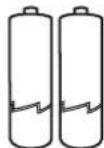
Battery for remote control
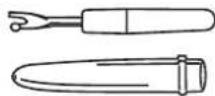
Roll brush clean-up gadget

Border tape
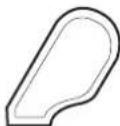
Magnetic adding tool
technique parameter
| The host The charging | block | ||
| Working voltage In-put voltage DC12V AC220-240V | |||
| Rated power | 30W | rated out-put voltage | DC14.5V |
| Speed | 0.25m/s | rated frequency | 50Hz |
| Capacity of dust box | 0.7L | rated power | 30W |
| Noise | ≤60dB | rated out-put currency | 1.0A |
| Charging duration | About 3 hours | ||
| Duration upon full battery 60 minutes | About 60 minutes | Vir tual wall | |
| In-put voltage | DC3V | ||
| Max Coverage upon full battery | 120-150M^2 | Remote control | |
| In-put voltage | DC3V | ||
| Size | 330×330×100mm | Remote control distance | ≤5 meters |
| Net weight | 3.4Kg | ||
| Filtration/Outer body Main unit batter y | |||
| Anti-Germ | Ag+anti-bacterial | Input voltage | 12V mm |
| Battery Capacity | 2500mAh | ||
- Content(For D76)
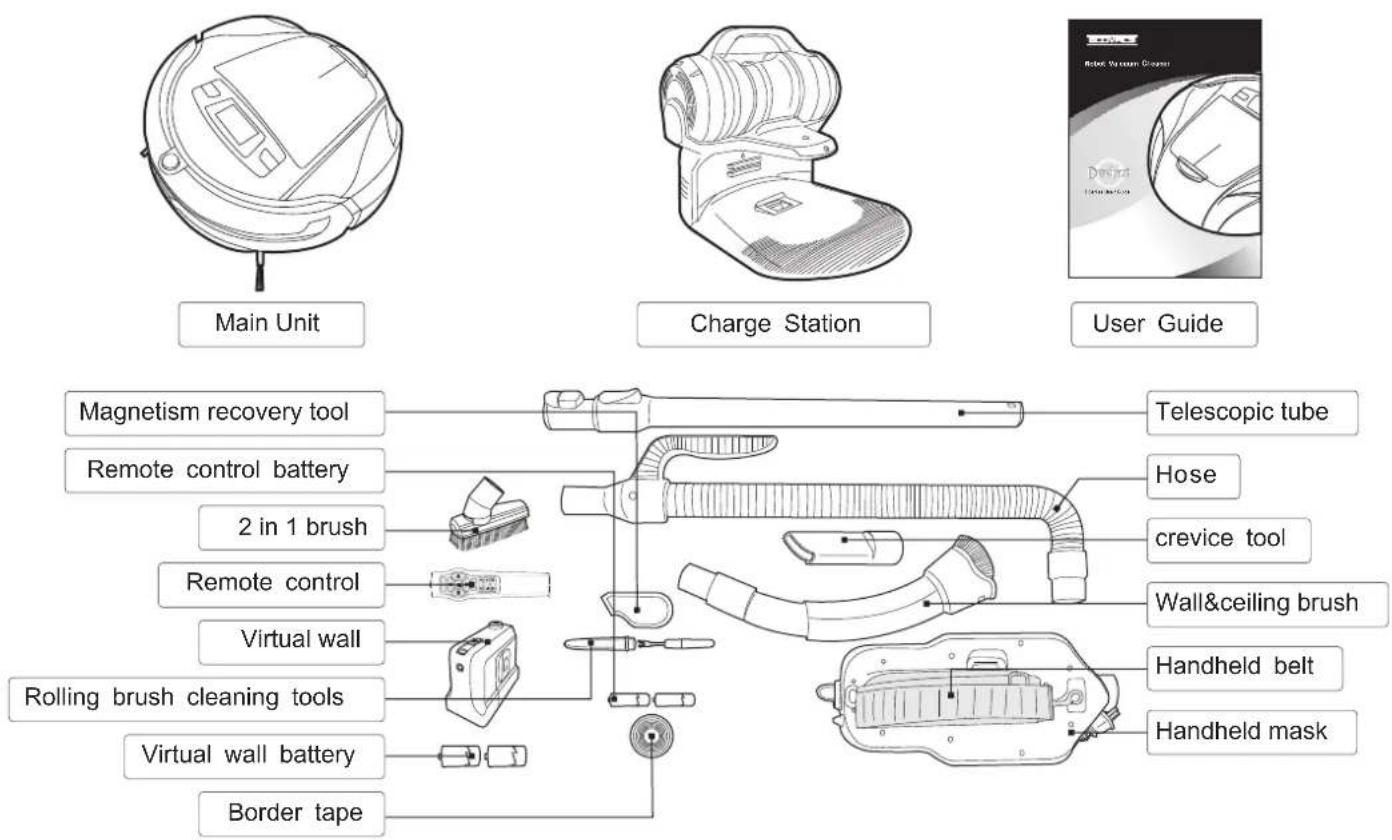
text_image
Main Unit Charge Station User Guide Magnetism recovery tool Remote control battery 2 in 1 brush Remote control Virtual wall Rolling brush cleaning tools Virtual wall battery Border tape Telescopic tube Hose crevice tool Wall&ceiling brush Handheld belt Handheld maskTechnique parameter(For D76)
| Function Parameter | Charge station | Handheld Vacuum cleaner | |||
| Voltage | 12V mm | Input voltage | 220-240V~ | Input voltage | 220-240V~ |
| Rated power | 30W | Rated output voltage | 17V mm | Rated frequency | 50Hz |
| speed | 0.25m/s | Rated frequency | 50Hz | Rated power | 500W |
| Dust capacity | 0.7L | Rated power | 30W | Dust container capacity | 0.95L |
| Noise | ≤80dB | Rated output current | 1A | Belt length | 1.8M |
| Charging time | around 3hs | Virtual Wall | |||
| Working time per charge | around 60min | Input voltage | 3V mm | ||
| Cleaning area per charge | 120-150m3(vary from different room situation) | Remote control | |||
| Size | 335x335x100mm | Input voltage | 3V mm | ||
| Net weight | 3.4Kg | Remote control distance | ≤5mm | ||
| Filtration / Out body | Main unit battery | ||||
| Anti-bacterial | Ag* anti-germ additive | Input voltage | 12V mm | ||
| Battery capacity | 2500mAh | ||||
3. Parts Description(For D73)
Main Unit
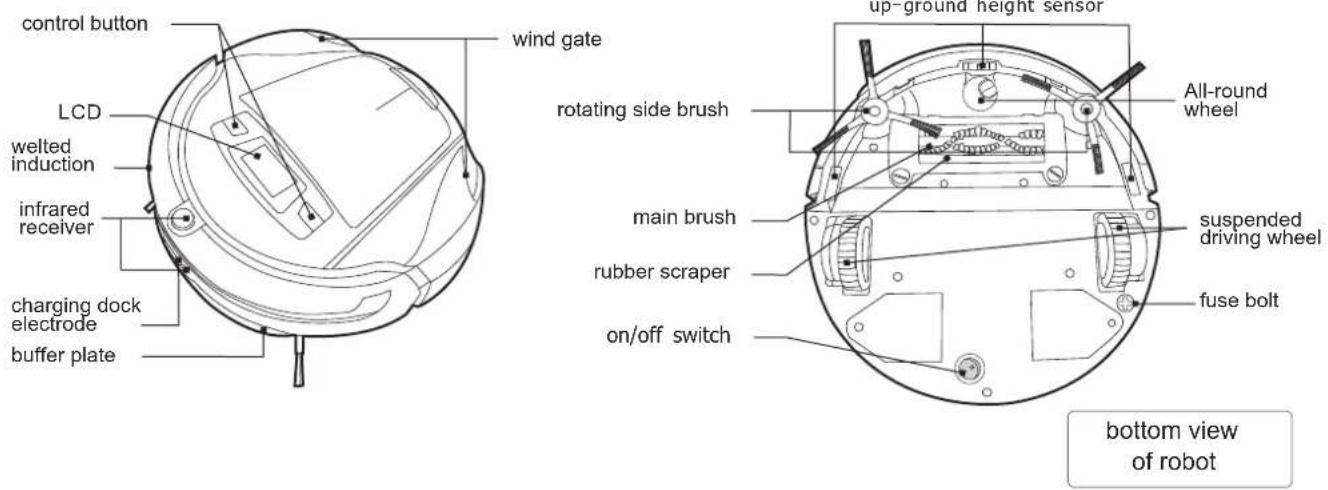
text_image
control button LCD welted induction infrared receiver charging dock electrode buffer plate wind gate rotating side brush main brush rubber scraper on/off switch up-ground height sensor All-round wheel suspended driving wheel fuse bolt bottom view of robot
text_image
dust sensor dust sensor dust box volume adjust button charging and alarm open button of upper cover lock of dust box antibacterial sponge filter ash exit dust box handle elevation of robot dust box
text_image
docking electrode exhaust fan power cord power indicator infrared transmitter anti-skid band charging block3. Parts Description (For D76)
Main Unit is the same as D73

text_image
Dust container power slot Infrared signal generator Charging pin Air outlet grid Charging station power cord Dust inlet holeCharge station ( Front view)

text_image
Handheld vacuum cleaner release button Dust inlet hole Charging indicator Anti-slip slotsCharging station ( Top view)

text_image
Dust container handling Belt hook Dust container releasing button Handheld vacuum cleaner power cord Power cord hook Hose connector Handheld vacuum cleaner on/off switchHandheld vacuum cleaner
LCD and Control Panel
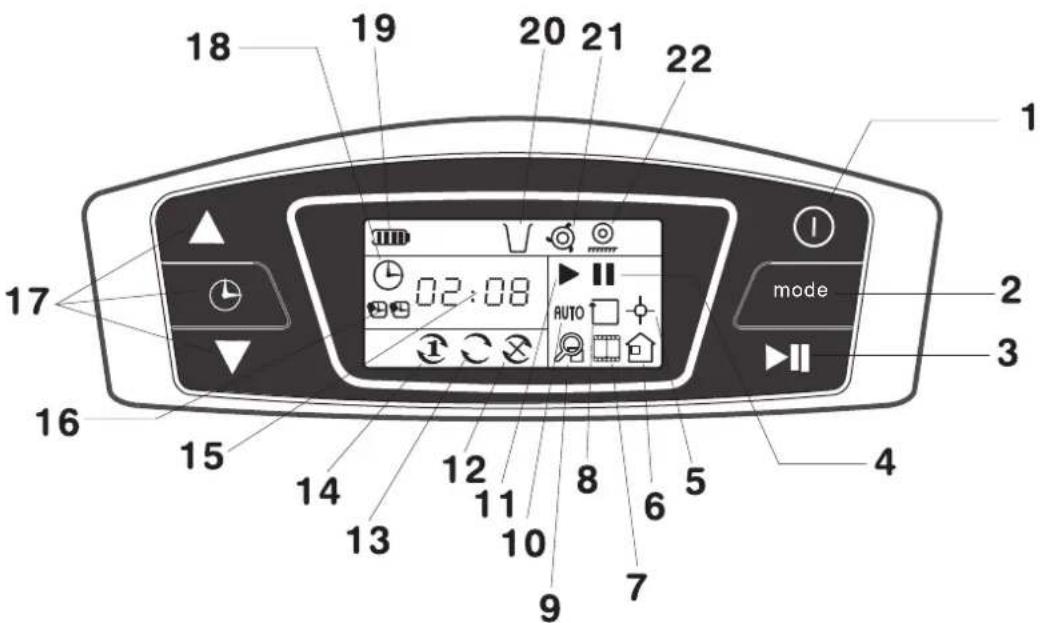
text_image
18 19 20 21 22 1 17 02:08 AUTO mode 2 3 4 16 15 14 12 11 8 6 5 13 10 9 7- Power 7. Demo mode 13. Keep timing cleaning 19. Battery display
- Model selection 8. Border cleaning mode 14. One-time timing cleaning 20. Tip for lacking dust box
- On/Pause 15. Time display 21. Tip for intensive cleaning mode
- Pause status 16. Appointment time setting 22 Tin for driving wheel
- Automatic cleaning mode
- Fixed point cleaning mode 17. Time adjustment status
- Back charging block 18. Current time setting status 12. Caneptiming cleaning
suspending
4. Robot Charging
The following pictures are using D73 as example.
Placement of charging dock

natural_image
Simple line drawing of a device with a cable and power outlet (no text or symbols)Put the block at an even place and make the base perpendicular to the ground.
Meanwhile, take a look at the marked electricity voltage to make sure the product is used under instruction.
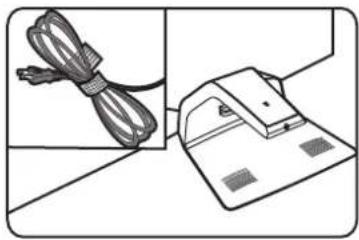
natural_image
Illustration of a cord being attached to a device with a paper airplane (no text or symbols)Tangle the power cord on the pothook and do not scatter it besides the block or hold it under the base, in case that robot would get impeded when it turns back.

text_image
0.5m 0.5m 1.5mThere should not be any object at least 1.5 meter in front of the charging block. Besides, anything with strong reflector is not supposed to stay ahead of the infrared receiver. For example, ground glass, smooth ceramic vase and so on. Other wise, the machine shall not detect the charging block.
Please do not put the charging block to the staircase to avoid accidental cases.
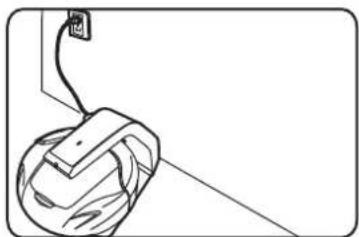
Robot Charging
natural_image
Simple line drawing of a mechanical device with a cable and attached component (no text or symbols)- You need to charge the robot the first time it works. Put away the full-charged battery for use to ensure it's performance.
● Charging duration should be around 3 hours.
● Charging is only allowed under the temperature between 0 and 45 degree and extreme hot or cold would extend charging duration or even cause damage to the battery.

text_image
charging status Indicator flashingTips:
To make sure the robot is working in saturation, we suggest you to keep charging connected even though the charging indicator lasts lighting. At the same time, the system would transfer to weak current for supplementary charging.
According to actual ground situation, robot can keep working for around 60 minutes after being charged full.
The capacity of battery, which is not used for long time, will get certain decrease, so the use time can be shorten accordingly.

text_image
charging status Indicator last lighting5. Power On/Pause/Power Off
Get power supply and power on

natural_image
Diagram of a device casing with two wheels and a central button, no text or symbols present● Turn on the power switch on the bottom firstly.

natural_image
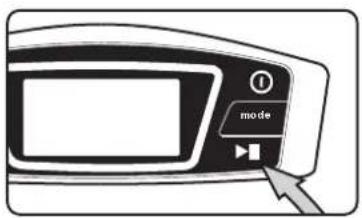
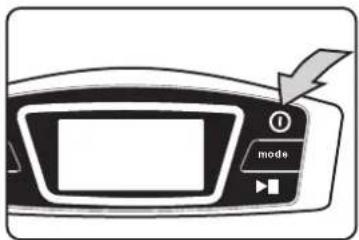
Illustration of a microwave oven with a play button and a lightning bolt (no text or symbols)- Press the Ⓘ key on host and get power supply. There would be a short music tip and at the same time LCD lights for roughly 2 second and goes off.
text_image
mode● Then press ▶II key to start robot.
Pause
natural_image
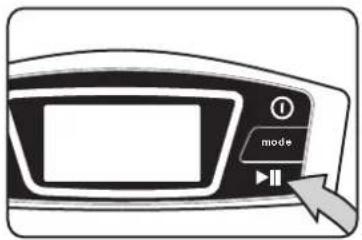
Illustration of a microwave oven with a control panel and mouse pointer (no text or symbols)- Press ▶II key, it can pause the operation of robot and keep it stay where it is.
Tips:
On the status of pause, you can reset the cleaning mode, then press ▶■ key again, it will go back to work.
Another way to pause is that, when the robot is working you can press any key on the host or lift it.
Power off
text_image
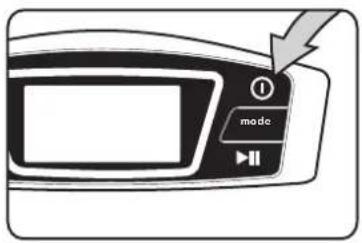
mode● Press Ⓘ key, power is off and the robot stops running.
Tips:
▶ If you want the robot to stop running, you can press Ⓘ key under pause status, then power is off.
▶ Put the robot back to the charging block after it stops working for fear that others would trip or step on.
6. Mode Selection
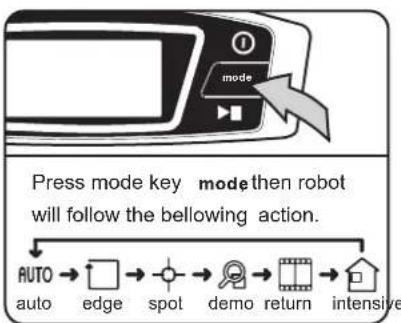
text_image
Press mode key mode then robot will follow the bellowing action. AUTO → edge → spot → demo → return → intensiveTips:
▶ Put the robot on the charging block and keep it charging after finishing house cleaning.
▶ Do not keep the robot on pause status for long time, because under pause, the full charged battery can only last for around 20 hours. We suggest you to turn it off when you do not want it to work.
Status instruction:
The meaning of often used three status here and hence mentioned is as follows:
Working status: robot is operating by cleaning.
Standby status:
Case one: press Ⓘ key and do not operate.
Case two: press ▶ or any other key on host when robot is running, it pauses.
Case three: lift the robot.
Power off status: it is not power on, or under woring status.
Press ① key under standby mode, it is power off.
AUTO
Automatic Cleaning Mode
flowchart
graph TD
    A["AUTO"] --> B["Directional Arrow"]
    B --> C["Car Icon"]
    C --> D["Arrow to Left"]
    D --> E["Car Icon"]
    E --> F["Arrow to Right"]
    F --> G["Car Icon"]
    G --> H["Arrow to Bottom"]
    H --> I["Car Icon"]
    I --> J["Arrow to Top"]
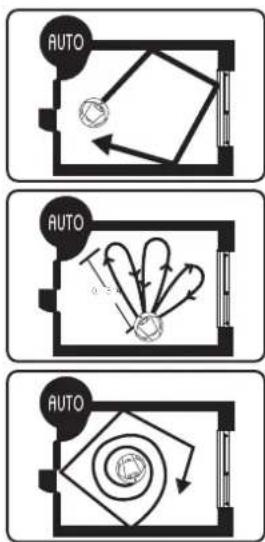
Route description: first going straight ahead, it turns when it meets obstacle. This status will last until the robot detects that it shall run of battery and it would turn to back charging status.
If robot detects that there is plenty of dust on the staring point, it will take the route as fan-shaped or spiral route.
▶ Under normal circumstance, it will take spiral rout when it detects plenty of large particles, and take fan-shaped route when few of small particles.
▶ If take this mode, the cleaning coverage would reach maximum compared by the same size area. We recommend this mode as common domestic one.
[Non-Text]
Border Cleaning Mode

flowchart
graph TD
    A["Start"] --> B{Loop}
    B -->|Rightward Arrow| C["End"]
    B -->|Leftward Arrow| D["Loop Back"]
Route description: under this mode, once the robot detects objects, it would run along it, like wall, to clean until it meets obstacle and change the former route.
▶ Under this status, robot helps to remove the corner of wall, table, sofa and bed where it is beyond the mode of automatic cleaning. The operation of this mode takes around 25 minutes and then robot goes back to charging block by itself.

Fixed Point Cleaning Mode
natural_image
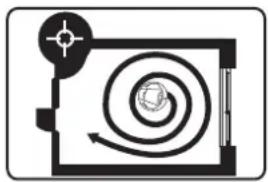
Pure diagram of a spiral inside a rectangular frame with a circular target symbol (no text or labels)Route description: under this mode, robot runs from inside out shaping spiral and focuses on the certain point to clean for one time. The cleaning coverage is a round shape with diameter of 1.2 meter.
This mode is applicable to certain area with plenty of dust.
▶ Under common circumstance, the cycle of one fixed point cleaning takes around 2 minutes. During operation, if robot continually meets obstacle or detects staircase, it would shift to avoid obstacle and staircase to turn back to work under this status.
▶ Robot shall stay where it stops and give tip music after finishing.

Intensive Cleaning Mode

flowchart
graph TD
    A["Location Pin"] --> B["Floor Layout"]
    B --> C["Directional Arrow to Floor"]
    C --> D["Layout Icon"]
    D --> E["Floor Shape"]
    style A fill:#f9f,stroke:#333
    style B fill:#ccf,stroke:#333
    style C fill:#cfc,stroke:#333
    style D fill:#fcc,stroke:#333
Route description: under this mode, robot takes the same route as automatic cleaning. It would search for charging block by itself before it runs of battery.
▶ Under the same ground circumstance, the cleaning effect is the best.
▶ If the ground is quite dirty, we recommend this mode.

Demo mode

text_image
Diagram showing a sound wave setup with a film reel, speaker, and sound waves inside a room layoutRoute description: Under this mode, robot will show some functions automatically; also, robot will invite you to join in. Via voice instruction, press ▶ button to begin your experience trip.

Go Back Charging Mode
flowchart
graph TD
    A["House"] --> B["Pulley"]
    B --> C["Room"]
    C --> D["Indoor"]
    D --> E["Return Line"]
    E --> F["Return Line"]
    F --> G["Return Line"]
    G --> H["Return Line"]
    H --> I["Return Line"]
    I --> J["Return Line"]
    J --> K["Return Line"]
    K --> L["Return Line"]
    L --> M["Return Line"]
    M --> N["Return Line"]
    N --> O["Return Line"]
    O --> P["Return Line"]
    P --> Q["Return Line"]
    Q --> R["Return Line"]
    R --> S["Return Line"]
    S --> T["Return Line"]
    T --> U["Return Line"]
    U --> V["Return Line"]
    V --> W["Return Line"]
    W --> X["Return Line"]
    X --> Y["Return Line"]
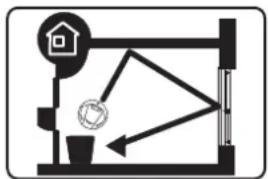
Route description: robot will search for charging block automatically when it detects low battery, what's more, green light flashed once the charger is connected.
7. Automatically charging
natural_image
Simple line drawing of a room corner with a spherical object and a wall-mounted device (no text or symbols)
text_image
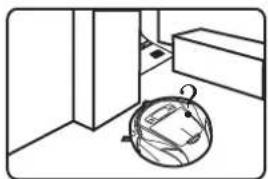
strait room ??- When it finishes cleaning or there is low battery, it would seek charger in same route as automatic cleaning. To make it easy for robot to search for charging block, you need to put the block back to the wall and make sure there is no obstacle within 1.5 meters ahead of the infrared receiver. Check carefully whether there is strong reflector in front of the charger, such as ground glass, smooth ceramic vase and so on.
- It takes time for robot to seek the charger. The reserve time differs from the ground situation.
- Robot can return to the charger if the ground situation is not too complicated. Under extreme circumstance, such as, huge house and complex layout would probably bring difficulty for robot to seek for charger. In such case, you should help to put the robot back to charge.
● Take care of the first automatic charging, if you find that the robot keeps turning in the certain area after trying several times to seek back, you can help to place it on the charger and look through the charging.
● Under mode, main brush will stop working and robot cannot do the cleaning.
● Robot shall stay at the charger when it finishes charging and it transfer to small currency to charge until you start operating. If you
8. Automatic Dust Emptying (For model D76)
natural_image
Line drawing of a vacuum cleaner with attached power outlet (no text or symbols)
text_image
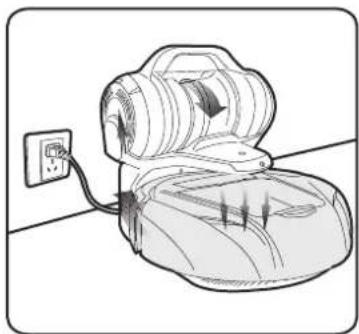
MAX● While Deebot is under “Back Charging Station ⏻” mode, it will automatically start the “Automatic Dust emptying” function once the main unit contacts with the charging station successfully.
- The "Automatic Dust Emptying" process is to suck the dust in the main units of Delethe handheld vacuum cleaner dust container. It will last for about 10 seconds each time. During the process, please do not take the handheld vacuum cleaner out of the charging station to avoid dust leakage.
Tips:
The "Automatic Dust Emptying" mainly transfer the dry dust / fluffy etc. into the dust container. In case of wet dust or some big particles, this function may fail to do the job and we suggest you to clean these manually.
- Please clean the handheld vacuum cleaner dust container regularly before the dust reaches the MAX line to keep the best performance.
● To clean the handheld vacuum cleaner dust container, please refer to Page 28. Maintenance.
9. Appointment Timing
Appointment time setting
First time setting
text_image
Diagram showing two views of a device control panel with directional arrows and labeled buttons for mode mode.Tips:
- Selection scope: hour is between 0 and 23, minute is between 0-59.
-
Under normal circumstance, time display on LCD shows current time.
-
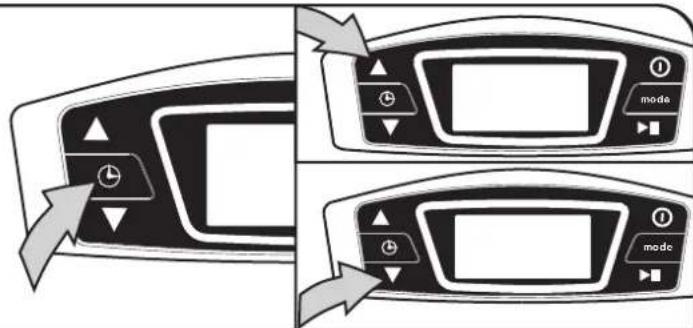
After power is on, keep press for around 3 seconds then on LCD is light and the number with time setting is flashing.
- Set hour and minute via ▲ and ▼, each time press ▲ will increase one hour or minute. While decrease one hour and minute for ▼.
- When you finish setting time, press again, and then go to second time setting.
For example:
Set current time as 12:07 pm, time display on LCD should be:

text_image
12:07 AUTOSecond time setting

text_image
Diagram showing two views of a remote control panel with directional arrows and mode labelsTips:
- Selection scope: hour is between 0 and 23, minute is between 0-59.
-
Under normal circumstance, time display on LCD shows current time.
-
Now, the 📋 label high light, and the number with time setting is flashing.
- Set hour and minute via ▲ and ▼, each time press ▲ will increase one hour or minute. While decrease one hour and minute for ▼
- Press 🏠 again, and then go to current time setting.
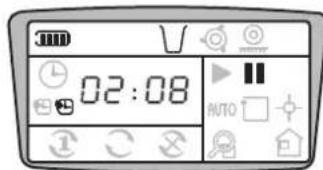
For example:
Set current time as 2:08 am, time display on LCD should be:
text_image
02:08Current time setting
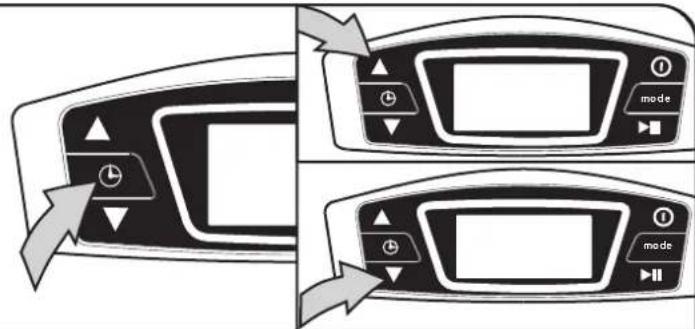
text_image
Diagram showing two views of a remote control interface with labeled buttons and directional arrows indicating navigation or action.Tips:
- Selection scope: hour is between 0 and 23, minute is between 0-59.
-
Under normal circumstance, time display on LCD shows current time.
-
After second time setting, and then go to the current time setting. The disappeared, and the number with time setting flashing.
- Set hour and minute via and ,each time press ▲will increase one hour or minute. While decrease one hour and minute for .▼,and then press ⏱to confirm.
- Then go to the frequency setting.
For example:
Set current time as 12:07 pm, time display on LCD should be:
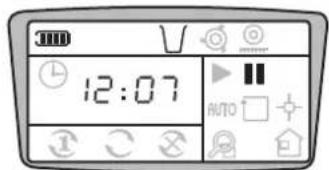
text_image
12:07 AUTOTips:
If you need to cancel first or second timing, please repeat set cleaning time, set the time as 00:00. Then the label will disappear.
The time interval between two time setting should be more than 4 hours.
Note:
When power is off, robot will not start work on appointment time. If you have already set appointment timing cleaning, please turn on the robot and keep it on standby status, even though it is not operating. Try to make it stay at the charger and check whether it is connected.
▶ Make sure the socket is connected to power supply. Or else, robot will fail to work on appointment time under standby status because of running out of battery.
Set Frequency and Cancel Timing
Tips:
▶ No matter what kind of mode the robot operated in the last time, when the appointment time coming, robot will work according to the Automatic mode.
If the robot is operating in Border cleaning mode, Fixed point cleaning mode, when the appointment time coming, robot will not work until the next appointment time.
You can set appointment cleaning frequency via press
then release.
①
to clean on appointment time for one time.
C
to clean on appointment time everyday hereafter.
×
to cancel appointment timing, robot only works upon your manual operation.
Press the key ⏻, the robot will work as belowing sequence:
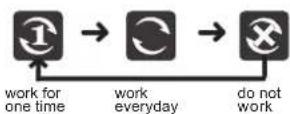
10. Remote Control
Batter y placement

Tips:
It applies two units of alkaline batteries (7#)
▶ Please note the positive and negative when place the battery
▶ Change the battery when you notice it is in low battery and make sure you use the same kind of battery as mixture is forbidden.
▶ Take out the battery if you do not use remote control for long time to avoid electrolyte from leaking which may cause failure.
▶ Do not put the remote control in extremely hot or humid surroundings.
▶ Do not fill any other substance into remote control, especially when you change battery.
▶ Never expose the signal transmitter under sunshine or lighting equipment, or else it would cause failure.
The disposal of used battery should conform with local environmental legislation.
Use of Remote Control
Have D76 as an sample

text_image
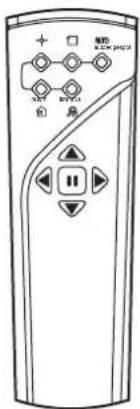
direction control keyYou can control the robot via remote control.
- Drive robot to appointed area via using direction control button.
- Choose certain working mode according to different ground situation.
AUTO Automatic Cleaning Mode/ □ Border Cleaning Mode/
Fixed Point Cleaning Mode/ Intensive Cleaning Mode/
Go Back Charging Mode/ Intelligent voice
Pause/Entertainment button: Working status, press this button, robot will stop working. Opening and waiting status, press the button, robot will carry out its entertainment function.
Direction control key: There are four direction control, ahead, backward, left hand and right hand. You can use remote control to drive robot to any appointed area under standby mode.

natural_image
Line drawing of a robotic vacuum cleaner with sensor array, no text or symbols present- You can control cleaning mode, going back charging and direction within five meters through the function key on it.
- If the robot is under cleaning mode or going back charging, please press pause first and then can proceed direction control.
● During the direction control, robot is not able to operate cleaning.
● Make sure the power supply of remote control is on before you use it. When you use it, match the signal transmitter with signal receiver on the host. - If robot is near charger, virtual wall or other infrared transmitter, it would be interfered by infrared and fails to receive the signal of remote control, under this situation, please manually operate the mode on the host.
11. Virtual Wall
Batter y Placement

natural_image
Line drawing of a hand holding a device with an arrow indicating direction (no text or symbols)Tips:
▶ It applies two units of alkaline batteries (1#)
▶ Please note the positive and negative when place the battery
▶ Change the battery when you notice it is in low battery and make sure you use the same kind of battery as mixture is forbidden.
▶ Take out the battery if you do not use remote control for long time to avoid electrolyte from leaking which may cause failure.
▶ Do not put the remote control in extremely hot or humid surroundings.
▶ Do not fill any other substance into remote control, especially when you change battery.
▶ Never expose the signal transmitter under sunshine or lighting equipment, or else it would cause failure.
The disposal of used battery should conform with local environmental legislation.

natural_image
Illustration of hands holding a device with an arrow indicating direction (no text or symbols)
natural_image
Technical line drawing of a mechanical component with mounting holes and internal channels (no text or symbols)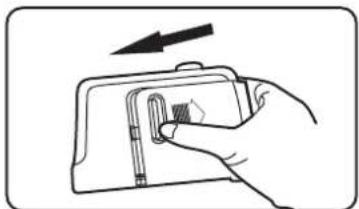
natural_image
Hand holding a device with an arrow indicating direction (no text or symbols)
Note:
▶ When you use virtual wall, please face marked ECOVACS to the block area you expect.
▶ Put virtual wall outside of the room you want to block to get best effect.
The system would cancel virtual wall after it is set for two hours in order to save battery. As a result, every time the robot start new task and there needs to use virtual wall, please do and check whether the switch on virtual wall is on and there is indicator.
▶ If you have paused the host for long time during its operation, please examine frequently that if the switch is off to prevent from danger.
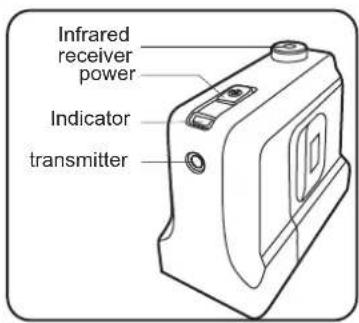
text_image
Infrared receiver power Indicator transmitterPower: Press this key and virtual wall starts work which will prevent robot from entering the blocked region.
Indicator: It is red when the power is on, and it shows virtual wall is ejecting invisible beam to prevent robot form entering the blocked region.
Infrared transmitter: Ejecting invisible beam.
Infrared receiver: receive invisible beam.
Use of vir tual wall
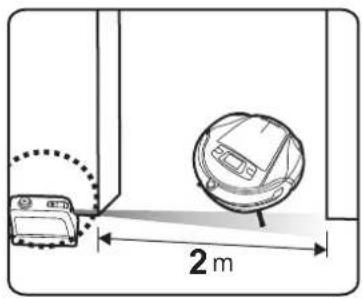
text_image
2 mIt can be used to control the robot working within room or the certain region you want it to clean. It applies invisible infrared beam to get 2 meters optical band, which forms a blocked open area, such as doorway of the room, corridor and staircase. You can apply virtual wall to stop robot getting close to the wire of domestic appliances or computer and precision object.
- Virtual wall can be put at the entrance of block region. You are allowed to combine several walls together if necessary.
- The beam of virtual wall would form a conical-shaped region to block robot. The wall shall have beam around itself to prevent robot from getting closer to it.
If you find the indicator becomes weaker or that robot is able to enter blocked region, please examine the battery of virtual wall. Change into new battery if necessary.
12. Border Tape
Usage of Border Tape

natural_image
Line drawing of a hand using a sponge on a grid surface (no text or symbols)Border Tape is used to confine the cleaning area. will Deebot proceed beyond the border, allowing Deebot to clean a designated area.
- Clean the area where you plan to paste the Border Tape with a dry cloth.

natural_image
Simple line drawing of a leaf with a curved stem, no text or symbols present- Unroll the Border Tape and cut the length according to your needs.
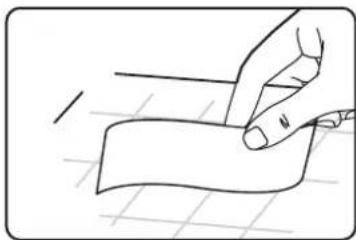
natural_image
Line drawing of a hand holding a piece of paper on a grid surface (no text or symbols)- Paste the Border Tape on the floor after tearing off the white layer on one side.
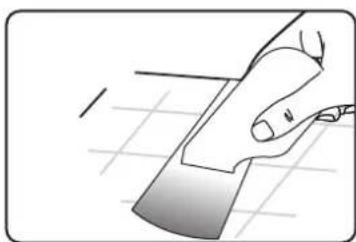
natural_image
Illustration of a hand holding a flat object over a grid background (no text or symbols)- Rub the Border Tape with Border Enhancement Tool.

Attention:
- Do not paste the Border Tape within a 1.5-meter radius vicinity of the Charging Station, or will not be able to return for charging.
- Please make sure the area is dry, or the Border Tape might come off.
- When the magnetic field deteriorates, please use Border Enhancement Tool and rub on the Border Tape.
- If surface that have different heights, always paste the Border Tape on the higher side.
- Border Tape can be pasted on the floor, ceramic tiles, or any hard floor. Please do not paste it on carpets, as it will come off easily.
- Please keep the Border Tape in a dry and cool place.
13. Day-to-day storage
natural_image
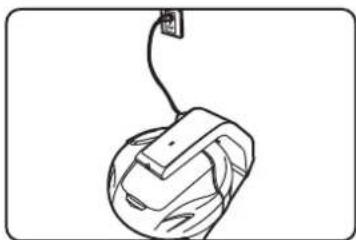
Line drawing of a mechanical device with a cable and attached plug (no text or symbols)- You should keep robot stay at charger even though it finishes charging and cleaning task, because it will change to small currency to supplement charging.
- Charge the robot until full battery and put it back to the package if you do not need to use it for long time (at least over three months). Keep the package in dry surroundings to avoid sunshine or humidity.
14. Intelligent voice
natural_image
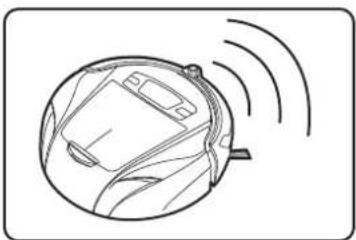
Diagram of a robotic arm with motion lines indicating movement (no text or symbols)- Voice and entertainment information has been stored in the SD card. If you do not need this function, please adjust the volume button , or take out the SD card.
• As ☐ shows, please pay attention to the insert direction.
15. Handheld vacuum cleaner ( For D76)
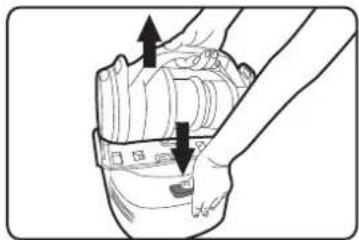
By using the handheld vacuum cleaner, you can extend Deebot's function and cleaner your home more thoroughly.
natural_image
Illustration of hands holding a mechanical component with arrows indicating motion (no text or symbols)
natural_image
Illustration of a hand pressing down on a mechanical component with an arrow indicating motion (no text or symbols present)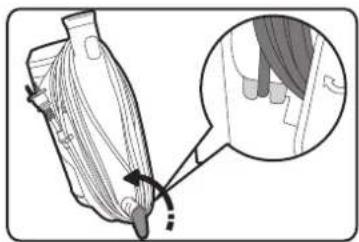
natural_image
Illustration of a corn ear with a magnified inset showing hair follicles (no text or symbols)
natural_image
Medical illustration showing a surgical procedure on a human leg with an arrow indicating direction (no text or labels)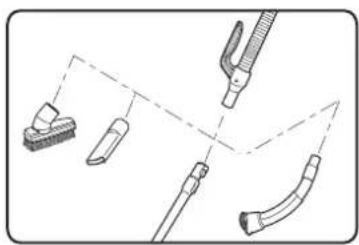
natural_image
Diagram of medical or laboratory equipment components with no visible text or symbols• Assemble the handheld vacuum cleaner
Attention: Press the “ Handheld vacuum cleaner releasing button “ on the back of Charging Station and take the handheld vacuum cleaner out by grabbing the handle. Do keep the air inlet hole up to avoid dust leakage and causing second pollution.
- Put the dust container horizontally and assemble the handheld mask. Make sure the power slot end is assembled first before assembling the other end.
- For daily storage, you can rewind the power cord on the hook; if to use, you can twist the hook and release the power cord quickly.
- Assemble the hose onto the mask: push to the end and twist to lock.
● Different accessories can be assembled onto the hose end for different use.
Tips:
—2 in 1 brush : suitable for some delicate places cleaning such as closet/door etc. as the soft bristle can effectively protect the surfaces.
—Furniture nozzle: by removing the bristle under the 2 in 1 brush, the left part can be use as furniture nozzle to clean sofa / cushion etc.
— —Crevice nozzle : to clean some narrow slots such as the keyboard etc.
—Telescopic tube: to increase the handling diameter;
—Wall & ceiling brush: for easy clean of wall / ceiling / closet surface or top.

16. Maintenance
The Main Unit Cleaning
natural_image
Illustration of a microwave oven with control panel and mode button (no text or symbols)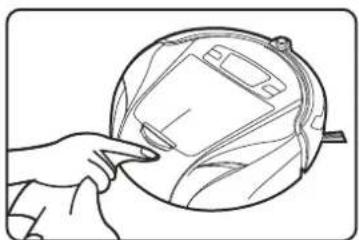
natural_image
Line drawing of a hand pointing at a circular object with internal lines and a device (no text or symbols)Dust box cleaning
text_image
11 open button of dust box- Adjusting telescopic length: push the button on the telescopic tube and adjust the tube to the desired length simultaneously and then release the adjusting button until you hear the Click sound which indicates the tube length has been fixed.
- Different accessories can be fixed onto the end of the telescopic tube for different use.
- Belt can be used for easy carrying of the handheld on your shoulder.
Tips:
Do ensure the belt is safely assembled to avoid the handheld vacuum cleaner falling down accidentally and causing damage & loss.
▶ Belt length can be adjusted according to your personal need.
● Power on the handheld vacuum cleaner:
Press the on/off switch on the back of the mask and start the handheld vacuum cleaner.
Re-press the on/off switch to power off.
● Turn off the power before cleaning the host.
- Draw out the plug of charger before cleaning the block.
- Do not use petrol or oil-like to clean the surface, while you can use water or neutral detergent to scrub. Make sure you use dry cloth to wipe, because any water is not allowed to infiltrate into the machine.
Please follow the below steps:
- turn off power.
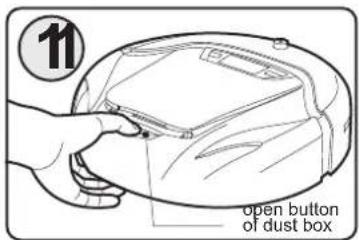
- press "open" button.
• Take off the cover of dust box.
natural_image
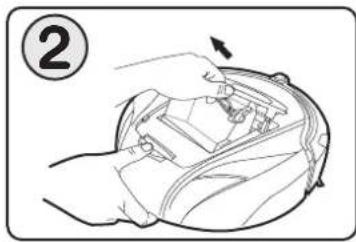
Line drawing of hands assembling a mechanical component with an arrow indicating assembly (no text or symbols)Hold the handle of dust box and lift it to take out.
text_image
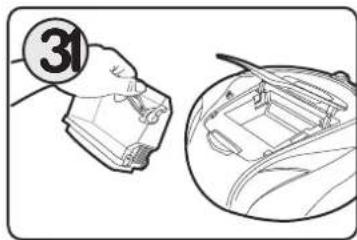
31In order to avoid dust leaking, lift the suction up when you take out dust box. Please mind your speed doing this step.

text_image
41Match the bottom with trash can and swing dust box gently. You can mildly beating it along the edge of the can to get the dust out.
natural_image
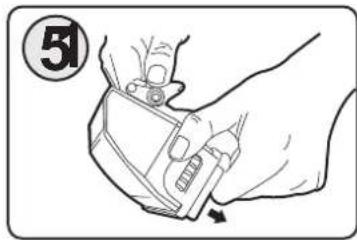
Illustration of a hand adjusting a small object with a circular badge labeled '51' (no text or symbols on the object itself)If you notice that there is too much dust on sponge filter, you can open the lock and take off the cover.
natural_image
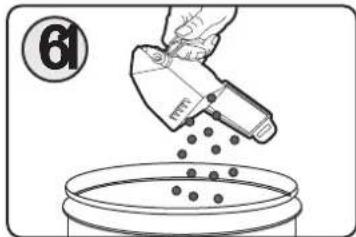
Illustration of a hand using a tool to remove seeds from a container (no text or symbols)Pour out the dust on sponge filter.
text_image
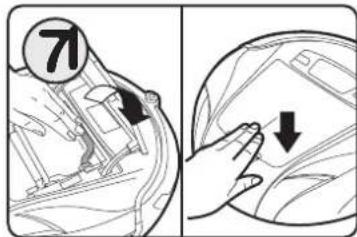
71Close the cover and hear "ka a" sound which shows that it is placed. Put the dust box back into the host and cover it.
Tips:
If the dust box is not placed back or not properly placed, robot will alarm and show red indicator, √will show on the LCD.
Sponge filter and dust box cleaning
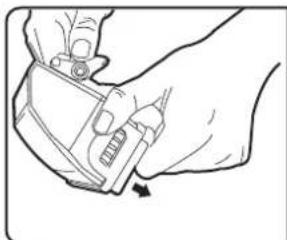
natural_image
Line drawing of hands using a tool to adjust or install a component (no text or symbols visible)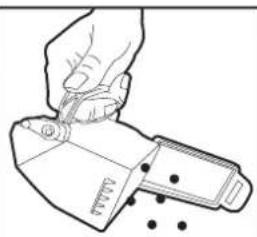
natural_image
Line drawing of a hand using a tool to cut or mark a small object, with no visible text or symbols.
natural_image
Illustration of a hand using a tool to clean or brush a small object, with no visible text or symbols.Open the lock at the bottom of dust box.
Pour out the dust on sponge filter.
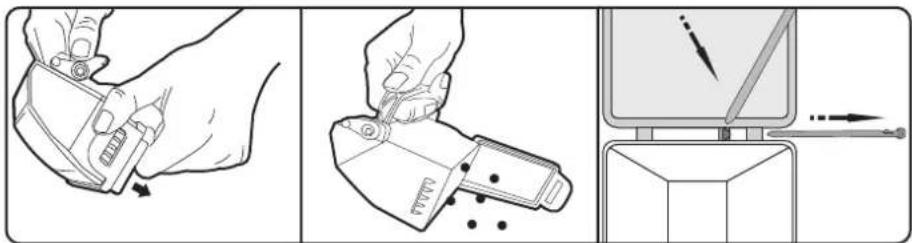
If you notice that there are too much dust on inside along dust box, you can put the box under running water to get rid of the dust. (make it dry under sunshine for 24 hours) Put it back into the host after the box and sponge filter is completely dry.
Sponge Filter Replacement
natural_image
Illustration showing three-step tool manipulation: tool grip, tool holder, and computer monitor (no text or symbols)- Open the cover of the Deebot, take out the dust box.
- Push aside the lock catch of the dust box, then open the dust box and clean it.
- Extract the axle of the dust box's cover.
- Connect dust box with filters by the axle, then put it back into
Tips: Clean the main brush after it has operated for 4 or 5 recycles.
Main brush cleaning
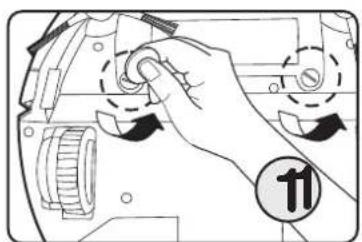
natural_image
Illustration of a hand turning a button on a mechanical component with no visible text or symbolsUndo the screw fixed on the main brush.
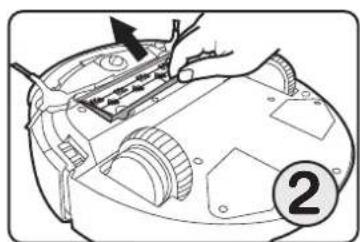
text_image
Technical diagram showing a hand using a tool to adjust or install a mechanical component, with a numbered label '2' indicating a section or step.Take off the frame of main brush. Take out one side of main brush from the belt.
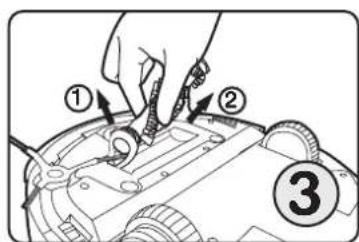
text_image
Diagram showing a hand using a tool to adjust or install a mechanical component, labeled with parts ①, ②, and ③.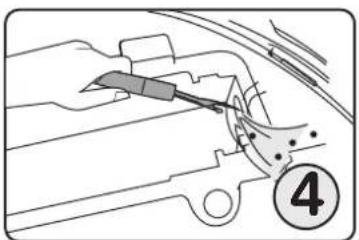
natural_image
Line drawing of a car interior with a tool and numbered marker (no text or symbols)Remove the hair and dust which is in-between the belt.
natural_image
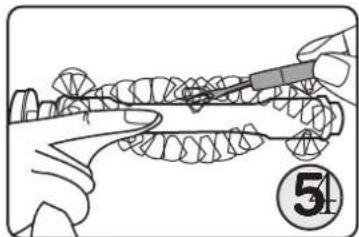
Illustration of a dental procedure with a tool and tooth model, no text or symbols presentRip off the hair on main brush (with equipped roll brush cleaning gadget to break off the hair on main crush along the groove.

text_image
Diagram showing a hand using a tool to adjust or install a mechanical component, labeled with numbers 1, 2, and 6.Wipe the dust on the roller and put it back.
text_image
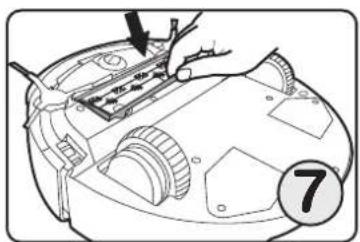
Diagram showing a hand installing or adjusting a component with numbered label '7'Fix the frame into host.
natural_image
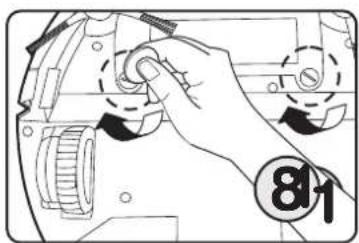
Hand operating a mechanical device with a circular badge showing number 81 (no text or symbols on the device itself)Tie up the screw.
Dust container cleaning
Under normal situation, the dust container only need to be cleaned once per week (depending on you house situation). If you use the handheld vacuum cleaner separately, we suggest you to clean the dust container each time after your use.
natural_image
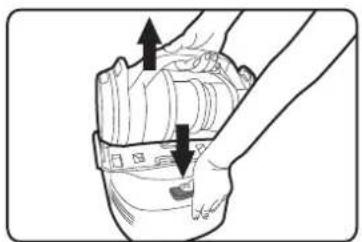
Line drawing of a hand holding a camera lens with two arrows indicating motion or force (no text or symbols present)- Press the "Handheld vacuum cleaner releasing button" on the back of Charging Station and take the handheld vacuum cleaner out by grabbing the handle. Do keep the air inlet hole up to avoid dust leakage and causing second pollution.
natural_image
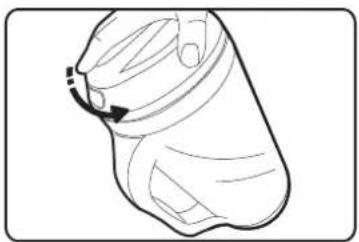
Line drawing of a mechanical component with a curved arrow indicating motion (no text or symbols)- Twist the dust container top cover anti-clockwise to line the mark on the cover with the 6 mark on the transparent dust container to take the cyclone filtration out.

natural_image
Illustration of a hand using a tool to add granular material into a container (no text or symbols)- Empty the dust. If the dust container needs to be cleaner, the lower cover can be disassembled in the same way as above. The transparent dust container can be washed under tap-water while the dust container can be cleaned manually to get rid of the dust.

Warning:
The dust container assembly contains motor inside which can be cleaned.
Dust container assembly
natural_image
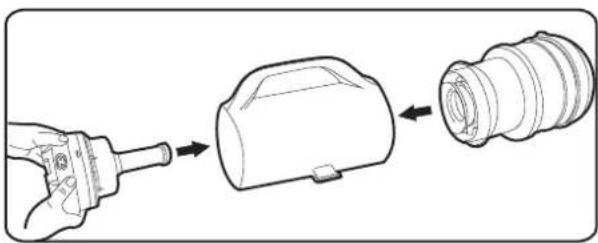
Diagram showing a hand turning a cylindrical component into a flanged cylindrical housing (no text or symbols present)- After cleaning, assemble the dust container lower cover first and then the upper cover.
Filtration cleaning
natural_image
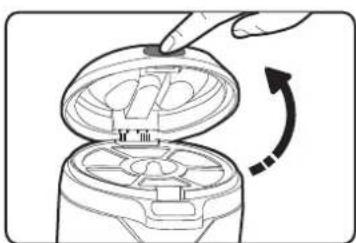
Diagram of a hand inserting a device into a device with an arrow indicating rotation (no text or symbols present)- Press the release button the top cover to open and take the filtration assembly out.
natural_image
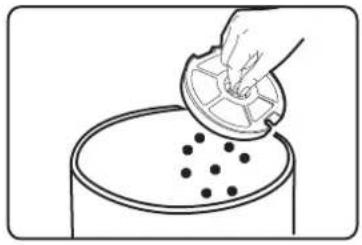
Illustration of a hand pouring liquid into a container with black dots (no text or symbols)- Tap the filtration assembly gently to get rid of the attached dust.

natural_image
Two mechanical components with circular holes and a central arrow indicating rotation (no text or symbols)● Take the sponge out of the filtration assembly.
natural_image
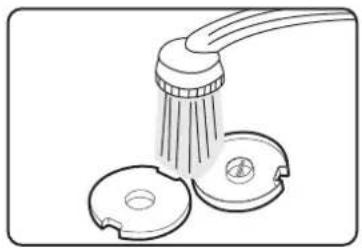
Line drawing of a showerhead with three circular base components (no text or symbols)- If needed, the filtration assembly can be cleaned under tap-water. Don't use brush to clean to avoid breakage.
Attention:
The filtration assembly should be fully dried before being reassembled into the units to use after each cleaning. Otherwise it will cause over-heat danger. Normally, the filtration assembly should be dried for at least 24 hours under sunshine to ensure safety.
natural_image
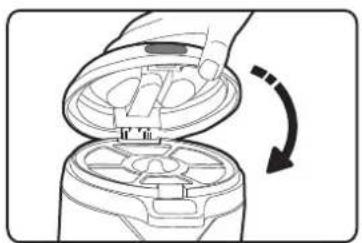
Diagram of a hand inserting a device into a device with an arrow indicating rotation (no text or symbols present)- Put the filtration assembly back to the dust container.
Tips:
Filtration material may fade after long time use which is a normal situation and will not affect the filtration efficiency.
Side brush cleaning

natural_image
Technical line drawing of a mechanical component with no visible text or symbolsreplace sidebrush

natural_image
Technical diagram of a mechanical assembly with no visible text or symbolsPlease remove the screws, and take out the side brush.
Side brush is a kind of easy wear part. We suggest you to check it every time it takes cleaning task. Please change it if necessary.
Note:
The host will alarm when the side brush tangles and it will show on LCD as
Please replace the side brush when it is destroyed.
natural_image
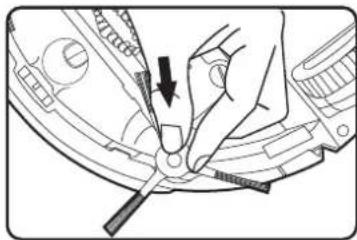
Illustration of a hand using a tool to adjust or install a mechanical component (no text or symbols visible)Please push the new side brush into the correct position.
natural_image
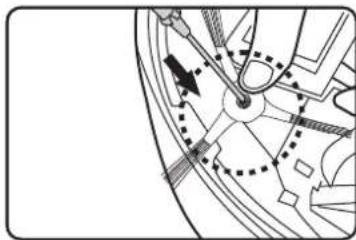
Pure mechanical diagram showing gear and cam mechanism without any text or symbolsTight the screws.
Driving wheel cleaning
natural_image
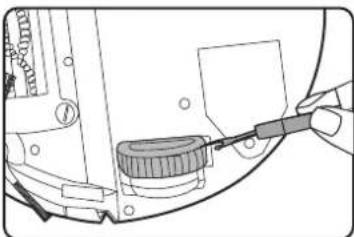
Mechanical assembly diagram showing a tool interacting with a component (no text or symbols visible)Use roll brush to remove the dust or hair on driving wheel.
Note:
If the wheel is tangled by hair or cloth, the host will alarm and it will show on LCD as 🔒.
Up-ground height sensor cleaning
text_image
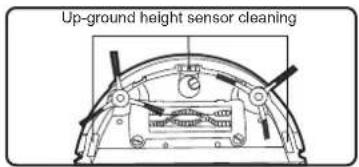
Up-ground height sensor cleaningUp-ground height sensor is on the front bottom of robot. It can detect the height difference in 200 centimeters. We suggest you to wipe the optical board with dry cotton cloth after it finishes task to prevent the dust piling on it which would affect its performance.

natural_image
Close-up of a hand inserting a plug into a mechanical component (no visible text or symbols)- Turn off the power and remove the trash inside dust box.
- Invert the robot, then put it on the even and clean platform.
- Use dry cotton cloth to wipe three pieces of optical board of up-ground height sensor.
Dust sensor cleaning

natural_image
Technical line drawing of a mechanical component with a magnified inset showing a hand holding a tool (no text or symbols present)The dust sensor is located at the front of dust entrance. It is able to detect the concentration of dust so that it can choose efficient mode to work. We suggest you to clean dust sensor once you clean dust box to improve work efficiency.
- Turn off power.
- Take out dust box and clean it.

natural_image
Line drawing of a hand holding a small object over a curved surface (no text or symbols)Replacing the batteries
Your Robot is fitted with two 6V 2500mAah Ni-MH battery packs. The battery packs must be replaced together. Never mix an old Battery pack with a new Battery pack.
Only use ECOVACS approved replacement parts for your Robot. Use of parts that are not approved by ECOVACS are dangerous and will invalidate your warranty.
Before attempting to change the Batteries, make sure your Robot is turned Off.
natural_image
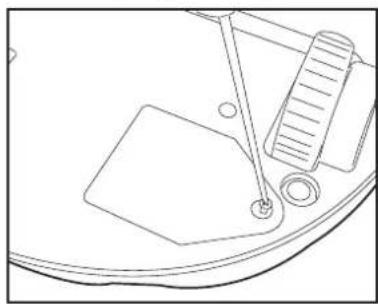
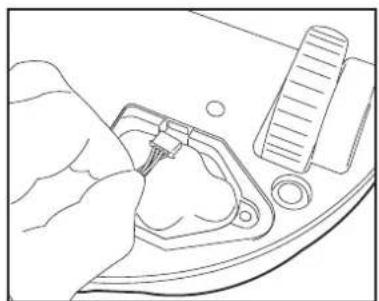
Line drawing of a mechanical device with a tool and component (no text or symbols)Turn your Robot over and place it on a level surface. Remove the screw from the Battery cover.
natural_image
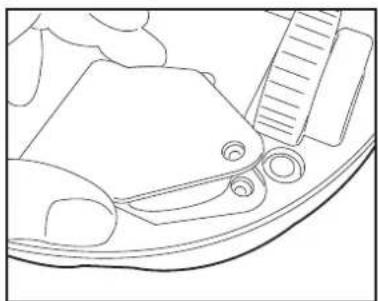
Line drawing of a hand holding a small object with circular features, next to a ruler and curved surface (no text or symbols)Remove the Battery cover. Disconnect the old Battery by removing the Battery connector from its socket.
natural_image
Line drawing of a hand holding a clip and next to a ruler and screwdriver (no text or symbols)
natural_image
Line drawing of a mechanical device with a base, spring, and measuring tool (no text or symbols)Using the battery leads, lift the old Battery pack from the Battery compartment.
text_image
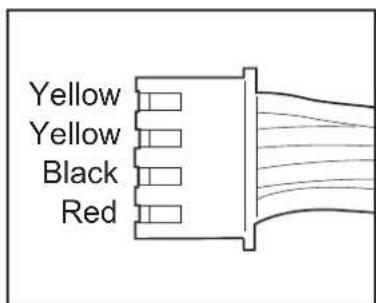
Yellow Yellow Black RedWhen fitting the new Batteries, strict attention must be paid to the polarity of the Battery pack connector: Red - positive (+) Black - negative (-)
natural_image
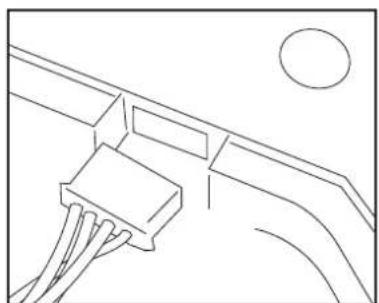
Pure electrical circuit lines without any symbolsConnect the new Battery to the socket. Carefully lower the Battery pack into the Battery compartment. Refit the Battery cover and tighten Battery cover screw.
Note: Repeat the steps above to replace the second Battery pack.
17. Alarm function

Note:
The robot will stop working under following circumstance; there will be alarm and tip sound at the same time. What's more, LCD will have red light flashing. Please notice the tip on LCD.
| Icon Cause of failure Solution Instruction | |||
 | 1. There is too much dust in dust box.2. There is too much dust on dust sensor. | 1. Clean dust box.2. Clean dust on up-ground height sensor. | In order to extend use life, robot will alarm after several cycles cleaning, even though there is not much dust inside the dust box. |
 | 1. Dust box is not fixed into host.2. Dust box is not fixed properly. | 1. Put dust box back into host.2. Re-install dust box and press it down at the same time. | |
 | 1. Main brush or driving wheel is tangled by hair or cloth.2. Side brush is blocked. | 1. Clean main brush.2. Clean side brush and put it back. Must change it if necessary. | |
 | Driving wheel is suspended. | Put the robot back on charger to charge. | This function can prevent danger of child or pet lifting the robot when it is operating. |
 | Low battery. | Put the robot back manually. | |
18. Common Failure
| No. Problem Solution | ||
| 1 | Robot keeps proceeding or moving backward once power is on. | Turn off the power.1. Check if there is dust on up-ground height sensor, which cause robot to make wrong signal. Use half dry cloth to clean it.2. Buffer collision is out of control. Put your hand at left, middle and right in turn to see if it can rebound by itself. |
| 2 | Robot is in trouble. | Robot may fall in trouble when it is working. In such case, it will try every possibility to get out of trouble, but it shall stay at a certain place when it fails and starts alarm. You should help it and get rid of the obstacle.The trouble may be as follows:1. It is tangled by power cord.It is tangled by hanging curtain or fringe.2. |
| 3 | Robot fails to detect the stairs. | Robot is able to detect most of the stairs within 8 centimeters height difference. However, its performance will weaken when it is smooth floor with height difference or the floor with strong reflector. You can put virtual wall under this situation to prevent it from falling off. |
| 4 | The capacity to clean weakens. | Turn off power and take out the dust box., then follow the steps as below:1. Check whether there is too much dust on sponge filter so that it needs to change it.2. Make sure there is no dust which blocks the suction.3. Take out main brush and clean it. Insure the both ends of main brush is not tangled by hair or fiber. Fix it back after it is been cleaned.4. Examine if there is dust or debris near driving wheels.5. Clean dust sensorIf the failure still there after following the steps above, please contact our after-sales. |
| 5 | There is much noise when the robot works. | Turn off the power supply, and then take out of dust box. After removing the garbage, overturn the robot.1. Check whether the suction of main brush is blocked.2. Examine and clean the main brush(at both ends)3. Examine and clean the side brush.If the failure is still there after operating according to the above procedure, Please contact out after-sales service. |
| 6 | Press the "emp" mode and the machine does not react | 1. Power off first and check if the original SD card has been correctly assembled.2. Ensure the SD card is correctly inserted or not. |
19. Other Problems
- more much reserve time for robot go back charging?
Answer: It depend on the ground situation. it will do back to charging mode ow long can robot last working under automatically.
- How long can robot last working under full battery? 7 What's the cleaning coverage once
Answer: It differs from the ground situation, It takes around 60 minutes for even floor such as wooden floor and ceramic tile, and 20 minutes for short-haired carpet.
- Is it allowed for the robot to work independently without taking care of?
Answer: Yes. However, you should keep person in the room informed about robot operating to avoid tipping.
- What kind of equipment inside the robot is used for dealing with failure?
Answer: It is equipped with photosensitive components which can detect the stair over the height of 8 centimeters; for fear that it would fall over.
5.Is robot able to clean the bottom of the furniture?
Answer: It is flat design, during normal cleaning, it can go into table and bed corner whose height is over 10 centimeters, such as bed, wardrobe, sofa and tea table.
6.Why does robot fail to work under set
Answer: Because when there is low battery, arguing mode automatically.
charged full?(under automatic cleaning mode)
Answer: Under normal circumstance, it is around \20-\150t differs from the ground situation.
- Why does robot stop working once it meets obstacle?
Answer: Under normal circumstance, robot will return or seek other route when it meets obstacle. However, if it controlled by remote control, it is not able to change route in case of obstacle.
- Why there is garbage leaking from the machine while robot operating?
Answer: a. Please check whether there is too much garbage in dust box(if there is too much dust on the floor, robot is not able to alarm after working for some time even though there is too much garbage in dust box.). That's why you need to clean dust box. b. See whether main brush is not cleaned for long time, as it is tangled with much hair and dust.
cleaned for long time, as it is tangled with automatic and border cleaning mode. Its much hair and dust. side brush can remove dust along bottom
10. Why does robot fail to start cleaning on appointment time?
Answer: a. Confirm whether there is much remaining battery. Appointment timing is not applicable when robot is returning to charge after operating cleaning. b. Check if robot is under standby status. garbage and dust on t
edge efficiently; there would be dust beyond robot in the tiny area formed by two walls which need to be removed by hand..
15.Why does the speed of robot slow down sometimes?
Answer: When robot detects there is much or, it would turn
to low speed proceeding automatically.
11. Why robot is not charging as it is put in the charger? 16 Is there any danger to
The charging indicator does not light as well.
Answer: a. Examine whether the battery at
the bottom is installed in place, if cover made of PPC screw is loose, you need to fasten it. b. other route or
Check if there is power supply for the socket.
c. Please contact our after-sales service when the failure is still there.
12. Why does not the remote control work?
Answer: a. The control distance is within 5 distrust. If meters. It would be insensitive if longer you to notice
distance. b. Check battery in remote control operating and make sure it is placed correctly. c. Insure robot power supply is on, please get it charged when you notice it shows low battery on LCD. d. Use clean cloth to wipe infrared transmitter on remote control and infrared receiver on robot. e. If the host is too close to virtual wall or charger, the signal of remote control will get interfered.
13. Why does not virtual wall work?
Answer: a. Insure the region blocked by invisible light from virtual wall, which is the region you do not want robot to get across. b. The signal will get interfered if virtual wall is too close to the charger. c. Check whether the region you want is beyond the virtual wall, we suggest you to purchase additional virtual wall if necessary.
14. Would it be difficult for robot to clean the corner as it is a round design?
Answer: Robot can detect wall by itself. It is able to clean along the edge of wall under
when robot is proceeding?
Answer: No. There is a soft rubber buffer
in front of the host. It would try ce it touches furniture or child.
17.Would robot affect pet?
Answer: Robot makes low noise when operating, so there would be no shrill sound which may cause pet restless or even
you keep pet at home, we suggest the first time the robot
18.What should be noticed when cleaning the carpet?
Answer: Robot is not able to clean long hair over 2 centimeters. Fold the banding first when you start cleaning.
19. Does it matter to keep the robot at the charger when not using it?
Answer: Yes. Robot will transfer to small currency to supplement charging. Please avoid wrong operation by child.
20.Is there any danger to wrongly touch the docking electrode film between the host and charger?
Answer: No. The two electrodes of charger is of no voltage under output mode (when there is no power supply); it's maximum voltage is 24V which is safe one under input mode (when it is charging)
21 How does main brush avoid being tangled 26. by power cord?
Answer: Robot is probably get tangled by the wire scattered on the floor when it is operating. At that time, robot will try to turn back to get rid of it, and it will make alarm sound when it fails after trying several times.
22 How can I stop the robot from operating on appointment time since I will be away from home for sometime?
Answer: You can cancel appointment cleaning.
23 How can I transfer my robot?
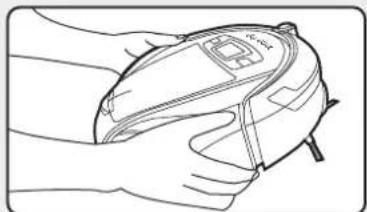
Answer: You can lift it up with both your hands and lay on the ground quickly, dust and garbage in dust box will come out if it is not place back in time.
natural_image
Line drawing of a hand holding a medical device (no text or symbols visible)24 How to use robot most effectively?
Answer: Put the robot and charger in the same room, because it would shorten seeking time and it can extend the working time. If you need robot to clean every room of house, you should put the charger in the middle of house for the convenience of return back to charge.
25.What should do if robot sucked liquid?
Answer: a. Turn off the power and take out dust box, then empty it and wipe it dry. b. Draw out the sponge filter and wipe it dry. c. Take out main brush and clean it, then use day cloth to wipe the brush and its interior. Wait until the brush is day and place it back. d. Let the product dry by itself for at least 12 hours (make sure circuit board is dry and then get power on) If the procedures above still do not make it work, please contact our after-sales service.
How to clean the LCD screen?
Answer: Please clean the screen with soft dry cloth to wipe away the fingerprint or other dirt.
- Why the side brush is easy to destroy?
Answer:
-
Check whether the side brush set in correct position. Side brush's color should be the same as the groove's color.
-
Take away the messy thing, which is easy to enwind with the side brush in advance, such as power cord.
-
Why deebot's working time is short & why deep can not charge?
Answer:
You can reactive Datebyt as the following:
Take deebot out of the charging station after charging for around 3 minutes and recharge after 1 minute. Do the cycle for 3 time and charge Deebiotuously for 12 hours.
After doing the above, if your Deebot still can not work normally, please contact the service department for more information.