
Easy Home Tablet 7 - Tablet Best Buy - Free user manual and instructions
Find the device manual for free Easy Home Tablet 7 Best Buy in PDF.


| Brand | Best Buy |
| Model | Easy Home Tablet 7 |
| Product Type | Tablet |
| Display Size | 7 inches |
| Display Resolution | 800 x 480 pixels |
| Processor | 1.2 GHz Cortex A8 with 3D accelerator |
| Memory (RAM) | 512 MB |
| Internal Storage | 8 GB |
| Expandable Storage | Micro SD card up to 16 GB (TF128M-16 GB) |
| Operating System | Android 4.0 |
| Battery Type | Rechargeable polymer battery, 3000 mAh |
| Power Input | AC 110-240V 50/60Hz, DC 5.0-5.5V/1.0A |
| Dimensions (approx.) | 190 x 110 x 10 mm (7.5 x 4.3 x 0.4 in) |
| Weight (approx.) | 300 g (10.6 oz) |
| Connectivity | Wi-Fi 802.11 b/g/n, Mini USB 2.0, Mini HDMI, 3.5mm headphone jack |
| Audio | Built-in speaker, microphone |
| Cameras | Front-facing camera |
| Sensors | Gravity sensor (3D), G-sensor |
| Supported Video Formats | AVI, WMV, MP4, MKV, RM, RMVB, FLV, MOV, 3GP |
| Supported Audio Formats | MP3, WMA, APE, FLAC, AAC, WAV, OGG |
| Supported Image Formats | JPEG, BMP, GIF |
| Care and Cleaning | Do not expose to high temperature, humidity, or dust. Not waterproof. Clean with a soft dry cloth. |
| Safety | Do not disassemble, drop, or use in non-electronics areas (e.g., airplane). Use only provided charger. |
| Spare Parts and Repairability | Battery is replaceable by qualified service. Other repairs should be done by authorized service center. |
Frequently Asked Questions - Easy Home Tablet 7 Best Buy
User questions about Easy Home Tablet 7 Best Buy
0 question about this device. Answer the ones you know or ask your own.
Ask a new question about this device
Download the instructions for your Tablet in PDF format for free! Find your manual Easy Home Tablet 7 - Best Buy and take your electronic device back in hand. On this page are published all the documents necessary for the use of your device. Easy Home Tablet 7 by Best Buy.
USER MANUAL Easy Home Tablet 7 Best Buy
Computer Products
www.bestbuy-int.com
Easy Home Tablet 7
ANDROID
ESPAÑOL......5
ENGLISH....39
Manual de Usuario


- Buttons and connections....44
- First Usage....46
2.1 Battery management and charge....46
2.2 Transfer files with the computer.....46
2.3 Power on / off 47
2.4 Insert and remove Micro SD card.....47
- Operation Mode......48
- Wireless and Network ....50
- Device ....54
(Sound, screen, HDMI, battery,...)
- Personal ....57
(Accounts, location, security, language,...)
- System....60
(Date and time, accessibility,...)
- Software application and operation....62
(Browser, Camera, E-Market, E-book,...) - Troubleshooting ....73
- Hardware specifications....74
Security
This manual includes some important safety method and some information about how to use the product correctly to avoid the unnecessary troubles. Before you use the product, please refer to the manual carefully.
- Don't put the product in high temperature, humid and dusty environment
- Don't put the product in the vehicles, whose windows are closed.
- Don't throw and crash the product strongly. Don't vibrate the TFT screen, or it will be broken down or displays abnormally.
- Choose the suitable volume, turn down the volume or power off if you feel syrigmus arised from the high volume.
- Charge in the following case:
a) The icon shows no charge.
b) The operation system self-closing, shutdown after restarting-up.
c) No response of the operation icon.
d) Show red in the top right corner.
downloading, or lead to the error of software.
and other reasons, no responsibility this company will bear, so please use according to the manual.
- Don't remove the package without permission. Don't clean the products
-
Don't use the products in the non-electronics areas (like the aeroplane)
-
The USB only can be used to transfer data.
- This company retain the right to improve products, no notice will be released when specification or design is changed.
- No waterproof
NOTE: All the pictures in this manual is for your reference! no notice will be released when specification or appearance is changed!
1. Buttons and connections

- Power: Hold the button to switch on the unit. Short press the button to turn on the screen when the unit is in standby mode.
- Volume Buttons: Changes de audio volume of the Tablet.
- Frontal Camera: Built in camera to take pictures and record video.
- Back Button: Goes backwards to previous option or menu.
- Home Button: Displays the main desktop screen of the unit.
- Menu Button: Displays the menú.
- Microphone: Records sound and voice inputs.
- Headphone connection: Connection for the headphone jack in order to listen the device audio output.
- Reset: Resets the unit.
- Mini HDMI output: Digital output to connect the device to an external screen.
- MiniUSB: USB port connection to share or transfer files with a computer.
- Power connection: Used to recharge the internal battery.
- Micro SD slot: Insert Micro SD cards in order to increase the storage capacity.
- Speaker: Output the audio when there are no headphones connected to the unit.
2. First usage
2.1 Battery management and charge
This device contains a rechargeable Li-ion battery. Connect the AC adapter to any wall socket and the connection to the device power input on the unit. Once the battery icon is shown as full you can unplug the charger.
Note: Standard charge (AC110\~240V 50/60Hz, DC 5.0\~5.5V/1.0A, no DC charge offered by USB interface to charge).
Notes:
avoid damage to the machine resulted from the exhaustion of battery.
the battery is completely empty a short time will be needed before the battery can support the machine to start up.
standby mode. The unit cannot be loaded if is off.
2.2 Transfer files with the computer
Connect the tablet to the computer using the USB cable (it must be plugged into the USB Mini port at the Tablet). By default the unit will be detected as a multimedia device (MTP).
If you want to get full access to all files at the Tablet's internal memory and the memory card, you must change the file transfer mode. Go to Settings>Storage, press the menu icon in the top right of the screen, and then select Computer USB Connection option.
Then select the USB mass storage option and freely transfer all files stored in the Tablet (also there are available the Multimedia Device - MTP and Camera – PTP modes).
Use your computer to transfer files in both the Tablet's internal memory and the memory card.
Press the power button for a few seconds to power on the device. To power it off press the power button until appears at the screen the power off option and confirm.
2.4 Insert and remove Micro SD card
Insert the Miicro SD memory card in the slot and push it until it fits into place. To safely remove it press at the Menu follow the route Settings > Storage > Unmount SD card. Accept to remove it safely, and then press the card at the slot.
3. Operation Mode
3.1 Main Mode description
The mode after turn on the machine:

3.2 Turn off the screen
The screen turns off automatically if it is not used for a long time.
To set the screen time, press the button ... and follow the route
Settings > Display > Turn off.
If you want to turn off the screen manually, just press the power button.
3.3 Adjust screen rotation
The display switches automatically from vertical and horizontal according to the device physic position (if the used application supports this function).
If you want to change display orientation, follow the route Settings > Display and switch off Auto-rotate screen option.
3.4 Main screen (Home)
From home screen you will have access to the tools and applications installed on the Tablet. Through this screen you can control the device status, go to Internet, open applications or the Menu.
At the lower part of the screen you will find the Toolbar with the Start Menu on the left and the Notifications bar on the right.
On the main screen, you can: Manage the software icon on the main screen: the icon becomes bigger after pressing the software icon for 3 seconds, you can move it to anywhere you want.
3.5 Extended screens
The main Home screen has five extensions where you can place short-cuts, applications and other tools. To change between screens, hold and drag the screen with the finger to the left or to the right.
3.6 Add / Erase shortcuts
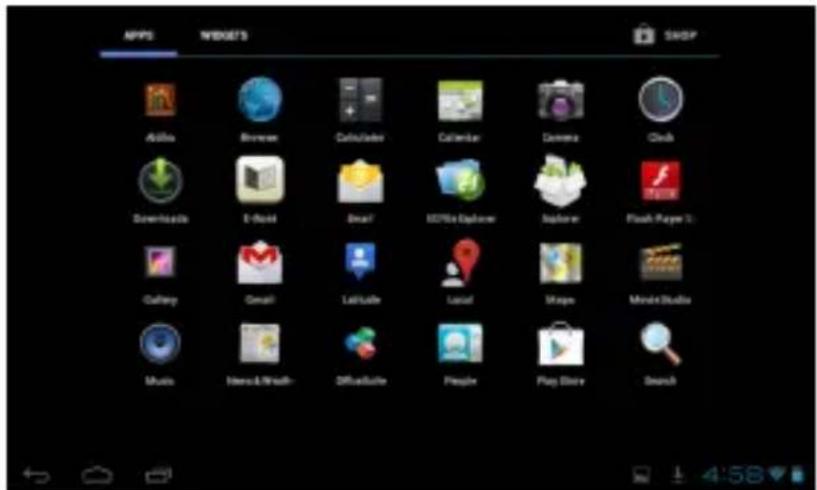
To add shortcuts to the main and extended screens, press the applications icon ⋯ and the press the chosen application for a while to drag it later to the place you wish. To erase an application at the main and extended screens, hold the application icon for a while and then drag it to the erase icon that appears on the screen.
3.7 Applications
Touch the applications icon located in the top right-hand corner of the screen. To access an application, press over it. To return to the main screen press the Home icon.
4. Wireless and Network
4.1. Wireless and Network
Manage WI-FI settings to make a wireless network connection.

- Tap the switch key to turn ON/OFF WIFI; when the key displays grey and character prompt is OFF, you can tap to turn on WIFI; when the key lights and the character prompt is ON, you can tap to turn it off.
- Tap the key to turn on, and you will see a status prompted on the right side of the interface “WIFI is turning on.....”, and the AP name searched will show on the right side of the interface.
- Tap the key to turn off, and you will see a status prompted on the right side of the interface “WIFI is turning off.....”, and a prompt “To view available networks, please turn on Wi-Fi” will show on the right side of the interface. NOTE: Keys in the device settings stands for below meanings except for special instructions.

Icon showed on the right side indicates the option is on OFF statues. Icon showed on the right side indicates the option is on ON statues.
■ After you select this menu key, the Advanced Options will pop up; and
■ select the Advanced Options, an interface will pop up:

Advanced Options: you can view the network properties of the device. Such as: MAC address and IP address:

Note: after the option of Network notification is checked, the system will scan network automatically; but if it is unchecked, you have to select SCAN function and ADD NETWORK when there is new network.
SCAN: You can scan network AP nearby.
ADD NETWORK: You can add a network AP that you already knew its property manually.
For the WiFi router connected before, it will be recorded automatically in the device; if you need it again, you only need to tap "WiFi ON" on "WiFi Settings", or tap and select WiFi Router Connection directly. Besides, if the WiFi status in the "WiFi Setting" is ON ("WiFi OFF" displays), the WiFi routers recorded will be searched automatically when power on.
4.2. Data usage
Usage situations of mobile network data traffic.

4.3 Mobile data
You can open or close the statistics function of mobile data.
Set mobile data limit: Once the traffic exceeds the limit, an alarm will be given or mobile function will be turned off.
Data usage cycle: You can adjust the time cycle measured.
4.4 More...
VPN: you can build private network on the public network by this technology. It is so called virtual net.
Network SSID: you can redefine its name consisted with English letters and Arabic numbers; there is no need to modify the safety setting.
Password: tap "Display Password" on the bottom to set current password to be a password you're familiar with, and save it until success.
5. Device
5.1 Sound

Volumes: you can set the volume of Music, Video, Game, Media, Notification, and Clock.
Volumes: adjust the volume of Media. Move on the bar towards to left or right to adjust the volume of Media.
Ringtones & Notifications: you can set the ringtone of Default notifications.
Touch sounds: you can hear the sounds when selecting.
Screen lock sound: you can hear the sounds when unlocking or locking the screen.
5.2 Display
Brightness: you can adjust the screen brightness by moving on the progress bar; or by auto-adjusting.
Wallpaper: used for changing the background of main interface; there are three options.
Auto-rotate screen: used for changing the directions automatically when rotating tablet.
Sleep: used for adjusting delay before the screen turns off automatically. Six Time options are available for you to select: 15s, 30s, 1min, 2mins, 10mins, and never standby.
Font size: used for setting Font Size, 4 options are available for you to select: Small, Normal, Large, Super Large.

5.3 HDMI
HDMI High-Definition Multimedia Interface; used for some HDMI configuration.
Turn on HDMI: After connecting HDMI cable, you can turn on this option.
HDMI Resolution: used for setting output frequency etc.
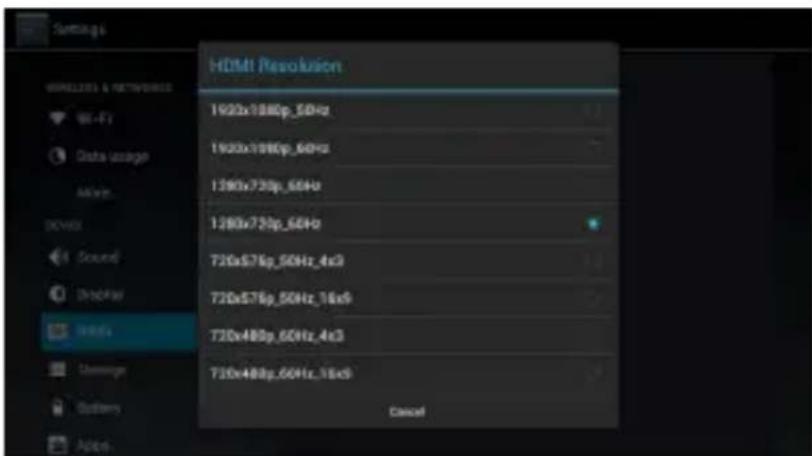
Note: if the parameters are set wrongly, a prompt will pop up: the output signal is incompatible
Screen Zoom: used for adjusting the screen size produced by HDMI through progress bar.
5.4 Storage
Display the usage conditions of storage like Total space, Apps,
Available, etc.
Also include: TF card and USB.
5.5 Battery
Display the usage conditions of battery; after tapping the chart, you can view more details about the usage conditions.
5.6 Apps
Display the usage conditions of Apps.

DOWNLOADED: List the apps installed by customer.
RUNNING: Display the running apps.
ALL: Display all apps in the device.
6. Personal
6.1 Accounts and synchronization
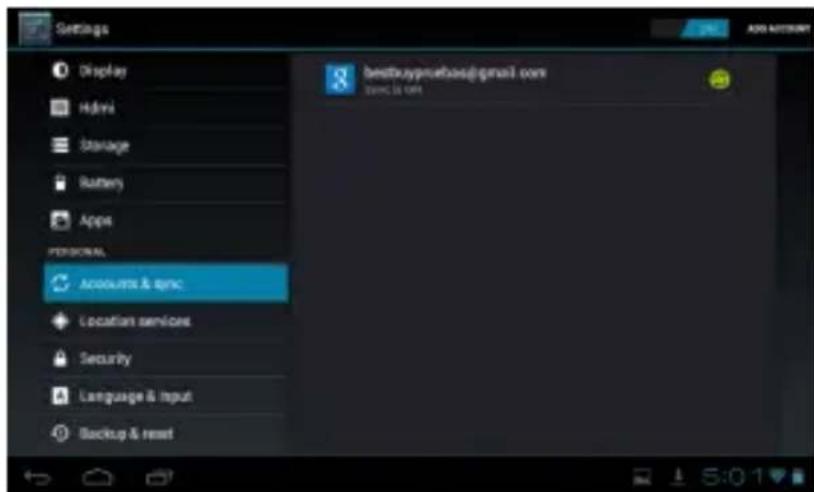
Google accounts are required when logging in Google Market or Calendar and in this interface you may manage the accounts.
Accounts & sync: Tap to activate/deactivate the synchronization function in the upper right corner.
Add account: Tap this option when adding a new email account.
6.2 Location service
Set My location as interactive with Google location.
Google's location service: Locate the device by checking the application through wireless network.
Location & Google search: Allow Google to use the current location information to improve search results and other services.
6.3 Security

Set the security options.
Screen Lock: Set the mode of screen unlocking.
Owner info: You may input some text information here.
Encryption: Encryption of tablet is realized through digital PIN code or password.
Make Password visible: Check Make passwords visible to show the password when typing in, for instance in conditions of accessing WIFI or logging in the Google Market, etc.
Device administration: Manage tools.
Unknown sources: The current application is not obtained from E-market.
Credential Storage: Identify the legitimacy and reliability of the programs through certain credentials.
Trusted credentials: Stored credentials which the system or user has used or set as trusted.
Install from SD card: Import reliable credentials from SD card.
Clear credentials: Clear all the credentials of system record; this option is normally unavailable by default.
6.4 Language & input

You may select system display language and input method.
Language: Select system display language from the over 60 options.
Spelling correction: Based on the selected language, the system will co-ordinate and make correction when input errors appear.
Personal dictionary: By default the dictionary is empty of any content for users to self-define words and expression.
Keyboard and input methods: Select and set the system input method.
Speech:
- Speech searching
- Text to Speech (TTS)
Mouse/touch pad:
- Pointer speed: The responding speed of the pointer.
6.5 Backup & reset
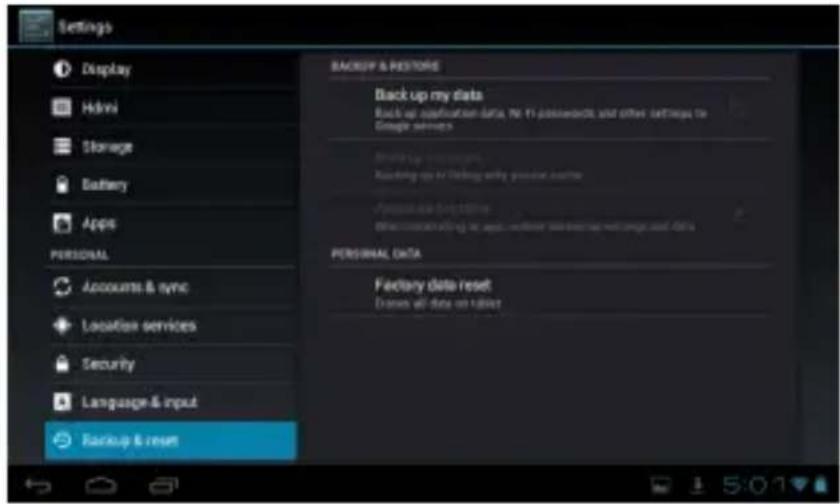
Backup my data: Backup application data, WIFI password and other data to Google server.
Backup account: For the purpose of troubleshooting and this option is not available by default.
Automatic reset: After applications reinstalled, the system will reset according to the backup data on Google server.
Factory data reset: Select this option to erase all data on the PC; it is often used to restore the system when errors occur.
7. System
7.1 Date & time
Set date, time, time zone and format.
Automatic date & time: To use time on internet, you need to connect to internet and select Use network-provided time and then restart to finish.
Set date: Enter the date setting interface to set date.
Select time zone: Enter time zone setting interface to select and set.

Set Time: Enter the time setting interface to set time.
Use 24h format: Set the format of displaying time.
Select date format: Select from different date displaying formats to display date.
7.2 Accessibility
Large text: Select the text display size.
Auto-rotate screen: Adjust the screen display direction according to gravity detection.
Touch & hold delay: Set the responding speed of the touch screen.
Install web scripts: Allow installation of scripts from Google to facilitate webpage browsing.
7.3 Developer options
7.4 About tablet
System updates: Detect the system version and update;
Status: Status of the tablet, including information on battery power status, network Bluetooth, boot time, etc;
Legal information: Code development permit and Google legal information.
Model number: Equipment model.
Android version: Version number of android system.
Kernel version: Version number of Linux kernel.
Build number: User-defined build number for the purpose of distinguishing system software.
8. Software application and operation
8.1 Explorer

Enter Explorer, now you may browse files stored on APAD, U-disk or T-Flash SD card.

Tap HOME icon to return to the main interface of Explorer;
Tap LEVEL icon to return to previous directory;
Tap MULTI and now you can select more than two files at the same time.
Tap EDITOR to edit files, for instance: clipping, copying, deletion, renaming or multiple selection.
Tap NEW FOLDER to create new folder under any of the three paths of the root directory.
Tap BACK to switch to next directory.
Tap NEXT to switch to previous directory.
8.2 E-Market

This device is equipped with Play Store (an Android application software market). After connected to internet, you may enter Play Store, type in account and password to log in, and then search application installation programs online. If you don't have an account yet, you may take a few minutes to register one after entering the Play Store, and then download the application programs. Presently, Play Store offers over 20,000 application programs for downloading, covering categories of office, entertainment, multi-media, system management and other categories.
8.3 Image-viewer

Tap GALLERY in program list to enter Image-viewer; unfold the image list and tap the images to view directly.
Remarks: the current version of gallery is equipped with player, so you can play videos under the gallery mode.
BASIC OPERATION OF IMAGES
Under the viewing mode, the display control bar pops up when you tap the touch screen:


Play slides.
Menu option; it shows two options when popped out:
Select item: You may choose single or multiple items.
Group by: Currently, objects are grouped according to place, time, task and label.

Delete key; for deletion of selected item.
Menu Options; current menu options include:
- Slide playing: Play images in slide mode.
- Editing: Edit images, including operations of eclosion, fill-in light, shadow, etc.
- Rotate to left: Rotate by 90° counterclockwise.
-
Rotate to right: Rotate by 90° clockwise.
-
Set image as: You may set images as wallpaper or contact
-
Detailed information: Detailed information of images, for instance: subject, time of shooting, width, height, file size, etc.
8.4 Music Player

Tap MUSIC to open the Music List. There are four options: Artist, Album, Music, and Play list; tap one to enter that category and select music file; afterwards, a player option pops up for you to select player: Rock Audio Player or Music Player.
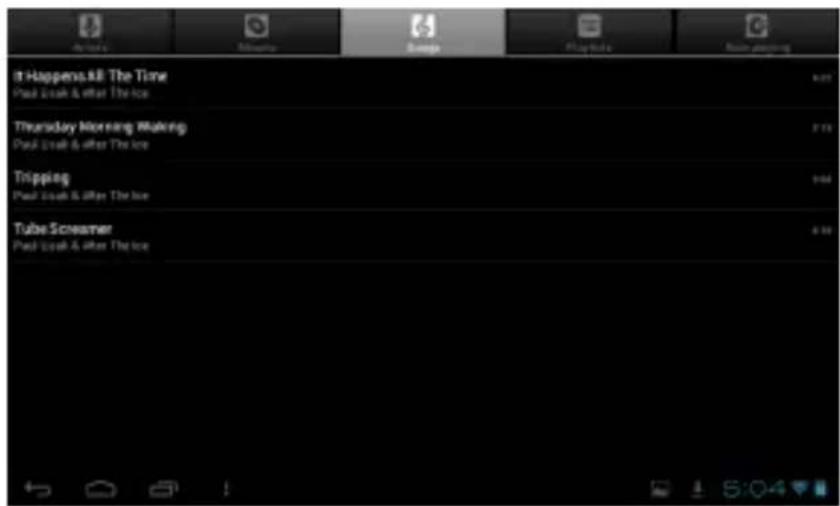
Play list
- Play list is a list in which the music files will be automatically played in sequence.
- You may play, create or edit a random number of play lists on IPAD.
NOTE: When you delete a play list, only the play list rather than the music files in it is deleted.
8.5 Video Player

Tap VIDEO to enter Video Player.
All the videos on IPAD will be automatically uploaded to the play list of Video Player. In the play list, tap the video file to play the video.

Under video playing state, video player control bar pops up when you tap the touch screen:

Set bookmark. When completed, videos will be played from bookmark.

Adjust the video brightness.

Go to previous video; or press and hold to realize rewinding.

Play / Pause.

Go to next video; press and hold to realize fast forwarding.

Change display mode (full screen, original size, 16:9 or 4:3); loop tap to choose the desired display mode.

Return to previous list.

Submenu pops up:
- Delete bookmark and play from the beginning:
Tap Delete bookmark to delete bookmark and play from the beginning.
- Clear bookmark:
Tap Clear bookmark to clear all the set bookmarks.
- Help:
Tap Help to display the functions of this icon.
- Version information:
Display the version information of the player.
- Return:
Return to the play state.

Playing volume will decrease and will continuously decrease when you press and hold the icon.

Playing volume will decrease and will continuously decrease when you press and hold the icon.

Tap progress bar or pull the cursor to go to any playing position of the video.
8.7 E-book

Tap E-BOOK to enter E-book
When running the program for the first time, the main interface shows the icons of recently read books (pretty illustrate display through icons).
If you want to read other books, just tap the MENU key to pull down the menu, tap Open in the option list, and then find the book according to the storage position and tap to open.

Tap MENU to set iReader:
Type of icon: You may select from MAC style, Gnome style, Cartoon style, and Windows style.
Size of icon: You may select from different sizes: 16, 22, 28, 34, 40, 46, 52, 58, and 64.
Font and color: Set the font size, color and background color.
Font shadow: Set font shadow.
Background image: Allow and set the background image.
Clear cache: Clear all temporary files in the cache directory.
8.8 Web browser

Tap BROWSWER to open the browser to browse web pages. Tap MENU and the setting menu pops up.

Start: Type in website address to enter the website.
Bookmark: Add bookmark to website
New window: Open a website in a new window.
Refresh: Refresh the current website.
Forward/back: Go one step forward/back.
8.9 E-Mail

Tap EMAIL to enter e-mail setting interface; type in email address and password, and then set the server address as send and receive address.
8.10 Calendar
Tap CALENDAR to enter the calendar interface. The calendar setting requires you to log in Google account. In Calendar, you may set schedule and other settings.
8.11 Alarm clock

Tap CLOCK to enter alarm clock setting.
Every day: Set a repeated alarm which rings at the same time every day.
Mon, Tue, Wed, Thu, Fri: Set a repeated alarm which rings at the same time from Monday to Friday.
None: Set a none-repeated alarm.
Tap Clock to select clock mode.
8.12 CAMERA

Tap CAMERA to enter the camera interface. There are two functions for this application and one is photographing function.

Tap + or - to adjust image distance.

Tap to pull down more options, for example: photographic effects, output format, storage position, etc

The left key is for photographing, and the right is for video recording. Tap the keys to realize switching.

Tap to confirm shooting.
8.13 Recorder

Tap SOUND RECORD to enter the recorder interface
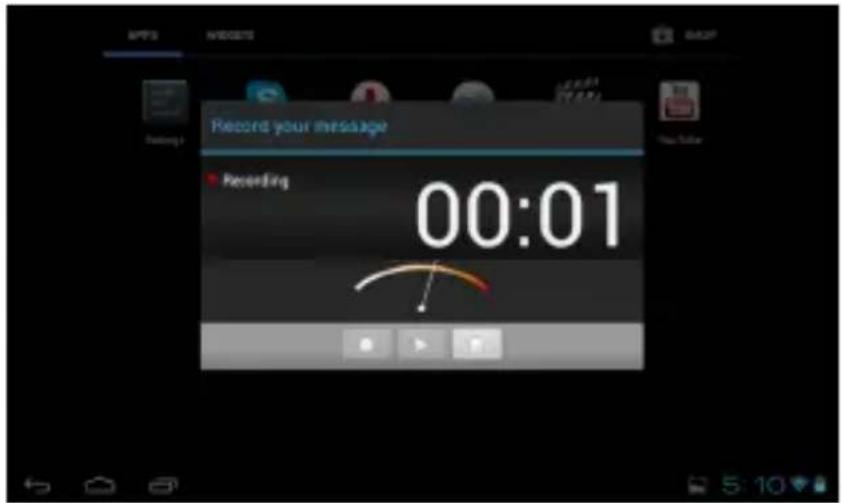

Recording key. Tap it to start recording;
By default this key is not available for operation before recording. It's designed for sound effect checking when recording finishes.

By default this key is not available for operation before recording. It's designed for stopping the recording
When recording stops, two options will pop up:

Tap Discard to delete the recorded file, or tap Done to save.
9. Troubleshooting
The unit can't boot
1) Check the battery power
2) Connection power adapter again after inspection
3) If charging can't boot, please contact with your dealer or qualified technical service.
After startup screen flash or the picture has been on first appear just cut off the electricity
Power is not enough, please charge.
Can't output sound through headphones
1) Please check whether the volume set to 0.
2) Check if the music file is damaged. Try playing other music to determine. If the file is damaged may lead to serious noise or hop sounds.
Can't copy files or can't play music files, etc
1) Confirm if the connection between computer and unit is right
2) Confirm whether the storage space of memory is full
3) USB cable can be damaged
4) USB cable is disconnected
10. Hardware specifications
CPU processor speed: 1.2 GHz Cotex A8 processor with 3D accelerator
Storage capacity: 8GB
Memory: 512 MB
Storage Card: TF128M-16 GB
Screen: 7" capacitive multi-touch screen
Resolution: 800 * 480 pixels
Battery type and capacity: rechargeable polymer battery: 3000 mAH
USB: high speed USB2.0 micro OG connecting peripherals
Gravity sensor: 3 D
Operating system: Android 4.0
E-book: ANSI, Unicode TXT, PDF, HTML, FB2, PDB, EPUB
Video: AVI, WMV, MP4, MKV, RM, RMVB, FLV, MOV, 3GP
Music: MP3, WMA, APE, FLAC, AAC, WAV, OGG
Pictures: JPEG, BMP, GIF
WARNING: The battery has a specific number of charging and discharging cycles. When these cycles have been exceeded, the battery may need to be changed. A battery that has completed its life cycle is not covered by the guarantee.
Just easy
- EASY HOME TABLET 7
- MANUAL DE USUARIO
- SECURITY
- BUTTONS AND CONNECTIONS
- FIRST USAGE
- 2.1 BATTERY MANAGEMENT AND CHARGE
- NOTES
- 2.2 TRANSFER FILES WITH THE COMPUTER
- 2.4 INSERT AND REMOVE MICRO SD CARD
- OPERATION MODE
- 3.1 MAIN MODE DESCRIPTION
- 3.2 TURN OFF THE SCREEN
- 3.3 ADJUST SCREEN ROTATION
- 3.4 MAIN SCREEN (HOME)
- 3.5 EXTENDED SCREENS
- 3.6 ADD / ERASE SHORTCUTS
- 3.7 APPLICATIONS
- WIRELESS AND NETWORK
- DATA USAGE
- 4.3 MOBILE DATA
- 4.4 MORE
- DEVICE
- 5.1 SOUND
- 5.2 DISPLAY
- 5.3 HDMI
- 5.4 STORAGE
- 5.5 BATTERY
- 5.6 APPS
- PERSONAL
- 6.1 ACCOUNTS AND SYNCHRONIZATION
- 6.2 LOCATION SERVICE
- 6.3 SECURITY
- 6.4 LANGUAGE & INPUT
- SPEECH
- MOUSE/TOUCH PAD
- 6.5 BACKUP & RESET
- SYSTEM
- 7.1 DATE & TIME
- 7.2 ACCESSIBILITY
- 7.3 DEVELOPER OPTIONS
- 7.4 ABOUT TABLET
- SOFTWARE APPLICATION AND OPERATION
- 8.1 EXPLORER
- 8.2 E-MARKET
- 8.3 IMAGE-VIEWER
- BASIC OPERATION OF IMAGES
- 8.4 MUSIC PLAYER
- PLAY LIST
- 8.5 VIDEO PLAYER
- CLEAR BOOKMARK
- HELP
- VERSION INFORMATION
- RETURN
- 8.7 E-BOOK
- 8.8 WEB BROWSER
- 8.9 E-MAIL
- 8.10 CALENDAR
- 8.11 ALARM CLOCK
- 8.12 CAMERA
- 8.13 RECORDER
- TROUBLESHOOTING
- THE UNIT CAN'T BOOT
- AFTER STARTUP SCREEN FLASH OR THE PICTURE HAS BEEN ON FIRST APPEAR JUST CUT OFF THE ELECTRICITY
- CAN'T OUTPUT SOUND THROUGH HEADPHONES
- CAN'T COPY FILES OR CAN'T PLAY MUSIC FILES, ETC
- HARDWARE SPECIFICATIONS
- JUST EASY
Brand : Best Buy
Model : Easy Home Tablet 7
Category : Tablet