CL-S321 - Label printer CITIZEN - Free user manual and instructions
Find the device manual for free CL-S321 CITIZEN in PDF.


User questions about CL-S321 CITIZEN
0 question about this device. Answer the ones you know or ask your own.
Ask a new question about this device
Download the instructions for your Label printer in PDF format for free! Find your manual CL-S321 - CITIZEN and take your electronic device back in hand. On this page are published all the documents necessary for the use of your device. CL-S321 by CITIZEN.
USER MANUAL CL-S321 CITIZEN
Thermal Transfer Barcode & Label Printer
CL-S321/CL-S331
USER'S MANUAL

natural_image
Line drawing of a rectangular electronic device with a lid and side panel (no text or symbols)1 Barcode Printer 1
1.1 Box Content 1
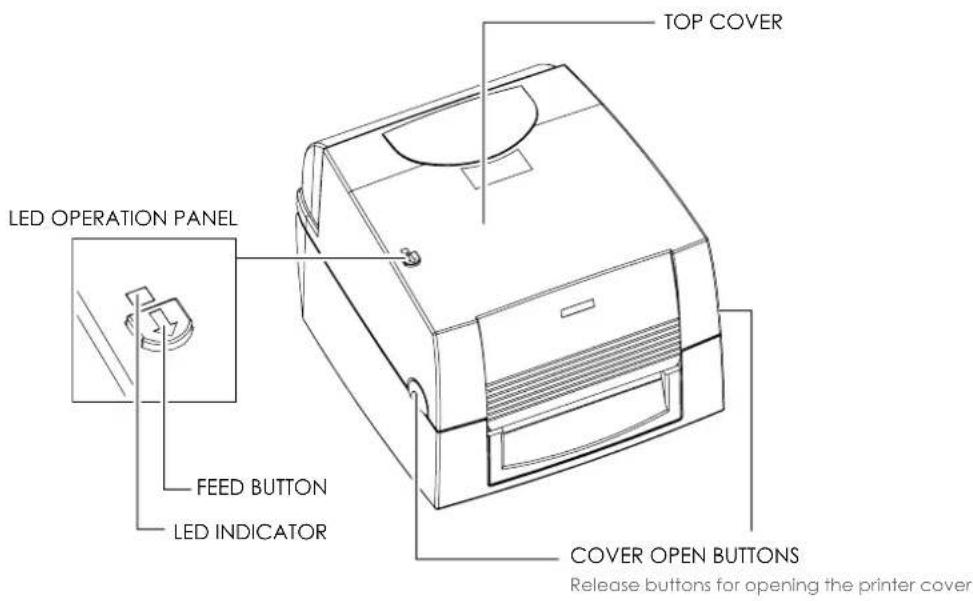
1.2 Getting To Know Your Printer 2
2 Printer Setup 4
2.1 Open The Printer Cover 4
2.2 Open The Printing Mechanism 4
2.3 Loading The Ribbon 5
2.4 Loading The Label Roll 9
2.5 Loading The Label Supply Hub 12
2.6 Connecting The Printer To The Host Computer 13
2.7 Installing The Driver 15
3 Operation Panel 18
3.1 LED Operation Panel 18
3.2 Error Alerts 19
3.3 Label Calibration and Self Test 20
4 NetSetting for Ethernet 21
4.1 Installing The NetSetting software 21
4.2 The Interface of NetSetting 22
5 Maintenance And Adjustment 29
5.1 Cleaning The Print Head 29
5.2 Adjusting The Print Head Pressure 30
5.3 Adjusting The Print Line 31
5.4 Troubleshooting 32
APPENDIX
PRODUCT SPECIFICATIONS
INTERFACE
FCC COMPLIANCE STATEMENT FOR AMERICAN USERS
This equipment has been tested and found to comply with the limits for a CLASS A digital device, pursuant to Part 15 of the FCC Rules. These limits are designed to provide reasonable protection against harmful interference when the equipment is operated in a commercial environment. This equipment generates, uses, and can radiate radio frequency energy and, if not installed and used in accordance with the instructions, may cause harmful interference to radio communications. Operation of this equipment in a residential area is likely to cause harmful interference in which case the user will be required to correct the interference at own expense.
EMS AND EMI COMPLIANCE STATEMENT FOR EUROPEAN USERS
This equipment has been tested and passed with the requirements relating to electromagnetic compatibility based on the standards EN 55022: 2010, CISPR 22, Class A EN 55024: 2010, IEC 61000-4 Series EN 61000-3-2 / 2006+A1:2009+A2:2009 & EN 61000-3-3:2008. The equipment also tested and passed in accordance with the European Standard EN55022 for the both Radiated and Conducted emissions limits.
CL-S321/CL-S331
TO WHICH THIS DECLARATION RELATES
IS IN CONFORMITY WITH THE FOLLOWING STANDARDS
EN55022 : 2010, Class A / EN55024 : 2010 / IEC 61000-4 Series / EN61000-3-2 :
2006+A1:2009+A2:2009 / EN 6100-3-3 : 2008 / CFR 47, Part 15/CISPR 22, Class A / ANSI C63.4 : 2009 /
IEC60950-1:2005 (EN 60950-1:2006+A11:2009+A1:2010+A12:2011) / GB4943.1:2011 / GB9254:2008
/ GB17625.1 : 2003
Caution
SAFETY INSTRUCTIONS
Please read the following instructions carefully.
- Keep the equipment away from humidity.
- Before you connect the equipment to the power outlet, please check the voltage of the power source.
- Make sure the printer is off before plugging the power connector into the power jack.
- It is recommended that you connect the printer to a surge protector to prevent possible transient overvoltage damage.
- Be careful not to get liquid on the equipment to avoid electrical shock.
- For safety and warranty reasons, ONLY qualified service personnel should open the equipment.
- Do not repair or adjust energized equipment under any circumstances.
1
Barcode Printer
1.1 Box Content
Please check that all of the following items are included with your printer.
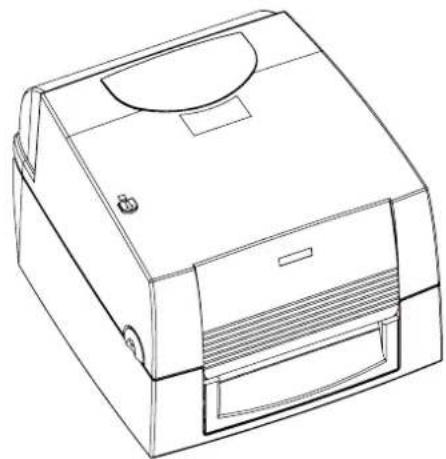
• CL-S321 Barcode Printer
natural_image
Line drawing of a rectangular electronic device with a lid and ventilation slots (no text or symbols)• Label Supply Module Label Supply Hub
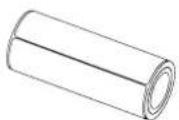
- Ribbon Module Empty Ribbon Core
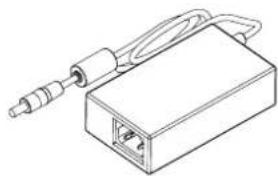
• Power Adapter Power Cord
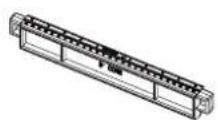
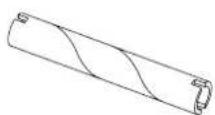
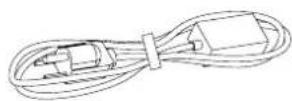
Label Guide Plates(Set of 2) Ribbon AC Adapter


natural_image
Line drawing of a rectangular electronic device with a coiled cable and ports (no text or symbols)Label Stock
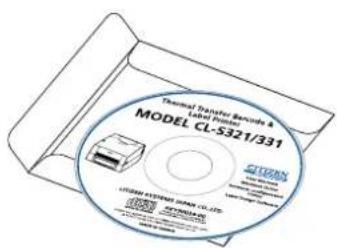
• CD Including QLabel software and CL-S321/ CL-S331 user manual.
- CL-S321/CL-S331 Quick-Start Guide
- USB Cable

text_image
Thermal Transfer Bands & Model CL-S321/331 CIGEN SYSTEMS JAPAN CL-31 CIGEN CIGEN SYSTEMS JAPAN CL-31
text_image
CITYUN CL-S321/CL-S331 Open SPTA CNTA1
Barcode Printer
1.2 Getting To Know Your Printer
Device Overview
- Front View
text_image
TOP COVER LED OPERATION PANEL FEED BUTTON LED INDICATOR COVER OPEN BUTTONS Release buttons for opening the printer cover- Rear View

text_image
FAN-FOLD LABEL INSERT Feed slot for continuous labels SERIAL PORT POWER SWITCH - ON - OFF ETHERNET PORT USB PORT POWER SLOTOpen The Printer Cover

text_image
RIBBON REWIND WHEEL RELEASE CATCH(Left) LABEL SUPPLY MODULE - LABEL SUPPLY HUB - LABEL GUIDE PLATES(Set of 2) HOLDER OF RIBBON REWIND CORE RELEASE CATCH(Right) SCREW(Right) Screw for adjusting the print head pressure SCREW(Left) Screw for adjusting the print head pressureOpen The Printing Mechanism

text_image
PRINTING MECHANISM ADJUSTMENT SCREW Screw for adjusting the printer line PRINT HEAD RIBBON SUPPLY WHEEL HOLDER OF RIBBON SUPPLY CORE LABEL GUIDE(Left) LABEL GUIDE(Right) PLATEN LABEL SENSOR2
Printer Setup
2.1 Open The Printer Cover
Pressing The Cover Open Buttons
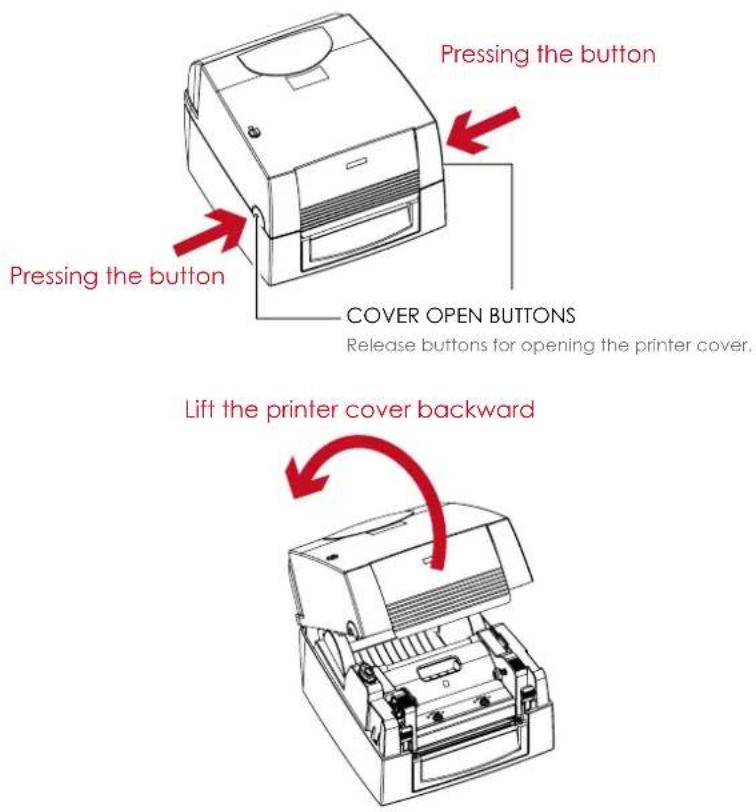
Place the printer on a flat surface. Open the printer cover by pressing the release buttons on both sides of the printer housing and lift the cover.
text_image
Pressing the button Pressing the button COVER OPEN BUTTONS Release buttons for opening the printer cover. Lift the printer cover backward2.2 Open The Printing Mechanism
Pressing The Release Catches
Release and lift the printing mechanism.

text_image
RELEASE CATCHES Pressing Pressing
text_image
Lift the printing mechanism2
Printer Setup
2.3 Loading The Ribbon
A New Ribbon Module Installation
natural_image
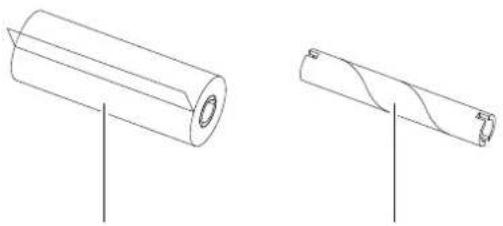
Technical line drawings of two cylindrical mechanical components with flanges (no text or symbols)NEW RIBBON EMPTY RIBBON CORE
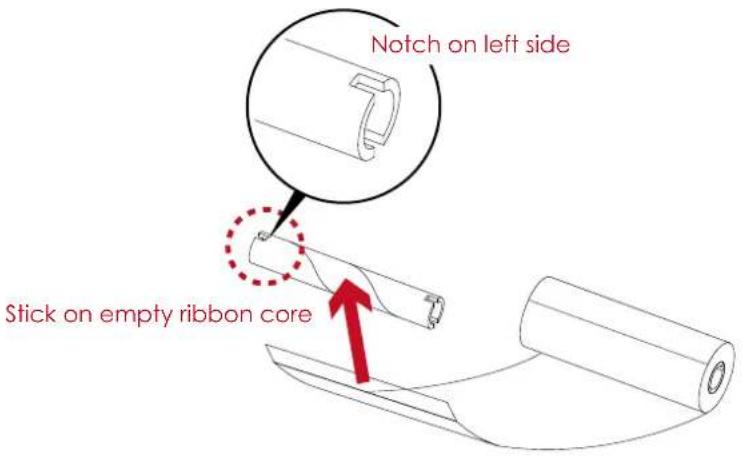
- Attach the ribbon to the empty ribbon core with the adhesive strip at the end of the ribbon.
text_image
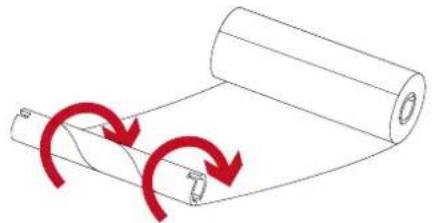
Notch on left side Stick on empty ribbon core- Wind the ribbon around the empty ribbon core for 2 to 3 circles.
natural_image
Diagram of a rolled document with red curved arrows indicating rotation or movement (no text or symbols)Wind the ribbon around the core
- A ribbon module is assembled as below.
A NEW RIBBON MODULE

text_image
RIBBON SUPPLY RIBBON REWIND2
Printer Setup
Load The Ribbon On The Printer For Ribbon Supply Module

text_image
RIBBON SUPPLY MODULE- Place the right-hand side of ribbon first.

text_image
Right side Align the ribbon core to the holder HOLDER Push the ribbon to tighten the spring of the holder SPRING OF HOLDER- Then place the left-hand side of the ribbon.

text_image
Left side Align the notch of the ribbon core to the spoke NOTCH OF RIBBON CORE SPOKE GEAR Rotate the gear for alignment if necessary2
Printer Setup
- Close the printing mechanism to complete the ribbon supply module loading.

text_image
CloClose the printing mechanism
Load The Ribbon On The Printer
For Ribbon Rewind Module

text_image
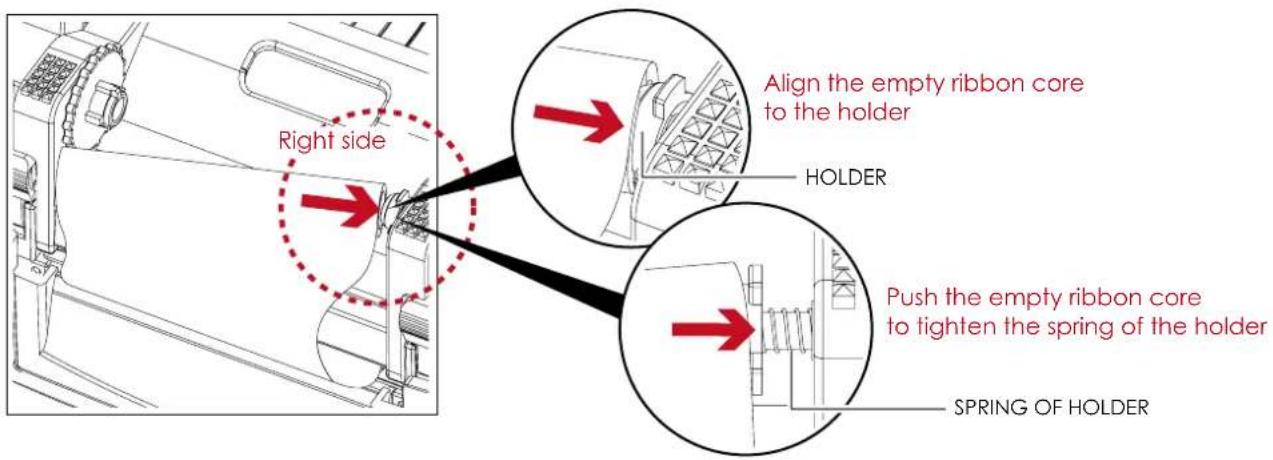
RIBBON REWIND MODULE- Place the right-hand side of empty ribbon core first.
text_image
Right side Align the empty ribbon core to the holder HOLDER Push the empty ribbon core to tighten the spring of the holder SPRING OF HOLDER2
Printer Setup
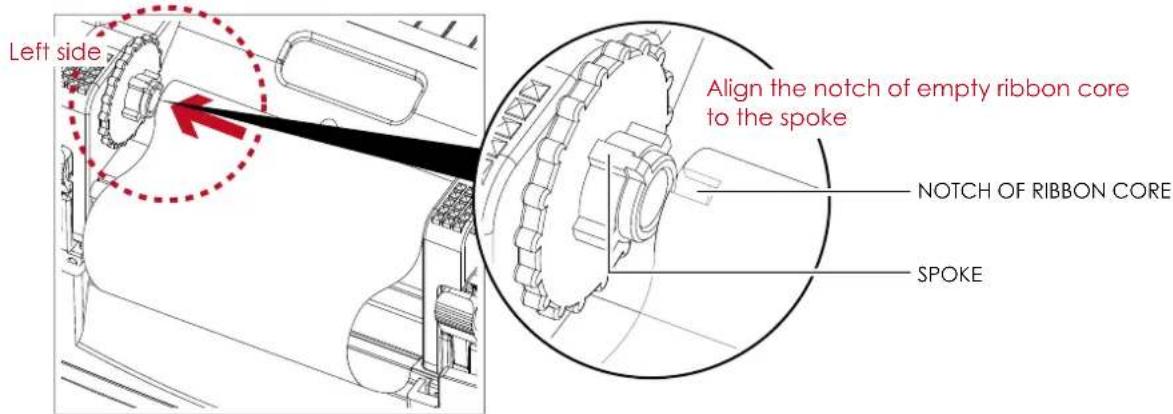
- Then place the left-hand side of the empty ribbon core.
text_image
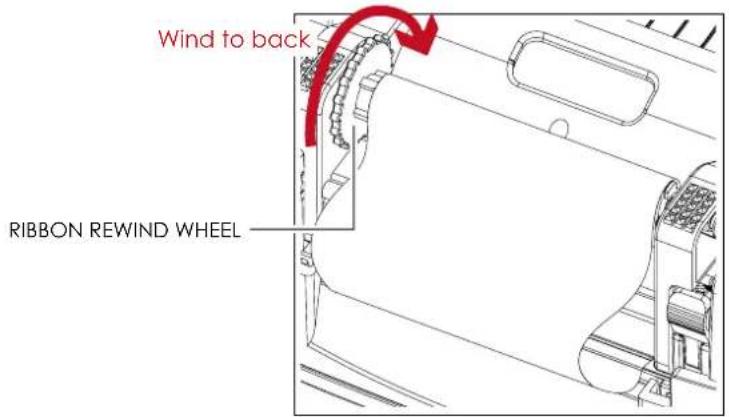
Left side Align the notch of empty ribbon core to the spoke NOTCH OF RIBBON CORE SPOKE- Turn the ribbon rewind wheel to tighten the ribbon until it has no wrinkles.
text_image
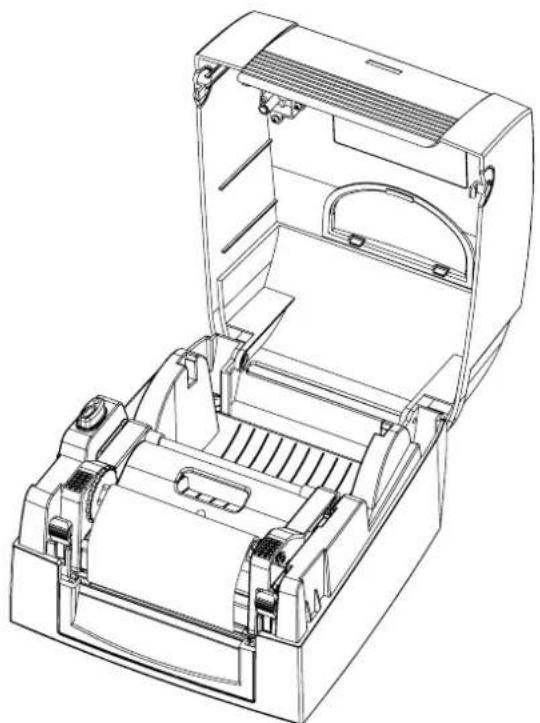
Wind to back RIBBON REWIND WHEEL- Ribbon loading completed.
natural_image
Technical line drawing of a mechanical device housing with internal components (no text or symbols)2 Printer Setup
2.4 Loading The Label Roll
A New Label Roll Module Installation
text_image
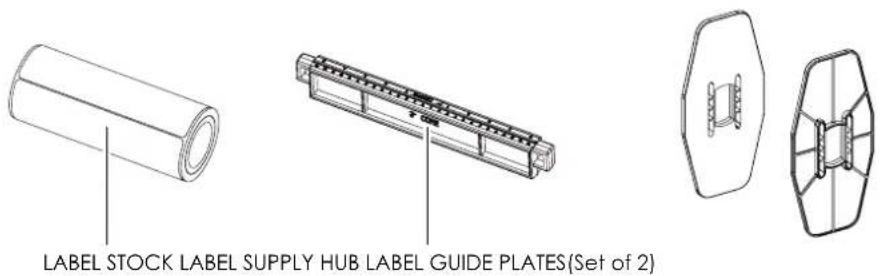
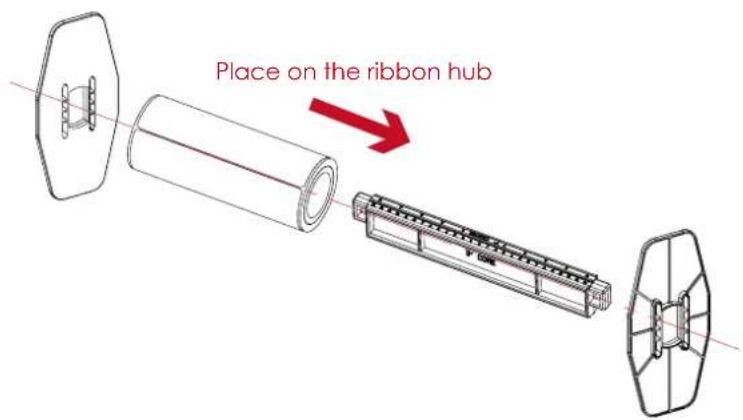
LABEL STOCK LABEL SUPPLY HUB LABEL GUIDE PLATES(Set of 2)- Place the label stock on the label supply hub, attach the label guide plates to the label stock holder.
text_image
Place on the ribbon hub- A label roll module is assembled as below.
A NEW LABEL ROLL MODULE

natural_image
Technical line drawing of a cylindrical mechanical component with flanged ends and internal brackets (no text or symbols)2
Printer Setup
Load The Label Roll Module On The Printer
- Release the printing mechanism and lift it.

text_image
Open the printing mechanism- Place the label roll module on the printer.

text_image
Place on the printer- Pass the label through the printing mechanism.

text_image
Through the printing mechanism2 Printer Setup
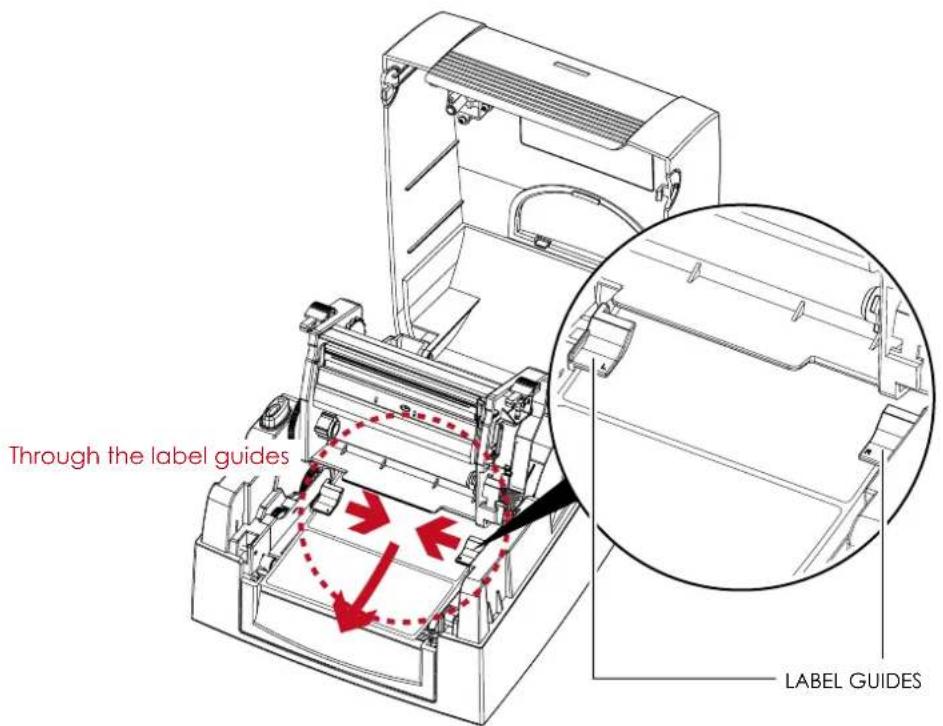
- Pass the label through the label guides and adjust the label guide to the label width. The label guide will help to prevent the label swaying.
text_image
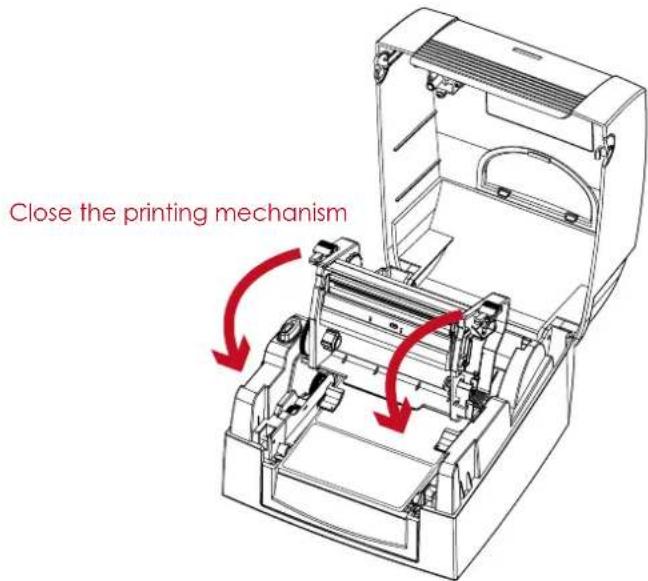
Through the label guides LABEL GUIDES- Close the printing mechanism and top cover to complete the label loading.
text_image
Close the printing mechanism2 Printer Setup
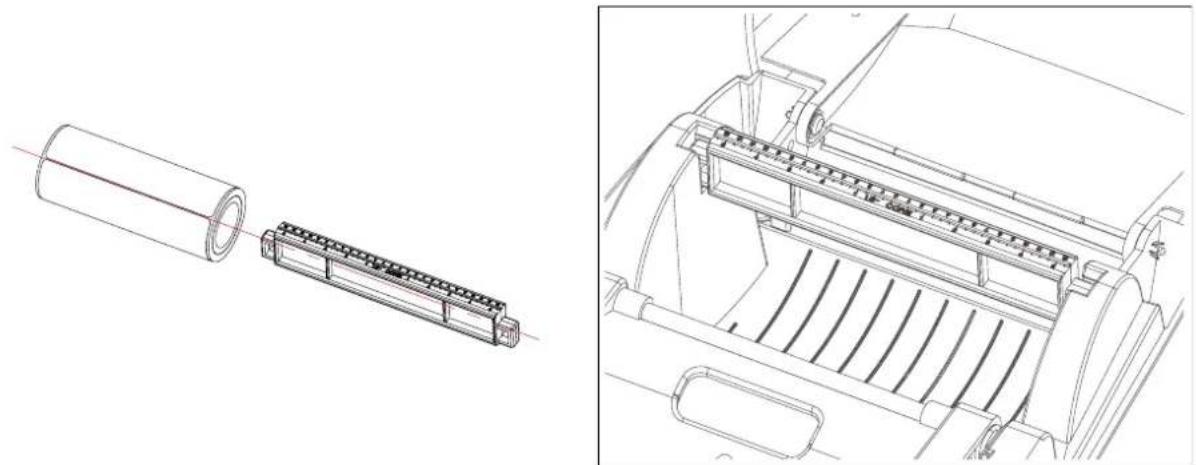
2.5 Loading The Label Supply Hub
1" Cores
Loading the label supply hub for 1" cores.

natural_image
Technical line drawing showing a cylindrical component being cut into a multi-layered plastic housing, with an inset view of the internal structure (no text or symbols)1.5" Cores
Loading the label supply hub for 1.5" cores.
natural_image
Technical line drawing showing a cylindrical component being inserted into a multi-layered connector, with an inset view of the internal structure (no text or symbols)2
Printer Setup
2.6 Connecting The Printer To The Host Computer
- Please make sure that the printer is switched off.
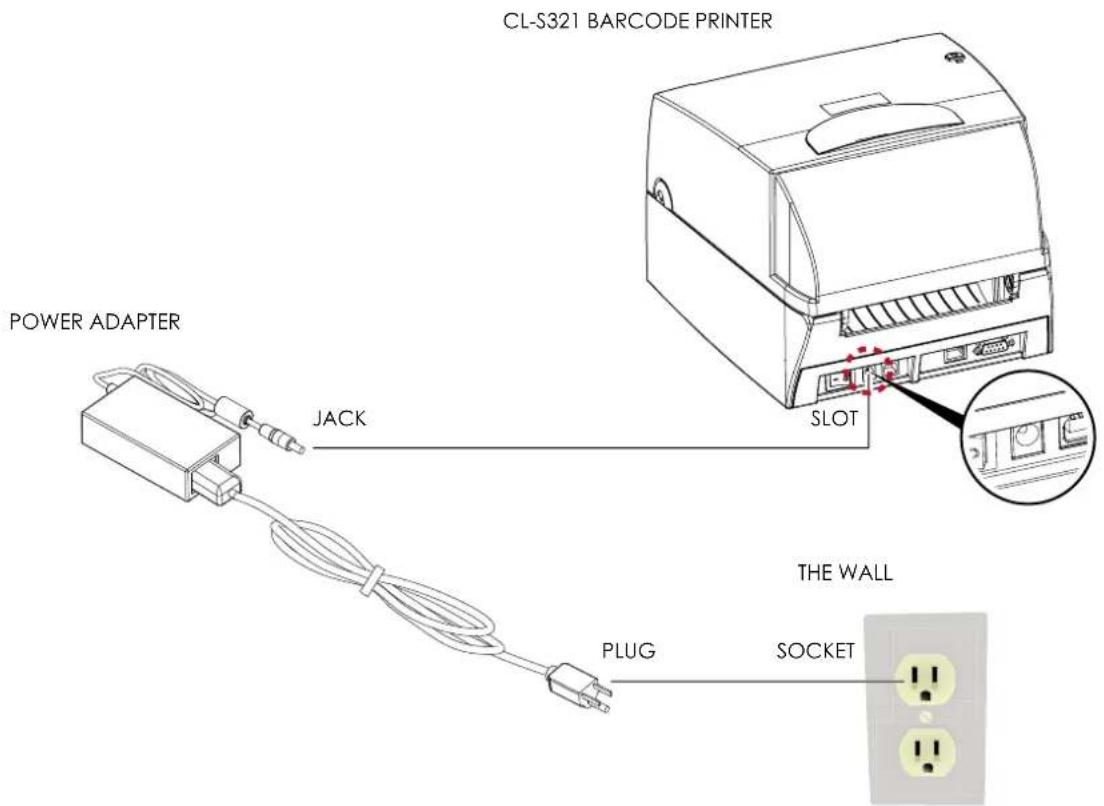
- Connect the power cord to the AC adapter.

text_image
POWER CORD AC ADAPTERConnect the jack of the power adapter to the printer and connect the plug of the power adapter to the socket of the wall.
text_image
CL-S321 BARCODE PRINTER POWER ADAPTER JACK SLOT THE WALL PLUG SOCKET2
Printer Setup
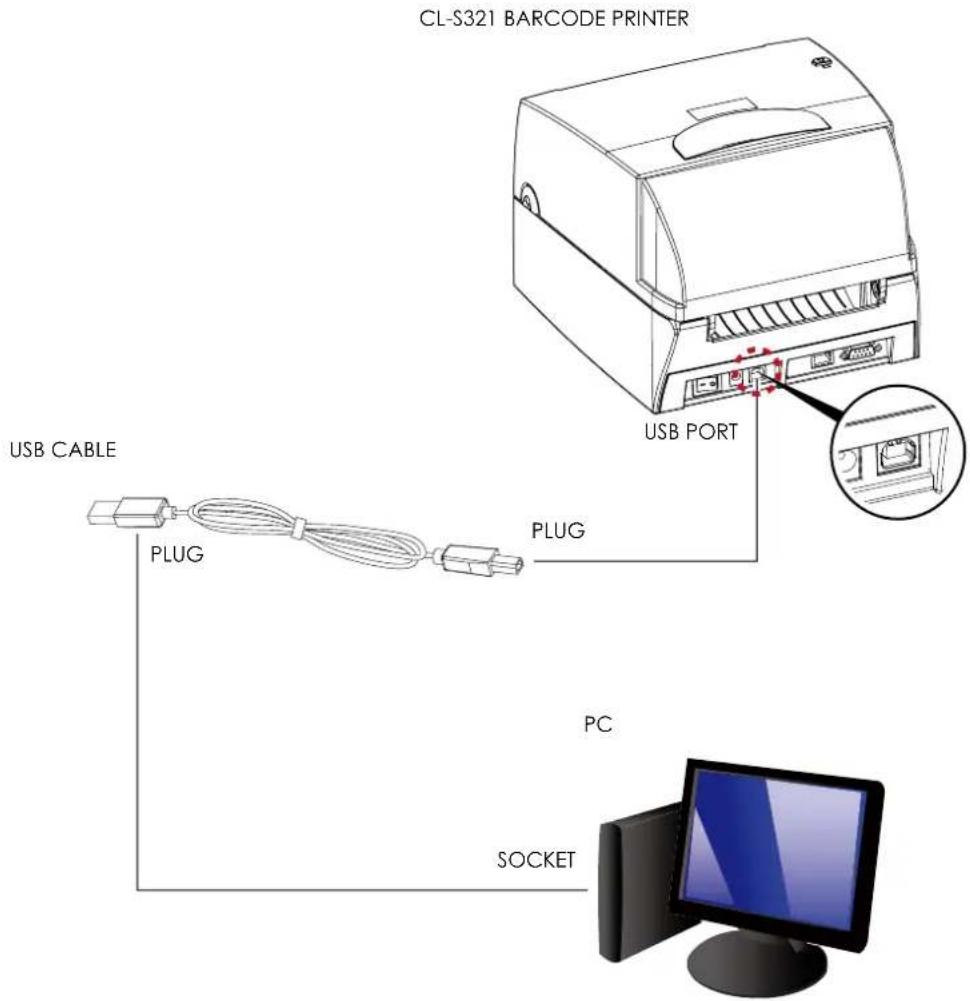
- Connect the USB/parallel cable to the printer and host computer.
text_image
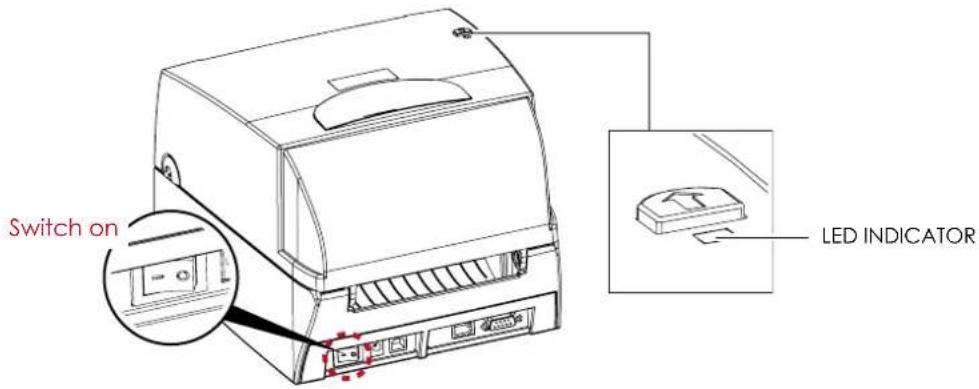
CL-S321 BARCODE PRINTER USB PORT USB CABLE PLUG PLUG PC SOCKET- Switch on the printer. The LED indicator should now lights up.
text_image
Switch on LED INDICATOR2
Printer Setup
2.7 Installing The Driver
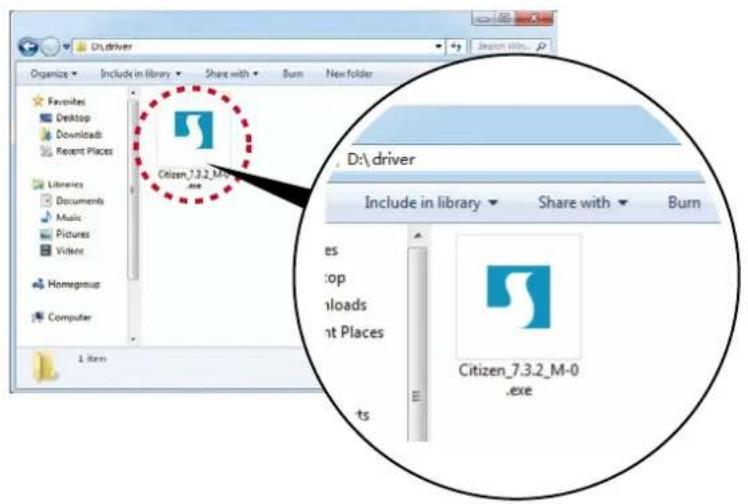
- Insert the product CD in the CD/DVD drive of the host computer and open the "driver" folder on the CD. Select the icon for the driver file and click it to start the installation.
text_image
On driver Organize Include in library Share with Burn New folder Favorites Desktop Downloads Recent Places Libraries Documents Music Pictures Videos Homegroup Computer 1 item D:\ driver Include in library Share with Burn es top uploads nt Places ts Citizen_7.3.2_M-0.exe- Follow the instructions on the screen. The Driver Wizard guides you through the installation procedure. Select "Install printer drivers".

text_image
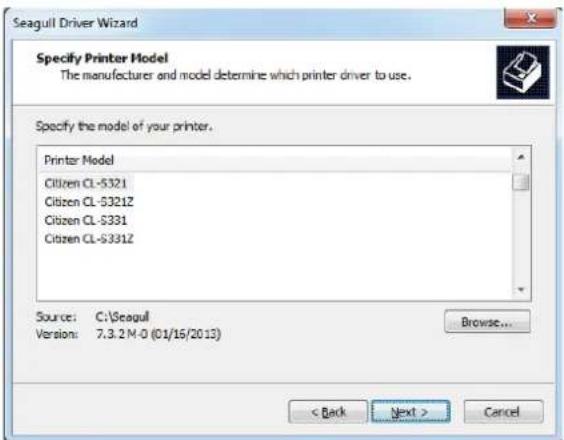
Seagull Driver Wizard Welcome to the Seagull Driver Wizard This wizard helps you install and remove printer drivers. What would you like to do? • Install printer drivers • Upgrade printer drivers • Remove printer drivers < Back Next > Cancel- Specify your printer model.
text_image
Seagull Driver Wizard Specify Printer Model The manufacturer and model determine which printer driver to use. Specify the model of your printer. Printer Model Citizen CL-S321 Citizen CL-S321Z Citizen CL-S331 Citizen CL-S331Z Source: C:\Seagull Version: 7.3.2 M-0 (01/16/2012) Browse... < Back Next > Cancel2 Printer Setup
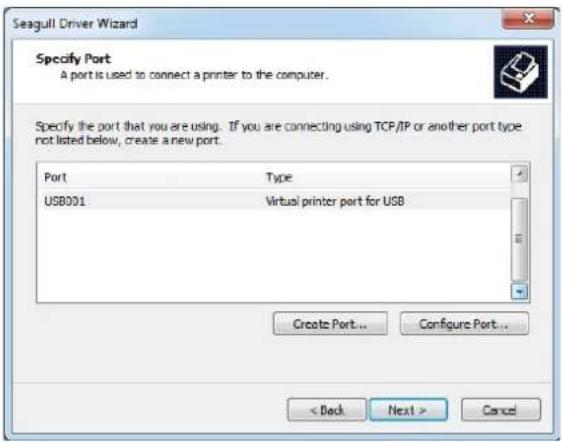
- Specify the port used to connect the printer to the host computer.
text_image
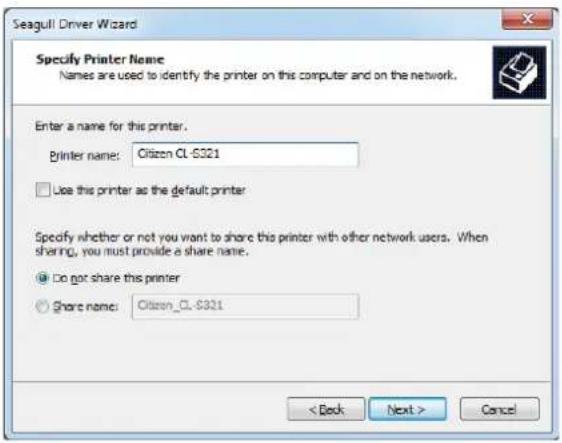
Seagull Driver Wizard Specify Port A port is used to connect a printer to the computer. Specify the port that you are using. If you are connecting using TCP/IP or another port type not listed below, create a new port. Port Type USB001 Virtual printer port for USB Create Port... Configure Port... < Back Next > Cancel- Enter a printer name and assign the appropriate rights.
text_image
Seagull Driver Wizard Specify Printer Name Names are used to identify the printer on this computer and on the network. Enter a name for this printer. Printer name: Citizen CL-S321 Use this printer as the default printer Specify whether or not you want to share this printer with other network users. When sharing, you must provide a share name. Do not share this printer Share name: Citizen_CL-S321 < Back Next > Cancel- Once the installation is complete, a summary of the printer settings is displayed.
Check whether the printer settings are correct and click "Finish" to start copying the driver files. Wait until copying is complete, then finish the installation.
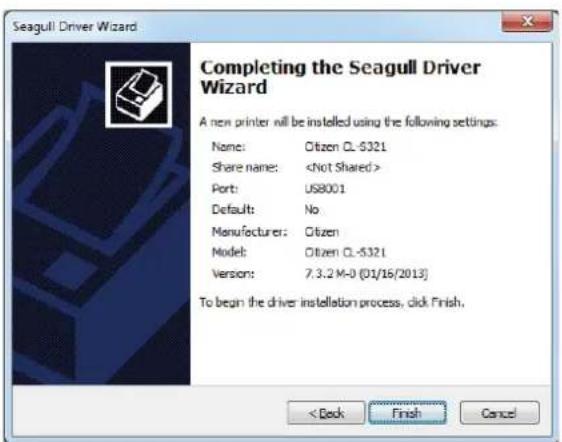
text_image
Seagull Driver Wizard Completing the Seagull Driver Wizard A new printer will be installed using the following settings: Name: Citizen CL-5321 Share name:2
Printer Setup
- Once the driver installation is complete, the new printer should appear in the "Devices and Printers" folder.
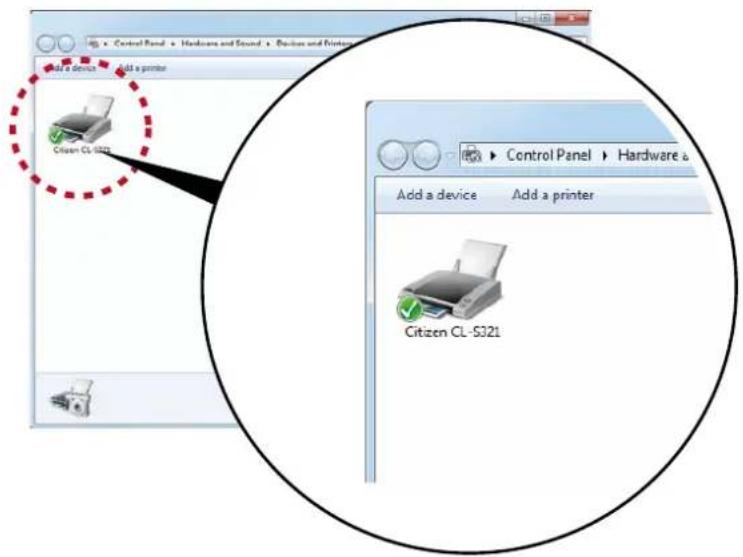
text_image
Control Panel > Hardware and Sound > Devise and Printer Add a device Add a printer Citizen CL-S321 Control Panel > Hardware & Add a device Add a printer Citizen CL-S3213
Operation Panel
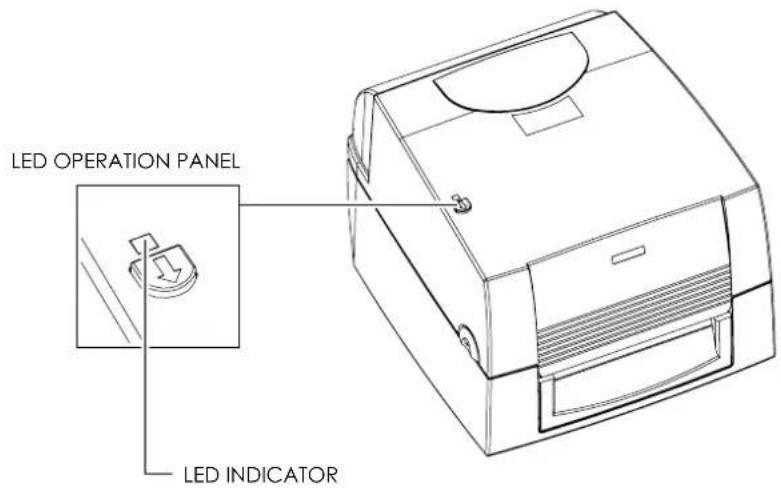
3.1 LED Operation Panel

text_image
LED OPERATION PANEL FEED BUTTON LED INDICATORFEED Button
When you press the FEED button, the printer moves the label to the defined stop position.
If you are using continuous labels, pressing the FEED button will move label stock until you release the button again.
If you are using individual labels, pressing the FEED button will move only one label.
If the label does not stop at the correct position, you need to run the auto-detection function on the label stock, please see Section 3.3 Label
Calibration and Self Test.
LED Indicators
LED Indicator Status Description
Green Standby The printer is ready for operation.
Red, Orange Error
The printer has detected an error.
See Section 3.2 Error Alerts.
3
Operation Panel
3.2 Error Alerts
In the event of a problem that prevents normal functioning of the printer, you will see an error message on LED indicators and hear some beep signals. Please refer to below table for the error alerts.
Error Light
Colour
- Red

- Orange

Flashing Frequency
- Fast Flashing

- Slow Flashing

- Light On

text_image
LED OPERATION PANEL LED INDICATORLED Indicator Status Description Solution
 | Media Error | Unable to detect the paper. | Run the auto-detection function again. |
| The ribbon or labels are finished. Replace the ribbon or label roll. | |||
 | Paper jam. | Possible reasons:The paper feed roller is blocked.No gap or black mark could be detected. | |
 | Settings Error | No ribbon is loaded, but thermal transfer mode is selected as printing mode. | 1. To work in thermal transfer mode, load a ribbon.2. Alternatively, select the direct thermal printing mode. |
 | Memory Error | The memory is full. The printer also prints the message "Memory full". | Delete data you no longer need from the printer memory. |
| File name already exists. The printer also prints the message "Filename is repeated". | Change the name of the file and try storing it on the printer again. | ||
 | Print Head Error | The print head temperature is too high. | Wait for the print head to cool down to operating temperature. The printer will then switch to standby mode and the LED will stop flashing. |
3.3 Label Calibration and Self Test
Label Calibration
The printer can automatically detect and store label height.
That means the host computer does not need to transmit the label height to the printer.
Self Test
Self-test function lets you check whether the printer is functioning normally.
Here is how you run the label size calibration and self test.
- Check that the label stock is loaded correctly.
- Switch off the printer.
-
Switch the printer on again, keeping the FEED button pressed. When the LED starts to flash red, release the FEED button. The printer will now measure the label stock and store the label height.
-
Once the printer has successfully measured the label stock, it will print a self-test label.
The contents of a self-test printout are listed below.
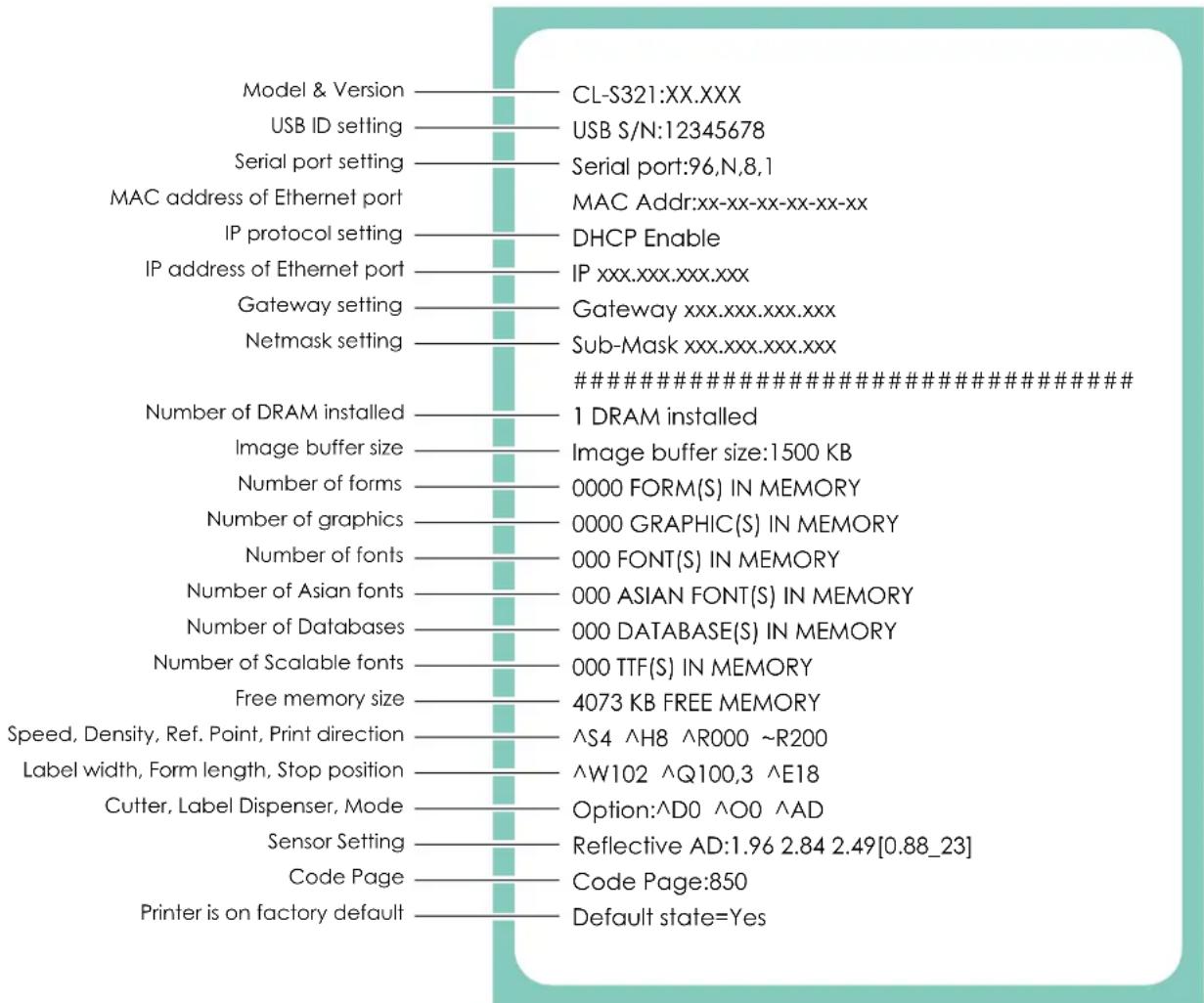
text_image
Model & Version CL-S321:XX.XXX USB ID setting USB S/N:12345678 Serial port setting Serial port:96,N,8,1 MAC address of Ethernet port MAC Addr:xx-xx-xx-xx-xx-xx IP protocol setting DHCP Enable IP address of Ethernet port IP xxx.xxx.xxx.xxx Gateway setting Gateway xxx.xxx.xxx.xxx Netmask setting Sub-Mask xxx.xxx.xxx.xxx ########## Number of DRAM installed 1 DRAM installed Image buffer size Image buffer size:1500 KB Number of forms 0000 FORM(S) IN MEMORY Number of graphics 0000 GRAPHIC(S) IN MEMORY Number of fonts 000 FONT(S) IN MEMORY Number of Asian fonts 000 ASIAN FONT(S) IN MEMORY Number of Databases 000 DATABASE(S) IN MEMORY Number of Scalable fonts 000 TTF(S) IN MEMORY Free memory size 4073 KB FREE MEMORY Speed, Density, Ref. Point, Print direction ^S4 ^H8 ^R000 ~R200 Label width, Form length, Stop position ^W102 ^Q100,3 ^E18 Cutter, Label Dispenser, Mode Option:^D0 ^O0 ^AD Sensor Setting Reflective AD:1.96 2.84 2.49[0.88_23] Code Page Code Page:850 Printer is on factory default Default state=Yes4
NetSetting for Ethernet
4.1 Installing The NetSetting software
The NetSetting software is used to manage the network configurations when connecting the printer via Ethernet port. It is available on product CD or can be downloaded from official website. To install the NetSetting, please follow below steps.
- Insert the product CD in the CD/DVD drive of the host computer and open the "Ethernet" folder on the CD.
- Select the icon for the NetSetting installation file and click it to start the installation.

text_image
Organize Share with Burn New folder D:\Ethernet Share with Burn New folder ites stop vnloads nt Places NetSettingSetup.msi 3 items- Follow the instructions on the screen. The Setup Wizard guides you through the installation procedure.
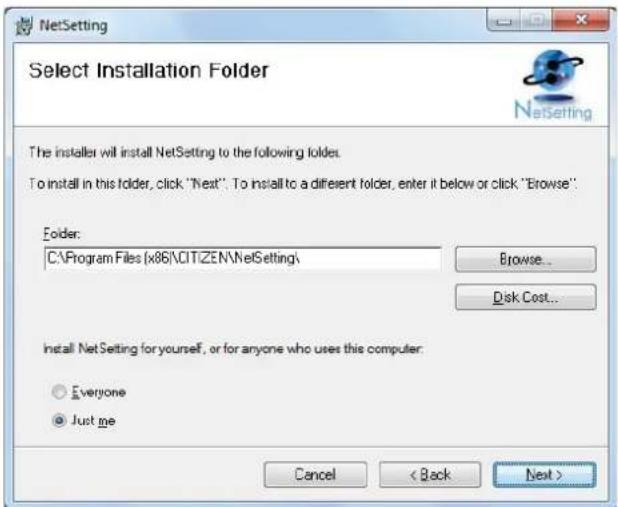
- Specify the "Installation Folder".
text_image
NetSetting Select Installation Folder The installer will install NetSetting to the following folders. To install in this folder, click "Next". To install to a different folder, enter it below or click "Browse" Folder: C:\Program Files (x86\CIT\ZEN\NetSetting\ Browse... Disk Cost... Install NetSetting for yourself, or for anyone who uses this computer: Everyone Just me Cancel < Back Next >- Click "Next" to start the installation.
- Once the installation is completed; you will see the NetSetting icon on your desktop.

NetSetting
4
NetSetting for Ethernet
4.2 The Interface of NetSetting
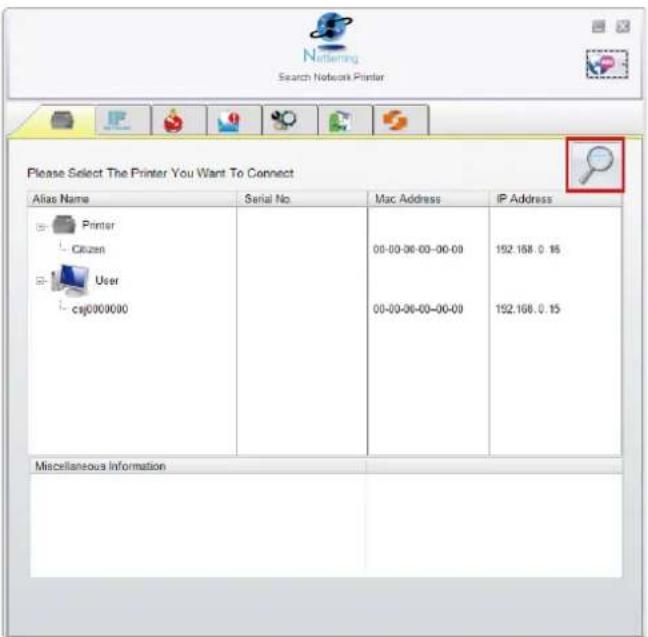
Click the NetSetting icon to start the program; you will see the start page as below. The start page will display the basic information of connected printer and your PC.
text_image
Netting Search Network Printer Please Select The Printer You Want To Connect Alias Name Serial No Mac Address IP Address Printer Citizen User csj000000 00-00-06-00-00-00 192.168.0.15 00-00-06-00-00-00 192.168.0.15 Miscellaneous InformationClick the magnifier icon to search the Citizen printers which are connected via Ethernet port in you network environment. Once a connected Citizen printer is detected, it will be listed on the start page.
text_image
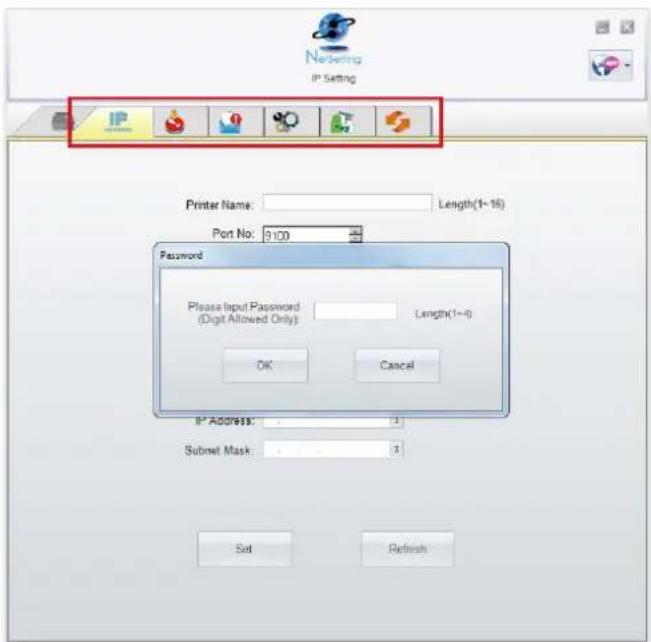
NetSetting IP Setting Printer Name: Length(1~16) Port No: 9100 Password Please Input Password (Digit Allowed Only) Length(1~4) OK Cancel 8° Address: Subnet Mask: Set RefreshThere are six tabs on the top of interface which can configure different types of network settings. But for the data security reason, you need correct password to enter the configuration pages.
Notice
* The default password is "1111", you can change the password later from the "IP Setting" tab.
IP Setting
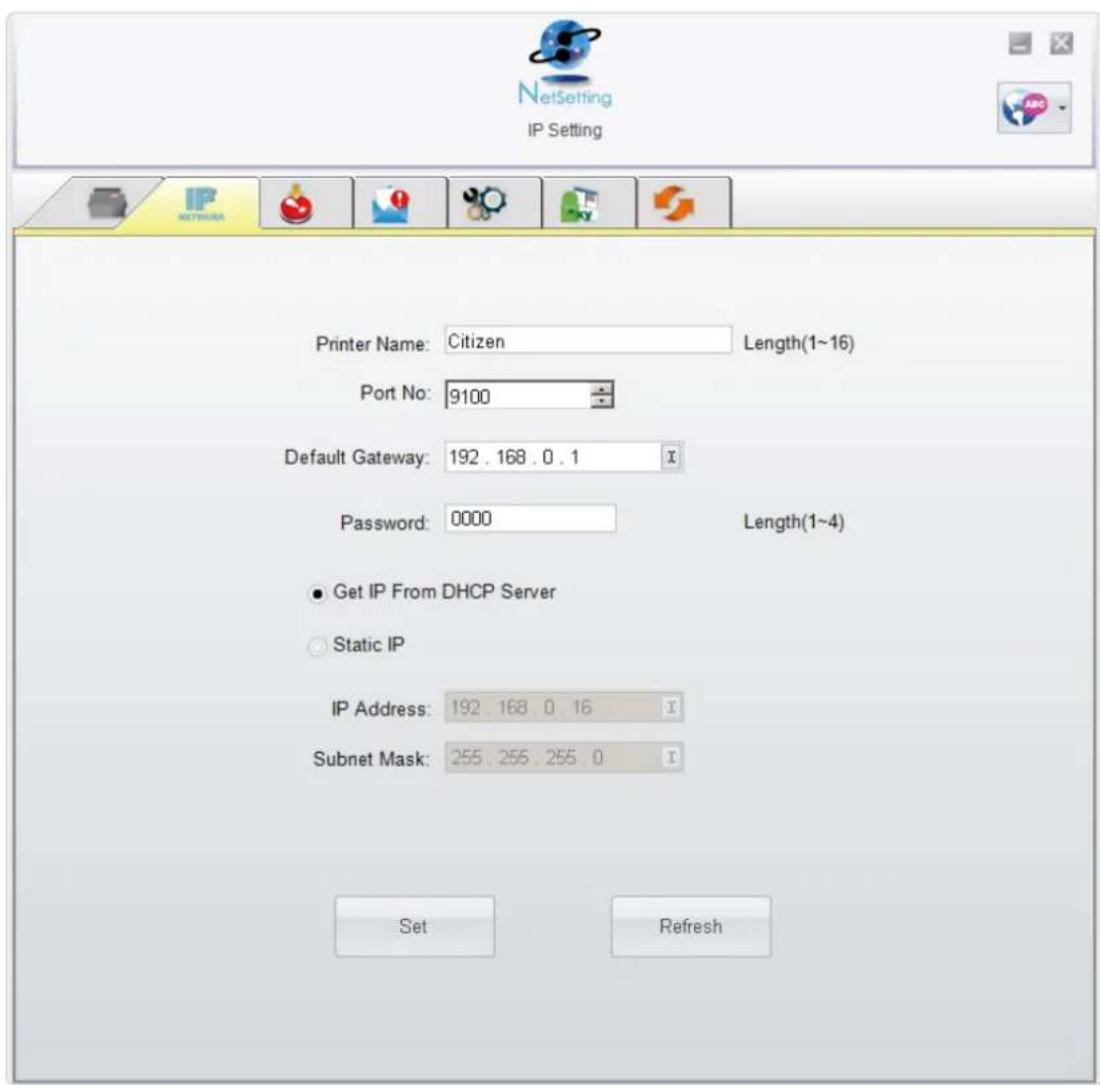
The IP Setting tab can change the printer name, Port number, Gateway setting and the password for configuring the printer. You can also set the printer's IP address ether by DHCP or by Static IP.
text_image
NetSetting IP Setting Printer Name: Citizen Length(1~16) Port No: 9100 Default Gateway: 192 . 168 . 0 . 1 Password: 0000 Length(1~4) ● Get IP From DHCP Server ○ Static IP IP Address: 192 . 168 . 0 . 16 Subnet Mask: 255 . 255 . 255 . 0 Set RefreshYou can press "Set" button to apply the settings and "Refresh" button to refresh the setting values.
Notice
* To fully benefit from the NetSetting software, you should be familiar with basic networking principles. Please contact your network administrator for related network setting information.
Alert Mail Setting
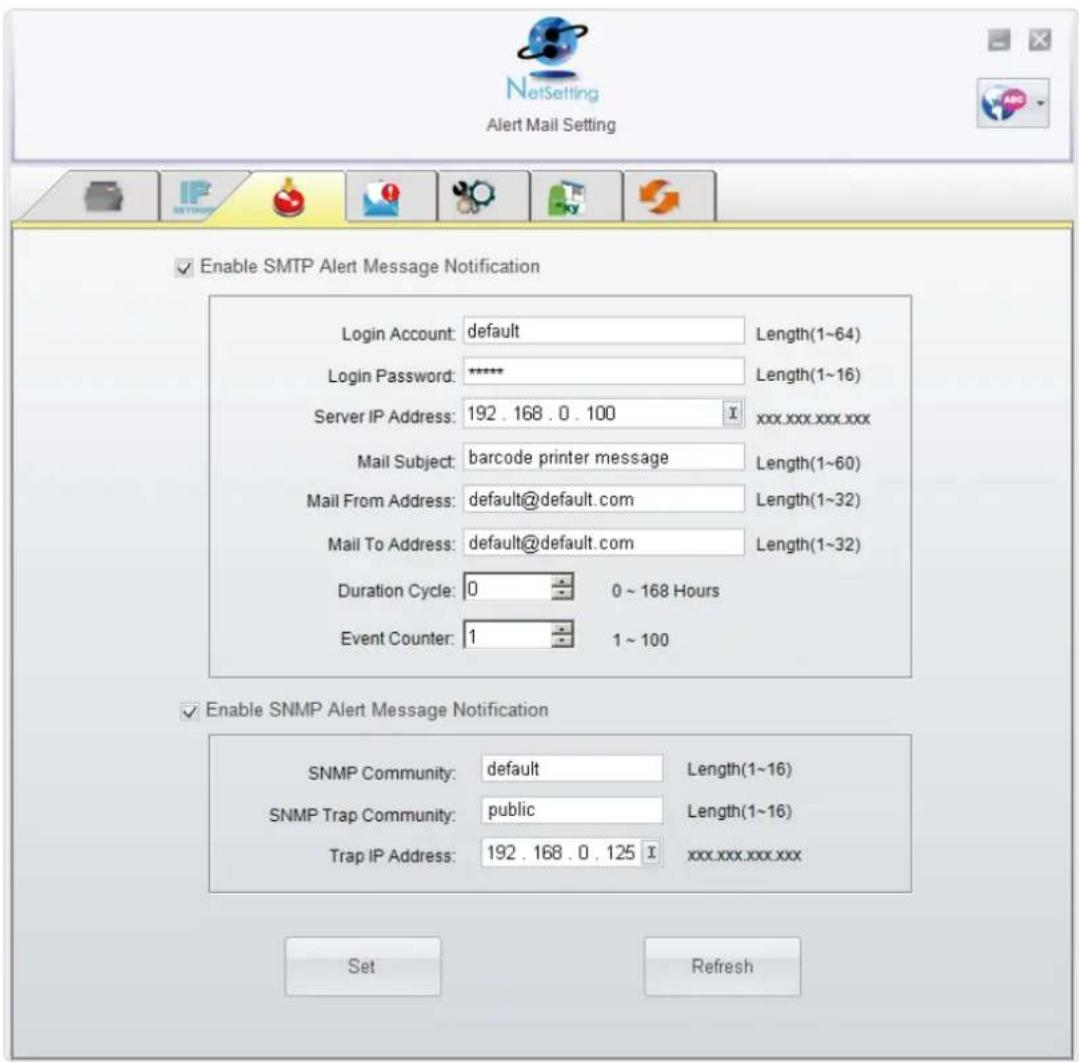
NetSetting will send the alert messages to designated mail account when the error happened on printer. The alert messages are sent by SMTP (Simple Mail Transfer Protocol) or SNMP (Simple Network Management Protocol). You can set or change the configurations of SMTP and SNMP on this "Alert Mail Setting" tab.
text_image
Enable SMTP Alert Message Notification Login Account: default Length(1~64) Login Password: ***** Length(1~16) Server IP Address: 192 . 168 . 0 . 100 xxx.xxx.xxx.xxx Mail Subject: barcode printer message Length(1~60) Mail From Address: default@default.com Length(1~32) Mail To Address: default@default.com Length(1~32) Duration Cycle: 0 0 ~ 168 Hours Event Counter: 1 1 ~ 100 Enable SNMP Alert Message Notification SNMP Community: default Length(1~16) SNMP Trap Community: public Length(1~16) Trap IP Address: 192 . 168 . 0 . 125 xxx.xxx.xxx.xxx Set RefreshYou can press "Set" button to apply the settings and "Refresh" button to refresh the setting values.
Alert Message Setting
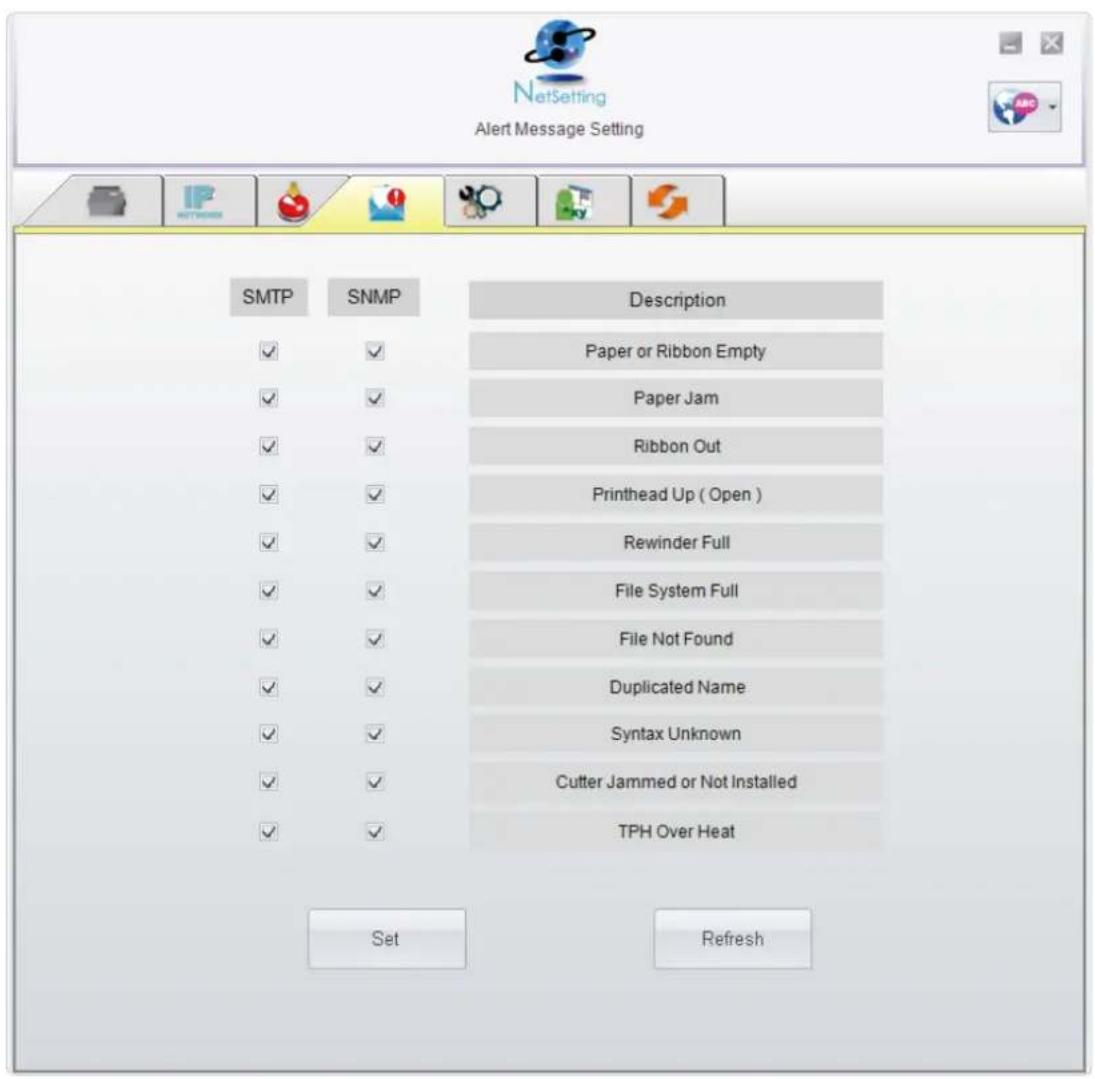
For the alert message notification function, you can decide which error cases need to be sent out to the operator. Moreover, the alert messages can be set to be sent by SMTP, SNMP or both.
text_image
NetSetting Alert Message Setting SMTP SNMP Description ✓ ✓ Paper or Ribbon Empty ✓ ✓ Paper Jam ✓ ✓ Ribbon Out ✓ ✓ Printhead Up ( Open ) ✓ ✓ Rewinder Full ✓ ✓ File System Full ✓ ✓ File Not Found ✓ ✓ Duplicated Name ✓ ✓ Syntax Unknown ✓ ✓ Cutter Jammed or Not Installed ✓ ✓ TPH Over Heat Set RefreshYou can press "Set" button to apply the settings and "Refresh" button to refresh the setting values.
Printer Configuration
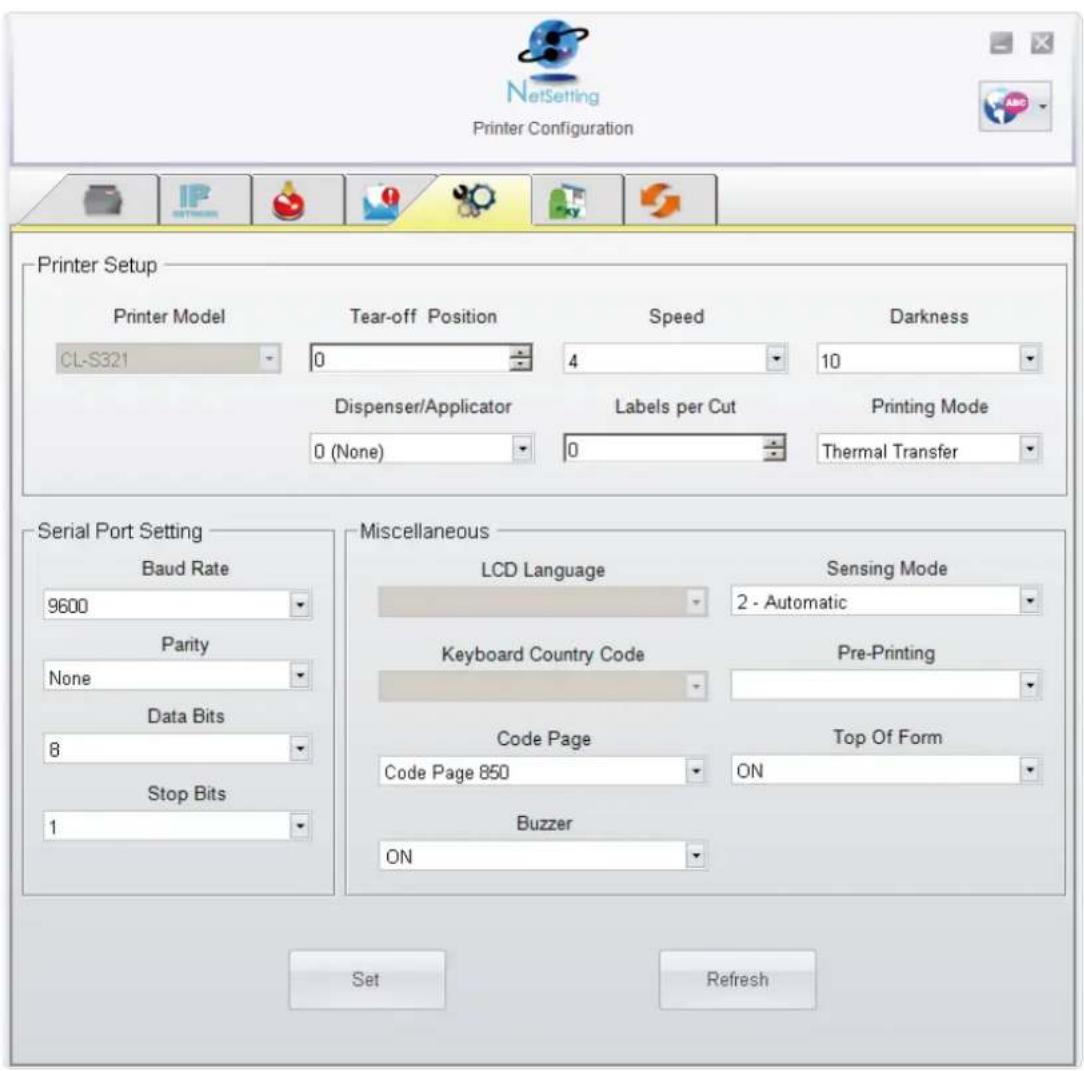
Set or change the configurations of connected printer. Most of key settings for the printer operation can be done by this setting page.
text_image
NetSetting Printer Configuration Printer Setup Printer Model CL-S321 Tear-off Position 0 Speed 4 Darkness 10 Dispenser/Applicator 0 (None) Labels per Cut 0 Printing Mode Thermal Transfer Serial Port Setting Baud Rate 9600 Parity None Data Bits 8 Stop Bits 1 Miscellaneous LCD Language Keyboard Country Code Code Page Code Page 850 Sensing Mode 2 - Automatic Pre-Printing Top Of Form ON Buzzer ON Set RefreshYou can press "Set" button to apply the settings and "Refresh" button to refresh the setting values.
Terminal
The "Terminal" tab provides a communication interface for operator to control the printer. Input printer commands in "Input Command" window and press "Send Command" button, the commands will be sent to the printer. For some commands that will return response message, the message will be displayed in "Output Message" window.

text_image
NetSetting Terminal Input Command Send Command Output Message Clear DataYou can press "Send Command" button to send printer commands via Ethernet port and control the printer remotely.
Firmware Upgrade
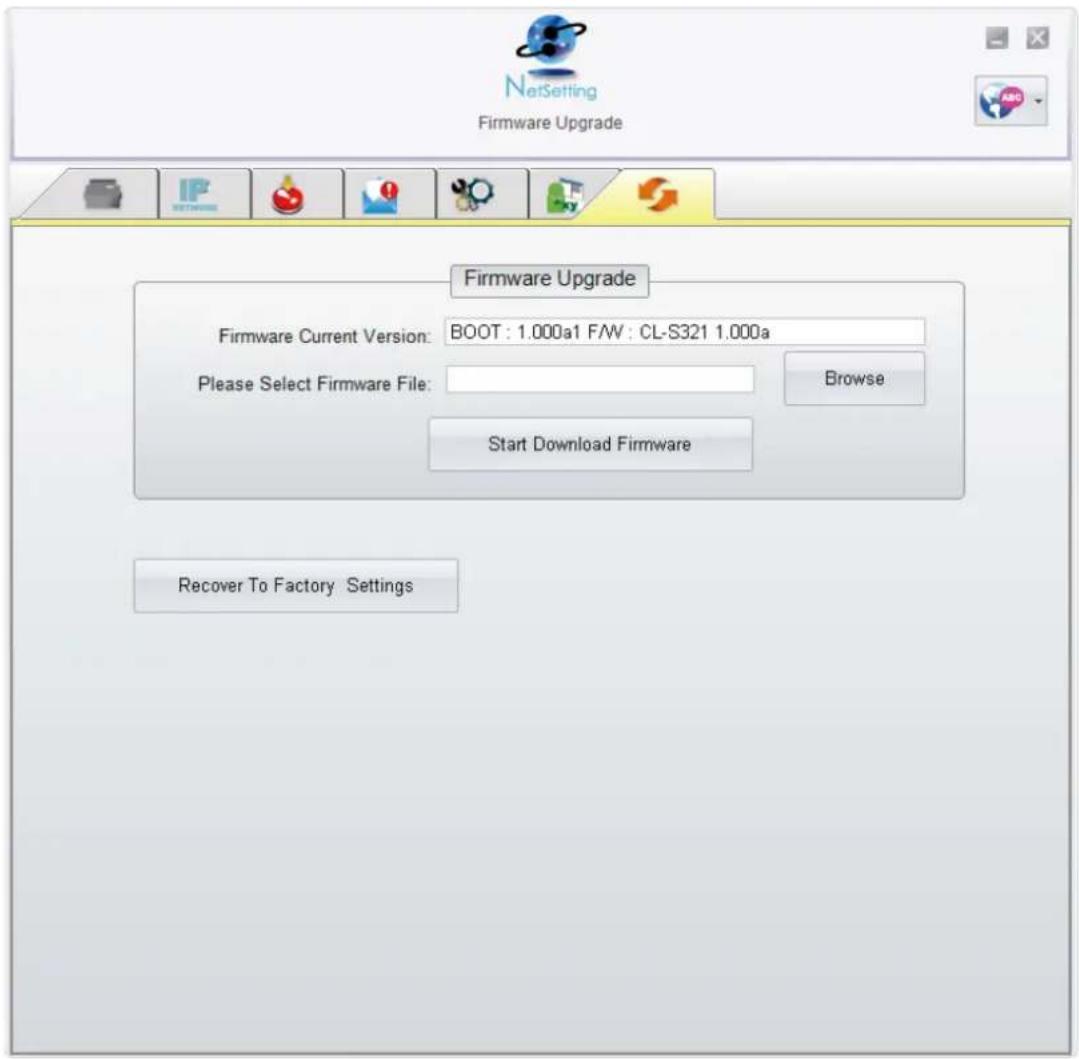
On "Firmware Upgrade" tab, the current version of printer firmware will be showed on the screen. If you need to update the printer firmware, just specify the file location of firmware file and press "Start Download Firmware" button.
The printer firmware then can be updated remotely.
text_image
NetSetting Firmware Upgrade Firmware Upgrade Firmware Current Version: BOOT : 1.000a1 F/W : CL-S321 1.000a Please Select Firmware File: Browse Start Download Firmware Recover To Factory SettingsIn addition to the firmware update, you can press "Recover To Factory Settings" button to restore the printer configurations back to factory default.
5 Maintenance And Adjustment
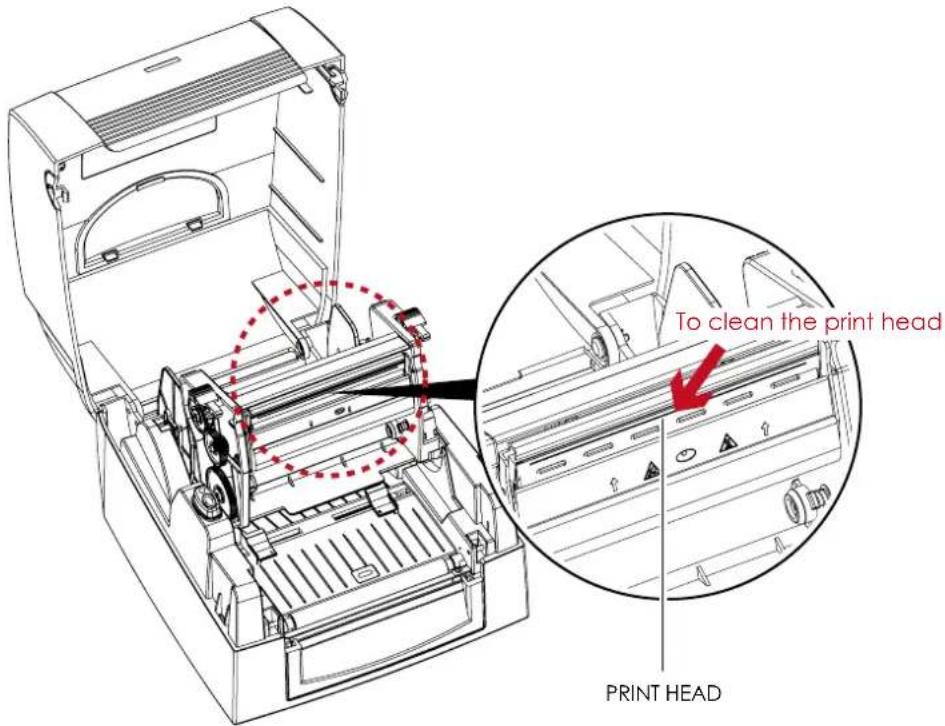
5.1 Cleaning The Print Head
Dirt on the print head or ribbon, or glue residue from the label stock may result in inadequate print quality. The printer cover must therefore always be closed during printing. Keeping dirt and dust away from the paper or labels ensures a good print quality and a longer lifespan of the print head.
Cleaning Steps
Here is how you clean the print head.
- Switch off the printer.
- Open the printer cover.
- Release the printing mechanism and lift it.
-
Remove the ribbon.
-
To remove any label residue or other dirt from the print head (see red arrow), please use a soft lint-free cloth dipped in alcohol.
text_image
To clean the print head PRINT HEADNotice
* The print head should be cleaned once a week.
* Please make sure that there are no metal fragments or other hard particles on the soft cloth used to clean the print head.
5
Maintenance And Adjustment
5.2 Adjusting The Print Head Pressure
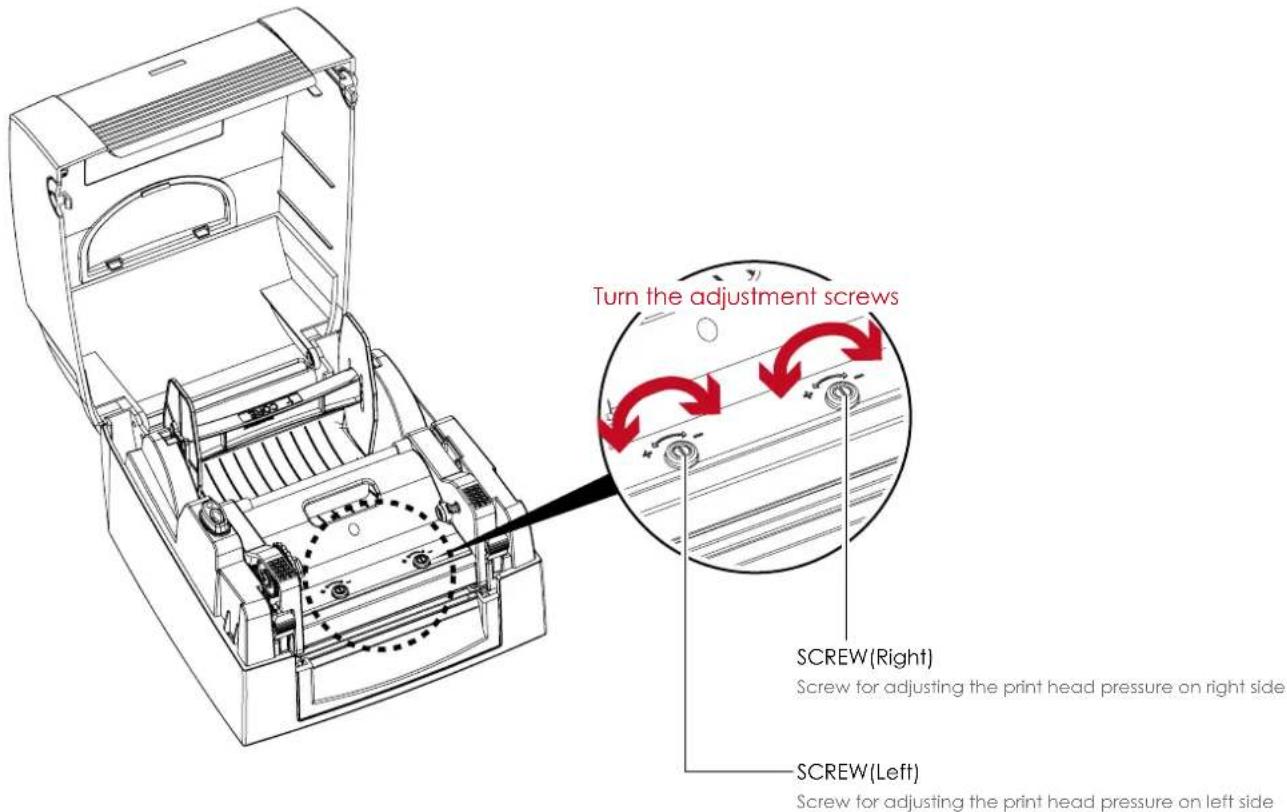
When printing on special media (with varying material thickness), the print quality may suffer. You will then need to adjust the print head pressure.
Adjustment Steps
- Open the printer cover.
- Remove the ribbon.
- Use a screw driver and slowly turn the adjustment screws for the print head to increase or reduce the print head pressure.
text_image
Turn the adjustment screws SCREW(Right) Screw for adjusting the print head pressure on right side SCREW(Left) Screw for adjusting the print head pressure on left side5
Maintenance And Adjustment
5.3 Adjusting The Print Line
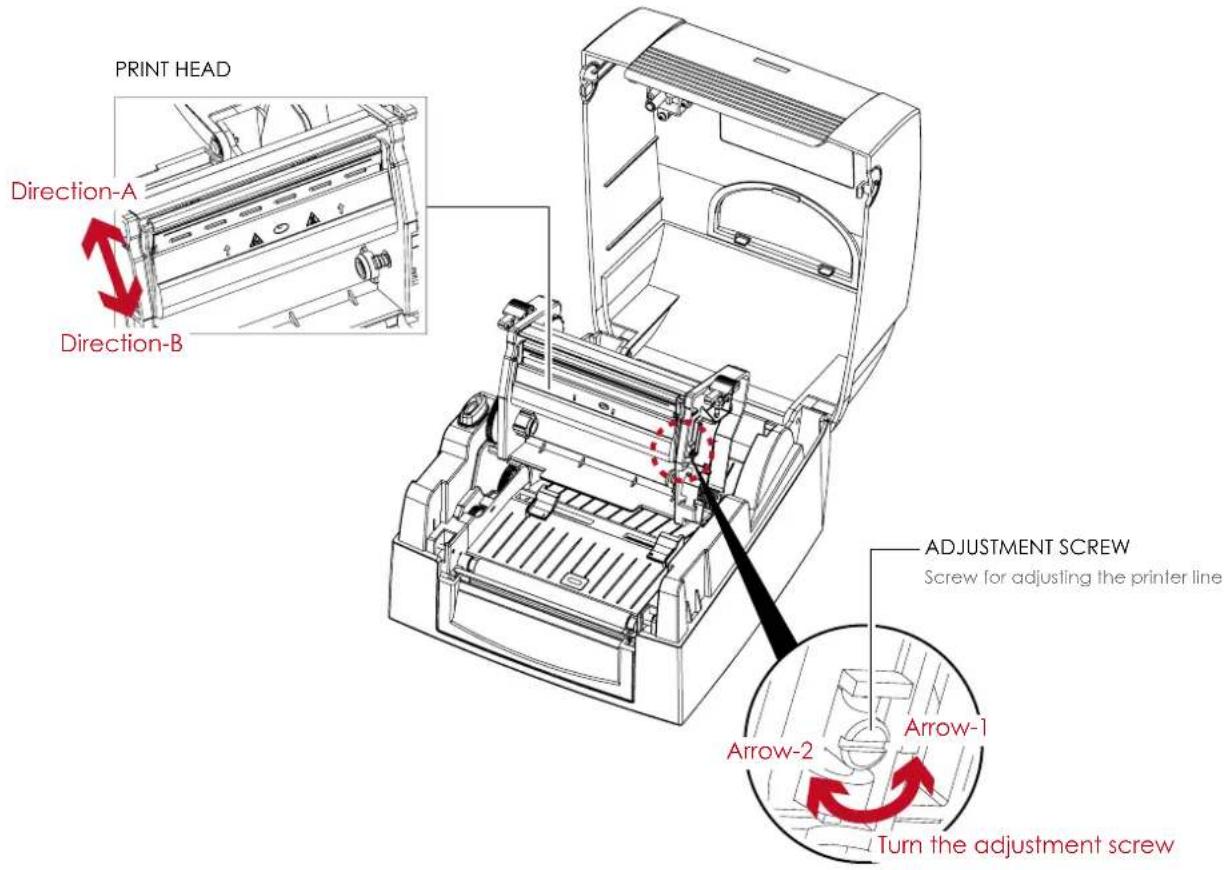
When the print line is incorrectly set, the print quality on one side of the medium may suffer. In such a case, the print line must be adjusted so it is positioned parallel to the paper feed roller.
Adjustment Methods
- To move the print head in Direction-A as indicated by the red arrow, turn the adjustment screw counterclockwise (see Arrow-1).
- To move the print head in Direction-B as indicated by the red arrow, turn the adjustment screw clockwise (see Arrow-2).
text_image
PRINT HEAD Direction-A Direction-B ADJUSTMENT SCREW Screw for adjusting the printer line Arrow-1 Arrow-2 Turn the adjustment screw5.4 Troubleshooting
Problem Solution
| The printer is switched on but the LED does not light up. | ◆ Check the power supply.Please see the Section 2.6 |
| The LED lights up red and printing is interrupted. | ◆ Check the software settings (driver settings) or command codes.◆ Look for the error alert in the table in Section 3.2. Error Alerts.◆ Check whether the print mechanism is closed correctly.Please see the Section 3.2 |
| The label stock passes through the printer but no image is printed. | ◆ Please make sure that the label stock is loaded the right way up and that it is suitable material.◆ Choose the correct printer driver.◆ Choose the correct label stock and a suitable printing mode. |
| The label stock jams during printing. | ◆ Clear the paper jam. Remove any label material left on the thermal print head and clean the print head using a soft lint-free cloth dipped in alcohol.Please see the Section 5.1 |
| There is no printed image on some parts of the label. | ◆ Check whether any label material or ribbon is stuck to the thermal print head.◆ Check for errors in the application software.◆ Check whether the starting position has been set incorrectly.◆ Check the ribbon for wrinkles. |
| There is no printed image on part of the label or the image is blurred. | ◆ Check the thermal print head for dust or other dirt.◆ Check the quality of the print medium. |
| The printed image is positioned incorrectly. | ◆ Check whether there is paper or dust covering the sensor.◆ Check whether the label stock is suitable. Contact your supplier.◆ Check the paper guide settings. |
| A label is missed out during printing. | ◆ Check the label height setting.◆ Check whether there is dust covering the sensor.◆ Run the auto-detection function.Please see the Section 3.3 |
| The printed image is blurred. | ◆ Check the darkness setting.◆ Check the thermal print head for dust or dirt.Please see the Section 5.1◆ Check if the ribbon is suitable for label stock. |
Notice
* If any problems occur that are not described here, please contact your dealer.
| Model CL-S321 CL-S331 | |||
| Print Method Thermal Transfer/Direct Thermal | |||
| Resolution 203dpi(8dots/mm) 300dpi(12dots/mm) | |||
| Print Speed 4IPS(102mm/s) 3IPS(76.2mm/s) | |||
| Print Width 4.25"(108mm) 4.16"(105.7mm) | |||
| Print Length Min. 0.16"(4mm)**; Max. 68"(1727mm) Min. 0.16"(4mm)**; Max. 30"(762mm) | |||
| Processor 32 Bit RISC CPU | |||
| Memory | Flash 8MB Flash(4MB for user storage) | ||
| SDRAM 16MB SDRAM | |||
| Sensor Type | Fixed transmissive sensorReflective sensor, central aligned | ||
| Media | Types | Continuous form, gap labels, black mark sensing, and punched hole; label length set by auto sensing or programming | |
| Width 1"(25.4mm)Min. -4.64"(118mm)Max. | |||
| Thickness 0.003"(0.06mm)Min.-0.008"(0.20mm)Max. | |||
| Label Roll Diameter | Max. 5"(127mm) | ||
| Core Diameter | 1", 1.5"(25.4mm, 38.1mm) | ||
| Ribbon | Types Wax, wax/resin, resin | ||
| Length | 360"(110m) | ||
| Width 1.18"Min.-4.33"(30mm-110mm)Max | |||
| Ribbon Roll Diameter | 1.57"(40mm) | ||
| Core Diameter | 0.5"(12.7mm) | ||
| Printer Language | EPL, ZPL auto switch | ||
| Software | Label Design Software | BarTender Ultralite | |
| Driver | Windows 2000, XP, Vista, 7, Windows Server 2003&2008 | ||
| Resident Fonts | Bitmap Fonts | 6, 8, 10, 12, 14, 18, 24, 30, 16X26 and OCR A&BBitmap fonts 90°, 180°, 270° rotatable, single characters 90°, 180°, 270° rotatableBitmap fonts 8 times expandable in horizontal and vertical directions | |
| Scalable Fonts | 90°, 180°, 270° rotatable | ||
| Download Fonts | Bitmap Fonts | Bitmap fonts 90°, 180°, 270° rotatable, single characters 90°, 180°, 270° rotatable | |
| Asian Fonts | Asian fonts 90°, 180°, 270° rotatable and 8 times expandable in horizontal and vertical directions | ||
| Scalable Fonts | Scalable fonts 90°, 180°, 270° rotatable | ||
| Barcodes | 1-D Bar codes | Code 39, Code 93, EAN 8/13(add on 2 &5), UPC A/E(add on 2&5), 12 of 5&1 2 of 5 with Shipping Bearer Bars, Codabar, Code 128(subset A, B, C), EAN 128, RPS 128, UCC 128, UCC/EAN-128 K-Mart, Random Weight, Post NET, ITF 14, China Postal Code, HIBC, MSI, Plessey, Telepen, FIM and GS1 DataBar | |
| 2-D Bar codes | PDF417, Datamatrix code, MaxiCode, QR code, Micro PDF417, Micro QR code and Aztec code | ||
| Code Pages | CODEPAGE 437, 850, 851, 852, 855, 857, 860, 861, 862, 863, 865, 866, 869, 737WINDOWS 1250, 1251, 1252, 1253, 1254, 1255, 1257Unicode UTF8, UTF16 | ||
| Graphics | Resident graphic file types are BMP and PCX, other graphic formats are downloadable from the software | ||
| Interfaces | USB Device (B-Type)RS-232 (DB-9)IEEE 802.3 10100Base-TxEthernet port (RJ-45) | :USB Device (B-Type)RS-232 (DB-9)IEEE 802.3 10100Base-TxEthernet port (RJ-45) | |
| Control Panel | One Tri-color LED: Power(Green, Orange and Red)Function Key: FEED | ||
| Power | Auto Switching 100-240VAC, 50-60Hz | ||
Model CL-S321 CL-S331
| Environment | Operation Temperature | 41°F to 104°F(5°C to 40°C) |
| Storage Temperature | -4°F to 122°F (-20°C to 50°C) | |
| Humidity | Operation 30-85%, non-condensing | |
| Storage 10-90%, non-condensing | ||
| Agency Approvals CE(EMC), FCC Class A, CB and CCC, NOM, S-Mark | ||
| Dimension | Length 10"(254mm) | |
| Height 6.7"(170mm) | ||
| Width 8.8"(224mm) | ||
| Weight 5.5 lbs (2.5Kg), excluding consumables | ||
| Options | USB Device + Parallel interfaces(factory install)External label roll holder for 10"(250mm) O.D. label rollsExternal label rewinder | |
Notice
Pinout Description
USB
Connector Type : Type B
| Pin NO. 1 2 3 4 |
| Function VBUS D- D+ GND |
- Serial Port
Default settings : Baud rate 9600, no parity, 8 data bits, 1 stop bit, XON/XOFF protocol and RTS/CTS
| RS232 Housing(9pin to 9pin) | ||
| DB9 Socket DB9 Plug | ||
| - | 1____1 | +5V, max 500mA |
| RXD | 2____2 | TXD |
| TXD | 3____3 | RXD |
| DTR | 4____4 | N/C |
| GND | 5____5 | GND |
| DSR | 6____6 | RTS |
| RTS | 7____7 | CTS |
| CTS | 8____8 | RTS |
| RI | 9____9 | N/C |
| Computer | Printer | |
- Parallel Port
Factory option
Handshaking : DSTB is sent to the printer, BUSY to the host computer.
Interface Cable : Parallel cable compatible with IBM computers.
Pinout: See below.
| Pin NO. Function Transmitter | ||
| 1 | /Strobe | host / printer |
| 2-9 | Data 0-7 | host |
| 10 | /Acknowledge | printer |
| 11 | Busy | printer |
| 12 | /Paper empty | printer |
| 13 | /Select | printer |
| 14 | /Auto-Linefeed | host / printer |
| 15 | N/C | |
| 16 | Signal Gnd | |
| 17 | Chasis Gnd | |
| 18 | +5V,max 500mA | |
| 19-30 | Signal Gnd | host |
| 31 | /Initialize | host / printer |
| 32 | /Error | printer |
| 33 | Signal Ground | |
| 34-35 | N/C | |
| 36 | /Select-in | host / printer |
Notice
* The total current to the serial port may not exceed 500mA.
CITIZEN SYSTEMS AMERICA CORPORATION
363 Van Ness Way, Suite 404
Torrance, CA 90501. USA
Tel: (310) 781-1460
Fax: (310) 781-9152
http://www.citizen-systems.com
CITIZEN SYSTEMS EUROPE GmbH
Mettinger Strasse 11 Park House, 643-651 Staines Road
D-73728, Esslingen Feltham, Middlesex, TW14 8PA
Germany United Kingdom
Tel: +49 (0) 711 3906 400 Tel: +44 (0) 20 8893 1900
Fax: +49 (0) 711 3906 405 Fax: +44 (0) 20 8893 0080
http://www.citizen-europe.com