Stylus Photo R380 - Printer EPSON - Free user manual and instructions
Find the device manual for free Stylus Photo R380 EPSON in PDF.


User questions about Stylus Photo R380 EPSON
0 question about this device. Answer the ones you know or ask your own.
Ask a new question about this device
Download the instructions for your Printer in PDF format for free! Find your manual Stylus Photo R380 - EPSON and take your electronic device back in hand. On this page are published all the documents necessary for the use of your device. Stylus Photo R380 by EPSON.
USER MANUAL Stylus Photo R380 EPSON
text_image
Paper support Sheet feeder Printer cover Edge guide External interface (PictBridge port) Infrared port Control panel Memory card slots (under cover) Front cover Tray lever Front tray extensions Front tray
text_image
AC inlet USB port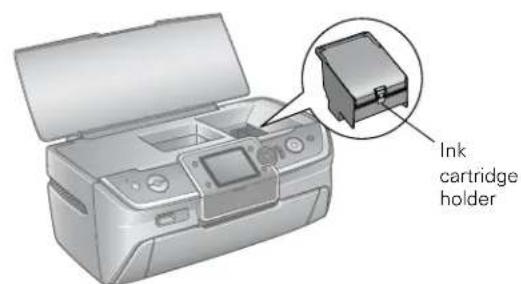
text_image
Ink cartridge holder
text_image
Memory Card button On button Print CD/DVD button Display/ Crop button Print Settings button OK button Stop/Clear Settings button Start button Setup button Back button Copies buttons LCD screen Navigation buttonsAccessories
Ink Cartridges
Epson® offers standard and high-capacity ink cartridge sizes for each color, and you can use both sizes at once in your Epson Stylus Photo R380, if desired. For example, you can install a standard size magenta cartridge (part number 78) and a high-capacity black cartridge (part number 77). The high-capacity cartridges are available at www.epson.com/highcapacity (U.S. sales) or www.epson.ca (Canadian sales).
| Cartridge Part number | |
| Black 78 (T078120) | |
| Cyan 78 (T078220) | |
| Magenta 78 (T078320) | |
| Yellow 78 (T078420) | |
| Light Cyan 78 (T078520) | |
| Light Magenta 78 (T078620) | |
| High-Capacity Black 77 (T077120) | |
| High-Capacity Cyan 77 (T077220) | |
| High-Capacity Magenta 77 (T077320) | |
| High-Capacity Yellow 77 (T077420) | |
| High-Capacity Light Cyan 77 (T077520) | |
| High-Capacity Light Magenta | 77 (T077620) |
Caution: To ensure good results, use genuine Epson cartridges and do not refill them. Other products may cause damage to your printer not covered by Epson's warranties.
Don't use an ink cartridge beyond the expiration date on the package.
Epson Media
| Paper name* | Size | Part number |
| Epson Ultra Premium Photo Paper Glossy | Borderless 4 × 6 inches | S041934 |
| Letter (8.5 × 11 inches) | S041935 | |
| Epson Ultra Premium Glossy Photo Paper | ||
| Epson Premium Photo Paper Glossy | Borderless 4 × 6 inches | S041808 |
| S041727 | ||
| Epson Premium Glossy Photo Paper | Borderless 5 × 7 inches | S041464 |
| Borderless 8 × 10 inches | S041465 | |
| Letter (8.5 × 11 inches) | S041286 | |
| S041667 | ||
| Epson Premium Photo Paper Semi-gloss | Borderless 4 × 6 inches | S041982 |
| Letter (8.5 × 11 inches) | S041331 | |
| Epson Premium Semigloss Photo Paper | ||
| Epson Photo Paper Glossy | Borderless 4 × 6 inches | S041809 |
| Letter (8.5 × 11 inches) | S041141 | |
| Epson Glossy Photo Paper | S041649 | |
| S041271 | ||
| Epson Bright White Paper | Letter (8.5 × 11 inches) | S041586 |
| Epson Premium Bright White Paper | ||
| Epson Premium Presentation Paper Matte | Borderless 8 × 10 inches | S041467 |
| Letter (8.5 × 11 inches) | S041257 | |
| Epson Matte Paper Heavyweight | Legal (8.5 × 14 inches) | S041067 |
| Epson Premium Presentation Paper Matte Double-sided | Letter (8.5 × 11 inches) | S041568 |
| Epson Double-sided Matte Paper | ||
| Epson Presentation Paper Matte | Letter (8.5 × 11 inches) | S041062 |
| Epson Photo Quality Ink Jet Paper | ||
| Epson Iron-on Cool Peel Transfer paper | Letter (8.5 × 11 inches) | S041153 |
| Epson Photo Quality Self Adhesive Sheets | A4 (8.3 × 11.7 inches) | S041106 |
| Epson Ultra Premium Photo Paper Luster | Letter (8.5 × 11 inches) | S041405 |
| Epson Premium Luster Photo Paper |
* Availability of paper types varies by location.
Specifications
Printing
Printing method On-demand ink jet
Ink configuration Six individual ink cartridges in black, cyan, magenta, yellow, light cyan, and light magenta
Mechanical
Paper feed Friction
Paper path Sheet feeder, top entry
Sheet feeder
capacity About 120 sheets
Dimensions
Storage Width: 17.8 inches (453 mm)
Depth: 13.5 inches (343 mm)
Height: 7.6 inches (194 mm)
Printing Width: 17.8 inches (453 mm)
Depth: 21.2 inches (538 mm)
Height: 11.2 inches (285 mm)
Weight 15.8 lb (7.15 kg) without ink cartridges
Ink Cartridges
Colors Black, cyan, magenta, yellow, light cyan light magenta
Cartridge life Within 6 months after opening package, at 77 °F (25 °C)
Dimensions
(W× D× H) 0.5× 2.7× 1.9 inches
(12.7 × 68.0 × 47.0 mm)
Storage
temperature -4 to 104 °F (-20 to 40 °C)
1 month at 104^ F ( 40^ C)
Freezing
temperature ^* 3.2 °F (-16 °C)
* Ink thaws and is usable after approximately 3 hours at 77 °F (25 °C)
Memory Card Compatibility
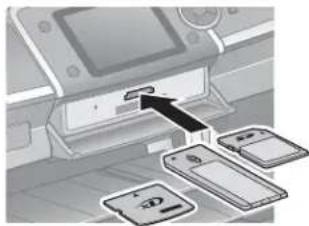
natural_image
Diagram showing a printer with an arrow pointing to a stack of three smartphone screens (no text or symbols present)Top slot
Bottom slot
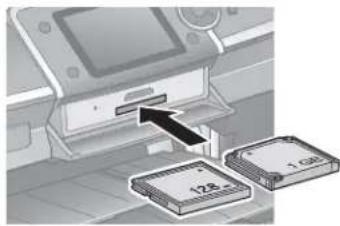
text_image
128 1.00| Slot Type of card | |
| Top slot xD-Picture Card ^TM xD-Picture Card Type MxD-Picture Card Type HMagicGate ^TM Memory StickMagicGate Memory Stick Duo*Memory Stick ^TM Memory Stick Duo ^TM *Memory Stick PRO ^TM Memory Stick PRO Duo ^TM *MultiMediaCardSD ^TM CardSDHC CardminiSD ^TM Card*miniSDHC Card*microSD Card*microSDHC Card* | |
| Bottom slot CompactFlash ^® Microdrive ^TM | |
* Adapter required.
The printer supports image files that meet the following requirements:
| Media format DCF | version 1.0 or 2.0 compliant* |
| File format JPEG, DOS FAT (FAT 12 or 16, one partition) taken with a DCF version 1.0 or 2.0 compliant digital cameraSupports Exif version 2.21 | |
| Image size 80 × 80 | pixels to 9200 × 9200 pixels |
| Number of files Up | to 999 |
* DCF is the "Design rule for Camera File system" standard.
Electrical
| Rated voltage 100-120 V Model 2 | 20-240 V Model | ||
| Input voltage range* AC 90 to 13 | 2 V AC 198 to 2 | 64 V | |
| Rated frequency range | 50 to 60 Hz | ||
| Input frequency range | 49.5 to 60.5 Hz | ||
| Rated current | 0.6 A(max. 1.1 A) | 0.3 A(max. 0.5 A) | |
| Power consumption | ISO/IEC10561Letter pattern | Approx. 17 W | |
| Sleep mode | Approx. 4.5 W | Approx. 5.0 W | |
| Power off mode | Approx. 0.2 W | Approx. 0.4 W | |
* Check the label on the back of the printer for its voltage.
Interfaces
USB 2.0 Hi-Speed (Device Class for computers), based on Universal Serial Bus Specifications Revision 2.0; 480 Mbps
USB 2.0 Hi-Speed (Mass Storage Class for external storage devices)
Bluetooth® Ver. 2.0+EDR (option)
IrDA Ver. 1.3
Environmental
Temperature
Operation 50 to 95 °F (10 to 35 °C)
Storage -4 to 104 °F (-20 to 40 °C)
1 month at 104^ F ( 40^ C)
Humidity (without condensation)
Operation 20 to 80% RH
Storage 5 to 85% RH
Safety Approvals
Safety standards UL 60950-1
CAN/CSA-22.2 No.60950-1
EMC FCC part 15 Subpart B class B
CAN/CSA-CEI/IEC CISPR 22 Class B
Paper
| Paper Type Specifications | ||
| Single sheets Plain bond paper or special paper distributed by Epson | Thickness: 0.003 to 0.004 inch (0.08 to 0.11 mm) for plain bond paperWeight: 17 lb to 24 lb (64 g/m ^2 to 90 g/m ^2 ) for plain bond paper | |
| Envelopes Plain bond paper | Weight: 20 lb to 24 lb (75 g/m ^2 to 90 g/m ^2 ) | |
Printable area

| A The minimum top margin is 0.12 inches (3.0 mm). |
| B-L The minimum left margin is 0.12 inches (3.0 mm). |
| B-R The minimum right margin is 0.12 inches (3.0 mm). |
| C The minimum bottom margin is 0.12 inches (3.0 mm). |
| D-L The minimum left margin is 0.20 inches (5.0 mm). |
| D-R The minimum right margin is 0.20 inches (5.0 mm). |
| E The minimum bottom margin is 0.78 inches (20.0 mm). |
* When you print with the borderless feature, print quality may decline in the expanded area. Before printing large jobs using the borderless setting, print a single sheet to confirm printout quality.
Note: Always load paper into the sheet feeder with the short edge first. Load envelopes flap edge left with the flap side down.
CDs or DVDs

If you are not printing on a hub-printable disc, do not print in the following areas of the disc; otherwise the disc or CD/DVD tray may get stained with ink.
| Inner hub area 18 to | 42 mm |
| Outer periphery area | 117 to 120 mm for a 12-cm CD/DVD77 to 80 mm for a 8-cm CD/DVD |
Selecting the Paper Type Setting
Select the correct paper Type or Media Type setting in the printer driver so your printer knows what kind of paper you're using and adjusts the ink coverage accordingly.
| For this paper Select this paper Type or | Media Type setting |
| Plain paperEpson Bright White PaperEpson Premium Bright White PaperEpson Iron-on Cool Peel Transfer Paper | Plain Paper / Bright White Paper |
| Epson Ultra Premium Photo Paper GlossyEpson Ultra Premium Glossy Photo Paper | Ultra Premium Photo Paper Glossy |
| Epson Premium Photo Paper GlossyEpson Premium Glossy Photo Paper | Premium Photo Paper Glossy |
| Epson Premium Photo Paper Semi-glossEpson Premium Semigloss Photo Paper | Premium Photo Paper Semi-Gloss |
| Epson Photo Paper GlossyEpson Glossy Photo Paper | Photo Paper Glossy |
| Epson Premium Presentation Paper MatteEpson Matte Paper HeavyweightEpson Premium Presentation Paper Matte Double-sidedEpson Double-sided Matte Paper | Premium Presentation Paper Matte |
| Epson Presentation Paper MatteEpson Photo Quality Ink Jet PaperEpson Photo Quality Self Adhesive Sheets | Presentation Paper Matte |
| Epson Ultra Premium Photo Paper LusterEpson Premium Luster Photo Paper | Ultra Premium Photo Paper Luster |
| Envelopes Envelope |
Paper Loading Guidelines
You can load up to 120 sheets of plain paper and the following number of sheets of Epson special media:
| Paper type Loading | capacity |
| Epson Presentation Paper MatteEpson Photo Quality Ink Jet Paper | 120 sheets |
| Epson Bright White PaperEpson Premium Bright White Paper | 80 sheets |
| Epson Ultra Premium Photo Paper GlossyEpson Ultra Premium Glossy Photo PaperEpson Premium Photo Paper GlossyEpson Premium Glossy Photo PaperEpson Premium Photo Paper Semi-glossEpson Premium Semigloss Photo PaperEpson Photo Paper GlossyEpson Glossy Photo PaperEpson Premium Presentation Paper MatteEpson Matte Paper HeavyweightEpson Premium Presentation Paper Matte Double-sidedEpson Double-sided Matte PaperEpson Ultra Premium Photo Paper LusterEpson Premium Luster Photo Paper | 20 sheets |
| Epson Iron-on Cool Peel Transfer paperEpson Photo Quality Self Adhesive Sheets | 1 sheet |
☐Don't load paper above the arrow mark on the left edge guide. Make sure the paper is under the tabs on the left and right edge guides.
Load the printable side face-up. It's often brighter or whiter than the other side.
□Always load the short edge first, even when printing in landscape mode.
☐Load letterhead or preprinted paper into the printer top edge first.
☐If you experience paper feeding problems, try loading fewer sheets.
If you're using special paper, follow the instructions that came with the paper.
See your Printer Basics or on-screen User's Guide for more information about loading paper.
Error Messages
You can diagnose and solve most problems by checking the error messages on the LCD screen. The following table lists the error messages and recommended solutions.
| Error message Solution | |
| A printer error has occurred. See your documentation. | Paper may be blocking movement of the print head. Turn off the printer, then lift up the printer cover and remove any jammed paper or other foreign objects. Also, make sure you've removed all of the packing material. Then turn the printer back on. If you still see this error message, contact Epson. |
| Waste ink pad in the printer is saturated. | Contact your dealer to replace it. |
| Cannot recognize ink cartridges. | Make sure the ink cartridges are installed correctly. |
| The document is too complex to print with Bluetooth. | See the documentation for your Bluetooth device. |
| Data error. The document cannot be printed. | See the documentation for the device transmitting the data. This error occurs when the transmitting device does not send data properly. |
| Cannot recognize the device. | Make sure you've inserted your memory card or storage device correctly. |
| Cannot recognize the memory card or disk. | Make sure you've inserted the memory card or storage device correctly. If so, check to see whether there is a problem with the card or device. |
| A problem occurred while formatting. Formatting cancelled. | Retry the procedure. If the error reoccurs, there may be a problem with your memory card or storage disk. Check to see whether there is a problem with the card or disk, then try again. The memory card should be formatted in the camera. |
| An error occurred while saving. Save cancelled. | |
| Cannot create a folder on the memory card or disk. Operation cancelled. | Insert a new memory card or storage device and try again. |
| Print head cleaning failed. | Try cleaning the print head again. If the error message reoccurs, contact Epson. |
| Backup Error Error codeXXXXXXX | A problem occurred and the backup procedure was cancelled. Make a note of the error code and contact Epson. |
Printing on CDs and DVDs
Your printer includes a special tray that lets you print customized text, graphics, and photos directly on any ink jet-printable CD or DVD. The Epson Print CD software makes it easy to import your own photos, add text, and modify your designs with a variety of special effects. You can print on both regular 12-cm and 8-cm CDs and DVDs.
Caution: Use only ink jet-printable CDs and DVDs for printing. Thermal-printable and regular CDs and DVDs should not be used with this printer; otherwise the ink may smear.
Cleaning the Rollers
Before you print on a CD or DVD, you should clean the rollers inside the printer. You can do this by feeding and ejecting several sheets of plain paper.
- Make sure your printer is turned on and several sheets of letter-size plain paper are loaded.
- Press the Setup button.
- Press ◀ or ▶ select Maintenance, then press OK.
- Press ▲ to select Load/Eject Paper, then press OK.
- Press the ◇ Start button to run a sheet of paper through the printer's rollers.
- Repeat step 5 four more times to finish cleaning the rollers.
Inserting a CD or DVD
Caution: Make sure the data, music, or video is burned on your ink jet-printable CD or DVD before you print. Otherwise, dirt or scratches on the surface may cause errors when you burn the data.
- Turn on the printer and open the front cover.
- Set the front tray to the CD/DVD position by pulling the tray lever down.
Caution: Before you move the tray lever, make sure no paper or other objects are on the front tray and the front tray is not extended.
Do not touch the front tray when you move the tray lever.
Do not move the tray lever while the printer is printing.

natural_image
Illustration of a printer being inserted into a physical device, showing the process with red arrows indicating the insertion direction (no text or symbols present)- Place the CD or DVD on the CD/DVD tray with the white or printable side face-up. Make sure the disc lies flat in the tray.
Note: Use only one CD/DVD at a time.
Caution: Before you position the CD or DVD, make sure that no foreign particles or substances are on the CD/DVD tray, as these may damage the disc's data side.
Be sure to use the CD/DVD tray provided with this printer. If you use another CD/DVD tray, there may be a gap in the print position and printing may not be accurate.
To print on a small CD or DVD (8-cm), place the small CD/DVD adapter on the tray first, then place the CD or DVD inside the adapter. Make sure the tabs on the edge of the adapter fit squarely into the molding of the tray.
Caution: Make sure you always use the small CD/DVD adapter when you print on 8-cm CDs or DVDs and that the CD or DVD and adapter lie flat on the tray; otherwise the printer may be damaged.

text_image
CD/DVD adapter12-cm CD/DVD 8-cm CD/DVD
- Gently insert the CD/DVD tray along the base of the front tray until the arrow marks on the CD/DVD tray and the front tray are aligned.
Caution: Be sure to insert the CD/DVD tray while the printer is turned on; this ensures that the print position will be adjusted automatically.
Do not insert the CD/DVD tray while the printer is printing; otherwise, your printer may be damaged or the surface of the CD or DVD may become dirty or scratched.

text_image
Make sure the CD/DVD tray slides under the tab (on both sides) Make sure the arrow marks are alignedDesigning CDs and DVDs
You can use the Epson Print CD program (included on the Printer Software CD-ROM) to create and print a design with images, graphics, and text. See your Printer Basics manual or on-screen User's Guide for instructions.
Printing Your Design
After you have created your design and loaded a CD or DVD, follow these steps to print:
- Open the File menu and select Print.
- Make sure EPSON Stylus Photo R380 Series (Windows) or Stylus Photo R380 (Macintosh) is selected.
- Select CD/DVD or CD/DVD Premium Surface as the Media Type setting.
- Select None as the Print Confirmation Pattern setting (Windows) or Test Print Pattern setting (Macintosh).
- Click Print.
Note: You can print on only one CD or DVD at a time. When the Copies setting is set to 2 or more, remove each disc from the tray after it has been printed, and then place the next CD or DVD on the tray. Then press the ◆ Start button to resume printing.
After you print, handle the CD or DVD carefully and allow the ink to dry for at least 24 hours before playing the disc or inserting it in a drive. Keep printed discs away from moisture and direct sunlight.
After you finish printing on a CD/DVD, remove the CD/DVD tray and set the front tray to the paper position by pushing up the tray lever.
If you need to adjust the print position or color, see your on-screen User's Guide or Printer Basics book.
Replacing an Ink Cartridge
When you print with low or expended ink cartridges, you see a message on the LCD screen telling you which cartridges are low or expended.
You'll also see a message on your computer screen when you print telling you which cartridge is low or expended.
When a cartridge is installed in the printer for more than six months, you may need to replace it if printouts don't look their best. If the quality doesn't improve after cleaning and aligning the print head, you can replace the cartridge even if the cartridge is not expended.
Checking the Ink Cartridge Status
Follow the steps below to check how much ink is left in your cartridges.
Note: You can also check the ink cartridges using your computer; see your Printer Basics manual or on-screen User's Guide for instructions.
- Press Setup to enter the Setup menu.
- Press ◀ or ▶ to select Ink Cartridge Status, then press OK.
- You see a screen showing the status of the ink cartridges:
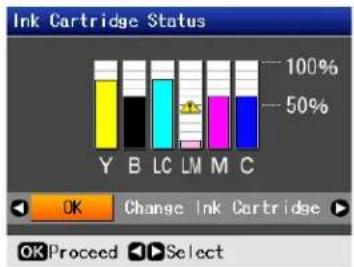
bar
Ink Cartridge Status | Category | Value (%) | |---|---| | Y | 100 | | B | 50 | | LC | 50 | | LM | 25 | | M | 25 | | C | 25 | OK Change Ink Cartridge OKProceed SelectThe cartridges are identified as follows: Y (yellow), B (black), LC (light cyan), LM (light magenta), M (magenta), C (cyan).
- When you're done checking the ink cartridge status, press OK. Press ◀ or ▶ to select OK, then press OK.
Removing and Installing Ink Cartridges
Be sure you have a new ink cartridge before you begin. Once you start replacing a cartridge, you must complete all the steps in one session.
Caution: Leave the expended cartridge installed until you have obtained a replacement, or the ink remaining in the print head nozzles may dry out. To ensure good results, use genuine Epson ink cartridges and do not refill them. Other products may cause damage to your printer not covered by Epson's warranty.
Note: Do not open ink cartridge packages until you are ready to install the ink. Cartridges are vacuum packed to maintain reliability.
- Make sure the printer is turned on, the CD tray is not inserted, and the front tray is in the paper (lower) position.
- If an ink cartridge is expended, the LCD screen indicates which cartridge(s) you need to replace. Press OK.
If an ink cartridge is low, the LCD screen displays a message when you print. Press Setup, select Maintenance, then press OK. Press ▲ or ▼ to select Change Ink Cartridge, then press OK.
- Open the printer cover, then open the cartridge cover.

natural_image
Illustration of a printer with an open lid and internal components, showing a hand inserting a card into a device (no text or symbols visible)Caution: Never attempt to open the cartridge cover while the print head is moving; wait until the cartridges have moved to the replacement position.
To avoid damaging the printer, never move the print head by hand.
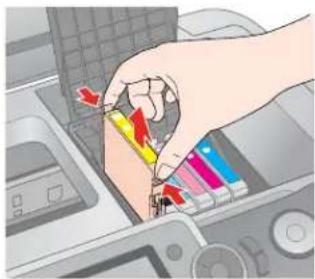
- Squeeze the back tab of the used cartridge as you lift it straight out. Dispose of it carefully. Don't take the cartridge apart or try to refill it.
natural_image
Hand inserting a color into a computer monitor (no text or symbols visible)Warning: If ink gets on your hands, wash them thoroughly with soap and water. If ink gets in your eyes, flush them immediately with water. If discomfort or vision problems continue after a thorough flushing, see a doctor immediately.
Note: If an ink cartridge is low, you may continue to use it until it is expended.
- Remove the new cartridge from the package.
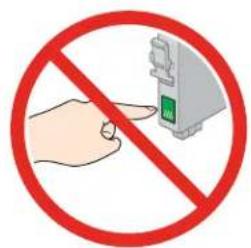
Caution: Do not touch the green IC chip on the side of the cartridge. This can damage the ink cartridge.
Always install an ink cartridge immediately after removing the old cartridge. If the cartridge is not installed promptly, the print head may dry out and be unable to print.
- Remove the yellow tape from the bottom of the ink cartridge.
text_image
Prohibition sign showing a hand pointing at a device with a green button, enclosed in a red circle.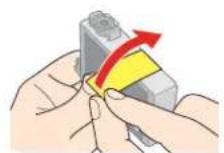
Caution: You must remove the yellow tape from the cartridge before you install it; otherwise, print quality may decline or you may not be able to print. If you have installed an ink cartridge without removing the yellow tape, take the cartridge out of the printer, remove the yellow tape, and then reinstall it.
Do not remove the transparent seal from the bottom of the cartridge; otherwise, the cartridge may become unusable.

text_image
Prohibition sign showing a medical device with a stethoscope and red prohibition symbolDo not remove or tear the label on the cartridge; otherwise, ink will leak.

text_image
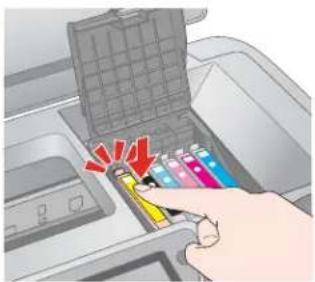
Prohibition sign with red circle and downward arrow, indicating no prohibition or rejection of a device- Lower the new ink cartridge into the holder. Push down gently until the cartridge clicks into place.
natural_image
Illustration of a hand inserting a color into a printer's drawer with colored tubes (no text or symbols visible)-
If you need to replace other ink cartridges, repeat steps 4 through 7 before continuing with step 9.
-
Close the cartridge cover, then close the printer cover.

natural_image
Illustration of a printer with an open lid and internal compartments, showing a close-up of the internal structure (no text or symbols present)- Press OK.
The printer begins charging the ink delivery system and the message "Charging Ink. Please Wait" appears on the LCD screen.
After about one minute, the message "Ink cartridge replacement is complete" appears on the LCD screen.
Caution: Do not turn off the printer during ink charging as this will waste ink.
Do not insert the CD/DVD tray during ink charging.
Cleaning the Print Head
If your printouts are unexpectedly light or faint, or you notice light or dark bands across your printout, you may need to clean the print head. This unclogs the nozzles so they can deliver ink properly.
You can clean the print head using the buttons on your printer or using the Head Cleaning utility on your computer. You can also run a nozzle check to see if the print head needs cleaning.
Note: Print head cleaning uses ink, so clean the print head only when print quality declines (for example, if you see lines in your printout or colors are incorrect or missing).
Before you clean the print head, check the print head nozzles first to confirm that the print head needs to be cleaned, as described below.
If error messages indicating low or expended ink appear on the LCD screen, you cannot clean the print head. Replace the appropriate ink cartridge first.
Caution: If you don't use your printer often it is a good idea to print a few pages at least once a month to maintain good print quality.
Before you check the print head nozzles or clean the print head, make sure the CD/DVD tray is not inserted in the printer, and make sure the front tray is in the paper (lower) position.
Checking the Print Head Nozzles
Follow the steps below to check the print head nozzles using the printer's control panel.
Note: You can also check the print head nozzles using your computer. See your Printer Basics manual or on-screen User's Guide for instructions.
- Make sure the printer is turned on but not printing, and no warnings or errors are displayed on the LCD screen.
- Make sure letter-size plain paper is loaded in the printer.
- Press Setup.
- Press ◀ or ▶ to select Maintenance, then press OK.
- Press ▲ or ▼ to select Nozzle Check, then press OK.
- Press Start.
The nozzle check pattern prints:
Print head does not need to be cleaned:
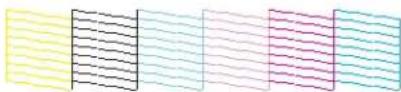
Print head needs to be cleaned:

- If there are no gaps or lines, the print head does not need to be cleaned. Press OK to return to the Maintenance menu.
If there are gaps or lines, or the test patterns are faint, run the Head Cleaning utility as described below.
Running the Head Cleaning Utility
Follow the steps below to run the Head Cleaning utility using the printer's control panel.
Note: You can also run the Head Cleaning utility using your computer. See your Printer Basics manual or on-screen User's Guide for instructions.
- Make sure the printer is turned on but not printing, and no warnings or errors are displayed on the LCD screen. (If ink is low, you need to replace an ink cartridge before cleaning the print head).
- Load a few sheets of letter-size plain paper in the printer.
- Press Setup to enter the Setup menu.
- Press ◀ or ▶ to select Maintenance, then press OK.
- Press ▲ or ▼ to select Head Cleaning, then press OK.
6. Press! Start.
The printer runs a head cleaning cycle and a message appears on the LCD screen. Cleaning takes approximately 30 seconds.
Caution: Never turn off the printer while the message "Print head cleaning in progress. Please wait." appears on the LCD screen. You may damage it.
Do not insert the CD/DVD tray during cleaning.
-
When cleaning finishes, press ◇ Start. The printer prints a test pattern.
-
If there are no gaps in the pattern, press OK to return to the Maintenance menu.
If there are gaps in the pattern, press ◆ Start to clean the print head again.
If you don't see any improvement after cleaning four or five times, turn the printer off and wait six hours. This allows any dried ink to soften. Then, try cleaning the print head again.
Examining the Nozzle Check Pattern
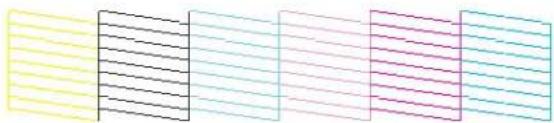
Examine the nozzle check pattern you printed. Each staggered line should be solid, with no gaps, as shown.
natural_image
Abstract pattern of horizontal lines in yellow, black, cyan, and magenta (no text or symbols)□If your printout looks okay, you're done.
☐If you see any gaps (as shown below), clean the print head again.
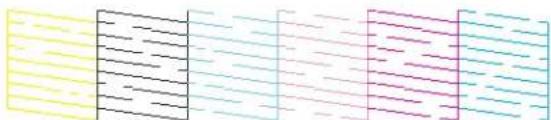
natural_image
Abstract pattern of horizontal lines and rectangular blocks in yellow, cyan, and magenta (no text or symbols)Aligning the Print Head
If your printouts look grainy or blurry, or you see light or dark lines, you may need to align the print head.
Note: You may also see lines in your printouts if your cartridges are low on ink or you need to clean the print head.
Caution: Do not press the ▼ Stop/Clear Settings button while printing an alignment sheet.
The steps below explain how to align the print head using the printer's control panel. (You can also do this using your computer. See your Printer Basics manual or on-screen User's Guide for instructions.)
-
Make sure the CD/DVD tray is not inserted in the printer, and make sure the front tray is in the paper (lower) position.
-
Make sure the printer is turned on but not printing, and no warnings or errors are displayed on the LCD screen.
-
Make sure letter-size plain paper is loaded in the printer.
-
Press Setup to enter the Setup menu.
-
Press ◀ or ▶ to select Maintenance, then press OK.
-
Press ▲ or ▼ to select Head Alignment, then press OK.
-
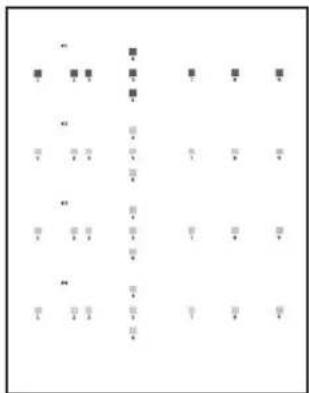
Press Start. An alignment sheet is printed.
text_image
Scanned image of a document with fragmented Chinese text, likely from a form or table.-
Examine pattern #1 and find the square that is most even, with no streaks or lines.
-
Press▶ then ▲ or ▼ to select the number for that square.
-
Press OK.
-
Press ▼ to select the next pattern, then repeat steps 8 through 10.
-
When you've finished your selections for each of the four patterns, press OK. You see the message "Print head alignment is complete."
Cleaning the Printer
To keep your printer working at its best, you should clean it several times a year.
-
Turn off the printer, unplug the power cord, and disconnect the USB cable.
-
Remove all the paper, then use a soft brush to clean the sheet feeder.
-
If the outer case or inside of the sheet feeder is dirty, clean it with a soft cloth dampened with mild detergent. Keep the printer cover closed to prevent water from getting inside.
-
If there is any ink inside the printer, wipe it off with a damp cloth in the area shown.

text_image
Clean hereWarning: Don't touch the gears or any other parts inside the printer.
Caution: Never use a hard or abrasive brush, or benzine, alcohol, or paint thinner for cleaning; they can damage the printer components and case.
Don't get water on the printer components and don't spray or apply lubricants, oils, or grease inside the printer.
Don't use any cleaning sheets included with special paper; they may jam inside the printer.
Transporting the Printer
If you need to ship your printer, you must prepare it for transportation by packing the printer in its original box or one of a similar size.
Caution: When storing or transporting the printer, do not tilt it, stand it up vertically, or turn it upside down. Otherwise, ink may leak from the cartridges. Also, leave the ink cartridges installed. Removing the cartridges can dehydrate the print head and may prevent the printer from printing.
-
Remove all paper from the sheet feeder.
-
Turn the printer off.
-
Open the printer cover and make sure the print head is in the home (far right) position.
-
Secure the print head in the home position with a piece of tape, as shown below.

natural_image
Illustration of a printer with a blue ribbon cable inserted, showing internal components and a magnified view (no text or symbols)-
Close the printer cover.
-
Unplug the power cord from the outlet, then disconnect the USB cable from your computer.
-
Close the front tray extensions and front cover.

text_image
Diagram of a printer with numbered parts showing paper folding process and directional arrows- Close the paper support.
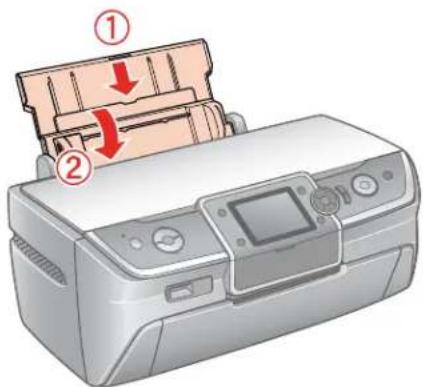
text_image
Diagram of a printer with labeled parts showing paper feeding into a stack, marked with arrows indicating process flow.- Repack the printer in the box, using the protective materials that came with it.
- Turn off the printer and unplug its power cord. Then disconnect the power cord and USB cable from the printer.
Keep the printer level as you transport it.
After transporting the printer, plug it in, turn it on, and test it. If you notice a decline in print quality, clean the print head; if output is grainy or blurry, align the print head.
Related Documentation
CPD-22276 Epson Stylus Photo R380 Start Here
CPD-22278 Epson Stylus Photo R380 Printer Basics
CPD-22277 Epson Stylus Photo R380 CD-ROM with on-screen User's Guide