Stylus C42UX - Printer EPSON - Free user manual and instructions
Find the device manual for free Stylus C42UX EPSON in PDF.


User questions about Stylus C42UX EPSON
0 question about this device. Answer the ones you know or ask your own.
Ask a new question about this device
Download the instructions for your Printer in PDF format for free! Find your manual Stylus C42UX - EPSON and take your electronic device back in hand. On this page are published all the documents necessary for the use of your device. Stylus C42UX by EPSON.
USER MANUAL Stylus C42UX EPSON
EPSON Stylus® C42 Series
User's Manual
natural_image
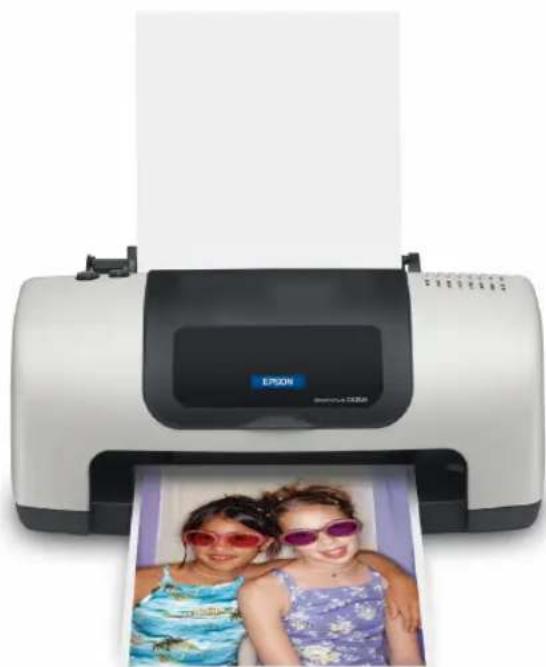
Exterior view of a white EPSON printer with two children's photos printed on it (no visible text or symbols on the device body)Copyright Notice
All rights reserved. No part of this publication may be reproduced, stored in a retrieval system, or transmitted in any form or by any means, electronic, mechanical, photocopying, recording, or otherwise, without the prior written permission of SEIKO EPSON CORPORATION. The information contained herein is designed only for use with this EPSON printer. EPSON is not responsible for any use of this information as applied to other printers.
Neither SEIKO EPSON CORPORATION nor its affiliates shall be liable to the purchaser of this product or third parties for damages, losses, costs, or expenses incurred by purchaser or third parties as a result of: accident, misuse, or abuse of this product or unauthorized modifications, repairs, or alterations to this product, or (excluding the U.S.) failure to strictly comply with SEIKO EPSON CORPORATION's operating and maintenance instructions.
SEIKO EPSON CORPORATION shall not be liable for any damages or problems arising from the use of any options or any consumable products other than those designated as Original EPSON Products or EPSON Approved Products by SEIKO EPSON CORPORATION.
A Note Concerning Responsible Use of Copyrighted Materials
Digital cameras and scanners, like photocopiers, conventional cameras, and ink jet printers, can be misused by improper copying and reprinting of copyrighted material. While some countries' laws permit limited copying of copyrighted material in certain circumstances, those circumstances may not be as broad as some people assume. EPSON encourages each user to be responsible and respectful of the copyright laws when using digital cameras, scanners, and ink jet printers.
Trademarks
EPSON, EPSON Stylus and EPSON Photo Stickers are registered trademarks of SEIKO EPSON CORPORATION.
EPSON SoundAdvice is a service mark, and PhotoEnhance is a trademark of Epson America, Inc.
General Notice: Other product names used herein are for identification purposes only and may be trademarks of their respective owners. EPSON disclaims any and all rights in those marks.
Contents
WELCOME! 5
About Your Documentation 5
Warnings, Cautions, Notes, and Tips 6
PRINTING FROM START TO FINISH 7
Loading Paper 8
Printing in Windows 9
Selecting the Settings You Use Most Often 12
Printing on a Macintosh 12
Macintosh OS X 12
Macintosh OS 8.5.1 to 9.x 17
Printing on Envelopes 20
Selecting the Correct Paper Type 22
MAINTAINING YOUR PRINTER 23
Cleaning the Print Head 23
Running the Head Cleaning Utility 24
Examining the Nozzle Check Pattern 25
Replacing an Ink Cartridge 25
Ink Cartridge Precautions 26
Removing and Installing Ink Cartridges 27
Aligning the Print Head 29
Cleaning the Printer 30
Transporting the Printer 31
SOLVING PROBLEMS 32
Printer Parts 33
Diagnosing Printer Problems 34
Running a Printer Check 35
Problems and Solutions 36
Setup and Software Installation Problems 36
Printer Problems 37
Print Quality Problems 38
Paper Feeding Problems 41
Miscellaneous Printout Problems 42
Uninstalling and Reinstalling Printer Software 43
Windows 43
Macintosh OS 8.5.1 to 9.x 43
Macintosh OS X 44
Where To Get Help 45
REQUIREMENTS AND SPECIFICATIONS 46
Windows System Requirements 46
Macintosh System Requirements 47
Specifications 48
WHERE TO PURCHASE EPSON INK AND PAPER . . . . . . . . 50
INDEX 51
Welcome!
Printing with your EPSON Stylus ^® C42 printer is easy, friendly, and fast. Simple enough for even the most inexperienced user, the Stylus C42 prints everything from school reports to family photos with great results.
For added value, it supports a wide range of EPSON ^ special media, including Glossy Photo Greeting Cards, Photo Stickers, ^ and special photo papers in a variety of sizes and finishes. You'll find a list of available papers at the end of this manual.

It's a good idea to check EPSON's support web site periodically for free updates to your printer software. Visit http://support.epson.com. Download instructions are posted for your convenience.
About Your Documentation
To set up your printer and install its software, see the Start Here sheet. This book contains information about:
■ Printing with Windows ^® or on a Macintosh ^®
■ Maintaining the printer
■ Solving basic problems
■ System requirements and printer specifications
For system requirements, safety instructions, specifications and other important information, see the EPSON Stylus C42 Series Notices and Warranty booklet.
Warnings, Cautions, Notes, and Tips
Please follow these guidelines:

Warnings must be followed carefully to avoid bodily injury.

Cautions must be observed to avoid damage to your equipment.

Notes contain important information about your printer.

Tips contain additional hints for better printing.
Printing From Start to Finish
Before you start, make sure your printer software is installed as described on the Start Here sheet.
No matter what you print, you need to remember two things:
■ Use the right paper.
For the best-looking photos, most vivid colors, and sharpest text, always use EPSON ink jet papers.
■ Choose the right Paper Type setting (Media Type setting on the Macintosh).
Your printer automatically adjusts itself for each type of paper. That's why this setting is important. It tells your printer what kind of paper you're using. So remember to check your Paper Type setting every time you print. If you're not sure which setting to use with your paper, see page 22.
Follow the instructions in these sections:
■ Loading Paper on page 8
■ Printing in Windows on page 9
■ Printing on a Macintosh on page 12
■ Printing on Envelopes on page 20
■ Selecting the Correct Paper Type on page 22
Loading Paper
Make sure your printer and computer are turned on.
- Place your paper against the right edge of the sheet feeder, behind the tab.
- Press in the locking tab on the left edge guide and slide it against the paper.
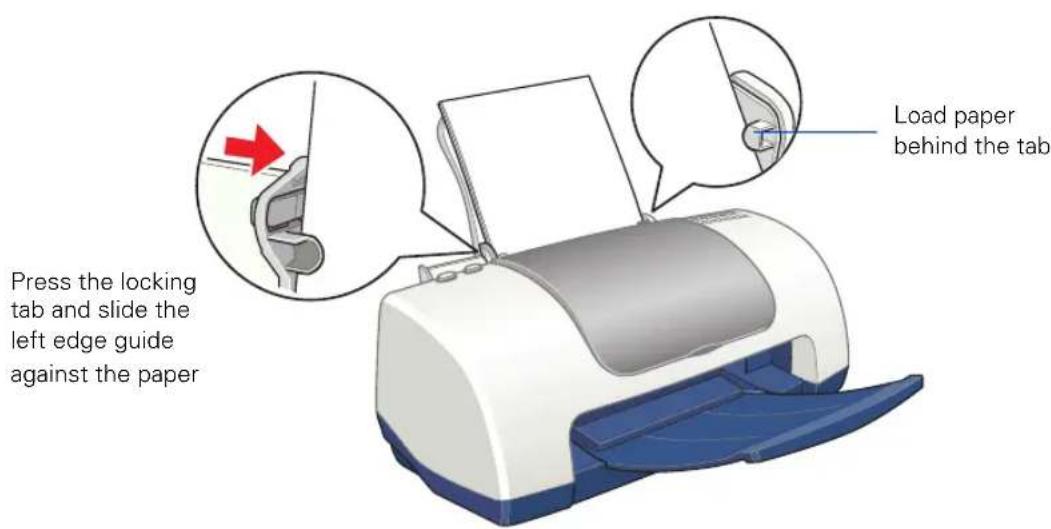
text_image
Press the locking tab and slide the left edge guide against the paper Load paper behind the tab- Pull out the output tray extension.
Follow these guidelines when loading paper:
■ Always load the short edge first, even when you're printing landscape oriented documents.
- Load the printable side face up. It's usually whiter or brighter than the other side.
■ Load letterhead or preprinted paper into the printer top edge first.
- Don't load paper above the arrow on the left edge guide.
- Load the following media types one sheet at a time: Photo Quality Self Adhesive Sheets, Photo Stickers,, and Panoramic Photo Paper.
If you're using special media, follow the instructions that came with the media.
Printing in Windows
Here's what to do to print a basic document—such as a newsletter or school project. Make sure you have paper in the printer, as described on page 8. After you create your document in a software program, follow these steps to print.
- From the File menu, click Print. You see a Print window (your window may look different):
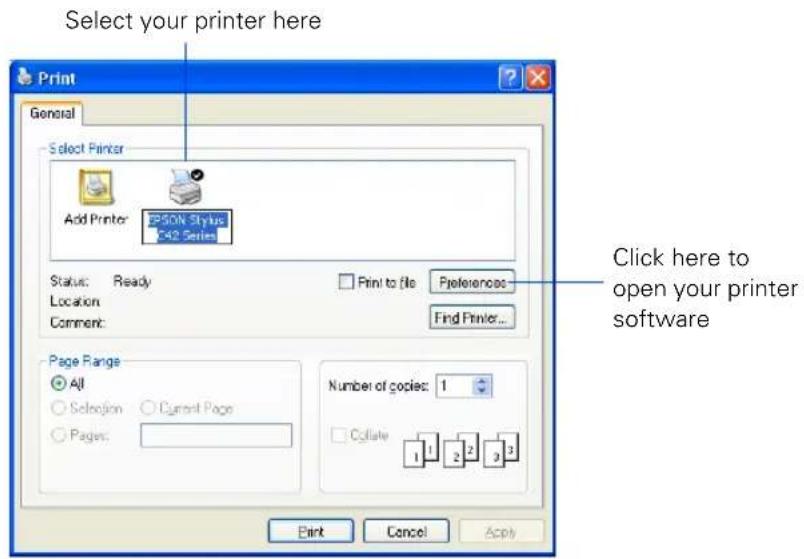
text_image
Select your printer here Print General Select Printer Add Printer EPSON Stylus F42 Series Status: Ready Location Comment: Print to file Preferences Find Printer... Page Range All Selection Current Page Pages: Number of copies: 1 Collate 1 2 3 Print Cancel Apply- Make sure EPSON Stylus C42 Series is selected.
- Click the Preferences or Properties button. (If you see a Setup, Printer, or Options button, click it. Then click Properties or Preferences on the next screen.)
You see your printer Properties (or Preferences) window.
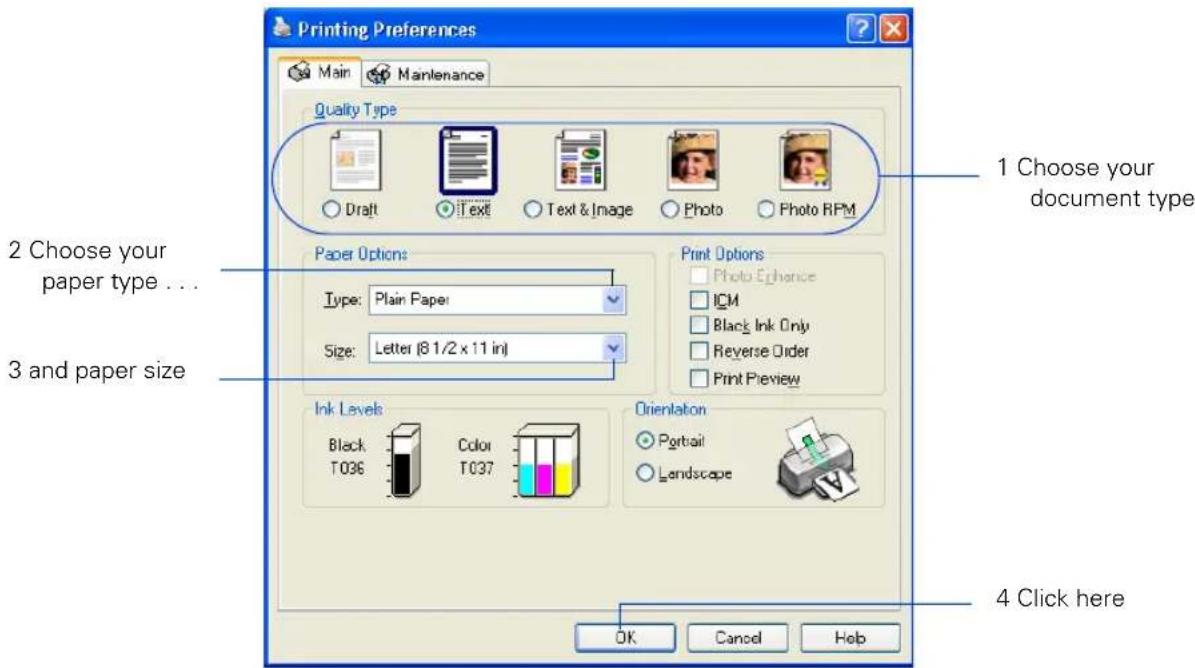
text_image
Printing Preferences Main Maintenance Quality Type Draft Text Text & Image Photo Photo RPM 1 Choose your document type 2 Choose your paper type ... 3 and paper size Paper Options Type: Plain Paper Size: Letter (8 1/2 x 11 in) Print Options Photo Enhance ICM Black Ink Only Reverse Order Print Preview Ink Levels Black Color Orientation Portrait Landscape T096 T037 OK Cancel Help- Select the type of document you're printing:
■Draft : For rough drafts on plain paper. Saves ink.
■Text : For text-only documents, like letters or reports. Delivers high-quality text printing.
■Text & Image : For documents that have both text and images, like newsletters.
■Photo : For photos and graphics, when you want good quality with faster printing.
■Photo RPM : For photos or graphics, when you need highest quality printing. Because this setting increases resolution, it also increases print time.
-
Load the right paper for your document. See page 8 for loading instructions.
-
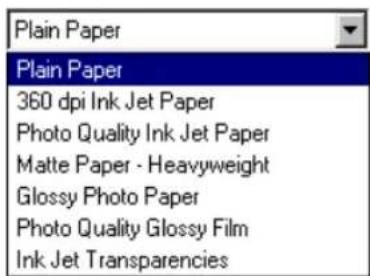
If you loaded special paper, choose the correct paper type (click the arrow to scroll through the Type list). If you're not sure which setting to select, see page 22.
-
Select your paper size (click on the arrow to scroll through the Size list).
text_image
Plain Paper Plain Paper 360 dpi Ink Jet Paper Photo Quality Ink Jet Paper Matte Paper - Heavyweight Glossy Photo Paper Photo Quality Glossy Film Ink Jet Transparencies- If necessary, select your page orientation:
Portrait for documents that are longer than they are wide, or Landscape for documents that are wider than they are long.
- You can also make these settings:
■PhotoEnhance : Improves the appearance of low-resolution and improperly exposed photos. Does not work when Black Ink Only is selected.
■ICM (Image Color Matching): Matches colors on your printout as closely as possible to the colors you see using ICM-compatible monitors or scanners.
■Black Ink Only : Prints using only black ink.
■Reverse Order : Prints your document so that the pages are in the right order when you retrieve them from the paper tray.
■Print Preview : Lets you see what your printout will look like before you print.

For more information about printer settings, click the Help button, or right-click any item on the screen and then click What's This?
- Click OK to return to the Print window. Then click OK (or Print) to start printing.
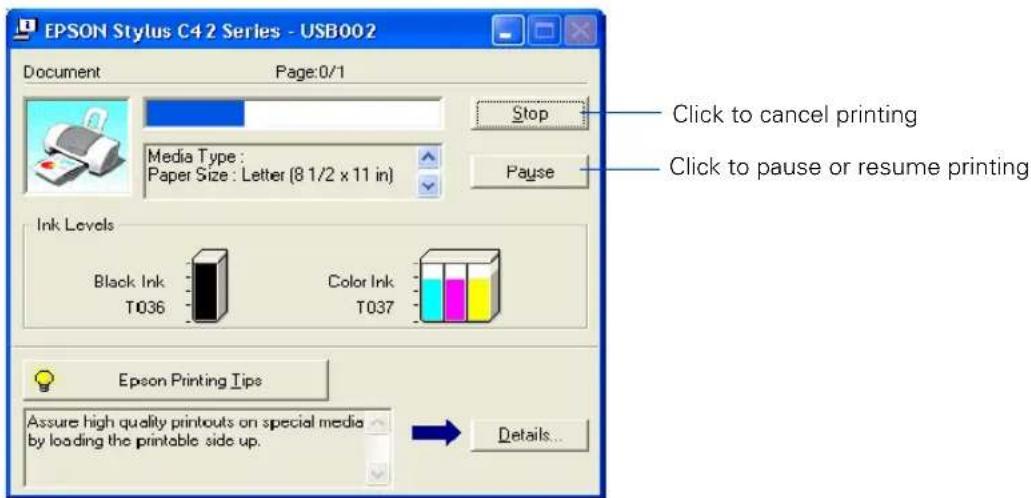
After a moment, this window appears and shows the progress of your print job. You can use the buttons to cancel, pause, or restart printing. You can also see how much ink you have left.
text_image
EPSON Stylus C42 Series - USB002 Document Page:0/1 Media Type : Paper Size : Letter (8 1/2 x 11 in) Stop Pause Click to cancel printing Click to pause or resume printing Ink Levels Black Ink Color Ink T036 T037 Epson Printing Tips Assure high quality printouts on special media by loading the printable side up. Details...Selecting the Settings You Use Most Often
Your printer settings apply only to the program you're currently using. If you usually print one type of document in different programs—for example, color photos on letter-size paper—you can change the default printer settings for all your programs.
- Right-click the printer icon on your taskbar (in the lower right corner of your screen).
- Select Printer Settings. You see your printer Properties window, as shown on page 10.
- Select the default settings you want to use for all your applications. Click OK when you're finished.
Remember that you can always change the settings in your program when you want to print different types of documents.
Printing on a Macintosh
This section explains how to use your EPSON Stylus C42 to print from a Macintosh running either OS X or OS 8.5.1 to 9.x.
Macintosh OS X
Here's how to print a basic document, such as a newsletter or school project, if your Macintosh is running OS X. Make sure you have paper in the printer, as described on page 8. After you create your document, follow these steps to print.

If you're using an application that's compatible only with Macintosh Classic mode, follow the steps on page 17 to print your document.