
AX-7 - Audio Amplifier KENWOOD - Free user manual and instructions
Find the device manual for free AX-7 KENWOOD in PDF.


| Product type | Integrated audio amplifier with DVD player (compact hi-fi system) |
| Brand | KENWOOD |
| Model | AX-7 |
| Dimensions (C-AX7 preamplifier) | 270 x 101 x 347 mm |
| Dimensions (M-AX7 main amplifier) | 270 x 101 x 336 mm |
| Weight (C-AX7 preamplifier) | 4.3 kg |
| Weight (M-AX7 main amplifier) | 5.0 kg |
| Power consumption | Amplifier: 130 W, Preamplifier: 46 W; standby < 0.25 W / < 0.45 W |
| Main features | Auto Room Equalizer, Digital Sound Equalizer 7 bands, V.F.S. III (Virtual Front Surround), CLEAR VOICE, RDS Tuner, Programmable and Sleep Timer, DVD/CD/VCD/MP3/WMA/JPEG player |
| Auto Room Equalizer | Automatic measurement and correction of room acoustics with supplied microphone |
| Digital Equalizer | 7 bands (63 Hz to 16 kHz), ±8 dB adjustment, with presets |
| Virtual Surround | V.F.S. III: Cinema, Music, Wide modes; surround effect without rear speakers |
| CLEAR VOICE function | Dialogue enhancement for movies and music |
| RDS Tuner | FM/AM with RDS, PTY search, automatic memory for 40 stations |
| Timer | Sleep timer and 2 playback programs with progressive volume (AI) |
| Playback media | DVD Video, CD, VCD, CD-R/RW, DVD±R/RW; MP3, WMA, JPEG |
| Inputs / Outputs | Inputs: TAPE/VIDEO1, VIDEO2, TV, AUX, D.AUDIO (mini-jack). Outputs: VIDEO, S-Video, Digital Optical, Pre-out (front, surround, subwoofer, center), Headphones |
| Supplied accessories | Remote control, EQ microphone, AM/FM antenna, audio/video cables, system control cord, speaker cables, SCART adapter (EU) |
| Maintenance and cleaning | Clean with a soft, dry cloth. Do not use liquid cleaners, thinners, or alcohol. Unplug before cleaning. |
| Safety | Do not expose to moisture or rain. Do not block ventilation openings. Refer servicing to qualified personnel. |
Frequently Asked Questions - AX-7 KENWOOD
User questions about AX-7 KENWOOD
0 question about this device. Answer the ones you know or ask your own.
Ask a new question about this device
Download the instructions for your Audio Amplifier in PDF format for free! Find your manual AX-7 - KENWOOD and take your electronic device back in hand. On this page are published all the documents necessary for the use of your device. AX-7 by KENWOOD.
USER MANUAL AX-7 KENWOOD
Units are designed for operation as follows.
Australia AC 240 V only
Europe . AC 230 V only
Information on Disposal of Old Electrical and Electronic Equipment (applicable for EU countries that have adopted separate waste collection systems)
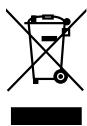
Products with the symbol (crossed-out wheeled bin) cannot be disposed as household waste.
Old electrical and electronic equipment should be recycled at a facility capable of
handling these items and their waste byproducts.
Contact your local authority for details in locating a recycle facility nearest to you.
Proper recycling and waste disposal will help conserve resources whilst preventing detrimental effects on our health and the environment.
Safety precautions
WARNING : TO PREVENT FIRE OR ELECTRIC SHOCK, DO NOT EXPOSE THIS APPLIANCE TO RAIN OR MOISTURE.

CAUTION
RISK OF ELECTRIC SHOCK DO NOT OPEN

CAUTION: TO REDUCE THE RISK OF ELECTRIC SHOCK, DO NOT RE
MOVE COVER (OR BACK). NO USER-SERVICEABLE PARTS INSIDE.
REFER SERVICING TO QUALIFIED SERVICE PERSONNEL.

THE LIGHTNING FLASH WITH ARROWHEAD SYMBOL, WITHIN AN EQUILATERAL TRIANGLE, IS IN
TENDED TO ALERT THE USER TO THE PRESENCE OF UNINSULATED "DANGEROUS VOLTAGE" WITHIN
THE PRODUCT'S ENCLOSURE THAT MAY BE OF SUFFICIENT MAGNITUDE TO CONSTITUTE A RISK OF
ELECTRIC SHOCK TO PERSONS.

THE EXCLAMATION POINT WITHIN AN EQUILATERAL TRIANGLE IS INTENDED TO ALERT THE
USER TO THE PRESENCE OF IMPORTANT OPERATING AND MAINTENANCE (SERVICING) INSTRUC
TIONS IN THE LITERATURE ACCOMPANYING THE APPLIANCE.
The marking of products using lasers
CLASS 1 LASER PRODUCT
The marking of this product has been classified as Class 1. It means that there is no danger of hazardous radiation outside the product.
Location: Back panel
Read Instructions - All the safety and operating instructions should be read before the product is operated.
Retain Instructions - The safety and operating instructions should be retained for future reference.
Heed Warnings - All warnings on the product and in the operating instructions should be adhered to.
Follow Instructions - All operating and use instructions should be followed.
- Cleaning - Unplug this product from the wall outlet before cleaning. Do not use liquid cleaners or aerosol cleaners. Use a damp cloth for cleaning.
- Attachments - Do not use attachments not recommended by the product manufacturer as they may cause hazards.
- Water and Moisture-This product shall not be exposed to dripping and splashing - for example, near a bath tub, wash bowl, kitchen sink, or laundry tub; in a wet basement; or near a swimming pool; and the like. Do not place an object containing liquid, such as a flower vase, on the appliance.
- Accessories - Do not place this product on an unstable cart, stand, tripod, bracket, or table. The product may fall, causing serious injury to a child or adult, and serious damage to the product. Use only with a cart, stand, tripod, bracket, or table recommended by the manufacturer. Any mounting of the product should follow the manufacturer's instructions, and should use a mounting accessory recommended by the manufacturer.
A product and cart combination should be moved with care. Quick stops, excessive force, and uneven surfaces may cause the product and cart combination to overturn.

- Ventilation - Slots and openings in the cabinet are provided for ventilation and to ensure reliable operation of the product and to protect it from overheating, and these openings must not be blocked or covered. The openings should never be blocked by placing the product on a bed, sofa, rug, or other similar surface. This product should not be placed in a built-in installation such as a bookcase or rack unless proper ventilation is provided or the manufacturer's instructions have been adhered to.
- Power Sources - This product should be operated only from the type of power source indicated on the product. If you are not sure of the type of power supply to your home, consult your product dealer or local power company.
- CAUTION - Polarization - This product may be equipped with a polarized alternating-current line plug (a plug having one blade wider than the other). This plug will fit into the power outlet only one way. This is a safety feature. If you are unable to insert the plug fully into the outlet, try reversing the plug. If the plug should still fail to fit, contact your electrician to replace your obsolete outlet. Do not defeat the safety purpose of the polarized plug.
- Power Cord Protection - Power-supply cords should be routed so that they are not likely to be walked on or pinched by items placed upon or against them, paying particular attention to cords at plugs, convenience receptacles, and the point where they exit from the product.
- Lightning - For added protection for this product during a lightning storm, or when it is left unattended and unused for long periods of time, unplug it from the wall outlet and disconnect the antenna or cable system. This will prevent damage to the product due to lightning and power-line surges.
-
Overloading - Do not overload wall outlets, extension cords, or integral convenience receptacles as this can result in a risk of fire or electric shock.
11.Object and Liquid Entry - Never push objects of any kind into this product through openings as they may touch dangerous voltage points or short-out parts that could result in a fire or electric shock. Never spill liquid of any kind on the product. -
Servicing - Do not attempt to service this product yourself as opening or removing covers may expose you to dangerous voltage or other hazards. Refer all servicing to qualified service personnel.
-
Damage Requiring Service - Unplug this product from the wall outlet and refer servicing to qualified service personnel under the following conditions:
a) When the power-supply cord or plug is damaged,
b) If liquid has been spilled, or objects have fallen into the product,
c) If the product has been exposed to rain or water,
d) If the product does not operate normally by following the operating instructions.
e) If the product has been dropped or damaged in any way, and
f) When the product exhibits a distinct change in performance – this indicates a need for service.
g) If an abnormal smell or smoke is detected.
- Replacement Parts - When replacement parts are required, be sure the service technician has used replacement parts specified by the manufacturer or have the same characteristics as the original part. Unauthorized substitutions may result in fire, electric shock, or other hazards.
- Safety Check - Upon completion of any service or repairs to this product, ask the service technician to perform safety checks to determine that the product is in proper operating condition.
16.Wall or Ceiling Mounting - This product should be mounted to a wall or ceiling only as recommended by the manufacturer. - Heat - This product should be situated away from heat sources such as radiators, heat registers, stoves, or other products that produce heat. Do not place a flaming object, such as a candle or lantern, or near the product.
18.Power Lines - An outside antenna system should not be located in the vicinity of overhead power lines or other electric light or power circuits, or where it can fall into such power lines or circuits. When installing an outside antenna system, extreme care should be taken to keep from touching such power lines or circuits as contact with them might be fatal. - Outdoor Antenna Grounding - If an outside antenna or cable system is connected to the product, be sure the antenna or cable system is grounded so as to provide some protection against voltage surges and built-up static charges. Article 810 of the National Electrical Code, ANSI/NFPA 70, provides information with regard to proper grounding of the mast and supporting structure, grounding of the lead-in wire to an antenna discharge unit, size of grounding conductors, location of antenna-discharge unit, connection to grounding electrodes, and requirements for the grounding electrode.
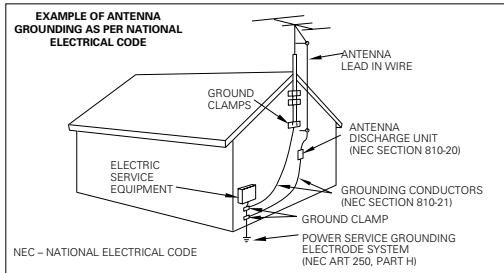
Notes:
- Item 7 is not required except for grounded or polarized equipment.
- Item 19 complies with UL in the U.S.A.
Contents
Caution: Read the pages marked carefully to ensure safe operation.
Before applying power. 2
Safety precautions 2
IMPORTANT SAFETY INSTRUCTIONS 3
Contents 4
Accessories 5
Special features 6
Preparation section
System connections 8
Connection of the system accessories. 8
Connecting to the antennas 10
Connecting to a TV with video (composite) or S-video input terminal 11
Connection of other accessories (Commercially available parts) 12
Controls and indicators. 13
Main amplifier unit (M-AX7) 13
Display (C-AX7) 13
Preamplifier unit (C-AX7) 14
Operation of remote control unit 16
Types of playable discs 18
Unplayable discs 18
Region Codes 19
Region codes in the world 19
Icons on the DVD VIDEO discs 19
Video Formats 20
Playable files with this unit 21
Basic section
Clock adjustment 23
Basic use method 24
Using Auto Room Equalizer function 26
Using Digital Sound Equalizer function 28
Enjoying surround sound 31
Playback of DVD/CD 33
Viewing JPEG images 36
Changing the display contents of the display 38
Receiving broadcast station 39
RDS (Radio Data System) 43
Searching for a desired program type (PTY search)....44
Listening to external input sources 46
Adjusting the external input level (TAPE/VIDEO1,VIDEO2, TV, AUX) 46
Listening to the sound of a Kenwood digital audio player 47
Recording to a digital audio player 49
Option settings for external recording. 51
Application section
Various CD playback features 52
Listening to the desired sequence (program playback)...52
Playing tracks in a random order (random playback)...54
Repeated playback 55
Repeated playback of any interval (A-B Repeat play) 56
Menu playback of a DVD 57
Operation using the on-screen display 58
Adjusting the picture quality 63
Hierarchical structure of VCD menus (P.B.C. function) 64
Timer operation 65
Sleep timer 65
Setting the timer program (PROG. TIMER) 66
Deactivating and activating the timer program 69
Setting DIMMER functions 70
Switching the level meter 71
Changing DVD/CD settings 72
Basic operation at the SET UP MENU 73
"MAIN" setting 74
"Sound" setting 76
"VISUAL" setting 77
DVD menu language code list 78
Speaker setting 79
Knowledge section
Important items 81
Reference 81
Maintenance 81
In case of difficulty 83
Specifications 87
Accessories
Unpacking
Unpack the unit carefully and make sure that all the accessories are present.
AM loop antenna (1)
FM indoor antenna (1)
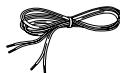
Speaker cords (4)
(Included with the speaker package)
For front speakers (red line : 2m) (2)
For surround speakers (blue line: 2m) (2)
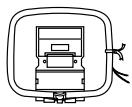
Video cord (Yellow) (1)
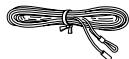
Audio cords (White, Red)(2)
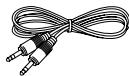
System control cord (Ø3.5mm - Ø3.5mm)(1)
Remote control unit (1)
Batteries (R03/AAA) (2)
Microphone for Room Equalizer (1) (Cord length: approx. 5 m)
SCART plug adaptor (only for Europe)
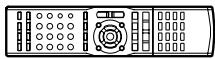

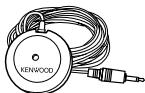
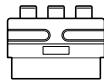
If any accessories are missing, or if the unit is damaged or fails to operate, notify your dealer immediately. If the unit was shipped to you directly, notify your shipper immediately. Kenwood recommends that you retain the original carton and packing materials in case you need to move or ship the unit in the future.
Keep this manual handy for future reference.
Special features
Compact high fidelity component system with built-in DVD player
Built-in multi-player for DVD video, video CD, and CD playback.
MP3/WMA playback function and JPEG playback function
Music files recorded in the compressed format MP3/WMA can be played back.
Image files recorded in JPEG format can be played back. MP3/WMA files can be enjoyed while images are displayed.
Built-in control function for Kenwood digital audio players (Digital Audio Link)
Basic operation of Kenwood audio players* can be performed with the buttons of the main unit and with the accessory remote control unit.
- Compatible models: HD20GA7 (Only for Europe) (connection with the special cable is required.)
Room Equalizer feature
This model is equipped with Room Equalizer, which automatically creates your best listening environment according to your room, speakers position, etc. In addition to technical knowledge, generally, a great deal of time and work are spent finding the best listening position such as changing speakers or furniture position while listening to the sound. This function enables you to simply create it in a short time without laborious settings.
Digital Sound Equalizer feature
This model is equipped with Digital Sound Equalizer by Digital Sound Processing, which makes more detailed sound adjustments possible.
V.F.S. III (Virtual Front Surround) and CLEAR VOICE function
The V.F.S. function offers a natural surround effect with abundant ambience not only for DVD playback, but also for music playback from CD etc. even when no surround speakers are placed at the rear. The CLEAR VOICE function provides clear playback of speech, vocals, etc.
Versatile timer features
- Timer playback :
Two timer programs (PROG 1, PROG 2) are available for timer playback (AI timer playback). (With the AI timer playback, the playback volume increases gradually after the start of timer playback.)
- Sleep timer :
This timer turns the unit off automatically when the set time has elapsed. It is convenient for example, falling asleep while listening to music in the night time, etc.
RDS (Radio Data System) tuner
This model is equipped with an RDS tuner that provides several convenient tuning functions: RDS Auto Memory, to automatically preset up to 40 RDS stations broadcasting different programs; station name display, to show you the name of the current broadcast station; and PTY search to let you tune stations by program type.
PTY(Program Type) search
Tune the stations by specifying the type of program you want to hear.
This product incorporates copyright protection technology that is protected by U.S. patents and other intellectual property rights. Use of this copyright protection technology must be authorized by Macrovision, and is intended for home and other limited viewing uses only unless otherwise authorized by Macrovision. Reverse engineering or disassembly is prohibited.
Manufactured under license from Dolby Laboratories. "DOLBY", the double-D symbol and "PRO LOGIC" are trademarks of Dolby Laboratories.
"DTS" and "DTS Digital Surround" are registered trademarks of Digital Theater Systems, Inc.

Connection of the system accessories
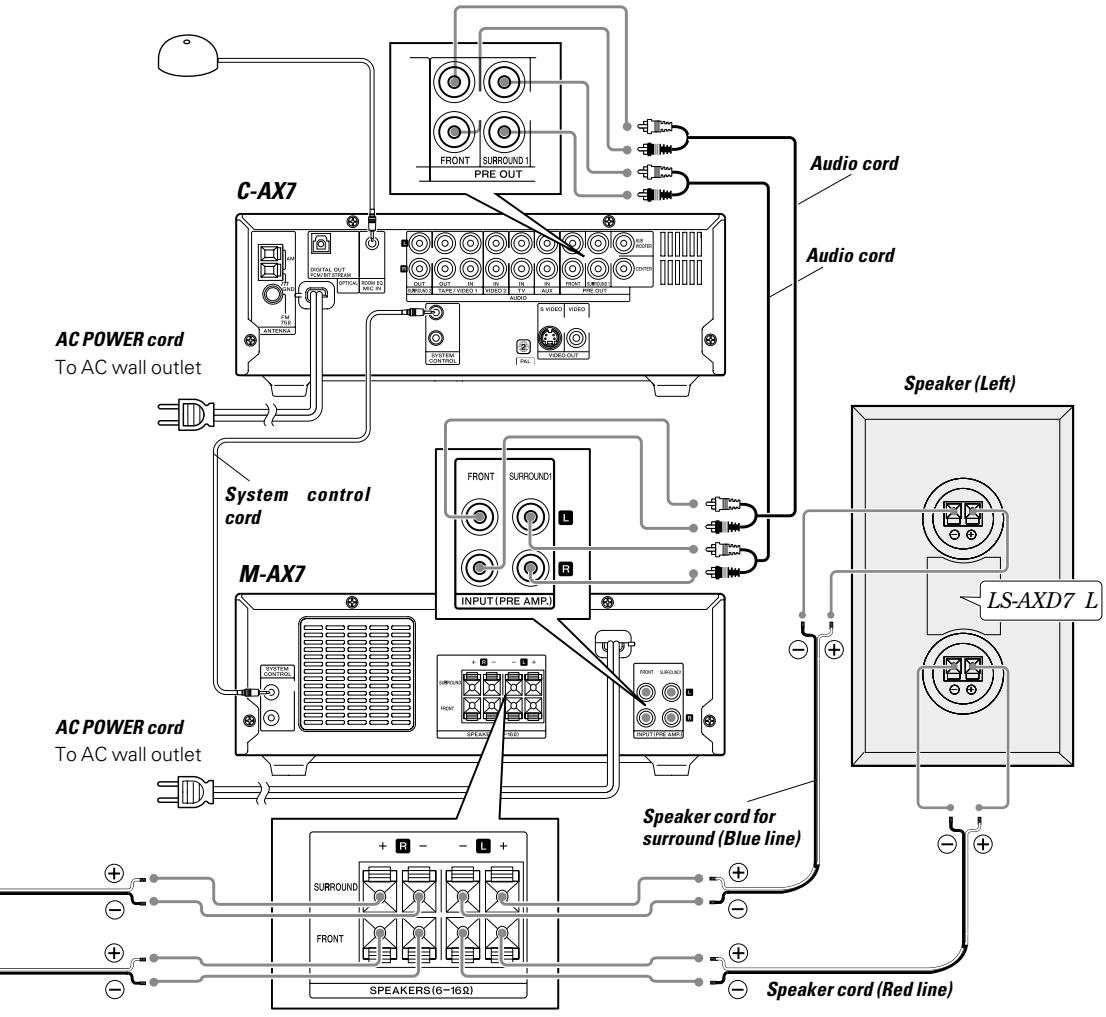
This figure shows the method of connection between the main unit and provided accessories.
CAUTION
Connect the components as shown in the diagram. Only plug the AC power cord into an AC wall outlet once connections are completed.
CAUTION
The magnet in the speaker may cause color irregularity to the TV or PC monitor. Place the speakers farther away from the TV set or PC monitor.
CAUTION
Be sure to adhere to the following, or proper ventilation will be blocked causing damage or fire hazard.
- Place the C-AX7 on top of the system.
- Do not place any objects impairing heat radiation onto the top of the unit.
- Leave some space around the unit (from the largest outside dimension including projection) equal to or greater than, shown below.
Top panel:50cm Back panel:10cm
- Do not place the equipment onto a bed, a sofa, a carpet, or similar. Sucked-in dust can cause fire.
CAUTION
The power in this equipment will not be completely cut off from the wall outlet when the power switch is turned off.
Install the equipment so that the wall outlet is easily accessible and, in case of emergency, immediately unplug the power cord from the wall outlet.
Malfunction of microcomputer
If operation is not possible or erroneous display appears even though all connections have been made properly, reset the microcomputer by referring to "In case of difficulty".
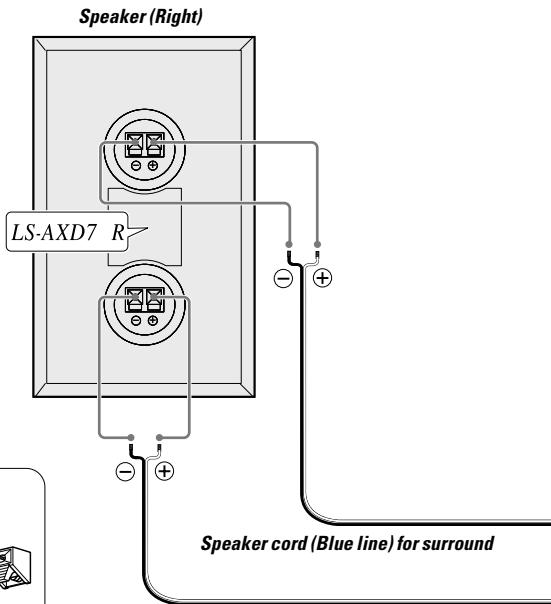
Speaker cord (Red line)
How to connect the speaker cords
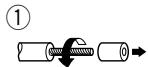

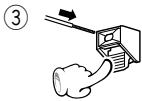
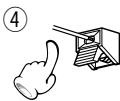

- Never short-circuit the "+" and "-" speaker cords. It may cause malfunction.
- If the "+" and "-" polarity are inverted, the sound will be unnatural with unclear positioning of musical instruments, etc.
- Be sure to insert all connection cords securely. If their connections are imperfect, the sound may not be produced or noise may interfere.
- Before plugging or unplugging a connection cord, be sure to unplug the power cord from the wall AC outlet. If connection cords are plugged or unplugged with the power cord left plugged in, malfunction or damage may result.
- Set up the left and the right speaker so that the front surround speakers face to the inside, paying attention to L and R.
- When pulling the plug of the power cable from the wall outlet, first switch off the unit.
Microphone for Room Equalizer (not for recording)
Connect this only for setting the auto room equalizer, and keep it disconnected at other times.
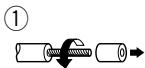
How to connect the speaker cords
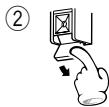
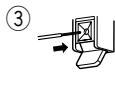
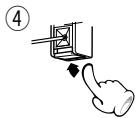
- When subwoofer, center, and the two surround terminals are connected to the 3.1 channel speaker system to be sold later, expansion to a 5.1 channel system is possible. For details, please refer to the operation instructions for your equipment.
Connecting to the antennas
AM/FM radio stations cannot be received without the proper antenna connections. Connect the antennas properly according to the following instructions.
FM outdoor antenna
Lead the 75 coaxial cable connected to the FM outdoor antenna into the room and connect it to the FM 75 terminal. Please remove the indoor antenna after an outdoor antenna has been installed.
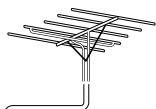
FM outdoor antenna
AM loop antenna
The supplied antenna is for indoor use. Place it as far as possible from the main unit, TV set, speaker cords and POWER cord, and set it to a direction which provides the best reception.
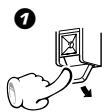
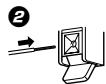
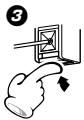
How to connect the antenna
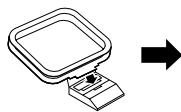
AM loop antenna
Assemble
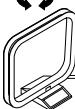
(2)

Antenna adaptor
(Commercially available parts)
FM indoor antenna
The provided antenna is for temporary indoor use only. For stable signal reception, we recommend to use an outdoor antenna. Remove the indoor antenna if you connect to an outdoor antenna.
Connect the antenna to the antenna terminal.
Locate the position providing good reception condition.
Fix the antenna.
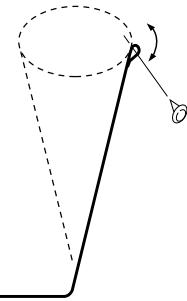
FM indoor antenna
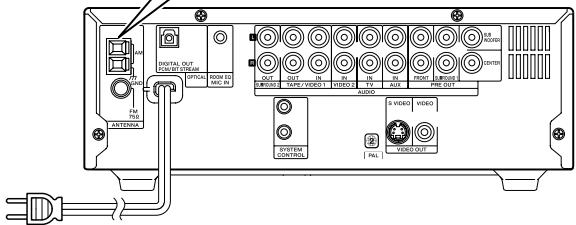
C-AX7
Connecting to a TV with video (composite) or S-video input terminal
Make sure the DVD player is connected directly to the TV and not to a VCR, otherwise the DVD image could be distorted by the copy protection system.
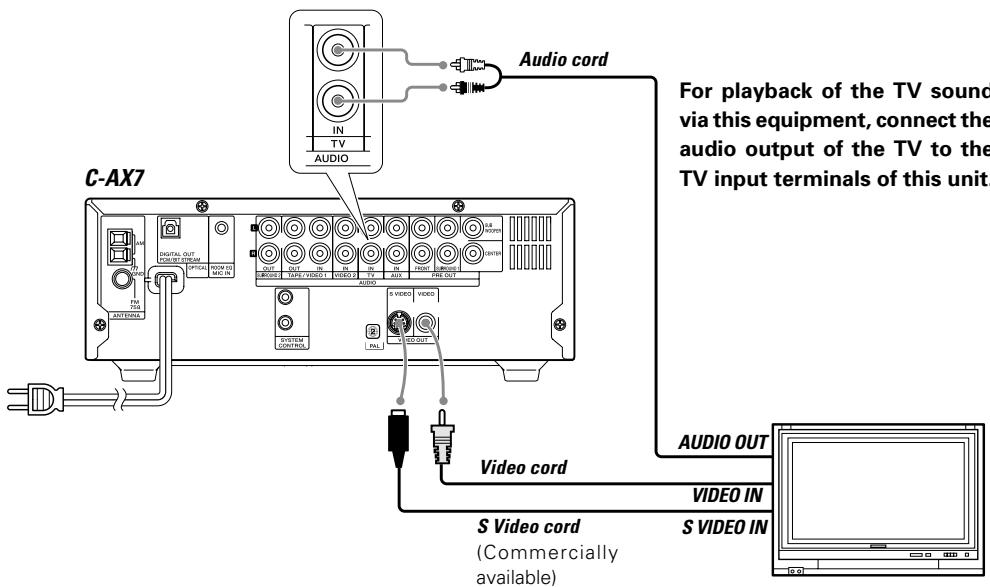
Connection to a TV with video input terminal
Use the accessory video cord for connection to the "VIDEO" terminal at the "VIDEO OUT" part of this unit.
- Set "TV aspect" in the DVD/CD settings according to the connected TV (4:3 or 16:9).
Connection to a TV with S-video input terminal
Use a commercial S-video cord to connect to the "SVIDEO" terminal of the "VIDEO OUT" part of this unit.
You can enjoy a clearer image than with the video input terminal.
- Set "TV aspect" in the DVD/CD settings according to the connected TV (4:3 or 16:9).
Connection of other accessories (Commercially available parts)
CAUTION
Connect the components as shown in the diagram. Only plug the power cord into an AC wall outlet once connections are completed.
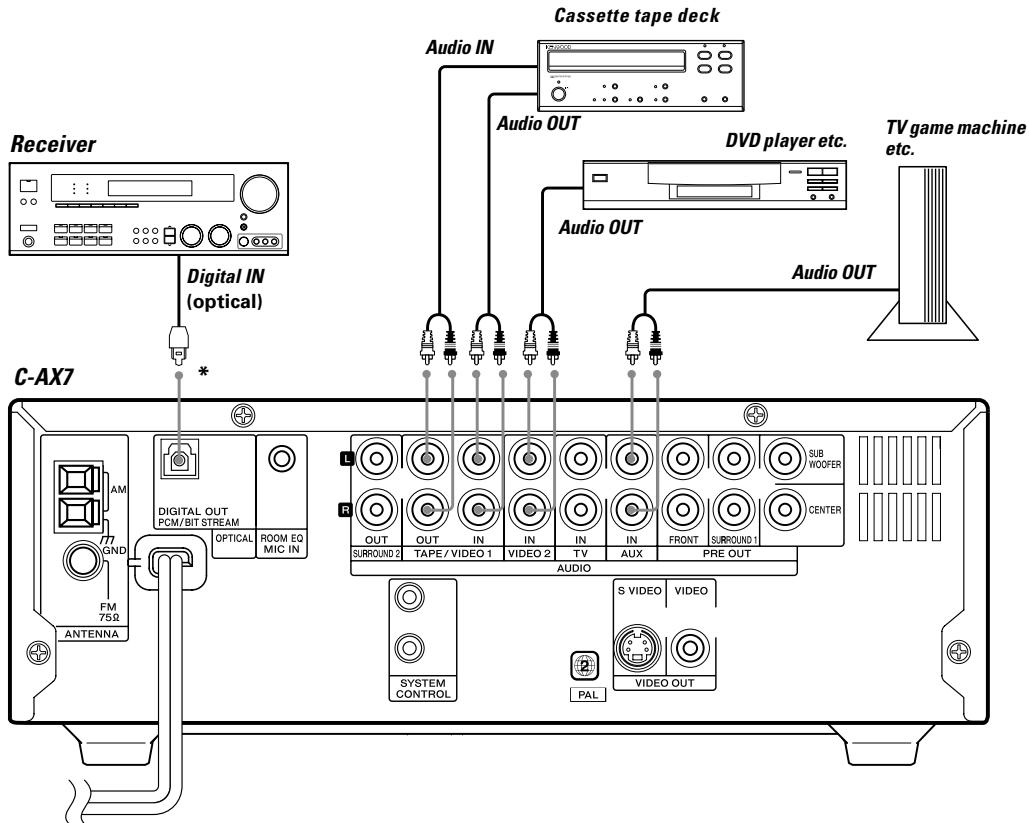
AC POWER cord
To AC wall outlet
* The "DIGITAL OUT PCM/BIT STREAM" terminal of this unit puts out only the digital audio of the DVD/ CD source.

- In case an associated system component is connected, also read the instruction manual of the component.
- Be sure to insert all connection cords securely. If their connections are imperfect, the sound may not be produced or noise may interfere.
- Before plugging or unplugging a connection cord, be sure to unplug the power cord from the wall AC outlet. If connection cords are plugged or unplugged with the power cord left plugged in, malfunction or damage may result.
Main amplifier unit (M-AX7)
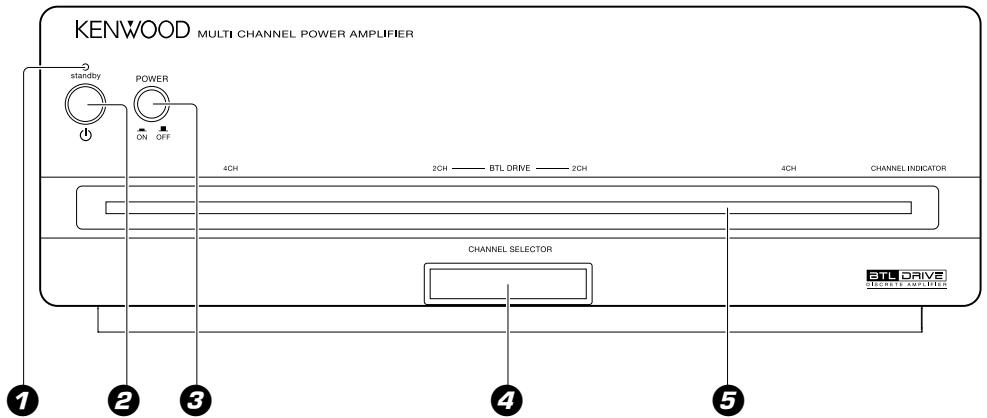
STANDBYindicator
(POWER) key
Used for setting the unit to On or Standby.
POWER ON/OFF switch
CHANNEL SELECTOR key
Used for switching the amplifier between 4 channels (25 W x 4) and 2 channels (50 W x 2).
Displays
Display (C-AX7)
The displays given in this manual are approximations only. They may differ from what actually appears on the display.
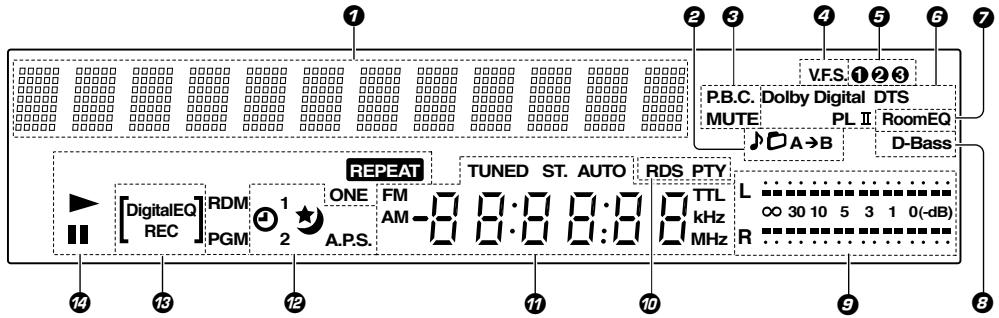
Character information display
File, Folder, A-B repeat indicators
MUTE indicator/P.B.C indicator
$$ - \boxed {2 5} - \boxed {6 4} $$
V.F.S.indicator
Sound preset memory number indicators
Listen mode related indicators 32
7 RoomEQ indicator
D-Bass indicator
9 Level meters
RDS indicator / PTY indicator
±b Tuner-related indicators CD time display Clock display Frequency display
Timer-related indicators 65
DigitalEQ REC indicator
DVD/CD-related indicators
Preamplifier unit (C-AX7)
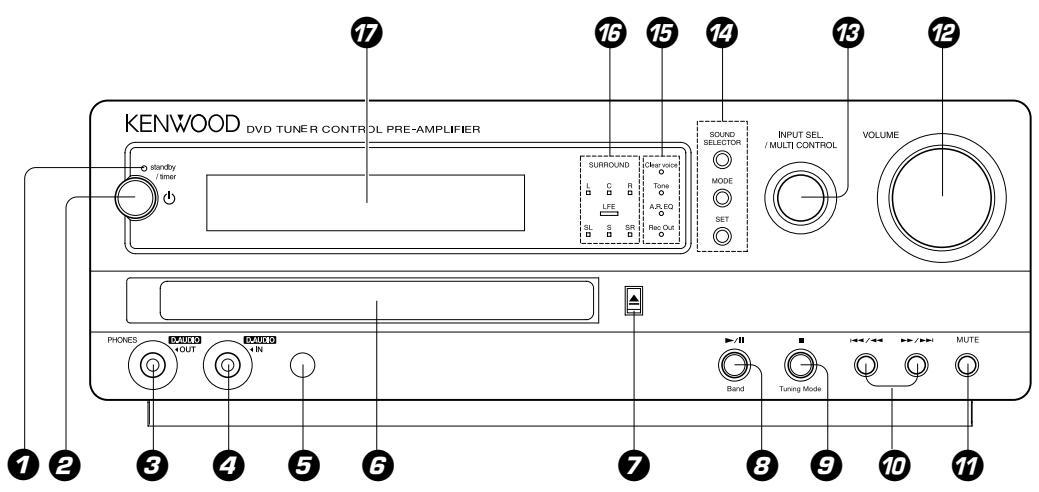
STANDBY/TIMER indicator
Lights up when the unit is set to the Standby mode.
Red : Ordinary standby.
Green : Timer standby.
Off : The unit is On.
Refer to "In case of difficulty" for blinking of the indicator.
2 (POWER) key

Used for setting the unit to On or Standby.
PHONES / D.AUDIO OUT jack
Connect headphones with a stereo mini-plug (optionally available) to it.
This is also the output terminal to separately sold digital audio equipment. In this case, set D.AUDIO OUT to REC OUT ON.
D.AUDIO IN jack

Used as the input terminal for audio from separately sold digital audio equipment.
REMOTE sensor

This sensor receives signals from the remote control unit.
DVD/CD tray
(DVD/CD open/close) key

Used for opening or closing the DVD/CD tray.
6 II (Play/Pause) / Band key
DVD/CD:

Used for selecting the DVD/CD input and starting playback. During DVD/CD playback, press to pause.
TUNER :

Used for selecting the TUNER input.
This key is also used to select the received broadcast band.
9 (Stop) / Tuning Mode key
DVD/CD: Used for stopping a disc operation.

TUNER:

Used for switching between the AUTO (auto tuning, stereo reception) and MONO (manual tuning, monaural reception) modes.
Standby mode:
Used for displaying the clock.
10 |←/←/→/keys
- Skip CD tracks or DVD chapters

- Select a preset radio station

- Press and hold for fast forward or fast backward (search) for DVD/CD tracks or chapters
MUTE key

Used for muting the sound temporarily.
VOLUME knob 24
Used for volume adjustment.
INPUT SEL. / MULTICONTROL knob
In the normal mode, this is used for selecting an input source.
In the function menu mode (selected by pressing the MODE key), turn this knob to select the desired menu item. To set or enter setting of the function menu item, press the SET key.
Items of function menu mode :
SOUND PRESET 30
D.EQ Rec Mode
REC LEVEL
D.AUDIO OUT
INPUT LEVEL
AUTO MEMORY
DIMMER SET
LEVEL METER
A.P.S. SET
TIME ADJUST 23
TIMER SET 66
AUTO ROOM EQ 26
- Some of the items may not be displayed depending on selected input source.
Used to select a desired item after pressing the SOUND SELECTOR key to switch to sound setting mode. Use the SET key for confirmation.
Items of function menu mode :
"SURROUND" 31
"D-BASS" 28
"TONE" 28
SOUND SELECTOR key
Used to switch the function of the INPUT SEL./MULTI
CONTROL knob to the sound setting function.
MODE key
Used to switch the function of the INPUT SEL./MULTI CONTROL knob to menu selection mode.
SETkey
During MODE operation: Used to confirm the selected item.
During SOUND operation: Used to confirm the selected item.
Used to confirm the program No. at the time of DVD/ CD.
Clear voice indicator
Tone indicator
A.R. EQ (Auto Room EQ) indicator
Rec. Out indicator
SURROUND indicator
L: Left signal indicator
C: Center signal indicator
R:Right signal indicator
LEF:LEF signal indicator
SL/SR/S : Surround signal indicator
Lights according to the number of audio signal channels of the selected source.
7 Display panel
Operation of remote control unit
The keys on the remote control unit with the same names as on the main unit have the same function as the keys on the main unit.
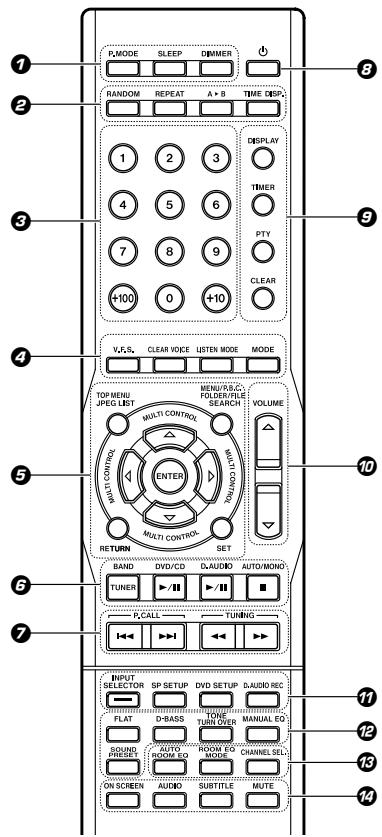
With same functions, in the case that names of the keys and knobs between "on the main unit" and "on the remote control unit" are different, in this manual, names on the remote control unit are indicated in parentheses [ ];
Name on the main unit[Name on the remote control unit]
Example: The INPUT SEL./MULTI CONTROL knob [ the MULTI CONTROL / key]
P.MODEkey
Used for switching to track mode, or program mode.
SLEEP key 65
Used for setting the sleep timer.
DIMMER key
Used for switching to the DIMMER mode.
2 RANDOM key
Used for setting playback of tracks in a random order.
REPEAT key
Used for setting repeated playback.
A>B (REPEAT) key
Used for repeated playback of any interval.
TIME DISP.key
Used for changing time displays.
Numeric keys 35 40 52
Press for selecting a DVD/CD track number or recall a preset station of the tuner.
V.F.S.key
Select to produce a surround effect with only speakers installed at the front.
CLEAR VOICE key
Used for switching the CLEAR VOICE effect.
LISTEN MODE key
Selects Listen mode.
MODE key
Used for entering the function setting mode..
5 MULTICONTROL / / keys
Used to select the equalizer frequency band to be adjusted and to adjust various modes.
ENTER key
When setting up in a mode : Used for confirming the selection.
When receiving a broadcast station : Used for confirming the station to preset in memory.
TOP MENU/JPEG LIST key -36 -57
Used to display the DVD top menu, for display of MP3, WMA and JPEG lists for DVD/CD, etc.
MENU/P.B.C./FOLDER/FILE SEARCH key
$$ - \boxed {3 5} - \boxed {5 7} - \boxed {6 4} $$
Used for DVD menu display, VCD P.B.C. switching, file and folder directory display, etc.
SETkey
Used to confirm the selected item.
RETURN key
Used to operate the DVD.
Basic operation keys
$$ \text {T U N E R / B A N D k e y} \quad - 3 9 $$
$$ \mathrm {D V D} / \mathrm {C D} \triangleright / \text {I I k e y} \quad - 3 3 $$
$$ \text {D . A U D I O} \rightarrow / \text {I I k e y} - \boxed {4 8} $$
$$ \text {A U T O / M O N O /} \text {■ (S T O P) k e y} \quad - \boxed {3 4} - \boxed {4 1} $$
P.CALL (i< /▶i) keys
DVD/CD: -35 Used for skipping CD tracks or DVD chapters
TUNER:
Used for receiving a radio station.
TUNING ( / ) keys
DVD/CD : 34
Used for fast-forward or fast-reverse the played music.
TUNER: 41
Used for receiving a radio station.
(POWER) key
Used for setting the unit to On or Standby.
DISPLAY key
38
Used for changing the CD-TEXT displays.
Used for displaying the day of week and the time.
TIMER key 69
Used for activating or deactivating timer function.
PTY key 44
Used for entering PTY mode or searching a program type.
CLEARkey 52
Used for clearing a programed track(s).
10 VOLUME ( /) keys 25
Used for adjusting the volume.
INPUT SELECTOR key
24
Used for selecting an input source.
…
SP SETUP key
79
Used for speaker setup.
73
DVD SETUP key
Used to change the initial DVD set values.
D.AUDIO REC key
It does not use this key in this model.
Sound setting mode keys
Press for entering the sound setting mode with the following keys.
FLATkey 30
D-BASS key 28
TONE TURNOVERkey
MANUAL EQ key 29
SOUND PRESET key 30
AUTO ROOM EQ key
ROOM EQ MODE key
Used to select one of three room equalizer setting modes.
CHANNEL SEL. key
Used to switch the power amplifier speaker output between 2 channels (50 W x 2) and 4 channels (25 W x 4).
ON SCREEN key
Used to switch between display and no display for the information displayed on screen.
AUDIO key
Used to select the audio at the time of DVD playback.
SUBTITLE key
Used to select the subtitles at the time of DVD playback.
MUTE key
Used for muting the sound temporarily.
26
27
Loading batteries
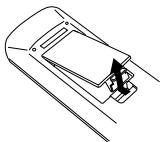
0 Remove the cover.
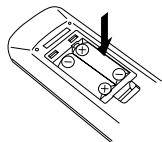
Insert batteries.
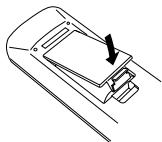
Close the cover.
- Insert two R03 ("AAA"-size) batteries following the polarity indications.
Operation
When the POWER switch of the M-AX7 is ON and the standby indicator is lit in red, press the (POWER) key of the remote control unit to turn the system ON. When the system is turned ON, press the key of the function to be operated.
- When pressing more than one remote control keys successively, press the keys securely by leaving an interval of 1 second or more between keys.
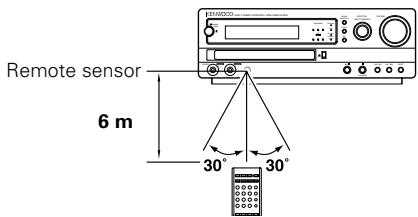
Operating range (approx.)
- The provided batteries are intended for use in operation checking, and their service life may be short.
- When the remote controllable distance becomes short, replace both of the batteries with new ones.
- If direct sunlight or the light of a high-frequency fluorescent lamp (inverter type, etc.) is incident to the remote sensor, malfunction may occur. In such a case, change the installation position to avoid malfunction.
The system this unit is using does not only play music from CD but can also play the discs listed below to offer you high-quality entertainment of video of movies and live concerts.
| Playable Disc | DVD VIDEO (DVD-R/RW, DVD+R/RW) | CD (CD-R, CD-RW) | VCD | ||||
| Logo mark on disc | DVD VIDEO | DVD VIDEO | COMPACT DISC DIGITAL AUDIO | COMPACT DISC DIGITAL AUDIO | |||
| Disc size | 8cm | 12cm | 8cm | 12cm | 8cm | 12cm | |
| Played sides | One or both | One or both | One side only | One side only | One side only | One side only | |
| Contents | Video + Audio | Approx. 41 min. (1 side, 1 layer) Approx. 75 min. (1 side, 2 layers) Approx. 82 min. (2 sides, 1 layer) Approx. 150 min. (2 sides, 2 layers) | Approx. 133 min. (1 side, 1 layer) Approx. 242 min. (1 side, 2 layers) Approx. 266 min. (2 sides, 1 layer) Approx. 484 min. (2 sides, 2 layers) | Max. 20 min. | Max. 74 min. | ||
| Audio | Max. 20 min., digital | Max. 80 min., digital | |||||
Please refer to page 21 for the CD-R, CD-RW, DVD-R, and DVD-RW file formats which can be played back by this unit.
- Compatible with Dual Disc* playback
- A Dual Disc is a two-sided disc combining a DVD side according to the DVD standard and a music side.
The video content recorded on the DVD side can be played back. As the music side is not compatible with the Compact Disc (CD) standard, playback on this unit is not assured. - This unit can play back DVD-R and DVD-RW discs recorded in the DVD VIDEO format and DVD+R and DVD+RW discs, but depending on the recording unit, the disc manufacturer, etc., playback sometimes may not be possible.
- This unit may also be incapable of playing certain CD-R/RW discs depending on their properties, recording conditions, etc.
- This player cannot play back discs compatible with CPRM. CPRM is the abbreviation of Content Protection for Recordable Media, and it is a technique for copyright protection for recording media.
Unplayable discs
This player cannot play back any of the following discs.
DVD AUDIO discs
DVD-RAM discs
SACD discs
VSD discs
SVCD discs
CDV discs (Only the audio part can be reproduced.)
CD-G/CD-EG/CD-EXTRA discs (Only the audio can be reproduced.)
Photo CD discs (Never attempt to play them.)
- A DVD video disc with a region code which does not match this unit or without a region code. For details, see "Region Codes". - 19
When the video format of a disc differs from that of the TV in use, the disc cannot be played normally. For details, see 'Video Formats'.
Restrictions due to difference between discs
Some DVD and VCD discs can be played only in certain playback modes according to the intentions of the software producers. Depending on the condition of this unit, operation may be restricted. As this player plays discs according to their intentions, some functions may not work as intended by you. Please be sure to read the instructions provided with each disc. When an inhibition icon is displayed on the TV screen connected to the player, it indicates that the disc being played is under the restriction as described above.
Inhibition icon


Every player of this model has a certain region code assigned to it based on the country where the player is used. When the player is used to play back DVD VIDEO discs, it can only play the DVD VIDEO discs carrying the region codes matching the region code of the player.
The region code for this player is described on the rear panel of the player.
Region codes in the world
The DVD players are given a region code according to the country or area it is marketed, as shown in the following map.
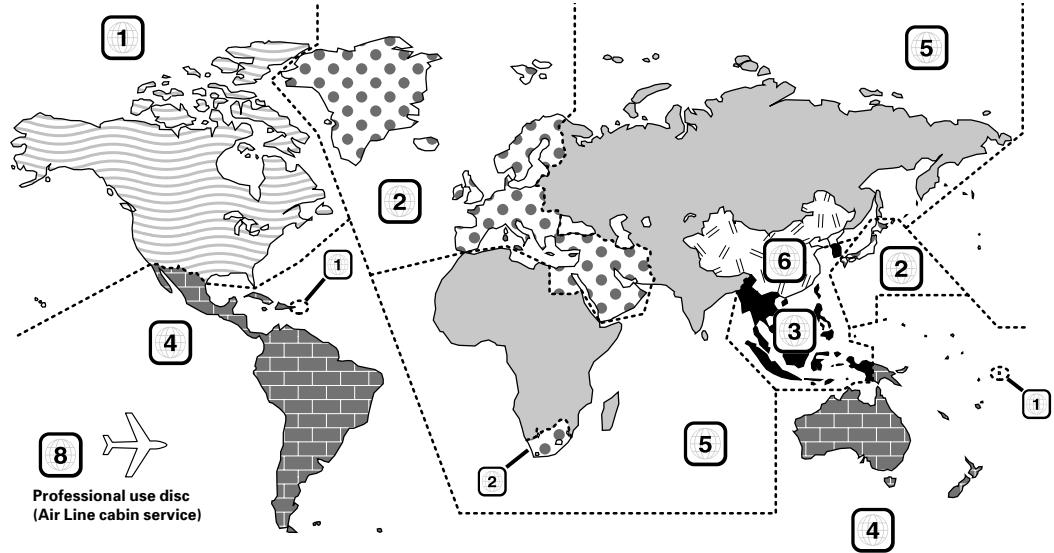
Region codes of the DVD VIDEO discs that can be played with this player
This player can play back a DVD VIDEO disc which carries the corresponding code to the region code of the player shown in the table above, a marking containing the region code of the player or the "ALL" marking shown below. Even when a DVD VIDEO disc does not carry any indication of the region code, it may sometimes unable to be played on this player due to certain restrictions.

Icons on the DVD VIDEO discs
| Icon | Description |
| ALL | Indicates the region code where the disc can be played. |
| 8 | Number of voice languages recorded with the audio function. The number in the icon indicates the number of voice languages. (Max. 8 languages) |
| 32 | Number of subtitle languages recorded with the subtitle function. The number in the icon indicates the number of subtitle languages. (Max. 32 languages) |
| 9 | Number of angles provided by the angle function. The number in the icon indicates the number of angles. (Max. 9 angles) |
| 16:9 LB | Aspect ratios that can be selected. "4:3 Letter box" stands for Letter Box and "4:3 Panscan" for Pan/Scan. In the example on the left, the 16:9 video can be converted into letter box video. |
The TV picture display and disc signal systems can be divided roughly into two TV formats (NTSC and PAL). They are variable depending on countries and areas.
This unit has a function for output of disc video in NTSC format after conversion to PAL format. For details, refer to "NTSC PAL" in "VISUAL" setting on page 78.
TV formats in major countries :
| TV Format | Major Countries & Areas |
| NTSC | Japan, Taiwan, Korea, USA, Canada, Mexico, Philippines, Chile, etc. |
| PAL | China, U.K., Germany, Australia, New Zealand, Kuwait, Singapore, etc. |
Checking the Video Format
Check the video format of the VCD and DVD discs to be played on the player as described below.
Check if the video formats of the TV to be used and disc to be played match each other.
- For details, refer to the instructions provided with the TV and disc.
When the TV is switchable between NTSC and PAL, set the TV format according to the disc format.
| TV Format | Playable Disc Format |
| NTSC only | NTSC |
| PAL only | PAL |
| NTSC/PAL switchable | NTSC/PAL |
- Correct video cannot be reproduced if the video formats of the TV and disc do not match.
When the video formats are different :
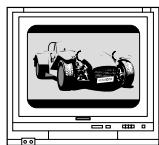
Try playing the disc. If the video formats of the disc and TV do not match, the played video may be black and white or become as shown below.
Top and bottom edges are not displayed.
Top and bottom areas are dark.
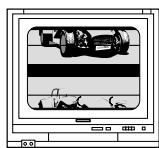
Picture turbulence due to sync unmatched.
Discs with MP3/WMA or JPEG files which can be played back on this unit
Playback of compressed files in the formats MP3, WMA, and JPEG is possible. Depending on the disc properties, the recording status, etc., playback may not be possible on this unit.
- The following file types can be played back on this unit.
MP3 : Bit Rate, 32 kbps to 320 kbps Sampling frequency: 32/44.1/48 kHz (128 kbps/44.1 kHz recommended)
WMA : Bit Rate, 48 kbps to 192 kbps Sampling frequency: 32/44.1/48 kHz (64 kbps/44.1 kHz recommended)
JPEG : Conforming to the Exif Ver. 2.1 JPEG baseline method Image resolution ; Within 7680 × 7680 (subsampling; 4:2:2, 4:2:0) * Not compatible with progressive JPEG, JPEG2000.
This unit is compatible with discs written with ISO9660, level 1 or level 2 (expanded format excepted). (Not compatible with discs written with packet writing.)
This unit is compatible with closed multi-session discs.
- The maximum number of folders which can be played back with this unit is 255, and the maximum number of files is limited to 1743.
The file names always must have the extension ".MP3" (MP3 files), ".WMA" (WMA files), or ".JPG" (JPEG files).
Depending on the properties of the JPEG file and the recording status, the image may not be displayed correctly.
- Never add the wrong extension log to any files, the equipment will assume that they can be played back, and this will produce loud noises in the speakers, resulting in damage of adverse effects.
Confirming media and files
Check to ascertain that MP3/WMA files can be played back correctly on the personal computer in use prior to saving them onto the media. Check to ensure that the saved file can be played back normally.
When saving files onto media
Ensure that the session is closed or finalized when data has been written on media. There are cases where media on which the session has not be closed or finalized will not be played back correctly with this equipment.
There are cases where the folder names and file names will not be displayed correctly depending on the software used to save them.
- Do not store files or folders other than playable files on media to be played back with this equipment.
It is recommended that ten or less sessions are stored when recording MP3/WMA/JPEG files onto a media.
- In case of a multisession disc, some time may be required until playback begins.
- There are cases where playback is not possible when MP3/WMA/JPEG files (CD-ROM) and music CD information (CD-DA) are saved on the same media.
Playback order for MP3/WMA audio and JPEG images
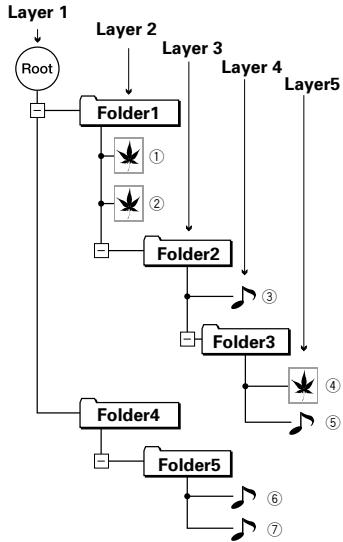
A disc with MP3/WMA and JPEG files recorded on it is played back in the order of ① ② ③ ④ ⑤ ⑥ ⑦
Hints for disc creation>
When setting of the playback order is desired, insert successive numbers like "01" to "99" in front of the folder and file names. However, depending on the writing software, writing may not be done in the intended order.
- As folder 3 is included in folder 2, ④ has priority over ⑥
- When playback shifts from JPEG images to MP3/WMA audio (example: from ④ to ⑤), the audio is played back with displayed image.
- With skipping from MP3/WMA audio to JPEG images (example: from ③ to ④), the audio stops and the image is displayed.
- With a hierarchy exceeding 8 levels, the folders in the eighth level are displayed along with the last folder of the playback order.
Disc structure
Structure of DVD Video discs
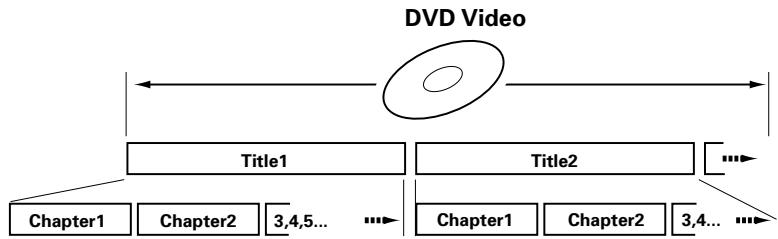
A title is the largest unit for images or tracks. A title is composed of several chapters.
Structure of CD and Video CD Video discs
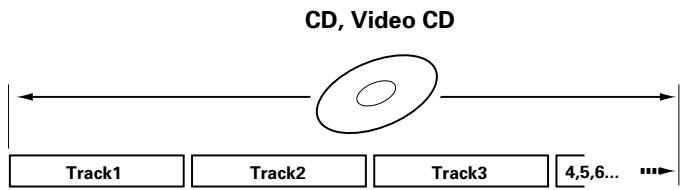
CD and Video CD discs are divided into so-called tracks.
Structure of discs with recorded MP3/WMA, JPEG files
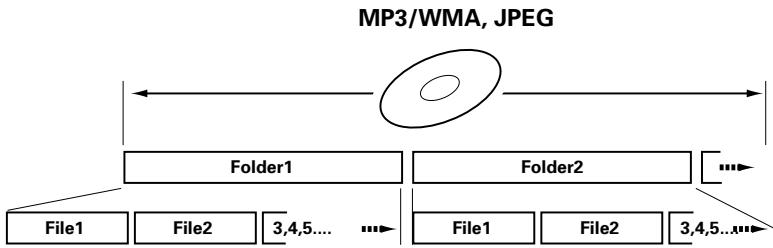
A folder is the largest unit recorded on a disc.
A folder can be composed of one or more files, but files also can be recorded directly on the disc without being in a folder.
There are also discs with a hierarchical structure with folders inside folders.
As the clock is not only used to show the time of the day but also used in timer operations, be sure to set the clock adjustment in advance.
Turn POWER ON. 24
1 Select "TIME ADJUST".
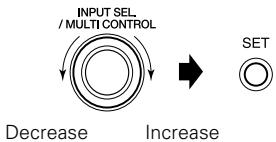
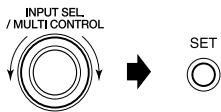
Press the MODE key, turn the INPUT SEL./ MULTI CONTROL knob to select "TIME ADJUST". Then press the SET key.
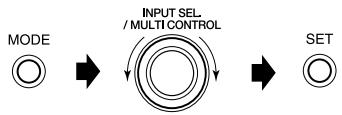
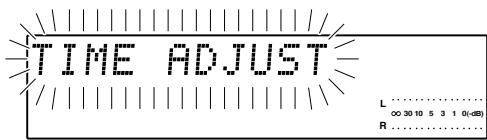
The time display starts to blink.
2 Adjust the day of week.
Adjust the day of week
Press the SET key.
Example: Adjustment to Monday 8:07
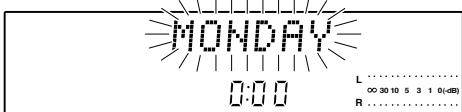
After the day is input, the hour display starts to blink.
3 Adjust the hour.
7 Adjust the hour
Press the SET key.
Example: Adjustment to Monday 8:07
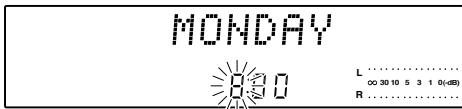
After the hour is input, the minute display starts to blink.
4 Adjust the minute.
Adjust the minute.
Press the SET key.
Example: Adjustment to Monday 8:07
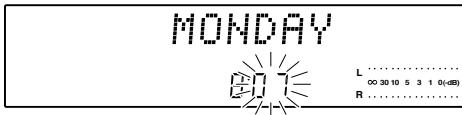
- If you made a mistake, restart from the beginning.
- When the time of day has been set by pressing the SET key, the display shows "COMPLETE".
After a power failure or the AC power cord has been unplugged, the time set will be cleared. You have to set the time again when the unit is switched on. - When the (STOP) key is pressed while the power is in the standby mode, the time of day will be displayed for 5 seconds.
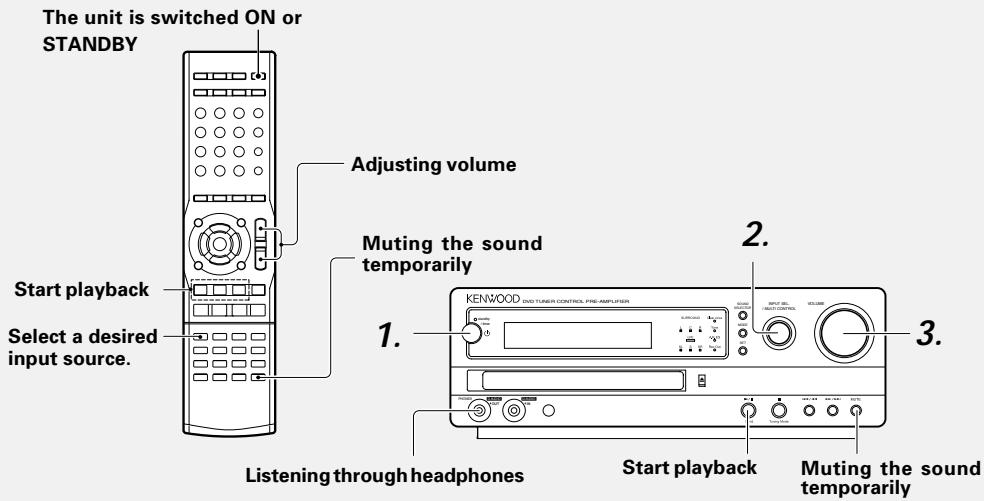
Preparation : Set the POWER switch of the M-AX7 to the ON position.
MAIN UNIT
REMOTE

1. Turning the power () on (off).
Pressing the (POWER) key when the unit is ON, turns it off (Standby mode).
- Pressing the DVD/CD /II, D.AUDIO /II or TUNER/BAND key on the remote also turns power on and starts playback (reception) of the corresponding input.
- When the DVD/CD input is selected while the corresponding disc have been loaded, it automatically starts to play.
MAIN UNIT
INPUT SEL/MULTICONTROL
REMOTE
INPUT SELECTOR

Start playback

Band
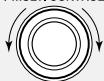
2. Selecting the desired input sources.
Select a desired input source.
TUNER (Broadcasts) 39
DVD/CD
TAPE/VIDEO1 (External input sources) -46
VIDEO2 (External input sources)
TV
AUX (External input sources) 46
D.AUDIO
Input level adjustment is possible for TAPE/VIDEO1, VIDEO2, TV, AUX and D.AUDIO.
- Pressing the DVD/CD▶/II, D.AUDIO▶/II or TUNER/BAND key on the remote selects the corresponding input.
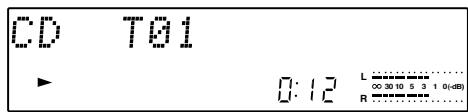
When CD is selected
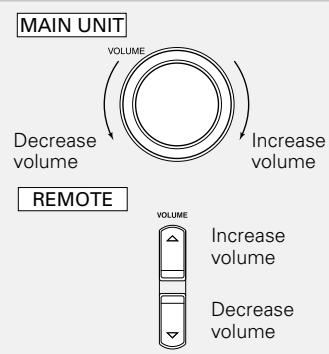
3. Adjusting volume.
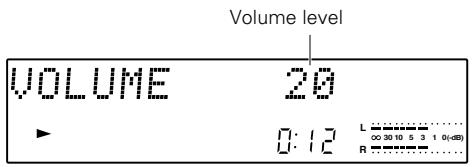
- The display shows a reference value.
Listening through headphones
Insert the headphones plug into the PHONES jack.
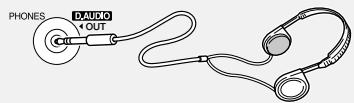
- Headphones with a stereo mini plug can be connected.
The sound from all speakers is cut off.

When D.AUDIO OUT is set to REC OUT ON, sound is put out from the speakers, and the volume from the headphone terminal is constant, independent on the VOLUME position.
When listening with headphones, set D.AUDIO OUT to HEADPHONE. (The initial setting is HEADPHONE.)
Muting the sound temporarily (MUTE)
Press the MUTE key.
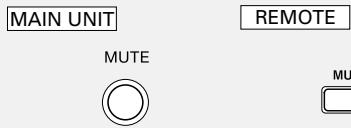
- Press the MUTE key again to resume the original volume.
It is also canceled when the volume is changed.
Caution at the time of recording
When the surround mode is switched while recording or the CHANNEL SEL. key is operated etc., the sound may be interrupted.
Using Auto Room Equalizerfunction

A very loud test sound is produced during the measurement. Please take into consideration that it may disturb your neighborhood, especially, when measure it at the night time.
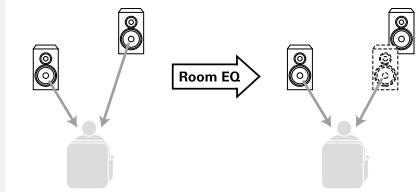
Auto Room Equalizer function automatically performs the following adjustments with the provided microphone by measuring sound characteristics for the best listening environment according to your room conditions and speakers layout.
- Sound delay from speakers
- Volume level differences between left and right speakers
- Speaker frequency characteristics and room sound characteristics
Measuring room sound characteristics (Auto Room EQ)
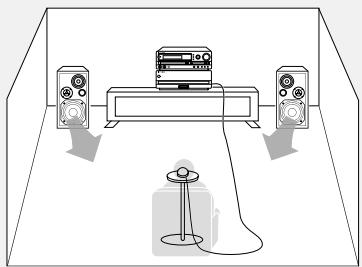
7Connect the microphone to the ROOM EQ. MIC IN jack on the back of the unit. -9
Place the microphone to the listening position (at a height of your ears).
Press the MODE key, turn the INPUT SEL./MULTI CONTROL knob to select "AUTO ROOM EQ", and press the SET key. [press the AUTO ROOM EQ key on the remote].
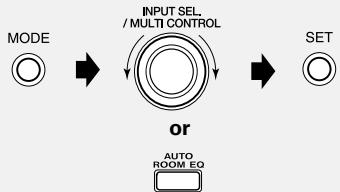
Turn the INPUT SEL./MULTI CONTROL knob to select "R.EQ START", and press the SET key.
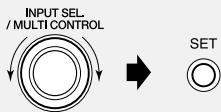
The following items can be selected by turning the INPUT SEL./MULTI CONTROL knob.
"R.EQ START": Measurement starts.
"R.EQ OFF":Characteristics setting is temporarily canceled.
"R.EQ CALL": Characteristics setting is called up.
-
When measuring for the first time, only "R.EQ START" can be selected.
-
Measuring takes several minutes.
- If the microphone is not connected or headphones are connected, the measurement is impossible. ("CAN'T SETUP" is displayed.)
The original display returns automatically when measuring has been completed. - Make sure that the microphone is removed from the main unit right after the Auto Room EQ measurement.
- Effective result may not be obtained depending on the measurement surroundings.
- Displays during and after the measurement
- The A.R. EQ indicator (LED) blinks during the measurement. (The A.R. EQ indicator (LED) light up.)
R.EQ SETUP
- Image of the measurement
- Place the microphone at a height of your ears.
- Do not place any obstacles between the microphone and speakers during the measurement.
- Image of effect by Room Equalizer function
- When an error display occurs, refer to page 86.
- Depending on the use environment, correct measuring may not be possible. Normally there will be no problems with the automatic setting, but manual setting should be done for more accurate measuring.
As there is no automatic setting for the subwoofer, manual setting must be done.
("Speaker setting"→79)
To cancel the measurement
Turn the VOLUME knob on the main unit or press the VOLUME / key on the remote control unit.
or
- When the operations of steps ③ and ④ on page 26 are performed and the SET key is pressed after display of "R. EQ CANCEL?", measuring is canceled and return is made to the condition before start.
Memorizing the measurement (Memorizing your favorite sound 30)
The Auto Room EQ settings can be stored. It is recommended to store the settings with the operation shown on page 30.
Changing measured Room Equalizer Characteristics according to situation (ROOM EQ MODE)
Press the ROOM EQ MODE key on the remote control unit.

Select a mode by using the INPUT SEL./MULTI CONTROL knob. [press the MULTICONTROL / key on the remote.]
The following mode items can be selected:
"NORMAL": This mode reproduces the sound optimized based on the measured results by ROOM EQ. Usually, use this mode.
"WIDE": Mode that you can enjoy music at a relatively wide area centering around the measured position. It is convenient, for example, when you wish to listen to music walking around room at a home party.
"Night": Mode that is convenient when you wish to enjoy music with low volume at midnight. It is adjusted based on melodious sounds such as vocal and will relatively be clear sound with low volume.
- Press the ENTER key on the remote control to end the operation.


The ROOM EQ MODE cannot be set when Auto Room Equalizer measuring has not been performed.
Using Digital Sound Equalizer function
D-BASS Setting
The D-BASS effect can be added according to the source.
Press the SOUND SELECTOR key, turn the INPUT SEL./MULTI CONTROL knob to select "D-BASS". Then press the SET key. [press the D-BASS key on the remote].
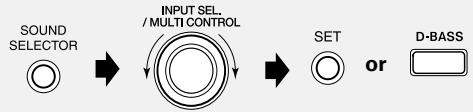
The D-BASS indicator blinks.
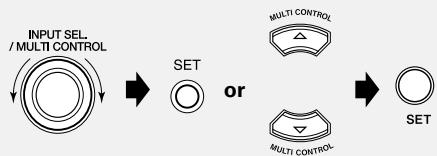
Turn the INPUT SEL./MULTI CONTROL knob [press the MULTI CONTROL key on the remote] to select "Music" or "Movie". Then press the SET key.
Adjust the level with the INPUT SEL./MULTI CONTROL knob [press the MULTI CONTROL key on the remote].
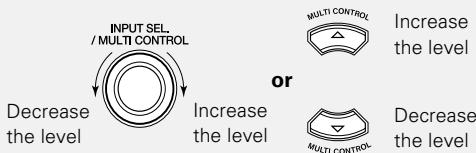
- The level can be adjusted at the range of 0 - 10.
Press the SET key to confirm.

SET
- Press the SOUND SELECTOR key to end the operation or to cancel it.
- The D-BASS indicator lights up after the setting (when the level is 1 or more).
TONE/TURN OVER setting
In this unit, TREBLE and BASS sounds can be adjusted to your preferences. (TONE)
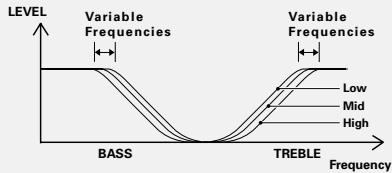
In addition, frequency characteristics of the TREBLE and BASS sounds can be adjusted with the three types of Low, Mid and High. (TURN OVER)
Press the SOUND SELECTOR key, turn the INPUT SEL./MULTI CONTROL knob to select "TONE". Then press the SET key. [press the TONE TURN OVER key on the remote].
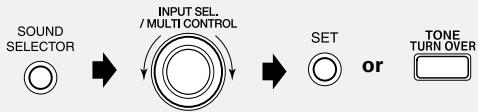
TONE/TURN OVER setting is not possible when D.EQ RecMode is on.
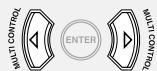
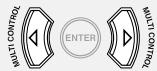
Press the MULTI CONTROL / key on the remote to select a frequency type (Low: 100Hz, Mid: 150Hz, High: 200Hz)
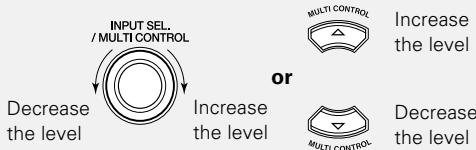
Adjust the level of BASS with the INPUT SEL./MULTI CONTROL knob [MULTI CONTROL / key].
Press the SET key to confirm BASS.

SET
Continued to next page
The TREBLE setting is displayed.
Press the MULTI CONTROL / key on the remote to select a frequency type (Low: 5kHz, Mid: 7kHz, High: 10kHz)
Adjust the level of TREBLE with the INPUT SEL./MULTI CONTROL knob [press the MULTI CONTROL key on the remote].
Press the SET key to confirm TREBLE.
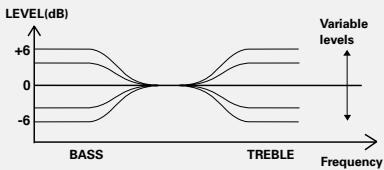
The level can be adjusted by one step (1dB) at the range of -6(dB) to +6(dB)
The TONE indicator lights up after the setting when the level is other than "0".
- Image of variable frequencies (TURN OVER)
- Image of the level adjustment
- Press the SOUND SELECTOR key to end the operation or to cancel it.
Making your favorite sounds (MANUAL EQ.) This unit is equipped with 7-band equalizer. It enables you to make your favorite frequency response curve with frequencies from super bass to super high range. -30
Press the MANUAL EQ key on the remote control unit.

- Equalizer curve, level and frequency are displayed and the EQ indicator blinks.
Select an equalizer band (frequency) by pressing the MULTI CONTROL / key on the remote.
- The display of selected band blinks.
The frequency bands from 1 to 7 can be selected.
Adjust the equalizer level by pressing the MULTI CONTROL / key on the remote.


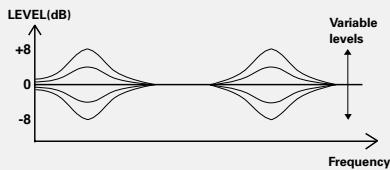
The level can be adjusted by one step (1dB) at the range of -8(dB) to +8(dB) .
- The manual EQ setting mode will be cancelled when the MANUAL EQ key is pressed.
- Image of level adjustment
Memorizing your favorite sound
Press the MODE key, turn the INPUT SEL./ MULTI CONTROL knob to Select "SOUND PRESET". Then press the SET key.
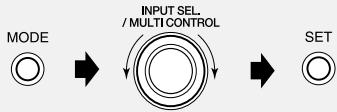
The indicator "1", "2" and "3" on the display blinks.
- "PRESET" and "1", "2", and "3" is displayed on the character information display.
- The sound of three patterns from 1 to 3 can be preset regardless of sound type.
- Information for Room EQ setting is memorized.
Turn the INPUT SEL./MULTI CONTROL knob to select one of preset numbers from "0" to "3". Then press the SET key.
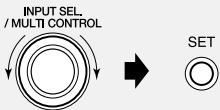
- The indicator of selected preset number lights up on the display.
Preset Call of sound pattern
Remote control unit only
Press the SOUND PRESET key on the remote.

- "SOUND PRESET" and "1", "2" or "3" are displayed.
Factory default setting is "flat".
The display turns to the original display in 3 seconds.
Returning the tone to flat
- The level can be set to "0" by pressing the FLAT key on the remote.

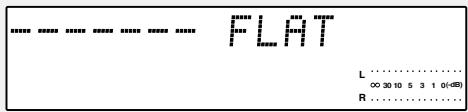
- All not memorized settings are returned to the original settings.
Sound equalization
Super bass range (band 1: 63Hz)
When this control is moved up, the sound from bass instruments such as a bass guitar becomes deep and stable. When the super bass sound is boomy, move this control down.
Bass range (band 2: 160Hz)
Usually, the listening room resonance frequency is in this range. To eliminate bass resonance, move this control down.
Mid bass range (band 3: 400Hz)
This range is the basis of music, whether the sound is rich or not, depends on this range. When the playback sound is not so good, moving this control up slightly makes the sound sonorous.
Mid range (band 4: 1kHz)
When this control is moved up or down, the baritone or soprano voice is emphasized/de-emphasized. This range is related to the "presence" of music.
Mid-high range (band 5:2.5kHz)
This range is related to stimulus and metallic sound. When this range is well compensated, vivid sound can be obtained.
High range (band 6: 6.3kHz)
This frequency range is related to hardness of the sound. When this control is moved up, strings or brass instruments, such as flutes or piccolos, are emphasized. When the control is moved down, the sound will be more soothing.
Super high range (band 7:16kHz)
This frequency range is related to the width and details of the music. When this control is moved up, super high frequency instruments, such as triangles or cymbals, are emphasized, resulting in wide sound and echoes.
Enjoying surround sound
With the V.F.S. (Virtual Front Surround) function it is possible to enjoy natural surround sound with rich ambience without installing surround speakers at the rear.
The built-in CLEAR VOICE function even clearer playback of voices.
Please connect front surround speakers if you want to enjoy surround sound.
- When headphones are connected or when the D.EQ RecMode is ON (-51) , the surround setting is canceled and the output is fixed to two channels (stereo).
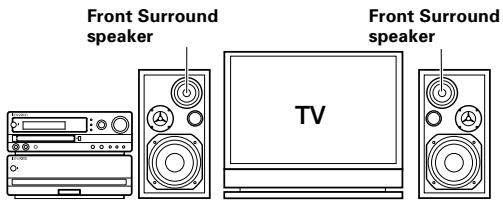
V.F.Smodes
Movie
The 5.1 channel signal of the DVD is converted to V.F.S. as it is. The original ambience of the DVD is played back in its most natural form.
Music
DVDs and also CDs can be enjoyed with live ambience. Select this mode to play music discs.
WIDE: The V.F.S. spreading is adjusted.
CLEAR VOICE modes
Movie
Voices can be heard clearer when movies are played.
Music
This has the effect of making vocals more distinct at the time of music playback.
CENTER:Only the CLEAR VOICE effect is adjusted.
- The selected sound mode is held. However, a surround mode set during DVD play may not be held.
V.F.S. setting
Press the SOUND SELECTOR key, turn the INPUT SEL./MULTI CONTROL knob to select "SURROUND". Then press the SET key.
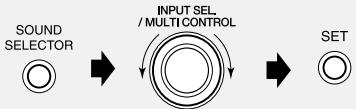
Turn the INPUT SEL./MULTI CONTROL knob to select "V.F.S". Then press the SET key.
INPUT SEL/MULTI CONTROL


When 2 channels (stereo) has been selected, switching is done automatically to 4 channels.
When using the remote control, press the V.F.S. key instead of the operations 1 and 2.

V.F.S.
V.F.S. setting is not possible when the D.EQ RecMode is set to ON.
Turn the INPUT SEL./MULTI CONTROL knob [MULTI CONTROL / key] to select "Movie" or "Music". Then press the SET key.
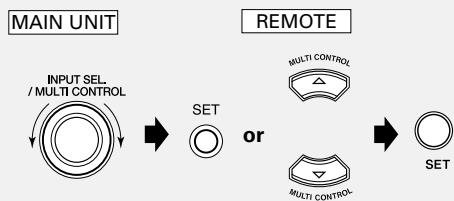
Adjust the level of WIDE with the INPUT SEL./MULTI CONTROL knob [press the MULTI CONTROL / key on the remote]. Then press the ENTER key to confirm.

The level can be adjusted at the range of 1 - 10.
- Press the SOUND SELECTOR key to end the operation or to cancel it.
CLEAR VOICE setting
Press the SOUND SELECTOR key, turn the INPUT SEL./MULTI CONTROL knob to select "SURROUND". Then press the SET key.
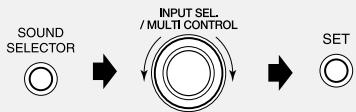
Turn the INPUT SEL./MULTI CONTROL knob to select "CLEAR VOICE". Then press the SET key.
When 2 channels (stereo) has been selected, switching is done automatically to 4 channels.
When using the remote control, press the CLEAR VOICE key instead of the operations 1 and 2. CLEAR VOICE

CLEAR VOICE
- CLEAR VOICE setting is not possible when the D.EQ RecMode is set to ON.
Turn the INPUT SEL./MULTI CONTROL knob [MULTI CONTROL / key] to select "Movie", "Music" or "CENTER". Then press the SET key.
Adjust the level of CENTER with the INPUT SEL./MULTI CONTROL knob [press the MULTI CONTROL / key on the remote].
The level can be adjusted at the range of 1 - 10.
- Press the SOUND SELECTOR key to end the operation or to cancel it.
For return to 2 channels (stereo) (LISTEN MODE setting)
Press the SOUND SELECTOR key, turn the INPUT SEL./MULTI CONTROL knob to select "SURROUND". Then press the SET key.
Turn the INPUT SEL./MULTI CONTROL knob to select "LISTEN MODE". Then press the SET key.
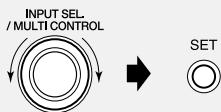
When using the remote control, press the LISTEN MODE key instead of the operations 1 and 2.

LISTEN MODE
Turn the INPUT SEL./MULTI CONTROL knob to select "Stereo (EQ)". Then press the SET key.
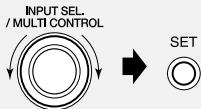
Only Stereo (EQ) is displayed when FRONT SYS-TEM is selected with the speaker settings (-79) .
Expansion to a 5.1 channel system is possible by connection to the 3.1 channel speaker system to be sold in the future.
When 5.1 CH SYSTEM is selected with the speaker settings, the LISTENMODE is switched as shown below depending on the input source.
79
Stereo (EQ)
Stereo
PLII Movie
PL II Music
PL II Game
Pro Logic
Dolby D
DTS
For details, please refer to the operation instructions for your equipment.
When a disc is placed into the DVD/CD player in advance, the unit will be switched on automatically by pressing the DVD/CD /II key on the remote control, and playback will start.

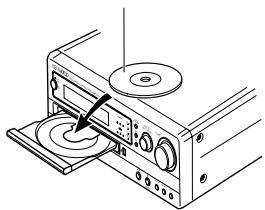
1. Load a disc
Press the key on the main unit to open the DVD/CD tray.
Place a disc.
Press the key on the main unit to close the DVD/CD tray.
- Do not touch the played side of disc.
- Be sure to place a disc on the tray horizontally. Placing it with an inclination will result in malfunction.
- Press the key again to remove the disc.
The label side facing up.
MAIN UNIT
INPUT SEL/MULTI CONTROL


Band
REMOTE

DVD/CD
2. Start playback
Turn the INPUT SEL./MULTI CONTROL knob [press the DVD/ CD /II key on the remote] to select "DVD/CD".
- After a few seconds, playback starts from track (chapter) No.1.
- A title is displayed for Discs with CD-TEXT.
Example of CD playback
Track No. being played.
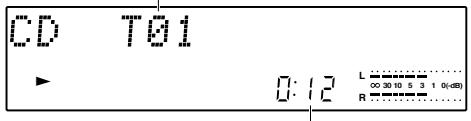
Elapsed time of track being played.
Switching to pause or still (stationary picture)
During playback, press the /II key [DVD/CD /II key on the remote].

MAIN UNIT
Band

REMOTE
To stop playback
Press the (STOP) key.
MAINUNIT

Tuning Mode
REMOTE

AUTO/MONO
Resume function DVD VCD MP3/WMA JPEG
When the key is pressed once, the playback position is memorized and pause (resume) is reached. When the key is pressed again, the stored contents are cleared and stop condition is reached. When the key [DVD/ CD key] is pressed in resume status, playback starts again from the position where playback was stopped.
In case of a DVD Video/Video CD
Playback starts from the memorized position.
In case of an MP3/WMA file
Playback starts from the beginning of the file which was played back.
- "Pause" or "Still" is displayed on the TV.
- When the DVD setting "IPB display" is ON, "Still (I)", "Still (P)", or "Still (B)" is displayed on the TV when still is used during DVD playback. ( 4)
- Press the /II key [DVD/CD /II key on the remote] to resume normal playback
CD playback
Press the key once.
Playing DVD, Video CDs, MP3/WMA, or JPEG files
Press the key twice.
In case of a JPEG file
Playback starts from the displayed image.
The resume function does not operate in the following cases.
- During random playback or repeat random playback
- During P.B.C. playback of a Video CD
During menu playback of a DVD Video - When the input source has been switched.
Slow playback, slow backward playback DVD VCD JPEG
Press the / key [DVD/CD / key on the remote] (Still).
Press and hold the / , / key [press the , key on the remote].
MAIN UNIT
REMOTE
Press and hold


Reverse slow playback
Slow playback
Reverse slow playback
Slow playback
Fast forward and backward
During playback, press and hold the / , key [press the , key on the remote].
MAIN UNIT
REMOTE


Backward

Fast forward
Backward
Fast forward
Each time the key on the main unit or on the remote control is pressed again, the speed is changed in 5 steps.
- No sound is put out at the time of slow playback or slow backward playback.
- Slow backward playback of a video CD is not possible.
- When the ON SCREEN key is pressed during on-screen display ( 58) , the on-screen display disappears and the speed display is shown.
- Press the / key [DVD/CD / key on the remote] to resume normal playback.
Each time the key on the main unit or on the remote control is pressed again, the speed is changed in 5 steps.
The picture may be disturbed during fast forward and fast backward.
- When the ON SCREEN key is pressed during on-screen display ( 58) , the on-screen display disappears and the speed display is shown.
- Press the / key [DVD/CD / key on the remote] to resume normal playback.
To skip playback
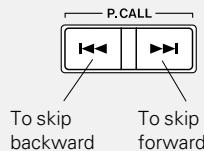
Press the / , / key [i<, i] key on the remote].
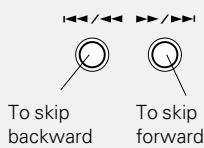
MAIN UNIT
REMOTE
To play back from desired title, chapter or track
Remote control unit only
Press the numeric keys.



- The track (chapter) in the direction of the key pressed is skipped, and the selected track will be played from the beginning.
- When operated during stop, playback of the track/file selected by skip starts. At the time of P.B.C. ON ( 64) , operation during stop is not possible.
- When the 1 / 1 key [1] is pressed once during playback, return is made to the start of the track, chapter, or file being played back.
Press the numeric keys as shown below.
To select No. 23: +10, +10, 3
To select No. 30: +10, +10, +10, 0
To select No. 311 (MP3/WMA, JPEG):
+100, +100, +100, +10, 1
At the time of DVD Video
- With operation during stop, the title is selected. Playback of the selected title starts.
- With operation during playback, the chapter is selected. Playback of the selected chapter starts.
At the time of CD or VCD (P.B.C. off mode-64)
- Playback of the selected track starts.
At the time of MP3/WMA, JPEG file - Playback of the selected file starts.
Selection and playback of MP3/WMA or JPEG folders or files (folder search/file search)
Remote control unit only
7 Press the FOLDER/FILSESEARCH key.
MENUPB.C.
FOLDER/FILE
SEARCH

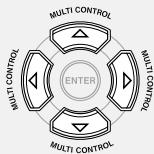
Press the MULTI CONTROL / key to select a folder or file. Then press the ENTER key.


MULTI CONTROL


- Press the MULTI CONTROL<key to return to the next higher level.
- Press the MULTI CONTROL key to return to the next lower level.
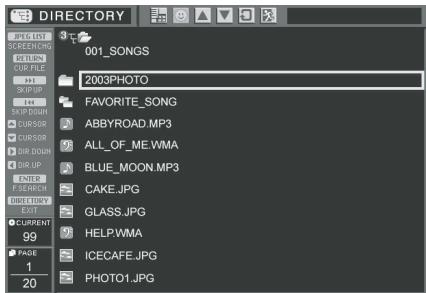
Example of display
Viewing JPEG images MP3/WMA JPEG
JPEG images recorded on CD-R/CD-RW discs can be viewed. When the images are mixed with MP3/WMA data, the music can be heard while displaying the JPEG images.
- When the / key [DVD/CD / on the remote] is pressed, the JPEG images are displayed in sequence from the first one at the specified slide interval (initial value: 10 sec).
- JPEG images not fitting into the screen are displayed reduced. The aspect ratio is not changed.
- JPEG images can be rotated in steps of 90^ .
When the file following the JPEG data contains MP3/WMA data:
The MP3/WMA data are played back while the JPEG image is displayed.
When the file following MP3/WMA data contains JPEG data:
The next JPEG image is displayed when the playback of the MP3/WMA data ends. Skipping to the next JPEG image during music playback is not possible.
Playback with selection from the JPEG list
Remote control unit only
7 Load a disc with recorded JPEG images.
Press the JPEG LIST key.
TOP MENU JPEG LIST

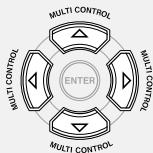
Use the cursor / / / keys to select the image to be viewed.
Press the ENTER key.

- Sequential display is made starting with the selected image.
JPEG list display example
Keys not effective on that screen cannot be selected.
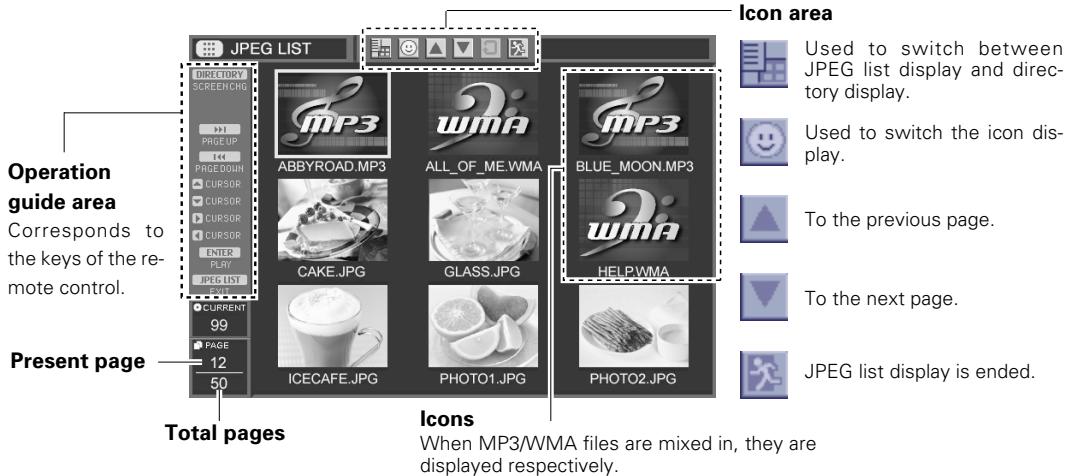
Playback with selection from the directory
Remote control unit only
Load a disc with recorded JPEG images.
Press the FOLDER/FILSESEARCH key.
MENUP.B.C.
FOLDER/FIL
SEARCH

Use the cursor / / keys to select the image to be viewed.
Press the ENTER key.

- Sequential display is made starting with the selected image.
Directory display example
Keys not effective on that screen cannot be selected.
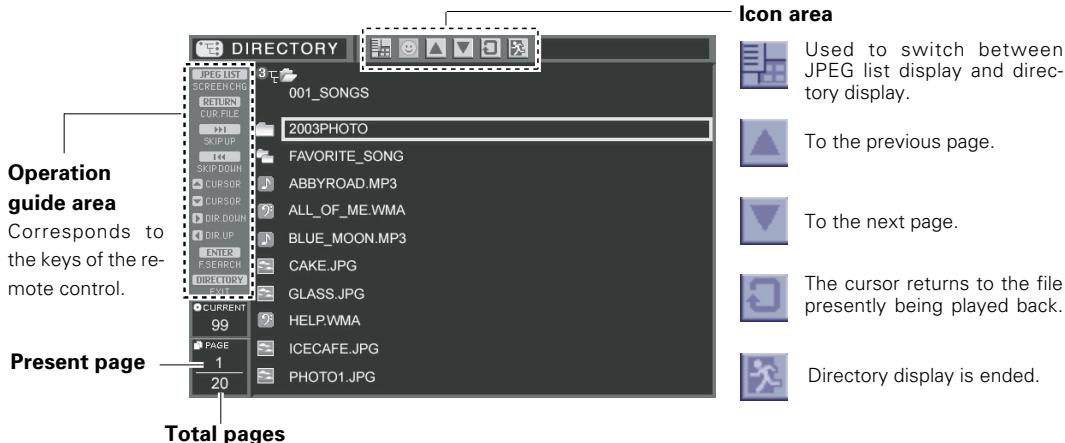
Rotating a JPEG image
Remote control unit only
Press the MULTI CONTROL / key during display of the JPEG image.
90^ left


90° right
- Operation is not possible during JPEG list display, during directory display, and during on-screen display. -58
- In case of a disc with mixed MP3/WMA and JPEG data, actually MP3/WMA data may be played during display of a JPEG image. In such a case, the JPEG image cannot be rotated.
Setting the slide time
Remote control unit only
Press the / key during display of the JPEG image.
Guide value for the slide time (unit: sec)
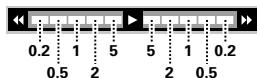
The initial value is 10 sec.
- For discs with mixed MP3/WMA data, the set slide time is cleared and return to the initial value is made when the next playback data are MP3/WMA data.
Changing the display contents of the display DVD VCD CD MP3/WMA JPEG
The display contents of the display on the main unit are switched each time this is pressed.
Remote control unit only
During playback, press the DISPLAY key.
DISPLAY

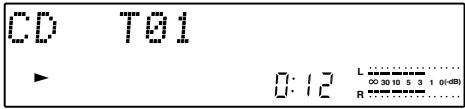
| CD | DVD or Video CD | MP3/WMA or JPEG disc | |
| During playback ①*1 Track title ②Track number ③Clock display During stop play mode ①*1 Disc title ②Track number ③Clock display | ① DVD: Title, Chapter Video CD: Track number ②Clock display | <sup>*2</sup> MP3/WMA> ①File Name ②Folder Name ③TAG Title Name ④TAG Artist Name ⑤TAG Album Name ⑥File number ⑦Clock display | <JPEG> ①File Name ②Folder Name ③File number ④Clock display |
| *1 In case of a disc compatible with CD-TEXT The CD-TEXT function When this unit plays a disc compatible with CD-TEXT, the disc title and the song titles recorded on the disc are displayed automatically when they are alphabet letters and numerals. ·For some discs compatible with CD-TEXT, display may not be possible. "TEXT FULL" is displayed when the number of characters recorded on the disc exceeds approximately 1500 characters. | *2 <MP3/WMA tag information> ·For ②, ④, ⑤, "●●●" is displayed during stop. ·Only alphanumeric characters are displayed. ·This unit is compatible with tag information version 1.X. | ||
Changing the time display of the display DVD VCD CD
Remote control unit only
During playback, press the TIME DISP. key.

- Only ① is displayed in case of MP3/WMA or JPEG files.
- Only ① and ② are displayed during program playback ( 52) and random playback ( 54) .
The time is not displayed when P.B.C. is set to ON for a Video CD (→64). - For some DVD Video discs, the display may not be correct.
Switching is done each time this is pressed.
① Elapsed time for the track, title, or chapter
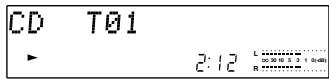
② Remaining time for track or chapter ("-") is displayed
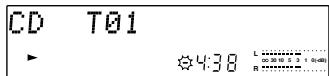
③ Elapsed time for disc or title ("TTL" lights)
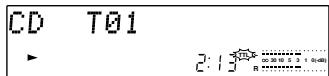
④ Remaining time for the disc or title ("- " and "TTL") is displayed.
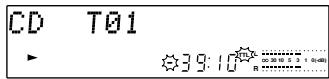
In case of a disc compatible with CD-TEXT
The CD-TEXT function
When this unit plays a disc compatible with CDTEXT, the disc title and the song titles recorded on the disc are displayed automatically when they are alphabet letters and numerals.
- For some discs compatible with CD-TEXT, display may not be possible. "TEXT FULL" is displayed when the number of characters recorded on the disc exceeds approximately 1500 characters.
When the TUNER /BAND key is pressed, the unit will automatically be switched on and reception status will be reached.
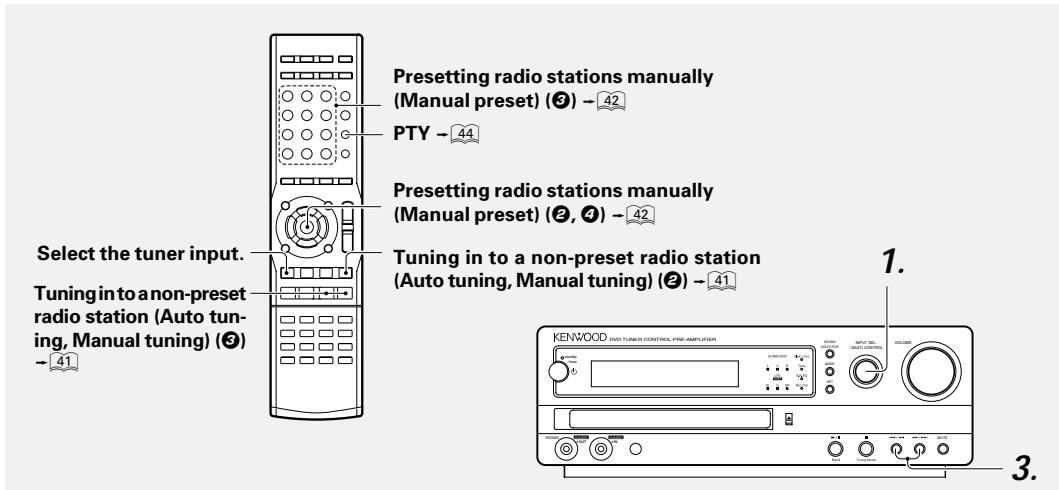
MAINUNIT
INPUT SEL, /MULTI CONTROL


Band
REMOTE
BAND
TUNER
1. Select the tuner input.
Each press of the / /BAND key [TUNER/BAND key on the remote] switches the bands as follows.
$$ \mathrm {F M} \leftrightarrow \mathrm {A M} $$
2. Preset a radio station in memory.
Collective presetting of stations (AUTO MEMORY) -40
Follow the procedure in "Collective presetting of stations (AUTO MEMORY)" to preset automatically the tunable radio stations in your area.
- Once the stations are stored with AUTO MEMORY (Auto memory function) you are not required to repeat this procedure the next time you listen to radio. However when you shift to another location whereby the broadcast station frequencies are different, you will have to re-execute the presetting of stations.
Presetting radio stations manually (Manual preset)
A station can also be tuned in even when it is not preset. For details, read "Tuning in to a non-preset radio station (Auto tuning, Manual tuning)". -41
Continued to next page
MAIN UNIT
REMOTE
3. Tuning (Preset Call)
- If radio stations have already been stored with AUTO MEMORY (Auto memory function) or manual presetting, select a station using the / , / key [the / key on the remote]. Each press of the key switches the preset stations in sequence.
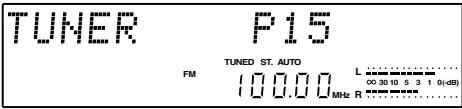
The indicator TUNED lights up when a station is received.
The indicator ST. lights up during stereo reception.
When the key is pressed: P1 P2 P3 ... P38 P39 P40 P1...
When the key is pressed: P40→P39→P38.... P3 → P2 → P1 → P40....
- When a key is held down, preset stations will be skipped at intervals of about 0.5 seconds.
- To select a preset station from the remote, use the P.CALL / key or the Numeric keys on the remote control unit.
Collective presetting of stations (AUTO MEMORY)
Press the MODE key.
MODE

Turn the INPUT SEL./MULTI CONTROL knob to select "AUTO MEMORY".
INPUT SEL /MULTICONTROL
Press the SET key.

SET
Up to 40 stations can be memorized.
AUTO MEMORY
For use of the RDS function, stations must be memorized by AUTO MEMORY.
- RDS stations are given priority during auto presetting. If there is memory left after presetting, this unit continues presetting regular FM and AM stations.
- A broadcast station that cannot be preset with AUTO MEMORY should be set with Manual preset.
Tuning in to a non-preset radio station (Auto tuning, Manual tuning)
Select the tuning mode according to the radio wave receiving condition.
Auto tuning: When the receiving condition is good.
Manual tuning: When the receiving condition is poor. (Weak radio waves)
Select the tuner input.
Press the Tuning Mode key [AUTO/MONO key on the remote] to select a tuning type of Auto or Manual.
MAIN UNIT
REMOTE

or

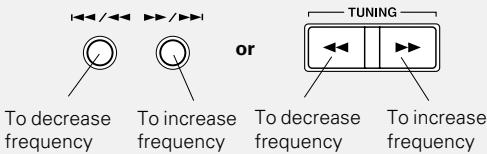
Tune in to a station by pressing the / , > > / > > key [ / ] key on the remote].
- In MANUAL mode, FM stations are received in mon- aural.
Each press of the Tuning Mode key [AUTO/MONO key on the remote] changes the tuning types.
Auto tuning : "AUTO TUNE" is displayed. The AUTO indicator lights up. (Stereo reception)
Manual tuning : "MANUAL TUNE" is displayed. The AUTO indicator goes off. (Monaural reception)
- Normally, use the Auto tuning (stereo reception).
Auto tuning:
The next station can be received automatically every time the / / key [ / key] is pressed.
Manual tuning :
Press the / / / / key [ / / key] repeatedly until the desired station is received. The desired station can also be received by holding the / / / / key [ / / key] down until its frequency is displayed.
- For tuning from the main unit, perform the operation of step ②, and perform tuning while the indication "AUTO TUNE" or "MANUAL TUNE" is shown.
Presetting radio stations manually (Manual preset)
Perform the procedure in "Tuning in to a non-preset radio station (Auto tuning, Manual tuning)" to receive the station to be preset.
Press the ENTER key during reception.

(Proceed to step while"--"is blinking.)
Select one of the preset numbers from 1 to 40 with the | / , | / | key [i< / >key or the numeric keys on the remote].

Preset numbers can directly be input with the Numeric keys on the remote control unit.
Press the ENTER key again.

(Repeat steps 1, 2, 3 and 4 to preset other stations.)
Up to 40 stations can be memorized.
- To memorize an RDS station, wait for the station name to appear on the display before performing step ②.
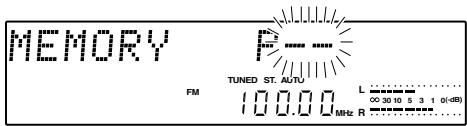
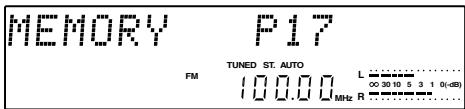
- If several stations are preset under the same number, the previous memory is replaced with the latest memory contents.
- Sequence for pressing the Numeric keys on the remote control unit
- To input "12" ....+10, 2
- To input "20" ....+10, +10, 0
- "COMPLETE" is displayed when input has been completed.
RDS is a system which transmits useful information (in the form of digital data) for FM broadcasts along with the broadcast signal. Tuners and receivers designed for RDS reception can extract the information from the broadcast signal for use with various functions such as automatic display of the station name.
Before using RDS
For reception of RDS stations, the auto memory function must be used to preset the stations.
This unit is equipped with the following functions utilizing RDS data :
PS (Program Service Name) Display :
When an RDS broadcast is received, the station name is automatically displayed.
PTY(Program Type) Search: -44
The tuner automatically searches for a station which is currently broadcasting a specified program type (genre).
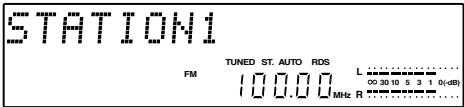
The RDS indicator lights up when an RDS broadcast (signal) is received.
- Some functions may not be provided or be given different names depending on countries or areas.
Switching the displays
Press the DISPLAY key.

Each press of the DISPLAY key changes the display items;
PS (Program service name) "TUNER" Clock
- The RDS indicator lights up on the display, when a preset RDS broadcast is selected.
Searching for a desired program type (PTY search)
By specifying the type of program (genre) you want to listen to, the tuner automatically searches for a station which is currently broadcasting a program of the specified type.
Set the reception band to FM. Preset RDS stations with the AUTO MEMORY function.
1 Select the PTY search mode.
Press the PTY key on the remote control unit.

2 Select the desired program type.
Use program type table on the right for your convenience.
Select the desired program with the 一 / 一 key.

Select it while the PTY indicator is lit.
The desired program type can be selected with the | / | key from 29 types. Press the key and release it when the desired type is displayed.
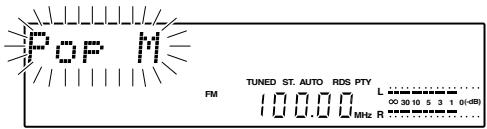
When an RDS broadcast is received, the program type is shown on the display. If no PTY data is available, or if the station is not an RDS station, "None" is displayed.
Program type table
| keys | Program Type Name | Display |
| DOWN | Pop Music | Pop M |
| Rock Music | Rock M | |
| Easy Listening Music | Easy M | |
| Light Classical | Light M | |
| Serious Classical | Classics | |
| Other Music | Other M | |
| News | News | |
| Current Affairs | Affairs | |
| Information | Info | |
| Sport | Sport | |
| Education | Educate | |
| Drama | Drama | |
| Culture | Culture | |
| Science | Science | |
| Varied | Varied | |
| Weather | Weather | |
| Finance | Finance | |
| Children's programs | Children | |
| Social Affairs | Social | |
| Religion | Religion | |
| Phone In | Phone In | |
| Travel | Travel | |
| Leisure | Leisure | |
| Jazz Music | Jazz | |
| Country Music | Country | |
| National Music | Nation M | |
| Oldies Music | Oldies | |
| Folk Music | Folk M | |
| Documentary | Document |

Start the search.
Press the ENTER key on the remote control unit.

- No sound is heard while the PTY indicator is blinking.
- If a program of the desired type cannot be found, "No Program" blinks, then after several seconds the display returns to the original display.
- If a program of the desired type is found, that program is received and the program type name display changes to the station name display.
- To cancel the search, press the PTY key again.
To change to a different program type :
Repeat steps 1, 2 and 3.
Display while searching for a Rock Music broadcast.
Program type name display.
Rock M
Blinks.

PS display when an RDS station is received.
PS name display.
STATION2
FM
TUNED ST.AUTO RDS
98.00 MHR 0-(dB)
1 Select an external input source.
Turn INPUT SEL./MULTICONTROL knob [press the INPUT SELECTOR key on the remote].
MAIN UNIT
REMOTE

2 Play the connected equipment.
3 Adjust the volume.
MAIN UNIT

Decrease the volume
REMOTE
Increase the volume
Decrease the volume
Adjusting the external input level (TAPE/VIDEO1,VIDEO2, TV, AUX)
This adjusts the input level for the external equipment (cassette deck etc.) connected to the external input terminal. Adjust the level for the external input sources to sound like an equivalent volume to CD.
Press the MODE key, turning the INPUT SEL./MULTI CONTROL knob to select "INPUT LEVEL". Then press the SET key.
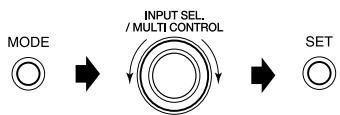
Select input level. Then press the SET key.
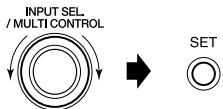
Operation with the remote control also is possible. In that case, press the MULTI CONTROL / key on the remote control instead of turning the INPUT SEL./MULTI CONTROL knob.
Select below item; "TAPE/VIDEO1" "VIDEO2" "TV" "AUX"
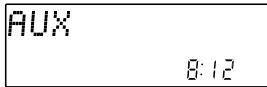
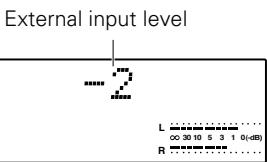
- Adjustment is possible at the range of -2 to +14 .
Listening to the sound of a Kenwood digital audio player
When this unit is connected with a special cable to a Kenwood digital audio player compatible with digital audio link, the digital audio player can be operated from this unit or its remote control.
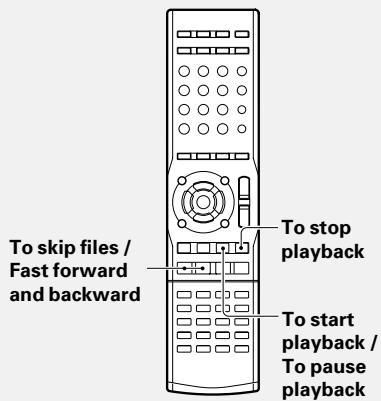
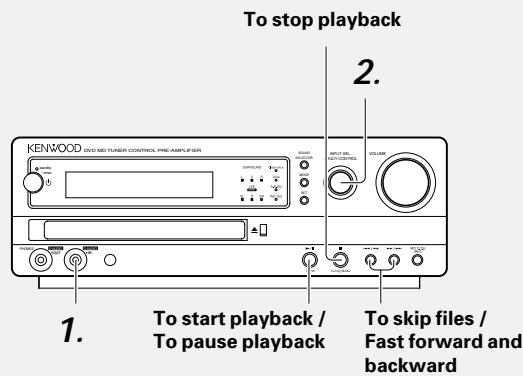
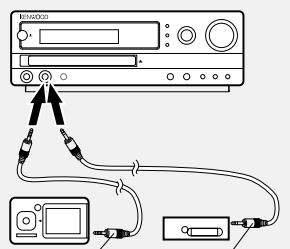
Special cable
[A model compatible with digital audio link]:
HD20GA7
(only for Europe)
Stereo mini plug cable (commercially available)
1. Connecting a digital audio player
[Connecting a model compatible with digital audio link]
Use the special cable to connect the D.AUDIO IN terminal of this unit with the headphone terminal of the Kenwood digital audio player.
[Connecting to any other digital audio player]
Use a commercial cord with stereo mini plugs to connect the D.AUDIO IN terminal of this unit and the headphone terminal of the digital audio player.
When connecting a digital audio player, first switch off the power for the digital audio player and for this unit before making the connection.
Then switch on both units.
- The D.AUDIO IN terminal is only for connection of digital audio players. Connect only compatible portable equipment.
MAIN UNIT
REMOTE
INPUT SEL. /MULTI CONTROL
INPUT SELECTOR

2. Set the input to D.AUDIO
Turn the INPUT SEL./MULTI CONTROL knob to select "D.AUDIO". [press the INPUT SELECTOR key on the remote].
[Connecting a model compatible with digital audio link]
- When the D.AUDIO /II key on the remote control is pressed, switching to digital audio is done and playback starts.
[Connecting a model compatible with digital audio link]
The following operations can be performed from the main unit.
[Connecting to any other digital audio player]
Perform digital audio player playback, volume adjustment, and other operations.
To start playback / To pause playback
During playback, press the /IIkey [D.AUDIO /IIkey on the remote].
MAIN UNIT

Band
REMOTE

Each press of the key pause and plays alternately.
To stop playback
Press the (STOP) key.
MAINUNIT

Tuning Mode
REMOTE

AUTO/MONO
Adjusting the external input level
This adjusts the input level for the digital audio connected to the D.AUDIO IN terminal. Adjust the level for the external input sources to sound like an equivalent volume to CD.
Press the MODE key and select "INPUT LEVEL" by turning the INPUT SEL./MULTI CONTROL knob. Then press the SET key.
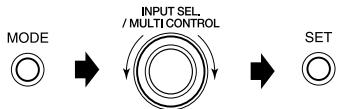
Select input level. Then press the SET key.
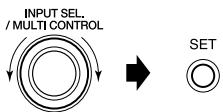
Operation with the remote control also is possible. In that case, press the MULTI CONTROL / key on the remote control instead of turning the INPUT SEL./MULTI CONTROL knob.
-
Adjustment is possible at the range of -7 to +7 .
-
Even when the sound mode has been set for a digital audio player, the setting becomes Off while the player is connected to this unit.
- The volume key of the digital audio player cannot be used for volume adjustment.
- When the use of the digital audio player is to be ended, switch off the power for both units, and then pull the connection cord from the terminal of this unit.
When a digital audio player with direct encoding function is connected, the sound played back by this unit can be recorded by the digital audio player.
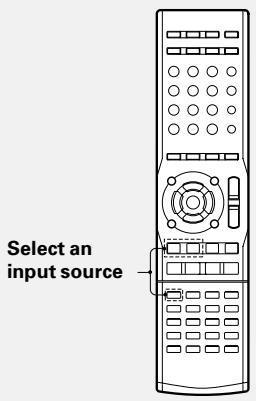
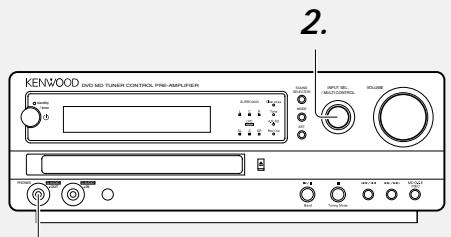
1.
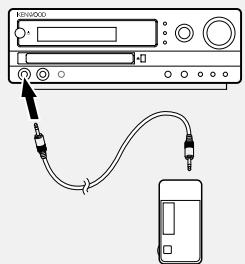
1. Connecting a digital audio player
Use a commercial cord with stereo mini plugs to connect the D.AUDIO OUT terminal of this unit and the recording input terminal of the digital audio player.
When connecting a digital audio player, first switch off the power for the digital audio player and for this unit before making the connection.
Then switch on both units.
2. Select an input source
TUNER
DVD/CD
- Select an input source other than D.AUDIO.
3. Preparing the recording source
TUNER : Tune in to the station.
DVD/CD: Pause playback at the start of the track or chapter to be recorded.
TAPE/VIDEO1,VIDEO2, TV, AUX (external input): Make the preparations for reception or playback.
Adjust the recording level if the recorded sound is distorted or too low. -51
The following settings are guide values.
DVD/CD, TUNER:REC LEVEL 0
Other external input sources : The value set by external input
level adjustment.
48
| 1 Press the MODE key, turn the INPUT SEL./MULTI CONTROL knob to select "D.AUDIO OUT". Then press the SET key. | 4. D.AUDIO setting Switch the output of the D.AUDIO (PHONES) terminal of this unit from headphones output to digital audio recording output. |
| MODE /MULTI CONTROL SET | |
| The Rec Out indicator (LED) lights up. | |
| 2 Confirm "REC OUT ON" and set by pressing the SET key. | Operation at the time of "REC OUT ON" causes return to "HEADPHONE". |
| SET | Please note that the volume may become high when switching "D.AUDIO OUT" while using headphones. Please pay attention to the volume setting as sound will come from the speakers when switching to "REC OUT ON". |
| 5. Preparing for recording · Perform options setting for external recording.→[51] · Please refer to the instruction manual of the digital audio player for the recording settings for the digital audio player. | |
| 6. Start recording 1 Start recording with the digital audio player. · For details, refer to the instruction manual of the digital audio player. 2 Start playback of the source (audio source) with this unit. · When recording has been completed, perform the operation of step 4 to return to "HEADPHONE". · Return to "HEADPHONE" is made when the power is switched off. · When CD repeat and/or program settings are made, the set contents can be recorded. | |

After use, switch off the power for both units, and then disconnect the digital audio player connecting cord from the terminal of this unit.
Setting D.EQ RecMode (digital equalizer recording mode)
Press the MODE key, turn the INPUT SEL./ MULTI CONTROL knob to select "D.EQ RecMode". Then press the SET key.
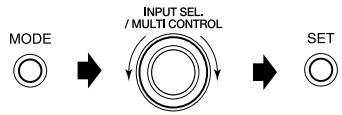
Turn the INPUT SEL./MULTI CONTROL knob to select "D.EQ ON" or "D.EQ OFF". Then press the SET key.
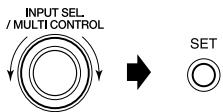
Setting the recording level
Set the recording pause condition.
Press the MODE key, turn the INPUT SEL./ MULTI CONTROL knob to select "REC LEVEL". Then press the SET key.
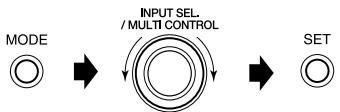
Turn the INPUT SEL./MULTI CONTROL knob to adjust the recording level. Then press the SET key.
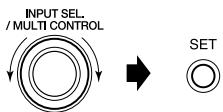
"DIGITAL EQ REC": The sound is recorded with the MANUAL EQ settings. -29
Switching as shown below is done each time the knob is turned.
"D.EQ.ON": The digital equalizer effect is reflected in the recorded sound.
"D.EQ OFF": The digital equalizer effect is not reflected in the recorded sound. (Initial setting)
- The settings for D-Bass, TONE, and ROOM EQ do not influence the recording.
- In order to prevent clipping of the digital signal, recording is done with a slightly lower volume. It is possible to adjust the recording level so that no clipping is done, while looking at the level meter. (Setting the recording level)
The level can be adjusted in the range from -8 to +6. The actual recording level can be confirmed at the level meter.
Listening to the desired sequence (program playback) CD VCD
Use the following procedure to program desired tracks in a desired order. (up to 32 tracks)
Select the DVD/CD input.
1 Select PGM mode.
Press the P.MODE key on the remote control unit.
Press the key in the stop mode.

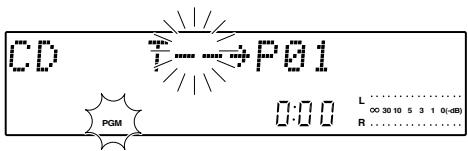
The indicator lights up.
2 Select track numbers in the order you want to play them.
Select the track number with the Numeric keys on the remote control unit.




Press the SET key to confirm the selection.

SET
(To select more than one track, repeat steps 1 and 2 for each track.)
3 Start playback.

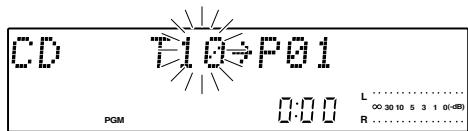
Press the Numeric keys as shown below; To select track No. 23: +10, +10, 3
To select track No. 30: +10, +10, +10, 0
- Up to 32 tracks can be programmed. When "PGM FULL" is displayed, no more tracks can be programmed.
- If you made a mistake, press the CLEAR key and enter the track No. again.
-
When a track No. is entered, the track will be added to the end of the existing program.
-
Tracks will be played in the order they were programmed (following the program numbers).
- When the key is pressed once during playback, the track being played will be played from the beginning. To skip further to a track proceeding the current track, press the key twice repeatedly.
- When the key is pressed during playback, play will skip to the next track in the program.
To add a track to an existing program
Select the track number to be added with the Numeric keys on the remote control unit.
Press the key in the stop mode.


Press the SET key.

SET
Press the Numeric keys as shown below;
To select track No. 23: +10, +10, 3
To select track No. 30: +10, +10, +10, 0
- Up to 32 tracks can be programmed. When "PGM FULL" is displayed, no more tracks can be programmed.
- If you made a mistake, press the CLEAR key and enter the track No. again.
- When a track No. is entered, the track will be added to the end of the existing program.
To clear a programmed track
Press the CLEAR key on the remote control unit.
Press the key in the stop mode.
CLEAR

P-01 has been deleted
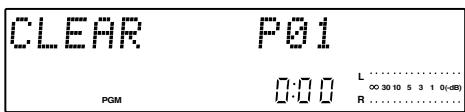
Each time the key is pressed, the last track in the program is cleared.
To get out of the PGM mode
Press the P.MODE key on the remote control unit to turn off the PGM indicator.
Press the key in the stop mode.
P.MODE


Playing tracks in a random order (random playback) CD VCD MP3/WMA JPEG
As tracks (files) each time are selected randomly, music can be enjoyed without getting tired of it.
- When P.B.C. is ON for a Video CD, set it to OFF. -64
- Random playback is not possible at the time of program playback mode. Please perform operation after program playback has been canceled. 53
- Use the remote control for operation.
Select the DVD/CD input.
Confirm that the PGM indicator is not lit.
Press the RANDOM key.

- Press the P.MODE key to go off the PGM indicator if it is lit.
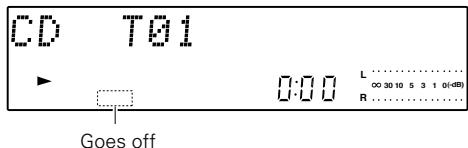
Each press of the RANDOM key switches the random mode;
① Random Playback (The RDM indicator lights up.)
② NormalPlayback(TheRDMindicatorgoessoff.)
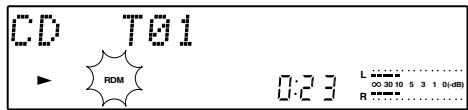
- The "RANDOM" indication lights and random playback starts.
- Random playback is canceled when playback is stopped.
- Playback stops after each track has been played once.
The random playback can also be repeated by pressing the REPEAT key on the remote control unit.
To select another track in the middle of playing one
Press the key.
- Pressing the key returns the playback position to the beginning of the track being played.
To cancel random playback
Press the RANDOM key on the remote control unit to go off the RDM indicator.

- The RDM indicator goes off and the playback in order of the tracks starts from the track being played.
Repeated playback DVD CD VCD MP3/WMA JPEG
Desired title, chapter, track or disc can be played back repeatedly.
- When P.B.C. is ON for a Video CD, set it to OFF. -64
- Repeat playback may not be possible for DVD or Video CD.
- Use the remote control for operation.
Operation of repeat playback also is possible using the on-screen display. -59 -61 -62
Select the DVD/CD input.
Press the REPEAT key during playback to select repeat mode.

Repeating MP3/WMA or JPEG files
Each time the key is pressed, the setting changes as shown below.
"REPEAT ONE": repeat the file that is playing.
"REPEAT " :repeat the folder that is playing.
"REPEAT":repeat the disc that is playing.
Cancel (not lit)
Each time the key is pressed, the setting changes as shown below.
"REPEAT ONE" (1 track repeat): For CD, Video CD, and DVD Video, the title (track, chapter) being played will be repeated.
- "REPEAT ONE" cannot be selected during program playback or random playback of a CD or Video CD.
"REPEAT"(repeat all): The entire disc is repeated. For a DVD video, the title being played will be repeated. In case of program playback, the entire program will be repeated.
Cancel (not lit): Repeat playback is canceled.
When only one title or chapter is to be repeated, this can be done easily by selecting the track or the chapter in advance with the number keys or the 一 keys.
Random Repeat play CD VCD MP3/WMA JPEG
Press the REPEAT key during random playback.

- Random playback of all tracks (files) will be repeated.
- When the (Stop) key is pressed to stop the playback, random playback and repeat playback are canceled.

Random playback is not possible at the time of program playback mode. Please perform operation after program playback has been canceled. -53
Repeated playback of any interval (A-B Repeat play) DVD CD VCD
The A-B repeat function lets you mark a segment to repeat between the beginning "A" and the end "B" of the segment you want to replay.
- A-B Repeat play may not be possible for DVD Video or Video CD.
- A-B repeat playback is not possible during program playback mode and during random playback. Please perform operation after program playback or random playback has been canceled. -53 -54
- Use the remote control for operation.
- Operation of repeat playback also is possible using the on-screen display. - 59 - 61
Select the DVD/CD input.
Confirm that the PGM indicator is not lit.
Press the DVD/CD II key to playback.

Press the A>B key on the remote when you want to choose a scene (sound) as the beginning point.

Press the A>B key again to choose a scene (sound) as the end point.

- Press the P.MODE key to go off the PGM indicator if it is lit.
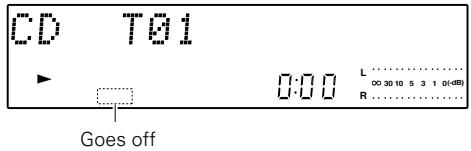
"A" display appears
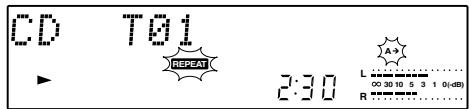
"A-B" display appears and the repeat sequence begins.
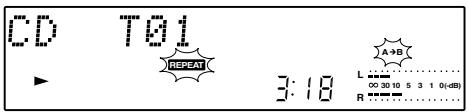
To stop repeat playback
Press the A>B key again.

Menu playback of a DVD DVD
Call the top menu screen or the menu screen of the DVD video and select the item to be played back at the menu screen.
- When the DVD video is playing and the menu screen already is displayed, perform the operation from step ②.
- Use the remote control for operation.
- For some discs, menu playback is not possible.
Select the DVD/CD input.
Press the TOP MENU key or the MENU key and call the menu screen.
TOP MENU
JPEG LIST

or
MENUP.B.C.
FOLDER/FIL
SEARCH

Use the cursor keys ( / / / ) to select the scene to be played back.
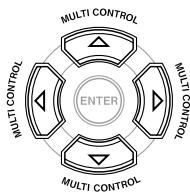
Press the ENTER key.
(ENTER)
- When the top menu has been displayed during playback and the TOP MENU key is pressed again, return is made to the scene where the key was pressed first and playback starts from there.
Depending on the disc, this operation may not take place.)
- The scene also can be selected with the number keys. In case of selection with the number keys, playback starts from the selected scene. Step ③ is not required.
-
Depending on the disc, a different operation may be specified.
-
Playback starts from the selected scene.
- When the menu has a hierarchical structure, switching to the next lower level of the menu is done. Perform the operations of the steps ② and ③.
Other DVD playback functions
Select audio language
If the disc was created with different language tracks, you can use the AUDIO key on the remote to temporarily change the DVD player's audio setting.
AUDIO

Each time the key is pressed, the mode switches.
Select subtitle language
you can change the subtitle language while you're watching a disc (but only if disc was created with subtitles).
SUBTITLE

Each time the key is pressed, the mode switches.
Operation using the on-screen display DVD CD VCD MP3/WMA JPEG
The on-screen display can be displayed on the TV screen and various operations can be performed or time displays can be seen.
- The on-screen display is not displayed when the menu screen is displayed for a DVD Video.
- Use the remote control for operation.

Select the DVD/CD input.
Basic operation with on-screen display
Press the ON SCREEN key to display the on-screen display.
ON SCREEN

Press the MULTI CONTROL / keys to select the on-screen display for operation.


MULTI CONTROL
Press the MULTI CONTROL / keys to select an icon and press the ENTER key.


Press the MULTI CONTROL / keys to select the contents and press the ENTER key.


Ending on-screen display
Select the EXIT icon and press the ENTER key or press the ON SCREEN key.


(ENTER)
or
ON SCREEN


- The on-screen display has "MAIN", "SOUND", and "VISUAL".

- A submenu is displayed.
- Icons which cannot be operated are skipped.

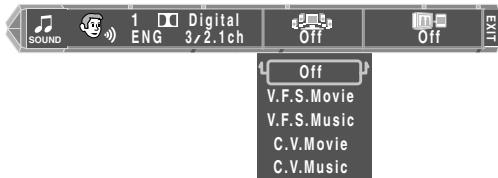
Operation of the on-screen display for DVD Video
"MAIN" On-screen display

Title icon
The title number is displayed.
Selecting the title number
Select the title icon and select the title number from the submenu.
Chapter icon
The chapter number is displayed.
Selecting the chapter number
Select the chapter icon and select the chapter number from the submenu.
Time display icon
The time display is displayed.
Changing the time display
Select the time display icon and select the time to be displayed from the submenu.
The time display on the display part of the main unit also changes.
Time Search :Select this for time search (within the same title).
Single Time : The elapsed time is displayed for the chapter being played back.
Single Remain Time : The remaining time is displayed for the chapter being played back.
Total Time : The elapsed time is displayed for the title being played back.
Total Remain Time : The remaining time is displayed for the title being played back.
Performing time search
① Select the time display icon during playback.
② Select "Time Search ------" from the submenu.
③ Use the number keys to enter the time for the title being played back and press the ENTER key. Example: 12 min 34 sec - Press 1, 2, 3, 4.
- Playback starts from the scene of the entered time.
Memory playback icon
This is used to register the point to be played back for memory playback which can be called easily.
Memory registration
① Select "SET" of the memory play icon during playback of the chapter for memory registration.
② Select the list number to be registered from the submenu.
③ Press the ENTER key at the place where memory playback should start.
- The memory playback start point information is entered into the list of the selected number.
Memory playback
① Select "PLAY" with the memory playback icon.
② Select the number for memory playback from the list of the menu and press the ENTER key.
- Memory playback starts from the playback location of the selected list.
Repeat icon
The repeat playback mode is displayed.
Changing the repeat playback mode
Select the repeat icon and select the repeat playback mode from the submenu.
Off : Repeat playback is canceled.
Chapter : The chapter being played will be repeated.
Title : The title being played will be repeated.
A B : Repeated playback of any interval.
EXIT icon
Select this to make the onscreen display disappear.
"SOUND" On-screen display

Sound icon
The stream number, the sound signal, the audio language, and the number of channels are shown.
Switching the audio language
Select the sound icon and select the audio language from the submenu.
V.F.S. icon
The V.F.S. mode is displayed.
Switching the V.F.S. mode
Select the V.F.S. icon and select the mode from the submenu (Off, V.F.S. Movie, V.F.S. Music, C.V. Movie, C.V. Music).
⑨ Cinema voice icon
Cinema voice mode ON/OFF is displayed.
This is used when the words of a DVD Video recorded with Dolby digital multi-channel audio are difficult to understand.
Switching the cinema voice mode
Select the cinema voice icon and select "On" or "Off" from the submenu.
"VISUAL" On-screen display

7 Subtitle icon
The subtitle is displayed.
Switching the subtitles
Select the subtitle icon and select the subtitle language from the submenu.
Angle icon
The angle number is displayed.
Switching the angle
Select the angle icon and select the angle from the submenu.
Picture quality adjustment icon
Used to adjust the picture quality.
Select the picture quality adjustment icon and select the picture quality from the submenu.
Refer to "Adjusting the picture quality" ( 63) for the adjustment method.
Operation of the on-screen display for CD/VCD
"MAIN" On-screen display

Track icon
The track number is displayed.
Selecting the track number (CD/VCD with P.B.C. OFF)
Select the track icon and select the track number from the submenu.
Time display icon
The time display is displayed.
Changing the time display (CD/VCD with P.B.C. OFF)
Select the time display icon and select the time to be displayed from the submenu.
The time display on the display part of the main unit also changes.
Time Search --:
: Select this for time search (within the same track).
Single Time
: The elapsed time is displayed for the track being played back.
Single Remain Time
The remaining time is displayed for the track being played back.
Total Time
: The elapsed time is displayed for the disc being played back.
Total Remain Time
The remaining time is displayed for the disc being played back.
Time search (CD/Video CD with P.B.C. OFF)
The operation is the same as for performing "Time search" of "Operation of the on-screen display for DVD Video". (Step ③ enters the time in the track being played back.) 59
Memory playback icon (CD/Video CD with P.B.C. OFF)
This is used to register the point to be played back for memory playback which can be called easily.
Refer to 4 of "Operation of the on-screen display for DVD Video" (-59) for the operation for "Memory registration" and "Memory playback".
Repeat icon
The repeat playback mode is displayed.
Changing the repeat playback mode
Select the repeat icon and select the repeat playback mode from the submenu.
Off : Repeat playback is canceled.
Track : The track being played will be repeated.
Disc : The disc being played will be repeated.
A B : Repeated playback of any interval.
EXIT icon
Select this to make the onscreen display disappear.
"SOUND" On-screen display

Sound icon
The sound properties, the playback frequency, the bit rate, and the playback channels are displayed.
Switching the playback channel of a Video CD
Select the sound icon and select the playback channel from the submenu.
"VISUAL" On-screen display

Picture quality adjustment icon
Used to adjust the picture quality. Select the picture quality adjustment icon and select the picture quality from the menu.
Refer to "Adjusting the picture quality" (-63) for the adjustment method.
Operation of the on-screen display for MP3/WMA, JPEG
"MAIN" On-screen display

0 Folder icon
The folder number is displayed.
Selecting the folder number
Press the MULTI CONTROL / to select the folder number and press the ENTER key.
2File icon
The file number is displayed.
Selecting the file
Press the MULTI CONTROL / to select the file number and press the ENTER key.
Time display icon
The time display is displayed.
Repeat icon
The repeat playback mode is displayed.
Changing the repeat playback mode
Select the repeat icon and select the repeat playback mode from the submenu.
Off : Repeat playback is canceled.
File : The file being played will be repeated.
Folder : The folder being played will be repeated.
Disc : The disc being played will be repeated.
⑤ EXIT icon
Select this to make the onscreen display disappear.
"SOUND" On-screen display

Sound icon
The data type (MP3 or WMA) is displayed.
"---" is displayed in case of a JPEG file.
V.F.S. icon
The V.F.S. mode is displayed.
Switching the V.F.S. mode
Select the V.F.S. icon and select the mode from the submenu (Off, V.F.S. Movie, V.F.S. Music, C.V. Movie, C.V. Music).
"VISUAL" On-screen display

Tag display icon
Used for ON/OFF setting for the display function displaying the album name, the title, and the artist name on the TV screen.
Using the tag display function
Select the tag display icon and select "On" from the submenu.
Picture quality adjustment icon
Used to adjust the picture quality. Select the picture quality adjustment icon and select the picture quality from the menu.
Refer to "Adjusting the picture quality" ( 63) for the adjustment method.
Adjusting the picture quality
This unit permits adjustment of the picture quality.
- When the TV has a function for adjustment of the picture quality, use the TV for adjustment of the picture quality.
- Perform the operation during playback of video software.
Adjust the picture quality
Select the picture quality adjustment icon of the "VISUAL" on-screen display and press the ENTER key.
Press the MULTI CONTROL / key to select the picture quality and press the ENTER key.
"Normal"
:Playback with normal picture quality.
"Fine"
: A clear picture quality with enhanced contours is obtained.
"Soft"
: A soft picture quality with little noise is obtained.
"Cinema"
: A picture quality close to the image of a movie screen is obtained.
"User Mode 1"
: The User Mode menu is displayed and detailed settings can be made.
Please refer to "When "UserID 1" or "UserID 2" has been selected".
"User Mode 2"
The User Mode menu is displayed and detailed settings can be made.
Please refer to "When "UserID 1" or "UserID 2" has been selected".
"Noise Reduction"
: The Noise Reduction menu is displayed and detailed settings can be made. Please refer to "When Noise Reduction has been selected".
"GAMMA"
The hue (brightness) of the connected TV screen is adjusted. The "GAMMA" menu is displayed.
Press the MULTI CONTROL / key to select a numerical value and press the ENTER key to adjust.
- Picture quality adjustment ends when "Normal", "Fine", "Soft", or "Cinema" has been selected.
When "User Mode 1" or "User Mode 2" has been selected
Press the MULTI CONTROL / key to select the picture quality and press the ENTER key.
"Contrast": The contrast between light and dark parts of the image is adjusted in the range from -7 to +7.
"Color": The color density is adjusted in the range from -7 to +7.
"Sharpness": The degree of emphasizing the image contours is adjusted in the range from -7 to +7.
"Brightness": The image brightness is adjusted in the range from 0 to +15.
Press the MULTI CONTROL / key to select a numerical value and press the ENTER key.
- Repeat steps 1 and 2 to adjust the picture quality.
- Return to the "VISUAL" on-screen display is made when the RETURN key is pressed.
When "Noise Reduction" has been selected
Press the MULTI CONTROL / key to select the setting item and press the ENTER key.
"Mosquito NR":Mosquito noise is reduced. Select "On2", "On1", or "Off
"Block NR": Block noise is reduced when "On" is selected.
"3D NR": Image noise is reduced when "On" is selected.
"Dot NR": Dot noise is reduced when "On" is selected.
Press the MULTI CONTROL / key to select the setting item and press the ENTER key.
- Repeat steps 1 and 2 to adjust the picture quality.
- Return to the "VISUAL" on-screen display is made when the RETURN key is pressed.
- "3D NR" and "Dot NR" cannot be "On" at the same time.
Hierarchical structure of VCD menus (P.B.C. function) [VCD]
When an item is selected on the menu screen during playback of a P.B.C.-compatible VCD, another menu with more details items may be displayed. When a number of menus are connected in multiple layers in this way, it is said that the menus have a hierarchical structure. In this structure, the desired scene can be reached by repeating item selections on the menu screens.
Example for a hierarchical structure
![KENWOOD AX-7 - Hierarchical structure of VCD menus (P.B.C. function) [VCD] - 1](/content/2025/01/124430/images/31eb03dca6d0596bbabc6a948b4b8b12559789c0afc2db7f0f4804024718fe6e.jpg)
Advancing
When an item is selected on the menu screen with the ENTER (Select) key or the numeric keys, advance is made to the next lower menu level. When the advance destination is the "scene" to be played, the contents will be played.
- When several menus (scenes) can be selected in each level, screen switching is possible with the keys (NEXT) and (PREV.).
Returning
Each time the RETURN key is pressed, return is made to the next higher menu.
P.B.C. is switched ON or OFF.
Place a VCD disc with P. B. C.
Press the DVD/CD II to select the DVD/ CD input.
Press the (stop) key.
Press the P.B.C. key.
MEN/PUB.B.C. FOLDER/FILE SEARCH

Each time the key is pressed, the mode switches.
P.B.C. On : "P.B.C. On" is displayed for two seconds on the TV screen, and a Video CD with playback control is played back according to P.B.C.
P.B.C. Off: "P.B.C. Off" is displayed for two seconds on the TV screen, P.B.C. is switched off for a Video CD with playback control, and normal playback is made.
When P.B.C. is set to On.
P.B.C. On
Sleep timer (SLEEP)
The unit is turned OFF automatically after the specified period has elapsed.
Timer playback (PROG. 1, PROG. 2) -66
Playback of the selected input source starts at the specified time.
AI timer playback (PROG.1, PROG.2) -66
When timer playback starts, the volume level increases gradually until the unit volume level is reached.
Sleep timer
Set the number of minutes after which the unit is to be turned OFF.
Press the SLEEP key repeatedly to set the time.

- The unit is turned OFF automatically after the set time has elapsed.
Each press increases the timer period by 10 minutes. The sleep timer can be set up to 90 minutes.
10 20 30 .... 70 80 90 Cancel 10 20 ....
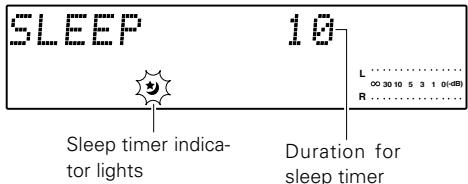
- Press the SLEEP key while the sleep timer is activated to check the remaining time.
To cancel
Turn the unit off, or press the SLEEP key until the sleep timer is cancelled.
Setting the timer program (PROG. TIMER)
In each of PROG. 1 and PROG. 2, the timer data including the operating period and played contents can be programmed and set to be activated or deactivated.
Adjust the clock before setting the timer 23
Connect the related equipment under reference to "System connections" 8 12
1 Make preparations for timer.
Listening to DVD/CD
Set a disc.
(Only normal playback is possible.)
Listening to radio
Radio stations should be preset beforehand. -40
Listening to external input sources
Set the timer for a component connected to external input jacks.
- Set the POWER switch of the M-AX7 to the ON position.
- The programs of "PROG.1" and "PROG.2" can be activated at the same time.
- For the simultaneous programs setting, keep the time intervals of 1 minute or more between timer programs, in order to avoid time overlapping.
2 Set the timer setting program number.
Press the MODE key, turn the INPUT SEL./ MULTI CONTROL knob to select "TIMER SET". Then press the SET key.
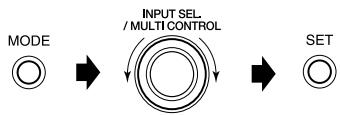
Select "PROG.1 SET" or "PROG.2 SET".
INPUT SEL. /MULTI CONTROL
Press the SET key.
SET

Switching as shown below is done each time the knob is turned.
"PROG.1 SET"
"PROG.2 SET"
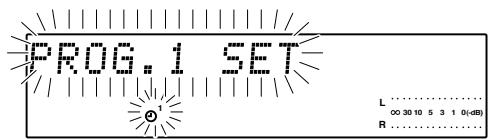
- The previously set contents are displayed. (If you do not want to change them, simply press the SET key.)
- When a timer setting has already been made in the selected timer, the setting will be overwritten by the new setting.
3 Select the program timer ON/OFF.
7 Turn the INPUT SEL./MULTI CONTROL knob to select "PROG.1 ON" or "PROG.1 OFF".
Press the SET key.

SET
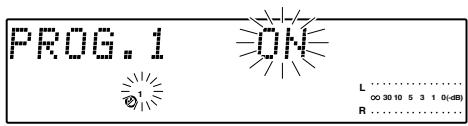
- If "OFF" is selected, the key function returns to ordinary mode.
4 Select an execution day of the programmed timer.
Turn the INPUT SEL./MULTI CONTROL knob to select the day of week. Then press the SET key.
When a day from "SUNDAY" to "SATURDAY" has been selected, select a single execution ("ONE TIME") or execution every week ("EVERYWEEK").

SET
Switching as shown below is done each time the knob is turned.
"EVERYDAY"
"SUNDAY"
"MONDAY"
"TUESDAY"
"WEDNESDAY"
"THURSDAY"
"FRIDAY"
"SATURDAY"
"MON-FRI"
"TUE-SAT"
"SAT-SUN"
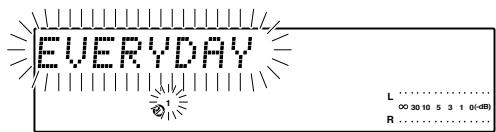
Set the ON time, and then the OFF time.
Turn the INPUT SEL./MULTI CONTROL knob to adjust the time.
The time is returned.
INPUT SEL. /MULTI CONTROL
The time is advanced.
Press the SET key.

SET
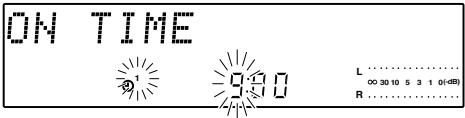
- For each of the ON time and OFF time, enter the figure of "hour" by performing steps ① and ②, then enter the figure of "minute" in the same manner.
- If you make a mistake, press the MODE key and restart from step 2.
6 Set the desired Timer operation.
Select the mode.
(1) Turn the INPUT SEL./MULTI CONTROL knob to select "PLAY" or "AI PLAY".
INPUT SEL. /MULTI CONTROL
(2) Press the SET key.
SET

Adjust the volume level.
(1) Turn the INPUT SEL./MULTI CONTROL knob to adjust the volume level.
INPUT SEL/MULTI CONTROL
(2) Press the SET key.
SET

Select input source.
(1)Turn the INPUT SEL./MULTI CONTROL knob to select a source to be played.
INPUT SEL. /MULTI CONTROL
(2) Press the SET key.
SET

Select broadcast station (only when TUNER is selected above).
(1)Turn the INPUT SEL./MULTI CONTROL knob to select the preset station No.
INPUT SEL, /MULTI CONTROL

(2)Press the SET key.
SET

Switching as shown below is done each time the knob is turned.
"PLAY"(Timer play back)
"AI PLAY" (Timer play with gradually increasing volume)
- When "PLAY" is selected, the timer playback will start at the set volume level.
- When "AI PLAY" is selected, the timer playback will start at volume 0 and increase to the set volume level.
Switching as shown below is done each time the knob is turned.
"TUNER"
"DVD/CD"
"TAPE/VIDEO1"
"VIDEO2"
"TV"
- When the timer setting is completed by pressing the SET key, "COMPLETE" is displayed.

To modify the setting contents, restart the timer setting from the beginning.
Put the unit in standby mode.
Press the (POWER) key.

- When the unit enters the Standby mode, the STANDBY/TIMER indicator lights in green.
- If there is a power failure or the AC power cord is unplugged after the timer reservation has been activated, the STANDBY/TIMER indicator blinks in green. In this case, the clock setting should be restarted from the beginning.
Deactivating and activating the timer program
Once the timer setting procedure has been performed, the timer program can be deactivated or activated easily.
When the unit is in on, press the TIMER key on the remote.

TIMER
Each press of the TIMER key changes the items;
1 Activate PROG.1 timer.
2 Activate PROG.2 timer.
1.2 Activate both PROG.1 and PROG.2 timer.
Deactivate the timer. (Timer indicator is off.)
- The timer program contents remain even if the timer is deactivated.
- After a power failure or the AC power cord has been unplugged, the STANDBY/TIMER indicator blinks in green. In this case, set the present time, and then go through the timer setting procedure again.
Select DIMMER mode.
Press the DIMMER key on the remote control unit to select DIMMER mode.

Procedure on the main unit
7 Press the MODE key, turn the INPUT SEL./ MULTI CONTROL knob to select "DIMMER SET". Then press the SET key.
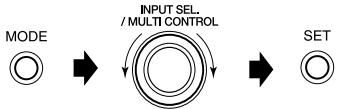
Turn the INPUT SEL./MULTI CONTROL knob to switch the brightness.
INPUT SEL/MULTICONTROL
Press the SET key.

SET
Each time the key is pressed, the mode switches.
The brightness of the display part of the main amplifier M-AX7 also is switched.
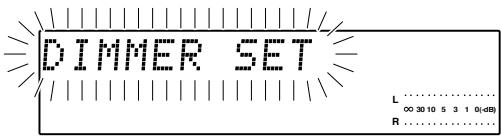
Switching as shown below is done each time the knob is turned.
"DIMMER OFF": Normal brightness
"DIMMER ON": Brightness of the display is reduced.
- Return to the original display is made after approx. 3 sec.
Select "LEVEL METER".
Press the MODE key, turn the INPUT SEL./ MULTI CONTROL knob to select "LEVEL METER". Then press the SET key.
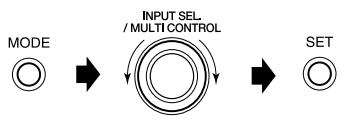
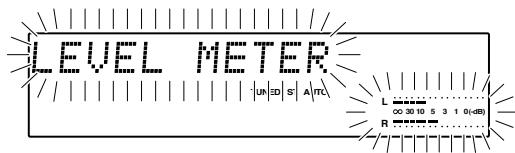
The character information display and level meter start to blink.
2 Switch between ON and OFF.
Select ON or OFF.
INPUT SEL/MULTI CONTROL
Press the SET key.

SET
- The display is switched each time the knob is turned, and "ON" or "OFF" flashes.
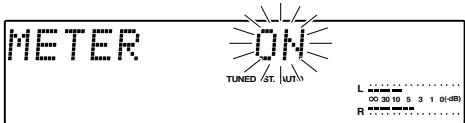
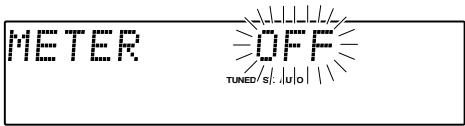
AUTO POWER SAVE (A.P.S.) function
When the unit is ON and the unit is left for about 30 minutes with DVD/CD not operating, the unit is switched off (standby) automatically by this function. This is convenient when you forgot to switch off the unit. This function can be activated or deactivated by the following operation.
Select "A.P.S. SET".
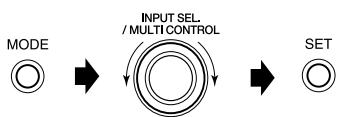
Select "A.P.S. ON" or "A.P.S. OFF".
INPUT SEL/MULTICONTROL
Press the SET key.

SET
- When the TUNER or an external input is selected, A.P.S. function operates only when the volume is set to zero or when MUTE is on.
Use the SETUP MENU to change the DVD/CD settings.
The SETUP MENU has the following three types.
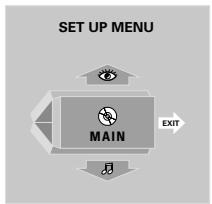
Rating
This sets viewing limitations for DVD video. (This functions only for DVD Video software compatible with parental control.)
TV Aspect ratio
Set for a wide screen (16:9) or a screen with a conventional size (4:3) according to the connected TV.
TV Mode
When the connected TV has a conventional size (4:3), set the display method for software recorded for a wide screen.
OSD Position
Set the display position for OSD (On-Screen Display).
On-Screen Messages
On-screen messages are switched on or off.
IPB Display
IPB display is switched on or off.
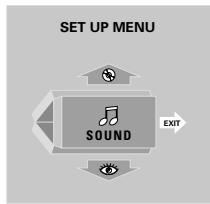
PCM Down Conversion
Down-sampling conversion On or Off is set for digital output at the time of 96 kHz high sampling rate.
DOLBY DIGITAL
The DOLBY DIGITAL output is set.
DTS
Set the DTS output.
MPEG
Set the MPEG output.
Audio During Search
The audio during search is switched On or Off.
Dynamic Range Control
The dynamic range control function is switched.
(Only DOLBY DIGITAL)
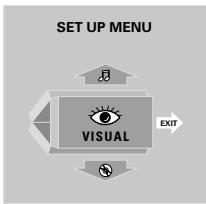
Player Menu Language
Set the display language for menu screens etc. of this unit.
Disc Menu language
Set the display language for menu screens etc. of this disc.
Audio Language
Set the disc audio language.
Subtitle Language
Set the disc subtitle language.
Still Mode
Select this to suppress blurring of still pictures.
NTSC PAL
Set the video format from NTSC to PAL.
Explanation of technical terms
OSD (On-Screen Display): OSD means the display of menus, icons, etc. on the TV screen for interactive operation. ("Operation using the on-screen display"
58
On-Screen Message: This is the display shown on the TV screen at the time of operations like playback, stop, search, etc.
IPB display (DVD): The DVD video method MPEG2 encodes one screen into digital signals with the three picture types shown on the right.
I-picture (encoding inside the frame): This is the reference picture and it composes a screen by itself. The picture quality is best, and this still image is suitable for adjusting the picture quality.
P-picture (expected coding in forward direction):
This is the image calculated from past images (I-picture and P-picture).
B-picture (expected encoding in both direction):
This is calculated from comparison of the preceding and the following image (I-picture and P-picture), and it has the least image information.
Basic operation at the SETUP MENU
The basic operation methods at the SET UP MENU are explained.
Use the various screens ("MAIN", "SOUND", "VISUAL") of the SET UP MENU to make the required settings.
- Set the source to DVD/CD.
- Perform operation with the remote control in stopped condition.
- The resume function may be canceled when settings are changed.
Press the DVD SETUP key.
DVD SETUP

Press the MULTI CONTROL / keys to select the screen for the changes, Then press the ENTER key.


Press the MULTICONTROL / keys to select the item to be changed, Then press the ENTER key.


Press the MULTI CONTROL / keys to change the contents, Then press the ENTER key.


- The setting mode can be canceled by pressing the "SET UP MENU" screen or by pressing the MULTI CONTROL key.
Each time the key is pressed, the mode switches.

MAIN
SOUND
VISUAL


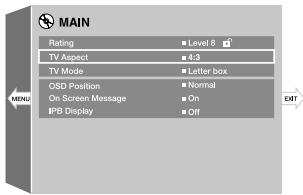
- When the MULTI CONTROL < key is pressed during display of a submenu screen, return is made to the "SET UP MENU" screen.
- When the MULTI CONTROL key is pressed during display of a submenu screen, the "SET UP MENU" is ended.
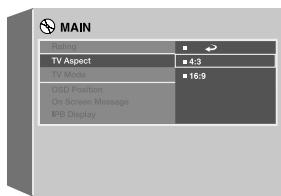
- When " " is selected on the screen and the ENTER key is pressed, return is made to the submenu screen. (Return to the submenu screen is made by pressing the MULTI CONTROL key.)
"MAIN"setting
Make settings for matching the connected TV, for parental control, for the position of the on-screen display, on-screen messages, and IPB display.
Refer to page 73 for the operation method.
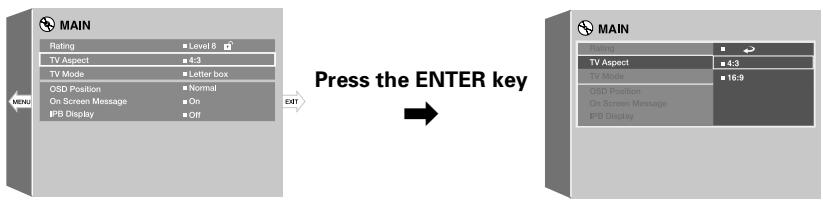
| Setting item | Setting contents |
| "Rating"(The screen for input of the password is displayed when the viewing level is changed. (→[75])Initial setting: "Level 8" | "8 No Limit": Select for playback of all DVD software like for adults, general, for children, etc. "7" to "1": For DVD software with a listed restriction level (including scenes with violence or for adults), playback is limited according to the restriction level. "0 Lock All": Select to prohibit playback of all DVD software. Use this to prohibit playback of adult DVD software without listed viewing restrictions etc. "Change Password": Select this to change the password for parental control after a password has been set. (Cannot be selected when no password has been set.) "Temporary Unlocked": Select this for temporary cancellation of parental control when the viewing restrictions are to be canceled temporarily after a password has been set. (Cannot be selected when no password has been set.) |
| "TV Aspect"Initial setting: 4:3 | "4:3": Select when a standard 4:3 TV is connected. "16:9": Select when a 16:9 wide TV is connected. |
| "TV Mode"Initial setting: Letterbox | "Pan & scan": Wide-screen software with pan & scan specification is played back as a pan & scan screen (a screen cropped on one side or on both sides). However, software without pan & scan specification is played back as letterbox. "Letterbox": Wide-screen software without pan & scan specification is played back on a letterbox screen (a screen with black bars at the top and the bottom). |
| "OSD Position"Initial setting: Normal | "Normal": Display is made at the upper part of the TV screen. Normally this setting should be selected. "Cinema": Display is made somewhat lower on the TV screen. Select this when on-screen display or on-screen messages are shown partly outside the TV screen. |
| "On-Screen Message"Initial setting: On | "On": Select this to display on-screen messages. "Off": Select this to not display on-screen messages. |
| "IPB Display"Initial setting: Off | "On": Select this for IPB display. "Off": Select this for no IPB display. |
Entering the password
- Setting of "Rating" is not possible at the time of program playback mode. Perform the operation for "Rating" after canceling program playback (-53) .
When no password has been set:
Press the MULTI CONTROL / keys to select the viewing level as "0" to "7". Then press the ENTER key.
Enter the password with the number keys. Then press the ENTER key.
Please make a memo of the set password, store it safely. Then press the ENTER key.
- When a wrong number has been entered, press the MULTI CONTROL / keys to delete the entered number completely and then enter it again.
- The password has been set.
Changing the password:
Press the MULTI CONTROL / keys to select the "Change Password". Then press the ENTER key.
Enter the presently set password with the number keys. Then press the ENTER key.
Enter the new password with four digits. Then press the ENTER key.
Please make a memo of the set password, store it safely. Then press the ENTER key.
- When a wrong number has been entered, press the MULTI CONTROL / keys to delete the entered number completely and then enter it again.
- The password has been changed.
"Sound" setting
Set the audio output method when related system equipment has been connected to the digital audio output terminal of this unit.
The setting for sound output during DVD or Video CD search and for the dynamic range control function also are made here.
Refer to page 73 for the operation method.
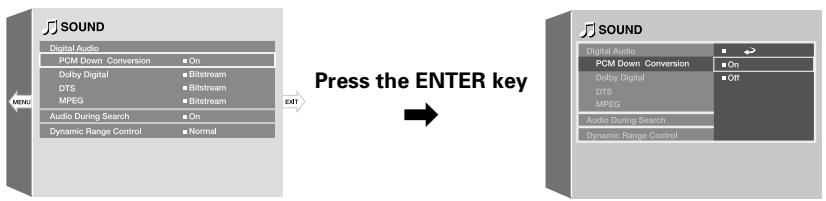
| Setting item | Setting contents |
| “PCM Down Conversion”Initial setting : On | "On": With digital output for the 96 kHz high sampling rate, output is made with down conversion to 48 kHz/16 bit PCM. Select this when the connected AV amplifier is not compatible with 96 kHz digital input.“Off”: No down conversion is done. Select this when the connected AV amplifier is compatible with 96 kHz digital input. However, output with down conversion is done when the disc prohibits 96 kHz digital output. |
| “Dolby Digital”Initial setting : Bitstream | “Bitstream”: Bitstream output is made. Select this for connection to a Dolby digital decoder.“PCM”: Output is made with conversion to 48 kHz (2 ch.) PCM. Select this for no connection to a Dolby digital decoder. |
| “DTS” *1Initial setting : Bitstream | “Bitstream”: Bitstream output is made. Select this for connection to a DTS decoder.“PCM”: Output is made with conversion to 48 kHz (2 ch.) PCM. Select this for no connection to a DTS decoder. |
| “MPEG” *1Initial setting : Bitstream | “Bitstream”: Bitstream output is made. Select this for connection to a MPEG decoder.“PCM”: Output is made with conversion to 48 kHz (2 ch.) PCM. Select this for no connection to a MPEG decoder. |
| “Audio During Search”Initial setting : On | "On": Sound is put out when the first stage of fast forward is used.“Off”: Select for no sound output during fast forward. |
| “Dynamic Range Control”(Only for DOLBY DIGITAL)Initial setting : Normal | “Wide”: Playback is made with the audio level of the disc.“Normal”: The difference between maximum volume and minimum volume is reduced.“Midnight”: The difference between maximum volume and minimum volume is reduced still further. Select this for playback at night or with low volume. |
*1 Set to "PCM" for connection to equipment other than a Dolby digital decoder, a DTS decoder, or an MPEG decoder. With setting to "Bitstream", noise irritating the ears will be caused and speaker damage is to be feared.
"VISUAL" setting
Select this to change the display language for the "SET UP MENU" screen of this unit, the display language for the disc menu, the audio language, the subtitle language, etc. (When the selected language is not included on a DVD disc, the language specified by the disc will be used. In case of a disc with language setting at the disc menu, the language set at the menu screen of the disc will be used.)
Setting of still mode setting also is done.
Refer to page 73 for the operation method.

| Setting item | Setting contents |
| "Player Menu Lan- guage" Initial setting: English | "English" "French" "Spanish" "German" "Italian" "Japanese" "Chinese" "Taiwanese" |
| "Disc Menu Language" Initial setting: English | "English" "French" "Spanish" "German" "Italian" "Other ----": Select this for selection of the language with the code number of the "DVD menu language code list". -78 |
| "Audio Language" Initial setting: English | "Original": Select this for playback with the preferential language set on the disc side. "English" "French" "Spanish" "German" "Italian" "Other ----": Select this for selection of the language with the code number of the "DVD menu language code list". -78 |
| "Subtitle Language" Initial setting : Auto | "Auto": Select this for automatic setting of the subtitle language corresponding to the "audio language" setting. "English" "French" "Spanish" "German" "Italian" "Other ----": Select this for selection of the language with the code number of the "DVD menu language code list". |
| "Still Mode" Initial setting : Auto | "Auto": Select this for automatic switching of frame still pictures and field still pictures. Normally this setting should be used. "Frame": Use this setting to improve the picture quality for still pictures. Two consecutive fields (still images) are shown alternately. The image may be blurred. "Field": Select this to prevent blurred still pictures. (The picture information becomes one half of a frame. The picture quality becomes coarser.) |
| "NTSC → PAL" Initial setting : On | "On": Select to enable conversion from NTSC to PAL. "Off": Select to disable conversion from NTSC to PAL. |
DVD menu language code list
| Language | Code |
| Abkhazian | 6566 |
| Afar | 6565 |
| Afrikaans | 6570 |
| Albanian | 8381 |
| Ameharic | 6577 |
| Arabic | 6582 |
| Armenian | 7289 |
| Assamese | 6583 |
| Aymara | 6588 |
| Azerbaijani | 6590 |
| Bashkir | 6665 |
| Basque | 6985 |
| Bengali; Bangla | 6678 |
| Bhutani | 6890 |
| Bihari | 6672 |
| Breton | 6682 |
| Bulgarian | 6671 |
| Burmese | 7789 |
| Byelorussian | 6669 |
| Cambodian | 7577 |
| Catalan | 6765 |
| Chinese | 9072 |
| Corsican | 6779 |
| Croatian | 7282 |
| Czech | 6783 |
| Danish | 6865 |
| Dutch | 7876 |
| English | 6978 |
| Esperanto | 6979 |
| Estonian | 6984 |
| Faroese | 7079 |
| Language | Code |
| Fiji | 7074 |
| Finnish | 7073 |
| French | 7082 |
| Frisian | 7089 |
| Galician | 7176 |
| Georgian | 7565 |
| German | 6869 |
| Greek | 6976 |
| Greenlandic | 7576 |
| Guarani | 7178 |
| Gujarati | 7185 |
| Hausa | 7265 |
| Hebrew | 7387 |
| Hindi | 7273 |
| Hungarian | 7285 |
| Icelandic | 7383 |
| Indonesian | 7378 |
| Interlingua | 7365 |
| Irish | 7165 |
| Italian | 7384 |
| Japanese | 7465 |
| Javanese | 7487 |
| Kannada | 7578 |
| Kashmiri | 7583 |
| Kazakh | 7575 |
| Kirghiz | 7589 |
| Korean | 7579 |
| Kurdish | 7585 |
| Laothian | 7679 |
| Latin | 7665 |
| Latvian, Lettish | 7686 |
| Language | Code |
| Lingala | 7678 |
| Lithuanian | 7684 |
| Macedonian | 7775 |
| Malagasy | 7771 |
| Malay | 7783 |
| Malayalam | 7776 |
| Maltese | 7784 |
| Maori | 7773 |
| Marathi | 7782 |
| Moldavian | 7779 |
| Mongolian | 7778 |
| Nauru | 7865 |
| Nepali | 7869 |
| Norwegian | 7879 |
| Oriya | 7982 |
| Panjabi | 8065 |
| Pashto, Pushto | 8083 |
| Persian | 7065 |
| Polish | 8076 |
| Portuguese | 8084 |
| Quechua | 8185 |
| Rhaeto-Romance | 8277 |
| Rumanian | 8279 |
| Russian | 8285 |
| Samoan | 8377 |
| Sanskrit | 8365 |
| Scotts Gaelic | 7168 |
| Serbian | 8382 |
| Serbo-Croatian | 8372 |
| Shona | 8378 |
| Sindhi | 8368 |
| Language | Code |
| Singhalese | 8373 |
| Slovak | 8375 |
| Slovenian | 8376 |
| Somali | 8379 |
| Spanish | 6983 |
| Sudanese | 8385 |
| Swahili | 8387 |
| Swedish | 8386 |
| Tagalog | 8476 |
| Tajik | 8471 |
| Tamil | 8465 |
| Tatar | 8484 |
| Telugu | 8469 |
| Thai | 8472 |
| Tibetan | 6679 |
| Tigrinya | 8473 |
| Tonga | 8479 |
| Turkish | 8482 |
| Turkmen | 8475 |
| Twi | 8487 |
| Ukrainian | 8575 |
| Urdu | 8582 |
| Uzbek | 8590 |
| Vietnamese | 8673 |
| Volapük | 8679 |
| Welsh | 6789 |
| Wolof | 8779 |
| Xhosa | 8872 |
| Yiddish | 7473 |
| Yoruba | 8979 |
| Zulu | 9085 |
For an even better surround effect it is necessary to match the speaker distances and volumes correctly. At the time of speaker setting, the difference in the speaker distances can be compensated by adjusting the volume for each speaker and the sound delay time.
Speaker arrangement example: Front surround system
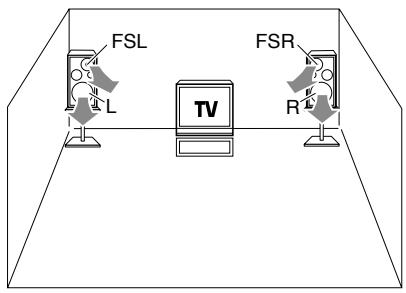
Speaker arrangement example: 5.1 channel system
Expansion to a 5.1 channel system by connection to the 3.1 channel speaker system to be sold in the future.
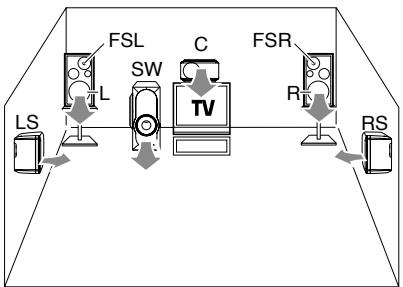
L : Front left speaker
FSL : Front left surround speaker
C Center speaker
R : Front right speaker
FSR : Front right surround speaker
SR : Right surround speaker
SL : Left surround speaker
SW : Subwoofer
System selection
Press the SP SETUP key on the remote control, press the MULTI CONTROL / keys to select "SPEAKER MODE".
Each time the key is pressed, the mode switches.
SPEAKER MODE
SP LEVEL
SP DISTANCE
Press the ENTER key.

The mode for surround system selection is reached.
Press the MULTI CONTROL / keys to select "FRONT SYSTEM" or "5.1CH SYSTEM".


FRONT SYSTEM:
Select this for listening with a front surround system. (Original for this unit)
5.1CH SYSTEM:
Select this for expansion to a 5.1 channel system by connection to the 3.1 channel speaker system to be sold in the future.
4 Press the ENTER key.

The "SPEAKER MODE" indication blinks.
- Press the SP SETUP key to end the operation.
Setting the volume balance
Press the SP SETUP key on the remote control, press the MULTI CONTROL / keys to select "SP LEVEL".


Each time the key is pressed, the mode switches.
SPEAKER MODE
SP LEVEL
SP DISTANCE
Press the ENTER key.

When the operation of step 2 is performed, a test sound is put out and the speakers are switched automatically.
For a front surround system
L FSL R FSR SW
For a 5.1 Channel system
L FSL C R FSR SR SL SW
Press the MULTI CONTROL / keys to adjust the volume.


- Adjustment is possible in the range from +10 dB to -10 dB.
- Adjust so that all speakers are heard at the same volume. Adjust the subwoofer as desired.
Press the ENTER key.

- The "SP LEVEL" indication blinks.
- Press the SP SETUP key to end the operation.
Setting the speaker distance
Press the SP SETUP key on the remote control, press the MULTI CONTROL < / > keys to select "SP DISTANCE".


Each time the key is pressed, the mode switches.
SPEAKER MODE
SP LEVEL
SP DISTANCE
Press the ENTER key.

The setting mode for the speaker "L" is reached.
Press the MULTI CONTROL / keys to set the distance between the listening position and the speaker "L".


Adjustment is possible in the range from 0.3 m to 9.0m
Press the MULTI CONTROL / keys and make the settings for the next speaker.
For a front surround system
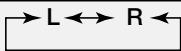
For a 5.1 Channel system
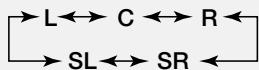
Make the settings for each speaker with the operations of the steps 1 to 3.
Press the ENTER key.
The "SP DISTANCE" indication blinks.
- Press the SP SETUP key to end the operation.
Reference
Caution on condensation
Condensation (of dew) may occur inside the unit when there is a great difference in temperature between this unit and the outside.
This unit may not function properly if condensation occurs. In this case, leave the unit for a few hours and restart the operation after the condensation has dried up.
Be specially cautious against condensation in a following circumstances:
When this unit is carried from one place to another across a large difference in temperature, when the humidity in the room where this unit is installed increases, etc.
Note related to transportation and movement
Before transporting or moving this unit, carry out the following operations.
1 Remove the DVD/CD from the unit.
Press the DVD/CD II key.
NO DISC
Wait for some time and verify that the display appears as above.
Wait a few seconds and turn the unit OFF.
Maintenance
Maintenance of the unit
When the front panel or case becomes dirty, wipe with a soft, dry cloth. Do not use thinner, benzine, alcohol, etc. for these agents may cause discoloration.
Memory backup function
Please note that the following items will be deleted from the main unit's memory if the AC power cord is disconnected from the AC wall outlet for approximately 1 day.
Power mode
- Input selector settings
Volume level
Sound preset settings
- TAPE/VIDEO1,VIDEO2, TV, AUX, D.AUDIO input level
A.P.S. setting
Sound mode settings
- Room Equalizer settings
- Manual Equalizer settings
D-BASS settings
TONE/TURN OVER setting
- Speaker setting
- Dimmer setting
- Broadcast band
Frequency setting
- Preset stations
Tuning mode
- Timer settings
In regard to contact cleaner
Do not use contact cleaners because it could cause a malfunction. Be specially careful not to use contact cleaners containing oil, for they may deform the plastic component.
Disc handling precautions
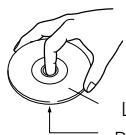
Handling
Hold the disc so that you do not touch the playing surface.
Label side
Playing side

Sticker
Do not attach paper or tape to either the playing side or the label side of the disc.
Sticky paste
Cleaning

If there are fingerprint marks or foreign matter found on the disc, lightly wipe the disc with a soft cotton cloth (or similar) from the center of the disc outwards in a radial manner.
Storage
When a disc is not to be played for a long period of time, remove it from the player and store it in its case.
Never play a cracked or warped disc
During playback, the disc rotates at high speed in the player. Therefore, to avoid danger, never use a cracked or deformed disc or a disc repaired with tape or adhesive agent. Please do not use discs which are not round because they may cause malfunction.
Disc accessories
The disc accessories (stabilizer, protection sheet, protection ring, etc.) which are marketed for improving the sound quality or protecting discs as well as the disc cleaner should not be used with this system because they may cause malfunction.
What seems to be a malfunction is not always so. Before calling for service, check the following table according to the symptom of your trouble.
Resetting the microcomputer
The microcomputer may fall into malfunction (impossibility to operate, erroneous display, etc.) when the AC power cord is unplugged while unit is ON or due to an external factor. In this case, execute the following procedure to reset the microcomputer and return it to normal condition.
- Please note that resetting the microcomputer clears the contents stored in and it returns to condition when it left the factory.
Unplug the AC power cord from the AC wall outlet, then while holding the (POWER) key down, plug it in the AC wall outlet again.

After resetting the microcomputer, the display will show as follows:
INITIALIZE
Amplifier section/Speaker section
| Symptom | Remedy |
| The power does not become ON or channel switching is not possible. | • Insert the system control cord securely all the way. -9 |
| Sound is not produced. | • Connect properly referring to "System connections". -8 ~ -12 • Adjust to a required volume. -25 • Switch MUTE OFF. -25 • Unplug the headphone plug. |
| The STANDBY/TIMER indicator blinks in red and no sound is output. | • A speaker cord is short-circuited. Turn the power off and re-connect the speaker cord. |
| The STANDBY/TIMER indicator blinks in green. | • Adjust the present time again. -23 |
| No sound from the headphones. | • Insert the headphones plug correctly. -25 • Adjust to a required volume. -25 • Switch MUTE OFF. -25 |
| Sound is not produced from the left or right speaker. | • Connect cables properly referring to "System connections". -8 ~ -9 |
| The clock display blinks without changing the figures. | • Adjust the present time again. -23 |
| Timer operation is not possible. | • Adjust the present time again. -23 • Set the timer ON time and OFF time. -66 |
Tuner section
| Symptom | Remedy |
| Radio stations cannot be received. | • Connect antennas. • Select a band. • Tune to the frequency of the desired station. |
| Noise interferes. | • Install the outdoor antenna in an apart position from the road. • Switch the suspected electric appliance OFF. • Install the TV or the system at an increased distance between them. |
| A station has been preset but it cannot be re- ceived by pressing the P.CALL key. | • Preset stations with tunable frequencies. • Preset stations again. |
DVD/CD player section
| Symptom | Remedy |
| Playback starts but no image/sound is seen heard. | The TV is not turned on. Turn on the TV. The connection cords are not properly connected. Properly reconnect the connection cords. |
| The picture is disrupted when the image is fast forwarded or fast reversed. | The picture is slightly disrupted during fast forward and fast reverse operations. This is not a malfunction. |
| The picture does not look good or the picture/sound quality is poor. | Connect properly referring to "System connections".→8~12 A nearby device is generating noise. The disc is dirty. Refer to the "Disc handling precautions" section and wipe dirt from the disc. The disc is damaged. Use a new disc. There is condensation on the optical lens. Refer to the "Caution on condensation" section and evaporate the condensation. |
| It takes a while for the disc to start playing. | Time is required for the unit to detect the disc type and size and for the rotation of the motor to stabilize. This is not a malfunction. |
| A warning is displayed on the TV screen and playback is not possible. | The disc is dirty. Refer to the "Disc handling precautions" section and wipe dirt from the disc. Properly place the disc on the tray. Playback is not possible because of parental control or region code. |
| The top and bottom of the screen cannot be seen, or the screen becomes black-and-white. | The video format of the disc being played does not match that of the connected TV monitor. |
| The subtitle is not displayed. | The DVD disc being played does not contain the recording of subtitles. The subtitle mode is set to off. Press the SUBTITLE key to switch on the subtitle mode. |
DVD/CD player section
| Symptom | Remedy |
| The voice (or subtitle) language cannot be changed. | The DVD disc being played does not contain the recording of more than one audio (or subtitle) language. |
| The viewing angle cannot be changed. | The DVD disc being played does not contain the recording of more than one angle. |
| The parental level cannot be changed. | If you have forgotten the password, return the setting contents to the factory default condition. |
| The voice or subtitle language selected in the initial setting is not played. | The DVD disc being played does not contain the recording of the selected voice or subtitle language. |
| Menu screen messages are not shown in the desired language. | The menu language function (MENU) is not set to desired language. Select disc menu language. |
| A VCD cannot be played using menus. | The VCD disc being played is not compatible with P.B.C. Menu playback is available only with VCD discs recorded with P.B.C. |
| When an operation is performed, no message is displayed on the TV screen. | If "On-screen display" is set to "Off", set it to "On". |
| The prohibition icon is displayed and operation is not accepted. | Please perform operation according to the software, as the operation for a DVD or Video CD may be limited according to the intention of the software creator. In some cases, the operation may be restricted because of the condition of this unit. |
| The subtitles are cut off. | Confirm the switching of the screen size of the connected TV/the adjustment for the vertical screen size. |
| "This type of file can't be decoded." is displayed on the TV screen and playback is not possible. | Playback of a JPEG file not compatible with this unit is being tried. Please refer to "Types of playable discs". |
| "LOCKED" is displayed when the DVD/CD▲ key is pressed and the disc is not ejected. | Pull the power plug from the wall outlet and insert it again while pressing the key. |
Remote control unit
| Symptom | Remedy |
| Remote control operation is not possible. | • Replace with new batteries. -17 • Operate the unit inside the remote controllable range. -17 |
Displayed messages
| Displayed Message | Meaning |
| CAN'T SETUP | The microphone for ROOM EQ is not connected or headphones are connected. |
| NO DISC | A DVD or CD is not inserted in the unit. |
| TEXT FULL | The disc has the text data of more than 1.5 k byte.→38 |
| NO PLAY | The TOC* of the DVD or CD cannot be read. |
| READING | The TOC* information is being read. |
| PGM FULL | An attempt is made to select a 33rd track during programming of CD.→52 |
| R.EQ ERROR1 | The measurement is impossible because measuring room is too noisy.→26 |
| R.EQ ERROR2 | The measurement is impossible because no signal is input in the microphone.→26 |
| TRAY OPEN | DVD/CD tray is opened. |
- In addition to the audio signal, a TOC (Table of Contents) is recorded on a CD. The TOC corresponds to the table of contents of a book, and in addition to the number of tracks, the playing time, text information, etc., it contains parts which cannot be rewritten.
Main amplifier (M-AX7)
[Audio section]
During stereo operation
Effective output power
(1 kHz, 10% T.H.D., at 6 Ω) ..... 50 W + 50 W (RMS)
S/N ratio
Total harmonic distortion
0.0025% (1 kHz, 19 W, 6 Ω)
During4-channel operation
Effective output power
Front (1 kHz, 10% T.H.D., at 6 Ω)
25 W + 25 W (RMS)
Surround (1 kHz, 10% T.H.D., at 6 Ω)
25 W + 25 W (RMS)
S/N ratio 100 dB
Total harmonic distortion
0.003% (1 kHz, 10 W, 6 Ω)
[General]
Power consumption 130 W
Standby power consumption.....less than 0.25 W
Dimensions W: 270 mm (10-5/8")
H:101mm (4")
D:336mm (13-1/4")
Weight (net) 5 kg (11 lb)
Pre-amplifier (C-AX7)
[Audio section]
S/N ratio (CD playback, TAPE/VIDEO1 output) .. 100 dB
Total harmonic distortion
(CD playback, TAPE/VIDEO1 output)
0.001%
Tone Control Characteristics
BASS(TURN OVER 100 Hz)......±3.1 dB (at 100 Hz)
(TURN OVER 150 Hz)...... ± 5.1 dB (at 100Hz )
(TURN OVER 200 Hz)...... ± 5.7 dB (at 100Hz )
TREBLE (TURN OVER 5 kHz) ...±5.7 dB (at 10 kHz)
(TURN OVER 7 kHz) ...±5.1 dB (at 10 kHz)
(TURN OVER 10 kHz). ±3.1 dB (at 10 kHz)
Graphic Equalizer Characteristics
Adjustable Center Frequency
63 Hz, 160 Hz, 400 Hz, 1 kHz,
2.5 kHz, 6.3 kHz, 16 kHz
Variable Range. ± 8 dB
D-Bass
Movie mode (+10) +15 dB(40 Hz, Vol. 60)
Music mode (+10) +13 dB(40 Hz, Vol. 60)
Input (Sensitivity / Impedance)
Pre-out (Front, Surround1, Surround2, Center,
Subwoofer) 600 mV / 600 Ω (10 kΩ)
D.AUDIO OUT. 1V/32Ω (10kΩ)
DIGITAL OUT (Optical out, PCM/Bitstreem)
-21~ -15 dBm (Wave length 660 nm)
[Tuner section]
FM tuner section
Tuning frequency range. 87.5 MHz 108 MHz
MW (AM) tuner section
Tuning frequency range. 531 kHz ~ 1,602 kHz
[DVD/CD player section]
Laser Semiconductor laser
Video format PAL/NTSC
Composite video output level 1 Vp-p (75Ω)
S-video output level
Y Output level 1 Vp-p (75 Ω)
C Output level 0.286 Vp-p (75 Ω)
[General]
Power consumption 46 W
Standby power consumption .less than 0.45 W
Dimensions W: 270 mm (10-5/8")
H:101mm (4")
D:347 mm (13-11/16")
Weight (net) 4.3 kg (9.5 lb)
Speaker system (LS-AXD7)
Front speaker section......2 way-2 speakers system
Magnetically shielded
Front surround speaker section
1 way-1 speaker system
Magnetically shielded
Enclosure Bass-Reflex
Speaker unit
Woofer 120 mm (4-3/4"), cone type
Tweeter 25 mm (1"), balanced dome type
Full-range 50 mm (2^ ) , cone type
Impedance 6Ω
Power handling capacity. 50 W
Sound pressure level
Front speaker section 85 dB/W at 1m
Front surround speaker section 81 dB/W at 1m
Frequency response
Front speaker section 45 Hz ~ 20 kHz
Front surround speaker section 140 Hz ~ 20 kHz
Dimensions W: 164 mm (6-7/16")
H:330 mm (13")
D:211mm (8-5/16")
Weight (net) 3.9 kg (8.6 lb)/1 pcs

KENWOOD follows a policy of continuous advancements in development. For this reason specifications may be changed without notice.
- Sufficient performance may not be exhibited at extremely cold locations (where water freezes).
KENWOOD
For your records
Record the serial number, found on the back of the unit, in the spaces designated on the warranty card, and in the space provided below. Refer to the model and serial numbers whenever you call upon your dealer for information or service on this product.
Model Serial Number