IC-3015Wn - Surveillance Camera Edimax - Free user manual and instructions
Find the device manual for free IC-3015Wn Edimax in PDF.


User questions about IC-3015Wn Edimax
0 question about this device. Answer the ones you know or ask your own.
Ask a new question about this device
Download the instructions for your Surveillance Camera in PDF format for free! Find your manual IC-3015Wn - Edimax and take your electronic device back in hand. On this page are published all the documents necessary for the use of your device. IC-3015Wn by Edimax.
USER MANUAL IC-3015Wn Edimax
Copyright © Edimax Technology Co., Ltd. all rights reserved. No part of this publication may be reproduced, transmitted, transcribed, stored in a retrieval system, or translated into any language or computer language, in any form or by any means, electronic, mechanical, magnetic, optical, chemical, manual or otherwise, without the prior written permission from Edimax Technology Co., Ltd.
Edimax Technology Co., Ltd. makes no representations or warranties, either expressed or implied, with respect to the contents hereof and specifically disclaims any warranties, merchantability, or fitness for any particular purpose. Any software described in this manual is sold or licensed as is. Should the programs prove defective following their purchase, the buyer (and not this company, its distributor, or its dealer) assumes the entire cost of all necessary servicing, repair, and any incidental or consequential damages resulting from any defect in the software. Edimax Technology Co., Ltd. reserves the right to revise this publication and to make changes from time to time in the contents hereof without the obligation to notify any person of such revision or changes.
The product you have purchased and the setup screen may appear slightly different from those shown in this QIG. For more information about this product, please refer to the user manual on the CD-ROM. The software and specifications are subject to change without notice. Please visit our website www.edimax.com for updates. All brand and product names mentioned in this manual are trademarks and/or registered trademarks of their respective holders.
Edimax Technology Co., Ltd.
Add: No. 3, Wu-Chuan 3rd Rd., Wu-Ku Industrial Park, New Taipei City, Taiwan
Notice According to GNU General Public License Version 2
Certain Edimax products include software code developed by third parties, software code is subject to the GNU General Public License ("GPL") or GNU Lesser General Public License ("LGPL"). Please see the GNU (www.gnu.org) and LPGL(www.gnu.org) Websites to view the terms of each license.
The GPL Code and LGPL Code used in Edimax products are distributed without any warranty and are subject to the copyrights of their authors. For details, see the GPL Code and LGPL Code licenses. You can download the firmware-files at http://www.edimax.com under "Download" page.
Contents
Copyright....1
Contents....2
Chapter I: Introduction ...... 4
1.1 Highlights of your new Network IP Camera....4
1.2 Safety Instructions .... 4
1.3 Package Contents....5
1.4 Installing the Network Camera 8
Chapter II: Accessing the Camera's Web Interface....10
2.1 Network Setup 10
2.2 Connecting to the Camera's Web User Interface and Installing the ActiveX Plugin (IE only) 13
2.3 Live Video Monitoring....17
Chapter III: Setting Up the Network Camera 20
3.1 Basic Network Settings....21
3.2 Wireless....24
3.3 Dynamic DNS....29
3.4 Date & Time 31
3.5 Users 33
3.6 UPnP 35
3.7 Bonjour....36
Chapter IV: Video Configuration 37
4.1 Video Settings .... 37
4.2 Image....38
Chapter V: Event Configuration 40
5.1 Motion Detection Setup....40
5.1.1 Detection Region....41
5.1.2 FTP 44
5.1.3 SMTP 46
Chapter VI: System Configuration....49
6.1 "Basic" Settings 49
6.2 "Advanced" Settings 50
Chapter VII: System Status....52
7.1 System Information....52
7.2 System Log 54
Chapter VIII: Advanced Operations .... 56
8.1 Applying for a Free DynDNS Account....56
Chapter IX: Windows Surveillance Utility 62
9.1 Installing the Network Camera Administration Software....62
9.2 Using the Network Camera Surveillance Software....71
9.3 Configuring the Network Camera Surveillance Software 74
9.3.1 Camera Configuration....74
9.3.2 General Settings....83
9.4 Changing the Display Layout....90
9.5 Full-Screen Mode 93
9.6 Scan....94
9.7 Zoom-In/Zoom-Out....95
9.8 PTZ....96
9.9 Snapshot....97
9.10 Recording 98
9.11 Video Playback....99
Chapter X: Appendix....100
10.1 Troubleshooting....100
Chapter I: Introduction
1.1 Highlights of your new Network IP Camera
Congratulates on purchasing this tiny network IP Camera! Its tiny size maximizes portability and eases installation; you can easily install the camera in most places where you need video surveillance. If there's no Ethernet cable available at the place you wish to install this IP camera, you can use built-in wireless network to connect to your network, and saves the cost of cabling.
Other highlights of this network IP Camera include:
- Compact size and lightweight design, installs anywhere.
- Mounting hole located at camera’s back, compatible with most of camera tripods.
- Wireless network with data security (encryption), secures data transfer over the air.
● Fixed-focus lens, works with most of environments.
1.2 Safety Instructions
Please obey the safety instructions listed below when you're using this Network IP Camera, or you would harm this camera and / or yourself! Also, the warranty will become void if you disobey these safety instructions.
● This Network IP Camera is sophisticated electronic device; do not drop it from high places.
- Do not place this IP Camera at hot / humid places, and avoid direct sunlight.
● This IP Camera is not a toy; keep it out from the reach of children.
- Do not insert any accessories of this IP Camera into your body.
- If you want to use this IP Camera at any place that may be spilled by water or dirt, a secure and water-proof camera housing is required.
- Do not pull any cord that is connected to this IP Camera by force.
- IP Camera will become hot after long time of use. Refrain from touch IP Camera with hand, or cover this IP camera with paper or cloth.
- If the IP Camera falls into water when powered, do not attempt to retrieve it back by yourself! Find a qualified electric technician for help.
1.3 Package Contents
Please check the contents of your new Network IP Camera when you unpack the package. If any item is missing, please contact your dealer of purchase for help.

natural_image
Illustration of various electronic components including a speaker, CD, lamp, cable, and a QIG panel (no text or symbols on main objects)● Network camera (1 pcs)
● Power adapter (1 pcs)
- Ethernet cable (1 pcs)
● Mounting kit (1 pcs)
- CD with utility software and user manual (1 pcs)
● Quick installation guide (1 pcs)
Familiar with your new Network IP Camera
[Front]
![Edimax IC-3015Wn - [Front] - 1](/content/2026/06/1244084/images/f3d05cdd315975c26e12efb8630623e56442183d1eda8ac78c2d7911d3357a5c.jpg)
text_image
Antenna Lens Power / WPS LED LAN/WiFi LED| Item | Description |
| 1 - Lens | IP Camera's lens. Please keep the lens clean and do not touch by finger. |
| 2 - POWER LED | POWER LED will light when the IP camera is powered on, and will flash when resetting IP camera's settings.(LED light can be switched off even IP camera is powered on when necessary for security reasons) |
| 3 - Network LED | Ethernet LED will light when IP camera is connected to Ethernet network, and it will flash fast when transferring data (It will flash slow when using WPS).(LED light can be switched off even IP camera is powered on when necessary for security reasons) |
| 4 - Antenna | Wireless antenna. Please keep the antenna perpendicular to the ground for best signal reception. |
![Edimax IC-3015Wn - [Front] - 2](/content/2026/06/1244084/images/9b77b1dae327b5c37a43ac676387ad5c9fc0497b9ffd9f4642b351eee664d97b.jpg)
text_image
Tripod Connector POWER LAN WPS / Reset LAN portWPS / Reset POWER
| Item | Description |
| 1 - Tripod connector | This mounting hole is compatible with most of camera tripod or camera stand, so you can fix the camera at a secure place. |
| 2 - LAN | Connects to your local area network. |
| 3 - 5VDC | Connects to 5V DC power adapter. |
| 4 - WPS / RESET | When the IP camera is not functioning properly, you can press reset button to reset the IP camera. You can also press and hold this button for more than 10 seconds to clear all settings of IP camera, include administrator password. |
1.4 Installing the Network Camera
Please follow the following instructions to setup your new IP camera.
-
Secure the IP Camera to the tripod or camera stand by mounting hole. If you want to place the IP camera on desk, please make sure it will not fall down by accident.
-
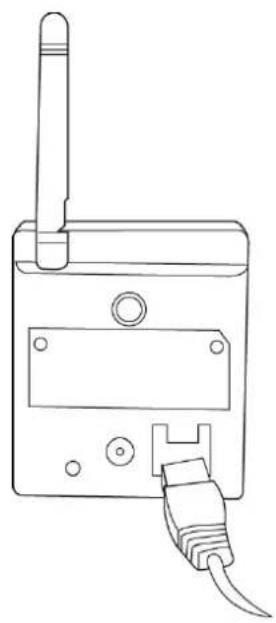
Connect Ethernet cable to LAN port. For first-time installation you'll need Ethernet cable to do configuration; If this IP camera is configured to use wireless network, you can skip this step.
natural_image
Line drawing of a handheld electronic device with a vertical sensor and cable connector (no text or symbols)Connect Ethernet net cable
-
Plug DC power adapter to power outlet on the wall.
-
Connect DC power cable to IP Camera's DC power connector.

natural_image
Line drawing of a device with a vertical rod inserted, showing wiring and a connector (no text or symbols)Connect DC power cable to DC Jack
If everything's ok, you should see the POWER LED light up (and Ethernet LED, if Ethernet cable is inserted). If not, please recheck every step and try again, or ask your dealer of purchase for help.
Please note if you configured IP camera to switch LED lights off, two LED lights won't light.
Chapter II: Accessing the Camera's Web Interface
2.1 Network Setup
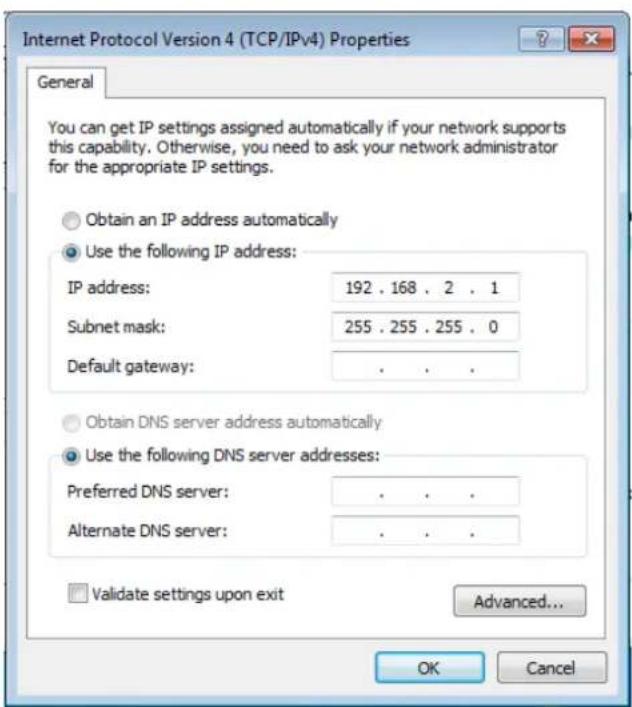
This IP camera's default IP address is 192.168.2.3, and you must use a computer that uses 192.168.2.x IP address to connect to it.
Please follow the following instructions to setup your computer's IP address:
- Please click 'Start' button and then click 'Control Panel'.

text_image
Getting Started Connect to a Projector Calculator Sticky Notes Snipping Tool Paint XPS Viewer Windows Fax and Scan Remote Desktop Connection Magnifier All Programs Search programs and files albert Documents Pictures Music Computer Control Panel Devices and Printers Default Programs Help and Support Shut down- Click 'View network status and tasks' under 'Network and Internet'

Network and Internet
View network status and tasks
Choose homegroup and sharing options
- If you didn't see 'Network and Internet' in control panel, please look for 'Network and Sharing Center' icon and double-click it.

Network and Sharing
Center
- Click 'Local Area Connection'
Access type:
Internet
HomeGroup:
Joined
Connections:
Local Area Connection

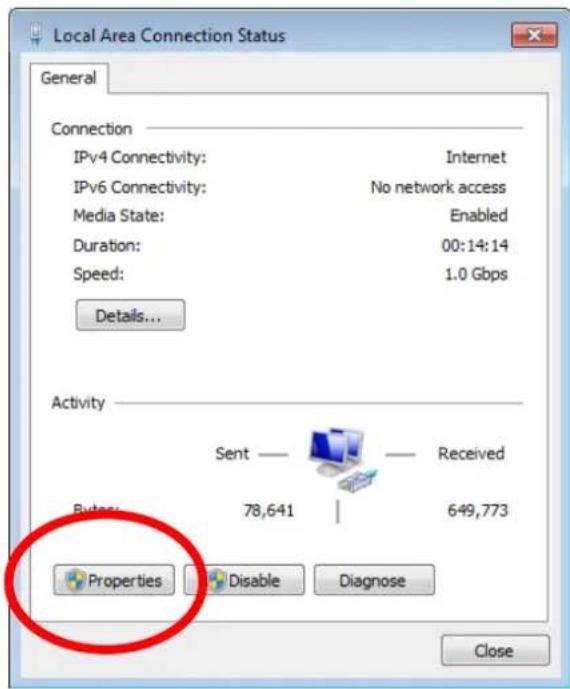
- Click 'Properties'
text_image
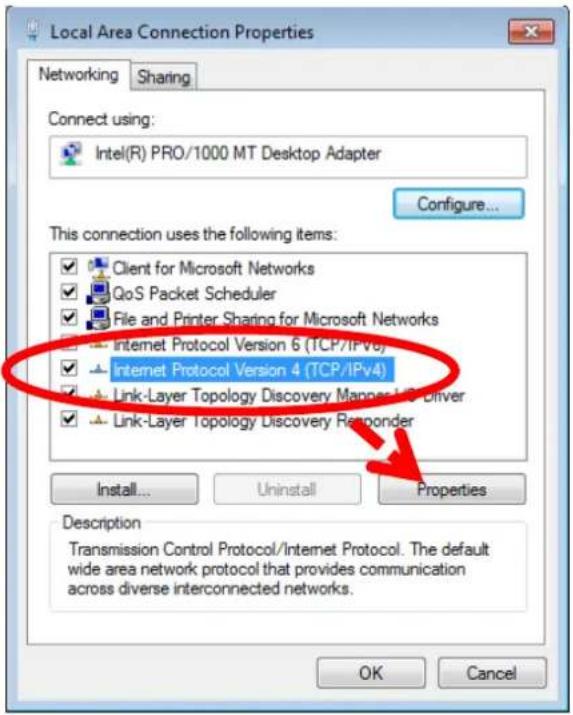
Local Area Connection Status General Connection IPv4 Connectivity: Internet IPv6 Connectivity: No network access Media State: Enabled Duration: 00:14:14 Speed: 1.0 Gbps Details... Activity Sent — Received Bytes: 78,641 | 649,773 Properties Disable Diagnose Close- Click 'Internet Protocol Version 4 (TCP/IPv4), and then click 'Properties'
text_image
Local Area Connection Properties Networking Sharing Connect using: Intel(R) PRO/1000 MT Desktop Adapter Configure... This connection uses the following items: Client for Microsoft Networks GoS Packet Scheduler File and Printer Sharing for Microsoft Networks Internet Protocol Version 6 (TCP/IPv6) Internet Protocol Version 4 (TCP/IPv4) Link-Layer Topology Discovery Manager Link-Driver Link-Layer Topology Discovery Responder Install... Uninstall Properties Description Transmission Control Protocol/Internet Protocol. The default wide area network protocol that provides communication across diverse interconnected networks. OK Cancel- Click 'Use the following IP address', and then input '192.168.2.1' in 'IP address' and '255.255.255.0' in Subnet mask', just like shown on the left. Click 'OK' when finish, and close all open windows you opened
text_image
Internet Protocol Version 4 (TCP/IPv4) Properties General You can get IP settings assigned automatically if your network supports this capability. Otherwise, you need to ask your network administrator for the appropriate IP settings. Obtain an IP address automatically Use the following IP address: IP address: 192 . 168 . 2 . 1 Subnet mask: 255 . 255 . 255 . 0 Default gateway: . Obtain DNS server address automatically Use the following DNS server addresses: Preferred DNS server: . Alternate DNS server: . Validate settings upon exit Advanced... OK Cancel2.2 Connecting to the Camera's Web User Interface and Installing the ActiveX Plugin (IE only)
For first-time installation, you can connect to IP camera by Internet Explorer web browser by entering its default IP address: 192.168.2.3 in address bar:

text_image
http://192.168.2.3/The use login screen will appear when you get connected:

text_image
Windows Security The server 192.168.2.3 at Network Camera requires a username and password. Warning: This server is requesting that your username and password be sent in an insecure manner (basic authentication without a secure connection). User name Password Remember my credentials OK CancelIP Camera's administrator username is 'admin' (lower case) and password is '1234' by default. Click 'OK' button or press 'ENTER' key on your keyboard when you finish entering username and password.
When you connect to IP Camera for the first time, you'll see the following message:
Internet Camera
Please install ActiveX first, Download ActiveX

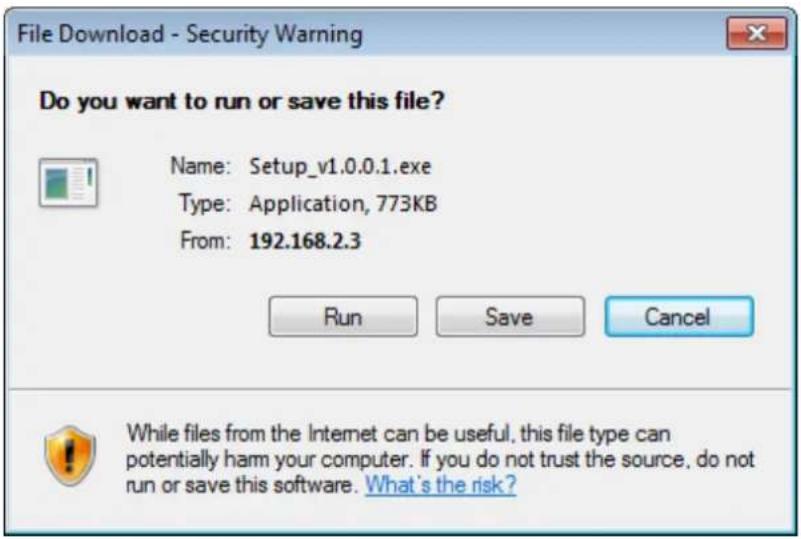
This message prompts you that you need to install ActiveX plugin before you can see the video from IP Camera. Click 'Download ActiveX' link to install ActiveX plugin:
text_image
File Download - Security Warning Do you want to run or save this file? Name: Setup_v1.0.0.1.exe Type: Application, 773KB From: 192.168.2.3 Run Save Cancel While files from the Internet can be useful, this file type can potentially harm your computer. If you do not trust the source, do not run or save this software. What's the risk?Click 'Run' to start installation. After few seconds, you'll see this message:

text_image
Internet Explorer - Security Warning The publisher could not be verified. Are you sure you want to run this software? Name: Setup_v1.0.0.1.exe Publisher: Unknown Publisher Run Don't Run This file does not have a valid digital signature that verifies its publisher. You should only run software from publishers you trust. How can I decide what software to run?For IE9: The message will appear at the bottom of Internet Explorer:

text_image
The publisher of Setup_v1.0.0.5.exe couldn't be verified. Are you sure you want to run the program? Learn more Run View downloadsClick 'Run' to begin installation. You may see UAC (User Account Control) message after you click 'Run' button:

text_image
User Account Control Do you want to allow the following program from an unknown publisher to make changes to this computer? Program name: Setup_v1.0.0.1[1].exe Publisher: Unknown File origin: Downloaded from the Internet Show details Yes No Change when these notifications appearClick 'Yes' to continue. Installation procedure will begin:

text_image
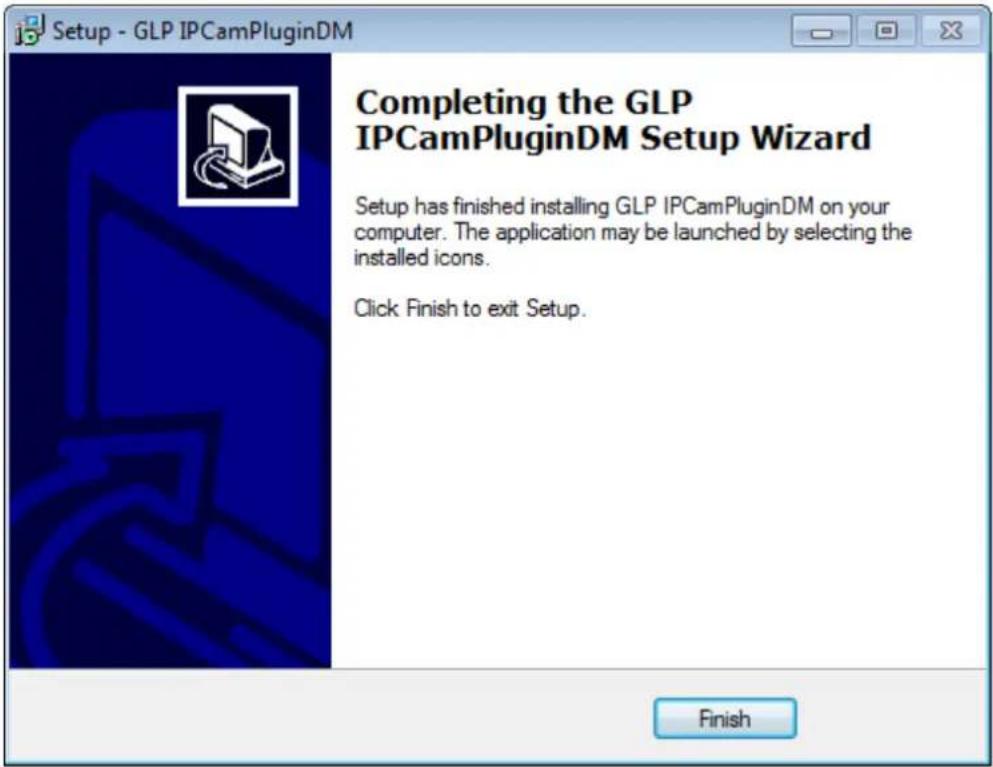
Setup - GLP IPCamPluginDM Welcome to the GLP IPCAMPluginDM Setup Wizard This will install Internet Camera ActiveX 1.0.0.1 on your computer. It is recommended that you close all other applications before continuing. Click Next to continue, or Cancel to exit Setup. Next > CancelClick 'Next' and 'Install' when you're prompted to install ActiveX control. When you see this message, installation is complete:
text_image
Setup - GLP IPCamPluginDM Completing the GLP IPCamPluginDM Setup Wizard Setup has finished installing GLP IPCamPluginDM on your computer. The application may be launched by selecting the installed icons. Click Finish to exit Setup. FinishClick 'Finish' to close the window. Now, go back to web browser window and login again, you should be able to see camera's image:

text_image
EDIMAX NETWORKING PEOPLE TOGETHER Live View Setup Edimax Professional IP Surveillance Product and Solutions Guide2.3 Live Video Monitoring
To view the live video from IP camera, please log onto IP camera's web interface as described in last chapter, and you can see live video view:
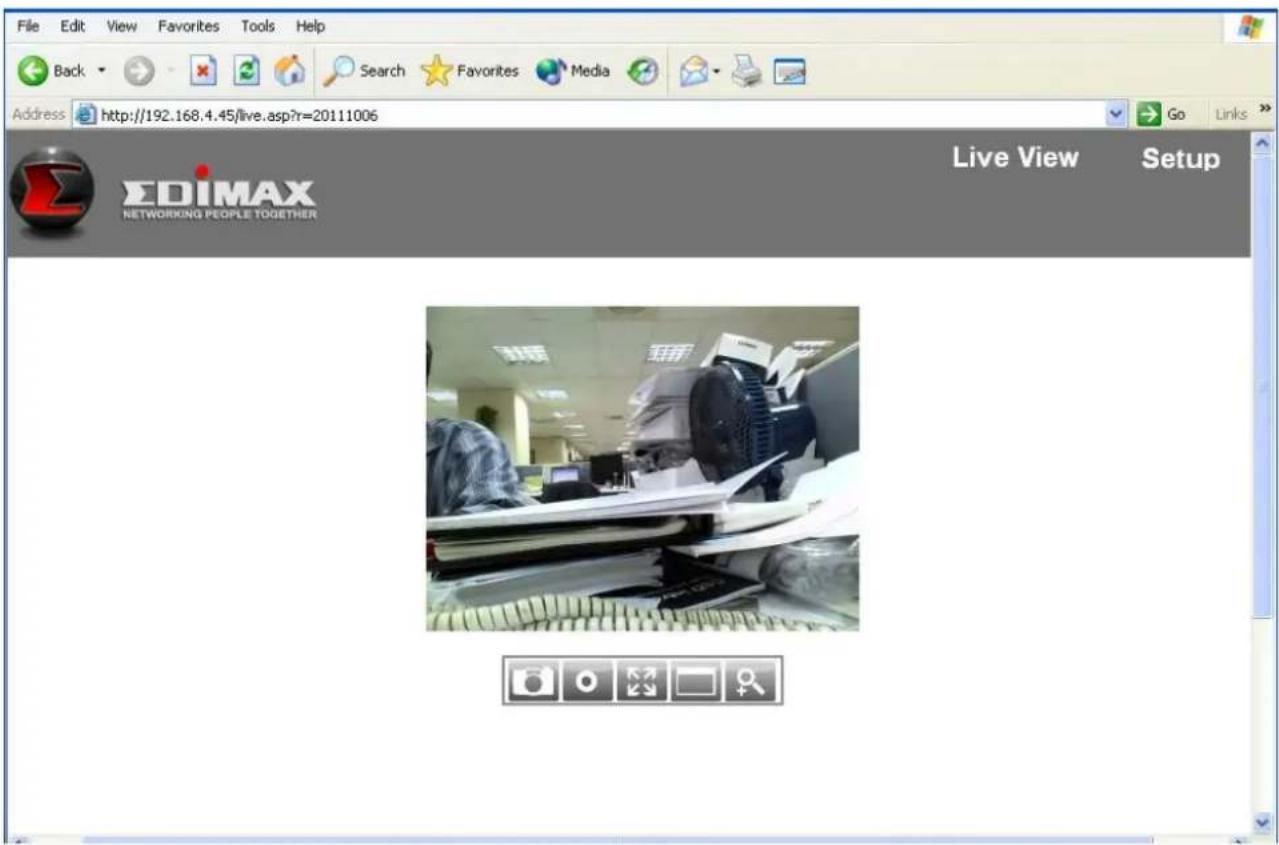
text_image
File Edit View Favorites Tools Help Back Search Favorites Media Address http://192.168.4.45/live.asp?r=20111006 Go Links ΣDIMAX NETWORKING PEOPLE TOGETHER Live View SetupWhen you're in other setup pages of IP camera, you can click 'Live View' link located at the upper-right corner of IP camera's web interface:

text_image
Live View SetupThere are also some functions you can use in camera's live view page:

The descriptions of these items are listed below:
| Item | Description |
Snapshot | Take a snapshot (save a picture) of current live view. Click the folder field ('c:\' by default) and you'll be prompted to select a folder in your computer, and click 'Get snapshot' button to save a picture. |
Record | Start recording video. Click the folder field ('c:\' by default) and you'll be prompted to select a folder in your computer, and click 'Start recording' button to start recording. |
Fit to window | Click this button and the live view area will adjust according to the size of web browser automatically. |
Full Screen | Click this button and the live view will expand and fit the size of your computer monitor. Press 'Esc' key on your keyboard to resume. |
Digital Zoom | Click this button and a new window will popup: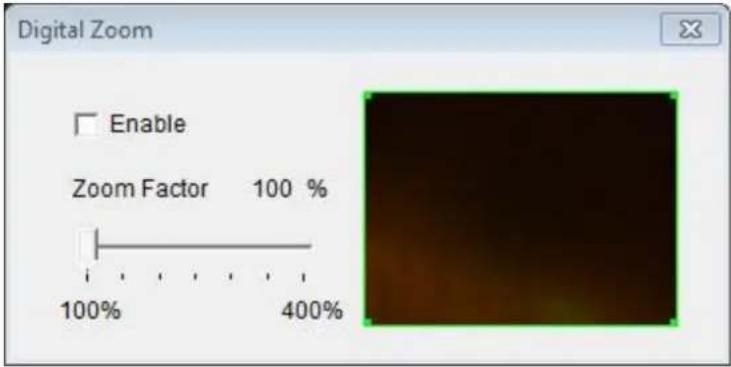 Check 'Enable' box to enable digital zoom (enlarge video so you can see objects in detail). Drag the slide bar from 100% (no enlargement) to 400% to enlarge the image. The level of enlargement will be displayed in 'Zoom Factor' field. Check 'Enable' box to enable digital zoom (enlarge video so you can see objects in detail). Drag the slide bar from 100% (no enlargement) to 400% to enlarge the image. The level of enlargement will be displayed in 'Zoom Factor' field. |
When you're enlarging image (i.e. Zoom Factor > 100%), a green rectangular will appear in the image area:

text_image
Digital Zoom Enable Zoom Factor 255 % 100% 400%Drag the green rectangular to move the position of enlarged area in image.
Chapter III: Setting Up the Network Camera
To setup the IP camera, please log onto IP camera's web interface and click 'Setup' link on the upper-right corner:

text_image
Live View SetupThe setup menu will appear:
| Live View | Setup | |
| BasicNetworkWirelessDynamic DNSDate & TimeUsersUPnPBonjourLanguageVideoEventsSystemStatus | BasicBefore using this network camera there are several settings need to be made. All of them require Administrator access privilege. To access settings, use the short cut on the left list. Note that IP address setting is required which is in the "Network" page. | |
There are five setup categories: Basic, Video, Events, System, and Status, which are located at the left of web interface. When you click on the link of every category, it will expand and show sub-menu.
Please refer to following chapters for detailed instructions.
3.1 Basic Network Settings
text_image
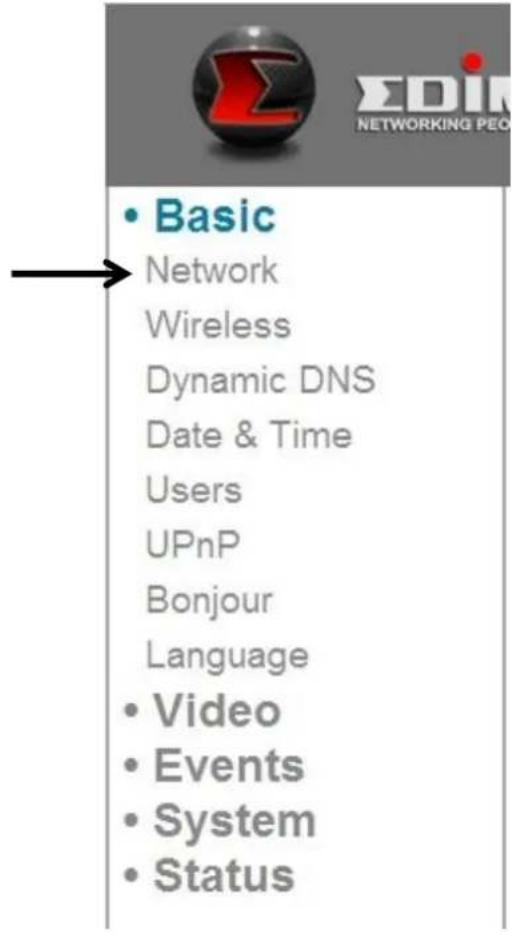
• Basic Network Wireless Dynamic DNS Date & Time Users UPnP Bonjour Language • Video • Events • System • StatusIn this menu, you can setup Ethernet network settings. (NOT Wireless Network!)
Network
| Network Type: | Static IP |
| Static IP | |
| DHCP | |
| PPPoE | |
| Static IP | |
| IP: | 192.168.2.3 |
| Netmask: | 255.255.255.0 |
| Gateway: | 192.168.2.1 |
| Primary DNS: | 192.168.2.254 |
| Secondary DNS: | 192.168.2.254 |
| HTTP Port: | 80 |
Apply
The descriptions of these items are listed below:
| Item | Description |
| Network Type | Select the type of Ethernet connection: Static IP, DHCP, and PPPoE. Please select one from dropdown menu, if you're not sure, please consult your network administrator or ISP. |
| Static IP: | |
| IP: 192.168.2.3 | |
| Netmask: 255.255.255.0 | |
| Gateway: 192.168.2.120 | |
| Primary DNS: 192.168.2.254 | |
| Secondary DNS: 192.168.2.254 | |
| HTTP Port: 80 | |
| IP: Please assign an IP address to this IP camera. | |
| Netmask: Please input the netmask of IP address. | |
| Gateway: Please input the gateway address of your network. | |
| Primary DNS: Input the IP address of DNS server. | |
| Secondary DNS: Input the IP address of secondary (backup) DNS. You can leave this field blank if no secondary DNS is available. | |
| HTTP port: The default web port number is 80, if you want to change it, you can input it from 1024 ~ 65535 in this field. When you connect to this IP camera next time, you |
have to add a colon and port number after IP camera's IP address. For example, if the camera's IP address is 192.168.2.3 and HTTP port number is 82, you have to input 'http://192.168.2.3:82' in web browser's address bar.
DHCP: IP camera will obtain IP address from DHCP server on your local area network automatically.
PPPoE: IP camera will connect to network by PPPoE.
PPPoE
User Name:
Password:
MTU:

(512<=MTU Value<=1492)
Please input PPPoE user name and password, and input MTU value when required.
Please note: In some cases you can improve network efficiency or correct connection problem by setting a new MTU value, however, In most cases you don't have to change MTU setting.
Click 'Apply' button to save changes you made.
3.2 Wireless
text_image
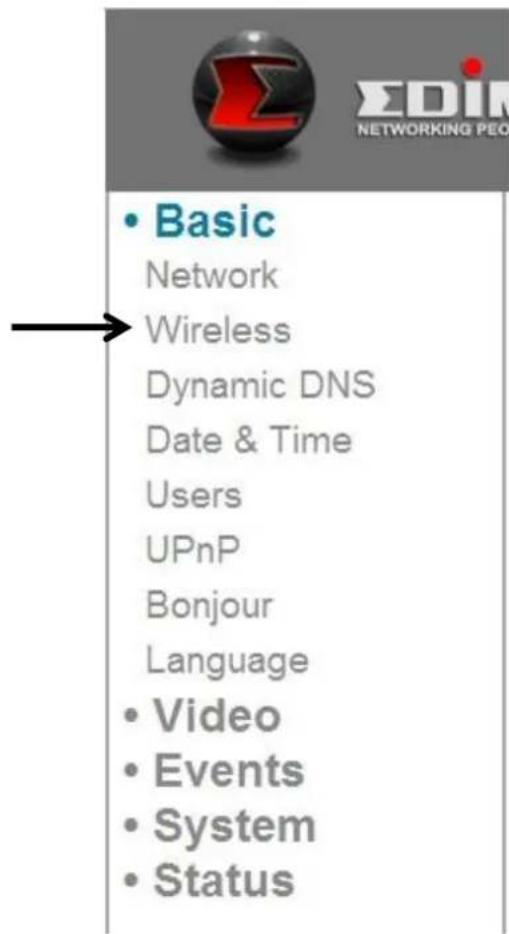
• Basic Network Wireless Dynamic DNS Date & Time Users UPnP Bonjour Language • Video • Events • System • StatusYou can establish wireless connections to other network devices such as network AP.
Wireless
Wireless Connection:
Network Type:
Mode:
Band:
Available Networks:
text_image
Enable Disable Infra 2.4GHz (B+G+N) Auto 20/40 MHZ Refresh| Connect | SSID | MAC Address | Signal | Channel | Encryption | Network Type |
| PP-FAE-DDWRT | 00:0E:2E:44:6C:0C | 3 | WPA2PSK(AES) | Infra | ||
| logitec2nd54 | 00:11:22:33:44:51 | 7 | WEP | Infra | ||
| logitec54 | 00:11:22:33:44:50 | 7 | WPA2PSK(AES) | |||
| 5470N | 00:11:22:33:44:55 | 11 | WPA2PSK(AES) | Infra | ||
| PP-2.4G-6475ND | 00:1F:1F:B1:08:E4 | 8 | WPA2PSK(AES) | Infra |
SSID:
Channel:
Authentication:
Encryption Type:
WPA Pre-Shared Key:

None

When you enter this page, IP camera will scan for wireless devices nearby automatically and display them here.
The descriptions of these items are listed below:
| Item | Description |
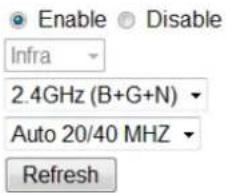
| Wireless Connection | You can enable or disable wireless functionality here.Please note: You can switch wireless network off, but you can’t switch wired Ethernet off. |
| Network Type | Select the type of network you wish to connect: Infra (infrastructure: wireless access point). |
| Mode | Select the wireless operating mode:B (802.11b, maximum 11mbps)G (802.11g, maximum 54mbps)N (802.11n, maximum 150mbps).You can select mixed mode (2.4GHz B+G+N) so IP camera will work with all kinds of wireless network. If you select B,G, or N only, then IP camera will be able to communicate with wireless network of same operating mode only. |
| Band | Select wireless band: 20MHz only or 20/40MHz auto switch. It's recommended to select 'Auto 20/40MHz'. |
| Available Networks | IP camera will list all nearby networks and their parameter in this field. If the network you wish to connect does not appear hear, click 'Refresh' to rescan again. You can click 'Refresh' button for many times until the network you wish to connect appear in the list.If you wish to connect to a specific network, select the radio button of the network you wish to connect (under 'Connect' field), and the network's connection parameter will appear in the fields below.Tips: If you can't see the network you wish to connect after you click 'Refresh' button for many times, please move IP camera closer to the network's access point). |
| SSID | Input network's SSID (access point's wireless name) here, or select one network from network list above.If he network you wish to connect is a 'hidden' network (SSID is hidden to the public), you have to input SSID manually. |
| Channel | Select wireless channel number. Use 'Auto' to select channel automatically. |
| Authentication | Select authentication type:None: no encryptionWEP: use WEP encryptionWPA-PSK: Use WPA with PSK encryption.WPA2-PSK: Use WPA2 with PSK encryption.The authentication type you selected here must be identical with the setting of access point. |
| Encryption Type | Select wireless encryption type. This option will vary depends on the authentication type of the network you wish to connect.The encryption type you selected here must be identical with the setting of access point. |
| WPA Pre-shared Key | Input WPA pre-shared key here, must be identical with the setting of access point.(This field is not available when authentication type is none or WEP). |
| WEP Key Format | Select WEP key's format: Hex or ASCII.This setting must be identical with the setting of the network you wish to connect. |
| WEP Key length | Select WEP key's length: 64 or 128-bit.This setting must be identical with the setting of the network you wish to connect. |
| WEP Key | Input WEP key here.This setting must be identical with thesetting of the network you wish to connect. |
You can also setup encrypted wireless connection by WPS (Wi-Fi Protected Setup):
WPS
Self PinCode: 75478964
Configure via Push Button: Start PBC
Configure via PinCode: Registrar SSID:
Start PIN
The descriptions of these items are listed below:
| Item | Description |
| Self PinCode | Displays the 8-digit pin code of this IP camera. Write this number down and you’ll need this number so get connected with other WPS-enabled network devices when requested. |
| Configure via Push Button | Click ‘Start PBC’ button to start PBC-style WPS pairing sequence: Click this button, and push WPS button of the access point (or click a software button in access point’s configuration web page).You must press WPS button of the wireless device you wish to connect within 120 seconds. |
| Configure via PinCode | Click ‘Start PIN’ to start PIN-style WPS pairing sequence. You have to input WPS registrar’s SSID in ‘Registrar SSID’ field first. |
Click 'Apply' button to save changes you made.
3.3 Dynamic DNS
text_image
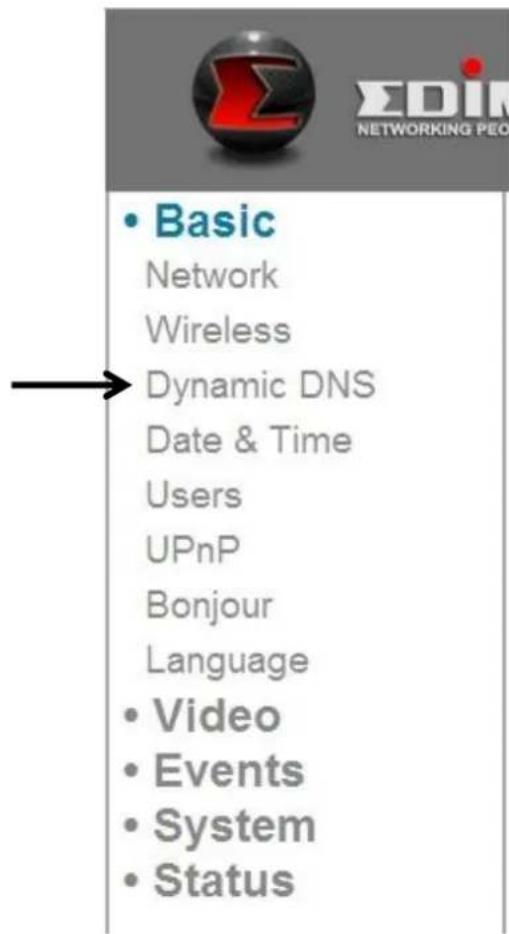
• Basic Network Wireless Dynamic DNS Date & Time Users UPnP Bonjour Language • Video • Events • System • StatusIf your Internet service provider didn't issue you a fixed IP address, you can use this function to report your current IP address to dynamic DNS service provider, so you can locate your IP camera without having a fixed IP address.
Dynamic DNS
Enable DDNS:
Provider:
Host Name:
User Name:
Password:

Enable

Disable
dyndns ▼
The descriptions of these items are listed below:
| Item | Description |
| Enable DDNS | Select ‘Enable’ to enable DDNSfunctionality, orselect ‘Disable’ to disable DDNS functionality. |
| Provider | Select Dynamic DNS service provider you’re using from dropdown menu. |
| Host Name | Input the hostname you registered with DDNS service provider. |
| User Name | Input the user name you registered with DDNS service provider. |
| Password | Input the password you registered with DDNS service provider. |
Click 'Apply' button to save changes you made.
TIPS: You can register free (or paid) dynamic DNS service from following website:
Dyndns: www.dyndns.org
Refer to Chapter VIII for DDNS application.
3.4 Date & Time
text_image
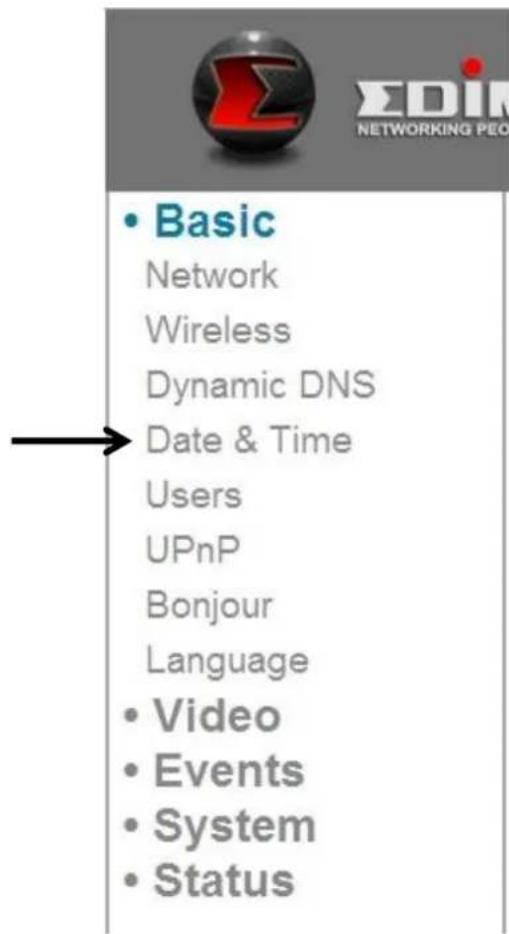
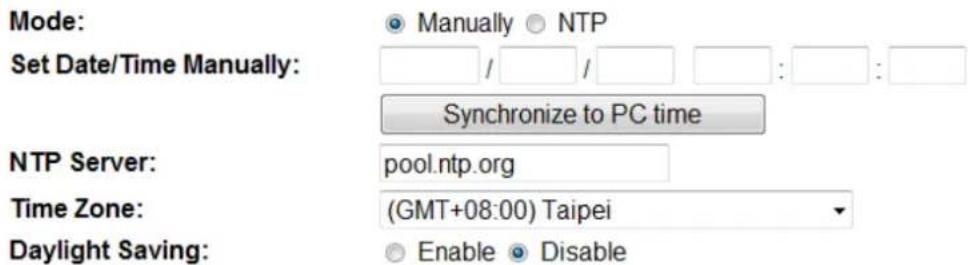
• Basic Network Wireless Dynamic DNS Date & Time Users UPnP Bonjour Language • Video • Events • System • StatusYou can setup IP camera's system date and time here. Maintaining a correct system time is very essential when you need to replay recorded video.
Date & Time
text_image
Mode: Set Date/Time Manually: Manually NTP Synchronize to PC time NTP Server: pool.ntp.org Time Zone: (GMT+08:00) Taipei Daylight Saving: Enable DisableThe descriptions of these items are listed below:
| Item | Description |
| Mode | Select date & time setup mode:Manually: Set time manually.NTP: Use NTP (Network Time Protocol) to setup date and time automatically via network. If you have Internet connection or there's a NTP server on your local network, you can select this function to help you to keep IP camera's date and time correct. |
| Set Date/Time Manually | There are 6 fields for you to input current date / time. The format is:YYYY/MM/DD HH:MM:SS |
| Synchronize to PC time | Click this button the fill date / time field with your computer's date and time. |
| NTP Server | Input NTP server's hostname or IP address. |
| Time Zone | Select the time zone of the place you live from dropdown menu. |
| Daylight Saving | If the area you live uses daylight saving, select 'Enable', or select 'Disable' when daylight saving is not used. |
Click 'Apply' button to save changes you made.
3.5 Users
text_image
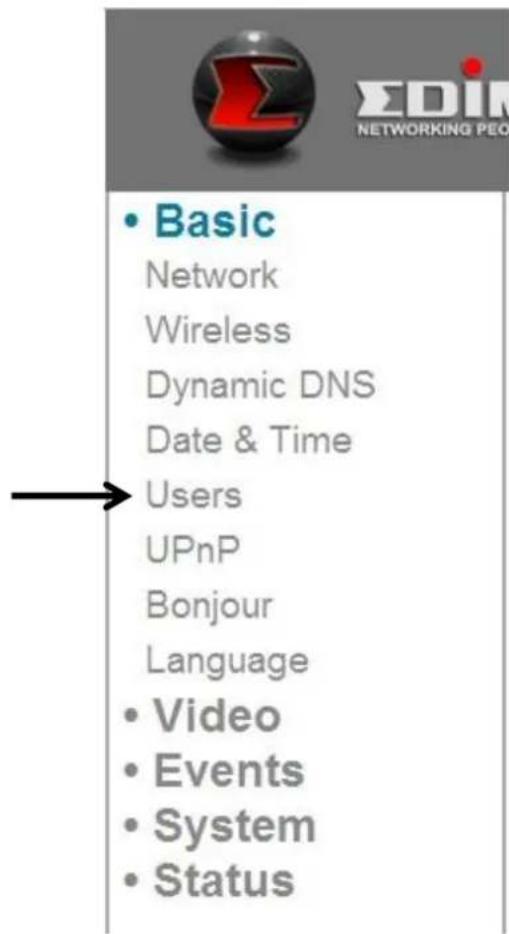
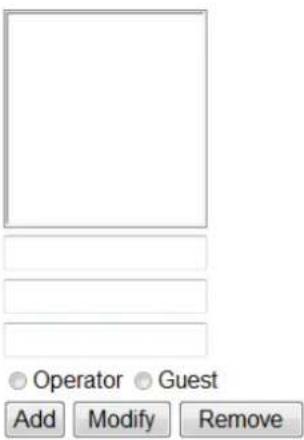
• Basic Network Wireless Dynamic DNS Date & Time Users UPnP Bonjour Language • Video • Events • System • StatusBesides default system operator account 'administrator', you can add additional operator account or user account here:
Operator accounts can perform all functionalities and do configurations of this IP camera, while guest accounts can view image only.
Users
User List:
User name:
Password:
Confirm password:
Authority:
text_image
Operator Guest Add Modify RemoveAnonymous Login:
- Enable - Disable
The descriptions of these items are listed below:
| Item | Description |
| User List | Lists all existing operators / users here. To modify an operator / user's setting, click his / her name here first. |
| User Name | Input user's name here. |
| Password | Input user's password here. |
| Confirm password | Input user's password here again for confirmation. |
| Authority | Select this user's privilege:Operator can view video and go to setup page to change video setting.Guest can view video only. |
| Add | Click this button to add a new user with settings above. |
| Modify | Click this button to save changes of an existing user. |
| Remove | Click this button to remove a user. You must select a user in 'User List' field first. |
| Anonymous Login | Select 'Enable' to enable anonymous user to login this IP camera and view image.This function is useful when you want to establish a remote video server whichwelcomes everyone to view the video.If you only want to allow registered user to login, select ‘Disable’. |
Click 'Apply' button to save changes you made.
3.6 UPnP

text_image
• Basic Network Wireless Dynamic DNS Date & Time Users UPnP Bonjour Language • Video • Events • System • StatusWhen you enable this function, Windows computers can discover this IP camera from windows network neighbor directly, and you don't have to know this IP camera's IP address in advance (This only works on local area network).
UPnP

Enable

Disable
Apply
Select 'Enable' to enable this function, or select 'Disable' to prevent users on local area network to discover this IP camera.
3.7 Bonjour

text_image
• Basic Network Wireless Dynamic DNS Date & Time Users UPnP Bonjour Language • Video • Events • System • StatusWhen you enable this function, Macintosh computers can discover this IP camera from safari web browser directly, and you don't have to know this IP camera's IP address in advance (This only works on local area network).
Bonjour
- Enable - Disable
Apply
Select 'Enable' to enable this function, or select 'Disable' to prevent users on local area network to discover this IP camera by safari browser.
Tips: Bonjour function must be enabled in safari browser first.
Chapter IV: Video Configuration
In video configuration setup page, you can change the resolution and frame rate, so you can decide the video quality by the bandwidth you have.
4.1 Video Settings
You can change resolution and frame rate settings here.

text_image
• Basic • Video Video Settings Image Appearance • Events • System • StatusThe descriptions of these items are listed below:
| Item | Description |
| Resolution | Change video resolution from dropdown list. Available resolutions are: SXVGA (1280 x 960) VGA (640 x 480) QVGA (320 x 240) Higher resolution provides mode video details, but requires more bandwidth. |
| MAX. Frame rate | Select the maximum video frame rate. Higher frame rate provides more fluent video, but also requires more bandwidth.Please note: When the environment is dark, this IP camera will automatically adjust frame rate to a lower setting to provide better video quality by using a longer exposure time. |
| Power frequency | Select the AC utility power's frequency (50 or 60Hz). This will help reduce the flicker of video when there's certain kind of lamp.If you don't know the frequency of power you're using, you can consult your utility power company. |
Click 'Apply' button to save changes you made.
4.2 Image
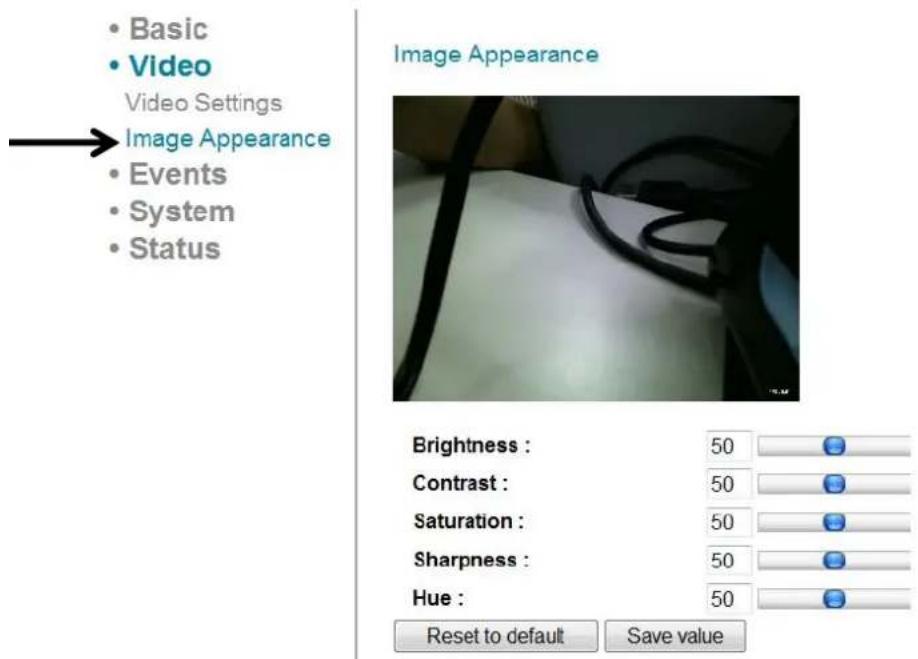
You can change video appearance settings here.
text_image
Basic Video Video Settings Image Appearance Events System Status Image Appearance Brightness : 50 Contrast : 50 Saturation : 50 Sharpness : 50 Hue : 50 Reset to default Save valueThe descriptions of these items are listed below:
| Item | Description |
| Brightness / Contrast / Saturation / Sharpness / Hue | Change video's appearance. If you think you don't like the video as it appears, you can change these parameters.Drag the blue lever by mouse to change the value. |
| Reset to default | Click this button to reset all settings back to default value (50). |
| Save value | Save changes you made. |
Chapter V: Event Configuration
This IP camera is capable to detect motions. You can use this function to use this IP camera as a security alarm and send the image to you by E-Mail or upload to FTP server when there's motion.
5.1 Motion Detection Setup
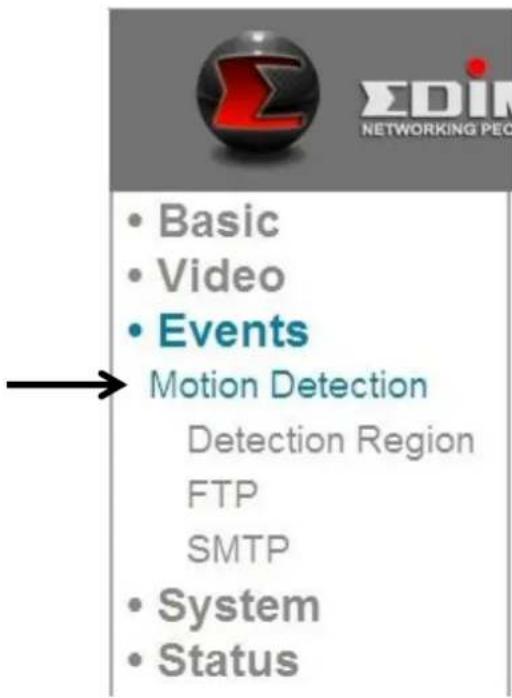
You can enable or disable motion detection settings here.
text_image
• Basic • Video • Events Motion Detection Detection Region FTP SMTP • System • StatusThe descriptions of these items are listed below:
| Item | Description |
| MotionDetection enable | Select ‘Enable’ to enable motion detection function, or ‘Disable’ to disable it. |
| MotionDetectionInterval | Select the time interval this IP camera detects motion.To detect minor motions, select a shorter time; to ignore minor motions, select a longer time. |
| Send snapshot to E-Mail | Select ‘Enable’ to send a snapshot picture to designated email recipient; select ‘Disable’ to disable this function. |
| Send snapshot to FTP | Select ‘Enable’ to upload a snapshot picture to designated FTP server; select ‘Disable’ to disable this function. |
Click 'Apply' button to save changes you made.
5.1.1 Detection Region
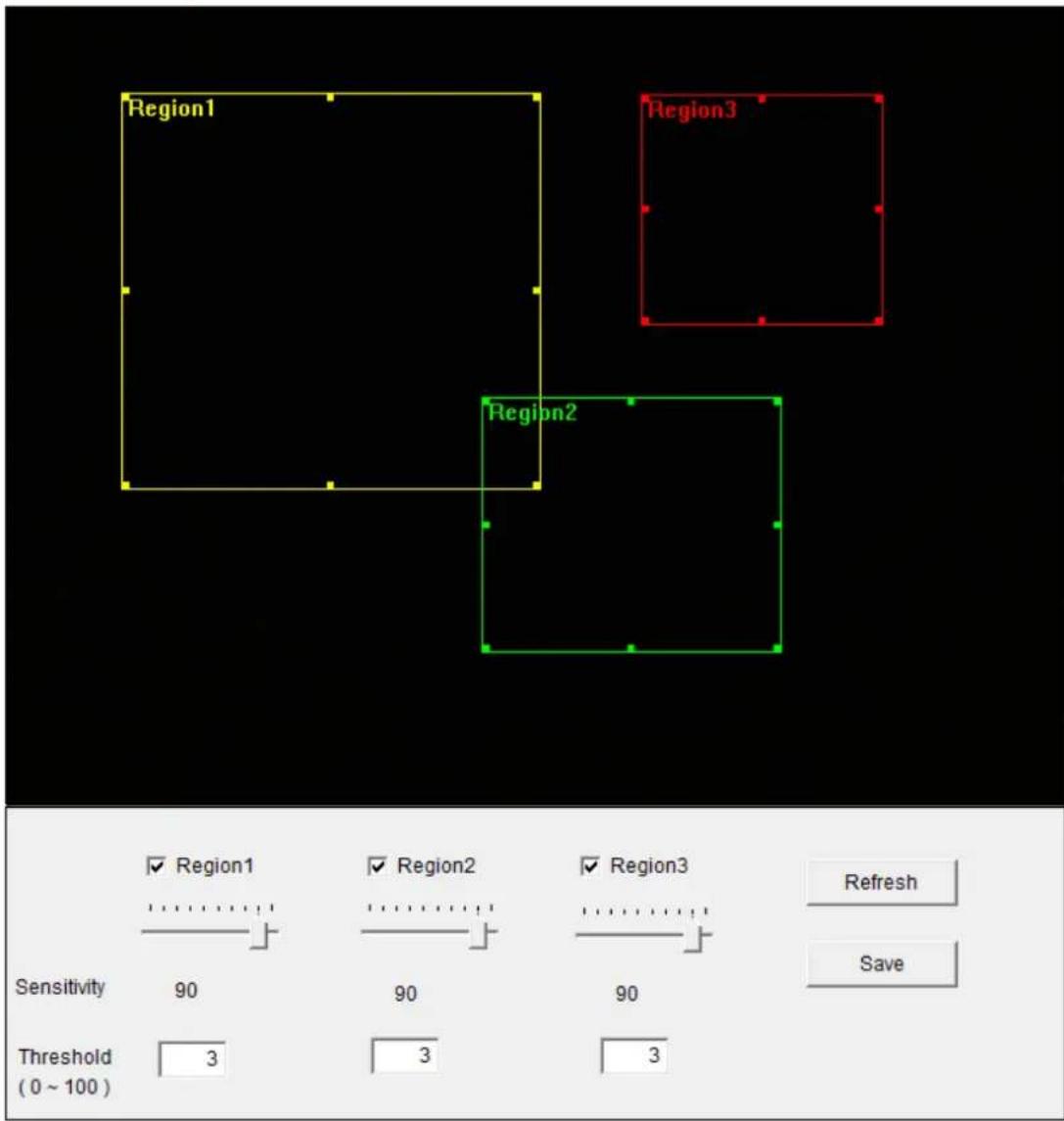
You can setup the area in video where IP camera should detect changes in video (motion). Motions outside of detection region will be ignored by IP camera, and IP camera will do nothing when a motion is detected outside of detection region. This will help you to minimize the chance of false alarm.

text_image
• Basic • Video • Events Motion Detection Detection Region FTP SMTP • System • StatusWhen you select this setup page, you'll see the following setup page:
(The setup page's video view window is intentionally set to black so you can see 3 motion detection regions clearly).
Detection Region
text_image
Region1 Region2 Region3 Region1 Region2 Region3 Sensitivity 90 90 90 Threshold (0 ~ 100) 3 3 3 Refresh SaveThe descriptions of these items are listed below:
| Item | Description |
| Region 1 /Region 2 /Region 3 | Check the box to enable this motion detection area. A rectangle will appear on the video view when it’s checked (enabled).To change the size of motion detection area:Point the mouse to the upper-left, upper-right, lower-left, lower-right cornerof motion detection rectangle, and drag the mouse.Move motion detection area:Put the mouse within the motion detection area, and drag the mouse. |
| Sensitivity | Change the sensitivity of motion detection. Set to a higher value (right) and IP camera will trigger the alarm when there're only small changes in video. If you found that IP camera sends E-mail or uploads picture to FTP too frequently, and there's nothing happen in the snapshot video, you can set to a lower value. |
| Threshold | Set the motion detection threshold here (input number 0 to 100). A higher value represents IP camera will only trigger alarm when the object in motion detection area is really big. |
| Refresh | Refresh the reference picture. |
| Save | Save changes you made in this page. |
5.1.2 FTP
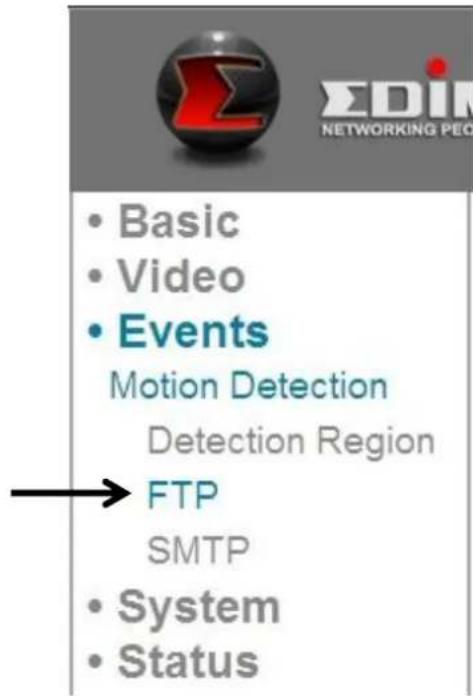
You can upload a snapshot picture when motion detected by this IP camera.
text_image
• Basic • Video • Events Motion Detection Detection Region FTP SMTP • System • StatusWhen you select this setup page, you'll see the following setup page:
FTP
FTP Server:
User Name:
Password:
Port:
Path:
Passive mode:
Apply
Send a test file
21

Enable
Disable
The descriptions of these items are listed below:
| Item | Description |
| FTP Server | Input the IP address or host name of the FTP server. |
| User Name | Input the user name required by FTPserver. |
| Password | Input the password of FTP server. |
| Port | Input the port number of FTP server, this should an integer between 1 to 65535.Please don’t change this value until instructed by FTP server’s administrator. |
| Path | Input the path (folder) you wish to save snapshot file on FTP server. If you don’t want to specify folder, you can leave this field blank, and snapshot files will be saved in the default folder when logged onto FTP server. |
| Passive mode | Default setting is ‘Enable’ (use passive mode). If the FTP server you’re going to use does not support passive mode (using active mode), select ‘Disable’ here. |
Click ‘Apply’ button to save changes you made. You can also click ‘Send a test file’ button to upload a test file to FTP server, and a message box will appear to indicate if the FTP upload is successful, so you can examine if the parameters you set in this page are correct.
5.1.3 SMTP
You can send a snapshot picture by E-Mail when motion detected by this IP camera.

text_image
• Basic • Video • Events Motion Detection Detection Region FTP SMTP • System • StatusWhen you select this setup page, you'll see the following setup page:
SMTP

text_image
Public Server: SMTP Server: SMTP Port: Recipient E-Mail Address: Sender E-Mail Address: SSL/TLS: SMTP Authentication: Account: Password: Apply Send a Test E-Mail Yahoo! Hotmail Gmail None Enable DisableThe descriptions of these items are listed below:
| Item | Description |
| Public Server | If you're using Hotmail, Yahoo mail, or Google mail, select appropriate item from dropdown menu, and IP camera will fill the SMTP server address and port number for you automatically. |
| SMTP Server | Input the host name or IP address of SMTP server. SMTP server is usually provided by your ISP. |
| SMTP Port | Input the SMTP port number here. Most of SMTP servers use port number ‘25’, while some SMTP servers uses encrypted connection and port number is ‘465’. Consult mail server administrator when in doubt. |
| Recipient E-Mail Address | Input E-mail recipient (receiver)'s E-mail address here. |
| Sender E-Mail Address | Input an E-Mail address here, which will be used by E-Mail sender's address. This will help you to identify the E-Mail sent by this IP camera, and will help you to prevent problems caused by anti-spam software. |
| SSL/TLS | Select ‘SSL or TLS’ when your SMTP server requires encryption.When in doubt, consult your SMTP server administrator. |
| SMTP Authentication | Select ‘Enable’ when your SMTP server requires authentication.When in doubt, consult your SMTP server administrator. |
| Account | Input SMTP account when your SMTP server requires authentication. |
| Password | Input the password used for SMTP server authentication. |
Click 'Apply' button to save changes you made. You can also click 'Send a test E-mail' button to send a test E-mail to SMTP server, and a message box will appear to indicate if the E-mail send is successful, so you can examine if the parameters you set in this page are correct.
Chapter VI: System Configuration
You can configure the basic system settings in this setup page, or backup / restore system configurations.
6.1 "Basic" Settings
You can set the camera's name and password here. You can also change the behavior of LED lights.

text_image
• Basic • Video • Events • System Basic Advanced • StatusThe descriptions of these items are listed below:
| Item | Description |
| IPCamera Name | Set the name of IP camera. It's recommended to use a meaningful name which can describe the location where the IP camera is installed. This will help you to identify IP camera when you have more than one IP cameras. |
| Administrator Password | Input administrator's new password here if you want to change it. |
| Confirm Password | Input administrator's new password here again for confirmation. |
| LED Indication | For security reasons, you can disable the LED lights in front of IP camera by select‘off’ here, so other people can’t identify if the IP camera is working by them. |
Click 'Apply' button to save changes you made.
6.2 "Advanced" Settings
You can save or restore IP camera's configuration file here. You can also reboot the IP camera remotely here.

text_image
• Basic • Video • Events • System Basic Advanced • StatusThe descriptions of these items are listed below:
| Item | Description |
| Firmware | You can improve the functionality of this IP camera by uploading new firmware file when available. |
| Filename | |
| Please download new firmware file from our website, and save it to your computer's hard disk. Then, click 'Browse' button to select the file on your hard disk, and click 'Apply' button to upload the firmware to IP camera. | |
| Backup Config | Click 'Apply' button to download currentconfiguration as a file and save it on your computer's hard drive. |
| Restore Config | Click ‘Browse’ button to select a previously-saved configuration file on your computer's hard drive, and then click ‘Apply’ to upload the configuration file. |
| Reboot Now | Click this button to reboot IP camera. This function is useful when you think IP camera is not working properly. |
| Reset to default | Reset the IP camera's setting back to default value. There are 2 options:1) Keep Network Setting: Reset all settings back to default value, except network settings. You can still use the same IP address to connect to the IP camera.2) Factory Default: Reset all settings, include network settings. Please reconnect to IP camera by its default IP address: 192.168.2.3Click ‘Apply’ to reset. You can press and hold ‘WPS / Reset’ button for more than 10 seconds to reset IP camera's setting to default value. |
Chapter VII: System Status
You can view the status of this IP camera, which is helpful when you need to do detailed configuration, or debug.
7.1 System Information
You can see system-wide information of this IP camera here.
text_image
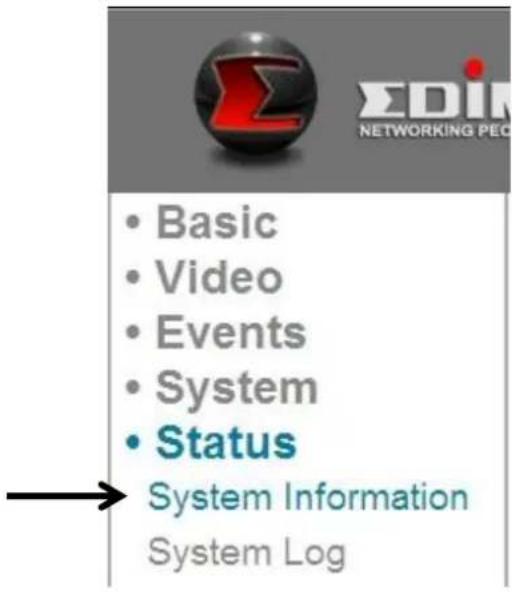
• Basic • Video • Events • System • Status System Information System LogA system information summary page will appear like this:
System
| Firmware Version : | v1.2 (Jun 20 2011 18:11:49) |
| Device Uptime : | 5 min 42 sec |
| System Time : | 1970/01/01 00:05:41 |
LAN
| IP Address : | 192.168.2.3 |
| Subnet Mask : | 255.255.248.0 |
| Gateway : | 192.168.2.120 |
| DNS1 Server : | 192.168.2.254 |
| DNS2 Server : | 192.168.2.254 |
| MAC Address : | 00:0E:2E:44:6B:DF |
| HTTP Port : | 80 |
Wireless
| Link Status : | Disconnected |
| SSID : | |
| Channel : | |
| Authentication : |
PPPoE
| Link Status : | Disconnected |
| IP Address : | |
| Subnet Mask : |
7.2 System Log
The IP camera's usage and actions will be displayed here.

text_image
• Basic • Video • Events • System • Status System Information System LogThe system log will appear here, you can use scroll bar to view logs, with some adjustable parameters:
System Log
Log Level:
Remote Log:
Remote Log Server:
1
○ Enable ● Disable
Apply
The descriptions of these items are listed below:
| Item | Description |
| Log Level | Select the log level from dropdown list.Select 0 and the IP camera will only log very important information, or select 4 to log everything. |
| Remote Log | This IP camera can send log information to a remote server for archive. Select ‘Enable’ to enable this function.This IP camera supports syslog log server. |
| Remote Log Server | Input the IP address or host name of log server you wish to use. |
Click 'Apply' button to save changes you made.
Chapter VIII: Advanced Operations
In this chapter, you'll learn how to apply a free DYNDNS account to use with this IP camera when you don't have a fixed IP address, and view the video of this IP camera on your iPhone.
8.1 Applying for a Free DynDNS Account
If your ISP issues you with an IP address which is not fixed, please follow the following instructions to apply for a free DYNDNS account to get a host name which is dynamically mapped to your current IP address.
- Launch your web browser and navigate to http://www.dyndns.org

text_image
Back Address: http://www.dyndns.org- Click 'Sign In' button (located at upper-right corner of dyndns.org's webpage)

text_image
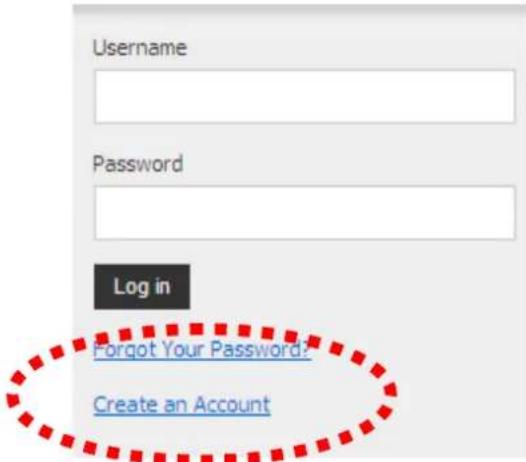
What are you looking for? Search Have an account? Sign In DNS IS SEXY www.dnsissexy.com twitter.com/dyninc - #DNSISSEXY- Click 'Create an Account' in pop-up menu.
text_image
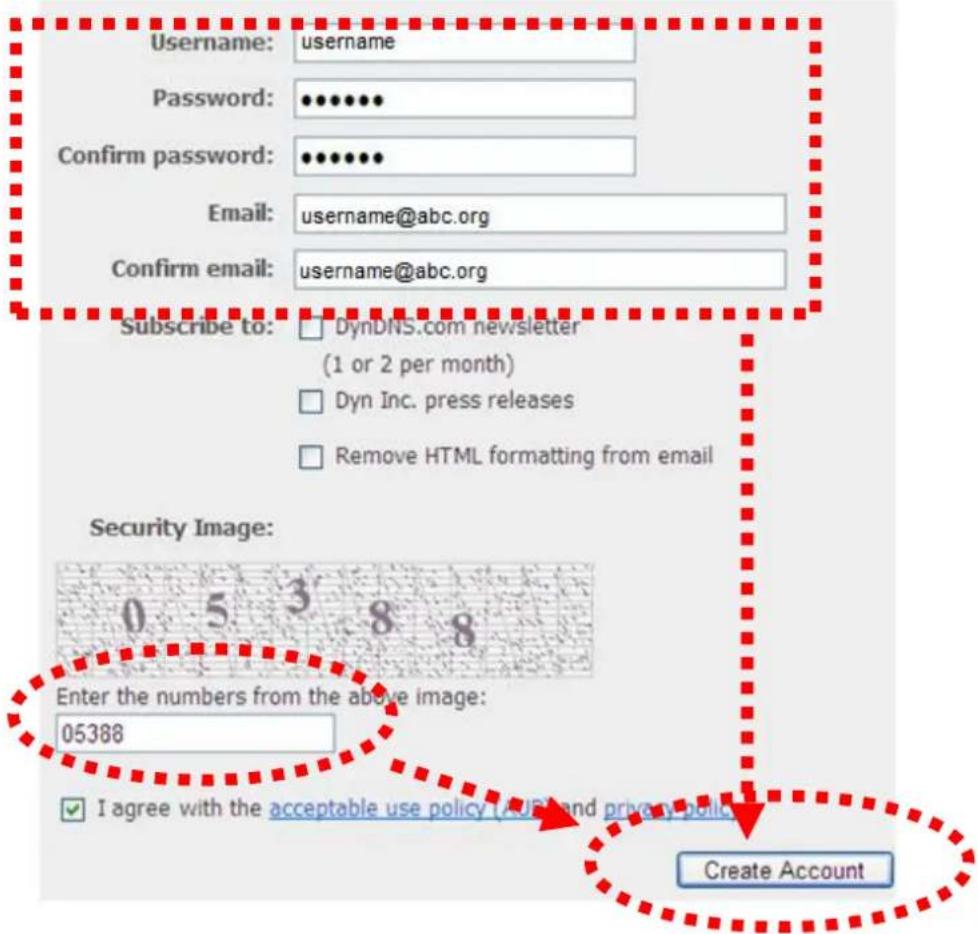
Username Password Log in Forgot Your Password: Create an Account- Fill all fields appear in this menu, and click 'Create Account' button to create a new account. You'll be prompted if the account you selected is not available.
Create an account or log in to continue
text_image
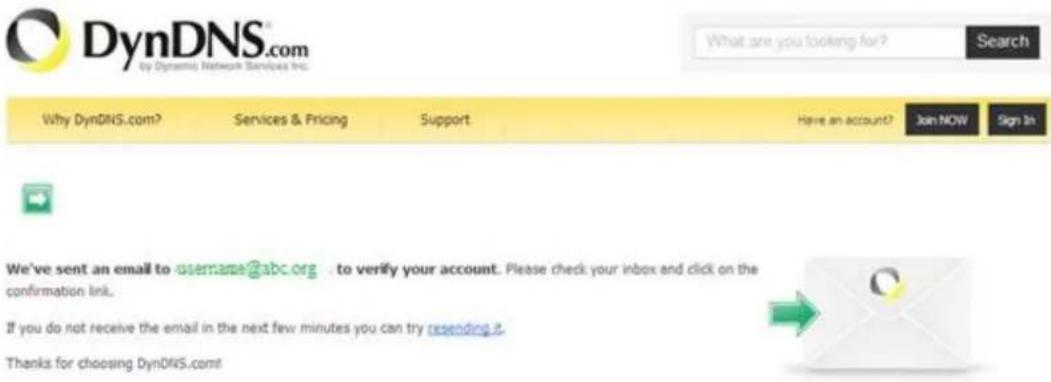
Username: username Password: •••••••• Confirm password: •••••••• Email: username@abc.org Confirm email: username@abc.org Subscribe to: □ DynDNS.com newsletter (1 or 2 per month) □ Dyn Inc. press releases □ Remove HTML formatting from email Security Image: 0 5 3 8 8 Enter the numbers from the above image: 05388 ✓ I agree with the acceptable use policy (AUS) and privacy policy Create Account- When you see this image, you'll receive an e-mail confirmation at the e-mail box you registered with dyndns.org.
text_image
DynDNS.com by Dynamic Network Services Inc. What are you looking for? Search Why DynDNS.com? Services & Pricing Support Have an account? Join NOW Sign In We've sent an email to -username@abc.org to verify your account. Please check your inbox and click on the confirmation link. If you do not receive the email in the next few minutes you can try resending it. Thanks for choosing DynDNS.com- Check your e-mail box and you should be able to get confirmation e-mail. Click the link to connect to dyndns.org website and complete registration procedure. If you didn't get the mail, please re-check the e-mail address, or click 'resending it' link in last step.
Also, if nothing happen after you click the link, please copy the link text and paste it in web browser's address bar.
Your DynDNS.com Account 'albhuang' has been created. You need to visit the confirmation address below within 48 hours to complete the account creation
process:
https://www.dyndns.com/account/confirm/aFW-tL6RIwbW0eRV7PhFR
Our basic service offerings are free, but they are supported by our paid services. See http://www.dyndns.com/services/ for a full listing of all of our available services.
- When you see 'Account Confirmed' webpage, indicates your dyndns.org account has been confirmed and activated. Now you can click 'Create a dynamic DNS host within our Free domains' link to continue.
Account Confirmed
The account albhuang has been confirmed. You can now login and start using your account.
Getting Started
- Surf without the sharks and browse the web faster with Internet Guide
• Create a dynamic DNS host with your own domain name
• Create a dynamic DNS host within our Free domains - Setup email services
- Register a domain name

- Click 'Create Hostname' button.
Dynamic DNS Free
Stay Connected With DynDNS
DynDNS Free allows you to create a hostname that points to your home or office IP address, providing an easy-to-remember URL for quick access. We also provide an update mechanism which makes the hostname work with your dynamic IP address. We continue to offer this service free to the Internet community as we have done so for nearly 10 years.
Create Hostname
9. In this page:
Input the hostname of your choice in 'Hostname' field,
Select a domain name in dropdown menu,
Select 'Host with IP address' for 'Service Type',
Input current IP address in 'IP Address' field (or click the link below to use detected IP address to fill this field'.
Hostname:
username
- ath.cx

Wildcard Status:
Disabled [Want Wildcard support?]
Service Type:
Host with IP address [?]
○ WebHop Redirect [?]
○ Offline Hostname [?]
IP Address:
219.70.117.176
Your current location's IP address is 219.70.117.176
ml value is 60 seconds. Edit TTL.
10. Click 'Add to cart' continue.
What do you want to use this host for?
Select services and devices you would like to use with this hostname.
Work From Home Office or VPN:

text_image
vpn remote file access remote desktop mail server web server chat server ftp backup ssh database voipHosting and Design For Web Sites and Blogs:

Remote Access For Devices:

text_image
dvr webcam data storage cctv printer alarm and security thermostat weather station game server home automationAdd To Cart
11. Click 'Next' to continue.
Your cart contains free services only. You will not be asked for credit card information.

text_image
Upgrade Options Free accounts allow only five Dynamic DNS hosts. • To add more and enjoy additional benefits for only $15.00 per year, purchase Dynamic DNS Pro ... • To get Dynamic DNS for your own domain, use Custom DNS. Dynamic DNS Hosts username@ath.cx - remove $0.00 Please enter coupons in the box below and click "Add Coupon". Sub-Total: $0.00 Add Coupon Order Total: $0.00Would you like to print an estimate/quote?
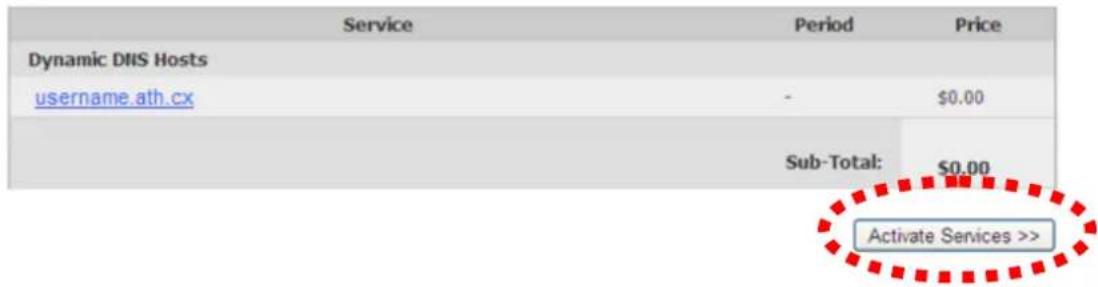
12. Click 'Activate Services' to continue.
Once you have confirmed the contents of your cart your services will be instantly activated.
text_image
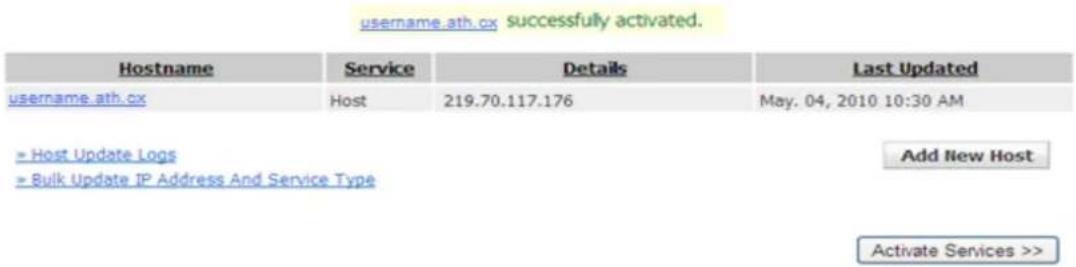
Service Period Price Dynamic DNS Hosts username.ath.cx - $0.00 Sub-Total: $0.00 Activate Services >>13. When you see this message, indicates your free dyndns.org hostname mapping service has been activated. You can go to chapter 2-2-3 to use your dyndns.org username, password, and hostname + domain name to locate your IP camera on Internet even you're using dynamic IP address!
text_image
username.ath.cx successfully activated. Hostname Service Details Last Updated username.ath.cx Host 219.70.117.176-May. 04, 2010 10:30 AM = Host Update Logs = Bulk Update IP Address And Service Type Add New Host Activate Services >>Chapter IX: Windows Surveillance Utility
Besides using web browser to operate this IP camera, you can also use windows utility to use this IP camera, which provides faster access to all functions of this IP camera.
9.1 Installing the Network Camera Administration Software
There are two files in the surveillance software's folder: Setup_Admin_xxx and Setup_Viewer_xxx (xxx is version number and will be different as the version number changes). Please install Administration software first. You can use administration software to locate and administer IP cameras on your local area network.
Please note that you still have to configure remote IP cameras (i.e. IP cameras on Internet) manually.
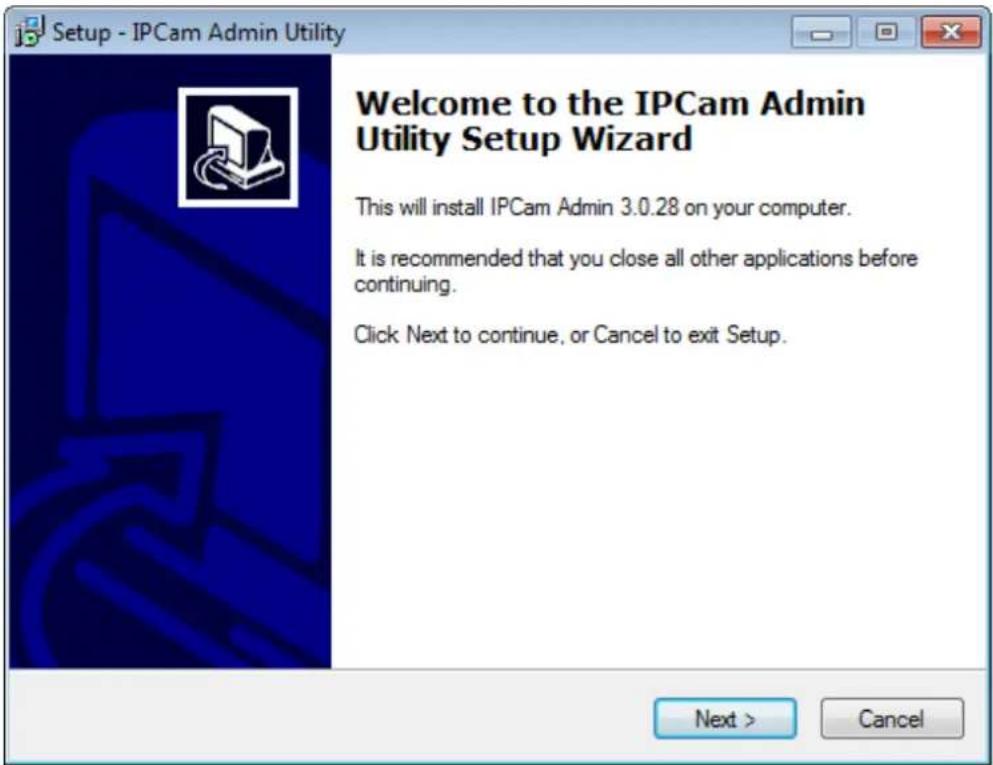
- Double click the Setup_Admin_xxx file located in 'xxx' folder in supplied CD-ROM, when the following window appears, click 'Next'.
text_image
Setup - IPCam Admin Utility Welcome to the IPCam Admin Utility Setup Wizard This will install IPCam Admin 3.0.28 on your computer. It is recommended that you close all other applications before continuing. Click Next to continue, or Cancel to exit Setup. Next > Cancel- You can specify the destination folder of software installation, you can just use the default folder, and click 'Next' to continue.
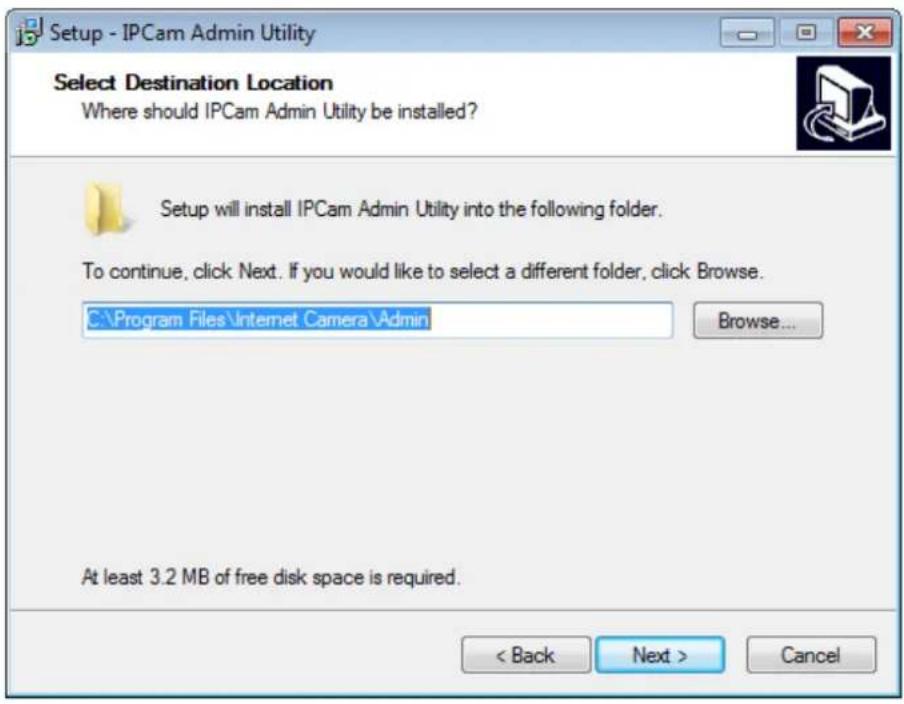
text_image
Setup - IPCam Admin Utility Select Destination Location Where should IPCam Admin Utility be installed? Setup will install IPCam Admin Utility into the following folder. To continue, click Next. If you would like to select a different folder, click Browse. C:\Program Files\Internet Camera\Admin Browse... At least 3.2 MB of free disk space is required. < Back Next > Cancel- If you need installation program to create a desktop icon or a quick launch icon for you, click all items you need here, than click 'Next' to continue.
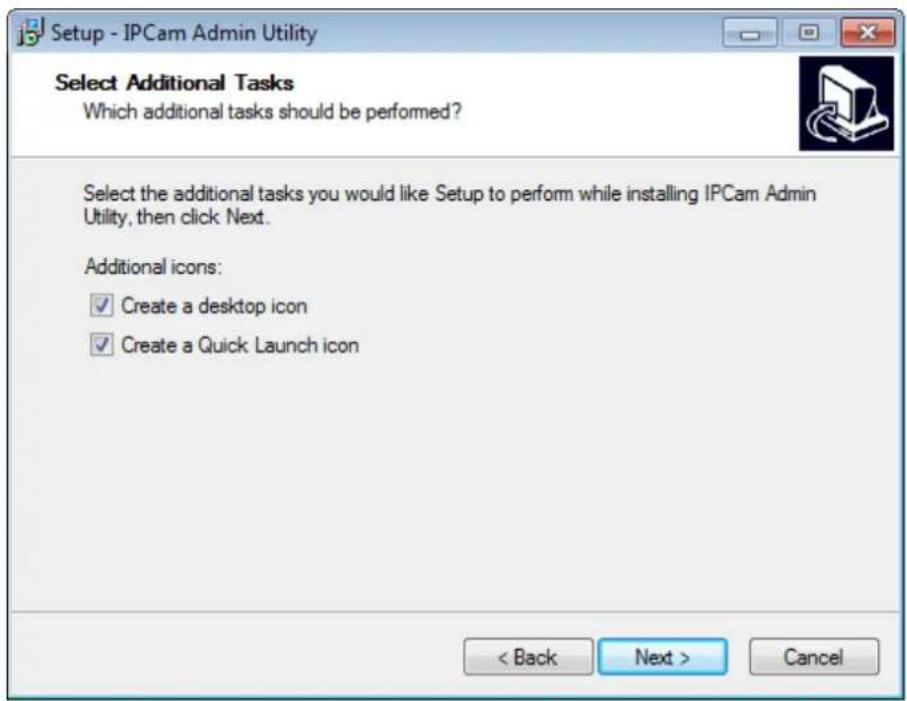
text_image
Setup - IPCam Admin Utility Select Additional Tasks Which additional tasks should be performed? Select the additional tasks you would like Setup to perform while installing IPCam Admin Utility, then click Next. Additional icons: ✓ Create a desktop icon ✓ Create a Quick Launch icon < Back Next > Cancel- Here lists all options you chose in previous steps, if everything's correct, click 'Install' to start installing procedure, or click 'Back' to go back to previous step to modify installing settings.

text_image
Setup - IPCam Admin Utility Ready to Install Setup is now ready to begin installing IPCam Admin Utility on your computer. Click Install to continue with the installation, or click Back if you want to review or change any settings. Destination location: C:\Program Files\Internet Camera\Admin Additional tasks: Additional icons: Create a desktop icon Create a Quick Launch icon < Back Install Cancel- The installing procedure will take some time, please be patient.
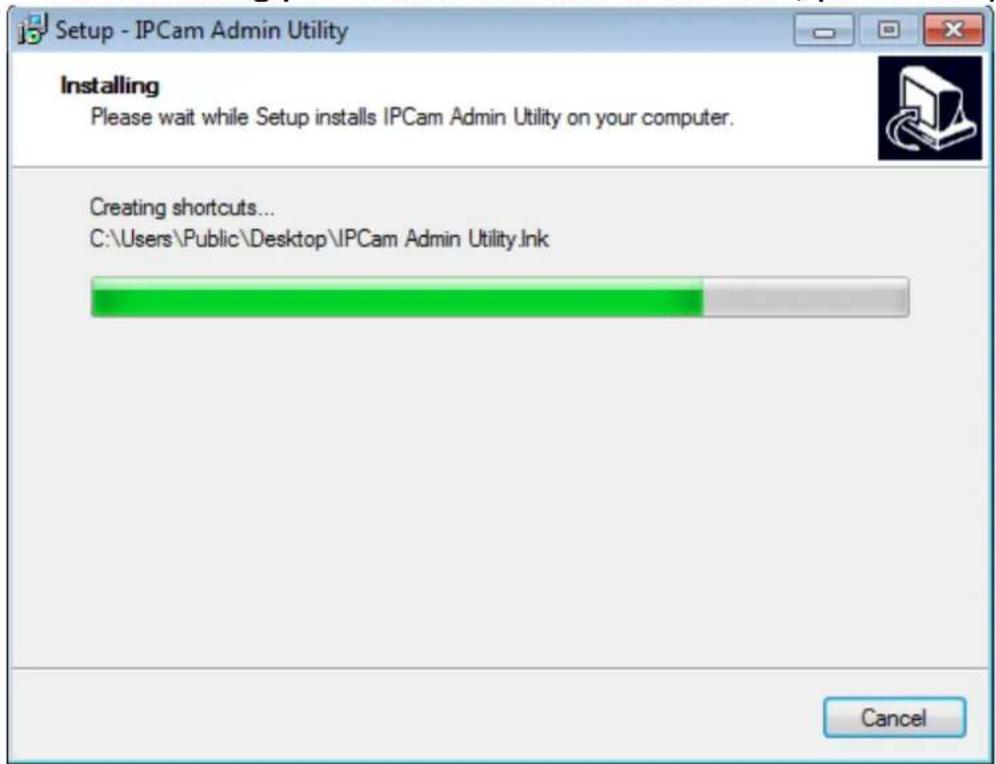
text_image
Setup - IPCam Admin Utility Installing Please wait while Setup installs IPCam Admin Utility on your computer. Creating shortcuts... C:\Users\Public\Desktop\IPCam Admin Utility.Ink Cancel- When you see this window, it means the software installing procedure is complete. Please click 'Finish' to finish the procedure (IP camera surveillance
software will start after you click 'Finish' button, if you want to start it later, uncheck 'Launch IPCam Surveillance Software' box).
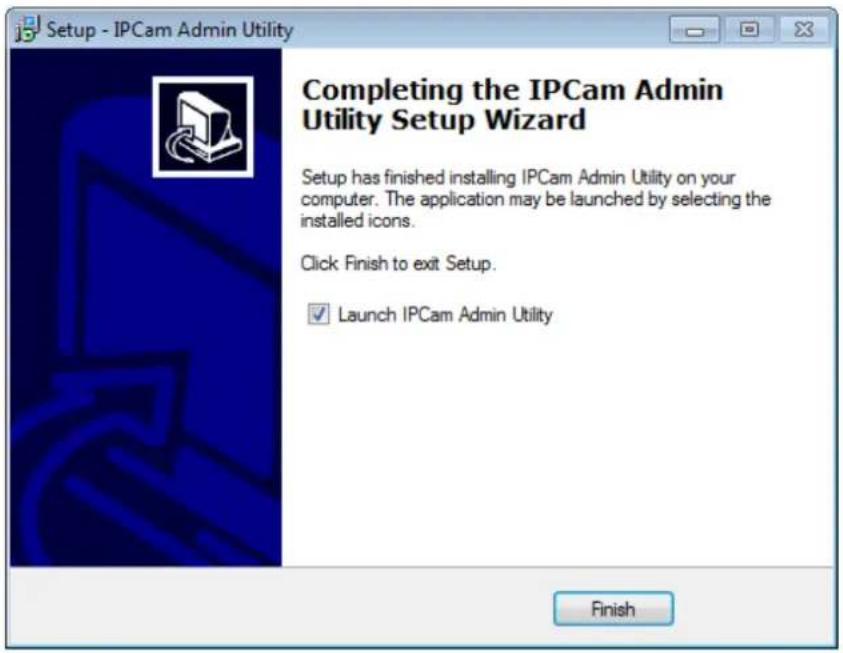
text_image
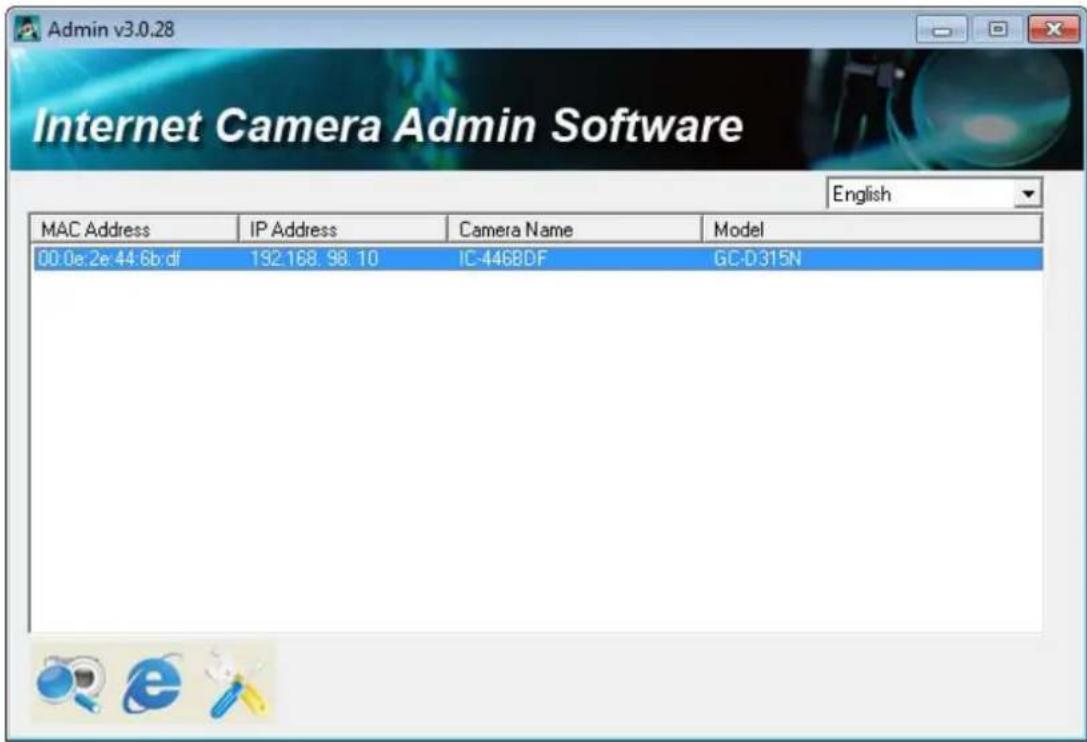
Setup - IPCam Admin Utility Completing the IPCam Admin Utility Setup Wizard Setup has finished installing IPCam Admin Utility on your computer. The application may be launched by selecting the installed icons. Click Finish to exit Setup. ✓ Launch IPCam Admin Utility Finish- After software is launched, you can click 📋 button to search for IP cameras on your local area network.

text_image
Admin v3.0.28 Internet Camera Admin Software English MAC Address IP Address Camera Name Model- When one (or more) IP camera(s) is found:
text_image
Admin v3.0.28 Internet Camera Admin Software English MAC Address IP Address Camera Name Model 00:0e:2e:44:6b:df 192.168.98.10 IC-446BDF GC-D315Nyou can click button to connect to IP camera by web browser, or click button to configure its setting. You'll be prompted to input IP camera's administrator username and password if you wish to configure it:
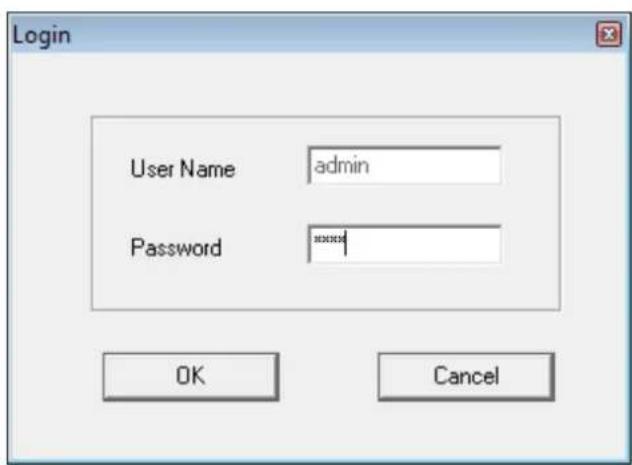
text_image
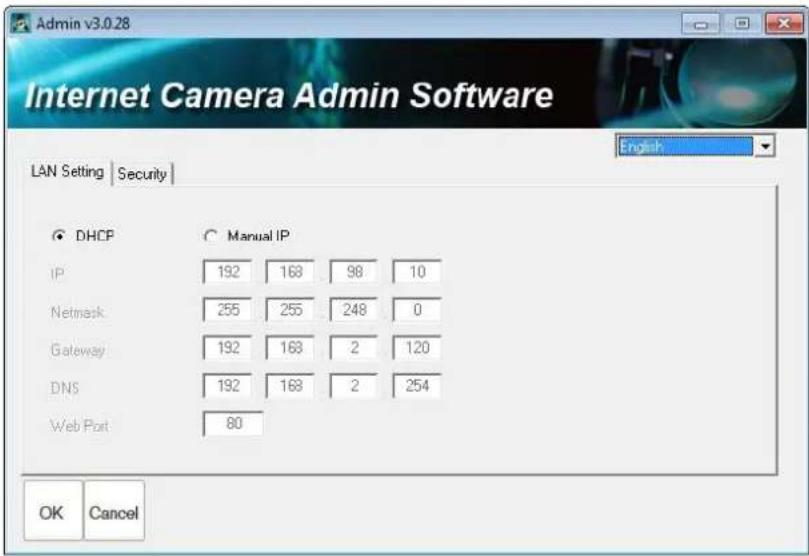
Login User Name admin Password ****There are two setting pages.
LAN Setting:
text_image
Admin v3.0.28 Internet Camera Admin Software LAN Setting | Security | DHCP IP 192 168 98 10 Netmask 255 255 248 0 Gateway 192 168 2 120 DNS 192 168 2 254 Web Port 80 OK Cancel EnglishYou can configure IP camera's IP address setting in this page. You can either use 'DHCP' (IP camera will acquire IP address from DHCP server on your local area network automatically), or 'Manual IP' (you have to input IP address manually).
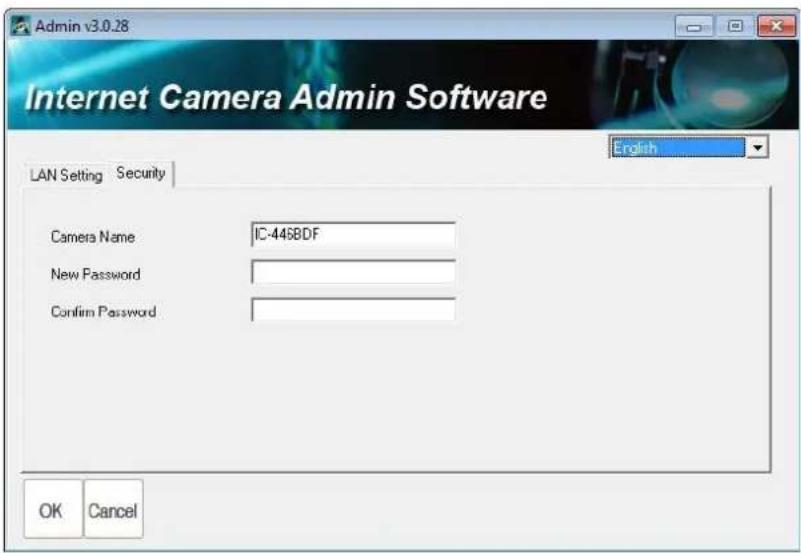
Security:
text_image
Admin v3.0.28 Internet Camera Admin Software LAN Setting Security English Camera Name IC-446BDF New Password Confirm Password OK CancelYou can change IP camera's name, and change its administrator password here by inputting new password in both ‘New Password’ and ‘Confirm Password’ field.
9.2 Install Video Viewer
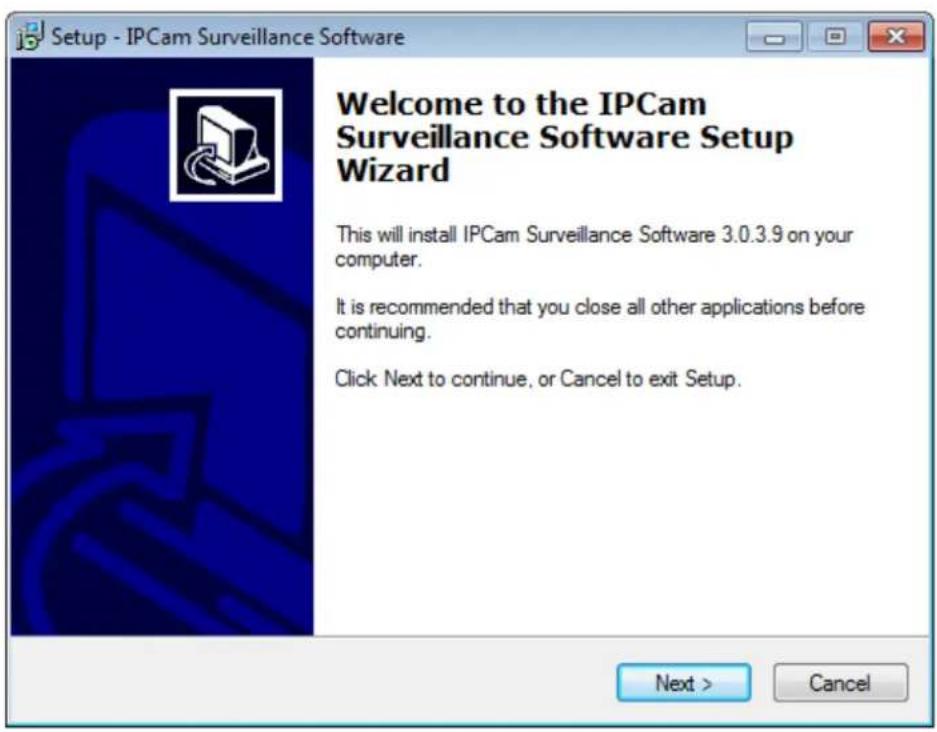
- Double-click Setup_Viewer_xxx file to start installation.
text_image
Setup - IPCam Surveillance Software Welcome to the IPCam Surveillance Software Setup Wizard This will install IPCam Surveillance Software 3.0.3.9 on your computer. It is recommended that you close all other applications before continuing. Click Next to continue, or Cancel to exit Setup. Next > Cancel- Click 'Next' to continue.

text_image
Setup - IPCam Surveillance Software Select Destination Location Where should IPCam Surveillance Software be installed? Setup will install IPCam Surveillance Software into the following folder. To continue, click Next. If you would like to select a different folder, click Browse. C:\Program Files\Internet Camera\Viewer Browse... At least 13.7 MB of free disk space is required. < Back Next > Cancel- You can uncheck the boxes here if you don't want to create desktop / quick launch icon, and click 'Next' to continue.

text_image
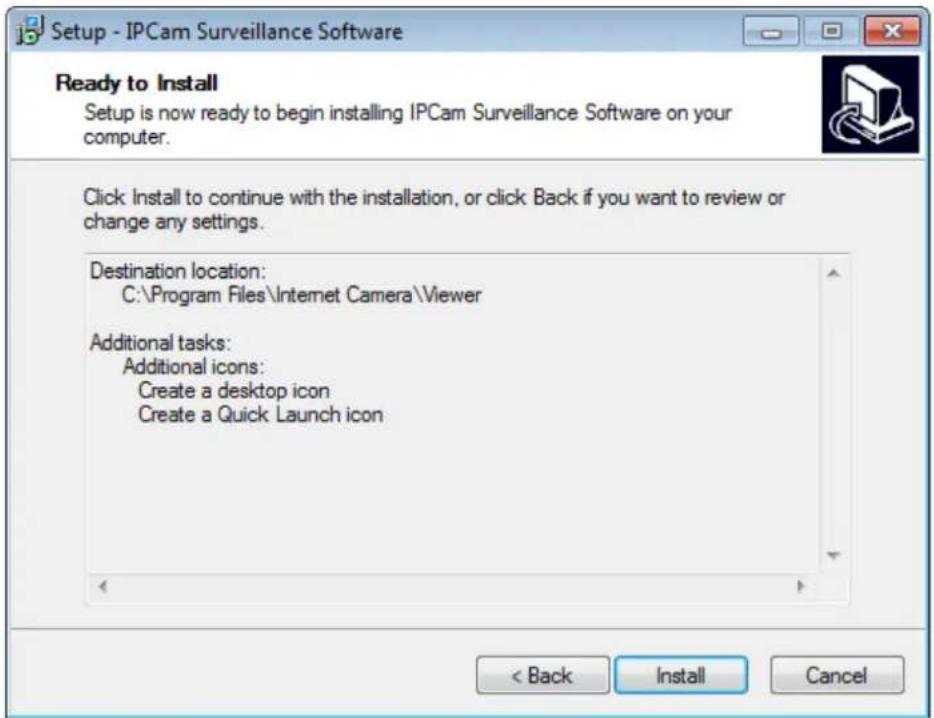
Setup - IPCam Surveillance Software Select Additional Tasks Which additional tasks should be performed? Select the additional tasks you would like Setup to perform while installing IPCam Surveillance Software, then click Next. Additional icons: ✓ Create a desktop icon ✓ Create a Quick Launch icon < Back Next > Cancel- Please check if everything's correct here. If you want to change any setting, click 'Back' to go back to previous page, or click 'Install' to start installation.
text_image
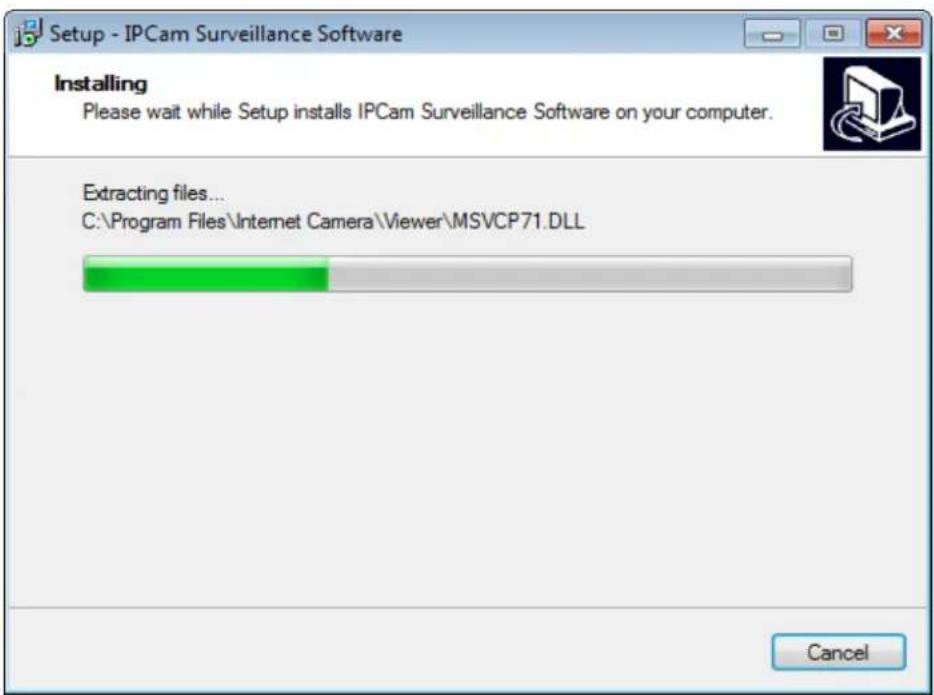
Setup - IPCam Surveillance Software Ready to Install Setup is now ready to begin installing IPCam Surveillance Software on your computer. Click Install to continue with the installation, or click Back if you want to review or change any settings. Destination location: C:\Program Files\Internet Camera\Viewer Additional tasks: Additional icons: Create a desktop icon Create a Quick Launch icon < Back Install Cancel- Installation procedure takes few seconds to few minutes to complete, please be patient.
text_image
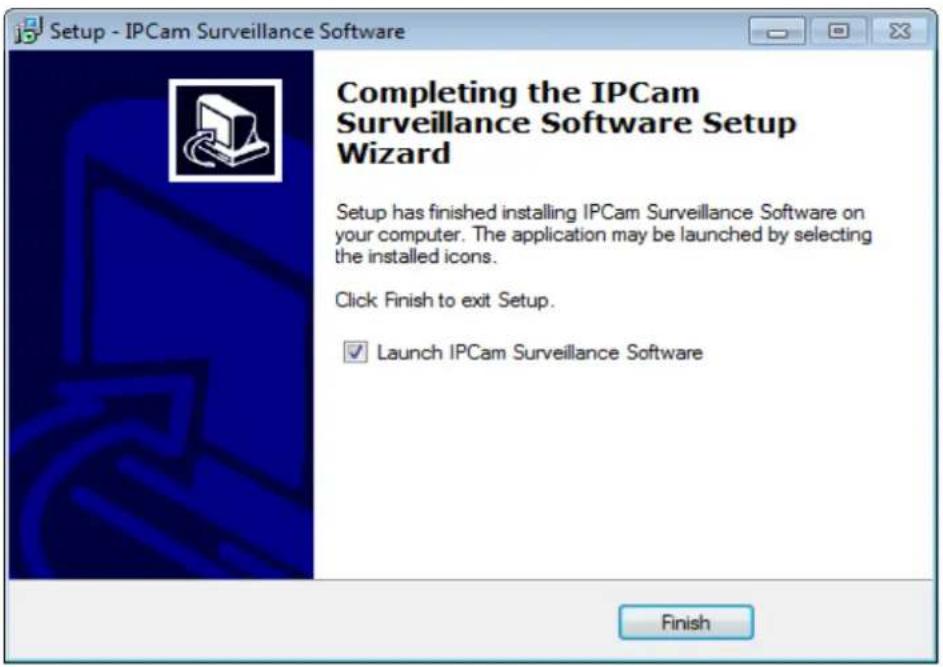
Setup - IPCam Surveillance Software Installing Please wait while Setup installs IPCam Surveillance Software on your computer. Extracting files... C:\Program Files\Internet Camera\Viewer\MSVCP71.DLL Cancel- Installation is complete when you see this message. You can click 'Finish' to finish installation procedure and launch utility, or uncheck 'Launch IPCam Surveillance Software' box before you click 'Finish' button if you don't want to launch software after installation is complete.
text_image
Setup - IPCam Surveillance Software Completing the IPCam Surveillance Software Setup Wizard Setup has finished installing IPCam Surveillance Software on your computer. The application may be launched by selecting the installed icons. Click Finish to exit Setup. ✓ Launch IPCam Surveillance Software Finish9.2 Using the Network Camera Surveillance Software
You can click ‘IPCam Surveillance Software’ icon from desktop, quick launch bar, or start menu to start the IP camera surveillance software.
Before you start:
IP camera surveillance software will only work when your monitor's resolution is '1024 x 768'. Please change the resolution before you use IP camera surveillance software, or it won't start.
Here are descriptions for all components of IP camera surveillance software:

text_image
Video displaying area 1 No Signal 2 No Signal 3 No Signal 4 No Signal 5 No Signal 6 No Signal 7 No Signal 8 No Signal 9 No Signal 10 No Signal 11 No Signal 12 No Signal 13 No Signal 14 No Signal 15 No Signal 16 No Signal System Event Log Language Display layout Full screen / Scan Zoom Out / Zoom In PTZ Control / Home Message display box Recording / System configure Playback / Snap shot Close window (stop surveillance) / Minimize window 71You can put the mouse cursor on a certain component and see its button name, and here're detailed descriptions of all buttons:
| Item | Description |
| Video displaying area | The image of all connected cameras will be displayed here. |
| Language | Select a language from this dropdown menu to change display language. |
Display layout  | Change camera image display layout (Click a layout icon to change camera display layout). There are 8 kinds of available display layouts. |
Full screen  | Click this button to switch to full screen mode (only display all camera's image), press 'ESC' key to quit full screen mode. |
Scan  | Click this button and the IP camera surveillance software will switch displaying the image of all connected camera automatically. Click this button once to activate scan function (scan icon will become blue), click again to stop scanning (scan icon will become white) |
Zoom out  | Zoom-out (To see more objects). This function is only available for supported cameras. |
Zoom In  | Zoom-in (Too see more details). This function is only available for supported cameras. |
PTZ control  | There are 8 directions in PTZ control ring. If the camera you connect support PTZ, you can use PTZ control ring to change the direction that camera points to. This function is only available for supported cameras. |
Home  | Click this button to return the camera to 'Home' (default) position. This function is only available for supportedcameras. |
Recording  | Start video recording. |
Configure  | Software / camera configuration. |
Playback  | Playback a recorded video file. |
Snapshot  | Take a snapshot of current camera. |
| Message display | Displays all system messages like camera is disconnected etc. |
Close window (stop surveillance)  | Terminates IP camera surveillance software. |
Minimize window  | Minimizes IP camera surveillance software window. |
| Video displaying area | Displays the image of all cameras by the display layout you selected. |
9.3 Configuring the Network Camera Surveillance Software
9.3.1 Camera Configuration
Before you use this IP camera surveillance software, you must configure the camera(s) you wish to connect. Please click 'System configure' button and a popup menu will appear:
Configure Cameras General Options
Please select 'Configure Cameras' to configure cameras:
Note: If you're prompted by a windows security alert which asks you if you want to block 'IPCamViewer' program, please click 'Unblock' button, of IP camera surveillance software will not be able to function correctly.

text_image
Windows Security Alert To help protect your computer, Windows Firewall has blocked some features of this program. Do you want to keep blocking this program? Name: IPCamViewer Publisher: Unknown Keep Blocking Unlock Ask Me Later Windows Firewall has blocked this program from accepting connections from the Internet or a network. If you recognize the program or trust the publisher, you can unblock it. When should I unlock a program?9.3.1.1 "Camera" Settings
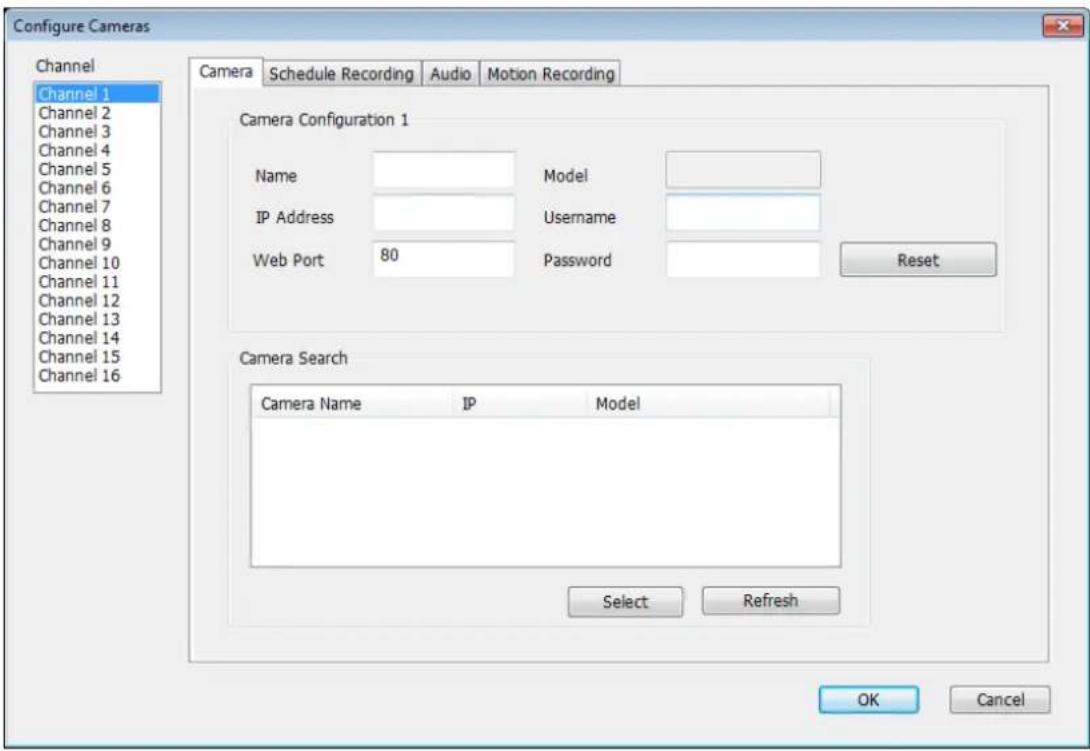
In this tab you can configure all cameras you wish to connect. Up to 16 cameras can be connected simultaneously:
text_image
Configure Cameras Channel Channel 1 Channel 2 Channel 3 Channel 4 Channel 5 Channel 6 Channel 7 Channel 8 Channel 9 Channel 10 Channel 11 Channel 12 Channel 13 Channel 14 Channel 15 Channel 16 Camera Schedule Recording Audio Motion Recording Camera Configuration 1 Name Model IP Address Username Web Port 80 Password Reset Camera Search Camera Name IP Model Select Refresh OK CancelHere are the descriptions of all setting items:
| Item | Description |
| Channel | Select the channel number you wish to set. |
| Camera Search | All cameras found on your local network will be displayed in ‘Camera Search’ box. |
| Select | Select a camera listed in ‘Camera Search’ box, and click ‘Select’ button to fill all parameters of selected camera in every camera configuration fields. |
| Refresh | Rescan all cameras on your local network. If you didn’t see the camera you expected in ‘Camera Search’ box, or new cameras has been joined to your local network after last scan. |
| Name* | Input the name of camera here. Default valueis the first 6 bytes of camera's MAC address, you can change the name of camera so you can remember the camera's location of purpose easily. |
| Model | Displays the model of selected camera, this field can not be changed. |
| IP* | Input the IP address of camera. |
| Username* | Input the user name of camera. |
| Web Port* | Input the web port of the camera. By default it's '80'. |
| Password | Input the password of camera. Default value is '1234'. You should change the password if you changed the password of selected camera. |
| Video Format** | Select the video encoding format of this camera (MJPEG or MPEG4). |
| Reset | Clear all fields in 'Camera Configuration' section. |
| OK | Save settings in this tab. |
| Cancel | Discard all settings in this tab. |
*: It's recommended to use 'Select' button to fill the content of this field.
**: Only available for cameras support this function.
After you've set all channels you wish to set, click 'OK' to save settings, and if everything's correct, you'll see the camera's image in IP camera surveillance software's main menu:

text_image
2009.37.08 18:33:04 2 No Signal 3 No Signal 4 No Signal System Event Log9.3.1.2 Scheduled Recording
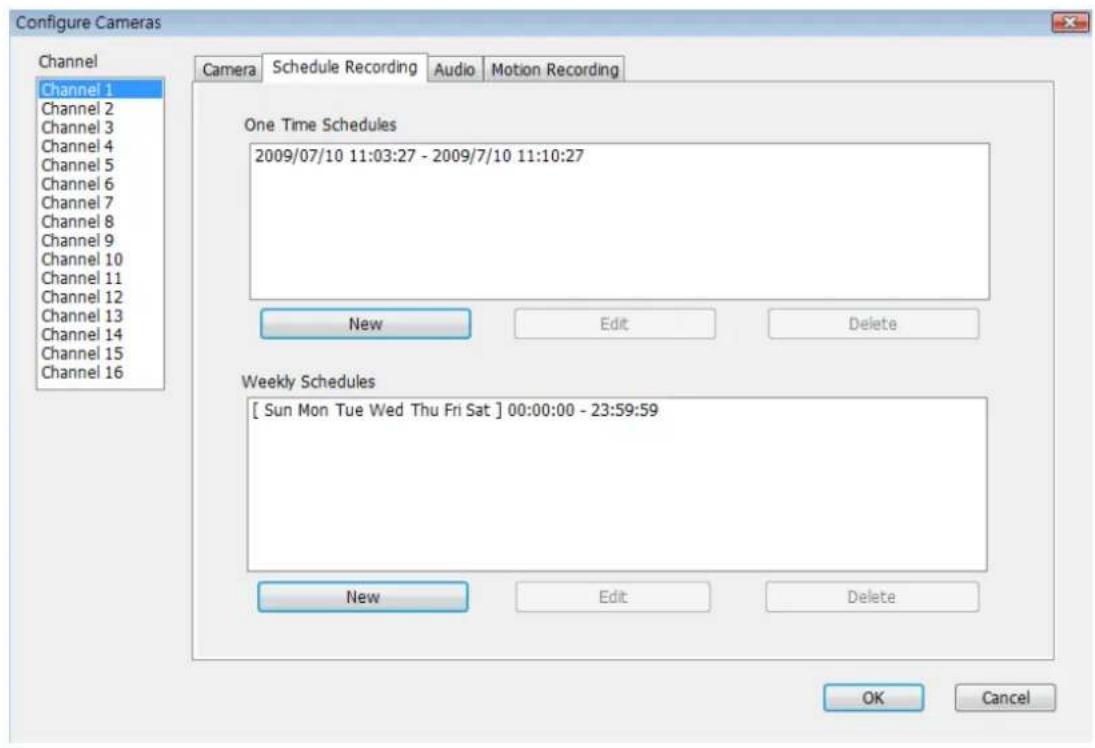
In this tab, you can setup scheduled video recording, so you can record the video captured by all cameras you have by a pre-defined schedule.
text_image
Configure Cameras Channel Channel 1 Channel 2 Channel 3 Channel 4 Channel 5 Channel 6 Channel 7 Channel 8 Channel 9 Channel 10 Channel 11 Channel 12 Channel 13 Channel 14 Channel 15 Channel 16 Camera Schedule Recording Audio Motion Recording One Time Schedules 2009/07/10 11:03:27 - 2009/7/10 11:10:27 New Edit Delete Weekly Schedules [ Sun Mon Tue Wed Thu Fri Sat ] 00:00:00 - 23:59:59 New Edit Delete OK CancelHere are the descriptions of all setting items:
| Item | Description |
| Channel | Select the channel number you wish to set. |
| One Time Schedules | You can specify the one-time schedule for selected camera; this schedule will be executed once only. |
| New (One Time Schedules) | Click this button and a new window will appear: Please specify the time duration of this one-time schedule (the date and time of ‘From’ and ‘To’), then click ‘OK’ to save settings.Please note you must set a schedule that will be happened in the future, you can not set a schedule in the past. Please specify the time duration of this one-time schedule (the date and time of ‘From’ and ‘To’), then click ‘OK’ to save settings.Please note you must set a schedule that will be happened in the future, you can not set a schedule in the past. |
| Edit | You can modify a scheduled recording item. Select a schedule in ‘One Time Schedules’ list, and click ‘Edit’ button to edit the start and end time of this schedule. |
| Delete | Delete a selected schedule item. |
| New(Weekly Schedules) | Click this button and a new window will appear: You can define recording schedule that will be executed at the specified time of certain weekday(s) in a week. Please check all weekdays that applies, and set the start time in ‘From’ field. You can set theduration of video recording in ‘Period’ field (format is HH:MM:SS), and the end time will be calculated automatically and displayed in ‘To’ field. You can also click ‘All Time Record’ button to define a recording schedule that will be executed every weekday, from 12:00:00AM to 11:59:59PM.Click ‘OK’ to save changes. You can define recording schedule that will be executed at the specified time of certain weekday(s) in a week. Please check all weekdays that applies, and set the start time in ‘From’ field. You can set theduration of video recording in ‘Period’ field (format is HH:MM:SS), and the end time will be calculated automatically and displayed in ‘To’ field. You can also click ‘All Time Record’ button to define a recording schedule that will be executed every weekday, from 12:00:00AM to 11:59:59PM.Click ‘OK’ to save changes. |
| Edit | You can modify a scheduled recording item. Select a schedule in ‘One Time Schedules’ list, and click ‘Edit’ button to edit the start and end time of this schedule. |
| Delete | Delete a selected schedule item. |
| OK | Save settings in this tab. |
| Cancel | Discard all settings in this tab. |
9.3.1.3 Audio
For cameras that support audio, you can use this tab to decide if you wish to hear the audio captured by selected camera.

text_image
Configure Cameras Channel Channel 1 Channel 2 Channel 3 Channel 4 Channel 5 Channel 6 Channel 7 Channel 8 Channel 9 Channel 10 Channel 11 Channel 12 Channel 13 Channel 14 Channel 15 Channel 16 Camera Schedule Recording Audio Motion Recording Audio ✓ Mute Audio □ Record Video Only OK CancelHere are the descriptions of all setting items:
| Item | Description |
| Channel | Select the channel number you wish to set. |
| Mute Audio | Check this box and the IP camera surveillance software will not play the audio captured by this camera. |
| Record Video Only | Check this box and the IP camera surveillance software will not record the audio captured by this camera. |
| OK | Save settings in this tab. |
| Cancel | Discard all settings in this tab. |
9.3.1.4 Motion-Triggered Recording
With this function activated, only motions captured by the camera will be recorded, so you don't have to waste hard disk storage space on images you don't need to pay attention to.
WARNING: For applications that security is highly concerned, it's not recommended to use this function since some tiny changes you may need to know may not be able to trigger the camera and the camera will not start recording.

text_image
Configure Cameras Channel Channel 1 Channel 2 Channel 3 Channel 4 Channel 5 Channel 6 Channel 7 Channel 8 Channel 9 Channel 10 Channel 11 Channel 12 Channel 13 Channel 14 Channel 15 Channel 16 Camera Schedule Recording Audio Motion Recording Motion Record Enable Disable Recording Time 10 seconds Invoke alarm when motion is triggered Send mail when motion is triggered OK CancelHere are the descriptions of all setting items:
| Item | Description |
| Channel | Select the channel number you wish to set. |
| Enable | Enable motion record function. |
| Disable | Disable motion record function. |
| Recording Time | Select the time duration that camera will record when a motion has been detected from dropdown menu in seconds. |
| Invoke alarm | Send an alarm when a motion has been |
| when motion is triggered | detected by the camera. |
| Send mail when motion is triggered | Send an email to a pre-defined address when a motion has been detected by the camera. |
| OK | Save settings in this tab. |
| Cancel | Discard all settings in this tab. |
9.3.2 General Settings
You can set system-wide settings of this IP camera surveillance software in this menu.
9.3.2.1 General
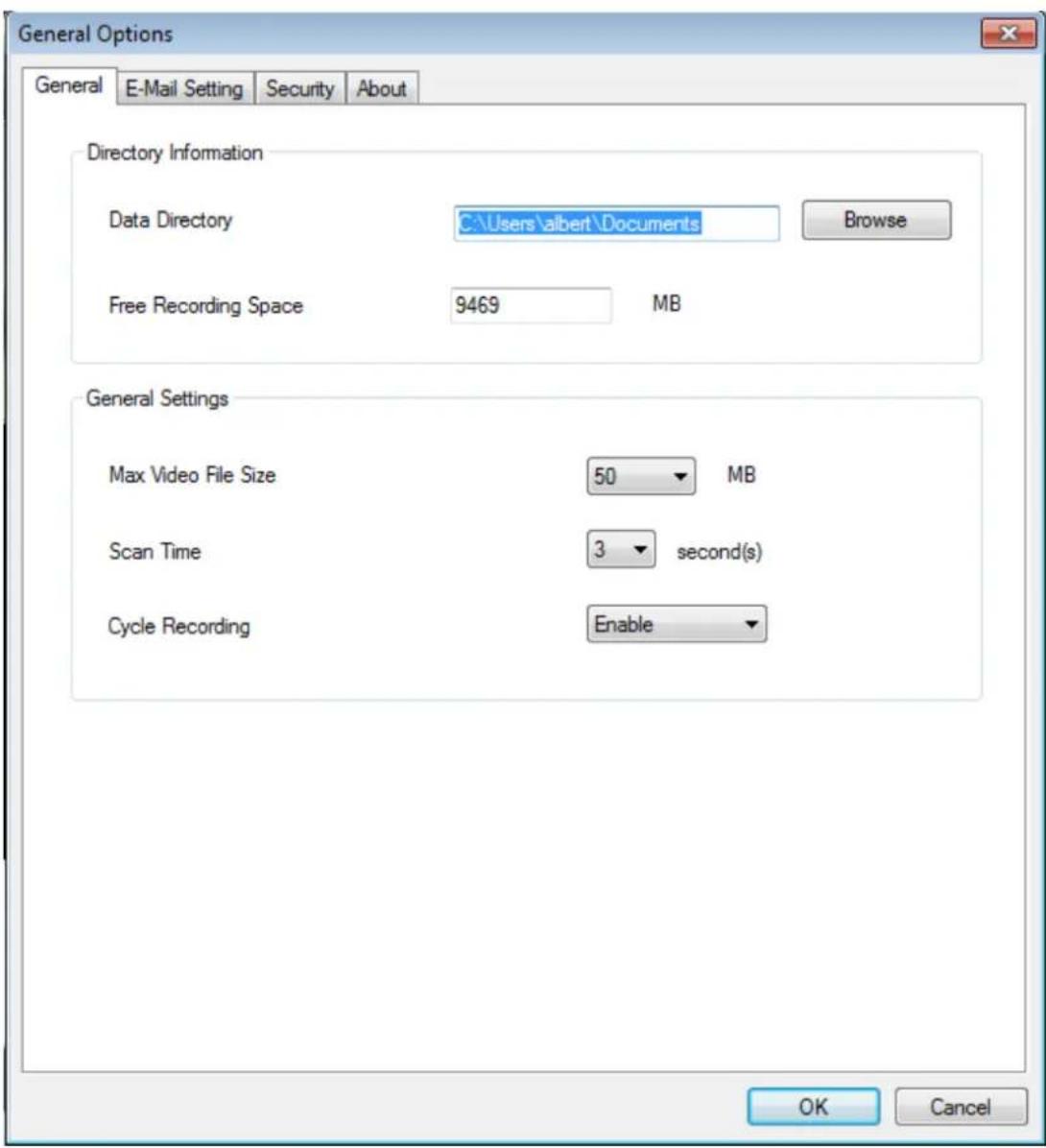
All general settings like file storage directory and recording spaces can be set here.
text_image
General Options General E-Mail Setting Security About Directory Information Data Directory C:\Users\albert\Documents Browse Free Recording Space 9469 MB General Settings Max Video File Size 50 MB Scan Time 3 second(s) Cycle Recording Enable OK CancelHere are the descriptions of all setting items:
| Item | Description |
| Data Directory | Set the directory (folder) you wish to store the recorded video and captured image. You can click ‘Browse’ button to pick a directory in your hard disk. |
| Free Recording Space | Displays remaining storage space. |
| Max Video File Size | Defines the maximum file size of every video file. When the size of file exceeds this value, IP camera surveillance software will open another file to record the video. |
| Scan Time | Define the time period to pause between every camera switch when you activate ‘Scan’ function. |
| Cycle Recording | You can decide the behavior when hard disk space is full:Disable: Do not overwrite recorded video files. Enable: Overwrite recorded video files. |
| OK | Save settings in this tab. |
| Cancel | Discard all settings in this tab. |
9.3.2.2 Email Setting
If you want to use motion detection function and wish to get an email that contains the image captured by the camera, please setup your email related parameters here first.

text_image
General Options General E-Mail Setting Security About E-Mail Subject Recipient E-Mail Address New Edit Delete Sender E-Mail Address SMTP Server SMTP Port 25 SMTP Auth Enable Disable SMTP Account SMTP Password OK CancelHere are the descriptions of all setting items:
| Item | Description |
| E-Mail Subject | Specify the subject of sending email. |
| Recipient E-Mail | Here lists all email addresses you set. |
| Address | |
| New | Click this button and you’ll be prompted to input the email address. Click ‘OK’ to save changes. |
| Edit | Select an email address from ‘Recipient E-Mail Address’ box, and click ‘Edit’ to edit the email address. |
| Delete | Delete selected email address. |
| Sender E-Mail Address | Specify the email address of email sender. |
| SMTP Server | Specify the IP address or host name of the SMTP server you wish to use. For most of ISPs they will only allow its subscriber to use their SMTP server, if you don’t know which SMTP server you should use, please refer to the setting of your email software or ask your ISP / network administrator. |
| SMTP port | Specify the port number of the SMTP server you wish to use here. By default (and the setting of most of SMTP servers) it’s ‘25’. |
| SMTP Auth | Select ‘Enable’ if your SMTP server requires authentication, select ‘Disable’ if it’s not required. If you don’t know if your SMTP server requires authentication, please refer to the setting of your email software or ask your ISP / network administrator. |
| SMTP Account | Input the SMTP account (username) of your SMTP server here. In most cases, it’s the same with your POP3 username (the one you usedto receive email). Please refer to the setting of your email software or ask your ISP / network administrator if you’re not sure about this. |
| SMTP Password | Input the SMTP password of your SMTP server here. In most cases, it’s the same with your POP3 password (the one you used to receive email). Please refer to the setting of your email software or ask your ISP / network administrator if you’re not sure about this. |
| OK | Save settings in this tab. |
| Cancel | Discard all settings in this tab. |
9.3.2.3 Security
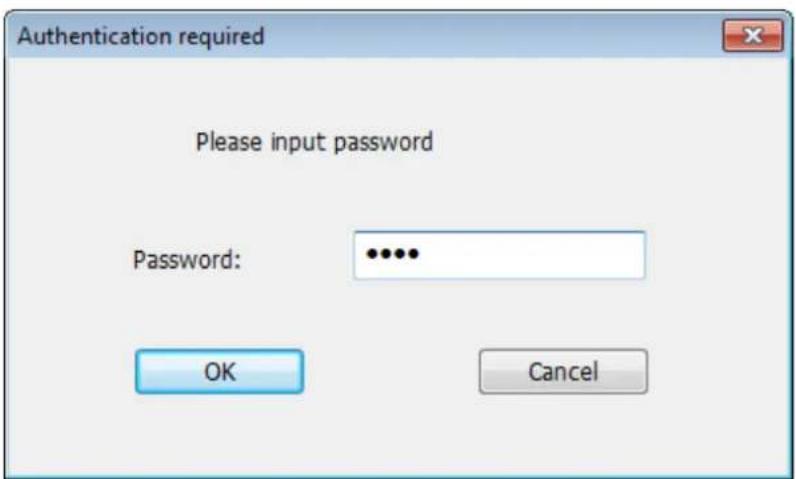
If you don't want other people to access this IP camera surveillance software, you can set a password to protect it.
You'll need to input the password every time you wish to use this IP camera surveillance software:
text_image
Authentication required Please input password Password: OK CancelTo set password, please use 'Security' tab in 'General Options' menu:

text_image
General Options General E-Mail Setting Security About Security Enable Disable Password I Confirm Password OK CancelHere are the descriptions of all setting items:
| Item | Description |
| Enable | Requires password authentication when this software starts. |
| Disable | Password authentication is not required when this software starts. |
| Password | Input the password you wish to use here. |
| Confirm Password | Input the password you wish to use here again. |
9.3.2.4 About
This tab shows the version number of the IP camera surveillance software you're using.

text_image
General Options General E-Mail Setting Security About IP Camera Surveillance Software Information Version: v3.0.3.9 OK Cancel9.4 Changing the Display Layout
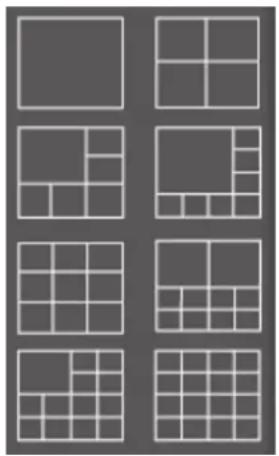
This IP camera surveillance software provides 8 kinds of display layout:
natural_image
Grid of nine identical gray squares arranged in 3x3 pattern, no text or symbols presentEvery layout displays different number of camera and camera arrangement, you can click the icon that presents a specific kind of layout, and the video displaying area will change accordingly.
Layout style1: 1 Camera only | Displays the video of 1 camera only. | |
Layout style2: 4 Cameras | Displays the video of up to 4 cameras. | |
Layout style3: 6 Cameras | Displays the video of up to 6 cameras. | |
Layout style4: 8 Cameras | Displays the video of up to 8 cameras. | |
Layout style5: 9 Cameras | Displays the video of up to 9 cameras. | |
Layout style6: 10 Cameras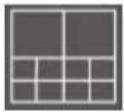 | Displays the video of up to 10 cameras. | |
Layout style7: 13 Cameras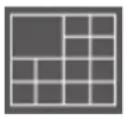 | Displays the video of up to 13 cameras. | |
Layout style8: 16 Cameras | Displays the video of up to 16 cameras. | |
9.5 Full-Screen Mode
If you want to use all available spaces on your monitor to display surveillance image, you can click 'Full Screen' button to switch display mode to full-screen mode.
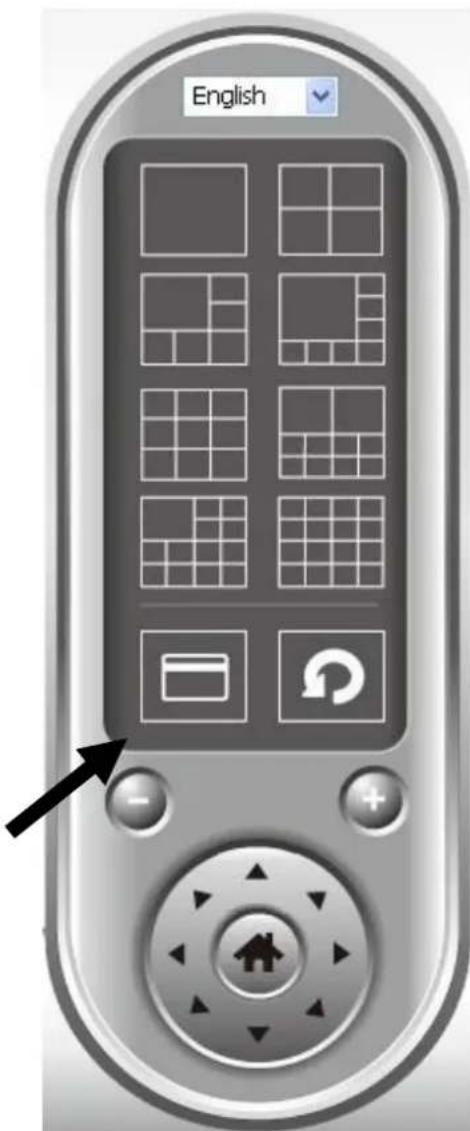
text_image
EnglishTo exit full-screen mode, press 'ESC' key.
9.6 Scan
If you have more than one camera configured, and you wish to switch the displaying image between cameras, you can click 'Scan' button to switch between all configured cameras.
NOTE: If a camera is configured but disconnected, it will still be displayed in a scan sequence (you'll see nothing and you'll see 'Disconnected' text displayed at the upper-left corner of display image).

text_image
EnglishClick 'Scan' button once to activate scan function (scan icon will become blue), click again to stop scanning (scan icon will become white)
9.7 Zoom-In/Zoom-Out
For cameras that support zoom-in / zoom-out function, you can use this function to see more objects that fall in the scope of camera's view, or enlarge the image size of a certain object to see its detail.

text_image
EnglishPlease select a camera in video displaying area by clicking on its image, then click button to see more objects that fall in the scope of camera's view, or click to enlarge the image size of a certain object to see its detail (Before zoom-in, you may need to use PTZ buttons - described in next section) to find an object you wish to see its detail).
9.8 PTZ
For cameras that support pan - tilt function, you can change the position that camera points to, to see different places that fall in the scope of camera's view.

text_image
EnglishPlease select a camera in video displaying area by clicking on its image, and then click the directions you wish the camera to move to (total 8 directions available). Click 'Home' button () to return to camera's home (default) position.
9.9 Snapshot
You can take a snapshot of selected camera and save it to 'Snapshot' sub-folder of pre-defined data directory.
natural_image
User interface buttons including video camera, wrench, play button, and camera (no text or symbols)Click snapshot button once to take a snapshot; you can take as much snapshot as you want before hard disk is full.
9.10 Recording
You can start video recording of selected camera manually by clicking 'Start Recording' button:
natural_image
Four gray button icons with icons (camera, wrench, play, camera) arranged in a 2x2 grid, no text or symbols present.When recording starts, you'll see a message displayed in message displaying box like '1/1 10:00:00, Camera 2 Start Manual', which means camera 1 starts recording manually on 1/1 at 10:00:00.
To stop recording, click ‘Start Recording’ button again, and you’ll see a message displayed in message displaying box like ‘1/1 10:00:00, Camera 2 Stop Manual’.
9.11 Video Playback
You can playback all recorded video by clicking this button.
natural_image
Four gray button icons with icons (camera, wrench, play, camera) arranged in a 2x2 grid, no text or symbols present.A new window will appear:
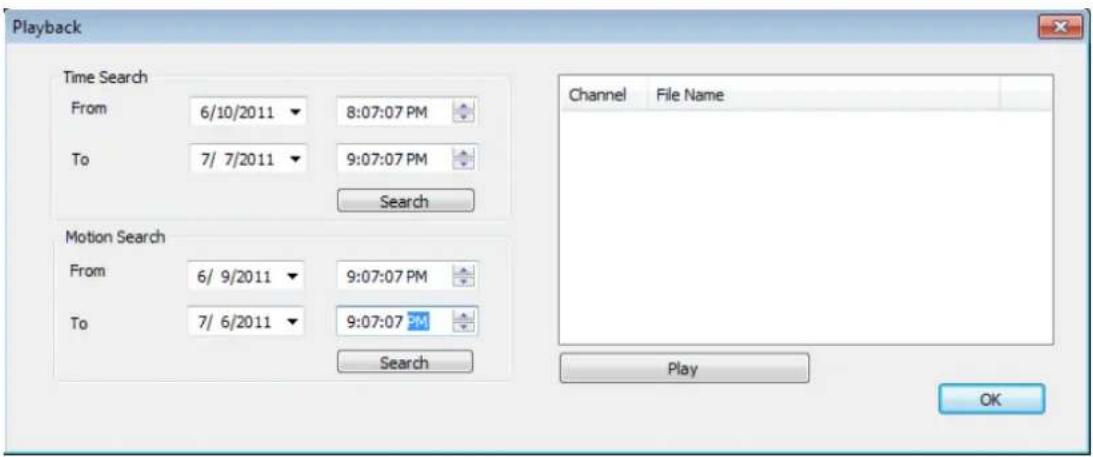
text_image
Playback Time Search From 6/10/2011 ▼ 8:07:07 PM To 7/ 7/2011 ▼ 9:07:07 PM Search Motion Search From 6/ 9/2011 ▼ 9:07:07 PM To 7/ 6/2011 ▼ 9:07:07 PM Search Channel File Name Play OKYou have to search the video file before you can play it. There are two kinds of video search: Time Search (search all videos file that falls in a specific period of time) and Motion Search (search all videos recorded by motion detection function and falls in a specific period of time).
Please define the start and end date / time of the time period you wish to search, and then click ‘Search’ button (of ‘Time Search’ of ‘Motion’ Search’). All found videos will be displayed, select the video you wish to play and click ‘Play’ button to playback.
Chapter X: Appendix
10.1 Troubleshooting
Please don't panic when you found this IP Camera is not working properly. Before you send this IP Camera back to us, you can do some simple checks to save your time:
| Problem description | Possible solution(s) |
| Can’t connect to IP Camera | 1) Please check the IP address of IP Camera again.2) Please make sure the network cable is correctly connected to your local area network.3) Please make sure power cable is correctly connected to IP Camera.4) Please make sure IP Camera is switched on (the LED lights on IP Camera will light up), if LED lights are not switched off by configuration menu (System -> Basic -> LED light). |
| No IP Camera found | 1) ‘Auto search’ function only works on IP Cameras located on local area network. |
| No image | 1) If the place where IP camera is installed is too dark, try to add some lights when possible.2) Check if there’s anything covering the lens. |
Federal Communication Commission Interference Statement
This equipment has been tested and found to comply with the limits for a Class B digital device, pursuant to Part 15 of FCC Rules. These limits are designed to provide reasonable protection against harmful interference in a residential installation. This equipment generates, uses, and can radiate radio frequency energy and, if not installed and used in accordance with the instructions, may cause harmful interference to radio communications. However, there is no guarantee that interference will not occur in a particular installation. If this equipment does cause harmful interference to radio or television reception, which can be determined by turning the equipment off and on, the user is encouraged to try to correct the interference by one or more of the following measures:
- Reorient or relocate the receiving antenna.
- Increase the separation between the equipment and receiver.
- Connect the equipment into an outlet on a circuit different from that to which the receiver is connected.
- Consult the dealer or an experienced radio technician for help.
FCC Caution
This device and its antenna must not be co-located or operating in conjunction with any other antenna or transmitter. This device complies with Part 15 of the FCC Rules. Operation is subject to the following two conditions: (1) this device may not cause harmful interference, and (2) this device must accept any interference received, including interference that may cause undesired operation. Any changes or modifications not expressly approved by the party responsible for compliance could void the authority to operate equipment.
Federal Communications Commission (FCC) Radiation Exposure Statement
This equipment complies with FCC radiation exposure set forth for an uncontrolled environment. In order to avoid the possibility of exceeding the FCC radio frequency exposure limits, human proximity to the antenna shall not be less than 2.5cm (1 inch) during normal operation.
Federal Communications Commission (FCC) RF Exposure Requirements
SAR compliance has been established in the laptop computer(s) configurations with PCMCIA slot on the side near the center, as tested in the application for certification, and can be used in laptop computer(s) with substantially similar physical dimensions, construction, and electrical and RF characteristics. Use in other devices such as PDAs or lap pads is not authorized. This transmitter is restricted for use with the specific antenna tested in the application for certification. The antenna(s) used for this transmitter must not be co-located or operating in conjunction with any other antenna or transmitter.
R&TTE Compliance Statement
This equipment complies with all the requirements of DIRECTIVE 1999/5/EC OF THE EUROPEAN PARLIAMENT AND THE COUNCIL of March 9, 1999 on radio equipment and telecommunication terminal equipment and the mutual recognition of their conformity (R&TTE). The R&TTE Directive repeals and replaces in the directive 98/13/EEC (Telecommunications Terminal Equipment and Satellite Earth Station Equipment) As of April 8, 2000.
Safety
This equipment is designed with the utmost care for the safety of those who install and use it. However, special attention must be paid to the dangers of electric shock and static electricity when working with electrical equipment. All guidelines of this and of the computer manufacture must therefore be allowed at all times to ensure the safe use of the equipment.
EU Countries Intended for Use
The ETSI version of this device is intended for home and office use in Austria, Belgium, Bulgaria, Cyprus, Czech, Denmark, Estonia, Finland, France, Germany, Greece, Hungary, Ireland, Italy, Latvia, Lithuania, Luxembourg, Malta, Netherlands, Poland, Portugal, Romania, Slovakia, Slovenia, Spain, Sweden, Turkey, and United Kingdom. The ETSI version of this device is also authorized for use in EFTA member states: Iceland, Liechtenstein, Norway, and Switzerland.
EU Countries Not Intended for Use
None
Declaration of Conformity
We, Edimax Technology Co., Ltd., declare under our sole responsibility, that the equipment described below complies with the requirements of the European R&TTE directive (2006/95/EC).
Equipment : 1.3Mpx Wireless Network Camera
Model No.: IC-3015Wn
Report No.: EA161515 EH161515 ER161515AC ER161515AI
L161515L356
The following European standards for essential requirements have been followed:
EN 50385:2002
EN 301 489-1 V1.8.1 (2008-04)
EN 301 489-17 V2.1.1 (2009-05)
ETSI EN 300 328 V1.7.1 (2006-10)
IEC 60950-1: 2005 ( 2^nd Edition)
EN 60950-1: 2006+A11:2009
Edimax Technology Co., Ltd.
No. 3, Wu-Chuan 3rd Road,
Wu-Gu Industrial Area
New Taipei City 248, Taiwan (R.O.C)

text_image
CE®Date of Signature : Oct, 2011
Signature : Alu
Printed Name : Albert Chang
Title : Director
Edimax Technology Co., Ltd.
Notice According to GNU General Public License Version 2
This product includes software that is subject to the GNU General Public License version 2. The program is free software and distributed without any warranty of the author. We offer, valid for at least three years, to give you, for a charge no more than the costs of physically performing source distribution, a complete machine-readable copy of the corresponding source code.
Version 2, June 1991
Copyright (C) 1989, 1991 Free Software Foundation, Inc. 51 Franklin Street, Fifth Floor, Boston, MA 02110-1301, USA Everyone is permitted to copy and distribute verbatim copies of this license document, but changing it is not allowed.
Preamble
The licenses for most software are designed to take away your freedom to share and change it. By contrast, the GNU General Public License is intended to guarantee your freedom to share and change free software--to make sure the software is free for all its users. This General Public License applies to most of the Free Software Foundation's software and to any other program whose authors commit to using it. (Some other Free Software Foundation software is covered by the GNU Lesser General Public License instead.) You can apply it to your programs, too.
When we speak of free software, we are referring to freedom, not price. Our General Public Licenses are designed to make sure that you have the freedom to distribute copies of free software (and charge for this service if you wish), that you receive source code or can get it if you want it, that you can change the software or use pieces of it in new free programs; and that you know you can do these things.
To protect your rights, we need to make restrictions that forbid anyone to deny you these rights or to ask you to surrender the rights. These restrictions translate to certain responsibilities for you if you distribute copies of the software, or if you modify it.
For example, if you distribute copies of such a program, whether gratis or for a fee, you must give the recipients all the rights that you have. You must make sure that they, too, receive or can get the source code. And you must show them these terms so they know their rights.
We protect your rights with two steps: (1) copyright the software, and (2) offer you this license which gives you legal permission to copy, distribute and/or modify the software.
Also, for each author's protection and ours, we want to make certain that everyone understands that there is no warranty for this free software. If the software is modified by someone else and passed on, we want its recipients to know that what they have is not the original, so that any problems introduced by others will not reflect on the original authors' reputations.
Finally, any free program is threatened constantly by software patents. We wish to avoid the danger that redistributors of a free program will individually obtain patent licenses, in effect making the program proprietary. To prevent this, we have made it clear that any patent must be licensed for everyone's free use or not licensed at all.
The precise terms and conditions for copying, distribution and modification follow.
TERMS AND CONDITIONS FOR COPYING, DISTRIBUTION AND MODIFICATION
- This License applies to any program or other work which contains a notice placed by the copyright holder saying it may be distributed under the terms of this General Public License. The “Program”, below, refers to any such program or work, and a “work based on the Program” means either the Program or any derivative work under copyright law: that is to say, a work containing the Program or a portion of it, either verbatim or with modifications and/or translated into another language. (Hereinafter, translation is included without limitation in the term “modification”.) Each licensee is addressed as “you”.
Activities other than copying, distribution and modification are not covered by this License; they are outside its scope. The act of running the Program is not restricted, and the output from the Program is covered only if its contents constitute a work based on the Program (independent of having been made by running the Program). Whether that is true depends on what the Program does.
- You may copy and distribute verbatim copies of the Program's source code as you receive it, in any medium, provided that you conspicuously and appropriately publish on each copy an appropriate copyright notice and disclaimer of warranty; keep
intact all the notices that refer to this License and to the absence of any warranty; and give any other recipients of the Program a copy of this License along with the Program.
You may charge a fee for the physical act of transferring a copy, and you may at your option offer warranty protection in exchange for a fee.
- You may modify your copy or copies of the Program or any portion of it, thus forming a work based on the Program, and copy and distribute such modifications or work under the terms of Section 1 above, provided that you also meet all of these conditions:
a) You must cause the modified files to carry prominent notices stating that you changed the files and the date of any change.
b) You must cause any work that you distribute or publish, that in whole or in part contains or is derived from the Program or any part thereof, to be licensed as a whole at no charge to all third parties under the terms of this License.
c) If the modified program normally reads commands interactively when run, you must cause it, when started running for such interactive use in the most ordinary way, to print or display an announcement including an appropriate copyright notice and a notice that there is no warranty (or else, saying that you provide a warranty) and that users may redistribute the program under these conditions, and telling the user how to view a copy of this License. (Exception: if the Program itself is interactive but does not normally print such an announcement, your work based on the Program is not required to print an announcement.)
These requirements apply to the modified work as a whole. If identifiable sections of that work are not derived from the Program, and can be reasonably considered independent and separate works in themselves, then this License, and its terms, do not apply to those sections when you distribute them as separate works. But when you distribute the same sections as part of a whole which is a work based on the Program, the distribution of the whole must be on the terms of this License, whose permissions for other licensees extend to the entire whole, and thus to each and every part regardless of who wrote it.
Thus, it is not the intent of this section to claim rights or contest your rights to work written entirely by you; rather, the intent is to exercise the right to control the distribution of derivative or collective works based on the Program.
In addition, mere aggregation of another work not based on the Program with the Program (or with a work based on the Program) on a volume of a storage or distribution medium does not bring the other work under the scope of this License.
- You may copy and distribute the Program (or a work based on it, under Section 2) in object code or executable form under the terms of Sections 1 and 2 above provided that you also do one of the following:
a) Accompany it with the complete corresponding machine-readable source code, which must be distributed under the terms of Sections 1 and 2 above on a medium customarily used for software interchange; or,
b) Accompany it with a written offer, valid for at least three years, to give any third party, for a charge no more than your cost of physically performing source distribution, a complete machine-readable copy of the corresponding source code, to be distributed under the terms of Sections 1 and 2 above on a medium customarily used for software interchange; or,
c) Accompany it with the information you received as to the offer to distribute corresponding source code. (This alternative is allowed only for noncommercial distribution and only if you received the program in object code or executable form with such an offer, in accord with Subsection b above.)
The source code for a work means the preferred form of the work for making modifications to it. For an executable work, complete source code means all the source code for all modules it contains, plus any associated interface definition files, plus the scripts used to control compilation and installation of the executable. However, as a special exception, the source code distributed need not include anything that is normally distributed (in either source or binary form) with the major components (compiler, kernel, and so on) of the operating system on which the executable runs, unless that component itself accompanies the executable.
If distribution of executable or object code is made by offering access to copy from a designated place, then offering equivalent access to copy the source code from the same place counts as distribution of the source code, even though third parties are not compelled to copy the source along with the object code.
-
You may not copy, modify, sublicense, or distribute the Program except as expressly provided under this License. Any attempt otherwise to copy, modify, sublicense or distribute the Program is void, and will automatically terminate your rights under this License. However, parties who have received copies, or rights, from you under this License will not have their licenses terminated so long as such parties remain in full compliance.
-
You are not required to accept this License, since you have not signed it. However, nothing else grants you permission to modify or distribute the Program or its derivative works. These actions are prohibited by law if you do not accept this License. Therefore, by modifying or distributing the Program (or any work based on the Program), you indicate your acceptance of this License to do so, and all its terms and conditions for copying, distributing or modifying the Program or works based on it.
-
Each time you redistribute the Program (or any work based on the Program), the recipient automatically receives a license from the original licensor to copy, distribute or modify the Program subject to these terms and conditions. You may not impose any further restrictions on the recipients' exercise of the rights granted herein. You are not responsible for enforcing compliance by third parties to this License.
-
If, as a consequence of a court judgment or allegation of patent infringement or for any other reason (not limited to patent issues), conditions are imposed on you (whether by court order, agreement or otherwise) that contradict the conditions of this License, they do not excuse you from the conditions of this License. If you cannot distribute so as to satisfy simultaneously your obligations under this License and any other pertinent obligations, then as a consequence you may not distribute the Program at all. For example, if a patent license would not permit royalty-free redistribution of the Program by all those who receive copies directly or indirectly through you, then the only way you could satisfy both it and this License would be to refrain entirely from distribution of the Program.
If any portion of this section is held invalid or unenforceable under any particular circumstance, the balance of the section is intended to apply and the section as a whole is intended to apply in other circumstances.
It is not the purpose of this section to induce you to infringe any patents or other property right claims or to contest validity of any such claims; this section has the sole purpose of protecting the integrity of the free software distribution system, which is implemented by public license practices. Many people have made generous contributions to the wide range of software distributed through that system in reliance on consistent application of that system; it is up to the author/donor to decide if he or she is willing to distribute software through any other system and a licensee cannot impose that choice.
This section is intended to make thoroughly clear what is believed to be a consequence of the rest of this License.
-
If the distribution and/or use of the Program is restricted in certain countries either by patents or by copyrighted interfaces, the original copyright holder who places the Program under this License may add an explicit geographical distribution limitation excluding those countries, so that distribution is permitted only in or among countries not thus excluded. In such case, this License incorporates the limitation as if written in the body of this License.
-
The Free Software Foundation may publish revised and/or new versions of the General Public License from time to time. Such new versions will be similar in spirit to the present version, but may differ in detail to address new problems or concerns.
Each version is given a distinguishing version number. If the Program specifies a version number of this License which applies to it and “any later version”, you have the option of following the terms and conditions either of that version or of any later version published by the Free Software Foundation. If the Program does not specify a version number of this License, you may choose any version ever published by the Free Software Foundation.
- If you wish to incorporate parts of the Program into other free programs whose distribution conditions are different, write to the author to ask for permission. For software which is copyrighted by the Free Software Foundation, write to the Free Software Foundation; we sometimes make exceptions for this. Our decision will be guided by the two goals of preserving the free status of all derivatives of our free software and of promoting the sharing and reuse of software generally.
NO WARRANTY
-
BECAUSE THE PROGRAM IS LICENSED FREE OF CHARGE, THERE IS NO WARRANTY FOR THE PROGRAM, TO THE EXTENT PERMITTED BY APPLICABLE LAW. EXCEPT WHEN OTHERWISE STATED IN WRITING THE COPYRIGHT HOLDERS AND/OR OTHER PARTIES PROVIDE THE PROGRAM "AS IS" WITHOUT WARRANTY OF ANY KIND, EITHER EXPRESSED OR IMPLIED, INCLUDING, BUT NOT LIMITED TO, THE IMPLIED WARRANTIES OF MERCHANTABILITY AND FITNESS FOR A PARTICULAR PURPOSE. THE ENTIRE RISK AS TO THE QUALITY AND PERFORMANCE OF THE PROGRAM IS WITH YOU. SHOULD THE PROGRAM PROVE DEFECTIVE, YOU ASSUME THE COST OF ALL NECESSARY SERVICING, REPAIR OR CORRECTION.
-
IN NO EVENT UNLESS REQUIRED BY APPLICABLE LAW OR AGREED TO IN WRITING WILL ANY COPYRIGHT HOLDER, OR ANY OTHER PARTY WHO MAY MODIFY AND/OR REDISTRIBUTE THE PROGRAM AS PERMITTED ABOVE, BE LIABLE TO YOU FOR DAMAGES, INCLUDING ANY GENERAL, SPECIAL, INCIDENTAL OR CONSEQUENTIAL DAMAGES ARISING OUT OF THE USE OR INABILITY TO USE THE PROGRAM (INCLUDING BUT NOT LIMITED TO LOSS OF DATA OR DATA BEING RENDERED INACCURATE OR LOSSES SUSTAINED BY YOU OR THIRD PARTIES OR A FAILURE OF THE PROGRAM TO OPERATE WITH ANY OTHER PROGRAMS), EVEN IF SUCH HOLDER OR OTHER PARTY HAS BEEN ADVISED OF THE POSSIBILITY OF SUCH DAMAGES.
ΣDIMAX
NETWORKING PEOPLE TOGETHER
Edimax Technology Co., Ltd.
No.3, Wu-Chuan 3rd Road, Wu-Gu, New Taipei City 24891, Taiwan
Edimax Technology Europe B.V.