e-studio 222cp - Printer TOSHIBA - Free user manual and instructions
Find the device manual for free e-studio 222cp TOSHIBA in PDF.


User questions about e-studio 222cp TOSHIBA
0 question about this device. Answer the ones you know or ask your own.
Ask a new question about this device
Download the instructions for your Printer in PDF format for free! Find your manual e-studio 222cp - TOSHIBA and take your electronic device back in hand. On this page are published all the documents necessary for the use of your device. e-studio 222cp by TOSHIBA.
USER MANUAL e-studio 222cp TOSHIBA
Digital LED Colour Printer
User's Guide
e-STUDIO222CP
e-STUDIO262CP
natural_image
Illustration of a printer with digital display and control panel, set against a colorful abstract background (no text or symbols)PREFACE
Every effort has been made to ensure that the information in this document is complete, accurate, and up-to-date. The manufacturer assumes no responsibility for the results of errors beyond its control. The manufacturer also cannot guarantee that changes in software and equipment made by other manufacturers and referred to in this guide will not affect the applicability of the information in it. Mention of software products manufactured by other companies does not necessarily constitute endorsement by the manufacturer.
While all reasonable efforts have been made to make this document as accurate and helpful as possible, we make no warranty of any kind, expressed or implied, as to the accuracy or completeness of the information contained herein.
© 2011 TOSHIBA TEC CORPORATION All rights reserved
Energy Star is a trademark of the United States Environmental Protection Agency.
Microsoft, MS-DOS and Windows are registered trademarks of Microsoft Corporation.
Apple, Macintosh, Mac and Mac OS are registered trademarks of Apple Inc.
Other product names and brand names are registered trademarks or trademarks of their proprietors.

This product complies with the requirements of the Council Directives 2004/108/EC (EMC), 2006/95/EC (LVD), 1999/5/ EC (R&TTE) and 2009/125/EC (EuP), as amended where applicable on the approximation of the laws of the member states relating to electromagnetic compatibility, low voltage, radio & telecommunications terminal equipment, and energy using products.
The following cables were used to evaluate this product to achieve EMC directive 2004/108/EC compliance and configurations other than this may affect that compliance.
| CABLE TYPE LENGTH(METRE) | CORE SHIELD | |
| Power 1.8 | × | |
| USB 5.0 | ×√ | |
| LAN 15.0 | × | |
EMERGENCY FIRST AID
Take care with toner powder:
If swallowed, give small amounts of cold water and seek medical attention. DO NOT attempt to induce vomiting.

If inhaled, move the person to an open area for fresh air. Seek medical attention.
If it gets into the eyes, flush with large amounts of water for at least 15 minutes keeping eyelids open. Seek medical attention.
Spillages should be treated with cold water and soap to help reduce risk of staining skin or clothing.
IMPORTER TO THE EU/ AUTHORISED REPRESENTATIVE
CARL-SCHURZ-STRASSE 7
4146 NEUSS - GERMANY
TEL +49 (0) 2131 1245-0
FAX +49 (0) 2131 1245-402
ENVIRONMENTAL INFORMATION
ENERGY STAR® PROGRAM
Toshiba Tec Corporation, as a member of the ENERGY STAR Program, attaches the ENERGY STAR logo to all products which meet the ENERGY STAR Program requirements.

The ENERGY STAR Program aims at the promotion of the development and wider usage of office equipment including energy efficient computers in order to address environmental issues such as global warming. Manufacturers that participate in this program can attach the ENERGY STAR logo to products after confirming that they meet the energy saving standards of this program. Also, these standards and logo are commonly used within the U.S.Environmental Protection Agency (EPA) and participating countries.
Specified products, sales countries or regions may not be included.
To distinguish whether or not the product meets the ENERGY STAR Program requirements, check if the corresponding logo is on the product.
If you have any questions, contact your service representative.
DISCLAIMER NOTICE
The following notice sets out the exclusions and limitations of liability of TOSHIBA TEC CORPORATION (including its employees, agents and sub-contractors) to any purchaser or user ("User") of the e-STUDIO222CP/262CP including its accessories, options and bundled software ("Product").
- The exclusion and limitations of liability referred to in this notice shall be effective to the fullest extent permissible at law. For the avoidance of doubt, nothing in this notice shall be taken to exclude or limit TOSHIBA TEC CORPORATION's liability for death or personal injury caused by TOSHIBA TEC CORPORATION's negligence or TOSHIBA TEC CORPORATION's fraudulent misrepresentation.
- All warranties, conditions and other terms implied by law are, to the fullest extent permitted by law, excluded and no such implied warranties are given or apply in relation to the Products.
- TOSHIBA TEC CORPORATION shall not be liable for any loss, cost, expense, claim or damage whatsoever caused by any of the following:
(a) use or handling of the Product otherwise than in accordance with the manuals, including but not limited to Operator's Manual, User's Guide, and/or incorrect or careless handling or use of the Product;
(b) any cause which prevents the Product from operating or functioning correctly which arises from or is attributable to either acts, omissions, events or accidents beyond the reasonable control of TOSHIBA TEC CORPORATION including without limitation acts of God, war, riot, civil commotion, malicious or deliberate damage, fire, flood, or storm, natural calamity, earthquakes, abnormal voltage or other disasters;
(c) additions, modifications, disassembly, transportation, or repairs by any person other than service technicians authorized by TOSHIBA TEC CORPORATION; or
(d) use of paper, supplies or parts other than those recommended by TOSHIBA TEC CORPORATION.
- Subject to paragraph 1, TOSHIBA TEC CORPORATION shall not be liable to Customer for:
(a) loss of profits; loss of sales or turnover; loss of or damage to reputation; loss of production; loss of anticipated savings; loss of goodwill or business opportunities; loss of customers; loss of, or loss of use of, any software or data; loss under or in relation to any contract; or
(b) any special, incidental, consequential or indirect loss or damage, costs, expenses, financial loss or claims for consequential compensation; whatsoever and howsoever caused which arise out of or in connection with the Product or the use or handling of the Product even if TOSHIBA TEC CORPORATION is advised of the possibility of such damages. TOSHIBA TEC CORPORATION shall not be liable for any loss, cost, expense, claim or damage caused by any inability to use (including, but not limited to failure, malfunction, hang-up, virus infection or other problems) which arises from use of the Product with hardware, goods or software which TOSHIBA TEC CORPORATION has not directly or indirectly supplied.
CONTENTS
Preface 2
Emergency first aid .... 3
Importer to the EU/ authorised representative....3
Environmental information ....3
Energy Star ^® program.... 3
Disclaimer notice....4
Contents 5
Notes, cautions and warnings....7
About this guide 8
Documentation suite 8
On-line usage 9
Printing pages. 9
Introduction 10
Overview 11
Front view 11
Rear view....12
Changing the display language .....12
Getting started 13
Power saving mode 13
Switching off. 13
Paper recommendations....14
Cassette trays. 14
Multi purpose tray 15
Face down stacker....15
Face up stacker....15
Duplex 15
Loading paper 16
Cassette trays. 16
Multi purpose tray 19
Operation 20
e-STUDIO222CP 20
e-STUDIO262CP 20
Menu functions....21
Operator panel 21
How to change the settings - user. . . . . . . . . . . . . . . . . . . . . . . . . . . . . . . . . . . . . . . . . . . . . . . . . . . . . . . . . . . . . . 23
How to change the settings - administrator .....23
Menus 24
Print jobs menu - e-STUDIO262CP only . . . . . . . . . . . . . . . . . . . . . . . . . . . . . . . . . . . . . . . . . . . . . 24
Information menu 25
Shutdown menu 26
Print menu 26
Media menu 28
Color menu. 30
Sys config menu 31
PCL emulation. 32
PPR emulation. 33
FX emulation 34
USB menu 35
Network menu 35
Memory menu. 37
Sys Adjust menu. 38
Maintenance menu 38
Usage menu 39
Administrator Menu 40
Print statistics. 46
Maintenance 47
Replacing consumable items. 47
Toner cartridge replacement....47
Image drum replacement ....50
Replacing the transfer belt unit ....51
Fuser replacement....53
Cleaning. 55
...the unit casing....55
...the LED head. 55
Installing upgrades....56
Memory upgrade. 56
SD card (e-STUDIO262CP only) 59
Additional paper tray 61
Setting the driver device options. 62
Windows 62
Mac OS X....62
Troubleshooting 64
Major printer components and paper path . . . . . . . . . . . . . . . . . . . . . . . . . . . . . . . . . . . . . . . . . . . . . . . . . . . . . . . . . . 64
Paper sensor error codes 65
Clearing paper jams 66
Dealing with unsatisfactory printing. 71
Specifications 73
Index....74
NOTE
A note provides additional information to supplement the main text.
CAUTION!
A caution provides additional information which, if ignored, may result in equipment malfunction or damage.
WARNING!
A warning provides additional information which, if ignored, may result in a risk of personal injury.
For the protection of your product, and in order to ensure that you benefit from its full functionality, this model has been designed to operate only with genuine original toner cartridges. Any other toner cartridge may not operate at all, even if it is described as “compatible”, and if it does work, your product's performance and print quality may be degraded.
Use of non-genuine products may invalidate your warranty.
Specifications subject to change without notice. All trademarks acknowledged.
NOTE
Images used in this manual may include optional features that your product does not have installed.
DOCUMENTATION SUITE
This guide is part of a suite of online and printed documentation provided to help you become familiar with your product and to make the best use of its many powerful features. The documentation is summarised below for reference and is found on the manuals DVD unless indicated otherwise:
Installation Safety booklet: provides information for safe use of your product.
This is a paper document that is packaged with the product and should be read before setting up your machine.
Set-up guide: describes how to unpack, connect and turn on your product.
This is a paper document that is packaged with the product.
User's Guide: helps you become familiar with your product and make the best use of its many features. Also included are guidelines for troubleshooting and maintenance to ensure that it performs at its best. Additionally, information is provided for adding optional accessories as your printing needs evolve.
Network Guide: helps you become familiar with the functionality of the built in network interface card.
Printing Guide: helps you become familiar with the many features of the driver software supplied with your product.
Barcode Printing Guide: helps you become familiar with your product's built in barcode printing feature.
Security Guide 1: helps you become familiar with your product's security features.
Installation Guides: accompany consumable items and optional accessories to describe how to install them.
These are paper documents that are packaged with the consumables and optional accessories.
On-line Help: on-line information accessible from the printer driver and utility software.
ON-LINE USAGE
This guide is intended to be read on screen using Adobe Reader. Use the navigation and viewing tools provided in Adobe Reader.
There are many cross-references within this book, each highlighted as blue text. When you click on a cross-reference the display will instantly jump to the part of the manual containing the referenced material.
By using the button in Adobe Reader, you can navigate directly back to where you were before.
You can access specific information in two ways:
In the list of bookmarks down the left hand side of your screen, click on the topic of interest to jump to the required topic. (If the bookmarks are not available, use the "Contents" on page 5.)
In the list of bookmarks, click on Index to jump to the Index. (If the bookmarks are not available, use the "Contents" on page 5.) Find the term of interest in the alphabetically arranged index and click on the associated page number to jump to the page containing the term.
PRINTING PAGES
The whole manual, individual pages, or sections may be printed. The procedure is:
-
From the toolbar, select File > Print (or press the Ctrl + P keys).
-
Choose which pages you wish to print:
(a) All pages, (1), for the entire manual.
(b) Current page, (2), for the page at which you are looking.

text_image
Print Printer Name: Status: Ready Type: Where: LPT1. Print Range All 220 pages Current page Pages from: 1 to 226 Print: Even and Odd Pages Comments PostScript Options Print Method: Language Level 3 Optimize for Speed Download Asian Fonts Save Printer Memory Color Managed On printer Printing Type Advanced Properties Play some pages Print as image Print to file Copins and Adjustments Number of copies: 1 Short-oversized pages to paper size Expand small pages to paper size Auto-jotate and center pages Printer: 8.25- Units Inches Zoom: 141.4% OK Cancel(c) Pages from and to, (3), for the range of pages you specify by entering their page numbers.
(d) Click OK.
INTRODUCTION
Congratulations on choosing this colour printer. Your new printer is designed with advanced features to give you clear, vibrant colour prints and crisp black and white pages at high speed on a range of print media for the office.
Your printer includes these features:
ProQ2400, multi-level technology produces subtler tones and smoother gradations of colour to lend photographic quality to your documents.
600 x 600, 1200 x 600 dpi (dots per inch) and ProQ2400 print resolution for high quality image production showing the finest detail.
Internet Protocol version 6 (IPv6).
Single Pass colour Digital LED technology for high speed processing of your printed pages.
PostScript 3, PCL 5C, PCL 6 and Epson FX emulations for industry standard operation and wide compatibility with most computer software.
10Base-T and 100Base-TX network connection lets you share this valuable resource among users on your office network.
Photo Enhance mode to improve printouts of photographic images (not available on PS drivers).
Automatic two-sided (duplex) printing for economical use of paper and compact printing of larger documents.
Additionally, the following optional features are also available:
Additional paper tray for loading a further 530 sheets to minimise operator intervention, or different paper stocks for letterhead stationery, alternative paper sizes or other print media.
Additional memory allows printing of more complex pages. For example, high resolution banner printing.
SD card for storage of overlays, macros and downloadable fonts, and automatic collation of multiple copies of multipage documents and the download of ICC Profiles. ^1
OVERVIEW
FRONT VIEW

text_image
Technical diagram of an open computer case with numbered components for identification and assembly reference.- Output stacker, face down.
Standard printed copy delivery point. Holds up to 150 sheets at 80g/m².
- Operator panel.
Menu driven operator controls and LCD panel ^4 .
- Paper tray.
Standard paper tray. Holds up to 250 sheets of 80g/m² paper.
- Multi purpose tray.
Used for feeding heavier paper stocks, envelopes and other special media. Also for manual feeding of single sheets when required.
-
Multi-purpose tray release recess.
-
Top cover release button.
-
LED heads.
-
Fuser release levers.
-
Toner cartridges (C,M,Y,K).
-
ID unit.
a. The display language can be changed to show different languages. (see "Changing the display language" on page 12).
REAR VIEW

text_image
Technical diagram of a printer with numbered parts and an inset view showing internal components labeled 1 through 6.- ON/OFF switch.
- USB interface.
- AC power socket.
- SD card slot (e-STUDIO262CP only).
- Rear, face up stacker.
- Network interface. ^a
a. The Network Interface may have a protective "plug" which must be removed before connection can be made.
When the rear paper stacker is folded down paper exits the printer through the rear of the printer and is stacked here face up. This is mainly used for heavy print media. When used in conjunction with the multi purpose feed tray, the paper path through the printer is essentially straight. This avoids bending the paper around curves in the paper path and enables feeding of up to 220g/m^2 media.
CHANGING THE DISPLAY LANGUAGE
The default language used by your machine for display messages is English. If required, this can be changed using the Panel Language Set-up utility.
GETTING STARTED
POWER SAVING MODE
If you do not use the machine for a while, it will enter the power saving mode to control the power consumption of the device. To cancel or initiate power saving mode, press the Power Save button on the control panel.
NOTE
If your machine is connected locally (via USB), when it transitions to Sleep mode its status is viewed as off-line. To use the printer in this state, you must press the Power Save button to exit sleep mode.
SWITCHING OFF
CAUTION!
If you have an SD card fitted, always follow the correct shutdown procedure to ensure that no data is lost.
- Press the OK button on the control panel to enter the menu.
- Press the Menu down button and scroll to the Shutdown menu.
- Press the OK button.
- Press the OK button to execute.
- At the prompt, turn the power switch OFF.
PAPER RECOMMENDATIONS
Your printer will handle a variety of print media, including a range of paper weights and sizes, labels and envelopes. This section provides general advice on choice of media, and explains how to use each type.
The best performance will be obtained when using standard 75\~90g/m ^2 paper designed for use in copiers and laser printers.
Use of heavily embossed or very rough textured paper is not recommended.
Pre-printed stationery can be used, but the ink must not offset when exposed to the high fuser temperatures used in the printing process.
Envelopes
CAUTION!
Envelopes should be free from twist, curl or other deformations. They should also be of the rectangular flap type, with glue that remains intact when subjected to hot roll pressure fusing used in this type of printer. Window envelopes are not suitable.
Labels
CAUTION!
Labels should also be of the type recommended for use in copiers and laser printers, in which the base carrier page is entirely covered by labels. Other types of label stock may damage the printer due to the labels peeling off during the printing process.
CASSETTE TRAYS
SIZE DIMENSIONS WEIGHT (G/ M²)
| A6 ^a | 105 x 148mm Light 64 - 74g/m ^2 | |
| A5 148 x 210mm | Medium Light 75 - 82g/m ^2 | |
| B5 182 x 257mm | Medium 83 - 104g/m ^2 | |
| Executive | 184.2 x 266.7mm | Heavy 105 - 120g/m ^2 |
| A4 210 x 297mm | Ultra heavy1 121 - 176g/m ^2 | |
| Letter 215.9 x 279.4mm | Ultra heavy2 177 - 220g/m ^2 | |
| Legal 13in. | 216 x 330mm | Tray 1/2: 64 - 176g/m ^2 |
| Legal 13.5in. | 216 x 343mm | MP Tray: 64 - 220g/m ^2 |
| Legal 14in. | 216 x 356mm | Duplex: 64 - 176g/m ^2 |
a. A6 printing from Tray 1 or the MP Tray only.
If you have identical paper stock loaded in another tray (2nd tray if you have one, or multi purpose tray) you have the printer automatically switch to the other tray when the current tray runs out of paper. When printing from Windows applications, this function is enabled in the driver settings. When printing from other systems, this function is enabled in the Print Menu. (See "AUTO TRAY SWITCH" on page 26.)
MULTI PURPOSE TRAY
The multi purpose tray can handle the same sizes as the cassette trays but in weights up to 220g/m^2 . For very heavy paper stock use the face up (rear) paper stacker. This ensures that the paper path through the printer is almost straight.
The multi purpose tray can feed paper widths from 76mm to 215.9mm and lengths from 127.0mm to 1320mm (banner printing).
For paper lengths exceeding 356mm (Legal 14in.) use paper stock between 90g/m ^2 and 128g/m ^2 and the face up (rear) paper stacker.
Use the multi purpose tray for printing on envelopes. Up to 10 envelopes can be loaded at one time, subject to a maximum stacking depth of 10mm.
FACE DOWN STACKER
The face down stacker on the top of the printer can hold up to 150 sheets of 80g/m^2 standard paper, and can handle paper stocks up to 176g/m^2 .
Pages printed in reading order (page 1 first) will be sorted in reading order (last page on top, facing down).
FACE UP STACKER
The face up stacker at the rear of the printer should be opened and the tray extension pulled out when required for use. In this condition paper will exit via this path, regardless of driver settings.
The face up stacker can hold up to 100 sheets of 80g/m^2 standard paper, and can handle stocks up to 220g/m^2 .
Always use this stacker and the multi purpose feeder for paper stocks heavier than 176g/m^2 .
DUPLEX
Automatic two-sided printing on the same range of paper sizes as tray 2 (i.e. all cassette sizes except A6), using paper stocks from 64 - 176g/m ^2 .
LOADING PAPER
CASSETTE TRAYS
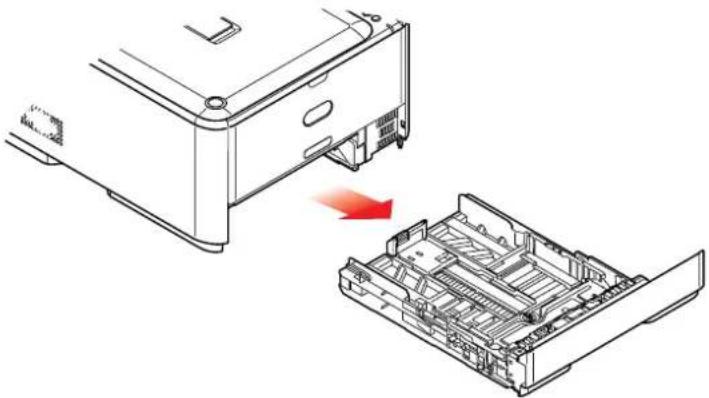
- Remove the paper tray from the printer.
natural_image
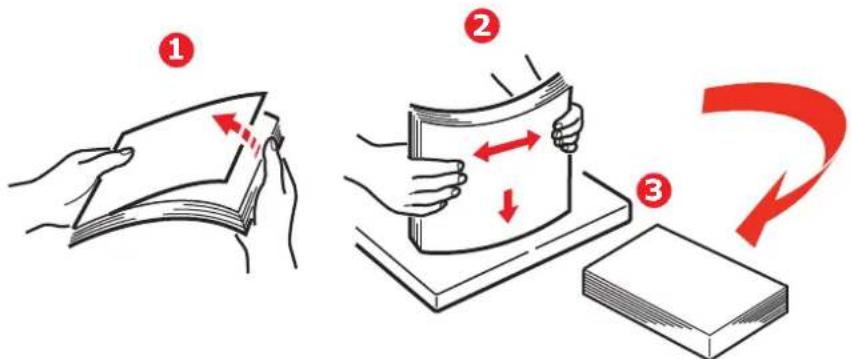
Technical illustration of a printer with an open drawer showing internal compartments (no text or symbols)- Fan the paper to be loaded at the edges (1) and in the middle (2) to ensure that all sheets are properly separated, then tap the edges of the stack on a flat surface to make it flush again (3).
text_image
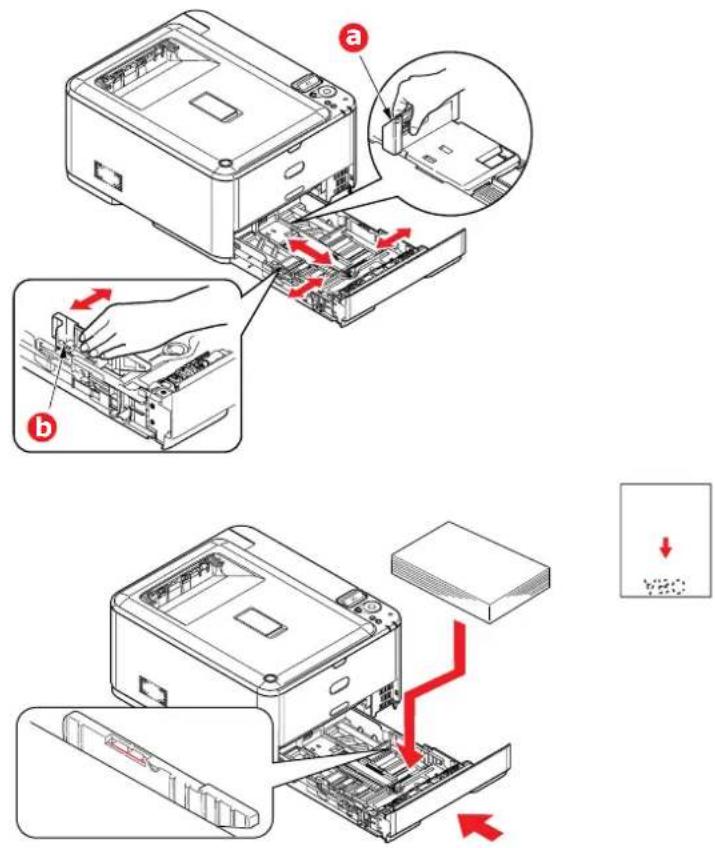
Illustration showing three steps of folding a book: folding, folding, and cutting with red arrows indicating movement.- Load paper (letter headed paper face down and top edge towards the front of the printer), as shown.
-
Adjust the rear stopper (a) and paper guides (b) to the size of paper being used.
-
Close the paper tray gently.
To prevent paper jams:
Do not leave space between the paper and the guides and rear stopper.
Do not overfill the paper tray. Capacity depends on the type of paper stock.
Do not load damaged paper.
Do not load paper of different sizes or types at the same time.
Close the paper tray gently.Do not pull the paper tray out during printing (except as described below for the 2nd tray).
NOTE
If you have two trays and you are printing from the 1st (upper) tray, you can pull out the 2nd (lower) tray during printing to reload it. However, if you are printing from the 2nd (lower) tray, do not pull out the 1st (upper) tray. This will cause a paper jam.
For face down printing, make sure the face up (rear) stacker (a) is closed (the paper exits from the top of the printer). Stacking capacity is approximately 150 sheets, depending on paper weight.
For face up printing, make sure the face up (rear) stacker (a) is open and the paper support (b) is extended. Paper is stacked in reverse order and tray capacity is approximately 100 sheets, depending on paper weight.
Always use the face up (rear) stacker for heavy paper (card stock, etc.).

text_image
Technical diagram of a printer with labeled parts (a) and (b), showing internal structure and airflow direction.CAUTION!
Do not open or close the rear paper exit while printing as it may result in a paper jam.
MULTI PURPOSE TRAY
-
Open the multi purpose tray (a).
-
Fold out the paper supports (b).

text_image
Technical diagram showing two views of a printer with labeled parts (a, b, c, d) and red directional arrows indicating motion or movement.-
Press gently down on the paper platform (c) to ensure it is latched down.
-
Load the paper and adjust the paper guides (d) to the size of paper being used.
For single-sided printing on headed paper load the paper into the multi purpose tray with pre-printed side up and top edge into the printer.
For two-sided (duplex) printing on headed paper load the paper with pre-printed side down and top edge away from the printer.
Envelopes should be loaded face up with top edge to the left and short edge into the printer. Do not select duplex printing on envelopes.
Do not exceed the paper capacity of about 100 sheets or 10 envelopes. Maximum stacking depth is 10mm.
-
Press the tray latch button inwards to release the paper platform, so that the paper is lifted and gripped in place.
-
Set the correct paper size for the multi purpose tray in the Media Menu (see "Media menu" on page 28).
OPERATION
e-STUDIO222CP
For full details of how to use the machine and any optional accessories to print jobs efficiently and effectively, please refer to the Printing Guide and the Barcode Guide.
e-STUDIO262CP
For full details of how to use the machine and any optional accessories to print jobs efficiently and effectively, please refer to the Printing Guide and the Barcode Guide.
For full details of how to access and use the printer security features, please refer to the Security Guide.
MENU FUNCTIONS
This section lists the menus accessed via the controls on the printer's operator panel and displayed in the LCD window.
OPERATOR PANEL

text_image
2 3 7 3 6 4 On Line Power Spot 8 Cancel 9 Read Airborne 1 5| 1. READY LED ON: Ready to receive data.BLINK 1 (0.8 sec interval): Processing data.BLINK 2 (0.5 sec lit/4.5 sec off): Sleep state.OFF: Offline. | 2. DISPLAY Displays the printer status and any error messages. | |
| 3. MENU Buttons | In the ONLINE or OFFLINE mode: enters the Menu mode.In the Menu mode: forwards or reverses the menu item displayed.Press for 2 secs. or longer to fast forward or reverse. | 4. ON LINE Button Switches between ONLINE and OFFLINE.Exits the menu and goes ONLINE when pressed in the Menu mode.Forces printing on the paper currently loaded when pressed with “WRONG PAPER” or “WRONG PAPER SIZE” displayed. |
| 5. ATTENTION LED ON: | A warning occurs.Printing may be possible (e.g low toner).BLINKING: An error occurs. Printing not possible (e.g. toner empty).OFF: Normal condition. | 6. BACK Button Returns to the previous higher level menu item.Pressing this button for more than 4 seconds initiates the printer shutdown procedure, select Yes to continue or No to abort. |

text_image
2 3 7 3 6 4 On Line Power Set 8 CANCEL 9 Ready Attention 1 5| 7. OK Button In the ONLINE | INE orOFFLINE mode: enters the Menu mode.In the Menu mode:determines the setting selected. | 8. CANCEL Button Deletes the data beingprinted or received whenpressed for two secondsor longer.Deletes the data whenpressed for two secondsor longer with WRONGPAPER SIZE, RUN OUTOF PAPER, TRAY 1 ISOPEN, or TRAY 1 IS NOTFOUND is displayed.Exits the menu and goes ONLINE when pressed inthe Menu mode. |
| 9. POWER SAVE Button | Pressing this button switches the machine into power save mode or wakes the machine up from power save mode. |
HOW TO CHANGE THE SETTINGS - USER
It should be noted that many of these settings can be, and often are, overridden by settings in the Windows printer drivers. However, several of the driver settings can be left at "Printer Setting", which will then default to the settings entered in these printer menus.
Where applicable, factory default settings are shown in bold type in the following tables.
In the normal operating condition, known as "standby," the printer's LCD window will show "ONLINE." In this condition, to enter the menu system, press the up and down Menu buttons on the operator panel to move up and down through the list of menus until the menu you wish to view is displayed. Then proceed as follows:
-
Press OK to enter the menu.
-
Use the up and down MENU buttons on the control panel to scroll through the menus. When the item you want to change is displayed, press OK to view the sub-menus for that item.
-
Use the up and down MENU buttons to move up and down through the sub-menu items. When the item you want to change is displayed press OK to display the setting.
-
Use the up and down MENU buttons to move up and down through the available settings for the sub-menu item. When the item you want to change is displayed press OK to display the setting. An asterisk (*) will appear next to the setting, indicating that this setting is currently in effect.
-
Do one of the following:
Press BACK again to move up to the list of menus;
or...
Press ON LINE or CANCEL to exit from the menu system and return to standby.
HOW TO CHANGE THE SETTINGS - ADMINISTRATOR
You can set whether to ENABLE or DISABLE each category in the user menu.
Disabled categories are not displayed in the User's menu. Only a system administrator can change these settings.
-
Turn OFF the printer.
-
Turn ON the printer while pressing the OK button.
When ADMIN MENU appears, take your finger off the button.
-
Press the OK button.
-
At the Enter Password prompt, enter the Admin password:
(a) Using the up and down MENU buttons, scroll to the required letter/digit.
(b) Press the OK button to input and move to the next letter/digit.
(c) Repeat steps (a) and (b) until all letters/digits are entered.
Enter your 6 to 12 digit password.
(The default password is aaaaaa).
-
Press the OK button.
-
Press the up or down MENU button until the "category" you want to change is displayed.
-
Press the OK button.
-
Press the up or down MENU button until the "item" you want to change is displayed.
- Press the OK button.
- Using the up or down MENU button, identify the parameter as required.
- Press the OK button to enter an asterisk (*) on the right side of the setting selected.
- Press the ON LINE button to switch to online. The machine will automatically reboot.
MENUS
NOTE
This guide is written to cover a number of models and as such may reference menu items or features that your machine does not have installed or does not support.
PRINT JOBS MENU - e-STUDIO262CP ONLY
NOTE
This menu only displays if the optional SD card is installed.
| ITEM ACTION EXPLANATION | ||
| ENCRYPTED JOB NOT | FOUNDPRINTDELETE | Used for printing an encrypted authentication print job (Encrypted Job) stored in the SD card.After inputting a password, “SEARCHING JOB” is displayed until a job appropriate to the password is found.(Searching time increases in proportion to the number of jobs stored in the SD card, and the printer may take up to 20 sec.)The search can be cancelled by holding down the CANCEL button.“NOT FOUND” will be displayed where a file is unavailable.One of the following messages will appear if a printable file is available.ENCRYPTED JOBPRINTDELETEIf PRINT is selected, ALL jobs will be printed.If DELETE is selected, the following message will appear. ARE YOU SURE?YESNOIf NO is selected you will return to the source MENU. If YES is selected, ALL jobs will be deleted.Print jobs with encrypted authentication stored in the SD card are deleted by a delete method specified by the driver after printing or a delete instruction from the menu. |
| ITEM | ACTION | EXPLANATION |
| STORED JOB NOT FOUNDPRINTDELETE | Used to print out a stored job in the SD card.“NOT FOUND” will be displayed where a file is unavailable.One of the following messages will appear if a printable file is available.STORED JOBPRINTDELETEIfPRINTis selected,COLLATING AMOUNTis displayed and the number of pages to print can be specified. Press theOKbutton.All specified pages will be printed.IfDELETEis selected, the following message will appear.ARE YOU SURE?YESNOIfNOis selected you will return to the source MENU. IfYESis selected, ALL jobs will be deleted. |
INFORMATION MENU
This menu provides a quick method of listing various items stored within the printer.
| ITEM ACTION EXPLANATION | ||
| PRINT MENU MAP | EXECUTE | Prints complete menu listing with current settings shown. |
| NETWORK EXECUTE Prints | Network configuration information. | |
| PRINT FILE LIST EXECUTE | Prints a list of overlays, macros, fonts and other files stored on the printer's SD card (if installed). | |
| PRINT PCL FONT | EXECUTE | Prints complete list of all internal PCL fonts plus those stored in ROM (slot 0), flash memory and SD card (if installed). |
| PRINT PSE FONT | EXECUTE | Prints complete list of all internal PostScript emulation fonts. |
| PRINT PPR FONT | EXECUTE | Prints complete list of all internal IBM ProPrinter III XL emulation fonts, including any downloaded to flash memory or SD card (if installed). |
| PRINT FX FONT EXECUTE | Prints complete list of all internal Epson FX emulation fonts, including any downloaded to flash memory or SD card (if installed). | |
| Demo_Page EXECUTE Prints | demonstration page containing graphics and text in colour and monochrome. | |
| PRINT ERROR LOG | EXECUTE | Prints a list of all errors and warnings experienced. |
| USAGE REPORT EXECUTE | Prints a list of colour and mono pages printed. | |
| COLOR PROF LIST | EXECUTE Prints a list of stored colour profiles. | |
SHUTDOWN MENU
This item should always be selected before switching the printer off, to ensure that no data is lost.
| ITEM SETTINGS EXPLANATION | ||
| SHUTDOWN START EXECUTE Performs controlled shutdown of the printer.Only power the printer off when the display indicates that shutdown is complete. | ||
PRINT MENU
This menu provides adjustment of various print job related functions.
| ITEM SETTINGS EXPLANATION | ||
| COPIES | 1-999 | Enter the number of copies of a document to be printed from 1 to 999. |
| DUPLEX ON | OFF | Switches the Duplex (2 sided) function ON/OFF. |
| BINDING LONG EDGE | SHORT EDGE | Sets the default binding to SEF or LEF.Display condition: duplex setting is enabled.See “DUPLEX” on page 26. |
| PAPER FEED TRAY1 | TRAY2MP TRAY | Selects the default tray for paper feed, Tray 1 (upper), Tray 2 (lower, if installed) or MP Tray (multi purpose tray). |
| AUTO TRAY SWITCH | ONOFF | If two trays contain identical paper, the printer can switch to an alternative source when the current tray runs out in the middle of a print job. |
| TRAY SEQUENCE | DOWNUPPAPER FEED TRAY | Determines tray sequence order when automatically switching. |
| MP TRAY USAGE | DO NOT USEWHEN MISMATCH | If a document to be printed demands a paper size not installed in the selected tray, the printer can automatically feed from the multi purpose tray instead. If this function is not enabled, the printer will stop and request the correct size of paper to be loaded. |
| MEDIA CHECK | ENABLE DISABLE | Determines whether the printer check the size of paper loaded matches that required for the document sent to print. |
| OVERRIDE A4/LT | YESNO | If enabled, when the paper size of a job is set to A4 but there is no A4 set in the printer, if there is Letter paper in the printer, the job will be printed on Letter paper without requesting the user to fill the paper tray with A4 paper.Similarly, when the paper size of a job is set to Letter but there is no Letter set in the printer, if there is A4 paper in the printer, the job will be printed on A4 paper without requesting the user to fill the paper tray with Letter paper. |
| RESOLUTION | 600DPI600x1200DPI600DPI M-LEVEL | Sets the default resolution for printing (dots per inch). 600x1200DPI uses more memory and requires more time to process, but prints at a higher quality. |
| TONER SAVE MODE ON | OFF | This function works effectively only if the data input is color RGB data. This setting is valid in PS and PCL, but does not take effect in the following cases.(1) PS: If Color Matching is set OFF.(2) PS: If any setting other than ASIC Color Matching is set.(3) PS: CMYK data when Ink Simulation Mode is used (valid in any other cases except Case (1) and Case (2) above as long as data is RGB).(4) PCL binary data (Color/Monochrome). |
| MONO-PRINT SPEED AUTO | COLOR SPEEDNORMAL SPEED | Sets the monochrome print speed. Prints at the most appropriate speed for page process ifAutois set.Prints always at the color print speed ifColoris set.Prints always at the monochrome print speed ifNormalis set. |
| ORIENTATION PORTRAIT | LANDSCAPE | Selects default page orientation between portrait (tall) and landscape (wide). - (PCL, IBMPPR & EPSON FX only) |
| LINES PER PAGE | 5~64~128LINES | Sets the number of lines of text per page when raw text is received from systems other than Windows. The default for A4 portrait is 64, and for Letter is 60. - (PCL only) |
| EDIT SIZE CASSETTE SIZE | A4 /A5/ A6 / B5LEGAL14LEGAL13.5LEGAL13LETTEREXECUTIVECUSTOMCOM-9 ENVELOPECOM-10 ENVELOPEMONARCH ENVDL ENVELOPEC5 ENVELOPEINDEX CARD | Sets the size of the printable page area to match the size of paper in use. This is not the same as the physical paper size, which is always slightly larger. For dimensions of physical page sizes, see “Paper Recommendations” section in this guide. |
| X DIMENSION 64MILLIMETER | ~210MILLIMETER~216MILLIMETER | Specifies paper width of Custom paper as a default value.Sets a paper size at right angles to the paper run direction. |
| Y DIMENSION 127MILLIMETER | ~297MILLIMETER~1321MILLIMETER | Specifies paper length of Custom paper as a default value.Sets a paper size in the same direction as the paper run direction. |
MEDIA MENU
This menu provides adjustment to suit a wide range of print media.
| ITEM SETTINGS EXPLANATION | ||
| TRAY1 PAPERSIZE A4 /A5/ | A6/B5/ LEGAL14/LEGAL13.5/ LEGAL13/LETTER/ EXECUTIVE CUSTOM | Selects the size of paper loaded in Tray 1 (upper tray if both trays installed). For CUSTOM setting see X-DIMENSION and Y-DIMENSION in “Print menu” on page 26. |
| TRAY1 MEDIATYPE PLAIN | LETTERHEAD BOND RECYCLED CARD STOCK ROUGH GLOSSY USERTYPE1 USERTYPE2 USERTYPE3 USERTYPE4 USERTYPE5 | Selects the type of media loaded in this tray. This will help the printer to adjust its internal operating parameters, such as engine speed and fusing temperature, to better accommodate the media to be fed. For example, letterhead may benefit from a slightly lower fusing temperature to ensure that its ink does not offset.Note: USERTYPEn are displayed only if registered in the host PC/Server. |
| TRAY1 MEDIAWEIGHT LIGHT | MEDIUM LIGHT MEDIUM HEAVY ULTRA HEAVY1 | Adjusts the printer for the weight of paper stock loaded in this tray. |
| TRAY2 PAPERSIZE A4 /A5/ | B5/LEGAL14/ LEGAL13.5/LEGAL13/ LETTER/ EXECUTIVE CUSTOM | Selects the size of paper loaded in Tray 2 (lower) if installed. For CUSTOM setting see X-DIMENSION and Y-DIMENSION in “Print menu” on page 26. |
| TRAY2 MEDIATYPE PLAIN | LETTERHEAD BOND RECYCLED CARD STOCK ROUGH GLOSSY USER TYPE 1 USER TYPE 2 USER TYPE 3 USER TYPE 4 USER TYPE 5 | Selects the type of media loaded in this tray (if installed). This will help the printer to adjust its internal operating parameters, such as engine speed and fusing temperature, to better accommodate the media to be fed. For example, letterhead may benefit from a slightly lower fusing temperature to ensure that its ink does not offset.Note: USERTYPEn are displayed only if registered in the host PC/Server. |
| TRAY2 MEDIAWEIGHT LIGHT | MEDIUM LIGHT MEDIUM HEAVY ULTRA HEAVY1 | Adjusts the printer for the weight of paper stock loaded in this tray (if installed). |
| MPT PAPERSIZE A4 | A5A6B5LEGAL14LEGAL13.5LEGAL13LETTEREXECUTIVECUSTOMCOM-9 ENVELOPECOM-10 ENVELOPEMONARCH ENVDL ENVELOPEC5 ENVELOPEINDEX CARD | Selects the size of paper to be fed from the multi purpose tray. For CUSTOM setting see X-DIMENSION and Y-DIMENSION in “Print menu” on page 26. |
| MPT MEDIATYPE PLAIN | LETTERHEADLABELSBONDRECYCLEDCARD STOCKROUGHGLOSSYUSER TYPE 1USER TYPE 2USER TYPE 3USER TYPE 4USER TYPE 5 | Selects the type of media to be fed from the multi purpose tray so that the printer can adjust its internal parameters to better accommodate the selected type of media.Note: USERTYPEn are displayed only if registered in the host PC/Server. |
| MPT MEDIAWEIGHT LIGHT | MEDIUM LIGHTMEDIUMHEAVYULTRA HEAVY1ULTRA HEAVY2 | Selects the media weight to be fed from the multi purpose tray. |
| UNIT OF MEASURE MILLI | METERINCH | Selects the unit of measure. |
COLOR MENU
The printer automatically adjusts colour balance and density at appropriate intervals, optimising the printed output for bright white paper viewed in natural daylight conditions. The items on this menu provide a means of changing the default settings for special or particularly difficult print jobs.
| ITEM SETTINGS EXPLANATION | ||
| DENSITY CONTROL AUTO | MANUAL | If set to AUTO, image density will be automatically adjusted at power on, when a new image drum or toner cartridge is installed, and at intervals of 100, 300 and 500 drum counts. If a 500 drum count interval occurs during a print job it will occur at the end of that job, and will take up to 55 seconds. If set to manual, this adjustment will only be performed when initiated by the next menu item. |
| ADJUST DENSITY | EXECUTE | Selecting this will activate adjustment of the colour density. |
| COLOR TUNING PRINT PATTERN Selecting this item prints the colour tuning pattern to help you adjust the colour balance. | ||
| C HIGHLIGHT | -3~0~+3 | Adjusts image density for each colour component (cyan, magenta, yellow and black). Normal setting is 0. |
| C MID-TONE | -3~0~+3 | |
| C DARK | -3~0~+3 | |
| M HIGHLIGHT | -3~0~+3 | |
| M MID-TONE | -3~0~+3 | |
| M DARK | -3~0~+3 | |
| Y HIGHLIGHT | -3~0~+3 | |
| Y MID-TONE | -3~0~+3 | |
| Y DARK | -3~0~+3 | |
| K HIGHLIGHT | -3~0~+3 | |
| K MID-TONE | -3~0~+3 | |
| K DARK | -3~0~+3 | |
| C DARKNESS | -3~0~+3 | Adjusts darkness of each colour component (cyan, magenta, yellow and black). Normal setting is 0. |
| M DARKNESS | -3~0~+3 | |
| Y DARKNESS | -3~0~+3 | |
| K DARKNESS | -3~0~+3 | |
| AJST REGISTRATION EXECUTE Performs automatic colour registration adjustment. Normally this is done on power on and when the top cover is opened and then closed. This process accurately aligns the cyan, magenta and yellow images to the black image. | ||
| C REG FINE AJST | -3~0~+3 | Performs fine adjustment of image timing in relation to the black image component. |
| M REG FINE AJST | -3~0~+3 | |
| Y REG FINE AJST | -3~0~+3 | |
| INK SIMULATION OFF | SWOPEUROSCALEJAPAN | Selects from a range of industry standard colour swatches. Note: This function only applies to PS models |
| UCR LOW | MEDIUMHIGH | Selects limitation of the toner layer thickness. If paper curl occurs in dark printing, selecting MEDIUM or LIGHT sometimes helps reduce curl. |
| CMY100% DENSITY DISABLE ENABLE | When enabled, black areas are produced using 100% C, M, and Y instead of black. This results in a glossier finish. | |
| CMYK CONVERSION ON | OFF | Setting to “OFF” will simplify the conversion process of CMYK data, which will reduce the processing time.This setting is ignored when Ink Simulation function is used.Note: This function only applies to PS models |
SYS CONFIG MENU
This menu adjusts general printer settings to suit the way you prefer to work.
| ITEMS SETTINGS EXPLANATION | |||
| POW SAVE TIME e-S222CP1 MIN3 MIN5 MIN15 MIN30 MIN60 MIN120 MIN | e-S262CP1 MIN2 MIN3 MIN4 MIN5 MIN10 MIN15 MIN30 MIN60 MIN120 MIN | Adjusts the idling time before the printer automatically switches into power saving mode. In this mode power consumption is reduced to a low level required to just keep the printer operating and ready to receive data. When a job is sent the printer will require a warm-up time of up to 1 minute before printing can begin. | |
| SLEEP TIME 1 MIN | 2 MIN3 MIN4 MIN5 MIN10 MIN15 MIN30 MIN60 MIN120 MIN | e-STUDIO262CP only: Adjusts the power saving time before the printer automatically switches into sleep mode. | |
| PERSONALITY AUTO EMULATIONPCLIBM PPR III XLEPSON FXPS3 EMULATION | This item selects which industry standard emulation your printer should use. When set to AUTO, incoming data is examined and the correct emulation is automatically selected each time a print job is received. | ||
| USB PS-PROTOCOL RAWASCII | Selects PostScript data format for USB port. | ||
| NET PS-PROTOCOL RAWASCII | Selects PostScript data format for network port. | ||
| CLRABLEWARNING | ONLINEJOB | When ONLINE, non-critical warnings, such as requests for a different paper size, can be cleared by pressing the ON LINE button. When set to JOB, they are cleared when the print job resumes. | |
| AUTO CONTINUE ONOFF | Determines whether or not the printer will automatically recover from a memory overflow condition. | ||
| MANUAL TIMEOUT OFF30 SEC60 SEC | Specifies how many seconds the printer will wait for paper to be fed before cancelling the job. | ||
| WAIT TIMEOUT | 5~40 SEC~300, OFF | Specifies how many seconds the printer will wait when received data pauses before forcing a page eject. In PostScript Emulation mode the job will be cancelled if timeout occurs. | |
| LOW TONER CONTINUESTOP | Specifies whether the printer should continue printing even after a low toner condition is detected. | ||
| ITEMS | SETTINGS | EXPLANATION | |
| JAM RECOVERY ON | OFF | Specifies whether the printer should perform jam recovery after a paper jam has occurred. If ON, the printer will attempt to re-print any pages lost due to a paper jam once the jam has been cleared. | |
| ERROR REPORT ON | OFF | If ON, the printer will print error details when a PostScript Emulation error occurs.Note: Applies tp PS & PCL XL only. | |
PCL EMULATION
This menu controls settings effective when the printer is operating in PCL emulation mode.
| ITEMS SETTINGS EXPLANATION | ||
| FONT SOURCE RESIDENT /RESIDENT2 | Specifies the location of the PCL default font. Normally this will be INTERNAL unless additional fonts are installed in the expansion ROM slot or additional fonts have been downloaded to RAM as permanent fonts. | |
| FONT NO. | 10 ~ 190 | Sets the current default font number from the currently selected source. |
| FONT PITCH 0.44CPI~ | 10.00CPI~99.99CPI | Sets the width of the PCL default font in characters/inch (CPI).Default font is the fixed-pitch, scalable font. The value is displayed to the second decimal placeDisplayed only when the font selected in Font No. is fixed-spacing, scalable font. |
| FONT HEIGHT 4.00 POINT~ | 12.00POINT~ 999.75 POINT | Height of the PCL default font.Note: This menu item is displayed only when the font selected in Font No. is a proportional-spacing, scalable font. |
| SYMBOL SET PC-8 | (Default Symbol Set only shown) | PCL symbol set. If the font source and number are changed to one which does not support the selected symbol set, this must be changed to an available symbol set for that font. |
| A4 PRINT WIDTH 78 COLUMN80 COLUMN | Sets the number of columns subject to Auto LF with A4 paper in PCL. This is the value when Auto CR/LF Mode is set to OFF with the 10CPI character. | |
| WHITE PAGE SKIP | OFF / ON | Selects whether blank pages are printed or not. |
| CR FUNCTION | CR / CR+ LF | Selects whether a received carriage return character (0Dh) also causes a line feed. |
| LF FUNCTION | LF / LF+ CR | Selects whether a received line feed character (0Ah) also causes a carriage return. |
| PRINT MARGIN | NORMAL1/5 INCH1/6 INCH | Sets the non-printable page area. NORMAL is PCL compatible. |
| TRUE BLACK | OFF / ON | Selects whether black image data is printed using black toner (ON) or 100% CMY (OFF). (Valid in PCL emulation mode only.) |
| ITEMS | SETTINGS | EXPLANATION |
| PEN WIDTH ADJUST | ON/OFF | When minimum width is specified in PCL, sometimes a 1-dot line, looks broken.With PEN WIDTH Adjust set to ON, when the minimum width is specified, the line width will be emphasized so as to look wider than a 1-dot line.With PEN WIDTH Adjust set to OFF, the line will appear as before. |
| TRAY ID#MP TRAY | 1 ~ 4 ~ 59 | Sets the # to specify the MP tray for the paper feed destination command (ESC&I# H) in PCL5e emulation. |
| TRAY 2 | 1 ~ 5 ~ 59 | Sets the # to specify Tray 2 for the paper feed destination command (ESC&I# H) in PCL5e emulation.(Displayed only if Tray 2 is installed). |
PPR EMULATION
This menu controls settings effective when the printer is operating in PPR emulation mode.
| ITEM SETTINGS EXPLANATION | ||
| CHARACTER PITCH 10 CPI | ; 12 CPI;17 CPI; 20 CPI;PROPORTIONAL | Specifies character pitch in IBM PPR emulation. |
| FONT CONDENSE 12CPI | TO 20CPI12CPI TO 12CPI | Specifies 12CPI pitch for Condense Mode. |
| CHARACTER SET SET-1 | SET-2 | Specifies a character set. |
| SYMBOL SET IBM-437 | (Default Symbol Set only shown) | Specifies a symbol set. |
| LETTER 0 STYLE DI SABLE | ENABLE | Specifies the style that replaces 9BH with letter o and 9DH with a zero |
| ZERO CHARACTER | NORMALSLASHED | Sets the zero to be slashed or unslashed. |
| LINE PITCH | 6 LPI; 8 LPI | Specifies the line spacing. |
| WHITE PAGE SKIP | OFF / ON | Selects whether blank pages are printed or not. |
| CR FUNCTION | CR / CR+ LF | Selects whether a received carriage return character (0Dh) also causes a line feed. |
| LF FUNCTION | LF / LF+ CR | Selects whether a received line feed character (0Ah) also causes a carriage return. |
| LINE LENGTH | 80 COLUMN; 136COLUMN | Specifies the number of characters per line. |
| FORM LENGTH | 11 INCH11.7 INCH12 INCH | Specifies the length of paper. |
| TOF POSITION | 0.0INCH ~ 1.0INCH | Specifies the distance of print from the top edge of the paper. |
| LEFT MARGIN | 0.0INCH ~ 1.0INCH | Specifies the distance of print from the left hand edge of the paper. |
| ITEM SETTINGS | EXPLANATION | |
| FIT TO LETTER DISABLE | ENABLE | Sets the printing mode that can fit print data, equivalent to 11 inches (66 lines), in the LETTER-size printable area. |
| TEXT HEIGHT SAME | DIFF | Sets the height of a character.SAME: Regardless of CPI, same heightDIFF: As CPI, character heights vary. |
FX EMULATION
This menu controls settings effective when the printer is operating in FX emulation mode.
| ITEM SETTINGS EXPLANATION | ||
| CHARACTER PITCH | 10 CPI; 12 CPI; 17 CPI; 20 CPI; PROPORTIONAL | Specifies character pitch in this emulation. |
| CHARACTER SET SET-1 | SET-2 | Specifies a character set. |
| SYMBOL SET | IBM-437 (Default Symbol Set only shown) | Specifies a symbol set. |
| LETTER 0 STYLE DISABLE | ENABLE | Specifies the style that replaces 9BH with letter o and 9DH with a zero |
| ZERO CHARACTER NORMAL | SLASHED | Sets the zero to be slashed or unslashed. |
| LINE PITCH 6 LPI; 8 LPI | specifies the line spacing. | |
| WHITE PAGE SKIP | OFF / ON | Selects whether blank pages are printed or not. |
| CR FUNCTION | CR / CR+ LF | Selects whether a received carriage return character (0Dh) also causes a line feed. |
| LINE LENGTH 80 COLUMN | 136 COLUMN | Specifies the number of characters per line. |
| FORM LENGTH | 11 INCH11.7 INCH12 INCH | Specifies the length of paper. |
| TOF POSITION | 0.0INCH ~ 1.0INCH | Specifies the distance of print from the top edge of the paper. |
| LEFT MARGIN | 0.0INCH ~ 1.0INCH | Specifies the distance of print from the left hand edge of the paper. |
| FIT TO LETTER DISABLE | ENABLE | Sets the printing mode that can fit print data, equivalent to 11 inches (66 lines), in the LETTER-size printable area. |
| TEXT HEIGHT | SAME DIFF | Sets the height of a character.SAME: Regardless of CPI, same height.DIFF: As CPI, character heights vary. |
USB MENU
This menu controls the operation of the printer's USB data interface.
| ITEM SETTINGS EXPLANATION | ||
| SOFT RESET | ENABLE / DISABLE | Enables or disables the SOFT RESET command. |
| SPEED | 12Mbps / 480Mbps | Selects the interface speed. |
| OFFLINE RECEIVE | ENABLE / DISABLE | Enables or disables this function. When set to Enable, the interface retains a receive possible state even when switching to Offline. Interface sends the BUSY signal only when the receive buffer is full or a service call occurs. |
| SERIAL NUMBER | ENABLE / DISABLE | Specifies whether to ENABLE or DISABLE a USB serial number.The USB serial number is used to identify the USB device connected to your PC. |
NOTE
When you have changed any settings in the USB MENU, turn the printer OFF, then ON again.
NETWORK MENU
This menu controls the operation of the printer's 10Base-T/100Base-TX network interface.
| ITEM SETTINGS EXPLANATION | ||
| TCP/IP | ENABLE / DISABLE | Enables or disables this network protocol. |
| IP VERSION IP v4 | IP v4+v6IP v6 | Sets up the IP version.Operates with IPv4 only (not valid with IPv6).Operates with both IPv4 and IPv6.Operates with IPv6 only (not valid with IPv4).From this stage, if IPv6 only is set from UI, for example Telnet, “IP v6” appears as the value of IP Version on the operation panel. “IP v6” will disappear from the value if “IP v4” or “IP v4+v6” is selected.Display Condition: TCP/IP should be enabled. |
| NETBEUI | ENABLE / DISABLE | Enables or disables this network protocol. |
| NETBIOS OVER TCP e-STUDIO222CP: ENABLE / DISABLEe-STUDIO262CP: ENABLE / DISABLE | Enable / DISABLEe-STUDIO262CP: ENABLE / DISABLE | Sets Enable/Disable of NetBIOS over TCP protocol.Display Conditions:> > TCP/IP should be enabled.> > IP Version is not IPv6. |
| NETWARE | e-STUDIO222CP: ENABLE / DISABLEe-STUDIO262CP: ENABLE / DISABLE | Enables or disables this network protocol. |
| ETHERTALK | ENABLE / DISABLE | Enables or disables this network protocol. |
| FRAME TYPE | AUTO / 802.2 / 802.3 / ETHERNET II / SNAP | Selects the Ethernet MAC layer frame type.Display Condition: Netware should be enabled. |
| IP ADDRESS SET | AUTO / MANUAL | Specifies whether IP address allocation is automatic (DHCP) or manually assigned. |
| ITEM SETTINGS | EXPLANATION | |
| IPV4 ADDRESS | xxx.xxx.xxx.xxx | Current assigned IP address. To change, press OK and use Menu buttons to increment 1st octet, then press OK again to move on to next octet. When 4th octet has been set, press OK again to register new address. |
| SUBNET MASK xxx.xxx.xx | x.xxx Current assigned sub | net mask. To change, proceed as above. |
| GATEWAY ADDRESS xxx | xxx.xxx.xxx Current assigned | gateway address. To change, proceed as above. |
| WEB | ENABLE / DISABLE | Enables or disables Web config. facility. |
| TELNET | ENABLE / DISABLE | Enables or disables Telnet config. facility. |
| FTP | ENABLE / DISABLE | Enables or disables communication via FTP. |
| IPSEC | ENABLE / DISABLE | Sets Enable/Disable of IPSec. Enable via the web. Enable: IPSec is available. Disable: IPSec is not available. |
| SNMP ENABLE / DISABLE | Enables or disables SNMP | protocol. |
| NETWORK SCALE | NORMAL / SMALL | Selects network size.When NORMAL is selected, printer can work effectively, even when connected to a HUB that has a spanning treefeature. However, printer start up time gets longer when computers are connected with two or three small LANs.When SMALL is selected, computers can cover from two or three small LANs to a large LAN, but may not work effectively when connected to a HUB that has a spanning tree feature. |
| HUB LINK SETTING | AUTO NEGOTI ATE100BASE-TX FULL100BASE-TX HALF10BASE-T FULL10BASE-T HALF | Sets full or half duplex for communication via a network hub.When AUTO is set, negotiation is done automatically. |
| FACTORY DEFAULTS | EXECUTE | Reloads the settings present when the unit was setup by the manufacturer. |
MEMORY MENU
Not displayed as default. This menu is displayed only when set to ENABLE in OP MENU of Administrator menu.
This menu sets the conditions of memory allocated to the buffer and resource.
| ITEM SETTINGS EXPLANATION | ||
| RECEIVE BUF SIZE AUTO | 0.5MB1MB2MB4MB8MB16MB32MB | Sets the size of the receive buffer. |
| RESOURCE SAVE AUTO | OFF0.5MB1MB2MB4MB8MB16MB32MB | Sets the size of the resource saving area. |
SYS ADJUST MENU
Not displayed as default. This menu is displayed only when set to ENABLE in OP MENU of Administrator menu.
| ITEM SETTINGS EXPLANATION | ||
| X ADJUST +2.00MILLIMETER~0.00MILLIMETER~-2.00MILLIMETER | Adjusts the position of a whole print image in the direction perpendicular to the direction the paper runs, that is horizontally, in 0.25 mm increments.Any parts of the print image that are outside the printable area as a result of this shift will be cropped. | |
| Y ADJUST +2.00MILLIMETER~0.00MILLIMETER~-2.00MILLIMETER | Adjusts the position of a whole print image in the direction the paper runs, that is vertically, in 0.25 mm increments.Any parts of the print image that are outside the printable area as a result of this shift will be cropped.Corrections in a negative value are ignored in PS mode. | |
| DUPLEX X ADJUST +2.00MILLIMETER~0.00MILLIMETER~-2.00MILLIMETER | When printing the reverse page of a duplex job, adjusts the position of the whole print image in the direction that is perpendicular to the direction the paper runs, that is horizontally, in 0.25 mm increments.Any parts of the print image that are outside the printable area as a result of this shift will be cropped. | |
| DUPLEX Y ADJUST +2.00MILLIMETER~0.00MILLIMETER~-2.00MILLIMETER | When printing the reverse page of a duplex job, adjusts the position of the whole print image in the direction the paper runs, that is vertically, in 0.25 mm increments.Any parts of the print image that are outside the printable area as a result of this shift will be cropped.Corrections in a negative value are ignored in PS mode. | |
| DRUM CLEANING ON | OFF | Sets whether to rotate the drum in idle prior to printing in order to reduce any horizontal white lines.CAUTION: Each additional rotation will shorten the ID life by that amount. |
| HEX DUMP EXECUTE Prints out data received from the host PC in hexadecimal Dump. Turning off the power supply switch restores Normal Mode from HEX Dump Mode. | ||
MAINTENANCE MENU
This menu provides access to various printer maintenance functions.
| ITEM SETTINGS EXPLANATION | |
| MENU RESET EXECUTE Resets menus to default settings. | |
| SAVE MENU EXECUTE Saves the current menu settings. The last menu executed is saved and the menu previously saved is overwritten and erased.When you press the OK button, the following confirmation message is displayed.ARE YOU SURE? YES/NOIf you select NO, the display returns to the previous menu.If you select YES, the current menu settings are stored and the menu is exited. | |
| ITEM | SETTINGS | EXPLANATION |
| RESTORE MENU EXECUTE | Changes to the menu setting | When you press the OK button, the following confirmation message is displayed.ARE YOU SURE? YES/NOIf NO is selected, the previous menu display resumes.If YES is selected, changes made to the menu setting are saved and you exit from the menu.Notes:This cannot be executed when data is printing.This menu item will only show if the menu has been saved previously |
| POWER SAVE | ENABLE / DISABLE | Enables or disables automatic power save mode. Delay before entering this mode is set in the SYSTEM CONFIGURATION menu. |
| SLEEP ENABLE / DISABLE | Sets Enable/Disable of Sleep Mode. | |
| PAPER BLACK SET | -2~0~+2 | Used for small adjustments when you experience faded print or light specks / streaking in monochrome printing on white paper. Select a higher value to reduce fading, or a lower value to reduce specks or streaking in high density print areas. |
| PAPER COLOR SET | -2~0~+2 | As above, but for colour printing. |
| SMR STTING | -3~0~+3 | Sets a correction value for uneven print quality, to correct print variations caused by variations in temperature and humidity or in print density/frequency. |
| BG SETTING | -3~0~+3 | Sets a correction value for dark-coloured paper printing, to correct print variations caused by variations in temperature and humidity or in print density/frequency. |
USAGE MENU
This menu is for information only, and provides an indication of total usage of the printer and the expected life left in its consumable items. This is particularly useful if you do not have a full set of replacement consumables to hand and you need to know how soon you will need them.
| ITEM EXPLANATION | |
| TRAY1 COUNT The total number of pages fed from tray 1. | |
| TRAY2 COUNT The total number of pages fed from tray 2 (if fitted). | |
| MP TRAY COUNT | The total number of pages fed from the multi purpose tray. |
| DRUM UNIT LIFE REMAINING | Percentage of image drum life remaining. |
| BELT LIFE REMAINING | Percentage of belt life remaining. |
| FUSER LIFE REMAINING | Percentage of fuser life remaining. |
| K TONER (n.nK) REMAINING | Cartridge size and current toner level. |
| C TONER (n.nK) REMAINING | |
| M TONER (n.nK) REMAINING | |
| Y TONER (n.nK) REMAINING | |
ADMINISTRATOR MENU
This menu should only be changed by the System Administrators. In order to gain access to this menu, follow the instructions in “How to change the settings - administrator” on page 23.
This menu is in ENGLISH only.
| ITEM SETTINGS EXPLANATION | ||||
| ENTER PASSWORD xxxxxxxxxxxx Enter | a password to gain entry | to the Admin menu.Password should be from 6 to 12 digits of alpha/numeric characters (or mix)The default value is “aaaaaa” | ||
| OP MENU ALL CATEGORY ENABLE | DISABLE | Set up ENABLE/DISABLE condition for all categories in USERS MENU. | ||
| PRINT JOBS MENU | ENABLE DISABLE | Set up ENABLE/DISABLE condition for PRINT JOB MENU category.If DISABLE is selected, PRINT JOBS MENU category of USERS MENU will not appear.Display Condition: SD card must be installed. | ||
| INFORMATION MENU | ENABLE DISABLE | Set up ENABLE/DISABLE condition for INFORMATION MENU category.If DISABLE is selected, INFORMATION MENU category of USERS MENU will not appear. | ||
| SHUTDOWN MENU | ENABLE DISABLE | Set up ENABLE/DISABLE condition for SHUTDOWN MENU category.If DISABLE is selected, SHUTDOWN MENU category of USERS MENU will not appear. | ||
| PRINT MENU ENABLE | DISABLE | Set up ENABLE/DISABLE condition for PRINT MENU category.If DISABLE is selected, PRINT MENU category of USERS MENU will not appear. | ||
| MEDIA MENU ENABLE | DISABLE | Set up ENABLE/DISABLE condition for MEDIA MENU category.If DISABLE is selected, MEDIA MENU category of USERS MENU will not appear. | ||
| COLOR MENU ENABLE | DISABLE | Set up ENABLE/DISABLE condition for COLOR MENU category.If DISABLE is selected, COLOR MENU category of USERS MENU will not appear. | ||
| SYS CONFIG MENU | ENABLE DISABLE | Set up ENABLE/DISABLE condition for SYS.CONFIG MENU category.If DISABLE is selected, SYS.CONFIG MENU category of USERS MENU will not appear. | ||
| PCL EMULATION ENABLE | DISABLE | Set up ENABLE/DISABLE condition for PCL EMULATION category.If DISABLE is selected, PCL EMULATION category of USERS MENU will not appear. | ||
| PPR EMULATION ENABLE | DISABLE | Set up ENABLE/DISABLE condition for PPR EMULATION category.If DISABLE is selected, PPR EMULATION category of USERS MENU will not appear. | ||
| ITEM SETTINGS EXPLANATION | |||
| OP MENU (cont.) | FX EMULATION ENABLE | DISABLE | Set up ENABLE/DISABLE condition for FX EMULATION category.If DISABLE is selected, FX EMULATION category of USERS MENU will not appear. |
| USB MENU ENABLE | DISABLE | Set up ENABLE/DISABLE condition for USB MENU category.If DISABLE is selected, USB MENU category of USERS MENU will not appear. | |
| NETWORK MENU ENABLE | DISABLE | Set up ENABLE/DISABLE condition for NETWORK MENU category.If DISABLE is selected, NETWORK MENU category of USERS MENU will not appear. | |
| MEMORY MENU ENABLE | DISABLE | Set up ENABLE/DISABLE condition for MEMORY MENU category.If DISABLE is selected, MEMORY MENU category of USERS MENU will not appear. | |
| SYS ADJUST MENU | ENABLE DISABLE | Set up ENABLE/DISABLE condition for SYS.ADJUST MENU category.If DISABLE is selected, SYS.ADJUST MENU category of USERS MENU will not appear. | |
| MAINTENCE MENU | ENABLE DISABLE | Set up ENABLE/DISABLE condition for MAINTENACE MENU category.If DISABLE is selected, MAINTENANCE MENU category of USERS MENU will not appear. | |
| USAGE MENU ENABLE | DISABLE | Set up ENABLE/DISABLE condition for USAGE MENU category.If DISABLE is selected, USAGE MENU category of USERS MENU will not appear. | |
| CONFIG. MENU NEARLIFE STATUS | ENABLE DISABLE | Set LCD panel control at the time of near-life warning for drum, fuser and belt.Enable: Display a near-life warning.Disable: Do not display a near-life warning. | |
| LIFE WARNING ENABLE | If DISABLE is selected, the printer does not display life warning after cover opening and closing.Display Condition: NEARLIFE STATUS is set to DISABLE. | ||
| NEARLIFE LED ENABLE | Enables/disables illumination of front panel LED when “near-end-of-life” warning of a toner, drum, fuser, or belt occurs.Attention LED is lit when setting is enabled, inhibited when disabled. | ||
| ECO MODE ON | OFFWhen ON, if the machine is in power save mode and you send a small print job (1 or 2 pages), the machine will print the job without warming the fuser to the “normal” operating temperature beforehand.When you change the setting and exit the Admin Menu, the machine will power cycle then the following message is displayed “PLEASE POWER OFF/ON”. Switch the power off then turn the machine back on. | ||
| SECURITY MENU JOB LIMITATION OFF | ENCRYPTED JOB | Job limitation mode control.Jobs other than specified ones are rejected. | |
| MAKE SECURE SD-M | EXECUTE SD Card encoding function is made effective.Formation of the cipher key and encoding function (security mode)information is turned on. At the same time, it initializes the SD card.After execution, the following confirmation messages will appear.Are You Sure?YesNoIf No is selected, the display will return to the previous menu.If Yes is selected, the printer will be automatically rebooted and the encoding function will become effective.Display Conditions:SD Card is installed, SD Card encoding function invalidity andStorage Setup > Enable Initialization > Yes | ||
| MAKE NORMAL SD-M | EXECUTE SD Card encoding function is set to invalid.Deletion of the cipher key and encoding function (security mode)information is turned off. At the same time, it initializes the SD card.After execution, the following confirmation messages will appear.Are You Sure?YesNoIf No is selected, the display will return to the previous menu.If Yes is selected, the printer will be automatically rebooted and the encoding function will become invalid.Display Conditions:SD Card is installed, SD Card encoding function invalidity andStorage Setup > Enable Initialization > Yes | ||
| SECURITY MENU (cont.) | RESET CIPHER KEY | EXECUTE Resets a cipher | her key to be used on an encrypted SD card.When this processing is done, all data stored on the SD card cannot be restored.After execution, the following confirmation messages will appear.Are You Sure?YesNoIf No is selected, the display will return to the previous menu.If Yes is selected, the printer will be automatically rebooted and the resetting of the cipher key will be executed. Display Conditions:> SD Card implementation> An encrypted SD card function is enabled. |
| FILE SYS MAINTE1 | SD-M INITIALIZE EXECUTE Initializes the SD Card to the factory default setting. Machine performs partition-division, and initializes each partition.When this menu is executed, the following confirmation message appears.ARE YOU SURE?YES/NOIf “NO” is selected, the display will go back to the source menu. If “YES” is selected, the printer will automatically reboot and execute SD card initialisation.This item is displayed only if the SD card (option) is installed. | ||
| PARTITION SIZE EXECUTE The screen will display the SD card partition size.This item is displayed only if the SD card (option) is installed. | |||
| SD-M FORMATTING | PCL COMMON PSE | Format the specified partition. Press the OK button and the following message displays. ARE YOU SURE?YES/NOIf NO is selected, the display will go back to the source menu. If YES is selected, the printer will automatically reboot and initialise the specified partition.This item is displayed only if the SD card (option) is installed. | |
| FLASH INITIALIZE | EXECUTE Initialises the resident FLASH MEMORY.If NO is selected, the machine will go back to the source menu.If YES is selected, the machine will be automatically rebooted and initialize the FLASH memory. | ||
| FILE SYS MAINTE2 | CHK FILE SYS EXECUTE Executing this function will resolve any mismatch between the actual and the displayed free space of the file system and recover the management data (FAT information).Note 1: It takes several seconds to complete this function.Note 2: This item is displayed only if the SD card (option) is installed. | ||
| CHK ALL SECTORS | EXECUTE Performs recovery of defective SD Card sector information and a file system mismatch mentioned above. | ||
| SD CARD ENABLE | DISABLE | Even if a machine is inoperable at installation because of a faulty SD Card, the machine can be made operable by setting this parameter to No (ignores the existence of the SD Card).When No is set, access to the SD Card results in FAIL because the SD Card is regarded as not attached.After setting change and exit from the menu, the printer will restart.This item is displayed only if the SD card (option) is installed. | |
| SD CARD ERASE EXECUTE Deletion of all data stored in the SD Card.Data cannot be recovered. DoD 5220.22-M sanitizing formula is used for clearing the card. The printer will restart after changing the setup menu.The progress of the procedure is displayed as a percentage.The following message appears after pressing the OK button.ARE YOU SURE?YES/NOIf NO is selected, the display will go back to the source menu, and the procedure for clearing the disk will start again immediately after the reboot.if YES is selected.The following message appears if the CANCEL button is pressed.CANCEL NOW?YES/NOIf NO is selected, the procedure will continue.If YES is selected, the procedure will discontinue and the printer will restart after formatting the SD card.This item is displayed only if the SD card (option) is installed. | |||
| INITIAL LOCK YES | NO | If “YES” is selected, you will not be able to select “ADMIN MENU” - “FILE SYS MAINTE1” (above). | |
| ITEM | SETTINGS | EXPLANATION | |
| LANGUAGE MENU | LANG INITIALIZE EXECUTE | CUTE Initialise the message file loaded in FLASH MEMORY.If NO is selected, the machine will go back to the source menu. The procedure for clearing the disk will start immediately after the menu and machine reboot. | |
| PS MENU L1 TRAY | TYPE1 | TYPE2 | Switches between Postscript types |
| SIDM MENU SIDM | MANUAL ID# | 0 ~ 2 ~ 9 Set up Pn specified in MANUAL by MANUAL-1ID No.FX/PPR Emu in CSFcontrol command fi(ESC EM Pn). | |
| SIDM MANUAL2 ID# | 0 ~ 3 ~ 9 Set up Pn specified MANUAL by MANUAL-2ID No.FX/PPR Emu in CSF control command(ESC EM Pn). | ||
| SIDM MP TRAY ID# | 0 ~ 4 ~ 9 | Set up Pn specified TRAYO(MP Tray) by MP Tray ID No.FX/PPR Emu in CSF control command(ESC EM Pn). | |
| SIDM TRAY1 ID# | 0 ~ 1 ~ 9 | Set up Pn specified TRAY 1by Tray 1 ID No.FX/PPR Emu in CSF control command(ESC EM Pn). | |
| SIDM TRAY2 ID# | 0 ~ 2 ~ 9 | Set up Pn specified TRAY 2 by Tray 2 ID No.FX/PPR Emu in CSF control command (ESC EM Pn). | |
| CHANGE PASSWORD | NEW PASSWORD xxxxxxxxxx | Set a new password for entering the administrator's menu.Password should be from 6 to 12 digits of alpha/numeric characters (or mix)The default value is “aaaaaa”The printer will restart after the ADMIN MENU. | |
| VERIFY PASSWORD | xxxxxxxxxxx | Verification of above. | |
PRINT STATISTICS
This menu should only be changed by the System Administrators. In order to gain access to this menu, follow the instructions in "How to change the settings - administrator" on page 23, but hold down the Menu button instead of the OK button. In this case, the default password is 0000.
This menu is in ENGLISH only.
| ITEM SETTING EXPLANATION | |||
| ENTER PASSWORD nnnn Enters a password | to enter Print Statistics menu.The default password is “0000.”“Print Statistics” category is not shown when Print Statistics function is not supported. | ||
| USAGE REPORT ENABLE/ | DISABLE | Enables/Disables the printing of the Usage Report.When changing a setting value, the printer is rebooted. | |
| GROUP COUNTER ENABLE/ | DISABLE | Specifies if the Group counter is displayed in the Usage Report Print.Enable: Displayed,Disable: Not displayed.Conditions for display:Enable must be selected in Print Statistics >Usage Report. | |
| SUPPLIES REPORT ENABLE/ | DISABLE | Indication of frequency of consumable exchange/non indication is set.When Enable is set, also the maintenance counter is indicated in together.Conditions for display:Enable must be selected in Print Statistics >Usage Report. | |
| RST MAIN CNT EXECUTE Zeros the counter | |||
| CHANGE PASSWORD | NEW PASSWORD **** Sets a new password to enter Print Statistics menu. | ||
| VERIFY PASSWORD | **** Verifies the change | ||
MAINTENANCE
REPLACING CONSUMABLE ITEMS
Only use genuine original consumables to ensure the best quality and performance from your hardware. Non original products may adversely affect your printer's performance and invalidate your warranty.
TONER CARTRIDGE REPLACEMENT
NOTE
When the LCD display indicates TONER LOW, or if print appears faded, first open the top cover and try tapping the cartridge a few times to evenly distribute the toner powder. This will enable you to obtain the best "yield" from your toner cartridge.
CAUTION!
To avoid toner wastage and possible toner sensor errors, do not change the toner cartridge(s) until "TONER EMPTY" is displayed.
The toner used in this printer is a very fine dry powder. It is contained in four cartridges: one each for cyan, magenta, yellow and black.
Have a sheet of paper handy so that you have somewhere to place the used cartridge while you install the new one.
Dispose of the old cartridge responsibly, inside the pack that the new one came in. Follow any regulations, recommendations, etc., which may be in force concerning waste recycling.
If you do spill any toner powder, lightly brush it off. If this is not enough, use a cool, damp cloth to remove any residue.
Do not use hot water, and never use solvents of any kind. They will make stains permanent.
WARNING!
If you inhale any toner or get it in your eyes, drink a little water or bathe your eyes liberally in cold water. Seek medical attention immediately.
- Press the cover release and open the printer's top cover fully.
WARNING!
If the printer has been powered on, the fuser will be hot. This area is clearly labelled. Do not touch.
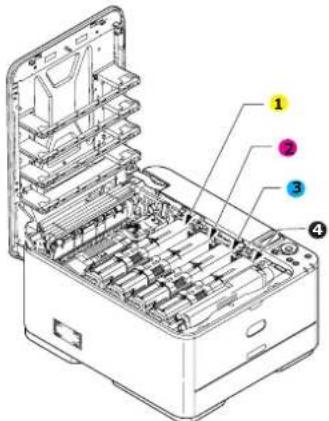
- Note the positions of the four cartridges. It is essential that they go back in the same order.
text_image
Technical diagram of a device with numbered components, likely an open case or rack assembly.-
Yellow cartridge 2. Magenta cartridge
-
Cyan cartridge 4. Black cartridge
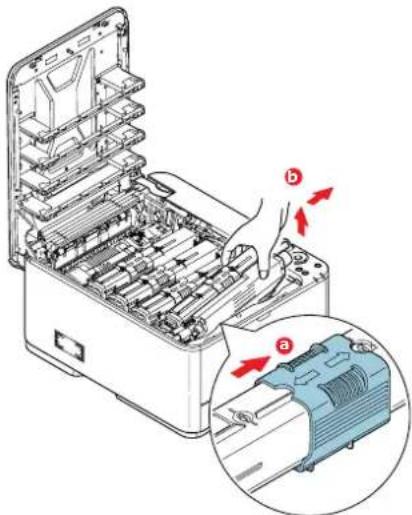
(a) Slide the coloured release collar on the cartridge to be replaced fully towards the right hand side of the printer.
text_image
Technical diagram showing a mechanical device with labeled parts and directional arrows indicating assembly or operation.(b) Lift the right-hand end of the cartridge and then draw the cartridge to the right to release the left-hand end as shown, and withdraw the toner cartridge out of the printer.
-
Put the cartridge down gently onto a piece of paper to prevent toner from marking your furniture.
-
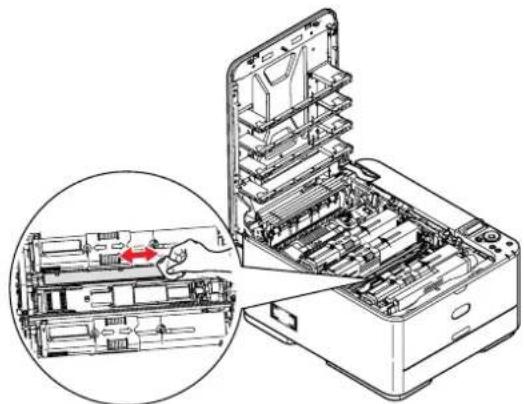
Clean the top of the ID unit with a clean, lint free cloth.
natural_image
Technical illustration of an open hard disk drive system with a hand inserting a component (no text or symbols visible)-
Remove the new cartridge from its box but leave its wrapping material in place for the moment.
-
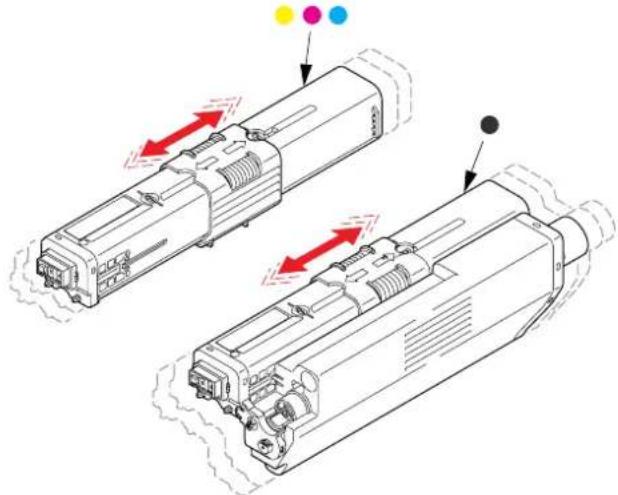
Gently shake the new cartridge from end to end several times to loosen and distribute the toner evenly inside the cartridge.
natural_image
Technical line drawing of two electronic device modules with red arrows indicating motion or movement, no text or symbols present.-
Remove the wrapping material.
-
Holding the cartridge by its top centre, lower it into the printer over the image drum unit from which the old cartridge was removed.
-
Insert the left end of the cartridge into the top of the image drum unit first, pushing it against the spring on the drum unit, then lower the right end of the cartridge down onto the image drum unit.
-
Pressing gently down on the cartridge to ensure that it is firmly seated, slide the coloured collar fully towards the left hand side of the printer. This will lock the cartridge into place and release toner into the image drum unit.

text_image
Technical diagram showing a mechanical assembly with labeled parts (a, b, c) and directional arrows indicating process flow or movement.- Gently wipe the LED head surface with a clean, lint free cloth.
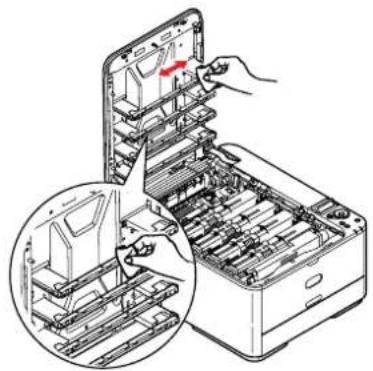
natural_image
Illustration of a hand inserting into a device into a rack, with an inset showing hands holding the rack (no text or symbols present)- Finally, close the top cover and press down firmly at both sides so that the cover latches closed.
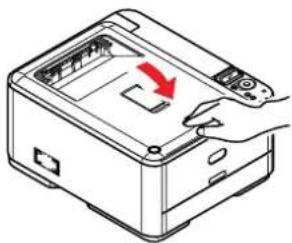
natural_image
Illustration of a device with a red arrow indicating a process or operation, no text or symbols presentIMAGE DRUM REPLACEMENT
The image drum assembly comes complete with its own installation details which give full instructions on replacement. You are advised to follow these instructions carefully.
REPLACING THE TRANSFER BELT UNIT
The belt unit is located under the image drum assembly.
Switch off the printer and allow the fuser to cool for about 10 minutes before opening the cover.
- Press the cover release and open the printer's top cover fully.
WARNING!
If the printer has been powered on, the fuser will be hot. This area is clearly labelled. Do not touch.
- Holding it by its handles, lift the image drum assembly, complete with toner cartridges, up and out of the printer.
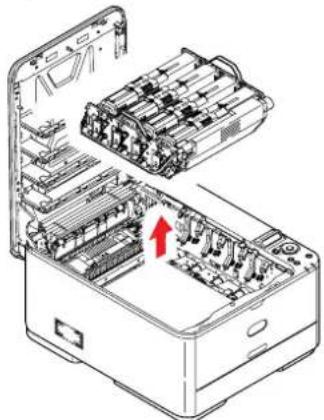
natural_image
Technical line drawing of an open computer case with internal components and a red arrow indicating a location (no text or symbols present)- Place the assembly in a safe place away from direct sources of heat and light.
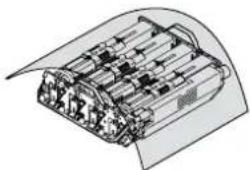
natural_image
Technical line drawing of a mechanical assembly or housing component (no text or symbols visible)CAUTION!
The green image drum surface at the base of each cartridge is very delicate and light sensitive. Do not touch it and do not expose it to normal room light for more than 5 minutes. If the drum unit needs to be out of the printer for longer than this, please wrap the cartridge inside a black plastic bag to keep it away from light. Never expose the drum to direct sunlight or very bright room lighting.
- Pull the locking levers at each side of the transfer belt up and towards the front of the machine.

text_image
Diagram of a printer internal structure with labeled parts (a, b) and directional arrows indicating process flow or movement.-
Using the locking levers (a), lift the belt (b) upwards and withdraw from the machine.
-
Lower the new belt unit into place, with the drive gear towards the rear of the printer. Locate the drive gear into the gear inside the printer by the rear right corner of the unit, and lower the belt unit flat inside the printer.
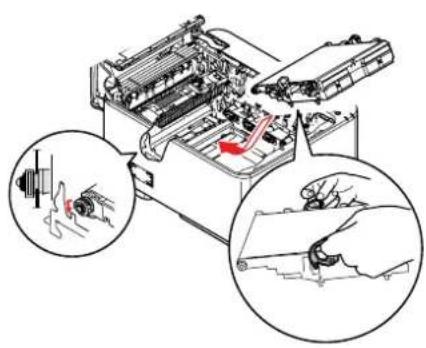
natural_image
Technical illustration of a mechanical assembly with two circular insets showing close-ups of tool paths (no text or symbols)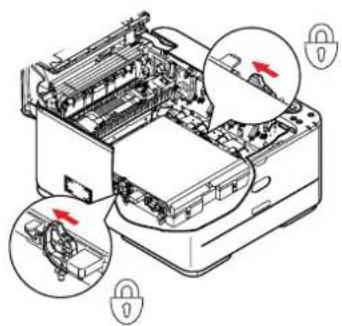
text_image
Technical diagram of a printer with labeled parts and directional arrows indicating assembly or process steps-
Push the locking levers towards the rear of the machine. This will secure the belt unit in place.
-
Holding the image drum assembly by its handles, lower it into place in the machine, locating the pegs at the sides into their slots in the sides of the printer cavity.
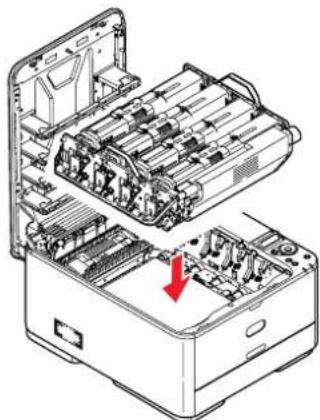
natural_image
Technical line drawing of an open computer case with internal components and a red arrow indicating a specific part (no text or symbols present)- Finally, close the top cover and press down firmly at both sides so that the cover latches closed.
FUSER REPLACEMENT
The fuser is located inside the printer just behind the toner cartridges.
WARNING!
If the printer has recently been powered on, some fuser components will be very hot. Handle the fuser with extreme care, holding it only by its handle, which will only be mildly warm to the touch. A warning label clearly indicates the area. If in doubt, switch the printer off and wait at least 10 minutes for the fuser to cool before opening the printer cover.
-
Press the cover release and open the printer's top cover fully.
-
Identify the fuser handle (a) on the top of the fuser unit.

text_image
Technical diagram of an open device with labeled parts (a, b) and directional arrows indicating internal components.-
Pull the two fuser retaining levers (b) towards the front of the printer so that they are fully upright.
-
Holding the fuser by its handle (a), lift the fuser straight up and out of the printer. If the fuser is still warm, place it on a flat surface which will not be damaged by heat.
-
Remove the new fuser from its packaging and remove the transit material.
-
Holding the new fuser by its handle, make sure that it is the correct way round. The retaining levers (b) should be fully upright, and the two locating lugs (c) should be towards you.

text_image
Technical diagram of a mechanical device with labeled components (b, c) and numbered parts-
Lower the fuser into the printer, locating the two lugs (c) into their slots in the sides of the printer cavity.
-
Push the two retaining levers (b) towards the rear of the printer to lock the fuser in place.
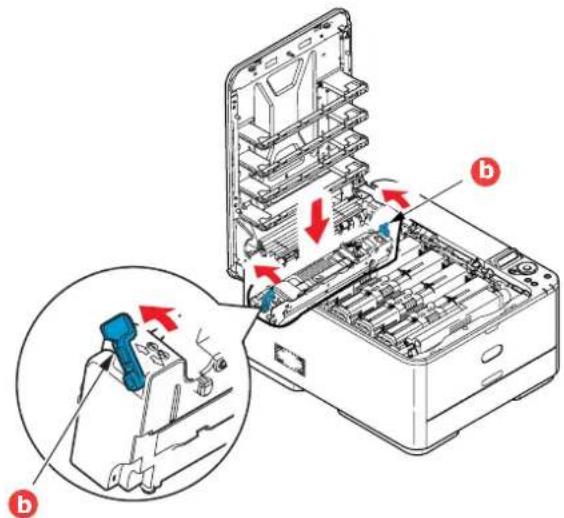
text_image
Technical diagram showing a printer internal structure with labeled parts and directional arrows indicating process flow or movement.- Finally, close the top cover and press down firmly at both sides so that the cover latches closed.
CLEANING
CAUTION!
Use a clean, moist, lint-free cloth for cleaning. Do not use benzine, thinners or alcohol as a cleaning agent.
...THE UNIT CASING
-
Switch the printer off.
-
Wipe the unit surface with a soft cloth moistened sparingly with water or neutral detergent.
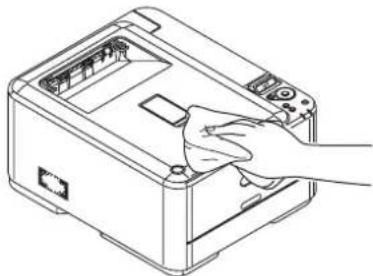
natural_image
Line drawing of a hand inserting a component into a device casing (no text or symbols)- Use a soft dry cloth to dry the unit surface.
- Switch the printer on.
...THE LED HEAD
Clean the LED heads when printing does not come out clearly, has white lines or when text is blurred.
There is no need to switch off the printer to clean the lens.
- Press the cover release and open the printer's top cover fully.
- Gently wipe the LED head surface with a clean, lint free cloth.
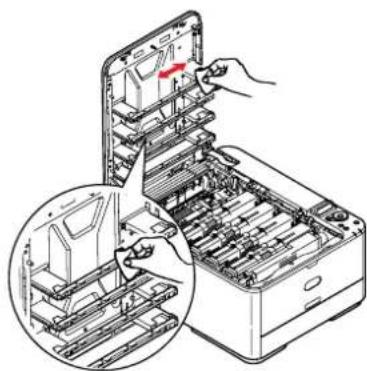
natural_image
Illustration of a hand inserting into a device into a rack, with an inset showing hand positioning and mechanical components (no text or symbols)CAUTION!
Do not use methyl alcohol or other solvents on the LED head as damage to the lens surface will occur.
- Close the top cover and press down firmly at both sides so that the cover latches closed.
INSTALLING UPGRADES
This section explains how to install optional equipment into your printer. This includes:
additional RAM memory
SD card (e-STUDIO262CP only)
additional paper tray
MEMORY UPGRADE
The basic printer models comes equipped with the following main memory:
e-STUDIO222CP: 128MB
e-STUDIO262CP: 256MB
This can be upgraded with an additional memory board of 256MB or 512MB, giving a maximum total memory capacity of:
e-STUDIO222CP: 640MB
e-STUDIO262CP: 768MB
- Switch the printer off and disconnect the AC power cable.

natural_image
Technical line drawing of a device housing with an inset showing a close-up of the internal component (no text or symbols)- Remove the outer access cover and place it safely to one side.
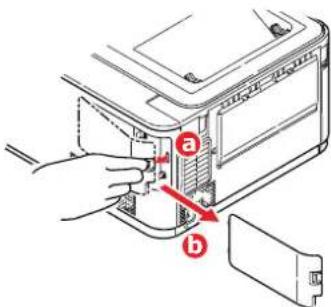
text_image
Diagram showing a hand inserting a component into a device labeled 'a' and 'b', with a red arrow indicating direction.- Turn locking screw (a) anti-clockwise and remove the inner access cover (b). Place it safely to one side.
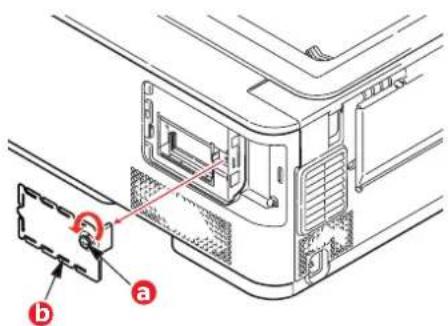
text_image
Technical diagram showing a device panel with labeled parts (a and b) and a highlighted connection point.-
Carefully remove the new memory board from its wrapping. Try to handle the board only by its short edges, avoiding contact with any metal parts as far as possible. In particular, avoid touching the edge connector.
-
Notice that the memory board has a small cutout in the edge connector, which is closer to one end than the other.
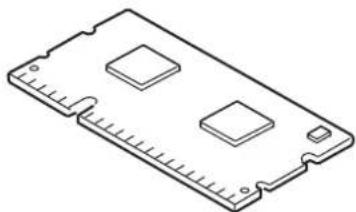
natural_image
Isometric line drawing of a rectangular electronic component with three square cutouts and mounting holes (no text or symbols)-
Identify the RAM expansion slot in the printer.
-
If the RAM expansion slot already contains a memory upgrade board, that board will have to be removed before you can install the new one. To remove it, proceed as follows, otherwise skip to step 8.
(a) Release retaining clips and pull the board out of the slot.
(b) Place the removed memory board in the antistatic bag which originally contained the new memory board.
-
Hold the new memory board by its short edges, so that the edge connector faces in towards the RAM expansion slot, and the small cutout is closer to the rear of the printer.
-
Gently push the board into the RAM expansion slot until it latches in and will not go any further.
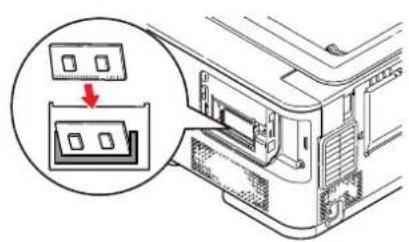
text_image
Diagram showing a device with two ports and a magnified inset highlighting a specific port's position.
natural_image
Diagram of a computer interface showing a zoomed-in view of the internal components (no text or symbols present)- Replace the inner access cover (b) and turn locking screw (a) clockwise to secure it shut.
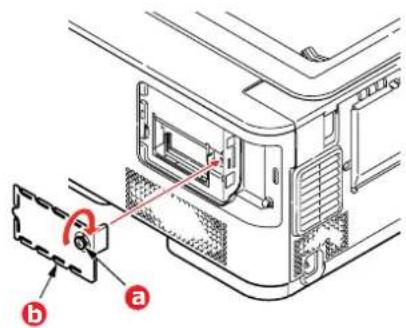
text_image
Technical diagram showing a device with labeled parts (a and b) and a circular component, likely illustrating a mechanical or electronic assembly.- Replace the access cover and latch it closed.

text_image
Diagram showing a hand inserting a component into a device labeled 'a' and 'b', with an arrow indicating direction.-
Reconnect the AC power cable and switch the printer on.
-
When the printer is ready, print a menu map as follows:
(a) Press the OK button.
(b) Press the Menu down button then the OK button to select the INFORMATION MENU.
(c) Press the OK button to select PRINT MENU MAP.
(d) Press the OK button once more to execute.
(e) When the Configuration map is printed, press ON LINE to exit the menu system.
- Examine the first page of the menu map.
Near the top of the page, between the two horizontal lines, you will see the current printer configuration. This list contains the figure for total memory size.
This should indicate the total memory now installed.
SD CARD (e-STUDIO262CP ONLY)
The optional SD card enables collating of printed pages and can be used to store overlays and macros, fonts, and secure or proof documents waiting to be printed.
- Switch the printer off and disconnect the AC power cable.
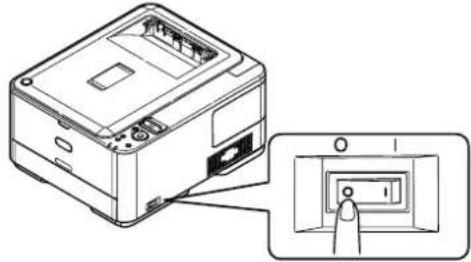
natural_image
Technical line drawing of a device housing with an inset showing a close-up of its internal component (no text or symbols present)- Remove the outer access cover and place it safely to one side.

text_image
user-glasses a b- Turn locking screw (a) anti-clockwise and remove the inner access cover (b). Place it safely to one side.

text_image
Technical diagram showing a device rear panel with labeled components and a magnified view of a component labeled 'a' and 'b'.- Notice that the SD card has one chamfered corner.

- Gently push the SD card into the slot as shown.
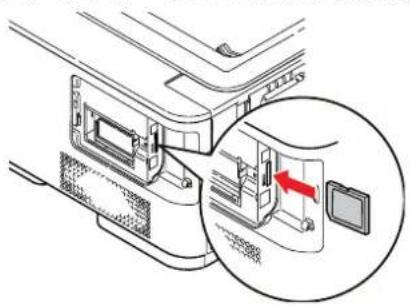
natural_image
Technical diagram of a mechanical assembly with a magnified inset showing a component (no text or symbols visible)
natural_image
Technical diagram of a mechanical component with an inset close-up showing internal components (no text or symbols)- Replace the inner access cover (b) and turn locking screw (a) clockwise to secure it shut.
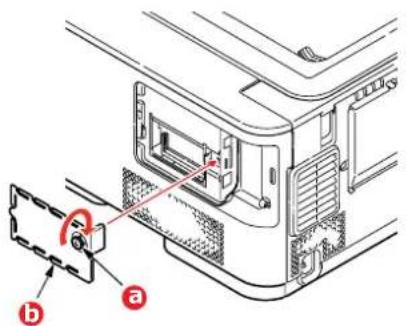
text_image
Technical diagram showing a device's internal structure with labeled parts (a and b) and a magnified inset view.- Replace the access cover and latch it closed.
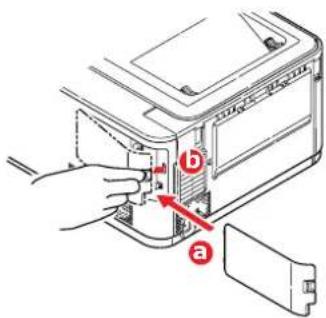
text_image
Diagram showing a hand inserting a component into a device labeled 'a' and 'b', with an arrow indicating direction.-
Reconnect the AC power cable and switch the printer on.
-
When the printer is ready, print a menu map as follows:
(a) Press the OK button.
(b) Press the Menu down button then the OK button to select the INFORMATION MENU.
(c) Press the OK button to select PRINT MENU MAP.
(d) Press the OK button once more to execute.
(e) When the Configuration map is printed, press ON LINE to exit the menu system.
- Examine the first page of the menu map.
Near the top of the page, between the two horizontal lines, you will see the current printer configuration. This should now indicate that the SD card is installed.
ADDITIONAL PAPER TRAY
-
Switch the printer off and disconnect the AC power cable.
-
Place additional paper tray on desired location.
-
Observing safety rules for lifting and, using locating guides, place printer on top of the additional paper tray.

natural_image
Technical line drawing of a device chassis showing internal components and mounting points (no text or symbols)- Fit retaining clips as shown.
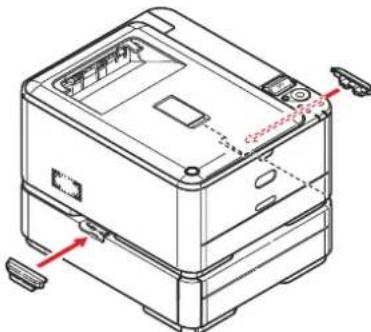
natural_image
Technical line drawing of a device casing with mounting holes and red directional arrows indicating movement (no text or symbols)- Re-connect the AC power cable and switch the printer ON.
All that remains is to adjust the printer driver to make full use of the new features ("Setting the driver device options" on page 62).
SETTING THE DRIVER DEVICE OPTIONS
Once your new upgrade has been installed, you may need to update the printer driver so that the additional features are available to your applications.
Accessories such as additional paper trays will only be usable if the printer driver on your computer knows they are there.
In some cases the hardware configuration of your machine is automatically detected when the driver is installed. However, it is advisable to at least check whether all of the available hardware features are listed in the driver.
This procedure is essential if you subsequently add extra hardware features to your machine after the drivers have been installed and set up.
Remember that if your machine is shared between users on different computers, the driver must be adjusted on each user's machine.
WINDOWS
- Access the driver's Properties window.
(a) Open the Printers window (called "Printers and Faxes" in Windows XP) via the Start Menu or from the Windows Control Panel.
(b) Right-click the icon for this machine, and choose Properties from the pop-up menu.
- Select the Device Options tab.
In the Windows XP PostScript driver the tab may be called Device Settings.
- Set the options for any devices you have just installed.
- Click OK to close the window and save your changes.
MAC OS X
NOTE
Applies to the PS driver only.
Snow Leopard (Mac OS X 10.6) and Leopard (Mac OS X 10.5)
- Open the Mac OS X Print & Fax Preferences.
- Ensure your machine is selected.
- Click Options & Supplies.
- Click Driver.
- Select all hardware options appropriate to your machine and click OK.
Tiger (Mac OS X 10.4)
- Open the Mac OS X Print & Fax Preferences.
- Ensure your machine is selected.
- Click Printer Setup....
- Click the menu and choose Installable Options....
- Select all hardware options appropriate to your machine and click Apply Changes....
Panther (Mac OS X 10.3)
- Open the Mac OS X Print & Fax Preferences.
- Click Printing.
- Click Set Up Printers....
- Ensure your machine is selected and click Show Info....
- Click the menu and choose Installable Options....
- Select all hardware options appropriate to your machine and click Apply Changes....
TROUBLESHOOTING
Provided that you follow the recommendations in this guide on the use of print media, and you keep the media in good condition prior to use, your printer should give years of reliable service. However, paper jams occasionally do occur, and this section explains how to clear them quickly and simply.
Jams can occur due to paper misfeeding from a paper tray or at any point on the paper path through the printer. When a jam occurs, the printer immediately stops, and the Attention LED on the control panel informs you of the event. If printing multiple pages (or copies), do not assume that, having cleared an obvious sheet, others will not also be stopped somewhere along the path. These must also be removed in order to clear the jam fully and restore normal operation.
MAJOR PRINTER COMPONENTS AND PAPER PATH
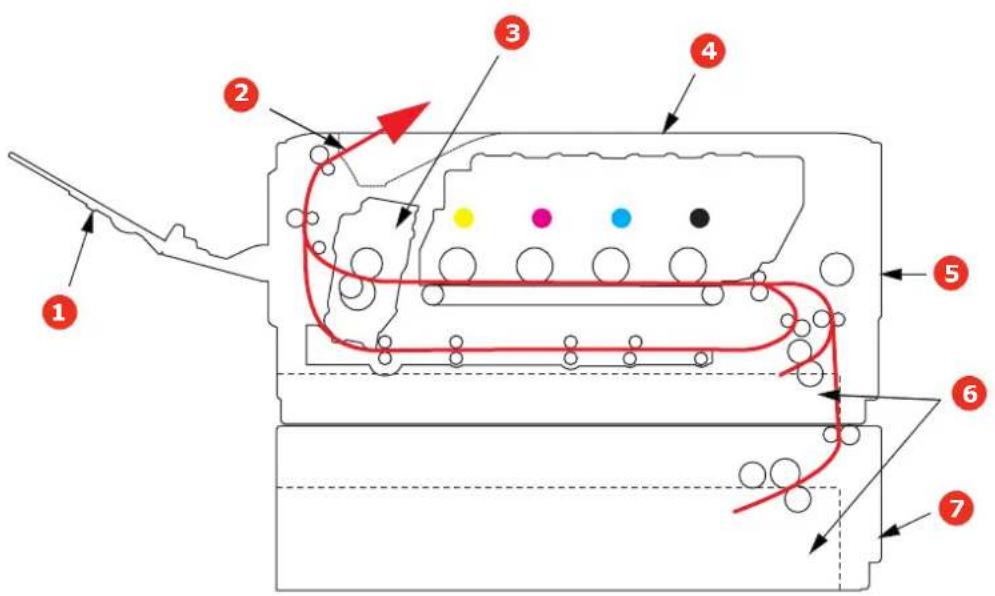
text_image
Technical diagram of a mechanical component with numbered parts and colored zones, likely for assembly or manufacturing instructions.- Face-up stacker. 5. Front cover.
- Paper exit. 6. Paper tray.
- Fuser unit 7. Additional paper tray (if fitted)
- Top cover.
PAPER SENSOR ERROR CODES
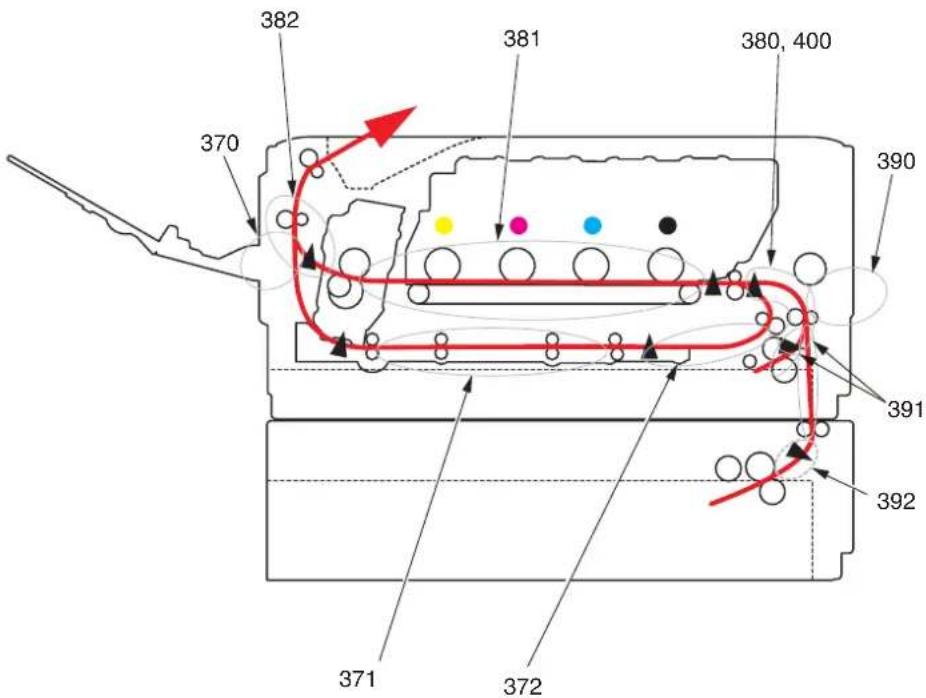
text_image
382 381 380, 400 370 390 391 392 371 372| CODE # LOCATION CODE # LOCATION | ||
| 370 Duplex 390 MP Tray | ||
| 371 Duplex 391 Paper Tray | ||
| 372 Duplex 392 | 2^nd Paper tray^a | |
| 380 Paper feed 400 Paper size | ||
| 381 Paper path 409 Face up stacker | (sensor not shown) | |
| 382 Paper exit | ||
a. If fitted.
CLEARING PAPER JAMS
-
If a sheet is well advanced out of the top of the printer, simply grip it and pull gently to draw it fully out. If it does not remove easily, do not use excessive force. It can be removed from the rear later.
-
Press the cover release and open the printer's top cover fully.
WARNING!
If the printer has been powered on, the fuser will be hot. This area is clearly labelled. Do not touch.
- Holding it by its handles, lift the image drum assembly, complete with the toner cartridges, up and out of the printer.

natural_image
Technical illustration of an open electronic device with internal components and a red arrow indicating a specific part (no text or symbols present)- Put the assembly down gently onto a piece of paper to prevent toner from marking your furniture and to avoid damaging the green drum surface, and cover.

natural_image
Technical line drawing of a battery pack assembly (no text or symbols)CAUTION!
The green image drum surface at the base of the Image Drum is very delicate and light sensitive. Do not touch it and do not expose it to normal room light for more than 5 minutes. If the drum unit needs to be out of the printer for longer than this, please wrap the cartridge inside a black plastic bag to keep it away from light. Never expose the drum to direct sunlight or very bright room lighting.
- Look into the printer to check whether any sheets of paper are visible on any part of the belt unit.
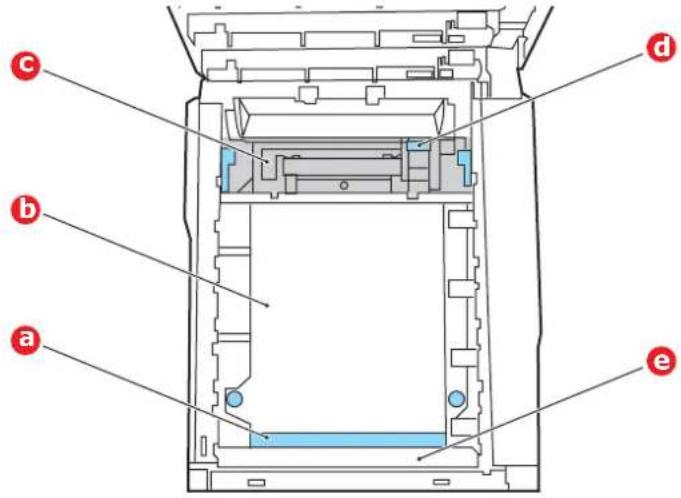
text_image
c b a d eCAUTION!
Do not use any sharp or abrasive objects to separate sheets from the belt. This may damage the belt surface.
(a) To remove a sheet with its leading edge at the front of the belt (a), lift the plastic guard (e) at the front of the printer, then carefully lift the sheet from the belt and pull it forwards into the internal drum cavity and withdraw the sheet.
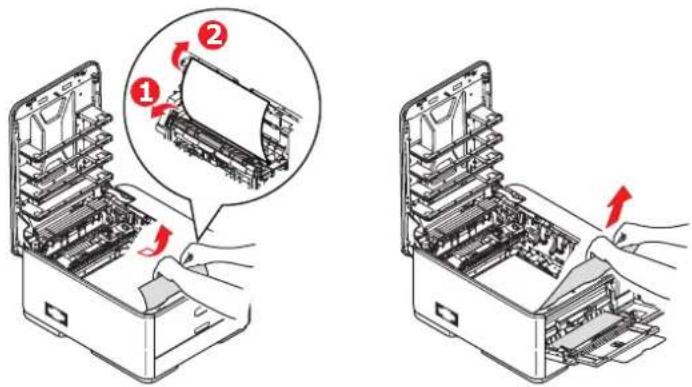
text_image
Technical diagram showing two views of a file organizer with labeled parts and directional arrows indicating assembly or processing steps.(b) To remove a sheet from the central area of the belt (b), carefully separate the sheet from the belt surface and withdraw the sheet.

natural_image
Isometric view of a computer case with internal components and a red arrow indicating a location (no text or symbols present)(c) To remove a sheet just entering the fuser (c), separate the trailing edge of the sheet from the belt, push the fuser pressure release lever (d) towards the front and down to release the fuser's grip on the sheet, and withdraw the sheet
through the drum cavity area. Then allow the pressure release lever to rise again.

text_image
Diagram of a printer internal structure with labeled component 'd', showing wiring and mechanical componentsNOTE
If the sheet is well advanced into the fuser (only a short length is still visible), do not attempt to pull it back.
(d) To remove a sheet in the fuser, move the two retaining levers (e) towards the front of the machine to release the fuser. Withdraw the fuser unit using the handle (f).
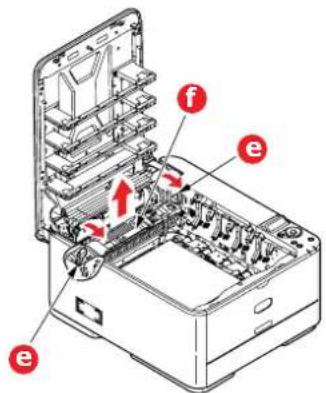
text_image
Technical diagram of an electronic device with labeled components (e, f) and internal structure arrows(e) Press release lever (g) and pull the trapped paper from the fuser.
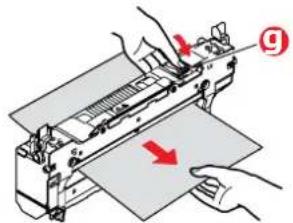
text_image
Diagram showing a printer or printer with a paper plane and a hand holding a paper, marked with red arrows indicating direction of movement.(f) Replace fuser unit into the machine and move locking levers (e) toward the rear of the machine.

text_image
Technical diagram of an open computer case with labeled parts and directional arrows indicating internal components.- If you were duplex printing when the jam occurred, check the duplex paper path:
(a) Pull the locking levers at each side of the transfer belt up and towards the front of the machine.
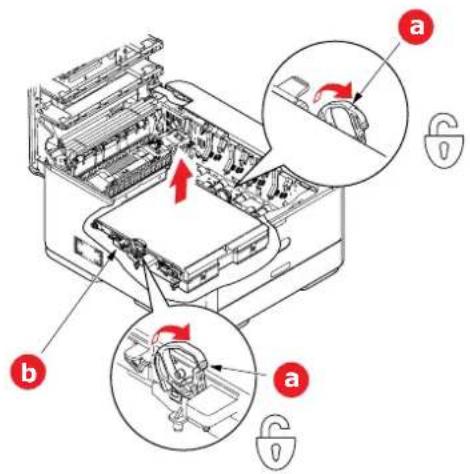
text_image
Diagram of a printer internal structure with labeled parts (a, b) and directional arrows indicating process flow or movement.(b) Using the locking levers (a), lift the belt (b) upwards and withdraw from the machine.
(c) Look into the printer to check whether any sheets of paper are visible on any part of the paper path. Pull out any sheets found in this area.
(d) Lower the belt unit into place, with the drive gear towards the rear of the printer. Locate the drive gear into the gear inside the printer by the rear right corner of the unit, and lower the belt unit flat inside the printer.
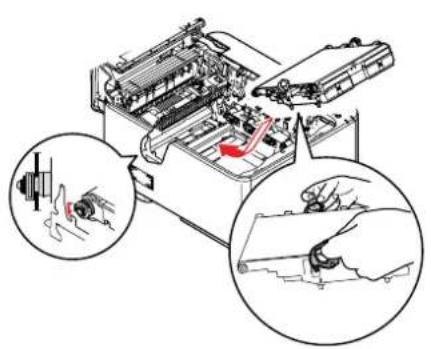
natural_image
Diagram of a mechanical device with two views of internal components, showing tool and assembly (no text or symbols)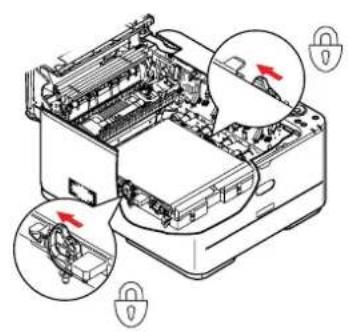
text_image
Technical diagram of a printer with labeled parts and directional arrows indicating process flow or movement(e) Push the locking levers towards the rear of the machine. This will secure the belt unit in place.
- Holding the image drum assembly by its handles, lower it into place in the machine, locating the pegs at the sides into their slots in the sides of the printer cavity.

natural_image
Technical line drawing of an open electronic device with internal components and a red arrow indicating a specific part (no text or symbols present)-
Lower the top cover but do not press down to latch it closed yet. This will protect the drum from excessive exposure to room lighting while you check the remaining areas for jammed sheets.
-
Open the rear exit tray (h) and check for a sheet of paper in the rear path area (i).

text_image
Technical diagram of a printer internal structure with labeled parts i and hPull out any sheets found in this area.
If the sheet is low down in this area and difficult to remove, it is probably still gripped by the fuser. In this case raise the top cover, reach around and press down on the fuser pressure release lever (d).
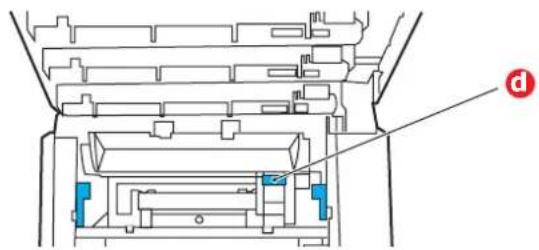
text_image
Technical diagram of a mechanical assembly with labeled component 'd'-
If you are not using the rear exit tray, close it once any paper has been removed from this area.
-
Pull out the paper tray and ensure that all paper is stacked properly, is undamaged, and that the paper guides are properly positioned against the edges of the paper stack. When satisfied, replace the tray.

flowchart
graph TD
    A["Opening Box"] --> B["Cut Box"]
    B --> C["Packaging Unit"]
    C --> D["Final Assembly Box"]
    style A fill:#f9f,stroke:#333
    style B fill:#ccf,stroke:#333
    style C fill:#cfc,stroke:#333
    style D fill:#fcc,stroke:#333
- Finally, close the top cover and press down firmly so that the cover latches closed. When the jam has been cleared, if JAM RECOVERY is set to ON in the SYS CONFIG MENU, the printer will attempt to reprint any pages lost due to paper jams.
| SYMPTOMS POSSIBLE CAUSES STEPS TO TAKE | ||
| Vertical white lines can be seen on the printed page. | The LED head is dirty. Wipe the | LED head with a soft, lint-free cloth. |
| The toner is low. Open the top | cover and tap the cartridge a few times to evenly distribute any remaining toner. If symptoms persist, replace the toner cartridge. | |
| Foreign materials may be present in the image drum. | Replace the image drum cartridge. | |
| Light-shielding film of the image drum cartridge is dirty. | Wipe the film with a soft, lint-free cloth. | |
| Printed images are fading vertically. | The LED head is dirty. Wipe the | LED head with a soft, lint-free cloth. |
| The toner is low. Open the top | cover and tap the cartridge a few times to evenly distribute any remaining toner. If symptoms persist, replace the toner cartridge. | |
| The paper is not suitable for the printer unit. | Use recommended paper. | |
| Printing is light. The toner | cartridge is not properly seated. | Reinstall the toner cartridge. |
| The toner is low. Open the top | cover and tap the cartridge a few times to evenly distribute any remaining toner. If symptoms persist, replace the toner cartridge. | |
| The paper is moist. Use paper | stored in proper temperature and humidity conditions. | |
| The paper is not suitable for the printer unit. | Use recommended paper. | |
| Thickness and type of paper are inappropriate. | Set the correct value of media type and media weight in the Media menu or set one value thicker for media weight. | |
| Recycled paper is being used. | Set one value thicker for media weight in the Media menu. | |
| Partially faded images. White spots and lines appear in solid printing. | Paper is moist or dry. Use paper | stored in proper temperature and humidity conditions. |
| Vertical lines appear. The | image drum cartridge is damaged. | Replace the image drum cartridge. |
| The toner is low. Open the top | cover and tap the cartridge a few times to evenly distribute any remaining toner. If symptoms persist, replace the toner cartridge. | |
| Horizontal Lines and spots appear periodically. | When the interval is about 94mm (4in), the image drum (the green tube) is damaged or dirty. | Wipe it lightly with a soft cloth. Replace the image drum cartridge when it is damaged. |
| When the interval is about 30mm (1.2in), there may be foreign particles in the image drum cartridge. | Open/close the top cover, and print again. | |
| When the interval is about 86mm (3.4in), the fuser unit is damaged. | Replace the fuser unit. | |
| The image drum cartridge has been exposed to light. | Replace the image drum cartridge if the problem is not resolved. | |
| White area of paper is lightly stained. | Paper contains static. Use paper | stored in proper temperature and humidity conditions. |
| Too thick paper is used. Use thinner paper. | ||
| The toner is low. Open the top | cover and tap the cartridge a few times to evenly distribute any remaining toner. If symptoms persist, replace the toner cartridge. | |
| Periphery of the letters is smudged. | The LED head is dirty. Wipe the | LED head with a soft, lint-free cloth. |
| Toner comes off when it is rubbed. | The thickness and type of the paper are incorrectly set. | Set the correct value of media type and media weight in the Media menu or set one value lighter for media weight. |
| Recycled paper is used. Set one | value thicker for media weight in the Media menu. | |
| Glossiness is not uniform. | The thickness and type of the paper are incorrectly set. | Set the correct value of media type and media weight in the Media menu or set one value lighter for media weight. |
SPECIFICATIONS
e-STUDIO222CP - FC-222CP
e-STUDIO262CP - FC-262CP
| ITEM SPECIFICATION | ||
| e-STUDIO222CP e-STUDIO262CP | ||
| Dimensions 410 x 504 x 242mm | (W x D x H) | |
| Weight 21Kg approx. | ||
| Power supply 220 to 240VAC @ | 50/60 Hz ± 2% | |
| Power consumptionSleep: -Power saving: < Stand-by: 9Operating (Average): 4Operating (Max.): 1 | < 1.5 W | |
| < 14 W | ||
| Stand-by: 90 W | ||
| Operating (Average): 480 W 540 W | ||
| Operating (Max.): 1170 W | ||
| Operating environment Operating | 10 to 32 °C/20 to 80% RH(optimum 25 °C wet, 2 °C dry)Off: 0 to 43 °C/10 to 90% RH(optimum 26.8 °C wet, 2 °C dry) | |
| Print environment Colour 17 to 27 °C @ 50 to 70% RH | ||
| Noise (Sound pressure level)Operating:Standby: | ||
| < 52dB(A) | < 54dB(A) | |
| 37dB(A) | ||
INDEX
B
Belt
how to replace.... 51
life remaining.... 39
C
Cleaning the LED head...... 55
Colour
adjusting 30
D
Duplex
paper size and weight limits 15
E
Envelopes
loading 19
F
Fuser
how to replace.... 53
life remaining.... 39
|
Image drum
current usage state ...... 39
M
Maintenance menu.... 37
Major printer components and paper path....64
Menu functions.... 21
Menus
administrator menu ...... 40
color menu.... 30
factory default settings..... 23
FX emulation 34
how to use.... 21
information menu 25
maintenance menu.... 38
media menu.... 28
memory menu.... 37
menu map 25
network menu 35
PCL emulation menu...... 32
PPR emulation menu ..... 33
print jobs menu 24
print menu.... 26
print statistics menu...... 46
resetting 38
shutdown menu.... 26
system adjust menu...... 38
system configuration menu31
usage menu.... 39
USB menu.... 35
Multi purpose tray
how to use.... 19
paper metrics 15
N
Network addresses
setting 35
Network protocols
enabling or disabling ..... 35
0
Operator Panel 21
P
Paper
jam clearing 64
jam, error codes.... 65
loading cassette trays ..... 16
loading letterhead 17
recommended types..... 14
supported sheet sizes..... 14
weights and sizes 28
Power saving
delay time 31
enabling or disabling ..... 39
PPR emulation.... 33
Print quality
adjusting 39
Printer overview.... 11
Problem checklist
unsatisfactory printing..... 71
S
SD Card
how to install.... 59
Switching off correctly ..... 26
T
Toner
current usage state 39
how to replace.... 47
U
Upgrades
additional paper tray ..... 61
memory.... 56
SD card.... 59
Usage menu.... 39