imageClass D1120 - Printer CANON - Free user manual and instructions
Find the device manual for free imageClass D1120 CANON in PDF.


User questions about imageClass D1120 CANON
0 question about this device. Answer the ones you know or ask your own.
Ask a new question about this device
Download the instructions for your Printer in PDF format for free! Find your manual imageClass D1120 - CANON and take your electronic device back in hand. On this page are published all the documents necessary for the use of your device. imageClass D1120 by CANON.
USER MANUAL imageClass D1120 CANON
Basic Operation Guide

text_image
Before Using the Machine Documents and Print Media Copying Printing Registering Destinations in the Address Book Fax E-Mail Scanning Network Settings from a PC Maintenance Troubleshooting Machine Settings AppendixPlease read this guide before operating this product.
After you finish reading this guide, store it in a safe place for future reference.
ENG
Manuals for the Machine
The manuals for this machine are divided as follows. Please refer to them for detailed information.
Read this manual first.
Starter Guide
Read this manual to learn the required settings and connections before using the machine.
● Overview of Machine Functions
● Set Up the Machine to Suit Your Purposes
- Set Up the Machine
● Make Fax Settings (D1180/D1170/D1150 Only)
● Set Up Network Connection
● Set Up Computers and Software
Appendix
text_image
Cabinet ImageCLASS 11.04.01.178 11.04.01.178 Starter GuideRead this manual next.
Basic Operation Guide
Read this manual to learn information about basic operations and machine functions.
This Document
● Before Using the Machine
● Documents and Print Media
● Copying
● Printing
● Registering Destinations in the Address Book (D1180/D1170/D1150)
● Fax (D1180/D1170/D1150)
E-mail (D1180/D1170)
- Scanning
Network
● Settings from a PC
● Maintenance
● Troubleshooting
● Machine Settings
Appendix
text_image
Canon ImageCLASS 01150781173 011507811203 Basic Operation GuideRead the sections of these manuals that correspond to your intended use.
e-Manual
Read this manual to learn detailed information about advanced machine operations and functions, and how to customize machine settings.
(Located on Manual CD)
● Copy/Fax/Print/Scan/Security
● Network settings
● Setting from a PC (Remote UI)
● Troubleshooting
● Maintenance
Specifications

● Considerable effort has been made to make sure that the manuals for the machine are free of inaccuracies and omissions. However, as we are constantly improving our products, if you need an exact specification, please contact Canon.
● The machine illustration in this manual may differ slightly from your machine.
Overview of Machine Functions
Depending on the system configuration and product purchased, some functions may not be available.
Copying
You can use various copy functions.
Basic Operation Guide
Copying (see on p. 3-1)
e-Manual
Copy
Faxing
In addition to the normal faxing, you can send faxes from a computer.
Basic Operation Guide
Fax (see on p. 6-1)
e-Manual
Fax
Printing
You can use various print functions by printing from a computer.
Basic Operation Guide
Printing (see on p. 4-1)
e-Manual
Scanning
You can store the scanning documents to the computer and the file server.
Basic Operation Guide
Scanning (see on p. 8-1)
e-Manual
Scan
Network
This machine can be connected to a network. Connecting to a network enables you to use various functions.
Basic Operation Guide
Network (see on p. 9-1)
e-Manual
Network Settings
E-Mail function
Scanned documents can be sent as e-mail file attachments.
Basic Operation Guide
E-Mail (see on p. 7-1)
e-Manual
Remote User Interface
You can set and manage this machine easily and quickly from a computer.
Basic Operation Guide
Setting from a PC (see on p. 10-1)
e-Manual
Setting from a PC
Security function
You can limit the use of the machine by setting the IDs. You can also limit the use of some functions.
Basic Operation Guide
Machine Settings (see on p. 13-1)
e-Manual
Security
Contents
Manuals for the Machine ....i
Preface ix
Available Features ix
How to Use This Guide ....x
Symbols Used in This Manual ....x
Keys and Buttons Used in This Manual .....x
Abbreviations Used in This Manual ....x
Illustrations Used in This Manual ...... xi
Safety Precautions ...... xii
Important Safety Instructions ....xii
Handling and Maintenance ..... xii
Location ...... xiii
Power Supply ...... xiv
Telephone Equipment ...... xv
Customer Support (U.S.A.) ......xv
Customer Support (Canada) ...... xv
Legal Notices ...... xvi
Trademarks ...... xvi
Copyright..... xvi
Third Party Software ......xvii
Disclaimers ......xviii
For CA, USA only ....xviii
Legal Limitations on the Usage of Your
Product and the Use of Images ......xviii
FCC (Federal Communications
Commission) xix
Users in the U.S.A. .... xx
Users in Canada ...... xxii
CDRH Regulations ....xxvi
1 Before Using the Machine .....1-1
Machine Components 1-2
External View (Front) 1-2
External View (Back) 1-4
Internal View 1-5
Operation Panel 1-6
Main Operation Panel 1-6
Send Operation Panel 1-10
Display (Standby Mode) 1-12
Copy Mode 1-12
Send Mode/Fax Mode....1-12
Scan Mode 1-12
Log In Mode 1-13
Toner Cartridge 1-14
Maintaining the Toner Cartridge .....1-15
Entering Characters 1-16
Telephone Line Settings (D1180/
D1170/D1150) 1-17
Timer Settings 1-18
Setting the Sleep Mode ....1-18
Setting the Auto Clear Time ....1-19
Setting the Daylight Saving Time .....1-19
2 Documents and Print
Media 2-1
Documents Requirements ......2-2
Scanning Area 2-3
Placing Documents 2-4
On the Platen Glass 2-4
In the ADF 2-5
Paper Requirements 2-6
Printable Area 2-8
Loading Paper 2-9
In the Paper Cassette 2-9
In the Multi-Purpose Tray 2-11
Setting the Paper Size Switch Lever .....2-16
Setting Paper Size and Type 2-17
For the Paper Cassette 2-17
For the Multi-Purpose Tray 2-17
Output Tray 2-19
Output Tray Type 2-19
Selecting the Output Tray ......2-20
3 Copying ....3-1
Overview of Copy Functions ....3-2
Basic Copying Method ....3-4
Canceling Copy Jobs 3-5
Canceling Scanning or Outgoing Jobs ..... 3-5
Canceling Reserved Jobs 3-5
Selecting Paper Source ....3-7
Copying on Papers in Paper Cassettes ..... 3-7
Using the Multi-Purpose Tray with Standard Paper Sizes 3-8
Using the Multi-Purpose Tray with Irregular Paper Sizes .... 3-9
Using the Multi-Purpose Tray with Envelopes 3-11
Selecting Image Quality 3-12
Adjusting Density 3-14
Adjusting Automatically ....3-14
Adjusting Manually 3-15
Enlarge/Reduce Images 3-16
Preset Zoom 3-16
Custom Copy Ratio 3-17
Collating Copies 3-19
Multiple Documents onto One Sheet
(2 on 1) 3-21
2 on 1 Combination ....3-21
Copying ID Card 3-22
2-Sided Copying 3-24
1 to 2-Sided Copying ....3-25
2 to 2-Sided Copying ....3-26
2 to 1-Sided Copying ....3-27
Adjusting Sharpness 3-28
Selecting Paper Size Group 3-29
Changing Standard Mode 3-30
Initializing the Standard Mode .... 3-31
Printing a Sample Page 3-32
4 Printing 4-1
Overview of the Print Functions ....4-2
Introduction to Using Print Functions .....4-4
Printing Documents from a Computer .....4-5
Scaling Documents 4-7
Printing Multiple Pages on One Sheet .....4-9
2-Sided Printing 4-11
Checking and Canceling Print Jobs ...... 4-12
5 Registering Destinations in the Address Book (D1180/
D1170/D1150) 5-1
About the Address Book 5-2
Storing/Editing One-Touch Keys ....5-3
Registering Fax Numbers in One-Touch Keys 5-3
Registering E-Mail Addresses in One-Touch Keys 5-4
Registering File Server Addresses in One-Touch Keys 5-5
Registering Group Addresses in One-Touch Keys 5-7
Editing One-Touch Keys 5-8
Editing One-Touch Keys (Group Addresses) 5-8
Erasing One-Touch Keys ....5-10
Erasing One-Touch Keys (Group Addresses) 5-11
Storing/Editing Coded Dial Codes ...... 5-12
Registering Fax Numbers in Coded Dial Codes ....5-12
Registering E-Mail Addresses in Coded Dial Codes ....5-13
Registering File Server Addresses in Coded Dial Codes ....5-14
Registering Group Addresses in Coded Dial Codes ....5-16
Editing Coded Dial Codes ....5-17
Editing Coded Dial Codes (Group
Addresses) 5-18
Erasing Coded Dial Codes ....5-19
Erasing Coded Dial Codes (Group
Addresses) 5-20
6 Fax (D1180/D1170/D1150) ...6-1
Overview of Fax Functions ......6-2
Introduction to Using Fax Functions ......6-4
Methods for Receiving Faxes...... 6-4
Selecting the Receive Mode ....6-10
Setting the Current Date and Time ......6-10
Setting the Type of Telephone Line ......6-11
Registering the Machine's Name ......6-11
Registering Your Machine's Fax
Number 6-12
Sending Fax Documents 6-13
Basic Methods for Sending Faxes ......6-13
Calling the Recipient before Sending
Fax Documents (Manual Sending) ......6-13
Switching Temporarily to Tone Dialing ...6-14
Dialing an Overseas Number (With
Pauses)....6-15
Basic Methods for Sending PC Faxes .....6-16
Canceling Sending Fax Documents ...... 6-18
Specifying Destinations 6-19
Using Numeric Keys 6-19
Using the One-Touch Keys 6-20
Using Coded Dial Codes ....6-20
Using the Group Addresses ......6-21
Using the Address Book Key 6-22
Sending Documents to More Than One
Location (Broadcasting) 6-24
Redialing When the Line Is Busy 6-25
Redialing Manually 6-25
Redialing Automatically ....6-26
Using the Send History to Resend Faxes
(Job Recall) 6-28
Adjusting Density 6-29
Selecting Image Quality 6-30
2-Sided Documents 6-31
Sending Documents at a Preset Time
(Delayed Sending) 6-32
Changing Density Level 6-34
Standard Send Settings 6-35
Storing the Standard Send Settings .....6-35
Restoring the Standard Send Settings
to Their Default....6-35
Printing the TX Terminal ID 6-37
ECM Transmission 6-39
Adjusting the Pause Time 6-40
Time Out Mode 6-41
Checking the Dial Tone before
Sending 6-42
Send Start Speed 6-43
Receiving Fax Documents 6-44
Basic Methods for Receiving Faxes ......6-44
Printing Received Documents on Both
Sides of Paper 6-45
Reducing a Received Document ...... 6-46
Printing Footer Information on a
Received Document 6-48
Specifying the Way of Printing When
Toner Runs Out 6-49
ECM Reception 6-50
Optional Settings for FaxTel Mode ...... 6-51
Optional Settings for DRPD Mode...... 6-53
Setting the Incoming Ring 6-54
Receiving Documents Manually with an
External Telephone (Remote RX) 6-55
Activating the Remote Reception ......6-55
Receiving Documents with the Remote
Reception 6-56
Adjusting the Auto Switch Time ...... 6-57
Receive Start Speed 6-58
Receiving Documents in Memory
without Printing Out (Memory Lock
Reception) 6-59
Printing All Documents Stored in the
Memory Lock Reception Mode ...... 6-61
Checking/Changing the Status of Fax
Documents in Memory 6-62
Checking/Deleting Fax Transmission
Documents 6-62
Checking/Deleting Fax Reception
Documents 6-62
Checking the Fax Log 6-63
7 E-Mail (D1180/D1170) ......7-1
Overview of E-Mail Functions .....7-2
Introduction to Using E-Mail Functions ....7-4
Basic E-Mail Operations 7-5
Sending E-Mail Documents 7-5
Canceling Sending E-Mail Documents ..... 7-7
8 Scanning 8-1
Overview of the Scanner Functions .....8-2
Introduction to Using Scanner
Functions 8-4
Scanning Documents to a Computer ..... 8-4
Basic Scanning Operations 8-6
Scanning Documents to a Computer ..... 8-6
Scanning Documents to a File Server
(D1180/D1170) 8-6
Canceling Scan Jobs 8-9
Canceling Scanning Documents to a
Computer 8-9
Canceling Scanning Documents to a File
Server (D1180/D1170) 8-9
9 Network ......9-1
Flowchart for Setting Up Network .....9-2
What is the Network? 9-3
Overview of Network Functions .....9-4
10 Settings from a PC ......10-1
Overview of Remote UI 10-2
Starting the Remote UI 10-4
11 Maintenance ....11-1
Cleaning the Machine 11-2
Exterior 11-2
Fixing Unit 11-2
Automatic Feeder Cleaning ....11-3
Scanning Area 11-4
Replacing the Toner Cartridge 11-7
When a Message Appears ....11-7
Redistributing Toner 11-8
Replacing the Toner Cartridge with a
New One 11-9
Recycling Used Cartridges 11-12
The Clean Earth Campaign - The
Canon Cartridge Return Program ...... 11-12
U.S.A. PROGRAM 11-13
Canadian Program – Programme au
Canada 11-16
Transporting the Machine 11-18
12 Troubleshooting ......12-1
Clearing Jams 12-2
Document Jams 12-2
Paper Jams 12-4
Display Messages 12-14
Error Codes (D1180/D1170/D1150) ..... 12-18
If
displayed 12-23
Reloading the Paper 12-23
Changing the Paper Size Setting ..... 12-23
If a Power Failure Occurs 12-26
If You Cannot Solve a Problem ..... 12-27
Customer Support (U.S.A.) 12-27
Customer Support (Canada) 12-27
13 Machine Settings ......13-1
Machine Settings 13-2
Printing USER DATA LIST 13-2
Accessing the Setting Menu ....13-2
Setting Menu 13-3
VOLUME CONTROL 13-3
COMMON SETTINGS ....13-4
COPY SETTINGS 13-5
TX/RX SETTINGS 13-6
ADDRESS BOOK SET. 13-9
PRINTER SETTINGS 13-11
TIMER SETTINGS 13-13
ADJUST./CLEANING 13-14
REPORT SETTINGS 13-15
SYSTEM SETTINGS 13-16
14 Appendix ......14-1
Specifications 14-2
General 14-2
Copier 14-3
Printer 14-3
Scanner 14-3
Facsimile 14-4
Telephone 14-4
Send 14-5
Cassette Feeding Module-U1
(Optional) 14-5
Index 14-6
Preface
Thank you for choosing a Canon product. Before using the machine, please read the following instructions for your safety.
Available Features
The procedures described in this manual are based on the imageCLASS D1180. Depending on the system configuration and product purchased, some features described in the manuals may not be functional. The table below shows the available features on a product basis.
√: available
—: not available
| COPY | Print (UFRII LT) | Print (PCL) | SCAN FAX | E-Mail, SMB/ I-Fax (Receive) | Remote UI (Network Board) | ADF | ||
| imageCLASS D1180 | √ | √ | √ | √ | √ | √ | √ | √ |
| imageCLASS D1170 | √ | √ | — | √ | √ | √ | √ | √ |
| imageCLASS D1150 | √ | √ | — | √ | √ | — | √ | √ |
| imageCLASS D1120 | √ | √ | — — — | √ | √ | √ | ||
The Cassette Feeding Module-U1 is an available option.
How to Use This Guide
Symbols Used in This Manual
The following symbols are used in this manual to explain procedures, restrictions, handling precautions, and instructions that should be observed for safety.

WARNING
Indicates a warning that may lead to death or serious injury if not observed.

CAUTION
Explains how to avoid actions that could injure you or damage your machine.

NOTE
Explains operating restrictions and how to avoid minor difficulties.
Keys and Buttons Used in This Manual
The following symbols and key names are a few examples of how keys to be pressed are expressed in this manual.
- Operation Panel Keys:
+ [Key name]
Example: [Stop/Reset]. - Buttons on the computer operation screen: [Button name]
Example: [OK] - Information in the display appears in angle brackets:
.
Abbreviations Used in This Manual
In this manual, product names and model names are abbreviated as follows:
Microsoft Windows 2000 operating system : Windows 2000
Microsoft Windows XP operating system: Windows XP
Microsoft Windows Vista operating system : Windows Vista
Microsoft Windows 7 operating system : Windows 7
Microsoft Windows Server 2003 operating system: Windows Server 2003
Microsoft Windows Server 2008 operating system: Windows Server 2008
Microsoft Windows operating system: Windows
Illustrations Used in This Manual
natural_image
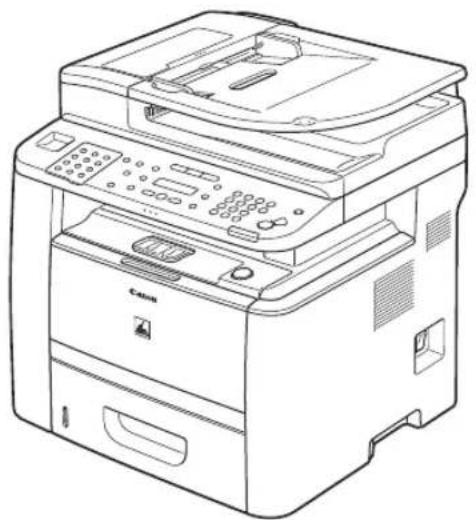
Line drawing of a Canon printer with control panel and paper tray (no text or symbols)Unless otherwise mentioned, illustrations used in this manual are those taken when no optional equipment is attached to the imageCLASS D1180.
If there is any difference between the imageCLASS D1180, D1170, D1150 or D1120, it is clearly indicated in the text, for instance "imageCLASS D1180 Only."
The display used in this manual is the factory preset display for the imageCLASS D1180 in default setting.
Depending on the system configuration and product purchased, the appearance of the display may differ.
Safety Precautions
Important Safety Instructions

WARNING
Except as specifically described in this guide, do not attempt to service the machine yourself. Never attempt to disassemble the machine: opening and removing its interior covers will expose you to dangerous voltages and other risks. For all service, contact Canon Customer Care Center, or a Canon Authorized Service Facility.
Handling and Maintenance

CAUTION
Be careful when removing printed paper from output trays or when aligning it, because it may be hot and result in burn injury.
– Follow all warnings and instructions marked on the machine.
- Do not subject the machine to strong physical shocks or vibrations.
- Always unplug the machine before moving or cleaning it.
- To avoid paper jams, never unplug the power cord, open the covers or add or remove paper in the machine while printing.
- When transporting the machine, make sure to remove the toner cartridge from the machine.
- Place the toner cartridge in its original protective bag or wrap it in a thick cloth to prevent exposure to light.
- Always grip the handle on the sides of the machine when you lift the machine. Never lift the machine by any of its trays or attachments.
- Do not insert any objects into the slots or openings on the machine since they may touch dangerous voltage points or short out parts. This could result in fire or electric shock.
- Do not allow small objects (such as pins, paper clips, or staples) to fall into the machine.
- To avoid spillage in or around the machine, do not eat or drink near it.
- Keep the machine clean. Dust accumulation can prevent the machine from operating properly.
- Use the telephone cable shorter than 118 1/8" (3 m).
- Unplug the machine from the wall outlet and contact Canon Customer Care Center in any of the following cases:
- When the power cord or plug is damaged or frayed.
- If liquid or small object has fallen into the machine.
- If the machine has been exposed to rain or water.
• If the machine has been dropped.
- If the machine does not operate normally when you have followed the instructions in this guide. Adjust only those controls that are covered by the instructions in this guide. Improper adjustment of other controls may result in damage and may require extensive work by a qualified technician to restore the product to normal operation.
- If the machine exhibits a distinct change in performance, indicating a need for servicing.
- Do not place your hands, hair, clothing, etc., near the exit and feed rollers. Even if the machine is not in operation, your hands, hair, or clothing may get caught in the rollers, which may result in personal injury or damage if the machine suddenly starts printing.
- Be careful when removing printed paper from paper delivery tray or when aligning it, because it may be hot and result in burn injury.
– Toner and Toner Cartridge Availability
Toner cartridge for this machine will be available for at least seven (7) years (or any such longer period as required by applicable laws) after production of this machine model has been discontinued.
Location
- Place the machine on a flat, stable, vibration-free surface that is strong enough to support its weight.
- Place the machine in a cool, dry, clean, well ventilated place.
- Make sure the area is free from dust.
- Make sure the location is not exposed to high temperature or humidity.
- Keep the machine away from direct sunlight as this can damage it. If you have to place the machine near a window, install heavy curtains or blinds.
- Do not use the machine near water. Make sure that no wet or humid objects come into contact with the machine.
- Do not use or store the machine outdoors.
- Do not place the machine near devices that contain magnets or generate magnetic fields, such as speakers.
- If possible, place the machine near an existing telephone line outlet for easy connection of the telephone line cord, and to avoid the expense of installing a new outlet.
- Place the machine near a standard 120 V AC (60 Hz) power outlet.
- To ensure reliable operation of the machine and to protect it from overheating (which can cause it to operate abnormally and create a fire risk), do not block the exhaust vent. Never block or cover any openings on the machine by placing it on a bed, sofa, rug, or other similar surface. Do not place the machine in a cupboard or built-in installation, or near a radiator or other heat source unless proper ventilation is provided. Leave at least 4" (100 mm) around all sides of the machine.

text_image
52 3/4" (1340.2 mm) 4" (100mm) 4" (100mm) 25 5/8" (650mm) 4" (100mm) 4" (100mm)
text_image
4" (100mm) 32 1/2" (824mm)- Do not stack boxes or furniture around the power outlet. Keep the area free so you can reach the outlet quickly. If you notice anything unusual (smoke, strange odors, noises) around the machine, unplug the power cord immediately. Contact Canon Customer Care Center.
- Do not allow anything to rest on the power cord, and do not place the machine where the cord will be walked on. Make sure the cord is not knotted or kinked.
Power Supply
- During electrical storms, unplug the power cord from the power outlet. (Any sent or received documents stored in memory are backed up for about 15 minutes.)
- Whenever you unplug the power cord, wait at least five seconds before you plug it in again.
- Do not plug the power cord into an uninterruptible power supply (UPS).
CAUTION
Leave sufficient space around the power plug so that it can be unplugged easily. If objects are placed around the power plug, you will be unable to unplug it in an emergency.
WARNING
This product emits low level magnetic flux. If you use a cardiac pacemaker and feel abnormalities, please move away from this product and consult your doctor.
Telephone Equipment

WARNING
When using telephone equipment, basic safety precautions should always be followed to reduce the risk of fire, electric shock, and injury to persons, including the following:
- Do not use this machine near water (i.e., near a bathtub, kitchen sink, or laundry tub), or in a wet basement or near a swimming pool.
- Avoid using the telephone during an electrical storm, as there may be a remote risk of electric shock from lightning.
- Do not use the telephone to report a gas leak in the vicinity of the leak.
Customer Support (U.S.A.)
Your machine is designed with the latest technology to provide trouble-free operation. If you encounter a problem with the machine's operation, try to solve it by using the information in Chapter 13. If you cannot solve the problem or if you think your machine needs servicing, contact Canon Customer Care Center at 1-800-OK-CANON between the hours of 8:00 A.M. to 8:00 P.M. EST Monday through Friday. On-line support for 24 hours is also available at the website.
http://www.canontechsupport.com/
Customer Support (Canada)
Canon Canada Inc., offers a full range of customer technical support options*:
- For e-mail support, the latest driver or document downloads, and answers to frequently asked questions, visit http://www.canon.ca/
– Free live technical support 9 A.M. to 8 P.M. EST Monday through Friday (excluding holidays) for products still under warranty 1-800-652-2666 - If the problem cannot be corrected by using one of the above technical support options, repair options are available at the time of your call to the live technical support number above or via the website at http://www.canon.ca/
*Support program specifics are subject to change without notice.
Legal Notices

As an ENERGY STAR Partner, Canon U.S.A., Inc. has determined that this product meets the ENERGY STAR Program for energy efficiency.
The International ENERGY STAR Office Equipment Program is an international program that promotes energy saving through the use of computers and other office equipment.
The program backs the development and dissemination of products with functions that effectively reduce energy consumption. It is an open system in which business proprietors can participate voluntarily.
The targeted products are office equipment, such as computers, displays, printers, facsimiles, and copiers. The standards and logos are uniform among participating nations.
Trademarks
Canon, the Canon logo, and imageCLASS are registered trademarks of Canon Inc. in the United States and may also be trademarks or registered trademarks in other countries.
Microsoft, Windows, Windows Server and Windows Vista are trademarks or registered trademarks of Microsoft Corporation in the U.S. and/or other countries.
All other product and brand names are registered trademarks, trademarks or service marks of their respective owners.
Copyright
Copyright © 2009 by Canon Inc. All rights reserved. No part of this publication may be reproduced, transmitted, transcribed, stored in a retrieval system, or translated into any language or computer language in any form or by any means, electronic, mechanical, magnetic, optical, chemical, manual, or otherwise, without the prior written permission of Canon Inc.
UFST: Copyright © 1989-2003 Monotype imaging, Inc.
Third Party Software
A. This product includes third-party software modules. Use and distribution of this software modules (the "SOFTWARE") are subject to conditions (1) through (9) below.
(1) You agree that you will comply with any applicable export control laws, restrictions or regulations of the countries involved in the event that this product including the SOFTWARE is shipped, transferred or exported into any country.
(2) Rights holders of the SOFTWARE retain in all respects the title, ownership and intellectual property rights in and to the SOFTWARE. Except as expressly provided herein, no license or right, expressed or implied, is hereby conveyed or granted by rights holders of the SOFTWARE to you for any intellectual property of rights holders of the SOFTWARE.
(3) You may use the SOFTWARE solely for use with the Canon product you purchased (the "PRODUCT").
(4) You may not assign, sublicense, market, distribute, or transfer the SOFTWARE to any third party without prior written consent of rights holders of the SOFTWARE.
(5) Notwithstanding the foregoing, you may transfer the SOFTWARE only when (a) you assign all of your rights to the PRODUCT and all rights and obligations under the conditions to transferee and (b) such transferee agrees to be bound by all these conditions.
(6) You may not decompile, reverse engineer, disassemble or otherwise reduce the code of the SOFTWARE to human readable form.
(7) You may not modify, adapt, translate, rent, lease or loan the SOFTWARE or create derivative works based on the SOFTWARE.
(8) You are not entitled to remove or make separate copies of the SOFTWARE from the PRODUCT.
(9) The human-readable portion (the source code) of the SOFTWARE is not licensed to you.
B. In case this product includes software modules and/or related documentations made by Adobe Systems Incorporated, use and distribution of software modules and/or related documentations (the "ADOBE SOFTWARE") are subject to conditions below in addition to (1) through (9) above.
The ADOBE SOFTWARE is a “commercial item,” as that term is defined at 48 C.F.R. 2.101 (Oct 1995), consisting of “commercial computer software” and “commercial computer software documentation,” as such terms are used in 48 C.F.R. 12.212 (Sept 1995). Consistent with 48 C.F.R. 12.212 and 48 C.F.R. 227.7202-1 through 227.7202-4 (June 1995), all U.S. Government End Users shall acquire The ADOBE SOFTWARE with only those rights set forth herein.
C. Notwithstanding A and B above, in case the other conditions accompany third-party software modules, these software modules are subject to the other conditions.
Disclaimers
The information in this document is subject to change without notice.
CANON INC. MAKES NO WARRANTY OF ANY KIND WITH REGARD TO THIS MATERIAL, EITHER EXPRESS OR IMPLIED, EXCEPT AS PROVIDED HEREIN, INCLUDING WITHOUT LIMITATION, THEREOF, WARRANTIES AS TO MARKETABILITY, MERCHANTABILITY, FITNESS FOR A PARTICULAR PURPOSE OF USE OR NON-INFRINGEMENT. CANON INC. SHALL NOT BE LIABLE FOR ANY DIRECT, INCIDENTAL, OR CONSEQUENTIAL DAMAGES OF ANY NATURE, OR LOSSES OR EXPENSES RESULTING FROM THE USE OF THIS MATERIAL.
For CA, USA only
Included battery contains Perchlorate Material - special handling may apply.
See http://www.dtsc.ca.gov/hazardouswaste/perchlorate/ for details.
Legal Limitations on the Usage of Your Product and the Use of Images
Using your product to scan, print or otherwise reproduce certain documents, and the use of such images as scanned, printed or otherwise reproduced by your product, may be prohibited by law and may result in criminal and/or civil liability.
A non-exhaustive list of these documents is set forth below. This list is intended to be a guide only. If you are uncertain about the legality of using your product to scan, print or otherwise reproduce any particular document, and/or of the use of the images scanned, printed or otherwise reproduced, you should consult in advance with your legal advisor for guidance.
Paper Money– Travelers Checks–
Money Orders– Food Stamps–
Certificates of Deposit–Passports–
Postage Stamps (canceled or uncanceled) – Immigration Papers–
Identifying Badges or Insignias- Internal Revenue Stamps (canceled or uncanceled) -
– Selective Service or Draft Papers
– Checks or Drafts Issued by Governmental Agencies
– Motor Vehicle Licenses and Certificates of Title
– Bonds or Other Certificates of Indebtedness
- Stock Certificates
– Copyrighted Works/Works of Art without Permission of Copyright Owner
FCC (Federal Communications Commission)
imageCLASS D1120 : F157000
imageCLASS D1180/D1170/D1150 : F157002
This device complies with Part 15 of the FCC Rules. Operation is subject to the following two conditions:
(1) This device may not cause harmful interference, and
(2) this device must accept an interference received, including interference that may cause undesired operation.
This equipment has been tested and found to comply with the limits for a class B digital device, pursuant to Part 15 of the FCC Rules. These limits are designed to provide reasonable protection against harmful interference in a residential installation. This equipment generates, uses and can radiate radio frequency energy and, if not installed and used in accordance with the instructions, may cause harmful interference to radio communications. However, there is no guarantee that interference will not occur in a particular installation. If this equipment does cause harmful interference to radio or television reception, which can be determined by turning the equipment off and on, the user is encouraged to try to correct the interference by one or more of the following measures:
- Reorient or relocate the receiving antenna.
- Increase the separation between the equipment and receiver.
- Connect the equipment to an outlet on a circuit different from that to which the receiver is connected.
- Consult the dealer or an experienced radio/TV technician for help.
Use of shielded cable is required to comply with class B limits in Subpart B of Part 15 of the FCC Rules.
Do not make any changes or modifications to the equipment unless otherwise specified in this manual. If you make such changes or modifications, you could be required to stop operation of the equipment.
Canon U.S.A., Inc.
One Canon Plaza, Lake Success, NY 11042, U.S.A.
TEL No. 1-800-OK-CANON
Users in the U.S.A.
Pre-Installation Requirements for Canon Facsimile Equipment
A. Location
Supply a suitable table, cabinet, or desk for the machine. See Chapter 14, "Appendix," for specific dimensions and weight.
B. Order Information
- A single telephone line (touch-tone or rotary) should be used.
- Order an RJ11-C telephone wall jack (USOC), which should be installed by the telephone company. If the RJ11-C wall jack is not present, telephone/facsimile operation is not possible.
- Order a normal business line from your telephone company's business representative. The line should be a regular voice grade line or an equivalent one. Use one line per unit.
DDD (Direct Distance Dial) line
-or-
IDDD (International Direct Distance Dial) line if you communicate overseas

NOTE
Canon recommends an individual line following industry standards, i.e., 2,500 (touch-tone) or 500 (rotary/pulse dial) telephones. A dedicated extension off a PBX (Private Branch eXchange) unit without "Call Waiting" can be used with your facsimile unit. Key telephone systems are not recommended because they send nonstandard signals to individual telephones for ringing and special codes, which may cause a facsimile error.
C. Power Requirements
The machine should be connected to a standard 120 volt AC, three-wire grounded outlet only.
Do not connect this machine to an outlet or power line shared with other appliances that cause "electrical noise." Air conditioners, electric typewriters, copiers, and machines of this sort generate electrical noise that often interferes with communications equipment and the sending and receiving of documents.
Connection of the Equipment
This equipment complies with Part 68 of the FCC rules and the requirements adopted by the ACTA. On the rear panel of this equipment is a label that contains, among other information, a product identifier in the format of US:AAAEQ##TXXXX. If requested, this number must be provided to the telephone company.
The REN (Ringer Equivalence Number) is used to determine the number of devices that may be connected to a telephone line. Excessive RENs on a telephone line may result in the devices not ringing in response to an incoming call. In most, but not all areas, the sum of the RENs should not exceed five (5.0). To be certain of the number of devices that may be connected to a line, as determined by the total RENs, contact the local telephone company. The REN for this product is part of the product identifier that has the format US: AAAEQ##TXXXX. The digits represented by ## are the REN without a decimal point (e.g., 10 is a REN of 1.0).
An FCC compliant telephone line cable and modular plug is provided with this equipment. This equipment is designed to be connected to the telephone network or premise wiring using a compatible modular jack that is Part 68 compliant.
This equipment may not be used on coin service provided by the telephone company. Connection to party lines is subjected to state tariffs.
In Case of Equipment Malfunction
Should any malfunction occur which cannot be corrected by the procedures described in this guide or the e-Manual, disconnect the equipment from the telephone line cable and disconnect the power cord. The telephone line cable should not be reconnected or the main power switch turned ON until the problem is completely resolved. Users should contact Canon Authorized Service Facilities for servicing of equipment, Information regarding Authorized Service Facility locations can be obtained by calling Canon Customer Care Center (1-800-OK-CANON).
Rights of the Telephone Company
If this equipment (imageCLASS D1180/D1170/D1150/D1120) causes harm to the telephone network, the telephone company may temporarily disconnect service. The telephone company also retains the right to make changes in facilities and services that may affect the operation of this equipment. When such changes are necessary, the telephone company is required to give adequate prior notice to the user.
However, if advance notice is not possible, the telephone company will notify the customer as soon as possible. Also, the customer will be advised of his/her right to file a complaint with the FCC if he/she believes it is necessary.

WARNING
The Telephone Consumer Protection Act of 1991 makes it unlawful for any person to use a computer or other electronic device, including FAX machines, to send any message unless such message clearly contains in a margin at the top or bottom of each transmitted page or on the first page of the transmission, the date and time it is sent and an identification of the business or other entity, or other individual sending the message and the telephone number of the sending machine or such business, other entity, or individual. (The telephone number provided may not be a 900 number or any other number for which charges exceed local or long-distance transmission charges.)

NOTE
In order to program this information into your machine, you should complete the procedure for registering your name, unit's telephone number, time, and date in the Starter Guide.
Users in Canada
Pre-Installation Requirements for Canon Facsimile Equipment
A. Location
Supply a suitable table, cabinet, or desk for the machine. See Chapter 14, "Appendix," for specific dimensions and weight.
B. Order Information
- A single telephone line (touch-tone or rotary) should be used.
- Order a CA11A modular jack, which should be installed by the telephone company. If the CA11A jack is not present, installation cannot occur.
- Order a normal business line from your telephone company's business representative. The line should be a regular voice grade line or an equivalent one. Use one line per unit.
DDD (Direct Distance Dial) line
-or-
IDDD (International Direct Distance Dial) line if you communicate overseas

NOTE
Canon recommends an individual line following industry standards, i.e., 2,500 (touch-tone) or 500 (rotary/pulse dial) telephones. A dedicated extension off a PBX (Private Branch eXchange) unit without "Call Waiting" can be used with your facsimile unit. Key telephone systems are not recommended because they send nonstandard signals to individual telephones for ringing and special codes, which may cause a facsimile error.
C. Power Requirements
The power outlet should be a three-prong grounded receptacle (Single or Duplex). It should be independent from copiers, heaters, air conditioners, or any electric equipment that is thermostatically controlled. The rated value is 115 volts and 15 amperes. The CA11A modular jack should be relatively close to the power outlet to facilitate installation.
Notice
- This product meets the applicable Industry Canada technical specifications.
- The Ringer Equivalence Number is an indication of the maximum number of devices allowed to be connected to a telephone interface. The termination of an interface may consist of any combination of devices subject only to the requirement that the sum of the RENs of all the devices does not exceed five.
- The REN of this product is 1.0.
- Before installing this equipment, users should ensure that it is permissible to be connected to the facilities of the local telecommunications company. The equipment must also be installed using an acceptable method of connection. In some cases, the company's inside wiring associated with a single line individual service may be extended by means of a certified connector assembly (telephone extension cord). The customer should be aware that compliance with the above conditions may not prevent deterioration of service in some situations.
- Repairs to certified equipment should be made by an authorized Canadian maintenance facility designated by the supplier. Any repairs or alterations made by the user to this equipment, or equipment malfunctions, may give the telecommunications company cause to request the user to disconnect the equipment.
- Users should ensure for their own protection that the electrical ground connections of the power utility, telephone lines, and internal metallic water pipe system, if present, are connected together. This precaution may be particularly important in rural areas.

CAUTION
Users should not attempt to make such connections themselves, but should contact the appropriate electric inspection authority, or electrician, as appropriate.

NOTE
This equipment complies with the Canadian ICES-003 Class B limits.
This machine complies with 21 CFR Chapter 1 Subchapter J as a Class 1 laser product under the U.S.
Department of Health and Human Services (DHHS) Radiation Performance Standard according to the
Radiation Control for Health and Safety Act of 1968. This means that the machine does not produce hazardous radiation.
Since radiation emitted inside the machine is completely confined within protective housings and external covers, the laser beam cannot escape from the machine during any phase of user operation.
CDRH Regulations
The Center for Devices and Radiological Health (CDRH) of the U.S. Food and Drug Administration implemented regulations for laser products on August 2, 1976. These regulations apply to laser products manufactured from August 1, 1976. Compliance is mandatory for products marketed in the United States.

CAUTION
Use of controls, adjustments, or performance of procedures other than those specified in this manual may result in hazardous radiation exposure.
The label is attached to the laser scanner machine inside the machine and is not in a user access area.

DANGER - Invisible laser radiation when open. AVOID DIRECT EXPOSURE TO BEAM. CAUTION - CLASS 3B INVISIBLE LASER RADIATION WHEN OPEN. AVOID EXPOSURE TO THE BEAM.
ATTENTION
VORSICHT
PRECAUCIÓN
WARNING
VAROITUS
注意
주의
注意
- RAYONNEMENT LASER INVISIBLE DE CLASSE 3B EN CAS D'OUVERTURE. ÉVITEZ L'EXPOSITION AU FAISCEAU.
Before Using the Machine
Chapter
1
This chapter describes what you should know before using this machine, such as the names of the parts and their functions, and basic settings to use various functions.
Machine Components 1-2
External View (Front) 1-2
External View (Back) 1-4
Internal View 1-5
Operation Panel 1-6
Main Operation Panel 1-6
Send Operation Panel 1-10
Display (Standby Mode) 1-12
Copy Mode 1-12
Send Mode/Fax Mode 1-12
Scan Mode 1-12
Log In Mode 1-13
Toner Cartridge 1-14
Maintaining the Toner Cartridge 1-15
Entering Characters ....1-16
Telephone Line Settings (D1180/D1170/D1150) ....1-17
Timer Settings 1-18
Setting the Sleep Mode 1-18
Setting the Auto Clear Time 1-19
Setting the Daylight Saving Time 1-19
Machine Components
This section describes the parts names of the machine and their functions.
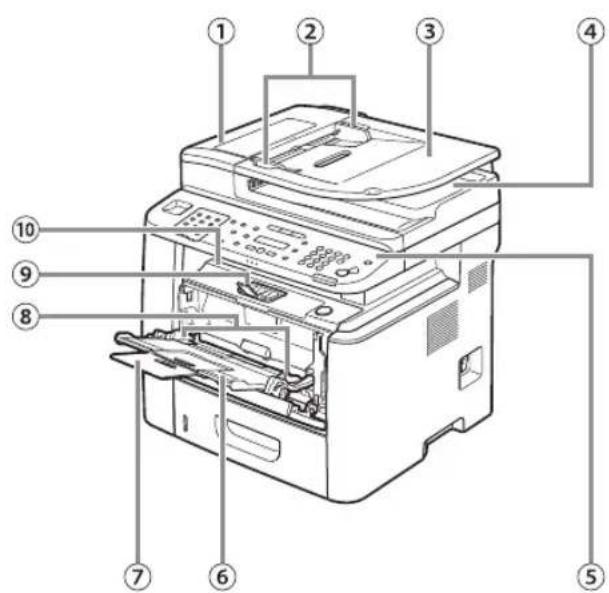
External View (Front)
text_image
Labeled diagram of a printer with numbered parts for identification
text_image
Diagram of a printer with labeled parts including open lid, print tray, and control buttons①ADF (Automatic Document Feeder)
Holds documents and feeds them automatically into the scanning area.
②Slide guides
Adjust to the width of the document.
③Document feeder tray Holds documents.
④Document delivery tray Receives documents.
⑤Operation panel
Controls the machine.
⑥Multi-purpose tray
Feeds non-standard size or thick/thin type paper stacks.
⑦Multi-purpose tray extension Pull out to load paper stack.
⑧Slide guides for multi-purpose tray
Adjusts to the width of the paper.
⑨Paper stopper
Lift the paper stopper to prevent the paper from falling off the output tray.
⑩ Output tray
Receives copies, prints and faxes. Outputs paper with the printed side facing down.
⑪ Scanning platform
Open this platform to clear paper jams.
⑫Open button
Push to open the front cover.
⑬Front cover
Open this cover to replace the toner cartridge or to clear paper jams.
⑭ Main power switch
Turns the power ON or OFF.
⑮ Paper cassette
Holds up to 500 sheets of paper (21 lb (80 g/m ^2 )).
⑯Cassette Feeding Module-U1 (Optional) Holds the additional paper supply. Up to 500 sheets of paper (21 lb (80 g/m ^2 )) can be held.
External View (Back)
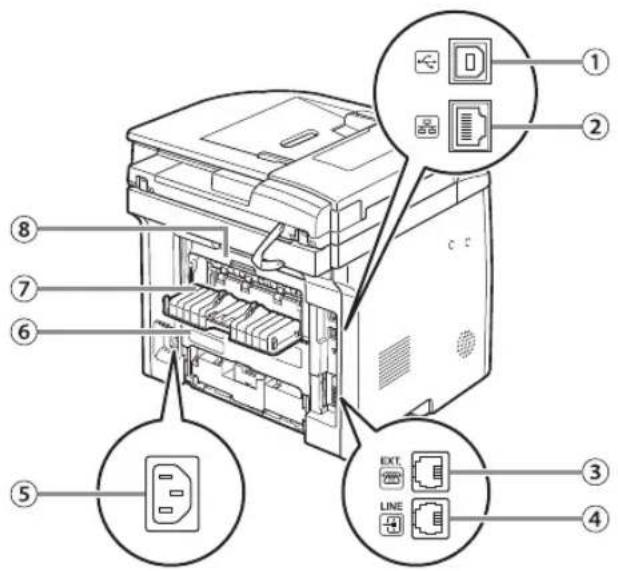
text_image
Diagram of an internal computer setup with numbered components and labeled connectors①USB port
Connect the USB (Universal Serial Bus) cable.
②Ethernet port
Connect the network cable.
③ External device jack (For the D1180/D1170/D1150)
Connect an external device.
④ Telephone line jack (For the D1180/D1170/D1150)
Connect the external telephone cable.
⑤Power socket Connect the power cord.
⑥Duplex unit cover
Open this cover to clear paper jams.
⑦Sub-output tray
Outputs paper with the printed side facing up.
⑧Rear cover
Open this cover to clear paper jams.
Internal View
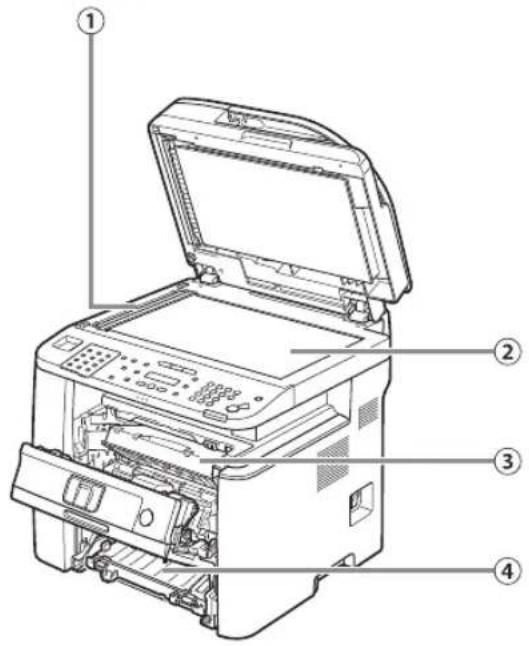
text_image
Technical diagram of an open printer with numbered parts labeled 1 to 4① Scanning area
Scans documents from the ADF.
② Platen glass
Place documents.
③Toner cartridge
When toner runs out, pull out the empty toner cartridge, and replace it with a new one.
④Duplex unit
Enables you to use the 2-Sided mode for copying, faxing, sending, or scanning.
⑤Paper size switch lever
Switch the lever according to the paper size for 2-sided copying or 2-sided printing.
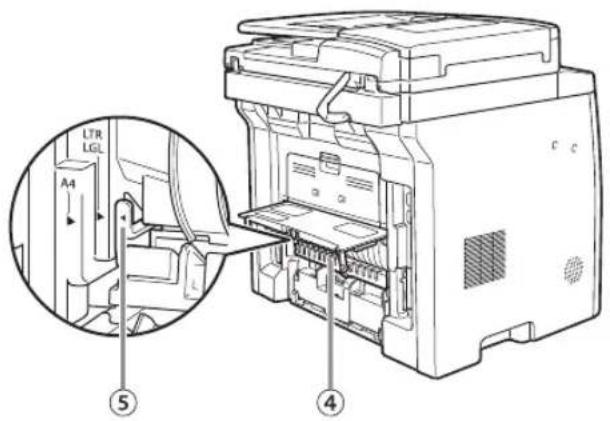
text_image
LTR LGL A4 ⑤ ④Operation Panel
This section describes the names and functions of the operation panel keys, and describes all the parts on the operation panel.
Main Operation Panel
D1180/D1170

flowchart
graph TD
    A["1-Sided ▷ 2-Sided"] --> B["2-Sided ▷ 1-Sided"]
    B --> C["2-Sided"]
    C --> D["1-Sided ▷ 2-Sided"]
    D --> E["2-Sided ▷ 1-Sided"]
    E --> F["2-Sided"]
    F --> G["2-Sided"]
    G --> H["2-Sided"]
    H --> I["2-Sided"]
    I --> J["2-Sided"]
    J --> K["2-Sided"]
    K --> L["2-Sided"]
    L --> M["2-Sided"]
    M --> N["2-Sided"]
    N --> O["2-Sided"]
    O --> P["2-Sided"]
    P --> Q["2-Sided"]
    Q --> R["2-Sided"]
    R --> S["2-Sided"]
    S --> T["2-Sided"]
    T --> U["2-Sided"]
    U --> V["2-Sided"]
    V --> W["2-Sided"]
    W --> X["2-Sided"]
    X --> Y["2-Sided"]
    Y --> Z["2-Sided"]
    Z --> AA["2-Sided"]
    AA --> AB["2-Sided"]
    AB --> AC["2-Sided"]
    AC --> AD["2-Sided"]
    AD --> AE["2-Sided"]
    AE --> AF["2-Sided"]
    AF --> AG["2-Sided"]
    AG --> AH["2-Sided"]
    AH --> AI["2-Sided"]
    AI --> AJ["2-Sided"]
    AJ --> AK["2-Sided"]
    AK --> AL["2-Sided"]
    AL --> AM["2-Sided"]
    AM --> AN["2-Sided"]
    AN --> AO["2-Sided"]
    AO --> AP["2-Sided"]
    AP --> AQ["2-Sided"]
    AQ --> AR["2-Sided"]
    AR --> AS["2-Sided"]
    AS --> AT["2-Sided"]
    AT --> AU["2-Sided"]
    AU --> AV["2-Sided"]
    AV --> AW["2-Sided"]
    AW --> AX["2-Sided"]
    AX --> AY["2-Sided"]
    AY --> AZ["2-Sided"]
    AZ --> BA["2-Sided"]
    BA --> BB["2-Sided"]
    BB --> BC["2-Sided"]
    BC --> BD["2-Sided"]
    BD --> BE["2-Sided"]
    BE --> BF["2-Sided"]
    BF --> BG["2-Sided"]
    BG --> BH["2-Sided"]
    BH --> BI["2-Sided"]
    BI --> BJ["2-Sided"]
    BJ --> BK["2-Sided"]
    BK --> BL["2-Sided"]
    BL --> BM["2-Sided"]
    BM --> BN["2-Sided"]
    BN --> BO["2-Sided"]
    BO --> BP["2-Sided"]
    BP --> BQ["2-Sided"]
    BQ --> BR["2-Sided"]
    BR --> BS["2-Sided"]
    BS --> BT["2-Sided"]
    BT --> BU["2-Sided"]
    BU --> BV["2-Sided"]

D1150
flowchart
graph TD
    A["1"] --> B["2"]
    B --> C["3"]
    C --> D["4"]
    D --> E["5"]
    E --> F["6"]
    F --> G["7"]
    G --> H["8"]
    H --> I["9"]
    I --> J["10"]
    J --> K["11"]
    K --> L["12"]
    L --> M["13"]
    M --> N["14"]
    N --> O["15"]
    P["Copy"] --> Q["Collate/2 on 1"]
    Q --> R["Enlarge/Reduce"]
    R --> S["Menu"]
    S --> T["View Settings"]
    T --> U["Job Cancel/Status Monitor"]
    U --> V["OK"]
    V --> W["+"]
    W --> X["Tone"]
    X --> Y["Processing/Data"]
    Y --> Z["Error"]
    AA["Paper Select"] --> AB["1-Sided ▷ 2-Sided"]
    AB --> AC["2-Sided ▷ 2-Sided"]
    AC --> AD["2-Sided ▷ 1-Sided"]
    AD --> AE["2-Sided"]
    AF["Image Quality"] --> AG["-"]
    AH["Density"] --> AI["OK"]
    AJ["Log In/OI"] --> AK["ABC DEF"]
    AL["Energy Saver"] --> AM["C"]
    AN["Stop/Reset"] --> AO["Start"]

D1120
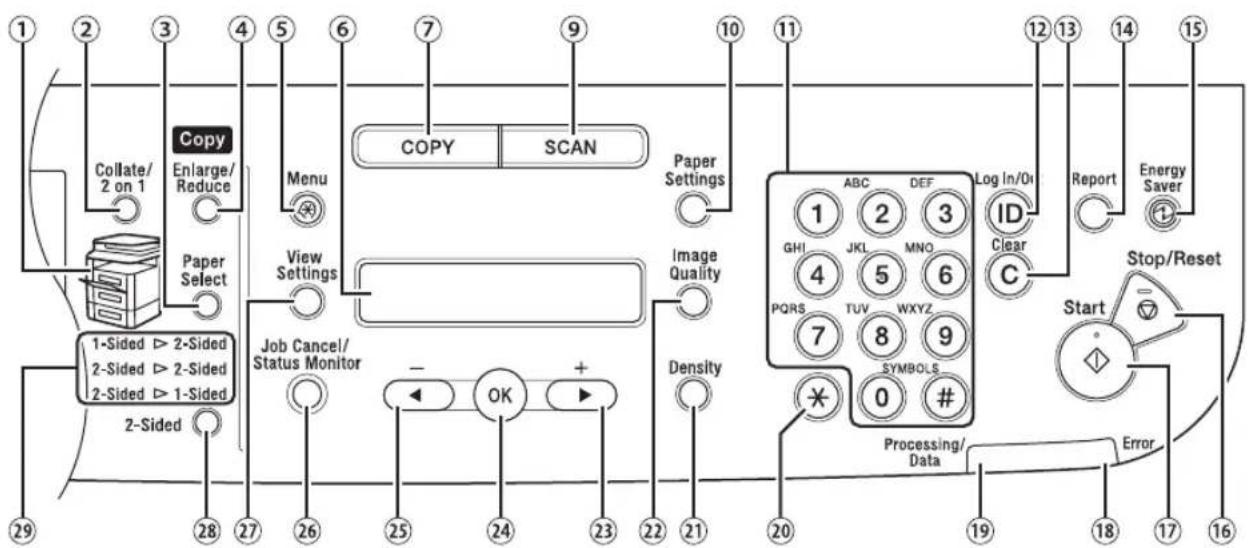
flowchart
graph TD
    A["1-Sided ▷ 2-Sided"] --> B["2-Sided"]
    B --> C["3-Sided ▷ 2-Sided"]
    C --> D["4-Sided ▷ 2-Sided"]
    D --> E["5-Sided ▷ 1-Sided"]
    E --> F["6-Sided ▷ 1-Sided"]
    F --> G["7-Sided ▷ 1-Sided"]
    G --> H["8-Sided ▷ 1-Sided"]
    H --> I["9-Sided ▷ 1-Sided"]
    I --> J["10-Sided ▷ 1-Sided"]
    J --> K["11-Sided ▷ 1-Sided"]
    K --> L["12-Sided ▷ 1-Sided"]
    L --> M["13-Sided ▷ 1-Sided"]
    M --> N["14-Sided ▷ 1-Sided"]
    N --> O["15-Sided ▷ 1-Sided"]

    A --> P["Copy"]
    P --> Q["Enlarge/Reduce"]
    P --> R["Menu"]
    P --> S["View Settings"]
    P --> T["Job Cancel/Status Monitor"]
    P --> U["OK"]
    P --> V["+"]

    W["Copy"] --> X["SCAN"]
    X --> Y["Paper Settings"]
    Y --> Z["Image Quality"]
    Y --> AA["Density"]

    W --> AB["ABC DEF Log In/OI ID Clear C"]
    AB --> AC["1 2 3 GHI 4 5 6 PQRS 7 8 9 SYMBOLS 0 # Processing/Data"]

    AD["Report Energy Saver Stop/Reset Start Error"] --> AE["Error"]
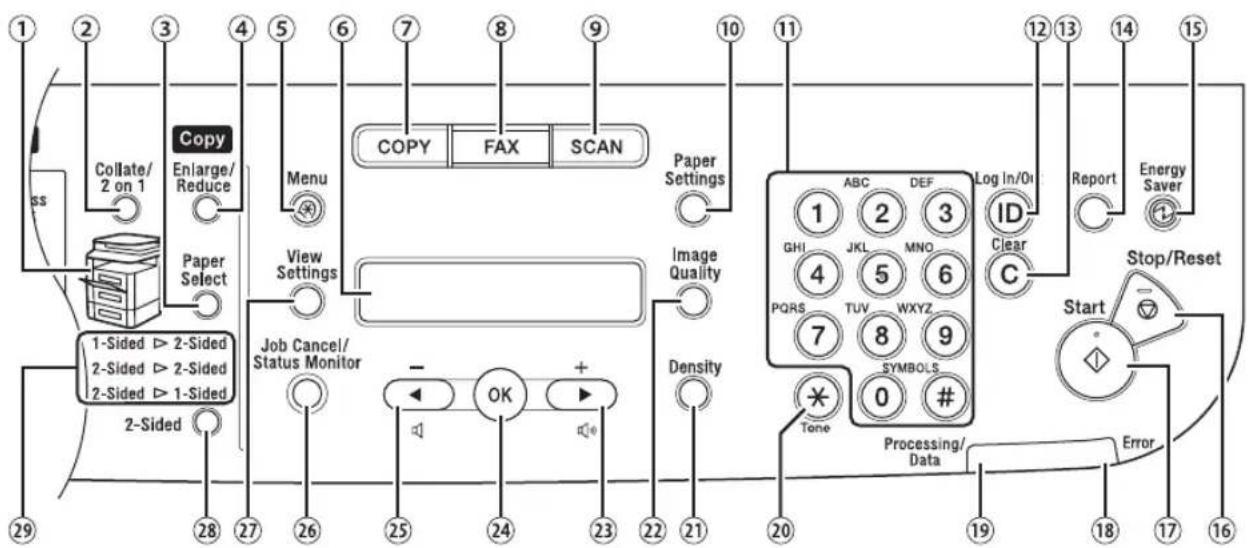
①Paper Select indicator
Indicates the selected paper source.
②[Collate/2 on 1] key
Press to collate copies, or press to set 2 on 1 copying. Also press to set ID card copying.
③[Paper Select] key
Press to select a paper source (paper cassette or multi-purpose tray).
④[Enlarge/Reduce] key
Press to enlarge or reduce copy ratio.
⑤[Menu] key
Press to select or cancel the modes in setting menus.
⑥Display
Displays messages and prompts during operation. Displays selection, text, and numbers when adjusting the settings.
⑦[COPY] key
Press to switch to the Copy mode.
⑧[SEND/FAX] key (For the D1180/D1170)
Press to switch to the Send/Fax mode.
[FAX] key (For the D1150)
Press to switch to the Fax mode.
⑨[SCAN] key
Press to switch to the Scan mode.
⑩[Paper Settings] key
Press to specify the paper size and type for the paper cassette or multi-purpose tray.
⑪Numeric keys
Enter alphanumeric characters and symbols.
⑫[Log In/Out] key (ID key)
Press when setting or enabling Department ID/
User ID management.
⑬[Clear] key
Press to clear entered alphanumeric characters.
⑭[Report] key
Press to print reports and lists manually.
⑮[Energy Saver] key
Press to set or cancel the Sleep mode manually.
The key lights green when the Sleep mode is set,
and goes off when the mode is canceled.
⑯[Stop/Reset] key
Press to stop a current job. Also press to return the machine to the standby mode.
⑰[Start] key
Press to start copying, scanning and sending documents.
⑱Error indicator
Blinks when an error has occurred.
⑲Processing/Data indicator
Blinks when the machine is working. Lights when the machine has waiting jobs and stores the data in memory.
⑳[Tone] key
Press to switch from rotary pulse to tone dialing (for the D1180/D1170/D1150). Also press to switch the input mode.
⑳[Density] key
Press to adjust the density for copy or documents you send.
②2[Image Quality] key
Press to select image quality for copy or fax.
②3▶ key
Press to increase the value for various settings. Also press to see the next item in the menu. For the D1180/D1170/D1150, you can use this key to temporarily adjust the monitor tone volume.
⑳[OK] key
Press to accept a set function or mode.
Also press and hold to print a sample page when you are in the copy mode. For details, see "Printing a Sample Page," on p. 3-32.
⑳key
Press to decrease the value for various settings. Also press to see the previous item in the menu. For the D1180/D1170/D1150, you can use this key to temporarily adjust the monitor tone volume.
⑳[Job Cancel/Status Monitor] key
Press to cancel the job stored in memory. Also press to check the status of jobs such as copy, fax, print, etc.
⑳[View Settings] key
Press to confirm the settings of the copy, fax, and send function.
⑳[2-Sided] key
Press to copy or send 2-sided documents.
⑲ 2-Sided mode indicator
Indicates the selected 2-Sided mode for copying.
Send Operation Panel

D1180/D1170
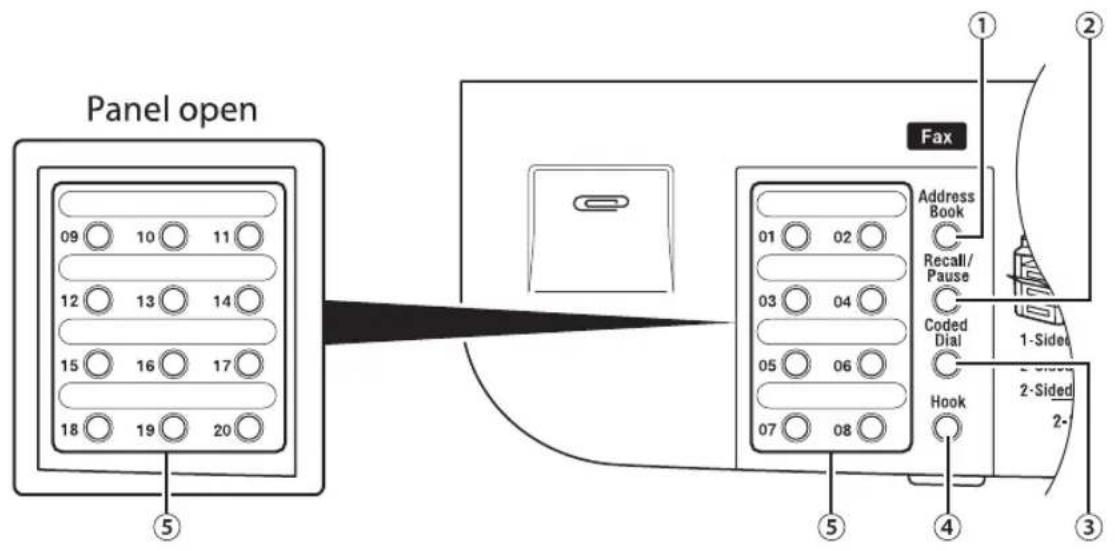
text_image
Panel open 09 10 11 12 13 14 15 16 17 18 19 20 ⑤ Fax Address Book Recall/Pause Coded Dial Hook ① ② ③ ④ ⑤ 1-Sided 2-Sided 2-
D1150
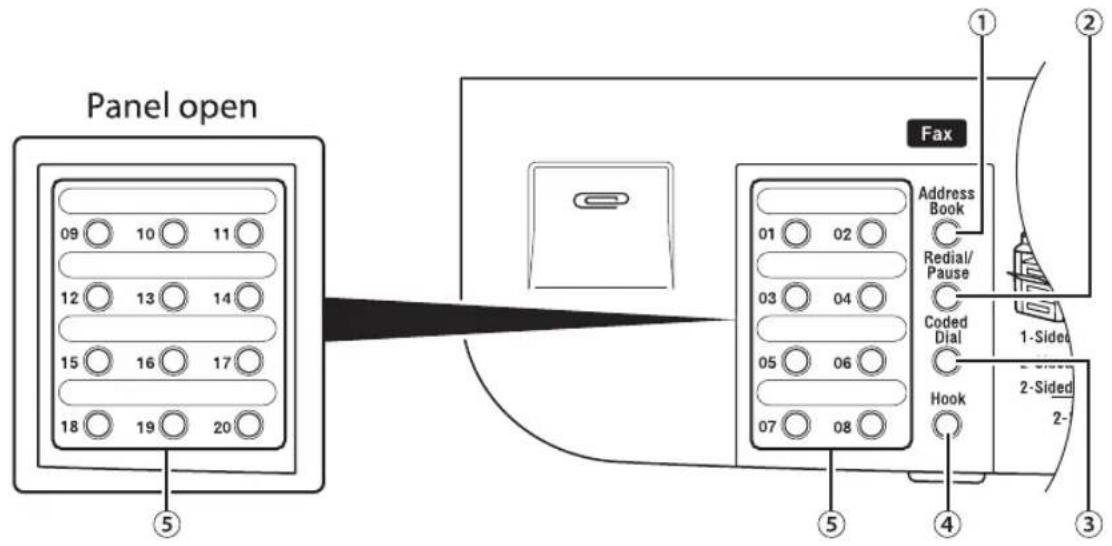
text_image
Panel open 09 10 11 12 13 14 15 16 17 18 19 20 ⑤ Fax Address Book Redial/Pause Coded Dial Hook ① ② 1-Sided 2-Sided 2-①[Address Book] key
Press to search pre-registered recipients under one-touch keys and coded dial codes by name, number, or address.
②[Recall/Pause] key (For the D1180/D1170)
Press to recall previously set send jobs, including the destinations, scan settings, and send settings. Press to enter a pause between or after the telephone/fax number when dialing or registering numbers.
[Redial/Pause] key (For the D1150)
Press to recall the last three destinations. Press to enter a pause between or after the telephone/fax number when dialing or registering numbers.
③[Coded Dial] key
Press to specify recipients registered under coded dial codes.
④[Hook] key
Press when you want to dial without lifting up the handset of the external telephone.
⑤One-Touch keys
Press to specify recipients registered under one-touch keys.
Display (Standby Mode)
This section describes the display of the operation panel of the standby mode.

NOTE
- Depending on your needs, you can change the standby display which appears when the main power switch is turned ON. For details, see "Setting the Initial Function," in the e-Manual.
- When the main power switch is turned ON, the message
is shown until the standby display appears. - If the Auto Clear function is activated, the display returns to the standby mode.
Copy Mode

Without optional paper cassette

text_image
① 1 0 0 % ② TEXT / P L H ③ ④ ⑤
With optional paper cassette

text_image
① 1 0 0 % ② AUTO TEXT / PH ③ ④ ⑤①Zoom ratio
②Paper size
③Quantity
④Image quality
⑤Density
Send Mode/Fax Mode

D1180/D1170
FAX
SELECT:OK

D1150

text_image
1 2 / 3 1 / 2 0 0 8 W E D F a x O n l y ① ③ ②①Date & Time
②Image quality
③Receive mode
Scan Mode
SCANNING MODE
Log In Mode
If the Department ID Management or User ID Management is set, the Log In screen is displayed. For information on the Department ID Management or User ID Management, see "Security," in the e-Manual.
● For Department ID Management
ENTER DEPT. ID
Use ① – ⑨ numeric keys] to enter the Department ID and password, then press [OK] or ⑩ [Log In/Out].
● For User ID Management
ENTER USER ID
Use Ⓞ – ⓖ numeric keys] to enter the User ID and password, then press [OK] or Ⓓ [Log In/Out].

NOTE
- Make sure to press 📄log In/Out] after using the machine when the Department ID/User ID Management is set.
- When the main power switch is turned ON, the message
is shown until the standby display appears.
Toner Cartridge
The average print yield of the Canon genuine starter toner cartridge which comes with the machine is 2,300 pages, the Canon genuine replacement toner cartridge is 5,000 pages. The page counts are on the basis of "ISO/ IEC 19752"* when printing A4 size paper with the default print density setting. The level of toner consumption varies depending on the type of documents printed. If your average document contains a lot of graphics, tables, or charts, the average print yield of the toner cartridge will be fewer as they consume more toner. When you are replacing a toner cartridge, be sure to use a toner cartridge designed for this product. To purchase the Canon genuine replacement toner cartridge, contact your local Canon dealer or Canon Customer Care Center (U.S.A.:1-800-OK-CANON, Canada:1-800-652-2666).
* "ISO/IEC 19752" is the global standard related to "Method for the determination of toner cartridge yield for monochromatic electrophotographic printers and multi-function devices that may contain printer components" issued by ISO (International Organization for Standardization).
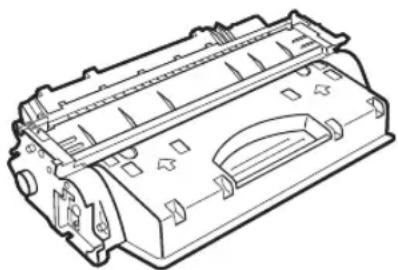
natural_image
Technical line drawing of a mechanical component with no visible text or symbols| Model Name Type | Supported Canon Genuine Toner Cartridge | Average Print Yield | |
| D1180/D1170/D1150/D1120 | Bundled Canon Cartridge | 120 Starter 2,300 pages | |
| Replacement Canon Cartridge | 120 5,000 pages |
Maintaining the Toner Cartridge
Note the following when handling the toner cartridge.

CAUTION
- Do not place the toner cartridge in fire. Toner powder is flammable.
- If there is a toner powder leakage, make sure not to inhale or touch the toner powder. If it comes in contact with your skin, rinse with cold water using soap. If you feel an irritation on your skin or inhale the powder, consult a doctor immediately.
- When removing the toner cartridge from the machine, make sure to remove it carefully. If not removed with care, the toner powder may scatter and come in contact with your eyes and mouth. If this happens, rinse with water and consult a doctor immediately.
- Keep the toner cartridge away from small children. If they ingest the toner powder, consult a doctor immediately.
- Do not disassemble the toner cartridge. The toner powder may scatter and come in contact with your eyes and mouth. If this happens, rinse with water and consult a doctor immediately.

NOTE
- Keep the toner cartridge away from computer screens, disk drives, and floppy disks. The magnet inside the toner cartridge may harm these items.
- Avoid locations subject to high temperature, high humidity, or rapid changes in temperature.
- Do not expose the toner cartridge to direct sunlight or bright light for more than five minutes.
- Store the toner cartridge in its protective bag. Do not open the bag until you are ready to install the toner cartridge in the machine.
- Save the toner cartridge's protective bag in case you need to repack and transport the toner cartridge at a later date.
- Do not store the toner cartridge in a salty atmosphere or where there are corrosive gases such as from aerosol sprays.
- Do not remove the toner cartridge from the machine unnecessarily.
- Do not open the drum protective shutter on the toner cartridge. Print quality may deteriorate if the drum surface is exposed to light or is damaged.
- Always hold the toner cartridge by its handle to avoid touching the drum protective shutter.
- Do not place the toner cartridge in an upright or an upside down position. If toner becomes caked in the toner cartridge, it may become impossible to free it even by shaking the toner cartridge.
- For optimum print quality, when you replace toner cartridges, using Canon genuine ones is recommended.
- Be Careful of Counterfeit Toner Cartridges Please be aware that there are counterfeit Canon toner cartridges in the marketplace. Use of counterfeit toner cartridge may result in poor print quality or machine performance. Canon is not responsible for any malfunction, accident or damage caused by the use of counterfeit toner cartridge.
For more information, see http://www.canon.com/counterfeit.
Entering Characters
For displays that require alphanumeric entries, follow the procedure below to enter characters.
Example: Enter
1 Press repeatedly until an uppercase
NAME C
2 Press to move the cursor to the right, then press until an appears.
NAME Ca
3 Press @until an
NAME C a_n
4 Press to move the cursor to the right, then press until an
NAME Cano
5 Press to move the cursor to the right, then press until an
NAME Canon
Telephone Line Settings (D1180/D1170/D1150)
Set the type of telephone line that is connected to the machine. If this setting is incorrect, you will be unable to communicate with other machines. Make sure to check the type of telephone line that you are using, and make the correct setting. The default setting is
1 Press ⒽMenu].
2 Press or to select
MENU 4 . TX / RX SETTIN
3 Press or to select
TX/RX SETTINGS 3.FAX SETTINGS
4 Press or to select
FAX SETTINGS 2. USER SETTING
5 Press or to select
USER SETTINGS 2. TEL LINE TYP
6 Press or to select the telephone line type, then press [OK].
TEL LINE TYPE TOUCH
: Tone dialing : Pulse dialing - If you do not know the telephone line type, call your telephone service provider for details.
7 Press [Stop/Reset] to return to the standby mode.
Timer Settings
The timer settings enables you to set the Sleep Mode, Auto Clear Time, and the Daylight Saving Time.
Setting the Sleep Mode
If the machine remains idle for a certain period of time, it automatically enters the Sleep mode. The default settings are
1 Press ⒶMenu].
2 Press or to select
MENU 7. TIMER SETTIN
3 Press or to select
TIMER SETTINGS 4. AUTO SLEEP T
4 Press or to select
AUTO SLEEP TIME
5 Press or to select the desired interval, then press [OK].
TIMER
- You can set the interval from 3 to 30 minutes (in one-minute increments).
- You can also enter values using Ⓞ - Ⓢ [numeric keys].
6 Press (Stop/Reset) to return to the standby mode.

NOTE
- [Energy Saver] lights green when the machine enters the Sleep mode.
- To resume the normal mode from the Sleep mode, press @Energy Saver] on the operation panel.
- To enter the Sleep mode manually, press @ [Energy Saver] on the operation panel.
- The machine will not enter the Sleep mode when:
• the machine is in operation
• the Processing/Data indicator lights or blinks
- a message appears on the display and the Error indicator blinks
• paper is loaded in the multi-purpose tray
• a paper jam occurs in the machine
- the handset of the external telephone is off the hook
- The machine will leave the Sleep mode when:
- you press @Energy Saver] on the operation panel
- a fax is received*
- the handset of the external telephone is off the hook ^®
- a print job is sent from a computer, and the print is started
*For the D1180/D1170/D1150
Setting the Auto Clear Time
If the machine remains idle for a certain period of time, the display returns to the standby mode (Auto Clear function). This section describes how to set the period of time until the display returns to the standby mode. The default settings is <2MIN>.
1 Press ⒶMenu].
2 Press or to select
MENU 7. TIMER SETTING
3 Press or to select
TIMER SETTINGS 5. AUTO CLEAR T
4 Press or to select
AUTO CLEAR TIME
5 Press or to select the desired interval, then press [OK].
AUTO CLEAR TIME
You can set the interval from 1 to 9 minutes (in one minute increments).
You can also enter values using Ⓞ - ⓖ numeric keys].
6 Press (Stop/Reset) to return to the standby mode.
Setting the Daylight Saving Time
In some countries or areas, time is advanced throughout the summer season. This is called "Daylight Saving Time." This section describes how to set the Daylight Saving Time. The default setting is
1 Press ⒶMenu].
2 Press or to select
MENU 7. TIMER SETTING
3 Press or to select
TIMER SETTINGS 6. DAYLIGHT SV.
4 Press or to select
DAYLIGHT SV. TIMI
5 Press or to select
DAYLIGHT SV. TIME 1. START DATE/T
6 Press or to select
START DATE/TIME 1. MONTH
7 Press or to select the month, then press [OK].
MONTH
8 Press or to select
START DATE/TIME 2.WEEK
9 Press or to select the week, then press [OK].
W E E K
SECOND
10 Press on to select
START DATE/TIME 3. DAY
11 Press or to select the day, then press [OK].
DAY
S
12 Press on to select
DAYLIGHT SV. TIM 1. END DATE / TIM
13 Press on to select
END DATE / TIME 1. MONTH
14 Press or to select the month, then press [OK].
MONTH
NOVE
15 Press on to select
END DATE / TIME 2. WEEK
16 Press on to select the week, then press [OK].
W E E K
FIRST
17 Press or to select
END DATE / TIME 3. DAY
18 Press on to select the day, then press [OK].
DAY
s t
19 Press [Stop/Reset] to return to the standby mode.
Documents and Print Media
Chapter
2
This chapter describes the types of paper and documents that can be used with the machine and how to load paper in the paper cassette and the multi-purpose tray.
Documents Requirements ......2-2
Scanning Area 2-3
Placing Documents 2-4
On the Platen Glass 2-4
In the ADF 2-5
Paper Requirements 2-6
Printable Area 2-8
Loading Paper 2-9
In the Paper Cassette 2-9
In the Multi-Purpose Tray 2-11
Setting the Paper Size Switch Lever 2-16
Setting Paper Size and Type 2-17
For the Paper Cassette 2-17
For the Multi-Purpose Tray 2-17
Output Tray 2-19
Output Tray Type 2-19
Selecting the Output Tray 2-20
Documents Requirements
Platen Glass ADF
| Type Plain paper | Plain paper (Multi-page documents of the same size, thickness and weight or one-page documents.) | |
| - Thick documents | ||
| - Photographs | ||
| - Small documents (e.g., index cards) | ||
| - Special types of paper (e.g., tracing paper*1, transparencies*1, etc.) | ||
| - Book (Height: Maximum 7/8" (20 mm)) | ||
| Size (W × L) | Maximum 8 1/2" × 14" (Maximum 216 × 356 mm) | Maximum 8 1/2" × 14" (Maximum 215.9 × 355.6 mm)Minimum 5 1/2" × 5" (Minimum 139.7 × 128 mm) |
| Weight M | aximum 4.4 lb (2 kg) One-sided scanning (1 page): 13 to 28 lb (50 to 105 g/m2)Two-sided scanning: 17 to 28 lb (64 to 105 g/m2) | |
| Quantity 1 sheet M | aximum 50 sheets*2(Maximum 30 sheets for LGL documents)*2 | |
*1 When copying transparent documents such as tracing paper or transparencies, use a piece of plain white paper to cover the document after placing it face-down on the platen glass.
*2 21 lb (80 g/m²) paper
- Do not place the document on the platen glass or in the ADF until the glue, ink or correction fluid on the document is completely dry.
- Remove all fasteners (staples, paper clips, etc.) before loading the documents in the ADF.
● To prevent document jams in the ADF, do not use any of the following:
- Wrinkled or creased paper
• Carbon paper or carbon-backed paper
- Curled or rolled paper
- Coated paper
- Torn paper
- Onion skin or thin paper
- Documents with staples or paper clips attached
• Paper printed with a thermal transfer printer
- Transparencies
Scanning Area
Make sure your document's text and graphics fall within the shaded area in the following diagram. Note that the margin widths listed are approximate and there may be slight variations in actual use.

text_image
1/8" (3 mm) 1/8" (3 mm) 1/8" (2 mm) 1/8" (2 mm)Placing Documents
This section describes how to place your documents on the platen glass and in the ADF.
On the Platen Glass
1
Open the ADF.
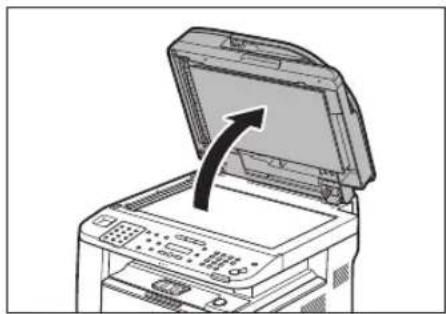
natural_image
Illustration of a printer with an open lid and a curved arrow indicating rotation (no text or symbols)2
Place a document face down.
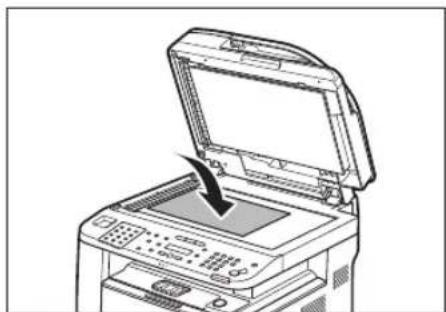
natural_image
Line drawing of an open printer with a screen and control panel, showing a black arrow indicating compression or disassembly (no text or symbols present)3
Align the document with the appropriate paper size marks.

text_image
ABCDIf your document does not match any of the paper size marks, align the center of your document with the arrow mark.
4 Close the ADF.
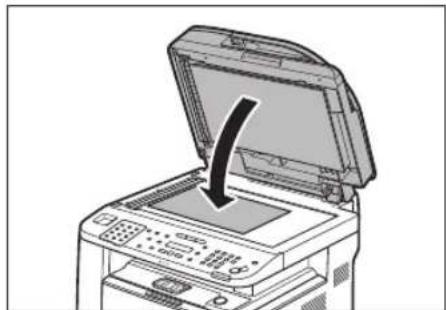
natural_image
Illustration of a printer with an open lid and a black arrow indicating compression or disassembly (no text or symbols present)The document is ready for scanning.

CAUTION
- When closing the ADF, be careful not to get your fingers caught, as this may result in personal injury.
- Do not press down the ADF forcefully, as this may damage the platen glass and cause personal injury.

NOTE
Remove the document from the platen glass when scanning is complete.
In the ADF
1 Fan the document stack and even the edges.

natural_image
Illustration showing two hands exchanging a shoe and a book with a downward arrow (no text or symbols)2 Adjust the slide guides to the width of the documents.

natural_image
Line drawing of a printer with an open lid and control panel, showing no text or symbols.3 Neatly place the documents face up in the document feeder tray.

text_image
ABCThe document is ready for scanning.

NOTE
- Do not add or remove documents while they are being scanned.
- When scanning is complete, remove the documents from the document delivery tray to avoid paper jams.
- Avoid using ADF to scan the same document more than 30 times. When scanned repeatedly, documents can become folded or torn, which may cause paper jams.
- If the feeder rollers are soiled from scanning a document written in pencil, clean them. (See "Cleaning the Machine," on p. 11-2.)
Paper Requirements
| Paper cassette Multi-purpose tray | ||
| Size (W × L) LTR, LGL, A4, B5, A5, Executive, | 3" × 5" to Legal (8 1/2" × 14") Oficio, Brazil-Oficio, Mexico-Oficio, FLSP, A-FLS, Government-LTR, Government-LGL (76 × 127 to 216 × 356 mm) | |
| Weight 16 to 32 | lb (60 to 120 g/m2) 16 to 51 lb (60 to 190 g/m2) | |
| Quantity 500 sheets maximum * | 1 50 sheets maximum *1 | |
| Type Plain Paper *2 | ○ | |
| Plain Paper L *2 | ||
| Color *3 | ||
| Recycled *4 | ||
| Heavy Paper 1 | ||
| Heavy Paper 2 *7 | ||
| Transparency *8 | ||
| Labels — | ||
| Envelope — | ||
(○: available —: not available)
*1 21 lb (80 g/m²) paper
*2 From 16 to 21 lb (60 to 80 g/m²)
*3 17 lb (64 g/m²)
*4 From 17 to 21 lb (64 to 80 g/m²)
*5 From 24 to 32 lb (90 to 120 g/m²)
*6 From 24 to 40 lb (90 to 150 g/m²)
*7 From 40 to 43 lb (151 to 163 g/m²)
*8 Use only LTR or A4 transparencies made especially for this machine.

NOTE
The default paper size is LTR. If you use a different paper size, you need to change the paper size settings. (See "Setting Paper Size and Type," on p. 2-17.)
● To prevent paper jams, do not use any of the following:
- Wrinkled or creased paper
- Curled or rolled paper
- Coated paper
- Torn paper
- Damp paper
- Very thin paper
- Paper which has been printed on using a thermal transfer printer (Do not copy on the reverse side.)
● The following types of paper do not print well:
• Highly textured paper
• Very smooth paper
- Shiny paper
● Make sure the paper is free from dust, lint, and oil stains.
● Make sure to test paper before purchasing large quantities.
- Store all paper wrapped and on a flat surface until ready for use. Keep opened packs in their original packaging in a cool, dry location.
- Store paper at 64.4°F–75.2°F (18°C–24°C), 40%–60% relative humidity.
- Use only the transparencies designed for laser printers. Canon recommends you to use Canon type transparencies with this machine.
Printable Area
The shaded area indicates the approximate printable area of LTR paper and envelope. Note that the margin widths listed are approximate and there may be slight variations in actual use.
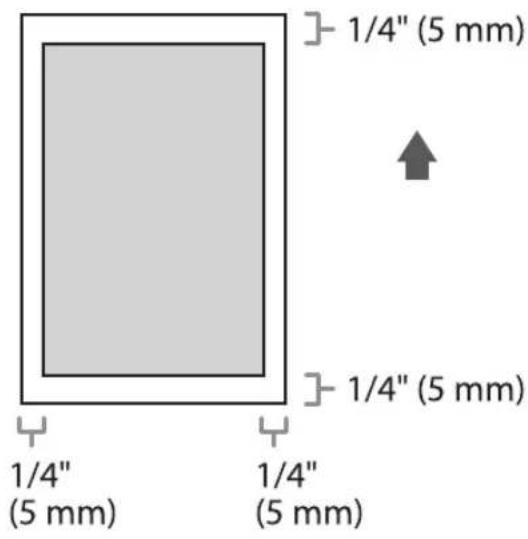
text_image
1/4" (5 mm) 1/4" (5 mm) 1/4" (5 mm) 1/4" (5 mm) 1/4" (5 mm)Loading Paper
This section describes how to load paper in the paper cassette and multi-purpose tray.
In the Paper Cassette
This section describes how to load paper in the paper cassette.
1
Pull out the paper cassette.
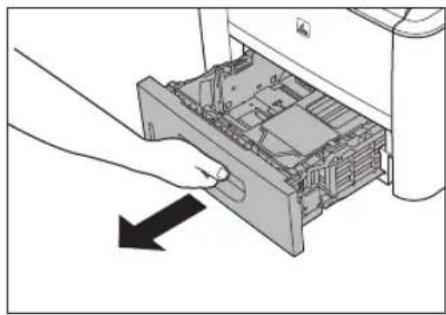
natural_image
Illustration of a hand inserting a device into a machine (no text or symbols visible)2
Hold the paper cassette with both hands and remove it from the machine.
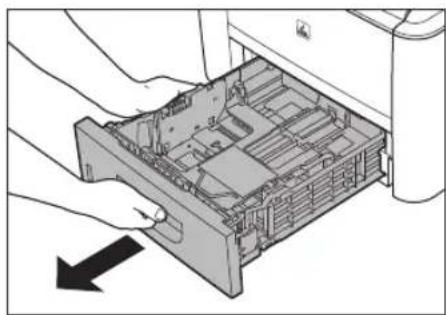
natural_image
Illustration of hands inserting a device into a drawer with an arrow indicating direction (no text or symbols present)
CAUTION
Make sure to take the paper cassette out of the machine before loading paper. If paper is loaded while the paper cassette is partially pulled out, the paper cassette may fall, resulting in damage to the machine or personal injury.
3
Hold the lock release lever of the side paper guides (A) and slide the guides to the mark for the size of the paper to be loaded. The side paper guides move together.
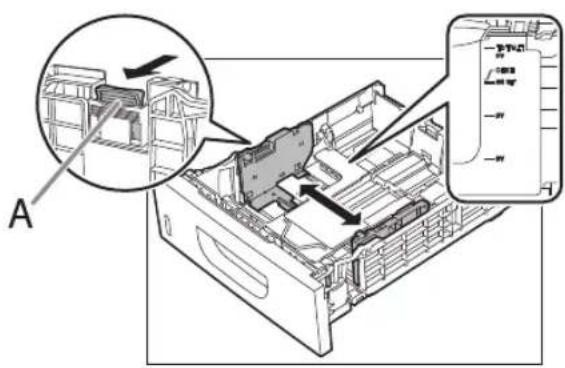
text_image
Technical diagram of a printer internal structure with labeled parts and zoomed-in detail view
NOTE
- Make sure to set the guides to the mark for the size of the paper to be loaded correctly. If the guides are positioned incorrectly, it may cause paper jams, dirty prints, etc.
- A6 size paper cannot be loaded.
4 Hold the lock release lever of the rear paper guides (A) and slide the guides to the mark for the size of the paper to be loaded.

text_image
Technical diagram showing internal components of a computer or server system with labeled parts A and B, including zoomed-in views.
NOTE
- Make sure to set the guides to the mark for the size of the paper to be loaded correctly. If the guides are positioned incorrectly, it may cause paper jams, dirty prints, etc. - A6 size paper cannot be loaded.
5 Fan the paper stack and even the edges.
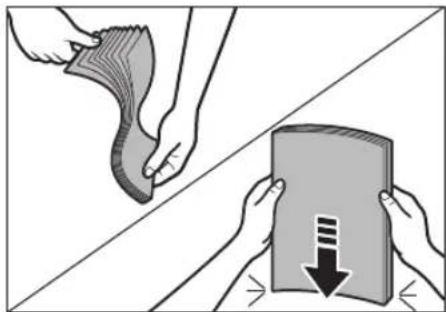
natural_image
Illustration showing two hands exchanging a cloth and a document with a downward arrow (no text or symbols)6 Load the paper stack of the appropriate size with the print side facing up. Align the rear edge of the paper stack with the rear paper guide.

natural_image
Isometric technical diagram of a mechanical device with internal components and a highlighted section (no text or symbols)
NOTE
- When loading paper, be careful not to cut your fingers on the edges of the paper. - Make sure the paper stack does not exceed the load limit mark (A) and (B).

text_image
Technical diagram of a mechanical device with labeled components A and B, showing internal structure and assembly views.- The paper cassette holds approximately 500 sheets of paper (21 lb (80 g/m ^2 )).
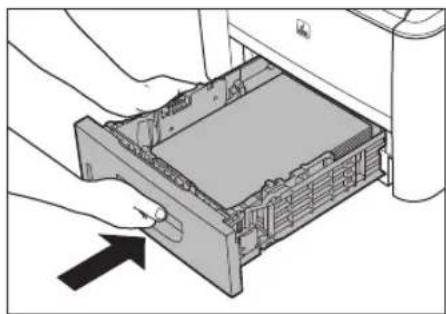
7 Hold the paper cassette with both hands and set it back into the machine.
natural_image
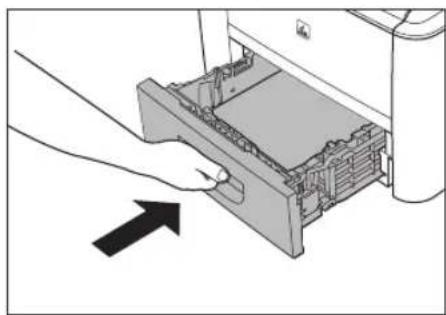
Illustration of hands inserting a physical device into a rack, with an arrow indicating direction (no text or symbols present)8 Push the paper cassette as far as it will go.
natural_image
Illustration of a hand inserting a device into a printer (no text or symbols visible)
NOTE
- Be careful not to get your fingers caught.
- For details on loading paper in the multi-purpose tray, see "In the Multi-Purpose Tray," on 2-11.
- In the same manner, load the paper into the optional paper cassette. For attaching the optional paper cassette, see the instruction sheet that comes with the optional paper cassette.
In the Multi-Purpose Tray
If you are making prints on transparencies, labels, non-standard size paper, or envelopes, load them into the multi-purpose tray.

NOTE
- Note the following points when using the multi-purpose tray:
- Paper Quantity: one to approximately 50 sheets (21 lb (80 g/m ^2 ))
- Paper Size: 3" × 5" to 8 1/2" × 14" (76.2 × 127 mm to 216 × 356 mm)
• Paper Weight: 16 to 51 lb (60 to 190 g/m²) - Paper which has been rolled or curled must be straightened out prior to use, to allow the paper to feed smoothly through the multi-purpose tray (allowable curl amount: less than 3/8" (10 mm) for normal paper, less than 1/4" (5 mm) for heavyweight paper).
- Depending on the paper storage conditions, it may not be possible to feed some paper into the multi-purpose tray.
- Do not load different size/type paper at the same time.
- If you load multiple sheets of heavyweight paper into the multi-purpose tray, a paper jam may occur depending on the type of heavyweight paper. If this happens, load only one sheet of heavyweight paper at a time.
- When printing on special types of paper, such as heavyweight paper or transparencies, make sure to correctly set the paper type, especially if you are using heavyweight paper. If the type of paper is not set correctly, it could adversely affect the quality of the image. Moreover, the fixing unit may become dirty and require a service repair, or the paper could jam.
- If you are printing on the back side of printed paper, the edges of the printed paper may become dirty.
- If you are printing on envelopes, do not allow more than 5 envelopes to accumulate in the output tray. Always empty the output tray once 5 envelopes have accumulated.
- Envelopes may be creased in the printing process.
- For high quality printouts, use paper recommended by Canon.
- For details on paper types that can be used with this machine, see "Paper Requirements," on p. 2-6.
1 Open the multi-purpose tray.

natural_image
Diagram of a printer's internal structure showing the printer's opening and internal compartments (no text or symbols)2 Pull out the auxiliary tray.
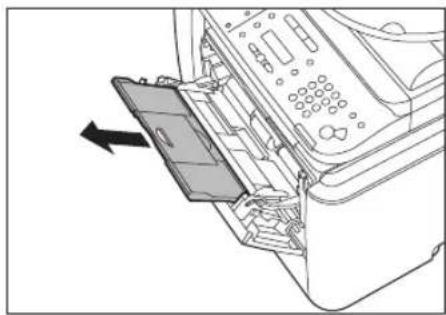
natural_image
Diagram of a printer's internal structure showing a paper clip inserted into the main panel (no text or symbols visible)3 Adjust the slide guides to match the size of the paper.
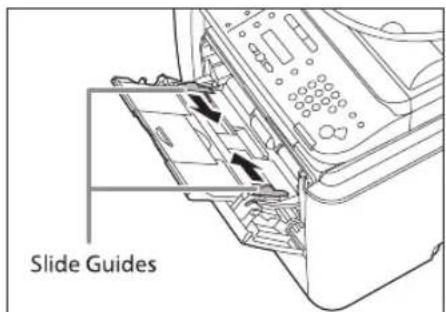
text_image
Slide GuidesIf you are feeding large size paper, extend the tray extension.
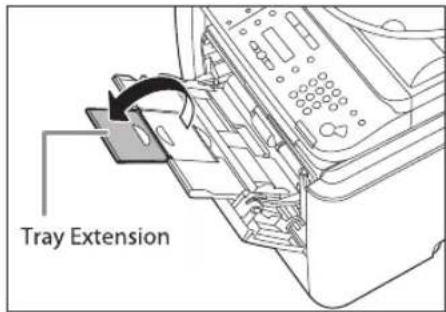
text_image
Tray Extension4 Load the paper into the multi-purpose tray.

natural_image
Diagram of a printer's internal structure showing a paper feeding into a printer with an arrow indicating the paper's direction (no text or symbols present)Insert the paper stack as far as it will go.
■ Before inserting paper:
① When you use the multi-purpose tray to make copies, straighten out curled paper prior to use, as shown below. Curled paper may cause a paper jam.
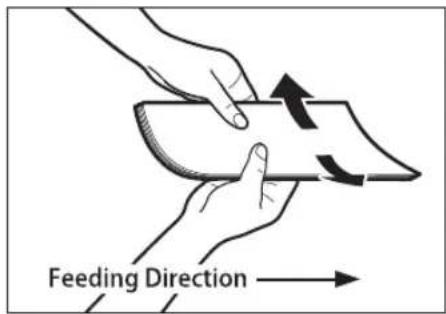
text_image
Feeding Direction② If there is difficulty in straightening out curled paper, curl the front edges of the paper upward, as shown below.

text_image
Feeding Direction■ To print on the back side of preprinted paper:
① Load the preprinted paper face up into the multi-purpose tray, as shown in the illustration below.
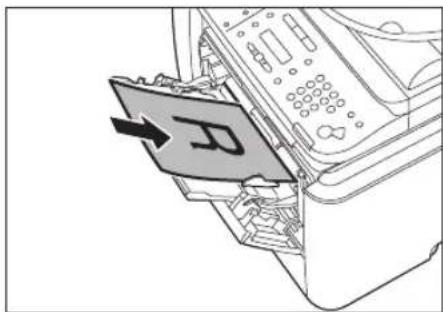
natural_image
Diagram of a printer's internal structure showing a paper feeding into a printer (no text or symbols visible)The display for specifying the paper size and type appears if

NOTE
- When loading paper into the multi-purpose tray, align the paper stack neatly between the slide guides. If the paper is not loaded correctly, a paper jam may occur.
- If you are printing on heavyweight paper or envelopes using the multi-purpose tray, and find that the paper or envelopes are not being fed smoothly or evenly through the multi-purpose tray, remove the paper or envelopes, curl the feeding edges upward approximately 1/8'' (3 mm), and then reload the paper or envelopes. Curling the feeding edges enables the rollers to grip the paper or envelopes as they are fed into the machine from the multi-purpose tray.
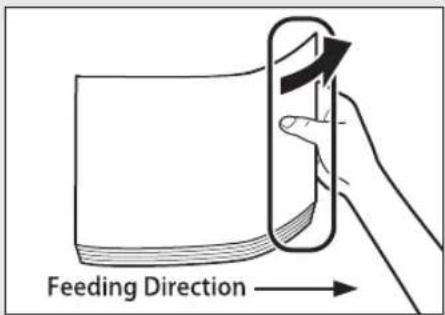
text_image
Feeding Direction- If there are instructions on the paper package about which side of the paper to load, follow those instructions.
- When the paper is loaded into the multi-purpose tray, the side facing down is the one printed on.
- If problems, such as poor print quality or paper jams occur, try turning the paper stack over and reload it.
■ If you are loading envelopes into the multi-purpose tray:
① Take five envelopes, loosen them as shown, and then stack them together. Repeat this step five times for each set of five envelopes.

natural_image
Illustration of two hands holding a cylindrical object with rotational arrows indicating rotation (no text or symbols)② Place the envelopes on a clean, level surface, and press all the way around the envelopes by hand, in the direction of the arrows, to remove any curls. Repeat this step five times for each set of five envelopes.
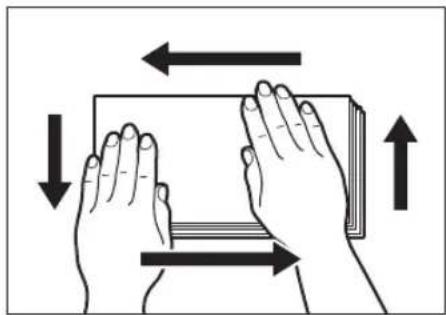
natural_image
Illustration of two hands holding a rectangular object with directional arrows indicating movement or force (no text or symbols)
NOTE
Take particular care to spread the envelopes out in the direction that they will be fed.
③ Hold down the four corners of the envelopes firmly, so that they and the sealed or glued portion stay flat.

text_image
Flap
NOTE
- Do not print on the back side of the envelopes (the side with the flap).
- If the envelopes become filled with air, flatten them by hand before loading them into the multi-purpose tray.
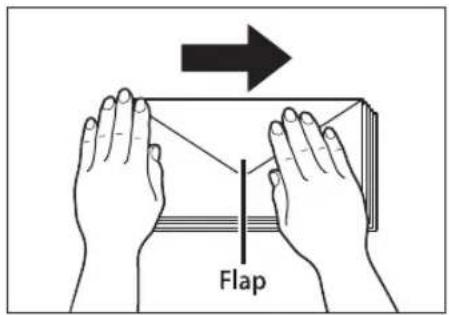
text_image
FlapLoad the envelopes, as shown below.
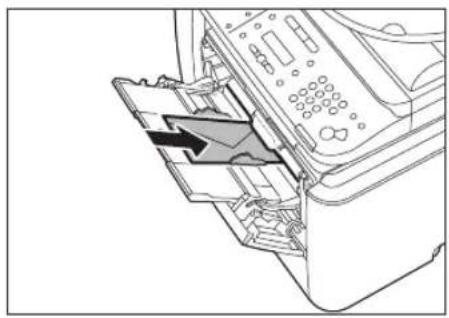
natural_image
Diagram of a printer's internal structure showing paper feeding into a printer (no text or symbols visible)
natural_image
Diagram of a printer internal structure showing paper feeding into a printer (no text or symbols visible)The display for specifying the paper size and type appears if

NOTE
- The multi-purpose tray can hold 5 envelopes at a time.
- Envelopes may be creased in the printing process.
Setting the Paper Size Switch Lever
When performing 2-sided copying or 2-sided printing, make sure to confirm that the paper size switch lever is set to the appropriate position. Paper jams may occur if the lever is not set appropriately. Follow the procedure below to set the paper size switch lever.
1
Open the duplex unit cover.
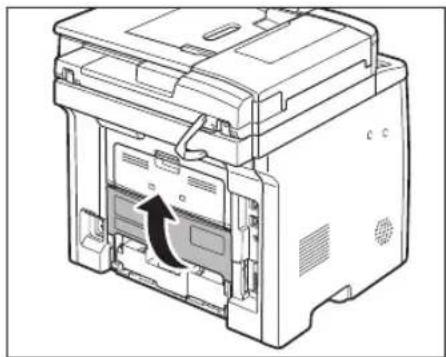
natural_image
Technical line drawing of a computer printer internal structure showing internal components and a highlighted section (no text or symbols)Hold the opening at the center of the duplex unit cover and open it gently.
2
Set the blue paper size switch lever (A) to the appropriate position according to the paper size.
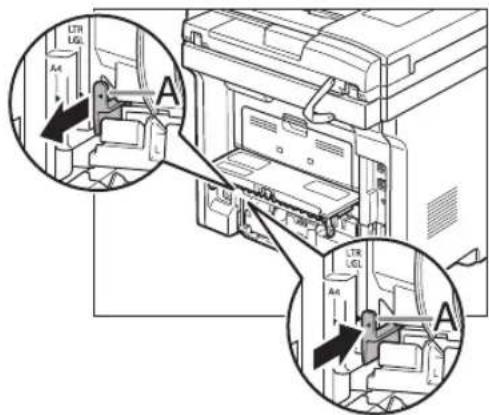
text_image
LTR LGL A4 A LTR LGL A4- For A4 size, draw the paper size switch lever toward you.
- For LTR or LGL size, push the paper size switch lever toward the machine.
3
Close the duplex unit cover.
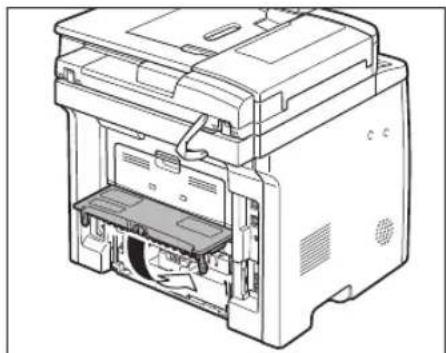
natural_image
Technical line drawing of an open industrial machine with internal components (no text or symbols)Hold the opening at the center of the duplex unit cover and close it gently.
Setting Paper Size and Type
This section describes how to specify the paper size and type you are loading in the paper cassette and the multi-purpose tray. Whenever you change the paper size and type in the cassette and the tray, follow the procedure in this section to adjust the paper size and type settings for the cassette and the tray.
For the Paper Cassette
The default settings are as follows:
: :
1 Press (Paper Settings) repeatedly to select
CASSETTE 1
2 Press or to select the paper size, then press [OK].
PAPER SIZE (CASS
You can select from the following paper sizes:
3 Press or to select the paper type, then press [OK].
PAPER TYPE (CASS PLAIN
You can select from the following paper types:
For the Multi-Purpose Tray
You can register a frequently used paper size and type for the multi-purpose tray. The default setting is
1 Press [Paper Settings] repeatedly to select
M P T R A Y
2 Press or to select , then press [OK].
M P TRAY STD SET
If you select
3 Press or to select the paper size, then press [OK].
PAPER SIZE (TRAY
You can select from the following paper types:
*¹,
*1 For envelopes: If you select this size,
*2 For non-standard paper size: If you select this size, enter the horizontal size in
![CANON imageClass D1120 - Press or to select the paper size, then press [OK]. - 1](/content/2026/06/1243698/images/91e26327e4127afbd08c9a6ba20e0be080b9a6bd907924018b3aa2122ba0434b.jpg)
NOTE
When ,
4 Press or to select the paper type, then press [OK].
PAPER TYPE (TRAY)
PLAIN
You can select from the following paper types:
*1 If paper curls excessively when printed with
*2 If print fixing is not sufficient when printed with
*3
Output Tray
This section describes the features of the output trays.
Output Tray Type
This machine has two output trays: the output tray on the front side of the machine and the sub-output tray on the rear side of the machine.
Do not switch one output tray to another during printing. This may result in paper jams.

NOTE
Keep your hands and clothing away from the roller in the output area. Even if the machine is not printing, sudden rotation of the roller may catch your hands or clothing, resulting in personal injury.

Output Tray
Printed paper is output to the output tray with the printed side facing down.
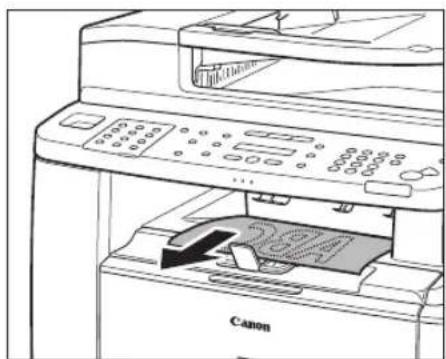
natural_image
Illustration of a Canon printer with a paper being inserted (no text or symbols visible)When outputting LGL size paper, lift the paper stopper to prevent the paper from falling off the output tray.
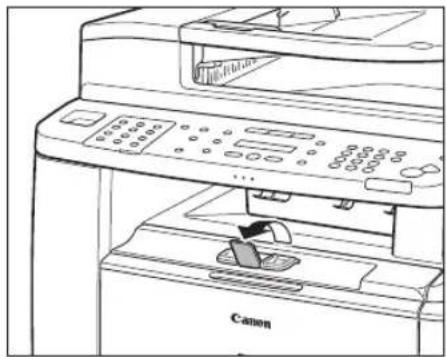
natural_image
Line drawing of a Canon printer with control panel and paper holder (no text or symbols on device)
CAUTION
The surroundings of the output tray are hot during printing or immediately after printing. When taking out of the paper or removing jammed paper, do not touch the surroundings of the output tray.

NOTE
- Printed paper can be output only to the output tray when performing 2-sided copying or printing.
- During 2-sided copying or printing, do not touch the paper until it is output to the output tray completely. In 2-sided copying or printing, the paper is partially output after one side is printed and then fed back to the machine so that the reverse side can be printed.

Sub-output Tray
Printed paper is output to the sub-output tray on the rear side of the machine with the printed side facing up. Printed paper is stacked in reverse page order. The sub-output tray is suitable for use when printing transparencies, labels, or envelopes that curl easily, because the printed paper remains flat when output.
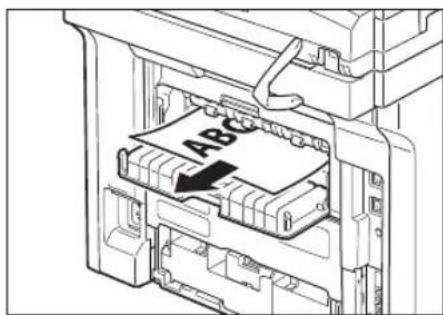
text_image
ABC
CAUTION
The surroundings of the sub-output tray are hot during printing or immediately after printing. When taking out of the paper or removing jammed paper, do not touch the surroundings of the sub-output tray.

natural_image
Technical line drawing of a hand inserting or removing a component into a device (no text or symbols visible)
NOTE
- Make sure to close the sub-output tray before performing 2-sided copying or printing.
- Do not open the sub-output tray during 2-sided copying or printing.
Selecting the Output Tray

Switching to the Sub-output Tray
To switch from the output tray to the sub-output tray, open the sub-output tray.
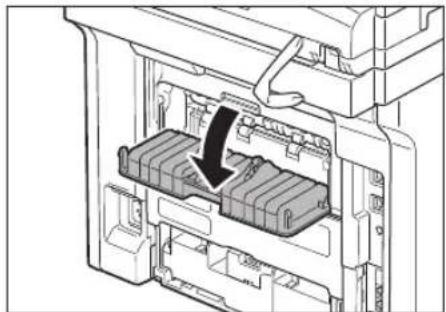
natural_image
Diagram of a mechanical device showing internal components and a black arrow indicating a specific part (no text or symbols present)
Switching to the Output Tray
To switch from the sub-output tray to the output tray, close the sub-output tray.
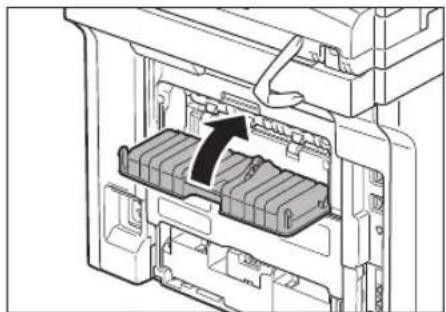
natural_image
Diagram of a mechanical device showing internal components with an arrow indicating a specific part (no text or symbols present)Copying
Chapter 3
This chapter describes the copying features.
Overview of Copy Functions ....3-2
Basic Copying Method 3-4
Canceling Copy Jobs 3-5
Canceling Scanning or Outgoing Jobs 3-5
Canceling Reserved Jobs 3-5
Selecting Paper Source ....3-7
Copying on Papers in Paper Cassettes 3-7
Using the Multi-Purpose Tray with Standard Paper Sizes ....3-8
Using the Multi-Purpose Tray with Irregular Paper Sizes ....3-9
Using the Multi-Purpose Tray with Envelopes .....3-11
Selecting Image Quality 3-12
Adjusting Density 3-14
Adjusting Automatically ....3-14 Adjusting Manually ....3-15
Enlarge/Reduce Images 3-16
Preset Zoom....3-16 Custom Copy Ratio....3-17
Collating Copies 3-19
Multiple Documents onto One Sheet (2 on 1) ......3-21
2 on 1 Combination .... 3-21 Copying ID Card .... 3-22
2-Sided Copying 3-24
1 to 2-Sided Copying .... 3-25 2 to 2-Sided Copying .... 3-26 2 to 1-Sided Copying .... 3-27
Adjusting Sharpness 3-28
Selecting Paper Size Group 3-29
Changing Standard Mode 3-30
Initializing the Standard Mode....3-31
Printing a Sample Page 3-32
Overview of Copy Functions
In addition to enlarging/reducing copies, you can make 2-sided copies or use the 2 on 1 mode, which reduces 2 page documents to fit on one sheet of paper.
Using multi-purpose tray
- Standard paper sizes
- Irregular sizes of paper
- Envelopes

natural_image
Diagram of a printer's internal structure showing paper feeding into a printer (no text or symbols visible)Documents

text_image
Copies
Copy settings
Image Quality (p. 3-12)
Text Mode
Photo Mode
Text/Photo

Density (p. 3-14)
Document

Lighter

Copy

Document

Darker

Copy
Various copy functions
Enlarge/Reduce images (p. 3-16)
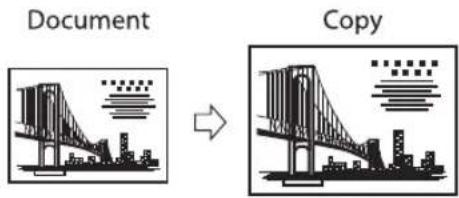
text_image
Document Copy2-sided copying (p. 3-24)
1 to 2-sided copying

flowchart
graph TD
    A["Documents"] -->|Book Type selected| B["Copy"]
    A -->|Calendar Type selected| C["Copy"]
2 on 1 (p. 3-21)
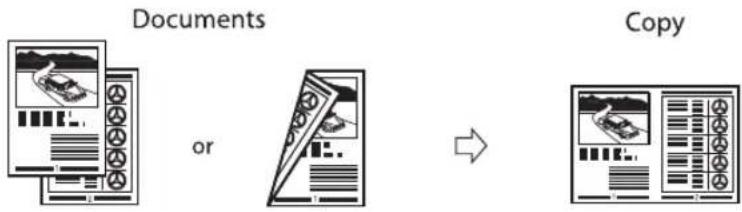
flowchart
graph LR
    A["Documents"] --> B["or"]
    B --> C["Copy"]

NOTE
The copy settings can be combined. For details, see the following descriptions for each setting.
Basic Copying Method
This section describes the basic procedure for copying.
1 Place documents on the platen glass or load them in the ADF.
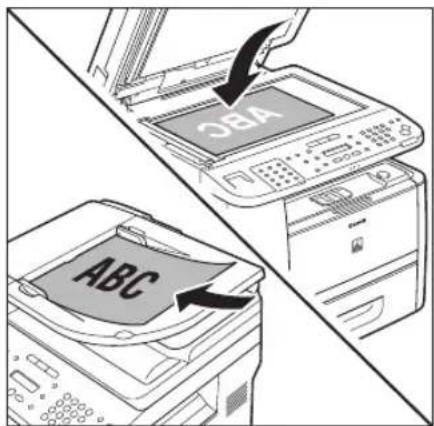
text_image
SBA ABC- For details, see "Placing Documents," on p. 2-4.
- Close the ADF after placing your documents.
- For documents you can copy, see "Documents Requirements," on p. 2-2.
Press [COPY].
- The COPY indicator lights up and the machine enters the copy standby mode.
- If you want to adjust the image quality, see "Selecting Image Quality," on p. 3-12.
- If you want to adjust the density, see "Adjusting Density", on p. 3-14.
- If you want to adjust the zoom ratio, see "Enlarge/Reduce Images," on p. 3-16.

NOTE
If you press and hold [OK] in the copy mode, a sample page will be printed. For details, see "Printing a Sample Page," on p. 3-32.
3 Use Ⓞ - ⑨numeric keys] to enter the desired copy quantity (1 to 99).

text_image
1 0 0 % □ □ ■ □ ▶ TEXT / PH LTR- The copy quantity appears on the right side of the display.
- If you make a mistake when entering values, press ⓒ [Clear] and enter the correct values.

NOTE
You cannot change the copy quantity while the machine is copying.
4 Press [Start].

NOTE
You can make copy settings and scan documents even if the machine is currently printing. The scanned documents are processed after the current job is complete. You can reserve up to 5 copy jobs, with different settings for each job.
Canceling Copy Jobs
This section describes how to cancel copy jobs.
Canceling Scanning or Outgoing Jobs
You can cancel scanning or outgoing jobs.

NOTE
If you cancel a copy job during scanning, make sure to remove the document.
1
Press [Stop/Reset].
2
When the
■ When scanning using the ADF:
| STOP KEY PRESSE | ||
| PRESS OK KEY |
■ When scanning using the platen glass:
| STOP KEY PRESSE |
3
When the
| CANCEL? |
| < YES |
The display will return to the standby mode.
Canceling Reserved Jobs
You can cancel a copy job while it is printing or waiting to be processed.
1 Press ☐Job Cancel/Status Monitor] repeatedly to select
| COPY STATUS |
If you select
2 Press or to scroll through the job list.
| 0 0 0 1 | 1 5 : 5 0 | PR I |
| 1 X | 1 0 / |
If you want to delete a job, go to the next step. Otherwise, press ▶ [Stop/Reset] to return to the standby mode.
3 Press or to select the job you want to delete, then press [OK].
| 0 0 0 3 | 1 5 : 5 2 | |
| 1 X | 0 / |
If you select
4 Press or to select
0003
CANCEL
5 Press to select
C A N C E L ?
< YES
If you do not want to cancel the job, press to select
6 Press (Stop/Reset) to return to the standby mode.
Selecting Paper Source
You can manually specify a paper source (paper cassette (1 or 2) or multi-purpose tray) by pressing ○ [Paper Select].

NOTE
The suffix
Copying on Papers in Paper Cassettes
You need to set up the paper size and type for each paper source in advance. For details about configuring the paper size and type, see "Setting Paper Size and Type," on p. 2-17.
1
Place documents.

text_image
SBA ABCFor details, see "Placing Documents," on p. 2-4.
2
Press [COPY].
3
Press (Paper Select) repeatedly to select the paper cassette 1 or the paper cassette 2^* .
The paper select indicator of the selected paper source lights up. (See "Operation Panel", on p. 1-6.)
* The paper cassette 2 is optional.
4
Use Ⓞ [numeric keys] to enter the desired copy quantity (1 to 99).

text_image
1 0 0 % □ □ □ □ ▶ TEXT / PHOT5
Press ⒽStart].
If you want to copy multiple documents using the platen glass, place a document and press [Start] once for each page.
![CANON imageClass D1120 - Press ⒽStart]. - 1](/content/2026/06/1243698/images/32f6107964d6901d389a4cc732f86fabf0489b8582d566d529608fd1c5dcc819.jpg)
NOTE
- You can set the machine to automatically select the appropriate paper source based on the document's size and copy ratio settings (Auto Paper Selection). You can also set the machine to automatically select another paper source with the same paper size if the current paper source runs out of paper while processing a job (Auto Cassette Switching). For details, see "Setting Auto Paper Selection/Auto Cassette Switching," in the e-Manual.
- You can set the default paper source for copying (
, , or (optional)) in in in .
Using the Multi-Purpose Tray with Standard Paper Sizes
This section describes how to copy onto standard size papers using the multi-purpose tray.

NOTE
If
1
Place documents.

text_image
OBA ABCFor details, see "Placing Documents," on p. 2-4.
2
Press [COPY].
3
Press (Paper Select) repeatedly to select the multi-purpose tray.
The paper select indicator of the selected paper source lights up. (See "Operation Panel," on p. 1-6.)
4 Load the papers into the multi-purpose tray.
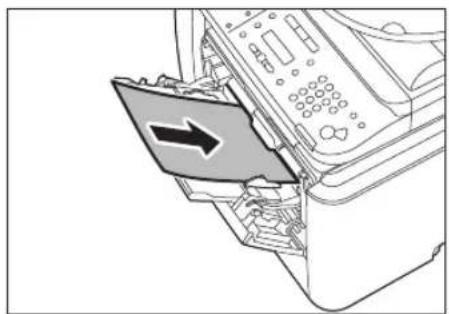
natural_image
Diagram of a printer's internal structure showing a paper feeding into a printer (no text or symbols visible)- If
is set to , go to the next step. - If
is set to , skip to step 7.
5 Press or to select the paper size, then press [OK].
SELECT PAPER SI LTR
- To copy onto standard size papers, select the paper size from the followings:
, , , , , or . - For details, see "Paper Requirements", on p. 2-6 and "Printable Area", on p. 2-8.
6 Press or to select the paper type, then press [OK].
SELECT PAPER TY PLAIN PAPER
- To copy onto standard size papers, select the paper type from the followings:
, , , , , , , or . - For details, see "Paper Requirements", on p. 2-6 and "Printable Area", on p. 2-8.
![CANON imageClass D1120 - Press or to select the paper type, then press [OK]. - 1](/content/2026/06/1243698/images/f11abab37556c1f5cd0dc47b7d59d96a93b27f09ca8d91045c86dfd41bda0d11.jpg)
NOTE
7 Use Ⓞ [numeric keys] to enter the desired copy quantity (1 to 99).
100% □□■□ TEXT / PH LTR
8 Press @Start]. If you want to c
If you want to copy multiple documents using the platen glass, place a document and press Ⓞ [Start] once for each page.
Using the Multi-Purpose Tray with Irregular Paper Sizes
This section describes how to copy onto non-standard size paper using the multi-purpose tray.

NOTE
If
1
Place documents.
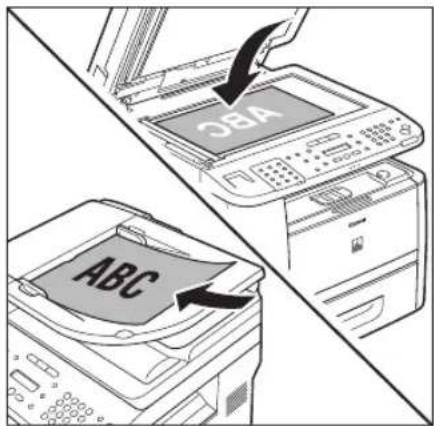
text_image
OBA ABCFor details, see "Placing Documents," on p. 2-4.
2
Press [COPY].
3
Press ○ [Paper Select] repeatedly to select the multi-purpose tray.
The paper select indicator of the selected paper source lights up. (See "Operation Panel", on p. 1-6.)
4
Load the paper into the multi-purpose tray.
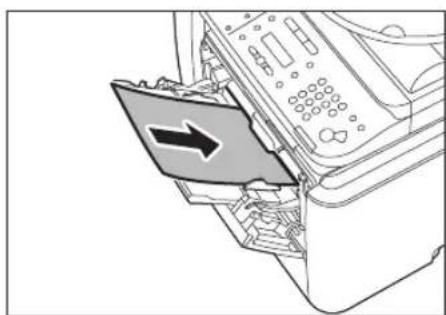
natural_image
Diagram of a printer's internal structure showing a paper feeding into a printer with an arrow indicating the paper's direction (no text or symbols present)- If
is set to , go to the next step. - If
is set to , skip to step 7.
5
Press or to select
| SELECT PAPER SICUSTOM SIZE |
6
Use Ⓔ [numeric keys] to enter the horizontal size in
X DIMENSION
7 6
7
Use Ⓗ [numeric keys] to enter the vertical size in
Y DIMENSION
1 2 7
You can also press 📄 to specify the size. (

NOTE
When a non-standard paper size is set, the machine may perform printing even if a different size paper is loaded in the multi-purpose tray. Make sure the correct size paper is loaded before printing.
8
Press or to select the paper type, then press [OK].
SELECT PAPER
T Y
PLAIN PAPER
- To copy onto non-standard size paper, select the paper type from the followings:
, , , , , , , or . - For details, see "Paper Requirements", on p. 2-6 and "Printable Area", on p. 2-8.
9
Use Ⓤ [numeric keys] to enter the desired copy quantity (1 to 99).
| 1 0 0 % | CUSTM | |
| □□□□□ | TEXT / PHOT | |
10 Press [Start]. If you want to
If you want to copy multiple documents using the platen glass, place a document and press Ⓤ [Start] once for each page.
Using the Multi-Purpose Tray with Envelopes
This section describes how to copy onto envelopes using the multi-purpose tray.

NOTE
If
1 Place documents.
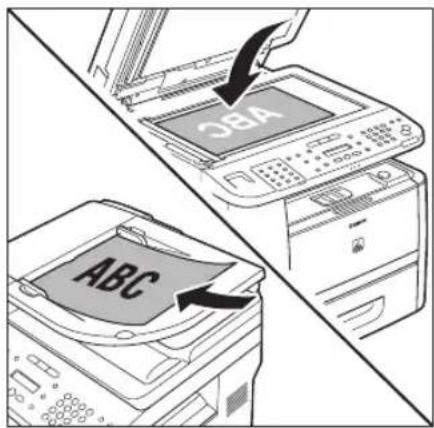
text_image
SBA ABCFor details, see "Placing Documents," on p. 2-4.
2 Press [COPY].
3 Press [Paper Select] repeatedly to select the multi-purpose tray.
The paper select indicator of the selected paper source lights up. (See "Operation Panel", on p. 1-6.)
4 Load envelopes into the multi-purpose tray.

natural_image
Diagram of a printer internal structure showing the paper feeding into a printer (no text or symbols visible)- If
is set to , go to the next step. - If
is set to , skip to step 6.
5 Press or to select the paper size, then press [OK].
SELECT PAPER SI NO.10 (COM10)
- To copy onto envelopes, select the paper size from the followings:
, , - ,
, or . - If you select one of these size,
is automatically selected for the paper type. - For details, see "Paper Requirements", on p. 2-6 and "Printable Area", on p. 2-8.
![CANON imageClass D1120 - Press or to select the paper size, then press [OK]. - 1](/content/2026/06/1243698/images/d706778ba909133ebb5a4f3a94307333a7b323770c8eb67d330d5563ea342736.jpg)
NOTE
When , or
6 Press [Start]. If you want to c
If you want to copy multiple documents using the platen glass, place a document and press [Start] once for each page.
Selecting Image Quality
You can adjust the image quality of copies according to the types of documents. A correct selection is necessary for the optimal reproduction of the colors of the document. These settings return to the default values if the Auto Clear function is activated or if you press
[Stop/Reset]. The default setting is
Text/Photo

Text Mode
RESORT PLAN
The world's coral reefs, where brilliantly colored fish and a myriad of other tropical creatures
Photo Mode

NOTE
- Combinations of these four modes (TEXT/PHOTO, TEXT/PHOTO+, TEXT, and PHOTO) cannot be selected at the same time. If you select one of these modes, the previously set mode is canceled.
- If the document is a transparency, select the document type, then adjust the exposure to the most appropriate level for the document.
1
Place documents.

text_image
OBA ABCFor details, see "Placing Documents," on p. 2-4.
2
Press [COPY].
3
Press ⒶImage Quality] repeatedly to select the document type.
: For documents that contain text and photos. : For documents that contain fine text and photos. : For text documents. : For documents that contain fine text or photos.

NOTE
Copy density automatically changes to the manual mode when
4 Use Ⓞ – ⓖ numeric keys] to enter the desired copy quantity (1 to 99).

text_image
1 0 0 % □ □ ■ □ ▶ TEXT / PH LTR5 Press [Start]. If you want to c
If you want to copy multiple documents using the platen glass, place a document and press Ⓧ [Start] once for each page.
Adjusting Density
You can adjust the density to the most appropriate level for the document either automatically or manually. The default setting is
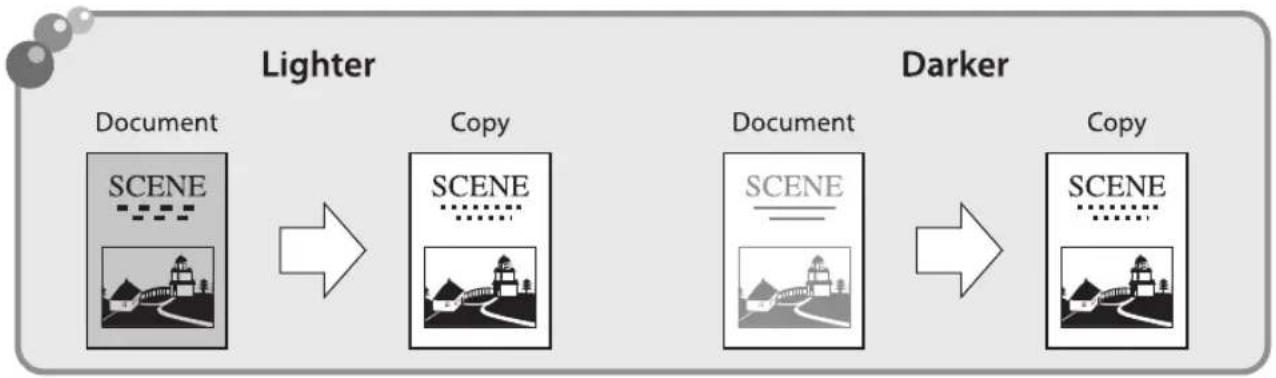
flowchart
graph LR
    A["Document"] --> B["Lighter"]
    B --> C["Copy"]
    C --> D["Document"]
    D --> E["Darker"]
    E --> F["Copy"]
Adjusting Automatically
You can adjust the density to the most appropriate level for the document automatically.
1 Place documents.
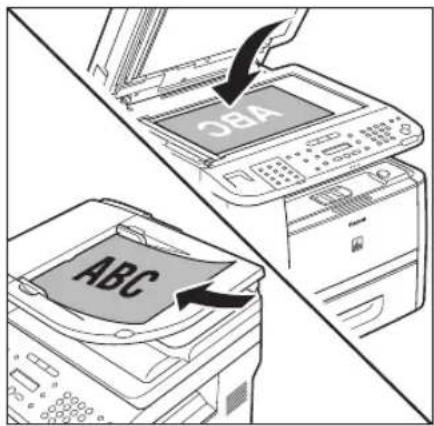
text_image
OBA ABCFor details, see "Placing Documents," on p. 2-4.
2 Press [COPY].
3 Press (Density) repeatedly to select
DENSITY AUTO DENSITY

NOTE
The image quality is automatically set to
4 Use Ⓞ – ⓖnumeric keys] to enter the desired copy quantity (1 to 99).
1 0 0 % A TEXT L T R
5 Press ⏻ [Start]. If you want to con
If you want to copy multiple documents using the platen glass, place a document and press [Start] once for each page.
Adjusting Manually
You can adjust the density to the most appropriate level for the document manually.
1 Place documents.
text_image
SBA ABCFor details, see "Placing Documents," on p. 2-4.
2 Press [COPY].
3 Press [Density] repeatedly to select the manual mode.
4 Press or to adjust the copy density, then press [OK].
DENSITY
- L T ◯□□□□■□□□□▶
▶: to make light documents darker
: to make dark documents lighter

NOTE
- To cancel all settings, press [Stop/Reset].
- When you switch the mode by pressing the mode keys such as s[607]FAX/
FAX [FAX], all settings will be also canceled. If you want to keep the settings, set the density as follows:
◎ [Menu] →
5 Use Ⓞ – ⓖnumeric keys] to enter the desired copy quantity (1 to 99).

text_image
1 0 0 % □ □ □ □ ▶ TEXT / PHOT6 Press Ⓧ [Start]. If you want to cor
If you want to copy multiple documents using the platen glass, place a document and press [Start] once for each page.
Enlarge/Reduce Images
You can convert a standard-sized document to a different standard-sized copy (preset zoom), or you can enlarge or reduce images in 1% increments (custom copy ratio). The default setting is <100%>.
Preset Zoom
Document
Copy

natural_image
Illustration of a suspension bridge over a city skyline with a grid pattern (no text or symbols)Zoom by Percentage
Document

Copies


Preset Zoom
You can enlarge or reduce standard size documents to another standard paper size.
1
Place documents.
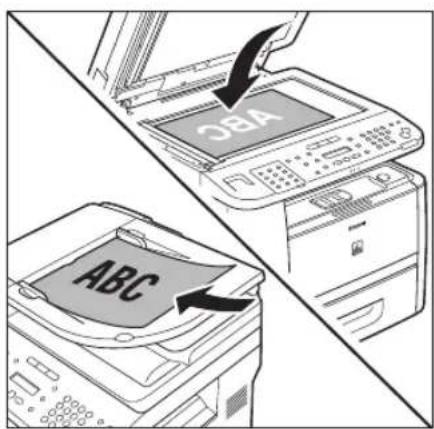
text_image
SBA ABCFor details, see "Placing Documents," on p. 2-4.
2
Press [COPY].
3
Press [Enlarge/Reduce].
PRESET RATIO - 100%
4 Press or to select the copy ratio, then press [OK].
| PRESET RATIO |
| 78% LG L→ L |
- <200% MAX.>
- <129% STMT → LTR>
- <100%>
- <78% LGL → LTR>
- <64%>
- <50% MIN.>
![CANON imageClass D1120 - Press or to select the copy ratio, then press [OK]. - 1](/content/2026/06/1243698/images/3da7e2711c13c4ccb2c06b8e5557995581eb19d495b4e3208e5af8e3fd4957b0.jpg)
NOTE
When
5 Use Ⓞ – ⓖnumeric keys] to enter the desired copy quantity (1 to 99).
| 7 8 % | LTR |
| □□□□□ | TEXT / PHOT |
6 Press @Start]. If you want to c
If you want to copy multiple documents using the platen glass, place a document and press Ⓞ[Start] once for each page.
Custom Copy Ratio
You can enlarge or reduce images by any copy ratio, in 1% increments. The available copy ratios are from 50% to 200%.
1 Place documents.

text_image
SBA ABCFor details, see "Placing Documents," on p. 2-4.
2 Press [COPY].
3 Press [Enlarge/Reduce] twice.
| ZOOM | 50-200% |
| - | 100% |
4 Use Ⓞ [numeric keys] to enter the copy ratio, then press [OK].
| ZOOM | 50-200% |
| - | 95% |
You can also use 📄 to adjust the copy ratio. To increase the copy ratio, press ⬇. To decrease the copy ratio, press ⬇.
![CANON imageClass D1120 - Use Ⓞ [numeric keys] to enter the copy ratio, then press [OK]. - 1](/content/2026/06/1243698/images/60542481caac77246f310cc6ee9615f722d35e4190515ff7eec8cf2228973bdc.jpg)
NOTE
To return the copy ratio to 100%, press ○ [Enlarge/Reduce] repeatedly to display <100%>, then press [OK].
5 Use Ⓞ – ⓖnumeric keys] to enter the desired copy quantity (1 to 99).

text_image
9 5 % TEXT / PH LTR6 Press @Start]. If you want to co
If you want to copy multiple documents using the platen glass, place a document and press Ⓞ [Start] once for each page.
Collating Copies
You can sort copies into sets arranged in page order. This function is useful when making handouts for meetings. This feature can be used together with both "2-Sided Copying" (see p. 3-24) and "Multiple Documents onto One Sheet (2 on 1)"(see p. 3-21). The default setting is

Collate: ON
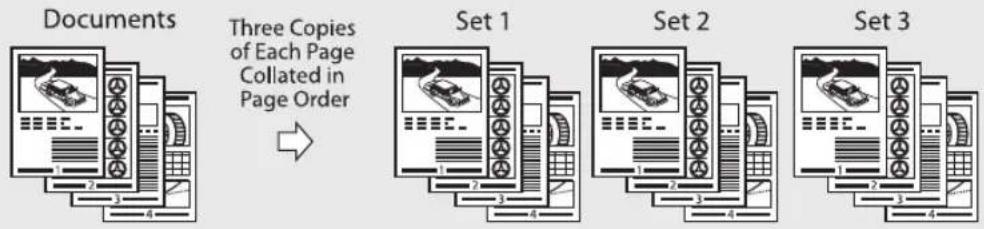
flowchart
graph LR
    A["Documents"] --> B["Three Copies of Each Page Collated in Page Order"]
    B --> C["Set 1"]
    C --> D["Set 2"]
    D --> E["Set 3"]
Collate: OFF
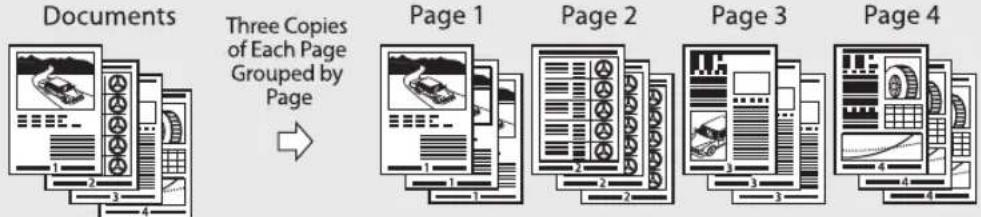
flowchart
graph LR
    A["Documents"] --> B["Three Copies of Each Page Grouped by Page"]
    B --> C["Page 1"]
    C --> D["Page 2"]
    D --> E["Page 3"]
    E --> F["Page 4"]
1 Place documents.
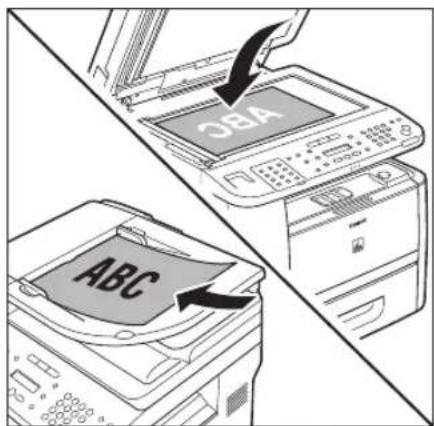
text_image
OBA ABCFor details, see "Placing Documents," on p. 2-4.
2 Press [COPY].
![CANON imageClass D1120 - Press [COPY]. - 1](/content/2026/06/1243698/images/5965f04e5b7ff501d7d4d5012e40cfda0682246f5600bb668893a943f2af83bd.jpg)
If
3 Press ①Collate/2 on 1] repeatedly to select , then press [OK].
COLLATE
- If you want to use
and "2 on 1 Combination"(see p. 3-21) at the same time, select - If you want to use
and the 2-sided copying at the same time, go to step 3 of "1 to 2-Sided Copying" (see p. 3-25), "2 to 2-Sided Copying" (see p. 3-26), or "2 to 1-Sided Copying" (see p. 3-27).
4 Use Ⓞ – Ⓣnumeric keys] to enter the desired copy quantity (1 to 99).
![CANON imageClass D1120 - Use Ⓞ – Ⓣnumeric keys] to enter the desired copy quantity (1 to 99). - 1](/content/2026/06/1243698/images/5488d578347a43c4f62891dc3ce743f678c0bd6754d0948752066b888114352b.jpg)
text_image
1 0 0 % * LTR □□□□ ▶ TEXT / PHOTPress [Start].
If you want to copy multiple documents using the platen glass, place a document and press [Start] once for each page. When scanning is complete, press [OK]. The machine prints the remaining sets of copies.
NOTE
- To cancel all settings, press ▶Stop/Reset].
- When you switch the mode by pressing the mode keys such as [sST/NQ/FAX]/
FAX [FAX], all settings will be also canceled. If you want to keep the settings, set the collate mode as follows:
Menu] →→ → → (See "COPY SETTINGS," on p. 13-5.) - When scanning multiple page documents,
may appear in the display and scanning may be canceled. If this happens, press [OK] to return to the standby mode, and print, send, or delete any documents stored in memory.
Multiple Documents onto One Sheet (2 on 1)
This mode enables you to reduce two-page documents to fit on one sheet of paper (1-sided/2-sided).
2 On 1

text_image
Diagram showing a car on a road with surrounding icons and a vertical scale bar labeled 1 to 2.Documents
or

→
Copy

Copying ID Card
ID Card
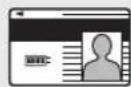
Front
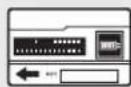
Back
→
Copy

text_image
Two digital identity verification icons with user profiles and input fields2 on 1 Combination
2 on 1 mode automatically reduces two documents to fit on the selected paper size. You can make well-organized copies by copying multiple documents onto one sheet. This mode enables you to cut print costs by saving copy papers, and it is also useful for saving space. This feature can be used together with both "Collating Copies" (see p. 3-19) and "2-Sided Copying" (see p. 3-24). The default setting is

NOTE
The reduction ratio is automatically set so that the documents fit onto the selected paper size.
1
Place documents.

text_image
CBA ABCFor details, see "Placing Documents," on p. 2-4.
2 Press [COPY].
3 Press [Collate/2 on 1] repeatedly to select <2 ON 1>, then press [OK].
2 ON 1
- If you want to use <2 ON 1> and "Collating Copies" (see p. 3-19) at the same time, select
- If you want to use <2 ON 1> and the 2-sided copying at the same time, go to step 3 of "1 to 2-Sided Copying" (see p. 3-25), "2 to 2-Sided Copying" (see p. 3-26), or "2 to 1-Sided Copying" (see p. 3-27).
4 Use Ⓞ – Ⓣnumeric keys] to enter the desired copy quantity (1 to 99).
![CANON imageClass D1120 - Use Ⓞ – Ⓣnumeric keys] to enter the desired copy quantity (1 to 99). - 1](/content/2026/06/1243698/images/ace282391f4964e5e7559a73421a657644a4bbe41686791f49af64db4875634b.jpg)
5 Press [Start]. If you want to co
If you want to copy multiple documents using the platen glass, place a document and press Ⓧ [Start] once for each page. When scanning is complete, press [OK].
![CANON imageClass D1120 - Press [Start]. If you want to co - 1](/content/2026/06/1243698/images/0a611396f8c9c95416e10d5e762c9722d7757fe5dacdcf42d6d0526d502c9ec8.jpg)
NOTE
- To cancel all settings, press [Stop/Reset].
- A maximum of 1/8" (4 mm) margin will be produced between the two reduced documents in 2 on 1 copying.
Copying ID Card
You can make copies of a card printed on both sides like an ID card. The printed images on the front-back both sides of a paper are placed on exactly the same position like the original card.

NOTE
- You must place a document on the platen glass when using this function.
- The zoom ratio will automatically be set to < 100%> with this feature. You cannot change the copy size.
- The ID card copy function can be used for LTR size paper if you select
in in , and for A4 if you select or . - When you select the ID card copy, the other copy settings you made, such as the copy ratio and paper size, will be canceled automatically.
- This function cannot be used with the 2 on 1 mode, the collating mode, or the 2-sided copying mode.
1 Place a card on the platen glass. - Place a card as indicated below.
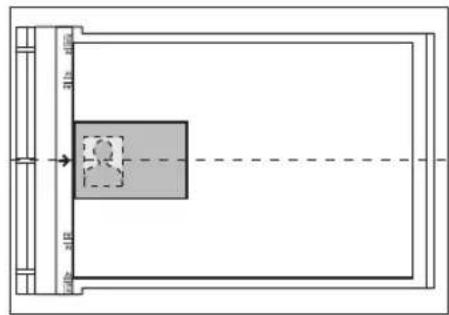
natural_image
Top-down architectural or layout diagram showing a rectangular room with a central gray space and dimension lines (no text or symbols)- Align the center of a card with the arrow mark.
2 Press [COPY].
3 Press (Collate/2 on 1] repeatedly to select , then press [OK].
ID CARD COPY
4 Use Ⓞ – ⑨ numeric keys] to enter the desired copy quantity (1 to 99).
![CANON imageClass D1120 - Press (Collate/2 on 1] repeatedly to select , then press [OK]. - 1](/content/2026/06/1243698/images/2630e1a6aae2e86a15ee0adf727e245cb14d123b8d008ef98108d8fd3c26860b.jpg)
text_image
1 0 0 % * LTR □□□□ ▶ TEXT / PH5 Press [Start].
6 Turn and place the card.
![CANON imageClass D1120 - Press (Collate/2 on 1] repeatedly to select , then press [OK]. - 2](/content/2026/06/1243698/images/5957a4e56c203d7d6c2720f276d995e641f01bf83a40492857d34d1cb554c195.jpg)
text_image
T U R N O V E R I D C A S C A N :- Place the card as indicated below.
![CANON imageClass D1120 - Press (Collate/2 on 1] repeatedly to select , then press [OK]. - 3](/content/2026/06/1243698/images/f796501d14fb4f8137676ce02c9a46d764a0353d7840ab60aece75d47d8f48e5.jpg)
flowchart
graph TD
    A["Input"] --> B["User Icon"]
    B --> C["Output"]
    style B fill:#f9f,stroke:#333
    style C stroke-dasharray: 5 5
- Align the center of a card with the arrow mark.
7 Press [Start].
![CANON imageClass D1120 - Press (Collate/2 on 1] repeatedly to select , then press [OK]. - 4](/content/2026/06/1243698/images/669e35f0a0e0e3a23bf7a041dba8e610e74ec1b5b05df14cc6eed7e1a363797a.jpg)
text_image
NOTE To cancel all settings, press [Stop/Reset]2-Sided Copying
This mode enables you to make 2-sided copies from 1-sided or 2-sided originals, or make 1-sided copies from 2-sided originals. This enables you to cut print costs in half when copying in large quantities. This feature can be used together with both "Collating Copies"(see p. 3-19) and "2 on 1 Combination"(see p. 3-21). The default setting is
1 to 2-Sided Copying
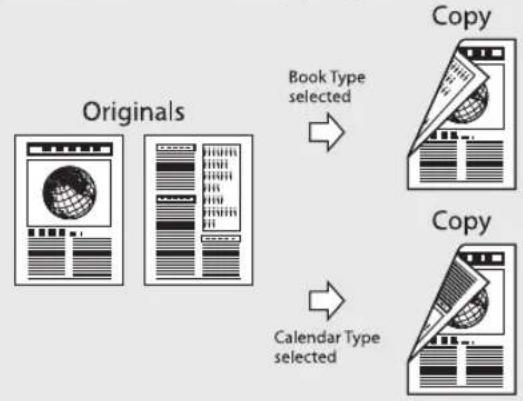
flowchart
graph TD
    A["Originals"] -->|Book Type selected| B["Copy"]
    B -->|Calendar Type selected| C["Copy"]
2 to 2-Sided Copying

flowchart
graph TD
    A["Original"] -->|Book Type selected| B["Copy"]
    B -->|Calendar Type selected| C["Copy"]
2 to 1-Sided Copying

flowchart
graph TD
    A["Original"] -->|Book Type selected| B["Copies"]
    A -->|Calendar Type selected| C["Copies"]

NOTE
– Paper used to make 2-sided copies must conform to the following specifications:
• Paper size: LTR, A4 and LGL (envelopes cannot be used for 2-sided copying)
• Paper weight: 16 to 32 lb (60 to 120 g/m²)
- Make sure to close the sub-output tray before making 2-sided copies.
- Do not open the sub-output tray while making 2-sided copies.
- When making 2-sided copies, make sure to confirm that the paper size switch lever on the rear side of the machine is set to the appropriate position. Paper jams may occur if the lever is not set appropriately. For details on how to set the paper size switch lever, see "Setting the Paper Size Switch Lever," on p. 2-16.
1 to 2-Sided Copying
You can make 2-sided copies from 1-sided documents.
1 Place documents.

text_image
SBA ABCFor details, see "Placing Documents," on p. 2-4.
2 Press [COPY].
3 Press [2-Sided] repeatedly to select <1 >2-SIDED>, then press [OK].
1 > 2 - S I D E D

NOTE
If there are odd number of documents when the 1-Sided to 2-Sided mode is used, the back side of the last copy is left blank.
4 Press or to select
TYPE OF OUTPUT BOOK TYPE
: The front and back sides of the copy will have the same top-bottom orientation. : The front and back sides of the copy will have the opposite top-bottom orientation.

NOTE
For the landscape oriented documents: When
5 Use Ⓞ – ⓖnumeric keys] to enter the desired copy quantity (1 to 99).
100% * LTR □□□□ ▶ TEXT / PHOT
6 Press [Start]. If you want to c
If you want to copy multiple documents using the platen glass, place a document and press Ⓤ [Start] once for each page. When scanning is complete, press [OK].

NOTE
- To cancel all settings, press [Stop/Reset].
- When you switch the mode by pressing the mode keys such as [s[0:FX]/FAX]/
FAX [FAX], all settings will be also canceled. If you want to keep the settings, store the settings as follows:
Ⓐ [Menu] →→ → <2-SIDED> (See "COPY SETTINGS," on p. 13-5.) - You can skip step 4. In this case, the machine scans 1-sided documents to make 2-sided,
copies.
2 to 2-Sided Copying
You can make 2-sided copies from 2-sided documents.
1
Place documents in the ADF.
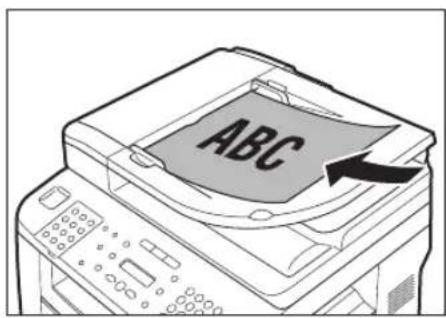
text_image
ABCFor details, see "Placing Documents," on p. 2-4.
2
Press [COPY].
3
Press [2-Sided] repeatedly to select <2>2-SIDED>, then press [OK].

text_image
2 > 2 - S I D E D4
Press or to select

text_image
TYPE OF ORIGINAL BOOK TYPE: The front and back sides of the document will have the same top-bottom orientation. : The front and back sides of the document will have the opposite top-bottom orientation.
5
Press or to select

text_image
TYPE OF OUTPUT BOOK TYPE: The front and back sides of the copy will have the same top-bottom orientation. : The front and back sides of the copy will have the opposite top-bottom orientation.
6
Use ① - ⑨ numeric keys] to enter the desired copy quantity (1 to 99).

text_image
1 0 0 % * LTR □ □ ■ □ ▶ TEXT / PHOTC7
Press ⒽStart].

NOTE
- To cancel all settings, press [Stop/Reset].
- When you switch the mode by pressing the mode keys such as s[64/FND]/FAX]/
FAX [FAX], all settings will be also canceled. If you want to keep the settings, store the settings as follows:
☑ [Menu] →→ → <2-SIDED> (See "COPY SETTINGS," on p. 13-5.) - You can skip steps 4 and 5. In this case, the machine scans 2-sided documents in the
orientation and outputs the same way. - If you press @Start] in step 4 after selecting
, the machine scans 2-sided documents in the orientation and outputs the same way.
2 to 1-Sided Copying
You can make 1-sided copies from 2-sided documents.
1
Place documents in the ADF.
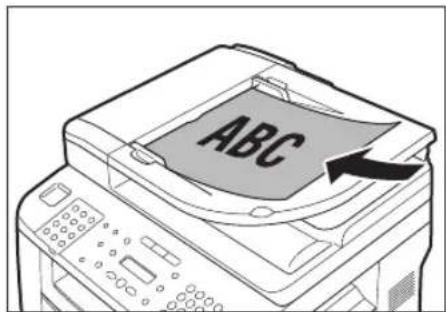
text_image
ABCFor details, see "Placing Documents," on p. 2-4.
2
Press [COPY].
3
Press [2-Sided] repeatedly to select <2>1-SIDED>, then press [OK].
2 > 1 - S I D E D
4
Press or to select
TYPE OF ORIGINA
BOOK TYPE
: The front and back sides of the document will have the same top-bottom orientation. : The front and back sides of the document will have the opposite top-bottom orientation.
5
Use Ⓞ – ⓖ numeric keys] to enter the desired copy quantity (1 to 99).

text_image
1 0 0 % * L T R □ □ ■ □ ▶ TEXT / P H Q T6
Press [Start].
You can skip step 4. In this case, the machine scans 2-sided documents in the

NOTE
- To cancel all settings, press [Stop/Reset].
- When you switch the mode by pressing the mode keys such as [s/b]FAX]/
FAX [FAX], all settings will be also canceled. If you want to keep the settings, store the settings as follows:
Ⓐ [Menu] →→ → <2-SIDED> (See "COPY SETTINGS," on p. 13-5.)
Adjusting Sharpness
You can set the sharpness of the copied image. The default setting is <5>.
1
Place documents.
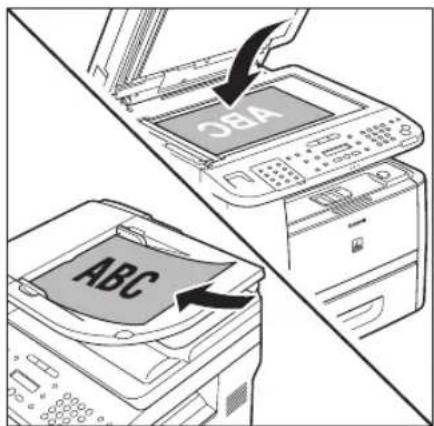
text_image
OBA ABCFor details, see "Placing Documents," on p. 2-4.
2
Press ⒹMenu].
3
Press or to select

text_image
MENU 3. COPY SETTING4
Press or to select

text_image
COPY SETTINGS 2. SHARPNESS5
Press ☐ to select to adjust the sharpness (1 to 9), then press [OK].
SHARPNESS
5
The highest sharpness level is 9 and the lowest is 1. To copy text or lines clearly, select a high sharpness level. To copy documents containing printed images or other halftones, select a low sharpness level.
6
Press [Stop/Reset] to return to the standby mode.
7
Press [COPY].
8
Use Ⓞ – ⓖnumeric keys) to enter the desired copy quantity (1 to 99).

text_image
1 0 0 % □ □ ■ □ ▶ TEXT / PH LTR9
Press ⏻Start].
If you want to copy multiple documents using the platen glass, place a document and press Ⓤ [Start] once for each page.
Selecting Paper Size Group
This section describes how to select the paper size group. The default setting is
1 Press ⒸMenu].
2 Press or to select
MENU 3. COPY SETTING
3 Press or to select
COPY SETTINGS 3.PAPER SIZE G
4 Press or to select a paper size group, then press [OK].
PAPER SIZE GROU I
You can select from the following paper size groups:
5 Press [Stop/Reset] to return to the standby mode.
Changing Standard Mode
The Standard mode is the combination of copy modes that the machine automatically applies when the power is turned ON, or when [Stop/Reset] is pressed. You can change the Standard mode to suit your needs. The default settings are as follows:
- <IMAGE QUALITY>: <TEXT/PHOTO>
- <DENSITY>: <MANUAL> (5)
- <ZOOM RATIO>: <PRESET RATIO> (100%)
- <COPIES>: <1>
- <COLLATE>: <OFF>
- <2-SIDED>: <OFF>
- <PAPER SELECT>: <AUTO>
1 Press ⒹMenu].
2 Press or to select
MENU
3. COPY SETTING
3 Press or to select
COPY SETTINGS
1. STANDARD SET
4 Press or to select the desired setting item, then press [OK].
STANDARD SETTING
1. IMAGE QUALITY
You can specify the following settings:

If you press Stop/Reset] before pressing [OK], the setting will not be registered.
5 Press [Stop/Reset] to return to the standby mode.
Initializing the Standard Mode
This section describes how to initialize the current copy setting mode including standard mode.
Press ⒽMenu].
Press or to select
| MENU3.COPY SETTING |
Press or to select
| COPY SETTINGS4.INIT.COPY S |
Press to select
| OK TO INITIALIZ |
| < YES |
Press [Stop/Reset] to return to the standby mode.
Printing a Sample Page
This machine provides you to print a sample page. You can use this function to test how the printouts will look with current settings.

NOTE
- The paper size must be LTR.
- The paper type must be Plain Paper (16 to 21 lb (60 to 80g / m^2 )).
- Make sure that the paper setting is appropriate and the paper is loaded correctly. No error message is displayed, even if the sample page is not printed correctly.
- You cannot cancel printing a sample page once printing has started.
- You cannot use this function while making copies, scanning documents, or printing reports/lists.
1 2
Press [COPY].
Press and hold [OK].
The sample page will be printed on both sides of the paper.
Printing
Chapter
4
This chapter describes the basic print features.
Overview of the Print Functions ....4-2
Introduction to Using Print Functions ....4-4
Printing Documents from a Computer......4-5
Scaling Documents 4-7
Printing Multiple Pages on One Sheet 4-9
2-Sided Printing 4-11
Checking and Canceling Print Jobs 4-12
Overview of the Print Functions
2-sided printouts, collated printouts and enlarged/reduced printouts are available.
Printing from a computer (Network connection/USB connection)
e-Manual • Refer to "Print"
Printer Driver
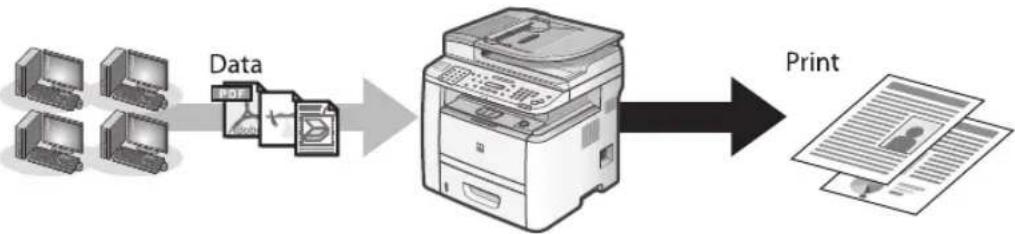
flowchart
graph LR
    A["Computer 4"] -->|Data| B["Printer"]
    C["Computer 3"] -->|Data| B
    D["Computer 2"] -->|Data| B
    B --> E["Print"]
    E --> F["Output: Paper with Print icon"]
Various printing features (Printing from a computer)
Scaling documents (p. 4-7)
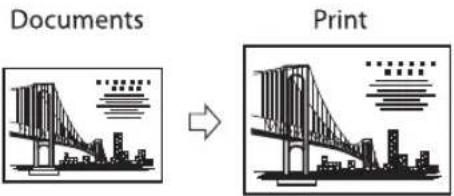
text_image
Documents Print2-sided printing (p. 4-11)
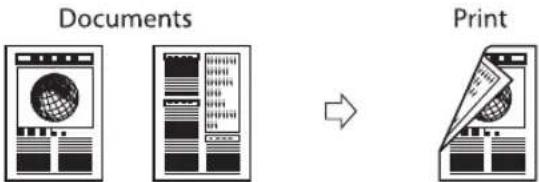
flowchart
graph LR
    A["Documents"] --> B["Print"]
    style A fill:#f9f,stroke:#333
    style B fill:#bbf,stroke:#333
Various printing features (Printing from a computer)
Multiple pages onto one sheet (p. 4-9)
2 on 1
Documents
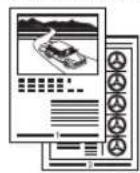

Print
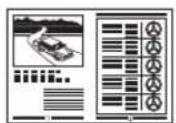
4 on 1
Documents
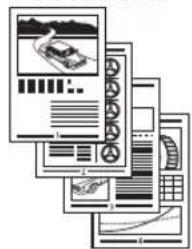
text_image
Stacked document page with multiple items including car, train, and electronics, likely from a presentation or report.
Print

Poster printing

e-Manual
• Refer to "Print."

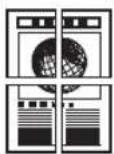
Booklet printing
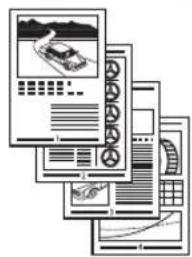
text_image
Illustration of multiple digital dashboard screens displaying automotive-related interfaces and data dashboards, likely for system or analytics analysis.e-Manual
- Refer to "Print."


NOTE
Functions such as the 2 on 1, 2-sided printing, and collating can be used in combination.
Introduction to Using Print Functions
Normally, the series of operations involved in printing data from a computer is specified by control commands generated using a printer driver. Control commands are a command system for controlling a printer. For example, when printing using a printer driver, control commands print data according to the following flow.
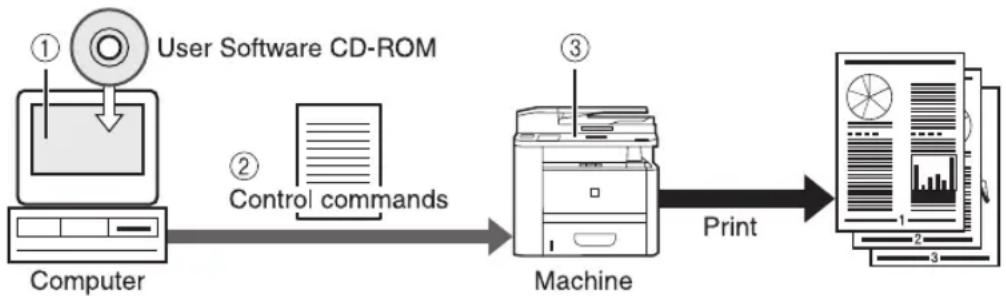
flowchart
graph LR
    A["User Software CD-ROM"] -->|①| B["Computer"]
    B -->|② Control commands| C["Machine"]
    C -->|Print| D["Printed Format 1-3"]
① Using a printer driver, data to be printed is converted to control commands.
② Control command data is sent to the machine.
③ Following the received control commands, the machine processes and prints the data.
To print in the following printer modes, a Printer Driver supported by this machine must be installed. For installing the driver to send a print job to the machine over a network, see "Network Connection" in the Starter Guide.
For installing the driver to send a print job directly from your Computer to the machine, see "USB Connection" in the Starter Guide.
This machine supports the following two kinds of control commands:

UFRII LT Mode
UFR (Ultra Fast Rendering) is printing technology developed by Canon. High-speed printing is made possible by sharing the processing of print data normally done by the machine with the computer.

PCL Mode
PCL (Print Control Language), developed by Hewlett-Packard, is a command system for controlling page printers. Command versions supported by this machine are PCL5e and PCL6.

NOTE
- If you disconnect the USB cable before the print job is complete, the current operation may not be performed properly. Do not disconnect the USB cable until all the pages are printed out completely.
- The PCL printing function is available only for the D1180.
- The available printer drivers may vary, depending on the machine and the version of Windows that you are using.
- If you are using a shared printer in the Print Server (Point and Print) environment, it is necessary to install the Canon Driver Information Assist Service in the server PC in order to set up the printer configuration automatically or to use the Job Accounting feature. For instructions on how to install the Canon Driver Information Assist Service, see "Set Up Computers and Software" in the Starter Guide.
- Most settings of printing are made from the printer driver. Although there are some settings which can be made from the machine, the settings from the printer driver have priority.
- For information on the machines supported by the UFRII LT printer drivers, see Canon Products Supported by UFRII Drivers.
- For information on the machines supported by the PCL5e, PCL6 printer drivers, see Canon Products Supported by PCL Drivers.
Printing Documents from a Computer
This section is the explanation of the basic procedure for printing from a computer (printer driver). Make sure that the printer driver is installed on your computer. To check if the driver is installed, see "Set Up Computers and Software" in the Starter Guide. For details on the printer driver settings, see Online Help.

NOTE
- Printing methods may differ depending on the applications you are using. For details, see the instruction manuals provided with the application software.
- If you are using a shared printer in the Print Server (Point and Print) environment, it is necessary to install the Canon Driver Information Assist Service in the server computer in order to set up the printer configuration automatically or to use the Job Accounting feature. For instructions on how to install the Canon Driver Information Assist Service, see "Set Up Computers and Software," in the Starter Guide.
- The machine may not be able to print data such as color photos if the data size of a single page is too large. If such is the case, reduce the data size by lowering the resolution or by changing the file format.
- The following procedures are explained using sample screens from Windows 2000. The display may differ depending on the operating system, as well as the type and version of the printer drivers.
- Printing speed may be slower when sending an e-mail or scanning documents to a file server in B&W format.
1 2
Open the document you want to print from the application.
Select [Print] from the [File] menu.
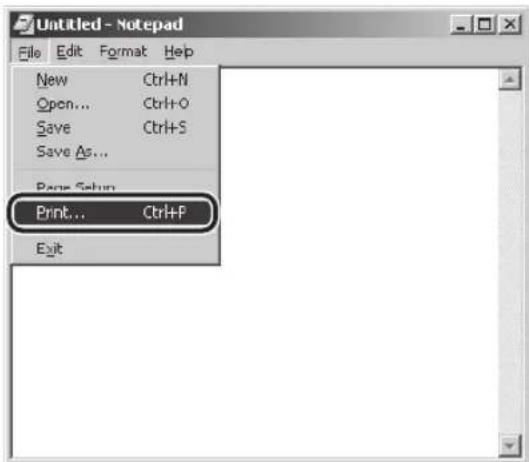
text_image
Untitled - Notepad File Edit Format Help New Ctrl+N Open... Ctrl+O Save Ctrl+S Save As... Print... Ctrl+P ExitThe printer driver screen is displayed.

NOTE
The procedure to display the printer driver screen may differ depending on the applications you are using.
3
Select your printer from [Select Printer], then click [Page Setup].

text_image
Print Name: [Page Setup] Setting | Paper Source | Quality Select Printer Add Printer Canon D1300 Canon D4100 Canon D1100 Series PC15x Series LPH... Series LPH2 Status Potality Find to Use Location Print Comment PrintPrice Page Range: F All Number of copies: 1 F All Color: 1, 2, 3 F All Number of copies: 1, 2, 3 F All Print
NOTE
The printer name displayed in the printer driver screen is changed by setting in the [Printers] folder (or [Printers and Faxes]). To display the [Printers] folder (or [Printers and Faxes]), see "Setting Printer Conditions Beforehand," in the e-Manual.
4 Configure the required settings in the printer driver screen.
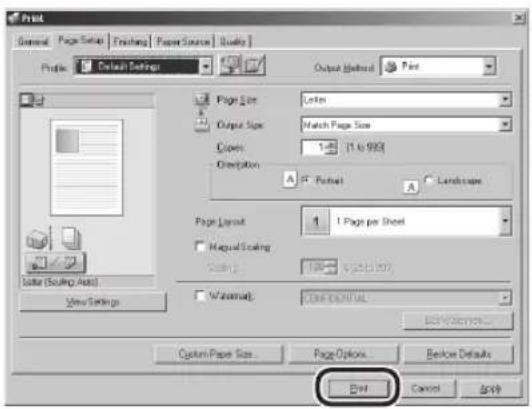
text_image
Print General | Page Setup | Printhang | Paper Source | Quality | Profile: Default Settings Output Method: Print Page Size: 100 Output Size: Match Page Size Export: 1 (1.6.993) Orientation: 5° Portrait Landscape Page Layout: 1 Page per Sheet Mapual Scaling Scaling: 100 (250.007) M/Format: Off CENTRAL End Options... Custom Paper Size... Page Options... Before Defaults End Cancel Apply5 Click [Print].
![CANON imageClass D1120 - Click [Print]. - 1](/content/2026/06/1243698/images/9d0c77783704b2b7026433306b6cd8d8d6889e2a3cd3293ea99ac4bf890d1a73.jpg)
text_image
Print General | Page Setup | Finishing | Paper Source | Quality | Select Printer Add Printer Canon 01100 Serial PC15e Canon 01100 Serial UPL... Canon 01100 Serial UPL... Status: Ready Location: Continent Page Range All Selected Cancal Box Fines Number of copies: 1 Color: 1 2 3 4 OK Cancel HelpPrinting starts.
Scaling Documents
You can enlarge or reduce documents to match the output paper size, such as reducing a document created in letter size to print on statement, or enlarging a document created in statement size to print on letter.
There are two methods for scaling a document: select the output size of the document to scale it automatically, or specify the scaling value manually.

NOTE
- Depending on the selected page size and printer model you are using, you may not be able to magnify the document.
- Depending on the printer model you are using, you may not be able to magnify the document to the optimum ratio for the selected page size.
- If you are using an application that enables you to enlarge or reduce the document, configure the settings in the application.
- Most settings of printing are made from the printer driver. Although there are some settings which can be made from the machine, the settings from the printer driver have priority.
- The following procedures are explained using sample screens from Windows 2000. The display may differ depending on the operating system, as well as the type and version of the printer drivers.
1 Display the [Page Setup] sheet.
![CANON imageClass D1120 - Display the [Page Setup] sheet. - 1](/content/2026/06/1243698/images/2eddc066310e26d59253b58c789c720f400bf3e7f339b5f903338cdec9a53797.jpg)
text_image
Print General | Page Setup | Finishing | Paper Source | Quality Profile: Default Settings Output Method: Print Page Size: Latin Output Size: Hatch Page Size Canvas: 1 to 995 Orientation: F° Pattern Landscape Page Layout: 1 Page per Sheet Mapbook Setting: 100% Watercraft: CONFIDENTIAL System Paper Size Page Options... Balance Defaults Edit Cancel HelpSee "Printing Documents from a Computer," on p. 4-5 for details for details on how to display the printer driver screen.
2 Select the page size of the document you created in the application from [Page Size].
![CANON imageClass D1120 - Select the page size of the document you created in the application from [Page Size]. - 1](/content/2026/06/1243698/images/8b754d2053c591691d89c277593fb96359259e28bb1ae2777643929ee8fc1c6f.jpg)
text_image
Print General Page Setup Framing Paper Source Quality Profile: Default Settings Output Method: Print Page Size: 10px Output Size: Match Page Size Open: 1 to 900 Orientation A Portrait A Landscapes Page Layout: 1 Page per Sheet Mapset Scaling Scaling: 100 4.5% @1 Waterfall: CONFIDENTIAL Custom Paper Size... Page Options... Remove Defaults Edit Cancel Help3 Select output size of the document from [Output Size].
![CANON imageClass D1120 - Select output size of the document from [Output Size]. - 1](/content/2026/06/1243698/images/ad979c2218af5e11d8e8ad2d03254b859fbfcfc269dd98791598d4ee5e9305fe.jpg)
text_image
Print General Page Setup Framing Paper Source Quality Profile Default Settings Output Method Print Page Size 15 Output Size Open: A: 100% Orientation: A: 100% Layered Page Layout 1 Page per Sheet Mapical Scaling: 600x 0.250 x 207 Information: One Digital Edit Options... Custom Paper Size... Page Options... Before Details OK Cancel HelpThe document is scaled automatically according to the settings made in [Page Size] and [Output Size].
4 If you want to increase or decrease the magnification manually, check [Manual Scaling] → specify the scaling ratio for [Scaling].
![CANON imageClass D1120 - If you want to increase or decrease the magnification manually, check [Manual Scaling] → specify the scaling ratio for [Scaling]. - 1](/content/2026/06/1243698/images/f67bd27594959e6eefebc01d9d4b108c23895cd1e1a7388ce216a001e3f886fc.jpg)
text_image
Print General Paper Settings Finishing Paper Source Quality Profile: Default Settings Output Method: Post Page Size Letter Output Size: 15 Copies: 1 to 500 Description: A Pattern A Landscape Page Layout: 1 Page per Sheet Magged Screening orning: [50 to 200] Not displayed: Default Options Custom Paper Size Page Options Before Defaults Edit Cancel Help![CANON imageClass D1120 - If you want to increase or decrease the magnification manually, check [Manual Scaling] → specify the scaling ratio for [Scaling]. - 2](/content/2026/06/1243698/images/80858aebe740e7ad303af9b9b39d8d64754e428bc911b3473d09781e5fa134ed.jpg)
NOTE
If the ratio is less than 25% or more than 200%, the document is printed without scaling on the paper specified in [Output Size].
5 Click [Print].
![CANON imageClass D1120 - Click [Print]. - 1](/content/2026/06/1243698/images/9292222a712f7efc7ab6ea1b65e6c8adf09b88ebea1a52320f093729488d375b.jpg)
text_image
Print General Page Setup Finding Paper Source Quality Profile: Default Settings Output Method: Print Page Size: Lotus Output Size: 65 Comms: 1 (1 to 999) Description: A P: Platform Landscape Page Layout: 1 Page per Sheet Magnet Scaling: Scaling: 70 x [25 to 200] Watermark: CONTINENTAL Copy Paper Size... Page Options... Browse Defaults Edit Cancel HelpPrinting Multiple Pages on One Sheet
This mode enables you to reduce multiple pages to fit onto one sheet of paper. You can make well-organized documents by editing multiple materials onto one sheet. And you can cut down print costs by saving paper, and it is also useful for saving space.

NOTE
- Although there may be a function for printing multiple copies with the application you are using, do not use it together with this function. If you do, printing may not be executed correctly.
- You cannot enlarge and reduce manually when using this function.
- The following procedures are explained using sample screens from Windows 2000. The display may differ depending on the operating system, as well as the type and version of the printer drivers. Most settings of printing are made from the printer driver.
- Although there are some settings which can be made from the machine, the settings from the printer driver have priority.
1
Display the [Page Setup] sheet.
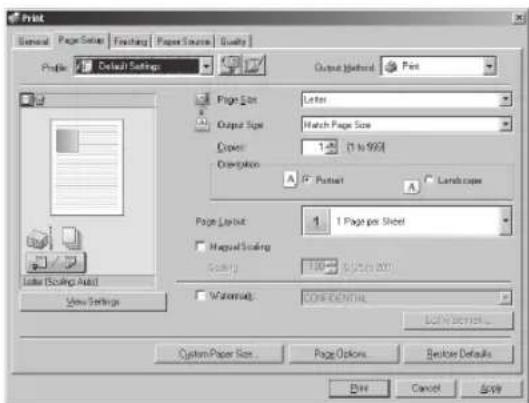
text_image
Print General | Page Setup | Findings | Paper Source | Quality Profile: Default Settings Output Method: Print Page Size: Letter Output Size: Hatch Page Size Open: 1 (1 to 995) Description: A Pattern A Landscape Page Layout: 1 1 Page per Sheet Mapset Scaling: Scaling: 100 (0.25 x 0.01) Waterfall: CONFIDENTIAL CONSENSUS... Custom Paper Size... Page Options... Balance Defaults Edit Cancel ApplySee "Printing Documents from a Computer," on p. 4-5 for details on how to display the printer driver screen.
2
Select the page layout from [Page Layout].

text_image
Print General | Page Setup | Finishing | Paper Source | Quality | Profile: Default Settings Output Method: Print Page Size: Layer Output Size: Match Page Size Capes: 1 (1 to 200) Distribution: A: Print A: Landscape Page Layout: 2 Paper per Sheet Page Date: Top to Button Waterfall: CONFIDENTIAL Custom Paper Size... Page Options... Delete Details Edit Cancel Help3
Select the page order from [Page Order].
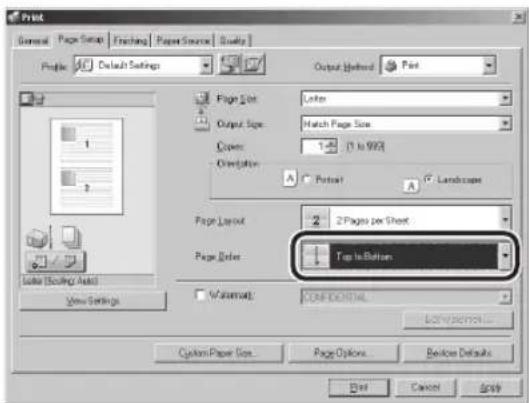
text_image
Print General | Page Setup | Fracting | Paper Source | Quality | Profile: Default Settings Output Method: Print Page Dot Lakes Output Size: Hatch Page Size Covers: 1 to 90% Orientation: A Portrait G Landscape Page Layout: 2 Pages per Sheet Page Color: Top to Bottom View Settings Variance: CONFIDENTIAL CONTROLLER... Custom Paper Size... Page Options... Bevelles Defaults End Cancel ApplyThe output image is displayed in the preview area.
4
Click [Print].
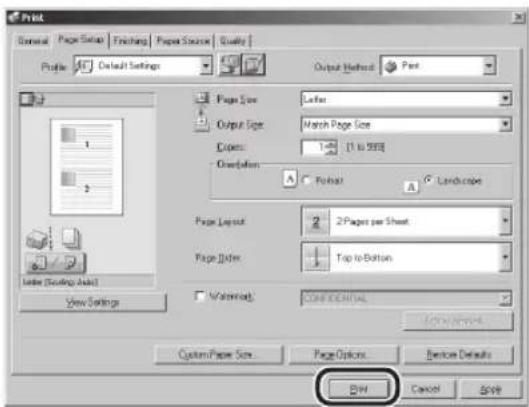
text_image
Print General Paper Setup Finishing Paper Source Quality Profile Default Settings Output Method Print Page Size: Lefte Output Size: March Page Size Open: 1 [1 to 500] Orientation: A Pointset A Landscape Page Layout: 2 Paper per Sheet Page Index: Top to Button Information: CONFIDENTIAL Custom Paper Size Page Options Before Defaults OK Cancel Help2-Sided Printing
This mode enables you to make 2-sided printing. You can cut down print costs by half when copying in large quantities.

NOTE
- For details on the printer driver settings, see Online Help.
- The following procedures are explained using sample screens from Windows 2000. The display may differ depending on the operating system, as well as the type and version of the printer drivers.
- Most settings of printing are made from the printer driver. Although there are some settings which can be made from the machine, the settings from the printer driver have priority.
- Make sure to close the sub-output tray before performing 2-sided printing.
- Do not open the sub-output tray while performing 2-sided printing.
- When performing 2-sided printing, make sure to confirm that the paper size switch lever on the rear side of the machine is set to the appropriate position. Paper jams may occur if the lever is not set appropriately. For details on how to set the paper size switch lever, see "Setting the Paper Size Switch Lever," on p. 2-16.
- Only LTR, A4, and LGL size paper can be used for 2-sided printing.
1
Display the [Finishing] sheet.
See "Printing Documents from a Computer," on p. 4-5 for details on how to display the printer driver screen.
2
Select [2-sided Printing] from [Print Style].
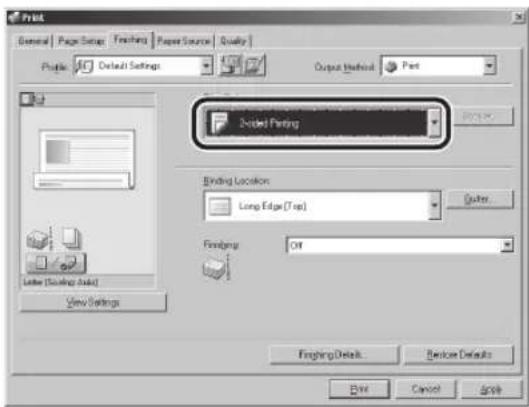
text_image
Print General | Page Setup | Fracting | Paper Source | Quality Profile: Default Settings Output Method: Print Selected Printing Binding Location: Long Edge (Top) Finishing: Off Finishing Details... Finish Details Exit Cancel Help3
Select binding edge for the printout from [Binding Location].
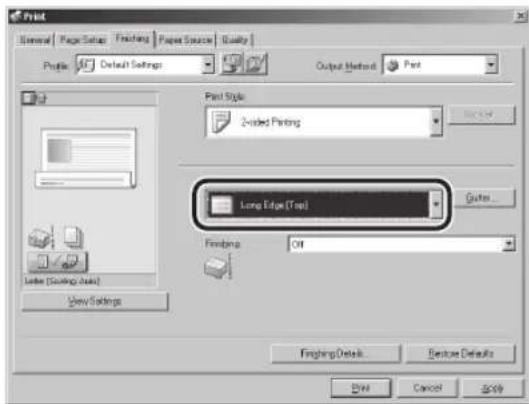
text_image
Print General Paper Setup Fracting Paper Source Quality Profile Default Settings Output Method Print Print Style 2-sided Printing Long Edge (Tree) Finishing Off Finishings Details Service Defaults End Cancel Help4
Click [Print].

text_image
Print General | Page Setup | Finishing | Paper Source | Quality | Profile: Default Settings Output Method: Print Print Style: 2-sided Printing Binding Location Long Edge (Tool) Findings Out Color (Scaling Audio) View Settings Findings Details... Remove Defaults Exit Cancel ApplyChecking and Canceling Print Jobs
You can check the status of print jobs and cancel a job before the printing starts.

NOTE
Make sure that the Processing/Data indicator is on or blinking. When the Processing/Data indicator is off, there are no jobs in the memory of the print job status.
1 Press ⒶJob Cancel/Status Monitor] repeatedly to select
PRINT STATUS
If you select
2 Press or to scroll through the job list, and check the status of the print jobs.
0 0 0 1
test.txt - No
If you want to cancel the job, go to the next step. Otherwise, skip to step 6.
3 Press or to select the job you want to cancel, then press [OK].
0 0 0 3
test.txt - No
If you select
4 Press or to select
0003
CANCEL
5 Press to select
C A N C E L ?
< YES
If you do not want to cancel the job, press ▶ to select
6 Press [Stop/Reset] to return to the standby mode.
Registering Destinations in the Address Book
(D1180/D1170/D1150)
Chapter
5
This chapter describes how to register destinations in the Address Book, and how to edit and erase registered information.
About the Address Book ....5-2
Storing/Editing One-Touch Keys 5-3
Registering Fax Numbers in One-Touch Keys ....5-3
Registering E-Mail Addresses in One-Touch Keys ....5-4
Registering File Server Addresses in One-Touch
Keys 5-5
Registering Group Addresses in One-Touch Keys ....5-7
Editing One-Touch Keys 5-8
Editing One-Touch Keys (Group Addresses) .....5-8
Erasing One-Touch Keys 5-10
Erasing One-Touch Keys (Group Addresses) .....5-11
Storing/Editing Coded Dial Codes ....5-12
Registering Fax Numbers in Coded Dial Codes ..... 5-12
Registering E-Mail Addresses in Coded Dial
Codes 5-13
Registering File Server Addresses in Coded Dial
Codes 5-14
Registering Group Addresses in Coded Dial
Codes 5-16
Editing Coded Dial Codes 5-17
Editing Coded Dial Codes (Group Addresses) ..... 5-18
Erasing Coded Dial Codes 5-19
Erasing Coded Dial Codes (Group Addresses) ..... 5-20
About the Address Book
The Address Book is a feature used for storing fax, e-mail, and file server destinations. The Address Book is divided into one-touch keys and coded dial codes. You can store up to 20 destinations in one-touch keys, and 180 destinations in coded dial codes, for a total of 200 destinations in the whole Address Book. You can also register multiple destinations of various types in a group address, and assign a one-touch key or coded dial code to this group.
Registering a destination in the Address Book saves you the effort of entering that destination's address each time you send a job.

NOTE
- The Address Book feature is available for the D1180/D1170/D1150.
– E-mail and file server address registration is available for the D1180/D1170. - Destinations stored in the Address Book can be exported to your computer as a file, which can be imported into the machine. For information on exporting the Address Book, see "Exporting Address Book Entries," in the e-Manual.
Storing/Editing One-Touch Keys
Registering Fax Numbers in One-Touch Keys
This section describes the procedure for registering fax numbers in the one-touch keys.
1 Press ⒹMenu].
2 Press or to select
, then press [OK].MENU 5. ADDRESS BOOK
If a password has been set for the Address Book, enter the password using Ⓞ - ⓖ [numeric keys], then press [OK].
3 Press or to select <1-TOUCH SPD DIAL>, then press [OK].
ADDRESS BOOK SE 1.1-TOUCH SPD
4 Press ☑ to select a one-touch key (01 to 20) for which you want to register the fax number, then press [OK].
1 - TOUCH SPD DIA [01] NOT REGIST
You can also select a one-touch key by pressing the corresponding one-touch key.
5 Press or to select
1 - TOUCH SPD DIA
6 Press or to select
1 - TOUCH SPD DIA 1. TEL NUMBER E
7 Use ① - ⑨ [numeric keys] and ⑧ [Tone] to enter the fax number you want to register (40 digits maximum), then press [OK].
Ex. T E L N U M B E R E N T R 1 2 3 X X X X X X X
8 Press or to select
1 - TOUCH SPD DIA 2 . NAME
9 Use Ⓞ - ⓖ [numeric keys] and ⓧ [Tone] to enter the destination's name (16 characters maximum), then press [OK].
Ex. NAME John
- If you want to specify the following optional settings (
, , and ) for the fax number you are registering, go to the next step. - If you do not need to set these options, skip to step 18.

NOTE
For information on how to enter characters, see "Entering Characters," on p. 1-16.
10 Press on to select
| 1 - TOUCH SPD DIA |
| 3 . OPTIONAL SET |
11 Press on to select
| OPTIONAL SETTING | |
12 Press on to select
| OPTIONAL SETTING1. LONG DISTANCE |
13 Press on to select the most effective transmission option, then press [OK].
| LONG DISTANCEDOM |
: Normally select this option. : Select one of these options when you make an international call. If errors occur during fax transmissions, try the setting from through .
14 Press on to select
| OPTIONAL SETTING2.TXSPEED |
15 Press on to select the sending speed (33600bps, 14400bps, 9600bps, or 4800bps), then press [OK].
| TX SPEED | ||||||
| 3 | 3 | |||||

NOTE
If transmission errors occur frequently, lower the speed.
16 Press on to select
| OPTIONAL SETTING3.ECM |
17 Press on to select
E C M
To register another one-touch key, repeat the procedure from step 4.
18 Press [Stop/Reset] to return to the standby mode.
Registering E-Mail Addresses in One-Touch Keys
This section describes the procedure for registering e-mail addresses in the one-touch keys.
1 Press ⒶMenu].
2 Press or to select
, then press [OK].MENU 5. ADDRESS BOOK
If a password has been set for the Address Book, enter the password using Ⓞ - Ⓢ [numeric keys], then press [OK].
3 Press or to select <1-TOUCH SPD DIAL>, then press [OK].
ADDRESS BOOK SE 1.1-TOUCH SPD
4 Press or to select a one-touch key (01 to 20) for which you want to register the address, then press [OK].
1 - TOUCH SPD DIA [01] NOT REGIST
You can also select a one-touch key by pressing the corresponding one-touch key.
5 Press or to select
1 - TOUCH SPD DIA E
6 Press or to select
1 - TOUCH SPD DIA 1 . E - MAIL ADDRE
7 Use Ⓞ - ⓝ [numeric keys] and ⓧ [Tone] to enter the address you want to register (120 digits maximum), then press [OK].
Ex.
E-MAIL ADDRESS John@example.co
8 Press or to select
1 - TOUCH SPD DIA 2 . NAME
9 Use Ⓞ - ⓖ [numeric keys] and ⓧ [Tone] to enter the destination's name (16 characters maximum), then press [OK].
Ex.
NAME John (e-mail)
To register another one-touch key, repeat the procedure from step 4.
10 Press [Stop/Reset] to return to the standby mode.
Registering File Server Addresses in One-Touch Keys
This section describes the procedure for registering file server addresses in the one-touch keys.
1 Press ⒽMenu].
2 Press or to select
, then press [OK].MENU 5. ADDRESS BOOK
If a password has been set for the Address Book, enter the password using Ⓞ - Ⓣ [numeric keys], then press [OK].
3 Press or to select <1-TOUCH SPD DIAL>, then press [OK].
ADDRESS BOOK SE 1.1-TOUCH SPD
4 Press ☑ to select a one-touch key (01 to 20) for which you want to register the address, then press [OK].
| 1 - TOUCH SPD DIA |
| [01] NOT REGISTI |
You can also select a one-touch key by pressing the corresponding one-touch key.
5 Press or to select
| 1 - TOUCH SPD DIA |
6 Press or to select
| 1 - TOUCH SPD DIA | |
| 1 . HOST NAME |
7 Use Ⓐ - Ⓞ [numeric keys] and ⚙ [Tone] to enter the name of the file server on the network (120 characters maximum), then press [OK].
Ex.
| HOST NAME |
| server1 |
8 Press or to select
| 1 - TOUCH SPD DIAI2 . NAME |
9 Use 0 - 9 [numeric keys] and ✕ [Tone] to enter the destination's name (16 characters maximum), then press [OK].
Ex.
| NAME |
| SERVER_1 |
10 Press on to select
| 1 - TOUCH | SPD | DIAI |
| 3 . FILE | PATH |
11 Use ① - ⑨ [Numeric keys] and ⑧ [Tone] to specify the folder to which the job is to be sent (120 characters maximum), then press [OK].
Ex.
| FILE PATH |
| server1/home/_sha |
12 Press on to select
| 1 - TOUCH SPD DIAI4. LOGIN NAME |
13 Use ① - ⑨ [numeric keys] and * [Tone] to enter the login name (24 characters maximum), then press [OK].
Ex.
| LOGIN NAMEcan on |
14 Press or to select
| 1 - TOUCH SPD DIAI5 . PASSWORD |
15 Use ① - ⑨ [numeric keys] and ⑧ [Tone] to enter the password (14 characters maximum), then press [OK].
Ex.
| P | A | S | S | W | O | R | D |
| 1 | 2 | 3 | X | X | X | X |
To register another one-touch key, repeat the procedure from step 4.
16 Press [Stop/Reset] to return to the standby mode.
Registering Group Addresses in One-Touch Keys
The Group Address feature enables you to create a group of up to 199 stored destinations as a single destination.

NOTE
The destinations must be registered in the one-touch keys beforehand.
1 Press ⒹMenu].
2 Press or to select
, then press [OK].MENU 5. ADDRESS BOOK
If a password has been set for the Address Book, enter the password using Ⓞ - Ⓢ [numeric keys], then press [OK].
3 Press or to select
ADDRESS BOOK SE 3. GROUP DIAL
4 Press or to select an empty one-touch key that you want to set as the group address, then press [OK].
GROUP DIAL [10] NOT REGIST
You can also select a one-touch key by pressing the corresponding one-touch key.
5 Press or to select
GROUP DIAL 1. SELECT ADD/T
6 Select the destinations you want to register in the group (199 destinations maximum) until all destinations are registered, then press [OK].
Ex.
= 1 2 3 X X X X X X [0 1] John
To enter a destination stored under a one-touch key, press the desired one-touch key.

NOTE
You can review the destinations which have been already entered with 📄.
7 Press or to select
GROUP DIAL 2. NAME
8 Use Ⓞ - ⓝ [numeric keys] and Ⓥ [Tone] to enter the group name (16 characters maximum), then press [OK].
Ex.
NAME Canon Group
To register another group, repeat the procedure from step 4.
9 Press [Stop/Reset] to return to the standby mode.
Editing One-Touch Keys
This section describes the procedure for editing the fax, e-mail and file server addresses registered in the one-touch keys.
1 Press ⒹMenu].
2 Press or to select
, then press [OK].| MENU5. ADDRESS BOOK |
If a password has been set for the Address Book, enter the password using Ⓞ - ⓠ [numeric keys], then press [OK].
3 Press or to select <1-TOUCH SPD DIAL>, then press [OK].
| ADDRESS BOOK SE1.1-TOUCH SPD |
4 Press ☐ to select a one-touch key (01 to 20) you want to edit, then press [OK].
| 1 - TOUCH SPD DIA[01] John |
You can also select a one-touch key by pressing the corresponding one-touch key.
5 Press or to select the item you want to edit, then press [OK].
| 1 - TOUCH SPD DIAI2 . NAME |
You can edit the following items:
- Fax:
, , - E-Mail:
, - File server:
, , , ,
6 Press repeatedly to go back to the character or number you want to change, then press [Clear].
Ex.
| NAME |
| John |
- When you edit a fax number, go back to the wrong digit with ⬆.
- To delete the entire entry, press and hold © [Clear].
7 Use Ⓞ – ⓖ [numeric keys] and ⚙ [Tone] to enter a new character or number, then press [OK].
Ex.
| NAME |
| Canon |

NOTE
For information on how to enter characters, see "Entering Characters," on p. 1-16.
8 Repeat steps 5 to 7 to edit the desired items.
9 Press [Stop/Reset] to return to the standby mode.
Editing One-Touch Keys (Group Addresses)
This section describes the procedure for adding a new destination to the group, deleting a destination from the group, or changing the group name registered in one-touch keys.
1 Press ⒶMenu].
2 Press or to select , then press [OK].
MENU
- ADDRESS BOOK
If a password has been set for the Address Book, enter the password using Ⓞ – Ⓢ [numeric keys], then press [OK].
3 Press or to select , then press [OK].
ADDRESS BOOK SE
- GROUP DIAL
4 Press or to select a group to edit, then press [OK].
GROUP DIAL
[10] GROUP DIAL
■ If you want to add a new destination to the group:
① Press or to select
GROUP DIAL
- SELECT ADD/T
② Select the destination you want to add to the group, then press [OK].
Ex.
= 2 3 4 X X X X X X X
[02] sales
![CANON imageClass D1120 - Press or to select a group to edit, then press [OK]. - 1](/content/2026/06/1243698/images/2242e85fd913349098e1ade62aaeda55d6dd50a6113f61279e6646a14fff133d.jpg)
NOTE
For details on specifying a destination from Address Book, see "Registering Group Addresses in One-Touch Keys," on p. 5-7.
■ If you want to delete a destination from the group:
① Press or to select
GROUP DIAL
- SELECT ADD/T
② Press or to display the destination you want to delete from the group, then press © [Clear].
Ex.
= 1 2 3 X X X X X X
[01] John
③ Repeat step ② if you want to delete another destination.
④ Press [OK].
■ If you want to change the group name:
① Press or to select
GROUP DIAL
- NAME
② Press repeatedly to go back to a wrong character, then press ⓒ [Clear].
Ex.
NAME
Canon Group

NOTE
To delete the entire name, press and hold © [Clear].
③ Use①-⑨, [numeric keys] and [one] to enter a new character, then press [OK].
Ex.
NAME
Sales Group

NOTE
For information on how to enter characters, see "Entering Characters," on p. 1-16.
5 Press [Stop/Reset] to return to the standby mode.
Erasing One-Touch Keys
This section describes the procedure for erasing addresses registered under one-touch keys.
1 Press ⒹMenu].
2 Press or to select
, then press [OK].MENU 5. ADDRESS BOOK
If a password has been set for the Address Book, enter the password using Ⓞ - ⓖ [numeric keys], then press [OK].
3 Press or to select <1-TOUCH SPD DIAL>, then press [OK].
ADDRESS BOOK SE 1.1-TOUCH SPD
4 Press or to select a one-touch key (01 to 20) you want to erase, then press [OK].
1 - TOUCH SPD DIA [01] John
You can also select a one-touch key by pressing the corresponding one-touch key.
5 Press or to select
1 - TOUCH SPD DIAI 1 . TEL NUMBER EN
6 Press and hold ⒹClear] to erase the entire entry, then press [OK].

NOTE
If you erase the fax number or e-mail address, or file server address, the registered name is cleared automatically.
7 Press [Stop/Reset] to return to the standby mode.
Erasing One-Touch Keys (Group Addresses)
This section describes the procedure for erasing group addresses registered under one-touch keys.
1 Press ⒶMenu].
2 Press or to select
, then press [OK].| MENU5. ADDRESS BOOK |
If a password has been set for the Address Book, enter the password using Ⓞ - ⓠ [numeric keys], then press [OK].
3 Press or to select
| ADDRESS BOOK SE3.GROUP DIAL |
4 Press or to select a group to delete, then press [OK].
| GROUP DIAL[10] GROUP DIAL |
5 Press or to select
| GROUP DIAL1. SELECT ADD / T |
6 Press @Clear] repeatedly until all destinations are deleted, then press [OK].

When you delete all destinations, the registered name is cleared automatically.
7 Press [Stop/Reset] to return to the standby mode.
Storing/Editing Coded Dial Codes
Registering Fax Numbers in Coded Dial Codes
This section describes the procedure for registering fax numbers in the coded dial codes.
1 Press ⒹMenu].
2 Press or to select
, then press [OK].MENU 5. ADDRESS BOOK
If a password has been set for the Address Book, enter the password using Ⓞ - Ⓣ [numeric keys], then press [OK].
3 Press or to select
ADDRESS BOOK SE 2. CODED SPD DI
4 Press or to select a coded dial code (000 to 179) for which you want to register the fax number, then press [OK].
C O D E D S P D D I A L [ * 0 0 0 ] N O T R E G I S
You can also select a coded dial code by pressing ○ [Coded Dial] followed by the desired three-digit code.
5 Press or to select
CODED SPD DIAL
6 Press or to select
C O D E D S P D D I A L 1. T E L N U M B E R E N
7 Use 0 - 9 [numeric keys] and ✕ [Tone] to enter the fax number you want to register (40 digits maximum), then press [OK].
Ex.
TEL NUMBER ENTR 123XXXXXX
8 Press or to select
CODED SPD DIAL 2. NAME
9 Use ① - ⑨ [numeric keys] and ④ [Tone] to enter the destination's name (16 characters maximum), then press [OK].
Ex.
NAME John
- If you want to specify the following optional settings (
, , and ) for the fax number you are registering, go to the next step. - If you do not need to set these options, skip to step 18.

NOTE
For information on how to enter characters, see "Entering Characters," on p. 1-16.
10 Press on to select
C O D E D S P D D I A L 3. O P T I O N A L S E T
11 Press on to select
OPTIONAL SETTIN
12 Press on to select
OPTIONAL SETTING 1. LONG DISTANC
13 Press on to select the most effective transmission option, then press [OK].
LONG DISTANCE DOM
-
14 Press on to select
OPTIONAL SETTING 2. TX SPEED
15 Press on to select the sending speed (33600bps, 14400bps, 9600bps, or 4800bps), then press [OK].
TX SPEED 3 3 6
NOTE
If transmission errors occur frequently, lower the speed.
16 Press on to select
OPTIONAL SETTING 3. ECM
17 Press on to select
E C M
To register another coded dial code, repeat the procedure from step 4.
18 Press [Stop/Reset] to return to the standby mode.
Registering E-Mail Addresses in Coded Dial Codes
This section describes the procedure for registering e-mail addresses in the coded dial codes.
1 Press ⒶMenu].
2 Press or to select
, then press [OK].MENU 5. ADDRESS BOOK
If a password has been set for the Address Book, enter the password using Ⓞ - Ⓣ [numeric keys], then press [OK].
3 Press or to select
ADDRESS BOOK SE 2. CODED SPD DI
4 Press or to select a coded dial code (000 to 179) for which you want to register the address, then press [OK].
C O D E D S P D D I A L [ * 0 0 0 ] N O T R E G I S
You can also select a coded dial code by pressing ○ [Coded Dial] followed by the desired three-digit code.
5 Press or to select
C O D E D S P D D I A L E
6 Press or to select
C O D E D S P D D I A L 1 . E - M A I L A D D R E
7 Use Ⓞ - Ⓣ [numeric keys] and Ⓥ [Tone] to enter the address you want to register (120 digits maximum), then press [OK].
Ex.
E-MAIL ADDRESS John@examp1.com

NOTE
For information on how to enter characters, see "Entering Characters," on p. 1-16.
8 Press or to select
C O D E D S P D D I A L 2. NAME
9 Use Ⓞ – ⓖ [numeric keys] and ⓧ [Tone] to enter the destination's name (16 characters maximum), then press [OK].
Ex.
NAME John (e-mail)
To register another coded dial code, repeat the procedure from step 4.
10 Press [Stop/Reset] to return to the standby mode.
Registering File Server Addresses in Coded Dial Codes
This section describes the procedure for registering file server addresses in the coded dial codes.
1 Press ⒹMenu].
2 Press or to select
, then press [OK].MENU 5. ADDRESS BOOK
If a password has been set for the Address Book, enter the password using Ⓞ – Ⓣ [numeric keys], then press [OK].
3 Press or to select
ADDRESS BOOK SE 2. CODED SPD DI
4 Press or to select a coded dial code (000 to 179) for which you want to register the address, then press [OK].
C O D E D S P D D I A L [ * 0 0 0 ] N O T R E G I S
You can also select a coded dial code by pressing ○ [Coded Dial] followed by the desired three-digit code.
5 Press or to select
CODED SPD DIAL
6 Press or to select
CODED SPD DIAL 1. HOST NAME
7 Use ① - ⑨ [numeric keys] and ⓧ [Tone] to enter the name of the file server on the network (120 characters maximum), then press [OK].
Ex.
HOST NAME server1

NOTE
For information on how to enter characters, see "Entering Characters," on p. 1-16.
8 Press or to select
CODED SPD DIAL 2. NAME
9 Use Ⓞ - ⓖ [numeric keys] and ⓧ [Tone] to enter the destination's name (16 characters maximum), then press [OK].
Ex.
NAME SERVER_1
10 Press on to select
C O D E D S P D D I A L 3. FILE PATH
11 Use ① - ⑨ [numeric keys] and ⑧ [Tone] to specify the folder to which the job is to be sent (120 characters maximum), then press [OK].
Ex.
FILE PATH server1/home/_sha
12 Press on to select
CODED SPD DIAL 4. LOGIN NAME
13 Use ① - ⑨ [numeric keys] and * [Tone] to enter the login name (24 characters maximum), then press [OK].
Ex.
LOGIN NAME Canon
14 Press on to select
CODED SPD DIAL 5. PASSWORD
15 Use ① - ⑨ [numeric keys] and ⑧ [Tone] to enter the password (14 characters maximum), then press [OK].
Ex.
P A S S W O R D 1 2 3 X X X X
To register another coded dial code, repeat the procedure from step 4.
16 Press [Stop/Reset] to return to the standby mode.
Registering Group Addresses in Coded Dial Codes
The Group Address feature enables you to create a group of up to 199 stored destinations as a single destination.

NOTE
The destinations must be registered in coded dial codes beforehand.
1 Press ⒶMenu].
2 Press or to select
, then press [OK].MENU 5. ADDRESS BOOK
If a password has been set for the Address Book, enter the password using Ⓞ - ⓖ [numeric keys], then press [OK].
3 Press or to select
ADDRESS BOOK SET 3. GROUP DIAL
4 Press [Coded Dial], enter the three-digit code that you want to set as the group address, and then press [OK].
GROUP DIAL [ * 1 0 0 ] NOT REGIST
5 Press or to select
GROUP DIAL 1. SELECT ADD / T
6 Select the destinations you want to register in the group (199 destinations maximum) until all destinations are registered, then press [OK].
Ex.
= 1 2 3 X X X X X X [ * 0 0 0 ] J o h n
To enter a destination stored under a coded dial code, press ○ [Coded Dial], then enter the three-digit code with ① - ⑨ [numeric keys]. For multiple entries, press ○ [Coded Dial] between each entry.

NOTE
You can review the destinations which have been already entered with 📄.
7 Press or to select
GROUP DIAL 2. NAME
8 Use ① - ⑨ [numeric keys] and ⓧ [Tone] to enter the group name (16 characters maximum), then press [OK].
Ex.
| NAME | |
| Canon | Group |
To register another group, repeat the procedure from step 4.

NOTE
For information on how to enter characters, see "Entering Characters," on p. 1-16.
9 Press [Stop/Reset] to return to the standby mode.
Editing Coded Dial Codes
This section describes the procedure for editing the fax, e-mail and file server addresses in coded dial codes.
1 Press ⒽMenu].
2 Press or to select
, then press [OK].| MENU |
| 5. ADDRESS BOOK |
If a password has been set for the Address Book, enter the password using Ⓞ - Ⓣ [numeric keys], then press [OK].
3 Press or to select
| ADDRESS | BOOK | SE |
| 2. CODED | SPD | DI |
4 Press or to select a coded dial code (000 to 179) you want to edit, then press [OK].
| C O D E D S P D D I A L[ * 0 0 0 ] J o h n |
You can also select a coded dial code by pressing ○ [Coded Dial] followed by the desired three-digit code.
5 Press or to select the item you want to edit, then press [OK].
| CODED | SPD | DIAL |
| 2. NAME | ||
You can edit the following items:
- Fax:
, , - E-Mail:
, - File server:
, , , ,
6 Press repeatedly to go back to the character or number you want to change, then press [Clear].
Ex.
| NAME |
| John |
- When you edit a fax number, go back to the wrong digit with ⬆.
- To delete the entire entry, press and hold © [Clear].
7 Use Ⓞ - ⓖ [numeric keys] and Ⓚ [Tone] to enter a new character or number, then press [OK].
Ex.
| NAME |
| Canon |

NOTE
For information on how to enter characters, see "Entering Characters," on p. 1-16.
8 Repeat steps 5 to 7 to edit the desired items.
9 Press [Stop/Reset] to return to the standby mode.
Editing Coded Dial Codes (Group Addresses)
This section describes the procedure for adding a new destination to the group, deleting a destination from the group, or changing the group name registered in the coded dial codes.
1 Press ⒶMenu].
2 Press or to select
, then press [OK].MENU 5.ADDRESS BOOK
If a password has been set for the Address Book, enter the password using Ⓞ - ⓠ [numeric keys], then press [OK].
3 Press or to select
ADDRESS BOOK SET 3. GROUP DIAL
4 Press [Coded Dial], enter the three-digit code using Ⓞ [Numeric keys].
GROUP DIAL [ * 1 0 0 ] GROUP DIA
■ If you want to add a new destination to the group:
① Press ◀ or to select
GROUP DIAL 1. SELECT ADD / T
② Select the destination you want to add to the group, then press [OK].
Ex.
= 2 3 4 X X X X X X [ * 0 0 2 ] sales

NOTE
For details on specifying a destination from Address Book, see "Registering Group Addresses in Coded Dial Codes," on p. 5-16.
■ If you want to delete a destination from the group:
① Press ☑ or ☑ to select
GROUP DIAL 1. SELECT ADD / T
② Press or to display the destination you want to delete from the group, then press © [Clear].
Ex.
= 1 2 3 X X X X X X [ * 0 0 0 ] John
③ Repeat step ② if you want to delete another destination.
④ Press [OK].
■ If you want to change the group name:
① Press ◀ or Ⓞ to select
GROUP DIAL 2. NAME
② Press repeatedly to go back to a wrong character, then press © [Clear].
Ex.
NAME Canon Group

NOTE
To delete the entire name, press and hold © [Clear].
③ Use Ⓞ - Ⓣ, ⌘ [numeric keys] and ⚗ [Tone] to enter a new character, then press [OK].
Ex.
NAME Sales Group
5 Press [Stop/Reset] to return to the standby mode.
Erasing Coded Dial Codes
This section describes the procedure for erasing addresses registered under coded dial codes.
1 Press ⒹMenu].
2 Press or to select
, then press [OK].MENU 5. ADDRESS BOOK
If a password has been set for the Address Book, enter the password using Ⓞ - ⓖ [numeric keys], then press [OK].
3 Press or to select
ADDRESS BOOK SE 2. CODED SPD DI
4 Press or to select a coded dial code (000 to 179) you want to erase, then press [OK].
C O D E D S P D D I A L [ * 0 0 0 ] J o h n
You can also select a coded dial code by pressing ○ [Coded Dial] followed by the desired three-digit code.
5 Press or to select
C O D E D S P D D I A L 1 . T E L N U M B E R E
6 Press and hold @Clear] to erase the entire entry, then press [OK].
NOTE
If you erase the fax number or e-mail address or file server address, the registered name is cleared automatically.
7 Press [Stop/Reset] to return to the standby mode.
Erasing Coded Dial Codes (Group Addresses)
Follow the procedure below to delete all destinations from a group.
1
Press ⒹMenu].
2
Press or to select
, then press [OK].| MENU5. ADDRESS BOOK |
If a password has been set for the Address Book, enter the password using Ⓞ - Ⓣ [numeric keys], then press [OK].
3
Press or to select
| ADDRESS BOOK SE3 . GROUP DIAL |
4
Press [Coded Dial], enter the three-digit code of the group that you want to delete, and then press [OK].
| GROUP DIAL[ * 100 ] GROUP DIA |
5
Press or to select
| GROUP DIAL1 . SELECT ADD / T |
6
Press [Clear] repeatedly until all destinations are deleted, then press [OK].

NOTE
When you delete all destinations, the registered name is cleared automatically.
7
Press [Stop/Reset] to return to the standby mode.
Fax (D1180/D1170/D1150)
Chapter
6
This chapter describes how to use fax functions.
Overview of Fax Functions 6-2
Introduction to Using Fax Functions ....6-4
Methods for Receiving Faxes 6-4
Selecting the Receive Mode 6-10
Setting the Current Date and Time 6-10
Setting the Type of Telephone Line 6-11
Registering the Machine's Name...... 6-11
Registering Your Machine's Fax Number 6-12
Sending Fax Documents 6-13
Basic Methods for Sending Faxes 6-13
Calling the Recipient before Sending Fax
Documents (Manual Sending) 6-13
Switching Temporarily to Tone Dialing 6-14
Dialing an Overseas Number (With Pauses) ...... 6-15
Basic Methods for Sending PC Faxes 6-16
Canceling Sending Fax Documents ......6-18
Specifying Destinations 6-19
Using Numeric Keys 6-19
Using the One-Touch Keys 6-20
Using Coded Dial Codes 6-20
Using the Group Addresses 6-21
Using the Address Book Key 6-22
Sending Documents to More Than One Location (Broadcasting) 6-24
Redialing When the Line Is Busy 6-25
Redialing Manually....6-25
Redialing Automatically 6-26
Using the Send History to Resend Faxes (Job
Recall) 6-28
Adjusting Density 6-29
Selecting Image Quality 6-30
2-Sided Documents 6-31
Sending Documents at a Preset Time (Delayed
Sending) 6-32
Changing Density Level 6-34
Standard Send Settings 6-35
Storing the Standard Send Settings 6-35
Restoring the Standard Send Settings to Their Default 6-35
Printing the TX Terminal ID 6-37
ECM Transmission 6-39
Adjusting the Pause Time 6-40
Time Out Mode 6-41
Checking the Dial Tone before Sending ....6-42
Send Start Speed 6-43
Receiving Fax Documents ....6-44 Basic Methods for Receiving Faxes ....6-44
Printing Received Documents on Both Sides of Paper....6-45
Reducing a Received Document 6-46
Printing Footer Information on a Received Document 6-48
Specifying the Way of Printing When Toner Runs Out 6-49
ECM Reception 6-50
Optional Settings for FaxTel Mode 6-51
Optional Settings for DRPD Mode....6-53
Setting the Incoming Ring 6-54
Receiving Documents Manually with an External Telephone (Remote RX) 6-55
Activating the Remote Reception 6-55
Receiving Documents with the Remote Reception ....6-56
Adjusting the Auto Switch Time 6-57
Receive Start Speed 6-58
Receiving Documents in Memory without Printing Out (Memory Lock Reception) 6-59
Printing All Documents Stored in the Memory Lock Reception Mode ....6-61
Checking/Changing the Status of Fax Documents in Memory 6-62
Checking/Deleting Fax Transmission Documents....6-62
Checking/Deleting Fax Reception Documents .....6-62
Checking the Fax Log 6-63
Overview of Fax Functions
You can send and receive fax documents and also forward received fax documents to specified destinations.
Various variety of faxes
Fax
(p. 6-13) (p. 6-16)
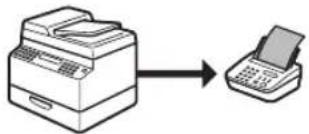
flowchart
graph LR
    A["Printer"] --> B["Printer"]
PC Fax

flowchart
graph LR
    A["Computer"] --> B["Printer"]
    B --> C["Printer"]

flowchart
graph TD
    A["Document"] --> B["Scan settings"]
    B --> C["Sending fax (p. 6-13)"]
    B --> D["Forwarding received fax documents e-Manual"]
    A --> E["Receiving fax"]
    E --> F["Document"]
    F --> G["Sending fax (p. 6-13)"]
    style A fill:#f9f,stroke:#333
    style B fill:#ccf,stroke:#333
    style C fill:#cfc,stroke:#333
    style D fill:#fcc,stroke:#333
    style E fill:#cff,stroke:#333
    style F fill:#ffc,stroke:#333
    style G fill:#fcc,stroke:#333
Various sending functions
Specifying destinations (p. 6-19)

Various receiving functions
Memory lock reception (p. 6-59) (p
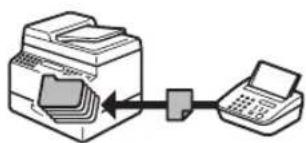
flowchart
graph LR
    A["Printer"] --> B["Printer"]
    style A fill:#f9f,stroke:#333
    style B fill:#ccf,stroke:#333
Remote reception .6-55)

flowchart
graph TD
    A["Input Phone"] --> B["Processing Unit"]
    B --> C["Output Phone"]
    D["Hand icon"] --> E["Processing Unit"]
    E --> F["Output Phone"]
Introduction to Using Fax Functions
This section describes the things that you must do before using fax functions. Make sure to set the following items first:
- Your fax number
Register your machine's fax number. (See "Registering Your Machine's Fax Number" on p. 6-12.)
● Your personal name or company name
Register your name or company name. (See "Registering the Machine's Name", on p. 6-11.)
● Date and time
Set the current date and time. (See "Setting the Current Date and Time", on p. 6-10.)
● Your telephone line type
Set the type of telephone line that is connected to the machine. (See "Setting the Type of Telephone Line," on p. 6-11.)
● Fax receiving mode
Set how the machine receives fax documents to suit your needs. (See "Methods for Receiving Faxes," on p. 6-4.)
Methods for Receiving Faxes
Your machine provides several methods for receiving fax documents. You can receive documents automatically or manually. Follow the chart below to choose the fax receive mode that best suits your needs. The default setting is
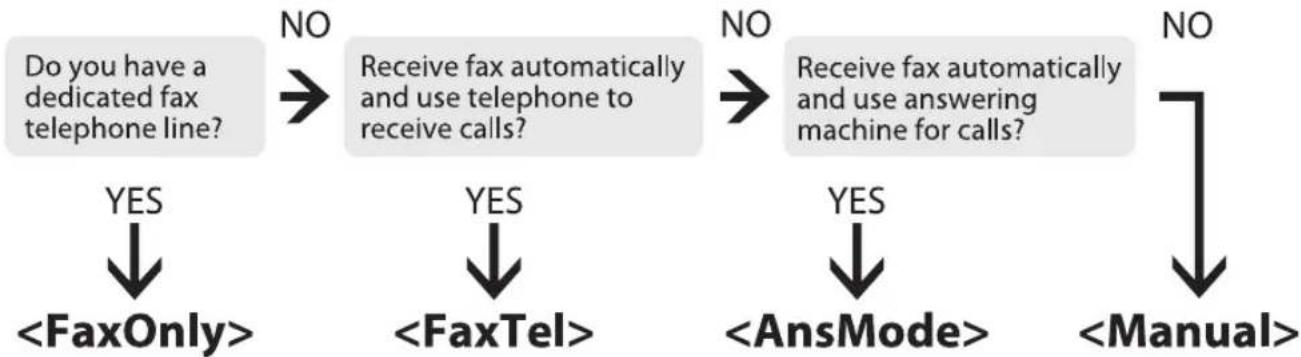
flowchart
graph TD
    A["Do you have a dedicated fax telephone line?"] --> B{NO}
    B -->|Yes| C["<FaxOnly>"]
    B -->|No| D["Receive fax automatically and use telephone to receive calls?"]
    D --> E{NO}
    E -->|Yes| F["<FaxTel>"]
    E -->|No| G["Receive fax automatically and use answering machine for calls?"]
    G --> H["<AnsMode>"]
    G --> I["<Manual>"]

FaxOnly
In this mode, the machine receives documents automatically. Select this mode if you use the machine for fax operations only, and not for voice communications using an external telephone.
● Before using this mode
Simply set the receive mode to
● When an incoming call is received
- With no external telephone connected to the machine:
- For fax calls, the machine receives fax documents automatically.
- For telephone calls, you cannot talk to the caller.
- With external telephone connected to the machine:
Incoming ring sounds the number of times you specify.
You can specify the number of rings in

flowchart
graph TD
    A["If you pick up the handset while the incoming ring is sounding:"] --> B["If you do not pick up the handset while the incoming ring is sounding:"]
    B --> C["End"]
For fax calls:
You hear a slow beep tone. This means another fax machine is trying to send you a document.
Follow the procedure below to receive the fax documents.
- Press SEND/FAX [SEND/FAX]/FAX [FAX].
- Select
(For the D1180/D1170). - Press Ⓧ [Start].
- Hang up the handset.
For telephone calls:
You hear someone on the line. Start your conversation.
For fax calls:
The machine receives fax documents automatically.
For telephone calls:
You cannot talk to the caller.

NOTE
- If you want to change
, see "Setting the Incoming Ring," on p. 6-54. - Setting
to enables the machine to ring for helping you find fax documents are being received. (See "VOLUME CONTROL," on p. 13-3.)

FaxTel
In this mode, the machine receives documents automatically for fax calls and the external telephone connected to the machine rings for telephone calls. (If
● Before using this mode
Make sure to do the following:
- Connect your external telephone to the machine. (See "Make Fax Settings," in the Starter Guide.)
- Set the receive mode to
. (See "Selecting the Receive Mode", on p. 6-10.)
● When an incoming call is received

flowchart
graph TD
    A["Incoming ring sounds the number of times you specify.<br>You can specify the number of rings in <INCOMING RING>."] --> B["If you pick up the handset within the specified number of times:"]
    B --> C["For fax calls:<br>You hear a slow beep tone. This means another fax machine is trying to send you a document.<br>Follow the procedure below to receive the fax documents.<br>1. Press [SEND/FAX"] [SEND/FAX]/[FAX] [FAX].
2. Select <FAX> (For the D1180/D1170).
3. Press Ⓤ [Start].
4. Hang up the handset.]
    A --> D["If you do not pick up the handset within the specified number of times:"]
    D --> E["For telephone calls:<br>You hear someone on the line. Start your conversation."]
    D --> F["For fax calls:<br>The machine receives fax documents automatically."]
    D --> G["When the incoming ring tone stops, the machine detects whether the call is a fax or telephone call within a limited time.<br>• You can specify the length of the detection time in <RING START TIME>."]
    G --> H["For telephone calls:<br>The call ring tone is activated. Pick up the handset to start your conversation.<br>• You can specify the length of ring time in <F/T RING TIME>.<br>• If you do not pick up the handset while the incoming ring tone is sounding, the machine disconnects the call or switches to the fax receive mode. You can specify which action is take in <F/T SWITCH ACTION>."]

NOTE
- If you want to change
, , or , see "Optional Settings for FaxTel Mode," on p. 6-51. - If you want to change
, see "Setting the Incoming Ring," on p. 6-54.

AnsMode
In this mode, the machine receives documents automatically for fax calls and your answering machine records a message for telephone calls.
● Before using this mode
Make sure to do the following:
- Connect your external telephone with built-in answering machine to the machine. (See "Make Fax Settings," in the Starter Guide.)
- Set your answering machine to answer after 1 to 2 rings.
- Record a message on your answering machine. (When you record a message, we recommend you insert about 4 seconds of silence at the beginning of the message, or limit the message to 20 seconds.)
- Set the receive mode to
. (See "Selecting the Receive Mode", on p. 6-10.)
● When an incoming call is received
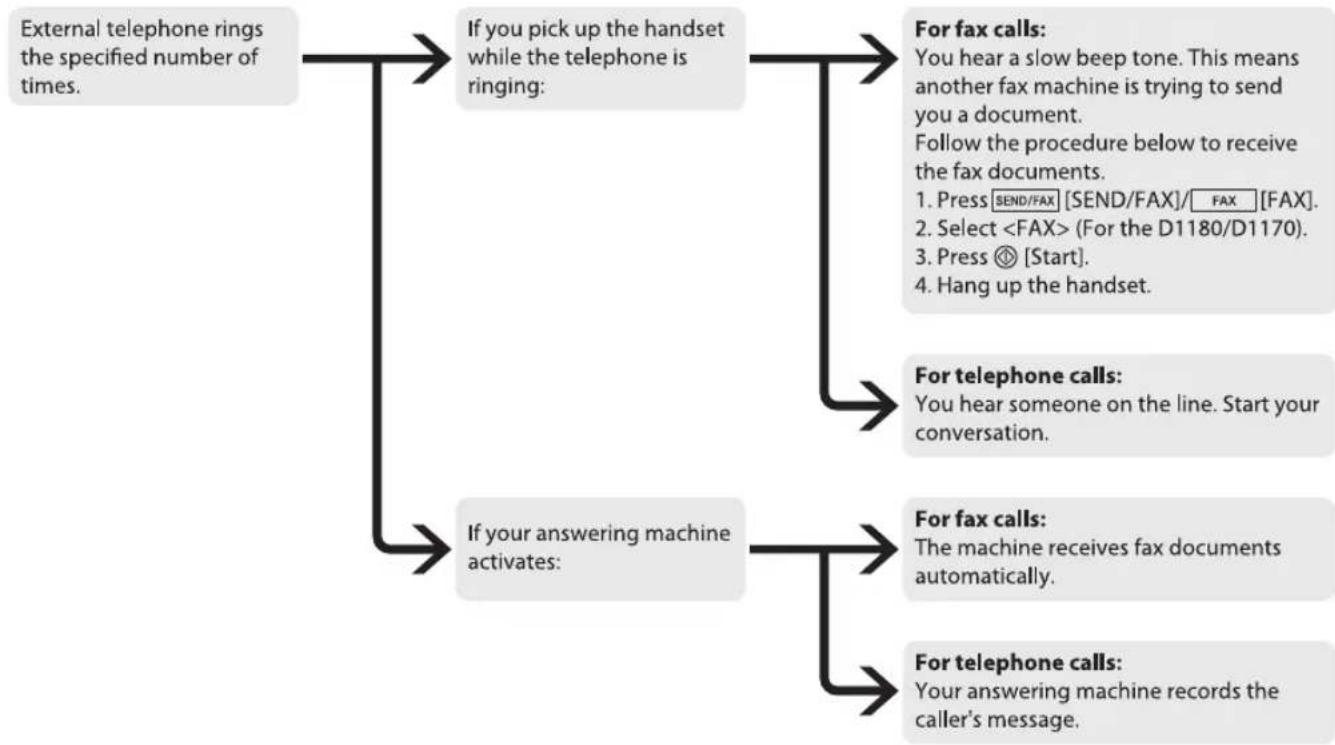
flowchart
graph TD
    A["External telephone rings the specified number of times."] --> B["If you pick up the handset while the telephone is ringing:"]
    B --> C["For fax calls: You hear a slow beep tone. This means another fax machine is trying to send you a document.<br>Follow the procedure below to receive the fax documents.<br>1. Press SEND/FAX [SEND/FAX"]/FAX["FAX"]. 2. Select <FAX> (For the D1180/D1170). 3. Press Ⓧ [Start]. 4. Hang up the handset.]
    B --> D["For telephone calls: You hear someone on the line. Start your conversation."]
    A --> E["If your answering machine activates:"]
    E --> F["For fax calls: The machine receives fax documents automatically."]
    E --> G["For telephone calls: Your answering machine records the caller's message."]

NOTE
- This mode does not support voice mail.
- Make sure to change the receive mode if you turn off your answering machine; otherwise, the machine cannot receive fax documents automatically.

Manual
In this mode, you can monitor all incoming calls by picking up the handset each time your telephone rings. This mode is a suitable option if you expect to use the machine mainly as a telephone, and only occasionally receive fax documents.
● Before using this mode
Make sure to do the following:
- Connect your external telephone to the machine. (See "Make Fax Settings," in the Starter Guide.)
- Set the receive mode to
. (See "Selecting the Receive Mode", on p. 6-10.)
● When an incoming call is received
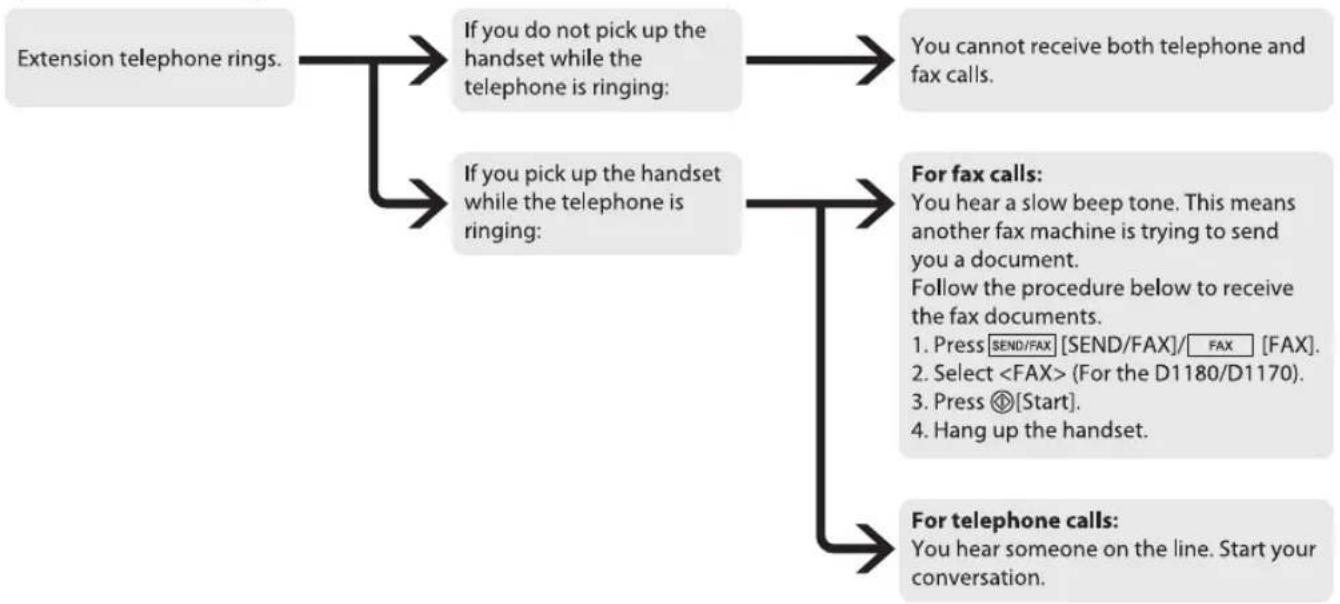
flowchart
graph TD
    A["Extension telephone rings."] --> B["If you do not pick up the handset while the telephone is ringing:"]
    A --> C["If you pick up the handset while the telephone is ringing:"]
    B --> D["You cannot receive both telephone and fax calls."]
    C --> E["For fax calls: You hear a slow beep tone. This means another fax machine is trying to send you a document.<br>Follow the procedure below to receive the fax documents.<br>1. Press [SEND/FAX"] [SEND/FAX]/[FAX] [FAX].
2. Select <FAX> (For the D1180/D1170).
3. Press Ⓤ[Start].
4. Hang up the handset.]
    E --> F["For telephone calls: You hear someone on the line. Start your conversation."]
*If

DRPD
DRPD (Distinctive Ring Pattern Detection) service assigns two or more telephone numbers with distinctive ring patterns to a single telephone line, allowing you to have both a fax number(s) and a telephone number(s) using only one telephone line. Your fax will automatically monitor incoming calls and based on the ring pattern, will let you know if the call is a fax or voice call. Set the fax ring pattern that matches the pattern assigned by your telephone company. Contact your telephone company for availability.
● Before using this mode
Make sure to do the following:
- Subscribe to a DRPD service. Contact your telephone company for availability.
- Connect your external telephone to the machine. (See "Make Fax Settings," in the Starter Guide.)
- Set the receive mode to
. (See "Selecting the Receive Mode", on p. 6-10.)
Selecting the Receive Mode
You can set the fax receive mode to suit your needs. The default setting is
1
Press ⒹMenu].
2
Press or to select
MENU 4 . TX / RX SETTING
3
Press or to select
TX/RX SETTINGS 3.FAX SETTINGS
4
Press or to select
FAX SETTINGS 1. RX MODE
5
Press or to select the desired receive mode, then press [OK].
RX MODE Fa
-
-
-
-

NOTE
- For
or , make sure an external telephone is connected to the machine. - For
, make sure an answering machine is connected to the machine. - For
, subscription to a DRPD service is required. Contact your telephone company for availability.
6
Press [Stop/Reset] to return to the standby mode.
Setting the Current Date and Time
You can set the current date and time. The current date and time settings are used as standard timer settings for functions that require them.
1
Press ⒹMenu].
2
Press or to select
MENU 7. TIMER SETTING
3
Press or to select
TIMER SETTINGS 1. DATE & TIME SET
4 Use Ⓞ – ⓠnumeric keys] to enter the date (month/day/year) and time (in 24-hour/military time format), then press [OK].
Ex.
| DATE & TIME | SETTI |
| 12/31/'08 | 15:50 |
5 Press [Stop/Reset] to return to the standby mode.
Setting the Type of Telephone Line
Set the type of telephone line that is connected to the machine. If this setting is incorrect, you will be unable to communicate with other machines. Make sure to check the type of telephone line that you are using, and make the correct setting. The default setting is
1 Press ⒶMenu].
2 Press or to select
| MENU | ||
| 4 . TX / RX SETTIN |
3 Press or to select
| TX/RX SETTINGS |
| 3.FAX SETTINGS |
4 Press or to select
| FAX | SETTINGS |
| 2. | USER SETTING |
5 Press or to select
| USER SETTINGS2.TEL LINE TYPE |
6 Press or to select the telephone line type, then press [OK].
| TEL | LINE | TYPE |
| TOUCH |
: Tone dialing : Pulse dialing - If you do not know the telephone line type, call your telephone service provider for details.
7 Press [Stop/Reset] to return to the standby mode.
Registering the Machine's Name
Your name or company's name must be registered as the machine's name.
When you send a document, the name that you registered is printed as the sender's name on the recipient's paper.
1 Press ⒶMenu].
2 Press or to select
| MENU4 . TX / RX SETTING |
3 Press or to select
| TX/RX SETTINGS2.TX/RX COMMON |
4 Press or to select
| TX/RX | COMMON | SET |
| 1.TX | SETTINGS |
5 Press or to select
| TX SETTINGS1 . UNIT NAME |
6 Use Ⓞ - Ⓣ [numeric keys] and ⓧ [Tone] to enter the unit name (up to 24 characters), then press [OK]. (For information on how to enter characters, see "Information About the Keys," in the e-Manual.)
Ex.
| UNIT NAME |
| CANON |
7 Press [Stop/Reset] to return to the standby mode.
Registering Your Machine's Fax Number
Your machine's fax number must be registered. When you send a document, the number that you registered is printed on the recipient's paper.
1 Press ⒶMenu].
2 Press or to select
| MENU4 . TX / RX SETTING |
3 Press or to select
| TX/RX SETTINGS3.FAX SETTINGS |
4 Press or to select
| FAX SETTINGS2.USER SETTINGS |
5 Press or to select
| USER SETTINGS1 . UNIT TELEPHON |
6 Use ① - ⑨ [numeric keys] to enter your fax/telephone number (up to 20 digits, including spaces), then press [OK]. (For information on how to enter characters, see "Information About the Keys," in the e-Manual.)
| UNIT TELEPHONE |
| 1 2 X X X X X X |
7 Press [Stop/Reset] to return to the standby mode.
Sending Fax Documents
This section describes the settings and procedures for sending fax documents.
Basic Methods for Sending Faxes
This section describes the flow of sending faxes.
1 Place documents.
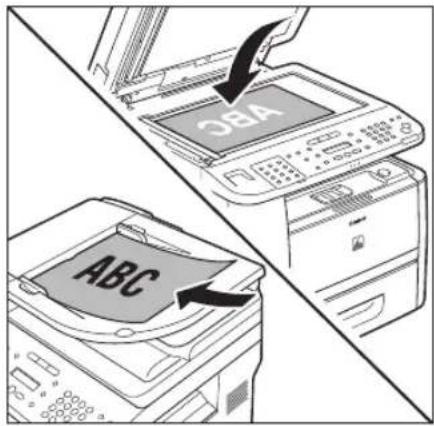
text_image
CBA ABCPress s[SEND/FAX]/ [FAX]. FAX
The SEND/FAX indicator lights up and the machine enters the send standby mode.
3 Press [SEND/FAX] repeatedly to select
FAX SELECT:OK
For the D1150, skip this step.
4 Use ① - ⑨ [numeric keys] and ⑧ [Tone] to specify the fax number.
Ex.
FAX NUMBER TEL = 012XXXXXXX
If you enter a wrong number when specifying a fax number, go back to the wrong digit with ◀.
5 Press [Start]. - When you pla
- When you place the documents on the platen glass, press ◀ or Ⓧ select the document size, then press Ⓧ [Start] for each document. When scanning is complete, press [OK] to start sending.
- You can also adjust the following scan settings as necessary, using the keys on the operation panel, after specifying the destination in step 4.
• Density: See "Adjusting Density", on p. 6-29.
- Image Quality: See "Selecting Image Quality," on p. 6-30.
- 2-Sided: See "2-Sided Documents", on p. 6-31.
Calling the Recipient before Sending Fax Documents (Manual Sending)
Use manual sending when you want to talk to the recipient before sending a document, or if the recipient does not have a fax machine that can receive automatically.

NOTE
- You cannot use the platen glass for manual sending.
- You cannot use group addresses for manual sending.
- You cannot use 2-Sided scanning mode for manual sending.
1 Connect an external telephone to the machine if you want to talk to the recipient before sending a document.
For information on how to connect an external telephone to the machine, see "Make Fax Settings," in the Starter Guide or "Connect Telephone Cables," in the e-Manual.
2 Place documents in the ADF.
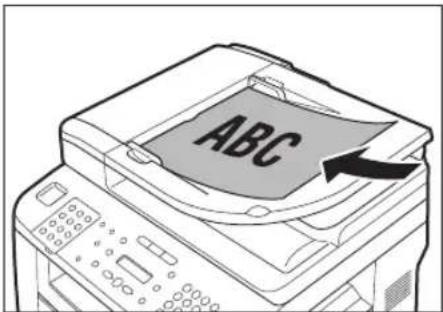
text_image
ABC3 Press [SEND/FAX]/ [FAX]. FAX
4 Press s[67ND/FAX] repeatedly to select
FAX SELECT:OK
For the D1150, skip this step.
5 Adjust any necessary settings for your documents.
For details, see "Adjusting Density," on p. 6-29, "Selecting Image Quality," on p. 6-30, and "2-Sided Documents," on p. 6-31.
6 Press ①Hook] or pick up the handset of your external telephone.
If you press [Hook], you can temporarily adjust the monitor tone volume with ◀ and ▶. After adjusting the volume, press [OK].
7 Dial the recipient's fax number.
NOTE
- Make sure to confirm the dial tone before entering a fax number. If you enter the number before the dial tone is heard, the call may not connect, or the wrong number may be dialed.
- If
8 Talk through the handset to the recipient. - If you press (Hook) in step 6, you can pick
- If you press ⒶHook] in step 6, you can pick up the handset when you hear the recipient's voice. - If you hear a high-pitched signal instead of the recipient's voice, skip to step 10.
9 Ask the recipient to set their fax machine to receive faxes.
10 When you hear a high-pitched signal, press ⓐStart], then hang up the handset.
Scanning starts, and the scanned data is sent to the specified destination when scanning is complete.
Switching Temporarily to Tone Dialing
If your machine is set for pulse dialing, follow the procedure below to switch to tone dialing to use information services (e.g., banks, airline reservations, and hotel reservations).
NOTE
To talk to the other party, you will need to connect an external telephone to the machine.
1 Press [SEND/FAX]/ [FAX]. FAX
2 Press s[SEND/FAX] repeatedly to select
FAX SELECT:OK
For the D1150, skip this step.
Press [Hook].

NOTE
Make sure to confirm the dial tone before entering a fax number. If you enter the number before the dial tone is heard, the call may not be connected, or the wrong number may be dialed.
4 Use Ⓞ - ⓖ numeric keys] to dial the required information service.
Ex.
FAX N U M B E R T E L = 0 1 2 X X X
5 When the recorded message of the information service answers, press ⓧ [Tone] to switch to tone dialing.
Ex.
FAX N U M B E R T E L = 0 1 2 X X X *
6 Use Ⓞ – ⓖnumeric keys] to enter the numbers requested by the information service.
Ex.
FAX N U M B E R T E L = 0 1 2 X X X * 3 4 5 6
7 If you want to receive faxes, press ◎ [Start].
If you are using the external telephone, hang up the handset after pressing Ⓧ [Start].
Dialing an Overseas Number (With Pauses)
When you dial or register an overseas number, you may need to insert a pause within the number.
1 Place documents.

text_image
OBA ABC2 Press [SEND/FAX]/ [FAX].FAX
3 Press [SEND/FAX] repeatedly to select
FAX SELECT:OK
For the D1150, skip this step.
4 Adjust any necessary scan settings for your documents.
For details, see "Adjusting Density," on p. 6-29, "Selecting Image Quality," on p. 6-30, and "2-Sided Documents," on p. 6-31.
5 Use Ⓞ – ⓖnumeric keys] to dial the international access code.
Ex.
FAX N U M B E R T E L = 0 1 2
For details on international access codes, contact your local telephone company.
6 If necessary, press [Recall/Pause]/[Redial/Pause] to insert a pause.
Ex.
$$ \begin{array}{l} \text { F A X } \quad \text { N U M B E R } \ \text { T E L } = 0 1 2 P \end{array} $$
- The letter
is displayed between the numbers.
- You can enter successive pauses within the number to make the pause time longer.
- You can change the length of a pause inserted within the fax number in the
menu. (See "Adjusting the Pause Time," on p. 6-40.)
7 Enter the country code, the area code, and the fax/telephone number of the recipient.
Ex.
$$ \begin{array}{l} \text { F A X } \quad \text { N U M B E R } \ \text { T E L } = 0 1 2 p 3 4 5 X X X X \end{array} $$
8 Press [Recall/Pause]/[Redial/Pause] to enter a pause at the end of the number.
Ex.
$$ \begin{array}{l} \text {FAX} \quad \text {NUMBER} \ \text {TEL} = 0 1 2 p 3 4 5 X X X X \end{array} $$
- The letter
appears at the end of the fax number.
- Pauses entered at the end of fax numbers are always 10 seconds long.
![CANON imageClass D1120 - Press [Recall/Pause]/[Redial/Pause] to enter a pause at the end of the number. - 1](/content/2026/06/1243698/images/4698de530913d05c5a9e8ddb90bec169e5ae539d85a8836fd82c18c5557de410.jpg)
NOTE
If
Press ⒹStart].
When you place the documents on the platen glass, press ◀ or ▶ select the document size, then press Ⓑ [Start] for each document. When scanning is complete, press [OK] to start sending.
Basic Methods for Sending PC
Faxes
This section describes the flow of sending PC faxes. Make sure that the fax driver is installed.
For details on the fax driver settings, see "Fax," in the e-Manual.

NOTE
- If an error occurs in the printer while sending a fax, send the document once more from the fax driver. The fax job sent from the fax driver for which an error occurred will be erased.
- Up to 512 fax transmission recipients can be stored in the device. If the number of recipients exceeds 512 after a fax job has been sent to the device, the last job to be input will be erased. Be careful when registering more than 512 recipients in groups or when sending a fax continuously to multiple groups.
- Faxing methods may differ depending on the application you are using. For details, see the instruction manuals provided with the application software.
- The display may differ according to the operating system and system environment.
1 Open the document you want to fax from the application.
Select [Print] from the [File] menu.
The [Print] dialog box is displayed.
![CANON imageClass D1120 - Select [Print] from the [File] menu. - 1](/content/2026/06/1243698/images/a95259a5bb82cca18e8ce87894a4c02b2af7625ee36631e7b82eb0396fdd43ec.jpg)
NOTE
The procedure for displaying the [Print] dialog box may differ depending on the application you are using.
3 Select the fax icon ([Canon D1100 Series (FAX)]), then click [Print] or [OK].
The [Fax Sending Settings] dialog box is displayed.
![CANON imageClass D1120 - Select the fax icon ([Canon D1100 Series (FAX)]), then click [Print] or [OK]. - 1](/content/2026/06/1243698/images/89db62c585e3fbe61bd102630cecbe8e1242be6aecc074f544495344312a0877.jpg)
NOTE
If you want to adjust the fax properties, click [Preferences] or [Properties].
4 Specify recipient name and fax number in the [Sending Settings] sheet, click [Add to Recipient List].
![CANON imageClass D1120 - Specify recipient name and fax number in the [Sending Settings] sheet, click [Add to Recipient List]. - 1](/content/2026/06/1243698/images/7762930f785d17edef5a74bc693b4e89a0ea71b680081ed5de18d024cde917dc.jpg)
NOTE
- The number of recipients to which you can send simultaneously depends on the conditions of cover sheet attachment. For details, click [Help] in the bottom right-hand corner of the fax driver window to view the online help.
- You can select a recipient from the address book by clicking [Address Book]. (See "Fax," in the e-Manual.)
- You can use or edit the address book only if you are permitted access to the folder where the address book file is saved (by default, Power Users and higher have access to the folder). If you are not permitted access to the folder, log on as a user who has access to the folder, or click [Specify a Folder] in the [Edit Address Book] sheet, and save the address book file in a folder, such as the [My Documents] folder, where you have written permission. (See "Fax," in the e-Manual for changing where you save the address book.)
5 If you want to attach a cover sheet, select [Cover Sheet] sheet, specify a format for the cover sheet.
See "Fax," in the e-Manual for cover sheet attachment.
6 Click [OK]. Faxing starts
Canceling Sending Fax Documents
Follow this procedure to cancel a transmission in progress.

NOTE
You can also cancel a transmission from the Status Monitor screen. (See "Checking/Deleting Fax Transmission Documents," on p. 6-62.)
1
Press [Stop/Reset].
2
When the

When scanning using the ADF:
| STOP | KEY | PRESSE |
| PRESS | OK | KEY |

When scanning using the platen glass:
| STOP | KEY | PRESSE |
3
When the
| C | A | N | C | E | L | ? |
| < | Y | E | S |

NOTE
For sending jobs, remove any unscanned documents from the ADF.
Specifying Destinations
This section describes how to specify a fax destination. You can select a destination stored in the Address Book, a one-touch key or coded dial code, or you can specify a new destination.
Using Numeric Keys
You can specify a new fax number using Ⓞ-, ⓖ [numeric keys] and ⓍTone].
1 Place documents.
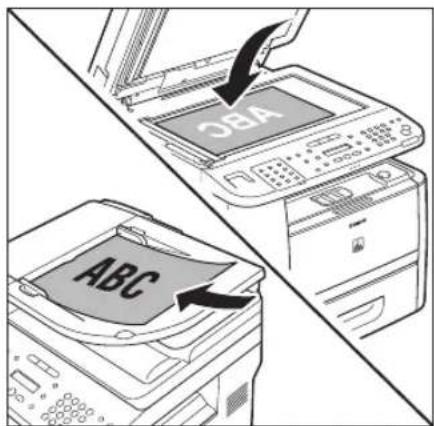
text_image
OBA ABC2 Press s[SAND/FAX]/ [FAX]. FAX
3 Press [SEND/FAX] repeatedly to select
FAX SELECT:OK
For the D1150, skip this step.
4 Use 0 - 9 [numeric keys] and ✕ [Tone] to enter the fax number.
Ex.
If you entered a wrong number when specifying a fax number, go back to the wrong digit with
◀

NOTE
If
Press [Start].
- When you place the documents on the platen glass, press or to select the document size, then press [Start] for each document. When scanning is complete, press [OK] to start sending.
- You can also adjust the following scan settings as necessary, using the keys on the operation panel, after specifying the destination in step 4.
• Density: See "Adjusting Density", on p. 6-29.
- Image Quality: See "Selecting Image Quality," on p. 6-30.
- 2-Sided: See "2-Sided Documents", on p. 6-31.
Using the One-Touch Keys
You can specify up to 20 destinations using one-touch keys.

NOTE
- To use this feature, you need to first register destinations in one-touch Keys. (See "Storing/Editing One-Touch Keys," on p. 5-3.)
- A maximum of 201 destinations can be specified at the same time. (Out of the 200 destinations, a number or address can be specified with ⓔ, [numeric keys] and [Tone]) If you specify a group, which is made up of several destinations, each destination in the group is counted as a separate address.
1
Place documents.
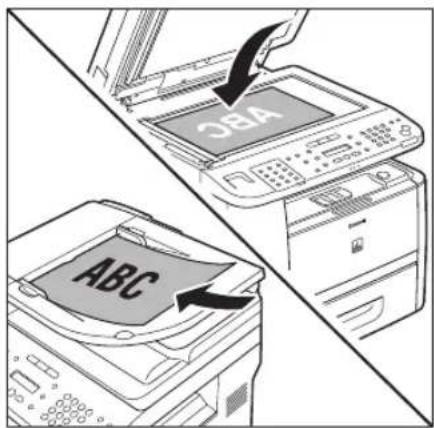
text_image
OBA ABC2
Press [SEND/FAX]/ [FAX]. FAX
3
Press [SEND/FAX] repeatedly to select
FAX SELECT:OK
For the D1150, skip this step.
4
Press the desired one-touch key (01 to 20).
Ex.
TEL=123XXXXXXX [01] John
If you pressed a wrong key, press
[Stop/Reset], then try again from step 3.
5
Press ⒹStart].
- When you place the documents on the platen glass, press 📄 or 📋 select the document size, then press Ⓧ [Start] for each document. When scanning is complete, press [OK] to start sending.
- You can also adjust the following scan settings as necessary, using the keys on the operation panel, after specifying the destination in step 4.
• Density: See "Adjusting Density", on p. 6-29.
- Image Quality: See "Selecting Image Quality," on p. 6-30.
- 2-Sided: See "2-Sided Documents", on p. 6-31.
![CANON imageClass D1120 - Press ⒹStart]. - 1](/content/2026/06/1243698/images/40353e7ace71eba5d6faaee7053644b6b06ae0fb3a991a4010c3e195f83122fa.jpg)
NOTE
When
Using Coded Dial Codes
You can specify up to 180 destinations using coded dial codes.

NOTE
- To use this feature, you need to register destinations in coded dial code beforehand. (See "Storing/Editing Coded Dial Codes," on p. 5-12.)
- A maximum of 201 destinations can be specified at the same time. (Out of the 200 destinations, a number or address can be specified with @, [Numeric keys] and [Tone]) If you specify a group, which is made up of several destinations, each destination in the group is counted as a separate address.
1 Place documents.

text_image
SBA ABC2 Press s[SEND/FAX]/ [FAX]. FAX
3 Press [SEND/FAX] repeatedly to select , then press [OK].
FAX SELECT:OK
For the D1150, skip this step.
4 Press [Coded Dial].
I N P U T C O D E D N U M [ * ]
5 Use ① - ⑨ numeric keys] and to enter the desired three-digit code (000 to 179).
Ex.
TEL=123XXXXXXX [*000] John
If you entered a wrong code, press [Stop/Reset], then try again from step 3.
6 Press [Start]. - When you pla
- When you place the documents on the platen glass, press ⬆ or Ⓞ select the document size, then press ⬆ [Start] for each document. When scanning is complete, press [OK] to start sending.
- You can also adjust the following scan settings as necessary, using the keys on the operation panel, after specifying the destination in step 5.
• Density: See "Adjusting Density", on p. 6-29.
- Image Quality: See "Selecting Image Quality," on p. 6-30.
- 2-Sided: See "2-Sided Documents", on p. 6-31.
![CANON imageClass D1120 - Press [Start]. - When you pla - 1](/content/2026/06/1243698/images/770628d7518477abcd408b6afc916991f2653d407aa363ccc250d3109a1a521d.jpg)
NOTE
When
Using the Group Addresses
Group Dialing enables you to specify a group of registered destinations in the one-touch keys or coded dial codes. This is useful if you want to send the same document to several destinations. You can register up to 199 destinations in one group.

NOTE
- To use this feature, you must store group addresses in the one-touch keys or coded dial codes beforehand. (See "Storing/Editing One-Touch Keys," on p. 5-3 or "Storing/Editing Coded Dial Codes," on p. 5-12.)
- A maximum of 201 destinations can be specified at the same time. (Out of the 200 destinations, a number or address can be specified with Ⓤ, Ⓔ numeric keys] and [Tone]) If you specify a group, which is made up of several destinations, each destination in the group is counted as a separate address.
1 Place documents.
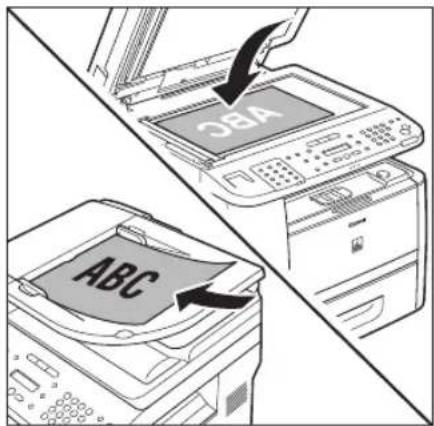
text_image
SBA ABC2 Press s[SEND/FAX]/ [FAX]. FAX
3 Press [SEND/FAX] repeatedly to select , then press [OK].
FAX SELECT:OK
For the D1150, skip this step.
4 Press the one-touch key or [Coded Dial] followed by the three-digit code under which the desired address group is registered.
Ex.
GROUP DIAL [03] Canon
If you pressed a wrong key or code, press ▶ [Stop/Reset], then try again from step 3.
5 Press ①Start]. - When you pl
- When you place the documents on the platen glass, press ◀ or Ⓞ select the document size, then press Ⓧ [Start] for each document. When scanning is complete, press [OK] to start sending.
- You can also adjust the following scan settings as necessary, using the keys on the operation panel, after specifying the destination in step 4.
• Density: See "Adjusting Density," on p. 6-29.
- Image Quality: See "Selecting Image Quality," on p. 6-30.
- 2-Sided: See "2-Sided Documents", on p. 6-31.
![CANON imageClass D1120 - Press ①Start]. - When you pl - 1](/content/2026/06/1243698/images/ee4dac00775aa05434c875e84797fec6c188a67d9b15468b5b31df7dc54d3107.jpg)
NOTE
When
⑨, [numeric keys] and [one], the machine starts scanning automatically without pressing [Start], after the preset time for this setting is elapsed. (See "Time Out Mode," on p. 6-41.)
Using the Address Book Key
[Address Book] search enables you to search for a recipient registered in the machine. This is useful when you forget which one-touch key or coded dial code the recipient you want is registered under.

NOTE
- To use this feature, you must register destinations in the one-touch keys or coded dial codes beforehand. (See "Storing/Editing One-Touch Keys," on p. 5-3 or "Storing/Editing Coded Dial Codes," on p. 5-12.)
- A maximum of 201 destinations can be specified at the same time. (Out of the 200 destinations, a number or address can be specified with Ⓞ, [Numeric keys] and [Ton]) If you specify a group, which is made up of several destinations, each destination in the group is counted as a separate address.
1 Place documents.
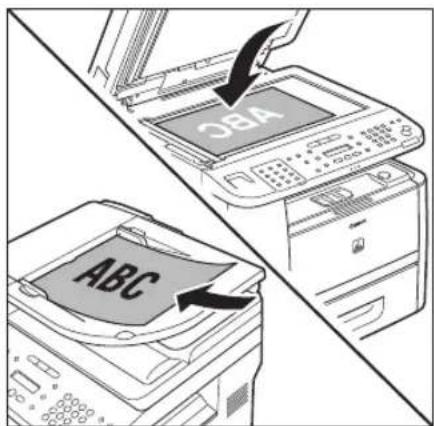
text_image
OBA ABC2 Press s[SEND/FAX]/ [FAX]. FAX
3 Press [SEND/FAX] repeatedly to select
FAX SELECT:OK
For the D1150, skip this step.
4 Press ①[Address Book] repeatedly to select
NAME SEARCH
ADD / TEL SEARCH
: Searches a destination by name. : Searches a destination by fax number. - If no recipient is registered in the Address Book,
is displayed.
5 Use Ⓞ – Ⓢ and [numeric keys] to enter the first letter of the recipient's name or the first part of the fax number.
- For example, if you want to search for a name that starts with the letter "C", press② (ABC). Entries starting with the letter you entered are displayed if any entries are registered. You can switch the input mode by pressing ⊕ [Tone].
- [:A]: Letter mode
- [:1]: Number mode
Ex.
NAME SEARCH C
6 Press or to search for the recipient.
Ex.
NAME SEARCH Canon
- ▶: Displays recipients in alphanumerical order.
- ◀: Displays recipients in reverse order.
7 When the desired recipient is displayed, press [OK].
Ex.
NAME SEARCH Canon (sales)
8 Press [Start]. - When you play
- When you place the documents on the platen glass, press ◀ or Ⓧ select the document size, then press Ⓧ [Start] for each document. When scanning is complete, press [OK] to start sending.
- You can also adjust the following scan settings as necessary, using the keys on the operation panel, after specifying the destination in step 7.
• Density: See "Adjusting Density", on p. 6-29.
- Image Quality: See "Selecting Image Quality," on p. 6-30.
- 2-Sided: See "2-Sided Documents", on p. 6-31.

NOTE
When
Sending Documents to More Than One Location (Broadcasting)
Broadcasting enables you to send the same document to multiple recipients.

NOTE
- A maximum of 201 destinations can be specified at the same time. (Out of the 200 destinations, a number or address can be specified with Ⓞ, [numeric keys] and [Tone]) If you specify a group, which is made up of several destinations, each destination in the group is counted as a separate address.
- If you frequently send documents to multiple destinations, it is recommended that you store those destinations as a group.
- If
in in is set to , you cannot send the documents to multiple recipients. (See "Restricting Broadcasting," in the e-Manual.)
1
Place documents.
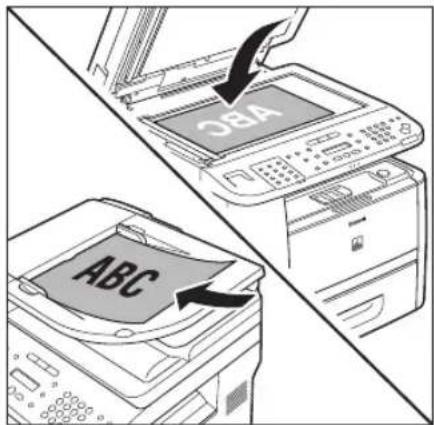
text_image
OBA ABC2
Press [SEND/FAX]/ [FAX]. FAX
3
Press SEND/FAX [SEND/FAX] repeatedly to select
FAX
SELECT:OK
For the D1150, skip this step.
4
Specify the destination.
Ex.
| FAX | N | U | M | B | E | R | ||||
| TEL | = | 0 | 1 | 2 | X | X | X | X | X | X |
Use Ⓞ, [numeric keys] and [Tone], one-touch keys, coded dial codes, or [Address Book] to specify destinations.

NOTE
- Only one destination can be specified using 0 - 9, numeric keys] and [one]. Make sure to press [OK] after entering the recipient's number.
- If
in in is set to and you specify a fax number using ① - ⑨, ⑪ numeric keys] and ④ Tone], you must enter the fax number again for confirmation. Enter the same fax number you entered in step 4, then press [OK].
5
Repeat step 4 to enter all required recipients.

NOTE
- To check all the specified destinations, press or to scroll the display.
- To cancel all the specified destinations, press [Stop/Reset].
6
Press ⬆Start].
When you place the documents on the platen glass, press 🔒 or ➕ select the document size, then press Ⓧ [Start] for each document. When scanning is complete, press [OK] to start sending.

NOTE
When
Redialing When the Line Is Busy
If the recipient's line is busy or if there is no answer, you can redial the same fax number manually or set the machine to redial automatically.
Redialing Manually
You can specify the last three destinations that were dialed using ① - ⑨ [numeric keys] and
* [Tone].

NOTE
- This feature is available for the D1150.
- For directions on how to recall the last three destinations for the D1180/D1170, see "Using the Send History to Resend Faxes (Job Recall)," on p. 6-28.
- If
in in is set to , [Redial/Pause] is not available. (See "Restricting Job Recall," in the e-Manual.)
1
Place documents.
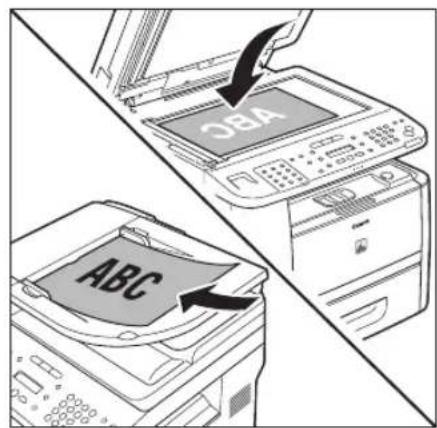
text_image
OBA ABC2
Press [FAX].
3
Press [Redial/Pause] repeatedly.
4
Confirm that the desired recipient is displayed.
Ex.
TEL=123XXXXXXX
5
Press ⓄStart].
When you place the documents on the platen glass, press or select the document size, then press [Start] for each document. When scanning is complete, press [OK] to start sending.
Redialing Automatically
Automatic redialing enables the machine to automatically redial the recipient's fax number if the recipient cannot be reached due to a busy line, or if a sending error occurs. Auto Redial can be turned
8 Use ▶ or ▶ ① - ⑨ numeric keys] to enter the number of redials (1 to 10 times) the machine will make, then press [OK].
REDIAL TIMES
2

NOTE
Regardless of the number you entered, the machine makes only one redialing attempt if it does not detect a busy signal.
9 Press or to select
AUTO REDIAL 2. REDIAL INTER
10 Use, or ▶ 0 - ⑨ numeric keys] to enter the time (2 to 99 minutes, in one-minute increments) between redials, then press [OK].
REDIAL INTERVAL
11 Press or to select
AUTO REDIAL 3. TX ERROR RED
12 Press or to select
TX ERROR REDIAL
: Resends all pages if an error occurs during transmission. : Does not redial even if an error occurs during transmission.
13 Press [Stop/Reset] to return to the standby mode.
Using the Send History to Resend Faxes (Job Recall)
You can recall the last three destinations and send documents to one of them.

NOTE
- This feature is available for the D1180/D1170.
- If
in in is set to , ○ [Recall/Pause] is not available. (See "Restricting Job Recall," in the e-Manual.)
1
Place documents.
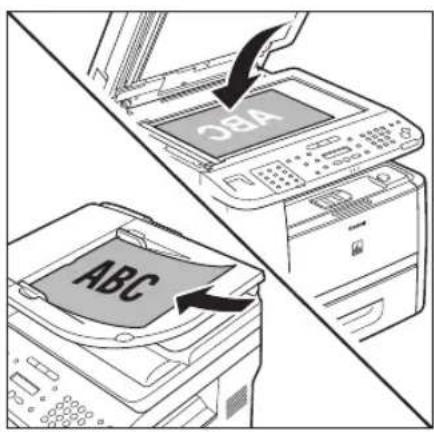
text_image
SEA ABC2
Press [SEND/FAX].
3
Press [Recall/Pause].
4
Press or to select <1 BEFORE>, <2 BEFORE>, or <3 BEFORE>, then press [OK].
RECALL
- BEFORE
5
Confirm that the desired recipient is displayed.
Ex.

text_image
P R E S S S T A R T T O T E L = 0 1 2 X X X X X X X6
Press ⬆Start].
When you place the documents on the platen glass, press 🔒 or ⬆ select the document size, then press Ⓥ [Start] for each document. When scanning is complete, press [OK] to start sending.
Adjusting Density
You can adjust the density to the most appropriate level for the document you send.
1
Place documents.

text_image
SBA ABC2
Press [SEND/FAX]/ [FAX]. FAX
3
Press SEND/FAX [SEND/FAX] repeatedly to select
FAX
SELECT:OK
For the D1150, skip this step.
4
Specify the destination.
Ex.
FAX NUMBER TEL = 012XXXXXXX
For details, see "Specifying Destinations," on p. 6-19.
5
Press [Density].
6
Press or to adjust the density, then press [OK].
D E N S I T Y - L T
- ▶: to make light documents darker
- ◀: to make documents lighter

NOTE
- This setting returns to the default after all documents are scanned. If you want to keep the setting, see "Standard Send Settings," on p. 6-35.
- You can preset the standard density level on a nine-step scale. (See "Changing Density Level," on p. 6-34.)
7
Press @Start].
When you place the documents on the platen glass, press or to select the document size, then press [Start] for each document. When scanning is complete, press [OK] to start sending.
Selecting Image Quality
You can adjust the image quality of the document you send. The higher image quality you set, the better the output will be, but the longer the transmission will take. The default setting is
1 Place documents.

text_image
OBA ABCPress [SEND/FAX]/ [FAX]. FAX
3 Press [SEAN/D/FAX] repeatedly to select , then press [OK].
FAX SELECT:OK
For the D1150, skip this step.
4 Specify the destination.
Ex.
FAX NUMBER TEL = 012XXXXXX
For details, see "Specifying Destinations," on p. 6-19.
5 Press (Image Quality) repeatedly to select the image quality, then press [OK].
FINE
: for fine-print documents (the resolution is twice that of ) (200 × 200 dpi) : for documents that contain photographs (the resolution is twice that of ) (200 × 200 dpi) : for documents that contain fine print and images (the resolution is four times that of ) (200 × 400 dpi) : for documents that contain fine print and images (the resolution is eight times that of ). (400 × 400 dpi) : for most text-only documents (200 × 100 dpi) - This setting returns to the default after all documents are scanned. If you want to keep the setting, see "Standard Send Settings," on p. 6-35.
6 Press ⓄStart]. When you place
When you place the documents on the platen glass, press 🔒 or Ⓧ select the document size, then press Ⓧ [Start] for each document. When scanning is complete, press [OK] to start sending.
2-Sided Documents
You can set the machine to automatically turn over 2-sided documents that are placed in the ADF, and scan each side separately.
1 Place documents in the ADF.
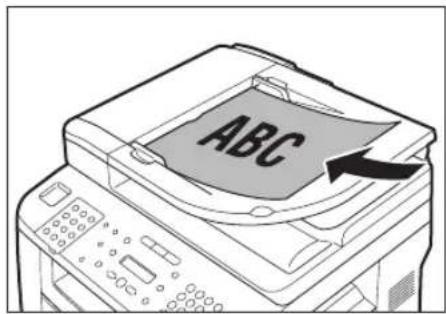
text_image
ABCPress [SEN FAND/FAX]/ [FAXFAX]
3 Press SEND/FAX [SEND/FAX] repeatedly to select
FAX SELECT:OK
For the D1150, skip this step.
4 Specify the destination.
FAX N U M B E R T E L = 0 1 2 X X X X X X X
For details, see "Specifying Destinations," on p. 6-19.
5 Press [2-Sided] repeatedly to select the binding type, then press [OK].
2 - S I D E D B O O K T Y P E
-
-
-
6 Press [Start]. When you place
When you place the documents on the platen glass, press ⬆ or Ⓞ select the document size, then press Ⓞ [Start] for each document. When scanning is complete, press [OK] to start sending.
Sending Documents at a Preset Time (Delayed Sending)
Delayed sending enables you to start transmission at a specified time. You can store up to 70 delayed sending jobs. The default setting is
1 Press ⒹMenu].
2 Press or to select
MENU
- TX/RX SETTING
3 Press or to select
TX/RX SETTINGS 1. DELAYED SEND
4 Press or to select
DELAYED SEND
5 Use ① - ⑨ [numeric keys] to enter the time you want to start sending, then press [OK].
Ex.
TX TIME SETTING 20:00
- Enter the time in 24-hour/military time format.
- Enter all numbers, including zeros.
6 Press (Stop/Reset) to return to the standby mode.
7 Place documents.
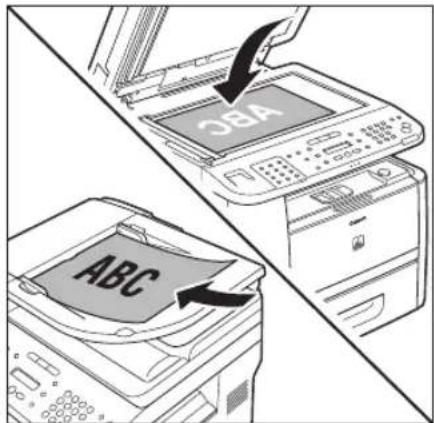
text_image
SBA ABC8 Press [SEND/FAX]/ [FAX]. FAX
9 Press SEND/FAX [SEND/FAX] repeatedly to select
FAX
SELECT:OK
For the D1150, skip this step.
10 Specify the destination.
Ex.
FAX N U M B E R T E L = 0 1 2 X X X X X X X
For details, see "Specifying Destinations," on p. 6-19.

NOTE
If
11 Press [Start]. The document
The document is scanned and stored into memory. It will be sent to the specified destination at the specified time. When you place the documents on the platen glass, press 🔒 or Ⓧ select the document size, then press Ⓧ [Start] for each document. When scanning is complete, press [OK] to start sending.
![CANON imageClass D1120 - Press [Start]. The document - 1](/content/2026/06/1243698/images/73b30150baf122b50a6944b5cd65325af767e388ebdcd03743a403d3c903abc7.jpg)
NOTE
- When
- If the document cannot be sent at the time specified for delayed sending due to a temporary power failure (that recovers within an hour), it will be sent at the specified time on the next day.
Changing Density Level
This setting enables you to preset the standard density level on a nine-step scale. The default setting is < 5> on a scale of 1 to 9. The level you define here applies when you select the "standard" level (in the middle of the scale) using [Density] on the operation panel.
1 Press ⒹMenu].
2 Press or to select
MENU 4 . TX / RX SETTING
3 Press or to select
TX/RX SETTINGS
2. TX/RX COMMON
4 Press or to select
TX/RX COMMON SE 1.TX SETTINGS
5 Press or to select
TX SETTINGS 4. SCANNING DEN
6 Press or to adjust the density, then press [OK].
SCANNING DENSIT -LT
- ▶: to make light documents darker - ◀: to make documents lighter
7 Press [Stop/Reset] to return to the standby mode.
Standard Send Settings
This mode enables you to specify the standard scan settings for density and resolution.
Storing the Standard Send Settings
You can change and store the Standard Send Settings. The default settings are as follows:
TX SETTINGS 5. STANDARD SET
6 Press or to select the desired setting item, then press [OK].
STANDARD SETTING 1. DENSITY
You can specify the following settings:
-
-
7 Each time you set the desired setting item, press [OK].
DENSITY STA
8 Press [Stop/Reset] to return to the standby mode.
Restoring the Standard Send Settings to Their Default
You can restore the Standard Send Settings to their original default settings.
1 Press @Menu].
2 Press or to select

text_image
MENU 4 . TX / RX SETTING3 Press or to select

text_image
TX / RX SETTINGS 2 . TX / RX COMMON4 Press or to select

text_image
TX / RX COMMON SE 1 . TX SETTINGS5 Press or to select

text_image
TX SETTINGS 10.INIT STANDARD6 Press to select

text_image
OK TO INITIALIZE < YESTo cancel restoring the Standard Send Settings, press ▶ to select
7 Press [Stop/Reset] to return to the standby mode.
Printing the TX Terminal ID
The TX Terminal ID setting enables you to specify the details included in the Terminal ID information printed on faxed documents. Information such as your fax number and name can be included to let the recipient know who sent the document. You can set the position of the Terminal ID information on the paper. The default settings are as follows:
-
-
1 Press ⓄMenu].
2 Press or to select
MENU 4. TX / RX SETTING
3 Press or to select
TX/RX SETTINGS. 2. TX/RX COMMON
4 Press or to select
TX/RX COMMON SE 1.TX SETTINGS
5 Press or to select
TX SETTINGS 7. TX TERMINAL
6 Press or to select
TX TERMINAL ID 1.PRINTING POS
7 Press or to select
PRINTING POSITI OUTSIDE
-
-
8 Press or to select
TX TERMINAL ID 2. TELEPHONE #
9 Press or to select
TELEPHONE # MAR
: "TEL" is printed before the fax/telephone number. : "FAX" is printed before the fax/telephone number.
10 Press [Stop/Reset] to return to the standby mode.
ECM Transmission
ECM (Error Correction Mode) reduces the effect of system and line errors on documents that occur during sending or receiving with another fax machine that supports ECM. If the other machine does not support ECM, this setting is ignored. If transmission speed appears to be extremely slow, you may be able to speed up transmission time by turning ECM off. The default setting is

NOTE
- If you want to transmit using ECM, it is necessary that ECM Transmission be set in both the destination machine and this machine. This function does not operate unless ECM is set in both machines.
- Even when ECM is set, errors can sometimes occur due to a poor telephone line connection.
- If there is trouble with the line, it will take more time to send the documents.
1 Press ⒹMenu].
2 Press or to select
MENU
- TX/RX SETTIN
3 Press or to select
TX/RX SETTINGS
- FAX SETTINGS
4 Press or to select
FAX SETTINGS
- TX SETTINGS
5 Press or to select
TX SETTINGS 1. ECM TX
6 Press, to select
E C M T X
-
7 Press [Stop/Reset] to return to the standby mode.
Adjusting the Pause Time
Some overseas dialing may be affected by the distance or complex routing of connections when dialing the international access code, country code, and the destination's telephone number all at once. In such cases, insert a pause after the international access code. When the machine dials the number, it will pause where the pause was inserted in the number. This helps to improve the connection. The default setting is two seconds.

NOTE
- You can insert a pause when you dial the fax number using Ⓞ [Numeric keys]. (See "Dialing an Overseas Number (With Pauses)," on p. 6-15.)
– Pauses entered at the end of dialed fax numbers are always 10 seconds long.
1
Press ⒽMenu].
2
Press or to select
MENU 4 . TX / RX SETTING
3
Press or to select
TX/RX SETTINGS 3.FAX SETTINGS
4
Press or to select
FAX SETTINGS 3. TX SETTINGS
5
Press or to select
T X SETTINGS 2. PAUSE TIME
6
Use ↕, or ▶ ① - ⑨ numeric keys] to set the pause time, then press [OK].
PAUSE TIME
The pause time can be set from 1 to 15 seconds in one second increments.
7
Press [Stop/Reset] to return to the standby mode.
Time Out Mode
The Time Out mode enables you to set the machine to automatically start scanning documents after you specify the destinations using the one-touch keys or coded dial codes, or by pressing ○ [Recall/Pause]/[Redial/Pause], without pressing ⓣStart]. If you set the Time Out mode to
If you are using sequential broadcasting to send your document to more than one location, you must dial the second fax number within five seconds of dialing the first fax number. All subsequent numbers must be dialed within 10 seconds. If you wait longer than the specified time out interval before dialing the next number, the machine starts to scan your document. The default setting is
1 Press ⒽMenu].
2 Press or to select
MENU 4 . TX / RX SETTIN
3 Press or to select
TX/RX SETTINGS 3.FAX SETTINGS
4 Press or to select
FAX SETTINGS 3. TX SETTINGS
5 Press or to select
TX SETTINGS 4. TIME OUT
6 Press or to select
TIME OUT
7 Press [Stop/Reset] to return to the standby mode.
Checking the Dial Tone before Sending
The following redirection problem may happen with certain kinds of fax machines on the market made by companies other than Canon. The DIALING LINE CHCK mode prevents this rare occurrence from happening. If you are sending a fax document from your machine at the same time another fax machine (made by a company other than Canon) is trying to send you a fax, your fax document may end up being redirected to that fax machine, instead of the original destination you had intended. Setting

NOTE
The DIALING LINE CHCK mode is enabled only after you turn OFF the main power and turn it back ON again. For more information on how to turn the main power ON and OFF, see "Connect Power Cord and Turn on the Machine," in the Starter Guide.
1 Press ⒶMenu].
2 Press or to select
MENU
- TX/RX SETTIN
3 Press or to select
TX/RX SETTINGS
- FAX SETTINGS
4 Press or to select
FAX SETTINGS
- TX SETTINGS
5 Press or to select
TX SETTINGS 5. DIALING LINE
6 Press or to select
DIALING LINE CH
7 Press (Stop/Reset) to return to the standby mode.
Send Start Speed
This function enables you to change the send start speeds, which is useful when there is difficulty initiating the sending of a document. The default setting is <33600bps>.
1
Press ⒶMenu].
2
Press or to select
MENU 10. SYSTEM SETTI
If the System Manager ID and System Password have been set, enter the System Manager ID and System Password using Ⓞ – Ⓣ [numeric keys], then press Ⓓ [Log In/Out].
3
Press or to select
SYSTEM SETTINGS 6.COMMUNICATIO
4
Press or to select
COMMUNICATIONS 3. FAX SETTINGS
5
Press or to select
FAX SETTINGS 1. TX START SPE
6
Press or to select the desired start speed, then press [OK].
TX START SPEED 3 3 6
If your document transmission is slow in starting, this may mean that the telephone lines in your area are in poor condition. Select a slower speed. You can select <33600bps>, <14400bps>, <9600bps>, <7200bps>, <4800bps>, or <2400bps>.
7
Press [Stop/Reset] to return to the standby mode.
Receiving Fax Documents
This section describes how the machine operates when it receives fax documents.

NOTE
The D1180/D1170 can receive I-fax documents.
Basic Methods for Receiving Faxes
1 When documents are being received, the Processing/Data indicator on the operation panel blinks a green light.
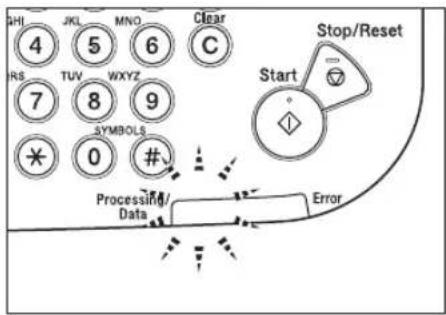
text_image
SHI 4 JKL 5 MNO 6 Clear RS TUV WXYZ C 7 8 9 * 0 # Symbolis Processif/ Data Stop/Reset Start Error2 When document reception is complete, the Processing/Data indicator on the operation panel maintains a steady green light. This indicates that documents are stored in memory.
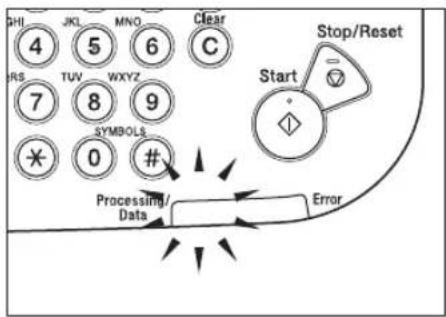
text_image
PHI 4 JKL 5 MNO 6 Clear IRS TUV WXYZ C 7 8 9 SYMBOLS 0 # Processing/ Data Stop/Reset Start Error
NOTE
- The Processing/Data indicator blinks or maintains a steady green light even when the machine enters the Sleep mode.
- The Error indicator blinks a red light when either the amount of available memory is low or paper needs to be loaded into a paper cassette.
The document is printed.
The Processing/Data indicator goes out when documents stored in memory are printed.

NOTE
- When a paper size other than
, , , , or is set, the machine may perform printing even if a different size paper is loaded in the paper cassette or the multi-purpose tray. In this case, the images may be printed only partially or incorrectly. Make sure the paper size setting matches the size of the paper that is actually loaded. - If there is no paper on which the received document can be printed, the received document is stored in memory.
- Documents which have been stored in memory because the paper has run out, are automatically printed when paper is loaded into a paper cassette.
- If a printing error occurs, the Error indicator blinks a red light.
Printing Received Documents on Both Sides of Paper
You can print received documents on both sides of the paper you select. This enables you to save paper. The default setting is

NOTE
- Make sure to close the sub-output tray before performing 2-sided printing.
- Do not open the sub-output tray while performing 2-sided printing.
- When performing 2-sided printing, make sure to confirm that the paper size switch lever on the rear side of the machine is set to the appropriate position. Paper jams may occur if the lever is not set appropriately. For details on how to set the paper size switch lever, see "Setting the Paper Size Switch Lever," on p. 2-16.
- Only LTR, A4, and LGL size paper can be used for 2-sided printing.
1 Press ⒸMenu].
2 Press or to select
MENU 4. TX / RX SETTIN
3 Press or to select
TX/RX SETTINGS 2. TX/RX COMMON
4 Press or to select
TX/RX COMMON SE
2.RX SETTINGS
5 Press or to select
RX SETTINGS 1. TWO-SIDED PR
6 Press or to select
TWO-SIDED PRINT
7 Press [Stop/Reset] to return to the standby mode.
Reducing a Received Document
You can set the machine to automatically reduce received documents so that the whole document is printed within the printable area of the paper. The default setting is
1 Press ⒹMenu].
2 Press or to select
MENU 4. TX / RX SETTIN
3 Press or to select
TX/RX SETTINGS 2. TX/RX COMMON
4 Press or to select
TX/RX COMMON SE 2.RX SETTINGS
5 Press or to select
RX SETTINGS 2. RECEIVE REDU
6 Press or to select
RECEIVE REDUCTIC
If you select
7 Press or to select
RECEIVE REDUCTI 1.RX REDUCTION
8 Press or to select
RX REDUCTION FIXED REDU
- If you select
- If you select
9 Press or to select a preset reduction ratio (90%, 95%, 97%, or 75%), then press [OK].
SELECT REDUCE %
10 Press on to select
| RECEIVE REDUCTI2 .REDUCE REDUC |
11 Press or to select
| REDUCE | REDUCTIO |
| VERTICAL |
: Reduces the document vertically only. : Reduces the document both horizontally and vertically.
12 Press [Stop/Reset] to return to the standby mode.
Printing Footer Information on a Received Document
You can set whether to insert the machine's fax number and the sender information on received faxes. The default setting is
1 Press ⒹMenu].
2 Press or to select
| MENU4 . TX / RX SETTING |
3 Press or to select
| TX/RX SETTINGS2.TX/RX COMMON |
4 Press or to select
| TX/RX | COMMON | SE |
| 2.RX | SETTINGS | |
5 Press or to select
| RX SETTINGS3.RX PAGE FOOT |
6 Press or to select
RX PAGE FOOTER
7 Press (Stop/Reset] to return to the standby mode.
Specifying the Way of Printing When Toner Runs Out
You can set if the machine stores all documents in memory or continue printing without storing documents in memory, when the toner runs out. The default setting is

NOTE
- When the
message appears, if you set to , you can continue printing. The printed documents may be light or blurred because of lack of toner. The data is erased when the documents are printed out, so you cannot print the same documents again. - When the
message appears, if you set to , the machine stores all documents in memory. After the toner cartridge is replaced, the documents can be printed and the setting can be reset.
1 Press ⒶMenu].
2 Press or to select
MENU
4 . TX / RX SETTIN
3 Press or to select
TX/RX SETTINGS
2. TX/RX COMMON
4 Press or to select
TX/RX COMMON SE
2.RX SETTINGS
5 Press or to select
RX SETTINGS
4. CONT. PRINTI
6 Press or to select
CONT. PRINTING RX TO M
-
7 Press [Stop/Reset] to return to the standby mode.
ECM Reception
ECM (Error Correction Mode) reduces the effect of system and line errors on documents that occur during sending or receiving with another fax machine that supports ECM. If the other machine does not support ECM, this setting is ignored. If reception speed appears to be extremely slow, you may be able to speed up reception time by turning ECM off. The default setting is

NOTE
- If you want to communicate using ECM, it is necessary that ECM Reception be set in both the sending and receiving machines. This function does not operate unless ECM is set in both machines.
- Even when ECM is set, errors can sometimes occur due to a poor telephone line connection.
- If there is trouble with the line, it will take more time to receive the documents.
1 Press ⒹMenu].
2 Press or to select
MENU
4. TX / RX SETTIN
3 Press or to select
TX/RX SETTINGS
3.FAX SETTINGS
4 Press or to select
FAX SETTINGS
4. RX SETTINGS
5 Press or to select
RX SETTINGS
1. ECM RX
6 Press or to select
E C M R X
: The ECM reception is not activated. : The ECM reception is activated.
7 Press [Stop/Reset] to return to the standby mode.
Optional Settings for FaxTel Mode
If you select
7 Use ▶, or ▶ 0 - 9 numeric keys] to specify the duration (4 to 30 seconds) for which the machine attempts to detect the fax tone before it starts ringing, then press [OK].
RING START TIME
If the machine receives a fax, the machine does not ring and switches to the receive mode automatically.
8 Press or to select
FAX/TEL OPT. SET 2.F/T RING TIME
9 Use 0 - ⑨ numeric keys] to specify the duration (15 to 300 seconds) of ringing, then press [OK].
| F / T | RING | TIME |
10 Press or to select
| FAX/TEL OPT. SE3.F/T SWITCH A |
11 Press on to select the action the machine will take after the ringing ends, then press [OK].
| F / T | SWITCH | ACTI |
| RE |
: Receives a fax. : Disconnects the call.
12 Press [Stop/Reset] to return to the standby mode.
Optional Settings for DRPD Mode
If you select
1 Press ⒶMenu].
2 Press or to select
MENU 4.TX/RX SETTING
3 Press or to select
TX/RX SETTINGS
3.FAX SETTINGS
4 Press or to select
FAX SETTINGS
4. RX SETTINGS
5 Press or to select
RX SETTINGS
3. DRPD: SELECT
6 Press or to select a ring pattern, then press [OK].
DRPD: SELECT FAX DOUBLE
You can select from the following ring patterns:
7 Press [Stop/Reset] to return to the standby mode.
Setting the Incoming Ring
This function enables you to activate the ring alert of the external telephone if
1 Press ⒽMenu].
2 Press or to select
MENU
4. TX / RX SETTIN
3 Press or to select
TX/RX SETTINGS
3.FAX SETTINGS
4 Press or to select
FAX SETTINGS 4. RX SETTINGS
5 Press or to select
RX SETTINGS 4. INCOMING RIN
6 Press or to select
INCOMING RING
-
7 Press or to set the number of ring times (1 to 99 times), then press [OK].
RING COUNT 2
8 Press [Stop/Reset] to return to the standby mode.
Receiving Documents Manually with an External Telephone (Remote RX)
You can connect one external telephone to the machine. When the telephone rings with the machine in the Manual receive mode, you can use the external telephone to start receiving the document without walking over to the machine. The default settings are as follows:
: : <25>
Activating the Remote Reception
Follow this procedure to turn on the remote reception.

NOTE
If
1 Press ⒹMenu].
2 Press or to select
MENU
4. TX / RX SETTIN
3 Press or to select
TX/RX SETTINGS
3.FAX SETTINGS
4 Press or to select
FAX SETTINGS
4.RX SETTINGS
5 Press or to select
RX SETTINGS
5. REMOTE RX
6 Press or to select
REMOTE RX
If you do not want to change the default remote reception ID, skip to step 9.
7 Press [Clear] to delete the default remote reception ID of 25.
REMOTE RX ID 25_
8 Use Ⓞ – Ⓞnumeric keys] to enter a new remote reception ID (a combination of two characters), then press [OK].
Ex.
REMOTE RX ID 00_
9 Press [Stop/Reset] to return to the standby mode.
Receiving Documents with the Remote Reception
Follow this procedure to receive fax documents using the remote reception.

NOTE
Before using the remote reception to receive fax documents, make sure the followings:
- An external telephone is connected properly.
- Your telephone is set to tone dialing.
1 When you receive a call, pick up the external telephone.
2 When you hear a beep, use Ⓞ - ⑨ [numeric keys] to enter the two-digit remote reception ID to start reception.
If you hear someone on the line, you can start talking to the other party.
3 When the reception is complete, hang up the telephone.
Adjusting the Auto Switch Time
This function enables you to set the machine to switch to document receive mode after ringing for a specified length of time in the Manual mode. The default setting is

NOTE
This function is only available when the
1 Press ⒸMenu].
2 Press or to select
MENU 4 . TX / RX SETTIN
3 Press or to select
TX/RX SETTINGS 3.FAX SETTINGS
4 Press or to select
FAX SETTINGS 4.RX SETTINGS
5 Press or to select
RX SETTINGS 6. MANUAL/AUTO
6 Press or to select
MANUAL/AUTO
-
7 Use ▶, of ▶ ① - ⑨ numeric keys] to enter the length of time (1 to 99 seconds) that elapses before the machine switches to document receiving, then press [OK].
F / T RING TIME
8 Press [Stop/Reset] to return to the standby mode.
Receive Start Speed
This function enables you to change the receive start speeds, which is useful when there is difficulty initiating the receiving of a document. The default setting is <33600bps>.
1 Press ⒽMenu].
2 Press or to select
MENU 10. SYSTEM SETTI
If the System Manager ID and System Password have been set, enter the System Manager ID and System Password using Ⓞ – ⓖ numeric keys], then press Ⓓ [Log In/Out].
3 Press or to select
SYSTEM SETTINGS 6.COMMUNICATIO
4 Press or to select
COMMUNICATIONS 3. FAX SETTINGS
5 Press or to select
FAX SETTINGS 2.RX START SPE
6 Press or to select the desired receive speed, then press [OK].
RX START SPEED 3 3 6
If your document reception is slow in starting, this may mean that the telephone lines in your area are in poor condition. Select a slower speed. You can select <33600bps>, <14400bps>, <9600bps>, <7200bps>, <4800bps>, or <2400bps>.
7 Press [Stop/Reset] to return to the standby mode.
Receiving Documents in Memory without Printing Out (Memory Lock Reception)
Normally a document prints as soon as you receive it. However, there may be occasions when you want the machine to store all documents in memory until you are ready to print them. Locking the machine to receive and store all documents in memory is called memory lock reception. The default setting is
1 Press ⒶMenu].
2 Press or to select
MENU 10. SYSTEM SETTI
If the System Manager ID and System Password have been set, enter the System Manager ID and System Password using Ⓞ – Ⓞ numeric keys], then press Ⓓ [Log In/Out].
3 Press or to select
SYSTEM SETTINGS 6.COMMUNICATIO
4 Press or to select
COMMUNICATIONS 4. MEMORY LOCK
If the memory lock password has been set, enter the password using Ⓞ - Ⓣ [numeric keys], then press [OK].
5 Press or to select
MEMORY LOCK

NOTE
When you select
6 Press or to select
MEMORY LOCK 1. PASSWORD
7 If you want to set or change a password for the Memory Lock mode, use ① – ⑨ [numeric keys] to enter the memory reception password (up to seven digits), then press [OK].
Ex.
PASSWORD 12_
- If you set a password, it will be necessary to enter the password whenever you want to change the Memory Lock mode settings, or cancel the Memory Lock mode.
- If you do not want to set the Memory Lock with a password, press [OK] without entering any numbers.
8 Press or to select
MEMORY LOCK 2. REPORT PRINT
9 Press or to select
REPORT PRINT
-

NOTE
10 Press or to select
MEMORY LOCK 3. MEMORY RX TI
If you do not need to set the timer for memory lock, skip to step 16.
11 Press on to select
MEMORY RX TIME
12 Press or to select
MEMORY RX TIME 1.MEM RX START
13 Use ① - ⑨ numeric keys] to enter the start time (in 24-hour/military time format), then press [OK].
Ex. MEM RX START TIME 2_0 : 0 0
14 Press or to select
MEMORY RX TIME 2. MEM. RX END
15 Use ① - ⑨ numeric keys] to enter the end time (in 24-hour/military time format), then press [OK].
Ex. MEM. RX END TIME 0_8 : 0 0
16 Press [Stop/Reset] to return to the standby mode.
Printing All Documents Stored in the Memory Lock Reception Mode
Follow this procedure to print documents received when the machine is in the memory lock reception mode.
1 Press ⒶMenu].
2 Press or to select
MENU 10. SYSTEM SETTI
If the System Manager ID and System Password have been set, enter the System Manager ID and System Password using Ⓞ – Ⓣ [numeric keys], then press Ⓓ [Log In/Out].
3 Press or to select
SYSTEM SETTINGS 6.COMMUNICATIO
4 Press or to select
COMMUNICATIONS 4. MEMORY LOCK
If the memory lock password has been set, enter the password using Ⓞ - Ⓣ [numeric keys], then press [OK].
5 Press or to select
MEMORY LOCK
The received documents are printed.
6 Press [Stop/Reset] to return to the standby mode.
Checking/Changing the Status of Fax Documents in Memory
The Status Monitor screen enables you to view and change the status of fax documents in memory.
Checking/Deleting Fax Transmission Documents
You can check the detailed information of fax documents currently being sent or waiting to be sent, then delete unwanted documents as necessary.
1 Press ①Job Cancel/Status Monitor] repeatedly to select
TX/RX STATUS
If you select
2 Press or to scroll through the job list.
0 0 0 1 15:50 T X T 0 1 2 X X
If you want to delete a job, go to the next step. Otherwise, press ⚙ [Stop/Reset] to return to the standby mode.
3 Press or to select the job you want to delete, then press [OK].
0 0 0 2 1 5 : 5 1 T X S 1 2 3 X X
If you select
4 Press or to select
0 0 0 2 CANCEL
5 Press to select
C A N C E L ? < YES
If you do not want to cancel the job, press ☑ select
6 Press (Stop/Reset) to return to the standby mode.
Checking/Deleting Fax Reception Documents
You can delete the received documents in memory. You can also forward received documents in memory to a desired destination.
1 Press ⒶJob Cancel/Status Monitor] repeatedly to select
TX/RX STATUS
If you select
2 Press or to scroll through the job list.
| 5 | 0 | 0 | 3 | 1 | 5 : 5 | 5 | R | X | T |
| 0 | 1 | 2 X X |
If you want to delete a job, go to the next step. Otherwise, press ▶ [Stop/Reset] to return to the standby mode.
3 Press or to select the job you want to delete, then press [OK].
| 5 | 0 | 0 | 1 | 1 | 5 : 5 | 3 | R | X | S |
| 1 | 2 | 3 X X |
If you select
4 Press or to select
5001 CANCEL

NOTE
You can forward the selected job to another destination by selecting
5 Press to select
| C | A | N | C | E | L | ? |
| < | Y | E | S |
If you do not want to cancel the job, press ☑ select
6 Press [Stop/Reset] to return to the standby mode.

NOTE
For the D1180/D1170, you can check for the arrival of I-faxes at any time if you select
Checking the Fax Log
You can view the results of fax transactions that list all faxes sent or received.

NOTE
If you set
1 Press ☐Job Cancel/Status Monitor] repeatedly to select
TX/RX LOG
2 Press or to view the required transmission/reception result.
0 0 0 1 1 5 : 5 0 TX 0 1 2 X X
3 Press [Stop/Reset] to return to the standby mode.

NOTE
You can also check the results of fax transactions (transmission or reception) by printing the TX report, RX report, or Activity report. For details, see "Printing Reports Automatically," in the e-Manual and "Printing Reports and Lists Manually," in the e-Manual.
This chapter describes the things that you must do before using e-mail functions. It also describes the settings and procedures for sending e-mails. E-mail functions are available only for the D1180/D1170.
Overview of E-Mail Functions ....7-2
Introduction to Using E-Mail Functions ....7-4
Basic E-Mail Operations 7-5
Sending E-Mail Documents 7-5
Canceling Sending E-Mail Documents ....7-7
Overview of E-Mail Functions
You can send scanned documents as e-mail attachments.

flowchart
graph LR
    A["Documents"] --> B["Printer"]
    B --> C["Sending e-mails"]
    D["Scan settings\n• Density\n• 2-Sided Originals\ne-Manual\n• Refer to "E-Mail""] --> B
    E["e-Manual\n• Refer to "E-Mail""] --> C
Advanced sending functions
Specifying destinations
e-Manual
• Refer to "E-Mail"
Using the address book
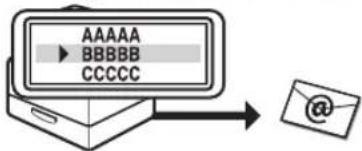
text_image
AAAAA BBBBB CCCCCBroadcasting
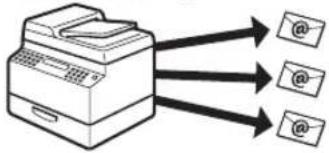
text_image
Diagram showing a printer emitting three images labeled '@' to @, illustrating the process of printing or scanning.Job recall
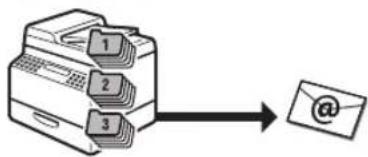
flowchart
graph TD
    A["1"] --> C["@"]
    B["2"] --> C["@"]
    D["3"] --> C["@"]
Using the one-touch keys
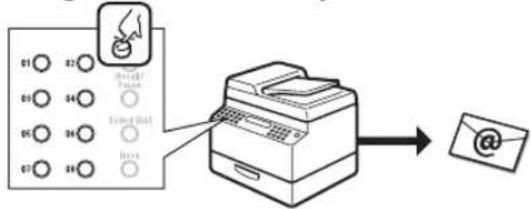
flowchart
graph TD
    A["Printer"] --> B["Output"]
    C["User Interface"] --> D["User Interface"]
    E["User Interface"] --> F["User Interface"]
    G["User Interface"] --> H["User Interface"]
    I["User Interface"] --> J["User Interface"]
    K["User Interface"] --> L["User Interface"]
    M["User Interface"] --> N["User Interface"]
    O["User Interface"] --> P["User Interface"]
    Q["User Interface"] --> R["User Interface"]
    S["User Interface"] --> T["User Interface"]
    U["User Interface"] --> V["User Interface"]
    W["User Interface"] --> X["User Interface"]
    Y["User Interface"] --> Z["User Interface"]
Using the coded dial codes

flowchart
graph TD
    A["Grid 1"] --> B["Input"]
    C["Grid 2"] --> D["Code Dial"]
    E["Grid 3"] --> F["Code Dial"]
    G["Grid 4"] --> H["Code Dial"]
    I["Grid 5"] --> J["Code Dial"]
    K["Grid 6"] --> L["Code Dial"]
    M["Grid 7"] --> N["Code Dial"]
    O["Grid 8"] --> P["Code Dial"]
    Q["Grid 9"] --> R["Code Dial"]
    S["Grid 10"] --> T["Code Dial"]
    U["Email"] --> V["QR Code"]
Using the group address
One-touch keys
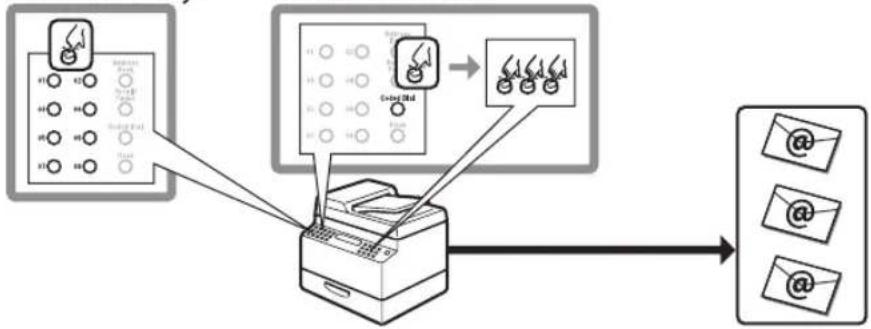
flowchart
graph TD
    A["Printer Input"] --> B["Color-coded Sensor"]
    B --> C["Output Email Icon"]
    style A fill:#f9f,stroke:#333
    style B fill:#ccf,stroke:#333
    style C fill:#cfc,stroke:#333
Sending 2-sided documents
e-Manual
- Refer to "E-Mail"
Delayed sending
e-Manual
• Refer to "E-Mail"
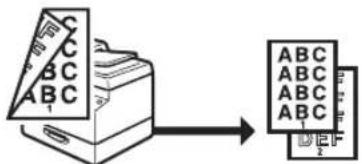
text_image
A B C D E F G H I J K L M N O P Q R S T U V W X Y Z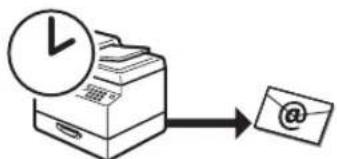
flowchart
graph TD
    A["Input: Clock"] --> B["Processing Device"]
    B --> C["@ Symbol"]
Introduction to Using E-Mail Functions
This machine enables you to send scanned documents to an e-mail application. Scanned documents are converted to file formats such as TIFF and are transmitted as an e-mail attachment to the recipient's e-mail application.
The necessary settings for using the e-mail function are shown below.
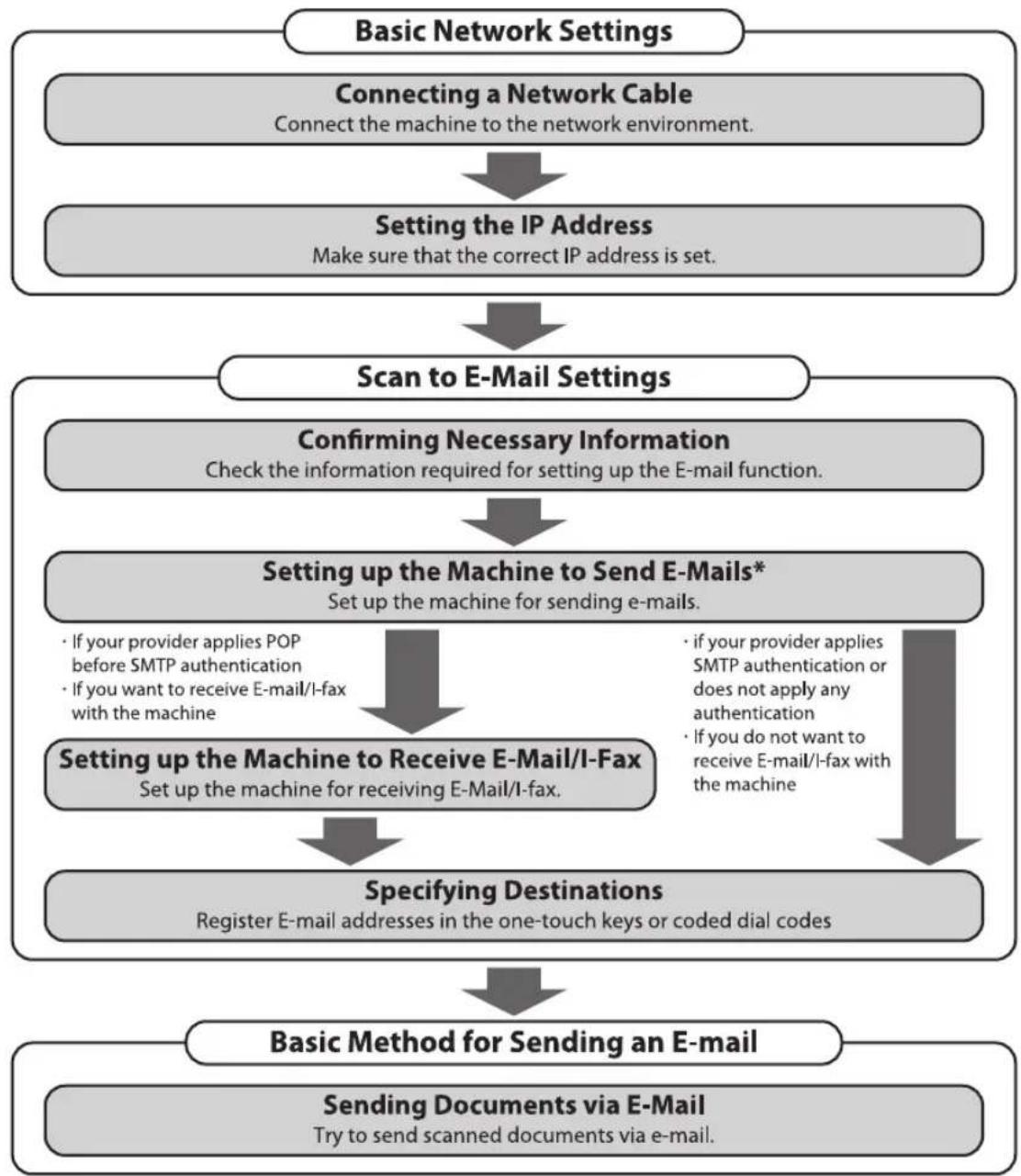
flowchart
graph TD
    A["Basic Network Settings"] --> B["Connecting a Network Cable\nConnect the machine to the network environment."]
    B --> C["Setting the IP Address\nMake sure that the correct IP address is set."]
    C --> D["Scan to E-Mail Settings"]
    D --> E["Confirming Necessary Information\nCheck the information required for setting up the E-mail function."]
    E --> F["Setting up the Machine to Send E-Mails* \nSet up the machine for sending e-mails."]
    F --> G["Setting up the Machine to Receive E-Mail/I-Fax\nSet up the machine for receiving E-Mail/I-fax."]
    G --> H["Specifying Destinations\nRegister E-mail addresses in the one-touch keys or coded dial codes"]
    H --> I["Basic Method for Sending an E-mail"]
    I --> J["Sending Documents via E-Mail\nTry to send scanned documents via e-mail."]
    F --> K["If your provider applies POP before SMTP authentication\nIf you want to receive E-mail/I-fax with the machine"]
    F --> L["if your provider applies SMTP authentication or does not apply any authentication\nIf you do not want to receive E-mail/I-fax with the machine"]
Basic E-Mail Operations
This section describes the basic procedures for sending e-mails and canceling a transmission in progress.
Sending E-Mail Documents
This section describes the flow of sending e-mails.

NOTE
If
1
Place documents.
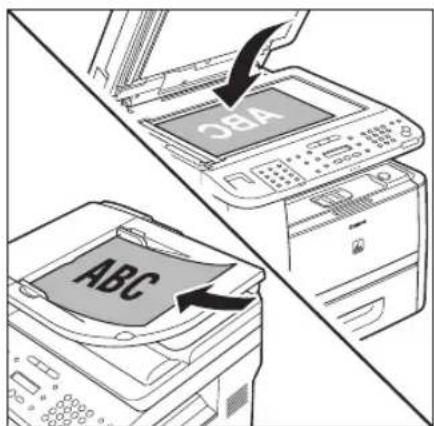
text_image
SBA ABC2
Press [SEND/FAX].
The SEND/FAX indicator lights up and the machine enters the send standby mode.
3
Press [SEND/FAX] repeatedly to select
E-MAIL:B&W
SELECT:OK

NOTE
If you want to send color images attached to an e-mail message, select
4
Specify the destination.
Ex.
$$ \begin{array}{r l} \text { A D D R E S S } & \ = \text { j o h n @ e x a m p 1 } \end{array} $$
For details, see "Specifying Destinations (E-Mail)," in the e-Manual.
If you want to start sending without adjusting the optional send settings, skip to step 10.
5
Press [OK] repeatedly until
6
Press or to select the file format, then press [OK].
$$ \begin{array}{c} \text { FILE FORMAT } \ \text { PDF } \end{array} $$
$$ \begin{array}{l} - \text { E - mail (B\ & W): } < \text { PDF }, < \text { TIFF(B\ & W) } > \ - \text { E - mail (Color): } < \text { PDF(COMPACT) } >, < \text { JPEG } > \ \end{array} $$

NOTE
If you specify an e-mail address from Address Book without selecting the sending method, settings specified in
7 Press or to select
DIVIDE INTO PAG ON
: Sends multiple images as a single file without dividing them. : Separates multiple images and send them as separate files.

NOTE
If you have selected
8 Press or to select the resolution, then press [OK].
RESOLUTION 2 0×0 2 0 0 dpi
- E-mail (B&W): <200×200dpi>, <300×300dpi>, <400×400dpi>, <600×600dpi>, <150×150dpi>, <200×100dpi>
- E-mail (Color): <200×200dpi>, <300×300dpi>, <100×100dpi>, <150×150dpi>

NOTE
If
9 Press or to select the original type, then press [OK].
: For documents that contain text and photos. : For text documents. : For documents that contain fine text or photos.

NOTE
If you have selected
10 Press [Start]. When you pla
When you place the documents on the platen glass, press ◀ or Ⓧ select the document size, then press Ⓧ [Start] for each document. When scanning is complete, press [OK] to start sending.

NOTE
- You can also adjust the following scan settings as necessary.
- Density: See "Adjusting Density (E-Mail)," in the e-Manual.
- 2-sided: See "2-Sided Documents (E-Mail)," in the e-Manual.
- You can set the document's name, a subject line, message body text, reply-to address, and e-mail priority common to all sending jobs. For instructions, see "Optional Settings for an E-Mail," in the e-Manual.
Canceling Sending E-Mail
Documents
Follow this procedure to cancel a transmission in progress.

NOTE
You can also cancel a transmission from the Status Monitor screen. (See "Checking/Deleting E-Mail Transmission Documents," in the e-Manual.)
1
Press [Stop/Reset].
2
When the
■ When scanning using the ADF:
| STOP | KEY | PRESSE |
| PRESS | OK | KEY |
■ When scanning using the platen glass:
STOP KEY PRESSE

NOTE
For sending jobs, remove any unscanned documents from the ADF.
Scanning
Chapter
8
This chapter describes how to use scanner functions.
Overview of the Scanner Functions ....8-2
Introduction to Using Scanner Functions ....8-4
Scanning Documents to a Computer 8-4
Basic Scanning Operations 8-6
Scanning Documents to a Computer 8-6
Scanning Documents to a File Server (D1180/D1170) 8-6
Canceling Scan Jobs 8-9
Canceling Scanning Documents to a Computer .....8-9
Canceling Scanning Documents to a File Server (D1180/D1170) 8-9
Overview of the Scanner Functions
You can retrieve documents scanned with this machine to your computer connected with a USB cable. You can also store the scanned documents to a file server.
* The function of scanning documents to a file server is available only for the D1180/D1170.

flowchart
graph TD
    A["Documents"] --> B["Printer"]
    B --> C["Shared folder"]
    C --> D["Computer"]
    B --> E["Data"]
    E --> F["Shared folder"]
    G["Networked computers"] --> C
    H["Scanning documents to a file server"] --> I["e-Manual\n• Refer to "Scan""]
    J["Scanning documents to your computer"] --> K["e-Manual\n• Refer to "Scan""]
Various sending functions (File server)
Specifying destinations
e-Manual
• Refer to "Scan"
Using the address book
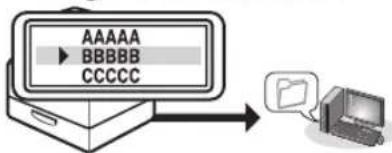
flowchart
graph LR
    A["AAAAA"] --> B["BBBBB"]
    B --> C["CCCCC"]
    C --> D["Computer Icon"]
Broadcasting

flowchart
graph TD
    A["Printer"] --> B["Camera 1"]
    A --> C["Camera 2"]
    A --> D["Camera 3"]
Job recall
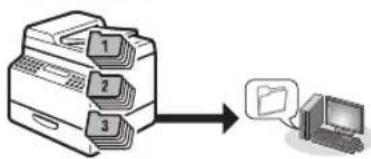
flowchart
graph TD
    A["Folder 1"] --> C["Computer Icon"]
    B["Folder 2"] --> C
    D["Folder 3"] --> C
Using the one-touch keys
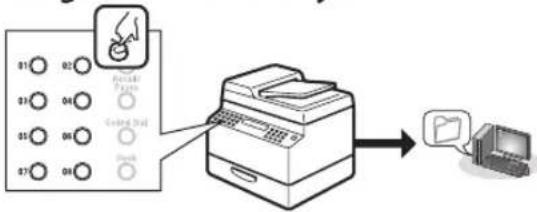
flowchart
graph LR
    A["Printer Image"] --> B["Printer"]
    C["Printer Image"] --> D["Printer"]
    E["Printer Image"] --> F["Printer"]
    G["Printer Image"] --> H["Printer"]
    I["Printer Image"] --> J["Printer"]
    K["Printer Image"] --> L["Printer"]
    M["Printer Image"] --> N["Printer"]
    O["Printer Image"] --> P["Printer"]
    Q["Printer Image"] --> R["Printer"]
    S["Printer Image"] --> T["Printer"]
    U["Printer Image"] --> V["Printer"]
    W["Printer Image"] --> X["Printer"]
    Y["Printer Image"] --> Z["Printer"]
    AA["Printer Image"] --> AB["Printer"]
    AC["Printer Image"] --> AD["Printer"]
    AE["Printer Image"] --> AF["Printer"]
    AG["Printer Image"] --> AH["Printer"]
    AI["Printer Image"] --> AJ["Printer"]
    AK["Printer Image"] --> AL["Printer"]
    AM["Printer Image"] --> AN["Printer"]
    AO["Printer Image"] --> AP["Printer"]
    AQ["Printer Image"] --> AR["Printer"]
    AS["Printer Image"] --> AT["Printer"]
    AU["Printer Image"] --> AV["Printer"]
    AW["Printer Image"] --> AX["Printer"]
    AY["Printer Image"] --> AZ["Printer"]
Using the coded dial codes

flowchart
graph TD
    A["Input Screen"] --> B["Add Add Dialog"]
    B --> C["Printing Process"]
    C --> D["Output Display"]
Using the group address
One-touch keys
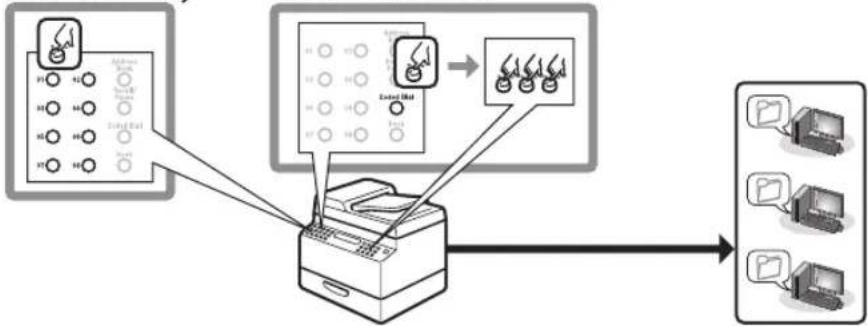
flowchart
graph TD
    A["Input Device 1: 95/42"] --> D["Printer"]
    B["Input Device 2: 96/44"] --> D
    C["Input Device 3: 97/46"] --> D
    D --> E["Output Device 4: 98/45"]
    D --> F["Output Device 5: 99/44"]
    D --> G["Output Device 6: 99/43"]
    D --> H["Output Device 7: 99/42"]
    D --> I["Output Device 8: 99/41"]
    D --> J["Output Device 9: 99/40"]
Sending 2-sided documents
e-Manual
- Refer to "Scan"
Delayed sending
e-Manual
- Refer to "Scan"
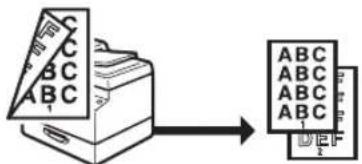
flowchart
graph LR
    A["3D Object"] --> B["2D Object"]
    style A fill:#f9f,stroke:#333
    style B fill:#bbf,stroke:#333
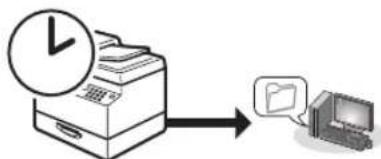
flowchart
graph LR
    A["Clock Icon"] --> B["Computer Icon"]
    style A fill:#f9f,stroke:#333
    style B fill:#ccf,stroke:#333
Introduction to Using Scanner Functions
This section describes what you must do before using the scanner functions. Make sure to set the following items first:
Scanning Documents to a Computer
The necessary settings for sending scanned documents to a file server are shown below.
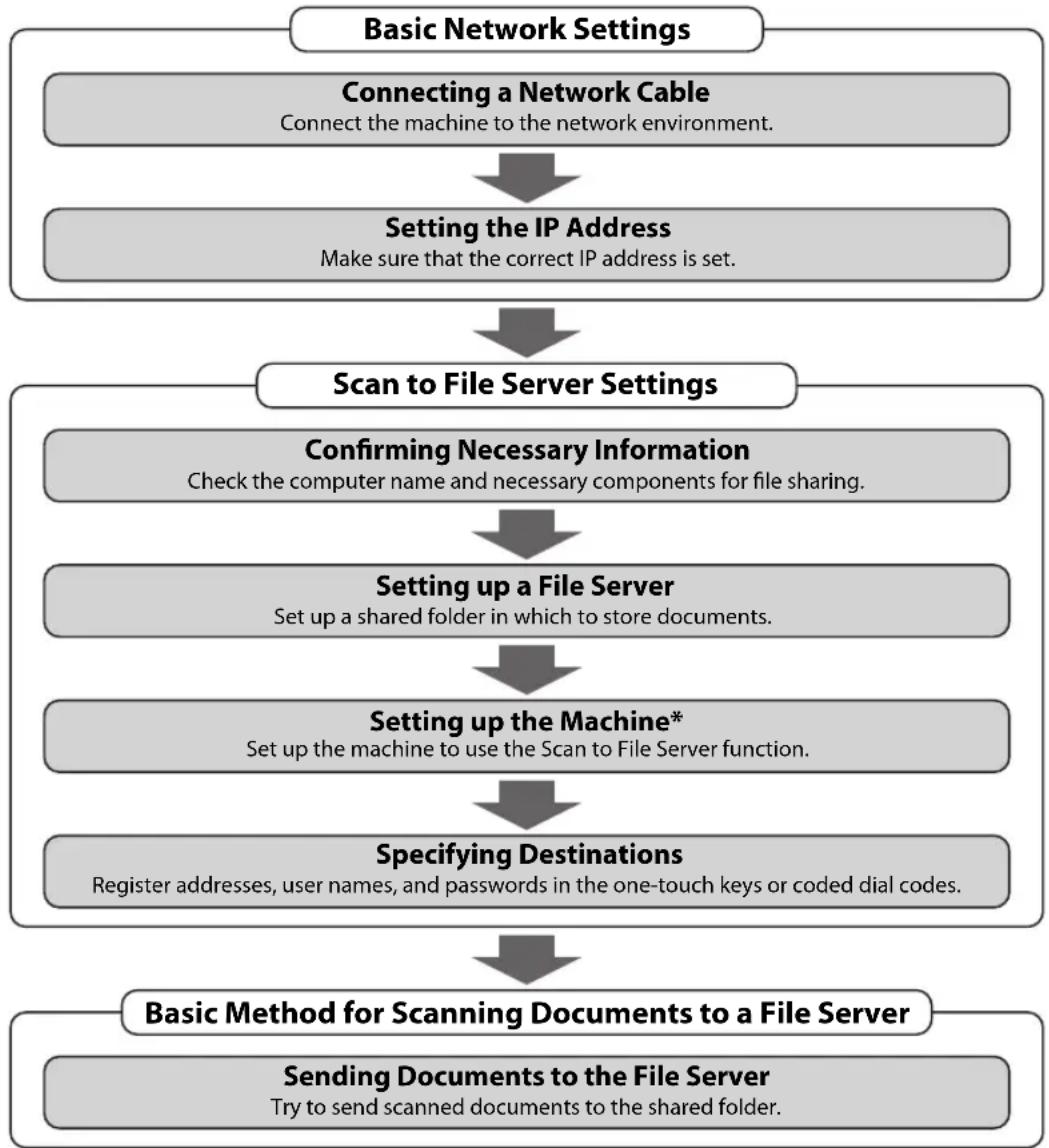
flowchart
graph TD
    A["Basic Network Settings"] --> B["Connecting a Network Cable\nConnect the machine to the network environment."]
    B --> C["Setting the IP Address\nMake sure that the correct IP address is set."]
    C --> D["Scan to File Server Settings"]
    D --> E["Confirming Necessary Information\nCheck the computer name and necessary components for file sharing."]
    E --> F["Setting up a File Server\nSet up a shared folder in which to store documents."]
    F --> G["Setting up the Machine*\nSet up the machine to use the Scan to File Server function."]
    G --> H["Specifying Destinations\nRegister addresses, user names, and passwords in the one-touch keys or coded dial codes."]
    H --> I["Basic Method for Scanning Documents to a File Server"]
    I --> J["Sending Documents to the File Server\nTry to send scanned documents to the shared folder."]
* You can set up the Scan to File Server function easily by using the Send Function Setting Tool. (See "Use Send Function Setting Tool," in the e-Manual.)
- ScanGear MF:
Install the scanner driver ScanGear MF. ScanGear MF enables you to use the machine as scanner. (See "About User Software CD-ROM," in the Starter Guide.)
- USB connection:
Connect the machine to your computer with the USB cable. (See "USB Connection," in the Starter Guide.)

NOTE
The scanner driver is available only through a USB connection.
Basic Scanning Operations
This section describes the basic procedures for scanning documents.
Scanning Documents to a Computer
You can scan documents and transmit the scanned data to your computer using the operation panel of the machine.

NOTE
- Your machine must be connected via an USB cable and the USB scanner driver must be loaded to scan. This machine does not support network scanning.
- Scanning speed may be slower when sending an e-mail or scanning documents to a file server in B&W format.
1
Place documents.
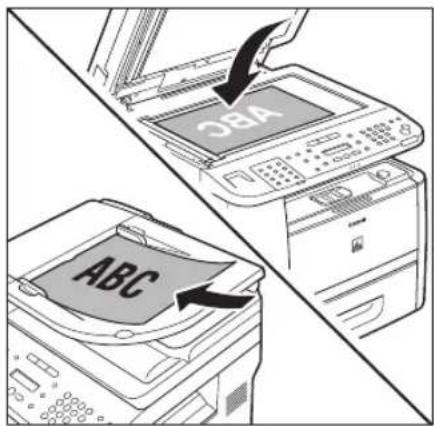
text_image
OBA ABC2
Press [SCAN] on the machine.
The SCAN indicator lights up and the machine enters the scan standby mode.
3
Press ⒻStart] on the machine.
- If you are asked to select a program to launch, select "MF Toolbox Ver4.9." The scanned document will be processed according to your settings.
- When scanning is complete, a folder with the scanning date will be created in the [My Pictures] folder in the [My Documents] folder, and your document will be saved in this folder. (For Windows Vista/7, the folder will be created in the [Pictures] folder.)
Scanning Documents to a File Server (D1180/D1170)
This section describes the basic procedure for sending scanned documents to a computer that acts as a file server on a network.

NOTE
You can specify the file server addresses only with one-touch keys, coded dial codes, or [Address Book]. You cannot specify a file server using Ⓞ, [numeric keys] and ⚠ [Tone]. See "Specifying Destinations (Scan to File Server)," in the e-Manual.
1
Place documents.
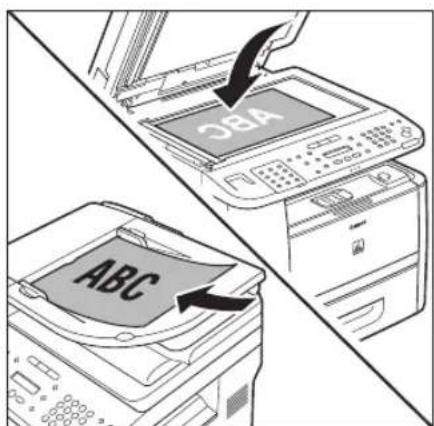
text_image
SBA ABCPress [SEND/FAX].
The SEND/FAX indicator lights up and the machine enters the send standby mode.
3 Press [SEND/FAX] repeatedly to select or , then press [OK].
E-MAIL:B&W
SELECT:OK
![CANON imageClass D1120 - Press [SEND/FAX] repeatedly to select or , then press [OK]. - 1](/content/2026/06/1243698/images/dcc5f662f0df965de0f5f09abee8158f347690ca32f41c4f0bf4a1f97e992526.jpg)
NOTE
If you want to send color images to the file server, select
4 Specify the file server's address.
Ex.
server1 [01] SERVER 1
- You can specify the file server addresses only with one-touch keys, coded dial codes, or [Address Book].
- For information how to specify the file server's address, see "Specifying Destinations (Scan to File Server)," in the e-Manual.
- If you want to start sending without adjusting the optional send settings, skip to step 10.
5 Press [OK] repeatedly until is displayed.
6 Press or to select the file format, then press [OK].
FILE FORMAT PDF
- File server (B&W):
7 Press or to select or for , then press [OK].
DIVIDE INTO PAG ON
: Sends multiple images as a single file without dividing them. : Separates multiple images and send them as separate files.
![CANON imageClass D1120 - Press or to select or for , then press [OK]. - 1](/content/2026/06/1243698/images/c1ee23c3f16331f55d9923f43dc5bfb8f43e142940de3951f13c20506fd81d29.jpg)
NOTE
If you have selected
8 Press or to select the resolution, then press [OK].
RESOLUTION 20×0 200dpi
- File server (B&W): <200×200dpi>, <300×300dpi>, <400×400dpi>, <600×600dpi>, <150×150dpi>, <200×100dpi> - File server (Color): <200×200dpi>, <300×300dpi>, <100×100dpi>, <150×150dpi>
![CANON imageClass D1120 - Press or to select the resolution, then press [OK]. - 1](/content/2026/06/1243698/images/5678ee5ef416af228ef8d61010cdc204c2768f3590a662295410971849ea0507.jpg)
NOTE
If
9 Press or to select the original type, then press [OK].
: For documents that contain text and photos. : For text documents. : For documents that contain fine text or photos.
![CANON imageClass D1120 - Press or to select the original type, then press [OK]. - 1](/content/2026/06/1243698/images/5297ff89f508c1279999cbda540fa43d086601b6c4bd2d53fe386bf355fa935d.jpg)
NOTE
If you have selected
10 Press [Start]. When you place
When you place the documents on the platen glass, press ⬆ or ⬇ select the document size, then press ⬆ [Start] for each document. When scanning is complete, press [OK] to start sending.
![CANON imageClass D1120 - Press [Start]. When you place - 1](/content/2026/06/1243698/images/d3ee6430a1952d957a7c0efbbd355992c8f837a34975a3c09f729f62eec08684.jpg)
NOTE
- You can also adjust the following scan settings as necessary.
- Density: "Adjusting Density (Scan to File Server)," in the e-Manual.
- 2-sided: "2-Sided Documents (Scan to File Server)," in the e-Manual.
- You can set the document's name (see "Naming a Sent Document Using a File Server," in the e-Manual).
Canceling Scan Jobs
This section describes how to cancel scan jobs.
Canceling Scanning Documents to a Computer
During scanning, a scanning progress dialog box is displayed on the computer screen.
1 Press [Stop/Reset] on the operation panel.
2 Click [OK] on the computer screen.
Canceling Scanning Documents to a File Server (D1180/D1170)
Follow this procedure to cancel a transmission in progress.

NOTE
You can also cancel a transmission from the Status Monitor screen. (See "Checking/Deleting Scanning Data," in the e-Manual.)
1 Press [Stop/Reset].
2 When the
■ When scanning using the ADF:
| STOP | KEY | PRESSE |
| PRESS | OK | KEY |
■ When scanning using the platen glass:
| STOP | KEY | PRESSE |

NOTE
For sending jobs, remove any unscanned documents from the ADF.
Network
Chapter
9
This chapter describes what a network is, what you can do with a network, and what you need to do to use the machine with a network.
Flowchart for Setting Up Network ......9-2
What is the Network? 9-3
Overview of Network Functions ......9-4
Flowchart for Setting Up Network
Follow the procedures in the flowchart below to set up each network function.
* The functions of sending faxes or e-mails, or scanning documents to the sharing folder of a computer are available.
What to use
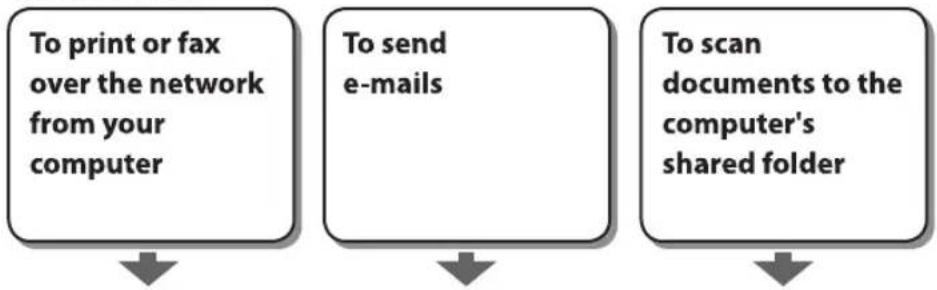
flowchart
graph TD
    A["To print or fax over the network from your computer"] --> B["To send e-mails"]
    B --> C["To scan documents to the computer's shared folder"]
Required settings

flowchart
graph TD
    A["Setting IP addresses"] --> B["Starter Guide\n• Set Up Network Connection\ne-Manual\n• Refer to "Network Settings""]
    A --> C["Install the driver using the network connection\nStarter Guide\n• Refer to "Set Up Computers and Software"\ne-Manual\n• Refer to "Network Settings""]
    A --> D["E-mail/I-fax (Reception) function settings for this machine\ne-Manual\n• Refer to "E-Mail""]
    A --> E["Shared folder settings\ne-Manual\n• Refer to "Network Settings""]
    A --> F["File sending function settings for this machine\ne-Manual\n• Refer to "Network Settings""]
What is the Network?
In the computer field, a network is a system of interconnected computers that communicate with each other. "Internet" and "LAN" are the two most common words used to refer to networks. The Internet is the vast network to which computers all over the world are connected. Computers connected to the Internet anywhere in the world can exchange information with one another. On the other hand, LAN is the abbreviation for "Local Area Network" and means a network within a limited area (in an office, for example).
Sample network configuration for this product
LAN
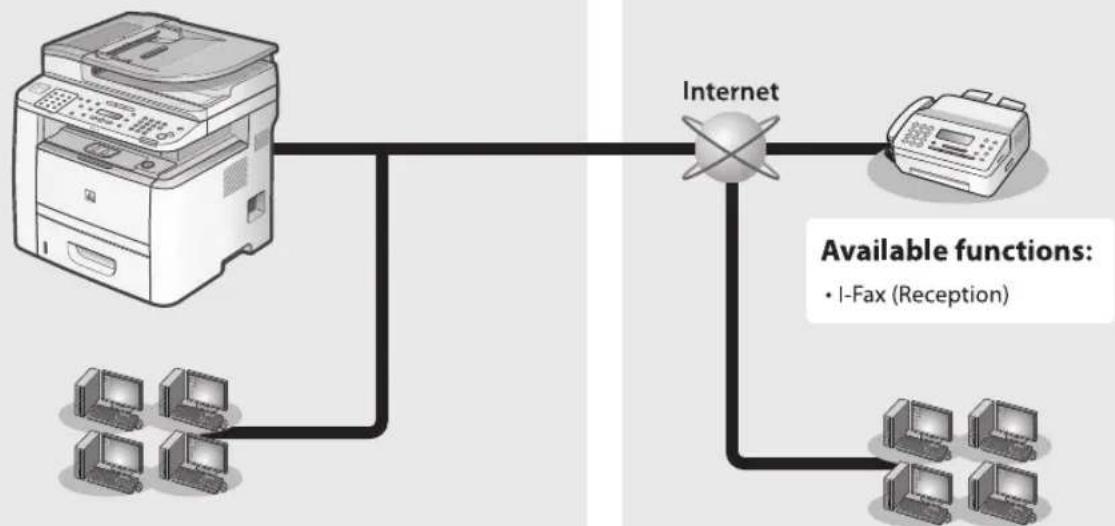
flowchart
graph TD
    A["Printer"] --> B["Internet"]
    C["Client 1"] --> B
    D["Client 2"] --> B
    E["Client 3"] --> B
    F["Client 4"] --> B
    B --> G["Printer"]
    style B fill:#f9f,stroke:#333,stroke-width:2px
    note right of B
        Available functions:
        • I-Fax (Reception)
    end
Available functions:
- Scanning documents to a file server (file sharing)
- Remote UI
• Networked printer
• E-mail
• I-Fax (Reception)
Internet

flowchart
graph TD
    A["Internet"] --> B["Printer"]
    B --> C["Computer 1"]
    B --> D["Computer 2"]
    B --> E["Computer 3"]
    style A fill:#f9f,stroke:#333
    style B fill:#ccf,stroke:#333
    style C fill:#cfc,stroke:#333
    style D fill:#fcc,stroke:#333
    style E fill:#cff,stroke:#333
    note right of B: Available function
    note right of C: I-Fax (Reception)
Available functions:
Overview of Network Functions
This section describes actions you can perform using the network functions.
You can send scanned documents as e-mail attachments.
e-Manual
- Refer to "E-Mail"
Network PC Fax
You can transfer data from your computer to the machine and send them by fax from the machine.
e-Manual
- Refer to "PC Fax"
File server (File sharing)
You can scan documents to the computer's shared folder.
e-Manual
- Refer to "Scan"
Network Print
You can print over the network.
e-Manual
- Refer to "Print"
Remote UI
You can register and make settings for this product's functions over the network from your computer.
e-Manual
• Refer to "Settings from a PC"
Settings from a PC
Chapter 10
The Remote UI enables you to easily manage the machine from a computer on the network.
Overview of Remote UI 10-2
Starting the Remote UI....10-4
Overview of Remote UI
The Remote UI enables you to check the machine's status and manage the machine's functions from a computer on the network using a web browser. Using the computer keyboard, the management process, such as entering addresses to the address book will be easier.
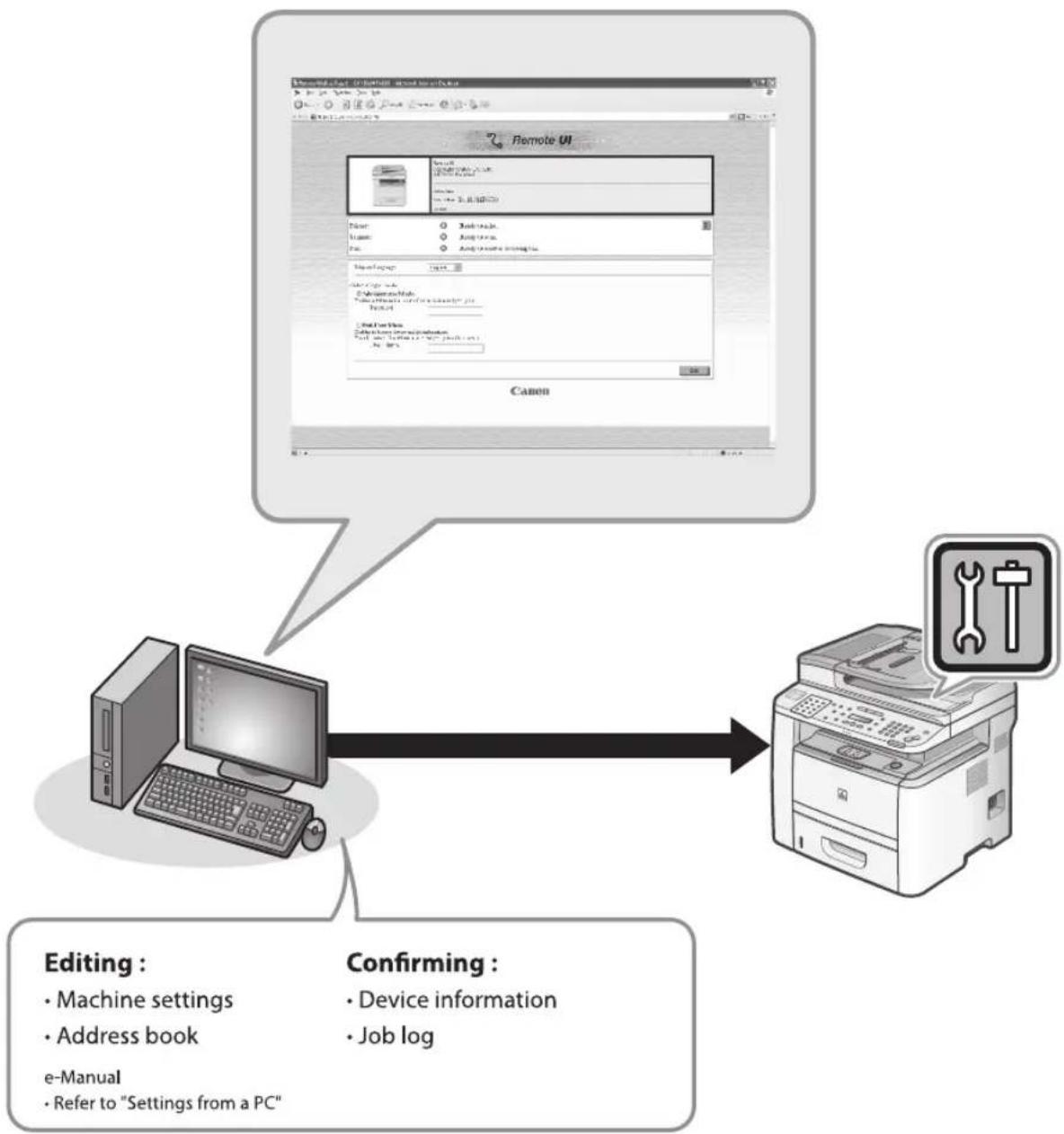
flowchart
graph TD
    A["Printer"] --> B["Printer"]
    B --> C["Editing: Machine settings, Address book, e-Manual, Refer to "Settings from a PC""]
    C --> D["Confirming: Device information, Job log"]
By using Remote UI, you can set and confirm following functions.
Checking Device Information from a Computer
The Remote UI enables you to check the device information, such as device status, device information, device feature, network settings and counter information. Accessing to the device information from a distant place provides you with easy device management.
For details, see "Checking Device Status and Information," in the e-Manual.
Managing Jobs From a Computer
The Remote UI enables you to manage print jobs being processed by the machine, or held in the print queue. It also enables you to view the print job log and the sending, storing and receiving results of fax jobs. Accessing to the job information from a distant place provides you with easy job management.
For details, see "Job Management," in the e-Manual.
Editing the Address Book From a Computer
The Remote UI enables you to make additions and changes to each item of the address book. You can use the keyboard of the computer, so entering large amount of addresses to the address book will be easier. You can also edit the one-touch speed dial and coded dial.
For details, see "Managing the Address Book," in the e-Manual.
Setting/Registering From a Computer
The Remote UI enables you to specify the machine's system settings, forwarding settings, the department ID and user ID, import and export function, and device custom settings. You can specify the various custom system settings more easily and speedy.
For details, see "Customizing System Settings," in the e-Manual.
Starting the Remote UI
To start the Remote UI, follow the procedure described below.

NOTE
Before you start the Remote UI, perform the followings:
- Select
in located in , and verify the IP address of the machine. If you do not know the IP address, consult with your network administrator. (See "Confirming IP Address Settings," in the e-Manual.) - If the IP address is not displayed, check if the machine is correctly connected to the computer. For details, see "Set Up Network Connection," in the e-Manual.
- Set
to in . (See "Restricting the Remote UI," in the e-Manual.)
1
Prepare the Network.
Set up the machine for use in a network, then connect the machine and the computer to your network router or a hub.
For details, see "Set UP Computers and Software," in the Starter Guide.
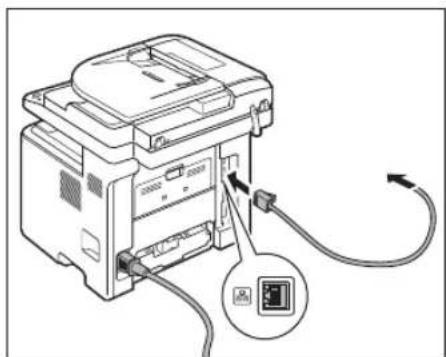
natural_image
Diagram of a printer with cable and connector, showing internal components and a close-up view of the connector (no text or symbols present)2
Start the web browser.
3
Enter the IP address of the machine in [Address] or [Location], then press [Enter] on the keyboard.

text_image
about.Hook, Microsoft Internet Explorer http://www.xu.comExample: http://xxx.xxx.xxx.xxx/
For details on how to check the IP address, see "Confirming IP Address Settings," in the e-Manual.
The Remote UI screen appears.
4
Enter the required data.
The required data differs depending on the authentication mode you are using.
For default settings:
① Select [Administrator Mode] or [End-User Mode].
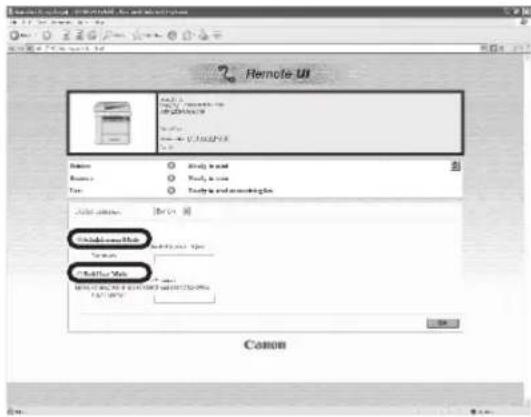
text_image
Remote UI ColdWater Web Other Web② Enter the password or user name and click [OK].
text_image
Remote UI File 1 New: Microsoft Word Microsoft Word New: U2345678 OK Cancel Apply Web Apply Web Apply Web Apply Web Apply Web Apply Web Apply Web Apply Web Apply Web Apply Web Apply Web Apply Web Apply Web Apply Web Apply Web Apply Web Apply Web Apply Web Apply Web Apply Web Apply Web Apply Web Apply Web Apply Web Apply Web Apply Web Apply Web Apply Web Apply Web Apply Web Apply Web Apply Web Apply Web Apply WebIn case no management mode is set, and system manager ID and password are set:
① Select [Administrator Mode] or [End-User Mode].
text_image
Remote UI Name: Source: File: Add to Add to Add to Add to Add to Add to Add to Add to Add to Add to Add to Add to Add to Add to Add to Add to Add to Add to Add to Add to Add to Add to Add to Add to Add to Add to Add to Add to Add to Add to Add to Add to Add to Add to Edit... Add to Add to Add to Add to Add to Add to Add to Add to Add to Add to Add to Add to Add to Add to Add to Add to Add to Add to Add to Add to Add to Add to Add to Add to Add to Add to Add to Add to Add to Add to Add to Add to Add to All Save As... Save As... Save As... Save As... Save As... Save As... Save As... Save As... Save As... Save As... Save As... Save As... Save As... Save As... Save As... Save As... Save As... Save As... Save As... Save As... Save As... Save As... Save As... Save As... Save As... Save As... Save As... Save As... Save As... Save As... Save As... Save As... Save As... Save As... Svcs: Svcs: Svcs: Svcs: Svcs: Svcs: Svcs: Svcs: Svcs: Svcs: Svcs: Svcs: Svcs: Svcs: Svcs: Svcs: Svcs: Svcs: Svcs: Svcs: Svcs: Svcs: Svcs: Svcs: Svcs: Svcs:\ Svcs:\ Svcs:\ Svcs:\ Svcs:\ Svcs:\ Svcs:\ Svcs:\ Svcs:\ Svcs:\ Svcs:\ Svcs:\ Svcs:\ Svcs:\ Svcs:\ Svcs:\ Svcs:\ Svcs:\ Svcs:\ Svcs:\ Svcs: \ Svcs: \ Svcs: \ Svcs: \ Svcs: \ Svcs: \ Svcs: \ Svcs: \ Svcs: \ Svcs: \ Svcs: \ Svcs: \ Svcs: \ Svcs: \ Svcs: \ Svcs: \ Svcs: \ Svcs: \ Svcs: \ Svcs: \ Svcs: \u03b1.5.5.5.5.5.5.5.5.5.5.5.5.5.5.5.5.5.5.5.5.5.5.5.5.5.5.5.5.5.5.5.5.5.5.5.5.5.5.5.5.5.5.5.5.5.5.5.5.5.5. Canon② For Administrator Mode, enter the system manager password, and click OK. For End-User Mode, enter the user ID and click [OK].

text_image
Remote UI CanonFor Department ID Management mode: Enter the department ID and password, and click [OK].

text_image
Remote UI File Edit View Insert Help File Edit View Insert Help Name: Balance: Type: Add Options: Add Amount: Add Value: Cancel■ For User Management mode: Enter the user ID and password, and click [OK].

text_image
Remote UI File 1: Document 10 File 2: Document 10 File 3: Document 10 Name: Any model Balance: None Type: Study environment Add options: [OK] Add size: 50.000 mm Size: 50.000 mm Canon
If no password is set, you can log on without entering a password.
Operate the machine.
Now you can manage the machine on the web browser.
For details, see "Settings from a PC," in the e-Manual.
text_image
File Edit View Help Name: • New... • New... • New... • New... • New... • New... • New... • New... • New... • New... • New... • New... • New... • New... • New... • New... • New... • New... • New... • New... • New... • New • New • New • New • New • New • New • New • New • New • New • New • New • New • New • New • New • New • New • New • New • New • New • New • New • New • New • New • New • New • New • New • New • New -100% -100% -100% -100% -100% -100% -100% -100% -100% -100% -100% -100% -100% -100% -100% -100% -100% -100% -100% -100% -100%Maintenance
Chapter 11
This chapter describes how to perform routine cleaning operations and replace a toner cartridge.
Cleaning the Machine ....11-2
Exterior 11-2
Fixing Unit 11-2
Automatic Feeder Cleaning 11-3
Scanning Area 11-4
Replacing the Toner Cartridge ....11-7
When a Message Appears 11-7
Redistributing Toner 11-8
Replacing the Toner Cartridge with a New One .... 11-9
Recycling Used Cartridges 11-12
The Clean Earth Campaign - The Canon
Cartridge Return Program 11-12
U.S.A. PROGRAM 11-13
Canadian Program – Programme au Canada .....11-16
Transporting the Machine 11-18
Cleaning the Machine
Note the following before cleaning your machine:
- Make sure no documents are stored in memory when you turn OFF the main power switch and disconnect the power cord.
- Use a soft cloth to avoid scratching the components.
- Do not use tissue paper, paper towels, or similar materials for cleaning; they can stick to the components or generate static charges.

CAUTION
Never use volatile liquids such as thinner, benzene, acetone, or any other chemical cleaner to clean the machine. These can damage the machine components.

NOTE
When you turn OFF the main power switch, the documents stored in memory will be erased. To check the jobs stored in memory, see the following:
- "Canceling Copy Jobs," on p. 3-5.
- "Checking and Canceling Print Jobs," on p. 4-12.
- "Checking/Changing the Status of Fax Documents in Memory," on p. 6-62.
- "Checking/Changing the Status of Scan to File Server Documents," in the e-Manual.
- "Checking/Changing the Status of E-Mail Documents," in the e-Manual.
Exterior
Clean the exterior of the machine.
1 Turn OFF the main power switch and disconnect the power cord.
2 Wipe the machine's exterior with a clean, soft, lint-free cloth dampened with water or diluted dishwashing detergent solution.
3 Wait for the machine to dry, then reconnect the power cord and turn ON the main power switch.
Fixing Unit
If black streaks appear with printing, the Fixing Unit in the main unit may be dirty. Should this occur, clean the Fixing Unit in the following procedure. The Fixing Unit should also be cleaned each time the toner cartridge is replaced.

NOTE
– Use standard paper as the cleaning paper.
– Cleaning the Fixing Unit takes approximately 150 seconds.
- When some jobs are stored in memory, this function is not available.
1
Press ⒹMenu].
2 Press or to select
MENU 8. ADJUST. / CLEA
3 Press or to select
ADJUST. / CLEANIN 1. FIX. UNIT CLE
4 Press or to select
FIX UNIT CLEANI 1.CLEAN PAPER

NOTE
Make sure that LTR paper is loaded in a paper source.
5 Press to select
OK TO PRINT? < YES
The cleaning page is printed.
6 Load the cleaning page in the multi-purpose tray with the printed side facing down.

natural_image
Diagram of a printer's internal structure showing paper feeding into a printer (no text or symbols visible)7 Perform from step 1 to step 3 again.
8 Press or to select
FIX. UNIT CLEANI 2. START CLEANI
9 Press to select
START CLEANING? < YES
Cleaning starts. When finished, the display returns to the standby mode.

NOTE
- Throw away the cleaning paper after use.
- The cleaning process cannot be canceled. Please wait until it is completed.
- If a cleaning paper jam occurs, the error indicator flashes red. Press [Stop/Reset] and remove the jammed cleaning paper.
Automatic Feeder Cleaning
If your documents have black streaks or appear dirty after scanning them through the ADF, clean the ADF roller by repeatedly feeding blank sheets of paper through it.

NOTE
Use standard paper as the cleaning paper.
1 Press ⒶMENU].
2 Press or to select
MENU 8. ADJUST. / CLEA
3 Press or to select

text_image
ADJUST. / CLEANIN 2 . FEEDER CLEAN4 Load 10 sheets of blank LTR paper into the ADF, then press [OK].

text_image
SET 10 SHEETS I PRESS OK KEYADF cleaning starts. When finished, the display returns to the standby mode.
Scanning Area
Keep the scanning area clean to avoid dirty copies or faxes to be sent.
Platen Glass
Clean the platen glass and the underside of the ADF by following the procedure below.
1 Turn OFF the main power switch and disconnect the power cord.
2 Open the ADF.

natural_image
Illustration of a printer with an open lid and arrow indicating print direction (no text or symbols)3 Clean the platen glass and the underside of the ADF with a cloth dampened with water. Then, wipe the area with a soft, dry cloth.

natural_image
Line drawing of an open printer with a screen and control panel (no text or symbols)
CAUTION
Do not dampen the cloth too much, as this may tear the document or damage the machine.
4 Close the ADF.

natural_image
Illustration of a printer with an open lid and a black arrow indicating compression or disassembly (no text or symbols present)
CAUTION
Be careful not to get your fingers caught.

ADF
If your documents have black streaks or appear dirty after copying them using the ADF, this may be caused by pencil lead rubbing off the documents and onto the roller. Clean the ADF scanning area and roller.
1 Turn OFF the main power switch and disconnect the power cord.
2 Open the ADF cover.
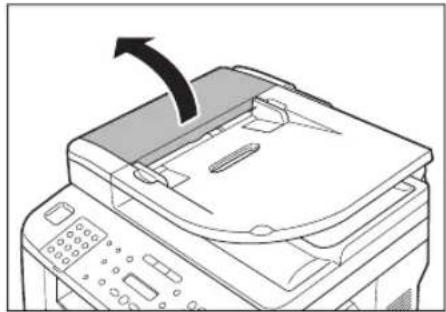
natural_image
Illustration of a printer with an arrow indicating compression or disassembly (no text or symbols present)3 Clean the rollers (A) inside the ADF with a cloth dampened with water. Then wipe the area with a soft, dry cloth.

text_image
A
CAUTION
Do not dampen the cloth too much, as this may tear the document or damage the machine.
4
Close the ADF cover.
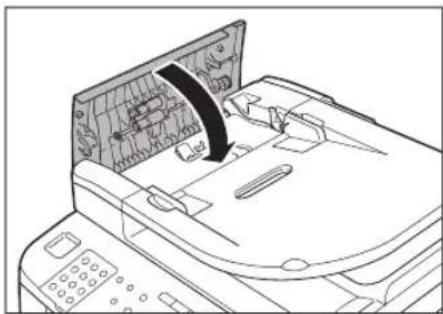
natural_image
Line drawing of a printer internal structure with no visible text or symbols
CAUTION
Be careful not to get your fingers caught.
5
Open the ADF.
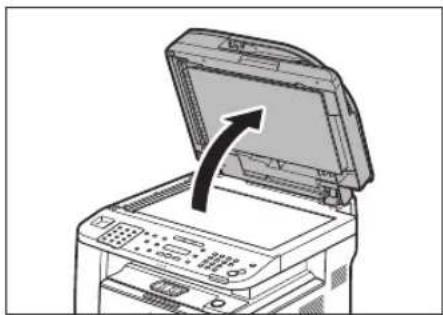
natural_image
Illustration of a printer with an open lid and arrow indicating compression or shift (no text or symbols)6
Clean the ADF scanning area (on the left side of the platen glass (A)) with a cloth dampened with water. Then wipe the area with a soft, dry cloth.
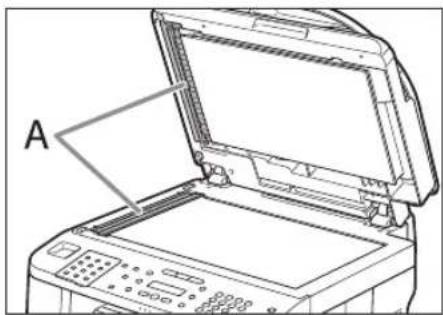
natural_image
Line drawing of an open printer with a labeled component 'A' (no text or symbols on the device itself)7 Close the ADF.
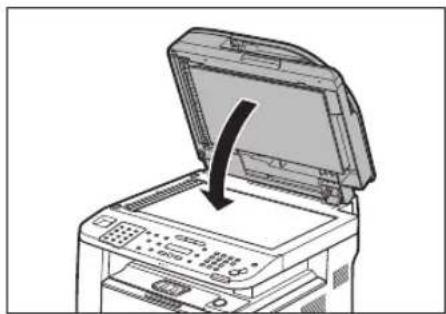
natural_image
Illustration of a printer with an open lid and a black arrow indicating compression or disassembly (no text or symbols present)
Be careful not to get your fingers caught.
Replacing the Toner Cartridge
This section describes how to replace or handle the toner cartridges and precautions on storing them.
When a Message Appears
Toner cartridges are consumable products. If the toner is running low or out during printing, a message appears in the display.
| Message When it is Displayed Contents and Remedies | |
| TONER LOWPREPARE NEW TONER | The toner is running low. Distribute toner-in the tonercartridge. (See “Redistributing Toner,” on p. 11-8.)– It is recommended that you replace the toner cartridge before printing a large amount of data.– If the message persists, replace the toner cartridge. (See “Replacing the Toner Cartridge with a New One,” on p. 11-9.) |
Redistributing Toner
When the toner is running low and the message

NOTE
When
1
If you are using the multi-purpose tray, fold multi-purpose tray extension, push back the auxiliary tray into place, and then close the multi-purpose tray.

natural_image
Diagram of a printer's internal structure showing paper folding and page loading (no text or symbols)2
Push the open button.
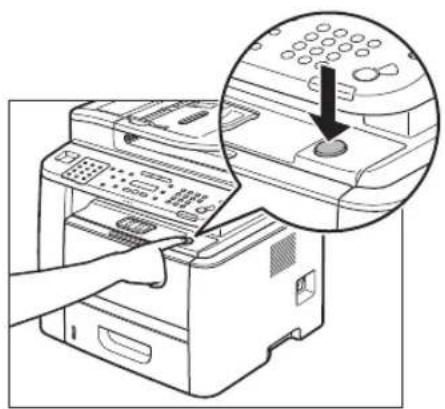
natural_image
Illustration of a printer presser with a hand inserting a button, showing the printer's control panel (no text or symbols present)3
Open the front cover.

natural_image
Diagram of a printer internal structure showing internal components and a paperclip (no text or symbols)4
Remove the toner cartridge.
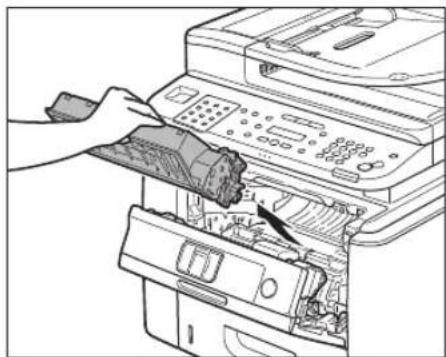
natural_image
Line drawing of a printer's internal structure showing paper feeding into a printer (no text or symbols visible)5
Gently rock the toner cartridge several times to evenly distribute toner inside.
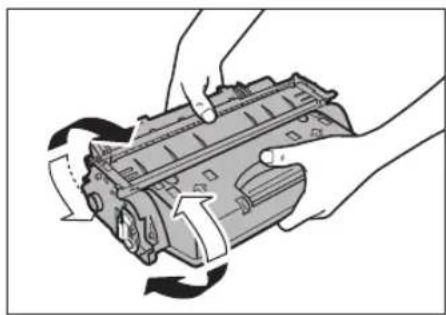
natural_image
Illustration of hands holding a mechanical component with directional arrows indicating rotation (no text or symbols)6 Align the toner cartridge to the guides in the machine and slide the cartridge completely into the machine until it stops.
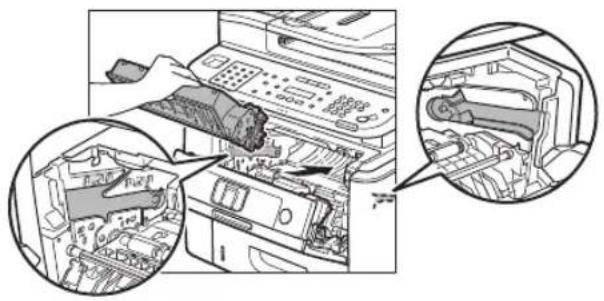
natural_image
Technical diagram showing internal components of a printer or printer with zoomed-in views (no text or symbols visible)7 Close the front cover.
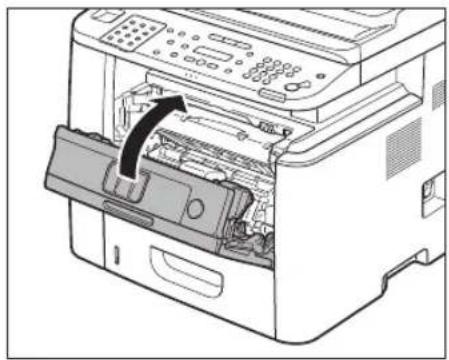
natural_image
Diagram of a printer internal structure showing internal components and a paperclip (no text or symbols)CAUTION
- Be careful not to get your fingers caught.
- If you cannot close the front cover, do not force it to close. Open the cover and make sure the toner cartridge is properly set in the machine.
Replacing the Toner Cartridge with a New One
When the message

NOTE
- When
1 If you are using the multi-purpose tray, fold multi-purpose tray extension, push back the auxiliary tray into place, and then close the multi-purpose tray.
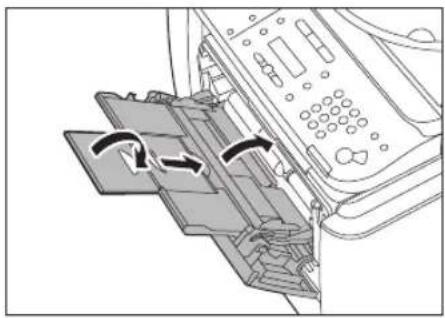
natural_image
Diagram of a printer's internal structure showing paper feeding into a printer (no text or symbols visible)2 Push the open button.
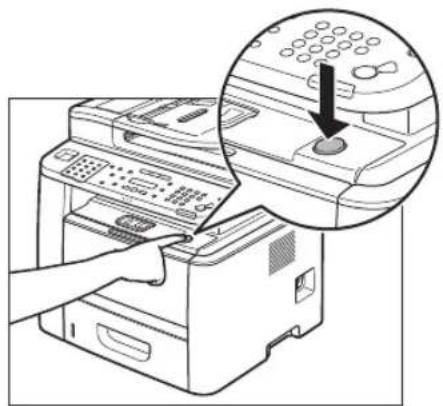
natural_image
Illustration of a printer with a hand inserting a button into the main device, showing a magnified view of the button (no text or symbols present)3 Open the front cover.

natural_image
Technical line drawing of a printer internal structure showing internal components and a paperclip (no text or symbols)Remove the toner cartridge.

natural_image
Line drawing of a printer's internal structure showing paper feeding into a printer (no text or symbols visible)5 Take out the toner cartridge from the bag.

natural_image
Illustration of hands holding a device with an arrow indicating left motion (no text or symbols)CAUTION
Do not open the drum protective shutter (A).
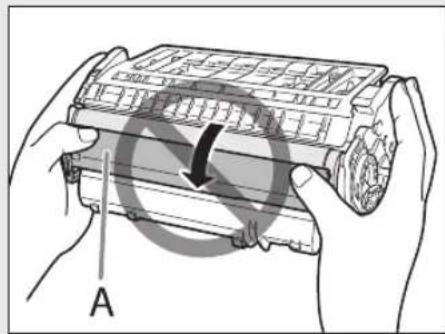
natural_image
Illustration of hands holding a device with a circular arrow indicating rotation or movement (no text or symbols)NOTE
Save the protective bag. You may need it later when you remove the toner cartridge from the machine.
6 Gently rock the toner cartridge several times to evenly distribute toner inside.

natural_image
Illustration of hands holding a mechanical component with directional arrows indicating motion (no text or symbols)NOTE
If toner is not distributed evenly, this may result in deterioration in print quality. Make sure to carry out this procedure properly.
7 Place the toner cartridge on a flat surface, fold back the tab of the sealing tape (A) located at left side of the toner cartridge, then pull the seal completely out.

natural_image
Illustration of hands using a tool to adjust a mechanical component, with an inset showing a close-up of the component (no text or symbols present)
CAUTION
- If the sealing tape is pulled out forcefully or stopped at midpoint, toner may spill out.
- If toner is adhered on the removed seal, be careful that your hands or clothes do not get dirty from touching the toner.
- If your hands or clothes get dirty from touching the toner, wash them immediately in cold water. Do not use hot water. If you do, the toner may be set permanently.
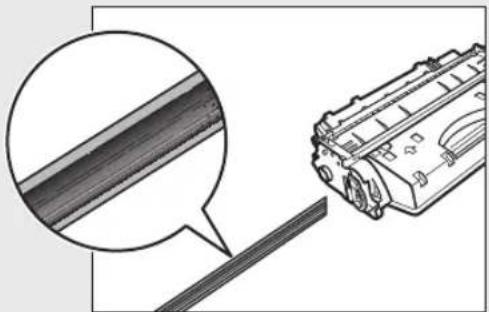
natural_image
Technical illustration of a mechanical component with a magnified inset showing a section detail (no text or symbols present)
NOTE
Do not pull the seal out at an angle.
8
Align the toner cartridge to the guides in the machine and slide the cartridge completely into the machine until it stops.

natural_image
Diagram showing three views of a printer's internal components: top view, front view, and close-up of internal parts (no text or symbols visible)9
Close the front cover.

natural_image
Diagram of a printer internal structure showing internal components and a paperclip (no text or symbols)
CAUTION
- Be careful not to get your fingers caught.
- If you cannot close the front cover, do not force it to close. Open the cover and make sure the toner cartridge is properly set in the machine.
Recycling Used Cartridges

natural_image
Symbolic icon combining a tree and globe, representing global biodiversity or environmental protection (no text or symbols present)Canon has instituted a worldwide recycling program for cartridges called "The Clean Earth Campaign". This program preserves precious natural resources by utilizing a variety of materials found in the used cartridges that are of no further use, to remanufacture new cartridges which, at the same time, keeps the environment cleaner by reducing landfill waste.
Complete details concerning this program are enclosed in each Cartridge box.
The Clean Earth Campaign - The Canon Cartridge Return Program
The Canon Cartridge Return Program fulfills the first initiative of Canon's Clean Earth Campaign, which supports four critical environmental areas:
● Recycling in the Workplace
● Conserving Environmental Resources
● Scientific Research and Education
● Encouraging Appreciation of the Outdoors
"Clean Earth" initiatives supported by Canon in the U.S. include Eyes on Yellowstone, Canon Envirothon, NATURE Series on PBS and The Canon Clean Earth Crew. Initiatives supported in Canada include Canon Envirothon and World Wildlife Fund - Canada.
Since its inception, The Canon Cartridge Return Program has collected millions of cartridges that otherwise would have been discarded into landfills or similar facilities. Instead, this rapidly growing program recovers used cartridges and separates them into components which are then put to various industrial uses.
Becoming a part of this worthwhile program is easy. When your cartridge is of no further use, simply follow the instructions detailed for U.S. or Canadian residents.
We appreciate your support of The Canon Cartridge Return Program.
Working together we can make a significant contribution to a cleaner planet.
● Cartridges collected through this program are not refilled.
● This program may be modified or discontinued without notice.
The Clean Earth Campaign
Supporting Environmental Initiatives With

text_image
The Clean Earth CANO National Environmental Education Week The Canon Cartridge Return Program CANO INTRIBUTION NATURE® Le Programme de Retour de Cartouches de Canon CANO INTRIBUTION WWFCanon
U.S.A. PROGRAM

Packaging
One Box Return
To receive your free eight cartridge collection box:
Call 1-800-OK-CANON
or
Visit www.usa.canon.com/cleanearth/return
OR
Place as many cartridges as possible into one box. Carefully seal the box with tape;
OR
Place an empty toner cartridge in the box that contained your new toner cartridge.
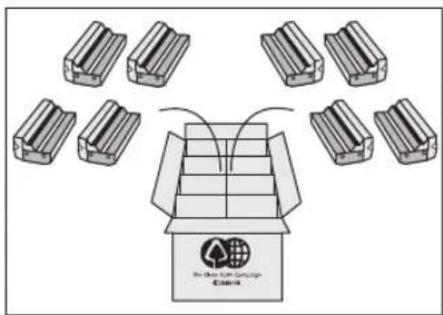
text_image
No. 300-500 Campaign EsterisBundled Return
Bundle multiple cartridge boxes together securely with tape.
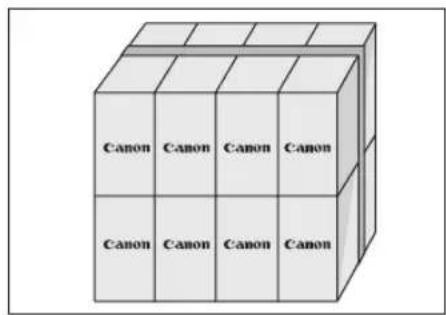
text_image
Canon Canon Canon Canon Canon Canon CanonPlease be sure that the shipment does not exceed UPS specifications (See Below).
Maximum weight = 70 pounds Maximum length = 108 inches
Maximum girth (length + 2 x width + 2 x height) = 130 inches
Please Note:
Do not send defective cartridges for replacement.
Defective cartridges under warranty should be exchanged by an authorized dealer or service facility as provided in the warranty.

Shipping
Make sure the UPS A.R.S. label is applied.
UPS Pick-up
Give the shipment to your UPS driver when you receive your next regular delivery.

natural_image
Illustration of two workers exchanging boxes with a globe logo, no text or symbols presentCall 1-800-PICK-UPS for Drop-Off options in your area.
By using either of the above methods of shipment, your used cartridge(s) will be forwarded to the Canon Cartridge Collection Center at no charge to you.
Residents of Alaska and Hawaii: Do not use UPS authorized return label.
Alternative return service with the U.S. Postal Service is available by calling
1-800-OK-CANON or visit www.usa.canon.com/cleanearth/return
For further information about the Clean Earth Campaign in the United States, please call: 1-800-OK-CANON or visit www.usa.canon.com/cleanearth
Canadian Program – Programme au Canada
■ Single Box Return
- Repackage the empty toner cartridge utilizing the wrapper and pulp mould end-blocks from the new cartridge's box.
● Place the empty toner cartridge in the box from your new toner cartridge. Seal the box. - Apply the Canon Canada Inc./ Canada Post label provided in this brochure. Canon's labels are specially marked so that Canon pays the postage.
- Deposit your empty toner cartridge in any full size street mailbox or take it to your local Canada Post outlet or franchise.

natural_image
Illustration of hands handling a mechanical component with no visible text or symbolsVolume Box Return (Maximum 8 Cartridges)
We encourage you to use this option as a more efficient way to ship cartridges.
- Please tape your eight cartridges together and place them in a box.
- Apply the Canon Canada Inc. / Canada Post label provided in this brochure. Canon's labels are specially marked so that Canon pays the postage.
- Deliver to any local Canada Post outlet or franchise. Customers who hold a Commercial pick-up agreement with Canada Post may have their collection box picked up.
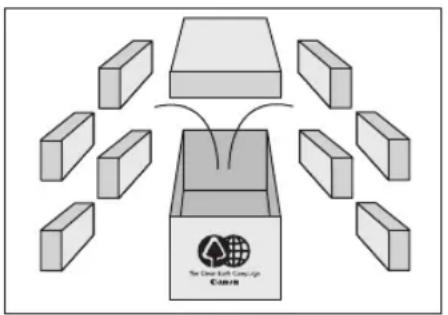
flowchart
graph TD
    A["The Clean Bulk Campaign"] --> B["Storage Unit 1"]
    A --> C["Storage Unit 2"]
    A --> D["Storage Unit 3"]
    A --> E["Storage Unit 4"]
    A --> F["Storage Unit 5"]
    A --> G["Storage Unit 6"]
    A --> H["Storage Unit 7"]
    A --> I["Storage Unit 8"]

natural_image
Illustration of two men in business attire exchanging a box (no text or symbols present)Working to protect the environment is a long-standing Canon interest. To this end, for every cartridge collected, Canon Canada donates funds to World Wildlife Fund - Canada and the Canon Envirothon.
For further information about The Clean Earth Campaign in Canada, please write to Canon.
Canon Canada Inc.
Corporate Customer Relations
6390 Dixie Road
Mississauga, ON L5T 1P7
Transporting the Machine
This section describes the required procedures before transporting the machine.
Follow this procedure to avoid vibration damage to the machine when transporting it over a long distance.

CAUTION
- Do not lift the machine by any of its attachments. Dropping the machine can cause personal injury.
- If you are using the Cassette Feeding Module-U1 (optional), transport the machine and the Cassette Feeding Module-U1 separately. If you transport the machine with the Cassette Feeding Module-U1 being installed, you may drop the machine.
- If you have a back problem, make sure to check the weight of this machine before carrying. (See "Specifications," on p. 14-2.)
1
Turn OFF the main power switch.
2
Disconnect the power cord and all the cables from the back of the machine.

text_image
Diagram showing cable connection to a printer with labeled components A and B, including connectors and cable routing.3
If you are using the multi-purpose tray, fold multi-purpose tray extension, push back the auxiliary tray into place, and then close the multi-purpose tray.

natural_image
Diagram of a printer's internal structure showing paper folding and page loading (no text or symbols)
NOTE
If you are using the sub-output tray, close the sub-output tray.
4
Push the open button.
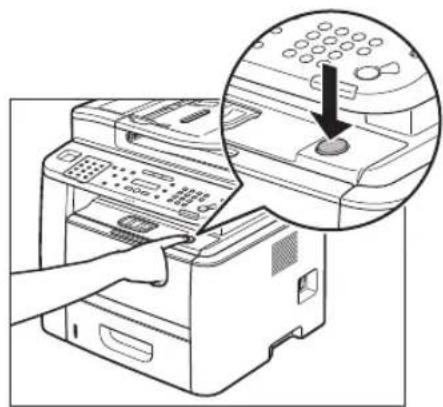
natural_image
Illustration of a printer with a hand inserting a button into the paper (no text or symbols visible)5 Open the front cover.

natural_image
Diagram of a printer internal structure showing internal components and a paperclip (no text or symbols)6 Remove the toner cartridge.

natural_image
Line drawing of a printer's internal structure showing paper being inserted into the page (no text or symbols visible)CAUTION
- To avoid exposing the toner cartridge to light, place it in its protective bag or wrap it in a thick cloth.
- Do not open the drum protective shutter (A) on the toner cartridge. Print quality may deteriorate if the drum surface is exposed to light or is damaged.

natural_image
Illustration of hands holding a mechanical component with a circular arrow indicating rotation (no text or symbols)
NOTE
Always hold the toner cartridge by its handle.
7 Close the front cover.

natural_image
Diagram of a printer internal structure showing internal components and a paperclip (no text or symbols)CAUTION
Be careful not to get your fingers caught.
8 Pull out the paper cassette gently.
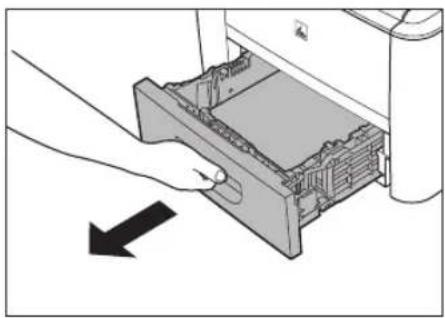
natural_image
Illustration of a hand inserting a device into a plastic container with an arrow indicating direction (no text or symbols present)9
Hold the paper cassette with both hands and remove it from the machine.
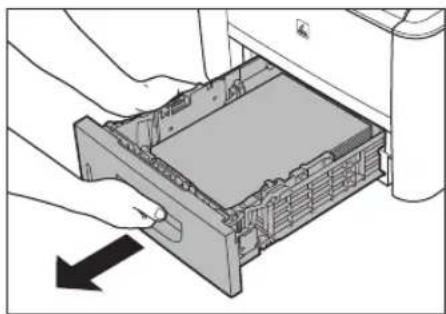
natural_image
Illustration of hands installing or removing a physical device into a rack (no text or symbols visible)■ If you are using the Cassette Feeding Module-U1 (optional):
① Pick up the machine using the hand grips on the left and right of the machine.
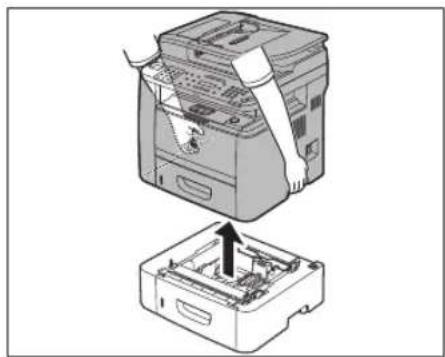
natural_image
Diagram showing a printer with a paper feeding into a base case, no text or symbols present
NOTE
To install the Optional Paper Cassette, perform the uninstalling procedure in reverse.
10
Grip the handles on both sides of the machine and lift it carefully, as shown in the illustration below.

natural_image
Illustration of hands inserting a device into a rack case, showing two views of the rack (no text or symbols present)Troubleshooting
Chapter 12
This chapter describes how to respond to paper and document jams, as well as to error messages.
Clearing Jams 12-2
Document Jams 12-2
Paper Jams 12-4
Display Messages 12-14
Error Codes (D1180/D1170/D1150) 12-18
If
Reloading the Paper 12-23
Changing the Paper Size Setting 12-23
If a Power Failure Occurs 12-26
If You Cannot Solve a Problem ....12-27
Customer Support (U.S.A.) 12-27
Customer Support (Canada) 12-27
Clearing Jams
When
- Fan and tap the paper stack on a flat surface before loading it in the machine.
- Check that the paper you are using meets the requirements for use. (See "Paper Requirements," on p. 2-6.)
- Make sure you have removed any scraps of paper from the inside of the machine.

CAUTION
- When removing jammed documents or paper, take care not to cut your fingers on the edges of the document or paper.
- When removing jammed paper or when inspecting the inside of the machine, do not allow necklaces, bracelets, or other metal objects to touch the inside of the machine, as this may result in burns or electrical shock.
- If you tear the paper, remove any torn pieces to avoid further jams.
- If your hands or clothes get dirty from touching the toner, wash them immediately in cold water. Do not use hot water. If you do, the toner may be set permanently.

NOTE
Do not force a jammed document or paper out of the machine. Contact Canon Customer Care Center if needed.
Document Jams
When
1
Open the ADF cover.

natural_image
Illustration of a printer with an arrow indicating compression or disassembly (no text or symbols present)2
Lift the release lever (A) until it clicks into place.
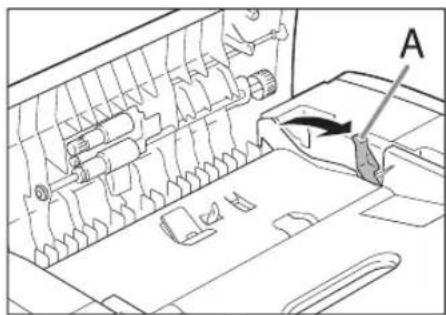
natural_image
Technical line drawing of a mechanical assembly with labeled component A (no text or symbols beyond label)
NOTE
When you lift the release lever (A), the inner cover opens.
3 Hold both sides of any jammed documents and gently pull them out straight upward.
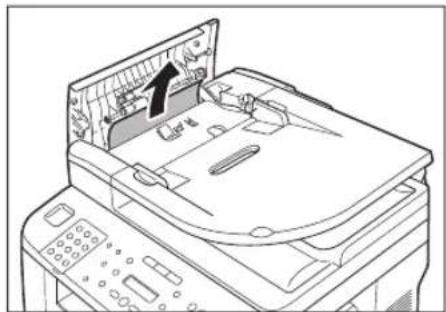
natural_image
Line drawing of a printer with a screen showing internal components (no text or symbols)
CAUTION
Do not force a jammed document out of the machine. If the jammed document cannot be removed easily, go to the next step.
4 Open the inner cover.

natural_image
Line drawing of a printer with a paper airplane showing internal components (no text or symbols)Remove the jammed document.
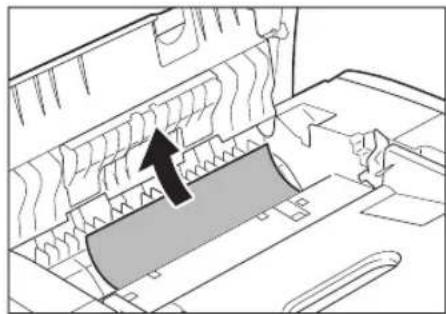
natural_image
Diagram of a mechanical assembly with a highlighted component and directional arrow (no text or symbols)
NOTE
Do not force a jammed document out of the machine. If the jammed document cannot be removed easily, go to the next step.
6 Remove Jammed paper while lifting the document feeder tray, holding it by its grip (A).
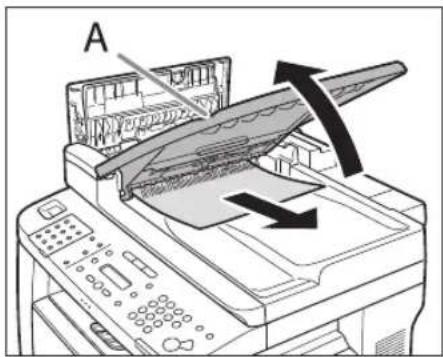
natural_image
Illustration of a printer with paper feed and paper roll, showing mechanical components and directional arrows (no text or symbols)
NOTE
Do not force a jammed paper out of the machine as it may tear.
Clearing Jams
7 Return the document feeder tray to the original position.
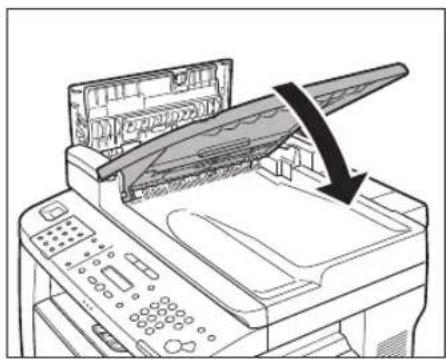
natural_image
Illustration of a printer with a paper airplane being inserted, showing the blade and paper (no text or symbols present)Close the inner cover.
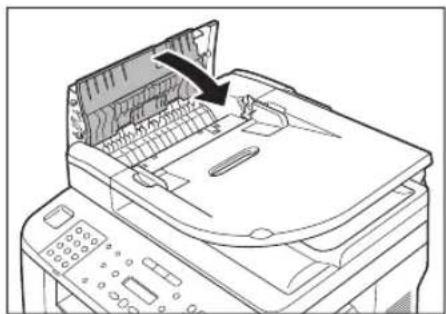
natural_image
Line drawing of a printer with an arrow pointing to the cover area (no text or symbols present)9 Close the ADF cover.
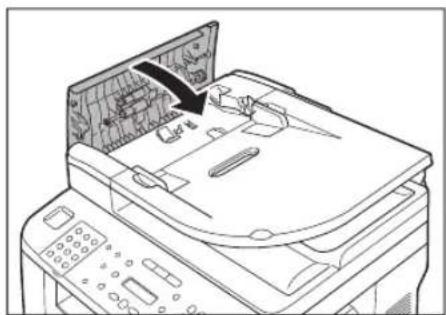
natural_image
Diagram of a printer with a screen showing internal components, no text or symbols presentCAUTION
Be careful not to get your fingers caught.
10 Open the ADF and then hold both sides of any jammed documents and gently pull them out.

natural_image
Line drawing of a printer with an open lid and base tray (no text or symbols)11 Close the ADF.

natural_image
Illustration of a printer with an open lid and a black arrow indicating compression or disassembly (no text or symbols present)CAUTION
Be careful not to get your fingers caught.
Paper Jams
When
NOTE
If the error messages still remains after having removed the jammed paper, open and close the front cover to reset the machine.

Rear Side of the Machine
When
1
Open the rear cover.
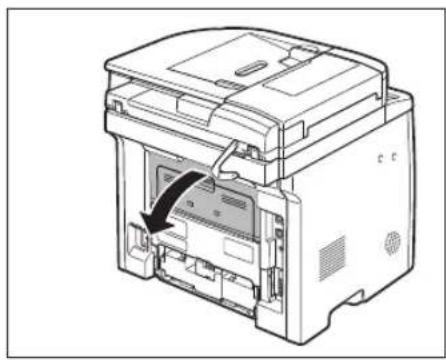
natural_image
Diagram of a printer internal structure showing internal components and a paperclip (no text or symbols)2
Hold both sides of any jammed paper and gently pull it out.
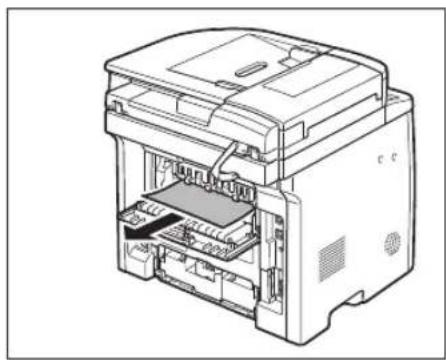
natural_image
Technical line drawing of a printer internal structure (no text or symbols)
CAUTION
Be careful not to touch the surroundings of the sub-output tray.
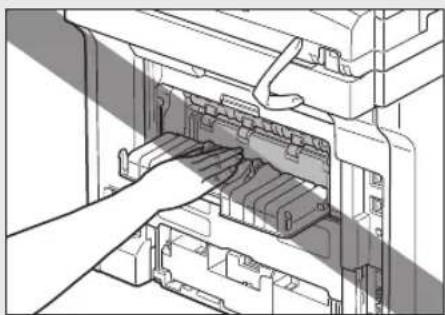
natural_image
Illustration of a hand inserting or removing a device into a rack (no text or symbols visible)3
Close the rear cover.

natural_image
Technical line drawing of an open industrial printer with internal components (no text or symbols)4
Open the duplex unit cover.
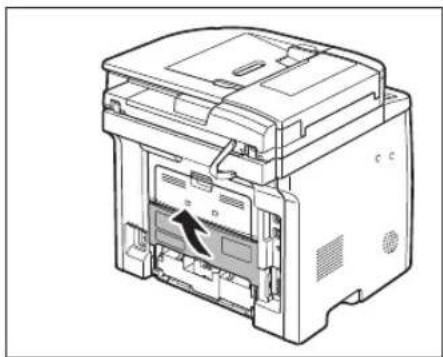
natural_image
Technical line drawing of a printer internal structure showing internal components (no text or symbols)5
Hold both sides of any jammed paper and gently pull it out.

natural_image
Technical line drawing of a mechanical device with internal components and a highlighted section (no text or symbols)Clearing Jams
6
Close the duplex unit cover.
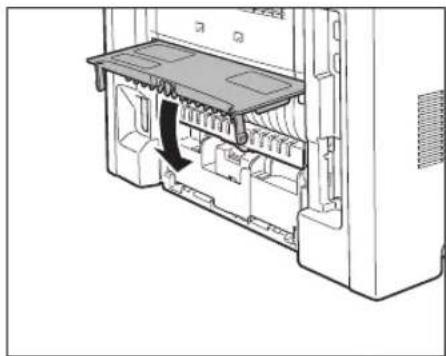
natural_image
Diagram of a server rack with internal components and a directional arrow indicating movement (no text or symbols)7
Open and close the front cover to reset the machine.
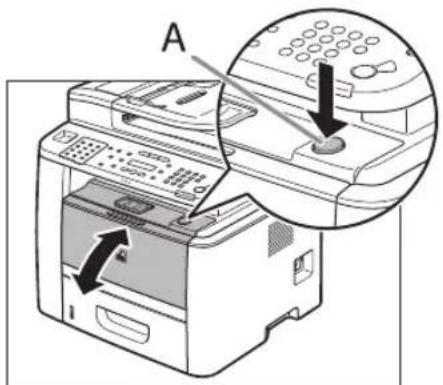
text_image
AIf you are using the multi-purpose tray, close it before opening the front cover. To open the front cover, push the open button (A).

CAUTION
Be careful not to get your fingers caught.

Front Side of the Machine
When
1
Push the open button.
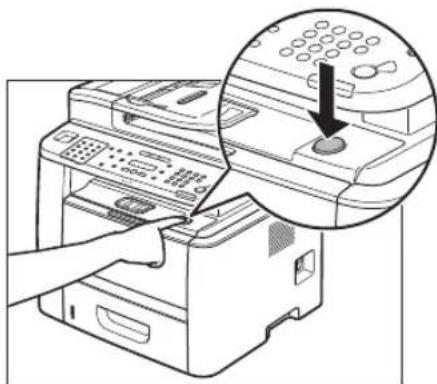
natural_image
Illustration of a printer with a hand inserting a button into the paper (no text or symbols present)If you are using the multi-purpose tray, close it before opening the front cover.
2
Open the front cover.

natural_image
Diagram of a printer internal structure showing internal components and a paperclip (no text or symbols)3
Remove the toner cartridge from the machine.
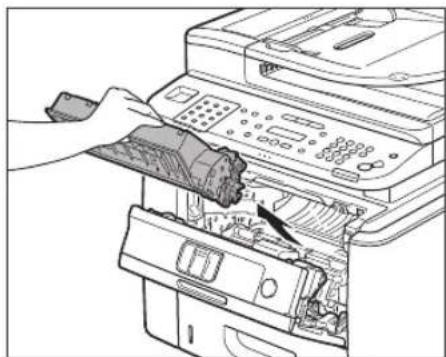
natural_image
Line drawing of a printer's internal structure showing paper being inserted into a machine (no text or symbols visible)
CAUTION
- Remove watches and any bracelets or rings when touching the inside of the machine. These items might be damaged if they come into contact with the parts inside of the machine.
- To avoid exposing the toner cartridge to light, place it in its protective bag or wrap it in a thick cloth.
- Do not open the drum protective shutter on the toner cartridge. Print quality may deteriorate if the drum surface is exposed to light or is damaged.

NOTE
Always hold the toner cartridge by its handle.
4
Remove the jammed paper from inside of the machine.
① Lift the transport guide by its corner tab and hold it.

natural_image
Diagram of a washing machine showing internal components and a close-up view of the handle (no text or symbols present)② Slide and push the jammed paper into the machine until the front edge of jammed paper comes out.
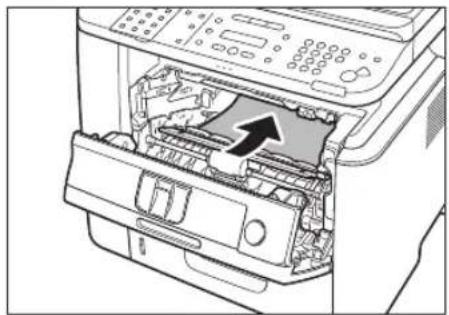
natural_image
Diagram of a printer internal structure showing internal components and a directional arrow (no text or symbols)③ Remove the Jammed paper from the machine.

natural_image
Diagram of an open printer with a paper sheet being inserted, showing internal components and control panel (no text or symbols)■ When the jammed paper was not removed.
① Lift the roller cover by its center tab and hold it.
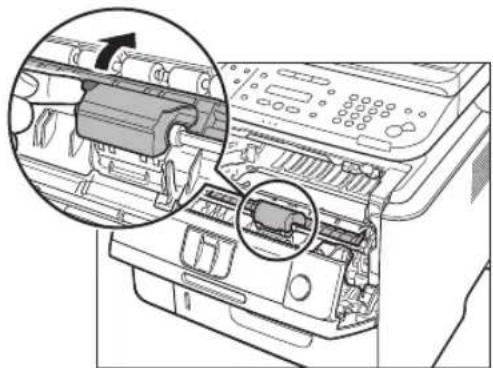
natural_image
Diagram of a printer internal structure showing internal components and a numbered inset view (no text or symbols present)② Remove the Jammed paper from the machine.

natural_image
Diagram of a printer internal structure showing internal components and a paperclip (no text or symbols)Clearing Jams
5 Align the toner cartridge to the guides in the machine and slide the cartridge completely into the machine until it stops.

natural_image
Diagram showing a printer's internal structure with three views of the printer's internal components (no text or labels present)6 Close the front cover.

natural_image
Diagram of a printer internal structure showing internal components and a paperclip (no text or symbols)CAUTION
Be careful not to get your fingers caught.
Output Tray
When
1 Hold the front side of the operation panel with your hands.
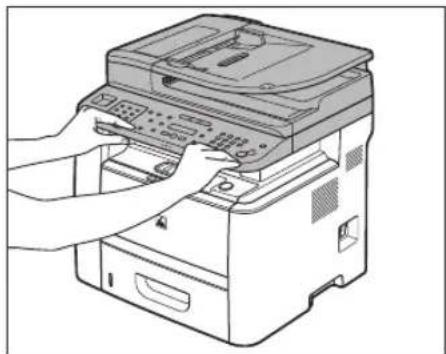
natural_image
Line drawing of a printer being inserted into a paper airplane (no text or symbols)2 Lift the scanning platform (A) until it is locked. (You will hear an audible "click.")
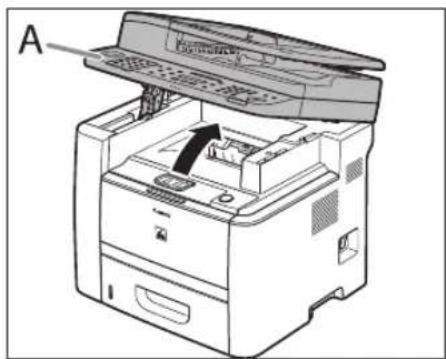
text_image
A3 Hold both sides of the jammed paper and gently pull it out.
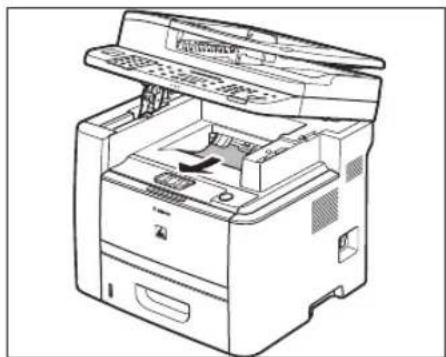
natural_image
Line drawing of a printer with open lid and internal mechanism (no text or symbols)
CAUTION
- Do not force a jammed paper out of the machine.
- The surroundings of the output tray are hot during printing or immediately after printing. When taking out of the paper or removing jammed paper, do not touch the surroundings of the output tray.

NOTE
If unfixed toner is on the removed paper, it may adhere to the paper to be printed next.
4
Lower the scanning platform.
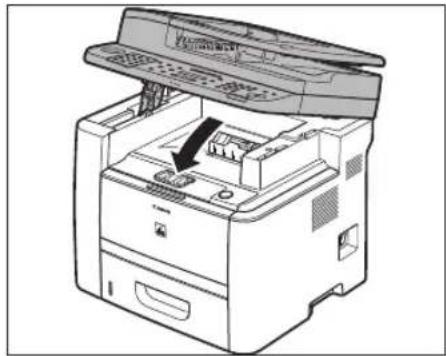
natural_image
Line drawing of a printer with an open lid and internal components, showing no text or symbols.
CAUTION
Be careful not to get your fingers caught.
5
Open and close the front cover to reset the machine.

text_image
AIf you are using the multi-purpose tray, close it before opening the front cover. To open the front cover, push the open button (A).

CAUTION
Be careful not to get your fingers caught.

Multi-Purpose Tray
When
1
Hold both sides of any jammed paper and gently pull it out.

natural_image
Diagram of a printer's internal structure showing paper feeding into a printer (no text or symbols visible)
CAUTION
Do not force a jammed paper out of the machine.
2
Close the multi-purpose tray.

natural_image
Diagram of a printer's internal structure showing paper feeding into a printer with arrows indicating rotation (no text or symbols present)Clearing Jams
3 Open and close the front cover to reset the machine.
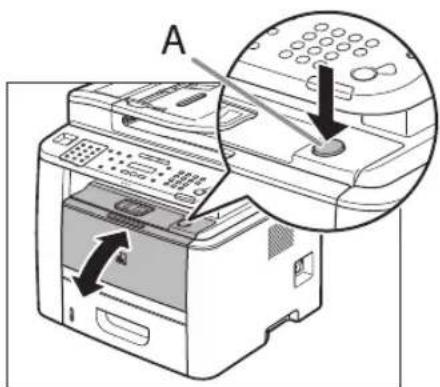
text_image
AIf you are using the multi-purpose tray, close it before opening the front cover. To open the front cover, push the open button (A).

Be careful not to get your fingers caught.
Paper Cassette
When
1 Pull the paper cassette half way out.
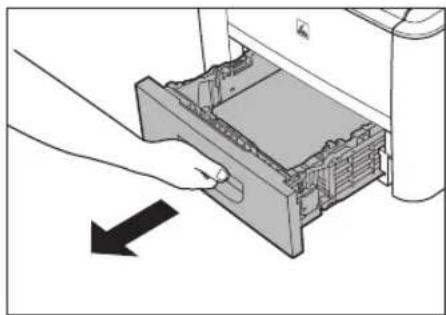
natural_image
Illustration of a hand inserting a device into a machine (no text or symbols visible)2 Push downward on the jammed paper as you remove it.
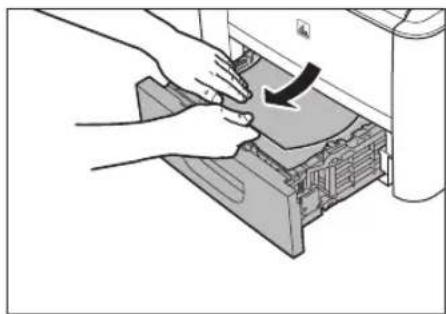
natural_image
Illustration of hands operating a printer with a scroll wheel (no text or symbols visible)
Do not force a jammed paper out of the machine. Doing so may result in the feed roller coming off.
3 Gently push the paper cassette back into the machine until it clicks into place in the closed position.
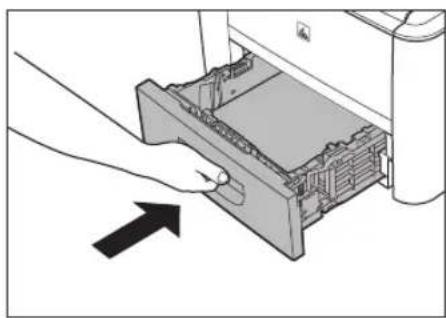
natural_image
Illustration of a hand inserting a device into a printer case, with an arrow indicating direction (no text or symbols present)4 Open and close the front cover to reset the machine.

text_image
AIf you are using the multi-purpose tray, close it before opening the front cover. To open the front cover, push the open button (A).

CAUTION
Be careful not to get your fingers caught.

Optional Paper Cassette
When
1 Pull the optional paper cassette half way out.
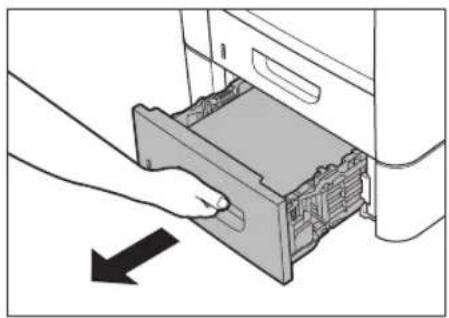
natural_image
Illustration of a hand inserting a device into a drawer with an arrow indicating direction (no text or symbols present)2 Push downward on the jammed paper as you remove it.
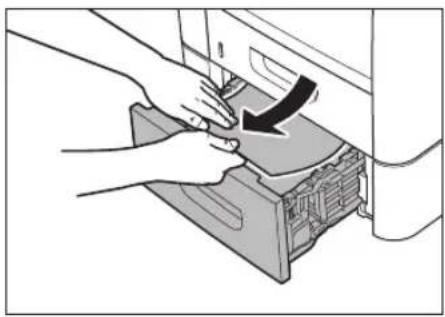
natural_image
Illustration of hands installing or adjusting a mechanical component with an arrow indicating rotation (no text or symbols present)
NOTE
Do not force a jammed paper out of the machine. Doing so may result in the feed roller coming off.
3 Gently push the optional paper cassette back into the machine until it clicks into place in the closed position.

natural_image
Illustration of a hand inserting a device into a storage unit (no text or symbols visible)Clearing Jams
4 Open and close the front cover to reset the machine.
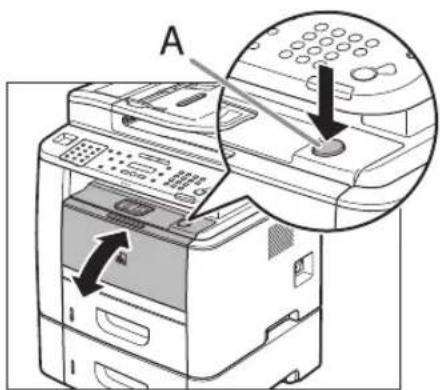
text_image
A AIf you are using the multi-purpose tray, close it before opening the front cover. To open the front cover, push the open button (A).

Be careful not to get your fingers caught.
Duplex Unit
When
1 Pull out the paper cassette.
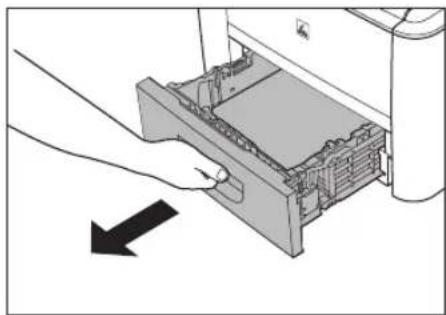
natural_image
Illustration of a hand inserting a device into a printer case, with no visible text or symbols2 Hold the paper cassette with both hands and remove it from the machine.

natural_image
Illustration of hands inserting a device into a rack, showing internal components and a downward arrow (no text or symbols)3 Open the duplex print transport guide, holding its tab (A) on the left side inside of the machine.
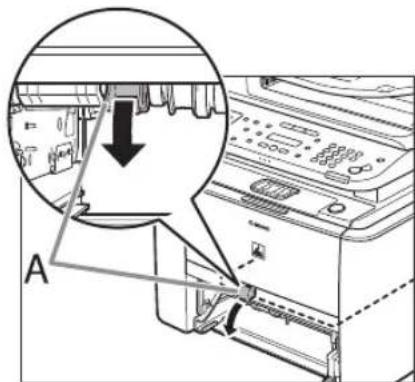
natural_image
Diagram of a refrigerator interior showing a door, front panel, and side arm with a magnified inset highlighting the door handle (no text or symbols present)4 Hold both sides of any jammed paper and gently pull it out.
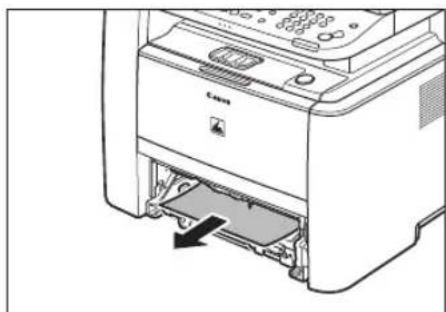
natural_image
Illustration of a printer with a paper feed into the output (no text or symbols visible)
CAUTION
Do not force a jammed paper out of the machine.
5 Close the duplex print transport guide.
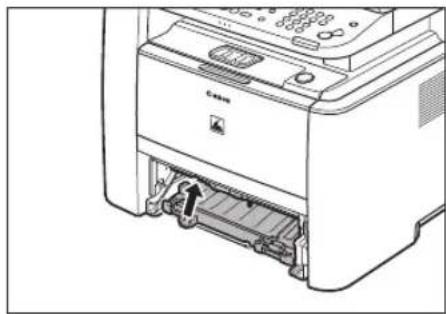
natural_image
Diagram of a Canon printer with an inserted paper strip and a paper holder (no text or symbols visible)6 Hold the paper cassette with both hands and set it back into the machine.
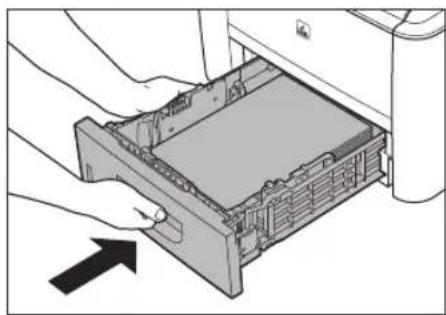
natural_image
Diagram of hands inserting a physical device into a folder, with an arrow indicating direction (no text or symbols present)
CAUTION
Be careful not to get your fingers caught.
7 Open and close the front cover to reset the machine.
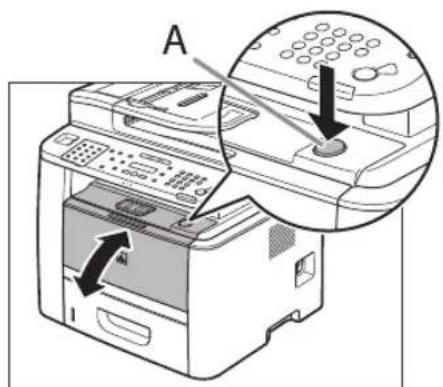
text_image
AIf you are using the multi-purpose tray, close it before opening the front cover. To open the front cover, push the open button (A).

CAUTION
Be careful not to get your fingers caught.
Display Messages
See the table below when the error and status messages appear on the display.
| Message Description Action | ||
| AVAILABLE MEMORY nn% | This message shows the percentage of the memory currently available. | If you need more space, wait for the machine to send any documents in memory. Also print, send, or delete any documents stored in memory. |
| CANNOT PRINT RX DATAFIX ERROR TO PRINT | The machine temporarily received the fax in memory because an error of some kind has occurred in the machine.This error message appears with one of the messages below.-––––––––– | This error message appears with another message. When the error is resolved, the received data will be printed out. For how to solve the problem, see the action for the messages displayed with it. |
| CANNOT SEND CHECK SETTINGS | – Specifically specified that no fourth thing when the line is off the hook.– Make sure that if the line is discontinued for coded dial code that has registered with other than fax number when the line is off the hook.– You can not register up a row ad copy and for three levels of subgroups (e.g., a group registered in a group). | –dialing.–more than three levels of subgroups.Modify the group so that it contains three levels of groups or less. |
| CHANGE PAPERSIZE The paper size is not appropriate for a 2-sided copy. | Set the paper size toor, then load paper of the same size. | |
| CHANGE REG'D SIZE → PAPER SETTINGS | – Set the paper size is not appropriate for a 2-sided copy, printing a report or list.– The paper remains at while printing a received document, report or list.– Other size of the paper is in the Asset E5sette or multi-purpose tray is different from that of the paper specified in,(optional) or, which are displayed by pressing [Paper Settings]. | ––(optional) or[Paper Settings], which are displayed by pressing [Paper Settings]. For details, see "Ifis displayed," on p. 12-23. |
| CHECK DOCUMENT A document jam may have occurred in the ADF. | Remove the jammed document. | |
| COLOR MODE IS SET CANNOT MULTI DEST TX | You have specified multiple recipients when using a color sending. | When using a color sending, you can specify only one recipient. Send one by one, or use black and white sending. |
| DATA ERROR PRESS START KEY | The machine may have trouble. | Press [Start] to restore all settings to the default. If the message persists, contact Canon Customer Care Center. |
| DOCUMENT TOO LONG | The document fed from the ADF is longer than 24 7/8" (630 mm), or is not feeding correctly. | - Scan the document on the platen glass.- Reduce the length of the document to within 24 7/8" (630 mm), then try again. |
| FEEDER PAPER JAM CHECK THE FEEDER | A document jam may have occurred in the ADF. | Remove the jammed document. |
| INITIALIZING... PLEASE WAIT | This message appears when turning ON the main power switch, or when the machine is not ready for printing. | Wait until the message disappears. |
| LOAD CORRECT PAPER | The size of the paper in the paper cassette or multi-purpose tray is different from that of the paper specified in,(optional) or, which are displayed by pressing [Paper Settings]. | Load the correct size paper or change the paper size in,(optional) or, which are displayed by pressing [Paper Settings]. For details, see "Ifis displayed," on p. 12-23. |
| LOAD PAPER No paper is loaded paper properly then press [OK] when or multi-purpose tray when copying or printing.- In a paper is ordered in the paper case when or multi-purpose tray when printing a received document.Or, when printing a report or list, this message appears if the paper size is not appropriate for printing a report or list even if paper is loaded. This error message appears with one of the messages below.(PAPER SETTINGS), or, and then load paper of the same size. | - using the paper cassette.- using the paper cassette.For report or list, set the paper size to,(or, and then load paper of the same size. | |
| MEMORY FULL The machine is full of jobs.- Print, send, or delete any documents stored in memory.- Divide the document stack or data into a few parts and try again one by one.- Send the document with low resolution.- When this message appears during using the ADF, the scanning document stops halfway. In this case, clear the paper jam from the ADF.-stored in memory are as follows (Based on the condition that the other party sends the fax by the imageCLASS D1180 with ITU-T No.1 Chart standard mode); Up to 70 jobs for sending or 90 jobs for receiving, 95 fax jobs including sending and receiving, or 75 e-mail and I-fax jobs for receiving. Wait for the machine to send any documents in memory. Also print, send, or delete any documents stored in memory. | ||
| NOT AVAILABLE NOW You Regist the one-touch key or coded dial dial code that has already been registered, when you are registering group addresses.- You selected the group dialing that has already been registered, when you are registering a one-touch key or coded dial code. | code that is not used. | |
| NOT REGISTERED No recipient is registered for the one-touch key or coded dial code you pressed. | Register the recipients before using the Address Book function. | |
| OVER PAGE LIMIT You cannot print because the page limit has been reached. | Contact your system manager. | |
| PAPER IN MP TRAY REMOVE PAPER | Paper is loaded in the multi-purpose tray. Remove the paper from the multi-purpose tray. The machine will not print faxes, reports, or lists when paper is loaded in the multi-purpose tray. They will be stored in memory. | |
| PAPER JAM LIFT PANEL TO OPEN | Paper jams have occurred in the machine.orappears alternately. | Clear the paper jam (See "Paper Jams," on p. 12-4) and reload paper in the paper cassette or multi-purpose tray. The cover must be opened and closed to resume the current job. |
| PHONE OFF HOOK HANG UP PHONE | The external telephone is off the hook. Hang up | the external telephone. |
| PREPARING SCANNER.. PLEASE WAIT | The machine is not ready for scanning. Wait until the machine is ready. | |
| START AGAIN A transmission error has occurred because the line condition was poor. | Check the line condition, then try again. | |
| STOP KEY PRESSED PRESS OK KEY | [Stop/Reset] has been pressed while scanning the document using the ADF. | Press [OK], then set the document again. |
| SYSTEM ERROR Some kind of error has occurred in the machine. | Turn OFF the main power switch, wait for more than 10 seconds, then turn it ON again. If the message persists, turn OFF the main power switch, disconnect the power cord, and contact Canon Customer Care Center. | |
| TONER COVER OPEN CLOSE COVER | A cover is open. Check the cover, and make sure that it is completely closed. | |
| TONER LOW PREPARE NEW TONER | The toner is running low. Prepare a new toner cartridge. | |
Error Codes (D1180/D1170/D1150)
An error code is a four-digit code shown on an ERROR TX REPORT or an RX ERROR REPORT when an error occurs.
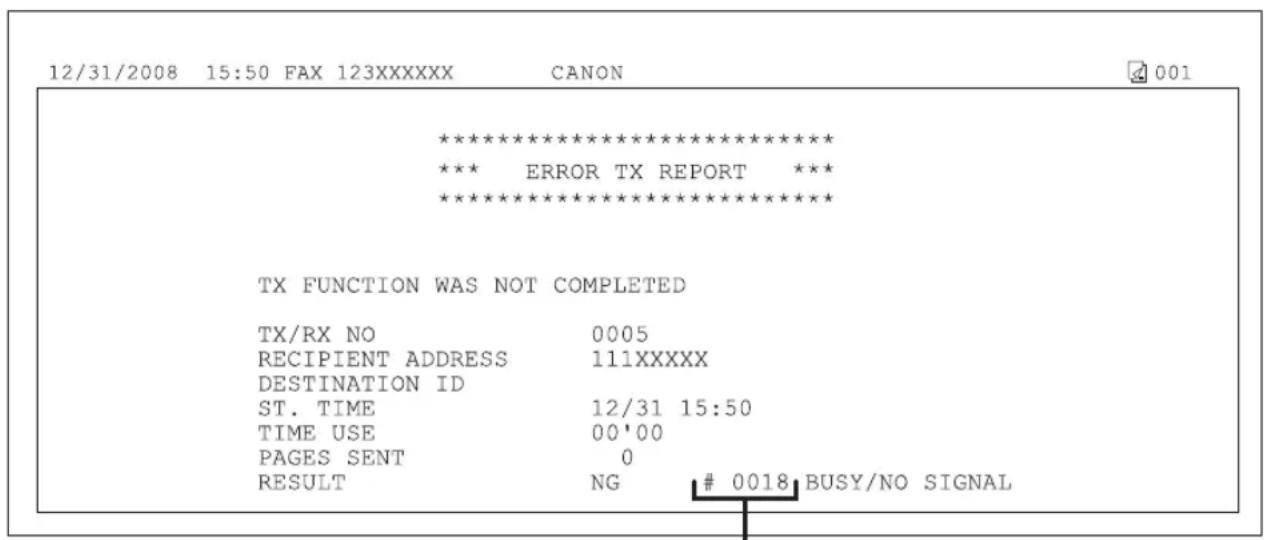
text_image
12/31/2008 15:50 FAX 123XXXXXX CANON ************************** *** ERROR TX REPORT *** ************************** TX FUNCTION WAS NOT COMPLETED TX/RX NO 0005 RECIPIENT ADDRESS 111XXXXX DESTINATION ID ST. TIME 12/31 15:50 TIME USE 00'00 PAGES SENT 0 RESULT NG # 0018 BUSY/NO SIGNALError Code
For details on reports, see "Summary of Reports and Lists," in the e-Manual.
See the table below for individual error codes.
| Error Code Description Action | ||
| 0001 | A document may be jammed. Remove the jammed | document. (See “Clearing Jams,” on p. 12-2.) |
| 0003 | – Divide the documents into smaller packets and of 24 7/8” (630 mm) or longer from the ADF.– Reduce them taking keyglitition before because it contains too much data.A document takes a long time to receive.– Cont | – send from the platen glass.– sending..act the other party and ask them to reduce their scanning resolution or divide the document into smaller parts for sending. |
| 0005 | – Select the documents and contacts within 35 seconds.– Check with party they partly and disengd GB fax machine. | – party and have them check their fax machine. If you are making an overseas call, add a pause to the number.– document to a G3 fax machine. If the other party does not have a G3 fax machine, try sending your document using a transmission mode the other party’s fax machine supports. |
| 0009 | The paper has run out or the paper cassette is not set properly. | Load the paper or reset the paper cassette properly. |
| 0012 | You could not send because the recipient's machine is out of paper. | Contact the recipient and ask them to load the paper. |
| 0018 | There is no reply when you redial. You could not send, because your fax signal was not returned as the recipient's line was engaged. | Check that the recipient's line is not engaged and try again from the beginning. |
| 0037 | The memory is full. Print, send, or delete any documents stored in memory. | |
| 0703 | The memory for image data is full when sending color documents. | - Wait a few moments, and then try sending again after other send jobs are complete.- Erase documents stored in memory. If the machine still does not operate normally, turn the main power OFF, and then back ON. |
| 0705 | The send operation was interrupted because the size of the image data is larger than that specified ininin. | - Change the setting forininin. - Select a lower resolution. |
| 0751 | The server is not functioning. The network is down (the server is unable to connect to the network or was disconnected). | - Check the recipient's address.- Check that the network is up. |
| 0752 | - Check that EMTSATE is never found in email must correct.- Check that domain personal mail may not be set.The mail server is not functioning.- Ask the network administrator to check that the mail server is operating properly.The network is down.- Ask the network administrator to check that the network is operating properly.- When sending addresses were held in the environment, color, some error occurred. | - SERVER inin matches the SMTP server address you checked in "Checking Your E-mail Account," in the e-Manual.- NAME ininin inis set correctly.- Check that e-mail address ininis set correctly. - ask the network administrator to check that the network is operating properly. |
| 0753 | A TCP/IP error occurred while sending documents to a file server, or sending an e-mail message. (Socket, Select error, etc.) | - Check that the network cable is properly connected between the machine and your computer.- Check thatis set to.(See “Setting Up the Send Files Function of the Machine,” in the e-Manual)- Check thatof the file server destination is set correctly. (See “Setting Up the Send Files Function of the Machine,” in the e-Manual.)- Check thatis set correctly. (See “Setting Up the Send Files Function of the Machine,” in the e-Manual.)- Setto.(See “Setting Up the Send Files Function of the Machine,” in the e-Manual.)- Check the settings in Windows Firewall.- If the machine still does not operate normally, turn OFF the main power switch of the machine, wait for at least 10 seconds, and then turn it ON again. |
| 0755 | - Check a TCP/IP SET Job Because NETWORK not functioning correctly.The IP address is not set.- Checkin | - SETTINGS[in. |
| - Check - the TCP/IP SET Job Stuined NETWORK address was not assigned to the machine by the DHCP, RARP, or BOOTP server. | - SETTINGS[in. | |
| 0801 | - Check that the SMTP used when a machine was communicating with the SMTP server to send an e-mail message or receive an I-fax.- Check SMTP she SMTP served as functioning trying to connect. The destination is not correct. An error occurred on the server side during transmission to a file server. | -normally, or check the network status.- normally. Check the network status. Check the destination setting. Check the status and setting of the file server. |
| 0802 | The name of the SMTP server is not correct.- Check the SMTP server name ininin matches the SMTP server address you checked in "Checking Your E-mail Account," in the e-Manual.- NAME in in in in in in is set correctly. (See "Setting DNS," in the e-Manual.)The name of the DNS server is not correct.- Check thatandin in in in is set correctly. (See "Setting DNS," in the e-Manual.)Connection to the DNS server failed.- Ask the network administrator to check that the DNS server is operating properly. | -NAME> in in in in is set correctly. (See "Setting DNS," in the e-Manual.) |
| 0804 | You have no privilege to access the folder. Change the setting on the server to enable access to the folder. | |
| 0806 | - Change the name or password was specified for the sending of a file to a file server.- Check the password was specified for the sending of an e-mail message. | |
| 0810 | - Check the POP (ReBOP) for Protocol, insert E-mail infection error occurred while receiving an I-fax.- Check the POP server returned or mailing the connection.- Check the POP server returned in the E-mail while connecting to the POP server. | -FAX> in in . Confirm that the POP server is functioning normally. Check the network status.- FAX> in in . Confirm that the POP server is functioning normally. Check the network status.- FAX> in in . Confirm that the POP server is functioning normally. Check the network status. |
| 0812 | The POP password setting is incorrect. Check the POP server password inin. | |
| 0813 | The POP server name setting is incorrect. Check the POP server name inin. | the POP server name inin. |
| 0819 | You have received data that cannot be processed (MIME information is incorrect). | Check the settings, and then ask the sender to resend the data. |
| 0820 | You have received data that cannot be processed (BASE 64 or uuencode is incorrect). | Check the settings, and then ask the sender to resend the data. |
| 0821 | You have received data that cannot be processed (TIFF analysis error). | Check the settings, and then ask the sender to resend the data. |
| 0827 | You have received data that cannot be processed (contains MIME information that is not supported). | Check the settings, and then ask the sender to resend the data. |
| 0828 | You have received HTML data. Ask the sender to use a file format other than HTML, and then resend the data. | |
| 0829 | Data containing more pages that the machine can hold in the memory is received. | Print the received documents, and ask the sender to resend the remaining pages. |
| 0839 | The user name or password for the SMTP authentication inis incorrect. | Check the user name and password forinin. (See “SYSTEM SETTINGS,” on p. 13-16.) |
| 0995 | Communication reservation is cleared. If necessary, try again from the beginning. | |
If is displayed
When

NOTE
For print jobs, you need to specify the paper size from your computer.
Reloading the Paper
1 Load the correct size paper as shown on the display, then press [OK] to resume the job.
The machine re-starts printing.
Changing the Paper Size Setting
Follow the procedure below to change the paper size setting.

For Copy Job
1 Press [Stop/Reset].
2 Press to select
CANCEL?
< YES
3 Press (Paper Settings) repeatedly to select
CASSETTE 1
-
- If you select
M P TRAY STD SET
4 Press or to select the size of the paper loaded into the machine, then press [OK].
PAPER SIZE (CASS
5 Press or to select the type of the paper loaded into the machine, then press [OK].
PAPER TYPE (CASS
PLAIN
6
Resume the copy job.

For Fax Job
1
Press (Paper Settings) repeatedly to select
CASSETTE 1
-
- If you select
M P TRAY STD SET
2
Press or to select the size of the paper loaded into the machine, then press [OK].
PAPER SIZE (CASS
3
Press ☐ to select the type of the paper loaded into the machine, then press [OK].
PAPER TYPE (CASS PLAIN
4
Open and close the paper cassette that you set in step 1 to resume the fax job.

NOTE
For the multi-purpose tray, skip this step.

For Report/List Job
1
Press ☐Job Cancel/Status Monitor] repeatedly to select
REPORT STATUS
2
Press or to select the job to cancel, then press [OK].
Ex.
0 0 0 3 15:50 ACTIVITY R

NOTE
The displayed job varies depending on the job that you select.
3
Press or to select
Ex.
0 0 0 3 C A N C E L
4
Press to select
CANCEL? <YES
5
Press [Stop/Reset] to return to the standby mode.
6 Press (Paper Settings) repeatedly to select
CASSETTE 1
-
M P TRAY STD SET
7 Press or to select the size of the paper loaded into the machine, then press [OK].
PAPER SIZE (CASS
8 Press or to select the type of the paper loaded into the machine, then press [OK].
PAPER TYPE (CASS PLAIN
9 Resume the report/list job.
For Print Job
1 Press ☐Job Cancel/Status Monitor] repeatedly to select
JOB CANCEL
2 Press or to select
JOB CANCEL PRINT
3 Press or to select the job to cancel, then press [OK].
Ex.
0 0 0 3 test.txt - No

NOTE
The displayed job varies depending on the job that you select.
4 Press to select
CANCEL? < YES
5 Press [Stop/Reset] to return to the standby mode.
6 Select [Output Size] on the printer driver to match the setting in the machine, then resume the print job.
If a Power Failure Occurs
If power is suddenly lost due to an outage or accidental unplugging, a built-in battery retains the user data settings and the Address Book settings. Any sent or received documents stored in memory are backed up for about 15 minutes. During a power cut, functions are limited as follows:
- You cannot send, receive, copy, scan, or print documents.
- You may not be able to make telephone calls using an external telephone, depending on the type of telephone you use.
- You can receive telephone calls using an external telephone depending on the type of telephone you use.
To fully charge the built-in battery, it takes approximately 12 hours after when the main power switch is ON. If the built-in battery is not fully charged, the data may not be saved properly.
If You Cannot Solve a Problem
This section describes the customer support services.
Customer Support (U.S.A.)
If you cannot solve the problem after having referred to the information in this chapter, contact Canon Customer Care Center at 1-800-OK-CANON Monday through Friday between the hours of 8:00 A.M. to 8:00 P.M. EST. On-line support is also available 24 hours a day at the website http://www.canontechsupport.com.
Customer Support (Canada)
Canon Canada Inc., offers a full range of customer technical support options*:
- For e-mail support, the latest driver or document downloads, and answers to frequently asked questions, visit http://www.canon.ca/
- Free live technical support 9 A.M. to 8 P.M. EST Monday through Friday (excluding holidays) for products still under warranty 1-800-652-2666
- If the problem cannot be corrected by using one of the above technical support options, repair options are available at the time of your call to the live technical support number above or via the website at http://www.canon.ca/
* Support program specifics are subject to change without notice.
Please have the following information ready when you contact Canon:
– Product name (imageCLASS D1180/D1170/D1150/D1120)
- Serial number (on the label located on the rear cover)
- Place of purchase
- Nature of problem
– Steps you have taken to solve the problem and the results

CAUTION
If the machine makes strange noises, emits smoke or odd odor, turn OFF the main power switch immediately, disconnect the power cord, and contact Canon Customer Care Center. Do not attempt to disassemble or repair the machine yourself.

NOTE
Attempting to repair the machine yourself may void the limited warranty.
Machine Settings
Chapter 13
This chapter describes how to change and check the machine settings.
Machine Settings 13-2
Printing USER DATA LIST 13-2
Accessing the Setting Menu 13-2
Setting Menu 13-3
VOLUME CONTROL....13-3
COMMON SETTINGS 13-4
COPY SETTINGS 13-5
TX/RX SETTINGS 13-6
ADDRESS BOOK SET. 13-9
PRINTER SETTINGS 13-11
TIMER SETTINGS 13-13
ADJUST./CLEANING 13-14
REPORT SETTINGS 13-15
SYSTEM SETTINGS 13-16
Machine Settings
You can adjust the machine settings from the Setting Menu to customize the way the machine works. To see the list of the current settings, print out USER DATA LIST.
Printing USER DATA LIST
To print USER DATA LIST, follow the procedure below.
1 Press [Report] repeatedly to select
USER DATA LIST
2 Press to select
OK TO PRINT? < YES
Printing starts, and the screen automatically returns to the standby mode.
Accessing the Setting Menu
To access the setting menu, follow the procedure below.
1 Press ⒹMenu].
2 Press or to select the menu you want to access, then press [OK].
MENU 1.VOLUME CONTR

NOTE
These menus are based on the D1180.
3 Press or to select a submenu, then press [OK].
VOLUME CONTROL 1. MONITOR VOLUM

NOTE
For details on the submenu, see "Setting Menu," on p. 13-3.
4 To register the settings or go to a submenu item, press [OK].
5 When finished, press [Stop/Reset] to return to the standby mode.
- If you press [Stop/Reset] before pressing [OK], the setting will not be registered.
- Press Ⓞ [Menu] to return to the previous display.
Setting Menu
The menus described in this section are based on the D1180. Depending on the model of your machine, some settings may not be available and the number on each menu may vary. The default settings are indicated in bold text.
VOLUME CONTROL
| Item Settings Applicable Page | ||
| 1. MONITOR VOLUME * 1 | - OFF- ON (1-3) | e-Manual"Introduction of the Machine" |
| 2. RING VOLUME * 1 | 1-3- | |
| 3. ENTRY TONE OFF | --ON (1-3) | |
| 4. ERROR TONE OFF | --ON (1-3) | |
| 5. TX JOB DONE TONE * 1 | - OFF- ON (1-3)-ERROR ONLY (1-3) | |
| 6. RX JOB DONE TONE * 1 | - OFF- ON (1-3)-ERROR ONLY (1-3) | |
| 7. SCAN DONE TONE OFF | --ON (1-3)-ERROR ONLY (1-3) | |
| 8. PRINT DONE TONE OFF | --ON (1-3)-ERROR ONLY (1-3) | |
*1 Available for the D1180/D1170/D1150.
COMMON SETTINGS
| Item Settings Applicable Page | ||
| 1. INITIAL FUNCTION COPY | -- SEND*1- SCAN | e-Manual"Introduction of the Machine" |
| 2. AUTO CLEAR SET.INITIAL FUNCTION | -- SELECTED FUNCTION | |
| 3. TONER SAVER MODE OFF | -- ON | |
| 4. PRINTER DENSITY 1-9 (5) | ||
| 5. AUTO CASS. SELCT | ||
| 1. COPY | ||
| 1. CASSETTE 1 OFF | -- ON | |
| 2. CASSETTE 2*2 | -- OFF- ON | |
| 3. MP TRAY OFF | -- ON | |
| 2. PRINTER | ||
| 1. CASSETTE 1 OFF | -- ON | |
| 2. CASSETTE 2*2 | -- OFF- ON | |
| 3. RECEIVE*1 | ||
| 1. CASSETTE 1 OFF | -- ON | |
| 2. CASSETTE 2*2 | -- OFF- ON | |
| 3. MP TRAY OFF | -- ON | |
| 4. OTHER | ||
| 1. CASSETTE 1 OFF | -- ON | |
| 2. CASSETTE 2*2 | -- OFF- ON | |
| 3. MP TRAY OFF | -- ON | |
| 6. DISPLAY LANGUAGE ENGLISH | -- SPANISH- FRENCH- PORTUGUESE | |
| 7. TOGGLE SPEED NORMAL | --SLOW--FAST | e-Manual"Introduction of the Machine" |
| 8. INIT. COMMON SET. YES | --NO | |
*1 Available for the D1180/D1170/D1150. On the D1150,
*2 Available only for machines with the optional paper cassette.
COPY SETTINGS
| Item Settings Applicable Page | ||
| 1. STANDARD SETTINGS p. 3-30 | ||
| 1. IMAGE QUALITY TEXT/PHOTO | -- TEXT/PHOTO+- TEXT-- PHOTO | p. 3-12 |
| 2. DENSITY MANUAL (1-9) (5) | -- AUTO | p. 3-14 |
| 3. ZOOM RATIO p. 3-16 | ||
| PRESET RATIO 200% MAX. | -- 141% A5→A4-- 129% STMT→LTR-- 122% A5→B5-- 115% B5→A4-- 100%- 86% A4→B5-- 81% B5→A5-- 78% LGL→LTR-- 70% A4→A5-- 64%- 50% MIN. | |
| ZOOM 50-200% 1 % increments. (50-200 % (100 %)) | ||
| 4. COPIES 1-99 (1) p. | 3-30 | |
| 5. COLLATE OFF | -- ON | p. 3-19 |
| 6. 2-SIDED OFF | -- 1 > 2-SIDED-- 2 > 2-SIDED-- 2 > 1-SIDED | p. 3-24 |
| 7. PAPER SELECT | -AUTO-CASSETTE 1-CASSETTE 2*1 | p. 3-30 |
| 2. SHARPNESS | 1-9 (5) | p. 3-28 |
| 3. PAPER SIZE GROUP INCHES | --A--AB | p. 3-29 |
| 4. INIT. COPY SET. YES | --NO | p. 3-31 |
*1 Available only for machines with the optional paper cassette.
TX/RX SETTINGS *1
| Item Settings Applicable Page | ||
| 1. DELAYED SEND OFF | -- ON (00:00-23:59) | p. 6-32e-Manual"E-Mail", "Scanning Documents to a File Server" |
| 2. TX/RX COMMON SET. | ||
| 1. TX SETTINGS | ||
| 1. UNIT NAME Maximum 24 characters Starter Guide | "Register User Telephone Number and Unit Name" | |
| 2. DATACOMPRESSION *2 | -NORMAL-HIGH RATIO-LOW RATIO | e-Manual"E-Mail", "Scanning Documents to a File Server" |
| 3. RETRY TIMES*2 | 0-5 TIMES (3 TIMES) | |
| 4. SCANNING DENSITY 1-9 (5) p. | 6-34e-Manual"E-Mail", "Scanning Documents to a File Server" | |
| 5. STANDARD SETTINGS p. 6-35 | e-Manual"E-Mail", "Scanning Documents to a File Server" | |
| 1. DENSITY STANDARD | -- DK-- LT | |
| 2. RESOLUTION 100×100dpi*1, 150×150dpi*, 200×100dpi, 200×200dpi, 200×400dpi, 300×300dpi*, 400×400dpi, 600×600dpi*1 | ||
| 3. IMAGEFORMAT *2 | -PDF-TIFF(B&W)-PDF(COMPACT)-JPEG | |
| 4. ORIGINAL TYPE*2 | -TEXT/PHOTO-TEXT- PHOTO | |
| 5. DIVIDE INTO PAGES*2 | -OFF-ON | |
| 6. SEND SETTINGS*2 | e-Manual“E-Mail”, “Scanning Documents to a File Server” | |
| 1. TX FILE NAME Maximum | 24 characters | |
| 2. SUBJECT Maximum 40 characters (Attached Image) | ||
| 3. MESSAGE TEXT Maximum | 140 characters | |
| 4. REPLY-TO Maximum 120 characters | ||
| 5. E-MAIL PRIORITY NORMAL- - LOW - HIGH | ||
| 7. TX TERMINAL ID p. 6-37 | ||
| 1. PRINTING POSITION OUTSIDE IMAGE- INSIDE IMAGE | ||
| 2. TELEPHONE # MARK FAX- - TEL | ||
| 8. COLOR TX GAMMA*2 | GAMMA 1.0, GAMMA 1.4, GAMMA 1.8, GAMMA 2.2 e-Manual | “E-Mail”, “Scanning Documents to a File Server” |
| 9. SHARPNESS 1-7 (4) e-Manual | “E-Mail”, “Scanning Documents to a File Server” | |
| 10. INIT STANDARD SET YES-- NO | ||
| 2. RX SETTINGS | ||
| 1. TWO-SIDED PRINT | -OFF- ON | p. 6-45 |
| 2. RECEIVE REDUCTION | -OFF- ON | p. 6-46 |
| 1. RX REDUCTION | -AUTO- FIXED REDUCTION (90%, 95%, 97%, 75%) | |
| 2. REDUCE DIRECTION VERTICAL ONLY- HORIZ & VERTICAL | ||
| 3. RX PAGE FOOTER | -OFF- ON | p. 6-48 |
| 4. CONT. PRINTING | RX TO MEMORY KEEP PRINTING | p. 6-49 |
| 3. FAX SETTINGS | - | |
| 1. RX MODE | -FaxOnly- FaxTel- AnsMode- DRPD- Manual | p. 6-10 |
| 2. USER SETTINGS | ||
| 1. UNIT TELEPHONE # Maximum | 20 digits Starter Guide | "Register User Telephone Number and Unit Name" |
| 2. TEL LINE TYPE TOUCH TONE | - - ROTARY PULSE | p.6-11 |
| 3. OFFHOOK ALARM This setting is not available for the machine. | ||
| 3. TX SETTINGS | ||
| 1. ECM TX OFF | - - ON | p.6-39 |
| 2. PAUSE TIME 1-15 SEC (2 SEC) | p. | 6-40 |
| 3. AUTO REDIAL OFF | - - ON | p.6-26 |
| 1. REDIAL TIMES 1-10 TIMES | (2 TIMES) | |
| 2. REDIAL INTERVAL 2-99 MIN. | (2 MIN.) | |
| 3. TX ERROR REDIAL | - OFF - ON | |
| 4. TIME OUT | - OFF - ON | p.6-41 |
| 5. DIALING LINE CHCK | - OFF - ON | p.6-42 |
| 4. RX SETTINGS | ||
| 1. ECM RX | - ON - OFF | p.6-50 |
| 2. FAX/TEL OPT. SET | p.6-51 | |
| 1. RING START TIME | 4-30 SEC (6 SEC) | |
| 2. F/T RING TIME | 15-300 SEC (15 SEC) | |
| 3. F/T SWITCH ACTION | - RECEIVE - DISCONNECT | |
| 3. DRPD:SELECT FAX | - DOUBLE RING - SHORT-SHORT-LONG - SHORT-LONG-SHORT - OTHER RING TYPE - NORMAL RING | p.6-53 |
| 4. INCOMING RING | - OFF - ON | p.6-54 |
| RING COUNT | 1-99 TIMES (2 TIMES) | |
| 5. REMOTE RX | - OFF - ON | p.6-55 |
| REMOTE RX ID | 0-99 (25) | |
| 6. MANUAL/AUTO OFF | - - ON | p. 6-57 |
| F/T RING TIME 1-99 SEC (15 SEC) | ||
*1 Available for the D1180/D1170/D1150.
*2 Available for the D1180/D1170.
ADDRESS BOOK SET. *1
| 1 | 2 | 3 |
| Item Settings Applicable Page | ||
| 1. 1-TOUCH SPD DIAL Maximum 20 destinations | ||
| FAX p. | 5-3 | |
| 1. TEL NUMBER ENTRY Maximum 40 digits | ||
| 2. NAME Maximum 16 characters | ||
| 3. OPTIONAL SETTING OFF | -- ON | |
| 1. LONG DISTANCE DOMESTIC | ||
| 2. TX SPEED 33600bps, 14400bps, 9600bps, 4800bps | ||
| 3. ECM | -- OFF-- ON | |
| E-MAIL*2 | p. 5-4 | |
| 1. E-MAIL ADDRESS | Maximum 120 characters | |
| 2. NAME Maximum 16 characters | ||
| SMB*2 | p. 5-5 | |
| 1. HOST NAME | Maximum 120 characters | |
| 2. NAME Maximum 16 characters | ||
| 3. FILE PATH | Maximum 120 characters | |
| 4. LOGIN NAME Maximum 24 characters | ||
| 5. PASSWORD | Maximum 14 characters | |
| 2. CODED SPD DIAL Maximum 180 destinations | ||
| FAX p. | 5-12 | |
| 1. TEL NUMBER ENTRY Maximum 40 digits | ||
| 2. NAME Maximum 16 characters | ||
| 3. OPTIONAL SETTING OFF | -- ON | |
| 1. LONG DISTANCE DOMESTIC | - LONG DISTANCE 1- LONG DISTANCE 2- LONG DISTANCE 3 | |
| 2. TX SPEED 33600bps, 14400bps, 9600bps, 4800bps | ||
| 3. ECM OFF | -- ON | |
| E-MAIL*2 | p. 5-13 | |
| 1. E-MAIL ADDRESS Maximum 120 characters | ||
| 2. NAME Maximum 16 characters | ||
| SMB*2 | p. 5-14 | |
| 1. HOST NAME Maximum 120 characters | ||
| 2. NAME Maximum 16 characters | ||
| 3. FILE PATH | Maximum 120 characters | |
| 4. LOGIN NAME Maximum 24 characters | ||
| 5. PASSWORD | Maximum 14 characters | |
| 3. GROUP DIAL | p. 5-7, p. 5-16 | |
| 1. SELECT ADD/TEL NO (D1180/D1170) TEL NUMBER ENTRY (D1150) | Maximum 199 destinations | |
| 2. NAME Maximum 16 characters | ||
*1 Available for the D1180/D1170/D1150.
*2 Available for the D1180/D1170.
| Item Settings Applicable Page | ||
| 1. DEFAULT PAPERSIZE LTR, EXECUTIV, | ISO-C5, ISO-B5, NO.10 (COM10), CAT.GLOVE NO.8, DL, A4, B5, A5, LGL | e-Manual"Printer Settings from the Machine" |
| 2. DEFAULT PAPERTYPE PLAIN PAPER | PLAIN PAPER L, RECYCLED, COLOR, HEAVYPAPER 1, HEAVY PAPER 2, TRANSPARENCY , LABELS,ENVELOPE | |
| 3. COPIES 1-999 (1) | ||
| 4. 2-SIDED PRINTING OFF | -- ON | |
| 5. PRINT QUALITY | ||
| 1. IMAGE REFINEMENT OFF | -- ON | |
| 2. DENSITY 1-9 (5) | ||
| 3. TONER SAVER OFF | -- ON | |
| 6. PAGE LAYOUT | ||
| 1. BINDING LONG EDGE | -- SHORT EDGE | |
| 2. MARGIN INCHES (-01.90 to 01.90 | INCHES) (00.00)- mm (-50.0 to 50.0 mm) (0.0) | |
| 7. COLLATE | -- OFF- ON | |
| 8. ERROR TIME OUT | -- OFF- ON (5-300 SEC) (15 SEC) | |
| 9. INIT. PRINTER SET YES | -- NO | |
| 10. PCL SETTINGS*1 | ||
| 1. PAPER SAVE | -- OFF- ON | |
| 2. ORIENTATION | -- PORTRAIT- LANDSCAPE | |
| 3. FONT NUMBER | 0-54 (0) | |
| 4. POINT SIZE | (4.00-999.75) (12.00) | |
| 5. PITCH (0.44-99.99) (10.00) | ||
| 6. FORM LINES (5-128) (60) | ||
| 7. SYMBOL SET | PC8, PC850, PC852, PC858, PC8DN, PC8TK, PC1004,PSTEXT, ROMAN8, ROMAN9, WIN30, WINBALT, WINL1,WINL2, WINL5, DESKTOP, ISO4, ISO6, ISO11, ISO15, ISO17,ISO21, ISO60, ISO69, ISOL1, ISOL2, ISOL5, ISOL6, ISOL9,LEGAL, MCTEXT, PC775 | |
| 8. CUSTOM PAPER OFF | -- ON | e-Manual"Printer Settings from the Machine" |
| 1. UNIT OF MEASURE INCHES | -- MILLIMETERS | |
| 2. X DIMENSION Specifies the horizontal size of the custom paper.(03.00–08.50" (76–216 mm)) (08.50") | ||
| 3. Y DIMENSION Specifies the vertical size of the custom paper.(05.00–14.00" (127–356 mm)) (14.00") | ||
| 9. APPEND CR TO LF NO | -- YES | |
| 10. ENLARGE A4*2 | - OFF- ON | |
| 11. HALFTONES | ||
| 1. TEXT TONE | -- GRADATION- RESOLUTION | |
| 2. GRAPHICS TONE | -- GRADATION- RESOLUTION | |
| 3. IMAGE TONE | -- GRADATION- RESOLUTION | |
| 12. RESET PRINTER YES | -- NO | |
*1 Available for the D1180.
*2 Applicable for A4 paper and portrait orientation for the PCL5 printing only. The PCL6 printing is not supported.
TIMER SETTINGS
| Item Settings Applicable Page | ||
| 1. DATE&TIME SETTING MONTH (01-12) | –DAY (01-28, 29, 30, 31)YEAR (00-99)HOUR (00-23)MINUTE (00-59) | e-Manual"Introduction of the Machine" |
| 2. TIME ZONE SETTING*1 | GMT-12:00 to GMT+12:00 (GMT-5:00) | |
| 3. DATE TYPE SELECT MM/DD/YYYY | –– DD/MM YYYYYYYY MM/DD | |
| 4. AUTO SLEEP TIME OFF | ––ON(3-30 MIN.) (5 MIN.) | p. 1-18 |
| 5. AUTO CLEAR TIME OFF | ––ON(1-9 MIN.) (2 MIN.) | p. 1-19 |
| 6. DAYLIGHT SV.TIME OFF | ––ON | p. 1-19 |
| 1. START DATE/TIME 1 MONTH | JANUARY, FEBRUARY,MARCH, APRIL,MAY, JUNE, JULY, AUGUST, SEPTEMBER, OCTOBER, NOVEMBER, DECEMBER)2 WEEK (FIRST WEEK,SECOND WEEK, THIRD WEEK, FOURTH WEEK, LAST WEEK)3 DAY (SUNDAY, MONDAY, TUESDAY, WEDNESDAY, THURSDAY, FRIDAY, SATURDAY) | |
| 2. END DATE/TIME 1 MONTH (JANUARY, FEBRUARY, MARCH, APRIL,MAY, JUNE, JULY, AUGUST, SEPTEMBER, OCTOBER, NOVEMBER, DECEMBER)2 WEEK (FIRST WEEK, SECOND WEEK, THIRD WEEK, FOURTH WEEK, LAST WEEK)3 DAY (SUNDAY, MONDAY, TUESDAY, WEDNESDAY, THURSDAY, FRIDAY, SATURDAY) | ||
*1 Available for the D1180/D1170/D1150.
ADJUST./CLEANING
| Item Settings Applicable Page | ||
| 1. FIX.UNIT CLEANING p. 11-2 | ||
| 1. CLEAN PAPER PRT YES | --NO | |
| 2. START CLEANING YES | --NO | |
| 2. FEEDER CLEANING Set 10 sheets in the ADF and press [OK]. p. | 11-3 | |
| 3. SPECIAL MODE U OFF | --ON | e-Manual“Maintenance” |
| 4. SPECIAL MODE V OFF | --ON | |
| 5. SPECIAL MODE X*1 | --OFF--MODE1--MODE2--MODE3 | |
| 6. SPECIAL MODE Z OFF | --MODE1--MODE2--MODE3 | |
| 7. SPECIAL MODE B OFF | --MODE1--MODE2--MODE3 | |
| 8. SPECIAL MODE C OFF | --ON | |
| 9. SPECIAL MODE D OFF | --ON | |
*1 Available for the D1180.
REPORT SETTINGS \*1
| Item Settings Applicable Page | ||
| 1. SETTINGS e-Manual | "Introduction of the Machine" | |
| 1. TX REPORT OUTPUT NO | - -PRINT ERROR ONLYREPORT WITH TX IMAGE (OFF, ON)- OUTPUT YESREPORT WITH TX IMAGE (OFF, ON) | |
| 2. RX REPORT OUTPUT NO | - -PRINT ERROR ONLY- OUTPUT YES | |
| 3. ACTIVITY REPORT | ||
| 1. AUTO PRINT OUTPUT NO | - -OUTPUT YES | |
| 2. TX/RX SEPARATE OFF | - -ON | |
*1 Available for the D1180/D1170/D1150.
SYSTEM SETTINGS
| Item Settings Applicable Page | |
| 1. SYS. MANAGER INFO e-Manual | |
| 1. SYS. MANAGER ID Seven digits | |
| 2. SYSTEM PASSWORD Seven digits | |
| 3. SYSTEM MANAGER Maximum 32 characters | |
| 2. DEVICE INFO | |
| 1. DEVICE NAME Maximum 32 characters | |
| 2. LOCATION Maximum 32 characters | |
| 3. MANAGE DEPT. ID OFF | ON |
| 1. REGISTER DEPT. ID 100 Department IDs | |
| 1. PASSWORD Seven digits | |
| 2. PAGE LIMIT SET. | |
| 1. TOTAL PRINT LIMIT OFF | - - ON (000000-999999) |
| 2. COPY LIMIT | - OFF - ON (000000-999999) |
| 3. BLACK SCAN LIMIT * 1 | - OFF - ON (000000-999999) |
| 4. COLOR SCAN LIMIT* 2 | - OFF - ON (000000-999999) |
| 5. PRINT LIMIT | - OFF - ON (000000-999999) |
| 3. ERASE | - YES - NO |
| 2. PAGE TOTALS | |
| 1. VIEW PAGE TOTALS 1. TOTAL | PRINT - 2. COPY - 3. SCAN*1 - 4. COLOR SCAN*2 - 5. PRINT |
| 2. CLEAR ALL TOTAL | - YES - NO |
| 3. PRINT LIST | - YES - NO |
| 3. PDL JOBS W/OUT ID | - OFF - ON |
| 4. MANAGE USER ID | - OFF - ON |
| 5. NETWORK SETTINGS e-Manual | |
| 1. TCP/IP SETTINGS | |
| 1. IP ADDRESS AUTO.OFF | - - ON |
| 1. DHCP OFF | - - ON |
| 2. BOOTP OFF | - - ON |
| 3. RARP OFF | - - ON |
| 2. REG.IP ADDRESS | |
| 1. IP ADDRESS IP address (000.000.000.000) | |
| 2. SUBNET MASK IP address (000.000.000.000) | |
| 3. GATEWAY ADDRESS IP address (000.000.000.000) | |
| 3. VIEW IP ADDRESS | |
| 1. IP ADDRESS Current address | |
| 2. SUBNET MASK Current address | |
| 3. GATEWAY ADDRESS Current address | |
| 4. DNS SETTINGS | |
| 1. PRIM.DNS SERVER IP address (000.000.000.000) | |
| 2. SECOND DNS SERVER IP address (000.000.000.000) | |
| 3. HOST NAME | Maximum 47 characters |
| 4. DOMAIN NAME | Maximum 47 characters |
| 5. DNS DYNA. UPDATE | - OFF - ON |
| 5. CONFIGURE WINS*2 | |
| 1. WINS RESOLUTION | - OFF - ON |
| 2. WINS SERVER | IP address (000.000.000.000) |
| 6. LPD PRINT | - OFF - ON |
| 7. RAW PRINT | - OFF - ON |
| USE BIDIRECTIONAL | - OFF - ON |
| 8. USE HTTP | - OFF - ON |
| Item Settings Applicable Page | ||
| 9. PORT NO. e-Manual | "Network Settings" | |
| 1. LPD 0-65535 (515) | ||
| 2. RAW 0-65535 (9100) | ||
| 3. HTTP 0-65535 (80) | ||
| 4. SMTP RX*2 | 0-65535 (25) | |
| 5. POP3 RX*2 | 0-65535 (110) | |
| 6. SMTP TX*2 | 0-65535 (25) | |
| 7. SNMP 0-65535 (161) | ||
| 10. SET IP ADD RANGE OFF | -- ON | |
| 1. PERMIT/REJECT PERMIT | -- REJECT | |
| 2. SET IP ADDRESS | ||
| 1. IP ADDRESS 1 | ||
| 1. START IP ADDRESS | IP address (000.000.000.000) | |
| 2. END IP ADDRESS | IP address (000.000.000.000) | |
| 2. IP ADDRESS 2 | ||
| 1. START IP ADDRESS | IP address (000.000.000.000) | |
| 2. END IP ADDRESS | IP address (000.000.000.000) | |
| 3. IP ADDRESS 3 | ||
| 1. START IP ADDRESS | IP address (000.000.000.000) | |
| 2. END IP ADDRESS | IP address (000.000.000.000) | |
| 4. IP ADDRESS 4 | ||
| 1. START IP ADDRESS | IP address (000.000.000.000) | |
| 2. END IP ADDRESS | IP address (000.000.000.000) | |
| 11. PERMIT RX MAC ADD OFF | -- ON | |
| 1. PERMIT RX ADD1 MAC address (00-00-00-00-00-00) | ||
| 2. PERMIT RX ADD2 MAC address (00-00-00-00-00-00) | ||
| 3. PERMIT RX ADD3 MAC address (00-00-00-00-00-00) | ||
| 4. PERMIT RX ADD4 MAC address (00-00-00-00-00-00) | ||
| 5. PERMIT RX ADD5 MAC address (00-00-00-00-00-00) | ||
| 2. USE SMB CLIENT*2 | - OFF- ON | e-Manual"Network Settings" |
| 1. SERVER Maximum 15 characters | ||
| 2. WORKGROUP Maximum 15 characters | ||
| 3. COMMENT Maximum 48 characters | ||
| 4. LM ANNOUNCE OFF | -- ON | |
| 3. SNMP SETTINGS | ||
| 1. USE SNMP OFF | -- ON | |
| 2. COMMUNITY NAME 1 Maximum 15 characters (public) | ||
| 3. COMMUNITY NAME 2 Maximum 15 characters | ||
| 4. SNMP WRITABLE 1 OFF | -- ON | |
| 5. SNMP WRITABLE 2 OFF | -- ON | |
| 4. DEDICATED PORT OFF | -- ON | |
| 5. ETHERNET DRIVER | ||
| 1. AUTO DETECT AUTO | -- MANUAL | |
| 1. COMMUNICATN MODE HALF DUPLEX- FULL DUPLEX | ||
| 2. ETHERNET TYPE | - 10 BASE-T- 100 BASE-TX | |
| 6. E-MAIL/I-FAX*2 | ||
| 1. SMTP RX | - OFF- ON | |
| 2. SMTP SERVER Maximum 48 characters | ||
| 3. POP | - OFF- ON | |
| 4. AUTH/ENC SETTINGS | ||
| 1. POP BEFORE SEND | - OFF- ON | |
| 2. SMTP AUTH | - OFF- ON | |
| 1. USER | Maximum 64 characters | |
| 2. PASSWORD | Maximum 32 characters | |
| 5. E-MAIL ADDRESS | Maximum 64 characters | |
| 6. POP SERVER | Maximum 48 characters | |
| 7. POP ADDRESS | Maximum 32 characters | |
| 8. POP PASSWORD Maximum 32 characters e-Manual | “Network Settings” | |
| 9. POP INTERVAL 0-99 MIN. (0 MIN.) | ||
| 7. STARTUP TIME SET. 0-300 SEC (0 SEC) | ||
| 6. COMMUNICATIONS*1 | ||
| 1. COUNTRY/REGION UNITED STATES | e-Manual“Introduction of the Machine” | |
| 2. E-MAIL SETTINGS*2 | e-Manual“E-Mail” | |
| 1. MAX TX DATA SIZE 0-99 MB (0 MB) | ||
| 2. DIVIDED OVER MAX OFF | -ON | |
| 3. FAX SETTINGS | ||
| 1. TX START SPEED 33600bps, | 2400bps, 4800bps, 7200bps, 9600bps, 14400bps | p.6-43 |
| 2. RX START SPEED 33600bps, | 2400bps, 4800bps, 7200bps, 9600bps, 14400bps | p.6-58 |
| 4. MEMORY LOCK OFF | --ON | p.6-59 |
| 1. PASSWORD Seven digits | ||
| 2. REPORT PRINT | -OFF-ON | |
| 3. MEMORY RX TIME | -OFF-ON | |
| 1. MEM RX START TIME | HOUR (00-23)MINUTE (00-59) | |
| 2. MEM. RX END TIME | HOUR (00-23)MINUTE (00-59) | |
| 7. FORWARD ERR. SET.*1 | e-Manual“Fax” | |
| 1. PRINT | -OFF-ON | |
| 2. STORE TO MEMORY | -OFF-ON | |
| 8. REMOTE UI | -OFF-ON | p.10-4 |
| Item Settings Applicable Page | |
| 9. ACCESS TO DEST.*1 | |
| 1. ADD. BOOK PASSWORD OFF | -- ON (Seven digits) |
| 2. RESTRICT NEW ADD.OFF | -- ON |
| 3. FAX DRIVER TX OFF | -- ON |
| 4. CONFIRM FAX NO.OFF | -- ON |
| 5. REST. REDIAL/CALL OFF | -- ON |
| 6. REST. MULTI DEST OFF | -- CONFIRMATION- PROHIBIT |
| 10. CHECKING THE LOG*1 | -- OFF- ON |
| 11. USE DEVICE USB OFF | -- ON |
| 12. UPDATE FIRMWARE This function is | only used when the firmware needs to be updated. |
*1 Available for the D1180/D1170/D1150.
*2 Available for the D1180/D1170.
Appendix
Chapter 14
Specifications 14-2
General 14-2
Copier 14-3
Printer 14-3
Scanner 14-3
Facsimile 14-4
Telephone 14-4
Send 14-5
Cassette Feeding Module-U1 (Optional) .....14-5
Index 14-6

NOTE
Specifications are subject to change without notice.
| General | |
| Type Personal Desktop | |
| Power Source 120–127 | V, 60 Hz (Power requirements differ depending on the country in which you purchased the product.) |
| Power Consumption Maximum: Less than 1090 W | |
| Warm up Time 16 seconds or less* | (temperature: 68°F (20°C), humidity: 65%; from when the machine turns ON the main power switch until the standby display appears)* Warm-up time may differ depending on the condition and environment of the machine. |
| Weight Approx. 45.4 | lb (20.6 kg) (including the toner cartridge) |
| Dimensions 18 1/4" (H) × 18 5/8" (D) | × 17 3/4" (W) (464 mm (H) × 472 mm (D) × 450 mm (W))24 7/8" × 18 5/8" (D) × 17 3/4" (W) (630.3 mm (H) × 472 mm (D) × 450 mm (W))(with the optional paper cassette attached) |
| Installation Space | 32 1/2" (H) × 52 3/4" (D) × 25 5/8" (W) (824 mm (H) × 1340.2 mm (D) × 650 mm (W))39" (H) × 52 3/4" (D) × 25 5/8" (W) (990.3 mm (H) × 1340.2 mm (D) × 650 mm (W))(with the optional paper cassette attached) |
| Environmental Conditions Temperature: 50°F–86°F (10°C–30°C)Humidity: 20–80% RH (no condensation) | |
| Display Languages ENGLISH/FRENCH/SPANISH/PORTUGUESE | |
| Acceptable Documents » p. | 2-2 |
| Acceptable Paper Stock » p. | 2-6 |
| Printable Area » p. | 2-8 |
| Scanning Area » p. | 2-3 |
| Copier | |
| Scanning Resolution TEXT/PHOTO | mode: 300 dpi × 600 dpiTEXT mode, PHOTO mode, TEXT/PHOTO+ mode: 600 dpi × 600 dpi |
| Printing Resolution 600 | dpi × 600 dpi |
| Magnification 1:1 ± 1.0%, 1:2.00, 1:1 | .29, 1:0.78, 1:0.64, 1:0.50Zoom 0.50–2.00, 1% increments |
| Copy Speed Direct: 30 cpm (LTR) | (The copy speed may drop depending on the number of copies and on the paper settings for the size, type, and orientation.) |
| No. of Copies Maximum 99 | copies |
| First Copy Time Platen glass: 8 | seconds or less (LTR)ADF: 12 seconds or less (LTR) |
| Printer | |
| Printing Method Mono Laser Beam | Printer |
| Paper Handling Paper cassette: 500 | sheets (Height: maximum 2 1/4" (56 mm))Multi-purpose tray: 50 sheets |
| Paper Delivery 65 | sheets (17 to 21 lb (64 to 80 g/m2)) |
| Print Speed Direct: 30 ppm (LTR) | (The print speed may drop depending on the number of prints and on the paper settings for the size, type, and orientation.) |
| Printing Resolution 1200 × 600 | dpi (enhanced) |
| Number of Tones 256 | |
| Toner Cartridge » p. | 1-14 |
| Scanner | |
| Type Color scanner | |
| Maximum Scanning Size 8 1/2" × 14" (216 mm × 356 mm) | |
| Scanning Resolution 600 × 600 dpi (optical) | |
| Scanning Speed Color: 2.2 | msec/line (600 dpi)Grayscale: 2.2 msec/line (600 dpi) |
| Host Interface | USB 1.1, USB 2.0 |
| System Requirements | Windows 2000/XP/Vista/7 |
| Device Driver | TWAIN: Windows 2000/XP/Vista/7WIA 1.0: Windows XP/Vista/7WIA 2.0: Windows Vista/7 |
| Facsimile | |
| Applicable Line Public Switched Telephone Network (PSTN)*1 | |
| Compatibility G3 | |
| Data Compression Schemes MH, MR, MMR, JBIG | |
| Modem Speed 33.6 | KbpsAutomatic fallback |
| Transmission Speed Approx. 3 | seconds/page*2 at 33.6 Kbps, ECM-MMR, transmitting from the memory |
| Transmission/Reception Memory Maximum approx. 512 pages*2(total pages of transmission/reception) | |
| Fax Resolution FINE: 203 | pels/inch × 196 lines/inch (8 pels/mm × 7.7 lines/mm)PHOTO: 203 pels/inch × 196 lines/inch (8 pels/mm × 7.7 lines/mm)SUPER FINE: 203 pels/inch × 392 lines/inch (8 pels/mm × 15.4lines/mm)ULTRA FINE: 406 pels/inch × 392 lines/inch (16 pels/mm × 15.4lines/mm)STANDARD: 203 pels/inch × 98 lines/inch (8 pels/mm × 3.85 lines/mm) |
| Dialing Speed dialing | –One-touch speed dialing (20 destinations)Coded speed dialing (180 destinations)Group dialing (199 destinations in a group maximum)Address Book dialing (with Address Book key)– Regular dialing (with numeric keys)– Automatic redialing– Manual redialing (with Recall/Pause or Redial/Pause key)– Sequential broadcast (201 destinations)– Automatic reception– Remote reception by telephone (Default ID: 25)– ACTIVITY REPORT (after every 40 transactions)– TX (Transmission)/RX (Reception) REPORT– TTI (Transmit Terminal Identification) |
*1 The Public Switched Telephone Network (PSTN) currently supports 28.8 Kbps modem speed or lower, depending on telephone line conditions.
^*2 Based on ITU-T Standard Chart No. 1, JBIG standard mode.

NOTE
The Fax function is available for the D1180/D1170/D1150.
Telephone
Connection External telephone/answering machine/data modem

NOTE
The telephone is available for the D1180/D1170/D1150.
| Send | |
| Send to file server | |
| Communication Protocol SMB (TCP/IP) | |
| Data Format TIFF (B&W), PDF (B&W), | JPEG (Color), PDF (Compact) (Color) |
| Resolution 100 × 100 dpi, 150 × 150 | dpi, 200 × 100 dpi, 200 × 200 dpi, 300 × 300 dpi, 400 × 400 dpi, 600 × 600 dpi |
| System Environment Windows XP | Professional/Home Edition, Windows 2000 Server/Professional (SP1 or later), Windows Server 2003, Windows Vista/7, Windows Server 2008, Mac OS X, Red Hat Linux 7.2 |
| Interface 100BASE-TX, 10BASE-T | |
| Color Mode Color, B&W (black and white) | |
| Original Type Text, Text/Photo, Photo | |
| Communication Protocol SMTP, POP3 | |
| Resolution 100 × 100 dpi, 150 × 150 | dpi, 200 × 100 dpi, 200 × 200 dpi, 300 × 300 dpi, 400 × 400 dpi, 600 × 600 dpi |
| Format TIFF (B&W), PDF (B&W), JPEG | (Color), PDF (Compact) (Color) |
| Original Size LTR, LGL, STMTR, STMT, A4, A5, B5 | |
| Server Software Microsoft Exchange | Server 5.5 (SP2), Sendmail 8.11.2, Lotus Domino R4.5/R5 |

NOTE
The Send function is available for the D1180/D1170.
| Cassette Feeding Module-U1 (Optional) | |
| Paper Feeding System 500 sheets × 1 cassette (21 lb (80 g/m ^2 )) | |
| Acceptable Paper Stock » p. | 2-6 |
| Power Source From the main unit | |
| Dimensions | 6 5/8" (H) × 18 5/8" (D) × 17 3/4" (W) (166.3 mm (H) × 472 mm (D) × 450 mm (W)) |
| Weight Approx. 11.5 | lb (5.2 kg) |
Index
Symbols
1 to 2-Sided 3-24, 3-25
2-Sided Copying 3-24
2-Sided key 1-9
2-Sided mode indicator 1-9
2-Sided Printing 4-11
2 on 1 Combination 3-21
2 to 1-Sided 3-24, 3-27
2 to 2-Sided 3-24, 3-26
A
Address Book
Registering E-Mail addresses 5-4, 5-13
Registering Fax numbers 5-3, 5-12
Registering File server addresses 5-5, 5-14
Registering group addresses 5-7, 5-16
Address book 5-2
Address Book key 1-11
ADF 1-3
Adjusting
Auto Switch Time 6-57
Density (Copy) 3-14
Density (Fax) 6-29
Pause Time 6-40
Sharpness 3-28
Adjusting Density 3-14, 6-29
Adjusting Sharpness 3-28
Adjusting the Pause Time 6-40
Available Features ix
B
Basic Method
Copying 3-4
E-Mail 7-5
Receiving Fax 6-44
Scanning 8-6
Scanning documents to a computer 8-6
Scanning documents to a file server 8-6
Sending Fax 6-13
Sending PC Fax 6-16
Button x
C
Canceling
Copy Jobs 3-5
Print Jobs 4-12
Scan Jobs 8-9
Scanning Documents to a Computer 8-9
Scanning Documents to a File Server 8-9
Sending E-Mail Documents 7-7
Sending Fax Documents 6-18
Canceling Copy Jobs
Outgoing Job 3-5
Reserved Job 3-5
Scanning Jobs 3-5
Cassette Feeding Module-U1 1-3, 14-5
Changing
Density (Fax) 6-34
Standard Mode 3-30
Status of Fax Documents in Memory 6-62
Checking
Dial Tone 6-42
Fax log 6-63
Fax Reception Documents 6-62
Fax transmission documents 6-62
Print Jobs 4-12
Status of Fax Documents in Memory 6-62
Cleaning
ADF 11-5
ADF Automatically 11-3
Extelior 11-2
Fixing Unit 11-2
Scanning area 11-4
Clearing Jams 12-2
Document Jams 12-2
Paper Jams 12-4
Clear key 1-8
Coded Dial Codes
Editing 5-17
Editing (Group addresses) 5-18
Erasing 5-19
Erasing (Group Addresses) 5-20
Registering E-Mail Addresses 5-13
Registering Fax numbers 5-12
Registering File server addresses 5-14
Registering group addresses 5-16
Coded Dial key 1-11
Collate/2 on 1 key 1-8
Collating 3-19
Copying ID Card 3-22
COPY key 1-8
Custom Copy Ratio 3-17
D
Delayed Sending 6-32
Density
Fax 6-34
Density key 1-8
Display 1-8
Copy Mode 1-12
Fax Mode 1-12
Log In Mode 1-13
Scan Mode 1-12
Send Mode 1-12
Display (Standby Mode) 1-12
Display Messages 12-14
Document delivery tray 1-3
Document feeder tray 1-3
Duplex unit 1-5
Duplex unit cover 1-4
E
E-Mail addresses
Storing/Editing Coded Dial Codes 5-13
Storing/Editing One-Touch Keys 5-4
ECM
Reception 6-50
Transmission 6-39
Editing coded dial codes 5-17
Editing coded dial codes (Group addresses) 5-18
Editing one-touch 5-8
Editing one-touch keys (Group addresses) 5-8
Energy Saver key 1-8
Enlarge/Reduce key 1-8
Enlarge Images (Copy) 3-16
Entering Characters 1-16
Erasing coded dial codes 5-19
Erasing coded dial codes (Group addresses) 5-20
Erasing one-touch keys 5-10
Erasing one-touch keys (Group addresses) 5-11
Error Codes 12-18
Error indicator 1-8
Ethernet port 1-4
External device jack 1-4
F
Fax numbers
Storing/Editing Coded Dial Codes 5-12
Storing/Editing One-Touch Keys 5-3
File server addresses
Storing/Editing Coded Dial Codes 5-14
Storing/Editing One-Touch Keys 5-5
Front cover 1-3
Index
G
Group addresses
Storing/Editing Coded Dial Codes 5-16
Storing/Editing One-Touch Keys 5-7
H
Hook key 1-11
How to Use This Guide x
|
If
Changing the Paper Size Setting 12-23
Reloading the Paper 12-23
If a Power Failure Occurs 12-26
If You Cannot Solve a Problem 12-27
Illustration xi
Image Quality key 1-8
Important Safety Instructions xii
Initialize
Standard Mode 3-31
Introduction
E-Mail Functions 7-4
Fax Functions 6-4
Print Functions 4-4
Scanner Functions 8-4
J
Job Cancel/Status Monitor key 1-9
Job Recall 6-28
K
Key x
L
Laser Safety xxvi
Legal Notices xvi
Copyright xvi
FCC xix
Third Party Software xvii
Trademarks xvi
Loading Paper 2-9
In the Multi-purpose Tray 2-11
In the Paper Cassette 2-9
Log In/Out key 1-8
M
Machine Components 1-2
External View (Back) 1-4
External View (Front) 1-2
Internal View 1-5
Main Operational Panel 1-6
Main power switch 1-3
Manuals for the Machine i
Menu key 1-8
Multi-purpose tray 1-3
Multi-purpose tray extension 1-3
Multiple Copies 3-21
N
Numeric keys 1-8
0
OK key 1-8
One-touch
Editing 5-8
Editing (Group addresses) 5-8
Erasing 5-10
Erasing (Group addresses) 5-11
Registering E-Mail addresses 5-4
Registering Fax numbers 5-3
Registering File server addresses 5-5
Registering group addresses 5-7
One-Touch keys 1-11
Online Help 4-5
Open button 1-3
Operational Panel 1-6
Main 1-6
Send 1-10
Operational panel 1-3
Output Tray 2-19
Select 2-20
Type 2-19
Output tray 1-3
Overview
Copy Functions 3-2
E-Mail Functions 7-2
Fax Functions 6-2
Machine Functions ii
Network Functions 9-4
Print Functions 4-2
Remote UI 10-2
Scanner Functions 8-2
P
Paper cassette 1-3
Paper Jams
Duplex Unit 12-12
Inside of the Machine 12-6
Multi-Purpose Tray 12-9
Optional Paper Cassette 12-11
Output Tray 12-8
Paper Cassette 12-10
Rear Cover 12-5
Paper Select indicator 1-8
Paper Select key 1-8
Paper Settings key 1-8
Paper stopper 1-3
PCL 4-4
Placing Documents 2-4
In the ADF 2-5
On the Platen Glass 2-4
Platen glass 1-5
Power Failure 12-26
Power socket 1-4
Preface ix
Preset Zoom 3-16
Printable Area 2-8
Printing
2-Sided 4-11
Documents from a Computer 4-5
Multiple Pages on One Sheet 4-9
Received Documents 6-45, 6-46, 6-48
Sample Page 3-32
TX Terminal ID 6-37
User Data List 13-2
Processing/Data indicator 1-8
R
Rear cover 1-4
Recall/Pause key 1-11
Receive mode
AnsMode 6-7
DRPD 6-9
FaxOnly 6-5
FaxTel 6-6
MANUAL 6-8
Receive Start Speed 6-58
Receiving Fax Documents 6-44
Memory Lock Reception 6-59
Memory Lock Reception Mode 6-61
Remote Reception 6-56
Remote RX 6-55
Recycling Used Cartridge 11-12
Redial/Pause key 1-11
Redialing 6-25
Reduce Images (Copy) 3-16
Registering
Machine's Fax Number 6-12
Machine's Name 6-11
Remote UI 10-4
Report key 1-8
Requirements
Documents 2-2
Paper 2-6
S
Safety Instructions xii
Index
Scaling Documents 4-7
SCAN key 1-8
Scanning Area 2-3
Scanning area 1-5
Scanning platform 1-3
Selecting
Image Quality (Copy) 3-12
Image Quality (Fax) 6-30
Paper Size Group 3-29
Paper Source 3-7
Receive Mode 6-10
Selecting Image Quality 3-12, 6-30
Selecting Paper Source 3-7
Cassette 3-7
Multi-Purpose Tray 3-8, 3-9, 3-11
SEND/FAX key 1-8
Sending
2-Sided Documents 6-31
Broadcasting 6-24
Delayed 6-32
Documents at a Preset Time 6-32
E-Mail Documents 7-5
Fax Documents 6-13
Send Operation Panel 1-10
Send Start Speed 6-43
Setting
Current Date and Time 6-10
DRPD Mode 6-53
FaxTel Mode 6-51
Incoming Ring 6-54
Machine 13-2
Menu 13-2, 13-3
Network 9-2
Paper Size and Type 2-17
Paper Size Switch Lever 2-16
Send 6-35
Telephone Line 1-17
Timer 1-18
Type of Telephone Line 6-11
Setting Menu
Address Book Settings 13-6, 13-9
Adjusting/Cleaning 13-14
Common Settings 13-4
Copy Settings 13-5
Printer Settings 13-11
Report Settings 13-15
System Settings 13-16
Timer Settings 13-13
TX/RX Settings 13-6
Volume Control 13-3
Setting Paper Size and Type 2-17
For the Multi-Purpose Tray 2-17
For the Paper Cassette 2-17
Settings Menu 13-3
Slide guides 1-3
Slide guides for the multi-purpose tray 1-3
Specifications 14-2
Cassette Feeding Module-U1 14-5
Copier 14-3
Facsimile 14-4
General 14-2
Printer 14-3
Scanner 14-3
Send 14-5
Telephone 14-4
Specifying Destinations 6-19
Address Book Keys 6-22
Coded Dial Codes 6-20
Group Addresses 6-21
Numeric Keys 6-19
One-Touch Keys 6-20
Standard Send Settings 6-35
Restoring 6-35
Storing 6-35
Start key 1-8
Stop/Reset key 1-8
Storing/Editing One-Touch Keys 5-3
Switch Lever 2-16
Symbols x
T
Telephone line jack 1-4
Telephone Line Settings 1-17
Time Out Mode 6-41
Timer Setting
Sleep Mode 1-18
Timer Settings 1-18
Auto Clear Time 1-19
Daylight Saving Time 1-19
Tone key 1-8
Toner Cartridge 1-14
Maintaining 1-15
Replacing 11-7
Toner cartridge 1-5
Toner Runs Out 6-49
Transporting the Machine 11-18
U
UFRII LT 4-4
USB port 1-4
V
View Settings key 1-9
W
What is Network? 9-3
When a Message Appears 11-7
Canon
CANON INC.
30-2, Shimomaruko 3-chome, Ohta-ku, Tokyo 146-8501, Japan
One Canon Plaza, Lake Success, NY 11042, U.S.A.
CANON EUROPA N.V.
Bovenkerkerweg, 59-61, 1185 XB Amstelveen, The Netherlands
15F Jinbao Building No.89, Jinbao Street, Dongcheng District, Beijing 100005, PRC
CANON SINGAPORE PTE LTD
1 HarbourFront Avenue, #04-01 Keppel Bay Tower, Singapore 098632
CANON AUSTRALIA PTY LTD
1 Thomas Holt Drive, North Ryde, Sydney NSW 2113, Australia
CANON GLOBAL WORLDWIDE SITES
http://www.canon.com/
120V