MX-C300W - Printer SHARP - Free user manual and instructions
Find the device manual for free MX-C300W SHARP in PDF.


User questions about MX-C300W SHARP
0 question about this device. Answer the ones you know or ask your own.
Ask a new question about this device
Download the instructions for your Printer in PDF format for free! Find your manual MX-C300W - SHARP and take your electronic device back in hand. On this page are published all the documents necessary for the use of your device. MX-C300W by SHARP.
USER MANUAL MX-C300W SHARP
natural_image
Abstract gray icon of a document or folder structure (no text or symbols)INTRODUCTION
This manual describes MX-C250E/MX-C250F/MX-C250FE/MX-C300E/MX-C300W/MX-C300WE Digital full colour multifunctional system.

- Where "MX-XXXX" appears in this manual, please substitute the name of your model for "XXXX". For the name of your model, see p.8.
- The screen images and procedures that appear in this manual are mainly for Windows 7. With other versions of Windows, some screen images may be different from those in this manual.
- For information on using your operating system, refer to your operating system's manual or online Help.
The display screens, messages, and key names shown in the manual may differ from those on the actual machine due to product improvements and modifications.
CONTENTS
INTRODUCTION 2
USING THE MANUAL 7
● ABOUT THE MANUALS ......7
● CONVENTIONS USED IN THIS MANUAL.....7
DIFFERENCES BETWEEN MODELS...... 8
1 BEFORE USING THE MACHINE
PART NAMES AND FUNCTIONS ...... 9
● HOW TO USE THE DISPLAY ....14
POWER ON AND OFF.... 15
● POWER ON ....15
● POWER OFF ....15
● POWER SAVE MODES....15
● DEFAULT SETTINGS....15
LOADING PAPER.... 16
● PAPER....16
● PRINT SIDE FACE UP OR FACE DOWN.....17
- LOADING PAPER....19
● TRAY SETTINGS ....22
USER AUTHENTICATION MODE.... 23
● USING USER AUTHENTICATION MODE .....23
ENTERING CHARACTERS.... 24
● CHARACTERS THAT CAN BE ENTERED ....24
2 COPY FUNCTIONS
NORMAL COPYING 26
● PLACING THE ORIGINAL.... 27
● MAKING A COPY DARKER OR LIGHTER ... 28
- SELECTING THE TRAY.... 28
- SETTING THE NUMBER OF COPIES ...... 28
- SELECTING THE ORIGINAL SIZE ...... 29
● USING THE BYPASS TRAY TO COPY A SPECIAL SIZE ORIGINAL.... 29
● REDUCING OR ENLARGING A COPY...... 29
● AUTOMATIC DUPLEX COPYING.... 30
CONVENIENT COPY FUNCTIONS.... 31
- SORT COPY.... 31
● ID CARD COPY 32
● RESOLUTION SETTINGS.... 33
SPECIAL MODES.... 34
● COPYING MULTIPLE ORIGINALS ONTO A SINGLE SHEET OF PAPER (2 IN 1 / 4 IN 1 COPY)....34
● CARD SHOT 35
● ADJUSTING RED/GREEN/BLUE IN COPIES (RGB Adjust)...... 35
● ADJUSTING THE SHARPNESS OF AN IMAGE (Sharpness) 36
● WHITENING FAINT COLOURS IN COPIES (Suppress Background) 36
FREQUENTLY USED SETTINGS (PROGRAMS) .. 37
3PRINTER
● PRINTER FUNCTION OF THE MACHINE.....39
PRINTING FROM WINDOWS.... 40
● PRINTER DRIVER PROPERTIES WINDOW ....40
● BASIC PRINTING PROCEDURE....41
● PRINTING WHEN THE USER AUTHENTICATION FUNCTION IS ENABLED ....43
● VIEWING PRINTER DRIVER HELP......44
● SAVING FREQUENTLY USED PRINT SETTINGS.....45
● CHANGING THE PRINTER DRIVER DEFAULT SETTINGS....47
PRINTING FROM A MACINTOSH 48
● BASIC PRINTING PROCEDURE......48
● PRINTING WHEN THE USER AUTHENTICATION FUNCTION IS ENABLED ....51
FREQUENTLY USED FUNCTION.... 52
- SELECTING THE COLOUR MODE....52
- SELECTING A PRINT MODE SETTING ....54
● TWO-SIDED PRINTING ....55
● FITTING THE PRINT IMAGE TO THE PAPER ..... 56
● PRINTING MULTIPLE PAGES ON ONE PAGE ....57
CONVENIENT PRINTING FUNCTIONS...... 59
● CONVENIENT FUNCTIONS FOR CREATING PAMPHLETS AND POSTERS....59
● FUNCTIONS TO ADJUST THE SIZE AND ORIENTATION OF THE IMAGE....62
● COLOUR MODE ADJUSTMENT FUNCTION....64
● FUNCTIONS THAT COMBINE TEXT AND IMAGES....68
● PRINT FUNCTIONS FOR SPECIAL PURPOSES......71
● CONVENIENT PRINTER FUNCTIONS......72
PRINTING WITHOUT THE PRINTER DRIVER ... 74
- DIRECTLY PRINTING A FILE IN USB MEMORY .....75
- DIRECTLY PRINTING FROM A COMPUTER......76
● CANCELLING A PRINT JOB FROM THE MACHINE..... 76
● CHANGE THE MACHINE TO OFFLINE MODE .....76
APPENDIX 77
● PRINTER DRIVER SPECIFICATION LIST .....77
4FAX FUNCTIONS
TO USE THIS PRODUCT CORRECTLY AS A FACSIMILE 79
POINTS TO CHECK AND PROGRAM AFTER INSTALLATION 80
● FAX MODE (BASE SCREEN) 81
ORIGINALS 82
● ORIGINALS THAT CAN BE FAXED...... 82
CONVENIENT DIALLING METHODS (AUTO-DIALLING) 83
FAX TRANSMISSION METHODS.... 84
● ADDRESS REVIEW FUNCTION.... 84
SENDING A FAX 85
● BASIC PROCEDURE FOR SENDING FAXES......85
● TRANSMISSION BY AUTO-DIALLING (SPEED DIALLING AND GROUP DIALLING) ...... 87
- SEARCHING FOR A PROGRAMMED DESTINATION (USING THE [ADDRESS] KEY 87)
● FAXING A TWO-SIDED ORIGINAL.... 88
● HOW TO SELECT THE RESOLUTION...... 92
● CHANGING THE EXPOSURE.... 92
● CANCELLING A FAX TRANSMISSION ..... 93
RECEIVING FAXES.... 95
● RECEIVING A FAX.... 95
● MANUAL FAX RECEPTION 96
FUNCTION KEY 97
● FAX PRINT HOLD FUNCTION.... 97
● AUTOMATIC TRANSMISSION AT A SPECIFIED TIME 98
- SENDING THE SAME DOCUMENT TO MULTIPLE DESTINATIONS IN A SINGLE OPERATION....99
● SENDING OPTIONS 100
● POLLING MEMORY 101
● STORING, EDITING, AND DELETING AUTODIAL NUMBERS (SPEED DIAL NUMBERS, AND GROUP DIALS).... 103
● STORING, EDITING AND DELETING PROGRAMS 107
PRINTING LISTS OF PROGRAMMED INFORMATION AND SETTINGS .... 109
● INCLUDING SENDER INFORMATION ON FAXES (OWN NUMBER SENDING) ...... 10
● FORWARDING FUNCTION.... 110
● USING THE FORWARDING FUNCTION.... 111
USING SETTINGS STORED AS A PROGRAM 112
● USING A PROGRAM.... 112
FORWARDING RECEIVED DATA TO A NETWORK
ADDRESS (INBOUND ROUTING SETTINGS) ..... 113
● CONFIGURING THE BASIC SETTINGS .....113
● SETTINGS THE DESTINATION.....115
SENDING A FAX DIRECTLY FROM A
COMPUTER (PC-Fax) 116
CONNECTING AN EXTENSION PHONE...... 117
● CONNECTING AN EXTENSION PHONE ....117
● USING AN EXTENSION PHONE .....118
WHEN A TRANSACTION REPORT IS PRINTED ..120
● INFORMATION APPEARING IN THE TYPE/ NOTE COLUMN ....120
REPORT AT REGULAR INTERVALS
(COMMUNICATION ACTIVITY REPORT)......121
WHEN AN ALARM SOUNDS AND A WARNING
MESSAGE IS DISPLAYED ....121
- SELF-DIAGNOSTIC FUNCTION....122
● MESSAGES DURING NORMAL OPERATION ....122
5SCANNER FUNCTIONS
ABOUT THE SCANNER FUNCTIONS...... 123
● THE BASE SCREEN OF SCANNER MODE ...125
SENDING AN IMAGE 126
● BASIC TRANSMISSION PROCEDURE.....126
- SELECTING A DESTINATION (USING THE [ADDRESS] KEY (☐)) ....128
● TRANSMITTING A TWO-SIDED ORIGINAL ...129
STORING SCANNING SETTINGS .... 130
- SETTING THE SCANNING SIZE ....130
- SELECTING THE RESOLUTION ....130
- SELECTING THE FILE FORMAT......131
● ADJUSTING THE GREYSCALE OF BLACK & WHITE MODE....131
● ADJUSTING THE SCANNING EXPOSURE ....132
● ENABLING SCANNING MARGINS (VOID AREA) 132
● WHITENING FAINT COLOURS IN COPIES (SUPPRESS BACKGROUND) ....132
● ADJUSTING THE SHARPNESS OF AN IMAGE (SHARPNESS) 132
● SCANNING BUSINESS CARDS (BUSINESS CARD SCAN)....133
● IMAGE ORIENTATION AND STANDARD ORIGINAL PLACEMENT ORIENTATION ....133
● STORING AND EDITING/DELETING A PROGRAM ....134
● USING STORED SETTINGS (PROGRAM)..134
SCANNING FROM YOUR COMPUTER (PC
SCAN) 135
● SCANNING FROM A TWAIN-COMPLIANT APPLICATION ....135
USB MEMORY SCAN.... 139
● USING THE USB MEMORY SCAN FUNCTION ..139
6TROUBLESHOOTING
TROUBLESHOOTING.... 141
● NETWORK PROBLEMS.... 143
● MACHINE/COPYING PROBLEMS...... 143
● PRINTING AND SCANNING PROBLEMS .. 146
● FAX PROBLEMS 149
INDICATORS AND DISPLAY MESSAGES .. 151
IF YOUR E-MAIL IS RETURNED 152
MISFEED REMOVAL.... 153
● MISFEED IN THE DOCUMENT FEEDER... 153
● MISFEED IN THE BYPASS TRAY ..... 155
● MISFEED IN THE MACHINE.... 156
● MISFEED IN THE PAPER TRAY 1..... 159
● MISFEED IN THE PAPER TRAY 2....159
REPLACING THE TONER CARTRIDGE ..... 160
REPLACING THE TONER COLLECTION
CONTAINER 161
7 ROUTINE MAINTENANCE
CHECKING THE TOTAL OUTPUT COUNT AND
TONER REMAINING.... 163
ROUTINE MAINTENANCE.... 163
● CLEANING THE DOCUMENT GLASS AND DOCUMENT FEEDER.... 163
● CLEANING THE ORIGINAL SCANNING GLASS (ONLY WHEN AN DOCUMENT FEEDER IS INSTALLED) 164
● CLEANING THE BYPASS TRAY PAPER FEED ROLLER.... 164
● CLEANING THE AUTOMATIC DOCUMENT FEEDER ROLLERS.... 164
● CLEANING THE MAIN CHARGER OF THE PHOTOCONDUCTIVE DRUM.... 165
● CLEANING THE LASER UNIT 166
ADJUSTING THE DISPLAY CONTRAST ..... 167
8 SYSTEM SETTINGS
PURPOSE OF THE SYSTEM SETTINGS ..... 168
● PROGRAMS RELATED TO ALL FUNCTIONS OF THE MACHINE ....168
● PROGRAMMING AN ADMINISTRATOR
PASSWORD ....168
PROGRAMMING AN ADMINISTRATOR PASSWORD 169
SYSTEM SETTINGS LIST 170
USING THE SYSTEM SETTINGS .... 175
● Change Admin PW ......176
● Default Settings.....176
● Network....176
● User Control.....178
● Device Control ....179
● Registration Adjustment....179
● Energy Save ....180
● List Print ....181
● AutoColourCalib....181
● Security Settings ....182
● Copier ....182
● Printer 183
● Fax 183
- Scanner....189
9 WEB FUNCTIONS IN THE MACHINE
ABOUT THE WEB PAGES 190
● HOW TO ACCESS THE WEB PAGE ..... 190
ABOUT THE WEB PAGES (FOR USERS) .... 191
CONFIGURING THE PRINTER CONDITION SETTINGS.... 192
● HOW TO CONFIGURE THE SETTINGS..... 192
● PRINTER CONDITION SETTING MENU.... 193
● PRINTER CONDITION SETTINGS ...... 193
CONFIGURING THE SCANNER CONDITION SETTINGS.... 195
● STORING DESTINATIONS .... 195
● BASIC SETTINGS FOR NETWORK SCAN (FOR THE ADMINISTRATOR) 201
ABOUT THE WEB PAGES (FOR THE ADMINISTRATOR).... 202
CONFIGURING SMTP, DNS AND LDAP SERVER SETTINGS 203
PROTECTING INFORMATION PROGRAMMED IN THE WEB PAGE ([Passwords]) ...... 204
ADMINISTRATOR SETTINGS.... 205
- CONFIGURING A SETTING IN THE ADMINISTRATOR SETTINGS .... 205
● ADMINISTRATOR SETTINGS .... 205
E-MAIL STATUS AND E-MAIL ALERT SETTINGS.... 206
● INFORMATION SETUP.... 206
● SMTP SETUP 206
● STATUS MESSAGE SETUP 207
● ALERTS MESSAGE SETUP 207
TRADEMARK ACKNOWLEDGMENTS ...... 209
USING THE MANUAL
This machine has been designed to provide convenient copying features in a minimum amount of office space and with maximum operational ease. To get full use of all machine features, be sure to familiarise yourself with this manual and the machine. For quick reference during machine use, SHARP recommends printing out this manual and keep it in a handy location.
ABOUT THE MANUALS
The manuals for the machine are as follows:
Start Guide
This manual explains:
- Specifications
- Cautions for using the machine in safety
Operation Guide (on the accessory CD-ROM)
This manual explains:
How to use the machine and what to do if trouble occurs.
Software Setup Guide (on the accessory CD-ROM)
This manual explains:
How to install software to operate the machine from your computer.
CONVENTIONS USED IN THIS MANUAL
The icons in the manuals indicate the following types of information:

Warns the user that injury may result if the contents of the warning are not properly followed.

Cautions the user that damage to the machine or one of its components may result if the contents of the caution are not properly followed.

Notes provide information relevant to the machine regarding specifications, functions, performance, operation and such, that may be useful to the user.
DIFFERENCES BETWEEN MODELS
This manual covers the following models.
| Model | Copy Speed | Wireless LAN | FAX Function | Document Feeder |
| MX-C300W | 30CPM Yes | Yes | 2-sided | |
| MX-C300WE | ||||
| MX-C250F | 25CPM | No | 1-sided | |
| MX-C250FE | ||||
| MX-C250E 25CPM | No | 1-sided | ||
| MX-C300E 30CPM 2-sided |
AB series (metric) and inch series references
Both specifications are quoted where applicable.
For example:
Page 4: A4 and B5 (8-1/2" x 11" and 5-1/2" x 8-1/2")
Start Guide: 50%, 70%, 81%, 86%, 100%, 115%, 122%, 141%, 200% (50%, 64%, 77%, 95%, 100%, 121%, 129%, 141%, 200%)
Although AB series size indications are shown on the operation panel of this manual, inch series indications are displayed on the inch series machines.
This chapter contains basic information that should be read before using the machine.
PART NAMES AND FUNCTIONS
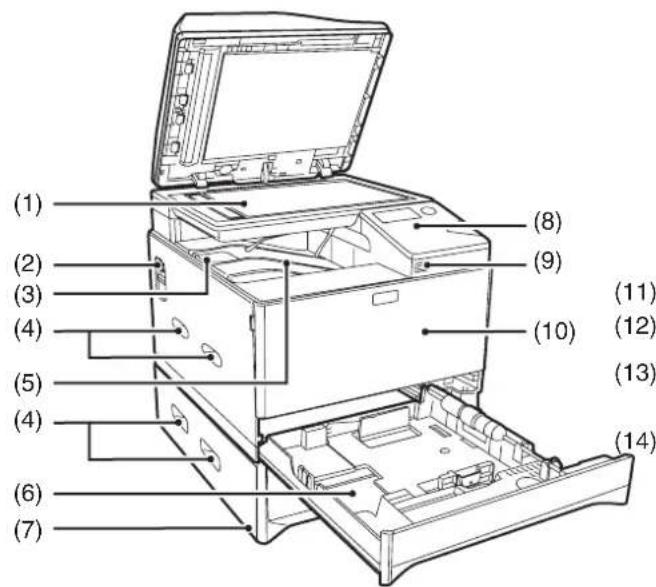
(1) Document glass
Place an original that you wish to scan face down here. (p.27)
(2) Power switch
Press to turn the machine power on and off.
(3) Centre tray extensions
When you eject the paper of A4 size or more, you can use open to the outside.
(4) Handles
Use to move the machine. When attaching tray 2, use the handle at the bottom.

The main unit is extremely heavy, and thus two people are required to do the work. When lifting the main unit, grasp the handles on each side firm
(5) Centre tray
Copies and printed pages are output to this tray.
(6) Tray 1
Tray 1 can hold approximately 250 sheets of copy paper (80 g/m ^2 (21 lbs.)). For restrictions on paper types, sizes, and weights, refer to "PAPER" (p.16).
(7) Tray 2 (Option)
Tray 2 can hold approximately 500 sheets of copy paper (80 g/m ^2 (21 lbs.)). For restrictions on paper types, sizes, and weights, refer to "PAPER" (p.16).
(8) Operation panel
Contains operation keys and indicator lights.
(9) USB 2.0 port (Type A)
This is used to connect a USB device such as USB memory to the machine.

text_image
(17) (15) (16) (18) (19) (4)(10) Front cover
Open to replace the toner cartridge etc.
(11) Side cover handle
Pull to open the side cover.
(12) Side cover
Open to remove misfed paper.
(13) Bypass tray guides
Adjust to the width of the paper when using the bypass tray.
(14) Bypass tray
Special paper (heavy paper or transparency film) can be fed from the bypass tray.
(15) Extension phone socket
The line from an extension phone can be connected to this socket to use the telephone function.
(16) Telephone line socket
When the fax function of the machine is used, the telephone line is connected to this socket.
(17) USB 2.0 port (Type B)
Connect to your computer to this port to use the printer function.
(18) LAN connector
Connect the LAN cable to this connector when the machine is used on a network.
(19) Bypass tray extension
Open this tray when loading paper in the bypass tray.
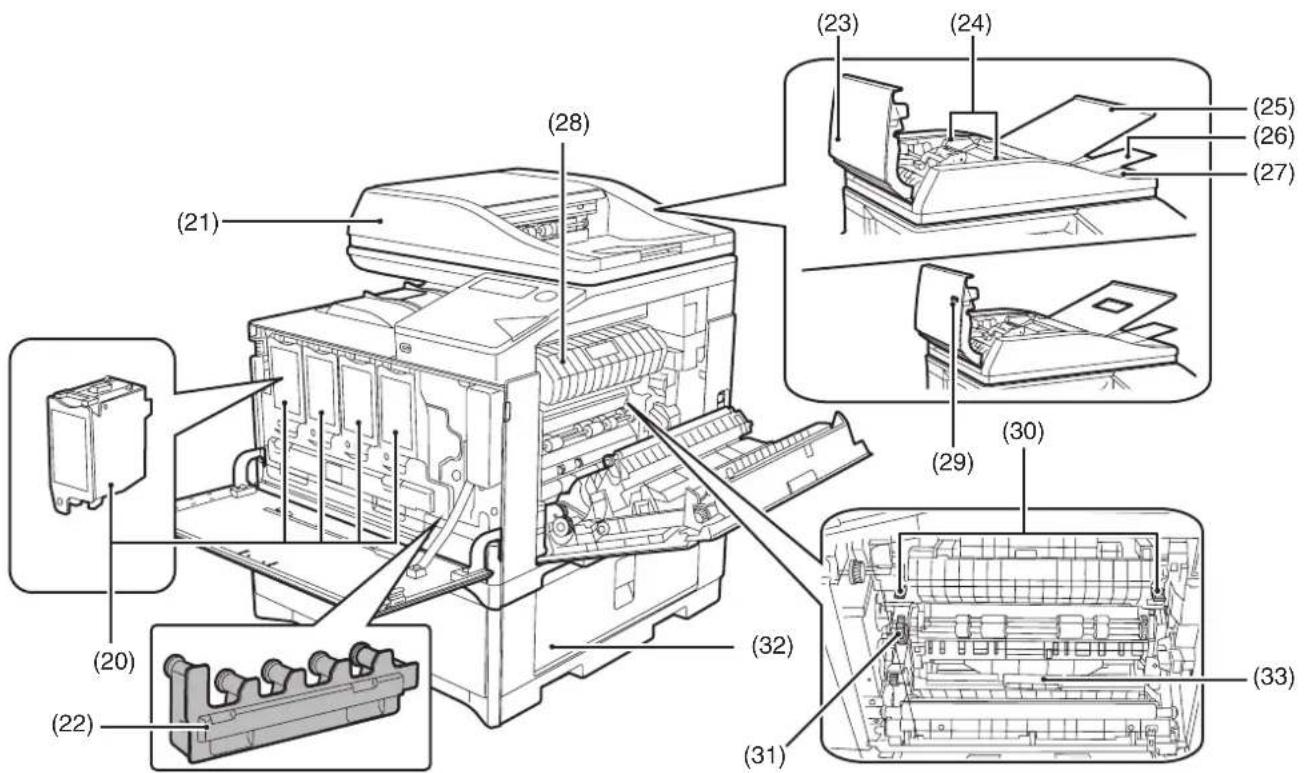
(20) Toner cartridge (Y/M/C/Bk)
Contains toner. When the toner runs out in a cartridge, the cartridge of the colour that ran out must be replaced.
(21) Document feeder tray
Place the original(s) that you wish to scan face up here.
(22) Toner collection container
This collects excess toner that remains after printing.
(23) Feeding roller cover
Open to remove misfed originals.
(24) Original guides
Adjust to the size of the originals.
(25) Feeding roller tray
Open to place the originals.
(26) Extension tray
Open this when you scan a long original.
(27) Exit area
Originals exit the machine here after copying/scanning when the document feeder is used.
(28) Fusing unit paper guide
Open to remove misfed paper.
(29) Peep Hole
Use the peep hole (see the illustration at right) to check the position of the original.
(Models with the one-sided scanning function only)
(30) Fusing unit release levers
Push down these levers to release the pressure when removing misfed paper from inside the fusing area or when feeding an envelope from the bypass tray.

- The fusing unit is hot. Do not touch the fusing unit when removing misfed paper. Doing so may cause a burn or injury.
- When pushing down the levers, pinch the levers with your thumb and index finger while pushing down slowly. If you push the levers strongly, the levers may hit your fingers.

natural_image
Hand holding a tool interacting with a mechanical component (no visible text or symbols)(31) Roller rotating knob
Rotate to remove misfed paper.
(32) Paper tray right side cover
Open this to remove a paper misfeed in trays.
(33) Duplex conveyor cover
Open this cover to remove a misfeed.

Do not to block the exhaust slots of the machine by placing something in front of them or setting the machine closely attached to the wall.
OPERATION PANEL
text_image
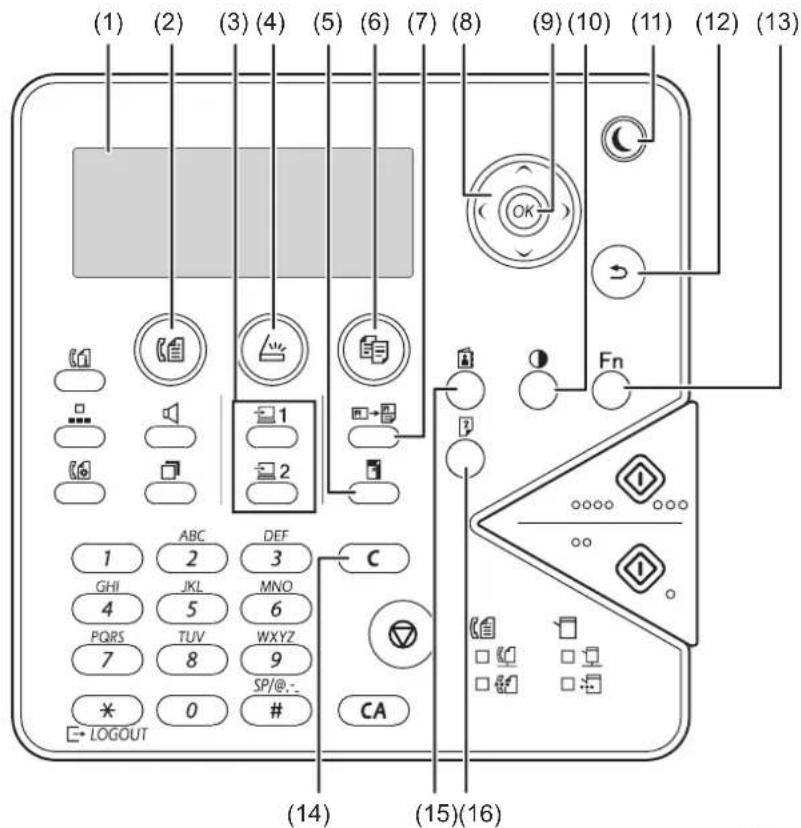
(1) (2) (3) (4) (5) (6) (7) (8) (9) (10) (11) (12) (13) (1) ABC DEF C 1 2 3 GHI JKL MNO 4 5 6 PQRS TUV WXYZ 7 8 9 * 0 # CA (14) (15)(16) - LOGOUT(1) Display
Shows various messages. (p.13, 81, 125)
(2) [FAX] key / indicator (☐)
Press to select fax mode.
(3) [PROGRAM 1 / PROGRAM 2] key (☐1/☐2 Press to use the scanner settings already stored (p.134)
(4) [SCAN] key / indicator ()
Press to select scan mode.
(5) [ZOOM] key ( )
Press to select a reduction or enlargement copy ratio. (p.29)
(6) [COPY] key / indicator ( )
Press to select copy mode.
(7) [ID CARD COPY] key ()
Enable ID Card Copy.
(8) Arrow keys
Press to move the highlighting (which indicates that an item is selected) in the display.
(9) [OK] key
Press to enter the selected setting.
(10) [EXPOSURE] key ()
Use to select the exposure mode. (p.28)
(11) [ENERGY SAVE] key / indicator (C)
Press to enter the energy save mode.
(12) [BACK] key ()
Press to return the display to the previous screen.
(13) [SPECIAL FUNCTION] key ( )Fn
Press to select special functions.
(14) [C] key
Press to clear the set number of copies or stop a copy run.
(15) [ADDRESS] key ()
Used to search for address, numbers and other contact information stored for auto dialling. (p.87)
(16) [DUPLEX] key () ^2
Select the duplex copy/fax/scan mode.
text_image
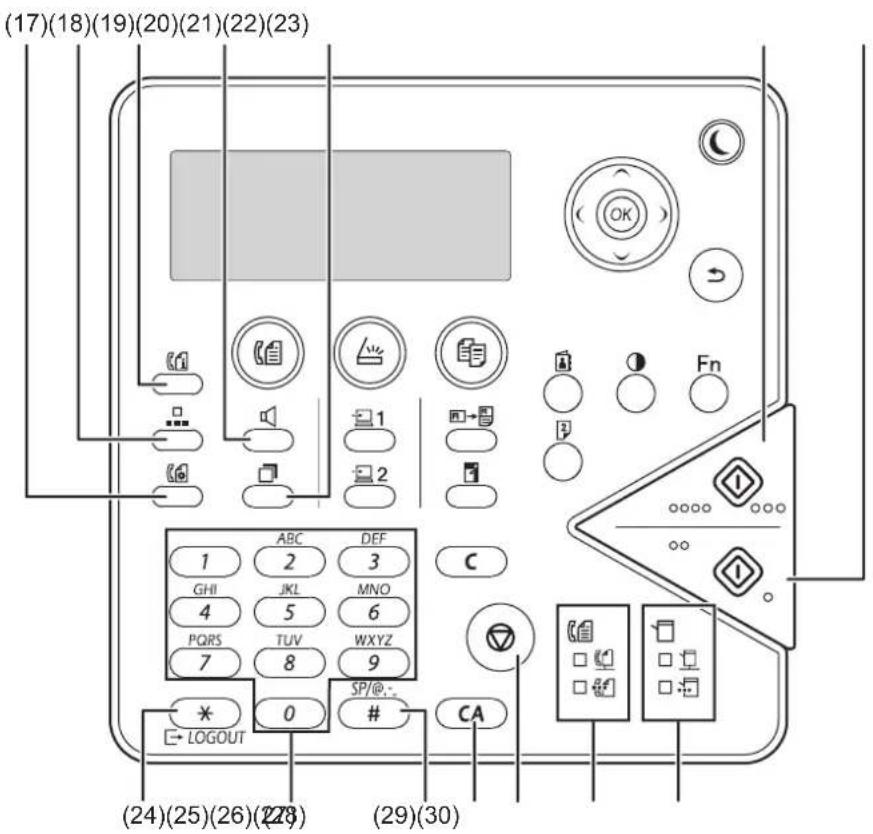
(17)(18)(19)(20)(21)(22)(23) ABC DEF 1 2 3 GHI JKL MNO 4 5 6 PQRS TUV WXYZ 7 8 9 * 0 SP/@- CA (24)(25)(26)(27) (29)(30)(17) [COMM. SETTING] key ()
This is used to switch between memory transmission and direct transmission, and to switch between automatic reception and manual reception. (p.89)
(18) [SPEED] key ( )
This is used to dial by Speed dialling. (p.83)
(19) [FAX STATUS] key ( )
This is used to cancel a fax transmission or a stored fax transmission. (p.93)
(20) [SPEAKER] key ()
This is used to dial without lifting an extension phone connected to the machine. (p.83)
(21) [REDIAL/PAUSE] key ()
This is used to redial the last number dialled, and enter a pause when entering a fax number. (p.83, p.85)
(22) [COLOUR START] key / indicator
Press this key to copy or scan an original in colour. This key cannot be used for fax.
(23) [BLACK & WHITE START] key / indicator
Press this key to copy or scan an original in black and white. This key is also used to send a fax in fax mode.
(24) [LOGOUT] key () \*
Press this key to log out after you have logged in and used the machine. When using the fax function, this key can also be pressed to send tone signals on a pulse dial line.
(25) Numeric keys
Enter characters/numbers.
(26) [READ-END] key () #
When copying in sort mode from the document glass, press this key when you have finished scanning the original pages and are ready to start copying.
(27) [CA] key
Clears all selected settings and returns the machine to the default settings. (p.15)
(28) [STOP] key ()
Press this key to stop a copy job or scanning of an original.
(29) FAX mode indicators ( )
• LINE indicator ( 📊) Lights up when a fax is being sent or received.
- DATA indicator (☐) Blinks when a fax cannot be printed because there is no paper or otherwise. Lights steadily when there is an unsent fax.
(30) Printer mode indicators ( )
• ONLINE indicator (☐) Print data can be received when this lamp is lit.
- DATA indicator (☐) Blinks when print data is being received. Lights steadily during printing.

The content of the operation panel varies by model.
DISPLAY
This section explains how to use the display.
The display on the machine has a right menu containing frequently used settings and a left menu for display of the settings and setting screens of each function.

text_image
Ready to copy. A4 ■ A4 Tray 1 ■ Exposure AUTO ■ 100% 1 ▲ Orig. Size Paper Output ProgramLeft MenuRight Menu
Left Menu (Example: Copy mode)

text_image
(1) Ready to copy. (2) A4 (3) A4 Tray 1 (4) Exposure AUTO (5) 100%(1) Message display
Messages are displayed regarding machine status and operation.
(2) Special function icon display
Icons of enabled special functions will appear.

1-sided to 2-sided copy

2-sided to 2-sided copy

(Models with the two-sided scanning function only)

2-sided to 1-sided copy

(Models with the two-sided scanning function only)

Sort function

Suppress BG

2 in 1 copy

4 in 1 copy

Card shot

ID card copy
Sharpness
(3) Paper size display
Displays the selected paper size.
(4) Exposure display
Indicates the selected exposure mode.
(5) Copy ratio display
Displays the copy ratio for reduction or enlargement.
(6) Original size display
When the original size is specified in "Original Size" in the right menu, this shows the specified size.
The following icons appear when the original is placed.
None: Document Glass
☐: Automatic document feeder (one-sided scanning)
☐: Automatic document feeder (two-sided scanning)
(Models with the two-sided scanning function)
Right Menu

text_image
(7)(8) Orig. Size Paper Output Program 1 (9)(7) Connection status display
(Models with the wireless LAN function only)
Displayed when wireless LAN is on.
| Wireless infrastructure mode: Connecting | |
| Wireless infrastructure mode: Not connected | |
| Wired + wireless access point mode: With handset connected | |
| Wired + wireless access point mode: Without handset connected | |
| Connection failure of wireless LAN device inside machine |
(8) Number of copies display
Shows the number of copies set.
(9) Function display
Shows the basic functions of each mode.
HOW TO USE THE DISPLAY
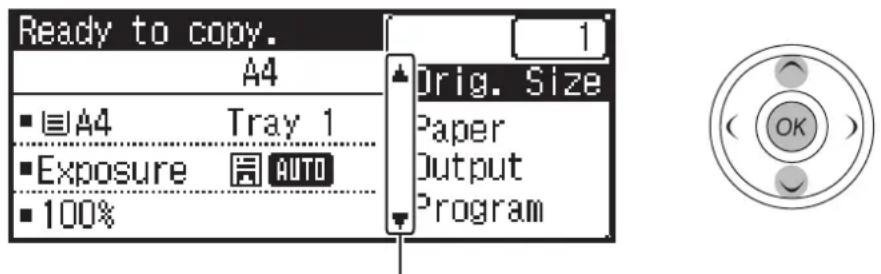
Selecting an item with the direction keys (up/down)
Use the up/down direction keys (indicated in this manual by [▼]) to move to and select (highlight) a setting item in the selection screen. Press the [OK] key to display the screen of the selected setting item. Press [OK] in the setting screen to save your settings.
text_image
Ready to copy. A4 ■ A4 Tray 1 ■ Exposure AUTO ■ 100% Orig. Size Paper Output ProgramThe [ ] icons appear in the selection screen of settings that use the up/down direction keys.
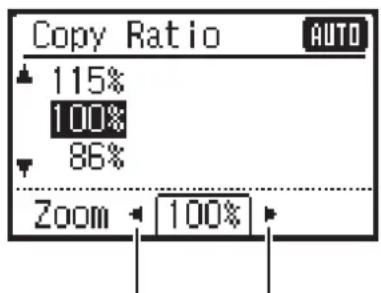
Selecting an item with the direction keys (left/right)
The left/right direction keys (indicated in this manual by [ ]) are used to set the exposure and numbers in setting screens. Press the [OK] key to save your settings.
text_image
Copy Ratio AUTO 115% 100% 86% Zoom 100%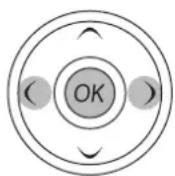
The [ ] icons appear in setting screens that use the left/right direction keys.
Use the [BACK] key ( ) to return to the previous setting screen.
POWER ON AND OFF
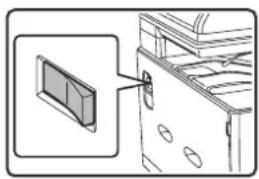
The power switch is located on the left side of the machine.
POWER ON
Turn the power switch to the "ON" position.
natural_image
Diagram showing a door panel inserted into a cabinet with an arrow pointing to the door (no text or symbols present)While the machine is warming up, the message "Warming Up" will appear in the message display.
POWER OFF
Make sure that the machine is not in operation and then turn the power switch to the "OFF" position.
If the power switch is turned off while the machine is in operation, a misfeed may occur and the job that was in progress will be cancelled.

- The machine reverts to the initial settings when it is first turned on, when the [CA] key is pressed, or when no keys are pressed for the preset "Auto clear" time following the end of a copy job. When the machine reverts to the initial settings, all settings and functions selected to that point are cancelled. The "Auto clear" time can be changed in the system settings. (p.179)
- The machine is initially set to automatically enter power save mode if not used for copying or printing, for a preset period of time. This setting can be changed in the system settings. (p.180)
- Before using fax mode, read the following sections and then turn on the power. "TO USE THIS PRODUCT CORRECTLY AS A FACSIMILE" (p.79) "POINTS TO CHECK AND PROGRAM AFTER INSTALLATION" (p.80)
POWER SAVE MODES
The machine has two power save modes to reduce overall power consumption thereby reducing the cost of operation. In addition, these modes conserve natural resources and help reduce environmental pollution. The two power save modes are "Preheat mode" and "Auto power shut-off mode".
Preheat mode
This function automatically switches the machine to a low power consumption state if the duration of time set in the system settings elapses without the machine being used when the power is on. In preheat mode the display turns off. Normal operation automatically resumes when a key on the operation panel is pressed, an original is placed, or a print job or fax is received.
Auto power shut-off mode
This function automatically switches the machine to a state that consumes even less power than preheat mode if the duration of time set in the system settings elapses without the machine being used when the power is on. During auto power shut-off, only the [ENERGY SAVE] indicator ( ) blinks. To restore the machine to normal operation, press the [ENERGY SAVE] key ( ). Normal operation also resumes automatically when a print job or fax is received or scanning is begun from a computer. While auto power shut-off is in effect, pressing a key other than the [ENERGY SAVE] key ( ) will have no effect.

The preheat activation time and the "Auto power shut-off timer" can be changed using system settings.
DEFAULT SETTINGS
The machine is set at the factory to return all settings to the default settings one minute after a copy job is finished (auto clear function) or when the [CA] key is pressed. When the settings return to the default settings, any functions that were selected are cancelled. The auto clear time can be changed in the system settings. (p.179) In the default state the display shown below appears. The default state of the display may vary depending on settings in the system settings.
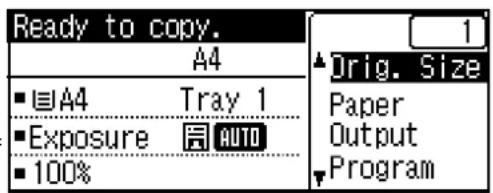
text_image
Ready to copy. A4 ■ A4 Tray 1 ■ Exposure AUTO ■ 100% 1 ▲ Orig. Size Paper Output ProgramLOADING PAPER
The message "TRAY<*>: Add paper." will be displayed when there is no copy paper in the selected paper tray. (<* is the tray number.) Load paper in the indicated paper tray.
PAPER
For best results, use only SHARP recommended paper.
| Paper tray type | Paper type | Size | Weight | Capacity^*1 |
| Tray 1 | Plain paperRecycled paperColourLetter headPre-printedPre-punched | A4, B5, A5, 16K,8-1/2" x 11",5-1/2" x 8-1/2",7-1/4" x 10-1/2" | 60 g/m^2 to 105 g/m^2 (16 lbs. to 28 lbs.) | 250 sheets |
| Tray 2 (Option) | 500 sheets | |||
| Bypass tray Plain paper | paperRecycled paperColourLetter headPre-printedPre-punched | A4, B5, A5, A6, 16K,8-1/2" x 11",5-1/2" x 8-1/2",7-1/4" x 10-1/2",8-1/2" x 14",8-1/2" x 13-1/2",8-1/2" x 13-2/5",8-1/2" x 13" | 55 g/m^2 to 105 g/m^2 (13 lbs. to 28 lbs.) | 50 sheets |
| Labels 106 g/m | ^2 to 220 g/m^2 (28 lbs. to 80 lbs.) | 1 sheet | ||
| Transparency film | 10 sheets | |||
| Heavy paper | 20 sheets | |||
| Glossy Paper | 1 sheet | |||
| Envelopes*2 | International DL(110 mm x 220 mm)International C5(162 mm x 229 mm)Monarch(98 mm x 191 mm)Commercial 10(105 mm x 241 mm) | 10 sheets | ||
| Custom | Horizontal: 140 to 356 mm(5-1/2" to 14")Vertical: 90 to 216 mm(3-5/8" to 8-1/2") |
*1 The number of sheets of the paper which can be set changes with the weight of a paper. The paper must not be higher than the indicator line.
*2 When feeding an envelope, push down the fusing unit release levers to release the pressure. "Loading the bypass tray" (p.20)
PLAIN PAPER, SPECIAL MEDIA
Plain paper that can be used
- SHARP standard plain paper (80 g/m ^2 (21 lbs.)). For paper specifications, see the specifications in the Start Guide.
- Plain paper other than SHARP standard paper (60 g/m ^2 to 105 g/m ^2 (16 lbs. to 28 lbs.))
Recycled paper, coloured paper and pre-punched paper must meet the same specifications as plain paper.
Contact your dealer or nearest authorised service representative for advice on using these types of paper.
* The "g/m ^2 " (lbs.) units used in these explanations indicate the weight of the paper.
Paper is loaded with the print side face up or face down depending on the paper type and tray.
The loading orientation of punched paper, letterhead paper, and pre-printed paper differs from that of other paper.
For details, see "Example: Placement orientations of punched paper, letter head paper, and pre-printed paper" (p.17).
Trays 1 to 2
Load the paper with the print side face up.
However, if the paper type is "Pre-Punched", "Letter Head" or "Pre-Printed", load the paper with the print side face down.
Bypass tray
Load the paper with the print side face down.
However, if the paper type is "Pre-Punched", "Letter Head" or "Pre-Printed", load the paper with the print side face up.
Example: Placement orientations of punched paper, letter head paper, and pre-printed paper
| Document feeder tray Original glass | |
 |  |
| Pre-punched (Left binding) | Letter head Pre-printed | ||
| Tray 1 to 2 | 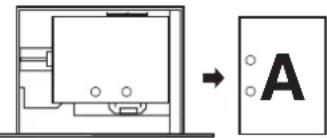 Load the paper print side down with the punch holes to the front and the top edge to the right. Load the paper print side down with the punch holes to the front and the top edge to the right. |  Load the paper print side down with the letter head (top edge) to the right. Load the paper print side down with the letter head (top edge) to the right. | 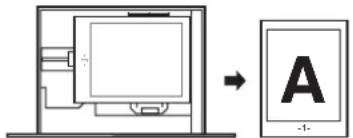 Load the paper print side (pre-printed side) down with the top edge to the right. Load the paper print side (pre-printed side) down with the top edge to the right. |
| Bypass tray | 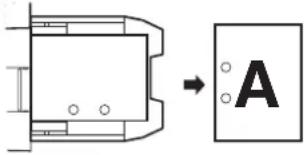 Load the paper print side up with the punch holes to the front and the top edge to the left. Load the paper print side up with the punch holes to the front and the top edge to the left. |  Load the paper print side up with the letter head (top edge) to the left. Load the paper print side up with the letter head (top edge) to the left. | 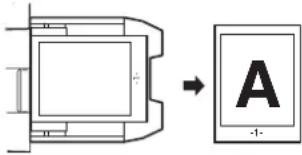 Load the paper print side (pre-printed side) up with the top edge to the left. Load the paper print side (pre-printed side) up with the top edge to the left. |
Paper that cannot be used
- Special media for inkjet printers (fine paper, glossy paper, glossy film, etc.)
• Carbon paper or thermal paper - Pasted paper
- Paper with clips
- Paper with fold marks
- Torn paper
• Oil-feed transparency film - Thin paper less than 55g / m^2 (13 lbs.)
-
Paper that is 220g / m^2 (80 lbs. index) or heavier
-
Irregularly shaped paper
- Stapled paper
- Damp paper
- Curled paper
- Paper on which either the print side or the reverse side has been printed on by another printer or multifunction device.
- Paper with a wave-like pattern due to moisture absorption
Non-recommended paper
- Iron-on transfer paper
- Japanese paper
- Perforated paper

- Various types of plain paper and special media are sold. Some types cannot be used with the machine. Contact your dealer or nearest authorised service representative for advice on using these types of paper.
- The image quality and toner fusibility of paper may change due to ambient conditions, operating conditions, and paper characteristics, resulting in image quality inferior to that of SHARP standard paper. Contact your dealer or nearest authorised service representative for advice on using these types of paper.
- The use of non-recommended or prohibited paper may result in skewed feeding, misfeeds, poor toner fusing (the toner does not adhere to the paper well and can be rubbed off), or machine failure.
- The use of non-recommended paper may result in misfeeds or poor image quality. Before using non-recommended paper, check if printing can be performed properly.
Paper that can be used for automatic 2-sided printing
Paper used for automatic duplex printing must meet the following conditions.
Paper type: Plain paper (special paper cannot be used.)
Paper size: Standard sizes (A4, B5, A5, 16K, 8-1/2" x 14", 8-1/2" x 13", 8-1/2" x 11")
Paper weight: 60 g/m ^2 to 105 g/m ^2 (16 lbs. to 28 lbs.)
Special papers
Follow these guidelines when using special papers.
- Use SHARP recommended transparency film and label sheets. Using other than SHARP recommended paper may result in misfeeds or smudges on the output. If other than SHARP recommended media must be used, feed each sheet one at a time using the bypass tray (do not attempt continuous copying or printing).
- There are many varieties of special paper available on the market, and some cannot be used with this machine. Before using special paper, contact your authorised service representative.
- Before using other than SHARP recommended paper, make a test copy to see if the paper is suitable.
LOADING PAPER
Make sure that the machine is not copying or printing, and then follow these steps to load paper.
Loading the paper tray
1 Gently lift and pull out the paper tray until it stops.

natural_image
Illustration of a hand inserting a printer into a box (no text or symbols visible)2 Push the pressure plate down, and adjust the plates in the tray to the length and width of the paper.
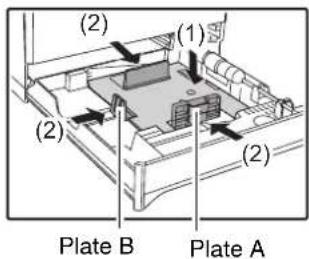
text_image
(2) (1) (2) (2) Plate B Plate A(1) Push the centre of the pressure plate down until it locks into place.
(2) The plate A and B are slide-type guides. Grasp the locking knob on the guide and slide the guides until the width that the paper can be loaded properly.
3 Load paper into the tray.

text_image
Line on the guide Roller Protrusion- Open the package of the paper and load it without fanning the paper.
- Make sure the stack of paper is straight before loading it.
- After loading the paper, close the guides to the paper width not to leave the gap from the guides.

- Do not load paper higher than the line on the guide (up to 250 sheets).
- Do not add paper to the loaded paper. It may cause multiple feed of paper.
- The loaded paper should not go higher than the protrusion of the plate A.
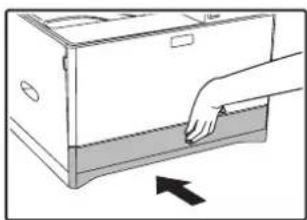
4 Gently push the paper tray into the machine.
natural_image
Illustration of a hand inserting a drawer into a box with an arrow indicating direction (no text or symbols)Push the tray in completely.

- If you loaded a different size of paper than was loaded previously in the tray, go to "CHANGING THE PAPER SIZE SETTING OF A TRAY" (p.22).
- When misfeed occurs, rotate the paper 180 degrees and reload it.
- Straighten curled paper before using it.
Loading the bypass tray
To feed an envelope, first press down the fixing unit release levers (2 places) to release the pressure, and then follow the steps below.
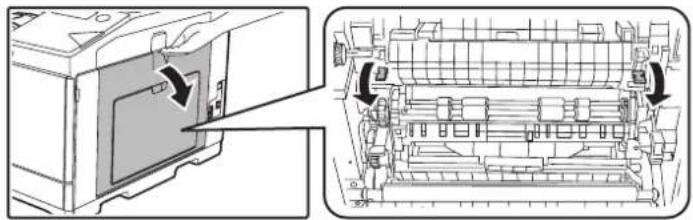
natural_image
Technical illustration of a printer's internal structure showing front and side views (no text or symbols)1 Unfold the bypass tray.

natural_image
Diagram of a device with a hand inserting a clip into a screen, showing a black arrow indicating direction (no text or symbols present)
natural_image
Line drawing of a hand inserting a small object into a device (no text or symbols)Open out the bypass tray extension.
2 Push the centre of the pressure plate down until it locks into place.

natural_image
Illustration of a hand inserting a card into a device (no text or symbols visible)3 Set the paper guides to the copy paper width.
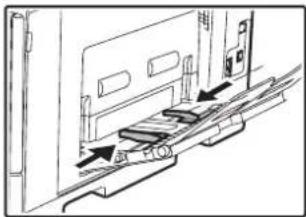
natural_image
Diagram of a device with arrows indicating motion or movement, no visible text or symbols4 Insert the paper (print face down) all the way into the bypass tray.
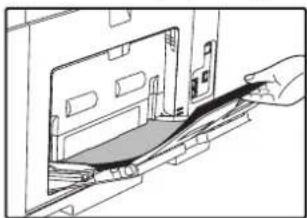
natural_image
Diagram of a computer monitor with an open screen showing the internal components (no text or symbols)To prevent a misfeed, verify once more that the paper guides are adjusted to the width of the paper.
After feeding an envelope, be sure to press up and return the fixing unit release levers (2 places) to their original positions.

If you loaded paper in the bypass tray, press the [SPECIAL FUNCTION] key (Fn) and select "Paper Select" to select the bypass tray.
Important points when inserting paper in the bypass tray
- Up to 50 sheets of standard copy paper can be set in the bypass tray.
- Be sure to place A6, B6 or 5-1/2" x 8-1/2" size paper or envelopes horizontally as shown in the following diagram. (When using the printer: Same as the direction for the A4 size paper, etc)
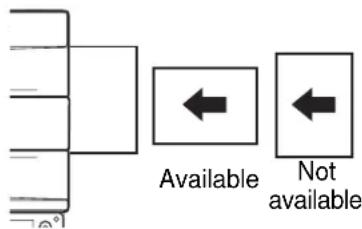
text_image
Available Not available- When loading envelopes, make sure that they are straight and flat and do not have loosely glued construction flaps (not the closure flap).
- Special papers except SHARP recommended transparency film, labels, and envelopes must be fed one sheet at a time through the bypass tray.
- When adding paper, first remove any paper remaining in the tray, combine it with the paper to be added and then reload as a single stack. The paper to be added must be the same size and type as the paper already in the tray.
- Use SHARP-recommended transparency film.
- Do not use paper that is smaller than the original. This may cause smudges or unclean images.
- Do not use paper that has already been printed on by a laser printer or plain paper fax machine. This may cause smudges or unclean images.
Important points when using envelopes
Envelopes that cannot be used
Do not use the following envelopes. Envelopes misfeed, and smudges may result.
- Envelopes with metal clasps, plastic hooks, or ribbon hooks
- Envelopes closed with string
- Envelopes with windows or backing
- Envelopes with an uneven front surface due to embossing
- Double-layer envelopes
- Envelopes with an adhesive for sealing
- Hand-made envelopes
- Envelopes with air inside
- Envelopes with creases, fold marks, torn or damaged envelopes
- Envelopes with an incorrectly aligned corner gluing position on the back cannot be used as creasing may result.

text_image
Can be used Cannot be usedPrint quality on envelopes
- Print quality is not guaranteed in the area 10 mm (13/32") around the edges of the envelope.
- Print quality is not guaranteed on parts of envelopes where there is a large step-like change of thickness, such as on four-layer parts or parts less than three layers.
- Print quality is not guaranteed on envelopes with adhesive for sealing.
Inserting transparency film
- Use SHARP-recommended transparency film.
- Do not touch the print side of transparency film.
- When loading multiple sheets of transparency film in the bypass tray, be sure to fan the sheets several times before loading.
- When printing on transparency film, be sure to remove each sheet as it exits the machine. Allowing sheets to stack in the output tray may result in curling.
TRAY SETTINGS
These programs are used to change the paper size setting of a tray, and auto tray switching.
CHANGING THE PAPER SIZE SETTING OF A TRAY
If the size of the loaded paper is different from the size shown in the display, follow the steps below to change the paper size setting of the tray.
The paper size setting cannot be changed during copying, printing, fax printing (when the fax option is installed), or when a misfeed has occurred. However, if the machine is out of paper or out of toner, the paper size setting can be changed during copying, printing, and fax printing.
See "PAPER" (p.16) for information on the specifications for the types and sizes of paper that can be loaded in the paper trays.
Press the [SPECIAL FUNCTION] key (Fn), and press the [▼] or [▲] key to select "Paper Size Set".

text_image
Paper Size Set A4 B5 A5 mmPress the [▼or [ ] key to select the paper tray for which the paper size is being changed. Press the [▼key to select the paper size.
Press the [OK] key.

①: Show stray "1".
[2]: Show stray "2".
: Shows Bypass tray.
For the paper trays and tray numbers, see "PAPER" (p.16).
DISABLING (ENABLING) AUTO TRAY SWITCHING
When auto tray switching is enabled and paper runs out during copying or printing, the job will continue using paper from a different tray if that tray has the same size of paper in the same type. (This function does not operate when using the bypass tray or when a fax is being printed.)
This function has been enabled at the factory. If you prefer to disable the function, follow the steps below.
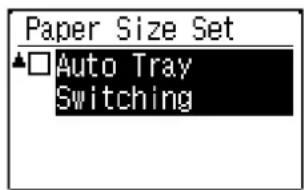
Press the [SPECIAL FUNCTION] key (Fn), select "Paper Size", and press the [▼] key repeatedly until "Auto Tray Switching" appears.
text_image
Paper Size Set Auto Tray SwitchingTo re-enable auto tray switching, press the [OK] key that a checkmark appears.
CHANGING THE PAPER TYPE OF A TRAY
To change the paper type setting for a tray, follow the steps below.
Press the [SPECIAL FUNCTION] key (Fn), select "Paper Type", select the tray with the [▼] or [▲] key, and press the [OK] key. Select the desired paper type and press the [OK] key.
See "PAPER" (p.16) for information on the specifications for the types and sizes of paper that can be loaded in the paper trays.

text_image
Paper Type Set ▲ Plain Heavy Paper Envelope [OK]: Set CompletedUSER AUTHENTICATION MODE
When user authentication mode is enabled, a count is kept of the pages printed by each account. The page counts can be viewed in the display. Users that can transmit faxes (up to 30) can be established and transmission time and other information can be tracked for each account. The Acc. Usage List (p.181) can be printed out which shows the time used for transmission and pages transmitted by each account.
This function is enabled in the system settings. ("User Registration" (p.178))
Up to 30 can be stored.
USING USER AUTHENTICATION MODE
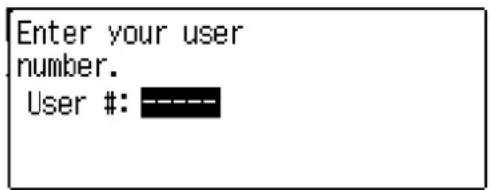
When user authentication mode is turned on, the account number entry screen is displayed. Enter your account number (five-digit identification number) as explained below before performing a copy, fax, or scan operation.
text_image
Enter your user number. User #: ----1 Enter your account number (five digits) with the numeric keys.
As the account number is entered, the hyphens (-) change to asterisks (✗). If you enter an incorrect digit, press [C] key and re-enter the correct digit.
2 When the copy job is finished, press the [LOGOUT] key ( \* ).
![SHARP MX-C300W - When the copy job is finished, press the [LOGOUT] key ( \* ). - 1](/content/2026/06/1243240/images/0e48a36175691d099fb94990de9bb7d04d837f6c2c1f966df5212b1380f984a8.jpg)
- When a valid account number is entered, the current count of the account will appear in the message display of the base screen. After 6 seconds (factory default setting), the base screen appears. (p.15)
* In copy mode, the number of sheets remaining until the limit is reached is also shown if "Function Limit Setting" (p.178) is enabled in the system settings.
- If you enter a user number for copy mode has also been programmed for fax mode, you can change to fax mode after completing the copy operation and continue with the fax operation without re-entering your user number. If you enter a user number for copy mode that has not been programmed for fax mode, enter your user number for fax mode after you press the [FAX] key(☐) to change to fax mode.
- If an invalid account number is entered in step 1, the account number entry screen reappears.
- When "A Warning when Login Fails" (p.178) in the system settings is enabled, a warning message will appear and operation will not be permitted for 1 minute if an invalid account number is entered 3 times in a row.
![SHARP MX-C300W - When the copy job is finished, press the [LOGOUT] key ( \* ). - 2](/content/2026/06/1243240/images/73eb264b211ba9f8b4838353702cb6442e8dbc53c6b00f3b3315e0a3e0728145.jpg)
text_image
Total Count 99,999,999 Toner Remaining (%) BN 100-75 C 100-75 M 100-75 Y 100-75 1 Drig. Size Paper Output ProgramENTERING CHARACTERS
This section explains how to enter and edit characters for names of rapid dial numbers, Speed Dial numbers, and group keys, as well as account names, program names, and search characters for the address list.
CHARACTERS THAT CAN BE ENTERED
Characters that can be entered for names
The following characters can be entered:
- Up to 36 characters can be entered for a name.
However, up to 18 characters can be entered for an account name or sender's name.
- Upper case alphabet, lower case alphabet, numbers, special characters, symbols.
Characters that can be used for search characters
The following characters can be used:
- Up to 10 characters can be entered for search characters.
- Upper case alphabet, lower case alphabet, numbers, special characters.

- Search characters are normally the first 10 characters of the name entered for a destination.
- Search characters are used when storing and using auto dial keys and numbers.
- When a destination name includes a symbol, the symbol cannot be stored as a search character.
- Search characters can be edited.
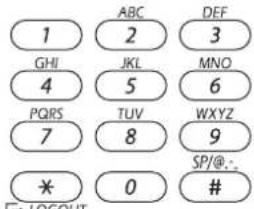
Characters are entered by pressing the numeric keys on the operation panel. The letters entered with each numeric key are shown below.
text_image
1 ABC DEF 2 3 GHI JKL MNO 4 5 6 PQRS TUV WXYZ 7 8 9 * 0 # SP@-.| Characters that can be entered | ||
| Key | Characters that can be entered for names | Characters that can be used for search characters |
| 1 1 | Space - 1 Space - | |
| 2 A | B C 2 a b c A B C 2 a b c | |
| 3 D | E F 3 d e f D E F 3 d e f | |
| 4 G | H I 4 g h i G H I 4 g h i | |
| 5 J | K L 5 j k I J K L 5 j k l | |
| 6 M | N O 6 m n o M N O 6 m n o | |
| 7 P | Q R S 7 p q r s P Q R S 7 p q r s | |
| 8 T | U V 8 t u v T U V 8 t u v | |
| 9 W | X Y Z 9 w x y z W X Y Z 9 w x y z | |
| * | *}{}[(?>=;:,+)("&%$"!/_-.@# | |
| 0 | 0 | 0 |
| # | Use to enter special characters. Use to enter special characters. | |

To enter two characters in succession that require the same key, press the [▶] key to move the cursor after entering the first character.
Example: Entering "ab" (when directly entering an e-mail address)
Press the [2] key once, press the [] key once to move the cursor, and then press the [2] key twice.
This chapter explains how to use the copy functions.
NORMAL COPYING
This section explains how to make a regular copy.
If "User authentication" has been enabled (p.178), enter your 5-digit account number.
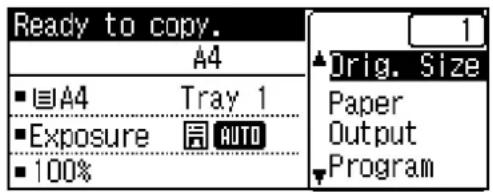
1 Make sure that the operation panel shows the copy screen.
text_image
Ready to copy. A4 ■A4 Tray 1 ■Exposure AUTO ■100% 1 ▲ Drig. Size Paper Output ProgramIf the machine is not in copy mode, press the [COPY] key (回)
2 Place the original on the document glass or in the automatic document feeder.
To place the original, see "Place the original on the document glass." (p.27)" or "Place the original in the automatic document feeder." (p.27).
To specify the original size, see "SELECTING THE ORIGINAL SIZE" (p.29).
3 Set copy settings for each function as needed.
For the functions and settings, see "MAKING A COPY DARKER OR LIGHTER" (p.28) to page "WHITENING FAINT COLOURS IN COPIES (Suppress Background)" (p.36).
4 Enter the number of copies with the numeric keys.
5 To make a colour copy, press the [COLOUR START] key. To make a black & white copy, press the [BLACK & WHITE START] key.
![SHARP MX-C300W - To make a colour copy, press the [COLOUR START] key. To make a black & white copy, press the [BLACK & WHITE START] key. - 1](/content/2026/06/1243240/images/d7766ce7c4c601bb4b6ded254cce341d31c5e0255458ac5cb7e9281e6ffc6f94.jpg)
- About one minute after copying ends, "Auto Clear" (p.179) activates and restores the copy settings to the default settings. The setting for "Auto clear" can be changed in the system settings.
- When selecting settings for copying, press the [CA] key if you need to cancel the settings.
- To stop copying in the middle of a run, press the [STOP] key (☑). If you find it difficult to remove the original from the document feeder tray, open the feeding roller cover before removing the original. If you pull out the original without opening the feeding roller cover, the original may become dirty.
PLACING THE ORIGINAL
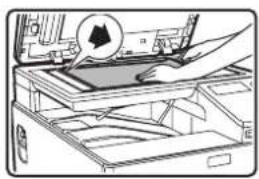
Place the original on the document glass.
natural_image
Diagram of a printer or printer with a paper plane and a circular arrow indicating a process (no text or symbols present)Open the document feeder and place the original face down on the document glass.

text_image
A5 (5-1/2" x 8-1/2") B5 A4 (8-1/2" x 11")Align the upper left-hand corner of the original with the tip of the mark.
* An original up to A4 (8-1/2" x 11") can be placed on the document glass.
Copying books or originals with folds or creases
Press down on the document feeder while copying as shown. If the document feeder is not completely closed, shadows may appear on the copy or it may be fuzzy. Straighten originals with folds or creases well before placing.

- Close the automatic document feeder slowly. Abruptly closing the automatic document feeder may damage it.
• Take care that your fingers are not pinched when closing the automatic document feeder. - Do not press hard on the automatic document feeder. This may cause failure.
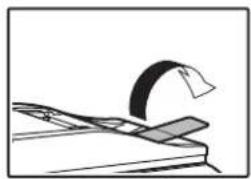
Place the original in the automatic document feeder.
natural_image
Simple line drawing of a mechanical component with an arrow indicating motion (no text or symbols)Open the extension tray in the original exit, and open the original feeder tray.

natural_image
Illustration of a printer or printer with a paper airplane being inserted (no text or symbols visible)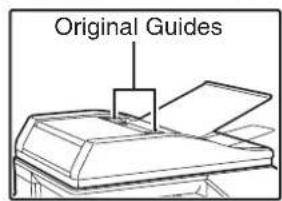
text_image
Original GuidesAdjust the original guides to the size of the original(s).
Set the original(s) face up in the feeding roller tray.
Models with the one-sided scanning function
Set the originals face up in the document feeder tray.

text_image
Peep holeUse the peep hole (see the illustration at right) to check the position of the original.
There is an original top edge mark ▲ in the peep hole. Align the top edge of the original with this mark.
Originals that can be used in the document feeder
Originals that are A5 to A4 (5-1/2" x 8-1/2" to 8-1/2" x 14") and 50 g/m ^2 to 105 g/m ^2 (15 lbs. to 24 lbs.) can be used. A maximum of 50 pages can be placed at once.
- Models with the two-sided scanning function A maximum of 50 page can be placed at once
- Models with the one-sided scanning function A maximum of 35 page can be placed at once

• Make sure that there are no paper clips or staples on the original.
- Straighten curled originals before placing them in the document feeder tray. Curled original may cause misfeeds.
- When you set multiple sheets of thick original, if the original is not fed, reduce the number of the set originals.
Originals that cannot be used in the document feeder
The following originals cannot be used. These may cause misfeeds or smudging and unclear images.
- Transparencies, tracing paper, other transparent or translucent paper, and photographs.
• Carbon paper, thermal paper. - Originals that are creased, folded, or torn.
- Glued originals, cut-out originals.
• Original with filing holes other than 2 holes, 3 holes, 4 holes, or 4-hole wide.
• Originals printed using an ink ribbon (thermal transfer printing), originals on thermal transfer paper.

- Specify the original size after placing the original. (p.29)
- Do not place originals of different sizes together in the document feeder tray. This may cause misfeeds.
- The following icons appear when the original is placed.
None: Document Glass
☐: Automatic document feeder (one-sided scanning).
☐: Automatic document feeder (two-sided scanning) (Models with the two-sided scanning function)
MAKING A COPY DARKER OR LIGHTER
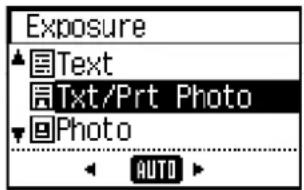
Press the [EXPOSURE] key (☐) on the operation panel to display the copy exposure screen.
text_image
Exposure ▲Text ■Txt/Prt Photo ▼Photo AUTOThe copy exposure can be adjusted as needed to the original.
Three exposure modes are available: "Text", "Text/Print Photo" and "Photo".
Depending on the settings, set "Auto" or one of five levels for the exposure.
Select the original type with the [ ]k▲ys, adjust the exposure if needed with the [ ][ ]key, and press the [OK] key.
SELECTING THE TRAY
When you want to use the paper in the bypass tray, or tray 2 is installed and you want to change the tray that is used, select "Paper" in the right menu of the base screen of copy mode and press the [OK] key.
The tray changes each time you press the [OK] key.

text_image
Ready to copy. A4 Tray 1 Paper Exposure AUTO 100% Output ProgramSETTING THE NUMBER OF COPIES
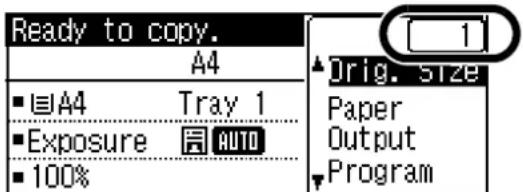
Press the numeric keys to set the number of copies.
text_image
Ready to copy. A4 ■ A4 Tray 1 ■ Exposure AUT0 ■ 100% Orig. size Paper Output ProgramThe set number of copies appears in the display. A maximum of 999 copies (factory default setting) can be set.

- If you enter the wrong number, press the [C] key and enter the correct number.
- The limit for the number of copies can be changed in the system settings. (p.183)
SELECTING THE ORIGINAL SIZE
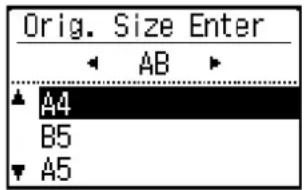
When you want to change the original size, select "Original Size" on the right menu and press the [OK] key.
text_image
Orig. Size Enter AB A4 B5 A5Select AB or inch with the [ ] keys, and select the size with the [ ][ ] keys Press the [OK] key. You will return to the base copy screen.
USING THE BYPASS TRAY TO COPY A SPECIAL SIZE ORIGINAL
Select "Original Size" in the right menu of the base screen of copy mode and press the [OK] key.

text_image
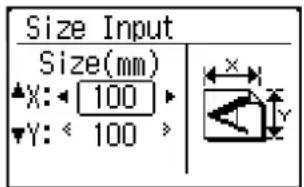
Orig. Size Enter AB B5 A5 Size InputSelect "Size Input" in the original size selection screen and press the [OK] key to display the size entry (mm) screen.
text_image
Size Input Size(mm) X: 100 Y: 100Select "X" (width) with the [▼] or [▲] key and enter the width with the [◀] or [▶] key, then do the same for the length (Y), and press the [OK] key.
REDUCING OR ENLARGING A COPY
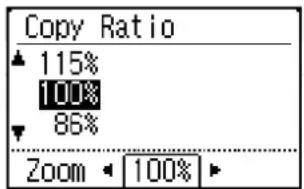
Place the original, and press the [ZOOM] key ( ) on the operation panel to change to the ratio selection screen.
text_image
Copy Ratio ▲ 115% 100% 86% Zoom ▼ 100% ▶Specifying a ratio from 25% to 400%: Preset ratios/zoom. (When the document feeder is being used, the zoom copy ratio range is 25% to 200%.) Select the ratio with the [ ] keys. You can fine adjust with the [ ][ ] keys (increments of 1%). Press the [OK] key to enter the ratio.
AUTOMATIC DUPLEX COPYING
Two originals placed on the document glass can be copied onto each side of a single sheet of paper. In addition, a document feeder (Models with the two-sided scanning function) can be used to copy two originals onto one sheet of paper, or one duplex original onto two sheets of paper, or one duplex original onto each side of one sheet of paper. This function is convenient for making copies for identification purposes and helps save paper.
| Original → Paper Usable paper | ||||
| Document glass | One-sided original → Two sides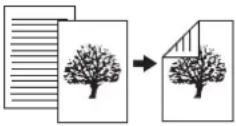 | A4, B5, A5(8-1/2" x 11", 5-1/2" x 8-1/2") | ||
| Document feeder (Models with the one-sided scanning function) | One-sided original → Two sides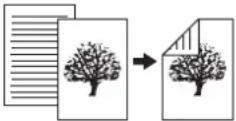 | A4, B5, A5(8-1/2" x 14", 8-1/2" x 13-1/2", 8-1/2" x 13-2/5", 8-1/2" x 13", 8-1/2" x 11", 5-1/2" x 8-1/2") | ||
| Document feeder (Models with the two-sided scanning function) | One-sided original → Two sides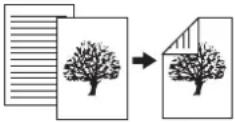 | Duplex original → Two sides | Duplex original → One side | |
To change to the 2-sided copy screen, press the [DUPLEX] key ( ^2 ) on the operation panel with the base screen of copy mode displayed.

text_image
Copy Mode ▲ 1 to 1 1×21 to 2 ▼2×2 to 2 Binding Change Off
There are restrictions on the paper that can be used for automatic duplex copying. See "Paper that can be used for automatic 2-sided printing" (p.18).
Select "1 to 2", "2 to 2", or "2 to 1" with the [▼] keys and press the [OK] key.
When scanning the original on the document glass, press the [START] key after scanning the front side, turn the original over on the glass, and press the [COLOUR START] key or [BLACK & WHITE START] key. Duplex copying starts.
To change the orientation of the copy image on the front and back sides of the paper, set "Binding Change" to "On" with the [] keys.
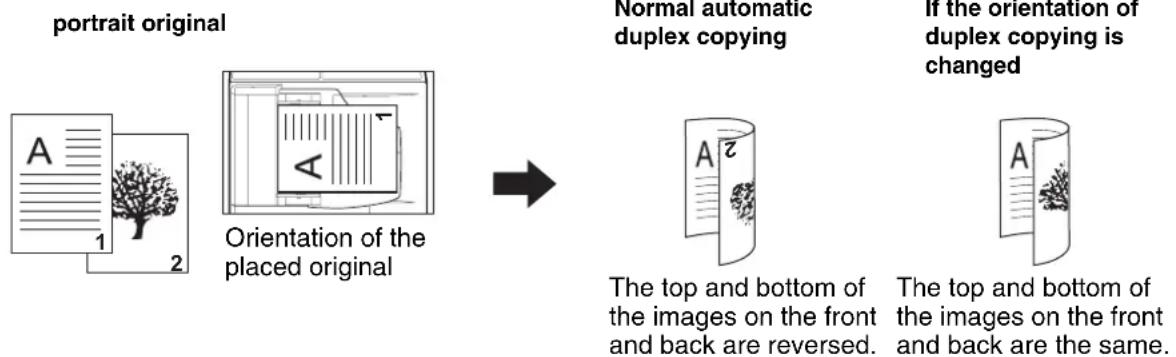
flowchart
graph LR
    A["portrait original"] --> B["Orientation of the placed original"]
    B --> C["Normal automatic duplex copying"]
    C --> D["If the orientation of duplex copying is changed"]
    D --> E["The top and bottom of the images on the front and back are reversed."]
    E --> F["The top and bottom of the images on the front and back are the same."]
CONVENIENT COPY FUNCTIONS
This section explains major convenient copy functions.
SORT COPY
● Copies of multiple original pages can be sorted into sets. (Sort)
● Copies of multiple original pages can be grouped by page. (No Sort)
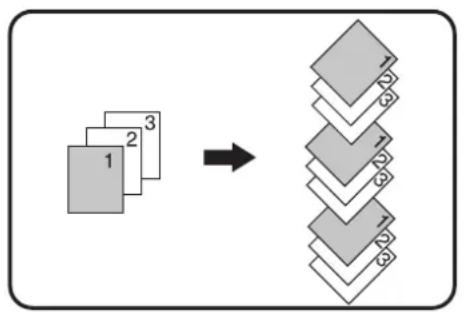
flowchart
graph TD
    A["1"] --> B["2"]
    A --> C["3"]
    B --> D["4"]
    C --> E["5"]
    D --> F["6"]
    E --> G["7"]
    F --> H["8"]
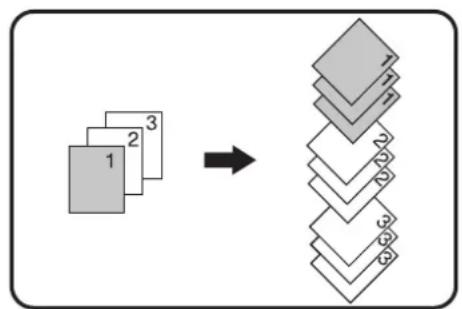
flowchart
graph TD
    A["1"] --> B["2"]
    A --> C["3"]
    B --> D["4"]
    C --> D
    D --> E["5"]
    D --> F["6"]
    D --> G["7"]
    D --> H["8"]
    D --> I["9"]
    D --> J["10"]
No SortSort
When the document glass is used, "No Sort" is automatically selected. When the automatic document feeder is used, "Sort" is automatically selected.
To change the sort setting manually, select "Sort" in the right menu of the base screen of copy mode and press the [OK] key.
Select "No Sort" or "Sort" with the [▼][▲] keys and press the [OK] key.

text_image
Output ▲ No Sort ▼Sort
- If the memory becomes full while the originals are being scanned, "Memory is full." will appear in the display. To start copying the originals that have been scanned to that point, press the [COLOUR START] key or [BLACK & WHITE START]. To cancel the copy job, press the [CA] key.
- The auto select setting for the sort function of the automatic document feeder can be changed in "Sort Auto Select" in the system settings (p.183).
ID CARD COPY
You can copy the front and back sides of ID card onto a page through this function.
The layout of the ID card copy, set the "ID Card Setting" of SYSTEM SETTINGS (p.182).
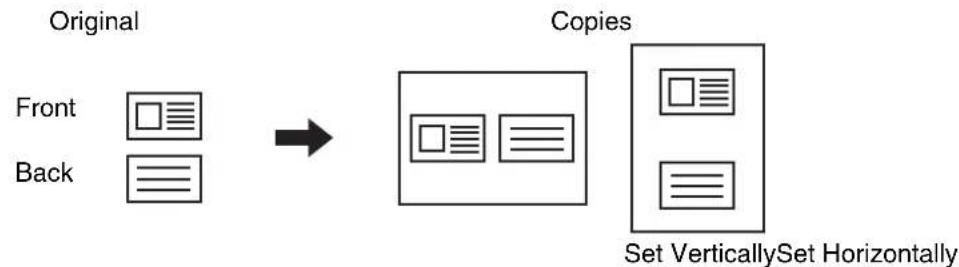
flowchart
graph LR
    A["Original"] --> B["Copies"]
    C["Front"] --> D["Copy 1"]
    E["Back"] --> F["Copy 2"]
    G["Set Vertically"] --> H["Set Vertical"]
    I["Set Horizontally"] --> J["Set Horizontal"]
- Set Horizontally Copies in the horizontal orientation (fixed position), regardless of the paper size.
- Set Vertically Copies in the vertical orientation (fixed position), regardless of the paper size.
Press the [ID CARD COPY] key (R→) on the operation panel.
Place the ID card at the ID card mark on the document glass, and press the [COLOUR START] key or [BLACK & WHITE START] key.

natural_image
Simple line drawing of a rectangular frame with a small square on the left side (no text or symbols)Turn the ID card over and press the [COLOUR START] key or [BLACK & WHITE START] key.

- The ID card copy function cannot be used at the same time as the 2-sided copy, 2in1/4in1 copy, sort copy, and card shot functions.
- Paper sizes that can be used with ID Card Copy are standard sizes.
- In ID card copy mode, scan area and scan number (1 page) cannot be changed. Scan area is: X: 86 + 5 mm (1/4") (margin), Y: 54 + 5mm (1/4") (margin).
- Auto tray switch is invalid in ID card copy mode. Please select paper and tray manually.
RESOLUTION SETTINGS
You can adjust the resolution for scanning an original on the document glass or in the auto document feeder, and select high image quality or high speed as appropriate for your needs.
With the base screen of copy mode displayed, press the [SPECIAL FUNCTION] key (Fn), select "Resolution" with the [▼][▲] keys, and press the [OK] key to display the resolution screen.
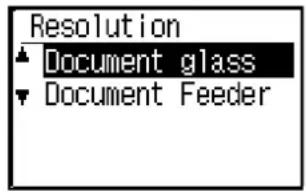
text_image
Resolution ▲ Document glass ▼ Document Feeder1 Select "Document glass" or "Document Feeder" with the [▼] [▲] keys and press the [OK] key.
2 Select "B/W" or "COLOUR" with the [◀][▶] keys, select "600 x 400dpi", "600 x 600dpi" (Document glass) or "600 x 300dpi", "600 x 600dpi" (Document Feeder) with the [▼] keys, and press the [OK] key.
SPECIAL MODES
To display the special functions menu, press the [SPECIAL FUNCTION] key (Fn) with the base copy screen displayed, and press the [Y] keys to select "SPECIAL FUNCTIONS".

text_image
Special Modes 2in1/4in1 Card Shot RGB Adjust SharpnessCOPYING MULTIPLE ORIGINALS ONTO A SINGLE SHEET OF PAPER (2 IN 1 / 4 IN 1 COPY)
Multiple originals can be copied onto a single sheet of paper in a selected layout pattern.
This function is convenient for compiling multi-page reference materials into a compact format, or for providing an overview of all pages of a document on a single page.
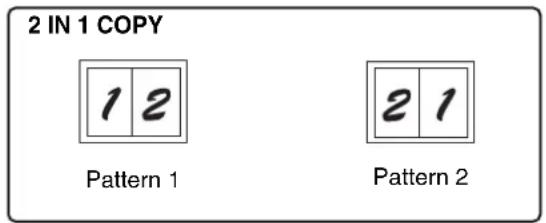
text_image
2 IN 1 COPY 1 2 Pattern 1 2 1 Pattern 2
text_image
4 IN 1 COPY 1 2 3 4 1 3 2 4 2 1 4 3 3 1 4 2 Pattern 1 Pattern 2 Pattern 3 Pattern 4Select "2in1/4in1" with the [▼][▲] keys and press the [OK] key. In the 2in1 / 4in1 screen, select "2in1" or "4in1" with the [▼] keys and press the [OK] key.
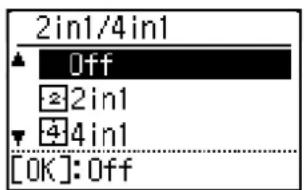
text_image
2in1/4in1 ▲ Off ■2in1 ■4in1 [OK]: OffSelect the layout with the [▼] keys and press the [OK] key. See above for the layouts that can be selected.

- 2 in 1 / 4 in 1 copy cannot be used in combination with the following functions. The function selected first will take precedence.
Card shot, ID card copy
- A special paper size cannot be used for 2 in 1 / 4 in 1 copy.
- An appropriate ratio setting will be automatically selected based on the original size, the paper size, and the selected number of images. When using the document glass, reduction is possible to 25% .
Certain combinations of original size, paper size, and number of images may result in images being cut off.
CARD SHOT
When copying a card, this function allows you to print the front and back sides of the card next to each other on a single sheet of paper.
This function creates 2 in 1 images of the front and back side of the card and centres them on the paper.
Original Copy Original Copy

flowchart
graph LR
    A["Card Front of card"] --> B["Back of card"]
    B --> C["Card"]
CARD
Front of card
→
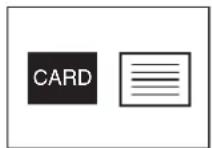

Back of card
Select Card Shot with the [▼] keys and press the [OK] key.

text_image
Card Shot Size(mm) X: 100 Y: 100Specify the card size in the Card Shot screen.
Select horizontal (X) or vertical (Y) with the [ ] keys, specify the dimension with the [ ][ ] keys, and press the [OK] key. Repeat for the other dimension.

- The horizontal and vertical dimensions can each be set to value from 25 to 210mm .
- Paper cannot be fed from the bypass tray.
- The card shot function cannot be used in combination with 2 in 1 / 4 in 1 copy, and ID card copy.
- The default settings for the horizontal and vertical dimensions in this screen can be set in "Card Shot Default" (p.182) in the system settings.
ADJUSTING RED/GREEN/BLUE IN COPIES (RGB Adjust)
The feature is used to strengthen or weaken any one of the three colour components R (red), G (green), B (blue).
Select "RGB Adjust" with the [▼] keys and press the [OK] key.
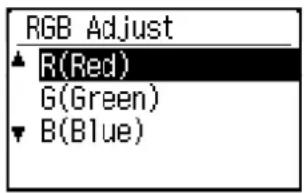
text_image
RGB Adjust ▲ R(Red) G(Green) ▼ B(Blue)Select "R (Red)", "G (Green)", or "B (Blue)" with the [▼][▲] keys, adjust the shade of the colour with the [◀][▶] keys, and press the [OK] key.
ADJUSTING THE SHARPNESS OF AN IMAGE (Sharpness)
This is used to sharpen an image or make it softer.
Select "Sharpness" with the [▼] keys and press the [OK] key.

text_image
Sharpness ▲ Off Soft ▼ SharpSelect "Off", "Soft", or "Sharp" with the [▼] keys and press the [OK] key.
WHITENING FAINT COLOURS IN COPIES (Suppress Background)
This feature is used to suppress light background areas.
Select "Suppress BG" with the [▼] keys and press the [OK] key.

text_image
Suppress BG Off■ : Only light backgrounds are suppressed.
☐ : Light to dark backgrounds are suppressed.
To select, change the level (3 levels are available) with the [◀][▶] keys and press the [OK] key.

When Suppress Background is selected, the copy exposure setting is not applied.
"MAKING A COPY DARKER OR LIGHTER" (p.28)
FREQUENTLY USED SETTINGS (PROGRAMS)
A group of copy settings can be stored together as a program. A stored program can be easily invoked.
STORING A PROGRAM
The following copy settings can be stored:
Duplex, Zoom, Exposure, Resolution, Orig. Size Enter, Paper Size, Sort, 2in1/4in1, Card Shot, RGB Adjust, Sharpness, Suppress BG
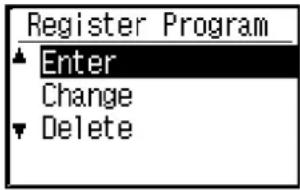
With the copy base screen displayed, press the [SPECIAL FUNCTION] key (Fn), select "Register Program" with the [Y] keys, and press the [OK] key. The Register Program screen appears.
text_image
Register Program Enter Change DeleteTo store a new program, select "Enter". To change a stored program, select "Change". To delete a stored program, select "Delete". Press the [OK] key.
STORING/CHANGING A PROGRAM
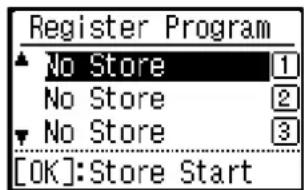
1 Select the number of the program you want to store or change with the [▼][▲] keys and press the [OK] key.
text_image
Register Program No Store 1 No Store 2 No Store 3 [OK]:Store Start"No Store" appears in locations where a program has not been stored. "Program 1 - 3" appears in locations where a program is already stored.
2 Use the [▼][▲] keys to select a setting that you want to store in the program from the list of storable settings, and press the [OK] key.

text_image
Register Program ▲ Copy Mode ▼ Copy Ratio [*]:=Cancel [Start]:=Store End3 Refer to "RESOLUTION SETTINGS" (p.33) to "WHITENING FAINT COLOURS IN COPIES (Suppress Background)" (p.36) for information on the settings.
A checkmark appears in front of each setting that you have selected. When you have finished selecting settings, press the [COLOUR START] key or [BLACK & WHITE START] key.

- Up to three programs can be stored.
- Some setting combinations are not possible.
(For example, 2in1/4in1 and Card Shot)
DELETING A PROGRAM
1 Select the number of the program that you want to delete with the [▼][▲] keys and press the [OK] key.
2 Select "Delete" with the [▼][▲] keys and press the [OK] key.
The selected program location changes to "No Store".
USING A PROGRAM
Select "Program" in the right menu of the base screen of copy mode and press the [OK] key. Select the number of the program you want to use with the [▼] keys and press the [OK] key. The settings in the selected program are applied to the copy job.
PRINTER FUNCTION OF THE MACHINE
The machine is equipped standard with a full colour printing function. To enable printing from your computer, a printer driver must be installed.
See the table below to determine which printer driver to use in your environment.
| Environment Printer driver type | |
| Windows | PCL6The machine supports the Hewlett-Packard PCL6 printer control languages. |
| Windows / Macintosh | PSThis printer driver supports the PostScript 3 page description language developed by Adobe Systems Incorporated, and enables the machine to be used as a PostScript 3 compatible printer.(A PPD file is available if it is desired to use the Windows standard PS printer driver.) |
Installing the printer driver in a Windows environment
To install the printer driver and configure settings in a Windows environment, see in the Software Setup Guide.
The explanations in this manual of printing in a Windows environment generally use the screens of the PCL6 printer driver. The printer driver screens may differ slightly depending on the printer driver that you are using.
Installing the printer driver in a Macintosh environment
To install the printer driver and configure settings in a Macintosh environment, see in the Software Setup Guide.
PRINTING FROM WINDOWS
PRINTER DRIVER PROPERTIES WINDOW

text_image
Print General Select Printer Add Printer SHARP MX-xxxx Status: Ready Location: Comment: Page Range All Selection Current Page Pages: 1-6553 Enter either a single page number or a single page range. For example, 5-12 Print to file Preferences Find Printer... Number of copies: 1 Cellate 1 2 3 1 2 3 Print Cancel Apply(1)
(2)
(1) Select the printer driver of the machine.
- If the printer drivers appear as icons, click the icon of the printer driver to be used.
- If the printer drivers appear as a list, select the name of the printer driver to be used from the list.
(2) Click the [Preferences] button.

The button that is used to open the printer driver properties window (usually [Properties] or [Printing Preferences]) may vary depending on the software application.
BASIC PRINTING PROCEDURE
The following example explains how to print a document from "WordPad", which is a standard accessory program in Windows.
1 Select [Print] from the [File] menu of WordPad.
2 Open the printer driver properties window.
3 Select print settings.
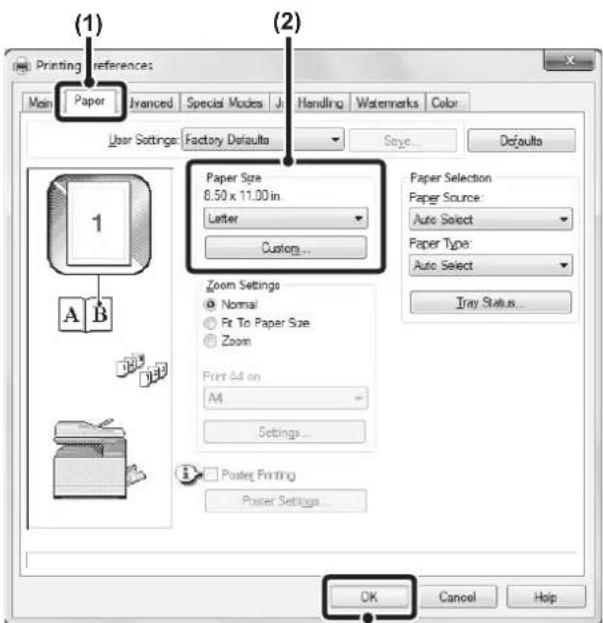
text_image
(1) Printing references Main Paper Advanced Special Modes Handling Watermarks Color User Settings: Factory Defaults Page Selection Paper Source: Auto Select Paper Type: Auto Select Custom... Paper Size 8.50 x 11.00 in. Letter Zoom Settings Normal Ft To Paper Size Zoom Print &4 on A4 Settings... Poster Printing Poster Settings... OK Cancel Help(3)
(1) Click the [Paper] tab.
(2) Select the paper size.
To select settings on other tabs, click the desired tab and then select the settings.
(3) Click the [OK] button.

- Make sure the paper size is the same as the paper size set in the software application. - Up to nine custom paper sizes can be stored. Storing a custom paper size makes it easy to specify that size each time you need to use it. To store a paper size, select [Custom Paper], one of [User1] to [User7] or [Long Paper] from the pull-down menu and click the [Custom] button.
4 Click the [Print] button.
Printing begins.
SELECTING THE PAPER
This section explains how to configure the "Paper Selection" setting on the [Paper] tab of the printer driver properties window.
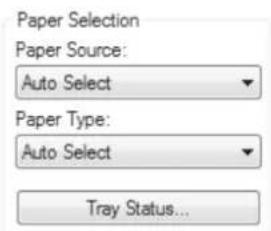
Before printing, check the paper sizes, paper types, and paper remaining in the machine's trays. To view the most recent tray information, click the [Tray Status] button.
text_image
Paper Selection Paper Source: Auto Select Paper Type: Auto Select Tray Status...- When [Auto Select] is selected in "Paper Source"
The tray that has the size and type of paper selected in "Paper Size" and "Paper Type" on the [Paper] tab is automatically selected.
- When other than [Auto Select] is selected in "Paper Source"
The specified tray is used for printing regardless of the "Paper Size" setting.
- When [Bypass Tray] is selected
The "Paper Type" must also be selected. Check the bypass tray and make sure that the desired type of paper is loaded, and then select the appropriate "Paper Type" setting.

Special media such as envelopes can also be placed in the bypass tray. For the procedure for loading paper and other media in the bypass tray, see "Loading the bypass tray" (P.20).
- When [Auto Select] is selected in "Paper Type"
A tray with plain paper of the size specified in "Paper Size" is automatically selected.
- When other than [Auto Select] is selected in "Paper Type"
A tray with the specified type of paper and the size specified in "Paper Size" is used for printing.
PRINTING ON ENVELOPES
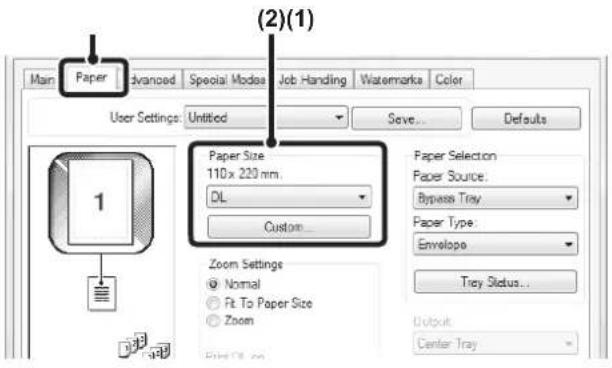
The bypass tray can be used to print on special media such as envelopes. The procedure for printing on an envelope from the printer driver properties screen is described below.
For the types of paper that can be used in the bypass tray, see "PAPER" (P.16) in "BEFORE USING THE MACHINE". For the procedure for loading paper in the bypass tray, see "Loading the bypass tray" (P.20) in "BEFORE USING THE MACHINE".
Select the envelope size in the appropriate settings of the application ("Page Settings" in many applications) and then perform the following steps.
text_image
(2)(1) Main Paper Advanced Special Modes Job Handling Watermarks Color User Settings: Untitled Save... Defaults Paper Size 110x 220 mm. DL Custom... Paper Selection Paper Source: Bypass Tray Paper Type: Envelope Tirey Status... Zoom Settings Normal Ft To Paper Size Zoom Print On... Output Center Tray(1) Click the [Paper] tab.
(2) Select the envelope size from the "Paper Size" menu.
The paper tray and paper type are automatically selected.

- It is recommended that you do a test print to check the print result before using an envelope.
- In the case of media that can only be loaded in a certain orientation such as an envelope, you can rotate the image 180 degrees if needed. For more information, see "ROTATING THE PRINT IMAGE 180 DEGREES (Rotate 180 degrees)".
- When feeding an envelope, push down the fusing unit release levers (see p.10) to release the pressure.
PRINTING WHEN THE USER AUTHENTICATION FUNCTION IS ENABLED
When the user authentication function is enabled in the machine's system settings (administrator), your user information (login name, password, etc.) must be entered in the printer driver properties window before you can print. The information that must be entered varies depending on the authentication method being used, so check with the administrator of the machine before printing.
1 Open the printer driver properties window from the print window of the software application.
2 Enter your user number.

text_image
Printing Preferences Main Paper Advanced Special Mode Job Handling User Settings Factory Defaults Retention Retention Settings Password Notify Job End Auto Job Control Review (1)(2) Sage... Defaults User Number •••• Default Job ID User Name Job Name OK Cancel Help (3)(4)(1) Click the [Job Handling] tab.
(2) Enter your user number.
When authentication is by user number. Click the [User Number] checkbox and enter a user number (5 digits).

When [User Authentication] has been checked on [Printing Policy] in the [Configuration] tab, you cannot enter the user number. Enter the user information in the dialog box whenever you print.
(3) Enter the user name and job name as necessary.
- User Name
Click the [User Name] checkbox and enter your user name (maximum of 32 characters). Your entered user name will appear at the top of the operation panel. If you do not enter a user name, your computer login name will appear.
- Job Name
Click the [Job Name] checkbox and enter a job name (maximum of 80 characters). The entered job name will appear at the top of the operation panel as a file name. If you do not enter a job name, the file name set in the software application will appear.
(4) Click the [OK] button.
![SHARP MX-C300W - Click the [OK] button. - 1](/content/2026/06/1243240/images/b27cf1844ac70e3b86c63082513071efd7ad58e00c1b805977ec774dbadaab9f.jpg)
To have a confirmation window appear before printing starts, select the [Auto Job Control Review] checkbox so that a checkmark √ appears.
3 Start printing.

text_image
in Current Page 1-65535 a single page number or a single : For example, 5-12 Number of copies: 1 Collate 1 2 3 1 2 3 Print Cancel Apply
- The machine's user authentication function cannot be used when the PPD file* is installed and the Windows standard PS printer driver is used. For this reason, printing will not be possible if printing by invalid users is prohibited in the system settings (administrator). - The PPD file enables the machine to print using the standard PS printer driver of the operating system. System Setting(Administrator):Disable Print by Inv. User "Disable Print by Inv. User" can be enabled in the machine's system settings (Administrator) to prohibit print jobs of users whose user information is not stored in the machine. When this function is enabled, printing is not allowed when user information is not entered or incorrect information is entered.
VIEWING PRINTER DRIVER HELP
When selecting settings in the printer driver, you can display Help to view explanations of the settings.
1 Open the printer driver properties window from the print window of the software application.
2 Click the [Help] button.
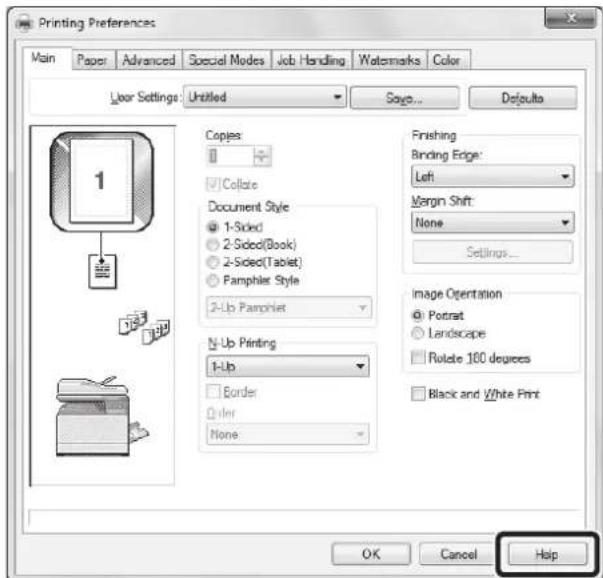
text_image
Printing Preferences Main Paper Advanced Special Modes Job Handling Watermarks Color Layer Settings: Untitled Sayo Defaults Copies Collate Document Style 1-Sided 2-Sided(Book) 2-Sided(Tablet) Pamphier Style 2-Up Pamphier N-Up Printing 1-Up Border Outer None Finishing Binding Edge: Left Margin Shift: None Settings... Image Orientation Portrait Landscape Rotate 100 degrees Black and White Print OK Cancel HelpThe Help window will open to let you view explanations of the settings on the tab. To view Help for settings in a dialog box, click the underlined text at the top of the Help window.
Pop-up help
Help can be displayed for a setting by clicking the setting and pressing the [F1] key.
* To view Help for a setting in Windows XP/Server 2003, click the button in the upper right-hand corner of the printer driver properties window and then click the setting.
Information icon
Some restrictions exist on the combinations of settings that can be selected in the printer driver properties window. When a restriction exists on a selected setting, an information icon ( ⓘ ) will appear next to the setting. Click the icon to view an explanation of the restriction.
SAVING FREQUENTLY USED PRINT SETTINGS
Settings configured on each of the tabs at the time of printing can be saved as user settings. Saving frequently used settings or complex colour settings under an assigned name makes it easy to select those settings the next time you need to use them.
SAVING SETTINGS AT THE TIME OF PRINTING
Settings can be saved from any tab of the printer driver properties window. Settings configured on each tab are listed at the time of saving, allowing you to check the settings as you save them.
1 Open the printer driver properties window from the print window of the software application.
2 Save the print settings.
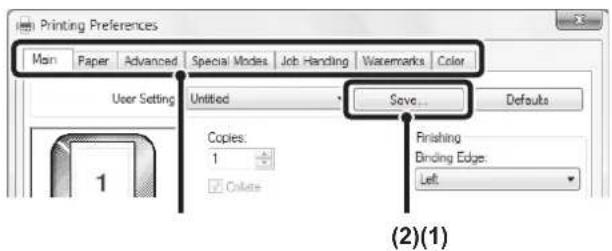
text_image
Printing Preferences Main Paper Advanced Special Modes Job Handling Watermarks Color User Setting Untitled Save... Copies: 1 Delete Finishing Binding Edge: Left. (2)(1)(1) Configure print settings on each tab.
(2) Click the [Save] button.
3 Check and save the settings.

text_image
(2)(1) User Settings Setting Name: User 1 Cument Settings: Main Copies 1 Collate On Document Style 1-Sided N-Up Printing 1-Up N-Up Border Off N-Up Order None Binding Edge Left Margin Shift None Image Orientation Portrait Rotate 180 degrees Off Black and White Print Off Paper Paper Size A4 Zoom Settings Normal Poster Printing None Dash Border Off Overlap Off Paper Source Auto Select Paper Type Auto Select OK Cancel (3)(1) Check the displayed settings.
(2) Enter a name for the settings (maximum of 20 characters).
(3) Click the [OK] button.
4 Click the [OK] button.
5 Start printing.

- Up to 30 sets of user settings can be saved.
- The following items cannot be saved in user settings.
• A watermark that you created
• Paper insertion settings
- Overlay file
- The user number, user name, and job name entered in the [Job Handling] tab
USING SAVED SETTINGS
1 Open the printer driver properties window from the print window of the software application.
2 Select the print settings.

text_image
Main Paper Advanced Special Modes Job Handling Watermarks Color User Setting User 1 Delete Defaults Copies Collate Document Style 1-Sided 2-Sided(Book) 2-Sided(Tablet) Pamphler Style 2-Up Pamphriet N-Up Printing 1-Up Border Outer None Finishing Binding Edge: Left Margin Shift: None Settings... Image Orientation Portrait Landscape Rotate 180 degrees Black and White Print OK Cancel Help(1)
(2)
(1) Select the user settings that you wish to use.
(2) Click the [OK] button.
3 Start printing.
Deleting saved settings
Select the user settings that you want to delete in (1) of step 2 above, and click the [Delete] button.
CHANGING THE PRINTER DRIVER DEFAULT SETTINGS
The default settings of the printer driver can be changed using the procedure below. The settings selected using this procedure are saved and become the default settings when printing from a software application. (Settings selected in the printer driver properties window when printing from an application remain in effect only while the application is in use.)
1 Click the [Start] button () and select [Control Panel] and then [View devices and printers].
- In Windows XP/Server 2003, click the [start] button and then click [Printers and Faxes].
- In Windows 8/Server 2012, right-click the start screen (or swipe up from the bottom edge of the screen), and click [All apps] - [Control Panel] - [View devices and printers] - [Printer] on the taskbar.
![SHARP MX-C300W - Click the [Start] button () and select [Control Panel] and then [View devices and printers]. - 1](/content/2026/06/1243240/images/e4918583994383aa4b72b1e4bd6a9ab130688a684cd3c8039e8996c2aa2a87a5.jpg)
In Windows XP, if [Printers and Faxes] does not appear in the [start] menu, select [Control Panel], select [Printers and Other Hardware], and then select [Printers and Faxes].
2 Open the printer properties window.
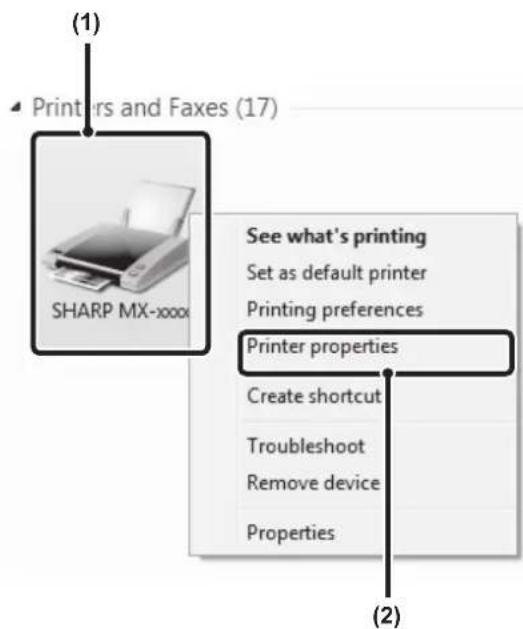
text_image
(1) Printers and Faxes (17) SHARP MX-xxxx See what's printing Set as default printer Printing preferences Printer properties Create shortcut Troubleshoot Remove device Properties (2)(1) Click the icon of the printer driver of the machine.
(2) Select [Printer properties].

In Windows XP/Server 2003, click the [File] menu.
3 Click the [Printing Preferences] button on the [General] tab.
![SHARP MX-C300W - Click the [Printing Preferences] button on the [General] tab. - 1](/content/2026/06/1243240/images/35ed6d4e8a1efbe5beb72c567586d0f2a8359a66bd86a3d3e7fbaf0ee95675de.jpg)
text_image
General Sharing Ports Advanced Color Management Security Configuration SHARP NX export Location: Comment: Model: SHARP NX export Features Paper available: Custom Paper Printing Preferences... Print Text Page4 Configure the settings and click the [OK] button.
![SHARP MX-C300W - Configure the settings and click the [OK] button. - 1](/content/2026/06/1243240/images/52431baa07cd2cfd2d99df955693aeb1801c58b7a0d1f69aed0ea38845570e9b.jpg)
text_image
Main Paper Advanced Special Modes Job Handling Watermarks Color User Settings: Factory Defaults Soys... Defaults Copies: Coloto Document Style 1-Sided 2-Sided (Book) 2-Sided (Tablet) Pamphlet Style 2-Up Pamphlet N Up Printing 1-Up Border None Finishing Binding Edge: Left Margin Shift: None Settings... Image Operation Portrait Landscape Rotate 100 degrees Black and White Print OK Cancel Apply HelpFor explanations of the settings, see printer driver Help.
PRINTING FROM A MACINTOSH
BASIC PRINTING PROCEDURE
The following example explains how to print a document from the standard accessory program "TextEdit" in Mac OS X.

To use the machine as a printer for the Macintosh, the machine must be connected to a network.
To install the PPD file and configure printer driver settings, see Software Setup Guide.
SELECTING PAPER SETTINGS
Select paper settings in the printer driver before selecting the print command.
1 Select [Page Setup] from the [File] menu of TextEdit.
![SHARP MX-C300W - Select [Page Setup] from the [File] menu of TextEdit. - 1](/content/2026/06/1243240/images/afcdbaadf8b4af27775cfce89cc9942502efb16b0203bf7bf12d927d70451ca5.jpg)
text_image
File Edit Format View New ⌘N Open... ⌘O Open Recent ▶ Close ⌘W Save... ⌘S Duplicate ⌘S Rename... Move To... Export as PDF... Revert To ▶ Attach Files... ⌘A Show Properties ⌘P Page Setup... ⌘P2 Select paper settings.
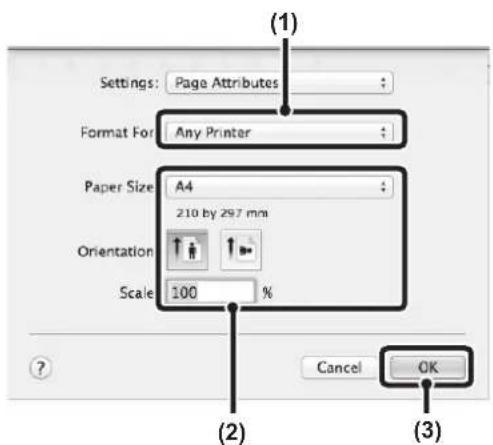
text_image
Settings: Page Attributes Format For Any Printer Paper Size A4 210 by 297 mm Orientation Scale 100 % Cancel OK (1) (2) (3)(1) Make sure that the correct printer is selected.
(2) Select paper settings.
The paper size, paper orientation, and enlarge/reduce can be selected.
(3) Click the [OK] button.
PRINTING
1 Select [Print] from the [File] menu of TextEdit.
![SHARP MX-C300W - Select [Print] from the [File] menu of TextEdit. - 1](/content/2026/06/1243240/images/07ceb95e3fdba934cef00d557e2075e300fe2325d4ab2c8117e979286283e172.jpg)
text_image
File Edit Format View New %N Open... %O Open Recent ▶ Close %W Save... %S Duplicate Ⓧ%S Rename... Move To... Export as PDF... Revert To ▶ Attach Files... Ⓧ%A Show Properties ⓍP Page Setup Ⓧ%P Print... %P![SHARP MX-C300W - Select [Print] from the [File] menu of TextEdit. - 2](/content/2026/06/1243240/images/4d74702eb02c3c0b5320ddf0bc0c4fc272a5d187d88ea7397bcd454cadabe6ac.jpg)
The menu used to execute printing may vary depending on the software application.
2 Make sure that the correct printer is selected.
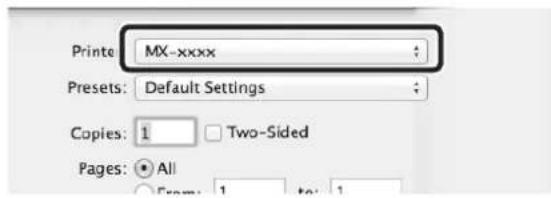
text_image
Printe: MX-xxxx Presets: Default Settings Copies: 1 □ Two-Sided Pages: ● All From: 1 to: 1
Depending on the OS, the machine name that appears in the "Printer" menu is [MX-xxxx]. ("xxxx" is a sequence of characters that varies depending on the machine model.)
3 Select print settings.
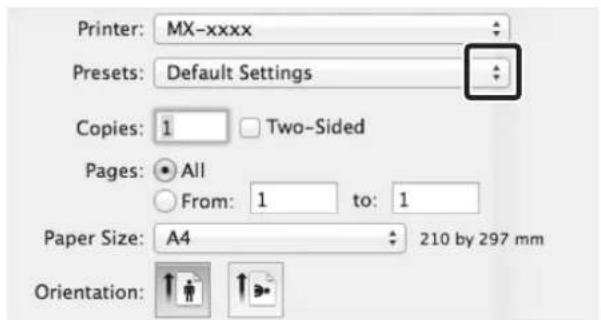
text_image
Printer: MX-xxxx Presets: Default Settings Copies: 1 □ Two-Sided Pages: ● All ○ From: 1 to: 1 Paper Size: A4 210 by 297 mm Orientation: ↑ ↑Click next to [Copies & Pages] and select the settings that you wish to configure from the pull-down menu. The corresponding setting screen will appear.
If the settings do not appear in Mac OS X v10.5, 10.6 and 10.7, click "next to the printer name."
4 Click the [Print] button.
![SHARP MX-C300W - Click the [Print] button. - 1](/content/2026/06/1243240/images/6ec1f7ba3f0919afe539e2d314ad38c00db64804bac2a1d07aae8e0467ce2a90.jpg)
text_image
Printer: MX-xxxx Presets: Default Settings Copies: 1 Two-Sided Pages: All From: 1 to: 1 Paper Size: A4 210 by 297 mm Orientation: TextEdit Print header and footer Rewrap contents to fit page Cancel PrintPrinting begins.
SELECTING THE PAPER
This section explains the [Paper Feed] settings in the print settings window.
- When [Auto Select] is selected
A tray with plain paper or recycled paper (the factory default setting is plain paper only) of the size specified in "Paper Size" in the page settings window is automatically selected.
- When a paper tray is selected
The specified tray is used for printing regardless of the "Paper Size" setting in the page settings window.
For the bypass tray, a paper type can also be specified. Make sure that the paper type setting for the bypass tray is correct and that the set type of paper is actually loaded in the bypass tray, and then select the appropriate bypass tray (paper type).

- Special media such as envelopes can also be placed in the bypass tray. For the procedure for loading paper and other media in the bypass tray, see "Loading the bypass tray" (P.20) in "BEFORE USING THE MACHINE".
- When "Enable Detected Paper Size in Bypass Tray" (disabled by factory default) or "Enable Selected Paper Type in Bypass Tray" (enabled by factory default) is enabled in the system settings (administrator), printing will not take place if the paper size or paper type specified in the printer driver is different from the paper size or paper type specified in the settings of the bypass tray.
- When a paper type is selected
A tray with the specified type of paper and the size specified in "Paper Size" in the page settings window is used for printing.
PRINTING ON ENVELOPES
The bypass tray can be used to print on special media such as envelopes. The procedure for printing on an envelope from the printer driver properties screen is described below. For the types of paper that can be used in the bypass tray, see "PAPER" (P.16). For the procedure for loading paper in the bypass tray, see "Loading the bypass tray" (P.20). Select the envelope size in the appropriate settings of the application ("Page Settings" in many applications) and then perform the following steps.
1 Select the paper size.
Select the envelope size from the "Paper Size" menu on the page setup screen.

In the case of media that can only be loaded in a certain orientation such as an envelope, you can rotate the image 180 degrees if needed. For more information, see "ROTATING THE PRINT IMAGE 180 DEGREES (Rotate 180 degrees)" (P.62)".
2 Select the bypass tray.

text_image
Paper Size: Envelope #10 Orientation: Paper Feed All Pages From: Bypass Tray(Envelope) First Page From: Bypass Tray(Plain) Remaining From: Bypass Tray(Plain)(2)
(1) Select [Paper Feed] on the print screen.
(2) Select [Bypass Tray(Envelope)] from the "All pages from" menu.
Set the bypass tray paper type to [Envelope] in the machine's "Paper Type Setup", and make sure that an envelope is loaded in the bypass tray.

It is recommended that you do a test print to check the print result before using an envelope.
PRINTING WHEN THE USER AUTHENTICATION FUNCTION IS ENABLED
When the user authentication function is enabled in the machine's system settings (administrator), you must enter your user number in order to print.
1 Select [Print] from the application's [File] menu.
![SHARP MX-C300W - Select [Print] from the application's [File] menu. - 1](/content/2026/06/1243240/images/62d32279958c11fe333deb89fe84dc39693178c83586a1a9211635f01a18d0b8.jpg)
text_image
File Edit Format View New %N Open... %O Open Recent ▶ Close %W Save... %S Duplicate ⌘%S Rename... Move To... Export as PDF... Revert To ▶ Attach Files... Ⓧ%A Show Properties ⓍP Page Setup ⓍP Print... %P![SHARP MX-C300W - Select [Print] from the application's [File] menu. - 2](/content/2026/06/1243240/images/e668f4636547cbef3383457797dc4bc56ad3016bfeae2eaef8b7187f06c5e4b1.jpg)
The menu used to execute printing may vary depending on the software application.
2 Display the job handling screen.
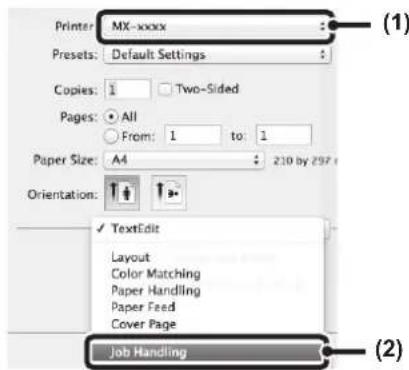
text_image
Printer: MX-xxxx Presets: Default Settings Copies: 1 Two-Sided Pages: All From: 1 to: 1 Paper Size: A4 230 by 297 Orientation: TextEdit Layout Color Matching Paper Handling Paper Feed Cover Page Job Handling(1) Make sure that the machine's printer name is selected.
(2) Select [Job Handling] and then click the [Authentication] tab in the screen that appears.
In Mac OS X v10.4, select [Job Handling].

Depending on the OS, the machine name that appears in the "Printer" menu is [MX-xxxx]. ("xxxx" is a sequence of characters that varies depending on the machine model.)
3 Start printing.
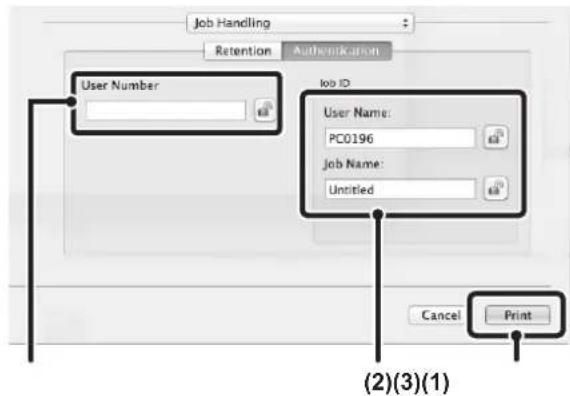
text_image
Job Handling Retention Authentication User Number Job ID User Name: PC0196 job Name: Untitled Cancel Print (2)(3)(1)(1) Enter your user information.
When authentication is by user number Enter your user number (5 digits) in "User Number".
(2) Enter the user name and job name as necessary.
- User Name
Enter your user name (maximum of 32 characters). Your entered user name will appear at the top of the operation panel. If you do not enter a user name, your computer login name will appear.
- Job Name
Enter a job name (maximum of 30 characters). The entered job name will appear at the top of the operation panel as a file name. If you do not enter a job name, the file name set in the software application will appear.
(3) Click the [Print] button.
![SHARP MX-C300W - Click the [Print] button. - 1](/content/2026/06/1243240/images/e6b92d5fd3ccbe26b6c5851f8e22c149efcc8511e167b0733c63f0ba6d9f4b8d.jpg)
You can click the (lock) button after entering your login name and password, or user number, to simplify operation the next time you wish to print based on the same user authentication.
![SHARP MX-C300W - Click the [Print] button. - 2](/content/2026/06/1243240/images/a8a91f7b572e422484cb6294c52b900fa7e8159d2df86476797f4ce6570029f5.jpg)
"Disable Print by Inv. User" can be enabled in the machine's system settings (Administrator) to prohibit print jobs of users whose user information is not stored in the machine.
FREQUENTLY USED FUNCTION
This section explains frequently used functions.
- "SELECTING THE COLOUR MODE" (P.52)
• "TWO-SIDED PRINTING" (P.55)
- "FITTING THE PRINT IMAGE TO THE PAPER" (P.56)
- "PRINTING MULTIPLE PAGES ON ONE PAGE" (P.57)
The explanations assume that the paper size and other basic settings have already been selected. For the basic procedure for printing and the steps for opening the printer driver properties window, see the following section:
- Windows: "BASIC PRINTING PROCEDURE" (P.41)
• Macintosh : "BASIC PRINTING PROCEDURE" (P.48)

In Windows, view printer driver Help for details on printer driver settings for each printing function.
SELECTING THE COLOUR MODE
This section explains how to select the colour mode in the printer driver properties window. The following three selections are available for the colour mode:
Automatic: The machine automatically determines whether each page is colour or black and white and prints the page accordingly. Pages with colours other than black and white are printed using Y (Yellow), M (Magenta), C (Cyan) and Bk (Black) toner. Pages that are only black and white are printed using Bk (Black) toner only. This is convenient when printing a document that has both colour and black and white pages, however, the printing speed is slower.
Color: All pages are printed in colour. Both colour data and black and white data are printed using Y (Yellow), M (Magenta), C (Cyan) and Bk (Black) toner.
Black and White: All pages are printed in black and white. Colour data such as images or materials for a presentation are printed using black toner only. This mode helps conserve colour toner when you do not need to print in colour, such as when proofreading or checking the layout of a document.

When "Color Mode" is set to [Automatic]
Even if the print result is black and white, the following types of print jobs will be counted as 4-colour (Y (Yellow), M (Magenta), C (Cyan), and Bk (Black)) print jobs. To be always counted as a black and white job, select [Black and White].
- When the data is created as colour data.
- When the application treats the data as colour data even though the data is black and white.
- When an image is hidden under a black and white image.
Windows

text_image
(1)(2) Main Paper Advanced Special Modes Job Handling Watermark Color User Settings: Factory Defaults Save... Defaults Color Mode ● Automatic ○ Color ○ Black and White(1) Click the [Color] tab.
(2) Select the "Color Mode" that you wish to use.
BLACK AND WHITE PRINTING
[Black and White] can be selected on the [Main] tab as well as on the [Color] tab. Click the [Black and White Print] checkbox on the [Main] tab so that a checkmark appears.

text_image
A B Panphlet Style 2-Up Panphlet N-Up Printing 1-Up Border Order: None Image Orientation ● Portrait ● Landscape □ Rotate 180 degrees ✓ Black and White Print OK Cancel HelpThe [Black and White Print] checkbox on the [Main] tab and the "Color Mode" setting on the [Color] tab are linked. When the [Black and White Print] checkbox is selected on the [Main] tab, [Black and White] is also selected on the [Color] tab.
Macintosh

text_image
(2) Orientation: Color Save Settings Color Advanced ColorSync Color Mode: Automatic Neutral Cray: Black Only Color Print Mode: High Quality Pure Black Print: Black Only Color Screening: Default ✓ Black Overprint Image Type: Standard Toner Save(1) Select [Color].
(2) Select the "Color Mode" that you wish to use.
SELECTING A PRINT MODE SETTING
This section explains the procedure for selecting a print mode setting. The "Print Mode Settings" consist of the following two items:
Normal: This mode is suitable for printing data such as regular text or a table.
High Quality: The print quality of colour photos and text is high.
Windows
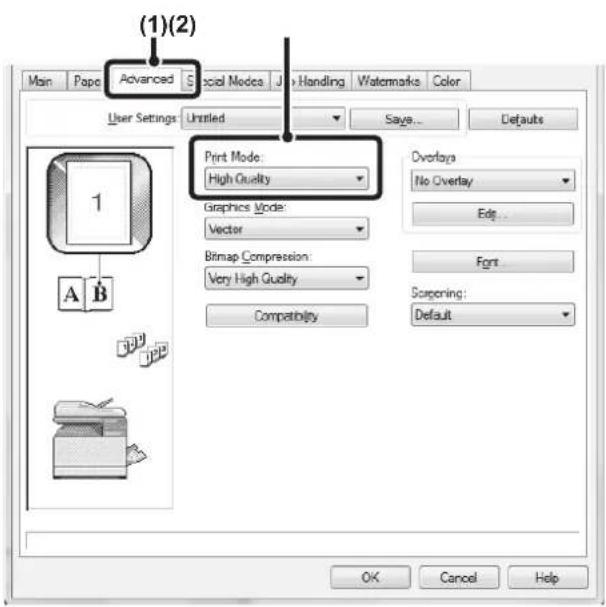
text_image
(1)(2) Main Paper Advanced Social Modes Handling Watermarks Color User Settings Untitled Says... Defaults Print Mode: High Quality Graphics Mode: Vector Bitmap Compression: Very High Quality Compatibility Overlays No Overlay Edit... Font... Scanning: Default OK Cancel Help(1) Click the [Advanced] tab.
(2) Select the "Print Mode".
Macintosh
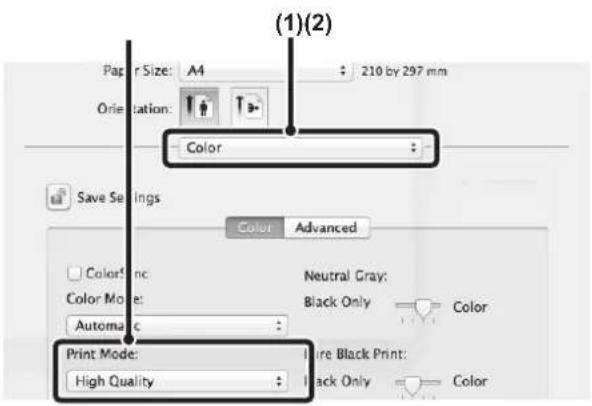
text_image
(1)(2) Paper Size: A4 210 by 297 mm Orientation: Color Save Settings Color Advanced Color Mode: Automatic Neutral Gray: Black Only Color Print Mode: High Quality Sure Black Print: Black Only Color(1) Select [Color].
(2) Select the "Print Mode".
TWO-SIDED PRINTING
The machine can print on both sides of the paper. This function is useful for many purposes, and is particularly convenient when you want to create a simple pamphlet. Two-sided printing also helps conserve paper.
| Paper orientation | Print results | |||
| Vertical | Windows Macintosh | Windows Macintosh | ||
| 2-Sided(Book) | Long-edged binding (Flip on long edge) | 2-Sided(Tablet) | Short-edged binding (Flip on short edge) | |
 | 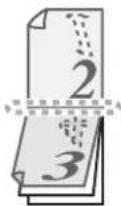 | |||
| Horizontal | Windows Macintosh | Windows Macintosh | ||
| 2-Sided(Book) | Short-edged binding (Flip on short edge) | 2-Sided(Tablet) | Long-edged binding (Flip on long edge) | |
 |  | |||
| The pages are printed so that they can be bound at the side. | The pages are printed so that they can be bound at the top. | |||
Windows
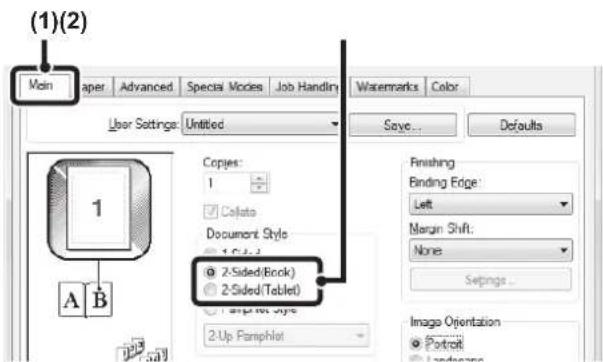
text_image
(1)(2) Main Paper Advanced Special Modes Job Handling User Settings Untitled Copies: 1 Colato Document Style 1-Sided 2-Sided(Book) 2-Sided(Tablet) Pancreat Style 2-Up Panphlet Winishing Binding Edge: Left Margin Shift: None Settings... Image Orientation Portrait Lockdown(1) Configure the settings on the [Main] tab.
(2) Select [2-Sided(Book)] or [2-Sided(Tablet)].
Macintosh
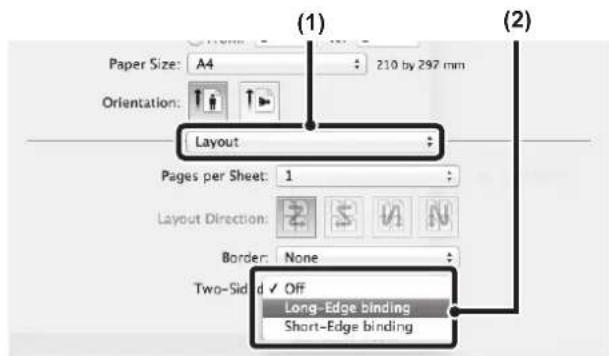
text_image
Paper Size: A4 Orientation: Layout Pages per Sheet: 1 Layout Direction: Border: None Two-Sided √ Off Long-Edge binding Short-Edge binding(1) Select [Layout].
(2) Select [Long-edged binding] or [Short-edged binding].
FITTING THE PRINT IMAGE TO THE PAPER
This function is used to automatically enlarge or reduce the printed image to match the size of the paper loaded in the machine.
This is convenient for such purposes as enlarging an A5 or letter size document to A4 or ledger size to make it easier to view, and to print when the same size of paper as the document image is not loaded in the machine.
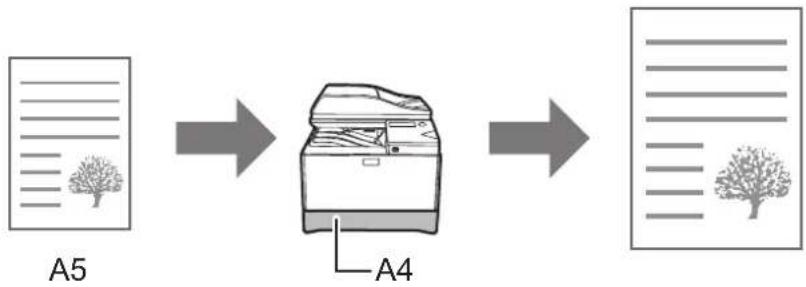
flowchart
graph LR
    A["A5"] --> B["A4"]
    B --> C["-->"]
    C --> D["-->"]
The following example explains how to print an A5 size document on A4 size paper.
Windows
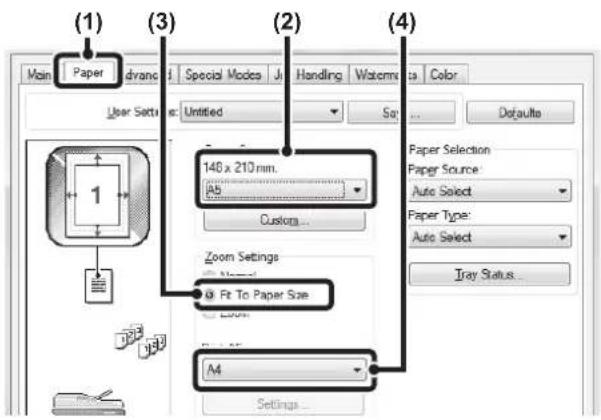
text_image
(1) Paper (3) Special Modes J: Handling Watercolor Color User Settings: Untitled So... Defaulte 140 x 210 mm. Ab Customs... Paper Selection Paper Source: Auto Select Paper Type: Auto Select Iray Status... Zoom Settings Fit To Paper Size A4 Settings...Macintosh
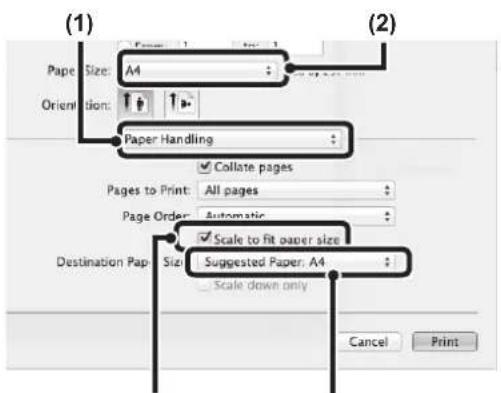
text_image
(1) Paper Size: A4 Orientation: Paper Handling Collate pages Pages to Print: All pages Page Order: Automatic Scale to fit paper size Destination Paper Size: Suggested Paper, A4 Scale down only Cancel Print(3)(4)
(1) Click the [Paper] tab.
(2) Select the size of the print image (for example: A5).
(3) Select [Fit To Paper Size].
(4) Select the actual paper size to be used for printing (for example: A4).
(1) Select [Paper Handling].
(2) Check the size of the print image (for example: A5).
To change the print image size, use the "Paper Size" menu that appears when [Page Setup] is selected.
(3) Select [Scale to fit paper size].
(4) Select the actual paper size to be used for printing (for example: A4).
PRINTING MULTIPLE PAGES ON ONE PAGE
This function can be used to reduce the print image and print multiple pages on a single sheet of paper.
This is convenient when you want to print multiple images such as photos on a single sheet of paper, and when you want to conserve paper. This function can also be used in combination with two-sided printing for maximum conservation of paper.
Using the PCL6 printer driver, you can print only the first page in the original size and print multiple reduced pages on the subsequent sheets.
For example, when [2-Up] (2 pages per sheet) and [4-Up] (4 pages per sheet) are selected, the following print results will be obtained, depending on the order selected.
| N-Up(Pages per sheet) | Print results | ||
| Left To Right Right To Left | Top To Bottom(When the print orientation is landscape) | ||
| 2-Up(2 pages per sheet) | 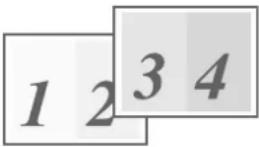 | 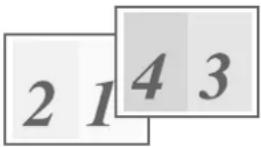 | 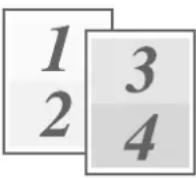 |
| N-Up(Pages per sheet) | Right, and Down | Down, and Right | Left, and Down | Down, and Left |
| 4-Up(4 pages per sheet) | 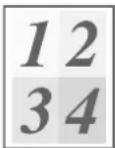 | 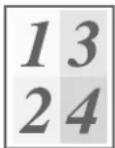 | 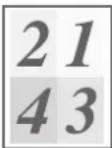 |  |

- The page orders for 6-Up, 8-Up, 9-Up, and 16-Up are the same as for 4-Up.
- In a Windows environment, the page order can be viewed in the print image in the printer driver properties window. In a Macintosh environment, the page orders are displayed as selections.
- In a Macintosh environment, the number of pages that can be printed on a single sheet is 2, 4, 6, 9, or 16.
Windows

text_image
(1) Main Paper Advanced Special Modes Job Handing Watermarks Color User Settings Untitled Save Defaults Copies: 1 Colgate Document Style 1-Sided 2-Sided(Book) 2-Sided(Tablet) Pamphlet Style 2-Up Pamphlet N-Up Printing 2-Up Border Left To Right Finishing Binding Edge: Left Margin Shift: None Settings... Image Orientation Portrait Landscape Rotate 180 degrees Black and White Print (2) (3) (4)Macintosh

text_image
(1)(2) Paper Size: A4 210 by 297 m Orientation: Layout Pages per Sheet: 2 Layout Direction: Z S N N Border: None Two-Sided: Off Reverse page orientation Flip horizontally (3)(4)(1) Configure the settings on the [Main] tab.
(2) Select the number of pages per sheet.
(3) If you wish to print borderlines, click the [Border] checkbox so that a checkmark appears.
(4) Select the order of the pages.
(1) Select [Layout].
(2) Select the number of pages per sheet.
(3) Select the order of the pages.
(4) If you wish to print borderlines, select the desired type of borderline.
CONVENIENT PRINTING FUNCTIONS
This section explains convenient functions for specific printing objectives.
- "CONVENIENT FUNCTIONS FOR CREATING PAMPHLETS AND POSTERS" (P.59)
- "FUNCTIONS TO ADJUST THE SIZE AND ORIENTATION OF THE IMAGE" (P.62)
-
"COLOUR MODE ADJUSTMENT FUNCTION" (P.64)
-
"FUNCTIONS THAT COMBINE TEXT AND IMAGES" (P.68)
- "PRINT FUNCTIONS FOR SPECIAL PURPOSES" (P.71)
• "CONVENIENT PRINTER FUNCTIONS" (P.72)
The explanations assume that the paper size and other basic settings have already been selected. For the basic procedure for printing and the steps for opening the printer driver properties window, see the following section:
- Windows: "BASIC PRINTING PROCEDURE" (P.41)
• Macintosh : "BASIC PRINTING PROCEDURE" (P.48)

In Windows, view printer driver Help for details on printer driver settings for each printing function.
CONVENIENT FUNCTIONS FOR CREATING PAMPHLETS AND POSTERS
CREATING A PAMPHLET (Pamphlet)
The pamphlet function prints on the front and back of each sheet of paper so that the sheets can be folded and bound to create a pamphlet. This is convenient when you wish to compile printed output into a pamphlet.

flowchart
graph TD
    A["1 2 3 4\n5 6 7 8"] --> B["8 1\n6 3"]
    B --> C["Folded Sheet"]
Windows
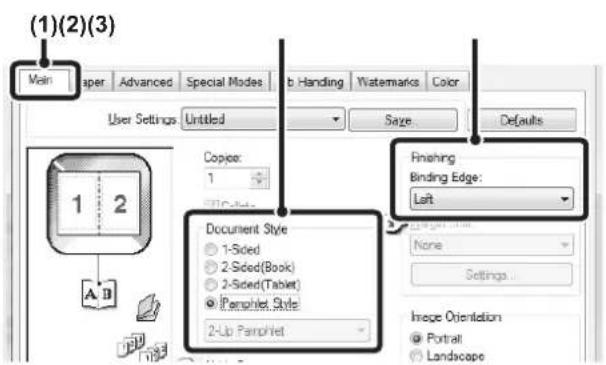
text_image
(1)(2)(3) Main Paper Advanced Special Modes b. Handing Watermarks Color User Settings Untitled Size Defaults 1 2 Copies: 1 Document Style 1-Sided 2-Sided(Book) 2-Sided(Tablet) Parsheet,Style 2-Up Parsheet Finishing Binding Edge: Left None Settings... Image Orientation Portrait Landscape(1) Configure the settings on the [Main] tab.
(2) Select [Pamphlet Style]
(3) Select the "Binding Edge".
Macintosh
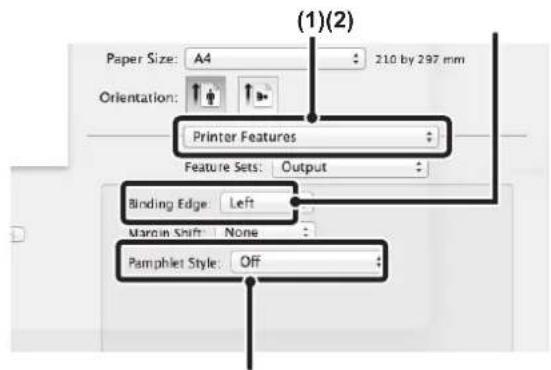
text_image
(1)(2) Paper Size: A4 210 by 297 mm Orientation: Printer Features Feature Sets: Output Binding Edge: Left Margin Shift: None Pamphlet Style: Off(3)
(1) Select [Printer Features].
(2) Select the "Binding Edge".
(3) Select [Tiled Pamphlet] or [2-Up Pamphlet].
INCREASING THE MARGIN (Margin Shift)
This function is used to shift the print image to increase the margin at the left, right, or top of the paper. This is convenient when you wish to staple or punch the output but the binding area overlaps the text.

flowchart
graph LR
    A["Document with blank text"] --> B["Document with blank text"]
    B --> C["Document with pencil and paper"]
Windows
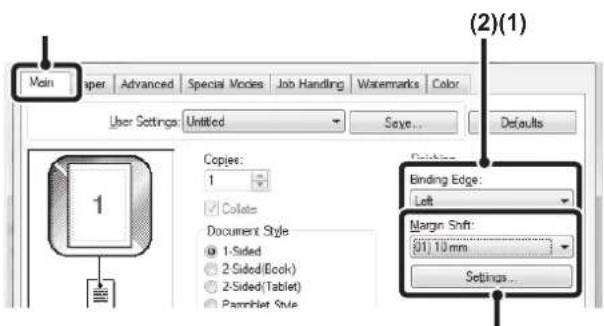
text_image
Main Paper Advanced Special Modes Job Handling Watermarks Color User Settings Untitled Save... Defaults Copies: 1 Colate Document Style 1-Sided 2-Sided(Book) 2-Sided(Tablet) Pannihlet Style Binding Edge: Left Margin Shift: 601 10 mm Settings...(3)
(1) Configure the settings on the [Main] tab.
(2) Select the "Binding Edge".
(3) Select the "Margin Shift".
Select from the "Margin Shift" menu. If you wish to configure another numeric setting, select the setting from the pull-down menu and click the [Settings] button. Click the button or directly enter the number.
Macintosh
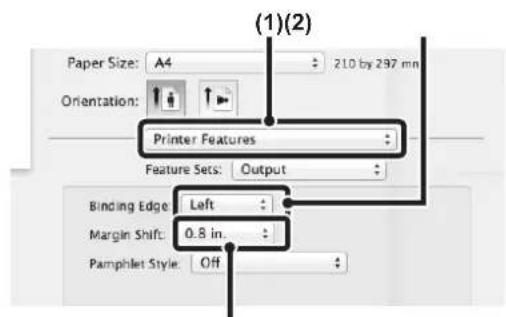
text_image
(1)(2) Paper Size: A4 Orientation: Printer Features Feature Sets: Output Binding Edge: Left Margin Shift: 0.8 in. Pamphlet Style: Off(3)
(1) Select the "Printer Features".
(2) Select the "Binding Edge".
(3) Select the "Margin Shift".
CREATING A LARGE POSTER (Poster Printing)
(This function is only available in Windows.)
One page of print data can be enlarged and printed using multiple sheets of paper (4 sheets (2 x 2), 9 sheets (3 x 3) or 16 sheets (4 x 4)). The sheets can then be attached together to create a large poster. To enable precise alignment of the edges of the sheets during attachment, borderlines can be printed and overlapping edges can be created (overlap function).

text_image
A → A AWindows
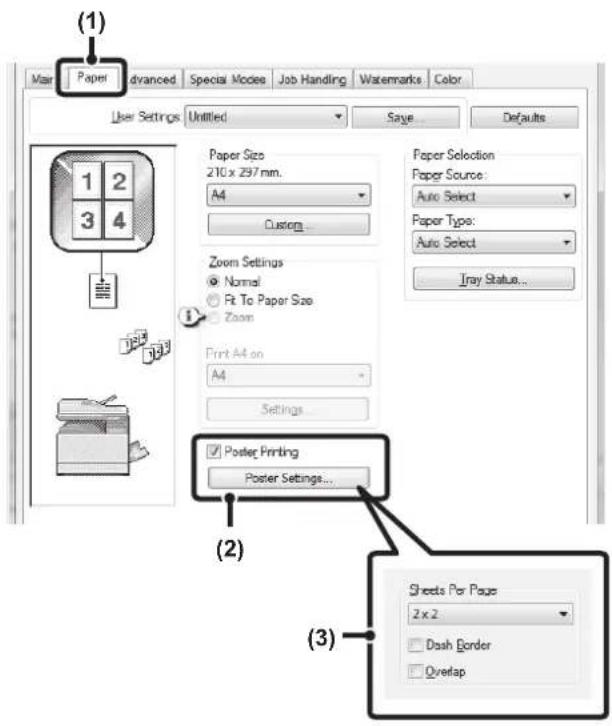
text_image
(1) Paper Advanced Special Modes Job Handling Watermarks Color User Settings Untitled Sage Defaults Paper Size 210 x 297 mm. A4 Custom... Zoom Settings Normal Fit To Paper Size Zoom Print A4 on A4 Settings... Poster Printing Poster Settings... Paper Selection Paper Source: Auto Select Paper Type: Auto Select Imay Status... (2) (3) Sheets Per Page 2 x 2 Dash Border Overlap(1) Click the [Paper] tab.
(2) Select the [Poster Printing] checkbox and click the [Poster Settings] button.
(3) Select poster settings.
Select the number of sheets of paper to be used from the pull-down menu. If you wish to print borderlines and/or use the overlap function, select the corresponding checkboxes
FUNCTIONS TO ADJUST THE SIZE AND ORIENTATION OF THE IMAGE
ROTATING THE PRINT IMAGE 180 DEGREES (Rotate 180 degrees)
This feature rotates the image 180 degrees so that it can be printed correctly on paper that can only be loaded in one orientation (such as envelopes or paper with punch holes). (In Mac OS X, a portrait image cannot be rotated 180 degrees.)
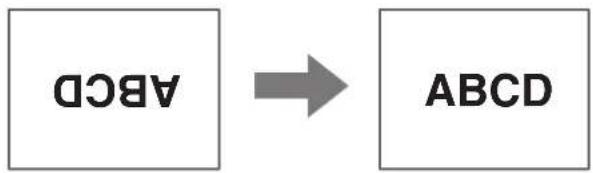
flowchart
graph LR
    A["ABCD"] --> B["ABCD"]
Windows
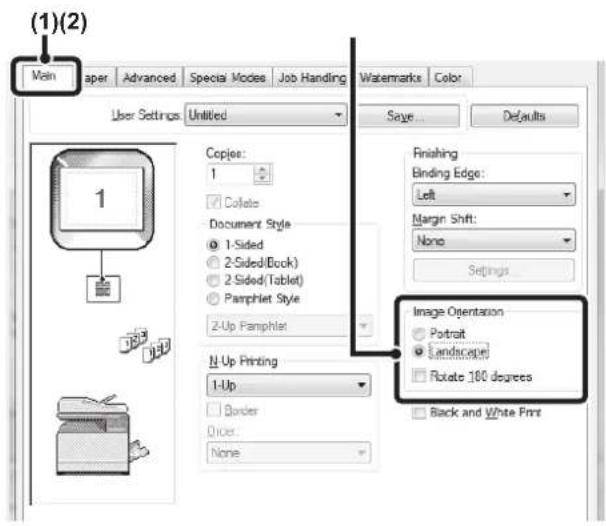
text_image
(1)(2) Main Paper Advanced Special Modes Job Handling Watermarks Color User Settings Untitled Save... Defaults Copies: 1 Colate Document Style 1-Sided 2-Sided(Book) 2-Sided(Tablet) Pamphlet Style 2-Up Pamphlet Up Printing 1-Up Border Order: None Finishing Binding Edge: Left Margin Shift: None Settings Image Orientation Portrait Landscape Rotate 100 degrees Back and White Print(1) Select the setting on the [Main] tab.
(2) Select the [Rotate 180 degrees] checkbox.
Macintosh
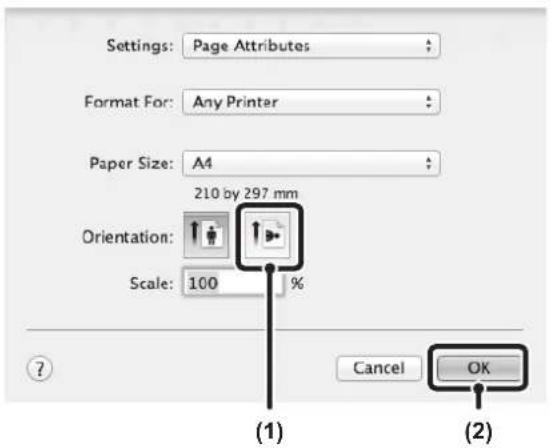
text_image
Settings: Page Attributes Format For: Any Printer Paper Size: A4 210 by 297 mm Orientation: Scale: 100 % Cancel OK (1) (2)(1) Select [Page Setup] from the [File] menu and click the 'button.
(2) Click the [OK] button.
ENLARGING/REDUCING THE PRINT IMAGE (Zoom/XY-Zoom)
This function is used to enlarge or reduce the image to a selected percentage.
This allows you to enlarge a small image or add margins to the paper by slightly reducing an image.
When using the PS printer driver (Windows), you can set the width and length percentages separately to change the proportions of the image. (XY-Zoom)
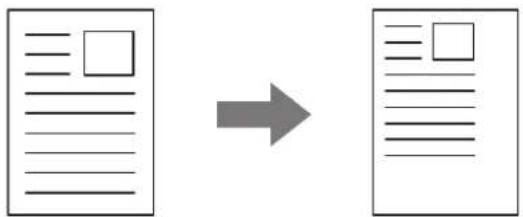
flowchart
graph LR
    A["Text Document"] --> B["Next Step"]
    style A fill:#f9f,stroke:#333
    style B fill:#bbf,stroke:#333
Windows

text_image
(1) Main Paper Advanced Special Modes Job Handling Watermarks Color User Settings Untitled Save Defaults Paper Size 210 x 237 mm M4 Custom Paper Selection Paper Source: Auto Select Paper Type: Auto Select Iray Status... Zoom Settings Normal Fit To Paper Size Zoom Print All on M4 Settings... (2) (3) Scaling: 100 % [25 ... 400] Reference Point Upper Left Center(1) Click the [Paper] tab.
(2) Select [Zoom] and click the [Settings] button.
The actual paper size to be used for printing can be selected from the pull-down menu.
(3) Select the zoom ratio.
Directly enter a number (%) or click the button to change the ratio in increments of 1%. You can also select [Upper Left] or [Center] for the base point on the paper.
REVERSING THE IMAGE (Mirror Image)
(This function is only available in Windows.)
The image can be reversed to create a mirror image. This function can be used to conveniently print a design for a woodblock print or other printing medium.
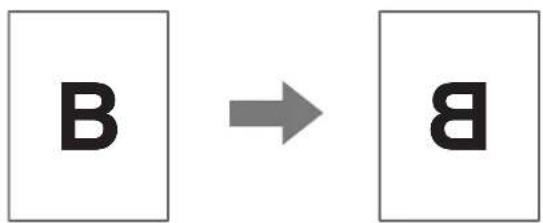
flowchart
graph LR
    A["B"] --> B["B"]
Windows
(This function can be used when the PS printer driver is used.)
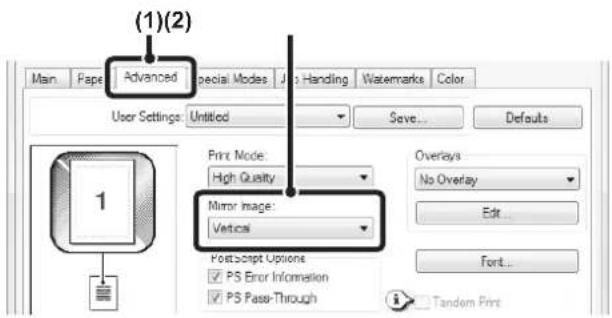
text_image
(1)(2) Main Paper Advanced Special Modes Handling Watermarks Color User Settings Untitled Save Defaults Print Mode: High Quality Mirror Image: Vertical Overlays No Overlay Edit... Font... Tandem Print(1) Click the [Advanced] tab.
(2) Select a mirror image setting.
If you wish to reverse the image horizontally, select [Horizontal]. If you wish to reverse the image vertically, select [Vertical].
COLOUR MODE ADJUSTMENT FUNCTION
ADJUSTING THE BRIGHTNESS AND CONTRAST OF THE IMAGE (Colour Adjustment)
The brightness and contrast can be adjusted in the print settings when printing a photo or other image. These settings can be used for simple corrections when you do not have image editing software installed on your computer.
Windows
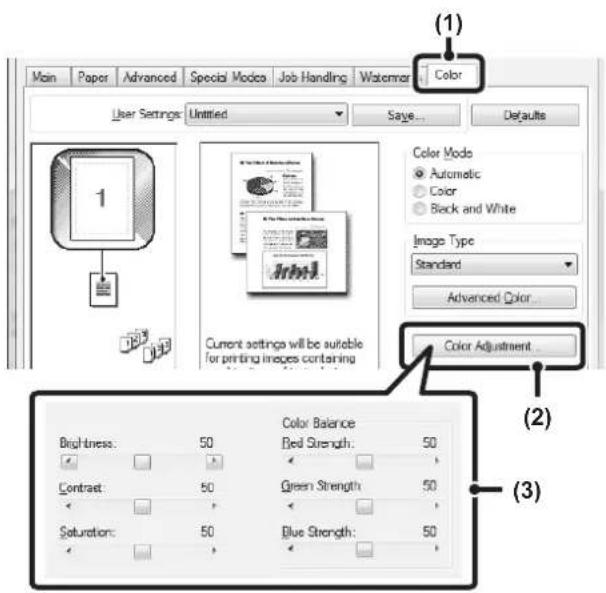
text_image
(1) Main Paper Advanced Special Modes Job Handling Waterman Color User Settings Untitled Save... Defaults Color Mode Automatic Color Black and White Image Type Standard Advanced Color... Current settings will be suitable for printing images containing Color Adjustment... Brightness: 50 Color Balance Bed Strength: 50 Contrast: 50 Green Strength: 50 Saturation: 50 Blue Strength: 50 (2) (3)(1) Click the [Color] tab.
(2) Click the [Color Adjustment] button.
(3) Adjust the colour settings.
To adjust a setting, drag the slide bar or click the

Macintosh
(This function can only be used in Mac OS X v10.4.)

text_image
(1) Printer: SCxxxxx Presets: Standard Color Save Settings ColorSync Color Mode: Automatic Print Mode: High Quality Image Type: Standard Neutral Gray: Black Only 4 Colors Pure Black Print: Black Only 4 Colors ✓ Black Overprint ✓ Toner Save Color Adjustment... (2) Color Adjustment Hue: 0 -180 180 Saturation: 50 0 100 Brightness: 50 0 100 (3)(1) Select [Color].
(2) Click the [Color Adjustment] button.
(3) Select the [Color Adjustment] checkbox and adjust the colour.
Adjust the settings by dragging the slide bars


PRINTING FAINT TEXT AND LINES IN BLACK (Text To Black/Vector To Black)
(This function is only available in Windows.)
When printing a colour image in greyscale, colour text and lines that are faint can be printed in black. (Raster data such as bitmap images cannot be adjusted.) This allows you to bring out colour text and lines that are faint and difficult to see when printed in greyscale.
- [Text To Black] can be selected to print all text other than white text in black.
- [Vector To Black] can be selected to print all vector graphics other than white lines and areas in black.
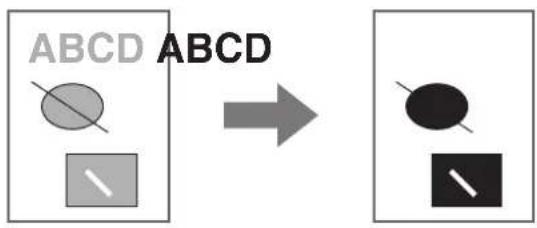
flowchart
graph LR
    A["Rectangle ABCD"] --> B["Arrow"]
    B --> C["Circle with diagonal lines"]
    C --> D["Square with diagonal line"]
Windows

text_image
Main Paper Advanced Special Modes Job Handling Watermark Color User Settings Untitled Save Defaults 1 Current settings will be suitable for printing images containing combinations of text, photos, graphs etc. Color Mode Automatic Color Black and White Image Type Standard Advanced Color... Color Adjustment... Text To Black Vector To Back Timer Save (2)(1) Click the [Color] tab.
(2) Select the [Text To Black] checkbox and/or the [Vector To Black] checkbox √
SELECTING COLOUR SETTINGS TO MATCH THE IMAGE TYPE (Advanced Colour)
Preset colour settings are available in the machine's printer driver for various uses. These enable printing using the most suitable colour settings for the colour image type.
Advanced colour settings can also be configured to match the objective of the colour image, such as colour management settings and the screening setting for adjustment of colour tone expression.
Windows

text_image
Man Paper Advanced Special Modes Job Handing Watermark Color User Settings: Factory Defaults Save Defaults 1 Color Mode Automatic Color Black and White Image Type Standard Advanced Color... Windows ICM Source Profile: Gamma2.2 Rendering Intent Perceptual Matching Output Profile: Default Neutral Gray: Black Only Color Pure Black Print: Black Only Color (3)(1) Click the [Color] tab.
(2) Select the "Image Type".
A document type to match the data to be printed can be selected from the pull-down menu.
- Standard (for data that includes text, photos, graphs, etc.)
• Graphics (for data with many drawings or illustrations)
• Photo (for photo data or data that uses photos)
• CAD (for engineering drawing data) - Scan (for data scanned by a scanner)
• Colorimetric (Data which needs to be printed in almost the same colours as those on the screen) - Custom (for data to be printed with special settings)
(3) Select advanced colour settings.
If you wish to select advanced settings, click the [Advanced Color] button.
If you wish to perform colour management using Windows ICM* in your operating system, select [Custom] for the image type at step (2) and then select the [Windows ICM] checkbox .To configure advanced colour management settings such as "Source Profile", select the desired settings from the menus.
* Cannot be selected when using the PS printer driver on Windows 7/Vista/Server 2008/8/Server 2012.
Macintosh

text_image
(1) Color Save Settings Color Advanced Source Profile: Gamma2.2 CMYK Simulation Simulation Profile: Default (2) ColorSync Color Mode: Automatic Print Mode: High Quality Screening: Default Image Type: Custom Neutral Gray: Black Only Color Pure Black Print: Black Only Color Black Overprint Toner Save Output Profile: Default (3) (4)(1) Select [Color].
(2) Select colour print settings.
To use the Mac OS Color Management function, select the [ColorSync] checkbox ☑When this is done, "Image Type" cannot be selected.
(3) Select the Image Type.
An image type to match the data to be printed can be selected from the pull-down menu.
- Standard (for data that includes text, photos, graphs, etc.)
• Graphics (for data with many drawings or illustrations) - Photo (for photo data or data that uses photos)
• CAD (for engineering drawing data) - Scan (for data scanned by a scanner)
• Colorimetric (Data which needs to be printed in almost the same colours as those on the screen) - Custom (for data to be printed with special settings) [Neutral Gray] can be used when [Custom] is selected.
(4) Select advanced colour settings.
If you wish to select detailed settings, click the [Advanced] tab.
To configure colour management settings, select the desired settings from the menus. To use "CMYK Simulation", select the [CMYK Simulation] checkbox and then select the desired setting.
The following colour management settings are available.
(There may be certain settings that cannot be configured depending on your OS and type of printer driver.)
- Windows ICM checkbox* ^1 : Colour management method in a Windows environment
• ColorSync checkbox: Colour management method in a Macintosh environment - Source Profile: Selection of the input colour profile used for the printed image
- Rendering Intent: Standard value used when converting the colour balance of the image displayed on the computer screen to a colour balance that can be printed by the machine.
- Output Profile: Selection of the output colour profile used for the printed image
- CMYK Correction* 2: When printing a CMYK image, you can correct the image to obtain the optimum result.
- Screening: Select the most suitable image processing method for the image being printed.
- Neutral Gray: Select whether grey halftones are printed with single-colour black toner or 4-colour CMYK toners.
- Pure Black Print: Select whether black areas are printed with single-colour black toner or 4-colour CMYK toners.
- Black Overprint: Prevents whitening of the outline of black text.
- CMYK Simulation: The colour can be adjusted to simulate printing using the process colours used by printing presses.
- Simulation Profile: Selecting a process colour.
*1 Cannot be enabled when using a PS printer driver in Windows 7/Vista/Server 2008/8/Server 2012.
*2 Only the SPDL2-c printer driver can be used.
SPDL is an acronym for Sharp Printer Description Language.
FUNCTIONS THAT COMBINE TEXT AND IMAGES
ADDING A WATERMARK TO PRINTED PAGES (Watermark)
Faint shadow-like text can be added to the background of the printed image as a watermark. The size, colour, density, and angle of the watermark text can be adjusted. The text can be selected from a pre-stored list, or entered to create an original watermark.

text_image
Diagram showing a document transforming into a blank document, with an arrow indicating the process.Windows

text_image
(1)(2) Watermark Watermark: None Add Delete Text: Edit... Image stamp: None Add DeleteMacintosh

text_image
(1)(2) Orientation: Watermarks Watermark Text: TOP SECRET TOP SECRET Size: 48 Angle: 45 Font: Helvetica Red Outline Text Transparent Text: On First Page Only 50%(1) Click the [Watermarks] tab.
(2) Select the watermark settings.
Select a stored water mark from the pull-down menu. You can click the [Edit] button to edit the font colour and select other detailed settings.

If you wish to create a new watermark...
Enter the text of the watermark in the "Text" box and click the [Add] button.
(1) Select [Watermarks].
(2) Click the [Watermark] checkbox and configure watermark settings.
Detailed watermark settings can be configured such as selection of the text and editing of the font and colour.
Adjust the size and angle of the text by dragging the slide bar
PRINTING AN IMAGE OVER THE PRINT DATA(Image Stamp)
(This function is only available in Windows.)
A bitmap or JPEG image stored on your computer can be printed over the print data. The size, position, and angle of the image can be adjusted. This feature can be used to "stamp" the print data with a frequently used image or an icon of your own creation.

flowchart
graph LR
    A["Input Document"] --> B["Output Document"]
    C["MEMO Icon"] --> D["Output Document"]
    style A fill:#f9f,stroke:#333
    style B fill:#bbf,stroke:#333
    style C fill:#dfd,stroke:#333
    style D fill:#dfd,stroke:#333
Windows
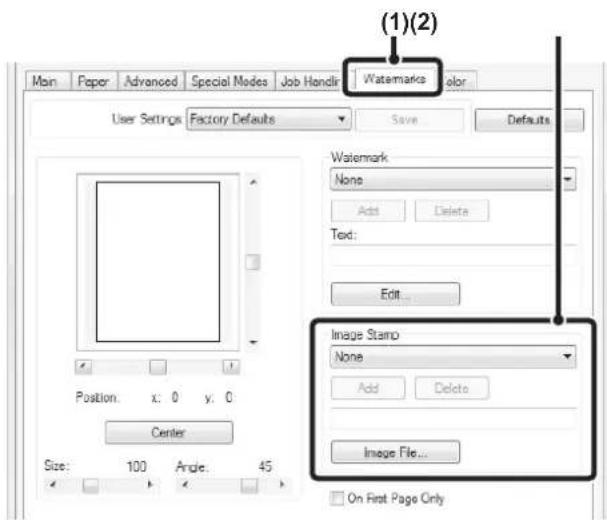
text_image
(1)(2) Main Paper Advanced Special Modes Job Handler Watermarks Color User Settings Factory Defaults Save Defaults Watermark None Add Delete Text: Edit... Position x: 0 y: 0 Center Size: 100 Angle: 45 Image Stamp None Add Delete Image File... On First Page Only(1) Click the [Watermarks] tab.
(2) Select the image stamp setting.
If an image stamp has already been stored, it can be selected from the pull-down menu.
If you have not stored an image stamp, click the [Image File], select the file you wish to use for the image stamp, and click the [Add] button.
CREATING OVERLAYS FOR PRINT DATA (Overlays)
(This function is only available in Windows.)
The print data can be printed in a previously created overlay. By creating table rulings or a decorative frame in an application different from that of the text file and registering the data as an overlay file, an attractive print result can be easily obtained without the need for complex manipulations.

flowchart
graph TD
    A["XXXX\nXXX 1 100\nXXX 10 150\nXXX 0 120\nXXX 10 250"] --> B["XXXX\n______"]
    B --> C["XXXX\nXXX 1 100\nXXX 10 150\nXXX 0 120\nXXX 10 250"]
    C --> D["anathbrev i-2-3"]
    D --> E["..."]
Overlay file
Windows
Create an overlay file.
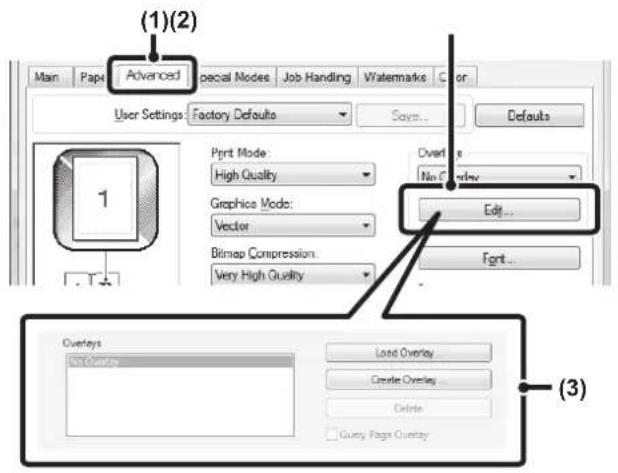
text_image
(1)(2) Main Paper Advanced Special Modes Job Handling Watermarks Color User Settings Factory Defaults Says Defaults Pprt Mode High Quality Graphics Mode: Vector Bitmap Compression: Very High Quality Overlying No C Edit... Font... Overleys No Cluster Load Overlay Create Overlay Delete Query Page County (3)Printing with an overlay file

text_image
(1)(2) Main Paper Advanced Social Modes Job Handling Watermarks Color User Settings Factory Defaults Save Defaults Print Mode: High Quality Graphics Mode: Vector Bitmap Compression: Very High Quality Overlay No Overlay Edit... Font...(1) Click the [Advanced] tab.
Configure the printer driver settings from the software application that you wish to use to create the overlay file.
(2) Click the [Edit] button.
(3) Create an overlay file.
Click the [Create Overlay] button and specify the name and folder to be used for the overlay file that you wish to create. The file will be created when the settings are completed and printing is started.

- When printing is started, a confirmation message will appear. The overlay file will not be created until the [Yes] button is clicked.
- To register a previously existing overlay file, click the [Load Overlay] button.
(1) Click the [Advanced] tab.
Configure the printer driver settings from the application from which you wish to print using the overlay file.
(2) Select the overlay file.
A previously created or stored overlay file can be selected from the pull-down menu.
PRINT FUNCTIONS FOR SPECIAL PURPOSES
PRINTING SPECIFIED PAGES ON DIFFERENT PAPER (Different Paper)
• Using this function in a Windows environment
The front cover can be printed on paper that is different from the other pages. Use this function when you wish to print the front cover on heavy paper, or different paper such as coloured paper.
• Using this function in a Macintosh environment
The front cover and last page can be printed using paper that is different from the other pages. This function can be used, for example, when you want to print only the front cover and last page on heavy paper.
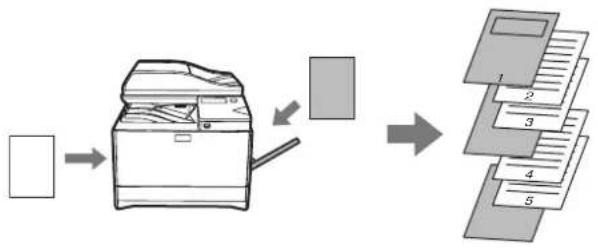
flowchart
graph LR
    A["Input"] --> B["Printer Icon"]
    B --> C["Output"]
    C --> D["Document Handling"]
    style A fill:#fff,stroke:#000
    style D fill:#f9f,stroke:#000
Windows

text_image
(1) Special Modes Job Handling Watermarks Color User Settings Untitled Save... Defaults Special Option Normal Different Paper Page Interleave Settings (2) (3) Different Paper Defaults Cover Page 2-Sided Paper Source: Bypass Tray Paper Type: Plain OK Cancel(1) Click the [Special Modes] tab.
(2) Select [Different Paper] and click the [Settings] button.
(3) Select paper insertion settings.
Click the [Insert Cover] checkbox (N and select the feeding method and printing method for the insert paper from the respective menus. Select the insertion position, paper source, and printing method from the corresponding menus.

When [Bypass Tray] is selected in "Paper Source", be sure to select the "Paper Type" and load that type of paper in the bypass tray.
Macintosh

text_image
Paper Size: A4 Orientation: Printer Features Feature Set Different Paper Cover Page: Off Paper Source: Auto Select Paper Type: Auto Select (2)(3)(1)(1) Select [Printer Features].
(2) Select [Different Paper].
(3) Select cover insertion settings.
Select the print setting, paper tray, and paper type for the cover page and last page.
CONVENIENT PRINTER FUNCTIONS
SAVING AND USING PRINT FILES (Retention)
This function is used to store a print job as a file on the machine, allowing the job to be printed from the operation panel. The location for storing a file can be selected to prevent the file from being mixed together with files of other users.
When printing from a computer, a password (5 to 8 digits) can be set to maintain the secrecy of information in a stored file.
When a password is set, the password must be entered to print a stored file from the machine.

- Print data is erased when the power is turned off.
- Print data that exceeds 5 MB cannot be saved.
- A maximum of 5 files can be saved.
Windows
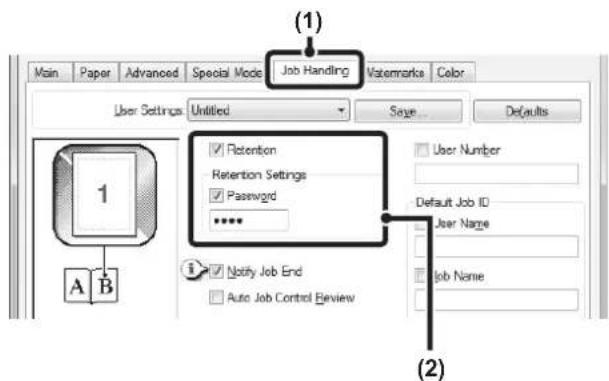
text_image
Main Paper Advanced Special Mode Job Handling Watermarks Color User Settings Untitled Save Defaults 1 Retention Retention Settings Password ****** ✓ Notify Job End Auto Job Control Review (1) User Number Default Job ID User Name Job Name (2)(1) Click the [Job Handling] tab.
(2) Select the retention setting.
Click the [Retention] checkbox . Select the retention method in "Retention Settings". To enter a password (5 to 8 digit number), click the [Password] checkbox .
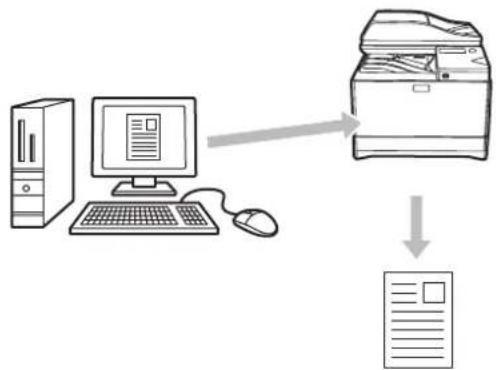
flowchart
graph TD
    A["Desktop Computer"] --> B["Printer"]
    C["Mouse"] --> B
    B --> D["Output File"]
Macintosh
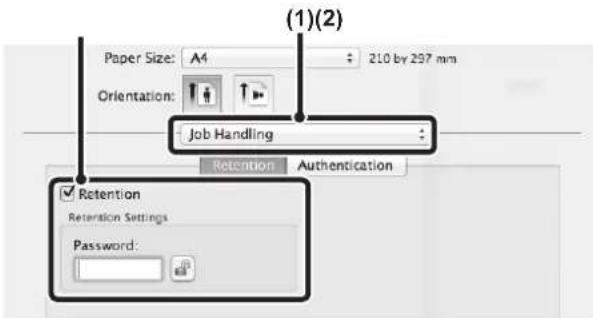
text_image
(1)(2) Paper Size: A4 210 by 297 mm Orientation: Job Handling Retention Authentication Retention Retention Settings Password:(1) Select [Job Handling].
(2) Select the retention setting.
Click the [Retention] checkbox ☑ to simplify operation the next time the same password is set, click the (lock) button after entering the password (5 to 8 digit number).
Printing a job stored by retention
When retention is performed, the display appears as follows:

text_image
Job data in print hold. ■A4 Tray 1 ■Exposure 园 AUTO ■100%1 Press the [▶key to display the list of print hold jobs.
2 Select the print job with the [X] keys.
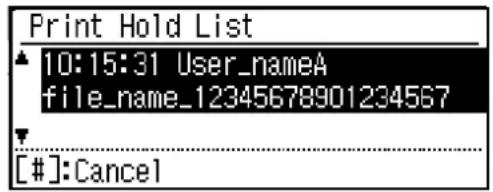
text_image
Print Hold List 10:15:31 User_nameA file_name_12345678901234567 [#]:Cancel3 Press the [OK] key.
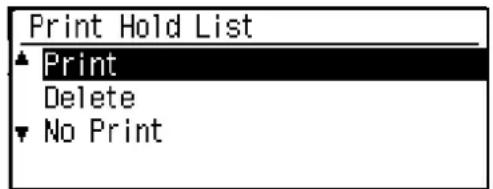
text_image
Print Hold List ▲ Print Delete ▼ No Print4 Print or delete the print job with the [ ] keys.
Select "Print" to print the job.
Select "Delete" to delete the job without printing it.
Selecting "No Print" returns you to step 1.
5 Press the [OK] key.
The print job is printed or deleted. If a password is set, the job will be printed or deleted after you enter the password with the numeric keys and press the [OK] key.
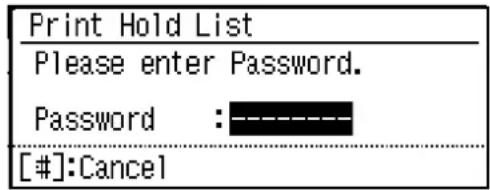
text_image
Print Hold List Please enter Password. Password :---- [#]:CancelPRINTING WITHOUT THE PRINTER DRIVER
When you do not have the printer driver installed on your computer, or when the software application used to open a file that you wish to print is not available, you can print directly to the machine without using the printer driver. The file types (and corresponding extensions) that can be printed directly are shown below.
| File Type | TIFF JPEG PCL | PDF, Encrypted PDF | PS | ||
| Extension | tiff, tif | jpeg, jpg, jpe, jff | pcl,prn,txt pdf ps | ||

- Even if the print result is black and white, the following types of print jobs will be counted as 4-colour (Y (Yellow), M (Magenta), C (Cyan), and Bk (Black)) print jobs. To be always counted as a black and white job, select black and white printing.
- When the data is created as colour data.
- When the application treats the data as colour data even though the data is black and white.
- When an image is hidden under a black and white image.
- The file format of some files may not be printable even if the file is listed in the above table.
- A password-protected PDF file cannot be printed.
DIRECTLY PRINTING A FILE IN USB MEMORY
A file in a USB memory device connected to the machine can be printed from the operation panel of the machine without using the printer driver. When the printer driver of the machine is not installed on your computer, you can copy a file into a commercially available USB memory device and connect the device to the machine to print the file directly.
1 Connect the USB memory device to the machine.

natural_image
Line drawing of a mechanical device with a handle and internal components (no text or symbols)When a USB memory device is inserted and the machine recognizes the device, the display appears as follows.
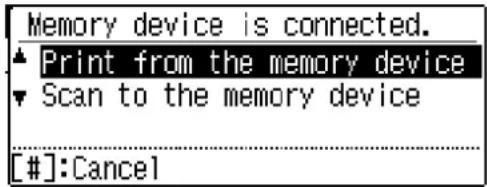
text_image
Memory device is connected. ▲ Print from the memory device ▼ Scan to the memory device [#]:Cancel
Use a FAT32 USB memory with a capacity of no more than 32 GB.
2 Select "Print from the memory device" with [▲] or [▼] key, and select the key of the file that you wish to print.
A name with "/" to its left is the name of a folder in the USB device. To display the files and folders in a folder, select the folder and press the [OK] key.
![SHARP MX-C300W - Select "Print from the memory device" with [▲] or [▼] key, and select the key of the file that you wish to print. - 1](/content/2026/06/1243240/images/f2e0e956ca361d7cfb4258fd827c525bc9eb96e2185a085b2c2b89229fb6f03e.jpg)
- A total of 100 keys of files and folders can be displayed.
- Press the [READ-END] key ( ) to move up one folder level.
3 Press the [OK] key.
4 Select "Print" with the [▲] or [▼] key and then press the [OK] key.
When forwarding of the selected file is completed, printing starts.
Print settings can be selected in the machine's Web page. However, if a file that includes print settings (PCL, PS) is selected, the file's print settings will be applied.
DIRECTLY PRINTING FROM A COMPUTER
Settings can be configured in the Web pages of the machine to enable direct printing from a computer without using the printer driver. For the procedure for accessing the Web pages, see "ABOUT THE WEB PAGES" (P.190).
FTP PRINT
You can print a file from your computer by simply dragging and dropping the file onto the FTP server of the machine.
- Configuring settings
To enable FTP Print, click [Application Settings] and then [Setting for Print from the PC] in the Web page menu, and configure the port number. (Administrator rights are required.)
• Performing FTP Print
Type "ftp://" and then the IP address of the machine in the address bar of your computer's Explorer as shown below.
(Example)
ftp://192.168.1.28
Drag and drop the file that you wish to print onto the "lp" folder that appears in your Web browser. The file will automatically begin printing.

- If you printed a file (PCL, PS) that includes print settings, the settings will be applied.
- When user authentication is enabled in the system settings (administrator) of the machine, the print function may be restricted. For more information, ask your administrator.
CANCELLING A PRINT JOB FROM THE MACHINE
Press the [STOP] key (on the operation panel.
To change the machine to offline mode, follow the steps below.
1 Press the [SPECIAL FUNCTION] key (Fn) and select "Online/Offline" with the [▼][▲] keys.
2 Select "Offline" with the [▼] [▲] keys and press the [OK] key.
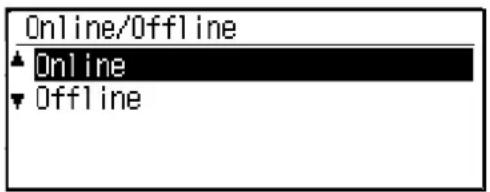
text_image
Online/Offline ▲ Online ▼ OfflinePrinting stops and the mode changes to offline mode. To cancel printing, press the clear key. To resume printing, select "Online" and press the [OK] key.
APPENDIX
PRINTER DRIVER SPECIFICATION LIST
Available functions and output results may vary depending on the type of printer driver being used.
| Function PCL6 PS | Windows PPD^*1 | Macintosh PPD^*1 | ||||
| Frequently used functions | Copies 1-999 1-999 1-999 1-999 | |||||
| Orientation | Yes | Yes | Yes | Yes | ||
| N-Up Number of pages | 2,4,6,8,9,16 2,4,6,8,9,16 2,4,6,9,16 | 2,4,6,9,16 | ||||
| Order | Yes | Yes | Yes | |||
| Border | Yes | Yes | Yes | |||
| 2-Sided Print | Yes | Yes | Yes | Yes | ||
| Fit To Page | Yes | Yes | No | Yes | ||
| Binding Edge | Yes | Yes | No | Yes | ||
| Black and White Print | Yes | Yes | Yes | Yes | ||
| Paper | Paper Size | Yes | Yes | Yes | Yes | |
| Custom Paper | 8 size | 8 size | Yes | Yes | ||
| Paper Selection | Yes | Yes | Yes | Yes | ||
| Convenient printer functions | Pamphlet | Yes | Yes | Yes | Yes | |
| Margin Shift 0 mm to | 30 mm | 0 mm to 30 mm | YesYes | |||
| Poster Printing | Yes | Yes | No | No | ||
| Rotate 180 degrees | Yes | Yes | Yes | Yes^*4 | ||
| Zoom/XY-Zoom | Yes^*2 | YesYes* | 2 | Yes^*2 | ||
| Mirror Image | No | Yes | Yes^*5 | No | ||
| Special functions | Different Paper | Yes | Yes | No | Yes | |
| Page Interleave | Yes | No | No | No | ||
| Retention | Yes | Yes | No | Yes | ||
| Colour mode adjusting function | Colour Adjustment | Yes | Yes | No | Yes^*3 | |
| Text To Black/ Vector To Black | YesYesNo No | |||||
| Advanced Colour | Yes | Yes | Yes | Yes | ||
| Functions to combine text and images | Watermark | Yes | Yes | Yes | Yes | |
| Image Stamp | Yes | Yes | No | No | ||
| Overlay | Yes | Yes | No | No | ||
| Function | PCL6 | PS | Windows PPD^*1 | Macintosh PPD^*1 | ||
| Image Quality | Print Mode Normal/ | High Quality | Normal/ High Quality | Normal/ High Quality | Normal/ High Quality | |
| Graphics Mode Selection | YesNo No No | |||||
| Toner Save | Yes | Yes | Yes | Yes | ||
| Font | Resident font | 80 fonts | 136 fonts | 136 fonts | 136 fonts | |
| Selectable download font | bitmap, TrueType, Graphics | bitmap, TrueType, Type1 | bitmap, TrueType, Type1 | No | ||
| Other functions | Auto Configuration | Yes | Yes | No | Yes | |
| User Authentication | Yes | Yes | No | Yes | ||
*1 The specifications of each function in Windows PPD and Macintosh PPD vary depending on the operating system version and the software application.
*2 The horizontal and vertical proportion cannot be set separately.
*3 Only Mac OS X v10.4 can be used.
*4 Only landscape documents are supported.
*5 Horizontal mode only.
TO USE THIS PRODUCT CORRECTLY AS A FACSIMILE
Several points must be kept in mind when using this product as a facsimile. Please note the following.
Line connection
Be sure to use the provided telephone line cord to connect the machine to a telephone line jack. Insert one end of the telephone line cord into the LINE jack on the left side of the machine as shown. Insert the other end of the telephone line cord into a telephone line jack.
Insert the plug firmly until you hear a "click".
In some countries, an adapter is required to connect the telephone line cable to the wall telephone socket, as shown in the illustration.

text_image
LINE jack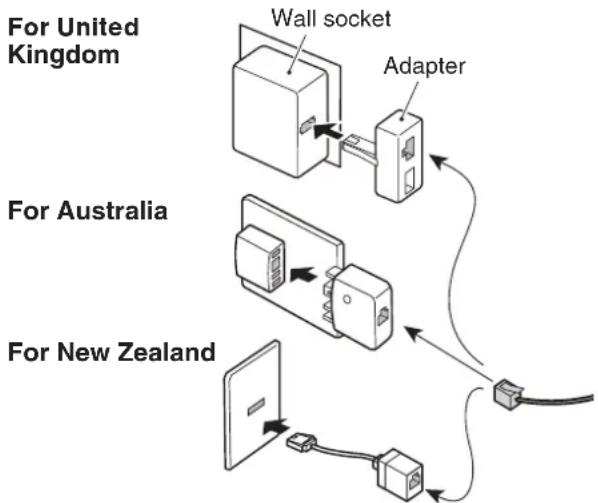
flowchart
graph TD
    A["Wall socket"] --> B["Adapter"]
    C["United Kingdom"] --> D["Adapters"]
    E["Australia"] --> F["Adapters"]
    G["New Zealand"] --> H["Adapters"]
    I["Adapters"] --> J["Switch"]
Setting the date and time and programming your sender's name and number
Before using the fax function, you must set the date and time and program your sender's name and number in the machine. This procedure is explained in "POINTS TO CHECK AND PROGRAM AFTER INSTALLATION" (p.80) of this manual.
Lithium battery
The date and time are protected by a lithium battery in the machine.
- When the battery dies, please contact your local Sharp dealer or authorised service representative for assistance in disposing of this battery. The machine will not operate once the battery dies.
Please note
In the event of a thunderstorm, remove the power cord from the power outlet to ensure safety. Information will be retained in memory even if the power cord is unplugged.
POINTS TO CHECK AND PROGRAM AFTER INSTALLATION
After installing the machine and before using it as a fax machine, check the following points and program the required information.
Set the date and time
The machine has an internal clock. It is important to set the correct date and time because they are used for such features as Timer Transmission (p.98).
The date and time are set in the system settings. (p.176)
The date and time appear in the display. Make sure the correct date and time appear. If the date and time are wrong, please correct them.
Program the sender's name and sender's number
The name and fax number of the user of the machine is programmed in "Own Passcode Set" (p.184) in the system settings. (Only one name and number can be programmed.)
The programmed name and number are printed at the top of each transmitted fax page. The sender's number is also used as an identification number when you use the Polling function to request transmission from another fax machine (see "SENDING OPTIONS" (p.100)).

You can check your programmed name and number by printing out the "Administrator Settings List" in the system settings. (See "List Setting" (p.183).)
Paper sizes that can be used for fax mode
The machine can use A4, B5, A5, 8-1/2" x 14", 8-1/2" x 13" and 5-1/2"x 8-1/2" size paper; (If your machine uses AB-based paper sizes, 8-1/2" x 14", 8-1/2" x 13" and 5-1/2" x 8-1/2" size paper cannot be used in fax mode.
(Among INCH sizes, only 8-1/2" x 11" and 5-1/2"x 8-1/2" can be used.)
For this reason, if only paper sizes that can be used in other modes but not in fax mode are loaded in the machine, received faxes cannot be printed.
(For other points regarding fax reception, see "RECEIVING FAXES" (p.95).)

For the procedures for loading paper in the trays, "LOADING PAPER" (p.19).
FAX MODE (BASE SCREEN)
The base screen of fax mode is displayed by pressing the [FAX] key (when the copy mode, or scan mode screen appears.
The base screen of fax mode

text_image
(1) Stand-by. 100% (2) 10 OCT SAT 18:12 (3) Memory Auto (4) Cont AUTO A4 (5) StandardLeft Menu Right Menu

text_image
Orig. Size Resolution Broadcast Program (9) (10) (11) (12)(1) Message display
Messages appear here to indicate the current status of the machine.
(2) Date and time display
This shows the date and time.
(3) Transmission mode display (p.89)
There are three transmission modes: memory transmission, direct transmission, and manual transmission. This shows the currently selected transmission mode.
(4) Exposure display
This shows the exposure for scanning the original.
(5) Resolution display
This shows the resolution for scanning the original.
(6) Free memory display
This shows the percentage of fax memory that is free.
(7) Reception mode display (p.96)
There are two modes for receiving faxes: automatic reception and manual reception. This shows the currently selected reception mode.
(8) Original display (p.27)
This displays an icon to indicate the original scanning mode when an original has been placed.
☐: One-sided original scanning in the document feeder.
: Two-sided original scanning in the document feeder (Models with the two-sided scanning function).
None: Document glass
This also shows the currently selected original scanning size.
(9) Original Size (p.85)
This is used to set the original scanning size.
(10) Resolution (p.92)
This menu is used to select resolution settings.
(11) Broadcast (p.99)
This is used to perform a broadcast transmission.
(12) Program (p.107)
Select this menu to use a program.

The following functions also operate when a mode other than fax mode is selected:
• Automatic reception
- Manual reception
- Timer Transmission
• Transmission of stored memory transmission jobs
• Voice calls (when the extension phone is installed)
- Remote reception
ORIGINALS
ORIGINALS THAT CAN BE FAXED
Original sizes
| Using the document feeder | Scanning width is fixed to A4 width (210mm) or 8-1/2" (216mm). Scanning length is automatically adjusted from 148mm to 500mm. |
| Using the document glass | All are scanned at A4 or 8-1/2" x 11". |

- There are restrictions on originals that can be scanned using the document feeder. For more information, see "NORMAL COPYING" (p.26).
- When sending a fax, originals of different length can be scanned together from the document feeder, as long as the widths are the same. (one-sided scanning)
\*Long originals
Depending on the resolution setting and the width of the original, there may not be sufficient space in memory to hold a long original. When a long original cannot be entirely scanned, use direct transmission or manual transmission (on-hook dialling).
CONVENIENT DIALLING METHODS (AUTO-DIALLING)
The fax function includes a convenient auto dial feature (Speed dialling and group dialling). By programming frequently dialled numbers, you can call and send faxes to these locations by means of a simple dialling operation (p.87). There are two types of auto-dialling: Speed dialling, and group dialling. To program auto-dial numbers, see p.103.
| • Speed dialling (300 stations)A stored destination can be dialled by pressing the [SPEED] key ( )entering a 3-digit number (000 to 299), and pressing the [BLACK & WHITE START] key. A name (maximum 36 characters) can be stored for each destination. | 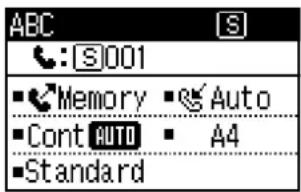 |
| • Group diallingMultiple numbers can be stored in a Speed Dial number. This is convenient for communicating with a group of other fax machines. | 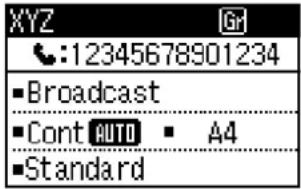 |
| •REDIALLINGThe machine retains the last fax or phone number dialled. This number can be redialled by simply pressing the [REDIAL] key ( )and then the [BLACK & WHITE START] key.• If you pressed a numeric key during the previous call, the [REDIAL] key ( )may not dial the correct number.• Redialling is not possible to broadcast transmission (p.99), serial polling (p.100), timer transmission (p.98) or group dialling (p.87) destinations. |  |
| •ON-HOOK DIALLINGThis feature allows you to dial without lifting an extension phone connected to the machine. Press the [SPEAKER] key ( )listen for the dial tone through the speaker, and then dial.• Faxes must be sent manually when using on-hook dialling. (p.90) | 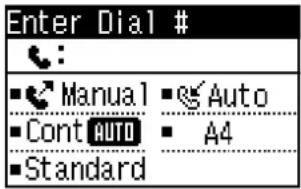 |

- Up to 100 destinations can be stored in each group dial number, and a combined total of 300 Speed Dial and group dial numbers can be stored.
- Stored Group dialling and Speed dial destinations can be called up using a search name entered when the key or destination was stored. (p.87)
- To prevent dialling a wrong number and sending a fax to an incorrect destination, check the message display carefully when you store the number. You can also check stored numbers by printing out the programmed information after storing the number. (p.109)
FAX TRANSMISSION METHODS
There are three basic methods for fax transmission: memory transmission, direct transmission, and manual transmission. When memory transmission is used, the document is temporarily stored in memory before being transmitted. When direct transmission or manual transmission is used, the document is transmitted without being stored in memory.
The default transmission setting can be set to "Memory TX" or "Direct TX" using "Send Mode" (p.186) in the system settings.
To manually switch between "Memory TX" and "Direct TX", use the [COMM. SETTING] key (☐). (See "Faxing by direct transmission" (p.89).)
The following explanations generally assume that memory transmission is being used.
ADDRESS REVIEW FUNCTION
The Address Review function allows you to check fax destinations to prevent transmission to an incorrect destination.
When a fax number is entered with the numeric keys or selected with the [REDIAL] key (1,7) a screen appears after you enter the number prompting you to reenter the number for confirmation.
- When a Speed Dial number (p.87) is used for transmission, a screen appears for confirmation of the stored name and number.
- When a group dial number (p.87) is used for transmission, a screen appears for confirmation of all numbers stored in the group.
This function can be set in "Address Review" in the system settings (p.186).

- When the Address Review function is turned on, the [SPEAKER] key ( ) can only be used for manual reception (p.90). If you press the [SPEAKER] key ( ) when the machine rings to signal an incoming call, a screen appears to confirm whether you want to start reception. The speaker key on a connected extension phone can be used.
- If the "Only apply to direct entry" checkbox is selected when the Address Review function is turned on, the Address Review screen only appears when a number is entered with the numeric keys or the [REDIAL] key (☐).
SENDING A FAX
BASIC PROCEDURE FOR SENDING FAXES
1 Make sure that the machine is in fax mode.
The FAX indicator is lit when the machine is in fax mode. If the indicator is not lit, press the [FAX] key (☐). If user authentication has been enabled for the fax function in the system settings, a message will appear prompting you to enter your user number when you switch to fax mode. Enter your account number (5 digits) with the numeric keys. (p.178)
Using the document feeder Using the document glass
2 Place the original(s). Using the document feeder: p.27
2 Place the original(s) in the document feeder tray or on the document glass. Using the document glass: p.27 If you are using the document glass to send multiple pages, place the first page first.

This is a single transmission operation, and therefore originals cannot be scanned in succession from both the document feeder and the document glass.
3 Specify the original size.
One-side scanning
When the original is placed in the document feeder, the icon changes to [AUTO]. The original size cannot be changed by selecting "Orig. Size" in the right menu.

Originals up to 500 mm long can be sent automatically.
Two-side scanning
For the procedure for specifying the original size see "FAXING A TWO-SIDED ORIGINAL" (p.88).
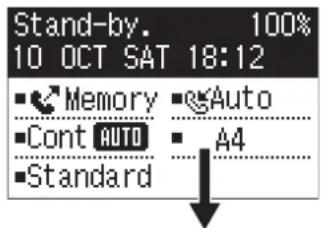
text_image
Stand-by. 10 OCT SAT 18:12 ■ Memory ■ Auto ■ Cont AUTO ■ A4 ■ StandardAUTO: One-sided scanning in the document feeder.
A4: Two-sided scanning in the document feeder (Models with the two-sided scanning function).
A4: Document glass
3 Specify the original size.
Select the "Original Size" on the right menu. The paper size that can be selected is A4 or 8-1/2" x 11".

text_image
Original Size ← AB ► 444 If needed, adjust the resolution and exposure settings.
5 Dial the fax number.
- The entered number appears in the message display. Up to 50 digits can be entered. If you make a mistake, press the [C] key and then enter the correct number.
- Redialling and automatic dialling can also be used (p.83, p.87).
Entering a pause
If a pause is necessary when dialling out from a PBX or when dialling an international number, press the [REDIAL] key (J). This key functions as a pause key when entering a number.)
If you press the [PAUSE] key (7) once, a hyphen ("-") appears and a 2-second pause* is inserted.
After entering a number, you can also press the [PAUSE] key ☐ to enter a hyphen and then enter another number using the numeric keys. (This connects the numbers together, and is called Chain dialling.)
* The duration of each pause can be changed in the system settings. (See "Pause Time" (p.184).)

Group dials cannot be used for chain dialling.
6 Press the [OK] key.
7 When the reenter screen appears, reenter the fax number.
- "Address Review" (p.186)
8 Press the [OK] key.
Using the document feeder Using the document glass
9 Press the [BLACK & WHITE START] key.
- Scanning begins
- If the line is free, the machine will dial the receiving machine and begin transmission as soon as the first page is scanned. ("Quick On-line" (p.91))
- If there is a previously stored job or a job is in progress, or if the line is being used, all pages of the original are scanned into memory and stored as a transmission job. (This is called memory transmission: the destination is automatically called and the document transmitted after previously stored jobs are completed.)
If scanning is completed normally, the following screen is appears briefly and then the display returns to the base screen.
9 Press the [BLACK & WHITE START] key.
Scanning begins.
10 If you have another page to scan, change pages and then press the [BLACK & WHITE START] key.
- Repeat this sequence until all pages have been scanned.
- You can change the resolution and exposure settings as needed for each.
11 After the last page is scanned, press the [READ-END] key ( # ) .
Open the document feeder and remove the original. When the original is removed or any key operation is performed, the display returns to the base screen.
The destination is automatically called and the document transmitted after any previously stored jobs are completed.
![SHARP MX-C300W - After the last page is scanned, press the [READ-END] key ( # ) . - 1](/content/2026/06/1243240/images/ff965e4ed4da23e2ba7297962ddb2bdad1ac5c369a1762f20ea380633a2593ac.jpg)
• To cancel transmission
To cancel transmission while "Reading" appears or before the [READ-END] key ( ) is pressed, press the [C] or [CA] key. To cancel a transmission job that is already stored, press the [FAX STATUS] key ( ) and cancel the job as explained on p.93.
- A job number (3 digits) appears in the display with "Read End" when memory transmission is performed. If you make a note of this number after performing a broadcast transmission, you can use the number to check the results of the transmission in the transaction report or activity report.
- If the power is turned off or a power failure occurs while an original is being scanned in the document feeder, the machine will stop and an original misfeed will occur. After power is restored, remove the original as explained in "MISFEED IN THE DOCUMENT FEEDER" (p.153).
TRANSMISSION BY AUTO-DIALLING (SPEED DIALLING AND GROUP DIALLING)
Instead of entering a full fax number with the numeric keys, you can send a fax by pressing the [SPEED] key ( ) and entering a 3-digit number. To use an automatic dialling, the 3-digit number and name and fax number of the destination must first be stored. See p.83 for information on auto-dialling and p.103 for information on programming auto-dial destinations.
1 Enter the 3-digit number with numeric keys.
- Enter the 3-digit number entered when the Speed Dial number or Group Dial was programmed.
- If you make a mistake, press the [C] key and then enter the correct number. If you enter a 3-digit number that is not programmed in the machine, press the [C] key and then enter the correct number. If you do not know the Speed Dial number, print out the "Speed # List" or "Group List". (See "PRINTING LISTS OF PROGRAMMED INFORMATION AND SETTINGS" (p.109).)
2 Press the [OK] key.
Check the destination. If correct, press the [OK] key again.
![SHARP MX-C300W - Press the [OK] key. - 1](/content/2026/06/1243240/images/f3d99cb2577933d749ed0022d2d31f3cce150c260c7de7bd91409bd3bb232a32.jpg)
• To cancel transmission
To cancel transmission while "Reading" appears or before the [READ-END] key ( ) is pressed, press the [C] or [CA] key. To cancel a transmission job that is already stored, press the [FAX STATUS] key ( ) and cancel the job as explained on p.93.
- A job number (3 digits) appears in the display with "Read End" when transmission is performed. If you make a note of this number after performing a broadcast transmission, you can use the number to check the results of the transmission in the transaction report or activity report.
SEARCHING FOR A PROGRAMMED DESTINATION (USING THE [ADDRESS] KEY (☐)
At the time of dialling, you can enter letters to search for a destination stored in a Speed Dial number, or Group dial.
1 Press the [ADDRESS] key (💡) and enter the search letters (you can also skip entry of search letters and go directly to the next step to display the first destination in the address list).
![SHARP MX-C300W - Press the [ADDRESS] key (💡) and enter the search letters (you can also skip entry of search letters and go directly to the next step to display the first destination in the address list). - 1](/content/2026/06/1243240/images/97d75188d39f668d8fee24350ef43f94a977ac971f547a38f92bec830c10f573.jpg)
text_image
Key Words ± [OK]: SearchUp to 10 of the following types of characters can be entered.
Upper case letters, lower case letters, numbers, special characters (See "ENTERING CHARACTERS" (p.24).)
2 Press the [OK] key and select the desired destination with the [▼] or [▲] key.
- The search results appear in the following order: upper case letters, lower case letters, special characters, and numbers.
- If not all letters of the destination name appear, press the [READ END] key ( # ) to display the full name. Press the [READ END] key ( # once again to return to the original screen.
![SHARP MX-C300W - Press the [OK] key and select the desired destination with the [▼] or [▲] key. - 1](/content/2026/06/1243240/images/38a7392a3937ebf56420aaa419ddf4f41b0a27495675290250305cdcf2a8bca3.jpg)
• To cancel transmission
To cancel transmission while "Reading" appears or before the [READ-END] key ( ) is pressed, press the [C] or [CA] key. To cancel a transmission job that is already stored, press the [FAX STATUS] key and cancel the job as explained on p.93.
- A job number (3 digits) appears in the display with "Read End" when transmission is performed. If you make a note of this number after performing a broadcast transmission, you can use the number to check the results of the transmission in the transaction report or activity report.
FAXING A TWO-SIDED ORIGINAL
Follow the steps below to automatically transmit both sides of a two-sided original. (Only on models with the two-sided scanning function.)
1 Press the [DUPLEX] key (2) on the operation panel and select "2-Sided".
2 Select "Portrait-Booklet", "Portrait-Tablet", "Landscape-Booklet", and "Landscape-Tablet" with the [▼or [ ]▲key.
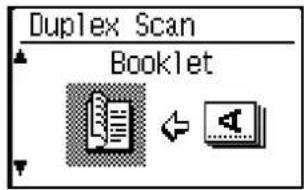
text_image
Duplex Scan Booklet
- Booklets and tablets Two-sided originals that are bound at the side are booklets, and two-sided originals that are bound at the top are tablets.
- Duplex scanning is cancelled when the transmission is completed, or when the [CA] key is pressed.
- Duplex scanning of two-sided originals is only possible when a Document feeder (Models with the two-sided scanning function) is used. Automatic scanning of both sides of an original is not possible when the document glass is used.
• The image of the back side of the original is rotated 180 degrees if needed at the time of transmission, and thus there is no need to change the orientation at the receiving machine. - To cancel duplex scanning, select "1-Sided" in step 1 and then press the [OK] key.
- Only the following two-sided document sizes can be used: A4, 8-1/2 "x 14", 8-1/2 "x 13-1/2", 8-1/2 "x 13-2/5", 8-1/2 "x 13", 8-1/2" x 11"
BOOKLET TABLET
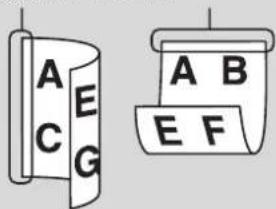
text_image
A E C G A B E F3 Press [OK] key.
Transmission settings (memory transmission mode and direct transmission mode)
Transmission modes include memory transmission, where the original is temporarily scanned into memory before transmission, and direct transmission, where the original is transmitted directly without being scanned into memory. There are two types of memory transmission: "Storing transmission jobs (memory transmission)" (p.90), where all pages of the original are scanned into memory before transmission begins, and "Quick On-line" (p.91), where the destination is dialled after the first page is scanned and the remaining pages are transmitted as they are scanned. During a memory transmission, it may happen that the memory becomes full while the originals are being scanned. See "If the memory becomes full during transmission of a stored transmission job" (p.90), and see "If the memory becomes full during a quick online transmission" (p.91)
If there are too many pages and memory transmission is not possible, you can press the [COMM. SETTING] key (☐) to switch from memory transmission to direct transmission. When direct transmission is used, transmission begins after the current job is completed, allowing you to give priority to a transmission job. As such, direct transmission is a convenient means of performing an interrupt transmission when there are a large number of stored transmission jobs.
To switch between memory transmission and direct transmission, see the following "Faxing by direct transmission".

When transmission is performed manually using an extension phone connected to the machine or using on-hook dialling, direct transmission is automatically selected. (Memory transmission is not possible.)
Faxing by direct transmission
1 Press the [COMM.SETTING] key (☐) .
The communication settings screen appears.
2 Select "TX" with the [▼or [ ]▲key.
![SHARP MX-C300W - Select "TX" with the [▼or [ ]▲key. - 1](/content/2026/06/1243240/images/bb458467c42300d47856f09048f9736a5a6b36e610b6e994dfa962127f48bb53.jpg)
text_image
Comm. Setting ▲ TX ▼ RX![SHARP MX-C300W - Select "TX" with the [▼or [ ]▲key. - 2](/content/2026/06/1243240/images/c82e9bacb24294e34a461f3edc4595ac84cf89878105b3e188333621889be8c4.jpg)
The communication settings screen can also be displayed from the function selection screen. Press the [SPECIAL FUNCTION] key (Fn to display the special function selection screen, select "Comm. Setting" with the [Yor [ ] key, and press the [OK] key.
3 Select "Memory TX" with the [▼or [ ]▲key and press the [OK] key.
![SHARP MX-C300W - Select "Memory TX" with the [▼or [ ]▲key and press the [OK] key. - 1](/content/2026/06/1243240/images/c782a813860ccff67c23872a4a8718240662a4f2c0ca931ac20d74ca1683fe3c.jpg)
text_image
Select Sending ▲ Memory TX ▼ Direct TX4 Dial the fax number and press the [BLACK & WHITE START] key.
When using the document glass, multiple original pages cannot be transmitted in a single transmission.
![SHARP MX-C300W - Dial the fax number and press the [BLACK & WHITE START] key. - 1](/content/2026/06/1243240/images/cac7da1d9926ad6cff838f11eaf3b90097e40f99f969ad401d6f97e7352c2e2d.jpg)
- To change from "Direct Transmission" back to "Memory Transmission", select "Memory TX" in step 3. - To cancel a direct transmission, press the [C] key.
Faxing by manual transmission (using the [SPEAKER] key ( )
1 Press the [SPEAKER] key ( )
When this key is pressed, a message regarding volume adjustment will appear briefly followed by the dial entry screen. You can adjust the speaker volume (high, middle, or low) by pressing the [▼] o▲r [ ] key. Note that this will not change the volume setting in the system settings. Ringing will be heard from the speaker on the rear side of the machine when the [SPEAKER] key ( ) is used for dialling.
2 Dial the fax number and press the [BLACK & WHITE START] key.
![SHARP MX-C300W - Dial the fax number and press the [BLACK & WHITE START] key. - 1](/content/2026/06/1243240/images/1598527fc147072bd0bdbae4a0b777f516537938e397884121f1a002f40dccbf.jpg)
- When the Address Review function is turned on (p.186), the [SPEAKER] key ( ) cannot be used for transmission.
- To cancel dialling using the [SPEAKER] key ( ) when you need to redial the number or because transmission was interrupted, press the [SPEAKER] key ( ) once again.
- As the original is not stored in memory when direct transmission and manual transmission are used, the following functions cannot be used. Broadcast transmission "SENDING THE SAME DOCUMENT TO MULTIPLE DESTINATIONS IN A SINGLE OPERATION" (p.99), "AUTOMATIC TRANSMISSION AT A SPECIFIED TIME" (p.98), "Recall Setting (Busy)" (p.186), duplex scanning, Address Review, and others.
- When a fax is sent by direct transmission or manual transmission, the fax is sent after the connection with the receiving machine is established.
3 Select "Send" and press the [OK] key.
![SHARP MX-C300W - Select "Send" and press the [OK] key. - 1](/content/2026/06/1243240/images/d086ab67728da978e1cf2ad181569996b187e0e4c899c46095ffbc02eefe9ecd.jpg)
text_image
Select Action ▲ TX ▼ RXStoring transmission jobs (memory transmission)
When the line is in use, the transmission job is temporarily stored in memory. When the current job and any previously stored jobs are completed, transmission begins automatically. (This is called memory transmission.)
This means that transmission jobs can be stored in memory by performing a transmission operation while the machine is occupied with another transmission/reception operation. A combined total of 50 memory transmission and timer transmission jobs (p.98) can be stored at once. After transmission, the scanned document data is cleared from memory. You can check transmission jobs stored in memory in the fax job status screen. (p.93)
Note that depending on the number of pages stored in memory and the transmission settings, it may not be possible to store 50 jobs in memory.
- The procedure for storing a transmission job is the same as the procedure in "BASIC PROCEDURE FOR SENDING FAXES" (p.85).
- If you have not yet pressed the [BLACK & WHITE START] key, you can cancel a transmission job by pressing the [C] key.
- If you have already pressed the [BLACK & WHITE START] key, see "Cancelling a stored transmission job" (p.93). If the original is still being scanned after the [BLACK & WHITE START] key is pressed, you can press the [C] key to cancel the transmission.
- If you store a transmission job in direct transmission mode, you will not be able to store any further transmission jobs.
After transmission, the scanned document data is cleared from memory. You can check transmission jobs stored in memory in the fax job status screen. (p.93)
If the memory becomes full during transmission of a stored transmission job
If the memory becomes full while scanning the first page of a document, the transmission job is automatically cancelled.
If the memory becomes full while scanning the second page or a following page, scanning stops. In this case, you can either press the [C] key to cancel the transmission, or press the [OK] key to transmit only those pages which were completely scanned.
Quick On-line
When you use the document feeder to send a multi-page document and there are no previously stored jobs waiting or in progress (and the line is not being used), the machine dials the destination after the first page is scanned and begins transmitting scanned pages while the remaining pages are being scanned. This transmission method is called Quick On-line. When a quick online transmission is being performed, the message display shows "Reading" - "Dialling" - "Comm." - "Sending" in that order until scanning of the remaining pages is completed. When all pages have been scanned, "Read End" appears before the above messages appear.
If the receiving party is busy, the quick online transmission will change into a stored transmission job (memory transmission). (See "Storing transmission jobs (memory transmission)" (p.90).)
If the memory becomes full during a quick online transmission
If the memory becomes full while scanning the first page of a document, the transmission job is automatically cancelled. If the memory becomes full while scanning the second page or a following page, those pages which were completely scanned will be transmitted.

The machine is initially set (factory setting) to perform Quick On-line transmission. If desired, you can disable this function in the system settings. (See "Quick On Line TX" (p.186).) When an original is transmitted using the following methods, the job will be stored in memory. (Quick On-line transmission will not be performed.)
- Sending a fax from the document glass.
- "SENDING THE SAME DOCUMENT TO MULTIPLE DESTINATIONS IN A SINGLE OPERATION" (p.99)
- "AUTOMATIC TRANSMISSION AT A SPECIFIED TIME" (p.98)
If the receiving party is busy
If the receiving party is busy, the transmission is temporarily cancelled and then automatically re-attempted after a brief interval. (Two attempts are made at an interval of 3 minutes. ^*1 )
If you do not want the machine to re-attempt the transmission, press the [FAX STATUS] key ( ) and cancel the job. (p.93)
*1 The settings can be changed in the system settings. (See "Recall Setting (Busy)" (p.186))
If an error occurs that prevents transmission
If an error occurs that prevents transmission or the receiving machine does not answer the call within 45 seconds ^2 , the transmission is stopped and then automatically re-attempted later. One attempt is made at an interval of 1 minute. ^2 If you do not want the machine to re-attempt the transmission, press the [FAX STATUS] key (0 and cancel the job. (p.93) This machine also supports error correction mode (ECM) and is set to automatically resend any part of a fax that is distorted due to noise on the line. ^*3
*2 The settings can be changed in the system settings. (See "Ring Timeout In Auto TX" (p.186) and "Recall Set (Err)" (p.186).)
*3 If the other fax machine does not support ECM or ECM is not operating, error correction will not take place.
HOW TO SELECT THE RESOLUTION
The resolution can be changed to match the text size of the original, and the original type, such as a photo. Select "Resolution" in the right menu of the base screen of fax mode and press the [OK] key.
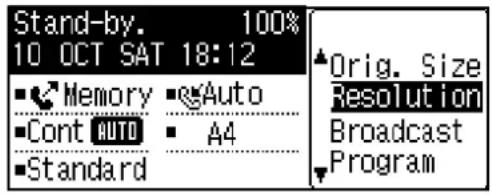
text_image
Stand-by. 100% 10 OCT SAT 18:12 ■ Memory ■ Auto ■ Cont AUTO ■ A4 ■ Standard Orig. Size Resolution Broadcast Program| Standard Select for an original with normal size text. | |
| Fine | Select for an original with small text or detailed diagrams. The original will be scanned at twice the density of "Standard". |
| Super Fine | Select for an original with intricate pictures or diagrams. A higher-quality image will be produced than with the "Fine" setting. |
| Fine / HalftoneSuper Fine /Halftone | Use for photo or shaded colour originals (colour documents, etc.). Transmits a clearer image than with "Fine" or "Super Fine" alone.The transmission time is slightly longer when halftone is selected. |

- The factory default settings for the resolution and contrast are "Standard" and "Auto", respectively. The default settings for the resolution and contrast can be changed in the system settings "Set Res. Con." (p.186). When using the document glass to scan multiple original pages, you can change the resolution and contrast each time you change pages. When using the auto document feeder, you cannot change the resolution and contrast after scanning has started.
- Even if you send a fax at "Fine" or "Super Fine", the receiving fax may not be capable of receiving and printing the fax at that resolution.
- To cancel a resolution setting, press the "Reset" key.
CHANGING THE EXPOSURE
The exposure can be changed to match the darkness of the original.
1 Select the [Exposure] key (①)
2 Adjust the exposure.

text_image
Fax Exposure AUTO(1) Select the item.
(2) Adjust the exposure.
To dark the exposure, select the [] key, and to lighten the exposure, select the
[◀] k e y .
(3) Select the [OK] key.
CANCELLING A FAX TRANSMISSION
To cancel a transmission that is in progress or a stored transmission job, follow the steps below. A transmission in progress or a stored transmission job is cancelled from the fax status screen. (Printing of a received fax cannot be cancelled.)

To cancel a transmission while the original is being scanned ("Reading" appears in the message display) or before the key is pressed ([READ-END] key ( # when scanning the original from the document glass), the [C] or [CA] key can be pressed.
Cancelling a fax transmission
1 Press the [FAX STATUS] key (0-i)
- When a transmission is in progress, the job being transmitted is displayed.
- If the displayed job is not the job that you wish to cancel, it is likely that the job to be cancelled is a stored job waiting for transmission. Press the [BACK] key (→) to display the fax status selection screen and then follow the procedure in "Cancelling a stored transmission job" on "Cancelling a stored transmission job" (p.94) to cancel the job.
![SHARP MX-C300W - Press the [FAX STATUS] key (0-i) - 1](/content/2026/06/1243240/images/6ee1dddaaa4a0336b5ed63e75999b117ab63a4bbf79c4968927c5241d5ef09d6.jpg)
When a transmission is not in progress, the following fax status selection screen appears.
![SHARP MX-C300W - Press the [FAX STATUS] key (0-i) - 2](/content/2026/06/1243240/images/df0f06c8fc2fb4ad03800d2feb73c70eb3c4d34f8a3fef17d76c4019f24e7859.jpg)
text_image
Fax Status ▲TX/RX Jobs TX/RX Reserve ▼TX/RX Completed2 Press the [C] key.
3 Press the [OK] key.
The transmission is cancelled.
![SHARP MX-C300W - Press the [OK] key. - 1](/content/2026/06/1243240/images/69d4dccbff70a2350090b69290a62a7ac74d406992c253a4a0b315fd75d4d368.jpg)
- If you do not wish to cancel the transmission, press the [▼] key in the screen of step 2, select "No", and press the [OK] key.
- You can check cancelled operations in the Activity Report. "Cancel" will appear in the "Type/Note" column of the report. Additional information on the display during transmission
![SHARP MX-C300W - Press the [OK] key. - 2](/content/2026/06/1243240/images/223ecf2ead0a3b0bfd326fbdd74c9980509b956139d11ee54b428aa8e24d974e.jpg)
text_image
(A) —■ 12345678901234 (B) —■ Memory TX (C) (B) —■ P-XXX ■ No. XXX(A) Destination name
The name of the destination appears if programmed.
(B) Transmission method name
In the case of a timer transmission, the timer icon "💡" appears at the beginning of the transmission method name.
(C) Number of pages currently transmitted
Appears during sending.
(D) Document number
The document number assigned at the time of scanning in memory transmission mode appears.
Cancelling a stored transmission job
If you do not wish to cancel a stored transmission job and only wish to check its status, press the [BACK] key (→) instead of the [C] key in step 4 to exit.
1 Press the [FAX STATUS] key (0:1)
The fax job status screen is displayed.
![SHARP MX-C300W - Press the [FAX STATUS] key (0:1) - 1](/content/2026/06/1243240/images/a878dc9913c1b03eb3964dca360451d4e50d855c20f55cc7bc172a1b2fb7c4b1.jpg)
When a transmission is in progress, the job being transmitted is displayed. Press the [BACK] key (→) to display the fax status selection screen.
![SHARP MX-C300W - Press the [FAX STATUS] key (0:1) - 2](/content/2026/06/1243240/images/20d3888be8a0e989feb7d5b55778123bee19e7f67442cc51097783808a0c4c74.jpg)
text_image
Comm. ■12345678901234 ■Serial poll mode ■/XXX2 Select "TX/RX Reserve" with the [▼or [ ]▲key.
3 Press the [OK] key.
The first stored transmission job appears.
Press the [▼] o▲ r [ ] key until the transmission job that you wish to cancel appears.
4 Press the [C] key.
The transmission cancel confirmation screen appears.
5 Select "Yes" with the [▼or [ ]▲key.
6 Press the [OK] key.
The selected transmission job is cancelled.
If you wish to cancel another transmission job, repeat steps 1 through 6.
![SHARP MX-C300W - Press the [FAX STATUS] key (0:1) - 3](/content/2026/06/1243240/images/a8430406eab66f14278831cd09908730d1ed06c609ce83e6e75d9781e1b3ebe8.jpg)
You can check cancelled recall mode jobs in the Activity Report. "Cancel" will appear in the "Type/Note" column of the report.
Contents of the stored job screen (screen of step 3)
![SHARP MX-C300W - Press the [FAX STATUS] key (0:1) - 4](/content/2026/06/1243240/images/b4ea9b9000809993271d8fd8561e0e5a979f2d15dd88e79d8ea9fab42b411df3.jpg)
text_image
(A) Waiting XXX/XXX (B) ■12345678901234 (C) ■TX (D) ■P-XXX ■②No.XXX—(E) (F) ■XX:XX(A) Current status
"Waiting" will appear next to stored transmission jobs and timer transmission jobs. "Recall" will appear next to recall mode jobs.
(B) Destination
The name of the destination appears if programmed.
(C) Transmission method name
In the case of a timer transmission, the timer icon " 🔊" appears at the beginning of the transmission method name.
(D) Number of pages stored
In the case of a stored transmission job, the document number assigned at the time of scanning appears.
(E) In the case of a timer transmission, the timer job number appears.
(F) In the case of a timer transmission, the specified reservation time appears. "Prepared" will appear for a stored transmission job.
Status of completed jobs
To check the status of completed jobs, select "TX/RX Completed" in step 2 and press the [OK] key in step 3.
RECEIVING FAXES
When another fax machine sends a fax to your machine, your machine will ring*, automatically receive the fax, and begin printing. (This is called automatic reception.)
If you do not wish to have received faxes printed immediately, use the print hold function to hold received faxes in memory for printing at your convenience (all received faxes will be printed at once). To enable this function and print received faxes, see "FAX PRINT HOLD FUNCTION" (p.97).

- You can store a transmission job while fax reception is in progress. (See "Storing transmission jobs (memory transmission)" (p.90)
- To print received fax pages on both sides of the paper, enable "Duplex Reception" (p.187) in the system settings.
- If a extension phone is not connected to the machine, use automatic reception.
- If the Address Review function (p.186) is on, you can press the [SPEAKER] key (☐) when the machine rings to select whether the fax will be received. Select "Yes" to receive the fax or "No" to reject the fax with [▼][▲], and press the [OK] key.
- In order to receive faxes, paper must be loaded in the paper tray. See "LOADING PAPER" (p.19) to load appropriate paper.
RECEIVING A FAX
1 The machine will ring\* and reception will automatically begin.
The LINE indicator (lights up.

If an extension phone is connected and the other party is sending a fax by manual transmission (p.119), you can lift the handset before fax reception starts and speak to the other party.
\*Number of rings
The machine has been set to ring twice before beginning automatic reception. You can change the number of rings to any number from 0 to 9 in the system settings.
(See "#Of Rings At. RX" (p.187).)
If the number of rings is set to 0, the machine will receive faxes without ringing.
2 Reception ends.
- When reception ends, the machine sounds a beep.
- When the optional job separator tray kit is installed, received faxes are output to the job separator.

The job separator has a sensor that detects when a tray is full. When approximately 100 sheets accumulate in a tray, a message appears in the display and fax printing stops. If this happens, remove the sheets. Printing will resume momentarily.
If received data cannot be printed
If the machine runs out of paper or toner, or a paper misfeed occurs, or if the machine is printing a print or copy job, received faxes will be held in memory until printing becomes possible. The received faxes are automatically printed when printing is possible. When received faxes are held in memory, the FAX [DATA] light (25) blinks. You can also use the forwarding function to have another fax machine print the received faxes. (See "FORWARDING FUNCTION" (p.110).)

In order to receive faxes, paper must be loaded in the paper tray. Load appropriate paper as explained in "LOADING PAPER" (p.19).
- If you receive a fax that is larger than the loaded paper, the system setting uses "Received Data Print Condition" (p.187) to print it out in the following manner:
If "Reduction" is set up, the image is automatically reduced before printing.*1
If "Division" is set up, the image is split onto multiple sheets of paper and printed on them at actual size.*1
If "Actual Size" is set up, the image is printed at actual size without being split.*2
*1 If the loaded paper is of the B5 size or less, the received image may not be printed depending upon the width and length of the image data.
*2 The received image won't be printed until you load the paper larger than the actual size.
- In fax mode, printing is not possible on B5 and A5 sizes. (Among AB sizes, only A4 can be used for printing.) (If your machine uses AB-based paper sizes, 8-1/2" x 14" size paper cannot be used in fax mode. (Among AB sizes, only 8-1/2" x 11" and 8-1/2" x 11" can be used for printing.))
- If the paper runs out while a fax is being printed, printing will automatically continue using the closest size of paper in another tray.
- If you change the size of paper loaded in a tray, change the tray's paper size setting.
- Faxes cannot be printed correctly if the actual paper size is different from the paper size setting. Be sure to set the tray's paper size setting to the same paper size as the paper loaded in the tray. For example, if you receive an B4 (11" x 17") size fax when A4 (8-1/2" x 14") paper is loaded in the tray and the tray's paper size setting is B4 (11" x 17"), the fax will be printed on A4 (8-1/2" x 14") paper and part of the image may be cut off If the paper loaded in the tray is larger than the paper size setting, paper larger than the recognized fax size will be used. (A message prompting you to check the tray's paper size setting will appear.)
- Received faxes cannot be printed on paper inserted in the bypass tray.
MANUAL FAX RECEPTION
When the Address Review function (p.186) is turned on, you can decide whether to receive a fax (this is called "manual reception" in this manual).
SETTING THE RECEPTION MODE
1 Press the [COMM. SETTING] key (☐) in the initial state of Fax mode.

The communication setting screen can also be displayed from the function selection screen.
Press the [SPECIAL FUNCTION] key (Fn) to display the function selection screen, select "Comm. Setting" with the [▼] keys, and press the [OK] key.
2 Select "Manual" and press the [OK] key.

To return to auto reception, select "Auto" in step 1 above.
Manually receiving a fax
When the machine rings, press the [SPEAKER] key (☐). To receive the fax, select "Yes". If you do not want to receive the fax, select "No".
FUNCTION KEY
This is the initial setting that appears when the [SPECIAL FUNCTION] key (Fn) is pressed in fax mode.
FAX PRINT HOLD FUNCTION
Faxes are normally printed as soon as they are received.
This function is used to hold received faxes in memory rather than printing them as they are received.
Faxes held in memory are printed manually all at once.
Settings required for fax print hold
If a fax is received when auto power shut-off mode has activated ("POWER ON AND OFF" (p.15)), the machine returns to normal operation in order to print the fax. For this reason, if faxes are received at regular intervals, auto power shut-off will repeatedly activate and deactivate and less power will be conserved.
If you wish to maximize the benefit of auto power shut-off at night and other times when printing of received faxes is not immediately necessary, enable fax print hold. When fax print hold is enabled, receiving faxes when auto power shut-off has activated will not cause auto power shut-off to deactivate.
It is recommended that you enable and disable fax print hold as needed for your conditions of use; for example, enable fax print hold during the night and disable it during the day.

- When fax print hold is enabled and received faxes are held in memory, the DATA indicator (above the [FAX] key (when the operation panel blinks and a message appears in the display. (When the received faxes are printed, the indicator stops blinking and the message no longer appears.)
- If the remaining free memory reaches 0%, fax reception will no longer be possible. For this reason, it is important to constantly make sure that sufficient free memory remains and frequently print received faxes. The percentage of free memory remaining appears in the base screen of fax mode. (p.81)
Select the "Fax Print Hold" function.
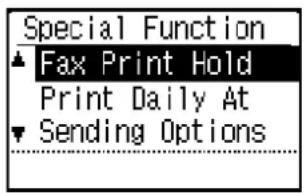
text_image
Special Function ▲ Fax Print Hold Print Daily At ▼ Sending OptionsEnabling fax print hold

If fax print hold is prohibited using "Disable Fax Print Hold" (p.185) in the system settings, it will not be possible to enable it.
Select "Setting", and then select "On".
To disable fax print hold, select "Off".
Printing received faxes held in memory
Select "Fax print hold", and then select "Print".
AUTOMATIC TRANSMISSION AT A SPECIFIED TIME
This feature enables you to set up a transmission or polling operation to be performed automatically at a specified time up to a week in advance. This is convenient when you will be out of the office or for transmission at off-peak nighttime rates. A combined total of 50 timer transmission and memory transmission jobs can be stored.

- After a timer transmission is performed, the information (image, destination, etc.) is automatically cleared from memory.
- To perform a timer transmission, the original must be scanned into memory. It is not possible to leave the original in the document feeder or on the document glass and have it scanned at the specified time of transmission.
- The date and time is set in the machine using the system settings. (See "Daylight Saving Time" (p.176).)
- Only one polling timer operation can be set up at a time. If you wish to set up multiple timer polling operations, combine the machines to be polled into one serial polling operation with a timer setting (see "Serial polling mode" (p.101)).
1 Select "Timer Mode" and press the [OK] key.
If a time has been specified, a checkmark appears in front of "Timer Mode". To cancel a specified time, press the [LOGOUT] key (✗) in the above display with "Timer Mode" highlighted.
The current time appears in the screen. If the current time is not correct, press the [CA] key to cancel the operation and see "Daylight Saving Time" (p.176) to correct the time setting.
2 Select the day of the week with the [▼or [ ]▲key.
The selected day is highlighted. If you select "No Select Days", the transmission will be performed as soon as the specified time arrives. To return to the "Time Setting" display, press the [BACK] key (→).
![SHARP MX-C300W - Select the day of the week with the [▼or [ ]▲key. - 1](/content/2026/06/1243240/images/983e67ed58c0b3c5e351ba0342f8a84cab5417c6e69fc2ac7e357f3d331f9c6b.jpg)
- To cancel a timer operation after the above procedure has been completed, follow the procedure in "CANCELLING A FAX TRANSMISSION" (p.93).
- A timer job number is automatically assigned to the operation. This number can be used to cancel a stored job. (See the note Cancelling a stored transmission job screen (screen of step 3)" on p.94.)
- Other operations can be performed after a timer operation is set up. If another operation is in progress when the specified time arrives, the timer transmission will begin when the job in progress is completed.
SENDING THE SAME DOCUMENT TO MULTIPLE DESTINATIONS IN A SINGLE OPERATION
This feature is used to send a fax to multiple destinations in a single operation. The original to be transmitted is scanned into memory and then successively transmitted to the selected destinations. This feature is convenient for such purposes as distributing a report to company branches. Up to 100 destinations can be selected. When transmission to all destinations has been completed, the document is automatically cleared from memory.

- If you frequently use broadcasting to send faxes to the same group of destinations, it is convenient to program those destinations into a group dial. The procedure for programming group dials is explained on p.103.
- When a group dial is used to send a fax, the fax is broadcast (transmitted) to the destinations programmed in the group dial. For example, if five destinations are programmed in a group dial and the key is pressed for a broadcast transmission, the broadcast transmission will have five destinations.
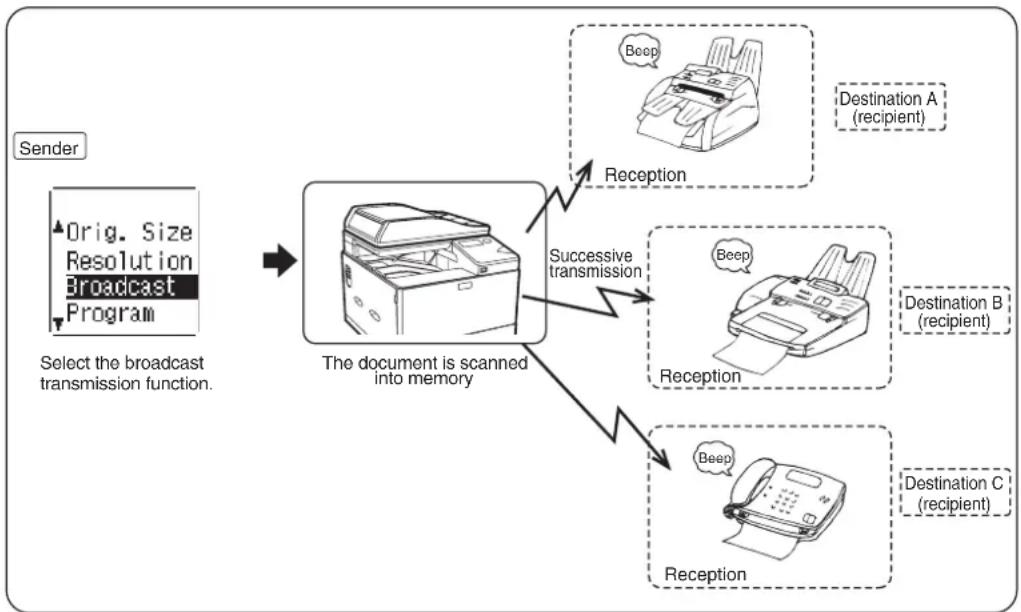
flowchart
graph TD
    A["Sender"] --> B["Orig. Size Resolution Broadcast Program"]
    B --> C["The document is scanned into memory"]
    C --> D["Reception"]
    D --> E["Destination A (recipient)"]
    C --> F["Successive transmission"]
    F --> G["Destination B (recipient)"]
    C --> H["Reception"]
    H --> I["Destination C (recipient)"]
1 Enter a full fax number with the numeric keys or press an auto-dial key (Rapid key, Speed Dial number, or group key) to select the first destination. (p.87)
The destination selection screen appears. To clear a mistake when entering a full number with the numeric keys, press the [C] key to clear one digit at a time. A destination selected with a Speed Dial number, or group dial is indicated by an icon and a number. To clear an entry, press the [C] key.
2 Press the [OK] key and then select the next destination by entering a full fax number or pressing an auto-dial key.
After entering a full number with the numeric keys, press the [OK] key to complete the entry. If you pressed an auto-dial key in step 1, it is not necessary to press the [OK] key. You can immediately press another auto-dial key for the next destination. Repeat steps 1 and 2 to select the remaining destinations.
![SHARP MX-C300W - Press the [OK] key and then select the next destination by entering a full fax number or pressing an auto-dial key. - 1](/content/2026/06/1243240/images/3c912180f2b43b7e7e1b0587877e2c82eb3edc2bfd976546f82f5e063e398487.jpg)
- If you need to delete a number for which entry has already been completed by pressing the [OK] key, use the [] or [] key to select the number and then press the [C] key.
- If the selected destinations exceed the display range of the message screen, press the [◀] or [▶] key to scroll through and check the destinations.
- Destinations can also be selected using the address directory and the [REDIAL] key ( ). Note, however, that the [REDIAL] key ( ) can only be used to select the first destination (it must be used before any other destinations are selected).
- If you use two group dials that have 50 stations each, the total number of destinations entered will be 100.
3 Continue from step 7 of "BASIC PROCEDURE FOR SENDING FAXES" (p.85).

To cancel a broadcast transmission
To cancel a broadcast transmission when selecting destinations, press the [CA] key. To cancel transmission after the transmission procedure has been completed, follow the procedure in "CANCELLING A FAX TRANSMISSION" (p.93).
SENDING OPTIONS
This function allows your machine to call another fax machine and initiate reception of a document in that machine. A timer setting can also be specified to have the operation take place at night or at another specified time. (See "AUTOMATIC TRANSMISSION AT A SPECIFIED TIME" (p.98).)
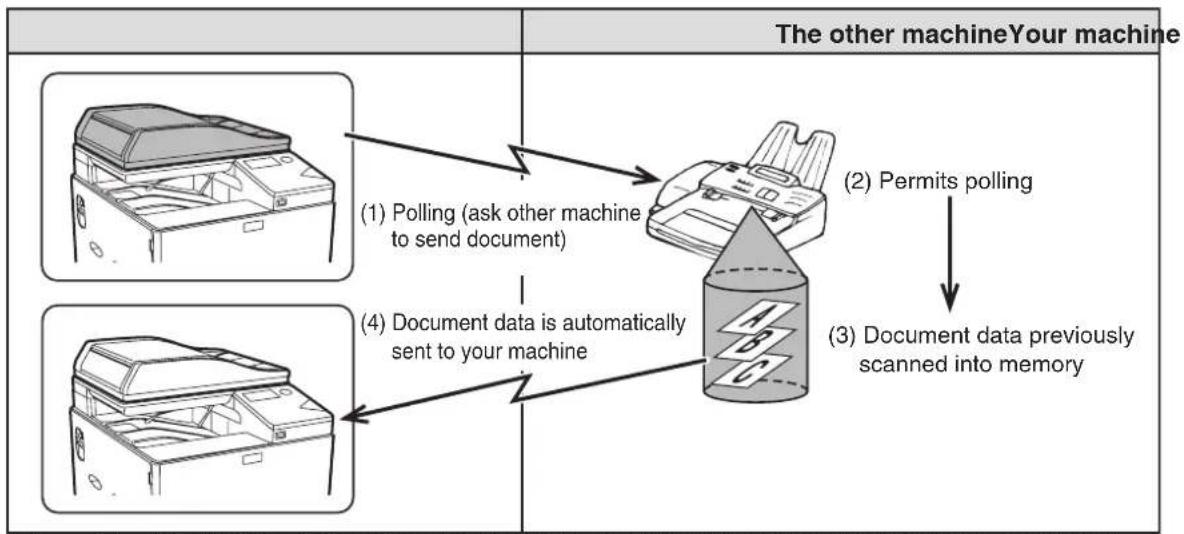
flowchart
graph TD
    A["The other machineYour machine"] --> B["(1) Polling (ask other machine to send document)"]
    B --> C["(2) Permits polling"]
    C --> D["(3) Document data previously scanned into memory"]
    D --> E["(4) Document data is automatically sent to your machine"]
Group dials and the "SENDING THE SAME DOCUMENT TO MULTIPLE DESTINATIONS IN A SINGLE OPERATION" (p.99) can be used to successively poll multiple fax machines in a single operation (this is called "serial polling"). Up to 100 machines can be polled.
In this case, the sequence of operations in the above diagram is successively repeated for each sending machine selected.
When using the Public Box function, do not set the fax reception mode to "Manual". (See "MANUAL FAX RECEPTION" (p.96).)

If the other machine is using polling security (see "Restricting polling access (polling security)" (p.103)), your fax number (sender's number) must be programmed in the system settings (see "Own Passcode Set" (p.184)) and your number must also be programmed in the other machine.
1 Select "Sending Options".

text_image
Sending Options ▲ Polling ▼ Serial poll modePOLLING
2 Select "Polling".
3 Press the [OK] key and enter the fax number of the other machine with the numeric keys specify a Speed Dial number (a group dial cannot be used).
4 Press the [OK] key. Press the [BLACK & WHITE START] key. "Polling reservation has been set." appears in the screen. After communicating with the other machine, your machine prints the received fax.

To cancel the operation
During communication: Cancel as explained in "Cancelling a fax transmission" (p.93).
While the job is stored: Cancel as explained in "Cancelling a stored transmission job" (p.94).
Serial polling mode
Setting for polling reception from multiple fax machines.
Select "Serial polling" steps 1 to 2 of the polling procedure "POLLING" (p.100).
Before pressing the [BLACK & WHITE START] key in step 3, repeat steps 1 and 2 for each machine that you wish to poll.

The receiving machine bears the expense (phone charges) of polling transmission.
POLLING MEMORY
This feature allows your machine to automatically send a document previously scanned into memory when another machine calls and polls your machine.

flowchart
graph TD
    A["Your machine The other machine"] --> B["(1) Polling (request transmission)"]
    A --> C["(2) Permits polling"]
    A --> D["(3) Document data previously scanned into memory"]
    A --> E["(4) Document data is automatically sent to other machine"]

The machine that requests transmission bears the expense (phone charges) of the call.
When using the Public Box function, do not set the fax reception mode to "Manual". (See "MANUAL FAX RECEPTION" (p.96).)
Scanning a document into polling memory
This section explains how to scan a document into the polling memory. If other documents have already been stored in the polling memory, the new document will be appended to those documents. If the previous documents are no longer needed, they can be replaced.
1 Select "Memory Polling"
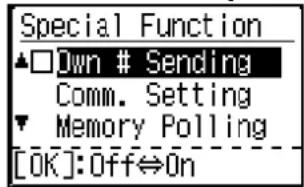
text_image
Special Function ▲□ Down # Sending Comm. Setting ▼ Memory Polling [OK]: Off⇔On2 Press the [OK] key and select "1 Time" or "Repeat"
![SHARP MX-C300W - Press the [OK] key and select "1 Time" or "Repeat" - 1](/content/2026/06/1243240/images/211f3cb3826967e8b85de720119a2e7882e088c0d33f2ce27239ce2e798a13c7.jpg)
text_image
Select Sending 1 Time RepeatIf you select "1 Time", the document data is automatically cleared from memory after your machine is polled once. If you select "Repeat", the document data in memory can be used repeatedly.
- If there are no previously stored documents in the polling memory, the above screen appears.
- If there are previously stored documents in the polling memory, a screen will appear to let you select what action to take.
![SHARP MX-C300W - Press the [OK] key and select "1 Time" or "Repeat" - 2](/content/2026/06/1243240/images/126a5cb90ac051a537cf0abb3e3204bfad06247cf2ee84195c1a04f0f77b4898.jpg)
text_image
Original ▲ Add Change Delete ▼ Print(1) If you wish to append the new document, select "Add" with the [ ]▼ or [▲key, press the [OK] key, and then go to step 2.
(2) If you wish to replace the previous document with the new document, select "Change" with the [▼or [ ] key, press the [OK] key, and then go to step 2.
3 Press the [OK] key and press the [BLACK & WHITE START] key
- Scanning begins.
- If you are scanning from the document glass and have another page to scan, change pages and press the [BLACK & WHITE START] key. Repeat until all pages have been scanned and then press the [READ END] key ( #
4 Make sure that the reception mode is set to auto reception. ("SETTING THE RECEPTION MODE" (p.96))
Transmission begins when the other machine calls and polls your machine.

To cancel scanning
To cancel scanning of a document while scanning is in progress, press the [C] key. To erase the documents in the Public Box, follow the procedure in "Deleting documents from the polling memory" (p.103).
Printing documents in the polling memory
To check the document that is stored in the public box, follow these steps to print it out.
1 Follow steps 1 of "Scanning a document into polling memory" (p.102) and then follow the steps below.
2 Select "Print" with the [▼or [ ] key and press the [OK] key.
Printing begins automatically.
Deleting documents from the polling memory
This procedure is used to delete documents from the polling memory when they are no longer needed.
1 Select "Delete".
2 Press the [OK] key.
A screen appears asking you to confirm the deletion.
3 Select "Yes" with the [▼] or [▲] key and press the [OK] key.
The documents are deleted from the polling memory.

Deletion is not possible while the polling memory is being used.
Restricting polling access (polling security)
If you wish to prevent unauthorised fax machines from polling your machine, enable the polling security function. When this function is enabled, polling permission will only be granted if the fax number of the polling machine (programmed in that machine as the sender's number) matches one of the fax numbers you have programmed in your machine as passcode numbers. Up to 10 fax numbers can be programmed as passcode numbers.
To enable the polling security function and program passcode numbers, see "Polling Passcode # Mode" (p.189) in the system settings.

- If you do not use the polling security function, the document will be sent to any fax machine that polls you.
- To use polling memory with polling security enabled, the sender's number of the polling machine must be programmed in that machine and in your machine.
STORING, EDITING, AND DELETING AUTO-DIAL NUMBERS (SPEED DIAL NUMBERS, AND GROUP DIALS)
Auto dial numbers are stored in the auto dial storing screen. Follow the steps below to display the auto dial storing screen, and then store an auto dial number.
1 Select "Entry" and press the [OK] key.
2 Select "Dial" with the [▼or [ ]▲key.
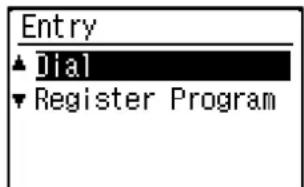
text_image
Entry ▲ Dial ▼ Register Program3 Select "Speed", "Group", or "Change/Delete" with the [▼] or [▲] key.
4 Press the [SPEED] key (☐) and enter the fax number of the destination with the numeric keys.
- Enter the desired Speed Dial number (000 to 299) with the numeric keys.
- Up to 50 digits can be entered for the fax number. If you need to insert a pause between any of the digits, press the [REDIAL/PAUSE] key (☐). The pause appears as a hyphen (-). To set the duration of the pause, see "Pause Time" (p.184).
5 Enter search characters (see "ENTERING CHARACTERS" (p.24)).
6 To finish the storing procedure, press the [BLACK & WHITE START] key. If you wish to program an option such as chain dialling, transmission speed, or international transmission mode, press the [OK] key.
- If you pressed the [BLACK & WHITE START] key, you will return to step 3. If you wish to store another or Speed Dial number, repeat steps 3 to 6. If you have finished storing auto-dial numbers, press the [BACK] key (→).
- If you pressed the [OK] key, go to the appropriate page for the option that you wish to program.
- To select "CHAIN DIAL", go to "Chain Dialling" (p.104).
- To set the "TRANSMISSION SPEED", go to "Transmission speed setting" (p.104).
- To set the "INTERNATIONAL TRANSMISSION MODE", go to "International transmission mode setting" (p.105).
![SHARP MX-C300W - To finish the storing procedure, press the [BLACK & WHITE START] key. If you wish to program an option such as chain dialling, transmission speed, or international transmission mode, press the [OK] key. - 1](/content/2026/06/1243240/images/0dd63c3210412d59db8bad37383bc2e5f7f0103f7ce79fca1a0ec3ab4109a90a.jpg)
About the setting options
When storing and editing and Speed Dial numbers, you can also select the setting options below. Chain dialling cannot be combined with any of the other setting options.
When you select a setting option, a checkmark appears in the setting option screen.
- Chain Dialling You can enable or disable Chain Dialling for a Rapid key or Speed Dial number. (p.104)
- Transmission speed You can set the transmission speed to 33,600 bps (maximum speed), 14,400 bps (high speed), 9600 bps (middle speed), or 4800 bps (low speed). The initial setting is 33,600 bps (maximum speed). (p.104)
- International transmission mode The international transmission mode can be set to "Off" or one of modes 1 to 3. The initial setting is "Off". (p.105)
- Chain Dialling
To set an auto-dial number as a Chain Dial number, complete "Editing and deleting auto-dial numbers" (p.106).

When a number is set as a Chain Dial number, the destination fax number can be up to 48 digits long.
1 Select "Chain Dial" with the [▼] or [▲] key and press the [OK] key.
![SHARP MX-C300W - Select "Chain Dial" with the [▼] or [▲] key and press the [OK] key. - 1](/content/2026/06/1243240/images/14c2e863178405206818611f032a4ece89f1e0df36c27fcd97f61df88556dbcf.jpg)
text_image
Others ▲ Chain Dial TX Speed ▼ International TX [Start]:Set- If checkmark appears to the left of "Chain Dial", it is already selected.
- To exit, press the [BLACK & WHITE START] key.
2 Select "On" or "Off" with the [▼or [ ]▲key.
● Transmission speed setting
To set the transmission speed, complete "Editing and deleting auto-dial numbers" (p.106).

Set the transmission speed only when you know what speed is most suitable, such as when you are sending a fax to a foreign country and telephone line conditions are bad. If you do not know the line conditions, do not change this setting.
1 Select "TX Speed" with the [▼] or [▲] key and press the [OK] key.
2 Select the desired transmission speed with the [] or [] key.
![SHARP MX-C300W - Select the desired transmission speed with the [] or [] key. - 1](/content/2026/06/1243240/images/a60d5039afdeb74c8555f3d7eea8085cb2018c4d0f7cc9c98c81ae5db0d1c568.jpg)
If you select a speed other than 33,600 bps (maximum speed), a checkmark will appear next to "TX Speed" when you return to the option setting screen. This setting is not effective for polling transmission.
To remove the checkmark and return the transmission speed setting to "33,600 bps (maximum speed)", press the [LOGOUT] key (※)
● International transmission mode setting
To set the international transmission mode, complete "Editing and deleting auto-dial numbers" (p.106).

- When sending a fax to a foreign country, telephone line conditions can sometimes distort the fax or interrupt the transmission. Selecting the right international transmission mode can help alleviate these problems.
- If errors frequently occur when sending a fax to a foreign country, try each of modes 1 to 3 and select the mode that enables the best transmission.
1 Select "Chain Dial" with the [▼or [ ] key press the [OK] key.
2 Select the desired mode with the [▼or [ ]▲ey.

text_image
International TX Off Mode 1 Mode 2 Mode 3
If you select a setting other than "Off", a checkmark will appear next to "International TX" when you return to the option setting screen.
To remove the checkmark and return the international transmission mode to "Off", press the [LOGOUT] key ( )
● Storing a group dial
To store a group dial number, perform the steps below in the auto dial storing screen.
1 Press the [SPEED] key ( )
Enter the desired Group Dial number (000 to 299) with the numeric keys.
If you press a number that has already been stored, a warning message will appear.

Group key dialling is an automatic dialling function where by multiple destinations are programmed into a Rapid key. If you frequently send faxes to the same group of destinations using broadcast transmission, which is used to send the same document to multiple destinations in a single operation (p.99), it is convenient to program those destinations into a group key.
2 Enter a group name (see "ENTERING CHARACTERS" (p.24)).
3 Store the destinations using Rapid keys, Speed Dial numbers, and the numeric keys.
- To store a Speed Dial number, press the [SPEED] key (□) and then enter the desired Speed Dial number (000 to 299) with the numeric keys. If you press an incorrect key, press the [C] key and then press the correct key.
- Chain dialling, transmission speed, and international transmission mode options cannot be selected. If you need to select an option for the destination, store the destination in Speed Dial number and then store the destination in the group dial. Up to 50 digits can be entered for the fax number. If you need to insert a pause between any of the digits, press the [REDIAL/PAUSE] key (☐) to enter a pause. The pause appears as a hyphen (-). To set the duration of the pause, see "Pause Time" (p.184). When you have finished entering the fax number, press the [OK] key.
4 Repeat step 3 for all of the destinations that you wish to store in the group dial.
Up to 100 destinations can be stored in a group dial.
● Editing and deleting auto-dial numbers
To edit or delete an auto-dial number, follow steps 1 through 6 on p.103 and then follow the steps below.

The Speed Dial number is being used in a transmission in progress or in a stored transmission, a Speed Dial number cannot be edited or cleared.
● Editing a Rapid key or Speed Dial number
1 Select "Speed" and Select "Change" with the [▼or [ ]▲key.
2 Press or the [SPEED] key (☐) and edit the destination fax number with the numeric keys.
- Press the [SPEED] key ( ) and then enter the Speed Dial number (000 to 299) that you wish to edit with the numeric keys.
- Move the cursor to the digit(s) that you wish to edit with the [ ]◀r [ ] k▼y, and then enter the correct digit(s) with the numeric keys.
- To delete a digit, move the cursor to the digit that you wish to delete with the [ ]◀r [ ] k▶y and then press the [C] key.
3 To finish the storing procedure, press the [BLACK & WHITE START] key. If you wish to program an option such as F-code, chain dialling, transmission speed, or international transmission mode, press the [OK] key.
● Deleting a Speed Dial number
1 Select "Delete" and press the [SPEED] key ( )
Press the [SPEED] key (☐) and then enter the Speed Dial number (000 to 299) that you wish to delete with the numeric keys.
2 Select "Delete" with the [▼or [ ]▲ey.

If you select "No Delete", you can press the ( ) key to check the destination name. If you are deleting the destination, check the destination name and then delete the destination.
● Editing and deleting group dials
To edit or delete a group dial, follow steps 1 through 3 on pages "STORING, EDITING, AND DELETING AUTO-DIAL NUMBERS (SPEED DIAL NUMBERS, AND GROUP DIALS)" (p.103) and then follow the steps below.

A group dial cannot be edited or deleted in the following cases.
• The group dial is stored in a program
● Editing a group dial
1 Select "Group" and press the [OK] key.
2 Press the group dial number (one of Rapid keys [01] to [50]) that you wish to edit, and edit the group name, the search characters
3 When you have finished editing the destinations, press the [BLACK & WHITE START] key.
- Deleting a group dial
1 Select "Delete" with the [▼] or [▲] key and press the group that you wish to edit.
2 Select "Delete" with the [▼or [ ]▲key.

If you select "No Delete", you can press the ( ) key to check the destination name. If you are deleting the destination, check the destination name and then delete the destination.
STORING, EDITING AND DELETING PROGRAMS
You can store a address setting, transmission method, original size enter, duplex scanning, resolution and exposure, own number sending, transmission settings.
This will allow you to use the settings for a transmission by means of a simple operation (see "USING SETTINGS STORED AS A PROGRAM" (p.112)).
* Transmission methods: normal transmission, broadcast transmission, polling, serial polling.

A screen setting and timer transmission setting cannot be stored in a program.
To store a program, follow steps 1 through 3 on pages "STORING, EDITING, AND DELETING AUTO-DIAL NUMBERS (SPEED DIAL NUMBERS, AND GROUP DIALS)" (p.103) and then follow the steps below.
1 Select "Entry" and Select "Register Program" with the [▼] or [▲] key.
2 Select "Enter", "Change", or "Delete" with the [▼] or [▲] key.
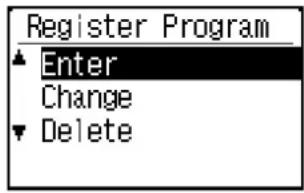
text_image
Register Program ▲ Enter Change ▼ Delete- To store a program, select "Enter" and press the [OK] key. Continue from step 3 of .
- To edit a program, select "Change" and press the [OK] key. Next, follow the steps in "EDITING PROGRAMS" (p.108).
- To delete a program, select "Delete" and press the [OK] key. Next, follow the steps in "DELETING PROGRAMS" (p.108).
● STORING A PROGRAM
3 Select the program that you wish to store with the [▼or [ ] key.
If you select a program that has already been stored, a message appears. Select a program that has not been stored, or clear the program (p.108) and then select it.
4 Select the program that you wish to store with the [▼or [ ] key.

text_image
Register Program ▲ TX Type ▼ Orig. Size Enter [*]:=Cancel [Start]:=Store End- A transmission method, original size enter, cover sheet/message, resolution/exposure settings, dual pages, sender's name, and transmission settings can be stored.
- A transmission method must be stored. The storing procedure cannot be completed unless a transmission method is stored.
- For the procedures for selecting each of the settings, refer to the explanations of the settings.
- To cancel a setting selection, select the setting that you wish to cancel and then press the key.
- Some settings cannot be used in combination with others. If you select a prohibited combination of settings, a message will appear in the display.
● EDITING PROGRAMS
If you need to edit a previously stored program, follow these steps.
3 Select the program that you wish to edit with the [▼] or [▲] key.
4 Edit the program name (see "ENTERING CHARACTERS" (p.24)).
- See step 3 of .
- If you do not wish to edit the program name, go to the next step.
5 Select the stored setting that you wish to edit with the [▼] or [▲] key.
- See steps 4 of .
- If you do not wish to edit the stored settings, press the [BLACK & WHITE START] key and then press the [BACK] key (to exit.
● DELETING PROGRAMS
Before deleting a program, print the "Program List" to check the contents. (p.109)
To delete a previously stored program, follow these steps.
3 Select the program that you wish to delete with the [▼or [ ]▲key.
4 Select "Delete" with the [▼or [ ]▲ey.
PRINTING LISTS OF PROGRAMMED INFORMATION AND SETTINGS
You can print lists showing programmed information and settings.
The following lists can be printed.
- Destination Lists: Shows the destinations stored in auto dial numbers in the order of their search characters.
- Group List: Shows the destinations stored in each group dial number.
- Program List: Shows the operations stored in each program.
- Timer List: Shows timer transmissions and recall transmissions.
- Mem. Polling List: Shows the documents stored for memory polling.
For other lists that can be printed, refer to "List Print" (p.181).
1 Press the [SPECIAL FUNCTION] key (F)n
2 Select "Data List Print" and select "Fax" with the [▼] or [▲] key.
3 Select the list that you wish to print with the [▼or [ ]▼key.
See the explanation of the lists that can be printed above.
INCLUDING SENDER INFORMATION ON FAXES (OWN NUMBER SENDING)
This function prints the date, time, your programmed name, your programmed fax number, and the transmitted page number at the top centre of each page that you fax. All pages that you fax include this information.
Example of fax page printed out by the receiving machine
| 1-AP-2015-WED 15:00(1) | SHARP PLANNING DIV.(2) | FAX No. 0666211221(3) | P. 001/001(4) |
(1) Date and time: programmed in the system settings (see "Daylight Saving Time" (p.176)).
(2) Sender's name: programmed in the system settings (see "Own Passcode Set" (p.184)).
(3) Sender' number: programmed in the system settings (see "Own Passcode Set" (p.184)).
(4) Transmitted page number: 3-digit number appearing in the format, "page number/total pages".
(Only the page number appears if you use manual transmission, direct transmission, or quick on-line transmission.)
Position of sender information
You can select whether the sender information is added outside the document data or inside the document data in the system settings (see "Print Station # In Rcvd Data" (p.186)). The factory default setting is outside the document data.

Direction of transmission

text_image
A B Length of scanned data Length of transmitted dataOutside the scanned data (document data) None of the transmitted image is cut off; however, the transmitted image is longer than the scanned image, and thus when both the sender and the receiver use the same
size of paper, the printed fax may either be reduced or split up and printed on two pages.

Direction of transmission

text_image
A B Length of scanned data Length of transmitted dataInside the scanned data (document data)
The top edge of the scanned image will be cut off by the sender's information; however, when both the sender and the receiver use the same
size of paper, the printed fax will neither be reduced nor split up and printed on two pages.
FORWARDING FUNCTION
When printing is not possible because of a paper, toner, or other problem, you can forward received faxes to another fax machine if that machine has been appropriately programmed in your machine. This function can be conveniently used in an office or other workplace where there is another fax machine connected to a different phone line. When a fax has been received to memory, the FAX [DATA] light blinks (see "If received data cannot be printed" (p.96)).

flowchart
graph TD
    A["Your machine"] --> B["(2) Printing not possible because of paper or toner problem"]
    B --> C["(3) "Transfer" instruction"]
    C --> D["(4) Automatic dialling and transmission to programmed transfer destination"]
    D --> E["(5) Printing"]
    E --> F["(1) Fax transmission to your machine"]
    F --> G["Other machine"]

- All received faxes are forwarded; a particular fax cannot be selected for forwarding.
- Faxes that have been received to memory by the fax print hold function (p.97) are also forwarded.
- The result of forwarding is indicated in the activity report (see "REPORT AT REGULAR INTERVALS (COMMUNICATION ACTIVITY REPORT)" (p.121)).
USING THE FORWARDING FUNCTION
Programming the fax number of the forwarding destination
The number of the forwarding destination is programmed in the system settings (see "Received Data FW. Station Set" (p.188)). Only one fax number can be programmed. The forwarding function cannot be used unless a number is programmed.
Forwarding received faxes
1 Select "FW. RX Data" with the [▼] or [▲] key and press the [OK] key.
![SHARP MX-C300W - Select "FW. RX Data" with the [▼] or [▲] key and press the [OK] key. - 1](/content/2026/06/1243240/images/36b9d58eb193642ff64e2796a352139037986dd0ece983272e3882c8a7cd1c12.jpg)
text_image
Special Function ▲ Print Entry ▼ FW. RX Data2 Select "Transfer" with the [▼] or [▲] key and press the [OK] key.
The machine automatically dials the forwarding number programmed in the system settings and begins forwarding the fax or faxes.
![SHARP MX-C300W - Select "Transfer" with the [▼] or [▲] key and press the [OK] key. - 1](/content/2026/06/1243240/images/d6850112776c6312c213574bcf865ec60fc2e54c8e7bc6412258204ad28351be.jpg)
• To cancel a forwarding operation
Press the [FAX STATUS] key (C), and then cancel forwarding in the same way as a regular fax transmission. (See "CANCELLING A FAX TRANSMISSION" (p.93).)
The fax(es) that was going to be forwarded will return to print standby status in your machine.
- If forwarding is not possible because the other machine is busy or a transmission error occurs, recall attempts will be made according to the recall times setting. If forwarding is still not successful after the set number of recall attempts are made, the fax(es) will return to print standby status in your machine.
- When forwarding is performed, all faxes that have been received in memory to that point are forwarded. The page that was being printed when the problem occurred and all following pages will be forwarded.
• After a fax is forwarded, the fax data is automatically cleared from memory.
USING SETTINGS STORED AS A PROGRAM
This function allows you to store the steps of an operation, including the destination and scanning settings, into a program. This function is convenient when you frequently send documents, such as a daily report, to the same destination. Up to 9 programs for fax transmission can be stored.
When storing a program, a name (maximum 36 letters) can be assigned to the program.
For information on storing, editing, and deleting programs, see "STORING, EDITING, AND DELETING AUTO-DIAL NUMBERS (SPEED DIAL NUMBERS, AND GROUP DIALS)" (p.103).
The following settings can be stored in a program:
(1) Address setting
(2) Transmission method
Normal transmission (p.85), broadcast
transmission (p.99), polling (p.100), serial polling (p.101)
(3) Original Size Enter
(4) Duplex Scanning
(5) Resolution and exposure
(6) Own number sending (p.109)
(7) Transmission settings (p.89)
When storing a broadcast transmission or serial polling operation in a program, up to 200 destination fax numbers can be stored.

- A program differs from a timer transmission (p.98) in that it is not cleared from memory after transmission takes place. A program thus allows you to repeatedly perform the same type of transmission. Note, however, that programs do not allow you to establish a timer setting for transmission.
- A setting that can be stored in a program cannot be changed at the time that a program is used for a transmission even if the setting is not stored in the program.
- The only settings that can be selected when using a program are the original size enter, duplex scanning, and a timer setting.
USING A PROGRAM
1 In fax mode, place the original and select "Program" with the [▼] or [▲] key.
2 Select the program that you wish to use.

text_image
Program ▲ AAAAA 38888 [#]:List⇔DetailIf not all letters of the program name appear, press the [READ-END] key ( # ) to display all letters. Press the [READ-END] key ( # once again to return to the original screen.
3 If needed, select the original size and other settings, and then press the [BLACK & WHITE START] key.
- Transmission takes place according to the program.
- If you selected a program that does not include a transmission method, set the transmission method and the destinations to be dialled before pressing the [BLACK & WHITE START] key.

Select settings that cannot be stored in a program before you press the [BLACK & WHITE START] key in step 3. These settings include the original size (see "SELECTING THE ORIGINAL SIZE" (p.29)), duplex scanning (see "FAXING A TWO-SIDED ORIGINAL" (p.88)), and a timer setting (see "AUTOMATIC TRANSMISSION AT A SPECIFIED TIME" (p.98)).
FORWARDING RECEIVED DATA TO A NETWORK ADDRESS (INBOUND ROUTING SETTINGS)
You can have received faxes automatically forwarded to a specified shared folder. As an example, this function can be used to route received faxes to a specified folder without printing the faxes.
All Inbound Routing settings are configured in the Web page.
The following explanation assumes that the Web page has been accessed with administrator rights.
For the procedure for accessing the Web pages, see "ABOUT THE WEB PAGES" (p.190).
To activate Inbound Routing, configure the basic settings before specifying the destination.
In the menu frame, click [Inbound Routing Settings]. Click the [Submit] button after settings
CONFIGURING THE BASIC SETTINGS
Configure the basic settings of Inbound Routing.
Enabling the Inbound Routing function
Select [Enable] in [Inbound Routing].
Changing the print style of received data
Select a print style in [Print Style Setting].
| Item Settings | Description | |
| Inbound Routing | Enable, Disable | Enable or disable the Inbound Routing function. |
| Print Style Setting Always | Print, Print at Error Select | a print style of received data. |
Set a file name for forwarding received data
Select from the pull-down menu of items used for the file name.
To add a desired text string, select the "Characters" and enter the string in "Preset of Character" using up to 64 characters.
Select the item to be used as the file name in "File Name Setting".
| Item Description | |
| Serial Number Selecting Serial Number adds the unit serial number to the file name. | |
| Sender Name Selecting Sender Name adds the sender name to the file name. | |
| Date & Time Selecting Date & Time adds the date and time to the file name. | |
| Session Page Counter Selecting Session Page Counter adds the counter to the file name. | |
| Unique Identifier Selecting Unique Identifier adds the unique identifier to the file name. | |
| Characters | To add a character string to the file name, select this checkbox and enter the text string in "Preset of Character" using up to 64 characters. |
| Preset of Character | Enter a text string to be used in "Characters" using up to 64 characters. |
Setting whether to print the transaction report
Select whether to print the transaction report when forwarding received data.
Specify the print condition in "Transaction Report Print Select Setting".
| Item Settings | Description | |
| Transaction Report Print Select Setting | Always Print, Print at Error, Do not Print | Select a print style of the transaction report. |
SETTINGS THE DESTINATION
Specify a sending source of received data and forwarding destination network folder to configure a forwarding table. Up to 10 forwarding tables can be configured.
For each forwarding table, set the following items:
● Forward Condition (enabling/disabling forwarding, and the conditions to determine forwarding)
● Sender number (fax number)
● Forwarding destinations (network folder)

- The names of the destination number (Forward destination 1 to 10) cannot be changed.
- Only the network folder can be specified for a forwarding destination. E-mail address, Scan to FTP, Scan to Desktop, and fax number cannot be specified.
Viewing the destination list
1 Click [Destination].
The destination list appears.
| Item Description | |
| Inbound Routing Displays w | whether Inbound Routing function is enabled. |
| Number | Displays the forwarding destination number (Forward Destination 1 to 10). Each of setup menu is displayed by clicking each number. |
| Forward Condition | Displays the forward condition of the destination (enabling/disabling and determining the destination setting). |
| [Delete] button | To delete the forwarding condition stored in a destination number, select the "Number" checkbox of the destination number and click the [Delete] button. |
| [Clear Checked] button Clicking this clears all "Number" checkboxes. | |
Settings the destination
1 Click [Destination] and click the destination number to be set.
2 Select [Enable] in "Forward Condition" and select the determining condition for forwarding.
Select [Forward (All)] or [Forward (Sender)].
3 If you wish to forward received data from a specific sender, enter the sender's fax number in "Sender Number".
Enter the fax number using up to 20 digits. To enter the fax number from the fax addresses stored in the machine, click the [Select from Address Book] button. The "Fax Destination" screen appears, and you can select the sender's number from the fax address list.
4 Enter the destination network folder in "Forward Destination (Max.5)".
Up to five network folder can be specified as the destination.
Two types of methods are available for entering the destination. The set network folder are displayed in "Forwarding Destination Settings".
- Entering an network folder directly
Click the [Direct Entry] button. When the "Forwarding Destination Settings (Direct Entry)" appears, enter a network folder information ("Hostname or IP Address", "User Name", "Password"), and click the [Submit] button.
- Selecting an network folder from the address book
Click the [Select From Address Book] button. The "Destination List" screen appears, and you can select an network folder from the network folder list.

To delete a set network folder, select the checkbox at the left of the network folder you wish to delete, and then click the [Delete] button.
Forward Condition
| Item Settings Description | ||
| Forward Condition | Enable, Disable | Enable or disable the destination to be set in this screen. |
| Forward (All), Forward (Sender) | Select the determination condition for forwarding the received FAX data. | |
Sender Number
| Item Description | |
| Fax No. Enter the sender's fax number if you have selected "Forward (Sender)" in "Forward Conditions" setting. Up to 20 digits can be entered. | |
| [Select From Address Book] button | Click this button to select the fax number from the fax addresses stored in this machine. |
Forward Destination (Max. 5)
| Item Description | |
| Forwarding Destination Settings | Displays the stored destinations. If no destination is stored, "Not Set" appears. |
| [Delete] button Deletes the selected destination. | |
| [Direct Entry] button Click this button to enter an network folder directly. | |
| [Select From Address Book] button | Click this button to select an network folder from the network folder address list stored in the machine. |
SENDING A FAX DIRECTLY FROM A COMPUTER (PC-Fax)
A document in a computer can be transmitted via the machine as a fax. Faxes are sent using the PC-Fax function in the same way as documents are printed. Select the PC-Fax driver as the printer driver on your computer and then select the Print command in the software application. Image data for transmission will be created and sent as a fax.
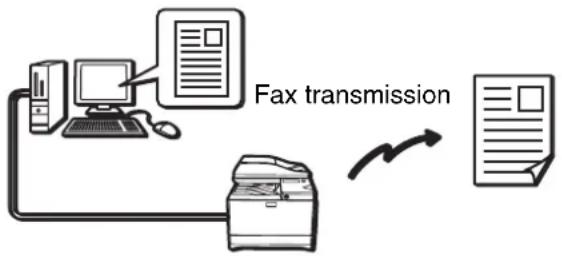
flowchart
graph TD
    A["Computer"] --> B["Printer"]
    B --> C["Document"]
    D["Fax transmission"] --> E["Document"]
    style A fill:#f9f,stroke:#333
    style B fill:#ccf,stroke:#333
    style C fill:#cfc,stroke:#333
    style D fill:#fcc,stroke:#333
    style E fill:#ffc,stroke:#333

- To use the PC-Fax function, the PC-Fax driver must be installed. For more information, see the Software Setup Guide
- This function can only be used on a Windows computer.
- This function can only be used for transmission. Faxes cannot be received to your computer.
CONNECTING AN EXTENSION PHONE
You can connect a telephone to the machine and use it as an extension phone to place and receive calls like any normal phone. Fax reception can also be activated from an extension phone connected to the machine. (remote operation)
CONNECTING AN EXTENSION PHONE
Insert the end of the extension phone cord into the extension phone jack on the left side of the machine.
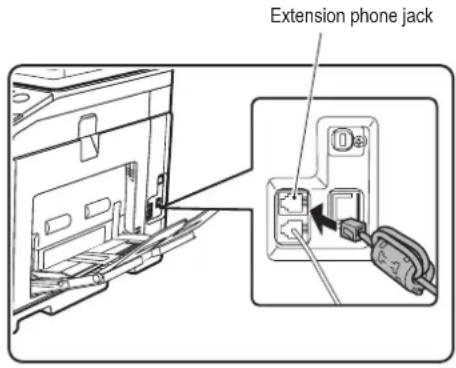
text_image
Extension phone jackMake sure you hear a "click" sound indicating that the cord is securely connected.

Only use an extension telephone that can be connected to a modular jack. If the shape of the cord plug is not compatible with the jack, consult your dealer or nearest Sharp customer service centre.
USING AN EXTENSION PHONE
Using an extension phone for voice calls
An extension phone connected to the machine can be used to place and receive voice calls just like a normal phone. A extension phone can be used while another mode is being used (copying, etc.).

- It may not be possible to make a call on your line during a power outage. This depends on the type of line (optical line, etc.).
- If the fax reception mode is set to auto reception, you must lift the phone to answer a call before the machine automatically begins reception. The machine is initially set to answer calls on two rings. The number of rings can be changed to any number from 0 to 9 in the system settings. (See "#Of Rings At. RX" (p.187).)
- A call cannot be placed on hold.
Activating fax reception from an extension phone (remote reception)
After receiving a call on the extension phone, you can activate fax reception from the extension phone. This is called "remote reception". After speaking, or when you hear a fax tone through the extension phone, perform the following procedure with the extension phone still lifted. (If you made the call, remote reception will not be possible.)

The following procedure is not possible if you are on a pulse dial line and your extension phone cannot produce tone signals. To find out whether your extension phone can produce tone signals, refer to the manual for your extension phone.
1 If you are on a pulse dial line, set your phone to issue tone signals.
Refer to your phone's manual to set the phone to issue tone signals. If your phone is already set to issue tone signals, proceed to the next step.
2 Press the key once and the key twice on the extension phone.
Fax reception is activated.
3 Replace the extension phone.

The one-digit number that is used to activate fax reception from an extension phone (initially set to "5") is called the "remote reception number". You can change this number to any number from 0 to 9 in the system settings. (See "Remote Reception" (p.185).)
Sending a fax after talking on the phone (Manual transmission)
If the other fax machine is set to manual reception, you can talk to the other party and then send a fax without breaking the connection.

Automatic redialing (p.91) will not take place if the line is busy.
1 Follow steps 1 to 4 of "BASIC PROCEDURE FOR SENDING FAXES" (p.85) and then follow the steps below.
2 Lift the extension phone.
3 Dial the number of the other party.
4 Speak to the other party when they answer.
5 After the other party switches to fax reception, press your [BLACK & WHITE START] key.
Transmission begins.
- If you have loaded the original on the document glass, you can only send one page by manual transmission. Cancelling a fax transmission... Press the [C] key. A screen appears asking you to cancel a fax transmission. Select "Yes" with the [▼][▲] k, and press the [OK] key.
6 Replace the extension phone.
Receiving a fax after talking (Manual reception)
When an extension phone is connected to the machine and you have set the reception mode to Manual (p.96), you can talk to a person sending a fax manually and then begin fax reception without breaking the connection.
WHEN A TRANSACTION REPORT IS PRINTED
The machine has been set to automatically print a transaction report to notify you of the result when a transmission is not successful or when the Broadcast transmission function is used.
When transmission is not successful and a transaction report similar to the following is printed,
"FOLLOWING DATA CANNOT BE SENT. PLEASE HAND THIS REPORT TO XXX.", read the report and take appropriate action.
The transaction report is set at the factory to print at the times indicated in grey below, however, the times at which the report is printed can be changed in the system settings. (See "List Setting" (p.183))
- Normal transmission: ALWAYS PRINTS / /NEVER PRINTS ONLY
- Broadcast transmission: /ERROR-ONLY/RENEUR PRINTS
- Original image print setting*: ALWAYS PRINTS / ERROR ONLY / NEVER PRINTS
- Reception: ALWAYS PRINTS /ERROR ONLY/ NEVER PRINTS
The Transaction Report shows the date of transmission, the time transmission began, the other party's name, the duration of the operation, the number of pages, the type of transmission, the result, the department, and other information.
* You can select whether or not part of the transmitted original is printed with transaction reports that are printed for normal transmissions and broadcast transmissions.

The list count appears in the "#" column of the Transaction Report and a serial number appears in the FILE column. (These numbers are not related to the transaction.)
INFORMATION APPEARING IN THE TYPE/NOTE COLUMN
Information such as the type of transmission and type of error appears in the TYPE/NOTE column of the "REPORT AT REGULAR INTERVALS (COMMUNICATION ACTIVITY REPORT)" (p.121).
The following notes may appear.
| Sending result Explanation | |
| OK Transmission was completed | d successfully. |
| BUSY | Transmission was not successful because the line was busy. |
| CANCEL | A transmission was cancelled while in progress or a stored transmission job was cancelled. |
| P. FAIL | The power was turned off or a power failure occurred. |
| NO RX POLL | A polling request was denied because the polling machine did not have its own fax number programmed. |
| PASS CODE # ERR | A polling request was denied because the other machine's fax number had not been stored as a polling passcode in your machine. |
| ORIG ERROR | When you attempted to send a fax from the document feeder in direct transmission mode, a misfeed occurred. |
| ERRORXXXXX First two digits Last four digits | Line conditions prevented the transmission from taking place normally.A code used by service technicians appears. |
| XX-XX OK | When group dialling or broadcast transmission was performed,xxx- : Indicates total number of transmissions.xxx OK: Indicates completed transmissions. |
| Reception result Explanation | |
| OK Reception was completed successfully | |
| P. FAIL The power was turned off or a power failure occurred. | |
| MEMORY FULL The image memory became full during substitute reception to memory. | |
| LENGTH OVER | The transmitted document was over 800 mm long and therefore could not be received. |
| NO RX ROLL When polling was attempted,(1) Your fax number (sender's number) was not programmed in your machine.(2) Your fax number was not programmed as a polling passcode number in the other machine. | |
| RX NO POLL When polling was attempted,(1) The other machine did not have a polling function.(2) The other machine did not have a document stored in polling memory. | |
| ERRORXXXXX First two digits Last four digits | Line conditions prevented the reception from taking place normally.A code used by service technicians appears. |
| XX-XX OK | When serial polling ended normally,xxx- : Indicates total number of transmissions.xxx OK: Indicates completed transmissions. |
| JUNK FAX ERR | Fax reception was denied by the reception denial function. |
REPORT AT REGULAR INTERVALS (COMMUNICATION ACTIVITY REPORT)
Your machine keeps a record of the most recent 50 transactions (both transmissions and receptions) that were performed. The record includes the date of the transaction, the other party's name, the duration, and result. You can have the report automatically printed when the number of transactions exceeds 50, or at a specified time. This allows you to check the machine's activity at regular intervals. The machine is initially set (factory default setting) to not print the report. To have the report printed, change the setting in the system settings. (See "List Setting" (p.183).)

- Refer to the table on "WHEN A TRANSACTION REPORT IS PRINTED" (p.120) for the notes that appear in the TYPE/NOTE column.
- The activity report can also be printed out on demand. (See "PRINTING LISTS OF PROGRAMMED INFORMATION AND SETTINGS" (p.109).)
WHEN AN ALARM SOUNDS AND A WARNING MESSAGE IS DISPLAYED
When an error occurs during a transaction, an alarm will sound and a message will appear in the display.
If one of the following messages appears, follow the instructions in the table.
If another messages appears, see "INDICATORS AND DISPLAY MESSAGES" (p.151).
| Message (alarm sounds) | Meaning of message Solution | Page | |
| XXXXXXLine error. | An error prevented completion of the transaction. | Try the transaction again. – |
SELF-DIAGNOSTIC FUNCTION
The machine has a self-diagnostic function that automatically stops operation if a problem occurs in the machine. If a problem occurs in fax mode, the following display appears.
| Message display Action | |
| ⚠ Call for service. code:xx xx.Main code Sub code | Turn off the power and then turn it back on. If the error is not cleared, note the 2-digit main code and the 2-digit sub-code and then contact your dealer. |
MESSAGES DURING NORMAL OPERATION
| Message Meaning of message | |
| SENT xx% No.001 P-xxx | This appears when a direct transmission ends ("xx" indicates the number of pages). |
| READING xx% No.001 P-xxx | The original is being scanned into memory (during memory transmission). |
| Stand-by. 100% 22 AUG FRI 10:25 | The machine is in the standby state. |
| ENTER DIAL # This appears when the [SPEAKER] key ( ) has been pressed. | |
ABOUT THE SCANNER FUNCTIONS
With this machine a document or photo can be scanned into an image file.
Installing the network expansion kit on the machine enables you to scan documents, photos, or other originals to create a data file. You can then send the data file to the file server or your computer using the inter-corporate network (Intranet) or the Internet. To send originals using the scanner function, specify the stored destination (delivery address information name) from the operation panel (display) of the machine.
- Scanning from a TWAIN-compliant application

flowchart
graph TD
    A["USB Memory"] -->|2. Sending the scanned image to a USB memory| B["Scanned Image Server"]
    B -->|4. Sending the scanned data to a computer connected to the same network| C["Computer Data"]
    C --> D["Desktop"]
    D --> E["Computer"]
    E --> F["Desktop"]
    F --> G["Desktop"]
- Sending the scanned data to FTP
- Sending the scanned data by E-mail
1 Scanning from a TWAIN-compliant application
A TWAIN-compliant application on a computer connected to the same network as the machine is used to scan a document or image.
To use PC Scan, the scanner driver must be installed from the "Software CD-ROM" that accompanies the machine.
For more information on scanning from a TWAIN-compliant application, see "SCANNING FROM YOUR COMPUTER (PC SCAN)" (p.135)
2 Sending the scanned image to a USB memory
The scanned image can be sent to a USB memory installed on the machine. This is called "USB Memory Scan" in this manual. For more information on USB Memory Scan, see "USB MEMORY SCAN" (p.139).
3 Sending the scanned data to FTP
The scanned image can be sent to a memory storage device on a network (a designated directory on an FTP server). (This is called "Scan to FTP" in this manual.)
4 Sending the scanned data to a computer connected to the same network
The scanned file is sent to a shared folder on a Windows computer on the same network as the machine. The scanned file is sent to a specified folder on your computer.
To use Scan to Desktop, software must be installed from the "Sharpdesk/Network Scanner Utilities" CD-ROM that accompanies the machine. For the system requirements of the software, see the manual (PDF format) or the Readme file on the CD-ROM. For the procedures for installing the software, see the "Sharpdesk Installation Guide".
5 Sending the scanned data by E-mail
The scanned image can be sent to an e-mail recipient. (This is called "Scan to E-mail" in this manual.)
THE BASE SCREEN OF SCANNER MODE
The base screen of scan mode is displayed by pressing the [SCAN] key (from the base screen of copy mode or fax mode.

If a screen appears asking you what type of connection you are using after you press the [SCAN] key (A) select "Network" with the [ ] or [ ] key and press the [OK] key.
Base screen of scan mode
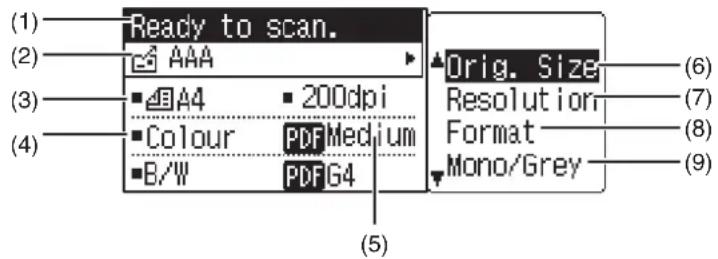
text_image
(1) Ready to scan. AAA A4 200dpi Colour PDF Medium B/W PDFG4 Orig. Size Resolution Format Mono/Grey (6) (7) (8) (9) (5)(1) Message display
Messages appear here to indicate the current status of the machine.
(2) Destination display
This shows the selected destination.
There are scanner transmission modes:
Scan to E-mail, Scan to Network Folder, Scan to FTP, Scan to Desktop, and USB Memory Scan.
This shows the currently selected destination and transmission mode.
(3) Original scanning mode / Original size display
Shows the currently selected original scanning mode and scanning size.
: One-sided scanning in the document feeder.
: Two-sided scanning in the document feeder (Models with the two-sided scanning function).
None: Document glass
(4) File format display
This shows the image data file type and file method to be created.
(5) Resolution display
The shows the scanning resolution.
(6) Original size (p.130)
This is used to set the size of the original to be transmitted.
(7) Resolution (p.130)
This is used to select the scanning resolution.
(8) Format (p.130)
This is used to select the image data file type and file method to be created.
(9) Mono/Grey (p.131)
Set whether an original is scanned in Mono2 or greyscale when the [BLACK & WHITE START] key is pressed.
SENDING AN IMAGE
BASIC TRANSMISSION PROCEDURE
1 Make sure the machine is in scan mode.
When the SCAN indicator is lit, the machine is in scan mode. If the indicator is not lit, press the [SCAN] key (If auditing mode has been enabled for the scan function in the system settings, a message will appear prompting you to enter your account number when you switch to scan mode. Enter your account number (five digits) with the numeric keys. (p.178)
2 Place the original(s) in the document feeder tray or on the document glass.
- To use the document feeder, see p.27.
- To use the document glass, see p.27.
If you are using the document glass to send multiple pages, place the first page first.

You cannot place originals in both the document feeder tray and on the document glass and send them in a single transmission.
3 Check the original size.
To change the original size, change as explained in "SETTING THE SCANNING SIZE" (p.130).
4 If needed, select the resolution setting (p.130).
The initial factory setting is [200dpi].
5 If needed, select the format (p.131).
The initial factory setting
Colour / Greyscale : PDF M
B/W : PDF G4
6 If you select "B/W", adjust the exposure in B/W mode if needed. (p.131)
The initial factory setting is [B/W].
7 Press the [ADDRESS] key (☐)
8 Select the destination selection method (p.128).
Select from the following three destination selection methods:
- "ADDRESS BOOK" (p.128)
Select one of the stored destinations directly from the operation panel. - "ADDRESS ENTRY" (p.128)
Directly enter the e-mail address. (Only for Scan to E-mail.) - "ADDRESS SEARCH" (p.128)
Access a directory data base on the Internet or your intranet and search for a destination e-mail address. During a global address search, multiple addresses can be entered to perform a broadcast transmission.

• Information on the destination can be stored in the Web page.
- The sender name is normally set to the name stored in "Reply E-mail Address" in "SMTP Setup" in the Web page.
When you have finished searching for the destination, you will return to the following base screen.
Using the document feeder
9 Press the [COLOUR START] key or [BLACK & WHITE START] key.
Scanning begins.
If scanning is completed normally, the following screen is appears briefly and then the display returns to the base screen.
Using the document glass
9 Press the [COLOUR START] key or [BLACK & WHITE START] key.
Scanning begins.
10 If you have another page to scan, change pages and then press [COLOUR START] key or [BLACK & WHITE START] key.
- Repeat this sequence until all pages have been scanned.
- If no action is taken for one minute (the [COLOUR START] key or [BLACK & WHITE START] key is not pressed), scanning automatically ends and transmission begins.
11 When the final original page has been scanned, press the [READ-END] key ( # ).
Open the document feeder and remove the document. When the original is removed or any key operation is performed, the display returns to the base screen.
![SHARP MX-C300W - When the final original page has been scanned, press the [READ-END] key ( # ). - 1](/content/2026/06/1243240/images/a367d21379b454d2ec8df8820e6eb841c82474135968830ad4d0c8548612f71b.jpg)
Cancelling transmission
- To cancel the transmission while "Reading" appears or before the [READ-END] key ( # ) is pressed, press the [C] or [CA] key.
- If the power is turned off or a power failure occurs while a document is being scanned in the document feeder, the machine will stop and a document misfeed will occur. After the power is restored, remove the misfed original as explained in "MISFEED REMOVAL" (p.153).
- When performing a Scan to E-mail transmission, note the following points:
Be careful not to send image data files that are too large. Your mail server's system administrator may have placed a limit on the amount of data that can be sent in one e-mail transmission. If this limit is exceeded, the e-mail will not be delivered to the recipient. Even if there is no limit and your e-mail is successfully delivered, a large data file may take a long time to be received and place a heavy burden on the recipient's network, depending on the recipient's network (Internet) environment. If large image data files are repeatedly sent, the resulting burden on the network may slow down the speed of other, unrelated data transmissions and in some cases, may even cause the mail server or network to go down. In cases where you need to send a large file or multiple images, try lowering the resolution or reducing the scanned original size.
SELECTING A DESTINATION (USING THE [ADDRESS] KEY (☐))
A destination can be selected using one of three methods: Selecting from "ADDRESS BOOK", using "ADDRESS ENTRY", or "ADDRESS SEARCH".
![SHARP MX-C300W - SELECTING A DESTINATION (USING THE [ADDRESS] KEY (☐)) - 1](/content/2026/06/1243240/images/3ea9d2aff9c5f929291cab2d53ebae6bb83204b8ae037b32c3fb0b35ffcd3ad2.jpg)
- Multiple destination scan be selected for a Scan to E-mail transmission. (Maximum of 20.)
- Only one destination can be selected for a Scan to Network, Scan to FTP or Scan to Desktop transmission.
ADDRESS BOOK
1 Press the [ADDRESS] key (a) and select the "Address Book".
2 Change tabs as needed with the [or [] key and select the desired destination with the [or [] key.

text_image
[#]:List⇔Detail [*]:Select On/OffYou can switch between information on the selected destination and the destination list by pressing the [READ-END] key ()#
3 Press the [READ-END] key ( )#
A checkmark appears by the selected destination. To cancel the selection, press the [READ-END] key ( )# once again to remove the checkmark. To select multiple destinations, repeat steps.
ADDRESS ENTRY
1 Press the [ADDRESS] key (☐), and select "Address Entry" with the [▼] key, and press the [OK] key.
2 Enter the destination address.
3 Press the [OK] key.
ADDRESS SEARCH
1 Press the [ADDRESS] key (💡), and select "Global Address Search" with the [▼key, and press the [OK] key.
2 Enter the search characters.
3 Select the desired destination with the [▼or [ ]▲ey.
4 Press the [OK] key.
TRANSMITTING A TWO-SIDED ORIGINAL
The original field of the display shows the original scanning size. The current original scan mode setting is indicated by an icon.
text_image
Ready to scan. AAA ■A4 200dpi ■Colour PDF Medium ■B/W PDFG4 Orig. Size Resolution Format Mono/Grey: One-sided scanning in the document feeder.
: Two-sided scanning in the document feeder (Models with the two-sided scanning function).
None: Document glass
Follow these steps to automatically transmit a two-sided original. (Only models with the two-sided scanning function.)

Only the following two-sided document sizes can be used:
Standard sizes
A4, B5, A5, 8-1/2" x 14", 8-1/2" x 13-1/2", 8-1/2" x 13-2/5", 8-1/2" x 13", 8-1/2" x 11", 5-1/2" x 8-1/2"
Non-standard sizes
AB sizes X: 170 to 356 mm, Y: 140 to 216 mm
Inch sizes X: 6-3/4 to 14 inches, Y: 5-1/2 to 8-1/2 inches
1 Place the original(s) in the document feeder tray, and check the original size.
For information on placing an original, see "4. COPY FUNCTIONS" of the "Operation manual (for general information and copier)".
2 Press the [DUPLEX] key (2), and Select "2-Sided" with the [▼] or [▲] key, and press the [OK] key.
3 Select "Portrait-Booklet", "Portrait-tablet", "Landscape-Booklet", "Landscape-tablet" with the [▼or [ ]▲key, and press the [OK] key.

text_image
Duplex Scan Booklet4 Press the [OK] key.

- Booklets and tablets Two-sided originals that are bound at the side are booklets, and two-sided originals that are bound at the top are tablets.
- Two-sided scanning mode turns off after the transmission is finished. Two-sided scanning mode can also be cancelled by pressing the [CA] key.
- Two-sided scanning is only possible when a document feeder (Models with the two-sided scanning function) is used. Automatic scanning of both sides of an original is not possible when the document glass is used.
- Two-sided scanning of originals longer than A4 (8-1/2" x 11") is not possible.
- To cancel two-sided scanning, select "1-Sided" in step 2 and then press the [OK] key.
BOOKLET TABLET
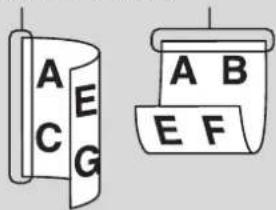
text_image
A C E G A B E FSTORING SCANNING SETTINGS
Sets of scanning settings (scan size, resolution, file type, etc.) can be changed for use in various scanning applications.
SETTING THE SCANNING SIZE
The default scanning size is A4. (If "SCANNING BUSINESS CARDS (BUSINESS CARD SCAN)" (p.133) has been selected, the scanning size is set to business card size.)
If you change the original size, follow the steps below to change the setting after you have placed the original in the document feeder or on the document glass (p.27).
1 Select "Original Size" with the [▼] or [▲] key, and then select the original size.
![SHARP MX-C300W - Select "Original Size" with the [▼] or [▲] key, and then select the original size. - 1](/content/2026/06/1243240/images/b6e3bf14c28297555ec881366c1e33f44324e35500ee81a191122f4003fe3326.jpg)
text_image
Document Feeder AB A4 B5 A5![SHARP MX-C300W - Select "Original Size" with the [▼] or [▲] key, and then select the original size. - 2](/content/2026/06/1243240/images/ba5ac823755c14fc8bef3f4ee5855c06908fa3ca915362832e77249c458edd83.jpg)
To select an inch size, press the [▶] key.
The original scanning size can be set manually.
In the AB original size selection screen, select [Size Input] and press the [OK] key to display the screen below.
![SHARP MX-C300W - Select "Original Size" with the [▼] or [▲] key, and then select the original size. - 3](/content/2026/06/1243240/images/1d4509b4469c660d5a4ffbed12e76678c9ca0f43409ca6a3210d036801734cd5.jpg)
text_image
Size Input Size(mm) X: 100 Y: 100Select the width (X) or the length (Y) with [ ] or [ ] key, and adjust in increments of 1 mm or 1/8" with [ ] or [ ] key.
Input range
X: 140 to 356 mm* / 5-1/2" to 14"
Y: 140 to 216 mm / 5-1/2" to 8-1/2"
* 140 to 297 mm / 5-1/2" x 11-5/8" when the document glass is used
![SHARP MX-C300W - Select "Original Size" with the [▼] or [▲] key, and then select the original size. - 4](/content/2026/06/1243240/images/7b3efe93d0ba3665c45120a252e2bc988c9de35d9baed58858ce199deaf84232.jpg)
To cancel a manual original size setting, press the [CA] key.
If it is not possible to select the actual original size, select a size that is larger than the actual original size.
If a smaller size is selected, part of the original will not be transmitted.
SELECTING THE RESOLUTION
The scanning resolution can be selected. After selecting scan mode and placing the original (steps 1 to 3 on p.126), perform the procedure below.
The factory default setting for the resolution is "200dpi".
If you need to change the resolution, follow these steps.
1 Select "Resolution" with the [▼] or [▲] key, and then select the resolution.
2 Press the [OK] key.

Resolution
- The default resolution setting is 200 dpi. For typical text documents, a resolution of 200 dpi or 300 dpi produces sufficiently legible image data. (A resolution of 200 dpi corresponds to the generally used "Fine" in fax mode. For this reason, the 600 dpi setting should only be used in cases where high-clarity image reproduction is required, such as an original that includes photographs or illustrations.
- The default setting can be changed in the system settings. (p.189)
SELECTING THE FILE FORMAT
After selecting scan mode and placing the original (steps 1 to 3 on p.126), perform the procedure below.
The factory default settings are "PDF" for the file type and "Multi" for the file creation method (multiple scanned images are combined into one file).
If you need to change the file format, follow these steps.
1 Select "Format" with the [▼] or [▲] key, and select "Colour / Greyscale" or "B/W", and press the [OK] key.
2 Select the file type with the [▼] or [▲] key, and select the file creation method.

text_image
Format ▲ PDF: Low ▼ PDF: Medium ◀Multi> All Pages→1fileWhen "Single" is selected, a one-page file is created for the scanned image.
When "Multi" is selected, all scanned images can be combined into a single file.
3 Press the [OK] key.

- When the file type is set to "TIFF", the file creation method can only be select.
- To open the scanned image without using the software program in the accompanied CD-ROM, the recipient must have a viewer program that can open the image format (file type) that was selected as explained above. If the recipient cannot open the image, try sending the image in a different format.
ADJUSTING THE GREYSCALE OF BLACK & WHITE MODE
Set whether a black & white original is scanned in Mono2 or greyscale when the [BLACK & WHITE START] key is pressed. Select scan mode, place the original (steps 1 to 3 on p.126), and then follow the procedure below.
B/W (BLACK & WHITE)
Colours in the original are scanned as black or white.
Greyscale
The colours in the original are scanned in black and white as shades of grey (greyscale).
1 Select "Mono/Greyscale" with the [▼or [ ]▲key.
2 Select "B/W" or "Greyscale" with the [▼] or [▲] key.

text_image
Mono2/Greyscale ▲Mono2 ▼Greyscale3 Press the [OK] key.
ADJUSTING THE SCANNING EXPOSURE
The exposure for an image can be adjusted. The larger the value, the darker the image.
Select scan mode, place the original (steps 1 to 3 on p.126), and then follow the procedure below.
The scanning exposure is set to "Txt/Prt Photo Auto" by factory default.
1 Press [EXPOSURE] key (○) with the [▼] or [▲] key, and select "Text", "Txt/Prt Photo", or "Photo" for the original type.
2 To select, change the level (5 levels are available) with the [◀] [▶] keys and press the [OK] key.
3 Press the [OK] key.
ENABLING SCANNING MARGINS (VOID AREA)
When this function is enabled, margins (void areas that are not scanned) are created around the edges of the machine's maximum scanning area.
Select scan mode, place the original (steps 1 to 3 on p.126), and then follow the procedure below.
The factory default setting for the void area is "Off" (disabled).
If you need to change the void area setting, follow these steps.
Void area: 2.5 mm (7/64") from the top and bottom edges
3.0 mm (1/8") from the left and right edges
1 Press the [SPECIAL FUNCTION] key (Fn) to select "Void Area" with the [▼] or [▲] key.
2 Select "On" or "Off" with the [▼or [ ]▲key.
3 Press the [OK] key.
WHITENING FAINT COLOURS IN COPIES (SUPPRESS BACKGROUND)
For more information on WHITENING FAINT COLOURS IN COPIES (Suppress Background), see "WHITENING FAINT COLOURS IN COPIES (Suppress Background)" (p.36).
ADJUSTING THE SHARPNESS OF AN IMAGE (SHARPNESS)
For more information on ADJUSTING THE SHARPNESS OF AN IMAGE (Sharpness), see "ADJUSTING THE SHARPNESS OF AN IMAGE (Sharpness)" (p.36).
SCANNING BUSINESS CARDS (BUSINESS CARD SCAN)
(Models with the two-sided scanning function)
Business cards can be scanned.
Only when using this feature, it is possible to read the business card from the automatic document feeder.

text_image
Original glass Document feeder tray1 Press the [SPECIAL FUNCTION] key (Fn , and press the [Yor [ ] key to select "Bus. Card Scan".

text_image
Special Function Bus.Card Scan Void Area Suppress BG [OK]:Off⇔OnThe original size is set to business card size (custom).
2 Press the [OK] key.

- When business card scan mode is selected, the original size cannot be changed.
- When business card scan mode is selected, duplex scanning cannot be used.
- When using the automatic document feeder, it may not be possible to feed or read the card correctly depending on its condition/material/shape/processing method.
IMAGE ORIENTATION AND STANDARD ORIGINAL PLACEMENT ORIENTATION
When using the document glass, the original should be placed face down in the far left corner of the glass with the top edge of the original at the left edge of the glass.
When using the document feeder, the original should be placed face up in the middle of the document feeder tray, with the top of the original to the right.
| Document glass Document feeder Scanning result | ||
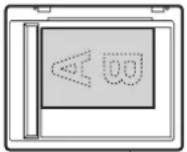 |  |  |
 | 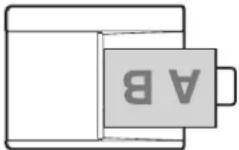 |  |
STORING AND EDITING/DELETING A PROGRAM
This function lets you store a transmission address and scanning settings. The address and settings can be called up when you scan a document, saving you the trouble of selecting the address and settings. Up to two programs can be stored for scanning.
- Address Setting • Original Size Enter • Resolution • Format • Exposure • Original scanning mode can be stored in a program.
1 Press the [SPECIAL FUNCTION] key (F) and select "Register Program" with the [ ] ▼ or [▲key, and press the [OK] key.
2 Select "Enter", "Change", "Delete", and press the [OK] key.
● Register program
1 Select "No Store", and press the [OK] key.
2 Select the program you want to store with the [▼or [ ]▼key, and press the [OK] key. Setting each screen will be displayed.
3 Press the [OK] key to perform the required settings.
Return to step 2.
4 Press the [START] key.
Programs are stored.
● Change program
Select the program you want to change, and press the [OK] key.
Change the settings same operation as for registration.
- Delete program
1 Select the program you want to delete, and press the [OK] key.
2 Select "Delete", and press the [OK] key.
USING STORED SETTINGS (PROGRAM)
Press the [Program 1] or [Program 2] key (☐1/☐2). See "BASIC TRANSMISSION PROCEDURE" (p.126).
SCANNING FROM YOUR COMPUTER (PC SCAN)
The machine supports the TWAIN standard, making it possible to scan from TWAIN-compliant applications.
SCANNING FROM A TWAIN-COMPLIANT APPLICATION
Scanning in PC scan mode is only possible when the scanner driver has been installed from the "Software CD-ROM" using the integrated installer. For the procedures for installing the scanner driver and configuring settings, see the Software Setup Guide.
1 Place the original(s) that you wish to scan on the document glass/document feeder. Press the [SPECIAL FUNCTION] key (F) and select "PC SCAN".
PC Scan
Do not remove the original.
IP Address: 000.000.000.000
[Back]: Exit
2 After starting TWAIN-compliant application, click the "File" menu and select a menu to scan.

The method for accessing the menu to select the scanner depends upon the application. For more information, refer to the manual or the help file of your application.
3 Select "SHARP MFP TWAIN V", and click the "Select" button.

Depending on your system, "SHARP MFP TWAIN V 1.0 (32-32)" may appear in the above "Select Source" screen.
4 Select the menu to acquire an image from the application's "File" menu.
The scanner driver setup screen will appear.
"Scanner driver settings" (p.137)
5 In the "Scanning Source" menu, select the location where you placed the original in Step 2.
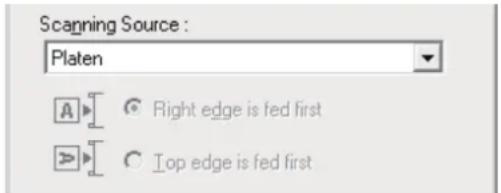
text_image
Scanning Source : Platen Right edge is fed first Top edge is fed firstIf you placed a one-sided original in the document feeder, select "SPF (Simplex)".
Only when using the document feeder (Models with the two-sided scanning function):
If you placed a two-sided original in the document feeder (Models with the two-sided scanning function), select "SPF (Duplex-Book)" or "SPF (Duplex-Tablet)" according to the binding position of the original.

If you selected "SPF (Duplex-Book)" or "SPF (Duplex-Tablet)" in the "Scanning Source" menu, select whether the orientation of the placed original is "Right edge is fed first" or "Top edge is fed first".
6 Click the "Preview" button.
The preview image will appear.

- If the angle of the image is not correct, reset the original, and click the "Preview" button again.
- If the preview image is not oriented correctly, click the "Rotate" button in the preview screen. This rotates the preview image 90 degrees clockwise, allowing you to correct the orientation without resetting the original. "Preview screen" (p.138)
- If you set multiple pages in the document feeder, the machine previews only the top page of the originals, and then sends it to the original exit area. Return the previewed original to the document feeder before starting the scanning job.
7 Specify the scanning area and set the scan preferences.
For information on specifying the scan area and setting the scan preferences, see scanner driver Help. "Scanner driver settings" (p.137)

Scanning a large area at high resolution results in a large quantity of data and a prolonged scanning time. It is recommended that you set appropriate scanning preferences for the type of original being scanned, i.e., Web page (monitor), Photo, FAX, or OCR.
8 When you are ready to begin scanning, click the "Scan" button.
Scanning begins and the image is acquired into the application that you are using. In the application, assign a file name and save the file.

To cancel a scanning job after the "Scan" button has been clicked, press the [Esc] key on your keyboard or the [C] key or [CA] key on the operation panel.
9 Press the [BACK] key (☐on the operation panel.
Scanner driver settings
The scanner driver setup screen consists of the "Set-up screen", which lets you select scan settings, and the "Preview screen", which shows the scanned image. For details on the scan settings, click the "Help" button in the preview screen to display Help.

text_image
Set-up screen (1) Scanning Position : Platen Right edge is fed first Top edge is fed first (2) Scanning Mode : Preset Presets for Image Type and Resolution: Web Pages Photo FAX OCR (3) Image Area : Custom Preview Zoom Preview (4) Scan Close (5) (6) (7)(1) "Scanning Position" menu ("Scanning Source" in some regions)
Select the location where the original is placed. Selections are "Platen" (document glass), "SPF (Simplex)", "SPF (Duplex-Book)" or "SPF (Duplex-Tablet)".
"SCANNING FROM A TWAIN-COMPLIANT APPLICATION" (p.135)

On machines without an document feeder, this setting is fixed at "Platen".
(2) "Scanning Mode" menu
Select "Preset" or "Custom Settings" ("Standard" or "Professional" in some regions) for the scanning mode.
The "Preset (or Standard)" screen lets you select the original type as well as monitor, photo, fax, or OCR according to the purpose of scanning.
If you wish to change the default settings for these four buttons, or select custom settings such as the image type and resolution before scanning, switch to the "Custom Settings (or Professional)" screen.
For details on the settings, click the "Help" button in the preview screen to display Help.
(3) "Image Area" menu
Set the scanning area. To scan the original size detected by the machine, select "Auto".
The scanning area can also be specified as desired in the preview window.
(4) "Zoom Preview" checkbox
When this is selected, the selected part of the preview image will be enlarged when the "Preview" button is clicked.
To return to the regular view, remove the checkmark.

[Zoom Preview] cannot be used when [SPF] is selected in the "Scanning Position" menu.
(5) "Preview" button
Previews the document.

If [Preview] is cancelled by immediately pressing the [Esc] key on your keyboard, nothing will appear in the preview screen.
(6) "Scan" button
("Scanning" in some regions)
Click to scan an original using the selected settings. Before clicking the "Scan" button, make sure the settings are correct.

To cancel a scanning job after the "Scan" button is clicked, press the [Esc] key on your keyboard.
(7) "Close" button
Click to close the scanner driver setup screen.

text_image
Preview screen SHARP MX-COOX (1) (2) (3) (4) (5) Colour Mode Resolution Image Area Size Rotate Image Size : Greyscale : 75dpi : Custom : 1.07 MB(1) Preview screen
Click the "Preview" button in the Set-up screen to display the scanned image. You can specify the scanning area by dragging the mouse inside the window. The inside of the frame that is created when you drag the mouse will be the scanning area. To cancel a specified scanning area and clear the frame, click anywhere outside the frame.
(2) "Rotate" button
Click to rotate the preview image 90 degrees clockwise. This allows the orientation to be corrected without resetting the original. Upon scanning, the image file is created in the orientation shown in the preview screen.
(3) "Image Size" button
Click to open a dialog box that allows you to specify the scanning area by entering numbers. Pixels, mm, or inches can be selected for the units of the numbers. By initially specifying a scanning area, numbers can be entered to change that area relative to the top left corner as a fixed origin.
(4) "Auto Scan Area Judgement" button
Click when the preview screen is displayed to automatically set the scanning area to the entire preview image.

natural_image
Black-and-white photo of two white birds perched on a branch, enclosed in a dashed rectangular border (no text or symbols)Click the "Auto Scan Area Judgement" button to automatically set the scanning area to the entire preview image. Preview image Preview screen
(5) "Help" button
Click to display the help file for the scanner driver.
USB MEMORY SCAN
USING THE USB MEMORY SCAN FUNCTION
A scanned image can be sent (save) to a commercially available USB memory device that has been connected to the machine.
1 Make sure the machine is in scan mode.
When the SCAN indicator is lit, the machine is in scan mode. If the indicator is not lit, press the [SCAN] key (☐). If auditing mode has been enabled for the scan function in the system settings, a message will appear prompting you to enter your account number when you switch to scan mode. Enter your account number (five digits) with the numeric keys. (p.178)
2 Place the original(s) in the document feeder tray or on the document glass.
For detailed information on placing an original, see "PLACING THE ORIGINAL" (p.27). If you are using the document glass to send multiple pages, place the first page first.

You cannot place originals in both the document feeder tray and on the document glass and send them in a single transmission.
3 Press the [ADDRESS] key (☐)
4 Select "USB Memory Scan" using the [▼] key, press the [OK] key.
![SHARP MX-C300W - Select "USB Memory Scan" using the [▼] key, press the [OK] key. - 1](/content/2026/06/1243240/images/c8d1cfc510a2e1c3c785071e4805fc580deb3751882cd3cded3f43a9de2228cf.jpg)
text_image
Destination Select Address Book Address Entry Address Search USB Memory Scan5 Connect the USB memory device to the machine.
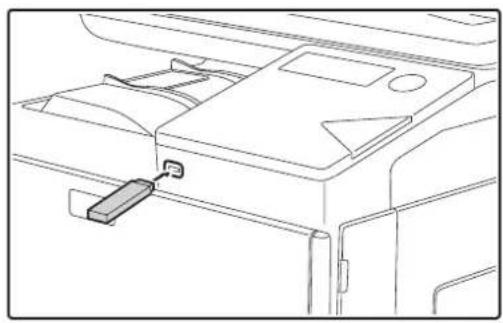
natural_image
Line drawing of a printer internal structure with no visible text or symbols
If a USB memory device is inserted into the machine prior to step 4, the following screen will appear.

text_image
Memory device is connected ▲ Print from the memory device ▼ Scan to the memory device [#]:CancelInstead of performing steps 3 and 4, you can select "Scan to the memory device" with the [▼] or [▲] key in the above screen and press the [OK] key to select the USB memory device as the destination.
Using the document feeder Using the document glass
6 Press the [COLOUR START] key or [BLACK & WHITE START] key.
Scanning begins.
If scanning is completed normally, "Complete." is appears briefly and then the display returns to the base screen.
6 Press the [COLOUR START] key or [BLACK & WHITE START] key.
Scanning begins.
7 If you have another page to scan, change pages and then press [COLOUR START] key or [BLACK & WHITE START] key.
- Repeat this sequence until all pages have been scanned.
- If no action is taken for one minute (the [START] key is not pressed), scanning automatically ends and transmission begins.
8 When the final original page has been scanned, press the [READ-END] key (#).
Open the document feeder and remove the document. When the original is removed or any key operation is performed, the display returns to the base screen.
This chapter describes troubleshooting and misfeed removal.
If you encounter a problem when using the machine, check the following troubleshooting guide before calling for service. If you cannot resolve the problem using the troubleshooting guide, turn off the main switch, disconnect the power cord from the power outlet, and contact your dealer.
If you experience difficulty using the machine, check the following troubleshooting guide before calling for service. Many problems can be easily resolved by the user. If you are unable to solve the problem using the troubleshooting guide, turn off the power switch and unplug the machine, and contact your authorised service representative. "***-**" represents a code consisting of numbers and letters. When contacting your dealer, inform your dealer of the code that is displayed.
TROUBLESHOOTING
NETWORK PROBLEMS
The machine does not connect to the network.... 143
MACHINE/COPYING PROBLEMS
The machine does not operate....143
The power is on, but copying does not take place. 143
Copies are too dark or too light. 143
The text is blurred when I make a copy. 144
Blank copies....144
Part of the image is cut off or there is too much blank space. 144
Wrinkles appear in the paper or the image disappears in places. 144
Paper misfeed....144
Copies are smudged or dirty.... 145
White or black lines appear on copies. 145
Paper size for a paper tray cannot be set....145
A copy job stops before it is finished.... 145
The display turns off.... 145
Lighting fixture flickers. 145
PRINTING AND SCANNING PROBLEMS
The machine does not print. (ONLINE indicator (☐) does not blink.) 146
The machine does not print. (ONLINE indicator (☐) was blinking.) 146
Printing is slow....146
The printed image is light and uneven. 147
The printed image is dirty.... 147
The printed image is skewed or it runs off the paper.... 147
Poor scanning quality....148
Unable to scan the image. 148
The recipient does not receive a transmitted data. 148
The recipient does not receive data sent by e-mail (Scan to E-mail).... 149
Transmission takes a long time. 149
The [COLOUR START] or [BLACK & WHITE START] indicator is not lit in the USB Memory Scan mode. 149
"Check the USB memory." appears in the display during USB Memory Scan. 149
"Memory is full. Job is cancelled." appears in the display during USB Memory Scan. 149
FAX PROBLEMS
The machine does not operate. 149
Dialling is not possible. 149
Cannot send a fax....150
The transmitted image prints out blank at the receiving side.... 150
The transmitted image is distorted....150
White or black lines appear in the transmitted image. 150
Transmission does not take place at the specified time. 150
Printing does not take place after reception.... 150
A received fax prints out blank.... 150
The received image is faint. 150
The received image is distorted....150
A dial tone is not heard through the speaker. 151
The machine does not ring. 151
Dialling is not possible. 151
INDICATORS AND DISPLAY MESSAGES.... 151
IF YOUR E-MAIL IS RETURNED.... 152
MISFEED REMOVAL.... 153
MISFEED IN THE DOCUMENT FEEDER....153
MISFEED IN THE BYPASS TRAY 155
MISFEED IN THE MACHINE....156
MISFEED IN THE PAPER TRAY 1 159
MISFEED IN THE PAPER TRAY 2 159
REPLACING THE TONER CARTRIDGE.... 160
REPLACING THE TONER COLLECTION CONTAINER 161
TROUBLESHOOTING
NETWORK PROBLEMS
| Problem Cause and solution Page | ||
| The machine does not connect to the network. | The LAN cable is disconnected.→ Make sure that he LAN cable is firmly inserted in the connectors on the machine and your computer. To connect the cable, see the "Software setup guide". | 9 |
| Is the machine configured for se on he same network as the computer?→ The machine cannot be used if it is not connected to the same network as the computer, or if it is not configured for use on the network.For more information, consult your network administrator. | - | |
MACHINE/COPYING PROBLEMS
The following problems are related to the general operation of the machine and copying.
| Problem Cause and solution Page | ||
| The machine does not operate. | The machine is not plugged into a power outlet.→ Plug the machine into a grounded outlet. | - |
| Power switch OFF.→ Turn the power switch ON. | 15 | |
| The machine is warming up.→ The machine requires some time to warm up after the power switch is turned on. While the machine is warming up, copy settings can be selected but copying is not possible. Wait until "Ready to copy." appears. | 15 | |
| The front cover or the side cover is not completely closed.→ Close the front cover or the side cover. | - | |
| The machine is in auto power shut-off mode.→ When auto power shut-off mode has activated, only the [ENERGY SAVE] indicator ( ) blinks; all other indicators and the display are off. The machine returns to normal operation when the [ENERGY SAVE] key ( ) is pressed, when a print job or fax is received, or when scanning from a computer is started.* Except when print hold for the fax function is enabled. | 15 | |
| Misfeed occurs.→ To remove the misfeed, see "MISFEED REMOVAL". | 153 | |
| The tray is out of paper.→ Load paper. | 19 | |
| The power is on, but copying does not take place. | → Press the [COPY] key ( ) to select copy mode. | - |
| Copies are too dark or too light. | An appropriate exposure for the original has not been selected.→ Select a suitable exposure mode with the [EXPOSURE] key ( ) and set an appropriate exposure level with the [ ] or [ ] key.→ If the copy is too light or too dark even though "AUTO" was selected with the [EXPOSURE] key ( ) adjust the exposure level manually with the [ ] or [ ] key. | 28 |
| The text is blurred when I make a copy. | Select a suitable exposure for the original in the copy exposure screen.→ Change the exposure to "Text" with the [EXPOSURE] key ( ) | 28 |
| Blank copies. | The original is not placed face up in the document feeder or face down on the document glass.→ Place the original face up in the document feeder or face down on the document glass. | 27 |
| Part of the image is cut off or there is too much blank space. | The original was not placed in the correct position.→ Place the original correctly. | 27 |
| The size of paper loaded in the tray was changed without changing the tray's paper size setting.→ Be sure to change the tray's paper size setting whenever you change the size of paper loaded in the tray. | 22 | |
| Wrinkles appear in the paper or the image disappears in places. | The paper is outside of the specified size and weight range.→ Use copy paper within the specified range. | 19 |
| Paper curled or damp.→ Do not use curled or crimped paper. Replace with dry copy paper. During periods when the machine is not used for a long time, remove the paper from the tray and store it in a dark place in a bag to prevent moisture absorption. | - | |
| The fixing unit release levers were not returned to their original positions→ If the fixing unit release levers are not returned, poor toner adhesion, smudging, and lines may occur. Be sure to press both levers up to return to their original positions. | 157 | |
| Paper misfeed. | The paper is outside of the specified size and weight range.→ Use copy paper within the specified range. | 16 |
| Paper curled or damp.→ Do not use curled or crimped paper. Replace with dry copy paper. During periods when the machine is not used for a long time, remove the paper from the tray and store it in a dark place in a bag to prevent moisture absorption. | - | |
| Paper is not loaded properly.→ Make sure the paper is properly installed. | 19 | |
| Pieces of paper inside machine.→ Remove all pieces of misfed paper. | 153 | |
| Several sheets of paper stick together.→ Fan the paper well before loading it. | 19 | |
| A paper misfeed has occurred in the tray.→ Turn the paper over and/or turn it around, and reload. | 19 | |
| Too much paper is loaded in the tray.→ If the stack of paper is higher than the indicator line on the tray, remove some of the paper and reload so that the stack does not exceed the line. | 19 | |
| The guides on the bypass tray do not match the width of the paper.→ Adjust the guides to match the width of the paper. If the paper guide presses too hard against the paper, a misfeed may occur. Adjust the guide so that it lightly contacts the paper. | 20 | |
| The bypass tray extension is not pulled out.→ When loading paper, open the extension. | 20 | |
| Paper misfeed. | The bypass paper feed roller is dirty.→ Clean the roller. | 164 |
| Copies are smudged or dirty. | The document glass or the underside of the document feeder is dirty.→ Clean regularly. | 163 |
| Original smudged or blotchy.→ Use a clean original. | - | |
| White or black lines appear on copies. | The scanner glass for the document feeder is dirty.→ Clean the long, narrow scanning glass. | 164 |
| Paper size for a paper tray cannot be set. | Press the [COPY] key ( ) to select copy mode. - | |
| Copying or printing is performed.→ Set the paper size after copying or printing is complete. | 11 | |
| The machine has stopped temporarily due to running out of paper or a misfeed.→ Load paper or remove the misfeed, and then set the paper size. | 19, 153 | |
| A copy job stops before it is finished. | The paper output tray is full.→ Remove the copies in the paper output tray and press the [COLOUR START] key or [BLACK & WHITE START] key to resume copying. | 9 |
| The tray is out of paper.→ Load paper. | 19 | |
| The display turns off. | Any other indicators turned off.→ If other indicators are lit, the machine is in "Preheat mode". Press any key on the operation panel to resume normal operation. | 15 |
| [ENERGY SAVE] indicator ( ) blinks.→ The machine is in auto power shut-off mode. Press the [ENERGY SAVE] key ( ) to resume normal operation. | 15 | |
| Lighting fixture flickers. | The same power outlet being used is for the lighting fixture and the machine.→ Connect the machine to a power outlet which is not used for other electric appliances. | - |
PRINTING AND SCANNING PROBLEMS
In addition to this section, troubleshooting information can also be found in the README files for each of the software programs. To view a README file, see "SOFTWARE SETUP GUIDE".
| Problem Cause and solution Page | ||
| The machine does not print.(ONLINE indicator (does not blink.) | The machine is set to off-line mode.→ If the ONLINE indicator (☐) is not on, press the [SPECIAL FUNCTION] key (the switch to printer mode and then use the key to select "Online/Offline". | 76 |
| The machine is not correctly connected with your computer.→ Check both ends of the printer cable and make sure you have a solid connection. Try a known good cable. For information on cables, see "SPECIFICATIONS (START GUIDE)". | 9 | |
| Copy job is performed.→ Wait until the copy job is complete. | - | |
| Your machine is not selected correctly in the current application for the print job.→ When choosing "Print" from the "File" menu located in applications, be sure you have selected "SHARP MX-XXXX" (where XXXX is the model name of your machine) printer displayed in the "Print" dialog box. | - | |
| The printer driver has not been installed properly.→ Follow these steps to check and see if the printer driver is installed.1 Click the "Start" button, and then click "Devices and Printers".In Windows Vista, click the "Start" button, click "Control Panel", and then click "Printer".In Windows XP, click the "start" button, and then click "Printers and Faxes".In Windows 2000, click the "Start" button, select "Settings" and then click "Printers".2 If the "SHARP MX-XXXX" printer driver icon is shown but you still cannot print, the printer driver may not have been installed correctly. In this case, delete the software and then reinstall it. | - | |
| The port setting is not correct.→ Printing is not possible if the printer driver port setting is not correct. Set the port correctly. For more information, see the Software Setup Guide. | 9 | |
| Printing is disabled.→ If "CANCEL JOBS OF INVALID ACCOUNTS" is enabled in the system settings, printing will not be possible. Consult the administrator. | 178 | |
| The machine does not print.(ONLINE indicator (was blinking.) | The tray size settings are not the same on the machine and in the printer driver.→ Make sure that the same tray paper size is set on the machine and in the printer driver. To change the tray's paper size setting on the machine, see "CHANGING THE PAPER SIZE SETTING OF A TRAY" (p.22) or see Software Setup Guide to change it in the printer driver. | 22 |
| The specified size of paper has not been loaded.→ Load the specified size of paper in the paper tray. | 19 | |
| Printing is slow. | Simultaneous use of two or more application software programs.→ Start printing after quitting all unused application software programs. | - |
| The printed image is light and uneven. | The paper is loaded so that printing takes place on the back side of the paper.→ Some paper types have a front and back side. If the paper is loaded so that printing takes place on the back side, toner will not adhere well to the paper and a good image will not be obtained. | 19 |
| The printed image is dirty. | You are using paper that is outside the specified size and weight range.→ Use copy paper within the specified range. | 16 |
| Paper curled or damp.→ Do not use curled or crimped paper. Replace with dry copy paper. During periods when the machine is not used for a long time, remove the paper from the tray and store it in a dark place in a bag to prevent moisture absorption. | - | |
| You did not set sufficient margins in the paper settings of your application.→ The top and bottom of the paper may be dirty if the margins are set outside of the specified print quality area.→ Set the margins in the software application within the specified print quality area. | - | |
| Black dots or smudges appear on the printed output.→ Run fixing cleaning mode. The letter "V" is printed on a sheet of paper and the fixing unit is cleaned. | 179 | |
| The printed image is skewed or it runs off the paper. | The paper loaded in the tray is not the same size as that specified in the printer driver.→ Check if the "Paper Size" options suit the size of the paper loaded in the tray.If the "Fit To Paper Size" setting is activated, make sure that the paper size selected from the drop-down list is the same as the size of the loaded paper. | - |
| The orientation of document setting is not correct.→ Click the "Main" tab in the printer driver setup screen, and verify if the "Image Orientation" option is set to your requirements. | - | |
| Paper is not loaded properly.→ Make sure the paper is properly loaded. | 19 | |
| You did not correctly specify the margins for the application in use.→ Check the layout of the document margins and the paper size settings for the application you are using. Also check if the print settings are specified correctly to suit the paper size. | - | |
| Poor scanning quality. | The document glass or the underside of the document feeder is dirty.→ Clean regularly. | 163 |
| Original smudged or blotchy.→ Use a clean original. | - | |
| You have not specified a suitable resolution.→ Make sure that the resolution setting in the scanner driver is appropriate for the original. | - | |
| You have not specified a suitable value for the "B/W Threshold" setting.→ If you are scanning with a TWAIN-compliant application, make sure that a suitable value is specified for the "B/W Threshold" setting. A larger threshold value makes your output darker, while a small threshold value makes it lighter. To adjust the threshold automatically, click the "Auto Threshold" button on the "Image" tab of the "Professional" screen. | - | |
| The brightness and contrast settings are not suitable.→ If you are scanning with a TWAIN-compliant application and the resulting image has unsuitable brightness or contrast (for example it is too bright), click the "Auto Brightness/Contrast Adjustment" button on the "Colour" tab of the "Professional" screen. Click the "Brightness/Contrast" button to adjust the brightness and the contrast while viewing the scanned output image on the screen. | - | |
| The original is not placed face up in the document feeder or face down on the document glass.→ Place the original face up in the document feeder or face down on the document glass. | 27 | |
| The original was not placed in the correct position.→ Place the original correctly. | 27 | |
| Unable to scan the image. | Your application is not TWAIN compliant.→ If your application is not TWAIN compliant, scanning will not be possible. Make sure your application is TWAIN compliant. | - |
| You have not selected the scanner driver of the machine in your application.→ Make sure that the machine's scanner driver is selected in your TWAIN-compliant application. | - | |
| You have not specified all scanning preferences appropriately.→ Scanning a large area at high resolution results in a large amount of data and extended scanning times. The scanning preferences should be set appropriately for type of original to be scanned, i.e., Text, Text/Graphics, Photograph. | - | |
| The recipient does not receive a transmitted data. | There is a mistake in the stored destination information or the wrong destination was selected.→ Make sure that the correct destination information is stored. If there is a mistake, correct it.* If delivery by e-mail (Scan to E-mail) is unsuccessful, an error message such as "Undelivered Message" may be sent to the designated administrator's e-mail address. This information may help you determine the cause of the problem. | 195 |
| The recipient does not receive data sent by e-mail (Scan to E-mail). | Check the Web page to see if a limit has been set for the size of image files sent using Scan to E-mail (the factory default setting is "Unlimited"). A limit can be set from 1 MB to 10 MB. Consult the administrator of the Web page to select a suitable limit. | 195 |
| The amount of data that can be sent in one e-mail transmission is sometimes limited by the administrator of the mail server. Even if the file size is within the limit explained above, if it exceeds the limit set by the administrator of the mail server, the file will not be delivered to the recipient.Decrease the amount of data sent in the e-mail transmission (reduce the number of pages scanned). (Ask your mail server administrator what the data limit is for one e-mail transmission.) | - | |
| Transmission takes a long time. | When there is a large amount of image information, the data file is also large and transmission takes a long time. | - |
| The [COLOUR START] or [BLACK & WHITE START] indicator is not lit in the USB Memory Scan mode. | The USB memory is not recognized or not inserted, or any device other than USB memory is inserted in the USB port.→ Check the USB port. | - |
| "Check the USB memory." appears in the display during USB Memory Scan. | Any device other than USB memory is inserted in the USB port, the USB memory is write-protected, or it was taken off during USB Memory Scan.→ Check your USB memory device and use it properly. | - |
| "Memory is full. Job is cancelled." appears in the display during USB Memory Scan. | The memory of the USB device became full.→ Use the USB device with sufficient memory. | - |
FAX PROBLEMS
If you experience a problem with the fax function, first check the following table.
This section describes problems related to the fax function. For problems related to general operation of the machine, see "TROUBLESHOOTING" in the Operation Guide for the machine.
| Problem Cause and solution Page | ||||
| The machine does not operate. | Is the machine power switch turned on?→Turn the power switch ON. | 15 | ||
| Does the display show an error message?→Clear the error as instructed by the message. | 120 | |||
| Dialling is not possible. | Is the correct dial mode set for your line?→Check your line and set the correct dial mode. | 184 | ||
| Is the telephone line properly connected?→Check the connections. | 79 | |||
| Is the machine power switch turned on?→Turn the power switch ON. | 15 | |||
| Is the machine in fax mode?→Press the [FAX] key (set the machine to fax mode. | 85 | |||
| Cannot send a fax. | Does the receiving fax machine have paper?→ Check with the operator of the receiving machine. | - | ||
| Is the receiving machine ready to receive?→ Check with the operator of the receiving machine. | - | |||
| Are you using a transmittable original size?→ Check the transmittable sizes. | 82 | |||
| Was the original size detected correctly?→ Check size of the original. | 82 | |||
| The message "Reading cancelled. Please retry sending operation." appears.→ If you attempt transmission while the message "Warming-up."appears, the transmission may not take place correctly. Repeat the transmission. | - | |||
| The transmitted image prints out blank at the receiving side. | Was the original placed so that the correct side is scanned?→ Make sure the original is placed so that the correct side is scanned. | 27 | ||
| If the receiving machine is using thermal paper, was the thermal paper loaded with the wrong side out?→ Check with the operator of the receiving machine. | - | |||
| The transmitted image is distorted. | Were line conditions poor due to thunder or another reason?→ Try the transmission again. | - | ||
| Were the resolution and exposure settings suitable?→ Check the resolution and exposure settings. | - | |||
| White or black lines appear in the transmitted image. | Is the document glass or the scanning glass for the document feeder (the long, narrow glass) dirty?→ Clean the document glass or the scanning glass for the document feeder. | 163 | ||
| Transmission does not take place at the specified time. | Is the machine's clock set to the correct time?→ Set the clock to the correct time. | 176 | ||
| Printing does not take place after reception. | Does an error message appear regarding adding paper, replenishing toner, or a misfeed? (This means that printing is not possible.)→ Restore printing capability as instructed by the display message.Printing will begin. | 122 | ||
| Is forwarding (Inbound Routing function) selected in the Web page for a received fax?→ If you need to print a received fax, ask your administrator.When the Inbound Routing function is enabled in the Web pages, received faxes are automatically forwarded to a specified address. If "Print at Error" is selected when Inbound Routing is enabled, received faxes will only be printed when an error occurs. | - | |||
| A received fax prints out blank. | Was the wrong side of the original scanned in the transmitting machine?→ Check with the operator of the transmitting machine. | - | ||
| The received image is faint. | Is the original faint?→ Ask the other party to re-send the fax using a suitable exposure setting. | - | ||
| The received image is distorted. | Were line conditions poor due to thunder or another reason?→ Ask the other party to send the fax again. | - | ||
| Problem | Cause and solution | Page | ||
| Telephone | A dial tone is not heard through the speaker. | Is the volume set to "low"?→ Set the speaker volume to "middle" or "high". | 184 | |
| The machine does not ring. | Has the ringer volume been turned off?→ Set the ringer volume to "low", "middle", or "high". | 184 | ||
| Dialling is not possible. | Is the telephone line properly connected?→ Check the connections. | 79 | ||
INDICATORS AND DISPLAY MESSAGES
If one of the following messages appears in the display, take prompt action as instructed by the message.
| Message Action | |
| Maintenance It is time for regular maintenance. Contact your authorised service representative. | |
| ⚠ Maintenance required. Call for service. | Maintenance required soon. Contact your authorised service representative. |
| ⚠ Call for service. * * Turnoff the power and then turn it back on. If this does not clear the message, write down the 2-digit main code and 2-digit sub-code ("* * ), * turn off the power, and promptly contact your authorised service representative. | |
| Obtain replacement toner. The toner cartridge must be replaced soon. | |
| ⚠ Check the toner cartridge. Check to see if the toner cartridge has been installed properly. | |
| Take out toner cartridge and shake it up and down.Reinstall it and close the front cover. | Remove the toner cartridge as explained in "REPLACING THE TONER CARTRIDGE" (p.160), shake it, and then reinstall. |
| Replace waste box. | Replace the toner collection container as explained in "REPLACING THE TONER COLLECTION CONTAINER" (p.161). |
| Change the toner cartridge. | Replace the toner cartridge as explained in "REPLACING THE TONER CARTRIDGE" (p.160). |
| ⚠ Remove paper from the centre tray. | The number of sheets in the output tray has reached the limit. Remove the paper. |
| ⚠ Load <**> paper into tray <*>. | The paper size specified for the tray is different from the actual size. (p.22) |
<*: Tray number
<**Size of paper that should be loaded
And if one of the following error codes appears in the display at communication error when sending the scanned image, take corresponding solution as mentioned below.
| Error Code | Solution Page | |
| CE-00 CE01 | Turn off the power and then turn it back on. Consult with your network administrator to make sure that no problems exist on the network or in the server. If the error is not cleared after turning the power off and on, turn off the power and contact your dealer. | - |
| CE-02 CE-04 | The scanned image was not sent because a connection to the server could not be established. Make sure that the SMTP server settings or Scan to FTP destination settings in the Web page are correct.The procedure for configuring the SMTP server is explained in "Configuring SMTP, DNS and LDAP server settings", and the procedure for editing Scan to FTP destination information is explained in "Editing and deleting programmed transmission destinations". | 200, 203 |
| CE-03 | The scanned image was not sent because the server was busy or there was too much traffic on line. Wait briefly and then try again. | - |
| CE-05 | The scanned image was not sent because the directory of the destination FTP server was not correct. Make sure that the correct FTP server information is configured in the Web page. | 200 |
| CE-06 | Scan data cannot be sent as E-mail address that is stored in the Destination List is not adequate. Check if the stored destination information is correct. | 200 |
| CE-09 | The size of the scanned image file exceeds the limit set in "Maximum Size of E-mail attachments" in the Web page. Reduce the number of original pages scanned into the file, or change the limit set in "Maximum Size of E-mail attachments". Or it may exceed the limit of the file size at the mail server. Reduce the volume of the original, otherwise change the resolution or the colour mode to make the scanned file size smaller. | 201 |
| CE-11 | The memory became full during scanning. Scan less pages, lower the resolution, or change the colour mode so that the file size is smaller, and try scanning again. | 130, 131 |
| CE-12 | The maximum number of destinations of a global address search has been exceeded.Increase the number of search characters to narrow the range of the global address search. | 128 |
| CE-14 | Check if the USB memory is not set to write-protect. | - |
| CE-15 | Check that the USB memory has enough free space to accept the data size to be scanned. | - |
| CE-16 | Check that the USB memory has no problem. | - |
| CE-17 | Check that the file names in the USB memory do not exceed 256 characters per file, or check that the USB memory has no problem. | - |
IF YOUR E-MAIL IS RETURNED
If a Scan to E-mail transmission is not successful, an e-mail informing you of this fact is sent to the return address configured in the SMTP server. If this happens, read the e-mail and determine the cause of the error, and then repeat the transmission.
MISFEED REMOVAL
When a misfeed occurs during copying, the message " △ Clear paper path." and the location of the misfeed will appear. Check the location and remove the misfeed.

The paper may tear when you remove a misfeed. In this event, be sure to remove all torn pieces of paper from the machine.
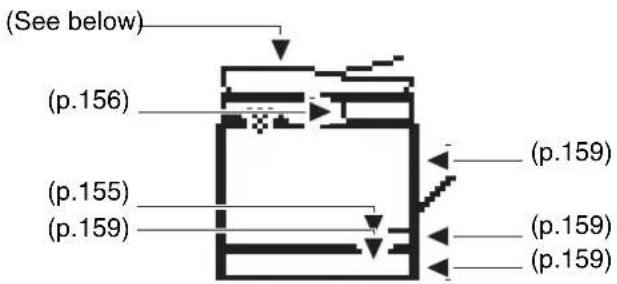
text_image
(See below) (p.156) (p.155) (p.159) (p.159) (p.159)MISFEED IN THE DOCUMENT FEEDER
1 Remove the misfed original.
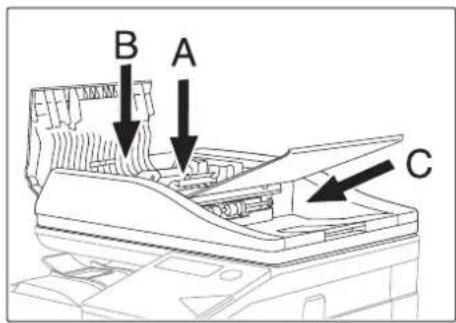
text_image
B A CRemove the original from the document feeder. Check sections A, B, and C in the left shows the illustration (see the next page), and remove the misfed original.
Section A
Push the release lever up, and remove the misfed original from the document feeder tray. Pull down the release lever.
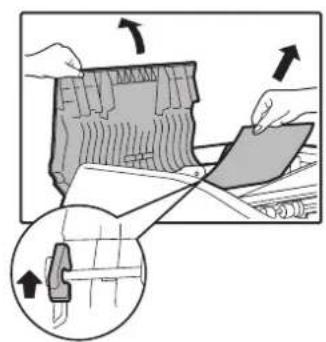
text_image
Diagram illustrating a mechanical assembly process with labeled parts and directional arrows indicating motion or movement.Section B
Open the document feeder and rotate the release roller in the direction of the arrow to feed the original out.
Close the document feeder and then remove the original.
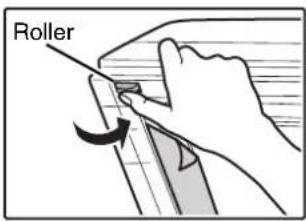
text_image
Roller
natural_image
Illustration of a computer monitor with an arrow pointing to the screen (no text or symbols present)If you are unable to remove the original, remove from part C.
Section C
Remove the misfed original from the exit area.
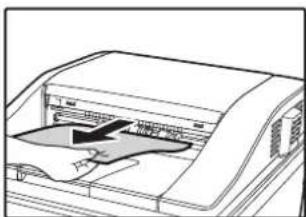
natural_image
Line drawing of a printer with a paper airplane being inserted (no text or symbols)If the original misfed in the reversing unit, open the document out unit and gently remove the misfed original.
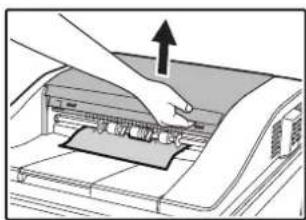
natural_image
Illustration of a hand pressing down on a printer's tray with an upward arrow (no text or symbols)
natural_image
Diagram of a printer's paper feeding into a slot, showing paper being inserted (no text or symbols present)2 Press the [OK] key to make the misfeed location indicator stop blinking.
3 Return the originals indicated by the number in the display to the document feeder tray and press the [COLOUR START] key or [BLACK & WHITE START] key.
Copying will resume from the originals that still remained when the misfeed occurred.
MISFEED IN THE BYPASS TRAY
1 Remove any paper remaining in the bypass tray.
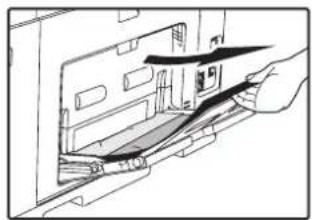
natural_image
Diagram of a hand inserting a device into a computer drive (no text or symbols visible)2 Gently remove the misfed paper from the bypass tray.

natural_image
Technical line drawing of a mechanical assembly with no visible text or symbolsIf you were able to remove the misfed paper
3 Close the auxiliary tray and then the bypass tray, grasp the side cover open/close handle, and gently open and close the side cover.
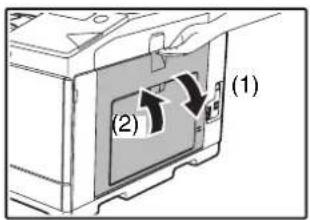
text_image
(1) (2)The message " clear paper path." will be cleared and copying will be possible.
If you are unable to remove the misfed paper
3 Grasp the side cover open/close handle and gently open the side cover.
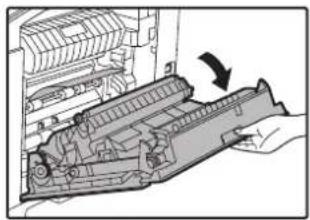
natural_image
Mechanical assembly diagram showing a component being inserted into a housing (no text or symbols visible)4 Turn the paper feed knob and feed out the paper that is inside. ("Misfeed in the paper feed area A" (p.156))
5 Close the side cover.
The message " clear paper path." will be cleared and copying will be possible.
MISFEED IN THE MACHINE
To remove a misfeed from inside the machine, open the side cover, check whether the misfeed occurred in "A", "B", or "C" below, and follow the misfeed removal procedure.
1 Open the bypass tray and the side cover.
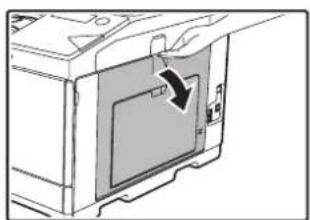
natural_image
Diagram of a microwave oven with a door and arrow indicating direction (no text or symbols)
If paper remains in the bypass tray, remove the paper.
2 Check the misfeed location. Remove the misfed paper following the instructions for each location in the illustration below.
Area B
If the misfed paper is visible here, go to "Misfeed in the fusing area B" (p.157).
Area A
If paper is misfed here, go to "Misfeed in the paper feed area A" (p.156).
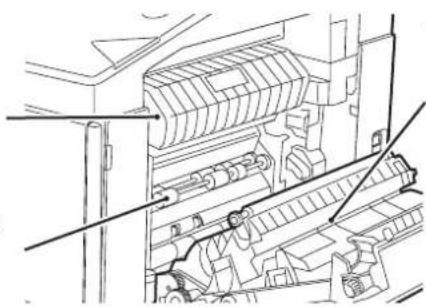
natural_image
Technical line drawing of a mechanical assembly with no visible text or symbolsArea C
If paper is misfed here, go to "Misfeed in the transport area C" (p.158).
Misfeed in the paper feed area A
1 Carefully remove the misfed paper. Turn the roller rotating knob in the direction of the arrow to assist in removing it.
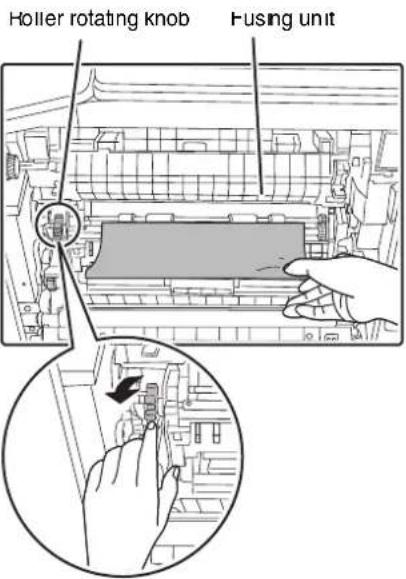
text_image
Holler rotating knob Fusing unitBe careful not to tear the misfed paper during removal.
The fusing unit is hot. Do not touch the fusing unit when removing misfed paper. Doing so may cause a burn or injury.
When removing misfed paper, do not touch or damage the transfer belt.
2 Close the side cover.
The message " Clear paper path." will be cleared and copying will be possible.

- When closing the side cover, press on around the handle.
- If the message does not clear, check again to make sure that no pieces of paper remain.
Misfeed in the fusing area B
1 Lower the fusing unit release levers to allow easier removal.
Fusing unit release levers

natural_image
Technical line drawing of a mechanical assembly with no visible text or symbols2 Lower the part with the green label that protrudes from the fixing unit paper guide, and open the fixing unit paper guide.

natural_image
Technical line drawing of a mechanical assembly with no visible text or symbols3 Remove the misfed paper.

natural_image
Technical line drawing of a mechanical assembly with a hand operating a component (no text or symbols visible)Be careful not to tear the misfed paper during removal.
Warning
The fusing unit is hot. Do not touch the fusing unit when removing misfed paper. Doing so may cause a burn or injury.
Caution
- When removing misfed paper, do not touch or damage the transfer belt.
- Be careful about unfixed toner on the misfed paper not to soil your hands or clothes.
4 If the misfed paper cannot be removed, remove the paper by pulling it into the paper output area.

natural_image
Line drawing of a refrigerator interior showing hand placing a bag on the drawer (no text or symbols)Be careful not to tear the misfed paper during removal.
5 Lift the part with the green label that protrudes from the fixing unit paper guide, and close the fixing unit paper guide.
6 Lift the fusing unit release levers, to return them to their operating positions.
7 Close the side cover.
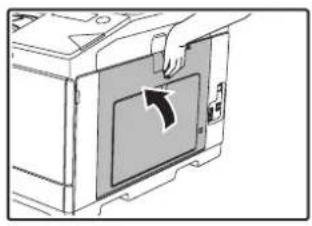
natural_image
Illustration of a hand inserting a device into a microwave oven with an arrow indicating rotation (no text or symbols present)The message " clear paper path." will be cleared and copying will be possible.

- When closing the side cover, press on the handle.
- If the paper was torn, make sure that no torn pieces remain in the machine.
- If the message does not clear, check again to make sure that no pieces of paper remain.
Misfeed in the transport area C
1 Lift up the duplex conveyor lever and open the reversing unit.

natural_image
Illustration of a hand inserting a component into an electronic device (no text or symbols visible)2 Remove the misfed paper.
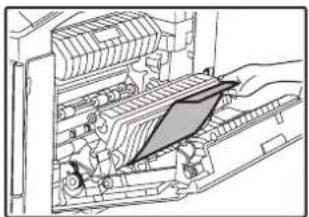
natural_image
Diagram of a computer motherboard showing internal components and a hand inserting a component (no text or labels visible)3 Return the duplex conveyor lever to its original position and close the side cover.
The message " Clear paper path." will be cleared and copying will be possible.
- When closing the side cover, press on around the handle.
- If the paper was torn, make sure that no torn pieces remain in the machine.
- If the message does not clear, check again to make sure that no pieces of paper remain.
MISFEED IN THE PAPER TRAY 1

Make sure that there is no misfed paper in the tray before pulling it out. (p.156)
1 Open the side cover and remove the misfed paper. (p.156)
2 Lift and pull out the upper paper tray and remove the misfed paper.
Be careful not to tear the misfed paper during removal.
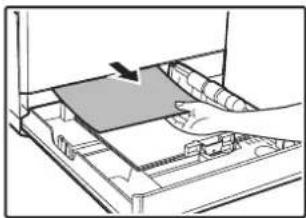
natural_image
Illustration of a hand pressing down on a mechanical component with a gray block and arrow (no text or symbols)3 Push the upper paper tray in completely.
Push the tray in completely.
4 Open and close the side cover.
The message " clear paper path." will be cleared and copying will be possible.

text_image
(1) (2)
- When closing the side cover, press on the handle.
- If the message does not clear, check again to make sure that no pieces of paper remain.
MISFEED IN THE PAPER TRAY 2
1 Open the lower side cover.
Grasp the handle to open the lower side cover.
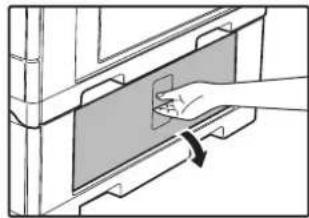
natural_image
Diagram of a hand pressing a button on a panel, with no visible text or symbols2 Remove the misfed paper.
Be careful not to tear the misfed paper during removal.

natural_image
Illustration of a hand holding a document with an arrow indicating direction (no text or symbols present)3 Close the lower side cover.
The message " Clear paper path." will be cleared and copying will be possible.
4 If the misfed paper is not seen in step 2, lift and pull out the lower paper tray and remove the misfed paper.
Be careful not to tear the misfed paper during removal.
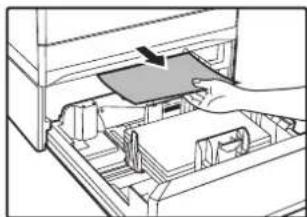
natural_image
Diagram of a hand inserting a device into a rack, showing internal components and a directional arrow (no text or symbols)5 Close the lower paper tray.
Push the tray in completely.

If the message does not clear, check again to make sure that no pieces of paper remain.
REPLACING THE TONER CARTRIDGE
When the "Prepare a new toner." appears, little toner remains.
Be sure to replace the toner cartridge when the message "Change the toner cartridge." appears.
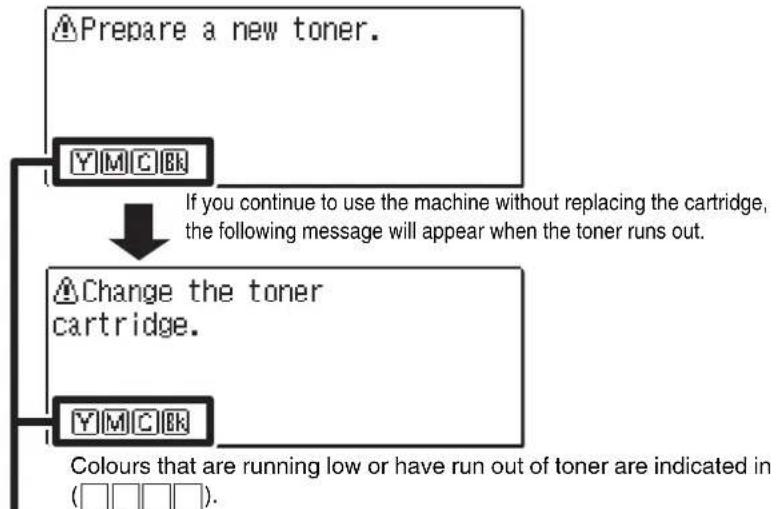
flowchart
graph TD
    A["Prepare a new toner."] --> B{If you continue to use the machine without replacing the cartridge, the following message will appear when the toner runs out.}
    B --> C{Change the toner cartridge.}
    C --> D{Colours that are running low or have run out of toner are indicated in (□□□□).}
Y: Yellow toner
M: Magenta toner
C: Cyan toner
Bk: Black toner
Replace the toner cartridges of the indicated colours.

- If any one of the toner colours runs out (including black toner), colour printing will not be possible. If Y, M, or C toner runs out but Bk toner remains, black and white printing will still be possible.
- Be sure to install 4 toner cartridges (Y/M/C/Bk).

- Do not throw the toner cartridge into a fire. Toner may splatter and cause burns.
- Store toner cartridges out of the reach of small children.
1 Open the front cover.

natural_image
Illustration of hands installing or removing a device into a cabinet (no text or symbols visible)Push on both ends of the front cover and open it.
Locations of colour toner cartridges
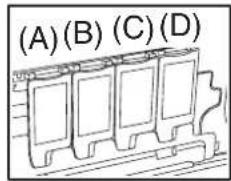
text_image
(A)(B)(C)(D)(A): Yellow
(B): Magenta
(C): Cyan
(D): Black
2 Grasp the handle of the top and bottom of the toner cartridge, pull the toner cartridge out.

natural_image
Hand inserting a component into a device panel (no text or symbols visible)
After removing the toner cartridge, do not shake it or tap on it. Doing so may cause toner to leak from the cartridge. Put the old cartridge immediately in the box of the new cartridge.

Keep used toner cartridges (do not discard them). Your service technician will collect used toner cartridges.
3 Take out the new toner cartridge. Shake it vertically five or six times.
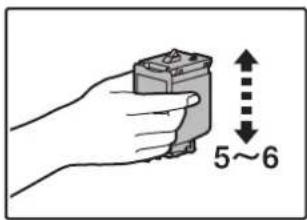
text_image
5~6
When holding the toner cartridge, do not grasp the shutter. This may cause toner to leak.
4 Insert the toner cartridge along the guides until it locks in place.
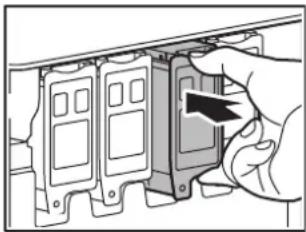
natural_image
Hand inserting a component into a device panel (no text or symbols visible)If there is any dirt or dust on the toner cartridge, remove it before installing the cartridge.

A toner cartridge of a different colour cannot be installed. Be sure to install a toner cartridge of the same colour.
5 Press the centre of the toner cartridge until the cartridge locks into place.
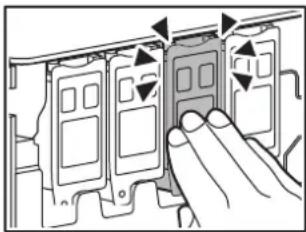
natural_image
Diagram of a hand pressing down on a device panel with arrows indicating motion (no text or symbols present)6 Close the front cover.
The toner cartridge replacement required indicator ( ) will go out.

- Even after a new toner cartridge is installed, the toner cartridge replacement required indicator ( ) may still light up, indicating that copying cannot be resumed (toner is not fed sufficiently). In this case, open and close the front cover. The machine will feed toner again for about two minutes and then copying can be resumed.
- Before closing the front cover, make sure that the toner cartridge is correctly installed.
- When closing the front cover, gently hold both ends.
REPLACING THE TONER COLLECTION CONTAINER
This section explains the procedure for replacing the toner collection container.
The toner collection container collects any excess toner that occurs during printing. When the toner collection container becomes full, the message "Replace waste box" will appear.
- Do not throw the toner collection container into fire. Toner may fly out and cause burns.
- Store the toner collection container out of the reach of children.
1 Pull out the paper tray 1.
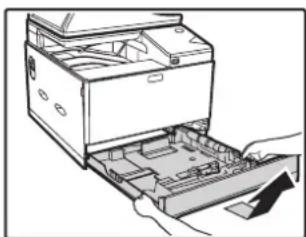
natural_image
Illustration of a printer with an open lid and internal components, showing hands operating it (no text or symbols visible)Hold the tray with both hands and slowly pull out and up at a slight angle. The toner collection container cannot be removed unless tray 1 is removed.
2 Open the front cover.

natural_image
Technical line drawing of a printer or printer with a paper roll and mechanical components (no text or symbols)3 Pull out the toner collection container.
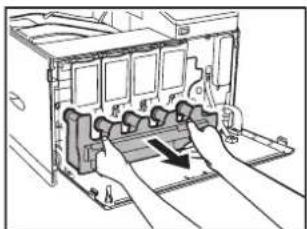
natural_image
Technical line drawing of a mechanical assembly with no visible text or symbolsHold the toner collection container with both hands and slowly pull it out.

When removing the toner collection container, it is easier to draw one side at a time.
4 Place the toner collection container on a flat surface.
Spread newspaper on the surface before placing the toner collection container.

- Do not tilt the part with the hole down, as waste toner will spill out.
- Do not discard the toner collection container. Place it in a plastic bag and store.
Your service technician will collect the toner collection container the next time he comes for maintenance.
5 Install a new toner collection container.
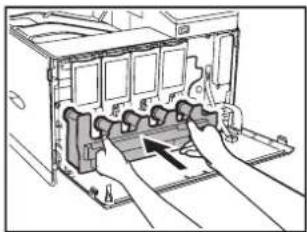
natural_image
Technical line drawing of a mechanical assembly with rollers and a directional arrow (no text or symbols)Push the toner collection container in completely.
6 Close the front cover.

You cannot close the front cover when the toner collection container is not attached.
7 Replace tray 1.
This chapter explains how to keep the machine operating smoothly, including viewing copy count, and cleaning the machine.
CHECKING THE TOTAL OUTPUT COUNT AND TONER REMAINING
To check the total number of pages output in copy, print, and fax modes hold down the [COPY] key ( ) when the machine is in the standby state. The counts will appear while the key is held down. The total output count can be used as a guideline for cleaning. When the total output count exceed "99,999,999", the counts return to "0". The toner level is shown at the bottom of the screen.
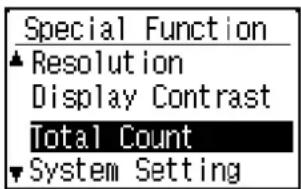
text_image
Special Function ▲ Resolution Display Contrast Total Count ▼ System Setting
- You can also check by pressing the [SPECIAL FUNCTIONS] key (Fn) and selecting "Total Count" in the function menu screen.
• Each two-sided sheet that is output is counted as two pages. - Blank copies and blank prints are included in the count.
- If the last page of a two-sided printing job is blank, it is not included in the count.
ROUTINE MAINTENANCE

Do not spray flammable cleaner gas. Gas from the spray may come in contact with the internal electrical components or high-temperature parts of the fusing unit, creating a risk of fire or electrical shock.
CLEANING THE DOCUMENT GLASS AND DOCUMENT FEEDER
If the document glass, underside of the document feeder, or the scanner for originals coming from the document feeder (the long narrow glass surface on the left side of the document glass) become dirty, the dirt may appear on copies. Always keep these parts clean.
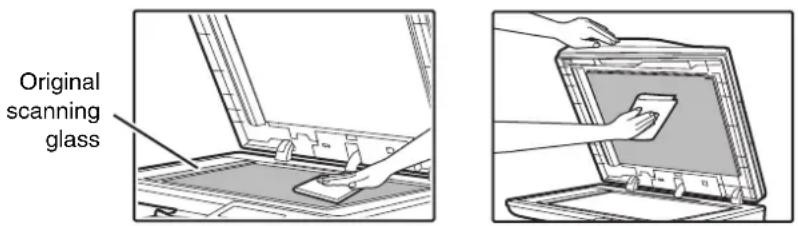
Stains or dirt on the document glass/document feeder will also be copied. Wipe the document glass, underside of the document feeder and the scanning window on the document glass with a soft, clean cloth.
If necessary, dampen the cloth with water. Do not use thinner, benzene, or similar volatile cleaning agents.
CLEANING THE ORIGINAL SCANNING GLASS (ONLY WHEN AN DOCUMENT FEEDER IS INSTALLED)
If white or black lines appear in copies made with using the document feeder, use a soft clean cloth to clean the original scanning glass. (If white or black lines appear in copies or printed pages when the document feeder is not used, see "CLEANING THE LASER UNIT").
Example of dirty print image

Black lines

White lines
CLEANING THE BYPASS TRAY PAPER FEED ROLLER
If misfeeds occur frequently when feeding envelopes, heavy paper, etc. through the bypass tray. Before starting, remove the paper from the bypass tray. Turn the power switch off, remove the roller cover from the bypass tray and wipe the paper feed roller at the feed slot of the bypass tray with a soft, clean cloth dampened with alcohol or water. After cleaning the paper feed roller, attach the roller cover on the bypass tray, and then turn on the machine's power.

text_image
Paper feed roller
When cleaning the rollers, be careful not to injure your hands.

Do not touch the surface of the roller if your hands are dirty.
CLEANING THE AUTOMATIC DOCUMENT FEEDER ROLLERS
If you find that originals fed through the automatic document feeder misfeed or are soiled by the rollers, remove the rollers and clean them. If misfeeds or soiling continue to occur, replace the rollers. Before starting, remove any originals from the automatic document feeder.
1 Turn the power switch off.
2 Open the document conveyor cover on the automatic document feeder.
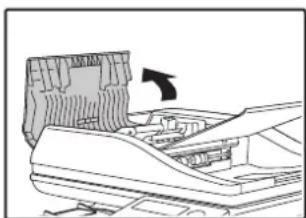
natural_image
Diagram of a car interior showing a door handle and dashboard with an arrow indicating direction (no text or symbols present)3 To clean the removed rollers, wipe each roller with a clean cloth.
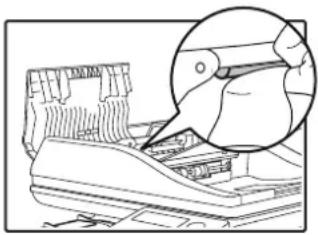
natural_image
Line drawing of a printer with a magnified inset showing the printer's tip (no text or symbols)
When cleaning the rollers, be careful not to injure your hands.

Do not touch the surface of the roller if your hands are dirty.
4 Close the document conveyor cover on the automatic document feeder.

Take care that your fingers are not pinched when closing the cover.
5 Turn on the power.
CLEANING THE MAIN CHARGER OF THE PHOTOCONDUCTIVE DRUM [MC]
If black lines or coloured lines appear even after you have cleaned the document glass and automatic document feeder, use the charger cleaner to clean the main charger.
1 Procedure of "REPLACING THE TONER COLLECTION CONTAINER" (p.161), release the toner collection container.
2 Grasp the green knob to release the lock and gently remove the charger cleaner.
![SHARP MX-C300W - CLEANING THE MAIN CHARGER OF THE PHOTOCONDUCTIVE DRUM [MC] - 1](/content/2026/06/1243240/images/fbced8256842c7fc4b3c326593cbe8805389a8acfa4890b6cac3a5acfd08c8bb.jpg)
natural_image
Technical line drawing of a mechanical assembly with rollers and a central component (no text or symbols)3 Gently push the charger cleaner all the way in.
4 Repeat step 2 and 3 with each of the other main chargers.
![SHARP MX-C300W - CLEANING THE MAIN CHARGER OF THE PHOTOCONDUCTIVE DRUM [MC] - 2](/content/2026/06/1243240/images/2f489309fa21acf00ed254ab51b5518471b1c7f43929751493f5f429dbb465de.jpg)
natural_image
Diagram of a hand using a tool to adjust or install mechanical components, with no visible text or symbols.5 Procedure of "REPLACING THE TONER COLLECTION CONTAINER" (p.161), push the toner collection container into the machine.
![SHARP MX-C300W - CLEANING THE MAIN CHARGER OF THE PHOTOCONDUCTIVE DRUM [MC] - 3](/content/2026/06/1243240/images/66dbf48abe10fe47b67826e3a562c34d91a608724e3ec9d2f03f4acc6f01aebb.jpg)
- If this does not solve the problem, pull the knob out and push it back in 2 more times.
- When pulling and pushing the knob to clean the charger, pull and push the knob slowly from one end to the other.
- Touching the waste toner outlet or the toner collection container may soil your hands and clothes. Exercise caution when cleaning the charger.
CLEANING THE LASER UNIT [LSU]
When the laser unit inside the machine becomes dirty, line patterns (coloured lines) may form in the printed image. Identifying lines (coloured lines) caused by a dirty laser unit.
If the above problems occur, follow the steps below to clean the laser unit.
1 Turn the power switch off.
2 Procedure of "REPLACING THE TONER COLLECTION CONTAINER" (p.161).
3 Take out the cleaning tool for the laser unit.
![SHARP MX-C300W - CLEANING THE LASER UNIT [LSU] - 1](/content/2026/06/1243240/images/f047314c1c5231f9d86849df8c6fbf930b679cd74f71d417182c2d1662dc4240.jpg)
text_image
(1) (2)The cleaning tool is attached to the front cover.
Pull the right side of the cleaning instrument and unfasten it from the claw.
![SHARP MX-C300W - CLEANING THE LASER UNIT [LSU] - 2](/content/2026/06/1243240/images/1992c94d2b707d08fda142da500e73eaa014c84d0fe2c928f08c25c85041ef3e.jpg)
text_image
boss4 Clean the laser unit.
![SHARP MX-C300W - CLEANING THE LASER UNIT [LSU] - 3](/content/2026/06/1243240/images/e459639c5ad0edd8946181ee6dbff215aa4fbc409ce67682e7f8d364e3fc8558.jpg)
natural_image
Diagram of a mechanical assembly with a hand operating a component, showing no text or symbols.(1) Push up and open the laser unit cover (grey colour).
![SHARP MX-C300W - CLEANING THE LASER UNIT [LSU] - 4](/content/2026/06/1243240/images/6cc8c9e1724a57ff8344f4e12756d30859816a9729606d17a553e122282ad23c.jpg)
text_image
Diagram showing a device with directional arrows indicating movement or interaction, including a monitor and a wrench labeled 'UP'.(2) Point the cleaner down and gently push the charger cleaner all the way in.
(3) Gently pull the charger cleaner out.
(4) Push down and close the laser unit cover.
![SHARP MX-C300W - CLEANING THE LASER UNIT [LSU] - 5](/content/2026/06/1243240/images/097c5265669667ea3918c6a09fdcfaaeb2c2a3b7da8289af7dfa1e5e7d1ef6ea.jpg)
natural_image
Hand operating a mechanical switch with a downward arrow indicating action (no text or symbols present)5 Repeat step 4 to clean all holes in the laser unit (4 holes).
There are a total of 4 places to be cleaned in the laser unit, including the hole cleaned in step 4. Clean all holes.
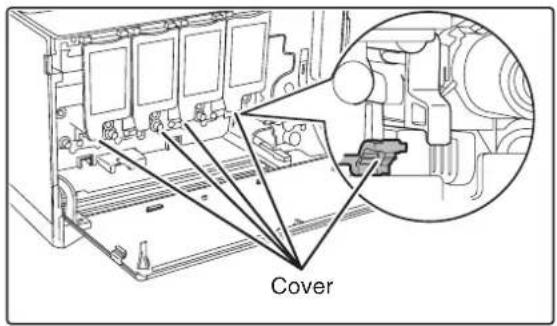
text_image
Cover6 Replace the cleaning tool.
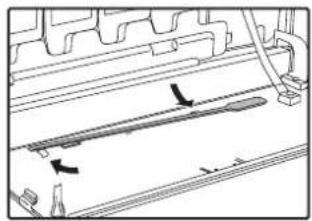
natural_image
Technical line drawing of a mechanical component with no visible text or symbols(1) Rotate the charger cleaner after putting it on the boss and hook its edge (the side that does not have a handle) to the claw on the left side. Hook the charger cleaner with the clean side face up.
(2) Place the right-hand side of the charger cleaner on the inner side, spread across the top of the claw.
(3) Hook the charger cleaner to the claw.
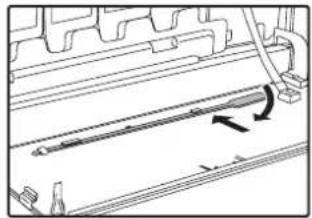
natural_image
Technical line drawing of a mechanical component with no visible text or symbols7 Procedure of "REPLACING THE TONER COLLECTION CONTAINER" (p.161), push the toner collection container into the machine.
ADJUSTING THE DISPLAY CONTRAST
The contrast of the display can be adjusted as explained below.
1 Press the [SPECIAL FUNCTION] key (F)n
2 Select "Display Contrast" with the [▼or [ ]▲key.
3 Press the [OK] key.
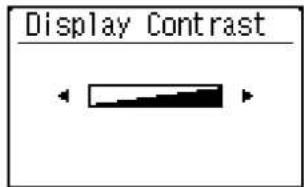
text_image
Display Contrast4 Adjust the contrast with the [◀]or [ ]▼key.
To reset the contrast to the default setting, press the [C] key.
5 Press the [SPECIAL FUNCTION] key (F)n
You will return to the base screen.
PURPOSE OF THE SYSTEM SETTINGS
The system settings are used by the administrator of the machine to enable or disable functions to suit the needs of your workplace.
This manual explains only the system settings that are common to all the functions of the machine, (copy and printer functions), as well as system settings that are specifically for the copy function.
PROGRAMS RELATED TO ALL FUNCTIONS OF THE MACHINE
These programs are used to enable user authentication mode, adjust power consumption, and manage peripheral devices.
User Authentication mode can be enabled separately for the copy. When user authentication mode is enabled for a function, a valid account number must be entered in order to use the function. (If a valid account number is not entered, the function cannot be used.)
When user authentication mode is enabled for the printer function, an account number must be entered at the user's computer when the print command is selected. (Depending on the system settings, a job may be printed even if an incorrect account number is entered, and thus care must be taken when managing printer page counts.) If "Disable Print by Inv. User" is enabled in the system settings, printing will be prohibited if an invalid account number is entered.)
PROGRAMMING AN ADMINISTRATOR PASSWORD
The administrator password is a 5-digit number that must be entered in order to access the system settings. The administrator (administrator of the machine) should change the default administrator password that was set at the factory to a new 5-digit number. Be sure to remember the new administrator password, as it must be entered each time the system settings are subsequently used. (Only one administrator password can be programmed.) Refer to the Start Guide for the factory default administrator password.
To change the administrator password, see "PROGRAMMING AN ADMINISTRATOR PASSWORD" (p.169).
PROGRAMMING AN ADMINISTRATOR PASSWORD
1 Press the [SPECIAL FUNCTION] key (Fn
The special function screen will appear.
2 Select "System Settings" with the [▼or [ ]▲key.
3 Press the [OK] key.
The administrator password entry screen appears.
4 Use the numeric keys to enter the five-digit administrator password.
- If this is the first time you are programming the administrator password, enter the factory default code. (Refer to the Start Guide)
• " *appears for each digit that you enter. - The special modes screen will appear with "Change Admin PW" selected.
5 Press the [OK] key.
The administrator password change screen appears.
6 Enter the new 5-digit administrator password with the numeric keys.
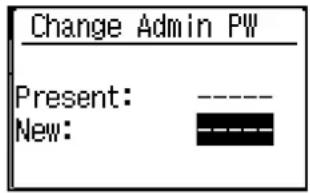
text_image
Change Admin PW Present: ---- New: ----The administrator password change screen appears.
7 Press the [OK] key.
- The previously programmed administrator password is replaced by the new administrator password.
- Press the [CA] key to return to the base screen.
SYSTEM SETTINGS LIST
This is a list of the machine's system settings.
Programs for general use of the machine
| Program name | Page |
| Change Admin PW | |
| Change Admin PW | 176 |
| Default Settings | |
| Date & Time Set | 176 |
| Daylight Saving Time | 176 |
| Network | |
| Confirmation of Network | 176 |
| Connection Type | 176 |
| Wired Settings | 176 |
| Wireless (Infrastructure) | 177 |
| Wireless (Access Point) | 177 |
| User Control | |
| User Authentication | 178 |
| User Registration | 178 |
| Function Limit Setting | 178 |
| Account Limit Setting | 178 |
| User Count Display | 178 |
| User Count Reset | 178 |
| A Warning when Login Fails | 178 |
| Disable Print by Inv. User | 178 |
| Device Control | |
| Fusing Control | 179 |
| Fusing Cleaning | 179 |
| Registration Adjustment | 179 |
| Operation Setting | |
| Auto Clear | 179 |
| Disable Display Timeout | 179 |
| Language Setting | 179 |
| Message Time | 179 |
| Key Touch Sound | 180 |
| Keys Touch Sound At Initial Point | 180 |
| Key Press Time | 180 |
| Disable Auto Key Repeat | 180 |
| Disable Paper Size Set | 180 |
| Energy Save | |
| Auto Power Shut-Off Timer | 180 |
| Preheat Mode | 180 |
| Enter Auto Power Shut-Off after the Remote Job | 181 |
| Toner Save Mode (Copy) | 181 |
| Toner Save Mode (Print) | 181 |
| Program name | Page |
| List Print | |
| Fax Settings | 181 |
| Inbound Routing | 181 |
| User Usage List | 181 |
| Activity Report | 181 |
| Junk Fax # List | 181 |
| User Info. Print | 181 |
| AutoColourCalib. | |
| AutoColourCalib. | 181 |
| Security Settings | |
| IPsec Settings | 182 |
| Initialize Private Data and Data in Machine | 182 |
Programs for Copy Mode
| Program name | Page |
| Copier | |
| ID Card Setting | 182 |
| Card Shot Default | 182 |
| Default Tray Set | 182 |
| Default Exposure | 182 |
| Sort Auto Select | 183 |
| Limit Of Copies | 183 |
Programs for Printer Mode
| Program name | Page |
| Printer | |
| Notice Page | 183 |
Programs for Fax Mode Programs for Scanner Mode
| Program name | Page |
| List Setting | |
| Print Selection | 183 |
| Auto Listing | 184 |
| Initial Setting | |
| Dial Mode | 184 |
| Pause Time | 184 |
| Own Passcode Set | 184 |
| Set Volume | 184 |
| TX/RX End Sound | 185 |
| End Sound Length | 185 |
| Remote Reception | 185 |
| PBX Setting Mode | 185 |
| Disable Fax Print Hold | 185 |
| Sending Function | |
| Original Size Enter | 186 |
| Set Res. Con. | 186 |
| Send Mode | 186 |
| Quick On Line TX | 186 |
| Print Station # In Rcvd Data | 186 |
| Address Review | 186 |
| Recall Setting (Busy) | 186 |
| Recall Set (Err) | 186 |
| Ring Timeout In Auto TX | 186 |
| Rcv. Function | |
| #Of Rings At. RX | 187 |
| #Of Rings Man.RX | 187 |
| Tray Selection | 187 |
| Received Data Print Condition | 187 |
| Auto Rcv Reduce To Regular Size | 187 |
| Duplex Reception | 187 |
| 8 1/2x11 RX Reduce Print | 188 |
| FW. RX Data | 188 |
| Received Data FW. Station Set | 188 |
| Anti Junk Fax | 188 |
| Enter Junk Fax # | 188 |
| Polling Security | |
| Polling Security | 188 |
| Polling Passcode # Mode | 189 |
| Program name | Page |
| Disable USB Scan | 189 |
| New Default | 189 |
ADMINISTRATOR SETTINGS MENU
The system settings are accessed via the following menu structure.
Refer to this menu when enabling or disabling the settings that are explained beginning on p.176.
Some settings contain an additional level of settings (a settings screen).
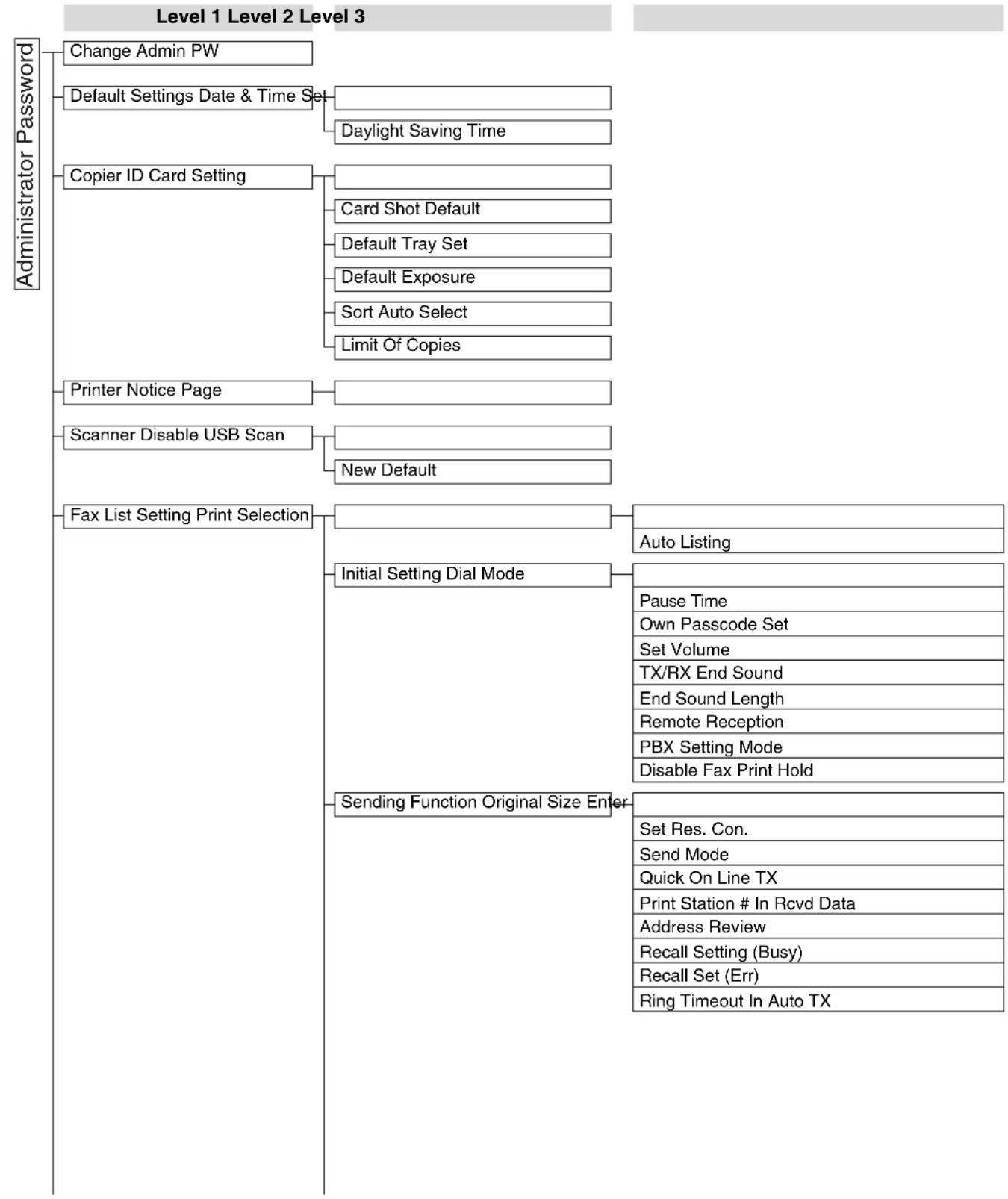
flowchart
graph TD
    A["Administrator Password"] --> B["Change Admin PW"]
    A --> C["Default Settings Date & Time Set"]
    C --> D["Daylight Saving Time"]
    A --> E["Copier ID Card Setting"]
    E --> F["Card Shot Default"]
    E --> G["Default Tray Set"]
    E --> H["Default Exposure"]
    E --> I["Sort Auto Select"]
    E --> J["Limit Of Copies"]
    A --> K["Printer Notice Page"]
    A --> L["Scanner Disable USB Scan"]
    A --> M["Fax List Setting Print Selection"]
    M --> N["New Default"]
    M --> O["Initial Setting Dial Mode"]
    O --> P["Sending Function Original Size Enter"]
    P --> Q["Set Res. Con."]
    P --> R["Send Mode"]
    P --> S["Quick On Line TX"]
    P --> T["Print Station # In Rcvd Data"]
    P --> U["Address Review"]
    P --> V["Recall Setting (Busy)"]
    P --> W["Recall Set (Err)"]
    P --> X["Ring Timeout In Auto TX"]
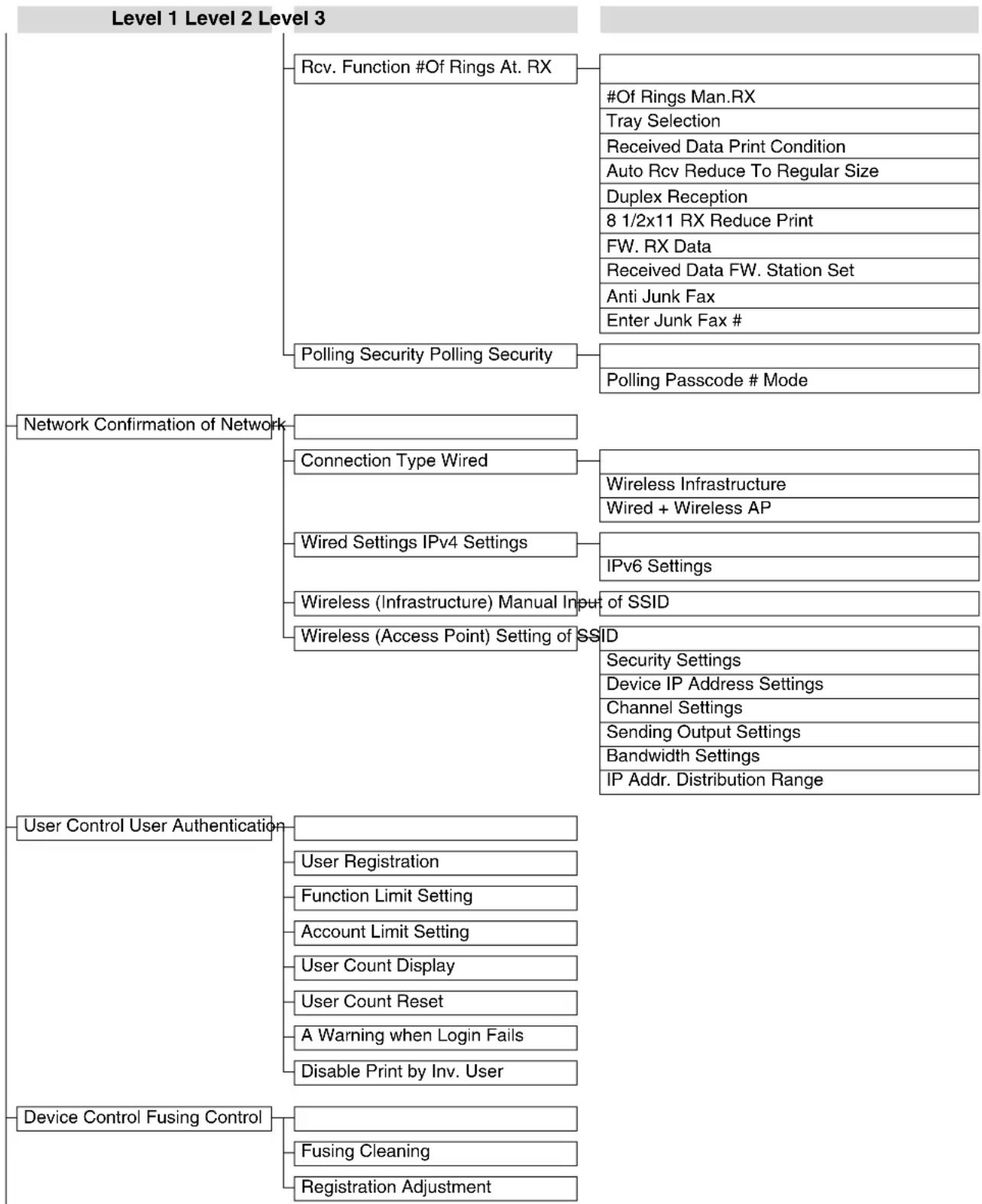
flowchart
graph TD
    A["Level 1 Level 2 Level 3"] --> B["Rcv. Function #Of Rings At. RX"]
    B --> C["#Of Rings Man.RX"]
    B --> D["Tray Selection"]
    B --> E["Received Data Print Condition"]
    B --> F["Auto Rcv Reduce To Regular Size"]
    B --> G["Duplex Reception"]
    B --> H["8 1/2x11 RX Reduce Print"]
    B --> I["FW. RX Data"]
    B --> J["Received Data FW. Station Set"]
    B --> K["Anti Junk Fax"]
    B --> L["Enter Junk Fax #"]
    A --> M["Polling Security Polling Security"]
    M --> N["Polling Passcode # Mode"]

    O["Network Confirmation of Network"] --> P["Connection Type Wired"]
    P --> Q["Wireless Infrastructure"]
    P --> R["Wired + Wireless AP"]
    O --> S["Wired Settings IPv4 Settings"]
    S --> T["IPv6 Settings"]
    O --> U["Wireless (Infrastructure) Manual Input of SSID"]
    U --> V["Wireless (Access Point) Setting of SSID"]
    V --> W["Security Settings"]
    V --> X["Device IP Address Settings"]
    V --> Y["Channel Settings"]
    V --> Z["Sending Output Settings"]
    V --> AA["Bandwidth Settings"]
    V --> AB["IP Addr. Distribution Range"]

    AC["User Control User Authentication"] --> AD["User Registration"]
    AD --> AE["Function Limit Setting"]
    AE --> AF["Account Limit Setting"]
    AF --> AG["User Count Display"]
    AG --> AH["User Count Reset"]
    AH --> AI["A Warning when Login Fails"]
    AH --> AJ["Disable Print by Inv. User"]

    AC --> AK["Device Control Fusing Control"]
    AK --> AL["Fusing Cleaning"]
    AK --> AM["Registration Adjustment"]
Level 1 Level 2 Level 3
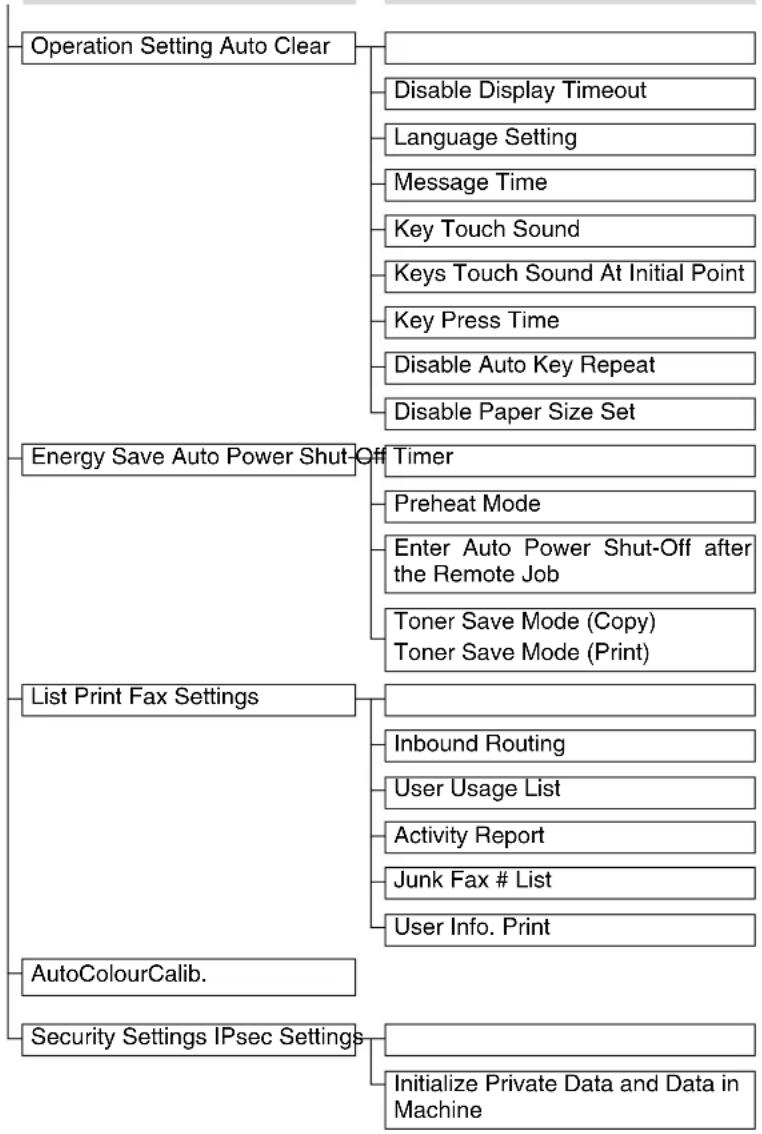
flowchart
graph TD
    A["Operation Setting Auto Clear"] --> B["Disable Display Timeout"]
    A --> C["Language Setting"]
    C --> D["Message Time"]
    D --> E["Key Touch Sound"]
    E --> F["Keys Touch Sound At Initial Point"]
    F --> G["Key Press Time"]
    G --> H["Disable Auto Key Repeat"]
    H --> I["Disable Paper Size Set"]

    J["Energy Save Auto Power Shut-Off"] --> K["Timer"]
    L["List Print Fax Settings"] --> M["Inbound Routing"]
    L --> N["User Usage List"]
    L --> O["Activity Report"]
    L --> P["Junk Fax # List"]
    L --> Q["User Info. Print"]

    R["AutoColourCalib."] --> S["Initialize Private Data and Data in Machine"]

    T["Security Settings IPsec Settings"] --> U["Initialize Private Data and Data in Machine"]
USING THE SYSTEM SETTINGS
1 Press the [SPECIAL FUNCTION] key (Fn
2 Select "System Settings" with the [▼] or [▲] key and press the [OK] key.
3 Enter the administrator password with the numeric keys.
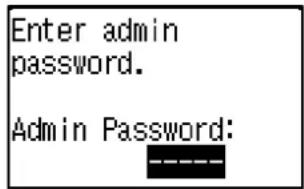
text_image
Enter admin password. Admin Password:• " *appears for each digit that you enter.
- The mode selection screen appears.
4 Select the desired mode with the [▼or [ ]▲key.

text_image
Mode Select Change Admin PW Copier Printer Scanner5 Press the [OK] key.
6 Select the desired setting with the [▼or [ ]▲ey.
7 Press the [OK] key and follow the instructions in the setting screen.
Several settings will have checkboxes in front of them. To enable a function (make a checkmark appear), press the [OK] key. To disable the setting, press the [OK] once again to remove the checkmark. To configure a setting that has a checkbox, go to step 8.
8 To use another setting for the same mode, select the desired setting with the [▼] or [▲key.
To use a setting for a different mode, press the [BACK] key ( ) and select the desired mode. To exit the system settings, press the [CA] key.
Change Admin PW
Use this function to change administrator password. To change the administrator password, see "PROGRAMMING AN ADMINISTRATOR PASSWORD" (p.169).
Default Settings
The default settings for operation of the machine can be configured. Select the [Default Settings] to configure the settings.
Date & Time Set
Use this to set the date and time in the machine's built-in clock.
Daylight Saving Time
Enable daylight saving time.
Network
Network settings are described below.
Select the [Network] key to configure the settings.

text_image
Network ▲ Confirmation of Network Connection Type Wired Settings ▼ Wireless (Infrastructure)Confirmation of Network
Confirm network settings.
Connection Type
You can change the machine's network connection type.
Wired Settings
IPv4 Settings
When using the machine on a TCP/IP (IPv4) network, use this setting to configure the IP address of the machine. The settings are shown below.
Enable DHCP
Use this setting to have the IP address obtained automatically using DHCP (Dynamic Host Configuration Protocol). When this setting is enabled, it is not necessary to manually enter an IP address.
IPv4 Address
Enter the IP address of the machine.
Subnetmask
Entry the Subnetmask
Default Gateway
Enter the Default Gateway.
IPv6 Settings
When using the machine on a TCP/IP (IPv6) network, use this setting to configure the IP address of the machine.
The settings are shown below.
Enable IPv6 Protocol
Enable this setting.
Enable DHCPv6
Use this setting to have the IP address obtained automatically using DHCP (Dynamic Host Configuration Protocol). When this setting is enabled, it is not necessary to manually enter an IP address.
Manual Address
Enter the IP address of the machine.
Prefix Length
Enter the prefix length (0 to 128).
Default Gateway
Enter the IP Gateway address.

- If DHCP is used, the IP address assigned to the machine may change automatically. If the IP address changes, printing will not be possible.
- In an IPv6 environment, the machine can use LPD protocol.
Wireless (Infrastructure)
(Only on models with wireless LAN)
This sets connection using wireless infrastructure mode.
Manual Input of SSID
Enter up to 32 half-width characters for the SSID.
Security Type
Select the security type.
(none/WEP/WPA Personal/WPA2 Personal)
Setting of Encrypt
Select the encryption method based on the "Setting of
Security Type" setting.
(none/WEP/TKIP/AES)
Security Key Settings
Set the security key used for wireless connection.
| WEP 5 half-width | th numeric digits,10 hexadecimal (64 bit) digits,13 half-width numeric digits,or 26 hexadecimal (128 bit) digits |
| WPAPersonal | 8 to 63 half-width numeric digits or64 hexadecimal digits |
| WPA2Personal |
Wireless (Access Point)
(Only on models with wireless LAN)
This sets connection using wireless access point mode.
Setting of SSID
Enter up to 32 half-width characters for the SSID.
Security Settings
- Security Type
Select the security type.
(none/WEP/WPA Personal/WPA2 Personal)
- Setting of Encrypt
Select the encryption method based on the
"Setting of Security Type" setting.
(none/WEP/TKIP/AES)
• Security Key Settings
Set the security key used for wireless connection.
| WEP 5 half | width numeric digits,10 hexadecimal (64 bit) digits,13 half-width numeric digits,or 26 hexadecimal (128 bit) digits |
| WPA Personal | 8 to 63 half-width numeric digits or 64 hexadecimal digits |
| WPA2 Personal |
Device IP Address Settings
Set the IP address of the access point.
Channel Settings
Set the channel used for the access point.
Sending Output Settings
Set the transmission output of the access point.
Bandwidth Settings
Set the frequency band of the access point.
IP Addr. Distribution Range
Set the lease range and lease period of the IP address used for the access point.
User Control
User Control is used to configure settings for user authentication. Select the [User Control] to configure the settings.
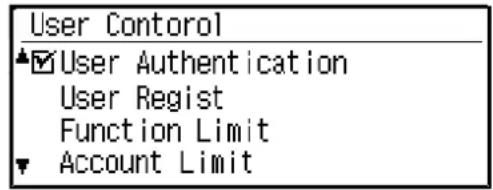
text_image
User Contorol User Authentication User Regist Function Limit Account LimitUser Authentication
These settings enable or disable user authentication and specify the authentication method.
When user authentication is enabled, each user of the machine is registered. When a user logs in, settings for that user are applied.
User Registration
Users can be added, deleted, and changed.

- When entering a user number, the [OK] key is not enabled until 5 digits have been entered.
- If the [Clear] key is pressed during entry of a user number, the displayed user number changes to "----".
Function Limit Setting
Set functions that all users or a specific user can use.
- Copies (Colour)/Copies (B/W)
- Printer (Colour)/Printer (B/W)/USB Memory Direct Print
- Scanner
- Fax
Set the paper limits for copying (colour, black & white) and printing (colour, black & white).
Account Limit Setting
Copying and printing paper limits can be set for all users or specific users.
User Count Display
This setting is used to display the page counts of each account in copy, print, and scan modes, and the usage limits for copy and print modes. Misfed pages are not included in the page counts.
For the network scanner function, the number of transmitted pages is displayed.
Select "User Count Display" and press the [OK] key. Switch to the page counts in other modes for the same account, as well as the page limits, with the [▼or [ ] ▲ key.
To change to a different account number, press the [◀] ▶r [ ] k e y .
User Count Reset
This setting is used to reset the copy, print, and scan page counts of an individual account, or all accounts, to zero.
A Warning when Login Fails
When this setting is enabled, the machine will not allow operation for one minute if an incorrect account number is entered three times in a row. During this time, "This operation is disabled. Please contact your administrator." will appear in the display.
Disable Print by Inv. User
When enabled, this setting cancels a print job if no account number is entered or an invalid account number is entered. This setting is only effective when "User Authentication" has been enabled for print mode.
The function is initially disabled (factory default setting).
Pages printed by invalid account numbers are added to the page count of "Others" (account number).
Device Control
These settings are used to configure settings for hardware functions of the machine. To access one of these settings, select "Device Control" in the mode selection screen, select the desired setting in the device control screen, and press the [OK] key.
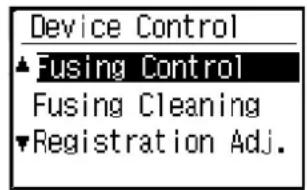
text_image
Device Control ▲ Fusing Control Fusing Cleaning ▼ Registration Adj.Fusing Control
The temperature of toner fusing is controlled according to the weight of the paper that is used.

- Be sure to use only paper that is in the same weight range as the weight range set here. Do not mix in other standard paper that differs from the set range.
- When settings are changed, the changes will take effect after the machine is restarted. To restart the machine, see "POWER ON AND OFF" (p.15).
Fusing Cleaning
Use this function to clean the machine's fusing unit when dots or other dirt appear on the printed side of the paper. When this function is executed, "V" printed paper is output and the fusing unit is cleaned.

If improvement is not noticed after the first time you use the function, try executing the function again.
Registration Adjustment
If the colours are out of place on the printed surface when colour printing is performed, the print positions of the colours can be adjusted.
Select "Registration Adj." and press [OK] key to start automatic registration. When appearing the complete message, the adjustment is completed.

Depending on the machine's condition, adjustment error message may appear. In that case, execute the registration adjustment again.
Operation Setting
These settings are used to configure various settings related to the operation panel. To access one of these programs, select "Operation Setting" in the mode selection screen, select the desired setting in the operation setting screen, and press the [OK] key.

text_image
Operation Setting ▲ Auto Clear □ Disable Display Time ▼ Language SettingAuto Clear
This function returns the copy settings to the default settings if the operation panel is not used for the duration of time set with this setting following the end of a copy job. Time selections are "0 sec.", "10 sec.", "20 sec.", "60 sec.", "90 sec." and "120 sec.".
The factory default setting is 60 seconds. Select "Auto Clear" and press the [OK] key. The following screen will appear.
Select the desired time with the [] or [] key. If you do not want auto clear to operate, select "0".

The Auto Clear function is disabled when scanned data is stored under the following status: When the last page has not been scanned during the 2 IN 1 or 4 IN 1 copy process (one page has been scanned for a two-page set or three pages have been scanned in a four-page set), or only one side has been scanned in the ID card copy process.
Disable Display Timeout
This setting is used to select whether or not the display will automatically return to the base screen if no keys are pressed on the operation panel for one minute in scan or fax mode.
The factory default setting is automatic return to the base screen.
Language Setting
This setting is used to select the display language. Select "Language Setting", press the [OK] key, and follow the steps below.
Message Time
This setting is used to set the length of time that messages appear in the display (this applies to messages that appear for a certain length of time and then automatically disappear.) Select from "Short (3 sec.)", "Normal (6 sec.)", or "Long (9 sec.)".
The factory default setting is "Normal (6 sec.)".
Key Touch Sound
This setting is used to set the length of the key touch sound that is heard each time a key is pressed.
The initial factory setting is "Short".
Select the desired length with the [ ] or [ ] key.
To turn the key touch sound off, select "Off".
Keys Touch Sound At Initial Point
This setting is used to select whether or not a beep will sound at preset base settings as you press a key to select a setting.
The factory default setting is no beep.
Key Press Time
This setting is used to set the duration of time that a key must be pressed to take effect.
A longer setting can be selected to prevent keys pressed accidentally from taking effect. Keep in mind, however, that when a longer setting is selected more care is required when pressing keys to ensure that the key input is registered.
The initial factory setting is "Minimum".
Disable Auto Key Repeat
This setting is used to stop a setting from changing continuously when the [ ] or [ ] key is held down, such as when setting the zoom ratio or the original size (auto key repeat will not operate). When this setting is enabled, a key must be pressed repeatedly instead of holding it down.
Auto key repeat is initially set to operate (factory default setting).
Disable Paper Size Set
This setting is used to disable "Paper Size Set" in the special functions menu. When disabled, "Paper Size Set" cannot be used when the [Special Function] key (P) is pressed, which prevents users other than the administrator from easily changing the paper size setting.
"Disable Paper Size Set" is initially disabled (factory default setting).
Energy Save
These settings are used to configure energy saving settings. To access one of these settings, select "Energy Save" in the mode selection screen, and select the desired setting in the energy save screen, and then press the [OK] key.

text_image
Energy Save ▲ Auto Power Shut-Off Timer Preheat ModeAuto Power Shut-Off Timer
This setting is used to set the duration of time until auto power shut-off mode activates when the operation panel is not used. Using this function helps conserve energy, preserve natural resources, and reduce environmental pollution.
"1 min.", "3 min.", "5 min.", "10 min.", "15 min.", "30 min.", "45 min." or "60 min." can be selected for the duration of time. Select a setting that suits your work conditions.
Preheat Mode
This setting is used to set the duration of time until preheat mode, which automatically lowers the fusing unit temperature, activates when the operation panel is not used. Using this function helps conserve energy, preserve natural resources, and reduce environmental pollution. "1 min.", "3 min.", "5 min.", "10 min.", "15 min.", "30 min.", "45 min." or "60 min." can be selected for the duration of time. Select a setting that suits your work conditions.
Enter Auto Power Shut-Off after the Remote Job
This function works in Auto Power Shut-Off mode. When the machine completes a print job received from the PC or outputs received fax data, the machine immediately returns to the Auto Power Shut-Off mode.
Toner Save Mode (Copy)
Toner Save Mode (Print)
You can reduce the amount of toner used for copying/printing.

Toner Save Mode (Print) is only effective when the machine's printer driver is not used. When the printer driver is used, the printer driver setting takes precedence. This function may not operate in some applications and operating systems.
List Print
This is used to print lists and reports that are only for use by the administrator of the machine.
Select the [List Print] to configure the settings.
| Fax Settings | Shows the current state of the system settings, as well as the sender name, sender number, polling passcode numbers, and forwarding numbers. |
| Inbound Routing | Shows the inbound routing settings for routing received faxes on your network. |
| User Usage List | Shows the communication time and number of pages transmitted by each user. |
| Activity Report | Shows a log of past communication performed on the machine (date of communication, name of other party, time required, result, etc.). |
| Junk Fax # List | Shows the stored fax numbers from which reception in "Anti Junk Fax" (p.188) is blocked. |
| User Info. Print | The user name, user number, paper used, paper limits, and function permission settings can be printed for each user.*Cannot be printed if no users are registered. |
AutoColourCalib.
This is used to perform automatic colour correction when the colour in colour copies is off. The machine prints a test patch, the test patch is scanned, and the colour is automatically corrected.
After the [OK] is selected and a test patch is printed, a message appears prompting you to begin automatic calibration. Place the test patch on the document glass as shown below (so that the light patch at the edge of the page is to the left).

natural_image
Line drawing of a printer's open lid with a rolled paper or scroll, no text or symbols presentAlign the upper left corner of the original with the mark.
Align the upper left corner of the original with the mark.
Lay copy paper (about five sheets) that is the same size as the test patch on top of the placed test patch, gently close the automatic document feeder, and select the [OK].

- Before executing Auto Colour Calibration, check to see if the registration adjustment is correct. If the registration adjustment is not correct, perform "Registration Adjustment" (p.179).
- If the colour is still off after performing Auto Colour Calibration, repeating Auto Colour Calibration once again may improve the colour.
Security Settings
The following settings are related to security. Select the [Security Settings] to configure the settings.
Security Configuration
▲ IPsec Settings
▼ Initialize Private Data and Data in Machine
IPsec Settings
IPsec can be used for data transmission/reception on a network.
IKEv1 Settings
Configure the IKEv1 settings.
Initialize Private Data and Data in Machine
The system-set values can be restored to the factory default state after eliminating the data stored in the machine.
- All information displayed in the fax status
• Image data in memory boxes - Unsent fax data
- Current values set for system settings
- Current values set for network settings
- User information > User registration information
- User information > Paper limits
- User information > Function usage restrictions
- User information > User counts (Excluding default users)
- Fax / scanner addresses
- Groups
- User index (scanner)
- Programs
• Auto forwarding of received faxes - Public box data
- Sender information
• Reception rejection numbers - Forwarding information
- Product key
Copier
These settings are used to enable various copy functions. To access one of these programs, select "Copier" in the mode selection screen, select the desired setting in the copy settings screen, and press the [OK] key.

text_image
Copier ID Card Setting Card Shot Default Default Tray SetID Card Setting
The layout pattern for copying of the ID card can be changed during the ID card copy process. Refer to the illustration in "ID CARD COPY" (p.32) for the available layout patterns.
Card Shot Default
This setting is used to set the default dimensions that appear when the card shot size entry screen is displayed.
The factory default settings are 86 mm (3-3/8") for the width (X) and 54 mm (2-1/8") for the length (Y).
Select X or Y and adjust the corresponding default value with the [◀] or [ ] ▶ key.
Default Tray Set
This setting is used to set which tray is selected by default.
Trays that appear for selection will vary depending on the optional trays that have been installed.
The factory default setting is "Tray 1".
Default Exposure
This setting is used to select the original type and exposure mode that is initially selected when the [EXPOSURE] key ( ) is pressed.
Three exposure modes are available: "Text", "Text/Print Photo" and "Photo".
Depending on the settings, set "Auto" or one of five levels for the exposure.
Select the original type with the [ ]keys, adjust the exposure if needed with the [ ]keys, and press the [OK] key.
Sort Auto Select
This setting is used to select the default output mode when the document feeder is used for copying.
The initial factory setting is "Sort".
Limit Of Copies
This setting is used to set the limit for the number of copies that can be set (and that can appear in the display) for one copy job.
The factory default setting is "999 copies".
Printer
Settings related to the printer function can be configured.
Select the [Printer] to configure the settings.

text_image
Printer □ Notice PageNotice Page
Set whether a notice page is printed when printing does not take place due to an error such as memory full.
Fax
System settings for the fax function are explained below.
List Setting
This setting is used to print lists showing current system settings and other programmed information. Select the [List Setting] to configure the settings.
Print Selection
This setting is used to select the conditions for printing out transaction reports for normal transmission, broadcast transmission, original print and reception.

text_image
Transmission Broadcast Original Image Print Setting Always Prints Always Prints Always Prints Error Only Error Only Error Only Never Prints Never Prints Never Prints Reception Always Prints Error Only Never PrintsNormally the settings indicated by shading above are selected.
"Transmission", "Broadcast", "Original Image Print Setting", or "Reception" can be selected.
- If you selected "Transmission", select "Always Prints", "Error Only", or "Never Prints".
- If you selected "Broadcast", select "Always Prints", "Error Only", or "Never Prints".
- If you selected "Original Image Print Setting", select "Always Prints", "Error Only", or "Never Prints".
- If you selected "Reception", select "Always Prints", "Error Only", or "Never Prints".
"Original Image Print Setting" is used to have part of the first page of the transmitted document printed on the transaction report. This setting is not effective when the transaction report is set to not print out.
Auto Listing
This setting is used to have the activity report that is stored in the machine's memory printed out at regular intervals.
You can choose to have the report automatically printed each time the number of stored transactions exceeds 50, or have the report printed at a specified time every day (only once per day). You can also enable both print methods.
The report is normally set to not print out. To have the report automatically printed when the number of stored transactions (the combined total of transmissions and receptions) exceeds 50, select "Auto Print Rept At Limit(50)".
To have the report printed at a specified time, enable "Print Time Set" and enter the desired time.
- The setting is enabled and a checkmark appears in the checkbox.
- If this procedure is performed when the setting is enabled, the checkmark will be cleared and the setting disabled.

- To cancel a "Print Time Set" setting, select "Cancel":
- Select "Cancel" with the [ ] or [ ] key and then press the [OK] key.
- If "Auto Print Rept At Limit(50)" is not enabled and the number of recorded transactions exceeds 50, each new transaction will delete the oldest transaction.
- The activity report can also be printed out on demand. (See "PRINTING LISTS OF PROGRAMMED INFORMATION AND SETTINGS" (p.109).)
Initial Setting
These settings are used to change the default settings (initially set at the factory) for the various fax functions to settings that better meet your needs.
Select the [Initial Setting] to configure the settings.
Dial Mode
This setting is used to set the appropriate dial mode for the line connected to the machine. Select tone for a tone dial line or pulse for a pulse dial line.
Pause Time
This setting is used to select the duration of pauses that are inserted in destination fax numbers.
Normally the setting is 2 seconds, which means that each time the [PAUSE] key ( ) is pressed when dialling or storing a fax number, a pause of 2 seconds is inserted.
The pause time can be set to any number of seconds from 1 to 15.
Own Passcode Set
Use this setting to setting the fax number of the machine and the name of the user. The programmed name and number are printed at the top of each fax page you send. The number is also used as a passcode when performing polling reception "SENDING OPTIONS" (p.100)".
You can check your programmed name and number by printing out the "List Print" (p.181)
A maximum of 20 digits can be stored for the fax number.
- A maximum of 18 letters can be stored for the name.
To clear the programmed fax number and name, follow these steps:
(1) Select "Delete" and then press the [OK] key.
(2) Select "Delete" with the ] or [ ] key and then press the [OK] key.
Set Volume
This setting is used to adjust the on-hook volume, the ringing volume, the line monitor volume, the TX/RX end sound volume, the original scanning end sound volume, and the tone output volume. All volume settings are initially set to "Middle".
- "High", "Middle" or "Low" can be selected for the on hook volume.
- "High", "Middle", "Low" or "Off" can be selected for volumes other than the on hook volume.
TX/RX End Sound
This setting is used to select the beep pattern that signals the end of transmission or reception. "Pattern 1", "Pattern 2" or "Pattern 3" can be selected. Before pressing the [OK] key to store your selection, you can press the key to listen to the selected pattern.
End Sound Length
This setting is used to select the length of the end sound in seconds. Selections are "2.0 sec", "2.5 sec", "3.0 sec", "3.5 sec", and "4.0 sec". "3.0 sec" is normally selected.
Remote Reception
(Only when an extension phone is connected)
When a call is received on an extension phone connected to the machine, fax reception can be activated by entering a 1-digit number and pressing twice on the phone's keypad. This 1-digit number is called the remote reception number, and you can set it to any number from "0" to "9". Normally the remote reception number is set to "5".

If a remote number has been previously stored, the newly entered remote number overwrites the old number.
PBX Setting Mode
(Varies depending on country and region)
This setting is used to have faxes routed to the outside line by default when the unit is connected to a private branch exchange. By default, this setting is disabled. To activate the setting, select the PBX CONNECTION checkbox to make a checkmark appear, and then select the method for connecting to an outside line by selecting the "Flash" key or the "ID" key. If you connect to the outside line by making a register call, select "Flash". If you connect to the outside line by dialling a number, select "ID". If you select "ID", enter the number that is dialled to connect to the outside line (maximum of 3 digits). The number is entered by selecting the entry boxes for each of the digits and using the [▼or [ ] keys to enter the appropriate digit in each box. Be sure to enter the number from the box on the left. Any digit from 0 to 9 can be entered in the left box, and digits 0 to 9 and "-" can be entered in the central and right boxes. If your external line number is two digits, enter "-" in the right box, and if your external line number is one digit, enter "-" in the central and right boxes.
When PBX CONNECTION is enabled, the "R" key appears in the base screen of fax mode. This key can be selected to switch to fax transmission inside your PBX. If the number you are storing in either of these screens is inside your PBX, select the "R" before entering the number to have the fax transmission automatically routed to the PBX when the number is dialled.

The "R" key is not available in UK, Belgium and the Netherlands.
Disable Fax Print Hold
This setting is used to disable the fax print hold function,
which holds received faxes in memory instead of printing them as they are received. (p.97)
Normally the fax print hold function is disabled.
- The setting (which disables fax print hold) is enabled and a checkmark appears in the checkbox.
- If this procedure is performed when the setting is enabled, the checkmark will be cleared and the setting disabled (fax print hold is enabled).
Sending Function
These settings are used to change the default settings (initially set at the factory) for the various fax transmission functions to settings that better meet your needs. Select the [Sending Function] to configure the settings.
Original Size Enter
Set the size of originals scanned on the document glass. Normally A4 is set.
Set Res. Con.
This setting is used to adjust the exposure level when scanning an original to be faxed. The initial setting is standard resolution and auto exposure mode.
Send Mode
This setting is used to select whether the default mode for sending faxes is memory transmission or direct transmission. The initial setting is "Memory TX".
Quick On Line TX
This setting is used to select whether or not quick on-line transmission (transmission while original pages are being scanned into memory) takes place when a memory transmission is performed.
If quick on-line transmission is disabled, transmission will not begin until all original pages have been scanned into memory.
Normally quick on-line transmission is enabled. When this function is disabled, transmission will not begin until all pages of the document have been scanned. Note that this setting does not apply to manual transmission. (See "Storing transmission jobs (memory transmission)" (p.90).)
- Quick on-line is enabled and a checkmark appears in the checkbox.
- If this procedure is performed when quick on-line is enabled, the checkmark will be cleared and quick on-line disabled.
Print Station # In Rcvd Data
This setting lets you select the position (inside or outside the original image) of the date and sender's information that are printed at the top of each fax page you send. Normally outside the original image is selected. To have your name and number printed inside the original image, select "In Data". For more detailed information on the position of each setting, see "INCLUDING SENDER INFORMATION ON FAXES (OWN NUMBER SENDING)" (p.109).
Address Review
You can specify whether a screen appears for confirmation of the destination when sending a fax.
When the "Only apply to direct entry" checkbox is selected, the Address Review screen only appears when the fax number is entered with the numeric keys or the [REDIAL] key (☐).
Recall Setting (Busy)
This setting is used to set the number of recall attempts and the interval between recall attempts when a transmission is not successful due to the line being busy or other reason.
Normally the machine is set to make 2* recall attempts at intervals of 3* minutes.
If you do not wish to have recalling take place, set the number of attempts to "0".
* Varies depending on country and region.

Even if this setting is enabled, the machine will not re-attempt the call when a fax is sent by manual transmission.
Recall Set (Err)
When sending a fax, this setting is used to select whether or not the machine will automatically re-attempt the call if the transmission fails due to a line error. Normally the machine is set to make 1* recall attempt at intervals of 1* minute.
If you do not wish to have recalling take place, set the number of attempts to "0".
* Varies depending on country and region.

- If the recall interval is set to "0", the machine will immediately call again after the connection is broken due to the line error.
- Even if this setting is enabled, the machine will not re-attempt the call when a fax is sent by manual transmission.
Ring Timeout In Auto TX
When sending a fax by automatic transmission (see "Storing transmission jobs (memory transmission)" (p.90)), this setting lets you select the amount of time that the machine waits before breaking the connection when the other machine does not answer your machine's call. If the other machine does not respond within this set time, your machine will automatically break the connection.
Time selections are "30 sec." and "45 sec.". Normally "45 sec." is selected.
Rcv. Function
These settings are used to change the default settings (initially set at the factory) for the various fax reception functions to settings that better meet your needs. Select the [Rcv. Function] to configure the settings.
#Of Rings At. RX
When the reception mode is set to auto, this setting is used to select the number of rings on which the machine automatically receives a call and begins fax reception. (See "RECEIVING A FAX" (p.95).)
- Any number of rings from 0 to 15 can be selected.
* The "#Of Rings At. RX" that can be set in each country are shown in the following table.
| The number of rings | |
| United Kingdom, France, Germany, Sweden, Italy, Spain, Netherlands, Thailand, Hong Kong, Saudi Arabia, South Africa, Hungary, Czech Republic, Slovakia, Poland, Greece, Russia, Philippines, Indonesia | 0 to 9 |
| Australia, New Zealand 2 to 4 | |
| Singapore 0 to 3 | |
| Malaysia, India, Canada, Taiwan | 0 to 15 |
- If you make a mistake, move the cursor to the mistake with the [◀]▶eys and reenter.

- If the number of rings is set to 0, the machine will receive faxes without ringing.
- When the number of rings is set to 14 or 15, reception may not be possible depending on the functions and settings of the other machine.
#Of Rings Man.RX
You can set the number of rings on which the machine changes to auto reception when there is an incoming fax call in manual reception mode.
Tray Selection
This setting is used to select which output trays can be used for received faxes. All output trays are initially enabled.
- The selected tray is enabled and a checkmark appears in the checkbox.
- If this procedure is performed when the tray is enabled, the checkmark will be cleared and the tray disabled.

- The trays that can be enabled will vary depending on the options that are installed.
• The trays cannot all be disabled
Received Data Print Condition
This setting determines the selection condition for paper when printing received documents. Select one of the three conditions below. "Reduction" is normally selected.
- Reduction
Each received image is printed at actual size when possible. When not possible, the image is automatically reduced before printing.
- Division
Each received image is printed at actual size. If necessary, the image is split onto multiple sheets of paper.
- A c t u a l S i z e
The received fax image is printed at its actual size (without dividing it onto multiple sheets of paper). If the same size of paper or larger paper is not loaded, the fax will be received in memory and will not be printed until a suitable size of paper is loaded.
Auto Rcv Reduce To Regular Size
When you receive a fax that includes the sender's name and number, the received image is slightly larger than the standard size*. This setting lets you select whether or not the received image is automatically reduced before printing to fit the standard size. Normally this setting is enabled.
* Standard sizes are sizes such as A4 and B5.

- If this setting is disabled (no reduction) and the received data print condition is set to division, the image may be clipped.
- If auto receive reduce is disabled, an image larger than the standard size will be cut off. However, the image will be clearer because it will be printed at the same size as the original.
Duplex Reception
This setting is used to select whether or not received faxes are printed on both sides of the paper. When two-sided printing is enabled and a fax that is two pages or longer is received (the pages must be the same size), the fax will be printed on both sides of the paper.
Even if the pages are in different orientations, the pages are rotated appropriately to enable printing on both sides of the paper.
- The setting is enabled (two-sided printing will take place) and a checkmark appears in the checkbox.
- If the procedure is performed when the setting is enabled, the checkmark will be cleared and the setting disabled.
8 1/2x11 RX Reduce Print
(This may not be available for some region.)
This setting is used to select whether received 8-1/2" x 11"-size faxes are reduced. When an 8-1/2" x 11" fax is received, part of the document is normally cut off. This setting can be turned on to have 8-1/2" x 11" faxes reduced to fit on A4 paper. The setting is initially turned off.
- The setting is turned on and a checkmark appears in the checkbox.
- If this procedure is performed when the setting is turned on, the checkmark is cleared and the setting turned off.

If this setting is turned off, part of the image may be cut off.
FW. RX Data
This setting is used to select whether or not received faxes are forwarded to a fax machine programmed as explained in "Received Data FW. Station Set" (p.188) in the event that the machine cannot print the faxes. The setting is initially disabled.
- The setting is enabled and a checkmark appears in the checkbox.
- If the procedure is performed when the setting is enabled, the checkmark will be cleared and the setting disabled.

This setting only operates when the fax number of the machine that is to receive the forwarded faxes is programmed.
Received Data FW. Station Set
When a problem prevents the machine from printing a received fax, the fax forwarding function (p.111) can be used to forward the received fax to another fax machine. Use this setting to setting the fax number of the destination fax machine. Only one fax number can be programmed (maximum of 50 digits).

To delete the number, follow these steps:
(1) Select "Delete" and then press the [OK] key.
(2) Select "Delete" with the [ ] or [ ] key and then press the [OK] key.
Anti Junk Fax
When this setting is enabled, reception from fax numbers programmed using the "Enter Junk Fax #" setting will be blocked.
This setting is normally disabled.
- The setting is enabled and a checkmark appears in the checkbox.
- If this procedure is performed when the setting is enabled, the checkmark will be cleared and the setting disabled.
Enter Junk Fax #
This setting is used to program fax numbers from which you wish to block reception. Up to 50 fax numbers can be stored (maximum of 20 digits each). To block reception from the programmed fax numbers, the "Anti Junk Fax" setting must be enabled.

To delete a number, follow these steps: Before deleting a number, use the "List Setting" (p.183) to check the control number that identifies the fax number (01 to 50) that you wish to delete. The control number must be entered to delete the fax number. (The fax number will not appear in the display. If the wrong control number is accidentally entered, a fax number other than the fax number that you wish to delete will be deleted.)
(1) Select "Delete" and then press the [OK] key.
(2) Select the 2-digit control number (01 to 50) that identifies the fax number that you wish to delete with the [▼or [ ]▲ key and then press the [OK] key.
(3) Select "Delete" with the [ ] or [ ] key and then press the [OK] key.
Polling Security
These settings are used for the public box. Select the [Polling Security] to configure the settings.
Polling Security
When performing polling memory (see "Restricting polling access (polling security)" (p.103)), this setting is used to select whether any machine will be allowed to poll your machine, or only machines that have been programmed in your machine. Normally this setting is enabled.
- The setting is enabled and a checkmark appears in the checkbox.
- If this procedure is performed when the setting is enabled, the checkmark will be cleared and the setting disabled.
Polling Passcode # Mode
When "Polling Security" is enabled, use this setting to program (or delete) the fax numbers of the machines that are allowed to poll your machine. Programmed fax numbers are called passcodes. Up to 10 fax numbers can be programmed. To check the programmed numbers, print the "List Print" (p.181). If you make a mistake, move the cursor to the mistake with the [] or [] keys and enter the correct number.

To clear a passcode number, follow these steps:
(1) Select "Delete" and then press the [OK] key.
(2) Enter the control number that identifies the number you wish to clear, and then press the [OK] key.
(3) Select "Delete" with the [ ] or [ ] key and then press the [OK] key.
Scanner
System settings for the scanner function are explained below.
Select the [Scanner] to configure the settings.
Disable USB Scan
Select whether or not scanning from a computer and scanning from the machine are disabled when a USB connection is used.
Default setting is "No" (disabled).
New Default
This is used to change the default settings for the original size, resolution, format, and scanning exposure in B/W mode. (For details, see "STORING SCANNING SETTINGS" (p.130).)
- For details on each setting, see the pages below.
"Original Size Enter" (p.130)
"Resolution" (p.130)
"Format" (p.131)
"Mono2/Greyscale" (p.131)
ABOUT THE WEB PAGES
The machine includes a built-in Web server. The Web server is accessed using a Web browser on your computer. The Web pages include both pages for users and pages for the administrator. In the user Web pages, users can monitor the machine, and select printer configuration settings. In the administrator Web pages, the administrator can configure the machine's e-mail settings, settings for print by e-mail, and passwords. Only the administrator is allowed to configure these settings.
HOW TO ACCESS THE WEB PAGE
Use the following procedure to access the Web pages. [Help] can be clicked at the bottom of the menu frame to view information on the various function settings that can be configured remotely over the network from the machine's Web pages. For the settings of each function, see the explanations in Help.
1 Open the Web browser on your computer.
Supported browsers:
Internet Explorer: 6.0 or higher (Windows ^® )
Netscape Navigator: 9 (Windows ^® )
Firefox: 2.0 or higher (Windows ^® )
2 In the "Address" field of your Web browser, enter the IP address that has been configured in the machine.
When the connection is completed, the Web page will appear in your Web browser.
"ABOUT THE WEB PAGES (FOR USERS)" (p.191)
3 When finished, close the Web pages.
When you have finished using the Web pages, click the ✗ (close) button in the top right corner of the page.
ABOUT THE WEB PAGES
(FOR USERS)
When you access the user Web pages in the machine, the following page will appear in your browser.
A menu frame appears on the left side of the page. When you click an item in the menu, a screen appears in the right frame that allows you to configure settings for that item.
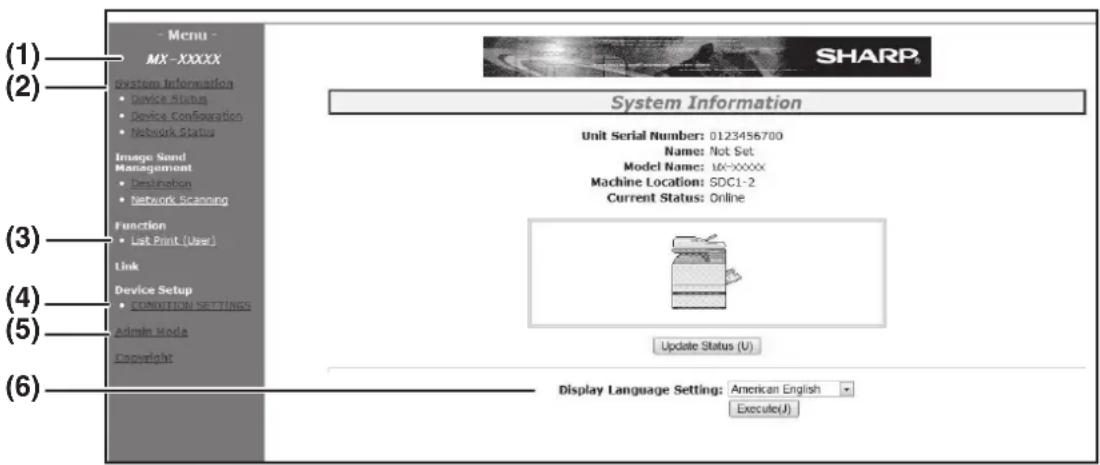
text_image
(1) (2) - Mcnu - MX-XXXX System Information • Device Status • Device Configuration • Network Status Image Send Management • Destination • Network Scanning Function • Last Print (User) Link Device Setup • CONDITION SETTINGS Admin Mode Copyright (3) (4) (5) (6) SHARP System Information Unit Serial Number: 0123456700 Name: Not Set Model Name: 100XXXXX Machine Location: SDC1-2 Current Status: Online Update Status (U) Display Language Setting: American English Execute(U)(1) Menu frame
Click a setting in the menu to configure it.
(2) System Information
Shows the current status of the machine and model name.
- Device Status
Shows the current status of the machine, paper trays, output trays, toner and other supplies, and page counts.
Out of paper and other warnings appear in red.
• Device Configuration
Shows what options are installed.
- Network Status
Shows the network status. Information on "General" and "TCP/IP" is shown on the respective pages.
(3) Data List Print
You can print out the various settings that you have selected.
(4) Condition Settings
Configure basic printer settings and printer language settings.
"CONFIGURING THE PRINTER CONDITION SETTINGS" (p.192)
(5) Admin Mode
To open the Web pages for the administrator, click here and then enter the administrator's user name and password.
"ABOUT THE WEB PAGES (FOR THE ADMINISTRATOR)" (p.202)
"PROTECTING INFORMATION PROGRAMMED IN THE WEB PAGE ([Passwords])" (p.204)
(6) Display Language Setting
Select the desired language setting from the pull-down menu.
CONFIGURING THE PRINTER CONDITION SETTINGS
The printer condition settings allow basic printer settings to be configured. The following items can be set:
● "Default Settings" (p.193): Basic settings that are mainly used when the printer driver is not used.
● "PCL Settings" (p.194): PCL symbol set, font, line feed code, and other settings.

When the printer driver is used and the same settings are configured both in the printer driver and in the above screens, the settings configured in the printer driver override the settings in the above screens. If a setting is available in the printer driver, use the printer driver to configure the setting.
HOW TO CONFIGURE THE SETTINGS
To display the Condition Settings screen, click [Condition Settings] in the menu frame.

text_image
System Information • Device Status • Device Configuration • Network Status Image Send Management • Destination • Network Scanning Function • Printer Test Page Link Device Setup Condition Settings Admin Mode Help Condition Settings [Default Settings] [PCL] Default Settings Copies: 1 Orientation: Portrait Default Paper Size: A4 Default Paper Source: Auto Disable Blank Page Print: Disable 2-Sided Print: 1-Sided Original Type : (USB Memory Scan) 1-Sided ROPM: Enable Submit (S) Help (1) (2) (3) (4)(1) Condition Settings
This displays the page for configuring the printer condition settings.
(2) Default Settings/ PCL/PS
Select the type of condition settings that you wish to configure.
(3) Settings
The factory default settings are displayed.
Change the settings as desired by selecting from drop-down lists and by directly entering settings.
For information on the settings, see "PRINTER CONDITION SETTINGS" (p.193).
(4) Submit
Click to store the Web page settings in the machine.
PRINTER CONDITION SETTING MENU
| Condition Settings | |
| Default Settings Factory default settings | |
| Orientation Portrait | |
| Default Paper Size A4 | |
| Default Paper Type Standard | |
| Default Resolution 600dpi (High Quality) | |
| Disable Blank Page Print | OFF |
| 2-Sided Print 1-Sided | |
| Colour Mode Auto | |
| Fit To Page ON | |
| Condition Settings | |
| PCL Settings Factory | default settings |
| Symbol Set PC-8 | |
| Font | 0: Courier (internal font) |
| Line Feed Code | CR=CR; LF=LF; FF=FF |
| PS Settings | Factory default settings |
| Print PS Errors | Disable |
PRINTER CONDITION SETTINGS
Factory default settings are indicated in bold.
Default Settings
| Item | Selections | Description |
| Orientation | Portrait, Landscape | This sets the orientation of the printed page. Select [Portrait] when the image is longer in the vertical direction, or [Landscape] when the image is longer in the horizontal direction. |
| Default Paper Size | A4, B5, A5, Letter, Invoice, Executive | This sets the default paper size used for printing. |
| Default Paper Type | Standard, Letter head, Pre-printed, Pre-punched, Recycled, Colour | Set the type of paper used for printing. |
| Default Resolution | 600dpi, 600dpi (High Quality) | Set the printing resolution. |
| Disable Blank Page Print | ON, OFF | When this is specified, blank pages with no print data will not be printed. |
| 2-Sided Print | 1-Sided, 2-Sided (Book), 2-Sided (Tablet) | When [2-Sided (Book)] is selected, two-sided printing takes place so as to allow binding at the left side. When [2-Sided (Tablet)] is selected, two-sided printing takes place so as to allow binding at the top. (Only for models that support two-sided printing.) |
| Colour Mode | Auto, Black & White | Set the colour mode used for printing. |
| Fit To Page | ON, OFF | Set whether the printed image is fit to the size of the paper. |
PCL Settings
| Item Selections Description | ||
| Symbol Set Select one of 35 sets. | This specifies which country's characters (PCL symbol set) are assigned to certain of the symbols in the character code list.The factory default setting is [PC-8]. | |
| Font Select one internal font. | This specifies which PCL font to use for printing. One font can be specified from among the internal fonts. The factory default setting is [0: Courier]. | |
| Line Feed Code CR=CR; LF=LF;FF=FF,CR=CR+LF; LF=LF;FF=FF,CR=CR;LF=CR+LF;FF=CR+FF,CR=CR+LF;LF=CR+LF;FF=CR+FF | This specifies the line break code by means of a combination of the "CR" (return) code, "LF" (line break) code, and "FF" (page break) code. The factory default setting is printing based on the transmitted code. The setting can be changed by selecting one of four combinations. | |
PostScript settings
| Item Settings Description | ||
| Print PS Errors | Enable, Disable | When this setting is enabled, an error description is printed each time a PostScript error occurs. |
CONFIGURING THE SCANNER CONDITION SETTINGS
STORING DESTINATIONS
To store scanning destinations, click [Destination] in the Web page menu frame. This screen can also be used to edit or delete stored destinations. (p.200)
A total of 200 destinations* can be stored, including E-mail, Network folder FTP, Desktop, and Group destinations.*
* Multiple e-mail addresses can be stored as a group (up to 100). Note that this may reduce the maximum number of destinations (normally 200) that can be stored.

text_image
Click here to store destinations. Image Send Management • Destination • Network Scanning FunctionStoring destinations for Scan to E-mail
Click [E-mail], and enter the destination information.

text_image
[E-mail] [FTP] [Desktop] [Network Folder] [Group(E-ma] E-mail Destination Control Name (Required) Initial (Optional) Custom Index USER 1 User E-mail Address (Required) Global Address Search (G) Submit (S)For each setting, see the following table.

To perform Scan to E-mail, the SMTP server settings must first be established. (p.203)
E-mail destination information
| Item Description | |
| Name (Required) Enter the | name of the destination (up to 36 characters). |
| Initial (Optional) | Enter initial text for the destination (maximum of 10 characters). When the destination list is displayed in the destination control screen, the initial text is used to group the destinations. |
| Custom Index Names can be assigned to the custom indexes as desired (p.191), allowing convenient grouping of destinations.Drop down list: Select a custom index for the destination to be stored.User checkbox: When this is selected, the destination is stored in the user tab of the address book. (p.128) | |
| E-mail Address (Required) | Enter the e-mail address of the destination (up to 64 characters). If an LDAP server is being used, you can click the [Global Address Search] button to search for an address on the LDAP server. |
Storing destinations for Scan to FTP
Click [FTP], and enter the destination information.
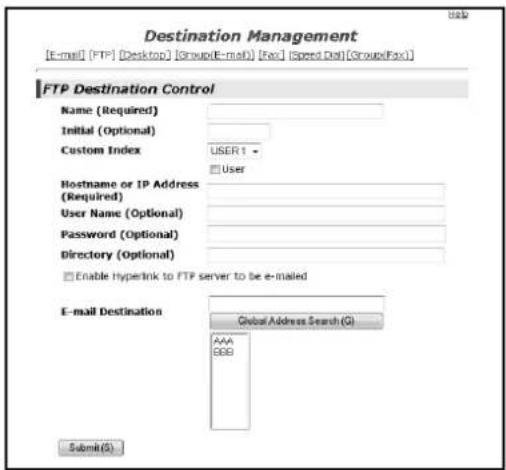
text_image
Destination Management [E-mail] [FTP] [Desktop] [Group(E-mail)] [Fax] [Speed Dot] [Group(Fax)] FTP Destination Control Name (Required) Initial (Optional) Custom Index USER 1 - User Hostname or IP Address (Required) User Name (Optional) Password (Optional) Directory (Optional) Enable hyperlink to FTP server to be e-mailed E-mail Destination Global Address Search (G) AAA BBB Submit (S)For the settings, see the following table.
FTP destination information
| Item Description | |
| Name (Required) Enter the | name of the destination (up to 36 characters). |
| Initial (Optional) | Enter initial text for the destination (maximum of 10 characters). When the destination list is displayed in the destination control screen, the initial text is used to group the destinations. |
| Custom Index Names can be assigned to the custom indexes as desired (p.191), allowing convenient grouping of destinations.Drop down list: Select a custom index for the destination to be stored.User checkbox: When this is selected, the destination is stored in the user tab of the address book. (p.128) | |
| Hostname or IP Address (required)* | Enter the IP address or host name of the FTP server (maximum of 127 characters). |
| User Name (Optional) Enter the login user name for the FTP server (maximum of 32 characters). | |
| Password (Optional) Enter the login password for the FTP server (maximum of 32 characters). | |
| Directory (Optional) If you wish to specify a destination directory on the FTP server, enter the directory (maximum of 200 characters). | |
* If you entered a host name in "Hostname or IP Address", you will need to enter the DNS server settings. (p.203)
Storing destinations for Network folder
Click [Network folder], and enter the destination information.
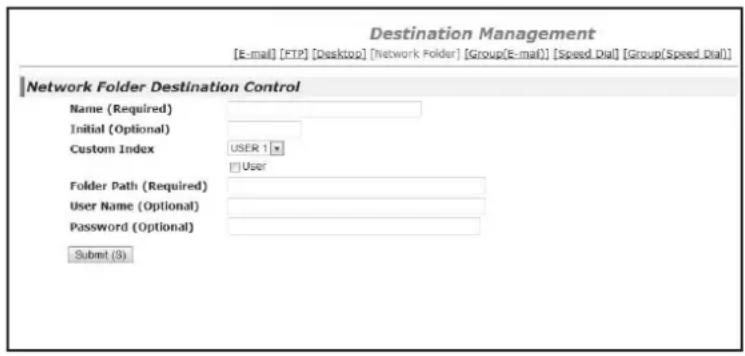
text_image
Destination Management [E-mail] [FTP] [Desktop] [Network Folder] [Group(E-mail)] [Speed Dial] [Group(Speed Dial)] Network Folder Destination Control Name (Required) Initial (Optional) Custom Index USER 1 User Folder Path (Required) User Name (Optional) Password (Optional) Submit (S)For the settings, see the following table.
Network folder destination information
| Item Description | |
| Name (Required) Enter the | name of the destination (up to 36 characters). |
| Initial (Optional) | Enter initial text for the destination (maximum of 10 characters). When the destination list is displayed in the destination control screen, the initial text is used to group the destinations. |
| Custom Index Names can be assigned to the custom indexes as desired (p.191), allowing convenient grouping of destinations.Drop down list: Select a custom index for the destination to be stored.User checkbox: When this is selected, the destination is stored in the user tab of the address book. (p.128) | |
| Hostname or IP Address (required)* | Enter the IP address or host name of the network folder (maximum of 127 characters). |
| User Name (Optional) Enter the login user name for the network folder (maximum of 32 characters). | |
| Password (Optional) Enter the login password for the network folder (maximum of 32 characters). | |
* If you entered a host name in "Hostname or IP Address", you will need to enter the DNS server settings. (p.203)
Storing destinations for Scan to Desktop
The destination for Scan to Desktop is stored by the Sharp Network Scanner Tool Setup Wizard when "Network Scanner Tool" is installed in your computer. For this reason, there is no need to store the Scan to Desktop destination in the Web page. (The Network Scanner Tool is on the "Sharpdesk" CD-ROM.)
For information on Scan to Desktop system requirements, installing the Network Scanner Tool, and storing the destination, see the "Sharpdesk installation guide".
Normally your computer is stored as the destination by the method indicated above.
The following page for storing Scan to Desktop destination information appears when [Destination] is selected in the menu frame, followed by [Desktop]. This page is used mainly by the system administrator in the following circumstance.
- When another machine that also has the network expansion kit is added to your network and you wish to send an image scanned on the new machine to a destination stored on the existing machine
See "Editing and deleting programmed transmission destinations" (p.200) to select the Scan to Desktop destination information that you wish to use on the new machine and enter the displayed information in this screen in the new machine. (When you have completed all entries, click [Submit].)
If there are several destinations that you wish to use on the new machine, repeat this procedure as needed.

text_image
Destination Management [E-mail] [FTP] [Desktop] [Network Folder] [Group(E-mail)] [Speed_Dial] [Group(Speed_Dial)] Desktop Destination Control Name (Required) Initial (Optional) Custom Index USER 1 User Hostname or IP Address (Required) Port Number (Required) 21 Process Directory (Optional) UserName (Optional) Password (Optional) Submit (S)If the information entered here differs from the information entered on the host computer, transmission/reception will not be possible.
For the settings, see the following table.
Scan to Desktop destination information
| Item Description | |
| Name (Required) Enter the | name of the destination (up to 36 characters). |
| Initial (Optional) | Enter initial text for the destination (maximum of 10 characters). When the destination list is displayed in the destination control screen, the initial text is used to group the destinations. |
| Custom Index Names can be assigned to the custom indexes as desired (p.191), allowing convenient grouping of destinations.Drop down list: Select a custom index for the destination to be stored.User checkbox: When this is selected, the destination is stored in the user tab of the address book. (p.128) | |
| Hostname or IP Address (Required)* | Enter the IP address or host name of the FTP server (maximum of 127 characters). |
| Port Number (Required) Enter a port number from 0 to 65535 for the desktop network scanner tool. | |
| Process Directory (Optional) | Enter the destination directory name for the file (maximum of 200 characters). The file will be processed in this directory after it is received. |
| User Name (Optional) Enter the login user name for the network scanner tool (maximum of 32 characters). | |
| Password (Optional) Enter the login password for the network scanner tool (maximum of 32 characters). | |
* If you entered a host name in "Hostname or IP Address", you will need to enter the DNS server settings. (p.203)
Storing Groups (Scan to E-mail)
You can send a scanned image to multiple e-mail destinations in a single Scan to E-mail operation. If you frequently transmit to a fixed group of destinations, you can store the destinations as a group.

Up to 100 destinations can be stored in one group.
Click [Group(E-mail)], and enter the destination information.
![SHARP MX-C300W - Click [Group(E-mail)], and enter the destination information. - 1](/content/2026/06/1243240/images/274405fda29ad4789717c17ca5ae8b23bac1ba80586ca2033ccda85700865e18.jpg)
text_image
Destination Management [E-mail] [FTP] [Desktop] [Network Folder] [Group(E-mail)] [Speed Dial] [Group(Speed Dial)] Group(E-mail) Destination Control Name (Required) Initial (Optional) Custom Index USER 1 User Address(es) (Required) Global Address Search (G) E-mail AAA 000 Submit (S)For the settings, see the following table.
Storing a group of destinations
| Item Description | |
| Name (Required) Enter a name for the group (up to 36 characters). | |
| Initial (Optional) Enter initial text for the destinations (maximum of 10 characters). When the destination list is displayed in the destination control screen, the initial text is used to group the destinations. | |
| Custom Index Names can be assigned to the custom indexes as desired (p.191), allowing convenient grouping of destinations.Drop down list: Select a custom index for the destination to be stored.User checkbox: When this is selected, the destination is stored in the user tab of the address book. (p.128) | |
| Address(es) (Required) Select the address of each destination from the "E-mail" list box. Programmed e-mail destinations appear in each of the destination lists. To select multiple destinations, click each address while holding down the [Ctrl] key on the keyboard. If you need to cancel an address that has been selected, click the address again while holding down the [Ctrl] key.If an LDAP server is being used, you can click the [Global Address Search] button to search for an address on the LDAP server. Multiple e-mail addresses can be entered. Separate the e-mail addresses with a comma (,), semi-colon (;), space ( ), or colon (:). | |
Editing and deleting programmed transmission destinations
To edit or delete programmed destinations, click [Destination] in the menu frame of the Web page.
To edit the selected destination, click [Edit] at the bottom of the Destinations List.
![SHARP MX-C300W - To edit the selected destination, click [Edit] at the bottom of the Destinations List. - 1](/content/2026/06/1243240/images/59df1c5ab1df94fd0b5616306bd9ea5e7793033606338569d073329b3090af62.jpg)
text_image
Name Type AAA E-mail A BBB E-mail B DDD Desktop 1 Edit (M) Delete (C) Clear ( Print Group List (G)The programming screen of the destination selected appears. Edit the information in the same way as you initially stored it.
To delete the selected destination, click [Delete] at the bottom of the Destinations List.
![SHARP MX-C300W - To delete the selected destination, click [Delete] at the bottom of the Destinations List. - 1](/content/2026/06/1243240/images/6eb910d96a3e947f714758f30a21229fbe4d67155ff944d684747a5209e70514.jpg)
text_image
Name Type □ AAA E-mail A □ BBB E-mail B □ DDD Desktop 1 Edit (M) Delete (C) Clear ( Print Group List (G)![SHARP MX-C300W - To delete the selected destination, click [Delete] at the bottom of the Destinations List. - 2](/content/2026/06/1243240/images/49a58148174ec33f901cc4efe3d82493a6d1500e8e6c9fd18b1273b2f8001708.jpg)
If you attempt to delete a programmed destination in the following situations, a warning message will appear and deletion will not be possible.
• The destination is included in a group.
If the destination is being used for a current transmission, cancel the transmission or wait until it is completed and then delete the destination. If the destination is included in a group, delete the destination from the group and then delete the destination.
Printing lists of programmed destinations
You can print lists showing the destinations that have been programmed.
The following lists can be printed.
- Destination List: Shows the information programmed in e-mail, FTP, desktop, and group destinations.
● Print group list: Shows only the information programmed in group (e-mail) destinations.
To print the individual list, click [Print Individual List] at the bottom of the destinations list.
![SHARP MX-C300W - To print the individual list, click [Print Individual List] at the bottom of the destinations list. - 1](/content/2026/06/1243240/images/c9c471810efdb9df24ed32adc7e04706d5e4227475c19754a374a2a80b6d20d0.jpg)
text_image
ss(es) No. abc.com 001 sharp.co.jp 002 2.111.222 003 d (R) Print Individual List (I)To print the group list, click [Print Group List] at the bottom of the destinations list.
![SHARP MX-C300W - To print the group list, click [Print Group List] at the bottom of the destinations list. - 1](/content/2026/06/1243240/images/bd5649d3d74e6a6668495996f83d9aff83c974122331807dd1417e8fb3adf5b3.jpg)
text_image
AAA E-mail BBB E-mail DDD Desktop Edit (M) Delete (C) Clear Print Group List (G)BASIC SETTINGS FOR NETWORK SCAN (FOR THE ADMINISTRATOR)
To use the Network Scan function, setting from the Web page is required.
Click the menu frame and configure the required settings. A password is required to access this screen.
These settings should only be configured by the network administrator.
1 Click [Network Scanning] in the menu frame.
![SHARP MX-C300W - Click [Network Scanning] in the menu frame. - 1](/content/2026/06/1243240/images/82b86fa3088bbe111cf5a1ad9ba5023c4f0391c6641a55d5d0cd10afe2e85a0a.jpg)
text_image
Image Send Management • Destination • Network ScanningThe Network Scanning setup page appears.
2 Select the scanner mode.

text_image
[Enable Scanner Delivery to □ Scan to email: E-mail □ Scan to pre-defined E-mail □ Scan to FTP & GPS40 □ USB Memory Scan [Advanced Setup □ This e-mail address for user to a email job Maximum Size of E-mail Attachments □ Default □ Unknown □ Download Name □ Data & Tree □ Select Page Location □ Unique Document [Default Setup Maximize Image from 100% (100%)]In the "Enable Scanner Delivery to:" field, click the checkbox so that a checkmark appears in the checkbox.
3 Select the method for assigning a file name to a scanned image.
Select the method for assigning a file name to a scanned image. In "File Naming", click the items that you wish to use in the file name. "Date & Time" is initially selected.
4 Click [Submit].
After entering the settings, be sure to click [Submit] to store them.
ABOUT THE WEB PAGES (FOR THE ADMINISTRATOR)
In addition to the menus that appear for users, other menus that can only be used by the administrator appear in the administrator Web pages.
A menu frame appears on the left side of the page. When you click an item in the menu, a screen appears in the right frame that allows you to configure settings for that item. Settings that can only be configured by the administrator are explained here.
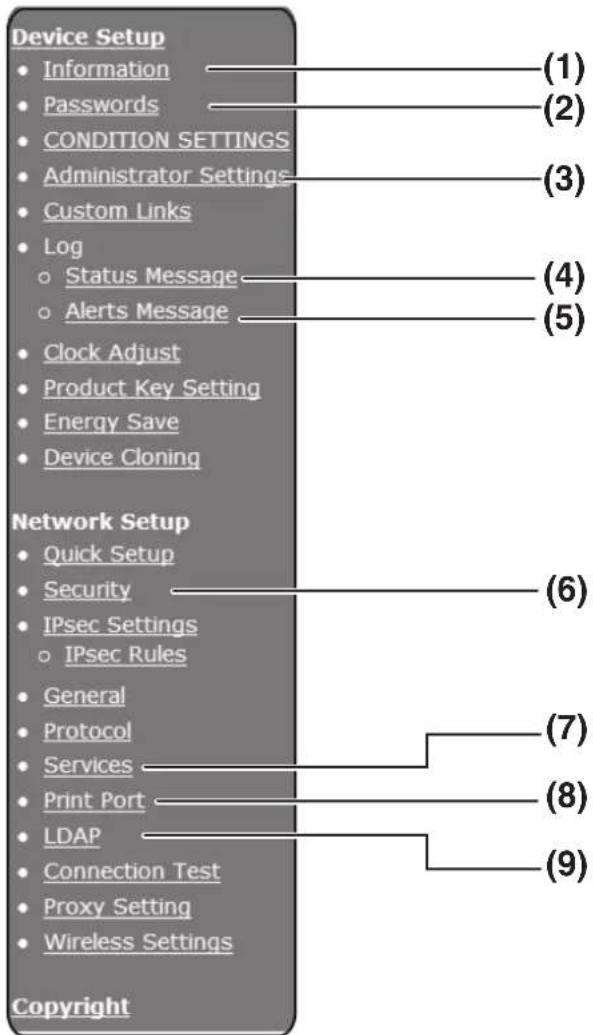
text_image
Device Setup • Information • Passwords • CONDITION SETTINGS • Administrator Settings • Custom Links • Log ○ Status Message ○ Alerts Message • Clock Adjust • Product Key Setting • Energy Save • Device Cloning Network Setup • Quick Setup • Security • IPsec Settings ○ IPsec Rules • General • Protocol • Services • Print Port • LDAP • Connection Test • Proxy Setting • Wireless Settings Copyright(1)Information
Configure machine identification information for the status & alert E-mail function. "INFORMATION SETUP" (p.206)
(2)Passwords
To protect the Web site, the system administrator can establish passwords. Enter a password that you would like to establish and click the [Submit] button.
One password can be established for the administrator and one password can be established for users.
"PROTECTING INFORMATION PROGRAMMED IN THE WEB PAGE ([Passwords])" (p.204)
(3)Administrator Settings
Setting changes can be prohibited and interface settings can be configured.
"ADMINISTRATOR SETTINGS" (p.205)
(4)Status Message
Configure parameters required for sending status messages, such as destination addresses and time schedules.
"STATUS MESSAGE SETUP" (p.207)
(5)Alerts Message
Store destination addresses for alert messages. "ALERTS MESSAGE SETUP" (p.207)
(6)Security
Unused ports can be disabled for greater security and port numbers can be changed.
(7)Services
Configure information concerning the e-mail system.
"SMTP SETUP" (p.206)
(8)Print Port
Configure settings for LPD and Raw print.
(9)LDAP
Configure settings for LDAP.
CONFIGURING SMTP, DNS AND LDAP SERVER SETTINGS
The procedures for using [Quick Setup] are explained here. [Quick Setup] is used to quickly configure only the required settings for "SMTP", "DNS", and "LDAP" servers. These settings are normally configured first.
SMTP server: SMTP is used to transmit e-mail that is sent using Scan to E-mail.
To use these transmission methods, your SMTP server settings must be configured.
DNS server: If you entered a host name in "Primary SMTP Server" or "Secondary SMTP Server" of "SMTP", you must also configure your DNS server settings.
You will also need to configure your DNS server settings if host names will be entered in "Hostname or IP Address" when storing destinations for Scan to Desktop.
LDAP server: If mail addresses are managed on your network by an LDAP server, the e-mail addresses stored in the LDAP server can be used for Scan to E-mail.
To allow the machine to use the e-mail addresses in the LDAP server, the LDAP server settings must be configured in the Web page.
5 Click [Quick Setup] in the menu frame.
![SHARP MX-C300W - Click [Quick Setup] in the menu frame. - 1](/content/2026/06/1243240/images/11ab5ca92963552f1cf25ac06e6fd5ba880d3d1256764ef2dae53b9bcee1c670.jpg)
text_image
Network Setup • Quick Setup • Security • IPsec Settings • IPsec Rules6 Enter the required information in "SMTP", "DNS" and "LDAP".
7 When you have completed all of the entries, click [Submit].
The entries will be stored.
![SHARP MX-C300W - When you have completed all of the entries, click [Submit]. - 1](/content/2026/06/1243240/images/a51ff0dd4ebc2a08e81d3b7dcef389fc0cbe82b16311c5f8c392c485d60fc2a2.jpg)
If you need to configure advanced settings for the SMTP, DNS, and LDAP servers, follow the procedures below.
- Configuring SMTP and DNS server settings Click [Services] in the menu frame to display the services setup screen. Select the desired server and then configure the required parameters for that server.
- Configuring LDAP server settings Click [LDAP] in the menu frame to display the LDAP setup screen. Configure the required parameters.
PROTECTING INFORMATION PROGRAMMED IN THE WEB PAGE ([Passwords])
Passwords can be set (click [Passwords] in the menu frame) to restrict Web page access and protect settings. The administrator must change the password from the factory default setting. The administrator must also take care to remember the new password. The next time the Web pages are accessed, the new password must be entered. A password can be set for the administrator and a password can be set for users.
1 Click [Passwords] in the menu frame.
2 Enter the current password in "Admin Password".
When establishing a password for the first time, enter "admin" in "Admin Password".
![SHARP MX-C300W - PROTECTING INFORMATION PROGRAMMED IN THE WEB PAGE ([Passwords]) - 1](/content/2026/06/1243240/images/b6fd8a571cb20621dc287385838caea55dd228e514d8b9601df200b1431a367f.jpg)
Be sure to enter "admin" in lower case (passwords are case sensitive).
3 Enter passwords in "User Password" and "Admin Password".
- A maximum of 7 characters and/or numbers can be entered for each password (passwords are case sensitive).
- Be sure to enter the same password in "Confirm Password" as you did in "New Password".
4 When you have finished entering all items, click [Submit].
The entered password is stored.
After setting the password, turn the machine power off and then back on.
![SHARP MX-C300W - PROTECTING INFORMATION PROGRAMMED IN THE WEB PAGE ([Passwords]) - 2](/content/2026/06/1243240/images/ffafa04010d0cc76869ed3349da7c0f492cdc063c0562115ead9b65b4285771b.jpg)
When prompted to enter a user name, a user should enter "users" and an administrator should enter "admin" in "User Name". In "Password", the respective password for the entered user name should be entered.
ADMINISTRATOR SETTINGS
The administrator settings are used to prohibit changes to the [Condition Settings] and to configure interface settings.
● "Default settings" : Select the setting for which you wish to prohibit changes.
● "Fusing Control": The temperature of toner fusing is controlled according to the weight of the paper that is used.
● "Interface settings": Enable monitoring of data sent to the network port and set restrictions.
CONFIGURING A SETTING IN THE ADMINISTRATOR SETTINGS
1 Click [Administrator Settings] in the menu frame.
The "Default Settings" screen of the [Administrator Settings] will appear. If you wish to select a setting in the "Default Settings" screen, go to step 3.
2 Click the desired setting, and make a selection for the setting in the screen that appears.
See "ADMINISTRATOR SETTINGS" for descriptions of the settings.
3 Click [Submit] to store the entered information.
ADMINISTRATOR SETTINGS
When "YES, NO" appears in the "Settings" column, "YES" is selected when a checkmark appears in the checkbox of the item, and "NO" is selected when checkmark does not appear.
Default settings
| Item Settings Description | ||
| Prohibit Test Page Printing | YES, NO | This setting is used to prohibit printing of a printer test page. |
| Disable Default Setting Changes | YES, NO | This setting is used to prohibit changes to the default condition settings. |
| Disabling of Clock Adjustment | YES, NO | This setting is used to prohibit changes to the date and time settings. |
Fusing Control
| Item Settings Description | ||
| Fusing Control 60-89 g/m | ^2 ,90-105 g/m ^2 | The temperature of toner fusing is controlled according to the weight of the paper that is used. |
Interface settings
| Item Settings Description | ||
| I/O Timeout | 1-60 - 999 (sec) | During reception of a print job, if remaining data is not received after the time set here elapses, the port connection is broken and the next print job is begun. |
| Port Switching Method Switch at End of Job, Switch after I/O Timeout | Select the method for switching network ports. | |
| Emulation Switching Auto*, | PostScript, PCL | Select the printer language. When [Auto] is selected, the language is automatically selected from the data sent to the printer. Unless errors occur frequently, do not change the setting from [Auto] to another setting. |
E-MAIL STATUS AND E-MAIL ALERT SETTINGS
These functions send information on machine use (print count, copy count, etc.) and error conditions (paper misfeed, out of paper, out of toner, etc.) via e-mail to the administrator of the machine or the dealer.
INFORMATION SETUP
Machine identification information for the status and alert e-mail functions is configured in the "Information Setup" screen. The entered information will be included in status and alert e-mail messages.
1 Click [Information] in the menu frame.
The "Information Setup" screen will appear.
2 Enter the machine information.
3 Click [Submit] to store the entered information.
SMTP SETUP
The Status and alert e-mail functions use SMTP (Simple Mail Transport Protocol) to send e-mail. The following procedure is used to set up the e-mail environment. This must be done by the system administrator or other person familiar with the network.
1 Click [Services] in the menu frame.
The "Services Setup" screen will appear.
2 Click [SMTP].
3 Enter the information required to set up the e-mail environment.
4 Click [Submit] to store the entered information.
STATUS MESSAGE SETUP
Use the status message function to send the current counter information, including the copy count, print count, and total output count, based on the specified schedule. The destinations can be set for administrators and dealers respectively.
To set up the status message, follow these steps.
1 Click [Status Message] in the menu frame.
The "Status Message Setup" screen will appear.
2 Enter the required information, including the destination addresses and time schedule.
3 Click [Submit] to store the entered information.
When the E-mail Status settings are completed, printer count information will be sent periodically by e-mail to the specified e-mail addresses.

If you quit the browser before clicking [Submit], the settings will be cancelled. To send printer information immediately to the specified e-mail addresses, click [Send Now].
ALERTS MESSAGE SETUP
Use the alert message function to send alert information, such as empty toner and paper and trouble including paper misfeeds, to specified destinations when such problems occur. The destinations can be set for administrators and dealers respectively.
To set up the alert message, follow the procedure below.
1 Click [Alerts Message] in the menu frame.
The "Alerts Message Setup" screen will appear.
2 Enter the destination addresses.
3 Click [Submit] to store the entered information.
If these parameters are set, event information for the printer will be transmitted to the specified addresses via E-mail each time a specified event occurs. The meaning of each event item is shown below.
(Example)
Paper Jam: A paper misfeed has occurred.
Toner Low: Toner is low.
Toner Empty: Toner must be added.
Paper Empty: Paper must be loaded.

If you quit the browser before clicking [Submit], the settings will be cancelled.
Information on the Software License for This Product
Software composition
The software included in this product is comprised of various software components whose individual copyrights are held by SHARP or by third parties.
Software developed by SHARP and open source software
The copyrights for the software components and various relevant documents included with this product that were developed or written by SHARP are owned by SHARP and are protected by the Copyright Act, international treaties, and other relevant laws. This product also makes use of freely distributed software and software components whose copyrights are held by third parties. These include software components covered by a GNU General Public License (hereafter GPL), a GNU Lesser General Public License (hereafter LGPL) or other license agreement.
Obtaining source code
Some of the open source software licensors require the distributor to provide the source code with the executable software components. GPL and LGPL include similar requirements.
For information on obtaining the source code for the open source software and for obtaining the GPL, LGPL, and other license agreement information, visit the following website:
http://sharp-world.com/products/copier/source/download/index.html
We are unable to answer any questions about the source code for the open source software. The source code for the software components whose copyrights are held by SHARP is not distributed
TRADEMARK ACKNOWLEDGMENTS
The following trademarks and registered trademarks are used in conjunction with the machine and its peripheral devices and accessories.
- Micro® Windows®, Windows® XP, Windows Server® 2003, Windows Vista®, Windows Server® 2008, Windows® 7, Windows® 8, Windows Server® 2012 and Internet Explorer® are either registered trademarks or trademarks of Microsoft Corporation in the United States and/or other countries.
- Intel ^® is a trademark of Intel Corporation in the U.S. and/or other countries.
- Adobe, the Adobe logo, PostScript, Acrobat, the Adobe PDF logo, Reader, and Flash are either registered trademarks or trademarks of Adobe Systems Incorporated in the United States and/or other countries.
- Apple, Macintosh, Mac OS, AppleTalk, EtherTalk and LaserWriter are registered trademarks of Apple Inc.
- Netscape Navigator is a trademark of Netscape Communications Corporation.
- PCL is a registered trademark of the Hewlett-Packard Company.
- IBM, PC/AT, and PowerPC are trademarks of International Business Machines Corporation.
- Sharpdesk is a trademark of Sharp Corporation.
- All other trademarks and copyrights are the property of their respective owners.
Candid and Taffy are trademarks of Monotype Imaging, Inc. registered in the United States Patent and Trademark Office and may be registered in certain jurisdictions. CG Omega, CG Times, Garamond Antiqua, Garamond Halbfett, Garamond Kursiv, Garamond and Halbfett Kursiv are trademarks of Monotype Imaging, Inc. and may be registered in certain jurisdictions. Albertus, Arial, Coronet, Gill Sans, Joanna and Times New Roman are trademarks of The Monotype Corporation registered in the United States Patent and Trademark Office and may be registered in certain jurisdictions. Avant Garde, ITC Bookman, Lubalin Graph, Mona Lisa, Zapf Chancery and Zapf Dingbats are trademarks of International Typeface Corporation registered in the United States Patent and Trademark Office and may be registered in certain jurisdictions. Clarendon, Eurostile, Helvetica, Optima, Palatino, Stempel Garamond, Times and Univers are trademarks of Heidelberger Druckmaschinen AG, which may be registered in certain jurisdictions, exclusively licenced through Linotype Library GmbH, a wholly owned subsidiary of Heidelberger Druckmaschinen AG. Apple Chancery, Chicago, Geneva, Monaco and New York are trademarks of Apple Inc. and may be registered in certain jurisdictions. HGGothicB, HGMinchoL, HGPGothicB and HGPMinchoL are trademarks of Ricoh Company, Ltd. and may be registered in some jurisdictions. Wingdings is a registered trademark of Microsoft Corporation in the United States and other countries. Marigold and Oxford are trademarks of Arthur Baker and may be registered in some jurisdictions. Antique Olive is a trademark of Marcel Olive and may be registered in certain jurisdictions. Hoefler Text is a trademark of Johnathan Hoefler and may be registered in some jurisdictions. ITC is a trademark of International Typeface Corporation registered in the United States Patent and Trademark Office and may be registered in certain jurisdictions. Agfa is a trademark of the Agfa-Gevaert Group and may be registered in certain jurisdictions. Intellifont, MicroType and UFST are trademarks of Monotype Imaging, Inc. registered in the United States Patent and Trademark Office and may be registered in certain jurisdictions. Macintosh and TrueType are trademarks of Apple Inc. registered in the United States Patent and Trademark Office and other countries. PostScript is a trademark of Adobe Systems Incorporated and may be registered in some jurisdictions. HP, PCL, FontSmart and LaserJet are trademarks of Hewlett-Packard Company and may be registered in some jurisdictions. The Type 1 processor resident in Monotype ImagingAfs UFST product is under licence from Electronics For Imaging, Inc. All other trademarks are the property of their respective owners.
OPERATION GUIDE
SHARP®
SHARP CORPORATION