
O!Play BDS-700 - Media player ASUS - Free user manual and instructions
Find the device manual for free O!Play BDS-700 ASUS in PDF.


| Product Type | Blu-ray/HD Media Player |
| Model Number | BDS-700 (also BDS-500) |
| Dimensions | 430 mm x 259.8 mm x 58 mm |
| Net Weight | 2.7 kg (excluding power cord) |
| Power Supply | 100-240 V AC, 50/60 Hz |
| Power Consumption | 28 W (BDS-700) |
| Operating Temperature | 0°C to 40°C |
| Operating Humidity | 10% to 85% R.H. |
| Disc Playback | BD-ROM, BD-RE SL/DL, BD-R SL/DL, DVD-Video SL/DL, DVD+R/RW, DVD-R/RW, CD-DA, CD-R/RW |
| Video File Formats | AVI, DivX, MKV, TS, MTS, MPG, VOB, MPEG, WMV/ASF, MOV, MP4, 3GP, M4V, FLV, RMVB |
| Audio File Formats | MP3, WMA, FLAC, AAC, OGG, WAV, AC3, MKA, AIFF, M4A, DTS |
| Picture File Formats | BMP, JPG, JPEG, PNG, GIF, TIF, TIFF |
| Subtitle Formats | PGS, Sub+IDX, SMI, SRT, SSA |
| Video Output | HDMI (x2 for BDS-700), Component, Composite; Resolutions up to 1080p |
| Audio Output | HDMI, Optical, Coaxial, Analog stereo; Supports Dolby TrueHD, DTS-HD |
| Network Connectivity | Ethernet 10/100, Built-in Wi-Fi 802.11b/g/n (BDS-700) |
| USB Ports | 1 front, 1 rear; up to 1A each |
| Built-in Storage | 2 GB (for BD-LIVE and firmware) |
| DLNA Certification | Yes |
| Key Features | BD-LIVE, Blu-ray 3D, DivX Plus HD, Internet services (YouTube, Picasa, Flickr, Internet Radio), Smartphone remote control |
| Safety Precautions | Do not expose to rain or moisture; do not block ventilation; laser class; refer servicing to qualified personnel |
| Cleaning Instructions | Use a soft dry cloth; do not use alcohol, benzine, or thinners |
| Repairability | No user-serviceable parts inside; refer to qualified service personnel |
| Warranty | See included warranty card |
Frequently Asked Questions - O!Play BDS-700 ASUS
User questions about O!Play BDS-700 ASUS
0 question about this device. Answer the ones you know or ask your own.
Ask a new question about this device
Download the instructions for your Media player in PDF format for free! Find your manual O!Play BDS-700 - ASUS and take your electronic device back in hand. On this page are published all the documents necessary for the use of your device. O!Play BDS-700 by ASUS.
USER MANUAL O!Play BDS-700 ASUS
Blu-ray/HD Media Player
BDS-700/BDS-500
Owner's Manual

natural_image
Line drawing of a rectangular electronic device with ports and control buttons (no text or symbols)
Copyright © 2011
All Rights Reserved
O!PLAY Blu-ray/HD Media Player BDS-700/BDS-500 Owner's Manual
Original Issue: August 2011
Changes may be made periodically to the information in this publication without obligation to notify any person of such revision or changes. Such changes will be incorporated in new editions of this manual or supplementary documents and publications. ASUS makes no representations or warranties, either expressed or implied, with respect to the contents hereof and specifically disclaims the implied warranties of merchantability or fitness for a particular purpose.
Record the model number, serial number, purchase date, and place of purchase information in the space provided below. The serial number and model number are recorded on the label affixed to your player. All correspondence concerning your unit should include the serial number, model number, and purchase information.
O!PLAY Blu-ray/HD Media Player BDS-700/BDS-500
Model Number : ____
Serial Number: ____
Purchase Date: ____
Place of Purchase: ____
All trademarks and registered trademarks are the properties of their respective companies.
1
NOTICE
Cautions and Warnings
WARNING: TO PREVENT FIRE OR ELECTRIC SHOCK HAZARD, DO NOT EXPOSE THIS PRODUCT TO RAIN OR MOISTURE.
WARNING: Do not install this equipment in a confined space such as a book case or similar unit.
CAUTION: Do not block any ventilation openings. Install in accordance with the manufacturer's instructions. Slots and openings in the system are provided for ventilation and to ensure reliable operation of the product and to protect it from over heating. The openings shall be never be blocked by placing the product on a bed, sofa, rug or other similar surface. This product shall not be placed in a built-in installation such as a bookcase or rack unless proper ventilation is provided or the manufacturer's instruction has been adhered to.
■ Safety Information


CAUTION: TO REDUCE THE RISK OF ELECTRIC SHOCK. DO NOT REMOVE COVER (OR BACK). NO USER SERVICEABLE PARTS INSIDE. REFER SERVICING TO QUALIFIED SERVICE PERSONNEL.

This lightning flash with arrowhead symbol within an equilateral triangle is intended to alert the user to the presence of uninsulated dangerous voltage within the product's enclosure that may be of sufficient magnitude to constitute a risk of electric shock to anyone.

The exclamation point within an equilateral triangle is intended to alert the user to the presence of important operating and maintenance (servicing) instructions in the literature accompanying the product.
■ Laser compliance statement
The optical drive in this player is a laser product. The optical drive's classification label (shown below) is located on the drive.
CAUTION: CLASS 3B VISIBLE OR INVISIBLE LASER RADIATION WHEN OPEN. DO NOT STARE INTO BEAM.
■ Important Safety Instructions
- Read these instructions.
- Keep these instructions.
- Heed all warnings.
- Follow all instructions.
- Do not use this apparatus near water.
- Clean only with dry cloth.
- Do not block any ventilation openings. Install in accordance with the manufacturer's instructions.
- Do not install near any heat sources such as radiators, heat registers, stoves, or other apparatus (including amplifiers) that produce heat.
- Do not defeat the safety purpose of the polarized or grounding-type plug. A polarized plug has two blades with one wider than the other. A grounding type plug has two blades and a third grounding prong. The wide blade or the third prong are provided for your safety. If the provided plug does not fit into your outlet, consult an electrician for replacement of the obsolete outlet.
- Protect the power cord from being walked on or pinched particularly at plugs, convenience receptacles, and the point where they exit from the apparatus.
- Only use attachments/accessories specified by the manufacturer.
iv
- Use only with the cart, stand, tripod, bracket, or table specified by the manufacturer, or sold with the apparatus. When a cart is used, use caution when moving the cart/apparatus combination to avoid injury from tip-over.

- Unplug this apparatus during lightning storms or when unused for long periods of time.
- Refer all servicing to qualified service personnel. Servicing is required when the apparatus has been damaged in any way, such as power-supply cord or plug is damaged, liquid has been spilled or objects have fallen into the apparatus, the apparatus has been exposed to rain or moisture, does not operate normally, or has been dropped.
- The apparatus shall not be exposed to dripping or splashing and that no object filled with liquids, such as vases, shall be placed on the apparatus.

Warning: To reduce the risk of fire or electric shock, do not expose this apparatus to rain or moisture.
- The player shall be connected to a mains socket outlet with a protective earthing connection.
- An appliance coupler is used as the disconnect device, the disconnect device shall remain readily operable.
■ FCC Statement

This device complies with Part 15 of the FCC Rules. Operation is subject to the following two conditions:
(1) This device may not cause harmful interference.
(2) This device must accept any interference received, including interference that may cause undesired operation.
Warning! This equipment has been tested and found to comply with the limits for a Class B digital device, pursuant to Part 15 of the FCC Rules. These limits are designed to provide reasonable protection against harmful interference when the equipment is
operated in a commercial environment. This equipment generates, uses and can radiate radio frequency energy and, if not installed and used in accordance with the instructions, may cause harmful interference to radio communications. Operation of this equipment in a residential area is likely to cause harmful interference in which case the user will be required to correct the interference at his own expense.
Contents
1
NOTICE
Cautions and Warnings iii
Safety Information iii
Laser compliance statement iii
Important Safety Instructions iii
FCC Statement iv
2
Introductions
playable Discs 1
File Compatibility 2
3
Parts And Control
Opening the Box 4
The Remote Control 5
The Blu-ray/HD Media Player 7
Front Panel 7
LCD Display 7
Rear Panel 8
4
Installation
Connecting the Blu-ray/HD Media Player 9
Connecting the player to your display 9
Connecting your player to your AVR 10
Connecting a USB device 11
Connecting the AC power cord 11
Preparing the Remote Control 12
Network Connections 12
Wired Network Connection 12
Wireless Network Connection 12
5
Getting Started
Easy Setup Wizard 14
Network Setup 15
Wired Network Setup 15
Wireless Network Setup 16
6
General Operation
Home Menu Overview 17
Playing BD-Video/DVD-Video/Audio CD Disc 17
Enjoying BD-LIVE 17
Enjoying Blu-ray 3D 17
Region Code 18
Playing Video Files 18
To access video files in the Video menu: 18
File Folder Playback 18
Playing Photo Files 18
To access photo files in the Photo menu: 18
Playing Music/Audio Files 19
To access music files in the Music menu: 19
Accessing Internet Services 20
Youtube 20
Internet Radio 20
Picasa 20
Flickr 21
Option Menu 21
Under Disc, Video and Music Playback 21
Under Photo Playback 22
7
Advanced Operation
Special functions on Remote Control 23
DLNA operation 25
Setup Menu 25
Playback 25
Video 26
Audio 26
Network 27
8
Appendix
Maintenance 28
Notes on Discs 28
Handling the Unit 28
Updating the Firmware 28
Manual Update 28
Online Update 28
Troubleshooting 30
Parental Control Area Code 31
Trademarks and Licenses 32
Video Output Resolution 34
Audio Output Resolution 35
Speaker Setup (Under PCM Multi-channel mode) 36
File Format Support and Limitation 37
Product Specifications 41
Important Information Relating to Network Service42
Internet Radio Service Notice 42
Open Source Software Notice 42
2
Introductions
playable Discs
Type Disc Logo Type Detail
| Blu-Ray Disc* |  | BD-Video |
| BD-R, BD-RE,BD-ROM | ||
 | 3D BD-Video | |
| DVD Disc |  | DVD-Video |
    | DVD-ROM, DVD+R, DVD-R, DVD+RW, DVD-RW | |
| CD Disc |  | Audio CD |
 | CD-R, CD-RW, CD-ROM |

Notes:
- Customers should note that permission is required in order to download MP3 / WMA files and music from the Internet. ASUS has no right to grant such permission. Permission should always be sought from the copyright owner.
- Since the Blu-ray Disc specifications are new and evolving, some discs may not be playable depending on the disc type and the version.
- Depending on the recording software & the finalization, some recorded discs (CD-R/RW, DVD±R/RW, BD-R/RE) may not be playable.
-
BD-R/RE, DVD±R/RW and CD-R/RW discs recorded using a personal computer or a DVD or CD Recorder may not play if the disc is damaged or dirty, or if there is dirt or condensation on the player's lens.
-
If you record a disc using a personal computer, even if it is recorded in a compatible format, there are cases in which it may not play because of the settings of the application software used to create the disc. (Check with the software publisher for more detailed information.)
- This player requires discs and recordings to meet certain technical standards in order to achieve optimal playback quality.
- Depending on the conditions of the recording equipment or the CD-R/RW (or DVD±R/RW) disc itself, some CD-R/RW (or DVD±R/RW) discs cannot be played on the unit.
- Pre-recorded DVDs are automatically set to these standards. There are many different types of recordable disc formats (including CD-R containing MP3 or WMA files) and these require certain pre-existing conditions to ensure compatible playback.
File Compatibility

Note: See "File Format Support and Limitation" on page 37 for more details on limitations.
USB External Storage
Supported: USB Mass storage class devices. Max. 1 Ampere current supply for each USB port.
File System
Supported: FAT16, FAT32, NTFS, EXT3.
AV File Formats
Supported: Avi, DivX, Mkv, Ts (m2t), Mt2s (.mts), Mpg, Vob, Mpeg, Wmv/Asf, Mov, Mp4, 3gp, M4v, Flv, Rmvb
Audio File Formats
Supported: Mp3, Wma, Flac, Aac, Ogg, Wav, Ac3, Mka, Aiff, M4a, Dts
Picture File Formats
Supported: Bmp, Jpg, Jpeg, Png, Gif, Tif, Tiff
Subtitle File Formats
Supported: PGS, Sub+IDX, Smi, Srt, Ssa
ISO file and Others
Supoprted: BD-ISO, DVD-ISO (vob+ifo), file folder playback as ISO with BD/DVD folder (BDMV/Video_TS folder inside)
Disc Support BD Media
Supported: BD-Rom, BD-RE SL, DL, BD-R SL, DL BD Profile supported: 1.0/1.1/2.0/5.0 (3D)
Disc Support DVD Media
Supported: DVD-Video SL/DL, DVD-R DL, DVD-RW, DVD+R/DVD+R DL
Disc Support CD Media
Supported: CD-DA, CD-R/CD-RW
Others
Supported: AVCHD, BD managed copy disc
AVCHD
AVCHD (Advanced Video Codec High Definition)
- This player can playback AVCHD format discs. These discs are normally recorded and used in camcorders.
- The AVCHD format is a high definition digital video camera format.
- The MPEG-4 AVC/H.264 format is capable of compressing images at higher efficiency than that of the conventional image compressing format.
- Some AVCHD discs use the "x.v.Color" format.
- This player can playback AVCHD discs using "x.v.Color" format.
- Some AVCHD format discs may not play depending on the recording condition.
- AVCHD format discs need to be finalized.
- "x.v.Color" offers a wider color range than normal DVD camcorder discs.
AVCHC and AVCHD logo are trademarks of Matsushita Electronic Industrial Co., Ltd. And Sony Corporation.
DivX® Plus HD
DIVX ^+ HD
DivX Plus HD was launched in 2009 and is the brand name for the file type that DivX, Inc. has chosen for their high definition video format. DivX Plus HD files consist of high definition H.264/MPEG-4 AVC video with surround sound Advanced Audio Coding (AAC) audio, wrapped up in the open-standard Matroska container, identified by the .mkv file extension. DivX Plus HD files leverage and extend on Matroska's ability to support multiple language tracks, subtitles, chapters, and additional bonus content.
DivX® Plus HD Profile
DivX has defined profiles which are subsets of MPEG-4/AVI and H264/MKV standards. Because the grouping is a specific subset of what is in the standards, there are certification processes for each of the profiles that device manufacturers must follow.
All DivX Plus HD certified devices bearing a DivX Plus logo will adhere to the profile outlined in the table below, as would any tools that support the DivX profiles. DivX Plus HD devices are also tested for compliance against the DivX HD 1080p profile for MPEG4/AVI certification in order to maintain backwards compatibility.
| Profile | +HD | 1080p |
| Codec MPEG4 part 10 (H.264) | ||
| File Extension(s) .mkv | ||
| Max. resolution (px×px×Hz) | 1920×1080×30, 1280×720×60 | |
| Max VBV bit rate (bit/s) VCL: 20000000, NAL: 24000000 | ||
| Min. VBV buffer size (KiB) | VCL: 3200, NAL: 3840 | |
| Macroblocks (per second) | 244800 | |
| Subtitles | 8×SRT, | SSA |
| Audio | 8×MP3,AC3,AAC | |
Compatibility Note
Because BD-ROM is a new format, certain disc, digital connection and other compatibility issues are possible. If you experience compatibility problems, please contact ASUS Customer Service Center.
Viewing high-definition content and upconverting standard DVD content may require a HDMI-capable input or HDCP capable DVI input on your display device.
Some BD-ROM and DVD discs may restrict the use of some operation commands or features. Dolby TrueHD, Dolby Digital Plus and DTSHD are supported with maximum 7.1 channels if you use HDMI connection for the audio output of the unit.
3
Parts And Control
Opening the Box
Please check if the following items are inside the box:
Blu-ray/HD Media Player

natural_image
Line drawing of a rectangular electronic device with ports and a label '15' on the front panel (no text or symbols beyond basic labels)Power Cord
natural_image
Line drawing of a coiled cable with two connectors and a power plug (no text or symbols)Remote Control
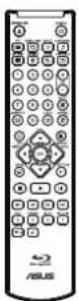
AAA Battery x 2
Audio/Video Cable

natural_image
Illustration of a coiled cable with multiple connectors (no text or symbols)Owner's Manual

Quick Start Guide
Warranty Card

The Remote Control
The available functions of the remote control differ depending on the media/disc inserted or situation.
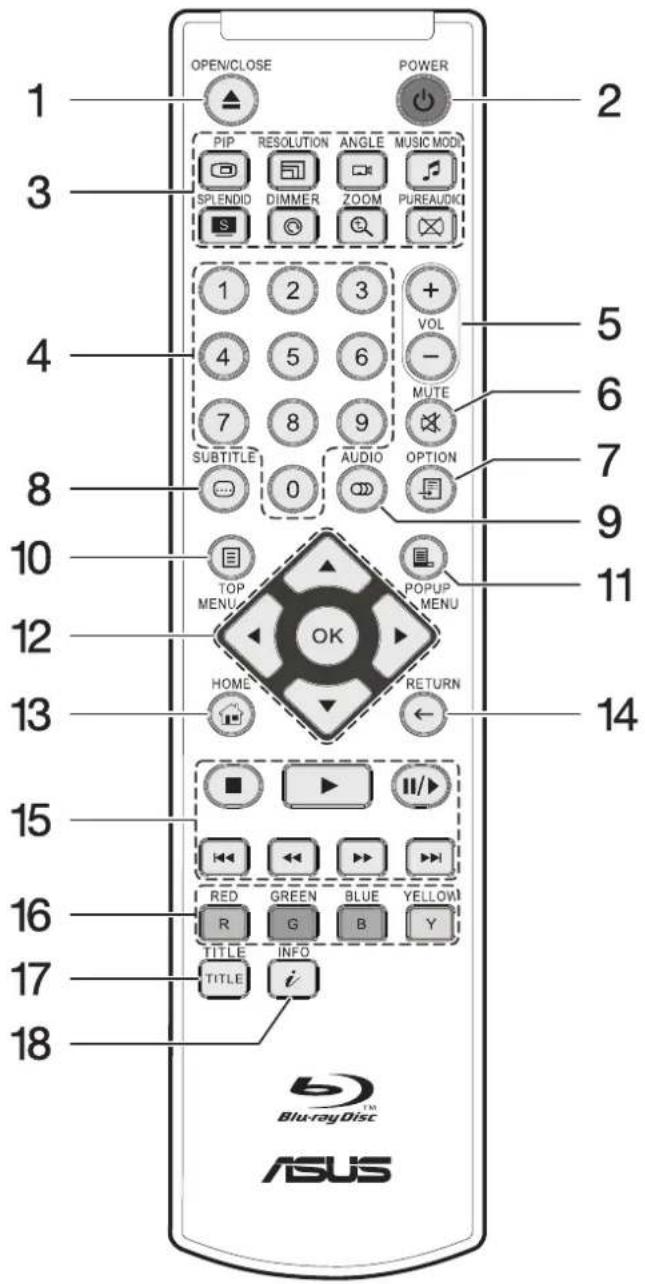
No. Icon Descriptions
1 [OPEN/CLOSE] Open or closes the disc tray.
2 [POWER] Toggles between power on and standby.
3 [PIP] Turns on/off Bonus view
PIP/SAP. See "PIP" on page 23 for more information.
No. Icon Descriptions
 | [RESOLUTION] Switch output resolution. See “Resolution” on page 23 for more information. |
| [ASH4] | [ANGLE] Changes camera angle. See “Angle” on page 23 for more information. |
 | [MUSIC MODE] Select EQ modes. See “Music Mode” on page 23 for more information. |
| [HOKC] | [SPLENDID] Selects scene modes. See “Splendid” on page 23 for more information. |
 | [DIMMER] Turns on/off theLCD Display. See “Dimmer” on page 23 for more information. |
| [ZS0V] | [ZOOM] Change zoom in and out level of display frame. See “Zoom” on page 23 for more information. |
| [WD61] | [PURE AUDIO] Turns off video output (HDMI may output black). See “Pure Audio” on page 24 for more information. |
| 4 0~9 Numeric buttons: Enters the title/chapter numbers, etc. | |
| 5 [VOL][T56X] | just the volume of the display. |
6 [MUT] | Turns off audio output. |
| 7 [OPTI][TWX7] | Turns on the option menu. Different file formats have different options. |
8 [SUB] | Change or turn off subtitle language. Press this button 2 times within two (2) seconds to switch between subtitle tracks when viewing DivX encoded video. |
| 9 [AUD][BDY6] | Changes audio languages or channels. |
10 [TOP] | Invoke Blu-ray top menu or DVD title menu. |
| 11 [POP][T774X] | Invoke Blu-ray Pop up menu or DVD title menu. |
No. Icon Descriptions
12 Move the highlight to select

displayed item.
Note: The up, down, left and right direction keys will be represented by ,,, symbols in the instructions.

Confirmation of selected item in menu.
13 [HOME] Go to Home Menu of the player.
14 [RETURN] Back to previous menu or mode.
15 [STOP] Stop playback.

[PLAY] Play selected media.

[PAUSE] Pause selected media.

[PREVIOUS] Skip to previous track of chapter.

[REVERSE] Fast reverse playback.

[FORWARD] Fast forward playback.

[NEXT] Skip to next track or chapter.
16 Shortcut keys for interactive

functions based on contents.
17 [TITLE] Only applicable with
DivX file format. During playback of a file with multiple titles or editions, pressing TITLE button will start playback of the next title or edition
18 [INFO]. Show media playback
status informations.
The Blu-ray/HD Media Player
Front Panel
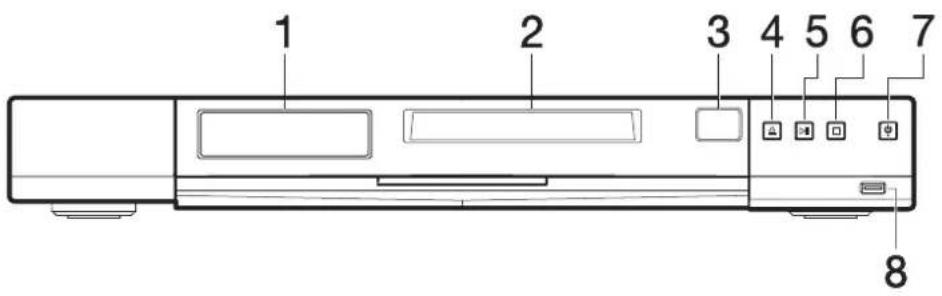
No. Item Description
1 LCD Display Displays status of the player.
2 Disc Tray Place disc on the tray to play.
3 IR Receiver For receiving signals from the remote control.
4 Eject Eject the disc from the player.
5 Play / Pause Start and pause playback.
6 Stop Stop playback.
7 Power Switch / Turn player on or off.
Power Indicator Light Blue: On
Red: Standby
8 USB Port Connects to an external device with USB connector like an external hard drive, flash drive, or USB Wi-Fi network adapter (BDS-500 only). Maximum current output is 1 Ampere.
LCD Display
| Icons Descriptions Icons Descriptions | |||
| REPEAT | Lights up when user enables the Repeat function. See “Under Disc, Video and Music Playback” on page 21 for more information. | CD | Lights up when Audio CD is present. |
| RANDOM | Lights up when user enables the Random function. See “Under Disc, Video and Music Playback” on page 21 for more information. | USB | Lights up when an USB storage device is recognized. |
 | Lights up during playback. Lights up when a HDMI device is detected. | ||
| Lights up when a disc is present. Lights up during pause. | |||


Lights up when BD-Video is present.

DIGITAL

DIGITAL 5.1CH
Lights up when system detects Dolby Digital or Dolby Digital 5.1/6.1 audio file and starts playback.


Lights up when DVD-Video is present.

Lights up when system detects DTS, DTS 5.1 or DTS 7.1 audio file and starts playback.
■ Rear Panel
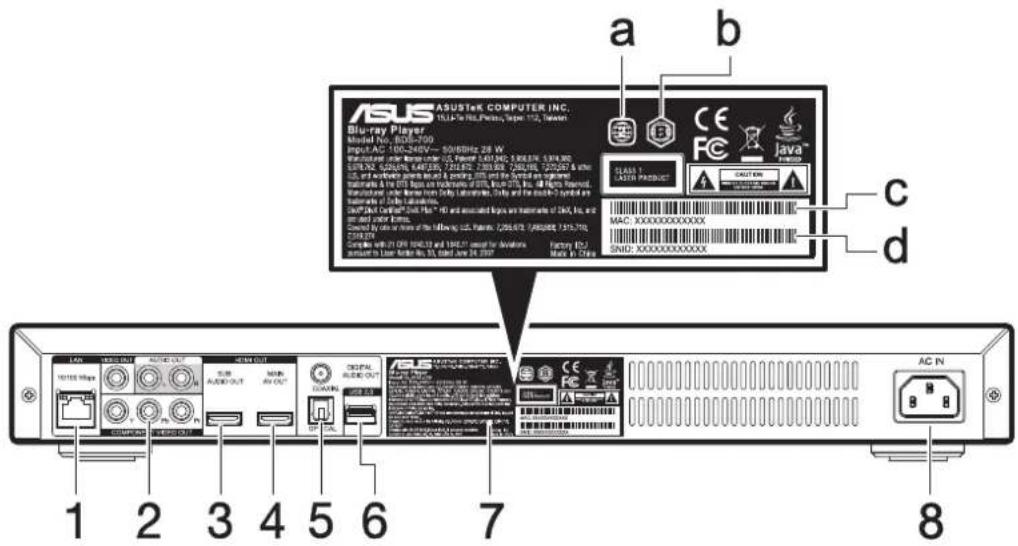
No. Item Description
1 LAN Port Connects to a LAN cable.
2 Component and Composite Ports Y, Pb, Pr, Yellow, Red and White connectors for video and audio left/right output.
3 HDMI Sub Audio Out Connects to Audio only HDMI input devices. Available only for BDS-700 model.
4 Main AV Out Connects to HDMI input devices such as LCD TVs or Audio Video Receiver (AVR).
5 Audio Ports Digital audio output ports for coaxial and optical input devices such as surround sound systems.
6 USB Port Connects to an external device with USB connector like an external hard drive, flash drive, or USB Wi-Fi network adapter (BDS-500 only). Maximum current output is 1 A.
7 Label Contains the following:
a. DVD region code
b. BD region code
c. MAC address of your player
d. Serial number of your player
8 AC-In Power cable which connects to a wall outlet.
4
Installation
Connecting the Blu-ray/HD Media Player

Tip: Do not plug the AC power cord into the power socket until you have made all the necessary connections.

Note: The model used in the illustrations below is BDS-700. BDS-500 has only one HDMI port (A/V out).
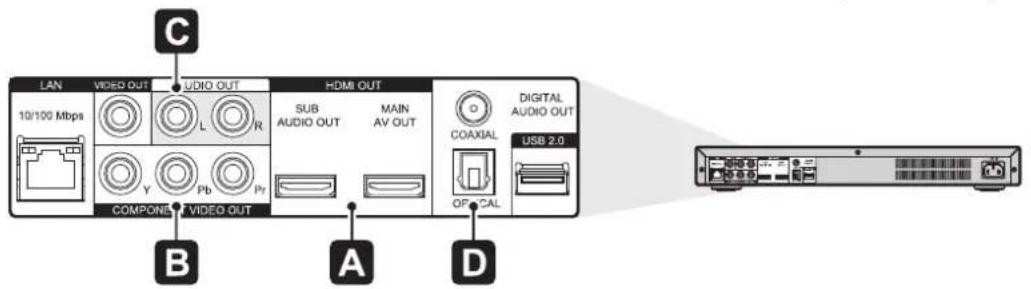
■ Connecting the player to your display
HDMI connection (Direct to Display):

flowchart
graph LR
    A["Sub AUDIO OUT"] --> B["HDMI OUT"]
    C["MAIN AV OUT"] --> D["HDMI OUT"]
    E["AV OUT"] --> F["HDMI OUT"]
    G["Computer"] --> H["HDMI IN"]
    I["HDMI cable"] --> J["Switch"]
HDMI connection (Through AVR):
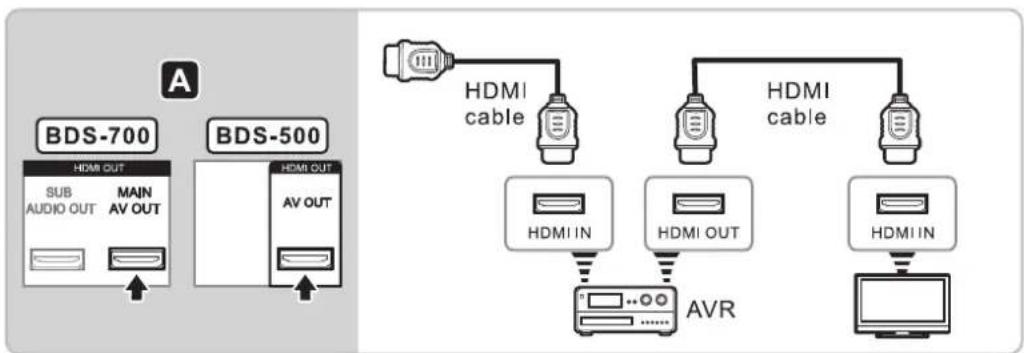
flowchart
graph TD
    A["Sub AUDIO OUT"] --> B["AV OUT"]
    C["BDS-700"] --> D["HDMI OUT"]
    E["BDS-500"] --> F["HDMI OUT"]
    G["AV OUT"] --> H["HDMI OUT"]
    I["HDMI IN"] --> J["AVR"]
    K["HDMI OUT"] --> L["AVR"]
    M["HDMI IN"] --> N["AVR"]
    O["HDMI cable"] --> P["AVR"]
    Q["HDMI cable"] --> R["AVR"]

Note: If your AVR does not support HDMI version 1.4, the 3D-BD contents may not be displayed. To remedy this problem, see "Separated HDMI audio and video connection (BDS-700 only)" on page 11.
Component display with audio connection:

Composite display with audio connection:
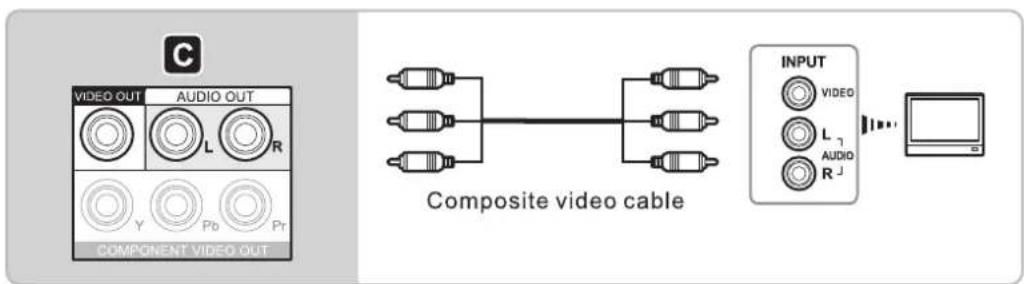

Note: Component and Composite video output resolution might be restricted depending on the contents. See page 35 for more information.
■ Connecting your player to your AVR
HDMI connection
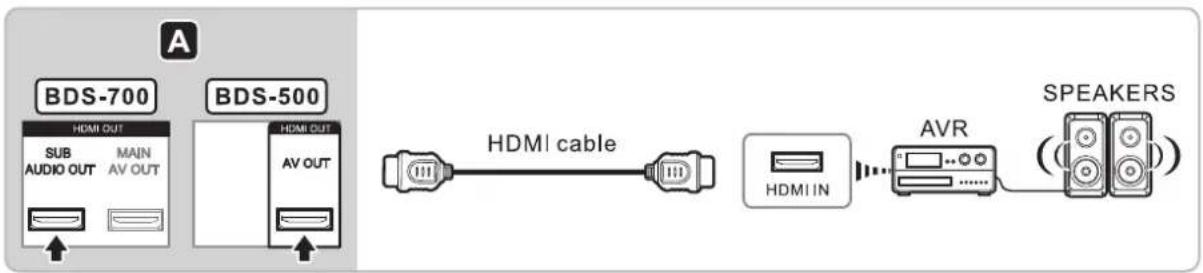
flowchart
graph LR
    A["BDS-700"] -->|HDMI OUT| B["Sub AUDIO OUT"]
    A -->|MAIN AV OUT| C["HDMI OUT"]
    D["BDS-500"] -->|AV OUT| E["HDMI OUT"]
    F["HDMI cable"] --> G["HDMI IN"]
    G --> H["AVR"]
    H --> I["SPEAKERS"]
SPDIF Digital audio connection
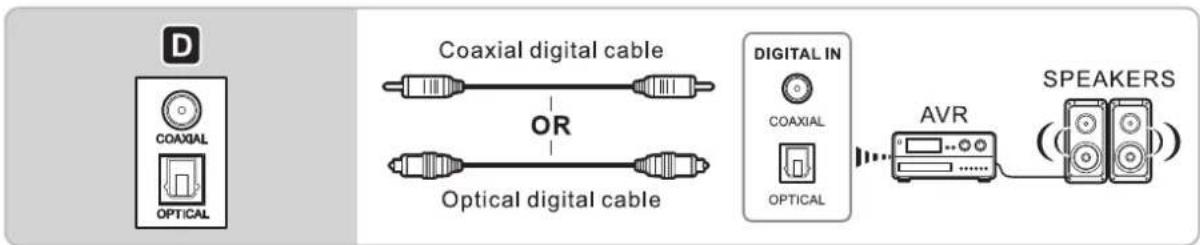
Analog audio connection

Separated HDMI audio and video connection (BDS-700 only)
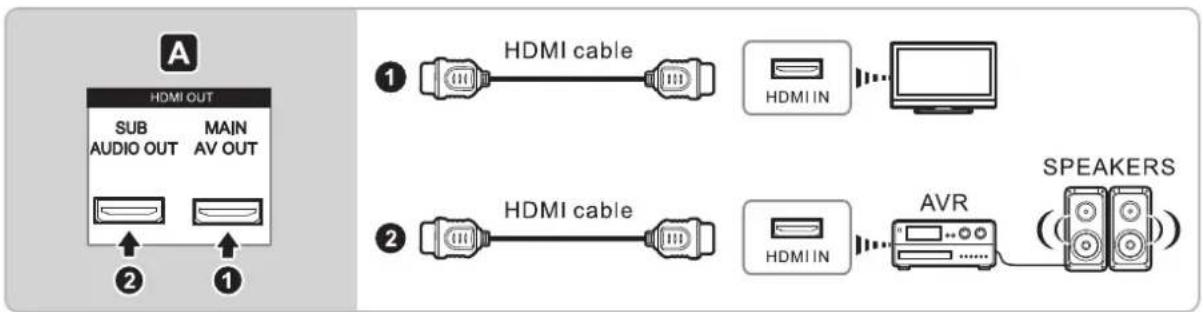
■ Connecting a USB device
You can connect a USB device (external hard drive, digital video, flash drive, etc.) to your player.
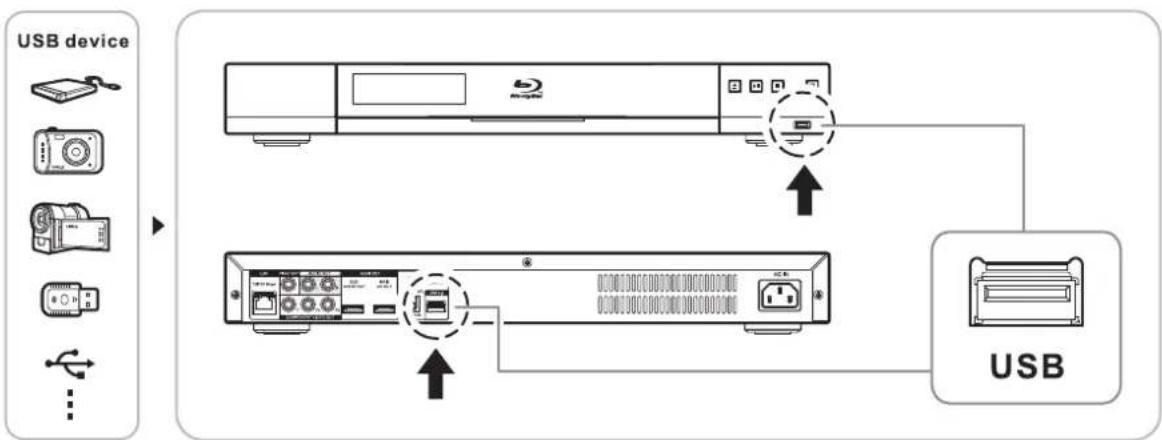
flowchart
graph TD
    A["USB device"] --> B["CD-ROM"]
    B --> C["USB"]
    style A fill:#f9f,stroke:#333
    style B fill:#ccf,stroke:#333
    style C fill:#cfc,stroke:#333
■ Connecting the AC power cord
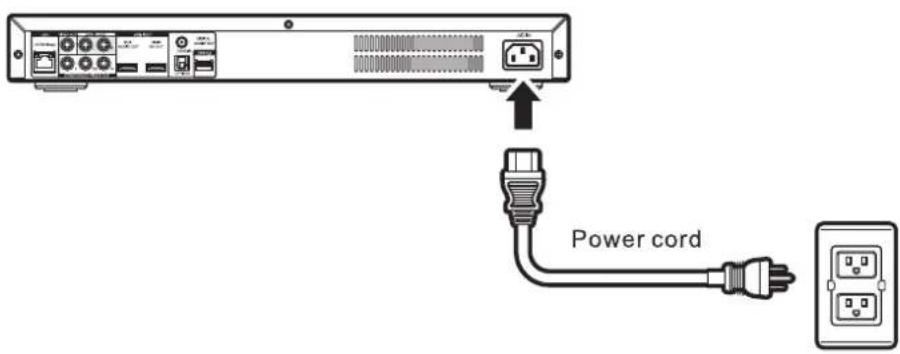
Preparing the Remote Control
Insert two (2) size AAA batteries by matching the + and - ends on the batteries to the markings inside the battery compartment.

natural_image
Diagram showing a remote control device with battery modules and a magnified view of its internal components (no text or symbols present)Network Connections
■ Wired Network Connection
For wired network connection, connect one end of the LAN cable (RJ45) to the router and the other end to your player.
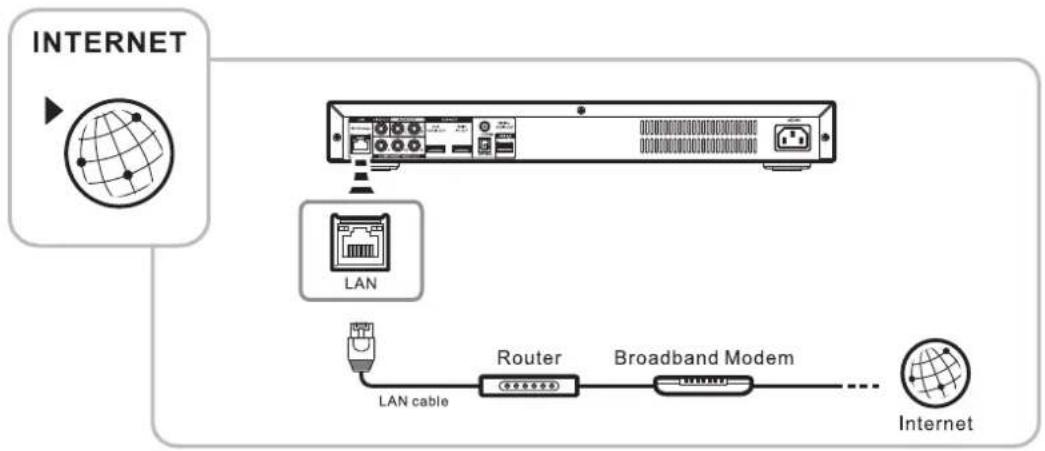
flowchart
graph TD
    A["INTERNET"] --> B["LAN"]
    B --> C["LAN cable"]
    C --> D["Router"]
    D --> E["Broadband Modem"]
    E --> F["Internet"]
■ Wireless Network Connection
Your player is also equipped with a wireless LAN which can connect to a wireless router.

Notes: The model BDS-700 comes with a wireless capability built into the player. The model BDS-500 have a recommended optional USB wireless adapter which you can purchase from authorized ASUS dealer. The recommended wireless USB adapter for the BDS-500 are ASUS Wireless USB Adapter USB-N10 and USB-N13.
When connecting the wireless USB adapter to the BDS-500, you can either connect it to the front or back USB connectors.


Note: See user's manual of your router and/or broadband modem for more information on how to connect to the internet.
5
Getting Started
Easy Setup Wizard
After making sure that you have properly set up the all the required connections, you can now power on the player.
If this is the first time to power on the system, do the following.
- Turn on your TV.
- Turn on your player by pressing the power. The power indicator lights blue indicating that the player is turned on or has power.
- Point the remote control at the player and press POWER. The Easy Setup Wizard screen will be displayed. Press Run to continue or Exit to leave the Setup Wizard.

- Select your preferred language for the onscreen display menu and press Next.

- Select the TV system of your output display and press Next.

- Select the output resolution and press Next.

- Auto (HDMI Only) - Choose this option if your player is connected to an HDMI output device.
-
480i... 1080p - Outputs 480i to 1080p video signals. Please refer to your display device manual for the resolutions supported.
-
Select the aspect ratio of your screen and press Next.

- 4:3 Letter Box - Select when a standard 4:3 TV is connected. Displays theatrical images with masking bars above and below the picture.
- 4:3 Pan Scan - Select when a standard 4:3 TV is connected. Displays pictures cropped to fill your
TV screen. Both sides of the pictures are cut off.
• 16:9 Wide - Select when a 16:9 wide TV is connected. The 4:3 picture is adjusted horizontally (in a linear proportion) to fill the entire screen.
- 16:9 Wide Auto - Select when a 16:9 wide TV is connected. The 4:3 picture is displayed with an original 4:3 aspect ratio, with black bars appearing at the left and right sides of the pictures.

Note: Please refer to your display device manual for the aspect ratios supported.
- Select the audio setting and press Next.
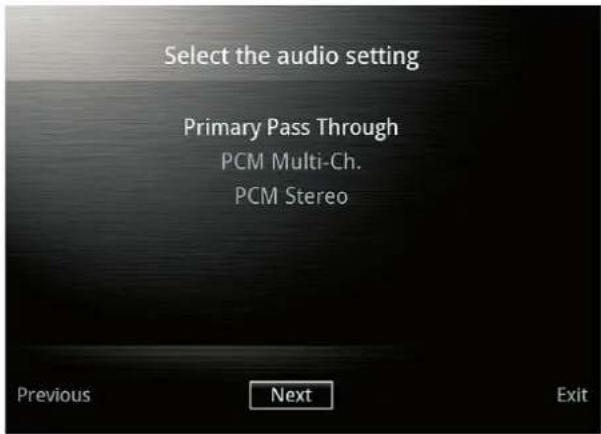
- Primary Pass Through - if your audio output device (i.e. amplifier) supports the pass through function.
- PCM Multi Ch. - If your Pulse Code Modulation (PCM) support Multiple Channel. See "Speaker Setup (Under PCM Multi-channel mode)" on page 36 for more information.
- PCM Stereo - Select this item if you connect this unit's HDMI Out or Digital Audio Out jack to a device with two-channel digital stereo decoder.
See "Audio Output Resolution" on page 35 for more information.
- Press OK to confirm your settings. Press Previous to return to the previous menu.

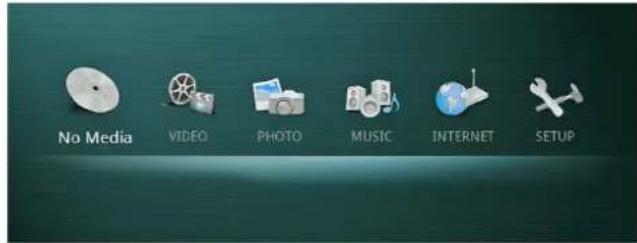
The Home menu will show the screen shot below:
Network Setup
■ Wired Network Setup
If you have a DHCP (Dynamic Host Configuration Protocol) server (can be a computer, router, access point, etc.) on a LAN (Local Area Network), you must configure it in order to use the wired network. See your server's manual on how to configure it.
After you have finished the configuration, see page 12 for more information on network connection.
- Use the navigation buttons and navigate to the Setup menu and press OK.
- Navigate to the Network menu and press →.
- Select the IP Configuration and press →.
- Select Wired and press OK.
- A dialog box asking "The new setting resets the existing one. Continue?". Press Yes to continue.
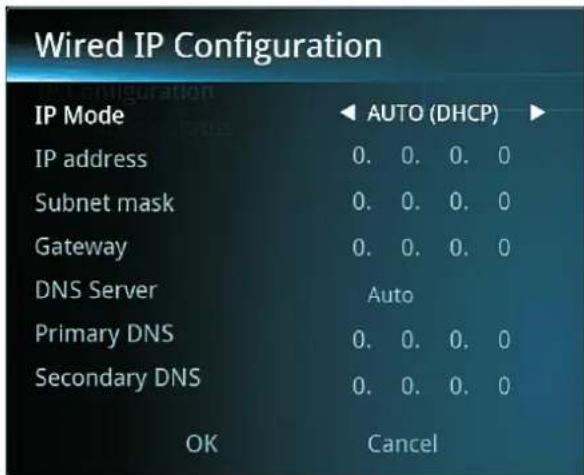
- In the "Wired IP configuration", you can choose AUTO or Manual to set your setting. Press OK to continue or Cancel.
- Navigate to the Connection Status to view your connection status.
■ Wireless Network Setup
If your player is equipped with a wireless LAN (BDS-700) or wireless USB adapter (optional for BDS-500), you must configure your wireless access point or router to connect to a wireless network. See your wireless access point's user's manual for more information.
After you have finished the configuration, follow the instructions below to finish the wireless network setup.
- Use the navigation buttons and navigate to the Setup menu and press OK.
- Navigate to the Network menu and press →.
- Select the IP Configuration and press →.
- Select Wireless and press OK.
- A dialog box asking "The new setting resets the existing one. Continue?". Press Yes to continue.
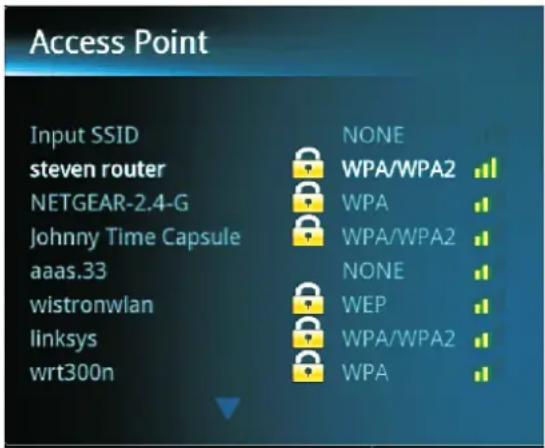
- The Access Point screen will be displayed. Choose the router you need to connect, then enter the password for the router using the on screen keyboard. Press Enter on the keyboard after you have enter the password.
- In the "Wireless IP Configuration", you can choose AUTO or Manual to set your setting. Press OK to continue or Cancel.
- Navigate to the Connection Status to view your connection status..
6
General Operation
Home Menu Overview
The player's intuitive and easy to navigate on-screen menus allow for simple and easy operation. During normal operation, press HOME on the remote control to display the Home menu screen.

There are six main categories on the Home menu screen. Use the navigation buttons on the remote control to highlight an icon and press OK to select.
| Icon Description | |
 MEDIA MEDIA | Press play to start the playback of BD-Video, DVD-Video and Audio CD in your player. |
 VIDEO VIDEO | Displays all video files from an external storage device.See “Playing Video Files” on page 18 for more information. |
 PHOTO PHOTO | Displays all image files from an external storage device.See “Playing Photo Files” on page 18 for more information. |
 MUSIC MUSIC | Displays all audio files from an external storage device.See “Playing Music/Audio Files” on page 19 for more information. |
 INTERNET INTERNET | Provides quick link to Internet services. See “Accessing Internet Services” on page 20 for more information. |
 SETUP SETUP | Makes the player-related settings. See “Setup Menu” on page 25 for more information. |
Playing BD-Video/DVD-Video/Audio CD Disc
When a disc is inserted into the player, it will ask you if you want to play the disc. When a disc is already in the player, press PLAY to play the disc.
The Disc menu will display the kind of disc that is inserted into the player. Example, if a Blu-ray disc is inserted, the Disc menu will show "Blu-ray" in the menu.
■ Enjoying BD-LIVE

Some BD-ROMs with the "BD-LIVE" logo have bonus content and other data that can be downloaded for enjoyment.
Prepare for BD-LIVE
- Connect the player to a network. See page 12 for network connection.
- Go to "Setup Menu" on page 25, then to the Playback. Set the BD-LIVE connection to Permitted.
- Download the BD-LIVE content. The operation method differs depending on the disc. Refer to the instruction manual supplied with the disc.
■ Enjoying Blu-ray 3D

You can enjoy a Blu-ray 3D Disc with the "Blu-ray 3D" logo.
Prepare for Blu-ray 3D Disc playback
- Connect the player to your 3D-compatible display device using a High Speed HDMI cable. You can turn off the 3D feature of a video. See "Video" on page 26 for more information.
- Insert the Blu-ray 3D disc. The operation method differs depending on the disc. Refer to the instruction manual supplied with the disc.
■ Region Code
This player will only play BD-Video or DVD-Video set to "All" or with the same region code as the label in your player. See "Rear Panel" on page 8 for the exact location of the label.
Playing Video Files
The player allows you to browse and play videos and movies stored on an external storage device including external storage device, data disc, DLNA server. See “DLNA operation” on page 25 for more information on DLNA server.
■ To access video files in the Video menu:
- On the Home menu screen, use the arrow keys to navigate to the VIDEO icon. A list of connected devices, if any, will be displayed.
- Use the arrow keys to select the connected devices and press OK to select. A list of folders or video files that are in the connected device will be shown.
- Navigate to the video you want to view and press OK to play. See "File Format Support and Limitation" on page 37 for more information on supported files.
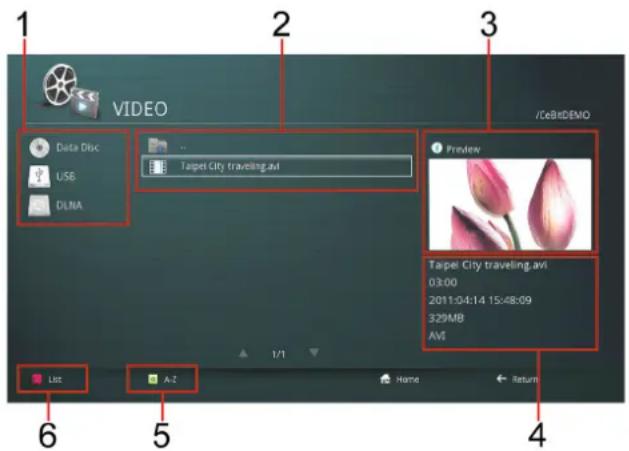
| No. Description | |
| 1 Available | devices including external storage devices, data disc, and DLNA server connected to the player.See “DLNA operation” on page 25 for more information. |
| 2 Video files | that are available in the selected connected device. The highlighted file (the one with the white square) is the selected file. |
| 3 Preview of | the selected video file. File preview are not supported by some files. |
| 4 Information of the selected video file. | |
| 5 Ascending | or descending order options(A-Z or Z-A). Press the green buttonon the remote control to invoke this option. |
| 6 List or thumbnail view option. Press the red buttonon the remote control to invoke this option. | |
■ File Folder Playback
When you navigate to a file folder with a BDMV/Video_TS files, just press Play ▶ on your remote control and it will playback just like a BD or DVD disc.
Playing Photo Files
The player allows you to browse and view photos stored on an external storage device including external storage device, data disc, DLNA server. See “DLNA operation” on page 25 for more information on DLNA server.
■ To access photo files in the Photo menu:
- On the Home menu screen, use the arrow keys to navigate to the Photo icon. A list of connected devices, if any, will be displayed.
-
Use the arrow keys to select the connected devices and press OK to select. A list of folders or photos that are in the connected device will be shown.
-
Navigate to the photo you want to view and press OK to start viewing it. See "File Format Support and Limitation" on page 37 for more information on supported files.
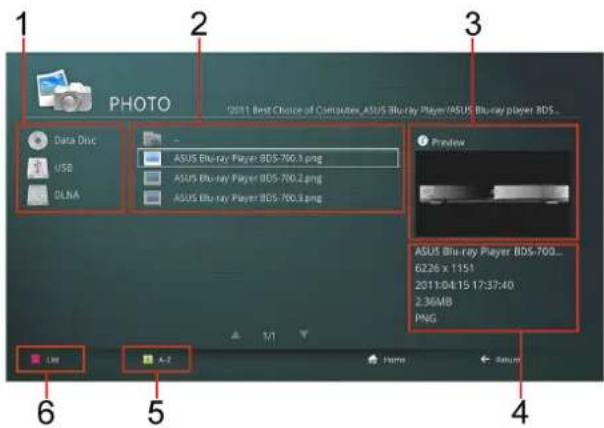
| No. Description | |
| 1 Available | devices including external storage devices, data disc, and DLNA server connected to the player.See “DLNA operation” on page 25 for more information. |
| 2 Photo files | that are available in the selected connected device. The highlighted file (the one with the white square) is the selected file. |
| 3 Preview of the selected photo file. File preview is not supported by some files. | |
| 4 Information of the selected photo file. | |
| 5 Ascending or descending order options(A-Z or Z-A). Press the green buttonon the remote control to invoke this option. | |
| 6 List or thumbnail view option. Press thered button on the remote control to invoke this option. | |
Playing Music/Audio Files
The player allows you to browse and listen to music files stored on an external storage device including external storage device, data disc, DLNA server. See “DLNA operation” on page 25 for more information on DLNA server.
■ To access music files in the Music menu:
-
On the Home menu screen, use the arrow keys to navigate to the Music icon. A list of connected devices, if any, will be displayed.
-
Use the arrow keys to select the connected devices and press OK to select. A list of folders or music files that are in the connected device will be shown.
-
Navigate to the music file you want to listen and press OK to play. See "File Format Support and Limitation" on page 37 for more information on supported files.
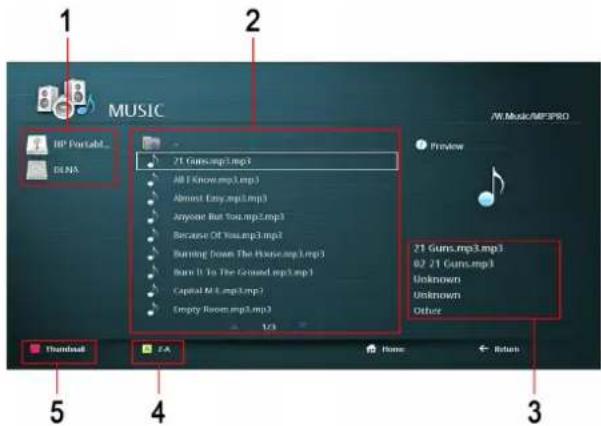
| No. Description | |
| 1 Available | devices including external storage devices, data disc, and DLNA server connected to the player.See “DLNA operation” on page 25 for more information. |
| 2 Music files | that are available in the selected connected device. The highlighted file (the one with the white square) is the selected file. |
| 3 Information of the selected music file. | |
| 4 Ascending | or descending order options(A-Z or Z-A). Press the green buttonon the remote control to invoke this option. |
| 5 List or thumbnail view option. Press the red button on the remote control to invoke this option. | |
Accessing Internet Services
The player is fully integrated with the most popular Internet services. You can use the player to access radio, music, videos and pictures from any of the following Internet content providers.
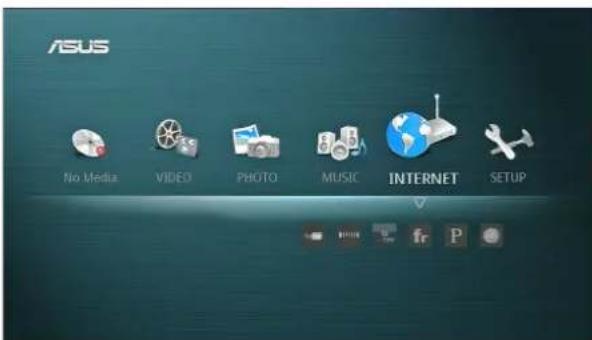

Note: Before you can use these services, make sure a network connection has been established. See "Network" on page 27 for more information.
Youtube
To access Youtube
- Use the arrow keys to navigate to the Internet icon; then select Youtube and press OK.
- The Youtube page will be shown with the most popular video at the moment on the front page.

Notes: You can also search for videos that are available on the website by using the search menu. If you have an account on Youtube, you can sign in to access your account. You can set the filters for videos, set the Language and Region by going to the Settings menu.

| No. Description | |
| 1 Search bar for searching videos available on YouTube. Press OK to invoke the on screen keyboard or use Smart phone as remote control to input text. See “Smartphone Remote Controller” on page 24 for more information. | |
| 2 Available videos on the selected category. | |
| 3 Categories of videos. | |

Internet Radio
To access Internet Radio
Use the arrow keys to navigate to the Internet icon; then select Radio and press OK.
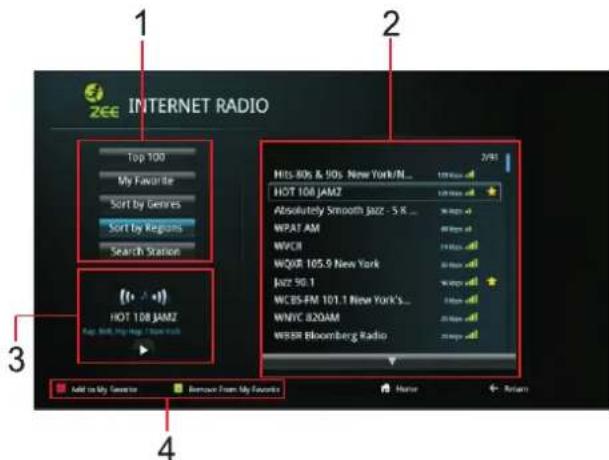
| No. Description | |
| 1 Categories of radio. | |
| 2 Available | radio channels on the selected category. |
| 3 Status of | the selected radio channel. |
| 4 Options to add or remove my favorite. | |

Picasa
To access Picasa
Use the arrow keys to navigate to the Internet icon; then select Picasa and press OK.
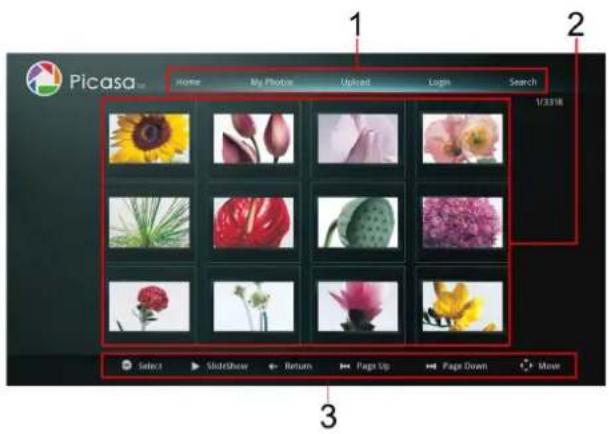
| No. Description | |
| 1 Picasa menu items. | |
| 2 Available | pictures uploaded to your Picasa account. |
| 3 Options available for your pictures. | |
Flickr
To access Flickr
Use the arrow keys to navigate to the Internet icon; then select Flickr and press OK.
If you have an existing Flickr account, you have to get an authorization code from the Flickr website before you can access it on your player. Please visit: http://www.flickr.com/auth-72157626087429922 to get an authorization code. Type this authorization code into the player.

Note: If you log out of your Flickr account on the player, you cannot use the authorization code to log it again. You have to get a new authorization code in order to log in to your account. To save you the trouble of getting an authorization code again, it is recommended that you don't log out of your Flickr account on the player unless necessary.
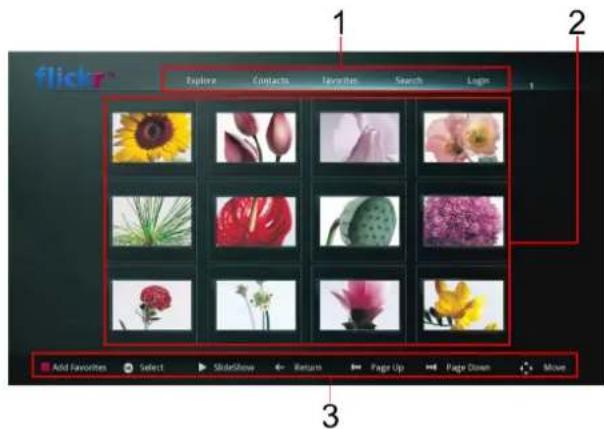
| No. Description | |
| 1 Flickr menu items. | |
| 2 Available pictures uploaded to your Flickr account. | |
| 3 Options available for your pictures. |
Option Menu

When you press the option button on the remote control, depending on the disc or file being played, a dialog box will be displayed on the screen with items that are relevant to the disc or file being played.
■ Under Disc, Video and Music Playback
During playback, press the option button to display a dialog box with these options:
Item Options
Repeat Repeat lets you have the options to select the following:
[Repeat Off] Turns off repeat.
[Repeat One] Keep playing the same file over and over again.
[Repeat All] Keep playing the files inside a selected folder over and over again.
[Repeat Random] Keep playing the files inside a selected folder at random.
Time Search This function lets you input the time in which you want to skip to when playing a file.
| Item Options | |
| Subtitle Menu (Video only) | This function allows you to adjust the font size, select the font location, and select the font language. Some video may not support this function. |
| Select Track (Music only) | This function lets you jump to a selected track inside the selected folder. |
■ Under Photo Playback
Photo slideshow

| No. Description | |
| 1 Pause or | begin the photo slideshow. |
| 2 Rotate the | photo counter-clockwise. |
| 3 Rotate the | photo clockwise. |
| 4 Add effects to the slideshow. | |
Slide Effect Setting

- [Effect] Off, Wipe Left, Wipe Right, Wipe UP, Wipe Down, Box In, Box Out, Blending, Blind Horizontal, Blind Vertical.
- [Interval] 3 sec, 5 sec, 10 sec, 20 sec, 30 sec, 1 min.
• [Repeat] Random Off, Random On.
Photo slideshow with music
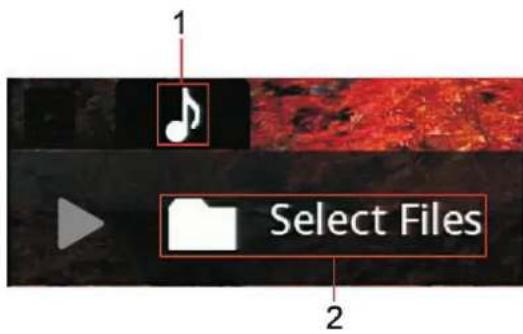
| No. Description | |
| 1 Press the | direction arrow to the right to select the music file to play during photo slideshow. |
| 2 Select the | folders containing the music files. |
After selecting the folder, press the red button R to play all the music files inside the selected folder.

7
Advanced Operation
Special functions on Remote Control

During disc playback, pressing this button on the remote will show Picture-in-picture. This feature is only available if supported by the movie disc.
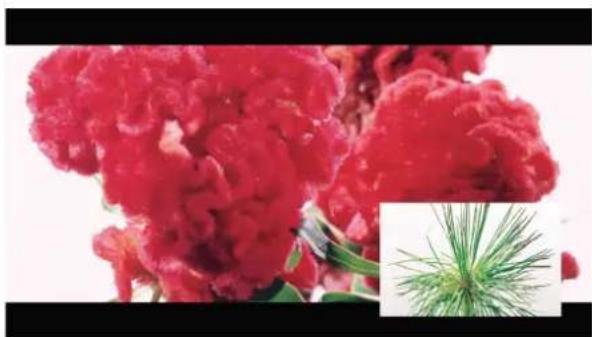
natural_image
Close-up of vibrant red flowers with green leaves, inset shows a close-up of fine pine branches (no text or symbols)Resolution

During disc or video playback, pressing this button on the remote will change the resolution of the display.
Angle

During disc or video playback, press this button on the remote control to change the viewing angle of the movie. This feature is only available if supported by the movie disc.
Music Mode

During audio CD or music file playback, press this button on the remote control to invoke the equalizer menu. In the equalizer menu, you can select the preset music genre for your type of music or you could select a user defined option where you can change the equalizer of the music to suit your taste.

Splendid

During disc or video playback, press this button on the remote control to invoke the Splendid menu. You can select a preset viewing environment for viewing your movie or video.

Dimmer

Pressing this button on the remote control will adjust the brightness of the LCD display on the front panel of your player.
Zoom

When viewing photo, press this button on the remote control to invoke the zoom function. Press Y to zoom in, press to zoom out of the picture.

| No. Description | |
| 1 The small | rectangle shows the location of the picture that is zoom in. Use ↑,↓,←,→in your remote to move the small rectangle. |
| 2 The big rectangle is the whole picture. | |
Pure Audio
During video or music playback, pressing this button on the remote, the display will turn blank and only output audio. To turn the display back on, press this button again.
Title TITLE
During playback of a DivX file with multiple titles or editions, pressing this button on the remote control will cause the DivX file to start playback of the next title or edition.
Info i
During playback of a video, music or photo file, press this button on the remote control to display the information of the file being played. Press this button again to remove the information being displayed.
Smartphone Remote Controller
If you have a smartphone which have a web browser, you can use it as a remote control for your player.
These conditions are needed so that you can use your smartphone as a remote control:
- Your player should be connected to a router (wired or wireless).
- Your smartphone should be connected to the same router as your player is.
- Your smartphone should have a web browser. Example: Safari, Webkit, etc.

Follow the steps below to turn your smartphone into a remote control:
- Turn your player on, then use the arrow key on your remote control to navigate to the setup menu and press OK.
- Navigate to Network and select Connection Status and press OK. Your TV will display the IP address of your player.
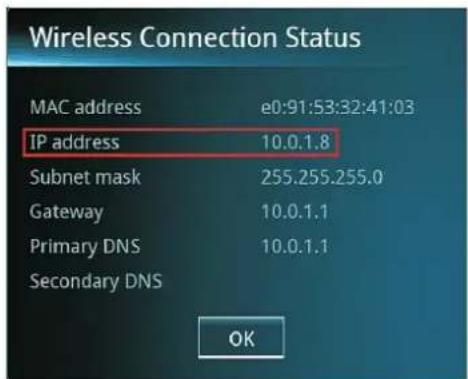
- Launch the web browser application on your smartphone.
25
- Key in the IP address of your player onto your web browser's URL.
- Your smartphone's web browser will launch an application of the player's remote control.
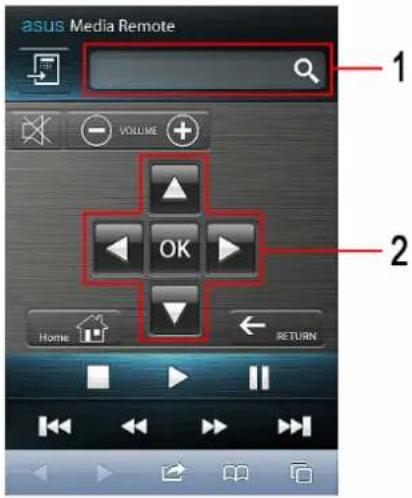
flowchart
graph TD
    A["ASUS Blu-ray/ HD Media Player"] -->|WIRED| B["Router"]
    B -->|WIRED| C["NAS or PC"]
    C --> D["MOVIES"]
    C --> E["MUSICS"]
    C --> F["PHOTOS"]
    style A fill:#f9f,stroke:#333
    style B fill:#ccf,stroke:#333
    style C fill:#cfc,stroke:#333
    style D fill:#fcc,stroke:#333
    style E fill:#cff,stroke:#333
    style F fill:#ffc,stroke:#333
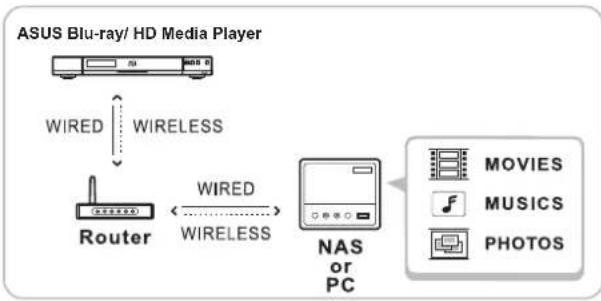
If all the conditions are met, you can use your player to access your DLNA-certified device (example: NAS server) just like an external storage device.
Setup Menu

| No. Description | |
| 1 1. To use | the search function, first invoke the on screen keyboard by pressing the search bar under Internet service.2. Press the search bar on your smart phone to invoke its on screen keyboard.3. Key in the text on your smart phone.4. Press the ☐on on your smart phone, and all texts are displayed on the display devices. |
| 2 This have | the same functions as the directional keys on your remote control. |
You can now use your smartphone as a remote control for your player.
DLNA operation
Your player is DLNA-certified which means that it can communicate with other DLNA-certified devices.
These conditions are needed to make the most out of your player's DLNA feature:
- Your player should be connected to a router (wired or wireless).
- Your DLNA-certified devices (NAS server, etc.) should be connected to the same router as your player.
The Setup menu contains menu for settings and adjustments. Most of the contents in this menu are self-explanatory. The setup menu contains the following items:
■ Playback
Disc Menu Language - Select the default menu language for BD-Videos or DVD-Videos.
Audio Language - Select the track language for BD-Videos or DVD-Videos. The default is Original, which means that the language given priority in the disc is selected.
Subtitle Language - Select the subtitle language for BD-Videos or DVD-Videos. The default is Original, which means that the language given priority in the disc is selected.
Parental Control - Playback of some BD-Videos can be limited according to the age of the users. Scenes may be blocked or replaced with different scenes. Follow the on screen instructions and enter your four-digit password. The default password is 0000.
To change the password, navigate to Parental Control, then select Change Password and press OK. Key in the default password and then key in the new four-digit password twice and press OK. To modify the password, follow the same procedure as if you are changing your password, but instead of the default password, you should key in your old password.
If you forget your password, reset the player to the factory default setting. See Restore Factory Settings on page 27 for more information.
In the Parental Control menu, you can set the access to the disc by setting the ratings. There is an option to input the parental control area code for Blu-ray disc. See page 31 for the detailed list.
BD-Live Connection
BD-Live is a feature of Blu-ray in which a Blu-ray movie can download features or additional contents from the internet. You can enable or disable this feature. The default setting for this item is Off. See "Enjoying BD-LIVE" on page 17 for more information.
Video
TV System - The TV System lets you switch between the PAL and NTSC system. The default setting is set during the Easy Setup Wizard. See page 14 for more information.
TV Aspect Ratio - The TV Aspect Ratio lets you switch between available aspect ratio. See "Easy Setup Wizard" on page 14 for more information.
Resolution - This menu lets you select the screen resolution of the video supported.
1080p 24Hz
- Auto - Outputs 1920 x 1080p/24 Hz video signals only when connecting a 1080/24p-compatible TV using the HDMI Out jack. This is the default setting in your player.
- Off - Select this when your TV is not compatible with 1080/24p video signals.
HDMI Deep Color - Deep Color expands the colors on the display from millions to billions. You have the option to set the HDMI Deep Color to Auto or Off.
- Auto - This is the default setting in your player. Normally select this.
- Off - Select this when the picture is unstable or colors appear unnatural.
x.v.Colour - x.v. Colour is a color space that can be used in the video electronics of television sets to support a gamut 1.8 times as large as that of the sRGB color space. You have the option to set the x.v.Color to Auto or Off. The default setting is Auto.
BD 3D Mode
- Auto - This is the default setting in your player. Normally select this.
- Off - Select this to display all content in 2D.
Splendid Menu - The Splendid Menu lets you select the different ways your video is displayed. In this menu, you can adjust the contrast, brightness, tint, etc. of your video. The default is Standard.
Audio
HDMI Output - The default setting for this function are set during the Easy Setup Wizard. See "Audio Output Resolution" on page 35 for more information.
SPDIF Output
- Primary Pass Through - if your audio output device (i.e. amplifier) supports the pass through function.
- DTS Re-Encode - transforms audio to DTS raw data for TV/AV receiver or any device with SPDIF input.
- PCM Stereo - Select this item if you connect this unit's HDMI Out or Digital Audio Out jack to a device with two-channel digital stereo decoder. This is the default setting in your player.
Dynamic Range Control - You can listen at low volumes but still hear dialog clearly. (Dolby Digital, Dolby Digital Plus and Dolby TrueHD only). Auto is effective only when playing Dolby TrueHD. The options for Dynamic Range Control are Auto, On, or Off. The default setting is Auto.
PCM Output Rate Limit (Coaxial/Optical)
- 48 KHz - Select this if your A/V receiver or amplifier is not capable of handling 192 KHz and 96 KHz signal. When this choice is made, this unit automatically converts any 192 KHz and 96 KHz signals to 48 KHz so your system can decode them.
- 96 KHz - Select this if your A/V receiver or amplifier is not capable of handling 192 KHz signal. When this choice is made, this unit automatically converts any 192 KHz signals to 96 KHz so your system can decode them.
- 192 KHz - Select this if your A/V receiver or amplifier is capable of handling 192 KHz signals.
Speaker Setup - Depending on your speaker setup, you can select 2.1, 3.1, 5.1 or 7.1 Channels. See "Speaker Setup (Under PCM Multi-channel mode)" on page 36 for more information.
Music Mode - Music Mode is a preset environment for the type of music you are playing. You can select Rock, Classic, Jazz, Bypass or User Defined as your music mode.
Neo6
Press OK to invoke this feature.
- Enable - Outputs simulated multichannel sound from 2 channel sources via the HDMI Out jack according to the capability of the connected device using DTS Neo6.
- Disable - Outputs sound with its original number of channels via the HDMI Out jack.
Enable this if your speaker setup supports this feature. The default setting in your player is Disable. Press OK to edit.
Network
IP Configuration - This menu lets you choose Wired or Wireless network connections.
Connection Status - The Connection Status displays the status of the network connection.
Network Diagnostic - is used to check is if the network connection has been made.
Other
DivX Registration - When playing a DivX VOD content for the first time, you will be asked to register your player with DivX.

Use the 10 alphanumeric characters to register at DivX website.
After playing a DivX VOD content for the first time, the registration code is not displayed. If you purchase a DivX VOD content using a registration code different from your player's code, you will not be able play this content.
To cancel your player's DivX registration, select Deregister.
OSD Language - This menu lets you set the language of the on screen display. The default is set during the Easy Setup Wizard. See page 14 for more information.
Auto Power Off - If this feature is enabled, when the player is inactive for 25 minutes, and there are still no activities (no button pressed, no disc, video, music or photo playback), the player will automatically turn off. The default setting is Off.
BD Storage Select - This menu lets you select USB external devices or Local Storage for storing BD-LIVE contents. The default setting is Local Storage.
BD Storage Clear - Lets you clear BD-LIVE contents in the built-in memory.
HDMI CEC - HDMI Consumer Electronics Control (CEC) is a feature designed to allow the user to command and control two or more CEC-enabled boxes connected through HDMI to use only one of their remote controls (e.g. controlling a Television set, Set-top box and Blu-ray/DVD player using only the remote control of the TV). CEC also allows for individual CEC-enabled devices to command and control each other without user intervention. The default setting is Off.
Firmware Update - This menu lets you choose if you want to update your firmware via disc, USB, or internet. See “Updating the Firmware” on page 28 for more information.
Restore Factory Settings - It will reset the player's factory settings.

Warning: All data in the built-in memory will be deleted.
About - This menu displays the current firmware version of the player.
8
Appendix
Maintenance
Notes on Discs
Handling Discs
Do not touch the playback side of the disc. Hold the disc by the edges so that fingerprints do not get on the surface. Never stick paper or tape on the disc.
Storing Discs
After playing, store the disc in its case. Do not expose the disc to direct sunlight or sources of heat and never leave it in a parked car exposed to direct sunlight.
Cleaning Discs
Fingerprints and dust on the disc can cause poor picture quality and sound distortion. Before playing, clean the disc with a clean cloth. Wipe the disc from the center to out.
Do not use strong solvents such as alcohol, benzine, thinner, commercially available cleaners, or anti-static spray intended for older vinyl records.
■ Handling the Unit
When shipping the unit
Please save the original shipping carton and packing materials. If you need to ship the unit, for maximum protection, re-pack the unit as it was originally packed at the factory.
- Keeping the exterior surfaces clean. Do not use volatile liquids such as insecticide spray near the unit.
- Wiping with strong pressure may damage the surface.
- Do not leave rubber or plastic products in contact with the unit for a long period of time.
Cleaning the unit
To clean the player, use a soft, dry cloth. If the surfaces are extremely dirty, use a soft cloth lightly moistened with a mild detergent solution. Do not use strong solvents such as alcohol, benzine, or thinner, as these might damage the surface of the unit.
Maintaining the Unit
The unit is a high-tech, precision device. If the optical pick-up lens and disc drive parts are dirty or worn, the picture quality could be diminished. For details, please contact your nearest authorized service center.
Updating the Firmware
■ Manual Update
- On a computer, go to http://support.asus.com and input your player's model number and check if there are any newer firmware version available.
- If a newer firmware version is available, download it into your computer. If the file is compressed, uncompressed it and copy it into a USB flash drive's root menu.
- Insert the USB flash drive into your player's available USB port.
- Turn on your player and navigate to Home, then Setup and Other.
- In the Other menu, select the Firmware Update and press → on your remote control.
- Follow the onscreen instruction and update the firmware.

Warning: Do not turn off your player while the firmware is being updated. If your output source is a HDMI cable, don't switch the output source while updating your firmware.
After the firmware is finished updating the player will reboot. The new firmware version will take effect.
■ Online Update
- Turn on your player and navigate to Home, then Setup and Other.
- In the Other menu, select the Firmware Update and press → on your remote control.
-
Select the firmware update "Via Internet" and follow the onscreen instruction and update the firmware.
-
The player will connect to ASUS server, download the newest firmware and update the firmware automatically.

Note: Make sure that you are connected to the Internet before updating the firmware via online.

Warning: Do not turn off your player while the firmware is being updated.
After the firmware is finished updating the player will reboot. The new firmware version will take effect.
Troubleshooting
| Symptom Possible Cause Solution | ||
| General | ||
| No power Power cable is not properly connected | Plug the power cord into the wall outlet securely. | |
| No Disc or Unknown Disc error | No disc or incompatible disc loaded in player | Eject disc and check. See “Playable Discs” on page 1 for more information. |
| Dirty disc recording surface Eject the disc and clean any dirt or fingerprints. | ||
| Disc not properly loaded Eject disc and make sure the label side is facing up and the record side is facing down. | ||
| Disc does not play Check the region code of the BD-Video and DVD-Video. | Use the correct region code of the BD-Video and DVD-Video. See “Region Code” on page 18 for more information. | |
| Remote control failure Remote control is too far from the player or the receiver on your player is blocked. | Use the remote control within the effective range. | |
| Picture | ||
| No picture Video cable is not properly connected | Check video cable, make sure the color of the plugs match the jacks on both ends, and then reconnect if necessary. | |
Parental Control Area Code
| Area Code Area Code | |||
| Afghanistan 0004 Liberia 0430 | |||
| Åland Islands 0248 Libyan Arab Jamahiriya | 0434 | ||
| Albania 0008 Liechtenstein 0438 | |||
| Algeria 0012 Lithuania 0440 | |||
| American Samoa 0016 Luxembourg 0442 | |||
| Andorra 0020 Macao 0446 | |||
| Angola 0024 Macedonia, the former Yugoslav Republic of | 0807 | ||
| Anguilla 0660 Madagascar 0450 | |||
| Antarctica 0010 Malawi | 0454 | ||
| Antigua and Barbuda | 0028 Malaysia | 0458 | |
| Argentina | 0032 Maldives | 0462 | |
| Armenia | 0051 Mali 0466 | ||
| Aruba | 0533 Malta | 0470 | |
| Australia | 0036 Marshall Islands | 0584 | |
| Austria 0040 Martinique | 0474 | ||
| Azerbaijan | 0031 Mauritania | 0478 | |
| Bahamas | 0044 Mauritius 0480 | ||
| Bahrain | 0048 Mayotte | 0175 | |
| Bangladesh 0050 Mexico 0484 | |||
| Barbados | 0052 Micronesia, Federated States of | 0583 | |
| Belarus 0112 Moldova, Republic of | 0498 | ||
| Belgium | 0056 Monaco | 0492 | |
| Belize | 0084 Mongolia 0496 | ||
| Benin | 0204 Montenegro | 0499 | |
| Bermuda | 0060 Montserrat | 0500 | |
| Bhutan | 0064 Morocco | 0504 | |
| Bolivia, Plurinational State of | 0068 Mozambique | 0508 | |
| Bosnia and Herzegovina | 0070 Myanmar | 0104 | |
| Botswana | 0072 Namibia | 0516 | |
| Bouvet Island | 0074 Nauru 0520 | ||
| Brazil | 0076 Nepal | 0524 | |
| British Indian Ocean Territory | 0086 Netherlands | 0528 | |
| Brunei Darussalam | 0096 Netherlands Antilles | 0530 | |
| Bulgaria | 0100 New Caledonia | 0540 | |
| Burkina Faso 0854 New Zealand 0554 | |||
| Burundi | 0108 Nicaragua | 0558 | |
| Cambodia | 0116 Niger | 0562 | |
| Cameroon | 0120 Nigeria 0566 | ||
| Canada | 0124 Niue | 0570 | |
| Cape Verde 0132 Norfolk Island | 0574 | ||
| Cayman Islands | 0136 Northern Mariana Islands | 0580 | |
| Central African Republic | 0140 Norway | 0578 | |
| Chad | 0148 Oman 0512 | ||
| Chile | 0152 Pakistan | 0586 | |
| China 0156 Palau | 0585 | ||
| Area Code Area Code | |||
| Christmas Island | 0162 Palestinian Territory, Occupied | 0275 | |
| Cocos (Keeling) Islands | 0166 Panama | 0591 | |
| Colombia | 0170 Papua New Guinea | 0598 | |
| Comoros | 0174 Paraguay | 0600 | |
| Congo | 0178 Peru | 0604 | |
| Congo, the Democratic Republic of the | 0180 Philippines | 0608 | |
| Cook Islands | 0184 Pitcairn | 0612 | |
| Costa Rica | 0188 Poland | 0616 | |
| Cte d'lvoire | 0384 Portugal | 0620 | |
| Croatia | 0191 Puerto Rico | 0630 | |
| Cuba | 0192 Qatar | 0634 | |
| Cyprus | 0196 Runion 0638 | ||
| Czech Republic | 0203 Romania | 0642 | |
| Denmark | 0208 Russian Federation | 0643 | |
| Djibouti 0262 Rwanda | 0646 | ||
| Dominica | 0212 Saint Barthlemy | 0652 | |
| Dominican Republic | 0214 Saint Helena, Ascension and Tristan da Cunha | 0654 | |
| Ecuador | 0218 Saint Kitts and Nevis | 0659 | |
| Egypt | 0818 Saint Lucia | 0662 | |
| El Salvador | 0222 Saint Martin (French part) | 0663 | |
| Equatorial Guinea | 0226 Saint Pierre and Miquelon | 0666 | |
| Eritrea | 0232 Saint Vincent and the Grenadines | 0670 | |
| Estonia 0233 Samoa 0882 | |||
| Ethiopia | 0231 San Marino | 0674 | |
| Falkland Islands (Malvinas) | 0238 Sao Tome and Principe | 0678 | |
| Faroe Islands | 0234 Saudi Arabia | 0682 | |
| Fiji | 0242 Senegal | 0686 | |
| Finland | 0246 Serbia | 0688 | |
| France 0250 Seychelles | 0690 | ||
| French Guiana | 0254 Sierra Leone | 0694 | |
| French Polynesia | 0258 Singapore | 0702 | |
| French Southern Territories | 0260 Slovakia | 0703 | |
| Gabon | 0266 Slovenia | 0705 | |
| Gambia | 0270 Solomon Islands | 0090 | |
| Georgia 0268 Somalia | 0706 | ||
| Germany | 0276 South Africa | 0710 | |
| Ghana | 0288 South Georgia and the South Sandwich Islands | 0239 | |
| Gibraltar | 0292 Spain | 0724 | |
| Greece | 0300 Sri Lanka | 0144 | |
| Greenland | 0304 Sudan | 0736 | |
| Grenada | 0308 Suriname | 0740 | |
| Guadeloupe | 0312 Svalbard and Jan Mayen | 0744 | |
| Guam | 0316 Swaziland | 0748 | |
| Guatemala | 0320 Sweden | 0752 | |
| Guernsey | 0831 Switzerland | 0756 | |
| Guinea | 0324 Syrian Arab Republic | 0760 | |
| Guinea-Bissau | 0624 Taiwan | 0158 | |
| Guyana | 0328 Tajikistan | 0762 | |
| Area | Code | Area | Code |
| Haiti 0332 Tanzania, United Republic of | 0834 | ||
| Heard Island and McDonald Islands | 0334 Thailand 0764 | ||
| Holy See (Vatican City State) | 0336 Timor-Leste 0626 | ||
| Honduras 0340 Togo 0768 | |||
| Hong Kong 0344 Tokelau 0772 | |||
| Hungary 0348 Tonga 0776 | |||
| Iceland 0352 Trinidad and Tobago | 0780 | ||
| India 0356 Tunisia 0788 | |||
| Indonesia 0360 Turkey | 0792 | ||
| Iran, Islamic Republic of | 0364 Turkmenistan | 0795 | |
| Iraq | 0368 Turks and Caicos Islands | 0796 | |
| Ireland | 0372 Tuvalu | 0798 | |
| Isle of Man | 0833 Uganda | 0800 | |
| Israel | 0376 Ukraine 0804 | ||
| Italy | 0380 United Arab Emirates | 0784 | |
| Jamaica | 0388 United Kingdom | 0826 | |
| Japan | 0392 United States | 0840 | |
| Jersey | 0832 United States Minor Outlying Islands | 0581 | |
| Jordan | 0400 Uruguay | 0858 | |
| Kazakhstan | 0398 Uzbekistan | 0860 | |
| Kenya | 0404 Vanuatu | 0548 | |
| Kiribati | 0296 Venezuela, Bolivarian Republic of | 0862 | |
| Korea, Democratic People's Republic of | 0408 Viet Nam | 0704 | |
| Korea, Republic of | 0410 Virgin Islands, British | 0092 | |
| Kuwait | 0414 Virgin Islands, U.S. | 0850 | |
| Kyrgyzstan | 0417 Wallis and Futuna | 0876 | |
| Lao People's Democratic Republic | 0418 Western Sahara | 0732 | |
| Latvia | 0428 Yemen | 0887 | |
| Lebanon | 0422 Zambia | 0894 | |
| Lesotho 0426 Zimbabwe 0716 | |||
Trademarks and Licenses

Note: The trademarks and licenses in this section are features supported by this player. Some features are region-specific and may not be available in your region. All other logos, trademarks and service
marks are the property of their respective owners, where marked or not.
Blu-Ray Disc™


Blu-rayDisc™ Blu-rayDisc
"Blu-ray Disc", "Blu-ray" and "Blu-ray Disc" logo are trademarks of Blu-ray Disc Association.
"BD-Live" and "BD-Live" logo are trademarks of Blu-ray Disc Association.
Rovi
"This item incorporates copyright protection technology that is protected by U.S. patents and other intellectual property rights. Use of this copyright protection technology must be authorized by Rovi Corporation, and is intended for home and other limited viewing uses only unless otherwise authorized by Rovi Corporation. Reverse engineering or disassembly is prohibited."

DivX®, DivX Certified®, DivX Plus™ HD and associated logos are trademarks of DivX, Inc. and are used under license.
Covered by one or more of the following U.S. patents: 7,295,673; 7,460,668; 7,515,710; 7,519,274
DivX Certified® to play DivX® and DivX Plus® HD (H.264/MKV) video up to 1080p HD including premium content.


License Notice and Trademark Acknowledgment Required for Licensed Products Manufactured under license from Dolby Laboratories. Dolby and the double-D symbol are trademarks of Dolby Laboratories.
Manufactured under license under U.S. Patent #'s: 5,451,942; 5,956,674; 5,974,380; 5,978,762; 6,226,616; 6,487,535; 7,212,872; 7,333,929; 7,392,195; 7,272,567 & other U.S. and worldwide patents issued & pending. DTS and the Symbol are registered trademarks & the DTS logos are trademarks of DTS, Inc. © DTS, Inc. All Rights Reserved.
HDMI
HDMI, the HDMI Logo, and High-Definition Multimedia Interface are trademarks or registered trademarks of HDMI Licensing LLC in the United States and other countries.

DLNA is a registered trademark, DLNA disc logo is a service mark, and DLNA Certified is a trademark of the Digital Living Network Alliance. Digital Living Network Alliance is a service mark of the Digital Living Network Alliance.
AVCHD
"AVCHD" and the "AVCHD" logo are trademarks of Panasonic Corporation and Sony Corporation. This product is licensed under the AVC patent portfolio license and VC-1 patent portfolio license for the personal and non-commercial use of a consumer to (i) encode video in compliance with the AVC Standard and VC-1 Standard ("AVC/VC-1 Video") and/or (ii) decode AVC/VC-1 Video that was encoded by a consumer engaged in a personal and non-commercial activity and/or was obtained from a video provider licensed to provide AVC/VC-1 Video. No license is granted or shall be implied for any other use. Additional information may be obtained from MPEG LA, LLC. See http://www.mpegla.com.
"DVD Logo" is a trademark of DVD Format/Logo Licensing Corporation.

Qdeo ^™ is a registered trademark of Marvell or its affiliates.
Ukraine Safety Logo


The mark above is Ukraine's national conformity mark and should be applied to the product, and the user's manual. For EMC compliance, all applicants for Ukraine certification must register their Declaration of Conformity (DoC) and it can be based only upon Ukraine EMC test reports, and not factory test reports or test reports from internationally recognized and accredited test laboratories. 001 below the left mark means certification body for DoC located in Ukraine and 003 below right mark means another certification body for safety approval which is located in Ukraine as well.
Video Output Resolution
| HDMI Component Composite | ||||
| NTSC Auto (HDMI only) Dependent on TV Beat resolution Follow HDMI^a 480i | ||||
| PAL | Auto (HDMI only) Dependent on TV Beat resolution Follow HDMI^b 576i | |||
| 576i 576i 576i 576i | ||||
| 576p 576p/50Hz 576p/50Hz 576i | ||||
| 720p 720p/50Hz 720p/50Hz 576i | ||||
| 1080i 1080i/50Hz 1080i/50Hz 576i | ||||
| 1080p 1080p/50Hz 1080i/50Hz 576i | ||||
a. If HDMI is 1080p/1080i, the Component output is 1080i. Other resolution is the same HDMI.
b. Some TV won't support 1080p selection under component output.
When playing copy-protected media with HDMI cable plugged into the display device:
| HDMI Component Composite | ||||
| NTSC | Auto (HDMI only) | Dependent on TV Beat resolution | Disable | 480i |
| 480i | 480i Disable 480i | |||
| 480p | 480p/60Hz Disable | 480i | ||
| 720p | 720p/60Hz Disable | 480i | ||
| 1080i | 1080i/60Hz Disable | 480i | ||
| 1080p | 1080p/60Hz Disable | 480i | ||
| PAL | Auto (HDMI only) | Dependent on TV Beat resolution | Disable | 576i |
| 576i | 576i Disable 576i | |||
| 576p | 576p/50Hz Disable | 576i | ||
| 720p | 720p/50Hz Disable | 576i | ||
| 1080i | 1080i/50Hz Disable | 576i | ||
| 1080p | 1080p/50Hz Disable | 576i | ||
When playing DivX® copy-protected file using a component or composite connection with HDMI cable unplugged:
| Component Composite | ||
| NTSC Auto (HDMI only) | N/A N/A | |
| 480i 480i 480i | ||
| 480p 480i 480i | ||
| 720p 480i 480i | ||
| 1080i 480i 480i | ||
| 1080p 480i 480i | ||
| PAL Auto (HDMI only) | N/A N/A | |
| 576i 576i 576i | ||
| 576p 576i 576i | ||
| 720p 576i 576i | ||
| 1080i 576i 576i | ||
| 1080p 576i 576i | ||
Audio Output Resolution
| Analog 2CH Output | HDMI SPDIF | |||||
| PCM Stereo | Multi-Channel PCM | Primary Pass-Thru | PCM Stereo | Primary Pass-Thru | ||
| Dolby Digital Analog 2CH | PCM 2ch PCM 5.1ch Dolby Digital PCM 2ch | Dolby Digital | ||||
| Dolby Digital Plus | Analog 2CH | PCM 2ch PCM 7.1ch Dolby Digital Plus | PCM 2ch | Dolby Digital | ||
| Dolby TrueHD | Analog 2CH | PCM 2ch PCM 7.1ch Dolby TrueHD PCM 2ch N/A | ||||
| DTS | Analog 2CH | PCM 2ch PCM 5.1ch DTS PCM 2ch DTS | ||||
| DTS-HD | Analog 2CH | PCM 2ch PCM 7.1ch DTS-HD PCM 2ch | N/A | |||
| Linear PCM 2ch | Analog 2CH | PCM 2ch PCM 2ch Linear PCM 2ch | PCM 2ch | Linear PCM 2ch | ||
| Linear PCM 5.1ch | Analog 2CH | PCM 2ch PCM 5.1ch Linear PCM 5.1ch | PCM 2ch | Linear PCM 5.1ch | ||
| Linear PCM 7.1ch | Analog 2CH | PCM 2ch PCM 7.1ch Linear PCM 7.1ch | PCM 2ch | N/A | ||
Speaker Setup (Under PCM Multi-channel mode)
| Media Source Channels | ||||
| 2.1 5.1 7.1 | ||||
| Speaker Setup 7.1 | 7.1 channels | PCM output, in which audio signals are only on 2.1 channels. | 7.1 channels PCM output, in which audio signals are only on 5.1 channels. | 7.1 channels PCM output. |
| 5.1 7.1 channels | PCM | output, in which audio signals are only on down mixed 5.1 channels. | ||
| 3.1 7.1 channels | PCM output, in which audio signals are only on down mixed 3.1 channels. | |||
| 2.1 2.1 channels | PCM output Down mixed | 2.1 channels PCM output. | ||
File Format Support and Limitation
Supported file system: EXT3, FAT16, FAT32, NTFS
AV File Format
Avi
[Supported video format]
• M P E G 2 H P @ H L
• MPEG4 SP, MPEG4 ASP(GMC 0, 1p) (Xvid)
• (DivX 3.11, 4, 5, 6)
• H.264(AVC) HP@Up to Level 4.1
• H.264(AVC) MP@L4.1
• H.264(AVC) BP@L3.1
• WMV3 (WMV9 MP)
[Supported Audio Formats]
- Dolby AC3
• DTS - PCM
- MP3
• AAC
• H E - A A C - MPEG Audio
[Supported Subtitle Formats]
- External: MicroDVD, SRT, SSA, ASS, Subview, Vobsub
- Internal: SSA, ASS, SRT, Vobsub
[Limitations]
- Support resolution up to 1920x1080
- Support frame rate up to 60fps
- Bit rate up to 19.4mbps
- Support variable and constant bit rate
- Some files with DRM can't support video preview
DivX®
[Suported Video Formats]
• MPEG4 ASP(GMC 0, 1p) (Xvid)
• (DivX 3.11, 4, 5, 6)
[Supported Audio Formats]
• Dolby AC3
- MPEG Audio
- PCM
[Supported Subtitle Formats]
- External: SRT, VobSub
- Internal: XSUB
[Limitations]
- Support resolution up to 1920x1080
- Support frame rate up to 60fps
- Bit rate up to 8mbps
- Support variable and constant bit rate
- Some files with DRM can't support video preview
Mkv
[Suported Video Formats]
• M P E G 1
• M P E G 2 H P @ H L
• MPEG4 SP, MPEG4 ASP(GMC 0, 1p) (Xvid)
• H.264(AVC) HP@Up to Level 4.1
• WVC1(WMV9 AP)
[Supported Audio Formats]
• D o l b y A C 3
- AAC
• DTS
- PCM
- MPEG Audio
[Supported Subtitle Formats]
- External: MicroDVD, SRT, SSA, ASS, Subview, Vobsub
- Internal: SSA, ASS, SRT, Vobsub
[Limitations]
- Support resolution up to 1920x1080
- Support frame rate up to 60fps
- Bit rate up to 15mbps
- Support variable and constant bit rate
Ts (m2t)
[Supported Video Formats]
• M P E G 2 H P @ H L
• H.264(AVC) HP@Up to L4.1
• H.264(AVC) MP@L4.1
• H.264(AVC) BP@L3.1
• WVC1(WMV9 AP)
[Supported Audio Formats]
• D o l b y A C 3
- MPEG Audio
• L P C M
• DTS
- AAC
• HE-AAC
[Supported Subtitle Formats]
- External: MicroDVD, SRT, SSA, ASS, Subview, Vobsub
- Internal: No
[Limitations]
- Support resolution up to 1920x1080
-
Support frame rate up to 60fps
-
Bit rate up to 50.1mbps
-
Support variable and constant bit rate
Mt2s (.mts)
[Supported Video Formats]
• M P E G 2 H P @ H L
• H.264(AVC) HP@Up to Level 4.1
• H.264(AVC) MP@L4.1
• H.264(AVC) BP@L3.1
• WVC1(WMV9 AP)
[Supported Audio Formats]
- Dolby AC3
• DTS
• L P C M
• Audio identical to BD disc support
[Supported Subtitle Formats]
- External: MicroDVD, SRT, SSA, ASS, Subview, Vobsub
- Internal: PGS
[Limitations]
- Support resolution up to 1920x1080
- Support frame rate up to 60fps
- Bt rate up to 52.8mbps
- Support variable and constant bit rate
Mpg, Vob, Mpeg
[Supported Video Formats]
• M P E G 1
• M P E G 2 H P @ H L
[Supported Audio Formats]
• Dolby AC3
• DTS
- MPEG Audio
• L P C M
- PCM
[Supported Subtitle Formats]
- External: MicroDVD, SRT, SSA, ASS, Subview, Vobsub
- Internal: No
[Limitations]
- Support resolution up to 1920x1080
- Support frame rate up to 60fps
- Bit rate up to
-
.mpg/.mpeg: 19.4mbps
• .vob: 28.9mbps -
Support variable and constant bit rate
Wmv/Asf
[Supported Video Formats]
• WMV3 (WMV9 MP)
• WVC1 (WMV9 AP)
[Supported Audio Formats]
W M A 9
[Supported Subtitle Formats]
- External: MicroDVD, SRT, SSA, ASS, Subview, Vobsub
- Internal: No
[Limitations]
- Support resolution up to 1920x1080
- Support frame rate up to 60fps
- Bit rate up to 6.5mbps
- Support variable and constant bit rate
Mov, Mp4, 3gp, M4v
[Supported Video Formats]
• M P E G 2 H P @ H L
- MPEG4 SP, MPEG4 ASP(GMC 0, 1p) (Xvid) (Support B-VOP)
• H.264(AVC) HP@Up to Level 4.1
• H.264(AVC) MP@L4.1
• H.264(AVC) BP@L3.1
[Supported Audio Formats]
• D o l b y A C 3
• M P E G 4 ( A A C )
- PCM
- MPEG1 Layer 1/2/3
[Supported Subtitle Formats]
- External: MicroDVD, SRT, SSA, ASS, Subview, Vobsub
- Internal: No
[Limitations]
- Support resolution up to 1920x1080
-
Support frame rate up to 60fps
-
Bit rate up to
-
.mov: 52.6mbps
-
.mp4/.m4v: 24.1mbps
• .3gp: 520kbps -
Support variable and constant bit rate
Flv
[Supported Video Formats]
• H.264(AVC) HP@Up to Level 4.1
• H.264(AVC) MP@L4.1
• H.264(AVC) BP@L3.1
• VP6
[Supported Audio Formats]
• M P E G 4 ( A A C )
• M P E G 1 L a y e r 3
[Limitations]
- Support resolution up to 1920x1080
- Support frame rate up to 60fps
- Tested bit rate up to 10.5mbps
- Support variable and constant bit rate
- VP6 video supports D1 resolution
Rmvb
[Supported Video Formats]
• Real Video 8, 9, 10
[Supported Audio Formats]
• Real Audio 8 LBR, HE-AAC
[Supported Subtitle Formats]
• External: MicroDVD, SRT, SSA, ASS, Subview, Vobsub
- Internal: No
[Limitations]
- Support resolution up to 720x480
- Support frame rate up to 30fps
- Bit rate up to 905kbps
- Support variable and constant bit rate
■ Audio File Formats:
Mp3
[Supported Audio Formats]
- MPEG1 Layer1/2/3
[Limitations]
- Sample rate 48KHz
- Channel support up 2CH
- Mono/Stereo downmix method is supported
Wma
[Supported Audio Formats]
WMA
• W M A P r o
• W M A L o s s l e s s
[Limitations]
- Sample rate 96KHz
- For Pro/Lossless, support up to 2CH
- Mono/Stereo downmix method is supported
Flac
[Supported Audio Formats]
- f l a c
[Limitations]
- Sample rate 192KHz
- Channel support up 8CH
- Mono/Stereo downmix method is supported
Aac
[Supported Audio Formats]
- AAC-LC (MPEG2, MPEG4)
• HE-AAC (v1, v2)
[Limitations]
- Sample rate 96KHz
- Channel support up 8CH
- Mono/Stereo downmix method is supported
Ogg
[Supported Audio Formats]
• V O R B I S
[Limitations]
- Up to 48KHz/6CH or 96KHz/2CH
- Mono/Stereo downmix method is supported
Wav
[Supported Audio Formats]
• R a w P C M
[Limitations]
- Sample rate 192KHz
- Bit depth 8/16/24 bit
- Channel support up to 6CH
- Mono/Stereo downmix method is supported
Ac3
[Supported Audio Formats]
ac3
[Limitations]
- Sample rate 48KHz
- Channel support up to 6CH(8ch for dd+)
- Mono/Stereo downmix method is supported
Mka
[Supported Audio Formats]
• D o l b y A C 3
- AAC
• DTS
- PCM
- MPEG Audio
[Limitations]
-
Follow the limitation of the supported audio codec
-
Multi-Track feature is not supported.
Aiff
[Supported Audio Formats]
• R a w P C M
[Limitations]
- Sample rate 192KHz
- Bit depth 8/16/24 bit
- Channel support up to 6CH
- Mono/Stereo downmix method is supported
M4a
[Supported Audio Formats]
• Dolby AC3
• M P E G 4 ( A A C )
- MPEG1 Layer 1/2/3
[Limitations]
Follow the limitation of the supported audio codec
Dts
[Supported Audio Formats]
• DTS
[Limitations]
- 192KHz up to 6ch or 96KHz up to 8ch,
- Bit depth 16/20/24 bit
- Mono/Stereo downmix method is supported
■ Picture File Formats
Bmp
[Limitations]
- Support up to 24MPixels
- Not supported: RLE compressed, OS/2 style, g16def555, g16bf555, g16bf565
Jpg, Png, Gif
[Limitations]
- Support up to 24MPixels
Tif, Tiff
[Limitations]
• JPEG compression not supported
■ Subtitle File Formats
PGS
[Supported Video Formats]
• m 2 t s , B D
[Limitations]
Cannot adjust size and location
Sub+IDX, Smi, Srt, Ssa/Ass
[Limitation]
Encodings supported for subtitles:
Unicode: UTF8, UTF16 BE, UTF16LE
ANSI: GB2312, GB18030, BIG5, SHIFT_JIS, EUC_KR
[Limitations of text subtitle decoder]
- Currently the max subtitle files size supported is 512KB, this value is configurable. If the file size is greater than 512KB, the decoder will discard any data fed after the 512K size.
- All styling information in the subtitle will be discarded.
- Max 12 lines of text subtitles can be displayed on screen for each dialogue. If a subtitle contains a dialogue which has more than 12 text lines after wrapping is applied, only the first 12 lines will be displayed.
- Max 1023 characters are supported for each line. If a text line has more than 1023 characters, only the first 1023 characters will be displayed.
- For SAMI, max 8 subtitle tracks are supported in one .smi subtitle file. The Source ID lines are not supported.
ISO file and Others
BD-ISO, DVD-ISO (vob+ifo), file folder playback as a disc (with a BDMV/Video_TS subfolder inside)
• 2D BD ISO
• 3D BD ISO
- All available Blu-ray menu features
■ Disc Support BD Media
BD-Rom
Supported BD Profile: Profile 1.0/1.1/2.0/5.0
BD-RE SL, DL
Supported Video Formats: Ver.3
BD-R SL, DL
Supported Video Formats: Ver.2 (Including LTH type)
BD-3D
[Limitations]
Support Profile 5.0 (BD-3D), up to 1080p24.
■ Disc Support DVD Media
DVD-Video SL/DL, DVD-ROM SL/DL, DVD+R/RW SL/DL, DVD-R/RW SL/DL
■ Disc Support CD Media
CD-DA, CD-R/CD-RW
Others
AVCHD, BD managed copy disc
Product Specifications
| I/O Ports [Rear I/O] | |
| • RCA Jack x3 for Component Y/PB/PR. | |
| • RCA Jack x3 for CVBS/Audio-R/Audio-L. | |
| • HDMI Port x 2 for BDS-700 | |
| • HDMI Port x 1 for BDS-500 | |
| • Optical S/PDIF Out x1 | |
| • Coaxial S/PDIF Out x1 | |
| • IEC C14 AC input INLET x1 | |
| • USB port x1 | |
| • 10/100M Ethernet port x1 | |
| [Front I/O] | |
| • USB port x1 | |
| Video Output Support | • CVBS - NTSC/PAL system |
| • Component video - 480i, 480p, 576i, 576p, 720p, 1080i | |
| • HDMI with HDCP - 480i, 480p, 576i, 576p, 720p, 1080i, 1080p | |
| Audio Output Support | • Analog R/L Stereo audio out |
| • Optical and Coaxial SPDIF audio out | |
| Wireless LAN (BDS-700 only) | [WLAN Standard] |
| • IEEE 802.11b/g/n 1T1RRF Frequency Range: | |
| • 2.4~2.5GHz | |
| [WLAN Security] | |
| • WEP 64/128, WPA-PSK (TKIP/AES), WPA2-PSK (TKIP/AES) | |
| Built-in Memory | 2 GB (Actual storage varies due to system usage) |
| Input Power Requirements | 100~240 VAC, 50/60 Hz |
| Power Consumption | • 28W for BDS-700 |
| • 27W for BDS-500 | |
| Operating Temperature | 0°C~40°C |
| Operating Humidity | 10%R.H.~85%R.H. |
| Dimensions 430mm x 259.8mm x 58mm | |
Net Weight 2.7kg (excluding power cord)
Important Information Relating to Network Service
PLEASE READ CAREFULLY. USE OF THE NETWORK SERVICES IS SUBJECT TO THE FOLLOWING TERMS AND CONDITIONS.
Use of the Network Services requires an Internet connection which is sold separately and for which you are solely responsible. The Network Services may be limited or restricted depending upon the quality, capabilities and technical limitations of your Internet service.
The Network Services belong to third parties and may be protected by copyright, patent, trademark and/or other intellectual property laws. The Network Services are provided solely for your personal and noncommercial use. Unless expressly authorized by the respective content owner or service provider, you shall not modify, copy, republish, upload, post, transmit, translate, sell, create derivative works, exploit, or distribute in any manner or medium any content or services accessible through this product.
ASUS IS NOT RESPONSIBLE FOR YOUR USE OF THE NETWORK SERVICES. THE NETWORK SERVICES ARE PROVIDED "AS IS." TO THE FULLEST EXTENT PERMISSIBLE BY LAW, ASUS MAKES NO REPRESENTATIONS OR WARRANTIES OF ANY KIND WHATSOEVER (i) FOR THE ACCURACY, VALIDITY, TIMELINESS, LEGALITY, OR COMPLETENESS OF ANY NETWORK SERVICE MADE AVAILABLE THROUGH THIS PRODUCT; OR (ii) THAT THE NETWORK SERVICES ARE FREE OF VIRUSES OR OTHER COMPONENTS THAT MAY INFECT, HARM, OR CAUSE DAMAGE TO THIS PRODUCT, YOUR COMPUTER, TELEVISION, OTHER EQUIPMENT, OR ANY OTHER PROPERTY. ASUS EXPRESSLY DISCLAIMS ANY IMPLIED WARRANTIES, INCLUDING BUT NOT LIMITED TO, WARRANTIES OF MERCHANTABILITY OR FITNESS FOR A PARTICULAR PURPOSE.
UNDER NO CIRCUMSTANCES AND UNDER NO LEGAL THEORY, WHETHER IN CONTRACT, TORT, STRICT LIABILITY OR OTHERWISE, SHALL ASUS BE LIABLE TO YOU OR ANY THIRD PARTY FOR ANY DIRECT, INDIRECT, INCIDENTAL, SPECIAL, STATUTORY, CONSEQUENTIAL OR OTHER DAMAGES OR ATTORNEY FEES OR EXPENSES RELATING TO OR ARISING OUT OF THE NETWORK SERVICES EVEN IF ADVISED OF THE POSSIBILITY OF SUCH DAMAGES OR IF SUCH DAMAGES COULD HAVE BEEN REASONABLY FORESEEN.
The Network Services may be terminated or interrupted at any time, and ASUS makes no representation or warranty that any Network Service will remain available for any period of time. Use of the Network Services may be subject to additional terms and conditions of the respective third party service provider. The Network Services are transmitted by third parties by means of networks and transmission facilities over which ASUS has no control. ASUS EXPRESSLY DISCLAIMS ANY RESPONSIBILITY OR LIABILITY FOR ANY INTERRUPTION OR SUSPENSION OF ANY NETWORK SERVICE.
ASUS shall be neither responsible nor liable for customer service related to the Network Services. Any question or request should be made directly to the respective Network Service providers. “Network Service(s)” means the third party services accessible through this product including but not limited to all data, software, links, messages, video and other content found thereon or used in connection therewith.
Internet Radio Service Notice
All information used to link networks and streaming services remain the original rights holders. If you are the copyright or related rights holders and have any concern on the usage, please contact us at support@muzee.net.
Open Source Software Notice
GNU GENERAL PUBLIC LICENSE
Version 2, June 1991
Copyright (C) 1989, 1991 Free Software Foundation, Inc.
51 Franklin Street, Fifth Floor, Boston, MA 02110-1301, USA
Everyone is permitted to copy and distribute verbatim copies of this license document, but changing it is not allowed.
Preamble
The licenses for most software are designed to take away your freedom to share and change it. By contrast, the GNU General Public License is intended to guarantee your freedom to share and change free software--to make sure the software is free for all its users. This General Public License applies to most of the Free Software Foundation's software and to any other program whose authors commit to using it. (Some other Free Software Foundation software is covered by the GNU Lesser General Public License instead.) You can apply it to your programs, too.
When we speak of free software, we are referring to freedom, not price. Our General Public Licenses are designed to make sure that you have the freedom to distribute copies of free software (and charge for this service if you wish), that you receive source code or can get it if you want it, that you can change the software or use pieces of it in new free programs; and that you know you can do these things.
To protect your rights, we need to make restrictions that forbid anyone to deny you these rights or to ask you to surrender the rights. These restrictions translate to certain responsibilities for you if you distribute copies of the software, or if you modify it.
For example, if you distribute copies of such a program, whether gratis or for a fee, you must give the recipients all the rights that you have. You must make sure that they, too, receive or can get the source code. And you must show them these terms so they know their rights.
We protect your rights with two steps: (1) copyright the software, and (2) offer you this license which gives you legal permission to copy, distribute and/or modify the software.
Also, for each author's protection and ours, we want to make certain that everyone understands that there is no warranty for this free software. If the software is modified by someone else and passed on, we want its recipients to know that what they have is not the original, so that any problems introduced by others will not reflect on the original authors' reputations.
Finally, any free program is threatened constantly by software patents. We wish to avoid the danger that redistributors of a free program will individually obtain patent licenses, in effect making the program proprietary. To prevent this, we have made it clear that any patent must be licensed for everyone's free use or not licensed at all.
The precise terms and conditions for copying, distribution and modification follow.
TERMS AND CONDITIONS FOR COPYING, DISTRIBUTION AND MODIFICATION
- This License applies to any program or other work which contains a notice placed by the copyright holder saying it may be distributed under the terms of this General Public License. The "Program", below, refers to any such program or work, and a "work based on the Program" means either the Program or any derivative work under copyright law: that is to say, a work containing the Program or a portion of it, either verbatim or with modifications and/or translated into another language. (Hereinafter, translation is included without limitation in the term "modification".) Each licensee is addressed as "you".
Activities other than copying, distribution and modification are not covered by this License; they are outside its scope. The act of running the Program is not restricted, and the output from the Program is covered only if its contents constitute a work based on the Program (independent of having been made by running the Program). Whether that is true depends on what the Program does.
- You may copy and distribute verbatim copies of the Program's source code as you receive it, in any medium, provided that you conspicuously and appropriately publish on each copy an appropriate copyright notice and disclaimer of warranty; keep intact all the notices that refer to this License and to the absence of any warranty; and give any other recipients of the Program a copy of this License along with the Program.
You may charge a fee for the physical act of transferring a copy, and you may at your option offer warranty protection in exchange for a fee.
- You may modify your copy or copies of the Program or any portion of it, thus forming a work based on the Program, and copy and distribute such modifications or work under the terms of Section 1 above, provided that you also meet all of these conditions:
a. You must cause the modified files to carry prominent notices stating that you changed the files and the date of any change.
b. You must cause any work that you distribute or publish, that in whole or in part contains or is derived from the Program or any part thereof, to be licensed as a whole at no charge to all third parties under the terms of this License.
c. If the modified program normally reads commands interactively when run, you must cause it, when started running for such interactive use in the most ordinary way, to print or display an announcement including an appropriate copyright notice and a notice that there is no warranty (or else, saying that you provide a warranty) and that users may redistribute the program under these conditions, and telling the user how to view a copy of this License. (Exception: if the Program itself is interactive but does not normally print such an announcement, your work based on the Program is not required to print an announcement.)
These requirements apply to the modified work as a whole. If identifiable sections of that work are not derived from the Program, and can be reasonably considered independent and separate works in themselves, then this License, and its terms, do not apply to those sections when you distribute them as separate works. But when you distribute the same sections as part of a whole which is a work based on the Program, the distribution of the whole must be on the terms of this License, whose permissions for other licensees extend to the entire whole, and thus to each and every part regardless of who wrote it.
Thus, it is not the intent of this section to claim rights or contest your rights to work written entirely by you; rather, the intent is to exercise the right to control the distribution of derivative or collective works based on the Program.
In addition, mere aggregation of another work not based on the Program with the Program (or with a work based on the Program) on a volume of a storage or distribution medium does not bring the other work under the scope of this License.
- You may copy and distribute the Program (or a work based on it, under Section 2) in object code or executable form under the terms of Sections 1 and 2 above provided that you also do one of the following:
a. Accompany it with the complete corresponding machine-readable source code, which must be distributed under the terms of Sections 1 and 2 above on a medium customarily used for software interchange; or,
b. Accompany it with a written offer, valid for at least three years, to give any third party, for a charge no more than your cost of physically performing source distribution, a complete machine-readable copy of the corresponding source code, to be distributed under the terms of Sections 1 and 2 above on a medium customarily used for software interchange; or,
c. Accompany it with the information you received as to the offer to distribute corresponding source code. (This alternative is allowed only for noncommercial distribution and only if you received the program in object code or executable form with such an offer, in accord with Subsection b above.)
The source code for a work means the preferred form of the work for making modifications to it. For an executable work, complete source code means all the source code for all modules it contains, plus any associated interface definition files, plus the scripts used to control compilation and installation of the executable. However, as a special exception, the source code distributed need not include anything that is normally distributed (in either source or binary form) with the major components (compiler, kernel, and so on) of the operating system on which the executable runs, unless that component itself accompanies the executable.
If distribution of executable or object code is made by offering access to copy from a designated place, then offering equivalent access to copy the source code from the same place counts as distribution of the source code, even though third parties are not compelled to copy the source along with the object code.
-
You may not copy, modify, sublicense, or distribute the Program except as expressly provided under this License. Any attempt otherwise to copy, modify, sublicense or distribute the Program is void, and will automatically terminate your rights under this License. However, parties who have received copies, or rights, from you under this License will not have their licenses terminated so long as such parties remain in full compliance.
-
You are not required to accept this License, since you have not signed it. However, nothing else grants you permission to modify or distribute the Program or its derivative works. These actions are prohibited by law if you do not accept this License. Therefore, by modifying or distributing the Program (or any work based on the Program), you indicate your acceptance of this License to do so, and all its
terms and conditions for copying, distributing or modifying the Program or works based on it.
-
Each time you redistribute the Program (or any work based on the Program), the recipient automatically receives a license from the original licensor to copy, distribute or modify the Program subject to these terms and conditions. You may not impose any further restrictions on the recipients' exercise of the rights granted herein. You are not responsible for enforcing compliance by third parties to this License.
-
If, as a consequence of a court judgment or allegation of patent infringement or for any other reason (not limited to patent issues), conditions are imposed on you (whether by court order, agreement or otherwise) that contradict the conditions of this License, they do not excuse you from the conditions of this License. If you cannot distribute so as to satisfy simultaneously your obligations under this License and any other pertinent obligations, then as a consequence you may not distribute the Program at all. For example, if a patent license would not permit royalty-free redistribution of the Program by all those who receive copies directly or indirectly through you, then the only way you could satisfy both it and this License would be to refrain entirely from distribution of the Program.
If any portion of this section is held invalid or unenforceable under any particular circumstance, the balance of the section is intended to apply and the section as a whole is intended to apply in other circumstances.
It is not the purpose of this section to induce you to infringe any patents or other property right claims or to contest validity of any such claims; this section has the sole purpose of protecting the integrity of the free software distribution system, which is implemented by public license practices. Many people have made generous contributions to the wide range of software distributed through that system in reliance on consistent application of that system; it is up to the author/donor to decide if he or she is willing to distribute software through any other system and a licensee cannot impose that choice.
This section is intended to make thoroughly clear what is believed to be a consequence of the rest of this License.
- If the distribution and/or use of the Program is restricted in certain countries either by patents or by copyrighted interfaces, the original copyright holder who places the Program under this License may
add an explicit geographical distribution limitation excluding those countries, so that distribution is permitted only in or among countries not thus excluded. In such case, this License incorporates the limitation as if written in the body of this License.
- The Free Software Foundation may publish revised and/or new versions of the General Public License from time to time. Such new versions will be similar in spirit to the present version, but may differ in detail to address new problems or concerns.
Each version is given a distinguishing version number. If the Program specifies a version number of this License which applies to it and "any later version", you have the option of following the terms and conditions either of that version or of any later version published by the Free Software Foundation. If the Program does not specify a version number of this License, you may choose any version ever published by the Free Software Foundation.
- If you wish to incorporate parts of the Program into other free programs whose distribution conditions are different, write to the author to ask for permission. For software which is copyrighted by the Free Software Foundation, write to the Free Software Foundation; we sometimes make exceptions for this. Our decision will be guided by the two goals of preserving the free status of all derivatives of our free software and of promoting the sharing and reuse of software generally.
NO WARRANTY
-
BECAUSE THE PROGRAM IS LICENSED FREE OF CHARGE, THERE IS NO WARRANTY FOR THE PROGRAM, TO THE EXTENT PERMITTED BY APPLICABLE LAW. EXCEPT WHEN OTHERWISE STATED IN WRITING THE COPYRIGHT HOLDERS AND/OR OTHER PARTIES PROVIDE THE PROGRAM "AS IS" WITHOUT WARRANTY OF ANY KIND, EITHER EXPRESSED OR IMPLIED, INCLUDING, BUT NOT LIMITED TO, THE IMPLIED WARRANTIES OF MERCHANTABILITY AND FITNESS FOR A PARTICULAR PURPOSE. THE ENTIRE RISK AS TO THE QUALITY AND PERFORMANCE OF THE PROGRAM IS WITH YOU. SHOULD THE PROGRAM PROVE DEFECTIVE, YOU ASSUME THE COST OF ALL NECESSARY SERVICING, REPAIR OR CORRECTION.
-
IN NO EVENT UNLESS REQUIRED BY APPLICABLE LAW OR AGREED TO IN WRITING WILL ANY COPYRIGHT HOLDER, OR ANY OTHER PARTY WHO MAY MODIFY AND/OR REDISTRIBUTE THE PROGRAM AS PERMITTED
ABOVE, BE LIABLE TO YOU FOR DAMAGES, INCLUDING ANY GENERAL, SPECIAL, INCIDENTAL OR CONSEQUENTIAL DAMAGES ARISING OUT OF THE USE OR INABILITY TO USE THE PROGRAM (INCLUDING BUT NOT LIMITED TO LOSS OF DATA OR DATA BEING RENDERED INACCURATE OR LOSSES SUSTAINED BY YOU OR THIRD PARTIES OR A FAILURE OF THE PROGRAM TO OPERATE WITH ANY OTHER PROGRAMS), EVEN IF SUCH HOLDER OR OTHER PARTY HAS BEEN ADVISED OF THE POSSIBILITY OF SUCH DAMAGES.
Offer to Provide Source Code of Certain Software
This product contains copyrighted software that is licensed under the General Public License ("GPL"), under the Lesser General Public License Version ("LGPL") and/or other Free Open Source Software Licenses. Such software in this product is distributed without any warranty to the extent permitted by the applicable law. Copies of these licenses are included in this product.
Where the applicable license entitles you to the source code of such software and/or other additional data, you may obtain it for a period of three years after our last shipment of the product, which will be no earlier than December 1, 2011, either
(1) for free by downloading it from http://support.asus.com/download ;
or
(2) for the cost of reproduction and shipment, which is dependent on the preferred carrier and the location where you want to have it shipped to, by sending a request to:
ASUSTeK Computer Inc.
Legal Compliance Dept.
15 Li Te Rd.,
Beitou, Taipei 112
Taiwan
In your request please provide the name, model number and version, as stated in the About Box of the product for which you wish to obtain the corresponding source code and your contact details so that we can coordinate the terms and cost of shipment with you.
The source code will be distributed WITHOUT ANY WARRANTY and licensed under the same license as the corresponding binary/object code.
This offer is valid to anyone in receipt of this information.
ASUSTeK is eager to duly provide complete source code as required under various Free Open Source Software licenses. If however you encounter any problems in obtaining the full corresponding source code we would be much obliged if you give us a notification to the email address gpl@asus.com, stating the product and describing the problem (please do NOT send large attachments such as source code archives etc to this email address).
ASUS®



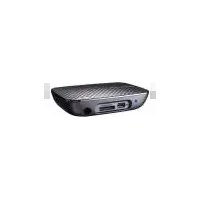
- Blu-ray/HD Media Player
- BDS-700/BDS-500
- 1
- NOTICE
- Cautions and Warnings
- ■ Safety Information
- ■ Laser compliance statement
- ■ Important Safety Instructions
- ■ FCC Statement
- Contents
- Introductions
- Parts And Control
- Installation
- Getting Started
- General Operation
- Advanced Operation
- Appendix
- 2
- playable Discs
- Notes:
- File Compatibility
- USB External Storage
- File System
- AV File Formats
- Audio File Formats
- Picture File Formats
- Subtitle File Formats
- ISO file and Others
- Disc Support BD Media
- Disc Support DVD Media
- Disc Support CD Media
- Others
- AVCHD
- DivX® Plus HD
- DIVX + HD
- DivX® Plus HD Profile
- Compatibility Note
- 3
- Opening the Box
- The Remote Control
- No. Icon Descriptions
- The Blu-ray/HD Media Player
- Front Panel
- No. Item Description
- LCD Display
- ■ Rear Panel
- 4
- Connecting the Blu-ray/HD Media Player
- ■ Connecting the player to your display
- ■ Connecting your player to your AVR
- Separated HDMI audio and video connection (BDS-700 only)
- ■ Connecting a USB device
- ■ Connecting the AC power cord
- Preparing the Remote Control
- Network Connections
- ■ Wired Network Connection
- ■ Wireless Network Connection
- 5
- Easy Setup Wizard
- Network Setup
- ■ Wired Network Setup
- ■ Wireless Network Setup
- 6
- Home Menu Overview
- Playing BD-Video/DVD-Video/Audio CD Disc
- ■ Enjoying BD-LIVE
- Prepare for BD-LIVE
- ■ Enjoying Blu-ray 3D
- Prepare for Blu-ray 3D Disc playback
- ■ Region Code
- Playing Video Files
- ■ To access video files in the Video menu:
- ■ File Folder Playback
- Playing Photo Files
- ■ To access photo files in the Photo menu:
- Playing Music/Audio Files
- ■ To access music files in the Music menu:
- Accessing Internet Services
- Youtube
- To access Youtube
- Internet Radio
- To access Internet Radio
- Picasa
- To access Picasa
- Flickr
- To access Flickr
- Option Menu
- ■ Under Disc, Video and Music Playback
- Item Options
- ■ Under Photo Playback
- 7
- Special functions on Remote Control
- Resolution
- Angle
- Music Mode
- Splendid
- Dimmer
- Zoom
- Pure Audio
- Title TITLE
- Info i
- Smartphone Remote Controller
- Setup Menu
- DLNA operation
- ■ Playback
- BD-Live Connection
- Video
- 1080p 24Hz
- BD 3D Mode
- Audio
- SPDIF Output
- PCM Output Rate Limit (Coaxial/Optical)
- Neo6
- Network
- Other
- 8
- Maintenance
- Notes on Discs
- Handling Discs
- Storing Discs
- Cleaning Discs
- ■ Handling the Unit
- When shipping the unit
- Cleaning the unit
- Maintaining the Unit
- Updating the Firmware
- ■ Manual Update
- ■ Online Update
- Parental Control Area Code
- Trademarks and Licenses
- Blu-Ray Disc™
- Rovi
- HDMI
- Video Output Resolution
- Speaker Setup (Under PCM Multi-channel mode)
- File Format Support and Limitation
- AV File Format
- Avi
- [Supported video format]
- [Supported Audio Formats]
- [Supported Subtitle Formats]
- [Limitations]
- DivX®
- [Suported Video Formats]
- Mkv
- Ts (m2t)
- [Supported Video Formats]
- Mt2s (.mts)
- Mpg, Vob, Mpeg
- Wmv/Asf
- Mov, Mp4, 3gp, M4v
- Flv
- Rmvb
- ■ Audio File Formats:
- Mp3
- Wma
- Flac
- Aac
- Ogg
- Wav
- Ac3
- Mka
- Aiff
- M4a
- Dts
- ■ Picture File Formats
- Bmp
- Jpg, Png, Gif
- Tif, Tiff
- ■ Subtitle File Formats
- PGS
- Sub+IDX, Smi, Srt, Ssa/Ass
- ■ Disc Support BD Media
- BD-Rom
- BD-RE SL, DL
- BD-R SL, DL
- BD-3D
- ■ Disc Support DVD Media
- ■ Disc Support CD Media
- Product Specifications
- Important Information Relating to Network Service
- Internet Radio Service Notice
- Open Source Software Notice
- GNU GENERAL PUBLIC LICENSE
- Preamble
- TERMS AND CONDITIONS FOR COPYING, DISTRIBUTION AND MODIFICATION
- NO WARRANTY
- Offer to Provide Source Code of Certain Software
Brand : ASUS
Model : O!Play BDS-700
Category : Media player