
MX-B380P - Printer SHARP - Free user manual and instructions
Find the device manual for free MX-B380P SHARP in PDF.


| Product Type | Printer |
| Brand | Sharp |
| Model | MX-B380P |
| Paper Input Capacity | Tray 1: 500 sheets; Trays 2-4: 500 sheets each (with optional units); Bypass tray: ~100 sheets plain or ~20 envelopes |
| Supported Paper Sizes | A4, A5, B5, Letter, Legal, Envelopes |
| Supported Paper Types | Plain, Recycled, Envelopes, Pre-Punched, Letter Head, Pre-Printed |
| Print Features | Duplex printing, N-Up printing, Fit to Paper Size, Poster printing, Watermark, Stapling (with finisher) |
| Connectivity | USB 2.0 (Type A & B), LAN (Ethernet) |
| Operation Panel | LCD display with arrow keys, [OK], [BACK], [SYSTEM SETTINGS], [JOB STATUS], [POWER], [STOP], [POWER SAVE], [LOGOUT] |
| User Authentication | Login by user number or login name/password; logout via [LOGOUT] key or auto clear |
| Web Server | Built-in web server for remote management and manual download |
| Supplies | Toner cartridges, drum cartridges, developer cartridges, toner collection container |
| Maximum Paper Capacity | Up to 2100 sheets (4 trays + bypass tray) |
| Misfeed Removal | Guided by on-screen instructions with animation |
| Job Management | Job status screen with queue, cancel, priority functions |
Frequently Asked Questions - MX-B380P SHARP
User questions about MX-B380P SHARP
0 question about this device. Answer the ones you know or ask your own.
Ask a new question about this device
Download the instructions for your Printer in PDF format for free! Find your manual MX-B380P - SHARP and take your electronic device back in hand. On this page are published all the documents necessary for the use of your device. MX-B380P by SHARP.
USER MANUAL MX-B380P SHARP
natural_image
Abstract 3D ribbon-like structure with layered gray lines and a small curved top edge, no text or symbols presentKeep this manual close at hand for reference whenever needed.
Before using the machine
Functions of the machine and procedures for loading paper.
Printing
Basic procedures for using the machine.
System settings
Configuring settings to make the machine easier to use.
Troubleshooting
Frequently asked questions and how to clear paper misfeeds.
OPERATION MANUALS AND HOW TO USE THEM
Three printed manuals and a manual in PDF format are provided with the machine.
Printed manuals
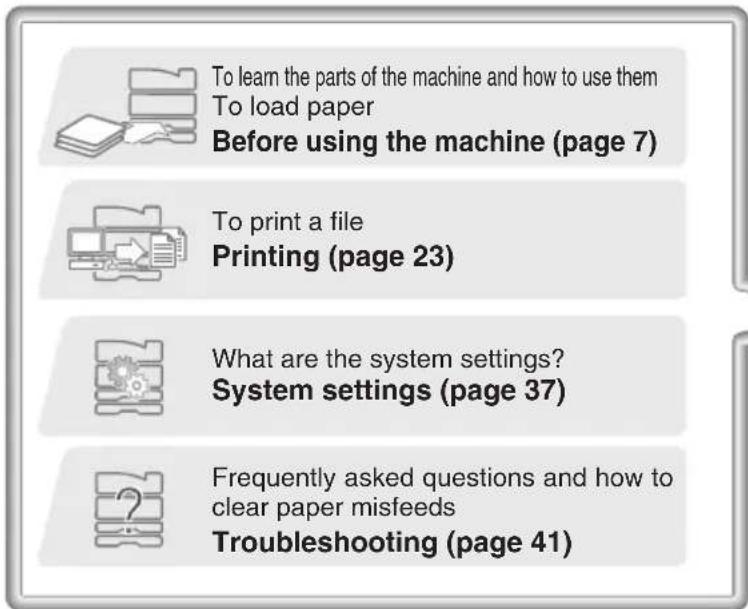
Quick Start Guide

This manual provides easy-to-understand explanations of the functions of the machine in a single manual.

natural_image
Abstract geometric pattern with a cross and horizontal lines, no text or symbols presentPlease read before using the machine.
Safety Guide
Contains important cautionary information and machine specifications.
The explanations in this manual focus on frequently used functions. For special functions, troubleshooting, and detailed procedures for using the machine, see the manual in PDF format.
natural_image
Illustration of a CD or DVD disc and a small object on a surface (no text or symbols)Software Setup Guide
Explains the procedures for installing the printer driver.
Manuals in PDF format
Detailed explanations of the functions that can be used on the machine are provided in the Operation Guide in PDF format. The Operation Guide can be downloaded from the Web pages in the machine.

Operation Guide
natural_image
Abstract geometric pattern with overlapping rectangular shapes (no text or symbols)
Download the Operation Guide from the Web pages in the machine.
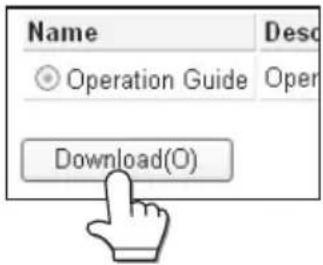
For the downloading procedure, see "Downloading the Operation Guide" (page 4).
* To view the Operation Guide in PDF format, Adobe® Reader® or Acrobat® Reader® of Adobe Systems Incorporated is required. Adobe® Reader® can be downloaded from the following URL: http://www.adobe.com/
CHECKING THE IP ADDRESS
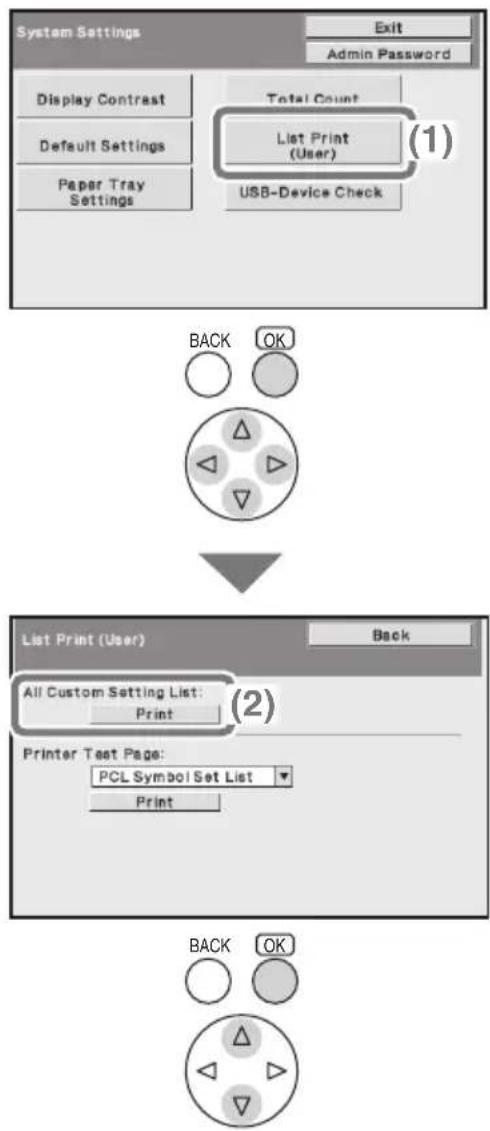
To check the IP address of the machine, print out the all custom setting list in the system settings.
SYSTEM SETTINGS

1 Press the [SYSTEM SETTINGS] key.
flowchart
graph TD
    A["System Settings"] --> B["Exit"]
    B --> C["Admin Password"]
    C --> D["Display Contrast"]
    D --> E["Default Settings"]
    E --> F["Paper Tray Settings"]
    F --> G["Total Count"]
    G --> H["List Print (User)"]
    H --> I["USB-Device Check"]

    J["Back"] --> K["OK"]

    L["List Print (User)"] --> M["All Custom Setting List: Print"]
    M --> N["Printer Test Page: PCL Symbol Set List"]
    N --> O["Print"]

    P["Back"] --> Q["OK"]
2 Select the all custom setting list.
(1) Select the [List Print (User)] key.
(2) Select the [Print] key to the right of "All Custom Setting List".
The IP address is shown in the list that is printed.
ACCESSING THE WEB SERVER IN THE MACHINE
When the machine is connected to a network, the machine's built-in Web server can be accessed from a Web browser on your computer.
Opening the Web pages

Access the Web server in the machine to open the Web pages.
Start a Web browser on a computer that is connected to the same network as the machine and enter the IP address of the machine.
Recommended Web browsers
- Internet Explorer: 6.0 or higher (Windows®)
- Netscape Navigator: 9 (Windows®)
- Firefox: 2.0 or higher (Windows®)
• Safari: 1.5 or higher (Macintosh)
The Web page will appear.
The machine settings may require that user authentication be performed in order to open the Web page. Please ask the administrator of the machine for the password that is required for user authentication.
Downloading the Operation Guide
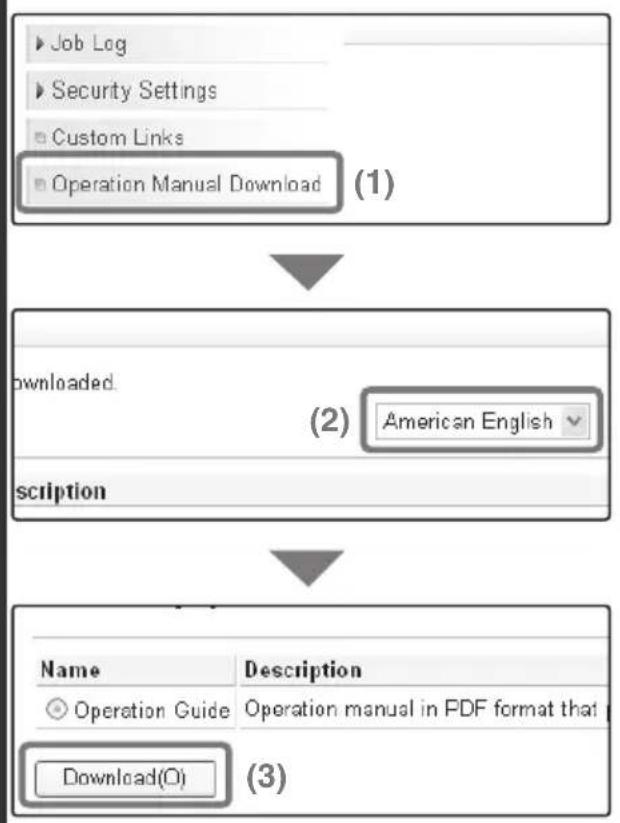
The Operation Guide, which is a more detailed manual, can be downloaded from the machine's Web pages.
flowchart
graph TD
    A["Job Log"] --> B["Security Settings"]
    B --> C["Custom Links"]
    C --> D["Operation Manual Download (1)"]
    E["Downloaded"] --> F["(2) American English"]
    G["Subscription"] --> H["Download(O)"]
    I["Name"] --> J["Description"]
    K["Operation Guide"] --> L["Operation manual in PDF format that"]
    M["Download(O)"] --> N["(3)"]
Downloading the Operation Guide.
(1) Click [Operation Manual Download] in the menu of the Web page.
(2) Select the desired language.
(3) Click the [Download] button. The Operation Guide is downloaded.
TABLE OF CONTENTS
CHECKING THE IP ADDRESS....2
ACCESSING THE WEB SERVER IN THE MACHINE .... 3
Before using the machine
PART NAMES AND FUNCTIONS....8
SUPPLIES 9
ITEMS IN THE DISPLAY....14
USER AUTHENTICATION .... 16
CHANGING PAPER IN A TRAY....18
Printing
PRINTING 24
CANCELLING PRINTING (AT THE MACHINE) 30
SELECTING PRINT SETTINGS 32
CONVENIENT PRINTER FUNCTIONS....34
System settings
SYSTEM SETTINGS....38
Troubleshooting
FREQUENTLY ASKED QUESTIONS 42
REMOVING MISFEEDS 46
Before using the machine
This section provides general information about the machine, including the names and functions of the parts of the machine and its peripheral devices, and the procedures for loading paper.
PART NAMES AND FUNCTIONS 8
▶ SUPPLIES ...... 9
▶ OPERATION PANEL .... 10
▶ USING THE OPERATION PANEL.... 12
▶ ITEMS IN THE DISPLAY .... 14
▶USER AUTHENTICATION .... 16
▶ CHANGING PAPER IN A TRAY ..... 18
PART NAMES AND FUNCTIONS

(1) Output tray (centre tray)
Jobs are delivered to this tray. (When a finisher is installed, the output tray (centre tray) cannot be used.)
(2) Operation panel
(3) Finisher*
This can be used to staple output.
(4) Main power switch
This is used to power on the machine.
(5) Tray 1
Up to 500 sheets of paper (80 g/m ^2 (21 lbs.)) can be loaded in each tray.
(6) Tray 2/Tray 3/Tray 4 (500-she paper feed unit is installed)*
This holds paper. Up to 500 sheets (80 g/m ^2 (21 lbs.)) of paper can be loaded.
(7) USB connector (type A)
Supports USB 2.0 (Hi-Speed). This is used to connect a USB memory or other USB device to the machine.
*Peripheral device. For more information, see "PERIPHERAL DEVICES" in "Chapter 1 - BEFORE USING THE MACHINE" in the Operation Guide.
natural_image
Line drawing of a mechanical device with multiple compartments and a handle, no text or symbols present(8)(9)(10)
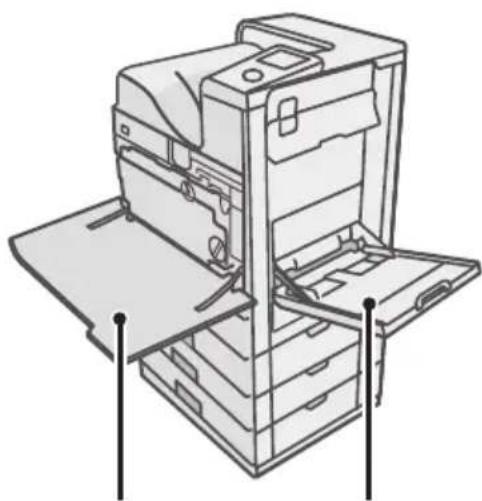
(8) Front cover
Open to replace a toner cartridge.
(9) Bypass tray
Special types of paper and envelopes can be fed from the bypass tray.
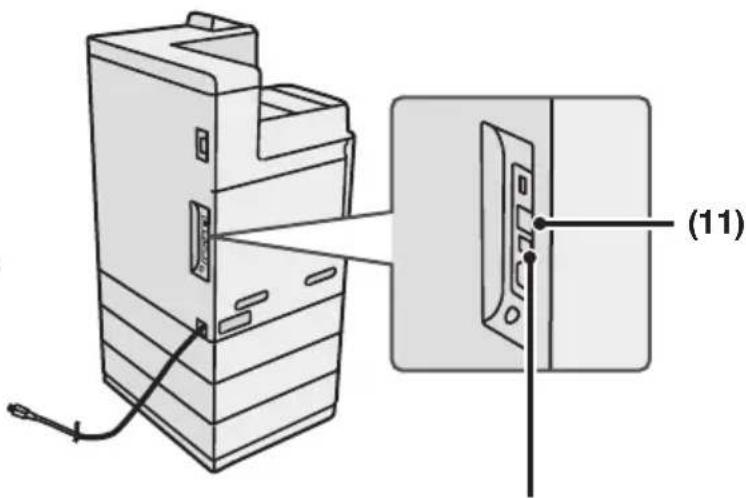
(10) USB connector (B type)
Supports USB 2.0 (Hi-Speed). A computer can be connected to this connector to use the machine as a printer.
(11) LAN connector
Connect the LAN cable to this connector when the machine is used on a network.
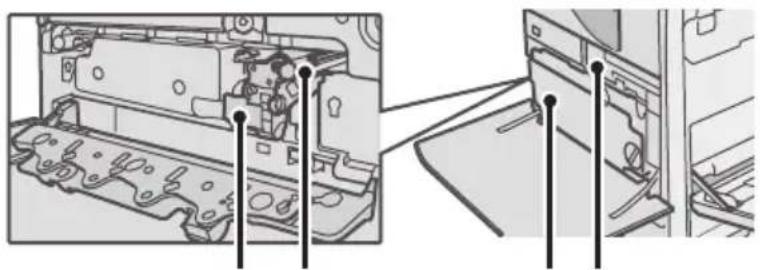
SUPPLIES
natural_image
Technical diagram showing internal components of a device with no visible text or symbols(1) (2) (3) (4)
(1) Drum cartridges
This contains the photosensitive drum that is used to create images for printing.
(2) Developer cartridges
This contains the developer that is necessary to transfer the toner to the paper.
(3) Toner collection container
This collects excess toner that remains after printing.
(4) Toner cartridges
These contain toner for printing. When the toner runs out in a cartridge, the cartridge of the colour that ran out must be replaced.
OPERATION PANEL
![Display Select the displayed items to perform various operations. [PRINT] key When you wish to print a print hold job, press this key to switch to print mode. You can hold down the [PRINT] key to check the total pages used, remaining toner, and machine display. PRINT JOB STATUS SYSTEM SETTINGS LOGOUT BACK OK Ex Data Access Data 2010/04/04 1 2010/04/04 1 READY DATA [SYSTEM SETTINGS] key Press to display the system settings menu screen. You can configure paper tray and other settings to suit the needs of your workplace. Sharp OSA shortcut key Press to display a shortcut to Sharp OSA (open systems architecture) mode (when the application communication module is installed). [JOB STATUS] key Press this key to view the job status screen. You can check the status of jobs and cancel jobs in the job status screen.](/content/2026/06/1242804/images/86d3b92a1fe0c53c4a55a2f14942343c990488f165685ce05639e61006d5ec34.jpg)
[OK] key / [BACK] key / Arrow keys
[OK] key
Press to enter a setting that has been selected.
[BACK] key
Press to return to the previous screen level.
Arrow keys
Press to move the selection frame that selects setting keys and items in the display.
Print mode indicators
READY indicator
Print data can be received when this indicator is lit.
DATA indicator
This blinks while print data is being received and lights steadily while printing is taking place.
[POWER] key
Use this key to turn the machine power on and off.
Main power indicator
This indicator lights when the main power is switched on.
The main power switch is on the left side of the machine.
[STOP] key
Press this key to stop a printing job.
[POWER SAVE] key / indicator
Use this key to activate power save mode. The [POWER SAVE] key blinks when the machine is in power save mode. This key is also used to deactivate power save mode.
[LOGOUT] key
When user authentication is enabled, press this key to log out after using the machine.
This section explains the procedures for selecting setting items in the screen.
Selecting setting items
![File List Multi-File Print File Name User Name Date JOB01工業Name01 2010/04/04 JOB02工業Name01 2010/04/04 Selection frame [BACK] key BACK OK [OK] key Arrow keys](/content/2026/06/1242804/images/09ed2b04ff322959542f9cd5170121f16d557e451923f2dd32fee955e72d1453.jpg)
Base screen
The frame that appears in the display is the selection frame.
Move the selection frame to the item that you wish to select and press the [OK] key.
The selection frame is moved with the arrow keys ( ) ▼ △ ◀ ▶
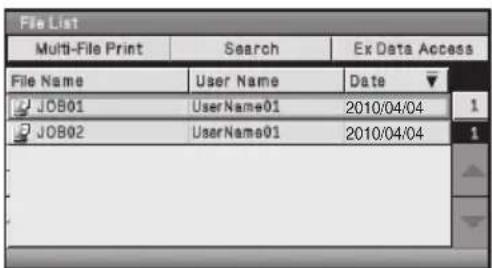
When the Ⓞ key is pressed and the [OK] key is pressed...


The operation selection screen appears.
Press the [BACK] key to return to the previous screen level.

When the [BACK] key is pressed in the operation selection screen,

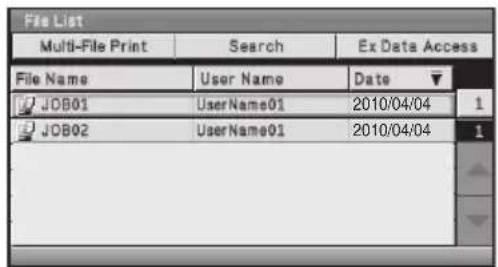
you return to the base screen.
ITEMS IN THE DISPLAY
Useful items in the display are explained below.

flowchart
graph TD
    A["Messages appear here."] --> B["Print"]
    B --> C["Print and Copy"]
    C --> D["Print and Delete"]
    D --> E["Paper Select"]
    E --> F["Auto"]
    E --> G["Copies"]
    G --> H["1"]
    E --> I["2-Sided Print"]
    I --> J["Off"]
    J --> K["1/2"]
    K --> L["Numbers in the format "1/2" indicate that there are more items. These numbers mean "current screen / total number of screens"."]
    M["Settings appear here. If you press the Ⓥ key when the selection frame is on the bottom setting, the next screen will appear."] --> N["External Data Access"]
    N --> O["FTP"]
    N --> P["USB Memory"]
    N --> Q["Network Folder"]
    N --> R["[Back"].Return]
    R --> S["An operation hint appears here."]
Important operations to know


(1) When a checkbox is selected and the [OK] key is pressed, a checkmark will appear to indicate that the setting is enabled.
(2) You can select "Basic Menu" to return to that screen.
(3) can be used to increase or decrease a value. To make the value change quickly, hold down the [OK] key.
Job status screen
To show the job status screen, press the [JOB STATUS] key on the operation panel. You can check the status of a printing job being executed in the job status screen.

flowchart
graph TD
    A["To change the jobs that are displayed, change the status (spool, reserved/executing, complete)."] --> B["Job Queue"]
    B --> C["1 User_1 002/000 Printing 1"]
    B --> D["2 User_2 002/000 Waiting 1"]
    E["Jobs are displayed as a list. The jobs appear in the order that they will be run.<br>A selected job can be given priority and run ahead of other jobs, or a job waiting in the queue can be cancelled."] --> F
USER AUTHENTICATION
When user authentication is enabled, you must log in before using the machine. User authentication is initially disabled.
When you have finished using the machine, log out.
User authentication methods
There are two methods for performing user authentication: login by user number and login by login name and password. Ask the administrator of the machine for the information that is required to log in.
For details on user authentication, see "USER AUTHENTICATION" in "Chapter 1 - BEFORE USING THE MACHINE" in the Operation Guide.
Login by user number

This method requires that you log in by entering your previously stored user number (5 to 8 digits) with the soft numeric keypad.
Login by login name and password
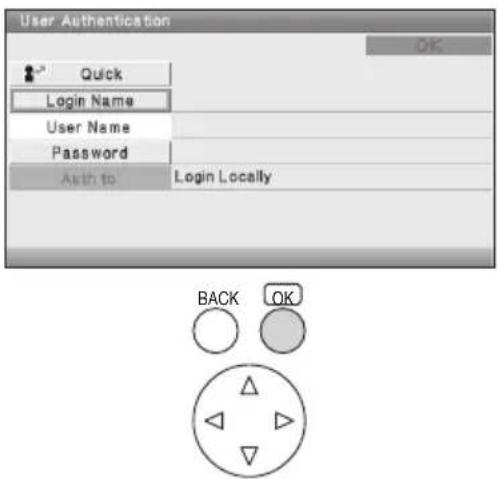
This method requires that you log in by entering your login name, password, and the login destination. Depending on the authentication settings, it may also be necessary to enter your e-mail address.
Logging out
When you have finished using the machine, log out. Logging out prevents unauthorised use of the machine.
How to log out
You can log out from any mode of the machine by pressing the [LOGOUT] key.
If a preset duration of time elapses after the machine is last used, the auto clear function will activate. When auto clear activates, logout automatically takes place.
CHANGING PAPER IN A TRAY
Names of the trays
The names of the trays are shown below.
For the number of sheets of paper that can be loaded in each tray, see the following manuals:
- Operation Guide, "Paper Tray Settings" in "Chapter 3 - SYSTEM SETTINGS"
- Safety Guide, "SPECIFICATIONS"
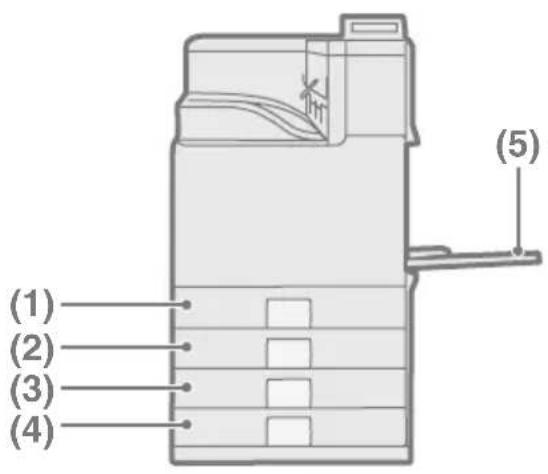
(1) Tray 1
(2) Tray 2
(3) Tray 3
(4) Tray 4
(5) Bypass tray
Print side face up or face down
Paper is loaded with the print side face up or face down depending on the paper type and tray.
| Tray Print side* | |
| Tray 1 to 4 Face up | |
| Bypass tray Face down |
* When loading "Pre-Punched", "Letter Head", or "Pre-Printed" paper in the paper tray, the direction the print side faces is different.
For more information, see "LOADING PAPER" in "Chapter 1 - BEFORE USING THE MACHINE" in the Operation Guide.
Loading paper in a tray
To change the paper in a tray, load the desired paper in the tray and then change the tray settings in the machine to specify the loaded paper. The procedure for changing the tray paper size is explained below. As an example, the paper in tray 1 is changed from A4 (8-1/2" x 11") size plain paper to A5 (5-1/2" x 8-1/2") size recycled paper.

flowchart
graph TD
    A["Gently pull out the paper tray. If paper remains in the tray, remove it."] --> B["Move the two guides on the tray. For example, move the guides from A4 (8-1/2" x 11") to A5 (5-1/2" x 8-1/2"). Adjust the guides to match the paper being loaded. If the guides are too loose, the paper will not be held in place. If the guides are too tight, the paper will bow. Load the paper so that it is not as shown below when viewed from the front and side of the machine."]
    B --> C["The loaded paper should not go higher than these protrusions."]
    C --> D["Insert the paper with the print side face up. Fan the paper well before inserting it. Otherwise, multiple sheets may feed at once and cause a misfeed. Insert the paper and then gently push the tray into the machine."]
    D --> E["Indicator line indicates the maximum height of the paper that can be loaded in the tray. When loading paper, make sure that the stack is not higher than the indicator line."]
Changing the tray settings
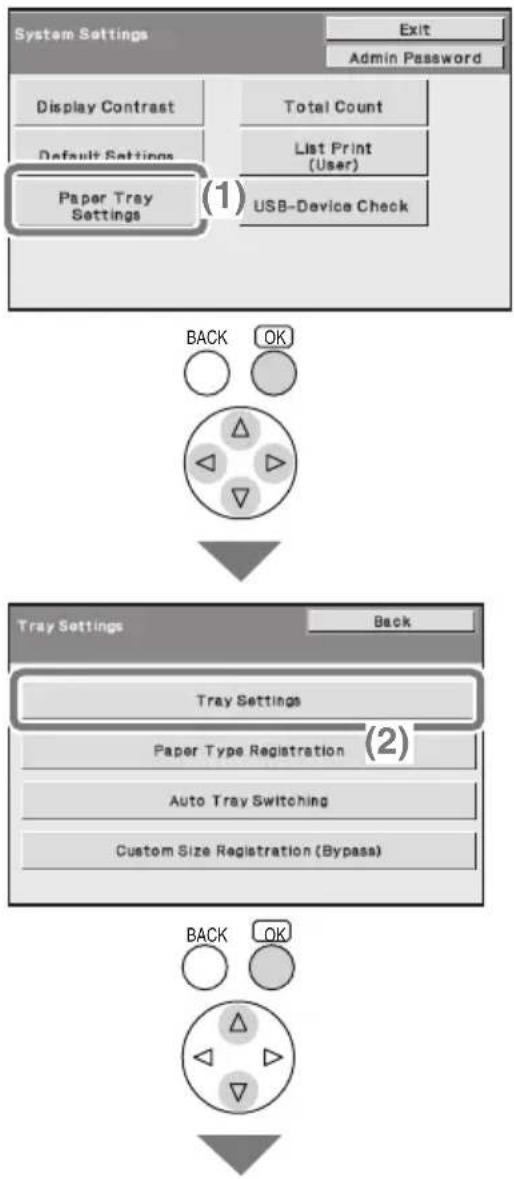
When you change the paper in a tray, the tray settings in the system settings must also be changed.
SYSTEM SETTINGS
1 Press the [SYSTEM SETTINGS] key.
flowchart
graph TD
    A["System Settings"] --> B["Display Contrast"]
    A --> C["Default Settings"]
    A --> D["Paper Tray Settings"]
    D --> E["Total Count"]
    D --> F["List Print (User)"]
    D --> G["USB-Device Check"]
    H["Tray Settings"] --> I["Back"]
    H --> J["Tray Settings"]
    J --> K["Paper Type Registration (2)"]
    J --> L["Auto Tray Switching"]
    J --> M["Custom Size Registration (Bypass)"]
    N["Back"] --> O["OK"]
2 Configure the tray settings.
(1) Select the [Paper Tray Settings] key.
Select with and press [OK].
(2) Select the [Tray Settings] key.
Select with and press [OK].

flowchart
graph TD
    A["Tray Settings"] --> B["Tray 1"]
    B --> C["Type: Plain Change"]
    C --> D["Size: Auto-AB"]
    D --> E["Paper Property (3)"]
    E --> F["Fixed Paper Side: Disable Duplex, Disable Staple"]
    F --> G["Back OK"]
    H["Paper Tray Settings"] --> I["OK Cancel"]
    I --> J["Tray: Tray 1"]
    J --> K["Type: Recycled (4)"]
    K --> L["Size: Auto-Inch (5)"]
    L --> M["A4.B5.A5, 216x330(8 1/2x13)"]
    M --> N["Approving Feeding"]
    O["Back OK"] --> P["△"]
    Q["OK"] --> R["▽"]
Configure the tray settings. (Continued)
(3) Select the [Change] key in "Tray 1".
Select with and press [OK].
(4) Select [Recycled] from the "Type" select box.
Select with and press [OK].
(5) Make Sure that [Auto-AB] is selected in the "Size" select box.
Select with Ⓗ and press [OK].
For more information, see "Paper Tray Settings" in
"Chapter 3 - SYSTEM SETTINGS" in the Operation Guide.
(6) Select the [OK] key.
Select with Ⓢ and press [OK].
The above steps change the paper settings for tray 1 to A5 recycled paper.
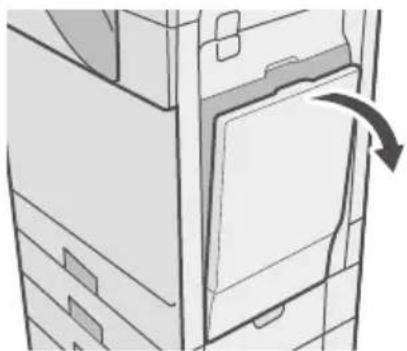
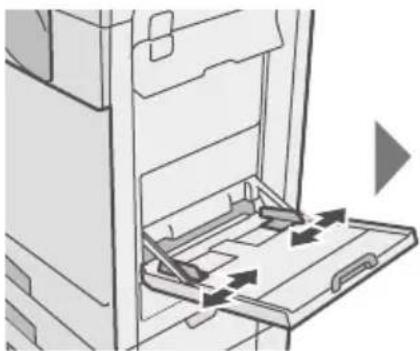
Loading paper in bypass tray
natural_image
Diagram of a cabinet with an open door and arrow indicating rotation (no text or symbols)
natural_image
Diagram of a refrigerator interior showing door, drawer, and tray with arrows indicating movement (no text or symbols)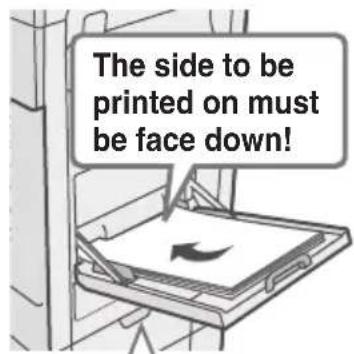
Load the paper in the horizontal orientation.
natural_image
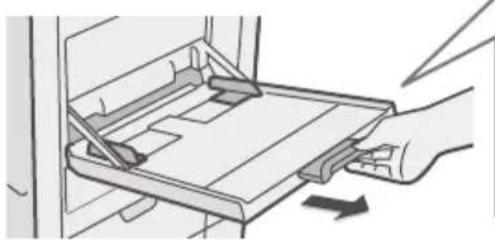
Illustration of a hand inserting a tray into a refrigerator (no text or symbols)When loading A4 size paper, pull out the tray extension.
The maximum number of sheets that can be loaded in the bypass tray is approximately 100 for plain paper and approximately 20 for envelopes.
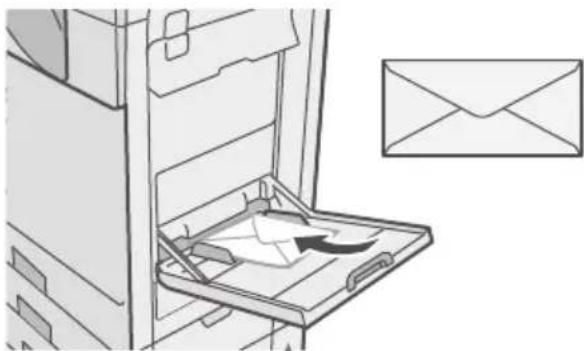
Example: Loading an envelope

natural_image
Line drawing of a refrigerator interior with a tray and drawer, showing no text or symbols
Place paper that is A5 (7-1/4" x 10-1/2") or smaller in the horizontal orientation.
natural_image
Line drawing of an open refrigerator with a closed drawer and an envelope icon (no text or symbols)Only the address side of envelopes can be printed on. Place envelopes with the address side face down.
Do not place heavy objects on the bypass tray or press down on the tray. The bypass tray may be damaged, the machine may topple, and injury may result. Special types of paper that cannot be loaded in other trays can be loaded in the bypass tray.
For detailed information on the bypass tray, see "LOADING PAPER IN THE BYPASS TRAY" in "Chapter 1- BEFORE USING THE MACHINE" in the Operation Guide.
PRINTING
This section explains the basic procedure for printing using the printer driver of the machine. The settings that can be selected in the printer driver are also introduced.
The explanations of screens and procedures are primarily for Windows Vista® in Windows® environments, and Mac OS X v10.4 in Macintosh environments. The window varies depending on the operating system version, the printer driver version, and the application.
▶ PRINTING....24
▶ CANCELLING PRINTING (AT THE MACHINE) ..... 30
▶SELECTING PRINT SETTINGS....32
▶CONVENIENT PRINTER FUNCTIONS ..... 34
PRINTING
This section explains the basic procedures for printing.
Windows
The following example explains how to print an A4 size document from WordPad, which is a standard accessory program in Windows. To install the printer driver and configure settings in a Windows environment, see "2 - SETUP IN A WINDOWS ENVIRONMENT" in the Software Setup Guide.
For information on the available printer drivers and the requirements for their use, see "PRINTER FUNCTION OF THE MACHINE" in "Chapter 2 - PRINTING" in the Operation Guide.
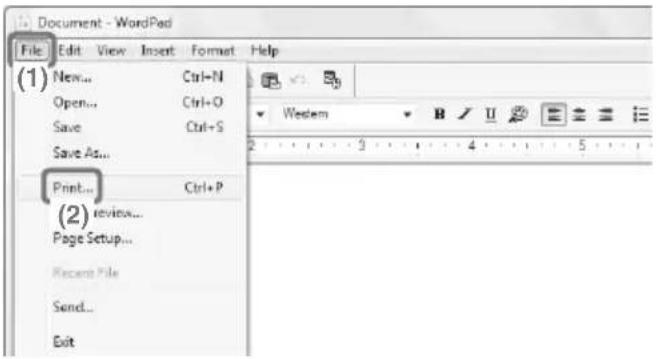
1 Select the print command in the application.
(1) Open the [File] menu.
In Windows 7, click the button.

(2) Select [Print].
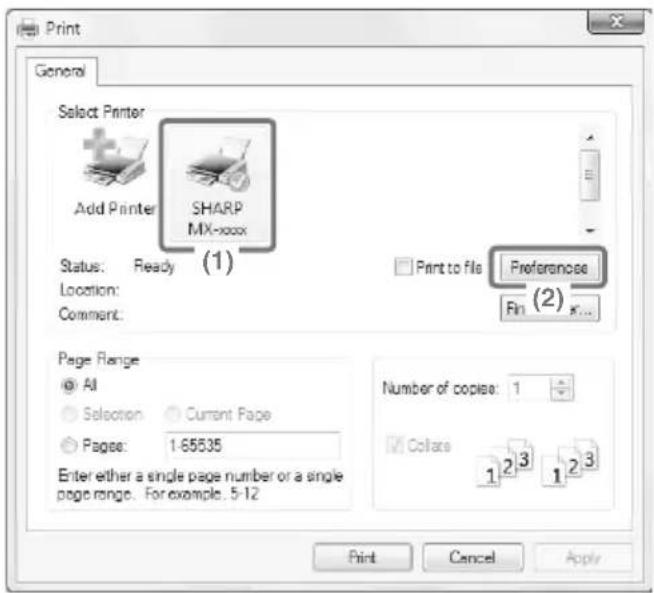
2 Open the printer driver properties window.
(1) Select the printer driver of the machine.
(2) Click the [Preferences] button.
In Windows 2000, the [Preferences] button does not appear. Click the tabs in the "Print" dialog box to adjust the settings on the tabs.
In Windows 98/Me/NT 4.0, click the [Properties] button.
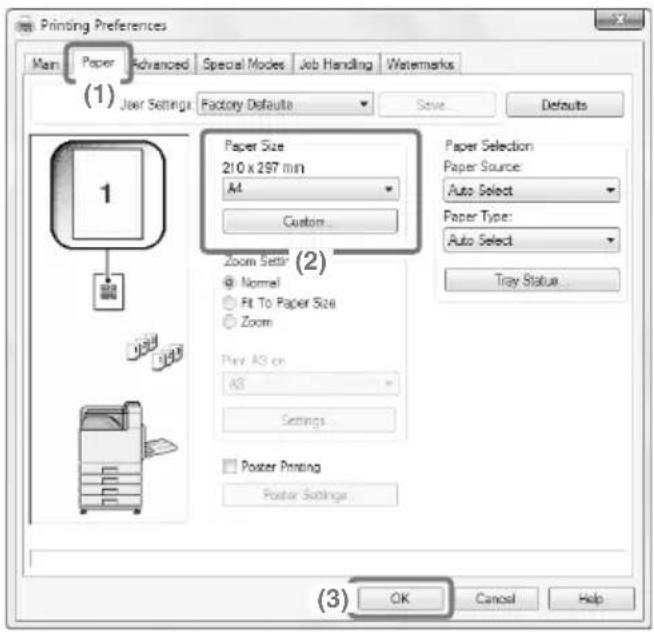
3 Select print settings.
(1) Click the [Paper] tab.
(2) Select [A4].
(3) Click the [OK] button.

4 Click the [Print] button.
Printing begins. In Windows 98/Me/NT 4.0, click the [OK] button.
When removing printed output...
Remove the output horizontally so that it does not get caught on the actuator for output tray full detection.
Using printer driver help
When selecting settings in the printer driver properties window, you can display Help to view explanations of the settings. (Only in Windows)
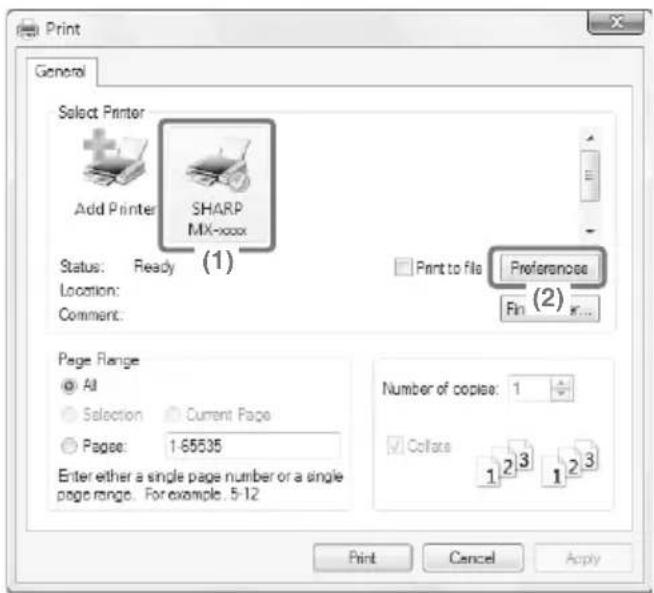
1 Open the printer driver properties window.
(1) Select the printer driver of the machine.
(2) Click the [Preferences] button.
In Windows 2000, the [Preferences] button does not appear. Click the tabs in the "Print" dialog box to adjust the settings on the tabs.
In Windows 98/Me/NT 4.0, click the [Properties] button.

2 Click the [Help] button.
The Help window will open to let you view explanations of the settings on the tab.
To view Help for settings in a dialog box, click the green text at the top of the Help window.
To view Help for a specific setting
Click the setting that you wish to learn about and press the [F1] key. Help for that setting will appear.
* To view Help for a particular setting in Windows 98/Me/NT 4.0/2000/XP/Server 2003, click the ?button in the upper right-hand corner of the printer driver window and then click the setting.
When the information icon ( )appears
The icon can be clicked to show prohibited combinations of functions and other information.
Macintosh
The following example explains how to print an A4 size document from "TextEdit" ("SimpleText" in Mac OS 9), which is a standard accessory program on Macintosh computers.
In a Macintosh environment, the PS3 expansion kit must be installed to use the machine as a network printer.
To install the printer driver and configure settings in a Macintosh environment, see "3 - SETUP IN A MACINTOSH ENVIRONMENT" in the Software Setup Guide.
Setting the paper size
Select paper settings in the printer driver before selecting the print command.
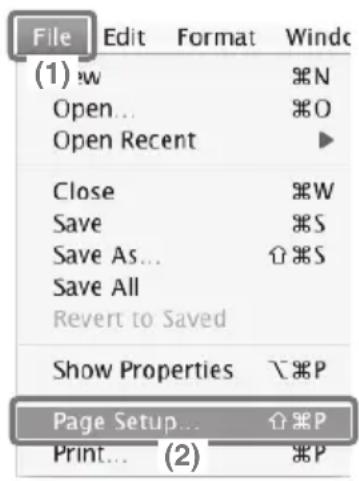
1 Open the page setup window in TextEdit.
(1) Open the [File] menu.
(2) Select [Page Setup].
In Mac OS 9, select [Print] from the [File] menu of SimpleText.

2 Select paper settings.
(1) Make sure the correct printer is selected.
The machine name that appears in the "Format for" menu is normally [SCxxxxx]. In Mac OS X v10.6, it is normally [RDVxxxxxx]. ("xxxxxx" is a sequence of characters that varies depending on your machine model.)
(2) Select [US Letter].
(3) Click the [OK] button.
Printing a file
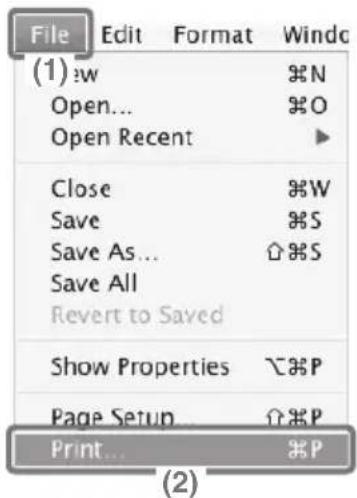
1 Execute printing from TextEdit.
(1) Open the [File] menu.
(2) Select [Print].
In Mac OS 9, select [Print] from the [File] menu of SimpleText.
2 Select print settings and click the [Print] button.

(1) Make sure the correct printer is selected.
The machine name that appears in the "Printer" menu is normally [SCxxxxxx]. In Mac OS X v10.6, it is normally [RDVxxxxxx]. ("xxxxxx" is a sequence of characters that varies depending on your machine model.)
(2) Select print settings.
Click next to [Copies & Pages] and select each setting that you wish to configure from the pull-down menu. The screen for the selected setting will appear.
If the settings do not appear in Mac OS X v10.5 to 10.5.8 and v10.6, click next to the printer name.
In Mac OS 9, click next to [General] and select a setting from the pull-down menu. The screen for the selected setting will appear.
(3) Click the [Print] button.
Printing begins.
When removing printed output...
Remove the output horizontally so that it does not get caught on the actuator for output tray full detection.
CANCELLING PRINTING (AT THE MACHINE)
You can cancel a job if you cancel before printing actually begins.
JOB STATUS
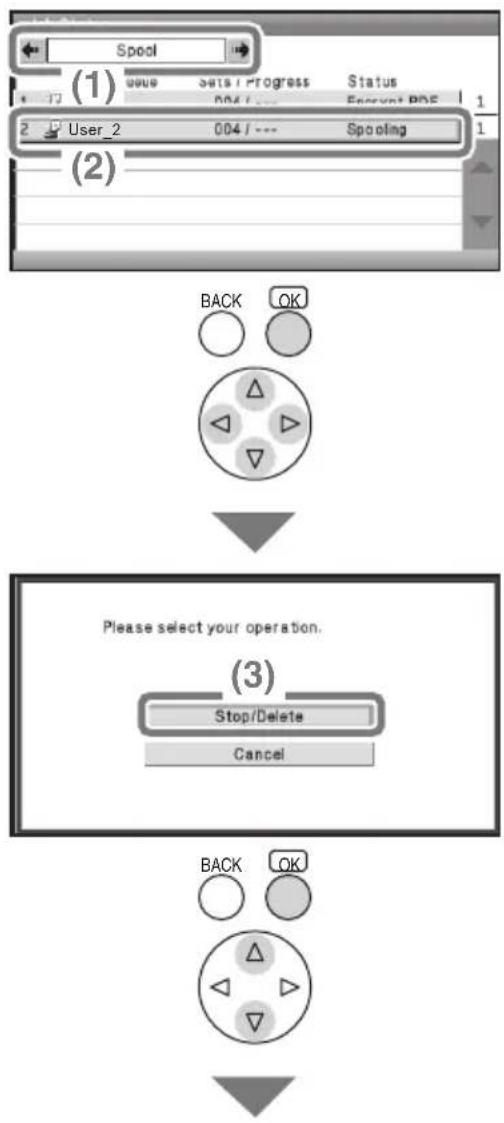
1 Press the [JOB STATUS] key.
flowchart
graph TD
    A["User_2 004 / --- Spoaling"] --> B{BACK OK}
    B --> C["Process Step"]
    C --> D["Please select your operation."]
    D --> E{Stop/Delete}
    E --> F["Cancel"]
    F --> G{Back OK}
    G --> H["Process Step"]
2 Select settings.
(1) Change the job status mode to [Spool] or [Job Queue].
Select either of the keys with the keys and press the [OK] key. The mode changes each time the [OK] key is pressed.
(2) Select the key of the job that you wish to cancel. Select with and press [OK].
(3) Select the [Stop/Delete] key. Select with and press [OK].
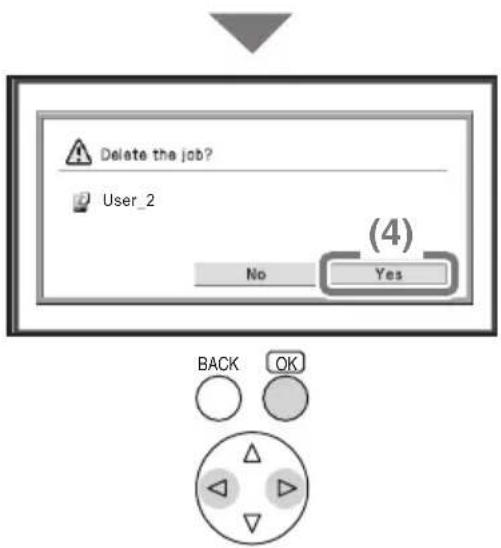
Configure the tray settings. (Continued) (4) Select the [Yes] key
Select with and press [OK].
SELECTING PRINT SETTINGS
To use the print function of the machine, the settings in the printer driver properties window must be configured. See "PRINTING" (page 24) for the procedure for opening the printer driver properties window and the basic procedure for printing.
Windows
The procedure for selecting settings in the printer driver is explained below using "Fitting the print image to the paper (Fit To Paper Size)" as an example.
The Fit To Paper Size function is used to automatically enlarge or reduce the print image to fit the selected paper size. In this example, an A5 size image will be printed on A4 size paper.
The procedures for configuring printer driver settings vary by setting. For more information on each setting, see "FREQUENTLY USED FUNCTIONS" and "CONVENIENT PRINTING FUNCTIONS" in "Chapter 2 - PRINTNG" in the Operation Guide.

Select print settings.
(1) Click the [Paper] tab.
(2) Select [A5].
Select the size of the print image.
(3) Select [Fit To Paper Size].
(4) Select [A4].
Select the size of paper that you want to print on.
(5) Click the [OK] button.
This completes the settings. Start printing.
Macintosh
The procedure for selecting printer driver settings is explained below using "Printing multiple images on one page (N-Up Printing)" as an example.
This function reduces the size of each page to let you print multiple pages on one sheet of paper. The example of printing two pages on one sheet of paper with borderlines is explained.
The procedures for configuring printer driver settings vary by setting. For more information on each setting, see "FREQUENTLY USED FUNCTIONS" and "CONVENIENT PRINTING FUNCTIONS" in "Chapter 2 - PRINTING" in the Operation Guide.

Select print settings.
(1) Select [Layout].
(2) Select [2].
(3) Select the order of the pages.
(4) Select the desired type of borderline.
CONVENIENT PRINTER FUNCTIONS
Printing on both sides of the paper (2-sided printing)
Use this function to print on both sides of the paper. You can use 2-sided printing to reduce the number of printed sheets when you are printing a large number of pages or when you wish to conserve paper.

Fitting the print image to the paper (Fit To Paper Size)
Use this function to enlarge or reduce the print image to fit the paper size.
This is convenient for such purposes as enlarging an A5 or invoice size document to A4 or letter size paper to make it easier to view, and to print when the same size of paper as the print image is not loaded in the machine.

Printing multiple images on one page (N-Up Printing)
Use this function to print multiple pages on a single sheet of paper by reducing the size of the print images. This is convenient when you wish to show an overall view of multiple pages or conserve paper.

Stapling printed pages (Staple)
Use this function to staple printed output. (When a finisher is installed.)

flowchart
graph LR
    A["Stacked Blocks with Apple Icon"] --> B["Output Image with Apple Icon"]
The machine also has these functions
For information on each of these functions, see "CONVENIENT PRINTING FUNCTIONS" and "RETENTION (PRINT HOLD) FUNCTION" in
"Chapter 2 - PRINTING" in the Operation Guide.
Convenient functions for creating pamphlets and posters
- Creating a pamphlet (Pamphlet)
- Increasing margin (Margin Shift)
- Creating a large poster (Poster Printing)
Functions to adjust the size and orientation of the image
- Rotating the image 180 degrees (Rotate 180 degrees)
- Enlarging/reducing the print image (Zoom / XY-Zoom)
- Adjusting line widths when printing (Line Width Settings)
- Reversing the image (Mirror Image)
Image adjustment function
- Adjusting the brightness and contrast of the image (Image Adjustment)
- Printing faint text or lines in black (Text To Black/Vector To Black)
Functions to combine text and images
- Adding a watermark to printed pages (Watermark)
- Printing an image over the print data (Image Stamp)
- Creating overlays for print data (Overlays)
Print functions for special purposes
- Printing specified pages on different paper (Different Paper)
- Adding inserts when printing on transparency film (Transparency Inserts)
- Printing a carbon copy (Carbon Copy)
- Printing so that a specific page is the front page when using two-sided printing (Chapter Inserts)
Retention (print hold) function
- Saving print files (Retention)
System settings
The system settings let you adjust the operation of the machine to suit the needs of your workplace. This section briefly introduces several of the system settings. For detailed explanations of the system settings, see "Chapter 3 - SYSTEM SETTINGS" in the Operation Guide.
Various settings related to the machine such as the date and time setting and paper tray settings can be configured in the system settings screen. The procedure for opening the system settings screen and the items in the screen are explained below.
For detailed explanations of the system settings, see "Chapter 3 - SYSTEM SETTINGS" in the Operation Guide.
Displaying the system settings screen
The system settings can be configured on the machine or in the Web page. To configure the settings on the machine, display the system settings screen as shown below.
To configure the settings in the Web page, see "Opening the Web pages" (page 3) to open the Web page.
flowchart
graph TD
    A["SYSTEM SETTINGS"] --> B["System Settings"]
    B --> C["Display Contrast"]
    B --> D["Default Settings"]
    B --> E["Paper Tray Settings"]
    B --> F["Total Count"]
    B --> G["List Print (User)"]
    B --> H["USB-Device Check"]
    B --> I["BACK"]
    B --> J["OK"]
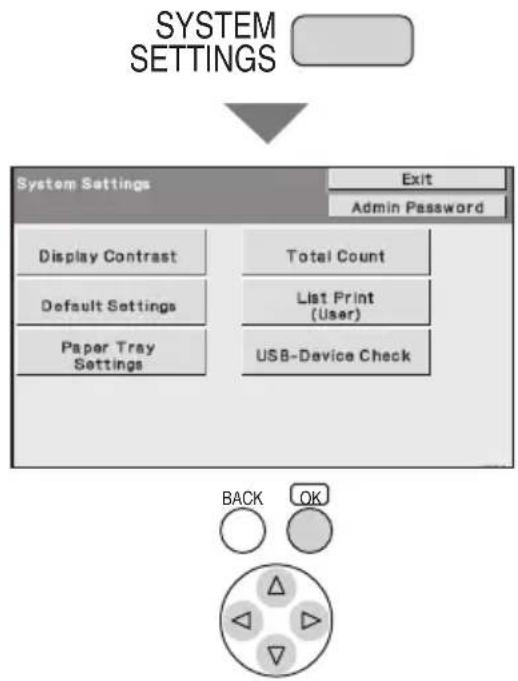
Press the [SYSTEM SETTINGS] key.
The system settings screen will appear.
The keys that appear will vary depending on what peripheral devices are installed.
What you can do in the system settings
| Settings Description | |
| Display Contrast (Operation panel only) | The display contrast can be adjusted. |
| Total Count This displays the total number of pages printed. | |
| Default Settings This lets you set the clock and change the software keyboard used for text entry. | |
| List Print (User) This lets you print lists showing the machine status and settings. | |
| Paper Tray Settings | This is used to set the type and size of paper used in each tray, and to store new paper types. |
| Printer Condition Settings (Web page only) | This is used to configure settings for printing without using the printer driver and settings for the printer function. |
| USB-Device Check This is used to check the connection status of a USB device. | |
System settings (administrator)
The system settings (administrator)* are system settings that can only be configured by the administrator of the machine. To configure these settings, the administrator password must be entered.
However, when user authentication is enabled, users who log in with certain user rights may be able to configure these settings without entering the administrator password. Check with your administrator.
* Although the manuals for the machine indicate system settings that require administrator rights as "system settings (administrator)", this is only for convenience in explaining the settings. The word "administrator" does not appear in the display or elsewhere on the machine.
For the items of the system settings (administrator), see "Chapter 3 - SYSTEM SETTINGS" in the Operation Guide.
Troubleshooting
This sections contains answers to frequently asked questions and explains how to remove paper misfeeds.
▶ FREQUENTLY ASKED QUESTIONS ..... 42
▶ REMOVING MISFEEDS....46
FREQUENTLY ASKED QUESTIONS
Printing on envelopes

natural_image
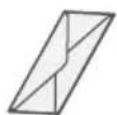
Simple line drawing of two overlapping paper sheets (no text or symbols)The procedure for printing on an envelope is explained below. Only the name and address side of an envelope can be printed on.
It is recommended that you do a test print to check the print result before using an envelope.
1 Place paper in the bypass tray.

Print on the name and address side
2 Tray Settings.
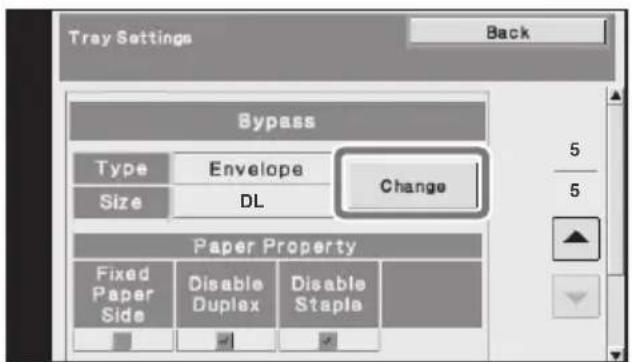
Type : Envelope
Size : Select the envelope size
3 Select settings in the printer driver.
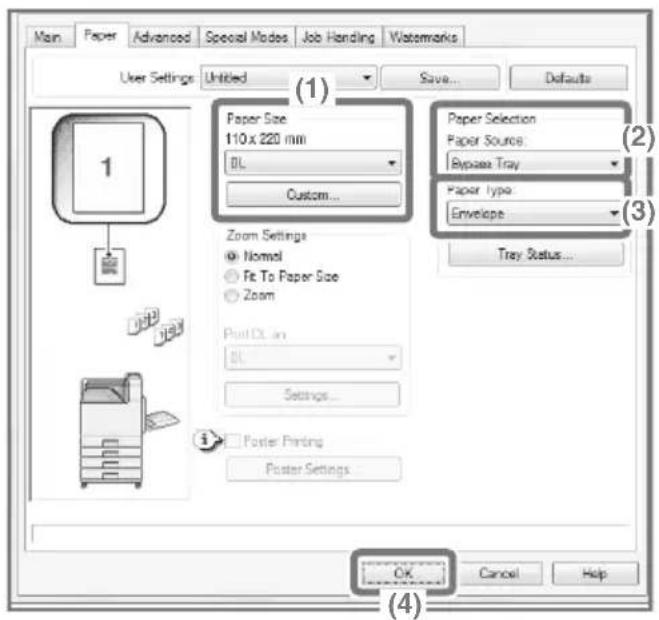
(1) Select the size of the envelope in "Paper Size".
(2) Select "Bypass Tray" from "Paper Source" in "Paper Selection".
(3) Select [Envelope] in "Paper Type". If needed, select the "Rotate 180 degrees" checkbox ( ) in "Image Orientation" on the [Main] tab.
(4) Click the [OK] button.
Changing the paper size used for a job
When the size of paper is not loaded in any of the machine's paper trays, follow the steps below to change the paper size.

1 Check details on the job.
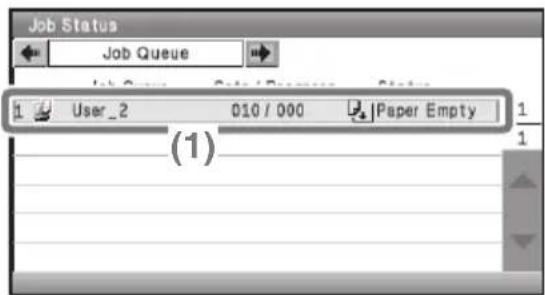
Press the [JOB STATUS] key on the operation panel to display the job status screen.
(1) Select the job whose status is [Paper Empty].
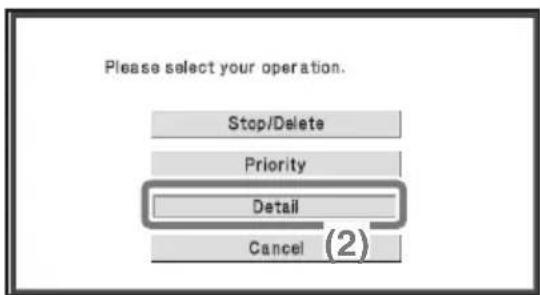
(2) Select the [Detail] key.
To delete the job, you can select the [Stop/Delete] key.
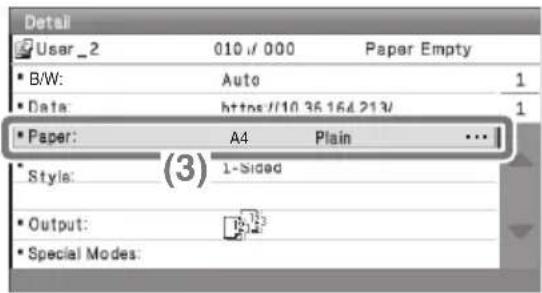
(3) Check the paper size specified for the job in the detail screen, and select the [Paper Select] key.
2 Change the paper size used for the job.
| Detail | ||
| User_2 | 010 / 000 | Paper Empty |
| Paper Select | ||
| 1.A4 | Plain | |
| 2.A5 | Plain | |
| 3.B4 | Plain | |
| 4.A4 | Plain | |
| A4 | Plain | |
Select the paper size on which you wish to print the job from the set paper sizes.
To avoid cutting off part of the image, select a paper size that is larger than the paper size specified for the job.
REMOVING MISFEEDS
When a paper misfeed occurs, the message "A misfeed has occurred." will appear in the display and printing will stop. In this event, select the [Information] key in the display. When the key is selected, instructions for removing the misfeed will appear. Follow the instructions. When the misfeed is cleared, the message will automatically clear.
The blinking mark in the image at left indicates the approximate position of the misfeed.
Misfeed location

Select the [Information] key to display the following screen.

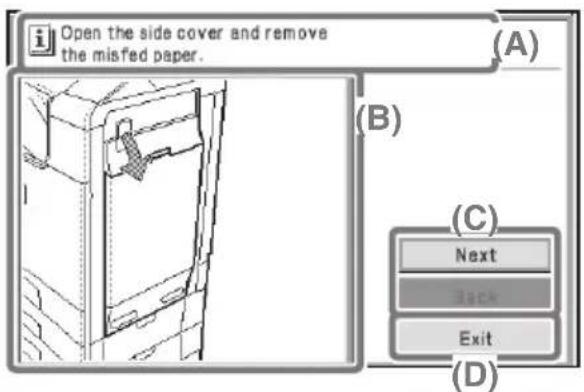
(A)Instructions for removing the misfeed appear here.
(B)Animation showing what to do.
(C)Display the previous screen or the next screen.
(D)This closes the information screen.
The information screen cannot be closed until the misfeed is removed.
- While the message appears, printing cannot be resumed.
-
If the message does not clear even after the misfeed has been removed, the causes below are possible. Check once again.
-
The misfeed was not correctly removed.
- A torn piece of paper remains in the machine.
- A cover or unit that was opened or moved to remove the misfeed was not returned to its original position.
For detailed procedures for removing misfeeds, see "REMOVING MISFEEDS" in "Chapter 4 - TROUBLESHOOTING" in the Operation Guide.
Please note
- For information on your operating system, please refer to your operating system manual or the online Help function.
- The explanations of screens and procedures in a Windows environment are primarily for Windows Vista®. The screens may vary depending on the version of the operating system or the software application.
- The explanations of screens and procedures in a Macintosh environment are based on Mac OS X v10.4 in the case of Mac OS X. The screens may vary depending on the version of the operating system or the software application.
- Wherever "MX-xxxx" appears in this manual, please substitute your model name for "xxxx".
- Considerable care has been taken in preparing this manual. If you have any comments or concerns about the manual, please contact your dealer or nearest authorised service representative.
- This product has undergone strict quality control and inspection procedures. In the unlikely event that a defect or other problem is discovered, please contact your dealer or nearest authorised service representative.
- Aside from instances provided for by law, SHARP is not responsible for failures occurring during the use of the product or its options, or failures due to incorrect operation of the product and its options, or other failures, or for any damage that occurs due to use of the product.
Warning
- Reproduction, adaptation or translation of the contents of the manual without prior written permission is prohibited, except as allowed under copyright laws.
- All information in this manual is subject to change without notice.
Illustrations and the operation panel shown in this manual
The peripheral devices are generally optional, however, some models include certain peripheral devices as standard equipment.
The explanations in this manual assume that 500-sheet paper feed units (total of four trays) are installed on the machine.
For some functions and procedures, the explanations assume that devices other than the above are installed.
The display screens, messages, and key names shown in the manual may differ from those on the actual machine due to product improvements and modifications.
SHARP®
SHARP CORPORATION
PRINTED IN FRANCE
TINSE4721GHZZ
- Before using the machine
- Printing
- System settings
- Troubleshooting
- OPERATION MANUALS AND HOW TO USE THEM
- Printed manuals
- Safety Guide
- Software Setup Guide
- Manuals in PDF format
- CHECKING THE IP ADDRESS
- ACCESSING THE WEB SERVER IN THE MACHINE
- Opening the Web pages
- Downloading the Operation Guide
- Downloading the Operation Guide.
- TABLE OF CONTENTS
- PART NAMES AND FUNCTIONS
- Front cover
- Bypass tray
- USB connector (B type)
- LAN connector
- SUPPLIES
- Drum cartridges
- Developer cartridges
- Toner collection container
- Toner cartridges
- OPERATION PANEL
- [OK] key / [BACK] key / Arrow keys
- [OK] key
- [BACK] key
- Arrow keys
- Print mode indicators
- READY indicator
- DATA indicator
- [POWER] key
- Main power indicator
- [STOP] key
- [POWER SAVE] key / indicator
- [LOGOUT] key
- Selecting setting items
- ITEMS IN THE DISPLAY
- Important operations to know
- Job status screen
- USER AUTHENTICATION
- User authentication methods
- Logging out
- How to log out
- CHANGING PAPER IN A TRAY
- Names of the trays
- Print side face up or face down
- Loading paper in a tray
- Changing the tray settings
- Configure the tray settings. (Continued)
- Loading paper in bypass tray
- Example: Loading an envelope
- Windows
- Select the print command in the application.
- Open the printer driver properties window.
- Select print settings.
- Click the [Print] button.
- When removing printed output...
- Using printer driver help
- Open the printer driver properties window.
- Click the [Help] button.
- To view Help for a specific setting
- When the information icon ( )appears
- Macintosh
- Setting the paper size
- Open the page setup window in TextEdit.
- Select paper settings.
- Printing a file
- Execute printing from TextEdit.
- Select print settings and click the [Print] button.
- Make sure the correct printer is selected.
- Select print settings.
- Click the [Print] button.
- CANCELLING PRINTING (AT THE MACHINE)
- Configure the tray settings. (Continued) (4) Select the [Yes] key
- SELECTING PRINT SETTINGS
- CONVENIENT PRINTER FUNCTIONS
- Printing on both sides of the paper (2-sided printing)
- Fitting the print image to the paper (Fit To Paper Size)
- Printing multiple images on one page (N-Up Printing)
- Stapling printed pages (Staple)
- The machine also has these functions
- Convenient functions for creating pamphlets and posters
- Functions to adjust the size and orientation of the image
- Image adjustment function
- Functions to combine text and images
- Print functions for special purposes
- Retention (print hold) function
- Displaying the system settings screen
- Press the [SYSTEM SETTINGS] key.
- System settings (administrator)
- FREQUENTLY ASKED QUESTIONS
- Printing on envelopes
- Place paper in the bypass tray.
- Tray Settings.
- Select settings in the printer driver.
- Changing the paper size used for a job
- Check details on the job.
- Change the paper size used for the job.
- REMOVING MISFEEDS
- Please note
- Warning
- Illustrations and the operation panel shown in this manual
- SHARP®
Brand : SHARP
Model : MX-B380P
Category : Printer