USER MANUAL DIR-850L D-LINK
natural_image
Black cylindrical device with power button and green circular indicator lights (no visible text or symbols)
User Manual
Wireless AC1200
Dual Band Cloud Router
DIR-850L
Preface
D-Link reserves the right to revise this publication and to make changes in the content hereof without obligation to notify any person or organization of such revisions or changes.
Manual Revisions
| Revision Date Description | |
| 1.0 April | 19, 2013 • Initial release for Revision A1 |
Trademarks
D-Link and the D-Link logo are trademarks or registered trademarks of D-Link Corporation or its subsidiaries in the United States or other countries. All other company or product names mentioned herein are trademarks or registered trademarks of their respective companies.
Copyright © 2013 by D-Link Systems, Inc.
All rights reserved. This publication may not be reproduced, in whole or in part, without prior expressed written permission from D-Link Systems, Inc.
Table of Contents
Preface......i
Manual Revisions....i
Trademarks ...... i
Product Overview....1
Package Contents....1
System Requirements....2
Introduction 3
Hardware Overview....4
Connections 4
LEDs 5
Installation....6
Before you Begin....6
Wireless Installation Considerations....7
Connect to your Network 8
Connect to an Existing Router....11
Configuration....13
Quick Setup Wizard....14
QRS Mobile App....21
SharePort Mobile App 22
Web-based Configuration Utility....26
Internet Connection Setup 27
Static (assigned by ISP)....28
Dynamic (Cable)....29
PPPoE (DSL)....30
PPTP 31
L2TP 33
DS-Lite 35
Internet Connection Setup Wizard....36
Wireless Settings....41
Wireless Connection Setup Wizard......42
Add Wireless Device with WPS Wizard 44
Manual Wireless Settings 46
802.11n/g (2.4GHz)....46
802.11ac/n/a (5GHz) 47
Wireless Security 48
What is WPA? 48
WPA/WPA2-Personal (PSK) 49
Configure WPA/WPA2-Enterprise (RADIUS)......50
Network Settings....52
Router Settings....52
DHCP Server Settings....53
DHCP Reservation 55
Storage 56
Access Files from the Internet 57
IPv6 58
IPv6 Internet Connection Setup Wizard 60
IPv6 Manual Setup....65
Auto Detection 65
Static IPv6 66
Autoconfiguration....67
Table of Contents
| PPPoE......68 |
| IPv6 in IPv4 Tunneling......70 |
| 6 to 4 Tunneling......71 |
| 6rd......72 |
| Local Connectivity......73 |
| mydlink Settings......74 |
| Advanced......75 |
| Virtual Server......75 |
| Port Forwarding......76 |
| Application Rules......77 |
| QoS Engine......78 |
| Network Filters......80 |
| Access Control......81 |
| Access Control Wizard......81 |
| Website Filters......84 |
| Inbound Filters......85 |
| Firewall Settings......86 |
| Routing......88 |
| Advanced Wireless......89 |
| Wi-Fi Protected Setup (WPS)......90 |
| WPS Button......91 |
| Advanced Network Settings......92 |
| Guest Zone......93 |
| IPv6 Firewall......94 |
| IPv6 Routing......95 |
| Tools......96 |
| Admin......96 |
| Time......97 |
| SysLog | 98 |
| Email Settings | 99 |
| System | 100 |
| Firmware | 101 |
| Language Pack Upgrade | 101 |
| Dynamic DNS | 102 |
| System Check | 104 |
| Schedules | 105 |
| Status | 106 |
| Device Info | 106 |
| Logs | 107 |
| Statistics | 108 |
| Internet Sessions | 109 |
| Wireless | 110 |
| Routing | 111 |
| IPv6 | 112 |
| IPV6 Routing | 113 |
| Support | 114 |
Connect a Wireless Client to your Router ....115
WPS Button....115
Windows ^® 8....116
Windows ^® 7....118
WPA/WPA2 118
WPS....121
Windows Vista ^® 125
WPA/WPA2 126
WPS/WCN 2.0 128
Table of Contents
Windows ^® XP....129
WPA/WPA2 130
Troubleshooting....132
Reset Router/Forgot Password 133
Wireless Basics....136
What is Wireless?......137
Tips....139
Wireless Modes....140
Networking Basics....141
Check your IP address....141
Windows ^® 8 Users....141
Windows ^® 7/Vista ^® Users....141
Windows® XP Users....141
Statically Assign an IP Address 142
Windows® 8 Users 142
Windows ^® 7/Vista ^® Users....143
Windows ^® XP Users 144
Technical Specifications....145
GPL Code Statement....152
Warranty....164
Registration 171
Package Contents

natural_image
Vertical sequence of gray icons representing different devices and components (no text or symbols)
DIR-850L Wireless AC1200 Dual Band Cloud Router
Power Adapter
Ethernet Cable
Wi-Fi Configuration Card
Quick Install Guide
If any of the above items are missing, please contact your reseller.
Note: Using a power supply with a different voltage rating than the one included with the DIR-850L will cause damage and void the warranty for this product.
System Requirements
| Network Requirements • An | Ethernet-based broadband modem |
| Web-based Configuration Utility Requirements | Computer with the following:• Windows®, Macintosh, or Linux-based operating system• An installed Ethernet adapter or wireless adapterSupported Browsers:• Internet Explorer 7 or higher• Firefox• Safari 4 or higher• ChromeWindows® Users: Make sure you have the latest version of Java installed. Visit www.java.com to download the latest version. |
| mydlink Requirements | • iPhone/iPad/iPod Touch (iOS 3.0 or higher)• Android device (1.6 or higher)• Computer with the following browser requirements:• Internet Explorer 7 or higher• Firefox• Safari 5 or higher• ChromeiPhone, iPad, and iPod touch are registered trademarks of Apple Inc. Android is a trademark of Google, Inc. |
Introduction
The D-Link® DIR-850L Wireless AC1200 Dual Band Cloud Router provides revolutionary Gigabit 802.11ac wireless speed - up to 1200Mbps – for flawless HD video streaming to multiple devices.
With ground-breaking mydlink Cloud Services, you can monitor your home network from anywhere on your iPhone, iPad, and Android device. See websites that are being visited, block unwanted devices and receive automatic email alerts when unauthorized connections are attempted.
With SharePort Mobile, wirelessly access your media on your iPhone, iPad or Android device from any connected USB drive. Best of all, the apps for network management and file access are free.
* Maximum wireless signal rate derived from IEEE Standard 802.11ac (draft), 802.11a, 802.11g, and 802.11n specifications. Actual data throughput will vary. Network conditions and environmental factors, including volume of network traffic, building materials and construction, and network overhead, lower actual data throughput rate. Environmental conditions will adversely affect wireless signal range.
Hardware Overview
Connections
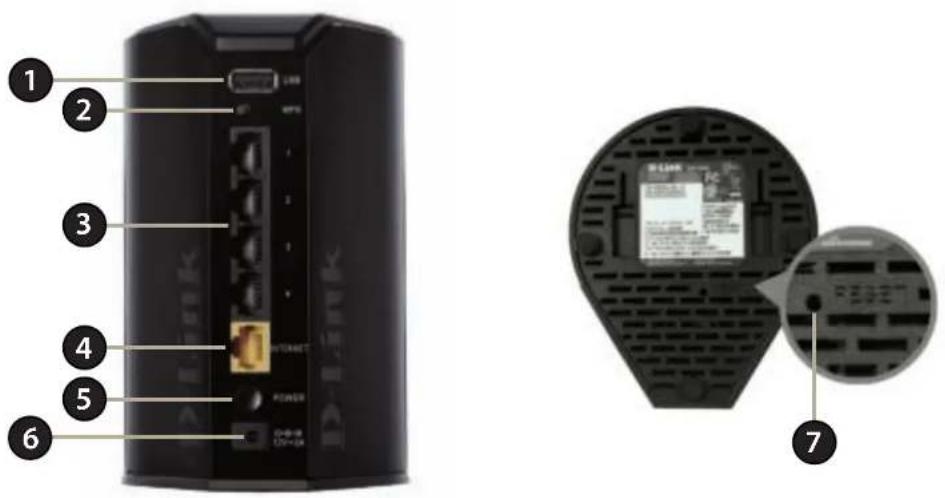
| 1 USB Port Connect a USB flash drive to share content throughout your network. |
| 2 WPS Button Press to start the WPS process. The Power LED will blink during this process. |
| 3 LAN Ports (1-4) | Connect 10/100/1000 Ethernet devices such as computers, switches, storage (NAS) devices, and game consoles. |
| 4 Internet Port | Using an Ethernet cable, connect your broadband modem to this port. |
| 5 Power Button Press the power button to power on and off. |
| 6 Power Receptor | Receptor for the supplied power adapter. |
| 7 Reset Button | Press and hold until the Power LED turns orange to reset the device back to the default factory settings. |
Hardware Overview LEDs

text_image
Diagram of a black cylindrical device with labeled parts 1 and 2, showing two green sensor points on its side.
| 1 Power LED | A solid green light indicates a proper connection to the power supply. The light will be solid orange during boot-up and will blink green during the WPS process. |
| 2 Internet LED | A solid light indicates a connection to the Internet port. If the LED is orange, the connection is good but the router cannot connect to the Internet. If this LED is blinking orange, this indicates that the “on demand” connection type is set and the Internet connection is idle. |
Installation
This section will walk you through the installation process. Placement of the router is very important. Do not place the router in an enclosed area such as a closet, cabinet, or in the attic or garage.
Before you Begin
- Please configure the router with the computer that was last connected directly to your modem.
- Users with DSL providers - If you are using a PPPoE connection, you will need your PPPoE user name and password. If you do not have this information, contact your Internet provider. Do not proceed until you have this information.
- Users with Cable providers - Make sure you unplug the power to your modem. In some cases, you may need to turn it off for up to 5 minutes.
- Advanced Users - If your ISP provided you with a modem/router combo, you will need to set it to "bridge" mode so the DIR-850L router can work properly. Please contact your ISP or refer to the user manual for your modem/router device.
Wireless Installation Considerations
The D-Link wireless router lets you access your network using a wireless connection from virtually anywhere within the operating range of your wireless network. Keep in mind, however, that the number, thickness and location of walls, ceilings, or other objects that the wireless signals must pass through, may limit the range. Typical ranges vary depending on the types of materials and background RF (radio frequency) noise in your home or business. The key to maximizing wireless range is to follow these basic guidelines:
- Keep the number of walls and ceilings between the D-Link router and other network devices to a minimum - each wall or ceiling can reduce your adapter's range from 3-90 feet (1-30 meters.) Position your devices so that the number of walls or ceilings is minimized.
- Be aware of the direct line between network devices. A wall that is 1.5 feet thick (.5 meters), at a 45-degree angle appears to be almost 3 feet (1 meter) thick. At a 2-degree angle it looks over 42 feet (14 meters) thick! Position devices so that the signal will travel straight through a wall or ceiling (instead of at an angle) for better reception.
- Building Materials make a difference. A solid metal door or aluminum studs may have a negative effect on range. Try to position access points, wireless routers, and computers so that the signal passes through drywall or open doorways. Materials and objects such as glass, steel, metal, walls with insulation, water (fish tanks), mirrors, file cabinets, brick, and concrete will degrade your wireless signal.
- Keep your product away (at least 3-6 feet or 1-2 meters) from electrical devices or appliances that generate RF noise.
- If you are using 2.4GHz cordless phones or X-10 (wireless products such as ceiling fans, lights, and home security systems), your wireless connection may degrade dramatically or drop completely. Make sure your 2.4GHz phone base is as far away from your wireless devices as possible. The base transmits a signal even if the phone in not in use.
Connect to your Network
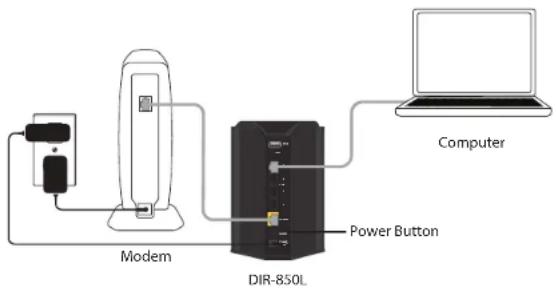
- Turn off and unplug your DSL or Cable modem. This is required.

text_image
Diagram showing a power outlet connected to a device labeled 'Modem', with an arrow indicating connection or transformation.
- Connect an Ethernet cable from the Internet port of the router to the Ethernet port on your DSL or Cable modem.

text_image
Ethernet Port
Modem
Ethernet Cable
INTERNET Port (yellow)
DIR-850L
- Connect another Ethernet cable from the Ethernet port on your computer to one of the LAN ports on the router.

text_image
DIR-850L
Ethernet Cable
Computer
- Plug the power back into your DSL or Cable modem. Please wait about one minute before continuing.

flowchart
graph LR
    A["Modem"] --> B["DIR-850L"]
    B --> C["Computer"]
- Plug the power adapter into your router and connect to an available power outlet or surge protector. If the Power LED does not light up, press the Power button on the back of the router.
text_image
Modem
DIR-850L
Power Button
Computer
- After the router has powered up, verify that the power (green) and Internet (orange or green) LEDs are both lit. Please skip to page 13 to configure your router and use the manual setup procedure to configure your network and wireless settings. If you did not connect to the Internet, use the D-Link Setup Wizard (refer to page 14).
Connect to an Existing Router
Note: It is strongly recommended to replace your existing router with the DIR-850L instead of using both. If your modem is a combo router, you may want to contact your ISP or manufacturer's user guide to put the router into Bridge mode, which will 'turn off' the router (NAT) functions.
If you are connecting the DIR-850L router to an existing router to use as a wireless access point and/or switch, you will have to do the following to the DIR-850L before connecting it to your network:
- Disable UPnP ^TM
- Disable DHCP
- Change the LAN IP address to an available address on your network. The LAN ports on the router cannot accept a DHCP address from your other router.
To connect to another router, please follow the steps below:
- Plug the power into the router. Connect one of your computers to the router (LAN port) using an Ethernet cable. Make sure your IP address on the computer is 192.168.0.xxx (where xxx is between 2 and 254). Please see the Networking Basics section for more information. If you need to change the settings, write down your existing settings before making any changes. In most cases, your computer should be set to receive an IP address automatically in which case you will not have to do anything to your computer.
- Open a web browser, enter http://192.168.0.1 (or http://dlinkrouter.local/) and press Enter. When the login window appears, set the user name to Admin and leave the password box empty. Click Log In to continue.
- Click on Advanced and then click Advanced Network. Uncheck the Enable UPnP checkbox. Click Save Settings to continue.
- Click Setup and then click Network Settings. Uncheck the Enable DHCP Server checkbox. Click Save Settings to continue.
Section 2 - Installation
- Under Router Settings, enter an available IP address and the subnet mask of your network. Click Save Settings to save your settings. Use this new IP address to access the configuration utility of the router in the future. Close the browser and change your computer's IP settings back to the original values as in Step 1.
- Disconnect the Ethernet cable from the router and reconnect your computer to your network.
- Connect an Ethernet cable in one of the LAN ports of the router and connect it to your other router. Do not plug anything into the Internet (WAN) port of the D-Link router.
- You may now use the other 3 LAN ports to connect other Ethernet devices and computers. To configure your wireless network, open a web browser and enter the IP address you assigned to the router. Refer to the Configuration and Wireless Security sections for more information on setting up your wireless network.
Configuration
There are several different ways you can configure your router to connect to the Internet and connect to your clients:
- QRS Mobile App - Use your iPhone, iPad, or Android device to configure your router. Refer to page 21
- D-Link Setup Wizard - This wizard will launch when you log into the router for the first time. Refer to page 14.
- Manual Setup - Log into the router and manually configure your router (advanced users only). Refer to page 27.
Quick Setup Wizard
If this is your first time installing the router, launch your web browser (e.g., Internet Explorer), and you will automatically be directed to the Wizard Setup Screen.
If you have already configured your settings and you would like to access the configuration utility, please refer to page 26.
If this is your first time logging into the router, this wizard will start automatically.
This wizard is designed to guide you through a step-by-step process to configure your new D-Link router and connect to the Internet.
Click Next to continue.

text_image
D-Link - Home & Home Office

text_image
WELCOME TO THE D-LINK SETUP WIZARD
This wizard will guide you through a step-by-step process to configure your new D-Link router and connect to the Internet.
• Step 1: Configure your Internet Connection
• Step 2: Configure your WiFi Security
• Step 3: Set your Password
• Step 4: Select your Time Zone
• Step 5: Confirm WiFi settings
• Step 6: mylink Registration
Next Cancel
Please wait while your router detects your internet connection type. If the router detects your Internet connection, you may need to enter your ISP information such as username and password (PPPoE).

text_image
STEP 1: CONFIGURE YOUR INTERNET CONNECTION
Route is detecting your internet connection type, please wait ...
Save Exit Load
Section 3 - Configuration
If the router does not detect a valid Ethernet connection from the Internet port, this screen will appear. Connect your broadband modem to the Internet port and then click Next.
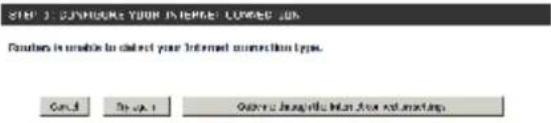
If the router detects an Ethernet connection but does not detect the type of Internet connection you have, this screen will appear. Click Guide me through the Internet Connection Settings to display a list of connection types to choose from.
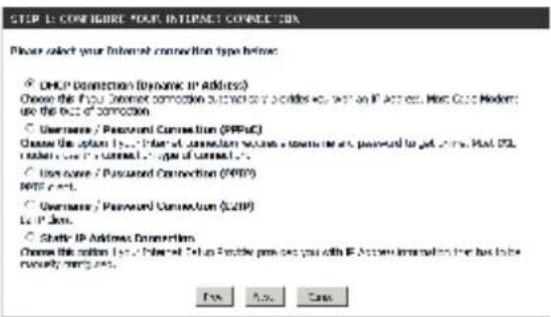
Select your Internet connection type. You can select DHCP Connection (Dynamic IP Address) if your Internet connection automatically provides you with an IP Address. This option is commonly used for cable modem services. Click Next to continue.

text_image
STEP 1: COMBURE YOUR INTERNET CONNECTION
Please plug one end of the included Ethernet cable that case with your router into the port labeled INTERNET on the back of the router. Plug the other end of this cable into the Ethernet port on your models.
D-Link Wi-Fi Router
Cable/DSL
Broadband Modulator
Begin Next Cancel
text_image
STEP 3: SNPs#OR YOUR INTERNET LUX#ES .#
Sources is unable to select your Internet connection types.
Cancel To up Options to access the Internet
OK Help Finish
text_image
STEP 1: CONFIGURE "MAX. INTERFACE CONNECT"
Please select your Internet connection type before:
○ DHCP Connection (User name IP Address)
Choose this URL: Internet connection must be checked by the IP address. Next Q&A Modern: use the best of connection
○ Username / Password Connection (SPPUC)
Choose the option by: http://www.163.com/s - https://www.163.com/s - password to get access. Mail SQL
user name / Password Connection (SPPUC)
SPPUC = 1.
○ Username / Password Connection (LZIP)
List IP sites
○ Static IP Address Connection
Choose this option by: http://www.163.com/s - https://www.163.com/s - password to get access. Mail SQL
http://www.163.com/s - https://www.163.com/s - password to get access.
Section 3 - Configuration
If the router detected or you selected PPPoE, enter your PPPoE username and password and click Next to continue.
Note: Make sure to remove your PPPoE software from your computer. The software is no longer needed and will not work through a router.
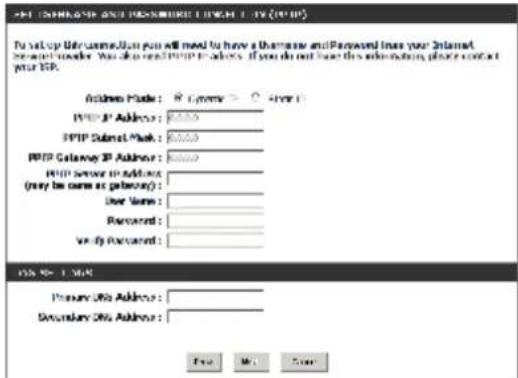
If the router detected or you selected PPTP, enter your PPTP username, password, and other information supplied by your ISP. Click Next to continue.
If the router detected or you selected L2TP, enter your L2TP username, password, and other information supplied by your ISP. Click Next to continue.

text_image
FET - LEMONATE AND PASSWORD LENGTHS (UPPER)
To set up this connection you will need to have a LEMONATE and Password from your Internet
Source: https://localhost/10.10.10345879/
User Name:
Password:
Enter Help Cancel
text_image
To set up information, you will need to have a license and Passwd since your Internet
user speaker. You also read PPPTA address. If you do not have this information, please contact
prior ISP.
Address Mode: 80 percent > 0 percent
PPPTA Address: 5000
PPIT Subnet Mask: 5000
PPIT Gateway SP Address: 5000
PHP Server ID address:
(may be some as possible):
User Name:
Forward:
View Page:
Print No. 1-2-MR
Preserve Info Address:
Boundary Info Address:
Free More Save

text_image
No LISP-PRICE - AND ANSOLIDATED NAME: LYSI (21 P)
To set up this connection you will need to have a permission and Password from your Internet
from 21 P sources. You observed LISP IP address. If you do not have the information about contact
your URL.
Address Mode: R:\proxy_1\13501\
LZIP IP Address: XXXX
LISP Subnet Head: XXXX
LISP Gateway IP Address: XXXX
LISP Service IP Address:
(apply for case or access):
user name:
Password:
Vamily Payment:
EMS SETTINGS
Primary DNS Address:
Secondary DNS Address:
EWR FREE FREE
Section 3 - Configuration
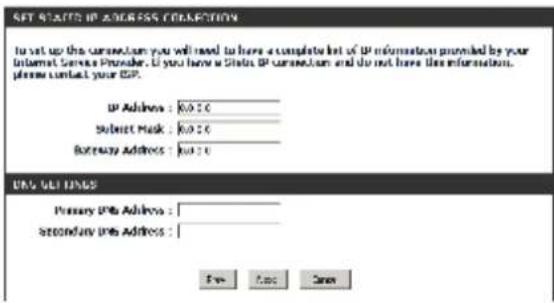
If the router detected or you selected Static, enter the IP and DNS settings supplied by your ISP. Click Next to continue.
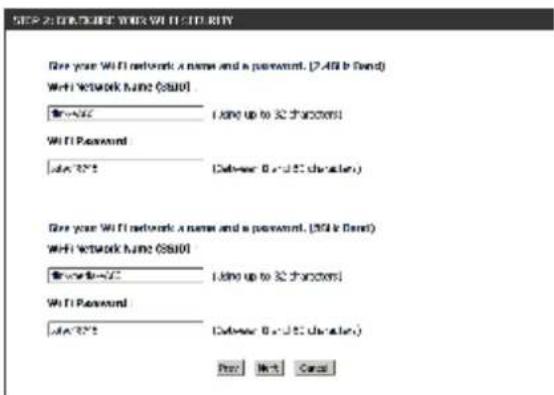
For both the 2.4GHz and 5GHz segments, create a wireless network name (SSID) using up to 32 characters.
Create a wireless security passphrase or key (between 8-63 characters). Your wireless clients will need to have this passphrase or key entered to be able to connect to your wireless network.
Click Next to continue.
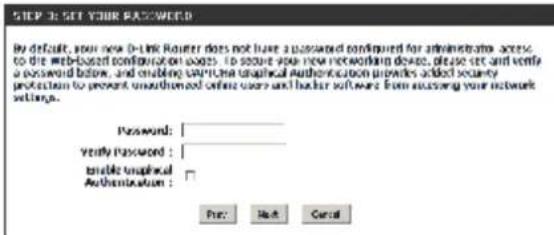
In order to secure your router, please enter a new password. Check the Enable Graphical Authentication box to enable CAPTCHA authentication for added security. Click Next to continue.
text_image
SET STARTED IP ADDRESS COLLECTION
To set up the curriculum you will need to have a complete list of IP information promised by your Internet Service Provider. If you have a Status IP curriculum and do not have these information, please contact your ISP.
IP Address: 60.2.6
Subject Mask: 60.2.6
Gateway Address: 60.2.6
IMG GET ITEMS
Primary IP#s Address:
secondary IP#s Address:
From
Finish
Cancel
text_image
STEP 2:10:25/2007 WITH NETTINY
Give your WiFi network: A name and a payment. (2.48% if found)
WiFi Network Name (GSD)
Name: 32" I need up to 32 characters
WiFi Password:
JAN-32" (Address: 6 and 25 characters.)
Give your WiFi network: A name and a payment. (20% if found)
WiFi Network Name (GSD)
Name: 32" I need up to 32 characters
WiFi Password:
JAN-32" (Address: 6 and 25 characters.)
Add Next Cancel
text_image
STEP TO SET YOUR PASSWORD
By default, your new D-Link Router does not have a masked configured for administrative access to the web-based configuration goals. To secure your new networking device, please set and verify a password below, and enabling users of analytical authentication provides added security protection to prevent unauthorized online users and better software. From accessing your network settings.
Password:
✓
✓✓✓ Password:
✓
Enable Applicable
Authentication:
✓
Pre: Next Cancel
Section 3 - Configuration
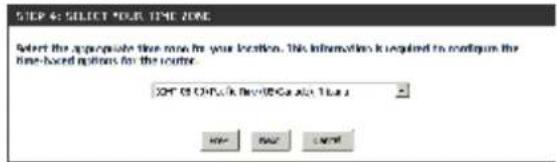
Select your time zone from the drop-down menu and click Next to continue.
The Confirm Wi-Fi Settings window will display your wireless settings. Click Save to continue.
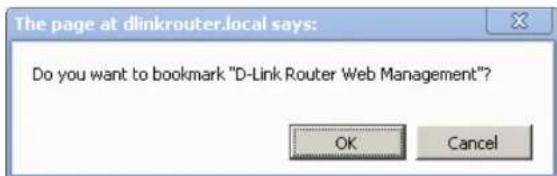
If you want to create a bookmark to the router, click OK. Click Cancel if you do not want to create a bookmark.
If you clicked Yes, a window may appear (depending on what web browser you are using) to create a bookmark.
text_image
STEP 45: SELECT YOUR TIME ZONE
Select the appropriate time zone for your location. This information is required to configure the time-based options for the route.
XCH (XCH) is free/DECA only. This is
OK Help Cancel

text_image
STEP 50 COLORM WITH SETTINGS
Below is a detailed summary of your With security settings. Please print this page out, or write the information on a page of paper, so you can configure the current settings on your With
Show.
With Network Name (NAT) 2. Route Band: clk
with Password: my IPosured
With Network Name (NAT) 3. Route Band: clk_nod:
with Password: my IPosured
The Setup Wizard has completed. Click the save button to save your sentences and reboot the
route.
OK Save Cancel
text_image
The page at dlinkrouter.local says:
Do you want to bookmark "D-Link Router Web Management"?
OK Cancel

text_image
The page at dlinkrouter.local says:
Please press CTRL-D to bookmark.
□ Prevent this page from creating additional dialogs.
OK
Section 3 - Configuration
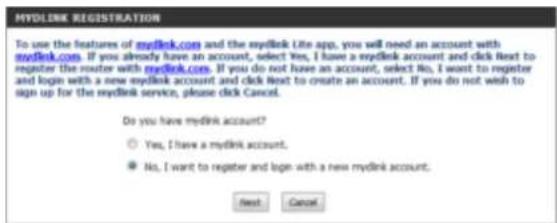
To use the mydlink service (mydlink.com or the mydlink Lite app), you must have an account. Select if you do have a mydlink account or if you need to create one. Click Next to continue.
If you do not want to register at this time, click Cancel.
If you clicked Yes, I have a mydlink account enter your mydlink account name (E-mail address) and password. Click Login to register your router.
If you clicked No, I want to register and login with a new mydlink account fill out the requested information and click Next to create your mydlink account. This is a free service. Refer to www.mydlink.com for more information.
text_image
MYDLINK REGISTRATION
To use the features of mydlink.com and the mydlink Lite app, you will need an account with mydlink.com. If you already have an account, select Yes, I have a mydlink account and click Next to register the router with mydlink.com. If you do not have an account, select No, I want to register and login with a new mydlink account and click Next to create an account. If you do not wish to sign up for the mydlink service, please click Cancel.
Do you have mydlink account?
Yes, I have a mydlink account.
No, I want to register and login with a new mydlink account.
Next Cancel

text_image
STEP 6: MYBLINK REGISTRATION
B: B. A. A. B. C. D. E. F. G. H. I. J. K. L. M. N. O. P. Q. R. S. T. U. V. W. X. Y. Z.
Form 10-21
OK Apply Cancel

text_image
STEP 5. NAME OF REGISTRATION
NAME: M. N. R. S. D. W. K. L. E. F.
Entry Name: J. N. R. T. E.
ID: 10-23
COPY: 10-23
Last: 10-23
Next: 10-23
OK Next Next
Section 3 - Configuration
The mydlink App will allow you to receive notices, browse network users, and configure your router from an iPhone/iPad/iPod Touch (iOS 3.0 or higher), or Android device (1.6 or higher).
To download the "mydlink lite" app, visit the Apple Store, Google Play or http://mydlink.com/Lite.

text_image
mydlink™
E-mail
Password
■ Stay signed in
Sign In
PC and Mac users can use the mydlink portal at http://mydlink.com.

text_image
mydlink
Sign in to mydlink
Sign in to mydlink
Personal
Remember my
Sign at
What's your own
Search Available
Product Tips
Customer Support
See your home from anywhere
USE YOUR HOME NAME: Mydlink.com, 25 times to save.
I can use your website and download any other platforms.
More Details
I know & Maintenance
2011/03/22 12:00
2011/11/22 12:00
Support & Download
Make instant, low format, email, Quick
Interactive Guide is more.
QRS Mobile App
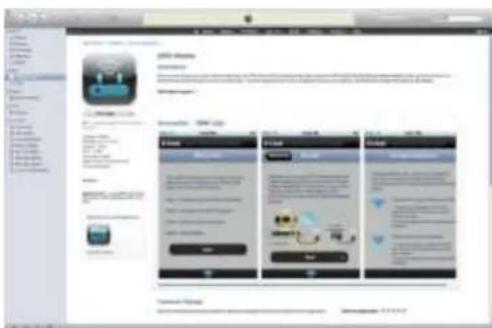
D-Link offers an app for your iPad, iPhone (iOS 4.3 or higher) or Android device to install and configure your router.
Step 1
From your iOS device, go to App Store, or from your Android device, go to Google Play and search for 'D-Link'. Select QRS Mobile and then download it.
You may also scan this code to download.

iOS Android

text_image
Screenshot of a mobile app interface showing a login page with 'Add' button and three interactive app screenshots.
Step 2
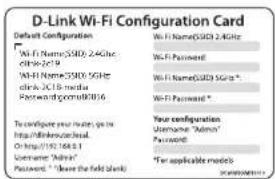
Once your app is installed, you may now configure your router. Connect to the router wirelessly by going to your wireless utility on your device. Scan for the wireless network name (SSID) as listed on the supplied info card. Select and then enter your security password (Wi-Fi Password).
Step 3
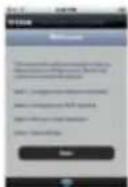
Once you connect to the router, launch the QRS mobile app and it will guide you through the installation of your router.
text_image
D-Link Wi-Fi Configuration Card
Default Configuration
Wi-Fi Name(SDD) 2.4GHz
Off-line:219
Wi-Fi Name(SDD) 5GHz
link 218 media
Password:gm03856
Wi-Fi Password *
Wi-Fi Name(SDD) 5GHz *
Password *
You configuration
Username "Admir"
Password *
Username "Admir"
Password * (have the field blank)
For applicable models
systemware
SharePort Mobile App
The SharePort Mobile app will allow you to access files from a USB thumb drive that is plugged into your router. You must enable file sharing from the Setup > Storage page (refer to page 51) for this app to work properly.
-
Insert your USB flash drive into DIR-850L.
-
Scan the bar code to download the SharePort Mobile app from the app store to your iPhone, iPad, or Android device.

iOS

Android
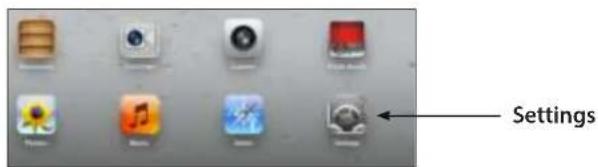
- From your iOS mobile device, click Settings.
text_image
Settings
Section 3 - Configuration
- Click Wi-Fi, select the wireless network (SSID) that you created in the setup and then enter your Wi-Fi password.

text_image
System-Tools
SVM-3100
Dysema
Dysema, 2000, 2000
Dysema
Dysema
Dysema
Dysema
Dysema
Dysema
Dysema
Dysema
Dysema
Dysema
Dysema
Dysema
Dysema
Dysema
Dysema
Dysema
Dysema
Dysema
Dysema
Dysema
Dyseme
Dyseme
Dyseme
Dyseme
Dyseme
Dyseme
Dyseme
Dyseme
Dyseme
Dyseme
Dyseme
Dyseme
Dyseme
Dyseme
Dyseme
Dyseme
Dyseme
Dyseme
Dyseme
Dyseme
DyseMe
DyseMe
DyseMe
DyseMe
DyseMe
DyseMe
DyseMe
DyseMe
DyseMe
DyseMe
DyseMe
DyseMe
DyseMe
DyseMe
DyseMe
DyseMe
DyseMe
DyseMe
DyseMe
DyseMe
DyseMn
DyseMn
DyseMn
DyseMn
DyseMn
DyseMn
DyseMn
DyseMn
DyseMn
DyseMn
DyseMn
DyseMn
DyseMn
DyseMn
DyseMn
DyseMn
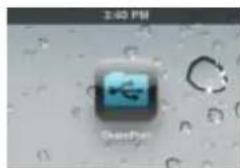
- Once connected, click on the SharePoint Mobile icon.
text_image
2:40 PM
Scan
- The following screen will appear.
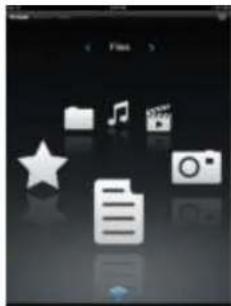
text_image
< File >
File
Music
Radio
Document
File
Section 3 - Configuration
-
Click on Settings icon located on the right top corner of the screen. Click Edit to enter your User Name and Password. Once you finish, click Done to continue.
-
For the Movie section, click the movie icon to play your movie from your USB flash drive.
-
For the Music section, click the music icon to play your music from your USB flash drive.
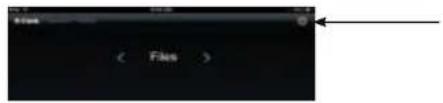
text_image
File
< File >
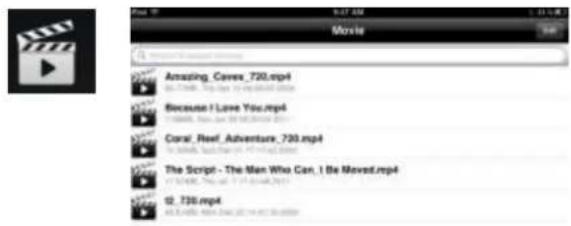
text_image
Movie
Amazing Caves_730.mp4
Because I Love You.mp4
Coral Reef Adventure_730.mp4
The Script - The Man Who Can, I Be Moved.mp4
12, 730.mp4
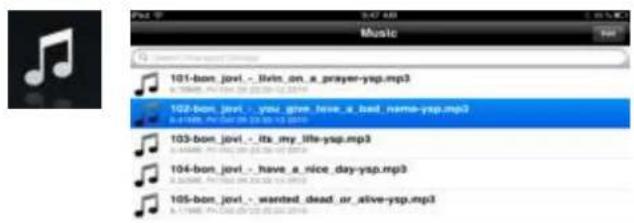
text_image
Music
101-bon_jovi, -_livin_on_a_prayer-ysp.mp3
102-bon_jovi, -_you_give_live_a_bed_nema-ysp.mp3
103-bon_jovi, -_lits_my_life-ysp.mp3
104-bon_jovi, -have_a_nice_day-ysp.mp3
105-bon_jovi, -wanted_dead_or_alive-ysp.mp3
Section 3 - Configuration
- For the Photo section, click the photo icon to view your photos from your USB flash drive.


text_image
20111110_234852_1.JPG
20111111_095508_1.JPG
20111111_095507_2.JPG
20111112_215934_1.JPG
20111114_113643_1.JPG
tonemapped.jpg
whoxoooh.jpg
- For the Files section, click on the files icon to view your files from your USB flash drive.

text_image
Ken2011-02.doc
D:\Users\10.0000\10.0000
- For the Folder section, click the folder icon to view your folders from your USB flash drive.


text_image
Folder
Diff-500 Files
Record.000
Web-based Configuration Utility
Open a web browser (e.g., Internet Explorer, Chrome, Firefox, or Safari) and enter http://dlinkrouter.local./ or http://192.168.0.1.

text_image
D-Link | Landing - Windows Internet Explorer
http://dlinkrouter.local./
Enter your password and click Login.
Note: If you did not create a password with the Setup Wizard, leave the password blank by default.

text_image
LOGIN
Loger to the router :
User Name :
Password :
Login
Internet Connection Setup
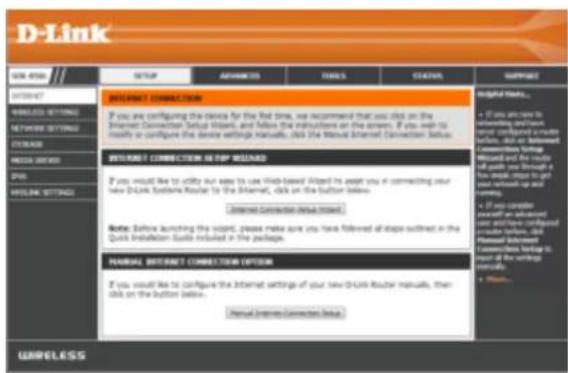
If you want to configure your router to connect to the Internet using the wizard, click Internet Connection Setup Wizard. Refer to page 36.
If you consider yourself an advanced user, click Manual Internet Connection Setup to configure your connection manually. (Instructions for manual setup begin below.)
text_image
D-Link
USB PRICE
SETUP
ADMINISTRATION
ITEMS
CUSTOMER
BETWEGET CONNECTION
FOR you are configuring the clone for the first time, we recommend that you click on the Internet Connection Setup (e.g., and follows the instructions on the screen. If you will not apply or configure the device settings manually, click the Manual Internet Connection Setup.
BETWEGET CONNECTION IN TOP WESSED
If you would like to adopt our sites to use Web-based Audio to access your in connecting your new D-Link Systemter Router to the Internet, click on the button below.
Internet Connection Setup (e.g.)
Note: Before launching the project, please make sure you have followed a steps outdirect in the Quick Installation Setup included in the package.
BETWEGET CONNECTION SYSTEM
If you would like to configure the Internet settings of your new D-Link Router manually, then click on the button below.
Personal Internet Connection Setup
Hought links...
• If you are now to respond and return when connected to a router, click on the following:
• I can be followed by a router, which will pass you through a new website, mean to get your network up and coming.
• If you continue, please or more advanced user with or connected users via a router, click Personal Internet Connection Setup to match all the settings manually.
• More...
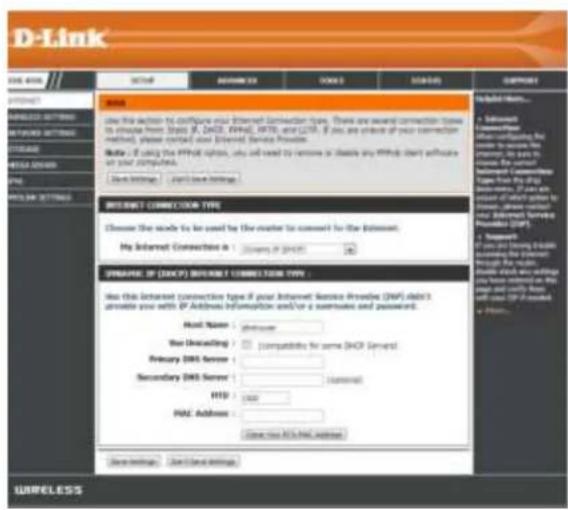
The next few pages will explain each of the ISP connection types. You can select the type from the My Internet Connection is drop-down menu.
text_image
D-Link
USE 4000
TITLE
ADDRESS
ADDRESS
ADDRESS
ADDRESS
ADDRESS
ADDRESS
ADDRESS
ADDRESS
ADDRESS
ADDRESS
ADDRESS
ADDRESS
ADDRESS
ADDRESS
ADDRESS
ADDRESS
ADDRESS
ADDRESS
ADDRESS
ADDRESS
ADDRESS
ADDRESS
ADDRESS
ADDRESS
ADDRESS
ADDRESS
ADDRESS
ADDRESS
ADDRESS
ADDRESS
ADDRESS
ADDRESS
ADDRESS
ADDRESS
ADDRESS
ADDRESS
ADDRESS
ADDRESS
ADDRESS
ADDRESS
ADDRESS
ADDRESS
ADDRESS
ADDRESS
ADDRESS
ADDRESS
ADDRESS
ADDRESS
ADDRESS
ADDRESS
Address Name: http://www.123.com/
Use Un冲洗ing: https://www.123.com/
Privacy DBS Server:
Secondary DBS Server:
H10:
MAC Address:
Close via AICs/MAC address:
Close Instrs: Close Instrs Instrs:
USELESS
Manual Internet Setup Static (assigned by ISP)
Select Static IP if all the Internet port's IP information is provided to you by your ISP. You will need to enter in the IP address, subnet mask, gateway address, and DNS address(es) provided to you by your ISP. Each IP address entered in the fields must be in the appropriate IP form, which are four octets separated by a dot (x.x.x.x). The Router will not accept the IP address if it is not in this format.
My Internet Connection: Select Static IP to manually enter the IP settings supplied by your ISP.
IP Address: Enter the IP address assigned by your ISP.
Subnet Mask: Enter the Subnet Mask assigned by your ISP.
Default Gateway: Enter the Gateway assigned by your ISP.
DNS Servers: The DNS server information will be supplied by your ISP (Internet Service Provider.)
MTU: Maximum Transmission Unit - you may need to change the MTU for optimal performance with your specific ISP. 1500 is the default MTU.

text_image
INTERNET CONNECTION TYPE
Choose the mode to be used by the router to connect to the Internet.
My Internet Connection is : Static IP
STATIC IP ADDRESS INTERNET CONNECTION TYPE :
Enter the static address information provided by your Internet Service Provider (ISP).
IP Address :
Subnet Mask : 0.0.0.0
Default Gateway :
Primary DRS Server :
Secondary DRS Server : (optional)
MTU : 1500
MAC Address :
Done Your PC's MAC Address
Save Settings Don't Save Settings
MAC Address: The default MAC Address is set to the Internet port's physical interface MAC address on the Broadband Router. It is not recommended that you change the default MAC address unless required by your ISP. You can use the Clone Your PC's MAC Address button to replace the Internet port's MAC address with the MAC address of your Ethernet card.
Internet Setup Dynamic (Cable)
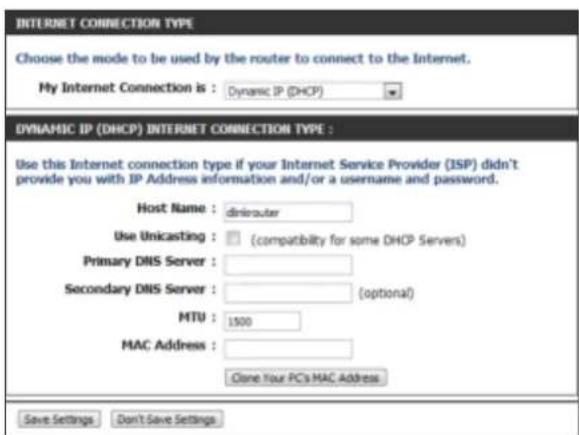
My Internet Select Dynamic IP (DHCP) to obtain IP Address information Connection: automatically from your ISP. Select this option if your ISP does not give you any IP numbers to use. This option is commonly used for cable modem services.
Host Name: The Host Name is optional but may be required by some ISPs. Leave blank if you are not sure.
Use Unicasting: Check the box if you are having problems obtaining an IP address from your ISP.
Primary/Secondary Enter the Primary and secondary DNS server IP addresses assigned DNS Server: by your ISP. These addresses are usually obtained automatically from your ISP. Leave blank if you did not specifically receive these from your ISP.
text_image
INTERNET CONNECTION TYPE
Choose the mode to be used by the router to connect to the Internet.
My Internet Connection is : Dynamic IP (DHCP)
DYNAMIC IP (DHCP) INTERNET CONNECTION TYPE :
Use this Internet connection type if your Internet Service Provider (ISP) didn't provide you with IP Address information and/or a username and password.
Host Name : diniouter
Use Unicasting : (compatibility for some DHCP Servers)
Primary DNS Server :
Secondary DNS Server : (optional)
MTU : 1500
MAC Address :
Clone Your PC's MAC Address
Save Settings Don't Save Settings
MTU: Maximum Transmission Unit - you may need to change the MTU for optimal performance with your specific ISP. 1500 is the default MTU.
MAC Address: The default MAC Address is set to the Internet port's physical interface MAC address on the Broadband Router. It is not recommended that you change the default MAC address unless required by your ISP. You can use the Clone Your PC's MAC Address button to replace the Internet port's MAC address with the MAC address of your Ethernet card.
Internet Setup PPPoE (DSL)
Choose PPPoE (Point to Point Protocol over Ethernet) if your ISP uses a PPPoE connection. Your ISP will provide you with a username and password. This option is typically used for DSL services. Make sure to remove your PPPoE software from your computer. The software is no longer needed and will not work through a router.
My Internet Select PPPoE (Username/Password) from the drop-down menu. Connection:
Address Mode: Select Static IP if your ISP assigned you the IP address, subnet mask, gateway, and DNS server addresses. In most cases, select Dynamic.
IP Address: Enter the IP address (Static PPPoE only).
User Name: Enter your PPPoE user name.
Password: Enter your PPPoE password and then retype the password in the next box.
Service Name: Enter the ISP Service Name (optional).
Reconnect Select either Always-on, On-Demand, or Manual. Mode:
Maximum Idle Enter a maximum idle time during which the Internet connection Time: is maintained during inactivity. To disable this feature, enable Auto-reconnect.
DNS Mode: Select Receive DNS from ISP to automatically use your ISP's DNS servers or select Enter DNS Manually and enter the Primary and Secondary DNS Server Addresses of your choice.

text_image
D-Link
USB NAME
GROUP
ANNUAL
TOMA
POSTS
IMPORT
HTTP
ASP ADDRESS
SP Address
Password
Password
Very Password
Service Name:
Password
Reconnect Hsls:
For any
Passive Site Name:
For any
SAPs
Reserved SSL from (SP - Not SSL - Request)
Primary SSL Server:
Secondary SSL Server:
HSD
HSC Address:
Used via (C:\Users\Address)
GETROOT1 CONNECT FORM TPP
Choose the needs to be used by the creator to connect As the Internet.
My Internet Connection to: http://www.123.com/
ADDRESS FILED: 10000000000000000000000000000000000000000000000000000000000000000000000000000000000000000000000000000
FOR INFOE INSERT CONNECTION TPP
For the information provided by your Internet Services Provider (IIP).
Address Hsls:
• System ID: ☐ State ID:
SP Address:
Password:
Password:
Very Password:
Service Name:
Password:
Reconnect Hsls:
For any
Passive Site Name:
For any
SAPs
Reserved SSL from (SP - Not SSL - Request)
Primary SSL Server:
Secondary SSL Server:
HSD
HSC Address:
Used via (C:\Users\Address)
GETROOT1 CONNECT FORM TPP
Choose the needs to be used by the creator to connect As the Internet.
My Internet Connection to: http://www.123.com/
ADDRESS FILED: 109999999999999999999999999999999999999999999999999999999999999999999999999999999999999999999999999999
UNLESS
MTU: Maximum Transmission Unit - you may need to change the MTU for optimal performance with your specific ISP. 1492 is the default MTU.
MAC Address: The default MAC Address is set to the Internet port's physical interface MAC address on the Broadband Router. It is not recommended that you change the default MAC address unless required by your ISP. You can use the Clone Your PC's MAC Address button to replace the Internet port's MAC address with the MAC address of your Ethernet card.
Internet Setup PPTP
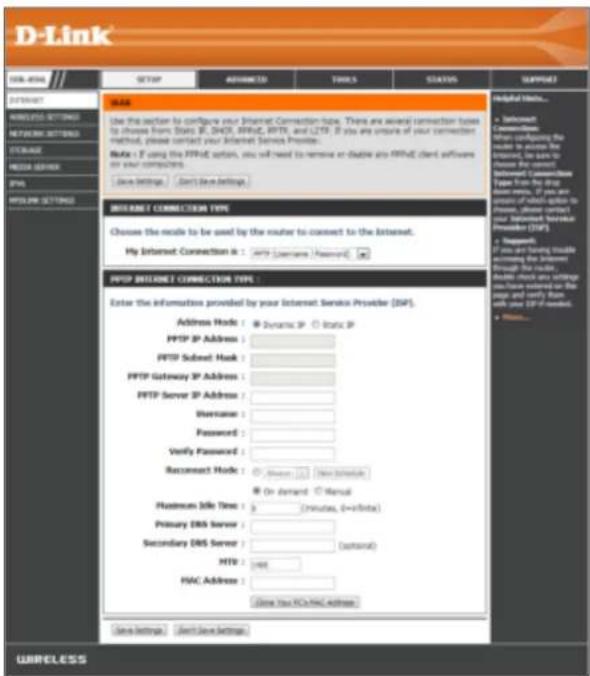
Choose PPTP (Point-to-Point-Tunneling Protocol) if your ISP uses a PPTP connection. Your ISP will provide you with a username and password. This option is typically used for DSL services.
My Internet Select PPTP (Username/Password) from the drop-down menu. Connection:
Address Mode: Select Static if your ISP assigned you the IP address, subnet mask, gateway, and DNS server addresses. In most cases, select Dynamic.
PPTP IP Address: Enter the IP address (Static PPTP only).
PPTP Subnet Enter the Primary and Secondary DNS Server Addresses (Static PPTP Mask: only).
PPTP Gateway IP Enter the Gateway IP Address provided by your ISP.
Address:
PPTP Server IP Enter the Server IP provided by your ISP (optional). Address:
Username: Enter your PPTP username.
Password: Enter your PPTP password and then retype the password in the next box.
Reconnect Select either Always-on, On-Demand, or Manual. Mode:
Maximum Idle Enter a maximum idle time during which the Internet connection is Time: maintained during inactivity. To disable this feature, enable Auto-reconnect.
text_image
D-Link
GO: 4000
SETUP
ADVANCED
TOOLS
STATUS
SUPPORTS
EASEM
HANES Setting
NETWORK SETTINGS
STORAGE
MEDIA ORDER
PMS
POWER SETTINGS
EASEM
HANES Setting
INTERNET CONNECTION TYPE
Choose the mode to be used by the router to connect to the Internet.
My Internet Connection is:
FTP (Access: Password)
PHP INCOME CONNECTION TYPE:
Enter the information provided by your Internet Service Provider (SPF).
Address Mode:
Dynamic IP Static IP
PHP IP Address:
FTP School Hock:
PHP Gateway IP Address:
PHP Server IP Address:
Version:
Password:
Verify Password:
Reconnect Hock:
On demand Manual
Hardware Time:
Minutes, <= Infinita)
Primary DNS Server:
Secondary DNS Server:
optional)
FTP: visit
HAC Address:
Save Your HCI or WiFi address.
Helpful Home...
- Inbound
Commissions from
When configuring the
mode to access the
imported, you are unsure
choose the network
Recommended Internet
Type from the drop
Down mode, if you are
same of which either in the
Primer, where carried out
your Internet Service
Provider (SPF).
- Request:
If you are having trouble
recurring the Internet
through this mode,
which check any settings
you have returned on the
page and copy from
with your SPF requested.
- Print...
Save Settings
- Open Save Settings
UNRELESS
DNS Servers: The DNS server information will be supplied by your ISP (Internet Service Provider.)
MTU: Maximum Transmission Unit - you may need to change the MTU for optimal performance with your specific ISP. 1400 is the default MTU.
MAC Address: The default MAC Address is set to the Internet port's physical interface MAC address on the Broadband Router. It is not recommended that you change the default MAC address unless required by your ISP. You can use the Clone Your PC's MAC Address button to replace the Internet port's MAC address with the MAC address of your Ethernet card.
Internet Setup
L2TP
Choose L2TP (Layer 2 Tunneling Protocol) if your ISP uses a L2TP connection. Your ISP will provide you with a username and password. This option is typically used for DSL services.
My Internet Select L2TP (Username/Password) from the drop-down menu. Connection:
Address Mode: Select Static if your ISP assigned you the IP address, subnet mask, gateway, and DNS server addresses. In most cases, select Dynamic.
L2TP IP Address: Enter the L2TP IP address supplied by your ISP (Static only).
L2TP Subnet Enter the Subnet Mask supplied by your ISP (Static only). Mask:
L2TP Gateway IP Enter the Gateway IP Address provided by your ISP.
Address:
L2TP Server IP Enter the Server IP provided by your ISP (optional). Address:
Username: Enter your L2TP username.
Password: Enter your L2TP password and then retype the password in the next box.
Reconnect Select either Always-on, On-Demand, or Manual. Mode:
Maximum Idle Enter a maximum idle time during which the Internet Time: connection is maintained during inactivity. To disable this feature, enable Auto-reconnect.

text_image
D-Link
USER ID: 4048
SETUP
ADAMENDED
TOOLS
STATUS
SUPPORT
HUAU
Use the section to configure your Internet Connection Type. There are several connection types to choose from Static IP, DHCP, PPPUE, PPPF, and L2TP. If you are unsure of your connection method, please contact your Internet Service Provider.
Note: (If using the PPPUE option, you will need to remove or double any PPPF client software in your computers.
Save Settings
Don't Save Settings
BIP/INT CONNECTION TYPE
Choose the mode to be used by the user to connect to the Internet.
My Internet Connection is:
L2TP Server Name (P########)
L2SP INTERNET CONNECTION TYPE:
Enter the information provided by your Internet Service Provider (ISP).
Address Mode:
Dynamic IP
Static IP
L2TP IP Address:
L2TP Subnet Mask:
L2TP Gateway IP Address:
L2TP Server IP Address:
Ibsensew:
Password:
Verify Password:
Reconnect Mode:
On demand
Manual
Maximum Idle Time:
$ (minutes, 0-mph)
Primary DNS Server:
Secondary DNS Server:
(optional)
HTU:
1400
MAC Address:
Close your IPCs MAC Address.
Helpful Status...
• Inferred
Access Method
when configuring the router to access the Internet. You can to choose the correct Internet Connection Type from the drive level users. If you are unsure of which option to access, please contact your Internet Service Provider (ISP)
• Support:
If you are having trouble accessing the Internet. Therefore, the router, double check any settings you have allowed on the page and verify them with your ISP needed.
• None...
WIRELESS
DNS Servers: Enter the Primary and Secondary DNS Server Addresses (Static L2TP only).
MTU: Maximum Transmission Unit - you may need to change the MTU for optimal performance with your specific ISP. 1400 is the default MTU.
MAC Address: The default MAC Address is set to the Internet port's physical interface MAC address on the Broadband Router. It is not recommended that you change the default MAC address unless required by your ISP. You can use the Clone Your PC's MAC Address button to replace the Internet port's MAC address with the MAC address of your Ethernet card.
DS-Lite is an IPv6 connection type. After selecting DS-Lite, the following parameters will be available for configuration:
My Internet Select DS-Lite from the drop-down menu. Connection is:
DS-Lite Select the DS-Lite DHCPv6 Option to let the router allocate Configuration: the AFTR IPv6 address automatically. Select the Manual Configuration option to enter the AFTR IPv6 address in manually.
AFTR IPv6 After selecting the Manual Configuration option above, Address: enter the AFTR IPv6 address used here.
B4 IPv4 Address: Enter the B4 IPv4 address value used here (optional).
WAN IPv6 Once connected, the WAN IPv6 address will be displayed here.
Address:
IPv6 WAN Once connected, the IPv6 WAN Default Gateway address will Default Gateway be displayed here.

text_image
D-Link
USB: 400K
NETWORK SETTINGS
NETWORK SETTINGS
STORAGE
MEDIA SERVER
IPVR
MODEL SETTINGS
USE
USEB
USEC
USEN
USEN
USEN
USEN
USEN
USEN
USEN
USEN
USEN
USEN
USEN
USEN
USEN
USEN
USEN
USEN
USEN
USEN
USEN
USEN
USEN
USEN
USEN
USEN
USEN
USEN
USEN
USEN
USEN
USEN
USEN
USEN
USEN
USEN
Internet Connection Setup Wizard
If you did not initially choose to install your router with the Quick Setup Wizard, you can click on Internet Connection Setup Wizard from the Setup > Internet screen.

text_image
INTERNET CONNECTION
If you are configuring the device for the first time, we recommend that you click on the Internet Connection Setup Wizard, and follow the instructions on the screen. If you wish to modify or configure the device settings manually, click the Manual Internet Connection Setup.
INTERNET CONNECTION SETUP WIZARD
If you would like to apply our easy, to use Web-based Wizard to assist you in connecting your new D-Link System Router to the Internet, click on the button below.
Internet Connection Setup Wizard
Note: Before launching the wizard, please make sure you have followed all steps outlined in the Quick Installation Guide included in the package.
MANUAL INTERNET CONNECTION OPTION
If you would like to configure the Internet settings of your new D-Link Router manually, then click on the button below.
Manual Internet Connection Setup
This wizard is designed to guide you through a step-by-step process to configure your new D-Link router and connect to the Internet.
Click Next to continue.

text_image
WELCOME TO THE D-Link INTERNET CONNECTION/SEREP WIZARD
This wizard will guide you through a step-by-step process to configure your new D-Link router and
connect to the Internet.
• Step 1: Set your Fasward
• Step 2: Select your Time Zone
• Step 3: Configure your Internet Connection
• Step 4: Save Settings and Connect
New Next Cancel Connect
Section 3 - Configuration
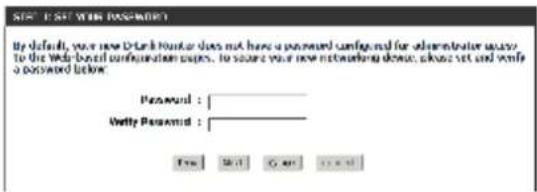
In order to secure your router, enter a new password. Click Next to continue.
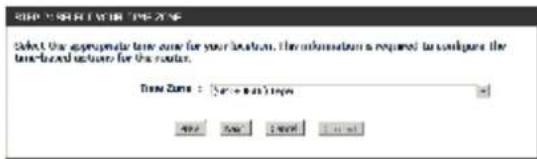
Select your time zone from the drop-down menu and click Next to continue.
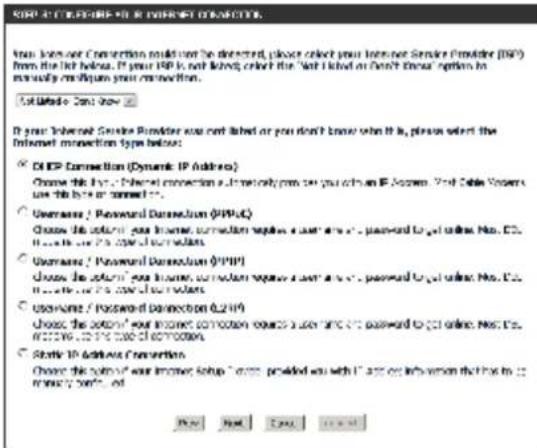
Select your Internet connection type. You can select DHCP Connection (Dynamic IP Address) if your Internet connection automatically provides you with an IP Address. This option is commonly used for cable modem services. Click Next to continue.
text_image
SET - I SET WITH PASSFORUM
By default, you have D:\Calc Master does not have a password configured for administrator usage to the Web-based configuration papers. To sort your new networking devices, please set and verify a password below:
Password :
text_image
Select the appropriate time zone for your location. The information is required to configure the time-based location for the route.
Time Zone : (0x + 0.01) times
OK Save Cancel Add OK
text_image
You listen our Connection would not be directed, please click your Internet Service Provider (ISP) from the list below. If your ISP is not listed, click the "Next Listed on Don't Email" option in manually confirm your connection.
List above: Next are up
If your Internet Service Provider you can like or you don't know what it is, please select the Internet connection type below:
○ DHCP Connection (Dynamic IP address)
Choose this list by: - Internet connection a monthly only one year on the IP address. And Cable Windows use this list or account ...
○ Username : Password Connection (PHP.C)
Choose this list by: your Internet connection requires a user name, password to get online. No. 23.
It's also to use this list or account ...
○ Username : Password Connection (PHP)
Choose the list by: your Internet connection requires a user name, password to get online. No. 23.
It's also to use this list or account ...
○ Username : Password Connection (PHP)
Choose the list by: your Internet connection needs a user name, password to get online. No. 23.
It's also to use this list or account ...
○ Start its Open Connection
Choose the list by: your Internet setup "close" provided you with it and on information that has to be much more closed.
If you selected DHCP Connection (Dynamic IP Address) you can click on Clone Your PC's MAC Address to copy your computer's MAC address to your router. Click Next to continue.
If you selected PPPoE, enter your PPPoE username and password and click Next to continue.
Note: Make sure to remove your PPPoE software from your computer. The software is no longer needed and will not work through a router.

text_image
IF EP CONNECTOR (SINEMA, IF REPORTS)
To set up this connection, please make sure that you are connected to the Delink Router with the RF that was originally connected to your headband console. If you are, then click the Class MAC button in copy your computer's MAC address in the Delink Router.
MAC Address: ____
Input Name: ____
First Name: ____
Note: "You can also need it, provide a list of 'new' you don't have to have the 'not all', please call to your TCP.
IINS NET DATA
Primary DOS Address: ____
Secondary DOS Address: ____
(Continual)
Next Next Next

text_image
U1:2019.08.07E-02.03.04.05.06 (W=01)
To set up this connection you will need to have a license and Password from your Internet Service Provider. If you do not have this information, please contact your IP.
New Name:
Password:
Pre Next Cancel Next Next
Section 3 - Configuration
If you selected PPTP, enter your PPTP username, password, and other information supplied by your ISP. Click Next to continue.

text_image
To set up this connection you will need to have a name and password from your Internet Service Provider. You also need PPTP IP address. If you do not have this information, please contact your http.
Address Mode: 0.0.0
PPTP IP Address: 0.0.0
PPTP Subnet Mask: 0.0.0
PPTP Gateway IP Address: 0.0.0
PPTP Server IP Address: 0.0.0
User Name:
Password:
Verify Protocol:
Primary DNS Address: 0.0.0
Secondary DNS Address: 0.0.0
Options:
Prev Mod Save Cancel
If you selected L2TP, enter your L2TP username, password, and other information supplied by your ISP. Click Next to continue.

text_image
E:\TIP\DATA\ADJ\DATA\ADJ\DATA\TIP\DATA\TIP
To set up this connection you will need to have a Username and Password from your Internet Service Provider. You also need L2TP IP address. If you do not have this information, please contact your ISP.
Address Mode: @ Other: IP C S### IP
L2TP IP Address: 0.0.0.2
L2TP Subnet Mask: 0.0.0.
L2TP Gateway IP Address: 0.0.0.2
L2TP Server IP Address: 0.0.0.2
User Name:
Password:
Verify Password:
TIP, SETTIPS
Primary DNS Address: 0.0.0.2
Secondary DNS Address: 0.0.0.2
(topic it)
Rev 4% Cancel 34 A.
Section 3 - Configuration
If you selected Static, enter the IP and DNS settings supplied by your ISP. Click Next to continue.

text_image
I2.1 SERVICE: IP ADDRESS:\WINDOWS\
To set up this username that you will read to have successfully select the IP information presented by your Internet Server Provider. If you lose a State IP certificate, and do not lose this information, please contact your IP3.
IP Address: 0.0.0
Subnet Mask: 0.0.0
Default Gateway: 0.0.0
DNS SETTINGS
Primary DNS Address: 0.0.0
Secondary DNS Address: 0.0.0
Optic v6
... Next ... ... ... ...
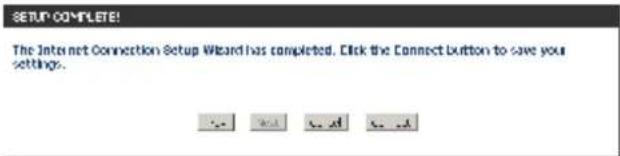
When the setup process is completed, you will see this screen. Click on Connect to save your settings.
text_image
SETUP COMPLETE!
The Internet Connection Setup Wizard has completed. Click the Connect Button to save your
settings.
Wireless Settings
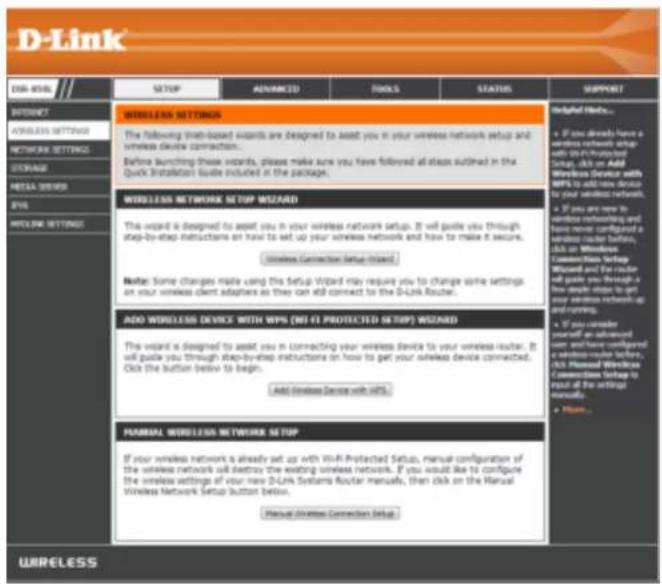
If you want to configure the wireless settings on your router using the wizard, click Wireless Connection Setup Wizard and refer to the next page.
Click Add Wireless Device with WPS if you want to add a wireless device using Wi-Fi Protected Setup (WPS) and refer to page 44.
If you want to manually configure the wireless settings on your router click Manual Wireless Connection Setup and refer to page 46.
text_image
D-Link
DISK 405L
SETUP
ADVANCED
TOOLS
STATUS
SUPPORT
INTJECT
WIRELESS SETTINGS
THE following web-based wizard are designed to assist you in your wireless network setup and wireless device connection.
Before launching these wizard, please make sure you have followed all steps outlined in the Quick Installation Guide included in the package.
WIRELESS NETWORK SETUP WIZARD
This wizard is designed to assist you in your wireless network setup. It will guide you through step-by-step instructions on how to set up your wireless network and how to make it secure.
Wireless Connection Setup Wizard!
Note: Some changes made using this Setup Wizard may require you to change some settings on your wireless client adapters as they can still connect to the D-Link Router.
ADD WIRELESS DEVICE WITH WINS (NO IT PROTECTED SETUP) WIZARD
This wizard is designed to assist you in connecting your wireless device to your wireless router. It will guide you through step-by-step instructions on how to get your wireless device connected. Click the button below to begin.
Add Wireless Device with HIPS.
PANIMAL WIRELESS NETWORK SETUP
If your wireless network is already set up with Wi-Fi Protected Setup, manual configuration of the wireless network will destroy the existing wireless network. If you would like to configure the wireless settings of your new D-Link Systems Router Manuals, then click on the Manual Wireless Network Setup Button below.
Manual Wireless Connection Setup
Helpful Notes...
• If you already have a wireless network switch with Wi-Fi Protected Setup, click on Add Wireless Device with HIPS to add new devices to your wireless networks.
• If you are now to win wireless networking and have never configured a wireless protocol, click on Add Wireless Devices with Wi-Fi to add new devices to your wireless networks.
• If you consider manual or assigned user and have configured a wireless network switch, click on Add Wireless Devices with Wi-Fi to add new devices to your wireless networks.
• If you consider manual or assigned user and have together a wireless network switch, click on Add Wireless Devices with Wi-Fi to add new devices to your wireless networks.
• If you consider manual or assigned user and have together a wireless network switch, click on Add Wireless Devices with Wi-Fi to add new devices to your wireless networks.
Wireless Connection Setup Wizard
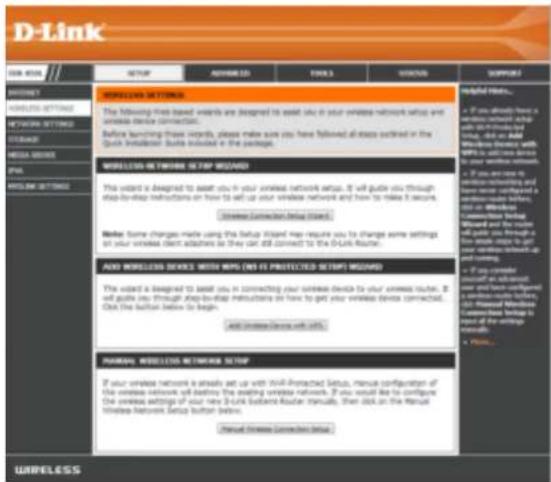
To run the security wizard, click on Setup > Wireless Settings. Click on the Wireless Connection Setup Wizard button.
text_image
D-Link
SUB-KEY
NETWORK
HORSEY
NETWORK SETTINGS
NETWORK SETTINGS
TURSDAY
MESSAGE SETTINGS
FPA
MESSAGE SETTINGS
WORKLESS SETTINGS
The following key based words are designed to assist you in your wireless network setup and update device connection:
Before learning these words, please make sure you have followed all steps outlined in the Quick Installation Tools included in the package.
WORKLESS NETWORK SETUP Wizarded
The wizard is designed to assist you in your wireless network setup. It will guide you through step-by-step instructions on how to set up your wireless network and how to make it secure.
Connect Connection Setup Wizarded
Note: Some changes made using this setup Wizard may require you to change some settings on your wireless client adapters as they can still connect to the D-Link Setup.
ADD WORKLESS DEVICES WITH WPS (MS) IS PROTECTED SETUP Wizarded
The wizard is designed to assist you in connecting your wireless device for your wireless router. It will guide you through steps-by-step instructions on how to get your wireless device connected.
Ask the solution below to begin.
ADD Wireless Devices with SMS.
PARIAL WORKLESS NETWORK SETUP
If your wireless network is actually set up with Web-Protected Setup, manual configuration of the wireless network will destroy the existing website network. If you would like to configure one wireless settings of your new D-Link Setup or Web manual, then click on the Manual Wireless Network Setup Button before.
Manual Wireless Connected Setup
HELP INFO...
• If you already have a very much wireless network setup, did not add a link between the two devices, but we will use any device to your wireless network.
• If you are now, we will help you understand and have some confirmed a wireless network, this is an Wireless Connection Method.
• Wizard and the user will guide you through a link between the two devices, but you will use your wireless network as their own network.
• If you consider myself as an important user, we will help you understand and have some confirmed a wireless network, this is an Wireless Connection Method.
• Mixed Wireless Connection Method, please be found at the end of the settings mentioned.
• Please...
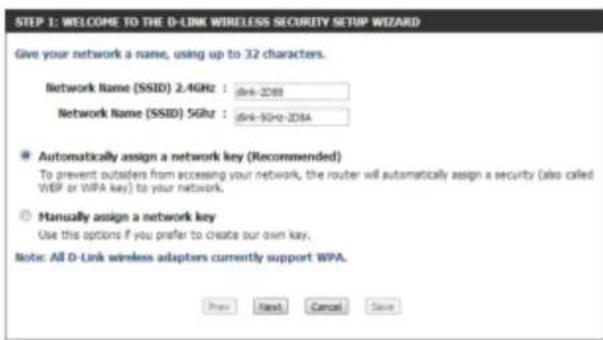
Enter a name for your wireless network (SSID), one for the 2.4GHz frequency and another for the 5GHz frequency. Do not use personal information as your SSID since users with wireless devices within range of your router will be able to see this information.
text_image
STEP 1: WELCOME TO THE D-LINK WIRELESS SECURITY SETUP WIZARD
Give your network a name, using up to 32 characters.
Network Name (SSID) 2.4GHz : dirk-2088
Network Name (SSID) 5Ghz : dirk-5GHz-208A
Automatically assign a network key (Recommended)
To prevent outsiders from accessing your network, the router will automatically assign a security (also called WEP or WPA key) to your network.
Manually assign a network key
Use this option if you prefer to create our own key.
Note: All D-Link wireless adapters currently support WPA.
Prev Next Cancel Save
Then select one of the following options:
Automatically: Select this option to automatically generate the router's network key and click Next.
Manually: Select this option to manually enter your network key and click Next.
Section 4 - Security
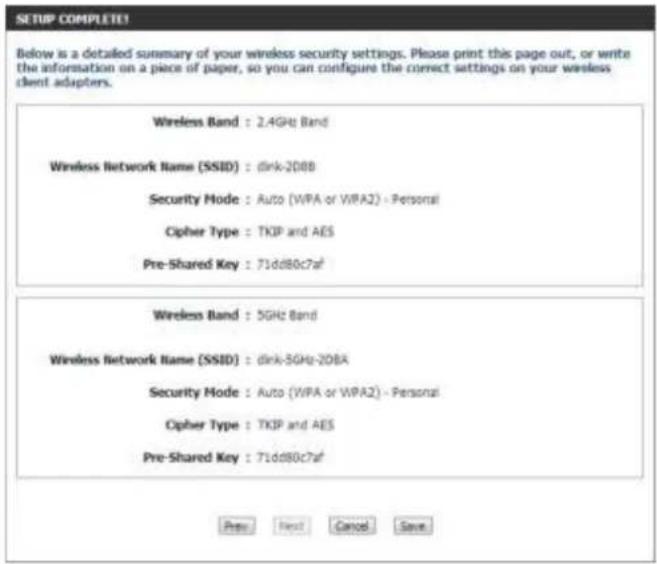
If you selected Automatically, the summary window will display your settings. Write down the security key and enter this on your wireless clients. Click Save to save your settings.
text_image
SETUP COMPLETE!
Below is a detailed summary of your wireless security settings. Please print this page out, or write
the information on a piece of paper, so you can configure the correct settings on your wireless
client adapters.
Wireless Band : 2.4GHz Band
Wireless Network Name (SSID) : disk-2088
Security Mode : Auto (WPA or WPA2) - Personal
Cipher Type : TKIP and AES
Pre-Shared Key : 71dd80c7af
Wireless Band : 5GHz Band
Wireless Network Name (SSID) : disk-5GHz-20BA
Security Mode : Auto (WPA or WPA2) - Personal
Cipher Type : TKIP and AES
Pre-Shared Key : 71dd80c7af
Press Next Cancel Save
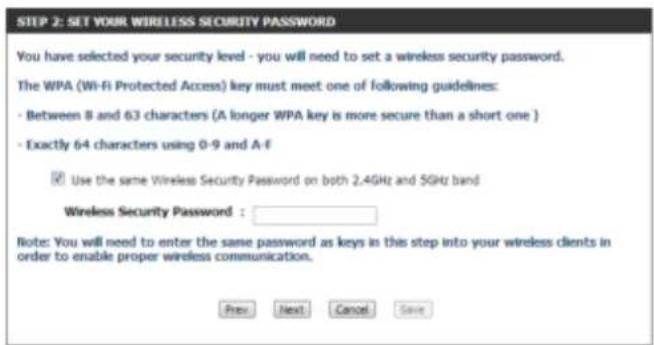
If you selected Manually, the following screen will appear.
Create a passphrase for your Wireless Security Password. Click Next to continue.
Note: The security password/passphrase must be between 8 and 63 characters and is case-sensitive. You will need to enter this passphrase on your wireless clients exactly or it will not connect.
text_image
STEP 2: SET YOUR WIRELESS SECURITY PASSWORD
You have selected your security level - you will need to set a wireless security password.
The WPA (Wi-Fi Protected Access) key must meet one of following guidelines:
- Between 8 and 63 characters (A longer WPA key is more secure than a short one )
- Exactly 64 characters using 0-9 and A-f
✓ Use the same Wireless Security Password on both 2.4GHz and 5GHz band
Wireless Security Password :
Note: You will need to enter the same password as keys in this step into your wireless clients in order to enable proper wireless communication.
Prev Next Cancel Save
Add Wireless Device with WPS Wizard
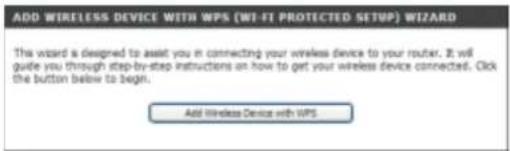
From the Setup > Wireless Settings screen, click Add Wireless Device with WPS.
text_image
ADD WIRELESS DEVICE WITH WPS (WI-FI PROTECTED SETUP) WIZARD
The wizard is designed to assist you in connecting your wireless device to your router. It will guide you through step-by-step instructions on how to get your wireless device connected. Click the button below to begin.
Add Wireless Device with WPS.
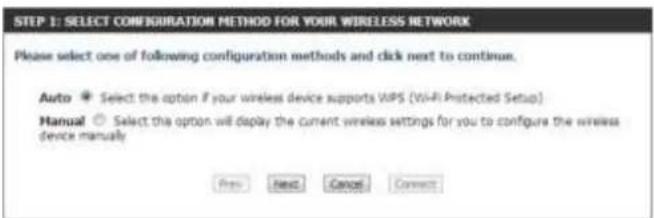
Select Auto to add a wireless client using WPS (Wi-Fi Protected Setup) and then click Next. Skip to the next page.
text_image
STEP 1: SELECT CONFIGURATION METHOD FOR YOUR WIRELESS NETWORK
Please select one of following configuration methods and click next to continue.
Auto Select the option if your wireless device supports VoPS (Wi-Fi Protected Setup)
Manual Select the option will display the current wireless settings for you to configure the wireless device manually
Press Next Cancel Connect
If you select Manual, a settings summary screen will appear. Write down the security key and enter this on your wireless clients. Click Wireless Status to finish. This will take you to the Wireless Status screen.
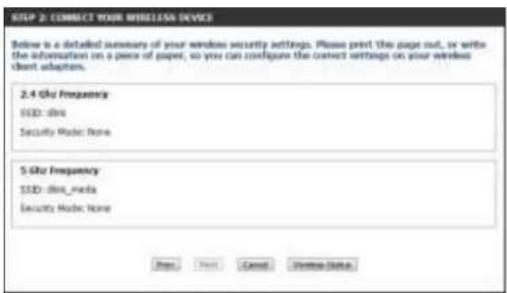
text_image
STEP 2: CONNECT YOUR WIRELESS DEVICE
Below is a detailed summary of your windows security settings. Please print this page out, or write
the information on a piece of paper, so you can configure the correct settings on your wireless
client adapters.
2.4 GHz Frequency
SSD: disk
Security Mode: None
5 GHz Frequency
SSD: disk Media
Security Mode: None
Press Print Cancel Window Status
Section 4 - Security
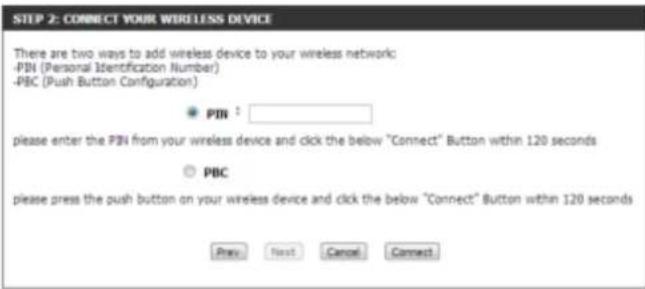
PIN: Select this option to use PIN method. In order to use this method you must know the wireless client's 8 digit PIN and click Connect.
PBC: Select this option to use PBC (Push Button) method to add a wireless client. Click Connect.
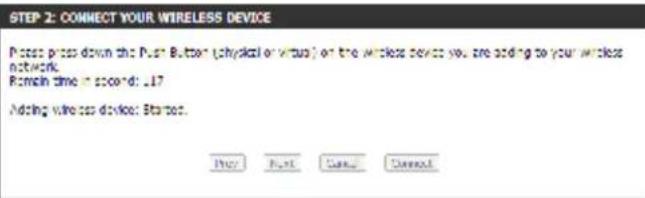
Once you click Connect, you will have a 120 second time limit to apply the settings to your wireless client(s) and successfully establish a connection.
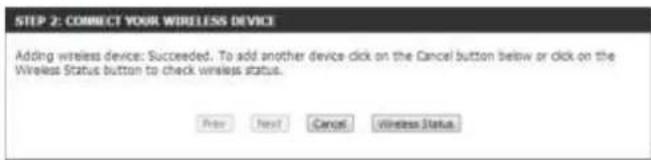
Click Wireless Status to finish. This will take you to Wireless Status screen.
text_image
STEP 2: CONNECT YOUR WIRELESS DEVICE
There are two ways to add wireless device to your wireless network:
-PIN (Personal Identification Number)
-PBC (Push Button Configuration)
• PIN :
please enter the PIN from your wireless device and click the below "Connect" Button within 120 seconds
○ PBC
please press the push button on your wireless device and click the below "Connect" Button within 120 seconds
Prev Next Cancel Connect
text_image
STEP 2: CONNECT YOUR WIRELESS DEVICE
Press press down the Push Button (physical or virtual) or the wireless devices you are adding to your wireless network.
Remain time in second: .17
Adding wireless devices: Startes.
text_image
STEP 2: CONNECT YOUR WIRELESS DEVICE
Adding wireless device: Succeeded. To add another device click on the Cancel button below or click on the Wireless Status button to check wireless status.
Free Next Cancel Wireless Status
Manual Wireless Settings
802.11n/g (2.4GHz)
Enable Wireless: Check the box to enable the wireless function. If you do not want to use wireless, uncheck the box to disable all the wireless functions.
Schedule: Select the time frame that you would like your wireless network enabled. The schedule may be set to Always. Any schedule you create will be available in the drop-down menu. Click New Schedule to create a schedule.
Wireless Network Service Set Identifier (SSID) is the name of your wireless network. Create Name: a name for your wireless network using up to 32 characters. The SSID is case-sensitive.
802.11 Mode: Select one of the following:
802.11b Only - Select only if all of your wireless clients are 802.11b.
802.11g Only - Select only if all of your wireless clients are 802.11g.
802.11n Only - Select only if all of your wireless clients are 802.11n.
Mixed 802.11g and 802.11b - Select if you are using both 802.11g and 802.11b wireless clients.
Mixed 802.11n and 802.11g - Select if you are using both 802.11n and 802.11g wireless clients.
Mixed 802.11n, 11g, and 11b - Select if you are using a mix of 802.11n, 802.11g, and 802.11b wireless clients.
WIRELESS NETWORK SETTINGS

text_image
Wireless Band : 2.4GHz Band
Enable Wireless : Always New Schedule
Wireless Network Name : dink (Also called the SSID)
802.11 Mode : Mixed 802.11n, 802.11g and 802.11b
Enable Auto Channel Scan : ✓
Wireless Channel : 2.412 GHz - CH 1
Transmission Rate : Best (automatic) (Nbit/s)
Channel Width : 20/40 MHz(Auto)
Visibility Status : Visible Invisible
WIRELESS SECURITY MODE

Enable Auto Channel The Auto Channel Scan setting can be selected to allow the DIR-850L to choose the channel with the least amount of interference. Scan:
Wireless Channel: Indicates the channel setting for the DIR-850L. The Channel can be changed to fit the channel setting for an existing wireless network or to customize the wireless network. If you check Enable Auto Channel Scan, this option will be greyed out.
Channel Width: Select the Channel Width:
20/40MHz(Auto) - This is the default setting. Select if you are using both 802.11n and non-802.11n wireless devices.
20MHz - Select if you are not using any 802.11n wireless clients.
Visibility Status: Select Invisible if you do not want the SSID of your wireless network to be broadcasted by the DIR-850L. If Invisible is selected, the SSID of the DIR-850L will not be seen by Site Survey utilities so your wireless clients will have to know the SSID of your DIR-850L in order to connect to it.
Wireless Security: Refer to page 48 for more information regarding wireless security.
802.11ac/n/a (5GHz)
Enable Wireless: Check the box to enable the wireless function. If you do not want to use wireless, uncheck the box to disable all the wireless functions.
Schedule: Select the time frame that you would like your wireless network enabled. The schedule may be set to Always. Any schedule you create will be available in the drop-down menu. Click New Schedule to create a schedule.
Wireless Network Service Set Identifier (SSID) is the name of your wireless network. Name: Create a name for your wireless network using up to 32 characters. The SSID is case-sensitive.
802.11 Mode: Select one of the following:
802.11a Only - Select if all of your wireless clients are 802.11a.
802.11n Only - Select only if all of your wireless clients are 802.11n.
Mixed 802.11a and 802.11n - Select if you are using both 802.11n and 802.11a wireless clients.
Mixed 802.11ac - Select if you are using 802.11ac, 802.11n and 802.11a wireless clients.

text_image
WIRELESS NETWORK SETTINGS
Wireless Band : 5GHz Band
Enable Wireless : ✓ Always ✓ New Schedule
Wireless Network Name : dink_media (Also called the SSID)
802.11 Mode : Mixed 802.11ac
Enable Auto Channel Scan : ✓
Wireless Channel : 5.180 GHz - OH 36
Transmission Rate : Best (automatic) ✓ (Mbit/s)
Channel Width : 20/40/80 MHz(Auto) ✓
Visibility Status : ✓ Visible ✓ Invisible
WIRELESS SECURITY MODE

Enable Auto Channel The Auto Channel Scan setting can be selected to allow the DIR-850L to choose the channel with the least amount of interference. Scan:
Wireless Channel: Indicates the channel setting for the DIR-850L. The Channel can be changed to fit the channel setting for an existing wireless network or to customize the wireless network. If you check Enable Auto Channel Scan, this option will be greyed out.
Channel Width: Select the Channel Width:
20MHz - Select if you are not using any 802.11n wireless clients.
20/40MHz(Auto) - This is the default setting. Select if you are using both 802.11n and non-802.11n wireless devices.
20/40/80MHz(Auto) - Select if you are using 802.11ac, 802.11n and non-802.11n wireless devices. This option is only available when the 802.11 Mode is set to Mixed 802.11ac.
Visibility Status: Select Invisible if you do not want the SSID of your wireless network to be broadcasted by the DIR-850L. If Invisible is selected, the SSID of the DIR-850L will not be seen by Site Survey utilities so your wireless clients will have to know the SSID of your DIR-850L in order to connect to it.
Wireless Security: Refer to page 48 for more information regarding wireless security.
Wireless Security
This section will show you the different levels of security you can use to protect your data from intruders. The DIR-850L offers the following types of security:
- WPA2 (Wi-Fi Protected Access 2) • WPA2-PSK (Pre-Shared Key)
- WPA (Wi-Fi Protected Access) • WPA-PSK (Pre-Shared Key)
What is WPA?
WPA (Wi-Fi Protected Access), is a Wi-Fi standard that was designed to improve the security features of WEP (Wired Equivalent Privacy).
The 2 major improvements over WEP:
- Improved data encryption through the Temporal Key Integrity Protocol (TKIP). TKIP scrambles the keys using a hashing algorithm and, by adding an integrity-checking feature, ensures that the keys haven't been tampered with. WPA2 is based on 802.11i and uses Advanced Encryption Standard (AES) instead of TKIP.
- User authentication, which is generally missing in WEP, through the extensible authentication protocol (EAP). WEP regulates access to a wireless network based on a computer's hardware-specific MAC address, which is relatively simple to be sniffed out and stolen. EAP is built on a more secure public-key encryption system to ensure that only authorized network users can access the network.
WPA-PSK/WPA2-PSK uses a passphrase or key to authenticate your wireless connection. The key is an alpha-numeric password between 8 and 63 characters long. The password can include symbols (!?*&_) and spaces. This key must be the exact same key entered on your wireless router or access point.
WPA/WPA2 incorporates user authentication through the Extensible Authentication Protocol (EAP). EAP is built on a more secure public key encryption system to ensure that only authorized network users can access the network.
WPA/WPA2-Personal (PSK)
It is recommended to enable wireless security on your wireless router before your wireless network adapters. Please establish wireless connectivity before enabling encryption.
-
Log into the web-based configuration by opening a web browser and entering the IP address of the router (192.168.0.1). Click on Setup and then click Wireless Settings on the left side.
-
Next to Security Mode, select WPA-Personal.
-
Next to WPA Mode, select Auto(WPA or WPA2), WPA2 Only, or WPA Only. Use Auto if you have wireless clients using both WPA and WPA2.
-
Next to Cypher Type, select TKIP and AES, TKIP, or AES.
-
Next to Group Key Update Interval, enter the amount of time before the group key used for broadcast and multicast data is changed (3600 is default).
-
Next to Pre-Shared Key, enter a key (passphrase). The key is entered as a pass-phrase in ASCII format at both ends of the wireless connection. The pass-phrase must be between 8-63 characters.
-
Click Save Settings to save your settings. If you are configuring the router with a wireless adapter, you will lose connectivity until you enable WPA-PSK on your adapter and enter the same passphrase as you did on the router.
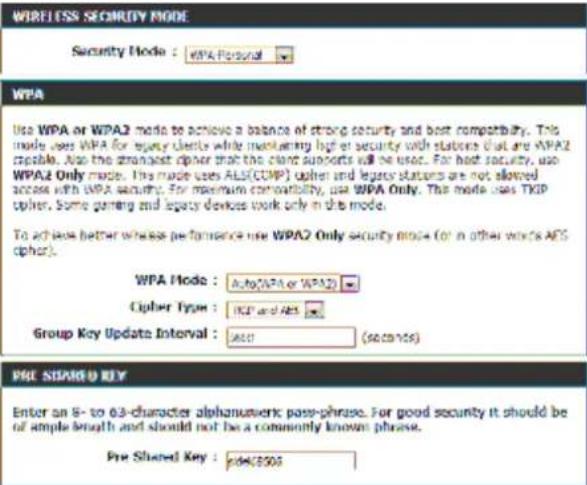
text_image
WIRELESS SECURITY MODE
Security Mode : WPA-Personal
WPA
Use WPA or WPA2 mode to achieve a balance of strong security and best compatibility. This mode uses WPA for legacy clients while maintaining high security with stations that are WPA2 capable. Also the branchest cipher that the client supports will be used. For host security, use WPA2 Only mode. This mode uses ALS(CUMP) cipher and legacy status are not allowed access with WPA security. For maximum compatibility, use WPA Only. This mode uses TKIP cipher. Some gaming and legacy devices work only in this mode.
To achieve better wireless performance use WPA2 Only security mode (or in other words AFS cipher).
WPA Mode : Auto(WPA or WPA2)
Cipher Type : ICP and ABS
Group Key Update Interval : 1000 (seconds)
PRE-SHOLD KEY
Enter an B- to 63-character alphanumeric pass-phrase. For good security it should be of ample length and should not be a commonly known phrase.
Pre Shared Key : p84C8500
It is recommended to enable wireless security on your wireless router before your wireless network adapters. Please establish wireless connectivity before enabling encryption.
- Log into the web-based configuration by opening a web browser and entering the IP address of the router (192.168.0.1). Click on Setup and then click Wireless Settings on the left side.
- Next to Security Mode, select WPA-Enterprise.
- Next to WPA Mode, select Auto(WPA or WPA2), WPA2 Only, or WPA Only. Use Auto if you have wireless clients using both WPA and WPA2.
- Next to Cypher Type, select TKIP and AES, TKIP, or AES.
- Next to Group Key Update Interval, enter the amount of time before the group key used for broadcast and multicast data is changed (3600 is default).
- Next to RADIUS Server IP Address enter the IP Address of your RADIUS server.

text_image
WIRELESS SECURITY MODE
Security Mode : WIPA-Enterprise
WPA
Use WPA or WPA2 mode to achieve a balance of strong security and best compatibility. This mode uses WPA for legacy clients while maintaining higher security with stations that are WPA2 capable. Also the strongest cipher that the client supports will be used. For best security, use WPA2 Only mode. This mode uses AES(COMP) cipher and legacy stations are not allowed access with WPA security. For maximum compatibility, use WPA Only. This mode uses TKIP cipher. Some gaming and legacy devices work only in the mode.
To achieve better wireless performance use WPA2 Only security mode (or in other words AES cipher).
WPA Mode : Auto(WPA or WPA2)
Cipher Type : TKIP and AES
Group Key Update Interval : 3600 (seconds)
EAP (B02.1X)
When WPA enterprise is enabled, the router uses EAP (B02.1x) to authenticate clients via a remote RADIUS server.
RADIUS server IP Address :
RADIUS server Port : 1812
RADIUS server Shared Secret :
Advanced >>>
Section 4 - Security
- Next to RADIUS Server Port, enter the port you are using with your RADIUS server. 1812 is the default port.
- Next to RADIUS Server Shared Secret, enter the security key.
- Click Advanced to enter settings for a secondary RADIUS Server.
- Click Save Settings to save your settings.

text_image
EAP (802.1X)
When WPA enterprise is enabled, the router uses EAP (802.1x) to authenticate clients via a remote RADIUS server.
RADIUS server IP Address :
RADIUS server Port : 18:12
RADIUS server Shared Secret :
<< Advanced
Optional backup RADIUS server
Second RADIUS server IP :
Address
Second RADIUS server Port : 18:12
Second RADIUS server Shared :
Secret
Network Settings
This section will allow you to change the local network settings of the router and to configure the DHCP settings.
Router Settings
Router IP Address: Enter the IP address of the router. The default IP address is 192.168.0.1.
If you change the IP address, once you click Save Settings, you will need to enter the new IP address in your browser to get back into the configuration utility.
Default Subnet Enter the Subnet Mask. The default subnet mask is Mask: 255.255.255.0.
Host Name: Enter a name for the router.
Local Domain Enter the Domain name (Optional). Name:
Enable DNS Relay: Uncheck the box to transfer the DNS server information from your ISP to your computers. If checked, your computers will use the router for a DNS server.

text_image
D-Link
STR 4506
DESIGNET
HISCELLS SETTINGS
NETWORK SETTINGS
STORAGE
MEDIA SERVER
IPSS
RISCELLS SETTINGS
NETWORK SETTINGS
Use the sector to configure the internal network settings of your router and plus to configure the router (DHCR server to assign IP addresses to computers on your network. The IP address that is configured here is the IP address that you use to access the third-based management interface. If you change the IP address in this section, you may need to adjust your PC's network settings to access the network again.
Please note that this section is optional and you do not need to change any of the settings here to get your network up and running.
Save Settings | Don't Save Settings
Router SP Address : 202.289.0.3
Default Subnet Hack : 201.289.265.0
Host Name : (optional)
Local Domain Name : (optional)
Enable DNS Relay : 58
Helpful links...
• If you already have a DHCP server on one or two networks in any single PC's address on all of the devices on your network, unless possible with PC server to enable this feature.
• If you have decision on your network that should always have fixed IP address, and a 100% discovery will be applied each device.
• Home...
DHCP Server Settings
DHCP stands for Dynamic Host Control Protocol. The DIR-850L has a built-in DHCP server. The DHCP Server will automatically assign an IP address to the computers on the LAN/private network. Be sure to set your computers to be DHCP clients by setting their TCP/IP settings to "Obtain an IP Address Automatically." When you turn your computers on, they will automatically load the proper TCP/IP settings provided by the DIR-850L. The DHCP Server will automatically allocate an unused IP address from the IP address pool to the requesting computer. You must specify the starting and ending address of the IP address pool.
Enable DHCP Check this box to enable the DHCP server on your router.
Server: Uncheck to disable this function.
DHCP IP Address Enter the starting and ending IP addresses for the DHCP Range: server's IP assignment.
Note: If you statically (manually) assign IP addresses to your computers or devices, make sure the IP addresses are outside of this range or you may have an IP conflict.
DHCP Lease Time: The length of time for the IP address lease. Enter the Lease time in minutes.
Always Enable this feature to broadcast your DHCP server to LAN/Broadcast: WLAN clients.
NetBIOS NetBIOS allows LAN hosts to discover all other computers
Announcement: within the network, enable this feature to allow the DHCP Server to offer NetBIOS configuration settings.

text_image
DHCP SERVER SETTINGS
Use this section to configure the built-in DHCP server to assign IP address to the computers on your network.
Enable DHCP Server : ✓
DHCP IP Address Range : 100 to 199 (addresses within the LAN subnet)
DHCP Lease Time : 10080 (minutes)
Always broadcast : (compatibility for some DHCP Clients)
NetBIOS announcement :
Learn NetBIOS from WAN :
NetBIOS Scope : (optional)
NetBIOS node type : Broadcast only (use when no WINS servers configured)
Point-to-Point (no broadcast)
Mixed-mode (Broadcast then Point-to-Point)
Hybrid (Point-to-Point then Broadcast)
Primary WINS IP Address :
Secondary WINS IP Address :
Learn NetBIOS Enable this feature to allow WINS information to be learned from the WAN side; disable to allow manual configuration. from WAN:
NetBIOS Scope: This feature allows the configuration of a NetBIOS 'domain' name under which network hosts operates. This setting has no effect if the 'Learn NetBIOS information from WAN' is activated.
Section 3 - Configuration
NetBIOS Node Select the different type of NetBIOS node; Broadcast only, Point-to-Point, Mixed-mode, and Hybrid. Type:
WINS IP Enter your WINS Server IP address(es).
Address:
DHCP Reservation
If you want a computer or device to always have the same IP address assigned, you can create a DHCP reservation. The router will assign the IP address only to that computer or device.
Note: This IP address must be within the DHCP IP Address Range.
Enable: Check this box to enable the reservation.
Computer Name: Enter the computer name or select from the drop-down menu and click <<.
IP Address: Enter the IP address you want to assign to the computer or device. This IP Address must be within the DHCP IP Address Range.
MAC Address: Enter the MAC address of the computer or device.
Clone Your PC's You can use the Clone Your PC's MAC Address button MAC Address: to replace the Internet port's MAC address with the MAC address of your Ethernet card.
Save: Click Save to save your entry. You must click Save Settings at the top to activate your reservations.
DHCP Reservations List
DHCP Displays any reservation entries. Displays the host name Reservations List: (name of your computer or device), MAC Address, and IP address.
Enable: Check to enable the reservation.
Edit: Click the edit icon to make changes to the reservation entry.
Delete: Click to remove the reservation from the list.
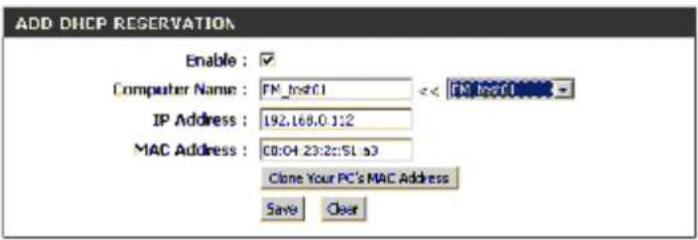
text_image
ADD DHCP RESERVATION
Enable : ✓
Computer Name : FM_1x2:01 << FM_1x2:01 -
IP Address : 192.168.0.1:2
MAC Address : C0:04 23:25:51 a3
Clone Your PC's MAC Address
Save Clear

text_image
DHCP RESERVATIONS LIST
Enable Host Name MAC Address IP Address

text_image
NUMBER OF DYNAMIC DHCP CLIENTS : 1
Hardware Address Assigned IP Hostname Exchres
00:04:23:2c:51:a3 192.168.C.112 PM_test01 Thu Sep 1 19:49:05 2011 Revoke Reserve

text_image
DHCP RESERVATIONS LIST
Enable Host Name MAC Address IP Address
✓ PM_test01 00:04:28:2c:51:a3 192-168-0-112

text_image
NUMBER OF DYNAMIC DHCP CLIENTS : 1
Hardware Address Assigned IP Hostname Expires
00:04:20:20:51:a3 192 160 0 112 PM_test01 Thu Dec 1 19:48:06 2011 Avolve Beserve
Storage
This page will allow you to access files from a USB external hard drive or thumb drive that is plugged into the router from your local network or from the Internet using either a web browser or an app for your smartphone or tablet. You can create users to be allowed to access these files.
Enable SharePort Check to enable sharing files on your USB storage device Web Access: that is plugged in your router.
HTTP Access Port: Enter a port (8181 is default). You will have to enter this port in the URL when connecting to the shared files. For example: (http://192.168.0.1:8181).
HTTPS Access Enter a port (4433 is default). You will have to enter this port Port: in the URL when connecting to the shared files. For example: (https://192.168.0.1:4433).
Allow Remote Check this option the allow remote access to this router. Access:
User Name: To create a new user, enter a user name.
Password: Enter a password for this account.
Verify Password: Re-enter the password. Click Add/Edit to create the user.
User List: Displays the accounts. The Admin and Guest accounts are built-in to the router.
Number of Displays the USB device plugged into the router. Devices:
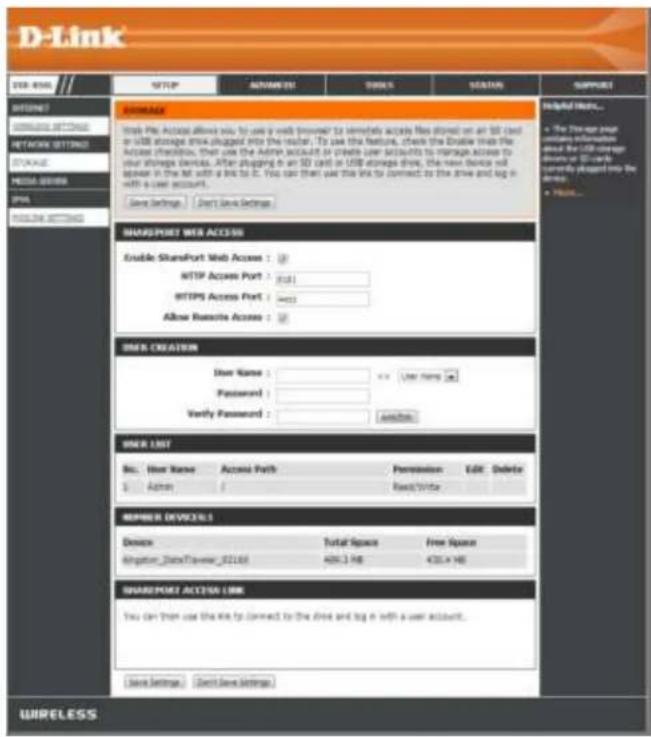
text_image
D-Link
USB NAME
HTTP
ADDRESS
ADDRESS
Trade File Access allows you to use a web (new) to terminate accounts that stored on an 3D card in USB storage drive plugged into the user. To use this feature, check the destination file the Account Checkbox, then use the Active Account or create User accounts to manage access to your storage devices. After plugging in an 3D card or USB storage drive, the new device will appear in the Mkt with a link to C. You can then use this link to connect to the drive and log in with a user account.
Save Settings
Don't Save Settings
DOWNLOAD ITEMS ACCESS
Enable SharePort Web Access:
HTTP Access Port:
FTP1
HTTPS Access Port:
FTP2
Allow Remote Access:
TCP
ITEMS CREATION
Driver Name:
Password:
Verify Password:
Access
ORDER LIST
No. Host Name Accounts Path Permission Edit Delete
Address / Read/Write
NUMBER DEVICES
Device Total Space Free Space
Registration Data Traffic: $2160 40K 3 MB 420 X MB
DOWNLOAD ACCESS LIST
You can then use the Mkt to connect to the drive and log in with a user account.
Save Settings Direct Save Settings
HELP ITEMS...
• For the target your
customers information about the USB usage
measures: 50% call
currently please need into the devices
• Tools...
WIRELESS
Access Files from the Internet
Below are step-by-step instructions on how to access files that are on your USB thumb drive or external hard drive that is connected to your router:
Step 1 - Enable SharePort Web Access
Check the Enable SharePort Web Access checkbox to enable. Then select if you want to use HTTP or HTTPS (secure) and enter the port(s) you want to use. The default for HTTP is 8181 and HTTPS is 4433.
Step 2 - Create a User Account
Under User Creation, enter a username and password, and then click Add/Edit.
Under User List, click the Modify icon for the user you just created. Here you can browse to the folder on your USB storage device you want to assign the Access Path to.
Step 4 - Save Settings
If you want to add more users, repeat steps 2 and 3. Once you are finished, click the Save Settings button at the top to save your settings.
Note that under the HTTP Storage Link (at the bottom) will display the URL(s) you can use to connect. Also if you selected HTTPS, you must type in HTTPS://instead of HTTP://to get a secure connection.
For example, if you selected HTTPS and changed the port to 3200, and your WAN IP address is 1.2.3.4, then you would enter HTTPS://1.2.3.4:3200 to connect.

text_image
10 -- USER CREATION
User Name :
<< User Name
Password :
Verify Password :
Add/Edit Delete
USER LIST
No. User Name Access Path Permission
1 admin /
2 guest None Read/Write
3 d-link (1) /Storage(B0)/ Read Only
Read/Write
NUMBER OF DEVICES : 1
Device Total Space Free Space
Storage(B0) 15.04 GB 14.65 GB
IPv6
On this page, the user can configure the IPv6 Connection type. There are three ways to set up the IPv6 Internet connection.
For the beginner user that has not configured a router before, click on the IPv6 Internet Connection Setup Wizard button and the router will guide you through a few simple steps to get your network up and running. (Refer to page 60.)
For the advanced user that has configured a router before, click on the Manual IPv6 Internet Connection Setup button to input all the settings manually. (Refer to page 65.)
If you would like to manually configure the IPv6 local connectivity settings of your router, click on IPv6 Local Connectivity Settings.

text_image
D-Link
OS-BLK
STEP
APPROVED
ITEMS
STATUS
SUPPORT
SIMS INTERNET CONNECTION
There are live video to set up your SIM Internet connection. You can use the SIM based SIM Internet Connection Setup Wizard, or you can manually configure the connection.
SIMS INTERNET CONNECTION SETUP MOUNTED
If you would like to edit our easy to use SIM-based Wizard to select you in connecting your new SIM Internet Router to the SIM Internet, click on the button below.
SIMS Internet Connection Setup Wizard
Note: Before launching the options, please make sure you have followed all steps outlined in the Quick Installation Guide included in the package.
SIMSAL SIMS LOCAL CONNECTIVITY SETUP
If you would like to configure the SIM local connectivity settings of your SIM Router, then click on the button below.
SIMSAL SIMS INTERNET CONNECTION SETUP
IF you would like to configure the SIM Internet settings of your new SIM Router manually, then click on the button below.
Manual SIM Internet Connection Setup
Higher Status...
• If you are now so pointing and touch some of the Internet, please call SIM Webland and the user will guide you through a link access plan to get your internet setup using.
• If you decide manual or additional use and/or more configured a network fan can provide SIM Webland Connected SIM Internet Setup to install all the setup manuals.
• Here...
UWPELESS
Section 3 - Configuration
Click on Enable ULA. You can check Use default ULA prefix, or you can leave the box unchecked and enter the prefix manually in the ULA Prefix text box.
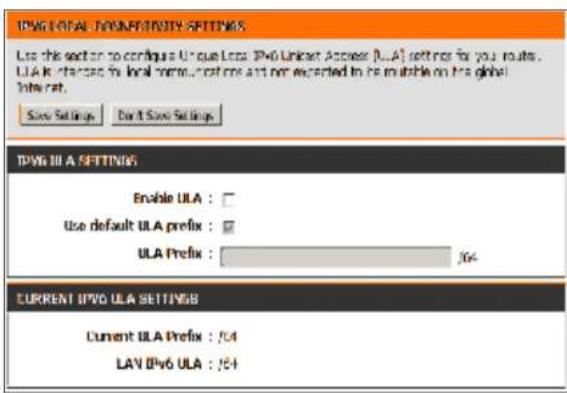
text_image
IPWG LOCAL POWER/FINERITY SETTINGS
Use this sector to configure Unique Loss IPv6 Unicast Access (ULA) settings for your route.
ULA is changed to local norms that now and not expected to be optional on the global
Internet.
Save Settings Don't Save Settings
IPWG III A SETTINGS
Enable ULA :
Use default ULA prefix :
ULA Prefix : 164
CURRENT IPWG ULA SETTINGS
Current ULA Prefix : 164
LAV IPv6 ULA : 164
IPv6 Internet Connection Setup Wizard
On this page, the user can configure the IPv6 Connection type using the IPv6 Internet Connection Setup Wizard.
Click the IPv6 Internet Connection Setup Wizard button and the router will guide you through a few simple steps to get your network up and running.

text_image
IPV6 INTERNET CONNECTION SETUP WIZARD
If you would like to utilize our easy to use Web-based Wizard to assist you in connecting your new D-Link Systems Router to the IPv6 Internet, click on the button below.
IPV6 Internet Connection Setup Wizard
Note: Before launching the wizards, please make sure you have followed all steps outlined in the Quick Installation Guide included in the package.
Click Next to continue to the next page. Click Cancel to discard the changes made and return to the main page.

text_image
WELCOME TO THE D-Link IPv6 INTERNET CONNECTION SETUP WIZARD
This wizard will guide you through a step-by-step process to configure your new D-Link router and connect to the IPv6 Internet.
• Step 1: Configure your IPv6 Internet Connection
• Step 2: Save Settings and Connect
Next Next Cancel Next
The router will try to detect whether its possible to obtain the IPv6 Internet connection type automatically. If this succeeds then the user will be guided through the input of the appropriate parameters for the connection type found.
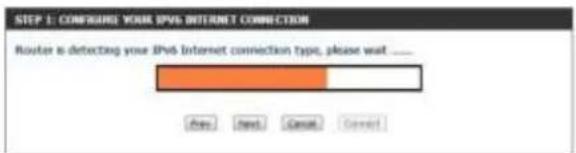
text_image
STEP 1: CONFIGURE YOUR IPv6 INTERNET CONNECTION
Router is detecting your IPv6 Internet connection type, please wait ....
Free Next Cancel Cancel
Section 3 - Configuration
However, if the automatic detection fails, the user will be prompt to either Try again or to click on the Guide me through the IPv6 settings button to initiate the manual continual of the wizard.
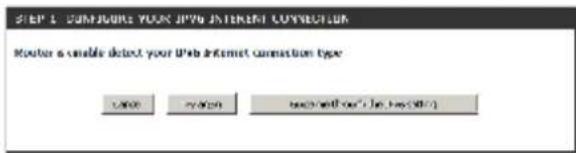
text_image
STEP 1 SUMMER YOUR IPTG INTERNET CONNECTION
Router is unable to detect your IPv6 internet connection type
OK Cancel Success/No
There are several connection types to choose from. If you are unsure of your connection method, please contact your IPv6 Internet Service Provider.
Note: If using the PPPoE option, you will need to ensure that any PPPoE client software on your computers has been removed or disabled. The three options available on this page are IPv6 over PPPoE, Static IPv6 address and Route, and Tunneling Connection (6rd).
Choose the required IPv6 Internet Connection type and click on the Next button to continue. Click on the Prev button to return to the previous page. Click on the Cancel button to discard all the changes made and return to the main page.
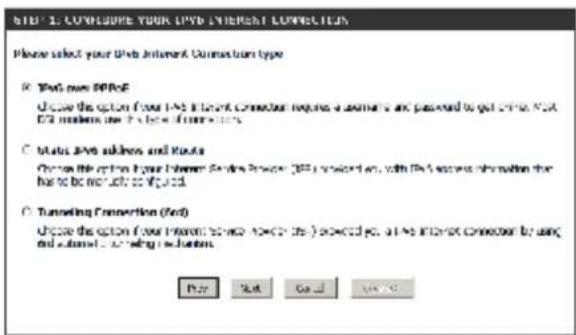
text_image
STEP 1. CONCLUDE YOUR IPDB INTERNET CONNECTION
Please select your Web Interface Connection type
● Web access (IPAccess)
Under the option if your IPB is Internet Connection requires a security and password to get online. Next
IP2 matches the IP base of connections
○ Status: Web address and Route
Open the option if your Internet Service Provider (USB) is selected on, with IP3 access information that has to be much as required
○ Tunneling Connection (Net)
Open the option if your Internet Service Provider is selected on, with IP3 access information by using and external settings to access
Play Quit Cancel Save OK
IPv6 over PPPoE
After selecting the IPv6 over PPPoE option, the user will be able to configure the IPv6 Internet connection that requires a username and password to get online. Most DSL modems use this type of connection.
The following parameters will be available for configuration:
PPPoE Session: Select the PPPoE Session value used here. This option will state that this connection shares it's information with the already configured IPv6 PPPoE connection, or the user can create a new PPPoE connection here.
User Name: Enter the PPPoE username used here. If you do not know your user name, please contact your ISP.
Password: Enter the PPPoE password used here. If you do not know your password, please contact your ISP.
Verify Password: Re-enter the PPPoE password used here.
Service Name: Enter the service name for this connection here. This option is optional.
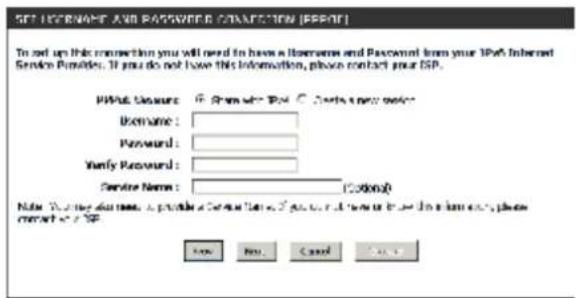
text_image
GET LECENAME AND PASSWORD MANAGEMENT [REPORT]
To set up this connection you will need to have a license and Password from your IPv6 Internet Service Providers. If you do not have this information, please contact your ISP.
Password: G: From what IPv6: C: Starts a new order
Username:
Password:
Notify Password:
Service Name:
(00002)
Note: This is the same name, a profile of the service name, if you can't have to be used in this case, please contact your ISP.
OK Help Cancel Next Next
Static IPv6 Address Connection
This mode is used when your ISP provides you with a set IPv6 addresses that does not change. The IPv6 information is manually entered in your IPv6 configuration settings. You must enter the IPv6 address, Subnet Prefix Length, Default Gateway, Primary DNS Server, and Secondary DNS Server. Your ISP provides you with all this information.
Use Link-Local Address: The Link-local address is used by nodes and routers when communicating with neighboring nodes on the same link. This mode enables IPv6-capable devices to communicate with each other on the LAN side.
IPv6 Address: Enter the WAN IPv6 address for the router here.
Subnet Prefix Enter the WAN subnet prefix length value used here.
Length:
Default Gateway: Enter the WAN default gateway IPv6 address used here.
Primary DNS Enter the WAN primary DNS Server address used here.
Address:
Secondary DNS Enter the WAN secondary DNS Server address used here.
Address:
LAN IPv6 Address: These are the settings of the LAN (Local Area Network) IPv6 interface for the router. The router's LAN IPv6 Address configuration is based on the IPv6 Address and Subnet assigned by your ISP. (A subnet with prefix /64 is supported in LAN.)
SL STATE BYA ADDRESS CORRECTION
To set up this connection you will need to have a complete list of IPv6 information provided by your IPv6 Internet Services Provider, if you have a State IPv6 connection and do not focus this information, please contact your DSP.

text_image
Use Link-Local Address :
JWBS Address : 2001.01.09 LWT F25.02.08
Subset Prefix Length : 4
Default Lockaway :
Primary DVD Address :
Commissary I/OI Address :
LAN JWBS Address : /64
OK Cancel Apply
Tunneling Connection (6rd)
After selecting the Tunneling Connection (6rd) option, the user can configure the IPv6 6rd connection settings.
The following parameters will be available for configuration:
6rd IPv6 Prefix: Enter the 6rd IPv6 address and prefix value used here.
IPv4 Address: Enter the IPv4 address used here.
Mask Length: Enter the IPv4 mask length used here.
Assigned IPv6 Prefix: Displays the IPv6 assigned prefix value here.
6rd Border Relay IPv4 Enter the 6rd border relay IPv4 address used here.
Address:
IPv6 DNS Server: Enter the primary DNS Server address used here.

text_image
SET UP 6RD TUNNELING CONNECTION
To set up this 6RD tunneling connection you will need to have the following information from your IPv6 Internet Service Provider. If you do not have this information, please contact your ISP.
6rd IPv6 Prefix : /
IPv4 Address : Mask Length :
Assigned IPv6 Prefix :
6rd Border Relay IPv4 Address :
IPv6 DNS Server :
Prev Next Cancel Connect
The IPv6 Internet Connection Setup Wizard is complete.
Click on the Connect button to continue. Click on the Prev button to return to the previous page. Click on the Cancel button to discard all the changes made and return to the main page.

text_image
SETUP COMPLETE!
The IPv6 Internet Connection Setup Wizard has completed. Click the Connect button to save your
settings and reboot the router.
Press Next Cancel Connect
IPv6 Manual Setup
There are several connection types to choose from: Auto Detection, Static IPv6, Autoconfiguration (SLAAC/DHCPv6), PPPoE, IPv6 in IPv4 Tunnel, 6to4, 6rd, and Local Connectivity Only. If you are unsure of your connection method, please contact your IPv6 Internet Service Provider.
Note: If using the PPPoE option, you will need to ensure that any PPPoE client software on your computers has been removed or disabled.
Auto Detection
Select Auto Detection to have the router detect and automatically configure your IPv6 setting from your ISP.
Click Save Settings.
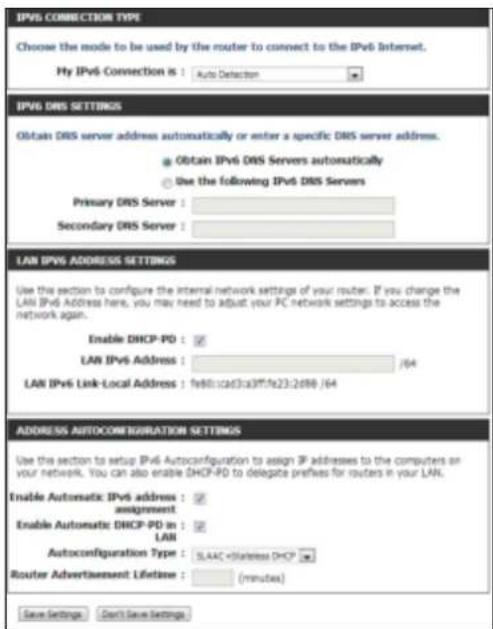
text_image
IPV6 CONNECTION TYPE
Choose the mode to be used by the router to connect to the IPv6 Internet.
My IPv6 Connection is : Auto Detection
IPV6 DRS SETTINGS
Obtain DRS server address automatically or enter a specific DRS server address.
Obtain IPv6 DRS Servers automatically
Use the following IPv6 DRS Servers
Primary DRS Server :
Secondary DRS Server :
LAN IPv6 ADDRESS SETTINGS
Use the section to configure the internal network settings of your router. If you change the LAN IPv6 Address here, you may need to adjust your PC network settings to access the network again.
Enable DHCP-PO : ✓
LAN IPv6 Address : /64
LAN IPv6 Link-Local Address : fe801scad3ca3fffe23:2698 /64
ADDRESS AUTOCOMREGURATION SETTINGS
Use the section to setup IPv6 Autoconfiguration to assign IP addresses to the computers on your network. You can also enable DHCP-PO to delegate prefixes for routers in your LAN.
Enable Automatic IPv6 address : assignment
Enable Automatic DHCP-PO in : ✓
LAN
Autoconfiguration Type : SLAAC
Static IPv6
My IPv6 Connection is: Select Static IPv6 from the drop-down menu.
WAN IPv6 Address Enter the address settings supplied by your Internet provider Settings: (ISP).
LAN IPv6 Address: Enter the LAN (local) IPv6 address for the router.
LAN IPv6 Link-Local Displays the Router's LAN Link-Local Address. Address:
Enable Automatic IPv6 Check to enable the Autoconfiguration feature. address assignment:
Autoconfiguration Type: Select Stateful (DHCPv6), SLAAC + RDNSS or SLAAC + Stateless DHCPv6.
IPv6 Address Range Enter the start IPv6 Address for the DHCPv6 range for your Start: local computers.
IPv6 Address Range Enter the end IPv6 Address for the DHCPv6 range for your End: local computers.
Router Advertisement Enter the Router Advertisement Lifetime (in minutes). Lifetime:
Click Save Settings.

text_image
IPV6 CONNECTION TYPE
Choose the mode to be used by the router to connect to the IPv6 Internet.
My IPv6 Connection is : Static IPv6
WAN IPv6 ADDRESS SETTINGS
Enter the IPv6 address information provided by your Internet Service Provider (ISP).
Use Link-Local Address : ✓
IPv6 Address : field::cad3:a3ff:fe23:2d8b
Subnet Prefix Length : 0.4
Default Gateway :
Primary DNS Server :
Secondary DNS Server :
LAN IPv6 ADDRESS SETTINGS
Use the section to configure the internal network settings of your router. If you change the
LAN IPv6 Address here, you may need to adjust your PC network settings to access the
network again.
LAN IPv6 Address : /64
LAN IPv6 Link-Local Address : fe80::cad3:a3ff:fe23:2d88 /64
ADDRESS AUTOCONFIGURATION SETTINGS
Use this section to setup IPv6 Autoconfiguration to assign IP addresses to the computers on
your network.
Enable Automatic IPv6 address : ✓
assignment
Autoconfiguration Type : SLAAC +Stainless DHCP
Router Advertisement Lifetime : (minutes)
Save Settings Don't Save Settings
Autoconfiguration
My IPv6 Connection is: Select Autoconfiguration (Stateless/DHCPv6) from the drop-down menu.
IPv6 DNS Settings: Select either Obtain DNS server address automatically or Use the following DNS Address.
Primary/Secondary DNS Enter the primary and secondary DNS server addresses.
Server:
LAN IPv6 Address: Enter the LAN (local) IPv6 address for the router.
LAN IPv6 Link-Local Displays the Router's LAN Link-Local Address. Address:
Enable Automatic IPv6 Check to enable the Autoconfiguration feature. address assignment:
Autoconfiguration Type: Select Stateful (DHCPv6), SLAAC + RDNSS or SLAAC + Stateless DHCPv6.
IPv6 Address Range Enter the start IPv6 Address for the DHCPv6 range for your Start: local computers.
IPv6 Address Range Enter the end IPv6 Address for the DHCPv6 range for your End: local computers.
Router Advertisement Enter the Router Advertisement Lifetime (in minutes).
Lifetime:
Click Save Settings.

text_image
IPv6 CONNECTION TYPE
Choose the mode to be used by the router to connect to the IPv6 Internet.
My IPv6 Connection is : Autoconfiguration(SLAAC DHCP-4)
IPv6 DNS SETTINGS
Obtain DNS server address automatically or enter a specific DNS server address.
Obtain IPv6 DNS Servers automatically
Use the following IPv6 DNS Servers
Primary DNS Server :
Secondary DNS Server :
LAN IPv6 ADDRESS SETTINGS
Use this section to configure the internal network settings of your router. If you change the
LAN IPv6 Address here, you may need to adjust your PC network settings to access the
network again.
Enable DHCP-PD : ✓
LAN IPv6 Address : /64
LAN IPv6 Link-Local Address : fw80::cad31a3ff:fe2312d88 /64
ADDRESS AUTOCONFIGURATION SETTINGS
Use this section to setup IPv6 Autoconfiguration to assign IP addresses to the computers on
your network. You can also enable DHCP-PD to delegate prefixes for routers in your LAN.
Enable Automatic IPv6 address : ✓
assignment
Enable Automatic DHCP-PD in : ✓
LAN
Autoconfiguration Type : SLAAC + Statistics DHCP
Router Advertisement Lifetime : (minutes)
Save Settings Don't Save Settings
PPPoE
My IPv6 Connection is: Select PPPoE from the drop-down menu.
PPPoE Internet Enter the PPPoE account settings supplied by your Internet Connection Type: provider (ISP).
PPPoE Session: Select Create a new session if you have IPv6.
Address Mode: Select Static IP if your ISP assigned you the IP address, subnet mask, gateway, and DNS server addresses. In most cases, select Dynamic IP.
IP Address: Enter the IP address (Static PPPoE only).
User Name: Enter your PPPoE user name.
Password: Enter your PPPoE password and then retype the password in the next box.
Service Name: Enter the ISP Service Name (optional).
Reconnect Mode: Select either Always-on, On-Demand, or Manual.
Maximum Idle Time: Enter a maximum idle time during which the Internet connection is maintained during inactivity. To disable this feature, enable Auto-reconnect.
MTU: Maximum Transmission Unit - you may need to change the MTU for optimal performance with your specific ISP. 1492 is the default MTU.
IPv6 DNS Settings: Select either Obtain IPv6 DNS servers automatically or Use the following IPv6 DNS Servers
Primary/Secondary DNS Enter the primary and secondary DNS server addresses.
Servers:

text_image
IPV6 CONNECTION TYPE
Choose the mode to be used by the router to connect to the IPv6 Internet.
My IPv6 Connection is: http://
PPPoE INTERNET CONNECTION TYPE:
Enter the information provided by your Internet Service Provider (DSP).
PPPoE Session: Share with IPv4 Create a new session
Address Mode: Dynamic IP Static IP
IP Address:
Username:
Password:
Verify Password:
Service Name: (optional)
Reconnect Mode: Always on On demand Manual
Maximum Idle Time: (minutes, 0=infinita)
FETU: 1482 Bytes MTU default = 1492
IPV6 DNS SETTINGS
Obtain DNS server address automatically or enter a specific DNS server address.
Obtain IPv6 DNS Servers automatically
Use the following IPv6 DNS Servers
Primary DNS Server:
Secondary DNS Server:
LAN IPv6 ADDRESS SETTINGS
Use the section to configure the internal network settings of your router. If you change the LAN IPv6 Address here, you may need to adjust your PC network settings to access the network again.
Enable DHCP-PO: ✓
LAN IPv6 Address: /64
LAN IPv6 Link-Local Address: fe88ccad31acDIF/fe23:2688 /64
ADDRESS AUTOCONFIGURATION SETTINGS
Use the section to setup IPv6 Autoconfiguration to assign IP addresses to the computers on your network. You can also enable DHCP-PO to delegate prefixes for routers in your LAN.
Enable Automatic IPv6 address: ✓
Enable Automatic DHCP-PO in: ✓
Autoconfiguration Type: SLAAC+DNSless DHCP
Router Advertisement Lifetime: (minutes)
Save Settings Don't Save Settings
Enable DHCP-PD: Check to enable DHCP-PD.
LAN IPv6 Address: Enter the LAN (local) IPv6 address for the router.
LAN IPv6 Link-Local Displays the Router's LAN Link-Local Address.
Address:
Enable Automatic IPv6 Check to enable the IPv6 Autoconfiguration. address assignment:
Enable Automatic DHCP- Check to enable delegation of prefixes for router addresses.
PD in LAN:
Autoconfiguration Type: Select Stateful (DHCPv6), SLAAC + RDNSS or SLAAC + Stateless DHCPv6.
IPv6 Address Range Start: Enter the start IPv6 Address for the DHCPv6 range for your local computers.
IPv6 Address Range End: Enter the end IPv6 Address for the DHCPv6 range for your local computers.
Router Advertisement Lifetime: Enter the Router Advertisement Lifetime (in minutes).
Click Save Settings.

text_image
LAN IPv6 ADDRESS SETTINGS
Use this section to configure the internal network settings of your router. If you change the
LAN IPv6 Address here, you may need to adjust your PC network settings to access the
network again.
Enable DHCP-PO : ✓
LAN IPv6 Address : /84
LAN IPv6 Link-Local Address : fe80ccox2ta0F9fe23:2d88 /84
ADDRESS AUTOCONFIGURATION SETTINGS
Use this section to setup IPv6 Autoconfiguration to assign IP addresses to the computers on
your network. You can also enable DHCP-PO to delegate prefixes for routers in your LANL.
Enable Automatic IPv6 address : ✓
assignment
Enable Automatic DHCP-PO in : ✓
LAN
Autoconfiguration Type : SLAAC +Wireless DHCP
Router Advertisement Lifetime : (minutes)
Save Settings Don't Save Settings
IPv6 in IPv4 Tunneling
My IPv6 Connection is: Select IPv6 in IPv4 Tunnel from the drop-down menu.
IPv6 in IPv4 Tunnel
Settings: Enter the settings supplied by your Internet provider (ISP).
IPv6 DNS Settings: Select either Obtain IPv6 DNS servers automatically or Use the following IPv6 DNS Servers
Primary/Secondary Enter the primary and secondary DNS server addresses.
DNS Servers:
LAN IPv6 Address: Enter the LAN (local) IPv6 address for the router.
LAN IPv6 Link-Local Displays the Router's LAN Link-Local Address.
Address:
Enable Automatic IPv6 Check to enable the Autoconfiguration feature. Address Assignment:
Enable Automatic Check to enable delegation of prefixes for router addresses. DHCP-PD in LAN:
Autoconfiguration Select Stateful (DHCPv6), SLAAC + RDNSS or SLAAC + Stateless Type: DHCPv6.
IPv6 Address Range Enter the start IPv6 Address for the DHCPv6 range for your local Start: computers.
IPv6 Address Range Enter the end IPv6 Address for the DHCPv6 range for your local End: computers.
Router Advertisement Enter the Router Advertisement Lifetime (in minutes).
Lifetime:
Click Save Settings.

text_image
IPV6 CONNECTION TYPE
Choose the mode to be used by the router to connect to the IPv6 Internet.
My IPv6 Connection is : 3Pv6 in IPv4 Tunnel
IPV6 IN IPV4 TURREL SETTINGS
Enter the IPv6 in IPv4 Tunnel information provided by your Tunnel Broker.
Remote IPv4 Address :
Remote IPv6 Address :
Local IPv4 Address :
Local IPv6 Address :
Subnet Prefix Length :
IPV6 DNS SETTINGS
Obtain DNS server address automatically or enter a specific DNS server address.
Obtain IPv6 DNS Servers automatically
Use the following IPv6 DNS Servers
Primary DNS Server :
Secondary DNS Server :
LAN IPv6 ADDRESS SETTINGS
Use this section to configure the internal network settings of your router. If you change the
LAN IPv6 Address here, you may need to adjust your PC network settings to access the
network again.
Enable DHCP-PD : ✓
LAN IPv6 Address : /64
LAN IPv6 Link-Local Address : fe80:ccad3a3ff:fe23:2d88 /64
ADDRESS AUTOCONFIGURATION SETTINGS
Use this section to setup IPv6 Autoconfiguration to assign IP addresses to the computers on
your network.
Enable Automatic IPv6 address : ✓
assignment
Enable Automatic DHCP-PD in : ✓
LAN
Autoconfiguration Type : SLAAC+Stainless DHCP
Router Advertisement Lifetime : (minutes)
Save Settings Don't Save Settings
6 to 4 Tunneling
My IPv6 Connection is: Select 6 to 4 from the drop-down menu.
WAN IPv6 Address Enter the IPv6 settings supplied by your Internet provider (ISP). Settings:
Primary/Secondary Enter the primary and secondary DNS server addresses.
DNS Servers:
LAN IPv6 Address: Enter the LAN (local) IPv6 address for the router.
LAN IPv6 Link-Local Displays the Router's LAN Link-Local Address. Address:
Enable Automatic IPv6 Check to enable the Autoconfiguration feature. Address Assignment:
Autoconfiguration Select Stateful (DHCPv6), SLAAC + RDNSS or SLAAC + Stateless Type: DHCPv6.
IPv6 Address Range Enter the start IPv6 Address for the DHCPv6 range for your local Start: computers.
IPv6 Address Range Enter the end IPv6 Address for the DHCPv6 range for your local End: computers.
Router Advertisemt Enter the Router Advertisement Lifetime (in minutes).
Lifetime:
Click Save Settings.

text_image
IPV6 CONNECTION TYPE
Choose the mode to be used by the router to connect to the IPv6 Internet.
My IPv6 Connection is : 6to4
WAR IPv6 ADDRESS SETTINGS
Enter the IPv6 address information provided by your Internet Service Provider (ISP).
6to4 Address :
6to4 Relay :
Primary DNS Server :
Secondary DNS Server :
LAN IPv6 ADDRESS SETTINGS
Use this section to configure the internal network settings of your router. If you change the LAN IPv6 Address here, you may need to adjust your PC network settings to access the network again.
LAN IPv6 Address : XXXXXXXXXXXX: 11 /64
LAN IPv6 Link-Local Address : fe93ccad3ca3ff:fe23:2d88 /64
ADDRESS AUTOCONFORMATION SETTINGS
Use this section to setup IPv6 Autoconfiguration to assign IP addresses to the computers on your network.
Enable Automatic IPv6 address : √ assignment
Autoconfiguration Type : SQLAC =Stainless DHCP
Router Advertisement Lifetime : (minutes)
Save Settings Don't Save Settings
6rd
My IPv6 Connection is: Select 6rd from the drop-down menu.
WAN IPv6 Address Enter the address settings supplied by your Internet provider Settings: (ISP).
LAN IPv6 Address: Enter the LAN (local) IPv6 address for the router.
LAN IPv6 Link-Local Displays the Router's LAN Link-Local Address. Address:
Enable Automatic IPv6 Check to enable the Autoconfiguration feature. address assignment:
Autoconfiguration Type: Select Stateful (DHCPv6), SLAAC+RDNSS or SLAAC + Stateless DHCPv6.
Router Advertisement Enter the Router Advertisement Lifetime (in minutes). Lifetime:
Click Save Settings.

text_image
IPV6 CONNECTION TYPE
Choose the mode to be used by the router to connect to the IPv6 Internet.
My IPv6 Connection is : 6rd
WAN IPv6 ADDRESS SETTINGS
Enter the IPv6 address information provided by your Internet Service Provider (ISP).
Enable Hub and Spoke Mode :
6rd Configuration : 6rd DHCPv4 option Manual Configuration
6rd IPv6 Prefix : /
IPv4 Address : Mask Length :
Assigned IPv6 Prefix :
Tunnel Link-Local Address :
6rd Border Relay IPv4 Address :
Primary DNS Server :
Secondary DNS Server :
LAN IPv6 ADDRESS SETTINGS
Use this section to configure the internal network settings of your router. If you change the
LAN IPv6 Address here, you may need to adjust your PC network settings to access the
network again.
LAN IPv6 Address :
LAN IPv6 Link-Local Address : fe80::cad3:a3ff:fe23:2d88 /64
ADDRESS AUTOCONFIGURATION SETTINGS
Use this section to setup IPv6 Autoconfiguration to assign IP addresses to the computers on
your network.
Enable Automatic IPv6 address : assignment
Autoconfiguration Type : SLAAC +Stainless DHCP
Router Advertisement Lifetime : (minutes)
Save Settings Don't Save Settings
Local Connectivity
My IPv6 Connection is: Select Local Connectivity Only from the dropdown menu.
LAN IPv6 Link-Local Displays the IPv6 address of the router. Address:
Click Save Settings.

text_image
IPV6 CONNECTION TYPE
Choose the mode to be used by the router to connect to the IPv6 Internet.
My IPv6 Connection is : Local Connectivity Only
LAN IPV6 ADDRESS SETTINGS
Use this section to configure the internal network settings of your router.
LAN IPv6 Link-Local Address : fe80::cad3::a3ff:fe23::2d88 /64
Save Settings Don't Save Settings
mydlink Settings
The DIR-850L features a cloud service that pushes information such as firmware upgrade notifications, user activity, and intrusion alerts to the mydlink™ app on Android and Apple mobile devices. To insure that your router is up-to-date with the latest features, mydlink™ will notify you when an update is available for your router. You can also monitor a user's online activity with real-time website browsing history, maintaining a safe and secure environment, especially for children at home.
On this page the user can configure the mydlink™ settings for this router. This feature will allow us to use the mydlink cloud services that includes online access and management of this router through the mydlink portal website or portable device applications like iOS apps and Android applications.
In the mydlink section, we can view the registration status of the mydlink account service. The mydlink Service field will either display Registered or Non-Registered. In the Register mydlink Service section, we can register or modify a mydlink account. Click on the Register mydlink Service button to initiate this procedure.
mydlink Service: Displays whether your device is registered with a mydlink account or not. If you are registered, your mydlink e-mail address will be displayed.
mydlink E-mail: If you are registered, your mydlink E-mail address will be displayed.
Register mydlink Click to go to the mydlink website to register or edit your Settings: settings. Please refer to page 19 for the registration steps.

text_image
D-Link
ECON GROUP
NETWORK SETTINGS
Setting and registering your product with mylink will allow you to use to model cloud services features, including online access and management of your device through mylink point websites.
PROGRAM Settings
mylink Service : Non-Registered
mylink E-mail :
REGISTER PROGRAM SERVICE
Register admin service
UWRELESS
Advanced Virtual Server
This will allow you to open a single port. If you would like to open a range of ports, refer to the next page.
Name: Enter a name for the rule or select an application from the drop-down menu. Select an application and click << to populate the fields.
IP Address: Enter the IP address of the computer on your local network that you want to allow the incoming service to. If your computer is receiving an IP address automatically from the router (DHCP), you computer will be listed in the "Computer Name" drop-down menu. Select your computer and click <<.
Private Port/ Enter the port that you want to open next to Private Public Port: Port and Public Port. The private and public ports are usually the same. The public port is the port seen from the Internet side, and the private port is the port being used by the application on the computer within your local network.
Protocol Type: Select TCP, UDP, or Both from the drop-down menu.
Schedule: The schedule of time when the Virtual Server Rule will be enabled. The schedule may be set to Always, which will allow the particular service to always be enabled. You can create your own times in the Tools > Schedules section.
Inbound Filter: Select Allow All (most common) or a created Inbound filter. You may create your own inbound filters in the Advanced > Inbound Filter page.

text_image
D-Link
OK 45YN
SETUP
ADVANCED
TOOLS
STATUS
SUPPORT
VIRTUAL SERVERS
PORT FORMENDING
APPLICATION NAME
POST INSURANCE
NETWORK FILTER
ACCESS CONTROL
PRIVATE FILTER
SHOWN FILTER
FIREWALL SETTINGS
ROUTING
ADVANCED INSERTS
HIVI-PROTECTED
SETUP
ADJUSTED NETWORKS
CUEST ZONE
SPRINGBALL
SPIN ROUTING
VIRUAL SERVERS LIST
Remaining number of rules that can be created: 24
Port
Traffic Type
Name
Application name
IP Address
Computer Name
Private Port
Public Port
Protocol
Both
Schedule
Approy
Inbound Filter
Allow All
Select a schedule for
which the virtual server is
will be created. If you do not see the schedule you
need to the list of
advantages, go to the
tools. On Androids
answers and inside a new schedule.
IP Address
Computer Name
Private Port
Public Port
Protocol
Both
Schedule
Approy
Select a filter that
wholesale the Internet
hours that can access the
of local server hours.
Get your website. If you do
Port Forwarding
This will allow you to open a single port or a range of ports.
Name: Enter a name for the rule or select an application from the drop-down menu. Select an application and click << to populate the fields.
IP Address: Enter the IP address of the computer on your local network that you want to allow the incoming service to. If your computer is receiving an IP address automatically from the router (DHCP), you computer will be listed in the "Computer Name" drop-down menu. Select your computer and click <<.
TCP/UDP: Enter the TCP and/or UDP port or ports that you want to open. You can enter a single port or a range of ports. Separate ports with a comma.
Example: 24,1009,3000-4000
Schedule: The schedule of time when the Virtual Server Rule will be enabled. The schedule may be set to Always, which will allow the particular service to always be enabled. You can create your own times in the Tools > Schedules section.
Inbound Filter: Select Allow All (most common) or a created Inbound filter. You may create your own inbound filters in the Advanced > Inbound Filter page.

text_image
D-Link
ITEMS URL
SETAP
ADVANCED
STOCKS
STATUS
SUPPORT
PORT FORWARDING
The option is asked to open multiple ports in a range of ports in your router and redirect data through those ports to a single PC or your network. The feature allows you to enter ports in the format, Fort Ranges (130-150), Individual Ports (80, 88, 988), or Mixed (1320-5000, 699). This option is only applicable to the INTERNET server.
Save Settings
Can't Save Settings
24 - PORT FORWARDING ITEMS
Remaining number of rules that can be created: 24
Ports to Open
Name
Application Name
TCP
Schedule
Always
Advanced
IP Address
Application Name
UOP
Timeout Filter
40ms All
Name
Application Name
TCP
Schedule
Always
Advanced NETWORK
user ID
IP Address
Application Name
UDP
Timeout Filter
40ms All
Name
Application Name
TCP
Schedule
Always
Any User Interface or other networks/Networks (130-150) Individual (80, 88, 988) Mixed (1320-5000, 699)
Accessories
ADDRESS
Accessories
Accessories
Accessories
Accessories
Accessories
Accessories
Accessories
Accessories
Accessories
Accessories
Accessories
Accessories
Accessories
Accessories
Accessories
Accessories
Accessories
Accessories
Accessories
Accessories
Accessories
Accessories
Accessories
Accessories
Accessories
Accessories
Accessories
Accessories
Accessories
Accessories
Accessories
Accessories
Accessories
Accessories
Application Rules
Some applications require multiple connections, such as Internet gaming, video conferencing, Internet telephony and others. These applications have difficulties working through NAT (Network Address Translation). Special Applications makes some of these applications work with the DIR-850L. If you need to run applications that require multiple connections, specify the port normally associated with an application in the "Trigger Port" field, select the protocol type as TCP or UDP, then enter the firewall (public) ports associated with the trigger port to open them for inbound traffic.
The DIR-850L provides some predefined applications in the table on the bottom of the web page. Select the application you want to use and enable it.
Name: Enter a name for the rule. You may select a pre-defined application from the drop-down menu and click <<.
Trigger: This is the port used to trigger the application. It can be either a single port or a range of ports.
Traffic Type: Select the protocol of the trigger port (TCP, UDP, or Both).
Firewall: This is the port number on the Internet side that will be used to access the application. You may define a single port or a range of ports. You can use a comma to add multiple ports or port ranges.
Traffic Type: Select the protocol of the firewall port (TCP, UDP, or Both).
Schedule: The schedule of time when the Application Rule will be enabled. The schedule may be set to Always, which will allow the particular service to always be enabled. You can create your own times in the Tools > Schedules section.

text_image
D-Link
DOT-APPRO
SETUP
ADVANCED
DOOLS
STATUS
SUPPORT
VIRTUAL SERVERS
PORT FORWARDING
APPLICATION RULES
GOO ENGINE
NETWORK FILTER
ACCESS CONTROL
VEGETE FILTER
EXPOORD FILTER
FIRWALL SETTINGS
ROUTING
ADVANCED NETWORKS
MOST PROTECTED
SETUP
ADVANCED NETWORKS
GUEST ZONE
SPAL FIBRANAL
SPAL ROUTING
APPLICATION RULES
The Application Rules option is used to open single or multiple ports in your firewall when the router serves data sent to the Internet on an outgoing "Trigger" port or port single. Special Application rules apply for all computers on your internal network.
Save Settings
Can't Save Settings
24 - APPLICATION RULES
Remaining number of rules that can be created: 24
Port
Trigger
All →
Always →
Application Name
Firwall
All →
Trigger
All →
Always →
Name
Application Name
Firwall
All →
Trigger
All →
Always →
Name
Application Name
Firwall
All →
Trigger
All →
Always →
Name
Application Name
Firwall
All →
QoS Engine
The QoS Engine option helps improve your network gaming performance by prioritizing applications. By default the QoS Engine settings are disabled and application priority is not automatically classified. The QoS section contains a queuing mechanism, traffic shaping and classification. It supports two kinds of queuing mechanisms. Strict Priority Queue (SPQ) and Weighted Fair Queue (WFQ). SPQ will process traffic based on traffic priority. Queue1 has the highest priority and Queue4 has the lowest priority. WFQ will process traffic based on the queue weight. Users can configure each queue's weight. The sum of all the queue's weight must be 100. When surfing the Internet, the system will do traffic shaping based on the uplink and downlink speed. The classification rules can be used to classify traffic to different queues, then SPQ or WFQ will do QoS based on the queue's priority or weight.
Enable QoS: This option is disabled by default. Enable this option for better performance and experience with online games and other interactive applications, such as VoIP.
Uplink Speed: The speed at which data can be transferred from the router to your ISP. This is determined by your ISP.
Downlink Speed: The speed at which data can be transferred from the Internet to your router. This is determined by your ISP.
Queue Type: Select either Strict Priority Queue (rank in order) or Weighted Fair Queue (percentage).
Queue ID: The Queue ID used will be displayed in the first column.
Queue Priority: When Strict Priority Queue is selected, the Queue Priority will be displayed in the second column.
Queue Weight: When the Weighted Fair Queue option is selected, you will be able to manually enter the Queue Weight for each individual Queue ID in the second column.

text_image
D-Link
ITEMS
TITLE
ADVANCED
TOOLS
STATUS
SUPPORT
MATERIAL DESCRIPTION
POST FORMER(S)
APPLICATION PAGE
SQL NAME
NETWORK FILTER
ACCESS CONTROLS
MESSAGE FILTER
ARRAY FILTER
TREAD/WAY SETTINGS
ROUTING
ADVANCED VERSIONS
MATHELECTED SETUP
ADVANCED NETWORKS
GAST FONE
PHYSICAL
PHYSICALING
QOS NETWORKS
Use the action to configure Linux's QoS engine covered by Linux Engine Technology. This QoS engine improves your online gaming experience by ensuring that, your game traffic is prenticed over other network traffic, such as FTP at http://db.For test performance, use the Automatic Classification option to automatically set the priority for your applications.
Save Settings:
QOS NETTOP:
Enable QoS
Uplink Speed: 0000 Mbps >= Select Transmission Data
Overlink Speed: 0000 Mbps >= Select Transmission Data
Queue Type: Select Previous Queue Weighted For Queue
Queue ID:
1
2
3
4
Queue Weight:
4 %
5 %
6 %
52 -- CLASSIFICATION RULES
Remaining number of rules that can be (noted) 19
Name:
Include:
Queue ID:
Highway:
Protocol:
Access P Range:
To:
Remove P Range:
To:
Application Port:
(1): 400
%
After specifying the QoS framework used, in the QoS setup section, the user can now create individual rules for scenarios that require the use of traffic control and data priority manipulation.
Classification The QoS Engine supports overlaps between rules, where more than one rule can match for a specific message flow. If more than one Rules: rule is found to match the rule with the highest priority will be used.
Name: Create a name for the rule that is meaningful to you.
Queue ID: The priority of the message flow is entered here -- 1 receives the highest priority (most urgent) and 255 receives the lowest priority (least urgent).
Protocol: The protocol used by the messages.
Local IP Range: The rule applies to a flow of messages whose LAN-side IP address falls within the range set here.
Local Port The rule applies to a flow of messages whose LAN-side port number is within the range set here. Range:
Remote IP The rule applies to a flow of messages whose WAN-side IP address falls within the range set here. Range:
Remote Port The rule applies to a flow of messages whose WAN-side port number is within the range set here. Range:
Application Port: Select a service or port you want to assign to this rule.
Click on the Save Settings button to accept the changes made or click on the Don't Save Settings button to discard the changes made.
Network Filters
Use MAC (Media Access Control) Filters to allow or deny LAN (Local Area Network) computers by their MAC addresses from accessing the network. You can either manually add a MAC address or select the MAC address from the list of clients that are currently connected to the Broadband Router.
Configure MAC Select Turn MAC Filtering Off, Allow MAC addresses Filtering: listed below, or Deny MAC addresses listed below from the drop-down menu.
MAC Address: Enter the MAC address you would like to filter.
To find the MAC address on a computer, please refer to the Networking Basics section in this manual.
DHCP Client List: Select a DHCP client from the drop-down menu and click << to copy that MAC Address.
Schedule: Select a pre-defined or user created schedule from the drop-down menu, or click New Schedule to create a new schedule. You set a specific time frame for the MAC filter rule to be active.

text_image
D-Link
SETUP
ADVANCED
TOOLS
STATUS
SUPPORT
HMAC ADDRESS FILTER
The MAC (Media Access Controller) Address filter option is used to control network access based on the MAC Address of the network adapter. A MAC address is a unique ID assigned by the manufacturer of the network adapter. The feature can be configured to ALLOW or DENY network/Internet access.
Save Settings
Don't Save Settings
24 - MAC FILTERING RILES
Configure MAC Filtering below!
Use MAC Filtered Off
Remaining number of rules that can be created: 24
MAC Address
DHCP Client List
Schedule
Computer Name
Allow
New Schedule
Computer Name
Allow
New Schedule
Computer Name
Allow
New Schedule
Computer Name
Allow
New Schedule
Computer Name
Allow
New Schedule
Computer Name
Allow
New Schedule
Access Control
The Access Control section allows you to control access in and out of your network. Use this feature as Parental Controls to only grant access to approved sites, limit web access based on time or dates, and/or block access from applications like P2P utilities or games.
Enable Access Check the Enable Access Control box, and then Control: click on Add Policy to start the Wizard.

text_image
D-Link
ACCESS CONTROL
The Access Control section allows you to control access in and out of your network. Use this feature as Access Control is only given to access to approved sites, limit user access based on time or dates, and/or block interview access for applications like TCP or Linux or games.
Access Settings
Access Control
Enable Access Control :
Access Settings
Access Settings
Help! Make...
• Check Enable Access Control if you want to enter the link between the platform or server from any specific USB installers.
• This Add Policy is over the procedure of common links. You can create the requests at all time. Other links are further provided by a rule that will be added to the Policy Table button.
• Click the link user in most of the website using the Policy Wizard.
• Get the Deliber user in temporarily welcome a role.
• Please...
Access Control Wizard
Click Next to continue with the wizard.

text_image
ADD NEW POLICY
This wizard will guide you through the following steps to add a new policy for Access Control.
Step 1 - Choose a unique name for your policy
Step 2 - Select a schedule
Step 3 - Select the machine to which this policy applies
Step 4 - Select filtering method
Step 5 - Select filters
Step 6 - Configure Web Access Logging
Prev Next Save Cancel
Section 3 - Configuration
Enter a name for the policy and then click Next to continue.
Select a schedule (i.e., Always) from the drop-down menu and then click Next to continue.
Enter the following information and then click Next to continue.
- Address Type - Select IP address, MAC address, or Other Machines.
- IP Address - Enter the IP address of the computer you want to apply the rule to.
- Machine Address - Enter the PC MAC address or click on Clone Your PCs MAC Address.
Click Add and then click Next to continue.
Select the filtering method.
If you choose to Block Some Access, check Apply Web Filter and/or Apply Advanced Port Filters.
Click Next to continue.

text_image
STEP 1: CHOOSE POLICY NAME
Choose a unique name for your policy.
Policy Name :
Press Next Save Cancel

text_image
STEP 2: SELECT SCHEDULE
Choose a schedule to apply to this policy.
About
Details:
About
Press Next Save Cancel

text_image
STEP 3: SELECT MODEL
Select the machines to select this policy applies.
Specify a machine width as (P or WAC) address, or select Other Machine for machines that do not have a policy.
Address Type:
IP Address:
Machine Address:
Add: Cancel
Help:
Find: Cancel
Next: Cancel

text_image
SELECT OR USING METHOD
Select the method for Mining.
Method:
□ log Web Application Only □ Shop or Access □ What Items Use Access
Apply Web Options □
Apply Advanced Port Options □
Close Cancel >> Cancel

text_image
C:\Program Files\10\2016\10\2016\10\2016\10\2016\10\2016\10\2016
button: C:\Program Files\10\2016\10\2016\10\2016\10\2016\10\2016
button: C:\Program Files\10\2016\10\2016\10\2016\10\2016
Section 3 - Configuration
Add Port Filter Rules:
Enable - Check to enable the rule.
Name - Enter a name for your rule.
Dest IP Start - Enter the starting IP address.
Dest IP End - Enter the ending IP address.
Protocol - Select the protocol.
Dest Port Start - Enter the starting port number.
Dest Port End - Enter the ending port number.
To enable web logging, click Enabled.
Click Save to save the access control rule.
Your newly created policy will now show up under Policy Table.

text_image
ADD 5. PRINT TO WORK
Add Post: Microsoft Excel
Search value to preview, created by specific IP addresses and parts.
File Edit View Insert Print Print Print Print Print
12340
12340
12340
12340
12340
12340
12340
12340
12340
12340
12340
12340
12340
12340
12340
12340
12340
12688
12688
12688
12688
12688
12688
12688
12688
12688
12688
12688
12688
12688
12688
12688
12688
12688
12700
12700
12700
12700
12700
12700
12700
12700
12700
12700
12700
12700
12700
12700
12700
12700
12700
12999
12999
12999
12999
12999
12999
12999
12999
12999
12999
12999
12999
12999
12999
12999
13000

text_image
STEP 6: CONFIDURE WEB ACCESS LOADING
Web Access Logging : ○ Disabled
● Enabled
OK Next Dash Cancel

text_image
ON/OFFOR ORDER
The chart is created using the following four key functions:
Figure 20/2001. The chart is created using the following four key functions:
Figure 20/2001. The chart is created using the following four key functions:
On/OFFOR ORDER
On/OFFOR
On/OFFOR
On/OFFOR
On/OFFOR
On/OFFOR
On/OFFOR
On/OFFOR
On/OFFOR
On/OFFOR
On/OFFOR
On/OFFOR
On/OFFOR
On/OFFOR
On/OFFOR
On/OFFOR
On/OFFOR
On/OFFOR
On/OFFOR
On/OFFOR
On/OFFOR
On/OFFIOR
On/OFFIOR
On/OFFIOR
On/OFFIOR
On/OFFIOR
On/OFFIOR
On/OFFIOR
On/OFFIOR
On/OFFIOR
On/OFFIOR
On/OFFIOR
On/OFFIOR
On/OFFIOR
On/OFFIOR
On/OFFIOR
On/OFFIOR
On/OFFIOR
On/OFFIOR
On/OFFIOR
On/OFFIOR
On/OFFIOUR
On/OFFIOUR
On/OFFIOUR
On/OFFIOUR
On/OFFIOUR
On/OFFIOUR
On/OFFIOUR
On/OFFIOUR
On/OFFIOUR
On/OFFIOUR
On/OFFIOUR
On/OFFIOUR
On/OFFIOUR
On/OFFIOUR
On/OFFIOUR
On/OFFIOUR
On/OFFIOUR
On/OFIR
On/OFIR
On/OFIR
On/OFIR
On/OFIR
On/OFIR
On/OFIR
On/OFIR
On/OFIR
On/OFIR
On/OFIR
On/OFIR
On/OFIR
On/OFIR
On/OFIR
On/OFIR
On/OFIR
On/OFIR
On/OFIR
On/OFIR
On/OFIRM
On/OFIRM
On/OFIRM
On/OFIRM
On/OFIRM
On/OFIRM
On/OFIRM
On/OFIRM
On/OFIRM
On/OFIRM
On/OFIRM
On/OFIRM
On/OFIRM
On/OFIRM
On/OFIRM
On/OFIRM
On/OFIRM
On/OFIRM
On/OFIRM
On/OFIRM
On/OFIR
On/OFIR
On/OFIR
On/OFIR
On/OFIR
On/OFIR
On/OFIR
On/OFIR
On/OFIR
On/OFIR
On/OFIR
On/OFIR
On/OFIR
On/OFIR
On/OFIR
Website Filters
Website Filters are used to allow you to set up a list of Web sites that can be viewed by multiple users through the network. To use this feature select to Allow or Deny, enter the domain or website and click Save Settings. You must also select Apply Web Filter under the Access Control section (page 81).
Configure Select either DENY computers access to Website Filter: ONLY these sites or ALLOW computers access to ONLY these sites.
Website URL/ Enter the keywords or URLs that you want Domain: to allow or block. Click Save Settings.

text_image
D-Link
OUR 45/01
SETUP
ADVANCED
TOOLS
STATUS
SUPPORT
VIRTUAL SERVER
POST FORMANERIAL
APPLICATION RULES
QCOM ENGINE
NETWORK FILTER
ACCESS CONTROLS
TITLE FILTER
BEOUND FILTER
PROVAL SETTINGS
ROUTING
ADVANCED ENABLES
MULTI PROTECTED
SETUP
ADVANCED NETWORK
QUEST JONE
SPW PREMIALS
SPW ROUTING
WEBSITE FILTERS
The Website Filter option allows you to set up a list of Web sites you would like to allow or deny through your network. To use this feature, you must also select the "Apply Web Filter" checkbox in the Access Control section.
Save Settings
Don't Save Settings
24 - WEBSITE FILTERING RULES
Configure Website Filter settings:
DBHY computers access to OPL1 these sites
Clear the list below...
Remaining number of rules that can be created: 24
Website URL/Domain
Helpful Links...
• Create a list of instances that you would file the devices on your network to be allowed or demand access to.
• Keywords can be returned in the list to order to block any URL containing the keyword interests.
• Use with Advanced > Assume Control.
• Form...
Inbound Filters
The Inbound Filter option is an advanced method of controlling data received from the Internet. With this feature you can configure inbound data filtering rules that control data based on an IP address range. Inbound Filters can be used with Virtual Server, Port Forwarding, or Remote Administration features.
Name: Enter a name for the inbound filter rule.
Action: Select Allow or Deny.
Remote IP Check to enable rule.
Range: Enable:
Remote IP Start: Enter the starting IP address. Enter 0.0.0.0 if you do not want to specify an IP range.
Remote IP End: Enter the ending IP address. Enter 255.255.255.255 if you do not want to specify and IP range.
Add: Click the Add button to apply your settings. You must click Save Settings at the top to save the settings.
Inbound Filter This section will list any rules that are Rules List: created. You may click the Edit icon to change the settings or enable/disable the rule, or click the Delete icon to remove the rule.

text_image
D-Link
DIR-658X ///
SETUP
ADVANCED
TOOLS
STATUS
SUPPORT
VIRTUAL SERIES
PORT FORWARDING
APPLICATION RULES
COS ENGINE
NETWORK FILTER
ACCESS CONTROL
WEBSITE FILTER
INBOUND FILTER
FIREWALL SETTINGS
ROUTING
ADVANCED WIRELESS
WS-FT PROTECTED
SETUP
ADVANCED NETWORK
GUEST ZONE
SPB-FIREWALL
SPB-ROUTING
INBOUND FILTER RULES LIST
Name :
Action : Enable Remote IP Start Remote IP End
0.0.0.0 255.255.255.255
0.0.0.0 255.255.255.255
0.0.0.0 255.255.255.255
0.0.0.0 255.255.255.255
0.0.0.0 255.255.255.255
0.1.0.0 255.255.255.255
0.0.0.0 255.255.255.255
0.0.0.0 255.255.255.255
0.0.0.0 255.255.255.255
Add Cancel
Helpful Hocks...
• Give each rule a
Number that is meaningful
by info.
• Each rule can either
Allow or Deep access
from the wire.
• Up to eight ranges of
64MB SP addresses can be
controlled by each rule.
The checklist for each IP
range can be used to
be able ranges directly
defined.
• The starting and
ending IP addresses are
64MB-scale address.
• Click the Add button
to share a finished rule in
the Rules List below.
• Click the Edit icon in
the Rules List to change a
rule.
• Click the Delete icon in
the Rules List to
permanently remove a
rule.
• Filter...
INBOUND FILTER RULES LIST
Name : Action Remote IP Range
Firewall Settings
A firewall protects your network from the outside world. The DIR-850L offers a firewall type functionality. The SPI feature helps prevent cyber attacks. Sometimes you may want a computer exposed to the outside world for certain types of applications. If you choose to expose a computer, you can enable DMZ. DMZ is short for Demilitarized Zone. This option will expose the chosen computer completely to the outside world.
Enable SPI: SPI (Stateful Packet Inspection, also known as dynamic packet filtering) helps to prevent cyber attacks by tracking more state per session. It validates that the traffic passing through the session conforms to the protocol.
Anti-Spoof Enable this feature to protect your network from certain kinds of Checking: "spoofing" attacks.
Enable DMZ: If an application has trouble working from behind the router, you can expose one computer to the Internet and run the application on that computer.
Note: Placing a computer in the DMZ may expose that computer to a variety of security risks. Use of this option is only recommended as a last resort.
DMZ IP Address: Specify the IP address of the computer on the LAN that you want to have unrestricted Internet communication. If this computer obtains it's IP address automatically using DHCP, be sure to make a static reservation on the Setup > Network Settings page so that the IP address of the DMZ machine does not change.

text_image
D-Link
DATA: 000
SETUP
ADVANCED
ITEMS
STARTS
SUPPORT
VIRTUAL SESSIONS
POST-FORMERGING
APPLICATIONS
COS ENGINE
NETWORK FILTERS
ACCRID CONTROLS
RELEASE FILTERS
REPORT LIST RED
FEDERAL NETWORK
ROUTING
ADVANCED VERSULES
NO-FL PROJECTED STOP
ADVANCED NETWORK
GUEST ZONE
SPA FEDERAL
SPA ROUTING
FORWALL NETWORKS
Enable SPF : [1]
A#O OPOGRA CHECKING
Enable anti-speed checking : [1]
SPX2 MODE
The D#Z (D#M#R#AR# ZONE) option lets you set a single computer on your network outside of the router. If you have a computer that cannot run Internet applications successfully from behind the router, then you can allow the computer into the D#Z for unallocated Internet access.
Notes: Putting a computer in the D#Z may expose that computer to a variety of security risks. Use of the option is only recommended as a fair reset.
Enable SPF : [1]
SPX2 IP Address : [1] Computer Site : [1]
APPLICATION LEVEL: GATERTAY (ALE) CONFIGURATION
PHP : [1]
SPX2 (VIPS) : [1]
RESP : [1]
SIP : [1]
Show Settings : [1] Show Settings
WIRELESS
PPTP: Allows multiple machines on the LAN to connect to their corporate network using PPTP protocol.
IPSEC (VPN): Allows multiple VPN clients to connect to their corporate network using IPSec. Some VPN clients support traversal of IPSec through NAT. This ALG may interfere with the operation of such VPN clients. If you are having trouble connecting with your corporate network, try turning this ALG off. Please check with the system administrator of your corporate network whether your VPN client supports NAT traversal.
RTSP: Allows application that uses Real Time Streaming Protocol to receive streaming media from the Internet. QuickTime and Real Player are some of the common applications using this protocol.
SIP: Allows devices and applications using VoIP (Voice over IP) to communicate across NAT. Some VoIP applications and devices have the ability to discover NAT devices and work around them. This ALG may interfere with the operation of such devices. If you are having trouble making VoIP calls, try turning this ALG off.
Routing
The Routing option is an advanced method of customizing specific routes of data through your network.
Name: Enter a name for your route.
Destination IP: Enter the IP address of packets that will take this route.
Netmask: Enter the netmask of the route, please note that the octets must match your destination IP address.
Gateway: Enter your next hop gateway to be taken if this route is used.
Metric: The route metric is a value from 1 to 16 that indicates the cost of using this route. A value 1 is the lowest cost and 15 is the highest cost.
Interface: Select the interface that the IP packet must use to transit out of the router when this route is used.

text_image
D-Link
SETUP
ADVANCED
TOOLS
STATUS
SUPPORT
ROUTING
The Routing option allows you to define static routes to specific destinations.
Save Settings
Don't Save Settings
32 - MONTEL LIST
Remaining number of rules that can be created: 33
Name
Destination IP
Network
Gateway
Name
Destination IP
Network
Gateway
Name
Destination IP
Network
Gateway
Hidro:
Interface
Helpful Status...
• Enable:
Specifies whether the entry will be smoked or diluted.
• Interface:
Specifies the interface - 1000 - than the IP packet must use to travel out of the router, when this route is used.
• Destination IP:
The IP address of packets that will take this route.
• Network:
Can be in the most examples which lists of the IP address and match.
• Gateway:
The gateway IP address is the IP address of the router, if any, used to reach the specified destination.
• Flow...
Advanced Wireless
Transmit Power: Set the transmit power of the antennas.
WLAN Partition: This enables 802.11d operation. 802.11d is a wireless specification developed to allow implementation of wireless networks in countries that cannot use the 802.11 standard. This feature should only be enabled if you are in a country that requires it.
WMM Enable: WMM is QoS for your wireless network. This will improve the quality of video and voice applications for your wireless clients.
Short GI: Check this box to reduce the guard interval time therefore increasing the data capacity. However, it's less reliable and may create higher data loss.
HT20/40 Coexistence: Enable this option to reduce interference from other wireless networks in your area. If the channel width is operating at 40MHz and there is another wireless network's channel over-lapping and causing interference, the router will automatically change to 20MHz.

text_image
D-Link
TER #TEL
SETUP
ADVANCED
TOOLS
STATUS
SUPPORT
DETAIL SETUR
PUNT FORMERING
APPLICATORIAGE
COS ENGINE
NETWORKS FOR
ACCESS CONTROLS
ACCESSIP FETTS
OPTIONAL SETTINGS
RATIONS
ADVANCED NETWORKS
WEL PROTECTED
SETUP
ADVANCED NETWORKS
GUEST ZONE
SPRINGBALL
SPRING outnumber
ADVAUSD NETTENUE
Wireless Band: 2.4MHz Band
Transseal Power: High %
WALK Partition:
WTP1 Enable:
WET 26/40 Consistency:
Disable * Disable
ADVANCED NETWORKS NETTENUE
Wireless Band: 50MHz Band
Transseal Power: High %
WALK Partition:
WTP1 Enable:
Disable Settings:
Direct Sevel Settings.
Help Help...
• It is recommended that you have these improvements with their default users. Adjusting from could be the performance of your wireless networks.
• Adding WTP1 can help control the network and then what Expanding defaults cannot pay a service connection.
• Have...
Wi-Fi Protected Setup (WPS)
Wi-Fi Protected Setup (WPS) System is a simplified method for securing your wireless network during the "Initial setup" as well as the "Add New Device" processes. The Wi-Fi Alliance (WFA) has certified it across different products as well as manufactures. The process is just as easy as pressing a button for the Push-Button Method or correctly entering the 8-digit code for the Pin Code Method. The time reduction in setup and ease of use are quite beneficial, while the highest wireless Security setting of WPA2 is automatically used.
Enable: Enable the Wi-Fi Protected Setup feature.
Note: if this option is unchecked, the WPS button on the side of the router will be disabled.
WiFi Protected Displays the current WPS status.
Setup:
Lock WPS-PIN Locking the WPS-PIN Method prevents the settings from Setup: being changed by any external registrar using its PIN. Devices can still be added to the wireless network using the Wi-Fi Protected Setup Push Button Configuration (WPS-PBC). It is still possible to change wireless networks settings with Manual Wireless Network Setup or Wireless Network Setup Wizard.
PIN Settings: A PIN is a unique number that can be used to add the router to an existing network or to create a new network. Only the Administrator ("admin" account) can change or reset the PIN.
PIN: Shows the current PIN.
Reset PIN to Click to restore the default PIN of the router. Default:
Generate New PIN: Create a random number that is a valid PIN. This becomes the router's PIN. You can then copy this PIN to the user interface of the wireless client.

text_image
D-Link
SINN - RAIN
SETUP
ADVANCED
TOOLS
STATUS
SUPPORT
VEGETABLE SERVER
PORT FOCUSURING
APPLICATION BASE
OPTIC ENCOME
NETWORK FILTER
ACCESS CONTROLS
WRITE FILTER
INSOCIFIED FILTER
FORWALL SETTINGS
BEATTING
ADVANCED WIRELESS
USB PROTECTED
SETUP
ADVANCED NETWORK
QUEST ZONE
SPRING/WALL
SPRING/STING
WIFI PROTECTED SETUP
Enable : 12
WiFi Protected Setup : Enable/Configured
Lock WPS-PIN Setup : 12
PIN SETTINGS
PBN : 34200069
Accept PBN to Default : Generate new PBN
ADD WIRELESS STATION
Connect your Wireless Device
Save Settings : Don't Save Settings
Helpful Hosts...
• Enable if other
switches developing you with
to include to the local
renewish support Wi-Fi
Protected Setup
• Only "Stop" account
can change security
settings.
• Lock WPS-PIN
Setup Locking the WiPS-
PBI Method provides the
settings. Use Setting
changed by any new
retional negative using
to PPN. Devands can still
be added to the wireless
settings using Wi-Fi
Protected Setup Push
Rainer Configurations
(DoP-PIN)
• Click Comment your
Wireless Device in our
Wi-Fi Protected Setup to add
weird devices to the
wireless network.
• Home...
WIRELESS
Add Wireless This Wizard helps you add wireless devices to the wireless network.
Station:
The wizard will either display the wireless network settings to guide you through manual configuration, prompt you to enter the PIN for the device, or ask you to press the configuration button on the device. If the device supports Wi-Fi Protected Setup and has a configuration button, you can add it to the network by pressing the configuration button on the device and then the on the router within 60 seconds. The status LED on the router will flash three times if the device has been successfully added to the network.
There are several ways to add a wireless device to your network. A "registrar" controls access to the wireless network. A registrar only allows devices onto the wireless network if you have entered the PIN, or pressed a special Wi-Fi Protected Setup button on the device. The router acts as a registrar for the network, although other devices may act as a registrar as well.
Connect Your Click to start the wizard and skip to page 44.
Wireless Device:
You can also simply press the WPS button on the side of the router, and then press the WPS button on your wireless client to automatically connect without logging into the router.
Refer to page 115 for more information.

text_image
WPS Button
Advanced Network Settings
Enable UPnP IGD: To use the Universal Plug and Play (UPnP") feature check the box. UPnP provides compatibility with networking equipment, software and peripherals.
Enable WAN Ping Checking the box will allow the DIR-850L to respond Response: to pings. Unchecking the box may provide some extra security from hackers.
WAN Port Speed: You may set the port speed of the Internet port to 10Mbps, 100Mbps, 1000Mbps, or Auto (recommended).
Enable IPV4 Check the box to allow multicast traffic to pass through Multicast Streams: the router from the Internet (IPv4).
Enable IPV6 Check the box to allow multicast traffic to pass through Multicast Streams: the router from the Internet (IPv6).

text_image
D-Link
OSK 400L ///
SETUP
ADVANCED
FIXELS
STATUS
SUPPORT
INSTALL SERIES
PORT FORMULGEN
APPLICATION ITEMS
COSKING
NETWORK PETERS
ACCESS CONTROLS
ADDRESS PETERS
BROUND FILTERS
POMINAL SETTINGS
ROUTING
ADVANCED NETWORKS
WAT PROTECTED
SETUP
ADVANCED NETWORK
QUEST ZONE
SPV3 FREECALL
SPV3 ROUTING
UWABLES
ADVANCED NETWORK SETTINGS
These options are for users that wish to change the LAR settings. We do not recommend changing these settings from factory default. Changing these settings may affect the behavior of our network.
Save Settings : Don't Save Settings.
SPV3P
Universal Plug and Play(SIP-P) supports peer-to-peer Plug and Play functionality for network devices.
Enable SPv3P 35D :
WAR PORT
If you enable the feature, the WAR port of your router will respond to ping requests from the Internet that are sent to the WAR IP Address.
Enable WAR Ping Response :
WAR PORT SPEED
WAR Port Speed : Auto: 221/88/2007/01/02
SPV3 MULTICAST STREAMS
Enable SPv3 Multicast Streams :
SPV3 MULTICAST STREAMS
Enable SPv3 Multicast Streams :
Save Settings : Don't Save Settings.
Helpful Deaths...
• UPH helps allow UPH
UPH links to users and with the user. Allow the UPH again enabled to long on the LAR has given UPH access users.
• Pay additional discounts, if I recommended that you enable the WAR Ping.
• Use a device option, Ping is often used by connected Internet users to locate or switch wireless or PCS.
• The WAR speed is usually detected automatically. If you are having problems checking by the staff, they selecting the speed manually.
• If you are having enable recovery via on forward type of user from the Internet, make sure the Multicast Stream option is enabled.
• Flows...
LARELESS
Guest Zone
The Guest Zone feature will allow you to create temporary zones that can be used by guests to access the Internet. These zones will be separate from your main wireless network. You may configure different zones for the 2.4GHz and 5GHz wireless bands.
Enable Routing Check to allow network connectivity between the Between Zones: different zones created.
Enable Guest Check to enable the Guest Zone feature.
Zone:
Schedule: The schedule of time when the Guest Zone will be active. The schedule may be set to Always, which will allow the particular service to always be enabled. You can create your own times in the Tools > Schedules section or click New Schedule.
Wireless Enter a wireless network name (SSID) that is different. Network Name: from your main wireless network.
Security Mode: Select the type of security or encryption you would like to enable for the guest zone.

text_image
D-Link
DIR: 4000
SETUP
ADVANCED
TOXES
STATUS
SUPPORT
VIRTUAL SERVER
PORT FORMULARS
APPLICATIONS
COMPARAY
NETWORK FILTER
ACCESS CONTROL
IMPORTS FILTER
DEFAULT FILTER
FIRST SETTINGS
ROUTING
ADVANCED ROUTES
W-LI PROTECTED
SETUP
ADVANCED NETWORK
FIRST ZONE
PWR/RESERIAL
PWR/COUNTING
GRIEST ZONE
Use the section to configure the guest zone settings of your router. The guest zone provides a separate network zone for guest to access Internet.
Save Settings
Don't Save Settings
GRIEST ZONE
Enable Routing Between Zones:
SESSION 2-9GHz
Enable Guest Zone:
Always
New Schedule
Wireless Band:
2-9GHz Band
Wireless Network Name:
8bit-guest
(Also called the SSD)
Security Mode:
None
SESSION 5GHz
Enable Guest Zone:
Always
New Schedule
Wireless Band:
5GHz Band
Wireless Network Name:
8bit GSR-guest
(Also called the SSD)
Security Mode:
None
Save Settings
Don't Save Settings
Helpful Media...
• Use the written to configure the guest zone settings of your router. The guest zone provides a separate network zone for guest to access Internet.
• None...
IPv6 Firewall
The DIR-850L's IPv6 Firewall feature allows you to configure which kind of IPv6 traffic is allowed to pass through the device. This feature functions in a similar way to the IP Filters feature.
Enable IPv6 Check the box to enable the IPv6 firewall simple security. Simple Security:
Configure IPv6 Select an action from the drop-down menu. Filtering below:
Name: Enter a name to identify the IPv6 firewall rule.
Schedule: Use the drop-down menu to select the time schedule that the IPv6 Firewall Rule will be enabled on. The schedule may be set to Always, which will allow the particular service to always be enabled. You can create your own times in the Tools > Schedules section.
Source: Use the Interface drop-down menu to specify the interface that connects to the source IPv6 addresses of the firewall rule.
IP Address Range: Enter the source IPv6 address range in the adjacent IP Address Range field.

text_image
D-Link
ITEMS
TITLE SERIES
ITEM ITEMS
IMPORT ITEMS
COMMENTS
NETWORKS
RISERS
CHANNELS CONTROLS
CHANNELS ITEMS
RISERS
RISERS
RISERS
RISERS
RISERS
RISERS
RISERS
RISERS
RISERS
RISERS
RISERS
RISERS
RISERS
RISERS
RISERS
RISERS
RISERS
RISERS
RISERS
RISERS
RISERS
RISERS
RISERS
RISERS
RISERS
RISERES
RISERES
RISERES
RISERES
RISERES
RISERES
RISERES
RISERES
RISERES
RISERES
RISERES
RISERES
RISERES
RISERES
RISERES
RISERES
RISERES
RISERES
RISERES
RISERES
RISERes
Risers
Risers
Risers
Risers
Risers
Risers
Risers
Risers
Risers
Risers
Risers
Risers
Risers
Risers
Risers
Risers
Risers
Risers
Risers
Risers
Risers
Risers
Risers
Risers
Risers
Risera
Bir Address Range
Protocol:
No: 0.0000000000000000000000000000000000000000000000000000000000000000000000000000000000000000000000000000
Name:
Bir Address Range:
Protocol:
No: 1.562899999999999999999999999999999999999999999999999999999999999999999999999999999999999999999999999999998888888888888888888888888888888888888888888888888888888888888888888888888888888888888888888888888888 3444444444444444444444444444444444444444444444444444444444444444444444444444444444444444444 35777777777777777777777777777777777777777777777777777777777777777777777777777777777777777777777777 36666666666666666666666666666666666666666666666666666666666666666666666666666666666666666666666666 375555555555555555555555555555555555555555555555555555555555555555555555555 3833333333333333333333333333333333333333333333333333333333333333333333333333333333333333 391111111111111111111111111111111111111111111111111111111111111111111111111111111111111111111111111111 222222222222222222222222222222222222222222222222222222222222222222222222222222 222222222222222222222222222222222222222222222222222222 22 2 ITEMS...
a) The web user can use a model or software, and the link between traffic, traffic, and other devices. You can also use a model to create a range of RIs (e.g., RIs, RIs, RIs, RIs, RIs, RIs, RIs, RIs, RIs, RIs, RIs, RIs, RIs, RIs, RIs, RIs, RIs, RIs, RIs, RIs, RIs, RIs, RIs, RIs, RIs, RIs, RIs, RIs, RIs, RIs, RIs, RIs, RIs, RIs, BIR Address Range and SIRI Address Range. b) The web is available in a network that has been used to create a range of RIs (e.g., RIs, RIs, RIs, RIs, RIs, RIs, RIs, RIs, RIs, RIs, RIs, RIs, RIs, RIs, RIs, RIs, RIs, RIs, RIs, RIs, RIs, RIs, RIs, RIs, RIs, RIs, RIs, RIs, RIs, Rls)
b) The web is available in a network that has been used to create a range of RIs (e.g., RIs, RIs, RIs, RIs, RIs, RIs, RIs, RIs, RIs, RIs, RIs, RIs, RIs, RIs, RIs, RIs, RIs, RIs, RIs, RIs, RIs, RIs, RIs,
b) The web is available in a network that has been used to create a range of RIs (e.g., RIs, RIs, RIs, RIs, RIs, RIs, RIs, RIs, RIs, RIs, RIs, RIs, RIs, RIs, RIs, RIs, RIs,
b) The web is available in a network that has been used to create a range of RIs (e.g., RIs, RIs, RIs, RIs, RIs, RIs, RIs, RIs, BIR Address Range)
b) The web is available in a network that has been used to create a range of BIR Address Range)
b) The web is available in a network that has been used to create a range of BIR Address Range)
b) The web is available in a network that has been used to create a range of BIR Address Range)
b) The web is available in a network that has been used to create a range of BIR Address Range)
b) The web is available in a network that has been used to create a range of BIR Address Range)
b) the web is available in a network that has been used to create a range of BIR Address Range)
b) the web is available in a network that has been used to create a range of BIR Address Range)
b) the web is available in a network that has been used to create a range of BIR Address Range)
b) the web is available in a network that has been used to create a range of BIR Address Range)
b) the web is available in a network that had no data points on the website.
b) the web is available in a network that has been used to create a range of BIR Address Range (e.g., BIR Address Range)
b) the web is available in a network that has been used to create a range of BIR Address Range)
b) the web is available in a network that has been used to create a range of BIR Address Range)
b) the web is available in a network that has been used to create a range of BIR Address Range)
b) the web is available in a network that has been used to create a range of BIR Address Range)
b) The web is available in a network that has been used to create a range of BIR Address Range)
b) The web is available in a network that has been used to create a range of BIR Address Range)
b) The web is available in a network that has been used to create a range of BIR Address Range)
b) The web is available in a network that had no data points on the website.
b) The web is available in a network that has been used to create a range of BIR Address Range (e.g., BIR Address Range)
b) The web is available in a network that has been used to create a range of BIR Address Range)
b) The web is available in a network that has been used to create a range of BIR Address Range)
b) The web is available in a network that has been used to create a range of BIR Address Range)
b) The web is available in a network that has been used to create a range of BIR Address Range)
b) Both the web and its corresponding website are not included in any particular location. This is not included in any particular location. This is not included in any particular location. This is not included in any particular location. This is not included in any particular location. This is not included in any particular location. This is not included in any particular location. This is not included in any particular location. This is not included in any particular location. This is not included in any particular location. This is not included in any particular location. This is not included in any particular location. This is unspecified from this site.
This is not included in any particular location. This is not included in any particular location. This is not included in any particular location. This is not included in any particular location. This is not included in any particular location. This is not included in any particular location. This is not included in any particular location. This is not included in any particular location. This is not included in any particular location. This is not included in any particular location. This is not included in any particular location. Thisis not included in any particular location. This is not included in any particular location. This is not included in any particular location. This is not included in any particular location. This is not included in any particular location. This is not included in any particular location. This is not included in any particular location. This is not included in any particular location. This is not included in any particular location. This is not included in any particular location. This is not included in any particular location. This isnot included in any particular location. This is not included in any particular location. This is not included in any particular location. This is not included in any particular location. This is not included in any particular location. This is not included in any particular location. This is not included in any particular location. This is not included in any particular location. This is not included in any particular location. This is not included in any particular location. This is not included in any particular location. This is not affected from this site.
This is not affected from this site.
This is not affected from this site.
This is not affected from this site.
This is not affected from this site.
This is not affected from this site.
This is not affected from this site.
This is not affected from this site.
This is not affected from this site.
This is not affected from this site.
This is not affected from this site.
This is not affected from this site.
This is not affected from this site.
This is not affectedfrom this site.
This is not affected from this site.
This is not affected from this site.
This is not affected from this site.
This is not affected from this site.
This is not affected from this site.
This is not affected from this site.
This is not affected from this site.
This is not affected from this site.
This is not affected from this site.
This is not affected from this site.
This is not affected from this site.
This is not affected from this site.
this was excluded from this site.
this was excluded from this site.
this was excluded from this site.
this was excluded from this site.
this was excluded from this site.
this was excluded from this site.
this was excluded from this site.
this was excluded from this site.
this was excluded from this site.
this was excluded from this site.
this was excluded from this site.
this was excluded from this site.
this was excluded from this site.
this was excluded from this site.
this was excluded from these sites.
this was excluded from these sites.
this was excluded from these sites.
this was excluded from these sites.
this was excluded from these sites.
this was excluded from these sites.
this was excluded from these sites.
this was excluded from these sites.
this was excluded from these sites.
this was excluded from these sites.
this was excluded from these sites.
this was excluded from these sites.
this was excluded from these sites.
this was excluded from these sites.
this was excluded from these sites.
t h i n d i n d i n d i n d i n d i n d i n d i n d i n d i n d i n d i n d i n d i n d i n d i n d i n d i n d i n d i n d i n d i n d i n d i n d i n d i n d i n d i n d i n d i n d i n d i n d i n d i n d e r s t o f t o r e r s t o r e r s t o r e r s t o r e r s t o r e r s t o r e r s t o r e r s t o r e r s t o r e r s t o r e r s t o r e r s t o r e r s t o r e r s t o r e r s t o r e r s t o r e r s t o r e r s t o r s t o r e r s t o r e r s t o r e r s t o r e r s t o r e r s t o r e r s t o r e r s t o r e r s t o r e r s t o r e r s t o r e r s t o r e r s t o r e r s t o r e r s t o r e r s t o r e r s t O u c l .r h i n d i n d i n d i n d i n d i n d i n d i n d i n d i n d i n d i n d i n d i n d i n d i n d i n d i n d i n d i n d i n d i n d i n d i n d i n d i n d i n d i n d i n d i n d i n d i n d i n c l .r h i n d i n d i n d i n d i n d i n d i n d i n d i n d i n d i n d i n d i n d i n d i n d i n d i n d i n d i n d i n d i n d i n d i n d i n d i n d i n d i n d i n d i n d i n d i n d i m .r h i n d i n d i n d i n d i n d i n d i n d i n d i n d i n d i n d i n d i n d i n d i n d i n d i n d i n d i n d i n d i n d i n d i n d i n d i n d i n d i n d i n d i n d i n d i n d i n d I c h .r h i n d i n d i n d i n d i n d i n d i n d i n d i n d i n d i n d i n d i n d i n d I c h .r h i n c l .r h /i m .r /i m .r /i m .r /i m .r /i m .r /i m .r /i m .r /i m .r /i m .r /i m .r /i m .r /i m .r /i m .r /i m .r /i m .r /i m .r /i m .r /i m .r /i m .r /i m .r /i m .m /i m .r /i m .r /i m .r /i m .r /i m .r /i m .r /i m .r /i m .r /i m .r /i m .r /i m .r /i m .r /i m .r /i m .r /i m .r /i m .r /i m .r /i m .r /i m .r /i m .n /i m .r /i m .r /i m .r /i m .r /i m .r /i m .r /i m .r /i m .r /i m .r /i m .r /i m .r /i m .r /i m .r /i m .r /i m .r /i m .r /i m .r /i m .r /i m .r /i m .s /i m .s /i m .s /i m .s /i m .s /i m .s /i m .s /i m .s /i m .s /i m .s /i m .s /i m .s /i m .s /i m .s /i m .s /i m .s /i m .s /i m .s /i m .s /i m .s /i m .m /s /s /s /s /s /s /s /s /s /s /s /s /s /s /s /s /s /s /s /s /s /s /s /s /s /s /s /s /s /s /s /s /s /s /s /s /s /s /s /s /s /s /s /s /s /s /s /s /s /s / s /
A b l l l l l l l l l l l l l l l l l l l l l l l l l l l l l l l l l l l l l l l l l l l l l l l l l l l l l l l l l l l l l l l l l l l l l l l l l l l l l l l l l l l l l l l l l l l l l l l l l l l l | A b | B | C | D | E | F | G | H | I | J | K | L | M | N | O | P | Q | S | T | U | V | W | X | Y | Z |
A b | B | C |D |E |F |G |H |I |J |K |L |M |N |O |P |Q |S |T |U |V |W |X |Y |Z |
A b | B | C |D |E |F |G |H |I |J |K |L |M |N |O |P |Q |S |T |U |V |W |X |Y |Z |
A b | B | C |D |E |F |G |H |I |J |K |L |M |N |O |P |Q |S |T |U |V |W |X |y |
A b | B | C |D |E |F |G |H |I |J |K |L |M |N |O |P |Q |S |T |U |V |W |X |
A b | B | C |D |E |F |G |H |I |J |K |L |M |N |O |P |Q |S |T |U |VW I I I I I I I I I I I I I I I I I I I I I I I I I I I I I I I I I I I I I I I I I I I I I I I I I I I I I I I I I I I I I I I I I I I I I I I I I I I I I I I I I I I I I I I I I I I I I I I I I I I I II |
A b | B | C |D |E |F |G |H |I |J |K |L |M |N |O |P |Q |S ]
A b = b - b + b - b + b + b + b + b + b + b + b + b + b + b + b + b + b + b + b + b + b + b + b + b + b + b + b + b + b + b + b + b + b + b + b + b + b + b + b + b + b + b + b + b + b + b + b + b + b + b + b + b + b + b +
A b = b - b + b - b + b + b + b + b + b + b + b + b + b + b + b + b + b + b + b + b + b + b + b + b + b + b + b + b + b + b + b + b + b + b + b + b + b + b + b +
A b = b - b + b - b + b + b + b + b + b + b + b + b + c )
A b = b - b + b - b - c )
A b = b - b - c )
A b = b - c )
A b = c )
A b = c - c )
A b = c - c )
A b = c - c )
A b = c - c )
A b = c - c )
A b = c - c )
A b = c - c )
A b = c - c )
A b = c - c )
A b = c - c )
A b = c - c )
A b = c - c )
A b = c - c )
C h j h j h j h j h j h j h j h j h j h j h j h j h j h j h j h j h j h j h j h j h j h j h j h j h j h j h j h j h j h j h j h j h j h j h j h j h j h j h j h j h j h j h j h j h j h j h j h j h j h j hj y #h# #h# #h# #h# #h# #h# #h# #h# #h# #h# #h# #h# #h# #h# #h# #h# #h# #h# #h# #h# #h# #h# #h# #h# #h# #h# #h# #h# #h# #h# #h# #h# #h# #h# N## N## N## N## N## N## N## N## N## N## N## N## N## N## N## N## N## N## N## N## N## N## N## N## N## N## N## N## N## N## N## N## N## N## N## N## N## N## N## N## N## N## N## N## N## N## N## N## N## N## N### N### N### N### N### N### N### N### N### N### N### N### N### N### N### N### N### N### N### N### N### N### N### N### N### N### N### N### N### N### N### N### N### N### N### N### N### N### N### N###N###N###N###N###N###N###N###N###N###N###N###N###N###N###N###N###N###N###N###N###N###N###N###N###N###N###N###N###N###N###N###N###N###N###N###N###N###N###N###N###N###N###N###N###N###N###N###N###N###N###
B : A : B : C : D : E : F : G : H : H : L : M : M : M : M : M : M : M : M : M : M : M : M : M : M : M : M : M : M : M : M : M : M : M : M : M : M : M : M : M : M : M : M : M : M : M : M : M : M : M : M : M : M : M : M : M : M : M : M : M : M :M :M :M :M :M :M :M :M :M :M :M :M :M :M :M :M :M :M :M :M :M :M :M :M :M :M :M :M :M :M :M :M :M :M :M :M :M :M :M :M :M :M :M :M :M :M :M :M :M :M : M:M:M:M:M:M:M:M:M:M:M:M:M:M:M:M:M:M:M:M:M:M:M:M:M:M:M:M:M:M:M:M:M:M:M:M:M:M:M:M:M:M:M:M:M:M:M:M:M:M:M:M:M:M:M:M:M:M:M:M:M:M:M:M:M:M:M:M:M:M:M:M:M:M:M:M:M:M:M:M:M:M:M:M:M:M:M:M:M:M:M:M:M:M:M:M:M:M:M:M:M:
Dest: Use the Interface drop-down menu to specify the interface that connects to the destination IP addresses of the firewall rule.
Protocol: Select the protocol of the firewall port (All, TCP, UDP, or ICMP).
Port Range: Enter the first port of the range that will be used for the firewall rule in the first box and enter the last port in the field in the second box.
IPv6 Routing
This page allows you to specify custom routes that determine how data is moved around your network.
Route List: Check the box next to the route you wish to enable.
Name: Enter a specific name to identify this route.
Destination IP/ This is the IP address of the router used to reach the Prefix Length: specified destination or enter the IPv6 address prefix length of the packets that will take this route.
Metric: Enter the metric value for this rule here.
Interface: Use the drop-down menu to specify if the IP packet must use the WAN or LAN interface to transit out of the Router.
Gateway: Enter the next hop that will be taken if this route is used.

text_image
D-Link
SUB-BOX
NETWORK SERIES
POST FORGANING
APPLICATION NAME
COOLINE
NETWORK FILTER
ACCESS CONTROL
ADDRESS FILE ID
BOUND FILE
FORWALL SETTINGS
EXITING
ADVANCED ITEMS
MAX DIRECTORS
SETUP
ADVANCED NETWORK
QUEST EYEVE
PHYSCHALL
JPN ROUTING
RUNTING
THE ROUTING PAGE allows you to specific custom routes that determine how data is moved around your network.
Save Settings Don't Save Settings
10 - ROUTE LIST
Name Destination: Blvd / Profile Length
Hindi 344
Hindi Interface Gateway
Name Destination: Blvd / Profile Length
Hindi 344
Hindi Interface Gateway
Name Destination: Blvd / Profile Length
Hindi 344
Hindi Interface Gateway
Destination: Blvd / Profile Length
Hindi 344
Destination: Blvd / Profile Length
Hindi 344
Destination: Blvd / Profile Length
Destination: Blvd / Profile Length
Destination: Blvd / Profile Length
Destination: Blvd / Profile Length
Destination: Blvd / Profile Length
Destination: Blvd / Profile Length
Destination: Blvd / Profile Length
Destination: Blvd / Profile Length
Destination: Blvd / Profile Length
Destination: Blvd / Profile Length
Destination: Blvd / Profile Length
Destination: Blvd / Profile Length
Destination: Blvd / Profile Length
Destination: Blvd / Profile Length
Destination: Blvd / Profile Length
Target: 2.5 miles per year (1)
Contact: 100 miles per year (1)
Contact: 100 miles per year (1)
Contact: 100 miles per year (1)
Contact: 100 miles per year (1)
Contact: 100 miles per year (1)
Contact: 100 miles per year (1)
Contact: 100 miles per year (1)
Contact: 100 miles per year (1)
Contact: 100 miles per year(1)
Contact: 100 miles per year(1)
Contact: 100 miles per year(1)
Contact: 100 miles per year(1)
Contact: 100 miles per year(1)
Contact: 100 miles per year(1)
Contact: 100 miles per year(1)
Contact: 100 miles per year(1)
Contact: 100 miles per year(1)
Contact:
• Each route has a check box next to it,
check the best of you
meet the route to be modeled.
• The name field above you to specify a name for identification of the route, e.g., Network 2*
• The destination IPv6 addresses the address of the local or network, your mail-in-mail.
• The profile length first identifies the portion of the destination IPv6 area.
• You go to the right address the 25 addresses of the route, if any, can be reached the specified destination.
• Name...
• Destination: Blvd / Profile Length
Destination: Blvd / Profile Length
Destination: Blvd / Profile Length
Destination: Blvd / Profile Length
Destination: Blvd / Profile Length
This page will allow you to change the Administrator password and also enable Remote Management.
Admin Password: Enter a new password for the Admin login name. Enter again to verify password.
Gateway Name: Enter a name for your router.
Enable Graphical Enables a challenge-response test to require users to type letters or numbers
Authentication: from a distorted image displayed on the screen to prevent online hackers and unauthorized users from gaining access to your router's network settings.
Enable HTTPS Check to enable HTTPS to connect to the router securely. This means to connect Server: to the router, you must enter https://192.168.0.1 (for example) instead of http://192.168.0.1.
Enable Remote Management: Remote management allows the DIR-850L to be configured from the Internet Management: by a web browser. A username/password is still required to access the Web Management interface.
Remote Admin Port: The port number used to access the DIR-850L is used in the URL. Example: http://x.x.x.x:8080 whereas x.x.x.x is the Internet IP address of the DIR-850L and 8080 is the port used for the Web Management interface.
If you have enabled HTTPS Server, you must enter https:// as part of the URL to access the router remotely.
Remote Admin This section will list any rules that are created. You may click the Edit icon to Inbound Filter: change the settings or enable/disable the rule, or click the Delete icon to remove the rule. Details will display the current status.

text_image
D-Link
USB 4508
HTTP
ADAMINICATED
TODOL
STATUS
SUPPORT
ADMINISTRATION SETTINGS
The 'admir' account can access the management interface. The admin has read/write access and can change password.
By default there is no password configured. It is highly recommended that you create a password to keep your router secure.
Save Settings : Don't Save Settings
ADAMIN PASSWORD
Please enter the same password into both boxes, for confirmation.
Password : ********
Verify Password : ********
SYSTEM NAME
Gateway Name : 229-633.
ADAMINISTRATION
Enable Graphical :
Authentication
Enable HTTPS Server :
Enable Remote Management :
Remote Adtran Port : Use HTTPS
Remote Adtran Inbound Filter : None Of
Details : None Of
Helpful Details...
• For almost always, it is recommended. But you change the password for the Adtran account. In order to write down the new password to avoid having to press the route to case they are ignored.
• When enabling Remote Management, you can specify the IP address of the computer on the Internet. If you do not use the Web user or on the list of Web, go to the Adtran who is a Software Office screen and creates a new Web.
• None...
Save Settings : Don't Save Settings
UWRELESS
Time
The Time Configuration option allows you to configure, update, and maintain the correct time on the internal system clock. From this section you can set the time zone that you are in and set the Time Server. Daylight Saving can also be configured to automatically adjust the time when needed.
Time: Displays the current date and time of the router.
Time Zone: Select your Time Zone from the drop-down menu.
Enable Daylight To select Daylight Saving time manually, select Saving: enabled or disabled, and enter a start date and an end date for daylight saving time.
Enable NTP Server: NTP is short for Network Time Protocol. A NTP server will sync the time and date with your router. This will only connect to a server on the Internet, not a local server. Check the box to enable this feature.
NTP Server Used: Enter the IP address of a NTP server or select one from the drop-down menu.
Manual: To manually input the time, enter the values in these fields for the Year, Month, Day, Hour, Minute, and Second and then click Set Time.
You can also click Copy Your Computer's Time Settings to synch the date and time with the computer you are currently on.

text_image
D-Link
DIR: 4508
SETUP
AENANCE
TOOLS
STATUS
SUPPORT
ORDER
TIME
SYPLOG
EMAIL SETTINGS
SYSTEM
FORMIME
CINAMIC ONE
SYSTEM CHECK
SCHEDULES
TIME AND DATE
The Time and Date Configuration option allows you to configure, update, and maintain the correct time on the internal instant clock. From the section you can set the time zone you are in and set the NTP (Network Time Protocol) Server, Daylight Saving can also be configured to adjust the time when needed...
Save Settings
Don't Save Settings
Time AND DATE CONFIGURATION
Time : 2000/01/02 01:13:22
Time Zone : [GPT+08:08] Type
Enable Daylight Saving :
Daylight Saving Offset : +61:087
Daylight Saving Dates : Month Week Day of Week Time
DST Start End Stop Back 20:00 AM
DST End Stop Next Stop 20:00 AM
AUTOMATIC TIME AND DATE CONFIGURATION
Automatically synchronize with D-Link's Internet time server
NTP Server Used : http://drink.com Update Now
SET THE TIME AND DATE MABUALLY
Year Month Day 20 Second 8
Hour Hours Minute 20 Second 0
Send, your computer's time settings
Save Settings Don't Save Settings
WIRELESS
SysLog
The DIR-850L keeps a running log of events and activities occurring on the Router. You may send these logs to a SysLog server on your network.
Enable Logging to Check this box to send the router logs to a SysLog SysLog Server: Server.
SysLog Server IP The address of the SysLog server that will be Address: used to send the logs. You may also select your computer from the drop-down menu (only if receiving an IP address from the router via DHCP).

text_image
D-Link
DB-SSL
SETUP
ADVANCED
TOOLS
STATUS
SUPPORT
ADMIN
TIME
SYLOG
EMAIL SETTINGS
SYSTEM
FIRMWARE
DYNAMIC OSI
SYSTEM CHECK
SCHEDULES
SYLOGS
The SysLog options allow you to send log information to a Syslog Server.
Save Settings
Don't Save Settings
SYLOG SETTINGS
Enable Logging To SysLog :
Server
Syslog Server IP Address :
Add Computer Name
Save Settings
Don't Save Settings
Helpful Notes...
• A System Logger (Syslog) is a server that collects in one place the log link different settings. All is the ALL includes a cycling server, you can use the option to send the user's log to that server.
• None...
WIRELESS
Email Settings
The Email feature can be used to send the system log files, router alert messages, and firmware update notification to your email address.
Enable Email When this option is enabled, router activity logs are emailed to a Notification: designated email address.
From Email Address: This email address will appear as the sender when you receive a log file or firmware upgrade notification via email.
To Email Address: Enter the email address where you want the email sent.
Email Subject: Add a subject line to your email.
SMTP Server Address: Enter the SMTP server address for sending email.
SMTP Server Port: Enter the SMTP port used on the server.
Enable Authentication: Check this box if your SMTP server requires authentication.
Account Name: Enter your account for sending email.
Password: Enter the password associated with the account. Re-type the password associated with the account.
On Log Full: When this option is selected, logs will be sent via email to your account when the log is full.
On Schedule: Selecting this option will send the logs via email according to schedule.
Schedule: This option is enabled when On Schedule is selected. You can select a schedule from the list of defined schedules. To create a schedule, go to Tools > Schedules.

text_image
D-Link
ITEM: 4500
SETUP
ADVANCED
TOOLS
STATUS
SUPPORT
ADDRESS SETTINGS
The Email Feature can be used to send the system log files and router alert messages to your email address.
Save Settings
Don't Save Settings
EMAIL NOTIFICATION
Enable Email Notification:
EMAIL SETTINGS
From Email Address :
To Email Address :
Email Subject :
SMTP Server Address :
SMTP Server Port :
Enable Authentication :
Account Name :
Password :
Verify Password :
Send Mail Now
EMAIL LOG WHEN FULL OR ON SCHEDULES
On Log Full :
On Schedule :
Schedule :
Detail :
Save Settings
Send Save Settings
Helpful Links...
• You may want to make the email settings order to store of your email client group site.
• None...
WIRELESS
System
This section allows you to manage the router's configuration settings, reboot the router, and restore the router to the factory default settings. Restoring the unit to the factory default settings will erase all settings, including any rules that you've created.
Save Settings to Use this option to save the current router Local Hard Drive: configuration settings to a file on the hard disk of the computer you are using. First, click the Save button. A file dialog will appear, allowing you to select a location and file name for the settings.
Load Settings Use this option to load previously saved router from Local Hard configuration settings. First, use the Browse option Drive: to find a previously saved file of configuration settings. Then, click the Load button to transfer those settings to the router.
Restore to This option will restore all configuration settings
Factory Default back to the settings that were in effect at the
Settings: time the router was shipped from the factory.
Any settings that have not been saved will be lost, including any rules that you have created. If you want to save the current router configuration settings, use the Save button above.
Reboot the Click to reboot the router. Device:
Clear Language Click to remove any installed language packs.
Pack:

text_image
D-Link
ITEM: 4005
SETUP
ADVANCED
TOOLS
STATUS
SUPPORT
ADMIN
TIME
SYRING
SPRING SETTINGS
SYSTEM
RESPRIATE
ETHNICING
SYSTEM CHECK
SCHEDULES
SAVE AND RESTORE SETTINGS
Once the router is configured you can save the configuration settings to a configuration file on your hard drive. You also have the option to load configuration settings, or restore the factory default settings.
SAVE AND RESTORE SETTINGS
Save Settings To Local Hard Drive : Save Configuration
Load Settings From Local Hard Drive : Choose File No file chosen
Restore Configuration From File
Restore To Factory Default Settings : Restore Factory Defaults
Reboot The Device : Reboot the Device
Clear Language Pack : Clear
Helpful Effects...
• Once your router is configured the way you want it, you can save these settings for a configuration file that can save for loaded in the insert that the router's default settings are filtered. To do file, did the Save Button next to where if keys save Settings to Local hard drive.
• Film...
WIRELESS
Firmware
You can upgrade the firmware of the router here. Make sure the firmware you want to use is on the local hard drive of the computer.
Firmware Upgrade
Choose File: After you have downloaded the new firmware, click Choose File to locate the firmware update on your hard drive. Click Upload to complete the firmware upgrade.
Upload: Once you have a firmware update on your computer, use this option to browse for the file and then upload the information into the access point.
Language Pack Upgrade
You can change the language of the web UI by uploading available language packs.
Choose File: After you have downloaded the new language pack, click Choose File to locate the language pack file on your hard drive. Click Upload to complete the language pack upgrade.
Upload: Once you have a language pack update on your computer, use this option to browse for the file and then upload the information into the access point.

text_image
D-Link
USER NAME
ITEMS
ADDRESS
TIME
P題
PAGE SETTINGS
SYSTEM
Firmware
DRAMPS CDS
SYSTEM ORDER
SCHINEES
SOFTWARE UPDATE
There may be new firmware for your router to improve functionality and performance. Click here to check for an upgrade on our support site.
To upgrade the firmware, locate the upgrade file on the local hard drive with the browser button. Once you have found the file to be used, click the upload button to start the firmware upgrade.
The language pick allows you to change the language of the user interface on the router. We suggest that you upgrade your current language pick if you upgrade the firmware. This ensures that any changes in the firmware are displayed correctly.
To upgrade the language pick, locate the upgrade file on the local hard drive with this browser button. Once you have found the file to be used, click the upload button to start the language pick upgrade.
FIRMWARE INFORMATION
Current Firmware Version : 1.03
Current Firmware Time : 05/12/2013 21:43:06
Check Online Now for Latest : Check Next
Firmware Version
FIRMWARE UPGRADE
Note: Some firmware upgrades exist the configuration options to the factory defaults. Before performing an upgrade, be sure to save the current configuration.
To upgrade the firmware, your PC must turn a random connection to the router, enter the name of the firmware upgrade file, and click on the upload button.
Upload : Choose File To Use chosen Cancel
LANGUAGE PACK UPGRADE
Upload : Choose File To Use chosen Cancel
Help! Help...
• Firmware updates are released periodically to improve the functionality of your recipe and also in add features. If you can info problems with a specific feature of the router, check our support site by clicking on the Check New and use if an updated version of firmware is available to your router.
• Please...
Dynamic DNS
The Dynamic DNS (DDNS) feature allows you to host a server (Web, FTP, Game Server, etc...) using a domain name that you have purchased (www.whateveryournameis.com) with your dynamically assigned IP address. Most broadband Internet Service Providers assign dynamic (changing) IP addresses. Using a DDNS service provider, your friends can enter in your domain name to connect to your server no matter what your IP address is.
Enable Dynamic Domain Name System is a method of Dynamic DNS: keeping a domain name linked to a changing IP Address. Check the box to enable DDNS.
Server Select your DDNS provider from the drop-down Address: menu or enter the DDNS server address.
Host Name: Enter the Host Name that you registered with your DDNS service provider.
Username or Enter the Username or key for your DDNS Key: account.
Password or Enter the Password or key for your DDNS account. Key:
Timeout: Enter a timeout time (in hours).
Status: Displays the current connection status.

text_image
D-Link
DNS 400S
SETISP
ADVANCED
TOOLS
STATUS
SUPPORT
ACHER
TIME
ESPN
DNS SETTINGS
OPTION
FRAME
DNS: DNS
BUTTON CHECK
SCHEDULES
DYNAMIC DNS
The Dynamic DNS feature allows you to host a server (Web, FTP, Game Server, etc...) using a domain name that you have purchased [www.ahrlawyaeyounames.com] with your dynamically assigned IP address. Host Broadband Internet Service Providers assign dynamic (changing) IP addresses. Using a DNS service provider, your friends can enter your text name to connect to your game server no matter what your IP address is.
Sign up the D-Link's free DNS service at www.D-LinkDNS.com.
Save Settings
Don't Save Settings
Helpful Hosts...
• To use the Hosts,
you must not have a
Dynamic DNS account
has one of the providers
in the ship down menu.
• We could also use
DNS Function for IPv6
with the same account as
IPv4.
• Name...
DYNAMIC DNS SETTINGS
Enable Dynamic DNS :
Server Address :
Host Name :
Username or Key :
Password or Key :
Verify Password or Key :
Timeout : 667 (Pause)
Status : Decommissioned
DYNAMIC DNS FOR IPv6 HOSTS
Enable :
IPv6 Address : 667 Computer Name :
Host Name : (e.g.: ipv6.mdbdomain.net)
Save
Show
IPv6 DYNAMIC DNS LIST
Enable Host Name IPv6 Address
Save Settings Don't Save Settings
WIRELESS
DDNS for IPv6 Hosts
Enable: Check the box to enable DDNS for IPv6 Hosts.
IPv6 Address: Enter the IPv6 address of your computer/server in your local network. You can click the << button and select a computer/server from the drop-down list.
Host Name: Enter the IPv6 Host Name that you registered with your DDNS service provider.
IPv6 DDNS Once you save your entry, the IPv6 DDNS host List: information will be displayed here.
Enable: Check to enable the entry.
Host Name: Displays the name of your IPv6 DDNS host.
IPv6 Address: Displays the IPv6 address of your computer/server associated with the IPv6 DDNS host.
Edit/Delete: Click the edit icon to make changes to the entry or click the delete icon to remove the entry.

text_image
D-Link
DINJ 4500
SETUP
ADVANCED
TOOLS
STATUS
SUPPORT
ACHERI
TIME
ADDRESS
EMAIL SETTINGS
ADDRESS
FORMAURE
DYNAMIC DNS
ADDRESS CHECK
SCHEDULES
DYNAMIC DNS
The Dynamic DNS feature allows you to host a server (Web, FTP, Game Server, etc...) using a domain name that you have purchased (www.ahlafavepourserms.com) with visit dynamically assigned IP address. Host broadband Internet Service Providers assign dynamic (changing) IP addresses. Using a DNS service provider, your hands can enter your first name to connect to your game server no matter what your IP address is.
Don't use for Dublin's free DNS service at www.durisDNS.com.
Save Settings
Don't Save Settings
Helpful results...
• To use the Hosts,
you must first have a
Dinajid DNS account
from one of the providers
in the drop down items...
• We could also use
DNS functions for IPv6
with the same account as
IPv6
• Make...
DINJAPIC DNS SETTINGS
Enable Dynamic DNS :
Server Address :
Host Name :
Username or Key :
Password or Key :
Verify Password or Key :
Timeout : 0/7 (Hours)
Status : Disconnected
DINJAPIC DNS FOR IPv6 HOSTS
Enable :
IPv6 Address :
Host Name :
IPv6 DYNAMIC DNS LIST
Enable: Host Name
IPv6 Address
Save Settings
Don't Save Settings
WIRELESS
System Check
Ping Test: The Ping Test is used to send Ping packets to test if a computer is on the Internet. Enter the IP address that you wish to Ping and click Ping.
IPv6 Ping Test: Enter the IPv6 address that you wish to Ping and click Ping.
Ping Results: The results of your ping attempts will be displayed here.

text_image
D-Link
USER NAME
ITEMS
ADDRESS
SPN TEXT
Png: Text sends "png" packets to test a computer or the Internet.
PNN TEXT
Host Name or IP Address : 100000000000000000000000000000000000000000000000000000000000000000000000000000000000000000000000000
SPN TEXT
Host Name or SPN Address : 1000000000000000000000000000000000000000000000000
PNN TEXT
Enter a host name or IP address above and click Png
HELP CHECK...
• "Png" should choose a computer to the internet to calling and download. The user has the IP address of the target consumer or enter in fully qualified remote items.
• None...
UNRELESS
Schedules
Schedules can be created for use with enforcing rules. For example, if you want to restrict web access to Mon-Fri from 3pm to 8pm, you could create a schedule selecting Mon, Tue, Wed, Thu, and Fri and enter a Start Time of 3pm and End Time of 8pm.
Name: Enter a name for your new schedule.
Days: Select a day, a range of days, or All Week to include every day of the week.
Time: Check All Day - 24hrs or enter a start and end time for your schedule.
Add: You must click Add to save your schedule rule.
Schedule Rules The list of schedules will be listed here. Click the List: Edit icon to make changes or click the Delete icon to remove the schedule.

text_image
D-Link
SCHEDRICES
The Schedule configuration option is used to manage schedule rules for "After", "Innless", "Virtual Server", "Port Forwarding", "Applications" and "Network Rite".
10 -- ADD SCHEDULE RULE
Name:
Day(x) : ☐ Af Week Select Day(x)
Sun Mon Tue Wed Thu Fri Sat
AE Day - 24 hrs :
Time Format : 12 Hour
Start Time : 12 13 14 (hour:minutes)
End Time : 11 12 13 (hour:minutes)
Add Create
SCHEDULE RULES LIST
Name Day(x) Time Frame
Helpful Hairs...
• Schedule are used
with a number of other
features to define when
these features are in
effect.
• Give each schedule a
name that is meaningful
to you. For example, a
schedule for Monday
through Friday then
Todgers to Thursday, night
be called "After School".
• Click Add to add a
completed schedule to
the list below.
• Click Edit can to
change an existing
schedule.
• Click Delete can to
commodently delete a schedule.
• Thank...
Status Device Info
This page displays the current information for the DIR-850L. It will display the LAN, WAN (Internet), and Wireless information. If your Internet connection is set up for a Dynamic IP address then a Release button and a Renew button will be displayed. Use Release to disconnect from your ISP and use Renew to connect to your ISP.
If your Internet connection is set up for PPPoE, a Connect button and a Disconnect button will be displayed. Use Disconnect to drop the PPPoE connection and use Connect to establish the PPPoE connection.
General: Displays the router's time and firmware version.
WAN: Displays the MAC address and the public IP settings.
LAN: Displays the MAC address and the private (local) IP settings for the router.
Wireless LAN1: Displays the 2.4GHz wireless MAC address and your wireless settings such as SSID and Channel.
Wireless LAN2: Displays the 5GHz wireless MAC address and your wireless settings such as SSID and Channel.
LAN Computers: Displays computers and devices that are connected to the router via Ethernet and that are receiving an IP address assigned by the router (DHCP).

text_image
D-Link
WIN
WIN Server
WIN Server
WIN Server
WIN Server
WIN Server
WIN Server
WIN Server
WIN Server
WIN Server
WIN Server
WIN Server
WIN Server
WIN Server
WIN Server
WIN Server
WIN Server
WIN Server
WIN Server
WIN Server
WIN Server
WIN Server
WIN Server
WIN Server
WIN Server
WIN Server
WIN Server
WIN Server
WIN Server
WIN Server
WIN Server
WIN Server
WIN Server
WIN Server
WIN Server
Logs
The router automatically logs (records) events of possible interest in it's internal memory. If there isn't enough internal memory for all events, logs of older events are deleted but logs of the latest events are retained. The Logs option allows you to view the router logs. You can define what types of events you want to view and the level of the events to view. This router also has external Syslog Server support so you can send the log files to a computer on your network that is running a Syslog utility.
Save Log File: Click Save to save log file to local hard drive.
Log Type & You can select the type and level indicating what you Level: would like to keep track of.
Refresh: Updates the log details on the screen so it displays any recent activity.
First Page: Click to go to the first page.
Last Page: Click to go to the last page.
Previous: Click to go back one page.
Next: Click to go to the next page.
Clear: Clears all of the log contents.
Link to Email Clicking on this will take you to the Tools > Email
Log Settings: Settings page.

text_image
D-Link
ITEMS
SETUP
ADDITIONS
TOOLS
VOTATIONS
HAPPLES
DEVICE INFO
LOG
APPROVED
BORDER NOTICE
TITLE
RANKING
BEIJING
ITEMS
PAYOUTING
VIEW LIME
The View Log displayed the activities ensuring on the Route.
Save Settings
Check Save Settings
SAVE LOG FILES
Save Log File To Local Hard Drive. [OK]
LOG TYPE & LEVEL
Log Type: System Firewall & Security Router Status
Log Level: Critical Warning Information
LOG ITEMS
Print Page
Used Page
Message
Reset Clear
Look To Break Log Settings
L/42
Time
Message
Sun Jan 2 01:42:01 2009
DHCP: Dont send DISCOVER...
Sun Jan 2 01:42:03 2009
DHCP: Dont send DISCOVER...
Sun Jan 2 01:42:03 2009
DHCP: Dont send DISCOVER...
Sun Jan 2 01:42:05 2009
DHCP: Dont send DISCOVER...
Sun Jan 2 01:42:06 2009
DHCP: Dont send DISCOVER...
Sun Jan 2 01:39:47 2009
DHCP: Dont send DISCOVER...
Sun Jan 2 01:39:12 2009
DHCP: Dont send DISCOVER...
Sun Jan 2 01:38:56 2009
DHCP: Dont send DISCOVER...
Sun Jan 2 01:38:51 2009
DHCP: Dont send DISCOVER...
Sun Jan 2 01:38:47 2009
DHCP: Dont send DISCOVER...
WIRELESS
Statistics
The screen below displays the Traffic Statistics. Here you can view the amount of packets that pass through the DIR-850L on both the WAN, LAN ports and the wireless segments. The traffic counter will reset if the device is rebooted.

text_image
D-Link
DIR-850L ///
SETUP
ADVANCED
TOOLS
STATUS
SUPPORT
DEVICE INFO
LOGS
STATISTICS
INTERNET SESSIONG
WIRELESS
ROUTING
IPVs
IPVs ROUTING
TRAFFIC STATISTICS
Traffic Statistics displays Receive and Transmit packets passing through the device.
Refresh Statistics Reset Statistics
LAN STATISTICS
Sent : 10491 Received : 6999
TX Packets Dropped : 0 RX Packets Dropped : 0
Collisions : 0 Errors : 0
WAN STATISTICS
Sent : 0 Received : 0
TX Packets Dropped : 0 RX Packets Dropped : 0
Collisions : 0 Errors : 0
WIRELESS STATISTICS - 2.4GHz BAND
Sent : 150366 Received : 5061971
TX Packets Dropped : 0 RX Packets Dropped : 0
Collisions : 0 Errors : 220421
WIRELESS STATISTICS - 5GHz BAND
Sent : 81537 Received : 7447459
TX Packets Dropped : 0 RX Packets Dropped : 0
Collisions : 0 Errors : 697730
Helpful Huts...
• This is a summary delivering the number of packets that have passed between the Internet and the LAN once the router was last initialized.
• More...
Internet Sessions
The Internet Sessions page displays full details of active Internet sessions through your router. An Internet session is a conversation between a program or application on a LAN-side computer and a program or application on a WAN-side computer.

text_image
D-Link
OUR-BOOK
DEVICE INFO
LOGS
STATISTICS
INTERNET SESSIONS
WIRELESS
ROUTING
BPs
BPs ROUTING
SETUP
ADVANCED
TOOLS
STATUS
SUPPORT
INTERNET SESSIONS
The page displays Source and Destination sessions passing through the device.
Refresh
IP
TCP Count
UDP Count
Helpful Hosts...
• From a list of all active conversations between WAN computers and LAN computers.
• Form...
WIRELESS
Wireless
The wireless client table displays a list of current connected wireless clients. This table also displays the connection rate and MAC address of the connected wireless clients.

text_image
D-Link
DIR-KOBL
SETUP
ADVANCED
TOOLS
STATUS
SUPPORT
DEVICE INFO
LOGS
STATISTICS
INTERNET SESSIONS
WIRELESS
ROUTING
IP6
IP8/ROUTING
CONNECTED WIRELESS CLIENT LIST
View the wireless clients that are connected to the router. (A client might linger in the list for a few minutes after an unexpected disconnect.)
NUMBER OF WIRELESS CLIENTS - 2.4GHz BAND : 0
MAC Address IP Address Mode Rate (Mbps) Signal (%)
NUMBER OF WIRELESS CLIENTS - 5GHz BAND : 0
MAC Address IP Address Mode Rate (Mbps) Signal (%)
Hosp...
Helpful Hosts...
• This is a list of all wireless clients that are currently connected to your wireless router.
• Home...
WIRELESS
Routing
This page will display your current routing table.

text_image
D-Link
DIR-850L
SETUP
ADVANCED
TOOLS
STATUS
SUPPOUT
DEVICE INFO
LOGS
STATISTICS
INTERNET SESSIONS
WIRELESS
ROUTING
Routing Table
This page displays the routing details configured for your router.
ROUTING TABLE
Destination
Gateway
Genmask
Metric
Iface
Creator
192.168.0.0
0.0.0.0
255.255.255.0
0
LAN
SYSTEM
239.0.0.0
0.0.0.0
255.0.0.0
0
LAN
SYSTEM
WIRELESS
Helpful Harts...
• This is a list of all routing rules on router.
• Home...
IPv6
The IPv6 page displays a summary of the Router's IPv6 settings and lists the IPv6 address and host name of any IPv6 clients.

text_image
D-Link
DDR 450K
DEVICE IPv6
LOGS
STATISTICS
INTERNET SESSIONS
WIRELESS
ROUTING
IPv6
IPVROUTING
SETUP
ADVANCED
TOOLS
STATUS
SUPPORT
IPv6 NETWORK INFORMATION
All of your IPv6 Internet and network connection details are displayed on this page.
IPv6 CONNECTION INFORMATION
IPv6 Connection Type : Link-Local
IPv6 Default Gateway : None
LAN IPv6 Link-Local Address : fe80:cad2:a3F:5x23:2880 /64
LAN IPv6 COMPUTERS
IPv6 Address
Name(if any)
Helpful Hats...
• All of your 8000 and LAN connection details are displayed here.
• None...
WIRELESS
IPV6 Routing
This page displays the IPV6 routing details configured for your router.

text_image
D-Link
DER-800
DEVICE INFO
LOGS
STATISTICS
INTERNET SESSIONS
WIRELESS
ROUTING
IPv6
IPv6 ROUTING
SETUP
ADVANCED
TOOLS
STATUS
SUPPORT
DPVS ROUTING:
This page displays IPv6 routing details configured for your router:
DPVS ROUTING TABLE
Destination IP
Gateway
Metric
Interface
Helpful Huts...
• The route of all IPv6 routing rules on router.
• Huts...
WIRELESS
Support

text_image
D-Link
CDS: 4WRL
SETUP
ADDED
TOOLS
STATUS
SUPPORT HOME
• Setup
• Advanced
• Tools
• Tools
SETUP HELP
• Internal
• Wireless Settings
• Network Settings
• Audio
• Media Group
• Web
• PCLABS SETTINGS
ADVANCED HELP
• Physical Server
• Port, Forwarding
• Application Fees
• Grid Frame
• Network Filter
• Access Director
• Video File
• Network Filter
• Personal Settings
• Backs
• Advanced Software
• Work Protected Series
• Advanced Network
• Retail Data
• Web, Personal
• Web Resources
TOOLS HELP
• Device Administration
• Line
• Audio
• Email Settings
• Surface
• Environment
• Broadcast DNS
• System Chain
• Schedules
STATUS HELP
• Device Info
• Loop
• Monitoring
• External sensors
• Ecosystem
• Packaging
• Web
• Web Resources
WIRELESS
The easiest and most secure way to connect your wireless devices to the router is WPS (Wi-Fi Protected Setup). Most wireless devices such as wireless adapters, media players, Blu-ray DVD players, wireless printers and cameras will have a WPS button (or a software utility with WPS) that you can press to connect to the DIR-850L router. Please refer to your user manual for the wireless device you want to connect to make sure you understand how to enable WPS. Once you know, follow the steps below:
Step 1 - Press the WPS button on the DIR-850L for about one second. The Internet LED on the front will start to blink.

text_image
WPS Button
Step 2 - Within two minutes, press the WPS button on your wireless client (or launch the software utility and start the WPS process).
Step 3 - Allow up to one minute to configure. Once the Internet light stops blinking, you will be connected and your wireless connection will be secure with WPA2.
Windows® 8
1. Click on the wireless computer icon in your system tray (lower-right corner next to the time).
2. A list of available wireless networks will appear.
3. Click the wireless network (SSID) you want to connect to and then click Connect.
4. If the network is secure/encrypted, enter the Wi-Fi password (security key) and click Next.

text_image
Networks
N on new mode
ON
Wi-Fi 2
000/500MHz
at or below
at lower
on lowing:
vanilla

text_image
Networks
Applifier mode
Off
Wi-Fi2
network mask
dirt mask
Windows
m-Orange
Windows
Windows 5.0 (Windows mask)
Denali

text_image
Networks
write
Enter the network security bag
******
Next Cancel
Section 4 - Security
5. Click either to enable or disable file sharing.
6. You will now be connected to your wireless network.

text_image
Networks
vanilla
will
Do you want to turn on sharing
between PCs and connect to devices
on this network?
No, don't turn on sharing or
connect to devices
for networks in audio packets
Yes, turn on sharing and connect
to devices
for home or work networks
If you get a good signal but cannot access the Internet, confirm the encryption by reviewing the profile or check the TCP/IP settings for your wireless adapter. Refer to the Networking Basics section in this manual for more information.
Windows® 7 WPA/WPA2
It is recommended to enable wireless security (WPA/WPA2) on your wireless router or access point before configuring your wireless adapter. If you are joining an existing network, you will need to know the security key or passphrase being used.
1. Click on the wireless icon in your system tray (lower-right corner).

text_image
11:21 AM
9/7/2009
Wireless Icon
2. The utility will display any available wireless networks in your area.

text_image
Net connected
Connections are available
Wireless Network Connection
disk
key2001_24
AfterH DB-655
SDB_WLAN
SAP-280g
wpsled0
BIQGEE304VAPA2
Enable_APNAS
Open Network and Sharing Center
Section 4 - Security
3. Highlight the wireless network (SSID) you would like to connect to and click the Connect button.
If you get a good signal but cannot access the Internet, check your TCP/IP settings for your wireless adapter. Refer to the Networking Basics section in this manual for more information.

text_image
Not connected
Connections are available
Wireless Network Connection
dlink
Connect automatically Connect
kay2690_24
james2690g
ALPHA
dlink 888
SD6_WLAN
OAP-2690g
Open Network and Sharing Center
4. The following window appears while your computer tries to connect to the router.

text_image
Connect to a Network
Getting information from dlink...
Cancel
Section 4 - Security
5. Enter the same security key or passphrase that is on your router and click Connect. You can also connect by pushing the WPS button on the router.
It may take 20-30 seconds to connect to the wireless network. If the connection fails, please verify that the security settings are correct. The key or passphrase must be exactly the same as on the wireless router.

text_image
Connect to a Network
Type the network security key
Security key: 1
Hide characters
You can also connect by pushing the
button on the router.
OK Cancel
WPS
The WPS feature of the DIR-850L can be configured using Windows ^® 7. Carry out the following steps to use Windows ^® 7 to configure the WPS feature:
1. Click the Start button and select Computer from the Start menu.

text_image
Faint
Getting Started
Microsoft Office Center
Call buttons
Modify Number
Repairing Tool
Remove Desktop Connection
MouseFun
Software
All Programs
Current Player
Remote and Privacy
Default Programs
Help and Support
2. Click Network on the left side.

text_image
Computer
Organize
Options properties
Untitled or change a program
My name: Notepad
Favorites
Desktop
Downloads
Recent Places
Libraries
Documents
Myos
Patterns
Video
Computer
Level Disk (LC)
Level Disk (DL)
Data (D)
DOS Disk (DS)
Hardware: 134.08
Parameters: Identify Level/Model OPLs.
Section 4 - Security
3. Double-click the DIR-850L.

text_image
Organize
• Security Change
• Download
• Download Files
• Libraries
• Documents
• Maps
• Pictures
• Videos
• Homepages
• Compuses
• Webinars (C)
• Webinars (D)
• Webinars (E)
• Webinars (F)
• Webinars (G)
• Webinars (H)
• Webinars (I)
• Webinars (J)
• Webinars (K)
• Webinars (L)
• Webinars (M)
• Webinars (N)
• Webinars (O)
• Webinars (P)
• Webinars (Q)
• Webinars (R)
• Webinars (S)
• Webinars (T)
• Webinars (U)
• Webinars (V)
• Webinars (W)
• Webinars (X)
• Webinars (Y)
• Webinars (Z)
• Webinars (A)
• Webinars (B)
• Webinars (C)
• Webinars (D)
• Webinars (E)
• Webinars (F)
• Webinars (G)
• Webinars (H)
• Webinars (I)
• Webinars (J)
• Webinars (K)
• Webinars (L)
• Webinars (M)
• Webinars (N)
• Webinars (O)
• Webinars (P)
• Webinars (Q)
• Webinars (R)
• Webinars ((C))
• Webinars ((D))
• Webinars ((E))
• Webinars ((F))
• Webinars ((G))
• Webinars ((H))
• Webinars ((I))
• Webinars ((J))
• Webinars ((K))
• Webinars ((L))
• Webinars ((M))
• Webinars ((N))
• Webinars ((O))
• Webinars ((P))
• Webinars ((Q))
• Webinars ((R))
• Webinars ((S))
• Webinars ((T))
• Webinars ((U))
• Webinars ((V))
• Webinars ((W))
• Webinars ((X))
• Webinars ((Y))
• Webinars ((Z))
• Webinars ((A))
• Webinars ((B))
• Webinars ((C))
• Webinars ((D))
• Webinars ((E))
• Webinars ((F))
• Webinars ((G))
• Webinars ((H))
• Webinars ((I))
• Webinars ((J))
• Webinars ((K))
• Webinars ((L))
• Webinars ((M))
• Webinars ((N))
• Webinars ((O))
• Webinars ((P))
• Webinars ((Q))
• Webinars ((R))
• Webinars((A))
• Webinars((B))
• Webinars((C))
• Webinars((D))
• Webinars((E))
• Webinars((F))
• Webinars((G))
• Webinars((H))
• Webinars((I))
• Webinars((J))
• Webinars((K))
• Webinars((L))
• Webinars((M))
• Webinars((N))
• Webinars((O))
• Webinars((P))
• Webinars((Q))
• Webinars((R))
• Webinars((S))
• Webinars((T))
• Webinars((U))
• Webinars((V))
• Webinars((W))
• Webinars((X))
• Webinars((Y))
• Webinars((Z))
4. Input the WPS PIN number (displayed in the WPS window on the Router's LCD screen or in the Setup > Wireless Setup menu in the Router's Web UI) and click Next.

text_image
Set Up a Network
To set up a network, type the 8-digit PIN from the router label
You can find the numeric PIN on a label attached to the
router or in the printed information that comes from the
manufacturer.
PINS
Use Cancel
Section 4 - Security
5. Type a name to identify the network.

text_image
Set Up a Network
Give your network a name
Your network needs a unique name so that it can be easily identified. It is best to keep the name short (25 characters or less) and recognizable.
Type your network name:
D-Link_Nite
Security-enabled network
Your network is being set up using WPAZ-Personal.
Change periprise, security level and encryption type (advanced)
Upgrade or replace the router using the network settings shared on this computer
Next Cancel
6. To configure advanced settings, click the √ icon.
Click Next to continue.

text_image
Set Up a Network
Give your network a name
Your network needs a unique name so that it can be easily identified. It is best to keep the name short (25 characters or less) and recognizable.
Type your network name:
D-Link_Net
Security-enabled network
Your network is being set up using WPA2-Personal.
Change perophase, security level and encryption type (advanced):
Security key:
Date-glass from
Security level:
WPA2-Personal (Recommended)
Connect automatically
Encryption type:
AEI (Recommended)
Upgrade or restore the router using the network settings stored on this computer
Next Cancel
Section 4 - Security
7. The following window appears while the Router is being configured.
Wait for the configuration to complete.

text_image
Set Up a Network
Setting up D-Link_Net..
Cancel
8. The following window informs you that WPS on the router has been setup successfully.
Make a note of the security key as you may need to provide this security key if adding an older wireless device to the network in the future.

text_image
D-Link, Net has been successfully set up
To add an older wireless device to this network, you might need to provide this security key
894g-eyd5-g5wb
You can print these network settings for future reference.
For gaming consoles or computers running Windows XP, copy the network profile to a USB drive for easier set up.
Close
9. Click Close to complete WPS setup.
Windows Vista®
Windows Vista® users may use the built-in wireless utility. If you are using another company's utility, please refer to the user manual of your wireless adapter for help with connecting to a wireless network. Most utilities will have a "site survey" option similar to the Windows Vista® utility as seen below.
If you receive the Wireless Networks Detected bubble, click on the center of the bubble to access the utility.
or
Right-click on the wireless computer icon in your system tray (lower-right corner next to the time). Select Connect to a network.
The utility will display any available wireless networks in your area. Click on a network (displayed using the SSID) and click the Connect button.
If you get a good signal but cannot access the Internet, check you TCP/IP settings for your wireless adapter. Refer to the Networking Basics section in this manual for more information.

text_image
Not Connected
Wireless networks are available.
Connect to a network
Network and Sharing Center
12:01 PM
Friday
8/17/2007

text_image
Connect to a network
Disconnect or connect to another network
Show: All
USB port
Unsecured network
Disk
Unsecured network
Gateway
Security-enabled network
Set up a connection to network
Open network and Sharing Center
Connect Cancel
WPA/WPA2
It is recommended to enable wireless security (WPA/WPA2) on your wireless router or access point before configuring your wireless adapter. If you are joining an existing network, you will need to know the security key or passphrase being used.
1. Open the Windows Vista® Wireless Utility by right-clicking on the wireless computer icon in your system tray (lower right corner of screen). Select Connect to a network.
2. Highlight the wireless network (SSID) you would like to connect to and click Connect.

text_image
Not Connected
Wireless networks are available.
Connect to a network
Network and Sharing Center
12:01 PM
Friday
8/17/2007

text_image
Connect to a network
Disconnect or connect to another network
Show All
VoIPhed
Unsecured network
disk
Unsecured network
Tuesday
Security-enabled network
Set us a connection or network
Open Network and Sharing Center
Connect Cancel
3. Enter the same security key or passphrase that is on your router and click Connect.
It may take 20-30 seconds to connect to the wireless network. If the connection fails, please verify that the security settings are correct. The key or passphrase must be exactly the same as on the wireless router.

text_image
Connect to a network
Type the network security key or passphrase for Candy
The person who setup the network can give you the key or passphrase.
Security key or passphrase:
□ Display characters
If you have a USB flash drug with network settings for Candy, insert it now.
Connect Cancel
WPS/WCN 2.0
The router supports Wi-Fi protection, referred to as WCN 2.0 in Windows Vista ^® . The following instructions for setting this up depends on whether you are using Windows Vista ^® to configure the router or third party software.
When you first set up the router, Wi-Fi protection is disabled and unconfigured. To enjoy the benefits of Wi-Fi protection, the router must be both enabled and configured. There are three basic methods to accomplish this: use Windows Vista's built-in support for WCN 2.0, use software provided by a third party, or manually configure.
If you are running Windows Vista ^® , log into the router and click the Enable checkbox in the Basic > Wireless section. Use the Current PIN that is displayed on the Advanced > Wi-Fi Protected Setup section or choose to click the Generate New PIN button or Reset PIN to Default button.

text_image
PIN SETTINGS
Current PIN : 53468734
Reset PIN to Default Generate New PIN
If you are using third party software to set up Wi-Fi Protection, carefully follow the directions. When you are finished, proceed to the next section to set up the newly-configured router.
Windows® XP
Windows® XP users may use the built-in wireless utility (Zero Configuration Utility). If you are using another company's utility, please refer to the user manual of your wireless adapter for help with connecting to a wireless network. Most utilities will have a "site survey" option similar to the Windows® XP utility as seen below.
If you receive the Wireless Networks Detected bubble, click on the center of the bubble to access the utility.
or
Right-click on the wireless computer icon in your system tray (lower-right corner next to the time). Select View Available Wireless Networks.
The utility will display any available wireless networks in your area. Click on a network (displayed using the SSID) and click the Connect button.
If you get a good signal but cannot access the Internet, check you TCP/IP settings for your wireless adapter. Refer to the Networking Basics section in this manual for more information.

text_image
Wireless networks detected
One or more wireless networks are in range of this computer.
To see the list and connect, click this message

text_image
Change Windows Firewall settings
Open Network Connections
Repair
View Available Wireless Networks

text_image
Windows Network Connection 8
Choose a wireless network
Click any item in the list below. Be prompt to a wireless network in range or to get more information.
Text
Unsecured wireless network
default
Unsecured wireless network
collected
Secure-enabled wireless network
mail
Secure-enabled wireless network
The remote requires a network by. If you want to connect to this network, click Connects
SQL - 4308
Cancel
WPA/WPA2
It is recommended to enable WPA on your wireless router or access point before configuring your wireless adapter. If you are joining an existing network, you will need to know the WPA key being used.
1. Open the Windows® XP Wireless Utility by right-clicking on the wireless computer icon in your system tray (lower-right corner of screen). Select View Available Wireless Networks.
2. Highlight the wireless network (SSID) you would like to connect to and click Connect.

text_image
Change Windows Firewall settings
Open Network Connections
Repair
View Available Wireless Networks

text_image
Wireless Network Connection 6
Choose a wireless network
Click an item in the list below to connect to a wireless network in range or to get more information.
Text
Unsecured wireless network
default
Unsecured wireless network
selected
Security-enabled wireless network
first
Security-enabled wireless network
This network requires a network key. If you want to connect to the network, click Connect.
DGL-4300
Connect
3. The Wireless Network Connection box will appear. Enter the WPA-PSK passphrase and click Connect.
It may take 20-30 seconds to connect to the wireless network. If the connection fails, please verify that the WPA-PSK settings are correct. The WPA-PSK passphrase must be exactly the same as on the wireless router.

text_image
Wireless Network Connection
The network "test" requires a network key (also called a WEP key or WPA key). A network key helps prevent unknown intruders from connecting to this network.
Type the key, and then click Connect.
Network key:
1
Connect Cancel
Troubleshooting
This chapter provides solutions to problems that can occur during the installation and operation of the DIR-850L. Read the following descriptions if you are having problems. The examples below are illustrated in Windows® XP. If you have a different operating system, the screenshots on your computer will look similar to the following examples.
1. Why can't I access the web-based configuration utility?
When entering the IP address of the D-Link router (192.168.0.1 for example), you are not connecting to a website nor do you have to be connected to the Internet. The device has the utility built-in to a ROM chip in the device itself. Your computer must be on the same IP subnet to connect to the web-based utility.
\- Make sure you have an updated Java-enabled web browser. We recommend the following:
- Microsoft Internet Explorer® 7 and higher
- Mozilla Firefox 3.5 and higher
- Google™ Chrome 8 and higher
- Apple Safari 4 and higher
- Verify physical connectivity by checking for solid link lights on the device. If you do not get a solid link light, try using a different cable or connect to a different port on the device if possible. If the computer is turned off, the link light may not be on.
- Disable any Internet security software running on the computer. Software firewalls such as Zone Alarm, Black Ice, Sygate, Norton Personal Firewall, and Windows XP firewall may block access to the configuration pages. Check the help files included with your firewall software for more information on disabling or configuring it.
\- Configure your Internet settings:
- Go to Start > Settings > Control Panel. Double-click the Internet Options Icon. From the Security tab, click the button to restore the settings to their defaults.
- Click the Connection tab and set the dial-up option to Never Dial a Connection. Click the LAN Settings button. Make sure nothing is checked. Click OK.
- Go to the Advanced tab and click the button to restore these settings to their defaults. Click OK three times.
- Close your web browser (if open) and open it.
- Access the web management. Open your web browser and enter the IP address of your D-Link router in the address bar. This should open the login page for your web management.
- If you still cannot access the configuration, unplug the power to the router for 10 seconds and plug back in. Wait about 30 seconds and try accessing the configuration. If you have multiple computers, try connecting using a different computer.
2. What can I do if I forgot my password?
If you forgot your password, you must reset your router. Unfortunately this process will change all your settings back to the factory defaults.
To reset the router, locate the reset button (hole) on the bottom of the unit. With the router powered on, use a paperclip to hold the button down for 10 seconds. Release the button and the router will go through its reboot process. Wait about 30 seconds to access the router. To re-configure the router, refer to page 13.

text_image
Diagram showing a device component with internal labels and an inset close-up view of its internal structure.
3. Why can't I connect to certain sites or send and receive e-mails when connecting through my router?
If you are having a problem sending or receiving e-mail, or connecting to secure sites such as eBay, banking sites, and Hotmail, we suggest lowering the MTU in increments of ten (Ex. 1492, 1482, 1472, etc).
To find the proper MTU Size, you'll have to do a special ping of the destination you're trying to go to. A destination could be another computer, or a URL.
\- Click on Start and then click Run.
\- Windows® 95, 98, and Me users type in command (Windows® NT, 2000, XP, Vista®, and 7 users type in cmd) and press Enter (or click OK).
\- Once the window opens, you'll need to do a special ping. Use the following syntax:
ping [url] [-f] [-l] [MTU value]
Example: ping yahoo.com -f -l 1472

text_image
N:\?\ping yahoo.com -F -I 1482
Pinging yahoo.com [66.94.234.13] with 1482 bytes of data:
Packet needs to be fragmented but DF set.
Packet needs to be fragmented but DF set.
Packet needs to be fragmented but DF set.
Packet needs to be fragmented but DF set.
Ping statistics for 66.94.234.13:
Packets: Sent = 4, Received = 0, Lost = 4 (100% loss),
Approximate round trip times in milli-seconds:
Minimum - Max, Maximum - Max, Average - Max
C:\?\ping yahoo.com -F -I 1472
Pinging yahoo.com [66.94.234.13] with 1472 bytes of data:
Reply from 66.94.234.13: hyrcs-1472 time-93ms TTL-52
Reply from 66.94.234.13: bytes-1472 time-107ms IIL-52
Reply from 66.94.234.13: bytes-1472 time-125ms IIL-52
Reply from 66.94.234.13: hyrcs-1472 time-203ms IIL-52
Ping statistics for 66.94.234.13:
Packets: Sent = 4, Received = 4, Lost = 0 (Az loss),
Approximate round trip times in milli seconds:
Minimum - Max, Maximum - Max, Average - Max
C:\>
You should start at 1472 and work your way down by 10 each time. Once you get a reply, go up by 2 until you get a fragmented packet. Take that value and add 28 to the value to account for the various TCP/IP headers. For example, lets say that 1452 was the proper value, the actual MTU size would be 1480, which is the optimum for the network we're working with (1452+28=1480).
Once you find your MTU, you can now configure your router with the proper MTU size.
To change the MTU rate on your router follow the steps below:
\- Open your browser, enter the IP address of your router (192.168.0.1) and click OK.
\- Enter your username (admin) and password (blank by default). Click OK to enter the web configuration page for the device.
\- Click on Setup and then click Manual Configure.
• To change the MTU enter the number in the MTU field and click Save Settings to save your settings.
\- Test your email. If changing the MTU does not resolve the problem, continue changing the MTU in increments of ten.
Wireless Basics
D-Link wireless products are based on industry standards to provide easy-to-use and compatible high-speed wireless connectivity within your home, business or public access wireless networks. Strictly adhering to the IEEE standard, the D-Link wireless family of products will allow you to securely access the data you want, when and where you want it. You will be able to enjoy the freedom that wireless networking delivers.
A wireless local area network (WLAN) is a cellular computer network that transmits and receives data with radio signals instead of wires. Wireless LANs are used increasingly in both home and office environments, and public areas such as airports, coffee shops and universities. Innovative ways to utilize WLAN technology are helping people to work and communicate more efficiently. Increased mobility and the absence of cabling and other fixed infrastructure have proven to be beneficial for many users.
Wireless users can use the same applications they use on a wired network. Wireless adapter cards used on laptop and desktop systems support the same protocols as Ethernet adapter cards.
Under many circumstances, it may be desirable for mobile network devices to link to a conventional Ethernet LAN in order to use servers, printers or an Internet connection supplied through the wired LAN. A Wireless Router is a device used to provide this link.
What is Wireless?
Wireless or Wi-Fi technology is another way of connecting your computer to the network without using wires. Wi-Fi uses radio frequency to connect wirelessly, so you have the freedom to connect computers anywhere in your home or office network.
Why D-Link Wireless?
D-Link is the worldwide leader and award winning designer, developer, and manufacturer of networking products. D-Link delivers the performance you need at a price you can afford. D-Link has all the products you need to build your network.
How does wireless work?
Wireless works similar to how cordless phones work, through radio signals to transmit data from one point A to point B. But wireless technology has restrictions as to how you can access the network. You must be within the wireless network range area to be able to connect your computer. There are two different types of wireless networks Wireless Local Area Network (WLAN), and Wireless Personal Area Network (WPAN).
Wireless Local Area Network (WLAN)
In a wireless local area network, a device called an Access Point (AP) connects computers to the network. The access point has a small antenna attached to it, which allows it to transmit data back and forth over radio signals. With an indoor access point, the signal can travel up to 300 feet. With an outdoor access point the signal can reach out up to 30 miles to serve places like manufacturing plants, industrial locations, college and high school campuses, airports, golf courses, and many other outdoor venues.
Wireless Personal Area Network (WPAN)
Bluetooth is the industry standard wireless technology used for WPAN. Bluetooth devices in WPAN operate in a range up to 30 feet away.
Compared to WLAN the speed and wireless operation range are both less than WLAN, but in return it doesn't use nearly as much power which makes it ideal for personal devices, such as mobile phones, PDAs, headphones, laptops, speakers, and other devices that operate on batteries.
Who uses wireless?
Wireless technology as become so popular in recent years that almost everyone is using it, whether it's for home, office, business, D-Link has a wireless solution for it.
Home
• Gives everyone at home broadband access
- Surf the web, check email, instant message, etc.
- Gets rid of the cables around the house
- Simple and easy to use
Small Office and Home Office
- Stay on top of everything at home as you would at office
- Remotely access your office network from home
- Share Internet connection and printer with multiple computers
- No need to dedicate office space
Where is wireless used?
Wireless technology is expanding everywhere not just at home or office. People like the freedom of mobility and it's becoming so popular that more and more public facilities now provide wireless access to attract people. The wireless connection in public places is usually called "hotspots".
Using a D-Link Cardbus Adapter with your laptop, you can access the hotspot to connect to Internet from remote locations like: Airports, Hotels, Coffee Shops, Libraries, Restaurants, and Convention Centers.
Wireless network is easy to setup, but if you're installing it for the first time it could be quite a task not knowing where to start. That's why we've put together a few setup steps and tips to help you through the process of setting up a wireless network.
Tips
Here are a few things to keep in mind, when you install a wireless network.
Centralize your router or Access Point
Make sure you place the router/access point in a centralized location within your network for the best performance. Try to place the router/access point as high as possible in the room, so the signal gets dispersed throughout your home. If you have a two-story home, you may need a repeater to boost the signal to extend the range.
Eliminate Interference
Place home appliances such as cordless telephones, microwaves, and televisions as far away as possible from the router/access point. This would significantly reduce any interference that the appliances might cause since they operate on same frequency.
Security
Don't let you next-door neighbors or intruders connect to your wireless network. Secure your wireless network by turning on the WPA or WEP security feature on the router. Refer to product manual for detail information on how to set it up.
Wireless Modes
There are basically two modes of networking:
- Infrastructure – All wireless clients will connect to an access point or wireless router.
- Ad-Hoc – Directly connecting to another computer, for peer-to-peer communication, using wireless network adapters on each computer, such as two or more DIR-850L wireless network Cardbus adapters.
An Infrastructure network contains an Access Point or wireless router. All the wireless devices, or clients, will connect to the wireless router or access point.
An Ad-Hoc network contains only clients, such as laptops with wireless cardbus adapters. All the adapters must be in Ad-Hoc mode to communicate.
Networking Basics
Check your IP address
After you install your new D-Link wireless adapter and have established a wireless connection, by default, the TCP/IP settings should be set to obtain an IP address from a DHCP server (i.e., router) automatically. To verify your IP address, please follow the steps below.
Windows® 8 Users
- Press the Windows key and R together. Type cmd in the box and click OK.
- At the prompt, type ipconfig and press Enter.
- This will display the IP address, subnet mask, and default gateway of your adapter.
Windows® 7/Vista® Users
- Click Start, type cmd in the search box and then click OK.
- At the prompt, type ipconfig and press Enter.
- This will display the IP address, subnet mask, and default gateway of your adapter.
Windows® XP Users
- Click on Start > Run. In the run box type cmd and click OK.
- At the prompt, type ipconfig and press Enter.
- This will display the IP address, subnet mask, and the default gateway of your adapter.

text_image
Windows IP Configuration
Internet adaptor Local Area Connection:
Connect an specific SIM涵fix . : public.pelch
Link level IPK address . : f008::971(9x3):1956:470ac8
IPI4 Address. : 192.168.8.177
Default Bank . : 192.168.8.1
Default Gateway . : 192.168.8.1
Event adaptor local Area Connection= 10:
Connect an specific SIM涵fix . : public.pelch
Link level IPK Address . : f008::971(9x3):1956:470ac8
Default Gateway . : 192.168.8.177
Event adaptor local Area Connection= 7:
Media State . : Media disconnected
Connection-specific SIM涵fix . : Media disconnected
Endzone admin>

text_image
C:\WINDOWS\system32\cmd.exe
Microsoft Windows XP (Version 5.1.2001)
C:\Copyright S780-D886 Microsoft Corp.
C:\Documents and Settings\config
Windows IP Configuration
Internet adapter local spms Connection?
Connection-specific DMS Buffits - : disk
IP Address: - : 18.5.7.114
Subunit Pack: - : 125.918.056.0
Default Gateway: - : 18.5.7.1
C:\Documents and Settings\_
If the address is 0.0.0.0, check your adapter installation, security settings, and the settings on your router. Some firewall software programs may block a DHCP request on newly installed adapters.
Statically Assign an IP Address
If you are not using a DHCP capable gateway/router, or you need to assign a static IP address, please follow the steps below:
Windows®8 Users
- Press the Windows key and then type IP. Click Settings on the right side and then click View Network Connections.
- Right-click on the adapter which represents your D-Link wireless network adapter.
- Highlight Internet Protocol Version 4 (TCP /IPv4) and click Properties.
- Click Use the following IP address and enter an IP address that is on the same subnet as your network or LAN IP address on your router or network.
Example: If the router's LAN IP address is 192.168.0.1, make your IP address 192.168.0.X where X is a number between 2 and 99. Make sure that the number you choose is not in use on the network.
- Set Default Gateway the same as the LAN IP address of your router or gateway.
- Set Primary DNS the same as the LAN IP address of your router or gateway.
- The Secondary DNS is optional (you may enter a DNS server from your ISP).
- Click OK to save your settings.

text_image
Internet Protocol Version 4 (TCP/IPv4) Properties
General
You can get IP settings assigned automatically if your network supports this capability. Otherwise, you need to ask your network administrator for the appropriate IP settings.
Obtain an IP address automatically
Use the following IP address:
IP address: 192 . 168 . 0 . 52
Subnet mask: 255 . 255 . 255 . 0
Default gateway: 192 . 168 . 0 . 1
Obtain DNS server address automatically
Use the following DNS server addresses:
Preferred DNS server: 192 . 168 . 0 . 1
Alternate DNS server: . . . .
Advanced...
OK Cancel
Windows®7/Vista®Users
- Click on Start > Control Panel (make sure you are in Classic View). Double-click on the Network and Sharing Center icon. If you are using Windows Vista, click on Manage network connections along the left panel in the window. For Windows® 7, click on Change adapter settings.
- Right-click on the Local Area Connection which represents your D-Link wireless network adapter which will be connected to your network.
- Highlight Internet Protocol Version 4 (TCP /IPv4) and click Properties.
- Click Use the following IP address and enter an IP address that is on the same subnet as your network or LAN IP address on your router or network.
Example: If the router's LAN IP address is 192.168.0.1, make your IP address 192.168.0.X where X is a number between 2 and 99. Make sure that the number you choose is not in use on the network.
- Set Default Gateway the same as the LAN IP address of your router or gateway.
- Set Primary DNS the same as the LAN IP address of your router or gateway.
- The Secondary DNS is optional (you may enter a DNS server from your ISP).
- Click OK to save your settings.

text_image
Internet Protocol Version 4 (TCP/IPv4) Properties
General
You can get IP settings assigned automatically if your network supports this capability. Otherwise, you need to ask your network administrator for the appropriate IP settings.
Obtain an IP address automatically
Use the following IP address:
IP address: 192 . 168 . 0 . 52
Subnet mask: 255 . 255 . 255 . 0
Default gateway: 192 . 168 . 0 . 1
Obtain DNS server address automatically
Use the following DNS server addresses:
Preferred DNS server: 192 . 168 . 0 . 1
Alternate DNS server: . . . .
Advanced...
OK Cancel
Windows® XP Users
- Click on Start > Control Panel. Make sure you are in Classic View. Double-click on the Network Connections icon.
- Right-click on the Local Area Connection which represents your D-Link wireless network adapter (or other adapter) which will be connected to your router.
- Highlight Internet Protocol (TCP/IP) and click Properties.
- Click Use the following IP address and enter an IP address that is on the same subnet as your network or LAN IP address on your router.
Example: If the router's LAN IP address is 192.168.0.1, make your IP address 192.168.0.X where X is a number between 2 and 99. Make sure that the number you choose is not in use on the network.
\- Set Default Gateway the same as the LAN IP address of your router or gateway.
\- Set Primary DNS as the LAN IP address of your router or gateway.
\- The Secondary DNS is optional (you may enter a DNS server from your ISP).
\- Click OK to save your settings.

text_image
Internet Protocol (TCP/IP) Properties
General
You can get IP settings assigned automatically if your network supports this capability. Otherwise, you need to ask your network administrator for the appropriate IP settings.
Obtain an IP address automatically
Use the following IP address:
IP address: 152 . 168 . 0 . 52
Subnet mask: 255 . 255 . 255 . 0
Default gateway: 152 . 168 . 0 . 1
Obtain DNS server addressing automatically
Use the following DNS server addresses:
Preferred DNS server: 152 . 168 . 0 . 1
Alternate DNS server:
Advanced...
OK Cancel
Technical Specifications
Standards
- IEEE 802.11ac (draft)
• IEEE 802.11n
• IEEE 802.11g
• IEEE 802.11a
• IEEE 802.11b
• IEEE 802.3
• IEEE 802.3u
- IEEE 802.3ab
Physical Interface
• 4 Gigabit Ethernet LAN Ports
• 1 Gigabit Ethernet WAN Port
• USB 2.0
- 1 WPS Push Button
- Reset Button
Wireless Interface
802.11ac (5 GHz)
Radio/Modulation
• BPSK
• QPSK
• 16QAM
• 64QAM
• 256QAM with OFDM
Operating Frequency
5GHz Band:
• 5.15 \~ 5.25GHz
• 5.25 \~ 5.35GHz
• 5.470 \~ 5.725GHz
• CSMA/CA with ACK
Max Transmitter Output Power
5GHz Band/VHT-20
• 18dBm at MCS0/1/2/3
- 17dBm at MCS4
• 16dBm at MCS5
- 15dBm at MCS6
• 14dBm at MCS7
5GHz Band/VHT-40
• 18dBm at MCS0/1/2/3
- 17dBm at MCS4
- 16dBm at MCS5
• 15dBm at MCS6
- 14dBm at MCS7
5GHz Band/VHT-80
- 17dBm at MCS0
- 17dBm at MCS1
- 16dBm at MCS2
- 16dBm at MCS3
- 15dBm at MCS4
- 15 dBm at MCS5
- 14dBm at MCS6
• 14dBm at MCS7
- 13dBm at MCS8
- 12dBm at MCS9
Receiver Sensitivity
5GHz Band/HT-20 (TBC)
-82dBm at MCS0
-79dBm at MCS1
-77dBm at MCS2
-74dBm at MCS3
-70dBm at MCS4
-66dBm at MCS5
-65dBm at MCS6
-64dBm at MCS7
-59dBm at MCS8
-57dBm at MCS9
5GHz Band/HT-40 (TBC)
-79dBm at MCS0
-76dBm at MCS1
-74dBm at MCS2
-71dBm at MCS3
-67dBm at MCS4
-63dBm at MCS5
-62dBm at MCS6
-61dBm at MCS7
-56dBm at MCS8
-54dBm at MCS9
5GHz Band/HT-80 (TBC)
-76dBm at MCS0
-73dBm at MCS1
-71dBm at MCS2
-68dBm at MCS3
-64dBm at MCS4
-60dBm at MCS5
-59dBm at MCS6
-58dBm at MCS7
-53dBm at MCS8
-51dBm at MCS9
802.11n
Radio/Modulation
• BPSK
• QPSK
• 16QAM
• 64QAM with OFDM
Operating Frequency
5GHz Band:
• 5.15 \~ 5.25GHz
• 5.25 \~ 5.35GHz
• 5.470 \~ 5.725GHz
2.4GHz ISM Band:
• 2400 \~ 2483.5MHz
Channel Numbers
• 11 Channels
Data Rate
• MCS - 0 to MCS -15
• CSMA/CA with ACK
Transmitter Output Power
5GHz Band/HT-20
• 18dBm at MCS0/1/2/3
• 17dBm at MCS4
• 16dBm at MCS5
• 15dBm at MCS6
• 14dBm at MCS7
2.4GHz Band/HT-20
• 19dBm at MCS0/1/2/3
- 18dBm at MCS4
- 17dBm at MCS5
• 16dBm at MCS6
• 15dBm at MCS7
5GHz Band/HT-40
• 18dBm at MCS0/1/2/3
• 17dBm at MCS4
- 16dBm at MCS5
• 15dBm at MCS6
• 14dBm at MCS7
2.4GHz Band/HT-40
• 19dBm at MCS0/1/2/3
- 18dBm at MCS4
• 17dBm at MCS5
• 16dBm at MCS6
• 15dBm at MCS7
Receiver Sensitivity
5GHz and 2.4GHz Band/HT-20
-82dBm at MCS 0/8
-79dBm at MCS 1/9
-77dBm at MCS 2/10
-74dBm at MCS 3/11
-70dBm at MCS 4/12
-66dBm at MCS 5/13
-65dBm at MCS 6/14
-64dBm at MCS 7/15
5 GHz and 2.4GHz Band/HT-40
-79dBm at MCS 0/8
-76dBm at MCS 1/9
-74dBm at MCS 2/10
-71dBm at MCS 3/11
-67dBm at MCS 4/12
-63dBm at MCS 5/13
-62dBm at MCS 6/14
-61dBm at MCS 7/15
802.11g
Radio/Modulation
• BPSK
• QPSK
• 16QAM
• 64QAM with OFDM
Operating Frequency
2400 \~ 2483.5MHz ISM Band
Channel Numbers
• 11 Channels
• CSMA/CA with ACK
Transmitter Output Power
- 19 +-2dBm at 18,12, 9, 6Mbps
- 18 +-2dBm at 24Mbps
• 17 +-2dBm at 36Mbps
• 16 +-2dBm at 48Mbps
• 15 +-2dBm at 54Mbps
Receiver Sensitivity
-82dBm at 6Mbps
-81dBm at 9Mbps
-79dBm at 12Mbps
-77dBm at 18Mbps
1 Maximum wireless signal rate derived from IEEE Standard 802.11ac (draft), 802.11a, 802.11g, and 802.11n specifications. Actual data throughput will vary. Network conditions and environmental factors, including volume of network traffic, building materials and construction, and network overhead, lower actual data throughput rate. Environmental factors will adversely affect wireless signal range.
2 Frequency Range varies depending on country's regulation
3 The DIR-850L does not include 5.25-5.35GHz & 5.47-5.725GHz in some regions.
802.11a
Radio/Modulation
• BPSK
• QPSK
• 16QAM
• 64QAM
• OFDM
Operating Frequency
• 5.15 \~ 5.35GHz
• 5.47 \~ 5.725GHz
• 5.725 \~ 5.850GHz
Channel Numbers
• 24 Non-Overlapping Channels
• CSMA/CA with ACK
Transmitter Output Power
• 18 +-2dBm at 18,12, 9, 6Mbps
• 17 +-2dBm at 24Mbps
• 16 +-2dBm at 36Mbps
- 15 +-2dBm at 48Mbps
• 14 +-2dBm at 54Mbps
Receiver Sensitivity
- -82dBm at 6Mbps
-81dBm at 9Mbps
-79dBm at 12Mbps
-77dBm at 18Mbps
-74dBm at 24Mbps
-70dBm at 36Mbps
-66dBm at 48Mbps
-65dBm at 54Mbps
Security
• Wi-Fi Protected Access (WPA/WPA2)
• WPS™
LEDs
• Power/WPS
- Internet
Power
• DC 12V/2A
Operating Temperature
• 30° to 104° F (0° to 40° C)
Operating Humidity
• 10% to 90% non-condensing
1 Maximum wireless signal rate derived from IEEE Standard 802.11ac (draft), 802.11a, 802.11g, and 802.11n specifications. Actual data throughput will vary. Network conditions and environmental factors, including volume of network traffic, building materials and construction, and network overhead, lower actual data throughput rate. Environmental factors will adversely affect wireless signal range.
2 Frequency Range varies depending on country's regulation
3 The DIR-850L does not include 5.25-5.35GHz & 5.47-5.725GHz in some regions.
Certifications
• CE
• FCC
• IC
• C-Tick
• CSA International
Dimensions
\- 5.75" x 3.40" x 4.40"
Weight
• 0.62 lb
Warranty
• 1-Year Limited Warranty
U.S. and Canadian customers can contact D-Link technical support through our web site or by phone.
Before you contact technical support, please have the following ready:
- Model number of the product (e.g. DIR-850L)
- Hardware Revision (located on the label on the bottom of the router (e.g. rev A1))
- Serial Number (s/n number located on the label on the bottom of the router).
You can find software updates and user documentation on the D-Link website as well as frequently asked questions and answers to technical issues.
For customers within the United States:
Phone Support:
(877) 453-5465
Internet Support: http://support.dlink.com
For customers within Canada:
Phone Support:
(800) 361-5265
Internet Support:
http://support.dlink.ca
GPL Code Statement
This D-Link product includes software code developed by third parties, including software code subject to the GNU General Public License ("GPL") or GNU Lesser General Public License ("LGPL"). As applicable, the terms of the GPL and LGPL, and information on obtaining access to the GPL code and LGPL code used in this product, are available to you at:
http://tsd.dlink.com.tw/GPL.asp
The GPL code and LGPL code used in this product is distributed WITHOUT ANY WARRANTY and is subject to the copyrights of one or more authors. For details, see the GPL code and the LGPL code for this product and the terms of the GPL and LGPL.
WRITTEN OFFER FOR GPL AND LGPL SOURCE CODE
Where such specific license terms entitle you to the source code of such software, D-Link will provide upon written request via email and/or traditional paper mail the applicable GPL and LGPLsource code files via CD-ROM for a nominal cost to cover shipping and media charges as allowed under the GPL and LGPL.
Please direct all inquiries to:
Email: GPLCODE@DLink.com
Snail Mail:
Attn: GPLSOURCE REQUEST
D-Link Systems, Inc.
17595 Mt. Herrmann Street
Fountain Valley, CA 92708
GNU GENERAL PUBLIC LICENSE
Version 3, 29 June 2007
Copyright (C) 2007 Free Software Foundation, Inc. Everyone is permitted to copy and distribute verbatim copies of this license document, but changing it is not allowed.
Preamble
The GNU General Public License is a free, copyleft license for software and other kinds of works.
The licenses for most software and other practical works are designed to take away your freedom to share and change the works. By contrast, the GNU General Public License is intended to guarantee your freedom to share and change all versions of a program--to make sure it remains free software for all its users. We, the Free Software Foundation, use the GNU General Public License for most of our software; it applies also to any other work released this way by its authors. You can apply it to your programs, too.
When we speak of free software, we are referring to freedom, not price. Our General Public Licenses are designed to make sure that you have the freedom to distribute copies of free software (and charge for them if you wish), that you receive source code or can get it if you want it, that you can change the software or use pieces of it in new free programs, and that you know you can do these things.
To protect your rights, we need to prevent others from denying you these rights or asking you to surrender the rights. Therefore, you have certain responsibilities if you distribute copies of the software, or if you modify it: responsibilities to respect the freedom of others.
For example, if you distribute copies of such a program, whether gratis or for a fee, you must pass on to the recipients the same freedoms that you received. You must make sure that they, too, receive or can get the source code. And you must show them these terms so they know their rights.
Developers that use the GNU GPL protect your rights with two steps:
(1) assert copyright on the software, and (2) offer you this License giving you legal permission to copy, distribute and/or modify it.
For the developers' and authors' protection, the GPL clearly explains that there is no warranty for this free software. For both users' and authors' sake, the GPL requires that modified versions be marked as changed, so that their problems will not be attributed erroneously to authors of previous versions.
Some devices are designed to deny users access to install or run modified versions of the software inside them, although the manufacturer can do so. This is fundamentally incompatible with the aim of protecting users' freedom to change the software. The systematic pattern of such abuse occurs in the area of products for individuals to use, which is precisely where it is most unacceptable. Therefore, we have designed this version of the GPL to prohibit the practice for those products. If such problems arise substantially in other domains, we stand ready to extend this provision to those domains in future versions of the GPL, as needed to protect the freedom of users.
Finally, every program is threatened constantly by software patents. States should not allow patents to restrict development and use of software on general-purpose computers, but in those that do, we wish to avoid the special danger that patents applied to a free program could make it effectively proprietary. To prevent this, the GPL assures that patents cannot be used to render the program non-free.
The precise terms and conditions for copying, distribution and modification follow.
TERMS AND CONDITIONS
0. Definitions.
"This License" refers to version 3 of the GNU General Public License.
"Copyright" also means copyright-like laws that apply to other kinds of works, such as semiconductor masks.
"The Program" refers to any copyrightable work licensed under this License. Each licensee is addressed as "you". "Licensees" and "recipients" may be individuals or organizations.
To "modify" a work means to copy from or adapt all or part of the work in a fashion requiring copyright permission, other than the making of an exact copy. The resulting work is called a "modified version" of the earlier work or a work "based on" the earlier work.
A "covered work" means either the unmodified Program or a work based on the Program.
To "propagate" a work means to do anything with it that, without permission, would make you directly or secondarily liable for infringement under applicable copyright law, except executing it on a computer or modifying a private copy. Propagation includes copying, distribution (with or without modification), making available to the public, and in some countries other activities as well.
To "convey" a work means any kind of propagation that enables other parties to make or receive copies. Mere interaction with a user through a computer network, with no transfer of a copy, is not conveying.
An interactive user interface displays "Appropriate Legal Notices" to the extent that it includes a convenient and prominently visible feature that (1) displays an appropriate copyright notice, and (2) tells the user that there is no warranty for the work (except to the extent that warranties are provided), that licensees may convey the work under this License, and how to view a copy of this License. If the interface presents a list of user commands or options, such as a menu, a prominent item in the list meets this criterion.
1. Source Code.
The "source code" for a work means the preferred form of the work for making modifications to it. "Object code" means any non-source form of a work.
A "Standard Interface" means an interface that either is an official standard defined by a recognized standards body, or, in the case of interfaces specified for a particular programming language, one that is widely used among developers working in that language.
The "System Libraries" of an executable work include anything, other than the work as a whole, that (a) is included in the normal form of packaging a Major Component, but which is not part of that Major Component, and (b) serves only to enable use of the work with that Major Component, or to implement a Standard Interface for which an implementation is available to the public in source code form. A "Major Component", in this context, means a major essential component (kernel, window system, and so on) of the specific operating system (if any) on which the executable work runs, or a compiler used to produce the work, or an object code interpreter used to run it.
The "Corresponding Source" for a work in object code form means all the source code needed to generate, install, and (for an executable work) run the object code and to modify the work, including scripts to control those activities. However, it does not include the work's System Libraries, or general-purpose tools or generally available free programs which are used unmodified in performing those activities but which are not part of the work. For example, Corresponding Source includes interface definition files associated with source files for the work, and the source code for shared libraries and dynamically linked subprograms that the work is specifically designed to require, such as by intimate data communication or control flow between those subprograms and other parts of the work.
The Corresponding Source need not include anything that users can regenerate automatically from other parts of the Corresponding Source.
The Corresponding Source for a work in source code form is that same work.
2. Basic Permissions.
All rights granted under this License are granted for the term of copyright on the Program, and are irrevocable provided the stated conditions are met. This License explicitly affirms your unlimited permission to run the unmodified Program. The output from running a covered work is covered by this License only if the output, given its content, constitutes a covered work. This License acknowledges your rights of fair use or other equivalent, as provided by copyright law.
You may make, run and propagate covered works that you do not convey, without conditions so long as your license otherwise remains in force. You may convey covered works to others for the sole purpose of having them make modifications exclusively for you, or provide you with facilities for running those works, provided that you comply with the terms of this License in conveying all material for which you do not control copyright. Those thus making or running the covered works for you must do so exclusively on your behalf, under your direction and control, on terms that prohibit them from making any copies of your copyrighted material outside their relationship with you.
Conveying under any other circumstances is permitted solely under the conditions stated below. Sublicensing is not allowed; section 10 makes it unnecessary.
3. Protecting Users' Legal Rights From Anti-Circumvention Law.
No covered work shall be deemed part of an effective technological measure under any applicable law fulfilling obligations under article 11 of the WIPO copyright treaty adopted on 20 December 1996, or similar laws prohibiting or restricting circumvention of such measures.
When you convey a covered work, you waive any legal power to forbid circumvention of technological measures to the extent such circumvention is effected by exercising rights under this License with respect to the covered work, and you disclaim any intention to limit operation or modification of the work as a means of enforcing, against the work's users, your or third parties' legal rights to forbid circumvention of technological measures.
4. Conveying Verbatim Copies.
You may convey verbatim copies of the Program's source code as you receive it, in any medium, provided that you conspicuously and appropriately publish on each copy an appropriate copyright notice; keep intact all notices stating that this License and any non-permissive terms added in accord with section 7 apply to the code; keep intact all notices of the absence of any warranty; and give all recipients a copy of this License along with the Program.
You may charge any price or no price for each copy that you convey, and you may offer support or warranty protection for a fee.
5. Conveying Modified Source Versions.
You may convey a work based on the Program, or the modifications to produce it from the Program, in the form of source code under the terms of section 4, provided that you also meet all of these conditions:
a) The work must carry prominent notices stating that you modified it, and giving a relevant date.
b) The work must carry prominent notices stating that it is released under this License and any conditions added under section 7. This requirement modifies the requirement in section 4 to "keep intact all notices".
c) You must license the entire work, as a whole, under this License to anyone who comes into possession of a copy. This License will therefore apply, along with any applicable section 7 additional terms, to the whole of the work, and all its parts, regardless of how they are packaged. This License gives no permission to license the work in any other way, but it does not invalidate such permission if you have separately received it.
d) If the work has interactive user interfaces, each must display Appropriate Legal Notices; however, if the Program has interactive interfaces that do not display Appropriate Legal Notices, your work need not make them do so.
A compilation of a covered work with other separate and independent works, which are not by their nature extensions of the covered work, and which are not combined with it such as to form a larger program, in or on a volume of a storage or distribution medium, is called an "aggregate" if the compilation and its resulting copyright are not used to limit the access or legal rights of the compilation's users beyond what the individual works permit. Inclusion of a covered work in an aggregate does not cause this License to apply to the other parts of the aggregate.
You may convey a covered work in object code form under the terms of sections 4 and 5, provided that you also convey the machine-readable Corresponding Source under the terms of this License, in one of these ways:
a) Convey the object code in, or embodied in, a physical product (including a physical distribution medium), accompanied by the Corresponding Source fixed on a durable physical medium customarily used for software interchange.
b) Convey the object code in, or embodied in, a physical product (including a physical distribution medium), accompanied by a written offer, valid for at least three years and valid for as long as you offer spare parts or customer support for that product model, to give anyone who possesses the object code either (1) a copy of the Corresponding Source for all the software in the product that is covered by this License, on a durable physical medium customarily used for software interchange, for a price no more than your reasonable cost of physically performing this conveying of source, or (2) access to copy the Corresponding Source from a network server at no charge.
c) Convey individual copies of the object code with a copy of the written offer to provide the Corresponding Source. This alternative is allowed only occasionally and noncommercially, and only if you received the object code with such an offer, in accord with subsection 6b.
d) Convey the object code by offering access from a designated place (gratis or for a charge), and offer equivalent access to the Corresponding Source in the same way through the same place at no further charge. You need not require recipients to copy the Corresponding Source along with the object code. If the place to copy the object code is a network server, the Corresponding Source may be on a different server (operated by you or a third party) that supports equivalent copying facilities, provided you maintain clear directions next to the object code saying where to find the Corresponding Source. Regardless of what server hosts the Corresponding Source, you remain obligated to ensure that it is available for as long as needed to satisfy these requirements.
e) Convey the object code using peer-to-peer transmission, provided you inform other peers where the object code and Corresponding Source of the work are being offered to the general public at no charge under subsection 6d.
A separable portion of the object code, whose source code is excluded from the Corresponding Source as a System Library, need not be included in conveying the object code work.
A "User Product" is either (1) a "consumer product", which means any tangible personal property which is normally used for personal, family, or household purposes, or (2) anything designed or sold for incorporation into a dwelling. In determining whether a product is a consumer product, doubtful cases shall be resolved in favor of coverage. For a particular product received by a particular user, "normally used" refers to a typical or common use of that class of product, regardless of the status of the particular user or of the way in which the particular user actually uses, or expects or is expected to use, the product. A product is a consumer product regardless of whether the product has substantial commercial, industrial or non-consumer uses, unless such uses represent the only significant mode of use of the product.
"Installation Information" for a User Product means any methods, procedures, authorization keys, or other information required to install and execute modified versions of a covered work in that User Product from a modified version of its Corresponding Source. The information must suffice to ensure that the continued functioning of the modified object code is in no case prevented or interfered with solely because modification has been made.
If you convey an object code work under this section in, or with, or specifically for use in, a User Product, and the conveying occurs as part of a transaction in which the right of possession and use of the User Product is transferred to the recipient in perpetuity or for a fixed term (regardless of how the transaction is characterized), the Corresponding Source conveyed under this section must be accompanied by the Installation Information. But this requirement does not apply if neither you nor any third party retains the ability to install modified object code on the User Product (for example, the work has been installed in ROM).
The requirement to provide Installation Information does not include a requirement to continue to provide support service, warranty, or updates for a work that has been modified or installed by the recipient, or for the User Product in which it has been modified or installed. Access to a network may be denied when the modification itself materially and adversely affects the operation of the network or violates the rules and protocols for communication across the network.
Corresponding Source conveyed, and Installation Information provided, in accord with this section must be in a format that is publicly documented (and with an implementation available to the public in source code form), and must require no special password or key for unpacking, reading or copying.
7. Additional Terms.
"Additional permissions" are terms that supplement the terms of this License by making exceptions from one or more of its conditions. Additional permissions that are applicable to the entire Program shall be treated as though they were included in this License, to the extent that they are valid under applicable law. If additional permissions apply only to part of the Program, that part may be used separately under those permissions, but the entire Program remains governed by this License without regard to the additional permissions.
When you convey a copy of a covered work, you may at your option remove any additional permissions from that copy, or from any part of it. (Additional permissions may be written to require their own removal in certain cases when you modify the work). You may place additional permissions on material, added by you to a covered work, for which you have or can give appropriate copyright permission.
Notwithstanding any other provision of this License, for material you add to a covered work, you may (if authorized by the copyright holders of that material) supplement the terms of this License with terms:
a) Disclaiming warranty or limiting liability differently from the terms of sections 15 and 16 of this License; or
b) Requiring preservation of specified reasonable legal notices or author attributions in that material or in the Appropriate Legal Notices displayed by works containing it; or
c) Prohibiting misrepresentation of the origin of that material, or requiring that modified versions of such material be marked in reasonable ways as different from the original version; or
d) Limiting the use for publicity purposes of names of licensors or authors of the material; or
e) Declining to grant rights under trademark law for use of some trade names, trademarks, or service marks; or
f) Requiring indemnification of licensors and authors of that material by anyone who conveys the material (or modified versions of it) with contractual assumptions of liability to the recipient, for any liability that these contractual assumptions directly impose on those licensors and authors.
All other non-permissive additional terms are considered "further restrictions" within the meaning of section 10. If the Program as you received it, or any part of it, contains a notice stating that it is governed by this License along with a term that is a further restriction, you may remove that term. If a license document contains a further restriction but permits relicensing or conveying under this License, you may add to a covered work material governed by the terms of that license document, provided that the further restriction does not survive such relicensing or conveying.
If you add terms to a covered work in accord with this section, you must place, in the relevant source files, a statement of the additional terms that apply to those files, or a notice indicating where to find the applicable terms.
Additional terms, permissive or non-permissive, may be stated in the form of a separately written license, or stated as exceptions; the above requirements apply either way.
8. Termination.
You may not propagate or modify a covered work except as expressly provided under this License. Any attempt otherwise to propagate or modify it is void, and will automatically terminate your rights under this License (including any patent licenses granted under the third paragraph of section 11).
However, if you cease all violation of this License, then your license from a particular copyright holder is reinstated (a) provisionally, unless and until the copyright holder explicitly and finally terminates your license, and (b) permanently, if the copyright holder fails to notify you of the violation by some reasonable means prior to 60 days after the cessation.
Moreover, your license from a particular copyright holder is reinstated permanently if the copyright holder notifies you of the violation by some reasonable means, this is the first time you have received notice of violation of this License (for any work) from that copyright holder, and you cure the violation prior to 30 days after your receipt of the notice.
Termination of your rights under this section does not terminate the licenses of parties who have received copies or rights from you under this License. If your rights have been terminated and not permanently reinstated, you do not qualify to receive new licenses for the same material under section 10.
9. Acceptance Not Required for Having Copies.
You are not required to accept this License in order to receive or run a copy of the Program. Ancillary propagation of a covered work occurring solely as a consequence of using peer-to-peer transmission to receive a copy likewise does not require acceptance. However, nothing other than this License grants you permission to propagate or modify any covered work. These actions infringe copyright if you do not accept this License. Therefore, by modifying or propagating a covered work, you indicate your acceptance of this License to do so.
10. Automatic Licensing of Downstream Recipients.
Each time you convey a covered work, the recipient automatically receives a license from the original licensors, to run, modify and propagate that work, subject to this License. You are not responsible for enforcing compliance by third parties with this License.
An “entity transaction” is a transaction transferring control of an organization, or substantially all assets of one, or subdividing an organization, or merging organizations. If propagation of a covered work results from an entity transaction, each party to that transaction who receives a copy of the work also receives whatever licenses to the work the party’s predecessor in interest had or could give under the previous paragraph, plus a right to possession of the Corresponding Source of the work from the predecessor in interest, if the predecessor has it or can get it with reasonable efforts.
You may not impose any further restrictions on the exercise of the rights granted or affirmed under this License. For example, you may not impose a license fee, royalty, or other charge for exercise of rights granted under this License, and you may not initiate litigation (including a cross-claim or counterclaim in a lawsuit) alleging that any patent claim is infringed by making, using, selling, offering for sale, or importing the Program or any portion of it.
11. Patents.
A "contributor" is a copyright holder who authorizes use under this License of the Program or a work on which the Program is based. The work thus licensed is called the contributor's "contributor version".
A contributor's "essential patent claims" are all patent claims owned or controlled by the contributor, whether already acquired or hereafter acquired, that would be infringed by some manner, permitted by this License, of making, using, or selling its contributor version, but do not include claims that would be infringed only as a consequence of further modification of the contributor version. For purposes of this definition, "control" includes the right to grant patent sublicenses in a manner consistent with the requirements of this License.
Each contributor grants you a non-exclusive, worldwide, royalty-free patent license under the contributor's essential patent claims, to make, use, sell, offer for sale, import and otherwise run, modify and propagate the contents of its contributor version.
In the following three paragraphs, a "patent license" is any express agreement or commitment, however denominated, not to enforce a patent (such as an express permission to practice a patent or covenant not to sue for patent infringement). To "grant" such a patent license to a party means to make such an agreement or commitment not to enforce a patent against the party.
If you convey a covered work, knowingly relying on a patent license, and the Corresponding Source of the work is not available for anyone to copy, free of charge and under the terms of this License, through a publicly available network server or other readily accessible means, then you must either (1) cause the Corresponding Source to be so available, or (2) arrange to deprive yourself of the benefit of the patent license for this particular work, or (3) arrange, in a manner consistent with the requirements of this License, to extend the patent license to downstream recipients. "Knowingly relying" means you have actual knowledge that, but for the patent license, your conveying the covered work in a country, or your recipient's use of the covered work in a country, would infringe one or more identifiable patents in that country that you have reason to believe are valid.
If, pursuant to or in connection with a single transaction or arrangement, you convey, or propagate by procuring conveyance of, a covered work, and grant a patent license to some of the parties receiving the covered work authorizing them to use, propagate, modify or convey a specific copy of the covered work, then the patent license you grant is automatically extended to all recipients of the covered work and works based on it.
A patent license is “discriminatory” if it does not include within the scope of its coverage, prohibits the exercise of, or is conditioned on the non-exercise of one or more of the rights that are specifically granted under this License. You may not convey a covered work if you are a party to an arrangement with a third party that is in the business of distributing software, under which you make payment to the third party based on the extent of your activity of conveying the work, and under which the third party grants, to any of the parties who would receive the covered work from you, a discriminatory patent license (a) in connection with copies of the covered work conveyed by you (or copies made from those copies), or (b) primarily for and in connection with specific products or compilations that contain the covered work, unless you entered into that arrangement, or that patent license was granted, prior to 28 March 2007.
Nothing in this License shall be construed as excluding or limiting any implied license or other defenses to infringement that may otherwise be available to you under applicable patent law.
12. No Surrender of Others' Freedom.
If conditions are imposed on you (whether by court order, agreement or otherwise) that contradict the conditions of this License, they do not excuse you from the conditions of this License. If you cannot convey a covered work so as to satisfy simultaneously your obligations under this License and any other pertinent obligations, then as a consequence you may not convey it at all. For example, if you agree to terms that obligate you to collect a royalty for further conveying from those to whom you convey the Program, the only way you could satisfy both those terms and this License would be to refrain entirely from conveying the Program.
13. Use with the GNU Affero General Public License.
Notwithstanding any other provision of this License, you have permission to link or combine any covered work with a work licensed under version 3 of the GNU Affero General Public License into a single combined work, and to convey the resulting work. The terms of this License will continue to apply to the part which is the covered work, but the special requirements of the GNU Affero General Public License, section 13, concerning interaction through a network will apply to the combination as such.
14. Revised Versions of this License.
The Free Software Foundation may publish revised and/or new versions of the GNU General Public License from time to time. Such new versions will be similar in spirit to the present version, but may differ in detail to address new problems or concerns.
Each version is given a distinguishing version number. If the Program specifies that a certain numbered version of the GNU General Public License "or any later version" applies to it, you have the option of following the terms and conditions either of that numbered version or of any later version published by the Free Software Foundation. If the Program does not specify a version number of the GNU General Public License, you may choose any version ever published by the Free Software Foundation. If the Program specifies that a proxy can decide which future versions of the GNU General Public License can be used, that proxy's public statement of acceptance of a version permanently authorizes you to choose that version for the Program.
Later license versions may give you additional or different permissions. However, no additional obligations are imposed on any author or copyright holder as a result of your choosing to follow a later version.
15. Disclaimer of Warranty.
THERE IS NO WARRANTY FOR THE PROGRAM, TO THE EXTENT PERMITTED BY APPLICABLE LAW. EXCEPT WHEN OTHERWISE STATED IN WRITING THE COPYRIGHT HOLDERS AND/OR OTHER PARTIES PROVIDE THE PROGRAM "AS IS" WITHOUT WARRANTY OF ANY KIND, EITHER EXPRESSED OR IMPLIED, INCLUDING, BUT NOT LIMITED TO, THE IMPLIED WARRANTIES OF MERCHANTABILITY AND FITNESS FOR A PARTICULAR PURPOSE. THE ENTIRE RISK AS TO THE QUALITY AND PERFORMANCE OF THE PROGRAM IS WITH YOU. SHOULD THE PROGRAM PROVE DEFECTIVE, YOU ASSUME THE COST OF ALL NECESSARY SERVICING, REPAIR OR CORRECTION.
16. Limitation of Liability.
IN NO EVENT UNLESS REQUIRED BY APPLICABLE LAW OR AGREED TO IN WRITING WILL ANY COPYRIGHT HOLDER, OR ANY OTHER PARTY WHO MODIFIES AND/OR CONVEYS THE PROGRAM AS PERMITTED ABOVE, BE LIABLE TO YOU FOR DAMAGES, INCLUDING ANY GENERAL, SPECIAL, INCIDENTAL OR CONSEQUENTIAL DAMAGES ARISING OUT OF THE USE OR INABILITY TO USE THE PROGRAM (INCLUDING BUT NOT LIMITED TO LOSS OF DATA OR DATA BEING RENDERED INACCURATE OR LOSSES SUSTAINED BY YOU OR THIRD PARTIES OR A FAILURE OF THE PROGRAM TO OPERATE WITH ANY OTHER PROGRAMS), EVEN IF SUCH HOLDER OR OTHER PARTY HAS BEEN ADVISED OF THE POSSIBILITY OF SUCH DAMAGES.
17. Interpretation of Sections 15 and 16.
If the disclaimer of warranty and limitation of liability provided above cannot be given local legal effect according to their terms, reviewing courts shall apply local law that most closely approximates an absolute waiver of all civil liability in connection with the Program, unless a warranty or assumption of liability accompanies a copy of the Program in return for a fee.
Warranty
Subject to the terms and conditions set forth herein, D-Link Systems, Inc. ("D-Link") provides this Limited Warranty:
- Only to the person or entity that originally purchased the product from D-Link or its authorized reseller or distributor, and
- Only for products purchased and delivered within the fifty states of the United States, the District of Columbia, U.S. Possessions or Protectorates, U.S. Military Installations, or addresses with an APO or FPO.
Limited Warranty:
D-Link warrants that the hardware portion of the D-Link product described below ("Hardware") will be free from material defects in workmanship and materials under normal use from the date of original retail purchase of the product, for the period set forth below ("Warranty Period"), except as otherwise stated herein.
- Hardware (excluding power supplies and fans): One (1) year
• Power supplies and fans: One (1) year
- Spare parts and spare kits: Ninety (90) days
The customer's sole and exclusive remedy and the entire liability of D-Link and its suppliers under this Limited Warranty will be, at D-Link's option, to repair or replace the defective Hardware during the Warranty Period at no charge to the original owner or to refund the actual purchase price paid. Any repair or replacement will be rendered by D-Link at an Authorized D-Link Service Office. The replacement hardware need not be new or have an identical make, model or part. D-Link may, at its option, replace the defective Hardware or any part thereof with any reconditioned product that D-Link reasonably determines is substantially equivalent (or superior) in all material respects to the defective Hardware. Repaired or replacement hardware will be warranted for the remainder of the original Warranty Period or ninety (90) days, whichever is longer, and is subject to the same limitations and exclusions. If a material defect is incapable of correction, or if D-Link determines that it is not practical to repair or replace the defective Hardware, the actual price paid by the original purchaser for the defective Hardware will be refunded by D-Link upon return to D-Link of the defective Hardware. All Hardware or part thereof that is replaced by D-Link, or for which the purchase price is refunded, shall become the property of D-Link upon replacement or refund.
Limited Software Warranty:
D-Link warrants that the software portion of the product ("Software") will substantially conform to D-Link's then current functional specifications for the Software, as set forth in the applicable documentation, from the date of original retail purchase of the Software for a period of ninety (90) days ("Software Warranty Period"), provided that the Software is properly installed on approved hardware and operated as contemplated in its documentation. D-Link further warrants that, during the Software Warranty Period, the magnetic media on which D-Link delivers the Software will be free of physical defects. The customer's sole and exclusive remedy and the entire liability of D-Link and its suppliers under this Limited Warranty will be, at D-Link's option, to replace the non-conforming Software (or defective media) with software that substantially conforms to D-Link's functional specifications for the Software or to refund the portion of the actual purchase price paid that is attributable to the Software. Except as otherwise agreed by D-Link in writing, the replacement Software is provided only to the original licensee, and is subject to the terms and conditions of the license granted by D-Link for the Software. Replacement Software will be warranted for the remainder of the original Warranty Period and is subject to the same limitations and exclusions. If a material non-conformance is incapable of correction, or if D-Link determines in its sole discretion that it is not practical to replace the non-conforming Software, the price paid by the original licensee for the non-conforming Software will be refunded by D-Link; provided that the non-conforming Software (and all copies thereof) is first returned to D-Link. The license granted respecting any Software for which a refund is given automatically terminates.
Non-Applicability of Warranty:
The Limited Warranty provided hereunder for Hardware and Software portions of D-Link's products will not be applied to and does not cover any refurbished product and any product purchased through the inventory clearance or liquidation sale or other sales in which D-Link, the sellers, or the liquidators expressly disclaim their warranty obligation pertaining to the product and in that case, the product is being sold "As-ls" without any warranty whatsoever including, without limitation, the Limited Warranty as described herein, notwithstanding anything stated herein to the contrary.
Submitting A Claim (USA):
The customer shall return the product to the original purchase point based on its return policy. In case the return policy period has expired and the product is within warranty, the customer shall submit a claim to D-Link as outlined below:
- The customer must submit with the product as part of the claim a written description of the Hardware defect or Software nonconformance in sufficient detail to allow DLink to confirm the same, along with proof of purchase of the product (such as a copy of the dated purchase invoice for the product) if the product is not registered.
- The customer must obtain a Case ID Number from D-Link Technical Support at 1-877-453-5465, who will attempt to assist the customer in resolving any suspected defects with the product. If the product is considered defective, the customer must obtain a Return Material Authorization ("RMA") number by completing the RMA form and entering the assigned Case ID Number at https://rma.dlink.com/.
- After an RMA number is issued, the defective product must be packaged securely in the original or other suitable shipping package to ensure that it will not be damaged in transit, and the RMA number must be prominently marked on the outside of the package. Do not include any manuals or accessories in the shipping package. D-Link will only replace the defective portion of the product and will not ship back any accessories.
- The customer is responsible for all in-bound shipping charges to D-Link. No Cash on Delivery ("COD") is allowed. Products sent COD will either be rejected by D-Link or become the property of D-Link. Products shall be fully insured by the customer and shipped to D-Link Systems, Inc., 17595 Mt. Herrmann, Fountain Valley, CA 92708. D-Link will not be held responsible for any packages that are lost in transit to D-Link. The repaired or replaced packages will be shipped to the customer via UPS Ground or any common carrier selected by D-Link. Return shipping charges shall be prepaid by D-Link if you use an address in the United States, otherwise we will ship the product to you freight collect. Expedited shipping is available upon request and provided shipping charges are prepaid by the customer. D-Link may reject or return any product that is not packaged and shipped in strict compliance with the foregoing requirements, or for which an RMA number is not visible from the outside of the package. The product owner agrees to pay D-Link's reasonable handling and return shipping charges for any product that is not packaged and shipped in accordance with the foregoing requirements, or that is determined by D-Link not to be defective or non-conforming.
Submitting A Claim (Canada):
The customer shall return the product to the original purchase point based on its return policy. In case the return policy period has expired and the product is within warranty, the customer shall submit a claim to D-Link as outlined below:
- Customers need to provide their receipt (proof of purchase) even if the product is registered. Without a receipt, no warranty service will be done. The registration is not considered a proof of purchase.
- The customer must submit with the product as part of the claim a written description of the Hardware defect or Software nonconformance in sufficient detail to allow D-Link to confirm the same, along with proof of purchase of the product (such as a copy of the dated purchase invoice for the product) if the product is not registered.
- The customer must obtain a Case ID Number from D-Link Technical Support at 1-800-361-5265, who will attempt to assist the customer in resolving any suspected defects with the product. If the product is considered defective, the customer must obtain a Return Material Authorization ("RMA") number by completing the RMA form and entering the assigned Case ID Number at https://rma.dlink.ca/.
- After an RMA number is issued, the defective product must be packaged securely in the original or other suitable shipping package to ensure that it will not be damaged in transit, and the RMA number must be prominently marked on the outside of the package. Do not include any manuals or accessories in the shipping package. D-Link will only replace the defective portion of the product and will not ship back any accessories.
\- The customer is responsible for all in-bound shipping charges to D-Link. No Cash on Delivery ("COD") is allowed. Products sent COD will be rejected by D-Link. Products shall be fully insured by the customer and shipped to D-Link Networks, Inc., 2525 Meadowvale Boulevard Mississauga, Ontario, L5N 5S2 Canada. D-Link will not be held responsible for any packages that are lost in transit to D-Link. The repaired or replaced packages will be shipped to the customer via Purolator Canada or any common carrier selected by D-Link. Return shipping charges shall be prepaid by D-Link if you use an address in Canada, otherwise we will ship the product to you freight collect. Expedited shipping is available upon request and provided shipping charges are prepaid by the customer. D-Link may reject or return any product that is not packaged and shipped in strict compliance with the foregoing requirements, or for which an RMA number is not visible from the outside of the package. The product owner agrees to pay D-Link's reasonable handling and return shipping charges for any product that is not packaged and shipped in accordance with the foregoing requirements, or that is determined by D-Link not to be defective or non-conforming.
\- RMA phone number: 1-800-361-5265 Hours of Operation: Monday-Friday, 9:00AM – 9:00PM EST
What Is Not Covered:
The Limited Warranty provided herein by D-Link does not cover:
Products that, in D-Link's judgment, have been subjected to abuse, accident, alteration, modification, tampering, negligence, misuse, faulty installation, lack of reasonable care, repair or service in any way that is not contemplated in the documentation for the product, or if the model or serial number has been altered, tampered with, defaced or removed; Initial installation, installation and removal of the product for repair, and shipping costs; Operational adjustments covered in the operating manual for the product, and normal maintenance; Damage that occurs in shipment, due to act of God, failures due to power surge, and cosmetic damage; Any hardware, software, firmware or other products or services provided by anyone other than D-Link; and Products that have been purchased from inventory clearance or liquidation sales or other sales in which D-Link, the sellers, or the liquidators expressly disclaim their warranty obligation pertaining to the product.
While necessary maintenance or repairs on your Product can be performed by any company, we recommend that you use only an Authorized D-Link Service Office. Improper or incorrectly performed maintenance or repair voids this Limited Warranty.
Disclaimer of Other Warranties:
EXCEPT FOR THE LIMITED WARRANTY SPECIFIED HEREIN, THE PRODUCT IS PROVIDED "AS-IS" WITHOUT ANY WARRANTY OF ANY KIND WHATSOEVER INCLUDING, WITHOUT LIMITATION, ANY WARRANTY OF MERCHANTABILITY, FITNESS FOR A PARTICULAR PURPOSE AND NONINFRINGEMENT.
IF ANY IMPLIED WARRANTY CANNOT BE DISCLAIMED IN ANY TERRITORY WHERE A PRODUCT IS SOLD, THE DURATION OF SUCH IMPLIED WARRANTY SHALL BE LIMITED TO THE DURATION OF THE APPLICABLE WARRANTY PERIOD SET FORTH ABOVE. EXCEPT AS EXPRESSLY COVERED UNDER THE LIMITED WARRANTY PROVIDED HEREIN, THE ENTIRE RISK AS TO THE QUALITY, SELECTION AND PERFORMANCE OF THE PRODUCT IS WITH THE PURCHASER OF THE PRODUCT.
Limitation of Liability:
TO THE MAXIMUM EXTENT PERMITTED BY LAW, D-LINK IS NOT LIABLE UNDER ANY CONTRACT, NEGLIGENCE, STRICT LIABILITY OR OTHER LEGAL OR EQUITABLE THEORY FOR ANY LOSS OF USE OF THE PRODUCT, INCONVENIENCE OR DAMAGES OF ANY CHARACTER, WHETHER DIRECT, SPECIAL, INCIDENTAL OR CONSEQUENTIAL (INCLUDING, BUT NOT LIMITED TO, DAMAGES FOR LOSS OF GOODWILL, LOSS OF REVENUE OR PROFIT, WORK STOPPAGE, COMPUTER FAILURE OR MALFUNCTION, FAILURE OF OTHER EQUIPMENT OR COMPUTER PROGRAMS TO WHICH D-LINK'S PRODUCT IS CONNECTED WITH, LOSS OF INFORMATION OR DATA CONTAINED IN, STORED ON, OR INTEGRATED WITH ANY PRODUCT RETURNED TO D-LINK FOR WARRANTY SERVICE) RESULTING FROM THE USE OF THE PRODUCT, RELATING TO WARRANTY SERVICE, OR ARISING OUT OF ANY BREACH OF THIS LIMITED WARRANTY, EVEN IF D-LINK HAS BEEN ADVISED OF THE POSSIBILITY OF SUCH DAMAGES. THE SOLE REMEDY FOR A BREACH OF THE FOREGOING LIMITED WARRANTY IS REPAIR, REPLACEMENT OR REFUND OF THE DEFECTIVE OR NONCONFORMING PRODUCT. THE MAXIMUM LIABILITY OF D-LINK UNDER THIS WARRANTY IS LIMITED TO THE PURCHASE PRICE OF THE PRODUCT COVERED BY THE WARRANTY. THE FOREGOING EXPRESS WRITTEN WARRANTIES AND REMEDIES ARE EXCLUSIVE AND ARE IN LIEU OF ANY OTHER WARRANTIES OR REMEDIES, EXPRESS, IMPLIED OR STATUTORY.
Governing Law:
This Limited Warranty shall be governed by the laws of the State of California. Some states do not allow exclusion or limitation of incidental or consequential damages, or limitations on how long an implied warranty lasts, so the foregoing limitations and exclusions may not apply. This Limited Warranty provides specific legal rights and you may also have other rights which vary from state to state.
Trademarks:
D-Link is a registered trademark of D-Link Corporation/D-Link Systems, Inc. Other trademarks or registered trademarks are the property of their respective owners.
Copyright Statement:
No part of this publication or documentation accompanying this product may be reproduced in any form or by any means or used to make any derivative such as translation, transformation, or adaptation without permission from D-Link Corporation/D-Link Systems, Inc., as stipulated by the United States Copyright Act of 1976 and any amendments thereto. Contents are subject to change without prior notice.
Copyright ©2013 by D-Link Corporation/D-Link Systems, Inc. All rights reserved.
CE Mark Warning:
This is a Class B product. In a domestic environment, this product may cause radio interference, in which case the user may be required to take adequate measures.
FCC Statement:
This equipment has been tested and found to comply with the limits for a Class B digital device, pursuant to Part 15 of the FCC Rules. These limits are designed to provide reasonable protection against harmful interference in a residential installation. This equipment generates, uses and can radiate radio frequency energy and, if not installed and used in accordance with the instructions, may cause harmful interference to radio communications. However, there is no guarantee that interference will not occur in a particular installation. If this equipment does cause harmful interference to radio or television reception, which can be determined by turning the equipment off and on, the user is encouraged to try to correct the interference by one of the following measures:
- Reorient or relocate the receiving antenna.
- Increase the separation between the equipment and receiver.
- Connect the equipment into an outlet on a circuit different from that to which the receiver is connected.
- Consult the dealer or an experienced radio/TV technician for help.
This device complies with Part 15 of the FCC Rules. Operation is subject to the following two conditions: (1) This device may not cause harmful interference, and (2) this device must accept any interference received, including interference that may cause undesired operation.
FCC Caution:
Any changes or modifications not expressly approved by the party responsible for compliance could void the user's authority to operate this equipment.
Operations in the 5.15-5.25GHz / 5.470 \~ 5.725GHz band are restricted to indoor usage only.
IMPORTANT NOTICE:
FCC Radiation Exposure Statement:
This equipment complies with FCC radiation exposure limits set forth for an uncontrolled environment. This equipment should be installed and operated with minimum distance 20cm between the radiator & your body. To maintain compliance with FCC RF exposure compliance requirements, please avoid direct contact to the transmitting antenna during transmitting.
If this device is going to be operated in 5.15 \~ 5.25GHz frequency range, then it is restricted in indoor environment only. This transmitter must not be co-located or operating in conjunction with any other antenna or transmitter.
The availability of some specific channels and/or operational frequency bands are country dependent and are firmware programmed at the factory to match the intended destination. The firmware setting is not accessible by the end user.
ICC Notice:
Operation is subject to the following two conditions:
1) This device may not cause interference and
2) This device must accept any interference, including interference that may cause undesired operation of the device.
IMPORTANT NOTE:
IC Radiation Exposure Statement:
This equipment complies with IC radiation exposure limits set forth for an uncontrolled environment. End users must follow the specific operating instructions for satisfying RF exposure compliance. This equipment should be installed and operated with minimum distance 20cm between the radiator & your body.
This transmitter must not be co-located or operating in conjunction with any other antenna or transmitter.
(i) The device for the band 5150-5250 MHz is only for indoor usage to reduce potential for harmful interference to co-channel mobile satellite systems;
(ii) The maximum antenna gain (2dBi) permitted (for devices in the band 5725-5825 MHz) to comply with the e.i.r.p. limits specified for point-to-point and non point-to-point operation as appropriate, as stated in section A9.2(3).
In addition, users should also be cautioned to take note that high-power radars are allocated as primary users (meaning they have priority) of the bands 5250-5350 MHz and 5650-5850 MHz and these radars could cause interference and/or damage to LE-LAN devices.
Règlement d'Industry Canada
Les conditions de fonctionnement sont sujettes à deux conditions:
(1) Ce périphérique ne doit pas causer d'interférence et.
(2) Ce périphérique doit accepter toute interférence, y compris les interférences pouvant perturber le bon fonctionnement de ce périphérique.
Registration
Register your product online at registration.dlink.com

natural_image
Woman in red dress using a laptop on a white sofa (no text or symbols visible)
Product registration is entirely voluntary and failure to complete or return this form will not diminish your warranty rights.
Version 1.0
April 19, 2013

