expression 2.0 - Sewing machine PFAFF - Free user manual and instructions
Find the device manual for free expression 2.0 PFAFF in PDF.


User questions about expression 2.0 PFAFF
0 question about this device. Answer the ones you know or ask your own.
Ask a new question about this device
Download the instructions for your Sewing machine in PDF format for free! Find your manual expression 2.0 - PFAFF and take your electronic device back in hand. On this page are published all the documents necessary for the use of your device. expression 2.0 by PFAFF.
USER MANUAL expression 2.0 PFAFF
natural_image
Exterior view of a PFAFF sewing machine with control panel and buttons (no visible text or symbols on main body)This household sewing machine is designed to comply with IEC/EN 60335-2-28 and UL1594.
IMPORTANT SAFETY INSTRUCTIONS
When using an electrical appliance, basic safety precautions should always be followed, including the following:
Read all instructions before using this household sewing machine.
DANGER – To reduce the risk of electric shock:
- A sewing machine should never be left unattended when plugged in. Always unplug this sewing machine from the electric outlet immediately after using and before cleaning.
• Always unplug before relamping. Replace bulb with same type rated 5 Watt.
WARNING – To reduce the risk of burns, fire, electric shock, or injury to person:
- This sewing machine is not intended for use by persons (including children) with reduced physical, sensory or mental capabilities, or lack of experience and knowledge, unless they have been given supervision or instruction concerning use of the sewing machine by a person responsible for their safety.
- Children should be supervised to ensure that they do not play with the sewing machine.
- Use this sewing machine only for its intended use as described in this manual. Use only attachments recommended by the manufacturer as contained in this manual.
- Never operate this sewing machine if it has a damaged cord or plug, if it is not working properly, if it has been dropped or damaged, or dropped into water. Return the sewing machine to the nearest authorized dealer or service center for examination, repair, electrical or mechanical adjustment.
- Never operate the sewing machine with any air openings blocked. Keep ventilation openings of the sewing machine and foot controller free from the accumulation of lint, dust, and loose cloth.
- Keep fingers away from all moving parts. Special care is required around the sewing machine needle.
• Always use the proper needle plate. The wrong plate can cause the needle to break. - Do not use bent needles.
- Do not pull or push fabric while stitching. It may deflect the needle causing it to break.
- Wear safety glasses.
- Switch the sewing machine off ("0") when making any adjustment in the needle area, such as threading needle, changing needle, threading bobbin, or changing presser foot, etc.
- Always unplug sewing machine from the electrical outlet when removing covers, lubricating, or when making any other user servicing adjustments mentioned in the instruction manual.
- Never drop or insert any object into any opening.
- Do not use outdoors.
- Do not operate where aerosol (spray) products are being used or where oxygen is being administrated.
- To disconnect, turn all controls to the off ("0") position, then remove plug from outlet.
- Do not unplug by pulling on cord. To unplug, grasp the plug, not the cord.
- This sewing machine is provided with double insulation. Use only identical replacement parts. See instructions for Servicing of Double-Insulated Appliances.
SAVE THESE INSTRUCTIONS
SERVICING OF DOUBLE INSULATED PRODUCTS
In a double-insulated product, two systems of insulation are provided instead of grounding. No ground means is provided on a double-insulated product, nor should a means for grounding be added to the product. Servicing of a double-insulated product requires extreme care and knowledge of the system and should be done only by qualified service personnel. Replacement parts for a double-insulated product must be identical to those parts in the product. A double-insulated product is marked with the words 'DOUBLE INSULATION' or 'DOUBLE INSULATED'.
Congratulations!
Congratulations on purchasing your new PFAFF® sewing machine. As a sewing enthusiast, you have acquired a machine that features the very latest in both design and technology, enabling you to transform all your creative ideas into reality.
Before you start, please spend some time reading this owner's manual. You will soon discover how to maximize the use of your machine. Your authorized PFAFF® dealer will of course also be pleased to help you at any time.
Your PFAFF® expression™ machine will definitely enable you to experience a totally new dimension of sewing!
natural_image
Close-up of a textured, honeycomb-patterned fabric with metallic circular buttons and spherical indentations (no visible text or symbols)Table of contents
1
Introduction 1:5
Machine overview 1:5
Front side 1:5
Top parts 1:5
Accessory tray 1:6
Included accessories 1:6
Presser feet 1:7
Stitch overview 1:8
Utility stitches 1:8
Quilt stitches 1:10
Needle art stitches 1:10
Decorative stitches 1:10
Alphabets 1:11
2
Preparations 2:1
Unpacking....2:1
Connect to the power supply 2:1
Pack away after sewing 2.2
Free arm 2:2
Thread cutter.... 2:2
Spool pins 2:2
Threading the machine.... 2:3
Bobbin winding 2:5
Inserting the bobbin 2:6
IDT (Integrated dual feed) 2:6
Electronic knee-lift (4.0) 2:7
Needles 2:7
Changing the needle 2:8
Lowering feed dogs 2:8
Changing the presser foot 2.8
Buttons for quilt expression™ 4.0....2:10
Buttons for expression™ 3.0....2:12
Buttons for expression™ 2.0....2:14
Settings menu 2:16
3
Sewing 3:1
Sewing mode - overview 3:1
Select a stitch 3:1
Sewing recommendations 3:1
Stitch adjustments 3:2
Mirroring....3:3
Tie-off options 3:3
Tapering program (4.0 and 3.0).... 3:4
Speed control 3:4
Personal stitches (4.0 and 3.0) 3:5
Sewing techniques 3:6
Handlook quilting 3:6
Darning 3:6
Free-motion position (3.0 and 2.0) 3:7
Buttonholes....3:7
Common sewing pop-ups 3:9
4
Sequencing (4.0 and 3.0) 4:1
Sequencing - overview.... 4:1
Create a sequence 4.1
Using the alphabet 4:2
Manage your sequences 4:3
Sewing a sequence 4:3
5
Maintenance 5:1
Changing the light bulbs 5:1
Cleaning the machine 5:1
Replacing the stitch plate 5:2
Troubleshooting 5:3
Index 5:5

natural_image
Close-up of a PFAFF air conditioner control panel with buttons and display (no readable text or symbols beyond branding)Note: The machine models will be referred to as simply 4.0, 3.0 and 2.0 in this manual.
Introduction
Machine overview

text_image
1 PFAFF 2 3 4 5 6 7 8 9 10 11 12 13 14 15 16 5 quilt expression 4.0 17 18 19 20 21Front side
-
Lid with stitch overview and button ruler
-
Threading slots
-
Thread cutter
-
Sensormatic buttonhole foot socket
-
Light bulbs
-
Built-in needle threader
-
Needle bar
-
Needle thread guide
-
Stitch plate
-
Bobbin cover
-
Free arm
-
Presser foot
-
IDT
-
Presser foot bar and presser foot holder
-
Needle screw
-
Presser foot lift (3.0 and 2.0)
-
Buttons and graphic display
-
Handwheel
-
Main switch, connectors for power cord and foot control
-
Slide for lowering the feed dogs
-
Connection for knee-lift (4.0)
Top parts
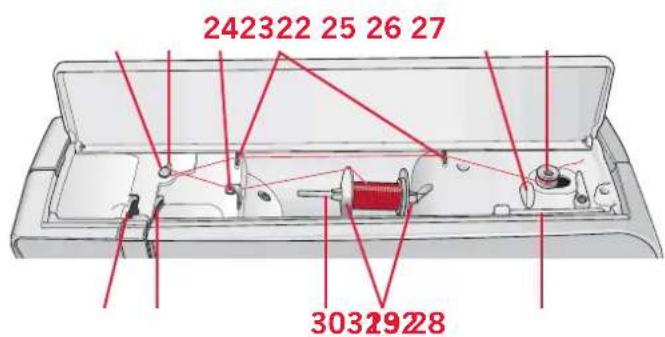
- Pre-tension disk for threading and bobbin winding
- Bobbin winder thread guide
- Thread guide
- Bobbin thread guides
- Bobbin thread cutter
- Bobbin winder lever and bobbin spindle
- Auxiliary spool pin
- Spool caps
- Spool pin
- Thread tension disk
- Take-up lever
text_image
242322 25 26 27 3032928Accessory tray
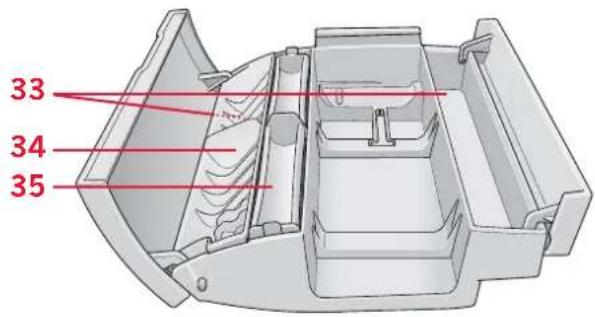
The accessory tray features special compartments for presser feet and bobbins, plus space for needles and other accessories. Store the accessories in the tray so they are easily accessible.
- Space for accessories
- Removable tray for presser feet
- Removable bobbin holder
Included accessories
- Thread net
- Edge guide
- Felt pad
- Light bulb remover
- Screwdriver
- Seam ripper
- Brush
- Spool cap, large
- Spool cap, medium
- Spool cap, small
- Multi-purpose tool
- Bobbins
- Knee-lift (4.0)
text_image
33 34 35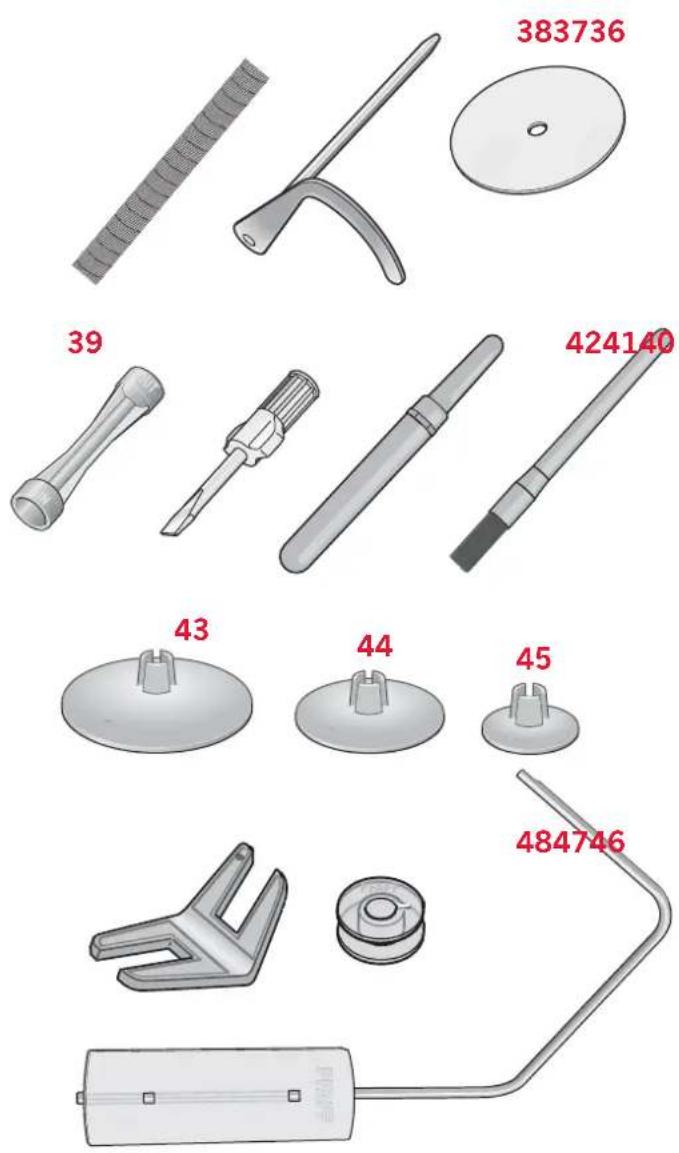
text_image
383736 39 424140 43 44 45 484746Included accessories not in picture
- Foot control
- Power cord
- Needles
Presser feet
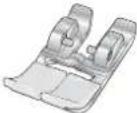 | Standard presser foot 0A with IDT (attached on the machine upon delivery)This foot is used mainly for straight stitching and zigzag stitching with a stitch length longer than 1.0 mm. |
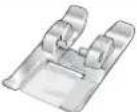 | Fancy stitch foot 1A with IDTThis foot is used for decorative stitches. The groove on the underside of the foot is designed to flow smoothly over the stitches. |
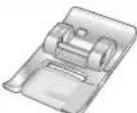 | Fancy stitch foot 2AWhen sewing decorative stitches or short zigzag stitches and other utility stitches with less than 1.0mm stitch length, use this foot. The groove on the underside of the foot is designed to flow smoothly over the stitches. |
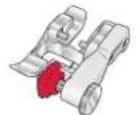 | Blindhem foot 3 with IDTThis foot is used for blindhem stitches. The toe on the foot guides the fabric. The red guide on the foot is designed to ride along the fold of the hem edge. |
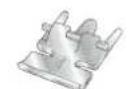 | Zipper foot 4 with IDTThis foot can be snapped on either the right or the left of the needle, making it easy to sew close to both sides of the zipper teeth. Move the needle position to the right or left to sew closer to zipper teeth. |
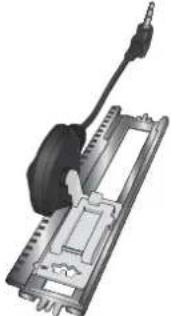 | Sensormatic buttonhole foot 5AWhen connected to the machine, the buttonhole is sewn in a suitable length to the button size that has been entered into the machine. |
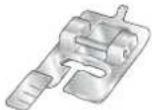 | Manual buttonhole foot 5MThis foot is used for sewing manual buttonholes. Use the markings on the foot to position the garment edge. The finger on the back of the foot holds cording for corded buttonhole. |
 | Sensormatic free-motion foot 6A (4.0)This foot is used for sensormatic free-motion sewing. This foot can also be used for darning. |
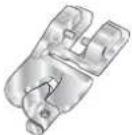 | Rolled hem foot 7 with IDT, 3 mmThis foot is used to sew narrow hems in light to medium weight fabric. |
 | 1/4" quilting foot with IDT (4.0)This foot is perfect for piecing and patchwork, especially when used in conjunction with the straight stitch needle plate. The clearance between the needle and the outer edge of the toe is 1/4" (6 mm) and between the needle and the inner edge of the toe 1/8" (3 mm). |
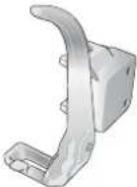 | Free-motion/Darning foot (3.0 and 2.0)Insert the pin of the foot as far as it will go into the hole at the back of the presser foot holder. The "C-shaped" guide should be positioned around the presser foot bar. The long arm must be behind the needle bar. Tighten the screw. |
Important: Make sure that the IDT is disengaged when using presser foot 2A, 5A, 5M, 6A and the free-motion/darning foot.
Stitch overview
Utility stitches
| Stitch | Stitch number | Name Description | |||
| 4.0 3.0 2.0 | |||||
| 1 | 1 | 1 | Straight stitch For seaming and topstitching. Select from 37 different needle positions. Note: This stitch makes a stronger tie-off than stitch 51 (4.0) / 40 (3.0) / 32 (2.0). | ||
| 2 | 2 | 2 | Stretch triple straight stitch Reinforced seam. Topstitching. | ||
| 3 | 3 | 3 | Straight stitch reverse Sew continuous reverse. | ||
| 4 | 4 | 4 | Basting stitch Single stitch used for basting. Touch foot control to sew one stitch. Move fabric manually to desired position and touch foot control again to sew another stitch. | ||
| 5 | 5 | 5 | Zigzag stitch | Reinforce seams, clean finish, stretch sewing, lace insertion. | |
| 6 | 6 | - | Zigzag stitch | Reinforce seams, clean finish, stretch sewing. | |
| 7 | 7 | 6 | Z-zigzag stitch Appliqué, couching, eyelets. | ||
| 8 | 8 | 7 | Stretch triple zigzag stitch Elastic stitch for decorative hems or topstitching. | ||
| 9 | 9 | 8 | Three-step zigzag stitch Sewing elastic, darning, patching. | ||
| 10 10 - | Elastic stitch Sewing elastic, darning, patching. | ||||
| 11 11 9 | Triple stretch stitch Sewing elastic, darning, patching and decorative sewing. | ||||
| 12 12 10 | Honeycomb stitch Decorative stitch for stretch fabrics and hems. Also used with elastic thread in the bobbin. | ||||
| 13 13 11 | Bridging stitch | Joining fabrics and quilt barting, decorative stitch for quilting, hemstitching. | |||
| 14 14 12 | Foundation elastic stitch | Joining stitch for undergarments, terry cloth, leather, bulky fabrics where overlapping the seams. | |||
| 15 15 - | Crosshem stitch | Elastic decorative hem for stretch fabrics. | |||
| 16 16 13 | Blindhem stitch | Sewing blindhems on woven fabrics. | |||
| 17 17 14 | Elastic blindhem stitch | Sewing blindhems on stretch fabrics. | |||
| 18 18 15 | Stretch tricot stitch | Sewing scams on stretch fabrics. | |||
| 19 19 16 | Closed overlock | Seam and overcast stretch fabrics in one step. | |||
| 20 - | - | Closed overlock | Seam and overcast in one step. | ||
| 21 20 17 | Closed overlock | Seam and overcast in one step with reinforced edge. | |||
| 22 21 18 | Elastic overcast | Seam and overcast stretch fabrics in one step. | |||
| 23 - | - | Standard overcast | Seam and overcast stretch fabrics in one step with reinforced edge. | ||
| 24 22 | 19 | Overlock Seam and overcast stretch fabrics in one step. | |||
| 25 23 | 20 | Closed overlock Seam and overcast in one step, patch, hem. | |||
| 26 24 | 21 | Stretch knit overlock Seam and overcast stretch fabrics in one step. | |||
| 27 - | Reinforced overlock Seam and overcast stretch fabrics in one step and reinforce. | ||||
| 28 - | Finished edge overlock Seam and overcast stretch fabrics in one step with reinforced edge. | ||||
| 29 - | Mock cover hem Create the look of a serger cover hem for stretch fabrics. | ||||
| 30 - | Open overlock blindhem Create decorative overlock blindhem for woven fabrics. | ||||
| 31 - | Closed overlock blind hem Create decorative overlock blindhem for stretch fabrics. | ||||
| 32 25 | 22 | Linen buttonhole Buttonhole for blouses, shirts and linen. | |||
| 33 26 | 23 | Standard buttonhole | Basic buttonhole for blouses, shirts and jackets. Also for pillowcases. | ||
| 34 27 | 24 | Rounded buttonhole with pointed tack | Buttonhole for garments. | ||
| 35 28 - | Rounded buttonhole with lengthwise tack | Buttonhole for garments. | |||
| 36 29 - | Eyelet buttonhole with pointed tack | Tailors buttonhole or decorative buttonhole. | |||
| 37 30 | 25 | Eyelet buttonhole with lengthwise tack | Tailors buttonhole for jackets and trousers. | ||
| 38 31 | 26 | Rounded buttonhole Buttonhole for light garments or jackets. | |||
| 39 32 - | Stretch buttonhole | Buttonhole for stretch fabrics. | |||
| 40 - | Cross stitch buttonhole | Decorative buttonhole. | |||
| 41 - | Decorative eyelet buttonhole | Decorative buttonhole for jackets. | |||
| 42 - | Heirloom round buttonhole with pointed tack | Decorative heirloom buttonhole. | |||
| 43 33 | 27 | Button sewing | Sew on buttons or tacking. | ||
| 44 34 | 28 | Eyelet | Heirloom sewing decorative trim. | ||
| 45 35 | 29 | Programmable darning stitch | Darning holes or damaged fabric. | ||
| 46 36 | 30 | Programmable reinforced darning stitch | Reinforced darning holes or damaged fabric. | ||
| 47 37 | 31 | Bartack | Automatically reinforce seams and pockets. | ||
| 48 38 - | Denim bartack Automatically reinforce seams and pockets decoratively. | ||||
| 49 39 - | Decorative bartack Automatically reinforce seams and pockets decoratively. | ||||
| × | 50 - | Cross bartack Automatically reinforce seams and pockets. | |||
Quilt stitches
| Stitch | |||||||||||||||||||||||||
| 4.0 | 51* 52 | 53 54 | 55 56 | 57 58 | 59 60 | 61 62 | 63 64 | 65 66 | 67 68 | 69 70 | 71 72 | 73 74 | |||||||||||||
| 3.0 | 40* 41 | - 42 | - 43 - 44 | 45 - - | 46 - 47 | 48 - - | 49 50 | 51 - 52 - 53 | |||||||||||||||||
| 2.0 | 32* 33 | - 34 | - 35 - 36 | --- | 37 - 38 | 39 - - | 40 41 | --- 42 | |||||||||||||||||
| Stitch | |||||||||||||||||||||||
| 4.0 | 75 76 | 77 78 | 79 80 | 81 82 | 83 84 | 85 86 | 87 88 | 89 90 | 91 92 | 93 94 | 95 96 | ||||||||||||
| 3.0 | 5 | 4 | - | - | 5 | 5 | - | - | 5 | 6 | 5 | 7 | - | 5 | 8 | - | 5 | 9 | 6 | 0 | - | ||
| 2.0 | - | - | - | 4 | 3 | - | - | 4 | 4 | 4 | 5 | - | 4 | 6 | - | - | 4 | 7 | - | - | - | - |
Needle art stitches
| Stitch | ||||||||||||||||||||||||||
| 4.0 | 97 98 | 99 100 | 101 | 102 103 | 104 105 | 106 | 107 108 | 109 | 110 111 | 1112 | 113 114 | 115 | 116 117 | 118 119 | 120 | |||||||||||
| 3.0 | 63 64 | 65 66 | -67 68 | 69 70 | -71 72 | 73 -74 | 75 76 | -77 | 78 79 | -80 - | ||||||||||||||||
| 2.0 | 48 49 | 50 - | 51 52 | 53 -54 | 55 56 | -57 | 58 - | 59 60 | 61 - |
| Stitch | ||||||||||||
| 4.0 | 121 | 122 | 123 | 124 | 125 | 126 | 127 | 128 | 129 | |||
| 3.0 | 8 | 1 | 8 | 2 | - | 8 | 3 | 8 | 4 | 8 | 5 | |
| 2.0 | 62 | 63 | --- | 64 | -65 | - | ||||||
8 6 8 7 8 8
Decorative stitches
| Stitch | |||||||||||||||||||||||||||
| 4.0 | 130 1 | 31 132 | 133 1 | 34 135 | 136 137 138 | 139 140 141 | 142 143 | 144 1 | 45 146 | 147 1 | 48 149 | 150 151 | 152 | 153 | |||||||||||||
| 3.0 | 89 90 | - 91 9 | 2 93 94 | - 95 - | 96 97 | 98 99 | 100 101 | - 102 | 103 - | 104 105 | 106 - | ||||||||||||||||
| 2.0 | 6 | 6 | 6 | 7 | - | - | 6 | 8 | - | 6 | 9 | - | - | - | 7 | 0 | - | 7 | 1 | - | 7 | 2 | - | - | - | - | - |
| Stitch | |||||||||||||||||||||||||
| 4.0 | 154 1 | 55 156 | 157 1 | 58 159 | 160 16 | 1 162 | 163 16 | 4 165 | 166 16 | 168 1 | 69 170 | 171 1 | 72 173 | 174 1 | 75 176 | 177 | |||||||||
| 3.0 | - 107 | - 108 | 09 - 1 | 10 - 11 | 1 112 | 13 - 1 | 14 115 | 116 1 | 7 118 | 119 12 | 0 121 | 22 - 1 | 23 124 | ||||||||||||
| 2.0 | - 76 | 77 78 | ---- | 79 80 | 81 -- | 82 83 | 84 85 | 86 - 87 | 88 |
* This stitch makes a more decorative tie-off than stitch 1.
| Stitch | ||||||||||||||||||||||||||
| 4.0 | 178 1 | 79 180 | 181 1 | 82 183 | 184 18 | 5 186 | 187 18 | 8 189 | 190 191 | 192 19 | 93 194 | 195 19 | 96 197 | 198 19 | 9 200 | 201 | ||||||||||
| 3.0 | 125 - | 126 - | 127 - | - 128 | 129 13 | 0 131 | 132 13 | 3 - 134 | 135 1 | 86 137 | 138 - | 139 | ||||||||||||||
| 2.0 | 8 | 9 | - | - | - | - | - | - | - | - | 9 | 0 | 9 | 1 | - | 9 | 2 | - | - | - | 9 | 3 | 9 | 4 |
| Stitch | |||||||||||||||||||||||||||||
| 4.0 | 202 | 203 | 204 | 205 | 206 | 207 | 208 | 209 | 210 | 211 | 212 | 213 | 214 | 215 | 216 | 217 | 218 | 219 | 220 | 221 | 222 | ||||||||
| 3.0 | 140 | 141 | 142 | 143 | 144 | 145 | -- | 146 | 147 | 148 | 149 | 150 | - | 51 | 152 | 153 | --- | ||||||||||||
| 2.0 | 9 | 7 | 9 | 8 | - | 9 | 9 | 1 | 0 | 0 | 1 | 0 | 1 | - | - | 1 | 0 | 2 | 1 | 0 |
Alphabets
Comic (4.0 and 3.0)
ABCDEFGHIJKLMNOPQRSTUVWXYZ abcdefghijklmnopqrstuvwxyz 0123456789...;-+=%/*°°\~°°-. AÄÖÜÆCE∅EÇN§§B&?IS↑- daááááéééêîí†óóðóóæœøùúüûçñ @©
Cyrillic (4.0 and 3.0)
text_image
Preparations AMP 24 MV 50Preparations
Unpacking
- Place the box on a steady, fl at surface. Lift the machine out of the box, remove the outer packaging and lift off the machine carrying case.
- Remove all outer packing material and the plastic bag.
- Slide off the accessory tray and remove the styrofoam inside.
Note: Styrofoam left in the accessory tray while sewing may affect stitch quality. The styrofoam is for packing purposes only and should be removed.
Connect to the power supply
Among the accessories you will find the power cord and the foot control.
Note: Before plugging in the foot control, check to ensure that it is type "FR5" (see underside of foot control).
- Take out the foot control cord. Turn the foot control over. Connect the cord to the socket inside the space of the foot control. Push firmly to make sure it is properly connected. Lay the cord in the slot on the underside of the foot control.
Note: Connecting the foot control cord to the foot control is only necessary the very first time you are going to use the machine.
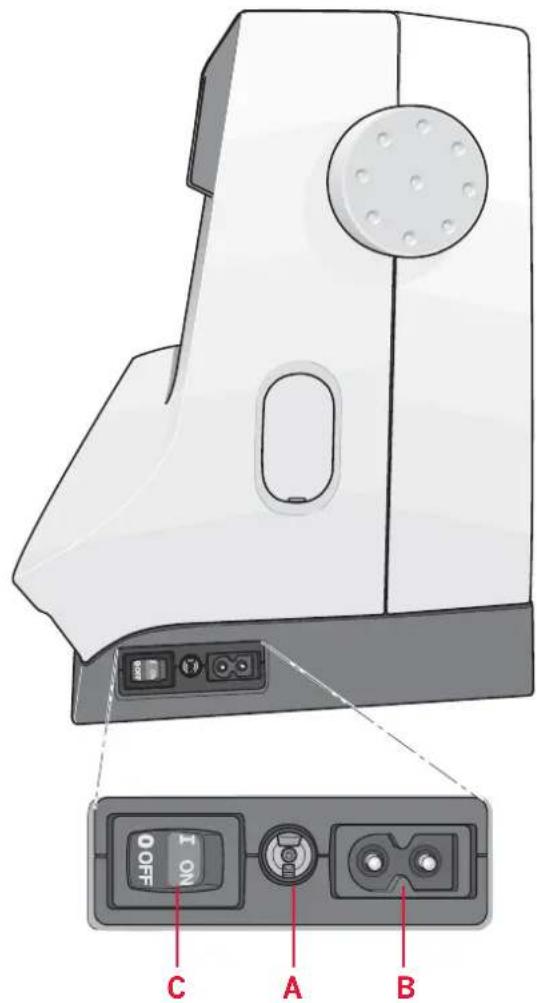
- Connect the foot control cord to the front socket on the bottom right side of the machine (A).
- Connect the power cord to the rear socket on the bottom right side of the machine (B). Plug the cord into the wall socket.
- Press the ON/OFF switch to ON to turn on power and light (C).
For the USA and Canada
This sewing machine has a polarized plug (one blade wider than the other). To reduce the risk of electric shock, this plug is intended to fit in a polarized outlet only one way. If the plug does not fit fully in the outlet, reverse the plug. If it still does not fit, contact a qualified electrician to install the proper outlet. Do not modify the plug in any way.
text_image
Diagram of a sewing machine with labeled buttons and control panel, showing front and side views with labels A, B, C.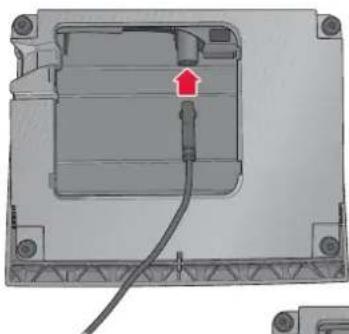
natural_image
3D mechanical assembly diagram showing a component with a red arrow pointing to a cable or wire (no text or symbols present)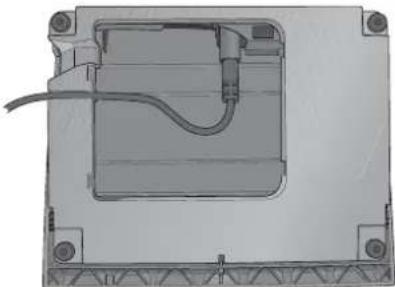
natural_image
3D technical drawing of a mechanical component with internal structure and mounting holes (no text or symbols)Pack away after sewing
- Switch the main switch off.
- Unplug the cord from the wall socket and then from the machine.
- Unplug the foot control cord from the machine. Wind the cord around the foot control for easy storage.
- Place all accessories in the accessory tray. Slide the tray on to the machine around the free arm.
- Place the foot control in the space above the free arm.
- Put on the hard cover.
Free arm
To use the free arm, slide off the accessory tray. When attached, a hook keeps the accessory tray locked to the machine. Remove the tray by sliding it to the left.
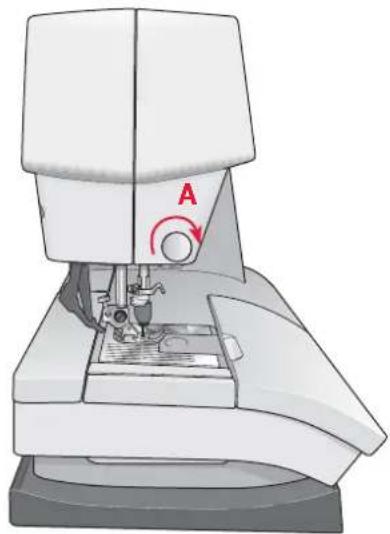
Thread cutter
To use the thread cutter, pull the thread from back to front as shown (A).
Spool pins
Your machine has two spool pins, a main spool pin and an auxiliary spool pin. The spool pins are designed for all types of thread. The main spool pin is adjustable and can be used both in a horizontal position (the thread reels off the spool) and a vertical position (the thread spool rotates). Use the horizontal position for normal threads and the vertical position for large spools or specialty threads.
Horizontal position
Place a spool cap and the thread spool on the spool pin. Make sure that the thread reels over the top and slide on a second spool cap.
Use a spool cap slightly larger than the thread spool. For narrow thread spools, use a smaller spool cap in front of the spool. For large thread spools, use a larger spool cap in front of the spool. The fl at side of the spool cap should be pressed fir mly against the spool. There should be no space between the spool cap and the thread spool.
natural_image
Illustration of a sewing machine with a needle and labeled component 'A' (no text or symbols beyond label)
natural_image
Illustration of a syringe with a red strap and mechanical components (no text or symbols)Small spool cap

natural_image
Diagram of a mechanical component with red spring and shaft, no visible text or symbolsLarge spool cap
Vertical position
Raise the spool pin to the vertical position. Slide on the large spool cap and place a felt pad under the thread spool. This is to prevent the thread from reeling off too fast.
Do not place a spool cap on top of the spool pin as that would prevent the spool from rotating.
Auxiliary spool pin
The auxiliary spool pin is used when winding a bobbin thread from a second spool of thread or for a second spool when sewing with a twin needle.
Raise the auxiliary spool pin. Slide on a large spool cap and place a felt pad under the thread spool.

natural_image
Illustration of a sewing machine with a spool and mechanical component (no text or symbols)Main spool pin in vertical position

natural_image
Illustration of two red thread spools inside a container with a central sink and mechanical parts (no text or symbols)Auxiliary spool pin and main spool pin in vertical position.
Threading the machine
Make sure that the presser foot is raised and the needle is in the up position.
- Place the thread on the spool pin and fit a spool cap of the right size.
- Pull the thread into the thread guide (A) from the front to the back. Pull the thread from the right underneath the bobbin winder thread guide (B) on the pre-tension disc (C).
- Thread down through the right-hand threading slot and then upwards through the left-hand threading slot.
- Bring the thread from the right into the take-up lever (D) and down in the left-hand threading slot to the needle thread guide (E).
- Thread the needle.

text_image
B C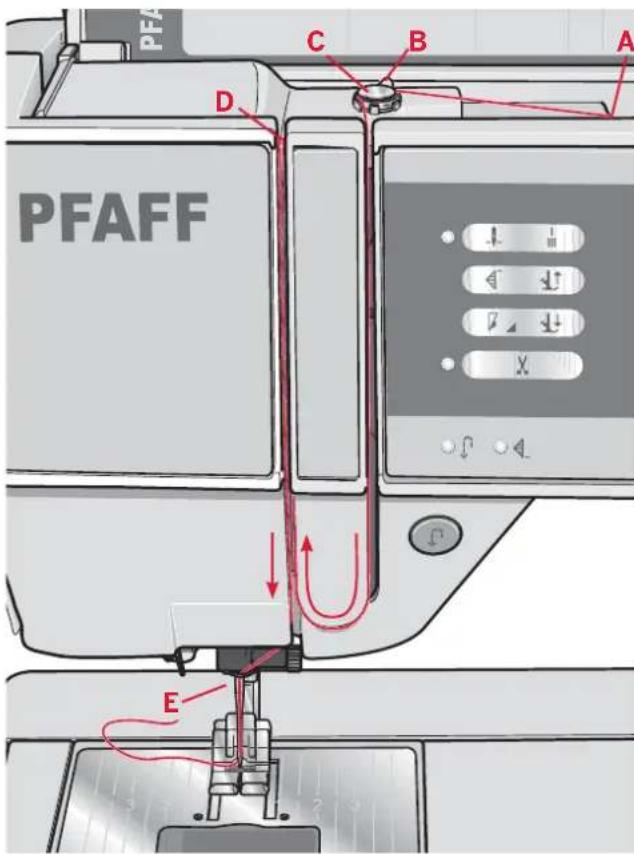
text_image
PFAFF C B A D ENeedle threader
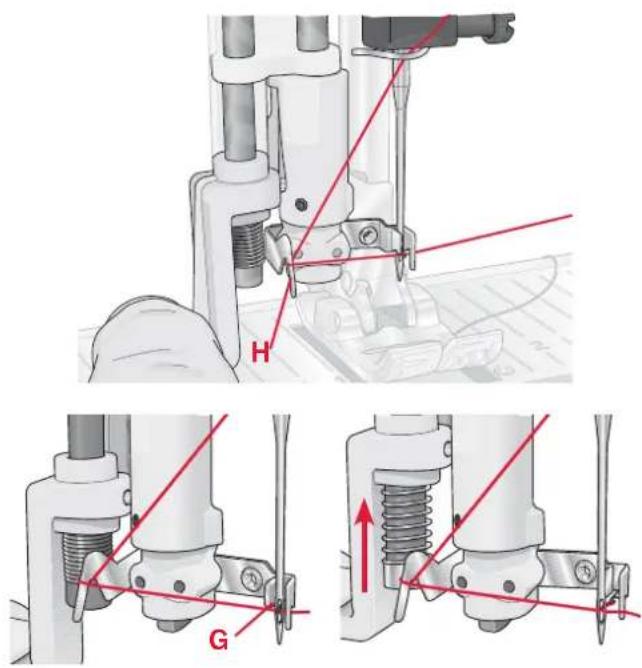
The needle threader allows you to thread the needle automatically. The needle must be in the up position to use the built-in needle threader. We also recommend lowering the presser foot.
- Use the handle to pull the needle threader all the way down. The threader hook (G) swivels through the needle eye.
- Place the thread from the back over the hook (H) and under the thread hook (G).
- Let the needle threader gently swing back. The hook pulls the thread through the needle eye and forms a loop behind the needle. Pull the thread loop out behind the needle.
Note: The needle threader is designed to be used for size 70-120 needles. You cannot use the needle threader for size 60 needles or smaller, a wing needle, twin needle or triple needle. There are also some optional accessories that require manual threading of the needle.
Threading for twin needle
Replace the sewing needle with a twin needle. Make sure that the presser foot is raised and the needle is in the up position.
- Place the thread on the spool pin and fi t a spool cap of the right size. Raise the auxiliary spool pin. Slide on a large spool cap and a felt pad. Place the second thread on the spool pin.
- Pull the threads into the thread guide (A) from the front to the back. Pull both threads from the right underneath the bobbin winder thread guide (B) on the pre-tension disc (C).
- Thread down through the right-hand threading slot and then upwards through the left-hand threading slot. Make sure that you pass one thread to the left and one thread to the right sides of the tension disk (D).
- Bring the threads from the right into the take-up lever (E) and down in the left-hand threading slot. Make sure that one thread is inside the needle thread guide (F) and the other one outside. Make sure that the threads do not become twisted together.
- Thread the needles.
text_image
Technical diagram showing mechanical assembly steps with labeled components H and G, including red annotations and directional arrows.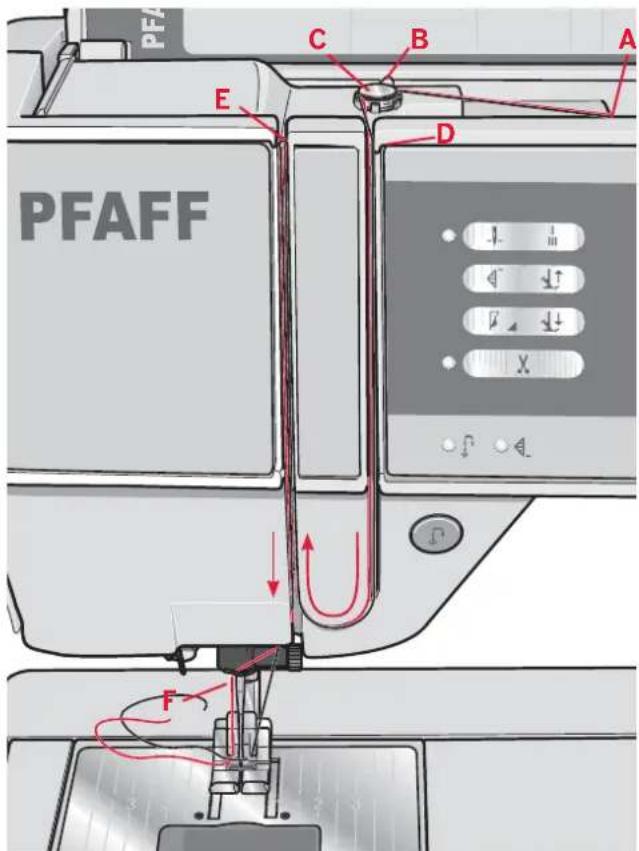
text_image
PFAFF C B A E D F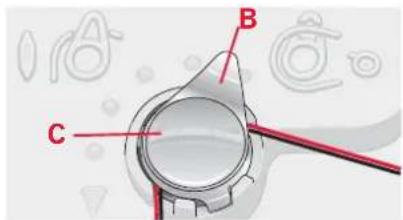
text_image
B C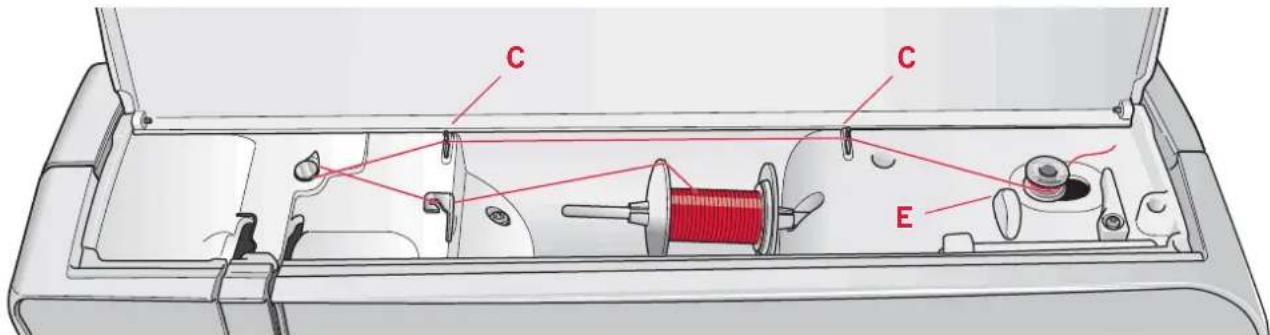
text_image
C C EBobbin winding
Winding from horizontal position
- Place an empty bobbin on the bobbin spindle, with the logo facing up. Use only the original PFAFF® bobbins approved for this model.
- Place the thread spool on the spool pin in horizontal position. Slide a spool cap tightly against the spool.
- Place the thread into the thread guide (A) from front to back. Pull the thread counter-clockwise above the bobbin winder thread guide (B) and then through the bobbin thread guides (C) at the rear.
Note: Make sure the thread is pulled securely inside the pre-tension device for correct thread tension.
-
Thread through the hole in the bobbin (D) from the inside to the outside.
-
Push the bobbin lever to the right to wind. A pop-up appears on the screen to inform you that bobbin winding is active. Press the foot control to start winding the bobbin.
When the bobbin is full, the bobbin winding will slow down and stop automatically. The pop-up closes. Remove the bobbin and cut the thread using the bobbin thread cutter (E).
Winding through the needle
Make sure that the presser foot and the needle are in the up position. Only wind through the needle if using a metal presser foot.
Bring the thread up from the needle, under the presser foot, upward through the left-hand threading slot and through the bobbin thread guides (C). Then follow step 4 and 5 above.

text_image
B C A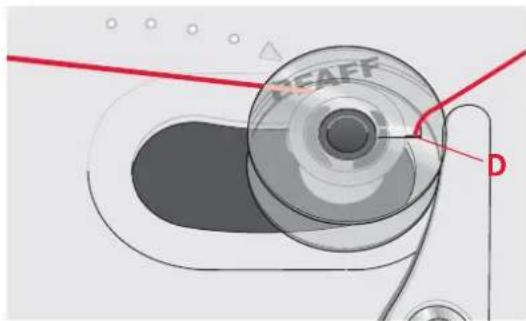
natural_image
Mechanical component diagram showing a circular dial with labeled parts (no readable text or symbols)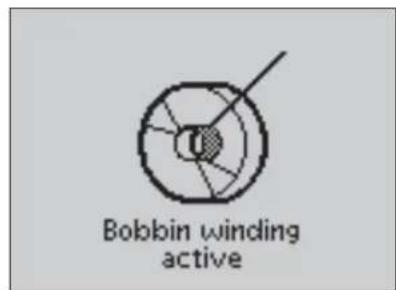
text_image
Bobbin winding active
text_image
B C AInserting the bobbin
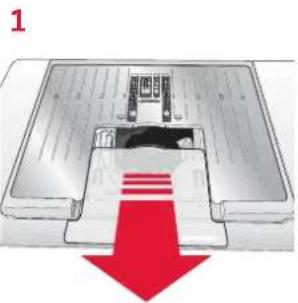
- Remove the bobbin cover by sliding it towards you.
- Place the bobbin in the bobbin case with the logo facing up and the thread unreeling from the left of the bobbin. The bobbin will then rotate counter-clockwise when you pull out the thread.
- Place your fi nger on the bobbin to keep it from turning as you pull the thread fi rmly to the right and then to the left into the tension spring (A) until it "clicks" into place.
- Continue threading around (B) and to the right of the thread cutter (C). Replace the cover. Pull the thread to the left to cut.
Note: The bobbin cover can be used as a magnifying glass.
natural_image
Diagram of a device with a red downward arrow indicating a process or operation (no text or symbols present)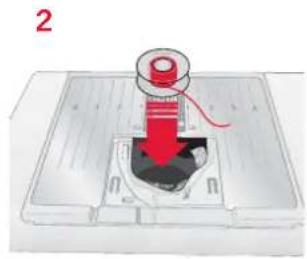
natural_image
Illustration of a red cylindrical device mounted on a base with a black base, no text or symbols present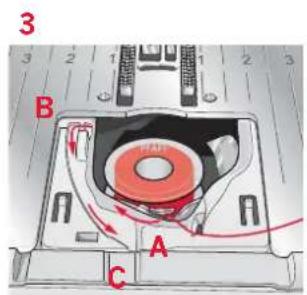
text_image
3 B A C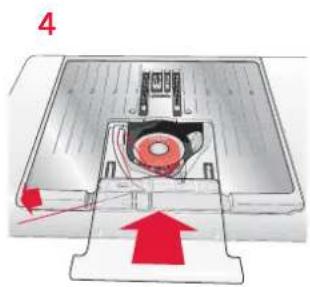
natural_image
Diagram of a mechanical device with a central rotating component and red directional arrows indicating motion (no text or symbols)IDT (integrated dual feed)
For sewing any fabric precisely PFAFF® expression™ sewing machine provides the ideal solution: the integrated dual feed, IDT system. As on industrial machines, the IDT feeds the fabric from the top and bottom at the same time. The material is fed precisely. On light fabrics such as silk or rayon the dual feed prevents puckering of the seam. The even feeding action also ensures perfect matching of checked and striped fabrics. The IDT keeps all layers of quilt projects aligned to prevent shifting of the top layers.
Engaging the IDT
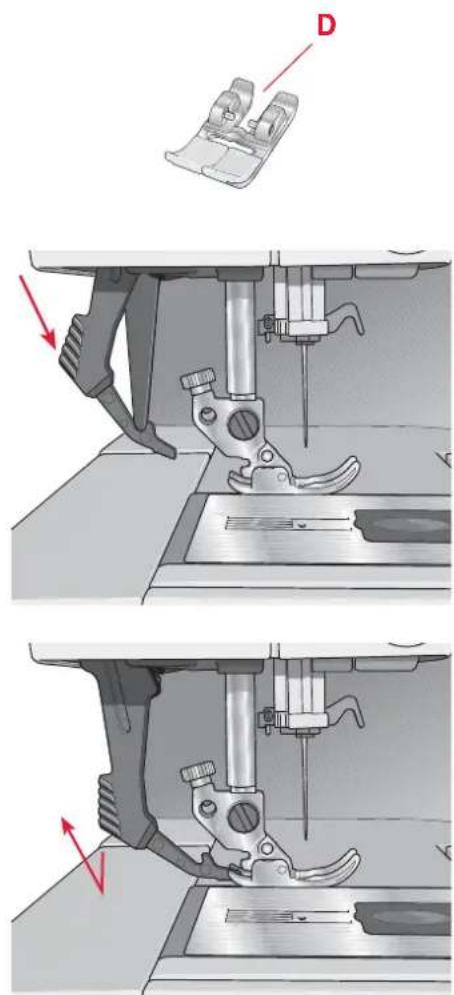
Important: For all work with the IDT, use presser feet with the center back cut-out (D).
Raise the presser foot. Press the IDT down until it engages.
Disengaging the IDT
Raise the presser foot. Hold the IDT with two fingers at the ribbed ankle. Pull the IDT down, then pull it away from you to release the IDT slowly upward.
text_image
Technical diagram showing sewing machine operation with labeled component D and red arrows indicating motion directionElectronic knee-lift (4.0)
Your machine comes with an electronic knee-lift for regulating the presser foot height.
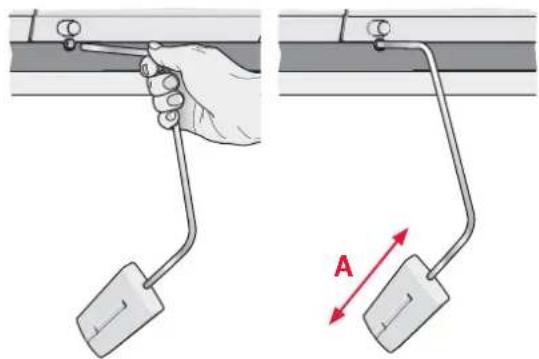
Insert the knee-lift in the provided hole on the machine. Adjust the rectangular bar on the knee-lift (A) until it is positioned at a comfortable height for you.
If you press the knee-lift to the right, the presser foot will raise. You can now guide the fabric with both hands.
To remove the knee-lift, just pull it straight out of the hole.
Needles
The sewing machine needle plays an important role in successful sewing. Use only quality needles. We recommend needles of system 130/705H.
The needle package included with your machine contains needles of the most frequently used sizes.
Universal needle (B)
Universal Needles have a slightly rounded point and come in a variety of sizes. For general sewing in a variety of fabric types and weights.
Stretch needle (C)
Stretch Needles have a special scarf to eliminate skipped stitches when there is a fl ex in the fabric. For knits, swimwear, fl eece, synthetic suedes and leathers. Marked with a yellow band.
Embroidery needle (D)
Embroidery Needles have a special scarf, a slightly rounded point and a slightly larger eye to avoid damage to thread and materials. Use with metallic and other specialty threads for embroidery and decorative sewing. Marked with a red band.
Denim needle (E)
Denim needles have a sharp point to penetrate tightly woven fabrics without deflecting the needle. For canvas, denim, microfibers. Marked with a blue band.
Wing needles (F)
The Wing Needle has wide wings on the side of the needle to poke holes in the fabric when sewing entredeux and other hemstitches on natural fi ber fabrics. Decrease the stitch width for best results.
natural_image
Illustration of two mechanical setups with a hand holding a tool, showing different motion directions (no text or symbols)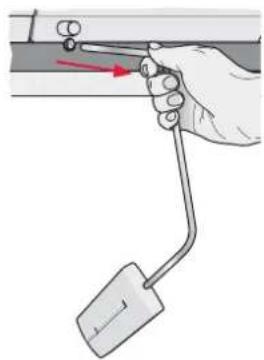
natural_image
Illustration of a hand holding a tool with a red arrow pointing to a small component (no text or symbols present)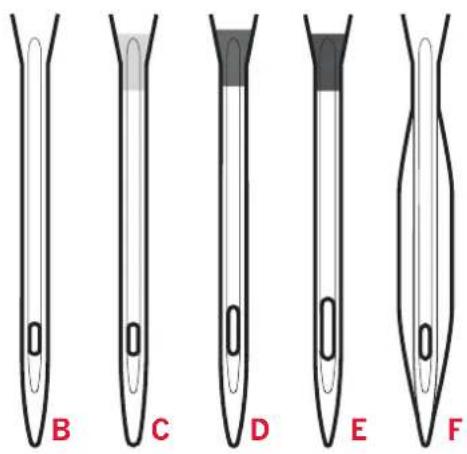
text_image
B C D E F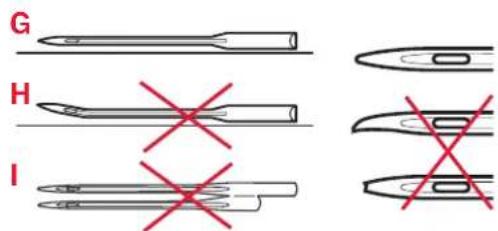
text_image
G H INote: Change the needle often. Always use a straight needle with a sharp point (G).
A damaged needle (H) can cause skipped stitches, breakage or snapping of the thread. A damaged needle can also damage the stitch plate.
Do not use asymmetrical twin needles (I), since it may damage your sewing machine.
Changing the needle
- Use the hole in the multi-purpose tool to hold the needle.
- Loosen the needle screw. Use the screw driver if necessary.
- Remove the needle.
- Insert the new needle, using the multi-purpose tool. Push the new needle upwards with the fl at side away from you until it will go no further.
- Tighten the needle screw as tight as it will go.
Lowering feed dogs
You can lower the feed dogs by moving the switch on the front of the sewing machine to the left. Move the switch to the right if you wish to raise the feed dogs.

natural_image
Close-up of hands operating a sewing machine needle, no visible text or symbols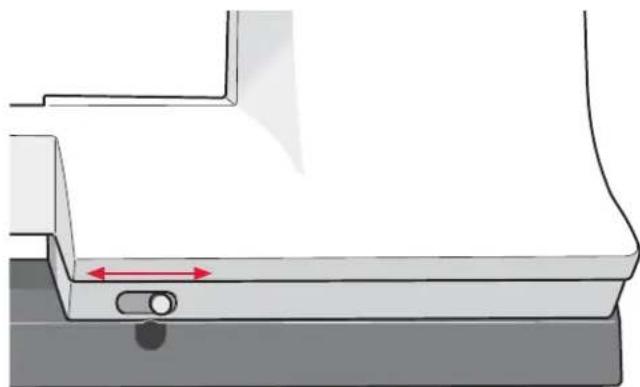
natural_image
Technical diagram of a mechanical component with a red directional arrow indicating a movement or force (no text or symbols present)Changing the presser foot
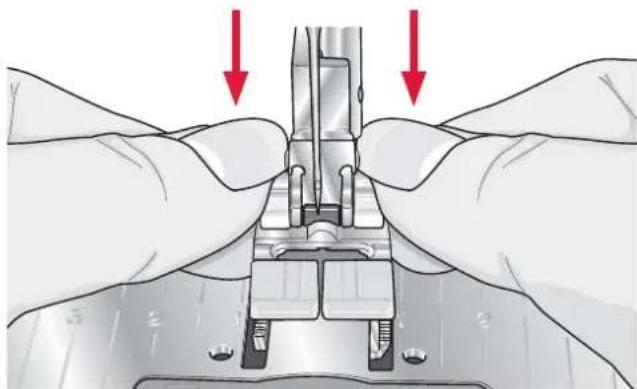
Remove presser foot
Press the presser foot downwards until it disengages from the presser foot holder.
Attach presser foot
Place the presser foot under the presser foot holder, so that when the presser foot is lowered, the pins of the foot engage in the presser foot holder.
Note: Check that the presser foot is properly attached by raising the presser foot.
natural_image
Close-up of hands operating a sewing machine with red arrows indicating force or movement (no text or symbols present)
natural_image
Illustration of hands performing a mechanical assembly with two red arrows indicating direction (no text or symbols present)
natural_image
Close-up of a sewing machine needle stitching metal components, no visible text or symbols on the main subject.
natural_image
Close-up of a sewing machine needle stitching fabric, no visible text or symbols
natural_image
Close-up of a sewing machine needle stitching fabric, no visible text or symbolsButtons for quilt expression™ 4.0
text_image
8 9 1 0 1 1 1 3 1 2 1 4 1 - + + - + F1 F2 i C AOB 17 18 19 20 21 22 23 24 25 26 1 2 3 4 5 6 7 8 9 0 6 7Needle up/down with indicator (1)
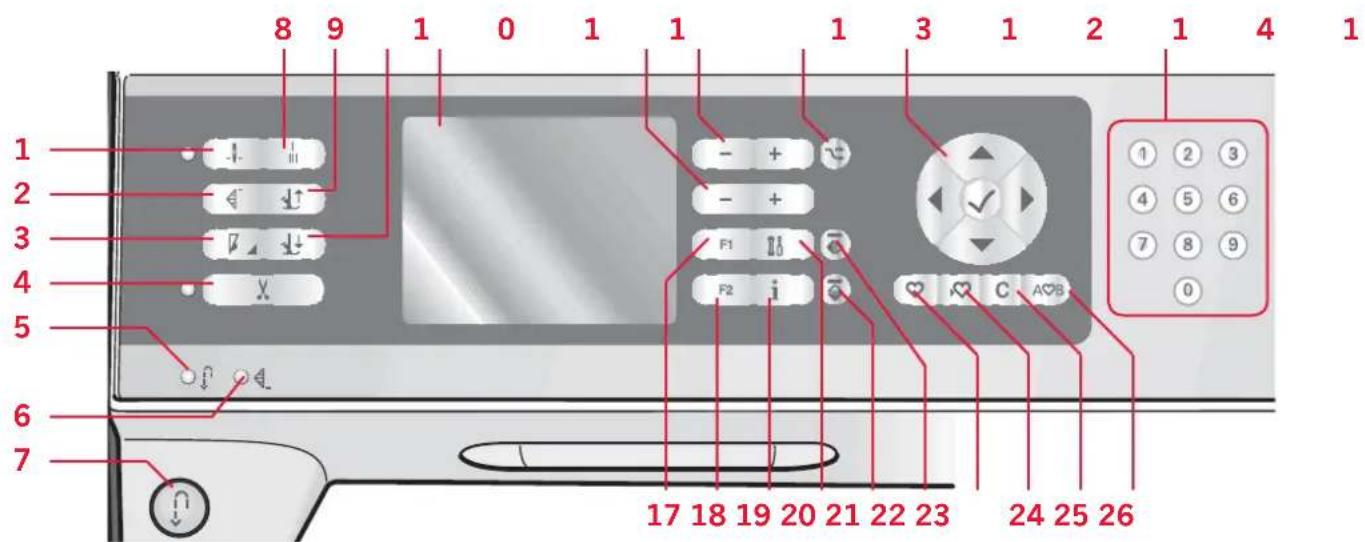
Press this button to move the needle up or down. The setting of the needle stop position is changed at the same time. When needle down is activated, the indicator is lit, the needle will stop in the down position and the presser foot will raise to pivot height.
You can also tap the foot control to raise or lower the needle.
Stitch restart (2)
When having stopped sewing in the middle of a stitch, press restart to start sewing at the beginning of the stitch again without having to reset any special settings you have made.
If pressing the stitch restart button while sewing, the stitch will be fi nished and the machine will then stop.
Speed control (3)
Press the speed button to sew at a slower speed. An icon on the graphic display will indicate how slow your machine will sew. Long press the speed button and use the wheel (15) to change the sewing speed.
Note: You cannot select a higher speed than the default speed.
Thread snips with indicator (4)
Press the button when you are not sewing and your sewing machine cuts the top and bobbin threads and raises the presser foot and the needle. To cut before the needle moves to the start position of the next stitch, press the thread snips button while sewing. The thread snips indicator will be lit.
Reverse (7) with indicator (5)
For permanent reverse, press the button before starting to sew. The reverse indicator (5) will be lit and the machine sews in reverse until you press the button again to cancel.
If you press the reverse button while sewing, the machine sews in reverse for as long as you keep the button pressed. The reverse indicator is lit when the reverse button is pressed.
Reverse is also used when sewing buttonholes, programmed tie-off end, darning stitches and tapering stitches to step between the parts of the stitch.
Programmed tie-off indicator (6)
The programmed tie-off indicator is lit to indicate that one or several tie-off options are activated. The indicator stays lit until the tie-off options are no longer in use.
Immediate tie-off (8)
Press the tie-off button while sewing and your machine sews a few tie-off stitches and stops automatically.
Presser foot up and extra lift toggle (9)
Raises the presser foot and needle to the up position. Press the button once more and the presser foot will raise to extra lift.
Presser foot down and pivot toggle (10)
Lower the presser foot completely. Press the button once more to raise the presser foot to pivot height. The presser foot is lowered automatically when you start sewing.
Graphic display (11)
The graphic display lets you view all your selections and options. Stitches are shown in real size.
Stitch width or stitch positioning (12)
Increase or decrease the stitch width using the + and - buttons.
Press the alternatives button (14) to view the stitch positioning for the selected stitch. Use the + and - buttons to change the stitch position.
Stitch length or stitch density (13)
Increase or decrease the stitch length using the + and - buttons.
Press the alternatives button (14) to view the density setting for satin stitches. Use the + and - buttons to change the density for the selected stitch.
Alternatives (14)
When you select a decorative stitch, the width and length settings will be shown on the graphic display. By pressing the alternatives button, the stitch positioning will be shown instead of the stitch width setting and the density will be shown instead of the length setting.
Wheel (15)
Use these buttons to move around the graphic display. The wheel has up and down arrow buttons, left and right arrow buttons and the wheel center icon is a checkmark for OK.
The wheel has several functions, for example stepping between stitches, setting the size of a buttonhole and moving between options in the settings menu.
Direct selection (16)
By pressing one of, or a combination of, the 0 to 9 buttons, you select the stitch represented by that number immediately.
F1 - Function 1 (17)
The F1 button is used to set the tapering program. It is also used to repeat buttonholes and to deactivate repeat for darning stitches. All selections will be shown on the graphic display.
In sequencing the F1 button is used to select a character set.
F2 - Function 2 (18)
The F2 button is used to set the tie-off and thread snips options and in sequencing it is used to select font. All selections will be shown on the graphic display.
Info button (19)
Press this button to toggle the recommendations view on and off.
Settings menu (20)
Press this button to open the menu for machine settings.
Mirror end to end (21)
For mirroring stitches and sequences end to end.
Mirror side to side (22)
For mirroring stitches and sequences side to side.
Load personal stitch or sequence (23)
Press this button to load a personal stitch or sequence.
Save personal stitch or sequence (24)
Press this button to save a stitch or sequence to the machine's memory.
Clear (25)
For deleting single stitches in a sequence, or personal stitches and sequences.
Sequencing (26)
Press this button to enter sequencing.
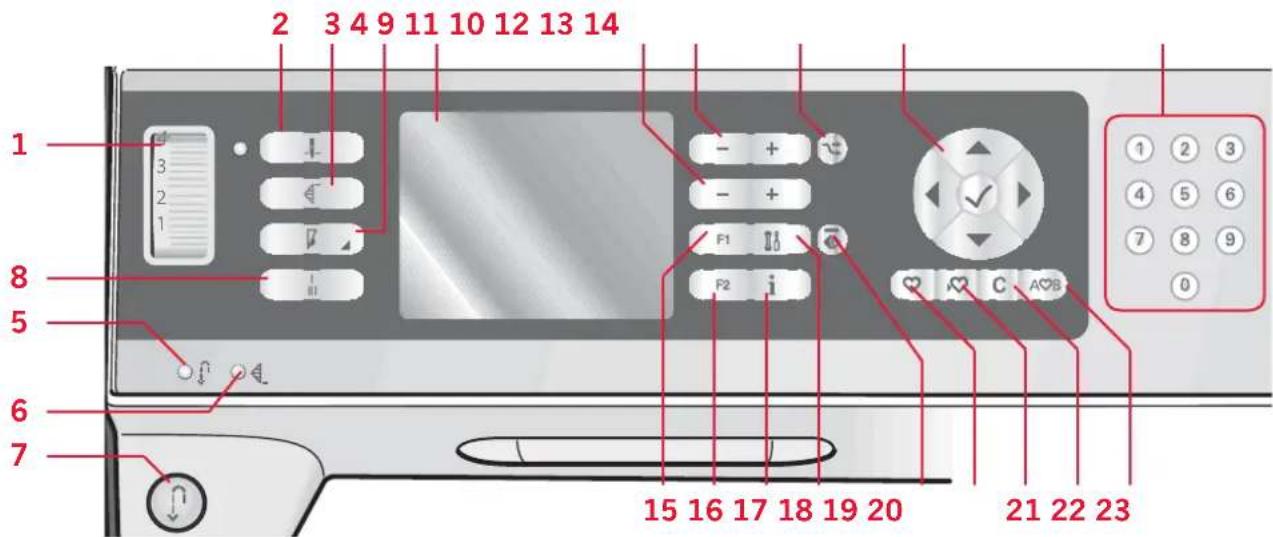
Buttons for expression™ 3.0
text_image
2 3 4 9 11 10 12 13 14 - + - + F1 F2 i 1 2 3 4 5 6 7 8 9 0 8 5 6 7 15 16 17 18 19 20 21 22 23Thread tension dial (1)
If needed, adjust the top thread tension using the markings on the tension dial.
Needle up/down with indicator (2)
Press this button to move the needle up or down. The setting of the needle stop position is changed at the same time. When needle down is activated, the indicator is lit, the needle will stop in the down position.
You can also tap the foot control to raise or lower the needle.
Stitch restart (3)
When having stopped sewing in the middle of a stitch, press restart to start sewing at the beginning of the stitch again without having to reset any special settings you have made.
If pressing the stitch restart button while sewing, the stitch will be finished and the machine will then stop.
Speed control (4)
Press the speed button to sew at a slower speed. An icon on the graphic display will indicate how slow your machine will sew. Long press the speed button and use the wheel (13) to change the sewing speed.
Note: You cannot select a higher speed than the default speed.
Reverse (7) with indicator (5)
For permanent reverse, press the button before starting to sew. The reverse indicator (5) will be lit and the machine sews in reverse until you press the button again to cancel.
If you press the reverse button while sewing, the machine sews in reverse for as long as you keep the button pressed. The reverse indicator is lit when the reverse button is pressed.
Reverse is also used when sewing buttonholes, programmed tie-off end, darning stitches and tapering stitches to step between the parts of the stitch.
Programmed tie-off indicator (6)
The programmed tie-off indicator is lit to indicate that one or several tie-off options are activated. The indicator stays lit until the tie-off options are no longer in use.
Immediate tie-off (8)
Press the tie-off button while sewing and your machine sews a few tie-off stitches and stops automatically.
Graphic display (9)
The graphic display lets you view all your selections and options. Stitches are shown in real size.
Stitch width or stitch positioning (10)
Increase or decrease the stitch width using the + and - buttons.
Press the alternatives button (12) to view the stitch positioning for the selected stitch. Use the + and - buttons to change the stitch position.
Stitch length or stitch density (11)
Increase or decrease the stitch length using the + and - buttons.
Press the alternatives button (12) to view the density setting for satin stitches. Use the + and - buttons to change the density for the selected stitch.
Alternatives (12)
When you select a decorative stitch, the width and length settings will be shown on the graphic display. By pressing the alternatives button, the stitch positioning will be shown instead of the stitch width setting and the density will be shown instead of the length setting.
Wheel (13)
Use these buttons to move around the graphic display. The wheel has up and down arrow buttons, left and right arrow buttons and the wheel center icon is a checkmark for OK.
They have several functions, for example stepping between stitches, setting the size of a buttonhole and moving between options in the settings menu. Confirm your selections with the wheel center icon for OK.
Direct selection (14)
By pressing one of, or a combination of, the 0 to 9 buttons, you select the stitch represented by that number immediately.
F1 - Function 1 (15)
The F1 button is used to set the tapering program. It is also used to repeat buttonholes and to deactivate repeat for darning stitches. All selections will be shown on the graphic display.
In sequencing the F1 button is used to select a character set.
F2 - Function 2 (16)
The F2 button is used to set the tie-off options and in sequencing it is used to select font. All selections will be shown on the graphic display.
Info button (17)
Press this button to toggle the recommendations view on and off.
Settings menu (18)
Press this button to open the menu for machine settings.
Mirror side to side (19)
For mirroring stitches side to side.
Load personal stitch or sequence (20)
Press this button to load a personal stitch or sequence.
Save personal stitch or sequence (21)
Press this button to save a stitch or sequence to the machine's memory.
Clear (22)
For deleting single stitches in a sequence, or personal stitches and sequences.
Sequencing (23)
Press this button to enter sequencing.
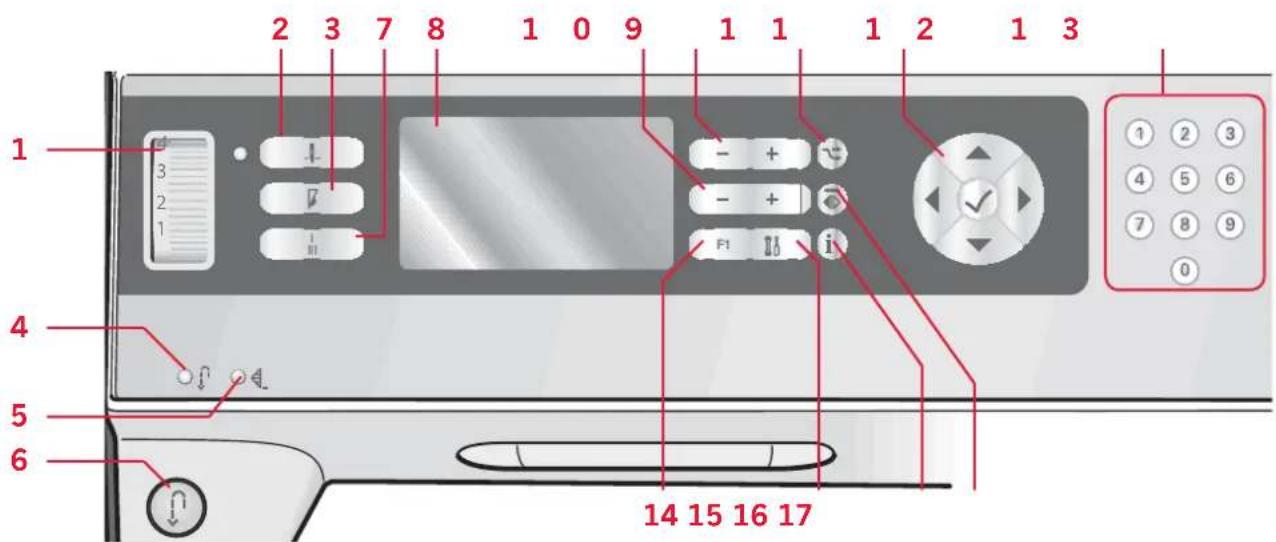
Buttons for expression™ 2.0
text_image
1 2 3 7 8 1 0 9 1 1 1 2 1 3 3 2 1 - + - + F1 i 4 5 6 14 15 16 17Thread tension dial (1)
If needed, adjust the top thread tension using the markings on the tension dial.
Needle up/down with indicator (2)
Press this button to move the needle up or down. The set ting of the needle stop po si tion is changed at the same time. When needle down is activated, the indicator is lit, the needle will stop in the down position.
You can also tap the foot control to raise or lower the needle.
Speed control (3)
Press the speed button to reduce the sewing speed by half. An icon on the graphic display will indicate that your machine is set to half speed.
Press the speed button again to resume full speed.
Reverse (6) with indicator (4)
For permanent reverse, press the button before starting to sew. The reverse indicator (4) will be lit and the machine sews in reverse until you press the button again to cancel.
If you press the reverse button while sewing, the machine sews in reverse for as long as you keep the button pressed. The reverse indicator is lit when the reverse button is pressed.
Reverse is also used when sewing buttonholes, programmed tie-off end and darning stitches to step between the parts of the stitch.
Programmed tie-off indicator (5)
The programmed tie-off indicator is lit to indicate that one or several tie-off options are activated. The indicator stays lit until the tie-off options are no longer in use.
Immediate tie-off (7)
Press the tie-off button while sewing and your machine sews a few tie-off stitches and stops automatically.
Graphic display (8)
The graphic display lets you view all your selections and options. Stitches are shown in real size.
Stitch width or stitch positioning (9)
Increase or decrease the stitch width using the + and - buttons.
Press the alternatives button (11) to view the stitch positioning for the selected stitch. Use the + and - buttons to change the stitch position.
Stitch length or stitch density (10)
Increase or decrease the stitch length using the + and - buttons.
Press the alternatives button (11) to view the density setting for satin stitches. Use the + and - buttons to change the density for the selected stitch.
Alternatives (11)
When you select a decorative stitch, the width and length settings will be shown on the graphic display. By pressing the alternatives button, the stitch positioning will be shown instead of the stitch width setting and the density will be shown instead of the length setting.
Wheel (12)
Use these buttons to move around the graphic display. The wheel has up and down arrow buttons, left and right arrow buttons and the wheel center icon is a checkmark for OK.
They have several functions, for example stepping between stitches, setting the size of a buttonhole and moving between options in the settings menu. Confir rm your selections with the wheel center icon for OK.
Direct selection (13)
By pressing one of, or a combination of, the 0 to 9 buttons, you select the stitch represented by that number immediately.
F1 - Function 1 (14)
The F1 button is used to activate the tie-off options. It is also used to repeat buttonholes and to deactivate repeat for darning stitches. All selections will be shown on the graphic display.
Settings menu (15)
Press this button to open the menu for machine settings.
Info button (16)
Press this button to toggle the recommendations view on and off.
Mirror side to side (17)
For mirroring stitches side to side.
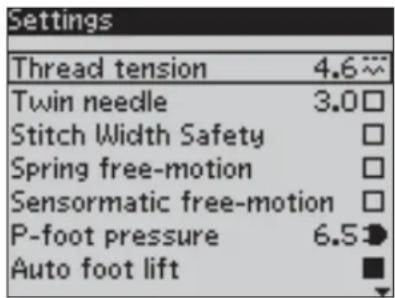
Settings menu
In the settings menu, you can override default settings and make manual adjustments to the machine settings, sound settings and screen settings.
Open the menu by pressing the settings menu button and select the setting you wish to adjust by pressing the up and down arrow buttons on the wheel.
Use the left and right arrow buttons to adjust the values and activate settings or open a list of choices by pressing OK. A filled box means it is activated, an empty box means it is not activated.
Note: If a setting cannot be combined with a previously selected setting, the outlines of that box will be dashed.
There are two icons which are shown next to some of the setting alternatives.
This icon shows you that the setting will be kept until you select another stitch.
This icon shows you that the setting will be kept until you switch your machine off.
No icon means that this setting is kept until you deactivate it.
Press the settings menu button again to leave the settings menu.
text_image
Settings Thread tension 4.6 Twin needle 3.0 Stitch Width Safety Spring free-motion Sensormatic free-motion P-foot pressure 6.5 Auto foot liftThread tension (4.0)
Your sewing machine will electronically pre-set a thread tension for the selected stitch. Depending on the fabric, batting, thread etc, the tension may need to be adjusted. Use the left and right arrow buttons on the wheel to adjust the thread tension. The changes only affect the selected stitch. The setting will go back to default when you select another stitch.
) 4.6 In sewing mode, press the info button to see the current selected thread tension.
For 3.0 and 2.0: See page 3:2 for instructions on how to set the thread tension.
Twin needle (4.0 and 3.0)
Activate the twin needle program and use the left and right arrow buttons on the wheel to set the twin needle width. When a twin needle size is selected, the width of all stitches is limited for that needle size to prevent needle breakage.
In sewing mode, press the info button. The twin needle recommendation icon will be shown.
The setting is kept until you deselect the twin needle setting.
Note: Twin needle and stitch width safety cannot be used at the same time.
A warning pop-up will be shown if you select a stitch that is too wide for the set twin needle size.
Stitch width safety (4.0 and 3.0)
Select this function when using a straight stitch needle plate or a straight stitch presser foot to lock the center needle position for all stitches to prevent damage to the needle, presser foot or needle plate.
In sewing mode, press the info button. The stitch width safety icon will be shown.
When turning on the machine with this setting activated and for every stitch selection that is not a straight stitch, a pop-up informs you that it is set to straight stitch. Deselect stitch width safety to go back to normal sewing.
Note: Twin needle and stitch width safety cannot be used at the same time.
Spring foot free-motion (4.0)
Activate to set the machine in spring foot free-motion mode. Lower the feed dogs. A spring foot will raise and lower with each stitch to hold the fabric on the stitch plate while the stitch is being formed.

In sewing mode, press the info button. The spring foot free-motion icon will be shown instead of the presser foot recommendation.
A pop-up will inform you that spring foot free-motion is active when turning on the machine.
Note: The open toe free-motion foot is optional and can be purchased at your local authorized PFAFF® dealer. Do not use if sensormatic free-motion is activated, since the needle might damage the presser foot.
The open toe free-motion foot, or any spring foot with light grey plastic housing, can also be used for free-motion embroidery.
Sensormatic free-motion (4.0)
Activate to set the machine in sensormatic free-motion mode for presser foot 6A. Lower the feed dogs.

In sewing mode, press the info button. The sensormatic free-motion icon will be shown instead of the presser foot recommendation.
The fabric must be moved manually. When sewing in free-motion at low speed the presser foot will raise and lower with each stitch to hold the fabric on the stitch plate while the stitch is being formed. At higher speed, the presser foot floats over the fabric while sewing.
When turning on the machine, a pop-up informs you that the sensormatic free-motion is active.
Pivot height (4.0)
Adjust the height of the presser foot when the machine is set for free-motion.
In Sensormatic free-motion mode, the fabric should move freely under the presser foot.
Skipped stitches can occur if your fabric moves up and down with the needle as you are stitching. Lowering the pivot height will reduce the space between the presser foot and the fabric and eliminate the skipped stitches.
Note: Be careful not to reduce the pivot height too much. The fabric must still move freely under the presser foot.
Presser foot pressure (4.0)
In most cases, you do not need to adjust the presser foot pressure. To improve the result when using specialty techniques, adjust the pressure.
Use the left and right arrow buttons on the wheel to adjust the pressure. The higher the number, the more pressure on the fabric. The value can be adjusted between 0 and 9 in steps of 0.5. Your manual setting will be cancelled when you turn the machine off.
Note: If you want to change the presser foot pressure for an entire sequence, bring the sequence to sewing mode and change the setting there.
Automatic presser foot lift (4.0)
When selected, the automatic presser foot lift is activated. The presser foot will raise to pivot height for example when stopping with the needle in the down position. When deselected, the presser foot will stay lowered even if the machine stops with the needle in down position.
Balance
When sewing on special fabrics or doing a special technique, the balance may need to be adjusted. Start by sewing a stitch on a piece of scrap fabric. Use the left and right arrow buttons to balance the stitch between -7 and 7. When you sew again, the balance will be adjusted.
The changes only affect the selected stitch. The setting will go back to default when you select another stitch.
Language
Use the left and right arrow buttons to change the language of all text in your machine.
Audible alarm
Turn all alarm sounds of the machine on or off. Default setting is on.
Contrast
Adjust the contrast of the graphic display by using the left and right arrow buttons. The value can be set between -20 to 20 in steps of 1.
Software version
Check the software version for your sewing machine.
text_image
SewingSewing
Sewing mode is the first view on the graphic display after you turn on the machine. Your selected stitch will be shown in real size in the stitch field. Here you will find all the basic information you need to start sewing. This is also the menu where you adjust the settings of your stitch. Straight stitch is selected by default.
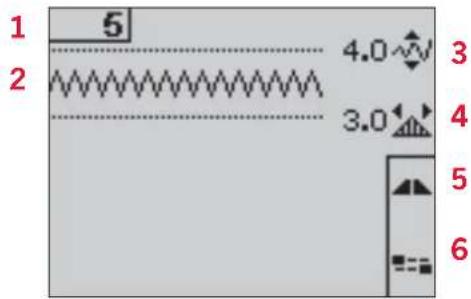
Sewing mode - overview
- Selected stitch number
- Stitch fi eld
- Stitch width/stitch positioning
- Stitch length/density
- Tapering program (4.0 and 3.0)
- Tie-off options
text_image
1 2 5 4.0 3 3.0 4 5 6Select a stitch
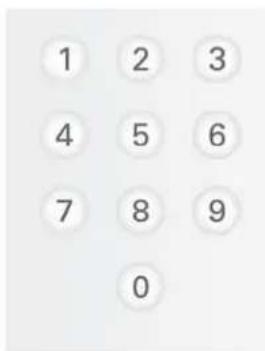
By pressing one of the direct selection buttons, you select that stitch number immediately. Press two or three digits in quick succession to select a stitch from 10 and up. If the stitch number does not exist, you will hear a beep and the first entered digit will be selected as a stitch.
Use the up and down arrow buttons on the wheel to step between stitches.
Sewing recommendations
Press the info button to show sewing recommendations for the current stitch.
Press the button again to hide the information.
- Needle recommendation/setting
Set for twin needle (4.0 and 3.0)
Wing needle recommended
Set for stitch width safety (4.0 and 3.0)
-
Presserfoot recommendation
-
Stabilizer recommended
-
Feed dog/IDT recommendation
-
Thread tension value (4.0) / Recommended tension (3.0 and 2.0)
Note: All symbols and options will not be shown at the same time.
text_image
1 2 3 4 5 6 7 8 9 0
text_image
5 4.0 3.0 7 OA 8 9 10 11Stitch adjustments
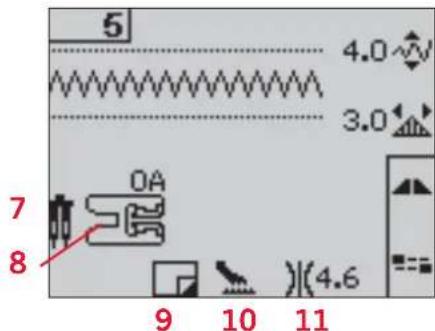
Your machine will set the best settings for each selected stitch. You can make your own adjustments on the selected stitch.
The setting changes only affect the selected stitch. Your changed settings will be reset to default when selecting another stitch. The changed settings are not automatically saved when turning your machine off. The set stitch width and the stitch length are shown next to the icons for each adjustment. When trying to exceed minimum or maximum settings for width and length, a warning sound will be heard. Note: The numbers are highlighted when the setting is changed.
Stitch width (1)
Increase or decrease the stitch width using + and -.
Stitch length (2)
Increase or decrease the stitch length using + and - . If lengthening a zigzag stitch or a decorative stitch, the entire stitch will be longer. If lengthening a satin stitch where the density can be adjusted, the entire stitch will be longer but the density will remain the same.
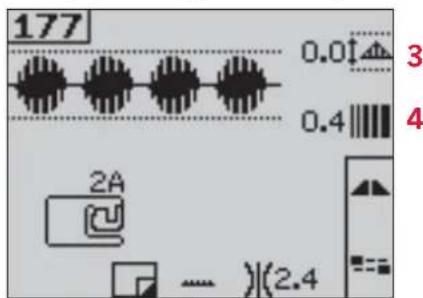
Stitch positioning (3)
Press the alternatives button to show the stitch positioning instead of the stitch width. Use the + and - buttons to move the stitch to the left or right. Note: This is only possible when using a stitch that is narrower than 9 mm. You can decrease the stitch width to make the stitch narrower if necessary.
Stitch density (4)
Press the alternatives button to show the density setting instead of the stitch length for satin stitches. Now the stitch length + and - buttons adjust the density. The stitch density does not affect the actual length of the entire stitch.
Note: This is often used with specialty threads and when a less dense satin stitch is desired. If you have selected a buttonhole, the graphic display will by default show the density setting instead of the stitch length setting.
Thread tension (5)
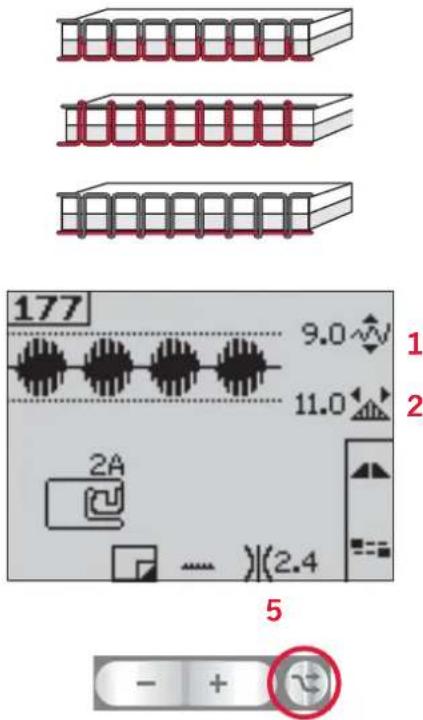
For the best stitch appearance and durability, make sure the needle thread tension is correctly adjusted, i.e. for general sewing, the threads evenly meet between the two fabric layers.
If the bobbin thread is visible on the top side of the fabric, the needle thread tension is too tight. Reduce the needle thread tension.
If top thread is visible on the underside of the fabric, the needle thread tension is too loose. Increase the needle thread tension.
For decorative stitches and buttonholes, the top thread should be visible on the underside of the fabric.
For 4.0: Your sewing machine electronically sets the best thread tension for the selected stitch. See page 2:16 for instructions on how to change the setting manually.
For 3.0 and 2.0: Press the info button. Use the recommended thread tension setting given on the graphic display (5). Turn the numbered tension dial to set the tension.
text_image
177 9.0 11.0 2A )(2.4) 5 - +Press the alternatives button to view stitch positioning and density
text_image
177 0.0↑ 3 0.4 4 2A )(2.4)Mirroring
To mirror stitches or sequences side to side, press the mirror side to side button.
For 4.0: To mirror end to end, press the mirror end to end button.
Tie-off options
The tie-off options let you program tie-offs both at the beginning (A) and the end (B) of the stitch.
- Press the F2 button (F1 for 2.0) to open the tie-off options view.
- Use the wheel to step between the options and press OK to select which functions you want to use.
- When you have made your selections, close the view by pressing the F2 button (F1 button for 2.0) again. Tie-off mini icons (D) will be shown on the graphic display, indicating which tie-off functions are selected. The selections will remain until you deselect them.
Note: For immediate tie-off, use the tie-off button, found on the front of the machine.
Sewing with tie-off options selected
- The tie-off beginning (A) will be performed as soon as you start to sew.
- Press the reverse button to activate tie-off end (B). The programmed tie-off indicator will be lit. The machine will finish the stitch and do a tie-off.
For 4.0: When a thread snip (C) is programmed, the machine will automatically cut the threads after performing the tie-off end. The needle and presser foot will raise.
Note: Stop sewing and press the reverse button twice to activate reverse sewing. The reverse indicator will be lit. No tie-off will be performed.
Press the reverse button when sewing in reverse to activate tie-off end. Both the reverse indicator and the programmed tie-off indicator will be lit.
To go back to sewing forward, stop sewing in reverse and press the reverse button. No indicators will be lit and no tie-off will be performed.
- To deactivate the tie-off options, use the wheel to step between the options and press OK for each one to deselect.
natural_image
Simple line drawing of fish and a chain (no text or symbols)
text_image
177 9.0 D --- ---% A B CTapering program (4.0 and 3.0)
Tapering increases or decreases the width of the stitch during sewing to create symmetrical or asymmetrical tapers.
- Open the tapering program view by pressing the F1 button.
- Use the left and right arrow buttons on the wheel to select beginning or end tapering. Press OK to turn the setting on or off.
-
Long press OK to open a view with different angle choices for either beginning or end tapering. Select the angle you want for your taper by using the arrow buttons, and press OK to select.
-
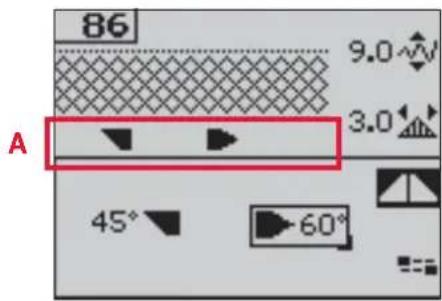
Press the F1 button again to close the tapering program view. There are mini icons (A) on the graphic display that will show you if beginning or end tapering are activated.
-
When tapering is activated at both the beginning and at the end and you start to sew, the stitch width will start at 0 mm. It becomes wider until the selected stitch width is reached. Sew your desired length and press the reverse button. The width is reduced until the width is 0 mm.
Note: Almost all stitches can be tapered. When you try to open the tapering program view for a stitch that cannot be tapered, a warning sound will be heard.
text_image
86 9.0 3.0 A 45° 60°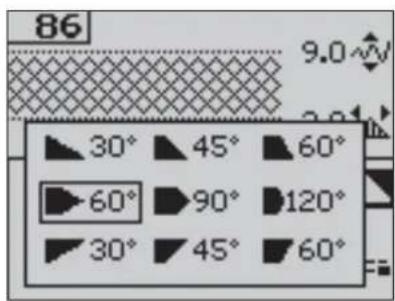
text_image
86 9.0° 30° 45° 60° 60° 90° 120° 30° 45° 60°
natural_image
Close-up of a textured, diamond-patterned object with no visible text or symbolsSpeed control (4.0 and 3.0)
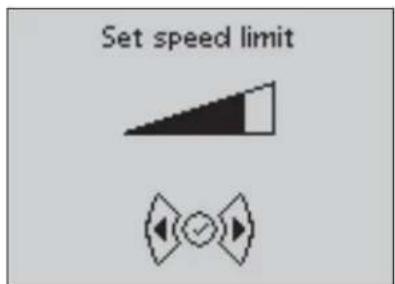
- Long press the speed button to open a pop-up where you can use the left and right arrow buttons on the wheel to change the sewing speed.
Note: You cannot select a higher speed than the default speed.
- Press the speed button again to close the pop-up.
- Press the info button. An icon on the graphic display will indicate the speed your machine is set to sew (B).
- To deactivate the speed control, press the speed button. Press the speed button again to sew with the speed you previously selected.
text_image
Set speed limitB

text_image
5 4.0 3.0Personal stitches (4.0 and 3.0)
Save personal stitch
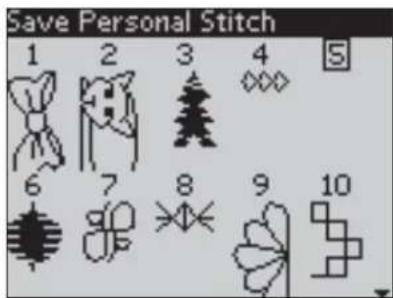
- Save your personal stitches in your machine by pressing the save button. This will open the save personal stitch or sequence menu. Select the personal stitch option with the arrow buttons on the wheel and confirm by pressing OK.
- Select an empty memory by using the arrow buttons. Confirm your selection by pressing OK. If the selected memory is not empty, a pop-up message will appear asking if you wish to overwrite the previously saved stitch or sequence with the new one. Select yes or no with the arrow buttons and press OK.
- Press the save button again to return to sewing mode.
Note: Some special stitches, such as buttonholes, cannot be saved. A pop-up will inform you of this when you try to save such a stitch.
text_image
Save Personal Stitch 1 2 3 4 5 6 7 8 9 10
text_image
Overwrite Yes NoLoad personal stitch
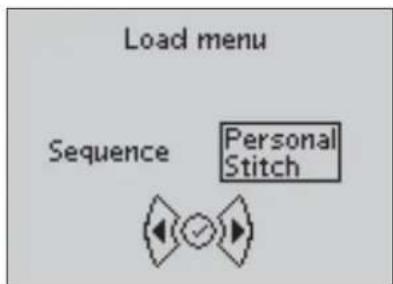
- Load your personal stitches by pressing the load button. This will open the load personal stitch or sequence menu. Select the personal stitch option in the pop-up with the arrow buttons on the wheel. Confirm by pressing OK.
- Use the arrow buttons to select the stitch you want to use and press OK. The stitch will appear in sewing mode ready to be sewn out. The number of the loaded stitch will be shown prefixed by a heart.
Delete personal stitch
- Delete your personal stitches from your machine when you are in load or save mode.
- Select the stitch you want to delete and press the clear button. A pop-up will appear asking you to verify the deletion. Select yes or no with the arrow buttons on the wheel and press OK.
text_image
Load menu Sequence Personal Stitch♥10


text_image
Are you sure you want to delete the stitch/sequence? Yes NoSewing techniques
Handlook quilting
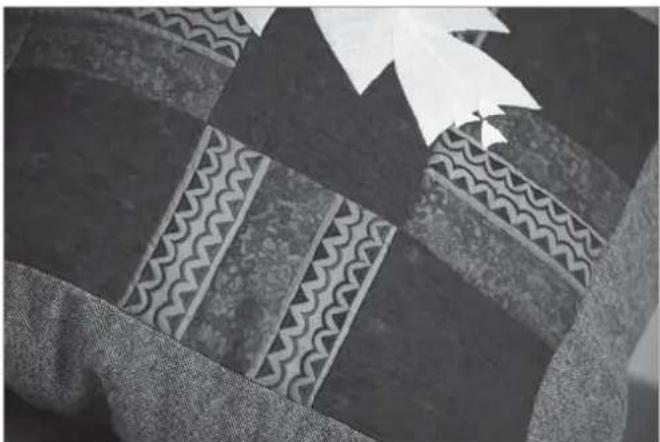
A quilt usually consists of three layers, two layers of fabric with a layer of batting sandwiched between.
- Baste the completed quilt top to the batting and backing.
- Thread the needle with an invisible (monofi lament) thread. Use contrasting or matching rayon or cotton thread in the bobbin.
- Snap on the recommended foot shown in the sewing recommendations view.
- Engage the IDT.
- When you sew the stitch you should only see your bobbin thread. Increase the needle tension as needed to produce the desired effect.
natural_image
Close-up of a patterned fabric with geometric and wavy designs, no visible text or symbolsRecommended stitches for a handlook quilt
| Stitch | |||||||||||||||
| 4.0 | 52 53 | 54 55 | 56 59 | 60 61 | 62 63 64 | 65 66 67 68 | 69 | ||||||||
| 3.0 | 41 - 42 - 43 | 45 -- | 46 - 47 | 48 -- | 49 50 | ||||||||||
| 2.0 | 33 - 34 - 35 | --- 37 | - 38 | 39 --- 40 |
Darning
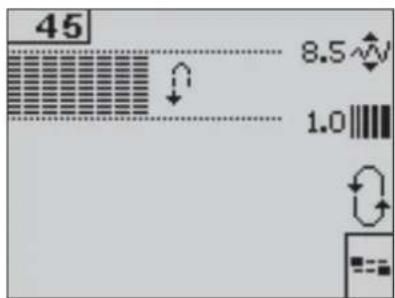
Darning a small hole or a tear before it becomes larger can save a garment. Choose a lightweight thread in a color as close to your garment as possible.
- Place your garment with stabilizer in position under the presser foot.
- Select a darning stitch.
- Start sewing above the hole and over it.
- Once you have sewn across the hole, press the reverse button to set the length of the stitch.
Your sewing machine will automatically complete the stitch.
- By default, the machine will be set to repeat the same size darning square, just continue sewing. The repeat icon will be highlighted, indicating that repeat is activated.
For 4.0 and 3.0: Press the F1 button to deactivate repeat.
For 2.0: Repeat is active until another stitch is selected.
text_image
45 8.5 1.0Free-motion position (3.0 and 2.0)
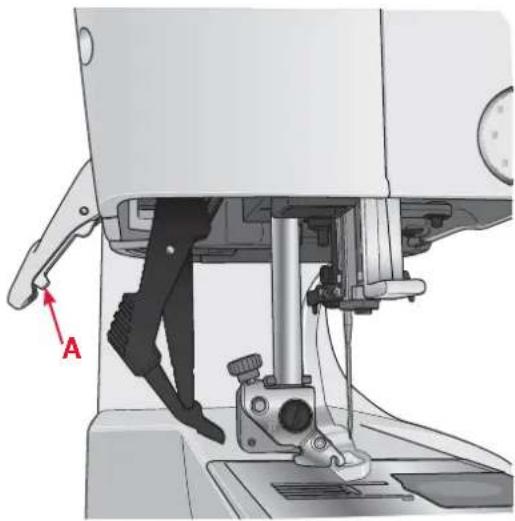
When using the free-motion/darning foot, the presser foot needs to be in the free-motion position.
- Disengage the IDT and lower the feed dogs.
- Attach the free-motion/darning foot and select a stitch.
- To engage the free-motion position, move the presser foot lift up and push the switch (A), on the underside of the lift, towards you until it snaps into place. Release the lift and it will be set in the free-motion position.
- Test sew on a scrap piece of the fabric with the batting or stabilizer you will use. If necessary, increase thread tension for your desired result.
- Start to sew.
- To disengage the position, push the lift slightly upwards and the switch (A) away from you until it snaps into place.
For 4.0: See page 2:17 for instructions on how to free-motion sew with the 4.0.
Buttonholes
To sew a buttonhole, first attach the correct foot, then select your buttonhole. Make sure that the IDT is disengaged. To ensure good results, start by sewing a test sample on a scrap piece of the fabric with the stabilizer you will use.
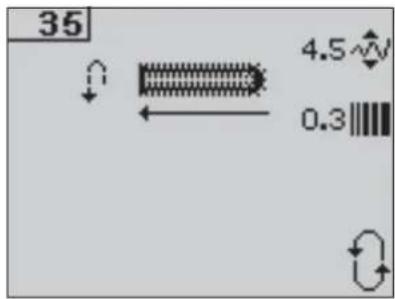
The direction of the stitches being sewn will be indicated on the screen by an arrow next to the buttonhole.
Sensormatic buttonhole
When you sew a buttonhole with the sensormatic buttonhole foot, adjust the slit length so that it is slightly larger than the size of the button.
- Snap on the sensormatic buttonhole foot 5A.
- Plug the cord into the socket (B) found to the left underside behind the light bulb.
- Use the ruler on the lid to measure your button. Set the slit length using the left and right arrow buttons on the wheel.
- Make sure that the red arrow lines up with the marking on the foot (C).
- Start sewing by pressing the foot control.
- The arrows on the graphic display will show when each part of the buttonhole is sewn and in which direction. The columns will be sewn in the same direction.
- The buttonhole will be completed automatically. You can repeat the buttonhole as many times as you wish by pressing the foot control.
natural_image
Mechanical sewing machine with a person operating the base and a red arrow labeled 'A' pointing to the arm (no text or symbols on the machine itself)
natural_image
Close-up of a sewing machine's internal structure with labeled component B (no text or symbols beyond label)
text_image
35 4.5 0.3 18
natural_image
Diagram of a mechanical device with labeled component C, showing internal components and wiring (no readable text or symbols)Manual buttonhole
- To sew a manual buttonhole in four steps, use presser foot 5M.
- The first column will be sewn backwards. Sew the first column as long as you want the buttonhole. The graphic display will show the part and sewing direction of the buttonhole that is being sewn.
- Press the reverse button. The machine sews the bartack and the second column. When the columns are aligned, press the reverse button again to sew the second bartack.
Note: The repeat icon will be highlighted, showing you that repeat is activated. You can repeat the buttonhole as many times as you wish by pressing the foot control.
The machine will stop automatically when the buttonhole is complete.
For 4.0 and 3.0: Press the F2 button to deactivate repeat.
For 2.0: Press the F1 button to deactivate repeat.
Sew on a button
- To sew on a button, remove the presser foot and select the button sewing stitch.
- Lower the feed dogs.
- Place the button under the presser foot holder. Use the mirroring function to make sure the holes in the button are aligned with the swing of the needle and the width is appropriate for the actual button. If necessary change the width between holes with the width + and - buttons.
- You can increase or decrease the number of stitches that will fasten the button on the fabric in steps of two, using the left and right arrow buttons on the wheel.
- Start to sew. The machine will sew the program for you and then tie-off and stop.
Note: Use the multi-purpose tool to create a thread shank for your button. You can also use the Sew-on Button Foot, available as an optional accessory.
text_image
35 4.5 0.3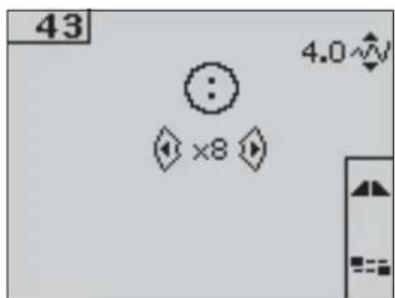
text_image
43 : 4.0 ×8
natural_image
Close-up of a sewing machine needle stitching fabric (no text or symbols visible)Common sewing pop-ups
Bobbin empty (4.0)
When the bobbin is almost empty, the machine stops automatically and a pop-up appears on the screen. Replace the empty bobbin with a full one and press OK on the wheel to confirm.
Mainmotor overload
If you are sewing on very heavy fabric or if the machine is blocked when sewing, the mainmotor can get overloaded and the machine will stop sewing. The pop-up message will close when the mainmotor and power supply are secure.
Remove thread jam (4.0)
Clean the area under the stitch plate from thread and lint. Press OK on the wheel to close the pop-up.

text_image
Simple diagram with a circled number 0 and a checkmark below it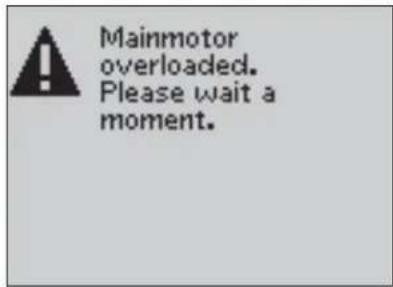
text_image
Mainmotor overloaded. Please wait a moment.
text_image
Remove thread jam under the stitch plate
text_image
SequencingSequencing (4.0 and 3.0)
The sequencing function on your machine makes it possible to create stitches and sequences with your own personal settings and to combine stitches and letters into sequences. You can add up to 40 stitches, letters and commands in the same sequence. Save your own stitches and sequences on your machine and reload and sew them any time you like.
All stitches in your sewing machine can be used for sequencing except for buttonholes, darning, tapering stitches, button sewing and bartacks.
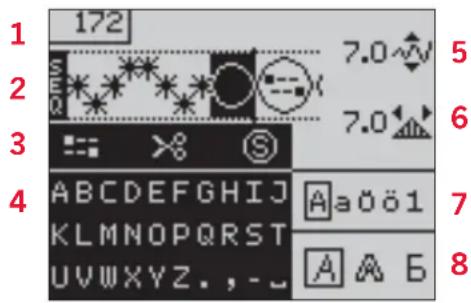
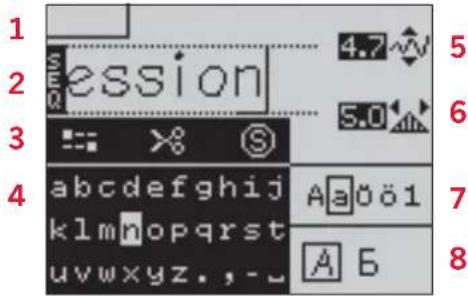
Sequencing - overview
- Current stitch number
- Stitch fi eld
- Sequence commands
- Alphabet
- Stitch width/stitch positioning
- Stitch length/density
- Character set (upper case/lower case, normal/special symbols)
- Font selection
text_image
172 7.0 5 2 7.0 3 S 4 ABCDEFGHIJ KLMNOPQRST UWWXYZ.,-J Aa0ö1 7 A A B 8Create a sequence
- Press the sequencing button to enter sequencing.
- Press the number of the stitch you wish to use. The stitch will appear in the stitch fi eld.
- Press the number of the next stitch and it will appear to the right of the previously entered stitch.
Note: The current position in the stitch fi eld is marked by a cursor. Inserted stitches will be placed at the cursor position. Move the cursor through the sequence using the left and right arrow buttons on the wheel.
Sequence commands
You can insert tie-offs, thread snips (for 4.0) and stop commands into your sequence. Use the arrow buttons on the wheel to select a command and press OK to insert it. It will be placed at the cursor position.
Inserted commands will be included when you save your sequence and will always be performed when sewing it.
Note: You can insert up to 3 commands in each sequence.

text_image
A♥B 1 2 3 4 5 6 7 8 9 0Using the alphabet
- Move the cursor through the stitch fi eld (2) with the left and right arrow buttons on the wheel to where you want to add a letter.
- Use the down arrow button to step through the sequence commands (3) to the alphabet (4). Select a letter using the arrow buttons and press OK to insert it. It will be placed at the cursor position in the stitch fi eld.
Note: The selected letter in the alphabet will be highlighted.
Select character set and font
Press the F1 button to change character set (7) between upper or lower case, normal or special letters and symbols.
Press the F2 button to change fonts (8).
Adjust text and stitches
You can mirror, adjust length (6) and width (5) or change the density and stitch position of the selected stitch. The adjustments work just like in sewing mode. See page 3:2 - 3:4.
When you have changed a value, the digits will be highlighted on the graphic display to show that the value is not default.
Note: The adjustments will only affect the stitch at the cursor position. If you return to sewing mode, all adjustments made there will affect the entire sequence and will not be saved.
Delete a stitch or letter in a sequence
If you want to delete a stitch, move the cursor to the stitch you want to delete and press the clear button.
To delete the entire sequence from the stitch fi eld, move the cursor to the left of the fi rst position and press the clear button.
text_image
1 2 3 4 5 6 7 8 expression 4.7 5.0 S abcdefghijklmnopqrstuvwxyz., -u Aa0ö1 A B
Manage your sequences
You can save and reload your sequences.
Each sequence memory has a space of 40 stitches.
Save sequence
Saving your sequence works just like in sewing mode. See page 3:5. Select the sequence option in the save personal stitch or sequence menu.
Load sequence
Loading your sequence works just like in sewing mode. See page 3:5. Select the sequence option in the load pop-up.
Note: When loading a sequence into sewing mode, the number of the saved sequence will be shown prefixed by an M.
Delete sequence
Deleting your sequences from the machine works just like in sewing mode. See page 3:5.
Sewing a sequence
To sew the sequence, return to sewing mode by pressing the sequencing button or step on the foot control. Your sequence is ready to be sewn out. The sequence will be sewn continuously if no stop is programmed.
Note: Adjustments made in sewing mode will affect the whole sequence. However, these adjustments will not be saved if you return to sequencing.


natural_image
Close-up of a fabric with a chain of hand-drawn symbols on a textured white background (no text or labels)Maintenance
Changing the light bulbs
Your sewing machine is equipped with two light bulbs. One is placed under the sewing head and one above the free arm. Light bulbs are available at your authorized PFAFF® dealer. Change the light bulbs as described below.

Turn off the main switch.
1 Place the light bulb remover with the deep hole, marked OUT, around the bulb. Do not turn the bulb, just pull it out to remove it.
2 When inserting a new light bulb place the remover with the shallow hole, marked IN, around the new bulb. Insert the new bulb by pushing it up.
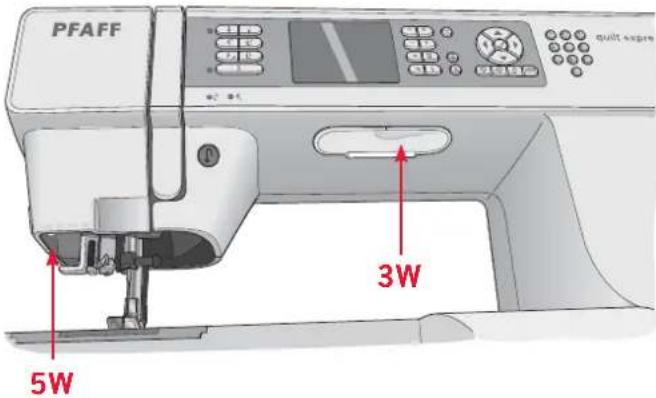
text_image
PFAFF 3W 5WCleaning the machine
To keep your sewing machine operating well, clean it often. No lubrication (oiling) is needed. Wipe the exterior surface of your machine with a soft cloth to remove any dust or lint built up. Wipe the graphic display with a clean, soft and damp cloth.
Cleaning the bobbin area

Note: Lower the feed dogs and turn off the machine.
Remove the presser foot and slide off the bobbin cover. Place the screwdriver under the stitch plate as shown on the picture, and gently turn the screwdriver to pop off the stitch plate. Clean the feed dogs with the brush found with the accessories.
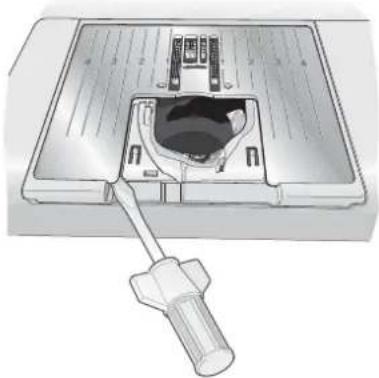
natural_image
Diagram of a device with a screwdriver inserted into a slot, showing internal components (no text or symbols)Cleaning under the bobbin area
Clean the area under the bobbin case after sewing several projects or any time you notice an accumulation of lint in the bobbin case area.
Remove the bobbin case holder (A), covering the front part of the bobbin case, by lifting it up. Remove the bobbin case (B) by lifting it up. Clean with the brush.

For 4.0: Use caution when cleaning around the thread snips knife.
Put the bobbin case and the bobbin case holder back in place.
Note: Do not blow air into the bobbin case area. The dust and lint will be blown into your machine.
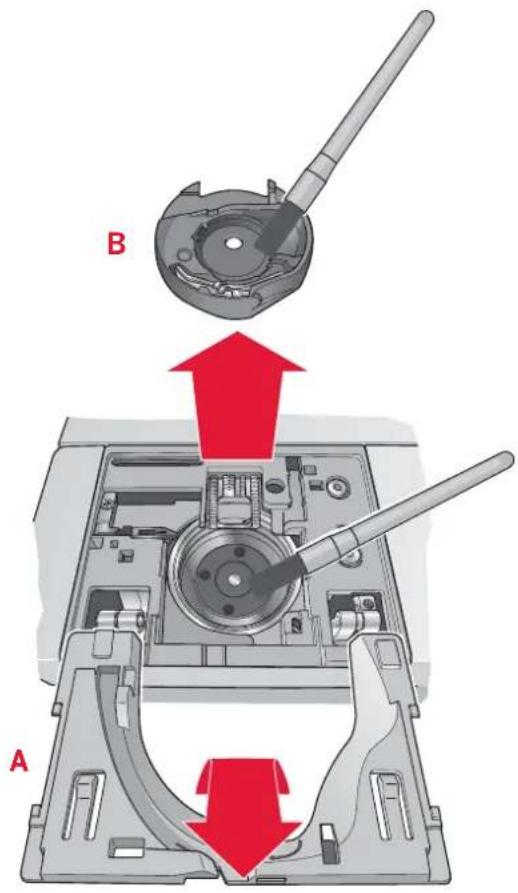
text_image
B AReplacing the stitch plate
With the feed dogs lowered, place the stitch plate with the knob fi tting into the notch at the back (C). Press the stitch plate down until it clicks into place. Slide on the bobbin cover.
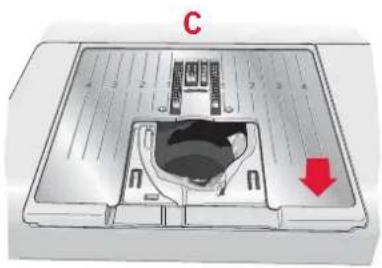
natural_image
Diagram of a device with labeled components and a red downward arrow indicating a specific area (no text or symbols present)Troubleshooting
In this troubleshooting guide you will find solutions to the problems you may have with your machine. For further information please contact your local authorized PFAFF® dealer who will be happy to help you.
Problem/cause Remedy
| General problems | |
| Thread snips do not cut the thread? (4.0) Remove | stitch plate and clean lint from bobbin area. Enable automatic thread snips in the settings menu. |
| Fabric does not move? Make sure that machine is | not set in free-motion mode in the settings menu.Make sure that the feed dogs are not lowered. |
| Wrong stitch, irregular or narrow stitch?(4.0 and 3.0) | Deactivate twin needle or stitch width safety in the settings menu. |
| The needle breaks? Insert needle correctly as described in chapter 2.Attach correct needle for the fabric. | |
| The machine will not sew? Check that all plugs are | securely plugged into the machine and into the wall socket.Check that the foot control cord is securely plugged into the foot control.Push bobbin winder lever to sewing position. |
| The sewing machine function buttons do not respond to touch? | The sockets and function buttons on the machine can be sensitive to static electricity. If the buttons do not respond to touch, turn the machine OFF and then ON again. If the problem persists, contact your local authorized PFAFF® dealer. |
| The machine skips stitches | |
| Did you insert the needle properly? Insert needle | correctly as described in chapter 2. |
| Did you insert a wrong needle? Use needle system | 130/750 H. |
| Is the needle bent or blunt? Insert a new needle. | |
| Did you thread the machine properly? Check how | the machine is threaded. |
| Is the correct presser foot used? Attach correct presser foot. | |
| Is the needle too small for the thread? Make sure | the needle is correct for the thread and fabric. |
| Is the fabric moving up and down with the needle when free-motion sewing? (Sensormatic free-motion mode, 4.0) | Reduce the presser foot pivot height in the settings menu. |
| Needle thread breaks | |
| Did you insert the needle properly? Insert needle | correctly as described in chapter 2. |
| Did you insert a wrong needle? Use needle system | 130/750 H. |
| Is the needle bent or blunt? Insert a new needle. | |
| Did you thread the machine properly? Check how | the machine is threaded. |
| Is the needle too small for the thread? Change the | needle to the proper size for the thread. |
| Are you using poor thread with slubs or thread which has become dry? | Change to a new higher quality thread purchased from an authorized PFAFF® dealer. |
| Is a correct spool cap used? Attach a spool cap of | the right size for the actual thread spool. |
| Is the best spool pin position used? Try a different | spool pin position (vertical or horizontal). |
| Is the stitch plate hole damaged? Change the stitch plate. | |
| Bobbin thread breaks | |
| Did you insert the bobbin properly? Check the bobbin thread. | |
| Is the stitch plate hole damaged? Change the stitch plate. | |
| Is the bobbin area clean? Clean lint from bobbin area and use only the original PFAFF® bobbins approved for this model. | |
| Is the bobbin wound correctly? Wind a new bobbin. |
| The seam has uneven stitches | |
| Is the thread tension correct? Check needle thread tension and the threading. | |
| Are you using too thick or slubbed thread? Change the thread. | |
| Is the bobbin thread evenly wound? Check bobbin winding. | |
| Is a correct needle used? Insert a proper needle correctly as described in chapter 2. |
| The machine does not feed or feeds irregularly | |
| Did you thread the machine properly? Check how the machine is threaded. | |
| Has sewing lint collected between the feed dogs? | Remove the stitch plate and clean the feed dogs with a brush. |
Have your sewing machine serviced regularly by your local authorized PFAFF® dealer!
If you have followed this trouble shooting information and still have problems, take your sewing machine to your dealer. If there is a specific problem, it is a great help to test sew with your thread on a scrap of your sewing fabric and bring it to your dealer. A sewing sample will often give much better information than words.
Non-original parts and accessories
The warranty does not cover any defect or damage caused by use of non-original accessories or parts.
Index
A
Accessories....1:6
Accessory tray 1:6
Alphabets 1:11
Alternatives button 2:11, 2:13, 2:15
Attach the Sensormatic buttonhole foot 3:7
Audible alarm 2:17
Automatic presser foot lift 2:17
Automatic thread tension 2:16, 3:2
Auxiliary spool pin 2:3
B
Balance....2:17
Bobbin, insert 2:6
Bobbin winding 2:5
Winding from horizontal position 2:5
Winding through the needle 2:5
Button, sew on 3:9
Buttonholes 3:7
Manual buttonhole 3:8
Sensormatic buttonhole 3:8
Buttons
expression™ 2.0....2:14-2:15
expression™ 3.0....2:12-2:13
quilt expression™ 4.0....2:10-2:11
C
Changing the light bulbs 5:1
Changing the needle 2:8
Changing the presser foot 2:8
Cleaning....5:1
Clear button 2:11, 2:13
Connect the foot control 2:1
Connect to the power supply 2:1
Contrast setting 2:17
Cover....2:2
Create a sequence 4:1
D
Darning....3:6
Decorative stitches ....1:10-1:11
Delete
Sequencing 4:2, 4:3
Sewing mode 3:5
Dial, thread tension 2:12, 2:14
Direct selection 2:11, 2:13, 2:15
Disengage IDT 2:6
Display 2:11, 2:12, 2:14
E
Electronic knee-lift 2:7
Engage IDT.... 2:6
F
F1 2:11, 2:13, 2:15
F2 2:11, 2:13
Feed dogs, lower 2:8
Foot control 2:1
Free-motion
Sensormatic free-motion.... 2:17
Spring foot free-motion 2:17
Free-motion position 3:7
Free arm 2:2
G
Graphic display 2:11, 2:12, 2:14
H
Hard cover 2:2
|
IDT....2:6
Disengage 2:6
Engage....2:6
Immediate tie-off 2:10, 2:12, 2:14
Info button 2:11, 2:13, 2:15, 3:1
Inserting the bobbin 2:6
K
Knee-lift 2:7
L
Language 2:17
Light bulbs, change 5:1
Load
Sequencing 4:2
Sewing mode 3:5
Lowering feed dogs 2:8
M
Machine overview 1:5
Accessory tray 1:6
Front side 1:5
Included accessories 1:6
Presser feet 1:7
Top parts 1:5
Maintenance....5:1
Manual buttonhole 3:8
Mirroring 2:11, 2:13, 2:15, 3:3
N
Needle, changing 2:8
Needle art stitches 1:10
Needles 2:7
Needle threader 2:4
Needle up/down 2:10, 2:12, 2:14
P
Pack away after sewing 2:2
Personal stitches 3:5
Personal sequences 4:2
Pop-ups, sewing 3:9
Power supply 2:1
Presser feet 1:7
Presser foot, change 2:8
Presser foot, lower 2:11
Presser foot pressure.... 2:17
Presser foot, raise 2:11, 2:17
Program a sequence 4:1
Programmed tie-off indicator ..... 2:10, 2:12, 2:14, 3:3
Q
Quilt stitches 1:10
Quilting....3:6
R
Raise the presser foot 2:11
Replacing the stitch plate 5:2
Reverse button 2:10, 2:12, 2:14
Reverse indicator 2:10, 2:12, 2:14
S
Safety instructions 2
Save
Sequencing 4:2
Sewing mode 3:5
Select a stitch 2:11, 2:13, 2:15, 3:1
Sensormatic buttonhole 3:8
Sensormatic buttonhole foot 1:7, 3:7
Sensormatic free-motion 2:17
Sequence commands 4:1
Sequencing 4:1
Settings menu 2:16-2:17
Sewing mode 3:1
Sewing recommendations 3:1
Sewing techniques 3:6
Quilting....3:6
Darning 3:6
Free-motion position 3:7
Buttonhole 3:7
Sew on a button 3:9
Software version 2:17
Speed control 2:10, 2:12, 2:14, 3:4
Spool cap 2:2-2:3
Spool pins 2:2-2:3
Auxiliary spool pin 2:3
Horizontal position 2:2
Vertical position 2:3
Spring foot free-motion 2:17
Stitch density 2:11, 2:13, 2:15, 3:2
Stitch fi eld
Sequencing 4:1
Sewing....3:1
Stitch length 2:10, 2:12, 2:14, 3:2
Stitch number
Sequencing 4:1
Sewing mode 3:1
Stitch overview
Alphabets....1:11
Decorative stitches ....1:10-1:11
Needle art stitches 1:10
Quilt stitches 1:10
Utility stitches ....1:8-1:10
Stitch plate ..
Remove 5:2
Replace....5:2
Stitch positioning
Stitch restart
Stitch adjustments
Stitch width
Stitch width
T
Tapering program
Thread cutter.
Threading
Needle threader 2:4
Threading for twin needle.... 2:4
Threading the machine 2:3
Thread snips.
Thread tension
Automatic....2:16, 3:2
Dial 2:12, 2:14, 3:2
Recommendation....3:1,3:2
Tension value 3:1, 3:2
Tie-off
Immediate 2:10, 2.12, 2:14
Options....3:3
Troubleshooting
Twin needle
Set for twin needle 2:16, 3.1
Threading for twin needle.... 2:4
U
Unpacking...
Using the alphabet
Utility stitches
V W
Wheel ......
Winding bobbin
Winding from horizontal position 2:5
Winding through the needle 2:5
We reserve the right to change the machine equipment and the assortment of accessories without prior notice, or make modifications to the performance or design.
Such modifications, however, will always be to the benefit of the user and the product.
Intellectual Property
Patents protecting this product are listed on a label positioned underneath the Sewing Machine.
PFAFF, EXPRESSION, QUILT EXPRESSION and IDT (image) are trademarks of KSIN Luxembourg II, S.ar.l.
All trademarks are used under license by VSM Group AB.
Please note that on disposal, this product must be safely recycled in accordance with relevant National legislation relating to electrical/electronic products. If in doubt please contact your retailer for guidance.

natural_image
Woman wearing a silver sleeveless dress with a blue and white patterned belt, posing against a plain purple background (no text or symbols visible)