creative 7550 - Sewing machine PFAFF - Free user manual and instructions
Find the device manual for free creative 7550 PFAFF in PDF.


User questions about creative 7550 PFAFF
0 question about this device. Answer the ones you know or ask your own.
Ask a new question about this device
Download the instructions for your Sewing machine in PDF format for free! Find your manual creative 7550 - PFAFF and take your electronic device back in hand. On this page are published all the documents necessary for the use of your device. creative 7550 by PFAFF.
USER MANUAL creative 7550 PFAFF
natural_image
Black-and-white photo of a PFAFF creative 7550 sewing machine with control panel and buttons (no visible text or symbols on device body)Instruction manual
For easier understanding of this instruction manual please fold this page open when reading it.

text_image
Warning symbol with exclamation mark inside triangleNotes on safety
Notes on safety for domestic sewing machines according to DIN 57 700, Section 28 or IEC 335, Section 28
- The user must exercise adequate caution with regard to the up- and down moving needle and constantly observe the sewing area during work.
- When leaving the machine, during maintenance work or when changing mechanical parts or accessories, always disconnect the machine from the mains by pulling out the mains plug.
- The maximum permissible wattage for the sewing lamp is 15 Watts.
- The tension of the drive belt must only be adjusted by a Pfaff mechanic.
- The machine must be put into operation according to the indications on the specification plate.
- Do not place any objects in openings on the machine.
- Do not use the sewing machine if:
- there is visible damage,
- its function is disturbed,
- it is wet, e.g. with condensation.
- Do not pull the mains plug out of the socket by its cord.
- If this appliance is used for another purpose than that intended or if it is wrongly operated, we will not accept any liability for any damage caused.
- To avoid the risk of electric shock, do not open the machine. There are no parts inside the machine which the user can repair. This is solely the responsibility of our qualified service staff.
- Be sure to use only original PFAFF parts.
Environment
The recommended environment is: Ambient temperature 10°C to 40°C Humidity 20% to 80%
This sewing machine is a high-quality electronic-mechanical appliance; it is a machine for supervised use in the home. It should be operated in such a way that it is not subjected to: dust, severe dampness, direct sunlight, static electricity, heat-producing objects, corrosive chemicals or liquids.
The machine must be used on a free surface, for ventilation purposes, which is both firm and even.
Treatment
Always protect the machine against damage by hitting or dropping.
Cleaning
Housing: To clean the housing, use a dry, clean and soft cloth which is free of fluff. To remove any stubborn dirt, use a soft cloth with alcohol or paraffin.
Please Note!
Do not use any insecticides or chemical products such as petrol (gas) or thin chemicals for cleaning the housing.
text_image
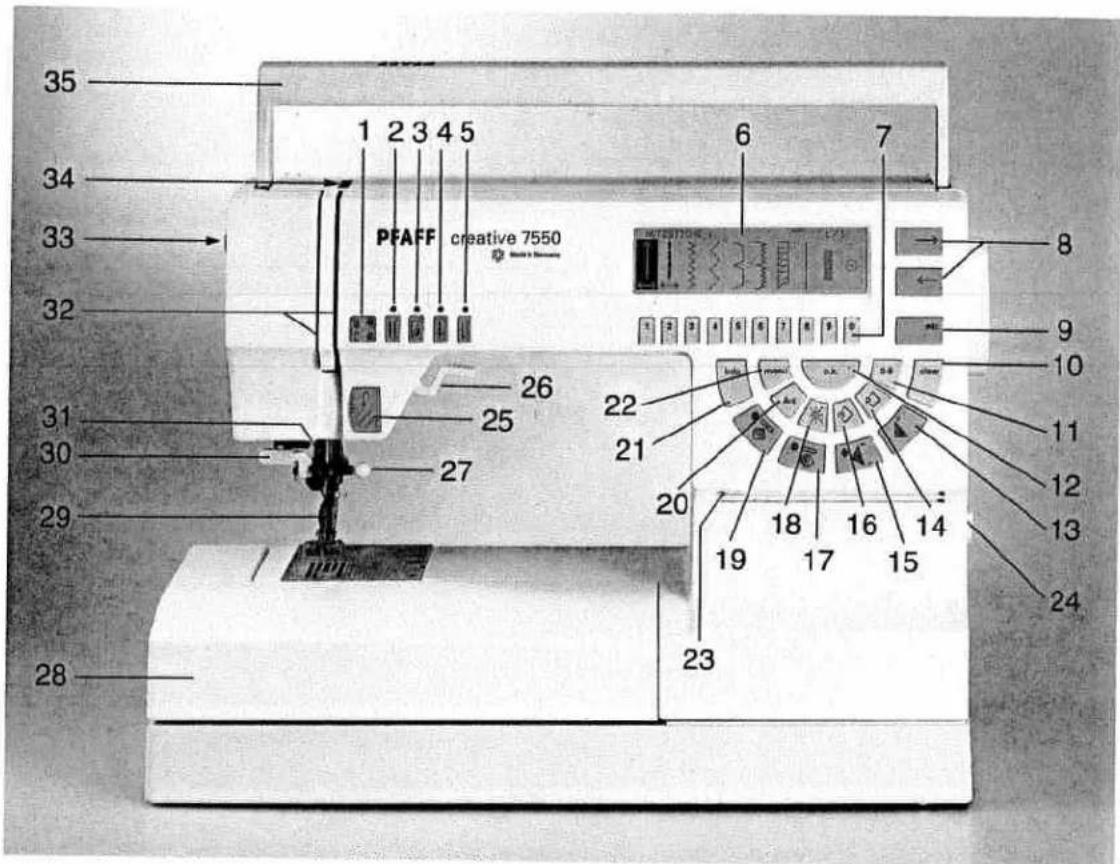
35 34 33 32 31 30 29 28 1 2 3 4 5 PFAFF creative 7550 6 7 8 9 10 26 25 27 22 21 20 19 18 17 16 15 14 23 24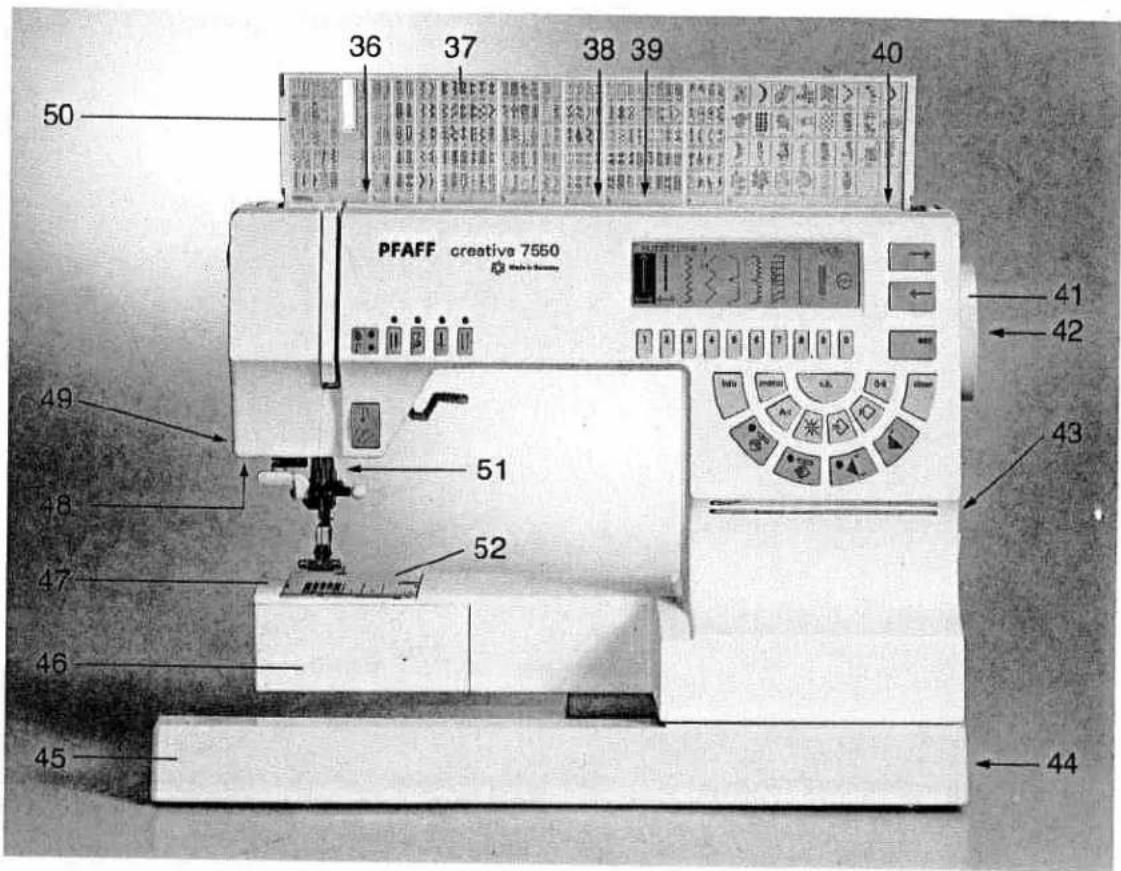
text_image
PFAFF creative 7550 36 37 38 39 40 50 49 48 47 46 45 51 52 41 42 43 44Parts of the creative 7550
(1) Bobbin thread monitor and sewing function light for "reverse sewing"
(2) Key for "twin needle"
(3) Key for "slow sewing"
(4) Key for "needle up/down position"
(5) Key for "tie-off"
(6) Multi-function display
(7) Numbered keys
(8) Cursor keys
(9) "esc" key
(10) "clear" key
(11) "0-9" key for pattern selection
(12) "o.k." key
(13) "pattern start" key
(14) "P-Memory" key
(15) "single pattern" key
(16) "M-Memory" key
(17) "mirror image" key (axial mirror image)
(18) Key for "MDF stitches" (Eight-way feed stitches)
(19) "mirror image" key (lateral mirror image)
(20) "A-Z" key for alphabet selection
(21) "info" key
(22) "menu" key
(23) Display lucidity control
(24) Main switch
(25) "reverse" key and "bartack" buttonhole key
(26) Presser foot lifter
(27) Needle holder with fixing screw
(28) Detachable work support with accessory compartment
(29) Sewing foot holder with sewing foot
(30) Needle threader
(31) Thread guide
(32) Threading slots
(33) Needle thread tension
(34) Take-up lever
(35) Carrying handle
(36) Thread guide for bobbin winding
(37) Program table
(38) Reel holder with unwinding disk
(39) Second spool holder to pin up
(40) Bobbin winder
(41) Hand wheel
(42) Hand wheel release disk
(43) Connection socket "mains cord"
(44) Connection socket "foot control"
(45) Base plate
(46) Hook cover (sewing hook behind)
(47) Free arm
(48) Sewing lamp
(49) Thread trimmer
(50) Top cover
(51) Dual Feed (top feed)
(52) Needle plate

text_image
Warning symbol image with exclamation mark inside a triangleImportant safety instructions
For the United States only
For the year 2016, the company manufactured for HOUSEHOLD use only. When you use an electric
This sewing machine is designed and manufactured for the 1980s.
appliance, basic safety precautions should always be
Read all instructions before using this sewing machine.
DANGER To reduce the risk of electric shock:
DANGER To reduce the half of the appliance. Always unplug this appliance from
- The sewing machine should never be left and behind the electric outlet immediately after using and before cleaning.
- Always unplug before relamping. Replace bulb with same way, which is necessary to replace a single wire that has fallen into water. Unplug immediately.
- Do not reach for a sewing machine that has fallen into a tub or sink. Do not place in
- Do not place or store a sewing m or drop into water or other liquid.
WARNING To reduce the risk of burns, fire, electric shock, or injury to persons:
WARNING To reduce the risk of saving a machine. This is necessary when this sewing machine is used by or
-
Do not allow to be used as a toy. Close attention is necessary for the use of near children.
-
Use this sewing machine only for its intended use as described in this manual, recommended by the manufacturer as contained in this manual.
-
Never operate this sewing machine if it has a damage or damage, or is being dropped or damaged, or dropped into water. Return the appliance to the nearest authorized dealer or service center for examination, repair, electrical or mechanical adjustment.
-
Never operate the sewing machine with any air opening. sewing machine and foot control free from the accumulation of lint, dust, and loose cloth.
-
Never drop or insert any object into any opening.
-
Do not use out of doors.
-
Do not operate where aerosol (spray) products are being removed.
-
To disconnect, turn all controls to off (0) position, then remains positive.
-
Never operate on a soft surface such as a bed or deck, which is being rolling on cord. To unplug, grasp the plug, not the cord.
-
Do not unplug by pulling on cord. To unplug, grasp and pulling the parts of small moving parts. Special care is required around the sewing machine needle.
-
Keep fingers away from all moving parts. Special details are shown. The swing plate can cause the needle to break.
-
Always use the proper needle plate. The wrong plate can cause the damage of the tool. Use needles recommended by the manufacturer only.
-
Do not use bent or blunt needles. Use needles recommended by
-
Do not pull or push fabric while stitching. It may deflect the needle area, and then to be moving machine off ("O") when making any adjustments in the needle area, such as threading
-
Switch the sewing machine on (6) Wristel, 2013; is a needle, changing needle, threading bobbin, or changing presser foot, etc.
-
Always unplug sewing machine from the electric outlet which is making any other user servicing adjustments mentioned in the instruction manual
-
Hold plug when rewinding into cord feet. Do not allow plug
Please also observe the general safety notes on the fold out page.
SAVE THESE INSTRUCTIONS
<
∠
No1
Note macI Secti
-
7 2.
-
4.
-
Modern, uncomplicated
-
- Sewing by touch-key control -
Congratulations! You have bought a high-quality product that offers unique advantages. Your new sewing machine can take any material in its stride and will sew through thick and thin for you. It features the very latest in desgin and technology, and this instruction book is just as uncomplicated as your PFAFF sewing machine.
If you now take time enough to study the instruction book, nothing can go wrong.
11


natural_image
Black-and-white aerial view of an industrial park with a tall chimney and surrounding buildings, surrounded by trees and hills under a cloudy sky (no visible text or symbols)After all, this is the only way to learn all the things the machine can do, and to make full use of them.
If you have any further questions, that is no problem! Your PFAFF dealer will be at your service with any help or advice you need.
So now you can get started! We wish you many enjoyable hours of creating your fashion ideas.
text_image
Warning sign with exclamation mark inside a triangleSafety rules
For the United Kingdom only
The leads must definitely not be connected to the safety-lead terminal I nor to a plug with three pins.
The leads must definitely not be called to the following code:
Blue: Neutral
Brown: Live
As the colours of the wires in the mains lead of this appliance may not correspond with the colour coding of the terminals in your plug, proceed as follows:
The wire which is coloured blue must be connected to the terminal which is marked with the letter N or coloured black.
The wire which is coloured brown must be connected to the terminal which is marked with the letter L or coloured red.
Cut-off mains plugs are definitely not to be used, but disposed of immediately. Defective mains leads must be replaced complete.
Only 3 A spare fuses must be used as approved by ASTA according to BS 1362 and the fuse cover must be marked 3 A or with the corresponding colour code.
The plug must never be used without fuse cover. Spare fuse covers are available from electrical suppliers or the PFAFF agencies.
Please also observe the general safety notes on the fold out page.
natural_image
Abstract black and white vertical striped pattern with no text or symbolsIndex
Accessories and needles
Accessory compartment
Adding stitches 148
Activating the code (entering the code) 20
Alphabet 99
Alphabets/Monograms 39
Alphabets/Monograms, summary
Appliqué foot. 62
Arrowhead bartack. 13
Automatic bartack 152
Automatic darning 122
Axial mirror image 122
Balance 123
balance, butterball
balance, buttonhole correction 55
balance for embroidering 120
balance, sideways stitch correction
basic menu (start-up menu)
fasting stitch. 56
battery message 46
as tape binder.... 115
ind stitch 38
bbin case. 156
116
bbin winding 24
ttonholes 44
ttonholes with gimp thread 21-23
132
Changing the battery 143
Changing the letter width
Changing the needle 160
63 hanging the needle plate
32 hanging the sewing foot.
nging the sewing lamp 161
cking the bobbin thread tension 29
ning and oiling. 162
ning the display 25
ed overlock stitch 161
ed overlock stitch with edge thread 161
118 Connecting the foot control
ing foot 118
ring seams 19
ing a letter sequence 153-154
ive Designer programming 119
65-67
stitch 87-110
stitch 89-90
stitch borders, pre-programmed 119
stitch embroidery 170
stitch, embroidery tips 171
function 172-173
keys 170
76-78
g with the elastic stitch.... 45
g with the straight stitch
ative elastic stitch 127
g a pattern in the M-Memory 124
g a pattern in the P-Memory 120
g a stitch at the end/P-Design 77-78
g a stitch within a pattern 102
g letters. 101
programmed buttonholes 102
able work support 67
136
20
Index
Direct selection of pattern groups 48
Disengaging the Dual Feed. 48 33
Dropping the feed dog....33
Dual Feed 30
Eight-way feed stitches (connecting stitches) 79-84
Elastic blind stitch 116
Elastic stitch 116 117
Electrical connection.... 18 19
Embroidery stitch programs/Summary. 18–19 11–13
Engaging the Dual Feed 21
Entering the pattern number....51 47
Eyelet embroidery 179
Eyelet embroidery, pattern examples 179
Fading in/out stitch points 104
Fagoting stitch.... 104 119
Felling foot 119 152
Fringe foot. 152 153
Function "No." 153 103
Gathering foot 154
Gathering with elastic threads. 154 126
Gathering with straight stitch 126
Hemstitching 175-177
Hemstitch programs....176
info....45
info as operating aid. 45
51
info as sewing recommendations 51
inserting letters 51 67
nserting stitches 67 99
inserting the bobbin.... 24-25
nserting the bobbin case 24-25
inserting the buttonhole guide 133
nserting the programming sheet in the Creative Designer. 91
inserting zippers 130
inserting zippers concealed on both sides 130
K" key 74
Keyhole buttonholes....74
Keyhole buttonholes with gimp thread. 141
Knit-edge foot 144 155
ace edges 125
ace edges with corners....125 125
ace inserts....125
ace trimmings 125
adder hemstitching....125 ....174
language selection 174
letter combinations (letter sequence) 38 65 67
etter selection using the "Creative Designer" 65-67
65 inen buttonhole 121
Innen embroidery 121
Innen embroidery example 174
ight-knit mending stitch 174 120
Machine binds....102
Machine does not feed or feeds irregularly. 163
Machine does not sew the entered program 163
Machine skips stitches 163
5
Index
lr
Maintenance and trouble shooting
< Ac Manipulating built-in patterns in the P-Memory (rom) 159
Ac Maxi Stitches. 105
Ac Maxi Stitches / Summary 52-54
Ac Mirror image 13-14
Al Moving a block 45
Al Moving stitches 100
AI Multi-stitch gathering foot 99
A1
A Needle chart 161
A Needle threader.... 157-158
A Needle thread breaks 27
Needle up/down (needle stop) 163
B Numbered keys 44
B 45
N B "o.k." key. 45
m: B Opening the hook cover 45
Se E Open overlock stitch. 24
1 E Options for pattern selection.... 118
E Overlock stitch....46
E 118
Parts of the Creative Designer
- Pattern combinations (pattern sequence) 89
Pattern selection 68-74
Pattern selection – groups of ten. 46
Pattern start. 47
Placing the bobbin 45
Placing the needle plate 21
3 P-Memory selection 161
Preparing the machine for bobbin winding 96
4 Presser foot lifter 21
Programming a motif 28
Programming sheet 95
Pulling up the bobbin thread. 95
Pullover stitch 28
- Quilting....118
181
- Ram
Removing the detachable work support 107-108
Reverse feeding 20
Reverse key 55
Reverse stitch correction.
- Richelieu 55
Rom 180
- Round buttonhole 105
Saddle stitch 140
Safety notes, general 120
Safety notes U.K. .... fold out page
- Safety notes U.S.A.
Seam edge with sewn homotitel 3
Setting bartacks during butter, 175
Setting barlacks during buttonhole sewing 175
Setting the needle thread tension 136
Setting the pattern length.... 33
- Setting the pattern width 49
Setting the stitch length and width 49
Setting the stitch points 43
Sewing a P-Design. 92
Sewing faults and their removal 104
Sewing feet and special accessories / Summary 163
6 151
Index
Sewing feet for embroidery.... 148
Sewing function keys 44
Sewing functions 44-45
Sewing on buttons.... 121
Sewing on buttons with stems 121
Sewing on patches. 131
Slow sewing 44
Smocking with elastic thread 129
Snap-in/out the sewing foot 29
Sorting the accessories 20
Stabilizing the fabric. 168
Standard accessories 148-150
Standard buttonhole, fully automatic.... 135
Standard buttonhole, semi-automatic 137
Straight stitch 115
Stretch buttonholes 139
Stretch triple straight stitch 116
Stretch triple zigzag stitch 117
Switching from upper to lower case script letters 64
Switching on the main switch.... 19
Symbols in the pattern sequence 72-73
Symbol "mem" 101
Taking out the bobbin case.... 24
Threading 26
Threading the needle 26
Thread tension.... 25
Thread tension for embroidering 168
Thread trimmer 28
Tips for a perfect buttonhole.... 132
Tracing a stitch with "mem" / P-Design 103
Traditional embroidery techniques.... 165-182
Transferring a P-Memory pattern into another P-Memory (ram) 107-108
Trouser zipper 130
Twin needle....44
Utility stitches 115
Utility stitches / buttonholes 111-146
Utility stich programs / Summary 8-10
Water soluble stabilizer 168
Winding the bobbin from the reel holder 22
Winding the bobbin from the second reel holder 23
Zigzag stitch 117
"zoZO" key. 75
Utility stitch programs
| Program No. | Description | Application | Width up to mm |
| 00 | Straight stitch Center needle position | For all straight stitch and decorative topstitching jobs, up to 6 mm wide | - |
| 01 | Stretch triple straight stitch Stitch length 1.5 - 6 mm | For highly durable seams where great strength is needed, e.g. for trouser seams, sports and work wear and for decorative stitching. | - |
| 02 | Zigzag stitch | For finishing seams, appliqué work, inserting lace, sewing with the fringe foot, etc. | 6 |
| 03 | Elastic stitch a = 2 stitch points | For sewing on elastic, darning tears and inserting patches. Suitable for most fabrics. | 7 |
| 04 | Blind stitch | For securing seams invisibly and for shell-edging. | 6 |
| 05 | Elastic blind stitch | For sewing seams invisibly and serging an edge at the same time. Used for stretch materials. | 6 |
| 06 | Closed overlock stitch | For sewing and finishing seams with an edge thread. | 7,5 |
| 07 | Basting stitch | For basting your sewing cuttings. | - |
| 08 | Linen buttonhole | For buttonhole sewing. | 5,5 |
| 09 | Program for sewing on buttons | For sewing on buttons. | 6 |
| 10 | Reverse straight stitch Center needle position | For stitch combinations in pattern sequences. | - |
| 11 | Saddle stitch | For decorative work. | - |
| 12 | Shell-edging stitch | For sewing shell-edge hems. | 6 |
| 13 | Elastic shell-edging stitch | For sewing shell-edge hems on stretch materials. | 6 |
| 14 | Honeycomb stitch | For sewing on elastic threads, covering terry-cloth seams and for decorative hems (smocking effect). | 7 |
| 15 | Elastic stitch b = 1 stitch point | For sewing on elastic, darning tears and inserting patches. Suitable for most fabrics. | 7 |
| 16 | Purl stitch | For sewing purl seams. | 6 |
Utility stitch programs
| 17 | 18 | 19 | 20 | 21 | 22 | 23 | 24 | 25 | 26 | 27 | 28 | 29 | 30 | 31 | 32 |
| Program No. | Description | Application | Width up to mm |
| 17 | Fagoting stitch | For joining corsetry parts. Provides a decorative hemstitching effect. | 7 |
| 18 | Fancy elastic stitch | For overstitching elastic and woollen threads and gathering or smocking jobs. | 6 |
| 19 | Cross stitch | Provides a highly seam for sportswear. | 7 |
| 20 | Stem stitch, narrow | For embroidering in connection with the embroidery programs. | - |
| 21 | Stem stitch, wide | For embroidering in connection with the embroidery programs. | - |
| 22 | Stretch triple zigzag stitch | For sewing elastic tape onto elastic materials, e.g. sportswear. (Extremely elastic seam for light-knit materials). | 6 |
| 23 | Stretch triple elastic stitch | For sewing elastic tape onto elastic materials, e.g. sportswear. (Extremely elastic seam for light-knit materials). | 6 |
| 24 | Bartack | For sewing bartacks on pockets, belt loops, loops and zipper ends. | 4 |
| 25 | Bartack for trouser pockets | For strengthening sideways trouser pockets. | 9 |
| 26 | Arrowhead bartack | For strengthening skirt slashes. | 7 |
| 27 | Embroidery stitch program | 9 | |
| 28 | Darning program lengthwise | For mending damaged areas. | 9 |
| 29 | Darning program lengthwise and crosswise | For mending holes and torn areas. | 9 |
| 30 | Closed overlock stitch | For closing and serging seams on materials that fray easily. | 6 |
| 31 | Edge binding stitch | For serging and embellishing edges. | 7,5 |
| 32 | Zigzag stitch from right needle position | As for program 02. (zigzag from left needle position: press the mirror image key). | 6 |
Utility stitch programs
| 33 | 34 | 35 | 36 | 37 | 38 | 39 | 40 | 41 | 42 | 43 | 44 | 45 | 46 | 47 | 48 |
| Program No. | Description | Application | Width up to mm |
| 33 | Open overlock stitch | Elastic finishing seam. | 7,5 |
| 34 | Overlock stitch | With edge thread, also suitable as closing seam. | 7,5 |
| 35 | Light-knit mending stitch | For sewing and darning light-knit fabrics (underwear etc.) | 7,5 |
| 36 | Closed overlock stitch | For decorative serging of seam edges. | 6 |
| 37 | Pullover stitch | Elastic closing and serging seam for open-knit materials and jersey. | 7,5 |
| 38 | Overlock stitch | For sewing and serging in one operation. | 7,5 |
| 39 | Covering stitch | For joining terry-cloth, jersey and inserting patches. (Flat seam with double edge finish.). | 9 |
| 40 | Linen buttonhole between 7.0 - 44 mm | For buttonhole sewing in bed linen. Tip: For sewing buttonholes in light-knit materials or very fine fabrics we recommend using sewing foot No. 1a and engaged Dual Feed. | 5,5 |
| 41 | Stretch buttonhole, enforced | For buttonholes on open-knit fabrics. | 5,5 |
| 42 | Stretch buttonhole | For buttonholes on stretch materials. (jersey etc.) | 5,5 |
| 43 | Round buttonhole with wedge tack | For buttonholes in trousers and sportswear. | 7 |
| 44 | Round buttonhole with lengthwise tack | For buttonholes in outerwear made of light materials. | 7 |
| 45 | Round buttonhole with crosswise tack | For buttonholes in outerwear made of heavier materials. | 7 |
| 46 | Keyhole buttonhole with wedge tack | For buttonholes in jeans, trousers and sportswear. | 8,5 |
| 47 | Keyhole buttonhole with lengthwise tack | For buttonholes in outerwear, suits, coats, etc. | 8,5 |
| 48 | Keyhole buttonhole with crosswise tack | For buttonholes in outerwear, where great strength is needed. | 8,5 |
Embroidery stitch programs
| 49 | 50 | 51 | 52 | 53 | 54 | 55 | 56 | 57 | 58 | 59 | 60 | 61 | 62 |
| 63 | 64 | 65 | 66 | 67 | 68 | 69 | 70 | 71 | 72 | 73 | 74 | 75 | 76 |
| 77 | 78 | 79 | 80 | 81 | 82 | 83 | 84 | 85 | 86 | 87 | 88 | 89 | 90 |
| 91 | 92 | 93 | 94 | 95 | 96 | 97 | 98 | 99 | 100 | 101 | 102 | 103 | 104 |
| 105 | 106 | 107 | 108 | 109 | 110 | 111 | 112 | 113 | 114 | 115 | 116 | 117 | 118 |
Embroidery stitch programs
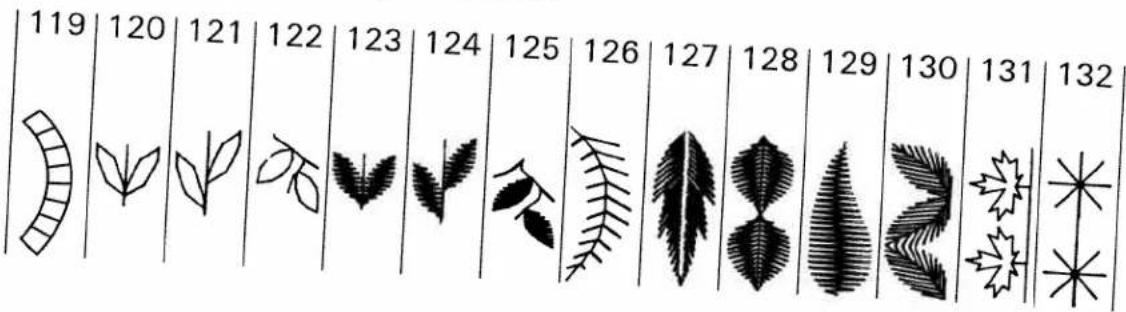
text_image
119 120 121 122 123 124 125 126 127 128 129 130 131 132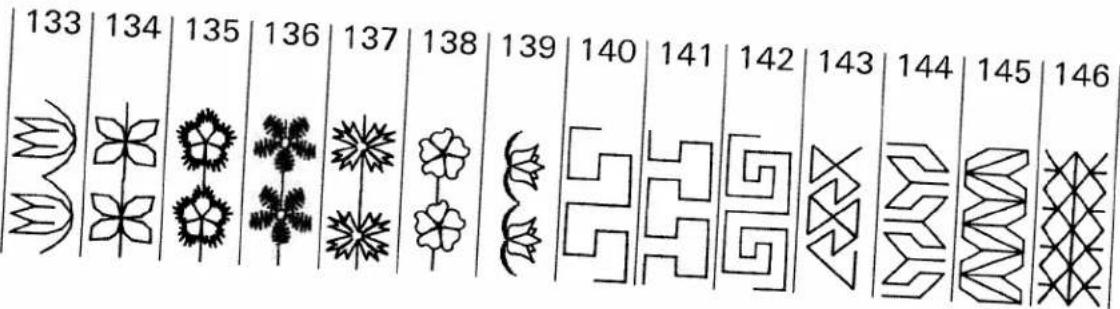
text_image
133 134 135 136 137 138 139 140 141 142 143 144 145 146
text_image
147 148 149 150 151 152 153 154 155 156 157 158 159 160
text_image
161 162 163 164 165 166 167 168 169 170 171 172 173 174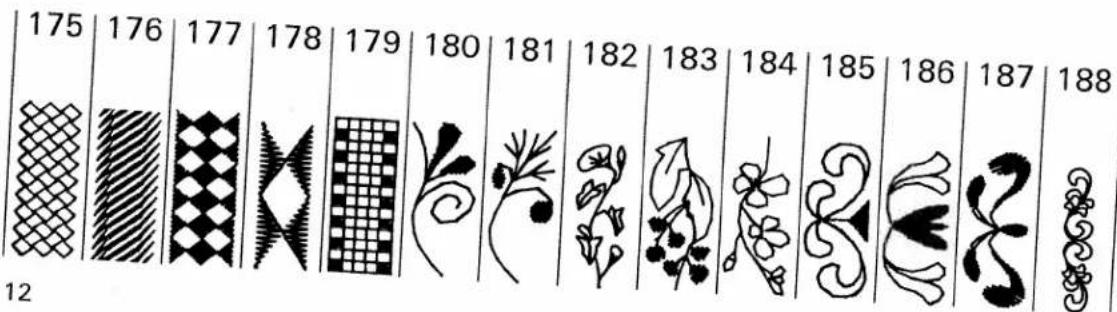
line
| Value | |-------| | 175 | | 176 | | 177 | | 178 | | 179 | | 180 | | 181 | | 182 | | 183 | | 184 | | 185 | | 186 | | 187 | | 188 |Embroidery stitch programs
text_image
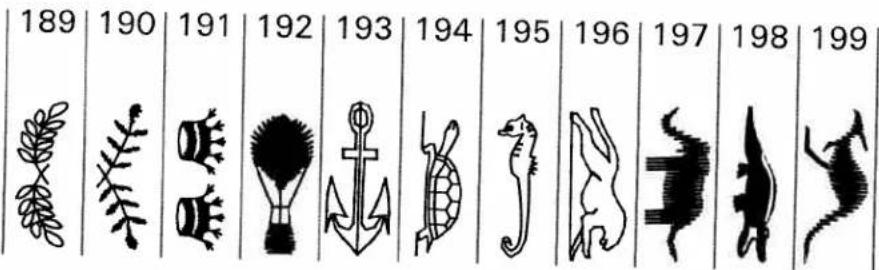
189 190 191 192 193 194 195 196 197 198 199Alphabets and Monograms
Maxi Stitches
text_image
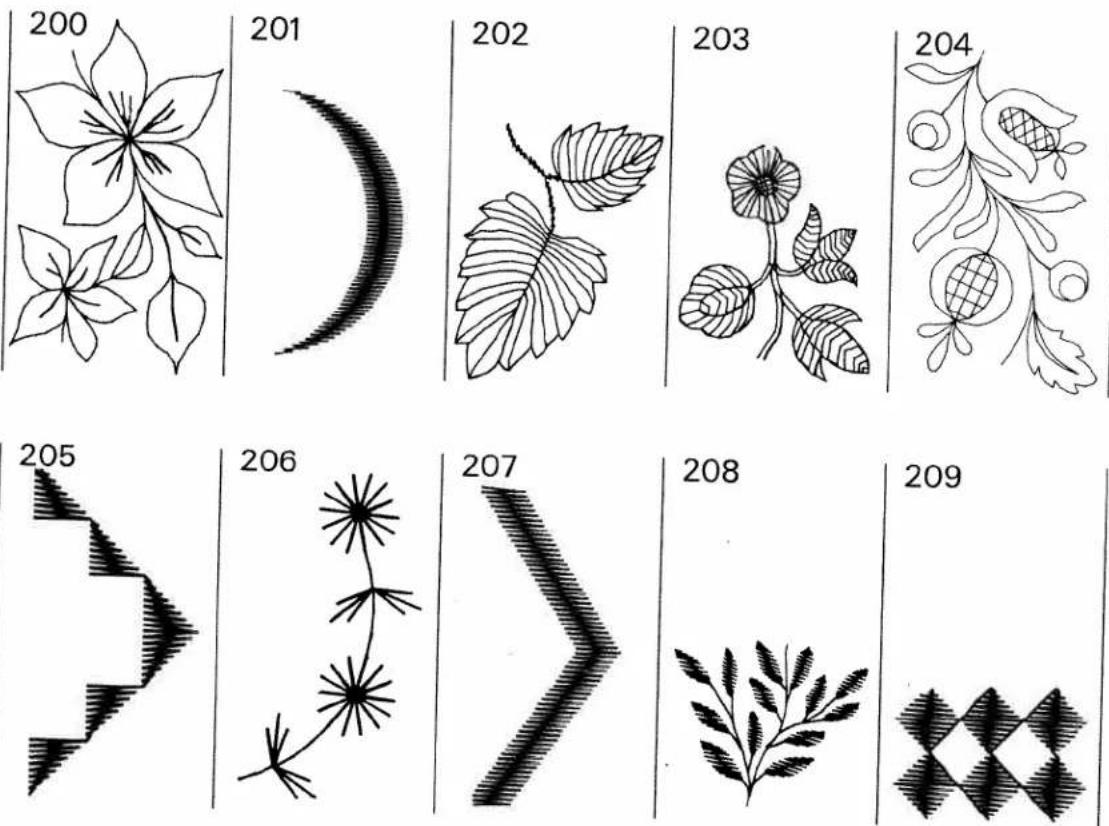
200 201 202 203 204 205 206 207 208 209Maxi Stitches
text_image
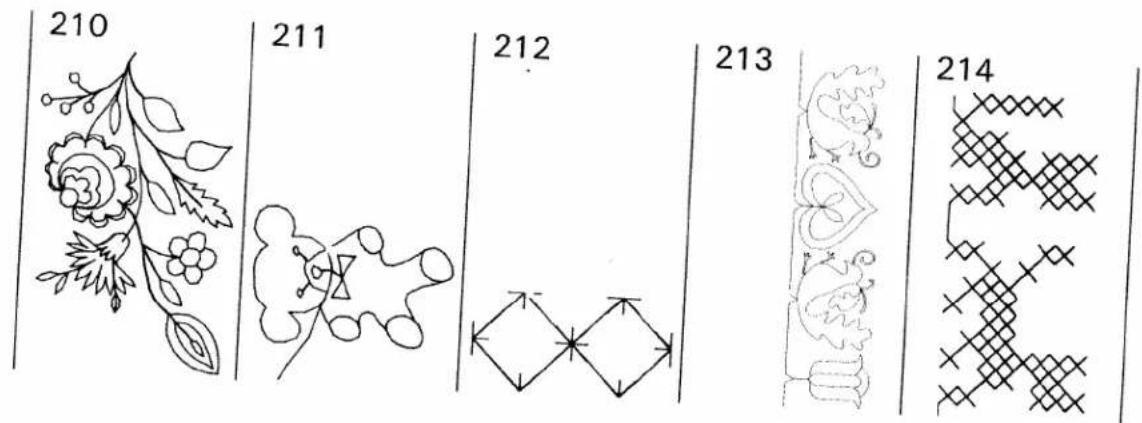
210 211 212 213 214
text_image
215 216 217 218 219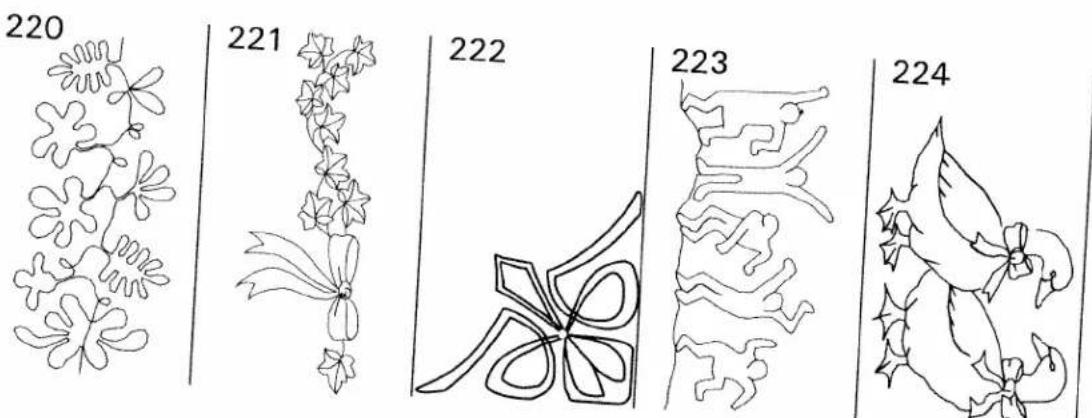
text_image
220 221 222 223 224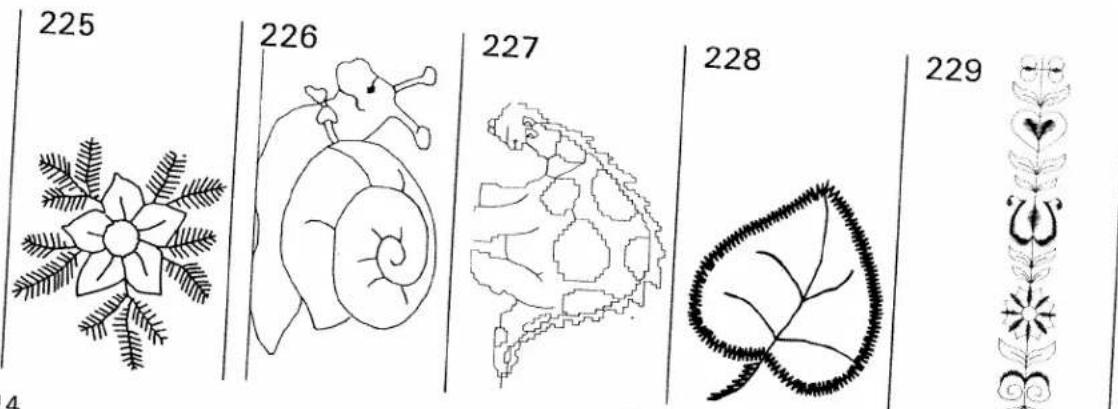
text_image
225 226 227 228 229The stitches are not shown in their original size.
creative 7550 Technical section
creative 7550
Technical section
Horn
- ( \mu_{0} ) : ( \mu_{1} ) : ( \mu_{2} ) : ( \mu_{3} ) : ( \mu_{4} ) : ( \mu_{5} ) : ( \mu_{6} ) : ( \mu_{7} ) : ( \mu_{8} ) : ( \mu_{9} ) : ( \mu_{10} ) : ( \mu_{11} ) : ( \mu_{12} ) : ( \mu_{13} ) : ( \mu_{14} ) : ( \mu_{15} ) : ( \mu_{16} ) : ( \mu_{17} ) : ( \mu_{18} ) : ( \mu_{19} ) : ( \mu_{20} ) : ( \mu_{21} ) : ( \mu_{22} ) : ( \mu_{23} ) : ( \mu_{24} ) : ( \mu_{25} ) : ( \mu_{26} ) : ( \mu_{27} ) : ( \mu_{28} ) : ( \mu_{29} ) : ( \mu_{30} ) : ( \mu_{31} ) : ( \mu_{32} ) : ( \mu_{33} ) : ( \mu_{34} ) : ( \mu_{35} ) : ( \mu_{36} ) : ( \mu_{37} ) : ( \mu_{38} ) : ( \mu_{39} ) : ( \mu_{40} ) : ( \mu_{41} ) : ( \mu_{42} ) : ( \mu_{43} ) : ( \mu_{44} ) : ( \mu_{45} ) : ( \mu_{46} ) : ( \mu_{47} ) : ( \mu_{48} ) : ( \mu_{49} ) : ( \mu_{50} ) : ( \mu_{51} ) : ( \mu_{52} ) : ( \mu_{53} ) : ( \mu_{54} ) : ( \mu_{55} ) : ( \mu_{56} ) : ( \mu_{57} ) : ( \mu_{58} ) : ( \mu_{59} ) : ( \mu_{60} ) : ( \mu_{61} ) : ( \mu_{62} ) : ( \mu_{63} ) : ( \mu_{64} ) : ( \mu_{65} ) : ( \mu_{66} ) : ( \mu_{67} ) : ( \mu_{68} ) : ( \mu_{69} ) : ( \mu_{70} ) : ( \mu_{71} ) : ( \mu_{72} ) : ( \mu_{73} ) : ( \mu_{74} ) : ( \mu_{75} ) : ( \mu_{76} ) : ( \mu_{77} ) : ( \mu_{78} ) : ( \mu_{79} ) : ( \mu_{80} ) : ( \mu_{81} ) : ( \mu_{82} ) : ( \mu_{83} ) : ( \mu_{84} ) : ( \mu_{85} ) : ( \mu_{86} ) : ( \mu_{87} ) : ( \mu_{88} ) : ( \mu_{89} ) : ( \mu_{90} ) : ( \mu_{91} ) : ( \mu_{92} ) : ( \mu_{93} ) : ( \mu_{94} ) : ( \mu_{95} ) : ( \mu_{96} ) : ( \mu_{97} ) : ( \mu_{98} ) : ( \mu_{99} ) : ( \mu_{100}^{\prime\prime\prime\prime\prime\prime\prime\prime\prime\prime\prime\prime\prime\prime\prime\prime\prime\prime\prime\prime\prime\prime\prime\prime\prime\prime\prime\prime\prime\prime\prime\prime\prime\prime\prime\prime\prime\prime\prime\prime\prime\prime\prime\prime\prime\prime\prime\prime\prime\prime\prime\times\cdots\times\cdots\times\cdots\times\cdots\times\cdots\times\cdots\times\cdots\times\cdots\times\cdots\times\cdots\times\cdots\times\cdots\times\cdots\times\cdots\times\cdots\times\cdots\times\cdots\times\cdots\times\cdots\times\cdots\times\cdota^{\prime\prime}\cdots^{\prime\prime}\cdots^{\prime\prime}\cdots^{\prime\prime}\cdots^{\prime\prime}\cdots^{\prime\prime}\cdots^{\prime\prime}\cdots^{\prime\prime}\cdots^{\prime\prime}\cdots^{\prime\prime}\cdots^{\prime\prime}\cdots^{\prime\prime}\cdots^{\prime\prime}\cdots^{\prime\times}\cdots^{\prime\times}\cdots^{\prime\times}\cdots^{\prime\times}\cdots^{\prime\times}\cdots^{\prime\times}\cdots^{\prime\times}\cdots^{\prime\times}\cdots^{\prime\times}\cdots^{\prime\times}\cdots^{\prime\times}\cdots^{\prime\times}\cdots^{\prime\times}\cdots^{*}\cdots^{*}\cdots^{*}\cdots^{*}\cdots^{*}\cdots^{*}\cdots^{*}\cdots^{*}\cdots^{*}\cdots^{*}\cdots^{*}\cdots^{*}\cdots^{*}\cdots^{*}\cdots^{*}\cdots^{*}\cdots^{*}\cdots^{*}\cdots^{*}\cdots^{*}\cdots^{+}\cdots^{-}\cdots^{-}\cdots^{-}\cdots^{-}\cdots^{-}\cdots^{-}\cdots^{-}\cdots^{-}\cdots^{-}\cdots^{-}\cdots^{-}\cdots^{-}\cdots^{-}\cdots^{-}\cdots^{-}\cdots^{-}\cdots^{-}\cdots^{-}\end{array}<|content_end|>
Traditional embroidery

text_image
PFAFF creative 7550 1/2 1 2 3 4 5 6 7 8 9 0 iso menu o.t. 0.0 clearContents
Electrical connection Pages 18–19
Detachable work support Page 20
Winding the bobbin Pages 21–23
Bobbin case Page 24
Bobbin thread tension Page 25
Threading the needle thread Page 26
Needle threader Page 27
Pulling up the bobbin thread Page 28
Presser foot lifter Page 28
Thread trimmer Page 28
Changing the sewing foot Page 29
Dual Feed Page 30
Top feed Page 31
Changing the needle Page 32
Needle thread tension Page 33
Dropping the feed dog Page 33

natural_image
Exterior view of a white electronic device with cable and connector (no visible text or symbols)Carrying case
Place the enclosed mains cord, foot control and instruction book in the compartment of the carrying case.

text_image
creative 7550Top cover
Open the folding cover (50) upwards.

text_image
Scanned image of a vintage computer keyboard with visible function keys and control buttons, including 'Executive 7550' branding.Programs
The programs of the sewing machine are illustrated on the inside of the top cover.
natural_image
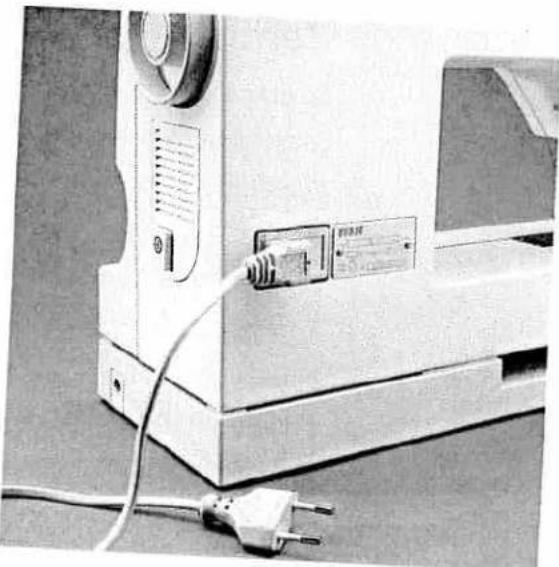
Close-up of a vintage computer monitor with a cable plugged into a socket, no visible text or symbolsElectrical connection
Connect the mains cord between the socket of the sewing machine and the wall socket.

natural_image
Hand holding a small rectangular object with a string, possibly a tool or device (no visible text or symbols)Foot control cord
Pull the foot control cord out of the foot control. It can be rewound into the cord reel automatically.

natural_image
Close-up of a sewing machine in operation, hands operating the machine (no visible text or symbols)Connecting the foot control
Connect the plug of the foot control with the connection socket (44) of the sewing machine.
natural_image
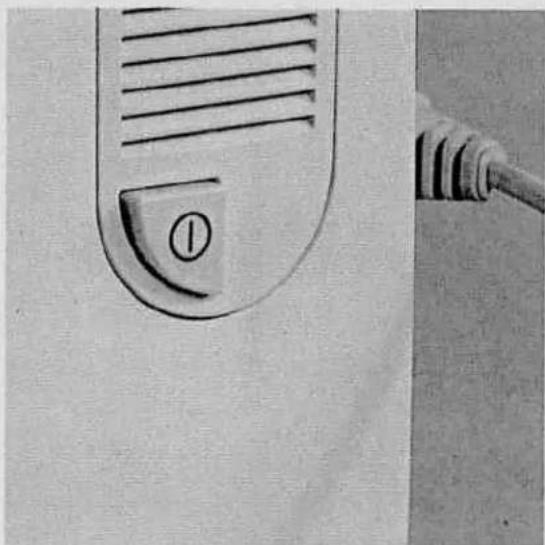
Close-up of a computer monitor with ventilation slots and a button labeled ①, next to a pen (no readable text or symbols)Main switch
When switching on the main switch (24) the sewing lamp lights up. Press the "o.k." key and the sewing machine is ready to use.

natural_image
Close-up of a hand using a sewing machine to adjust or repair material (no visible text or symbols)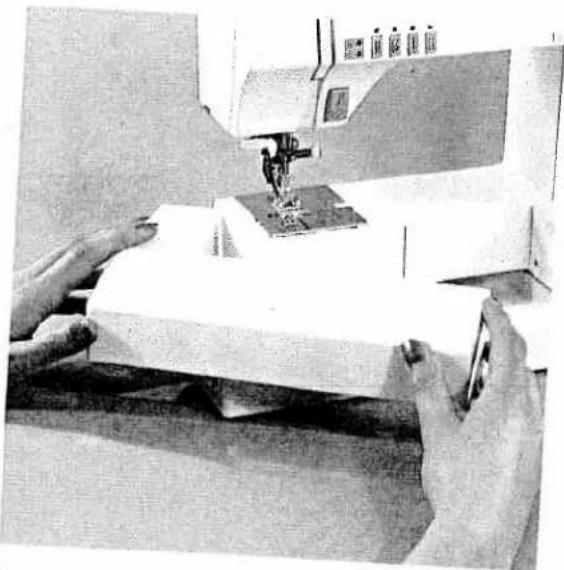
natural_image
Close-up of hands operating a sewing machine with fabric (no visible text or symbols)Accessory compartment
Open the accessory compartment (28).
Swing out the detachable work support (28) to the left.
Detachable work support

natural_image
Close-up of hands operating a sewing machine with tools and components (no visible text or symbols)
natural_image
Close-up of a hand operating a PFAFF creative sewing machine (no visible text or symbols on the machine body)Sorting the accessories
The enclosed accessories are marked with numbers. Sort them into the corresponding compartments of the accessory box.
In order to sew using the free-arm, swing the detachable work support to the left and lift it upwards out of the hole.
When you replace and swing it in again make sure the detachable work support is flush with the free-arm of the sewing machine.
Removing the detachable work support (free-arm)
text_image
Black-and-white photo of hands using a computer to write a document, with visible text on paper and a logo in the background.Preparing the machine for bobbin winding
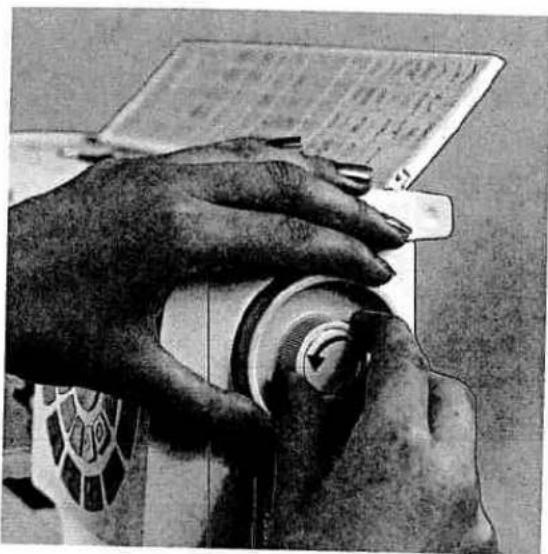
Hold the hand wheel (41) firmly and turn the release disk (42) towards you (anti-clockwise). During bobbin winding the needle will not move.
natural_image
Close-up of a medical instrument with a dial indicator and multiple icons on the side panel (no readable text or symbols)Placing the bobbin
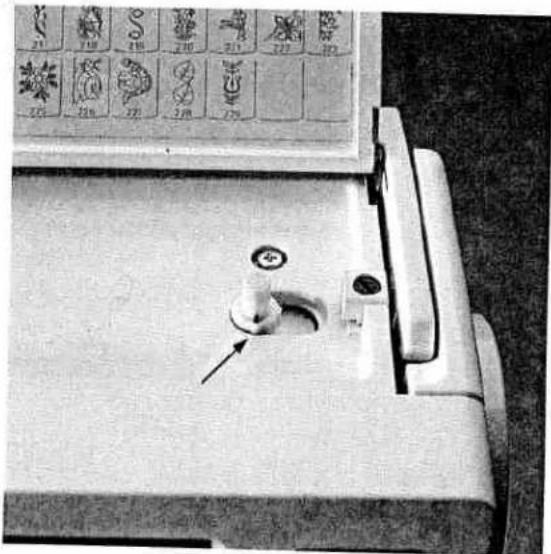
Switch off the main switch. Place the empty bobbin so that the black pin of the bobbin winder (40) snaps into the slot of the bobbin.
natural_image
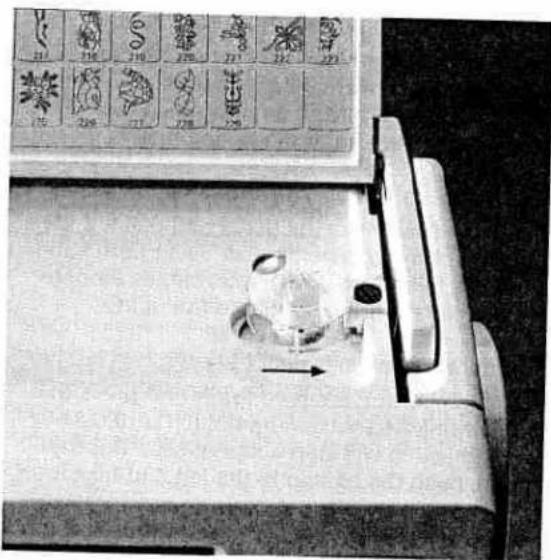
Medical device with surgical tool and numbered medical illustrations (no visible text or symbols)Push the bobbin to the right.
Note:
The bobbin can only be wound if it is moved fully to the right.
text_image
PEAFF creative 7550 Made in GermanyWinding the bobbin from the reel holder
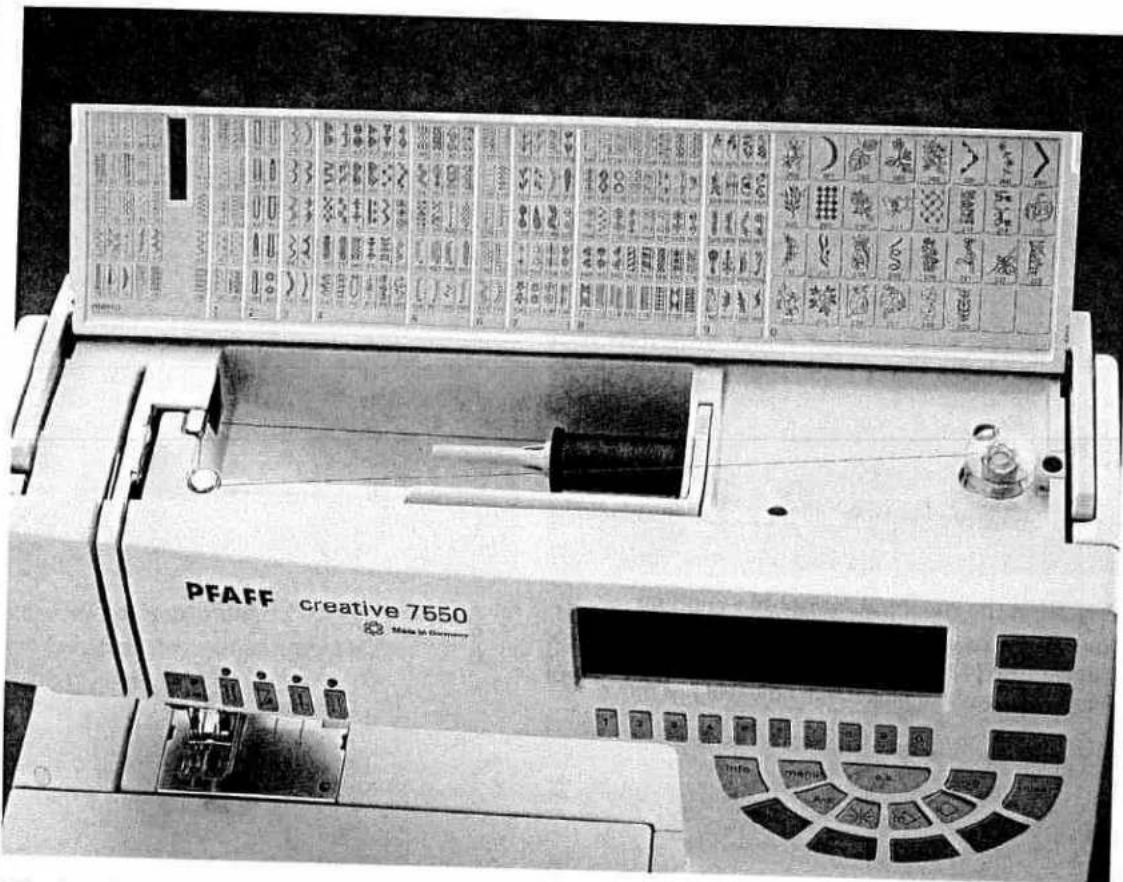
Place the sewing thread on the reel holder (38). To obtain free movement of the thread and hold the thread reel firmly, fit an unwinding disk corresponding to the size of the thread reel.
Threading
Place the thread into the guide and pull it underneath the thread tension disk using both hands. Wind the thread clockwise a few times around the bobbin. Push the bobbin to the right.
Switch on the main switch (24).
Hold the end of the thread firmly and press the foot control. As soon as the bobbin is full, the winding action will stop automatically. Cut the thread, push the bobbin to the left and take it off.
Remember:
Turn the release disk (42) fully back again. Then turn the hand wheel (41) towards you until it snaps in.

text_image
B C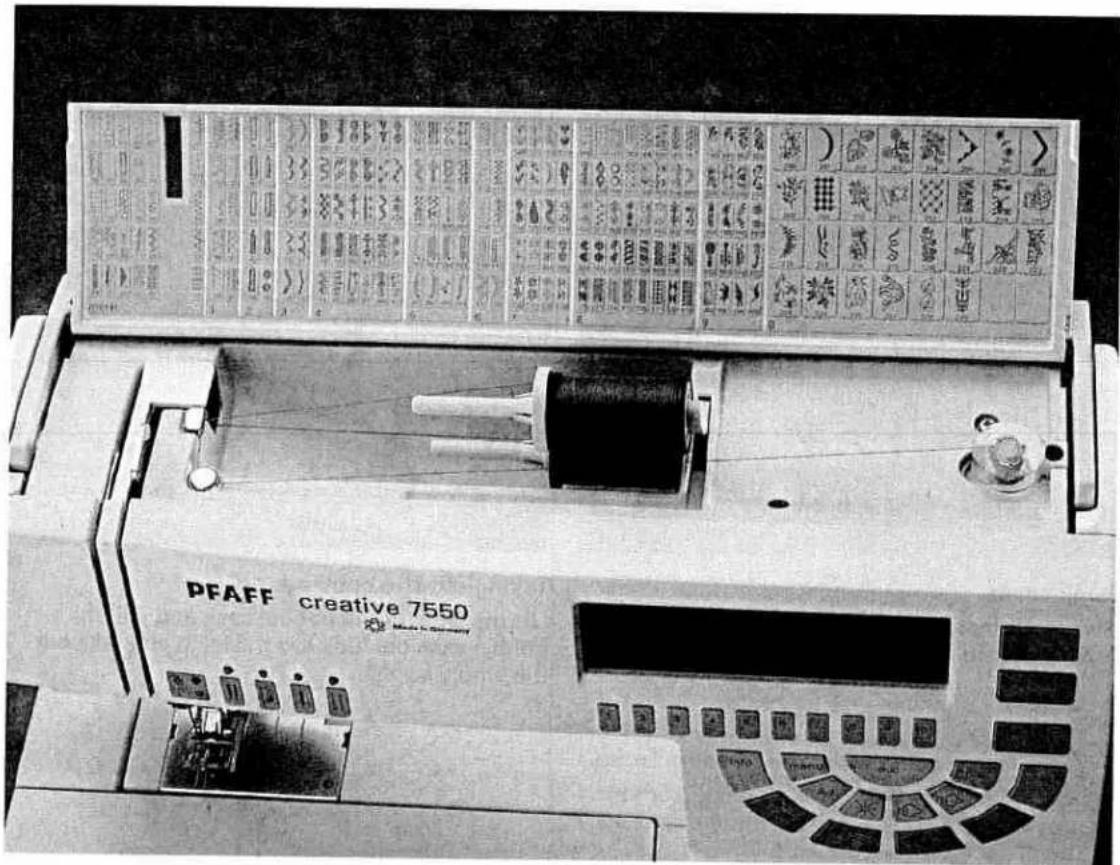
text_image
PFAFF creative 7550 Made in Germany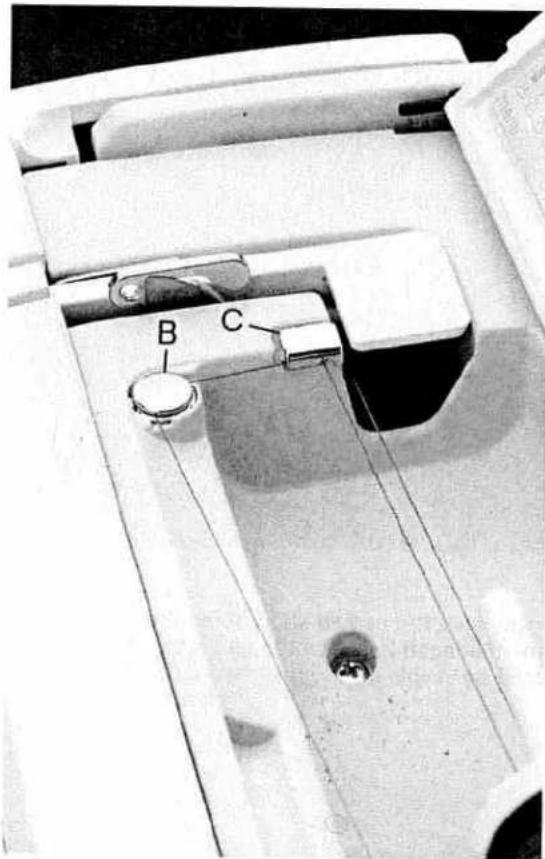
text_image
B CWinding from the second reel holder
Swing the second reel holder (39) up and place a reel of thread with the corresponding unwinding disk on it.
Threading
Place the thread into the guide and pull it underneath the thread tension disk using both hands. Wind the thread clockwise a few times around the bobbin. Push the bobbin to the right.
Switch on the main switch (24).
Hold the end of the thread firmly and press the foot control. As soon as the bobbin is full, the winding action will stop automatically. Cut the thread, push the bobbin to the left and take it off.
Remember:
Turn the release disk (42) fully back again. Then turn the hand wheel (41) towards you until it snaps in.
natural_image
Close-up of a hand using a sewing machine to cut fabric or paper (no visible text or symbols)Hook cover
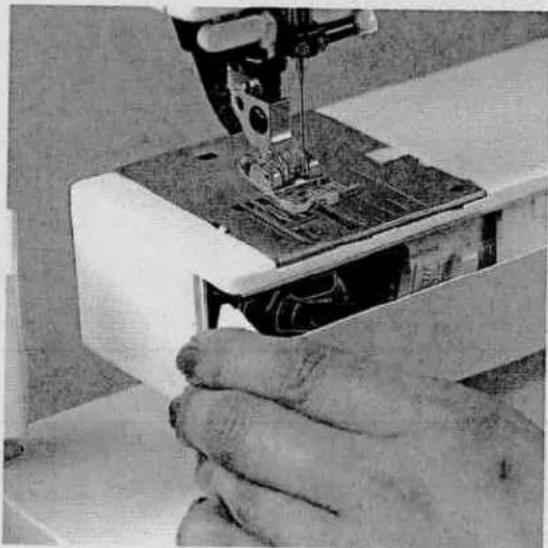
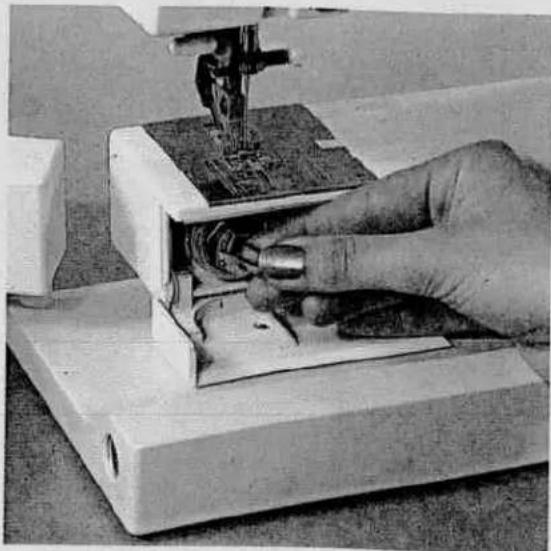
Switch off the main switch. Hold the hook cover (46) at the side and open it to the front.
natural_image
Close-up of a hand using a sewing machine to adjust fabric or metal components (no visible text or symbols)Taking out the bobbin case
Lift the latch of the bobbin case and pull the bobbin case out. Release the latch and take out the empty bobbin.
natural_image
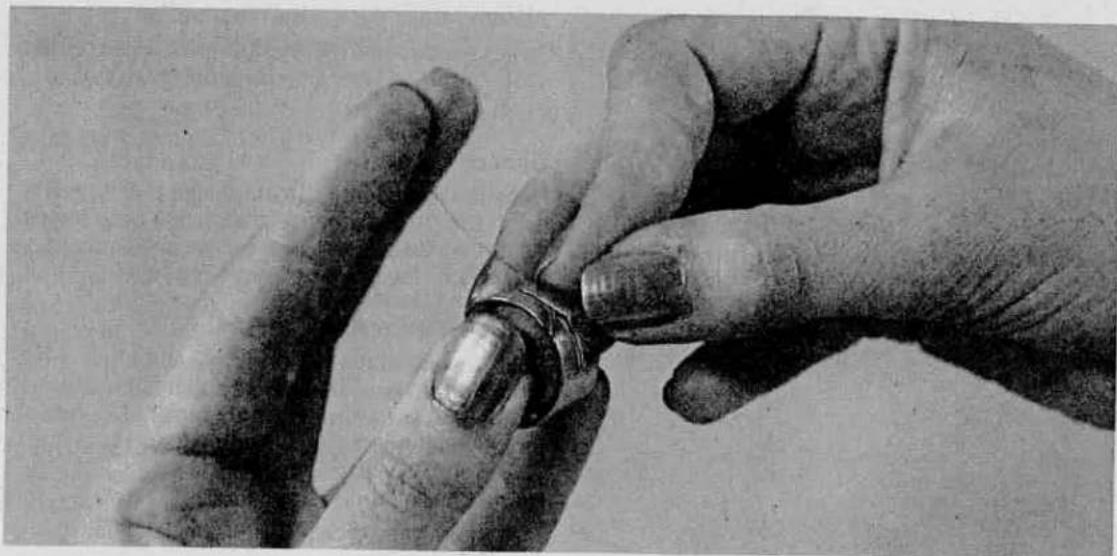
Close-up of hands tying a knot around a metallic ring (no text or symbols visible)Thread tension
To obtain optimum seam appearance and durability make sure the needle and bobbin thread tensions are correctly adjusted to each other, i.e. the threads are interlaced between the two fabric plies. For fancy seams and buttonholes the thread interlace should be visible on the reverse side of the fabric.
text_image
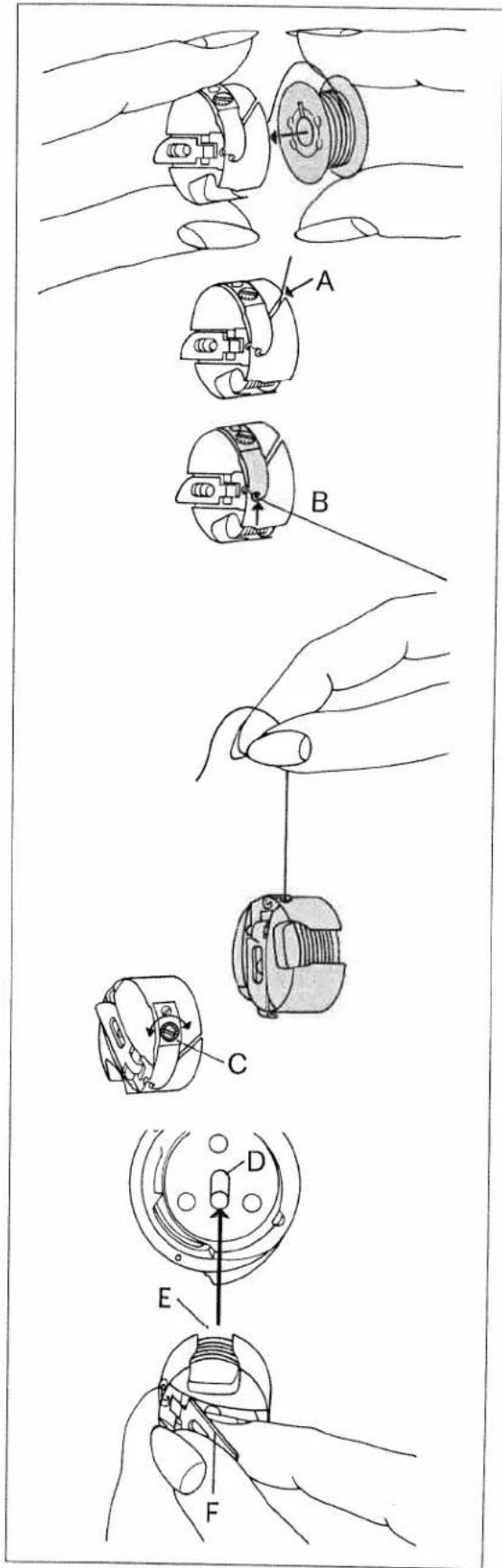
Technical diagram showing a hand operating a mechanical component with labeled parts A through FInserting the bobbin
Insert the full bobbin in the bobbin case. When doing so, pull the thread sideways through slot A, then under tension spring B so that it rests in the opening (see arrow).
Check:
When you pull the thread, the bobbin must turn clockwise.
Checking the bobbin thread tension
Hold the bobbin case by the thread and move your hand sharply upwards. The bobbin case must slip downwards a little with each hand movement.
Correcting the tension:
Turn adjusting screw (C) just a little to the left to decrease the bobbin thread tension.
Turn adjusting screw (C) just a little to the right to increase the bobbin thread tension.
Inserting the bobbin case
Lift latch F and push the bobbin case fully onto pin D of the sewing hook. Opening E of the bobbin case must face upwards. Close the hook cover.
Check:
Pull the bobbin thread sharply; the bobbin case must not fall out of the hook.
text_image
Technical diagram of a mechanical assembly with labeled components and directional arrows indicating motion or flow.26
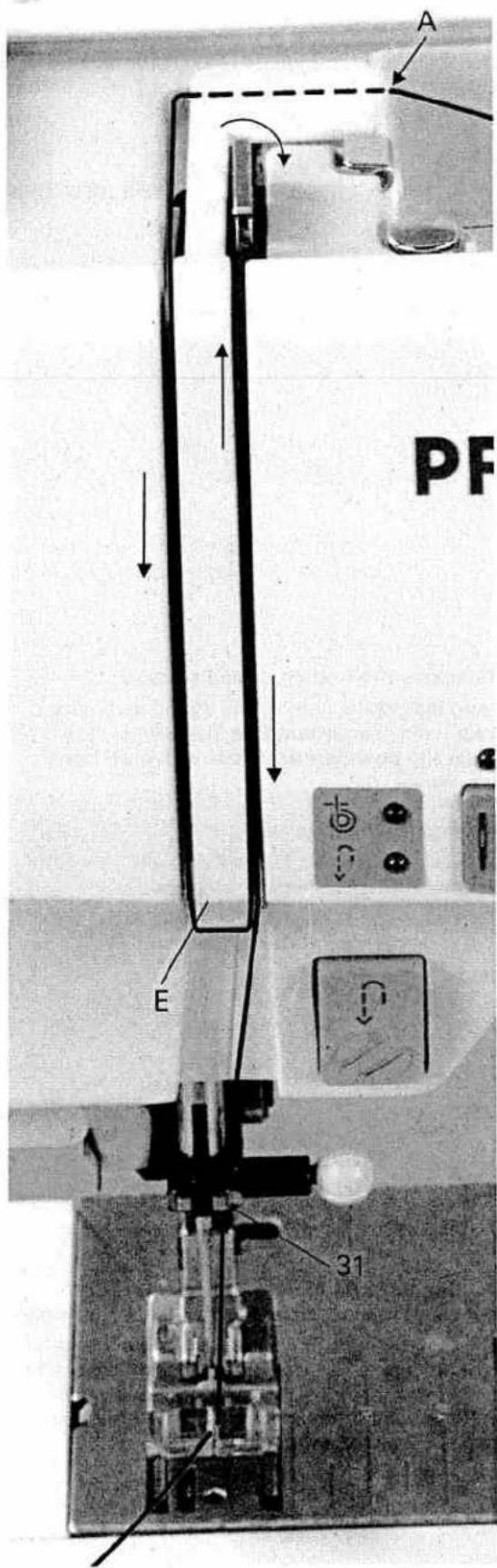
Threading the needle thread
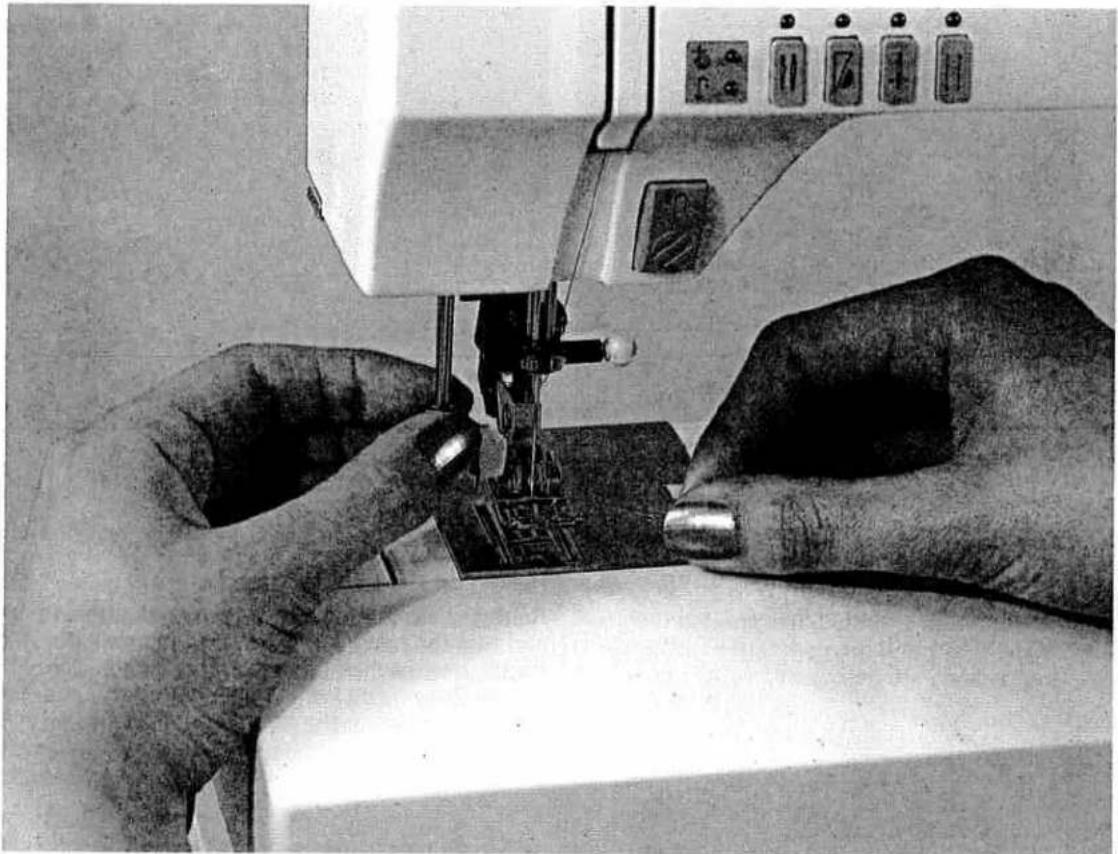
Switch off the main switch. Raise the presser foot lifter (26). Turn the hand wheel until the take-up lever (34) has reached its highest position. Place the thread on the reel holder (38) and fit the corresponding unwinding disk.
Now, using both hands, pull the thread into guide (A). Pass the thread through the left threading slot (32) downwards. Pull the thread around stop (E) into the right-hand threading slot and upwards to the take-up lever (34). The thread must be pulled into the take-up lever from left to right and downwards again in the right-hand threading slot.
Finally pass the thread from the side between one of the two thread guides (31).
To thread the needle, please refer to the next page.
natural_image
Close-up of hands operating a sewing machine with a sewing machine needle inserted (no visible text or symbols)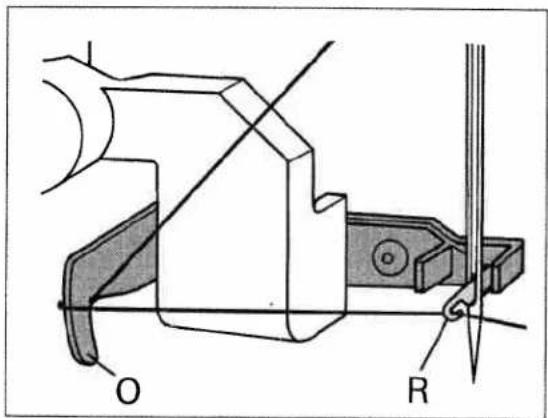
text_image
O RNeedle threader
In order to make threading of the needle easier and quicker the PFAFF needle threader is provided. Lower the sewing foot (see next page). Turn the hand wheel until the needle has reached its highest position. Place the needle thread over hook O and hold it taut. Move the needle threader (30) fully downwards and turn it towards the needle so that the small hook R goes through the needle eye. Place the thread into the hook from below.
natural_image
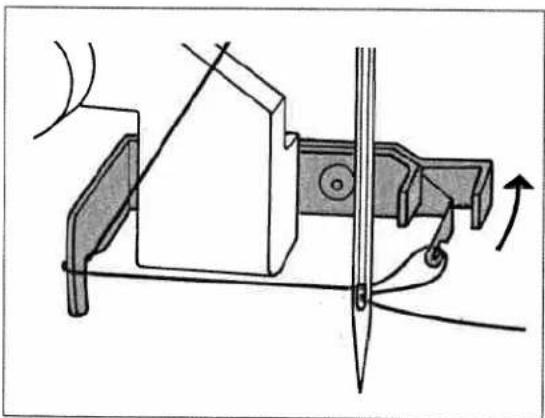
Mechanical diagram showing a tool interacting with a bracket and screw, with motion arrows indicating movement (no text or symbols)Turn the needle threader towards the rear, releasing the thread carefully, and allow the threader to move upwards. You can now pull the end of the thread through the needle eye.

natural_image
Close-up of a sewing machine needle stitching fabric, with a hand resting on the fabric (no visible text or symbols)Presser foot lifter
The sewing foot is raised or lowered with the presser foot lifter (26).

natural_image
Close-up of a sewing machine needle stitching fabric, with no visible text or symbolsPulling up the bobbin thread
Raise the sewing foot. Hold the needle thread and turn the hand wheel towards you until the needle has reached its highest position and the bobbin thread has formed a loop. Pull the needle thread to bring up the bobbin thread.

natural_image
Close-up of a mechanical device with a lever and baseplate, no visible text or symbolsBobbin thread
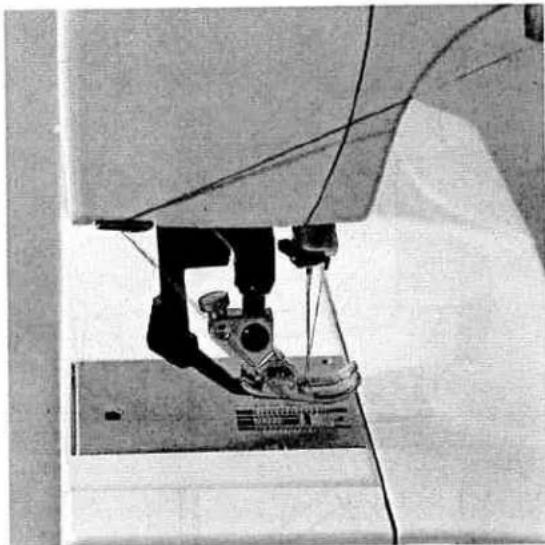
Close the hook cover (46) and pull the thread under the sewing foot to the left.
natural_image
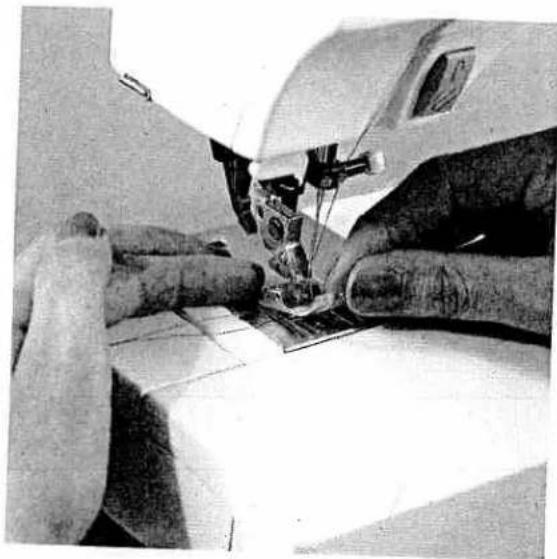
Close-up of a sewing machine needle stitching fabric, showing mechanical components and base plate (no visible text or symbols)Thread trimmer
Pull the threads from the back to the front over the thread trimmer (49).
natural_image
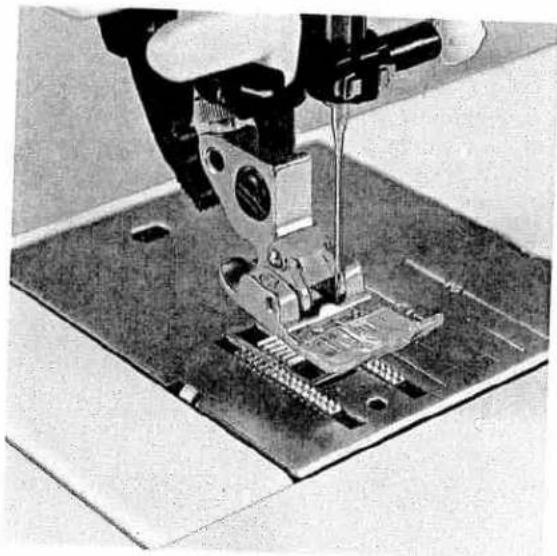
Close-up of hands operating a sewing machine in a garment factory (no visible text or symbols)Removing the sewing foot
Switch off the main switch. Set the needle at its highest point. Raise the sewing foot and press the foot upwards at the front and downwards at the back at the same time until it snaps out of the sewing foot holder (29). When disengaging buttonhole foot 5A the runner must be pulled to the back and pressed upwards.
natural_image
Close-up of a sewing machine needle stitching a circuit board (no visible text or symbols)Check:
Please check that the sewing foot is properly engaged by raising the presser foot lifter.

natural_image
Close-up of a sewing machine needle stitching metal components on a workbench (no visible text or symbols)Engaging the sewing foot
Place the sewing foot under the sewing foot holder (29) so that the pins of the foot snap into the sewing foot holder when the presser foot lifter is lowered.

Presser foot lifter
Bobbin thread
Th
s=7
11
1
Built-in Dual Feed
P = T P
For sewing difficult materials PFAFF offers the ideal solution: built-in Dual Feed. The same as on industrial sewing machines it feeds the material from the top and bottom simultaneously. The fabric is fed accurately. On light or difficult materials such as silk and rayon fabrics the Dual Feed prevents seam puckering. The even feeding action also ensures perfect matching of checked and striped fabrics.
30 28

natural_image
Close-up of a sewing machine needle stitching a shoe, with an arrow pointing to the foot (no visible text or symbols)Engaging the top feed
Raise the sewing foot. Now push the top feed (51) downwards until it snaps into place.

natural_image
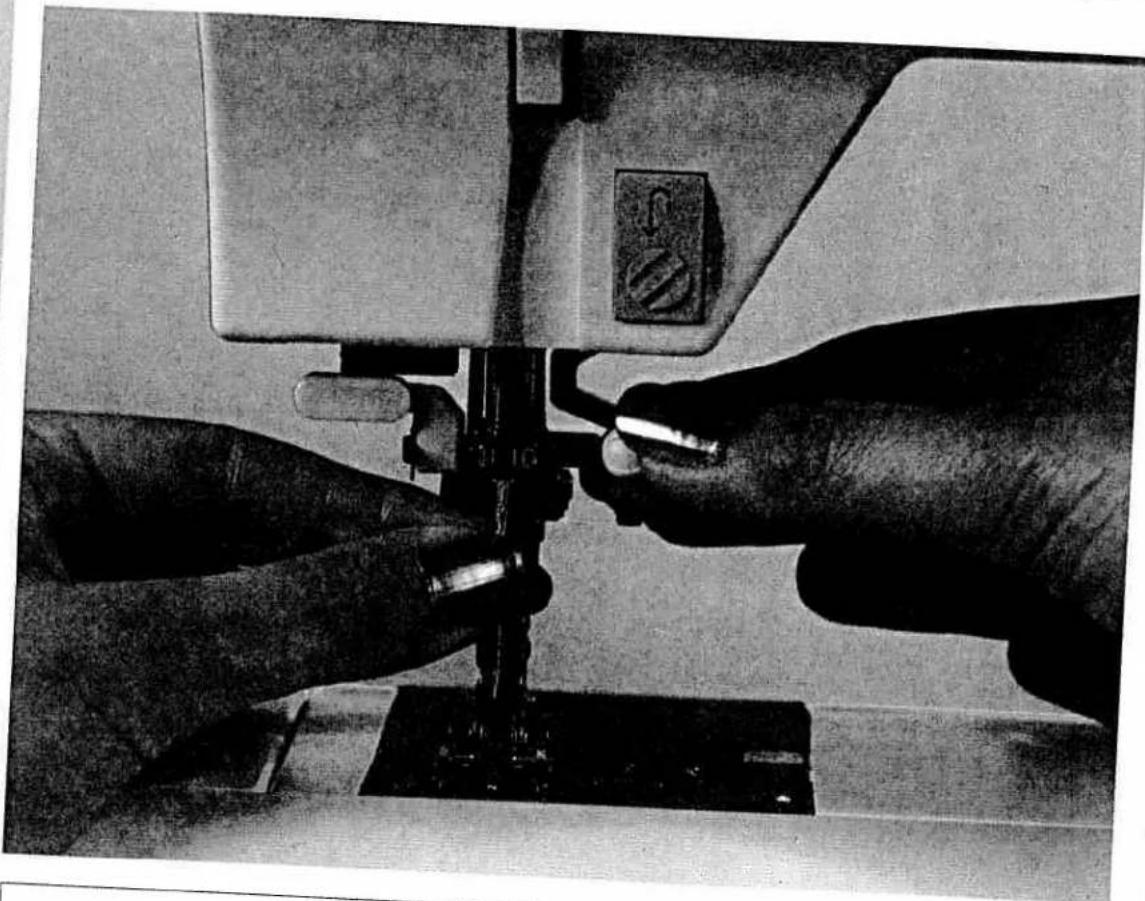
Close-up of a sewing machine needle stitching fabric, no visible text or symbolsDisengaging the top feed
Hold the top feed with two fingers at the marked places. Push the top feed (51) down a little and out to the rear, and let it move slowly upwards (see page 30).

natural_image
Close-up of a dark, textured fabric with no visible text or symbolsImportant!
For all sewing jobs with the top feed, only use sewing feet with cutout at the back (OA, 1A, 3, 4).
natural_image
Close-up of hands operating a sewing machine needle, no visible text or symbols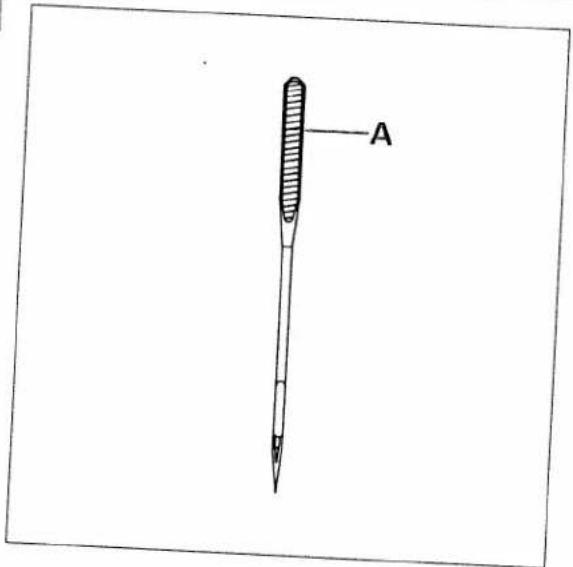
text_image
AChanging the needle
Switch off the main switch.
To remove: Lower the sewing foot and set the needle at its highest point. Now loosen the fixing screw (27) and pull the needle out downwards.
To insert: The flat side A of the needle must face to the rear. Lower the sewing foot and insert the needle, pushing it up as far as it will go. Hold the needle and tighten the fixing screw (27) firmly.
text_image
A PFAFFSetting the needle thread tension
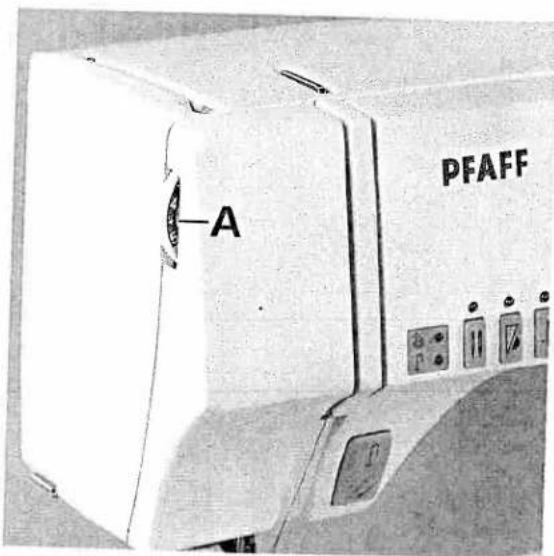
Set the required amount on the needle thread tension (33) with the disk markings (A).
The normal setting for sewing is 4 to 5. For embroidering and buttonhole sewing between 2 and 3.
natural_image
Close-up of a mechanical device with a circular component and internal components (no visible text or symbols)Dropping the feed dog
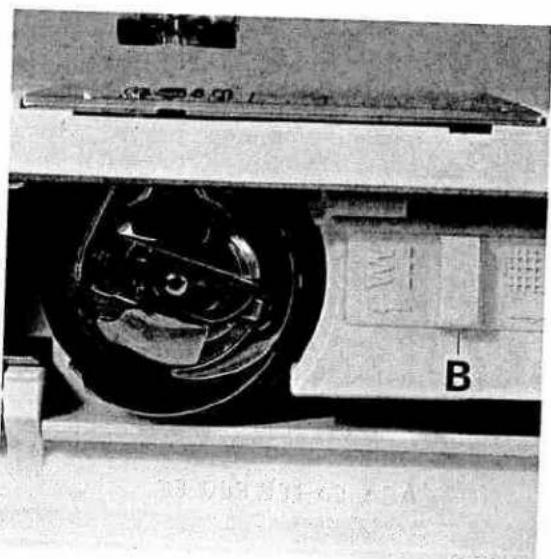
For certain sewing work, e.g. darning, the feed dog has to be dropped. To do this, open the hook cover and press slide (B) fully to the right. Now the feed dog is dropped.

natural_image
Black-and-white fashion illustration of a woman in a striped suit with decorative trim and earring (no text or symbols)The image contains no text. The OCR result "“" is a hallucination and does not correspond to any content in the source image. Therefore, the correct OCR output is an empty string.

text_image
Sewing functions Pages 35-37 Traditional embroidery techniques Utility stitches Buttonholes Creative Designer Pattern Combinations Sewing functions
text_image
36 100000000000000000000000000000000000000000000000000000000000000000000000000000000000000000000000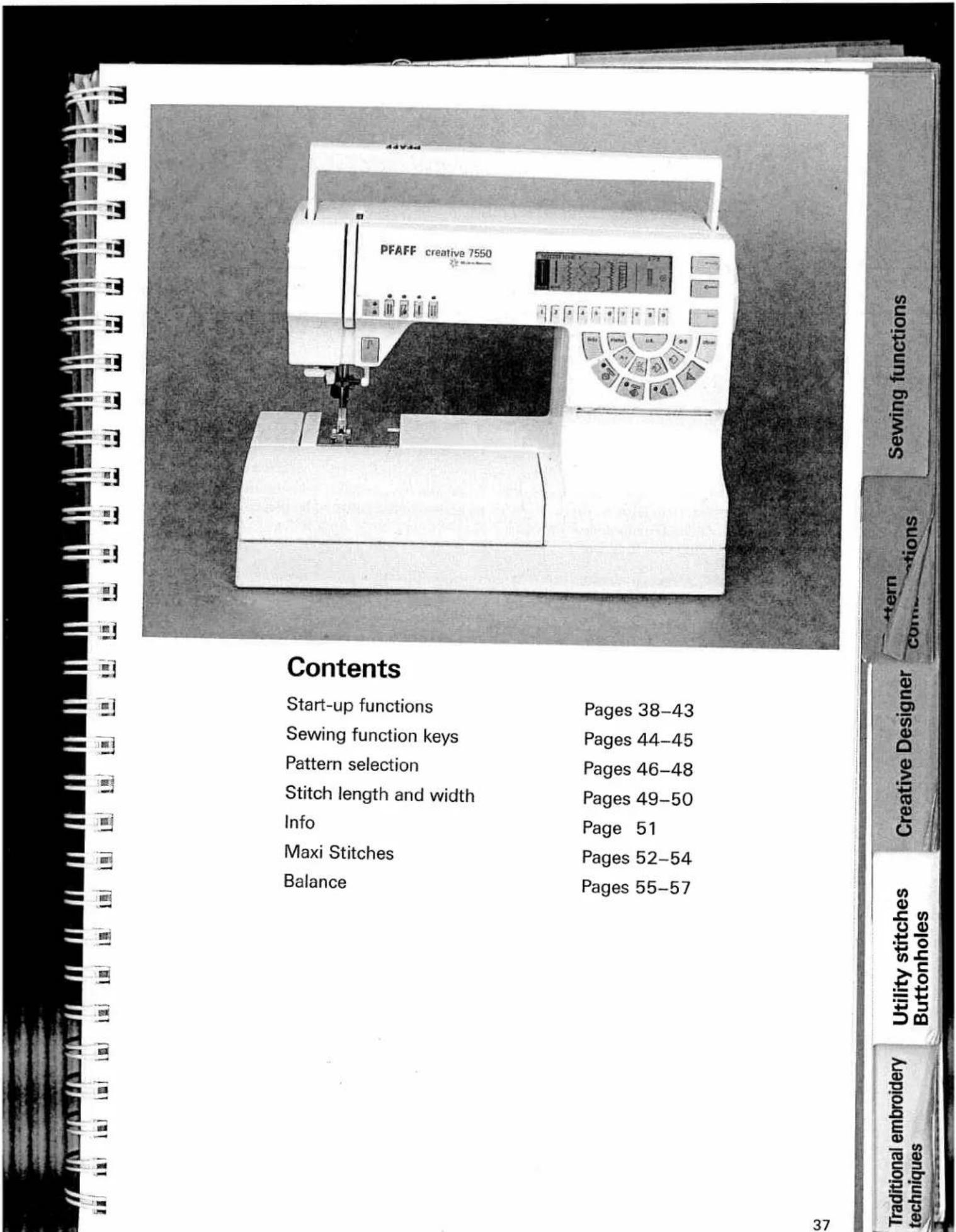
text_image
PFAFF creative 7550 Start-up functions Pages 38-43 Sewing function keys Pages 44-45 Pattern selection Pages 46-48 Stitch length and width Pages 49-50 Info Page 51 Maxi Stitches Pages 52-54 Balance Pages 55-57 Contents Sewing functions Creative Designer Utility stitches Buttonholes Traditional embroidery techniques
text_image
0 Deutsch 1 English 2 Français 3 Español 4 Italiano 5 Nederlands 6 Dansk 7 Svensk

text_image
1 2 3 4 5 6 7 8 9 0
Language selection
Hold key "1" pressed and switch on the sewing machine. On the display you have a choice of several languages. Select the number of your desired language using keys "0-7".
From now on, any description on the display will be shown in the selected language.

text_image
NUTZSTICHE : 1/3 BUTZSTICHE WACHEN

text_image
1 2 3 4 5. 6 7 8 9 0
Battery message
When switching on the sewing machine you will see the message „Change batteries“ if the batteries are weak or no batteries have been inserted. If the batteries are too weak, you will loose the programmed P-Designs and the stored patterns in a pattern sequence. If there are no batteries in the machine, press the "o.k." key or activate the foot control. The machine is now ready to sew.
Remember!
Batteries should not be disposed of in your normal house trash. If possible, dispose of batteries in an environmentally friendly way.

You can lock your creative 7550 by entering a number code (e.g. for child safety). When entering the code for the first time, press the "info" key (21) and the main switch at the same time.
The display shows the message:
„Please enter a code number“
* * * *

text_image
Scanned text of contract clauses with partially visible Chinese characters and a small number '20' at the bottom right.
text_image
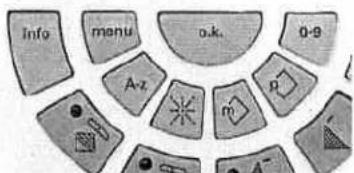
info menu o.k. 0-9 clear A-z m p rPress the "o.k." key for confirmation. The start-up menue appears on the display. The code is now stored in the machine. Every time you switch on the machine, this message will appear:
„Please enter your code number“


natural_image
Gray textured surface with horizontal lines, no visible text or symbols
natural_image
Gray textured surface with no visible text, symbols, or markings
text_image
Elis de Se##e S### ##es #o#o#n## ##r A##s ### 100000000000000000000000000000000000000000000000000000000000000000
text_image
OK ESC 0



text_image
menu a.k. 0-9 A-z m p
text_image
Info menu a.k. 0-9 A-z m² pEnter your code number now. The numbers will not be displayed. Only the symbol “*” will change into symbol “+”.
Providing you have entered the correct code, the following message will appear:
"o.k." = continue
"esc" = delete code
"info" = change code
text_image
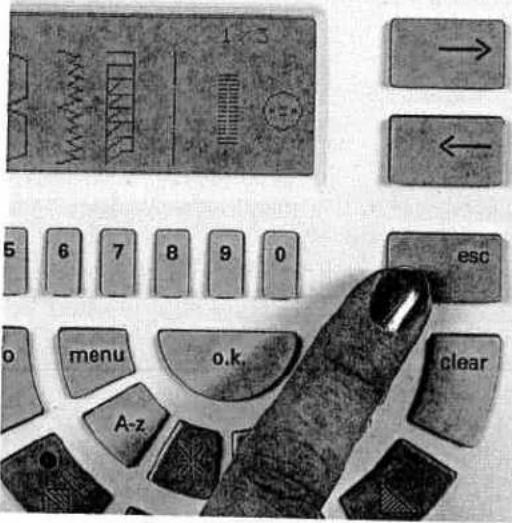
1-3 → ← 5 6 7 8 9 0 esc o menu o.k. clear A-zAs soon as you press the "o.k." key the sewing machine switches to the start-up menue. The sewing machine is again ready to sew. To delete the code, press the "esc" key. The machine switches to the start-up menu and is ready to sew. When switching on the machine again, the code message will not appear.
text_image
Ancient Chinese stone inscription with vertical classical script and decorative elements
text_image
1 2 3 4 5 6 7 8 9 0 Info menu o.k. A-z m PIf you wish to change the code press the "info" key. The new code number will be confirmed by pressing the "o.k." key. On the display appears the start-up menu again.
text_image
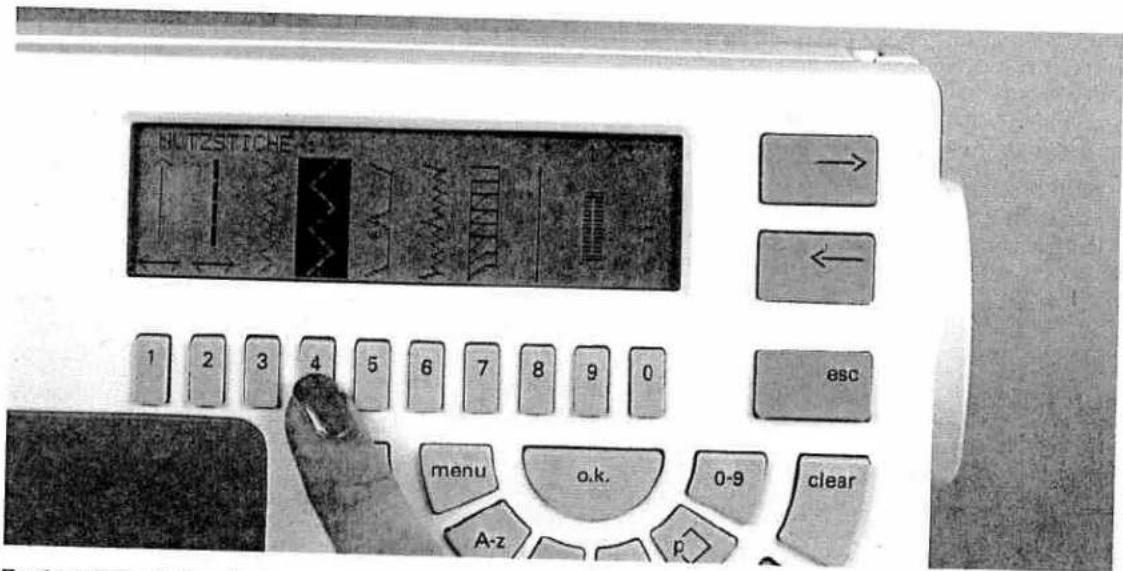
HUTZSTTONE 1 2 3 4 5 6 7 8 9 0 esc menu o.k. 0-9 clear A-z PExplanation of the start-up menu
In the start-up menu those stitches are combined which are often used for practical sewing. It consists of 30 stitches which are displayed in groups of ten stitches on three consecutive screens. When switching on the sewing machine
the first screen will appear displaying 10 sewing programs. Select the desired stitch by pressing the key below it. The stitch will then be shown marked on the display.

text_image
0 any TOMES TO THE 1 2 3 4 5 6 7 8 9 0 info menu o.c 0-9If you wish to turn to the next screen, press cursor key "→" (8). After the first 30 programs you will automatically scroll to buttonholes and embroidery stitches. Select any of these stitches by pressing the key below the desired stitch.
Example:
If you wish to sew program number 23, for example, you have to press the cursor key "→" twice and press key "4" underneath pattern number 23.
1
1


text_image
Cropped image of a vintage computer control panel with labeled buttons and function keys, including 'info', 'menu', 'o.k.', and 'clear'.Setting the stitch length and width in a selected pattern
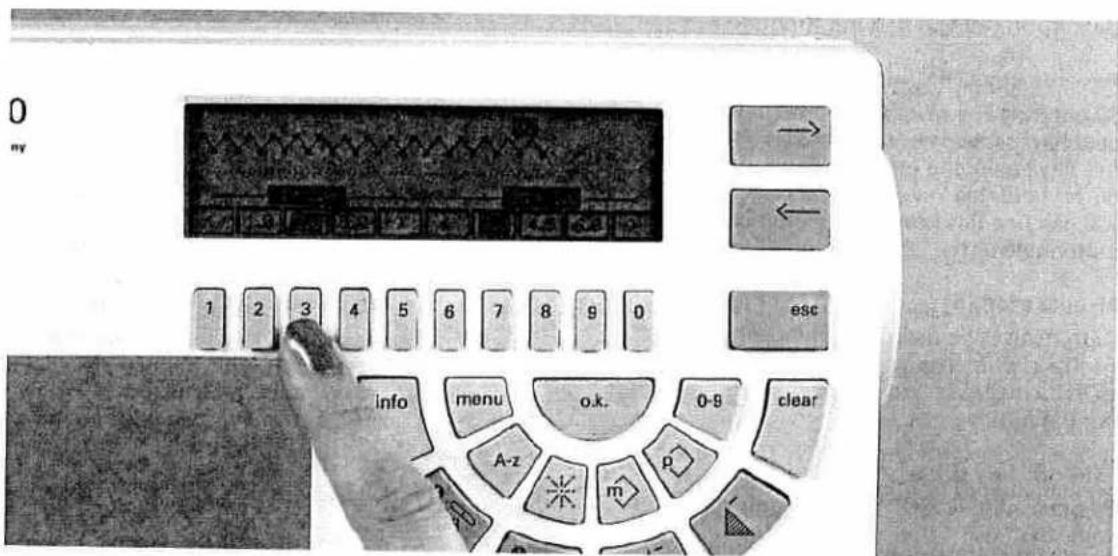
After you have selected a pattern, it will be displayed on the screen marked. The sewing machine is ready to sew because the pattern has been pre-programmed in its optimum length and width settings.
To change these pre-programmed settings, press the key below the pattern again. Now the sewing program is shown on the screen as continuous pattern with its pattern number.
text_image
0 my 1 2 3 4 5 6 7 8 9 0 esc info menu o.k. 0-9 clear A-z m pThe line on the left underneath the pattern shows the stitch length or pattern length resp. of the single pattern. The figures on the bottom left represent the pre-programmed length settings, the figures on the bottom right represent the width settings. The marked figures represent the length and width settings which have been preset for the respective program.
Using the keys below the arrow symbols "<" and "> " you can change the length and width. Using the keys below the preset figures, you can select these settings directly.
Using the keys and symbols on the right-hand side you can adjust the balance (see balance section).

text_image
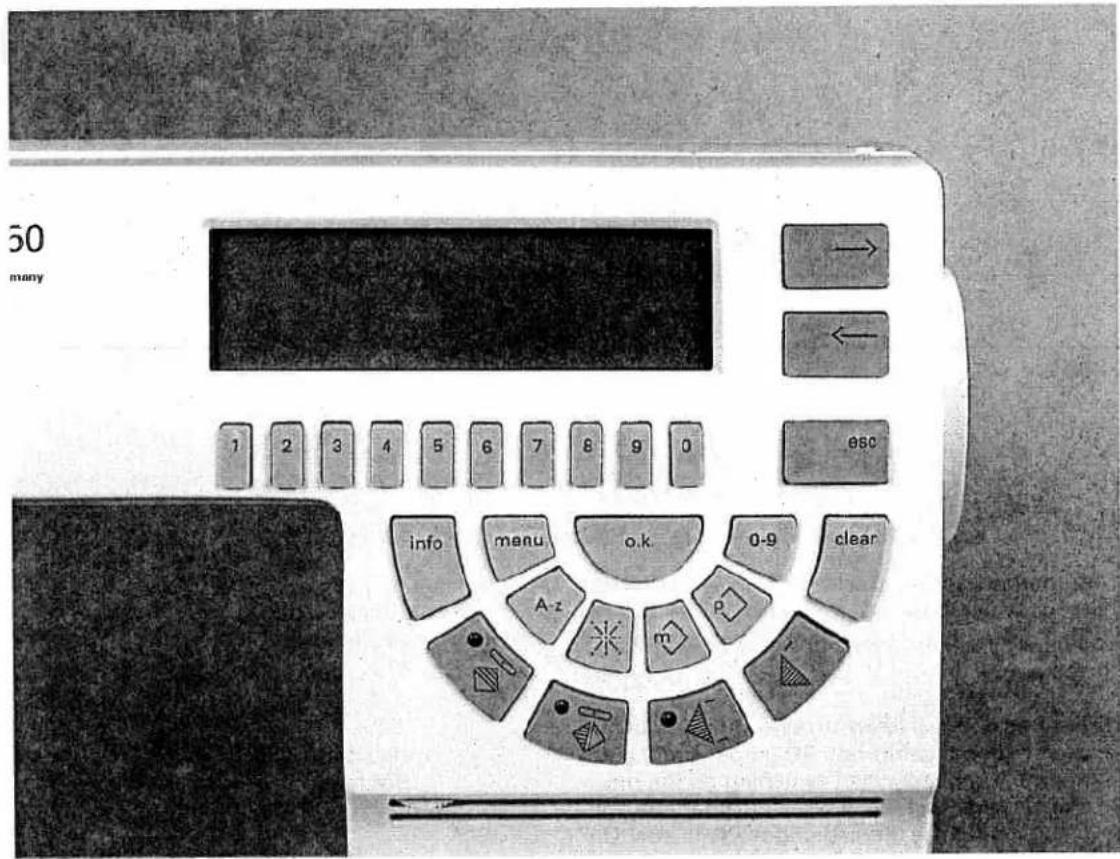
PFAFF creative 75! Made in GerDescription of the sewing function keys
Reverse key (25)
By pressing the reverse key the green diode lights up, the machine sews backwards. By pressing this key again, the machine will sew forwards. To tie-off hold this key pressed a little. Additionally, you can use this key to define the bartack for a buttonhole or the length of the darning program.
Needle stop (4)
With this key you can determine whether the needle should stop in the fabric (down position) or in its highest point (up position) when releasing the foot control.
"Tie-off" key (5)
By pressing this key, the beginning and end of your seam will automatically be tied-off.
Slow sewing (3)
By pressing this key the sewing speed will be reduced to half speed.
Bobbin thread monitor (1)
This function controls the bobbin thread. The red diode lights up if there are less than 2 metres (about 6 foot) of thread left on the bobbin.
Twin needle (2)
Press this key if you are sewing with the twin needle. The stitch width will automatically be decreased by 2 mm to avoid the needle stitching on the sewing foot.
text_image
50 many 1 2 3 4 5 6 7 8 9 0 info menu o.k 0-9 clear A-z m p"info" (21)
a) Using this key you can select a motif by pattern groups (see pattern selection).
b) "info" key as sewing recommendation. After you have selected a pattern, by pressing the "info" key you will obtain information on the recommended thread tension, pattern mirroring, pattern start and end, the correct sewing foot and possible special accessories.
c) For specific sewing sections (buttonholes, M, P, alphabets and connecting stitches) the help files under "info" can be activated. On the display a description of the respective work-step and a description of the next step will appear. The help file can be closed at any time by pressing the "esc" key.
Pattern mirroring (17)
The selected pattern will be sewn in mirror image.
Axial mirror image (19)
The pattern will be rotated and the pattern end will be sewn first.
Numbered keys (7)
With these keys you can select patterns by number. Within a selected pattern you can set the pattern length, width and stitch length using these keys. In the alphabet section you determine the letters with these keys.
"o.k." (12)
The "o.k." key confirms your selection.
Cursor keys (8)
With the cursor keys you can scroll through the pages on the screen. Within a pattern, the balance can be adjusted with these keys.
Pattern start (13)
a) Using this key you can return to the beginning of an already started program.
b) For buttonhole and darning programs the programmed length will be deleted.
The "esc" key will interrupt a selected function and bring you back to the previous menu.
"esc" (9)
Pressing the "esc" key, you will return to the previous screen or interrupt a sewing function.
50
Germany

text_image
Ancient Chinese stone inscription with vertical columns of characters, likely a stele or inscription


Summary of options for pattern selection
You have different options to select a pattern of the creative:
a) The basic menu (start-up menu) for frequently used patterns comprises 30 patterns and automatically appears when switching on the machine. The first stitch in the start-up menu, the straight stitch, is marked and ready to sew. On the display you will find 10 patterns per screen page. These can be selected by pressing the keys below the individual stitches. The selected pattern is always shown marked.

text_image
Ancient Chinese stone inscription with dense vertical text, likely a stele or tablet


text_image
info menu a.k. 0-3 A-z m pUsing the cursor keys "→" and "←" you can turn to the next available 10 patterns.
1
1
[
0
my

natural_image
Dark, grainy image with no discernible text, symbols, or structured content.


natural_image
Grainy black-and-white textured surface with no discernible text, symbols, or structured elements.
text_image
info menu o.k. 0-9 clear A-z m pb) Alternatively, you can activate a pattern by entering the pattern number. By pressing the "0-9" key this message appears on the display:
Enter the desired pattern number using keys "1-0" and press the "o.k." key. On the display appears the selected pattern.
Pattern No.: 0
Keys : Scroll through patterns
Key "info": Selection by motifs
e 7550
Made in Germany
natural_image
Black-and-white abstract pattern with vertical lines and irregular shapes (no text or symbols)


natural_image
Grainy black-and-white textured surface with no discernible text, symbols, or structured elements.
text_image
info menu o.k. 0-9 clear A-z m pc) Selection of pattern groups (Groups of ten stitch patterns)
Enter the desired pattern of a group using keys "1-0" and press the cursor key. The group of ten stitches including the selected one appears on the display. The left pattern on the display is marked and ready to sew.
By pressing the key underneath any other pattern, the respective pattern will be marked and can be sewn immediately.
Example: Program 126.
Press the "0-9" key.
Enter pattern 126 using keys "1-0".
Press cursor key "→". You are now in pattern group 120-129.
7550
de in Germany
text_image
Ancient Chinese stone inscription with vertical classical script, likely a stele or inscription

text_image
Scanned text of contract clauses or legal document sections
text_image
info menu o.k. 0-9 clear A-z m pd) Direct selection of pattern groups
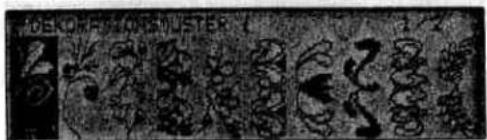
With this option you can select a pattern by motif groups. Press the "0-9" key and then the "info" key.
On the display 10 different motif groups appear. These can be selected by pressing the respective key from the "1-0" keys.
e 7550
Made in Germany
natural_image
Grainy black-and-white textured surface with no discernible text, symbols, or structured elements.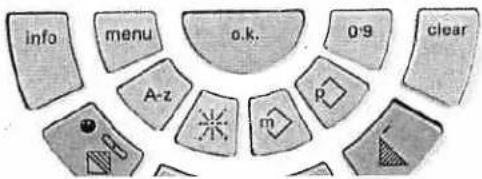
text_image
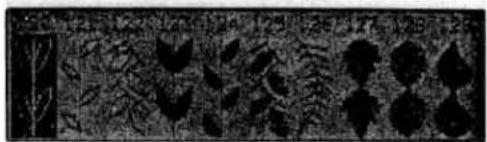
info menu o.k. 0-9 clear A-z m pIf you select key "7" = "flowers, leaves", for example, the respective patterns will be displayed on the screen. Select the desired pattern by pressing the key below it. It is now ready to be sewn.
If you wish to change the width and length settings, press the same key again. The programming screen appears displaying the pattern and the options for setting the pattern width and length as well as the balance.

text_image
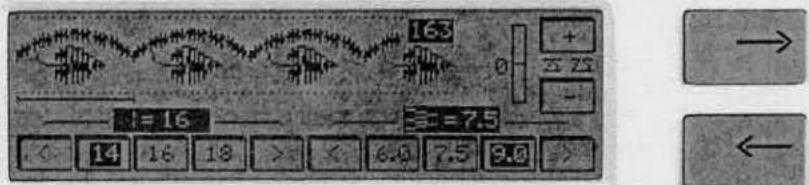
163 I=16 ≡=9.0 14 16 18 < 6.0 7.5 9.0 1 2 3 4 5 6 7 8 9 0 escSetting the pattern length
Example: Select pattern no. 163. On the screen you can see on the left underneath the pattern the symbol for pattern length and the amount of 14 mm pre-programmed in the machine. If you wish to change this setting, you can select direct amounts with numbered keys 2, 3 and 4.
These amounts are most frequently used. They can, however, be increased or decreased by pressing keys 1 below "<" and 5 below ">".
The pattern on the screen changes while you are setting the stitch length so that you can pursue the setting optically.
text_image
163 + 3 75 - 1=16 3=7.5 < 14 16 18 > < 6.9 7.5 9.0 > → ←
text_image
1 2 3 4 5 6 7 8 9 0 esc
text_image
info r o.k. 0-9 clear z m pSetting the pattern width
On the screen you can see on the right underneath the pattern the pattern width setting and the amount of 9 mm pre-programmed in the machine.
Using the numbered keys 7, 8 and 9 you can select direct amounts or increase or decrease them with the ">" or "<" keys.
The pattern on the screen changes while you are setting the stitch width.
text_image
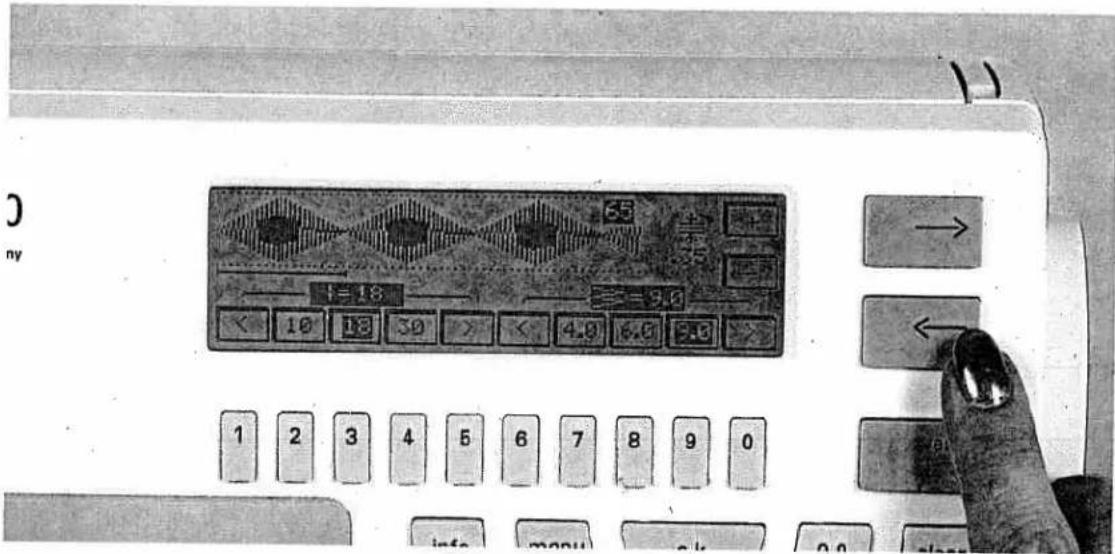
1=18 35 9.0 < 10 18 30 > < 4.0 6.0 -3.0 > 1 2 3 4 5 6 7 8 9 0 info menu o k 0.0 classStitch length setting (= pattern density)
Select example No. 65.
Using the cursor keys you can adjust a pattern more dense without changing the entire pattern length. On the right-hand side of the screen next to the displayed pattern you can see the symbol for the
stitch density and the standard value 0,35. It can be increased with the " " key and decreased with the " " key. These settings are also visible in the pattern on the screen.
text_image
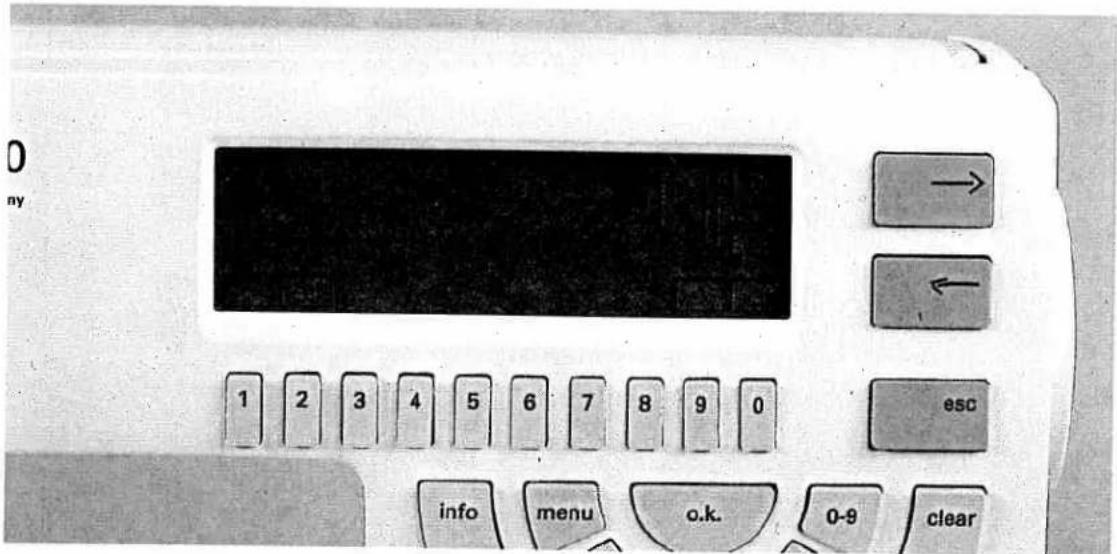
0 ny 1 2 3 4 5 6 7 8 9 0 esc info menu o.k. 0-9 clearUse the cursor keys to set the balance for patterns whose stitch density cannot be changed:
550
Germany

text_image
2019 59 -3+


text_image
info manu o.k. 0-9 clear A-z ρINFO
With the "info" key you can activate help files for each program with two options: sewing recommendations and operational help.
Sewing recommendations
If you have selected a pattern directly, it will appear in the programming screen. Now press the „info“ key and you will obtain sewing recommendations for optimum sewing results.
On the right-hand side of the display the pattern is displayed in the direction as the machine will sew it. Pattern start and end are marked with arrows. The sections next to it provide information on the necessary sewing feet, the Dual Feed, possible required accessories (such as needles, stencil, etc.), pattern mirroring and needle thread tension. Pressing the "esc" key, you will return to the programming screen with the pattern setting.
1550
In Germany
For each function that can be activated with the pattern selection keys "menu", "A-z", "∗", "n", "◇", "◇" and "0-9" you will obtain information on the individual topics by pressing the "info" key. These details are operational guidelines and can be activated at any time. They describe the current program and provide help for continuing your work.
If an arrow appears on the bottom right-hand side of the display, the cursor key must be pressed again to obtain further information.
natural_image
Black-and-white photo of a woman in a white dress standing beside a wooden counter, with patterned wallpaper in the background (no visible text or symbols)Maxi Stitches
30 Maxi Stitches are at your disposal, from program 200-229. These large-scale embroidery patterns can be sewn up to a width of 60 mm.
text_image
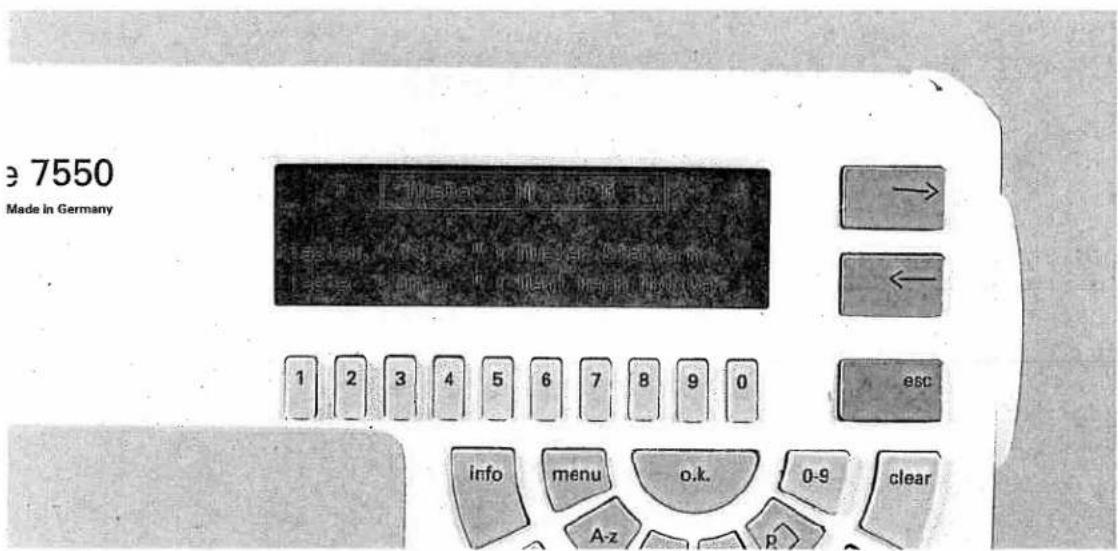
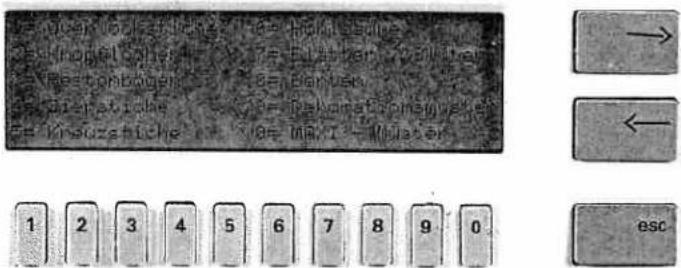
7550 Made in Germany 1 2 3 4 5 6 7 8 9 0 esc info menu o.k. 0-9 clear A-z RTo select the Maxi Stitches you can scroll through all screen pages until you have reached pattern 200 with the cursor keys, or you simply press the "0-9" key. Now you can enter the desired pattern number directly using the num-
bered keys and confirm it by pressing "o.k.". By pressing the "info" key all pattern groups which can be selected will be displayed.
7550 de in Germany
text_image
1 2 3 4 5 6 7 8 9 0 → ← esc
text_image
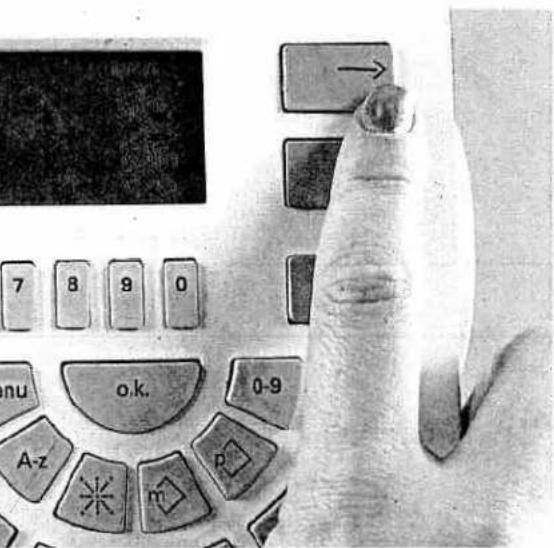
Scanned text of contract clauses
text_image
info menu o.k. 0-9 clear A-z m pPress the "0" key for Maxi Stitches and the first five Maxi Stitches will appear on the screen.
;0
1any
Using the cursor keys "→" and "←" you can scroll to the next available patterns. By pressing one of the two keys below the pattern it will be marked and ready to be sewn.
If you press this key again, the pattern will be displayed consecutively with its length, width and
natural_image
Black-and-white photo of a vintage garment with fur tied to a metal buckle and a decorative emblem (no visible text or symbols)balance settings (see "balance" section). The length and width settings are made in the same way as for 9 mm patterns.
text_image
7 8 9 0 nu o.k. 0-9 A-z m P
text_image
D

natural_image
Close-up of a textured surface with a curved, dark edge (no visible text or symbols)Balance
Reverse stitch correction:
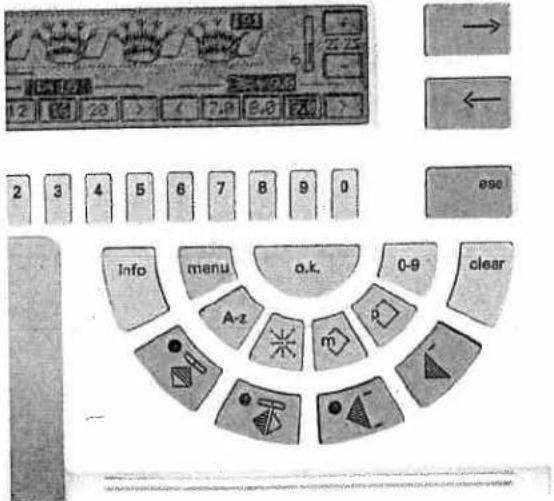
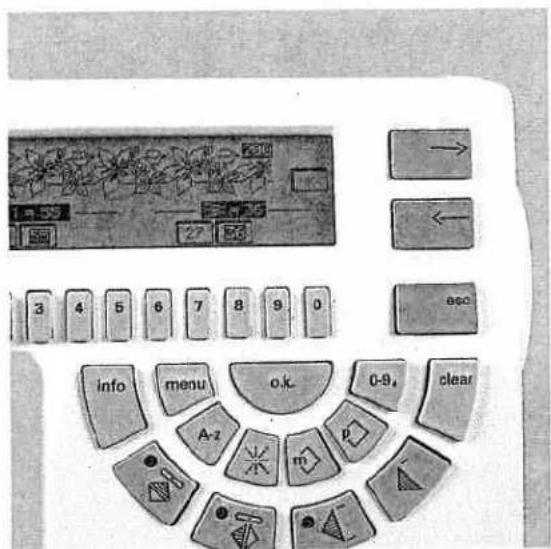
Embroidery patterns, particularly large-scale motifs, can vary on different fabric types – heavy material is fed differently to fine silk. The creative has a correction system letting you sew optimum embroidery stitches: the balance. With this system the reverse feeding can be adjusted. For Maxi Stitches, additionally, the sideways feeding can be adjusted.
text_image
Info menu a.k. 0-9 clear A-z m p 2 3 4 5 6 7 8 9 0 2 12 23 > < 7.8 8.8 74 > → ← 2 3 4 5 6 7 8 9 0 0901) Reverse feeding
To close up or separate a 9 mm pattern the balance for reverse feeding is used. After you have selected a 9 mm pattern you see a scale with symbols "+" and "-" on the right-hand side of the programming screen.

text_image
Close-up of a hand pressing a control panel with labeled buttons and icons, showing a numeric keypad interface.The standard setting of the balance is "0". Using the cursor keys "→" and "←", the reverse feeding of the machine will be changed from -7 to +7. The respective amount is displayed by a dark column within the scale and the corresponding figure.

text_image
191 + 25 25 - =9.0 1 8.0 9.0 >


In the minus section the reverse stitches become shorter. Patterns or programs are sewn extended and moved apart at the same time.

natural_image
Black rectangular object with a white border, no visible text or symbolsIn the plus section the reverse stitches become longer. Patterns are sewn shorter and moved closer to each other.
text_image
Cropped image of a vintage computer keyboard layout with labeled buttons and icons, including 'info', 'menu', 'o.k', and 'clear'.2) Sideways stitch correction
For Maxi Stitches the reverse feeding as well as the sideways feeding can be adjusted. Select a pattern from No. 200 on and you will see the symbol "K" on the programming screen.
text_image
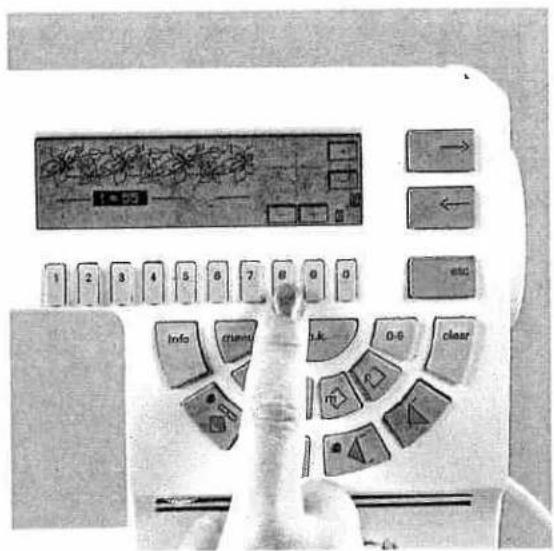
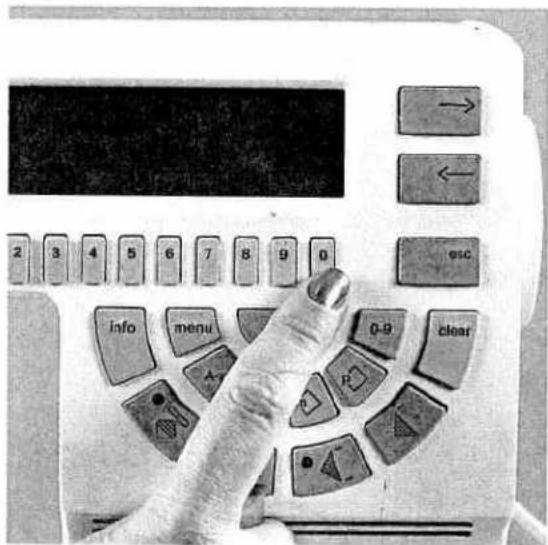
Close-up of a hand pressing a rotary key with labeled buttons including 'Info', 'clear', and directional arrows, showing a computer interface.The centre of the cross represents the starting position of the needle. Using cursor keys “→” and “←” you can set the reverse stitch correction which can be read off the longitudinal axis of the cross and as a figure value "0-7" below the "+" and "-" symbols. For the sideways stitch correction use key "8" below symbol "-" and key "9" below "+".
natural_image
Black rectangular frame with a white border, no visible text or symbolsDoing this, the line in the cross will be moved to the left and right and displayed as a figure value between "0-10" next to the "+" and "-" symbols. This setting is confirmed by pressing "o.k."

text_image
4 5 6 7 8 9 0 esc info menu a.k. 0-9 clear A-2 m P3) Correction of pattern and program combinations
You can also correct already stored pattern combinations with the balance.
In the P-Memory: As soon as you are in the programming screen, you will see the scale for the reverse stitch correction to the right of your design. Free-programmed 9 mm patterns can only be altered by this balance.
text_image
2 3 4 5 6 7 8 9 0 esc info menu 0-9 clearIn the M-Memory: As soon as you are in the programming screen of an M-Memory, you will see the symbol "K" on the right-hand side of the display. By pressing the "O" key below it, a sub-menu opens. If you have only stored patterns up to a stitch width of 9 mm, the scale for the reverse stitch correction will appear.

text_image
3 4 5 6 7 8 9 0 info menu o.k. D-9If you have incorporated Maxi Stitches in your sequence, the cross will appear on pressing the "0" key below "K". The correction is made in the same way as for Maxi Stitches.
text_image
Black-and-white photo of a robotic hand with visible Chinese characters on the sleeve, alongside a vertical striped pattern on the right.
text_image
Pattern combinations Pages 59-84 Pattern combinations Creative Designer Utility stitches Techniques Traditional embroidery Techniques
ALL
OVER
The
WORLD
Contents
| Alphabets/Monograms | Pages 62–64 |
| Changing the letter width | Page 63 |
| Switching from upper to lower case letters | Page 64 |
| Letter selection using the Creative Designer | Page 65 |
| Creating a letter sequence | Pages 65–67 |
| Pattern sequences | Pages 68–74 |
| Correction of pattern sequences (deleting, inserting) | Pages 72–73 |
| Maxi Stitch combinations | Page 75 |
| Cursor function | Pages 76–78 |
| Eight-way feed stitches (connecting stitches) | Pages 79–84 |
3 7550
Made in Germany

natural_image
Dark, grainy image with no discernible text, symbols, or structured content.


natural_image
Grainy black-and-white textured surface with no discernible text, symbols, or structured elements.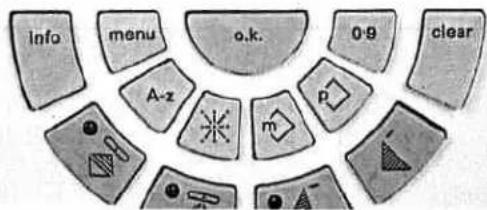
text_image
info menu o.k. 0-9 clear A-z m p • • • • •Alphabets/Monograms
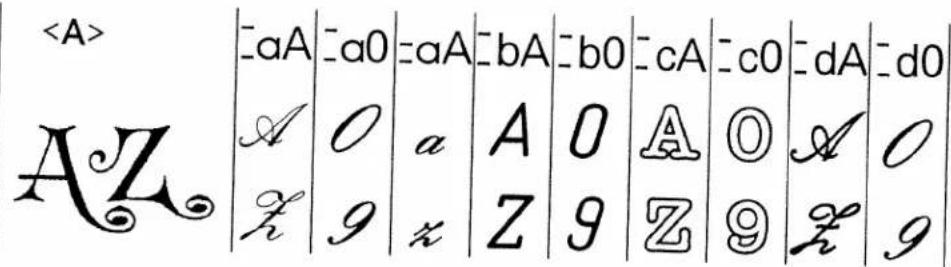
By pressing the "A-z" key five different alphabet styles appear on the display: script letters with upper and lower case letters, block letters, the outline alphabet and a small-size monogram alphabet.
These alphabet styles can be sewn up to a stitch width of 9 mm and be combined as letter sequences in the M-Memory.
The monogram style displayed on the right of the screen belongs to the Maxi Stitches with a stitch width of 15 mm or 18 mm resp. The individual letters are always sewn as single pattern and letter sequences in the M-Memory are, therefore, not possible for this monogram style.
e 7550
Made in Germany

natural_image
Dark, grainy image with no discernible text, symbols, or structured content.


natural_image
Grainy black-and-white textured surface with no discernible text, symbols, or structured elements.
text_image
In eenu o.k. 0.9 clearBelow each alphabet style you will see a line on the display covering two numbered keys each. Select the desired alphabet style by pressing either of the two keys.
e 7550
Made in Germany
natural_image
Dark, grainy image with no discernible text, symbols, or structured content.




natural_image
Grainy black-and-white image with no discernible text, symbols, or structured content.
text_image
info menu o.k. 0-9 clear A-z m PA menu appears on the screen with the letters of the alphabet, the numbers 0-9, punctuation marks such as full stop, comma, hyphen, and several special marks.
After selecting an alphabet style the letter "A" is automatically activated and can be sewn straight away. Any other letters have to be selected with
the numbered keys below the arrows. For confirmation, press the "o.k." key.
3 7550
Made in Germany
natural_image
Completely black image with no visible content or text.



natural_image
Dark, grainy image with no discernible text, symbols, or structured content.
text_image
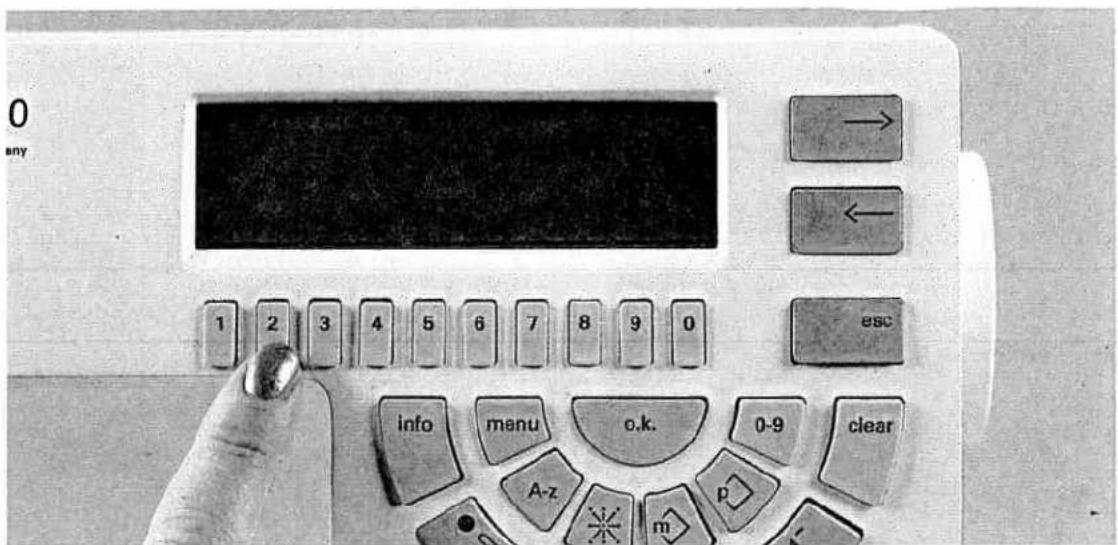
info menu a.k. 0·9 clear A-z m PTo change the letter width (= stitch width) press key "9". A menu appears on the screen displaying different stitch widths which can be selected by pressing the respective keys underneath.
By pressing the "o.k." key, the selected stitch width will be stored and you will return to the letter menu.
text_image
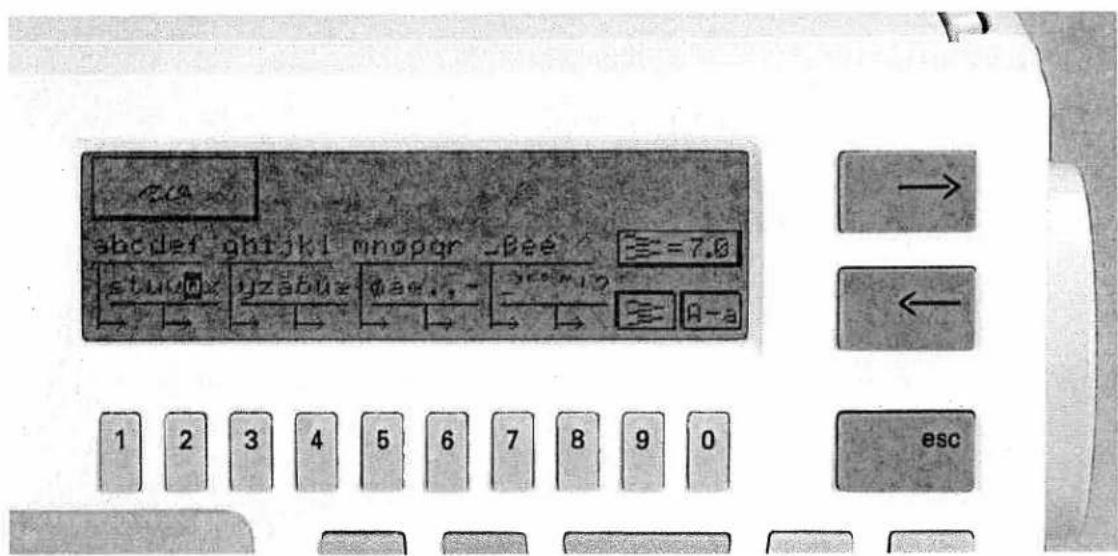
0 any 1 2 3 4 5 6 7 8 9 0 esc info menu o.k. 0-9 clear A-z m pSwitching from upper case to lower case letters in the script alphabet
The script alphabet can be sewn in upper and lower case letters. By pressing the "A-z" key all alphabet styles appear on the screen with lines covering two keys each.
Select alphabet style "A-a".
The menu containing the full alphabet appears.
text_image
abcdef ghijkl mnopqr Bee =7.8 stuvx yzabu x abu, - 30000 → ← 1 2 3 4 5 6 7 8 9 0 escThen press the "0" key. It is located below the description "A-a" and lets you switch from upper to lower case letters. Select the desired letter as described on the previous page.
text_image
PFAFF creative 7550 creative designaLetter selection using the Creative Designer
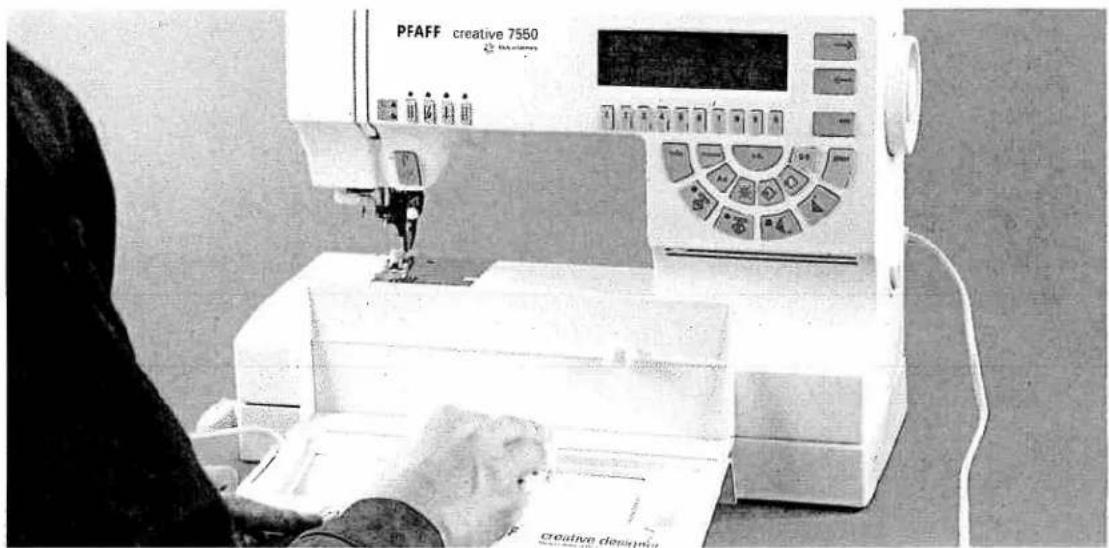
Alternatively, you can select letters, numbers and special marks of an alphabet using the Creative Designer. To do this, connect the CD to your sewing machine (see section „Creative Designer“). Press the "A-z" key and select the desired alphabet style.
Now you can choose the letters, numbers and special marks with the adjustable slide of the Creative Designer. By pressing the "mem+" key on the CD the selected letter will be confirmed and ready to be sewn.

text_image
M 1 2 M 2 -- M 3 -- M 4 -- M 5 -- M 6 -- M 7 -- M 8 -- M 9 -- M10 -- M11 -- M12 -- M13 -- M14 -- M15 -- + + - + - + - +


text_image
1 2 3 4 5 6 7 8 9 0
Creating a letter sequence
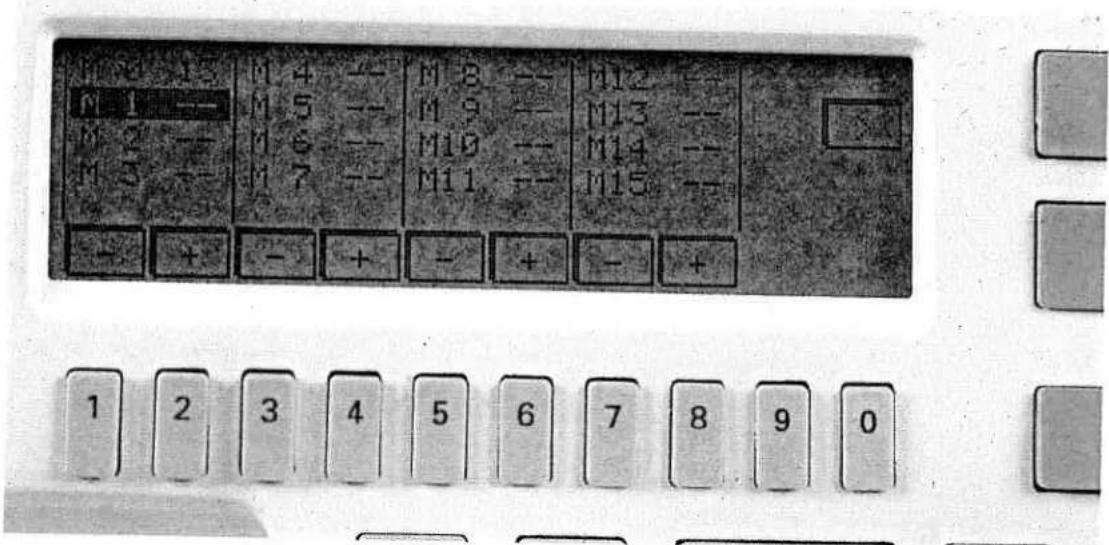
To create a letter sequence you have to combine several letters in an M-Memory. First press the "m" key. The first 16 M-Memories appear on the screen.

With the keys located below "+" and "-" you can move the dimmed bar for selecting a free memory. After you have confirmed with the "o.k." key this message appears on the display: The pattern sequence is empty...
i0
any

text_image
Ancient Chinese stone inscription with vertical columns of classical script, likely from a stele or tablet




text_image
info menu a.k. 0-9 clear A-z m pPress the "A-z" key now. Select the desired alphabet style with the keys underneath and enter the required letters using the respective keys or the CD.
50 rmany
text_image
Scanned image of a scanned document with fragmented text and small icons, likely from a technical or legal document.


text_image
1 2 3 4 5 6 7 8 9 0 escBy pressing the "m" key the letter sequence will appear on the screen. Press the key underneath the symbol "☐" if you wish to sew the sequence.
text_image
info menu o.k 0-9 clear A-z pThe stitch width set for the first letter will apply to all further letters in the sequence. In any case, the stitch width has to be changed before storing the sequence.
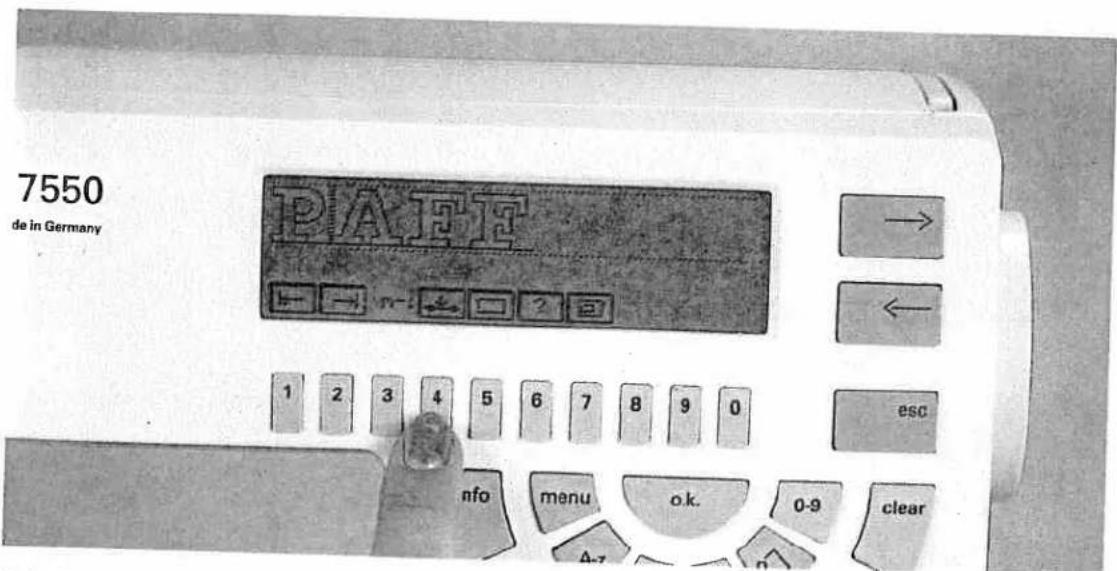
text_image
7550 de in Germany P A F E 1 2 3 4 5 6 7 8 9 0 esc nfo menu o.k. 0-9 clear A-7Deleting and inserting letters
With the cursor keys "←" and "→" you can make changes in an already entered text. Using the cursor keys select the letter to be corrected. This letter will be marked and can be deleted with the "clear" key.
If you select a different letter and confirm it with "o.k." it will be inserted in front of the deleted one.
If you have already pressed the "m" key and turned to the letter sequence screen, the correction has to be made with the "m-" function (see section "pattern sequence").

text_image
1 2 3 M 1 -2 M 2 -- M 3 -- M 4 -- M 5 -- M 6 -- M 7 -- M 8 -- M 9 -- M 10 -- M 11 -- M 12 -- M 13 -- M 14 -- M 15 -- + - + - + - + - + - 1 2 3 4 5 6 7 8 9 0Pattern sequence
When several patterns are combined in a memory, it is called a "pattern sequence". To do this, recall the first 16 of 32 M-Memories by pressing the "m" key.
text_image
M 4 M 1 -- M 4 -- M 8 -- M12 -- M 5 -- M 9 -- M13 -- M 6 -- M10 -- M14 -- M 7 -- M11 -- M15 -- - + - + - + - + 1 2 3 4 5 6 7 8 9 0Below the descriptions "M" and memory numbers you will find the key descriptions "-" and "+". Select a memory by pressing one of the respective numbered keys. The selected memory will be marked and confirmed with the "o.k." key.
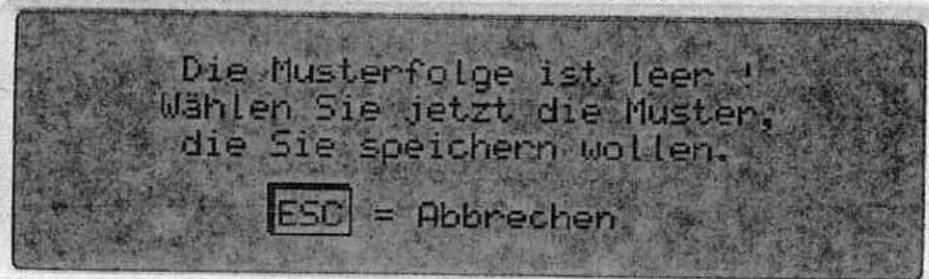
If the memory is empty, this message appears:
„Empty sequence!"
"esc" = Abort
Select the patterns to be stored now.
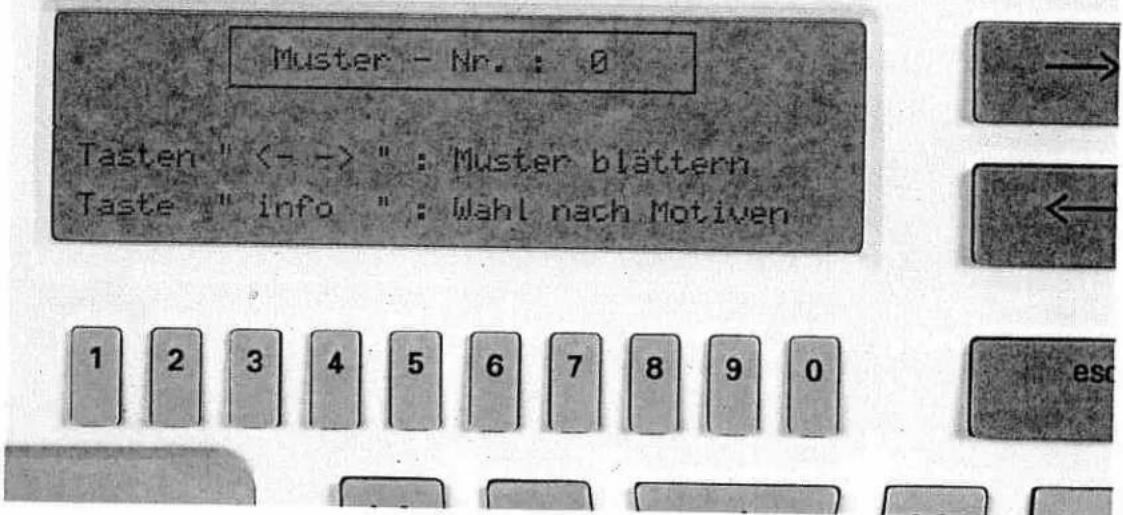
text_image
Muster - Nr. : 0 Tasten " <---> " : Muster blättern Taste " info " : Wahl nach Motiven 1 2 3 4 5 6 7 8 9 0 escPress the "0-9" key. This message appears on the screen:
"Pattern No.: 0"
Keys: "←→": Scroll through patterns
Key: "info" : Selection by patterns
text_image
Scanned text of a document with dense, illegible handwritten or printed characters.
text_image
1 2 3 4 5 6 7 8 9 0


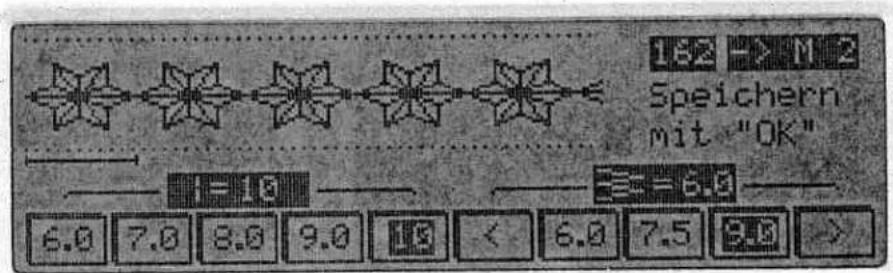
For example, you now enter pattern 162 using the keys "1-0" and confirm with the "o.k." key.

text_image
162-→ H = 1.0 = 5.0 2.0 3.0 4.0 5.0 6.0 7.0 8.0 9.0 10.0 11.0 12.0 13.0 14.0 15.0 16.0 17.0 18.0 19.0 20.0 21.0 22.0 23.0 24.0 25.0 26.0 27.0 28.0 29.0 30.0 31.0 32.0 33.0 34.0 35.0 36.0 37.0 38.0 39.0 40.0 41.0 42.0 43.0 44.0 45.0 46.0 47.0 48.0 49.0 50.0 51.0 52.0 53.0 54.0 55.0 56.0 57.0 58.0 59.0 60.0 61.0 62.0 63.0 64.0 65.0 66.0 67.0 68.0 69.0 70.0 71.0 72.0 73.0 74.0 75.0 76.0 77.0 78.0 79.0 80.0 81.0 82.0 83.0 84.0 85.0 86.0 87.0 88.0 89.0 90.0 91.0 92.0 93.0 94.0 95.0 96.0 97.0 98.0 99.0 100.0
text_image
1 2 3 4 5 6 7 8 9 0 esc
text_image
info menu o.k. 0-9 clearThis will bring you to the memory screen. In the top right-hand side of the screen the pattern number and number of the selected memory are displayed, and below it the message appears: "Store by pressing "o.k.".
text_image
182 - > 1.2 Speichern mit "OK" 6.0 7.0 8.0 9.0 < 6.0 7.5 8.0 >

text_image
1 2 3 4 5 6 7 8 9 0
You can change the preset stitch width and length by pressing the "1-0" keys located below the settings.
text_image
Scanned document with handwritten-style icons and a grid of labeled boxes, possibly a form or interface design.

text_image
1 2 3 4 5 6 7 8 9 0
You have to confirm your selection with the "o.k." key. On the screen the selected pattern appears in the memory. Select the next pattern using the "0-9" keys again and continue as described before. You can combine up to 85 patterns with a stitch width of 9 mm or Maxi Stitches in one memory.

text_image
1 2 3 4 5 6 7 8 9 0 esc info menu o.k. 0-9 clear A-z m pYou can manipulate a pattern within a sequence using the following symbols:

Pressing the key below it you will return to the beginning of the pattern sequence. You can add a new pattern to the beginning of the sequence.

Pressing the key below it you will move to the end of the pattern sequence. You can now add a pattern at the end.

Deleting a pattern with the following functions:

With the "4" key you can delete a pattern at the cursor position.

Deleting the entire sequence: If you press this key, the message appears: „Deleting entire sequence?”
Confirm by pressing the "o.k." key or abort by pressing "esc".
When you select the key below the question mark, a window appears in which the cursor position and the number of entered patterns are displayed. By adding a Maxi Stitch the pattern width will also be displayed.
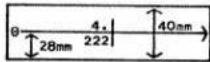
- The figure above the cursor shows the position of the cursor; the figure below it describes the pattern number or P-Memory number in front of and behind the cursor. Monograms and alphabets are not displayed.
- The mm indication at the left arrow represents the pattern width starting from the stitch point.
- The mm indication at the right arrow of the pattern shows the maximum width of a Maxi Stitch.
- Pressing the "esc" or "o.k." key, you will quit this screen.
Now press the key below the "sewing machine" icon and your sewing machine is ready to sew.

text_image
1 2 3 4 5 6 7 8 9 0 esc info menu o.k. 0-9 clear A-z m p"K"
Pressing the "K" key will open another menu.
Using the cursor keys you can correct the pattern
(see section "balance"). Pressing the "o.k." key
will bring you back to the programming screen.
text_image
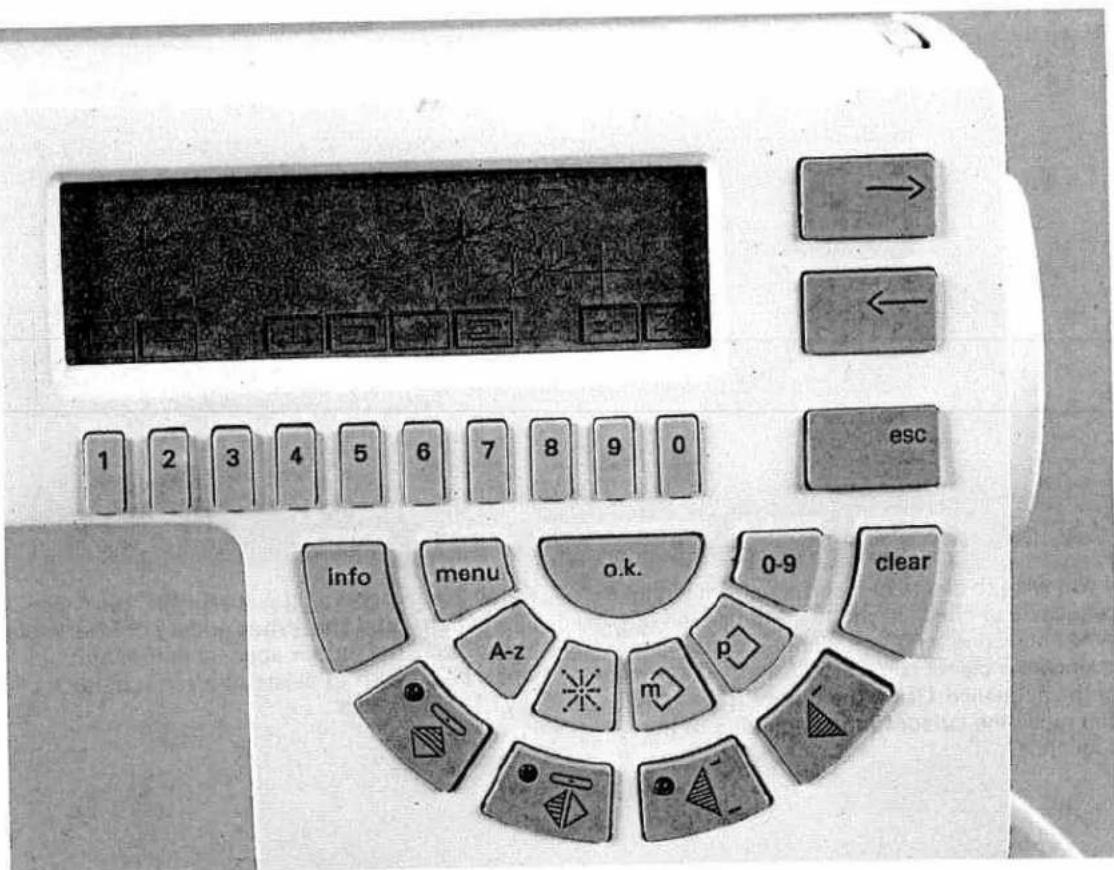
1 2 3 4 5 6 7 8 9 0 esc info menu o.k. 0-9 clear A-z m pWhen you combine Maxi Stitches in a sequence, in the programming screen you will see the symbols "zo" and "ZO" besides the icons described before.
By pressing the keys underneath you can reduce or enlarge (zoom) your stored pattern sequence. The pattern zooming is only a visual aid and has no influence on the sewn pattern. You can only do it on the screen.
If you wish to return to the originally displayed size of the pattern sequence after zooming it several times, press the key below "ZO" several times. Pressing the key below "☐" you will return to the originally displayed size immediately. You will then be in the sewing screen. Pressing the "edt" key will bring you back to the programming screen, the originally displayed size, however, remains.

text_image
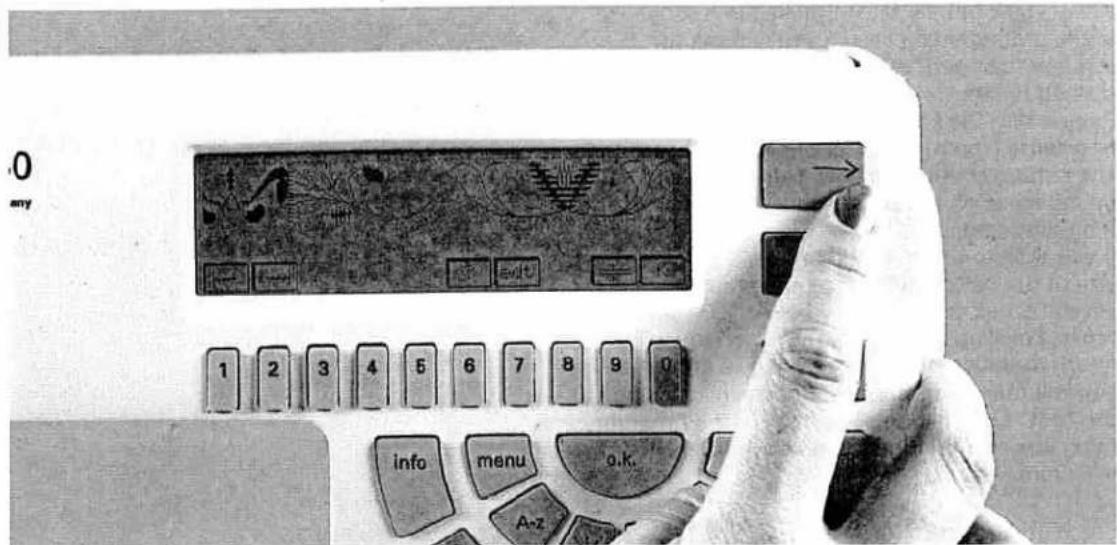
0 any 1 2 3 4 5 6 7 8 9 0 esc info o.k. 0-9 clear A-zIf you wish to delete or insert a pattern within a sequence, or check it, you need to use the cursor. When selecting a pattern within a pattern sequence the cursor is always positioned at the end of the sequence. Using the cursor key "←" you can move the cursor to the beginning of the sequence.
For all 9 mm patterns the cursor has the shape of an interrupted line. When adding or inserting a Maxi Stitch, the cursor appears in the form of a cross. If you wish to delete or insert a pattern, use key "7" below "edt".
text_image
.0 any 1 2 3 4 5 6 7 8 9 0 info menu o.k. AnzThen move the cursor to the place where you want to delete or insert a pattern using the cursor keys "→" and "←".

text_image
0 my → ← 1 2 3 4 5 6 7 8 9 0 BBC info menu o.k. 0-9 clear A-zPress the "0-9" key and enter the number of your desired motif using the "1-0" keys. Confirm with "o.k."
On the screen the message appears: "Store by pressing "o.k.". Press the "o.k." key. The new pattern has been inserted in your sequence.

text_image
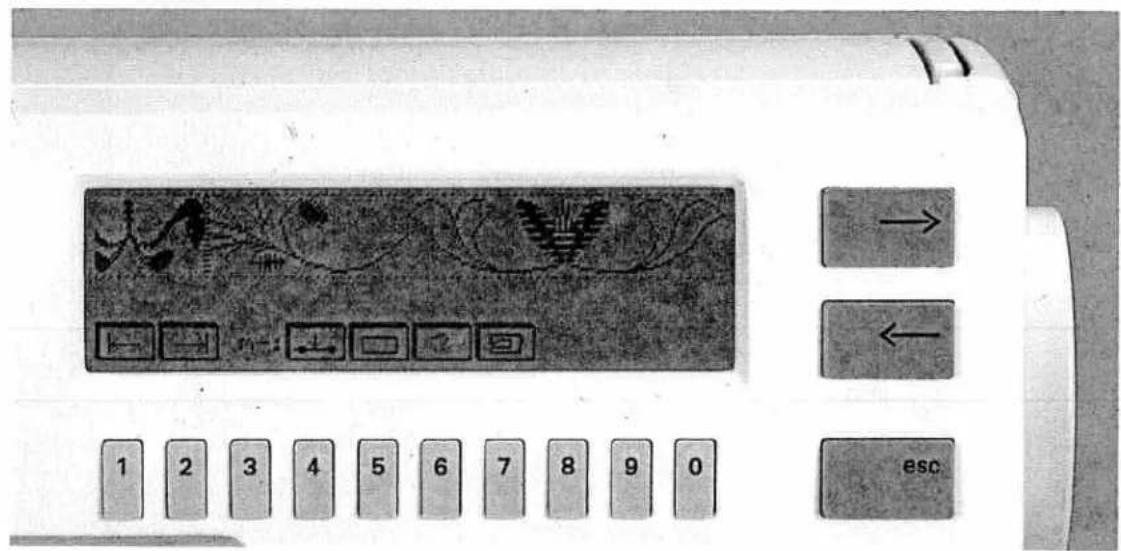
0 any 1 2 3 4 5 6 7 8 9 0 esc info o.k. 0-9 clear A-z m pIf you wish to delete a pattern from the sequence, select key "7" below "edt". Using the cursor keys you can move the cursor to the left of the pattern to be deleted.
text_image
Control panel of an air conditioner with labeled buttons and a display showing icons for lighting, navigation, and function buttons.Now press key "4" below "↓". (delete pattern).
The pattern will be deleted.

text_image
Decorative graphic with floral and symbolic elements, including a horizontal bar and four labeled icons below.
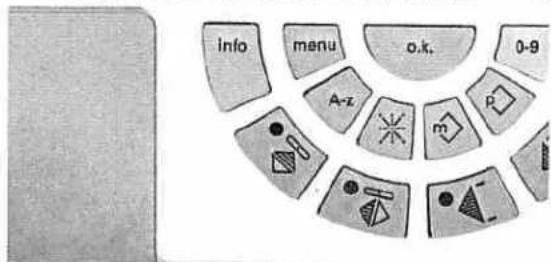
text_image
info menu o.k. 0-9 A-z m PSelect key "7" below". Your sewing machine is now ready to sew.
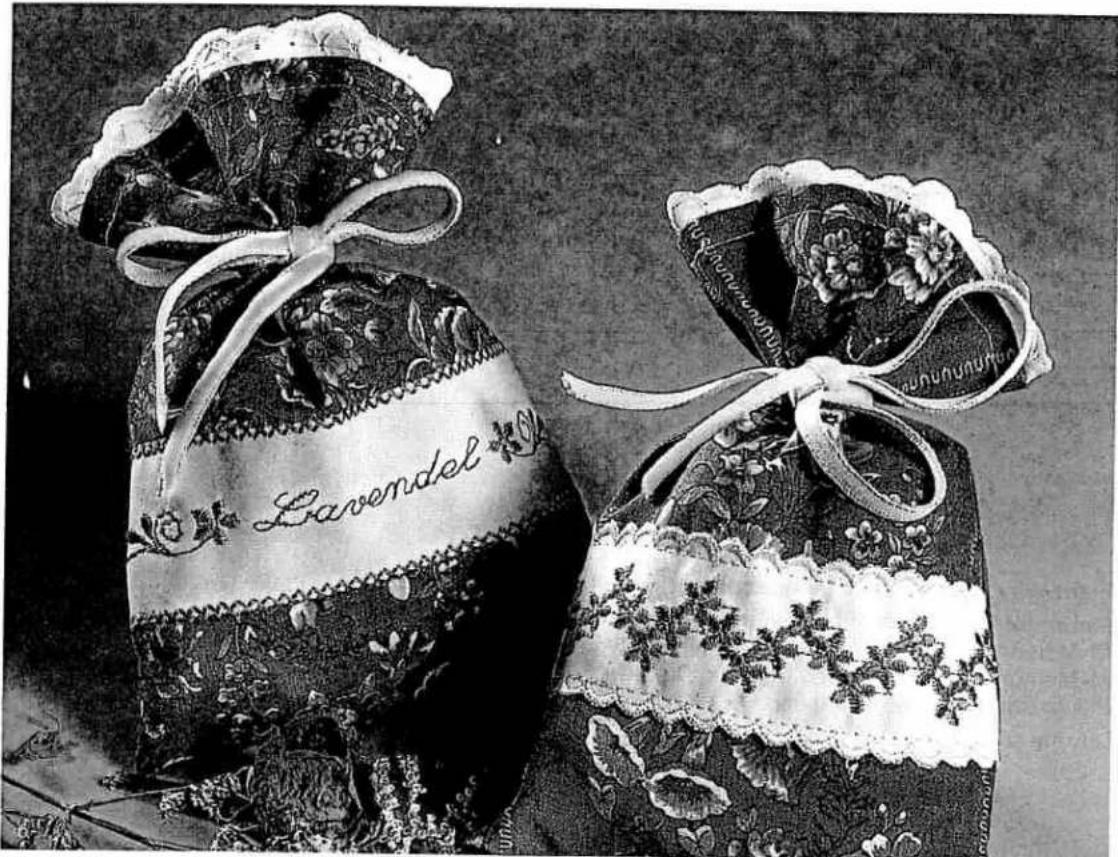
text_image
LavendelEight-way feed stitches (Connecting stitches)
With the connecting stitches you can sew embroidery and utility stitch programs into different directions. By shifting the patterns, new shapes and large-area embroidery motifs will be created. The connecting stitches are stored in the computer as crosswise, lengthwise and diagonal programs.
You may have to use several connecting stitches to visually separate patterns from each other, e.g. 6 diagonal stitches for 9 mm patterns. Pattern start and end are particularly important when combining a pattern with connecting
stitches. The connecting stitches are always sewn from the pattern end in the direction chosen, and continue from the last connecting stitch to the pattern start of the next embroidery program. You can achieve the most beautiful results if the connecting stitches are overstitched by the course of the pattern. It is much easier to create a pattern combination with connecting stitches if you mark the desired pattern on the fabric first, divide it into embroidery patterns and connecting stitches and enter them into a memory.
Eight-way feed stitches (connecting stitches)
Example: Press the "m" key. On the screen the M-Memory directory appears. Select an empty M-Memory and confirm with the "o.k." key. On the screen the message appears:
"Empty sequence..."
0
iny

text_image
138 -> M 1 Speichenn: mit "Ok" =14 ≡9,0 6,7 10 14 20 > < 6,0 7,5 9,6 >
text_image
1 2 3 4 5 6 7 8 9 0 esc
text_image
info menu o.k. 0-9 clear A-z RNow press the "0-9" key. Enter the desired pattern number, e.g. 138, and confirm it with the "o.k." key. The motif appears on the screen. Store the pattern by pressing the "o.k." key.

text_image
1 2 3 4 5 6 7 8 9 0 esc info menu o.k. 0-9 clear A-z m p Press key "米" now.Press key "来" now.
Eight arrows appear on the display representing the different sewing directions.
J
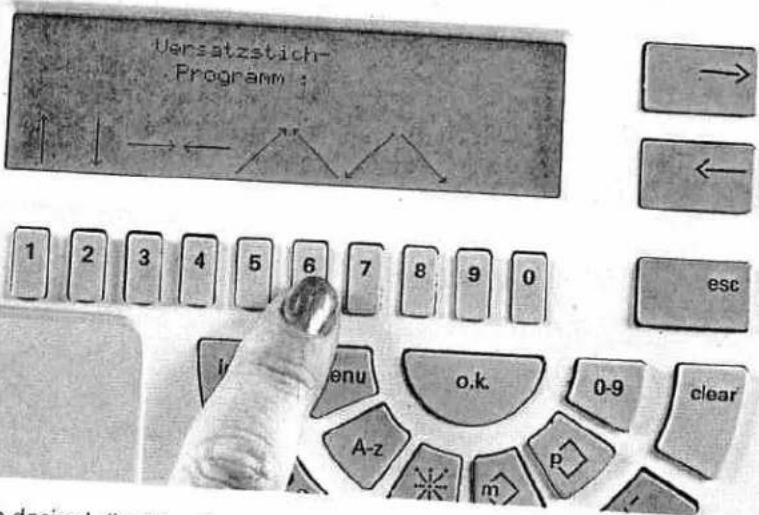
text_image
Versatzstich- Programm: 1 2 3 4 5 6 7 8 9 0 esc I enu o.k. 0-9 clear A-z m p a desired clientPress the key for the desired direction (for our example key "6"), and a sub-menu will appear. The selected direction will be marked. The top menu bar shows four additional options within this stitch direction. These can be selected using keys "9" and "0".
C
ny

natural_image
Architectural floor plan showing room layouts and structural elements (no text or labels)

text_image
1 2 3 4 5 6 7 8 9 0
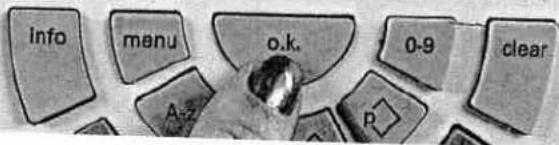
text_image
info menu o.k. 0-9 clear A-2 PYou can now store the connecting stitches using the "o.k." key. For our example, six stitches of the selected direction will be entered into the memory.
Press the "0-9" key again. Enter the stitch pattern again, and store it to the memory by pressing the "o.k." key.
Select the connecting stitches by pressing the "※" key, choose a direction and store it by pressing the "o.k." key.
i0
very
text_image
Scanned image of a vintage computer control panel with labeled buttons and icons

text_image
1 2 3 4 5 6 7 8 9 0

text_image
info menu o.k. 0-9 clear A-z mContinue in this manner until your pattern has been completed. Our example consists of:
138/6x direction
138/6x direction
138/6x direction
138/6x direction ☑
This way, you can create a continuous embroidery pattern. If you wish to close up your pattern add another pattern 138 at the end.
Press the key underneath "☐". Now your pattern is ready to sew.

natural_image
Decorative pattern with repeating lotus-like motifs in a horizontal line (no text or symbols)Example No. 1:
1×No.139
5×
1 x No. 139
5×
1 × No. 139
5×
1 x No. 139
5×
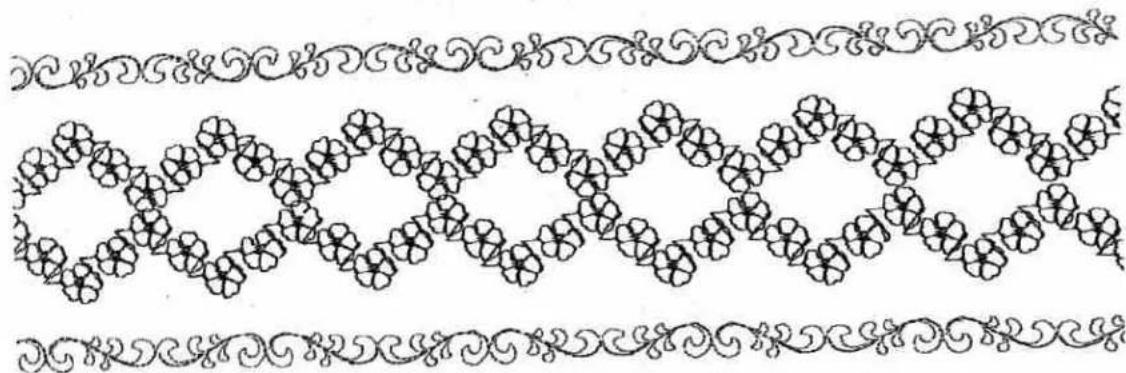
natural_image
Decorative border pattern with repeating floral motifs and scrollwork (no text or symbols)Example No. 2:
1 x No. 138
6×
1 x No. 138
6×
1 x No. 138
6×
1 x No. 138
6×
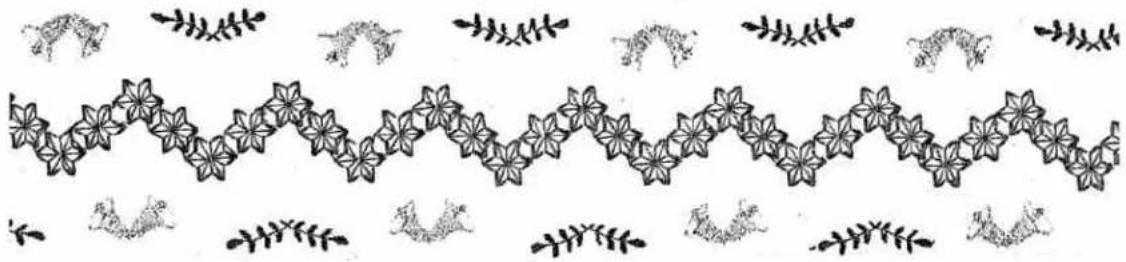
natural_image
Decorative pattern with repeating floral motifs and small animal figures (no text or symbols)Example No. 3:
1 x No. 162
2×1
4×
1 x No. 162
2×
4×
1 x No. 162
2×
4 x
1 x No. 162
2×
4×
Leaves: Nr: 190
Pattern length: 20
Pattern width: 6,0
Press key "single pattern"
Bells:
- Select a memory
- No. 166 "Mirror image/lateral mirroring"
- Storing with "o.k."
• No. 166 without mirror image
- Storing with "o.k."

natural_image
Decorative floral border with ribbon-like elements (no text or symbols)Example No. 4:
1 x No. 221
2×
4×
1 x No. 138
5 x
1 x No. 138
2×
1 x No. 138
5×
1 x No. 138
4×
2×
1 x No. 221 "Mirror image/lateral mirroring"
Creative Designer
Pages 85–109

text_image
PFAFF creative 7550 PFAFF creative 7550Contents
| Technical section | Pages | 88-90 |
| The programming sheet | Pages | 91-94 |
| Designing a pattern | Page | 91 |
| Placing the stitch points | Page | 92 |
| Programming a pattern | Page | 95 |
| Selecting a P-Memory | Pages | 96-98 |
| Adding a stitch, inserting a stitch | Page | 99 |
| Moving a block | Page | 100 |
| Symbol m- | Pages | 101-103 |
| Fading in/out stitch points | Page | 104 |
| ROM | Pages | 105-106 |
| RAM | Pages | 107-108 |
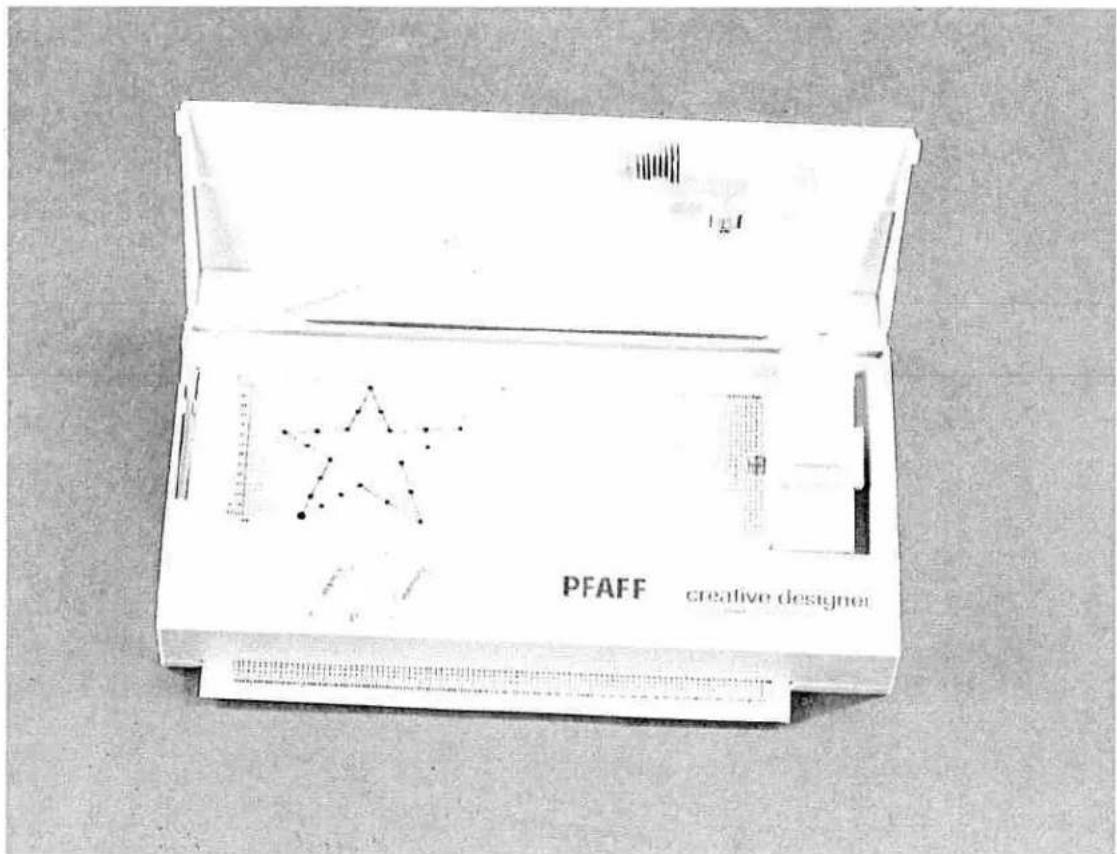
text_image
PFAFF creative designerThe Creative Designer comes as standard equipment with the creative 7550 and enables you to design your own patterns up to a stitch width of 9 mm. The desired motif is drawn on a programming sheet. This template is inserted in the Creative Designer and transferred into the sewing machine's computer by the adjustable slide stitch by stitch. 30 program memories are at your disposal, from PO-29. When switching off the sewing machine, the stored programs will be retained, providing that batteries have been inserted into the machine.
Ready-to-sew pattern templates are available from your PFAFF dealer.

text_image
1 2 3 4 5 6 PFAFF creative designer 12 11 10 9 8 7Parts of the Creative Designer
1 Connection lead with plug
2 Cover
3 Lead retainer
4 Adjustable slide
5 Sliding scanner with cross-wire magnifier
6 Cross-wire magnifier
7 Clip slide, right
8 Insertion slot for programming sheet
9 Programming area
10 "Call stitch" key (memory)
11 "Program input" key (mem +)
12 Clip slide, left
The illustration below shows you how the Creative Designer is stored in the carrying case.
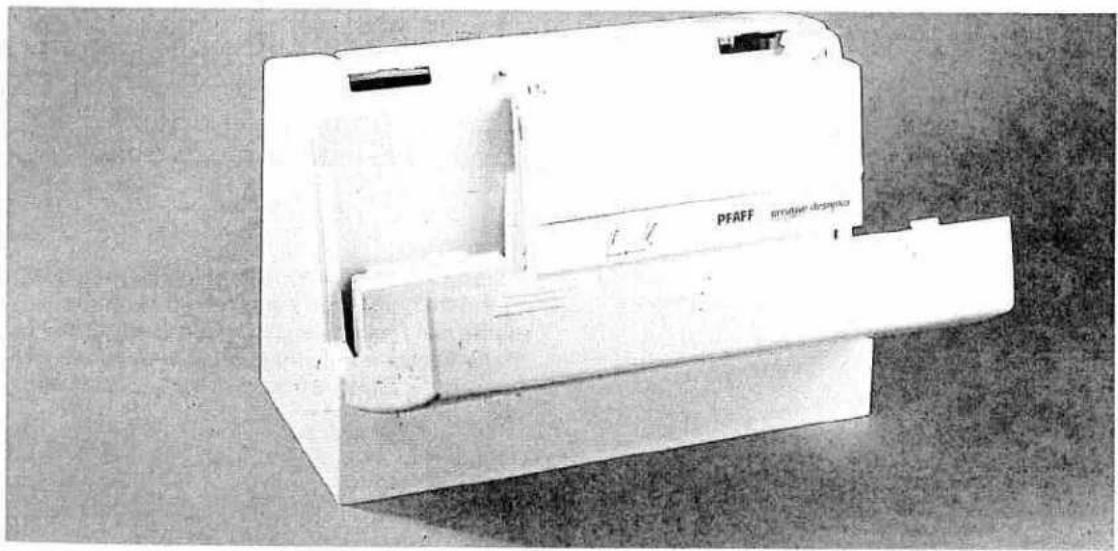
natural_image
Exterior view of a white industrial device casing with visible internal components and mounting brackets (no text or symbols)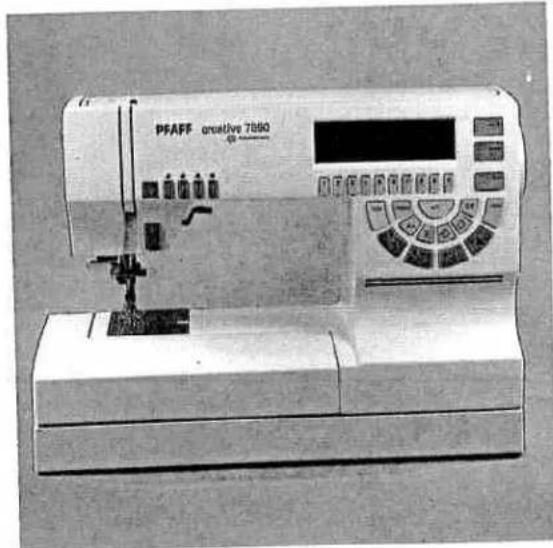
text_image
PFAFF creatine 7050Important!
When connecting the Creative Designer to the sewing machine, the machine must be switched off!
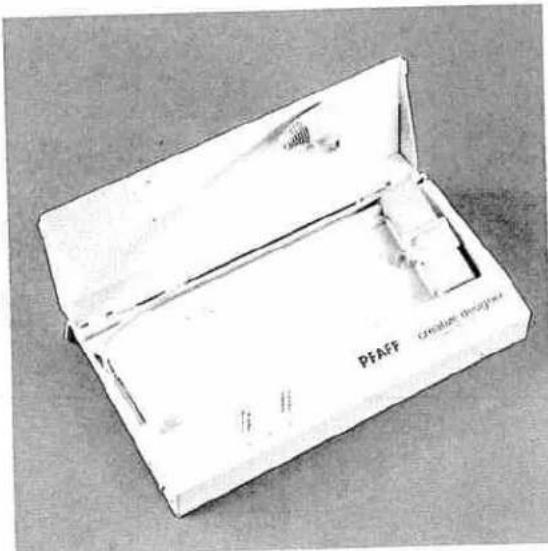
text_image
PFAFF Creative DesignatorTo open the unit, fold cover (2) upwards.
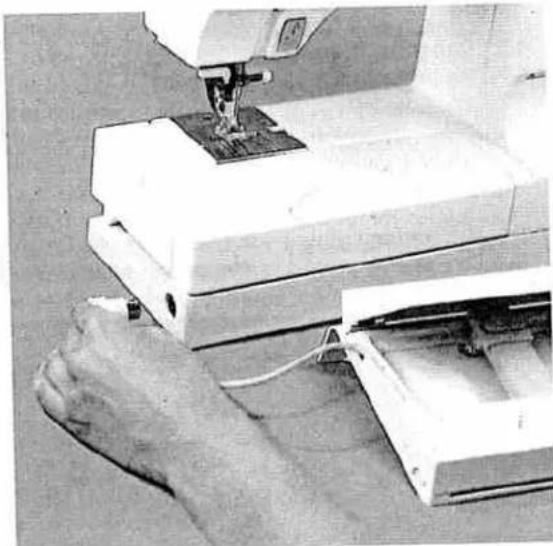
natural_image
Close-up of a sewing machine needle stitching fabric, with hands operating the work (no visible text or symbols)Take the connection plug out of the retainer (3) and insert it into socket (10) of the machine.
text_image
Programmeringsark - Programlama kāgidi - Programmeringsark - Chjelmontialue Programmietragien - Fama de programmatica - Schrda di programmatice - ProgrammietragienThe programming sheet
The Creative 7550 is provided with a pad of programming sheets. The self-created designs are drawn on the grid of the programming sheet. The width of the drawing area is marked with numbers 00-54. This width equals 9 mm of an embroidered motif, i.e. a spacing of 6 points per 1 mm.
The length of the grid is marked with numbers 00-198, i.e. the total pattern length can be up to 33 mm.

line
| x | y | | ---- | ---- | | 0 | 0 | | 13 | 24 | | 196 | 20 |The pattern should touch line 00 of the grid. The motif can be designed as single pattern or as continuous pattern. The first and last stitch of a continuous pattern should be placed on the same width coordinate of the grid.
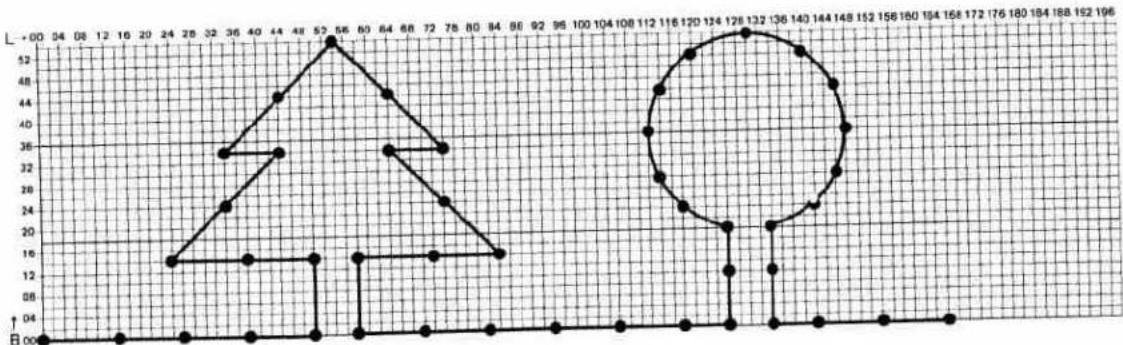
line
| X-Axis | Series 1 (●) | Series 2 (●) | Series 3 (●) | |---|---|---|---| | 0 | 0 | 0 | 0 | | 1 | 0 | 0 | 0 | | 2 | 0 | 0 | 0 | | 3 | 0 | 0 | 0 | | 4 | 0 | 0 | 0 | | 5 | 0 | 0 | 0 | | 6 | 0 | 0 | 0 | | 7 | 0 | 0 | 0 | | 8 | 0 | 0 | 0 | | 9 | 0 | 0 | 0 | | 10 | 0 | 0 | 0 | | 11 | 0 | 0 | 0 | | 12 | 0 | 0 | 0 | | 13 | 0 | 0 | 0 | | 14 | 0 | 0 | 0 | | 15 | 0 | 0 | 0 | | 16 | 0 | 0 | 0 | | 17 | 0 | 0 | 0 | | 18 | 0 | 0 | 0 | | 19 | 0 | 0 | 0 | | 20 | 0 | 0 | 0 | | 21 | 0 | 0 | 0 | | 22 | 0 | 0 | 0 | | 23 | 0 | 0 | 0 | | 24 | 0 | 0 | 0 | | 25 | 0 | 0 | 0 | | 26 | 0 | 0 | 0 | | 27 | 0 | 0 | 0 | | 28 | 0 | 0 | 0 | | 29 | 0 | 0 | 0 | | 30 | 0 | 0 | 0 | | 31 | 0 | 0 | 0 | | 32 | 15 | 15 | - | | 33 | - | - | - | | 34 | - | - | - | | 35 | - | - | - | | 36 | - | - | - | | 37 | - | - | - | | 38 | - | - | - | | 39 | - | - | - | | 40 | - | - | - | | 41 | - | - | - | | 42 | - | - | - | | 43 | - | - | - | | 44 | - | - | - | | 45 | - | - | - | | 46 | - | - | - | | 47 | - | - | - | | 48 | - | - | - | | 49 | - | - | - | | 50 | - | - | - | | 51 | - | - | - | | 52 | - | - | - | | 53 | - | - | - | | 54 | - | - | - | | 55 | - | - | - | | 56 | - | - | - | | 57 | - | - | - | | 58 | - | - | - | | 59 | - | - | - | | 60 | - | - | - | | 61 | - | - | - | | 62 | - | - | - | | 63 | - | - | - | | 64 | - | - | - | | 65 | - | - | - | | 66 | - | - | - | | 67 | - | - | - | | 68 | - | - | - | | 69 | - | - | - | | 70 | - | - | - | | 71 | - | - | - | | 72 | - | - | - | | 73 | - | - | - | | 74 | - | - | - | | 75 | - | - | - | | 76 | - | - | - | | 77 | - | - | - | | 78 | - | - | - | | 79 | - | - | - | | 80+ (repeated) (repeated) (repeated) (repeated) (repeated) (repeated) (repeated) (repeated) (repeated) (repeated) (repeated) (repeated) (repeated) (repeated) (repeated) (repeated) (repeated) (repeated) (repeated) (repeated) (repeated) (repeated) (repeated) (repeated) (repeated) (repeated)Placing the stitch points (stitches)
By drawing stitch points into your design you are setting the stitch length of your pattern at the same time. Each point represents one needle penetration in the material. The optimum distance of the points (width and length) is between 4+7 squares. Only on curves should the points be drawn more densely, at a distance of roughly 2-5 squares.

If you are embroidering a motif with zigzag stitches, the length points must be set very densely (see illustration). The ideal distance is 1-2 squares.
Make sure to keep a continuous logical sequence corresponding to the sewing course of the machine. (Interruptions within the motif will also be embroidered!)
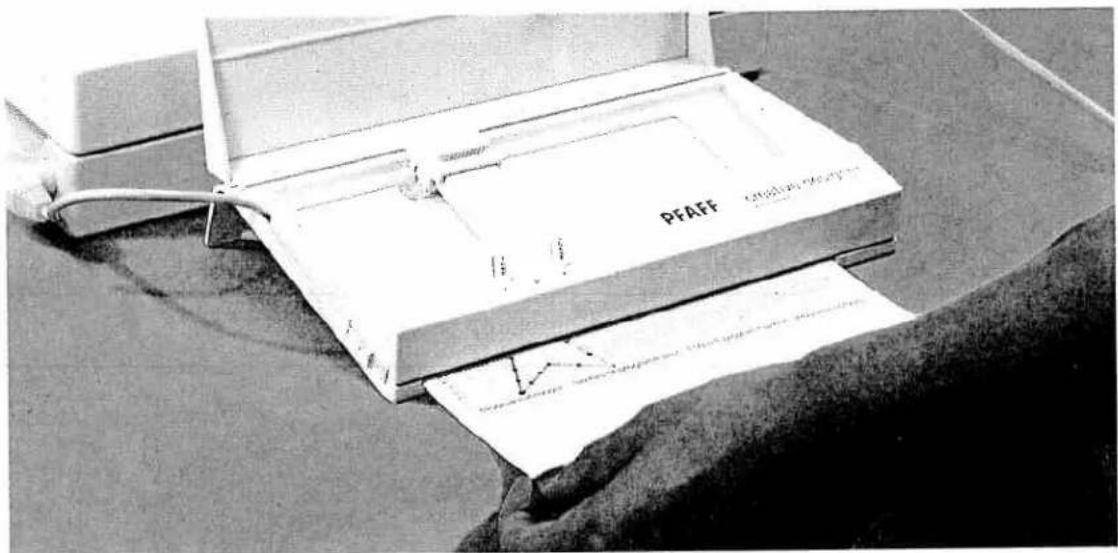
natural_image
Exterior view of a modern office building (no signage)Inserting the programming sheet in the Creative Designer
Insert the pattern programming sheet in slot (8). Make sure the sheet does not jam and push it in until the edge of the paper is under the top cutout edge of the programming area (9).
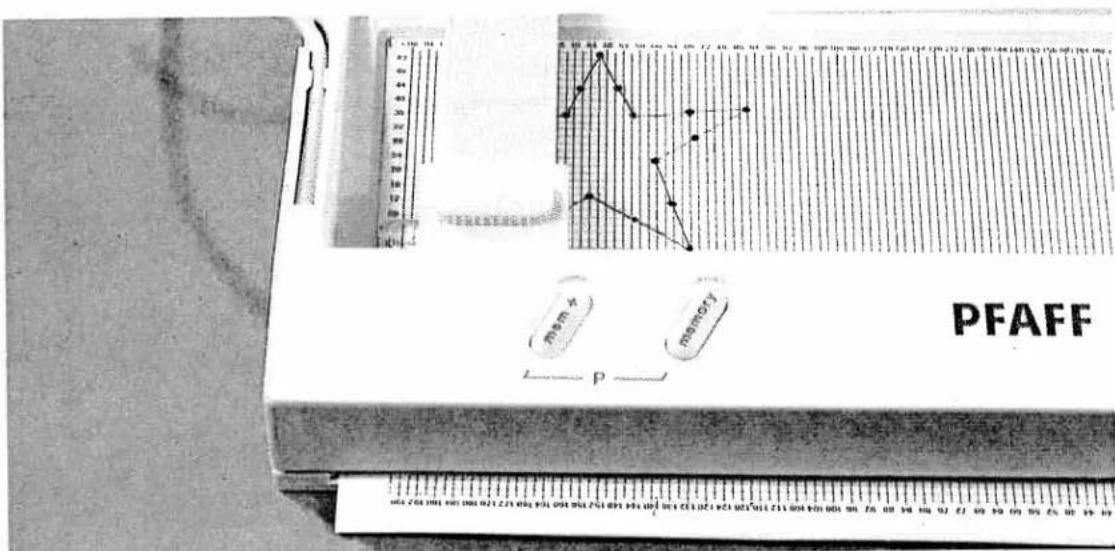
text_image
PFAFF mam x memory PAdjusting the programming sheet:
Magnifier slide (5) is moved up or down and adjustable slide (4) to the left or right with the knob on the slide.
Push the adjustable slide fully to the left and the magnifier slide fully down.
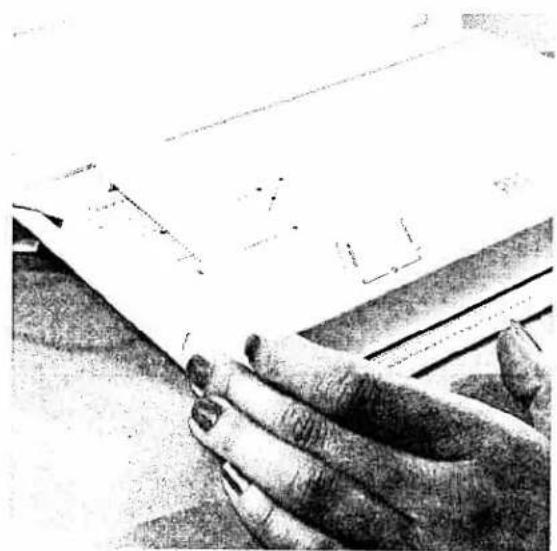
natural_image
Close-up of a hand gripping a small object, possibly a tool or device, with no visible text or symbols.Now position the programming sheet that the red cross of magnifier (6) is exactly aligned with point 00.
Then clamp the sheet in this position by pushing clip slide (12) to the rear.

text_image
PFAFF creative designer (--- p ---)1
Move the adjustable slide (4) fully to the right and magnifier slide (5) fully down. Move the sheet until line 00 aligns with the red horizontal line of the magnifier cross.
1
Then clamp the sheet in this position by pushing clip slide (7) to the rear.
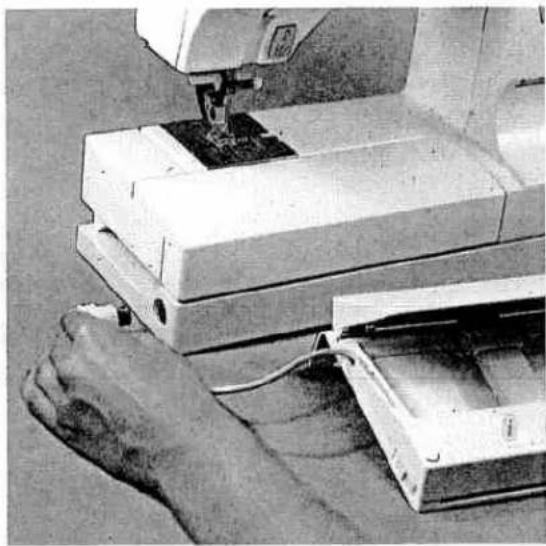
natural_image
Close-up of a hand operating a sewing machine with visible wiring and components (no text or symbols)
natural_image
Close-up of a hand operating a small electronic device with a metal bracket and cable (no visible text or symbols)Programming a pattern
Connect the Creative Designer to your sewing machine.
Remember! When connecting the CD to your sewing machine it must be switched off.
Open the insertion slot of the Designer by pushing the clip slides to the front.
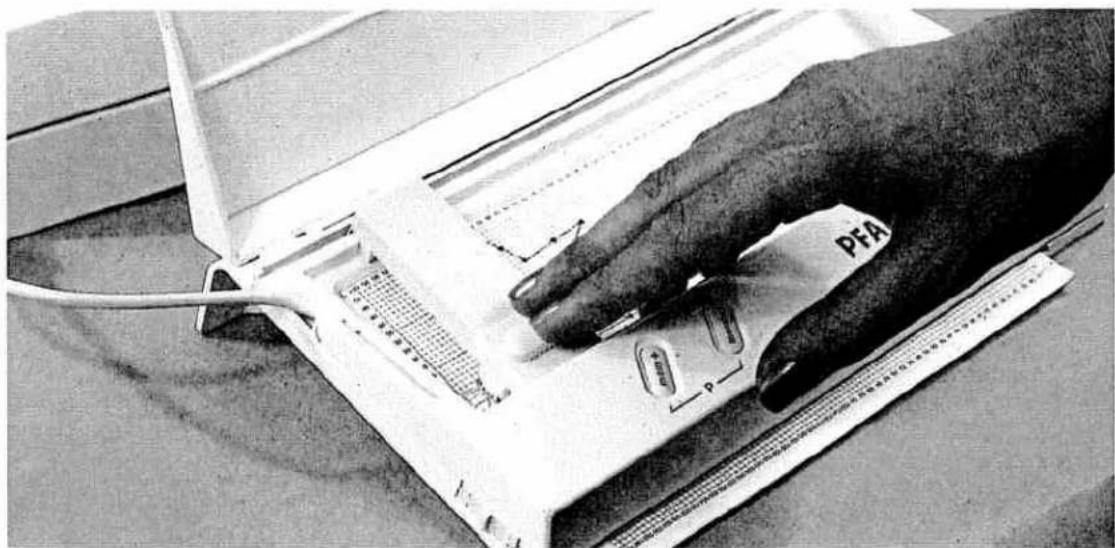
text_image
PFAInsert the programming sheet in the CD and clamp it into place as described on pages 93/94.
Check:
Push the magnifier back to the bottom left point 00 and check that the red horizontal line of the magnifier aligns with lire 00. (Adjust, if necessary.)

text_image
P3 P4 P5 P6 P7 P8 P9 info menu o.k. 0-9 cl A-zSelecting a P-Memory
To transfer the design to your sewing machine press key "p".
text_image
P0 P1 P2 P3 P4 P5 P6 P7 P8 P9
text_image
1 2 3 4 5 6 7 8 9 0On the screen the first 10 of 30 P-Memories are displayed.
Using cursor key "→" you can scroll to the next page. Press the numbered key below the desired free "P-Memory".

text_image
Close-up of an old electronic calculator with labeled buttons and a display screen showing the main screen.A work area with a cross appears on the screen. You can move the cross on the display with the adjustable slide of the Creative Designer. The memory is now ready for storage.

natural_image
Person using a creative designer tool in a technical open box, no visible text or symbols on the device itself.Select the stitch points of the motif on the programming sheet with the adjustable slide and confirm stitch point by stitch point by pressing the "mem+" key on the CD. Make sure to keep a consecutive, logical sequence corresponding to the sewing course of the machine. (Interruptions in a motif will also be stitched.)
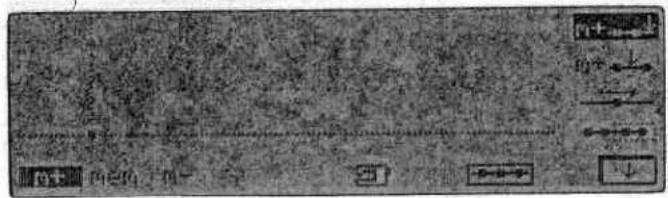
text_image
Scanned document with handwritten annotations and a toolbar, likely a technical or legal document.






Pressing the "mem+" key on the Creative Designer the first time will change the programming screen.

text_image
Scanned image of a handwritten-style note-taking card with a star outline and directional arrows, including Chinese text and symbols.



After you have entered your pattern completely, you can manipulate it using the following functions: Select the "m+" symbol with key "1". The function "Add stitch" will be marked and activated. All further functions have to be selected with the "0" key.
natural_image
Pure vertical line drawing without any text, numbers, or symbols
text_image
Control panel interface with star icon, navigation buttons, and numeric keypadm+↓ Adding a stitch
By moving the adjustable slide and pressing the "mem+" key on the CD you can add one or several stitches at the end of a pattern.
m+ ↓ Inserting a stitch
Select a stitch on the display with the cross and press the "memory" key on the Designer. The stitch number will be displayed on the screen. Move the adjustable slide to the position where you want to place the new stitch and press the "mem+" key. The new stitch will be inserted after the selected stitch.

text_image
12 m+ m-m m- 1 2 3 4 5 6 7 8 9 0 esc info menu o.k. 0-9 clearm+ ← Moving a stitch
Select a stitch with the cross and press the "memory" key on the Designer. The stitch number will be displayed on the screen. By moving the adjustable slide the selected stitch will be moved to a new position. By pressing the "mem+" key the new stitch will be placed.
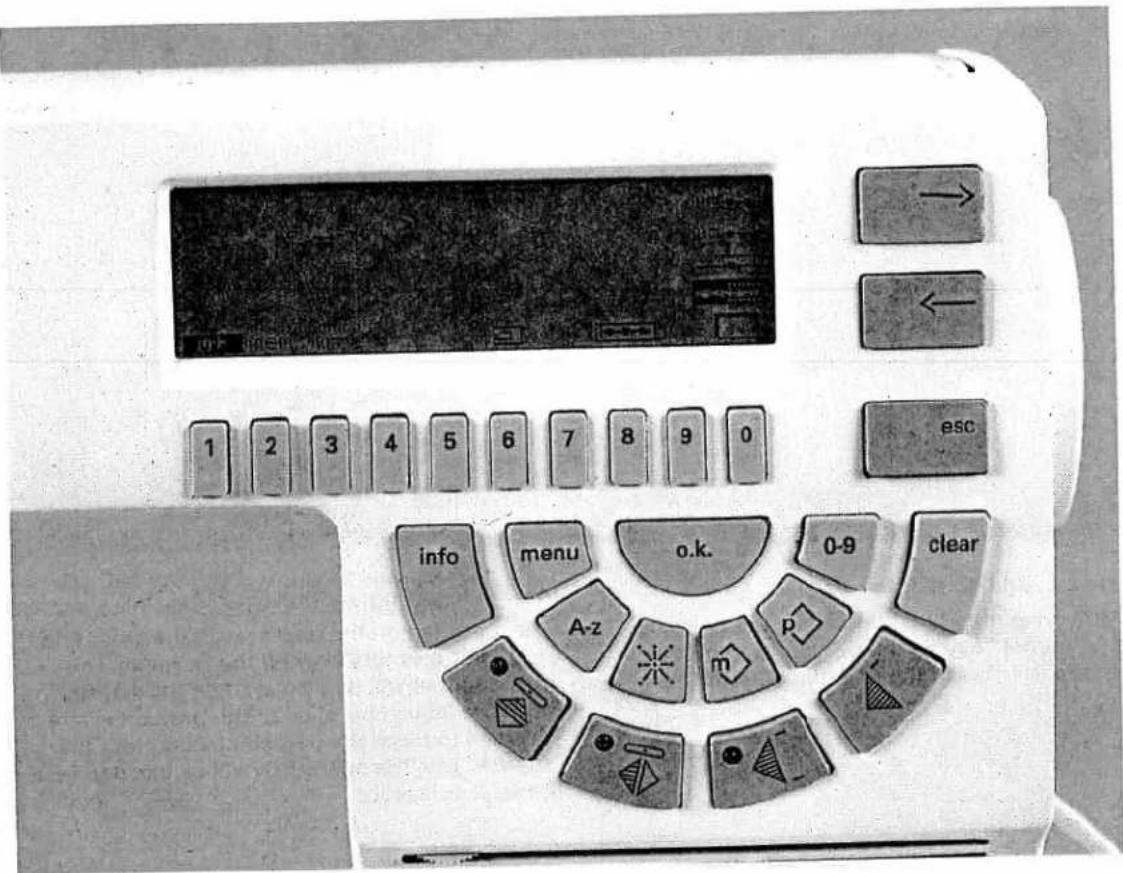
text_image
OFF esc info menu o.k. 0-9 clear A-z m Pm+ Moving a block
If you wish to move several stitches at a time, select the edge point of the desired block using the cross.
By pressing the "memory" key on the Designer, the block will be displayed on the screen and can be moved to the left and right. Pressing the "mem+" key will confirm the new position.
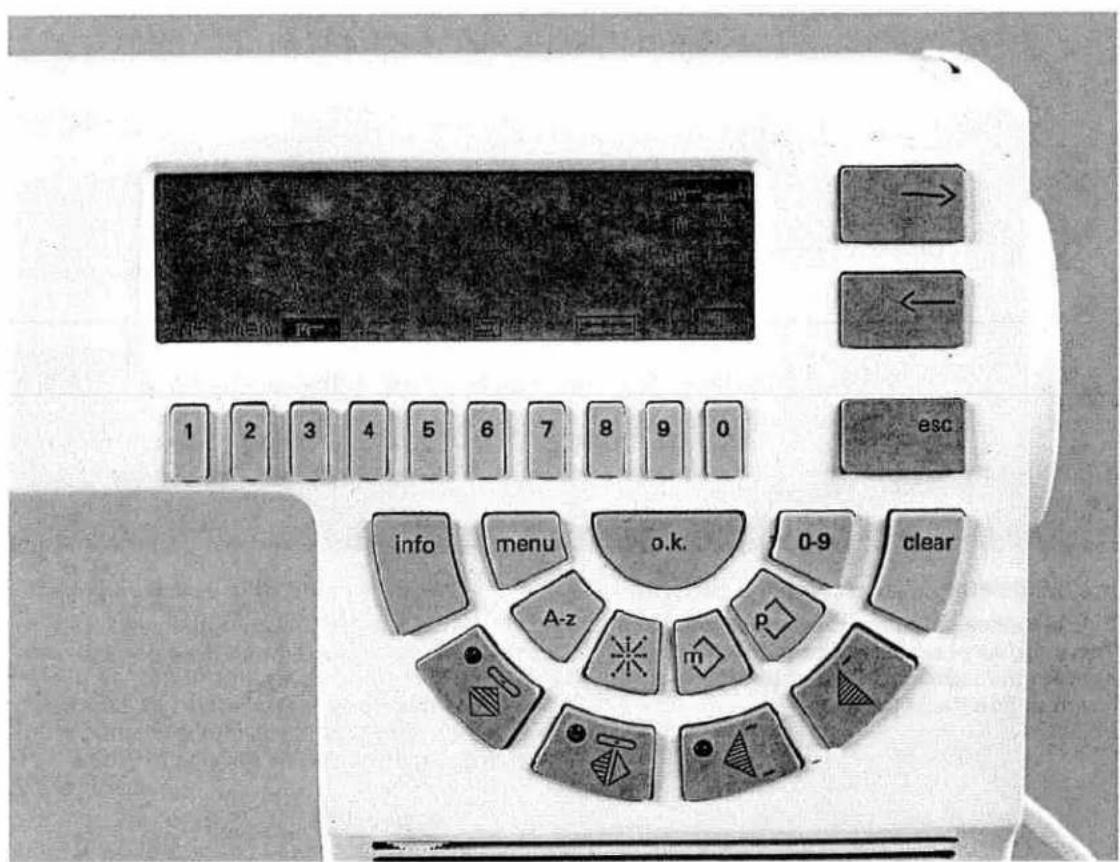
text_image
1 2 3 4 5 6 7 8 9 0 esc info menu o.k. 0-9 clear A-z m PSymbol "m-"
By selecting the "m-" symbol with key "3", the menu on the right-hand side of the screen will change. With these functions stitches or patterns can be deleted. The individual functions can be selected with the "0" key underneath and will be marked at the same time.
m- ↓ Deleting a stitch at the end
By selecting this function the last stitch of the pattern displayed on the screen will automatically be deleted by pressing the "o.k." key.
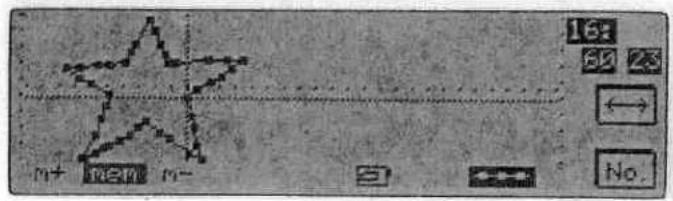
text_image
16: 60 23 ← No.


Tracing a pattern with "mem"
To check the individual stitches of a pattern and their sewing direction you can trace the stitches using the "mem" function.
Press key "2" below "mem" and a sub-menu will appear on the screen. By pressing the cursor keys "←" and "→" the cross will move from one stitch to another.
On the top right-hand side of the screen the respective stitch number and the length and width coordinates are displayed.
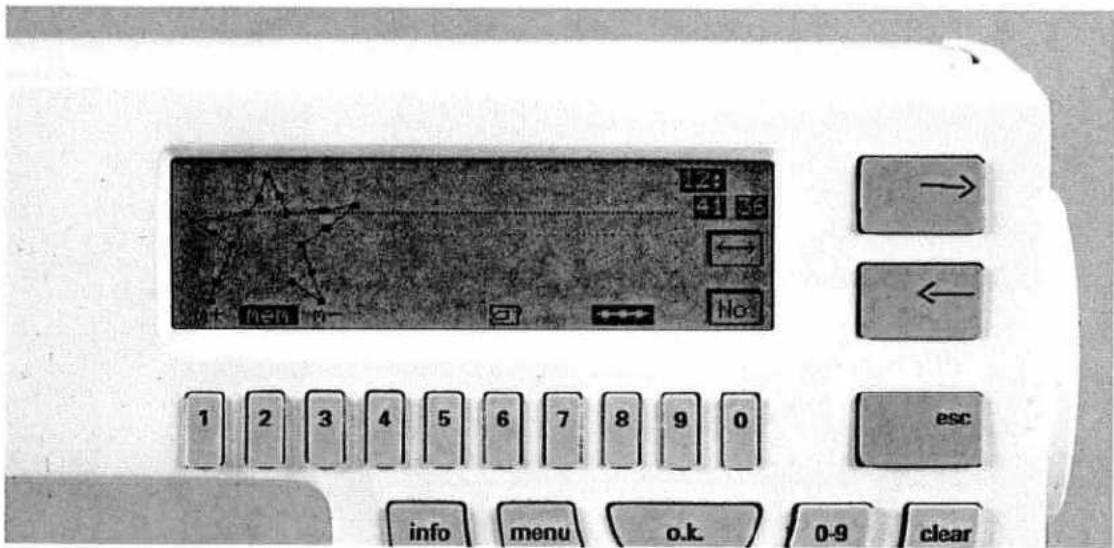
text_image
12: 41 36 ← No → ← 1 2 3 4 5 6 7 8 9 0 esc info menu o.k. 0-9 clearFunction "No."
Key "0" underneath "No." activates the Creative
Designer. Choose a stitch with the cross and
press the "memory" key on the Designer. The number of the stitch will be displayed.
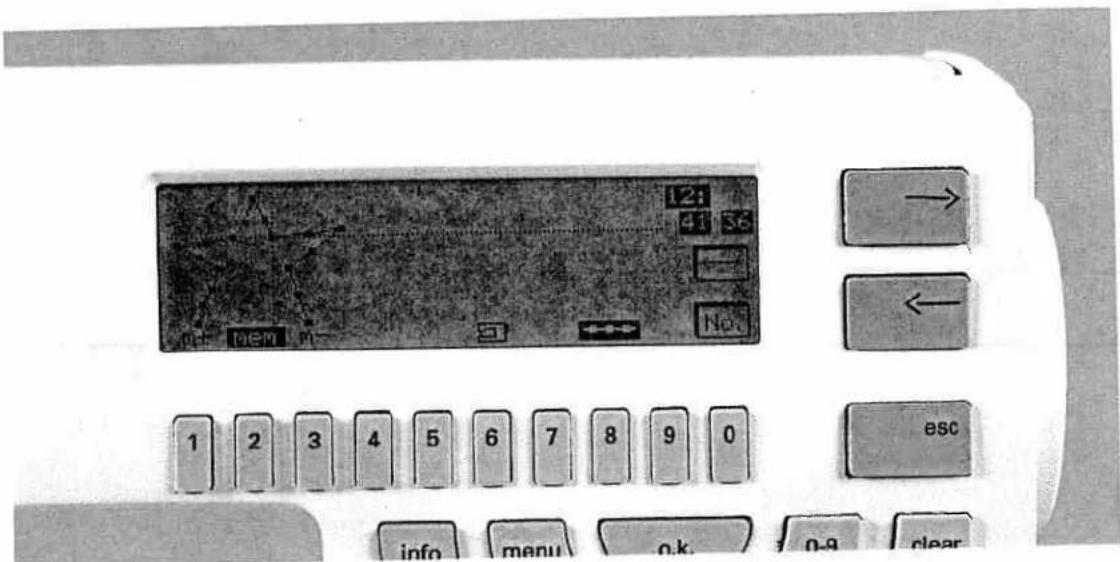
text_image
12: 41 56 → ← No. 1 2 3 4 5 6 7 8 9 0 esc info menu o.k. 0-9 clearFading in/out stitch points
By pressing key "8" the stitch points of a pattern
will be faded in or out. Fading in the stitch
points makes corrections much easier.

text_image
10 9.0 + - Z Z - C edit 1 2 3 4 5 6 7 8 9 0 esc info menu o.k. 0-9 clearSewing the pattern
By pressing key "6" underneath symbol "☐" your pattern will be ready for sewing. On the screen the following menu appears:
On the bottom left are the length and width settings. By pressing key "1" (length) a sub-menu appears under which you can select a different length using the numbered keys "1-0".
By pressing key "2" (width) you can select a different width using the numbered keys.
By pressing the "esc" key you will return to the previous screen.

text_image
1 2 3 4 5 6 7 8 9 0 esc info .menu o.k. 0-9 clear A-z m PROM
Within the P-Memory section you have the possibility to manipulate a preprogrammed motif from the Creative's pattern selection by transferring it to a P-Memory and changing it with the connected Creative Designer. Press key "P◇". The P-Memory directory appears on the screen. Select a free P-Memory with the numbered keys and you will be in the programming screen. By pressing key "4" below the rom-function, the pattern selection message appears.
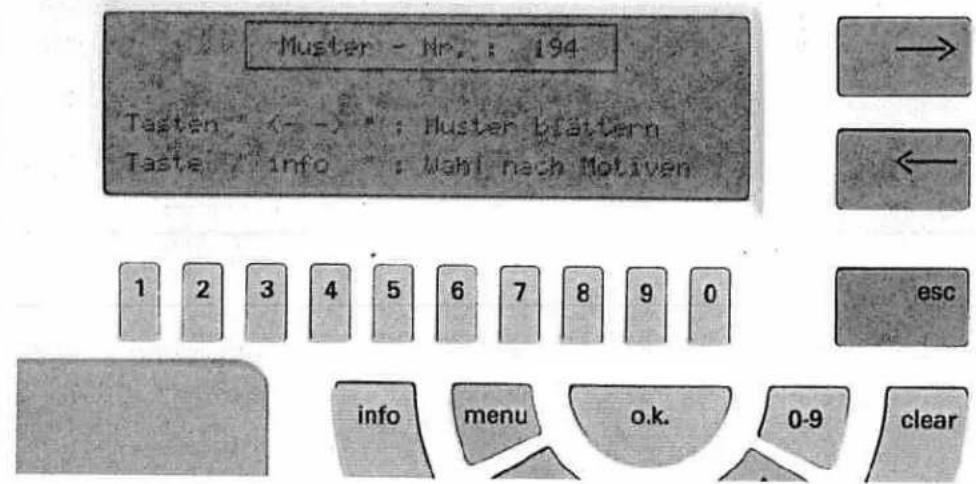
text_image
Muster - Nr. : 194 Tasten "(- -) "; Huster blättern Taste "info "; Wahl nach Motiven 1 2 3 4 5 6 7 8 9 0 esc info menu o.k. 0-9 clearEnter the number of the pattern you wish to manipulate and confirm with "o.k.".
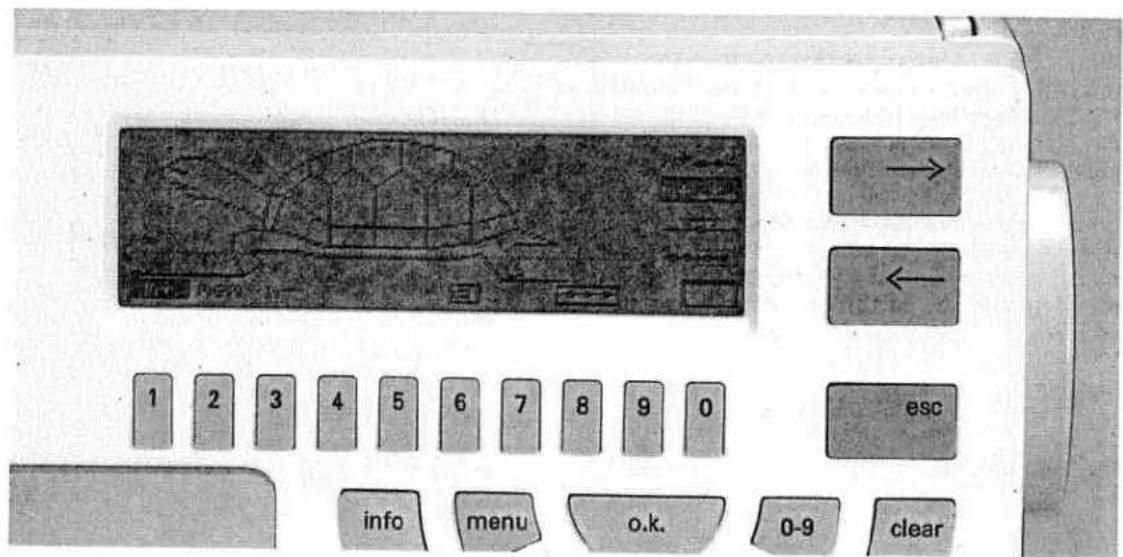
text_image
1 2 3 4 5 6 7 8 9 0 esc info menu o.k. 0-9 clearThe pattern will appear in the programming screen and can be changed with any of the functions described so far (delete a stitch, move a stitch, insert a stitch, etc.).

text_image
1 2 3 4 5 6 7 8 9 0 menu o.k. 0-9 clear A-z m pRAM
With the "ram" function you can copy the contents of a P-Memory into another P-Memory. You need this function if, for example, you wish to manipulate a pattern with the Designer or add to it without loosing the original pattern.
Press the "p" key. The P-Memory selection appears on the screen. Select a free P-Memory with the numbered keys.
Press key "5" for "ram". The P-Memory directory appears.
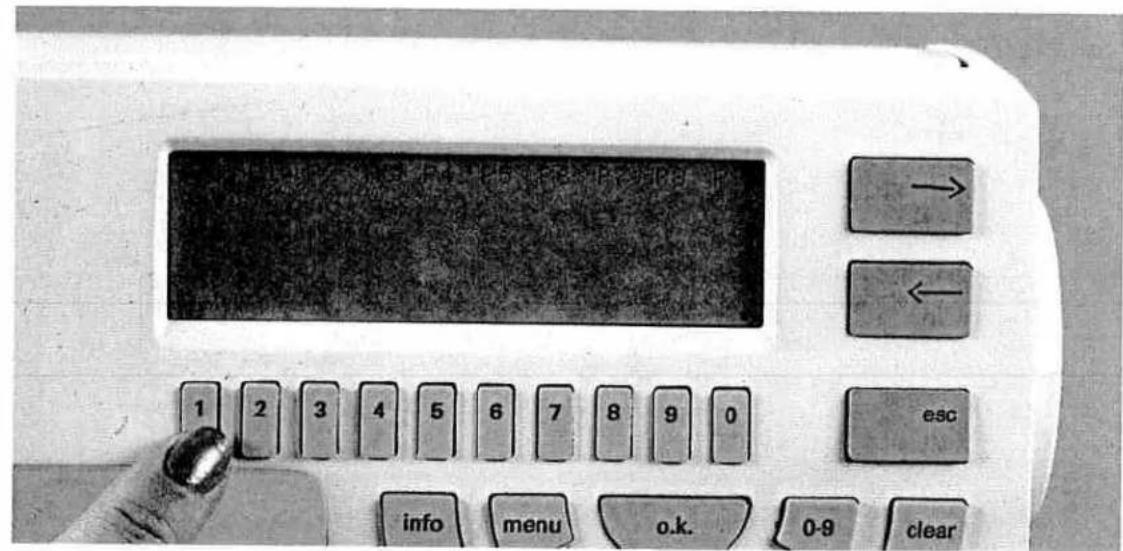
text_image
Close-up of an electronic device control panel with labeled buttons and a screen displaying the text.Using the numbered keys, select the memory containing the pattern you wish to transfer to the free memory. On the display the pattern that has been copied to the free memory appears in the programming screen.
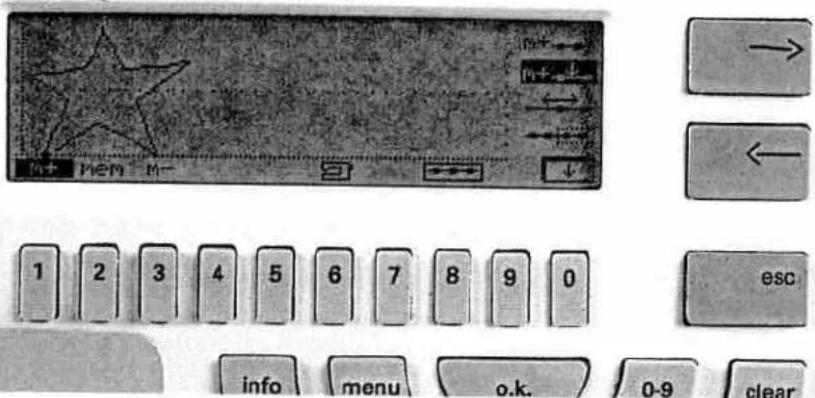
text_image
Cropped image of a vintage computer control panel with labeled buttons and navigation icons, including star symbol, menu, and navigation buttons.Now you can manipulate the pattern with any of the functions described before (delete, insert a stitch, etc.).
(1) 12 (2) 13 (3) 14 (4) 15 (5) 16 (6) 17 (7) 18 (8) 19 (9) 110 (10)
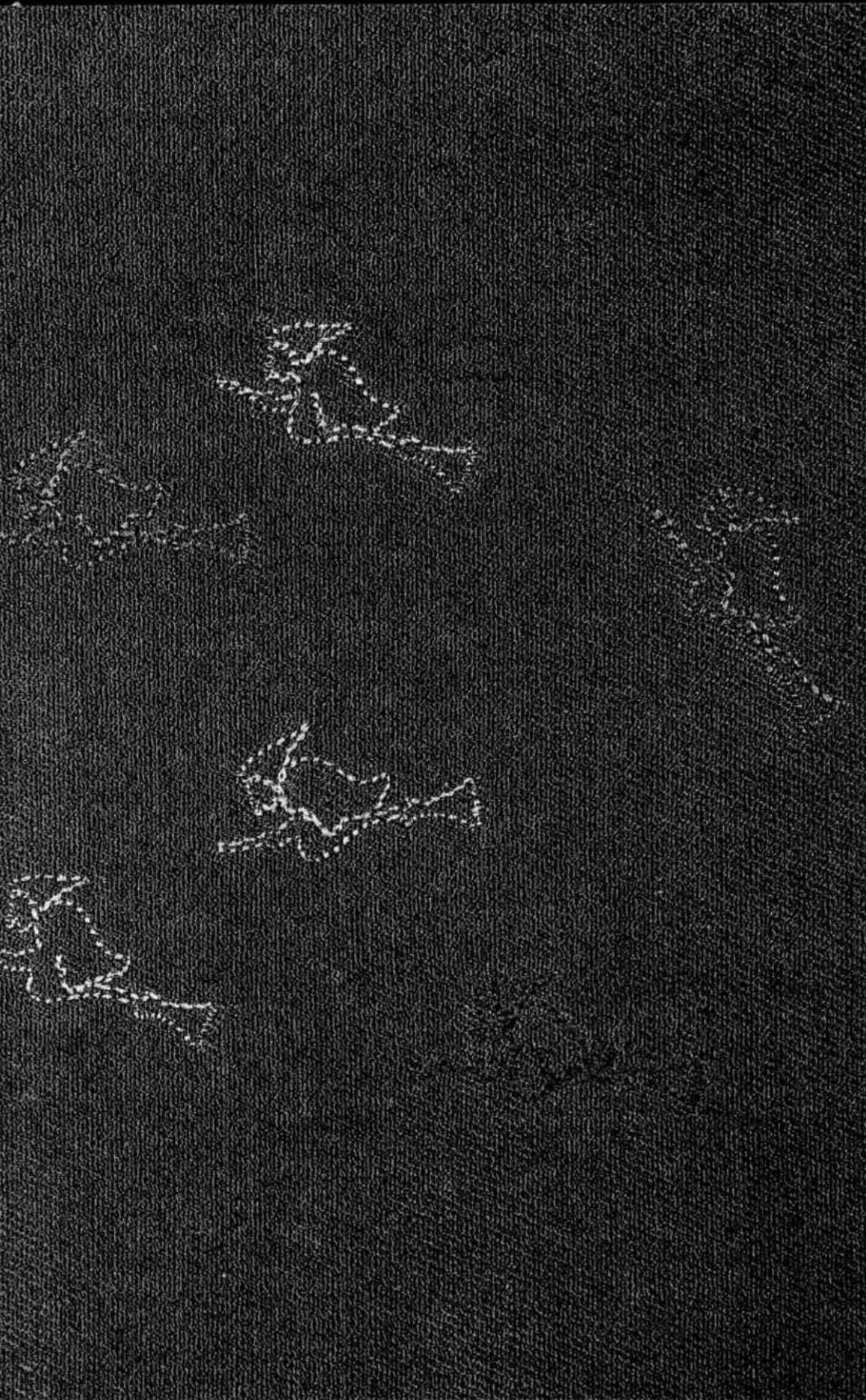
text_image
Hand-drawn white line drawings on a textured black background, possibly depicting a signature or annotation.Traditional embroidery techniques Utility stitches Buttonholes
natural_image
Black-and-white illustration of a snowy fabric with sailboats and birds, no text or symbols present.Utility stitches / Buttonholes
Pages 111-145
Accessories / Needles
Pages 147–158
Maintenance / Trouble shooting
Pages 159–163

natural_image
Black-and-white illustration of a person in traditional attire with floral embroidery, holding a hat and fork (no text or symbols)
natural_image
Black-and-white photo of a woman in a patterned skirt and overalls, smiling against a draped curtain background (no text or symbols visible)Contents
Utility stitches
Pages 115–131
Buttonholes
Pages 132–145
Sewing feet
Pages 148–150
Needle chart
Pages 157–158
Maintenance
Pages 159–162
Trouble shooting
Page 163

natural_image
Blank white image with a vertical dashed line across the center (no text or symbols)Straight stitch
Program 00 is the basic straight stitch with center needle position. The stitch length can be increased up to 6 mm as required.
Some sewing jobs can be done easier by changing the needle position, e.g. topstitching a collar or sewing in a zipper.
The creative offers 19 needle positions which you can select with keys "7", "8" and "9".

natural_image
Pure diagram of a layered structure with diagonal lines and circular nodes, no text or symbols presentBasting stitch
With program 07 you can baste a garment before trying it on. When you press the foot control the machine will only make one stitch. For each further stitch you have to press the foot control each time.
- Lower the bottom feed and disengage the top feed.
- Place the fabric under the sewing foot.
- Sew one stitch, then pull the fabric to the rear by the required amount.
- Repeat this as many times as you need to finish the work.
TIP: To prevent the fabric plies from shifting, insert dress pins crosswise to the basting direction. Light fabrics are easier to baste with long straight stitches (6 mm). In this case, you do not need to lower the bottom feed.
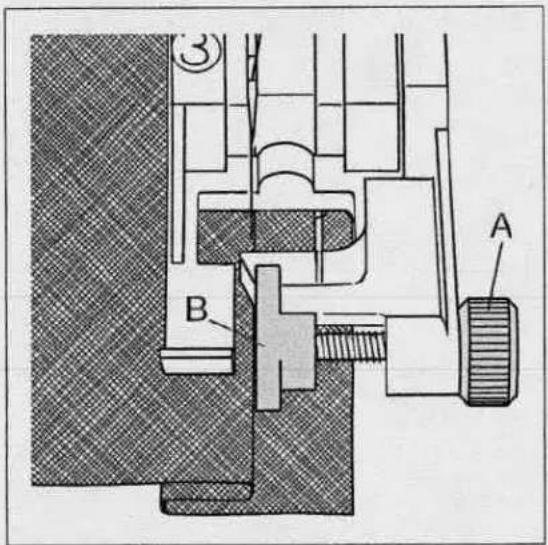
text_image
Technical diagram of a mechanical assembly with labeled components A and B, showing cross-sectional views and structural details.Blind stitch
Blind stitch 04 is best suited for invisible hems; sewing by hand is unnecessary.
- Serge the edge of the hem.
- Fold the edge inwards by the hem width.
- Now unfold the hem again so that the hem edge protrudes by about 1 cm (1/2 inch).
- Now place the fabric under the sewing foot so that the crease line runs along edge guide B.
- When the needle enters the crease line it must only pick up one fibre of the fabric.
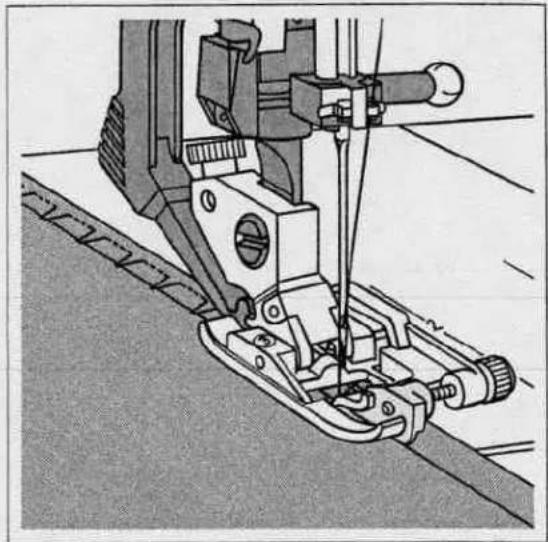
natural_image
Technical illustration of a sewing machine needle stitching fabric (no text or symbols visible)Elastic blind stitch
Prog. 05
This special blind stitch is particularly suitable for elastic materials. It is not necessary to serge the fabric edge because of the integrated zigzag stitch.
- For instructions see description on the left.

natural_image
Close-up of a fabric with a curved seam or seam, showing texture and shading (no text or symbols)Stretch triple straight stitch
Prog. 01
This program is used for sewing all seams where great strength is needed, e.g. inside trouser seams. The heavier the fabric, the longer the stitch length you need.

natural_image
Abstract geometric line drawing with intersecting lines and a lightning bolt shape (no text or symbols)TIP: If you wish to topstitch a collar edge with program 01, use the functions "needle down" and "single pattern". Do not press the single pattern key until you reach the last stitch before the corner. The machine thus stops after the stitch, and the needle stays in the material. Now turn the fabric and switch off the "single pattern" key.
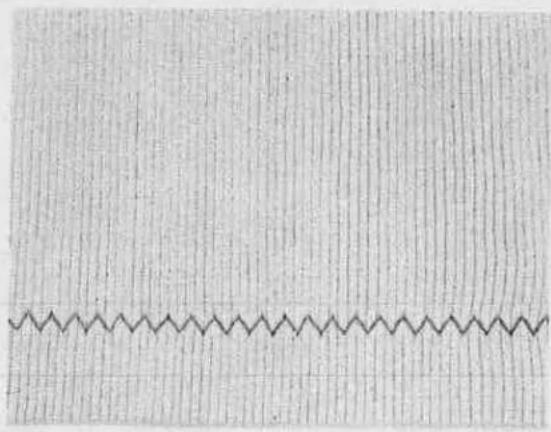
natural_image
Close-up of a zigzag line on textured fabric background (no text or symbols)Stretch triple zigzag stitch
Prog. 22
The stretch triple zigzag stitch produces a highly elastic and decorative seam which is very suitable for hems on T-shirts and underwear.
- Serge the edge of the hem.
- Fold the hem inwards at the required width.
- Topstitch the hem from the face side.
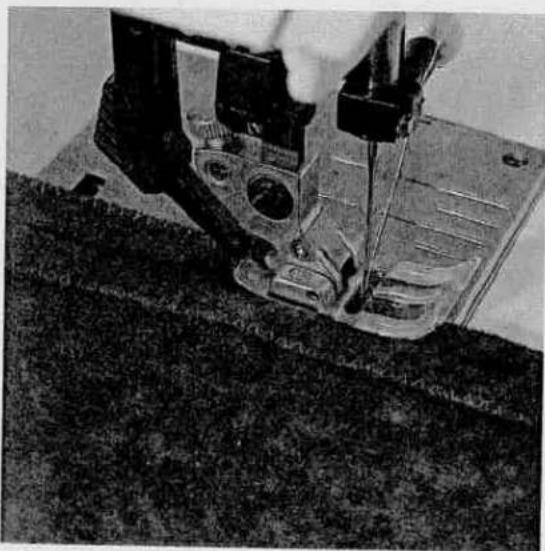
natural_image
Close-up of a sewing machine needle stitching fabric (no visible text or symbols)Zigzag stitch
Prog. 02
Zigzag stitch 02 is used for trouble-free serging of all edges. While serging an edge, always make sure the needle goes into the material and over the edge alternately.
In program 32 the width of the zigzag stitch changes from the right needle position on.
If you press key " ", the width of the zigzag stitch changes from the left needle position on, e.g. for eyelet embroidery and cording work.
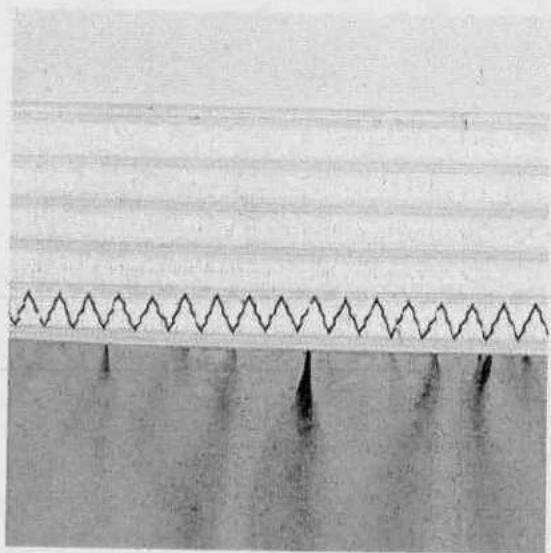
natural_image
Microscopic view of layered material with wavy linear structure and dark vertical striations (no text or symbols)Elastic stitch
Prog. 03
Owing to its high elasticity this stitch is used for sewing elastic, e.g. on underwear.
- Cut off the old elastic close to the edge.
● Gather the fabric with 6 mm long straight stitches. - Push the part prepared in this way between the elastic tape, or place it underneath, and pin it firmly in place.
- Sew it on with the elastic stitch. Leave the ends of the elastic tape overlapping a little and sew over them with elastic stitches.
- On skirts or trousers the elastic tape is sewn onto the prepared edge with the elastic stitch.

natural_image
Plain textured surface with a diagonal hatched line on the right side (no text or symbols)Overlock stitches
Prog. 06, 30–38
For knit and other stretch materials the creative offers a selection of overlock stitches. These join two plies of fabric and serge them in one operation. They have a higher elasticity than usual stitches, they are more durable, and you can sew them fast, too.
Tip: When you sew overlock seams, we recommend you use blind stitch foot No. 3. It guides the fabric better and prevents tunneling of the seam at wider stitch widths.
Open overlock stitch
Prog. 33
With this stitch it is no problem to join firm materials or fabrics which do not fray too much.
TIP: Make sure that the needle in its right-hand position just misses the edge of the material.
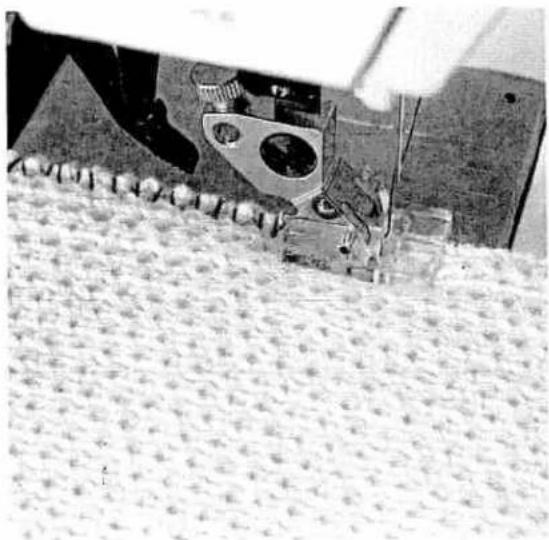
natural_image
Close-up of a sewing machine needle stitching a textured fabric surface (no visible text or symbols)Pullover stitch
Prog. 31, 36 + 37
Used together with the knit-edge foot (special accessories) this stitch can even be used for sewing open-knit fabrics. Fashion-knit garment sections can be joined with this stitch without any efforts.
TIP: To prevent the seam from stretching open during joining, it is advisable to add a woollen thread under slight tension.
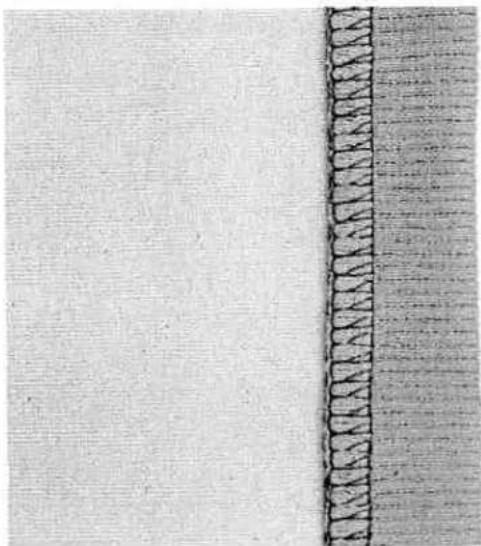
text_image
Cropped image showing a vertical strip of text with a diagonal line, likely from a document or label.Closed overlock stitch with edge thread
Prog. 30
If you wish to use a material that frays easily, select program 30. With this stitch an additional edge thread protects the fabric edge against fraying.
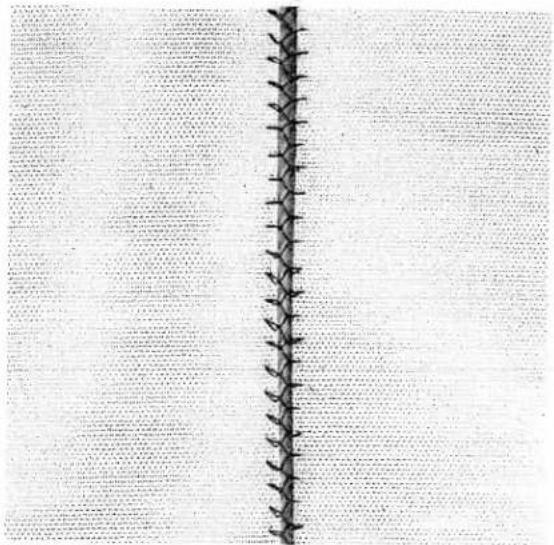
natural_image
Close-up of a vertical, segmented, textured object with evenly spaced protrusions (no visible text or symbols)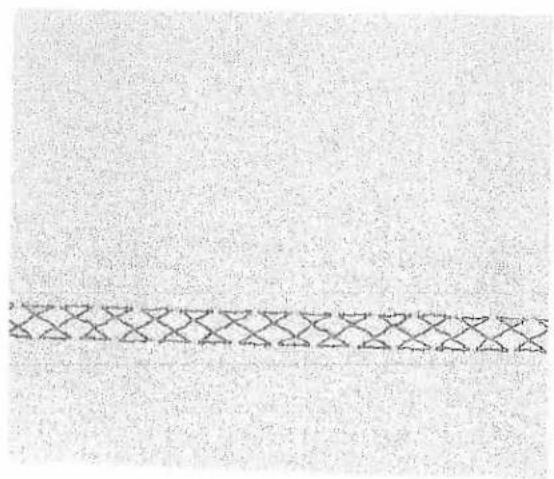
natural_image
Abstract pattern of interlocking triangles on textured background (no text or symbols)Flat covering seams
Where seam allowances and serged edges are inconvenient covering seams are used. These seams are particularly flat, join bordering fabric plies and serge them at the same time. This produces the typical flatlock effect which lends a professional look to collar plackets or raglan seams.
Fagoting stitch
Prog. 17
With the fagoting stitch you can make very elastic seams with hemstitching effect, e.g. on corsetry.
- Serge the fabric edges and tack-baste over on the inside.
- Place the fabric under the sewing foot with the edges about 3 mm (1/8 of an inch) apart.
- Sew on the face side, making sure the needle enters the material on the right and left side.
Cross stitch
Prog. 19
Owing to its high elasticity, this stitch is very suitable for decorative hems, e.g. on T-shirts and underwear.
- Serge the fabric edge.
- Baste over the seam margin to the left.
- Stitch over the hem from the face side. When doing so, make sure the fabric edge is properly overstitched.

natural_image
Close-up of a textured surface with a wavy black line and a small bright spot (no text or symbols)Fancy elastic stitch
Prog. 18
Fancy elastic stitch is very useful for materials that need a flat seam, e.g. terry-cloth.
- Place the two fabric edges so that they overlap by about 2 cm (3/4 of an inch) and overstitch each edge with fancy elastic stitches.
text_image
Scanned document page with vertical line of text, likely a form or templateSaddle stitch
Prog. 11
The saddle stitch is best suited for topstitching work on jackets and coats. If you use grass stitch combined with other fancy stitches, you can also produce beautiful pattern combinations.

natural_image
Close-up of a textured surface with a curved, layered pattern and evenly spaced small circular indentations (no text or symbols)Light-knit mending stitch
Prog. 35
The light-knit mending stitch is a stretchable covering stitch. It is very suitable for overstitching cuffs in stretch materials, e.g. sweat shirts or sportswear.
- Sew the cuff onto the part with an overlock stitch.
- Now the seam allowance can be overstitched from the face side of the fabric. Make sure that the needle enters close against the seam.
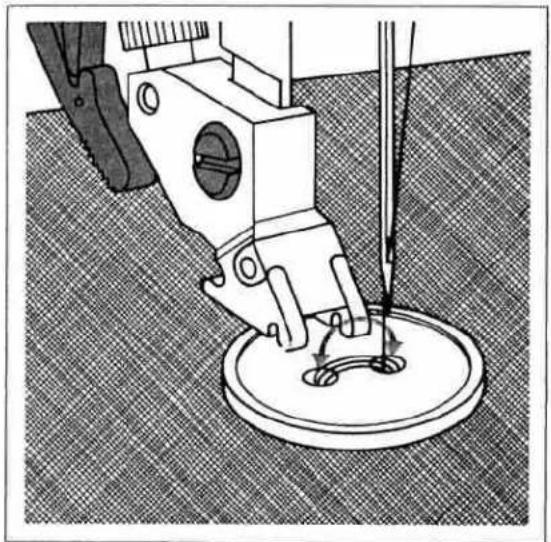
natural_image
Mechanical diagram showing a sewing machine needle stitching a circular base with arrows indicating direction (no text or symbols present)Sewing on buttons
Prog. 09
With program 09 you can sew on two- and four-hole buttons without any problems.
- Remove the sewing foot.
- Place the button in the place marked.
- Turn the hand wheel towards you and position the button so that the needle enters the left hole in the button.
- Now lower the presser foot lifter; the button is now held by the shank of the foot holder.
- Now sew on the button. Make sure that the needle also enters the right hole in the button.
- The machine sews a tack and the program is completed.
TIP: By lowering the feed dog buttons can be sewn on even easier.
Linen buttonhole
With program 08 you can sew fully automatic linen buttonholes. The buttonhole size of 7-16 mm can be entered using the numbered keys (see "buttonhole" section).
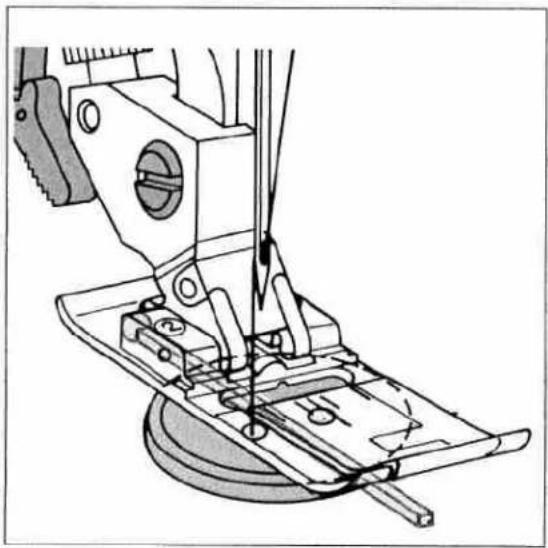
natural_image
Technical line drawing of a sewing machine needle stitching fabric (no text or symbols)Sewing on buttons with stems
Prog. 09
- Insert the sewing foot.
- Place a match between the holes of the button and sew it on as described on the left.
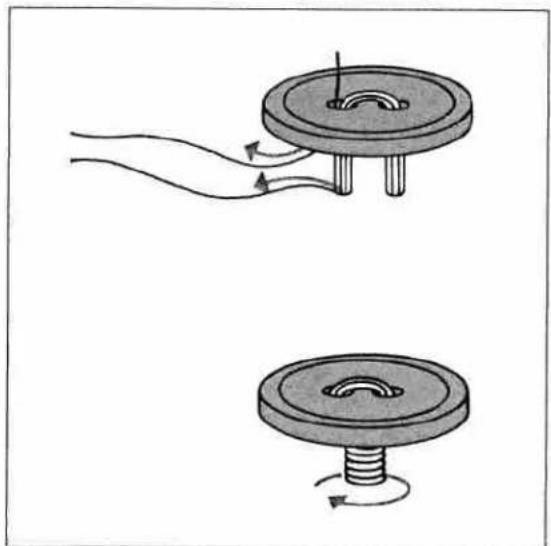
natural_image
Two mechanical diagrams showing a hand pressing a circular component and then rotating a spring (no text or symbols)- Remove the match and pull the button and fabric apart.
- Wrap the stem with sewing thread and knot it.

natural_image
Simple line drawing of a vertical rectangle with two horizontal lines and a small square at the bottom (no text or symbols)Automatic bartack
Prog. 24 + 25
With program No. 24 you can sew a fully automatic bartack for strengthening zippers, pockets, or belt loops. If you choose a larger size bartack, the stitch density will automatically be increased.

natural_image
Pure geometric line drawing without any text, numbers, or symbolsWith program No. 25 you can sew professional pocket bartacks as used in the garment industry. It also provides a highly durable fastening for shoulder straps on handbags.
natural_image
Close-up of a dark triangular shape on a textured gray background (no text or symbols)Arrowhead bartack
Prog. 26
The arrowhead bartack is always used for seam ends subjected to great strain and possible fraying, e.g. on skirt slashes or pockets. Using a thicker thread the arrowhead bartack looks like hand-stitched. Using a variegated (flecked) thread you can achieve decorative effects.
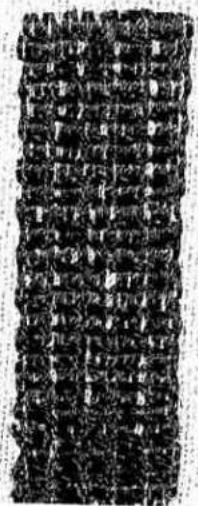
text_image
Scanned text of dense, low-resolution Chinese characters, likely from a historical or literary manuscript.Automatic darning
Program 28 is mainly intended for strengthening damaged areas of fabric.
- Stitch over the damaged area at the required length.
- Press the reverse key; the machine finishes sewing the darning program and the darning length is thus saved.
The saved darning length can now be repeated as often as needed.
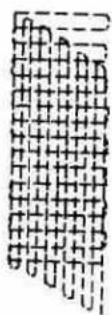

natural_image
Abstract geometric pattern with interlocking lines forming a triangular shape (no text or symbols)Depending on the type of material, the darning pattern may shift to one side. You can straighten the pattern again using the balance (see "balance" section).
If the pattern shifts this way you have to correct the balance in the plus-section.

If the pattern shifts this way you have to correct the balance in the minus-section.
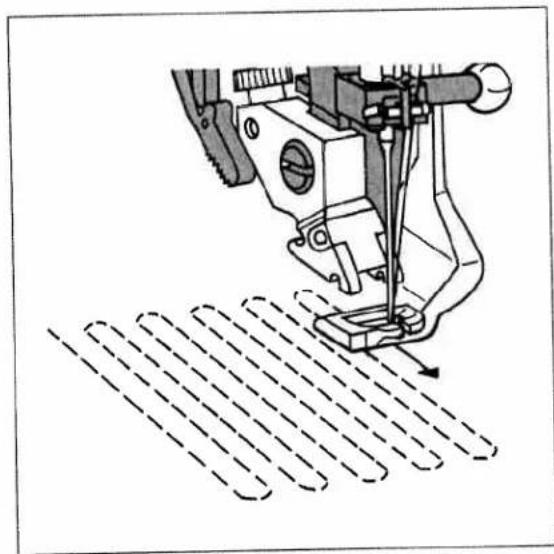
natural_image
Technical line drawing of a mechanical sewing machine with dashed lines indicating measurement or cutting paths (no text or symbols present)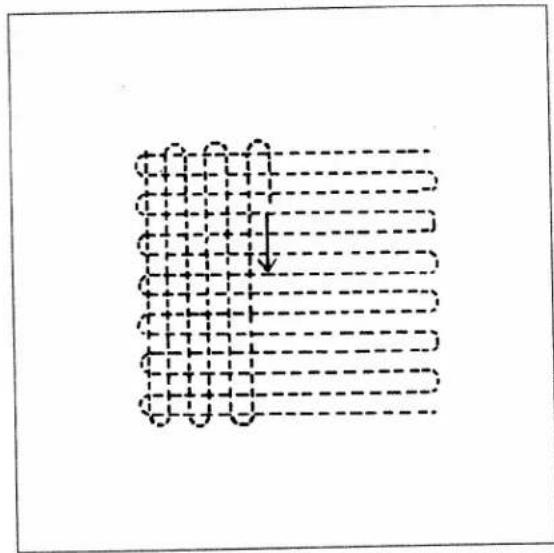
natural_image
Diagram of a grid pattern with dashed lines and an arrow, no text or symbols presentDarning with straight stitch
Prog. 00
Insert darning foot No. 6.
Set the needle at its highest position by turning the handwheel, and push the pin of the darning foot fully into the hole of the sewing foot holder slightly pressing the darning foot between thumb and forefinger.
When doing this, the guide fork should place itself around the presser bar and the wire must be behind the fixing screw.
Darning position:
Lower the presser foot lifter pressing it lightly to the rear until it snaps into the darning position.
Important! Only in this position you have the optimum thread tension for darning.
- Place the darning work in the darning hoop.
- Drop the feed dog.
- Pull up the bobbin thread and hold the threads when you start sewing.
- Now guide the fabric back and forth evenly; the length of the darn will be set by the size of the hole. As you are determining the stitch length yourself while sewing with the feed dog dropped, you should sew at an even speed. When you have reached the width of the damaged area, darn over the damaged area again from right to left.
This guarantees a durable darn.
TIP: The faster you sew, the easier and more even the darning will be. If you are moving the part too slowly small knots will appear on the reverse side of the fabric.
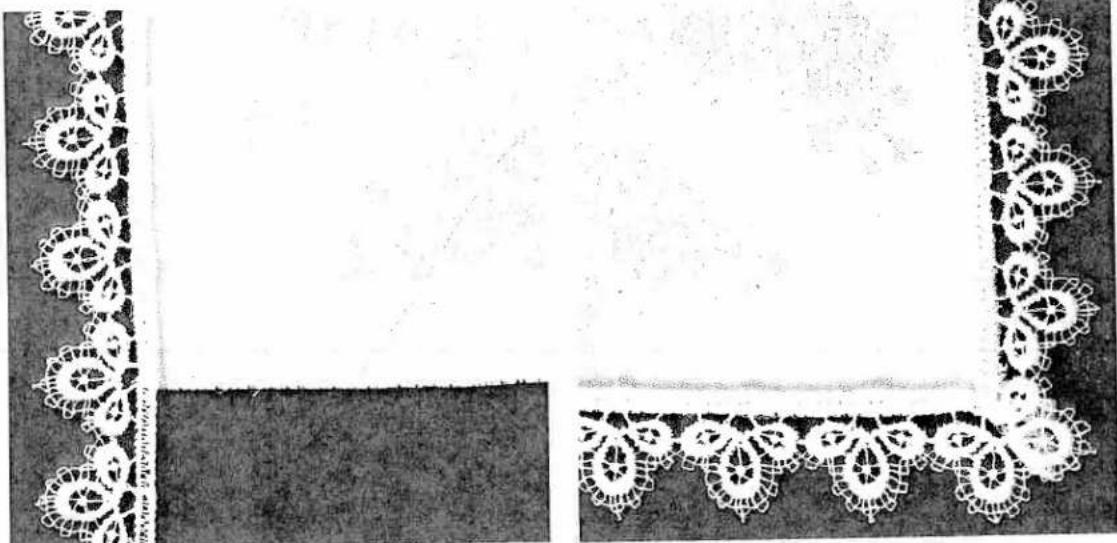
natural_image
Decorative border frame with lace patterns and a blank white space (no text or symbols)Lace trimmings:
You can produce a beautiful effect on table cloths, napkins or garments with lace trimmings.
Lace edges
Prog. 02
Prog. 00
Serge the raw edge of the fabric with zigzag or overlock stitches. Place the lace onto the fabric so that the edges of the fabric and lace overlap slightly. Then stitch the lace onto the face side.
You can achieve a particularly flat seam if you are joining lace and fabric with a covering stitch. In this case, the lace and fabric edges should also overlap slightly. As the covering stitch will serge the fabric edge at the same time, you only need to cut back the waste material carefully along the seam.
Lace edges with corners
Prog. 02
Prog. 00
First serge the raw edges. Stitch the lace onto the face side up to the first corner. Fold the corner and stitch over it diagonally. Sew the lace continuously onto the next edge. All other sides are done in the same way.
Lace inserts
Prog. 02
Prog. 00
First baste the lace to the face side of the fabric. Stitch both edges of the lace at a narrow margin using straight stitch 00. Cut open the fabric under the lace at the middle and iron it over to the side. Stitch over both edges of the lace with small and dense zigzag stitches. Cut back the waste material.

natural_image
Close-up of a sewing machine needle stitching fabric (no visible text or symbols)Gathering with straight stitch
Prog. 00
If you wish to gather sleeves, skirts, cuffs or valances, this technique is the easiest and most commonly used.
On the face side of the fabric mark the lines of the gathering seams. Sew the first seam holding the fabric a little taut as the fabric will gather easily at an increased stitch length. Leave about 10 cm (4 or 5 inches) of thread protruding at the beginning and end of the seam.
To obtain neat and even gathers you should sew two or three gathering seams close to each other (approx. 0,5 cm=1/8 of an inch apart). Now gather the part by pulling the bottom threads of the seams. You determine the amount of gather yourself.
To avoid thread breakage while pulling the thread ends, do not use very fine threads.
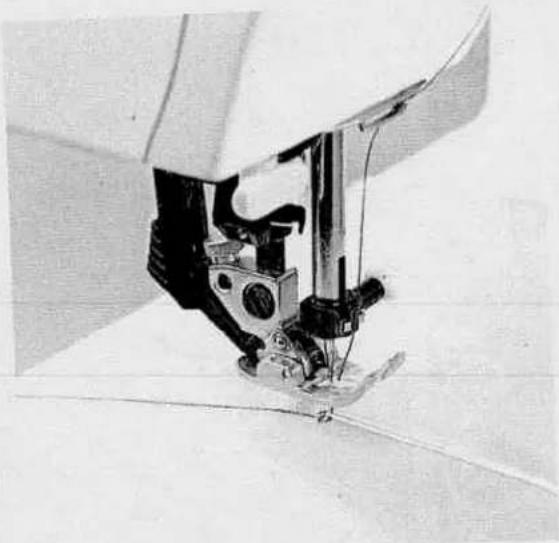
natural_image
Close-up of a sewing machine needle stitching fabric (no visible text or symbols)Gathering with elastic threads
Prog.14
This kind of gathering is particularly suitable for visible, elastic gathering seams on blouse sleeves, waist seams or neck cutouts.
On the reverse side of the fabric mark the line of the gathering seam. When starting the seam let the needle penetrate into the fabric without lowering the sewing foot. Place the elastic thread around the needle so that two threads are over-stitched. Now lower the sewing foot.
If you use the cording foot for gathering, the elastic threads should be inserted into the foot from the side and drawn into the grooves. While sewing the gathering seam, make sure that the elastic thread is not stretched or penetrated by the needle.
After finishing the gathering seam you can determine the amount of gather yourself by pulling the ends of the elastic threads. Tie-off the threads.
natural_image
Repeating pattern of interlocking black lines on white background (no text or symbols)Darning with elastic stitch
Prog. 03
The elastic stitch is very suitable for repairing holes, tears and damaged areas.
Depending on the size of the damaged area, sew over this area with rows of elastic stitches until it is well covered. When doing so, make sure the stitch rows overlap each other.
For darning tears, frayed edges and small holes it is easier to place a piece of material of the same colour which is slightly larger than the damaged area on the reverse side of the fabric. This will strengthen the fabric and guarantee a perfect darn. Then overstitch the damaged area as described above and cut back the waste material up to the seam on the reverse side.

natural_image
Close-up of a sewing machine stitching fabric, no visible text or symbolsSmocking
Smocking is a technique where several seams sewn parallel to each other produce a gathering effect which is mainly used for children's wear and corsetry. There are different techniques:
1) Smocking with gimp thread (non-elastic)
Gimp thread
Prog. 18 or 14
For beautiful smocking effects you will need two and one-half to three times the desired finished width of fabric.
The smocked section is usually done before the garment or decorative item is made. Light, firm materials such as batiste or fine linen are best suited for this technique. Draw a line on the fabric as guideline for the first gathering seam using a disappearing ink marker or non-greasy chalk. This guideline must follow the crosswise grain of the fabric.
Insert the appliqué foot, loosen the screw in the back of the foot shank and insert the edge guide bar. Place the fabric to be smocked face side up below the sewing foot, and introduce the gimp thread into the groove of the foot.
Now sew the first row of smocking and leave about 10 cm (4 or 5 inches) of thread protruding at the beginning and end of the seam. Then place the edge guide bar at the desired distance to the first row (approx. 2–2.5 cm = 1/2–3/4 of an inch). Alternating the rows' distances creates different looks. Now sew the next row of smocking using the edge guide bar on the first row as a guideline.
Continue in this manner until you have sewn as many rows as the design requires.
Then carefully pull the ends of the gimp thread and gather the fabric evenly across.

natural_image
Close-up of textured fabric with crumpled, layered patterns (no text or symbols)2) Smocking with elastic threads
Prog. 00
For this technique elastic thread is manually wound on the bobbin without tension. The needle thread is a regular sewing or embroidery thread. Since elastic threads are much thicker than normal bobbin threads, the tension on the bobbin case must be set very loose.
However, the tighter you set the bobbin thread tension the greater the gathering effect you obtain. We recommend to use an additional bobbin case for this work. For this kind of smoking fine and light materials such as light-knit fabric, silk or viscose is suitable.
TIP: Always sew a test seam first! Draw a line on the fabric to be smocked. Sew along this line and knot the threads at the beginning and end of the seam. The following parallel seams have to be sewn with the material stretched to its original length to avoid uneven gathering seams.

natural_image
Close-up of a sewing machine needle stitching fabric, no visible text or symbolsRoll hemming with hemmer No. 7
Prog. 00
Hemming secures the edges of chiffon, light-knit and nylon fabrics in a tidy and durable way.
Stretch the fabric before you start sewing. Doing this, you will see in which direction the fabric stretches because the hemming has to be sewn on this side.
Insert the hemmer. Lower the foot, sew a few stitches and pull the fabric into the scroll of the hemmer with the threads of the seam beginning. The zigzag stitch must be set at a width so that the inserted fabric edge is overstitched closely.

natural_image
Close-up of a sewing machine needle and foot assembly (no visible text or symbols)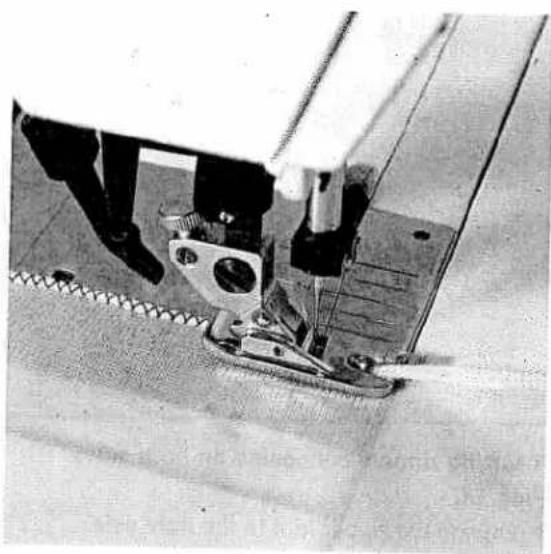
natural_image
Close-up of a sewing machine needle stitching fabric (no visible text or symbols)Sewing in zippers
Prog. 00
There are different ways to sew in zippers. For skirts we recommend inserting the zipper concealed on both sides, and for ladies' or men's slacks concealed on one side. For all types of zippers it is important to sew right up close to the teeth of the zipper. This is why the zipper foot No. 4 can be engaged in the foot holder to the left or right, depending on the method of insertion.
Additionally, you can set the needle so that it enters close to the edge of the zipper teeth by using one of the creative's 19 needle positions. If the foot is engaged right, the needle must only be moved to the right. If the foot is engaged left, the needle must only be moved to the left.
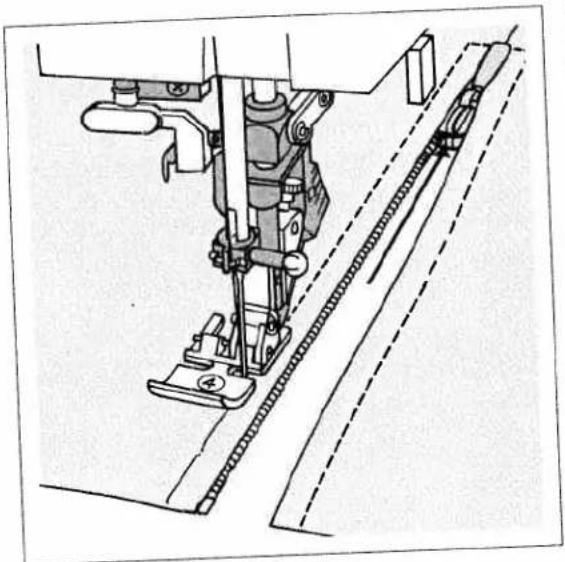
natural_image
Technical line drawing of a sewing machine needle and chain assembly (no text or symbols)Inserting zippers concealed on both sides Prog. 00
- Engage the zipper foot to the right side.
- Place the zipper under the sewing foot so that the teeth run at the side of the foot.
- Select program 00. In the programming screen you can set the desired needle position using the numbered keys "6-0".
- Sew in half of the zipper, leave the needle in the material, raise the sewing foot and close the zipper.
- Now you can sew the rest of the seam to the end of the zipper and stitch the crosswise seam. Then sew in the second half of the zipper parallel and at the same distance.
- Stop shortly before the seam end and leave the needle in the material. Raise the sewing foot and open the zipper.
- Lower the sewing foot and finish the seam.
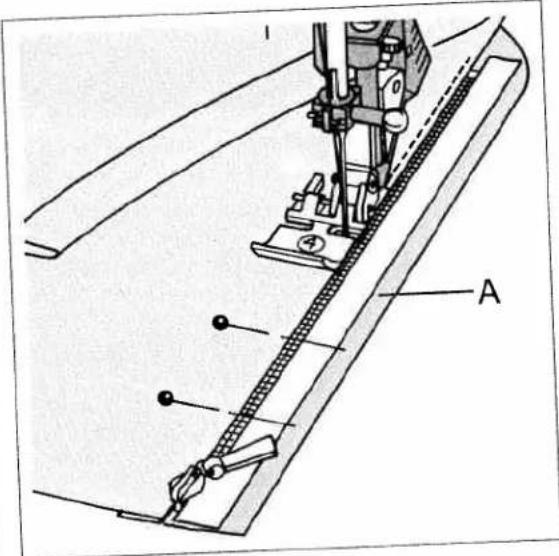
text_image
Technical diagram of a sewing machine with labeled parts A and ④, showing mechanical components and assembly line.Trouser zippers
Prog. 00
- Iron the seam allowance on the zipper seam over.
- Baste the zipper under the overlapping edge so that the teeth are still visible.
- Engage the zipper foot on the right and set the needle at the required position.
- Stitch close along the edge of the zipper.
- Shortly before the end of the seam, open the zipper and finish sewing the seam.
- Close the zipper and baste the overlap evenly onto the other zipper half.
• Afterwards stitch along the basted seam.
TIP: Using the edge guide you will chieve an accurate second seam.
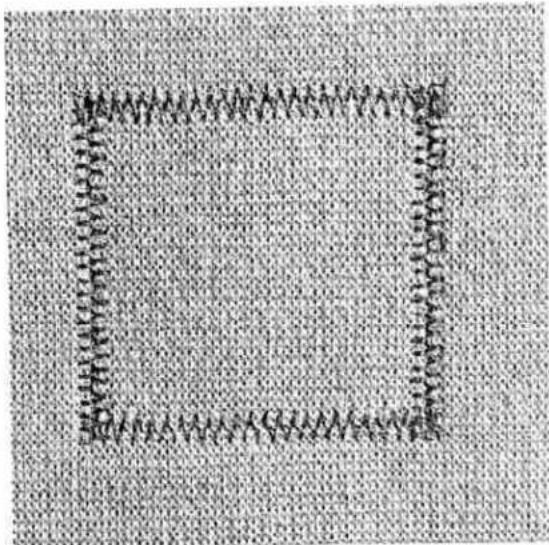
natural_image
Close-up of a woven fabric with a square frame and stitching pattern (no text or symbols)Sewing on patches
Prog. 15
The best way to darn larger holes is to cover the damaged area with a piece of new material.
- Cut a piece of fabric that is bigger than the damaged area.
-
Enforce the reverse side of the patch with an iron-on stabilizer.
-
Baste the piece of new material onto the damaged area.
• Overstitch its edges with elastic stitches. - Now cut back the damaged material up to the seam on the reverse side.
TIP: In order to turn at the corners more easily, use the "needle down" function.
natural_image
Black-and-white photo of a woman in a coat holding her head, standing in front of a bar with bottles and shelves (no visible text or symbols)Buttonholes
The Creative 7550 offers the optimum buttonhole for all types of materials and garments. Whether you sew jackets, trousers, blouses or elastic materials – 10 different buttonhole styles lend a professional finish to your self-created fashions.
You only have to program your buttonhole in the desired length once. Any further buttonholes will be sewn in the stored length automatically.
Use buttonhole foot No. 5 for buttonhole sewing. Before starting any buttonhole, always push the runner to the front up to the second red mark. This way, the buttonholes will be sewn to measure.
Set the needle thread tension at +3.
To sew every single buttonhole to measure, the Creative 7550 is equipped with buttonhole guide No. 10 and sensor technology. Using this guide you can sew perfect buttonholes even on the most difficult materials such as velvet, plush, heavy knit or woollen fabrics.
With the following tips you will sew perfect buttonholes even on difficult materials:
- Buttonholes which are sewn closely to an edge cannot be fed in an optimum way using the buttonhole foot. A better result can be achieved by using sewing foot No. 1A with engaged Dual Feed.
● Materials that tend to stretch easily should be stabilized with Avalon stabilizer by Madeira or paper. - Keyhole buttonholes will be particularly durable and prominent if sewn with a gimp thread (see section "keyhole button-hole with gimp thread").
- Linen buttonholes look more dense and beautiful when embroidery or darning thread is used.
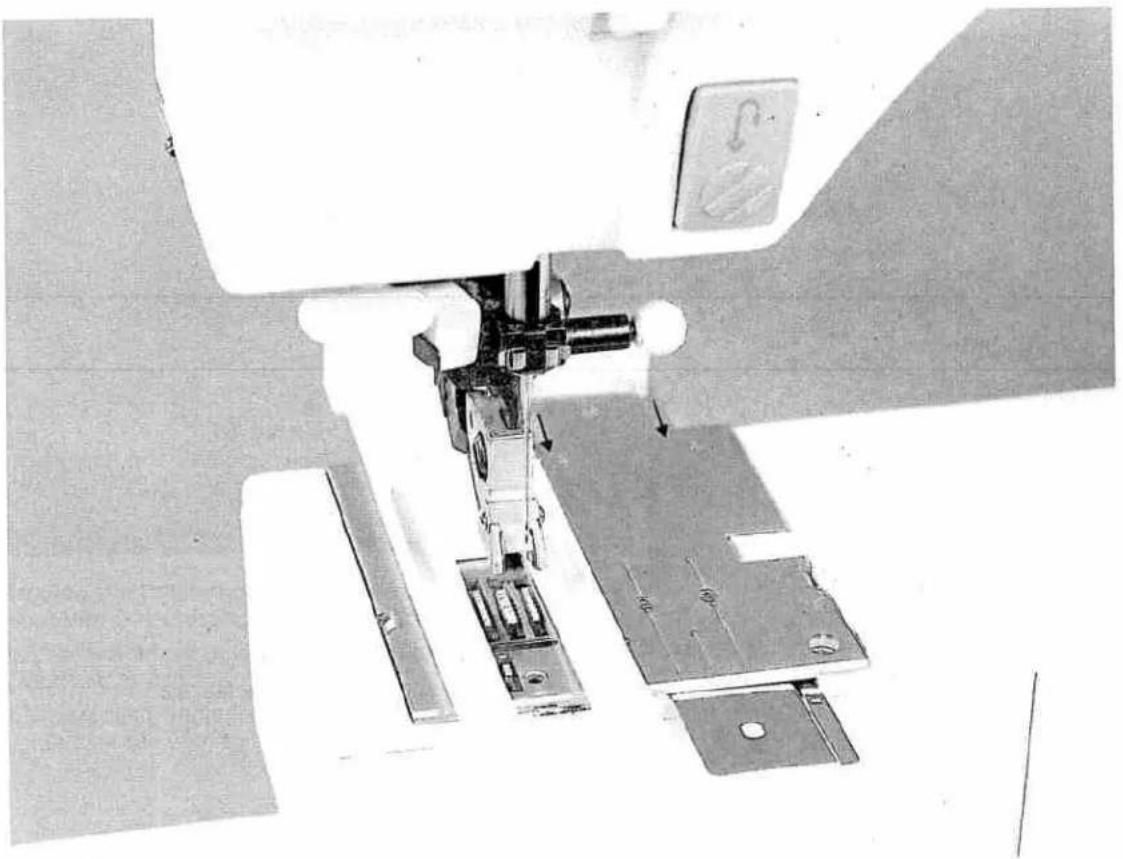
natural_image
Close-up of a sewing machine needle stitching fabric, showing mechanical components and fabric layers (no visible text or symbols)Inserting the buttonhole guide:
- Remove the detachable work support.
- Push the metal part of the buttonhole guide in the slot below the needle plate from the rear (between the two arrows marked red). Doing this, the white synthetic part is placed on top of the needle plate.
- Push the guide to the front until the catch lies against the rear of the free-arm. Doing this, the guide must spring back a little to obtain a small distance between the needle plate and catch. Without this distance, the second bartack of the buttonhole will not be sewn.
By inserting the buttonhole guide the sensor will be activated.
You can choose from the following buttonholes:
1. Standard buttonhole No. 40
(for blouses, shirts, dresses, etc.)
a) fully automatic
b) semi-automatic
2. Stretch buttonhole No. 41
for highly stretchable materials and heavy knit fabrics.
a) fully automatic
b) semi-automatic

3. Cross stitch buttonhole No. 42
for fine elastic materials and for decorative buttonholes.
a) fully automatic
b) semi-automatic
4. Round buttonhole with
- wedge tack No. 43
- crosswise tack No. 44
● lengthwise tack No. 45
for ladies' wear, especially for blouses and dresses.
5. Keyhole buttonhole with
- wedge tack No. 46
- crosswise tack No. 47
● lengthwise tack No. 48
for jackets, coats and trousers.

natural_image
Three identical cylindrical objects with textured surfaces, arranged horizontally (no text or symbols)6. Eyelets No. 49 for belts or linens.

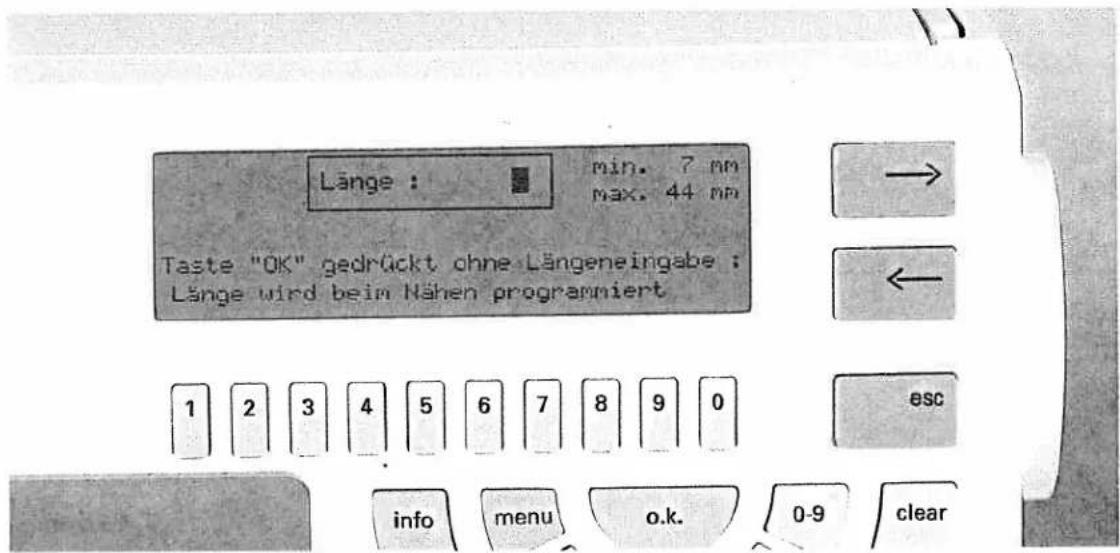
Sewing the buttonhole
Standard buttonhole, fully automatic
- Use buttonhole guide No. 10 or buttonhole foot No. 5 A.
- Select buttonhole No. 40. On the display appears the above shown message.
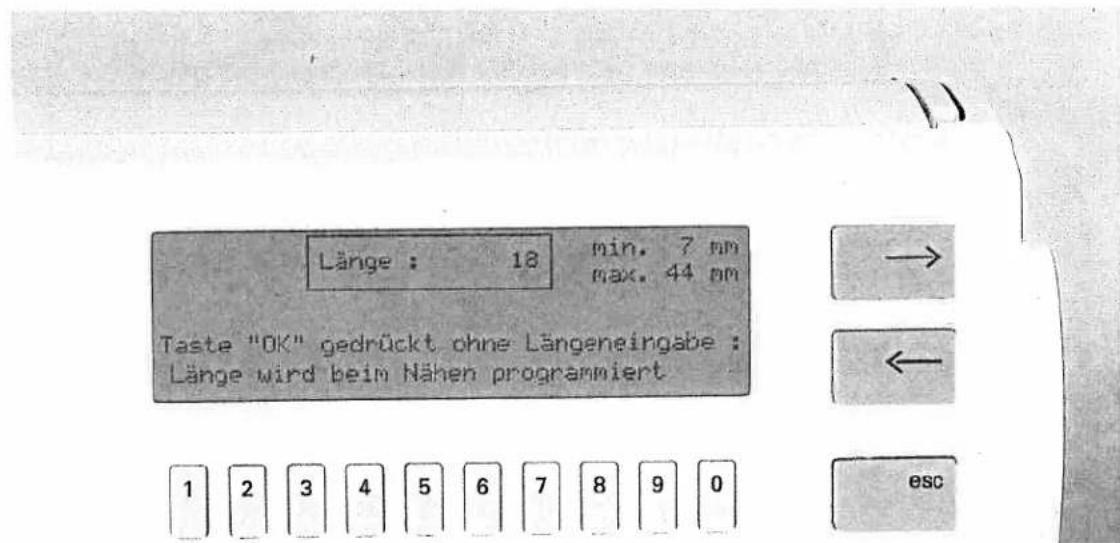
- Using the numbered keys "1-0" you can enter the desired length of the buttonhole, e.g. "1" and "8" = 18 mm.

text_image
18 40 manuell beorden 4.5 2 3 4 5 +.5 man → ← 1 2 3 4 5 6 7 8 9 0 ESCSelf-defining the second bartack with "man" If you wish to define the second bartack yourself, press key "6" below "man". The message "Finish manually" appears on the display next to the buttonhole. The buttonhole will then be sewn automatically, however, the sewing machine will reduce the sewing speed before the buttonhole is finished. As soon as the second buttonhole seam has reached the length of the first seam, press the "reverse" key. The creative will sew the second bartack and tie-off.
Important! Defining the second bartack with "man" has to be done individually for any further buttonholes.
TIP: You can interrupt the slow sewing at the end of the second buttonhole seam by taking your foot off the foot control a few seconds. When you step on the foot control again, the sewing machine will sew at normal speed and finish the buttonhole.
Deleting the programming:
The programmed buttonhole will be deleted by selecting a different program.
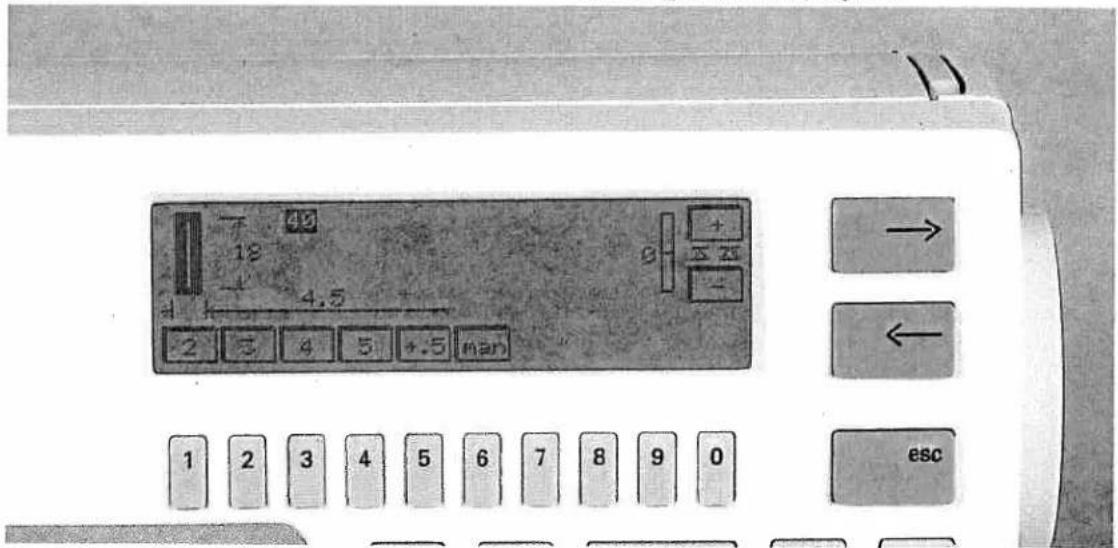
text_image
7 12 18 4.5 2 3 4 5 +.5 man → ← 1 2 3 4 5 6 7 8 9 0 escIf you press the "o.k." key afterwards, a new screen will be displayed containing the length and width of the buttonhole. The standard width of 4.5 mm can be adjusted with keys "1-5". For heavy materials select a wide buttonhole width, for light-weight materials a narrow width.
- Sew your buttonhole now. The machine will automatically sew the entire buttonhole at the preset length and tie-off at the end.

text_image
Standard buttonhole semi-automatic For this buttonhole the length and bartack are stored during sewing. After having programmed the first buttonhole the following buttonholes are sewn fully auto- matically. For semi-automatic buttonholes the stitch density can be set besides the buttonhole length and stitch width. • After selecting buttonhole No. 40 do not enter a buttonhole length, but press the "o.k." key. The programming screen with length and width settings appears. tive 7550 Made in Germany Using keys "1-5" you can change the standard width of 4.5 mm. Using keys "7 + 8" you can set the stitch length (= density of the buttonhole seams). For the programmed buttonholes a seam density of 0.5 is stored in the machine. If you wish to sew an extremely dense buttonhole, select setting 0.3 or 0.35. Standard buttonhole semi-automatic Horizontal embroidery ques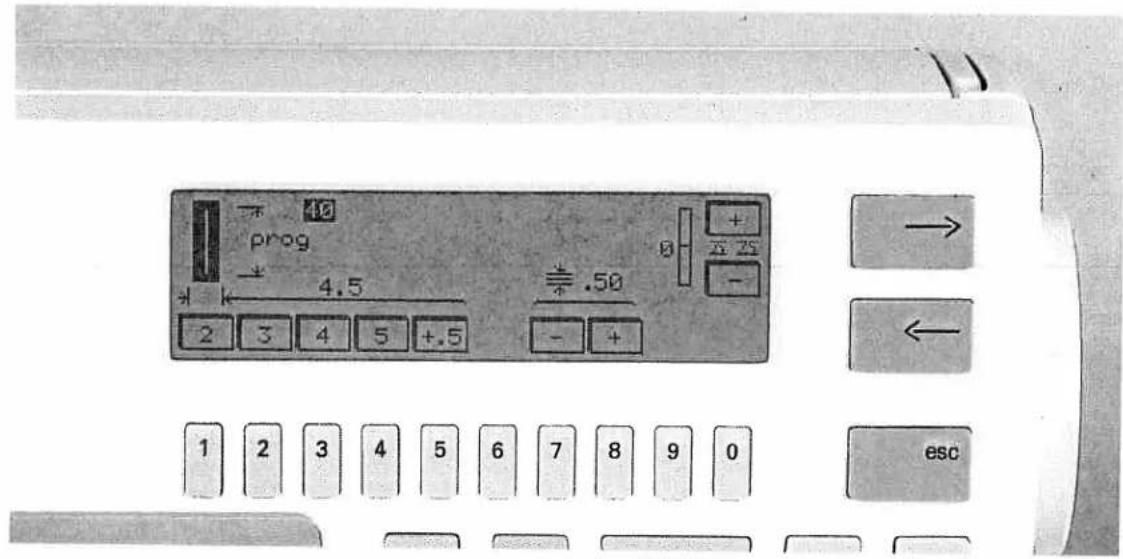
text_image
40 prog + 4.5 - .50 2 3 4 5 +.5 - + 1 2 3 4 5 6 7 8 9 0 escStandard buttonhole semi-automatic
For this buttonhole the length and bartack are stored during sewing.
After having programmed the first buttonhole the following buttonholes are sewn fully automatically.
For semi-automatic buttonholes the stitch density can be set besides the buttonhole length and stitch width.
- After selecting buttonhole No. 40 do not enter a buttonhole length, but press the "o.k." key. The programming screen with length and width settings appears.
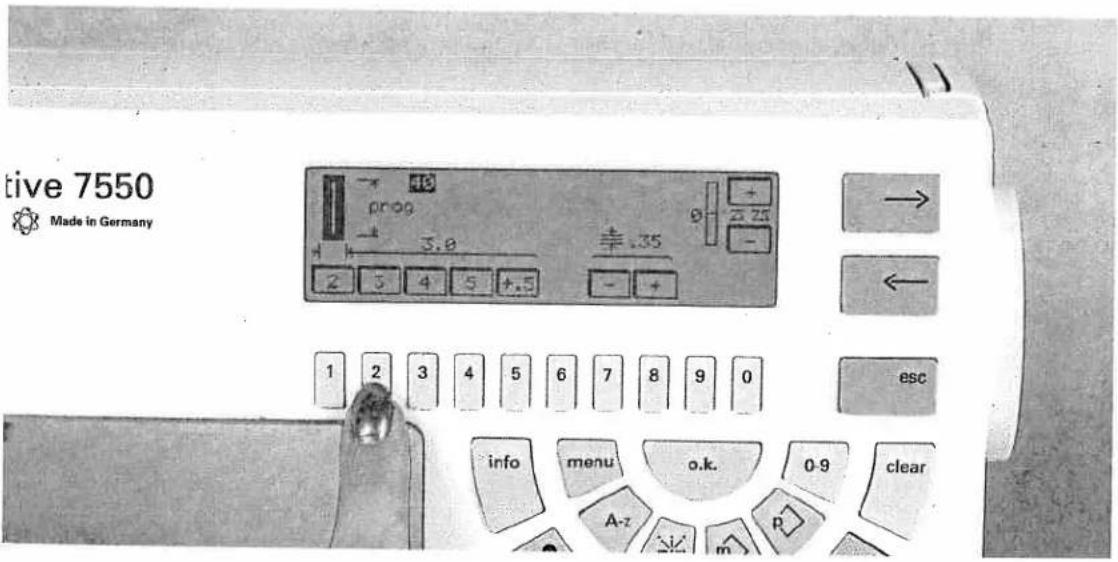
text_image
tive 7550 Made in Germany prop 3.0 + .35 2 3 4 5 +.5 - + - 1 2 3 4 5 6 7 8 9 0 esc info menu o.k. 0-9 clear A-z m PUsing keys "1-5" you can change the standard width of 4.5 mm. Using keys "7 + 8" you can set the stitch length (= density of the buttonhole seams). For the programmed buttonholes a seam density of 0.5 is stored in the machine. If you wish to sew an extremely dense buttonhole, select setting 0.3 or 0.35.
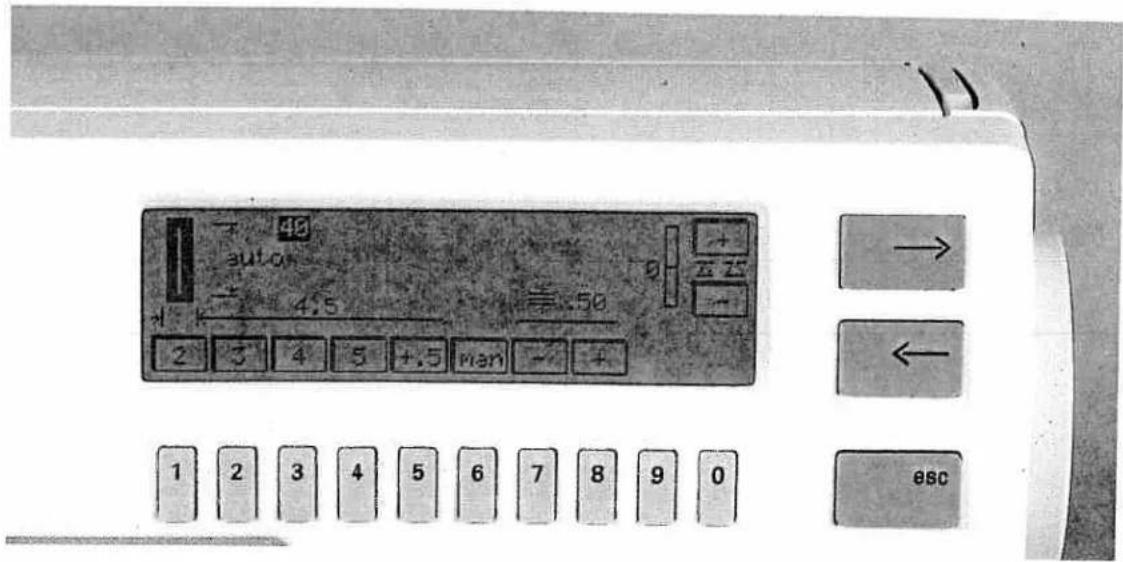
text_image
40 + - 2 3 4 5 +.5 min - + 1 2 3 4 5 6 7 8 9 0 → ← ESCThe total length of the buttonhole is defined during sewing with the aid of buttonhole foot No. 5 A. Before you start sewing, pull the runner of the buttonhole foot to the front so that the red arrow is placed at the second mark. Sew the first buttonhole seam at the required length. Watch the red marks on the buttonhole foot while sewing. Press the "reverse" key. The machine now sews the first bartack and the second buttonhole seam.
Shortly before the buttonhole is finished, the sewing machine will reduce the sewing speed. As soon as the second buttonhole seam has reached the length of the first seam, the sewing machine will automatically sew the second bartack and tie-off. Note: This only applies when the buttonhole guide is used. After the buttonhole has been completed, all further buttonholes can be sewn at the same length fully automatically. If you wish, the second bartack can be self-defined by pressing the key below "man".
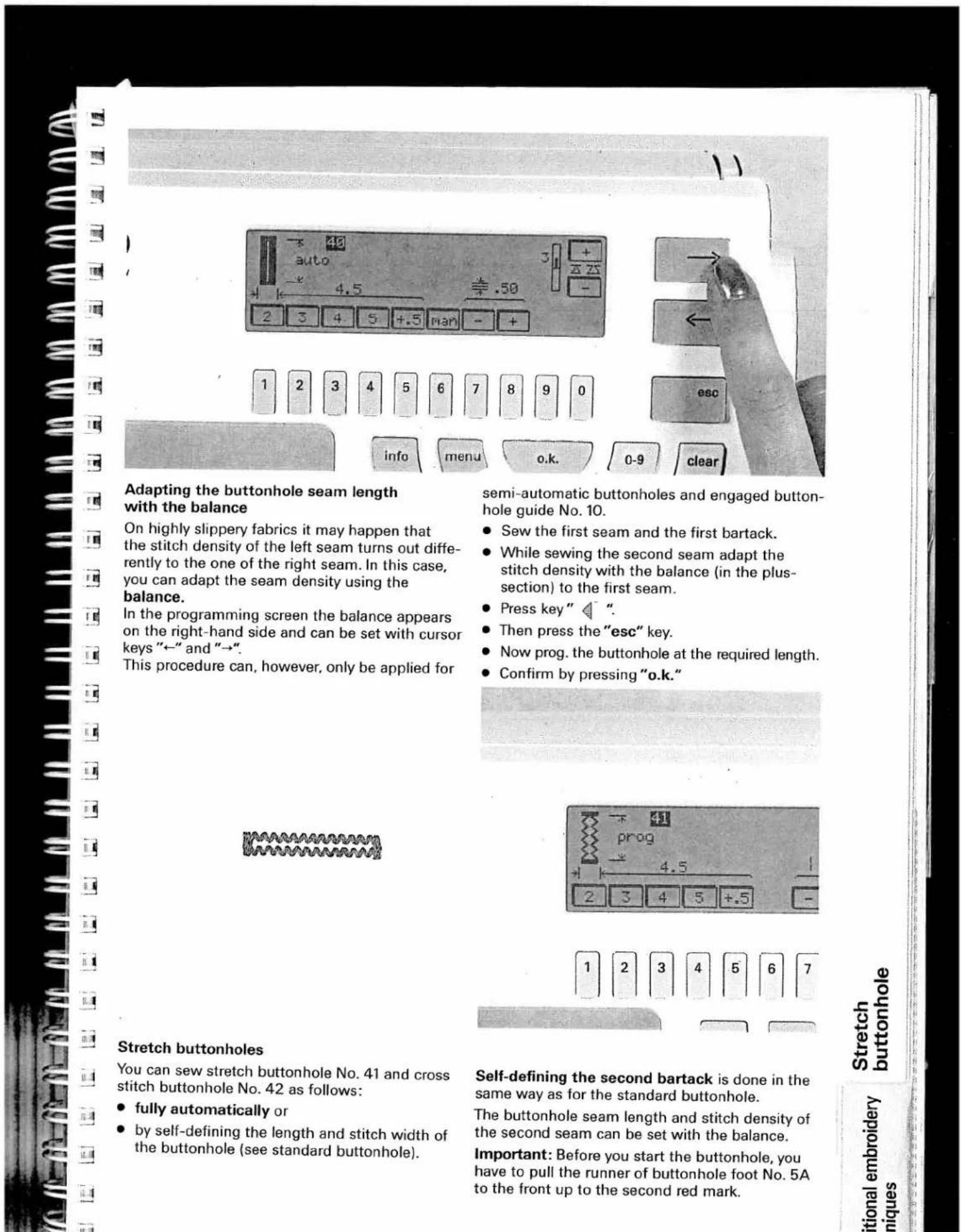
text_image
Adapting the buttonhole seam length with the balance On highly slippery fabrics it may happen that the stitch density of the left seam turns out diffe- rently to the one of the right seam. In this case, you can adapt the seam density using the balance. In the programming screen the balance appears on the right-hand side and can be set with cursor keys "←" and "→". This procedure can, however, only be applied for semi-automatic buttonholes and engaged button- hole guide No. 10. • Sew the first seam and the first bartack. • While sewing the second seam adapt the stitch density with the balance (in the plus- section) to the first seam. • Press key" • Then press the "esc" key. • Now prog. the buttonhole at the required length. • Confirm by pressing "o.k." Stretch buttonholes You can sew stretch buttonhole No. 41 and cross stitch buttonhole No. 42 as follows: • fully automatically or • by self-defining the length and stitch width of the buttonhole (see standard buttonhole). Self-defining the second bartack is done in the same way as for the standard buttonhole. The buttonhole seam length and stitch density of the second seam can be set with the balance. Important: Before you start the buttonhole, you have to pull the runner of buttonhole foot No. 5A to the front up to the second red mark.
Round buttonhole
Important! The round buttonhole should be placed with the rounding facing the edge. The sewing of the buttonhole, however, starts at the bartack.
Always sew the buttonholes from the inside outwards to the edge.
The round buttonhole is automatically sewn between a length of 7 and 40 mm.
- Press the "0-9" key.
- Select buttonhole No. 43-45.
- Press the "o.k." key.
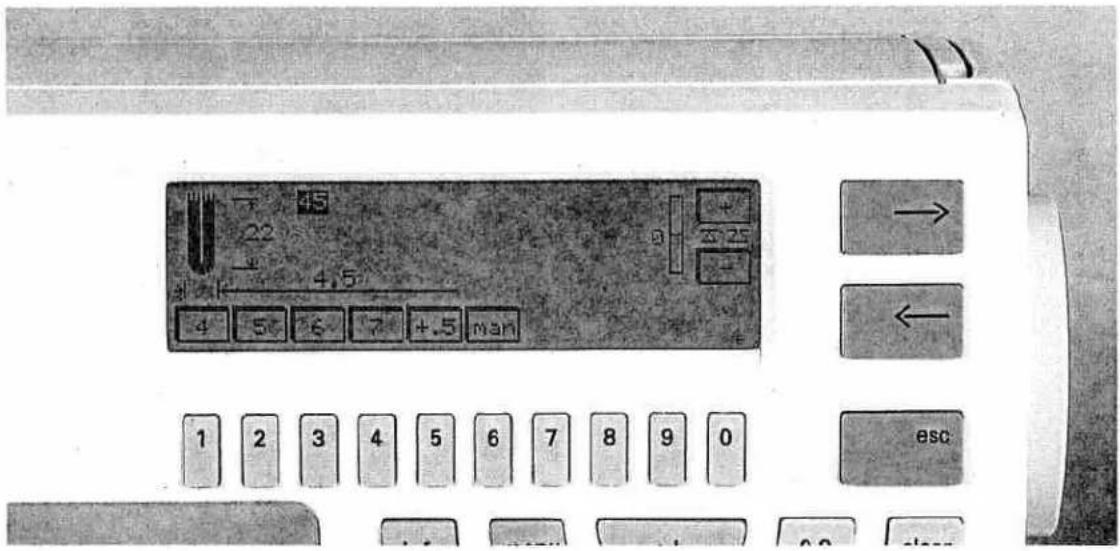
text_image
45 22 +5 4 5 6 7 +.5 man 1 2 3 4 5 6 7 8 9 0 esc- On the screen a preset buttonhole length of 22 mm appears. If required you can overwrite this length using keys "1-0".
- Press the "o.k." key. On the screen the button-hole appears with length and width settings and balance.

text_image
e 7550 Made in Germany 4.5 4 5 6 7 +.5 man 1 2 3 4 5 6 7 8 9 0 esc ir nenu o.k. 0-9 clear A-z m PBy pressing key "6" for "man" you can self-define the second bartack.
The stitch density cannot be changed for this buttonhole style. Therefore, you should sew this buttonhole with a thicker thread or a gimp thread, if required (see section "Sewing buttonholes with gimp thread").
The stitch density of the second seam can be adjusted with the balance.
Important! Before you start the buttonhole, push the runner of buttonhole foot No. 5 A to the front up to the second red mark.
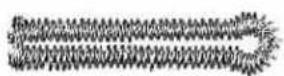
Keyhole buttonholes
Important! The keyhole buttonhole should be placed with the rounding facing the edge. The sewing of the buttonhole, however, starts at the bartack. Mark the buttonhole length on the fabric first. Mark the buttonhole length from the starting points to the inside.
Always sew the buttonholes from the inside outwards to the edge.
The keyhole buttonhole is automatically sewn between a length of 7 and 40 mm.
- Select buttonhole No. 46-48.
- Press the "o.k." key.
- On the screen a preset buttonhole length of 22 mm appears. If required, you can overwrite this length using keys "1-0".

text_image
46 22 6.0 5 6 7 8 +.5 man 1 2 3 4 5 6 7 8 9 0 → ← ESC- Press the "o.k." key. On the screen the button-hole appears with length and width settings and balance.
- For buttonholes on coats the stitch width can be increased up to 8.5 mm.
- The stitch density cannot be changed for this buttonhole style. Therefore, you should sew this buttonhole with a thicker thread or gimp thread, if required (see section "Sewing buttonholes with gimp thread").
The stitch density of the second seam can be adjusted with the balance.
Important! Before you start the buttonhole, push the runner of buttonhole foot No. 5 A to the front up to the second red mark.
TIP: Cut open all buttonholes with the seam ripper. Use an awl to perforate the rounding of the keyhole buttonhole.
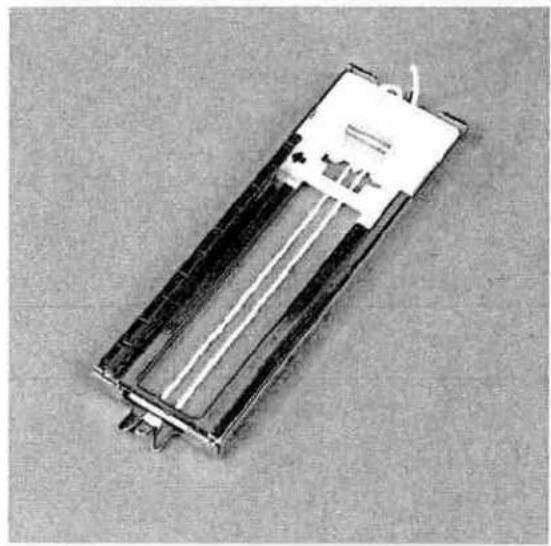
natural_image
Close-up of a black electronic component with white wires and a small top section (no visible text or symbols)Buttonholes with gimp thread
To produce highly durable and neat buttonholes, we recommend using a gimp thread. Use pearl cotton or a regular gimp thread for this purpose.
- Place the gimp thread over the front ridge of the buttonhole foot and pull the thread ends under the sewing foot to the back into the left and right of the back ridge.
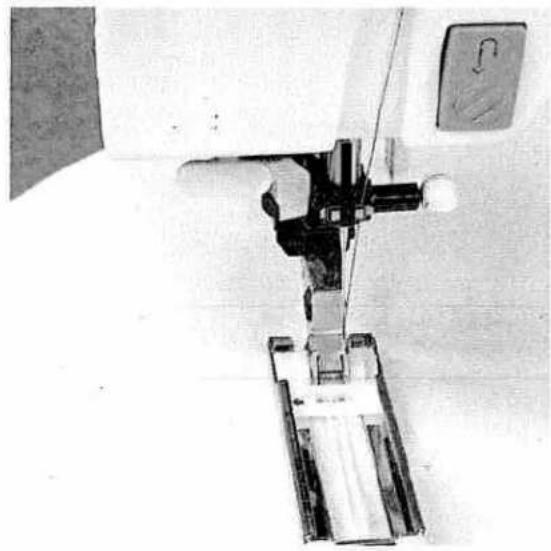
natural_image
Close-up of a sewing machine needle and base mechanism (no visible text or symbols)- Push the runner to the front up to the second red mark.
- Now sew buttonhole No. 40, 41 or 42.
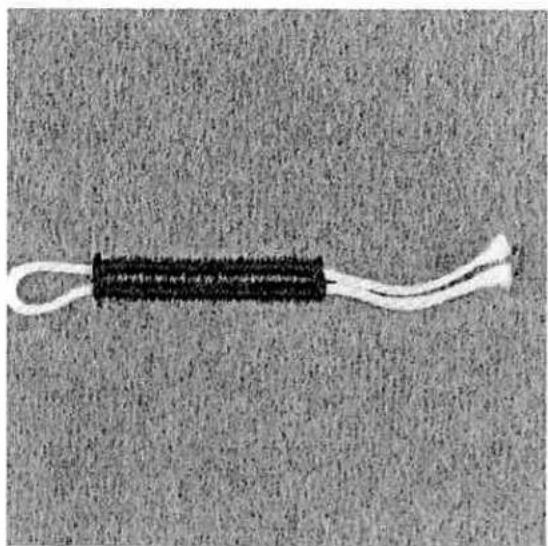
natural_image
Close-up of a black and white wire loop with a small white end, against a textured gray background (no text or symbols)- After finishing the buttonhole, pull the left thread end until the loop is covered by the buttonhole bartack.
natural_image
Simple black rectangular object on a textured gray background, no text or symbols visible- Cut off the loose thread ends close to the bartack.

natural_image
Close-up of a sewing machine needle stitching fabric pieces (no visible text or symbols)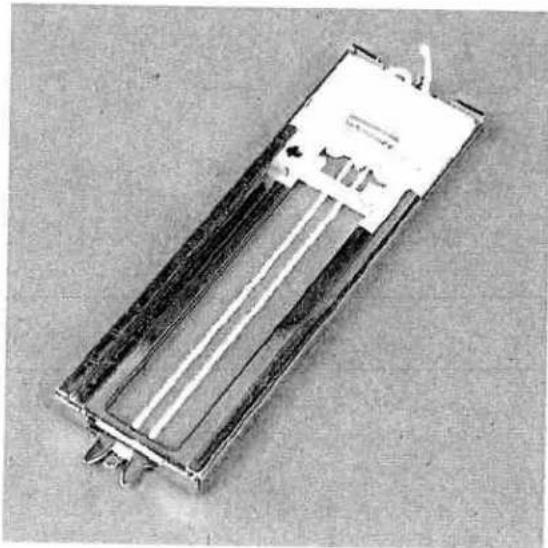
natural_image
Close-up of a rectangular electronic component with internal wires and a small top component (no visible text or symbols)Keyhole buttonholes with gimp thread
- Push the runner of the buttonhole foot to the back.
- Then place the gimp thread over the front ridge. Pull the thread ends under the sewing foot to the back taut into the left and right of the back ridge.

natural_image
Close-up of a sewing machine stitching dark fabric on a textured mat (no visible text or symbols)- Push the runner to the front up to the second red mark.
- Before you start sewing, press the "needle down" key.
- Sew the first buttonhole seam.

natural_image
Close-up of a mechanical device with a light bulb and internal components (no visible text or symbols)- When the machine sews the first stitches of the rounding, pull down the gimp thread from the back ridge using a pin.
Important! Doing this, the sewing foot must not be raised!
- Pull the gimp thread on the left to the back until the loop is placed shortly in front of the needle.
• Now sew the rounding carefully.

- Then, holding the gimp thread slightly tauter, finish the buttonhole. Cut off the loose ends of the gimp thread. The round buttonhole with gimp thread is sewn in the same way.

natural_image
Black-and-white fashion photograph of a woman wearing an embroidered suit with gold and silver patterns (no visible text or symbols)-
-
-
-
-
-
-
-
-
-
-
-
-
-
-
-
-
-
-
-
-
-
-
-
-
-
-
-
-
-
-
-
-
-
-
-
-
-
-
-
-
-
-
-
-
-
-
-
-
-
-
-
-
-
-
-
-
-
-
-
-
-
-
-
-
-
-
-
-
-
-
-
-
-
-
-
-
-
-
-
-
-
-
-
-
-
-
-
- 90.
-
-
-
-
-
-
-
-
-
-
-
-
-
-
-
-
-
-
-
-
-
-
-
-
-
-
-
-
-
-
-
-
-
-
-
-
-
-
-
-
-
-
-
-
-
-
-
-
-
-
-
-
-
-
-
-
-
-
-
-
-
-
-
-
-
-
-
-
-
-
-
-
-
-
-
-
-
-
-
-
-
-
-
-
-
-
-

natural_image
Black-and-white photo of a cluttered mechanical tool kit with spools, tools, and components (no visible text or symbols)Accessories and needles
Sewing feet
(standard accessories)
Pages 148–150
Table of special accessories
Page 151
Felling foot/Appliqué foot
Page 152
Fringe foot/Cording foot
Page 153
One-groove cording foot/
Page 154
Shirring foot
Knit-edge foot/
Multi-stitch gathering foot
Page 155
Bias tape binder
Page 156
Needle chart
Pages 157–158

natural_image
Aerial view of two cars parked on a flat surface (no visible text or symbols)Standard sewing foot No. 0 A Part No.: 98-694 828-00
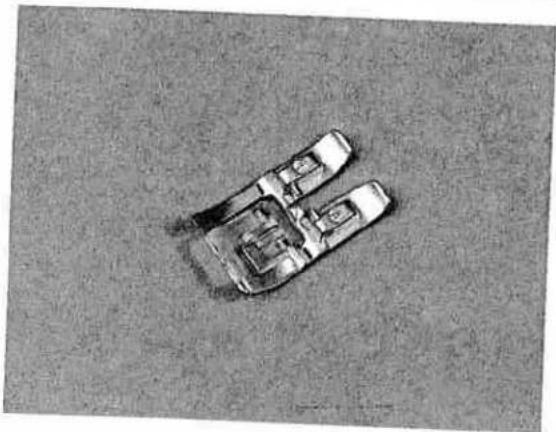
natural_image
Aerial view of two vehicles on a flat surface, no visible text or symbols.Fancy-stitch foot for Dual Feed No. 1A Part No.: 98-694 836-00

natural_image
Top-down view of a small electronic device with internal components, placed on a textured surface (no visible text or symbols)Fancy-stitch foot (not suitable for Dual Feed) No. 2A Part No.: 98-694 838-00

natural_image
Top-down view of a small white mechanical device with visible wheels and components, lying on a plain surface (no text or symbols)Blind stitch and overlock foot No. 3 Part No.: 98-694 890-00

natural_image
Top-down view of a small electronic component or device with no visible text or symbolsZipper and edge sewing foot No. 4
Part No.: 98-694 884-00

natural_image
Exterior view of a rectangular electronic component with internal structure (no visible text or symbols)Buttonhole foot No. 5 A
Part No.: 98-694 830-00

natural_image
Close-up of a white mechanical component with a metallic blade and textured surface (no visible text or symbols)Buttonhole guide No. 10
Part No.:93-037 595-91

natural_image
Mechanical linkage component (no visible text or symbols)Darning foot No. 6
Part No.: 93-035 960-91
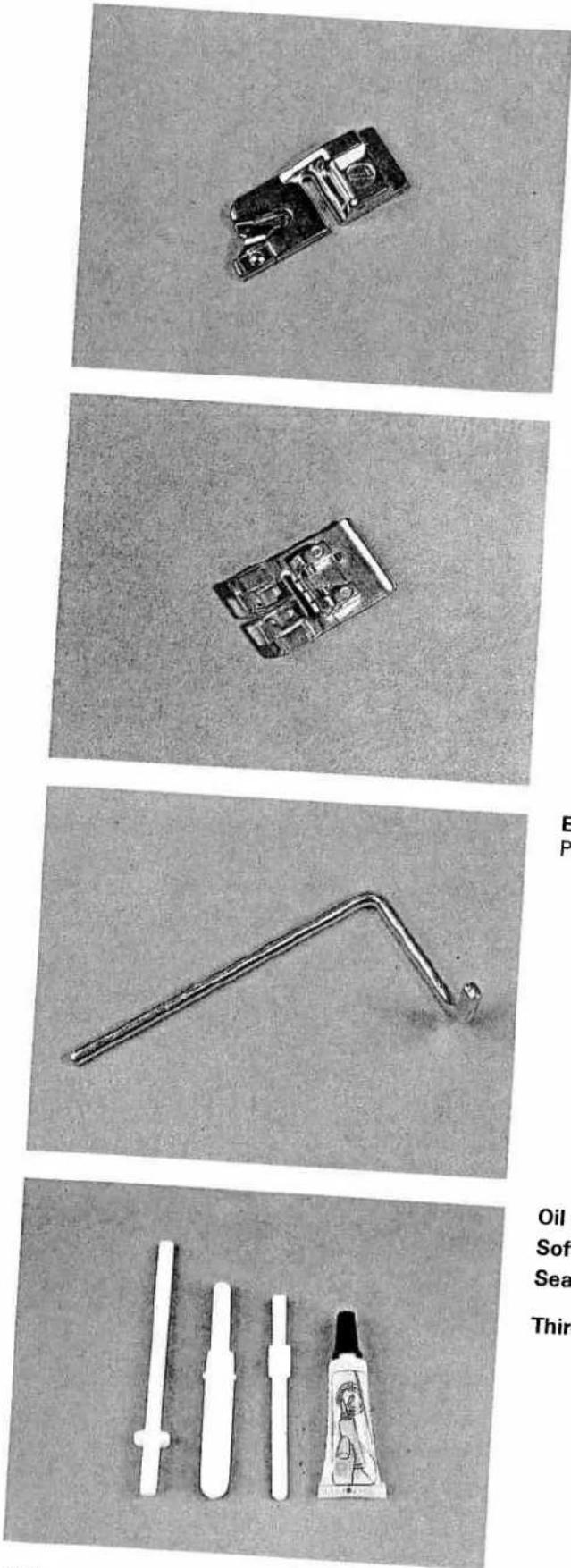
natural_image
Four-panel image showing a mechanical component, a close-up of a bracket, a curved metal rod, and a plastic tube with three white plastic pins (no text or symbols visible)Roll hemmer foot No. 7
Part No.: 98-694 818-00
Embroidery foot No. 8
Part No.: 98-694 840-00
natural_image
Top-down view of a small electronic device on a textured surface (no visible text or symbols)
natural_image
Metal rod-shaped object with a pointed tip, isolated on a plain background (no text or symbols)Edge guide No. 3
Part No.: 98-802 422-00
natural_image
Four white plastic mechanical components arranged on a plain surface, one being filled with a small tube (no text or symbols visible)Oil tube
Soft brush
Seam ripper
Third reel holder to pin on (special accessories)
Sewing feet (special accessories)
Special accessories are intended for special sewing work.
The listed sewing feet are available from your PFAFF dealer:
| Accessory | Part Number | Sewing work |
| Appliqué foot | 93-042 941-91 | For appliqué work |
| Bias tape binder (remove foot holder) | 98-053 484-91 | For binding edges with bias tape |
| Cording foot, 5 grooves (twin needle with needle spacing 1,6-2,0) 130/705 H-ZWI | 93-042 950-91 | For cording work (needle size 80) |
| Cording foot 7 grooves (twin needle with needle spacing 1,6-2,0) 130/705 H-ZWI | 93-042 953-91 | |
| Cording tongue (2) | 93-035 952-45 | |
| Fringe foot | 93-042 943-91 | For sewing loop embroidery |
| Straight-stitch foot with round hole (for Dual Feed) | 98-694 821-00 | Caution! Only use straight stitch in center needle position! For topstitching seams and sewing very light and soft materials (silk jersey etc.) |
| Needle plate with round hole | 98-694 422-00 | |
| Felling foot, 4.5 mm | 93-042 946-91 | For lap-felled seams |
| Felling foot, 6,5 mm | 93-042 948-91 | |
| Shirring foot | 93-036 998-91 | For shirring frills, etc. |
| Multi-stitch gathering foot | 98-999 650-00 | For placing dense or loose pleats on frills, etc. |
| One-groove cording foot | 93-036 915-91 | For cording |
| Eyelet platee | 93-036 977-45 | For eyelet embroidery |
| Roll hemmer, 2 mm | 98-694 873-00 | For hemming edges |
| Hemmer, 4 mm (for Dual Feed) | 98-694 823-00 | For hemming edges |
| Knit-edge foot | 93-042 957-91 | For sewing knitted fabrics |
| Teflon foot (for Dual Feed) stitch width up to 6 mm | 93-036 917-91 | For sewing leather and synthetics |
| Teflon embroidery stitch foot (stitch width up to 9 mm) | 93-036 922-91 | For embroidering leather |
The following pages contain application examples of some special accessories.
Sewing feet
(special accessories)
Traditional embroidery
techniques
natural_image
Close-up of a sewing machine needle stitching fabric, no visible text or symbolsFelling foot
Lap-felled seams are particularly durable and most commonly known as typical denim seam. They are also suitable for sportswear, children's wear, blouses and shirts. You can make these seams very prominent if you use a sewing thread of a contrasting colour. The felling foot is available in two different widths (for light-weight and heavy-weight fabrics).
- Insert the felling foot.
- Place the fabric reverse side to reverse side.
- Overlap the raw edge of the lower ply by about 1–1.5 cm (3/8 to 5/8).
- Now place this overlapping edge over the tongue of the felling foot. The fabric must be placed fully under the sewing foot.
- Sew along the folded edge with straight stitch.
- Afterwards pull the fabric plies apart and feed the protruding hem into the felling foot. The hem is turned over by the foot and overstitched along the edge. Pull the two fabric plies apart during sewing.
Program: 00
Stitch length: 3
Tension: 3-5

natural_image
Close-up of a sewing machine needle stitching fabric (no visible text or symbols)Appliqué foot
Appliqués are quickly made and always produce a beautiful fancy effect. By using different materials and patterns you can obtain variations galore. You can make a perfect, densely stitched seam with the appliqué foot because it has a special cutout on the underside for the zigzag seam.
- Insert the appliqué foot in the sewing machine.
- Transfer your drafted pattern to the face side, smooth side, of the fusible backing fabric. Remember that any letters or numbers have to be drawn in mirrored fashion.
- Now iron the backing fabric onto the the appliqué material. Cut the motif out and pull the paper off.
- Place and iron on the appliqué parts on the base material.
- Afterwards overstitch all contours with narrow and dense zigzag stitches. When you reach a curve, use the "needle down" function to help you guide the work more easily. Also make sure the needle passes the outer edge so that no fraying occurs later.
Program: 02 or 16
Stitch length: 0.5-1
Stitch width: 1.5-2.0
Tension: 3
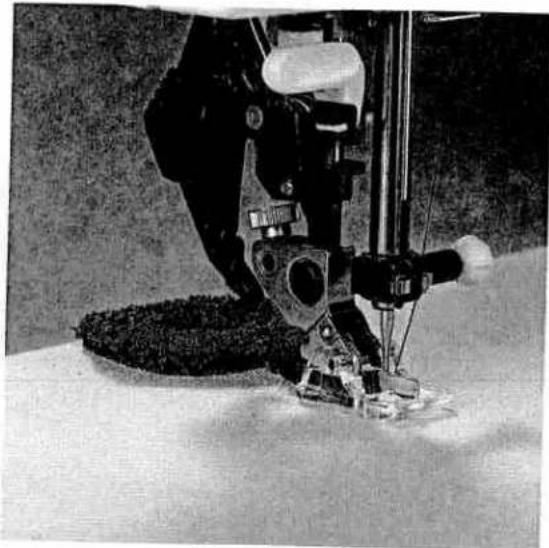
natural_image
Close-up of a sewing machine needle stitching fabric, no visible text or symbolsFringe foot
With this special foot for loop embroidery you can produce fantastic effects in no time. Particularly on terry-cloth this foot can be quite effective.
- Mark out any pattern you wish with chalk or the magic pen.
- Use a stabilizer and engage the fringe foot.
- Embroider the motif, row by row. For circles you have to work from the outside inward.
- For thicker threads you may have to choose a longer stitch length; it is best to sew a test seam first.
- When you have finished, pull the work out of the machine carefully, because if you pull too fast, you will pull the last loops tight.
- Knot the threads on the reverse side.
Program: 02
Stitch length: 0,5-1
Stitch width: 1.5-2.5
Tension: 2-3
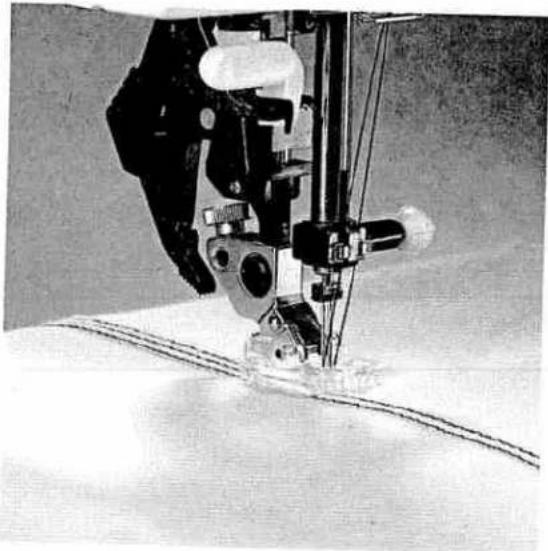
natural_image
Close-up of a sewing machine needle stitching fabric, no visible text or symbolsCording foot
The classic sewing technique of cording can be used without any problems on fabrics, such as cotton and light woollens. Underclothing and children's wear can be given a traditional look with cording.
- Engage the cording foot.
- Replace the needle with a twin needle (1.6 or 2 mm) e.g. 130/705 H-ZWI, size 80.
- Thread up with two needle threads.
- Now set the needle thread tension quite tight (at about 5), to make the seam more prominent.
- Sew one row of cording. When you start the second row you can let the first sewn row run parallel in one of the foot's grooves. Doing this, you will get even spacings between the rows.
TIP: If you wish to emphasize the cording effect, you can fit a "cording tongue" on the front edge of the needle plate. This shapes the fabric during sewing and gives the cording more volume. You can obtain a similar effect by using a gimp thread; this makes the cording look wider. In this case, however, do not use a cording tongue.
• To do this, remove the needle plate.
- Thread the gimp thread through the hole of the needle plate from below upwards.
- Replace the needle plate. The notch between the needle plate and the sewing machine provides space for the gimp thread. This thread must be fed under the detachable work support, so that it does not become tangled during sewing.
- While sewing the cording pull the material slightly.
Program: 00
Stitch length: 2.5
Tension: 5

natural_image
Close-up of a sewing machine needle stitching fabric (no visible text or symbols)Cording foot
Cording is a technique in which pearl thread or a fine cord is overstitched to produce a purl seam. With this you can obtain an effect similar to braiding. Appliqués can also be made more impressively by this seam.
- Engage the cording foot.
- Place the filling thread in one of the front grooves of the foot, then place the filling thread in the back groove under the foot shoe.
- Now overstitch the filling thread with narrow and dense zigzag stitches.
TIP: You can also obtain a special effect by over-stitching a medium pearl thread with a thread of a different colour.
Program: 32
Stitch length: 0.4–0.6
Stitch width: 1.5-2
Tension: 3
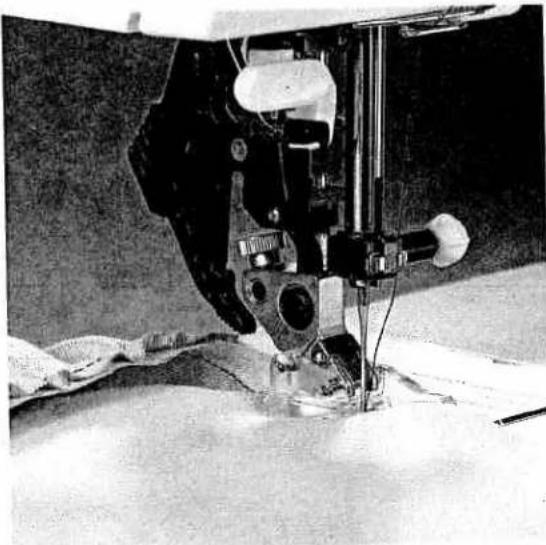
natural_image
Close-up of a sewing machine needle stitching fabric, no visible text or symbolsShirring foot
Beautiful gathering effects, e.g. on children's wear or curtains, can be made quickly and easily with the shirring foot.
- Engage the shirring foot by hooking therear bar of the foot into the rear groove of the foot holder. Push the foot upwards until it snaps into the front bar.
- Place the fabric to be gathered under the sewing foot, and the gather-free fabric from the top through the foot cutout. The fabric plies lie face side to face side.
- During stitching you have to pull the top fabric a little. The harder you pull, the greater the gathering effect you achieve.
- Be sure you guide the fabric edges evenly through the foot.
- Disengage the gathering foot by pushing it down at the front, and take it out to the back over the groove of the sewing foot holder.
TIP: You can also regulate the amount of gather by adjusting the needle thread tension and the stitch length.
Program: 00
Stitch length: 3
Tension: 3-5

natural_image
Close-up of a sewing machine needle stitching fabric (no visible text or symbols)Knit-edge foot
The knit-edge foot makes it easy to sew thick seams on knitted fabrics or fur imitations. To obtain a perfect seam on shapecut parts we recommend adding a wool thread under slight tension and overstitching it at the same time.
Program: 33
Stitch width: 6.0
Tension: 3-5

natural_image
Close-up of a sewing machine needle stitching fabric (no visible text or symbols)Multi-stitch gathering foot
With the multi-stitch gathering foot you can make closely or widely spaced pleats automatically during sewing which is very suitable for ruffles, frills, home textiles, etc.
The multi-stitch gathering foot can be used in three different ways:
- Folding the fabric in pleats.
- Folding the fabric in pleats and sewing them on in one workstep.
- Folding the fabric in pleats, sewing them on and sewing on lace at the same time.
When you buy the multi-stitch gathering foot from your PFAFF dealer a full description is provided with it.
Program: 00
Stitch length: 3
Tension: 3-5

natural_image
Close-up of a sewing machine needle stitching fabric (no visible text or symbols)Bias tape binder
Binding with bias tape is a very easy method of giving fabric edges a smooth and neat appearance. For this you need unfolded bias tape about 24 mm (one inch) wide.
- Remove the foot holder with sewing foot and screw on the binder.
- Cut the beginning of the bias tape at a diagonal.
- Push the tape into the scroll of the binder and pull it out to the back.
- Adjust the binder so that the needle enters at about 1-1.5 mm (1/16") from the folded-in edge of the bias tape, or adjust the needle position.
- Stitch a few centimetres (about an inch) along the bias tape.
- Insert the edge to be bound into the slot of the binder. The raw edge must be placed between the bias tape edges. During sewing, the bias tape will enclose the raw edge automatically.
TIP: You can obtain an additional effect by using zigzag stitches or fancy stitches.
Program: 00
Stitch length: 2.5
Tension: 3-5
Needle chart
| System & No. | Stitch length | Stitch width | Needle spacing | Suitable for | |
| 130/705 H-ZWI 80 | 2.5 mm2.5 mm | -- | 1.6 mm2.0 mm | Medium-wide cording | |
| 130/705 H-ZWI 8090100 | 2.5 mm2.5 mm3.0 mm | -- | 2.5 mm3.0 mm4.0 mm | Wide cordingExtra wide cordingExtra-wide cording | |
| Decorative designs sewn with twin needlesBefore you start sewing, turn the handwheel and check to make sure the needles stitch into the fabric properly. In this way, needle breakage can be largely prevented. | |||||
| Decorative and zigzag patterns | |||||
| 130/705 H-ZWI 808080 | 0.5-1.5 mm0.5-1.5 mm0.5-1.5 mm | widenarrownarrow | 1.6 mm2.0 mm2.5 mm | OrnamentationsOrnamentationsOrnamentations | |
| Special hemstitching twin needle | |||||
| 130/705H-ZWI-Ho 80100 | 2.0-3.0 mm2.0-3.0 mm | very narrowvery narrow | -- | Decorative hem-stitching effect.Heavily dressed fabrics are particularly suitable. | |
Traditional embroidery techniques Needle chart
Needle chart
Using the adequate needle guarantees better processing of the material.
| Fabric weight: light Needle size: 60, 70, 75 | Fabric weight: medium Needle size: 80, 90 | Fabric weight: heavy Needle size: 100, 110, 120 | ||
| Needle points | ||||
| System & No. | Profile | Point & eye | Suitable for | |
| 130/705 H 70, 80 |  | Light ball point | Universal needle for fine-meshed synthetics, fine linen, chiffon, batiste, organdy, wodlens, velvet, fancy seams and embroidery work. | |
| 130/705 H-SUK 70, 110 |  | Medium ball point | Coarse knitted fabrics, Lastex, double-jersey fabrics, Quiana and Simplex. | |
| 130/705 H-PS 75, 90 |  | Medium ball point | Stretch-fabric needle developed especially for Pfaff. Particularly suitable for delicate stretch and knitted fabrics. | |
| 130/705 H-SKF 70, 110 |  | Heavy ball point | Wide-meshed corsetry, Lycra, Simplex and Lastex. | |
| 130/705 H-J 90-110 |  | Acute round point | Twill, workwear, heavy linen, blue jeans and light canvas. | |
| 130/705 H-LR 70-120 |  | Narrow twist point | Leather, suede, calf and goatskin leathers. | |
| 130/705 H-PCL 80-110 |  | Narrow wedge point with left-twist groove | Imitation leathers, plastic materials, plastic sheeting and oilcloth. | |
| 130 H-N 70-110 |  | Light ball point, long eye | Seams topstitched with buttonhole silk or No. 30/3 synthetic thread. | |
| 130/705 H-WING 100 |  | Hemstitching point | Attractive hemstitching on heavily dressed materials, organdy and glass cambric. | |
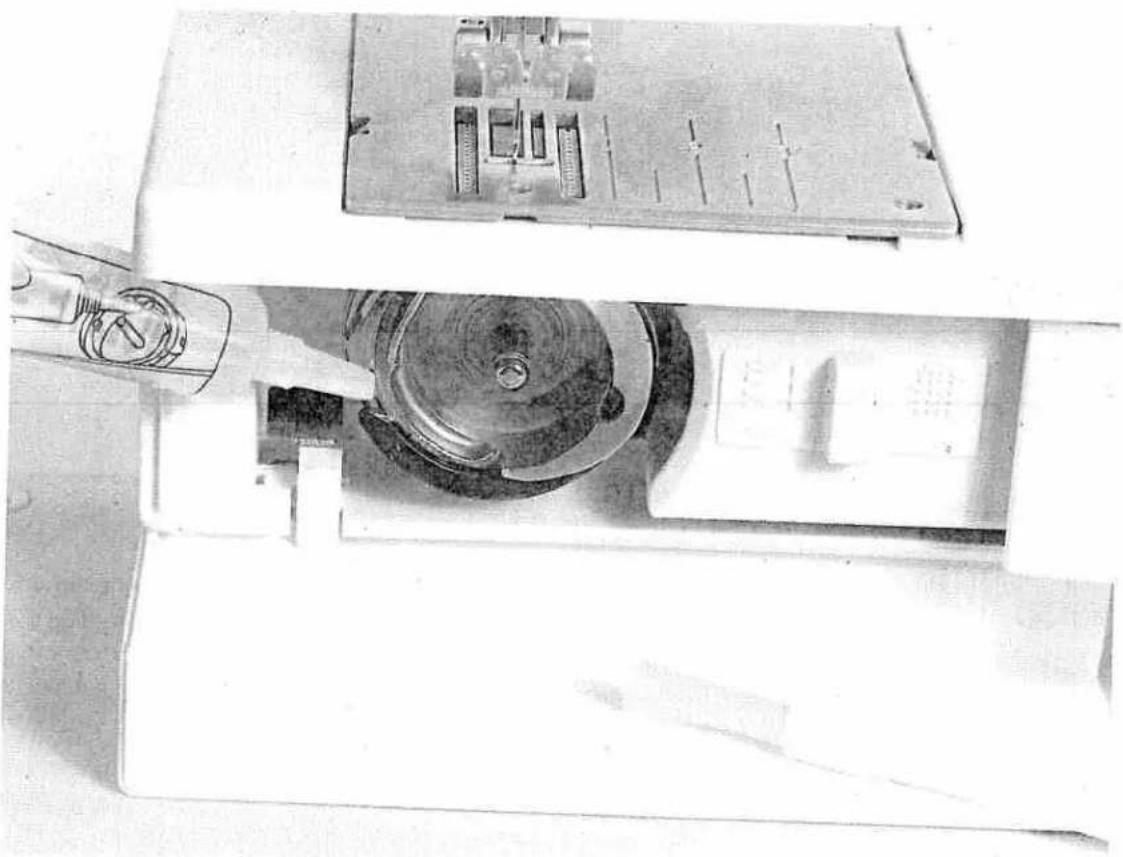
natural_image
Top-down view of a mechanical device with a circular component and internal components (no visible text or symbols)Contents
Changing the battery Page 160
Changing the needle plate Page 161
Cleaning and oiling Page 161
Changing the sewing lamp Page 162
Sewing faults and their removal Page 163

text_image
A B D E BChanging the battery:
Switch on the sewing machine to avoid deletion of the memories during the battery change. Tilt the machine over backwards. A battery compartment is installed in the base. Using a screwdriver lift cover B at the catch in recess A and remove the cover. Take out the batteries. Insert the new batteries E with the + side facing upwards.
Replace cover B so that the hinges engage in the recesses D and press the cover until it snaps into place.
Note: After changing the batteries the contents of the memories should be checked. Spare batteries: 2 Mignon cells 1.5 V; type LR 6. Only use leak-proof batteries!
Changing the battery
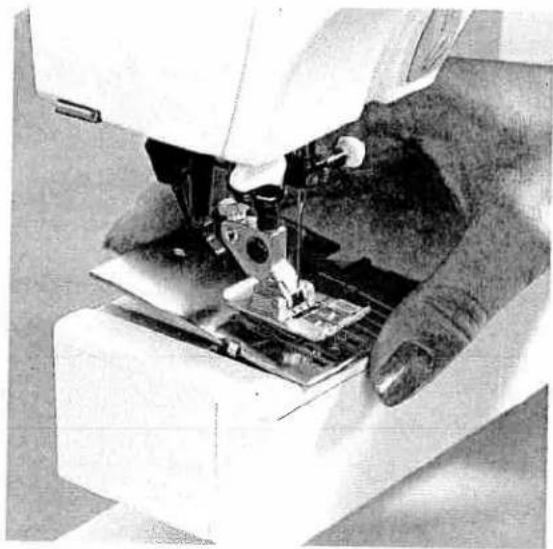
natural_image
Close-up of hands operating a sewing machine with fabric and metal components (no visible text or symbols)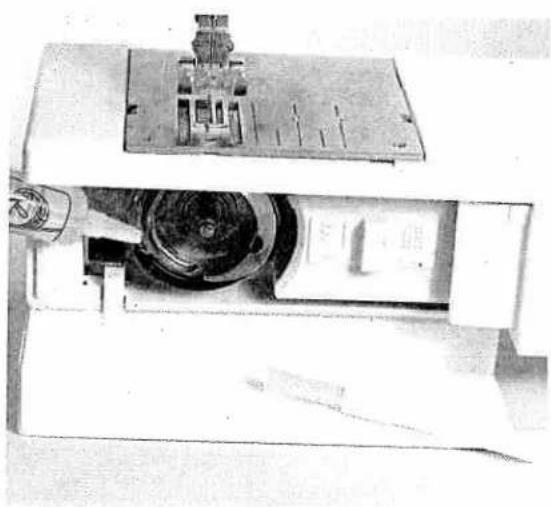
natural_image
Close-up of a mechanical device with a circular component and a flat top, showing internal components (no visible text or symbols)Changing the needle plate
- Switch off the main switch.
- Raise the presser foot lifter.
- Pull the stitch plate upwards in the back and remove it.
Replacing
- Place the needle plate on flat at the back and push it down with both hands until you hear it snap in place.
Before you start sewing, check that the needle plate is lying flat.
Cleaning and oiling
- Switch off the main switch.
- Remove the needle plate and lower the feed dog.
- Clean the feed dog and hook area with the brush.
- Then apply only one drop of oil to the hook as shown above. The machine is otherwise maintenance-free and must not be oiled in other places.
- Clean and oil the sewing machine every 10 to 15 hours of operation.
Cleaning the display
To clean the display, use a dry, soft cloth which is free of fluff. Do not use chemical cleaners or dissolvents.
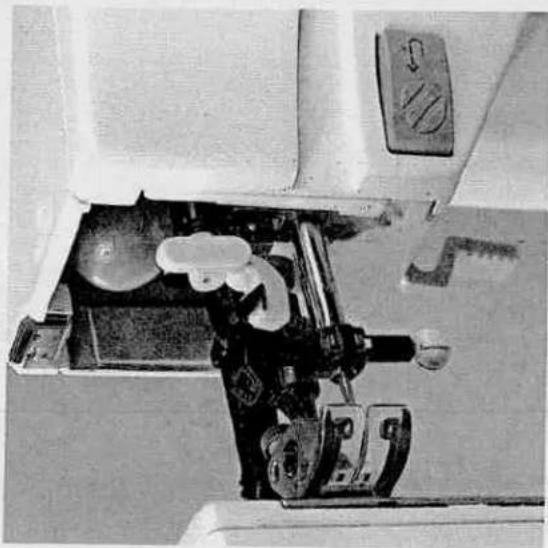
natural_image
Close-up of a sewing machine's internal mechanism with no visible text or symbols
natural_image
Person operating a medical or laboratory device with a control panel (no visible text or symbols)Changing the sewing lamp
- Switch off the main switch.
- Disconnect the mains plug and the foot control plug from the machine.
• Take off the detachable work support.
The sewing lamp (bulb) is located inside the needle head of the sewing machine.
Removal
To make it easier to change the bulb we recommend placing the sewing machine on the hand wheel as illustrated.
- Hold the sewing machine tightly.
- Push the bulb into its holder as far as it will go, and turn it anti-clockwise (half a turn) to remove it.
Insertion
- Insert the bulb in the diagonal holder and turn it so that both stops of the bulb engage.
- Now push the bulb fully into the holder and turn it clockwise until it is held firmly.
Important
The maximum permissible bulb wattage is 15 Watts!
Sewing faults and their removal
Fault/cause:
Remedy:
1. The machine skips stitches
Needle is not properly inserted.
Push needle fully upwards, flat side facing back.
A wrong needle has been inserted.
Use needle system 130/705 H.
Needle is bent or blunt.
Insert a new needle.
Machine is not properly threaded.
Check the threading paths.
Needle is too small for thread.
Use a larger needle.
2. Needle thread breaks
See reasons above.
See 1.
Thread tension is too tight.
Adjust thread tension.
Thread is poor or has slubs in it, or has become dry after too-long storage.
Only use good threads.
Thread is too thick.
Use needle with large eye (System 130 N).
3. Needle breaks off
Needle is not pushed fully in.
Insert new needle and push it fully in.
Needle is bent.
Insert new needle.
Needle is too thick or too thin.
See needle chart (pages 157/158).
Needle is bent, and has hit the needle plate because you are pulling or pushing the fabric.
Let the machine feed the fabric. Only guide the fabric lightly.
The bobbin case is not properly inserted.
When you insert the bobbin case, push it fully in.
4. Seam is sewn unevenly
The tension needs adjusting.
Check top and bottom tensions.
Thread is too thick, slubbed or hard.
Only use perfect threads.
The bobbin thread is unevenly wound.
Do not wind thread free-hand, but run it on through the winding tension.
Thread bunching at top or bottom side of fabric.
Thread up correctly. Check needle and bobbin thread tensions.
5. Machine does not feed or feeds irregularly
Sewing lint has collected between the feed dog teeth rows.
Remove needle plate, remove lint with brush.
Feed dog is lowered, slide B (see page 33) is at right.
Push slide B (see pagge 33) to the left.
6. Machine binds
Loose threads in the hook race.
Remove loose thread and apply one drop of oil to the hook.
7. Machine does not sew the entered program
Switch off the machine and back on again after about 10 seconds. Enter the desired program again.
Important notes:
Before you change sewing feet or needles, you must switch off the main switch. Do not start the threaded machine without fabric in it.
If you leave the machine, even for a short time, do not forget to switch off the main switch. This is important if children are nearby.
natural_image
Black-and-white artistic illustration of a stylized human figure with crescent moon and stars, no visible text or symbolsTraditional embroidery techniques
Pages 165–183
Traditional embroidery techniques

natural_image
Black-and-white photo of a decorative fabric with ruffled edges and a central cutout depicting a floral motif (no text or symbols)Contents
General tips on embroidering Page 168
Cross stitch Pages 170–173
Linen embroidery Page 174
Hemstitching Pages 175–177
Eyelet embroidery Pages 178–179
Richelieu Page 180
Quilting Page 181
Twin needle sewing Page 182
Pattern stencils Page 183
natural_image
Black-and-white illustration of a decorative ribbon with floral patterns on a wooden table (no text or symbols)General tips on embroidering
Embroidering needs practice. Knowing the right tips and hints, it can be quite easy to achieve beautiful embroidery results.
Thread tension
For embroidery work in general a looser thread tension is used than for utility sewing (± 3).
Additionally, the bobbin thread tension has to be increased by turning the adjusting screw on the bobbin case slightly to the right. By doing this, the embroidery will look more evenly and prominent.
Sewing feet
For embroidery work sewing feet no. 2A and 8A are most suitable.
Remember!
For embroidery never engage the top feed as the embroidery patterns could shift.
Balance
Each pattern of the machine is pre-programmed with its optimum length and width settings. If you embroider on difficult materials like Jersey, silk or heavy woollens, however, you should adjust your pattern with the balance if necessary (see "balance" section).
Stabilizing the fabric
Whether you use thin or thick materials, they can be embroidered much better if the fabric has been stabilized.
Many types of materials tend to gather particularly with dense embroidery stitches. We, therefore, recommend:
Apply iron-on or tear-away stabilizer under the fabric to be embroidered. This will stabilize it and can be removed easily after the embroidery work has been completed.
Avalon is a transparent gelatine stabilizer which you apply on the fabric and overstitch it. After the embroidery work has been completed this stabilizer can be removed without any problems with a damp cloth. Alternatively, a gel stabilizer can be used to stabilize the fabric. The gel has a similar effect to spray-on starch. It has to dry after being applied, however, becomes rather stiff, and can be overstitched on most materials without a paper underlay. After completion of the embroidery work, the gel can be washed out easily.

natural_image
Black-and-white illustration of a person in traditional attire with floral patterns, no visible text or symbolsTraditional
embroidery
techniques
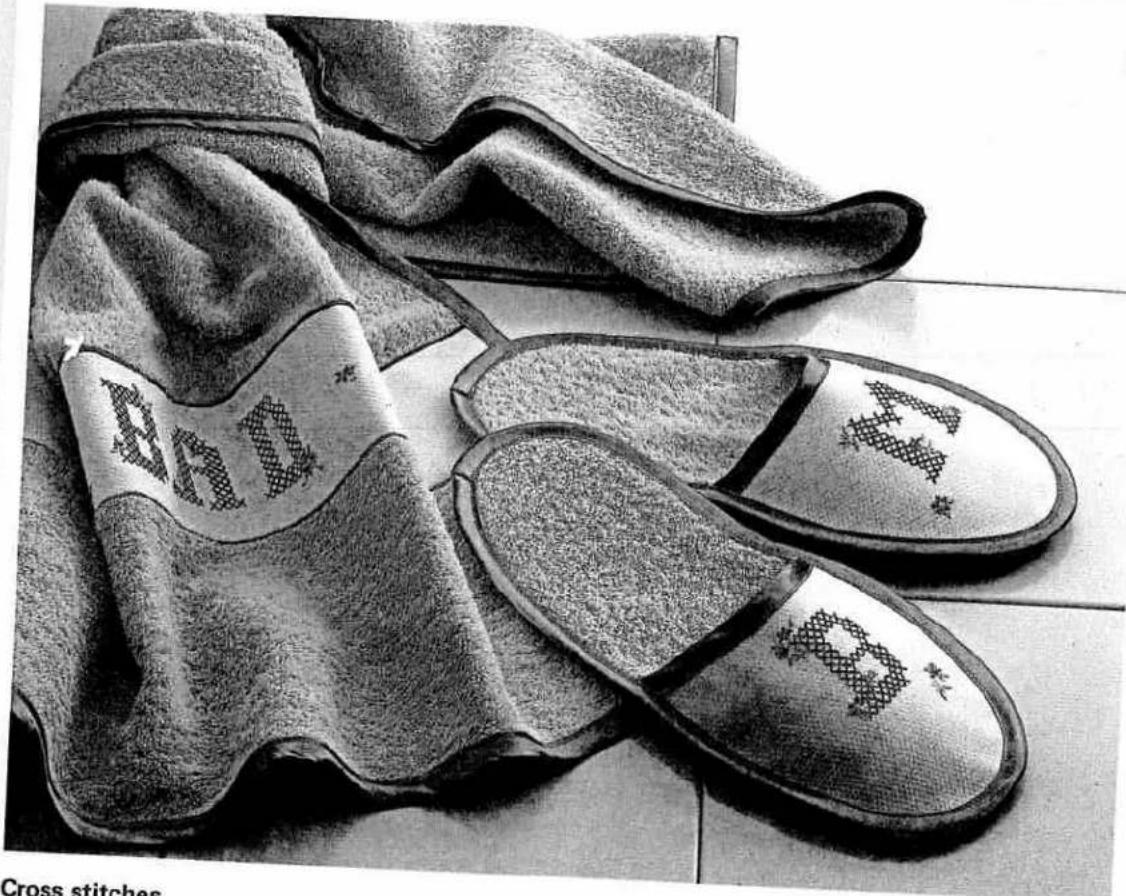
natural_image
Black-and-white photo of two patterned slip-on shoes with embossed text, placed on a textured floor next to a cloth (no readable text or symbols)Cross stitches
Cross stitch embroideries have always been an important subject within traditional, folkloristic embroidery techniques.
What is usually stitched by hand with much effort, can be done with the creative 7550 surprisingly easy and quick.
No matter whether you select the already pre-programmed cross stitch borders or create your own combinations with the cross stitch programs, these patterns will look as if they are sewn by hand and lend a special touch to table linen, towels or garments.
Tips for cross stitch embroidering:
- Always sew your work using the "slow sewing" function (3).
- Use fancy stitch foot No. 2A. Its red guiding grooves are exactly co-ordinated to the size of the cross stitches.
- Only use special embroidery threads for cross stitching, e.g. Madeira Rayon No. 30 + 40, Madeira Cotona or MEZ embroidery and darning thread.
- Place a stabilizer under the fabric.
- We recommend to use an embroidery hoop when you work with very soft materials.
- You can also use Aida material as used for hand-done cross stitches. Depending on the size of the Aida squares you can change the length and width of the cross stitches of your creative 7550.
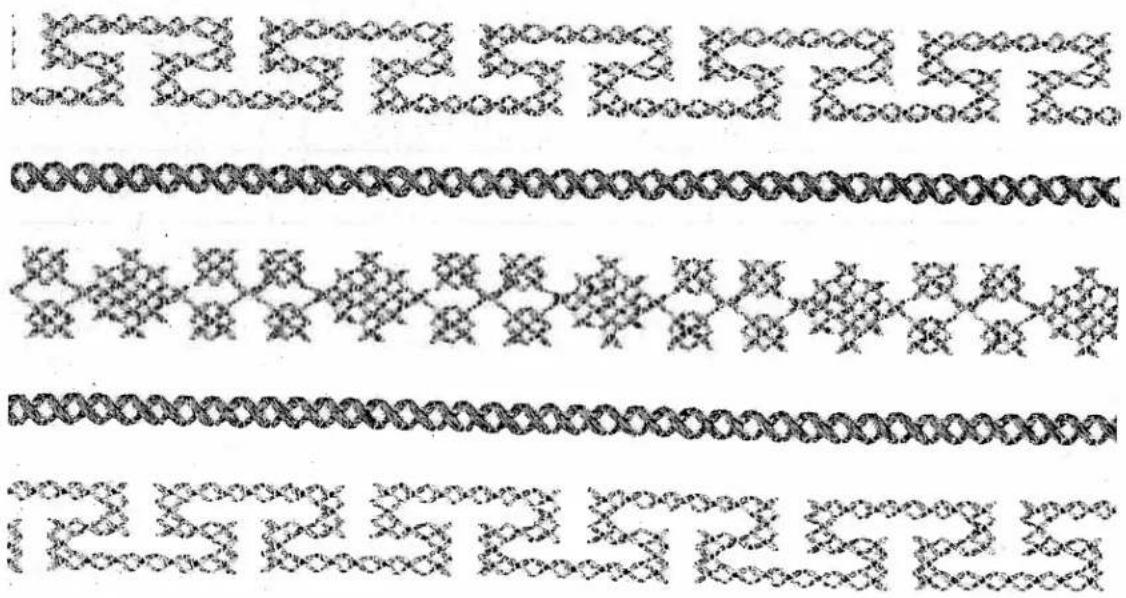
natural_image
Repeating decorative pattern with repeating circular motifs and cross-like shapes (no text or symbols)Sewing pre-programmed cross stitch borders
Embroidery programs No. 90-99 consist of small cross stitches and are especially suitable for border embroideries. They have been pre-programmed into the machine with an optimum stitch length and width, however you can change these settings, if required.
TIP: Programs No. 91, 93, 94, 97 and 99 are symmetrical designs and are very suitable for sewing them opposite to each other.
natural_image
Three identical decorative patterned lines with repeating cross-like motifs, no text or symbols present.
text_image
Black-and-white photo of a textured surface with a large-scale diagram of a bird-like structure and numbered markers (1–11) pointing to specific regions.Embroidering cross stitch motifs with programs 100-109
You can combine the individual cross stitch programs using your imagination to achieve large-area cross stitch motifs or beautiful borders. These combinations are entered into different M-Memories which are then sewn successively next to each other. To do this, follow these steps:
- Draw the desired cross stitch motif on graph paper with squares first.
- Group this motif into blocks which can be entered into the memories as pattern combinations.
- Now mark the starting point of the first cross stitch of each memory. The start and end points of the cross stitches are particularly important as they determine the stitch direction. A cross stitch that finishes on the right, can only be combined with a cross stitch that starts on the right. The start and end points of a cross stitch program can be obtained by pressing the "info" key in the help files. There, you can also find combination possibilities for each cross stitch program.
TIP: Using key " ", you can transfer starting points from left to right.
- Mark each memory with a number and arrows for the respective sewing direction.
- Press the "m" key for pattern sequence.
- Now enter the selected cross stitches into a free M-Memory.
- To sew the pattern recall the programmed memories successively. Press key "
- When you start sewing the needle always stitches in the middle of the sewing foot. The marked starting point on the template corresponds to the sewing start.
-
After you have finished sewing the first memory, pull the threads to the reverse side of the fabric and knot them together.
-
Select the next memory. When you position the sewing foot, watch the crosswise lines on fancy-stitch foot No. 2A. They should be aligned with the starting points of the adjoining cross stitches.
- Allow the left metal edge in the window of the foot to move exactly along the line of the pattern sewn before. This way you can avoid spacings between adjoining pattern sequences.
- Sew the individual memories successively. Afterwards, iron the embroidered motif on the reverse side of the fabric.
Cross stitch motif "hare"
For this motif the following combination has been stored:
M1- 4 x 10⁵/106
M2- 2 x 10⁷/4 x 105/106/3 x 105/2 x 106/3 x 105/107
M3- 9 x 10⁶
M4- 2 x 10⁶/4 x 105/107/3 x 105/2 x 107/3 x 105/107
M5- 4 x 10⁵/107
M6- 107/5 x 105/107
M7- 3 x 10⁵

text_image
M8 ↑ M3 M8 ↑ M5 M7 M6 ↑ M1 M2 M4
natural_image
Black-and-white photo of a table setting with a fork, plate of bread, and floral napkin (no visible text or symbols)Linen embroidery
Linen embroidering is a very well-known and popular technique which in earlier times was widely used in bed and table linen production. For this special white-on-white embroidery satin stitches are most suitable to make the embroidery more prominent. Always use special embroidery threads and tear-away stabilizer as an underlay. Transfer the desired pattern, i.e. an iron-on pattern or pattern drawn with the magic pento the face side of the fabric. Our example consists of the following programs:
- For the petals select program No. 129
Pattern length: 35 mm
Stitch width: 6 mm
- Using program No. 165 stitch the points at the top end of the petals.
Stitch width: 5 mm
- Now stitch the contours using zigzag stitch No. 02.
Stitch width: 2 mm
Stitch length: 0,35 mm
- For the flowers right and left of the motif use pattern No. 132.
Stitch width: 6 mm
Pattern length: 6 mm
- Embroider the edge of the napkin using zigzag stitch No. 02.
Stitch width: 4 mm
Stitch length: 0,35 mm

natural_image
Black-and-white photo of a woman wearing a wide-brimmed hat, holding flowers (no visible text or symbols)Hemstitching
This technique is known by everyone – but only handmade. With the Creative 7550 you can produce hemstitching much quicker and easier.
10 special hemstitching programs are at your disposal, and by changing the stitch lengths and widths you can achieve new effects every time. For hemstitching you need a wing needle. Only for very fine fabrics a normal sewing needle, size 80 is used. Coarse-weave fabric is best suitable for hemstitching on which you can draw single threads easily.
Embroidery and darning thread, particularly cotton, is very suitable. Use the hemstitching programs of your creative to produce different techniques.
text_image
Scanned text of a document with dense, low-resolution black dots and faint horizontal lines, likely from a historical or technical report.
natural_image
Close-up of a textured surface with scattered dark spots and a dotted line (no text or symbols)Hemstitching pattern
● Programs No. 110, 113, 118 and 119.
For these programs use wing needle 130/705 H Wing, size 100, without pulling threads from the fabric.
Program No. 119 can also be sewn as a curved edge or for securing edges.
natural_image
Close-up of a textured surface with evenly spaced dark rectangular patterns (no text or symbols)
natural_image
Black-and-white textile garment with tassels and dotted pattern (no visible text or symbols)"Ladder" hemstitching
- Programs No. 111, 112, 114 and 117.
- Draw the threads at the required width the same as in hand hemstitching.
- Embroider along both fabric edges with the respective program. When you do this the needle must enter at the side of the edges into the drawn threads; this will bunch the threads.
TIP: Use the "slow sewing" function so that the needle stitches evenly and the threads can be bunched neatly.
natural_image
Close-up of a woven fabric with visible texture and stitching (no text or symbols)Making a hem with a hemstitch seam
This seam provides a perfect edge finish to hem-stitching work on table cloths, napkins or towels.
- Programs No. 112, 114 and 117.
- Needle 130/705 H, size 80.
- Iron the hem over twice at the required width.
- Pull one or more threads above the hem.
- Using one of the above mentioned programs sew along the pulled threads. When you do this, the needle must enter the hem to the right and bunch the pulled threads to the left.
text_image
Scanned text of contract clauses with a horizontal line and dot patternTraditional hemstitching
- Programs No. 111, 116.
- Using "single pattern", sew the respective program on a piece of waste fabric.
- Count off the threads on the inside of the pattern to determine the pattern width.
- At the right and left of the pattern width draw 1-3 threads from the fabric.
- Overstitch the remaining threads with the selected program. When you do this, the needle must enter right close to the edges in the drawn threads at both sides.
natural_image
Black-and-white photo of a decorative ceramic teapot and teacup with floral patterns, displayed on a matching saucer (no text or symbols visible)
natural_image
Close-up of a scalloped fabric edge with evenly spaced small holes, no text or symbols visibleEyelet embroidery
Eyelet embroidery refines your linens and can be produced very easily with your creative. With the help of an eyelet plate and different utility and embroidery stitches you can produce beautiful embroideries.
- Drop the feed dog.
- Remove the sewing foot.
- Place the eyelet plate on the needle plate making sure the back pin fits in the middle cutout of the needle plate. Then push the plate down at the front.
- Place the marked fabric taut in an embroidery hoop.
-
Cut one or two fabric threads and push the fabric over the pin in the eyelet plate. The fabric must fit tightly around the pin.
-
Place the sewing foot lifter in darning position.
- Pull up the bobbin thread and hold it for the first few stitches.
- Stitch around the cut with zigzag program No. 32. When you do this, turn the hoop with the fabric clockwise, slowly and evenly. The stitches should be right close to each other.
- Afterwards secure with a few straight stitches.

natural_image
Four circular, flower-like patterns arranged in a cross pattern on a textured background (no text or symbols)Pattern examples for eyelet embroidery
a) Select pattern No. 32.
Stitch around the cut slowly and evenly. Then sew a second circle using program No. 32, press key "☐". For doing this, set the stitch width at 2 mm. At the end tie-of with a few stitches using the "reverse" key.
b) Select Shell-edging stitch No. 12 or 13.
Finish the motif with zigzag stitch No. 32, left needle position "◇", 2 mm. Tie-off with the "reverse" key.
c) Stitch slowly around the cut using the elastic blind stitch No. 05. Tie-off with reverse stitches.
d) Use pattern No. 65 with a stitch width of 9 mm.
e) Use pattern No. 63 with a stitch width of 9 mm. Tie-off after 5 petals.
natural_image
Black-and-white illustration of a smiling woman with short hair and earrings, wearing a collared shirt and scarf (no text or symbols)Richelieu
This very artistic form of bar and eyelet embroidery is easy to make with your sewing machine.
- Transfer your pattern onto the face side of the fabric using the magic pen.
- Then place two plies of AVALON stabilizer under the area to be embroidered and tauten the fabric and backing in an embroidery hoop.
- To make the embroidery more stable, sew around all contours twice in straight stitch No. 00 (stitch length at approx. 1 mm).
TIP:
Using the "needle down" function makes this work easier!
- After that, carefully cut out the fabric from the areas that will form the cutouts at about 2 mm along their contours, but do not cut away the backing material.
- Embroider the contours with a dense zigzag stitch No. 02.
- The backing material provides this part of the work with much more shape and stability.
- Finally, all you have to do is dissolve the AVALON stabilizer in cold water, and your piece of individually made embroidery is ready.
natural_image
Black-and-white still life of a person's jacket draped in a rolled-up shirt, resting on a chair (no text or symbols visible)Quilting
Quilting is a traditional sewing technique. The method that the wives of American settlers developed to make use of material remnants has become an artistic hobby with many enthusiasts worldwide.
A quilt always consists of three layers of material. Lots of geometrically shaped pieces of material are joined together in continually changing patterns to form the top layer of the quilt. This is tacked onto the middle layer made of polyester padding and connected to the back layer of the quilt that usually consists of one uniform piece of material. The entire quilt is often also bordered with the back layer.
Of course, the work of piecing the individual bits of material together must be very precise. The Dual Feed is of particular importance when doing this.
And this is what you do:
- Cut out the parts of your quilt with templates you have bought or made yourself. A seam allowance of 0.7 cm should already be included in the templates.
- Spread out the parts as in the pattern and form small squares that you can match together. These squares are then sewn together to form the surface of the quilt.
- The seam allowances of quilts are not neatened up but just smoothed out – never ironed!
- Tack your finished surface of the quilt onto the layer of polyester padding with the back layer of the quilt underneath.
- In traditional quilts these three layers of material are sewn together by hand with small stitches – but it is quicker and more practical with the sewing machine, e.g. with program No. 00. There is always stitching about 2 mm beside the seam. Embroidery stitches look very good on plain coloured material.
When your quilt is finished you can make it into cushions, wall hangings or bed covers.

natural_image
Abstract zigzag pattern composed of repeating rectangular shapes (no text or symbols)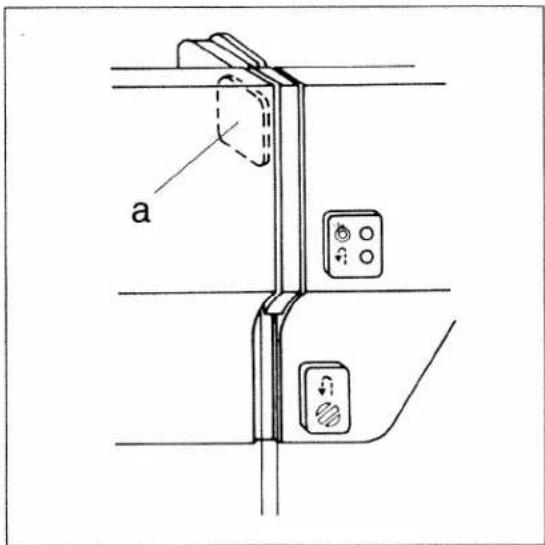
text_image
aTwin needle sewing
You can achieve beautiful embroidery effects by using the twin needle. Embroideries turn out best with a stitch width of 1.6-3 mm. Stretch seams are sewn up to 6 mm wide. Particularly effective are embroideries if two embroidery threads of similar shades are chosen.
If you wish to sew embroidery programs with the twin needle, press the "twin needle" key. By doing this, the stitch width is automatically reduced to avoid the needle stitching on the sewing foot.
- Replace the sewing needle with a twin needle.
- Place one reel of thread on each reel holder.
- In the left threading slot (32) you will find the tension disk "a" (see fig. on the top right). During threading, make sure that you pass one thread left and one thread right over the tension disk.
- Carry on threading in the usual way but make sure the threads are not twisted with each other.
- Pull the threads right and left into thread guide (31) and thread the needles (see fig. b).

natural_image
Mechanical diagram showing a tool or device with two metal rods inserted into a housing, labeled 'b' (no text or symbols on the diagram itself)
text_image
A B E A F G J K L N O F R S T IPattern stencils
The pattern and monogram stencils help you to place and combine patterns on the fabric precisely. Doing this, please take into consideration that the drawn pattern size does not always exactly correspond to the actual stitched size. A pattern sewn on cotton will be fed differently by the machine than on velvet or woollen materials and will always turn out slightly different. And this is how the stencil should be used: The pattern start of the respective motif or monogram is marked on the stencil with a punched hole. Place the stencil on the fabric and mark the pattern start (left illustration) with a dissolving ink pen. Embroider the selected program. If you wish to add a second motif or monogram, you can now determine the optimum position using the stencils. Mark the starting point again and stitch the next pattern.
natural_image
Black-and-white photo of a young girl wearing a wide-brimmed hat, sitting with two stuffed animals and a butterfly, holding butterflies (no text or symbols visible)-
-
-
-
-
-
-
-
-
-
-
-
-
-
-
-
-
-
-
-
-
-
-
-
-
-
-
-
-
-
-
-
-
-
-
-
-
-
-
-
-
-
-
-
-
-
-
-
-
-
-
-
-
-
-
-
-
-
-
-
-
-
-
-
-
-
-
-
-
-
-
-
-
-
-
-
-
-
- 80.
-
-
-
-
-
-
-
-
-
-
-
-
-
-
-
-
-
-
-
-
-
-
-
-
-
-
-
-
-
-
-
-
-
-
-
-
-
-
-
-
-
-
-
-
-
-
-
-
-
-
-
-
-
-
-
-
-
-
-
-
-
-
-
-
-
-
-
-
-
-
-
-
-
-
-
-
-
PFAFF
G. M. PFAFF
Aktiengesellschaft
Subject to technical modifications