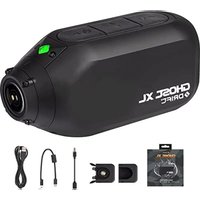
HD Ghost - Camcorder Drift - Free user manual and instructions
Find the device manual for free HD Ghost Drift in PDF.


User questions about HD Ghost Drift
0 question about this device. Answer the ones you know or ask your own.
Ask a new question about this device
Download the instructions for your Camcorder in PDF format for free! Find your manual HD Ghost - Drift and take your electronic device back in hand. On this page are published all the documents necessary for the use of your device. HD Ghost by Drift.
USER MANUAL HD Ghost Drift
DRIFC HD GHOST user manual
precautions / 3
overview / 4
using the camera / 5
initial setup
powering on and off
charging
formatting a micro SD card
the camera menu system / 6
video mode /7
recording video
Flashback Video Tag/Loop
simultaneous photos and videos
video mode settings
photo mode / 8
capturing photos
photo settings
timelapse mode / 9
capturing timelapse sequences
timelapse settings
photoburst mode / 10
capturing photoburst sequences
photoburst settings
playback / 11
video playback
viewing photos
viewing timelapse
viewing photoburst
deleting files
camera settings / 12
WiFi
date and time
camera settings profiles
firmware
the two-way remote control / 13
powering on and off
pairing camera to a remote control
pairing multiple cameras to a remote control
using the remote control
shot setup / 15
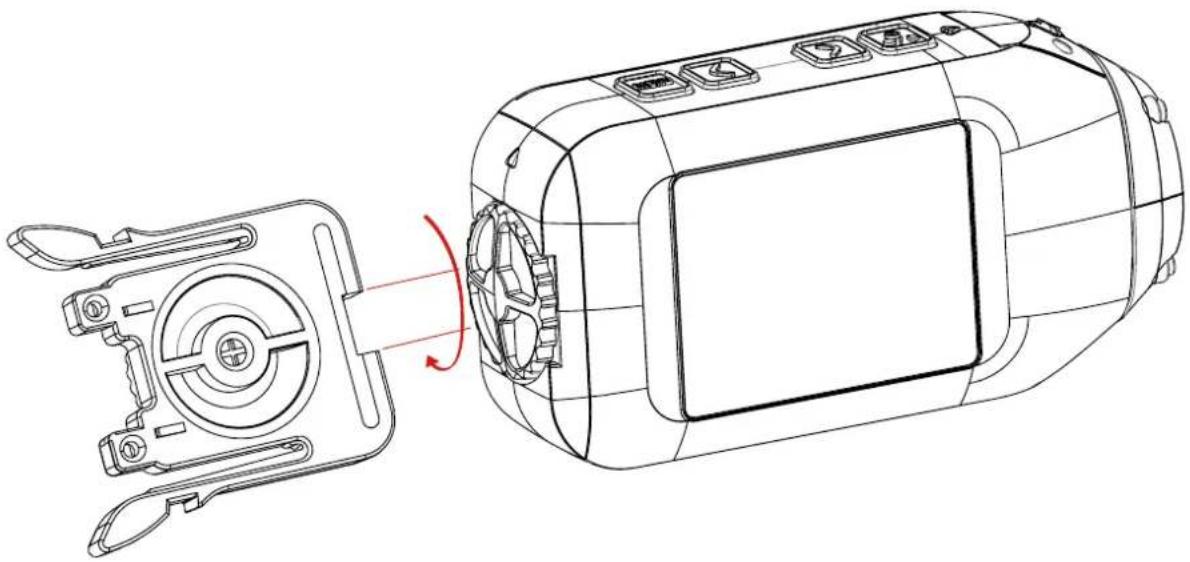
fixing the camera to the universal clip
mounting the camera to a Drift Mount
lens rotation
zoom
connectivity / 16
connecting to Windows PC
connecting to Mac
connecting to WiFi device
connecting to a TV
conserving battery / 17
updating firmware / 18
camera care / 19
cleaning the camera
cleaning the lens and LCD screen
cleaning the seals
technical specifications / 20
warranty / 21
disclosures / 22
General precautions
Please take note of the following guidelines when using your HD Ghost camera:
- The camera is 2m shock resistant, but not shock proof—please take care of your camera and accessories, mounting and storing them securely
- For your safety, do not press the buttons on the camera during sports activities
- Do not store the camera anywhere prone to dust or damp for extended periods of time
- Do not leave the camera exposed to extremely high temperatures—such as under direct sunlight—for extended periods of time as this may affect the camera housing and internal components
- Clean the lens and screen with a micro fibre, antistatic cloth to remove fingerprints or dust—no cleaning chemicals are required
- The camera has a working temperature range of -10^ to 40^ (14°F to 104°F)
- Power off the camera before removing the battery or memory card—the memory card and stored data may be damaged if it is removed or inserted while the camera is powered on
- Remove the battery and memory card before storing the camera for long periods of time
Weather resistance
The HD Ghost is engineered to withstand dust, snow, rain, splashes and submersion up to 3m.
- Operating the camera at temperatures below 0^ reduces battery life and lowers battery performance
- Do not charge the battery at temperatures below 0^ C
- Do not leave the camera submerged for longer than 30 minutes
- Clean off any salt water or dirt from the camera immediately and prior to storing
- Do not subject the camera to sudden impact of water—the camera should always be used in the waterproof case when in intensive water-based applications
- Always use the universal clip as a rear hatch key to ensure the camera is sealed tightly to ensure full water proofing
Attention
! Rechargeable batteries are only to be charged under adult supervision
! DO NOT short-circuit the battery terminals
! DO NOT open, puncture or otherwise damage the rechargeable battery, or dispose of it in fire
! Drying Out Your Camera
We recommend users store cameras for a minimum of 12 hours with the back hatch open, battery hatch open and the battery removed in less than 30% humidity to help dry out anti-fog inserts regularly.
Disclaimer
Drift Innovation will not, under any circumstances, be responsible for injuries or property damaged incurred during participation of any high-risk sport or activity not endorsed or recommended by Drift Innovation. Remember that the warranty will only cover manufacturing defects.
natural_image
Technical line drawing of a mechanical device with a cylindrical housing and internal components, showing a red rotation arrow (no text or symbols)
A MENU Button (Tag)
B LEFT Button (Zoom Out)
© RIGHT Button (Zoom In)
D ACTION Button (On/Off/Rec/Stop)
E LED Indicator
F 2.0" LCD Screen
G 300° Rotating / Replaceable Lens
H 1/4"-20 Thread
① Speaker
J HDMI Port (Mini C)
USB Port (Mini B)
Battery Slot Cover
Micro SD Card Slot
3.5mm Microphone Input
Standard Rear Hatch
P Rear Hatch 'Up' Indicator
Lens 'Up' Indicator
Built-in Noise Reducing Microphone

text_image
DRIFT® CAUTION: DO NOT INCINERATE, DISASSEMBLE, SHORT, HEAT ABOVE 60°/340°F, USE DESIGNATED CHARGER ONLY, RISK OF EXPLOSION IF BATTERY IS REPLACED BY AN INCIDIRECT TYPE, DISPOSE OF USED BATTERIES ACCORDING TO THE INSTRUCTIONS. www.DRIFTINNOVATION.COM Micro HD GHOSTS® HD 1080PInitial setup
- Unscrew the rear hatch of the camera by hand, or by using the notch in the Universal clip (anti-clockwise movement)
- Slide the catch and open the battery slot cover, lift and insert the battery as above, before closing the cover
- Insert a micro SD card into the card slot, as above, until you hear a click
- Connect the camera by the mini USB cable (provided) to a powered USB port and charge for 4 hours before first use
- Replace the rear hatch, ensuring the arrow indicator points to the camera face with the control buttons
Powering on and off
Press and hold the Ⓗ ACTION button on the camera—the LED indicator and screen will power on and display a welcome message
To power off, hold the ⬆ ACTION button for 3 seconds, or until the LED indicator and screen power off
Charging
- Ensure the battery is inside the camera and the camera is powered off
- Connect the mini USB cable to the port at the rear of the camera and then to a powered USB port in your computer, other USB device or USB power adaptor (not included)
! If connected to a computer, the camera screen will show a USB symbol
! If connected to a USB power adaptor, the screen will show 'Charging...' - A full charge takes around 4 hours (at 2A)—once the camera is fully charged, remove the mini USB cable and replace the rear hatch and screw closed
Battery life
At a temperature of 25^ C ( 77^ F), with all power saving features off and the camera recording continuously, the battery will last for about 3 hours on a full charge (see Conserving Battery Life, p17).
Using an external power supply
The camera can be powered by an external power supply such as a USB power adapter, Drift Power Pack or Drift 12V Charger. We do recommend you to power off your camera before plugging your camera to any external power supply.
Press the action button to begin normal usage when using an external power supply. If the external power is cut off for any reason during recording, the camera will immediately start drawing power from the rechargeable battery instead and continue recording, protecting your footage from file corruption.
Selecting a micro SD card
The Drift HD Ghost is compatible with Micro SD or SDHC cards of up to 32GB, and of Speed Class 6 or above. We recommend Class 10 cards for recording HD video.
Below is a table of approximate video recording times against card size.
* Recording 720P video at 60fps gives similar recording times as 1080P video.
Formatting a micro SD card
Formatting will remove all files from a memory card. When using a new card for the first time, formatting is recommended. With the card inserted in the camera:
- Open the Main Menu (see p6) and select Camera Settings
- Select 'Format Memory Card', press ACTION and then confirm
Formatting may take a few moments to complete—please be patient.
Removing a micro SD card
To remove the card, push it until you hear a click. The card slot is spring loaded and the card will slide from the slot.
the camera menu system
text_image
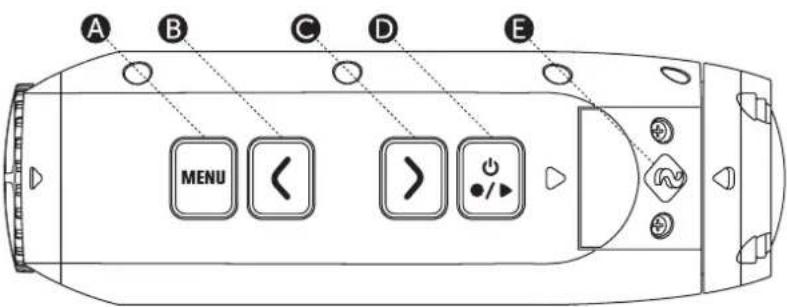
A B C D E MENU < > /▶The Drift HD Ghost has an easy-to-use menu system which can be navigated using the camera's four control buttons.
Main Menu
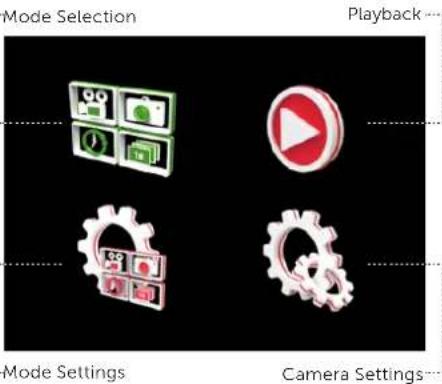
To open the Main Menu, press MENU while the camera is powered on. The Main Menu screen will display the four menu options.
Use LEFT and RIGHT to navigate between the menu options. A highlighted option will show a green icon instead of the usual red. To select a highlighted menu option, press ACTION and a sub-menu will open.
! To go back a step, at any time, press MENU
Mode Selection Menu
The Mode Selection menu is used to select the camera mode.
On opening the Mode Selection menu, the screen will display the four camera mode icons. Move between the different camera modes using LEFT and RIGHT. To select a highlighted camera mode, press ACTION. The screen will return to Live Preview for the selected mode and the camera is ready to capture.
For more information about the four camera modes, (see p7-10)
Mode Settings Menu
The Mode Settings menu is used to view and edit settings for each of the four camera modes.
On opening the Mode Settings menu, the screen will display the four camera mode icons. To select a highlighted camera mode, press ACTION. A further sub-menu will open, listing adjustable settings for the selected camera mode. Use LEFT and RIGHT to navigate between settings. Use ACTION to edit and confirm settings; LEFT and RIGHT to adjust setting values.
For more information about the four camera modes and their settings, (see p7-10)
Playback Menu
The Playback menu is used to view video and images for each of the four camera modes.
For full details, (see p11)
Camera Settings Menu
The Camera Settings menu is used to view and adjust camera settings.
For full details, (see p12)
A MENU Button (Tag/Back)
B LEFT Button (Zoom Out)
RIGHT Button (Zoom In)
D ACTION Button (On/Off/Rec/Stop)
E LED Indicator
text_image
Mode Selection Playback Mode Settings Camera Settings...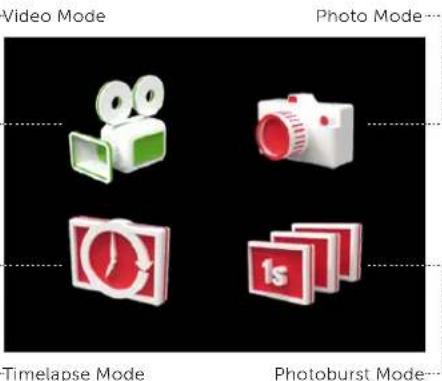
text_image
Video Mode Photo Mode... Timelapse Mode Photoburst Mode...
text_image
Video Settings Photo Settings Timelapse Settings Photoburst SettingsVIDEO MODE (GREEN LED)
While the camera is powered on and in Video Mode—with a micro SD card inserted with enough free memory—it will record video when ACTION is pressed on the camera or the remote control.
- To enter Video Mode, ensure the camera is powered on
- Press MENU to enter the Main Menu
- Open the Mode Selection menu, highlight Video Mode and press ACTION The screen will return to Live Preview and display the Video Mode icon in the top-lefthand corner of the screen, and the LED indicator will turn green—the camera is ready to record video.
Recording Video
- Press ACTION on the camera or remote control to begin recording video
- The LED indicator will blink red while the camera is recording
! The duration of the current recording is indicated by the on-screen timer - To stop recording, press ACTION on the camera, or STOP on the remote control—the LED indicator will turn green
Video Tagging
When activated, this feature allows the camera to continuously record video, but save only 'tagged' footage. For example, with Video Tagging turned on and a Video Tagging Interval of 30s selected, pressing MENU while recording video will save the previous 30s, the current 30s and an additional 30s—a total of 1m30s of tagged footage.
Video Tagging can be turned on or off in the Video Mode Settings menu.
- To turn Video Tagging on, open Mode Settings from the Main Menu and select Video Mode
- Under 'Video Tagging', select On and press ACTION to confirm
- Under 'Video Tagging Interval', choose the desired interval time and press ACTION to confirm
- While recording video, press MENU on the camera to tag video—the LED indicator will begin blink red while a tagged interval is being saved
! While recording video, pressing ACTION on the remote control will tag video
- Tagging can be stopped by pressing ACTION on the camera, or STOP on the remote control
Pressing ACTION again while tagging will add an additional tagging interval to the end of the saved footage.
! Please ensure you have at least 4GB of free space on your micro SD card for video tagging to function properly
Taking simultaneous photos while recording video
With Video Tagging turned off, pressing MENU on the camera while recording video will simultaneously take a still photo. Simultaneous Photo is available in the following video setups: 1080p (30/25 FPS), 960p (30/25 FPS), 720p (30/25 FPS), WVGA (3025 FPS).
With Video Tagging turned off, pressing ACTION on the remote control while recording video will simultaneously take an still photo.
This feature is only available when Video Tagging (see above) is turned off
Video Mode Settings
| Resolution | 1080P |
| 960P | |
| 720P | |
| WVGA | |
| Frame Rate | 25 (1080/960/720/WVGA) |
| 30 (1080/960/720/WVGA) | |
| 40 (960) | |
| 50 (960/720/WVGA) | |
| 60 (720/WVGA) | |
| 100 (WVGA) | |
| 120 (WVGA) | |
| FOV | 170° (1080/960/720/WVGA) |
| 127° (1080) | |
| 90° (1080) | |
| Exposure | -2 |
| -1 | |
| 0 | |
| +1 | |
| +2 | |
| Self Timer | 3s |
| 5s | |
| 10s | |
| Video Tagging | On |
| Off | |
| Video Tagging Interval | 10s |
| 30s | |
| 1m | |
| 2m | |
| 5m |

text_image
Video Mode SD Card / Battery Indicator 98% 1000F FPS EXP 30 ±0 00:00:00- Video Resolution Frame Rate Exposure Record TimerPHOTO MODE (YELLOW LED)
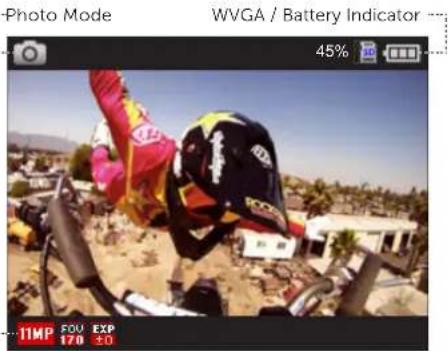
While the camera is powered on and in Photo Mode—with a micro SD card inserted with available memory—it will capture a 5, 8 or 11MP still image when ACTION is pressed on the camera or the remote control.
- To enter Photo Mode, ensure the camera is powered on
- Press MENU to enter the Main Menu
- Open the Mode Selection menu, highlight Photo Mode and press ACTION The screen will return to Live Preview and will display the Photo Mode icon in the top-lefthand corner of the screen, and the LED indicator will turn yellow—the camera is ready to take photos.
Capturing photos
- Press ACTION on the camera or remote control to take a photo
- The LED indicator will blink red once before returning to yellow
Photo Mode Settings
| Resolution | 11MP |
| 8MP | |
| 5MP | |
| FOV | 170° |
| 127° | |
| 90° | |
| Exposure | -2 |
| -1 | |
| 0 | |
| +1 | |
| +2 | |
| Self Timer | 3s |
| 5s | |
| 10s |
text_image
Photo Mode WVGA / Battery Indicator 45% 11MP 500 EXP 170 £0Photo Resolution Field of View Angle Exposure
TIMELAPSE MODE (PURPLE LED)
While the camera is powered on and in Timelapse Mode—with a micro SD card inserted with enough free memory—it will capture a series of still images at a specified rate when ACTION is pressed on the camera or the remote control.
- To enter Timelapse Mode, ensure the camera is powered on
- Press MENU to enter the Main Menu
- Open the Mode Selection menu, highlight Timelapse Mode and press ACTION The screen will return to Live Preview and will display the Timelapse Mode icon in the top-lefthand corner of the screen, and the LED indicator will turn purple—the camera is ready to take timelapse photos.
Capturing Timelapse
The Timelapse Sequence Interval can be set from the Mode Settings menu.
- Open Mode Settings from the Main Menu and select Timelapse Mode
- Under 'Sequence Interval', choose the desired interval time and press ACTION to confirm
- Return to Live Preview and press ACTION on the camera or remote control to start timelapse
- The LED indicator will blink red once when each photo is taken
- To stop timelapse, press ACTION on the camera or STOP on the remote control
Timelapse Mode Settings
| Resolution | 11MP |
| 8MP | |
| 5MP | |
| FOV | 170° |
| 127° | |
| 90° | |
| Exposure | -2 |
| -1 | |
| 0 | |
| +1 | |
| +2 | |
| Sequence Interval | 0.5s |
| 1s | |
| 2s | |
| 3s | |
| 5s | |
| 10s | |
| 30s | |
| 1m | |
| Self Timer | 3s |
| 5s | |
| 10s |

text_image
Timelapse Mode SD / Battery Indicator 67% TIME FOU EXP 3S REC 000000 Photo Resolution Field of View Angle Exposure Sequence Interval Photos CapturedPHOTOBURST MODE (CYAN BLUE LED)
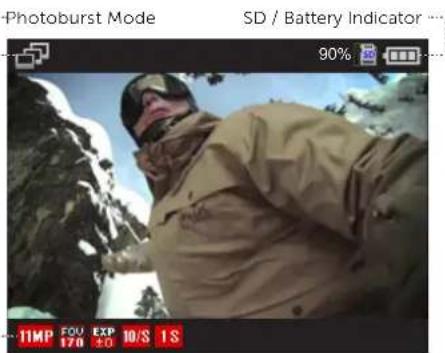
While the camera is powered on and in Photoburst Mode—with a micro SD card inserted with enough free memory—it will capture a burst of still images for an allotted duration, at a specified rate when ACTION is pressed on the camera or the remote control.
- To enter Photoburst Mode, ensure the camera is powered on
- Press MENU to enter the Main Menu
- Open the Mode Selection menu, select Photoburst Mode and press ACTION The screen will return to Live Preview and will display the Photoburst Mode icon in the top-lefthand corner of the screen, and the LED indicator will turn cyan (light blue)—the camera is ready to take a photoburst series.
Capturing Photoburst
The Photoburst Mode settings can be set from the Mode Settings menu.
- Open Mode Settings from the Main Menu and select Photoburst Mode
- Under 'Capture Rate', highlight the desired photo capture rate and press ACTION to confirm
- Under 'Burst Duration', highlight the desired duration and press ACTION to confirm
- Return to Live Preview and press ACTION on the camera or remote control to start photoburst
- The LED indicator will blink red once when each photo is taken
! Please note, 11MP at 10 images per second is limited to a maximum 2 second burst duration.
Photoburst Mode Settings
| Resolution | 11MP |
| 8MP | |
| 5MP | |
| FOV | 170° |
| 127° | |
| 90° | |
| Capture Rate | 5/s |
| 10/s | |
| Burst Duration | 1s |
| 2s | |
| 5s | |
| Exposure | -2 |
| -1 | |
| 0 | |
| +1 | |
| +2 | |
| Self Timer | 3s |
| 5s | |
| 10s | |
| Default Settings | Yes |
| Cancel |
text_image
Photoburst Mode SD / Battery Indicator 90% 11MP 120 EXP 10/S 1SPhoto Resolution Capture Rate Burst Duration
On opening Playback from the Main Menu, the screen will display the four camera mode icons. A number will be displayed beside each camera mode icon to indicate how many files are stored on the memory card for each mode.
To select a highlighted camera mode, press ACTION.
The screen will display the most recent video, photo or timelapse or photoburst folder. To move between files, use LEFT and RIGHT. To return to Live Preview, press the menu button to backout.
Video Playback
- Select the video file you wish to playback using LEFT/RIGHT, then press ACTION
- The screen will display a sub-menu—highlight 'View' to watch the selected video and press ACTION
! Highlight 'View All' to watch all the videos stored on the memory card and press ACTION - Pressing ACTION will stop playback and pressing ACTION again will play the selected video.
- Use LEFT and RIGHT during playback to rewind and fastforward
Viewing Photos
On opening Photo Mode from the Playback menu, the screen will display the most recent photo. To move between photos, use LEFT and RIGHT.
Viewing Timelapse photos
On opening Timelapse Mode from the Playback menu, the screen will display the first image in the most recent timelapse sequence. To move between sequences, use LEFT and RIGHT. Press ACTION and select 'View Series' to open the desired sequence.
Viewing Photoburst photos
On opening Photoburst Mode from the Playback menu, the screen will display the first image in the most recent photoburst sequence. To move between sequences, use LEFT and RIGHT. Press ACTION and select 'View Series' to open the desired sequence.
Deleting files
- Pressing ACTION while viewing any file in Playback will open a sub-menu
- Highlight 'Delete' to delete the selected video or photo, or 'Delete All' to delete every file for the selected camera mode, and press ACTION and confirm
- You can also choose to timelapse or photoburst sequences in the same manner as above
! Please be aware when using 'Delete All' that all files for the selected camera mode will be removed from the memory card and cannot be retrieved
! Using this function will not delete any other files from the micro WVGA card

text_image
Playback 40% S. VETTEL 11MPOn opening Camera Settings from the Main Menu, the screen will display the list of adjustable camera settings.
Use LEFT and RIGHT to move between settings. Use ACTION to edit and confirm settings; LEFT and RIGHT to move between setting values.
WiFi
To turn WiFi on or off, highlight 'WiFi' from the Camera Settings menu and press ACTION.
While WiFi is on, the WiFi icon will show in Live Preview.
For more about connecting the camera to other WiFi devices, (see p15)
Setting the date and time
-
Highlight 'Date' from the Camera Settings menu and press ACTION
-
Adjust the year using LEFT/RIGHT and press ACTION to confirm
-
Set the month, day and time, pressing ACTION to confirm each
Camera Settings Profiles
All camera settings can be saved by selecting Save Settings from the Camera Settings menu and choosing a save profile: A, B or C.
Settings profiles can be loaded by selecting Load Settings from the menu, then A, B or C.
The camera will power on in the same settings configuration it was powered off in.
Reset Default Settings
To restore the factory camera settings, highlight 'Reset Settings' from the Camera Settings menu and press ACTION, then confirm.
Firmware
Selecting 'Firmware Version' from the Camera Settings menu will display the camera's current firmware version.
For more details about updating firmware, (see p17)
| WiFi | On |
| Off | |
| Mic Sensitivity | Off |
| Low | |
| Med | |
| High | |
| Speaker Volume | Off |
| Low | |
| Medium | |
| High | |
| Remote Control | Yes |
| No | |
| Remote Pairing | Refresh |
| Cancel | |
| Date/Time Stamp | On |
| Off | |
| LCD Off | Never |
| 5s | |
| 10s | |
| 20s | |
| 1m | |
| 5m | |
| LCD Brightness | Low |
| Medium | |
| High | |
| LED Indicator | On |
| Off | |
| Camera Auto Off | Never |
| 1m | |
| 5m | |
| 10m | |
| 20m | |
| 30m |
| Date/Time Year | /Month/Day |
| Digital Zoom | On |
| Off | |
| Remote LED | On |
| Off | |
| Save Settings | Profile A |
| Profile B | |
| Profile C | |
| Load Settings | Profile A |
| Profile B | |
| Profile C | |
| Language | English |
| Français | |
| Deutsch | |
| Español | |
| Italiano | |
| Português | |
| Russian | |
| Nederlands | |
| Dansk | |
| Polski | |
| Român | |
| Svenskt | |
| Český | |
| ελληνικά | |
| Video Format | .MOV |
| .MP4 | |
| Format Memory Card | Yes |
| Cancel | |
| Reset Settings | Yes |
| Cancel | |
| Firmware Version |
the two-way remote control
Powering on and off
- Ensure the camera is powered on (see p5)
- Press and hold the Ⓧ ACTION button on the remote—the LED will power on and indicate the current camera mode
! The remote will automatically power off if it does not find a camera after 15s
Charging
Connect the remote control using the Mini USB cable (provided) to a powered USB port. The LED will blink red. A full charge takes around 2 hours using a 2 amps charger. Once the remote is fully charged, the LED will show solid green—remove the mini USB cable and replace the rubber dust-proof USB seal.
Pairing camera to a remote control - one to one

[The camera and remote control included in the package are already paired to one another]
- On the camera, press MENU, select Camera Settings from the Main Menu and press ACTION
- Highlight 'Remote Pairing' on the Camera Settings menu and press ACTION
- On the remote control, press Ⓧ ACTION—The camera will beep and return to the Camera Settings menu if it has recognised the remote
! If the camera does not display 'successful' and return to the Camera Settings menu it will not be paired—try pressing ⚠ACTION on the remote again - On the camera, the icon beside Remote Pairing will change to indicate it is paired to a remote control
Using the remote control - one to one
While the camera and remote are both powered on and paired, pressing ⚫ACTION on the remote control will begin recording video, capture a photo, start timelapse or photoburst, depending on the camera mode.
Pressing © ACTION while recording video will capture a photo, or start Video Tagging (if activated, see p7). Pressing STOP will end video recording or timelapse.
Pressing STOP while the camera is in Live Preview will toggle between camera modes, as indicated by the LED indicator on the camera and remote (see over)

natural_image
Pure technical diagram of a mechanical component with labeled points A, B, and C (no text or symbols beyond labels)A ACTION Button
B STOP Button (Tag/Toggle Mode)
© LED Indicator
! The Remote is NOT waterproof.
! The Two Way Remote and the App CANNOT be used simultaneously.
two way remote control (cont'd)
Pairing camera to a remote control - one to all

A single remote control can be paired to an infinite number of cameras in a 10m range from the remote control, to enable footage to be captured from every angle.
- On the cameras, press MENU, select Camera Settings from the Main Menu and press ACTION
- Highlight 'Remote Pairing' from the Camera Settings menu and press ACTION
- On the remote control, press ACTION—the camera will display 'successful' and return to the Camera Settings menu if it has recognised the remote
! Any camera that does not display 'successful' and return to the Camera Settings menu it will not be paired—try pressing ACTION on the remote again
- On the camera, the icon beside Remote Pairing will change to indicate it is paired to a remote control
! When pairing multiple cameras, always test the remote control to see if it operates all the cameras before mounting them
Using the remote control - one to all
While the camera and remote are both powered on and paired, pressing ACTION on the remote control will begin recording video, capture a photo, start timelapse or photoburst, depending on the camera mode.
Pressing ⬆ACTION while recording video will capture a photo, or start Video Tagging (if activated, (see p7). Pressing STOP will end video recording or timelapse.
The remote control indicator lights will show white to indicate the remote control is paired to multiple cameras.
| LED Status Description | |
| Rapid Blinking Red Less | than 15% battery life remains |
| Blink Red Once Taking a | photo (Photo, Timelapse and Photoburst Modes) |
| Blinking Red Recording | video (Video Mode) |
| Blinking Blue When the | camera receives a signal from the remote control |
| Blinking Green Camera | is in Video Mode |
| Blinking Yellow | Camera is in Photo Mode |
| Blinking Purple | Camera is in Timelapse Mode |
| Blinking Cyan | Camera is in Photoburst Mode |
natural_image
Technical line drawing of a mechanical component with three views: top, front, and side (no text or symbols)Fixing the camera to the Universal Clip
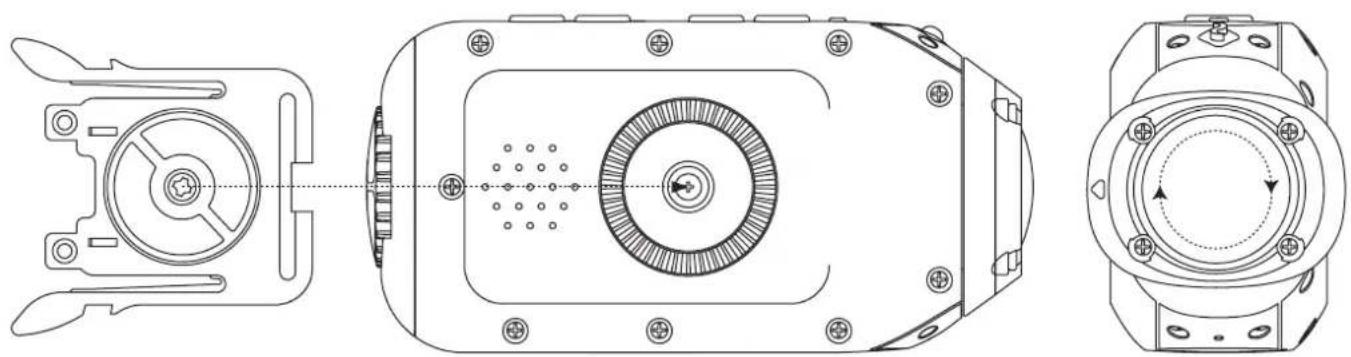
- Align the screw of the universal clip with the thread on the underside of the camera body
- Twist the screw thread in a clockwise direction
- As the universal clip tightens against the body of the camera, rotate the camera to provide the desired angle of attachment, holding the clip in place
- Tighten the screw on the universal clip until it fits firmly against the camera body
Closing the rear hatch
- Ensure the directional arrow "up" indicator is pointing up towards the buttons
- Use the notch in the universal clip to tighten the screw on the rear hatch
! Failure to completely seal the rear hatch for water-based applications will result in permanent damage to the camera (see p3).
Mounting the camera to a Drift mount
Included with the camera are several Drift mounts which will help you find the shot you want.
Mounting the camera on goggles
- Attach the Goggle Mount to the strap of your goggles
- Slide the camera (with universal clip attached) into the mount until the two arms on the clip click into place
Mounting the camera on a helmet
- Position the Curved Surface Mount against your helmet to find the optimum mounting position
- Ensure the mounting surface is clean, dry and free of oil and dust
- Remove the cover of the mount's 3M adhesive and fix the mount to the helmet—allow 24 hours to cure
- Slide the camera (with universal clip attached) into the mount until the two arms on the clip click into place
Fixing the camera to the standard 14 " thread
Thread the camera onto a tripod, or any other mount with a standard camera thread, turning the camera body on the thread clockwise to secure.
! However you choose to mount your camera, ensure that the camera is fitted firmly to reduce the risk of losing it. Give it a tug before you set out.
Lens Rotation
In order to maximise your mounting options, the camera lens is rotatable through 300°, allowing for the perfect shot from even the most awkward of positions.
Whilst holding the camera body in one hand, use the index finger and thumb of the other hand to hold the camera lens firmly, then twist the lens to the desired angle. The arrow indicator above the lens indicates 'up' and corresponds with the top of the display in Live Preview.
! Be sure to rotate the lens back to the 0° position (so the 'up' indicator on the lens is aligned with the LED indicator on the camera, and the edge of the lens is flush with the body of the camera) before mounting, or removing the camera from a mount to reduce the risk of damage to the lens.
Zoom
The Drift HD Ghost includes a digital zoom function that allows you to take close-up photo and video.
While in Live Preview, or while recording video, press and hold the RIGHT button to zoom in, and the LEFT button to zoom out.
Recorded video footage and photos can be copied to a computer using the USB cable provided or—if your computer has an appropriate card reader—directly from the micro WVGA card.
Connecting to a Windows PC by USB cable
- Connect the camera to your PC using the USB cable—the camera screen will display a USB logo and the LED status indicator will blink red.
- Your PC's operating system may be setup open new devices automatically; if not, open My Computer
- Your PC should recognise the camera as a removable device—look for DRIFT CARD in the list of devices and open
- Open the DCIM folder—inside, you will find the 100DRIFT folder which contains all the files saved on the memory card by the camera.
! If there are a very large numbers of files, there will be multiple folders (100DRIFT, 101DRIFT, etc)
- Copy the desired files to your PC
Connecting to a Mac by USB cable
- Connect the camera to your Mac using the USB cable—the camera screen will display a USB logo and the LED status indicator will blink red.
- Your Mac's operating system may be setup open new devices automatically; if not, open a new Finder window
- Your Mac should recognise the camera as a removable device—look for DRIFT CARD in the list of devices and open
- Open the DCIM folder—inside, you will find the 100DRIFT folder which contains all the files saved on the memory card by the camera.
! If there are a very large numbers of files, there will be multiple folders (100DRIFT, 101DRIFT, etc) - Copy the desired files to your Mac
Connecting the camera to a TV
- While the camera is turned off, connect it to your TV using a Mini HDMI cable (not included)
- Power on the camera
- Once booted up, the image usually displayed on the camera's LCD screen will instead be displayed directly on your TV, and the sound will come out of the TV speakers
- Press MENU to cycle through camera modes while connected to a TV.
Playing video on a computer
Some computers may not have the correct codecs required for video playback and editing.
If you experience difficulties playing video recorded with your camera, you can download VLC media player for free from www.videolan.org.
If you are experiencing difficulties editing video or do not wish to use VLC player for playback, you will need to download and install a codec pack. The FFDshow codec pack can be downloaded from www.free-codecs.com/FFDshow_download.htm.
Recommended System Requirements
To smoothly view and edit 1080p video, powerful hardware is required:
Windows
• 3.2 GHz Pentium 4 processor or higher
- At least 2GB of RAM
• Graphics card with at least 256MB of video RAM (512MB for video editing)
- Direct X 9.0c or later
• Microsoft Windows XP (SP2 or later), Windows Vista or Windows 7
Macintosh
• 2.2 GHz Intel Core Duo or higher
- At least 1GB of RAM
- Graphics Card with at least 256MB of video RAM (512MB for video edition)
• Mac OS X v10.4.11 or later
The HD Ghost comes with a rechargeable 1700mAh Lithium-Ion battery, allowing you to record continuously for hours between charges. However, sometimes you may find yourself in a location without a power outlet to charge your camera. If you're outside, cold conditions can drain battery power at a faster rate than usual. Fortunately, the HD Ghost comes with a number of features to conserve the battery life. These can all be found in the Camera Settings menu.
LCD Off
The camera's LCD screen consumes power, so one of the best ways to extend battery life is to use the 'LCD Off' feature. By default, LCD screen will automatically power off after 20 seconds (the time interval can be chosen when selecting 'LCD Off' from the Camera Settings menu).
The camera will still function as normal when the screen is off: in Live Preview, the camera is ready to record at any time; and if recording is in progress, the camera will continue to record. The remote can also be used while the screen is off. The screen can be turned back on again at any time by pressing any button.
LCD Brightness
The LCD screen is backlight, and this too consumes power. It is possible to reduce the intensity of this light by adjusting the 'LCD Brightness' setting in the Camera Settings menu—you will notice a slight increase in battery life if you use a lower brightness setting.
Camera Auto Off
It is possible to set the camera to power off entirely when no buttons are pressed for a number of minutes (the duration can be chosen selecting 'Camera Auto Off' from the Camera Settings menu). This can be useful to reduce battery consumption if the camera is accidentally left powered on.
! The camera will not power off while recording is in progress. However, once the camera has powered off, you will need to power it on again before capturing any footage.
! The remote control will not operate the camera while the unit is powered off.
Spare batteries
You can also charge a second battery before you set out and then swap it when the first is empty. Spare 1700mAh Ghost batteries and Power Packs are available from official Drift retailers.
Please visit driftinnovation.com for more information and where to purchase.
! Always change the battery in a clean, dry and safe environment. Getting camera batteries wet will damage them and may result in injury to yourself. For your own safety, never use damaged batteries.
The Drift HD Ghost should always be operated on the latest firmware available, downloadable from http://www.driftinnovation.com. Be sure to check back often for updates as we will continue to add features and options to your camera after you purchase it
We have refined how we update the firmware on the HD Ghost and it can be done easily by following the simple steps below which are
1) Go to www.driftinnovation.comn and download the latest firmware file ("HD_Ghost.bin") which will be found easily in the Drift HD Ghost section, or by navigating to 'Firmware' listed in the bottom footer of any page
2) Plug your Drift HD Ghost unit into your computer (MAC or PC) using the supplied USB cable
3) Your camera should come up as an External Device with the "Drift Card" Micro SD card being visible as a storage device (see connectivity p16). Please copy the "HD_Ghost.bin" firmware file into the root folder of the "Drift Card" Micro SD card
4) Safely eject your Drift HD Ghost and Micro SD as a storage device from your computer
5) Power on the camera and wait for it to automatically update itself. You will get a "Firmware update in Progress" message, and the LED status indicator will blink red. This should take a few seconds and the camera will automatically power off after
6) Navigate to the settings menu and check the "Firmware Version" to ensure the firmware has been successfully updated
The HD Ghost is specifically designed for extreme sports. It is a very durable piece of equipment. However, to ensure a long and healthy life for your camera, please follow the guidelines below.
Cleaning the camera
During your sporting activities, the camera will inevitably get dirty or wet. Although this is not an issue, it is recommended that you clean the camera after each use. Clean the camera thoroughly with a damp cloth and let it air dry before you open the back hatch or rotate the lens. Take extra care when cleaning the built-in microphone and speaker.
Cleaning the lens and LCD screen
In order to provide a clear image for high definition video, it is important to keep the camera lens clean. Be careful not to scratch the camera lens whilst cleaning it. Wipe off any surface mud or water from the lens with a damp cloth and use a dry, micro fibre, scratch proof cloth to polish the lens once it is dry.
Cleaning the seals
To ensure that the camera remains waterproof, it may be necessary to occasionally clean the contact surfaces around the rear hatch seal. This can be done by wiping a damp cloth around the seal. Be careful not to leave excessive water on the seal, then let it air dry.
! Scratch proof cloths are available from any camera shop or optician.
| Video resolution 1080p, 960p (4:3), 720p and WVGA (16:9) | |
| File format .MP4 / .MOV (H.264 codec) | |
| Sensor type CMOS | |
| Frame rate | 1080P: 25 / 30 fps |
| 960p: 25 / 30 / 48 fps | |
| 720p: 25 / 30 / 50 / 60 fps | |
| WVGA: 25 / 30 / 50 / 60 / 100 / 120 fps | |
| Field of view | 1080p: 90° / 127° / 170° |
| 960p: 170° | |
| 720p: 170° | |
| WVGA: 170° | |
| Lens focal range 0.5m to infinity | |
| Lens rotation 300° | |
| Zoom x10 (digital) | |
| Photo mode 5 / 8 / 11 megapixels | |
| Exposure Auto / Manual (advanced users) | |
| LCD Screen 2.0" colour TFT | |
| Waterproof 3m (9.84ft) | |
| Microphone | Built-in, noise reducing microphone |
| Built-in memory | 256MB (not user accessible) |
| Memory capacity | Micro SD memory cards up to 32GB |
| Inputs | 3.5mm external microphone (extension included) |
| Outputs | HDMI connector type C (cable not included) |
| USB Plug and Play, mini-B USB connector | |
| Compatibility | Windows XP and up / Mac OS 10.2 and up |
| Remote range | 10m (32ft) |
| Radio frequency 2.4G | |
| Camera | Dimensions: 105 (L) × 52 (W) × 33 (D) mm |
| Weight: 167g | |
| Power: 1700mAh rechargeable lithium-ion battery (included) (DC 3.7V) | |
| Remote control | Dimensions: 59 (L) × 48 (W) × 12 (D) mm |
| Weight: 22g | |
| Power: 350mAh rechargeable lithium-ion battery (DC 3.7V) | |
Drift Innovation ("Manufacturer") warrants to the original End User ("Purchaser") that this product purchased from us or any authorized dealer is free from manufacturing defects in material and workmanship for the applicable warranty period, as set forth in the product specification, or 12 months—whichever is the less. Drift Innovation products purchased from non-authorized dealers might not be covered by the offered warranty. The warranty period is considered valid from the issue date confirmed on the sale invoice.
This limited warranty covers defects encountered in the normal use of the product during the warranty period and does not apply under the following conditions:
- Product is damaged due to physical abuse, mishandling, accident, negligence or failure to follow the supplied operating instructions;
- Product is physically modified by Purchaser in any manner other than that for which it was intended or otherwise previously approved by the Manufacturer;
- Product is damaged or has developed defects caused by the use of unauthorized parts or by an unauthorized repair service;
- The product has been subject to unsuitable operating or physical conditions outside those recommended in product specifications as provided by the Manufacturer;
- Product has its serial numbers altered or removed
- Product is damaged due to improper packaging of the warranty return to the dealer or Manufacturer.
In the event of a product failure under normal use and within the warranty period, a repair or replacement will be provided at the discretion of the Manufacturer or the authorized dealer. The Manufacturer warranty does not cover loss, accidental damage or costs incurred during the handling and shipping of repairs or replacement products.
The Manufacturer shall have no liability or responsibility whatsoever to Purchaser or any other person for any loss, injury, death, or any damages derived from the use of the product or accessories.
Service
To obtain our warranty service, register your product at driftinnovation.com.
Customer Support
- Check driftinnovation.com for firmware updates, product updates and user videos.
- We are here to help you make the most of your HD Ghost camera; if you have any suggestions, comments or complaints, please visit the support section of our website—support.driftinnovation.com—or contact our customer support team on info@driftinnovation.com.
FCC Information
This device complies with Part 15 of the FCC Rules.
Operation is subject to the following two conditions:
- This device may not cause harmful interference, and;
- This device must accept interference received, including interference that may cause undesired operation.
Warning
Changes or modifications to this unit not expressly approved by the party responsible for compliance could void the user's authority to operate the equipment.
The equipment has been tested and found to comply with the limits for a Class B digital device, pursuant to Part 15 of the FCC Rules. These limits are designed to provide reasonable protection against harmful interference in a residential installation. This equipment generates, uses, and can radiate radio frequency energy and, if not installed and used in accordance with the instructions, may cause harmful interference to radio communications. However, there is no guarantee that interference will not occur in a particular installation. If this equipment does cause harmful interference to radio or television reception, which can be determined by powering the equipment on and off, the user is encouraged to try to correct the interference by one or more of the following measures:
• Reorient or relocate the receiving antenna;
- Increase the separation between the equipment and the receiver;
- Connect the equipment into an outlet on a circuit different from that which the receiver is connected;
- Consult the dealer or an experienced radio / TV technician for help.
Industry Canada Information
This device complies with Industry Canada license-exempt RSS standard(s).
Operation is subject to the following two conditions:
- This device may not cause interference, and;
- This device must accept any interference, including interference that may cause undesired operation of the device.
This Class [B] digital apparatus complies with Canadian ICES-003.
This equipment complies with FCC radiation exposure limits set forth for an uncontrolled environment. This equipment should be installed and operated with minimum distance 20cm between the radiator & your body.
This transmitter must not be co-located or operating in conjunction with any other antenna or transmitter.
Motorcycle Disclaimer
Interacting with the camera while riding could cause a crash and you or others may be seriously injured or killed.
- Keep your eyes and mind on the road;
- Avoid looking at the camera for too long;
- Stop the vehicle in a safe location before adjusting the camera.