SIP-T46G - Phone Yealink - Free user manual and instructions
Find the device manual for free SIP-T46G Yealink in PDF.


User questions about SIP-T46G Yealink
0 question about this device. Answer the ones you know or ask your own.
Ask a new question about this device
Download the instructions for your Phone in PDF format for free! Find your manual SIP-T46G - Yealink and take your electronic device back in hand. On this page are published all the documents necessary for the use of your device. SIP-T46G by Yealink.
USER MANUAL SIP-T46G Yealink
natural_image
Exterior view of three black Voohlink telephones with various phone designs and control panels (no visible text or symbols on the devices themselves)Yealink T4 Series IP Phones User Guide
Copyright
Copyright © 2017 YEALINK(XIAMEN) NETWORK TECHNOLOGY
Copyright © 2017 Yealink (Xiamen) Network Technology CO., LTD. All rights reserved. No parts of this publication may be reproduced or transmitted in any form or by any means, electronic or mechanical, photocopying, recording, or otherwise, for any purpose, without the express written permission of Yealink (Xiamen) Network Technology CO., LTD. Under the law, reproducing includes translating into another language or format.
When this publication is made available on media, Yealink (Xiamen) Network Technology CO., LTD. gives its consent to downloading and printing copies of the content provided in this file only for private use but not for redistribution. No parts of this publication may be subject to alteration, modification or commercial use. Yealink (Xiamen) Network Technology CO., LTD. will not be liable for any damages arising from use of an illegally modified or altered publication.
Trademarks
Yealink®, the logo and the name and marks is trademark of Yealink (Xiamen) Network Technology CO., LTD, which are registered legally in China, the United States, EU (European Union) and other countries.
All other trademarks belong to their respective owners. Without Yealink's express written permission, recipient shall not reproduce or transmit any portion hereof in any form or by any means, with any purpose other than personal use.
Warranty
(1) Warranty
THE SPECIFICATIONS AND INFORMATION REGARDING THE PRODUCTS IN THIS GUIDE ARE SUBJECT TO CHANGE WITHOUT NOTICE. ALL STATEMENTS, INFORMATION, AND RECOMMENDATIONS IN THIS GUIDE ARE BELIEVED TO BE ACCURATE AND PRESENTED WITHOUT WARRANTY OF ANY KIND, EXPRESS OR IMPLIED. USERS MUST TAKE FULL RESPONSIBILITY FOR THEIR APPLICATION OF PRODUCTS.
(2) Disclaimer
YEALINK (XIAMEN) NETWORK TECHNOLOGY CO., LTD. MAKES NO WARRANTY OF ANY KIND WITH REGARD TO THIS GUIDE, INCLUDING, BUT NOT LIMITED TO, THE IMPLIED WARRANTIES OF MERCHANTABILITY AND FITNESS FOR A PARTICULAR PURPOSE. Yealink (Xiamen) Network Technology CO., LTD. shall not be liable for errors contained herein nor for incidental or consequential damages in connection with the furnishing, performance, or use of this guide.
(3) Limitation of Liability
Yealink and/or its respective suppliers are not responsible for the suitability of the information contained in this document for any reason. The information is provided "as is", and Yealink does not provide any warranty and is subject to change without notice. All risks other than risks caused by use of the information are borne by the recipient. In no event, even if Yealink has been suggested the occurrence of
damages that are direct, consequential, incidental, special, punitive or whatsoever (Including but not limited to loss of business profit, business interruption or loss of business information), shall not be liable for these damages.
End User License Agreement
This End User License Agreement ("EULA") is a legal agreement between you and Yealink. By installing, copying or otherwise using the Products, you: (1) agree to be bounded by the terms of this EULA, (2) you are the owner or an authorized user of the device, and (3) you represent and warrant that you have the right, authority and capacity to enter into this agreement and to abide by all its terms and conditions, just as if you had signed it. The EULA for this product is available on the Yealink Support page for the product.
Patent Information
China, the United States, EU (European Union) and other countries are protecting one or more patents of accompanying products and/or patents being applied by Yealink.
Customer Feedback
We are striving to improve our documentation quality and we appreciate your feedback. Email your opinions and comments to DocsFeedback@yealink.com.
Technical Support
Visit Yealink WIKI (http://support.yealink.com/) for the latest firmware, guides, FAQ, Product documents, and more. For better service, we sincerely recommend you to use Yealink Ticketing system (https://ticket.yealink.com) to submit all your technical issues.
GNU GPL INFORMATION
Yealink T4X series IP phones firmware contain third-party software under the GNU General Public License (GPL). Yealink uses software under the specific terms of the GPL. Please refer to the GPL for the exact terms and conditions of the license.
The original GPL license, source code of components licensed under GPL and used in Yealink products can be downloaded online:
http://www.yealink.com/GPLOpenSource.aspx?BaseInfoCateId=293&NewsCateId=293&CateId=293.
About This Guide
Thank you for choosing Yealink T4 series IP phones, which deliver the industry's leading HD audio quality and a wide range of business telephony features, such as Call Hold, Call Transfer, Busy Lamp Field, Call Recording, Multicast Paging and Conference over an IP network.
Meanwhile, it features a compact appearance, robust performance and cost efficiency for daily desktop voice communications.
This guide provides everything you need to quickly use your new phone. First, verify with your system administrator that the IP network is ready for phone configuration. Also be sure to read the Quick Start Guide in your phone package before you set up and use the IP phone. As you read this guide, keep in mind that some features are configurable by your system administrator or determined by your phone environment. As a result, some features may not be enabled or may operate differently on your phone. Additionally, the examples and graphics in this guide may not directly reflect what is displayed or is available on your phone screen.
This user guide contains information for the following Yealink products:
- SIP-T48S IP phones
- SIP-T48G IP phones
- SIP-T46S IP phones
- SIP-T46G IP phones
- SIP-T42S IP phones
- SIP-T42G IP phones
- SIP-T41S IP phones
- SIP-T41P IP phones
- SIP-T40G IP phones
- SIP-T40P IP phones
Read the Yealink Products Regulatory Notices guide for all regulatory and safety guidance.
Related Documentation
You can obtain additional information on the following phone's support pages:
• Ultra-elegant Gigabit IP Phone SIP-T48S
• Ultra-elegant Gigabit IP Phone SIP-T48G
• Ultra-elegant Gigabit IP Phone SIP-T46S
• Ultra-elegant Gigabit IP Phone SIP-T46G
• Ultra-elegant Gigabit IP Phone SIP-T42S
• Ultra-elegant Gigabit IP Phone SIP-T42G
• Ultra-elegant IP Phone SIP-T41S
• Ultra-elegant IP Phone SIP-T41P
- Enterprise IP Phone SIP-T40G
- Enterprise IP Phone SIP-T40P
The following types of related documents are available on each support page:
- Release Notes, which details bug fixes and feature enhancements when an update is released.
- Quick Start Guide, which describes how to assemble your phone and configure the basic phone features.
- Wall Mount Installation Guide, which provides detailed instructions for how to use an optional wall mount bracket to mount your phone on the wall.
- Administrator Guide, which provides the detailed information on how to configure phone features for system administrator.
• Regulatory Notice, which provides information for all regulatory and safety guidance.
In This Guide
This guide mainly takes the SIP-T46S IP phone as an example. Chapters in this guide include:
• Chapter 1 Overview
• Chapter 2 Getting Started
• Chapter 3 Customizing Your Phone
• Chapter 4 Basic Call Features
• Chapter 5 Advanced Phone Features
• Chapter 6 Using Optional Accessories
• Chapter 7 Maintaining Your Phone
Table of Contents
About This Guide ...... v
Related Documentation ....v
In This Guide ...... vi
Table of Contents......vii
Overview....1
Hardware....1
For the SIP-T48S/T48G IP Phone 1
For the SIP-T46S/T46G/T42S/T42G/T41S/T41P/T40G/T40P IP Phone ....3
Icons and Status Indicators Instructions....5
Status Indicators....5
Line Key Icons....7
Other Icons....12
LED Instructions....13
Power LED Indicator 13
Line Key LED....14
User Interfaces 16
Phone User Interface....16
Web User Interface....29
Features Configurable via Phone/Web User Interface....30
Getting Started....37
Phone Initialization....37
Phone Status....37
Viewing the Phone Status 38
Basic Network Settings....39
Configuring the DHCP 39
Configuring the Static IPv4 Address....40
Configuring the Static IPv6 Address....41
Registration 41
Registering an Account 42
Disabling an Account 43
Configuring the Default Account 43
Customizing Your Phone....45
General Settings 45
Wallpaper 45
Configuring Transparency 48
Screen Saver....49
Power Saving....53
Logo Customization....56
Configuring the Backlight....57
Configuring the Contrast....58
Changing the Language....58
Time & Date....59
Changing the Administrator Password 62
Configuring Key As Send 63
Phone Lock....63
Audio Settings....67
Adjusting the Volume 67
Ring Tones....68
Configuring the Key Tone 70
Contact Management 71
Configuring List(s) for the Directory (Dir) Soft Key 71
Local Directory 72
Blacklist 82
Mobile Contacts 84
Remote Phone Book....86
Call History Management....87
Viewing History Records 88
Placing a Call from History Records 88
Adding a Contact to the Local Directory/Blacklist....88
Deleting History Records....89
Disabling History Record 90
DSS Keys 90
Line Keys....91
Programmable Keys....102
Dial Plan....104
Configuring the Replace Rule....105
Configuring the Dial Now....106
Configuring the Area Code....108
Configuring the Block Out ....109
Basic Call Features....111
Switching among the Handset, Speakerphone and Headset Modes 111
Placing Calls 112
Placing a Call 112
Placing Multiple Calls....113
Placing a Call Using a Speed Dial Key 113
Placing a Call from the Recent Calls/Search Source List....114
Placing a Call Back to the Last Incoming Call....115
Dialing the Hotline Number 115
Redialing Numbers ....116
Answering Calls....117
Answering When Not in Another Call 117
Answering When in Another Call....118
Answering Calls Automatically....118
Configuring the Call Waiting....119
Ending Calls....120
Auto Redial 120
Enabling the Auto Redial 121
Redialing a Call Automatically....121
Call Completion....122
Enabling Call Completion....122
Using Call Completion....123
Call Mute 123
Muting and Unmuting a Call....124
Muting and Unmuting While Dialing....124
Call Hold/Resume 125
Holding a Call....125
Resuming a Held Call....125
Do Not Disturb (DND)....126
Configuring the DND Modes....127
Phone Mode 127
Custom Mode....128
Configuring DND Emergency and Authorized Numbers....130
Call Forward 131
Static Forwarding....131
Dynamic Forwarding ....136
Call Transfer....136
Configuring Transfer Mode via Dsskey....136
Enabling Allow Trans Exist Call....137
Performing a Blind Transfer....138
Performing a Semi-attended/Attended Transfer....139
Conference 140
Local Conference 140
Network Conference....143
Call Park/Retrieve....144
FAC Mode 145
Transfer Mode....148
Call Pickup 149
Directed Call Pickup....149
Group Call Pickup 151
Anonymous Call 153
Configuring the Anonymous Call....153
Placing an Anonymous Call....154
Anonymous Call Rejection ....155
Configuring the Anonymous Call Rejection....155
Placing a Call to Anonymous Rejected User 156
Advanced Phone Features....157
Busy Lamp Field (BLF)....157
Configuring a BLF Key....157
Configuring Visual and Audio Alert for BLF Pickup 158
Placing a Call to the Monitored User....160
Transferring a Call to the Monitored User....160
Picking up an Incoming Call of the Monitored User ....161
Parking a Call/Retrieving a Parked Call to the Monitored User 162
BLF List 162
Configuring BLF List Settings....163
Call Recording 165
Recording Using a USB Flash Drive ....165
Recording Using a Record Key....172
Hot Desking 173
Configuring a Hot Desking Key....174
Using a Hot Desking Key 174
Intercom 175
Configuring the Intercom Feature on the IP Phone....176
Using Intercom ....178
Multicast Paging....178
Sending RTP Stream....179
Receiving RTP Stream 182
Using Multicast Paging....184
Automatic Call Distribution (ACD) 185
Configuring an ACD Key....186
Logging into the ACD System 186
Shared Call Appearance (SCA)....187
Configuring SCA Feature on the IP Phone 188
Using SCA Feature on the IP Phone....191
Bridged Line Appearance (BLA)....201
Configuring BLA Feature on the IP Phone 202
Using BLA Feature on the IP Phone....203
Messages....206
Short Message Service (SMS)....206
Voice Mail....209
Using Optional Accessories with Your Phone 211
Using a Headset 211
Using Bluetooth Feature 214
Connecting to the Wireless Network....222
Using an Expansion Module....228
Maintaining Your Phone 231
Diagnosing the Network....231
Checking the Network Using "Ping" Method....231
Checking the Network Using "Trace Route" Method....232
Rebooting Your Phone 232
Resetting to Factory Settings 233
Updating the Phone Configuration 234
Export All Diagnostic Files 235
Appendix....237
Appendix A - Time Zones....237
Appendix B - Menu Structure....239
For the SIP-T48S/T48G IP phone 239
For the SIP-T46S/T46G IP phone 240
For the SIP-T42S/T42G/T41S/T41P/T40G/T40P....241
Overview
Before using your phone, you'd better get familiar with its features and user interface. This chapter details your phone's component, the icon and LED instructions, the screen layout of your phone, and how to navigate the phone/web user interfaces. Topics include:
- Hardware
- Icons and Status Indicators Instructions
- LED Instructions
- User Interfaces
Contact your system administrator for assistance or more information.
Hardware
The main hardware of IP phones are the phone screen and the keypad.
For the SIP-T48S/T48G IP Phone
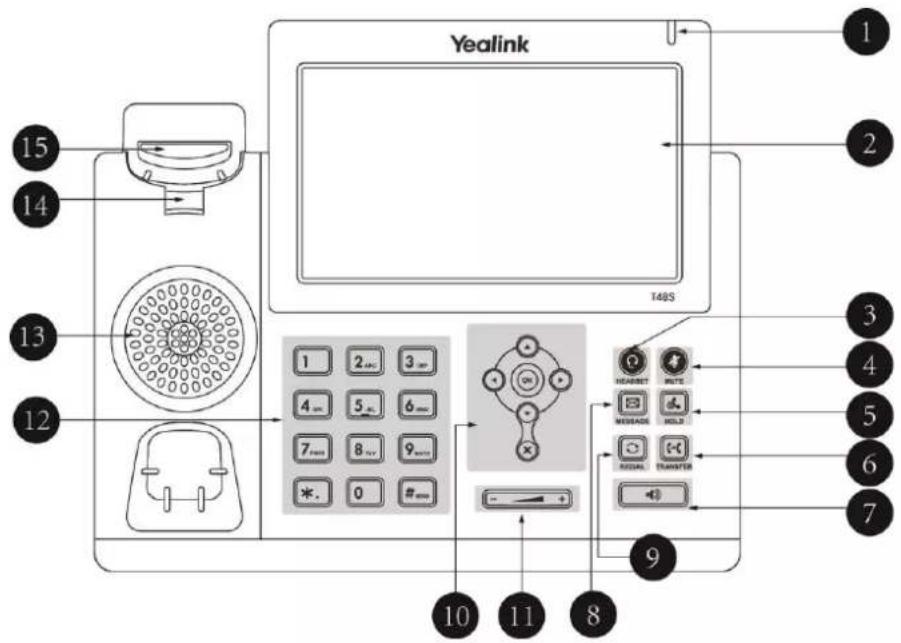
The following figure displays the hardware features on the SIP-T48S/T48G IP phone:
text_image
Yealink 148S 15 14 13 12 1 2 3 4 5 6 7 8 9 *. 0 # 9 10 11 8 1 2 3 4 5 6 7 8 9 HEARLNT WRITE MESSAGE HOLD RUSTAIN TRANSFER 1 2 3 4 5 6 7 8 9Hardware features description:
| Item | Description | |
| 1 | Power Indicator LED | Indicates call status, message status and phone's system status.Receives an incoming call-Fast-flashingReceives a voice mail or text message-Slow-flashing |
| 2 | Touch Screen | The screen is touch-sensitive. Tap to select and highlight screen items.Shows information about your phone, such as calls, messages, soft keys, time and date:Default accountCall information-caller ID, call durationIcons (for example,)-Missed call or second incoming caller informationMessage (for example, "Saving config file!")Time and date |
| 3 | HEADSET Key | Toggles the headset mode on or off.The LED indicator glows green when headset mode is activated. |
| 4 | MUTE Key | Mutes or un-mutes your audio during calls.The LED indicator glows red when the microphone is muted. |
| 5 | HOLD Key | Hold an active call or resumes a held call. |
| 6 | TRANSFER Key | Transfers a call to another party. |
| 7 |  Speakerphone Key Speakerphone Key | Toggles the hands-free (speakerphone) mode on or off.The LED indicator glows green when hands-free (speakerphone) mode is activated. |
| 8 | MESSAGE Key | Accesses voice messages when the voice mail code is configured.Configures the voice mail code when the voice mail code is not configured. |
| 9 | REDIAL Key | Dials the most recently dialed number. |
| 10 | Navigation Keys | Position the cursor within text you're updating.Enable or disable fields.Turn pages or scroll through values for a field.Scroll through items.Access History and Directory respectively. |
| OK Key | Confirms actions or answers incoming calls. | |
| Cancel Key | Cancels actions or rejects incoming calls. | |
| 11 | Volume Key | Adjusts the volume of the handset, headset, speaker, ringer or media. |
| 12 | Dialpad | Allows you to enter numbers, letters and special characters as well as select menu items which are with index numbers. |
| 13 | Speaker | Provides hands-free (speakerphone) audio output. |
| 14 | Reversible Tab | Secures the handset in the handset cradle when the IP phone is mounted vertically. For more information on how to adjust the reversible tab, refer to Yealink Wall Mount Quick Installation Guide for Yealink IP Phones. |
| 15 | Hookswitch | • Lifts the handset from the handset cradle, then the hookswitch bounces and the phone connects to the line.• Rests the handset on the handset cradle, then the phone disconnects from the line automatically. |
For the SIP-T46S/T46G/T42S/T42G/T41S/T41P/T40G/T40P IP Phone
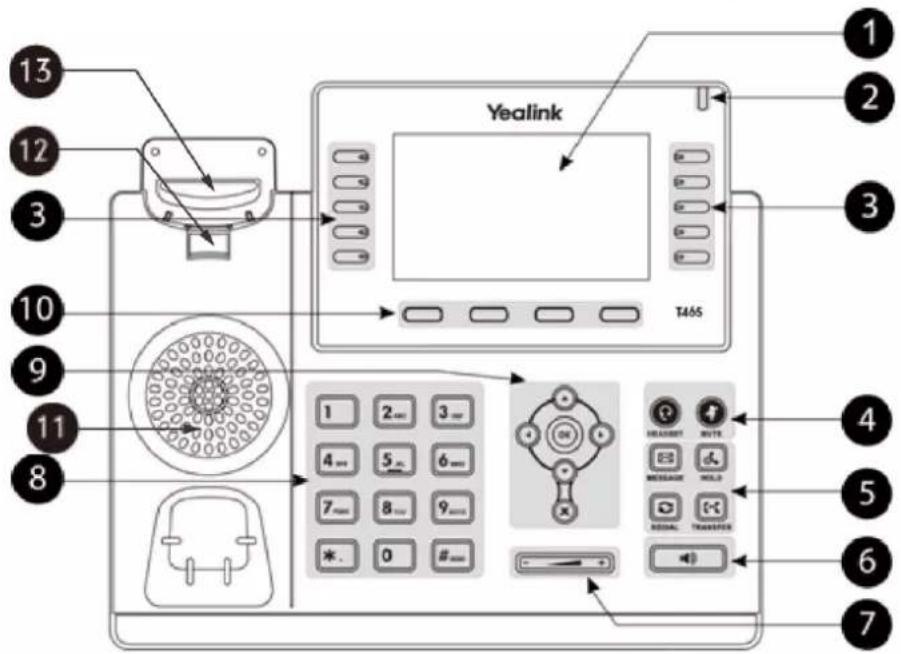
The following figure displays the hardware features here takes SIP-T46S IP phone as an example:
text_image
Yealink T465 13 12 3 10 9 11 8 1 2 3 4 5 6 7 8 9 *. 0 #Hardware features description:
| Item | Description | |
| 1 | LCD Screen | Shows information about your phone, such as calls, messages, soft keys, time and date:Default accountCall information-caller ID, call durationIcons (for example, )Missed call or second incoming caller informationMessage (for example, "Saving config file!")Time and date |
| 2 | Power Indicator LED | Indicates call status, message status and phone's system status.Receives an incoming call-Fast-flashingReceives a voice mail or text message-Slow-flashing |
| 3 | Line Keys | Activates accountsAssigns function or feature to the line key. |
| 4 |  HEADSET Key HEADSET Key | Toggles the headset mode on or off.On the SIP-T46S/T46G/T42S/T42G/T41S/T41P IP phone, the LED indicator glows green when headset mode is activated. |
 MUTE Key MUTE Key | Mutes or un-mutes your audio during calls.On the SIP-T46S/T46G/T42S/T42G/T41S/T41P IP phone, the LED indicator glows red when the microphone is muted. | |
| 5 |  MESSAGE Key MESSAGE Key | Accesses voice messages when the voice mail code is configured.Configures the voice mail code when the voice mail code is not configured. |
 HOLD Key HOLD Key | Hold an active call or resumes a held call.Note: There is no HOLD Key onSIP-T42G/T42S/T41P/T41S/T40G/T40P IP phone. | |
 REDIAL Key REDIAL Key | Dials the most recently dialed number. | |
 TRANSFER Key TRANSFER Key | Transfers a call to another party.It is only available on the SIP-T46S/T46G IP phone. | |
| 6 |  Speakerphone Key Speakerphone Key | Toggles the hands-free (speakerphone) mode on or off.On the SIP-T46S/T46G/T42S/T42G/T41S/T41P IP phones, the LED indicator glows green when the hands-free (speakerphone) mode is activated. |
| 7 |  Volume Key Volume Key | Adjusts the volume of the handset, headset, speaker, ringer or media. |
| 8 | Dialpad | Allows you to enter numbers, letters and special characters as well as select menu items which are with index numbers. |
| 9 | Navigation Keys | Scrolls through menus, information or options displayed on the phone's screen. |
| OK Key | Confirms actions or answers incoming calls. | |
| Cancel Key | Cancels actions or rejects incoming calls. | |
| 10 | Soft Keys | Enable you to select context sensitive keys that display along the bottom of the screen. |
| 11 | Speaker | Provides hands-free (speakerphone) audio output. |
| 12 | Reversible Tab | Secures the handset in the handset cradle when the IP phone is mounted vertically. For more information on how to adjust the reversible tab, refer toYealink Wall Mount Quick Installation Guide for Yealink IP Phones. |
| 13 | Hookswitch | • Lifts the handset from the handset cradle, then the hookswitch bounces and the phone connects to the line.• Rests the handset on the handset cradle, then the phone disconnects from the line automatically. |
Icons and Status Indicators Instructions
Status Indicators
Phone icons and status indicators displaying on the status bar are described in the following table:
| Icons | Description | |||
| T48S/T48G | T46S/T46G | T42S/T42G/T41S/T41P | T40G/T40P | |
| [YSAG] |  |  |  | Wired network unavailable |
 |  | [OXWG] | [SC64] | Hands-free(speakerphone) mode |
 | [Y46B] |  |  | Handset mode |
| [H7HZ] | [08A3] | [HKX8] | [CV7S] | Headset mode |
 | [AACO] |  | [TEXY] | Voice Mail |
 |  | / |  | Text Message |
 |  | AA |  | Auto Answer |
 |  | DND |  | Do Not Disturb (DND) |
 |  | / |  | Keep Mute |
 |  |  |  | Silent Mode |
| [W4KC] |  |  |  | Phone Lock |
 |  |  |  | Missed Calls |
 |  |  |  | Call Forward |
 |  | ( SIP-T42S/T41S) | / | Recording in progress(Using a USB flash drive) |
 |  | ( SIP-T42S/T41S) | / | Recording paused (Using aUSB flash drive) |
 |  | / | / | Bluetooth Mode |
 |  | / | / | Bluetooth headset pairedand connected |
 |  | / | / | Bluetooth-Enabled mobilephone paired andconnected |
 |  | / | / | Wi-Fi connectionsuccessful |
 |  | / | / | Wi-Fi connection failed |
Line Key Icons
Icons for line key are described in the following tables:
Icon indicators (associated with line key features):
| Icons | Description | |
| T48S/T48G | T46S/T46G | |
 |  | Hold/Public HoldPrivate Hold |
| [A03C] | [KBXC] | DND |
| [YDZY] | [KXGD] | Voice Mail |
 |  | SMS |
 | [2762] | Direct Pickup |
 |  | Group Pickup |
 | [0A2D] | DTMFPrefix |
| [50H7] |  | Local GroupXML GroupLDAP |
 |  | XML Browser |
 |  | Conference |
 |  | Forward |
 |  | Transfer |
 | [2XDS] | ReCall |
 |  | RecordURL Record |
 |  | Recording in process (Record/URL Record) |
 |  | Multicast PagingGroup ListeningPaging List |
 |  | Hot Desking |
 |  | Zero Touch |
 |  | URL |
 |  | Phone Lock |
 |  | Directory |
 |  | Speed Dial |
Icon indicators (associated with line)
| Icons | Description | |||
| T48S/T48G | T46S/T46G | T42S/T42G/T41S/T41P | T40G/T40P | |
 |  |  |  | The private line registers successfully |
 |  |  |  | The shared/bridged line registers successfully |
 |  |  |  | Register failed |
 (Flashing) (Flashing) |  |  |  | Registering |
 |  |  |  | DND is enabled on this line |
 |  |  |  | Call forward is enabled on this line |
Icon indicators (associated with call park/retrieve park)
| Icons | Description | |
| T48S/T48G | T46S/T46G | |
| Park successfully/Idle state | ||
| Park failed | ||
| Ringing state | ||
| Retrieve parked call | ||
Icon indicators (associated with BLF/BLF List)
| Icons | Description | |
| T48S/T48G | T46S/T46G | |
 |  | Monitored line is available. |
 (Flashing) (Flashing) |  (Flashing) (Flashing) | Monitored line is ringing. |
 (Flashing) (Flashing) |  (Flashing) (Flashing) | Monitored line is dialing. |
 |  | Monitored line is busy or in a call. |
 |  | Monitored line is placed on hold. |
 |  | Monitored line is parked. |
 |  | BLF/BLF List registers failed. |
Note
Your system administrator can customize the BLF key LED status and BLF key behavior for the phone.
Icon indicators (associated with intercom)
| Icons | Description | |
| T48S/T48G | T46S/T46G | |
 |  | Target extension is available. |
| [7XXG] |  | Target extension is ringing. |
 Callout Callout | Target extension is dialing. | |
 Talking Talking | [WWY] | Target extension is busy or is in a call.Target extension registers failed. |
Icon indicators (associated with ACD)
| Icon | Description | ||
| T48S/T48G | T46S/T46G | T42S/T42G/T41S/T41P/T40G/T40P | |
 |  |  | Log in |
 |  |  | Available |
 |  |  | Wrap up |
 |  |  and x and x | Unavailable |
Icon indicators (associated with a shared line)
The Local SCA Phone is involved in an SCA call, while the Monitoring SCA Phone is not involved in the SCA call and used for monitoring shared line.
| Icon | Description | |
| T48S/T48G | T46S/T46G | |
 |  | The shared line is idle. |
| [1HY8](Monitoring SCA Phone) | [40HS](Monitoring SCA Phone) | The shared line is seized. |
 (Flashing) (Flashing) |  | The shared line receives an incoming call. |
 (Flashing) (Flashing) |  | The shared line is dialing. |
 |  | The shared line is busy or is in a call. |
| [X8WO] |  | The call on shared line is placed on public hold. |
 (Local SCA Phone) (Local SCA Phone) (Monitoring SCA Phone) (Monitoring SCA Phone) | [08H5](Local SCA Phone)[T35S](Monitoring SCA Phone) | The call on shared line is placed on private hold. |
| [S2KT] |  | The call on shared line is barged in by the other shared line party. |
| [SDCH] |  | In a multi-party call, all the participants place the call on hold. |
Icon indicators (associated with a bridged line)
The Local BLA Phone is involved in a BLA call, while the Monitoring BLA Phone is not involved in a BLA call and used for monitoring bridged line.
| Icon | Description | |
| T48S/T48G | T46S/T46G | |
 | [7600] | The bridged line is idle. |
| [Moitoring BLA Phone) |  (Monitoring BLA Phone) (Monitoring BLA Phone) | The bridged line is seized. |
 (Flashing) (Flashing) | [8Y32][IMAGE] | The bridged line receives an incoming call. |
 (Flashing) (Flashing) | [2ASY][IMAGE] | The bridged line is dialing. |
 |  | The bridged line is busy or is in a call. |
| [27ZY] |  | The call on bridged line is placed on hold. |
Other Icons
Icons for specific features are described in the following tables:
Icon indicators (associated with call recording while using a record key)
| Icon | Description | ||
| T48S/T48G | T46S/T46G | T42S/T42G/T41S/T41P/T40G/T40P | |
 | [DBW4] | [CCCCK] | Recording box full |
 | [2784] |  | Record failed |
 |  | [A003] | Recording |
 |  |  | Start recording failed |
 |  | [0C86] | Stop recording failed |
Icon indicators (associated with call history)
| Icon | Description | ||
| T48S/T48G | T46S/T46G | T42S/T42G/T41S/T41P/T40G/T40P | |
 |  |  | Received Calls |
 |  |  | Placed Calls |
 |  |  | Missed Calls |
| [STH7] |  |  | Forwarded Calls |
Icon indicators (associated with contact)
| Icon | Description | ||
| T48S/T48G | T46S/T46G | T42S/T42G/T41S/T41P/T40G/T40P | |
 |  | / | The default contact icon |
 |  |  | The default contact photo |
 |  |  | The default Bluetooth contact icon |
LED Instructions
Power LED Indicator
Power LED Indicator
| LED Status | Description |
| Solid red | The phone is initializing. |
| Fast-flashing red (300ms) | The phone is ringing. |
| Slow-flashing red (1s) | The phone receives a voice mail or text message. |
| Solid red for 500ms and off for 3000ms alternately | The phone enters power-saving mode.It is only available on the SIP-T48S/T48G/T46S/T46G IP phone. |
| Off | The phone is powered off.The phone is idle.The phone is busy.The call is placed on hold by you or by the remote party.The call is muted. |
Note
The above is the default LED status, since the status of the power LED indicators may be configured by your system administrator. For more information, please contact your system administrator.
Line Key LED
Line key led is not available on the SIP-T48S/T48G IP phone.
Line key LED
| LED Status | Description |
| Solid green | The line is seized.The line is in busy or is in a call. |
| Fast-flashing green | The line receives an incoming call. |
| Slow-flashing green | The call is placed on hold. |
| Off | The line is inactive. |
Line key LED (configured as a Forward key with a value (destination number))
| LED Status | Description |
| Solid green | The always forward feature is activated. |
| Off | The always forward feature is deactivated. |
Note
If the value (the destination number) is not configured for a Forward key, the key LED solids green when the always/busy/no answer forward feature is activated. It is off when the always/busy/no answer forward feature is deactivated.
Line key LED (configured as a BLF key or BLF List key)
| LED Status | Description |
| Solid green | The monitored user is idle. |
| Fast-flashing red (200ms) | The monitored user receives an incoming call. |
| Solid red | The monitored user is busy.The monitored user's conversation is placed on hold (This LED status requires server support). |
| Slow-flashing red (1s) | The call is parked on the monitored user. |
| Off | The monitored user does not exist. |
Line key LED (used as a page switch key)
| LED Status | Description |
| Solid red | There is a call parked on the line whose line key is not on the current page. |
| Fast-flashing green | The line receives an incoming call on the line key of the non-current page. |
| Fast-flashing red | The monitored user receives an incoming call line whose line key is not on the current page. |
| Off | The line keys are idle. |
Line key LED (associated with a shared line)
The Local SCA Phone is involved in an SCA call, while the Monitoring SCA Phone is not involved in the SCA call and used for monitoring shared line.
| LED Status | Description |
| Off | The shared line is idle. |
| Fast-flashing green | The shared line receives an incoming call. |
| Solid green (Local SCA Phone) Solid red (Monitoring SCA Phone) | The shared line is busy or is in a call.The shared line is dialing.The shared line is seized.The call on shared line is barged in by the other shared line party. |
| Slow-flashing green (Local SCA Phone) Slow-flashing red (Monitoring SCA Phone) | The call on shared line is placed on public hold. |
| Slow-flashing green (Local SCA Phone) Solid red (Monitoring SCA Phone) | The call on shared line is placed on private hold.In a multi-party call, all the participants place the call on hold. |
Line key LED (associated with a bridged line)
The Local BLA Phone is involved in a BLA call, while the Monitoring BLA Phone is not involved in a BLA call and used for monitoring bridged line.
| LED Status | Description |
| Off | The bridged line is idle. |
| Fast-flashing green | The bridged line receives an incoming call. |
| Solid green (Local BLA Phone) Solid red (Monitoring BLA Phone) | The bridged line is is busy or is in a call.. The bridged line is dialing. The bridged line is seized. |
| Slow-flashing green (Local BLA Phone)Slow-flashing red (Monitoring BLA Phone) | The call on bridged line is placed on hold. |
Note
The above is the default LED status, since the status of the power LED indicators may be configured by your system administrator. For more information, please contact your system administrator.
User Interfaces
There are two ways to configure your IP phone:
• Via phone user interface
• Via web user interface
The phone user interface, being made up of keypad and LCD screen, allows users to perform all call operations and change basic configuration settings directly on the phone. But if you want to access all configuration settings, you should use web user interface instead. In most cases, it is possible to configure your IP phone via both phone user interface and web user interface. While in some particular cases, only via phone user interface or via web user interface is available for you to operate or configure your IP phone. This guide mainly takes phone user interface as an example.
Phone User Interface
Before you use the phone, you need to understand the phone screen layout, how to navigate menus and fields, and how to enter and edit data.
Idle Screen
After starting up successfully, the phone enters Idle screen automatically. From the Idle screen, you can access the Menu screen, History screen, Directory screen and Line Key screen. These screens are described in the following chapters:
- Menu Screen
• History Screen - Directory Screen
- Line Key Screen
Note
The menu system will automatically exit to the Idle screen after 60 seconds of inactivity.
For the SIP-T48S/T48G IP phone, the wallpaper can be customized, refer to Changing Wallpaper on the Idle Screen for more information. The Idle screen on SIP-T48S/T48G IP phone is shown as below:

text_image
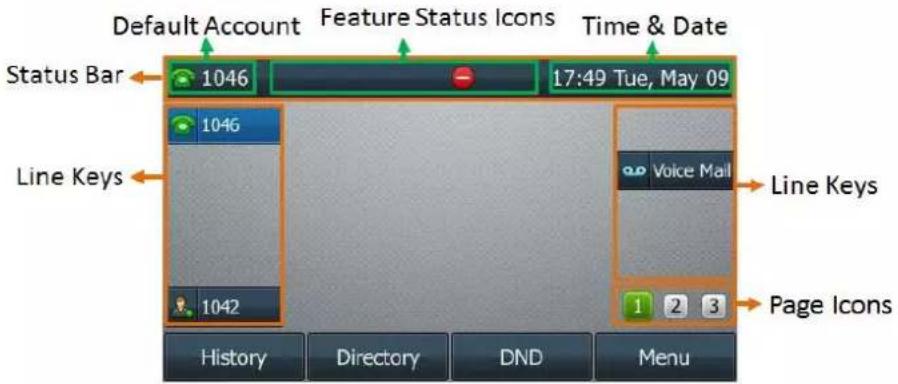
Default Account Feature Status Icons Time & Date Status Bar 1025 09:38 Mon, Sep 05 1025 1026 Line Keys Line Keys + More History Directory DND Menu Label automatically to identify their context-sensitive featuresFor SIP-T46S/T46G IP phone, the page icons appear only when you assign functionality to line key located in line key 11-27, refer to DSS Keys for more information. The wallpaper can be customized, refer to Changing Wallpaper on the Idle Screen for more information. The Idle screen on SIP-T46S/T46G IP phone is shown as below:
text_image
Default Account Feature Status Icons Time & Date Status Bar 1046 17:49 Tue, May 09 1046 Line Keys 1042 Voice Mail Line Keys Page Icons History Directory DND MenuFor SIP-T42S/T42G/T41S/T41P IP phone, the page icons appear only when you assign functionality to line key located in line key 7-15, refer to DSS Keys for more information. The Idle screen on SIP-T42S/T42G/T41S/T41P IP phone is shown as below:

text_image
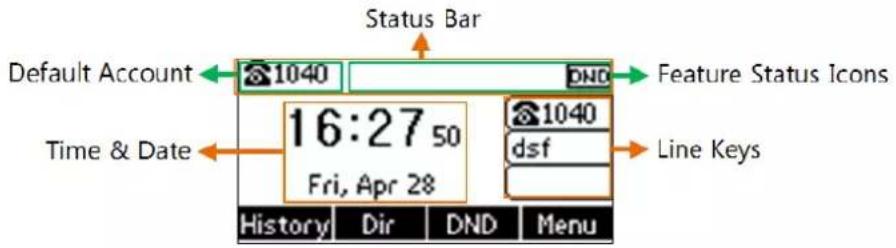
Time & Date Status Bar 1042 Line Keys 2040 Default Account 17:30 25 Fri, Apr 28 1042 DND Feature Status Icons Line Keys Page Icons History Directory DND MenuThe Idle screen on SIP-T40G/T40P IP phone is shown as below:
text_image
Status Bar Default Account 1040 DND Feature Status Icons Time & Date 16:27 50 Fri, Apr 28 1040 dsf Line Keys History Dir DND MenuNote
If your IP phone does not display the default account, please contact your system administrator.
Menu Screen
When the phone is idle, you can press/tap the Menu soft key to access the Main Menu screen. From the Main Menu screen, you can access the desired sub menu, such as Status, Features, Settings, Message, History, Directory and USB to navigate menus and fields and customize your phone. Note that the Advanced (Advanced Settings) option is only accessible to the administrator, and the default administrator password is "admin" (case-sensitive).
Note
For a better understanding of the menu structure, please refer to Appendix B - Menu Structure.
The Menu screen on SIP-T48S/T48G IP phone is shown as below:
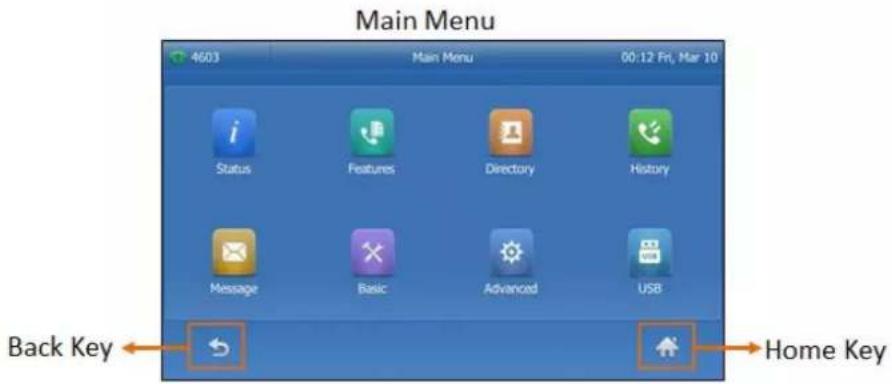
text_image
Main Menu 4603 Main Menu 00:12 Fri, Mar 10 Status Features Directory History Message Basic Advanced USB Back Key Home KeyTap Features to access its sub menus.
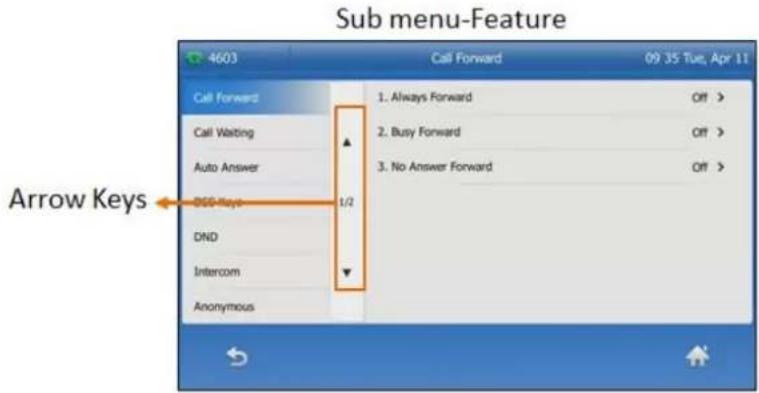
text_image
Sub menu-Feature 4603 Call Forward Call Forward Call Waiting Auto Answer BDO Keys DND Intercom Anonymous 1./2 1. Always Forward 2. Busy Forward 3. No Answer Forward Arrow Keys Off > Off > Off > Off >The Menu screen on SIP-T46S/T46G IP phone is shown as below:
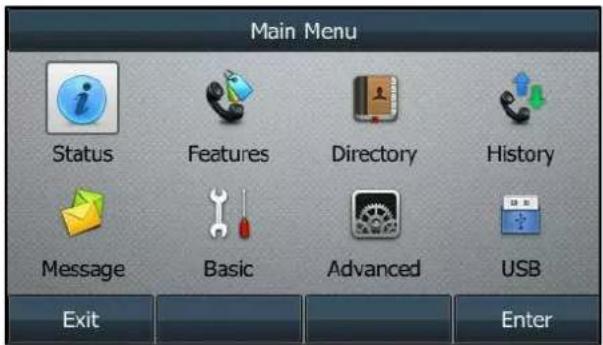
text_image
Main Menu Status Features Directory History Message Basic Advanced USB Exit EnterThe Menu screen on SIP-T40G/T40P IP phone is shown as below:

text_image
Main Menu 1. Status 2. Features 3. Settings Exit EnterHistory Screen
When the phone is idle, you can press/tap the History soft key or navigate to Menu->History to access the History screen for viewing and managing the history records. For more information, refer to Call History Management.
The History screen on the SIP-T48G/T48S IP phone is shown as below:
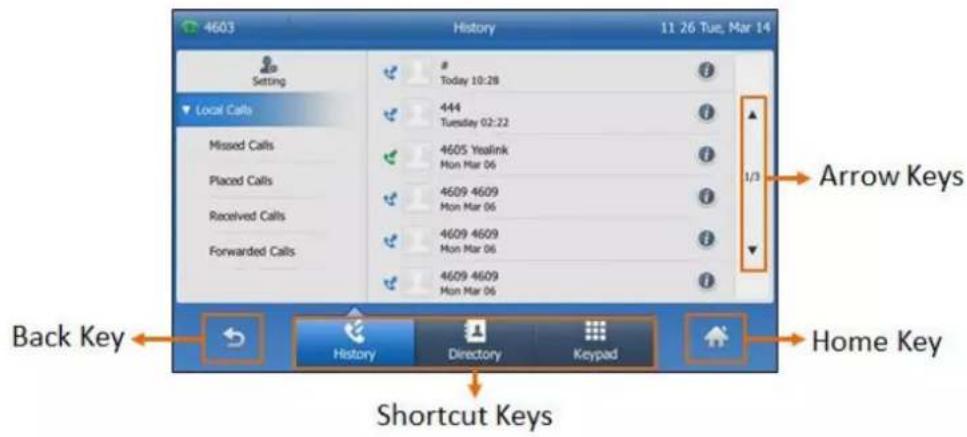
text_image
4603 History 11 26 Tue, Mar 14 SettingToday 10:28
Local Calls 444 Tuesday 02:22 Missed Calls 4605 Yealink Mon Mar 06 Placed Calls 4609 4609 Mon Mar 06 Received Calls 4609 4609 Mon Mar 06 Forwarded Calls 4609 4609 Mon Mar 06 Arrow Keys 1/3 Back Key History Directory Keypad Home Key Shortcut KeysSIP-T48S/T48G
You can tap the desired history list to view history records. You can also tap Directory or Keypad to access the Directory screen or Dialing screen.
The History screen on the SIP-T46S/T46G IP phone is shown as below:

text_image
All Calls Missed Calls Placed Calls 1/5 Today 13:33 Suy Today 11:07 1025 Today 11:07 Suy Today 11:06 1025 Today 11:06 Back Delete Option SendYou can press the left and right navigation key to switch among the history lists.
Directory Screen
The Directory screen is made up of Groups screen and Contacts screen. When the phone is idle, you can press/tap Directory (Dir) soft key or navigate to Menu->Directory to access the Groups screen. From this screen, you can view and manage groups, or select the desired groups to view and manage the contacts. For more information, refer to Contact Management.
On SIP-T48S/T48G IP phone, you can tap History or Keypad to access the History screen or Dialing screen. The Directory screen on SIP-T48S/T48G IP phone is shown as below:
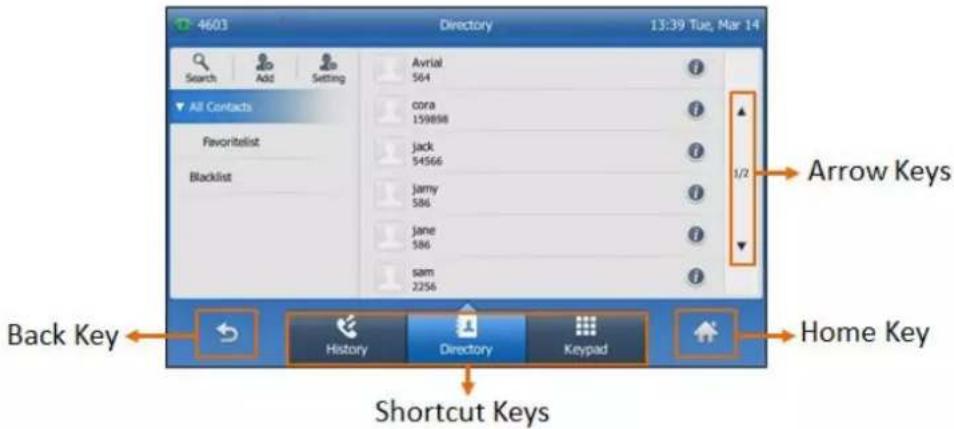
text_image
4603 Directory 13:39 Tue, Mar 14 Search Add Setting All Contacts Favorlistist Blacklist Avrial 564 cora 159858 jack 54566 jamy 586 jane 586 sam 2256 Arrow Keys 1/2 Back Key History Directory Keypad Home Key Shortcut KeysOn SIP-T46S/T46G/T42S/T42G/T41S/T41P/T40G/T40P IP phone, you can press the navigation key to switch among the groups. The Directory screen on SIP-T46S/T46G IP phone is shown as below:
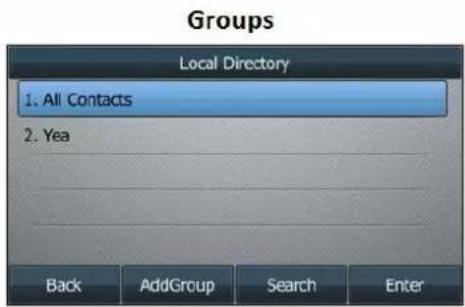
text_image
Groups Local Directory 1. All Contacts 2. Yea Back AddGroup Search Enter
text_image
Contacts All Contacts Yea 1/2 Suy 103 Back Add Option SendLine Key Screen
When the phone is idle, you can also long press/tap the desired line key or navigate to
Menu->Features->DSS Keys to assign functionality. For more information, refer to Line Keys.
On SIP-T48S/T48G IP phone, you can fold or unfold the line key list on the Idle screen.
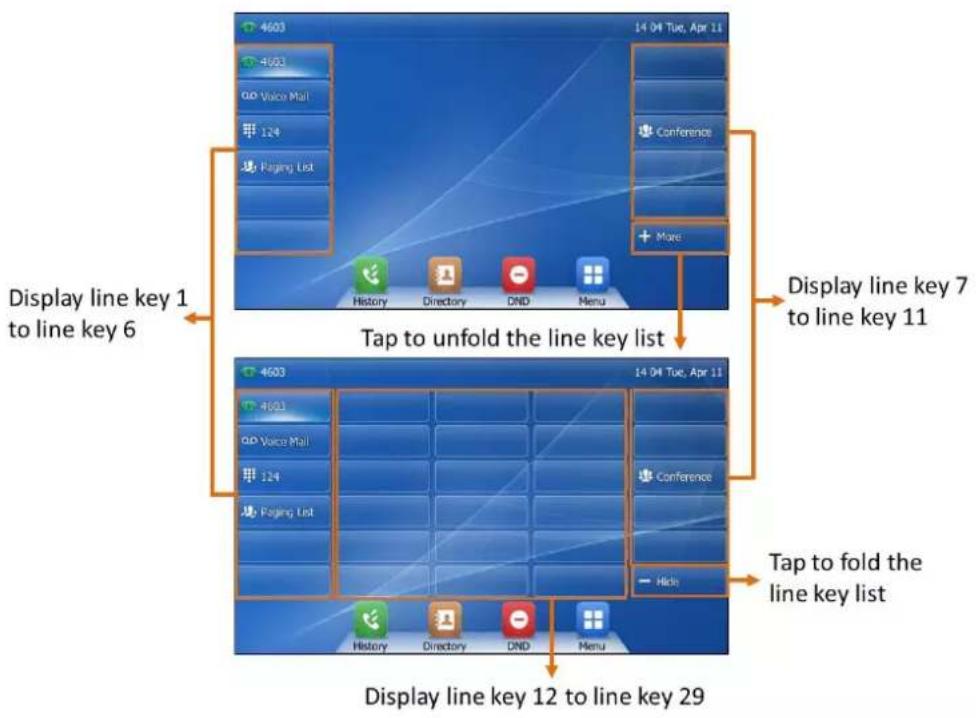
flowchart
graph TD
    A["Display line key 1 to line key 6"] --> B["Tap to unfold the line key list"]
    B --> C["Display line key 7 to line key 11"]
    C --> D["Tap to fold the line key list"]
    D --> E["Display line key 12 to line key 29"]
The Line Key screen on the SIP-T48S/T48G IP phone is shown as below:

text_image
4603 Line Key 3 15:42 Tue, Mar 14 1. Type: Key Event 2. Key Type: Call Park 3. Account ID: Line 1 4. Label: 5. Value: Back Key Home Key SaveThe Line Key screen on the SIP-T46S/T46G IP phone is shown as below:
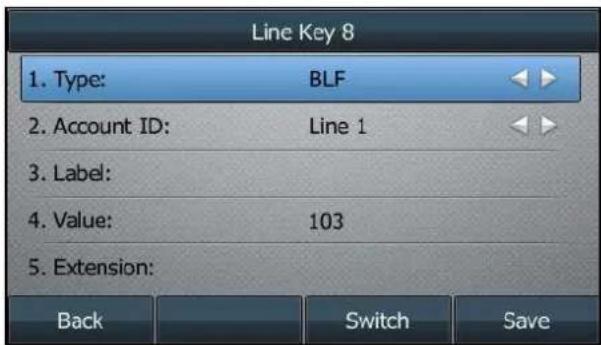
text_image
Line Key 8 1. Type: BLF 2. Account ID: Line 1 3. Label: 4. Value: 103 5. Extension: Back Switch SaveThe Line Key screen on the SIP-T40G/T40P IP phone is shown as below:

text_image
Line Key 2 1. Type Line Back Switch SaveDialing/Pre-dialing Screen
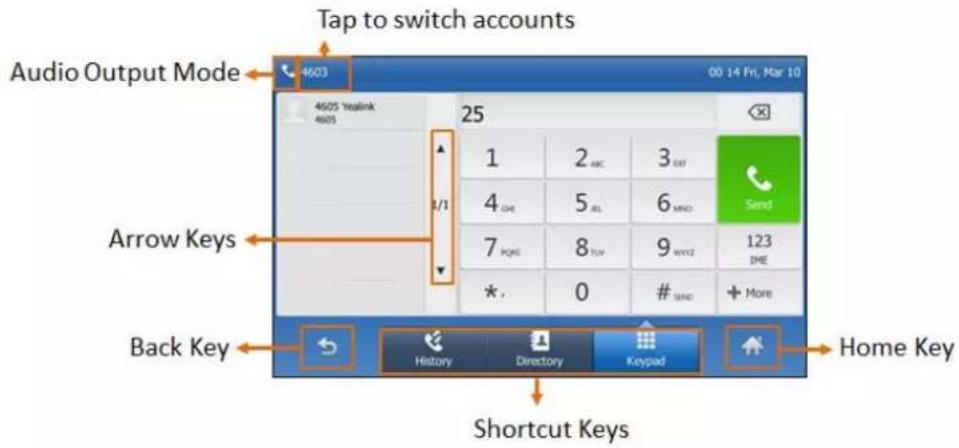
When the phone is idle, you can pick up the handset, press a line key or Speakerphone key to access the Dialing screen. Or you can enter a number directly using the dialpad to access the Pre-dialing screen. The placed call records display on the LCD screen. From Dialing/Pre-dialing screen, you can use phone dialpad or onscreen dialpad to enter and edit data. The contacts whose name or phone number matches the entered characters appear on the LCD screen. You can select the desired contact to place a call directly.
Note
Your system administrator can configure search source list in dialing and disable the phone to display the placed call records. Check with your system administrator to find out if they are available on your phone.
On the SIP-T48S/T48G IP phone, you can tap History or Directory to access the History screen or Directory screen. The Dialing screen on the SIP-T48S/T48G IP phone is shown as below:
text_image
Tap to switch accounts Audio Output Mode 4603 00 14 Fri, Mar 10 4605 Yoslink 4605 25 1 2 ABC 3 OUT Send Arrow Keys 4 OK 5 JL 6 MND 7 PQNE 8 TUV 9 WXX2 123 DME *. 0SEND
+ More Back Key History Directory Keypad Home Key Shortcut KeysSIP-T48S/T48G
On the SIP-T46S/T46G/T42S/T42G/T41S/T41P/T40G/T40P IP phone, you can press the
Directory soft key to access the directory Isit. For more information, refer to Configuring List(s) for the Directory (Dir) Soft Key. The Dialing screen on the SIP-T46S/T46G IP phone is shown as below:

text_image
The Selected Line Audio Output Mode 1046 1046 2046 1 103 Directory 123 LineCalls Screen
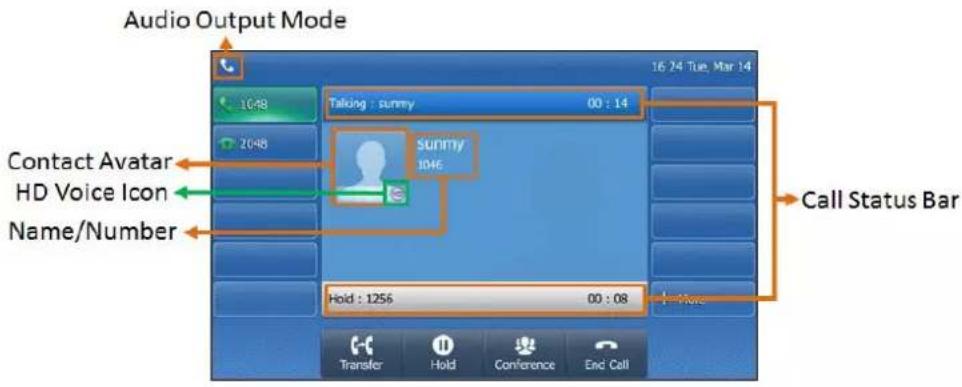
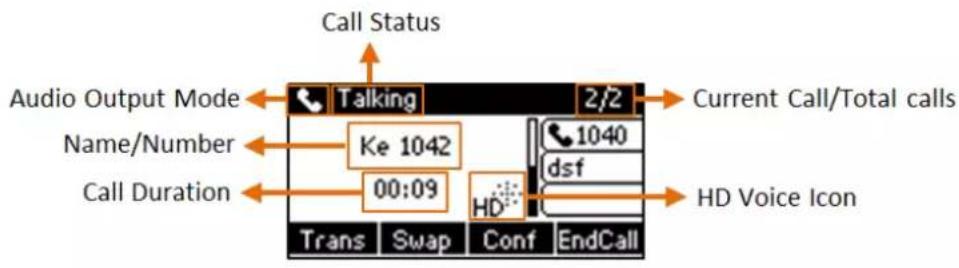
All of your active and held calls display on the Calls screen.
On the SIP-T48S/T48G IP phone, you can tap the call status bar to switch among calls. The call status bar displays call status, contact name/number and call duration. When there is an active call and a held call, the Calls screen on SIP-T48S/T48G IP phone is shown as below:
text_image
Audio Output Mode 16:24 Tue. Mar 14 10:48 Talking : sunny 00 : 14 20:48 Sunmy 1046 Contact Avatar HD Voice Icon Name/Number Hold : 1256 00 : 08 Call Status Bar Transfer Hold Conference End CallOn the SIP-T46S/T46G/T42S/T42G/T41S/T41P/T40G/T40P IP phone you can press up or down navigation keys to switch among calls. When there is an active call and a held call, the Calls screen on SIP-T46S/T46G IP phone is shown as below:

text_image
Call Status Audio Output Mode Talking 1046 Suy 103 Name/Number HD Voice Icon Current Call/Total Calls Contact Avatar 00 : 04 Call Duration Transfer Swap Conference End CallWhen there is an active call and a held call, the Calls screen on SIP-T42S/T42G/T41S/T41P IP phone is shown as below:

text_image
Audio Output Mode 1042 Talking 2/2 Name/Number Ja 1040 Call Duration HD Voice Icon Transfer Swap Conf End Call Call Status Current Call/Total callsWhen there is an active call and a held call, the Calls screen on SIP-T40G/T40P IP phone is shown as below:
text_image
Call Status Audio Output Mode Talking 2/2 Current Call/Total calls Name/Number Ke 1042 00:09 dsf Call Duration HD Voice Icon Trans Swap Conf EndCallNavigating Menus and Fields
To navigate menus and fields, you can:
- Tap soft keys on the touch screen (on the SIP-T48S/T48G IP phone)
- Tap menu items, fields, and arrows on the touch screen (on the SIP-T48S/T48G IP phone)
- Press soft keys, navigation keys or dialpad keys on the phone (on all IP phones)
To operate your phone, follow these tips:
| If you want to | Action | |
| SIP-T48S/T48G | Other IP Phones | |
| Enter the main menu. | Tap Menu. | Press Menu soft key. |
| Return to the Idle screen. | Tap 🎨 . | / |
| Go back to the previous menu. | • Tap 🎨 . | • Press ✗ .• Press the Back soft key. |
| Select an item. | • Tap the item. | • Scroll to the item by pressing ⬆ or ⬽ , and then press OK• Use the dialpad keys to select items that have index numbers. |
| Scroll through items. | • Tap ▲ or▼ to scroll through items page by page.(If you are in the call history, local directory, language configuration screen or ring tones configuration screen, you can also press ⬆ or ⬽ .) | |
| Scroll through values for a field. | • Tap the field's highlighted gray box.• Tap ▲ or▼ to scroll through values page bypage.• Press ⬆ or ⬇ to scroll values one by one. | • Press ⬆ or ⬽ , or the Switch soft key to switch among available values one by one. |
| Select a value for a field. | • From the pull-down list, tap the value.• Scroll to the value and then press OK. | |
Entering Data and Editing Fields
You can enter data and edit fields using the dialpad keys on the phone console or using the onscreen dialpad key on the SIP-T48S/T48G IP phone.
The IP phones provide 5 different input methods, including 2aB, abc, Abc, ABC and 123, and different input methods provide different characters on dialpad for editing and updating field information. No matter what kind of input method you are using, press the dialpad key one or more times to view the character (or number) options and stop to select. Wait for one second after you input a character (or number), then input the next character (or number).
The following table lists character (or number) options on dialpad in different input methods:
| Input ModesDialpad | 2aB | abc | Abc(title case) | ABC | 123 |
 | 1 | 1 | |||
 | 2abcABC | abc2äæåàáãç | abc2äæåàáãç | ABC2ÄÆÄÄÄÄÄÇ | 2 |
 | 3defDEF | def3èéêëð | def3èéêëð | DEF3ÈÉÊËD | 3 |
 | 4ghiGHI | ghi4iîîi | ghi4iîîi | GHI4ÎÎÎI | 4 |
 | 5jklJKL | jkl5£ | jkl5£ | JKL5£ | 5 |
 | 6mnoMNO | mno6öø òóðãñ | mno6öø òóðãñ | MNO6Ö∅ÒÓÔÕÑ | 6 |
 | 7pqrsPQRS | pqrs7ß S | pqrs7ß S | PQRS7S | 7 |
 | 8tuvTUV | tuv8ùúûü | tuv8ùúûü | TUV8ÙÚÛÜ | 8 |
 | 9wxyzWXYZ | wxyz9ýp | wxyz9ýp | WXYZ9Ýp | 9 |
| 0 | space | space | space | 0 | |
| * , '?!- @/: ; + &%=<>£ ¥ □ []\}~^i¿§ #"| | * , '?!-@/:; + &%=<>£¥ □ [] \~^i ¿§ #"| | * , '?!- @/: ; + &%=<>£ ¥ □ []\}~^i¿§ #"| | * , '?!-@/:; + &%=<>£¥ □ [] \~^i ' § #"| | * :/@[] | |
| # | # | # | # | # |
To enter or edit data:
- Do one of the following:
| If you want to | Then you can |
| Enter only digits (1), uppercase (A)characters, lowercase(a) characters, oralphanumeric (2aB)characters. | Press a keypad key one or more times (depending on what input mode you’re in) to enter the characters that is displayed on the keypad key.You can press theabc/ABC/123/2Ab/Abc/absoft key or tapIMEone or more times to switch among uppercase (ABC), numeric (123), alphanumeric (2aB), uppercase and lowercase (Abc) and lowercase (abc) input modes.For example, if the input mode isABC:- To enter “A”, press2anconce.- To enter “B”, press2anctwice quickly.- To enter “C”, press2ancthree times quickly.- To enter “2ÄÄÄÄÄÄÄÄÇ”, press2ancmore than three times quickly.Note:When you are in the uppercase (ABC), uppercase and lowercase (Abc) or lowercase (abc soft key) input mode,1is not available. |
| Enter special characters. | Press the keypad key#indor*. , or press0.For0Key:- If it is in the uppercase (ABC), uppercase and lowercase (Abc) or lowercase (abc) input mode, it will only provide the space character.- If it is in the numeric (123) or alphanumeric (2aB) input mode, it will only provide the digit0.- If it is in the numeric (123) or alphanumeric(2aB) input mode, it will provide the specialcharacter + by long pressing about 2 secondson the dialing/pre-dialing screen.For #tendkey:- It only provides the pound character #.For *.key:- If it is in the uppercase (ABC), lowercase (abc),uppercase and lowercase (Abc) oralphanumeric (2aB) input mode, it will providethe following special characters:*.,'?!-\(@/:_;+&%=<>£$¥a[]{}~^i¿§#"|.- If it is in the numeric (123) input mode, it willprovide the following specialcharacters:.*:/@[]. |
| Delete text youentered. | Press ◀ or ▶ to position the cursor to the rightof the text you want to delete, and then press theDelete soft key or tap ✗ to delete one characterat a time. |
| Delete an entire fieldof data. | Swipe your finger to the left or right to select theentire field of data, so that the data is highlighted,and then tap theDelete soft key or ✗. It is onlyavailable on the SIP-T48S/T48G IP phone. |
Web User Interface
In addition to the phone user interface, you can also customize your phone via web user interface. In order to access the web user interface, you need to know the IP address of your new phone by pressing the OK key on the phone when the phone is idle. Enter the IP address (for example, http://192.168.0.10 or 192.168.0.10 for IPv4; http://[2005:1:1:1:215:65ff:fe64:6e0a] or [2005:1:1:1:215:65ff:fe64:6e0a] for IPv6) in the address bar of a web browser on your PC. The default administrator user name and password are both "admin" (case-sensitive).
Note
The access to the Advanced settings of the Account or Network via web user interface may be blocked by the web browser (for example, Chrome, Firefox) if you have installed "Adblock Plus plugin".
Navigating the Web User Interface
When you log into the web user interface successfully, the phone status is displayed on the first page of the web user interface. You can click each menu to customize or click Log out to log out of the web user interface.
The following figure is an example that navigates to Settings->Preference:

text_image
Yealink | T465 Log Out English(English) Status Account Network Dsskey Features Settings Directory Security Preference Live Dialpad Disabled ? Time & Date Inter Digit Time(1~14x) 4 ? Call Display Unused Backlight.Low ? Upgrade Active Backlight Level 8 ? Auto Provision Backlight Time(seconds) Always On ? Configuration Watch Dog Enabled ? Dial Plan Ring Type Ring1.wav ? Voice Walkpaper Default.jpg ? Ring Tones Softkey Layout Upload Wallpaper(480*272) Browse... No file selected. Upload Cancel Tones Screensaver Wait Time 6h ? SIP Screensaver Display Clock Enabled ? TR069 Screensaver Type System Voice Monitoring Confirm NOTE Live Dialpad It allows IP phones to automatically dial out the entered phone number after a specified period of time. Backlight Specifies the brightness of the LCD screen display. Contrast Specifies the contrast of the LCD screen display. Ring Tones A ring tone that will alert you when a call comes in for the IP phone. You can click here to get more guides. Click to find all Yealink phone documentations from the Yealink support pageFeatures Configurable via Phone/Web User Interface
The main features you can customize for the IP phone via phone user interface and/or via web user interface are listed in the following table:
| Features | Phone User Interface | We User Interface | Note |
| Network Settings | |||
| --Basic Network Settings | |||
| --DHCP | √ | √ | |
| --IPv4 | √ | √ | |
| --IPv6 | √ | √ | |
| Registration | |||
| --Account Registration | √ | √ | |
| --Default Account | √ | X | |
| Basic Phone Settings | |||
| --Wallpaper | Only available for the SIP-T48S/T48G/T46S/T4 6G IP phone | ||
| --Wallpaper Customization | X | √ | |
| --Wallpaper on the Idle Screen | √ | √ | |
| --Wallpaper with Dsskey Unfold | √ | √ | Only available for the SIP-T48S/T48G IP phone |
| --Transparency | √ | √ | |
| --Screen Saver | |||
| --Screensaver Customization | X | √ | Only available for the SIP-T48S/T48G/T46S/T4 6G IP phone |
| --XML Browser URL | X | √ | |
| --Screen Saver Settings | √ | √ | |
| --Power Saving | X | √ | |
| --Logo Customization | X | √ | Not available for the SIP-T48S/T48G/T46S/T4 6G IP phone |
| --Backlight | √ | √ | |
| --Contrast | √ | √ | Only available for the SIP-T40G/T40P IP phone |
| --Language | |||
| --Phone Language | √ | X | |
| --Web Language | X | √ | |
| --Time & Date | |||
| --SNTP Settings | √ | √ | |
| --Manually Settings | √ | √ | |
| --Time & Date Format | √ | √ | |
| --Administrator Password | √ | √ | |
| --Key As Send | √ | √ | |
| --Phone Lock | |||
| --Phone Lock Settings | √ | √ | |
| --Unlock PIN | √ | √ | |
| --Emergency Number | X | √ | |
| --Audio Settings | |||
| --Ring Tones | |||
| --Phone Ring Tone | √ | √ | |
| --Account Ring Tone | √ | √ | |
| --Ring Tone Customization | X | √ | |
| --Key Tone | √ | √ | |
| --Contact Management | |||
| --Directory list(s) Settings | X | √ | |
| --Local Directory | |||
| --Groups Management | √ | √ | |
| --Contacts Management | √ | √ | |
| --Contact Photo Customization | X | √ | Only available for the SIP-T48S/T48G/T46S/T4 6G IP phone |
| --Contact Lists Import/Export | X | √ | |
| --Blacklist | |||
| --Blacklist Management | √ | X | |
| --Mobile Contact | √ | √ | Only available for the SIP-T48S/T48G/T46S/T4 6G IP phone |
| --Remote Phone Book | |||
| --Remote Phone Book URL | X | √ | |
| --Remote Phone Book Management | √ | X | |
| --Call History Management | |||
| --History Management | √ | X | |
| --History Settings | √ | √ | |
| --DSS Keys | |||
| --Line Keys | |||
| --Line Keys Configuration | √ | √ | |
| --Multiple Line Key per Account | √ | √ | |
| --Auto Linekeys | X | √ | |
| --Number of Line key | X | √ | |
| --Label Length | X | √ | Only available for the SIP-T48S/T48G/T46S/T4 6G IP phone |
| --Page Tips | X | √ | Not available for the SIP-T40G/T40P IP phone |
| --Programable Keys | X | √ | |
| --Soft Keys | √ | √ | Not available for the SIP-T48S/T48G/T46S/T4 6G IP phone |
| --Dial Plan | |||
| --Replace Rule | X | √ | |
| --Dial Now | X | √ | |
| --Area Code | X | √ | |
| --Block Out | X | √ | |
| Basic Call Features | |||
| --Speed Dial Key | √ | √ | |
| --Hotline | √ | √ | |
| --Auto Answer | √ | √ | |
| --Auto Redial | √ | √ | |
| --Call Completion | √ | √ | |
| --Do Not Disturb (DND) | |||
| --DND Mode | X | √ | |
| --DND Emergency | X | √ | |
| --Call Forward | |||
| --Forward Mode | X | √ | |
| --Forward Emergency | X | √ | |
| --Call Transfer | |||
| --Transfer Mode via Dsskey | X | √ | |
| --Allow Trans Exist Call | X | √ | Not available for the SIP-T48S/T48G/T46S/T4 6G IP phone |
| --Call Waiting | √ | √ | |
| --Network Conference | X | √ | |
| --Call Park/Retrieve | |||
| --FAC Mode | X | √ | |
| --Transfer Mode | X | √ | |
| --Call Pickup | |||
| --Directed Call Pickup | X | √ | |
| --Group Call Pickup | X | √ | |
| --Anonymous Call | √ | √ | |
| --Anonymous Call Rejection | √ | √ | |
| Advanced Phone Features | |||
| --Busy Lamp Field (BLF) | |||
| --BLF Pickup | X | √ | |
| --BLF List | |||
| --BLF Key | √ | √ | |
| --BLF List Settings | X | √ | |
| --Call Recording | |||
| --USB Record | √ | X | Not available for the SIP-T42G/T41P/T40G/T 40P IP phone |
| --Record/URL Record Key | √ | √ | |
| --Hot Desking | |||
| --Hot Desking Key | √ | √ | |
| --Intercom | |||
| --Intercom Key | √ | √ | |
| --Intercom Settings | √ | √ | |
| --Multicast Paging | |||
| --Multicast Paging Key | √ | √ | |
| --Paging List Key | √ | √ | |
| --Paging List | √ | √ | |
| --Multicast Listening | X | √ | |
| --Automatic Call Distribution (ACD) | |||
| --ACD Key | √ | √ | |
| --Shared Call Appearance (SCA) | |||
| --SCA Line Settings | X | √ | |
| --Private Hold Soft Key | X | √ | |
| --Private Hold Key | √ | √ | |
| --Call Pull | X | √ | |
| --Bridged Line Appearance (BLA) | |||
| --BLA Account Settings | X | √ | |
| --Messages | |||
| --Short Message Service (SMS) | √ | √ | |
| --Voice Mail Settings | √ | √ | |
| Optional Accessories | |||
| --Headset | |||
| --Headset Prior | X | √ | |
| --Dual Headset | X | √ | |
| --Bluetooth | Not available for the SIP-T42G/T41P/T40G/T 40P IP phone | ||
| --Mobile Contacts Synchronization | √ | X | |
| --Device Name | |||
| --Wireless Network Settings | Not available for the SIP-T42G/T41P/T40G/T 40P IP phone | ||
| --Wi-Fi | √ | √ | |
| --Ext Keys | √ | √ | Only available for the SIP-T48S/T48G/T46S/T46G IP phone |
Note
The table above lists most of the feature options. Please refer to the relevant sections for more information.
Getting Started
This chapter provides the following information for obtaining the best performance with your IP phone. Topics include:
- Phone Initialization
- Phone Status
- Basic Network Settings
- Registration
Before using your phone, make sure that your phone has been successfully installed. For more information on how to install the phone, read the Quick Start Guide in your phone package or download from Yealink Support page for the product.
Contact your system administrator for assistance or more information.
Phone Initialization
After your phone is powered on, the system boots up and performs the following steps:
Automatic Phone Initialization
The phone finishes the initialization by loading the saved configuration. A message "Welcome Initializing...Please wait" is displayed on the LCD screen during the initialization.
DHCP (Dynamic Host Configuration Protocol)
The phone attempts to contact a DHCP server in your network to obtain valid IPv4 network settings (for example, IP address, subnet mask, default gateway address and DNS address) by default.
Note
If your network does not use DHCP, proceed to Basic Network Settings.
Phone Status
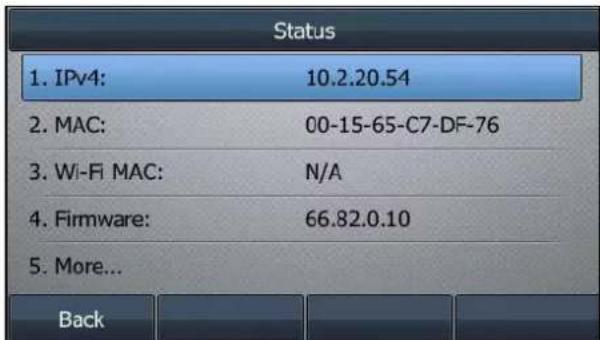
Available information on phone status includes:
- General information (IPv4 address or IPv6 address, phone MAC address, Wi-Fi dongle MAC address and firmware version).
IPv4 uses a 32-bit address.
IPv6 using a 128-bit address, which is an updated version of the current Internet Protocol to meet the increased demands for unique IP addresses.
• Network status (IPv4 status or IPv6 status, IP mode, phone MAC address and Wi-Fi dongle
MAC address).
- Phone status (product name, hardware version, firmware version, product ID, phone MAC address, Wi-Fi dongle MAC address, Bluetooth dongle MAC address and device certificate status).
- Account status (registration status of SIP accounts).
Note
Wi-Fi dongle MAC address and Bluetooth dongle MAC address are not available on the SIP-T42G/T41P/T40G/T40P IP phone.
Viewing the Phone Status
You can view phone status via phone user interface by pressing the OK key or navigating to Menu->Status.
text_image
Status 1. IPv4: 10.2.20.54 2. MAC: 00-15-65-C7-DF-76 3. Wi-Fi MAC: N/A 4. Firmware: 66.82.0.10 5. More... BackYou can also view the phone status via web user interface.
Procedure:
- Open a web browser on your computer.
- Enter the IP address in the browser's address bar, and then press the Enter key.
For example, "http://192.168.0.10" for IPv4 or "http://[2005:1:1:1:215:65ff:fe64:6e0a]" for IPv6. - Enter the user name (admin) and password (admin) in the login page.

text_image
Login Gigabit Color IP Phone SIP-T46S Username admin Password •••••• Login Cancel- Click Login to login.
The phone status is displayed on the first page of the web user interface.

text_image
Yealink | T46S Log Out english(english) Status Account Network Dsskey Features Settings Directory Security Status Version ? Firmware Version 66.82.0.10 Hardware Version 66.0.0.128.0.0.0 Device Certificate ? Device Certificate Factory Installed AMR license License Installed Network ? Internet Port IPv4 ? WAN Port Type DHCP WAN IP Address 10.2.20.54 Subnet Mask 255.255.255.0 Gateway 10.2.20.254 Primary DNS 192.168.1.22 Secondary DNS 192.168.1.20 NOTE Version It shows the version of firmware and hardware. Network It shows the network settings of Internet (WAN) port. Account It shows the registration status of SIP accounts. You can click here to get more guides.Note
IPv6 is not available on all servers. Contact your system administrator for more information.
Basic Network Settings
In order to get your IP phones running, you must perform basic network setup. You can use DHCP or configure a static address to connect your IP phone to the network. If your phone cannot contact a DHCP server for any reason, you need to configure network settings manually. The IP phone can support either or both IPv4 and IPv6 addresses.
Note
The wrong network settings may result in inaccessibility of your phone and may also have an impact on your network performance. For more information on these parameters, contact your system administrator.
Configuring the DHCP
You can configure DHCP for IPv4 or IPv6. The following takes IPv4 as an example:
Procedure:
- Navigate to Menu->Advanced (default password: admin) ->Network->WAN Port.
For the SIP-T42S/T42G/T41S/T41P/T40G/T40P IP phone, navigate to
Menu->Settings->Advanced Settings (default password: admin) ->Network->WAN
Port. - Select IPv4 or IPv4 & IPv6 from the IP Mode field.
- Enter IPv4, and then select DHCP from the Type field.
For the SIP-T42S/T42G/T41S/T41P/T40G/T40P IP phone, navigate to IPv4->DHCP IPv4 Client.
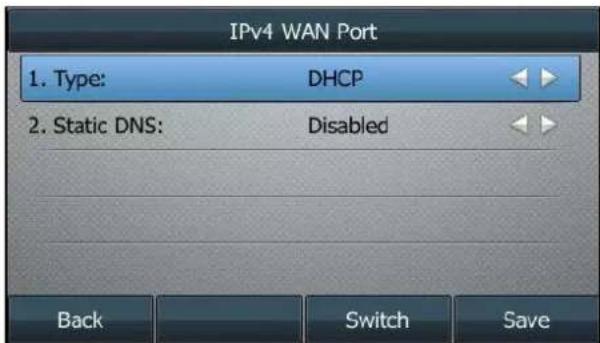
text_image
IPv4 WAN Port 1. Type: DHCP 2. Static DNS: Disabled Back Switch Save4. Press Save.
If you want to configure DHCP for IPv6, select IPv6 or IPv4 & IPv6 from the IP Mode in the step 2.
DHCP is configurable via web user interface at the path Network->Basic.
Configuring the Static IPv4 Address
Procedure:
- Navigate to Menu->Advanced (default password: admin) ->Network->WAN Port.
For the SIP-T42S/T42G/T41S/T41P/T40G/T40P IP phone, navigate to
Menu->Settings->Advanced Settings (default password: admin) ->Network->WAN Port.
-
Select IPv4 or IPv4 & IPv6 from the IP Mode field.
-
Enter IPv4, and then select Static IP from the Type field.
For the SIP-T42S/T42G/T41S/T41P/T40G/T40P IP phone, navigate to IPv4->Static IPv4 Client.
- Enter the desired value in the IP Address, Subnet Mask, Default Gateway, Pri. DNS and Sec.DNS field respectively.

text_image
IPv4 WAN Port 1. Type: Static IP 2. IP Address: 192.168.1.10 3. Subnet Mask: 255.255.255.0 4. Default Gateway: 192.168.1.1 5. Pri.DNS: 202.101.103.35 Back 123 Delete Save5. Press Save.
Static IPv4 address is configurable via web user interface at the path Network->Basic.
Configuring the Static IPv6 Address
Procedure:
-
Navigate to Menu->Advanced (default password: admin) ->Network->WAN Port. For the SIP-T42S/T42G/T41S/T41P/T40G/T40P IP phone, navigate to Menu->Settings->Advanced Settings (default password: admin) ->Network->WAN Port.
-
Select IPv6 or IPv4 & IPv6 from the IP Mode field.
-
Enter IPv6, and then select Static IP from the Type field. For the SIP-T42S/T42G/T41S/T41P/T40G/T40P IP phone, navigate to IPv6->Static IPv6 Client.
-
Enter the desired value in the IP Address, IPv6 IP Prefix, Default Gateway, Pri. DNS and Sec.DNS field respectively.

text_image
IPv6 WAN Port 1. Type: Static IP 2. IP Address: 2005:1:1:1::25 3. IPv6 IP Prefix: 64 4. Default Gateway: 2005:1:1:1::25 5. Pri.DNS: 2005:1:1:1::89 Back 123 Delete Save5. Press Save.
Static IPv6 address is configurable via web user interface at the path Network->Basic.
Registration
Generally, your system administrator will set the phone parameters beforehand, and performs centralized deployment on all IP phones. In this case, after the phone starts up, it is ready to use and the account has been registered already. But if the account is not registered, you should register it manually. You can register one or multiple accounts on the IP phone.
You can configure one or multiple line keys to associate with an account. For more information, refer to Configuring Multiple Line Keys per Account for more information.
The maximum registered accounts vary from different phone models:
| Phone Model | Accounts |
| SIP-T48G/T48S/T46G/T46S | <=16 |
| SIP-T42G/T42S | <=12 |
| SIP-T41P/T41S | <=6 |
| SIP-T40P/T40G | <=3 |
Note
Contact your system administrator for the account information.
Registering an Account
Procedure:
- Navigate to Menu->Advanced (default password: admin) ->Accounts.
For the SIP-T42S/T42G/T41S/T41P/T40G/T40P IP phone, navigate to Menu->Settings->Advanced Settings (default password: admin) -> Accounts.
-
Select a desired account.
-
Select Enabled from the Activation field.
-
Enter the desired value in the Label, Display Name, Register Name, User Name, Password and SIP Server1/2 field respectively.
-
If you use the outbound proxy servers, do the following:
1) Select Enabled from the Outbound Status field.
2) Enter the desired value in the Outbound Proxy1/2 and Proxy Fallback Interval field respectively.
- Press Save.
You can repeat steps 2 to 6 to register more accounts.
Account registration is configurable via web user interface at the path Account->Register.
The following figures demonstrate single or multiple accounts registered on the phone:
Single account:
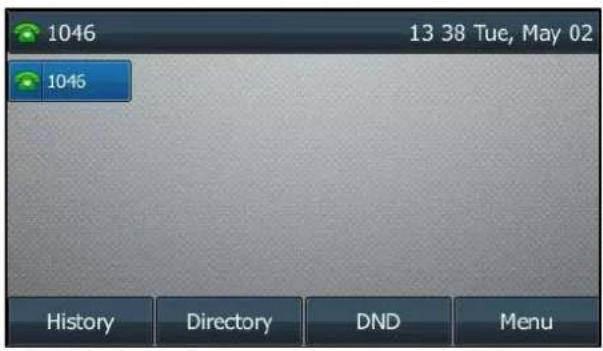
text_image
1046 13 38 Tue, May 02 1046 History Directory DND MenuMultiple accounts:
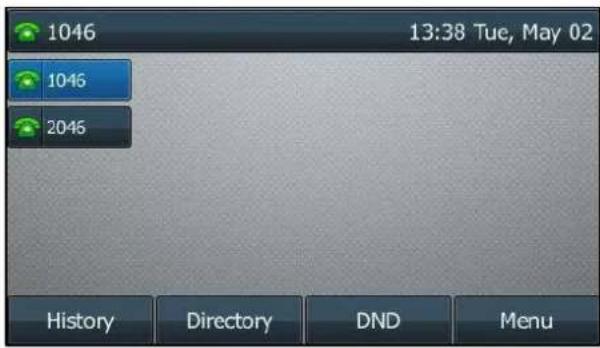
text_image
1046 13:38 Tue, May 02 1046 2046 History Directory DND期間 MenuDisabling an Account
You can disable an account after registering.
Procedure:
- Navigate to Menu->Advanced (default password: admin) ->Accounts.
For the SIP-T42S/T42G/T41S/T41P/T40G/T40P IP phone, navigate to
Menu->Settings->Advanced Settings (default password: admin) ->Accounts.
-
Select a desired account.
-
Select Disabled from the Activation field.
-
Press Save.
Account can be disabled via web user interface at the path Account->Register.
Configuring the Default Account
If there are multiple accounts registered on the phone, the phone will use the default account to dial out by default.
From the Idle screen, you can press the left or right navigation key to select the desired account as the default account for all IP phones. For the SIP-T48S/T48G/T46S/T46G IP phone, you can also do the following to configure the default account.
Procedure:
- Navigate to Menu->Features->Others->Default Account.
For the SIP-T48S/T48G IP phone, navigate to Menu->Features->Default Account.
- Select a desired account from the Default Account field.
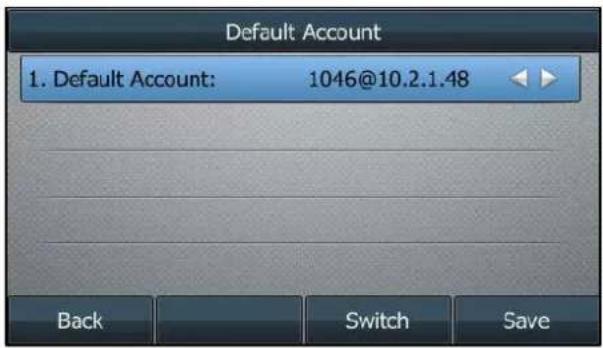
text_image
Default Account 1. Default Account: 1046@10.2.1.48 Back Switch Save- Press Save.
Customizing Your Phone
You can customize your IP phone by configuring certain settings, including changing wallpaper, setting time and date and personalizing different ring tones for different callers. You can also add contacts to the phone's local directory manually or from call history.
This chapter explains how to customize your phone. Topics include:
- General Settings
- Audio Settings
- Contact Management
- Call History Management
• DSS Keys - Dial Plan
Contact your system administrator for assistance or more information.
General Settings
Wallpaper
On SIP-T48S/T48G/T46S/T46G IP phone, you can change the wallpaper via phone/web user interface. Meanwhile, you can also upload custom pictures as wallpaper via web user interface.
Uploading a Custom Picture
The custom picture must meet the following:
| Phone Model | Format | Resolution | Single File Size | Screen Size |
| SIP-T48S/T48G | *.jpg*.png*.bmp*.jpeg | <=2.0 megapixels | <=5MB | 7 inches (Resolution: 800x480) |
| SIP-T46S/T46G | <=1.8 megapixels | <=5MB | 4.3 inches (Resolution: 480x272) |
Note
Either the smaller or larger picture will be scaled proportionally to fit the screen.
2MB of space should be reserved for the phone.
Procedure:
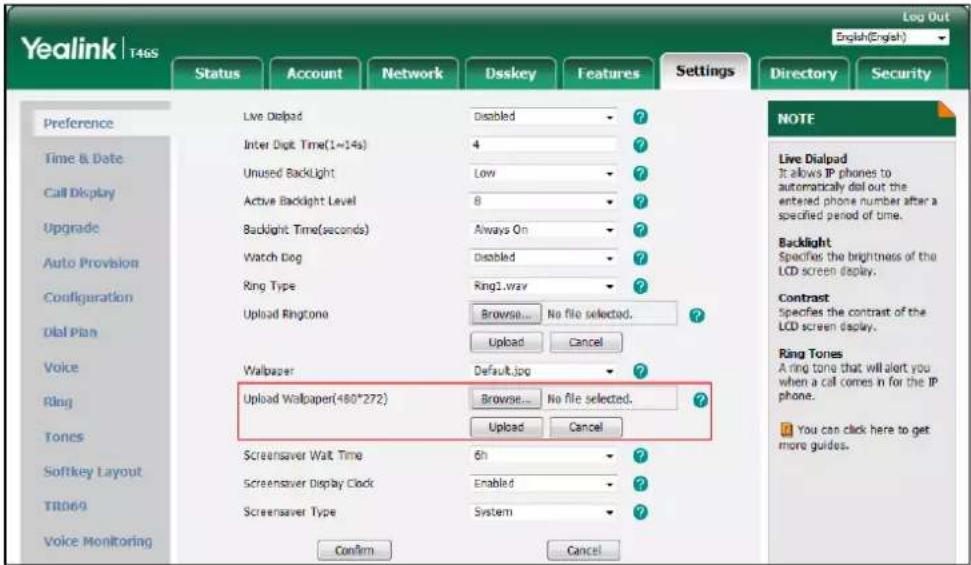
- Click Settings->Preference.
- In the Upload Wallpaper(480*272) field, click Browse to choose a desired picture from your local system.
text_image
Yealink T46S Log Out English(English) Status Account Network Dsskey Features Settings Directory Security Preference Live Delpad Disabled ? Time & Date Inter Digit Time(1=14s) 4 ? Call Display Unused Backlight.Low ? Upgrade Active Backlight Level 8 ? Auto Provision Backlight Time(seconds) Always On ? Configuration Watch Dog Disabled ? Dial Plan Ring Type Ring1.wav ? Voice Walkpaper Default.jpg ? Ring Update Wallpaper(480*272) Browse... No file selected. Tones Upload Cancel Softkey Layout Screensaver Wait Time 6h ? TR069 Screensaver Display Clock Enabled ? Voice Monitoring Screensaver Type System ? Confirm Cancel NOTE Live Dialpad It allows IP phones to automatically dial out the entered phone number after a specified period of time. Backlight Specifies the brightness of the LCD screen display. Contrast Specifies the contrast of the LCD screen display. Ring Tones A ring tone that will alert you when a call comes in for the IP phone. You can click here to get more guides.- Click Upload.
The custom picture you uploaded just now appears in the pull-down lists of Wallpaper.
Only the custom pictures you upload can be deleted by clicking Del from the pull-down list in the Wallpaper field.
Deleting the Custom Picture
On SIP-T48S/T48G/T46S/T46G IP phones, you can delete the custom wallpaper via phone user interface or via web user interface.
Procedure:
- Navigate to Menu->Basic->Display->Wallpaper.
- Select the desired picture.

text_image
Wallpaper 1. Wallpaper: Penguins.jpg Back Delete Switch Save- Press Delete to delete the corresponding picture.
Deleting the custom picture is configurable via web user interface at the path
Settings->Preference.
Changing Wallpaper on the Idle Screen
You can change the wallpaper to display on the Idle screen.
Procedure:
-
Navigate to Menu->Basic->Display->Wallpaper.
-
Select the desired wallpaper image.

text_image
Wallpaper 1. Wallpaper: 01.jpg Back Switch Save- Press Save.
Wallpaper on the Idle screen is configurable via web user interface at the path
Settings->Preference->Wallpaper.
Changing Wallpaper with Dsskey Unfold
You can change the wallpaper to display when unfolding the line key list on the SIP-T48S/T48G IP phone. Tap More when the phone is idle to unfold the line key list.

text_image
1025 16:11 Fri, Sep 02 1025 Hide History Directory DND MenuProcedure:
-
Navigate to Menu->Basic->Display->Dsskey Wallpaper.
-
Select the desired wallpaper image.

text_image
1012 Dsskey Wallpaper 16 40 Sun, Oct 09 Language Time & Date Display Sound 1/2 Change PIN Phone Lock Bluetooth 1. Dsskey Wallpaper: 01.jpg Save- Tap Save.
Wallpaper with Dsskey unfold is configurable via web user interface at the path
Settings->Preference->Wallpaper with Dsskey unfold.
Configuring Transparency
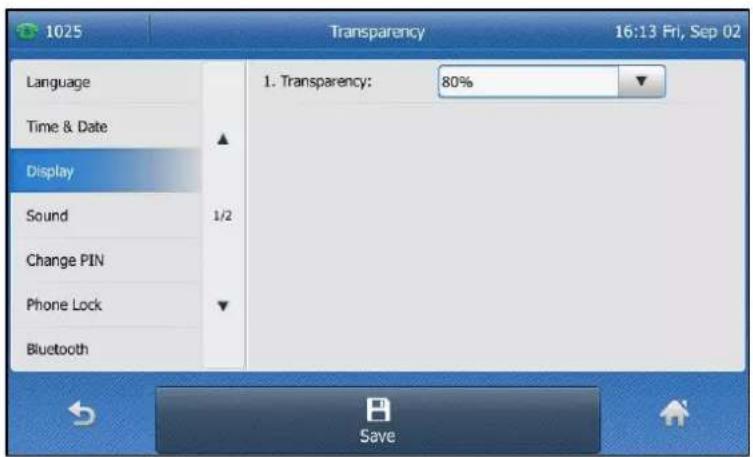
If you are using a custom picture with a single color or complex background as the wallpaper (refer to Wallpaper), it may affect your experience of the Idle screen display. For the SIP-T48S/T48G IP phone, you can choose an appropriate transparency for DSS key labels and status bar on the Idle screen as required.
The transparency can be configured from the following options:
• 0%: The DSS key labels and status bar are non-transparent.
• 20%, 40%, 60% or 80%: The DSS key labels and status bar are translucent.
• 100%: The DSS key labels and status bar are transparent.
Procedure:
-
Navigate to Menu->Basic->Display->Transparency.
-
Select the desired value from the pull-down list of Transparency.
text_image
1025 Transparency 16:13 Fri, Sep 02 Language Time & Date Display Sound 1/2 Change PIN Phone Lock Bluetooth 1. Transparency: 80% Save3. Tap Save.
Transparency is configurable via web user interface at the path Settings->Preference.
Screen Saver
The screen saver will automatically start when the IP phone is idle for the preset waiting time.
The screen saver will be stopped if one of the following phone events occurs:
- Press any key.
- Tap the touch screen (on the SIP-T48S/T48G IP phone).
- Pick up/hang up the handset.
• There is an incoming call.
• A new prompt (for example, missed call, new voice mail or forwarded call).
• The status of BLF key changes.
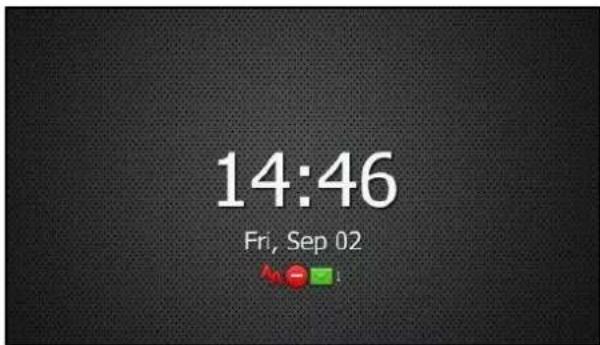
If your phone is idle again for a specified period of time, the screen saver will start again. The time & date and certain feature status icons (for example, auto answer, DND, a new text message) will also display on the screen saver. For more information on the icons, refer to Status Indicators.
text_image
14:46 Fri, Sep 02For the SIP-T48S/T48G/T46S/T46G IP phone, you can upload custom pictures to set up a screen saver of your picture, configure the screen saver type and screen saver display clock. For all IP phones, you can also configure the screen saver wait time and configure the phone whether to display custom XML items (for example, notifications or company logo) on the screen saver or not. The custom XML items are preset by your system administrator.
Uploading a Custom Picture as Screen Saver
Uploading custom pictures is only available for SIP-T48S/T48G/T46S/T46G IP phone. The custom picture must meet the following:
| Phone Model | Format | Resolution | Single File Size | Screen Size |
| SIP-T48S/T48G | *.jpg*.png*.bmp*.jpeg | <=2.0 megapixels | <=5MB | 7 inches (Resolution: 800x480) |
| SIP-T46S/T46G | <=1.8 megapixels | <=5MB | 4.3 inches (Resolution: 480x272) |
Procedure:
- Click Settings->Preference.
- Select Custom from the Screensaver Type field.
-
In the Upload Screensaver field, click Browse to choose a custom picture from your local system, and then click Upload.
-
This field appears only if Screensaver Type is set to Custom.

text_image
Yealink T46S Log Out English(English) Status Account Network Dsskey Features Settings Directory Security Preference Live Diabad Enabled ? Time & Date Inter Digit Time(1~14s) 4 ? Call Display Unused Backlight.Low ? Upgrade Active Backlight Level 8 ? Auto Provision Backlight Time(seconds) Always On ? Configuration Ring Type Ring1.wav ? Dial Plan Upload Ringtone Browse No file selected. Voice Wallpaper Default.jpg ? Ring Upload Wallpaper(480*272) Browse No file selected. Tones Upload Cancel Softkey Layout Screensaver Wait Time 6h ? TR069 Screensaver Display Clock Enabled ? Voice Monitoring Screensaver Type Custom ? SIP Upload Screensaver Browse No file selected. Power Saving Upload Cancel Confirm Cancel NOTE Live Diapad It allows IP phones to automatically dial out the entered phone number after a specified period of time. Backlight Specifies the brightness of the LCD screen display. Contrast Specifies the contrast of the LCD screen display. Ring Tones A ring tone that will alert you when a call comes in for the IP phone. You can click here to get more guides.The custom picture appears in Screensaver list. You can only delete the custom picture by clicking Del in the Screensaver field.
Configuring the XML Browser URL
Procedure:
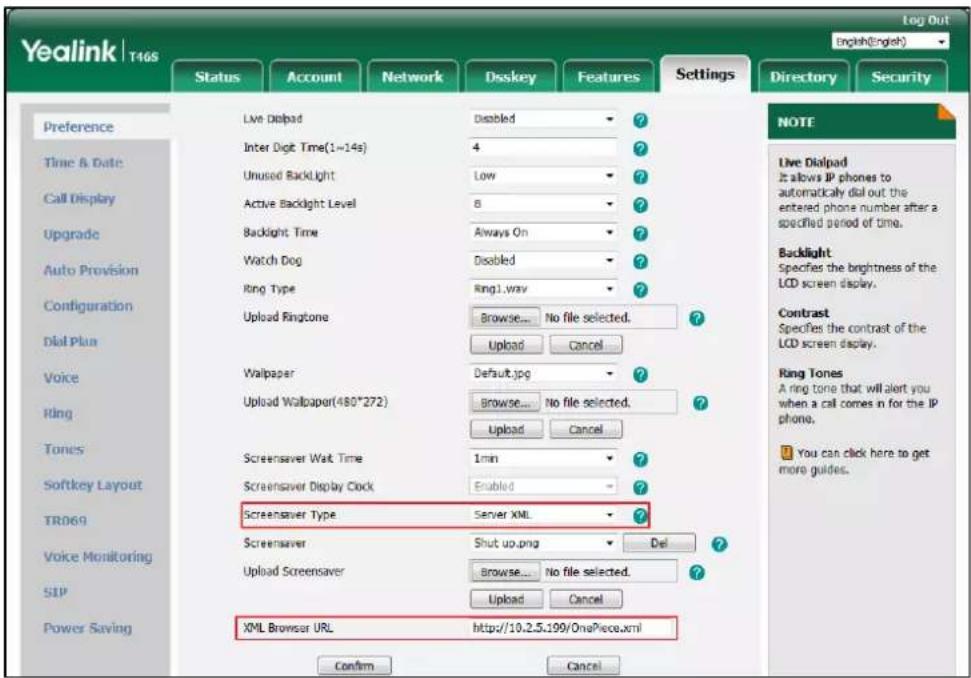
- Click Settings->Preference.
- For the SIP-T48S/T48G/T46S/T46G IP phone, select Server XML from the Screensaver Type field.
3. Enter the XML browser URL in the XML Browser URL field.
text_image
Yealink T46S Log Out English(English) Status Account Network Disskey Features Settings Directory Security Preference Live Dialpad Disabled ? Time & Date Inter Digit Time(1=14s) 4 ? Call Display Unused Backlight Low ? Upgrade Backlight Time Always On ? Auto Provision Watch Dog Disabled ? Configuration Ring Type Ring1.wav ? Dial Plan Upload Ringtone Browse... No file selected. Upload Cancel Voice Wallpaper Default.jpg ? Ring Upload Wallpaper(480*272) Browse... No file selected. Upload Cancel Tones Screensaver Wait Time 1min ? Softkey Layout Screensaver Display Clock Enabled ? TR069 Screener Type Server XML ? Voice Monitoring Screener Shut up.png Del ? SIP Upload Screener Browse... No file selected. Upload Cancel Power Saving XML Browser URL http://10.2.5.199/OnePiece.xml Confirm Cancel NOTE Live Dialpad It allows IP phones to automatically dial out the entered phone number after a specified period of time. Backlight Specifies the brightness of the LCD screen display. Contrast Specifies the contrast of the LCD screen display. Ring Tones A ring tone that will alert you when a call comes in for the IP phone. You can click here to get more guides.4. Click Confirm.
Note
For the XML browser URL, contact your system administrator.
Configuring the Screen Saver
Procedure:
- Navigate to Menu->Basic->Display->Screensaver.
For the SIP-T42S/T42G/T41S/T41P/T40G/T40P IP phone, navigate to
Menu->Settings->Basic Settings->Display->Screensaver.
-
Select the desired wait time from the Wait Time field.
-
(Optional.) For the SIP-T48S/T48G/T46S/T46G IP phone, select the desired value from the Display Clock field.
It is not available when you select Server XML from the Screensaver Type field.
- For the SIP-T48S/T48G/T46S/T46G IP phone, select the desired screen saver type from the Screensaver Type field.
- If you select System.
The IP phone will automatically set the system picture as the screen saver.
- If you select Custom.
The IP phone will automatically set the custom pictures (refer to Uploading a Custom Picture) as the screen saver, and display in slide-show style.
- If you select Server XML.
The IP phone will automatically display the XML items (for example, notifications or company logo, refer to Configuring the XML Browser URL) along with system picture or custom pictures (if uploaded) as the screen saver.
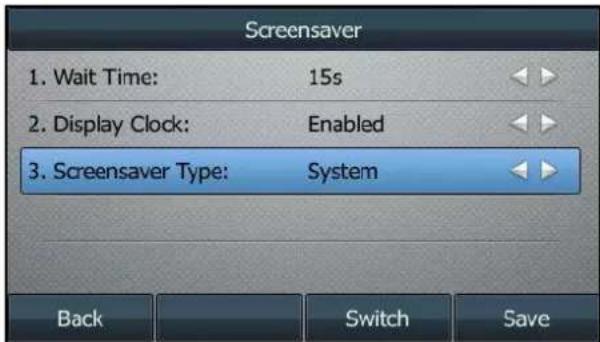
text_image
Screensaver 1. Wait Time: 15s 2. Display Clock: Enabled 3. Screensaver Type: System Back Switch Save5. Press Save.
Screen saver is configurable via web user interface at the path Settings->Preference.
Note
For the SIP-T42S/T42G/T41S/T41G/T40G/T40P IP phone, the screen saver works only when the XML Browser URL is configured.
Power Saving
The power saving feature is used to turn off the backlight and screen (except the SIP-T40G/T40P IP phone) to conserve energy. The IP phone enters power-saving mode after it has been idle for a certain period of time. For the SIP-T48S/T48G/T46S/T46G IP phone, the power LED glows red for 500ms and goes out for 3000ms alternately.
Note
Your system administrator can disable the power LED indicator for power saving.
The IP phone will exit power-saving mode if one of the following phone events occurs:
- Press any key.
- Tap the touch screen (on the SIP-T48S/T48G IP phone).
- Pick up/hang up the handset.
• There is an incoming call.
• A new prompt (for example, missed call, new voice mail or forwarded call).
• The status of BLF key changes.
If the screen saver is enabled (refer to Screen Saver) on your phone, power-saving mode will still occur.
You can configure the following power-saving settings:
- Office Hour
- Idle Timeout (minutes)
Enabling the Power Saving
Procedure:
- Click Settings->Power Saving.
- Select Enabled from the Power Saving field.

text_image
Yealink | 146s Log Out English(English) Status Account Network Dsskey Features Settings Directory Security Preference Time & Date Call Display Upgrade Auto Provision Configuration Mail Plan Voice Ring Tones Softkey Layout TR069 Voice Monitoring SIP Power Saving Enabled ? Office Hour ? Monday 07 - 19 Tuesday 07 - 19 Wednesday 07 - 19 Thursday 07 - 19 Friday 07 - 19 Saturday 07 - 07 Sunday 07 - 07 Idle TimeOut (minutes) Office Hour Idle TimeOut 960 ? Off Hour Idle TimeOut 10 ? User Input Extension Idle TimeOut 10 ? Confirm Cancel NOTE Settings Powersaving You can click here to get more guides.- Click Confirm.
Configuring the Office Hour
Office Hour enables you to specify when you start and end work in the office each day.
Procedure:
-
Click Settings->Power Saving.
-
Enter the starting and ending time respectively in the desired day field.
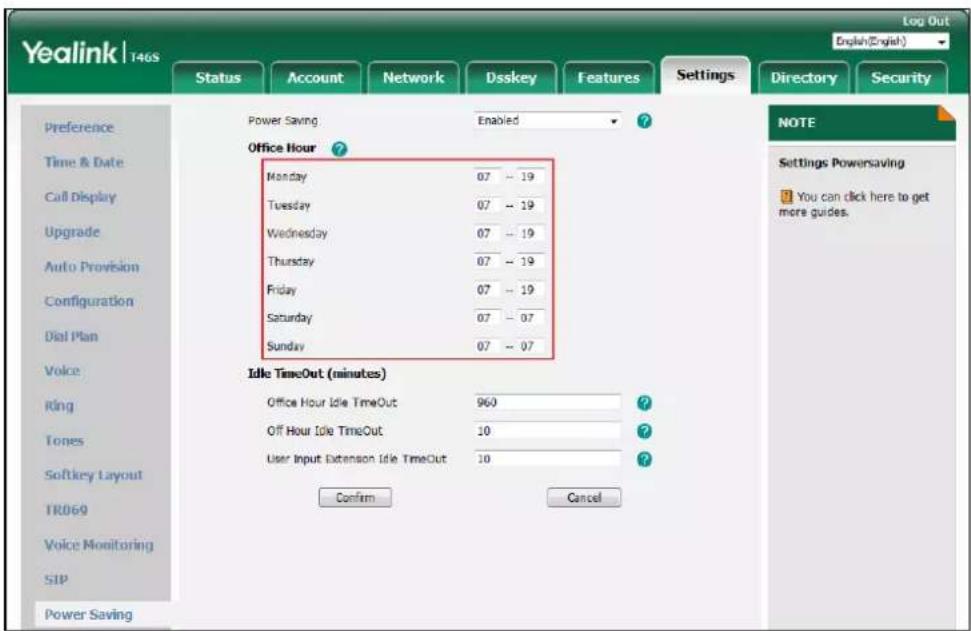
text_image
Yealink T46S Log Out English(English) Status Account Network Dsskey Features Settings Directory Security Preference Power Saving Enabled ? Time & Date Office Hour ? Call Display Monday 07 -- 19 Upgrade Tuesday 07 -- 19 Auto Provision Wednesday 07 -- 19 Configuration Friday 07 -- 19 Dial Plan Saturday 07 -- 07 Voice Sunday 07 -- 07 Ring Idle TimeOut (minutes) Tones Office Hour Idle TimeOut 960 ? Softkey Layout Off Hour Idle TimeOut 10 ? TR069 User Input Extension Idle TimeOut 10 ? Voice Monitoring SIP Confirm Cancel Power Saving NOTE Settings Powersaving You can click here to get more guides.- Click Confirm.
Configuring the Idle Timeout
Idle Timeout specifies the period of time that the IP phone is idle before entering power-saving mode. There are three different types of idle timeout:
• Office Hours Idle TimeOut: Configures the idle timeout for office hours.
- Off Hours Idle TimeOut: Configures the idle timeout for non-office hours.
- User Input Extension Idle TimeOut: Configures idle timeout that applies after you use the IP phone (for example, press a key on the phone or pick up/hang up the handset). You can choose to set a higher User Input Extension Idle TimeOut than the Office Hours Idle TimeOut and Off Hours Idle TimeOut so that when you're actively using the phone, power-saving mode doesn't initiate as often.
By default, the Office Hours Idle Timeout is much longer than the Off Hours Idle TimeOut. If you use the IP phone, the idle timeout that applies (User Input Extension Idle Timeout or Office Hours/Off Hours Idle TimeOut) is the timeout with the highest value. If the phone has an incoming call or new message, the User Input Extension Idle TimeOut is ignored.
Procedure:
- Click Settings->Power Saving.
- Enter the desired value between 1 and 960 (minutes) in the Office Hours Idle TimeOut field.
-
Enter the desired value between 1 and 10 (minutes) in the Off Hours Idle TimeOut field.
-
Enter the desired value between 1 and 30 (minutes) in the User Input Extension Idle TimeOut field.

text_image
Yealink | 146S Log Out English(English) Status Account Network Dsskey Features Settings Directory Security Preference Power Saving Enabled ? Office Hour ? Monday 07 -- 19 Tuesday 07 -- 19 Wednesday 07 -- 19 Thursday 07 -- 19 Friday 07 -- 19 Saturday 07 -- 07 Sunday 07 -- 07 Idle Timeout (minutes) Office Hour Idle TimeOut 960 Off Hour Idle TimeOut 10 User Input Extension Idle TimeOut 10 Confirm Cancel NOTE Settings Powersaving You can click here to get more guides. Ring Tones Softkey Layout TR069 Voice Monitoring SIP Power Saving- Click Confirm.
Logo Customization
For the SIP-T42S/T42G/T41S/T41P/T40G/T40P IP phone, you can upload your custom logo shown on the LCD screen.
Procedure:
- Click Features->General Information.
-
Select Custom logo from the pull-down list of Use Logo.
-
Click Browse to choose a logo file from your local system.

text_image
Yealink | 1400 Log Out english(english) Status Account Network Dsskey Features Settings Directory Security Forward&DND General Information General Information Call Waiting Enabled Call Waiting On Code Call Waiting Off Code Auto Redial Disabled Intercom Auto Redial Interval (1~300s) 10 Transfer Auto Redial Times (1~300) 10 Call Pickup Remote Control Phone Lock Call Number Filter 1% ACD Use Logo Custom logo Upload Logo Browse™ No file selected. SMS Upload Cancel Action URL Display Method on Dialing User Name Power LED Auto Linekeys Disabled Notification Popups Confirm Cancel NOTE Call Waiting It allows IP phones to receive a new incoming call when there is already an active call. Auto Redial It allows IP phones to automatically redial a busy number after the first attempt. Key As Send Assigns "a" or "*" as the send key. Hotline IP phone will automatically dial out the hotline number when lifting the handset, pressing the speakerphone key or the line key. Call Completion It allows users to monitor the busy party and establish a call when the busy party becomes available to receive a call. You can click here to get more guides.- Click Upload to upload the file.
Note
Only after you upload a custom logo, can you click Delete to delete the custom logo.
The logo file format must be *.dob, contact your system administrator for more information.
Logo customization is configurable via web user interface only.
Configuring the Backlight
Backlight has three options:
Active Level: The brightness of the LCD screen when the phone is active. Digits (1-10) represent different backlight intensities and 10 is the highest level. It is only available for the SIP-T48S/T48G/T46S/T46G IP phone.
Inactive Level: The brightness of the LCD screen when the phone is inactive. You can select a low intensity or turn off the backlight. It is only available for the SIP-T48S/T48G/T46S/T46G IP phone.
Backlight Time: The delay time to change the brightness of the LCD screen when the phone is inactive. You can configure the phone to change its backlight intensity after a period of time or always turn on the backlight.
• Always On: Backlight is always on.
• Always Off: Backlight is always off. It is not available for the SIP-T29G IP phone.
- 15s, 30s, 1min, 2min, 5min, 10min or 30min: Backlight intensity changes when the phone is inactive after a period of time.
Procedure:
- Navigate to Menu->Basic->Display->Backlight.
For the SIP-T42S/T42G/T41S/T41P/T40G/T40P IP phone, navigate to
Menu->Settings->Basic Settings->Display->Backlight.
-
For the SIP-T48S/T48G/T46S/T46G IP phone, select the desired level from the Active Level field.
-
For the SIP-T48S/T48G/T46S/T46G IP phone, select the desired value from the Inactive Level field.
-
Select the desired time from the Backlight Time field.

text_image
Backlight 1. Active Level: 8 2. Inactive Level: Low 3. Backlight Time: Always On Back Switch Save5. Press Save.
Backlight is configurable via web user interface at the path Settings->Preference.
Configuring the Contrast
You can configure the LCD screen contrast to a comfortable level for the SIP-T40G/T40P IP phone. The level ranges from 1 to 10 and 10 is the highest level.
Procedure:
-
Navigate to Menu->Settings->Basic Settings->Display->Contrast.
-
Select the desired value in the Contrast field.

text_image
Contrast 1. Contrast: 6 Back Switch Save3. Press Save.
Contrast is configurable via web user interface at the path Settings->Preference.
Changing the Language
The default language of the phone user interface is English. If the language of your web browser is not supported by the phone, the web user interface will use English by default. You can
change the language for the phone user interface and the web user interface respectively.
Changing the Language for the Phone User Interface
Procedure:
- Navigate to Menu->Basic->Language.
For the SIP-T42S/T42G/T41S/T41P/T40G/T40P IP phone, navigate to
Menu->Settings->Basic Settings->Language.
- Select the desired language.
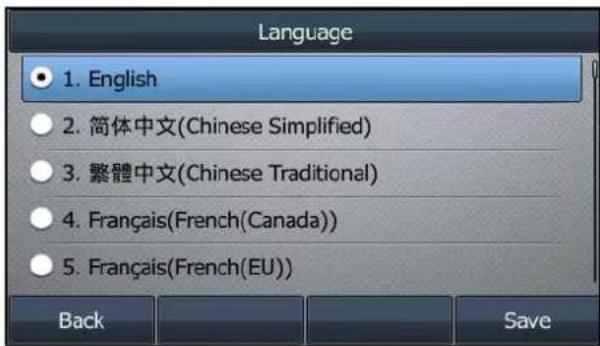
text_image
Language 1. English 2. 简体中文(Chinese Simplified) 3. 繁體中文(Chinese Traditional) 4. Français(French(Canada)) 5. Français(French(EU)) Back Save- Press Save.
Text displayed on the phone user interface will change to the selected language.
Changing the Language for the Web User Interface
Procedure:
- Select the desired language from the pull-down list at the top-right corner of web user interface.
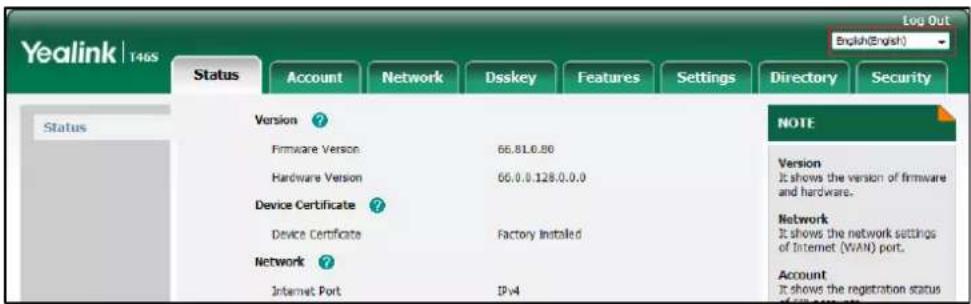
text_image
Yealink | 146S Log Out English(English) Status Account Network Dsskey Features Settings Directory Security Status Version ? Firmware Version 66.81.0.80 Hardware Version 66.0.0.128.0.0.0 Device Certificate ? Device Certificate Factory Installed Network ? Internet Port IPv4 NOTE Version It shows the version of firmware and hardware. Network It shows the network settings of Internet (WAN) port. Account It shows the registration status of Web accountsText displayed on the web user interface will change to the selected language.
Time & Date
You can configure the phone to obtain the time and date from the SNTP server automatically, or configure the time and date manually.
Configuring the SNTP Setting
Procedure:
- Navigate to Menu->Basic->Time & Date->General->SNTP Settings.
For the SIP-T48S/T48G IP phones, navigate to Menu->Basic->Time & Date->General.
And then select SNTP Settings from the pull-down list of Type.
For the SIP-T42S/T42G/T41S/T41P/T40G/T40P IP phone, navigate to
Menu->Settings->Basic Settings->Time & Date->SNTP Settings.
-
Select the time zone that applies to your area from the Time Zone field.
-
Enter the domain name or IP address of SNTP server in the NTP Server1 and NTP Server2 field respectively.
-
Select the desired value from the Daylight Saving field.
-
Select the desired time zone name from the Location field.
This field appears only if Daylight Saving field is selected to Automatic.

text_image
General 1. Time Zone: +8 2. NTP Server1: cn.pool.ntp.org 3. NTP Server2: pool.ntp.org 4. Daylight Saving: Automatic 5. Location: China(Beijing) Back Switch Save6. Press Save.
SNTP Setting is configurable via web user interface at the path Settings->Time & Date.
Note
Please refer to Appendix A - Time Zones for the list of available time zones on the IP phone.
If the phone cannot obtain the time and date from the Simple Network Time Protocol (SNTP) server, contact your system administrator for more information.
Configuring the Time and Date Manually
Procedure:
- Navigate to Menu->Basic->Time & Date->General->Manual Settings.
For the SIP-T48S/T48G IP phones, navigate to Menu->Basic->Time & Date->General.
And then select Manual Settings from the pull-down list of Type.
For the SIP-T42S/T42G/T41S/T41P/T40G/T40P IP phone, navigate to
Menu->Settings->Basic Settings->Time & Date->Manual Settings.
- Enter the specific date and time in the corresponding fields.
For the SIP-T46S/T46G IP phone, you can also press the up or down navigate key to select the desired date and time.
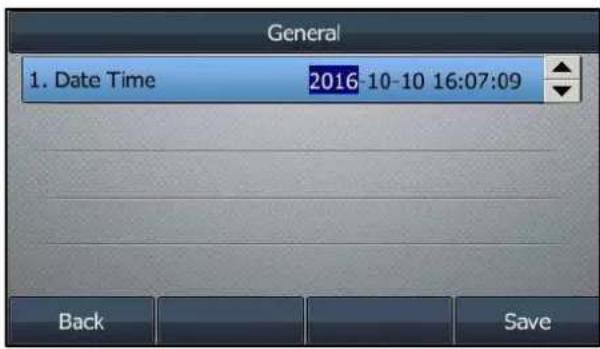
text_image
General 1. Date Time 2016-10-10 16:07:09 Back Save- Press Save.
The time and date displayed on the LCD screen will change accordingly.
Time and date are configurable via web user interface at the path Settings->Time & Date.
Configuring the Time and Date Format
Procedure:
- Navigate to Menu->Basic->Time & Date->Time & Date Format.
For the SIP-T42S/T42G/T41S/T41P/T40G/T40P IP phone, navigate to
Menu->Settings->Basic Settings->Time & Date->Time & Date Format.
-
Select the desired date format from the Date Format field.
-
Select the desired time format from the Time Format field.

text_image
Time & Date Format 1. Date Format: WWW MMM DD 2. Time Format: 24 Hour Back Switch Save4. Press Save.
Time and date format are configurable via web user interface at the path Settings->Time & Date.
There are 7 available date formats. For example, for the date format "WWW DD MMM", "WWW" represents days of the week, "DD" represents the day, and "MMM" represents the month.
The date formats available:
| Date Format | Example (2016-09-02) |
| WWW MMM DD | Fri, Sep 02 |
| DD-MMM-YY | 02-Sep-16 |
| YYYY-MM-DD | 2016-09-02 |
| DD/MM/YYYY | 02/09/2016 |
| MM/DD/YY | 09/02/16 |
| DD MMM YYYY | 02 Sep, 2016 |
| WWW DD MMM | Fri, 02 Sep |
Note
Your system administrator can customize the date format.
Changing the Administrator Password
The Advanced option is only accessible to the administrator. The default administrator password is "admin". For security reasons, you should change the default administrator password as soon as possible.
Procedure:
- Navigate to Menu->Advanced (default password: admin) ->Change Password.
For the SIP-T42S/T42G/T41S/T41P/T40G/T40P IP phone, navigate to
Menu->Settings->Advanced Settings->Change Password.
- Enter the desired value in the Old PWD, New PWD and Confirm PWD field respectively.

text_image
Change Password 1. Old PWD: ••••• 2. New PWD: ••••••• 3. Confirm PWD: ••••••• Back abc Delete Save3. Press Save.
Administrator password is configurable via web user interface at the path Security->Password.
Configuring Key As Send
You can set the “#” key or “*” key to perform as a send key while dialing.
Procedure:
- Navigate to Menu->Features->Others->General.
For the SIP-T48S/T48G IP phones, navigate to Menu->Features->General.
For the SIP-T42S/T42G/T41S/T41P/T40G/T40P IP phone, navigate to
Menu->Features->Key As Send.
- Select # or * from the Key As Send field, or select Disabled to disable this feature.

text_image
General 1. Key As Send: # 2. History Record: Enabled Back Switch Save3. Press Save.
Key as send is configurable via web user interface at the path Features->General Information.
Phone Lock
You can lock your phone temporarily when you are not using it. This feature helps to protect your phone from unauthorized use.
For the SIP-T46S/T46G/T42S/T42G/T41S/T41P/T40G/T40P IP phone, the phone lock consists of the following:
Menu Key: The Menu soft key is locked. You cannot access the menu of the phone until unlocked.
Function Keys: The function keys are locked. You cannot use the MESSAGE, REDIAL, HOLD, MUTE, TRANSFER, OK, Cancel, navigation keys and soft keys until unlocked.
All Keys: All keys are locked except the Volume key, digit keys, # key, * key, HEADSET key and Speakerphone key. You are only allowed to dial emergency numbers, reject incoming calls by pressing the Cancel key or the Reject soft key, answer incoming calls by lifting the handset,
pressing the Speakerphone key, the HEADSET key, the OK key or the Answer soft key, and end the call by hanging up the handset, pressing the Speakerphone key, the End Call (EndCall) soft key or the Cancel key.
For the SIP-T48S/T48G IP phone, the phone lock consists of the following:
LCD screen and all keys are locked except Volume key, digit keys, # key, * key, HEADSET key and Speakerphone key. You are only allowed to dial emergency numbers, reject incoming calls by pressing the Cancel key or tapping the Reject soft key, answer incoming calls by lifting the handset, pressing the Speakerphone key, the HEADSET key, the OK key or tapping the Answer soft key, and end the call by hanging up the handset, pressing the Speakerphone key, Cancel key or tapping the End Call (EndCall) soft key.
Emergency Number
Public telephone networks in countries around the world have a single emergency telephone number (emergency services number), that allows a caller to contact local emergency services for assistance when necessary. The emergency telephone number may differ from country to country. It is typically a three-digit number so that it can be easily remembered and dialed quickly. Some countries have a different emergency number for each of the different emergency services. The emergency number setting, if desired, must be made before lock activation. For more information, refer to Configuring the Emergency Number.
Activating the Phone Lock
Procedure:
- Navigate to Menu->Basic->Phone Lock.
For the SIP-T42S/T42G/T41S/T41P/T40G/T40P IP phone, navigate to
Menu->Settings->Basic Settings->Phone Lock.
- Enter the desired PIN (default PIN: 123) in the Unlock PIN field, and then press OK.
For the SIP-T48S/T48G IP phone, tap Save.
-
Select Enabled from the Lock Enable field.
-
Select a desired type from the Lock Type field (except the SIP-T48S/T48G IP phone).
-
Enter the desired interval between 0 and 3600 (seconds) of automatic phone lock in the Auto Lock field.
If it is set to 0, the phone will not be automatically locked. You need to long press # key to lock it when the phone is idle.
If it is set to other values except 0 (for example, 5), the phone will be locked when the phone is inactive in the Idle screen for the designated time (in seconds).
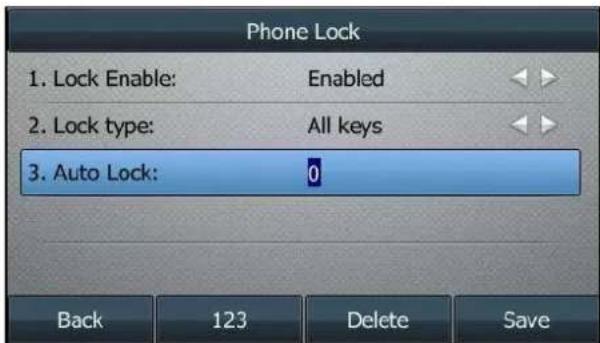
text_image
Phone Lock 1. Lock Enable: Enabled 2. Lock type: All keys 3. Auto Lock: 0 Back 123 Delete Save6. Press Save.
When the phone is locked, the lock icon will display on the LCD screen.
Phone Lock activation is configurable via web user interface at the path Features->Phone Lock.
Changing the Phone Unlock PIN
Procedure:
- Navigate to Menu->Basic->Change PIN.
For the SIP-T42S/T42G/T41S/T41P/T40G/T40P IP phone, navigate to
Menu->Settings->Basic Settings->Change PIN.
- Enter the desired value in the Old PIN, New PIN and Confirm PIN field respectively.

text_image
Change PIN 1. Old PIN: •••• 2. New PIN: ••••• 3. Confirm PIN: ••••• Back 123 Delete Save3. Press Save.
Phone Lock PIN is configurable via web user interface at the path Features->Phone Lock.
Note
The unlock PIN length must be less than 15 digits.
Unlocking the Phone
Procedure:
-
Press any locked key, the LCD screen prompts you to enter an unlock PIN. On the SIP-T48S/T48G IP phone, press any locked key or tap the touch screen.
-
Enter the desired PIN in the Unlock PIN field.

text_image
1006 11 22 Fri, Sep 02 1006 Phone Lock Unlock PIN •••• Cancel 123 Delete OK- Press OK.
The lock icon disappears from the LCD screen.
You can long press the # key or wait for a period of time (if configured) to lock the phone again.
Note
You can also unlock the phone by administrator password. When you enter the administrator password to unlock the phone, the phone will turn to the Change PIN screen.
Deactivating the Phone Lock
Procedure:
- Navigate to Menu->Basic->Phone Lock.
For the SIP-T42S/T42G/T41S/T41P/T40G/T40P IP phone, navigate to Menu->Settings->Basic Settings->Phone Lock.
-
Enter the desired PIN (default PIN: 123) in the Unlock PIN field, and then press OK. For the SIP-T48S/T48G IP phone, tap Save.
-
Select Disabled from the Lock Enable field.

text_image
Phone Lock 1. Lock Enable: Disabled 2. Lock type: All keys 3. Auto Lock: 0 Back Switch Save4. Press Save.
Phone lock deactivation is configurable via web user interface at the path Features->Phone Lock.
Configuring the Emergency Number
You can specify the emergency telephone numbers on the IP phone for contacting the emergency services for assistance in case of emergency. You can dial these numbers even when the phone is locked
Note
Contact your local phone service provider for available emergency numbers in your area.
The IP phone also supports the emergency dialplan, which allows users to make emergency calls if the phone is locked or unregistered. For more information, contact your system administrator.
Procedure:
-
Click Features->Phone Lock.
-
Enter the emergency number in the Emergency field.
For multiple emergency numbers, enter a comma between every two numbers.
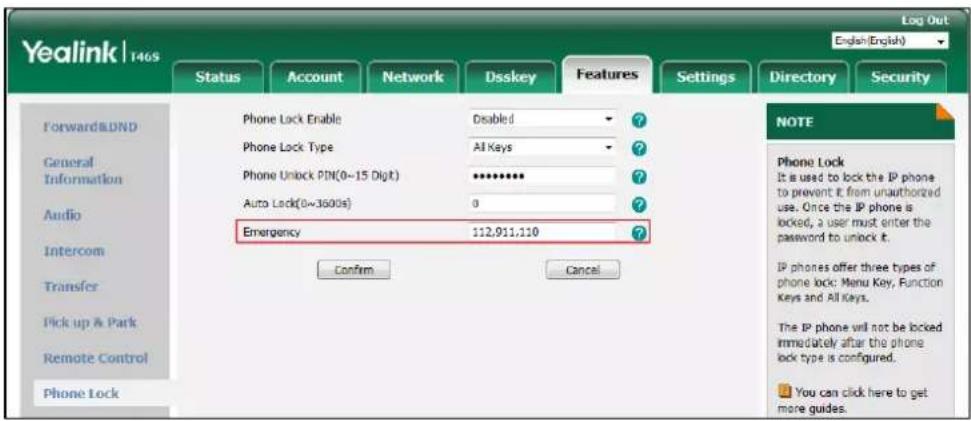
text_image
Yealink | 1469 Log Out English(English) Status Account Network Dsskey Features Settings Directory Security Forward&DND General Information Audio Intercom Transfer Pick up & Park Remote Control Phone Lock Phone Lock Enable Disabled ? Phone Lock Type All Keys ? Phone Unlock PIN(0~15 Digit) ********* ? Auto Lock(0~3500s) 0 ? Emergency 112,911,110 ? Confirm Cancel NOTE Phone Lock It is used to lock the IP phone to prevent it from unauthorized use. Once the IP phone is locked, a user must enter the password to unlock it. IP phones offer three types of phone lock: Menu Key, Function Keys and All keys. The IP phone will not be locked immediately after the phone lock type is configured. You can click here to get more guides.3. Click Confirm.
Audio Settings
Adjusting the Volume
You can adjust the ringer volume when the phone is idle or ringing and adjust the receiver volume of currently engaged audio devices (handset, speakerphone or headset) when the phone is in use.
Procedure:
- Press the Volume key to adjust the ringer and audio volume.
If ringer volume is adjusted to minimum, the minimum volume icon will appear on LCD screen.
Note
Your system administrator can disable you to adjust the ringer volume.
Ring Tones
Ring tones are used to indicate incoming calls. You can select different ring tones to distinguish different accounts registered on your phone, or to distinguish your phone from your neighbor's.
Selecting a Ring Tone
Procedure:
- Navigate to Menu->Basic->Sound->Ring Tones->Common.
For the SIP-T42S/T42G/T41S/T41P/T40G/T40P IP phone, navigate to
Menu->Settings->Basic Settings->Sound->Ring Tones->Common.
- Select a desired ring tone.
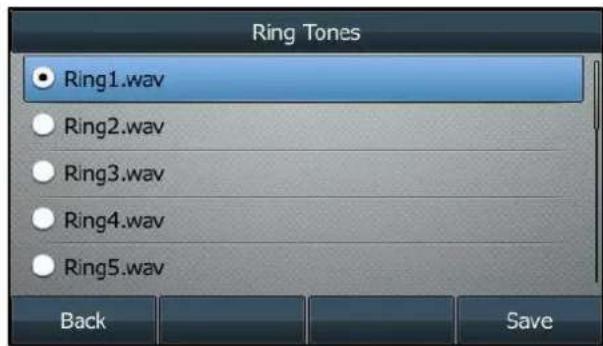
text_image
Ring Tones Ring1.wav Ring2.wav Ring3.wav Ring4.wav Ring5.wav Back Save-
(Optional.) Press the Volume key to adjust the ringer volume.
-
Press Save.
A ring tone for the phone is configurable via web user interface at the path
Settings->Preference->Ring Type.
Selecting a Ring Tone for an Account
Procedure:
- Navigate to Menu->Basic->Sound->Ring Tones.
For the SIP-T42S/T42G/T41S/T41P/T40G/T40P IP phone, navigate to
Menu->Settings->Basic Settings->Sound->Ring Tones.
-
Select a desired account.
-
Select a desired ring tone.
If Common is selected, this account will use the ring tone selected for the phone.

text_image
Ring Tones Common Ring1.wav Ring2.wav Ring3.wav Ring4.wav Back Save-
(Optional.) Press the Volume key to adjust the ringer volume.
-
Press Save.
A ring tone for the account is configurable via web user interface at the path Account->Basic->Ring Type.
Uploading a Custom Ring Tone
The ring tone file must meet the following:
| Phone Model | Format | Single File Size | Note |
| SIP-T48S/T46S/T42S/T41S | .wav | <=8MB | 2MB of space should be reserved for the phone |
| SIP-T48G/T46G | .wav | <=8MB | 2.4MB of space should be reserved for the phone) |
| SIP-T42G/T41P/T40P/T40G | .wav | <=100KB | 5KB of space should be reserved for the phone |
Procedure:
-
Click Settings->Preference.
-
In the Upload Ringtone field, click Browse to choose a ring tone file (the file format must be *.wav) from your local system.

text_image
Yealink T46S Log Out English(English) Status Account Network Dsskey Features Settings Directory Security Preference Time & Date Call Display Upgrade Auto Provision Configuration Dial Plan Voice Ring Tones SoftKey Layout TR069 Voice Monitoring SIP Power Saving Live Dialpad Enabled ? Inter Digit Time(1~14s) 4 ? Unused Backlight.Low ? Active Backlight Level 8 ? Backlight Time(seconds) Always On ? Watch Dog Disabled ? Ring Type Ring1.wav ? Upload Ringtone Browse... No file selected. Upload Cancel Wallpaper Default.jpg ? Upload Wallpaper(480*272) Browse... No file selected. Upload Cancel Screensaver Wait Time 6h ? Screensaver Display Clock Enabled ? Screensaver Type Custom ? Screensaver Upload Screensaver Browse... No file selected. Upload Cancel Confirm Cancel NOTE Live Dialpad It allows IP phones to automatically dial out the entered phone number after a specified period of time. Backlight Specifies the brightness of the LCD screen display. Contrast Specifies the contrast of the LCD screen display. Ring Tones A ring tone that will alert you when a call comes in for the IP phone. You can click here to get more guides.3. Click Upload.
The custom ring tone you uploaded appears in the Ring Type field.
You can only delete the custom ring tone by clicking Del when selecting the desired custom ring tone in the Ring Type field.
Note
The priority of ring tone for an incoming call on the phone is as follows: Contact ring tone (refer to You can store up to 1000 contacts and 48 groups in your phone's local directory, allowing you to edit, delete, search or simply dial a contact from the local
Configuring the Key Tone
If you enable key tone, the phone will produce a sound when you use the dialpad.
Procedure:
- Navigate to Menu->Basic->Sound->Key Tone.
For the SIP-T42S/T42G/T41S/T41P/T40G/T40P IP phone, navigate to
Menu->Settings->Basic Settings->Sound->Key Tone.
- Select the desired value from the Key Tone field.

text_image
Key Tone 1. Key Tone: Enabled Back Switch Save- Press Save.
Key tone is configurable via web user interface at the path Features->Audio.
Contact Management
This section details how to manage contacts. Topics include:
- Configuring List(s) for the Directory (Dir) Soft Key
- Local Directory
- Blacklist
- Remote Phone Book
Configuring List(s) for the Directory (Dir) Soft Key
Directory provides an easy access to the contacts lists. The lists may contain Local Directory, History, Remote Phone Book and LDAP. You can configure the list(s) to be accessed when pressing the Directory (Dir) soft key on the Idle screen.
Note
LDAP is disabled by default. Check with your system administrator to find out if this feature is available on your phone.
Procedure (via web user interface):
- Click Directory->Setting.
- In the Directory block, select the desired list from the Disabled column and then click → .
The selected list appears in the Enabled column. - Repeat the step 2 to add more lists to the Enabled column.
-
To remove a list from the Enabled column, select the desired list and then click ←.
-
To adjust the display order of the enabled lists, select the desired list and then click
or ↓.

text_image
Yealink T469 Log Out English(English) Status Account Network Dsskey Features Settings Directory Security Directory ? Disabled Enabled Remote Phone Book Local Directory History Search Source List In Dialing Disabled Enabled Remote Phonebook Local Directory History Recent Call In Dialing Enabled Confirm Cancel NOTE Directory It provides easy access to frequently used lists. Search Source in Dialing It allows the IP phone to automatically search entries from the search source list based on the entered string, and display results on the pre-dialing screen. Recent Call In Dialing It allows users to view the placed calls list when the phone is on the pre-dialing screen. You can click here to get more guides.- Click Confirm.
Procedure (via phone user interface):
- Press Directory (Dir) when the phone is idle.
The LCD screen displays the enabled list(s) in the directory

text_image
Directory 1. Local Directory 2. History Cancel EnterIf there is only one list in the directory, press Directory (Dir) to enter this list directly.
Note
If the remote phone book and LDAP are not configured in advance, you cannot view remote phone book and LDAP lists in the phone user interface. For more information on remote phone book, refer to Remote Phone Book. For more information on LDAP, contact your system administrator.
Local Directory
You can store up to 1000 contacts and 48 groups in your phone's local directory, allowing you
to edit, delete, search or simply dial a contact from the local directory.
Note
You can back up the local directory to the provisioning server. For more information, contact your system administrator.
Adding Groups
Procedure:
- Press Directory (Dir) or navigate to Menu->Directory->Local Directory to enter the local directory.
On the SIP-T48S/T48G IP phone, tap Directory or navigate to Menu->Directory.
- Press AddGroup (AddGr).
On the SIP-T48S/T48G IP phone, tap Setting->New Group.
- Enter the desired group name in the Name field.
On the SIP-T48S/T48G IP phone, enter the desired group name, and then tap √ to accept the change.
- Select the desired group ring tone from the Ring field.
On the SIP-T48S/T48G IP phone, tap 🌐 to specify a ring tone for the group.

text_image
Add Group 1. Name: Test 2. Ring Tones: Ring1.wav Back Switch SaveIf Auto is selected, this group will use the ring tone according to the priority: Contact ring tone (refer to Adding Contacts) >Account ring tone (refer to Ring Tones) >Phone ring tone (refer to Ring Tones). If a specific ring tone is selected, this group will use the ring tone according to the priority: Contact ring tone (refer to Adding Contacts) >Group ring tone.
- Press Save.
On the SIP-T48S/T48G IP phone, tap OK.
On the SIP-T42S/T42G/T41S/T41P/T40G/T40P IP phone, press Add.
Adding groups is configurable via web user interface at the path Directory->Local Directory.
Editing Groups
Procedure:
- Press Directory (Dir) or navigate to Menu->Directory->Local Directory to enter the local directory.
On the SIP-T48S/T48G IP phone, tap Directory or navigate to Menu->Directory.
- Highlight a desired group.
On the SIP-T48S/T48G IP phone, tap Setting, and then select the desired group.
- Press Option, and then select Detail.
On the SIP-T48S/T48G IP phone, tap after the group name.
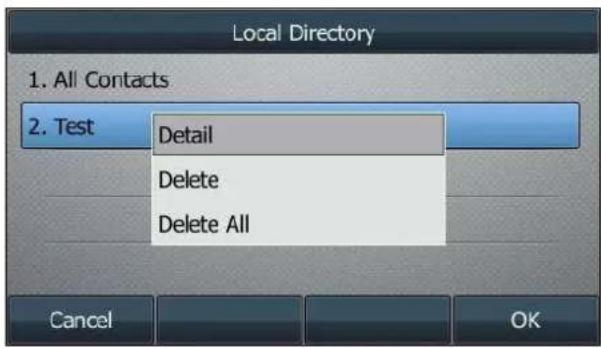
text_image
Local Directory 1. All Contacts 2. Test Detail Delete Delete All Cancel OK-
Edit the group information.
-
Press Save to accept the change.
On the SIP-T48S/T48G IP phone, tap √ to accept the change.
Editing groups is configurable via web user interface at the path Directory->Local Directory.
Deleting Groups
Procedure:
- Press Directory (Dir) or Menu->Directory->Local Directory to enter the local directory.
On the SIP-T48S/T48G IP phone, tap Directory or navigate to Menu->Directory.
- Highlight a desired group.
On the SIP-T48S/T48G IP phone, tap Setting, and then select the desired group.
- Press Option, and then select Delete.
On the SIP-T48S/T48G IP phone, tap 📋 before the group name.
A message is displayed on the LCD screen:
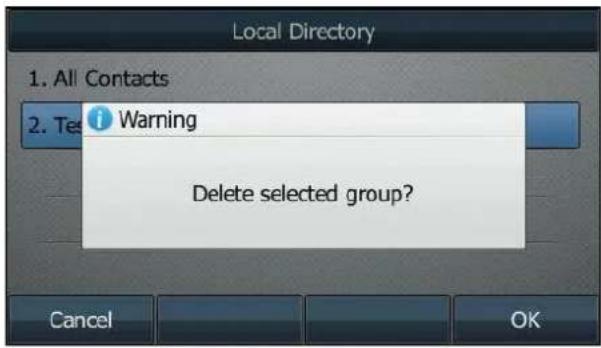
text_image
Local Directory 1. All Contacts 2. Test Warning Delete selected group? Cancel OK4. Press OK to delete.
Deleting groups is configurable via web user interface at the path Directory->Local Directory.
Adding Contacts
You can add contacts to the local directory in one of the following ways:
- Manually
- From call history
• From a remote phone book
Adding Contacts Manually
Procedure:
- Press Directory (Dir) or navigate to Menu->Directory->Local Directory to enter the local directory.
On the SIP-T48S/T48G IP phone, tap Directory or navigate to Menu->Directory->All Contacts.
- Enter the desired contact group.
If the contact you want to add doesn't belong to any group, enter the All Contacts. - Press Add.
- Enter the name and the office, mobile or other numbers in the corresponding fields.
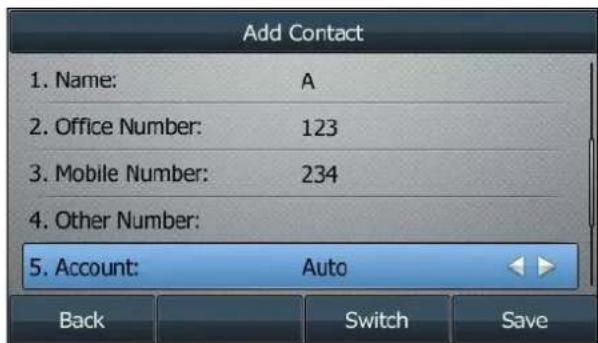
text_image
Add Contact 1. Name: A 2. Office Number: 123 3. Mobile Number: 234 4. Other Number: 5. Account: Auto Back Switch Save- Select the desired account from the Account field.
If Auto is selected, the phone will use the default account when placing calls to the contact from the local directory.
- Select the desired ring tone from the Ring field.
If Auto is selected, this contact will use the ring tone according to the priority: Group ring tone (refer to Adding Groups) >Account ring tone (refer to Ring Tones) >Phone ring tone (refer to Ring Tones).
-
On the SIP-T46S/T46G IP phone, highlight the Photo field, and then press Enter.
-
On the SIP-T48S/T48G/T46S/T46G IP phone, select a desired photo from the Photo field.
-
Press Save.
On the SIP-T42S/T42G/T41S/T41P/T40G/T40P IP phone, press Add.
If the contact already exists in the local directory, the LCD screen will prompt "Contact name existed?".
Adding contacts is configurable via web user interface at the path Directory->Local Directory.
For more information on how to add a contact from history/remote phone book, refer to Adding a Contact to the Local Directory/Blacklist/Adding a Contact to the Local Directory/Blacklist.
Editing Contacts
Procedure:
- Press Directory (Dir) or navigate to Menu->Directory->Local Directory to enter the local directory.
On the SIP-T48S/T48G IP phone, tap Directory or navigate to Menu->Directory->All Contacts.
- Enter the desired contact group.
If the contact is not in any group, enter the All Contacts.
- Highlight a desired contact, and then press Option. Select Detail.
On the SIP-T48S/T48G IP phone, tap i after the desired contact.
- Edit the contact information.
On the SIP-T48S/T48G IP phone, you can tap ◀ or ▶ to switch the contact you want to edit.
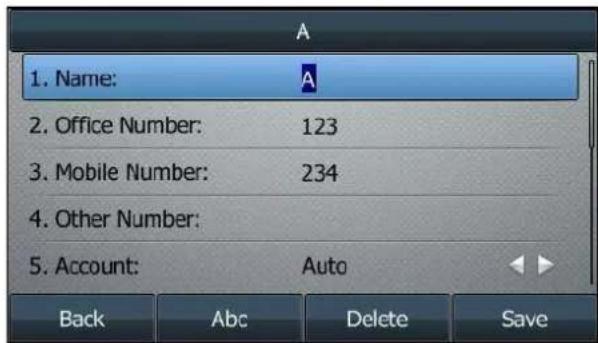
text_image
A 1. Name: A 2. Office Number: 123 3. Mobile Number: 234 4. Other Number: 5. Account: Auto Back Abc Delete Save5. Press Save.
Editing contacts is configurable via web user interface at the path Directory->Local Directory.
Deleting Contacts
You can delete a contact or all contacts from the local directory.
Delete a Contact
Procedure:
- Press Directory (Dir) or navigate to Menu->Directory->Local Directory to enter the local directory.
On the SIP-T48S/T48G IP phone, tap Directory or navigate to Menu->Directory->All Contacts.
- Enter the desired contact group.
If the contact is not in any group, enter the All Contacts.
- Highlight a desired contact, and then press Option.
On the SIP-T48S/T48G IP phone, tap i after the desired contact
- Select Delete.
On the SIP-T48S/T48G IP phone, tap Delete.
A message is displayed on the LCD screen:
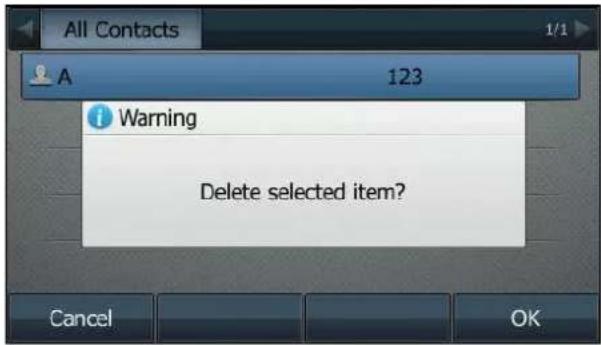
text_image
All Contacts 1/1 A 123 Warning Delete selected item? Cancel OK- Press OK to delete.
Delete All Contacts
Procedure:
- Press Directory (Dir) or navigate to Menu->Directory->Local Directory to enter the local directory.
On the SIP-T48S/T48G IP phone, tap Directory or navigate to Menu->Directory->All Contacts.
-
Enter the desired contact group.
-
Press Option, and then select Delete All.
On the SIP-T48S/T48G IP phone, tap Setting, and then tap the checkbox of Select All. Tap
Delete.
A message is displayed on the LCD screen:
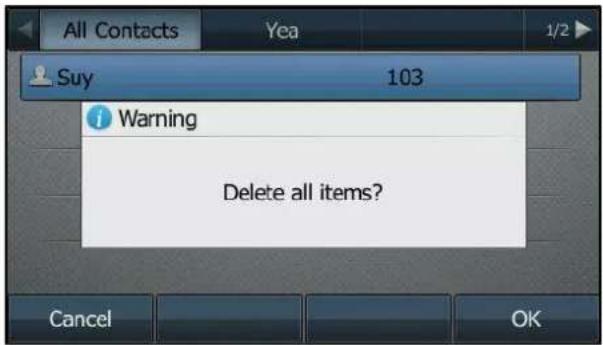
text_image
All Contacts Yea 1/2 Suy 103 Warning Delete all items? Cancel OK4. Press OK to delete.
Deleting contacts is configurable via web user interface at the path Directory->Local Directory.
Uploading Contact Photos
You can upload contact photos for the SIP-T48S/T48G/T46S/T46G IP phone.
Procedure:
- Click Directory->Local Directory.
- Click Browse, and then choose a photo file from your local system.
- Click Upload Photo to upload the photo.

text_image
Yealink | T46S Log Out English(English) Index Name Office Number Mobile Number Other Number All Contacts 1 Joy 1000 1000 1000 All Contacts 2 3 4 5 6 7 8 9 10 Page 1 Prev Next Hang Up Delete All Delete Move To All Contact Directory ? Name Office Number Mobile Number Other Number Ring Tone Auto Group All Contacts Account Auto Photo Hydrangeas.jpg Add Edit Group Setting ? Group Ring Auto Add Edit Delete Delete All Delete Photo Browse... No file selected. Upload Photo Import Local Directory File ? Browse... No file selected. Import XML Export XML Browse... No file selected. Import CSV Export CSV Show Title NOTE Local Directory The built-in phone directory can store the names and phone numbers of your contacts. You can add new groups and contacts, edit, delete or search for a contact, or simply deal a contact number from the local directory. You can import or export the contact list. You can click here to get more guides.You can click Delete Photo to delete the custom photo.
Note
The phone only supports *.png, *.jpg, *.jpeg and *.bmp files.
You can only delete custom photos.
Placing Calls to Contacts from the Local Directory
Procedure:
- Press Directory (Dir) or navigate to Menu->Directory->Local Directory to enter the local directory.
On the SIP-T48S/T48G IP phone, tap Directory or navigate to Menu->Directory->All Contacts.
- Enter the desired contact group.
If the contact is not in any group, enter the All Contacts.
- Highlight a desired contact, and then press Send.
On the SIP-T48S/T48G IP phone, tap the desired contact.
- If only one number for the contact is stored in the local directory, the contact number will be dialed out.
If multiple numbers for the contact are stored in the local directory, the LCD screen will prompt a list of numbers. Select a desired number to dial out.
Searching for Contacts
Procedure:
- Press Directory (Dir) or navigate to Menu->Directory->Local Directory to enter the local directory.
On the SIP-T48S/T48G IP phone, tap Directory or navigate to Menu->Directory->All Contacts.
-
Press Search.
-
Enter a few continuous characters of the contact name or continuous numbers of the contact number (office, mobile or other number) using the dialpad.

text_image
Search 0/1 1 A 123 Back 123 DeleteThe contacts whose name or phone number matches the entered characters will display in
the result list. You can dial from the result list directory.
Importing/Exporting Contact Lists
You can manage your phone's local directory via phone user interface or web user interface. But you can only import or export the contact list via web user interface.
Note
For the local directory files ("*.xml" and "*.csv"), contact your system administrator.
Importing an XML Contact List File
Procedure:
- Click Directory->Local Directory.
- Click Browse to choose a contact list file (the file format must be *.xml) from your local system.
- Click Import XML to import the contact list.

text_image
Yealink | T46S Log Out English(English) Index Name Office Number Mobile Other All Contacts 1 2 3 4 5 6 7 8 9 10 Page 1 Prev Next Hang Up Delete All Delete Move To All Contar Directory ? Name Office Number Mobile Number Other Number Ring Tone Auto Group All Contacts Account Auto Photo default_contact_ir Add Edit Delete AI Group Setting ? Group Ring Auto Add Edit Delete Delete AI Delete Photo Browse No file selected. Upload Photo Import Local Directory File ? Browse No file selected. Import XML Export XML Browse No file selected. Import CSV Export CSV Show Title NOTE Local Directory The button phone directory can store the names and phone numbers of your contacts. You can add new groups and contacts, edit, delete or search for a contact, or simply add a contact number from the local directory. You can import or export the contact list.The web user interface prompts "The original contact will be covered, continue?".
- Click OK.
Importing a CSV Contact List File
Procedure:
- Click Directory->Local Directory.
- Click Browse to choose a contact list file (the file format must be *.csv) from your local system.
- (Optional.) Check the Show Title checkbox.
It will prevent importing the title of the contact information which is located in the first line of the CSV file. - Click Import CSV to import the contact list.
- (Optional.) Mark the On radio box in the Del Old Contacts field.
It will delete all existing contacts while importing the contact list. - Select the contact information you want to import into the local directory from the Index field.
At least one item should be selected to be imported into the local directory.
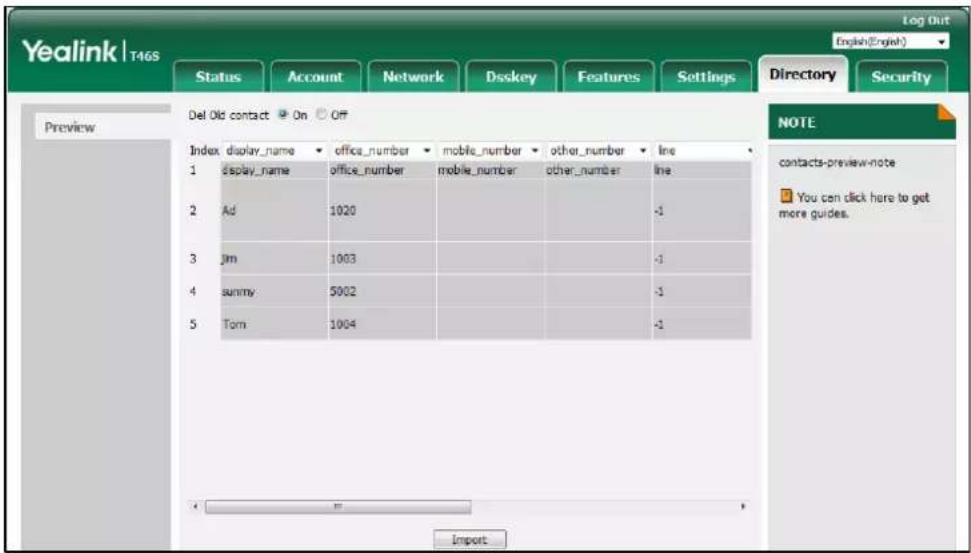
text_image
Yealink | T46S Log Out English(English) Status Account Network Dsskey Features Settings Directory Security Preview Del Old contact On Off Index display_name office_number mobile_number other_number line 1 display_name office_number mobile_number other_number line 2 Ad 1020 3 jm 1003 4 sunny 5002 5 Tom 1004 NOTE contacts-preview-note You can click here to get more guides. Import7. Click Import.
Exporting an XML/CSV Contact List
Procedure:
- Click Directory->Local Directory.
- Click Export XML (or Export CSV).
- Click Save to save the contact list to your local system.
Blacklist
You can store up to 30 contacts; add, edit, delete or search for a contact in the blacklist, and even call a contact from the blacklist. Incoming calls from the blacklist contacts will be rejected automatically.
For how to edit, delete, place calls to and/or search for contacts in the blacklist, refer to Editing Contacts, Deleting Contacts, Placing Calls to Contacts and/or Searching for Contacts.
Adding a Contact to the Blacklist Manually
Procedure:
- Navigate to Menu->Directory->Blacklist.
On the SIP-T48S/T48G IP phone, you can also tap Directory->Blacklist.
-
Press Add.
-
Enter the contact's name and the office, mobile or other numbers in the corresponding fields.

text_image
Add Blacklist 1. Name: Dja 2. Office Number: 123 3. Mobile Number: 4. Other Number: 5. Account: Auto Back 123 Delete Save- Select the desired account from the Account field.
If Auto is selected, the phone will use the default account when placing calls to the contact from the blacklist.
- Press Save.
On the SIP-T42S/T42G/T41S/T41P/T40G/T40P IP phone, press Add.
Adding a contact to the Blacklist is configurable via web user interface at the path
Directory->Local Directory.
Adding a Contact from the Local Directory
Procedure:
- Press Directory (Dir) or navigate to Menu->Directory->Local Directory to enter the local directory.
On the SIP-T48S/T48G IP phone, tap Directory or navigate to Menu->Directory->All Contacts.
- Enter the desired contact group.
If the contact is not in any group, enter the All Contacts.
- Highlight a desired contact, and then press Option.
On the SIP-T48S/T48G IP phone, tap ⓘ after the desired contact.
- Select Add to Blacklist.
On the SIP-T48S/T48G IP phone, tap Blacklist.
A message is displayed on the LCD screen:
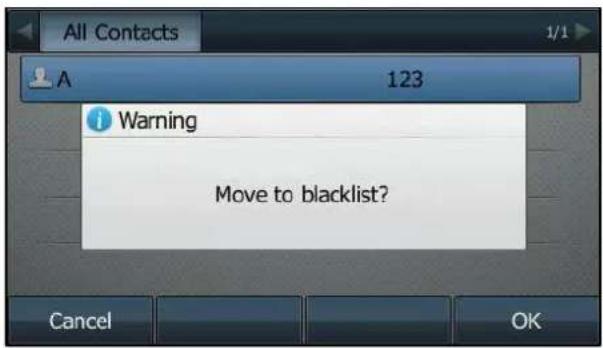
text_image
All Contacts 1/1 A 123 Warning Move to blacklist? Cancel OK- Press OK.
Adding a contact to the blacklist is configurable via web user interface at the path Directory->Local Directory.
Adding a Contact to the Local Directory
Procedure:
- Navigate to Menu->Directory->Blacklist.
On the SIP-T48S/T48G IP phone, you can also tap Directory->Blacklist.
- Highlight a desired contact, and then press Option.
On the SIP-T48S/T48G IP phone, tap ⓘ after the desired contact.
- Select Add to Contact.
On the SIP-T48S/T48G IP phone, select All Contacts from the pull-down list of Group.
A message is displayed on the LCD screen (except the SIP-T48S/T48G IP phone):
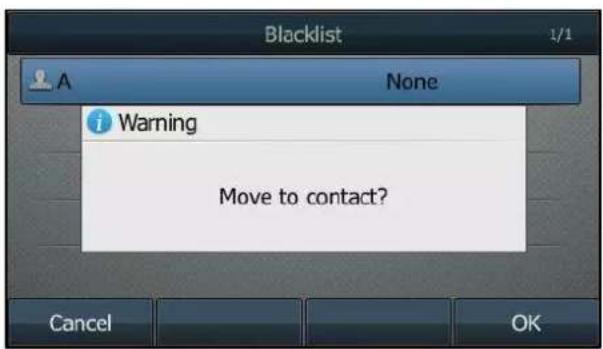
text_image
Blacklist A None Warning Move to contact? Cancel OK- Press OK.
On the SIP-T48S/T48G IP phone, tap Save.
Adding a contact to the local directory is configurable via web user interface at the path Directory->Local Directory.
Mobile Contacts
On SIP-T48S/T48G/T46S/T46G IP phone, after your Bluetooth-enabled mobile phone is paired and connected, you can temporarily synchronize mobile phone contacts. The mobile phone contacts will be imported to your IP phone under Mobile Contacts directory. You can add mobile contacts to the local directory or blacklist, but you cannot add a contact to Mobile Contacts directory on your IP phone.
For more information, refer to Syncing the Mobile Contacts to the IP Phone.
Note
If you disconnect the Bluetooth-enabled mobile phone from IP phone or disable the IP phone to sync phone contacts, the mobile contacts will not display.
Adding a Contact to the Local Directory
- Navigate to Menu->Directory->Mobile Contacts.
On the SIP-T48S/T48G IP phone, you can also tap Directory->Mobile Contacts.
- Highlight a desired contact, and then press Option.
On the SIP-T48S/T48G IP phone, tap ⓘ after the desired entry.
- Select Add to Contact.
On the SIP-T48S/T48G IP phone, tap Add.
- Edit the corresponding fields.
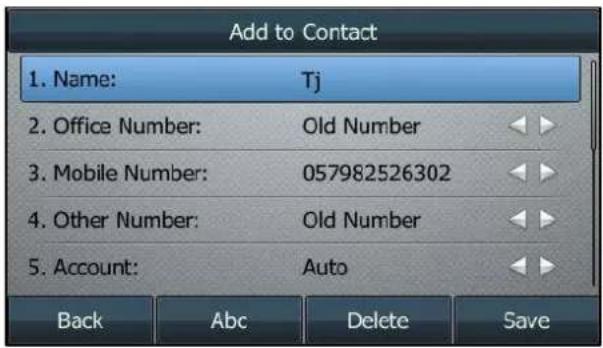
text_image
Add to Contact 1. Name: Tj 2. Office Number: Old Number 3. Mobile Number: 057982526302 4. Other Number: Old Number 5. Account: Auto Back Abc Delete Save- Press Save.
The entry is successfully saved to the local directory.
Adding a Contact to the Blacklist Directory
-
Navigate to Menu->Directory->Mobile Contacts.
-
Highlight a desired contact, and then press Option.
On the SIP-T48S/T48G IP phone, tap i after the desired entry.
3. Select Add to Blacklist.
On the SIP-T48S/T48G IP phone, tap Blacklist.
- Edit the corresponding fields.
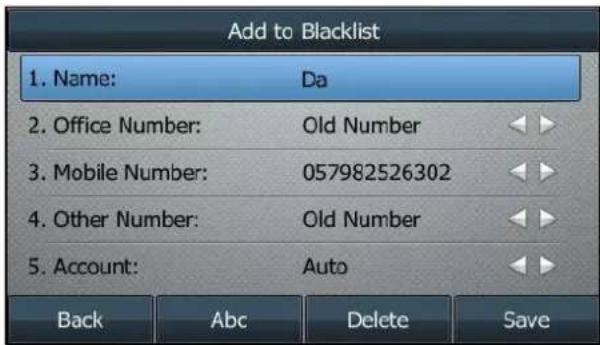
text_image
Add to Blacklist 1. Name: Da 2. Office Number: Old Number 3. Mobile Number: 057982526302 4. Other Number: Old Number 5. Account: Auto Back Abc Delete Save5. Press Save.
The entry is successfully saved to the blacklist directory.
For how to place calls to and/or search for contacts in the mobile contacts directory, refer to Placing Calls to Contacts and/or Searching for Contacts.
Note
The mobile contact that is added to the local directory or blacklist will not disappear, even after you disconnect the mobile phone from the IP phone.
Updating the Mobile Contacts Directory
- Navigate to Menu->Directory->Mobile Contacts.
- Press Option, and then select Update.
For the SIP-T48S/T48G IP phone, tap Update.
The LCD screen prompts "Updating, please wait...". Note that the IP phone should be authorized first to temporarily synchronize the contacts stored on your mobile phone.
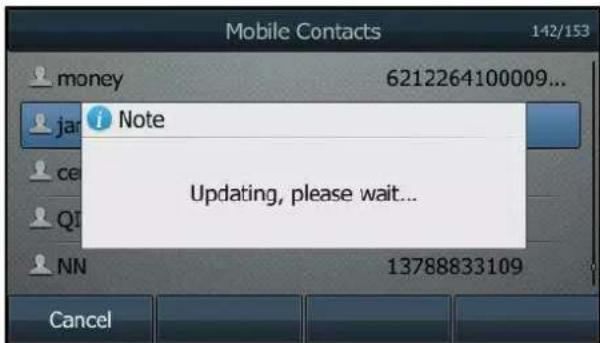
text_image
Mobile Contacts 142/153 money 6212264100009... jar i Note Updating, please wait... NN 13788833109 CancelAfter updating, the contacts you add, edit, delete on the mobile phone will sync with the Mobile Contacts directory.
Note
If you disconnect the mobile phone from IP phone when the IP phone is updating the Mobile Contacts directory, the LCD screen will prompt "Fail to download mobile contacts!", and the mobile contacts will disappear from the IP phone directory list.
Remote Phone Book
You can add contacts to the local directory, search for a contact, or simply dial a contact from the remote phone book.
You can configure your IP phone to access up to 5 remote phone books.
For how to place calls to and/or search for contacts in the remote phone book, refer to Placing Calls to Contacts and/or Searching for Contacts.
Configuring an Access URL
Procedure:
- Click Directory->Remote Phone Book.
- Enter the access URL in the Remote URL field.
- Enter the name in the Display Name field.
- Enter the desired refresh period in the Update Time Interval(Seconds) field.
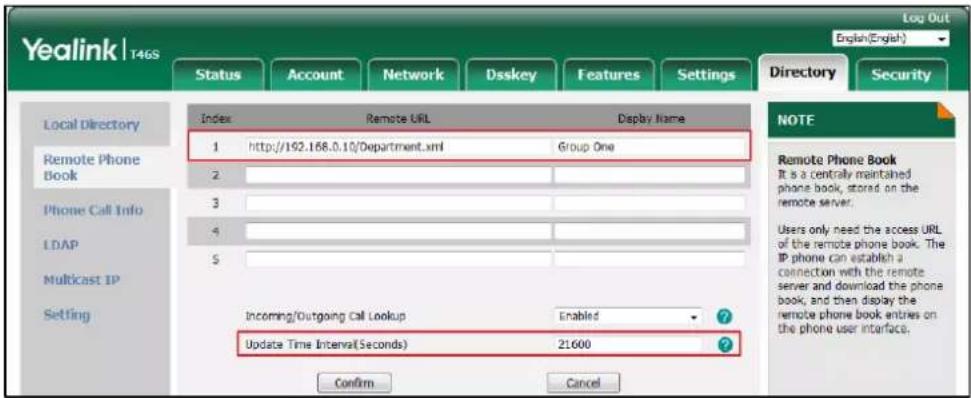
text_image
Yealink T46S Log Out English(English) Status Account Network Dsskey Features Settings Directory Security Index Remote URL Display Name 1 http://192.168.0.10/Department.xml Group One 2 3 4 5 Incoming/Outgoing Call Lookup Enabled ?? Update Time Interval(Seconds) 21600 Setting Confirm Cancel NOTE Remote Phone Book It is a centrally maintained phone book, stored on the remote server. Users only need the access URL of the remote phone book. The IP phone can establish a connection with the remote server and download the phone book, and then display the remote phone book entries on the phone user interface. Local Directory Remote Phone Book Phone Call Info LDAP Multicast IP Setting5. Click Confirm.
Note
For the access URL of the remote phone book, contact your system administrator.
For the SIP-T40P/T40G IP phone, we recommend you to download less than 3000 remote contacts from the remote server, and the size of a remote phone book file should be less than 750K.
For the T48S/T48G/T46S/T46G/T42S/T42G/T41S/T41P IP phones, we recommend you to download less than 5000 remote contacts from the remote server, and the size of a remote phone book file should be less than 1.5M.
Accessing the Remote Phone Book
After the access URL of remote phone book is configured successfully, you can obtain the contact from the remote phone book on the phone.
Procedure:
- Navigate to Menu->Directory->Remote Phone Book.
On the SIP-T48S/T48G IP phone, you can also tap Directory->Remote Phone Book.
- Select the desired remote phone book.
The phone then connects to the remote phone book and proceeds to load it. The contacts in the remote phone book are displayed on the LCD screen.

text_image
Group one 1/1 Test1 23000 Test2 303 Test3 6650 Back Search Option SendAdding a Contact to the Local Directory/Blacklist
Procedure:
- Navigate to Menu->Directory->Remote Phone Book.
On the SIP-T48S/T48G IP phone, you can also tap Directory->Remote Phone Book.
-
Select the desired remote phone book.
-
Highlight a desired contact, and then press Option.
On the SIP-T48S/T48G IP phone, tap i after the desired contact.
- Select Add to Contact (or Add to Blacklist).
On the SIP-T48S/T48G IP phone, tap Add (or Blacklist).
-
Edit the corresponding fields.
-
Press Save.
Call History Management
The IP phones maintain call history lists of Missed Calls, Placed Calls, Received Calls and Forwarded Calls.
Viewing History Records
In the Call History list, you can view a list of up to 100 missed, placed, received and forwarded call records.
Procedure:
- Press History.
The LCD screen displays all call records.
-
Select a desired list.
-
Press Option, and then select Detail.
On the SIP-T48S/T48G IP phone, tap ⓘ after the desired entry.
The detailed information of the entry appears on the LCD screen.

text_image
1 Name: 1 Number: 1 Time: Fri Apr 28 13:33:38 Line: Line 1 Duration: 00:00:00 Back Edit SendHistory records are visible via the web user interface at the path Directory->Phone Call Info.
Placing a Call from History Records
You can place a call from the history records.
Procedure:
- Press History.
The LCD screen displays all call records.
-
Select a desired list.
-
Highlight a desired entry, and then press Send.
On the SIP-T48S/T48G IP phone, tap the desired entry.
Placing a call from the history records is operable via web user interface at the path
Directory->Phone Call Info.
Adding a Contact to the Local Directory/Blacklist
From the History screen, you can save a contact to the Local Directory or to Blacklist.
Procedure:
- Press History.
The LCD screen displays all call records.
-
Select a desired list.
-
Highlight a desired entry, and then press Option.
On the SIP-T48S/T48G IP phone, tap ⓘ after the desired entry.
- Select Add to Contact (or Add to Blacklist).
On the SIP-T48S/T48G IP phone, tap Add (or Blacklist).
-
Edit the corresponding fields.
-
Press Save.
For more information on local directory and/or blacklist, refer to Local Directory and/or Blacklist.
Deleting History Records
You can delete an entry or all entries from the call history list.
Deleting an Entry from the Call History List
Procedure:
- Press History.
The LCD screen displays all call records.
-
Select a desired list.
-
Highlight a desired entry, and then press Delete.
On the SIP-T48S/T48G IP phone, tap i after the desired entry, and then tap Delete.
Deleting all Entries from the Call History List
Procedure:
- Press History.
The LCD screen displays all call records.
-
Select a desired list.
-
Press Option, and then select Delete All.
On the SIP-T48S/T48G IP phone, tap Setting, and then tap the checkbox of Select All. Tap Delete.
A message is displayed on the LCD screen:
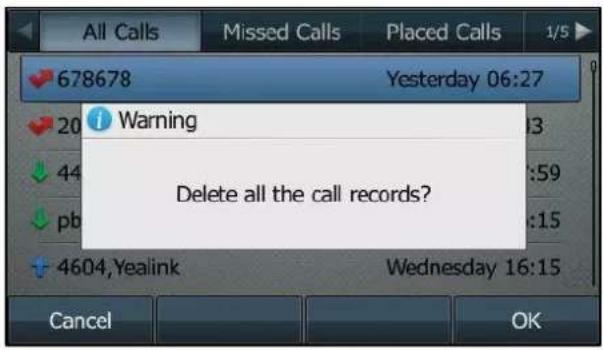
text_image
All Calls Missed Calls Placed Calls 1/5 678678 Yesterday 06:27 20 Warning Delete all the call records? 44 pb :59 :15 + 4604,Yealink Wednesday 16:15 Cancel OK- Press OK to delete.
Disabling History Record
History record feature is enabled by default, if you don't want to save the call history, you can disable the feature.
Procedure:
- Navigate to Menu->Features->Others->General.
For the SIP-T48S/T48G IP phone, navigate to Menu->Features->General.
For the SIP-T42S/T42G/T41S/T41P/T40G/T40P IP phone, navigate to
Menu->Features->History Setting.
- Select Disabled from the History Record field.
For the SIP-T48S/T48G IP phone, tap the Off radio box of the History Record field.
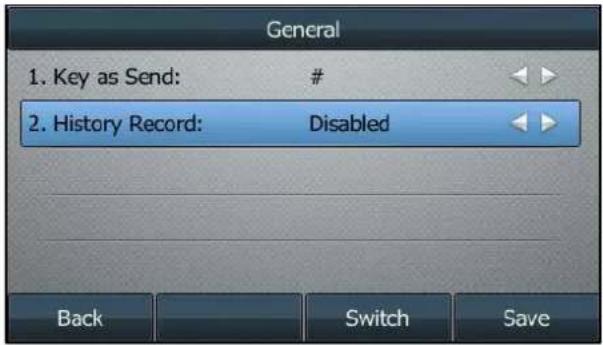
text_image
General 1. Key as Send: # 2. History Record: Disabled Back Switch Save- Press Save.
History record is configurable via web user interface at the path Features->General Information->Save Call Log.
DSS Keys
There are three types of DSS keys: Line Keys, Programmable Keys and Ext Keys. Ext Keys are only
available when the EXP40 is connected to SIP-T48S/T48G/T46S/T46G IP phone. For more information on how to configure the Ext Keys, refer to Assigning the Features for Ext Keys. Details are introduced in the following:
| Phone Model | Line Keys | Programmable Keys |
| SIP-T48S/T48G | 29 | 13 |
| SIP-T46S/T46G | 27 | 13 |
| SIP-T42S/T42G/T41S/T41P | 15 | 11 |
| SIP-T40G/T40P | 3 | 11 |
Line Keys
You can assign predefined functionalities to line keys as well as define a label for a line key. Line keys allow you to quickly access features, such as recall and voice call, and monitor a specific line when the line keys are assigned with particular features, such as BLF. The default line key type is Line or N/A (meaning that this line key provides no functionality until being configured). The line keys on SIP-T46S/T46G/T42S/T42G/T41S/T41P IP phone can be indicated on three pages.
Details are introduced in the following:
| Phone Module | Key Type | Pages Display | |||
| Line | N/A | First | Second | Third | |
| SIP-T48S/T48G | 1-16 | 17-29 | / | / | / |
| SIP-T46S/T46G | 1-16 | 17-27 | 1-9 | 10-18 | 19-27 |
| SIP-T42S/T42G | 1-12 | 13-15 | 1-5 | 6-10 | 11-15 |
| SIP-T41S/T41P | 1-6 | 7-15 | 1-5 | 6-10 | 11-15 |
| SIP-T40G/T40P | 3 | / | / | / | / |
The following figure shows an example on the SIP-T46S IP phone when assigning functionality to line keys located in line key 1-10, the labels of line keys are indicated on the first page.
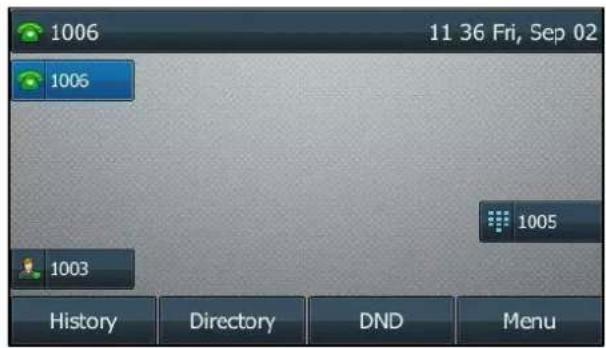
text_image
1006 11 36 Fri, Sep 02 1006 1005 1003 History Directory DND MenuThe following figure shows an example on the SIP-T46S IP phone when assigning functionality
to line keys located in line key 11-27, the label of the line key 10-18 are indicated on the second page, and the labels of the line key 19-27 are indicated on the third page.
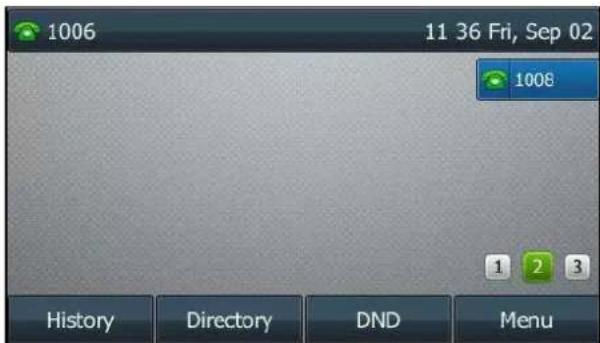
text_image
1006 11 36 Fri, Sep 02 1008 History Directory DND MenuThe line key in the right bottom is used to switch pages.
The following table lists the page icons displayed on the SIP-T46S/T46G/T42S/T42G/T41S/T41P IP phone:
| SIP-T46S/T46G | SIP-T42S/T42G/T41S/T41P | Description |
 |  | Indicates the current page of line keys. |
 |  | Indicates the non-current page of line keys. |
Configuring Line Keys
There are three ways to enter the setting screen of line keys via phone user interface:
- Navigate to Menu->Features->DSS Keys, and then select a desired line key.
• Long press/tap a desired line key on the Idle screen. - On the SIP-T48S/T48G IP phone, you can also tap More on the Idle screen, and then select a desired line key.
Line key is configurable via web user interface at the path Dsskey->Line Key.
You can configure line key to quickly access the features for more convenience. The following subchapters explain the configuration for some line keys:
- Configuring a Forward Key
- Configuring a Transfer Key
- Configuring a Call Park Key
- Configuring a Park Retrieve Key
- Configuring a Directed Pickup Key
- Configuring a Group Pickup Key
- Configuring a Voice Mail Key
Configuring a Forward Key
When the phone receives an incoming call, you can press the Forward key to forward the incoming call to the pre-defined number. When the phone is idle, the key behavior depends on the forward modes:
| Forward Modes | Key Behavior |
| Phone Mode(refer to Phone Mode) | Destination number is configured:Press the Forward key to activate/deactivate the always forward feature or switch the target among Forward keys.Destination number is blank:Press the Forward key to enter the forward setting screen or activate/deactivate the forward feature (if forward has been configured from the Call Forward menu). |
| Custom Mode(refer to Custom Mode) | Press the Forward key to enter the forward setting screen. |
Procedure:
- Navigate to Menu->Features->DSS Keys, and then select a desired line key.
- Select Key Event from the Type field.
- Select Forward (FWD) from the Key Type field.
- (Optional.) Enter the string that will display on the LCD screen in the Label field.
- (Optional.) Enter the destination number you want to forward the incoming calls to in the Value field.
- Press Save.
Note
If the Value field is left blank, the Forward key performs the same as the Forward (FWD) soft key when receiving an incoming call.
Configuring a Transfer Key
You can perform a Blind, Semi-Attended or Attended Transfer by pressing the transfer key during a call.
Procedure:
- Navigate to Menu->Features->DSS Keys, and then select a desired line key.
- Select Key Event from the Type field.
- Select Transfer (Trans) from the Key Type field.
-
(Optional.) Enter the string that will display on the LCD screen in the Label field.
-
(Optional.) Enter the destination number you want to transfer the call to in the Value field.
- Press Save.
Note
If the Value field is left blank, the Transfer key performs the same as Transfer (Trans) soft key during a call.
Configuring a Call Park Key
You can park a call directly by pressing the call park key during a call.
Procedure:
- Navigate to Menu->Features->DSS Keys, and then select a desired line key.
- Select Key Event from the Type field.
- Select Call Park from Key Type field.
- (Optional.) Select the desired line from the Account ID field.
Check with your system administrator if it is necessary. - (Optional.) Enter the string that will display on the LCD screen in the Label field.
- (Optional.) Enter the park destination number or call park code you want to park the call to in the Value field.
- Press Save.
Note
If the Value field is left blank, the Call Park key performs the same as the Park soft key during a call.
Configuring a Park Retrieve Key
You can retrieve a parked call directly by pressing the park retrieve key when the phone is idle.
Procedure:
- Navigate to Menu->Features->DSS Keys, and then select a desired line key.
- Select Retrieve Park from the Type field.
- (Optional.) Select a desired line from the Account ID field.
Check with your system administrator if it is necessary. - (Optional.) Enter the string that will display on the LCD screen in the Label field.
- (Optional.) Enter the parked call destination number or retrieve code in the Value field.
- Press Save.
Note
If the Value field is left blank, the Park Retrieve key performs the same as the Retrieve key on the dialing screen.
Configuring a Directed Pickup Key
When the specified phone number receives an incoming call, you can press the directed pickup key to answer the call on your phone.
Procedure:
- Navigate to Menu->Features->DSS Keys, and then select a desired line key.
- Select Key Event from the Type field.
- Select Pick Up from the Key Type field.
- Select a desired line from the Account ID field.
- (Optional.) Enter the string that will display on the LCD screen in the Label field.
- (Optional.) Enter an extension you want to pick up calls from in the Value field.
- Press Save.
Note
If the Value field is left blank, the Directed Pickup key performs the same as DPickup key on Dialing/Pre-dialing screen.
Configuring a Group Pickup Key
When any number in the group receives an incoming call, you can press the group pickup key to pick up the incoming call.
Procedure:
- Navigate to Menu->Features->DSS Keys, and then select a desired line key.
- Select Key Event from the Type field.
- Select Group Pick Up from the Key Type field.
- Select a desired line from the Account ID field.
- (Optional.) Enter the string that will display on the LCD screen in the Label field.
- (Optional.) Enter group call pickup code in the Value field.
- Press Save.
Note
If the Value field is left blank, the Group Pickup key performs the same as GPickup key on Dialing/Pre-dialing screen.
Configuring a Voice Mail Key
When you receive a voice mail, you can press the voice mail key to quickly connect voice mail for specific line.
Procedure:
- Navigate to Menu->Features->DSS Keys, and then select a desired line key.
- Select Key Event from the Type field.
- Select Voice Mail from the Key Type field.
- Select a desired line from the Account ID field.
- (Optional.) Enter the string that will display on the LCD screen in the Label field.
- (Optional.) Enter voice mail code in the Value field.
- Press Save.
Configuring Multiple Line Keys per Account
You can configure multiple line keys to associate with an account, which enhances call visualization and simplifies call handling. To use this feature, you need to enable Auto LineKeys feature in advanced.

text_image
1046 13 47 Tue, May 02 1045 1045 History Directory DND MenuIncoming calls as well as outgoing calls to/from this account will be distributed evenly among the available line keys.
Your phone can be configured to have a combination of accounts with a single line key and accounts with multiple line keys.
Configuring the Auto Linekeys
Procedure:
- Click Features->General Information.
- Select Enabled from the pull-down list of Auto LineKeys.
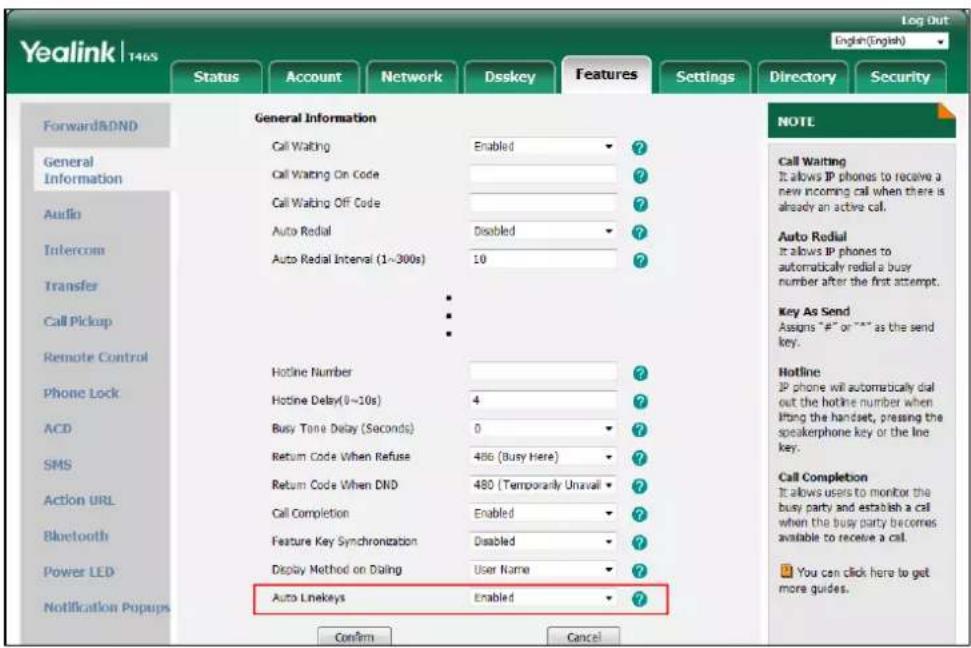
text_image
Yealink | 146S Log Out English(English) Forward&DND General Information General Information Audio Intercom Transfer Call Pickup Remote Control Phone Lock ACD SMS Action URL Bluetooth Power LED Notification Popups General Information Call Waiting Enabled ? Call Waiting On Code ? Call Waiting Off Code ? Auto Redial Disabled ? Auto Redial Interval (1~300s) 10 ? Hotline Number ? Hotline Delay(0~10s) 4 ? Busy Tone Delay (Seconds) 0 ? Return Code When Refuse 486 (Busy Here) ? Return Code When DND 480 (Temporarily Unavail) ? Call Completion Enabled ? Feature Key Synchronization Disabled ? Display Method on Dialing User Name ? Auto Linekeys Enabled ? NOTE Call Waiting It allows IP phones to receive a new incoming call when there is already an active call. Auto Redial It allows IP phones to automatically redial a busy number after the first attempt. Key As Send Assigns "#" or "^" as the send key. Hotline IP phone will automatically dial out the hotline number when lifting the handset, pressing the speakerphone key or the line key. Call Completion It allows users to monitor the busy party and establish a call when the busy party becomes available to receive a call. You can click here to get more guides. Confirm Cancel3. Click Confirm.
Configuring the Number of Line Key
If Auto LineKeys is enabled, you can automatically assign multiple DSS keys with Line type for a registered line on the phone.
Procedure:
- Navigate to Account->Advanced.
- Enter the desired number in the Number of line key field.
This field appears only if Auto Linekeys is enabled.
In this example, the value is set to 2.
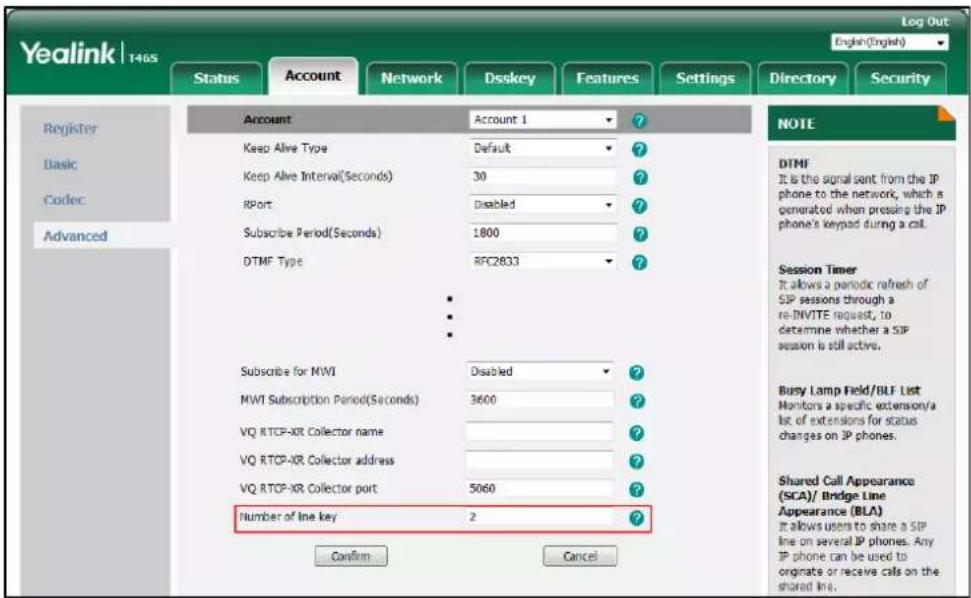
text_image
Yealink | 140S Log Out English(English) Status Account Network Dsskey Features Settings Directory Security Register Basic Codec Advanced Account Account 1 Keep Alive Type Default Keep Alive Interval(Seconds) 30 RPort Disabled Subscribe Period(Seconds) 1800 DTMF Type RFC2833 Subscribe for MWI Disabled MWI Subscription Period(Seconds) 3600 VQ RTCP-XR Collector name VQ RTCP-XR Collector address VQ RTCP-XR Collector port 5060 Number of line key 2 Confirm Cancel NOTE DTMF It is the signal sent from the IP phone to the network, which is generated when pressing the IP phone's keypad during a call. Session Timer It allows a periodic refresh of SIP sessions through a re-INVITE request, to determine whether a SIP session is still active. Busy Lamp Field/BLF List Monitors a specific extension/a list of extensions for status changes on IP phones. Shared Call Appearance (SCA)/ Bridge Line Appearance (BLA) It allows users to share a SIP line on several IP phones. Any IP phone can be used to originate or receive calls on the shared line.3. Click Confirm.
Configuring the Label Length
For the SIP-T48S/T48G/T46S/T46G IP phones, you can specify labels for some key features, which will be displayed on the Idle screen. If the length of the label exceeds the maximum display length, the phone will only display the first few characters. You can configure the phone to display more characters via label length feature if necessary.
The following figure shows an example of label display when the label length feature is set to Extended:
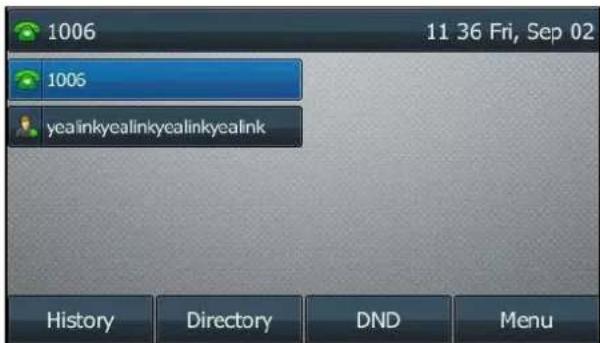
text_image
1006 11 36 Fri, Sep 02 1006 yealinkyealinkyealinkyealink History Directory DND期間 MenuSIP-T46S/T46G

text_image
1025 1025 224.5.6.20:10 008 08 48 Mon, Sep 05 + More History Directory DND MenuSIP-T48S/T48G
The following figure shows an example of label display when the label length feature is set to Mid-range (not available for the SIP-T48S/T48G IP phone):
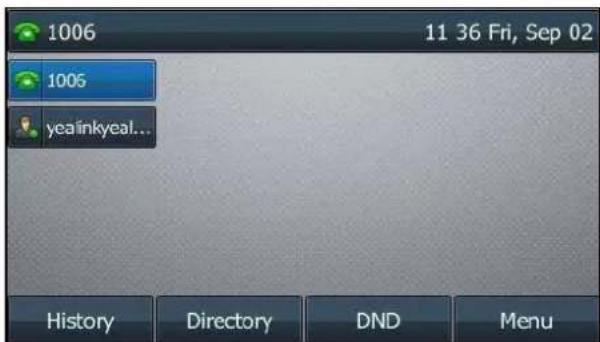
text_image
1006 11 36 Fri, Sep 02 1006 yea link year... History Directory DND MenuSIP-T46S/T46G
The following figure shows an example of label display when the label length feature is set to Default:

text_image
1006 11 36 Fri, Sep 02 1006 yealink... History Directory DND MenuSIP-T46S/T46G
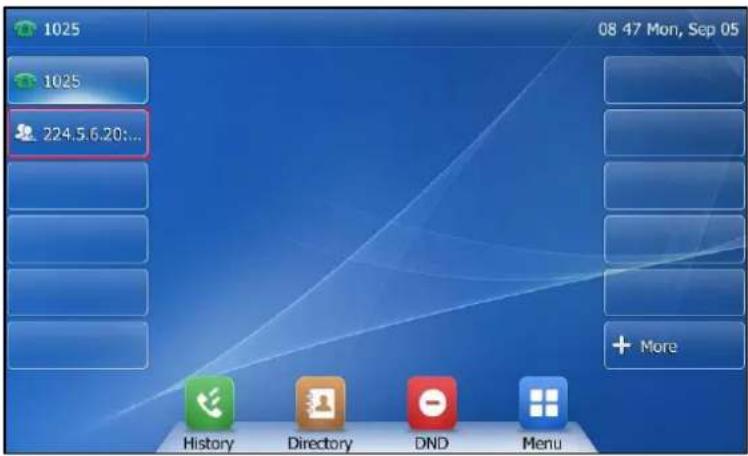
text_image
1025 1025 224.5.6.20:... 08 47 Mon, Sep 05 + More History Directory DND MenuSIP-T48S/T48G
Procedure:
- Click Dsskey->Line Key.
- Select the desired value from the Label Length field.
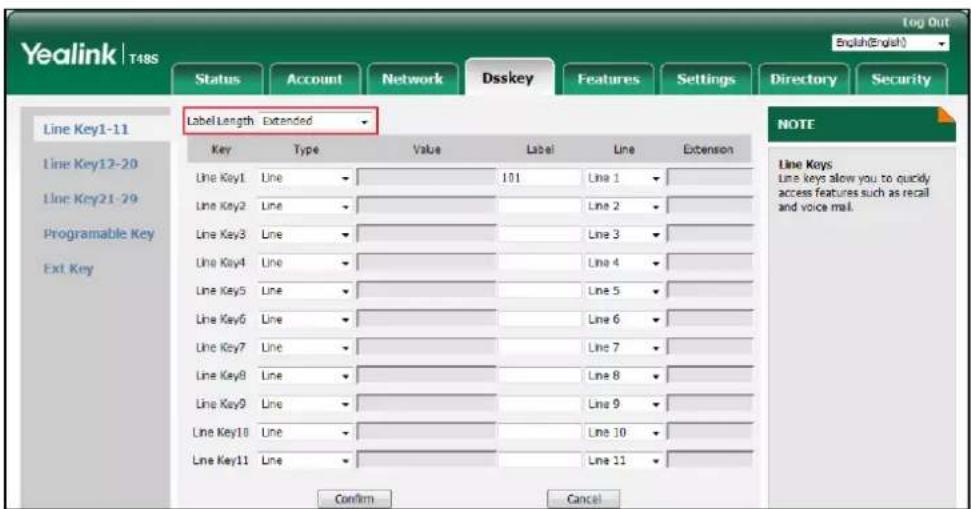
text_image
Yealink T48S Log Out English(English) Status Account Network Dsskey Features Settings Directory Security Line Key1-11 Line Key12-20 Line Key21-29 Programable Key Ext Key Label Length Extended Key Type Value Label Line Extension Line Key1 Line 101 Line 1 Line Key2 Line Line 2 Line Key3 Line Line 3 Line Key4 Line Line 4 Line Key5 Line Line 5 Line Key6 Line Line 6 Line Key7 Line Line 7 Line Key8 Line Line 8 Line Key9 Line Line 9 Line Key10 Line Line 10 Line Key11 Line Line 11 Confirm Cancel NOTE Line Keys Line keys allow you to quickly access features such as recall and voice mail.3. Click Confirm.
Configuring the Page Tips
You can use page tips feature to enable the page icon and page switch key LED to indicate different statuses on SIP-T46G/T46S/T42G/T42S/T41P/T41S IP phone. This feature is disabled by default.
The following table lists the page icons to indicate different statuses:
| Phone Models | Icons | Description |
| SIP-T46G/T46S | [SW6A] | Fast-flashing: the BLF monitored user receives an incoming call on the non-current page.Solid: there is a parked call to the line on the non-current page. |
| [CO23] | Fast-flashing: the line receives an incoming call on the non-current page. | |
| SIP-T42G/T42S/T41P/T41S | [DAYS] | Fast-flashing:The BLF monitored user receives an incoming call on the non-current page.The line receives an incoming call on the non-current page.Solid:There is a parked call on the non-current page. |
For more information on the page switch key LED status, refer to LED Instructions.
Procedure:
- Click Dsskey->Line Key.
- Select Enabled from the pull-down list of Enable Page Tips.
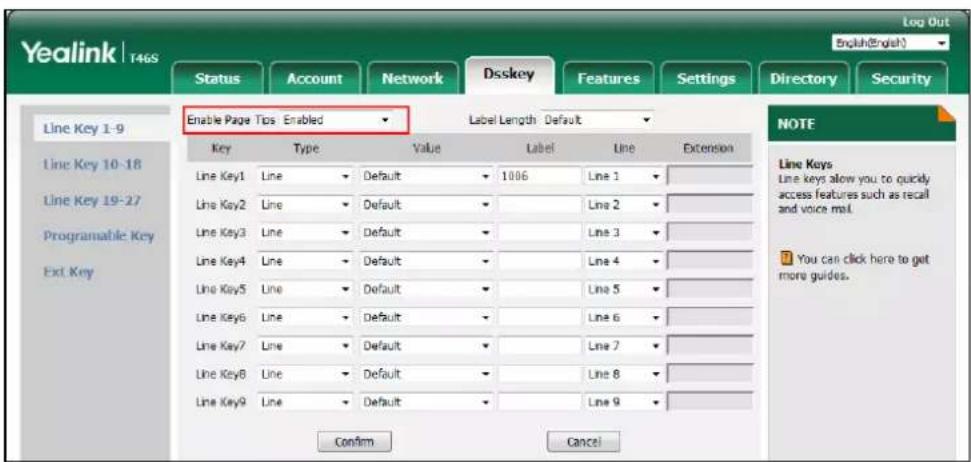
text_image
Yealink T46S Log Out English(English) Status Account Network Dsskey Features Settings Directory Security Enable Page Tips Enabled Label Length Default Key Type Value Label Line Extension Line Key1 Line Default 1006 Line 1 Line Key2 Line Default Line 2 Line Key3 Line Default Line 3 Line Key4 Line Default Line 4 Line Key5 Line Default Line 5 Line Key6 Line Default Line 6 Line Key7 Line Default Line 7 Line Key8 Line Default Line 8 Line Key9 Line Default Line 9 Confirm Cancel NOTE Line Keys Line keys allow you to quickly access features such as recall and voice mail. You can click here to get more guides.- Click Confirm to accept the change.
Programmable Keys
You can customize the soft keys, navigation keys and function keys.
Customizing the Soft Keys
You can customize the soft keys displayed on the Idle screen via phone user interface for the SIP-T42S/T42G/T41S/T41P/T40G/T40P IP phone.
Procedure:
- Navigate to Menu->Settings->Advanced Settings (default password: admin) ->Softkey Label.
- Select the desired soft key, and then press Enter.
- Select the desired key type from the Type field.
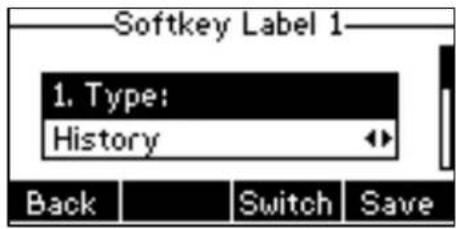
text_image
Softkey Label 1 1. Type: History Back Switch Save- (Optional.) Select the desired line from the Account ID field.
- (Optional.) Enter the string that will display on the LCD screen in the Label field.
- (Optional.) Enter the corresponding value in the Value field.
- Press Save.
Customizing the Programmable Keys
Procedure:
-
Click Dsskey->Programable Key.
-
Customize specific features for these keys.

text_image
Yealink | T465 Log Out English Status Account Network Dsskey Features Settings Directory Security Line Key1-9 Line Key10-18 Line Key19-27 Programmable Key Ext Key Key Way Type Line Value Label Extension SoftKey 1 History ▼ Local History ▼ SoftKey 2 Directory ▼ H/A ▼ SoftKey 3 DND ▼ H/A ▼ SoftKey 4 Menu ▼ H/A ▼ Up History ▼ Local History ▼ Down Directory ▼ H/A ▼ Left Switch Account ▼ H/A ▼ Right Switch Account ▼ H/A ▼ OK Status ▼ H/A ▼ Cancel N/A ▼ H/A ▼ HOLD N/A ▼ H/A ▼ MUTE N/A ▼ H/A ▼ TRAN Forward ▼ H/A ▼ Confirm Cancel Reset To Default NOTE Programmable Keys Customizes the soft keys, navigation keys and function keys. You can click here to get more guides.- (Optional.) Enter the string that will display on the LCD screen in the Label field.
Label is configurable only when customizing SoftKey (1-4).
- Click Confirm.
Note
The MUTE key cannot be customized when keep mute feature is enabled. For more information, contact your system administrator.
You can click Reset To Default to reset custom settings to defaults.
Then you can press the keys on the phone to perform the features you configured.
For example:
Switch Account Up
You can use this key feature to change the default account.
Dependencies: Type (Switch Account Up)
Usage: Press the Switch Account Up key to scroll up the account list to select the desired default account.
Switch Account Down
You can use this key feature to change the default account.
Dependencies: Type (Switch Account Down)
Usage: Press the Switch Account Down key to scroll down the account list to select the desired default account.
Dial Plan
Dial plan is a string of characters that governs the way your IP phone processes the inputs received from your phone dialpad.
Yealink IP phones support the following dial plan features:
- Configuring the Replace Rule
- Configuring the Dial Now
- Configuring the Area Code
- Configuring the Block Out
The basic expression syntax you need to know:
| . | The dot "." can be used as a placeholder or multiple placeholders for any character. Example:"12." would match "123", "1234", "12345", "12abc", etc. |
| x | An "x" can be used as a placeholder for any character. Example:"12x" would match "121", "122", "123", "12a", etc. |
| - | Numeric ranges are allowed within the brackets: Digit "-" Digit. Example:"[5-7]" would match the number "5", "6" or "7". |
| [] | The square brackets "[]" can be used as a placeholder for a single character which matches any of a set of characters. Example:"91[5-7]1234" would match "9151234", "9161234", "9171234". |
| () | The parentheses "( )" can be used to group together patterns, for instance, to logically combine two or more patterns. Example:"([1-9])([2-7])3" would match "923", "153", "773", etc. |
| The "" should be followed by the sequence number of a parenthesis. The "" plus the sequence number means the whole character or characters placed in the parenthesis. The number directs to the right parenthesis when there are more than one. Example:A replace rule configuration, Prefix: "001(xxx)45(xx)", Replace: "90011452".When you dial out "0012354599" on your phone, the IP phone will replace the number with "90012354599". "1" means 3 digits in the first parenthesis, that is, "235". "$2" means 2 digits in the second parenthesis, that is, "99". |
Note
The IP phone supports a new dial plan mechanism - digit map. Digit maps are defined by a single string or a list of strings. If a number you dial matches any string of a digit map, the call is automatically placed.
Note that if digit map feature is enabled, the old dial plan rules (described in this chapter) will be ignored. For more information, contact your system administrator.
Configuring the Replace Rule
Configuring a replace rule can speed up the pace of dialing out a long number. You can configure up to 100 replace rules, a pattern(s) with wildcards (refer to the expression syntax in the table above), so that any string that matches the pattern(s) will be replaced. For example, a replace rule is configured as "prefix: 1" and "replace: 1234", when you try to dial out the number "1234", you just need to enter "1" on the phone and then press the Send soft key.
Adding a Replace Rule
Procedure:
-
Click Settings->Dial Plan->Replace Rule.
-
Enter the string (for example, 1) in the Prefix field.
-
Enter the string (for example, 1234) in the Replace field.
-
Enter the desired line ID in the Account field or leave it blank.
The valid values for the Account field can be one or more digits, and every two digits must be separated by a comma. For example, when you enter the value "1, 2" in the Account field, this replace rule will apply to account 1 and account 2. If you leave the Account field blank or enter 0, the replace rule will apply to all accounts. For more information on available accounts of each phone, refer to Registration.

text_image
Yealink T466 Log Out English(English) Status Account Network Dsskey Features Settings Directory Security Preference Replace Rule Dial Now Area Code Block Out Time & Date Index Prefix Replace Account Call Display 1 Upgrade 2 Auto Provision 3 Configuration 4 Dial Plan 5 Voice 6 Ring 7 Tones 8 Softkey Layout 9 TR069 10 Prefix: 1 Replace 1234 Account Add Edit Del NOTE Replace Rule:An alternative string that replaces the entered numbers. Dial now:Automatically dial out the entered numbers. Area Code:Automatically add the area code before the numbers when dialing. Block Out:It prevents users from dialing out specific numbers. *Represents any string. *X"represents any character. *Tmatch a range of characters within the brackets. *ta separator within the bracket. *II"ta character matches any of character sets. *O"combines two or more patterns. *s"followed by the sequence number of a parenthesis means the characters placed in the parenthesis.- Click Add to add the replace rule.
Editing a Replace Rule
Procedure:
-
Click Settings->Dial Plan->Replace Rule.
-
Select the desired replace rule by checking the checkbox.
-
Edit the values in the Prefix and Replace fields.
-
Enter the desired line ID in the Account field or leave it blank.
- Click Edit to accept the change.
Deleting a Replace Rule
Procedure:
- Click Settings->Dial Plan->Replace Rule.
- Select one or more replace rules by checking the checkbox(es).
- Click Del to delete the replace rule(s).
Configuring the Dial Now
You can configure up to 100 dial now rules on your phone. When the dialed number matches the dial now string, the number will be dialed out automatically. For example, a dial now rule is configured as "2xx", any entered three-digit string beginning with 2 will then be dialed out automatically on the phone.
Adding a Dial Now Rule
Procedure:
- Click Settings->Dial Plan->Dial Now.
- Enter the desired value (for example, 2xx) in the Rule field.
- Enter the desired line ID in the Account field or leave it blank.
The valid values for the Account field can be one or more digits, and every two digits must be separated by a comma. For example, when you enter the value "1, 2" in the Account field, this replace rule will apply to account 1 and account 2. If you leave the Account field blank or enter 0, the replace rule will apply to all accounts. For more information on available accounts of each phone, refer to Registration.

text_image
Yealink | T466 Log Out English(English) Status Account Network Dsskey Features Settings Directory Security Preference Replace Rule Dial Now Area Code Block Out Time & Date Index Dial Now Rule Account Call Display 1 Upgrade 2 Auto Provision 3 Configuration 4 Dial Plan 5 Voice 6 Ring 7 Tones 8 Softkey Layout Rule 203 Account TR069 Add Edit Del NOTE Replace Rules:An alternative string that replaces the entered numbers. Dial now:Automatically dial out the entered numbers. Area Codes:Automatically add the area code before the numbers when dialing. Block Out:It prevents users from dialing out specific numbers. "Represents any string." "Reopresents any character." "Match a range of characters within the brackets. "a separator within the bracket." "I"a character matches any of character sets. "0":combines two or more patterns. "s"followed by the sequence number of a parenthesis means the characters placed in the parenthesis.- Click Add to add the dial now rule.
Note
You can also edit or delete the dial now rule, refer to Editing a Replace Rule or Deleting a Replace Rule for more information.
Configuring Time Out for Dial Now Rule
You can configure the delay time for dial now rules. That is, if the entered number matches a dial now rule, the phone will automatically dial out the phone number after designated delay time.
Procedure:
-
Click Features->General Information.
-
Enter the time between 0 and 14 (seconds) in the Time Out for Dial Now Rule field.
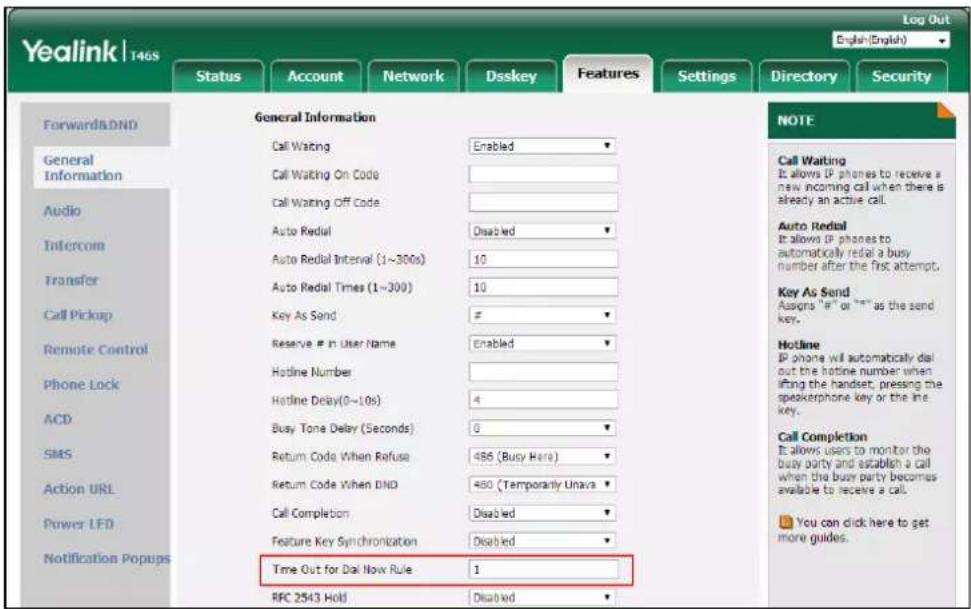
text_image
Yealink | 146S Log Out English(English) Forward&DND General Information General Information Audio Intercom Transfer Call Pickup Remote Control Phone Lock ACD SMS Action URL Power LED Notification Popups Status Account Network Dsskey Features Settings Directory Security General Information Call Waiting Enabled Call Waiting On Code Auto Redial Disabled Auto Redial Interval (1~300s) 10 Auto Redial Times (1~300) 10 Key As Send # Reserve # in User Name Enabled Hotline Number 4 Hotline Delay(0~10s) Busy Tone Delay (Seconds) 0 Return Code When Refuse 486 (Busy Here) Return Code When DND 480 (Temporarily Unava) Call Completion Disabled Feature Key Synchronization Disabled Time Out for Dial Now Rule 1 RFC 2543 Hold Disabled NOTE Call Waiting It allows IP phones to receive a new incoming call when there is already an active call. Auto Redial It allows IP phones to automatically redial a busy number after the first attempt. Key As Send Assigns "#" or "##" as the send key. Hotline IP phone will automatically dial out the hotline number when lifting the handset, pressing the speakerphone key or the line key. Call Completion It allows users to monitor the busy party and establish a call when the busy party becomes available to receive a call. You can click here to get more guides.- Click Confirm.
Configuring the Area Code
Area codes are also known as Numbering Plan Areas (NPAs) which are encoded numerically with a phone number prefix, allowing you to dial a phone number which does not belong to your plan area. For example, an area code is configured as "Code: 0592, Min Length: 1, Max Length: 15". When you dial out the number "56789" (the length of the number should be between 1 and 15), the phone will add the area code and dial out the number "059256789". You can only configure one area code rule on your phone.
Procedure:
- Click Settings->Dial Plan->Area Code.
- Enter the desired values in the Code, Min Length (1-15) and Max Length (1-15) fields.
- Enter the desired line ID in the Account field or leave it blank.
The valid values for the Account field can be one or more digits. Every two digits must be separated by a comma. For example, when you enter the value "1, 2" in the Account field, this replace rule will apply to account 1 and account 2. If you leave the Account field blank or enter 0, the replace rule will apply to all accounts. For more information on available accounts of each phone, refer to Registration.
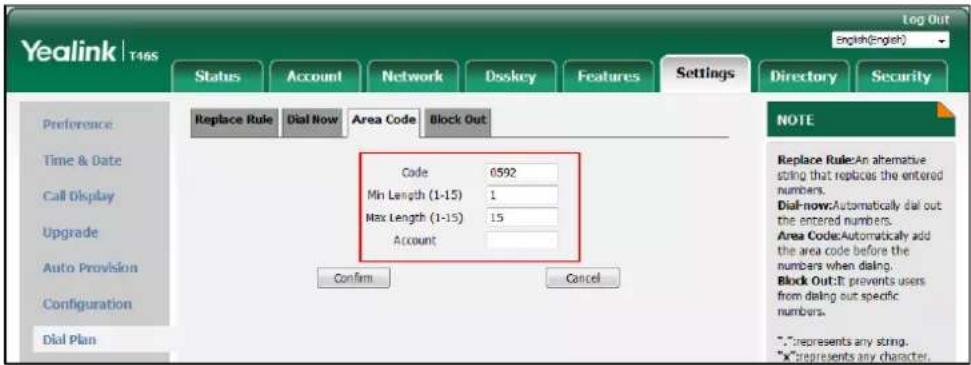
text_image
Yealink T46S Log Out English(English) Status Account Network Dsskey Features Settings Directory Security Preference Time & Date Call Display Upgrade Auto Provision Configuration Dial Plan Replace Rule Dial Now Area Code Block Out Code 0592 Min Length (1-15) 1 Max Length (1-15) 15 Account Confirm Cancel NOTE Replace Rule:An alternative string that replaces the entered numbers. Dial-now:Automatically dial out the entered numbers. Area Code:Automatically add the area code before the numbers when dialing. Block Out:It prevents users from dialing out specific numbers. * * represents any string. *x * represents any character.4. Click Confirm.
Configuring the Block Out
You can block up to 10 numbers from being dialed out from your phone. The dialing attempts of these 10 numbers will fail and the LCD screen will prompt "Forbidden Number".
Procedure:
- Click Settings->Dial Plan->Block Out.
- Enter the desired value in the BlockOut NumberX field.
- Enter the desired line ID in the Account field or leave it blank.
The valid values for the Account field can be one or more digits. Every two digits must be separated by a comma. For example, when you enter the value "1, 2" in the Account field, this replace rule will apply to account 1 and account 2. If you leave the Account field blank or enter 0, the replace rule will apply to all accounts. For more information on available accounts of each phone, refer to Registration.
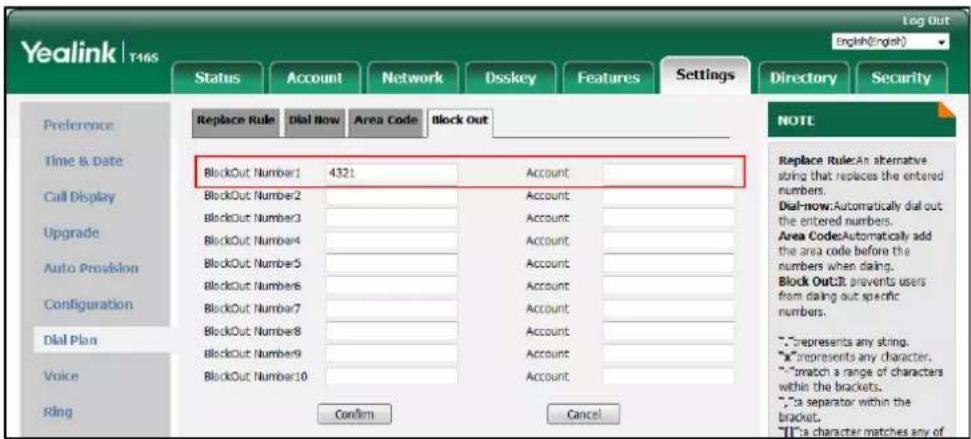
text_image
Yealink T46S Log Out English(English) Status Account Network Dsskey Features Settings Directory Security Preference Replace Rule Dial Now Area Code Block Out Time & Date Call Display Upgrade Auto Provision Configuration Dial Plan Voice BlockOut Number1 4321 Account BlockOut Number2 Account BlockOut Number3 Account BlockOut Number4 Account BlockOut Number5 Account BlockOut Number6 Account BlockOut Number7 Account BlockOut Number8 Account BlockOut Number9 Account BlockOut Number10 Account Confirm Cancel NOTE Replace Rule:An alternative string that replaces the entered numbers. Dial-now:Automatically dial out the entered numbers. Area Codes:Automatically add the area code before the numbers when doing. Block Out:It prevents users from doing out specific numbers. *Represents any string. *Xrepresents any character. *Tmatch a range of characters within the brackets. *ta separator within the bracket. *TTa character matches any of- Click Confirm to add the block out number.
Basic Call Features
The Yealink IP phone is as easy to use as a traditional fixed phone on a public switched telephone network (PSTN), which enables you to place/answer/transfer a call, create a conference call, etc.
This chapter provides basic operating instructions for the IP phones. Topics include:
- Switching among the Handset, Speakerphone and Headset Mode
- Placing Call
- Answering Calls
- Ending Calls
- Auto Redial
- Call Completion
- Call Mute
- Call Hold/Resume
- Do Not Disturb (DND)
- Call Forward
- Call Transfer
- Conference
- Call Park/Retrieve
- Call Pickup
- Anonymous Call
- Anonymous Call Rejection
Contact your system administrator for assistance or more information.
Switching among the Handset, Speakerphone and Headset Modes
You can place and answer calls on your phone in one of the following three ways:
- Pick up the handset to be in the handset mode.
- Press the Speakerphone key to be in the speakerphone mode. The key LED glows green except on SIP-T40G/T40P IP phone.
- Press the HEADSET key to be in the headset mode. The key LED glows green except on SIP-T40G/T40P IP phone.
You can select a desired mode before or after you dialing a number. Meanwhile, during a call
you can switch among Speakerphone modes by pressing the speakerphone key, Handset modes by pressing the HEADSET key or Handset mode by picking up the handset.
Note
If you prefer to place or answer the call in headset mode, refer to Enabling the Headset Prior.
Placing Calls
You can place calls in numerous ways, including placing multiple calls, placing a call using a speed dial key, placing a call from the recent calls/search source list, placing a call back to the last incoming call, dialing the hotline number or redialing numbers. You can also dial an entry/contact from local directory, remote phone book or call history. For more information, refer to Contact Management and Call History Management.
Placing a Call
Procedure:
-
Do one of the following:
-
Pick up the handset.
- Press the Speakerphone key.
-
Press the HEADSET key.
-
Enter a number.

text_image
1046 1046 1 Suy 103 1025 Send 123 Delete LineYou can also select a desired contact from the search list, or select a contact from the placed call list or Directory before you enter the number. On the SIP-T48S/T48G IP phone, you can select a desired contact from the left sidebar, or select a contact from the Directory or History.
- Press the OK key, # key or Send.
The # key is configured as a send key by default. You can also set the * key as the send key, or set neither. For more information, refer to Configuring Key As Send.
If live dialpad feature is enabled, the IP phone will automatically dial the number after a period of time without pressing the send key. Check with your system administrator to find out if this
feature is enabled on your phone.
Note
You can also dial the SIP URI (for example: 3606@sip.com) or IP address (for example, 192.168.1.15, 192*168*1*15) directly with the maximum length of 32 characters. To obtain the IP address of your phone, press the OK key when the phone is idle. Check with your system administrator to find out if this feature is enabled on your phone.
Placing Multiple Calls
The IP phones can handle up to 50 calls at one time, while only one active call can be in progress and the others on hold.
Procedure:
-
Do one of the following:
-
Press the line key. The active call is placed on hold.
-
Press the HOLD key or Hold to place the original call on hold.
-
Press New Call (NewCall).
-
Enter the desired number.
You can also select a desired contact from the search list, or select a contact from the placed call list or Directory before you enter the number. On the SIP-T48S/T48G IP phone, you can select a desired contact from the left sidebar, or select a contact from the Directory or History.
- Press the OK key, # key or Send.
You can select the desired call, and then press Resume to retrieve it.
Note
If multiple accounts are registered on the phone, you can first press the desired line key on the Idle screen or select the desired line from the dialing/pre-dialing screen, and then you can use the selected account to place a call.
Placing a Call Using a Speed Dial Key
You can configure a speed dial key to quickly dial a number which is used frequently or hard to remember.
Procedure:
-
Navigate to Menu->Features->DSS Keys.
-
Select a desired line key.
-
Select SpeedDial from the Type field.
-
Select a desired line from the Account ID field.
-
(Optional.) Enter the string that will display on the LCD screen in the Label field.
-
Enter the desired number you want to dial directly in the Value field.
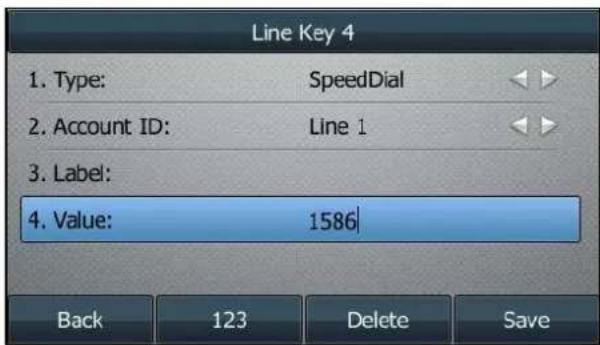
text_image
Line Key 4 1. Type: SpeedDial 2. Account ID: Line 1 3. Label: 4. Value: 1586 Back 123 Delete Save7. Press Save.
Speed dial key is configurable via web user interface at the path Dsskey->Line key.
Placing a Call from the Recent Calls/Search Source List
You can place calls from the recent calls list or search source list, which has calls that were recently placed, answered, or missed on your phone.
Note
Your system administrator can configure the source list for searching and disable to display the placed call records. Check with your system administrator to find out if they are available on your phone.
Procedure:
- Pick up the handset, press Speakerphone key or the line key.
The LCD screen displays the placed calls list.
- Enter a few continuous characters of the contact name or continuous numbers of the contact number (office, mobile or other number) to search for a desired contact.

text_image
1046 1046 1 Suy 103 1029 1025 Send 123 Delete Line- Select a desired contact to dial out.
Placing a Call Back to the Last Incoming Call
You can configure a Recall key to place a call back to the last incoming call quickly.
Procedure:
-
Navigate to Menu->Features->DSS Keys.
-
Select a desired line key.
-
Select Key Event from the Type field.
-
Select ReCall from the Key Type field.
-
(Optional.) Enter the string that will display on the LCD screen in the Label field.
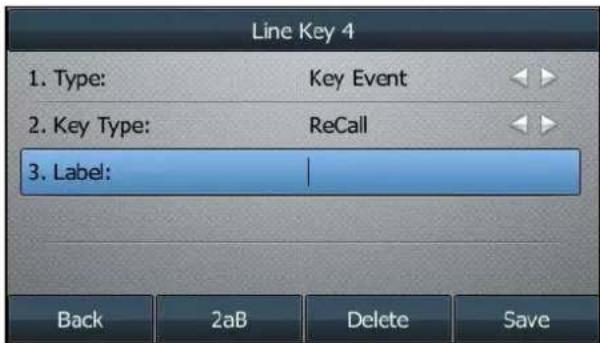
text_image
Line Key 4 1. Type: Key Event 2. Key Type: ReCall 3. Label: Back 2aB Delete Save- Press Save.
Recall key is configurable via web user interface at the path Dsskey->Line key.
Dialing the Hotline Number
You can configure the hot line feature with a hotline number and hotline delay. Then the IP phone will dial out the hotline number automatically after the delay time when you lift the handset, press the Speakerphone key or the line key.
Procedure:
- Navigate to Menu->Features->Others->Hot Line.
On the SIP-T48S/T48G/T42S/T42G/T41S/T41P/T40G/T40P IP phone, navigate to
Menu->Features->Hot Line.
-
Enter the desired number in the Hotline Number field.
-
Enter the desired delay time between 0 and 10 (seconds) in the Hotline Delay field.

text_image
Hot Line 1. Hotline Number: 1234 2. Hotline Delay: 4 Back 123 Delete Save- Press Save.
Hotline is configurable via web user interface at the path Features->General Information.
Redialing Numbers
The phone can keep a record of all the placed calls.
You can redial the last contact you call from your phone.
Procedure:
- Press the REDIAL key twice.
A call to your last dialed number is attempted.
You can also redial your most recently called contacts.
Procedure:
-
Press the REDIAL key when the phone is idle.
-
Select the desired entry from the placed calls list to dial out.
Answering Calls
When you receive an incoming call on your phone, you can choose to answer it in various ways. You can answer a call or multiple calls, or answer calls automatically.
Note
You can reject incoming calls by pressing the Cancel key or the Reject soft key. You can also activate the Do Not Disturb mode to directly reject the incoming calls without ringing on your phone. For more information, refer to Do Not Disturb (DND).
You can forward incoming calls to someone else by pressing the Forward soft key. For more information, refer to Call Forward.
Answering When Not in Another Call
Procedure:
Do one of the following:
- Pick up the handset.
- Press the Speakerphone key. The key LED glows green except on SIP-T40G/T40P IP phone. With the handset on-hook and headset mode deactivated, you can press Answer or the line key on which receives an incoming call.
Press the HEADSET key. The key LED glows green except on SIP-T40G/T40P IP phone. With the headset mode activated, you can press Answer or the line key on which receives an incoming call.
Note
Your system administrator can disable you to answer a call by picking up the handset, pressing the Speakerphone key or HEADSET key.
Answering When in Another Call
If you are in an active call and an incoming call arrives on the same or a different line, the incoming call information is displayed on the LCD screen.
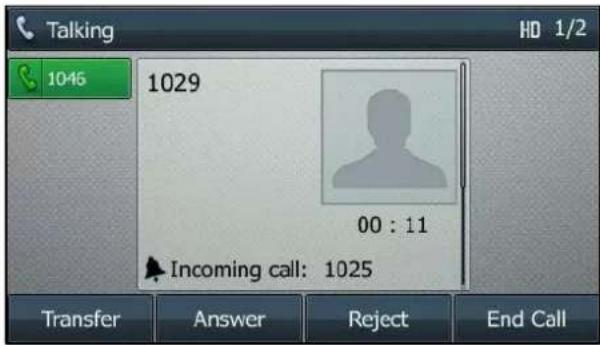
text_image
Talking 1046 1029 00 : 11 Incoming call: 1025 Transfer Answer Reject End CallProcedure:
1. Press Answer.
The incoming call is answered and the original call is placed on hold.
If the phone just plays a warning tone instead of displaying the incoming call information, you can only answer the incoming call after ending the current call. It is configurable by your system administrator.
Note
The call waiting should be enabled first, otherwise, the incoming call is automatically rejected by the phone with a busy message when there is an active call on the phone. For more information, refer to Configuring the Call Waiting.
Answering Calls Automatically
You can enable auto answer feature to automatically answer an incoming call using the speakerphone. Auto answer is configurable on a per-line basis.
You can choose to mute the local microphone when an incoming call is answered automatically.
Procedure:
-
Navigate to Menu->Features->Auto Answer.
-
Select a desired line.
For the SIP-T42S/T42G/T41S/T41P/T40G/T40P IP phone, select a desired line from the Line ID field.
- Select Enabled from the Auto Answer field.
For the SIP-T48S/T48G IP phone, tap the On radio box of the desired registered line.
For the SIP-T42S/T42G/T41S/T41P/T40G/T40P IP phone, select Enabled from the Status field.
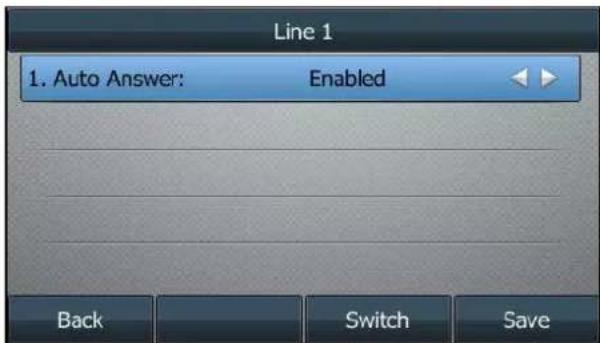
text_image
Line 1 1. Auto Answer: Enabled Back Switch Save4. Press Save.
The auto answer icon appears on the LCD screen only when the auto answer feature is enabled for the default account.

text_image
1006 14 53 Fri, Sep 02 1006 History Directory DND MenuAuto answer is configurable via web user interface at the path Account->Basic.
Note
Auto answer only takes effect when there is no other call in progress on the phone. If there is a call in progress, the second incoming call cannot be automatically answered after ending the current call by default. If you want to make the phone automatically answer the incoming call after ending all calls, contact your system administrator for more information.
Configuring the Call Waiting
You can enable or disable call waiting on the phone. If call waiting is enabled, you can receive another call when there is already an active call on the phone. Otherwise, another incoming call is automatically rejected by the phone with a busy message when there is an active call on the phone. You can also enable or disable the phone to play a warning tone when receiving another call.
Procedure:
- Navigate to Menu->Features->Call Waiting.
- Select Enabled from the Call Waiting field.
For the SIP-T48S/T48G IP phone, tap the On radio box of the Call Waiting field.
- Select Enabled from the Play Tone field.
For the SIP-T48S/T48G IP phone, tap the On radio box of the Play Tone field.
- (Optional.) Enter the call waiting on code or off code respectively in the On Code or Off Code field.
If on code or off code is configured, the IP phone will send the corresponding code to activate or deactivate call waiting on the server. It is not available on all servers.

text_image
Call Waiting 1. Call Waiting: Enabled 2. Play Tone: Enabled 3. On Code: 4. Off Code: Back 123 Delete Save5. Press Save.
Call waiting is configurable via web user interface at the path Features->General Information.
Note
If on code or off code is not configured, the call waiting may not take effect. It depends on your server. Contact your server administrator for more information.
Ending Calls
Procedure:
Do one of the following:
- If you are using the handset, press the Cancel key, End Call (EndCall) or hang up the handset.
- If you are using the headset, press the Cancel key or End Call (EndCall).
- If you are using the speakerphone, press the Cancel key, Speakerphone key or End Call (EndCall).
Note
To end a call placed on hold, you can press the End Call (EndCall) soft key to end the call directly, or press the Resume soft key to resume the call before ending it.
Auto Redial
When a called party is busy, the phone can be enabled to automatically redial his phone number
until the call is answered. You can configure the max attempts of auto redial (Redial Times) and the interval between every two redial attempts (Redial Interval).
Enabling the Auto Redial
Procedure:
- Navigate to Menu->Features->Others->Auto Redial.
For the SIP-T48S/T48G/T42S/T42G/T41S/T41P/T40G/T40P IP phone, navigate to Menu->Features->Auto Redial. - Select Enabled from the Auto Redial field.
For the SIP-T48S/T48G IP phone, tap the On radio box of the Auto Redial field. - Enter the desired time between 1 and 300 (seconds) in the Redial Interval field.
- Enter the desired number between 1 and 300 in the Redial Times field.
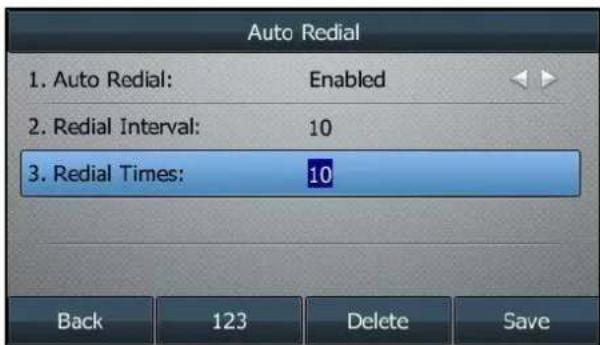
text_image
Auto Redial 1. Auto Redial: Enabled 2. Redial Interval: 10 3. Redial Times: 10 Back 123 Delete Save5. Press Save.
Auto redial is configurable via web user interface at the path Features->General Information.
Redialing a Call Automatically
Procedure:
When the called party is busy, a message will display on the LCD screen of the phone:
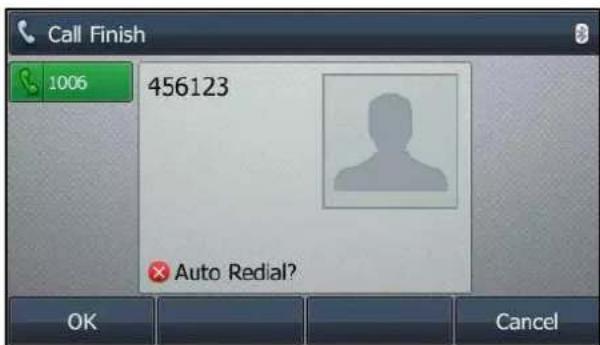
text_image
Call Finish 1006 456123 Auto Redial? OK Cancel- Press OK to activate auto redial.
A message is displayed on the LCD screen:

text_image
Call Finish 1006 456123 Redial Times: 10, Interval: 9s OK Cancel- Wait for the designated period of time or press OK to redial the phone number.
The phone will retry as many times as configured until the called party answers the call.
Call Completion
You can enable call completion to notify the caller who failed to reach a desired party when the desired party becomes available to receive a call.
Enabling Call Completion
Procedure:
- Navigate to Menu->Features->Others->Call Completion.
For the SIP-T48S/T48G/T42S/T42G/T41S/T41P/T40G/T40P IP phone, navigate to Menu->Features->Call Completion.
- Select Enabled from the Call Completion field.
For the SIP-T48S/T48G IP phone, tap the On radio box of the Call Completion field.
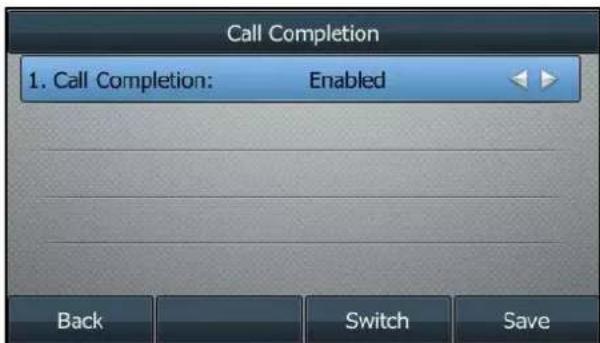
text_image
Call Completion 1. Call Completion: Enabled Back Switch Save- Press Save.
Call completion is configurable via web user interface at the path Features->General Information.
Using Call Completion
Procedure:
When the called party is busy, a message will display on the LCD screen:

text_image
1006 13:34 Fri, Sep 02 1006 i Note Wait for 2021? Cancel OK- Press OK, the phone will then return to the Idle screen and call completion will be activated.
When the called party becomes idle, a message will display on the LCD screen:

text_image
1006 13:34 Fri, Sep 02 1006 Note Dial 2021? Cancel OK- Press OK to redial the number.
Note
Call completion is not available on all servers. For more information, contact your system administrator.
Call Mute
You can mute the microphone during an active call so that the other party cannot hear you. You can also mute the microphone while dialing or ringing so that the other party cannot hear you when the call is set up. It helps prevent the other party from hearing the informal discussion when auto answer is enabled on his/her phone.
Call mute applies to all modes (Handset, Headset and Speakerphone).
Keep Mute
Keep mute feature enables you to make the mute state of your phone persist across calls. When keep mute is enabled and you press the MUTE key, the phone stays in the mute state until you
unmute the microphone or until the phone restarts. When you mute the phone in an idle state or initiate a new call with mute on, the mute key LED glows red except on SIP-T40G/T40P IP phone, and the mute icon appears on the Idle screen except the SIP-T42S/T42G/T41S/T41P IP phone.
text_image
1006 13:39 Fri, Sep 02 1006 History Directory DND MenuNote
Keep Mute should be pre-configured by your system administrator.
Muting and Unmuting a Call
Procedure:
- Press the MUTE key during an active call.
The mute key LED glows red except on the SIP-T40G/T40P IP phone. The LCD screen indicates that the call is now muted.
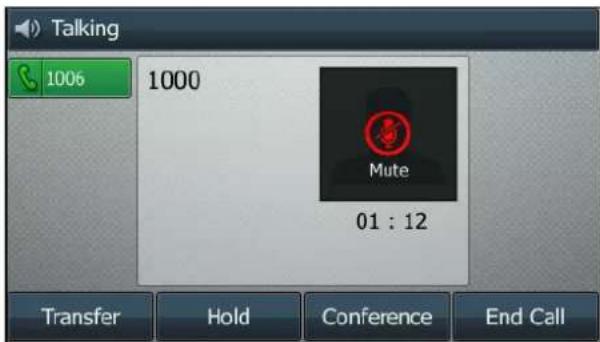
text_image
Talking 1006 1000 Mute 01 : 12 Transfer Hold Conference End Call- Press the MUTE key again to unmute the call.
The mute key LED goes out except on the SIP-T40G/T40P IP phone.
Muting and Unmuting While Dialing
Procedure:
- Press the MUTE key on the pre-dialing, dialing or calling screen.
The mute key LED glows red except on the SIP-T40G/T40P IP phone. The call is muted automatically when set up successfully.
- Press the MUTE key again to unmute.
Note
You can also mute the microphone when the IP phone is ringing.
Call Hold/Resume
You can place an active call on hold. Only one active call can be in progress at any time. Other calls can be made and received while placing the original call on hold. The phone will play beep of a specified frequency softly to remind you that you still have a call on hold. Your system administrator can customize the frequency and configure when to play beep.
Note
If Music on Hold is enabled, the held party will hear a piece of music from IP PBX while waiting. Check with your system administrator to find out if this feature is enabled on your phone.
Holding a Call
Procedure:
- Press the HOLD key or Hold during a call.
The LCD screen indicates that the call is on hold.
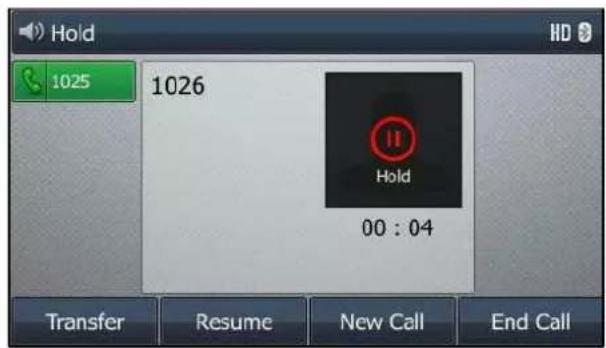
text_image
Hold 1025 1026 Hold 00 : 04 Transfer Resume New Call End CallNote
The phone ignores engaged audio device (handset or headset) and plays beep in the Speakerphone mode by default. The Speakerphone key will light up for 1 second along with the beep except on SIP-T40G/T40P IP phone.
Resuming a Held Call
Procedure:
- Press the HOLD key again or Resume.
If multiple calls are placed on hold, do one of the following:
- Select the desired call, and then press the HOLD key again or Resume.
- Select the desired call, and then press the corresponding line key.
Do Not Disturb (DND)
You can activate DND to reject incoming calls automatically on the phone. The prompt message "n New Missed Call(s)" ("n" indicates the number of missed calls, for example, 1 New Missed Call(s)) will appear on the LCD screen, and callers will receive a busy message. All calls you receive while DND is activated are logged to your missed calls list.

text_image
1046 16 07 Fri, Jun 23 1046 i Note 1 New Missed Call(s) Exit ViewNote
The message will display only if Missed Call Log for the line is enabled. Missed call log is configurable via web user interface at the path Account->Basic.
You cannot activate or deactivate DND when DND feature is disabled. Contact your system administrator for more information.
When DND feature is activated, the IP phone supports displaying a large DND icon on the Idle screen.

text_image
1006 13 38 Fri, Sep 02 1006 - DND History Directory DND MenuDND is configurable via web user interface at the path Feautres->Forward&DND.
Note
Large DND icon should be pre-configured by your system administrator.
Configuring the DND Modes
There are two DND modes:
- Phone (default): DND is effective for the phone system. You can apply DND to all line registrations on the phone.
- Custom: DND can be configured for each or all accounts. You can specify individual or all registrations on a phone that has multiple registered lines.
Procedure:
- Click Features->Forward&DND.
- In the DND block, mark the desired radio box in the Mode field.
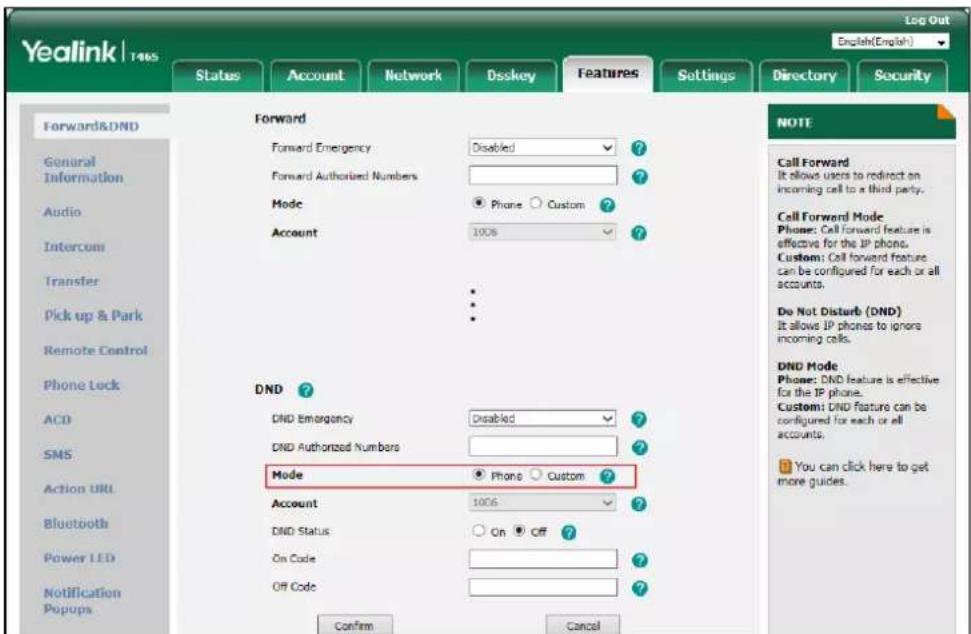
text_image
Yealink | 1405 Log Out English(English) Forward Forward Emergency Disabled ? Forward Authorized Numbers ? Mode Phone Custom ? Account 1006 ? DND DND Emergency Disabled ? DND Authorized Numbers ? Mode Phone Custom ? Account 1006 ? DND Status On Off ? On Code ? Off Code ? Confirm Cancel Forward&DND General Information Audio Intercom Transfer Pick up & Park Remote Control Phone Lock ACD SMS Action URL Bluetooth Power LED Notification Popups NOTE Call Forward It allows users to redirect on incoming call to a third party. Call Forward Mode Phone: Call forward feature is effective for the IP phone. Custom: Call forward feature can be configured for each or all accounts. Do Not Disturb (DND) It allows IP phones to ignore incoming cells. DND Mode Phone: DND feature is effective for the IP phone. Custom: DND feature can be configured for each or all accounts. You can click here to get more guides.- Click Confirm.
Phone Mode
Activating DND in Phone Mode
Procedure:
- Press DND.
The DND icon appears on the status bar.

text_image
1006 13 38 Fri, Sep 02 1006 History Directory DND MenuNote
When DND and busy forward are activated in phone mode, calls will be forwarded to the configured destination number. For more information on busy forward, refer to Call Forward.
Deactivating DND in Phone Mode
You can deactivate DND to receive incoming calls.
Procedure:
- Press DND again when the phone is idle.
The DND icon disappears on the status bar.
Custom Mode
If there is only one account registered on the phone, you can directly press the DND soft key to activate or deactivate DND on the Idle screen. The following shows you to activate or deactivate DND when there are multiple registered accounts.
Activating DND in Custom Mode
Procedure:
- Press DND.
The LCD screen displays a list of accounts registered on the phone.
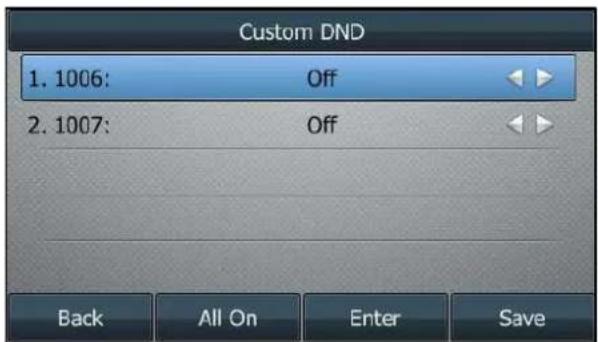
text_image
Custom DND 1. 1006: Off 2. 1007: Off Back All On Enter Save-
Select a desired account.
-
Select Enabled from the DND Status field.
On the SIP-T48S/T48G IP phone, tap On radio box of the DND Status field.
- (Optional.) Enter the DND on code or off code respectively in the On Code or Off Code field.
If the on code or off code is configured, the IP phone will send the corresponding code to activate or deactivate DND on the server. It is not available on all servers.
5. Press Save.
If you want to activate DND for all accounts, you can press the All On soft key.
When you activate DND for the default account, the following occurs:
- On the SIP-T48S/T48G IP phone, the associated line icon changes to 📞, and the icon 🔍 appears on the status bar.
- On the SIP-T46S/T46G IP phone, the associated line icon changes to 🔔, and the icon 🔍 appears on the status bar.
- On the SIP-T42S/T42G/T41S/T41P IP phone, the associated line icon changes to ⏻, and the icon DND appears on the status bar.
- On SIP-T40G/T40P IP phone, the associated line icon changes to ⬤, and the icon DND appears on the status bar.
When you activate DND for the non-default account, the following occurs:
- On the SIP-T48S/T48G IP phone, only the associated line icon will change to 📞.
- On the SIP-T46S/T46G IP phone, only the associated line icon will change to 📞.
- On the SIP-T42S/T42G/T41S/T41P IP phone, only the associated line icon will change to ⬤.
- On the SIP-T40G/T40P IP phone, only the associated line icon will change to ⏻.
When you activate DND for all accounts, the following occurs:
- On the SIP-T48S/T48G IP phone, all line icons changes to 📄, and the icon 🔍 appears on the status bar.
- On the SIP-T46S/T46G IP phone, all line icons changes to 📋, and the icon 🔍 appears on the status bar.
- On the SIP-T42S/T42G/T41S/T41P IP phone, all line icons changes to ⏻, and the icon DND appears on the status bar.
- On the SIP-T40G/T40P IP phone, all line icons changes to ⏻, and the icon DND appears on the status bar.
Note
When DND and busy forward are activated for a specific account, incoming calls will be forwarded from this specific account to the configured destination number. For more information on busy forward, refer to Call Forward.
Deactivating DND in Custom Mode
You can deactivate DND to receive incoming calls on the specific account.
Procedure:
-
Press DND when the phone is idle.
-
Select a desired account.
-
Select Disabled from the DND Status field.
On the SIP-T48S/T48G IP phone, tap the Off radio box of the DND Status field.
- Press Save.
Configuring DND Emergency and Authorized Numbers
You can receive incoming calls from authorized numbers when DND is activated.
Procedure:
-
Click Features->Forward&DND.
-
Select Enabled from the DND Emergency field.
-
Enter the authorized numbers in the DND Authorized Numbers field.
For multiple numbers, enter a comma between every two numbers.
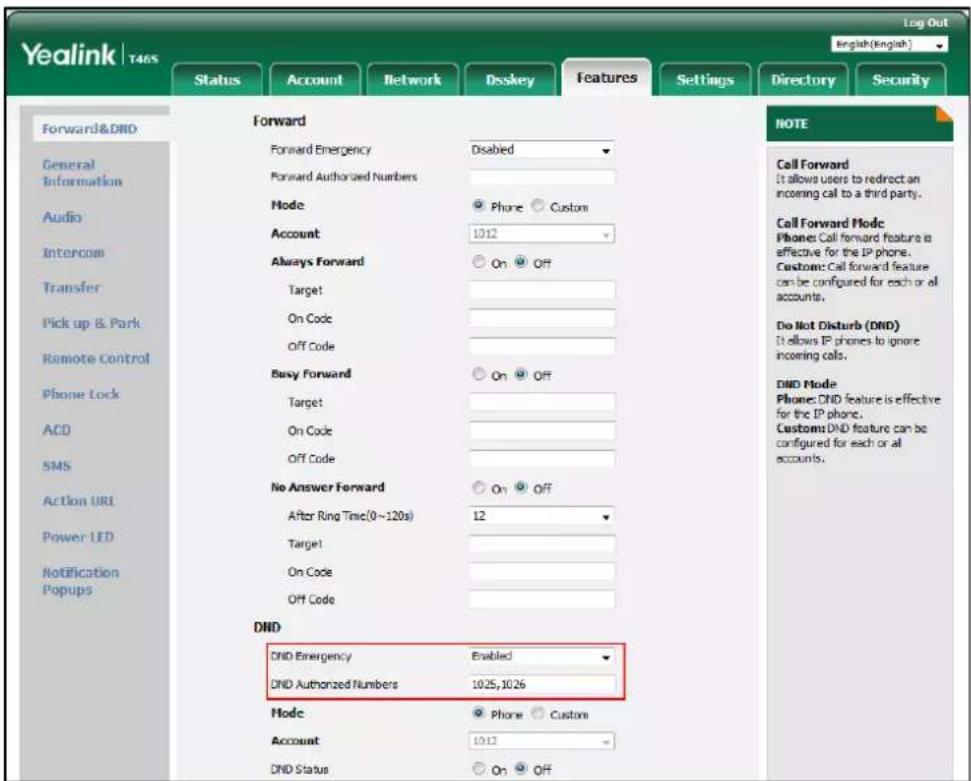
text_image
Yealink T465 Log Out English(English) Status Account Network Dsskey Features Settings Directory Security Forward Forward Emergency Disabled Forward Authorized Numbers Node Phone Custom Account 1012 Always Forward On Off Target On Code Off Code Busy Forward On Off Target On Code Off Code No Answer Forward On Off After Ring Time(0~120s) 12 Target On Code Off Code DND DND Emergency Enabled DND Authorized Numbers 1025,1026 Mode Phone Custom Account 1012 DND Status On Off Forward&DND General Information Audio Intercom Transfer Pick up & Park Remote Control Phone Lock ACD SMS Action URL Power LED Notification Popups NOTE Call Forward It allows users to redirect an incoming call to a third party. Call Forward Mode Phones Call forward feature is effective for the IP phone. Customs Call forward feature can be configured for each or all accounts. Do Not Disturb (DND) It allows IP phones to ignore incoming calls. DND Mode Phones: DND feature is effective for the IP phone. Customs DND feature can be configured for each or all accounts. DND- Click Confirm.
Call Forward
You can configure your phone to forward incoming calls to another party (static forwarding) or forward calls while your phone is ringing (dynamic forwarding).
Note
When the phone forwards a call, a message window will pop up by default. Your system administrator can disable this feature.
You cannot activate or deactivate call forward when call forward feature is disabled. Contact your system administrator for more information.
Static Forwarding
Three types of static forwarding are:
• Always Forward: All incoming calls are immediately forwarded.
- Busy Forward: Incoming calls are immediately forwarded if the phone is busy.
- No Answer Forward: Incoming calls are forwarded if not answered after a period of time.
Static Forwarding is configurable via web user interface at the path Features->Forward&DND.
Configuring the Forward Modes
There are two call forward modes:
- Phone (default): Call forward is effective for the phone system. You can apply call forward to all line registrations on the phone.
- Custom: Call forward can be configured for each or all accounts. You can specify individual or all line registrations on a phone that has multiple registered lines.
Procedure:
-
Click Features->Forward&DND.
-
In the Forward block, mark the desired radio box in the Mode field.
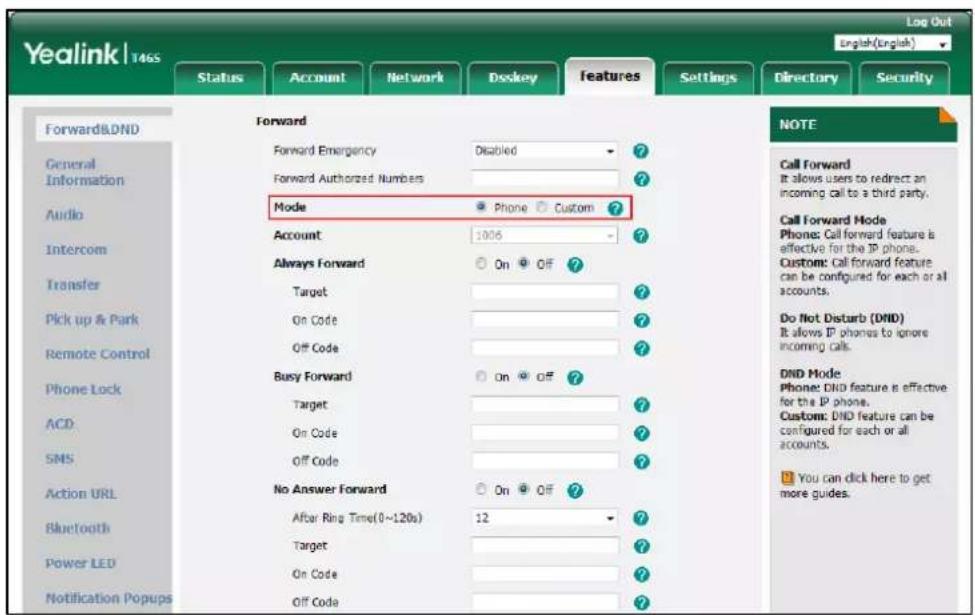
text_image
Yealink | 146S Log Out English(English) Status Account Network Dsskey Features Settings Directory Security Forward Forward Emergency Disabled ? Forward Authorized Numbers ? Mode Phone Custom ? Account 1006 ? Always Forward On Off ? Target ? On Code ? Off Code ? Busy Forward On Off ? Target ? On Code ? Off Code ? No Answer Forward On Off ? After Ring Time(0~120s) 12 ? Target ? On Code ? Off Code ? NOTE Call Forward It allows users to redirect an incoming call to a third party. Call Forward Mode Phone: Call forward feature is effective for the IP phone. Custom: Call forward feature can be configured for each or all accounts. Do Not Disturb (DND) It allows IP phones to ignore incoming calls. DND Mode Phone: DND feature is effective for the IP phone. Custom: DND feature can be configured for each or all accounts. You can click here to get more guides.- Click Confirm.
Phone Mode
Activating Call Forward in Phone Mode
Procedure:
- Navigate to Menu->Features->Call Forward, and then select a desired forwarding type.
- Select Enabled from the Always Forward/Busy Forward/No Answer Forward field.
For the SIP-T48S/T48G IP phone, tap the On radio box of the Always Forward/Busy Forward/No Answer Forward field.
-
Enter the destination number you want to forward incoming calls to in the Forward to field.
-
If you select the No Answer Forward option, select the desired ring time to wait before forwarding from the After Ring Time field.
-
(Optional.) Enter the always/busy/no answer forward on code or off code respectively in the On Code or Off Code field.
If the forward on code or off code is configured, the IP phone sends the corresponding code to the server when a certain action takes place. For example, if you set the Always Forward on code to be *71 (may vary on different servers), and the target number to be 1234. When you activate Always Forward on the IP phone, the IP phone sends *711234 to the server, and then the server will activate Always Forward feature on the server side, hence being able to get the right status of the extension.
- Press Save.
The call forward icon on the Idle screen indicates that the call forward is activated.
You can also press the Forward key (refer to Configuring a Forward Key) on the Idle screen to activate forward feature. The Forward key LED is solid green.
On the SIP-T48S/T48G/T46S/T46G IP phone, you can also press the TRANSFER key when the phone is idle to activate always/busy/no answer forward.
Deactivating Call Forward in Phone Mode
You can deactivate call forward when you no longer want to forward your calls.
Procedure:
-
Navigate to Menu->Features->Call Forward, and then select a desired forwarding type.
-
Select Disabled from the Always Forward/Busy Forward/No Answer Forward field. For the SIP-T48S/T48G IP phone, tap the Off radio box of the Always Forward/Busy Forward/No Answer Forward field.
-
Press Save.
You can also press the Forward key (refer to Configuring a Forward Key) on the Idle screen to deactivate forward feature. The Forward key LED goes out.
On the SIP-T48S/T48G/T46S/T46G IP phone, you can also press the TRANSFER key when the phone is idle to deactivate always/busy/no answer forward.
Custom Mode
Activating Call Forward in Custom Mode
Procedure:
-
Navigate to Menu->Features->Call Forward or press the TRANSFER key when the phone is idle.
-
If your phone has multiple accounts, select an desired account.
-
Select a desired forwarding type.
-
Select Enabled from the Always Forward/Busy Forward/No Answer Forward field.
For the SIP-T48S/T48G IP phone, tap the On radio box of the Always Forward/Busy Forward/No Answer Forward field.
-
Enter the destination number you want to forward incoming calls to in the Forward to field.
-
If you select the No Answer Forward option, select the desired ring time to wait before forwarding from the pull-down list After Ring Time.
-
(Optional.) Enter the always/busy/no answer forward on code or off code respectively in the On Code or Off Code field.
If the forward on code or off code is configured, the IP phone sends the corresponding code to the server when a certain action takes place. For example, if you set the Always Forward on code to be *71 (may vary on different servers), and the target number to be
-
When you activate Always Forward on the IP phone, the IP phone sends *711234 to the server, and then the server will activate Always Forward feature on the server side, hence being able to get the right status of the extension.
-
Do one of the following:
- If you want to activate call forward for all accounts, Highlight the Always
Forward/Busy Forward/No Answer Forward field and press the All Lines soft key.
Press OK.
- If you want to activate call forward for the selected account, press Save.
When you activate call forward for the default account:
- On the SIP-T48S/T48G IP phone, the associated line icon changes to 🤨, and the icon 🔺 appears on the status bar.
- On the SIP-T46S/T46G IP phone, the associated line icon changes to 🔓, and the icon 🔔 appears on the status bar.
- On the SIP-T42S/T42G/T41S/T41P, the associated line icon changes to ↗, and the icon ↗ appears on the status bar.
- On the SIP-T40G/T40P IP phone, the associated line icon changes to ↗, and the icon ↖ appears on the status bar.
When you activate call forward for the non-default account:
- On the SIP-T48S/T48G IP phone, only the associated line icon will change to 📞.
- On the SIP-T46S/T46G IP phone, only the associated line icon will change to 📋.
- On the SIP-T42S/T42G/T41S/T41P, only the associated line icon will change to ↗.
- On the SIP-T40G/T40P IP phone, only the associated line icon will change to ↗.
When you activate call forward for all accounts:
- On the SIP-T48S/T48G IP phone, all line icons changes to 📞, and the icon 🔔 appears on the status bar.
- On the SIP-T46S/T46G IP phone, all line icons changes to 🔎, and the icon 🔎 appears on the status bar.
- On the SIP-T42S/T42G/T41S/T41P, all line icons changes to ↗, and the icon ↗ appears on the status bar.
- On the SIP-T40G/T40P IP phone, all line icons changes to ↗, and the icon ↗ appears on the status bar.
Deactivating Call Forward in Custom Mode
You can deactivate call forward when you no longer want to forward your calls from the specific account.
Procedure:
- Navigate to Menu->Features->Call Forward or press the TRANSFER key when the phone is idle.
The LCD screen displays a list of accounts registered on the phone.
-
Select a desired account.
-
Select the desired forwarding type.
-
Select Disabled from the Always Forward/Busy Forward/No Answer Forward field.
For the SIP-T48S/T48G IP phone, tap the Off radio box of the Always Forward/Busy Forward/No Answer Forward field.
- Do one of the following:
- If you want to deactivate call forward for all accounts, press the All Lines soft key. Press OK.
- If you want to activate call forward for the selected account, press Save.
Configuring Forward Emergency and Authorized Numbers
You can still receive incoming calls from authorized numbers when call forward is activated.
Procedure:
-
Click Features->Forward&DND.
-
Select Enabled from the Forward Emergency field.
-
Enter the numbers in the Forward Authorized Numbers field.
For multiple authorized numbers, enter a comma between every two numbers.
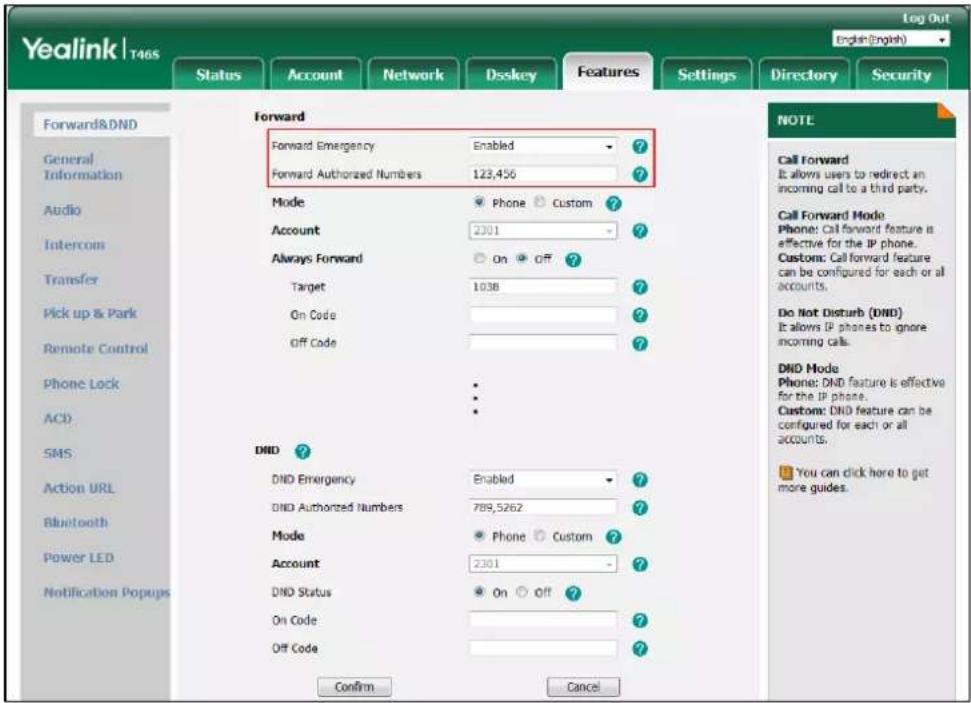
text_image
Yealink T46s Log Out English(English) Status Account Network Dsskey Features Settings Directory Security Forward Forward Emergency Enabled ? Forward Authorized Numbers 123,456 ? Mode Phone Custom ? Account 2301 ? Always Forward On Off ? Target 1038 ? On Code ? Off Code ? DND DND Emergency Enabled ? DND Authorized Numbers 789,5262 ? Mode Phone Custom ? Account 2301 ? DND Status On Off ? On Code ? Off Code ? Confirm Cancel NOTE Call Forward It allows users to redirect an incoming call to a third party. Call Forward Mode Phone: Call forward feature is effective for the IP phone. Customs: Call forward feature can be configured for each or all accounts. Do Not Disturb (DND) It allows IP phones to ignore incoming calls. DND Mode Phone: DND feature is effective for the IP phone. Customs: DND feature can be configured for each or all accounts. You can click here to get more guides.4. Click Confirm.
Dynamic Forwarding
You can manually forward the call to another number while your phone rings.
Procedure:
- When the phone is ringing, press Forward.
- Enter the number you want to forward the incoming call to.
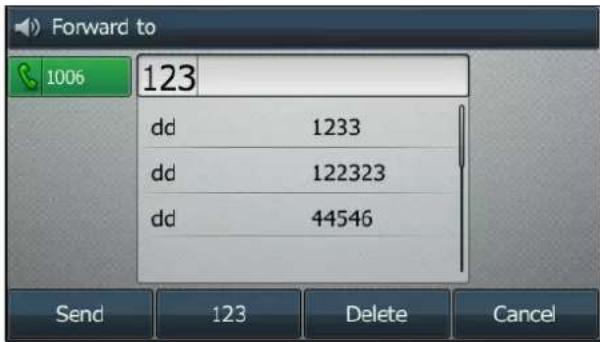
text_image
Forward to 1006 123 dd 1233 dd 122323 dd 44546 Send 123 Delete Cancel- Press the OK key, # key, or Send.
On the SIP-T48S/T48G IP phone, press the OK key, # key, or tap Forward.
The LCD screen prompts a call forward message.
When your phone is ringing, you can also press a Forward key (refer to Configuring a Forward Key) to forward the call to the pre-defined number directly.
Call Transfer
You can transfer a call to another party during a call in one of three ways:
- Blind Transfer: Transfer a call directly to another party without consulting.
- Semi-Attended Transfer: Transfer a call when receiving ringback.
• Attended Transfer (Consultative Transfer): Transfer a call with prior consulting.
Configuring Transfer Mode via Dsskey
When there is a call (either active or hold/held) on the IP phone, you can transfer the call differently using a Transfer key, BLF/BLF List key or Speed Dial key. The phone behavior depends on the configuration of Transfer Mode via Dsskey.
Procedure:
-
Click Features->Transfer.
-
Select the desired transfer mode from the Transfer Mode via Dsskey field.
-
If you select Blind Transfer, press the Transfer key, BLF/BLF List key or Speed Dial key to blind transfer the call to the desired contact.
- If you select Attended Transfer, press the Transfer key, BLF/BLF List key or Speed Dial key to dial out the desired contact and then perform an attended or a semi-attended transfer.
- If you select New Call, press the Transfer key, BLF/BLF List key or Speed Dial key to place a new call to the desired contact.

text_image
Yealink T46S Log Out English(English) Status Account Network Dsskey Features Settings Directory Security Forward&DND General Information Audio Intercom Transfer Transfer Sem-Attended Transfer Enabled ? Blind Transfer on Hook Enabled ? Attended Transfer on Hook Enabled ? Transfer on Conference Hang up Disabled ? Transfer Mode via Dsskey Bind Transfer ? Confirm Cancel NOTE Call Transfer The transfer parameters for administrator.Call transfer enables IP phones to transfer an existing call to another party. IP phones support call transfer using the REFER method specified in RFC 3S15 and offer three types of transfer. Blind Transfer3. Click Confirm.
Enabling Allow Trans Exist Call
On the SIP-T42S/T42G/T41S/T41P/T40G/T40P IP phone, you can transfer a call to another existing call when Allow Trans Exist Call is enabled. Make sure the IP phone has more than one call.
Procedure:
- Click Features->General Information.
2. Select Enabled from the pull-down list of Allow Trans Exist Call.
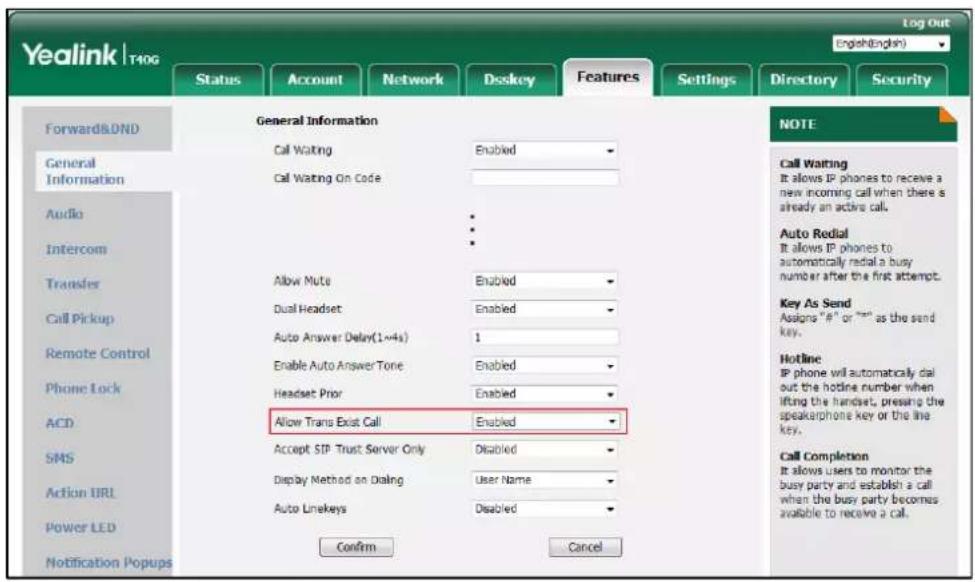
text_image
Yealink T40G Log Out English(English) Forward&DND General Information General Information Call Waiting Enabled Call Waiting It allows IP phones to receive a new incoming call when there is already an active call. Audio Intercom Transfer Allow Mute Enabled Call Pickup Dual Headset Enabled Auto Answer Delay(1~4s) 1 Remote Control Enable Auto Answer Tone Enabled Phone Lock Headset Prior Enabled ACD Allow Trans Exist Call Enabled SMS Accept SIP Trust Server Only Disabled Action URL Display Method on Dialng User Name Auto Linekeys Disabled Power LED Confirm Cancel NOTEScoredial Key As Send Assigns "A" or "B" as the sand key. Hotline IP phone will automatically dial out the hotline number when lifting the handset, pressing the speakerphone key or the line key. Call Completion It allows users to monitor the busy party and establish a call when the busy party becomes available to receive a call. Notification Popups3. Click Confirm to accept the change.
Performing a Blind Transfer
Procedure:
- Press the TRANSFER key or Transfer (Trans) during a call.
-
You can do one of the following:
-
Enter the number or select a contact from the placed call list you want to transfer to.
- Press Directory (Dir). Select a desired contact from the Directory list(s).
On the SIP-T48S/T48G IP phone, tap the Directory or History. Tap the desired contact.
- Press B Transfer (B Trans) to complete the transfer.
You can also hang up the handset or press the TRANSFER key when transferring a call by entering number.
From the Calls screen or Transfer to screen, you can also use a Transfer key (refer to Configuring a Transfer Key), BLF/BLF List key (refer to Configuring a BLF Key/Configuring BLF List Settings) or Speed Dial key (refer to Placing a Call Using a Speed Dial Key) to perform blind transfer to the pre-defined number directly. Before performing a blind transfer using these keys, make sure that the Transfer Mode via Dsskey is configured as Blind Transfer. For more information on how to configure it, refer to Configuring Transfer Mode via Dsskey.
Note
If the entered transferee number matches the Dial Now rule, the phone will dial out the number by default. You can also perform blind transfer when the entered number matches the Dial Now rule. Check with your system administrator to find out if this feature is available on your phone. For more information on Dial Now rule, refer to Configuring the Dial Now.
You can also perform a blind transfer to an existing call. On the
SIP-T42S/T42G/T41S/T41P/T40G/T40P IP phone, make sure that the Allow Trans Exist Call is enabled before performing a blind transfer to another existing call. For more information, refer to Enabling Allow Trans Exist Call.
Procedure:
-
Press the TRANSFER key or Transfer (Trans) during a call.
-
Select the desired hold call you want to transfer the call to.

text_image
Transfer to 4/4 1006 Hold 1001 1001 Hold 1048 1048 Transfer 123 Retrieve CancelThe call is then connected to the call to which you are transferring.
Performing a Semi-attended/Attended Transfer
Procedure:
-
Press the TRANSFER key or Transfer (Trans) during a call.
-
You can do one of the following:
- Enter the number you or select a contact from the placed call list want to transfer the call to.
- Press Directory (Dir). Select a desired contact from the Directory list(s).
On the SIP-T48S/T48G IP phone, tap the Directory or History. Tap the desired contact.
-
Press the OK key, # key or Send to dial out.
-
Press the TRANSFER key or Transfer (Trans) to perform a semi-attended transfer when you hear the ring-back tone, or perform an attended transfer after the party answers the call.
If you are using a handset, the transfer can be completed by hanging up the handset.
From the Calls screen or Transfer to screen, you can also use a Transfer key (refer to Configuring a Transfer Key), BLF/BLF List key (refer to Configuring a BLF Key/Configuring BLF List Settings) or Speed Dial key (refer to Placing a Call Using a Speed Dial Key) to perform
semi-attended/attended transfer to the pre-defined number directly. Before performing a semi-attended/attended transfer using these keys, make sure that the Transfer Mode via Dsskey is configured as New Call or Attended Transfer. For more information on how to configure it, refer to Configuring Transfer Mode via Dsskey.
Conference
The IP phones support 3-way local conference and multi-way network conference.
Note
Network conference is not available on all servers. For more information, contact your system administrator.
Local Conference
The IP phones support three-way (including yourself) conference call, which is the default conference type called Local Conference. You can set up a conference between an active call and a hold call at any time by pressing the Conference (Conf) soft key.
Note
To set up a local conference call, make sure local conference feature is enabled. For more information, contact your system administrator.
Setting Up a Local Conference Call
Procedure:
- Place a call to the first party.
- When the first party answers the call, press Conference (Conf) to place a new call.
- Enter the number of the second party to dial out.
You can also select a desired contact from the search list, or select a contact from the placed call list or Directory before you enter the number. On the SIP-T48S/T48G IP phone, you can select a desired contact from the left sidebar, or select a contact from the Directory or History.
The active call is placed on hold.
- When the second party answers the call, press Conference (Conf) again to join all parties in the conference.

text_image
Conference 1006 3606 1000 00 : 12 Split Hold Manage End CallJoining Two Calls in a Conference
You can select a hold call to join into a conference call with the active call.
Procedure:
- Place two or more calls using the same or different accounts on the phone.
- Select the desired call for conference and ensure that the call is active.
- Press Conference (Conf).
- Select a desired hold call, and then press Send.
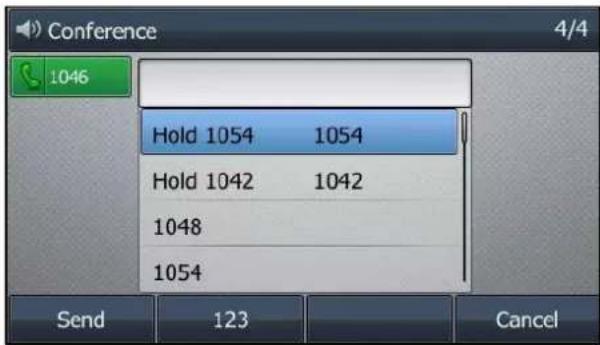
text_image
Conference 4/4 1046 Hold 1054 1054 Hold 1042 1042 1048 1054 Send 123 CancelOn the SIP-T48S/T48G IP phone, tap the desired hold call from the left sidebar.
The active call and the selected hold call are joined into a conference. If there are multiple hold calls, the other hold calls on the same or different accounts remain hold.
You can also set up a conference call when performing attended transfer (refer to Performing a Semi-attended/Attended Transfer), press Conference (Conf) after talking with the transferee party.
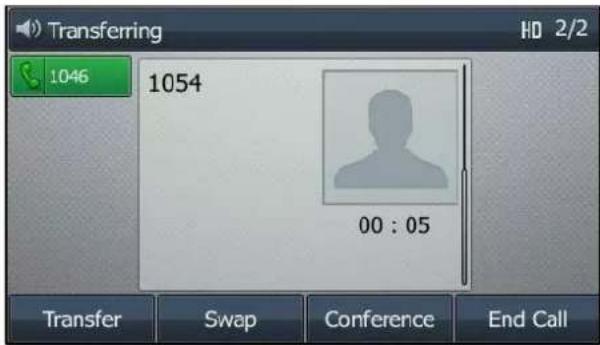
text_image
Transferring HD 2/2 1046 1054 00 : 05 Transfer Swap Conference End CallHolding/Resuming a Conference Call
When you place a conference call on hold, both the other two participants are placed on hold. The other two participants cannot hear the audio of each other until you resume the held conference call.
Procedure:
- Press the HOLD key or Hold to place the conference on hold.
When the conference is placed on hold, you can press New Call (NewCall) to place a new call.
- Press the HOLD key again or Resume to resume the held conference call.
Muting and Unmuting a Conference Call
You can mute the local microphone during a conference call so that the other two participants can hear each other except you.
Procedure:
- Press the MUTE key to mute the conference.
- Press the MUTE key again to unmute the conference.
Splitting a Conference Call
You can split the conference call into two individual calls. After you split a conference call, the conference call is ending, and the other two parties are held. You can resume one of the hold calls.
Procedure:
1. Press Split.
Managing Conference Participants
You can manage conference participants in the following ways:
- Mute a participant
- Hold a participant
- Remove a participant from the conference
Procedure:
On the SIP-T46S/T46G/T42S/T42G/T41S/T41P/T40G/T40P IP phone, press Manage, and then select the desired party, you can do the following:
- Press Far Mute (FarMute) to mute the party. The muted party can hear everyone, but no one can hear the muted party.
- Press Far Hold (FarHold) to hold the party. The held party cannot hear anyone, and no one can hear the held party.
- Press Remove to remove the party from the conference call.
- Press Back to return to the previous screen.
On the SIP-T48S/T48G IP phone, you can do the following:
Tap 📋 to mute the party. The muted party can hear everyone, but no one can hear the muted party. The icon 📋 changes to 📋.
- Tap ⑪ to hold the party. The held party cannot hear anyone, and no one can hear the held party. The icon ⑪ changes to ⑪.
Tap ✗ to remove the desired party from the conference call.
The touch screen prompts "Are you sure to remove XX?" (XX is the display name of selected participant).
Tap OK to remove the party.
Ending a Conference Call
By default, the other two parties drop the call when you end the conference call. However, your system administrator can set up your phone so that the other two parties remain connected when you end the conference call.
Procedure:
- Press End Call (EndCall) to drop the conference call.
Network Conference
You can use network conference feature on your IP phone to initiate a conference with multiple participants.
This feature allows you to perform the following:
- Join two calls together into a conference call.
- Invite another party into an active conference call.
Note
To use network conference, contact your system administrator for the network conference URI in advance.
Configuring the Network Conference
Procedure:
- Click Account->Advanced.
- Select the desired account from the Account field.
-
Select Network Conference from the Conference Type field.
-
Enter the conference URI (for example, conference@example.com) in the Conference URI field.
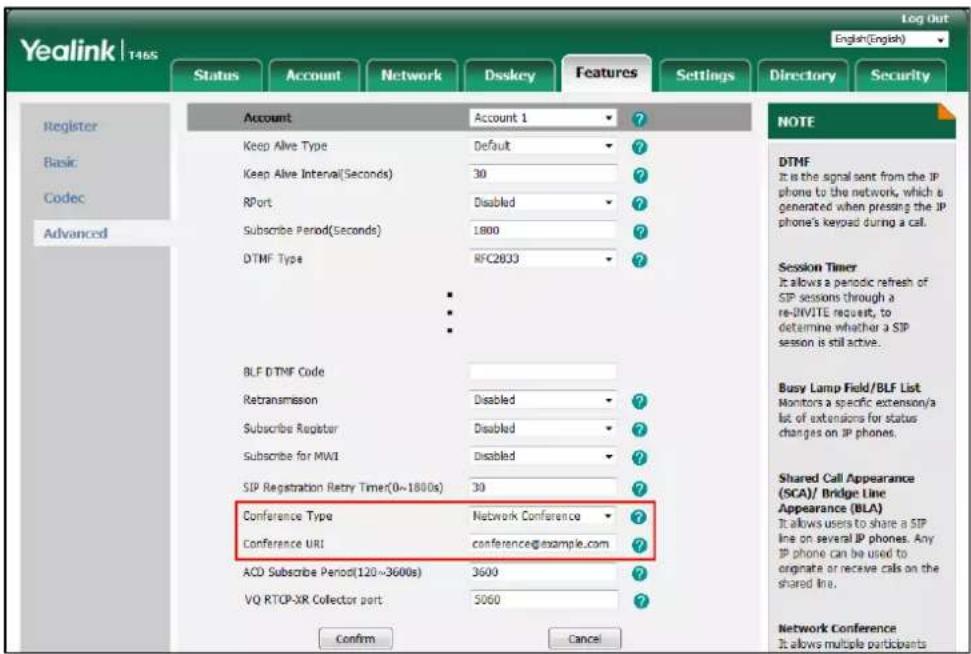
text_image
Yealink T465 Log out English(English) Status Account Network Dsskey Features Settings Directory Security Register Basic Codec Advanced Account Account 1 Keep Alive Type Default Keep Alive Interval(Seconds) 30 RPort Disabled Subscribe Period(Seconds) 1800 DTMF Type RFC2833 BLF DTMF Code Retransmission Disabled Subscribe Register Disabled Subscribe for MVI Disabled SIP Registration Retry Timer(0~1800s) 30 Conference Type Network Conference Conference URI conferences@example.com ACD Subscribe Period(120~3600s) 3600 VQ RTCP-XR Collector port 5060 Confirm Cancel NOTE DTMF It is the signal sent from the IP phone to the network, which a generated when pressing the IP phone's keypad during a call. Session Timer It allows a periodic refresh of SIP sessions through a re-IV/ITE request, to determine whether a SIP session is still active. Busy Lamp Field/BLF List Monitors a specific extension/a list of extensions for status changes on IP phones. Shared Call Appearance (SCA)/ Bridge Line Appearance (BLA) It allows users to share a SIP line on several IP phones. Any IP phone can be used to originate or receive calls on the shared line. Network Conference It allows multiple participants- Click Confirm.
Setting Up a Network Conference
Procedure:
- Place a call to the first party.
- Press Conference (Conf) to place a new call.
The active call is placed on hold.
- Enter the number of the second party, and then press the OK key, # key or Send.
- When the second party answers the call, press Conference (Conf) to add the second party to the conference.
- Press Conference (Conf) to place a new call.
The conference call is placed on hold.
- Enter the number of the new party, and then press the OK key, # key or Send.
- When the new party answers the call, press Conference (Conf) to add the new party to the conference.
- Repeat steps 5 to 7 until you add all intended parties.
The procedures for setting up a network conference call on specific servers may be different from introduced above. Contact your system administrator for more information.
Call Park/Retrieve
You can use call park feature to place a call on hold, and then retrieve the call from another
phone in the system (for example, a phone in another office or conference room). You can park an active call by pressing the Park soft key or call park key (if configured) on the phone. If the call is parked successfully, there is a voice prompt confirming that the call was parked. You can retrieve the parked call by pressing the Retrieve soft key or the retrieve park key (if configured). But if the parked call is not retrieved within a period of time defined by the system, the phone performing call park will receive the call back.
Note
Call park is not available on all servers. Contact your system administrator for more information.
The IP phone supports call park feature under the following modes:
- FAC mode: park the call to the local extension or a desired extension through dialing the park code.
- Transfer mode: park the call to shared parking lot through performing a blind transfer to a call park number (call park code).
FAC Mode
Configuring Call Park Feature in FAC Mode
Procedure:
- Click Features->Pick up & Park.
- Select FAC from the Call Park Mode field.
- Select Enabled from the Call Park field.
If Enabled is selected, the Park will display on the LCD screen during a call, and the Retrieve will display on the dialing screen. - Enter the call park code in the Call Park Code field.
It is configured for the Park soft key. This call park code will also apply to the call park key. - Enter the park retrieve code in the Park Retrieve Code field.
It is configured for the Retrieve soft key. This park retrieve code will also apply to the retrieve park key.
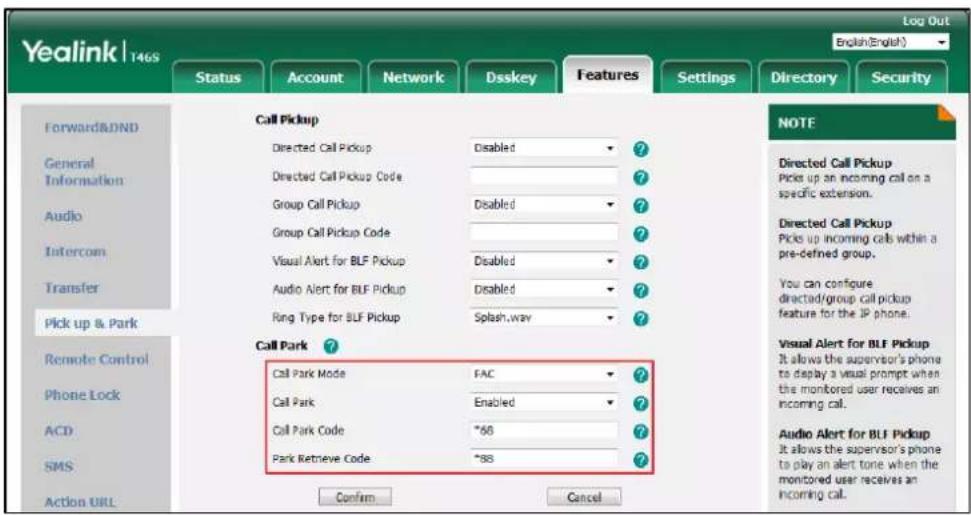
text_image
Yealink | 146S Log Out English(English) Status Account Network Dsskey Features Settings Directory Security Forward&DND General Information Audio Intercom Transfer Pick up & Park Remote Control Phone Lock ACD SMS Action URL Call Pickup Directed Call Pickup Disabled ? Directed Call Pickup Code Disabled ? Group Call Pickup Disabled ? Group Call Pickup Code Disabled ? Visual Alert for BLF Pickup Disabled ? Audio Alert for BLF Pickup Disabled ? Ring Type for BLF Pickup Splash.wav ? Call Park Call Park Mode FAC ? Call Park Enabled ? Call Park Code *68 ? Park Retrieve Code *88 ? Confirm Cancel NOTE Directed Call Pickup Picks up an incoming call on a specific extension. Directed Call Pickup Picks up incoming calls within a pre-defined group. You can configure directed/group call pickup feature for the JP phone. Visual Alert for BLF Pickup It allows the supervisor's phone to display a visual prompt when the monitored user receives an incoming call. Audio Alert for BLF Pickup It allows the supervisor's phone to play an alert tone when the monitored user receives an incoming call.6. Click Confirm.
Note
If the Park or Retrieve soft key doesn't appear on the LCD screen, please select Disabled from the pull-down list of Custom Softkey via web user interface at path Settings->Softkey Layout.
Parking a Call in FAC Mode
Procedure:
- During a call, press Park (You may need to press the More soft key to see the Park soft key).
The phone will dial the configured call park code shown as below:
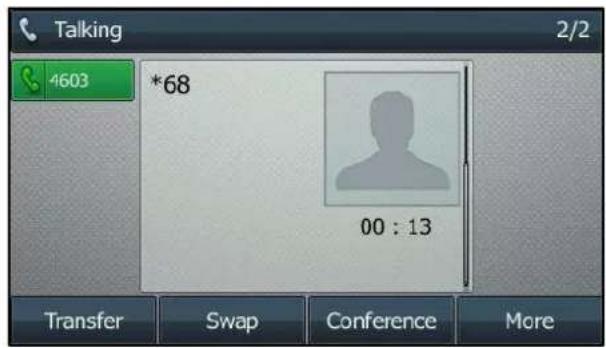
text_image
Talking 2/2 4603 *68 00 : 13 Transfer Swap Conference More- Do one of the following:
a) If you want to park the call against the local extension, press the # key.
If the call is parked successfully, you will hear a voice prompt confirming that the call is parked.
b) If you want to park the call against desired extension.
1) Enter the extension (for example, 4606) where you want to park the call.
2) Press the OK key or # key.
If the call is parked successfully, you will hear a voice prompt confirming that the call is parked. The call is parked against the extension you entered.
From the Calls screen, you can also use a Call Park key (refer to Configuring a Call Park Key) to park the call to desired destination directly.
Note
You can also press the desired BLF or BLF List key to park a call directly. For more information, refer to Parking a Call/Retrieving a Parked Call to the Monitored User.
Retrieving a Parked Call in FAC Mode
Procedure:
- Press Retrieve (You may need to press the More soft key to see the Retrieve soft key) on the pre-dialing screen.
The phone will dial the configured park retrieve code and the Retrieve screen is shown as below:

text_image
Talking 4603 *88 00 : 03 Transfer Hold Conference More-
Follow the voice prompt, do one of the following:
-
Press the # key on the phone where the call is parked.
- Enter the desired extension followed by # (for example, 4606#) on any phone.
From the Idle screen, you can also use a Park Retrieve key (refer to Configuring a Park Retrieve Key) to retrieve the parked call from desired destination directly.
Note
You can also press the desired BLF or BLF List key to retrieve a parked call directly. For more information, refer to Parking a Call/Retrieving a Parked Call to the Monitored User.
Transfer Mode
Configuring Call Park Feature in Transfer Mode
Procedure:
- Click Features->Pick up & Park.
- Select Transfer from the Call Park Mode field.
- Select Enabled from the Call Park field.
If Enabled is selected, the Park soft key will display on the LCD screen during a call, and the Retrieve soft key will display on the dialing screen. -
Enter the call park code in the Call Park Code field. It is configured for the Park soft key. This call park code will also apply to the call park key.
-
Enter the park retrieve code in the Park Retrieve Code field.
It is configured for the Retrieve soft key. This park retrieve code will also apply to the retrieve park key.
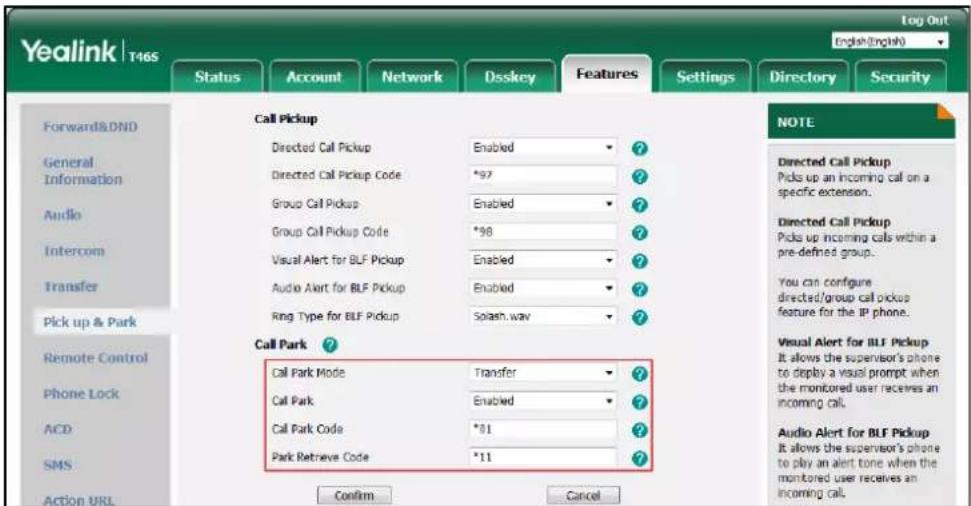
text_image
Yealink T46S Log Out English(English) Status Account Network Dsskey Features Settings Directory Security Forward&DND General Information Audio Intercom Transfer Pick up & Park Remote Control Phone Lock ACD SMS Action URL Confirm Cancel Call Pickup Directed Call Pickup Enabled ? Directed Call Pickup Code *97 ? Group Call Pickup Enabled ? Group Call Pickup Code *98 ? Visual Alert for BLF Pickup Enabled ? Audio Alert for BLF Pickup Enabled ? Ring Type for BLF Pickup Solash.wav ? Call Park ? Call Park Mode Transfer ? Call Park Enabled ? Call Park Code *01 ? Park Retrieve Code *11 ? NOTE Directed Call Pickup Picks up an incoming call on a specific extension. Directed Call Pickup Picks up incoming calls within a pre-defined group. You can configure directed/group call pickup feature for the IP phone. Visual Alert for BLF Pickup It allows the supervisor's phone to deploy a visual prompt when the monitored user receives an incoming call. Audio Alert for BLF Pickup It allows the supervisor's phone to play an alert tone when the monitored user receives an incoming call.6. Click Confirm.
Note
If the Park or Retrieve soft key doesn't appear on the LCD screen, please select Disabled from the pull-down list of Custom Softkey via web user interface at path Settings->Softkey Layout.
Parking a Call in Transfer Mode
Procedure:
- During a call, press Park (You may need to press the More soft key to see the Park soft key).
The call will be directly transferred to the shared parking lot.
From the Calls screen, you can also use a Call Park key (refer to Configuring a Call Park Key) to park the call to shared parking lot directly during a call.
Note
For some servers, the system will return a specific retrieve park number (park retrieve code) from which the call can be retrieved after parking successfully.
Retrieving a Parked Call in Transfer Mode
Procedure:
- Press Retrieve (You may need to press the More soft key to see the Retrieve soft key) on the pre-dialing screen.
The phone will retrieve the parked call from the shared parking lot.
From the Idle screen, you can also press a Park Retrieve key (refer to Configuring a Park Retrieve Key) to retrieve the parked call from shared parking lot directly when the phone is idle.
Call Pickup
You can use call pickup to answer someone else's incoming call on your phone. The IP phones support directed call pickup and group call pickup. Directed call pickup allows you to pick up incoming calls to another phone, while group call pickup allows you to pick up incoming calls to any phones within a predefined group of phones.
To use call pickup, you need to configure the call pickup code beforehand on a global or per-line basis via web user interface, then you can press the DPickup/GPickup soft key to pick up an incoming call directly. Note that the call pickup code configured on a per-line basis takes precedence over that configured on a global basis.
Note
If there are many incoming calls at the same time, pressing the GPickup soft key on the phone will pick up the first incoming call.
The pickup group should be predefined by your system administrator.
Directed Call Pickup
Configuring the Directed Call Pickup
Procedure:
- Click Features->Pick up & Park.
-
Select Enabled from the Directed Call Pickup field.
-
Enter the directed call pickup code in the Directed Call Pickup Code field.
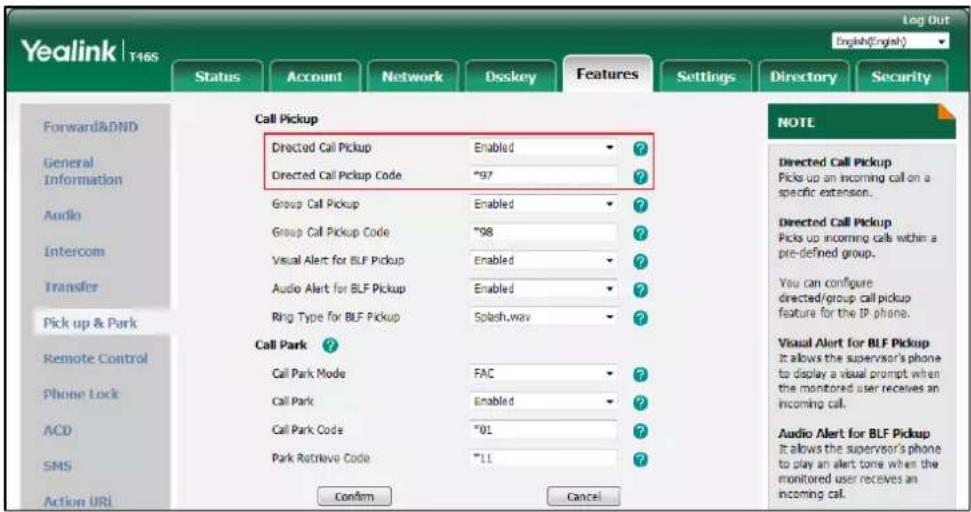
text_image
Yealink T46S Log Out English(English) Status Account Network Dsskey Features Settings Directory Security Forward&DND General Information Audio Intercom Transfer Pick up & Park Remote Control Phone Lock ACD SMS Action URL Call Pickup Directed Call Pickup Enabled ? Directed Call Pickup Code "97 ? Group Call Pickup Enabled ? Group Call Pickup Code "98 ? Visual Alert for BLF Pickup Enabled ? Audio Alert for BLF Pickup Enabled ? Ring Type for BLF Pickup Splash.wav ? Call Park ? Call Park Mode FAC ? Call Park Enabled ? Call Park Code "01 ? Park Retrieve Code "11 ? Confirm Cancel NOTE Directed Call Pickup Picks up an incoming call on a specific extension. Directed Call Pickup Picks up incoming calls within a pre-defined group. You can configure directed/group call pickup feature for the IP phone. Visual Alert for BLF Pickup It allows the supervisor's phone to display a visual prompt when the monitored user receives an incoming call. Audio Alert for BLF Pickup It allows the supervisor's phone to play an alert tone when the monitored user receives an incoming call.- Click Confirm.
You can also configure the directed call pickup code on a per-line basis:
Procedure:
- Click Account->Advanced.
- Select the desired account from the Account field.
- Enter the directed call pickup code in the Directed Call Pickup Code field.
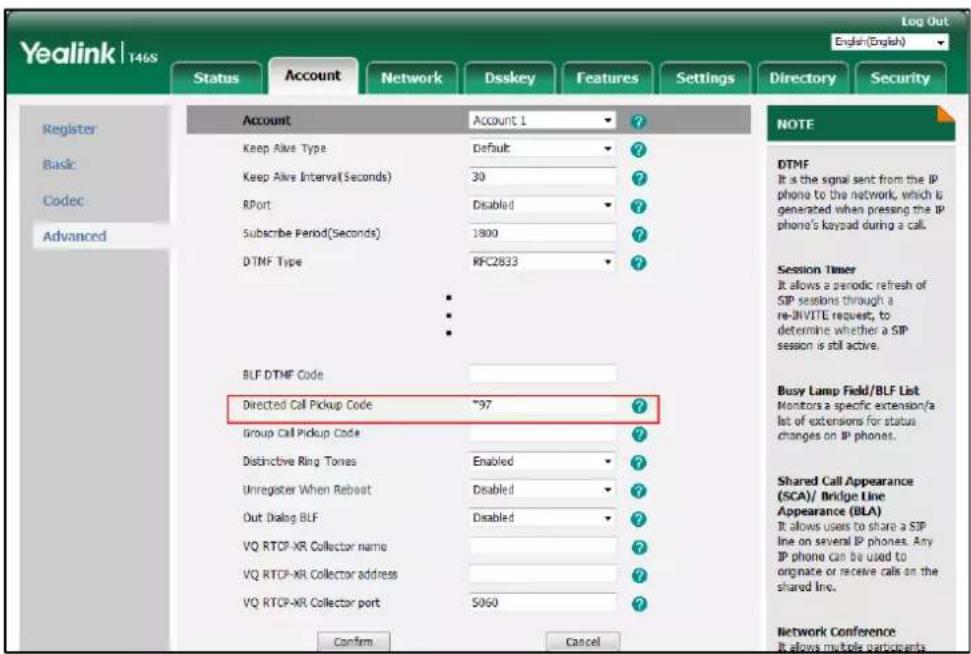
text_image
Yealink | 146S Log Out English(English) Status Account Network Dsskey Features Settings Directory Security Register Basic Codec Advanced Account Account 1 Keep Alive Type Default Keep Alive Interval(Seconds) 30 RPort Disabled Subscribe Period(Seconds) 1800 DTMF Type RFC2833 BLF DTMF Code Directed Call Pickup Code *97 Group Call Pickup Code Distinctive Ring Tones Enabled Unregister When Reboot Disabled Out Dialing BLF Disabled VQ RTCP-XR Collector name VQ RTCP-XR Collector address VQ RTCP-XR Collector port 5060 Confirm Cancel NOTE DTMF It is the signal sent from the IP phone to the network, which is generated when pressing the IP phone's keypad during a call. Session Timer It allows a periodic refresh of SIP sessions through a re-INVITE request, to determine whether a SIP session is still active. Busy Lamp Field/BLF List Monitors a specific extension/a list of extensions for status changes on IP phones. Shared Call Appearance (SCA)/ Bridge Line Appearance (BLA) It allows users to share a SIP line on several IP phones. Any IP phone can be used to originate or receive calls on the shared line. Network Conference It allows multiple participants- Click Confirm.
Picking Up a Call Directly
Procedure:
- Pick up the handset, press the line key or the Speakerphone key.
The DPickup appears on the LCD screen (You may need to press the More soft key to see the DPickup soft key).
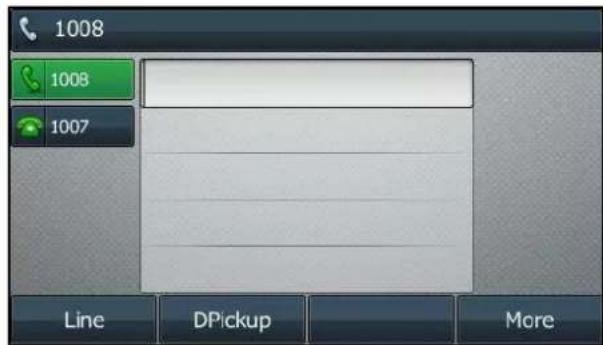
text_image
1008 1008 1007 Line DPickup More-
Press DPickup on your phone when the target phone receives an incoming call.
-
Enter the phone number which is receiving an incoming call.
-
Press DPickup again.
The call is answered on your phone.
You can also use a Directed Pickup key (refer to Configuring a Directed Pickup Key) or BLF/BLF List key (refer to Configuring a BLF Key/Configuring BLF List Settings) to pick up a call directly.
Group Call Pickup
Configuring the Group Call Pickup
Procedure:
-
Click Features->Pick up & Park.
-
Select Enabled from the Group Call Pickup field.
-
Enter the group call pickup code in the Group Call Pickup Code field.

text_image
Yealink T46S Log Out English(English) Status Account Network Dsskey Features Settings Directory Security Forward&DND General Information Audio Intercom Transfer Pick up & Park Remote Control Phone Lock ACD SMS Action URL Call Pickup Directed Call Pickup Enabled ? Directed Call Pickup Code "97 ? Group Call Pickup Enabled ? Group Call Pickup Code "98 ? Visual Alert for BLF Pickup Enabled ? Audio Alert for BLF Pickup Enabled ? Ring Type for BLF Pickup Splash.wav ? Call Park ? Call Park Mode FAC ? Call Park Enabled ? Call Park Code "01 ? Park Retrieve Code "11 ? Confirm Cancel NOTE Directed Call Pickup Picks up an incoming call on a specific extension. Directed Call Pickup Picks up incoming calls within a pre-defined group. You can configure directed/group call pickup feature for the IP phone. Visual Alert for BLF Pickup It allows the supervisor's phone to display a visual prompt when the monitored user receives an incoming call. Audio Alert for BLF Pickup It allows the supervisor's phone to play an alert tone when the monitored user receives an incoming call.- Click Confirm.
You can also configure the group call pickup code on a per-line basis:
Procedure:
- Click Account->Advanced.
- Select the desired account from the Account field.
- Enter the group call pickup code in the Group Call Pickup Code field.
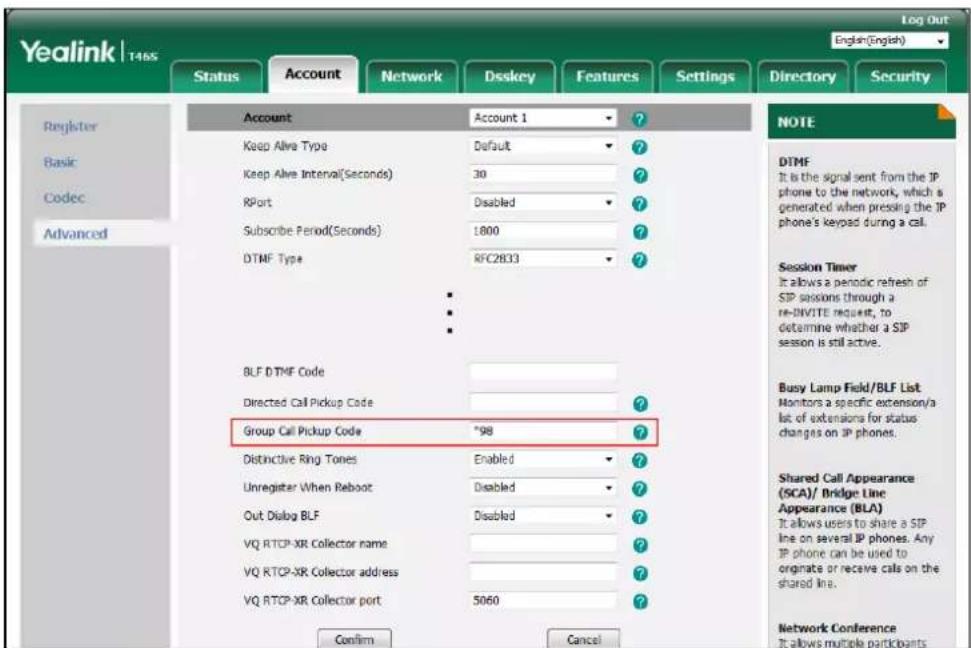
text_image
Yealink | 1465 Log Out English(English) Status Account Network Dsskey Features Settings Directory Security Register Basic Codec Advanced Account Account 1 Keep Alive Type Default Keep Alive Interval(Seconds) 30 RPort Disabled Subscribe Period(Seconds) 1800 DTMF Type RFC2833 BLF DTMF Code Directed Call Pickup Code Group Call Pickup Code *98 Distinctive Ring Tones Enabled Unregister When Reboot Disabled Out Dialog BLF Disabled VQ RTCP-XR Collector name VQ RTCP-XR Collector address VQ RTCP-XR Collector port 5060 Confirm Cancel NOTE DTMF It is the signal sent from the IP phone to the network, which a generated when pressing the IP phone's keypad during a call. Session Timer It allows a periodic refresh of SIP sessions through a re-INVITE request, to determine whether a SIP session is still active. Busy Lamp Field/BLF List Monitors a specific extension/a list of extensions for status changes on IP phones. Shared Call Appearance (SCA)/ Bridge Line Appearance (BLA) It allows users to share a SIP line on several IP phones. Any IP phone can be used to originate or receive calls on the shared line. Network Conference It allows multiple participants- Click Confirm.
Picking Up a Call in the Group
Procedure:
- Pick up the handset, press the line key or the Speakerphone key.
The GPickup appears on the LCD screen.

text_image
1006 1006 1007 1020 1028 6026 6027 Directory 123 GPickup Line- Press GPickup on your phone when any phone in the group receives an incoming call.
The call is answered on your phone.
You can also use a Group Pickup key (refer to Configuring a Group Pickup Key) to pick up a call directly.
Note
The directed call pickup code and group call pickup code are predefined by your system administrator on the system server.
The call pickup code configured on a per-line basis takes precedence over that configured on a global basis.
Anonymous Call
Anonymous call, which is configurable on a per-line basis, allows you to place a call to someone without revealing your identification by blocking your name or phone number from being displayed on the called party's phone screen. You can also configure the phone to send anonymous call on/off code to the server to activate/deactivate anonymous call on the server side.
Note
Anonymous call is not available on all servers. Contact your system administrator for the anonymous call on code and off code.
Configuring the Anonymous Call
Procedure:
- Navigate to Menu->Features->Anonymous.
For the SIP-T42S/T42G/T41S/T41P/T40G/T40P IP phone, navigate to
Menu->Features->Anonymous Call.
- Select a desired line.
For the SIP-T42S/T42G/T41S/T41P/T40G/T40P IP phone, select a desired line from the Line ID field.
- Select Enabled from the Local Anonymous field.
For the SIP-T48S/T48G IP phone, tap the On radio box of the Local Anonymous field.
-
(Optional.) Select the desired value from the Send Anony Code (Send Anonymous Code) field.
-
(Optional.) Enter the anonymous call on code and off code respectively in the On Code and Off Code field.
The phone will send the configured on code or off code depending on your selection when you enable or disable anonymous call feature on the phone.

text_image
Line 1 1. Local Anonymous: Enabled 2. Local Anony Reject: Disabled 3. Send Anony Code: On Code 4. On Code: 5. Off Code: Back 123 Delete Save- Press Save.
Anonymous call is configurable via web user interface at the path Account->Basic.
Placing an Anonymous Call
Procedure:
- Using the specific line which has been configured with anonymous call feature to place a call to phone B.
The LCD screen of phone B prompts an incoming call from anonymity.
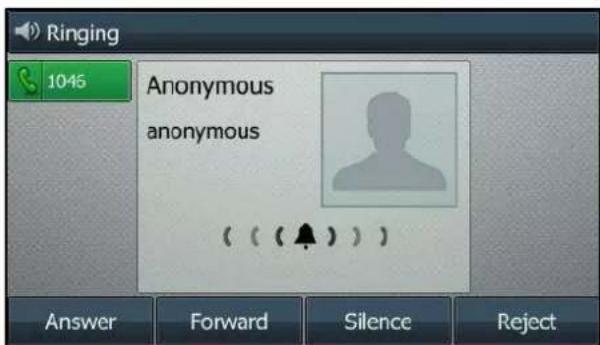
text_image
Ringing 1045 Anonymous anonymous ( ( ( ( ) ) ) ) Answer Forward Silence RejectAnonymous Call Rejection
Anonymous call rejection, which is configurable on a per-line basis, allows you to automatically reject incoming calls from callers who have blocked their caller ID information (including name, phone number, etc.). You can also configure the phone to send anonymous call rejection on/off code to the server to activate/deactivate anonymous call rejection on the server side.
Configuring the Anonymous Call Rejection
Procedure:
- Navigate to Menu->Features->Anonymous.
For the SIP-T42S/T42G/T41S/T41P/T40G/T40P IP phone, navigate to
Menu->Features->Anonymous Call.
- Select a desired line.
For the SIP-T42S/T42G/T41S/T41P/T40G/T40P IP phone, select a desired line from the Line ID field.
- Select Enabled from the Local Anony Reject (Local Anonymous Rejection) field.
For the SIP-T48S/T48G IP phone, tap the On radio box of the Local Anony Reject field.
-
(Optional.) Select the desired value from the Send Rejection Code field.
-
(Optional.) Enter the anonymous call rejection on code and off code respectively in the On Code and Off Code field.
The phone will send the configured on code or off code depending on your selection when you enable or disable anonymous call rejection feature on the phone.
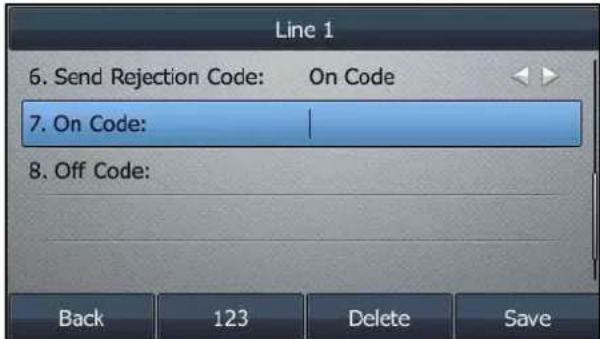
text_image
Line 1 6. Send Rejection Code: On Code 7. On Code: 8. Off Code: Back 123 Delete Save- Press Save.
Anonymous call rejection is configurable via web user interface at the path Account->Basic.
Placing a Call to Anonymous Rejected User
If phone B has anonymous call feature enabled and places a call to your IP phone, the call cannot be dialed out on phone B, and the LCD screen of the phone B will display the following:
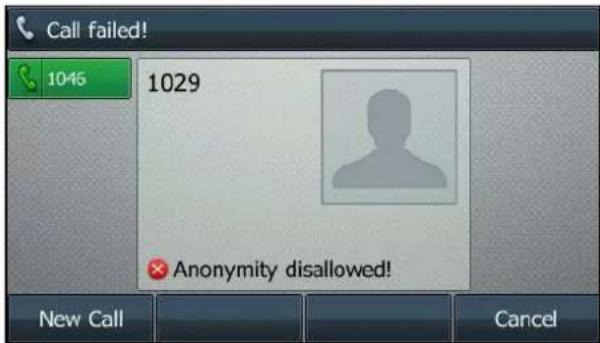
text_image
Call failed! 1046 1029 Anonymity disallowed! New Call CancelAdvanced Phone Features
This chapter explains how to use the advanced features on the IP phone. Topics include:
- Busy Lamp Field (BLF)
- BLF List
- Call Recording
- Hot Desking
- Intercom
- Multicast Paging
• Automatic Call Distribution (ACD)
• Shared Call Appearance (SCA)
• Bridged Line Appearance (BLA) - Messages
If you require additional information or assistance with your new phone, contact your system administrator.
Busy Lamp Field (BLF)
You can use BLF to monitor a specific line for status changes on the phone. For example, you can configure a BLF key on the phone to monitor the status of a friend's line (busy or idle). The BLF key LED glows red when the friend's line is in use.
You can also enable visual and audio alert features for BLF pickup on the phone.
You can use the BLF key to do the following:
- Placing a call to the monitored user
- Transferring a call to the monitored user
- Pick up an incoming call of the monitored user
- Parking a call to/retrieving a parked call from the monitored user
Configuring a BLF Key
You can configure a BLF key to monitor a specific line for status changes on the phone. You can also initiate an outgoing intercom call to the monitored user, or assign a pick up code for BLF key first to pick up an incoming call of the monitored user. Check with your system administrator to find out if these features are available on your phone.
Procedure:
-
Navigate to Menu->Features->DSS Keys.
-
Select a desired line key.
-
Select BLF from the Type field.
-
Select the desired line from the Account ID field.
-
(Optional.) Enter the string that will display on the LCD screen in the Label field.
-
Enter the phone number or extension you want to monitor in the Value field.
-
(Optional.) Enter the directed call pickup code in the Extension field.
If it is configured, you can press the BLF key to pick up the call directly when the monitored user receives an incoming call.
If you leave it blank, and a call pickup code is configured in advance (refer to Configuring the Directed Call Pickup), you can also use the BLF key to pick up the call directly.
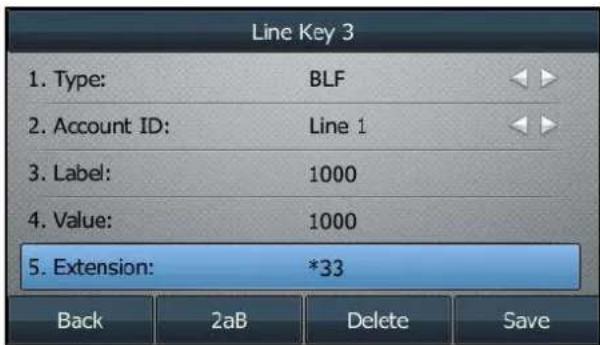
text_image
Line Key 3 1. Type: BLF 2. Account ID: Line 1 3. Label: 1000 4. Value: 1000 5. Extension: *33 Back 2aB Delete Save8. Press Save.
BLF key is configurable via web user interface at the path Dsskey->Line key.
Note
The pickup code is used in the following order of preference: Extension (Dsskey->Line Key) > Directed Call Pickup Code (Account->Advanced) > Directed Call Pickup Code (Features->Pick up & Park).
Configuring Visual and Audio Alert for BLF Pickup
The visual alert feature for BLF pickup allows the monitoring phone to display the caller ID when the monitored line receives an incoming call; the audio alert feature for BLF pickup allows the monitoring phone to play an audio alert or a distinctive ring tone when the monitored line receives an incoming call.
When the monitored line receives an incoming call, the following occurs on your phone:
- The phone plays a specific ring tone (if enabled).
• The BLF key LED flashes red.
- The caller ID appears on the LCD screen (if enabled).
In the following figure, the LCD screen shows an incoming call from 1008 to the monitored line.

text_image
Calls for Pickup 0/1 1. 1001 <- 1008 Pick Up Send New Call CancelNote
If your phone is locked, you cannot use the Pick Up, Send, New Call (NewCall) and Cancel soft keys until unlocked. For more information, refer to Phone Lock.
Configuring the Visual and Audio Alert Features
Procedure:
- Click Features->Pick up & Park.
- Select Enabled from the pull-down list of Visual Alert for BLF Pickup.
- Select Enabled from the pull-down list of Audio Alert for BLF Pickup.

text_image
Yealink T46S Log Out English(English) Status Account Network Dsskey Features Settings Directory Security Forward&DND General Information Audio Intercom Transfer Pick up & Park Remote Control Phone Lock ACD SMS Action URI Call Pickup Directed Call Pickup Enabled ? Directed Call Pickup Code *97 ? Group Call Pickup Enabled ? Group Call Pickup Code *98 ? Visual Alert for BLF Pickup Enabled ? Audio Alert for BLF Pickup Enabled ? Ring Type for BLF Pickup Splash.wav ? Call Park ? Call Park Mode FAC ? Call Park Enabled ? Call Park Code *01 ? Park Retrieve Code *11 ? Confirm Cancel NOTE Directed Call Pickup Picks up an incoming call on a specific extension. Directed Call Pickup Picks up incoming calls within a pre-defined group. You can configure directed/group call pickup feature for the DP phone. Visual Alert for BLF Pickup it allows the supervisor's phone to display a visual prompt when the monitored user receives an incoming call. Audio Alert for BLF Pickup it allows the supervisor's phone to play an alert tone when the monitored user receives an incoming call.- Click Confirm.
Configuring the BLF Ring Type
Procedure:
- Navigate to Menu->Basic->Sound->BLF Ring Type.
For the SIP-T42S/T42G/T41S/T41P/T40G/T40P IP phone, navigate to
Menu->Settings->Basic Settings->Sound->BLF Ring Type.
- Select the desired ring tone.

text_image
Ring Tones Ring1.wav Ring2.wav Ring3.wav Ring4.wav Ring5.wav Back Save- (Optional.) Press the Volume key to adjust the ringer volume.
- Press Save.
BLF ring type is configurable via web user interface at the path Features->Pick up & Park.
Placing a Call to the Monitored User
You can press a BLF key to dial out the monitored phone number when the monitored line is idle.
Procedure:
- Press the BLF key.
The IP phone dials out the phone number of the monitored user.
Transferring a Call to the Monitored User
When there is already an active call on the IP phone, you can transfer the active call to the monitored user by pressing the BLF key. The phone handles the active call differently depending on the configuration of Transfer Mode via Dsskey (refer to Configuring Transfer Mode via Dsskey). The Transfer Mode via Dsskey has the following modes:
- Blind Transfer
- Attended Transfer
- New Call
Performing a Blind Transfer
When the Transfer Mode via Dsskey is set to Blind Transfer and there is already an active call on the IP phone, you can do the following:
Procedure:
- Press the BLF key of the monitored user which you want to transfer this call to.
Performing a Semi-attended Transfer
When the Transfer Mode via Dsskey is set to Attended Transfer and there is already an active call on the IP phone, you can do the following:
Procedure:
- Press the BLF key of the monitored user which you want to transfer this call to. The phone will dial the number of the monitored user.
- Press the BLF key of the monitored user again or Transfer (Trans) to complete the transfer when receiving ringback.
Performing an Attended Transfer
When the Transfer Mode via Dsskey is set to Attended Transfer and there is already an active call on the IP phone, you can do the following:
Procedure:
- Press the BLF key of the monitored user which you want to transfer this call to. The phone will dial the number of the monitored user.
- Press the BLF key of the monitored user again or Transfer (Trans) to complete the transfer after the monitored user answers the call.
Performing a New Call
When the Transfer Mode via Dsskey is set to New Call and there is already an active call on the IP phone, you can do the following:
Procedure:
- Press the BLF key of the monitored user you want to call.
The phone will dial the number of the monitored user. The original call is placed on hold.
Picking up an Incoming Call of the Monitored User
When the monitored user receives an incoming call, the BLF key indicator of the monitored user will flash red (except the SIP-T48S/T48G IP phone). On the SIP-T48S/T48G IP phone, the BLF key icon indicator of the monitored user will become 📁 and flashing. You can pick up the incoming call by pressing the BLF key, or by pressing DPickup (if visual indication feature is enabled). Before picking up an incoming call, make sure that the directed call pickup code has been configured in advance.
Procedure:
1. Press the BLF key.
The incoming call of the monitored user is answered on the IP phone.
Note
If the directed call pickup code is not configured, the phone will place a call to the monitored user instead of picking up an incoming call of the monitored user when you press the BLF key or DPickup.
Parking a Call/Retrieving a Parked Call to the Monitored User
You can use the BLF key to park a call or retrieve a parked call directly in FAC mode. Make sure that the call park feature is configured in advance (refer to Configuring Call Park Feature in FAC Mode).
Parking a Call in FAC Mode
Procedure:
- During a call, press Park (You may need to press the More soft key to see the Park soft key).
- Press the desired BLF key to park the call to the monitored user.
On the SIP-T48S/T48G IP phone, tap 📋 to back to the Idle screen, and then tap the desired BLF key to park the call to the monitored user.
Retrieving a Parked Call in FAC Mode
Procedure:
- Press Retrieve on the dialing screen.
- Press the desired BLF key to retrieve a call that is parked to the monitored user.
On the SIP-T48S/T48G IP phone, tap 📋 to back to the Idle screen, and then tap the desired BLF key to park the call to the monitored user.
BLF List
BLF List feature enables you to monitor a list of users defined by your system administrator. For example, your system administrator has enabled BLF List feature and created a BLF List URL (for example, BLFList@example.com) with user1 and user2 in the list on the server. After configuration, the BLF List keys on the IP phone can present the status of user1 and user2, and the respective key LEDs or icons will illuminate either flashing or solid depending on the status of monitored lines. For more BLF List key LED indicators, refer to LED Instructions.
You can use the BLF List key to do the following:
- Placing a call to the monitored user.
- Transferring a call to the monitored user. The phone handles the active call differently depending on the configuration of Transfer Mode via Dsskey. For more information on the Transfer Mode via Dsskey, refer to Configuring Transfer Mode via Dsskey.
- Picking up an incoming call of the monitored User. Before picking up an incoming call, ensure that the BLF List Pickup Code has been configured in advance. For more information on how to configure the BLF List Pickup Code, refer to Configuring BLF List Settings.
- Barging in a conversation and setting up a conference call. Before barging in an active call, ensure that the BLF List Barge In Code has been configured in advance. For more information on how to configure the BLF List Barge In Code, refer to Configuring BLF List Settings.
- Retrieving a parked call from the monitored user. Before retrieving the parked call, ensure that the BLF List Retrieve Call Parked Code has been configured in advance. For more information on how to configure the Retrieve Call Parked Code, refer to Configuring BLF List Settings.
For more information on how to use these features, refer to Busy Lamp Field (BLF).
Configuring BLF List Settings
Procedure:
- Click Account->Advanced.
- Select the desired account from the pull-down list of Account.
- Enter the BLF List URI in the BLF List URI field.
- (Optional.) Enter the directed call pickup code in the BLF List Pickup Code field.
If the code is not configured, the phone will place a call to the monitored user instead of picking up the incoming call of the monitored user when you press the BLF List key. - (Optional.) Enter the barge-in code in the BLF List Barge In Code field.
If the code is not configured, the phone will place a call to the monitored user instead of barging in an active call of the monitored user when you press the BLF List key. - (Optional.) Enter the park retrieve code in the BLF List Retrieve Call Parked Code field.
If the code is not configured, the phone will place a call to the monitored user instead of retrieving the parked call when you press the BLF List key.

text_image
Yealink T465 Log Out English(English) Status Account Network Dsskey Features Settings Directory Security Register Basic Codec Advanced Account Account 1 ? Keep Alive Type Default ? Keep Alive Interval(Seconds) 30 ? RPort Disabled ? Subscribe Period(Seconds) 1800 ? DTMF Type RFC2833 ? BLF DTMF Code PTme(ms) 20 ? BLF List URI 4609@pbx.yealink.com ? BLF List Pickup Code *97 ? BLF List Barge In Code *33 ? BLF List Retrieve Call Parked Code *88 ? Shared Line Disabled ? VQ RTCP-XR Collector address ? VQ RTCP-XR Collector port 5060 ? Confirm Cancel NOTE DTMF It is the signal sent from the IP phone to the network, which is generated when pressing the IP phone's keypad during a call. Session Timer It allows a periodic refresh of SIP sessions through a re-INVITE request, to determine whether a SIP session is still active. Busy Lamp Field/BLF List Monitors a specific extension/a list of extensions for status changes on IP phones. Shared Call Appearance (SCA)/ Bridge Line Appearance (BLA) It allows users to share a SIP line on several IP phones. Any IP phone can be used to originate or receive calls on the shared line. Network Conference It allows multiple participants7. Click Confirm.
Note
For more information on BLF List URI/BLF List Pickup Code/BLF List Barge In Code/BLF List Retrieve Call Parked Code, contact your system administrator.
The pickup code is used in the following order of preference: BLF List Pickup Code (Account->Advanced)>Directed Call Pickup Code (Account->Advanced)>Directed Call Pickup Code (Features->Pick up & Park). If all of them are not configured, pressing the BLF List key will directly call the monitored user when he/she receives an incoming call. For more information on pickup code, refer to Call Pickup.
According to the response message from the server, the IP phone will automatically configure the BLF List keys beginning from the first unused DSS key (The default order of BLF List keys assigned automatically is Line Key->Ext Key.). Once any DSS key is seized, the IP phone will skip to configure the next DSS key.
Note
Your system administrator can customize the assignment order.
Call Recording
The IP phones support local and server recording. Only on the
SIP-T48S/T48G/T46S/T46G/T42S/T41S IP phone, you can record active calls onto a USB flash drive connected to your IP phone, and the recordings are saved as *.wav files. If you press the record key (refer to Recording Using a Record Key) during an active call, this active call will be recorded and saved on the server.
Note
Before call recording, especially those involving PSTN, it is necessary to know about the rules and restrictions of any governing call-recording in the country where you are. It is also very important to inform all the call parties that you are recording and ask for their consent before recording the conversation.
Recording Using a USB Flash Drive
On the SIP-T48S/T48G/T46S/T46G/T42S/T41S IP phone, you can record calls onto a USB flash drive connected to your phone.
If you insert a USB flash drive to the IP phone when the phone is idle, the phone will detect the USB flash drive and display a flashing USB icon. After detecting the USB flash drive, the icon stops flashing and a message will display on the screen:
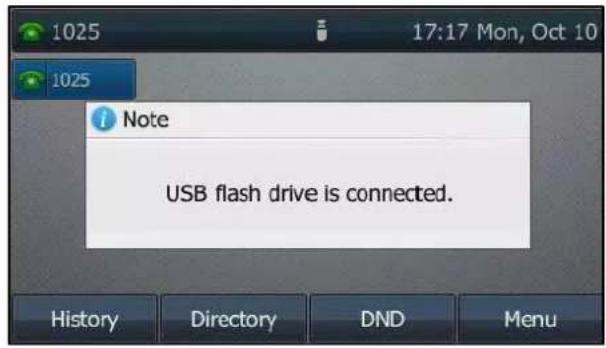
text_image
1025 17:17 Mon, Oct 10 1025 Note USB flash drive is connected. History Directory DND MenuIf you insert a USB flash drive to the IP phone during a call, a message will pop up to tell you how much time is available for recording. For more information on the available recording time, refer to Viewing the Storage Space.
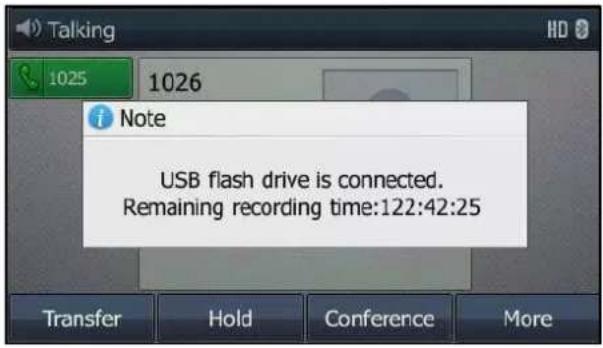
text_image
USB flash drive is connected. Remaining recording time:122:42:25Note
Recording using a USB flash drive is not available by default. Check with your system administrator to find out if this feature is available on your phone.
The size of a single recording file should be less than 2G.
The Start REC soft key controls the recording function, and is available:
- When the free space of USB flash drive is sufficient
- When there are one or more calls connected to your IP phone
- During an active call
- When calls are on hold or muted
• During an attended transfer
• During a conference call
The Start REC soft key is not available when:
- You place a new call
- No free space of USB flash drive
• Receiving an incoming call
Recording a Call
You can record active calls or conferences.
Procedure:
- Press More, and then press StartREC during a call.
The LCD screen displays a recording icon and recording duration.
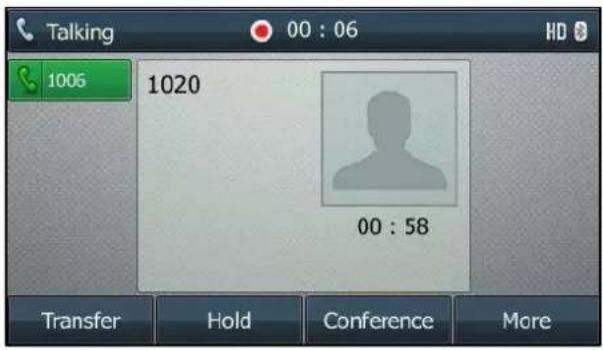
text_image
Talking 00 : 06 HD 1006 1020 00 : 58 Transfer Hold Conference MoreDuring the recording, you can do the following:
- Press More, and then press PauseREC. Then the pause recording icon appears on the LCD screen and the duration stops counting. Both you and other parties are not recorded.
Press Re REC to continue recording.
- Press More, and then press StopREC. Recording stops and a message is displayed on the screen:
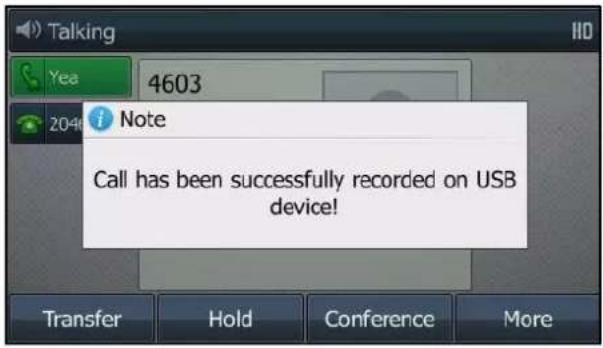
text_image
Talking Yea 4603 2048 i Note Call has been successfully recorded on USB device! Transfer Hold Conference MorePress StartREC to start recording again, the recording will be saved as a new ".wav" file.
- Press the HOLD key or Hold while recording, recording is paused. Then the pause recording icon appears on the LCD screen and the duration stops counting. Both you and the callee are not recorded.
Press Resume to resume the call, the recording is continued.
- Press the MUTE key while recording, the muted party is not recorded.
- If there is insufficient free space (30 minutes left) on the USB flash drive during recording, a message will display on the screen:
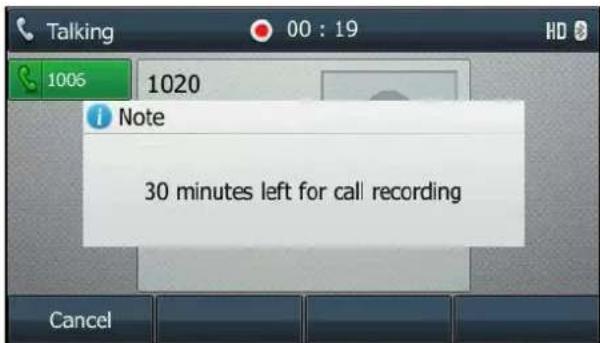
text_image
Talking 00 : 19 1005 1020 i Note 30 minutes left for call recording CancelPress Cancel to return to the previous screen.
If there is insufficient free space (10 minutes left) on the USB flash drive during recording, a message will display on the screen:
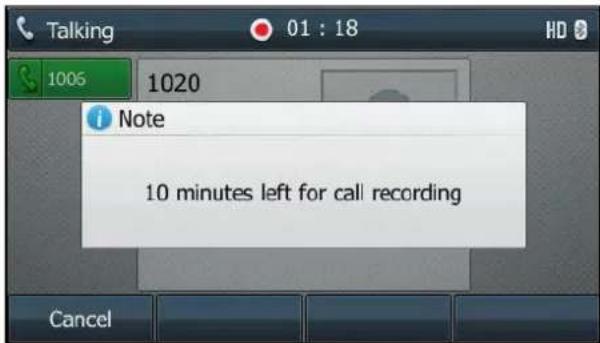
text_image
Talking 01 : 18 1005 1020 Note 10 minutes left for call recording CancelPress Cancel to return to the previous screen.
If no free space on the USB flash drive during recording, recording is stopped and saved on the USB flash drive automatically. The related soft keys during recording disappear. You cannot record a call unless the space of your USB flash drive is released.
Note
You can transfer or set up a conference call while recording. All the calls are recorded in the same way and will be saved in a ".wav" file.
Stop Recording a Call
When you end a call during recording, the recording will be stopped and saved as *.wav file on the USB flash drive automatically.
Procedure:
- Press More, and then press StopREC.
The recording icon and recording duration disappears. A message is displayed on the LCD screen:
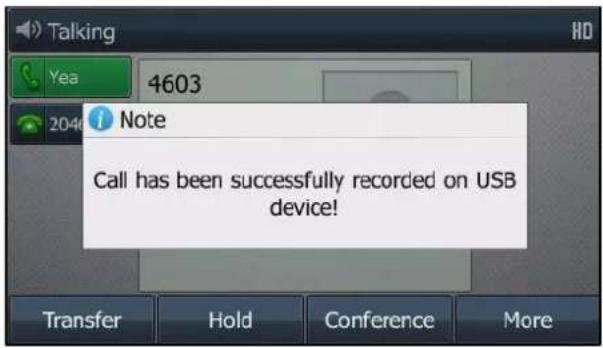
text_image
Talking Yea 4603 2046 Note Call has been successfully recorded on USB device! Transfer Hold Conference More- Press More and then press End Call (EndCall).
The recording icon and recording duration disappears, and the phone returns to the Idle screen. A message is displayed on the LCD screen:
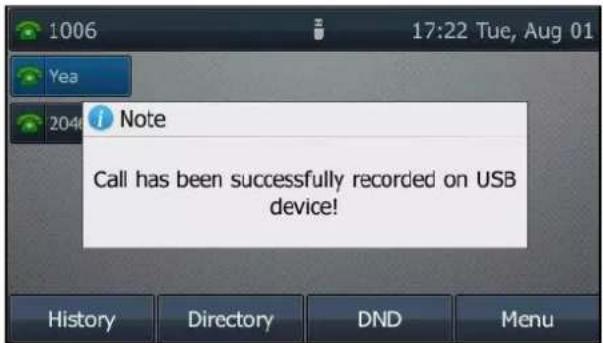
text_image
1006 17:22 Tue, Aug 01 Yea 2046 i Note Call has been successfully recorded on USB device! History Directory DND MenuPlaying Back Recorded Calls
You can play back, browse and delete the recorded files on your phone.
Note
You can play back the recorded calls on the phone or on a computer using an application capable of playing ".wav" files.
Procedure:
- Navigate to Menu->USB->Browse Audio.
The LCD screen shows all recorded files (file name, duration time and file size) in the
Browse Audio list. The filename consists of the recording time & date, the other party's number/IP address/name (or the first person's number/IP address/name you called).
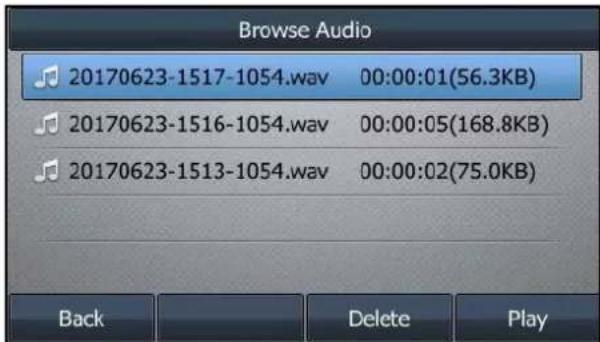
text_image
Browse Audio 20170623-1517-1054.wav 00:00:01(56.3KB) 20170623-1516-1054.wav 00:00:05(168.8KB) 20170623-1513-1054.wav 00:00:02(75.0KB) Back Delete Play- Select a desired file to play.

text_image
20170731-1759-1000.wav File Size: 62.5KB Playing: 00:00:01 / 00:00:02 Back F.Rew F.Fwd PauseDuring the recording playback, you can do the following:
- Press the Speakerphone key, the HEADSET key, or pick up the handset to alternate among Speakerphone, Headset and Handset modes.
- Press the Volume key to adjust the volume of audio output.
On the SIP-T48S/T48G IP phone, you can do the following:
- Tap ⑪ to pause the playback. Then ▶ appears on the touch screen Tap ▶ to continue the playback.
- Drag the slider to skip forward the playback or rewind the playback.
- Tap ☐ to stop the playback.
On the SIP-T46S/T46G/T42S/T41S IP phone, you can do the following:
- Press Pause to pause the playback. The Play soft key appears on the LCD screen.
Press Play to continue the playback.
- Press F.Fwd (▶) to skip forward the playback. Press once to skip forward 8 seconds.
- Press F.Rew (◀) to rewind the playback. Press once to rewind 8 seconds.
- Press Back to stop the playback. The phone returns to the Browse Audio screen.
When you receive an incoming call while playing a recording, the recording is paused automatically and the phone rings. If you reject the incoming call or after you end the call, the recording remains paused until you press Play or tap ▶ again.
Deleting the Recorded File
Procedure:
- Navigate to Menu->USB->Browse Audio.
- Highlight a desired recording, and then press Delete.
On the SIP-T48S/T48G IP phone, tap 📋 after the desired recording.
A message is displayed on the LCD screen:
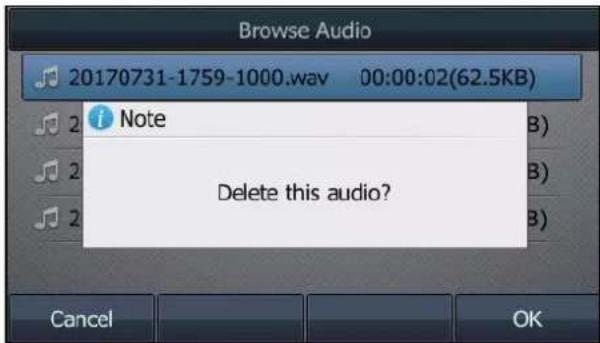
text_image
Browse Audio 20170731-1759-1000.wav 00:00:02(62.5KB) Note Delete this audio?- Press OK to delete.
Viewing the Storage Space
You can view the storage space (for example, total space, used space, free space) of the USB flash drive on the phone.
Procedure:
- Navigate to Menu->USB->Storage Space.
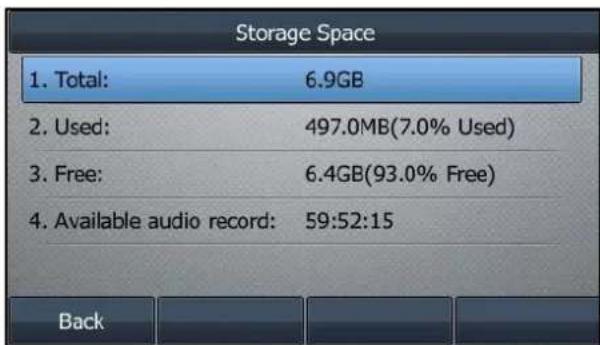
text_image
Storage Space 1. Total: 6.9GB 2. Used: 497.0MB(7.0% Used) 3. Free: 6.4GB(93.0% Free) 4. Available audio record: 59:52:15 BackRecording Using a Record Key
You can record calls by pressing a record key on the phone. The IP phones support record and URL record.
Two ways of call recording:
- Record: The phone sends a SIP INFO message containing a specific header "Record: on/off" to trigger a recording.
- URL Record: The phone sends an HTTP URL request to trigger a recording.
Note
Server recording is not available on all servers. Contact your system administrator for more information on predefined URL.
The Record and URL Record keys control the recording function, and are available:
- During an active call
- When calls are placed on hold or muted
• During a blind or attended transfer
• During a conference call
The Record and URL Record keys are not available when:
• There are no connected calls on your phone
- You are placing a new call
Configuring a Record Key
Procedure:
- Navigate to Menu->Features->DSS Keys.
- Select a desired line key.
- Select Key Event from the Type field.
- Select Record from the Key Type field.
- (Optional.) Enter the string that will display on the LCD screen in the Label field.
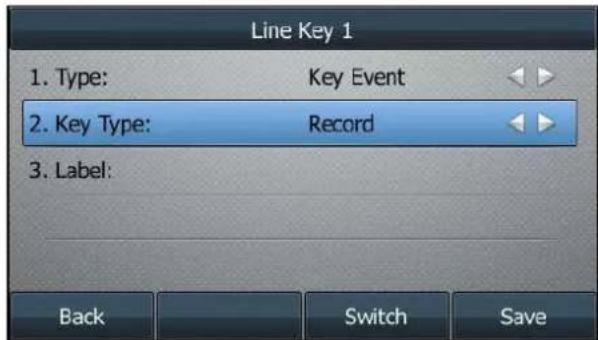
text_image
Line Key 1 1. Type: Key Event 2. Key Type: Record 3. Label: Back Switch Save6. Press Save.
Record key is configurable via web user interface at the path Dsskey->Line Key.
Configuring a URL Record Key
Procedure:
- Navigate to Menu->Features->DSS Keys.
- Select a desired line key.
- Select URL Record from the Type field.
- (Optional.) Enter the string that will display on the LCD screen in the Label field.
- Enter the URL (for example, http://10.1.2.224/phonerecording.cgi) in the Value field.

text_image
Line Key 3 1. Type: URL Record 2. Label: URL Record 3. URL Record: http://10.1.2.224/phone Back abc Delete Save6. Press Save.
URL record key is configurable via web user interface at the path Dsskey->Line Key.
Recording a Call
Procedure:
- Press the record key or URL record key during a call.
If the recording starts successfully, the recording icon will appear on the LCD screen.
- Press the record key or URL record key again to stop recording.
The recording icon disappears from the LCD screen.
You can listen to the recordings stored on your server system. For example, you can dial an access code to listen to the recordings.
Note
The way in which you listen to the recordings may be different depending on the server. Contact your system administrator for more information.
Hot Desking
Hot desking originates from the definition of being the temporary physical occupant of a work station or surface by a particular employee. A primary motivation for hot desking is cost
reduction through space saving. This feature is regularly used in places where not all the employees are in the office at the same time, or not in the office for very long, which means that actual personal offices would be often vacant, consuming valuable space and resources.
You can use hot desking to log out from the current account and then log into a new account.
As a result, many users can share one same phone resource at different times. To use this feature, you need to configure a hot desking key in advance.
Note
Hot desking is not available on all servers. Contact your system administrator for more information.
Configuring a Hot Desking Key
Procedure:
-
Navigate to Menu->Features->DSS Keys.
-
Select a desired line key.
-
Select Key Event from the Type field.
-
Select Hot Desking from the Key Type field.
-
(Optional.) Enter the string that will display on the LCD screen in the Label field.

text_image
Line Key 1 1. Type: Key Event 2. Key Type: Hot Desking 3. Label: Back Switch Save- Press Save.
Hot desking key is configurable via web user interface at the path Dsskey->Line Key.
Using a Hot Desking Key
Procedure:
- Press the hot desking key when the phone is idle.
A message is displayed on the LCD screen:

text_image
1006 13:40 Fri, Sep 02 1006 Hot i Note Clear your account config? Cancel OK2. Press OK.
Registration configurations of all accounts on the phone will be cleared immediately.
The login wizard will be displayed as below:
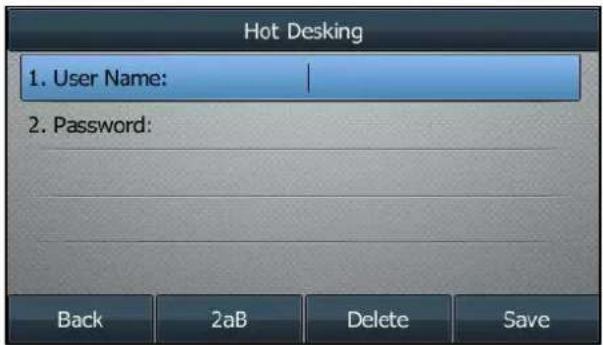
text_image
Hot Desking 1. User Name: 2. Password: Back 2aB Delete Save-
Enter the login information in each field.
-
Press Save to login.
Intercom
Intercom is a useful feature in an office environment to quickly connect with the operator or the secretary. You can press the intercom key to place a call to a contact that is answered automatically on the contact's phone as long as the contact is not in an active call. In addition, the intercom key can be used for monitoring the status changes of a specific line on the phone.
Note
Intercom is not available on all servers. Contact your system administrator for more information.
Configuring the Intercom Feature on the IP Phone
Configuring an Intercom Key
Procedure:
- Navigate to Menu->Features->DSS Keys.
- Select a desired line key.
- Select Intercom from the Type field.
- Select the desired line from the Account ID field.
- (Optional.) Enter the string that will display on the LCD screen in the Label field.
- (Optional.) Enter the target extension number in the Value field.
- (Optional.) Enter the directed call pickup code in the Extension field.
If it is configured, when the target extension receives an incoming call, the supervisor can press the intercom key to pick up the call directly.
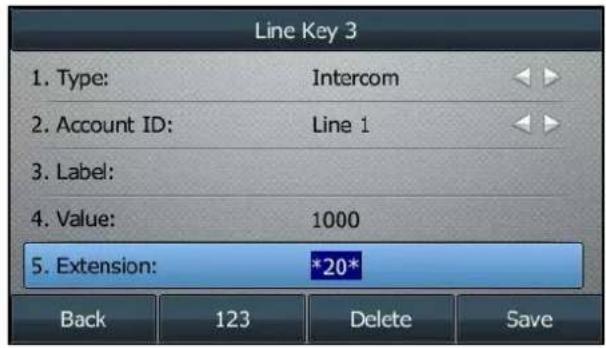
text_image
Line Key 3 1. Type: Intercom 2. Account ID: Line 1 3. Label: 4. Value: 1000 5. Extension: *20* Back 123 Delete Save8. Press Save.
Intercom key is configurable via web user interface at the path Dsskey->Line Key.
Note
Your system administrator can disable you to press the intercom key to pick up a call. Check with your system administrator to find out if this feature is available on your phone, and contact your system administrator for the directed call pickup code.
Configuring the Intercom
By default, when there is an incoming intercom call, the phone will play a warning tone and this incoming call will be answered automatically. In addition, you can enable the phone to mute the microphone when the incoming intercom call is answered automatically. If there is already an active call on the phone, you can allow the incoming intercom call to be automatically answered while the active call is then placed on hold.
Intercom Allow
Intercom Allow allows the IP phone to automatically answer an incoming intercom call. If you disable this feature, the IP phone will handle an incoming intercom call like a normal incoming call. Intercom Allow is enabled by default.
Note
Your administrator can set a period of delay time before the phone automatically answers intercom calls.
Intercom Mute
Intercom Mute allows the IP phone to mute the microphone for incoming intercom calls. Intercom Mute is disabled by default.
Intercom Tone
Intercom Tone allows the IP phone to play a warning tone before answering an intercom call. Intercom Tone is enabled by default.
Intercom Barge
Intercom Barge allows the IP phone to automatically answer an incoming intercom call while an active call is in progress. The active call will be placed on hold. If you disable this feature, the IP phone will handle an incoming intercom call like a normal incoming call while there is already an active call on the IP phone. Intercom Barge is disabled by default.
Note
To enable the phone to receive a new incoming call when it has an active call, make sure that call waiting feature is enabled on the phone in advance. For more information, refer to Configuring the Call Waiting.
Procedure:
-
Navigate to Menu->Features->Intercom.
-
Make the desired changes.
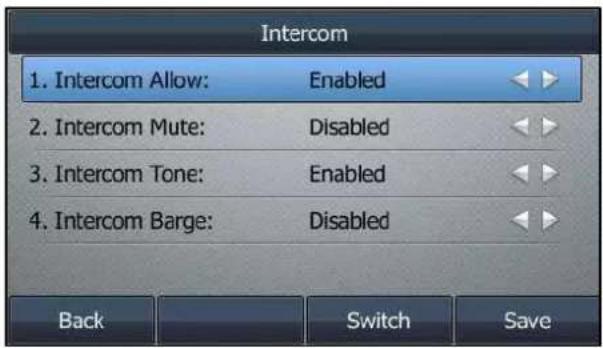
text_image
Intercom 1. Intercom Allow: Enabled 2. Intercom Mute: Disabled 3. Intercom Tone: Enabled 4. Intercom Barge: Disabled Back Switch Save- Press Save.
Intercom features are configurable via web user interface at the path Features->Intercom.
Using Intercom
You can use the intercom key in the following ways:
- Place a call to the target extension
• Pick up an incoming call of the target extension
Note
To use the intercom key to pick up an incoming call, make sure the intercom subscription feature is enabled. For more information, contact your system administrator.
Placing an Intercom Call to the Target Extension
Procedure:
1. Press the intercom key.
The target extension plays a warning tone and automatically answers the call in the hands-free (speakerphone) mode by default.
2. To end the intercom call, press the intercom key again or End Call (EndCall).
You can also press the BLF/BLF List key (refer to Configuring a BLF Key/Configuring BLF List Settings) to initiate an outgoing intercom call to the monitored user. Check with your system administrator to find out if it is available on your phone.
Picking Up an Incoming Call of the Target Extension
When the target extension receives an incoming call, the intercom key icon of the target extension will change to 📋 on the SIP-T48S/T48G IP phone, the intercom key LED of the target extension will flash green on all other IP phones. If you configure the directed call pickup code in advance (refer to Configuring the Directed Call Pickup), you can pick up the target extension's incoming call by pressing the intercom key. The directed call pickup code can be configured with the intercom key. For more information, refer to Configuring an Intercom Key.
Procedure:
1. Press the intercom key.
The incoming call of the target extension is answered on your IP phone.
Note
If the directed call pickup code is not configured, the phone will place a call to the target extension instead of picking up an incoming call of the target extension when you press the intercom key.
Multicast Paging
Multicast Paging allows you to easily and quickly broadcast instant audio announcements to users who are listening to a specific multicast group on a specific channel. You can configure a
multicast paging key or the paging list key on the phone, which allows you to send a Real Time Transport Protocol (RTP) stream to the pre-configured multicast address(es) on specific channel(s) without involving SIP signaling. You can also configure the phone to receive an RTP stream from pre-configured multicast listening address(es) on specific channel(s) without involving SIP signaling. Up to 31 multicast listening addressed and channels can be configured on your phone.
The IP phone supports the following 31 channels:
- 0: Broadcasts are sent to channel 0. Note that the Yealink IP phones running firmware version 80 or earlier can be regarded as listening to channel 0. It is the default channel.
- 1 to 25: Broadcasts are sent to channel 1 to 25. We recommend that you specify these channels when broadcasting with Polycom IP phones which have 25 channels you can listen to.
- 26 to 30: Broadcasts are sent to channel 26 to 30. We recommend that you specify these channels when broadcasting with Yealink IP phones running firmware version 81 or later.
The IP phone can only send and receive broadcasts to/from the listened channels. Other channels' broadcasts will be ignored automatically by the IP phone.
Note
If G722 codec is used for multicast paging, the LCD screen will display an "HD" icon to indicate that the broadcasts are using Yealink HD voice. Check with your system administrator to see if this feature is available on your phone.
Sending RTP Stream
Configuring a Multicast Paging Key
Procedure:
- Navigate to Menu->Features->DSS Keys.
- Select a desired line key.
- Select Key Event from the Type field.
- Select Multicast Paging from the Key Type field.
- (Optional.) Enter the string that will display on the LCD screen in the Label field.
- Enter the multicast IP address and port number (for example, 224.5.6.20:10008) in the Value field.
The valid multicast IP addresses range from 224.0.0.0 to 239.255.255.255.
- Enter the desired channel between 0 and 30 in the Channel field.

text_image
Line Key 2 1. Type: Key Event 2. Key Type: Multicast Paging 3. Label: 4. Value: 224.5.6.20:10008 5. Channel: 0 Back 123 Delete Save- Press Save.
Multicast paging key is configurable via web user interface at the path Dsskey->Line Key.
Configuring a Paging List Key
Procedure:
- Navigate to Menu->Features->DSS Keys.
- Select a desired line key.
- Select Key Event from the Type field.
- Select Paging List from the Key Type field.
- (Optional.) Enter the string that will display on the LCD screen in the Label field.
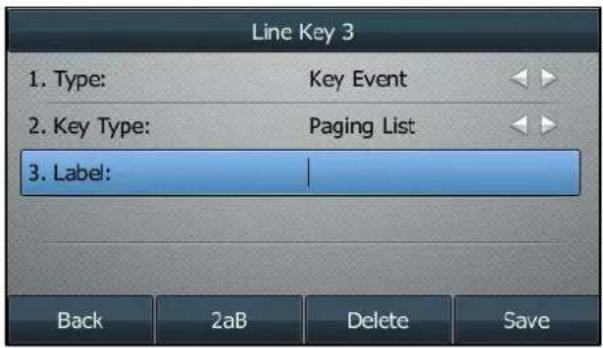
text_image
Line Key 3 1. Type: Key Event 2. Key Type: Paging List 3. Label: Back 2aB Delete Save- Press Save.
Paging list key is configurable via web user interface at the path Dsskey->Line Key.
Configuring Paging List
Procedure:
- Press the paging list key when the phone is idle.
If the paging list key is not configured, you can also navigate to
Menu->Features->Others->Paging List for the SIP-T46S/T46G IP phone or
Menu->Features->Paging List for other IP phones to configure the paging list.
- Select a desired paging group.
The default tag is Empty if it is not configured before.
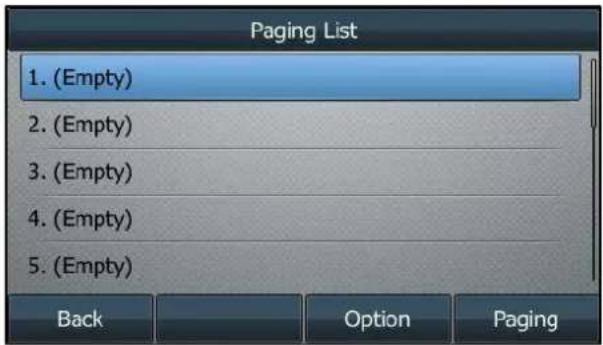
text_image
Paging List 1. (Empty) 2. (Empty) 3. (Empty) 4. (Empty) 5. (Empty) Back Option Paging- Press Option, and then select Edit.
For the SIP-T48S/T48G IP phone, tap Edit.
- Enter the multicast IP address and port number (for example, 224.5.6.20:10008) in the Address field.
The valid multicast IP addresses range from 224.0.0.0 to 239.255.255.255.
-
Enter the string that will display on the LCD screen in the Label field.
-
Enter the desired channel between 0 and 30 in the Channel field.
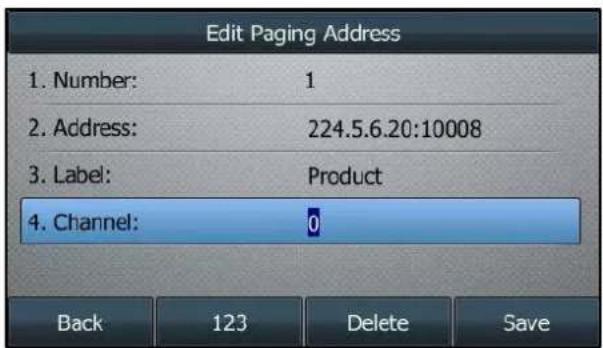
text_image
Edit Paging Address 1. Number: 1 2. Address: 224.5.6.20:10008 3. Label: Product 4. Channel: 0 Back 123 Delete Save-
Press Save.
-
Repeat steps 2 to 7, if you want to add more paging groups.
Paging list is configurable via web user interface at the path Directory->Multicast IP.
Deleting a Paging Group
Procedure:
- Press the paging list key when the phone is idle.
If the paging list key is not configured, you can also navigate to
Menu->Features->Others->Paging List on the SIP-T46S/T46G IP phone or
Menu->Features->Paging List on other IP phones to configure the paging list.
-
Select a desired paging group.
-
Press Option, and then select Delete.
On the SIP-T48S/T48G IP phone, tap Delete.
A message is displayed on the LCD screen:
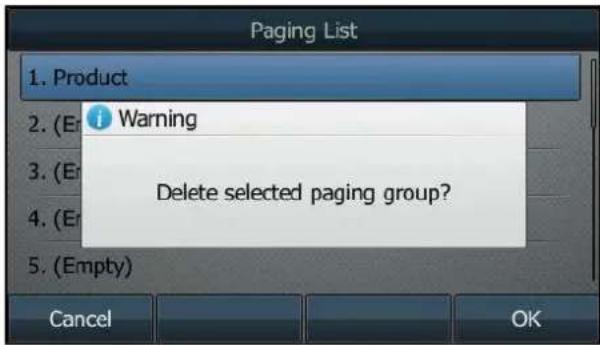
text_image
Paging List 1. Product 2. (Er) Warning 3. (Er) 4. (Er) 5. (Empty) Delete selected paging group? Cancel OK4. Press OK.
If you want to delete all paging groups, select the Delete All.
Receiving RTP Stream
You can configure the phone to receive a Real Time Transport Protocol (RTP) stream from the pre-configured multicast address(es) and channel(s) without involving SIP signaling. Up to 31 multicast addresses and channels that the phone listens to on the network can be configured.
Note
RTP stream is listened in the hands-free (speakerphone) mode by default. If you want to listen the RTP stream using other engaged audio devices (speakerphone, handset or headset), contact your system administrator for more information.
Fixed volume to play RTP stream for specified paging group is configurable by your system administrator.
How the phone handles incoming multicast paging calls depends on Paging Barge, Ignore DND and Paging Priority Active configured via web user interface.
Paging Barge
Paging Barge feature defines the lowest priority of the multicast listening address from which the phone can receive an RTP stream when there is a voice call (a normal phone call rather than a multicast paging call) in progress. If it is disabled, all incoming multicast paging calls will be automatically ignored. If it is set to a specify priority value, the incoming multicast paging calls with higher or equal priority are automatically answered and the ones with lower priority are ignored. Valid values for Paging Barge:
- 1 to 31: Define the lowest priority of the multicast listening address from which the phone can receive an RTP stream, 1 with the highest priority, 31 with the lowest.
- Disabled: The voice call in progress will take precedence over all incoming paging calls.
Ignore DND
Ignore DND feature defines the lowest priority of multicast listening address from which the phone can receive an RTP stream when DND is activated. If a priority is selected from the pull-down list of Ignore DND, the phone will ignore incoming multicast paging calls with lower priorities when DND is activated in phone mode. Valid values for Ignore DND:
- 1 to 31: Define the lowest priority of the multicast listening address from which the phone can receive an RTP stream, 1 with the highest priority, 31 with the lowest.
- Disabled: All the incoming multicast paging calls will be ignored when DND is activated in phone mode.
The phone will automatically answer all incoming multicast paging calls when DND is activated in custom mode.
Paging Priority Active
Paging Priority Active feature decides how the phone handles incoming multicast paging calls when there is already a multicast paging call on the phone. If enabled, the phone will ignore incoming multicast paging calls with lower priorities, otherwise, the phone will answer incoming multicast paging calls automatically and place the previous multicast paging call on hold. If disabled, the phone will automatically ignore all incoming multicast paging calls.
Configuring the Multicast Listening
Procedure:
- Click Directory->Multicast IP.
- Select the desired value from the pull-down list of Paging Barge.
- Select the desired value from the pull-down list of Ignore DND.
- Select the desired value from the pull-down list of Paging Priority Active.
- Enter the multicast IP address(es) and port number (for example, 224.5.6.20:10008) which the phone listens to for incoming RTP multicast in the Listening Address field.
-
(Optional.) Enter the label in the Label field.
Label displays on the LCD screen when receiving the multicast RTP stream. -
Select the desired channel to listen from the pull-down list of Channel.
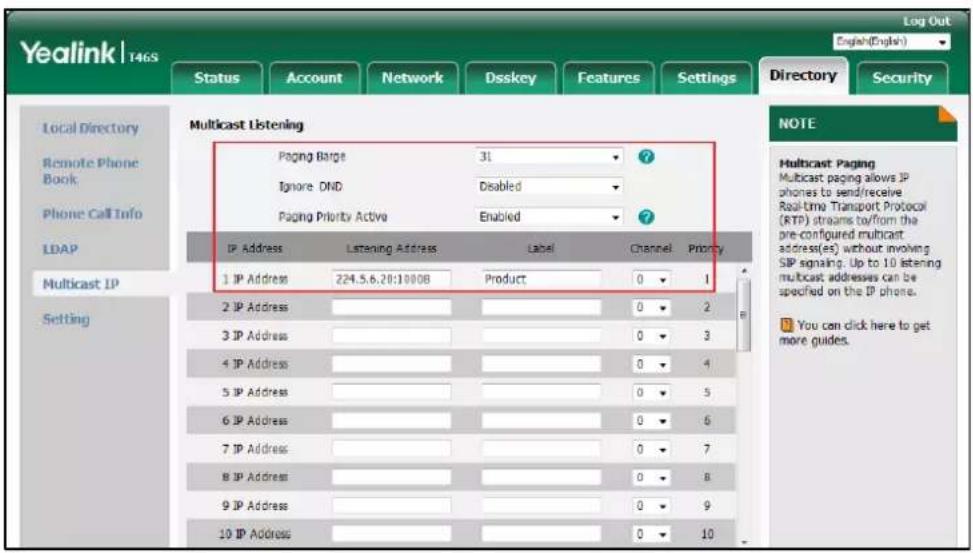
text_image
Yealink | 146S Log Out English(English) Status Account Network Dsskey Features Settings Directory Security Local Directory Remote Phone Book Phone Call Info LDAP Multicast IP Setting Multicast Listening Paging Barge 31 ? Ignore DND Disabled ? Paging Priority Active Enabled ? IP Address Listening Address Label Channel Priority 1 IP Address 224.5.6.20:10008 Product 0 ▼ 1 2 IP Address 3 IP Address 4 IP Address 5 IP Address 6 IP Address 7 IP Address 8 IP Address 9 IP Address 10 IP Address NOTE Multicast Paging Multicast paging allows IP phones to send/receive Real-time Transport Protocol (RTP) streams to/from the pre-configured multicast address(es) without involving SIP signaling. Up to 10 listening multicast addresses can be specified on the IP phone. You can click here to get more guides.- Click Confirm.
Note
The priorities of listening addresses are predefined: 1 with the highest priority, 31 with the lowest.
Using Multicast Paging
Sending RTP Stream via a Multicast Paging Key
Procedure:
- Press the multicast paging key when the phone is idle.
The phone sends RTP to a preconfigured multicast address (IP: Port).
Both the sender's and receiver's phones play a warning tone and the multicast RTP session will be automatically answered on the receiver's phone in the hands-free (speakerphone) mode.
On the SIP-T48S/T48G IP phone, the multicast paging key icon indicator will become and solid. On other IP phones, the multicast paging key LED glows green.

The following figure shows a multicast RTP session on the phone:
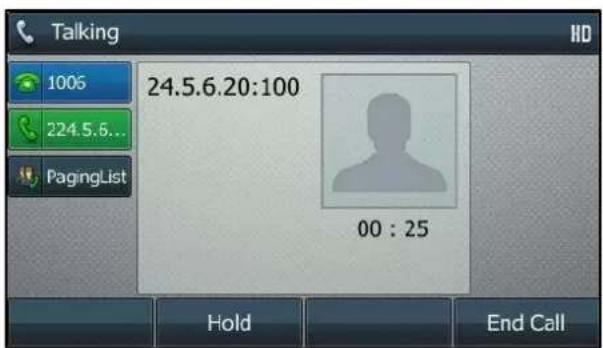
text_image
Talking 1006 224.5.6... PagingList 24.5.6.20:100 00 : 25 Hold End Call2. You can do the following:
- Press Hold to place the current multicast RTP session on hold.
The sender's phone places the multicast RTP session on hold and receiver's phone releases the session.
To resume the held multicast RTP session, press Resume.
The multicast RTP session is re-established.
- Press End Call (EndCall) to end the multicast RTP session.
Note
Multicast RTP is one way only from the sender to the multicast address(es) (receiver). For outgoing RTP multicasts, all other existing calls on the phone will be placed on hold.
Sending RTP Stream via a Paging List Key
Procedure:
- Press the paging list key when the phone is idle.
- Select a desired paging group.
- Press Paging to send RTP.
- Your can do the following:
- Press Hold to place the current multicast RTP session on hold.
The sender's phone places the multicast RTP session on hold and receiver's phone releases the session.
To resume the held multicast RTP session, press Resume.
The multicast RTP session is re-established.
- Press End Call (EndCall) to end the multicast RTP session.
Automatic Call Distribution (ACD)
ACD is often used in offices for customer service, such as call center. The ACD system handles large volumes of incoming calls from callers who have no need to talk to a specific person but who require assistance from any of multiple persons at the earliest opportunity. ACD on all IP phone allows the ACD system to distribute large volumes of incoming calls to the registered ACD users. To use this feature, you should configure an ACD key in advance. For more information on ACD key icon indicators, refer to Status Indicators.
Note
ACD is not available by default. Check with your system administrator to find out if this feature is available on your phone.
Configuring an ACD Key
Procedure:
- Navigate to Menu->Features->DSS Keys.
- Select a desired line key.
- Select ACD from the Type field.
- (Optional.) Enter the string that will display on the LCD screen in the Label field.
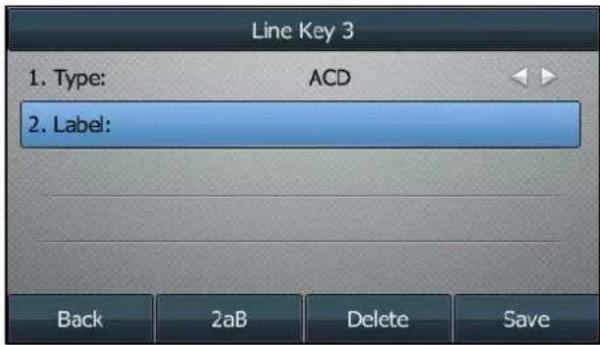
text_image
Line Key 3 1. Type: ACD 2. Label: Back 2aB Delete Save- Press Save.
ACD key is configurable via web user interface at the path Dsskey->Line Key.
Logging into the ACD System
Procedure:
- Press the ACD key when the phone is idle.
The LCD screen prompts you the following information:
User ID: the identity used to log into the queue.
Password: the password used to log into the queue.
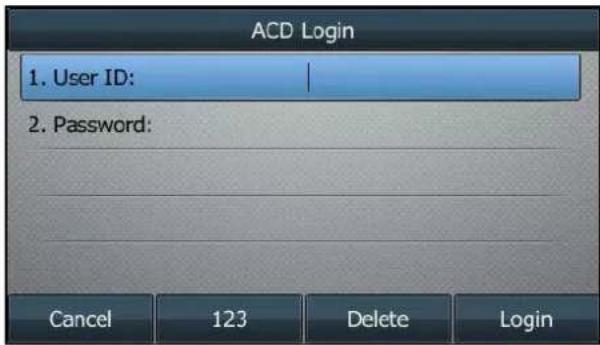
text_image
ACD Login 1. User ID: 2. Password: Cancel 123 Delete Login- Press Login to log in.
Note
Contact your system administrator for the User ID and Password to access the ACD system.
After configuring an ACD key, you can press the ACD key to log into the ACD system. After logging in, you are ready to receive calls from the ACD system. You can press the ACD key to show your current ACD user status. You can press the Available (Avail)/Unavailable (Unavailable) soft key to change your ACD user status. ACD user status synchronizes on both IP phone and ACD system.
When you set the ACD user status to be available, the ACD key icon indicator will become and solid on the SIP-T48S/T48G IP phone, the ACD key LED glows green, and then the server begins distributing calls to your IP phone.

When you set the ACD user status to be unavailable, the ACD key icon indicator will become on the SIP-T48S/T48G IP phone, the ACD key LED flashes green, and then the server temporarily stops distributing calls to your IP phone. To log out of the ACD system, press the Logout soft key.

Note
It is recommended that you configure only one ACD key per phone, since only one ACD key can be in use on your phone at any time.
Shared Call Appearance (SCA)
You can use SCA feature to share an extension which can be registered on more than one IP phones at the same time. The shared line is indicated by a different line icon.
In the following figure, the first line is a private line while the second line is a shared line:
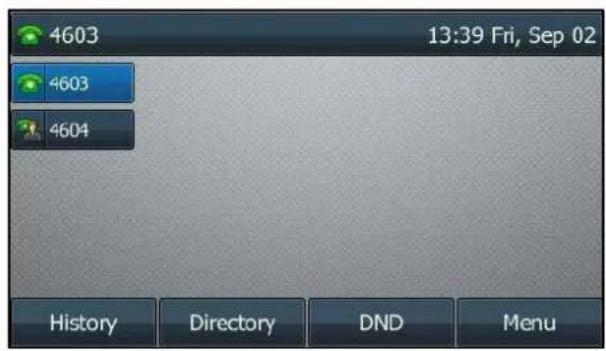
text_image
4603 13:39 Fri, Sep 02 4603 4604 History Directory DND MenuIf two phones share a line, an incoming call to this extension will cause both phones to ring simultaneously. The incoming call can be answered on either phone but not both.
This feature is very useful in the boss and secretary scenario. For example, the boss shares his extension with the secretary. When there is an incoming call to the extension of the boss, both the phones of the boss and the secretary will ring simultaneously, and either the boss or the secretary can answer the call. Calls on the shared line can be placed on hold, barged in or retrieved from another shared phone.
Configuring SCA Feature on the IP Phone
You can configure a primary account on a IP phone and other alternate accounts on other IP phones. In a SCA Hybrid Key System scenario, you can automatically assign multiple DSS keys with Line type for a registered shared line on the phone (If auto linekeys feature is enabled). For example, boss and secretary share the account 4603, boss phone registers the primary account 4603 (register name and user name are 4603) and assigns line key 1 and line key 2 for the account 4603, secretary phone registers the alternate account 4603_1 (register name is 4603, user name is 4603_1) and assigns line key 1 and line key 2 for the account 4603_1, third party phone registers the account 4604. For more information on how to register an account, refer to Registering an Account.
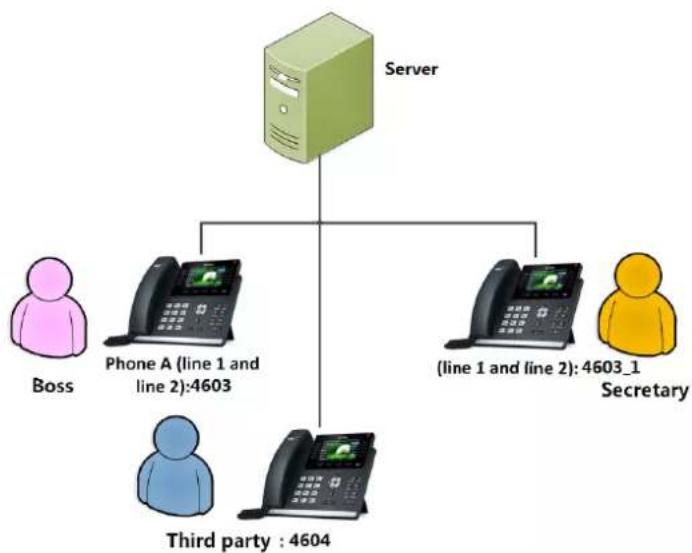
flowchart
graph TD
    Server["Server"] --> Boss["Boss"]
    Server --> PhoneA["Phone A (line 1 and line 2):4603"]
    Server --> Secretary["(line 1 and line 2): 4603_1"]
    Server --> ThirdParty["Third party : 4604"]
Configuring the Shared Line and Number of Line Key
You can configure a primary account on boss phone and an alternate account on secretary phone.
Note
Contact your system administrator for the account information.
Procedure:
- Register the primary account on boss phone and alternate account on secretary phone.
- Click Advanced, and then select Shared Call Appearance from the pull-down list of Shared Line.
- Enter the desired number in the Number of line key field.
This field appears only if Auto Linekeys (refer to Configuring the Auto Linekeys) is enabled.
In this example, the value is set to 2.

text_image
Yealink T46S Log Out English(English) Status Account Network Dsskey Features Settings Directory Security Register Basic Codec Advanced Account Account 1 Keep Alive Type Default Keep Alive Interval(Seconds) 30 RPort Disabled Subscribe Period(Seconds) 1800 DTMF Type RFC2833 BLF List Retrieve Call Parked Code Shared Line Shared Call Appearance Call Pull Feature Access Code Subscribe for MWI Disabled MWI Subscription Period(Seconds) 3600 VQ RTCP-XR Collector name VQ RTCP-XR Collector address VQ RTCP-XR Collector port 5060 Number of line key 2 Confirm Cancel NOTE DTMF It is the signal sent from the IP phone to the network, which is generated when pressing the IP phone's keypad during a call. Session Timer It allows a periodic refresh of SIP sessions through a re-DIVITE request, to determine whether a SIP session is still active. Busy Lamp Field/BLF List Monitors a specific extension/a list of extensions for status changes on IP phones. Shared Call Appearance (SCA)/ Bridge Line Appearance (BIA) It allows users to share a SIP line on several IP phones. Any IP phone can be used to originate or receive calls on the shared line. Network Conference It allows multiple participants4. Click Confirm.
The boss phone and secretary phone will automatically configure the line keys from the first unused DSS key, according to the configured number in the Number of line key field.
Configuring Private Hold Soft Key or Private Hold Key
Public hold allows any shared line to retrieve the held call, while private hold only allows the hold party to retrieve the held call. For example, you can retrieve the held call on either boss phone or secretary phone when you place a call on public hold; but you can retrieve the held call only on boss phone when you place a call on private hold on boss phone. You need to configure either the private hold soft key or a private hold key before you place the call on private hold.
Configuring a Private Hold Soft Key
Procedure:
- Click Settings->Softkey Layout.
- Select Enabled from the pull-down list of Custom Softkey.
- Select On Talk from the pull-down list of Call States.
- Select PriHold from the Unselected Softkeys column and then click → .
The PriHold appears in the Selected Softkeys column.

text_image
Yealink T46S Log Out English(English) Status Account Network Dsskey Features Settings Directory Security Preference Time & Date Call Display Upgrade Auto Provision Configuration Dial Plan Voice Ring Tones Softkey Layout Custom SoftKey Enabled ? Call States On Talk ? Selected Softkeys (ordered by position) Transfer Hold Conference End Call PreHold Unselected Softkeys Empty Mute SWAP NewCall Switch Answer Reject RTP Status Selected Softkeys (ordered by position) Transfer Hold Conference End Call PreHold Confirm Cancel Reset to Default NOTE Softkey Layout It is used to customize the soft keys at the bottom of the LCD screen to best meet users' requirements. You configure the softkey layout using the softkey layout templates for different call states. You can click here to get more guides.5. Click Confirm.
Note
Configuring the private hold soft key may affect the softkey layout in the Talking state. Contact your administrator for more information.
Configuring a Private Hold Key
Procedure:
- Navigate to Menu->Features->DSS Keys.
- Select a desired line key.
- Select Key Event from the Type field.
- Select Private Hold from the Key Type field.
- (Optional.) Enter the string that will display on the LCD screen in the Label field.
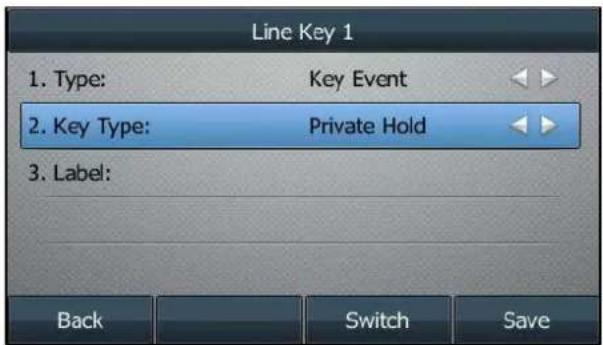
text_image
Line Key 1 1. Type: Key Event 2. Key Type: Private Hold 3. Label: Back Switch Save6. Press Save.
Private hold key is configurable via web user interface at the path Dsskey->Line Key.
Configuring Call Pull Feature
Call pull feature allows users to retrieve an existing call from another shared phone that is in active or public hold status.
Procedure:
- Click Account->Advanced.
- Select the desired account from the pull-down list of Account.
- Enter the call pull feature access code (for example, *11) in the Call Pull Feature Access Code field.

text_image
Yealink T465 Log Out English(English) Status Account Network Dsskey Features Settings Directory Security Register Back Codec Advanced Account Account 1 ? Keep Alive Type Default ? Keep Alive Interval(Seconds) 30 ? RPort Disabled ? Subscribe Period(Seconds) 1800 ? DTMF Type RFC2833 ? BLF List Retrieve Call Parked Code Shared Line Shared Call Appearance ? Call Pull Feature Access Code "11 ?" Dialog Info Call Pickup Disabled ? MWI Subscription Period(Seconds) 3600 ? VQ RTCP-XR Collector name ? VQ RTCP-XR Collector address ? VQ RTCP-XR Collector port 5060 ? Number of line key 2 ? Confirm Cancel NOTE DTMF It is the signal sent from the IP phone to the network, which is generated when pressing the IP phone's keypad during a call. Session Timer It allows a periodic refresh of SIP sessions through a re-INVITE request, to determine whether a SIP session is still active. Busy Lamp Field/BLF List Monitors a specific extension/a list of extensions for status changes on IP phones. Shared Call Appearance (SCA)/ Bridge Line Appearance (BLA) It allows users to share a SIP line on several IP phones. Any IP phone can be used to originate or receive calls on the shared line. Network Conference It allows multiple participants4. Click Confirm.
The phone will dial out "*11" automatically when you press the Call Pull (CallPull) soft key.
Using SCA Feature on the IP Phone
This section provides you with detailed information on using the IP phone in a SCA Hybrid Key System scenario. In a SCA Hybrid Key System scenario, the status of the line key icon or line key LED which associates with a shared line will change. For more information on line key icon or line key LED indicators, refer to Line Key Icons or LED Instructions.
You can do the following using the IP phone in a SCA Hybrid Key System scenario:
- Placing calls
- Answering calls
- Placing a call on hold
- Retrieving a held call
- Barging in an active call
- Call Pull
Placing Calls
Boss or secretary can have one call or multiple calls on the shared line.
Placing a Call on the Shared Line
Procedure:
Do one of following:
- Enter the desired number using the dialpad when the phone is idle. Press the OK key, # key, or Send. The phone dials the entered number using the first line key.
- Press the line key when the phone is idle to enter the dialing screen. Enter the desired number using the dialpad, and then press the OK key, # key, or Send. The phone dials the entered number using the selected line key.
Placing Multiple Calls on the Shared Line
Procedure:
You can have more than one call on the shared line. To place a new call when there is an active call on the line key 1, do one of the following:
- Press the HOLD key or Hold. The original call is placed on hold.
Press New Call (NewCall) to enter the dialing screen.
Enter the desired number using the dialpad.
Press the OK key, # key, or Send.
The phone dials the entered number using the line key 2 automatically.
- Press the line key. The original call is placed on hold.
Enter the desired number using the dialpad.
Press the OK key, # key, or Send.
The phone dials the entered number using the selected line key.
Answering Calls
You can have one call or multiple calls on the shared line. Incoming calls will be distributed evenly among the available line keys.
Answering a Call on the Shared Line
When an incoming call arrives on the shared line, the phones of boss and secretary will ring simultaneously. On the SIP-T48S/T48G IP phone and the icon indicators of the line key 1 on both boss's and secretary's phones will become 📄 and flashing. On other IP phones, the LED indicators of the line key 1 on both boss's and secretary's phones will flash green. The incoming call can be answered either by boss or secretary but not both.
Procedure:
| Role | You can do... | Status | |
| SIP-T48S/T48G | Other IP phones | ||
| Boss | Press the line key 1, press the Speakerphone key, OK key orAnsweron the phone. | The icon indicator of the line key 1 becomes and solid. | The LED indicator of the line key 1 glows red. |
| Secretary | |||
Answering Multiple Calls on the Shared Line
An incoming call arrives on the shared line when there is an active call on line key 1 of boss phone. The incoming call can be answered either by boss or secretary but not both. The LCD screen of boss phone displays the information of the incoming call".

text_image
Talking 1/2 4603 4605 Yealink 4605 00 : 12 Incoming call: 4604 Yealink Transfer Answer Reject End CallNote
Make sure call waiting feature is enabled on boss's phone. For more information, refer to Configuring the Call Waiting.
Procedure:
| Role | You can do... | Status |
| Boss | On the SIP-T48S/T48G IP phone:• Tap the line key 2.• TapAnswer.• Tap the incoming call item. Press the OK key or tapAnswer. | Secretary phone stops ringing.The original call is placed on hold.The icon indicators of the line key 1 on boss phone and secretary phone becomes 📄 and solid indicating that there is the held call on the line key 1. The icon indicators of the line key 2 on boss phone and secretary phone becomes 📄 and solid indicating that there is an active call on the line key 2. |
| On other IP phones:• Press the line key 2.• PressAnswer.• Press the down navigation key to access the new call. Press the OK key orAnswer. | Secretary phone stops ringing.The original call is placed on hold.The LED indicators of the line key 1 on boss phone slowly flashes green and secretary phone slowly flashes red indicating that there is the held call on the line key 1. The LED indicators of the line key 2 on boss phone glows green and secretary phone glows red indicating that there is an active call on the line key 2. | |
| Secretary | On the SIP-T48S/T48G IP phone:• Tap the line key 2.• Press the OK key or tapAnswer. | Boss phone stops ringing.The icon indicators of the line key 2 on boss phone and secretary phone becomes 📄 and solid indicating that there is an active call on the line key 2. Meanwhile, the icon indicators of the line key 1 on boss phone and secretary phone becomes 📄 and solid indicating that there is the held call on the line key 1. |
| On other IP phones:• Press the line key 2.• Press the OK key orAnswer. | Boss phone stops ringing.The LED indicators of the line key 2 on boss phone glows red and secretary phone glows green indicating that there is an active call on the line key 2. Meanwhile, The LED indicators of the line key 1 on boss phone glows green and secretary phone glows red indicating that there is an active call on the line key 1. |
Note
If the number of incoming calls is greater than the configured line keys, the line keys will be used by sequence circulation.
Placing a Call on Hold
Placing a Call on Public Hold
Procedure:
| Role | You can do... | Status | |
| SIP-T48S/T48G | Other IP phones | ||
| Boss | Press the HOLD key or Hold. | The icon indicators of line key 1 on boss phone and secretary phone becomes [IMAGE]. | The LED indicators of line key 1 on boss phone slowly flashes green and secretary phone slowly flashes red. |
| Secretary | The LED indicators of line key 1 on secretary phone slowly flashes green and boss phone slowly flashes red. | ||
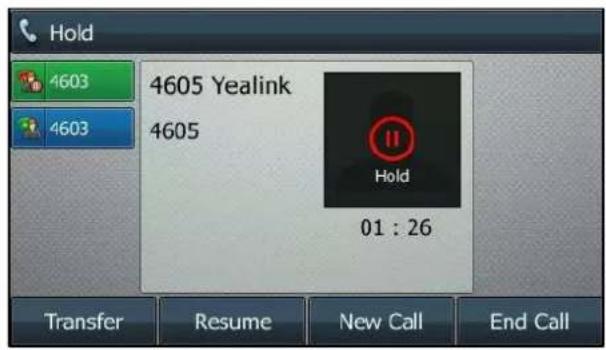
text_image
Hold 4603 4605 Yealink 4605 Hold 01 : 26 Transfer Resume New Call End CallPlacing a Call on Private Hold
Procedure:
| Role | You can do... | Status | |
| SIP-T48S/T48G | Other IP phones | ||
| Boss | PressPriHoldor private hold key on the phone when there is an active call on the shared line (You may need to press theMoresoft key to see thePriHoldsoft key). | The icon indicators of line key 1 on the phone will becomewhen theshared line call is placed on private hold. | The line key LED slowly flashes green when the shared line call is placed on private hold. |
| Secretary | |||

text_image
Hold 4603 4603 Yealink 4604 Private ... Hold 00 : 45 Transfer Resume New Call End CallRetrieving a Held Call
Retrieving a Call Placed on Public Hold
You can retrieve the public held call on either boss phone or secretary phone when there is a call between boss and other party.
Procedure:
| Role | You can do... | Status |
| Boss | On the SIP-T48S/T48G IP phone: Tap , press the HOLD key or tapResume. | The conversation between boss and the third party is retrieved. |
| On other IP phones:Press the line key, the HOLD key orResume. | ||
| Secretary | On the SIP-T48S/T48G IP phone:• Tap .• Long tap the desired line key.The Cancel, Call Pull (CallPull), New Call(NewCall) and Retrieve appear on the touch screen.Tap Retrieve to retrieve the call. | The conversation is established between secretary and the third party, while boss phone disconnects the callautomatically. And the line key icon on boss phone and secretary phone becomes [IMAGE]. |
| On other IP phones:Press the line key.Long press the desired line key.The Cancel, Call Pull (CallPull), New Call (NewCall) and Retrieve appear on the LCD screen.Press Retrieve to retrieve the call. | The conversation is established between secretary and the third party, while boss phone disconnects the call automatically. And the line key LEDs on boss phone glows red and secretary phone glows green. |
Retrieving a Call Placed on Private Hold
The private held call can be only retrieved by the hold party.
Procedure:
| Role | You can do... | Status |
| Boss | Call is private held by boss:On the SIP-T48S/T48G IP phone,tap , press the HOLD key or tapResume.On other IP phones, press the line key,the HOLD key or theResume. | The conversation between boss and the third party is retrieved. |
| Secretary | Call is private held by secretary:On the SIP-T48S/T48G IP phone,tap , press the HOLD key or tapResume.On other IP phones, Press the line key,the HOLD key orResume. | The conversation between secretary and the third party is retrieved. |
Barging In an Active Call
Both the boss and the secretary can barge in an activate call and set up a conference call with the other parties.
During the conference, if any party in the conference call presses the HOLD key or the Hold soft key, two-way voice can be heard between the remaining parties. If boss or secretary press the
End Call (EndCall) soft key, the remaining parties are still connected. If the other party (not the shared line party) press the End Call (EndCall) soft key, the conference call is ended.
If there is only one active call on the shared line, do the following:
Procedure:
| Role | You can do... | Status |
| Boss | Long press the line key.The Cancel, Call Pull (Call Pull), New Call (NewCall) and Barge In (BargeIn) appear on the LCD screen.Press Barge In (BargeIn) to interrupt the active call. | Barge in the call between secretary and the third party.A conference call is set up with the secretary and the third party in the active call. |
| Secretary | Barge in the call between boss and the third party.A conference call is set up with the boss and the third party in the active call. |
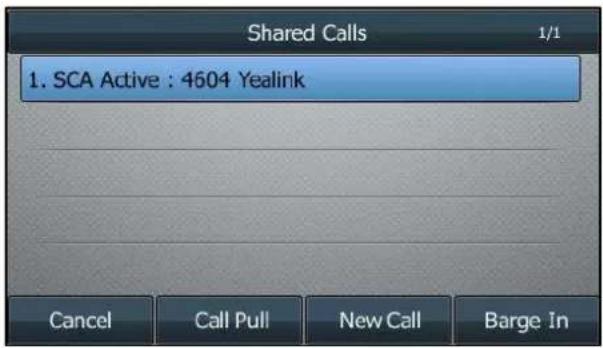
text_image
Shared Calls 1/1 1. SCA Active : 4604 Yealink Cancel Call Pull New Call Barge InIf there are more than one call on the shared line, do the following:
Procedure:
| Role | You can do... | Status |
| Boss | Long press the line key, and then select the activate call.The Cancel, Call Pull (CallPull), New Call (NewCall) and Barge In (BargeIn) appear on the LCD screen.Press the Barge In (BargeIn) to interrupt the active call. | Barge in the call between secretary and the third party.A conference call is set up with the secretary and the third party in the active call. |
| Secretary | Barge in the call between boss and the third party.A conference call is set up with the boss and the third party in the active call. |
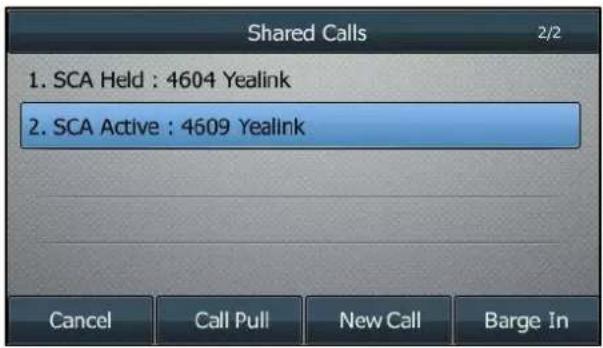
text_image
Shared Calls 2/2 1. SCA Held : 4604 Yealink 2. SCA Active : 4609 Yealink Cancel Call Pull New Call Barge InCall Pull
Call pull feature allows users to retrieve an existing call from another shared phone that is in active or hold status. For example, when there is a call between boss phone and another party, you can use call pull feature on secretary phone to retrieve this call from boss phone. Then the call is established between secretary phone and another party.
Pulling an Active Call
If there is an active call on the shared line, do the following:
Procedure:
| Role | You can do... | Status |
| Boss | Long press the line key.The Cancel, Call Pull (CallPull), New Call (NewCall) and Barge In (BargeIn) appear on the LCD screen. | The call between secretary and the third party is retrieved, and it is established between boss and the third party. |
| Secretary | Press Call Pull (CallPull) to interrupt the active call. | The call between boss and the third party is retrieved, and it is established between secretary and the third party. |

text_image
Shared Calls 1/1 1. SCA Active : 4604 Yealink Cancel Call Pull New Call Barge InPulling a Held Call
If there is a held call on the shared line, do the following:
Procedure:
| Role | You can do... | Status |
| Boss | Long press the line key.The Cancel, Call Pull (CallPull), New Call (NewCall) and Retrieve appear on the LCD screen.Press Call Pull (CallPull) to interrupt the active call. | The call between secretary and the third party is retrieved, and it is established between boss and the third party. |
| Secretary | The call between boss and the third party is retrieved, and it is established between secretary and the third party. |

text_image
Shared Calls 1/1 1. SCA Held : 4604 Yealink Cancel Call Pull New Call RetrieveBridged Line Appearance (BLA)
BLA allows users to share a SIP line on two or more IP phones. Users can monitor the specific extension (BLA number) for status changes on each IP phone. To use this feature, a BLA group should be pre-configured on the server and one of them is specified as a BLA number. BLA depends on the support from a SIP server.
In the following figure, the first line is a private line while the second line is a shared line:

text_image
14084588327 13:39 Fri, Sep 02 140845... 104621... History Directory DND MenuAny IP phone can be used to originate or receive calls on the bridged line. An incoming call to the BLA number can be presented to multiple phones in the group simultaneously, but only one IP phone within the group can answer this call.
Configuring BLA Feature on the IP Phone
You can share a BLA number on two or more phones. For example, phone A registers the account 14019833020 (register name is 14019833020 and user name is 14084588327) and assigns BLA number, phone B registers the account 10462190020 (register name is 10462190020, user name is 14084588327) and assigns BLA number, phone C registers the account 14755608020. Phone A and phone B share the BLA number 14084588327. For more information on how to register an account, refer to Registering an Account.
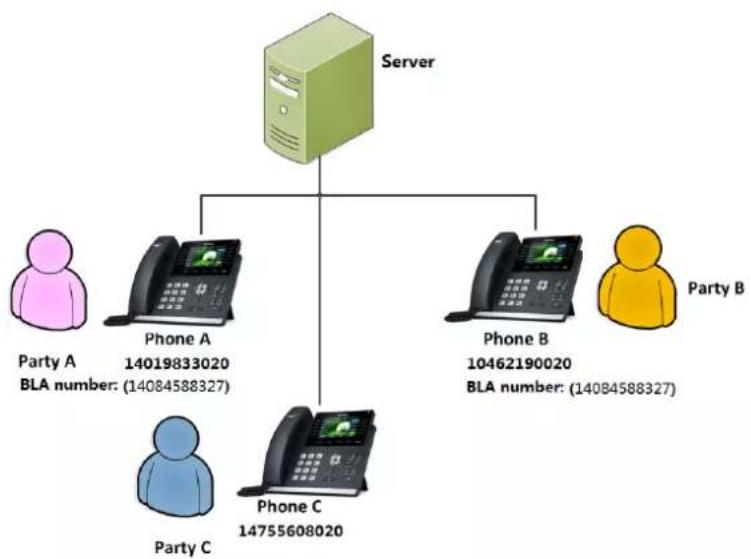
flowchart
graph TD
    Server["Server"] --> PartyA["Party A\nBLA number: (14084588327)"]
    Server --> PhoneA["Phone A\n14019833020"]
    Server --> PhoneB["Phone B\n10462190020\nBLA number: (14084588327)"]
    Server --> PartyC["Party C\nPhone C\n14755608020"]
Configuring an Account and BLA Feature
You can configure an account on phone A and phone B separately.
Note
Contact your system administrator for the account information.
Procedure:
- Register the account.
- Click Advanced, and then select Draft BLA from the pull-down list of Shared Line.
3. Enter the desired number in the BLA Number field.
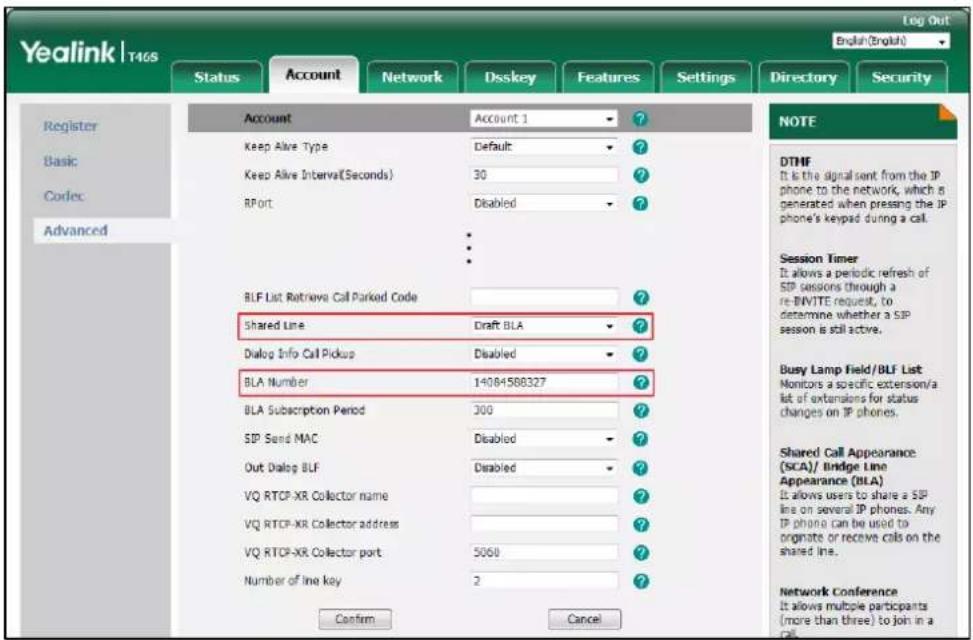
text_image
Yealink T46S Log Out English(English) Status Account Network Dsskey Features Settings Directory Security Register Basic Codec Advanced Account Account 1 ? Keep Alive Type Default ? Keep Alive Interval(Seconds) 30 ? RPort Disabled ? BLF List Retrieve Call Parked Code ? Shared Line Draft BLA ? Dialog Info Call Pickup Disabled ? BLA Number 14084588327 ? BLA Subscription Period 300 ? SIP Send MAC Disabled ? Out Dialog BLF Disabled ? VQ RTCP-XR Collector name ? VQ RTCP-XR Collector address ? VQ RTCP-XR Collector port 5060 ? Number of line key 2 ? Confirm Cancel NOTE DTNF It is the signal sent from the IP phone to the network, which is generated when pressing the IP phone's keypad during a call. Session Timer It allows a periodic refresh of SIP sessions through a re-INVITE request, to determine whether a SIP session is still active. Busy Lamp Field/BLF List Monitors a specific extension/a list of extensions for status changes on IP phones. Shared Call Appearance (SCA)/ Bridge Line Appearance (BLA) It allows users to share a SIP line on several IP phones. Any IP phone can be used to originate or receive calls on the shared line. Network Conference It allows multiple participants (more than three) to join in a call.4. Click Confirm.
Using BLA Feature on the IP Phone
This section provides you with detailed information on using the IP phone in a BLA scenario. In a BLA scenario, the status of the line key icon which associates with a bridged line will change. For more information on line key icon indicators, refer to Icon indicators (associated with a bridged line).
You can do the following using the IP phone in a BLA scenario:
- Placing calls
- Answering calls
- Place a call on hold
• Retrieving a held call
Placing Calls
You can have one call or multiple calls on the bridged line.
Placing a Call on the Bridged Line
Procedure:
Do one of following:
- Enter the desired number using the dialpad when the phone is idle.
Press the OK key, # key, or Send.
The phone dials the entered number.
- Press the line key when the phone is idle to enter the dialing screen.
Enter the desired number using the dialpad, and then press the OK key, # key or Send.
The phone dials the entered number.
Placing Multiple Calls on the Bridged Line
Procedure:
You can have more than one call on the bridged line. To place a new call when there is an active call on phone A, do one of the following on the phone A:
- Press the HOLD key or Hold. The original call is placed on hold.
Press New Call (NewCall) to enter the dialing screen.
Enter the desired number using the dialpad.
Press the OK key, # key, or Send.
Phone A dials the entered number.
- Press the line key. The original call is placed on hold.
Enter the desired number using the dialpad.
Press the OK key, # key, or Send.
Phone A dials the entered number.
Answering Calls
When the phone C dials the BLA number "14084588327", an incoming call will arrive on the bridged line. The phone A and phone B ring simultaneously. You can answer the incoming call on either phone A or phone B but not both.
Procedure:
| Role | You can do... | Status | |
| SIP-T48S/T48G | Other IP phone | ||
| Phone A | Press the OK key,Speakerphone key orAnswer. | The icon indicator ofthe line key become [IMAGE]and prompts “Talking”. | Phone B stops ringing. The LEDindicator of the line key on thephone A glows green. In themeanwhile, the LED indicator ofthe line key on the phone Bglows red indicating that thereis an active call on the phone A. |
| Phone B | Phone A stops ringing. The LEDindicator of the line key on thephone B glows green. In themeanwhile, the LED indicator ofthe line key on the phone Aglows red indicating that thereis an active call on the phone B. | ||
Placing a Call on Hold
Procedure:
| Role | You can do... | Status | |
| SIP-T48S/T48G | Other IP phone | ||
| Phone A | Press the HOLD key or Hold. | The icon indicators of line key become 📄 and prompt “Public Hold”. | The line key LEDs on phone A slowly flash green and on phone B slowly flash red when the bridged line call is placed on hold. |
| Phone B | The line key LEDs on phone B slowly flash green and on phone A slowly flash red when the bridged line call is placed on hold. | ||
Retrieving a Held Call
If there is a held call between phone A and phone C, you can retrieve a held call on either phone A or phone B.
Procedure:
| Role | You can do... | Status |
| Phone A | On the SIP-T48S/T48G IP phone: Tap , press the HOLD key or tapResume.On other IP phone:Press the line key, HOLD key or Resume. | The conversation between phone A and phone C is retrieved. |
| Phone B | On the SIP-T48S/T48G IP phone: Tap .On other IP phone:Press the line key. | The conversation is established between phone B and phone C, while phone A disconnects the call automatically. |
Messages
Short Message Service (SMS)
You can send and receive text messages. When receiving a new text message, the phone will play a warning tone and the power indicator LED will slowly flash red. A message of "n New Text Message(s)" ("n" indicates the number of unread text messages) and a message icon are displayed on the phone.
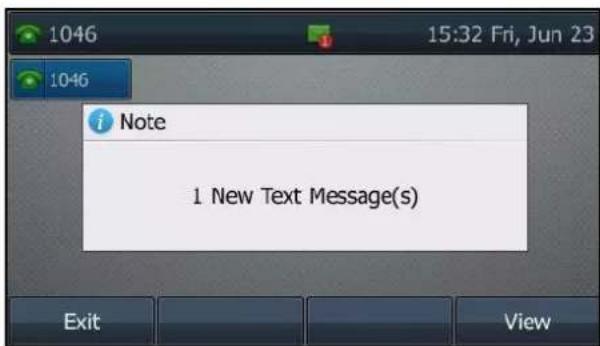
text_image
1046 15:32 Fri, Jun 23 1046 i Note 1 New Text Message(s) Exit ViewNote
When the phone receives a text message, the text message window will pop up by default. Your system administrator can disable this feature.
Text messages can be stored in your phone's Inbox, Sentbox, Outbox or Draftbox, and each of the boxes can store up to 100 text messages. If there are more than 100 test messages in any one of the boxes, the phone will directly delete the oldest text message in the box.
Note
SMS is not available on all servers. Contact your system administrator for more information.
Reading a Text Message
Procedure:
- Navigate to Menu->Message->Text Message->Inbox.

text_image
Inbox Sentbox Outbox 1/4 103 Today 14:21 103 Today 14:20 Back Reply Option View- Highlight a desired message, and then press View.
On the SIP-T48S/T48G IP phone, tap the desired text message to read.
Note
If the phone prompts you there is a new text messages, you can also press the View soft key to read the new messages directly.
On the SIP-T48S/T48G IP phone, you can tap the icon when the phone is idle to open the dialog box, and then tap Connect.
Sending a Text Message
Procedure:
-
Navigate to Menu->Message->Text Message->New Message.
-
Compose the new text message.

text_image
New Message hi Back abc Delete Send- On all IP phones except the SIP-T48S/T48G IP phone, press Send.
- Select the desired account from the From field.
- Enter the number you want to send the message to in the To field.
- Press Send to send the message.
On the SIP-T48S/T48G IP phone, you can also tap the Save soft key to save the text message to the draftbox.
You can send a text message via web user interface at the path Features->SMS.
Replying to a Text Message
Procedure:
-
Navigate to Menu->Message->Text Message->Inbox.
-
Highlight the desired message, and then press Reply.
On the SIP-T48S/T48G IP phone, tap the desired message, and then tap Reply.
- Compose the new text message.

text_image
To:1026<1026@10.2.1.48> hi Back abc Delete Send- Press Send to send the message.
Deleting a Text Message
Procedure:
-
Navigate to Menu->Message->Text Message->Inbox (Sentbox, Outbox or Draftbox).
-
Highlight the desired message.
On the SIP-T48S/T48G IP phone, tap the desired message.
- Press Option, select Delete.
On the SIP-T48S/T48G IP phone, tap Delete.
On the SIP-T42S/T42G/T41S/T41P/T40G/T40P IP phone, press Delete.
A message is displayed on the LCD screen:

text_image
Inbox Sentbox Outbox 1/4 103 Today 14:21 i Note Delete the selected message? Cancel OK- Press OK to delete.
You can also delete all text messages by selecting the Delete All.
Voice Mail
Voice Mail feature allows you to leave voice mails for someone or listen to the mails stored in a voice mailbox on your IP phone. This feature is set up on the server side and not all servers support this feature.
When receiving a new voice mail, the phone plays a warning tone and the power indicator LED slowly flash red. A message of "n New Voice Mail(s)" ("n" indicates the number of unread voice messages) are displayed on the LCD screen.
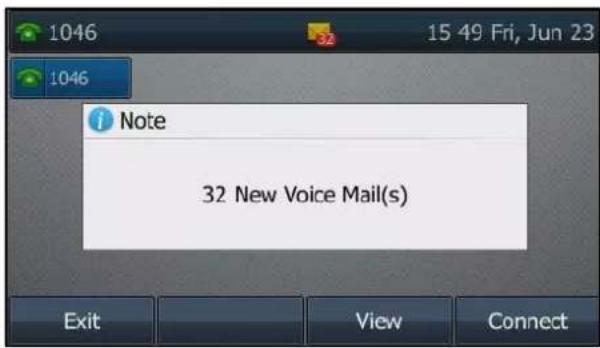
text_image
1046 15 49 Fri, Jun 23 1046 Note 32 New Voice Mail(s) Exit View ConnectIf the voice mail pop-up message box disappears, it won't pop up again unless the user receives a new voice mail or the user re-registers the account that has unread voice mail(s).
Note
When the phone receives a voice mail, the text message window will pop up by default. .Your system administrator can disable this feature.
Configuring the Voice Mail Code
Procedure:
- Navigate to Menu->Message->Voice Mail->Set Voice Mail Code.
You can also press the MESSAGE key when the voice mail code is not configured.
- Enter the voice mail code (for example, *4) in the desired account field.
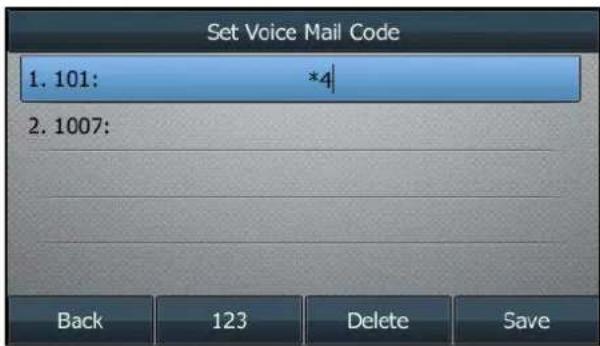
text_image
Set Voice Mail Code 1. 101: *4| 2. 1007: Back 123 Delete Save- Press Save.
Voice mail code is configurable via web user interface at the path Account->Advanced.
Note
Voice mail access codes must be predefined by your system administrator on the system server.
Leaving Voice Mails
You can leave a voice mail for someone when he/she is busy or inconvenient to answer the call. Follow the voice prompt from the system server to leave a voice mail, and then hang up.
Listening to Voice Mails
Procedure:
- Navigate to Menu->Message->Voice Mail->View Voice Mail.
The LCD screen displays the amount of new and old voice mails.
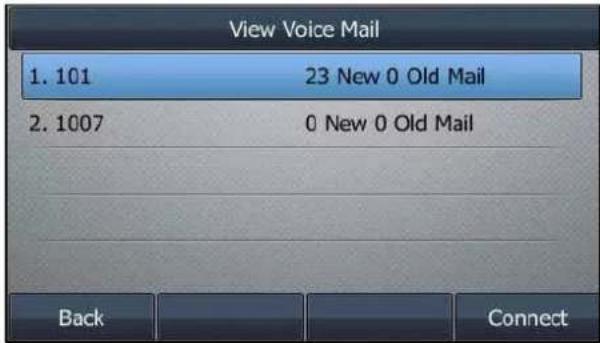
text_image
View Voice Mail 1. 101 23 New 0 Old Mail 2. 1007 0 New 0 Old Mail Back ConnectWhen the LCD screen prompts that the phone receives a new voice mail, you can press the MESSAGE key or Connect to dial out the voice mail access code.
- Highlight an account, and then press Connect to listen to voice mails.
On the SIP-T48S/T48G IP phone, tap the account to listen to voice mails.
- Follow the voice prompt to listen to your voice mails.
On the SIP-T48S/T48G IP phone, you can tap the icon when the phone is idle to open the dialog box, and then tap Connect.
From the Idle screen, you can also press a Voice Mail key to listen to voice mail directly. For more information on how to configure a Voice Mail key, refer to Configuring a Voice Mail Key.
Note
Before listening to voice mails, ensure that the voice mail code has been configured.
Using Optional Accessories with Your Phone
This section describes the optional accessories that you can use to extend your phone's capabilities. You can do the following:
- Using a Headset
• Using Bluetooth feature - Connecting to the Wireless Network
• Using an Expansion Module
The following items are optional accessories for your IP phone:
- Headset YHS32/YHS33
• Wireless Headset Adapter EHS36 - Bluetooth USB Dongle BT40
• Wi-Fi USB Dongle WF40 - Expansion Module EXP40
You need to purchase them separately if required.
Note
We recommend that you use the accessories provided or approved by Yealink. The use of unapproved third-party accessories may result in reduced performance.
Using a Headset
You can connect an analog or USB headset to your phone and use the headset to place and answer calls. If you want to use the analog headset, you require an optional headset YHS32/YHS33. The SIP-T42G/T41P IP phones do not support USB headset. For more information on how to use your USB headset, see your USB headset documentation from the manufacturer.
You can also pair and connect a Bluetooth headset with your SIP-T48S/T48G/T46S/T46G/T42S/T41S IP phone. For more information, refer to Pairing and Connecting the Bluetooth Headset.
Note
Your system administrator can disable the headset feature. Check with your system administrator to find out if it is available on your phone.
Using an Analog Headset
If you want to use the analog headset, a headset YHS32/YHS33 is required.
Connecting a YHS32/YHS33 Headset
Procedure:
- Simply insert the modular connector into the headset port on the back of your IP phone. For the information on how to connect headset YHS32/YHS33, see the YHS32/YHS33 user guide on Yealink Technical Support page.
Note
If both a Bluetooth headset and an analog headset are connected, only the Bluetooth headset can be used.
Activating the Headset Mode
After connecting a headset to your phone, you can activate the headset mode and use headset when answering and placing calls.
Procedure:
- Press the HEADSET key on the phone.
The HEADSET key LED glows green except on SIP-T40G/T40P IP phone, and the headset icon appears on the LCD screen.
When you press the line key or Answer to answer an incoming call, the call is answered in Headset mode automatically. For more information on using the headset to answer a call, refer to Answering Calls.
With the handset on-hook, enter the desired number and press Send, the phone will then place a call using the headset automatically. For more information on using the headset to place a call, refer to Placing Calls.
Deactivating the Headset Mode
If you don't want to use a headset to handle calls, you can deactivate the headset mode.
Procedure:
- Press the HEADSET key again on the phone.
The HEADSET key LED goes out except on SIP-T40G/T40P IP phone, and the headset icon disappears from the LCD screen.
Enabling the Headset Prior
You can use headset in priority when receiving or placing calls. This feature is especially useful for permanent or full-time headset users. To use this feature, you need to enable headset prior feature in advance.
Procedure:
- Click Features->General Information.
- Select Enabled from the pull-down list of Headset Prior.
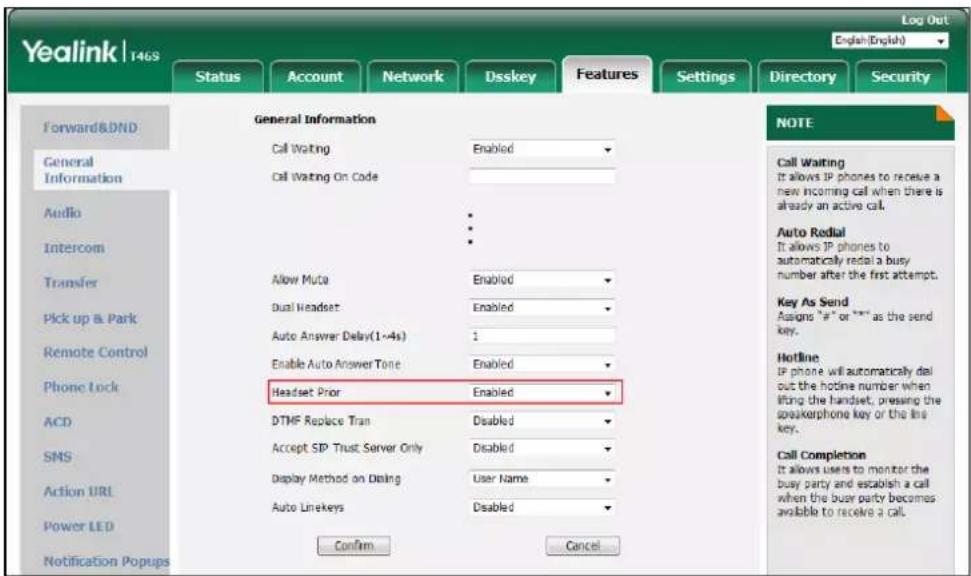
text_image
Yealink | 146S Log Out English(English) Forward,BOND General Information General Information Call Waiting Enabled Call Waiting On Code Audio Intercom Transfer Allow Muto Enabled Dual Headset Enabled Auto Answer Delay(1-4s) 1 Remote Control Enable Auto Answer Tone Enabled Phone Lock Headset Prior Enabled ACD DTMF Replace Tran Disabled SMS Accept SIP Trust Server Only Disabled Display Method on Dialing User Name Auto Linekeys Disabled Notification Popups Confirm Cancel NOTES Call Waiting It allows IP phones to receive a new incoming call when there is already an active call. Auto Redial It allows IP phones to automatically redial a busy number after the first attempt. Key As Send Assigns "a" or *** as the send key. Hotline IP phone will automatically dial out the hotline number when lifting the handset, pressing the speakerphone key or the line key. Call Completion It allows users to monitor the busy party and establish a call when the busr party becomes available to receive a call.3. Click Confirm.
Note
If headset prior is enabled, the headset mode will not be deactivated until you press the HEADSET key again.
If headset prior is disabled, the headset mode can be deactivated by pressing the Speakerphone key or the HEADSET key.
Enabling the Dual Headset
You can use two headsets when dual headset feature is enabled. To use this feature, you must physically connect one headset to the headset jack and the other one to the handset jack respectively. Once the phone connects to a call, the headset connected to the headset jack will have full-duplex capability, while the one connected to the handset jack will only be able to listen.
Procedure:
- Click Features->General Information.
- Select Enabled from the pull-down list of Dual Headset.

text_image
Yealink | 146S Log Out English(English) Forward&DND General Information General Information Audio Intercom Transfer Pick up & Park Remote Control Phone Lock ACD SMS Action URL Power LED Notification Popups Status Account Network Dsskey Features Settings Directory Security General Information Call Waiting Enabled Call Waiting On Code Allow Muta Enabled Dual Headset Enabled Auto Answer Delay(1-4s) 1 Enable Auto Answer Tone Enabled Headset Prior Enabled DTMF Replace Tran Disabled Accept SIP Trust Server Only Disabled Display Method on Dialing User Name Auto Linekeys Disabled Confirm Cancel NOTE Call Waiting It allows IP phones to receive a new incoming call when there is already an active call. Auto Redial It allows IP phones to automatically redial a busy number after the first attempt. Key As Send Assigns "a" or "b" as the send key. Hotline IP phone will automatically dial out the hotline number when lifting the handset, pressing the speakerphone key or the line key. Call Completion It allows users to monitor the busy party and establish a call when the busr party becomes available to receive a call.3. Click Confirm.
Using the Wireless Headset Adapter EHS36
EHS36 provides the technical interface between your IP phone and an EHS-compatible wireless headset, such as Sennheiser/Jabra (GN Netcom) or Plantronics headset.
For more information on how to connect EHS36, see the EHS36 User Guide on Yealink Technical Support page.
After the EHS36 and your headset are connected successfully, you can handle calls by your headset. For more information on how to use your headset, see your headset documentation from the manufacturer.
Using Bluetooth Feature
The SIP-T48S/T48G/T46S/T46G/T42S/T41S IP phone supports Bluetooth. Bluetooth enables low-bandwidth wireless connections within a range of 10 meters (32 feet). The best performance is in the 1 to 2 meters (3 to 6 feet) range. To use Bluetooth feature, you require a Bluetooth USB dongle BT40 to activate the Bluetooth mode.
Bluetooth mode is configurable via web user interface at the path Features->Bluetooth.
Connecting the Bluetooth USB Dongle BT40
Procedure:
Insert the USB dongle with "TOP" facing upwards into the USB port on the back of the phone.
For more information on Bluetooth USB dongle BT40, see the user guide on the Bluetooth USB dongle BT40's support page on Yealink Technical Support.
Activating the Bluetooth Mode
When you insert Bluetooth USB dongle BT40 into the USB port on the back of the IP phone, a message is displayed on the LCD screen:

text_image
1046 09 26 Wed, Apr 05 1046 Note Bluetooth adapter is added, scanning Bluetooth devices right now? Cancel OKYou can press OK to activate Bluetooth mode directly.
If you press Cancel, you can activate Bluetooth mode when you want to use the Bluetooth feature.
Procedure:
- Navigate to Menu->Basic->Bluetooth.
On the SIP-T42S/T41S IP phone, navigate to Menu->Settings->Basic
Settings->Bluetooth.
- Select On from the Bluetooth field.
On the SIP-T48S/T48G IP phone, The IP phone scans the available Bluetooth devices automatically and displays the Bluetooth device information (device name and MAC address).
- Press Save on all IP phones except SIP-T48S/T48G IP phone.
Bluetooth activation is configurable via web user interface at the path Features->Bluetooth.
Deactivating the Bluetooth Mode
You can deactivate the Bluetooth mode when you no longer use a Bluetooth device.
Procedure:
- Navigate to Menu->Basic->Bluetooth.
On the SIP-T42S/T41S IP phone, navigate to Menu->Settings->Basic Settings->Bluetooth.
-
Select Off from the Bluetooth field.
-
Press Save on all IP phones except SIP-T48S/T48G IP phone.
The Bluetooth device won't be connected anymore, but it will still be paired. When you activate the Bluetooth mode again, the paired Bluetooth device will appear in the Bluetooth Device(s) list on the SIP-T48S/T48G IP phone. On other IP phones, the paired Bluetooth device will appear in the Paired Bluetooth Device list.
Bluetooth deactivation is configurable via web user interface at the path Features->Bluetooth.
Using a Bluetooth Device
When the Bluetooth mode is activated, you can pair and connect your Bluetooth device
(Bluetooth headset or Bluetooth-Enabled mobile phone) to the phone. You can scan and pair up to 60 Bluetooth devices with your phone. However, only one device can be connected at a time. If you connect your Bluetooth-Enabled mobile phone to the
SIP-T48S/T48G/T46S/T46G/T42S/T41S IP phone, you can synchronize the mobile contacts to the IP phone.
This section provides you how to pair and connect/disconnect your Bluetooth device (Bluetooth headset or Bluetooth-Enabled mobile phone) to the phone, sync the mobile contacts, view and edit the Bluetooth device information, and delete the paired Bluetooth device.
Pairing and Connecting the Bluetooth Headset
Before pairing a Bluetooth headset, make sure that the Bluetooth headset is discoverable. For more information, refer to the documentation from the Bluetooth headset manufacturer.
Procedure:
- Navigate to Menu->Basic->Bluetooth.
On the SIP-T42S/T41S IP phone, navigate to Menu->Settings->Basic
Settings->Bluetooth.
-
Activate the Bluetooth mode (refer to Activating the Bluetooth Mode).
-
On the SIP-T46S/T46G/T42S/T41S IP phone, press Scan to search the Bluetooth devices.
The phone proceeds to scan the local Bluetooth devices, and LCD screen displays the available Bluetooth devices.
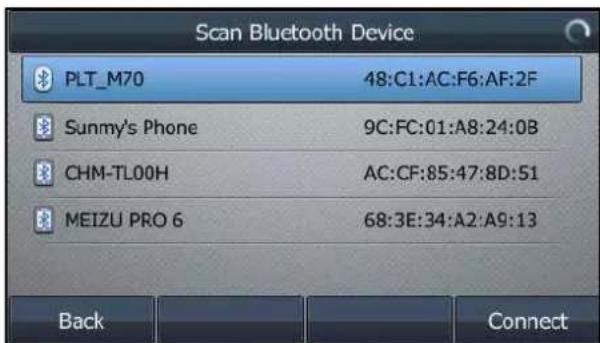
text_image
Scan Bluetooth Device PLT_M70 48:C1:AC:F6:AF:2F Sunny's Phone 9C:FC:01:A8:24:0B CHM-TL00H AC:CF:85:47:8D:51 MEIZU PRO 6 68:3E:34:A2:A9:13 Back Connect- Find your Bluetooth headset, and then press Connect.
On the SIP-T48S/T48G IP phone, tap your Bluetooth headset.
The Bluetooth icon appears on the LCD screen except on SIP-T42S/T41S IP phone.
With the Bluetooth headset paired and connected, you can use the Bluetooth headset to place and answer calls. For more information, refer to the documentation from the Bluetooth headset manufacturer.
Pairing and Connecting the Bluetooth-Enabled Mobile Phone
You can pair and connect the Bluetooth-Enabled mobile phone to SIP-T48S/T48G/T46S/T46G/T42S/T41S IP phone. Before pairing a Bluetooth-Enabled mobile phone, make sure that the Bluetooth-Enabled mobile phone is discoverable.
Procedure:
- Navigate to Menu->Basic->Bluetooth.
On the SIP-T42S/T41S IP phone, navigate to Menu->Settings->Basic Settings->Bluetooth.
-
Activate the Bluetooth mode.
-
On the SIP-T46S/T46G/T42S/T41S IP phone, press Scan to search for the Bluetooth-Enabled mobile phone.
-
Find your Bluetooth-Enabled mobile phone, and then press Connect.
On the SIP-T48S/T48G IP phone, tap your Bluetooth-Enabled mobile phone.
The IP phone will prompt the connect passkey on the LCD screen, as shown below:
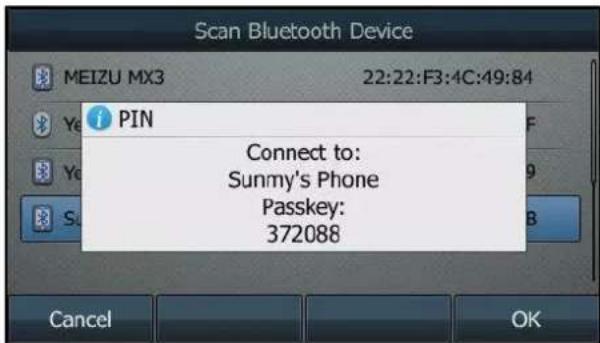
text_image
Scan Bluetooth Device MEIZU MX3 22:22:F3:4C:49:84 PIN Connect to: Sunmy's Phone Passkey: 372088 Cancel OK- Make sure your mobile phone is showing the same passkey, and then press the OK on both mobile phone and IP phone.
A message is displayed on the LCD screen:
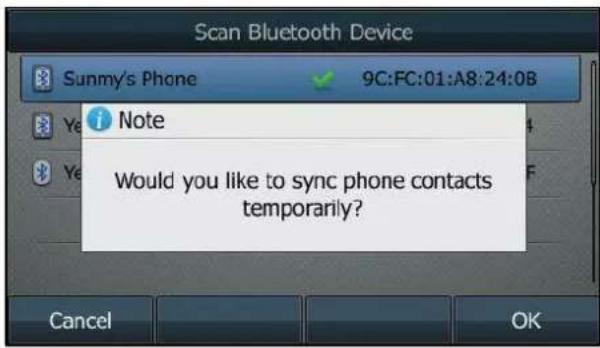
text_image
Scan Bluetooth Device Sunny's Phone 9C:FC:01:A8:24:0B Note Would you like to sync phone contacts temporarily? Cancel OK- (Optional.) Press OK to enable the mobile contacts sync feature and the IP phone will sync the mobile contacts temporarily, or press Cancel to disable mobile contacts sync feature and the IP phone will not sync the mobile contacts. If you press Cancel, you can also manually enable the mobile contacts sync feature on the IP phone. For more information, refer to Syncing the Mobile Contacts to the IP Phone.
If you enable mobile contacts sync feature, you also need to authorize the IP phone to sync the contacts temporarily on the mobile phone.
Syncing the Mobile Contacts to the IP Phone
If you disable the mobile contacts sync feature when you pair and connect the Bluetooth-Enabled mobile phone to the SIP-T48S/T48G/T46S/T46G/T42S/T41S IP phone (refer to Pairing and Connecting the Bluetooth-Enabled Mobile Phone), you need to enable the mobile contacts sync feature manually when you want to sync the mobile contacts to your IP phone.
Enabling the Mobile Contacts Sync Feature Manually
Procedure:
- Navigate to Menu->Basic->Bluetooth->Paired Bluetooth Device.
On the SIP-T48S/T48G IP phone, navigate to Menu->Basic->Bluetooth.
On the SIP-T42S/T41S IP phone, navigate to Menu->Settings->Basic
Settings->Bluetooth->Paired Bluetooth Device.
- Press Option, and then select Detail.
On the SIP-T48S/T48G IP phone, tap ⋯ after the connected Bluetooth-Enabled mobile phone name.
3. Select On from the Mobile Contacts Sync field.
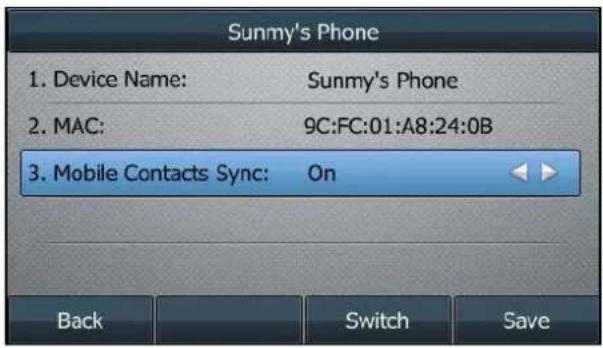
text_image
Sunny's Phone 1. Device Name: Sunny's Phone 2. MAC: 9C:FC:01:A8:24:0B 3. Mobile Contacts Sync: On Back Switch SaveYou need to authorize the IP phone to sync the contacts temporarily on the mobile phone first, and then the mobile contacts directory will appear in the IP phone directory list.
Viewing your Mobile Contacts on the IP Phones
You can view your mobile contacts on the SIP-T48S/T48G/T46S/T46G/T42S/T41S IP phone.
Procedure:
1. Navigate to Menu->Directory->Mobile Contacts.
The contacts stored in your mobile phone will display in the Mobile Contacts list.

text_image
Mobile Contacts 141/153 money 6212264 james 1508 cerlin 4832 QIAOZHEN 1885 NN 1378 Back Search Option SendFor how to add contact to local directory/blacklist from mobile contacts, update the mobile contacts or place calls to and search for contacts in the mobile contacts, refer to the Mobile Contacts.
Viewing the Bluetooth Device Information
When Bluetooth mode is activated and the LCD screen displays a list of Bluetooth devices, you can view the Bluetooth device information.
Procedure:
1. Navigate to Menu->Basic->Bluetooth->Paired Bluetooth Device.
On the SIP-T48S/T48G IP phone, navigate to Menu->Basic->Bluetooth->Bluetooth Device(s).
On the SIP-T42S/T41S IP phone, navigate to Menu->Settings->Basic
Settings->Bluetooth->Paired Bluetooth Device.
2. Do one of the following:
On the SIP-T48S/T48G IP phone, you can view the Bluetooth device information from the Bluetooth Device(s) field.
• Device Name: the name of the Bluetooth device.
• MAC: the MAC address of the Bluetooth device.
- Connection: the connection status of Bluetooth device with your phone.
On the SIP-T46S/T46G/T42S/T41S IP phone, select the desired Bluetooth device.
Press Option, and then select Detail to view the Bluetooth device information:
• Device Name: the name of the Bluetooth device.
• MAC: the MAC address of the Bluetooth device.
- Mobile Contacts Sync: mobile contacts synchronization when Bluetooth-enabled mobile phone is connected.

text_image
iPhone 1. Device Name: iPhone 2. MAC: 9C:FC:01:A8:24:0B 3. Mobile Contacts Sync: On Back DisconnectEditing Bluetooth Device Information
Procedure:
- Navigate to Menu->Basic->Bluetooth->Edit My Device Information.
On the SIP-T42S/T41S IP phone, navigate to Menu->Settings->Basic
Settings->Bluetooth->Edit My Device Information.
The LCD screen displays the device name and MAC address. The MAC address cannot be edited.
- Enter the desired name in the Device Name field.
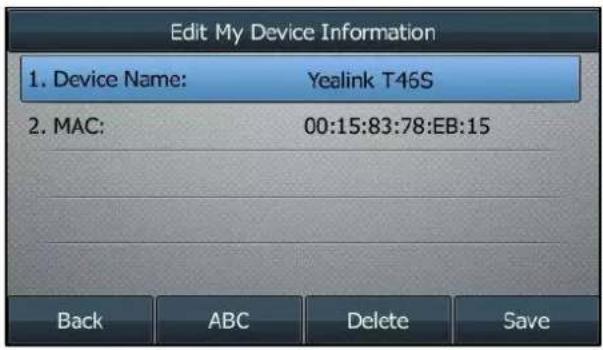
text_image
Edit My Device Information 1. Device Name: Yealink T46S 2. MAC: 00:15:83:78:EB:15 Back ABC Delete Save- Press Save.
The preconfigured Bluetooth device name will display in scanning list of other devices.
Deleting the Paired Bluetooth Device
You can delete your Bluetooth device from your phone. When you delete the Bluetooth device, it disappears from the Paired Bluetooth Device list. To connect it to your IP phone again, you need to scan it first, and then connect it again.
Procedure:
- Navigate to Menu->Basic->Bluetooth->Paired Bluetooth Device.
On the SIP-T48S/T48G IP phone, navigate to Menu->Basic->Bluetooth->Bluetooth Device(s).
- Press Option, and then select Delete or Delete All.
On the SIP-T48S/T48G IP phone, tap ⋯ after the Bluetooth device, and then select Delete. Or tap Delete All.
A message is displayed on the LCD screen:

text_image
Paired Bluetooth Device PLT_M70 48:C1:AC:F6:AF:2F i Note Delete selected item? Cancel OK- Press OK to delete.
Disconnecting the Bluetooth Device
You can disconnect the Bluetooth device from your phone. After you disconnect the Bluetooth device, it will still remain paired. So you can easily connect it to your IP phone again.
Procedure:
-
Navigate to Menu->Basic->Bluetooth->Paired Bluetooth Device.
-
Highlight the connected Bluetooth device, and then press Disconnect.
On the SIP-T48S/T48G IP phone, tap the connected Bluetooth device.
The Bluetooth device is disconnected. To connect it to your IP phone again, press Connect or tap it.
Connecting to the Wireless Network
You can use Wi-Fi USB dongle WF40 to wirelessly connect SIP-T29G/T27G IP phone to available wireless networks.
Wi-Fi mode is configurable via web user interface at the path Network->Wi-Fi.
Connecting the Wi-Fi USB Dongle WF40
Procedure:
Insert the Wi-Fi USB Dongle WF40 into the USB port on the back of the phone.
For more information on WF40, see the Wi-Fi USB dongle WF40 user guide on Yealink Technical Support page.
Activating the Wi-Fi Mode
When Wi-Fi USB dongle WF40 is connected to the USB port on the back of the IP phone, a message will display on the LCD screen:

text_image
1006 13:40 Fri, Sep 02 1005 i Note Wi-Fi adapter is added, scanning available wireless networks right now? Cancel OKYou can press OK to activate Wi-Fi mode directly and scan Wi-Fi devices automatically.
If you press Cancel, you can activate Wi-Fi mode manually when you want to use the Wi-Fi feature.
Procedure:
- Navigate to Menu->Basic->Wi-Fi.
On the SIP-T42S/T41S IP phone, navigate to Menu->Settings->Basic Settings->Wi-Fi.
-
Select On from the Wi-Fi field.
-
Press Save.
The IP phone scans the available wireless networks in your area.

text_image
Wi-Fi Wi-Fi: On Wi-Fi Status Known Network(s) 32 Available Network(s) Back WPS Switch SaveDeactivating the Wi-Fi Mode
You should deactivate the Wi-Fi mode when you need to connect your phone to the wired network.
Procedure:
- Navigate to Menu->Basic->Wi-Fi.
On the SIP-T42S/T41S IP phone, navigate to Menu->Settings->Basic Settings->Wi-Fi.
- Select Off from the Wi-Fi field.
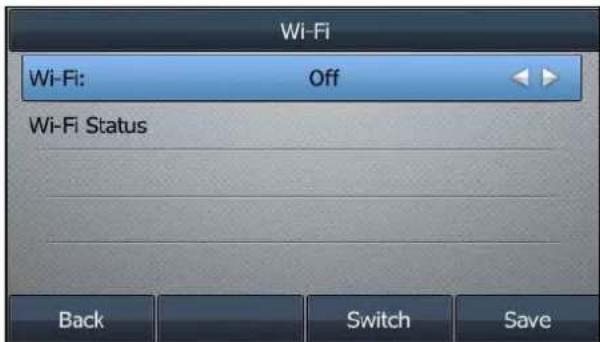
text_image
Wi-Fi Wi-Fi: Off Wi-Fi Status Back Switch Save- Press Save.
Wireless Network Settings
Wi-Fi is a popular wireless networking technology that uses radio waves to provide wireless high-speed Internet and network connections. You can connect
SIP-T48S/T48G/T46S/T46G/T42S/T41S IP phone to a wireless network.
When the Wi-Fi mode is activated on the IP phone, you can connect your phone to the desired
wireless network. This section provides you how to connect and disconnect to the wireless network, and how to view and manage the wireless network.
Connecting to the Wireless Network
Three ways to connect IP phone to the wireless network:
- Manually connect to an available wireless network
• Wi-Fi Protected Setup (WPS) - Manually add a wireless network
Connecting to an Available Wireless Network Manually
Procedure:
-
Navigate to Menu->Basic->Wi-Fi. On the SIP-T42S/T41S IP phone, navigate to Menu->Settings->Basic Settings->Wi-Fi.
-
Activate the Wi-Fi mode (refer to Activating the Wi-Fi Mode).
-
On the SIP-T46S/T46G/T42S/T41S IP phone, highlight the X Available Network(s) (X represents the number of available networks), and then press Enter.
-
(Optional.) To re-search the available network, press Scan.
-
Select the desired wireless network and then press Connect. On the SIP-T48S/T48G IP phone, tap the desired wireless network to connect to your IP phone. Or tap ⋯ after the desired wireless network, and then tap Connect.
-
If the network is secure, enter its password.
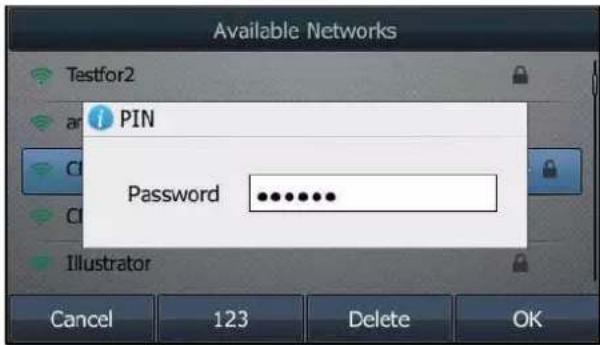
text_image
Available Networks Testfor2 PIN Password --------7. Press OK.
Note
For more information on the password of the wireless network, contact your system administrator.
Connecting to the Wireless Network Using Wi-Fi Protected Setup (WPS)
Wi-Fi Protected Setup (WPS) provides simplified mechanisms to configure secure wireless networks which can automatically configure a wireless network with a network name (SSID) and
strong WPA data encryption and authentication.
Two methods supported by Yealink IP phones in the Wi-Fi protected setup:
- Push Button Configuration (PBC): The user simply has to press WPS key on both the IP phone and gateway/router to connect.
- Personal Identification Number (PIN): The user has to enter a PIN generated randomly by the IP phone on the gateway/router to connect.
Push Button Configuration (PBC)
Procedure:
- Navigate to Menu->Basic->Wi-Fi.
On the SIP-T42S/T41S IP phone, navigate to Menu->Settings->Basic Settings->Wi-Fi. - Activate the Wi-Fi mode (refer to Activating the Wi-Fi Mode).
- Press the WPS, and then select WPS.
On the SIP-T48S/T48G IP phone, tap WPS.
The LCD screen prompts "WPS has been activated, connect in 120s!". - Long press the WPS key on your gateway/router.
Once WPS setup has completed successfully, the LCD screen will prompt "Connect Success.".
Personal Identification Number (PIN)
Procedure:
- Navigate to Menu->Basic->Wi-Fi.
On the SIP-T42S/T41S IP phone, navigate to Menu->Settings->Basic Settings->Wi-Fi. - Activate the Wi-Fi mode (refer to Activating the Wi-Fi Mode).
- Press the WPS, and then select WPS-PIN.
On the SIP-T48S/T48G IP phone, tap WPS-PIN.
The LCD screen prompts "Please input below PIN code on your Wi-Fi router and press OK to connect: xxx". - Log into your gateway/router's web interface, and configure it to search the clients. For more information, refer to the documentation from the gateway/router manufacturer.
Once WPS-PIN setup has completed successfully, the gateway/router's web interface will prompt success.
Note
Contact your gateway/router provider for more information.
Adding a Wireless Network Manually
If your gateway/router has SSID broadcast disabled, it might not appear in the scanning results.
In that case, you must manually add a wireless network.
Procedure:
-
Navigate to Menu->Basic->Wi-Fi. On the SIP-T42S/T41S IP phone, navigate to Menu->Settings->Basic Settings->Wi-Fi.
-
Activate the Wi-Fi mode (refer to Activating the Wi-Fi Mode).
-
Highlight Known Network(s), and then press Add. On the SIP-T48S/T48G IP phone, tap Add.
-
Use the WLAN settings obtained from your gateway/router to configure this WLAN Profile on the IP phone. Do the following:
a) If you select None or WEP from the Security Mode field:
Enter the profile name, SSID and WPA shared key in the corresponding fields.
b) If you select WPA-PSK, WPA2-PSK, WPA-EAP or WPA2-EAP from the Security Mode field:
Select the desired Cipher type (TKIP, AES or TKIP AES) from the Cipher Type field. Enter the profile name, SSID, user name and WPA shared key in the corresponding fields.
5. Press Save.
The connected wireless networks will be saved to Known Network(s) list. The Known
Network(s) list can store up to 5 wireless networks, you can specify the priority to connect to the corresponding wireless network.
Viewing the Wireless Network Information
When Wi-Fi mode is activated, you can view the wireless network information.
Procedure:
- Navigate to Menu->Basic->Wi-Fi->X Available Network(s) (X represents the number of available networks).
On the SIP-T48S/T48G IP phone, navigate to Menu->Basic->Wi-Fi.
On the SIP-T42S/T41S IP phone, navigate to Menu->Settings->Basic
Settings->Wi-Fi->X Available Network(s).
- Press Detail to view the detailed wireless network information (for example, Profile Name, SSID or Signal Strength).
On the SIP-T48S/T48G IP phone, tap ⋯ after the desired wireless network to view the detailed wireless network information (for example, Profile Name, SSID or Signal Strength).
If the IP phone is connected to a wireless network successfully, you can also navigate to Menu->Basic->Wi-Fi->Wi-Fi Status to view the connected wireless network information.

text_image
Wi-Fi Status 1. Wi-Fi Status: Connected 2. Profile Name: Testfor2 3. SSID: Testfor2 4. Signal Strength: 4 5. Channel: 1 BackManaging the Saved Wireless Network
Once the IP phone has ever been connected to a wireless network successfully, this wireless network profile will be saved in Known Network(s) list. The next time you activate Wi-Fi feature, the IP phone will be automatically connected to the wireless network which has the highest priority (the top one). Up to 5 wireless network profiles can be saved in Known Network(s) list. If you want to add a new one when the IP phone has already saved 5 wireless network profiles, please delete an older one before adding.
Procedure:
- Navigate to Menu->Basic->Wi-Fi->Known Network(s).
On the SIP-T42S/T41S IP phone, navigate to Menu->Settings->Basic Settings->Wi-Fi->Known Network(s).

text_image
Known Network Testfor2 and-Business Back Option Add Disconnect- Press Option.
On the SIP-T48S/T48G IP phone, tap ⋯.
- Do one of the following:
- To edit the wireless network profile:
1) Select Edit.
2) Edit the desired wireless network information.
3) Press Save.
- To change the priority of the wireless network:
1) Select Move Up or Move Down to assign higher or lower priority of the wireless network that the IP phone automatically connects to.
- To delete the saved wireless network profile:
1) Select Delete or Delete All.
If you delete your wireless network profile from your phone, you need to manually connect to it next time.
Disconnecting the Wireless Network Connection
Procedure:
- Navigate to Menu->Basic->Wi-Fi.
On the SIP-T42S/T41S IP phone, navigate to Menu->Settings->Basic Settings->Wi-Fi.
- Do one of the following:
On the SIP-T46S/T46G/T42S/T41S IP phone, highlight the X Available Network(s) (X represents the number of available networks), and then press Enter.
Highlight the connected wireless network, and then press Disconnect.
- On the SIP-T48S/T48G IP phone, you can do one of the following:
- Tap the connected wireless network.
- Tap ⋯ after the connected wireless network, and then tap Disconnect.
- Tap Known Network(s), and then tap the connected wireless network.
The wireless network is disconnected. You can press Connect to connect again.
Using an Expansion Module
The expansion module is a console you can connect to an IP phone to add additional line keys and expand the functions of your phone. Yealink SIP-T48S/T48G/T46S/T46G IP phone supports expansion module EXP40. It has two pages of 20 flexible ext keys and it can be programmed up to 40 various features. This section provides you how to connect the expansion module EXP40, how to assign the features for ext keys and how to adjust the contrast and backlight of expansion module EXP40.
For more information on expansion module EXP40, see the LCD Expansion Module EXP40 user guide on Yealink Technical Support page.
Connecting the Expansion Module EXP40
Procedure:
-
Connect the EXP40 expansion module to the IP phone using the supplied connecting sheet and screws.
-
Connect the supplied cord from the Ext jack on the host phone to the Ext in jack on the
expansion module.
Assigning the Features for Ext Keys
If EXP40 is connected to the phone, you can customize features for ext keys.
Procedure:
- Long press the desired ext key on EXP40.
The IP phone LCD screen will enter the user setting interface of this key. - Customize the specific feature for this key on the IP phone.
- Press Save.
Ext keys are configurable via web user interface at the path Dsskey->Ext Key.
Adjusting the Contrast of Expansion Module EXP40
You can configure the contrast of the expansion module EXP40 via the host phone.
Procedure:
- Navigate to Menu->Basic->Display->Contrast.
If EXP40 is not connected to the phone, the Contrast screen displays "No EXP".
- Select the desired value between 1 and 10 (highest intensity) from the Contrast field.

text_image
Contrast 1. Contrast: 6 Back Switch Save- Press Save.
Adjusting the Backlight of Expansion Module EXP40
When you change the backlight intensity settings on your SIP-T48S/T48G/T46G/T46S IP phone, the backlight on EXP40 connected to your phone automatically changes to match the new settings. For more information on how to configure the backlight, refer to Configuring the Backlight.
Maintaining Your Phone
When your phone is unable to operate properly, you need to investigate or troubleshoot issues among other tasks your administrator may ask you to perform. This chapter explains how to perform maintenance tasks on your phone:
• Diagnosing the Network
- Rebooting Your Phone
- Resetting to Factory Settings
• Updating the Phone Configuration
- Export All Diagnostic Files
Diagnosing the Network
The wrong network settings may result in inaccessibility of your phone and poor network performance. In this case, your system administrator may ask you to use the "Ping" or "Trace Route" method to check whether the network is connected, and to analyze the network fault.
Checking the Network Using "Ping" Method
Procedure:
- Navigate to Menu->Features->Diagnostics->Network->Ping.
- Enter the desired IP address or URL in the Ping IP or URL field.
- Press Start.
The screen displays the network status information.

text_image
Ping PING 10.2.20.15 (10.2.20.15): 56 data bytes 64 bytes from 10.2.20.15: seq=0 ttl=64 time=6.416 ms 64 bytes from 10.2.20.15: seq=1 ttl=64 time=0.868 ms Back- Press Back to back to the preview screen.
Checking the Network Using "Trace Route" Method
Procedure:
- Navigate to Menu->Features->Diagnostics->Network->Trace Route.
-
Enter the desired IP address or URL in the Trace Route IP or URL field.
-
Press Start.
The screen displays the network status information.

text_image
Trace Route traceroute to 10.2.20.15 (10.2.20.15), 30 hops max, 38 byte packets 1 10.2.20.15 (10.2.20.15) 10.345 ms 0.958 ms 0.837 ms Back- Press Back to back to the preview screen.
Rebooting Your Phone
The improper operation may cause malfunction. When your phone is malfunctioning, your system administrator may ask you to reboot your phone.
Procedure:
- Navigate to Menu->Advanced (default password: admin) ->Reboot.
On the SIP-T42S/T41S/T40G/T40P IP phone, navigate to Menu->Settings->Advanced Settings (default password: admin)->Reboot.
A message is displayed on the LCD screen:

text_image
Advanced 1. Accounts 2. News Warning 3. Ch 4. Au Reboot the phone? 5. Reboot Cancel OK- Press OK to reboot the phone.
You can update the phone configuration via web user interface at the path Settings->Upgrade.
Resetting to Factory Settings
Generally, some common issues may occur while using the IP phone. Your system administrator may ask you to reset your phone to factory configurations after you have tried all troubleshooting suggestions but still do not solve the problem. This operation will delete all your personal configuration settings, and reset all settings to the manufacturer default setting. Check with your system administrator if the personalized settings are kept before resetting your phone to factory settings.
Procedure:
- Navigate to Menu->Advanced (default password: admin) ->Reset Config.
On the SIP-T42S/T41S/T40G/T40P IP phone, navigate to Menu->Settings->Advanced Settings (default password: admin)->Reset Config.
- Highlight the Reset to factory settings, and then press Reset.
A message is displayed on the LCD screen:

text_image
Reset: Config 1. Reset to Factory Settings Warning Reset to factory setting? Cancel OK- Press OK.
The phone begins resetting.
You can also long press the OK key when the phone is idle.
After reset, the LCD screen prompts "Welcome Initializing...Please wait".

text_image
Welcome Initializing... Please waitThe phone will be reset successfully after startup.
Resetting to factory settings is operable via web user interface at the path
Settings->Upgrade.
Note
Reset of your phone may take a few minutes. Do not power off until the phone has started up successfully.
Updating the Phone Configuration
Your system administrator may ask you to update your phone configurations.
Procedure:
- Navigate to Menu->Advanced (default password: admin) ->Auto Provision.
On the SIP-T42S/T41S/T40G/T40P IP phone, navigate to Menu->Settings->Advanced Settings (default password: admin)->Auto Provision.
- Enter the provision information in the corresponding field.
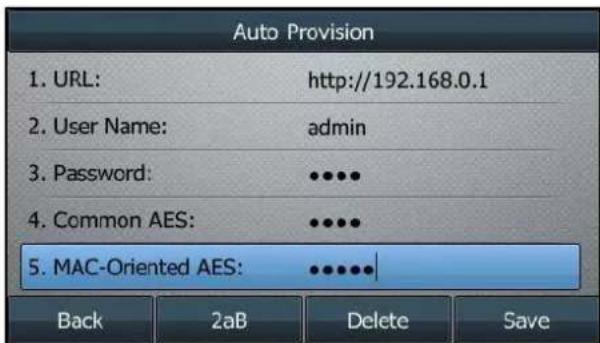
text_image
Auto Provision 1. URL: http://192.168.0.1 2. User Name: admin 3. Password: ••••• 4. Common AES: ••••• 5. MAC-Oriented AES: •••••• Back 2aB Delete Save- Press Save.
A message is displayed on the LCD screen:
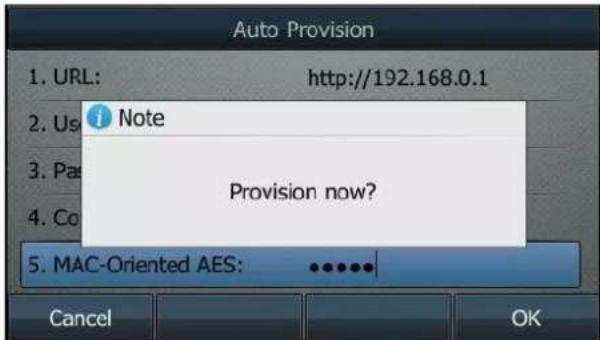
text_image
Auto Provision 1. URL: http://192.168.0.1 2. Us i Note 3. Pa Provision now? 4. Co 5. MAC-Oriented AES: ...... Cancel OK- Press OK.
Updating the phone configuration is operable via web user interface at the path
Settings->Auto Provision.
Note
Ask your system administrator for the provision information.
Export All Diagnostic Files
Your system administrator may ask you to export all diagnostic files to analyze your phone problem.
Procedure:
-
Click Settings->Configuration.
-
Click Start in the Export All Diagnostic Files field to begin capturing signal traffic.
The system log level will be automatically set to 6.
-
Reproduce the issue.
-
Click Stop in the Export All Diagnostic Files field to stop the capture.
The system log level will be reset to 3.
- Click Export to open file download window, and then save the diagnostic file to your local system.
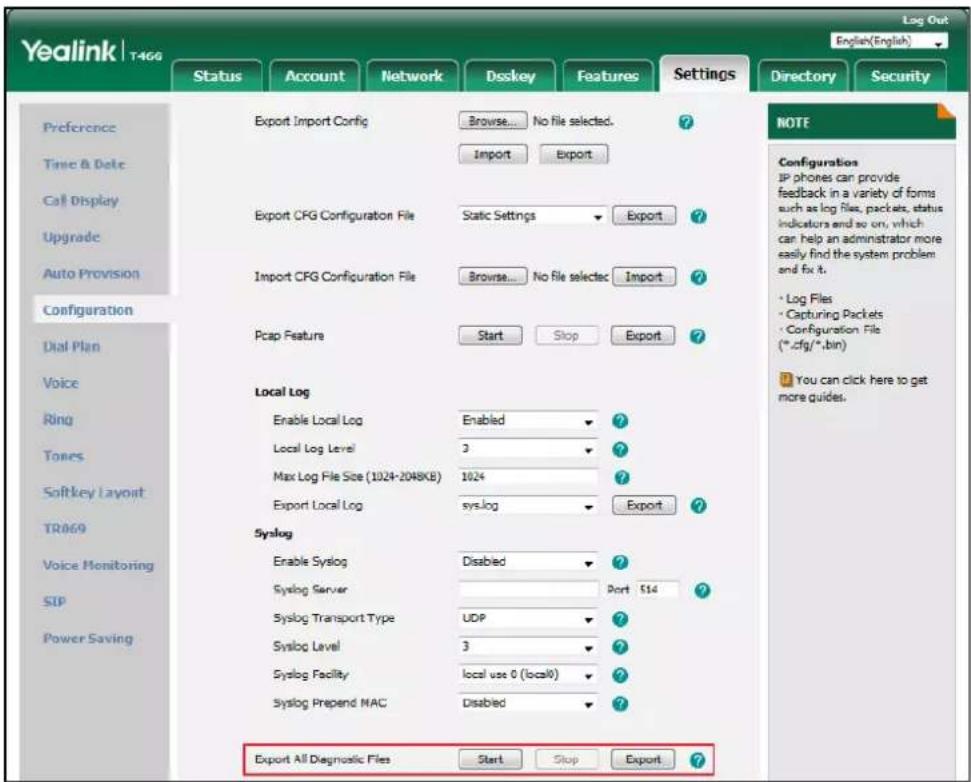
text_image
Yealink T-466 Log Out English(English) Status Account Network Dsskey Features Settings Directory Security Preference Export Import Config Browse... No file selected. ? Time & Date Import Export Call Display Export CFG Configuration File Static Settings Export ? Upgrade Auto Provision Import CFG Configuration File Browse... No file selectc Import ? Configuration Pcap Feature Start Stop Export ? Dial Plan Local Log Enable Local Log Enabled ? Ring Local Log Level 3 ? Tones Max Log File Size (1024-2048KB) 1024 ? Softkey Layout Export Local Log sys.log Export ? TR069 Syslog Voice Monitoring Enable Syslog Disabled ? SIP Syslog Server Port 514 ? Power Saving Syslog Transport Type UDP ? Syslog Facility local use 0 (local0) ? Syslog Prepend MAC Disabled ? Export All Diagnostic Files Start Stop Export ? NOTE Configurations IP phones can provide feedback in a variety of forms such as log files, packets, status indicators and so on, which can help an administrator more easily find the system problem and fix it. • Log Files • Capturing Packets • Configuration File (*.cfg/*.bin) You can click here to get more guides.A diagnostic file named allconfig.tgz is successfully exported to your local system.
Note
If the issue cannot be reproduced, just directly click Export to export all diagnostic files.
Appendix
Appendix A – Time Zones
| Time Zone | Time Zone Name |
| -11 | Samoa |
| -10 | United States-Hawaii-Aleutian, United States-Alaska-Aleutian |
| -9:30 | French Polynesia |
| -9 | United States-Alaska Time |
| -8 | Canada(Vancouver,Whitehorse), Mexico(Tijuana,Mexicali), United States-Pacific Time |
| -7 | Canada(Edmonton,Calgary), Mexico(Mazatlan,Chihuahua), United States-MST no DST, United States-Mountain Time |
| -6 | Canada-Manitoba(Winnipeg), Chile(Easter Islands), Mexico(Mexico City,Acapulco), United States-Central Time, Guatemala, El Salvador, Honduras, Nicaragua, Costa Ricam, Belize |
| -5 | Bahamas(Nassau), Canada(Montreal,Ottawa,Quebec), Cuba(Havana), United States-Eastern Time, Peru |
| -4:30 | Venezuela(Caracas) |
| -4 | Canada(Halifax,Saint John), Chile(Santiago), Paraguay(Asuncion), United Kingdom-Bermuda(Bermuda), United Kingdom(Falkland Islands), Trinidad&Tobago |
| -3:30 | Canada-New Foundland(St.Johns) |
| -3 | Argentina(Buenos Aires), Brazil(DST), Brazil(no DST), Denmark-Greenland(Nuuk) |
| -2:30 | Newfoundland and Labrador |
| -2 | Brazil(no DST) |
| -1 | Portugal(Azores) |
| 0 | Denmark-Faroe Islands(Torshavn), GMT, Greenland, Ireland(Dublin), Morocco, Portugal(Lisboa,Porto,Funchal), Spain-Canary Islands(Las Palmas), United Kingdom(London) |
| +1 | Albania(Tirane), Austria(Vienna), Belgium(Brussels), Caicos, Chad, Croatia(Zagreb), Czech Republic(Prague), Denmark(Kopenhagen), France(Paris), Germany(Berlin), Hungary(Budapest), Italy(Rome), Luxembourg(Luxembourg), Macedonia(Skopje), Namibia(Windhoek), Netherlands(Amsterdam), Spain(Madrid) |
| +2 | Estonia(Tallinn), Finland(Helsinki), Gaza Strip(Gaza), Greece(Athens), Israel(Tel Aviv), Jordan(Amman), Latvia(Riga), Lebanon(Beirut), Moldova(Kishinev), Romania(Bucharest), Russia(Kaliningrad),Syria(Damascus), Turkey(Ankara), Ukraine(Kyiv, Odessa) |
| +3 | East Africa Time, Iraq(Baghdad), Russia(Moscow) |
| +3:30 | Iran(Teheran) |
| +4 | Armenia(Yerevan), Azerbaijan(Baku), Georgia(Tbilisi), Kazakhstan(Aktau), Russia(Samara) |
| +4:30 | Afghanistan(Kabul) |
| +5 | Kazakhstan(Aqtobe), Kyrgyzstan(Bishkek), Pakistan(Islamabad), Russia(Chelyabinsk) |
| +5:30 | India(Calcutta) |
| +5:45 | Nepal(Katmandu) |
| +6 | Kazakhstan(Astana, Almaty), Russia(Novosibirsk,Omsk) |
| +6:30 | Myanmar(Naypyitaw) |
| +7 | Russia(Krasnoyarsk), Thailand(Bangkok) |
| +8 | Australia(Perth), China(Beijing), Russia(Irkutsk, Ulan-Ude), Singapore(Singapore) |
| +8:45 | Eucla |
| +9 | Japan(Tokyo), Korea(Seoul), Russia(Yakutsk,Chita) |
| +9:30 | Australia(Adelaide), Australia(Darwin) |
| +10 | Australia(Brisbane), Australia(Hobart), Australia(Sydney,Melbourne,Canberra), Russia(Vladivostok) |
| +10:30 | Australia(Lord Howe Islands) |
| +11 | New Caledonia(Noumea), Russia(Srednekolymsk Time) |
| +11:30 | Norfolk Island |
| +12 | New Zealand(Wellington,Auckland), Russia(Kamchatka Time) |
| +12:45 | New Zealand(Chatham Islands) |
| +13 | Tonga(Nukualofa) |
| +13:30 | Chatham Islands |
| +14 | Kiribati |
Appendix B – Menu Structure
For the SIP-T48S/T48G IP phone
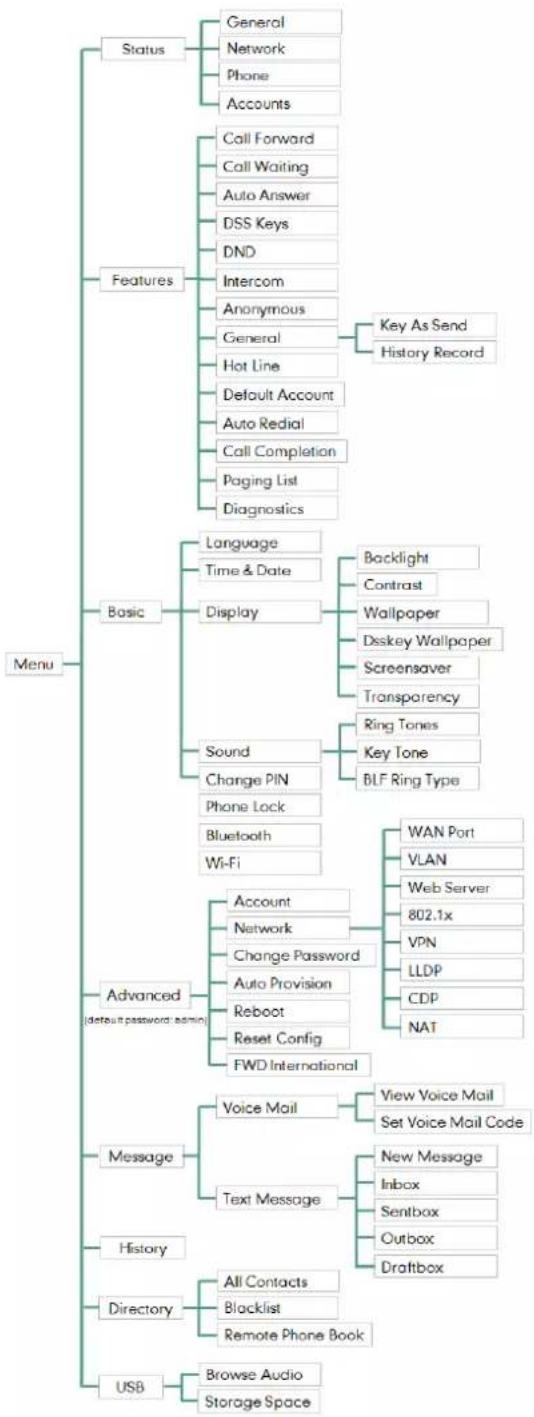
flowchart
graph TD
    A["Menu"] --> B["Status"]
    A --> C["Features"]
    A --> D["Basic"]
    A --> E["Advanced"]
    A --> F["Message"]
    A --> G["History"]
    A --> H["Directory"]
    A --> I["USB"]

    B --> B1["General"]
    B --> B2["Network"]
    B --> B3["Phone"]
    B --> B4["Accounts"]

    C --> C1["Call Forward"]
    C --> C2["Call Waiting"]
    C --> C3["Auto Answer"]
    C --> C4["DSS Keys"]
    C --> C5["DND"]
    C --> C6["Intercom"]
    C --> C7["Anonymous"]
    C --> C8["General"]
    C --> C9["Hot Line"]
    C --> C10["Default Account"]
    C --> C11["Auto Redial"]
    C --> C12["Call Completion"]
    C --> C13["Paging List"]
    C --> C14["In diagnostics"]

    D --> D1["Language"]
    D --> D2["Time & Date"]
    D --> D3["Display"]
    D --> D4["Sound"]
    D --> D5["Change PIN"]
    D --> D6["Phone Lock"]

    D1 --> D1a["Backlight"]
    D1 --> D1b["Contrast"]
    D1 --> D1c["Wallpaper"]
    D1 --> D1d["Dsskey Wallpaper"]
    D1 --> D1e["Screensaver"]
    D1 --> D1f["Transparency"]

    D2 --> D2a["Ring Tones"]
    D2 --> D2b["Key Tone"]
    D2 --> D2c["BLF Ring Type"]

    E --> E1["Account"]
    E --> E2["Network"]
    E --> E3["Change Password"]
    E --> E4["Auto Provision"]
    E --> E5["Reboot"]
    E --> E6["Reset Config"]
    E --> E7["FWD International"]

    F --> F1["Voice Mail"]
    F --> F2["Text Message"]

    F1 --> F1a["View Voice Mail"]
    F1 --> F1b["Set Voice Mail Code"]

    G --> G1["New Message"]
    G --> G2["Inbox"]
    G --> G3["Sentbox"]
    G --> G4["Outbox"]
    G --> G5["Draftbox"]

    H --> H1["All Contacts"]
    H --> H2["Blacklist"]
    H --> H3["Remote Phone Book"]

    I --> I1["Browse Audio"]
    I --> I2["Storage Space"]

    J["Menu"] -.-> K["Key As Send"]
    J -.-> L["History Record"]

    M["Advanced (default password admin)"]
For the SIP-T46S/T46G IP phone
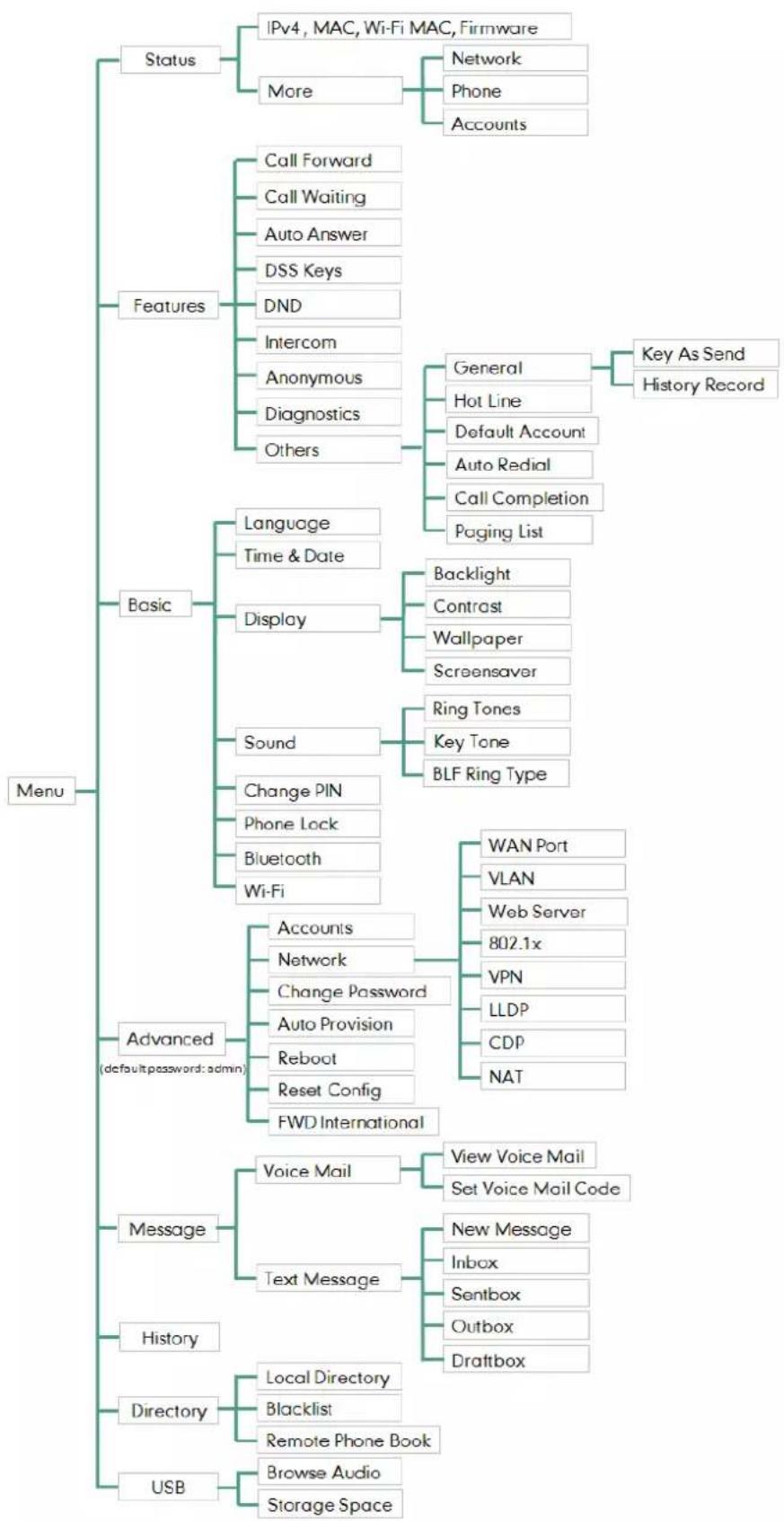
flowchart
graph TD
    A["Status"] --> B["IPv4, MAC, Wi-Fi MAC, Firmware"]
    A --> C["More"]
    C --> D["Network"]
    C --> E["Phone"]
    C --> F["Accounts"]
    A --> G["Features"]
    G --> H["Call Forward"]
    G --> I["Call Waiting"]
    G --> J["Auto Answer"]
    G --> K["DSS Keys"]
    G --> L["DND"]
    G --> M["Intercom"]
    G --> N["Anonymous"]
    G --> O["Diagnostics"]
    G --> P["Others"]
    P --> Q["General"]
    P --> R["Hot Line"]
    P --> S["Default Account"]
    P --> T["Auto Redial"]
    P --> U["Call Completion"]
    P --> V["Paging List"]
    W["Basic"] --> X["Language"]
    W --> Y["Time & Date"]
    W --> Z["Display"]
    Z --> AA["Backlight"]
    Z --> AB["Contrast"]
    Z --> AC["Wallpaper"]
    Z --> AD["Screensaver"]
    W --> AE["Sound"]
    AE --> AF["Ring Tones"]
    AE --> AG["Key Tone"]
    AE --> AH["BLF Ring Type"]
    W --> AI["Change PIN"]
    AI --> AJ["Phone Lock"]
    AI --> AK["Bluetooth"]
    AI --> AL["Wi-Fi"]
    W --> AM["Advanced (default password: admin)"]
    AM --> AN["Accounts"]
    AM --> AO["Network"]
    AM --> AP["Change Password"]
    AM --> AQ["Auto Provision"]
    AM --> AR["Reboot"]
    AM --> AS["Reset Config"]
    AM --> AT["FWD International"]
    W --> AU["Message"]
    AU --> AV["Voice Mail"]
    AU --> AW["Test Message"]
    AV --> AX["View Voice Mail"]
    AV --> AY["Set Voice Mail Code"]
    AW --> AZ["New Message"]
    AW --> BA["Inbox"]
    AW --> BB["Sentbox"]
    AW --> BC["Outbox"]
    AW --> BD["Draftbox"]
    AU --> BE["History"]
    BE --> BF["Directory"]
    BE --> BG["USB"]
For the SIP-T42S/T42G/T41S/T41P/T40G/T40P

flowchart
graph TD
    A["Menu"] --> B["Status"]
    A --> C["Features"]
    A --> D["Settings"]
    A --> E["Advanced Settings (default password: admin)"]
    A --> F["Message"]
    A --> G["History"]
    A --> H["Directory"]

    B --> I["IPv4, MAC, Wi-Fi MAC, Firmware"]
    B --> J["More"]
    J --> K["Network"]
    J --> L["Phone"]
    J --> M["Accounts"]

    C --> N["Call Forward"]
    C --> O["Call Waiting"]
    C --> P["Auto Answer"]
    C --> Q["DSS Keys"]
    C --> R["Key As Send"]
    C --> S["Hot Line"]
    C --> T["Anonymous Call"]
    C --> U["Auto Redial"]
    C --> V["DND"]
    C --> W["Intercom"]
    C --> X["Call Completion"]
    C --> Y["History Setting"]
    C --> Z["Paging List"]
    C --> AA["Diagnostics"]

    D --> AB["Basic Settings"]
    D --> AC["Advanced Settings"]

    AB --> AD["Language"]
    AB --> AE["Time & Date"]
    AB --> AF["Display"]
    AF --> AG["Backlight"]
    AF --> AH["Contrast (T40G/T40P)"]

    AB --> AI["Sound"]
    AB --> AJ["Change PIN"]
    AB --> AK["Phone Lock"]
    AB --> AL["Bluetooth (T42S/T41S)"]
    AB --> AM["Wi-Fi (T42S/T41S)"]

    AI --> AN["WAN Port"]
    AI --> AO["VLAN"]
    AI --> AP["Web Server"]
    AI --> AQ["802.1x"]
    AI --> AR["VPN"]
    AI --> AS["LLDP"]
    AI --> AT["CDP"]
    AI --> AU["NAT"]

    D --> AV["Advanced Settings"]
    AV --> AW["Accounts"]
    AV --> AX["Network"]
    AV --> AY["Change Password"]
    AV --> AZ["Auto Provision"]
    AV --> BA["Reboot"]
    AV --> BB["Reset Config"]
    AV --> BC["FWD International"]
    AV --> BD["Softkey Label"]

    E --> BE["Voice Mail"]
    E --> BF["Text Message"]

    BE --> BG["View Voice Mail"]
    BE --> BH["Set Voice Mail Code"]

    BE --> BI["New Message"]
    BE --> BJ["Inbox"]
    BE --> BK["Sentbox"]
    BE --> BL["Outbox"]
    BE --> BM["Draftbox"]

    B --> BN["Features"]
    B --> BO["Messages"]