PLI-4052 - Powerline Adapter LEVELONE - Free user manual and instructions
Find the device manual for free PLI-4052 LEVELONE in PDF.


User questions about PLI-4052 LEVELONE
0 question about this device. Answer the ones you know or ask your own.
Ask a new question about this device
Download the instructions for your Powerline Adapter in PDF format for free! Find your manual PLI-4052 - LEVELONE and take your electronic device back in hand. On this page are published all the documents necessary for the use of your device. PLI-4052 by LEVELONE.
USER MANUAL PLI-4052 LEVELONE
text_image
level® oneLevelOne User Manual
PLI-4052
500Mbps Powerline Adapter
Ver. 1.0
Table of Contents
Chapter 1 – Introduction ...... 2
1.1 Overview....2
1.2 Specification 2
1.3 Casing Details .... 3
1.4 Package Contents....5
1.5 System Requirements.... 5
Chapter 2 – Installation & Uninstallation....6
2.1 Installing Powerline Device....6
2.2 Installation of Powerline Utility....7
2.3 Uninstallation of Configuration Utility.... 14
3.1 Main Tab.... 16
3.2 Privacy Screen 21
3.3 Diagnostics Screen.... 22
3.4 About Screen....23
Chapter 4 – Individual HomePlug AV Network Stup(Optional.... 24
4.1 Creating a new individual HomePlug AV(networkAB).... 24
4.2 Adding Bridge C to existing Network AB (Network ABC) 25
4.3 Removing Bridge B from Bridge A & C Network and join with Bridge D & E (Network BDE) 26
4.4 Troubleshooting 27
Safety
FCC
This equipment has been tested and found to comply with Part 15 Class B of the FCC Rules. Operation is subject to the following two conditions:
(1) This device may not cause harmful interference
(2) This device must accept any interference received, including interference that may cause undesired operation.
CE
This equipment is in compliance with the requirements of the following regulations: CE Mark, 89/336/EEC
RoHS
This product is RoHS compliant.
Chapter 1 – Introduction
1.1 Overview
The LevelOne PLI-4052 operates on HomePlug AV standard, providing up to 500Mbps data speed over the existing household power supply. This Product is cost-effective, easy to create a home network without spending time and money to run expensive CAT5 cabling. Powerline Device is the best solution for no-new-wire networking in the house or office.
1.2 Specification
| Computer Interface | IEEE802.3; IEEE802.3u |
| Standards HomePlug AV | |
| Network Interface | One RJ-45 (10/100Base-T Ethernet) |
| Security | 128-bit AES Link Encryption with Key Management |
| Software | Utility for Microsoft Windows 98 SE, ME, 2000, XP, and 32-bit Vista, 7 |
| Data Transfer Rate | 500 Mbps over Powerline and 10/100Mbps over Ethernet |
| Modulation Schemes OFDM | Symbol Modulation on Line synchronization1024/256/64/16/8 - QAM, QPSK, BPSK, ROBO Carrier Modulation |
| Frequency Band | 2 ~ 50 MHz |
| Additional Protocols | Mix of TDMA and CSMA/CA channel access scheme; CO device generates a periodic beacon carrier for channel access scheme |
| Operation Range | Estimated range of 300m in wall power lines |
| Cabling | 100Base-T Cat. 5e or above UTP cable |
| Operating Temperature | 0°C to 40°C |
| Storage Temperature | -20°C to 70°C |
| Humidity | 10% to 90% (non-condensing) |
| Power Input | 100 ~ 240V @ 50/60Hz Internal |
| Housing | Plastic (64mm x 46.5mm x 24.5mm) |
| Software Utility | Device Detect/Diagnostic, NEK Password Setup for Local and Remote Device Windows 2000, ME, NT, XP, or Vista, 7 for Initial Setup |
| LED | PL – Link/Act; Traffic–Link/Act; ETH – Link/Act |
| Certifications | HomePlug AV PowerLine SpecificationFCC Class B / CE Mark / HomePlug Certification |
1.3 Casing Details
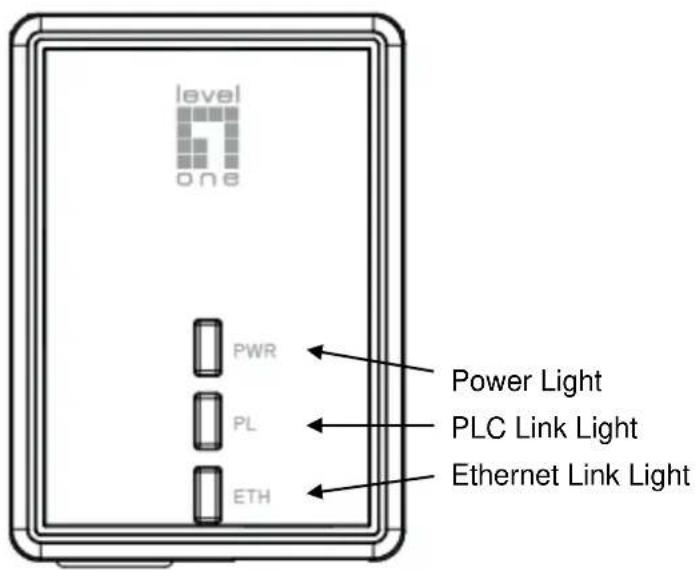
The front casing contains 3 status lights: Power, PLC Link, and Ethernet Link.
(INSERT FINAL CASING DESIGN)
text_image
level one PWR PL ETH Power Light PLC Link Light Ethernet Link LightStatus Lights
Power
On: This HomePlug Ethernet Bridge is receiving electrical power
Off: Power off
Flashing Green (1 second ON, 4 second OFF) : Device in standby mode
PLC Link
The PLC (Powerline) Link light will indicate the overall speed of your network with 3 colors:
Red: Minimum connection indicates weak signal and slower network speed: less than 50Mbps
Orange: Normal signal with standard network speed: 50-99Mbps
Green: Excellent signal with optimal network speed: 100Mbps+
Off: No activity. This HomePlug Ethernet Bridge is not connected
Ethernet Link
Solid Green: 10/100Mbps port linked
Blinking: 10/100Mbps port transmitting or receiving
Off: Ethernet Link not active
Bottom Casing
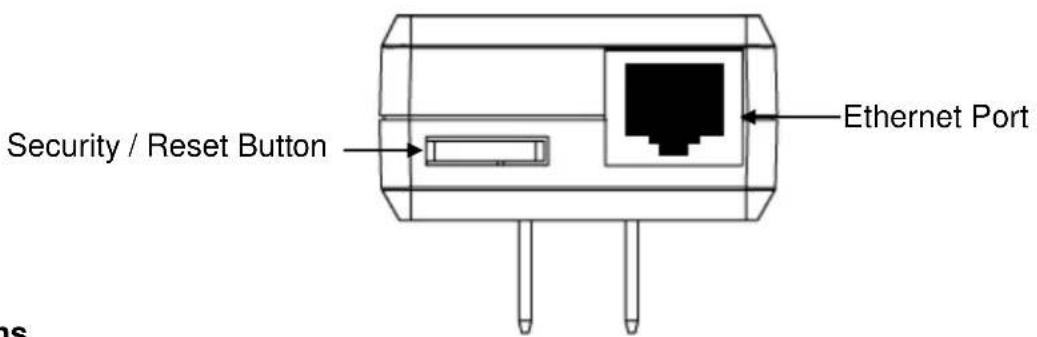
The bottom casing contains a recessed Reset Button, a Security Button, and an Ethernet Port.
text_image
Security / Reset Button Ethernet PortButtons
Security / Reset Button
This button has dual functions : Security and Reset
Security
This function is designed to generate an individual HomePlug AV network group under multiple nodes environment. Please refer to the optional Individual HomePlug AV Network Setup section below for more details.
Reset
This function is used to clear ALL data and restore ALL settings to the factory default values. Note: The HomePlug AV Ethernet Bridge must be plugged in to restore it to factory defaults. Hold the Reset button until the status lights begin to flash.
LED Indicators
The Powerline Ethernet Adaptor has three LEDs indicator:
| PWR | Turn on when connected to AC power supply. |
| PL | Turn on when detected and connected with another HomePlug adaptor within the network. |
| ETH | Turn on when connected to the Ethernet card of the computer or Ethernet Hub / Switch. |
1.4 Package Contents
Make sure that you have the following items:
- PLI-4052
- RJ-45 Ethernet LAN cable
- Quick Installation Guide
- CD User Manual / QIG/Utility
1.5 System Requirements
- Powerline Ethernet Adaptor can support any Operation System. But the Powerline Utility can only support Windows 2000/XP/Vista/Windows 7.
- Pentium III 300 MHz or above
- Powerline device
- AC power outlet
Chapter 2 – Installation & Uninstallation
Connection of Powerline Ethernet Adapter


flowchart
graph TD
    A["Notebook"] --> B["PC"]
    B --> C["Room 1"]
    C --> D["="]
    D --> E["Room 2"]
    E --> F["Internet"]
    G["ADSL / Cable Modem"] --> E
    style A fill:#f9f,stroke:#333
    style B fill:#ccf,stroke:#333
    style C fill:#cfc,stroke:#333
    style D fill:#fcc,stroke:#333
    style E fill:#cff,stroke:#333
    style F fill:#ffc,stroke:#333
    style G fill:#cfc,stroke:#333
2.1 Installing Powerline Device
- If you have the SINGLE PACKAGE of Powerline, Connect the supplied RJ45 Ethernet cable from your PC's Ethernet port to the Powerline Ethernet Adapter's LAN Ports or connect the supplied RJ45 Ethernet cable from your xDSL/Cable Modem's Ethernet port to the Powerline Ethernet Adapter's LAN Ports.
- If you have the TWIN PACKAGE of Powerline, connect the supplied RJ45 Ethernet cable from your PC's Ethernet port to the Powerline Ethernet Adapter's LAN Ports and connect the supplied RJ45 Ethernet cable from your xDSL/Cable Modem's Ethernet port to the Powerline Ethernet Adapter's LAN Ports.
- Connect the Powerline Ethernet Adapter to your wall-mounted power outlet.
- Check if the PLC LED of Powerline Ethernet Adapter is ON, the Powerline Ethernet Adapter is connected and suitable for Internet Connections.
- Check if the PLC LED is OFF, the Powerline Ethernet Adapter isn't connected and suitable for Internet Connections. Please follow next step to have it connected and suitable for Internet Connections.
2.2 Installation of Powerline Utility
The Configuration Utility enables the users to identify HomePlug devices on the Powerline network; measures data rate performance, ensures privacy and performs diagnostics by setting user defined secure Powerline networks.
Users are requested to verify that no other Encryption Management Utilities are installed prior to the installation of this utility. Other utilities should be uninstalled before installing this utility.
- In order to install, insert Configuration Utility CD-ROM into the computer's CD-ROM drive. The program shall run automatically. Alternatively this can also be done manually by double clicking the autorun.exe file on the CD.
- For Windows 7 / Vista User only, for Security reasons Windows 7 / Vista requires the installer program to have administrator privileges so the new policy called "User Account Control" has been introduced in Windows 7 / Vista. If UAC is enabled Windows pops up a window "User Account Control" Windows need your permission to continue. User needs to click "Yes / Allow" to continue.
- Please click "Utility" button to continue.

text_image
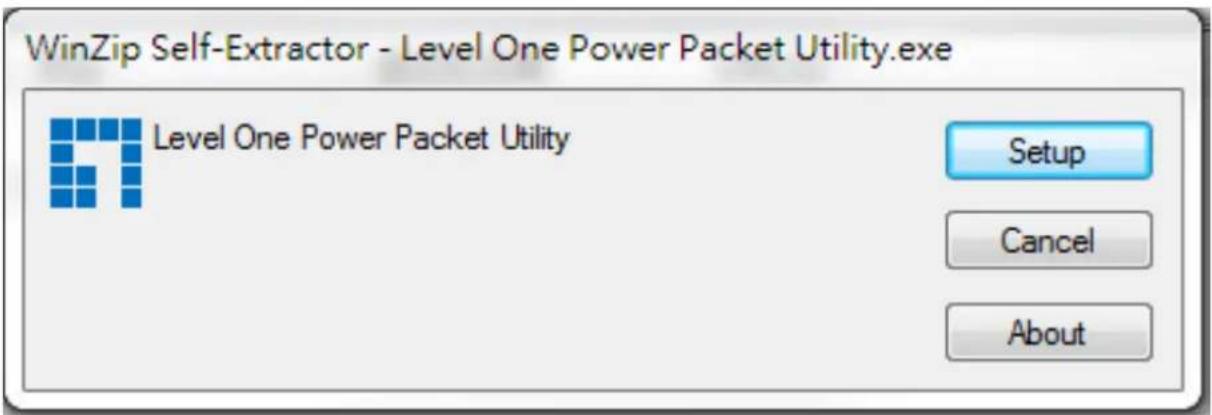
LevelOne PLI-4052 PLI-4052 500Mbps Powerline Adapter Quick Guide User Manual Utility Install Adobe Reader Explore the CD Exit level® one one world_one brand_one level Copyright (c) 2012 Digital Data Communications Co., Ltd. All Rights Reserved.4. Click "Setup" button to continue.
text_image
WinZip Self-Extractor - Level One Power Packet Utility.exe Level One Power Packet Utility Setup Cancel About5. Click "Confirm" button to continue.

text_image
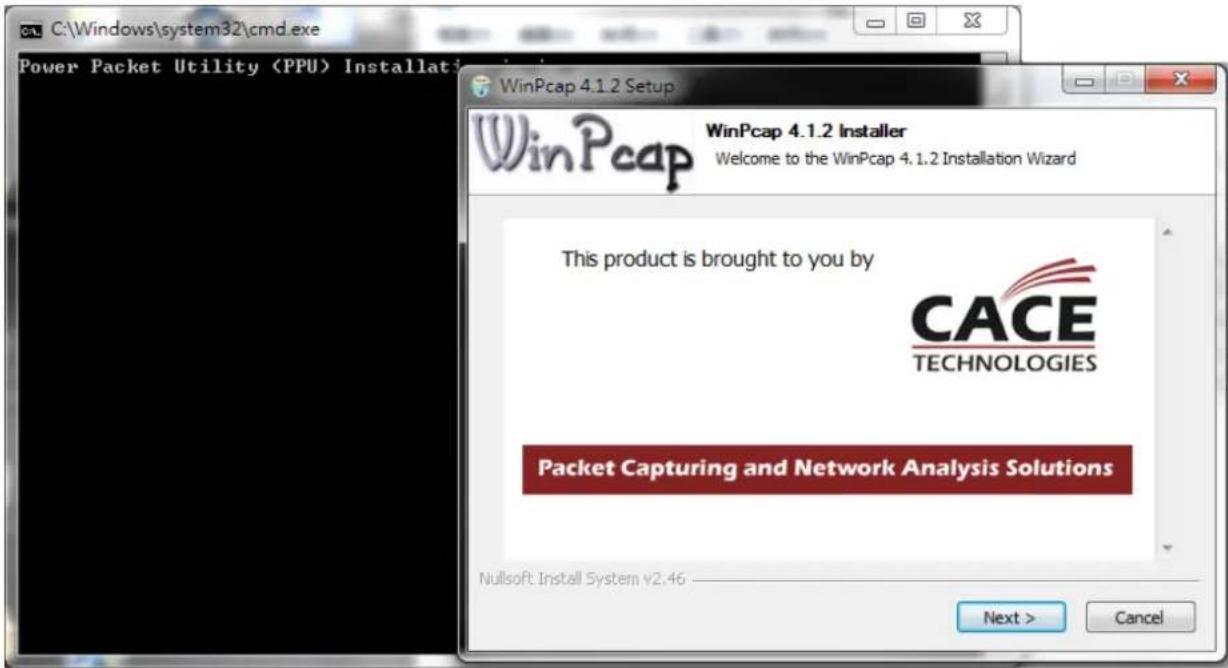
C:\Windows\system32\cmd.exe Power Packet Utility Installation is in progress... msgString = "WinPcap Software (version 4.1.2) is either not installed or some previous version is already installed on this workstation. The WinPcap (version 4.1.2) installer is being launched. Please follow the instructions for installing the WinPcap software? >> InstallWinPcap.vbs WinPcap Installat... 確定6. Click "Next" button to continue.
text_image
C:\Windows\system32\cmd.exe Power Packet Utility (PPU) Installation WinPcap 4.1.2 Setup WinPcap 4.1.2 Installer Welcome to the WinPcap 4.1.2 Installation Wizard This product is brought to you by CACE TECHNOLOGIES Packet Capturing and Network Analysis Solutions Nullsoft Install System v2.46 Next > Cancel7. Click "Next" button to continue.
text_image
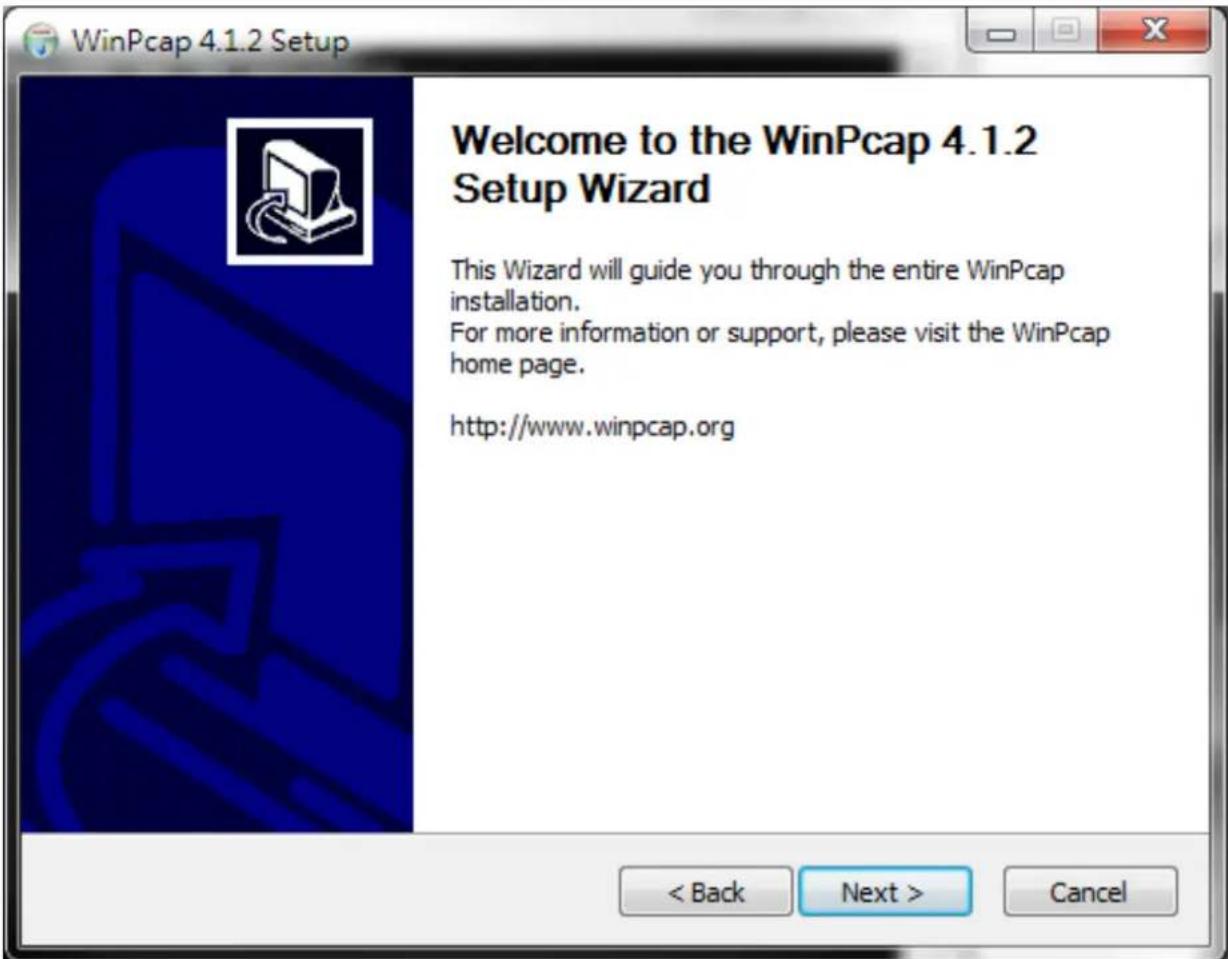
WinPcap 4.1.2 Setup Welcome to the WinPcap 4.1.2 Setup Wizard This Wizard will guide you through the entire WinPcap installation. For more information or support, please visit the WinPcap home page. http://www.winpcap.org < Back Next > Cancel8. Click "I Agree" button to continue

text_image
WinPcap 4.1.2 Setup License Agreement Please review the license terms before installing WinPcap 4.1.2. Press Page Down to see the rest of the agreement. Copyright (c) 1999 - 2005 NetGroup, Politecnico di Torino (Italy). Copyright (c) 2005 - 2010 CACE Technologies, Davis (California). All rights reserved. Redistribution and use in source and binary forms, with or without modification, are permitted provided that the following conditions are met: 1. Redistributions of source code must retain the above copyright notice, this list of conditions and the following disclaimer. 2. Redistributions in binary form must reproduce the above copyright notice, this list of conditions and the following disclaimer in the documentation and/or other materials If you accept the terms of the agreement, click I Agree to continue. You must accept the agreement to install WinPcap 4.1.2. Nullsoft Install System v2.46 < Back I Agree Cancel9. Click "Install" button to continue.
text_image
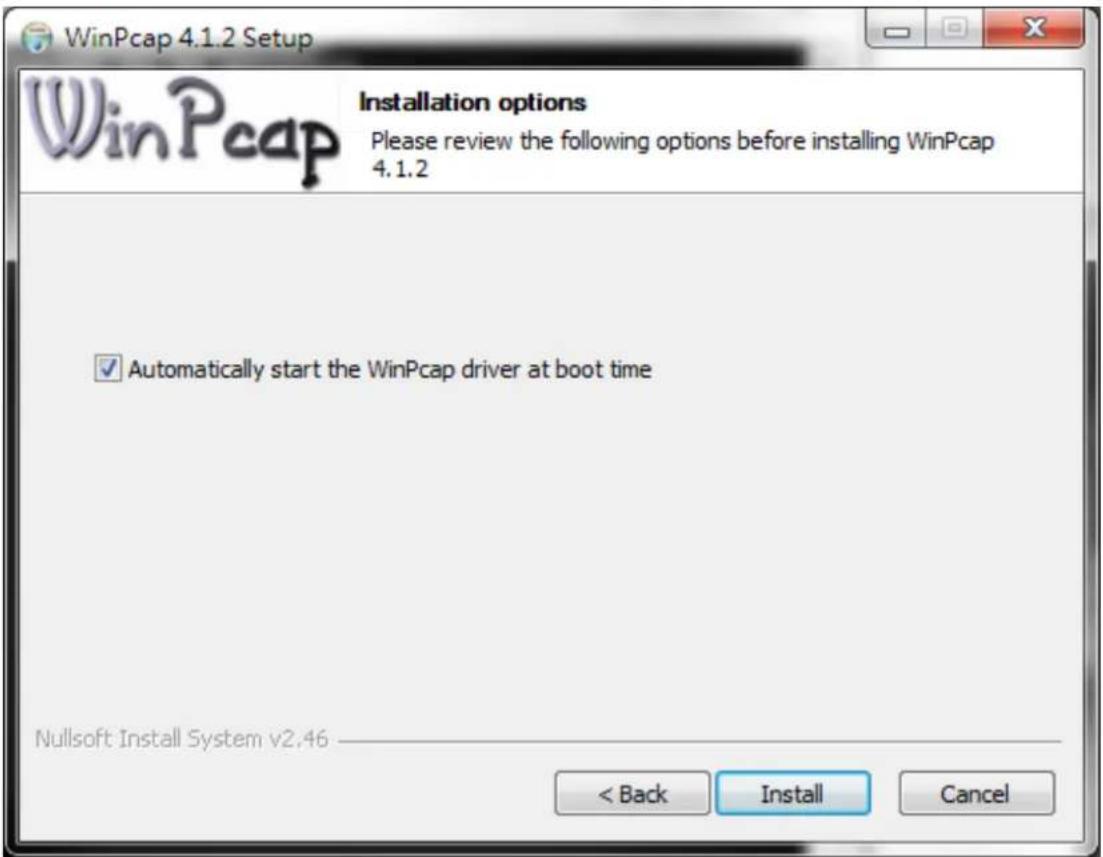
WinPcap 4.1.2 Setup Installation options Please review the following options before installing WinPcap 4.1.2 ✓ Automatically start the WinPcap driver at boot time Nullsoft Install System v2.46 < Back Install Cancel- Click "Flish" button to continue.
text_image
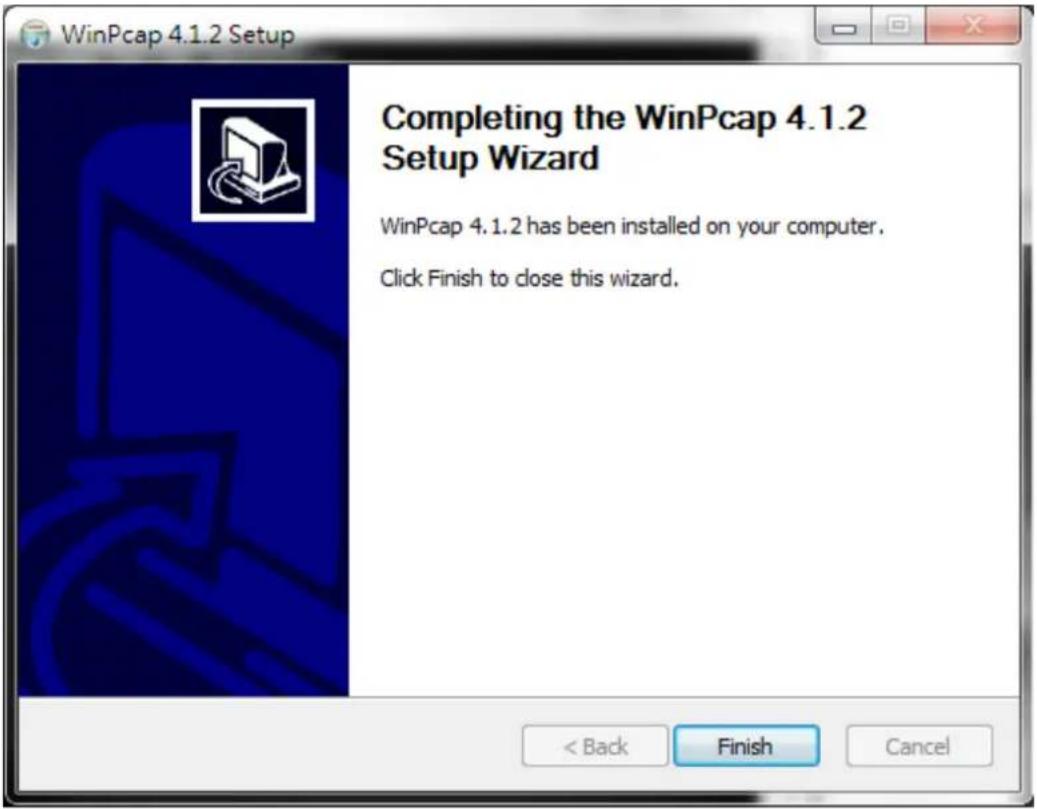
WinPcap 4.1.2 Setup Completing the WinPcap 4.1.2 Setup Wizard WinPcap 4.1.2 has been installed on your computer. Click Finish to close this wizard.- Click "Next" button to continue.

text_image
Power Packet Utility Welcome to the Power Packet Utility Setup Wizard The installer will guide you through the steps required to install Power Packet Utility on your computer. WARNING: This computer program is protected by copyright law and international treaties. Unauthorized duplication or distribution of this program, or any portion of it, may result in severe civil or criminal penalties, and will be prosecuted to the maximum extent possible under the law.- Click "I Agree & Next" button to continue.

text_image
License Agreement Please take a moment to read the license agreement now. If you accept the terms below, click "I Agree", then "Next". Otherwise click "Cancel". Atheros Communications, Inc. Software License Agreement PLEASE READ THIS SOFTWARE LICENSE AGREEMENT ("LICENSE") CAREFULLY BEFORE USING THE Atheros SOFTWARE. BY USING THE ATHEROS SOFTWARE, YOU ARE AGREEING TO BE BOUND BY THE TERMS OF THIS LICENSE. IF YOU DO NOT AGREE TO THE TERMS OF THIS LICENSE, DO NOT USE THE SOFTWARE. IF YOU DO NOT AGREE TO THE TERMS OF THE LICENSE, YOU MAY RETURN THE Atheros SOFTWARE TO THE PLACE WHERE YOU OPT A P T D E F O R A P T E W D. IF THE Atheros SOFTWARE W L A S. ○ I Do Not Agree ● I Agree Cancel < Back Next >- Click "Next" button to continue.
text_image
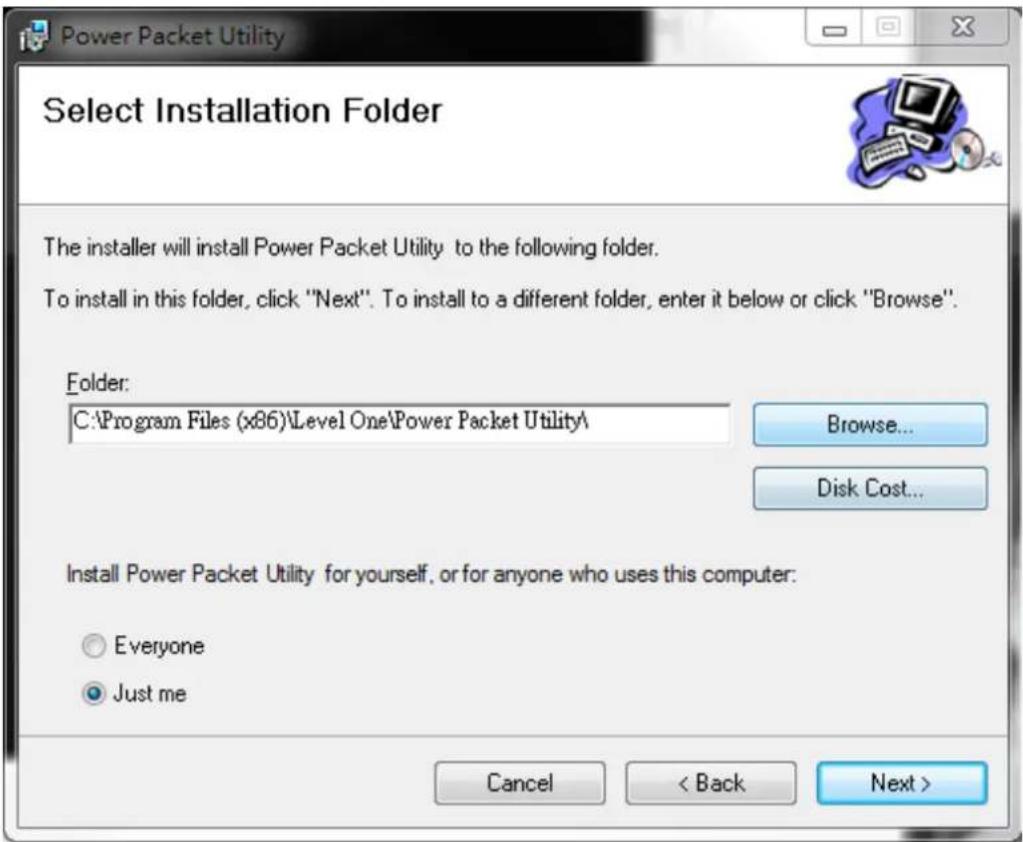
Power Packet Utility Select Installation Folder The installer will install Power Packet Utility to the following folder. To install in this folder, click "Next". To install to a different folder, enter it below or click "Browse". Folder: C:\Program Files (x86)\Level One\Power Packet Utility\ Browse... Disk Cost... Install Power Packet Utility for yourself, or for anyone who uses this computer: Everyone Just me Cancel < Back Next >- Click "Next" button to continue.
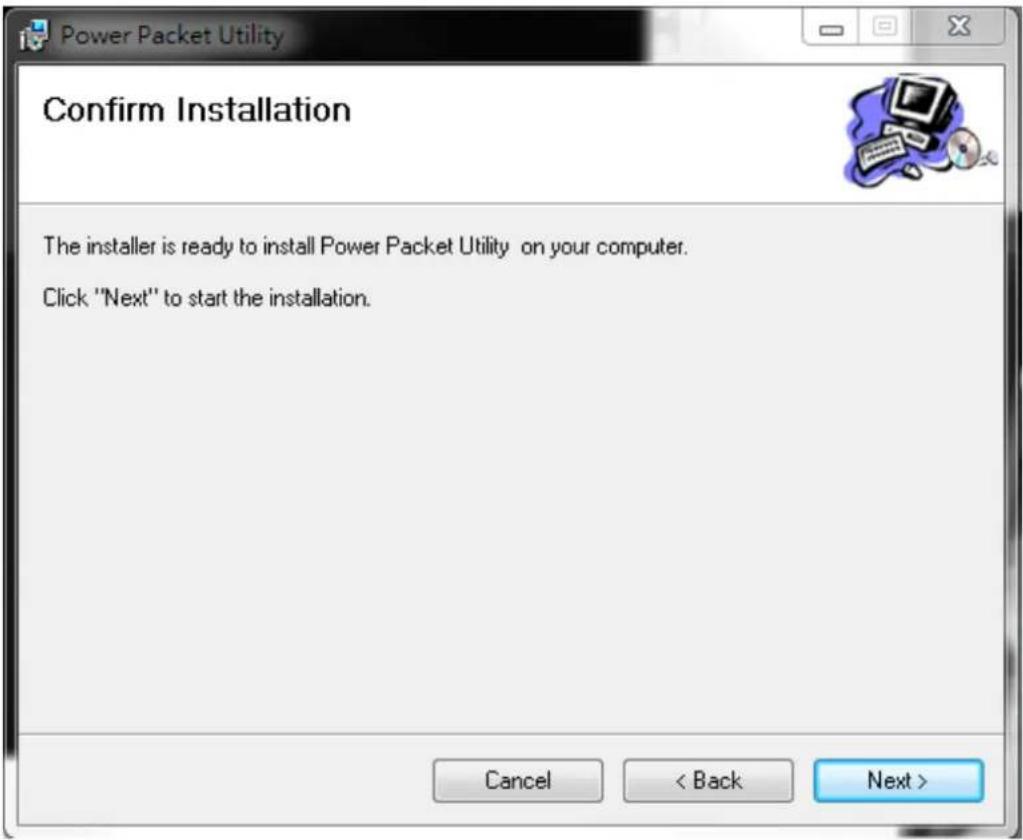
text_image
Power Packet Utility Confirm Installation The installer is ready to install Power Packet Utility on your computer. Click "Next" to start the installation. Cancel < Back Next >- Click "Close" button to exit
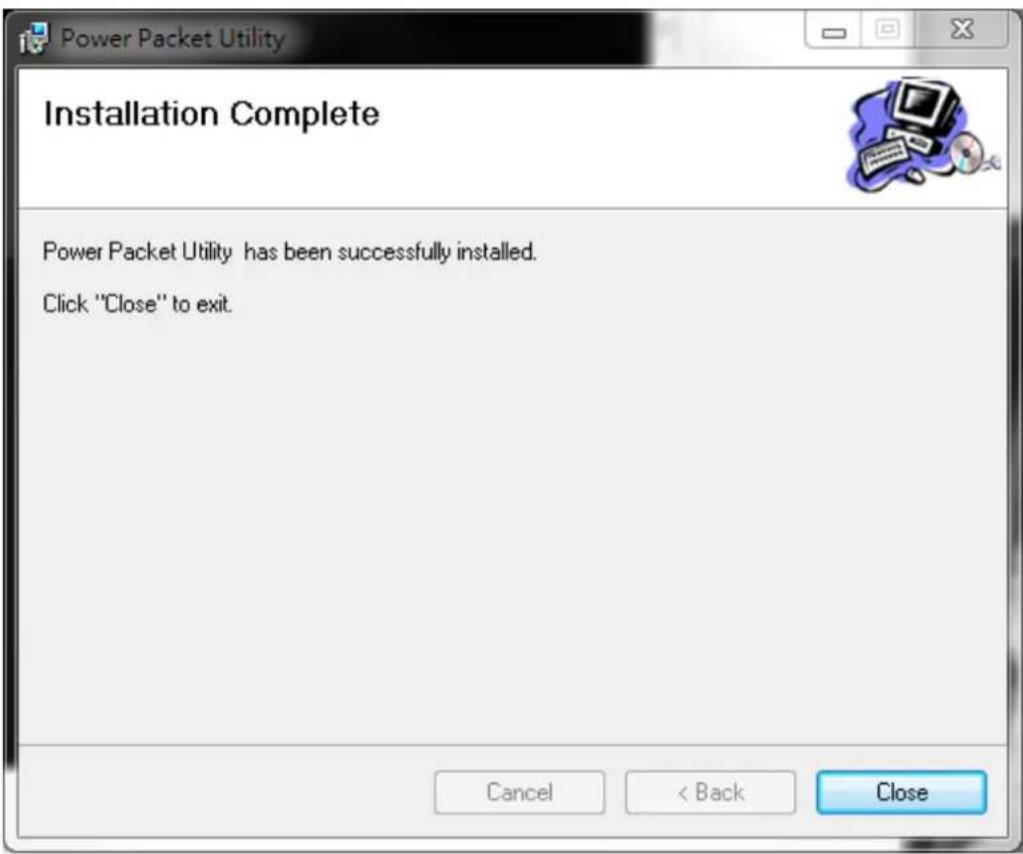
text_image
Power Packet Utility Installation Complete Power Packet Utility has been successfully installed. Click "Close" to exit. Cancel < Back Close- n nected lo
- You can see your device working well. The top panel of the screen shot shows a Homeplug device connected locally to your computer. The bottom panel shows one device connected remotely to the computer running the utility.
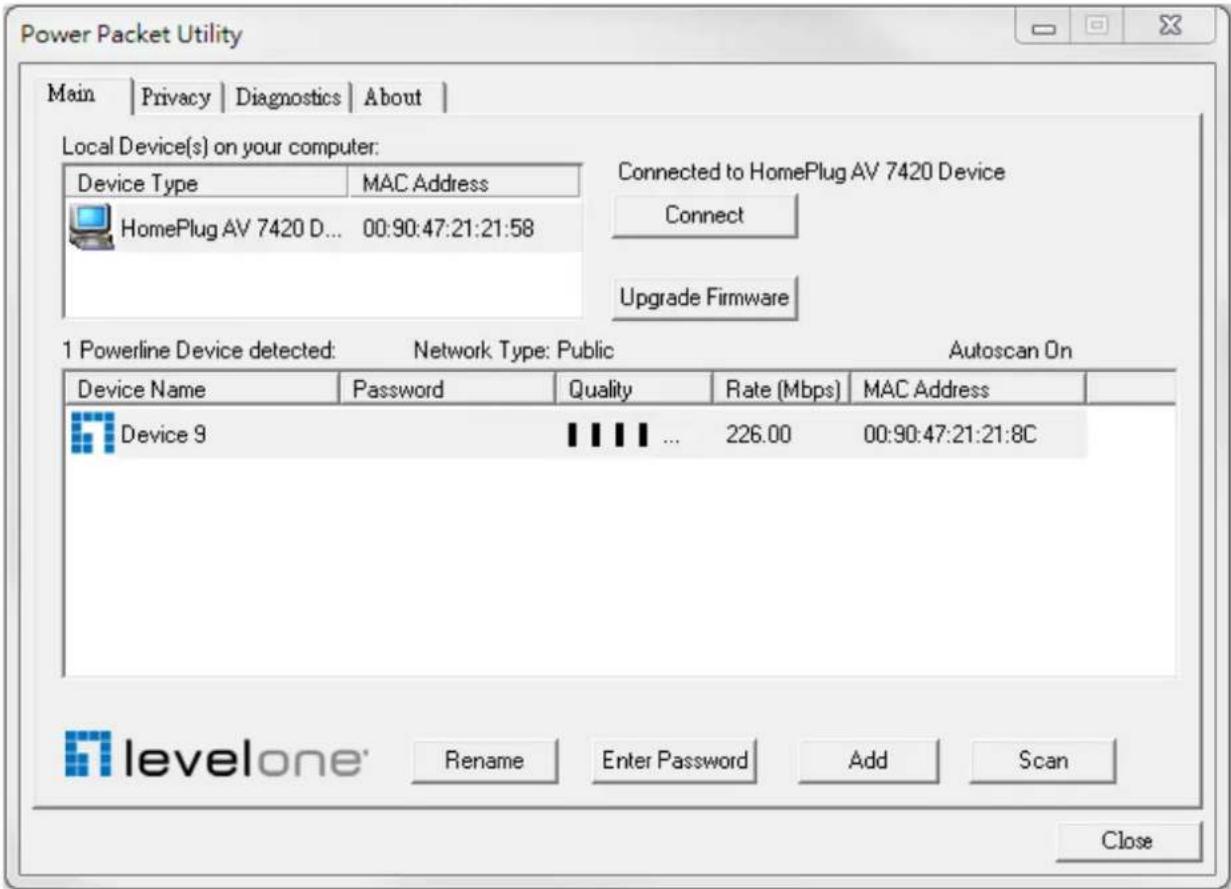
text_image
Power Packet Utility Main | Privacy | Diagnostics | About | Local Device(s) on your computer: Device Type MAC Address HomePlug AV 7420 D... 00:90:47:21:21:58 Connected to HomePlug AV 7420 Device Connect Upgrade Firmware 1 Powerline Device detected: Network Type: Public Autoscan On Device Name Password Quality Rate (Mbps) MAC Address Device 9 ... 226.00 00:90:47:21:21:8C levelone* Rename Enter Password Add Scan Close2.3 Uninstallation of Configuration Utility
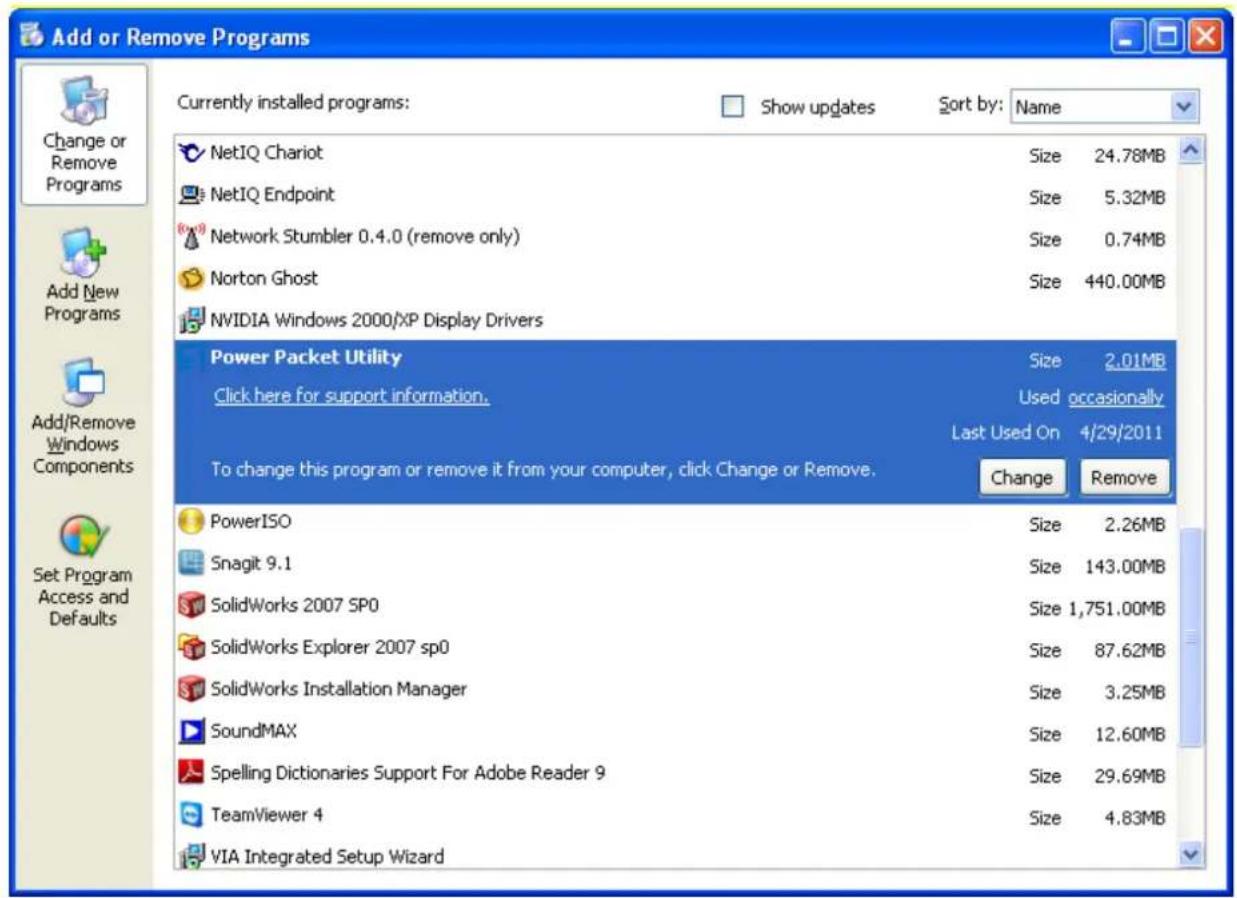
- To uninstall the Configuration Utility, go to the "Control Panel" of your system.
- Open the "Add/Remove Programs".
- Select and double click on the "Powerline Utility" in the Add/Remove Programs Properties.
text_image
Add or Remove Programs Currently installed programs: Show updates Sort by: Name NetIQ Chariot Size 24.78MB NetIQ Endpoint Size 5.32MB Network Stumbler 0.4.0 (remove only) Size 0.74MB Norton Ghost Size 440.00MB NVIDIA Windows 2000/XP Display Drivers Power Packet Utility Size 2.01MB Click here for support information. Used occasionally Last Used On 4/29/2011 To change this program or remove it from your computer, click Change or Remove. Change Remove PowerISO Size 2.26MB Snagit 9.1 Size 143.00MB SolidWorks 2007 SP0 Size 1,751.00MB SolidWorks Explorer 2007 sp0 Size 87.62MB SolidWorks Installation Manager Size 3.25MB SoundMAX Size 12.60MB Spelling Dictionaries Support For Adobe Reader 9 Size 29.69MB TeamViewer 4 Size 4.83MB VIA Integrated Setup Wizard- Follow the on screen instructions to uninstall the Powerline Utility.
Chapter 3 – Configuration Utility Setup
Introduction
The Configuration Utility enables the users to identify HomePlug devices on the powerline network, measures data rate performance, ensures privacy and performs diagnostics by setting user defined secure powerline networks.
The Utility will use a Graphical User Interface (GUI) with limited user selectable options.
3.1 Main Tab

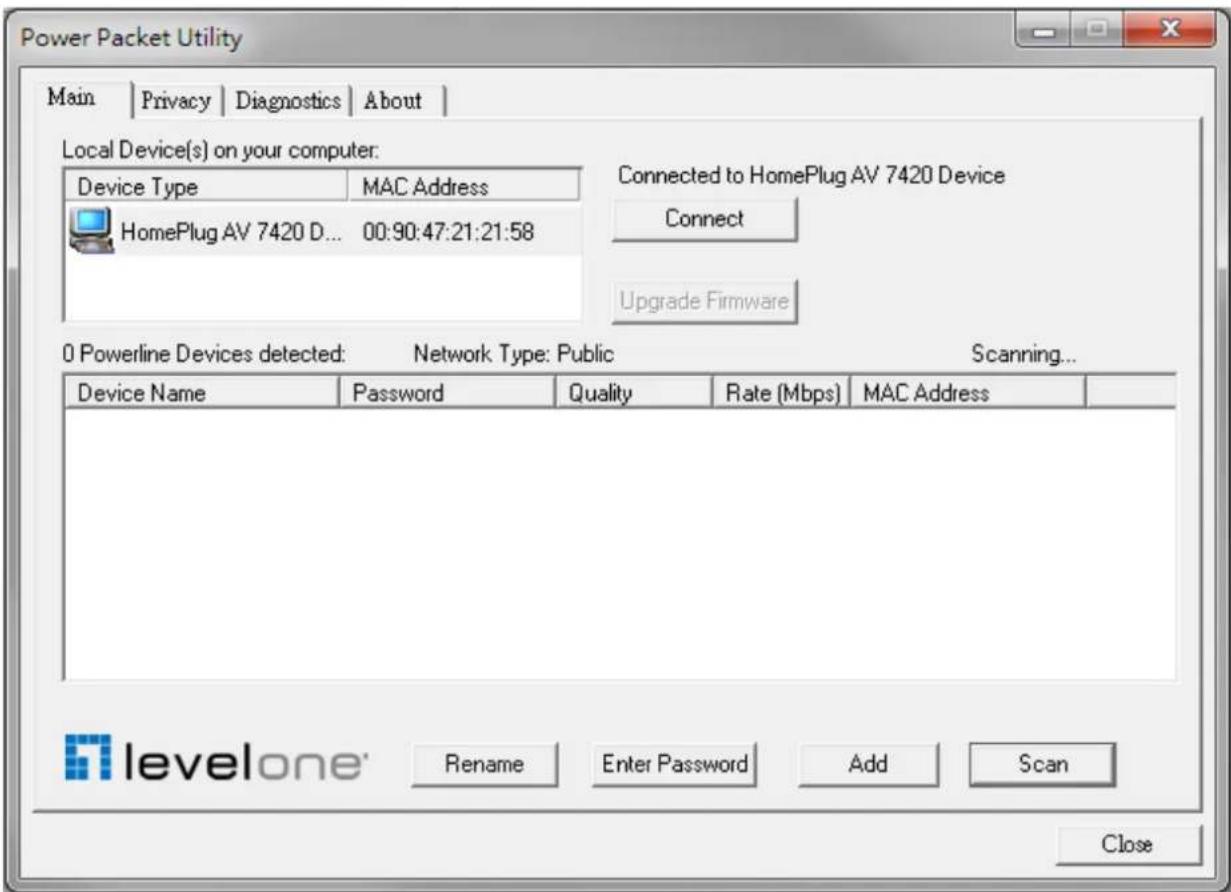
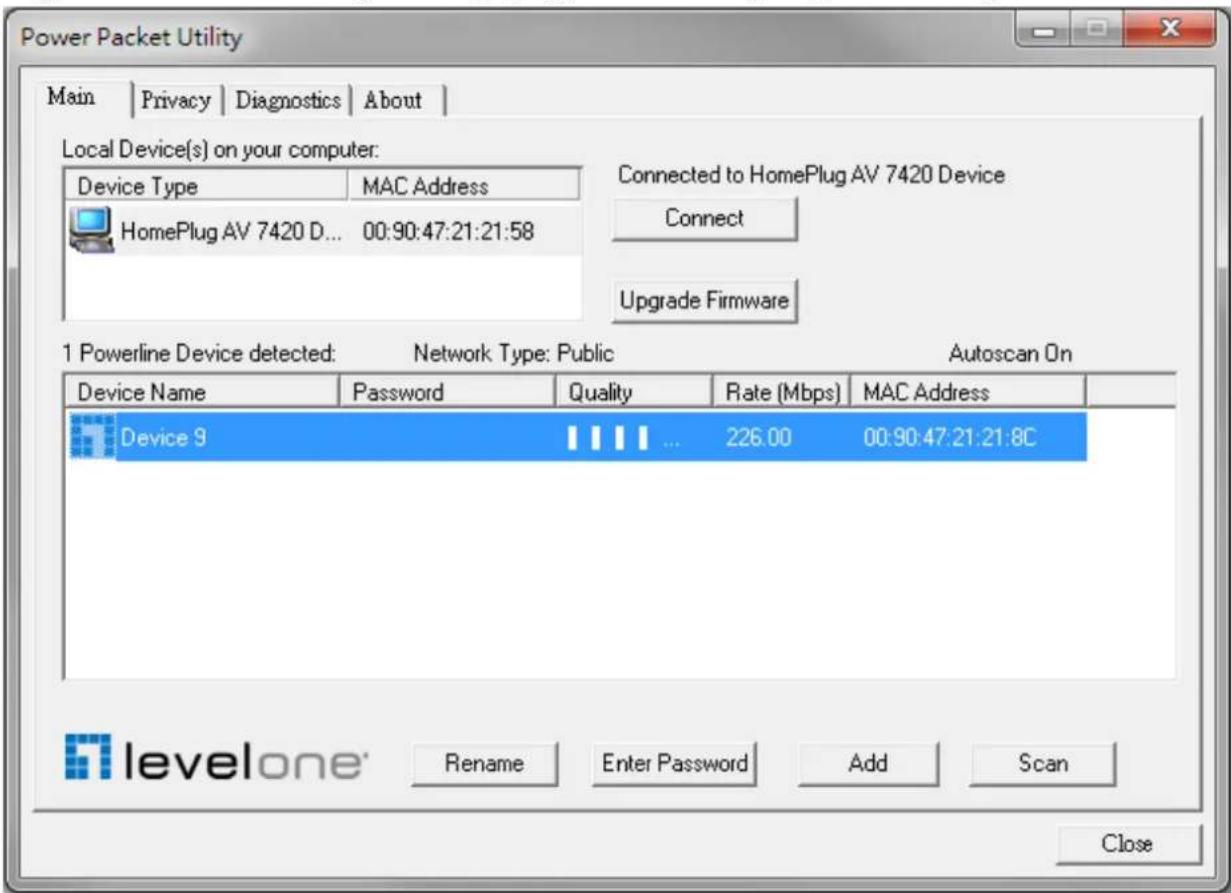
In order to start the utility, double-click the utility icon Utility on desktop. Figure 3-1 shows the main screen of the Configuration Utility. The top panel of the screen shot shows a HomePlug AV device connected locally to the host computer. The bottom panel shows four devices connected remotely to the computer running the utility.
text_image
Power Packet Utility Main | Privacy | Diagnostics | About | Local Device(s) on your computer: Device Type MAC Address HomePlug AV 7420 D... 00:90:47:21:21:58 Connected to HomePlug AV 7420 Device Connect Upgrade Firmware 0 Powerline Devices detected: Network Type: Public Scanning... Device Name Password Quality Rate (Mbps) MAC Address levelone* Rename Enter Password Add Scan CloseFigure 3-1: Main Screen with HomePlug AV device Local
The Main screen provides a list of all powerline devices logically connected to the computer when the utility is running. The top panel shows all local HomePlug devices connected to the computer's NIC (Network Interface Card). In most cases, only one device will be seen. In situations where there are more than one local device being connected, such as a USB or an Ethernet adapter, the user can select the local device by clicking on it and then click the Connect button to its right. The status area above the button indicates that your PC is connected to that same device. Once connected to the local device, the utility will automatically scan the power line periodically for any other HomePlug devices. If no local HomePlug devices are discovered, the status area above the connect button will indicate with a message 'NO HOMEPLUG ADAPTERS DETECTED'.
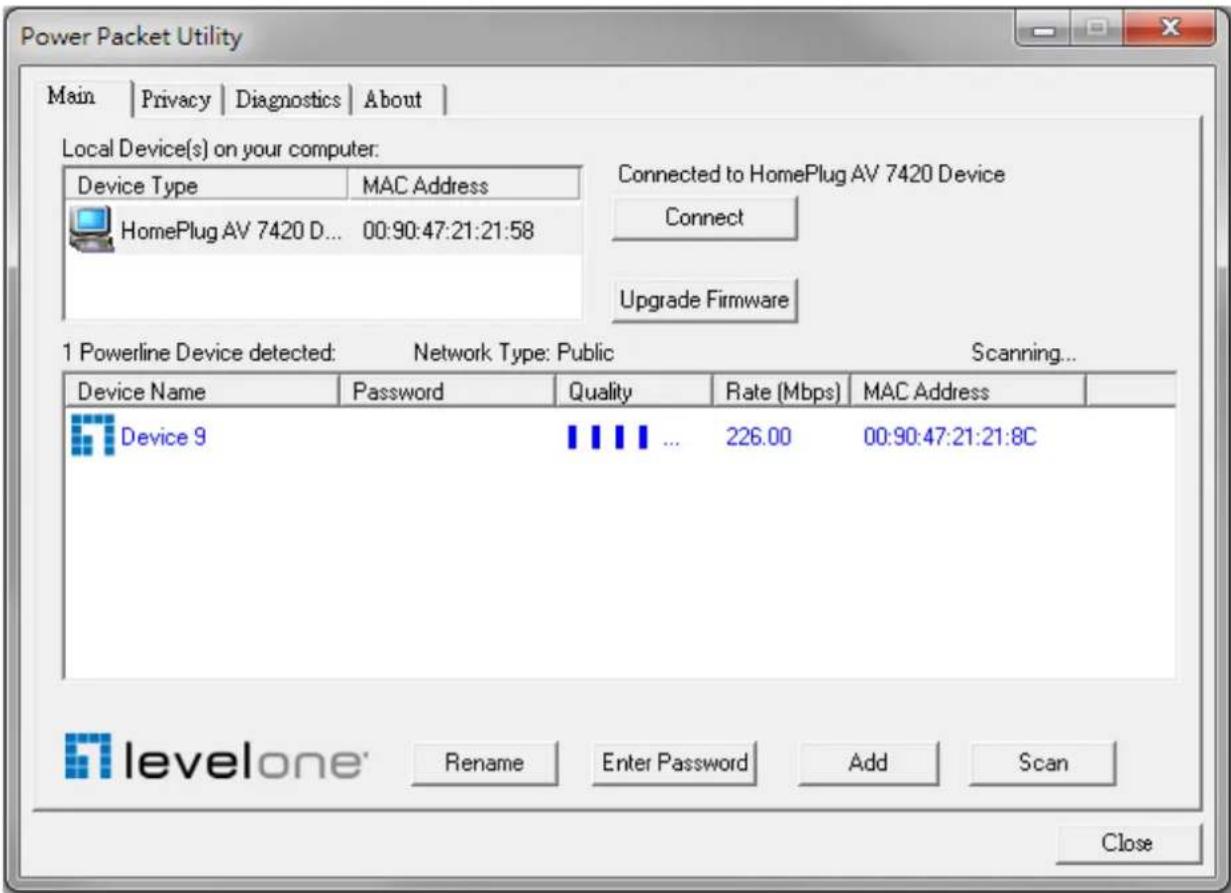
Figure 3-2 illustrates the presence of two local devices connected locally to the computer.
text_image
Power Packet Utility Main | Privacy | Diagnostics | About | Local Device(s) on your computer: Device Type MAC Address HomePlug AV 7420 D... 00:90:47:21:21:58 Connected to HomePlug AV 7420 Device Connect Upgrade Firmware 1 Powerline Device detected: Network Type: Public Scanning... Device Name Password Quality Rate (Mbps) MAC Address Device 9 ... 226.00 00:90:47:21:21:8C levelone* Rename Enter Password Add Scan CloseFigure 3-2: Multiple Local Device Connection
The lower panel displays all the HomePlug remote devices, discovered on the current logical network. The total number of remote devices connected on the same network can be found on top of the Remote device panel. The Network type (Public or Private) is also displayed based on the network status of the local device. The scan status option is displayed on the top right corner
above the Remote devices panel showing whether the Autoscan functionality is turned ON or OFF. The following information is displayed for all devices that appear in the lower panel.
Device Name column shows the default device name, which may be user re-defined. A user can change the name by either using the rename button or by clicking on the name and editing in-place. An icon is usually shown with the name. By default, the icon is always accompanied by a device name.
MAC Address column shows the Remote device's MAC address.
Password column by default is blank and 'Enter Password' button can be used to enter it.
To set the Password of the device (required when creating a private network), first select the device by clicking on its name in the lower panel and then click on the Enter Password button. A dialog box will appear as shown in Figure 3-3 to type the password. The selected device name is shown above the password field and the password can be verified by hitting the OK button. The Password field accepts the Device password in any case formats, with or without dashed between them. If a device was not found, the user will be notified along with the suggestions to resolve common problems. This process might take a few seconds to get completed.

text_image
Set Device Password Device: Device 9 (00:90:47:21:21:8C) Password: The Password typically appears as a number and letter code, in groups of four, separated by dashes. (ie XK8Y-GH26-BR1K-LZSA) It is found on the device or packaging. OK CancelFigure 3-3: Set Device Password
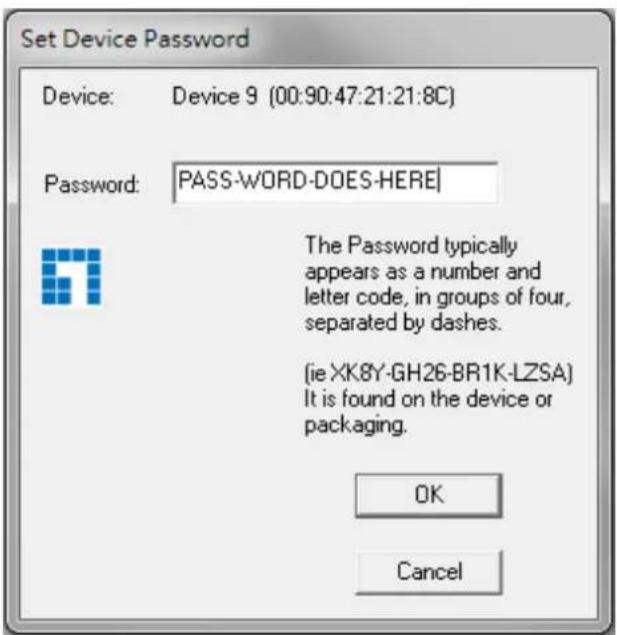
Add button is used to add a remote device to the existing network by entering the device password of the device. A dialog box will appear as shown below in Figure 3-4. The dialog box allows the user to enter both a device name and the password. If a device was not found, the user will be notified and suggestions to resolve common problems will be presented.
text_image
Set Device Password Device: Device 9 (00:90:47:21:21:8C) Password: PASS-WORD-DOES-HERE! The Password typically appears as a number and letter code, in groups of four, separated by dashes. (ie XK8Y-GH26-BR1K-LZSA) It is found on the device or packaging. OK CancelFigure 3-4: Add Remote Device
Note: The device must be present on the power line (plugged in) in order for the password to be confirmed and added to the network. If the device could not be located, a warning message will be shown.
The Scan button is used to perform an immediate search of the HomePlug devices connected to the Powerline network. By default, the utility automatically scans every few seconds and updates the display screen.
A typical screen after naming and supplying passwords might appear as in Figure 3-5.
text_image
Power Packet Utility Main | Privacy | Diagnostics | About | Local Device(s) on your computer: Device Type MAC Address HomePlug AV 7420 D... 00:90:47:21:21:58 Connected to HomePlug AV 7420 Device Connect Upgrade Firmware 1 Powerline Device detected: Network Type: Public Autoscan On Device Name Password Quality Rate (Mbps) MAC Address Device 9 226.00 00:90:47:21:21:8C levelone* Rename Enter Password Add Scan CloseFigure 3-5: Main Screen of the Configuration Utility
3.2 Privacy Screen
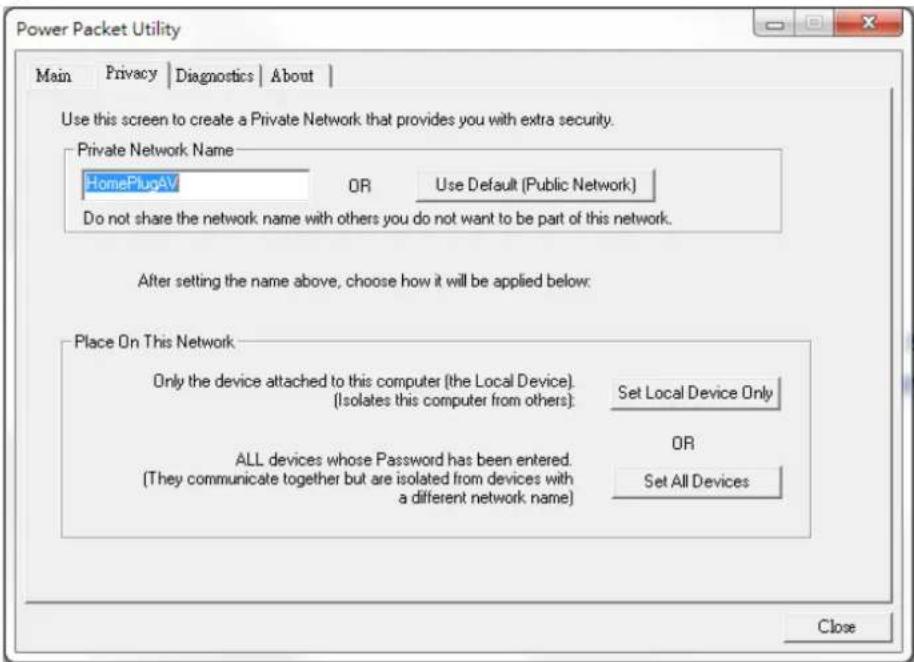
The Privacy screen provides the user with an option to maintain security for their logical network and also to select the devices that has to be included in the network. The appearance is shown in Figure 3-6. All HomePlug devices are shipped using a default logical network (network name), which is normally “HomePlugAV”. The Privacy dialog screen allows user to change to a private network by changing the network name (network password) of devices.
The user can always reset to the HomePlug network (Public) by entering "HomePlugAV" as the network name or by clicking on the "Use Default" button.
Note: Changing the network name to anything other than HomePlugAV will show the network type on the main screen as Private.
text_image
Power Packet Utility Main | Privacy | Diagnostics | About | Use this screen to create a Private Network that provides you with extra security. Private Network Name HomePlugAV OR Use Default (Public Network) Do not share the network name with others you do not want to be part of this network. After setting the name above, choose how it will be applied below: Place On This Network Only the device attached to this computer (the Local Device). (Isolates this computer from others): Set Local Device Only ALL devices whose Password has been entered. (They communicate together but are isolated from devices with a different network name) OR Set All Devices CloseFigure 3-6: Privacy Screen
The Set Local Device Only button can be used to change the network name (network password) of the local device. If a new network password is entered, all the devices seen on the Main panel prior to this will be no longer present in the new network, effectively making the local devices not to communicate to the devices who were in the old logical network. Devices previously set up with the same logical network (same network name) will appear in the device list afterward selecting this option.
The Set All Devices button is used to change the logical network of all devices that appear on the Main panel whose Device's Password had been entered for the same logical network. A dialog window will appear to report the success of this operation. For devices whose device password's were not entered, this operation will fail and will report a failure message.
3.3 Diagnostics Screen
The Diagnostics screen shows System information and a history of all remote devices seen over a period of time. The appearance is shown in Figure 3-7.
The Upper panel shows technical data concerning software and hardware present on the host computer which were used to communicate over HomePlug on the Powerline network. It shall include the following:
- Operating System Platform/Version
- Host Network Name
- User Name
- MAC Address of all NICs (Network interface card) connected to the host
- Identify versions of all Driver DLLs and Libraries used (NDIS) and optionally
- HomePlug chipset manufacturer name
- MAC Firmware Version
- MAC addresses of all devices connected locally to the host
- Version of the Configuration Utility
- Vendor name

text_image
Power Packet Utility Main | Privacy Diagnostics About | System Information On NIC #1 MAC = 4E:5D:60:9B:C0:A3 No HomePlug Device Connected On NIC #2 MAC = 48:5D:60:9B:C0:A3 HomePlug Device #1 MAC = 00:90:47:21:21:58 Network password: HomePlugAV Vendor: Level One Remote Device History (Log) Device MAC Address Password Rate (Mbps) Network Last Seen Device 9 00:90:47:21:21:8C --- not entered --- 226 HomePlug... Jun 29 03:34PM Delete Save Report Print Report CloseFigure 3-7: Diagnostics Screen
The Lower panel contains a history of all remote devices seen on the computer over a certain period of time. All devices that were on the powerline network are listed here along with a few other parameters. Devices that are active on the current logical network will show a transfer rate in the Rate column; devices on other networks, or devices that may no longer exist are shown with a “?” in the Rate column. The following remote device information is available from the diagnostics screen:
- Device Alias Name
- Device MAC Address
- Device Password
- Device Last known rate
- Device Last Known Network name
- HomePlug chipset manufacturer name
- Date device last seen on the network
- MAC Firmware Version.
The diagnostics information displayed may be saved to a text file for later use, or can be printed for reference for a technical support call. Devices, which are not part of the network anymore, can be deleted using the delete button. A dialog window pops up with a confirmation message if we try to delete a device whose password has been entered.
3.4 About Screen
The About screen shows the software version.

text_image
Power Packet Utility Main | Privacy | Diagnostics | About | levelone* Power Packet Utility Version: v6.1.0009 Released: January 12, 2012 mmunications GmbH. All Rights Reserved. http://www.level1.com License Copyrights : Copyright (c) 1999 - 2005 NetGroup, Politecnico di Torino (Italy). Copyright (c) 2005 - 2009 CACE Technologies, Davis (California). All rights reserved. Redistribution and use in source and binary forms, with or without modification, are permitted provided that the following conditions are met: 1. Redistributions of source code must retain the above copyright notice, this list of conditions and the following disclaimer. Preferences: ✓ AutoScan CloseFigure 3-8: About dialog screen
Chapter 4 – Individual HomePlug AV Network Stup(Optional
All HomePlug AV Ethernet Bridges ship with a default security key so they will automatically link to all other HomePlug AV Ethernet Bridges sharing the same electrical lines. If there are other HomePlug AV Ethernet Bridges in the building (such as in an office or apartment building), you may want to create your own individual HomePlug AV network group so other HomePlug AV Ethernet Bridges cannot connect to your network.
This section describes how to use the Security button for configuration in the following situations:
4.1 Creating a new individual HomePlug AV(networkAB)
Two unassociated Bridges (Bridge A and Bridge B) are forming a new network—Network AB

flowchart
graph LR
    A["Server"] --> B["Computer"]
    B --> C["Adapter A"]
    C --> D["Adapter B"]
    D --> E["Laptop"]
    C -.-> D
The procedure is as follows:
- Press and hold the Security button on Bridge A for 10 seconds. Release it when the Power light flashes. The password to Bridge A has just been erased. It must now be linked to your network to adopt the new network security key.
- Press and hold the security button on Bridge B for 10 seconds and release it when the Power light flashes. The password to Bridge B has just been erased. It must now be linked to your network to adopt the new network security key.
- Currently, Bridge A and Bridge B are not networked
- Press and hold the Security button on Bridge A for 2 seconds then release.
- The Power light on Bridge A starts to flash.
- Within 120 seconds after the Power light on Bridge A starts to flash, press and hold the Security button on Bridge B for 2 seconds then release.
- Both Bridge A and Bridge B are now networked together.
4.2 Adding Bridge C to existing Network AB (Network ABC)
One unassociated Bridge C is added to an existing Network AB.

The procedure is as follows:
- Press and hold the Security button on Bridge C for 10 seconds. Release it when the Power light flashes. The password to Bridge C has just been erased. It must now be linked to your network to adopt the new network security key.
- Press and hold the security button on Bridge A for 2 seconds. The Power light on Bridge A starts to flash.
- Within 120 seconds after the Power light on Bridge A starts to flash, press and hold the security button on Bridge C for 2 seconds then release.
- Bridge A, Bridge B and Bridge C are now networked to each other.
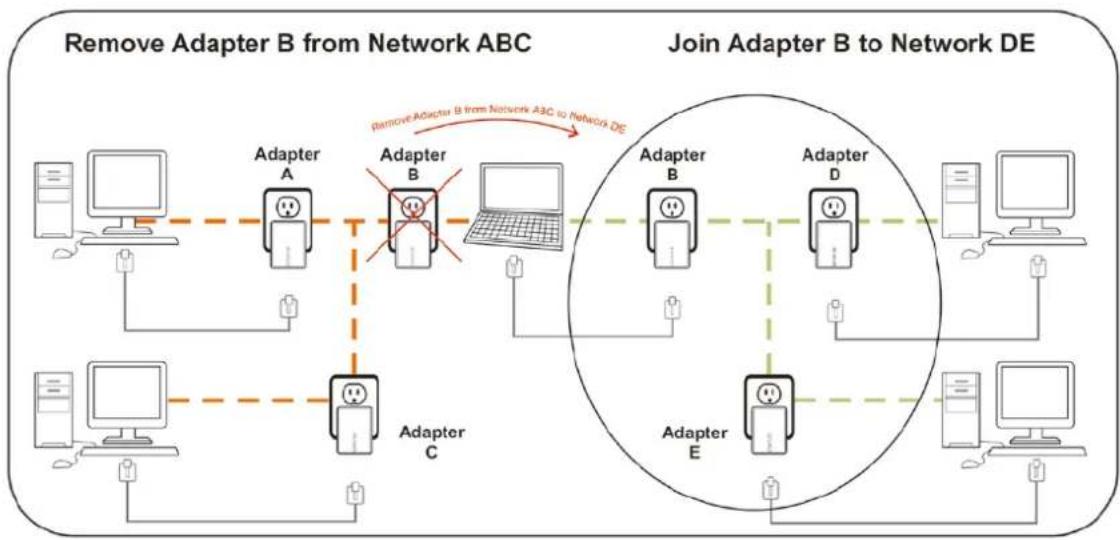
4.3 Removing Bridge B from Bridge A & C Network and join with Bridge D & E (Network BDE)
flowchart
graph TD
    subgraph "Remove Adapter B from Network ABC"
        A1["Computer"] --> A2["Adapter A"]
        A2 --> A3["Adapter B"]
        A3 --> A4["Laptop"]
        A4 --> A5["Adapter E"]
    end

    subgraph "Join Adapter B to Network DE"
        B1["Adapter B"] --> B2["Adapter D"]
        B2 --> B3["Adapter E"]
        B3 --> B4["Laptop"]
        B4 --> B5["Adapter E"]
    end

    A1 -.->|Remove Adapter B from Network ABC to Network DE| B1
    A2 -.->|Remove Adapter B from Network ABC to Network DE| B2
    A3 -.->|Remove Adapter B from Network ABC to Network DE| B3
    A4 -.->|Remove Adapter B from Network ABC to Network DE| B4
    A5 -.->|Remove Adapter B from Network ABC to Network DE| B5
    A6 -.->|Remove Adapter B from Network ABC to Network DE| B6
    A7 -.->|Remove Adapter B from Network ABC to Network DE| B7
    A8 -.->|Remove Adapter B from Network ABC to Network DE| B8
    A9 -.->|Remove Adapter B from Network ABC to Network DE| B9
    A10 -.->|Remove Adapter B from Network ABC to Network DE| B10
The procedure is as follows:
- Press and hold the Security button on Bridge B for 10 seconds. Release it when the Power light flashes. The password to Bridge B has just been erased and removes itself from Bridge A & C.
- Press and hold the Security button on Bridge D for 2 seconds.
- Within 120 seconds after the Power light on Bridge D starts to flash, press and hold the Security button on Bridge B for 2 seconds then release.
- Bridge B and Bridge D are now connected to each other, which in turn becomes part of Network BDE.
4.4 Troubleshooting
If your HomePlug AV Ethernet Bridges have difficulty communicating with each other, check the following:
- Try power cycling the unit by unplugging it from the wall for 10 seconds and plugging it in again.
- Use a pin and hold the Reset button down for 2 seconds on each unit you are trying to connect. The HomePlug AV Ethernet Bridge's light will flash, the units will reset and attempt to link using default factory settings.
- Try plugging the HomePlug AV Ethernet Bridge into an adjacent plug.
- HomePlug AV Ethernet Bridges work better when plugged directly into the wall outlet. Connecting these Ethernet Bridges to a power strip or surge protector may degrade network performance or completely stop network signals.
- This HomePlug AV Ethernet Bridge should not be used on GFI protected outlets as some outlets will filter out HomePlug Powerline signal.
- This HomePlug AV Ethernet Bridge should not be used in areas with excessive heat.
- Certain fluorescent or incandescent lights are noise sources on the electrical and can degrade performance.
- If your building has more than one circuit breaker box, your HomePlug AV Ethernet Bridges may not be able to connect between the different circuit breaker boxes. In this case, connect one HomePlug AV Ethernet Bridge to a power outlet located on each of the circuit boxes. Connect Ethernet cable between each of the HomePlug AV Ethernet Bridges to link the different circuits together. This will allow the HomePlug AV Ethernet Bridges from different circuit breaker boxes to connect.
- To enter standby mode for this device, simply remove the Ethernet cable and wait about 3 minutes.


Disclaimer :
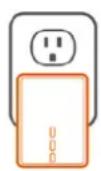
This product was designed to be plugged directly into the wall socket as shown in diagram. Any other use may hamper the function of the product.