360 Plus - E-reader POCKETBOOK - Free user manual and instructions
Find the device manual for free 360 Plus POCKETBOOK in PDF.


User questions about 360 Plus POCKETBOOK
0 question about this device. Answer the ones you know or ask your own.
Ask a new question about this device
Download the instructions for your E-reader in PDF format for free! Find your manual 360 Plus - POCKETBOOK and take your electronic device back in hand. On this page are published all the documents necessary for the use of your device. 360 Plus by POCKETBOOK.
USER MANUAL 360 Plus POCKETBOOK
Prestarting procedure 7
USING OF DEVICE
Main menu
Last opened books 8
Books 9
News 9
Selected 9
Photo 9
Dictionary 10
Accessories 10
Notes 11
Calendar 11
Settings 11
E-books reading 11
Books' storing into the device 12
Books' opening 12
Turning pages over 12
Changing of font size 13
Go over the references 13
Fast access menu 14
Go to page 14
Book rotation 15
Scale 15
PocketBook 360°
Bookmarks 16
Notes 16
Search 17
Contents 17
Dictionary 17
Settings 18
Keyboard 18
Solving of possible problems 19
SPECIFICATION 22
WHAT'S IN THE BOX 23
Following these safety rules will prolong the lifetime of your device.
Do not expose this device to the direct sun rays, very high or very low temperature. Remember! Device working temperature is between 0^ C and 40^ C ( 32^ F to 110^ F).
Prevent exposure moisture.
Do not store the device in the places with the high humidity. Exposure to moisture of the device can lead to damage of electronic parts and battery. In case of liquid exposure, turn off the device immediately and take out the battery! Take the device to the service center.
Do not put the device on rough or unsteady surface, it may fall. In case of device damage, apply to the service centre.
Do not press the display surface. Protect the display from things which can damage or scratch it.
Do not place the device in dusty or dirty surroundings.
Avoid strong magnetic and electromagnetic fields.
Do not use different chemical solvents for display or case cleaning. Use a soft cloth to remove dust from the device surface. In order to remove dirt from the device, you also can use a few drops of distilled water.
PocketBook 360°
Do not disassemble the device without qualified assistance.
Do not use a damaged battery, damaged charger (broken case, bad contact, broken power cable), or damaged SD-card. If the battery is damaged (cracked case, electrolyte is running out and so on), it is necessary to replace it immediately.
Attention! Display has a glass base. If a crack appears on the display, be careful, avoid cuts! Do not use the device if damaged! Turn to the service center for repair. Keep away from children.
natural_image
Two abstract geometric shapes: a tall conical exclamation mark and a solid sphere (no text or symbols)PocketBook 360°
text_image
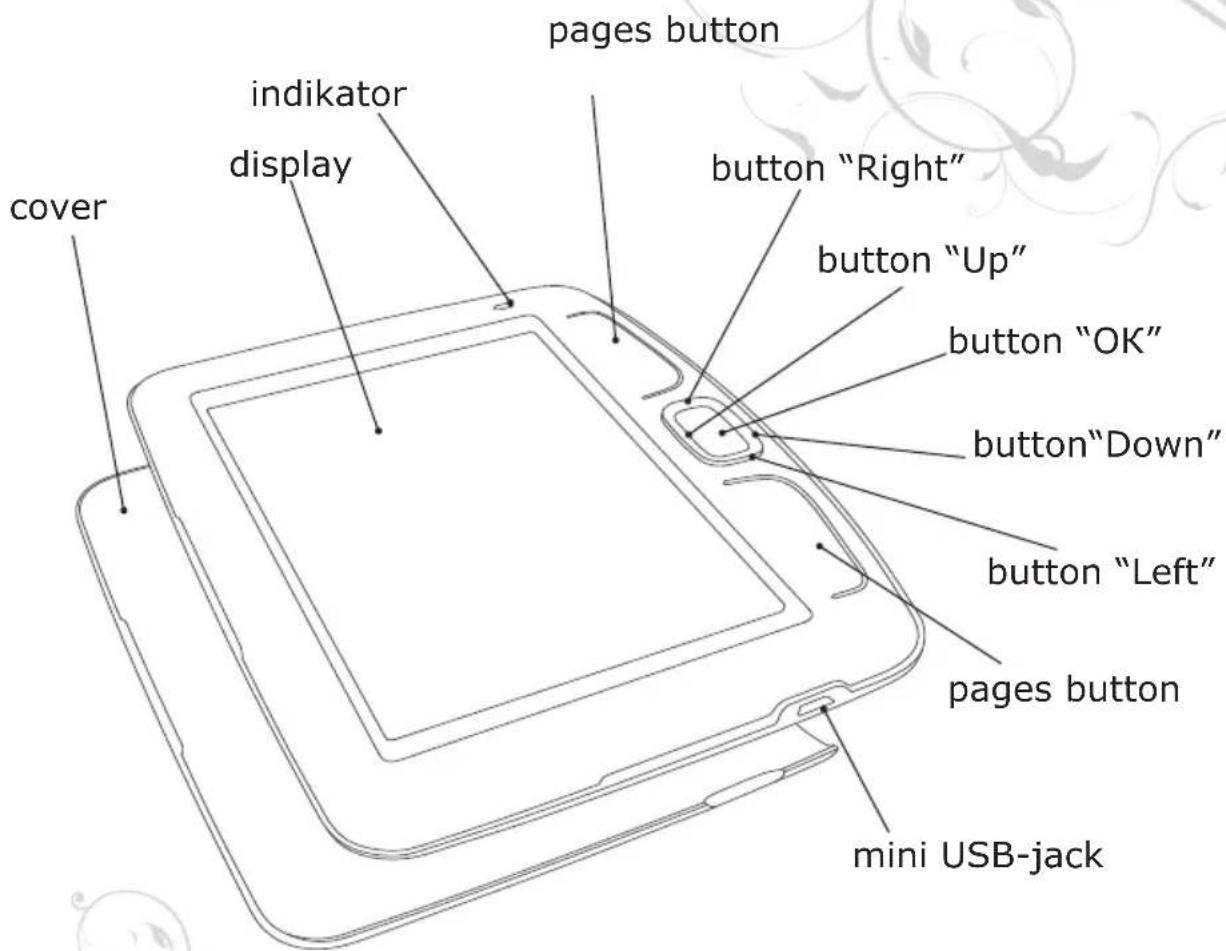
pages button indikator display button "Right" button "Up" button "OK" button"Down" button "Left" pages button mini USB-jack coverDESCRIPTION
Indicator
Green light – the device is in action (pages are loading, music is playing). When battery is charging the indicator is red or orange. The device is fully charged if the indicator changes its color for green or goes out.
Buttons "Up", "Down", "Left", "Right"
Control buttons. Allow to navigate throughout menu and other objects.
Button "OK"
To confirm your choice. To call quick access menu.
Mini-USB jack
For connecting to computer or charger (charger may be optional).
Button "On/Off"
To switch the device ON/OFF (long pressure), to call the list of ten last books (short pressure).
Slot for Micro SD-card
Slot for external memory card (Micro SD-card may be optional).
Button "Reset"
Is located under the battery cover and is marked "Reset". The device reloads after pressing this button.
Pages Buttons
Turn pages over in the reading mode to the next/previous page. The long press of the lower button performs exit from a book or return to the previous menu.
G-sensor (Accelerometer)
The G-sensor (accelerometer) is built in the device, allowing automatically determine the position of the device and rotate display text accordingly. You may use the device in any of four display positions. The G-sensor may be disabled in the settings menu, having set the display position manually, or in the context menu while reading.
Since using the G-sensor leads to accelerated battery consumption, it is recommended to turn the device off after use or lock the buttons.
PRESTARTING PROCEDURE
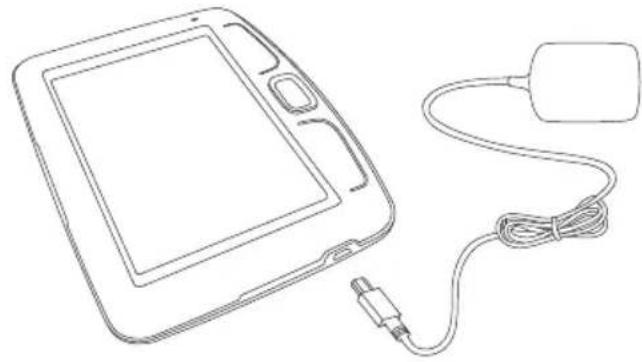
Charge the device, having connected it by USB-cable to the computer or charging device.
In order to prolong battery lifetime, make first charge during at least 8-10 hours.

natural_image
Line drawing of a tablet connected to a cable and a plug (no text or symbols)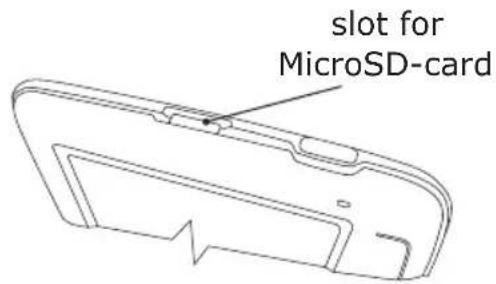
text_image
slot for MicroSD-cardInsert SD-card into slot, as it is shown in the backside of the device. To switch the device on hold button "On/Off" for one second.
PocketBook 360°
MAIN MENU
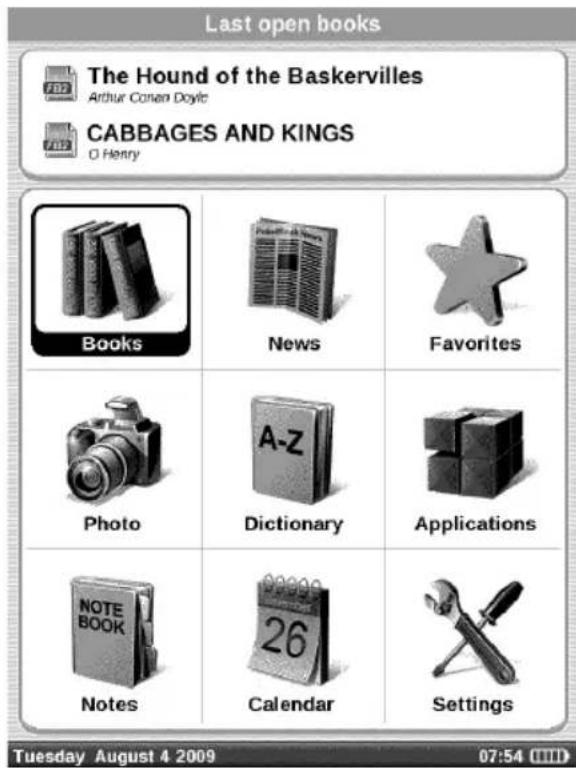
After the device has been charged and is switched on, the main menu will appear on the display:
LAST OPENED BOOKS
Fast access to two recently opened books. Use the buttons "Up", "Down" to point cursor on one of the books. Press button "OK" to open the chosen book.
text_image
Last open books The Hound of the Baskervilles Arthur Conan Doyle CABBAGES AND KINGS O Henry Books News Favorites Photo A-Z Dictionary Applications NOTE BOOK Notes Calendar Settings Tuesday August 4 2009 07:54BOOKS
Opens the list of folders and books stored in internal memory and SD-card. Use the buttons "Up", "Down" to move within the list, buttons "Right", "Left" for the fast passing to the previous, next page; button "OK" – to chose folder or book. If you press the button "Left" on the first page of the list you will have the possibility to come back to the previous menu, or press the button "Return". Holding the "OK" button displays a context menu to move, delete or add to "Selected" the chosen book.
NEWS
You can read RSS news from websites supporting this function. To load news automatically, use the program Pocketnews, you can download it from www.PocketBookReader.com/support/downloads/Pocketnews
SELECTED
In this section you can add books which are used more frequently than others. In the section "Books", hold the button "OK" on the chosen book, then choose a context menu "Add to selected". "Notes" button in this mode deletes a book only from the selected list, it is impossible to delete books here.
PHOTO
You can look through photos and pictures in JPG, BMP, PNG and TIFF formats. You go through photos manually using the keys "Right" "Left" or automatically, in the "slide-show" mode. You can return to the main menu by pressing the button "Return" or by choosing "Exit" in the menu.
PocketBook 360°
DICTIONARY
Dictionary allows translating or looking up of selected word, using the set of dictionaries. After the start of "Dictionary" application, virtual keyboard will appear on the display (see "Keyboard" section on how to use the keyboard). Enter a word, and the program will find its article in a dictionary. Hold the "OK" button to return to the full-display mode, where you can turn the pages of a dictionary with "Left" and "Right" buttons, while "OK" button returns the word enter mode. If you have more than one dictionary installed, you can change them with the upper "Page" button. In this mode you can go through dictionary using buttons "Right" and "Left", press "OK" button to go to the word input mode. If you have a few dictionaries installed, you can switch between them by the side "Menu" button.
ACCESSORIES
There are games and additional programs in this section of the menu. Calculator. Simple calculator, allows execution of 4 arithmetic actions, calculation of percentage and extraction of square root.
Clock - application, which turns your Pocketbook 360 into a comfortable table-top digital clock.
Chess -you can play chess with an electronic opponent or with other player.
Solitair, Sea-battle, Sudoku - popular games.
NOTES
You can take notes during reading in a part of the book you are reading. For more information please read "Notes" in a section "E-books reading".
CALENDAR
Opens calendar for current year.
SETTINGS
In this section you can find information about the device: how to set up a language and font of interface, choose a theme, front page logo and type of bookshelf, also to set the parameters of fonts smoothing, quality of images and other device settings. Using "Buttons' settings" you can reset the buttons functions in accordance with your preferences. By selecting "Information about device" you can get model of device, serial number, device version of firmware, total and free volume of internal and Micro SD-card memory on the display. Current date and time are set there as well.
E-BOOKS READING
This device allows you to read books in FB2, FB2.zip, TXT, PDF, RTF, HTML, PRC, CHM, DJVU, DOC, EPUB, and TCR formats.
STORING THE BOOKS INTO THE DEVICE
Connect the device to the computer using a USB-cable. The internal 11
PocketBook 360°
memory of the device and the MMicroSD-card will appear in the computer as two new disks. Copy books to the necessary folder in the memory of the device or SD-card using Windows Explorer or another file browser.

text_image
mini USB-jack USB-cable USB-jack
Do not disconnect the device from the computer before file copying has been completed, it can result in information loss. Before unplugging the USB-cable or turning the computer off it is recommended to execute «device safe extraction».
OPENING BOOKS
To open a book, enter the "Books" section in the main menu. Using the control buttons choose the desired book and press "OK" button. If the book you are searching for is one of the two recently opened books, you can open it from the upper part of the main menu. If you opened the book before, it will be opened on the page in which it was closed. Current page, total number of pages, current time and battery charge status will be reflected in the lower part of display. After opening, for some formats, page recalculation takes place. The following mark will flash "..." in the lower part of the display, instead of the current page number and volume of pages in the book, until the end of recalculation. At this time some functions will be temporarily inaccessible.
PAGE TURNING
To turn one page forward press the upper button once; pressing the lower button goes one page back. You can turn pages by the "right" and "left" buttons as well. The buttons may be set up differently accoring to you preferences.
FONT SIZE CHANGING
With the button "Up/Down" you can change the font size, 5 sizes are available. More accurate font setting can be made in a section "Settings" of the fast access menu. It is impossible to change font in DJVU format, in this case you can use function "Scale" in fast access menu. In PDF format the font size can be changed only in the mode "Reflow".
GO OVER THE REFERENCES
Some formats of books allow quick switch between references inside a
PocketBook 360°
book. References mode is switched on with the button "Down". Choose reference with the buttons "Up", "Down", confirm your choice with "OK" button.
FAST ACCESS MENU
Press "OK" button in book reading mode to call the menu. The following items are accessible:

text_image
exit Menu open page notes dictionary search book rotation settings scaleGO TO PAGE
This menu item opens the window for choosing page. Enter the desired page number, then press "OK". You can also go to the first or the last page of the book using the buttons "<<" or ">>".
BOOK ROTATION
Here you can choose desired device orientation. The device orientation is set in accordance with the chosen icon. To make choice press buttons "Up", "Right" "Down" "Left". Button "OK" turn the automatic position determining (G-sensor) on.
SCALE
you can change the page scale in PDF and DJVU formats. With the buttons "Right", "Left" choose the desired view mode, with the buttons "Up", "Down" scale is tuned. The following modes are available:
- "4 pages", "9 pages", preview mode, several pages on a sheet;
- "Common mode";
- one page on the display, with scaling possibility;
-"Columns" – to read books with a few columns on a page. To move through pages in the "Columns" mode use the buttons "Up", "Down". After reaching the bottom of the column the the next column becomes active; -"Reflow" increase the comfort of reading large format documents. In this mode the text is formatted by width of the display. You can change the font size using buttons "Up", "Down". In the mode "Arrangement" some tables and pictures can be not presented.
BOOKMARKS
You can create up to 30 bookmarks in every book. Choose "Bookmarks" in the fast menu. The panel will appear on the right part of the display. It will contain all the bookmarks created by you; there will also be a place for a new one (marked by asterisk). Press "OK" button to add a bookmark, it will be makred with an asterisk. To open the bookmarks choose one and press the "OK" button. In order to delete bookmarks,
PocketBook 360°
choose one, place the cursor on it and press "Delete" button. In order to cancel and switch to reading mode press "Up" or "Left" buttons.
NOTES
Sometimes it is useful to save the chosen fragment of a book in a separate notebook. To create a new note in the reading mode press the button "Notes". On the top of the display separate area will appear. Use the buttons "Up", "Down" to choose the place where your note will begin. Set the upper border of your note by pressing the "OK" button. In the same way, set the lower border of the note. You can add a note with the open menu to an existing notebook or to create a new notebook. If you choose "new note-book" you will see the pop up keyboard on the display to name a new note. Read the section "Keyboard Operations" to learn how to work with pop up keyboard. You can look through the notes in the reading mode by long pressing "Notes" button, or choosing "Notes" in the main menu. By pressing "OK" button on the note, you can switch to the initial page, where it was created.
SEARCH
You can quick search a desired word or part of a word in the text. A keyboard to enter the desired word will pop up on the display (see in a section "keyboard operating"). After you have entered the desired word, "Search" mode will start, and the "Searching" icon will flash in the lower right corner of the display. Use the "Right" and "Left" buttons to move accordingly (back/forward) on the found words. The found words will be marked out. Press "Return" or "OK" button to exit "Search" mode The "Search" mode is inaccessible for books in DJVU format.
CONTENT
Takes you to a book content. This function is available only for Fb2, PDF, and CHM formats and only in case when the book has structured content.
DICTIONARY
You can get a translation/definition of the selected word. The navigation buttons are to be used to choose the word on a page, "OK" - switching between the text and dictionary windows. You can look up any word, using the virtual keyboard. The English-Russian dictionary of N. Korolev is installed in the device by default. You can download additional dictionaries from www.PocketBookReader.com/support/dowloads/dictionaries. A converter is also available, which can be used to create your own dictionary from a number of free dictionaries accessible online.
SETTINGS
For books in the Fb2, TXT, RTF, HTML, PRC and CHM format, and also PDF format in the "Reflow" mode you can choose the most comfortable parameters for reading – font and font size, line spacing, page margins, and choose coding for TXT and HTML formats as well.
QUICK SWITCH BETWEEN BOOKS
When you short press "On/Off" button in any device operation mode the list of ten last opened books will appear. It allows you to switch quickly between several books without the necessity of exiting to the main menu.
KEYBOARD OPERATING
Use the "Up", "Down", "Left", "Right" and "OK" buttons to work with keyboard. For easy and quick keyboard operations, all characters are allocated between 5 areas. Before choosing a symbol, number or letter, the first pressing leads to a fast switch to the center of the chosen area. Once in the chosen area you can choose the desired character. To change the keyboard for Russian, Ukrainian or English languages please use the "Up", "Down" buttons, and "ENG" "RUS" "UKR" on the lower panel. In the keyboard mode, the long pressing of the central button equals to the pressing of the "OK" button on a keyboard, long pressing of the "Left" button – to delete the last entered symbol, "Up" button – to delete entered text.
SOLVING OF POSSIBLE PROBLEMS
Device does not switch on, or switches on, but only first page appears.
Battery is discharged. Charge the device. System files in built-in memory are damaged. Format internal memory: press and hold the button "OK" and the lower page button during switching on the device, until a report "Formatting internal memory" appears. At this all information in built-in memory will be deleted.
A book does not open, "Possibly this book is damaged or protected" appears or nothing happens at all. If the book is downloaded from an internet site, try to download it again. If the file opnes on a PC, but can not be opened on the device, try to save the book different format.
A book in HTML format is opened, but appearance is wrong (pages are empty, part of the text fails etc.) HTML-files can contain non-text elements (frames, java scripts, flash-elements) Try to save page in TXT format.
A book is opened, but different symbols are represented instead of letters on the display (question-marks etc.) Choose "Settings" in the book reading mode, and try to change the document coding or/ and font.
Device does not react when keys are pressed. In some cases (for example, loading of damaged or large books) the device can 'freeze'. In this case you can switch the device off-and-on. If this does not help, reset the device using the "Reset" button" under the battery cover
Disks of device fail to appear in Windows Explorer or other file browser while connecting to the PC. Check the USB operating mode in the "Settings" section of the main menu. Set the mode "PC connection" or "Ask while connection". Check, whether USB-cable is damaged, or if the plugs are inserted securely. Try to plug the USB-cable in another port of the computer.
Bookmarks, settings, current position in a file cannot be saved.
The file system is damaged. Connect a device to the PC, and then check the discs of the device: open "My computer", right-click the chosen disk, choose "properties - service - disk checking" in the menu. Built-in memory is overflowed. Delete some books.
PocketBook 360°
The battery expires too fast.
Function of automatic shutdown is disabled. Set the time of automatic shutdown 10, 20, 30 or 60 minutes in "Settings" in the main menu. The G-sensor is turned on. If you are using the G-sensor (accelerometer), it is recommended to turn the device off or lock the buttons.
SPECIFICATION
Display 5" E Ink® Vizplex 600x800, 166 dpi, B&W
CPU Samsung® S3C2440 AL-40 400MHz
Operating
system Linux 2.6
Battery Li-Polymer (1000 mAh) 7000 cpages without charging
Memory Operativ 64Mb
Fixed 512Mb (470 Mb user accessible)
DJVU, DOC, EPUB, TCR
Image formats JPEG, BMP, PNG, TIFF
Size With the protective cover:
4.7" x 7.4" x 0.3"(118 x 188 x 8.5 mm)
Without the cover:
4.7" × 5.5" × 0.3" (118 × 140 × 10 mm)
Weight With the protective cover: 6.3 ounces
Without the cover: 5.1 ounces
Color Black, Ivory
PocketBook 360°
WHAT'S IN THE BOX
- POCKETBOOK 360
- Protective cover
- USB-cable
- User Manual
- Warranty sheet
• Wrist lash (optional)
• Wall charger (optional) - MicroSD Memory Card (optional)
• Leather pouch (optional)
PocketBook 360°
For all inquiries, related to the sales, service or other questions
in the United States, please contact
Web: www.PocketBookReader.com
E-mail:info@pocketBookreader.com