
Studio 8 - Audio and video software PINNACLE - Free user manual and instructions
Find the device manual for free Studio 8 PINNACLE in PDF.


| Product Type | Audio and video editing software |
| Version | 8 |
| Minimum System Requirements | Intel Pentium or AMD Athlon 500 MHz, 128 MB RAM (256 MB recommended), 300 MB free hard disk space, DirectX-compatible graphics and sound card, CD-ROM drive, mouse, microphone (optional) |
| Recommended Hard Drive | Separate hard drive dedicated to video capture with sustained read/write speed of at least 4 MB/s |
| Supported Operating Systems | Windows 98 SE, Windows Millennium, Windows 2000, Windows XP |
| Main Functions | Video capture (DV, analog, MicroMV), editing (timeline, transitions, titles, effects, audio), output (tape, AVI, MPEG, RealVideo, Windows Media, DVD, VCD, S-VCD) |
| Key Features | SmartCapture (preview-quality capture), automatic scene detection, title editor, disc menu authoring, Hollywood FX transitions, audio mixing |
| Input Sources | DV, Digital8, MicroMV, analog (8mm, Hi8, VHS, S-VHS), USB video cameras, webcams |
| Output Formats | Videotape via DV/1394 or analog, AVI, MPEG-1/2, RealVideo, Windows Media, DVD, VCD, S-VCD |
| Maintenance | Regular software updates and disk defragmentation; ensure sufficient free disk space for captures |
| Safety Precautions | Backup project files regularly; use surge protector for video capture hardware |
| Repair Information | Refer to the troubleshooting appendix in the user manual for common issues |
| Copyright | © 2002 Pinnacle Systems, Inc. All rights reserved. |
Frequently Asked Questions - Studio 8 PINNACLE
User questions about Studio 8 PINNACLE
0 question about this device. Answer the ones you know or ask your own.
Ask a new question about this device
Download the instructions for your Audio and video software in PDF format for free! Find your manual Studio 8 - PINNACLE and take your electronic device back in hand. On this page are published all the documents necessary for the use of your device. Studio 8 by PINNACLE.
USER MANUAL Studio 8 PINNACLE
Special thanks to Mike Iampietro, William Chien, Richard Edgley, Ivan Maltz, Jon McGowan, Keith Thomson, Jörg Weselmann, and Chris Zamara.
Documentation: Nick Sullivan
Studio, Studio AV, Studio DC10plus, Studio Deluxe, Studio DV, SmartCapture, SmartSeek, Pinnacle Systems, and the Pinnacle Systems logo are registered trademarks of Pinnacle Systems, Inc.
The RealProducer is included under license from RealNetworks, Inc. Copyright 1995-2002, RealNetworks Inc. “RealProducer,” “RealVideo,” “RealServer,” and “Real” logo are trademarks or registered trademarks of RealNetworks, Inc. All Rights Reserved. QDesign MPEG-2 Layer II Fast Encoder/Decoder © 1996-2002 by QDesign Corporation. Windows Media is a trademark of Microsoft Corporation. All other trademarks are the property of their respective owners. You agree not to remove any product identification or notices of the property restrictions from Pinnacle Systems’ products or manuals.
All products mentioned in this manual are trademarks of their respective owners.
Studio Version 8 User Guide © 2002 by Pinnacle Systems, Inc. All rights reserved.
No part of this manual may be copied of distributed, transmitted, transcribed, stored in a retrieval system, or translated into any human or computer language, in any form by any means, electronic, mechanical, magnetic, manual, or otherwise, without the express written permission of Pinnacle Systems, Inc.
Pinnacle Systems, Inc.
280 North Bernardo Avenue
Mountain View, CA 94943
Printed in the USA.
Table of Contents
GETTING STARTED VII
On-line help vii
Equipment requirements vii
Abbreviations and conventions ix
CHAPTER 1: THE STUDIO INTERFACE 1
Capture mode 3
The Diskometer 5
The Camcorder Controller 6
Edit mode 6
The Album 7
The Player 8
The Movie Window 12
The toolboxes 17
The Video toolbox 18
The Audio Toolbox 22
Make Movie mode 24
CHAPTER 2: CAPTURING VIDEO 27
Capture hardware 27
The capture process 28
Automatic scene detection 31
DV, MicroMV and analog captures 32
DV capture 32
SmartCapture: Preview-quality capture 33
Full-quality capture 35
Audio and video levels 37
Analog capture 37
Capture quality options 38
Audio and video levels 38
CHAPTER 3: THE ALBUM 41
The Video Scenes section 43
Opening a captured video file 44
Viewing captured video 46
Displaying scene start and length 47
Selecting scenes 47
Combining and subdividing scenes 48
Redetecting scenes 49
Scene comments 50
The Transitions section 51
The Titles section 53
The Still Images section 54
The Sound Effects section 54
The Disc Menus section 55
CHAPTER 4: VIDEO CLIPS 57
Video clip basics 58
Trimming video clips 60
Trimming on the Timeline using handles 60
Clip-trimming tips 63
Trimming video clips with the Clip properties tool 63
Resetting trimmed clips 66
Splitting and combining clips 66
Advanced Timeline editing 68
Insert Editing 69
Split edits 71
Video clip effects 75
The Adjust color/Visual effects tool 75
The Vary playback speed tool 77
CHAPTER 5: TRANSITIONS 80
Transition types and their uses 81
Previewing transitions in your movie 84
Audio transitions 85
The Ripple Transitions command 86
Trimming transitions 87
Trimming with the Clip properties tool 87
CHAPTER 6: STILL IMAGES 90
Editing still images 92
Trimming with the Clip properties tool 93
The Frame Grabber 94
The Frame grabber tool 95
CHAPTER 7: THE TITLE EDITOR 98
Launching the Title Editor 99
The Title Editor controls 100
Title-type buttons 100
Object toolbox 101
Editing-mode selection buttons 104
Object layout buttons 105
Clipboard and delete buttons 107
Text-styling controls 108
The Title Editor Album 109
The Looks Browser 109
The Backgrounds section 111
The Pictures section 112
The Buttons section 112
CHAPTER 8: SOUND EFFECTS AND MUSIC 116
The Timeline audio tracks 117
The CD audio tool 118
The SmartSound tool 120
The Voice-over tool 122
Trimming audio clips 125
Trimming with the Clip properties tool 125
Audio volume and mixing 127
Anatomy of an audio clip 128
Adjusting audio volume on the Timeline 128
Adjusting levels with the Volume tool 130
CHAPTER 9: DISC MENUS 132
Understanding menus 132
Disc authoring in Studio 134
Using menus from the Album 135
The DVD Player Control 137
Editing menus on the Timeline 139
Editing with the Clip properties tool 141
The Disc menu tool 145
CHAPTER 10: MAKING YOUR MOVIE 146
Outputting to a camera or video recorder... 147
Output your movie to videotape 148
Save your movie as an AVI file 150
Save your movie as an MPEG file 152
Save as RealVideo or Windows Media 154
Share your movie via the Internet 156
Output your movie to DVD, VCD or S-VCD 157
APPENDIX A: SETUP OPTIONS 162
Capture source settings 163
Capture format settings 166
Edit settings 171
CD and Voice-over settings 173
Make tape settings 175
Make AVI file settings 176
Make MPEG file settings 179
Make RealVideo file settings 181
Make Windows Media file settings 184
Make disc settings 185
APPENDIX B: TIPS AND TRICKS 188
Hardware 188
Software 190
Increasing the frame rate 192
Studio and computer animation 193
Smart Capture Tips (DV only) 193
APPENDIX C: TROUBLESHOOTING 196
Installation 197
Operation 202
APPENDIX D: USEFUL HINTS 208
Video Editing and Capturing 208
Creating a Shooting Plan 208
Editing 209
Rules of Thumb for Video Editing 213
Soundtrack Production 215
Title 216
APPENDIX E: GLOSSARY 219
APPENDIX F: LICENSE AGREEMENT 235
APPENDIX G: KEYBOARD SHORTCUTS 239
INDEX 243
On-line help
On-line help is always available while you're working in Studio.
- On-line help: Click the help button in the Studio main menu bar, or press F1 to display the table of contents page of the standard help topics. Click the Help > Help Topic > Index menu if you want to search for a specific topic or command.
- Tool tips: To find out what a button or other Studio control does, pause your mouse pointer over it and a “tool tip” appears explaining its function.
Equipment requirements
In addition to your Studio software, here is what you need to make a Studio editing system.
Computer
- Intel Pentium or AMD Athlon 500 MHz or higher.
- Microsoft Windows 98 Second Edition, Windows Millennium, Windows 2000 or Windows XP
- DirectX-compatible graphics card
- DirectX-compatible sound card
• 128 MB of RAM (256 MB recommended) - CD-ROM drive
- Speakers
- Mouse
- A microphone, if you want to record voice-overs
- 300 MB of free hard disk space to install software. Your hard drive must be capable of a sustained reading and writing at 4 MB/sec. All SCSI and most UDMA drives are capable of this. The first time you capture at full quality, Studio will test your drive to make sure it is fast enough. DV-format video occupies 3.6 MB of hard disk space for every second of video, so four minutes of DV video will require almost 900 MB of hard disk space. If disk space is a concern with DV captures, use SmartCapture to capture your video at Preview-quality (see Chapter 2: Capturing Video). This feature uses much less disk space. An entire tape can fit in as little as 360 megabytes.
- We recommend using a separate hard drive dedicated to video capture to avoid competition for the drive with Windows and other software during capture.
Video capture hardware
Studio can capture video from a variety of digital and analogue sources. Please see “Capture hardware” on page 27.
Video equipment
Studio can output video to:
- Any DV or Digital8 camcorder or VCR. This requires Pinnacle Studio DV or other OHCI-compliant 1394 port. The camcorder must be enabled to record from DV Input.
- Any analogue (8mm, Hi8, VHS, SVHS, VHS-C or SVHS-C) camcorder or VCR. This requires Pinnacle
Studio DC10plus, Studio AV or another Pinnacle card with analogue outputs. Output to analogue camcorders or VCRs is also possible using a Pinnacle Studio DV or other OHCI-compliant 1394 (FireWire) port if your DV or Digital8 camcorder or VCR can pass a DV signal through to its analogue outputs (see your camcorder manual and Chapter 10: Making Your Movie, for more information).
Abbreviations and conventions
This guide uses the following conventions to help organize the material.
Terminology
Studio: Studio refers to the editing software.
DV: The term DV refers to DV and Digital8 camcorders, VCRs, and tapes.
1394: The term 1394 refers to OHCI-compliant IEEE-1394, FireWire, DV or iLink interfaces, ports and cables.
Analogue: The term analogue refers to 8mm, Hi8, VHS, SVHS, VHS-C or SVHS-C camcorders VCRs and tapes, and to Composite/RCA and S-Video cables and connectors.
Buttons, menus, dialog boxes and windows
Names of buttons, menus and related items are written in italics to distinguish them from the surrounding text, whereas window and dialog names are written with initial capital letters. For example:
Click the Edit Menu button to open your menu in the Title Editor.
Choosing menu commands
The right angle-bracket symbol (>) denotes the path for hierarchical menu items. For example:
Select Toolbox > Generate Background Music.
Keyboard conventions
Key names are spelled with an initial capital and are underlined. A plus sign denotes a key combination. For example:
Press Ctrl+A to select all the clips on the Timeline.
Brackets denote keys that do not have names printed on them:
Press [Spacebar] to display the tool.
Mouse clicks
When a mouse click is required, the default is always a left-click unless specified:
Right-click and select Go to Title/Menu Editor.
Chapter 1:
The Studio Interface
Creating movies with Studio is a three-step process:
- Capture: Import source video material to your PC hard drive.
- Edit: Arrange the material as desired by reordering scenes and discarding unwanted footage. Add visuals, such as transitions, titles and graphics, and supplementary audio, such as sound effects and background music. For DVD and VCD authoring, create interactive menus that give your audience a customized viewing experience.
- Make movie: Generate the finished movie in your choice of format and storage medium.
Set which step of the movie-making process you want to work on with the three mode buttons at the top left of the Studio window:

1 Capture
2 Edit
3 Make Movie
Undo, Redo and Help

To the right of the mode buttons are the Undo, Redo and Help buttons.
Undo allows you to back out of any changes you have made to your project during the current session, one step at time. Redo reinstates the changes one by one if you undo too far. The Help button launches Studio's on-line help system.
All other controls on the Studio screen are dedicated to tasks within the current mode.
Starting with “Capture mode” on page 3, this chapter introduces the Studio user interface in each mode.
Setting options
Most options in Studio are set using two tabbed dialog boxes.
The first lets you control options related to Capture mode and Edit mode. It has four tabs: Capture source, Capture format, Edit and CD and Voice-over.
The other one is concerned with options relating to Make Movie mode. It has six tabs, one for each of the six movie output types:
Make tape Make AVI File Make MPEG File Make RealVideo® Make Windows Media® Make disc
Each panel of both dialog boxes can be accessed individually with a corresponding command on the Setup menu (e.g. Setup > Capture Source). Once a dialog box is open, however, all its panels are available through the tabs.
For simplicity, this manual generally refers to the different option panels independently, as in “the Capture source options panel”.
Detailed explanations of the options in both dialog boxes are contained in Appendix A: Setup Options.
CAPTURE MODE
Capture is the process of recording from a video source to your PC's hard drive.
The tools and controls you see in Capture mode are different depending on whether you are capturing from a DV or MicroMV source or from an analogue source.
If your video source is analogue, you will connect to your computer hardware with either a composite or an S-Video cable. Your Capture mode screen will look like this:

If you are capturing from DV or MicroMV equipment connected to a 1394 port, the capture screen looks like this:
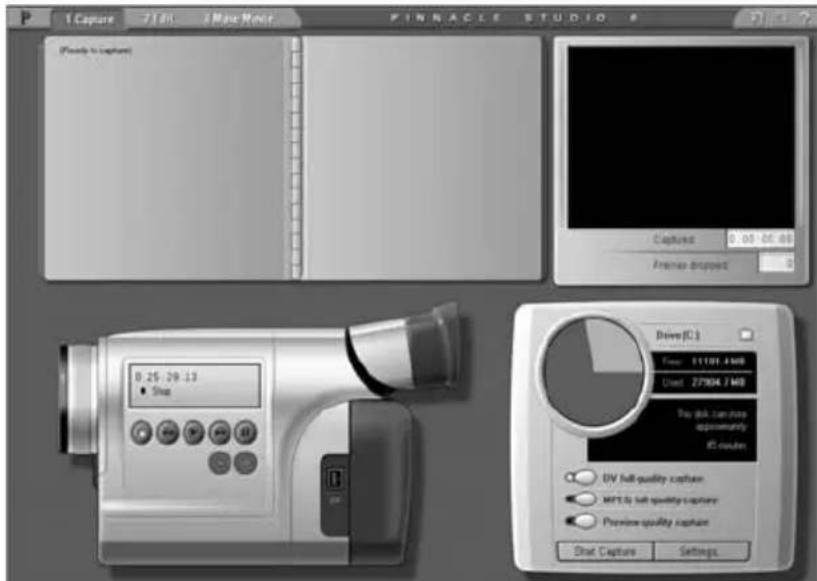
These set-ups have two major differences in capability:
- The analogue set-up lets you modify audio and video levels dynamically during capture.
- The DV set-up lets you control the tape transport of the camcorder or VCR using an on-screen control – the Camcorder Controller.
As the capture process proceeds, Studio fills the Album (top left of screen) with the captured video scenes, while the Player (top right of screen) shows the incoming video and the Diskometer monitors the free space on your hard drive. Readouts on the Player tell you the exact length of the captured video, and the number of dropped frames during the capture (normally zero).
The Diskometer
The Diskometer displays, both numerically and graphically, the amount of space available on your capture drive. It also indicates the approximate duration of video that can be accommodated, which depends on both the available space and the configured capture quality. Capture quality settings are selected using the preset buttons displayed on the Diskometer for some capture devices, or by entering custom settings. See Chapter 2: Capturing Video and Appendix A: Setup Options for information on capture settings.
The Start Capture/Stop Capture button on the Diskometer begins and ends the capture process. The default location for captured video is:
C:\My Documents\Pinnacle Studio\Captured Video
To save newly captured videos to a different location, click the file folder button ☐ to display the Browse for Folder window. The folder you assign will be used to store captured video during the current and future sessions.
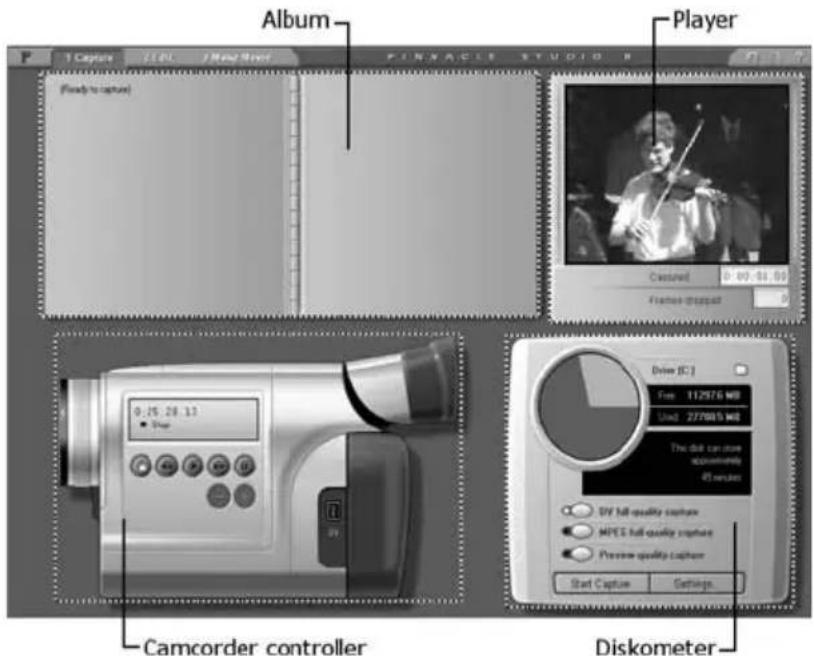
The Camcorder Controller
Use these on-screen transport controls to view your tape and to seek to the location on the tape at which capture is to begin. The counter window displays the current position of the camcorder tape, along with the current transport mode of the camcorder.

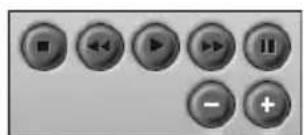
From left to right, the transport control buttons are: Stop, Rewind / Review, Play, Fast forward / Cue and Pause. The Frame reverse and
Frame forward buttons (second row) let you locate the exact frame you want.
Reminder: The Camcorder Controller is available only for a DV or MicroMV device connected to a 1394 port.
EDIT MODE
Studio opens in Edit mode each time it is launched, because that is the mode you use most often. The Edit mode display includes three main areas: the Album, the Player, and the Movie Window.

The Album
The Album contains the source materials for your video production. It is divided into six sections, selected by tabs as follows:

ideo Scenes: Your captured video footage. To
use a given scene in your movie, simply drag it into place in the Movie Window. See Chapter 4: Video Clips.

Transitions: Use fades, dissolves, and other transitions by dragging them into place between eo clips and graphics in the Movie Window. See chapter 5: Transitions.

Titles: Editable titles to use as overlays or as full-screen graphics. Studio supports scrolls, crawls, many typographical effects. See Chapter 6: Still ages.

Frame Grabs: Your collection of bitmapped images and grabbed video frames. These can be as overlays or as full-screen images. See Chapter ill Images.

Sound Effects: Windows wav and mp3 files can be added to your production. A full range of lied sound effects gets you started. See Chapter 8: d Effects and Music.

Disc Menus: A collection of chapter menus to use in DVD, VCD and S-VCD authoring. See Chapter disc Menus.
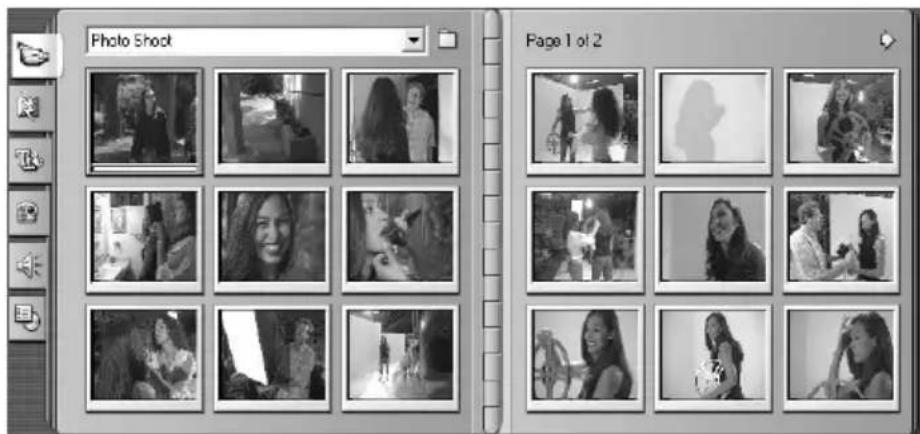
The Video Scenes section of the Album. Click the tabs down the left side of the Album to access the materials in the other sections.
The Player
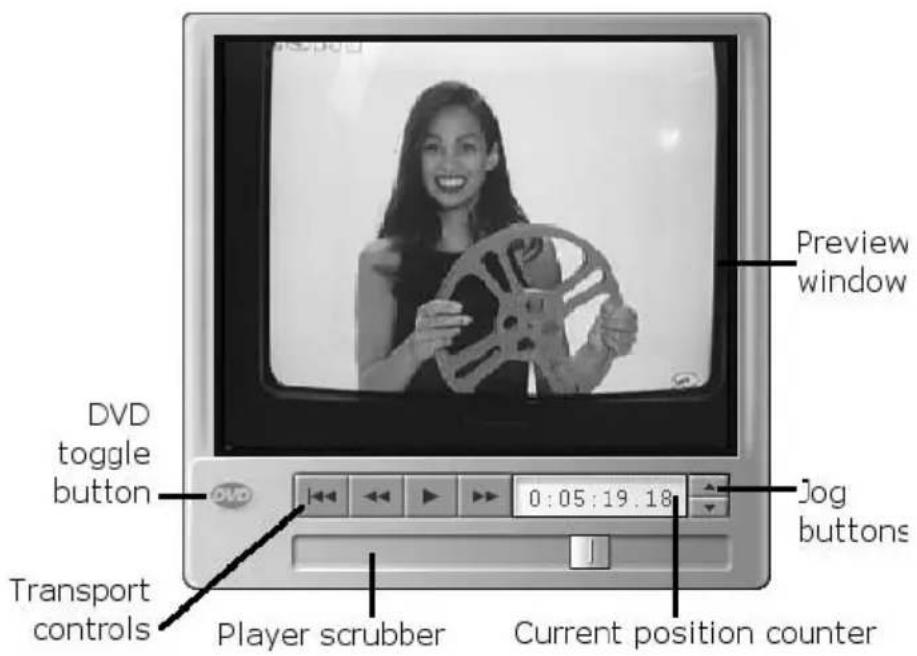
The Player displays a preview of your edited movie, or shows what is selected in the Album. It consists of two main areas: a preview window and playback controls. The preview window displays video images. The playback controls allow you to play the video, or go to an exact position within it. These controls come in two formats: standard and DVD.
The standard playback controls are similar to those you find on a camcorder or VCR. They are used for viewing ordinary video.
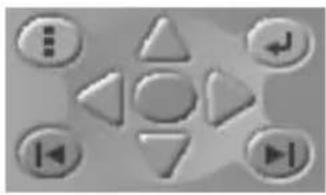
The DVD playback controls emulate the navigation controls on a DVD player or remote. Use them for previewing your DVD, VCD or S-VCD disc productions, including menu interaction.

Switch between the two types of playback control with the DVD toggle button – a small oval with the legend “DVD”. This button is only available when your edited movie contains at least one menu. The DVD controls are automatically selected when you begin playback from within a disc menu.
Preview window
This is a point of focus in Studio because you use it so often. It displays moving video during playback. It also displays still images, titles at your current position, and still video frames when you select a scene in the Album or a clip in the Movie Window, or when you “jog” forward or back by single frames.
Standard playback controls

These buttons control playback in the Player.
Play / Pause: The Play button previews the movie from the current position.
Once preview begins, Play becomes Pause. When paused, the Album scene or Movie Window clip at which previewing stopped remains selected.
Fast reverse: Plays movie in fast reverse (10x normal speed).
Fast forward: Plays movie in fast forward (10x normal speed).
Go to beginning: Moves scrubber to the first frame of your movie.
Jog buttons
Step the movie forward and backward by single frames.
Player scrubber

natural_image
Simple grayscale gradient bar with a vertical metallic stripe on the left edge (no text or symbols)Use the Player scrubber to quickly traverse forward and backward through your captured video or through your edited movie. The scrubber position corresponds to the position of the current frame in the captured video file (not just the current scene) or in the edited movie (not just the current clip). Thus the scrubber bar always represents the entire length of the content being viewed.
As you move the scrubber, the preview window shows the current frame.
The ability of the preview to keep up with the scrubber depends on the speed of your computer. If you move the Player scrubber slowly, the preview display responds smoothly. As you increase the rate at which you move the scrubber, the preview will jump frames. The point at which it does so depends on your hardware.
Counter
The counter displays your current position in hours, minutes, seconds and frames. You can directly modify the counter fields to select an exact

flowchart
graph TD
    A["0:00:00.00"] --> B["Frames"]
    A --> C["Seconds"]
    A --> D["Minutes"]
    A --> E["Hours"]
point to view or at which to start playback. Simply click on the number you wish to change and type a new value. After you click within the counter, you can also control it from the keyboard:
- Step through the fields: Tab, Shift+Tab, [Left], [Right]
- Raise and lower field values: [Up] and [Down]. Hold the key down to continuously change the value.
DVD playback controls
natural_image
Gray-scale icon set with various play and control buttons (no text or symbols)These controls include the four standard transport buttons detailed above (Play/Pause, Fast reverse, Fast forward, Go to beginning)
plus the DVD Player Control, which is described under “The DVD Player Control” on page 137.
The Movie Window
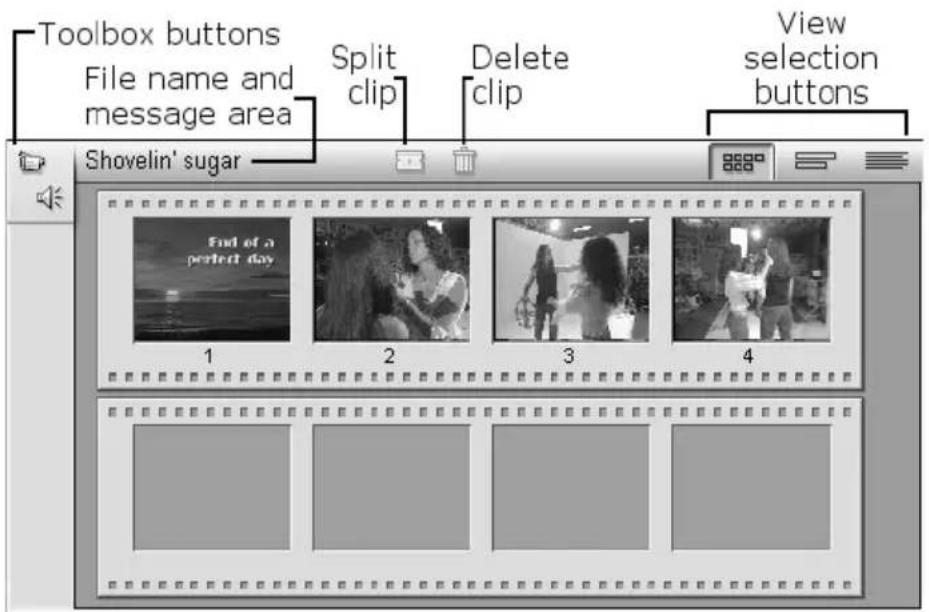
The Movie Window title bar contains several important controls and displays. The toolbox buttons at the left of the title bar open the Video toolbox and the Audio toolbox, which are discussed on page 17.
Video toolbox Audio toolbox
To the right of the toolbox buttons is a text area where the project file name is displayed. Status and warning
messages are also displayed in this area when required. Further to the right are the Clip Split and Clip Delete buttons, while at the far right are three view selection buttons (see “Movie Window views” below).
Split Clip button – the razorblade
Click this button to split the currently-selected clip in the Movie Window, or the currently-selected scene in the Album. No information is lost: the item is simply duplicated and “trimmed” to the indicated point. This button can be used in conjunction with the track-locking buttons in the Movie Window’s Timeline view to carry out special operations such as insert editing, and edits in which the audio leads or lags behind the video.
Delete Clip button – the trashcan

This button deletes the currently-selected content in any of the Movie Window views.
Movie Window views
The Movie Window has three views: Timeline, Storyboard and Text. You switch between them by clicking the view selection buttons in the upper right corner of the Movie Window.
Storyboard view

Timeline view

Text view
Storyboard view: Storyboard view shows the order of video scenes and transitions. It uses thumbnail icons for quickly structuring a movie. You can choose large or small thumbnails in the Edit options panel.

Timeline view: Timeline View shows the position and duration of clips relative to the Timescale. This view also displays the five tracks on which you can place various types of clip: video, original (or “synchronous”) audio, title overlays and graphics, sound effects and voice-overs, and background music. A sixth track, for menus, chapter marks and other return-to-menu links, appears above the Video track whenever the movie has at least one menu.
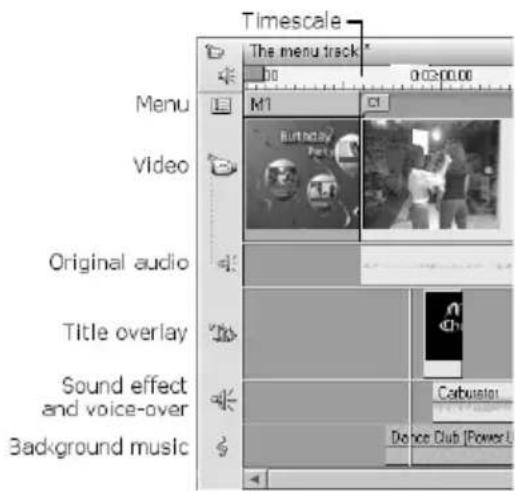
The Video track normally takes precedence over all other tracks when trimming or deleting. This arrangement can be bypassed when necessary with a feature that allows you to “lock” any track independently of the others, excluding it from editing and playback operations.
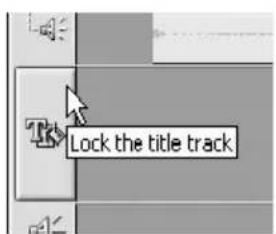
As your cursor passes over the track icons at the left edge of the Movie Window, each displays as a button that can be clicked to toggle locking for that track. Track-locking gives Studio
insert-edit and split-edit capability (see Chapter 4: Video Clips).
Because many editing operations can be carried out only in Timeline view, it will be your choice whenever extensive, detailed or advanced editing is required.
Text view: Text view is a list showing the start and end times of clips, as well as their duration. In addition, custom names for clips are visible in this view.
![Untitled Name Tamed out Video duration Home time 1 Title: "End of a printout day" Video clip: "Photo Sheet [25.05.05] Audio clip: "Photo Sheet [25.05.05] Video clip: "Photo Sheet [25.05.05] Audio clip: "Photo Sheet [25.05.05] Video clip: "Photo Sheet [25.05.05] Audio clip: "Photo Sheet [25.05.05] Video clip: "Photo Sheet [25.05.05] Audio clip: "Photo Sheet [25.05.05] Video transition: Fade in or out Audio transition: Fade in or out Video clip: "Photo Sheet [519.18] Audio clip: "Photo Sheet [519.18]](/content/2026/06/1238913/images/e651bad618468e78fd3b0ac2e8bcae946759909e57b4afc43d64e329053f2e6d.jpg)
Movie Window positioning: Edit line, scrubbers
The current position is the frame showing in the Player. It is indicated in the Movie Window's Timeline view by the edit line. The current position can be changed by moving either the Timeline scrubber (at the top of the edit line) or the Player scrubber.
Clip placement feedback
Studio gives you several types of feedback about your actions as you place clips in the Timeline view.
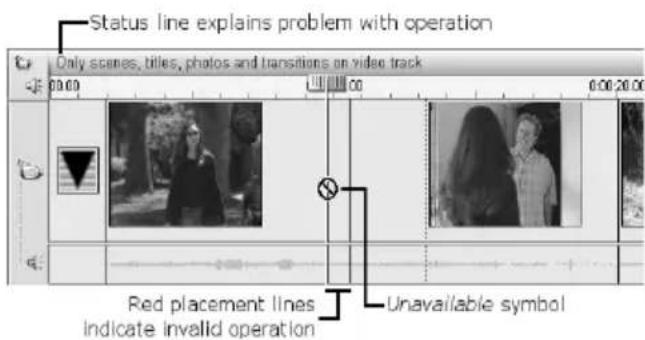
The status line: The status line area on the left of the Movie Window title bar displays messages as you place clips and perform other actions.
![Timeline scrubber Trim scrubber Player scrubber P 1 Capture 2 Edit 3 Make Movie Name: Photo Shot [5:19:18] Duration: 0:00:11.14 0:00:10.29 0:00:11.13 IT'S STUDIO 8 0:02:50.21 Untitled* 0:00 0:02:40:00 0:03:00:00 0:03:20:00 1:03:40:00 0:04:00:00 0:04:2 Applause](/content/2026/06/1238913/images/6dc547f7ec4446a7d7318ee8175563b5385eaed43501216163af808354ff5508.jpg)
When the Clip properties tool is open, a third scrubber, the trim scrubber, is available for adjusting current position within the clip during trimming.
Placement symbols: Studio does not allow you to create combinations that cause problems. The mouse pointer symbols and the colours of the vertical placement lines indicate what you can and cannot do. For example, if you attempt to drag a sound onto the Video track, the placement lines turn red, the plus sign becomes an “unavailable” symbol, and the status line tells you, “Only scenes, titles, photos and transitions on video track.”
Green placement lines with a “copy” sign ☐mean that an action is legal; red placement lines with the “unavailable” sign ☉show that you cannot perform the action.
The toolboxes
The toolboxes provide a convenient point-and-click interface to the operations of adding clips to your movie and adjusting existing clips. Studio provides separate toolboxes for video clips and for audio clips.
The toolboxes are available only in Edit mode. They are opened and closed with the buttons at the top left of the Movie Window.
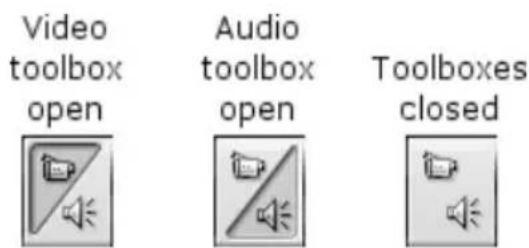
Select the toolbox you want to open by moving your cursor over the icons. The individual buttons highlight, indicating which toolbox will open when you click. The Album is then replaced by the toolbox display, which contains two main areas:
- Tool selector buttons in a panel on the left. Clicking one of these opens the corresponding tool.
- The currently selected tool on the right. Double-clicking a clip in the Movie Window also displays the corresponding tool (except for title and still image clips, which are opened in the Title Editor on double-click).
![Name: Photo Shoot [5:19:18] Duration: 0.00:12.29 Tool-selector buttons 0:00:10 29 [ 0:00:00.00 ] 0:00:11 13 ] Current tool](/content/2026/06/1238913/images/b12f87aa18a43bd8a3a239ad6af356994c02dd6cfb4c22f1adcb0e937129260b.jpg)
All the tool-selector buttons, except the top one in each set, open specialized tools. The top button in both toolboxes is the Clip properties tool. It displays a tool appropriate for trimming and otherwise editing the type of clip currently selected in the Movie Window.
The Title Editor
One powerful tool that is not directly accessed through the toolboxes is the Title Editor, in which you can combine text, images and other graphic resources to make titles and disc menus for your Studio productions. Access the Title Editor through the Title and Menu tools, or with the Go to Title/Menu Editor command from the right-button context menu in the Movie Window.
The Video toolbox
The six tools in this toolbox modify or create visual clip types, including video clips, titles, still images and disc menus.
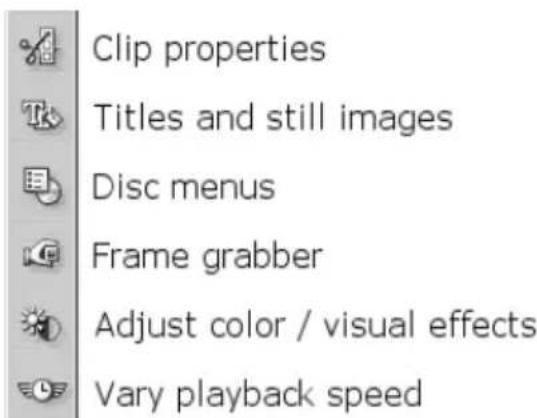
Clip properties: The Clip properties tool adjusts the start and end times of any type of clip. This is also called trimming. The tool also allows you to type in descriptive names. Different types of clip present a different interface in this tool. In this example, we are trimming a video clip.
![Name: A Day at the Zoo [1:43.18] Duration: 0:00:12.29 0:00:04.26 0:00:00.00 0:00:12.26](/content/2026/06/1238913/images/cf949111540cd5cc880338c7043fddd6ab6844c188e67c6d3cc99670ac6b556a.jpg)
Titles and graphics: This tool lets you edit the name and duration of titles and other still images. The Edit Title button takes you to the Title Editor for changing the visual appearance of the image.

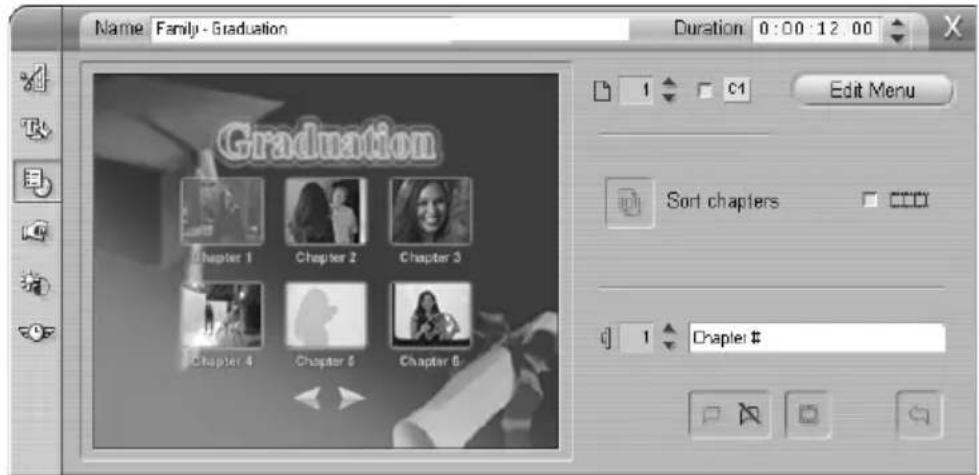
Disc menus: The Disc menus tool has a number of controls for editing the links between the buttons on disc menu and entry points into your movie called chapter marks, which are represented on the Menu track in the Movie Window. The Edit Menu button opens the Title Editor, where you can modify the visual appearance of a menu.
Grab frames: This tool takes a snapshot of a single frame from your movie or from your current video source. You can use it in your movie, or save it for use in other applications. As with Capture mode itself, this tool presents a different interface if your current capture source is DV (pictured here) than if you are using a non-DV source.
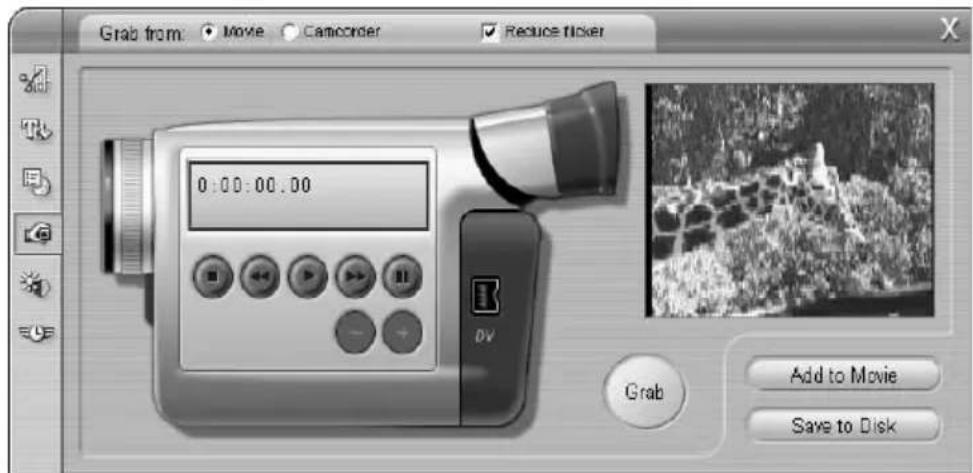
Adjust colour/Add visual effect: This tool adjusts the visual components of the selected clip: Hue, Saturation, Brightness and Contrast. It can also apply any of four filters to the selected clip: Blur, Emboss, Mosaic and Posterize. The Default button restores the clip to its original state.

Vary playback speed: The left-hand slider in this tool window allows you to vary the playback speed of a clip, from five times normal speed down to one-tenth normal speed. The right-hand slider allows you to repeat frames in a selected clip from zero (no strobe effect) to fifty repeated frames. The clip length remains the same: Studio replaces frames from the clip with the repeated frames.

The Audio Toolbox
The five tools in this set operate on or create audio clips – “original” audio, voice-overs, sound effects, CD tracks and SmartSound background music.

Clip properties: The Clip properties tool adjusts the start and end times of any type of clip. This is also called trimming. The tool also allows you to type in descriptive names. Different types of clip present a different interface in this tool. In this example, we are trimming a sound effect.
![Name: Carburetor Duration: 0:00:35.06 0.00:35.14 [ 0:00:09.12 ] [ 0:00:44.17 ]](/content/2026/06/1238913/images/7f98538a5f695eaef22a6bd0c3b67ed265f39fc8d1666461b913ccee25a26002.jpg)
Change volume: This tool gives you a master audio level control for all three audio tracks: “original” audio (audio captured with video), sound effects and music. It also enables you to mute any or all of the tracks, and add real-time volume fades to any of the tracks.
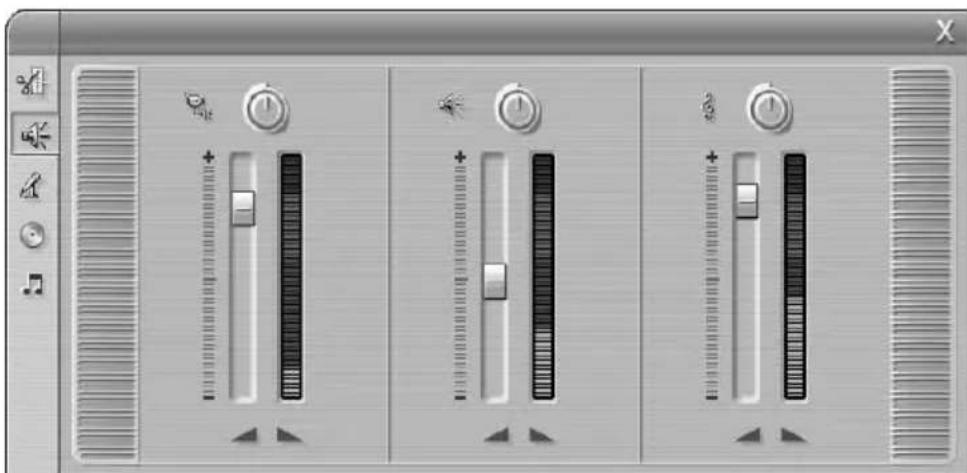
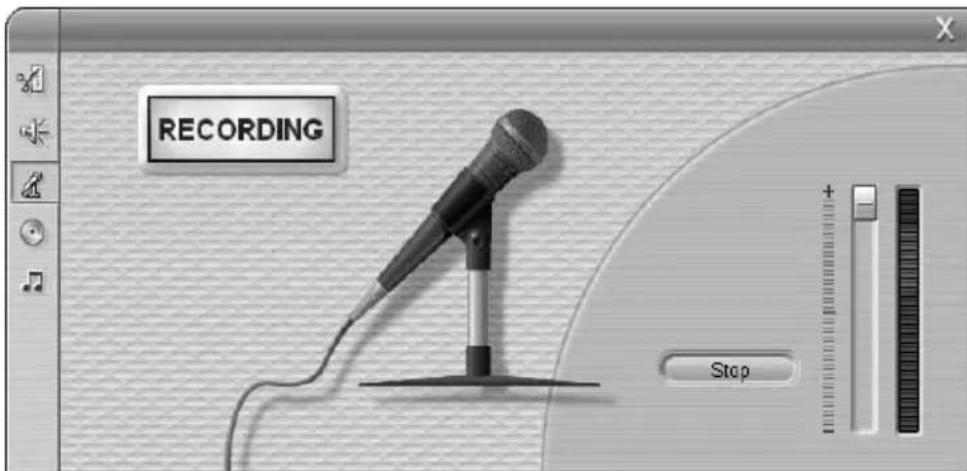
Record voice-overs: To record a voice-over, simply click the Record button and begin speaking into your microphone.
Add Audio CD: Use this tool to add tracks, in whole or in part, from an audio CD.
![Name: Track 1 [Classical hits] Duration: 0:02:54.25 CD Title: Classical Mayhem Track: Track 1 Add to Movie 0.00:00.00 [ 0:00:00.00 0:02:54.24 ]](/content/2026/06/1238913/images/ffef974e16da129e949b80ae3c644d087236c7518bc19c72e00d576bdd1a8b64.jpg)
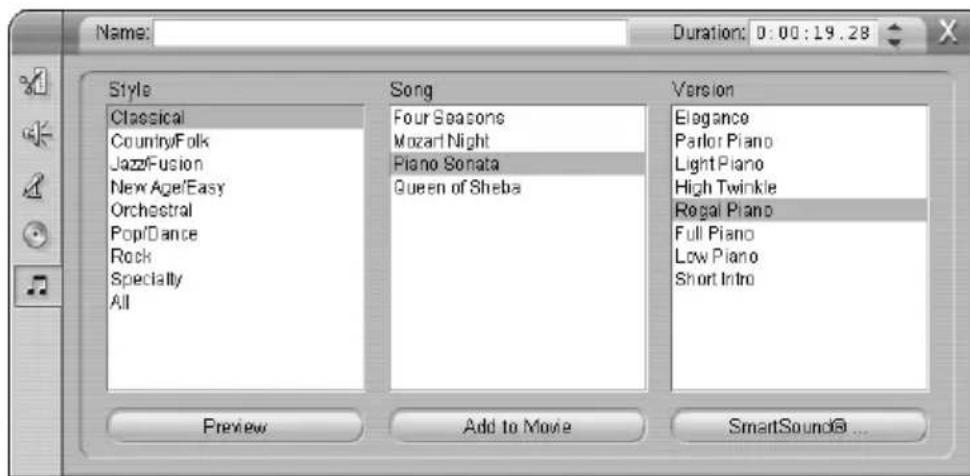
Automatic background music: This tool lets you add background music using SmartSound, Studio's powerful background music generator. Just choose a style, song, and version and Studio will create a musical soundtrack that matches the duration of your movie.
MAKE MOVIE MODE
Make Movie mode allows you to output your movies to several media types and in a variety of formats. During output, the Timeline scrubber advances across the Movie Window, and the Player shows the material currently being recorded.
Making videotapes

Just as the Capture screen layout depends on your choice of capture hardware, the Make Movie screen display also reflects the hardware available on your system. Making a videotape, for example, is possible only with a Pinnacle Studio DV or other IEEE-1394 board, a Pinnacle Studio DC10plus, or a Pinnacle Studio AV.
Making digital movies

You can also make digital movies (MPEG1, MPEG2 or AVI) or streaming video (RealVideo or Windows Media files) to email to your friends or to put on a web page. Select the output format using the buttons located just to the left of the Status Window. To the right of the Status Window is the Diskometer, which shows both the amount of space available on your output drive and the amount required to store the digital movie file.
Making discs

You can also output your movies in VCD, S-VCD and DVD formats directly to your disc-burning hardware for playback in a compatible device. The make disc interface features a Diskometer-style readout showing the amount of space your movie will use on the target disc type at your chosen quality settings.
With DVD discs, you have the additional option of creating an “image” of the disc in a specified folder on your hard drive. Studio can burn the image onto an actual disc when you are ready. This is helpful for testing your disc using a software DVD player, and for making multiple copies of your DVD.
Capture is the process of importing video from a video source to your PC's hard drive, where it can be used in the creation of your edited movie.
Studio is able to capture from both digital (DV, MicroMV) and analogue video sources (see “Capture Hardware” below for details). The captured video is stored in a file on your hard drive – the capture file – where it can be used for creating your finished movie. Capture files can be opened in the Album during Edit mode. The first step in capturing is to switch into Studio’s Capture mode by clicking the Capture button at the top of the screen.

For an introduction to the Capture mode interface, see “Capture mode” on page 3.
Capture hardware
Studio can capture analogue and digital video from the following sources, depending on your hardware:
- A DV, MicroMV or Digital8 camcorder connected to a Pinnacle Studio DV, a Pinnacle Studio Deluxe AVDV, or other 1394 port.
-
A camcorder or VCR connected to a Pinnacle Studio DC10plus, Pinnacle Studio AV, or Pinnacle Studio Deluxe AVDV.
-
A camcorder or VCR connected to a Pinnacle Linx USB Video Capture Cable or other DirectShow-compatible video capture device.
- A camcorder or VCR connected to a Pinnacle PCTV or other TV-tuner PCI board.
• USB video cameras or webcams.
To select a capture device:
- Click the Setup > Capture Source menu.
The Capture source options panel appears.
- Select the devices you want to use from the Video and Audio drop-down lists in the Capture devices area, and click OK.
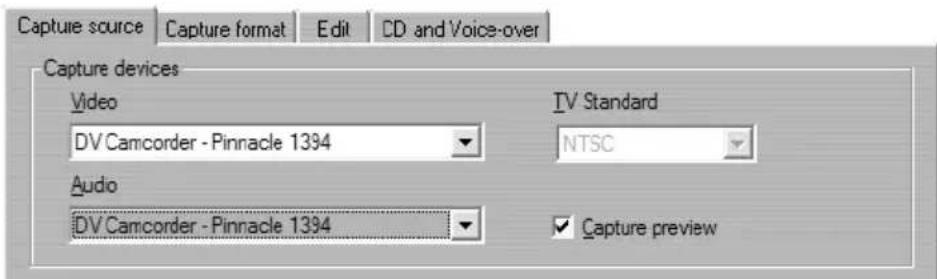
See “Capture source settings” on page 163 for detailed information about the Capture source options panel.
The capture process
Here is a step-by-step outline of the capture process. Further information relating to some of the steps can be found later on in this chapter. Also see Appendix A: Setup Options for detailed descriptions of the Capture source and Capture format option panels.
To capture video:
- Verify that your equipment is properly connected.
For a DV or MicroMV capture, your camcorder or VCR must be connected to your PC's 1394 port.
For an analogue capture, connect the source video to your hardware's Composite or S-Video input. Connect your source audio to the audio input of your capture device, if it has one; otherwise, connect the audio to the audio input of your PC sound board.
-
Click the Capture button at the top of the screen if you are not already in Capture mode. The Capture mode interface is displayed (see Chapter 1: The Studio Interface).
-
Click the desired capture setting on the Diskometer. If you need to make detailed adjustments, click the Diskometer's Settings button, which opens the Capture format options panel (see Appendix A: Setup Options).
For a DV capture, keep in mind that full-quality capture uses much more disk space than does preview quality. If you are planning to output your finished movie to disc (VCD, S-VCD or DVD), you may choose to make your full-quality capture in MPEG rather than DV format. (See “DV Capture” on page 32 for further explanation of these options.)
For an analogue capture, keep in mind that the higher the quality setting, the larger will be your captured video file.
- Click the Start Capture button on the Diskometer.
The Capture Video dialog box is displayed.
- Type in a name for your source video. You can optionally also enter a limiting duration for the capture.
(If you are making multiple DV captures in preview quality from the same tape, using the file naming convention suggested under “DV Capture” on page 32 will help streamline the Make Movie process later on).
Note: Windows 98 and Millennium have file size limitations. For FAT16 disks the limit is 2 GB. For FAT32 disks the limit is 4GB. Studio estimates the duration of video of the desired quality that the largest allowable file can accommodate, and displays this as the maximum duration for the capture.
-
If you are capturing from an analogue camcorder or VCR, start playback now. This step is unnecessary with a digital-source capture, as Studio will control the playback equipment automatically.
-
Click the Start Capture button in the Capture Video dialog box. The button caption changes to Stop Capture.
Capture begins. The Player displays the incoming digitized video that is being saved to your hard drive (unless you have unchecked Capture preview on the Capture source options panel).
During capture, Studio performs automatic scene detection based on the current setting in the Capture source options panel.
- Click the Stop Capture button to end capture at a point you select.
Studio automatically stops capturing if your hard drive fills up or the maximum duration you entered is reached.
Automatic scene detection
Scene detection is a key feature of Studio. As capturing proceeds, Studio automatically detects natural breaks in the video and divides it up into scenes. A new icon is created in the Video Scenes section of the Album for each scene detected.
You can configure scene detection using the options under Scene detection during video capture on the Capture source options panel (Setup > Capture Source). Not all scene detection options are available with every type of video source. Options that do not apply to your set-up are disabled in the dialog.
The four options are:
- Automatic based on shooting time and date: This option is available only when you are capturing from a DV source. Studio monitors the time stamp data on the tape during capture, and starts a new scene whenever a discontinuity is found.
- Automatic based on video content: Studio detects changes in the video content, and creates a new scene wherever there is a large change in the images. This feature might not work well if the lighting is not stable. For example, a video shot in a nightclub with a strobe light would produce a scene each time the strobe light flashed.
- Create new scene every X seconds: Studio manually creates a new scene at an interval you choose. This is a useful way to break up scenes in a tape that contains long continuous shots.
- Manual: press [space bar] to create a new scene: Select this choice if you want to watch the entire capture process and decide for yourself where scene breaks should occur.
DV, MicroMV and analogue captures
The controls and options displayed in Capture mode depend on the capture hardware you select. The remainder of this chapter is divided into two sections as follows:
- If you are using a DV camcorder or VCR connected to a 1394 port, please refer to “DV capture” immediately below.
- If you are using an analogue device with either a composite video or S-Video input to your hardware, please refer to “Analogue capture” on page 37.
If you are using a MicroMV camcorder connected to a 1394 port, the Capture mode interface is identical to that for DV equipment. However, most DV capture options and features are not available with MicroMV captures, including preview-quality capture, and the choice of DV encoding. Captures from MicroMV are always MPEG-2.
DV CAPTURE
This section covers capture from a DV source deck (camcorder or VCR) and a 1394 port. If you are instead capturing from analogue hardware, please see “Analogue capture” on page 37. This topic covers capture from a DV source deck (camcorder or VCR) and a 1394 port. Click here if you are capturing from analogue hardware.
When capturing in DV format from a DV device, Studio offers two choices for capture settings: preview quality (SmartCapture) and full quality. At full quality, two types of encoding are available: DV and MPEG.

flowchart
graph LR
    A["DV video source"] --> B["Full-quality capture (DV or MPEG encoding)"]
    A --> C["Preview-quality capture (SmartCapture - DV only)"]
    B --> D["OR"]
    C --> E["OR"]
SmartCapture: Preview-quality capture
SmartCapture is a unique feature of Studio. It allows you to capture from DV videotape in a reduced quality file using minimal hard drive space. With SmartCapture, you can capture an entire tape onto your hard drive, instead of picking and choosing which video clips to capture. You can use this “preview-quality” video to build and preview your movie.
When you are ready to make your finished movie, Studio will recapture the scenes included in your movie at full quality, automatically controlling your source deck to locate and capture the desired footage. The reduced quality of the preview video therefore has no impact on the quality of your finished movie. Scenes captured at preview quality are denoted in the Album by a dotted border.
Continuous timecode
For SmartCapture to work well, your digital tape must have continuous DV timecode. Studio cannot capture through breaks in the timecode. If your camcorder has a timecode-striping feature, stripe your tape first. If it does not, there are two ways to ensure that your tape has continuous timecode.
-
Put a tape into the camcorder, put the lens cap on, and press record. This will record black through the entire tape, creating a continuous timecode source track.
-
If you don't have time to record black throughout your entire tape, make sure to overlap your shots if you start and stop the camcorder during shooting. Before you begin a new shot, rewind a few frames so that there will not be a blank spot between shots. SmartCapture can still be used with camcorders that do not have continuous timecode throughout, but a separate capture file must be created for each segment of the tape. SmartCapture will stop capturing when a break in timecode is detected. To continue capturing, cue the tape to the start of the next video segment and click Start Capture again.
Naming convention
If you capture multiple segments from the same tape, we strongly recommend the following naming convention: For each capture file that originates from the same tape, use a name that starts with the same word.
For example, if you have a tape that contains three different activities from your vacation, you might call the captures “vacation-picnic”, “vacation-sailing” and “vacation-soccer”. Following this convention will greatly reduce the number of times you will have to switch tapes during the Make Tape process.
Analogue tapes and Digital8 camcorders
SmartCapture requires DV timecode. Analogue tapes (Hi8 and 8mm) do not have DV timecode even when played in a Digital8 camcorder. As a result, it is not possible to use SmartCapture with analogue tapes played in a Digital8 camcorder. To use your analogue tapes with Studio, either capture them at full quality, or copy them to DV tape.
Full-quality capture
You have two choices for the way the video data is encoded and compressed in full-quality captures. For most purposes, DV format is the logical choice, but if you are planning to output your finished movie to disc (VCD, S-VCD or DVD), MPEG format may be preferred.
Studio can capture DV in real time, even at full quality. MPEG captures typically are slower. Exactly how much slower depends on the quality settings you choose and on the speed of your machine. An MPEG movie requires much less disk space than the equivalent full-quality DV movie (although with SmartCapture this is not generally a concern).
DV
DV is a high-resolution format with correspondingly high storage requirements.
Your camcorder compresses and stores video on the tape at 3.6 MB/s, which is broadcast-quality video. With full-quality capture, the video data is transferred directly from the camcorder tape to your PC hard drive with no changes or additional compression. Due to the high quality, capturing at this setting does take up a lot of disk space, so you may want to pick and choose small segments to capture instead of the entire tape.
You can calculate the amount of disk space you will need by multiplying the length of your video in seconds by 3.6 MB/s. For example:
1 hour of video = 3600 seconds (60 x 60)
3600 seconds x 3.6 MB/s = 12,960 MB
Hence 1 hour of video uses 12.9 GB of storage.
To capture at full quality, your hard drive must be capable of sustained reading and writing at 4 MB/s. All SCSI and most UDMA drives are capable of this. The first time you capture at full quality, Studio will test your drive to make sure it is fast enough.
MPEG
DVD and S-VCD discs both use files in MPEG-2 format, an extension of the MPEG-1 format used for VCDs. MPEGs intended for use on the Internet will be at lower resolutions and in MPEG-1 format.
The Capture format panel (Setup > Capture Format) includes a variety of options to control the quality of MPEG captures.
Another option lets you adapt the way MPEG encoding is carried out to the speed of your computer.
- The first option, Use default encoding mode, leaves it up to Studio to decide which of the other options to apply, based on its estimate of what is likely to work well on your machine.
- The best choice for very fast machines is Encode in real time, in which capture and encoding are carried out simultaneously.
- If your machine cannot keep up with that demanding task (resulting in lost frames during capture), try Encode in near real time, in which the encoding runs as a background task while capture proceeds. This way the encoding will complete faster than if it were not started until after the capture.
- Finally, slow machines will use the fallback mode, Encode after capturing, which obviously takes longest but ensures that capture will be as near to error-free as possible.
Refer to “Capture format settings” on page 166 for detailed information about MPEG quality options.
Audio and video levels
With DV and MicroMV captures, you are using audio and video that have been encoded in the DV file format during recording, right in the camera. When you transfer the footage through an IEEE-1394 port to your computer, the data remains in the compressed digital format throughout, so you cannot adjust the audio or video levels during the capture. This is in contrast to analogue captures, where the audio and video can be adjusted as capturing takes place.
With digital captures, you defer any needed adjustment of audio and video levels until Edit mode. The Adjust colour / Add visual effect tool in Edit mode provides sliders (Hue, Saturation, Brightness and Contrast) to adjust video levels, while the Volume tool allows you to adjust audio levels. These tools allow you to adjust individual clips rather than making global adjustments on all the video in a capture file.
ANALOGUE CAPTURE
The topics in this section relate to capture with analogue equipment, such as:
- A camcorder or VCR connected to a Pinnacle Studio DC10plus, Pinnacle Studio AV, or Pinnacle Studio Deluxe AVDV.
- A camcorder or VCR connected to a Pinnacle Linx USB Video Capture Cable or other DirectShow-compatible capture device.
- A camcorder or VCR connected to a Pinnacle PCTV or other TV Tuner PCI board.
• A USB video camera or web-cam.
- If you are using a DV or MicroMV camcorder connected to your computer via a 1394 port, please refer instead to “DV capture” on page 32.
Capture quality options
Studio offers three preset quality choices – Good, Better and Best – and a Custom option. The video capture settings for each of the presets, including picture size, frame rate, compression characteristics and quality, depend on the capabilities of the capture hardware being used. Keep in mind that the higher the quality, the more disk space is required. Choose the Custom preset to configure your own video capture settings. For more information on video capture settings, see Appendix A: Setup Options.
Audio and video levels
Studio provides slide-out panels for controlling video and audio levels during capture. This feature is especially useful for compensating for differences in video captured from multiple sources.
Although you can also adjust these levels with the Toolbox controls in Edit mode, setting them correctly for capture can save you from having to carry out time-consuming scene-by-scene colour correction.
Setting your audio options correctly as you capture will help in achieving consistent volume levels and quality.
Particular capture devices may offer fewer options than are shown and discussed here. For instance, with hardware that doesn't support audio captures in stereo, a balance control will not appear on the audio panel.
Video
Choose the type of video you are going to digitize by clicking the appropriate Source button (Composite or S-Video). The five level sliders allow you to control the brightness (video gain), contrast (black level), sharpness, hue and colour saturation of the incoming video.

Audio
Use the Audio capture buttons to control whether Studio should capture the audio along with the video. Select the Off button if your source is video only. The sliders on the tray let you control the input level and stereo balance of the incoming audio.

Chapter 3: The Album
The source materials you need for making a movie are stored in the various sections of the Album, each accessed by its own tab as follows:

Video scenes: Your captured video footage. Each scene in the capture video file is represented by a bbnail frame.

Transitions: Fades, dissolves, slides and other transitions, including the elaborate Hollywood FX itions.

Titles: Editable titles to use as overlays or as full-screen graphics. Studio supports scrolls, crawls, many typographical effects.

Still images: Photographs, bitmaps and grabbed video frames. These can be used as overlays or as screen images.

Sound effects: A collection of wav and mp3 files, including a full range of supplied sound effects.

Disc menus: A collection of chapter menus to use in DVD, VCD and SVCD authoring.
Each section of the Album contains as many pages as are necessary to hold the icons representing the items in that section. At the top right of each Album page,
Studio shows the current page number and the total page count for the section. Click the arrows to move forward or back through the pages.
Page 2 of 3

All types of Album content can be previewed simply by clicking on the icons. During preview, most items display a small progress bar along the bottom of the icon (the exceptions are transitions and sound effects).
This chapter introduces each of the Album sections in turn, beginning with a detailed discussion of the all-important Video Scenes section. Actually using the contents of the Album to create your edited movie will be the subject of Chapters 4 through 9.
Source folders for Album content
The contents of the Video Scenes section come from a captured video file, while the Transitions section is filled from resource files associated with the Studio program.
The icons in each of the other four Album sections are different: they represent the files contained in a particular disk folder. Each of these sections – Titles, Images, Sound effects and Disc menus – has a default folder assigned to it, but you can select a different folder if desired. The source folder for the section’s content is listed at the top of the left Album page, next to a small Folder button 📋. To change the source of the current section, click this button, browse to another folder on your system, and select any file. (The file you select will be highlighted in the repopulated Album section, but is not otherwise affected.)
THE VIDEO SCENES SECTION
This is where the editing process begins – in the Video Scenes section of the Album with your captured raw footage. In a typical production, your first step will probably be to drag selected scenes from the Album down into the Movie Window (see Chapter 4: Video Clips).
In the Album, scenes are displayed in the order in which they were captured. This order cannot be changed, since it is determined by the underlying capture file, but scenes can be assembled in the movie in any order you choose. Similarly, while you can't trim (edit) scenes in the Album, in your movie you can use as much or as little of a scene as desired.
Interface features
The Video Scenes section offers several special interface features:
- The icons of scenes captured in preview quality are drawn with a white dotted outline in the Album. Scenes captured at full quality do not show this outline.
- Scenes that have been added to the Movie Window are distinguished in the Album by a green checkmark. The checkmark remains as long as any clip in the Movie Window belongs to that scene.
- To see how a particular Album scene is used in your current project, use the Album > Find Scene in Project menu command. Studio highlights any clips in the Movie Window based on the selected scene (or scenes). The same trick also works in reverse, using
the Find Scene in Album command on the right-click menu for Movie Window clips.
- Nearly all menu commands that apply to scenes are available both on the main Album menu, and on the pop-up menu that appears when you right-click a selected scene. When this documentation calls for a menu command like Album > Combine Scenes, remember that an equivalent command is usually available on the pop-up “context” menu as well.
Summary of operations
Because of its central role, the Video Scenes section provides an extensive set of operations. These are covered below in the following topics:
- Opening a captured video file
- Viewing captured video
- Displaying scene start and length
- Selecting scenes
• Combining and subdividing scenes - Redetecting scenes
- Scene comments
Opening a captured video file
Captured video files are stored on your hard drive. They are selected and opened with standard Windows file navigation tools accessed from the top of the left Album page.
To select and open a captured video:
-
Open the Video Scenes section of the Album, if it is not open already, by clicking on the uppermost tab. The Album flips to the Video Scenes section and displays file navigation tools at the upper left.
-
Select a video from the dropdown list or press the Folder button ☐ to navigate to a different folder.
In the standard file open dialog that appears when you click the Folder button, locate the folder you want and select a captured video file (avi or mpg). That file becomes the current capture file, and other capture files in the selected folder can now be accessed via the dropdown list.
The Album is now populated with the detected scenes from your captured video. Each scene is denoted by a thumbnail frame – an icon of the scene’s first frame.
It may be that the first frame doesn't make a good icon for the scene, so Studio lets you pick a different one if desired.
To change thumbnails in the Album:
- Select the scene to be changed.
- Use the Player to find the frame you wish to be the thumbnail.
- Click the Album > Set Thumbnail menu.
Viewing captured video
Scenes in your captured video can be reviewed at any time during the editing process.
To view captured video starting at a selected scene:
- Click on the scene's icon in the Album.
The Player displays the first frame of the selected scene.
- Click the Play button in the Player.
The Player now plays the selected scenes and any subsequent ones. Progress is indicated in three ways.
- The scenes highlight successively as they are played.
- The Player scrubber shows the current point of play relative to the entire movie.
- Like most Album icons, scene icons display a progress bar during preview. As you continue to view your captured video, the progress bar moves from scene to scene.

Displaying scene start and length
natural_image
Black-and-white photo of a person holding an object, possibly a device or tool, with no visible text or symbols.Start=14.16 Duration=15.10
As you move the mouse pointer over scenes, the pointer changes to a grabber symbol. If you pause momentarily on the scene, the start time and length is displayed. If you leave the grabber on the scene, the display persists for several seconds.
Note that the start time is the timecode from the original source video in minutes, seconds, and frames.
Selecting scenes
Studio offers a variety of ways to select scenes in the Album. Selection techniques follow standard Windows conventions. A highlighted border indicates selected scenes. You can use combinations of these techniques:
- Choose the Edit > Select All menu or press Ctrl+A to select all the scenes in the Album, including those on other pages.
- Shift-click to select a range of contiguous scenes.
- Ctrl-click to make discontinuous selections.
- Starting with the mouse pointer over the Album page but not over a scene icon, click-hold-drag to "marquee" an area, selecting all the scenes that intersect the area.
- Use the arrow keys to navigate the Album grid. Use the arrows in combination with Shift to select scenes as you go.
Combining and subdividing scenes
After previewing your scenes, you might want to combine or subdivide some into larger or smaller units. Both techniques are easy, and are similar to each other.
To combine scenes in the Album:
- Select the scenes to be combined.
- Select the Album > Combine Scenes menu.
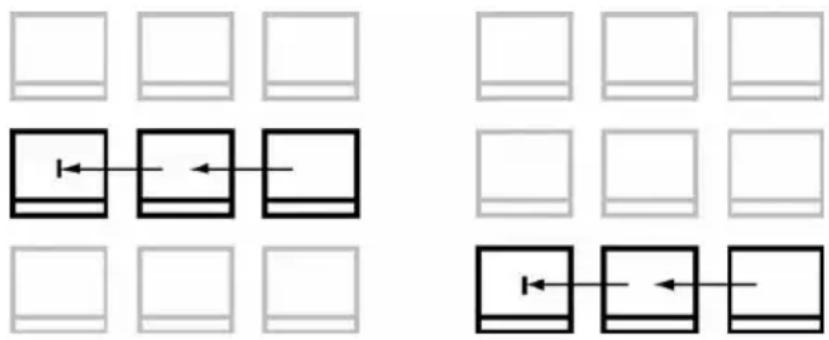
The selected scenes are combined into one. Only selected adjacent scenes can be combined. Furthermore, they are joined in the order in which they appear in the album, regardless of the order in which they were selected. (Album order proceeds across rows and then down the page.) To revert, press Ctrl+Z, or click the Undo button.
Non-adjacent scene is not combined

flowchart
graph TD
    A[" "] --> B[" "]
    C[" "] --> D[" "]
    E[" "] --> F[" "]
    G[" "] --> H[" "]
    I[" "] --> J[" "]
    K[" "] --> L[" "]
    M[" "] --> N[" "]
    O[" "] --> P[" "]
    Q[" "] --> R[" "]
    S[" "] --> T[" "]
    U[" "] --> V[" "]
    W[" "] --> X[" "]
    Y[" "] --> Z[" "]
    AA[" "] --> AB[" "]
    AC[" "] --> AD[" "]
    AE[" "] --> AF[" "]
    AG[" "] --> AH[" "]
    AI[" "] --> AJ[" "]
    AK[" "] --> AL[" "]
    AM[" "] --> AN[" "]
    AO[" "] --> AP[" "]
    AQ[" "] --> AR[" "]
    AS[" "] --> AT[" "]
    AU[" "] --> AV[" "]
    AW[" "] --> AX[" "]
    AY[" "] --> AZ[" "]
    BA[" "] --> BB[" "]
    BC[" "] --> BD[" "]
    BE[" "] --> BF[" "]
    BG[" "] --> BH[" "]
    BI[" "] --> BJ[" "]
    BK[" "] --> BL[" "]
    BM[" "] --> BN[" "]
    BO[" "] --> BP[" "]
    BQ[" "] --> BR[" "]
    BS[" "] --> BT[" "]
    BU[" "] --> BV[" "]
    BW[" "] --> BX[" "]
    BY[" "] --> BZ[" "]
    CA[" "] --> CB[" "]
    CC[" "] --> CD[" "]
    CE[" "] --> CF[" "]
    CG[" "] --> DH[" "]
    DI[" "] --> DJ[" "]
    DK[" "] --> DL[" "]
    DM[" "] --> DJ
    DB[" "] --> DC[" "]
    DD[" "] --> DV[" "]
    DX[" "] --> DW[" "]
    DXB[" "] --> DXD[" "]
    DXC[" "] --> DXC
    DXD[" "] --> DXD
    DXC --> DXC
    DXD --> DXC
    DXC --> DXC
    DXC --> DXC
    DXC --> DXC
    DXC --> DXC
    DXC --> DXC
    DXC --> DXC
    DXC --> DXC
    DXC --> DXC
    DXC --> DXC
    DXC --> DXC
    DXC --> DXC
    DXC --> DXC
    DXC --> DXC
    DXC --> DXC
    DXC --> DW
    DXC --> DW
    DXC --> DW
    DXC --> DW
    DXC --> DW
    DXC --> DW
    DXC --> DW
    DXC --> DW
    DXC --> DW
    DXC --> DW
    DXC --> DW
    DXC --> DW
    DXC --> DW
    DXC --> DW
    DXC --> DW
    DXC --> DW
    DXC --> DW
    DXA[" "] --> BZ
    BZ --> DZ
    DZ --> EZ
    EZ --> FZ
    FZ --> GZ
    GZ --> HZ
    HZ --> IZ
    IZ --> JZ
    JZ --> KZ
    KZ --> LZ
    LZ --> MZ
    MZ --> NZ
    NZ --> OZ
    OZ --> PZ
    PZ --> QZ
    QZ --> RZ
    RZ --> SZ
    SZ --> TZ
    TZ --> UZ
    UZ --> VZ
    VZ --> WZ
    WZ --> XZ
    XZ --> YZ
    YZ --> ZZ
    ZZ --> AAZ
    AAZ --> ABZ
    ABZ --> ACZ
    ACZ --> ADZ
    ADZ --> AEZ
    AEZ --> AFZ
    AFZ --> AGZ
    AGZ --> AHZ
    AHZ --> AIZ
    AIZ --> AJZ
    AJZ --> AKZ
    AKZ --> ALZ
    ALZ --> AMZ
    AMZ --> ANZ
    ANZ --> AOZ
    AOZ --> APZ
    APZ --> AQZ
    AQZ --> ARZ
    ARZ --> ASZ
If the scenes you selected were not all contiguous, each set of adjacent scenes is combined, but the different sets are not combined with each other.
flowchart
graph TD
    A[" "] --> B[" "]
    C[" "] --> D[" "]
    E[" "] --> F[" "]
    G[" "] --> H[" "]
    I[" "] --> J[" "]
    K[" "] --> L[" "]
    M[" "] --> N[" "]
    O[" "] --> P[" "]
    Q[" "] --> R[" "]
    S[" "] --> T[" "]
    U[" "] --> V[" "]
    W[" "] --> X[" "]
    Y[" "] --> Z[" "]
To subdivide scenes in the Album:
- Select the scenes to be subdivided.
-
Select the Album > Subdivide Scenes menu.
The Subdivide Selected Scenes dialog box appears. -
Choose the length of the subdivided scenes by typing in a value.
The smallest allowed subdivision is one second. Any video remaining after subdivision is added to the last scene.
- Click OK.
A progress bar appears, the scene is subdivided, and new scenes are added to the Album. To revert, press Ctrl+Z, or click the Undo button.
Note: You can subdivide these scenes still further, down to the minimum duration of one second.
Redetecting scenes
If you combine or subdivide scenes and later decide that you'd prefer to restore them to their original state, you may redetect any scene or selection of scenes. The detection results are identical to those obtained after capturing, provided the same scene detection technique is used.
If you have subdivided scenes, you must first recombine them. Even if you cannot exactly recall the initial state and so recombine more than is necessary, the detection process will restore the original scene sequence.
To redetect scenes:
-
If you need to recombine any scenes, first select the subdivided scenes. then click the Album > Combine Scenes menu.
-
Select the scenes you wish to redetect.
-
Select one of the menu commands Album > Detect Scenes by Video Content or Album > Detect Scenes by Shooting Time and Date.
A progress window appears as Studio detects the scenes and repopulates the Album.
Scene comments
The default view for the Video Scenes section is the Icon view, in which each scene is represented by a thumbnail frame icon.
You can give custom captions to scenes as they appear in the Album, then sort and display scenes by these captions, which you can use as either names for the scenes or comments describing them.
Click the Album > Details View menu to display the caption for each scene along with its icon. The default caption is generated from the scene's sequence number and duration (e.g. “Scene 3, 7:21”).
Left-click the scene: an in-place text field appears, allowing you to enter the custom name or comment.
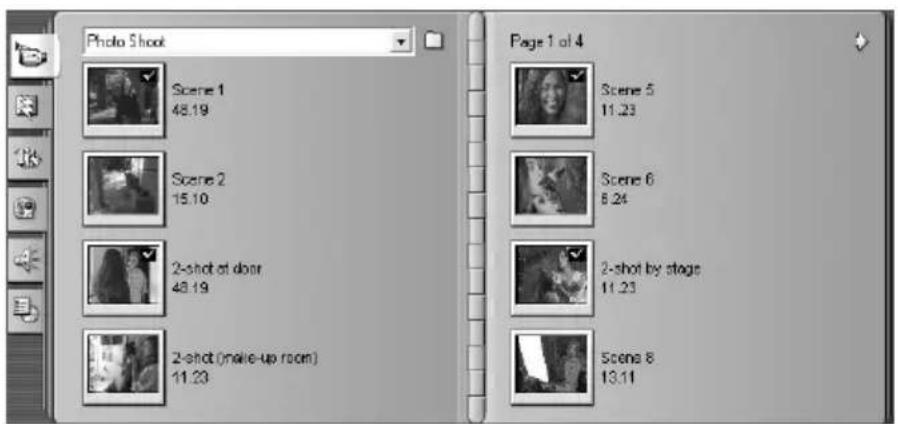
A related option lets you select Album scenes by comment. Use Album > Select By Name to open this dialog box:

Enter a keyword into the text field and click OK to highlight all Album scenes whose caption contains the keyword. The default captions are not searched – only the ones you have customized. In this example, the keyword was “2-shot”:

THE TRANSITIONS SECTION
The Transitions section of the Album provides a large set of drag-and-drop clip transitions. To keep things manageable, the transitions are divided into groups. Use the drop-down list to select which group of transitions you want to view. All the transitions in the group are displayed, using as many Album pages as necessary.
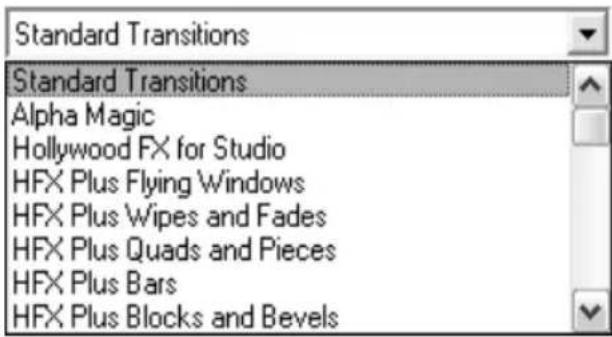
Studio's transitions collection includes 74 standard transitions, 52 Alpha Magic transitions, 16 Hollywood FX 3-D transitions and more than 100 (watermarked) Hollywood FX 3-D transitions in two categories (“Pro” and “Plus”).
To learn about transitions, and how you can use them in your movies, see Chapter 5: Transitions.
Displaying the transition name
As you move the cursor over the transition icons in the Album, the cursor changes to a grabber symbol (indicating that the transition can be dragged from the

Album to the Movie Window). If you pause momentarily on the icon, the name of the transition is displayed. The display persists for several seconds or until your mouse pointer moves off the transition.
Previewing transition effects
When you click on a transition icon, the Player demonstrates the transition using the convention that “A” represents the current clip and “B” the new clip. The demonstration cycles for as long as the icon remains selected.
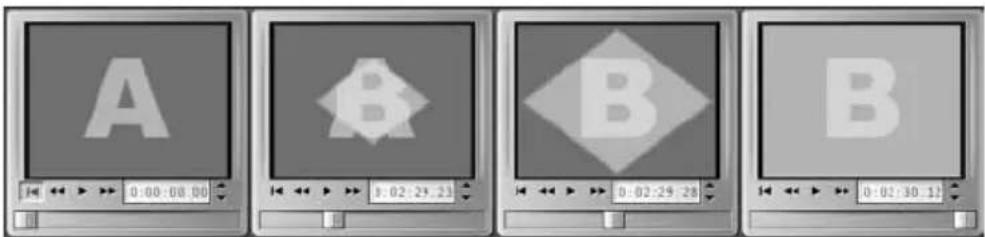
To see a detailed view, stop the Player and use the jog buttons (Frame reverse and Frame forward) to step through the effect one frame at a time.
THE TITLES SECTION
This section of the Album contains a collection of text titles in a variety of styles. They can be used in your movie as either full-screen or overlay titles. The difference is that in an overlay title the solid black background you see in the Album is replaced by other material – usually a video clip.
With Studio's powerful built-in Title Editor, you can readily create your own titles when needed. However, you may find it easier to start with one of the 36 supplied titles and customize it in the Title Editor.
The Titles folder: The icons in the Titles section represent files in the folder named at the top of each left-hand page in the section. Titles that you have created or modified can be added to the section by saving them into this folder from the Title Editor. You can also select a different folder to be the source of the section (see “Source folders for Album content” on page 42).
For information on using titles in your movie, see Chapter 6: Still Images.
THE STILL IMAGES SECTION
This section of the Album displays thumbnail icons of image files, which may include grabbed video frames, photographs and bitmapped drawings. Most standard Windows image formats are supported.
The Still Images folder: The icons in the Still Images section represent files in the folder named at the top of each left-hand page in the section. Images can be added to the section by storing them in this folder. For instance, you can save grabbed video frames into the folder from the Frame Grabber tool, or save a title from the Title Editor. You can also select a different folder to be the source of the section (see “Source folders for Album content” on page 42).
For information on using still images in your movie, see Chapter 6: Still Images.
THE SOUND EFFECTS SECTION
A wide range of sound effects is supplied with Studio. These wav files are installed into a number of folders, covering categories such as “animals”, “bells” and “cartoons”.
This section of the Album displays the sound files contained in one disk folder, named at the top of each left-hand page in the section. You can display the sounds in a different folder – not necessarily one of those installed by Studio – by selecting a different folder to be the source for the section (see “Source folders for Album content” on page 42).
Besides wav (Windows “wave”) files, music files in mp3 format and avi animation files are also displayed in this section of the Album, and may be drawn upon for supplemental audio in your productions.
Any sound clip can be previewed simply by clicking its name or icon.
For information on using sounds in your movie, see Chapter 8: Sound Effects and Music.
THE DISC MENUS SECTION
This section of the Album contains a collection of artist-designed menus for VCD, S-VCD and DVD authoring. Menus in Studio are really specialized titles: they can be created and edited in the Title Editor, and either saved from the editor into a disk folder or incorporated directly into your movie.
The Disc Menus folder: The icons in the Disc Menus section represent files in the folder named at the top of each left-hand page in the section. Menus can be added to the section by storing them in this folder. You can also select a different folder to be the source of the section (see “Source folders for Album content” on page 42).
For information on using disc menus in your movie, see Chapter 9: Disc Menus.
Chapter 4: Video Clips
The cornerstone of most Studio video projects is the Album section containing your captured video scenes. To create your edited movie, you drag scenes from the Album into the Movie Window, where they are treated as editable video clips.
This chapter explains how to set the “in” and “out” (start and end) points for each clip. The Movie Window’s editing interface makes this “trimming” process simple, rapid and precise. The methods covered here for trimming video clips can for the most part also be applied to the other types of clip (such as titles and sound effects) that are covered in later chapters.
A later section of the chapter covers more advanced editing techniques, including split edits and insert edits, that can give your movie a more professional look. See “Advanced Timeline editing” on page 68.
Finally, we'll look at two tools for applying special effects to your video clips: the Adjust colour/Add visual effects tool (see page 75), and the Vary playback speed tool (see page 77).
VIDEO CLIP BASICS
Adding video clips to your movie
There's more than one way to add a video clip to your movie:
Drag and drop: Drag a scene from the Video Scenes section of the Album and drop it into the Movie Window. This is normally the easiest and quickest way to put together a rough cut of your movie.
Use the clipboard: The standard clipboard operations (Cut, Copy and Paste) can be used with video clips in the Movie Window. The Copy operation also works on Album scenes.
When a scene or clip is pasted into the Movie Window, it is inserted at the first clip boundary starting at the edit line position. You can use the standard keyboard shortcuts for clipboard operations (Ctrl+X for cut, Ctrl+C for copy, Ctrl+V for paste), or select the desired operation from the right-button menu.
If the Movie Window is in Timeline view, drop the scene or clip onto the Video track. The only exception would be in cases where you want only the audio portion of the scene, in which case you can drop it onto either of the lower two audio tracks instead.
Interface features
Studio provides a variety of visual cues regarding the video clips in the Movie Window:
- Clips from video that was captured at preview quality are shown with a white dotted outline. These clips will be recaptured at full quality during the Make Movie process.
- When a clip is added to the Movie Window, a green checkmark appears on the Album's icon for the corresponding scene. The checkmark remains as long as any clip in the Movie Window belongs to that scene.
- To see the original location of a clip in your source video, use the Find Scene in Album command on the right-click menu for Movie Window clips. Studio highlights any scenes in the Album based on the selected clip (or clips). The same trick also works in reverse, using the Album > Find Scene in Project menu command to show how a particular Album scene is used in your current project.
- When neighbouring scenes from the Album are placed in sequence in the Movie Window, the border between the clips is displayed as a dotted line. This is to help you keep track of your clips, and does not affect how they can be manipulated in the Movie Window.
Working with multiple capture files
For some projects you may want to incorporate scenes from multiple source tapes, or scenes from the same tape captured into separate files. Simply load in each of the files in turn:
-
Drag scenes from the first captured file into the Movie Window.
-
Using the drop-down list or the Folder button in the Video Scenes section of the Album, open the second captured file. Studio displays scenes from only the current file in the Album.
-
Drag scenes from the second captured file into the Movie Window. Continue in this manner until you have gone through all the files.
TRIMMING VIDEO CLIPS
In general, captured video scenes contain more material than you actually require for your movie. “Trimming” – the process of adjusting the in and out points of a clip to remove unwanted footage – is a fundamental editing operation.
No data is lost by trimming: Studio sets new start and end points for the clip in the Movie Window, but does not alter the original Album scene. This means you can always reset clips to their original state, or select different trim points.
Studio offers two ways to trim any clip (video scenes, transitions, titles, still images, audio clips and disc menus):
- Directly on the timeline (see “Trimming on the Timeline using handles” below).
- Using the Clip properties tool (see “Trimming video clips with the Clip properties tool” on page 63).
A video clip can be trimmed to any desired in and out points within the limits of the original scene.
Trimming on the Timeline using handles
The quickest way to trim is by dragging the edges of clips directly on the Timeline. Watch the Player as you trim, so you can find the frame on which you want to begin or end.
Let's first consider the simplest trimming case, in a movie with only one clip. Then we'll turn to the more usual situation of trimming a single clip that is surrounded by other clips.
To trim a single clip on the Timeline:
-
Delete all but one clip from the Timeline. If the Timeline is empty, drag a scene in from the Album.
-
Expand the Timescale to make fine adjustments easier.
Position the mouse pointer anywhere on the Timeline except directly over the edit line. The pointer becomes a clock symbol. Click-drag it to the right to expand the Timescale.
This illustration shows maximum expansion, where each tick mark represents a single frame:
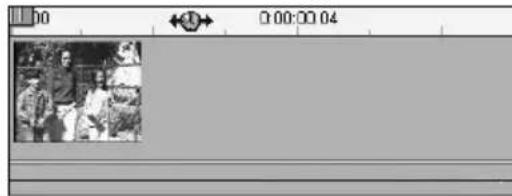
- Position your mouse pointer over the right edge of the clip. The pointer becomes a left-pointing arrow.


natural_image
Black-and-white photo of people sitting on a bench in an indoor setting (no visible text or symbols)- Click-drag to the left while keeping an eye on the Player, which updates continuously to show the last frame in the trimmed clip.
As you shorten the clip, the arrow cursor becomes two-directional, indicating that the clip edge can be dragged both left and right. You can reduce the clip to as little as a single frame, or increase it up to the end of the source scene.
- Release the mouse button. The clip is now trimmed.

Multiple clips
The secret to trimming a clip when multiple clips are on the Timeline is that you must first select the clip to be trimmed by clicking on it with the mouse.
To trim with multiple clips on the Timeline:
- Set up the Timeline with two short clips.
- Expand the Timescale by right-clicking in the ruler. Choose 30 seconds from the pop-up menu.
- Click the second clip. The Video track should now look like this:

You can trim the right-hand edge of the clip just as in the single-clip example above. As you do so, the last frame of the clip is displayed in the Player. As long as the second clip remains selected, you can continue to trim more video by dragging the edge to the left, or restore some of the trimmed video by dragging the edge to the right.
- With the second clip still selected, move your mouse pointer over the left edge of clip until the pointer changes to a right arrow.
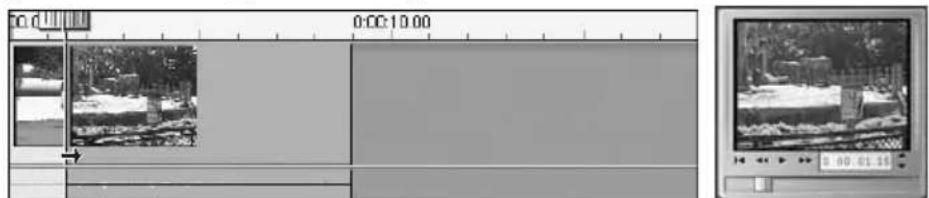
- Drag the left edge of the second scene to the right.
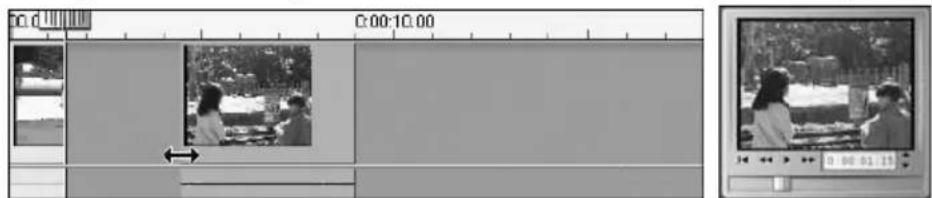
As you drag, the first frame of the clip is displayed in the Player. As long as the clip remains selected, you can continue to trim more video by dragging the edge to the right, or restore some of the trimmed video by dragging the edge to the left.
- Release the mouse button. The clip you trimmed snaps back against the right edge of the first clip.

Clip-trimming tips
If you are having difficulty manipulating the edges of clips, try the following:
- Verify that the clip you wish to trim is selected, and that it is the only one selected.
- Expand the Timescale until it is easier to make fine adjustments.
- Avoid expanding the Timescale too far, which makes clips appear very long. If that happens, undo until the scale is the way you want it; or reduce the scale by dragging it towards the left; or select an appropriate value from the Timescale's context menu.
Trimming video clips with the Clip properties tool

Although it is possible to trim video clips directly on the Timeline with full frame accuracy, rapid, precise trimming is often easier to achieve with the Clip properties tool. To access this
tool, select the clip you want to change, then click one of the toolbox buttons at the top left of the Movie Window. Clicking the same button a second time will close the tool.
In the case of video clips (in fact, any clips other than titles and still images), you can also open and close the Clip properties tool by double-clicking the clip in any Movie Window view.
The Clip properties tool can be used to modify any kind of clip. It offers an appropriate set of controls for each type.
The Name text field: For a video clip, most of the clip property controls are for trimming. The only exception is the Name text field, which lets you assign a custom name to the clip to replace the default one assigned by Studio.
The Name field is provided on the Clip properties tool for all clip types. Clip names are used by the Movie Window's Text view, and can also be viewed as fly-by labels when your mouse moves over clips in the Storyboard view.
![Name field Duration field Name: Photo Shot [5:19.18] Duration: 0:00:11:14 Start frame preview Transport controls End frame preview Trim calipers](/content/2026/06/1238913/images/4b74dff2d54af84d8769eef7054ca53da4efa886e8793ecb984f35086321abb1.jpg)
Preview areas: Separate preview areas show the in and out frames of the trimmed clip, together with a counter and jog buttons. The layout of each preview area is very similar to that of the Player during normal editing.
Setting playback position: A scrubber control across the bottom of the tool lets you set the playback position anywhere within the clip. You can also set the playback position using the counter and jog buttons located between the two preview areas.
Using the counters: The positions reported by all three counters are relative to the beginning of the clip, which is position 0:00:00.0. As with the counter on the Player, you can adjust the counters in the Clip properties tool by clicking in one of the four fields (hours, minutes, seconds, frames) to select it, then using the jog buttons. When none of the fields is explicitly selected, the jog buttons apply to the frames field.
Transport controls: While the Clip properties tool is in use, the transport controls in the centre area substitute for those that normally appear on the Player. These special transport controls include a Loop play/Pause button that can be used to cycle repeatedly through the trimmed portion of the clip while the trim points are being adjusted.
Setting the trim points: The Left bracket [button beside the counter in the left preview area, and the Right bracket] button beside the counter in the right preview area, set their respective trim points to the current position.
You can also adjust either trim point by:
- Entering a value directly into its counter
- Adjusting a counter field with the jog buttons
- Dragging the corresponding trim caliper
The Duration text field: This field shows the length of the trimmed clip in hours, minutes, seconds and frames. If you modify the value, either by editing the numbers directly or by clicking the associated jog buttons, the effect is to change the out point of the clip. Of course, you cannot reduce the duration to less than a frame, or increase it beyond the limits of the original video scene.
Usage tip: If you want to switch from trimming one clip on the video track to trimming another, just click on the new clip while the Clip properties tool remains open, or drag the Timeline scrubber to the new clip.
Resetting trimmed clips
If you don't like the results of a trim, either use the Undo button (or Ctrl+Z) or manually reset the trimmed clip using one of these methods:
- Drag the clip's right edge directly on the Timeline until it stretches no further
- In the Clip properties tool, drag the trim calipers to the ends of the clip
SPLITTING AND COMBINING CLIPS
If you want to insert one clip on the Video track into the middle of another clip, split the latter into two parts then insert the new item. “Splitting” a clip actually results in it being duplicated; both clips are then automatically trimmed so that one ends and the other begins at the split point.
To split a clip in Timeline view:
- Choose the split point.
You may use any method that adjusts the current position, such as moving the Timeline scrubber, clicking Play and then Pause, or editing the counter value in the Player.
- Either right-click within the clip you wish to split and select Split Clip from the pop-up menu; or, make certain the edit line is positioned where you wish to split the clip, and click the Split clip (razorblade) button (see page 13).
The clip is split at the current position.
To restore a split clip:
- Use the Undo button (or press Ctrl+Z). Even if you have performed other actions since you split the clip, the multilevel undo allows you to step back as far as needed. Or,
- If undoing is not desirable because of intervening actions that you don't want to discard, you can replace both halves of the split clip with the original from the Album. Or,
- Delete one half of the split clip, and trim out the other.
To combine clips in the Movie Window:
Select the clips you wish to combine, then right-click and choose Combine Clips.
The operation is allowed only if the combination of clips will also be a valid clip – that is, a continuous excerpt of the source video. On the Timeline, clips that can be combined meet along a dotted edge.
ADVANCED TIMELINE EDITING
During most editing operations, Studio automatically keeps the clips on the various Timeline tracks synchronized. For instance, when you insert a scene from the Album onto the Video track, the relative positions of all clips to the right of the insertion remain unchanged.
Sometimes, though, you might like to override the default synchronization. You might want to insert a new video clip into your project without displacing any clips of other types. You might want to edit video separately from its accompanying original audio – a valuable technique with several variations, discussed below.
Such special edits are possible using the track lock buttons at the left of the Movie Window in Timeline view. Each of the five standard track indicators (all except the Menu track) doubles as a button for locking its track.
A locked track is immediately greyed out in the Timeline view, and a small lock symbol appears beside the track button. The clips on the locked track cannot be selected or edited in any of the three views; nor are they affected by editing operations on unlocked tracks.
Any combination of tracks may be locked (excluding the special Menu track that appears above the Video track when your project contains menus).
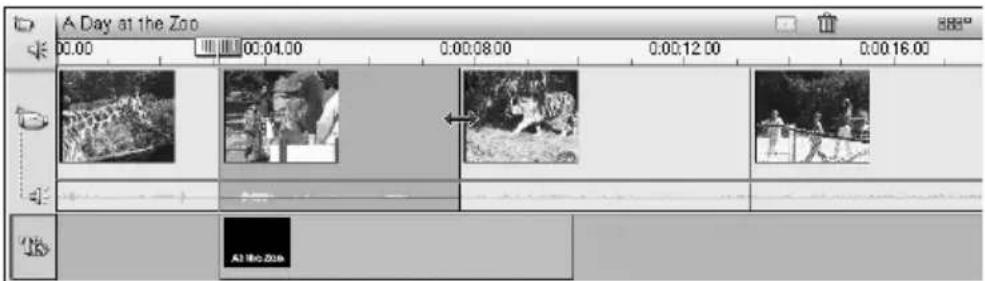
Locking the Title Overlay track prevents an overlay's duration from being changed even when you trim audio and video clips at the same time index.
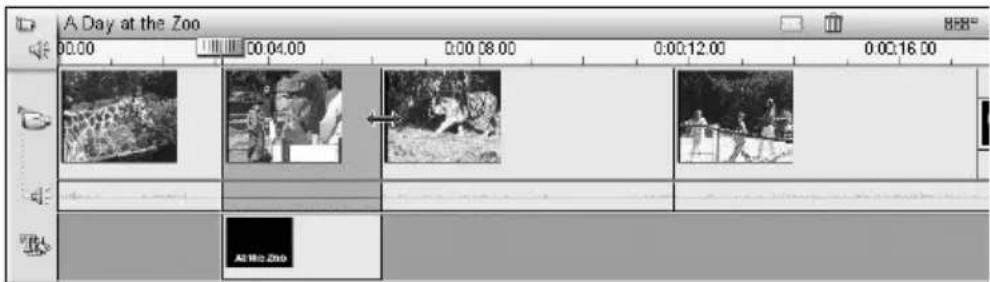
When the track is unlocked, trimming the video clip above it automatically trims the overlay or title.
Insert Editing
In ordinary Timeline editing, a video clip and the original audio that was captured with it are treated as a unit. Their special relationship is symbolized in the Movie Window by the dotted line connecting the Video track indicator with the Main Audio track indicator, showing that the latter is dependent on the former.
The track lock buttons make it possible to deal with the two tracks independently for operations like insert editing, which typically means replacing part of a clip on the video track while the audio track continues uninterrupted.
For instance, in a sequence that shows a close-up of someone recounting a story, you might wish to insert a shot of an audience member smiling (or sleeping!) without breaking away from the main audio.
To perform an insert edit on the video track:
- In the Timeline view of the Movie Window, click the Main Audio Track indicator to lock the track.
The track indicator switches to the down position and a small padlock icon appears. The Audio track is greyed to show that its contents will not be affected by editing operations.
- Clear space on the Video track for the video clip you want to insert. Position the Timeline scrubber at the point you want the insertion to start and use the Split clip button. Now move to the point where the insertion should end and again split the clip. Finally, delete the portion of video that will be replaced by the insertion.
Because the audio track is still intact, the video to the right of the insertion point does not move leftwards to fill the gap you have made in the Timeline, since the video and audio would then no longer be synchronized. If you were to preview your video now, you would see a black screen as the gap portion played back, but the soundtrack would be normal.
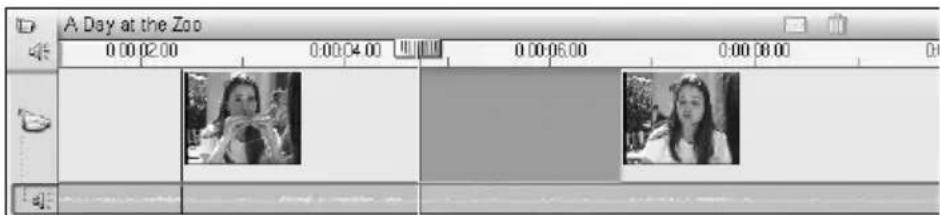
- Now all that remains is to place the clip you want to insert. Drag the clip (whether from the Album or elsewhere on the Timeline) into the hole in the video track that you've just opened up.

If the inserted clip is too long for the space you created it will be trimmed to fit the space.
Insert editing on the audio track
The converse insert-editing operation, in which a sound clip is inserted into the audio track over unbroken video, is needed less often but is also readily performed in Studio.
The procedure is analogous to the one for inserting video: simply reverse the roles of the two tracks at every step.
Split edits
In “split editing”, a clip’s audio and video are separately trimmed so that the transition to one occurs before the transition to the other.
In an “L-cut”, the video precedes its sync audio; in a “J-cut”, the audio comes first.
The L-cut
In an L-cut, the cut to new video comes before the cut in the audio.
Imagine a videotaped lecture in which the video periodically cuts away from the speaker to show travel or nature scenes illustrating the lecture topic.

Audio and video cut simultaneously.
Instead of cutting the audio and the video simultaneously, you might decide to let the speaker's voice overlap into the following scene. This makes it clear to the audience that the new scene they are now watching illustrates whatever explanation the speaker is just completing..
Notice that the video and audio clip boundaries in the completed cut form an L-shape.
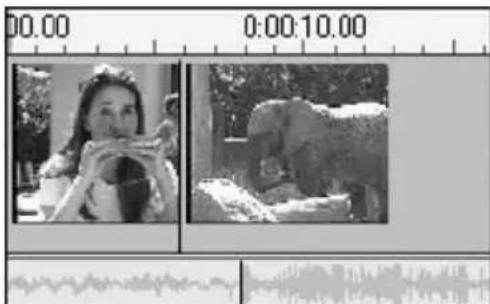
Audio cuts after video.
There are many effective uses of this technique. It can be considered whenever the second clip's video serves to illustrate the first clip's audio.
To perform an L-cut:
- Adjust the Timeline so you can easily count off the number of frames or seconds you want to overlap.
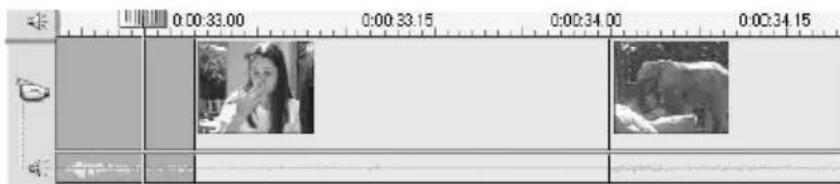
- Select the left-hand clip and trim its right edge to the left by the desired overlap interval.
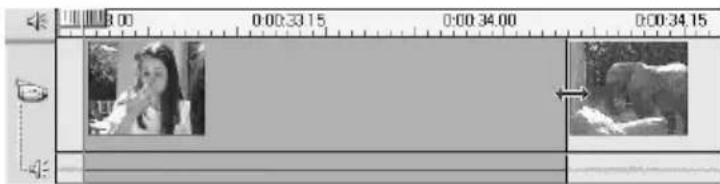
- Lock the video track. Now drag the right-hand edge of the same clip's audio back to the right by the overlap interval.

- Unlock the video track.
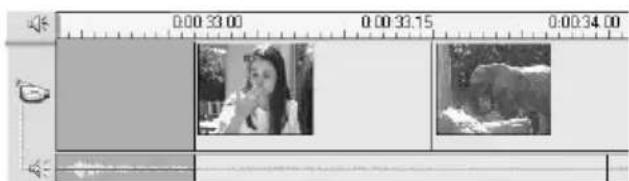
The video now cuts away to the second clip ahead of the audio. Video has been trimmed from the end of the first clip, and audio has been trimmed from the start of the second clip.
The J-cut
In the J-cut, the new audio cuts in before the video switches. This can be effective when the second clip's audio prepares the viewer for the material in the scene.
Returning to the videotaped lecture example, let's say we are now going to switch back to the speaker at the end of the interpolated footage. If we let the next part of the lecture appear on the soundtrack a moment or two before the video shows us the podium again, the change will be much less abrupt.
This time the clip boundaries outline the letter J:
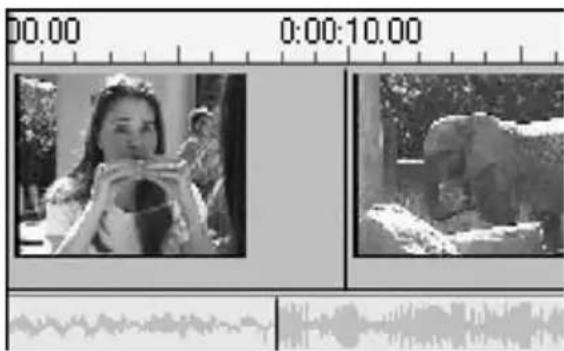
Audio cuts before video.
To perform a J-cut:
-
Adjust the Timeline so you can easily count off the number of frames or seconds you want to overlap.
-
As before, trim back the right edge of the left-hand clip, both video and audio, by the overlap interval.
-
Lock the audio track. Now drag the right-hand edge of the same clip's video back to the right by the overlap interval.
-
Unlock the audio track.
The audio now cuts away to the second clip ahead of the video.
VIDEO CLIP EFFECTS
Most video editing consists of selecting, ordering and trimming video clips, of connecting clips with transition effects and combining them with other materials such as music and still images.
Sometimes, though, you also need to modify the actual video images, manipulating them in some way to achieve some desired effect. The Video toolbox has two special tools of this type:
- The Adjust colour/Visual effects tool lets you control the colour, contrast and brightness of your video, and apply blur, emboss and other effects.
- The Vary playback speed tool lets you speed up or slow down the video, and also offers a Strobe filter for experimental or humorous effects.
The Adjust colour/Visual effects tool

Studio provides video property effects that you can adjust interactively. The Adjust colour/Visual effects tool lets you choose a colour mode and adjust eight video parameters for each video clip or still image clip in your Movie Window.
The colour mode for the clip is set with the Colour type dropdown at the top of the tool tray. The choices are:
- All colours: The default – colours display normally.
- Black and white: The clip is rendered in shades of grey.
- Single hue: The tonal values of the clip are converted to varying intensities of a single colour.
- Sepia: A special case of Single hue using sepia tones for an antique look.
Some of the Colour type choices override some of the individual video parameter settings. In general, though, you can adjust video parameters in three categories:
• Chrominance (hue and saturation).
• Luminance (brightness and contrast).
- Style (blur, emboss, mosaic and posterize).
Hue: This is the visual property that allows us to distinguish colours. The slider biases all the colours in a clip towards red (left) or green (right). This can be especially useful for correcting flesh tones in some video.
Saturation: This is the quantity of pure colour, ranging from zero (no colour at all – a grey scale) to fully saturated (the maximum colour intensity your output system can deliver). Move the slider leftwards for a tonally-reduced, washed-out look; or rightwards for extra vibrancy.
Brightness: This is the relative intensity of light, without regard to colour. Try adjusting both brightness and contrast to correct video that is underexposed or overexposed.
Contrast: The range of light and dark values in a picture or the ratio between the maximum and the minimum brightness values. Moving the slider to the left lowers contrast, forcing all areas of the image towards medium brightness values. Moving the slider to the right increases contrast, making dark areas darker and bright areas brighter.
Blur: This is an effect akin to defocusing a camera. Studio offers ten steps of blur.
Emboss: This specialized effect emulates the look of an embossed or bas-relief carving. Studio offers ten steps of emboss.
Mosaic: This effect breaks an image into increasingly large collared squares as you move the slider to the right. The mosaic effect has 64 levels.
Posterize: This effect progressively reduces the number of colours used to render an image, with the effect that regions of similar colour are coalesced into larger flat areas. Studio offers seven steps of posterization.
The Vary playback speed tool
This tool allows you to set the speed of any video clip from one-tenth to five times normal. Set the slider to the speed you wish to apply to the clip. Notice that the clip changes length in the Movie Window as you vary its speed.
Conversely, you can change the playback speed by sizing a clip to a specific duration in the Timeline view of the Movie Window (as long as it is between one-fifth and ten times the clip's original duration). Just select the clip while the Vary playback speed tool is open: your cursor changes to the Speed change cursor when you drag the right edge of your clip. The trimming of the clip is not affected.
Slowing down your clip (increasing its duration) can make motion look choppy. You can smooth the motion by interpolating frames (that is, creating intermediate frames). Check the Smooth motion between frames checkbox to activate this feature.
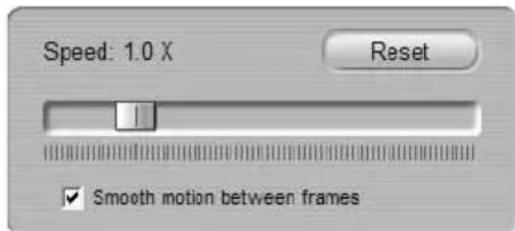
Clicking the Reset button in the Speed box sets the playback speed back to unity, so that the clip plays for its normal duration.
Strobe filter
The Strobe filter on the Vary playback speed tool creates a “frozen motion” effect reminiscent of a dancer under strobe lights. The displayed number indicates how many times to repeat each displayed frame in the currently-selected clip. The maximum setting is 50.

The clip duration remains constant; Studio drops frames to make room for the repeated ones.
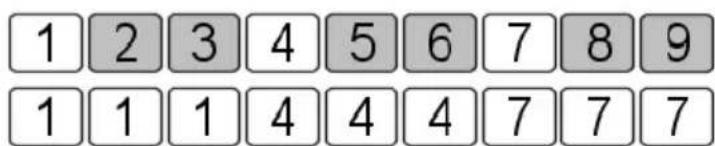
In this illustration, the upper row represents the first nine frames of the original clip, before strobe filtering is applied. With strobing set to 2, frames 1, 4 and 7 are each repeated twice, while the other (shaded) frames are discarded. The lower half of the illustration shows the result. Clicking the Reset button in the Strobe box sets the strobe value to zero, turning off the effect.
Chapter 5: Transitions
A transition is an animated effect that eases – or emphasizes – the passage from one clip to the next. Fades, wipes and dissolves are common types of transition. Others are more exotic, and may even involve sophisticated 3-D graphics.
Transitions are stored in their own section of the Album (see “The Transitions Section” on page 51). To use a transition, drag it from the Album into the Movie Window and drop it beside any video clip or still image.

flowchart
graph LR
    1["Step 1: Person with downward arrow"] --> 2["Step 2: Triangle pointing to person with circle"]
    2 --> 3["Step 3: Arrow pointing to person with upward arrow"]
    3 --> 4["Step 4: Up arrow pointing to person with hand"]
    4 --> 5["Step 5: Triangle pointing to person with hand"]
    5 --> 6["Step 6: Right hand pointing to person with hand"]
    6 --> 7["Step 7: Right hand pointing to person with hand"]
A series of transitions (the icons between the video clips) in Storyboard view.
In Timeline view, you can drop the transition on either the Video track or the Overlay track. On the Video track, the transition provides a bridge between two full-screen clips (or between one clip and blackness if the transition has only one neighbour, as at the beginning of the movie). On the Overlay track, the transition bridges two overlays, or one overlay and transparency.
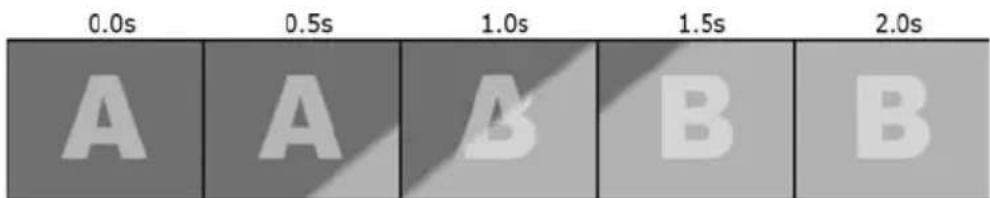
Diagram: Five snapshots from the life of a 2-second diagonal wipe transition.
If a transition is to last for two seconds (the default transition duration in a fresh Studio installation), the second clip begins to run two seconds before the first clip is finished. At the outset, only the first clip is visible; by the end, the second clip has completely replaced the first. The details of what happens in between, as the first clip is gradually removed and the second gradually appears, depend on the transition type. Since the video clips overlap, the total duration of the pair of clips is reduced by the duration of the transition.

Here is the same transition as above, this time using actual video. For clarity, the transition boundary in the three centre frames has been emphasized in white. Both clips continue to run while the transition is in progress.
Transition types and their uses
Like all effects, transitions should be used not for their own sake but to serve the overall needs of your movie. Well-chosen transitions can subtly reinforce the meaning of the movie and how it plays without drawing attention to themselves. Observing the way transitions are used in professionally-produced video on television will suggest many ways to improve your own movies. Generally, it is advisable to refrain from overusing transitions that cause abrupt changes or otherwise draw attention to themselves: there's a big difference between a subtle dissolve and a heart-shaped wipe.
The basic transitions discussed below – fades, dissolves, wipes, slides and pushes – are all among the first group of transitions (the Standard Transitions) in the Album.
A set of more elaborate transitions is found in the Alpha Magic group, which is the second entry in the drop-down list of transition groups in the Album.
The many other groups on the list all belong to the Hollywood FX, a large set of complex transitions featuring three-dimensional graphics. The Hollywood FX transitions are discussed at the end of this section (page 83).
Cut: A cut is the absence of a transition – an instantaneous shift from one scene to the next. A cut is appropriate when there is a strong inherent connection between one clip and the next; for instance, when the camera changes position or angle within a scene.

Fade: This transition fades into the beginning of a video clip from a black screen, or from the end of a clip to a black screen. A fade dropped between two clips creates a cross fade, where the first clip fades down before the second fades up. The fade transition is the first transition icon in the Album.
A fade is usually used at the beginning and end of a movie, or when there is a large break in continuity, as when a new section begins. For example, a movie of a play might benefit from cross-fading between acts.

Dissolve: A dissolve is similar to a cross fade, except that the new scene begins to fade up even while the old one is fading down. The visual overlap this produces is less dramatic than a cross fade, but less abrupt than a cut. A short dissolve can take the edge off a cut, while a long dissolve is useful to suggest the passage of time.

Wipe, slide and push: In each of these standard transition types, the incoming video is gradually
revealed behind an edge that moves across the frame in a certain direction. The Album icons at the head of this paragraph represent a leftward wipe, a down-and-left slide and a rightward push respectively.
In a wipe transition, both the old and new video occupy their normal position in the frame throughout the transition. The new video comes into view as the transition edge crosses the frame, rather like new wallpaper being rolled on over old.
A slide is similar to a wipe, but in this case the frame of the new video slides across the screen until it reaches its home position. The effect is reminiscent of a blind being pulled down over a window.
A push is similar to a slide, except that the old video is pushed out of the frame as the new video enters, like advancing a filmstrip from one from frame to the next.
Hollywood FX for Studio
Pinnacle Systems' Hollywood FX includes a large number of dramatic 3-D transitions and effects. These are ideal for opening sequences, sports and action footage or music videos. Hollywood FX satisfies professional expectations for quality without sacrificing ease of use.
Studio includes 16 unique effects from Hollywood FX Basic for Studio. In addition, Studio includes demo versions of scores of other effects from two other products: Hollywood FX Plus for Studio and Hollywood FX Pro for Studio. The demo effects are
watermarked with a Pinnacle "P" logo, but otherwise can be previewed normally within Studio. If you like the demo versions, you can purchase the add-on packages by clicking the e-commerce link within Studio.
In addition to the full unwatermarked versions of the effects, Hollywood FX Plus and Hollywood FX Pro both include the Easy FX editor, which lets you customize all of your Hollywood FX by giving you control of numerous settings. These include angle of flight, forward or reverse flight direction, shadows, lighting and anti-aliasing (edge smoothing).
Previewing transitions in your movie
Studio lets you preview transitions in the Player. Just drag and drop a transition into the Movie Window, click the Play button (or hit [Space]) and see how the transition works with your material.
You can also preview transitions by scrubbing through them in the Player or on the Timeline of the Movie Window.
Background rendering of Hollywood FX
Background rendering is an optional feature in which the computation needed to perform a detailed preview of Hollywood FX transitions is carried out as a “background task” with no interruption of your workflow. Background rendering can be enabled or disabled in the Edit Options panel (Setup > Edit). See “Edit settings” on page 171 for details.
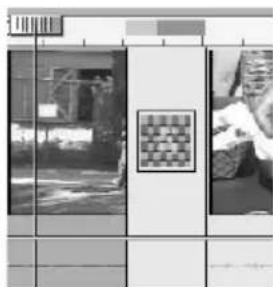
natural_image
Exterior view of a modern office building (no signage)Until the rendering of a transition is complete, the Player will preview it at reduced resolution and frame rate. Studio gives you feedback on the progress of background rendering with a temporary progress bar graphic in the Timescale. The bar gradually changes from blue to grey as the rendering operation progresses.
3-D acceleration for Hollywood FX
Studio can use the 3-D accelerator hardware on your graphics board to speed up the computation of Hollywood FX previews. If you have 3-D acceleration, select it in the Edit Options panel (Setup > Edit).
If you don't have hardware 3-D acceleration, the 3-D calculations are performed in software, which generally takes longer.
Audio transitions
Clips in the Movie Window normally have synchronous video and audio. In the absence of a transition, both video and audio cut from one clip to the next. When a transition is placed between two clips, the audio cross-fades.
The only exception to this rule is the Fade transition, which takes the audio completely out then back in again.

natural_image
Two grayscale geometric shapes: a heart icon inside a square and a downward-pointing triangle inside a circle, both without any text or symbols.Normal transitions cause a cross fade in the audio (left). In a Fade transition (right), the audio fades down then up along with the video.
The Ripple Transitions command
This Studio feature is especially useful for creating a quick slideshow from a set of still images, or a video pictorial from a set of short clips. Such a presentation is more interesting if you connect each pair of clips with a transition. Ripple Transitions gives you a quick and easy way of achieving that.
Begin with a set of a clips on the Timeline, then add a transition of the desired type between the first two clips.
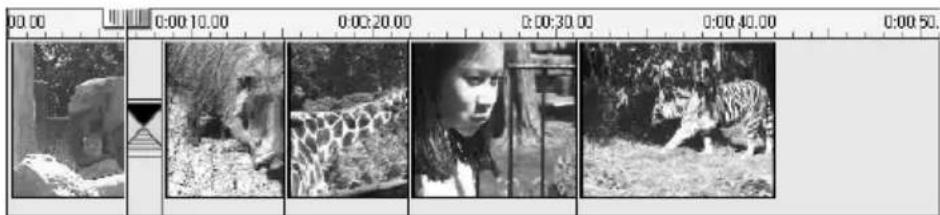
natural_image
Sequence of black-and-white photos showing a tiger in natural habitat, with no visible text or symbols.Now select all the clips except the first, click on any of them with the right mouse-button, and select Ripple Transition from the pop-up menu.

Studio inserts a duplicate of the original transition between each pair of selected clips.
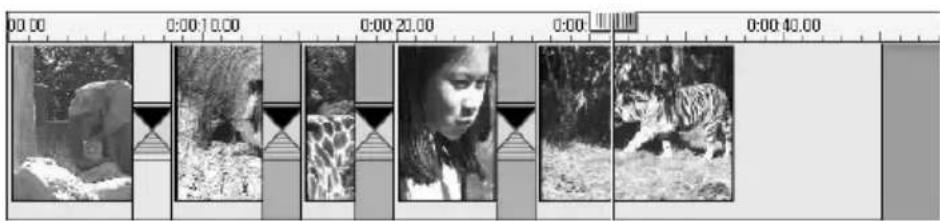
natural_image
Sequence of black-and-white photos showing a tiger in natural habitat, with no visible text or symbolsTRIMMING TRANSITIONS
Although transitions are not true clips, they are handled very similarly to clips within Studio's editing environment. Like clips, you can trim transitions either directly on the Movie Window Timeline, or by using the Clip properties tool.
See “Trimming on the Timeline using handles” on page 60 for a discussion of the first method. The maximum allowed duration of a transition is one frame less than the shorter of the neighbouring clips.
Trimming with the Clip properties tool
The Toolbox > Modify Clip Properties menu command invokes the Clip properties tool for the selected clip. For all transition types, this tool provides previewing controls, and the ability to set two properties:
- To set the duration of the transition, change the value in the Duration counter. A transition's duration must always be less – if only by a single frame – than the shorter of its neighbouring clips.
- The Name text field lets you assign a custom name to the clip to replace the default one assigned by Studio. The Name field is provided on the Clip properties tool for all clip types. Clip names are used by the Movie Window's List view, and can also be viewed as a fly-by label when your mouse moves over a clip in the Storyboard view.
Many transition effects also support a “reverse direction” option, which causes the transition animation to run backwards, allowing a rotary wipe, for example, to be either clockwise or counter-clockwise. The Reverse checkbox is enabled when the current transition supports this option.
If you have purchased and installed the Hollywood FX Plus or Hollywood FX Pro transition collections, the Clip properties tool for transitions provides an additional Edit button for Hollywood FX transitions. This button invokes the Hollywood FX Editor, an external program with many options. The use of this program is described in its accompanying documentation.
Previewing in the Clip properties tool
The Clip properties tool provides previewing controls for transitions similar to those for video clips. See “Trimming video clips with the Clip properties tool” on page 63 for more information.
The preview areas show the last full frame of the outgoing clip and the first full frame of the incoming one. The preview frames update as you edit the Duration field.
The transport controls let you preview the transition effect in the Player either frame by frame or at full speed. The Loop play/Pause button ☐ cycles through the transition repeatedly at normal playback speed.
Both the counter (with its associated jog buttons) and the scrubber give you direct access to any desired point within the transition.

Chapter 6: Still Images
Video usually means images in motion, but most productions also include stationary titles or graphics, and may include other types of still image as well.
The still images you can use in your movies include:
- All types of text captions and graphics, including scrolling credits and “crawled” messages.
- Photos or drawings stored in disk-based image files.
- Individual video frames obtained with the Frame grabber tool.
- Menus for DVD and VCD authoring. These specialized images are covered in Chapter 9: Disc Menus.
Any of these still image types can be treated in either of two ways, depending on which track you drop them onto in the Movie Window Timeline:
- To add a full-screen image with a solid background, add the image to the Video track.
- To add an overlay image with a transparent background, so that the image appears superimposed over the clips on the Video track, add the image to the Title Overlay track.
The Album has separate sections for titles, bitmapped images and disc menus. You can also create your own titles and disc menus in Studio's Title Editor and add them directly to your movie without saving them as separate files (see Chapter 7: The Title Editor).
Similarly, still video frames can be added directly from the Frame grabber tool (see “The Frame Grabber” on page 94).
Full-screen images
A full-screen image is one that is placed on the Video track. It fills the entire screen, replacing the video. When the preceding video clip ends, Studio plays the still image clip. The visual effect is that the video ends, and is replaced by the graphic until the next clip begins.

Overlay images
An overlay image is one that is placed on the Title Overlay track. It is superimposed on the current video clip, without replacing the video.
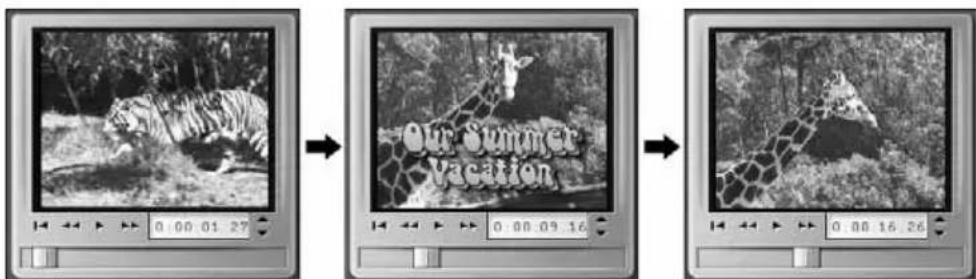
Controlling transparency in overlay images
Viewed in the Album, or in a graphics editor, an overlay image appears to have a solid background. When you place it on the Title Overlay track, however, the background disappears, allowing the video to show through.
Studio uses the colour of the top-left pixel of the image to determine the transparent colour. Pixels that match this colour are not drawn when the image is rendered over video.
This system works well for still images that have consistent solid background colours. Sometimes, you may have to edit the top-left pixel of a bitmapped image to get the transparency effect you want. Any image-editing program – Windows Paint, Photoshop, Paint Shop Pro, and so on – will do the job.
The automatic transparency feature does not apply to images that are imported into Studio via the Title Editor. To activate transparency, the image must be accessed through the Album.
Making a slideshow
If you would like to assemble a quick slideshow of still images or video clips, you may want to take advantage of Studio's Ripple Transitions feature to quickly insert a chosen transition between each pair of clips or images. See page 86 for details.
EDITING STILL IMAGES
As with other types of clip, you can trim still images directly on the Movie Window Timeline, or by using the Clip properties tool.
See “Trimming on the Timeline using handles” on page 60 for a discussion of the first method. The difference with a still image clip is that you can extend it to any duration you choose, whereas a video clip can be no longer than the original Album scene.
The Colour/Visual effects tool can be applied to still image clips of all types in the same way as it does to video clips. See “The Adjust colour/Visual effects tool” on page 75.
Still image clips of all types – graphics, photos, titles and menus – can be edited in the Title Editor (see Chapter 7: The Title Editor). There are three ways to begin editing an image clip in the Title Editor:
- Double-click the clip in any Movie Window view
- Right-click the clip and choose Go to Title/Menu Editor from the pop-up menu (Timeline view), or Edit Title Overlay (Storyboard and List views).
- Open the Clip properties tool (see below) and click the Edit Title button.
Trimming with the Clip properties tool
The Toolbox > Modify Clip Properties menu command invokes the Clip properties tool for the selected clip. For still images (other than disc menus, which are covered in Chapter 9: Disc Menus), this tool directly affects only two properties:
- To set the length of time the still image is displayed, change the value in the Duration counter.
- The Name text field lets you assign a custom name to the clip to replace the default one assigned by Studio. The Name field is provided on the Clip properties tool for all clip types. Clip names are used by the Movie Window's Text view, and can also be viewed as a fly-by label when your mouse moves over a clip in the Storyboard view.

Trimming a title with the Clip Properties tool.
THE FRAME GRABBER
The Frame Grabber can capture a still image from any video capture source supported by Studio, or extract a single frame from any video clip in your current project. The grabbed frame can be added directly to your movie or saved out to disk in any of a number of graphic formats.
Once you have saved a grabbed frame to disk, you can:
- Use it in other software applications.
- Manipulate it in image editing software.
- Import it back into your movies as a still image via the Album or the Title Editor.
The Frame grabber tool

Use the Frame grabber tool in conjunction with the Player. Open the Toolbox and click the Frame grabber button. Play the movie or source video until you the frame you want is displayed in the Player, then click the Grab button. The grabbed frame appears in the tool's preview area, ready to be added to your movie or saved as a file on disk.
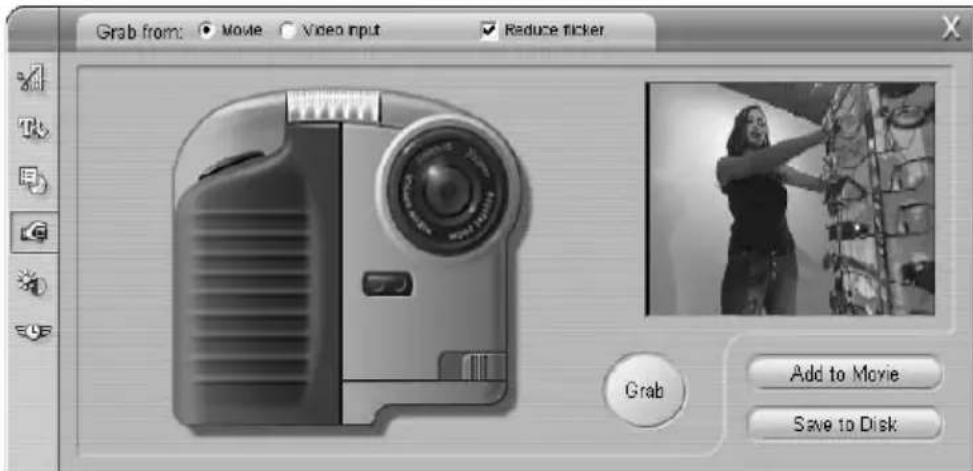
Grab from: Select a source for the frame grabber by clicking either the Movie or the Camcorder button at the top of the tool. Choosing Camcorder means that the frame grabber will use your current video source, as configured in the Capture Source Options panel and the Capture Format Options panel (see Appendix A: Setup Options).
Transport controls: If your source video is a DV camcorder, MicroMV camcorder or VCR connected to a 1394 port, Studio provides convenient on-screen transport controls for locating the frame you wish to grab. For a description of these controls see “The Camcorder Controller” on page 6.
Reduce Flicker: If the source video of the frame grab contains a large amount of motion, the grabbed frame may show flickering, which can be reduced or eliminated by checking the Reduce Flicker checkbox. Because Reduce Flicker also reduces resolution somewhat, you should turn off the option if the result is undesirable for a particular image.
Grab: Click the Grab button when you have located the frame you want to grab in the Player and set the Reduce Flicker option. The grabbed frame is displayed in the Frame Grabber's preview area, and the two output buttons (Add to Movie and Save to Disk) are enabled.
Add to Movie: This button inserts the grabbed frame into the Movie Window Video track ahead of the currently-selected clip.
Save to Disk: This button opens a Save As dialog so that you can select a folder, file name and image format for the file in which the grabbed frame will be stored. The dialog also provides controls that let you set the resolution of the saved image to any of several standard sizes, to the original size of the grabbed frame, or to a custom size that you enter.
If the “aspect ratio” (the ratio of the width to the height) of the size you choose is different from that of the grabbed frame, the image is stretched as necessary. This can introduce visible distortion of shapes; for instance, people may appear either unnaturally thin or unnaturally squat.
Chapter 7: The Title Editor
In earlier versions of Studio, titles were created and edited in an external program – Title Deko. Starting with Studio 8, the many features of Title Deko have been repackaged as a tool within the Studio user interface.
Moreover, the new Title Editor tool has been given additional capabilities. The major new feature is the power to add and edit the special buttons needed for creating the disc menus used in VCD, S-VCD and DVD movies.

Creating a title in the Studio 8 Title Editor tool. The large area containing the picture and the text is the Edit Window, while the panel occupying most of the right-hand side is the Title Editor Album. Other controls are in groups around the Editing Area.
Launching the Title Editor
Reflecting the versatility of the Title Editor is the variety of ways of accessing it from Studio's Edit Mode:
- To create a full-screen title or menu: Select Go to Title/Menu Editor from the right-button context menu in the Timeline Video track.
- To create an overlay title or menu: Double-click the Timeline Title/Overlay track.
- To create a title from the Toolbox: Open the Create Title tool and click Title Overlay or Full Screen Title.
- To create a full-screen menu from the Toolbox: Open the Create Disc Menu tool and click Create Menu,
- To edit a full-screen title: Double-click the title in any Movie Window view, or right-click the title and select Go to Title/Menu Editor.
- To edit a full-screen menu: Double-click the menu in any view and click the Edit Menu button, or right-click the menu and select Go to Title/Menu Editor.
- To edit an overlay title or menu: Double-click the clip on the Title/Overlay track or in List View, or right-click it in any view and select Go to Title/Menu Editor.
- To edit a title or menu from the Toolbox: With the clip open in the Clip properties tool, click the Edit Menu or the Edit Title button.
If the list seems overwhelming, don't let it concern you. In practice, getting to the Title Editor by the nearest available means will give the result you want. If you do accidentally create an overlay when you want a full-
screen title or menu, or vice versa, just drag it onto the other Timeline track. If you find yourself creating a title when you wanted a disc menu, you can easily switch over in the Title Editor.
THE TITLE EDITOR CONTROLS
The main Title Editor controls are laid out in groups around the Edit Window (see the picture on page 98).
Title-type buttons
The four buttons in this group sit on the left side of the screen above
the Title Editor's Edit Window. Only one of them can be selected at a time. Choose the first button if you are creating a still title. The second creates a roll, in which the title text and graphics travel upwards on the screen as the title displays, like the credits at the end of a move. The third creates a crawl, in which the title is displayed a single line of text moving from right to left across the screen like the bulletins on a TV news show.
The fourth button in the group is for creating disc menus, which you can usefully think of as “titles with buttons”. In fact, a menu is just like any other title except for two attributes:
- A menu has at least one button. A title has none. Adding a button to a title turns it into a menu, and deleting the last button on a menu turns it into a title. By the same token, if you click the Menu button while editing a title, Studio automatically adds a button to the title.
- A menu cannot have rolling or crawling text. The Title Editor does not allow you to add menu buttons to a rolled or crawled title.
Object toolbox

This group of four Title Editor tool buttons is located at left below the Edit Window.
natural_image
Pure geometric shape with a cross and surrounding dots, no text or symbols presentThe first tool (the arrow) is used for all editing operations upon the currently selected object. A selected object is surrounded by a number of control points with which you can change its size, position, proportions, and other geometrical features.
The other three tools are for creating objects in the Edit Window – a text box, an ellipse and a rectangle.
Each is used in the same general way. Click one of the three tools, then click the Edit Window at the point
where one corner of the object should be. Drag the mouse to outline the new object as indicated by the dotted line.
When the object has the size and proportions you want, release the mouse. Whatever its type, the object is created with the specified dimensions. Its other attributes – colour, shading, shadow, etc. – are determined by the currently selected look in the Title Editor Album. All attributes can later be changed at will.

natural_image
Gray rectangular button with a white cursor pointer, no text or symbols present.After the object is created, the object tool you used deselects, and the selection arrow again becomes active. The object itself is selected – shown in the usual way by its control points – and can now be manipulated with the mouse.
Reordering objects in three dimensions

Because objects can overlap one another, it is easy to get into situations where an object that should be completely visible is partly or whole obscured by one or more other objects. In such cases, use the four reordering commands on the Title Editor's Layers menu. These commands affect the currently selected object, symbolized by rectangle "3" in the diagram.
- Bring to Front: The object is moved out in front all other objects. In the diagram, object 3 is now in front of object 1.
- Send to Back: The object moves behind all other objects. Object 3 is now behind object 5.
- Bring Forward One Layer: Object 3 now lies in front of objects 2, 4 and 5, but is still behind object 1.
- Send Back One Layer: Object 3 is now behind objects 1, 2 and 4, but is still in front of object 5.
About text objects
Selecting a text object is different in one important way from selecting a rectangle or ellipse: the object's text field is put into a “ready” state in which any keyboard activity will cause the field to activate and start displaying the input text.
natural_image
Pure geometric shape with rounded corners and dots, no text or symbols presentThe activation of the text field is indicated by a text insertion cursor, the changed appearance of the object frame, and the disappearance of the control points.

When a text object is not selected, you can activate its text field directly by clicking in the middle of the object. If you want the selection frame and control points to appear, you must click on the edges of the object. With other objects, you can click anywhere in the object to select it.
To deactivate a text field, click anywhere in the Edit Window outside the text object.
Because text plays a central role in most titles and menus, the Text Editor will automatically create and activate a text object in the centre of the Edit Window if you simply begin typing when no other text object exists.
Advanced text editing features
As in a word processing program, the Title Editor allows you to apply some formatting to a selected range of characters. Simply mark an adjacent set of characters with the mouse and apply the formatting your desire.
Supported operations on character ranges include text styling (font, style and look), clipboard operations (cut, copy, paste), delete, and a number of special positioning, spacing and scaling commands that are accessible only from the keyboard. For details on these, please consult Appendix G: Keyboard Shortcuts.
Editing-mode selection buttons

This pair of buttons forms the second group along the bottom of the Title Editor's Edit Window. Their function is to govern which of two sets of editing operations is available for the currently-selected object.
- The first button is on by default when an object is newly created, enabling the move, scale and rotate operations with a selection frame containing nine control points:
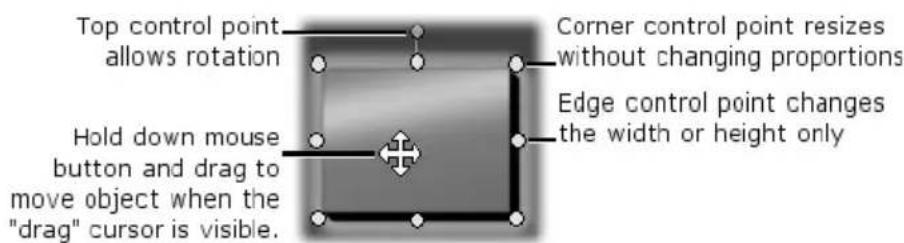
- Clicking the second button enables the skew operation, which requires only a single control point.
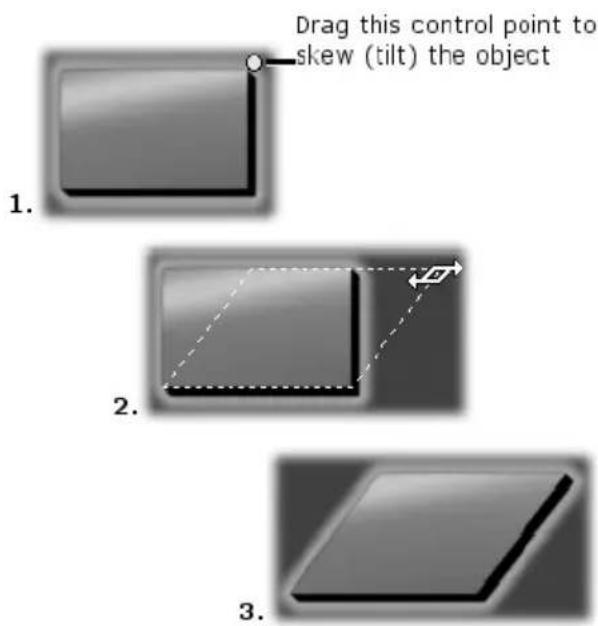
With text objects, the second button provides two further operations, kern and change leading, accessed by control points in the centre of each edge of the text frame:

Object layout buttons


The two left buttons are for grouping and ungrouping Title Editor objects. The first button is available when multiple objects are selected. It causes the objects to be linked into a group – a composite object – and are treated as a single entity
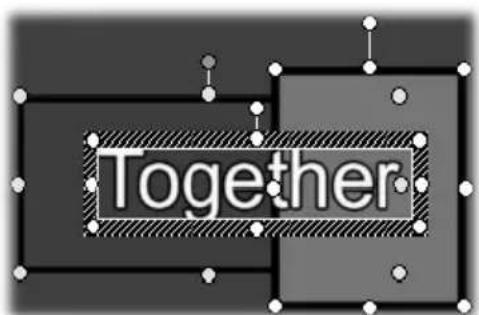
by editing operations. When a group is selected, all its control points are visible simultaneously, and any of them may be used to manipulate the group.
The second button, which is available whenever a group object is selected, separates the group into its constituent objects.
Although it is possible to “group groups”, grouping is always just one level deep – ungrouping a supergroup will result in all the constituent objects being individuals again.
The next button opens a pop-out menu of 11 operations that apply only to groups. The first six let you align a set of objects along any one of their four edges or either of their two mid-lines. The next pair of commands provides for spacing the objects at equal intervals in either the vertical or horizontal directions, and the final three resize the objects so that they have equal width, equal height, or both. All of these commands are particularly useful in menu creation, since you generally want menu buttons to be laid out in a regular fashion.
The final object layout button opens another pop-out menu, this one concerned with object justification. The nine options here are in a graphical form resembling a tic-tac-toe board. Clicking one of the nine areas moves the object to the corresponding corner of the screen (as defined by the “text-safe” area delimited by red dashed lines), or to the centre.
Multiple selection of objects
The first step in making a group is to select the multiple objects that will comprise it. This can be accomplished in either of two ways:
- By clicking and dragging with the mouse to mark out a selection rectangle (a “marquee”) that encloses all the objects you want to group; or,
- By clicking the first object you want to group, then Ctrl-clicking each of the others.
Temporary groups
Any selection of multiple objects functions as a temporary group, and can be move, aligned, rotated, collared etc. as a unit. The temporary grouping loses its identity as soon as you click elsewhere in the Edit Window, however, whereas a group created with the button persists until explicitly ungrouped.
Clipboard and delete buttons


The buttons in this group provide the familiar editing operations Cut, Copy, Paste and Delete, all of which operate on groups, individual objects, or on selected text within a Title Editor text object. The first three work with the Windows Clipboard, while the fourth simply deletes the chosen material without affecting the Clipboard.
Text-styling controls

The controls in this group at the top right of the Title Editor' Edit Window probably look familiar. The controls apply both to currently-selected text and to any new text that may be entered until the settings are changed again.
At the left are three font style buttons, which select the bold, italic or underlined styles respectively.
Perhaps surprisingly, the underlined style button – alone among these controls – can be applied to any type of object, not just text (try it!). This makes it possible to use the underlined highlighting style with buttons created from graphic objects: rectangles, ellipses and pictures.
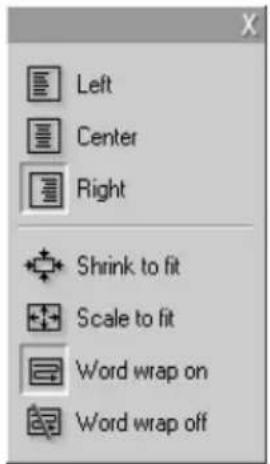
The fourth button opens a pop-out menu of text-formatting options. Unlike the other controls in the group, which govern the appearance of individual characters, the options on this menu apply to all the text in a given text box.
The three justification options - Left, Centre and Right - affect the placement of the text within its box (and not the placement of the box itself within the Edit Window, which is the function of the object justification menu #).
Shrink to fit, Scale to fit, Word wrap on and Word wrap off are the options that determine how your text is treated when you resize a text box. With Word wrap on,
which is the default for a new text box, resizing the box results in the text being reformatted – word-wrapped – to the new box width (while the resulting new height of the text in turn governs the height of the box). Word wrap off removes all “soft” line breaks (line breaks added for word wrapping), then makes the box as wide as necessary to contain the text. Word wrap mode is automatically turned on again if you type further characters into the text box.
With Scale to fit, the text is stretched during resizing to follow both box dimensions. With Shrink to fit, the text is remains its original size unless the box is made smaller, in which case the text is resized as in Scale to fit.. Neither to fit command changes the line divisions of the text.
The font drop-down list and the font-size selector complete the text-styling controls group.
THE TITLE EDITOR ALBUM
The four buttons in this group are located between the Edit Window and the Title Editor Album. Each button opens one of the four Album sections:
The Looks Browser
This section of the Title Editor Album has three subsections, accessed by the Standard, Custom and Favourites tabs across the top.
The Standard tab is a collection of styles that can be applied to the text and other objects you use in your titles. Each style consists of a colour (or colour gradient,
or transparency) for each of the “face” (surface), edge and shadow of the object to which it applies, plus a separate blurring parameter for each. A final parameter is shadow direction, for which there are eight possibilities.
To change the look of an existing object, simply click on the look you want while the object is selected. New objects are created with the most recently selected look.
The Custom tab lets you customize the supplied looks or create your own by adjusting the parameters described above. Three identical sets of identical controls adjust the parameters for face, edge and shadow respectively. Here are the face controls:

The three option buttons across the top select a solid colour, a gradient, or no colour (transparency). Clicking the colour swatch beside the first button invokes a an otherwise standard Windows colour-picker dialog to which an Opacity slider (0-100%) has been added. The swatch beside the second button pops up a gradient designer that lets you define a gradient by assigning the starting colours to each corner of a square surface. Click the colour swatches in the corners of the gradient window to set the colour for that corner
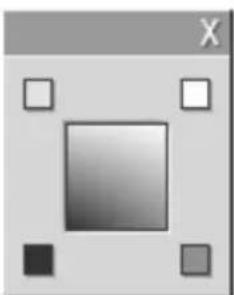
natural_image
Simple grayscale geometric shape with a central square and surrounding squares (no text or symbols)in a colour-picker dialog.
Some of the more elaborate supplied looks cannot be edited.
The Favourites tab lets you save particular custom looks that you may want to re-use in the future, to save you from having to remember or record the parameters → 📄 🏠 you used. Click the left-hand button to save the current look as one of your favourites. Click the right-hand button to delete the currently-selected “favourite”.
The Backgrounds section
A title or menu can have four types of background: a solid colour, a gradient, transparency (no background at all) or an image file (such as drawing, photograph or saved video frame).
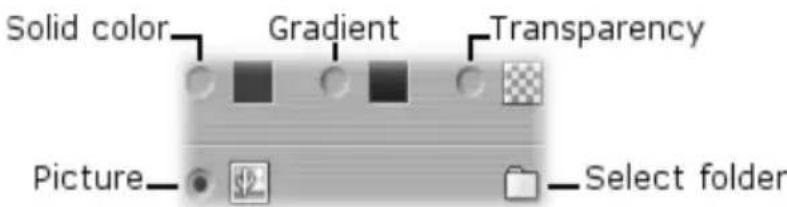
The colour and gradient options in the Backgrounds section of the Title Editor work in just the same way as those described above for the Looks Browser (page 109), except that the colour or gradient you select is instantly applied to the background of the title you are editing.
If you are working on an overlay title, you may find interesting ways to use the Opacity setting on the colour-picker dialogs for these buttons, especially when the overlay is coupled with transitions.
Normally, though, you'll use a transparent background for titles, and transparency is the default background selection for a new title or menu.
The final option for backgrounds is picture – an image file in any standard format. As with many of the sections of Studio’s main Album, the backgrounds are drawn from a source folder that may be changed using the folder button. The image file you select with the folder button becomes the new background, and the image files in the folder are displayed as thumbnails on the Album panel. If necessary, the Title Editor stretches the background image until it fills the width or height of screen but does not change its proportions.
The Pictures section
As with the background pictures just discussed, the images in the Pictures section of the Title Editor Album can be of any standard type. Instead of being stretched to fill the Edit Window, however, these pictures are added to the title as picture objects and displayed at normal size with eight control points that allow it to be repositioned and resized (though not rotated or skewed).
Picture objects behave just like text objects and the two types of graphic object with respect to grouping, alignment and similar controls.
The Buttons section
Since buttons are the magic ingredient that turns titles into interactive menus, this section of the Title Editor Album is mainly of interest for DVD, VCD and S-VCD authoring.
Broadly speaking, a button is an area of the screen with which the user can interact in some way. Buttons are classified according to the action they produce when the user activates them, and not by their appearance, which generally should give a strong clue to their behaviour, but is not required to. The four types of button are:
- Normal: Clicking the button causes playback to jump to a chapter (that is, ordinary video) or another menu. The link between the button and its target is created in the Clip properties tool, not in the Title Editor.
- Thumbnail: This special form of the normal button type displays a thumbnail frame (or a moving thumbnail preview) from the part of the movie to which it links.
- Previous: This button appears on the second and later pages of multi-page menus (menus with more links from normal or thumbnail buttons than will fit on one page). It links to the previous menu page.
- Next: This button appears on all but the last page of multi-page menus; it links to the following page.
The button art supplied with Studio includes several examples of each type. Each button is an image file in Targa (tga) format. Examination of the files in an art program like Adobe PhotoShop or Paint Shop Pro will show that the transparent portion of the button image, and the special area for the display of thumbnails (where applicable), are defined by an alpha channel included with the image.
As usual, a folder button lets you select the disk directory from the displayed images are obtained.
To use a supplied button, simply drag it from the Album into the Edit Window, where it becomes a button object – essentially an identical twin of the picture object.
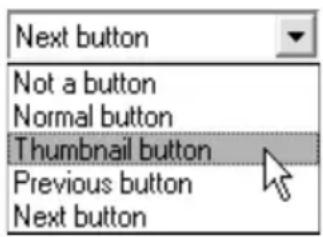
The default action of the supplied buttons is determined by their file names, but a new action can be assigned to the currently-selected button object from the dropdown list in the Buttons section of the Title Editor Album. The first choice on this list, “Not a button”, removes the action from the object – now it is merely a graphic. The other choices correspond to the button types listed above. Remember, it’s not what a button looks like that determines its behaviour, but the button type that has been assigned to it.
In fact, you can make a button of any non-group object – whether text, rectangle, ellipse, picture or button – just by selecting it in the Edit Window and choosing a new button type from the dropdown list.
Would you like to make a button that says “Grandma” and link it to the video of Grandma’s birthday party? Just create a text object, make it as fancy as you like with text stylings and the Looks Browser, and assign it the normal button action. Back in the Clip properties tool, link the new button to the chosen video clip and the job is done.
Button highlighting
DVD menus (but not VCD and S-VCD menus), give visual feedback by highlighting the current button as the user scrolls around the menu. Special active highlighting distinguishes a button that is in the process
of being actuated, just before the action is performed. (You can preview this highlighting in the Player, and interact with the menu using either the mouse or the Player's DVD controls.)
The Title Editor lets you assign the colour that will be used for each type of highlight, and a style option that governs how the highlights will be drawn. The controls for these settings are located below the button-type list:
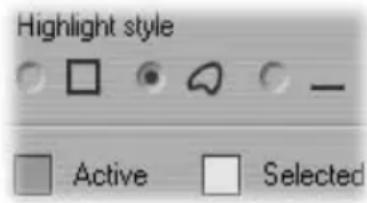
Click the Active and Selected colour swatches to set the highlight colours that work best with your menu. It may help to make your menus clearer if you use consistent highlighting colours for all the menus on a disc.
The three highlight style options, from left to right, are:
- Box: The highlighting is drawn as a rectangle enclosing the button.
- Follow shape: The highlighting covers the visible area of the button, whatever its shape.
- Underline: The button is underlined.
These highlight options can be applied to any type of button made from any type of object, not just the button images brought in from the Album.
Chapter 8:
Sound Effects and Music
Video may be thought of as primarily a visual medium, but the role of sound in your movies is often no less important than the images on the screen.
Feature film and television productions include numerous types of audio, beginning with the dialog and other sounds created during live action. In your movies, that raw soundtrack is brought in along with the video during Capture Mode. It appears in the Movie Window Timeline view on the Main Audio track below the Video track.
Most productions also require sound effects – slamming doors, crashing cars, barking dogs, etc. – and incidental music, which may consist of music created especially for the production, songs taken from recordings, or both. Voice-overs and other specially-recorded audio are also often needed.
You can use all these types of add-on sound in your own movies. A good starter set of effects in wav format is installed with Studio, and others are available from many sources. The SmartSound tool automatically creates a music track of any desired duration in a variety of styles; you can also drop in mp3 files from the Album or import CD audio tracks with the CD audio tool. The Voice-over tool lets you add narration or commentary as you preview your edited video.
All these types of audio are added to your production as clips in the Movie Window, where they can be moved around, trimmed and edited in much the same
way as video clips and still images. Finally, Studio lets you adjust your audio mix so that your soundtrack is properly balanced throughout the movie.
The Timeline audio tracks
The Movie Window's Timeline view contains three tracks for audio:
Original Audio track: This contains the audio captured along with your video clips, which is sometimes called synchronous audio because it is synchronous with the video track.
Sound Effect/Voice-over track: Sound effects and voice-overs are the typical content of this track. Sound effects are brought into your project from the Sound Effects section of the Album (see “The Sound Effects Section” on page 54). Voice-overs are created with the Voice-over tool (described on page 122).
Background Music track: Use this track to include SmartSound background music generated by Studio and music (or other content) from audio compact disks (CDs). Create SmartSound clips with the SmartSound tool, and CD audio clips with the CD audio tool (see “The SmartSound tool” on page 120 and “The CD audio tool” on page 118).
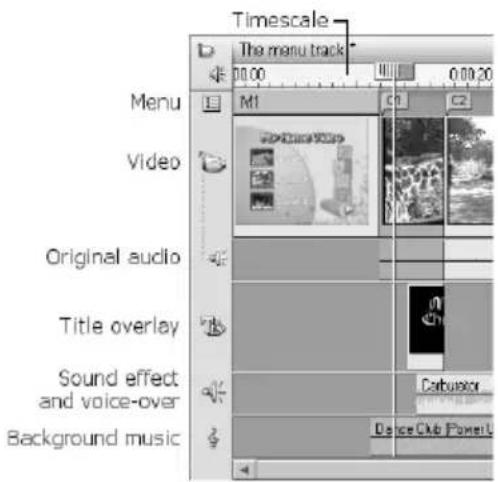
Switching audio tracks
Although the three audio tracks do have their specialized roles, as described above, these mainly control on which track new clips will appear. Original audio will always be placed on the Original Audio track when a new video clip is brought in; new voice-overs will always be created on the Sound Effect/Voice-over track; and new CD audio and SmartSound clips will be added to the Background Music track.
Once a clip has been created, however, you can move it a different audio track if it is convenient to do so: each track is actually able to accommodate any type of audio clip. This gives you the flexibility to use two sound effects simultaneously, for example, simply by placing one of them on the Background Music track.
The only audio track with special status is Original Audio. By default, audio clips on this track are edited in parallel with the contents of the Video track at the same time index. To treat the audio as a separate clip, you must first lock the Video track (by clicking its track icon at the left side of the Movie Window). See “Advanced Timeline editing” on page 68 for more information.
The CD audio tool
Use this tool to create an audio clip from a CD track. You can preview tracks within the tool, and select either a whole track or an excerpt to add to your movie.
![Name: Adagio Duration: 0:01:12.01 CD Title: Mozart KG2G Track: Track 2 Add to Movie 0:00:56.18 [ 0:00:45.15 ] [ 0:01:57.15 ]](/content/2026/06/1238913/images/67c4de88e44c96161120c001fbe60292e8aabcdd7974f95a77d7f785bc173364.jpg)
If there is a CD in the drive that you have not previously used it with Studio, Studio will ask you to enter its name before continuing. The controls on the tool will become available only when Studio can offer at least one entry on the CD Title drop-down list.
Select the CD from which you wish to capture audio in the CD Title drop-down list, and a track on that CD from the Track list. Since CD Title is also an editable text field, you can change the name by which Studio refers to this CD, if desired. The name change applies to both the current and future sessions.
Having selected the CD and track, you can now optionally trim the clip and give it a custom name using the other controls on the tool. These controls are common to most audio clip types, and are used for editing as well as creating clips. They are covered on page 125 under “Trimming with the Clip properties tool”.
Finally, click the Add to Movie button. Studio creates the new clip on the Background Music track beginning at the current time index (as shown by the Timeline scrubber and the preview frame in the Player).
The first time you preview the portion of your movie that contains the new clip, Studio will ask you to insert
the CD (if it is not already in the drive), so that the audio data can be captured. You won't need to repeat this step subsequently unless you lengthen the clip.
CD Recording Options
Depending on your CD drive, Studio offers a number of recording options. The choices are found in the CD/Voice-over tab (Setup > CD and Voice-over):

The default method is digitally “ripping” from your CD to Studio, where the audio is transferred digitally. If you have an older CD drive and can’t rip, Studio lists alternative options based on your audio board.
The SmartSound tool
SmartSound automatically creates background music in the style of your choice. Within that style, you select one of several songs, and within that song, any of a number of versions. The list of versions available also depends on the duration of background music you specify.
SmartSound consists of two main software components: the program built into Studio for choosing and controlling music creation, and the sound files themselves. Because the sound files are large (around
250 MB), the default install gives you the option of not including them. If you find yourself using this feature a lot, you can install these files at any time for more convenient access, or continue to use them directly from the CD to conserve drive space.
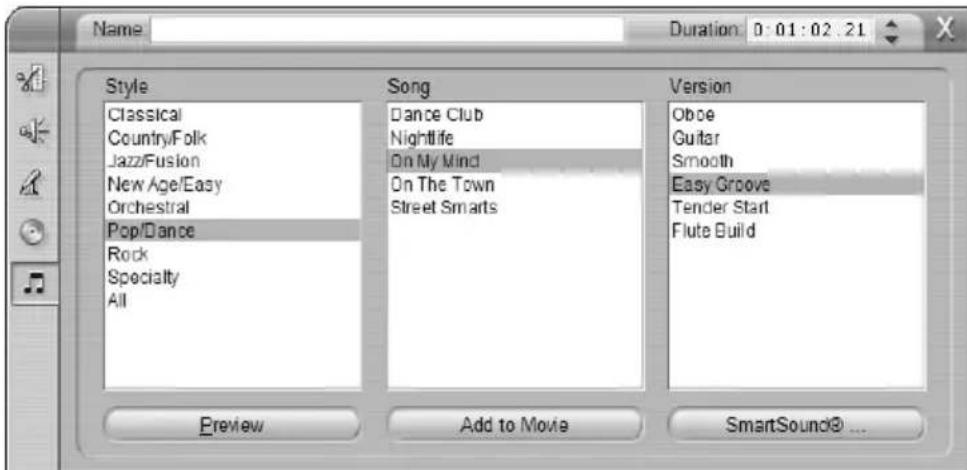
To create background music for a particular set of clips, select those clips before opening the SmartSound tool. (To select your whole movie, use Edit > Select All or press Ctrl+A.) The total length of the selected clips will determine the initial setting for the music duration, though you can modify the value at any time by trimming on the Timeline or directly editing the Duration counter in the tool.
In the SmartSound tool, choose a style, song and version from the lists provided. Each style offers its own selection of songs, and each song its own selection of versions. Enter a name for the clip in the Name field and adjust its duration with the Duration counter, if desired, then click the Add to Movie button. Studio creates the new clip on the Background Music track beginning at the current time index (as shown by the Timeline scrubber and the preview frame in the Player).
The Voice-over tool
Recording a voice-over in Studio is as easy as making a telephone call. Just open the Voice-over tool, click Record and speak into the microphone. You can narrate as you watch the movie play so your words match the action on the screen. You can also use the tool as a quick way of capturing music, sound effects, etc. via your microphone.

Before you can record audio using the Voice-over tool, you need to connect a microphone to the input jack of your PC sound board. You must also have at least one video clip in the Movie Window.
Review the video scenes in your movie and decide where you want the voice-over to begin and end. When you are ready, open the Voice-over tool. Note that the recording lamp – the dark rectangle in the upper left of the above illustration – is not lit.
Select your starting point on the Movie Window Timeline. You may do this by selecting a clip, playing the movie and stopping it at the desired point, or by moving the Timeline scrubber.
Position the microphone for use and try speaking a test phrase to check your recording level (see “Voice-over
level" below). When you are satisfied, click the Record button (which toggles to a Stop button). Wait for a few moments as the recording lamp first signals "STAND BY" then steps through a 3-2-1 countdown.

flowchart
graph LR
    A["STAND BY"] --> B["3 2 1"]
    B --> C["3 2 1"]
    C --> D["3 2 1"]
When the recording lamp signals “RECORDING”, and the movie begins to play back in the Player, perform your narration.

Finally, click the Stop button. The lamp goes out, and the voice-over clip is automatically placed on the Sound Effects/Voice-over track. Review the clip by selecting it then clicking the Play button.
Voice-over level
The record level for a voice-over is set when you record the voice-over and cannot be changed; however, you can adjust the playback volume at any time. The record level is set with the Recording level slider and its accompanying level meter on the Voice-over tool.

Watch this meter to make sure your recording levels don't get too high or low. The indicator changes colour from blue (0-70% modulation), through yellow, to red. Generally, should try to keep your audio peaking in the yellow (71-90%) and out of the red (91-100%).
Voice-over recording options
You can adjust factory-preset values for recording quality. This section provides a brief summary. See “CD and Voice-over settings” on page 173 for detailed information.
To access these options select Setup > CD and Voice-over from the main menu bar.
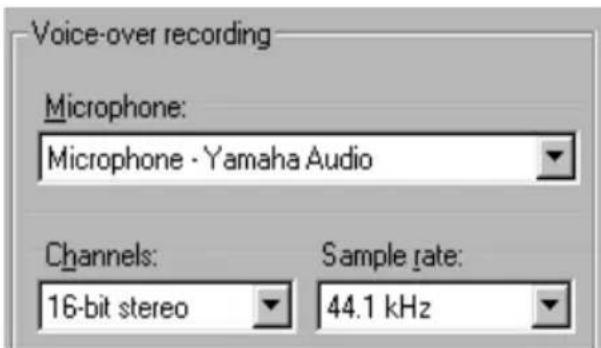
The Microphone drop-down list on this dialog lists the multiple ways a microphone can be connected to your particular sound card. The entries on the list should look something like the following, from a system with Yamaha sound card:
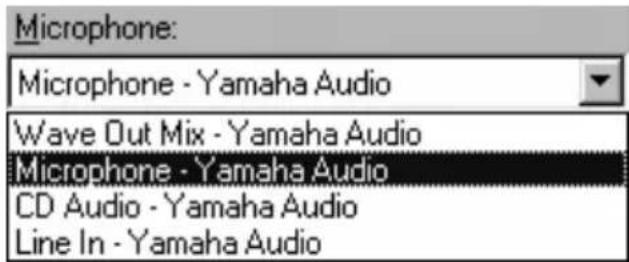
Choose from this list, then connect your microphone in the manner indicated (Line In, Mic In, etc.)
The Channels and Sample rate adjustments on the options dialog control the quality of voice-overs or other recorded audio. Set them at the highest quality level you anticipate needing, but keep in mind that increasing quality requires more disk space.
TRIMMING AUDIO CLIPS
As with other clip types, you can trim audio clips either directly on the Timeline or by using the Clip properties tool. See “Trimming on the Timeline using handles” on page 60 for a discussion of the first method.
Most types of audio clips can be trimmed from a minimum of one frame up to the full original length of the clip content. SmartSound clips can be trimmed on the Timeline down to as little as one second, and upward without limit.
Trimming with the Clip properties tool
The Toolbox > Modify Clip Properties menu command invokes the Clip properties tool for the selected clip. You can also access the tool by double-clicking any audio clip.
To begin with, the tool provides controls that let you view or edit two properties shared by all clips:
- To set the duration of the clip, change the value in the Duration counter.
- The Name text field lets you assign a custom name to the clip to replace the default one assigned by Studio. Clip names are used by the Movie Window's List view, and can also be viewed as a fly-by label when your mouse moves over a clip in the Storyboard view.
The other controls provided by the tool depend on the type of audio clip you give it.
Original Audio, Sound Effects and Voice-overs
The Clip properties tool provides the same kind of trimming controls for sound-effect and voice-over clips as for video clips, but displays a graph of the audio
waveform instead of visual preview areas. To learn how to trim with these controls, see “Trimming video clips with the Clip properties tool” on page 63.
Remember that Original Audio clips can only be edited independently when the Video track is locked. See “Advanced Timeline editing” on page 68.
![Name: GearGind Duration: 0:00:28.01 0.00:00.00 [ 0:00:00.00 0:00:28.03 ]](/content/2026/06/1238913/images/764da915113abb57cda8f67e031efe7968b7105365ffae18cb6e7072bfd8f955.jpg)
CD Audio
For CD Audio clips, the Clip properties tool uses the same trimming controls as above, but additionally provides drop-down selectors for CD Title and Track. You can use these to change the source of the clip at any time. CD Title is also an editable text field, so you can enter the actual title of the CD.
![Name: Foxglove Duration: 0:00:07.10 CD Title: Six strings north of the border Track: Track 3 0.00:35.01 [ 0:00:31.28 0:00:39.07 ]](/content/2026/06/1238913/images/9a0ebdd5baf67a6a7e3a5cba44a2a3aca3b537d8b324803c18d6525f1b6156bc.jpg)
SmartSound®
SmartSound clips can be edited to almost any length, except that very short clips at some particular durations may not be available in every combination of Style and Song. This tool is essentially identical to the tool for creating SmartSound clips (described under “The SmartSound tool” on page 120), except that the Add to Movie button is replaced here by the Accept Changes button.
![Name: Piano Sonata [High Twinkle] Duration: 0:00:16.26 Style Classical Country/Folk Jazz/Fusion New Age/Easy Orchestral Pop/Dance Rock Specialty All Song Four Seasons Mozari Night Piano Sonata Queen of Sheba Version Elegance Parlot Piano Light Piano High Twinkle Regal Piano Low Piano Short Intro Preview Accept Changes SmartSound® ...](/content/2026/06/1238913/images/e7671725160cfe584ee2cf61cac3a2c76ca2a0b71a5c045002191564e4d96f69.jpg)
AUDIO VOLUME AND MIXING
Audio levels of individual clips can be adjusted either directly on the Timeline, or with the Volume tool. Each technique offers its own advantages. Adjusting on the Timeline gives you a good sense of time versus volume, whereas the Volume tool facilitates mixing - adjusting the relative volumes of the three audio tracks with respect to each other.
Anatomy of an audio clip
An audio clip icon on the Timeline has several parts. The boundaries of the clip are denoted by vertical bars. The actual content of the audio is indicated by the waveform graph. A continuous sound, such as a car engine, has many pulses packed closely together. A staccato sound has brief pulses separated by silences where the waveform is a horizontal line.
The blue volume line graphically reveals the volume changes you have made to the clip. If you have not adjusted the volume at all, the line runs straight along the middle of the clip. If the only change you have made is raise or lower the volume of the entire clip, the line is still horizontal, but either higher or lower than the mid-point. Finally, if you have volume adjustments within the clip, the line will consist of sloping segments that meet at volume adjustment handles.
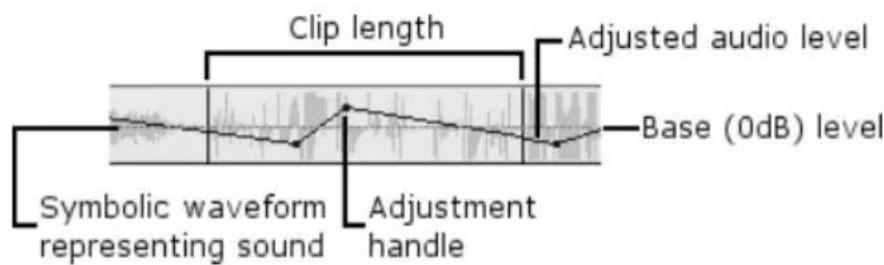
Adjusting audio volume on the Timeline
The audio level can be adjusted directly within the clip. Use the mouse pointer to adjust the blue line that that represents the audio level (see “Anatomy of an audio clip” above).
The volume line runs horizontally along the middle of a newly-created clip. Select the clip (by left clicking),
then move your mouse pointer close to the line. The volume adjustment cursor will appear:

Click the left mouse button, and drag up or down within the clip. The volume line bends as it follows the mouse.
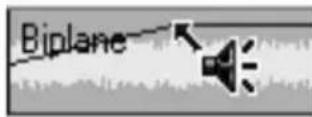
When you release the mouse, Studio creates an adjustment handle on the volume line.

When your mouse pointer is positioned over an adjustment handle on a selected clip, a highlighted version of the volume adjustment cursor appears. With this cursor, you can click and drag the adjustment handle both vertically and horizontally.
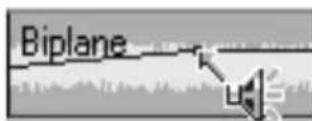
Right-click an adjustment handle to access the context menu command Delete Volume Setting. This command removes the adjustment handle from the clip.
To remove all volume changes from a clip, select Remove Volume Changes from the context menu.
Adjusting levels with the Volume tool
Compared to adjusting audio on the Timeline, the Volume tool offers a greater degree of adjustment functionality organized into one convenient location. This tool operates in a similar way to a traditional audio mixer.
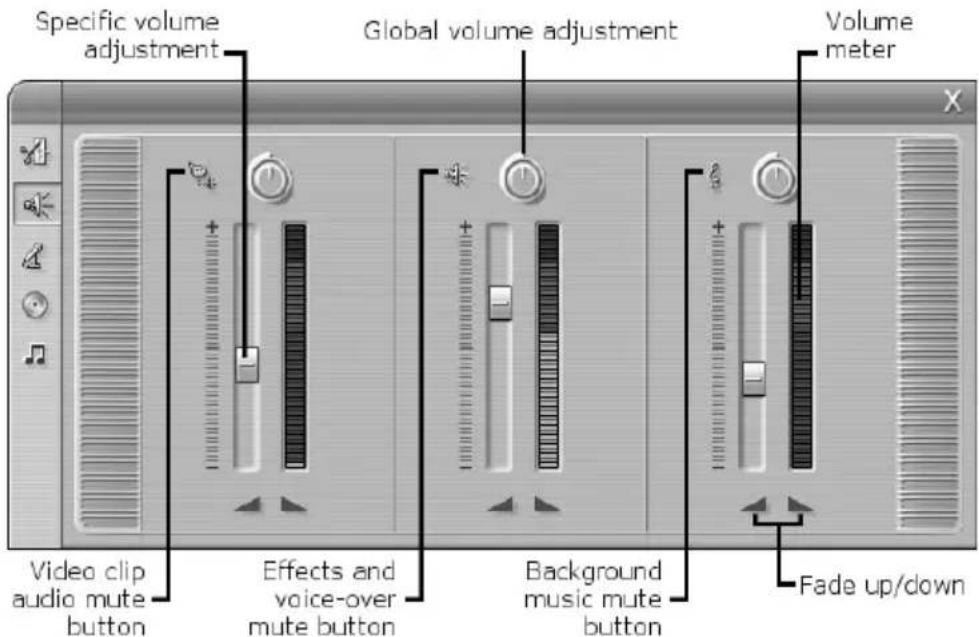
The three sliders let you control the volume of the individual tracks with respect to each other, either on the fly or with playback stopped. In addition, you can fade the audio in or out at any point. The tool also displays the volume at the current Timeline position with meters similar to those on stereo equipment.
As indicated by the symbols at top, the three sets of controls govern the Original Audio track, the Sound Effect/Voice-over track and the Background Music track respectively.
The volume at the current time index is controlled by clicking on the Volume sliders and adjusting them up or down. This operation creates a new adjustment handle at the current time index on the clip in the
corresponding track. (And if there no clip on that track? In that case, the Volume slider is unavailable.)
To adjust the volume upwards or downwards for the track as a whole, grab the indicator on the Global volume adjustment dial for the track and rotate it clockwise (up to the 4 o'clock maximum position) or counter-clockwise (down to the 8 o'clock minimum).
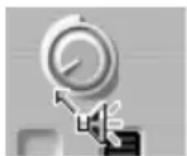
Full off
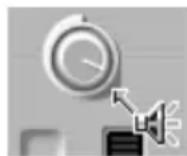
Full on
Muting tracks
Any or all of the three audio tracks can be muted simply by clicking the corresponding track indicator on the Volume tool. The indicator toggles to the “off” position, and the track is muted. The muted state is shown on the Timeline by a red line across the bottom of the audio clips on the track.
Fade-in and Fade-out buttons
Below each Volume slider is a pair of Fade buttons bearing ramp symbols. These produce a fade in from or a fade out to the current position of the movie. Try scrubbing to a location within the movie, click one of the buttons, and observe the effect on the corresponding volume line.
The fade duration is variable from zero to fifty-nine seconds, and is selected in the Edit Options panel (Setup > Edit) under Volume fades.
Fades are not available too close to the beginning or ending of a clip.
Understanding menus
With the advent of the DVD, VCD and S-VCD disc formats, video has become an interactive medium, with new possibilities for both videographer and audience.
Developing – “authoring” – a disc in one of these formats means going beyond the old idea of creating a movie to be viewed in strict sequence from beginning to end. Now the audience can decide which parts of the movie to view, and in what order.
The essential new feature that makes disc authoring possible is the menu. A particular disc may have one, few or many menus, each consisting of a still image or short video sequence. Areas within the menus, called buttons, can be selected by the viewer to activate links to other content on the disc. Activating a link causes an immediate transfer to any of:
- A normal video sequence, which in this context is called a chapter. Chapter buttons show a thumbnail frame from the video to which they link.
- Another page of the same menu. Multiple pages are used when a menu has too many buttons to fit on a single page.
- A different menu.
Unlike any other kind of clip, menus automatically loop. When the end of a menu is reached during preview or playback, it is immediately restarted. This produces a jump in the playback position affecting all clips that run simultaneously with the menu – video (if the menu is an overlay), audio or title.
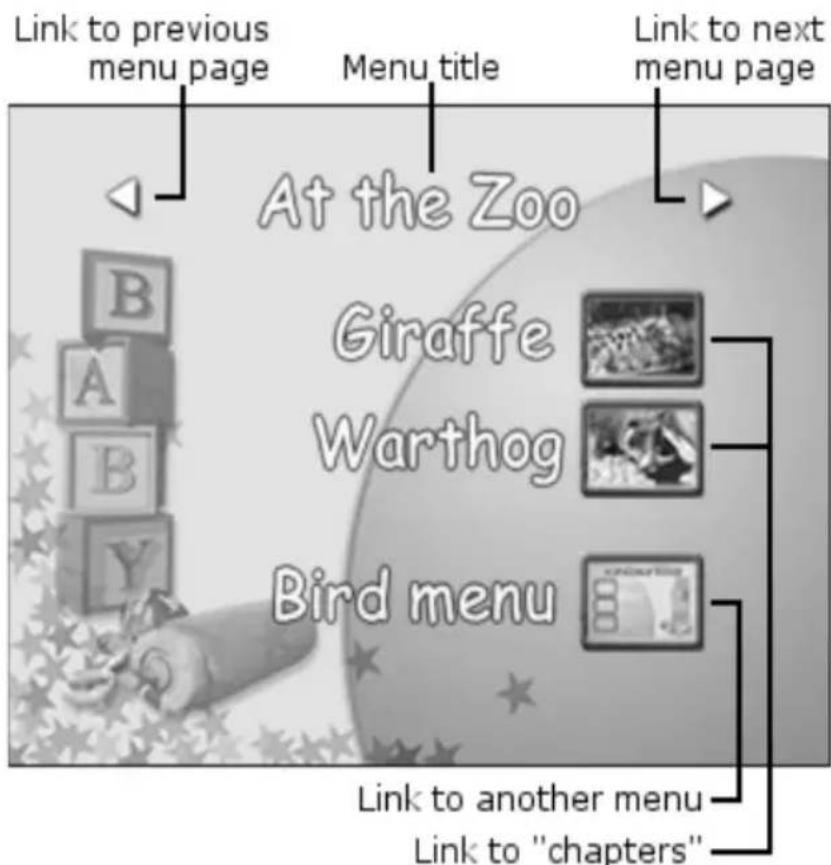
The following diagram is patterned after the Movie Window storyboard. It shows how the menu pictured above, which appears in the diagram as M1, might fit into the overall scheme of a simple movie with two menus.

Each menu is followed in the movie by several chapters (all but one consisting of a single clip). Our menu, M1, has links to five chapters spread over three pages (we
see the second page in the illustration). We've also given each page a link to the M2 menu.
The simple layout of this short movie can easily be extended to organize large numbers of clips. Much more complex movies are also constructed from the same elements: multi-page menus with links to chapters and to other menus.
Disc authoring in Studio
For the purposes of editing in Studio, a disc menu is just one more type of clip. As with titles, you can use or adapt the menus provided in the Album, or construct your own from scratch in the Title Editor (see Chapter 3: The Album and Chapter 7: The Title Editor).
To get a feeling for what is involved, try creating the pair of “instant” projects described below. You don’t have to go as far as making discs, but you can preview your movie using the DVD playback controls on the Player (see “The DVD Player Control” on page 137).
Instant video scene catalo: In an empty project, multi-select a good number of scenes from the Album and drag them onto the Video track. Now switch to the Disc Menu section of the Album (the bottom tab) and drag any of the menus to the beginning of the Timeline. When Studio asks if you would like to “automatically create links to each scene after the menu”, click Yes (see “Using menus from the Album” on page 135). A new track appears at the top of the Timeline, and a small “flag” appears over each of your clips. These represent links from the menu you just added. And that’s it – sit back and watch the show.
Instant slideshow: This time, start in the Still Images section of the Album. Drag as many images as you like
onto the Video track of an empty project, then drag in any disc menu as the first clip on the Timeline, and again click Yes when asked if you want links automatically created. Turn next to the Transitions section of the Album, pick any transition, and drag it between the menu and the first of your still images. Finally, select all of the still images (click the first, then shift-click the last), click with the right mouse button, and choose Ripple Transition from the pop-up menu. Presto – instant slideshow!
Menus and Titles
The similarity noted on page 134 between titles and disc menus is not a coincidence: a menu is essentially “a title with buttons”. In fact, any still image type can be used as the basis for creating a menu within the Title Editor.
Like titles, menus can be used either in full-screen mode on the Video track or as overlays on the Overlay track. When a menu is used an overlay, its background image is suppressed; only buttons, captions and graphics are displayed. This allows the menu to have a moving video background.
Using menus from the Album
The Disc Menus section of the Album contains a collection of menus that have been designed for particular occasions, authoring styles and chapter counts. Each menu provides a background picture, a title, a set of chapter buttons (generally with spaces for thumbnail frames), and a pair of Next page and Previous page buttons.
The number of chapter buttons per page varies from menu to menu, so one criterion for selecting a menu is the number of clips you want it to handle. It is generally more convenient for the viewer to browse a few menu pages with many buttons per page than many pages of a few buttons each.
During editing, you see all the buttons that the menu provides. During playback, the only buttons visible are those to which links have been assigned.
Menus with fewer buttons have more space for captions; those with many buttons will have abbreviated captions or none at all. Whether you need captions, and if so whether they should be simple (“Chapter 1”) or descriptive (“Our team at bat”) is a matter of your authoring style and the content of your movie.
In the VCD and S-VCD formats chapters must be selected numerically (by keying numbers on the remote control), so it is important to provide button captions that include the chapter number when authoring for these formats.
Dropping menus on the Timeline
When you drag a menu from the Album and drop it onto the Video track or the Overlay track, Studio gives you the option of automatically generating links to all video clips to the right of the menu on the Timeline.
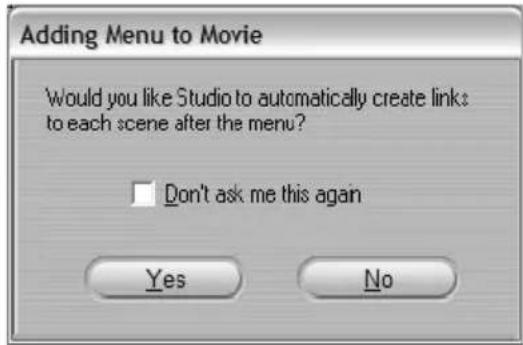
This is the quickest, easiest way to link in a disc menu, but may not be what you want in a particular authoring situation. If you check the Don't ask me again checkbox, you choice of Yes or No becomes the default action when you drag in a menu in future. You can also set the default action, or reinstate the confirmation window, in the When adding a menu area of the Edit Options panel (see “Edit Settings” on page 171).
If you want your chapter links to be automatically generated, but not until you have done further editing, you can request the operation later with the Disc chapter command on the pop-up context menu for menu clips.
The DVD Player Control
Studio's Player provides a specialized set of controls for previewing movies that contain menus, patterned after the button layout on a set-top DVD remote control.

Switch the Player to DVD mode by clicking the DVD toggle button to the left of the transport controls:
Switching to DVD mode simulates inserting a DVD disc into a set-top player: your movie immediately begins to play from the beginning, and a grouping of DVD controls appears and activates below the Player preview screen:
natural_image
Gray-scale icon set with circular and triangular buttons, no text or symbols presentThe Player also goes into DVD mode automatically, but without resetting to the start of the Timeline, if you
click the Play button while the Timeline scrubber is positioned within a menu clip.
Here are the functions of the individual DVD controls:

Main menu: Jumps to the first menu in your movie and begins (or continues) playing.

Previous menu: Jumps to the most recently active menu and begins (or continues) playing.
Clicking the button again jumps back from the menu to the most recent clip.


Previous chapter, Next chapter: Clicking the Previous chapter button takes you to the start of the current chapter if you aren't there already. Click it again to move on to the previous chapter. The Next chapter button takes you forward to the next chapter in the movie. Within a menu, these buttons step backwards and forwards respectively through the menu pages.

natural_image
Gray circular icon with six geometric shapes arranged symmetrically around a central circle (no text or symbols)Button selection: The four arrow controls in this cluster move the on-screen cursor within a disc menu to select one of its buttons. The oval button in the middle of the cluster activates the currently-selected on-screen button, which is indicated by highlighting.
Activating menu buttons directly
One feature of the Player that set-top DVDs don't have is the ability to click the buttons directly on the screen. Whenever a button is visible in the Player preview area in DVD mode, you can click it to follow the button link.
Editing menus on the Timeline
Menus can be trimmed on the Timeline just like any other still image clip (see “Trimming on the Timeline using handles” on page 60).
Setting the clip duration is generally less crucial for menu clips than for other types, since menus cycle during playback while waiting for user input. If you want audio with your menus, though, you will want to match the menu's duration to that of your audio clip.
The menu track
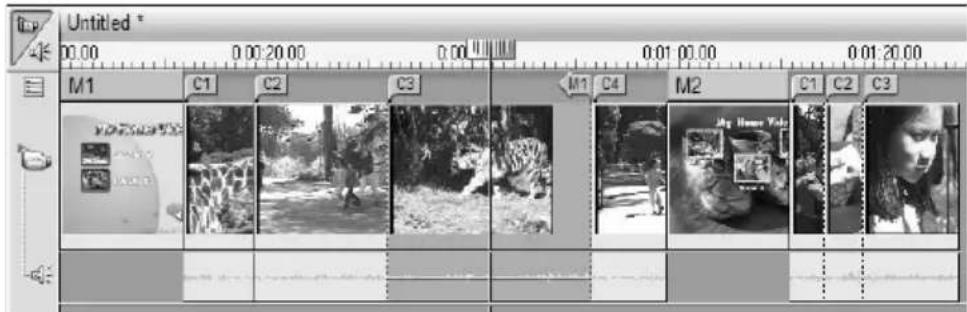
Menu buttons link to particular points within your movie. Those points are marked by flags on the Menu track, which materializes above the Video track the first time a menu is added to your movie (and vanishes again if all menus are removed).
The menu itself is marked by a collared rectangle in the menu track (M1 and M2 in the illustration above). Each link to a chapter is shown by a “C” flag. Here is a close-up of the first part of the Timescale, showing the rectangle identifying the first menu, and the chapter flags for three of the clips it links to.
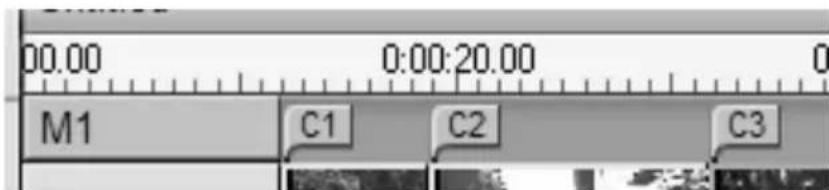
The next part of the Timescale in the overview illustration above includes the fourth chapter link from M1, and a link (the left-pointing arrow) from the end of the previous clip back to the menu. A result of setting this link is that the C4 clip can only be reached from the menu. The C4 clip is followed by menu M2, which is drawn in a new colour.

Editing on the Menu track
Flags on the Menu track can be moved by dragging them with the mouse, thereby changing the location at which the link takes effect in the movie. When a video clip is moved, any flags attached to the clip are moved along with it.
To create a link:
- Right-click the Menu track and choose either Set Disc Chapter or Set Return to Menu, depending on the kind of link you want to create; or,
- Right-click the Video track and choose Disc chapter or Disc jump.
Return to menu links are created at the end of the current clip, rather than at the point where you click. You'll rarely want to return from the middle of a clip, but you can drag the link flag to a new position if the occasion arises.
To reposition a link:
Click the flag for the link and drag it along the Menu track to its new position.
To delete a link:
• Right-click the link flag and choose Delete; or,
- Select the flag, highlighting it, then press Delete.
Editing with the Clip properties tool
The Clip properties tool for disc menus allows you to create, edit and fine-tune menu links, and provides access to the Title Editor for adjusting the visual content of the menu.
Like the Clip properties tool for other clip types, this tool lets you set a custom name for the menu by editing the Name field and trim the clip by editing the Duration field.
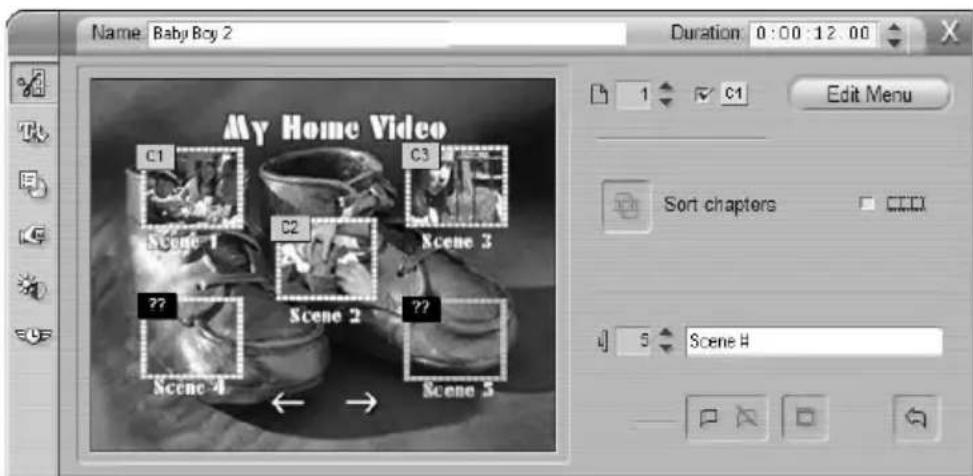
The Edit Menu button at the top right of the tool opens the menu in the Title Editor. There you can change every visual aspect of the menu: its background and button images, the appearance and contents of its captions, and more. For full information about the
many capabilities of the Title Editor, see Chapter 7: The Title Editor.
The preview area on the left side of the tool shows how the menu looks and also has interactive features you can use when establishing button links. (These are described on page 143 under “Button-editing controls”.)
The other controls are in three groups, organized into three horizontal areas.
Menu-previewing controls
Page selector: For menus with multiple pages (those with more links than a single page can accommodate) the arrow buttons let you select which page is active in the preview area. You can select any page in the menu for which links have been defined, plus an empty page on which new links can be created.
Alternative methods of selecting menu pages: 1) Step through the pages by clicking the page link buttons in the preview area. 2) Use the Button selector control (described on page 143) to choose a button on any page of the menu.
Show Link Numbers checkbox: Check this box to cause link numbers to be displayed in the preview area over every button in the menu. The link numbers match the format and colour of the chapter flags on the Menu track.
Controls affecting all chapter links
Sort Chapters button: In the course of editing your movie, it is easy for the chapter links from a
menu to get out of sequence with respect to the actual
order of clips. Unless this is what you want, use the Sort chapters command so that the chapter link buttons in the menu are in the same order as the corresponding clips in the movie.

Moving Thumbnails checkbox: Check this option if you would like your menu's buttons
to show moving video from their target chapters rather than a static thumbnail frame. Because this feature

requires that the moving thumbnails be pre-rendered, the results won't appear immediately when you preview your movie in the Player. Instead you will see a “background
rendering" progress bar appear over the menu clip in the Timescale. The bar gradually changes from blue to grey as the rendering operation progresses. Editing is not interrupted – Studio carries out the rendering while you work.
For more on background rendering, see “Hollywood FX for Studio” (page 83); and “Edit Settings” (page 171).
Button-editing controls
The controls in this area select or modify the individual buttons within a menu.

Button selector: Every link button in your menu, no matter which page it is on, has a
unique sequence number. Use the arrow buttons on this control to select the menu button you want to work on. The selected button is highlighted in the preview area. You can also select a button by clicking on it in the preview area.
Scene #
Button caption text field: Edit the text for the current button without going to the Title Editor. The “#” character in button captions has a special meaning: Studio replaces it with the button’s sequence number. Use this feature to ensure that your buttons are correctly numbered regardless of changes in the layout of the menu. To edit other characteristics of a button caption – its position, font, and styling – click the Edit Menu button to invoke the Title Editor.
Set Link, Clear Link buttons: These
buttons create or cancel the link between the currently selected menu button and its target.
To set a link: Position the Timeline scrubber within a menu, video or still image clip, and click the Set link button. For video and still image clips, the chapter point is set to the exact location of the scrubber within the clip.
To clear a link: Click the Clear link button.

Set Thumbnail button: By default, the thumbnail frame displayed on a menu button is the frame to which the button links. You can choose any frame in your movie to be the thumbnail, however. Just move the Timeline scrubber to the exact frame you want (as shown in the Player), and click the Set thumbnail button.

Set Return to Menu button: The “return-to-menu” link is placed at the end of the current clip, which is almost always where you want it. During playback, it causes an immediate jump to a specified menu. To create a return-to-menu link in the Clip properties tool, position the Timeline scrubber in the clip where you want the link, and click Set return to menu.
Creating links with drag-and-drop
The Clip properties tool for disc menus supports drag-and-drop as a quick and convenient way to establish links for menu buttons.
To create a link using drag-and-drop:
- Click the clip in the Movie Window that you want to link to, and drag it onto a button in the Clip properties tool preview area. The button is linked to the first frame of the clip. Or,
- Click the button for which you want to create a link, and drag it onto a clip in the Movie Window. In this case you are linking to the point within the clip at which you “drop” the button – not the first frame.
The Disc menu tool

If you select this tool while a menu is selected, it is equivalent to selecting the Clip properties tool; otherwise, it provides a Create Menu button that takes you into the Title Editor to begin the process of creating a new disc menu.
Because developing a menu is a relatively intricate operation, Studio takes the opportunity to remind you that pre-built menus are available in the Album:
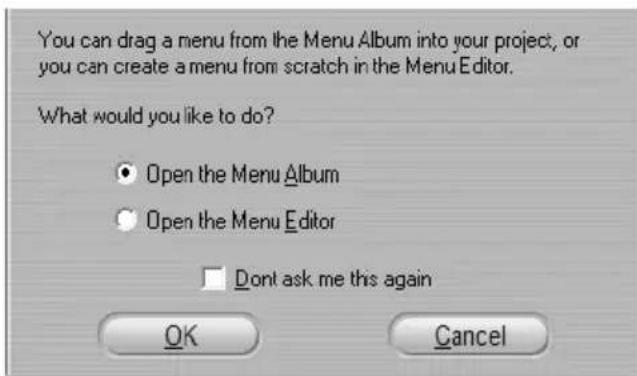
When you decide that this reminder is no longer needed, check the Don't ask me this again box before clicking the OK button.
Chapter 10: Making Your Movie
Studio gives you a variety of ways to share your video creation. This chapter explains how to:
- Attach a DV or MicroMV camcorder or a DV VCR
- Connect a VHS or S-VHS (analogue) camcorder or VCR
- Connect a TV set or video monitor
• Output your movie to videotape - Save your movie as an AVI file
- Save your movie as an MPEG file
• Share your movie via the Internet - Save your movie as a Windows Media or RealVideo file
- Output your movie for a DVD, VCD or S-VCD player
• View a DVD, VCD or S-VCD movie on a computer
All these operations are available in Make Movie mode, which you access by clicking the Make Movie button at the top of the screen.

For an introduction to the Make Movie mode interface, see “Make Movie mode” on page 24.
Preparing your movie for output
Before your movie is actually ready for output some pre-processing will generally be required:
- If your movie includes clips that were captured in preview quality, Studio will prompt you to load your source tape(s) in your DV camcorder or VCR. Studio will recapture those clips at full resolution.
- Studio will need to render any transitions, titles and disc menus you’ve added to the movie. If all or part of your movie was captured in MPEG format, that footage must be rendered in its entirety.
When Studio has completed its batch capture and Intelligent Rendering, the Make Movie Status panel will indicate that your movie is ready for output.
Outputting to a camera or video recorder...
... with an IEEE-1394 cable
If your IEEE-1394 device has a DV input, just connect the device to the camera or recorder with an IEEE-1394 cable.
... with analogue audio/video cables
If you have a Studio product, which has an analogue (TV or video) output, e.g. Studio DVplus or DC10plus, proceed as follows:
Connect the video outputs of the capture card to the inputs of the video recorder and the audio outputs of the sound card (or the Studio DVplus, depending upon which hardware you are using) to the audio inputs of the video recorder.
Connecting the TV set / video monitor
To view the recorded footage, a TV set or a video monitor must be attached to the DV camcorder/VCR.
Note: Not every DV camcorder supports this function of simultaneous output to TV!
Many camcorders have an integrated display, in which case you do not need to attach a video monitor. If you don't wish to connect a TV set or video monitor to your DV camcorder/VCR, you can always use Studio's Preview window.
Output your movie to videotape
Switch to Make Movie Mode, and check that your camcorder or VCR is connected and ready to record your movie.
To output your movie to videotape:
- Click the Tape tab to bring up the controls shown here:
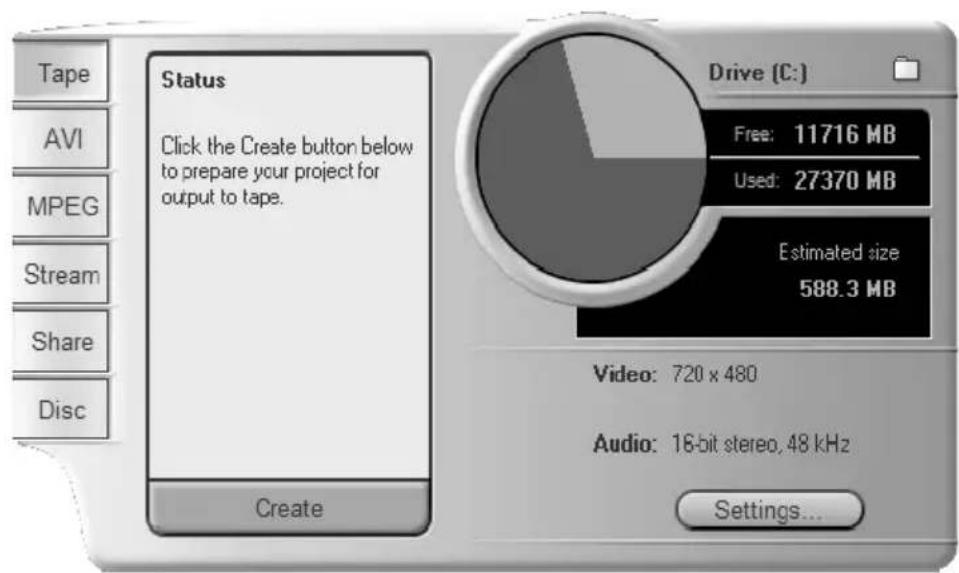
-
Click the Create button.
-
If you have used preview-quality clips, Studio displays a dialog box prompting you to insert the original DV tape(s) into your DV playback device so that clips can be recaptured at full quality.
It's good practice to slide the record-inhibit tab on your master tapes to “Save” to ensure there's no accidental recording over original material.
Note: Studio relies on continuous, uninterrupted timecode to recapture these clips. If your original tapes have discontinuous timecode (i.e. timecode re-zeroes at a location other than the beginning of your tape), you must manually cue to the portion of the tape which holds the clip(s). Studio will then perform an accurate recapture of the clip(s) and provide you with trim handles. You can see the extra frames by opening any recaptured clip with the Clip properties tool.
- The parts of your movie that were captured in MPEG format must now be rendered.
For other captured footage, Studio begins Intelligent Rendering, which renders only the parts of your movie where you have added effects (transitions, title overlays, etc.) or disc menus. Intelligent Rendering saves you time and disk space. Intelligent Rendering is entirely automatic, except that you may be asked to insert any audio CDs that are part of your movie. During Intelligent Rendering, Studio gives you complete feedback on the status of the process. It tells you what part of the Intelligent Rendering process it is performing via messages in the Status window.
Another status message will inform you that Intelligent Rendering is complete, and Studio will
prepare for output to your camcorder or VCR. This takes a few seconds.
You can terminate the Intelligent Rendering process at any point by clicking the Cancel button. Having done so, however, you cannot continue. If you wish to record a finished videotape of the same movie, you will have to start from the beginning.
- Verify that the camcorder/VCR is powered on, and that you have inserted a tape cued to where you wish to begin recording. You now have two options:
If you want to record your movie on a DV tape, Studio gives you the option to automatically start and stop recording on your DV device. Click the Settings button then activate the check box in the Output options area.
If you want to record your movie on a standard (VHS or S-VHS) tape, start your VCR recording now.
Finally, click Play in the Player.
Save your movie as an AVI file
In some instances, you may wish to output your movie in AVI file format. Generally, AVI files are larger than MPEG files. But AVI files can be played back on a wider range of PCS.
If you choose to save your movie as an AVI file, Studio gives you control over several codec settings. Files can be greatly reduced; however, do keep in mind the trade-off between file size and quality: the more you compress, the more you reduce quality.
Both video and audio compression are adjustable. Video compression adjustments include frame size, frame rate and data rate (after compression). For audio,
you can select monaural (single channel) instead of stereo, and adjust the bit depth and sampling rate.
The default codec included with Studio DV is the Studio DV codec. If you wish to output your movie in another format, you can use any DirectShow-compatible codec installed on your PC, as long as that codec is also installed on the PC that will play your digital movie.
To save your movie as an AVI file:
-
Click the AVI tab on the Make Movie controls.
-
Click the Settings button. Verify that the Include video and Include audio
checkboxes are selected. (Though if you select “DV Video Encoder” in the Compression drop-down, the Include audio is unavailable.)

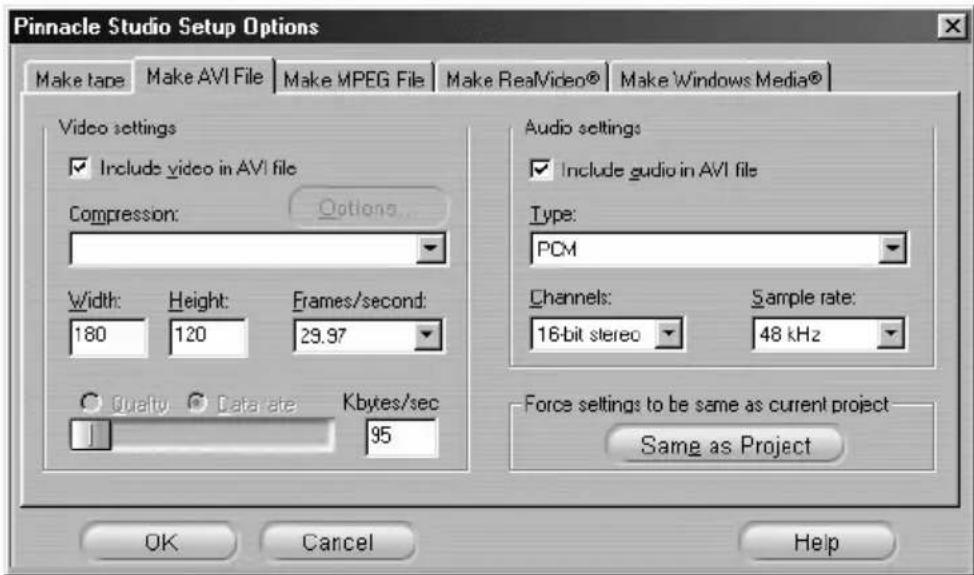
Options are provided for turning these off because you may want to make an AVI audio-only file to save the sound as an AVI for import into another program. You also might not want to include audio in a video, such as a small web-page animation, and
can reduce the file size by eliminating audio. Under each option is the compression setting currently in effect. For more information see “Make AVI file settings” on page 176.
-
Check the Diskometer to make sure you have enough drive space.
-
Click the green Create AVI file button. Enter a name for your AVI file when prompted.
The default directory for saving your file is:
C:\My Documents\Pinnacle Studio\My Projects Click OK to start creating the file. To create the AVI, Studio will decode each frame of MPEG video, render whatever titles and effects are present, and compress the resulting frame using the codec you specified in the Make AVI File Options panel.
This is generally a slow process: the actual time depends on the speed of your computer and the length of your video.
Checking your results
Once your movie has been rendered, you can review the results using the Windows Media Player. You can launch Media Player by clicking on the button to the left of the Settings button.
Save your movie as an MPEG file
The MPEG-1 file format is supported on all Windows 95 and later PCs. MPEG-2 files can only be played on PCs with MPEG-2 decoder software installed. Generally, MPEG files are smaller than AVI files, and depending on the AVI options used may be of higher quality.
To save your movie as an MPEG file:
-
Click MPEG on the Make Movie controls.
-
Click the Settings button to bring up the Make MPEG File Options panel, and choose the preset that meets your need. For

more information on the “Custom” preset, see “Make MPEG file settings” on page 179.

-
Check the Diskometer to make sure you have enough drive space.
-
Click the green Create MPEG file button. Enter a name for your mpg file when prompted.
The default directory for saving your file is:
C:\My Documents\Pinnacle Studio\My Projects Click OK to start creating the file. Progress bars in the Player give you feedback on the processing of each clip (upper line) and of the entire movie (lower line).
natural_image
Black-and-white photo of a woman with long hair, wearing a white top, seated indoors (no visible text or symbols)Checking your results

Once your movie has been rendered, two new buttons appear to the left of the Settings button. The first of these launches Windows Media Player so that you can check your MPEG movie. The second button is the Send email button.
Save as RealVideo or Windows Media
With the RealVideo and Windows Media formats, you can save your movies for playback on the Web. You can share those movies with anyone around the world who has compatible software:
- For RealVideo, the RealNetworks® RealPlayer®, a free download from www.real.com.
- For Windows Media, the Window Media Player, a free download from www.microsoft.com.
To output your movie to RealVideo or Windows Media:
- Click the Stream tab to bring up these controls:
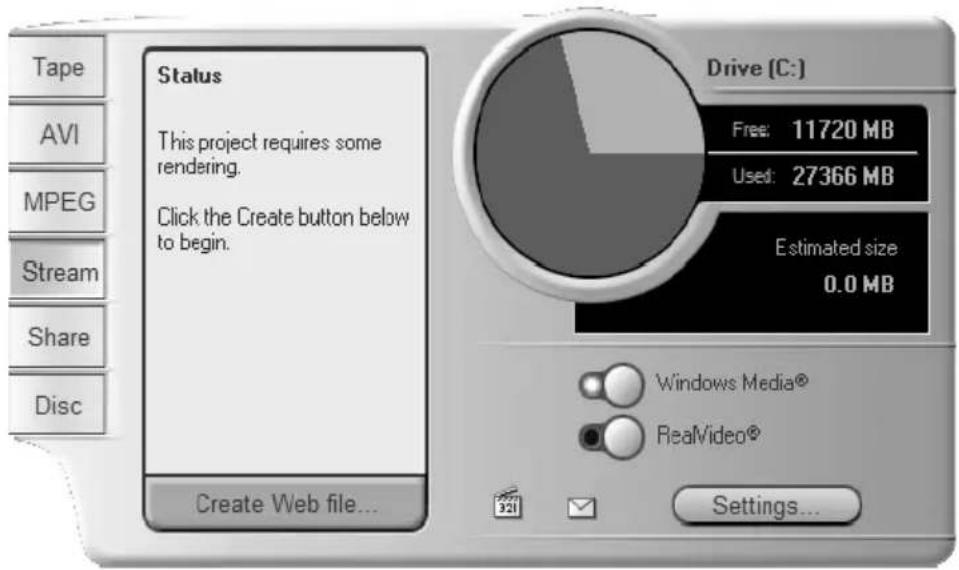
-
Click the Windows Media or the RealVideo button. Click the Settings button to bring up the options dialog for the file format you have chosen. For more information see “Make RealVideo file settings” (page 181) and “Make Windows Media file settings” (page 184).
-
Click the green Create Web file button.
Type in a name for your rm (RealVideo) or wmv (Windows Media) file. The default directory in which your file will be saved is:
C:\My Documents\Pinnacle Studio\My Projects
Click OK to start creating the file. As usual, the progress bars in the Player give you feedback on the processing of each clip.
Checking your results


Once your movie has been rendered, two new buttons appear to the left of the Settings button. The right-hand button of the pair is the Send email button. The left-hand one launches RealPlayer or Windows Media Player, depending on the output format you chose.
Clicking the Send email button opens a Choose Profile dialog box which asks for your email Send name, then accesses your email program and attaches your movie to a new message.
Share your movie via the Internet
Studio makes it easy to share your movie on the Internet. Click the Share button to bring up the controls shown below:
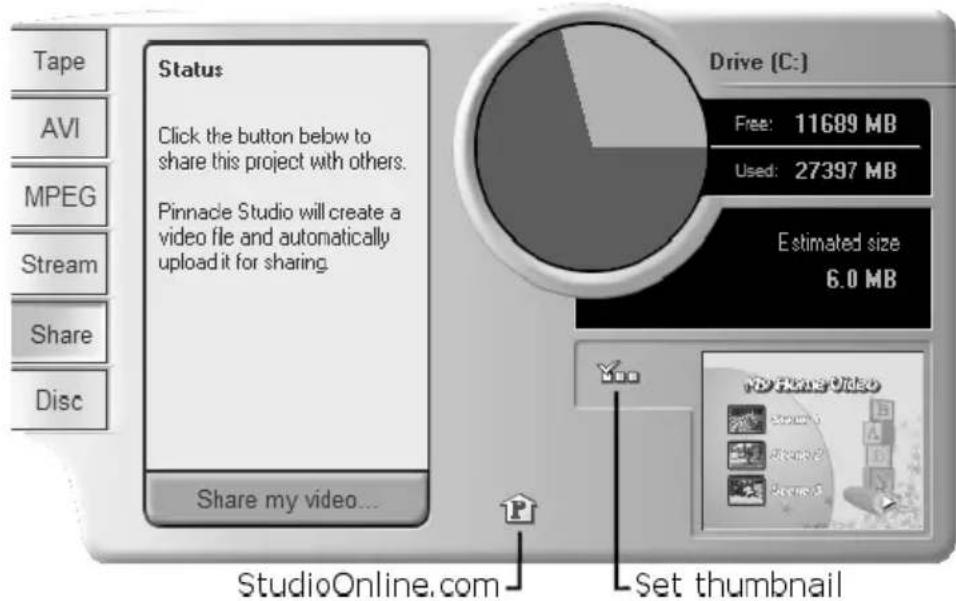
By default, Sharing displays the first frame of your movie on your personal MyStudioOnline web page. An icon of that frame appears beside the Set thumbnail button. If you want another frame of your movie to appear, use the playback controls in the Player to find the frame of your choice, then click the Set thumbnail button.
Click the green Share my video button to begin the process of sharing your movie.
Your video-sharing account allows you to store up to 10MB (about 5 minutes) of video online. If your movie is too large to fit into your allotted space, a message will appear alerting you. In this case, reduce the file size by reducing the duration of your movie.
Uploading your movie
If this is your first video to share, Studio uses your Internet connection to open the log-in page of Pinnacle Systems' video-sharing web site. Sign up for your personal account by answering the on-screen questions.
Studio then uploads your movie to the web site, where it is converted to RealVideo and Windows Streaming Media formats.
Your browser opens to your personal MyStudioOnline page where you choose a “video postcard” template to display your video, and then send emails to family and friends, inviting them to view your creation.
Output your movie to DVD, VCD or S-VCD
If your system is equipped with a CD burner, Studio can create VCD or S-VCD discs on either CD-R or CD-RW media.
Your VCD discs can be played back:
- On a VCD or S-VCD player.
- On some DVD players. Most DVD players can handle CD-RW media, but many will not reliably read CD-R. A majority of DVD players can handle the VCD format.
- On a computer with a CD or DVD drive and MPEG-1 playback software (such as Windows Media Player).
Your S-VCD discs can be played back:
- On an S-VCD player.
- On some DVD players. Most DVD players can handle CD-RW media, but many will not reliably read CD-R. DVD players sold in Europe and North America usually cannot read S-VCD discs; players sold in Asia often can.
- On a computer with a CD or DVD drive and MPEG-2 playback software.
If your system has a DVD burner, Studio can create (in addition to the above) DVD discs on any recordable DVD media supported by the drive.
Your DVD discs can be played back:
- On any DVD player that can handle the recordable DVD format your burner creates. Most players can handle the common formats.
- On a computer with a DVD drive and playback software.
Whether or not you have a DVD burner on your system, Studio also lets you save a DVD image – a set of files containing the same information that would be stored onto a DVD disc – to a directory on your hard drive. The DVD image can subsequently be burned to disc.
Studio creates your disc or disc image in three steps.
- First the entire movie must be rendered to generate the MPEG-encoded information to store on the disc.
- Next, the disc must be compiled. In this phase, Studio creates the actual files and directory structure that will be used on the disc.
- Finally, the disc must be burned. (This step is skipped if you are generating a DVD image rather than an actual disc.)
To output your movie to disc, or to a DVD image:
- Click the Disc tab to bring up these controls:
![Tape AVI MPEG Stream Share Disc Status This project requires some rendering Click the Create button below to begin. Create disc... Drive [C-] Free: 11687 MB Used: 27400 MB Slow: 16.3 MB Settings VideoCD Free: 32 minutes Used: 2 minutes 100% quality](/content/2026/06/1238913/images/c7b053c337be58f1b031c9dde5bc76a854a73131cbcef82ffc61627f649bc29d.jpg)
The Make Disc control panel is wider than the other output panels to accommodate an extra Diskometer-style display showing the amount of space consumed by your movie on the output disc. Also shown are the length of your movie, and a reminder of the disc-type and quality setting you have chosen.
Click the Settings button to bring up the Make Disc Options panel (see “Make disc settings” on page 185). There you can select the output format for your movie, set up quality options, and configure your disc burner.
To the left of the Settings button is a Browse for folder button where you can choose a new location for the storage of auxiliary files generated during the Make Disc operation. If you creating a DVD image, it will also be located in this folder.
-
Click the green Create disc button. Studio goes through the steps described above (render, compile, and if necessary burn) to create the disc or disc image you have specified in the settings dialog.
-
When Studio has finished the burning operation, it ejects the disc.
Quality and capacity of disc formats
The differences amongst the DVD, VCD and S-VCD disc formats can be boiled down to these rules of thumb regarding the video quality and capacity of each format:
- VCD: Each disc holds about 60 minutes of MPEG-1 video, with about half the quality of DVD.
- S-VCD: Each disc holds about 20 minutes of MPEG-2 video, with about two-thirds the quality of DVD.
- DVD: Each disc holds about 60 minutes of full quality MPEG-2 video.
Appendix A: Setup Options
Options are provided to adjust certain factory-preset default values. The default values work well for the majority of situations and hardware. However, you may wish to modify them to suit either your work style or your specific equipment configuration.
About Studio setup options
Studio's setup options are divided between two dialog boxes, both with several tabbed panels.
The Main Options dialog box has four panels covering options relating to Capture Mode and Edit Mode. Access this dialog box and activate a particular tab simultaneously by selecting one of the commands in the first group on the Setup menu.
Capture source Capture format Edit CD and Voice-over
The Make Movie Options dialog box has six panels, one for each of the six movie output types. Access this dialog box by selecting one of the commands in the second group on the Setup menu.
Make tape | Make AVI File | Make MPEG File | Make RealVideo® | Make Windows Media® | Make disc
Option settings in Studio apply to both the current and future Studio sessions. There is no master reset. If you want to return to the factory preset values, use the information in the following sections, which deal with all ten options panels in turn.
Capture source settings
This panel is divided into three areas: Capture devices, Scene detection during video capture and Data rate.
Changes here affect an entire capture. If you want to change only one capture session, make sure you reset the values before the next session.
Capture devices
Studio senses which capture hardware you have installed on your system for both video and audio. If you have more than one available capture device in either category, choose the one you want to use for the current capture session.
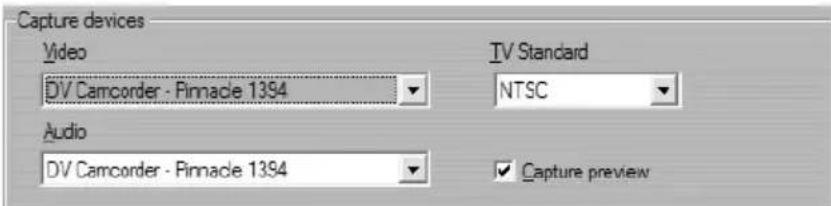
Video: The devices listed here may include both digital (DV, MicroMV) equipment connected via an IEEE-1394 cable and various types of analogue video source (Studio DC10plus, TV tuner card, USB-connected camera, etc). Your selection determines the availability of some other Capture source settings, and of many settings on the Capture format panel.
Audio: Your choice of audio devices is constrained by which video device is selected. With most analogue devices, for instance, you can choose any of your sound card inputs, and your equipment configuration determines which one you should use.
TV Standard: Choose the standard that is compatible with your capture device and your TV monitor or video monitor (NTSC or PAL). NTSC is the standard used in
North America and Japan. PAL is the standard used in most other places. With some capture devices you may have the additional option of the SECAM standard used in Russia, France and some other countries. If you purchased your Studio product in North America, this option is permanently set to NTSC.
Use Overlay: If you are performing an analogue capture with Studio AV/DV, you will have the option of using the “overlay” capability of your graphics hardware when previewing the capture. This may make the preview smoother, but is not supported by all graphics cards. Turn off this option only if it causes problems.
Capture Preview: This option controls whether the incoming video will be previewed in the Player during capture. Because generating the preview uses a significant amount of processor time, previewing may cause dropped frames during capture on some systems. Only turn off the option if you are having a problem with dropped frames.
When capturing from a MicroMV camcorder, however, this option is set to Off by default and cannot be changed. Preview the source video using your camcorder's built-in monitor instead.
Scene detection during video capture
The effect of these scene detection options is described under “Automatic scene detection” on page 31. The options that are actually available depend on the capture device being used: not all devices support all modes.

The first option, “Automatic scene detection based on shooting time and date”, is available only if you are capturing from a DV source.
Your DV camcorder records not only images and sound, but also the time, date, and various camera exposure settings (see your camcorder manual for more detail). This information is termed data code, and is transferred through the IEEE-1394 link along with the video and audio.
The data code information tells Studio when each new scene begins, and allows SmartCapture to grab an icon of each new scene and display it in the Album. Data code does not work if the tape:
- includes one or more blank (unrecorded) sections
• is unreadable due to tape damage or electronic noise
• was recorded without the camcorder time or date set
• is a copy of another tape - was shot on an 8mm or Hi8 camcorder, and is now being played back on a Digital8 camcorder.
Data Rate
The DV format uses a fixed 5:1 compression ratio, which implies a data transfer rate for real-time capture of approximately 3.6 megabytes per second (MB/sec). The transfer rate of your capture drive must be at least 4 MB/sec to allow for any variations across the drive.
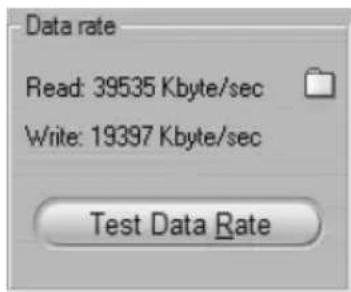
Test Data Rate: Click this button to test the data rate of your current capture drive. Studio writes and reads a file of known length, and gives you a read-out of the results in KB/sec (4000 KB/sec equals 4 MB/sec).
If you have attempted to capture DV scenes and your capture drive can't accept the DV data rate, a dialog box will inform you of the problem. You have the option of choosing another drive, or adding one which meets the data rate requirement.
Folder browser: This button sets the disk directory (and thus the drive) in which your captures will be saved, and lets you specify a default file name for captures. The Test Data Rate button will perform its test on the drive where the capture directory is located.
Capture format settings
The options available here depend on the capture device you are using (from the Capture source tab). You will not see all the settings described below displayed at once.
Presets
The settings in the other areas on the Capture format panel depend on your choice in this Presets area. The available presets depend in turn on your capture hardware.

For a DV capture source, the main capture options are selected in the first of two dropdown lists. (The other list provides any applicable sub-options.) The choices are:
- DV: Full quality DV capture, which uses about 200 MB of disk space per minute of video. The advantage of this setting is that you won't have to recapture clips at full resolution when you output your finished movie. There are no sub-options with this setting. DV capture is recommended over MPEG if outputting your project to videotape is a possibility.
- MPEG: Capturing to MPEG takes less space than DV but more time – both when capturing and later, when you output your movie. The quality presets (High, Medium and Low) are available as sub-options, plus a Custom preset that lets you configure the video settings manually. The best preset to use is the lowest one that meets the requirements of all the devices on which your movie will be played. Use Low if you are outputting only for VCD; Medium if you need to accommodate S-VCD; and High if your movie will be output for DVD.
- Preview: Preview-quality dramatically decreases the disk space needed for capturing by lowering the video quality – but only during editing. When outputting your movie, Studio will recapture any preview-quality clips at full quality. Sub-options include several preset combinations of compression method and quality, plus a Custom preset that leaves the details up to you.

Other types of capture device provide a single list of quality options – generally Good, Better, Best and Custom.
MicroMV and Studio AV/DV Analogue captures both use fixed capture settings with no further options.
Video settings
The settings available in this area depend on both the capture device and the options selected for it in the Presets area. Only applicable settings are shown. The settings are editable only if you are using a Custom preset.
List all codecs: By default this checkbox is not checked: the only codecs listed are those that have been certified by Pinnacle Systems for use with preview-quality capture. If you check the option, all codecs installed on your PC will be listed.
Using codecs that have not been certified by Pinnacle Systems for use with Studio preview-quality capture may produce undesirable results. Pinnacle Systems cannot provide technical support for problems associated with the use of codecs that are not so certified.
Options: This button gives you access to any setup options offered by the codec (compression/decompression software) you have chosen.
Compression: Use this dropdown list to select the codec you want to use.
Width, Height: These fields control the dimensions of the captured video.
Frame rate: The number of frames per second you wish to capture. The two numerical options represent
full-speed and half-speed video respectively. The lower number (14.985 for NTSC, 12.50 for PAL or SECAM) saves disk space at the expense of smoothness.
Quality, Data rate: Some codecs present quality in terms of a compression percentage (Quality), and other in terms of the required data transfer rate in KB/sec (Data rate).
MPEG Type: Select one of the two flavours of MPEG encoding: MPEG1 or MPEG2. The former is almost universally supported on Windows computers; the latter gives better quality for a given compression ratio.
Resolution: This is a dropdown list giving the resolutions available with the capture options you have picked. Increasing both the width (the first figure) and the height by a factor of two increases the amount of data to be processed by a factor of four.
Pre-Filter: This option enables a smoothing algorithm to improve apparent picture quality when capturing at lower resolutions. The sharpness of the image is slightly reduced.
Fast Encode: This option speeds up the encoding process with some reduction in quality when capturing to an MPEG file. You may want to evaluate the effect of this option in your production using a short test capture.
Horizontal Resolution: The Full option captures more detail; the Half option creates every second horizontal pixel by interpolation.
Crop: Activate this option to trim the edges from the incoming video to eliminate “noise” that can occur at the frame borders with some analogue sources.
Vertical Fields: A video frame consists of two interleaved “fields”. The Both option specifies that both fields should be captured; One uses only one of the fields, reducing the vertical resolution by half. This mode is useful when creating videos that will be played back on a computer, since computer devices display only one field.
Audio settings
These audio capture settings are editable only if you are using a Custom preset.
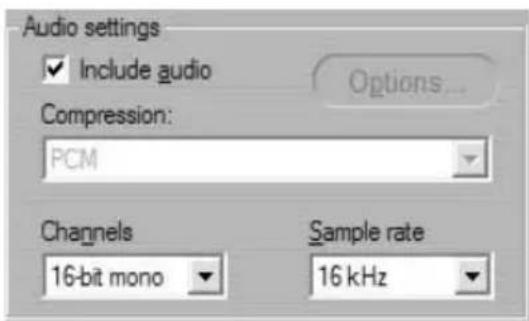
Include audio: Clear this checkbox if you are not planning to use the captured audio in your production.
Options: This button gives you access to any setup options offered by the codec (compression/decompression software) you have chosen.
Compression: This dropdown shows the codec that will be used to compress the incoming audio data.
Channels, Sample rate: These settings control audio quality. “CD quality” is 16-bit stereo, 44.1kHz.
MPEG capture
This area is visible only when the MPEG preset for capture from DV has been selected. The four options on the dropdown list are explained in detail on page 35.
Edit settings
These settings are split into six areas. Hardware settings relating to editing are on the CD and Voice-over panel.
Default durations
These duration times are measured in seconds and frames. The seconds counter advances every 30 frames for NTSC, or 25 frames for PAL.
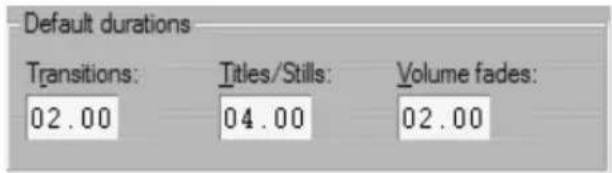
The three settings here control the initial duration value for transitions, still images and volume fades when added to your movie. The durations can be trimmed to custom values during editing. The default values upon installation are as shown in the illustration above.
Storyboard thumbnails

Select Large to get more detail in the thumbnail frames shown by Storyboard view in the Movie Window. The default is Small.
Auto-save
This option, which is turned on by default, configures Studio to save your current project at the specified interval.

Rendering

Render as a background task: Two complex effects you can use in Studio are the Hollywood FX 3-D transitions and disc menus with buttons that show moving video.
Both of these take an appreciable amount of time to generate. Without special handling, the time needed for Studio to provide previewing for these effects in the Player could hamper your work flow.
Studio gives you two ways of managing this situation:
- Background rendering: This option, which you turn on by checking Render as a background task, lets the computation of the preview run behind the scenes while you work. Until the rendering is complete, the Player will show the simplified preview described below. As illustrated under “Moving Thumbnails Checkbox” on page 143, a progress bar in the Timescale reveals the progress of background rendering.
- Simplified preview: If the Render as a background task option is not used, Studio provides a less detailed preview. Hollywood FX transitions are shown at lower resolution and a reduced frame rate, while menu thumbnails are shown as being static.
Use hardware acceleration: Check this option to use the 3-D acceleration capability of your graphics card to speed up the generation of Hollywood FX transitions. Do not use this option if your graphics card does not offer 3-D acceleration, or if you experience display problems when the option is set.
Folder for auxiliary files

Studio generates auxiliary files in many circumstances as you work on and output your project. These are all stored under the disk folder specified here. Click the Folder button to change the auxiliary files' location – usually because you need to save space on a particular drive.
When adding a menu

When you place a disk menu on the Timeline, Studio inquires whether you want to generate links from the menu to all the clips that follow it (at least until the next menu). The choices on this dropdown list let you avoid the confirmation dialog by specifying that you always don't or always do want the links to be created, or re-enable the confirmation dialog with the third option, "Ask if links should be created", which is the factory default.
CD and Voice-over settings
The two areas on this panel provide audio hardware settings relating to editing.
CD audio recording
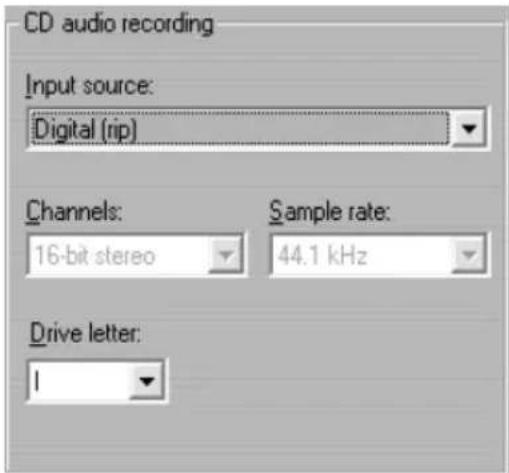
Input source: This dropdown list offers the choices you have in transferring CD content. Of course, the highest quality transfer is always digital (“ripping” the CD tracks).
Channels, Sample rate: These settings control audio quality. “CD quality” is 16-bit stereo, 44.1kHz.
Drive letter: If you have multiple CD drives, choose one to use as the CD audio source for your movies.
Voice-over recording
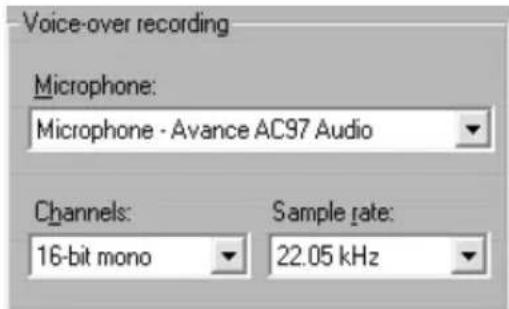
Microphone: A dropdown list of choices for attaching a microphone to your hardware.
Channels, Sample rate: These settings control audio quality. The above settings should be fine for voice-overs.
Make tape settings
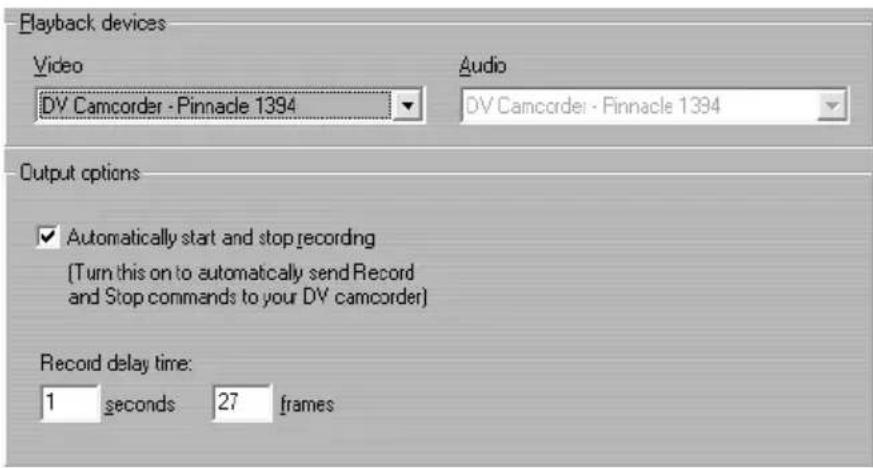
Studio automatically senses the hardware you have installed, and configures the Make Tape Playback destination accordingly.
If you are printing (Making Tape) to a DV device, you can choose to have Studio start and stop the device automatically instead of having to do it yourself.
To automatically print to your DV device:
-
Click the Make Movie button on the main menu bar. The portion of the screen above the Movie window changes to display the Make Movie window.
-
Click the Tape tab.
-
Click the Settings button. The Make tape Setup Options panel opens.
-
Check the Automatically Start and Stop recording box to enable the automatic function
With most DV devices there is a small delay between receiving the command to record and the actual start of recording. In Studio, this is referred to as the “record delay time”. It varies from device to device, so you may need to experiment with the value for best results with your particular device.
- Click OK.
6. Click Create.
Studio renders your movie then sends the record command to your DV device. Studio outputs the first frame of your movie (without audio) for the duration entered for record delay time, giving the device time to thread tape and begin recording.
Hint: When you play back your tape, if the first part of your movie was not recorded, you should increase the Record delay time setting. If your movie starts with a still of the first frame you should decrease the setting.
Hint: If you wish to send black to your recording device during its record delay time, place a blank title in the Video track just before the start of your movie (a blank title is video black). If you wish to record black at the end of your movie, place a blank title in the Video track following the final frame of your movie.
Make AVI file settings
The Make AVI File options let you adjust compression settings. You may do this because the files are too large, you want higher quality, or you are creating them for a special purpose (such as Web files, where you may want a specific frame size and other characteristics).
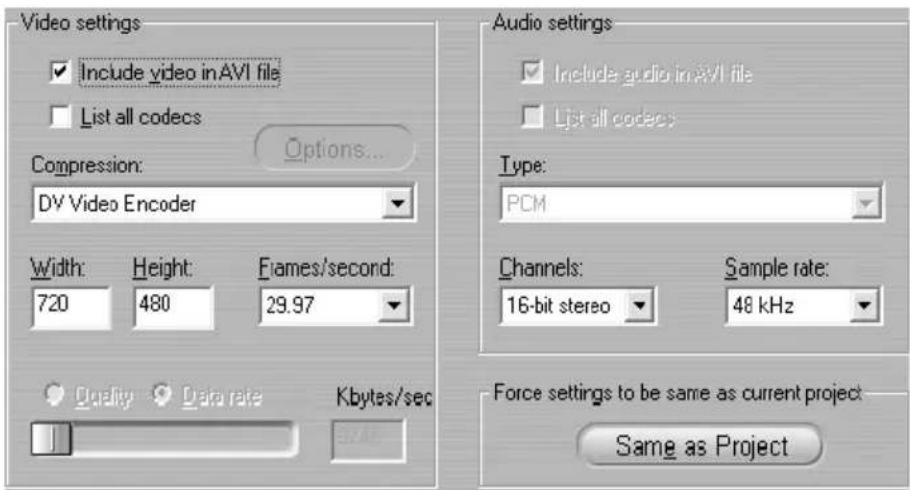
Video compression settings
Compression
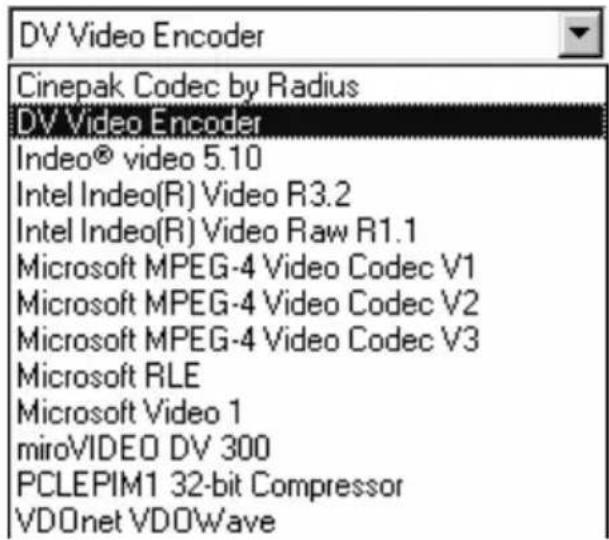
Choose the compressor (codec) that is most suitable for your intended use. When making an AVI file, you'll want to consider your intended viewer's computer platform, and what will most effectively play on that system.
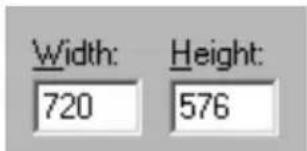
Width, Height: Width and height are measured in pixels. The default setting of 720 x 576 pixels is the resolution at which Studio captures. Decreasing width and height greatly decreases file size because the amount of data decreases with the size, but compression reduces the effect. As you adjust one parameter, the other also changes to maintain a standard 4:3 video frame aspect ratio.

Quality, data rate: Depending on the codec being used, you can adjust the quality percentage or data rate
with the slider. The higher the percentage you choose, the larger the resultant file.
Frame rate: The default is 29.97 frames per second, which is the standard for NTSC video (PAL default is 25 frames per second). You may want to set the frame rate lower for applications such as Web video. Most Pentium-based computers can play 352 x 240 at 15 frames per second smoothly. Higher performance PCs will be able to play back video with larger frame sizes and higher frame rates smoothly.
Audio compression settings
Audio settings: If you want to keep file sizes to a minimum, audio for many digital uses can be set to 8-bit mono at 11 kHz. For a general rule, try 8-bit 11 kHz for audio that is mostly speech, and 16-bit stereo at 22 or 44 kHz for audio that is predominantly music. By comparison, CD-ROM music is 16-bit stereo sampled at 44 kHz. Another way to consider evaluating an audio compression choice is that 11 kHz is comparable to AM radio quality, 22 kHz comparable to FM and 16-bit stereo, 44 kHz to audio CD quality.

Type: In most cases, you will choose either PCM (Pulse Code Modulation) or ADPCM (Adaptive Delta PCM).
Channels: You may choose between 8- and 16-bit mono and stereo sound. Sound quality and file size increases when you add a second channel or increase bit depth.
Sample rates: Digital audio is produced by taking small discrete samples of the continuous analogue waveform – the more samples, the better the sound. For example, audio CDs are recorded at 44 kHz, 16-bit stereo. Audio can be sampled at 11 kHz for most digital uses, particularly for speech.
Make MPEG file settings
The Make MPEG File options allow you to adjust MPEG compression settings.
You can choose presets for a variety of applications. There are presets for Internet playback, PC and multimedia playback, and for writing VideoCD (VCD), S-VCD and DVD files.
The Custom preset allows you to select or deselect audio and/or video, and independently vary your audio and video data rates.

Video settings
Compression: You can choose either MPEG-1 or MPEG-2 compression. MPEG-2 offers higher resolution and higher quality than MPEG-1.
Note: MPEG-2 files require special player software. If you do not have an MPEG-2 player installed on your PC you will not be able to play MPEG-2 files.
Width and Height: Width and height are measured in pixels. Decreasing width and height greatly decreases file size by reducing the amount of data, but compression reduces the effect. The maximum resolution for MPEG-1 is 384 x 288. The maximum resolution for MPEG-2 video is 720 x 576.
Data Rate: You can adjust the data rates for audio and video separately using the sliders. Higher data rates yield higher quality, at the cost of larger files.
Audio Settings
Sample Rate: Digital audio is produced by taking small discrete samples of the continuous analogue waveform – the more samples, the better the sound. MPEG supports two sample rates – 44.1 kHz and 48 kHz.
Data Rate: You can adjust the data rates for audio and video separately using the sliders. Higher data rates yield higher quality at the cost of larger files.
Make RealVideo file settings
The Make RealVideo File tab options allow you to adjust RealVideo file options. These determine how files are created for the popular RealNetworks® RealPlayer® G2 player, free for the download from http://www.real.com.

Title, Author and Copyright: These three fields are used to identify each RealVideo movie, and are encoded into it so they are not visible to the casual viewer.
Keywords: This field accepts up to 256 characters, and allows you to encode keywords into each movie. This is typically used to identify the movie for Internet search engines.
Web Server: To use the RealServer option, the ISP hosting your Web page must have a RealServer installed. If you are unsure, contact your ISP for confirmation, or use the Standard option.
- The RealServer option allows you to create a file that can be streamed from a RealNetworks RealServer. The RealServer supports a special feature that senses the connect speed of the viewer's modem, and
adjusts its transmission to match this rate. Choosing this option allows you to select multiple “target audience” data rates (up to seven options can be selected).
Hint: the file created will grow in size with each rate you select, meaning it will take more time for you to upload the file to the Web server. Select only those target audiences you think you'll actually use.
- The HTTP option allows you to optimize playback for one of the six Target audience options listed.
Note: GeoCities provides RealServers to their Homesteaders.
Target Audience: This selects the target audience modem connect speed. The lower the speed, the lower the quality of the video. If you wish your viewers to be able to view your movie as it loads, you should select a target audience rate that matches their modem speed.
When you select a specific target audience, you are actually specifying a maximum bandwidth for your RealMedia stream at the selected target audience. Bandwidth, measured in kilobits per second (Kbps), is the amount of data that can be sent through an Internet or network connection during a set period of time. Standard modems are commonly referred to by the bandwidth they are able to receive – for example, 28.8 and 56 Kbps.
In addition to these standard audiences, you can record clips for connection speeds of 100 Kbps, 200 Kbps, or higher. These higher bandwidths, however, are generally more typical for audiences that use corporate Local Area Networks (LANs), cable modems or Digital Subscriber Line (DSL) modems.
If you want to keep file sizes to a minimum, audio for many digital uses can be set to 8-bit mono at 11 KHz. For a general rule, try 8-bit 11 KHz for audio that is mostly speech, and 16-bit stereo at 22 or 44.1 KHz for audio that is predominantly music. For comparison, CD-ROM music is 16-bit stereo sampled at 44.1 KHz.
Video Quality: These are choices you make between image quality and frame rate.
- Normal: recommended for mixed content clips to balance video motion and image clarity.
- Smoothest Motion: recommended for clips that contain limited action, such as newscasts or interviews, to enhance overall video motion.
- Sharpest Image: recommended for high-action clips to enhance overall image clarity.
- Slide Show: with this option, video appears as a series of still photos and provides best overall image clarity.
Audio Quality: This drop-down menu lets you choose the characteristics of your audio track. Studio uses this information to select the best audio compression for your RealVideo file. Voice Quality creates the smallest file, and Stereo Music creates the largest file.
Video Size: These choices allow you to automatically re-size your movie. The smaller the resolution, the lower the data rate needed for your target audience.
Make Windows Media file settings
The Make Windows Media File panel lets you adjust options for creating Windows Media Player files.
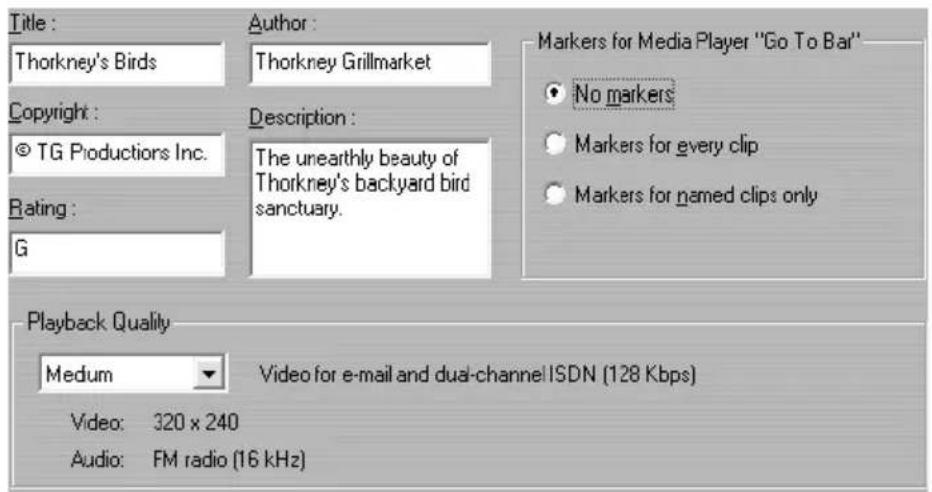
Title, Author and Copyright: These three fields are used to identify each Windows Media movie, and are encoded into it so they are not visible to the casual viewer.
Description: This 256-character field lets you enter keywords for encoding into the movie. This is typically used to identify the movie for Internet search engines.
Playback Quality: Choose the playback quality of your movie based on the target platform – the capability of the computer(s) that will play the movie. Your audio and video parameters are shown when you make your choice.
Markers for Media Player “Go To” Bar: You have the option of including Windows Media “file markers” as you compress. These markers allow viewers to go directly to the beginning of any clip. The markers are listed by clip name. Clips you have not named get a Studio default clip name derived from the Project Name and the clip’s original timecode start point.
Make disc settings
The Make Disc options allow you to adjust options for creating VCD, S-VCD or DVD discs, and for creating a DVD disc image on a hard drive.
To create a VCD or S-VCD requires a CD or DVD burner; to create a DVD requires a DVD burner.

Output format
Select VideoCD (VCD), S-VCD or DVD. Options in other areas of the panel are dependent on this choice.
Burn options
Burn directly to disc: Your movie will be burned onto disc according to the format you have selected under Output format.
Create disc image: This choice is only available when the output format is DVD. Your disc burner is not used. Instead, the same files that would normally be saved onto a DVD disc are stored into an “image folder” on a hard drive. The location of that folder is shown in the Media and device options area (see page 187).
Burn from disc image: This choice is only available when the output format is DVD. Instead of using your current project directly to burn a disc, a previously-created disc image is now sent to your DVD burner. This lets you divide the work of creating a disc into two separate steps that can be performed in separate sessions if desired. It is particularly useful when you want to make several copies of the same project. Although the project is not used directly in making the disc, the project must nevertheless be open in Studio when the disc is burned.
Video quality / disc usage
Quality settings: These settings (Automatic, Best video quality, Most video on disc and Custom) are available for S-VCD and DVD discs only. The first three are presets that correspond to particular data rates. The Custom option lets you set the data rate to another value. In each case, an estimate is provided of the amount of video the disc can accommodate at the current setting.
Kbits/sec: This combination dropdown list and edit field lets you choose or specify the data rate – and hence the video quality and maximum duration – of the disc. Higher values correspond to better quality and lower capacity.
Filter video: This option enables a smoothing filter that may improve the apparent quality of video at lower data rates. Image sharpness is slightly reduced.
Draft mode: This option speeds up the MPEG encoding process at the expense of some reduction in quality.
MPEG audio: This option selects MPEG as the encoding format for DVD audio. The alternative is PCM audio, which requires more storage but is universally supported by DVD players. MPEG audio is theoretically optional on NTSC players (though required on PAL players), but in practice is broadly supported.
Media and device options
Media: Choose an entry from this dropdown list matching the type and capacity of disc to which you are burning your project.
Disc writer device: If you have more than one disc burner on your system, select the one you want Studio to use.
Copies: Select or enter the number of copies of this disc that you want to create.
Write speed: Choose one of the available speeds, or leave this field blank to have the speed auto-selected.
Image folder: The location of the DVD image folder that will be used for the Burn options / Burn from disc image setting.
Appendix B: Tips and Tricks
Hardware
To use Studio effectively, your hardware should be optimally prepared and configured.
It is recommended that you use UDMA IDE drives as they provide reliable video transfer performance with Studio. We highly recommend you capture to a hard disk other than the disk upon which Windows and the Studio software are installed.
Since recording video sequences in the DV format requires approximately a 3.6 MB per second data transfer rate, your hard disk should maintain a performance level of at least 4 MB/s. Higher transfer rates will ensure reliability and help avoid problems with output to tape.
You can calculate the amount of hard drive space you'll need for your video using the 3.6 mg/sec value.
For example:
1 hour of video = 3600 seconds (60 x 60)
3600 seconds x 3.6 MB/s = 12,960 MB
Hence 1 hour of video uses 12.9 GB of storage.
Due to their automatic internal calibration, standard hard disks regularly interrupt the continuous data stream in order to recalibrate themselves. During capture, this is not apparent since images are temporarily stored in memory. But during playback,
only a limited number of images can be temporarily stored in this manner.
For smooth playback, a continuous, uninterrupted data stream is required. If not, the image will “jerk” at regular intervals, even though all frames are present and even if the hard disk is very fast.
Preparing your hard disk
Prior to capturing video, you should:
- End task on background applications. Before opening your Studio product, hold down the Ctrl and Alt keys on the keyboard, then hit Delete. This will open the Close Program window. Click on the individual applications listed in the Close Program window and select End Task. Do this for all applications listed in the Close Program except Explorer and SysTray. If you are using Windows 2000 or XP, you can use a program such as EndItAll2 to end background tasks. EndItAll2 is available at:
http://www.pcmag.com/article2/0,4149,1935,00.asp
- Click on Start > Programs > Accessories > System Tools > ScanDisk
Make sure Thorough is checked, and click Start (this may take awhile).
- After ScanDisk is done, click on Start > Programs > Accessories > System Tools > Disk Defragmenter (this may take a while).
- Turn off Energy saving features. Point your mouse on your desktop, right-click, and select Properties > Screensaver (under Energy... Settings). Make sure everything under Settings for... power schemes is set to Never.
Note: Video-editing programs do not multitask very well. Do not use any other program while making movie (videotape or CD) or capturing. You can multitask while editing.
RAM
The more RAM you have, the easier it is to work with Studio. You will need at least 128 MB of RAM to work with the Studio application, and we highly recommend 256 MB (or more).
Motherboard
Intel Pentium or AMD Athlon 500 MHz or higher.
Software
Colour depth adjustment
- 16 bit colour depth is recommended.
- Point your mouse on your desktop, right click, and select Properties > Settings.
- Under Colours, choose High Colour (16-bit).
The overlay settings effect only the display on the computer monitor, while recorded sequences will always appear in full colour and resolution at the video output.
Windows 98 Second Edition
To improve system performance under Windows 98 SE, you can make the following modifications.
Hard disk settings:
- Go to Start > Settings > Control Panel > System. Click on the Performance tab, then File System, then the Troubleshooting tab.
- Click to the left of Disable write-behind caching for all drives option to select it and click OK.
- Under the Hard-disk tab, set the Read-ahead optimization option to None.
- Ensure that DMA is enabled for your hard disk.
CD-ROM drive setting:
Under Windows 98, you can specify automatic notification for a CD-ROM.
- Select Start > Settings > Control Panel > System > Device Manager.
- Click on CD-ROM.
- Click on your CD-ROM drive name.
- Select Settings > Options.
- Deactivate Auto insert notification.
Do not operate an enhanced IDE CD-ROM drive in parallel with an enhanced IDE hard disk. This combination can lead to an unnecessary reduction in the speed of your hard disk. Instead, use the second IDE interface for your CD-ROM drive.
Taskbar:
Switch the clock on the taskbar off.
- Right-click the mouse on the taskbar.
- Select Properties.
- Deactivate the Show Clock option.
Increasing the frame rate
If your system is unable to achieve an adequate frame rate (25 fps for PAL/SECAM, 29.97 fps for NTSC), try the following:
Deactivate network driver and applications
Network operations often cause interruptions during recording and playback. We recommend not working in a network.
Audio recording
Record audio only when you actually need it, because sound requires a great deal of processor time during video recording We recommend a PCI soundboard.
Digital video with audio
When recording digital video sequences with audio, remember that the audio also takes up hard disk space:
- CD quality (44 kHz, 16 bit, stereo) requires about 172 KB/sec.;
- Stereo quality (22 kHz, 16 bit, stereo) about 86 KB/sec., and
- Mono quality (22 kHz, 8 bit, mono) still requires 22 KB/sec.
The better the sound quality. The highest quality (CD) is rarely required. However, the lowest quality (11 kHz/8-bit, mono) rarely provides acceptable audio sequences.
Studio and computer animation
If you are editing computer animation (i.e., Flics) with Studio or wish to combine them with digital video, please note the following important information:
Match frame sizes
Create your animations using the same frame size and image refresh rate as your original video:
| Quality TV-Cropping NTSC PAL Audio | |||
| DV Yes | 720 x 480 720 | x 576 44 kHz | 16-bit stereo |
Failure to do this will result in unnecessarily long rendering times and the possibility of visible flaws when the animation is played back.
Smart Capture Tips (DV only)
SmartCapture relies on continuous, uninterrupted timecode to recapture your clips. If your original tapes have multiple sections of discontinuous timecode, each section was captured as a separate file. Before it can recapture your clips, Studio will prompt you to cue the tape to the section where that clip is recorded.
To help you recognize the correct section of tape, the Preview window will display an image of the first frame of the clip. When you have cued to the correct section, Studio will recapture all required clips from the section. If you have followed the naming convention suggested on page 34, Studio will proceed to the next section of tape and repeat the process until all required clips from that source tape have been recaptured. Not following the naming convention results in changing source tapes much more often.
When Studio recaptures your clips, it will capture about a second of extra footage at the start and end of your clip. Studio automatically trims each clip to match the exact start and end points you chose for your movie, but this extra captured footage allows you to adjust start and end points of each clip if you happen to change your mind after recapturing. You can do this either on the Timeline or with the Clip properties tool.
Starting with continuous timecode
To avoid the multiple captures problem altogether, we recommend striping your tapes with timecode before you begin to shoot, if possible (see “Continuous timecode” on page 33).
Appendix C: Troubleshooting
Before you begin troubleshooting make sure of the following:
We recommend that you have installed the latest operating system updates for Windows 98, ME, 2000 or XP. You can download these updates from:
http://windowsupdate.microsoft.com/default.htm
Make sure that you have the latest version of Studio 8 installed by clicking the Help > Software Updates menu from within the program. Studio will use the Internet to check to see if you have the latest version on your computer.
Ensure that all other installed hardware is functioning normally with the latest drivers, and is not flagged in Device Manager (Start > Settings > Control Panel > System > Device Manager for Windows 98SE/ and Millennium Edition, and Start > Settings > Control Panel > System > Hardware > Device Manager for Windows 2000 and XP). If any devices are flagged you should resolve the issue before starting installation.
We also highly recommend installing the latest drivers for your sound card and graphics card. During the Studio software launch process we do check that you have a sound card and video card that support DirectX.
Go to the manufacturers' web sites to get the latest drivers for your cards.
-
Download and reinstall the latest software for the sound card.
-
Download and reinstall the latest software for the graphics card.
Hint: Many users have NVIDIA graphics cards. The latest drivers are available at: www.nvidia.com.
INSTALLATION
I am getting an error installing Studio from CD
Solution 1: Restart the computer. After the computer has finished restarting, try to install Studio again.
Solution 2: Inspect the CD for scratches, fingerprints or smudges. Clean off the CD with a soft cloth if necessary. Install Studio again.
Solution 3: End background tasks. Here's how:
Windows 98SE and ME:
Before installing the Pinnacle software, hold down the Ctrl and Alt keys on the keyboard, then hit the Delete key. This will open the Close Program window. Click on the individual applications listed in the Close Program window and select End Task. Do this for all applications listed in Close Programs except Explorer and SysTray. Some of these applications may control other devices in your system: if a device no longer works you can get it to work again by rebooting your system.
To keep applications from loading when your PC is started (or rebooted), use the following steps.
- Click on Start -> Run
- In the Open box, type: msconfig
- Click OK.
In the System Configuration Utility window, click on the far right tab called Startup. Remove all checks from the boxes except for System Tray (SysTray.exe).
Windows 2000 and XP
Use a program such as EndItAll2 to end background tasks. You can find out more about this utility and can download it at:
http://www.pcmag.com/article2/0,4149,1935,00.asp
My computer crashes when I start Studio, or Studio will not launch
Solution 1: Make sure you have waited long enough to be sure Studio really isn't going to launch. On some computers, especially those with multiple capture cards, Studio may take a minute or two to get itself up and running.
Solution 2: Change video resolution and/or colour depth on the desktop Display Properties dialog:
- Right-click your desktop and select Properties, then click the Settings tab on the dialog.
- Under Colours, try each of 16-bit, 24-bit and 32-bit.
- Under Screen resolution, again try each available setting from 800x600 upwards.
Solution 3: Your Studio installation may be damaged. Please uninstall and then reinstall Studio. As always, make sure you have installed the latest patches to both Studio and all your hardware drivers.
Solution 4: If the issue persists, please visit our website for additional support. Use the following URL (typed continuously on one line):
http://pinnaclesys.custhelp.com/cgi-bin/pinnaclesys.cfg/php/enduser/std_adp.php?p_faqid=426
Hardware not found during installation.
Possible cause: The PCI slot in which the hardware is installed was not assigned an IRQ in the BIOS or it may be sharing an IRQ with another device. It may also be that the card is not seated completely into the PCI slot.
Solution: Try reseating the card in its original slot or in a different one. In most cases, you may be able to get a different IRQ assignment by simply shutting off the computer and installing the DV card or other hardware in another slot.
Studio gives the error message: “Studio can not initialize the video capture device. Please restart Windows and try again.”
Possible cause: This message can appear when using DV or Digital 8 camcorders. The “capture device” the error message is referring to is typically the DV/D8 camcorder.
Solution: Make sure the camcorder is:
- Turned on.
- Using AC power.
- In one of these modes: Play, VTR or VCR. In other words, the camcorder must not be in Camera mode.
- Connected via the IEEE-1394 cable to the DV card.
If the message appears even through all the above are true, it may be that the camcorder driver is not loaded (or not loaded properly) in Device Manager. It could also be that the DV card driver is not loaded. Check Device Manager to make sure that both the Camcorder and 1394 Host Controller drivers are present. Check for the exclamation mark error symbol on either of the drivers.
To reload the drivers for either the 1394 OHCI board or the camcorder follow the instructions below. The drivers may both be present without any error flags on them.
If the problem persists, we recommend reloading both drivers even though Device Manager reports no errors. If the 1394 Host Controller driver will not load, try it in a different PCI slot.
For Windows 98SE and ME:
-
Open Device Manager by right-clicking the My Computer desktop icon and selecting Properties from the pop-up menu. When the System Properties Window appears, click on the Device Manager tab.
-
The driver for the card is an OHCI Compliant IEEE 1394 Host Controller driver listed under the heading “1394 Bus Controller”.
The driver for the camcorder, if loaded properly, is called “Microsoft DV camera and VCR” in 98SE, and "brand-name DV camcorder" in ME (where brand-name stands for your brand of camcorder - JVC, Sony, Canon, etc.)
In 98 SE and ME, the driver is listed under the heading Imaging Devices.
-
Click the Remove button.
-
Then click the Refresh button.
-
The driver should reload properly. Under 98 SE it will ask for the Windows 98SE CD and you will need to follow the on-screen instructions. Under Windows ME, it should find the driver on the hard drive and not ask for you to insert a CD, but if it does, follow the on-screen instructions.
For Windows 2000 and XP:
-
Open Device Manager by right-clicking the My Computer desktop icon and selecting Properties from the pop-up menu. When the System Properties Window appears, click on the Hardware tab, whereon click the Device Manager button.
-
The driver for the card is an OHCI Compliant IEEE 1394 Host Controller driver listed under the heading “IEEE 1394 Bus host controllers”.
The driver for the camcorder, if loaded properly, is called “Microsoft DV camera and VCR”. It is listed under the heading Imaging Devices.
-
Click the Uninstall icon (resembling a computer with a red X over it).
-
Click the Scan for hardware changes button (which looks like a computer with a magnifying glass).
-
The driver should reload properly. It should not ask for the operating system CD, but if it does, follow the on-screen instructions.
OPERATION
Images are missing from the recording, or the video is jerky.
Possible cause: Your hard disk's transfer speed is too low.
Solution: When working with some UDMA hard disks, the playback may “jump” when an AVI file is played back at higher data rates. This can be traced back to the fact that the hard disk carries out a recalibration while reading the file, thus interrupting playback.
This problem is not caused by Studio, but is the result of the manner in which the hard disk operates and interacts with other system components.
There are several solutions you can use to increase the speed of your hard disk:
-
End task on background applications. Before opening your Studio product, hold down the Ctrl and Alt keys on the keyboard, then hit Delete. This will open the Close Program window. Click on the individual applications listed in the Close Program window and select End Task. Do this for all applications listed in the Close Program window except Explorer and SysTray.
-
Click on Start > Programs > Accessories > System Tools > ScanDisk
-
Make sure Thorough is checked, and click Start (this may take a while).
-
After scandisk is done, Click on Start > Programs > Accessories > System Tools > Disk Defragmenter (this may take a while).
-
Turn off Energy saving features (right-click on your desktop and select Properties > Screensaver >(under Energy... Settings). Make sure everything under Settings for... power schemes is set to Never.
-
Go to Start > Settings > Control Panel > System. Click on the Performance tab, then File System, then the Troubleshooting tab.
-
Click to the left of the Disable write-behind caching for all drives option to select it and click OK.
-
Under the hard-disk tab, set the Read-ahead optimization option to None.
In general, this will result in an increase in the data transfer rate. Caution: In some hard disks, it can result in a decrease in the write rate!
Note: Video-editing programs do not multitask very well. Do not use any other program while making movie (videotape or CD) or capturing. You can multitask while editing.
There is no video in the Player preview.
Solution 1 Change video resolution and/or colour depth on the desktop Display Properties dialog:
- Right-click your desktop and select Properties, then click the Settings tab on the dialog.
- Under Colours, try each of 16-bit, 24-bit and 32-bit.
- Under Screen resolution, again try each available setting from 800x600 upwards.
Solution 2: You may be using either a generic windows graphics card driver or an older version of your graphics card. Your graphics card driver may also be corrupt. Please contact your graphics card vendor to ensure you have properly installed the most current
driver. Reinstall your graphics driver with the help of your video card manufacturer's Technical Support, or download and install the latest driver from the manufacturer's web-site.
Solution 3: You may not have Direct-X installed properly. Go to Start > Programs > Studio > Help > DirectX Diagnostic Tool. On the Display tab, click the Test button next to Direct Draw. After running that test, run the Direct 3D test. If your card fails these tests, please contact your graphics card vendor for support on this.
Note: Please visit our web-site for additional help with troubleshooting Direct X issues, include specific solutions for particular capture hardware.
The playback to the computer monitor is jerky – audio or video frames are dropped.
Solution: If you are using Preview-quality, remember that it has no effect on the quality of the final tape. When you make tape, Studio will go back to the DV source and record full-quality video from it.
My DV device control is unavailable or unreliable under Windows 98.
Possible cause: You are not using Windows 98 Second Edition as an operating system, and the Second Edition device drivers are more robust.
My batch capture is inaccurate (DV tapes only).
Possible cause: You do not have continuous, uninterrupted timecode on your source tapes. SmartCapture needs continuous timecode to accurately locate and recapture your clips.
Solution: Make sure your source tapes have continuous, uninterrupted timecode (see “Continuous timecode” on page 33); or,
Make sure you are cueing to the segment of tape that holds the clip you are currently attempting to recapture (see page 149).
When I output to tape the video and/or audio stutters or is absent.
Background: There are many possible causes for this kind of problem. To understand why, consider that the data coming from and flowing to your camera is vulnerable to interference at any stage along its journey.
Digital data travels from the camcorder through the IEEE-1394 cable, into the 1394 card and onto the system main board. It now crosses to the hard drive cable and up to the hard drive, where it is finally recorded. Outflowing data makes the same trip in reverse. Any process that disrupts or delays the flow of data at any point is a potential source of video output problems.
Solution 1: Make sure that you are losing no frames during video capture. Dropped frames during capture may result in problems during output as well. Capture problems have a different set of troubleshooting options. See the Pinnacle knowledge base on our web site at:
www.pinnaclesys.com/support/studio8
Solution 2: Save your current project, close all your applications, and restart the system. When Windows comes back, open your project in Studio without running any other programs, and try to output to tape. If the issues persist, try the next solution.
Solution 3: Tune your system:
- Remove wallpaper from the desktop.
- Remove temporary Internet files from the system and empty the Recycle Bin.
- Check the system for viruses.
- Turn off any screen savers, and disable any power-saving features of the operating system or the BIOS. Most power-saving features can be accessed via the Power Options icon in Control Panel.
- Some systems have further power-saving features that can only be disabled in the BIOS. Please refer to your system's documentation for more information.
- Some USB devices – scanners, web-cams etc. – can interfere with other types of software including video-editing applications like Studio. As a troubleshooting measure, these devices should be temporarily removed.
Solution 4: Improve hard drive efficiency.
- Use a separate capture hard drive: When working with digital video, the use of a second, separate hard-drive for captured video data is recommended. This eliminates the problem of Windows competing with Studio for the capture drive – for instance, when it updates the system swap file.
- Defragment the hard drive: Hard drives become “fragmented” with use, meaning that files are stored inefficiently in small chunks rather than as a single block. This can slow file access significantly, so it is important to defragment the hard drive on a regular basis. The Disk Defragmenter utility can be found in the Accessories folder on the Start menu of most Windows installations.
- Check hard drive data rates: The Pinnacle video-editing software has a built-in test that measures the speed at which the capture drive transfers data. If the drive is not running at optimum performance levels, some video-editing operations may fail.
To run the hard drive data transfer rate test:
Click on Setup -> Capture Source...
In the lower right of the following setup box, click on the Test Data Rate button. The hard drive test will run. On most systems, data rates will be between 25,000 and 35,000 Kbytes/sec.
Note: If you make changes to the system that increase the speed of the capture hard drive – such as enabling DMA – you will need to run the hard drive data rate test again so that the software will recognize the change.
Solution 5: Install our PPE utility.
Try installing the Pinnacle PCI Performance Enhancer utility. Follow this link for more information (entering the URL continuously on one line):
http://www.pinnaclesys.com/support/display.asp?FileID=633&ProductID=428
Solution 6: Update the hard drive controller driver.
In Device Manager, check the hard drive controller to see if it is a Via or Intel controller. If it is, get a driver update from the vendor's web-site (as usual, enter the URL as continuous text on a single line):
Intel:
http://appsr.intel.com/scriptsdf/filter_results.asp?
strOSs=19&strTypes=DRV&ProductID=182&
OSFullName=Windows*+2000&submit=Go%21
VIA:
http://www.viaarena.com/?PageID=2
Appendix D: Useful Hints
Video Editing and Capturing
All it takes to turn your raw footage into an interesting, exciting, or informative film is a little basic knowledge.
By means of clever editing, you can also build tension in your private video and captivate viewers with interesting special effects. Just the ability to combine shots in different ways makes it possible to produce varying effects. The right sound (whether original sound, commentary, ambience, or music) if used intelligently, can further supplement the selected sequence of cuts and support the intended effect of the images.
Even if editing makes or breaks a film, you should consider how your video footage is going to be used while you are taping. Nothing is more frustrating than discovering during editing that you are missing an important sequence, or that one camera angle does not fit with the others.
Creating a Shooting Plan
It is not always necessary to have a shooting plan, but it can be very helpful for large video projects. A shooting plan can be as simple or as complex as you like. Starting with a simple list of the planned scenes, the possibilities include detailed camera directions and scripted dialog, or even a full-fledged script in which
every single camera angle is described in detail along with duration, lighting, text, and props.
Draft of a simple shooting plan:
| Title: “Jack on the kart track” | ||||
| No. | Camera angle Text / Audio | Duration Date | ||
| 1 | Jack's face with helmet, camera zooms out | “Jack is driving his first race...”. Noise of engines in the background. | 11 sec | Tue. 06/22 |
| 2 | On the starting line, driver's perspective; low camera position. | Music is played in the hall, noise of engines. | 8 sec | Tue. 06/22 |
| 3 | Man with a starting flag is accompanied into the scene to the start position. Camera stays, man goes out of the scene after start. | “Let's go...”. Carry out the start, add starting signal. | 12 sec | Tue. 06/22 |
| 4 | Jack on the start position from the front, camera follows, shows Jack up to the bend, now from behind. | Music from the hall no longer to hear, add same music from CD, noise of engines. | 9 sec | Tue. 06/22 |
| 5 | ... | |||
Editing
Using Varying Perspectives
An important event should always be shot from varying perspectives and camera positions. Later, during editing, you can select and/or combine the best camera angles. Make a conscious effort to tape events from more than one camera angle (first the clown in the circus ring, but then also the laughing spectator from the clown's point of view). Interesting events can also take place behind the protagonists or the protagonists may be seen in a reverse angle. This can be helpful later when trying to establish a sense of balance in the movie.
Close-ups
Don't be stingy with close-ups of important things or persons. Close-ups usually look better and more interesting than long shots do on a television screen, and they work well in post-production effects.
Long Shots / Semi-Long Shots
Long shots provide the viewer with an overview and establish the scene of the action. However, these scenes can also be used to tighten longer scenes. When you cut from a close-up to a long shot, the viewer no longer sees the details and it is thus easier to make a chronological jump. Showing a spectator in a semi-long shot can also distract briefly from the specific action.
Complete Actions
Always shoot complete actions with a beginning and an end. This makes editing easier.
Transitions
Cinematic timing requires some practice. It is not always possible to film long events in their entirety, and in movies they often have to be represented in severely abbreviated form. Nonetheless, the plot should remain logical and cuts should almost never call attention to themselves. This is where transitions come into play. Transitions divert the viewer's attention from the action, enabling filmmakers to make chronological jumps, for example, without the viewer being conscious of them.
A differentiation is made between plot-related transitions (e.g., a close-up of an end product, the creation of which will now be shown in the film) and neutral transitions (e.g., close-up of a motif that is only indirectly related to the film; for example, showing an interested audience member during a podium discussion. Since the actual speaker is heard but not seen, it will be easy to cut to a point later in the speaker's presentation).
Furthermore, there are also external transitions, which show something apart from the action (during a shot inside the marriage registry, cut to the exterior of the marriage registry, where a surprise is already being set up). Transitions should underscore the message of the film and must always fit the respective situation, in order to avoid confusing viewers or distracting from the actual storyline.
Logical Sequence of Action
The shots strung together during editing must interact appropriately in relation to the respective action. Viewers will be unable to follow the events unless the storyline is logical. Capture viewer interest from the very beginning with a fast-paced or spectacular start and maintain that interest until the very end. Viewers can lose interest and/or become disoriented if scenes are strung together in a manner that is illogical or chronologically false, or if scenes are too hectic or short (under 3 seconds). Motifs should not vary too much from the scenes that follow them.
Bridging the Gaps
Bridge the gaps from one filming location to another and use close-ups, for example, to bridge chronological jumps; start with a close-up, for example, and then after 7 to 8 seconds zoom to a semi-long or long shot and dwell on this shot again for a while (again approximately 7 to 8 seconds).
Maintain Continuity
Continuity is important with regard to chronology and situations. Sunny weather does not fit with spectators who opened their umbrellas.
Tempo of Cuts
The tempo at which a film cuts from one scene to the next often influences the message and mood of the film. The absence of a particular shot and the duration of a shot are both ways of manipulating the message of the film.
Avoid Visual Disjunctions
Stringing together similar shots in succession may result in visual disjunctions (a person may be in the left half of the frame one moment and in the right half of the frame the next, or is shown with and then without eyeglasses).
Do Not String Together Pan Shots
Pan shots should not be strung together unless they have the same direction and tempo.
Rules of Thumb for Video Editing
(These do not always apply to experimental films and video clips).
- Do not string together scenes in which the camera is moving. Pans, zooms, and other moving shots should always be separated by static shots.
- Shots that follow one another should be from different camera positions. The camera angle should vary by at least 45 degrees.
- Sequences of faces should always be shot alternately from varying angles of view.
- Change perspectives when shooting buildings. When you have similar shots of the same type and size, the picture diagonal should alternate between front left to rear right and vice versa.
- Make cuts when persons are in motion. The viewer will be distracted by the ongoing motion and the cut will go almost without notice. In other words, you can cut to a long shot in middle of the motion.
- Make harmonious cuts, avoid visual disjunction.
- The less motion there is in a shot, the shorter it should be. Shots with fast movements can be longer.
- Long shots have more content, so they should also be shown longer.
Ordering your video sequences together in a deliberate manner not only permits you to produce certain effects, but even enables you to convey messages that cannot or should not be shown in pictures. There are basically six methods of conveying messages through cuts:
Associative Cuts
Shots are strung together in a certain order to trigger associations in the mind of the viewer, but the actual message is not shown (for example, a man bets on a horse race and, in very next scene, we see him shopping for an expensive new car at a car dealership).
Parallel Cuts
Two actions are shown in parallel. The film jumps back and forth between the two actions; making the shots shorter and shorter until the end is a way of building suspense until it peaks (example: two different cars drive from different directions at high speed toward the same intersection).
Contrast Cuts
The film purposely cuts unexpectedly from one shot to another, very different shot, in order to point up the contrast to the viewer (example: a tourist lying on the beach, the next shot shows starving children).
Substitutionary Cut
Events that cannot or should not be shown are replaced by other events (a child is born, but instead of childbirth, the blossoming of a flower bud is shown).
Cause and Effect Cuts
Shots are related by virtue of cause and effect; without the first shot, the second would be incomprehensible (example: a man fights with his wife and, in the very next shot, winds up sleeping under a bridge).
Formal Cuts
Shots that vary in content can be strung together if they have something in common, for example, the same shapes, colours, motions (a crystal ball and the earth; a yellow raincoat and yellow flowers, a falling skydiver and a falling feather).
Soundtrack Production
Soundtrack production is an art, but it is an art one can learn. Of course it is no easy task to find the narration in the right place, but short, informative comments are often very helpful for the viewer. Narration should sound natural. Commentary that is wooden or too carefully phrased usually sounds unnatural and should be avoided whenever possible.
Keep Comments Brief
A general rule applicable to all commentary is that less is more. Pictures should speak for themselves, and things that are evident to viewers from the pictures require no comment.
Preserve Original Sounds
Spoken commentary should be mixed with both the original sounds and the music in such a way that the original sounds can still be heard. Natural sound is part of your video footage and should not be cut away altogether if at all possible, because video without natural sound can easily seem sterile and less authentic. Frequently, however, the recording equipment captures noises from aircraft and cars that do not appear in the scene later. Sounds such as these, or loud wind noises, which are more distracting than anything else, should be masked or replaced with appropriate narration or music.
Select Appropriate Music
Appropriate music adds a professional finishing touch to your movie and can do a lot to reinforce the message of a video. The music selected, however, should always be appropriate to the message of the film. This is sometimes a time-consuming matter and a challenge, but it is well worth the effort, since well-chosen music is usually greatly appreciated by the viewer.
Title
The title should be informative, describe the contents of the movie, and awaken interest. With TitleDeko there are no limits to how creative you can be. As a rule, you can let your fancy run free when designing a title for your video. Here are a few tips on how to maximize the effectiveness of the title for your video.
Use a Short, Clear Title
Titles should be short and in a large, highly legible font.
Title Colours
The following combinations of background and text are easy to read: white/red, yellow/black, white/green. Exercise caution with white titles on a black background. Some video systems are unable to handle contrast ratios in excess of 1:40 and are unable to reproduce such titles in detail.
Time on Screen
Rule of thumb: The title should be on screen long enough that it can be read twice. Allow about 3 seconds of onscreen time for a title with ten letters. Allow an additional second of onscreen time for every 5 additional letters.
Besides postproduction titles, natural titles, such as directional signs, street signs or title pages of local newspapers often also create interesting possibilities.
Appendix E: Glossary
Multimedia terminology contains computer and video terminology. The most important terms are defined below. Cross-references are indicated by 📄.
ActiveMovie: Software interface by Microsoft for the control of multimedia devices under Windows. 📄 DirectShow, DirectMedia.
ADPCM: Acronym for Adaptive Delta Pulse Code Modulation, a method of storing audio information in a digital format. This is the audio encoding and compression method used in CD-I and CD-ROM production.
Address: All available saving positions in a computer are numbered (addressed). By means of these addresses each saving position can be occupied. Some addresses are reserved for the exclusive use of particular hardware components. If two components are using the same address, this is called an "address conflict".
Aliasing: An inaccurate display of an image due to the limitations of the output device. Typically, aliasing appears in the form of jagged edges along curves and angled shapes.
Anti-aliasing: A method of smoothing out jagged edges in bitmap images. This is usually accomplished by shading the edges with pixels intermediate in colour between the edge and the background, making the
transition less apparent. Another method of anti-aliasing involves using higher resolution output devices.
Aspect ratio: The ratio of width to height in an image or graphic. Keeping the aspect ratio fixed means that any change to one value is immediately reflected in the other.
AVI: Acronym for Audio Video Interleaved, a standard format for digital video (and Video for Windows).
Batch capture: An automated process that uses an edit decision list 📄 to locate and recapture specific clips from a videotape, usually at a higher data rate than the clip was originally captured.
BIOS: Acronym for Basic Input Output System. Basic In- and Output commands saved in a ROM, PROM or EPROM. The essential task of the BIOS is the control of input and output. When the system has been started, the ROM-BIOS carries out some tests. See also: Parallel port, IRQ, I/O.
Bit: Abbreviation of “binary digit”, the smallest element of a computer’s memory. Among other things, bits are used to record the colour values of pixels in an image. The more bits used for each pixel, the greater the number of available colours. For example:
1-bit: each pixel is either black or white.
4-bit: allows 16 colours or grey shades.
8-bit: allows 256 colours or grey shades.
16-bit: allows 65,536 colours.
24-bit: allows about 16.7 million colours.
Bitmap: An image format made up of a collection of dots or “pixels” arranged in rows.
Blacking: The process of preparing a videotape for insert editing by recording video black and continuous control track on the entire tape. If the recording deck supports timecode, continuous timecode will be recorded simultaneously (also called “striping”).
Brightness: Also “luminance”. Indicates the brightness of video.
Byte: One byte corresponds to eight 📄 bits. With one byte, exactly one alphanumeric character can be displayed (i.e. a letter, number).
CD-ROM: CD-ROMs are mass storage media for digital data, such as digital video. CD-ROMs can be read from but not written (recorded) onto - ROM is an acronym for Read-Only Memory.
Channel: Classifications of information in a data file to isolate a particular aspect of the entire file. For example, colour images use different channels to classify the colour components in the image. Stereo audio files use channels to identify the sounds intended for the left and right speakers. Video files use combinations of the channels used for image and audio files.
Clip: Any media type that goes on the Movie Window Storyboard or Timeline, including video images, trimmed video scenes, images, audio files and disc menus.
Clipboard: A temporary storage area shared by all Windows programs, used to hold data during cut, copy, and paste operations. Any new data you place onto the clipboard immediately replaces the existing data.
Closed GOP: 📄 GOP.
Codec: Contraction of compressor /decompressor - software that compresses (packs) and decompresses (unpacks) image data. Codecs can be implemented in either software or hardware.
Colour depth: Number of bits delivering the colour information for each pixel. In the black-and-white operation 1-bit colour depth means 2^1=2 colours, 8-bit colour depth supply 2^8=256 colours, 24-bit colour depth 16,777,216=2^24 colours.
Colour model: A colour model is a way to mathematically describe and define colours and the way they relate to each other. Each colour model has its own strengths. The two most common colour models are RGB and YUV.
Colour saturation: Intensity of a colour.
Complementary colour: Complementary colours are opposite in value to primary colours. If you were to combine a colour with its complement, the result would be white. For example, the complementary colours of red, green and blue are cyan, magenta and yellow respectively.
COM Port: A serial port located on the back of your computer for attaching a modem, plotter, printer, or mouse to the system.
Composite video: Composite video encodes luminance and chrominance information into one signal. VHS and 8mm are formats which record and play back composite video.
Compression: A method for making files smaller in size on disk. There are two types of compression: lossless and lossy. Files compressed with a lossless
scheme can be restored to their original state with no change to their original data. Lossy schemes discard data during compression, so the file, when reopened is slightly different.
Cropping: Choosing the area of an image to be displayed.
Data rate: Data per second, i.e. amount of data which a mass storage medium (hard disk or CD-ROM) saves/plays back per second or the amount of data of a video sequence per second.
Data transfer rate: The measurement of the speed at which information passes between storage media, (e.g. CD-ROM or hard disk), and the display device, (e.g. monitor or MCI device). Depending on the devices used, some transfer rates may offer better performance than others.
DCT: Abbreviation for Discrete Cosine Transformation. Part of JPEG image data compression and related algorithms: the brightness and colour information is saved as a frequency coefficient.
DirectShow: System extension by Microsoft for multimedia applications under Windows. ActiveMovie.
DirectMedia: System extension by Microsoft for multimedia applications under Windows. ActiveMovie.
DirectX: A bundle of several system extensions developed by Microsoft for Windows 95 and its successors to make possible video and game acceleration.
Dissolve: A transitional effect in which the video is faded from one scene to the next.
Dithering: Increasing the number of apparent colours in an image by the application of colour patterns.
Decibel: A unit of measurement of the loudness of sound.
Digital8: Digital videotape format that records DV-coded audio and video data on Hi8 tapes. Currently sold only by Sony, Digital8 camcorders and VCRs can play both Hi8 and 8mm cassettes.
Digital video: Digital video stores information bit by bit in a file (in contrast to analogue storage media).
DMA: Direct Memory Access.
Driver: A file containing information needed to operate peripherals. The Studio capture driver operates the Studio capture board, for example.
DV: Digital videotape format for recording digital audio and video on 14 "-wide metal evaporated tape. Mini DV tapes hold up to 60 minutes of content, while standard DV tapes can hold up to 270 minutes.
ECP: Enhanced Compatible Port. Enables an accelerated bi-directional data transfer via the parallel port; some data compression may arise. EPP
Edit decision list: (EDL)A list of clips and effects in a particular order that will be recorded onto your output tape or AVI file. Studio allows you to create and edit your own edit decision list by adding, deleting and reordering clips and effects in the Storyboard or Timeline view of the Movie Window.
EPP: Enhanced Parallel Port. Enables an accelerated bi-directional data transfer via the 📄 parallel port; recommended for Studio DV. 📄 ECP
EPROM: Acronym for Erasable Programmable Read Only Memory. Memory chip that after programming retains its data without power supply. The memory contents may be erased with ultraviolet light and can be rewritten.
Fade to/from black: A digital effect that fades up from black at the beginning of the clip or down to black at the end of the clip.
Field: A frame of video consists of horizontal lines and is divided into two fields. All odd lines of a video frame are Field 1. All even-numbered lines are Field 2.
File format: The ways in which a computer stores images or information on a disk.
Filters: Tools that alter data to produce special effects.
FireWire: Apple Computer's trademarked name for the IEEE-1394 serial data protocol.
Frame: A single image in a video or animation sequence. If using full NTSC or PAL resolution, one frame consists of two interlaced fields.
Frame rate: The frame rate defines how many frames of a video sequence are played in one second. The frame rate for NTSC video is 30 frames per second. The frame rate for PAL video is 25 frames per second.
Frame size: The maximum size for displaying image data in a video or animation sequence. If an image intended for the sequence is larger than the frame size, it must be cropped or scaled to fit.
Frequency: The number of repetitions in a periodic process (e.g. a sound wave or an alternating voltage) per unit of time, normally per second (Hertz).
GOP: In 📄 MPEG compression the data stream is first divided into different sections called GOPs (Groups of Pictures), each containing several frames. One GOP contains three types of frames: I-Frames, P-Frames and B-Frames.
GOP size: The GOP size defines, how many I-, B-, or P-Frames (pictures) are included in one 📄 GOP. Current GOP sizes are for example 9 or 12.
Hardware codec: Compression method that creates compressed digital video sequences. These video sequences need special additional hardware to be recorded/played back, but may offer better encoding speed and image quality than software codecs.
Hi8: Improved version of Video8 using S-Video recorded on metal particle or metal evaporated tape. Because of higher luminance resolution and wider bandwidth, the result is sharper pictures than Video8.
HiColor: For images, this normally means a 16-bit (5-6-5) data type that can contain up to 65,536 colours. TGA file formats support images of this type. Other file formats require prior conversion of a HiColor image into True Colour. For displays, HiColor normally refers to 15-bit (5-5-5) display adapters that can display up to 32,768 colours.
Hue: Differentiation of colours with terms like red, yellow, orange.
Huffman-Coding: Part of the JPEG image data compression method in which seldom occurring values receive a long code, while frequently-occurring values receive a short code.
IDE: Acronym for Integrated Device Electronics: a hard-drive interface that combines all drive control
electronics on the drive itself, rather than on the adapter connecting the drive to the expansion bus.
IEEE-1394: Developed by Apple Computers and introduced as FireWire, this is a serial data transmission protocol with rates up to 400 Mbits/sec. Sony offers a slightly modified version for transmitting DV signals named i.LINK, providing transmission speeds up to 100 Mbits/sec.
Image: An image is a reproduction, or picture of something. The term is often applied to digitized pictures, consisting of pixels, that can be shown on a computer display and manipulated by image enhancement software.
Image compression: Method of reducing the amount of data required to store digital image and video files.
Interlaced: The screen refresh method used by television systems. The PAL TV image consists of two interleaved image halves (fields) of 312_1/2 lines each. The NTSC TV image consists of two image halves of 242_1/2 lines each. The fields are displayed alternately to produce a blended image.
Interleave: An arrangement of audio and video to promote smoother playback and synchronization or compression. The standard AVI format equally spaces audio and video.
I/O: Input/Output.
IRQ: Interrupt Request. An “interrupt” is a temporary break in the main processing stream of a computer so that housekeeping or background tasks can be performed. Interrupts can be requested by either hardware (i.e. keyboard, mouse) or software.
JPEG: Acronym for Joint Photographic Experts Group. Also refers to a standard for compressing digital frames based on Discrete Cosine Transformation.
KByte: One KByte (Kilobyte) corresponds to 1024 bytes. The “K” here stands for the number 1024, and not 1000 as in the metric prefix.
Key colour: A colour whose display is suppressed so that a background image can show through. Most commonly used when overlaying one video sequence on top of another, allowing the underlying video to display wherever the key colour appears.
Key frame rate: A method to help in the compression of video files, which works by assigning certain frames as key frames whose video data is completely saved at the time of compression. The video data of any intervening frames between two key frames is then only partially saved. On decompression these partial frames reconstruct their data from the key frames (e.g. MPEG).
Laser disc: Medium that stores analogue video. Information on laser discs cannot be modified.
Long shots: Long shots provide the viewer with an overview and establish the scene of the action. However, these scenes can also be used later to shorten longer scenes. When you cut from a close-up to a long shot, the viewer no longer sees the details and it is thus easier to make a chronological jump. Showing a spectator in a semi-long shot can also distract briefly from the actual action.
LPT: 📄 Parallel port.
Luminance: 📄 Brightness.
M1V: MPEG file that contains video data only. 📄 MPA, MPG
MByte: One MByte (Megabyte) corresponds to 1024 KBytes or 1024 x 1024 bytes.
Mark In / Mark Out: In video editing, the mark in and mark out times refer to the starting and ending timecodes that identify the portions of clips to be included in the project.
MCI: Media Control Interface. Programming interface developed by Microsoft as a means to play audio and video data. It is also used to connect a computer to an external video source such as a VCR or laser disc.
Modulation: A method for the transmission of electrical information.
Motion-JPEG (M-JPEG): Video for Windows format for JPEG-compressed video sequences specified by Microsoft.
MPA: MPEG file that contains audio data only. M1V, MPG
MPEG: Acronym for Motion Pictures Experts Group. Standard for the compression of moving images. Compared to M-JPEG, it offers 75-80% data reduction with the same visual quality.
MPG: MPEG file that contains both video and audio data. 📄 M1V, MPA
MPV: MPEG file that contains video data only. 📄 MPA, MPG
Non-interlaced: Image refresh method in which the complete image is generated without skipping lines. A non-interlaced image (like most computer monitors) flickers much less than an interlaced image (most TVs).
NTSC: Acronym for National Television Standards Committee; also, a colour TV standard created by this group in 1953 using 525 lines and 60 image fields per second. NTSC is used in North and Central America, Japan and other countries.
PAL: Acronym for Phase Alternation Line. Colour TV standard developed in Germany using 625 lines and 50 image fields per second. It is the predominant European TV standard.
Parallel port: Parallel port data is transmitted via a 8-bit data line. This means that 8 📄 bits (1 📄 byte) can be transmitted at once. This kind of transmission is much faster than 📄 serial transmission, but is not appropriate for long-distance connections. Parallel ports are indicated with LPT and a number (i.e. LPT1).
Pixel: Abbreviation for picture element. Pixels are the smallest elements of a monitor image.
Port: Electrical transfer point for the transmission of audio, video or control data between two devices. Serial port, parallel port.
Primary colours: The colours that are the basis of the RGB colour model: red, green, and blue. By varying how these colours are blended on screen, it is possible to create most other colours.
QSIF: Quarter Standard Image Format. 📄 MPEG-1 format describing the resolution of 176 x 144 under PAL and 176 x 120 under NTSC. 📄 SIF
Quantization: Part of the JPEG image data compression strategy in which relevant details are represented precisely, while details that are less relevant (for the human eye) are represented with less precision.
Raster: The area of a video display that is covered by sweeping the electron beam of the display in a series of horizontal lines from upper left to lower right (from the viewer's perspective).
Redundancy: Redundant (superfluous) information can be eliminated during the image compression. During decompression the images can be restored without loss.
Resolution: The number of pixels which can be displayed on the monitor horizontally and vertically. The higher the resolution, the more details can be displayed.
RGB: Acronym for Red, Green and Blue, the basic colours of additive colour mixing. RGB describes the method used in computer technology where image information is transferred by dividing it into the three basic colours.
ROM: Abbreviation for Read Only Memory. Memory storage that retains its data without power supply after being programmed once. EPROM
Run Length Encoding: Compression technique used in JPEG and many other compression methods. Repeating values are not saved individually but with a counter, which states how often the values occurs in succession. Often abbreviated to RLE.
Scaling: Adaptation of an image to a desired size.
SCSI: Acronym for Small Computers System Interface. SCSI is used as hard disk interface for some high-performance PCs because of its high data rate. Up to eight SCSI devices can be connected to a computer at the same time.
SECAM: Acronym for Sequential Couleur à Mémoire. Colour television transmission system used in France and Eastern Europe, developed on the basis of the PAL system operating with 625 lines and 50 image halves per second.
Serial port: By the parallel port data is transmitted via a 1-bit data line. This means that during a transmission of 8 📄 bit (1 📄 byte) these bits have to be transmitted one after the other. Thus, this kind of transmission is much slower than via a 📄 parallel port. Serial ports are indicated with COM and a number (i.e. COM2).
SIF: Standard Image Format. 📄 MPEG-1 format describing the resolution of 352 x 288 under PAL and 352 x 240 under NTSC. 📄 QSIF
Single frame: A single frame is part of a series or sequence. When this series is viewed at sufficient speed, a "moving picture" is created.
Software codec: Compression method for compressing digital video sequences that can be played back without special hardware. The quality of the sequences depends on the performance of the complete system.
Still video: Still images (or “freeze-frames”) extracted from video.
S-VHS: Improved version of VHS using S-Video and metal particle tape to deliver higher luminance resolution, resulting in sharper pictures than VHS.
S-Video: With S-Video (Y/C) signals, the brightness (luminance or “Y”) and the colour (chrominance or “C”) information are transferred separately using multiple wires, avoiding modulating and demodulating the video and resulting loss of picture quality.
Timecode: The timecode identifies the position of a frame in a video sequence with respect to a starting point, (usually, the beginning of the clip). Its usual format is Hours:Minutes:Seconds:Frames (e.g., 01:22:13:21). Unlike a tape counter (which can be “zeroed” or reset at any point in a tape), timecode is an electronic signal written onto a videotape, and is permanent once it is assigned.
Transition: Transitions divert the viewer's attention from the actual action, enabling filmmakers to make chronological jumps, for example, without the viewer being conscious of them.
TrueColor: An image that contains enough colour to appear "true" to life. For an image, this normally means 24-bit colour, providing up to 16.7 million colours.
TWAIN driver: TWAIN defines a standardized software interface for communication between graphics and/or capture programs and devices that supply graphical information. If the TWAIN driver is installed, the capture function of a graphics application can be used to load images directly from your video source into the program. The TWAIN driver supports 32-bit programs only and captures images in 24-bit mode.
VCR: Acronym for Videocassette Recorder.
VHS: Acronym for Video Home System. System commonly used for home VCRs to record and play back images and sound using half-inch tape. VHS systems use “composite” signals consisting of brightness and colour information.
VISCA: A protocol used by several devices for controlling external video sources from computers.
Video8: Video system using 8mm tape. Video8 recorders generate composite signals.
Video CD: CD-ROM standard with 📄 MPEG compressed videos.
Video decoder: Converts digital information into analogue signals.
Video encoder: Converts analogue signals into digital information.
Video for Windows: Video for Windows is a Microsoft Windows system extension which records, stores and plays back video sequences from hard disk (digital video).
Video scan rate: Frequency with which the video signal is scanned onto an image display. The higher the video scan rate the higher the image quality and the less noticeable the flicker.
WAV: File format for audio signals, generally also the file extension for audio files (*.wav).
White balance: In an electronic camera the amplifiers for the three colour channels red, green, and blue are adapted to each other in a way that white image parts of a scene are played without colour cast and thus all colours within the colour area of the TV are played correctly.
Y/C: Y/C is a signal consisting of two components: Y = Brightness information, C = Colour information.
YUV: Colour model of a video signal where Y delivers the brightness information and U and V the colour information.
Appendix F: License Agreement
CAREFULLY READ THE FOLLOWING TERMS AND CONDITIONS BEFORE USING THIS PROGRAM. USING THIS PROGRAM INDICATES YOUR ACCEPTANCE OF THESE TERMS AND CONDITIONS. IF YOU DO NOT ACCEPT OR UNDERSTAND THEM, YOU SHOULD PROMPTLY RETURN THIS PRODUCT TO YOUR VALUE-ADDED RESELLER OR DEALER.
The export and re-export of Pinnacle software products are controlled by the United States Export Administration Regulations and such software may not be exported or re-exported to any country to which the United States embargoes goods. In addition, Pinnacle software may not be distributed to persons on the Table of Denial Orders, the Entity List, or the List of Specially Designated Nationals.
By downloading or using an Pinnacle software product you are certifying that you are not a national of any country to which the United States embargoes goods and that you are not a person on the Table of Denial Orders, the Entity List, or the List of Specially Designated Nationals.
Proprietary Property
The Studio program, Pinnacle Systems' trademarks, product names, user manuals, documentation and other support materials are either patented, copyrighted, trademarked, constitute valuable trade secrets (whether or not they or any portion thereof may be copyrighted or patented) or are otherwise proprietary to Pinnacle Systems. In addition, this program may contain the proprietary property of others which has been licensed to Pinnacle Systems (such as utility or plugin software or programs, clip art and sample files).
The RealProducer is included under license from RealNetworks, Inc. Copyright 1995-2001.
RealNetworks Inc. “RealProducer,” “RealVideo,” “RealServer,” and “Real” logo are trademarks or registered trademarks of RealNetworks, Inc. All rights reserved. QDesign MPEG-2 Layer II Fast Encoder/Decoder (c) 1996-2001 by QDesign Corporation. Windows
Media is a trademark of Microsoft Corporation. All other trademarks are the property of their respective owners.
You agree not to remove any product identification or notices of the proprietary restrictions from Pinnacle Systems' products or manuals.
License and Prohibitions
You may:
(a) use the Studio program and accompanying written materials (“programming materials”) in connection with a single computer. A copy of the program is being furnished to you along with this license agreement. If you wish to use this program on more than one computer, you must license additional copies of the program;
(b) use the program and accompanying written materials on a licensed computer network. A “computer network” is any combination of two or more terminals or computers that are electronically linked and capable of sharing the use of a single software program. A “licensed computer network” is a computer network for which you have purchased from Pinnacle Systems, or its dealer, sufficient copies of this program so that the number of concurrent users of this program on the computer network at any given time is not greater than that number of copies of the program so purchased;
(c) copy the program once only solely for backup purposes in support of your use of the program so long as you prominently label the backup copy with the appropriate copyright notice;
(d) use the program for your personal use or in your business or profession. Permitting unauthorized users access to the program and program materials is a violation of this license agreement; and
(e) transfer the program and license to another party if the other party agrees to accept the terms and conditions of this agreement. If you transfer the program, you must at the same time either transfer all copies to the same party or destroy any copies not transferred. If you transfer possession of any copy of the program to another party, your license is automatically terminated.
Prohibited Uses
You may not, without explicit prior written permission from Pinnacle Systems:
(a) use, modify or transfer the program, or copy the program in whole or in part, except as expressly provided herein;
(b) reverse-engineer, decompile or otherwise recreate the program or hardware in whole or in part;
(c) make copies of or distribute, for profit or otherwise, or authorize the copying or distribution of the program, hardware, or materials related thereto, except as herein provided;
(d) make alterations to the program or merge it into any other software;
(e) grant sublicenses and leases or other rights in the program or program materials to others;
(f) make verbal or media translations of the program, in whole or in part, or of the program materials;
(g) modify the program for use on non-compatible hardware;
(h) make telecommunications data transmissions of the program in whole or in part;
(i) distribute the program on either a permanent or temporary basis to others;
(j) make available any part of the program or program materials to any third party, other than your own properly authorized employees; or
(k) make any alteration, modification, connection, disconnection, improvement or adjustment of any kind to or use Studio except as explicitly contemplated in the enclosed programming materials.
It is agreed that the violation by you of any of the prohibitions described above shall be a material breach by you of this license agreement, and any attempt to sublicense, assign, or transfer any of the rights, duties, or obligations under this agreement, except as expressly provided herein, is void.
Term
The license is effective until terminated. You may terminate it at any time by destroying the program together with all copies in any form. It will also terminate upon conditions set forth elsewhere in this agreement or if you fail to comply with any term or condition of this
agreement. You agree that upon such termination you will destroy the program together with all copies in any form.
Limited Warranty
The program is provided “as is” without warranty of any kind, either expressed or implied, including but not limited to the implied warranties of merchantability and fitness for a particular purpose, with the sole exception of defective diskette(s) and Studio described below. The entire risk as to the quality and performance of the program is assumed by you. If the program proves defective, you (and not Pinnacle Systems, its Licensors, or its dealers) assume the entire cost of all necessary servicing, repair or correction.
Program Warranty
Pinnacle Systems warrants to the original licensee that the diskette(s) on which the program is recorded, shall be free from defects in material and workmanship only for a period of thirty (30) days from the date of original purchase. If a defect covered by this warranty occurs during this period, and it is returned to the dealer from whom it was purchased not later than five (5) days after the end of such period, the dealer shall, at its option, either repair or replace the item. This warranty is in lieu of all other express or statutory warranties, and the duration of any implied warranty, including but not limited to the implied warranties of merchantability and fitness for a particular purpose, is hereby limited to said thirty (30) day period.
Updates
Periodically Pinnacle Systems may introduce new versions or releases of the software. To qualify for notification of the availability of these new versions or releases and their prices, you must first complete and return the enclosed program registration card. All new versions or releases which are provided to you shall become part of the program and shall be governed by the terms of this license agreement.
Appendix G:
Keyboard Shortcuts
The terms Left, Right, Up and Down in this table refer to the arrow (cursor) keys.
Main Studio interface
*Space bar Play and stop
*J Fast reverse (hit multiple times for faster playback)
*K Play at normal speed
*L Fast forward (hit multiple times for faster playback)
*X or Ctrl+Up Step forward 1 frame
*Y or Ctrl+Down Step back 1 frame
*A or *I Mark in
*S or *O Mark out
Ctrl+Left Trim in point by -1 frame
Ctrl+Right Trim in point by +1 frame
Alt+Left Trim out point by -1 frame
Alt+Right Trim out point by +1 frame
Alt+Ctrl+Left Rolling trim out point by -1 frame (trims following clip too)
Alt+Ctrl+Right Rolling trim out point by +1 frame
*G Clear mark in and mark out
*D Go to mark in (in trimmer tool)
*F Go to mark out (in trimmer tool)
*E or *Home Go to start
*R or *End Go to end
Left Select previous clip
Right Select next clip
Delete Delete selected clip(s)
Insert Split clip at scrubber position
Page up Go to next page of storyboard/timeline
Page down Go to previous page of storyboard/timeline
Numeric pad + Zoom in the timeline
Numeric pad - Zoom out the timeline
C Set menu chapter
V Clear menu chapter
M Set return to menu
Ctrl+Page up Go to previous menu chapter
Ctrl+Page down Go to next menu chapter
Title Editor
Alt+Plus Bring to front
Alt+Minus Send to back
Ctrl+Plus Bring forward one layer
Ctrl+Minus Send back one layer
Ctrl+0 Text justification off
Ctrl+1 Text justification: bottom-left
Ctrl+2 Text justification: bottom-centre
Ctrl+3 Text justification: bottom-right
Ctrl+4 Text justification: middle-left
Ctrl+5 Text justification: middle centre
Ctrl+6 Text justification: middle right
Ctrl+7 Text justification: top left
Ctrl+8 Text justification: top centre
Ctrl+9 Text justification: top right
Ctrl+K Kern, leading and skew
Ctrl+M Move, scale and rotate
Shift+Left Expand character selection left
Shift+Right Expand character selection right
Ctrl+Left Reduce horizontal scale of, or squeeze (kern), text selection depending on current edit mode (move/scale/rotate or kern/skew/leading).
Ctrl+Right Increase horizontal scale of, or stretch (kern), text selection.
Ctrl+Down Reduce scale or leading of text selection depending on current edit mode.
Ctrl+Up Increase scale or leading of text selection.
Shift+Ctrl+Left Same as Ctrl+Left (coarse).
Shift+Ctrl+Right Same as Ctrl+Right (coarse).
Shift+Ctrl+Down Same as Ctrl+Down (coarse).
Shift+Ctrl+Up Same as Ctrl+Up (coarse).
Alt+Left In text selection: Move characters left. No selection: Move left all text from cursor to end of line.
Alt+Right In text selection: Move characters right. No selection: Move right all text from cursor to end of line.
Shift+Alt+Left Same as Alt+Left (coarse).
Shift+Alt+Right Same as Alt+Right (coarse).
3-D acceleration, 86
3-D transitions, 84
A
Abbreviations, iii
ActiveMovie, 219
Address, 219
Adjust colour/Add visual effect tool, 20
Adjust colour/Visual effects tool, 75
ADPCM, 219
Advanced editing, 68
Advanced text editing features, 104
Album. Also see Title Editor Album
Clipboard operations, 58
Described, 41
Disc menus section, 55, 136
Drag-and-drop editing, 58
Filled during capture, 4
Interface features, 43
Introduced, 4
Menu usage, 44
Overview, 7
Previewing, 8, 42
Preview-quality scenes, 33
Sections, 41
Selecting video scenes, 47
Sound effects section, 54
Source folders, 42
Still image sections, 91
Still images section, 54
Titles section, 53
Transitions section, 51, 81
Video scenes section, 57
Video Scenes section, 8, 43
Album menu
Combine Scenes, 48
Details View command, 50
Find Scene in Project, 43, 59
Scene detection commands, 49
Select By Name, 50
Set Thumbnail, 45
Subdivide Scenes, 49
Aliasing, 219
Alignment, 106
All colours (colour mode), 75
Alpha Magic transitions, 83
Analogue
Capture quality options, 38
Levels during capture, 38
Outputting to, 148
Analogue audio/video cables, 148
Analogue capture, 37
Animation, 194
Anti-aliasing, 219
Aspect ratio, 220
Audio
Adjusting volume on Timeline, 129
Background music, 118
Fades, 132
Insert editing, 71
Muting, 132
Original, 118
Sound effects, 118
Synchronized with video, 68
Synchronous, 118
Tracks on Timeline, 118
Transitions, 86
Uses of, 117
Using in Studio, 117
Using without video, 58
Voice-overs, 118
Volume and mixing, 128, 131
Audio CD tool, 24
Audio clips, 14
Interface details, 129
Trimming, 126
Audio compression, 179
Audio Compression Settings, 179
Audio levels
Changing during capture, 4
In analogue capture, 39
In DV capture, 37
Audio toolbox, 12, 22
Audio track
Linked to Video track, 69
Audio tracks, 119
Authoring
Discs, 135
Authoring discs, 133
Automatic background music tool, 24
Automatic scene detection, 30, 31, 165
AVI, 25, 220
AVI vs. MPEG, 151
Saving movie as, 151
AVI files, 55, 147
B
Background
In Title Editor, 112
Background music, 14, 15
CD, 119
SmartSound, 121
Background music track, 118
Background rendering
Enabling and disabling, 85
Of Hollywood FX, 85
Of moving menu thumbnails, 144
Backgrounds section
Of Title Editor Album, 112
Batch capture, 220
BIOS, 220
Bit, 220
Bitmap, 220
Black and white (colour mode), 75
Blacking, 221
Blur (visual effect), 77
Bridging the Gaps, 212
Brightness, 76, 221
Button types, 115
Buttons. Also see Disc menus
Clip, 13
Clip delete, 13
Clip split, 13
DVD toggle, 9
Edit menu, 19
Highlighting, 115
Playback, 10
Razorblade, 67
Sort chapters, 143
Split clip, 67, 70
Start Capture/Stop capture, 5
Tool, 18
Toolbox, 17
Track-locking, 68
Undo, Redo and Help, 1
View selection, 13
Buttons section
Of Title Editor Album, 113
Byte, 221
C
Camcorder controller, 4, 6
Captions for video scenes, 50
Capture, 27, 32
Analogue quality options, 38
Analogue vs. digital, 4
And the Album, 4
Audio and video levels, 38
Change directory, 5
Defined, 1
Device selection, 28
Devices, 164
Directory, 5
Disk-space requirement, 35
Drive-speed, 35
Encoding, 32
File-naming convention, 30, 34
File-size limitations, 30
Format options, 167
From analogue sources, 37
From DV, 32, 35, 37
From MicroMV, 32, 37
Full-quality, 32, 35
Hardware, 27
MPEG options, 171
Preparing hard disk, 190
Preview-quality, 32, 33
Scene detection, 31
Source options, 164
Step-by-step, 28
To multiple files, 59
Capture mode
Display, 3
Introduced, 3
Capture mode display
Analogue source, 3
DV or MicroMV source, 4
Capture settings, 5
Captured video file
Opening, 44
Capturing video frames, 95
CD and voice-over options, 174
CD audio clips
Properties of, 127
CD audio tool, 119
CD Audio tool, 24
CD-ROM, 221, 223
CD-ROM drive, 192
Change leading, 106
Change volume tool, 23
Changing audio and video levels, 4
Channel, 221
Chapter links. See Links
Chapters
On menu track, 140
Chrominance, 76
Clip, 221
Clip placement feedback, 15
Clip properties tool, 16, 18, 22
Controls for still images, 94
Controls for transitions, 88
Controls for video clips, 64
For audio clips, 126
For disc menus, 142
Trimming with, 63
Clip Properties tool
Trimming with, 88
Clipboard, 221
With Album and Movie Window, 58
Clips
Audio, 14
Changing name, 64
Combining, 67
Deleting, 13
Splitting, 13, 66
Trimming on the Timeline, 60
Trimming tips, 63
Video, 14
Clock, 192
Close-ups, 211
codec, 232
Codec, 222, 226
Colour depth, 191, 222
Colour depth adjustment, 191
Colour mode, 75
Colour model, 222
Colour saturation, 222
COM Port, 222
Combine Clips menu command, 67
Combine Scenes menu command, 48
Combining clips, 67
Combining scenes, 48
Comments, 216
Comments for video scenes, 50
Complementary Colour, 222
Complete Actions, 211
Composite video, 222
Compression, 178, 179, 222
Computer animation, 194
Computer, minimum requirements for, i
Configuration. See Options
Continuity, 213
Contrast, 76
Conventions, iii
Copy clips to clipboard, 58
Counter, 11
Crawls, 101
Cropping, 223
Cross fade
In audio, 86
Cross fade (transition), 83
Current position, 15
Cut (transition), 83
Cut clips to clipboard, 58
Cuts
Tempo of, 213
Cuts
Associative, 214
Cuts
Parallel, 215
Cuts
Contrast, 215
Cuts
Substitutionary, 215
Cuts
Cause and Effect, 215
Cuts
Formal, 215
D
Data code, 166
Data rate, 223
Data rate options, 166
Data transfer rate, 223
DC10plus
Capturing from, 37
DCT, 223
Decibel, 224
Delete clip button, 13
Deleting clips, 13
Deleting scenes, 13
Details View menu command, 50
Devices
Capture, 28, 164
Dialog boxes
Main Options, 163
Make Movie Options, 163
Options, 163
Digital movies
Making, 25
Digital video, 224
Digital8, 224
No timecode on analogue tapes, 34
DirectMedia, 223
DirectShow, 223
DirectX, 223
Disc
Saving to, 158
Disc authoring, 133, 135
Disc chapter command, 138
Disc images, 26
Disc menu
Described, 133
Disc menu tool, 19, 146
Disc menus, 133
Automatic link creation, 138
Button captions, 137
Editing links, 142
Editing on Timeline, 140
Link numbers during editing, 143
Loop during playback, 134
Menus vs. titles, 136
Moving Thumbnails option, 144
Name and duration, 142
On moving video, 136
Opening in Title Editor, 142
Placing on Timeline, 137
Sample movie layout, 134
Section (of Album), 55, 136
Setting thumbnail, 145
Sorting chapters, 143
Supplied, 136
VCD, S-VCD limitations, 137
Disc navigation controls, 9
Discs
Making, 26
MPEG encoding, 35
Previewing, 138
Disk chapter command, 141
Disk space, 5
For DV capture, 35
Diskometer, 4, 5, 25
Dissolve, 223
Dissolve (transition), 83
Dithering, 224
DMA, 224
Drag-and-drop
From Album, 58, 81
Setting menu links, 146
Drive speed
For video capture, 35
Driver, 224
duration, 238
Duration counter, 94, 126
DV, iii, 224
Capturing, 32, 37
Disk-space requirement, 35
Encoding speed, 35
Outputting to, 148
Storage requirement calculation, 35
Timecode, 33
DVD
Menus, 55, See Disc menus
MPEG encoding, 35
Outputting to, 158
Previewing, 138
DVD disc images, 26
DVD playback controls, 9
DVD player control, 138
DVDs
Making, 26
E
Easy FX transitions editor, 85
ECP, 224
Edit
Defined, 1
Video clips, 57
Edit decision list (EDL), 224
Edit line, 15
Clips inserted at, 58
Edit menu button, 19
Edit mode
Display, 6
Introduced, 6
Edit options, 172
Editing, 210
Advanced, 15
Disc menus, 140
Insert, 69
Split, 71
Still images, 93
Editor
Menu and title, 99
Effects
For video clips, 75
Strobe, 78
Emboss (visual effect), 77
Encoding of capture files, 32, 35, 36
EPP, 224
EPROM, 225
Equipment requirements, i
F
Fade, 225
Fade (transition), 83
Fades
Volume, 132
File format, 225
File name
Project, 12
File types
AVI, 55, 147
Image, 54
MP3, 55
MPEG, 147
MPG, 147
RealVideo, 147
Sound, 54
WAV, 54
WMV, 147
File-naming convention, 30, 34
File-size limitations, 30
Filter
Strobe, 78
Filters, 225
Find Scene in Album menu
command, 43, 59
Find Scene in Project menu
command, 43, 59
FireWire, 225
Flags
Placing on menu track, 141
Flags on menu track, 140
Folders
Still images, 54
Titles, 53
Fonts, 110
Frame, 225
Frame grabber, 95
Frame grabber tool Described, 96
Frame rate, 225
Increasing, 193
Frame rate options, 179
Frame size, 225
Frame-grabber tool, 20, 92
Frequency, 225
Full-quality capture, 32, 35
Full-screen images Described, 92
G
Glossary, 219
GOP, 226
Grab frames tool, 20
Described, 96
Grabbing video frames, 95
Gradient control, 111
Grouping, 106
Groups
Temporary, 108
H
Hard disk, 192
Preparing for capture, 190
Speed for video capture, 35
Hardware
Capture, 27
Hardware codec, 226
Help button, 1
Hi8, 226
HiColor, 226
Highlighting
Of menu buttons, 115
Hollywood FX
And 3-D acceleration, 86
Background rendering, 85
Editing, 85, 89
Previewing, 86
Hollywood FX transitions, 83, 84
Hue, 76, 226
Huffman-Coding, 226
I
I/O, 227
IDE, 189, 226
IEEE 1394 cable, 148
IEEE-1394, 227
Image, 227
Image compression, 227
Image files, 54
Images. See Still images
Insert editing, 69
Audio, 71
Introduced, 69
Method, 69
Installing SmartSound, 121
Instant slideshow, 135
Instant video scene catalo, 135
Intelligent Rendering, 148, 150
Interlaced, 227
Interleave, 227
Internet, 157
Sharing movies on, 147, 157
IRQ, 227
J
J-cut
Defined, 71
Explained, 74
Jog buttons, 10
JPEG, 223, 226, 228, 229
Justification, 106
K
Kbyte, 228
Kern, 106
Key colour, 228
Key frame rate, 228
Keyboard conventions, iv
L
Laser disc, 228
Launching the Title Editor, 100
Layers
In Title Editor, 103
L-cut
Defined, 71
Explained, 72
Levels
Audio and video in analogue
capture, 38
Audio and video in DV capture, 37
License agreement, 235
Links
Adjusting, 141
Automatic creation of, 138
Creating, 141
Deleting, 142
Editing, 142
In disc menu properties tool, 145
On disc menus, 133
Repositioning, 142
Return to menu, 141
Setting with drag-and-drop, 146
Show numbers while editing, 143
Lock tracks, 14
Locking Timeline tracks, 68
Locking tracks
Indication of, 68
Logical Sequence of Action, 212
Long shots, 228
Long Shots, 211
Looks Browser, 110
LPT, 228
Luminance, 76, 228
M
M1V, 229
Make AVI file options, 177
Make Disc options, 186
Make movie
Defined, 1
Make Movie, 24
Make Movie mode
Display, 24
Introduced, 24
Status window, 25
Make Movie Mode, 147
Make MPEG file options, 180
Make RealVideo file options, 182
Make tape options, 176
Make Windows Media file options, 185
Making digital movies, 25
Making discs, 26
Making movies, 147
Making Videotapes, 25
Mark In / Mark Out, 229
Mbyte, 229
MCI, 229
Media Player, 153, 155
Menu and Title Editor, 99
Menu buttons
Highlighting, 115
Menu commands, iv
Menu Editor. See Title Editor
Menu links. See Links
Menu track, 68, 140
Editing, 141
Flags, 140
Menus
Creating, 99
Editing, 99
Menus vs. Titles, 136
MicroMV
Capturing, 32, 37
Microphone
Connecting, 125
Mixing audio, 128, 131
Mode buttons, 1
Modes
Capture, 3
Edit, 6
Introduced, 1
Make Movie, 24
Modulation, 229
Mosaic (visual effect), 77
Motherboard, 191
Motion-JPEG, 229
Movie
Previewing, 8
Movie Window, 12
Clipboard operations, 58
Drag-and-drop editing, 58
Find Scene in Album, 43, 59
Interface features, 58
Positioning, 15
Status message area, 12
Trimming on the Timeline, 60
Views, 13
Movie Window buttons, 13
MP3 files, 55
MPA, 229
MPEG, 25, 228, 229, 230, 232, 234
AVI vs. MPEG, 151
Captures from DV, 36
Disk-space requirement, 35
Encoding method, 36
Encoding of DV captures, 32, 35
Encoding speed, 35
For DVD etc., 35, 36
MPEG-1 vs. MPEG-2, 181
Quality options, 36
Saving movie as, 153
MPEG capture options, 171
MPEG files, 147
MPG, 229
Multiple capture files
Using, 59
Multiple selection
In Title Editor, 108
Music, 117, See Background music
Select, 216
Music track, 118
Muting audio tracks, 132
MyStudioOnline Web page, 157
N
Names
In Storyboard view, 64
In Text view, 64
Of clips - changing, 64
Names for video scenes, 50
Naming convention, 30, 34
Non-interlaced, 229
NTSC, 164, 172, 230, 232
0
Objects
In Title Editor, 102
On-screen transport controls, 4, 6
Opening a captured video file, 44
Options, 163
Audio compression, 179
Capture devices, 164
Capture format, 167
Capture source, 164
CD and voice-over, 174
Data rate, 166
Edit, 172
Frame rate, 179
Main, 163
Make AVI file, 177
Make Disc, 186
Make Movie, 163
Make MPEG file, 180
Make RealVideo file, 182
Make tape, 176
Make Windows Media file, 185
MPEG capture, 171
Organization of, 163
Scene detection, 165
Setting, 2
Video compression, 178
Original audio
Properties, 126
Synchronized with video, 68
Original audio track, 118
Original sounds
Preserving, 216
Output
To AVI file, 151
To disc, 158
To Internet, 157
To MPEG file, 153
To RealVideo, 155
To videotape, 149
To Windows Media, 155
Outputting to a camera/video
recorder, 148
Overlay images
Controlling transparency in, 92
Described, 92
P
PAL, 164, 230, 232
Parallel port, 228, 230
Paste clips from clipboard, 58
PCTV
Capturing from, 37
Perspectives
Varying, 210
Pinnacle
DC10plus, 37
Linx USB Video Capture Cable, 37
PCTV, 37
Studio AV, 37
Studio Deluxe AVDV, 37
Pixel, 230
Placement lines, 16
Playback controls, 8
DVD, 9, 12
Fast forward, 10
Fast reverse, 10
Go to beginning, 10
Jog buttons, 10
Play/Pause, 10
Standard, 9, 10
Playback speed
Varying, 77
Player, 4
During Timeline trimming, 60
Introduced, 8
Previewing transitions, 52, 85
Scrubber, 11
Player control
DVD, 138
Port, 230
Posterize (visual effect), 77
Preview quality, 148
Album icons, 43
Indicated in Movie Window, 58
Preview window, 8, 63
Preview Window, 10
Previewing, 8
Discs, 138
Hollywood FX, 86
Menus, 9
Transitions, 52, 85
Preview-quality capture, 32, 33
Primary colours, 230
Problems and solutions, 197
Product names, iii
Project. See Movie
Project file name, 12
Push (transition), 84
Q
QSIF, 230
Quality options, 38
Quantization, 230
R
Raster, 231
Razorblade button, 13, 67
RealNetworks® RealPlayer®, 155
RealVideo, 25
Saving movie as, 155
RealVideo files, 147
Record voice-over tool, 23
Recording quality of voice-overs, 125
Recording voice-overs, 123
Redetecting video scenes, 49
Redo button, 1
Redundancy, 231
Reordering objects In three dimensions, 103
Requirements, Equipment, i
Resolution, 231
Return to menu link, 141
Reverse direction (of transition), 88
RGB, 230, 231
Ripping from CD, 121
Ripple transition, 136
Ripple transitions, 87, 93
Rolls, 101
ROM, 231
Rules of Thumb for Video Editing, 213
Run Length Encoding, 231
S
Saturation, 76
Save as an AVI File, 151
Save as an MPEG File, 153
Save as RealVideo, 155
Save as Windows Media, 155
Save to disc, 158
Scale to fit, 109
Scaling, 231
Scene detection, 31 Menu commands, 49 Options, 165
scenes, 167, 214
Scenes. See Video scenes Splitting, 13
Scrubber, 11
Scrubbers, 15
SCSI, ii, 231
SECAM, 232
Select By Name menu command, 50
Select capture device, 28
Semi-Long Shots, 211
Sepia (colour mode), 75
Serial port, 232
Set Disc Chapter command, 141
Set Return to Menu command, 141
Set Thumbnail menu command, 45
Setting options, 2
Settings. See Options
Setup options, 163
Share my video, 157
Share your Movie via the Internet, 157
Sharing your movie on the Internet, 157
Shooting Plan, 209
Shrink to fit, 109
SIF, 232
Single frame, 232
Single hue (colour mode), 75
Slide (transition), 84
Slideshow, 87, 93, 135
SmartCapture, 32, 33 From Digital8, 34 Timecode, 33
SmartSound, 118 Duration of clips, 126 Installing, 121
SmartSound clips Properties of, 128
SmartSound tool, 24, 121
Software codec, 232
Solving problems, 197
Sound effect track, 118
Sound effects, 14, 41, 117 Properties of, 126 Section (of Album), 54
Sound files, 54
Soundtrack Production, 216
Source folders for Album, 42
Speed Of video clip playback, 77
Split clip button, 13, 67 In insert editing, 70
Split Clip menu command, 67
Split editing
Introduced, 71
Splitting clips, 13
Restoring from, 67
Splitting scenes, 13
Splitting video clips, 66
Standard playback controls, 9
Standard transitions, 83
Start Capture/Stop Capture button, 5
Status line, 15
Status window, 25
Still images
Creating, 91
Described, 91
Folder, 54
Full-screen, 92
Full-screen vs. overlay, 91
Overlay, 92
Section (of Album), 54
Transparency in, 92
Trimming, 94
Types, 91
Still Images
Editing, 93
Trimming, 93
Still video, 232
Storyboard view, 13
Striping (timecode), 33
Strobe filter, 78
Studio AV
Capturing from, 37
Studio Deluxe AVDV
Capturing from, 37
Studio interface, 1
Subdivide Scenes menu command, 49
Subdividing scenes, 49
S-VCD
Menus, 55, See Disc menus
MPEG encoding, 35
Outputting to, 158
S-VHS, 232
S-Video, 232
Synchronization
Overriding, 68
Synchronous audio, 118
T
Taskbar, 192
Temporary groups, 108
Text editing
Advanced, 104
Text objects, 103
Text view, 13, 15, 64
Three-dimensional transitions, 84
Thumbnail
Setting in disc menus, 145
Thumbnail frames
In Album, 45
Thumbnails
Moving, in disc menu buttons, 144
Timecode, 233
Continuous, 33
Not on analogue tapes, 34
Striping, 33
Timeline, 224
Adjusting volume on, 129
Audio tracks, 118
Editing disc menus on, 140
Placing disc menus on, 137
Tracks, 14
Trimming clips on, 60
Timeline view, 13
Timeline view, 14
Timeline view
Splitting clips in, 67
Timeline view
Advanced editing in, 68
Timeline view
Locking tracks, 68
Timeline view
Insert editing, 69
Timescale, 14
Title
Choosing, 217
Colours, 217
Title Deko, 99
Title Editor, 99
Advanced text editing, 104
Introduced, 18
Launching, 100
Multiple selection in, 108
Title Editor Album, 110
Backgrounds section, 112
Buttons section, 113
Looks Browser, 110
Pictures section, 113
Title Editor controls
Clipboard and delete buttons, 108
Mode selection buttons, 105
Object layout buttons, 106
Object toolbox, 102
Selection tool, 102
Text styling, 109
Title-type buttons, 101
Title Editor objects, 102
Reordering layers, 103
Text, 103
Title overlay track
And still images, 91
Locking, 69
Titles
Crawls, 101
Creating, 99
Editing, 99
Folder, 53
Rolls, 101
Section (of Album), 53
Titles and graphics tool, 19
Toolbox, 12
Audio, 22
Video, 18
Toolboxes, 17
Tools
Adjust colour/Add visual effect, 20
Adjust colour/Visual effects, 75
Audio CD, 24
Automatic background music, 24
CD audio, 119
CD Audio, 24
Change volume, 23
Clip properties, 16, 18, 22, 63, 126,
142
Disc menu, 146
Disc menus, 19
Grab frames, 20
SmartSound, 121
Titles and graphics, 19
Vary playback speed, 21, 77
Voice-over, 123
Voice-overs, 23
Volume, 128, 131
Track lock buttons, 68
Tracks
Audio, 118, 119
Background music, 118
Indication when locked, 68
Locking, 14
Menu, 68, 140
Muting, 132
Original audio, 118
Sound effect and voice-over, 118
Title overlay, 69
Video, 14, 68
Video linked to Audio, 69
Tracks on the Timeline, 14
Transition, 233
Previewing, 52
Transitions, 211
Adding to movie, 81
Alpha Magic, 83
Criteria for selecting, 82
Cross fade, 83
Cut, 83
Described, 81
Displaying type, 52
Dissolve, 83
Effect on clip duration, 82
Fade, 83
Groups, 52
Hollywood FX, 83, 84
In audio, 86
Looping in preview, 89
Naming, 88
On Video vs. Overlay track, 81
Previewing, 85, 89
Reversing direction, 88
Ripple Transition, 136
Ripple transitions, 93
Ripple Transitions, 87
Section (of Album), 51
Setting duration of, 88
Standard, 83
Three-dimensional, 84
Trimming, 88
Types of, 82
Wipe, slide, push, 84
Transparency
In overlay images, 92
Transport controls
On-screen, 4, 6
Trashcan button, 13
Trim scrubber, 16
Trimming
Audio clips, 126
Described, 60
Introduced, 57
On the Timeline, 60
Still images, 93, 94
Tips, 63
Transitions, 88
Undoing, 66
Video clips, 60
Troubleshooting, 197
TrueColor, 233
TV set
Simultaneous output to, 149
TWAIN driver, 233
U
UDMA, ii, 189
Undo, 48, 49
Undo button, 1
Ungrouping, 106
USB video camera
Capturing from, 37
V
Vary playback speed tool, 21, 77
VCD
Menus, 55, See Disc menus
MPEG encoding, 35
Outputting to, 158
VCDs
Making, 26
VCR, 233
VHS, 222, 232, 233
Video
Options, 39
Video capture, 27
Sources, 27
Step-by-step, 28
Video Capturing, 209
Video CD, 234
Video clip
Properties tool, 64
Video clips, 14
Applying effects to, 75
Changing name, 64
Combining, 67
Editing, 57
Finding in Album, 59
Interface features, 58
Preview-quality, 58
Shortened by transition, 82
Splitting, 66
Synchronization with audio, 68
Trimming, 60
Trimming on the Timeline, 60
Trimming tips, 63
Undoing trim, 66
Using audio portion only, 58
Varying playback speed, 77
Video decoder, 234
Video Editing, 209
Video effects, 75
Video encoder, 234
Video for Windows, 220, 229, 234
Video levels
Changing during capture, 4
In analogue capture, 39
In DV capture, 37
Video monitor
Simultaneous output to, 149
Video postcard, 158
Video scan rate, 234
Video scene catalo, 135
Video scenes, 41
Adding to movie, 57, 58
Combining and subdividing, 48
Comments, 50
Displaying length of, 47
Finding in Album, 43, 59
Interface features, 43
In-use indicator, 43, 59
Neighbouring, 59
Order of, 43
Preview quality, 43
Preview-quality, 33
Redetecting, 49
Section (of Album), 8, 43
Selecting, 47
Thumbnail frames, 45
Viewing, 46
Video Scenes section
Views, 50
Video toolbox, 12, 18
Video track, 14, 58, 68
And still images, 91
Linked to Audio track, 69
Video8, 234
Video-sharing account, 157
Videotape
Output to, 149
Videotapes
Making, 25
Viewing video scenes, 46
Views
Storyboard, 13
Text, 13, 15
Timeline, 13, 14
VISCA, 233
Visual disjunctions, 213
Voice-over tool, 123
Voice-over track, 118
Voice-overs, ii, 14
Properties of, 126
Recording, 123
Recording quality options, 125
Volume, 124
Voice-overs tool, 23
Volume
Adjusting on Timeline, 129
Fades, 132
Mixing, 128, 131
Volume levels
Voice-overs, 124
Volume tool, 128, 131
W
WAV, 234
WAV files, 54
White balance, 234
Windows
Millennium, 30
Windows 98, 30
Windows 98, 191
Windows Media, 25
Saving movie as, 155
Windows Media files, 147
Windows Media Player, 153, 155
Wipe (transition), 84
Word wrap, 109
Y
Y/C, 232, 234
YUV, 234

- Table of Contents
- GETTING STARTED VII
- CHAPTER 1: THE STUDIO INTERFACE 1
- Capture mode 3
- Edit mode 6
- Make Movie mode 24
- CHAPTER 2: CAPTURING VIDEO 27
- DV capture 32
- Analog capture 37
- CHAPTER 3: THE ALBUM 41
- The Video Scenes section 43
- The Transitions section 51
- The Titles section 53
- The Still Images section 54
- The Sound Effects section 54
- The Disc Menus section 55
- CHAPTER 4: VIDEO CLIPS 57
- Video clip basics 58
- Trimming video clips 60
- Splitting and combining clips 66
- Advanced Timeline editing 68
- Video clip effects 75
- CHAPTER 5: TRANSITIONS 80
- Trimming transitions 87
- CHAPTER 6: STILL IMAGES 90
- Editing still images 92
- The Frame Grabber 94
- CHAPTER 7: THE TITLE EDITOR 98
- The Title Editor controls 100
- The Title Editor Album 109
- CHAPTER 8: SOUND EFFECTS AND MUSIC 116
- Trimming audio clips 125
- Audio volume and mixing 127
- CHAPTER 9: DISC MENUS 132
- CHAPTER 10: MAKING YOUR MOVIE 146
- APPENDIX A: SETUP OPTIONS 162
- APPENDIX B: TIPS AND TRICKS 188
- APPENDIX C: TROUBLESHOOTING 196
- APPENDIX D: USEFUL HINTS 208
- APPENDIX E: GLOSSARY 219
- APPENDIX F: LICENSE AGREEMENT 235
- On-line help
- Equipment requirements
- Computer
- Video capture hardware
- Video equipment
- Abbreviations and conventions
- Terminology
- Buttons, menus, dialog boxes and windows
- Choosing menu commands
- Keyboard conventions
- Mouse clicks
- Chapter 1:
- The Studio Interface
- Creating movies with Studio is a three-step process:
- Undo, Redo and Help
- Setting options
- CAPTURE MODE
- The Diskometer
- The Camcorder Controller
- EDIT MODE
- The Album
- The Player
- Preview window
- Standard playback controls
- Jog buttons
- Player scrubber
- Counter
- DVD playback controls
- The Movie Window
- Split Clip button – the razorblade
- Delete Clip button – the trashcan
- Movie Window views
- Movie Window positioning: Edit line, scrubbers
- Clip placement feedback
- The toolboxes
- The Title Editor
- The Video toolbox
- The Audio Toolbox
- MAKE MOVIE MODE
- Making videotapes
- Making digital movies
- Making discs
- Capture hardware
- To select a capture device:
- The capture process
- To capture video:
- Automatic scene detection
- DV, MicroMV and analogue captures
- DV CAPTURE
- SmartCapture: Preview-quality capture
- Continuous timecode
- Naming convention
- Analogue tapes and Digital8 camcorders
- Full-quality capture
- DV
- MPEG
- Audio and video levels
- ANALOGUE CAPTURE
- Capture quality options
- Video
- Audio
- Chapter 3: The Album
- Page 2 of 3
- Source folders for Album content
- THE VIDEO SCENES SECTION
- Interface features
- Summary of operations
- Opening a captured video file
- To select and open a captured video:
- To change thumbnails in the Album:
- Viewing captured video
- To view captured video starting at a selected scene:
- Displaying scene start and length
- Selecting scenes
- Combining and subdividing scenes
- To combine scenes in the Album:
- To subdivide scenes in the Album:
- Redetecting scenes
- To redetect scenes:
- Scene comments
- THE TRANSITIONS SECTION
- Displaying the transition name
- Previewing transition effects
- THE TITLES SECTION
- THE STILL IMAGES SECTION
- THE SOUND EFFECTS SECTION
- THE DISC MENUS SECTION
- Chapter 4: Video Clips
- VIDEO CLIP BASICS
- Adding video clips to your movie
- Working with multiple capture files
- TRIMMING VIDEO CLIPS
- Trimming on the Timeline using handles
- To trim a single clip on the Timeline:
- Multiple clips
- To trim with multiple clips on the Timeline:
- Clip-trimming tips
- Trimming video clips with the Clip properties tool
- Resetting trimmed clips
- SPLITTING AND COMBINING CLIPS
- To split a clip in Timeline view:
- To restore a split clip:
- To combine clips in the Movie Window:
- ADVANCED TIMELINE EDITING
- Insert Editing
- To perform an insert edit on the video track:
- Insert editing on the audio track
- Split edits
- The L-cut
- To perform an L-cut:
- The J-cut
- To perform a J-cut:
- VIDEO CLIP EFFECTS
- The Adjust colour/Visual effects tool
- The Vary playback speed tool
- Strobe filter
- Chapter 5: Transitions
- Transition types and their uses
- Hollywood FX for Studio
- Previewing transitions in your movie
- Background rendering of Hollywood FX
- 3-D acceleration for Hollywood FX
- Audio transitions
- The Ripple Transitions command
- TRIMMING TRANSITIONS
- Trimming with the Clip properties tool
- Previewing in the Clip properties tool
- Chapter 6: Still Images
- Full-screen images
- Overlay images
- Controlling transparency in overlay images
- Making a slideshow
- EDITING STILL IMAGES
- THE FRAME GRABBER
- The Frame grabber tool
- Chapter 7: The Title Editor
- Launching the Title Editor
- THE TITLE EDITOR CONTROLS
- Title-type buttons
- Object toolbox
- Reordering objects in three dimensions
- About text objects
- Advanced text editing features
- Editing-mode selection buttons
- Object layout buttons
- Multiple selection of objects
- Temporary groups
- Clipboard and delete buttons
- Text-styling controls
- THE TITLE EDITOR ALBUM
- The Looks Browser
- The Backgrounds section
- The Pictures section
- The Buttons section
- Button highlighting
- Chapter 8:
- Sound Effects and Music
- The Timeline audio tracks
- Switching audio tracks
- The CD audio tool
- CD Recording Options
- The SmartSound tool
- The Voice-over tool
- Voice-over level
- Voice-over recording options
- TRIMMING AUDIO CLIPS
- Original Audio, Sound Effects and Voice-overs
- CD Audio
- SmartSound®
- AUDIO VOLUME AND MIXING
- Anatomy of an audio clip
- Adjusting audio volume on the Timeline
- Adjusting levels with the Volume tool
- Muting tracks
- Fade-in and Fade-out buttons
- Understanding menus
- Disc authoring in Studio
- Menus and Titles
- Using menus from the Album
- Dropping menus on the Timeline
- The DVD Player Control
- Activating menu buttons directly
- Editing menus on the Timeline
- Editing on the Menu track
- To create a link:
- To reposition a link:
- To delete a link:
- Editing with the Clip properties tool
- Menu-previewing controls
- Controls affecting all chapter links
- Moving Thumbnails checkbox: Check this option if you would like your menu's buttons
- Button-editing controls
- Button selector: Every link button in your menu, no matter which page it is on, has a
- Scene #
- Set Link, Clear Link buttons: These
- Creating links with drag-and-drop
- To create a link using drag-and-drop:
- The Disc menu tool
- Chapter 10: Making Your Movie
- Preparing your movie for output
- Outputting to a camera or video recorder...
- ... with an IEEE-1394 cable
- ... with analogue audio/video cables
- Connecting the TV set / video monitor
- Output your movie to videotape
- To output your movie to videotape:
- Save your movie as an AVI file
- To save your movie as an AVI file:
- Checking your results
- Save your movie as an MPEG file
- To save your movie as an MPEG file:
- Save as RealVideo or Windows Media
- To output your movie to RealVideo or Windows Media:
- Share your movie via the Internet
- Uploading your movie
- Output your movie to DVD, VCD or S-VCD
- Your VCD discs can be played back:
- Your S-VCD discs can be played back:
- Your DVD discs can be played back:
- Studio creates your disc or disc image in three steps.
- To output your movie to disc, or to a DVD image:
- Quality and capacity of disc formats
- Appendix A: Setup Options
- About Studio setup options
- Capture source settings
- Capture devices
- Scene detection during video capture
- Data Rate
- Capture format settings
- Presets
- Video settings
- Audio settings
- MPEG capture
- Edit settings
- Default durations
- Storyboard thumbnails
- Auto-save
- Rendering
- Folder for auxiliary files
- When adding a menu
- CD and Voice-over settings
- CD audio recording
- Voice-over recording
- Make tape settings
- To automatically print to your DV device:
- Click Create.
- Make AVI file settings
- Video compression settings
- Compression
- Audio compression settings
- Make MPEG file settings
- Make RealVideo file settings
- Make Windows Media file settings
- Make disc settings
- Output format
- Burn options
- Video quality / disc usage
- Media and device options
- Appendix B: Tips and Tricks
- Hardware
- Preparing your hard disk
- RAM
- Motherboard
- Software
- Colour depth adjustment
- Windows 98 Second Edition
- Hard disk settings:
- CD-ROM drive setting:
- Taskbar:
- Increasing the frame rate
- Deactivate network driver and applications
- Audio recording
- Digital video with audio
- Studio and computer animation
- Match frame sizes
- Smart Capture Tips (DV only)
- Starting with continuous timecode
- Appendix C: Troubleshooting
- INSTALLATION
- I am getting an error installing Studio from CD
- Windows 98SE and ME:
- Windows 2000 and XP
- My computer crashes when I start Studio, or Studio will not launch
- Hardware not found during installation.
- Studio gives the error message: “Studio can not initialize the video capture device. Please restart Windows and try again.”
- For Windows 98SE and ME:
- For Windows 2000 and XP:
- OPERATION
- Images are missing from the recording, or the video is jerky.
- There is no video in the Player preview.
- The playback to the computer monitor is jerky – audio or video frames are dropped.
- My DV device control is unavailable or unreliable under Windows 98.
- My batch capture is inaccurate (DV tapes only).
- When I output to tape the video and/or audio stutters or is absent.
- Solution 3: Tune your system:
- Solution 4: Improve hard drive efficiency.
- To run the hard drive data transfer rate test:
- Intel:
- VIA:
- Appendix D: Useful Hints
- Video Editing and Capturing
- Creating a Shooting Plan
- Editing
- Using Varying Perspectives
- Close-ups
- Long Shots / Semi-Long Shots
- Complete Actions
- Transitions
- Logical Sequence of Action
- Bridging the Gaps
- Maintain Continuity
- Tempo of Cuts
- Avoid Visual Disjunctions
- Do Not String Together Pan Shots
- Rules of Thumb for Video Editing
- Associative Cuts
- Parallel Cuts
- Contrast Cuts
- Substitutionary Cut
- Cause and Effect Cuts
- Formal Cuts
- Soundtrack Production
- Keep Comments Brief
- Preserve Original Sounds
- Select Appropriate Music
- Title
- Use a Short, Clear Title
- Title Colours
- Time on Screen
- Appendix E: Glossary
- Closed GOP: 📄 GOP.
- Appendix F: License Agreement
- Proprietary Property
- License and Prohibitions
- You may:
- Prohibited Uses
- Term
- Limited Warranty
- Program Warranty
- Updates
- Appendix G:
- Keyboard Shortcuts
- Main Studio interface
- Title Editor
- A
- B
- C
- D
- E
- F
- G
- H
- I
- J
- K
- L
- M
- Modes
- N
- 0
- P
- Q
- R
- S
- T
- U
- V
- W
- Y
Brand : PINNACLE
Model : Studio 8
Category : Audio and video software