273E3QHSB E-line - Monitor PHILIPS - Free user manual and instructions
Find the device manual for free 273E3QHSB E-line PHILIPS in PDF.


User questions about 273E3QHSB E-line PHILIPS
0 question about this device. Answer the ones you know or ask your own.
Ask a new question about this device
Download the instructions for your Monitor in PDF format for free! Find your manual 273E3QHSB E-line - PHILIPS and take your electronic device back in hand. On this page are published all the documents necessary for the use of your device. 273E3QHSB E-line by PHILIPS.
USER MANUAL 273E3QHSB E-line PHILIPS
natural_image
Large black Philips monitor displaying a fantasy illustration of a giant dragon on a rocky outcrop with a full moon in the background (no text or symbols on the main image)www.philips.com/welcome
natural_image
Symbol of a trash bin crossed with no text or numbers, representing waste sorting or disposal (no text present)This marking on the product or on its packaging illustrates that, under European Directive 2002/96/EC governing used electrical and electronic appliances, this product may not be disposed of with normal household waste. You are responsible for disposal of this equipment through a designated waste electrical and electronic equipment collection. To determine the locations for dropping off such waste electrical and electronic, contact your local government office, the waste disposal organization that serves your household or the store at which you purchased the product.
Your new monitor contains materials that can be recycled and reused. Specialized companies can recycle your product to increase the amount of reusable materials and to minimize the amount to be disposed of.
All redundant packing material has been omitted. We have done our utmost to make the packaging easily separable into mono materials.
Please find out about the local regulations on how to dispose of your old monitor and packing from your sales representative.
Recycling Information for Customers
Your display is manufactured with high quality materials and components which can be recycled and reused.
To learn more about our recycling program please visit www.philips.com/about/sustainability/recycling.
2. De monitor instellen
2.1 Installatie
273E3QH
1 Inhoud verpakking

natural_image
Line drawing of a hand using a tool to cut a rectangular object, no text or symbols presentnatural_image
Line drawing of a rectangular electronic device with a handle and internal components, shown without any text or symbols.natural_image
Line drawing of a flat-screen monitor with no text or symbols on the screen or side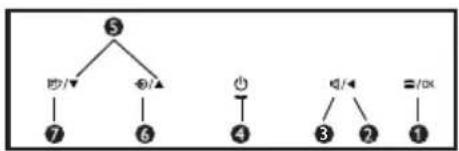
flowchart
graph TD
    5 --> A["7"]
    5 --> B["6"]
    5 --> C["4"]
    4 --> D["3"]
    4 --> E["2"]
    4 --> F["1"]
natural_image
Line drawing of a mechanical component with a circular housing and a curved top (no text or symbols)natural_image
Diagram of a device with a magnified inset showing a hand interacting with a screen (no text or symbols present)2 Verwijder de voet
Voorwaarde:
natural_image
Simple line drawing of a device with a speaker emitting sound waves (no text or symbols)natural_image
Three-step diagram showing a mechanical device with a rotating wheel and a highlighted component, no text or symbols present.Opmerking
natural_image
Line drawing of a monitor with a circular icon showing a download symbol (no text or labels)text_image
PHILIPS www.philips.com/welcome Required steps • User Language • Windows • Linux Prime and Software • Application Reference variables • Quick Link Chain • Real User Home • IP3 & Modelling Monitor driver and software installation System requirements: • PC running Windows 7, Vias, XP, 2000. RS • On to www.philips.com/ Somalia to download the least version of monitor driver Philips SmartControl System supports and replacements: 1. System support Windows 7, Vias, XP; 2. Language supports English, German, Spanish, French, Italian, Korean, Portuguese, Japanese Chinese 3. Philips Monitor Ping and Ping support • On to http://www.philips.com/ Somalia to download the least version of SmartControl software Click Back Finishtext_image
SmartControl Lite PHILIPS Wizard You'll need to celebrate your display to get the most accurate color. We encourage you to use the simple tuning process by selecting the Start Wizard button. This process involves a series of steps that will let you tune your display and save the settings. 1. Choose the Start Wizard button. 2. Follow the steps outlined in the process. 3. Save your settings for future use. Start Want3. Beeldoptimalisatie
text_image
SmartControl Lite PHILIPS Brightness Improven adjusted Brightness will result in a bit of detail in darker image areas. Adjust the Brightness for the best possible image quality. 1. Lower the Brightness to the minimum level. 2. Rise the Brightness to the closed level. 3. Adjust the Brightness as needed to achieve an equal separation of the shapes. Brightness 100 Endo Reset
text_image
SmartControl Lite PHILIPS Contrast Adjust the Contrast (use the slider) to keep details in lighter image area. 1. Raise the Contrast and the numbers 1 and 2 are no longer visible. 2. Slowly insert the Contrast to make the numbers 2 and 3 reappear. The number 1 should remain barely visible. Contact: 50 Undo Reset
text_image
SmartControl Lite PHILIPS Focus Your display's timing needs to be synchronized with the video signals. 1. Choose Auto Setup. 2. If the vertical bands are still visible, you'll need to adjust the Pitch. Pitch: Try to make the vertical bands disappear. Phase: Adjust to the highlight writing to minimize movement on the screen. Pitch 50 Phase 17 Undo Auto Setup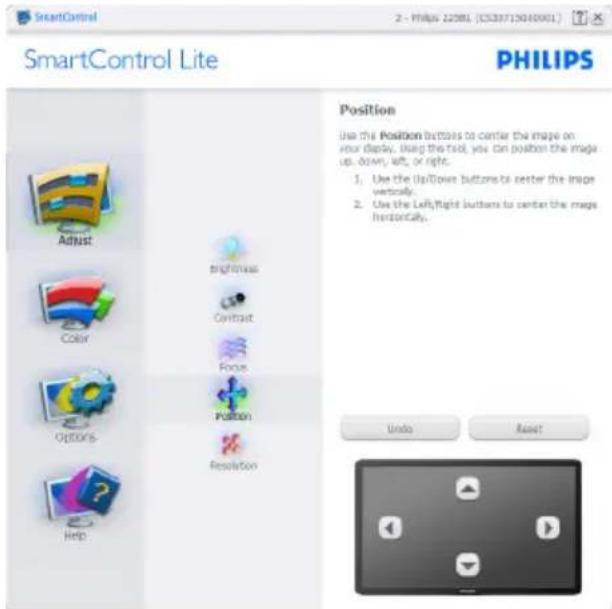
text_image
SmartControl Lite PHILIPS Adjust Brightness Contrast Focus Position Resolution Position Use the Position buttons to center the image on your display. Using this tool, you can position the image up, down, left, or right. 1. Use the Left/Right buttons to center the image vertically. 2. Use the Left/Right buttons to center the image horizontally. Undo Reset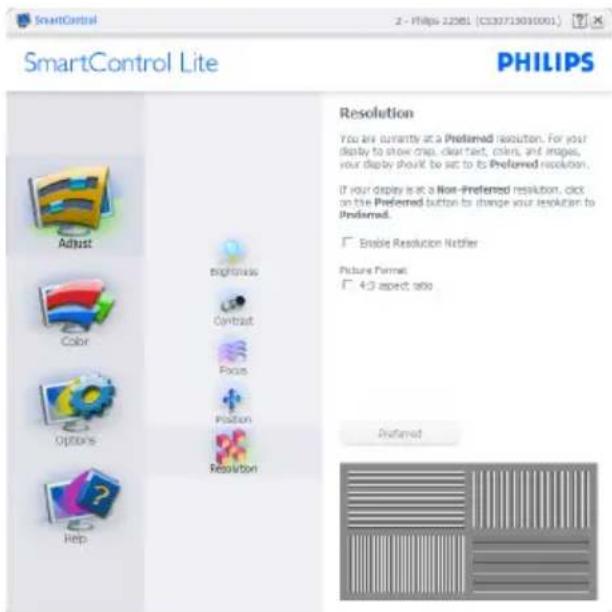
text_image
SmartControl Lite PHILIPS Resolution You are currently at a Preferred resolution. For your display to show crap, clear text, colors, and images, your display should be set to its Preferred resolution. If your display is at a Non-Preferred resolution, click on the Preferred button to change your resolution to Preferred. Enable Resolution Netfizer Picture Format: 4:3 aspect ratio Preferred3. Beeldoptimalisatie
Menu Color (Kleur):
text_image
SmartControl Lite PHILIPS Black Level Improperly adjusted Black Level will result in a loss of detail in darker image areas. Adjust the black level for the best possible picture quality. 1. Adjust the black level of the Red, Green, and Blue using the slider bars. Red 30 Green 50 Blue 50 Undo Reset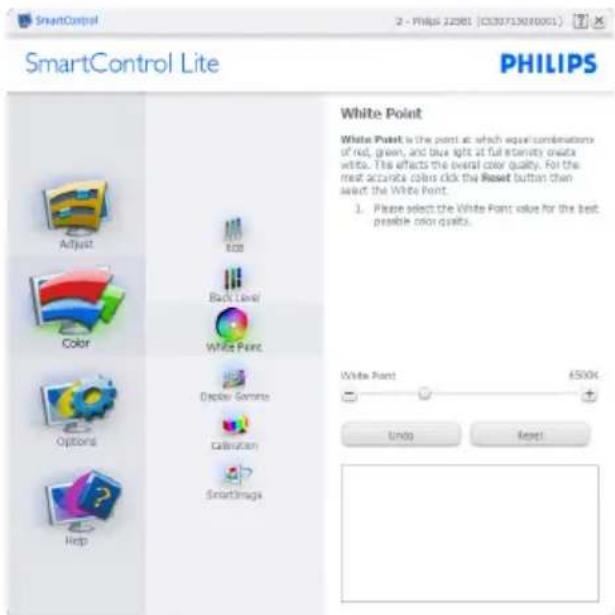
text_image
SmartControl Lite PHILIPS White Point White Point is the point at which equal combinations of red, green, and blue light at full intensity create white. The effects the overall color quality. For the most accurate colors click the Reset button then select the White Point. 1. Please select the White Point value for the best possible color quality. White Point 6500K Unip Reset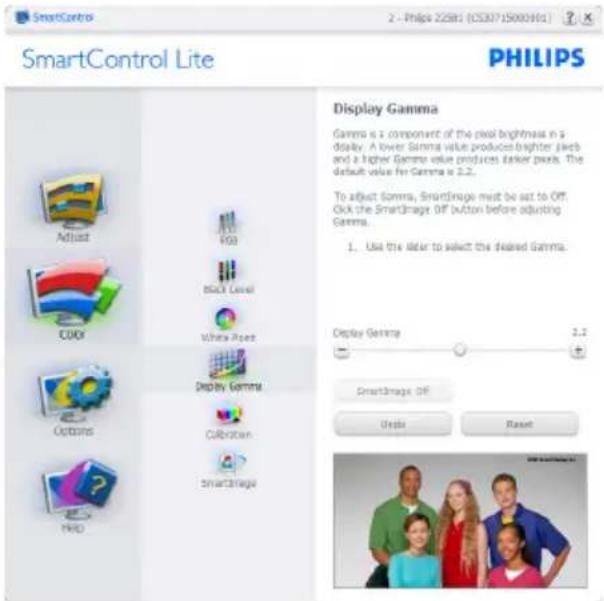
text_image
SmartControl Lite PHILIPS Display Gamma Gamma is a component of the pixel brightness in a display. A lower Gamma value produces brighter pixels and a higher Gamma value produces darker pixels. The default value for Gamma is 2.2. To adjust Gamma, SmartImage must be set to OFF. Click the SmartImage OFF button before adjusting Gamma. 1. Use the similar to select the desired Gamma. Display Gamma 3.2 SmartImage OFF Options Reset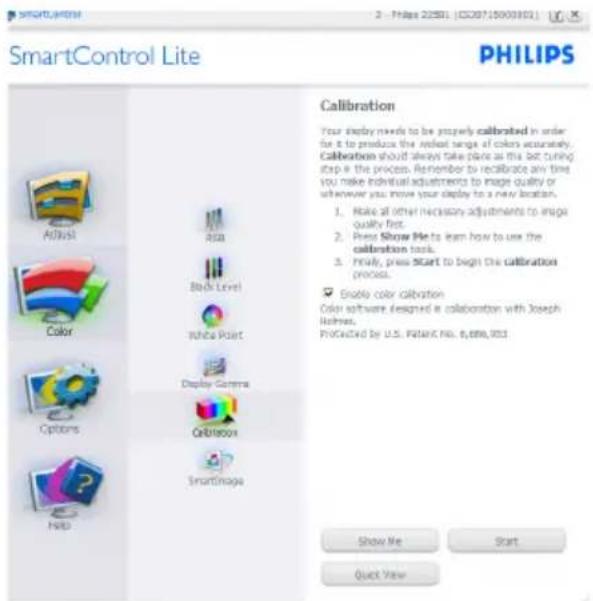
text_image
SmartControl Lite PHILIPS Calibration Your display needs to be properly calibrated in order for it to produce the relevant range of colors accurately. Calibration should always take place as this bit tuning stop in the process. Remember to recalibrate any time you make individual adjustments to image quality or whenever you move your display to a new location. 1. Make all other necessary adjustments to image quality first. 2. Press Show Me to learn how to use the calibration task. 3. Finally, press Start to begin the calibration process. ✓ Enable color calibration Color software designed in collaboration with Joseph Helms. PROGICED by U.S. PATRIC NO. 6,886,953 Show Me Start Quick Viewnatural_image
Color wheel diagram with a central square, displayed in a design software interface (no text or symbols on the diagram itself)text_image
SmartControl Lite PHILIPS SmartImage SmartImage provides different brightness and contrast levels to accommodate today's wide range of computer applications. Choose the setting that a most comfortable or efficient when versing your application. Alternatively, apply choose the one that best describes its type. Game Internet Standardtext_image
SmartControl Lite PHILIPS Preferences You can see the following options to configure smartcontrol. Enable menu when split-clicking on desktop Enable task tray menu Run at system start-up Set Transparency: 0% 50% 10% Select language: English Preferences Adjust Audio Auto Post Input Wizard PlayGS Multi-Menters Color Options Helptext_image
SmartControl Lite PHILIPS Input Your display has two inputs (connections on back of the display) so you can hook up two different sources at the same time. Use the Analog In and Digital In buttons to select which source you'd like to view. You are currently viewing the analog in image. BIPCR1ANT If you switch inputs SmartControl may lose the ability to control your monitor. Or this case you may have to use the Input Select button on the front of your monitor to switch back to the original input before SmartControl functionality can be restored. Analog In Digital Intext_image
SmartControl Lite PHILIPS Audio Adjust the Volume of the integrated loudspeakers by using the Idler. Turn off the integrated loudspeakers by checking the Mute checkbox. Noise Volume 100 Undo3. Beeldoptimalisatie
text_image
SmartControl Lite PHILIPS User Manual If you need help setting up or operating SmartControl, click the Tech. Support button. You'll have the option to fill out an Assistance Form. You can also choose to have information about your software automatically attached to the assistance form. You'll need to be online to use this feature. User Manual Tech. Supporttext_image
Help Technical Support Check for Update About ExitLead free display promotes environmentally sound recovery and disposal of waste from electrical and electronic equipment. Toxic substances like Lead has been eliminated and compliance with European community's stringent RoHs directive mandating restrictions on hazardous substances in electrical and electronic equipment have been adhered to in order to make Philips monitors safe to use throughout its life cycle.
Congratulations!
This display is designed for both you and the planet!

The display you have just purchased carries the TCO Certified label. This ensures that your display is designed, manufactured and tested according to some of the strictest quality and environmental requirements in the world. This makes for a high performance product, designed with the user in focus that also minimizes the impact on the climate and our natural environment.
TCO Certified is a third party verified program, where every product model is tested by an accredited impartial test laboratory. TCO Certified represents one of the toughest certifications for displays worldwide.
Some of the Usability features of the TCO Certified for displays:
- Visual ergonomics for good image quality is tested to ensure top performance and reduce sight and strain problems. Important parameters are luminance, contrast, resolution, black level, gamma curve, colour and luminance uniformity and colour rendering
• Products are tested according to rigorous safety standards at impartial laboratories
• Electric and magnetic fields emissions as low as normal household background levels
- Low acoustic noise emissions (when applicable)
Some of the Environmental features of the TCO Certified for displays:
- The brand owner demonstrates corporate social responsibility and has a certified environmental management system (EMAS or ISO 14001)
• Very low energy consumption both in on-and standby mode minimize climate impact - Restrictions on chlorinated and brominated flame retardants, plasticizers, plastics and heavy metals such as cadmium, mercury and lead (RoHS compliance)
- Both product and product packaging is prepared for recycling
• The brand owner offers take-back options
The requirements can be downloaded from our web site. The requirements included in this label have been developed by TCO Development in co-operation with scientists, experts, users as well as manufacturers all over the world. Since the end of the 1980s TCO has been involved in influencing the development of IT equipment in a more user-friendly direction. Our labeling system started with displays in 1992 and is now requested by users and IT-manufacturers all over the world. About 50% of all displays worldwide are TCO certified.
For more information, please visit www.tcodevelopment.com
TCOFF1058 TCO Document, Ver. 2.1

Technology for you and the planet
"The EPEAT (Electronic Product Environmental Assessment Tool) program evaluates computer desktops, laptops, and monitors based on 51 environmental criteria developed through an extensive stakeholder consensus process supported by US EPA. EPEAT system helps purchasers in the public and private sectors evaluate, compare and select desktop computers, notebooks and monitors based on their environmental attributes. EPEAT also provides a clear and consistent set of performance criteria for the design of products, and provides an opportunity for manufacturers to secure market recognition for efforts to reduce the environmental impact of its products."
Benefits of EPEAT
Reduce use of primary materials Reduce use of toxic materials Avoid the disposal of hazardous waste EPEAT'S requirement that all registered products meet ENERGY STAR's energy efficiency specifications, means that these products will consume less energy throughout their life.
CE Declaration of Conformity
This product is in conformity with the following standards
• EN60950-1:2006 (Safety requirement of Information Technology Equipment)
• EN55022:2006 (Radio Disturbance requirement of Information Technology Equipment)
• EN55024:1998+A1:2001+A2:2003 (Immunity requirement of Information Technology Equipment)
• EN61000-3-2:2006 (Limits for Harmonic Current Emission)
• EN61000-3-3:1995+A1:2001+A2:2005 (Limitation of Voltage Fluctuation and Flicker) following provisions of directives applicable
• 2006/95/EC (Low Voltage Directive)
• 2004/108/EC (EMC Directive)
• 2005/32/EC (EuP Directive, EC No. 1275/2008 mplementing Directive for Standby and Off mode power consumption) and is produced by a manufacturing organization on ISO9000 level.
• The product also comply with the following standards
• ISO9241-307:2008 (Ergonomic requirement, Analysis and compliance test methods for electronic visual displays)
• GS EK1-2000:2009 (GS mark requirement)
• prEN50279:1998 (Low Frequency Electric and Magnetic fields for Visual Display)
- MPR-II (MPR:1990:8/1990:10 Low Frequency Electric and Magnetic fields)
• TCO Displays 5.0 (Requirement for Environment Labeling of Ergonomics, Energy, Ecology and Emission, TCO: Swedish Confederation of Professional Employees) for TCO versions
Energy Star Declaration
(www.energystar.gov)

ENERGY STAR
As an ENERGY STAR® Partner, we have determined that this product meets the ENERGY STAR® guidelines for energy efficiency.

Note
We recommend you switch off the monitor when it is not in use for a long time.
Federal Communications Commission (FCC) Notice (U.S. Only)
This equipment has been tested and found to comply with the limits for a Class B digital device, pursuant to Part 15 of the FCC Rules. These limits are designed to provide reasonable protection against harmful interference in a residential installation. This equipment generates, uses and can radiate radio frequency energy and, if not installed and used in accordance with the instructions, may cause harmful interference to radio communications. However, there is no guarantee that interference will not occur in a particular installation. If this equipment does cause harmful interference to radio or television reception, which can be determined by turning the equipment off and on, the user is encouraged to try to correct the interference by one or more of the following measures:
• Reorient or relocate the receiving antenna.
- Increase the separation between the equipment and receiver.
- Connect the equipment into an outlet on a circuit different from that to which the receiver is connected.
- Consult the dealer or an experienced radio/TV technician for help.
Changes or modifications not expressly approved by the party responsible for compliance could void the user's authority to operate the equipment.
Use only RF shielded cable that was supplied with the monitor when connecting this monitor to a computer device.
To prevent damage which may result in fire or shock hazard, do not expose this appliance to rain or excessive moisture.
THIS CLASS B DIGITAL APPARATUS MEETS ALL REQUIREMENTS OF THE CANADIAN INTERFERENCE-CAUSING EQUIPMENT REGULATIONS.
FCC Declaration of Conformity
Declaration of Conformity for Products Marked with FCC Logo,
United States Only

This device complies with Part 15 of the FCC Rules. Operation is subject to the following two conditions: (1) this device may not cause harmful interference, and (2) this device must accept any interference received, including interference that may cause undesired operation.
Commission Federale de la Communication (FCC Declaration)
EN 55022 Compliance (Czech Republic Only)
This device belongs to category B devices as described in EN 55022, unless it is specifically stated that it is a Class A device on the specification label. The following applies to devices in Class A of EN 55022 (radius of protection up to 30 meters). The user of the device is obliged to take all steps necessary to remove sources of interference to telecommunication or other devices.
Polish Center for Testing and Certification Notice
The equipment should draw power from a socket with an attached protection circuit (a three-prong socket). All equipment that works together (computer, monitor, printer, and so on) should have the same power supply source.
The phasing conductor of the room's electrical installation should have a reserve short-circuit protection device in the form of a fuse with a nominal value no larger than 16 amperes (A).
To completely switch off the equipment, the power supply cable must be removed from the power supply socket, which should be located near the equipment and easily accessible.
A protection mark "B" confirms that the equipment is in compliance with the protection usage requirements of standards PN-93/T-42107 and PN-89/E-06251.
North Europe (Nordic Countries) Information
| Placering/VentilationVARNING:FÖRSÄKRA DIG OM ATT HUVUDBRYTAREOCH UTTAG ÄR LÄTÅTKOMLIGA, NÄR DUSTÄLLER DIN UTRUSTNING PÅPLATS. |
| Placering/VentilationADVARSEL:S∅RG VED PLACERINGEN FOR, AT NETLEDNINGENS STIK OG STIKKONTAKT ER NEMTTILGÆNGELIGE. |
| Paikka/llmankiertoVAROITUS:SIJOITA LAITE SITEN, ETTÄ VERKKOJOHTOVOIDAAN TARVITTAESSA HELPOST IRROTTAA PISTORASIASTA. |
| Plassering/VentilasjonADVARSEL:NÅR DETTE UTSTYRET PLASSERES, MÅDU PASSE PÅ AT KONTAKTENE FOR ST∅MTILF∅RSEL ER LETTE Å NÅ. |
BSMI Notice (Taiwan Only)
符合乙類資訊產品之標準
The People's Republic of China released a regulation called "Management Methods for Controlling Pollution by Electronic Information Products" or commonly referred to as China RoHS. All products including CRT and Monitor which are produced and sold for China market have to meet China RoHS request.
中国大陆RoHS
natural_image
Simple geometric shape: a black rectangle inside a rounded rectangle (no text or symbols)