SH-S222L - Computer Accessories SAMSUNG - Free user manual and instructions
Find the device manual for free SH-S222L SAMSUNG in PDF.


User questions about SH-S222L SAMSUNG
0 question about this device. Answer the ones you know or ask your own.
Ask a new question about this device
Download the instructions for your Computer Accessories in PDF format for free! Find your manual SH-S222L - SAMSUNG and take your electronic device back in hand. On this page are published all the documents necessary for the use of your device. SH-S222L by SAMSUNG.
USER MANUAL SH-S222L SAMSUNG
| Index | Safety Precautions | Features | Installing | Device Driver | How to Use | Utilities | Storing/Cleaning | Troubleshooting | Specifica |

text_image
Optical Disc Drive SAMSUNG everyo-Samsung's OMS (Optical Media Solution) Customer Support Website (http://www.samsung-ODD.com) offers the latest versions of firmware for ODD products, user instructions and product information.
Select Langu English


The Statement of Warranty
http://www.samsung.com
http://www.samsung-ODD.c
Main Page
Safety Precautions
Safety Precautions
During Installing
During Operating
Others
RoHS & WEEE
Features
Exterior
System Requirements
Features
Installing DVD Writer and Connecting Cables
Installing Drive
Connecting Cables
Installing Device Driver and Confirming The Installation
Firmware Update
Confirming the Installation of Device Driver
How To Use The DVD Writer
How to Use the Drive
How to Use DVD±R/RW and Other Discs
MAGIC SPEED
Storing/Cleaning Drive and Disc
Cleaning the Drive
Storing the Disc
Cleaning the Disc
When the LED Blinks
Deleting Utilities
Troubleshooting
Troubleshooting
Caution: Possible Errors
Product Specifications
Important to read and understand at all times

 Warning Warning | This symbol indicates explanations about extremely dangerous matters. If users ignore this symbol and handle the device the wrong way, serious injury or death could result. |
 Caution Caution | This symbol indicates explanations about dangerous matters. If users ignore this symbol and handle the device the wrong way, damage to home or property could result. |
 | Important to read and understand at all times |
 | Do not disassemble |

Always make sure that the disc does not have a crack before use. If the disc has a crack (especially around the center hole), it is recommended to make a copy immediately and use the copy instead. When a cracked disc is used continuously, the size of the crack is likely to grow and this will eventually result in irreparable damage to the disc.
Installing

natural_image
Cartoon illustration of a smiling block character wading through water with raindrops, no text or symbols presentDo not drop the drive, and protect it from severe shocks. - It can damage the drive or cause it to malfunction.

natural_image
Cartoon illustration of a smiling book character with sunglasses and a surprised sun (no text or symbols)Do not place the drive in direct sunlight.

natural_image
Cartoon illustration of a smiling rectangular object emitting exhaust smoke next to a steaming torch (no text or symbols)Avoid low-or high-temperature environments.

natural_image
Illustration of a pink bottle emitting vapor and a smiling box with steam, both with expressive faces (no text or symbols)Avoid high-humidity environments.
Select Languages
English
Operating

natural_image
Illustration of a hand holding a rectangular object with motion lines and a blue warning circle (no text or symbols)Handle with caution to prevent damage from an external shock.

natural_image
Cartoon illustration of a car with expressive faces and flying exhaust lines, surrounded by pink sparkles (no text or symbols)- Do not drop the drive, and protect it from severe shocks. - It can damage the drive or cause it to malfunction.

natural_image
Cartoon illustration of a hand holding a rolled document with a surprised expression (no text or symbols)Do not move the drive while in operation and do not attempt to open the disc tray by force. Make sure to close all working programs before attempting to open the tray and always use the open/close button.

Do not insert a pin into the emergency opening while in operation.

Do not insert hands in the tray while in operation. This may cause damage to the product or human body

natural_image
Illustration of a hand holding a book with a warning symbol and a CD emitting smoke (no text or symbols present)Do not use cracked, distorted or damaged discs. In particular, a disc with a crack on the inner tracks may break while in use.
■ Always check to be sure the disc is not cracked before use. If you find a crack on the disc (especially around the center hole), make a copy of the disc immediately and use the copy instead. Continued use of a cracked disc will cause the crack to become bigger, resulting in irreparable damage to the disc.
Do not use low-quality discs (illegal, scratched, damaged, etc.).
Samsung is not responsible for any loss resulting from the use of such discs.
Select Languages
English
Others

natural_image
Cartoon illustration of a sad book character holding a phone, with flowers and a water droplet falling (no text or symbols)Never allow food particles or foreign substances to enter the drive casing.

text_image
WarningTo protect against the risk of fire, do not spill such liquids as alcohol and benzene on the drive.

natural_image
Cartoon illustration of hands holding a box with a sad face, surrounded by tools and no symbols (no text or labels)Do not disassemble, attempt to repair or modify the device without an express approval as directed in the manual. - To reduce the risk of damage, electric shock and fire.
RoHS

text_image
RoHS compliant Samsung ElectronicsSamsung Eco-mark
The Samsung's own Eco mark helps consumers to easily understand that Samsung develops eco-friendly products. This mark represents Samsung's continuous effort to develop eco-friendly products.
RoHS (Restriction of the use of certain hazardous substances in electrical and electronic equipment) The RoHS, the environmental regulation announced by European Union, restricts the use of lead, mercury, cadmium, hexavalent chromium, PBB, and PBDE in products put on the market in The European Union after July 1, 2006.
WEEE
Correct Disposal of This Product (Waste Electrical & Electronic Equipment)
(Applicable in the European Union and other European countries with separate collection systems)

This mark shown on the product or its literature, indicates that it should not be disposed with other household wastes at the end of its working life. To prevent possible harm to the environment or human health from a uncontrolled waste disposal, please separate this from other types of wastes and recycle it responsibly to promote the sustainable reuse of material resources.
Household users should contact either the retailer where they purchased this product, or their local government office, for details of where and how they can take this item for environmentally safe recycling.
Business users should contact their supplier and check the terms and conditions of the purchase contract. This product should not be mixed with other commercial wastes for disposal.
Front

text_image
4 1 2 3-
Emergency Hole
-
LED
-
Open/Close Button
-
Door Tray
- Design and specifications are subject to change without prior notice.
Back

text_image
1 2 3 4-
Unsupport
-
Interface Port
-
Master/Slave Selection Port
-
Power Port
- This product is not quipped with an audio output port.
However, audio output is supported using the E-IDE data cable on the default digital audio program provided by the operating system.
Components
DVD Writer
Four screws to install the drive
Setup guide
Application software & User manual CD
(Software: Nero Express 7 Essentials, InCD, Nero Vision Essentials, Nero ShowTime Essentials, Nero BackItUp Essentials, Nero Recode Essentials)
- In case you need to return the purchased product, be sure to include all the accessories provided with the product to receive a refund.
- The type of accessories varies depending on a product model. and some accessories described herein are subject to change without notice.
▲UP
System Requirements
Item Description
OS Microsoft Windows 2000/XP/Vista
CPU Pentium4 2.0GHz or above
RAM 512MB or above(Windows 2000, XP), 1GB or above(Windows Vista)
Features
Versatile Multimedia Features
DVD-R: Read / Write DVD-RW: Read / Write / Rewrite allowed
DVD+R: Read / Write DVD+RW: Read / Write / Rewrite allowed
DVD-ROM: Read DVD+R Dual: Read / Write
DVD-R Dual: Read / Write CD-R: Read / Write
CD-RW: Read / Write / Rewrite allowed
DVD-RAM: Read / Write / Rewrite allowed CD-STAMP : Read
See table below for details
| Disc Type | Writable | Rewritable | Read | |
| CD | CD-STAMP | × | × | O |
| CD-R | O | × | O | |
| CD-RW | O | O | O | |
| DVD-STAMP | × | × | O | |
| DVD ± R | O | × | O | |
| DVD-RW | O | O | O | |
| DVD | DVD+R(Dual) | O | × | O |
| DVD-R(Dual) | O | × | O | |
| DVD+RW | O | O | O | |
| DVD+R | O | × | O | |
| DVD-RAM | O | O | O |
Writable : write once, read many times.
Rewritable : write data one or more times.
▲UP
DVD Recommended Disc Types
DVD-R Media
Taiyo-Yuden, TDK, MKM, Hitachi, Maxell, FujiFilm, PVC, Panasonic, RiTEK, CMC, UNIFINO
DVD-RW Media
TDK, MKM, JVC, PVC, RiTEK, CMC
DVD+R Media
RICOH, Taiyo-Yuden, MKM, RiTEK, CMC, Prodisc, Optdisc
DVD+RW Media
RICOH, MKM, RiTEK, CMC
DVD±R Dual
MKM, RICOH
DVD-RAM
Maxell
CD Recommended Disc Types
CD-R Media
Taiyo-Yuden, RICOH, MKM, Hitachi, Maxell, FujiFilm, RiTEK(Phtharo), CMC, Pioneer, Princo, TDK
CD-RW Media
RICOH, MKM, RiTEK, CMC
HS CD-RW Media
RICOH, MKM, CMC
US CD-RW Media
MKM
Buffer underrun prevention technology included
What is " buffer underrun prevention technology"?
A technology to prevent "buffer underrun" errors in which the data transmission speed is not as fast as the data writing speed when data is being recorded on a disc.
Reading / Recording Speed
Reading Speed(MAX)
DVD-ROM(Single)(16X), DVD-ROM(Dual)(12X), DVD-R(16X), DVD-RW(12X), DVD+R(16X), DVD+RW(12X), CD-ROM (48X), CD-R (40X), CD-RW (40X), DVD+R DUAL(12X), DVD-R DUAL (12X), DVD-RAM(12X)
Recording Speed(MAX)
DVD+R DUAL (16X), DVD+RW (8X), DVD-R(22X), DVD+R(22X), DVD-RW (6X), CD-R (48X), CD-RW (32X), DVD-R DUAL (12X), DVD-RAM(12X)
( The maximum speed depends on the writing media condition or some of user's PC environment. )
Installing Drive
- Turn the PC off.
- Open the cover as shown in the picture.

natural_image
Isometric line drawing of a desktop computer tower with an arrow indicating a loading or movement (no text or symbols)- If necessary, attach the support devices on both sides of the drive
- The support devices are PC accessories. Purchase a pair if necessary.
(SCREW : M3 X 6 X 4 )

natural_image
Illustration of a closed rectangular electronic device with attached components (no text or symbols)- Insert the DVD Writer after removing the plate as below.
- Be sure to use the screws (M3x6) provided with the product.
- Using screws other than M3x6 may cause malfunction.

Be sure that the screws are tightened securely in place.
Loosely tightened screws may result in an increased level of noise.

natural_image
Hand inserting a CD into a computer drive (no visible text or symbols)Connecting Cables

text_image
1. Connecting the power cable 2. Connecting the E-IDE cable 3. Master/Slave Selection PortConnecting the Power Cable
Hold the power cable (with four pins) in the power box within the computer with the cutoff edges() facing up and connect it to the power port in the back of the DVD Writer
 | 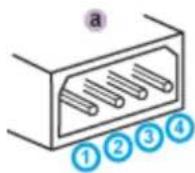  |
| A - Cutoff edges | 1 +5V DC2 Ground3 Ground4 +12V DC |

Improperly connected power cable may cause malfunction. Check the direction of the power cable and the cutoff edges before connecting the cable.
When you use one E-IDE cable
Set the jumper to SL (slave) in the Master/Slave port in the back of the DVD Writer

text_image
a b c CS SL MAa : Slave Drive (Select the SL jumper)
b : H D D
c : M a i n B o a r d
▲UP
When you use two E-IDE cables
Set the jumper to MA (Master) in the Master/Slave port in the back of the DVD Writer.
When you have one DVD Writer: Set it to MA (Master)

text_image
a b c d e CS SL MAa : Master Drive (Select the MA jumper) b : HDD
c : MainBoard d : Primary 1
e : Secondary 1
▲UP
When you have one DVD Writer and the other ODD products: Set it to MA (Master) / SL (Slave),

text_image
a b c d e f (Select the Master jumper) CS SL MA (Select the Slave jumper)a : Master Drive (Select the MA jumper) b : Slave Drive (Select the SL jumper)
e : Primary 1 f : Secondary 1
▲UP
Connecting the Jumper to the Master/Slave Port
Connect the jumper to the slot in the back of the DVD Writer.
When you connect the jumper to MA (Master), the drive runs as the master, and when you connect it to SL (Slave), the drive runs as the slave.
When you connect it to CS (CSEL), you can control the device using the host interface signal CSEL. (Connection to MA is recommended.)

flowchart
graph TD
    A["Server"] --> B["Module 1"]
    A --> C["Module 2"]
    A --> D["Module 3"]
    B --> E["CS SL MA"]
    C --> F["CS SL MA"]
    D --> G["CS SL MA"]
- Go to http://www.samsung-ODD.com
- Click Firmware on the menu bar (in the upper right-hand corner).
- Click Firmware Downloads. Check for your drive model and start downloading.
Confirming the Installation of Device Driver
Confirming Using [Device Manager]
Windows 2000

text_image
TSSTcorp CDDVDW SH-S222A File Edit View Help Operator DVDCO-ROM DSST-COM drive Play-up drive Play-up drive DC-800CSP controllers Kontour B New and other posting devices Portus Network switches Puma-CDMA-SPS Bond & low-end server or offers Lumex devices Junction Data Bus controllers- Click [Start] - [Settings] - [Control Panel] - [System]
- Click on the [Hardware] tab in the System Properties window and then click on the [Device Manager] tab.
- Click DVD-W drive in the Device Manager window.
① in the left picture appears if the driver is installed properly.
Windows XP

text_image
Computer Manager & Local Context Style Bond Layers Shared Providers Local Areas and Groups Performance Log and Cards Service Manager Database Remote Storage Real Settings Cell Management Devices and Applications TSSTcorp CDDVDW SH-S222A 1 TSSTcorp CDDVDW SH-S222A 1 1 1 1 1 1 1 1 1 1 1 1 1 1 1 1 1 1 1 1 1 1 1 1 1 1 1 1 1 1 1 1 1 1 1 1 1 1 1 1 1 1 1 1 1 1 1 1 1 1 TSTSCorp CDDVDW SH-S222A- Go to [Start] - [Settings] - [Control Panel] - [Performance and Maintenance]
- Click [Administrative Tools] icon in the Performance and Maintenance window.
- Click [Computer Management] icon in the Administrative Tools window.
- Click [Device Manager] icon in the Administrative Tools window and then click DVD-W drive.
① in the left picture appears if the driver is installed properly.
Windows Vista

text_image
TSSTcorp CDDVDW SH-S222A Computer Disk drives Display adapters DVD-CD AT&T drive Human Interface Devices IDE ATA/ATAPI controllers Keyboards Mice and other printing devices Mydems Mybors Network adapters Processors Sound, video and game controllers Storage controllers System devices Universal Serial Bus controllers- Click [Start] - [Control Panel] - [System] - [Device Manager].
- Click DVD-W drive in the Device Manager window.
① in the left picture appears if the driver is installed properly.
How to Use the Drive
When the LED is Green, do not turn the PC off or remove the DVD Writer as it may cause damage in the drive.
How to Use a Horizontally Installed Drive
You can use 3.15 Inch or 4.72 Inch (8cm or 12cm) disc.
The drive cannot read the disc properly if any part of the disc is placed outside the tray guiding line.

text_image
Disc▲UP
How to Use a Vertically Installed Drive
This drive can be installed vertically.
You can use only the 4.72 Inch (12cm) disc. (You cannot use the 3.15 Inch (8cm) disc)
The drive cannot read the disc properly if any part of the disc is placed outside the tray guiding line.

text_image
Disc△UP
How to Use DVD±R/RW and Other Discs

The DVD Writer allows writing DVD±RW discs using Nero Express and enables
"packet writing" (high-speed recording) using InCD.
The drive also allows writing DVD±R discs using Nero Express.

Caution
Unauthorized copying of DVD or software titles is illegal and the individuals that make illegal copies will be held responsible for any copyright infringement.
Using low-quality discs may lengthen the recording time or not supporting due to reduction in double speed.
You can use the DVD Writer to playback Music CD, CD-ROM, CD-R/RW, or DVD-ROM disc like a CD-ROM drive or a DVD-ROM drive. If your computer recognizes the [CD-ROM] icon designated to the DVD Writer as the 'E:' drive, insert a CD-ROM or a DVD-ROM disc and access the 'E:' drive.
(The actual drive letter of the DVD Writer may vary depending on the user's system environment.)
To Playback a DVD Video Disc :
- You need a DVD decoder board or the DVD decoder software program.
Use Nero ShowTime Essentials to change the region code of the DVD Writer.
DVD Region Protection Coding (RPC):
The RPC feature is supported on DVD players and is used with DVD-video discs (such as movies). Currently, the motion picture industry has divided the world into different regions or zones that correspond to the regional markets intowhich the motion picture industry releases movies. Simply put, RPC codes are placed on movies marketed throughout the world, based on the region of the world inwhich they are being sold. These RPC codes help control and prevent pirating of new movies into other motion picture regions prior to their true release dates within those markets.
The DVD Writer supports RPC phase II. In the RPC-2 mode, the local code can be changed by users. RPC-2 is selected by default for The DVD Writer.
You can change the region code up to five times via an MPEG application.
Please contact your dealer or local SAMSUNG representative if you wish to change the local code more than five times.
What is a MAGIC SPEED?
MAGIC SPEED is a program that supports user to select at his or her discretion the reading speed of CD disc between two modes offered by drive: Maximum Speed Mode (Max Mode) and Silent Mode.
Development Background
ODD products launched nowadays are providing a high reading speed.
With the increased reading speed, faster data processing has become possible. However, high rotation speed often causes louder noise, and it is more possible to crash the cracked or bent discs. Against this backdrop, our Company has developed a speed-down algorithm and applied this technology to newly-launched products to provide safer and more comfortable environments for PC users.
※ What is Speed-down Algorithm?
It establishes a safer disc reading speed in operating the device in order to prevent possible disc crashes in using CDs with cracks in starting. In addition, for customers who want to play CDs at its maximum speed, MAGIC SPEED program offers the function of selecting reading speed, so that customers can set the speed as they want. (Recording speed will run at recordable speed without limit)
What Are MAGIC SPEED Mode and How to Use
MAGIC SPEED Mode
● Max Mode: Setting reading speed to its maximum level provided by drive.
- Silent Mode: Setting reading speed to a stable low speed.
- Any mode set by Magic Speed will be reset to "Low nosie mode" when the PC restarts, so please check the current mode if you want to use "The maximum speed mode" and change the settings where necessary.
Caution: A disc with crack may be crashed in playing with Max Mode. We recommend you to use such disc in Silent Mode, or make a copy immediately before use.
How to Use MAGIC SPEED
● First, install MAGIC SPEED program registered on our website.
● On MAGIC SPEED tray icon, select right-click to execute the program.
- Select the mode you want to use on Program Execution Window and select "settings". Then, reading speed of the drive will run in selected mode.
- Select "Close" to exit Program Execution Window.
In this occasion, reading speed will be run in the set speed if there is no separate mode change or program exit.
※ We recommend you to use "Max Mode" for data copy or disc copy, and "Silent Mode" for normal operation.
※ Other functions
▶ To disable Auto Run
This is a default program that automatically runs in every PC booting.
If you want to quit this auto run function, deselect the auto run item selected on tray icon menu.
Where Can I Download MAGIC SPEED?
Visit our website for customer support (URL:http://www.samsung-ODD.com), and select Firmware → MAGIC SPEED.

Click [Start] - [Setting] - [Control Panel] - [Add/Remove Programs] and a window as shown below appears.
[Windows 2000]

text_image
Add Tomcat Programs Current installed programs: Sort by: Name AcxiEdit Size 1.56MPB Adobe Acrobat 9.3 Size 10.9MPB Adobe Photoshop 9.0 Size 97.0MPB Adobe Photoshop 6.3 Size 10.4MPB Adobe Photoshop 7.3 Size 13.6MPB A2do Size 1.47MPB DVD-ROM Export Size 98x8 To change this program's remove it from your console, mini. ChangeRemove. ChangeRemove RARIs-2 Size 2.30MPB Macromedia Dreamweaver PC Size 28.5MPB Macromedia Enterprise Manager Size 28.5MPB Macromedia HomeSite Size 10.6MPB Microsoft Internet Explorer 6.5F3 Size 10.6MPB CloseClick the [Add/Remove] button to remove the program.
▲UP
[Windows XP]

text_image
Add or Remove Programs Current installed programs Adobe Acrobat 5.0 Auto Director: BVI Desktopware Studio FVB-8476 Drive Set Change the program or Windows Start user computer, LBS Change/Remove Outperform Java 12 - Console 1 Profile DARPage 2 DARPage 4.0 Microsoft Office System Manager Microsoft Office System Manager MOSLBI for Windows Manager Software Commandator 1.0 CyberArk 3.0 WinRAR 1.0 Save: 331.03KB Save: 1.09KB Save: 62.09KB Save: 1.09KB Save: 331.03KB Save: 0.09KB Save: 35.09KB Save: 331.03KB Save: 2.09KB Save: 45.09KB CloseClick the [Add/Remove] button to remove the program.
▲UP
Cleaning the Drive
Turn the PC off and pull out the drive.
■ Remove any foreign objects from the surface of the drive using soft cloth.

- Do not use benzene, paint thinner, or any other solvents.
- Cleaning the interior of the unit with such things as a cotton swab may cause a failure or a loss of function.


This part of the manual is to prevent damages or data loss. Read carefully and use the device properly.
Storing the Disc
Do not place it under the direct sunlight.
Place it so that it sits on its side on a flat surface.
Do not scratch or place a label on the disc.
Handle the disc with caution to prevent damage from an external shock.
Do not expose it to severe temperature-fluctuations.
(Exposure to such environment may cause congealing.)

natural_image
Simple line drawing of a smiling sun and an umbrella with a smiling face, no text or symbols present.
This part of the manual is to prevent damages or data loss. Read carefully and use the device properly.
Cleaning the Disc
Do not touch the surface of the disc.
Place your fingers on the edge of the disc to hold.
- Clean the disc lightly with soft cotton cloth, starting from the center and move to the edge of the disc.
Use only disc-cleaning liquids. Do not use benzene, paint thinner, or any other solvents.


If the disc surface becomes dirty with fingerprints, foreign substances or dust, the disc may not function properly.
-UP
When the LED blinks
LED Meaning
| Disc Lead-In | Green: Blinks every 0.3 seconds. |
| Writing | Green: Blinks every 0.3 seconds. |
| Reading | Green: Blinks every 0.3 seconds. |
| Standby | Off |
| No Disc | Off |

The indicator light turns off when the drive is not in use (standby) after disc lead-in.
General Problems
Problem Meaning / Solution
| The tray doesn't open. | See if the PC is on.Make sure the power cable within the PC is connected properly.If the tray still won't open with the power-on, turn the power-off and insert a pin(paper clip) into the emergency hole to open. |
| The tray doesn't close. | Make sure the disc has been inserted properly. |
| The PC is not working properly. | See if the jumper(s) is properly connected to the Master/Slave Selection port.See if the drive is properly connected to the PC.See if the floppy disc remains in the PC. |
| The drive is not working properly. | See if the drive is connected properly to the PC.See if the device drive program has been installed properly. |
| The system doesn't read the disc. | See if the system detects the drive.Make sure you use the types of discs that are supported by the drive.See if the LED turns into green.Make sure you inserted the disc with the label facing up.Make sure you are using the right program for disc playback.See if the disc is clean.See if any congealing has occurred.Make sure the region code of the drive matches the disc number. |
You can confirm the use of software at the site of our customer support.
Address: www.samsung-ODD.com
- See "Support > Download center > Operation Manual".
- See "Information > Flash Manual > Recording Software".
Caution: Possible Errors
DVD Writers record data on the disc by applying laser light onto the surface of the disc, and therefore writing errors may occur if you use a damaged disc, for example. Be sure to eliminate the following error-causing elements before you start writing:
* The following settings are recommended for all DVD Writer:
- Avoid a situation that requires multitasking, and remove turn off the screen saver.
A buffer underrun may occur if the system multitasks while the DVD Writer is writing/erasing.
- Block any outside attempt to access the host PC during a writing session.
An error may occur if another user accesses the printer connected to his/her the system via the network during a writing session.
- Disable the CD auto - run feature of the CD.
- Inserting an auto - run-enabled CD in to another drive connected to the same system during a writing/erasing session may cause an error.
GO to Start > Settings > Control Panel > System > Hardware > Device Manger > CD-ROM Settings . Disable Insert AutoRun.
- It is recommended that you use the image file format when you write a large number of small-sized files.
When there are a large number of small-sized files to write, the system's transfer rate drops and the Superlink feature works at a more frequent rate, resulting in lower writing quality.
If you are doing a CD-to-CD write, it is not necessary to check to see if you have available space on your hard disc beforehand.
However, in the case of image files, it is recommended that you be sure you have at least twice the amount of space needed for the data on your hard disc, as image files are copied to the hard disc before they are copied to the CD.
- Use a regulation-length (46cm) or shorter E-IDE cable.
Using an E-IDE cable longer than 46cm may cause a transmission error.
- Do not use more than one type of writing software.
Before you install a writing program, be sure to first uninstall existing versions of the program or other writing program(s) and reboot the system first.
(The Windows operating system may be damaged if you install the Korean version while the English version remains on the system.)
Use only the writing software provided by Samsung. You may experience writing errors if you use with other writing programs.
The write speed for a disc can be restricted if:
- The disc has bad properties data, and or there are other discs with different properties available under the same ID.
The drive's write strategy is set in a way that the drive examines to examine the disc properties and determines the optimal write conditions for those properties.
For example, many disc makers do not bother to insert property information distinguishing 50X discs from 32X discs. Since the two types of discs have the same properties data, although they actually have different properties, it is often impossible to respond to the situation with a single write strategy. In order to ensure stable writing, it is necessary to downgrade the write speed.
If discs from two different disc makers have the same write speed according to the labels, but actually have different write speeds, it is necessary to downgrade the write speed to ensure stable writing.
- Samsung's Standards for Write Speed Restriction.
| Standards 1 | Write speed is downgraded for the sake of write stability, if high-speed discs available in the market have particularly bad properties data, or there are low-speed discs available under the same ID. |
| Standards 2 | Speed-restricted discs go through further examination and adjustments later. If high-speed discs are available under the same ID with as low-speed discs (speed restricted at present), the speed restriction is removed when the low-speed counterparts become no longer unavailable in the market under the same ID. |

You may experience lower write quality in case if you use disc products by some disc makers which that are not registered with the product's firmware.
Therefore, it is recommended that you use only discs by recommended companies. Even, and even if the write session is completed successfully, check the write quality before you put the disc in storage, especially in case of an important data backup.
(Samsung is not responsible for any loss resulting from data backup failure.)

We update the list of supported media on a regular basis through our firmware upgrades.
▲UP
| Category | SH-S222A(TS-H662A) DVD Writer | |||
| DVD: DVD-R, DVD-RW, DVD+R, DVD+RW, DVD-ROM, DVD-Video, DVD+R (Dual), DVD-R (Dual), DVD-RAM | ||||
| DISC | Usable Discs | CD: CD-ROM, CD-R, CD-RW, CD-DA, CD+E(G) CD-MIDI, CD-TEXT, CD-ROM XA, Mixed Mode CD CD-I, CD-I Bridge (Photo-CD, Video-CD), Multisession CD (Photo-CD, CD-EXTRA, Portforio) | ||
| Disc Diameter 4.72 Inch or 3.15 Inch (120mm or 80mm) | ||||
| Interface Port PATA | ||||
| Interface Support | Burst Transfer Rate | 66.6MB/s (UDMA4) | ||
| ACCESS TIME (Random) | CD-ROM 110ms (Random) | |||
| DVD-ROM 130ms (Random) | ||||
| Media Type | Write | Read | ||
| DVD+R CAV 22X | CAV 16X | |||
| DVD+RW ZCLV 8X | CAV 12X | |||
| DVD+R DUAL CAV 16X | CAV 12X | |||
| DVD-R DUAL CAV 12X | CAV 12X | |||
| DVD-R CAV 22X | CAV 16X | |||
| DVD-RW CLV 6X | CAV 12X | |||
| Data Transfer Speed (Max) | DVD-ROM(Single) | - | CAV 16X | |
| DVD-ROM(Dual) | - | CAV 12X | ||
| DVD-RAM | PCAV 12X | PCAV 12X | ||
| CD-ROM | - | CAV 48X | ||
| CD-R | PCAV 48X | CAV 40X | ||
| US-RW | ZCLV 32X | CAV 40X | ||
| HS-RW | CLV 10X | CAV 40X | ||
| CD-RW | CLV 4X | CAV 40X | ||
| Buffer Memory | 2MB | |||
| Drive Installation | Horizontal / Vertical | |||
| Operating Environment | Temperature | 41°F ~ 122°F (5°C ~ 50 °C) | ||
| Humidity | 20% ~ 80% (RH) | |||
| Size(Width x Height x Length) | 5.34 X1.65 X 6.69 Inch (148.2 X 42 X 170mm) | |||
| Weight | 750g | |||

Note
Do not support DVD-R for Authoring.
Cannot playback or record on both sides of a dual layer disc simultaneously.
The read/write capacity of the supported discs depends on the condition of the disc and the recording format of the drive. Therefore, the read/write quality may not be perfect.
Specifications are subject to change without notice.

FCC information to the user
This equipment has been tested and found to comply with the limits for a class B digital device. pursuant to part 15 of the FCC rules.
These limits are designed to provide reasonable protection against harmful interference in a residential installation. this equipment generates.
Uses and can radiate radio frequency energy and, if not installed and used in accordance with the instructions, may cause harmful interference to radio communications. However, there is no guarantee that interference will not occur in a particular installation.
If this equipment does cause harmful interference to radio or television reception Which can be determined by turning the equipment off and on. The user is encouraged to try to correct the interference by one or more of the following measures.
Reorient or relocate the receiving antenna.
Increase the separation between the equipment and receiver.
Connect the equipment into an outlet on a circuit different from that to which the receiver is connected.
Consult the dealer or an experienced radio TV technician for help.
CAUTION
Change or modifications not expressly approved by the manufacturer responsible for compliance could void the user's authority to operate the equipment.

Laser Standard
The product specifications above may be changed to improve device performance without prior notice.
▲UP