Raumfeld Connector - Network card / adapter Teufel - Free user manual and instructions
Find the device manual for free Raumfeld Connector Teufel in PDF.


User questions about Raumfeld Connector Teufel
0 question about this device. Answer the ones you know or ask your own.
Ask a new question about this device
Download the instructions for your Network card / adapter in PDF format for free! Find your manual Raumfeld Connector - Teufel and take your electronic device back in hand. On this page are published all the documents necessary for the use of your device. Raumfeld Connector by Teufel.
USER MANUAL Raumfeld Connector Teufel
natural_image
Exterior view of a modern electronic device with a black top and circular button (no visible text or symbols)General Notes and Information......4
Overview......5
System Requirements......6
Connections & Operational Controls.....7
Operation Modes......8
Installation 9
Setup 10
Integrating Your Music Collection ..... 13
Frequently Asked Questions......14
Advice on Safe Use & Maintenance.... 18
Cleaning & Maintenance......20
Environmental Protection 21
CE Conformity 22

Do you have any questions or problems in setting up your Raumfeld system?
Contact our customer service for help!
Phone 00800 - 200 300 40 (free of charge)
Please have the following information ready:
- Customer number
- Brand, model, and manual of your router
• LED status of your Raumfeld products
Notice
The information in this document may be changed without prior notice and in no way constitutes any liability on the part of Lautsprecher Teufel GmbH.
No part of these instructions may be reproduced in any form or be broadcasted in any way electronically, mechanically, by photocopy or recording without the written permission of Lautsprecher Teufel GmbH.
If you wish to exercise your eight-week right of return, we ask that you be absolutely sure to hold onto the packaging. We can only accept the return of the device WITH THE ORIGINAL PACKAGING. Empty boxes are not available!
Complaints
In case of complaint we will need the following information to process your enquiry:
1. Invoice Number
Can be found on the sales slip (enclosed with the product) or on the order confirmation received as a PDF document, e.g. 4322543.
2. Serial number or batch number
Visible on the back side of the device, e.g. serial #: IL30009440122A-123
Many thanks for your support!
Contact
For questions, suggestions or any other issues please contact our customer service department:
10783 Berlin (Germany)
Tel.: 00800-20030040 (free of charge)
Fax: +49 (0)30-300 930 930
www.teufelaudio.com
Proper use
Only use the unit as described in these instructions and in the online manual. Any other use will be deemed as not in accordance with the instructions and may lead to damage to property or even persons. The manufacturer accepts no liability for damage caused by use not in accordance with the instructions. The unit is intended for private use.

Before operating the unit for the first time please read the safety notes and the setup guide carefully. This is the only way to use all functions safely and reliably. Keep the setup guide safe and pass them on to anyone who may own the unit after you.
Package Contents
① 1 x Raumfeld Connector ^2
② 1 × RCA cable
③ 1 x Power adaptor DC 10V/2.5A

④ 1 x Power cable
⑤ 1 x Network cable
- Please check if your shipment is complete and not damaged.
- Should your shipment be incomplete or damaged, please contact our service department before use (see page 4).
- In order to avoid a loss of quality please use the provided network cable. Should you wish to use a network cable of a different manufacturer make sure it is not longer than three meters.
①

natural_image
Exterior view of a modern black and silver electronic device (no visible text or symbols)②

③

④

⑤

System Requirements
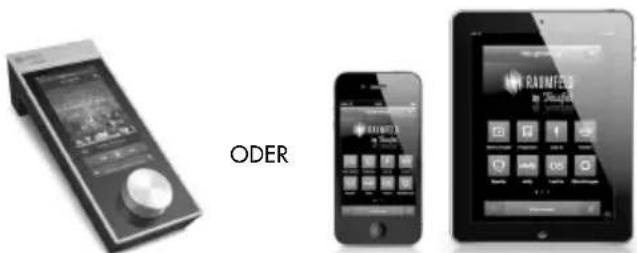
- For initial setup and music playback control: The Raumfeld Controller OR the Raumfeld Controller App for your Smartphone or tablet
- Für music playback: Stereo system or active loudspeakers
- For integration into your home network: Network router with DHCP
- For wireless music playback: A Raumfeld Base OR Wi-Fi router (IEEE 802.11g)
- For internet radio or online music services: Broadband internet connection
Raumfeld App for your smart phone
If you would like to set up your system with your smart phone or tablet, please first install the Raumfeld Controller App.
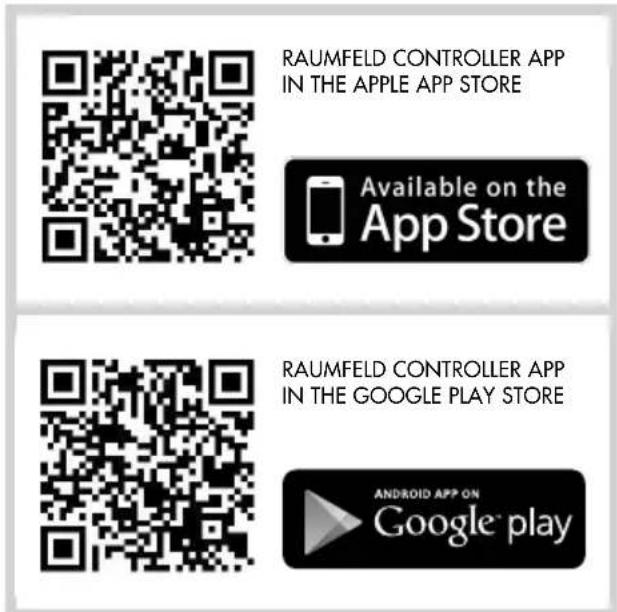
You can download a free version for iPhone, iPod touch, and iPad from the App Store.
A version for Android™ smart phones and tablets is also available to you for free download in the Google Play Store.
text_image
ODER RAVIMETER in 2019RAUMFELD CONTROLLER SMARTPHONE / TABLET

natural_image
Abstract geometric shapes with gray blocks and rectangles (no text or symbols)STEREO SYSTEM ACTIVE LOUDSPEAKERS

ROUTER

natural_image
Two electronic devices: a black router with two antennas and a gray router with two antennas, shown against a white background (no text or symbols)RAUMFELD BASE Wi-Fi-ROUTER
Note: In case you have a Wi-Fi router, you do not need an additional network router. Please make sure, though, that your Wi-Fi router has DHCP enabled.
text_image
RAUMFELD CONTROLLER APP IN THE APPLE APP STORE Available on the App Store RAUMFELD CONTROLLER APP IN THE GOOGLE PLAY STORE ANDROID APP ON Google playConnections and Operational Controls
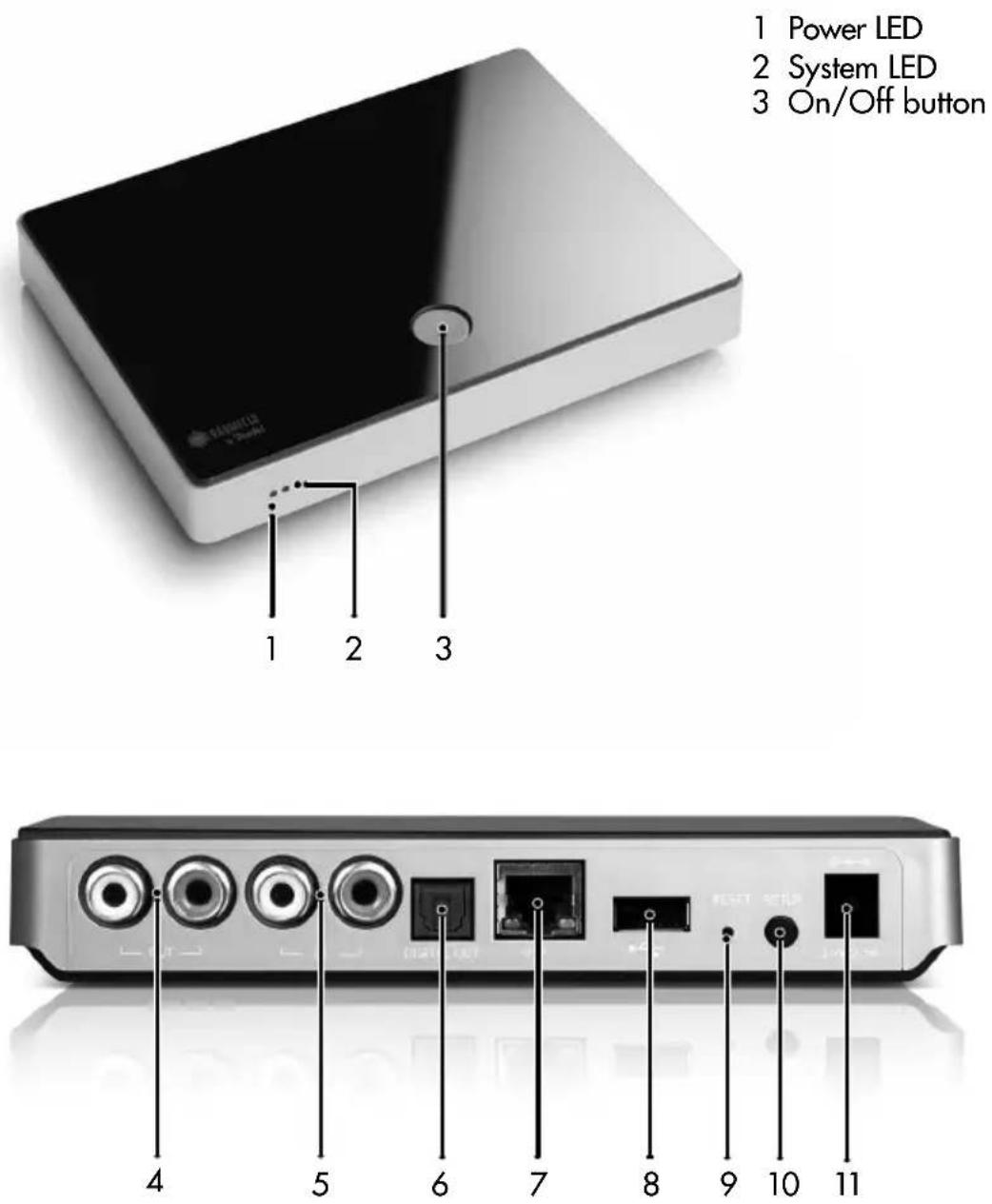
1 Power LED
2 System LED
3 On/Off button
4 Audio input analogue (RCA)
5 Audio output analogue (RCA)
6 Audio output digital (optical S/PDIF)
7 Network connector
8 USB port (master, type A)
9 Reset button
10 Setup button
11 Connector for power adaptor
(DC 10V/2.5A)
Operation Modes
Overview
| System mode Setting the mode Mode characteristics | ||
| On | Connect power | |
| Sleep Mode | Briefly press On/Off button | CPU and WLAN off |
| Off | Disconnect power | All modules off |
Status Display
| Operation mode Power LED System LED | |
| Starting Off On | |
| On On On | |
| No Connection to the Raumfeld system | On Flashing |
| Off / Sleep Mode | Off Off |
| Setup Flashing Flashing |
Installation
Connecting to a Stereo
The Raumfeld Connector ^2 enables you to use your existing stereo for audio playback via the Raumfeld system. In addition, the analogue input of the Raumfeld Connector ^2 enables you to transfer the audio signal of an external CD or MP3 player into different rooms, wirelessly
→ Should you wish to set up the Connector ^2 with the Raumfeld App via your smartphone or tablet, it is required to connect the Connector ^2 to your router via a network cable in some cases. The cabled connection may be removed directly after setup. We recommend not to connect the device to your stereo before setup with the Raumfeld App has been completed.
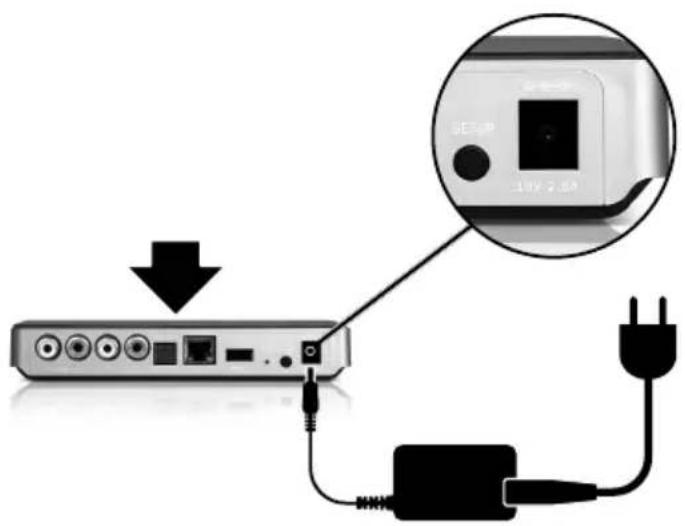
- Attach the Raumfeld Connector ^2 to the power supply.
- Briefly press the On/Off button to turn your Raumfeld Connector ^2 on.
- Connect the analogue output of the Raumfeld Connector ^2 to the amplifier's AUX- or CD input using one of the RCA cables provided.
→ Alternatively you can connect the digital output of the Raumfeld Connector ^2 to the digital input of the amplifier using an optical cable (S/PDIF).
- If you want to use your CD or MP3 player to play music back through the Raumfeld System, connect the player to the analogue audio input of the Raumfeld Connector ^2 using one of the RCA cables provided.
text_image
Diagram showing connection between a device with an attached power outlet, highlighting a device's internal components.
text_image
AMPLIFIER CD PLAYERInstallation can be carried out using the Raumfeld Controller and, optionally, a smart phone or a tablet.
If you would like to set up the Raumfeld Connector ^2 with your smart phone or tablet, please first install the Raumfeld Controller App on your device.
You can download a free version for iPhone, iPod touch, and iPad from the App Store.
A version for Android™ smart phones and tablets is also available for free download in the Google Play Store.
If you prefer to carry out the setup using the Raumfeld Controller, this step will not be necessary.

text_image
Scanned image of a digital audio recording device with visible screen and control knob
text_image
RAVMELEB up "Raufort"RAUMFELD CONTROLLER SMARTPHONE / TABLET
text_image
QR code image containing encoded data, no visible human-readable textRAUMFELD CONTROLLER APP IN THE APPLE APP STORE


text_image
QR code image containing encoded data, no visible human-readable textRAUMFELD CONTROLLER APP IN THE GOOGLE PLAY STORE
2. Running the setup wizard
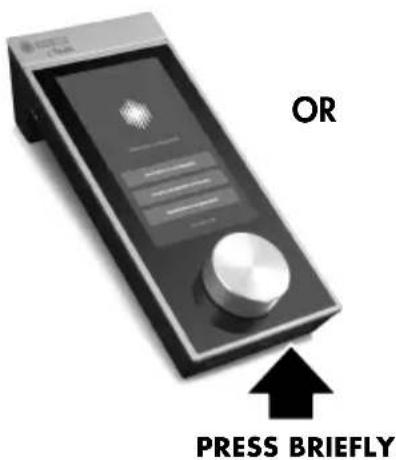
Activate the Raumfeld Controller, OR start the Raumfeld Controller App on your smart phone or tablet.
After a few seconds the setup wizard will start, and will then guide you through the installation process.
text_image
OR PRESS BRIEFLY
text_image
BAUMFED by Youfield Setup status: Aumutum/Verkaufverkauf Rach-Indes-Placarafeld System? Rach-Indes-Placarafeld System3. Following the setup wizard
Please follow the wizard steps in order to set up your Raumfeld Connector ^2 .

natural_image
Exterior view of a black rectangular electronic device with circular signal waves above it (no text or symbols)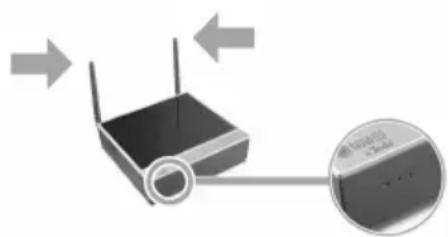
natural_image
Diagram of a wireless router connected to a device, showing signal flow arrows (no text or symbols)Do you own a Raumfeld Base?
In the beginning of the setup wizard you are asked if you own a Raumfeld Base.
Please check carefully if your order contains a „Raumfeld Base“. The Base is an optional Raumfeld component which is recommended to be used as Wi-Fi access point in a multiroom setup. You can easily recognize the Base by its two antennas and three LEDs.
In a system with Raumfeld Base your other Raumfeld devices will be connected to the Wi-Fi network provided by the Raumfeld Base.
In a system without a Raumfeld Base your Raumfeld devices will be connected to your own Wi-Fi network.
Adding to an existing system
Should you wish to add the Raumfeld Connector ^2 to a system that has already been set up, follow these instructions:
- Take the Raumfeld Controller and switch it on, OR start the Raumfeld Controller App on your smart phone or tablet.
- Go to "Settings > Room configuration". Then select "Add room > Raumfeld Connector".
- Follow the instructions on the display to connect the device to your Raumfeld system, and to assign a room name to them.

text_image
ROOM CONFIGURATION Your Rooms • Living Room Raumfeld Speaker M • Kitchen Raumfeld Speaker S Add Room Living Room Kitchen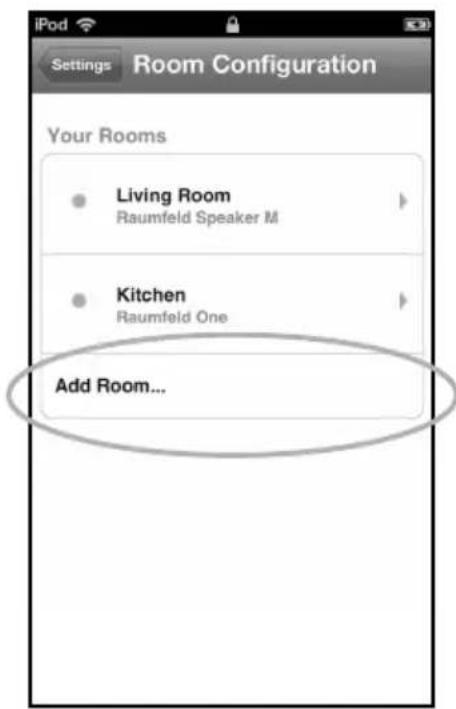
text_image
iPod Settings Room Configuration Your Rooms • Living Room Raumfeld Speaker M • Kitchen Raumfeld One Add Room...Integrating Your Music Collection
There are several possibilities for you to integrate your music collection into the Raumfeld system.
Copying music onto the Raumfeld Base
If you have a Raumfeld Base, you can save your music collection on the internal hard drive of the Base.
When connected with your local network, the Base appears as a shared folder in your file management programme:
- In your Windows® Explorer, you can find the Raumfeld Base under "Network",
- and in the Mac OS Finder in the sidebar under "Shared".
Simply use your file management programme to copy music onto the Base.
After your music collection has been copied onto the Raumfeld Base, it automatically appears under "My music", without any further configuration.
Copying music onto a USB memory
Copy your music collection onto a USB key or a USB drive, and connect it to the host of your Raumfeld system. To find out which device is the host of your Raumfeld system, go to "Settings > Network > Host configuration".
Your music collection appears without further configuration shortly after you have plugged the USB memory into the host of your Raumfeld system.
Sharing music on your network
Music that has been shared on the network can easily be integrated into the Raumfeld system. There are various ways of sharing music on your network:
- You can share music files that are saved on a PC via media sharing in the Windows Media Player. Alternatively, you can use another media server software for your PC.
- If you prefer not to use any media server software, or have a Mac, you can share the music file through file sharing.
- A network storage device allows you to share music on your network even while the computer is switched off (for example NAS or network router with integrated hard drive / connection facility for USB memories).
In all cases it is necessary to add the shared file under "Settings > Music resources" as a music resource.
For more detailed assistance on sharing music on your network, please visit http://manual.raumfeld.com.
Frequently Asked Questions
You can find a full list of frequently asked questions as well as a detailed online manual online at: http://manual.raumfeld.com.
General questions
Question 1: Where can I find internet radio?
→ Tuneln offers you free access to a wide range of internet radio stations from all over the world. For radio stations which are tailored specifically to your own taste of music, try the music service Last.fm (registration is required but allows you a non-binding test period and 30 free music titles).
Question 2: Can I try out the music services Napster and simfy?
→The music services Napster and simfy each offer a 30-day test period of their premium service, during which you can listen to all titles available from that provider in full and for free. The test period is absolutely non-binding, you do not enter into any obligation. For simfy, you need to register to make use of the test period, while Napster offers an anonymous test period.
Question 3: My Raumfeld Connector ^2 does not appear under "Line In". What could be the reason for this?
→ Raumfeld playback devices are only displayed on the Controller or in the Raumfeld App under the application "Line In" if they are ready to transmit an analogue audio signal to other rooms. The following requirements must be fulfilled:
- The device needs to be set up and connected to the Raumfeld system (both LEDs light up).
- The device is being run in "streaming" mode. You can find related instructions in the online manual.
System requirements
Question 1: What system requirements need to be in place?
- Your Wi-Fi router must have DHCP enabled.
- IP-addresses should be distributed to new devices automatically. If this is not the case, look into the administration software of your router and make sure all Raumfeld devices are assigned a fixed IP address.
- If you are setting up a system without the Raumfeld Base (see page 11), your Raumfeld devices are connected with your own Wi-Fi network. In this case, your Wi-Fi router needs to transmit in the frequency band 2.4 GHz (802.11g) and has to be WPA/WPA2-encrypted or unencrypted.
- If you are setting up a system with the Raumfeld Base, make sure that your router is connected to the network socket of the Base on the right, the one which is labelled "ROUTER".
Installation using the Raumfeld App
Question 1: The App does not connect to the Raumfeld system during setup. What can I do?
- First check if all system requirements are in place.
- Make sure that the smart phone or tablet with the App installed is connected to your Wi-Fi router.
- After that, remove all Raumfeld devices from power supply. Delete the App and reinstall it. Restart your Wi-Fi router as well by temporarily disconnecting it from power supply.
- Then start the setup from the beginning. When being prompted „Do you own a Raumfeld Base?“, carefully check if your order contains a Raumfeld Base (also see page 11) and choose the appropriate path in the setup wizard.
- If the App still fails to connect with the Raumfeld system, it could be because of compatibility problems with your router. You can avoid this problem if, during installation, you interpose a standard network switch (about EUR 10, available at electronic shops) between your router and the Raumfeld device you would like to install first. In this case, please also inform our customer service.
Question 2: When can I remove the network cable after setting up the device with the Raumfeld App?
You can remove the network cable as soon as the setup wizard of the App has finished, and the home screen is displayed.
Question 3: The App does not react any longer. What can I do?
- Devices with Android OS: Go to the device settings and select the Raumfeld App under „Apps“. Choose „Clear data“ and restart the Raumfeld app subsequently from the device’s app menu.
- Devices with iOS: Close the Raumfeld App. Then, double-push the Home button of the iOS device. A bar containing four app symbols will appear on the bottom of the screen. Press and hold the Raumfeld symbol on this bar until a minus sign appears. Briefly tap the symbol to clear it from the bar, then restart the app from the device's main menu.
Installation with the Raumfeld Controller
Question 1: The Controller does not connect to the Raumfeld system during setup. What can I do?
- First check if all system requirements are in place.
- Then remove all Raumfeld devices from power supply. Switch off the Controller by holding the on/off key pressed down (at least 10 seconds). Restart your Wi-Fi router by temporarily disconnecting it from power supply.
- Then start the setup from the beginning. When being prompted „Do you own a Raumfeld Base?“, care-
Frequently Asked Questions
fully check if your order contains a Raumfeld Base (also see page 11) and choose the appropriate path in the setup wizard.
Question 2: The Controller does not react any longer. How can I restart it?
→ When the Controller no longer reacts to finger touch or turning the volume control:
-
First switch off the device by pushing and holding the On/Off button for at least 10 seconds.
-
Now, briefly press the On/Off button. After approximately two seconds the Raumfeld Logo is displayed and the Controller is started.
Should the Controller still not react, the battery may need to be recharged
Resetting
Question 1: Can I reset the system and start installation from the beginning?
→ If the Controller or the App are connected to your Raumfeld system, you can restart the setup wizard by resetting the „Controller configuration“ under „Settings > System maintenance > Reset“.
If the Controller or the App are not connected to the system, a help option will appear after a short time, offering a possibility to reset.
Setting up music resources
Question 1: The Raumfeld Base does not appear under "Network" in the Windows Explorer. What can I do?
→ Enter \Raumfeld-Base into the address line of your Windows Explorer (not Internet Explorer!).
Should that not work enter the IP address of the Raumfeld Base into the address bar, e.g. \192.168.0.15.
Question 2: The Raumfeld Base does not appear under "File sharing" in the Mac OS Finder. What can I do?
→ Open the menu item "Go > Connect to server..." in the Finder. Then enter smb://base.local into the field "Server address" and confirm the dialog box that appears afterwards.
Question 3: My USB memory device is not recognised as a music resource. What could be the reason for this?
→USB memory devices are only included as a music resource if they are connected to the host of the Raumfeld system. In a system with a Raumfeld Base (see page 11), this is the Base. In a system without Raumfeld Base, you can specify the device you would like to act as host under "Settings > Network > Host configuration". Please also note that USB hard drives which are connected to a Raumfeld playback device need to have their own power supply. This restriction does not apply to the Raumfeld Base.
Frequently Asked Questions
Question 4: Music from my media server is displayed unreliably and playback keeps being interrupted. What can I do?
→ With certain music servers, compatibility problems can arise. In order to avoid such problems quickly, we recommend you include the content of the media server via file sharing (see also page 13). In this case, please also inform our customer service team.
Music playback interruption
Question 1: The music playback keeps being interrupted. What could be the reason for this?
→ If music playback is frequently interrupted, it is mostly due to Wi-Fi connection problems between your wirelessly connected playback devices and the Raumfeld Base, or your Wi-Fi router, respectively.
You can find instructions on how to improve the signal strength in the Raumfeld online manual in chapter "Network analysis".
Advice on Safe Use and Maintenance
Warning icons
The following symbols can be found in this guide:
Danger High Risk!

Disregard for this warning can cause life threatening damage.
AttentionMiddle Risk!

Disregard for this warning can cause damage to the product.

Low Risk!
Procedures that should be observed while handling the
product.
Advice on Safe Use
Danger Electrical Shock Hazard!

Faulty installation or high voltage may lead to electrical shock.
- Only use the power adaptor supplied, and ensure that the correct voltage is in use before connecting the power. More information on this can be found printed directly on the power adaptor.
- In order to completely remove power from the device, unplug the power cord.
- In order to be easily able to remove power from the device, the plug should be easily accessible.
- Immediately unplug the adaptor from the outlet when the housing is broken or has visible damage.
- Should the device begin to smoke, emit burning smells, or produce unfamiliar sounds immediately remove the power cord and do not turn it back on.
- Do not open the case of the device. The device may only be serviced by an authorized party. Unauthorized access of the device will void the guarantee. Instructions on how to proceed in case of repair will be provided by our service department. Please make sure to use only replacement components that comply with the technical specifications of the original part. This device contains electrical and mechanical parts that are essential for the protection of the unit.
- Only use device accessories specified by the manufacturer.
- Do not insert any objects into the case's air vents.
- Only use the product indoors.
- Do not expose the equipment to rain or humidity of any kind. Do not place objects filled with liquid, such as vases or bottles, anywhere near the device or the power adaptor. Should water or any other foreign body make its way into the case, immediately remove the power cord. For further support please contact our service department.
- Never touch the power adaptor with wet hands.
- Constantly check the device for physical defects.
Danger Danger of Explosion!

Poor placement of the device can lead to an explosion.
- Do not use the equipment in extreme temperatures, or where there is a fire or explosion hazard.
Danger Child Safety!

Children can get caught in the packaging materials and suffo-
cate.
- Never let your children play with the device or its packaging material. There is a risk of suffocation.
- Make sure that your children do not remove or pull small pieces from the device (such as cables or buttons), as they may swallow the piece and choke. Should your child have swallowed a small piece of the device, immediately contact your local hospital.
- Never leave children unattended while using electronic devices.
AttentionRisk of Damage!

Poor placement can cause damage to the device.
- Position the device so that it cannot be accidentally kicked and so that cables are not trip hazards.
- Keep this device away from sources of heat such as radiators and stoves and keep it out of the immediate vicinity of other devices to prevent excessive heat from developing.
AttentionFire Danger!

Improper use of the device may cause damage or fire.
- Do not place open flames such as candles or other similar items on top of the device.
- Make sure vent holes are not blocked when positioning the equipment.
- Provide adequate ventilation.
- Do not expose the device to direct sunlight.
- Do not cover the ventilation openings with curtains, blankets, magazines or other similar items. Built up heat within the device can shorten its lifespan.
AttentionRisk of Damage!

Electrical surges caused by lightning can damage or destroy the
device.
- As a precaution, disconnect the equipment from the power supply in the event of impending thunderstorms.
- Disconnect the equipment from the power supply if not in use for a prolonged period of time.
AttentionRisk of Damage!

Improper use of the device can cause damage.
- Only use a dry, soft cloth when cleaning the equipment. Detergents may affect the surface of the equipment.
Cleaning and Maintenance
Clean the device regularly with a soft, lightly damp micro fiber cloth. Pay close attention to the following details:
- Use as clear of a water as possible without any cleaning product. By stubborn spots use a mild combination of water and soap.
- Under no circumstances should harsh cleansers, alcohol, paint thinner, gasoline, or similar substances be used for cleaning.
Disposal of the unit
Used units must not be disposed with household waste!
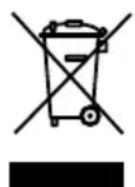
If the unit is no longer operational, every consumer is required by law to dispose of used devices separate from household waste, e. g. at a collection point run by the communal
authority borough. In this way, used devices can be recycled and waste materials disposed of in an environmentally friendly manner.
For this reason, electrical equipment is labelled with the displayed symbol.

2012
Declaration of Conformity

We,
Raumfeld GmbH
Buelowstrasse 66
10783 Berlin
Germany
declare in our one charge and responsibility the
Raumfeld Connector ^2
is in compliance with
Energy-related Products 2009/125/EG
EU Regulation 278/2009
EU Regulation 1275/2008
Radio Equipment and Telecomunications Regulation 1999/5/EC
ETSI EN-301489-1 V1.8.1, ETSI EN 301489-9 V1.4.1, ETSI EN 300 328 V1.7.1
DIN EN 61000-3-2:2010, DIN EN 61000-3-3:2009
EN 61000-3-2:2006 + A1:2009 + A2:2009, EN 61000-3-3:2008
LVD-regulation 2006/95/EU:
DIN EN 60065:2009, EN 60065:2002+A1:2006+Cor.:2007+A11:2008
Directive 2011/65/EC
DIN EN 62321:2009

natural_image
Simple line drawing of a curved object with a looped base, resting on a horizontal line (no text or symbols)Do you have any questions or problems in setting up your Raumfeld system?
Contact our customer service for help!
Phone 00800 - 200 300 40 (free of charge)
Please have the following information ready:
- Customer number
- Brand, model, and manual of your router
• LED status of your Raumfeld products
All trademarks are the property of their respective owners.
Windows is either a registered trademark or trademark of Microsoft Corporation in the United States and/or other countries. Mac OS, Mac, Finder, iPod, iPad and iPhone are a trademark of Apple Inc., registered in the U.S. and other countries.
No liability is accepted for the accuracy of this information.
Technical changes, typographical errors and other errors reserved.
10783 Berlin (Germany)
www.teufelaudio.com