PowerScan PM8300 - Barcode Reader DATALOGIC - Free user manual and instructions
Find the device manual for free PowerScan PM8300 DATALOGIC in PDF.


User questions about PowerScan PM8300 DATALOGIC
0 question about this device. Answer the ones you know or ask your own.
Ask a new question about this device
Download the instructions for your Barcode Reader in PDF format for free! Find your manual PowerScan PM8300 - DATALOGIC and take your electronic device back in hand. On this page are published all the documents necessary for the use of your device. PowerScan PM8300 by DATALOGIC.
USER MANUAL PowerScan PM8300 DATALOGIC
PowerScan® D8330/M8300/M8300-DK
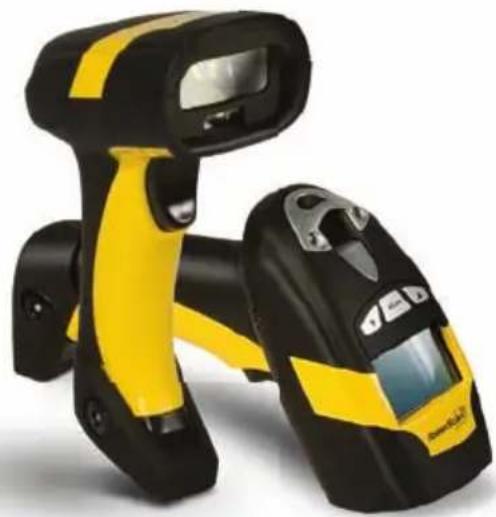
natural_image
Product photo of a handheld digital scanner with black and yellow branding (no visible text or symbols)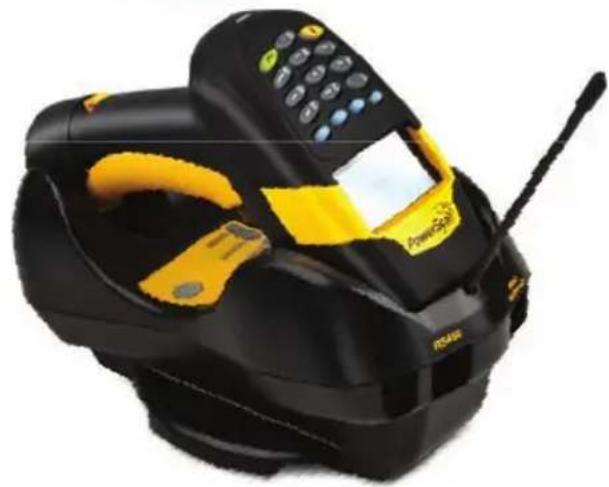
natural_image
Black and yellow power expander device with a handheld antenna and control panel (no visible text or symbols)Reference Manual
Datalogic Scanning, Inc.
959 Terry Street
Eugene, Oregon 97402
USA
Telephone: (541) 683-5700
Fax: (541) 345-7140
An Unpublished Work - All rights reserved. No part of the contents of this documentation or the procedures described therein may be reproduced or transmitted in any form or by any means without prior written permission of Datalogic Scanning, Inc. or its subsidiaries or affiliates ("Datalogic" or "Datalogic Scanning"). Owners of Datalogic products are hereby granted a non-exclusive, revocable license to reproduce and transmit this documentation for the purchaser's own internal business purposes. Purchaser shall not remove or alter any proprietary notices, including copyright notices, contained in this documentation and shall ensure that all notices appear on any reproductions of the documentation. Should future revisions of this manual be published, you can acquire printed versions by contacting your Datalogic representative. Electronic versions may either be downloadable from the Datalogic website (www.scanning.data-logic.com) or provided on appropriate media. If you visit our website and would like to make comments or suggestions about this or other Datalogic publications, please let us know via the "Contact Datalogic" page.
Disclaimer
Datalogic has taken reasonable measures to provide information in this manual that is complete and accurate, however, Datalogic reserves the right to change any specification at any time without prior notice.
Datalogic and the Datalogic logo are registered trademarks of Datalogic S.p.A. in many countries, including the U.S.A and the E.U. All other brand and product names referred to herein may be trademarks of their respective owners.
CONTENTS
1 INTRODUCTION .... 1
2 INSTALLATION....2
2.1 PowerScan ^® D8330 Interface Cable Connections 2
2.2 BC-80X0 Interface Cable Connections 4
2.3 RS-232 Connection....5
2.4 USB 5
2.5 IBM USB POS....6
2.6 WEDGE Connection 7
2.7 PEN Emulation Connection....7
2.8 Network Connections....8
2.8.1 BC-8060 Network Connectors 8
2.8.2 Network Cabling....9
2.8.3 Network Termination....10
2.9 PowerScan ^® M8300 Battery Maintenance 11
2.9.1 Battery Charging.... 11
2.9.2 Replacing PowerScan ^® M8300 Batteries....11
2.10 Mounting The BC-80X0 / C-8000 Cradle 12
2.10.1 Desktop Mounting 13
2.10.2 Wall Mounting 16
3 POWERSCAN ® M8300 SYSTEM AND NETWORK LAYOUTS...... 18
3.1 Stand-alone Layouts 18
3.1.1 Point-to-Point Reader Layout.... 18
3.1.2 Stand-Alone Layout with Multiple Readers 18
3.1.3 Multiple Stand-Alone Layouts 19
3.1.4 C-BOX Layout....20
3.2 Multidrop STAR-System™ Network Layouts 21
3.2.1 Host Master Layout....21
3.2.2 BC-8060 Master Layout 22
3.2.3 Master BC-8060 Network Troubleshooting 23
4 CONFIGURATION....24
4.1 Configuration Methods....24
4.1.1 Reading Configuration Barcodes 24
4.1.2 Using Datalogic Aladdin™ 24
4.1.3 Copy Command 24
4.1.4 Sending Configuration Strings from Host 25
4.2 Setup Procedures 25
4.3 PowerScan ^® D8330 Setup 26
4.4 PowerScan ^® M8300/BC-80X0 Point-to-Point Setup 26
4.5 PowerScan ^® M8300/BC-80X0 Stand-Alone Setup 27
4.5.1 Using Multiple M-Series Readers with Same Cradle 29
4.5.2 PowerScan ^® M8300/STAR-Modem ^TM in Stand-Alone Mode 30
4.6 PowerScan ^® M8300/STAR-System ^TM Setup 31
4.7 BC-8060 STAR-System™ Network Setup 33
4.8 Interface Selection 35
4.9 USB Reader Configuration....38
4.10 Changing Default Settings 40
RS-232 Parameters 41
USB Parameters 46
Wedge Parameters 52
Pen Emulation....59
Network Parameters 64
Data Format 69
Power Save....81
Reading Parameters 83
Decoding Parameters 89
Code Selection....92
Advanced Formatting.... 110
Radio Parameters 129
Display and Keypad Parameters (3-Key Model) 135
Display and Keypad Parameters (16-Key Model) 139
5 REFERENCES 160
5.1 RS-232 Parameters 160
5.1.1 Handshaking 160
5.1.2 ACK/NACK Protocol 161
5.1.3 FIFO 162
5.1.4 RX Timeout 163
5.2 Pen Parameters....163
5.2.1 Minimum Output Pulse.... 163
5.2.2 Conversion to Code 39 and Code 128.... 163
5.2.3 Overflow....164
5.2.4 Output and Idle Levels.... 164
5.2.5 Inter-Block Delay....165
5.3 Network Parameters 165
5.3.1 Slave Address Range First/Last.... 165
5.3.2 Network Warning Message 165
5.3.3 Reception Warning Message....166
5.3.4 Master Header/Terminator Selection 166
5.4 Data Format....166
5.4.1 Header/Terminator Selection 166
5.4.2 Define Special Key Sequence.... 168
5.4.3 Address Stamping....175
5.4.4 Address Delimiter.... 175
5.4.5 Time Stamping Format 176
5.4.6 Time Stamping Delimiter....176
5.5 Power Save....176
5.5.1 Sleep State 176
5.5.2 Enter Sleep Timeout 177
5.6 Reading Parameters 177
5.6.1 Trigger Signal.... 177
5.6.2 Trigger Click.... 177
5.6.3 Trigger-Off Timeout.... 177
5.6.4 Reads per Cycle 177
5.6.5 Safety Time.... 178
5.7 Decoding Parameters ...... 178
5.7.1 Ink-Spread 178
5.7.2 Overflow Control 178
5.7.3 Interdigit Control.... 179
5.8 Advanced Formatting....179
5.8.1 Match Conditions 179
5.9 Radio Parameters (M8300 Series Only) 179
5.9.1 Radio Protocol Timeout 179
5.9.2 Radio RX Timeout....180
5.9.3 Power-Off Timeout....180
5.9.4 Transmission Mode....181
5.9.5 Beeper Control for Radio Response 181
5.9.6 Single Store 182
5.9.7 Batch Mode....182
5.9.8 Find Me (PowerScan ^ M8300 only)....184
5.10 Display Parameters (Some M8300 Models only).... 185
5.10.1 Display Mode 185
5.11 Configuration Editing Commands 186
5.12 Custom Default Configuration.... 187
5.13 Code Type Recognition 187
5.14 Configuration Copying Commands 188
5.14.1 Copy PowerScan™ D8330 Series 188
5.14.2 Copy PowerScan™ M8300 Series 189
5.14.3 Copy BC-80X0 190
5.15 Default Parameters for POS Terminals....191
5.16 Firmware Upgrade 192
5.17 16-Key PowerScan M8300-DK Display and Keypad Parameters.... 193
5.17.1 16-key Keyboard Data Format Enable/Disable....193
5.17.2 Scanner Code ID 194
5.17.3 Scanner Code Length 194
6 MESSAGE FORMATTING 195
6.1 Standard Message Formatting.... 195
6.2 16-key DK Message Formatting....196
6.3 Messages from Host to Reader 198
6.3.1 Cursor Control.... 199
6.3.2 Font Selection....199
6.3.3 Clearing Display.... 199
6.3.4 LED and Beeper Control....200
6.3.5 Setting RTC 200
6.4 Messages from SCANNER Command Keys....201
6.4.1 PowerScan M8300 keypad 201
6.4.2 PowerScan M8300-DK 16-key keypad 202
7 TECHNICAL FEATURES 203
7.1 PowerScan ^ D8330 203
7.2 PowerScan ^® M8300 204
7.3 PowerScan ^® M8300-DK 16-Key Model.....205
7.4 BC-80X0 / C-8000....207
7.5 System and Radio Features....208
7.6 Status Indicators 208
7.7 Reading Diagrams 211
GENERAL VIEW

text_image
POWERSCAN® D8330/M8300 READERS LEDs POWERSCAN® D8330 Cable Connector POWERSCAN® M8300 Battery Cover Trigger Laser Output WindowFigure A – PowerScan® D8330/M8300 Series Readers

text_image
Laser Output Window Display Keypad LEDsFigure B – PowerScan ^® M8300 Series Readers with Display

text_image
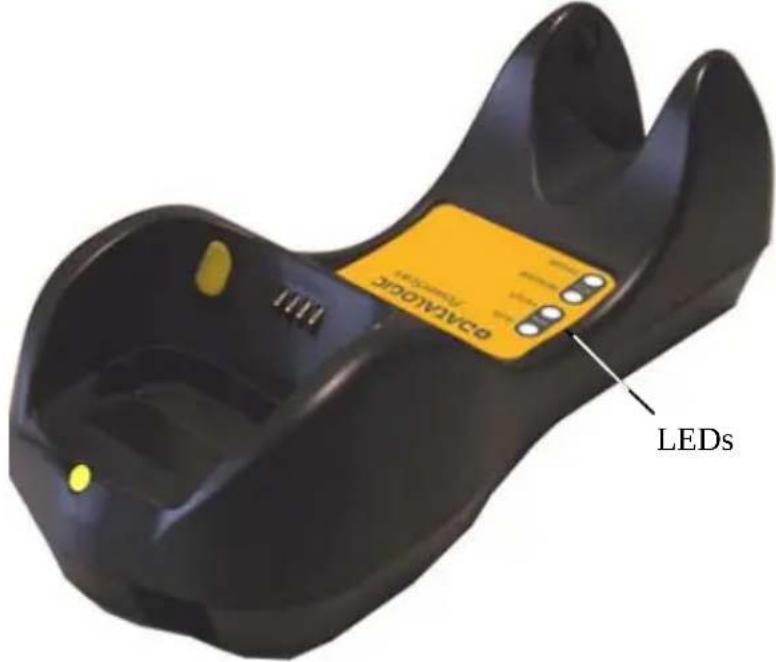
BC-80X0 / C-8000 CRADLES Scan Finder Button OCAVALOCK LEDsFigure C - BC-8000
The label on the cradle contains LED indicators and a scan finder button. When the button is pressed, the cradle transmits a “broadcast” message. All properly configured scanners (Radio RX Timeout set to keep the radio “awake”) linked to that base (through a bind or a join sequence) and within radio range coverage will emit a beep sequence once every 2 seconds for 30 seconds. A scanner is considered to be linked when the last transmission ends properly.
The scan finder works only in stand-alone layout (point to point or multiple readers).
text_image
OCAVACOOC LEDsFigure D - C-8000
1 INTRODUCTION
Datalogic renews its range of industrial laser scanners introducing the PowerScan ^® family: PowerScan ^® D8330 and PowerScan ^® M8300. Robustness and ergonomics remain unsurpassed: clearly audible beeper and bright "good read" LEDs for areas where noise levels are normally high; the aim mode, which helps point to the right code, has now been extended to the whole PowerScan ^® family. Optical parts are completely suspended on shock absorbers and a careful choice of the body materials, such as the co-moulded rubber, protect the PowerScan ^® from damage due to "falls".
New enhanced architecture, based on an M16 high-speed microprocessor, enables exceptional performance for promptness and reading speed of standard codes as well as the ability to read poorly printed and damaged codes. Puzzle Solver Technology™, a patent from Datalogic, adds further strength to the PowerScan® powerful engine.
In all applications where mobility is a value, the new PowerScan ^® M8300 represents the key to increase productivity and flexibility in the working area. PowerScan ^® M8300 communicates through a low power, license free radio in the 433 MHz band (910 MHz for USA version) and allows bi-directional communication between the base station and the host. PowerScan ^® M8300 also includes a display and either a 3 or 16-key push-button keypad. Thanks to these features, the operator can receive information from the host, interact with the central system and visualize the code read. The cordless system offers scalable solutions to solve simple applications and complex projects:
- Point to point: each reader is associated with its own base station;
- Multipoint: up to 32 readers transmit data to one base station;
- Network: to cover a wide area, connecting up to 16 bases and 512 readers simultaneously working in automatic roaming.
PowerScan ^® M8300 is 100% compatible with STAR-System ^™ , the new Datalogic RF narrow band solution for mobile applications that provides the widest family of narrow band devices on the market.
Your PowerScan ^® reader is supplied with its own Quick Reference Guide, which provides connection, diagrams, reading diagrams, basic application parameter settings, default values, and specific technical features. You can use either the Quick Reference Guide or this Manual for initial configuration in order to set the default values and select the interface for your application. This manual provides all the necessary information for complete mechanical installation and system software configuration.
2 INSTALLATION

CAUTION
Connections should always be made with power OFF!
2.1 POWERSCAN ^® D8330 INTERFACE CABLE CONNECTIONS
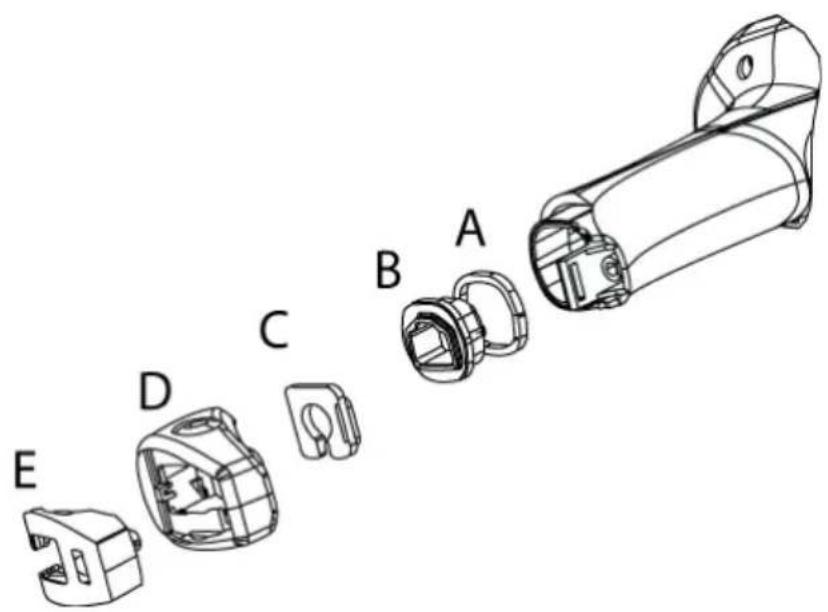
The PowerScan ^® D8330 reader incorporates a multi-standard interface, which can be connected to a Host by plugging the correct interface cable into the connector and closing the cable cover.
text_image
A B C D EA. Rubber gasket
B. Plastic boot
C. Cable spacer
D. Cover
E. Strain relief
Follow the given procedure for correct cable insertion:

text_image
Align Arrow Tab Notch ① ② ③ ④ ⑤ ⑥ ⑦① Slip the cover over the cable.
② Push the plastic boot into the rubber gasket. Take care that the tab on the plastic boot is aligned with the notch in the rubber gasket.
③ Push the plastic boot and gasket into the handle. Ensure that the "Front" marking on the plastic boot is facing out, with the arrow pointing towards the front of the scanner.
④ Insert the cable into the socket of the plastic boot.
⑤ Insert the cable spacer into the cable wire and slide it towards the ha
⑥ Postethalong the cable towards the reader, and hook it over the yellow "tooth".
⑦ Insert the strain relief into the cover and tighten the screw to fix the whole assembly to the reader handle.

CAUTION
Connections should always be made with power OFF!
2.2 BC-80X0 INTERFACE CABLE CONNECTIONS

text_image
Power Interface Cable BC-80X0 ConnectorsThe BC-80X0 incorporates a multi-standard interface, which can be connected to a Host by simply plugging the correct interface cable into the Host connector, placed on the base of the cradle. In addition the cradle must be connected to an external power supply.

natural_image
Close-up of a black electronic device with a white circular annotation highlighting internal components, and two arrows pointing to the edges (no text or symbols present)Disconnecting the BC-80X0 Cable
To disconnect the cable, insert a paper clip or other similar object into the hole corresponding to the Host connector on the body of the cradle.
Push down on the clip while unplugging the cable.
2.3 RS-232 CONNECTION

natural_image
Illustration of a desktop computer connected to a handheld device via cable (no text or symbols visible)
natural_image
Illustration of a desktop computer connected to a black electronic device with cable (no text or symbols visible)2.4 USB

natural_image
Illustration of a desktop computer setup with a monitor, tower, keyboard, and a handheld device (no text or symbols visible)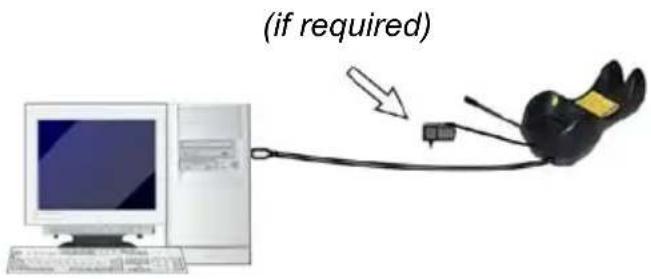
text_image
(if required)2.5 IBM USB POS

natural_image
Illustration of a vintage desktop computer with monitor and keyboard connected to a handheld device (no text or symbols visible)
text_image
(if required)natural_image
Illustration of a desktop computer connected to a handheld device via cable (no text or symbols visible)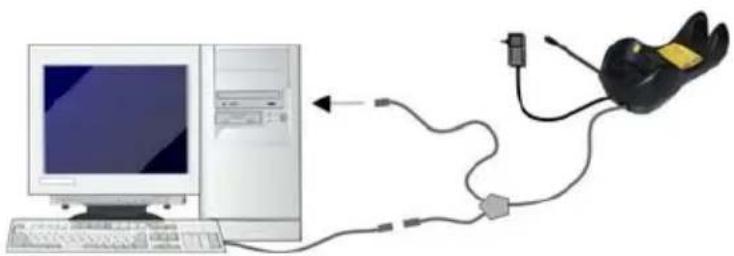
natural_image
Illustration of a desktop computer connected to a black headset via cable (no text or symbols)2.7 PEN EMULATION CONNECTION
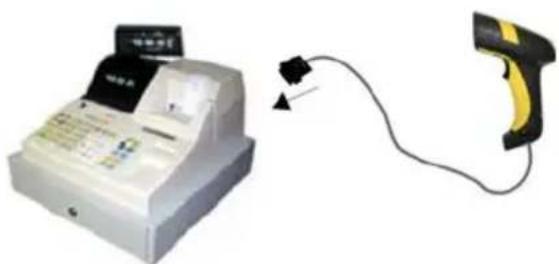
natural_image
Illustration of a white cash register with a black connector and a yellow handheld device connected by a cable (no text or symbols visible)
natural_image
Two electronic devices: a white cash register and a black handheld device connected by a cable (no visible text or symbols)2.8 NETWORK CONNECTIONS
2.8.1 BC-8060 Network Connectors
The multidrop network is a bus system which is propagated from one BC-8060 cradle to another using individual cables. This is possible thanks to the RS-485 connector on the front panel of the cradle.

text_image
RS485 Power Supply RS-485 (BC-8060only) MULTI-INTERFACE RS-232, USB, Wedge, PEN EmulationAll cradles are connected together within the bus system through the Datalogic RS-485 splitter cable (CAB-428, part number 90A051950), which must be inserted in the RS-485 cradle connector.
Obviously cable length is to be kept to a minimum as with all bus systems.
2.8.2 Network Cabling
The Multidrop line is made using RJ45 connectors and a cable having the following specifications:
• twisted pair AWG 24 wires
• 120 Ω impedance
• maximum network cable length 1200 meters
| Pin | Function | |
| 1 | RS-485 | + |
| 2 | RS-485 | - |
| 3 | N.C. | |
| 4 | VDC | - |
| 5 | VDC | - |
| 6 | N.C. | |
| 7 | VDC | + |
| 8 | VDC | + |

text_image
Multidrop Cables Pin 1 Data and Power Supply Data only
text_image
RJ45 VDC- 5 RS-485- 2 RS-485+ 1 RJ45 5 2 2 1 Twisted Pair – RS-485 bus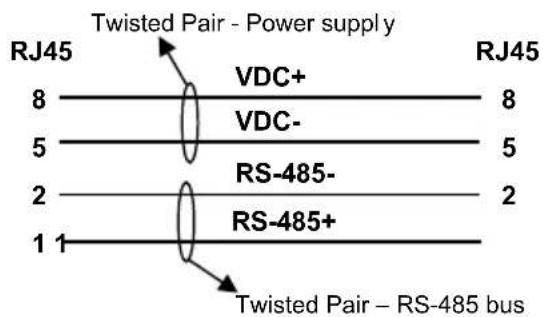
flowchart
graph TD
    A["RJ45"] --> B["8"]
    A --> C["5"]
    A --> D["2"]
    A --> E["1"]
    F["VDC+"] --> G["8"]
    H["VDC-"] --> I["5"]
    J["RS-485-"] --> K["2"]
    L["RS-485+"] --> M["1"]
    N["Twisted Pair - Power supply"] --> O["RJ45"]
    P["Twisted Pair - RS-485 bus"] --> Q["1"]
When wiring the multidrop cables, note the following:
Pin 8 (or 7) can be connected only if the power has to be propagated from a cradle to a STARGATE™ base station or STAR-Box™ converter via the cable.
Pins 5 (or 4) should always be connected as reference ground.
To avoid excessive voltage drop, it is recommended not to propagate power between BC-8060 cradles when used as battery chargers but to supply each cradle individually. The total number of devices, which can be connected to a single power supply, depends on the power supply voltage, the wire length and resistance and therefore the voltage drop. Do NOT connect VDC+ between network devices that are individually powered.
2.8.3 Network Termination
The first and last cradles of the chain (the two ends of the bus) must be properly terminated. The cradle has an internal terminator that can be selected via jumper. For this selection you must open the device.

text_image
No Termination Static DynamicTerminator for Multidrop Network
Static termination works for all network configurations. However, the network is always under load even when no data transmission takes place.
Dynamic termination can be used for baud rates at or above 38400 and provides less load on the network when idle.
2.9 POWERSCAN ^® M8300 BATTERY MAINTENANCE
2.9.1 Battery Charging
Once the system is connected and powered, you can place the PowerScan ^® M8300 into the cradle to charge the battery.
When the reader is correctly inserted in the cradle, the "Reader" red LED on the cradle goes on to indicate that the battery is charging. The "Reader" green LED on the cradle goes on when the battery is completely charged.
2.9.2 Replacing PowerScan ^® M8300 Batteries
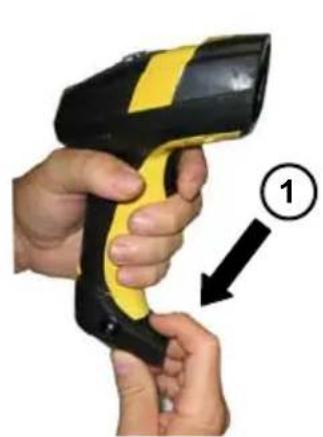
To change the batteries in your PowerScan® M8300 scanner, press the black button or unscrew the fixing screw on the handle cover and extract the battery pack from the reader handle.
natural_image
Close-up of hands holding a handheld barcode scanner with yellow and black stripes (no text or symbols visible)
natural_image
Close-up of hands using a handheld scanner to adjust a cable or cable (no text or symbols visible)
NOTE
When the batteries are extracted from the scanner, the timer maintains the current hour and date for about 1 minute.
Replace the old battery pack with a new one by inserting it within the reader handle and pushing it until it clicks.

WARNING
Do not incinerate, disassemble, short terminals or expose to high temperature. Risk of fire, explosion. Use specified charger only. Risk of explosion if the battery is replaced by an incorrect type. Dispose of the batteries as required by the relevant laws in force.
2.10 MOUNTING THE BC-80X0 / C-8000 CRADLE
The cradle package contains the following items:
BC-80X0 / C-8000 Cradle
BC-80X0 Quick Reference / C-8000 Quick Reference
BC-8000 Antenna 2 wall-mounting lock hinges
2 adhesive strips 4 rubber feet
1 horizontal base 1 inclined base
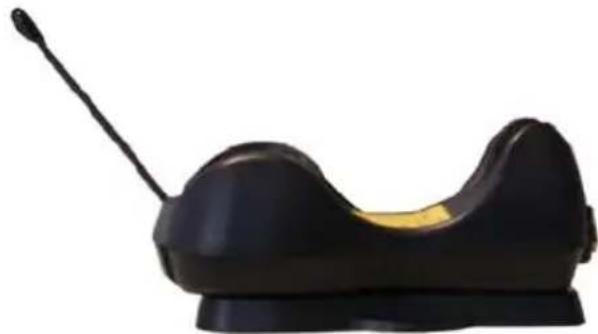
The cradle (either BC-80X0 or C-8000) can be mounted for portable or fixed desktop usage, or it can be fixed to a wall. The horizontal base allows portable and fixed desktop usage, while the inclined base provides desktop and wall mounting guaranteeing a comfortable handling of the PowerScan ^® M8300 reader.
natural_image
Black and yellow object resembling a stylized bow or button device (no text or symbols visible)BC-80X0/C-8000 Cradle mounted on the Horizontal Base

natural_image
Black motorcycle seat with antenna, isolated on white background (no text or symbols)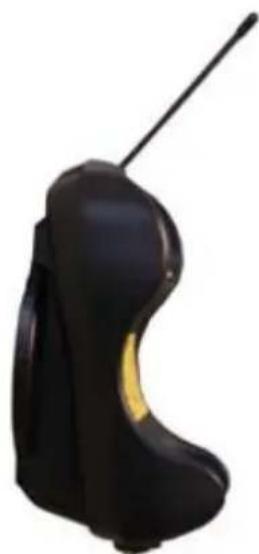
natural_image
Black and yellow object resembling a stylized musical instrument or device with a string (no text or symbols visible)BC-80X0/C-8000 Cradle mounted on the Inclined Base
2.10.1 Desktop Mounting
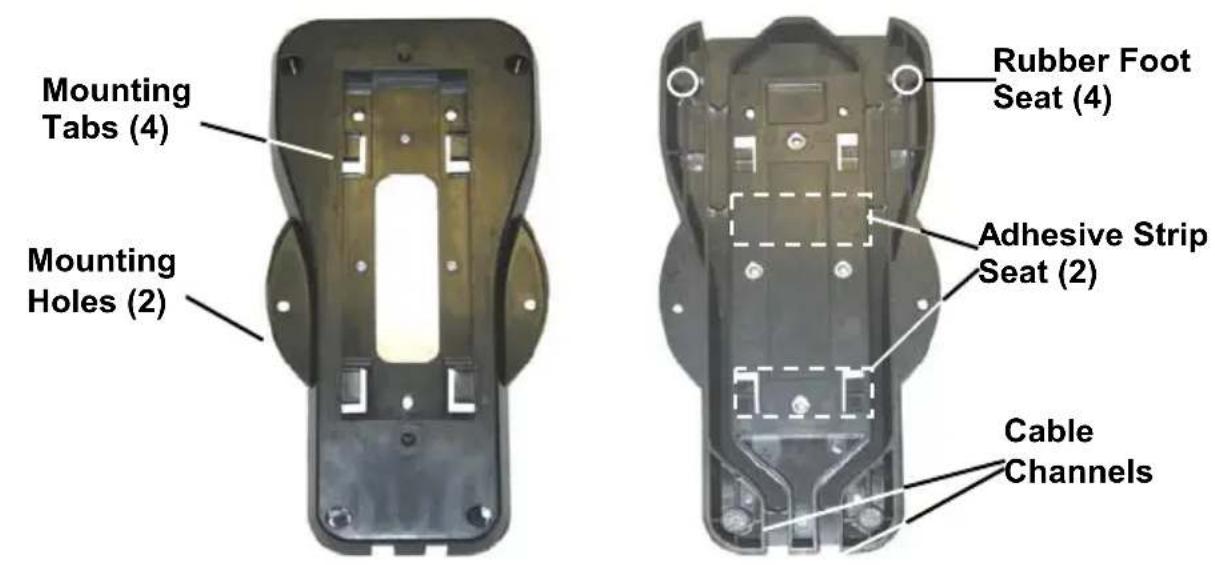
For desktop usage, you can mount the cradle either on the horizontal base, for reduced overall dimensions, or on the inclined base for a more ergonomic taking out and insertion of the reader onto the cradle.
Horizontal base
text_image
Mounting Tabs (4) Mounting Holes (2) Rubber Foot Seat (4) Adhesive Strip Seat (2) Cable ChannelsTop View Bottom View
Inclined base

text_image
Mounting Tabs (4) Mounting Holes (4) Adhesive Strip Seat (2) Rubber Foot Seat (4) Cable ChannelsTop View Bottom View
Portable Desktop Use
- Correctly position the BC-80X0/C-8000 onto the base by sliding it along the mounting tabs until aligned.

text_image
Diagram showing a mechanical component with labeled parts and directional arrows indicating motion or assembly.
natural_image
3D diagram of a car body component with two directional arrows indicating movement or change (no text or symbols present)- Carefully clean the rubber foot seats of the base to remove any impurities that could reduce adhesion.
- Remove the protective plastic from the rubber feet and stick them onto the bottom surface of the base.
- If mounting the BC-80X0 cradle, insert the antenna in the appropriate hole on the body of the cradle and screw it clockwise until tight.
Fixed Desktop Use
For fixed desktop installation, use the adhesive strips or fixing screws (not provided) according to your needs.
For mounting with adhesive strips:
- Position the cradle onto the base by sliding it along the mounting tabs until aligned.
- Carefully clean the adhesive strip seats of the base to remove any impurities that could reduce adhesion.
-
Remove the protective plastic from one side of the adhesive strips and stick them onto the base surface.
-
Position the cables to be connected to the BC-80X0/C-8000 cradle along the dedicated holes shown in the figures below:
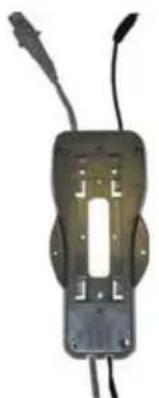
natural_image
Electronic device with two leads and a central connector (no visible text or symbols)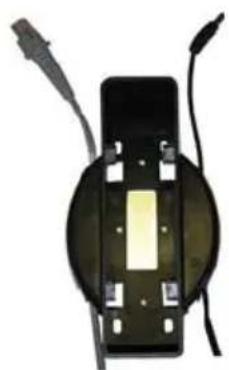
natural_image
Close-up of a black electronic component with a yellow internal slot and two wires attached (no visible text or symbols)Horizontal Base Inclined Base
- Remove the plastic from the other side of the strips and affix the base to the table.
6 If mounting the BC-80X0 cradle, insert the antenna in the appropriate hole on the body of the cradle and screw it clockwise until tight.
For mounting with screws:
- Position the cables to be connected to the BC-80X0/C-8000 cradle along the dedicated channels, as shown in the figures below:
- Position the base on the table and affix it by means of the screws (not provided).
- Position the cradle on the base by sliding it along the mounting tabs until aligned.
- If mounting the BC-80X0 cradle, insert the antenna in the appropriate hole on the body of the cradle and screw it clockwise until tight.
2.10.2 Wall Mounting
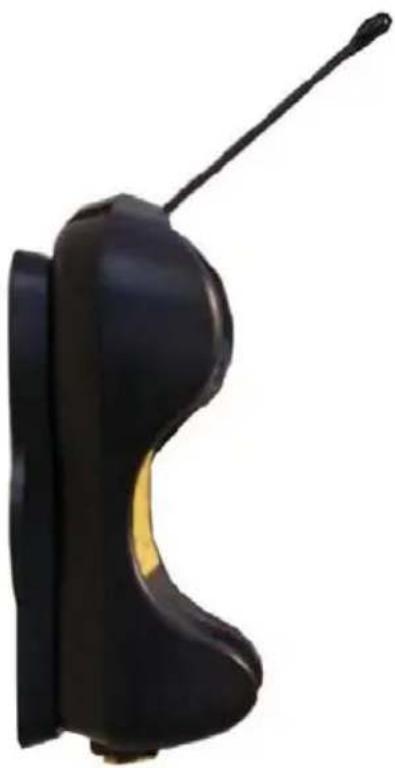
natural_image
Black and yellow object resembling a stylized microphone or connector (no text or symbols visible)- Remove the yellow caps and insert the two wall mounting lock hinges provided with your cradle.
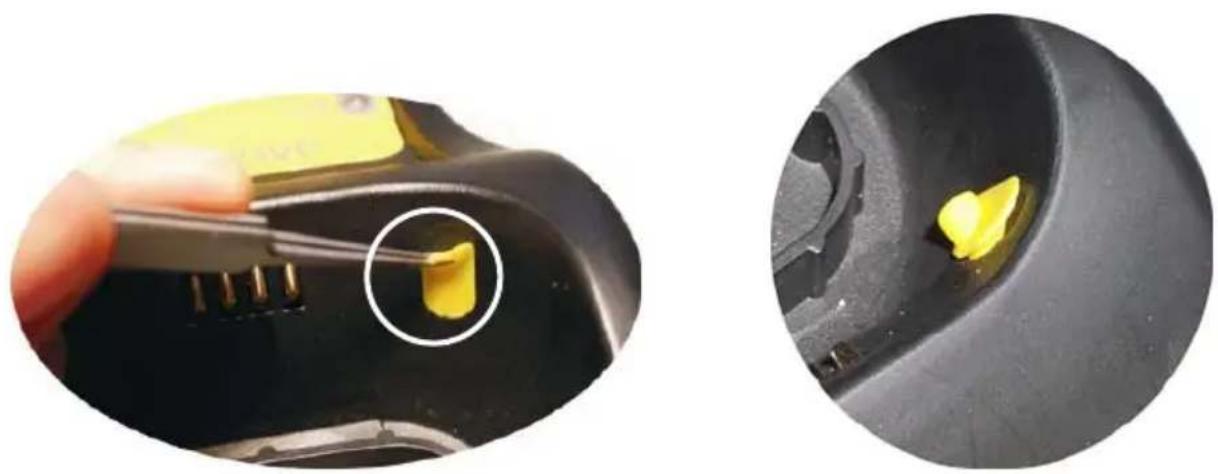
natural_image
Close-up of a hand using a tool to insert yellow material into a black mechanical component, with a magnified inset showing the same component (no text or symbols visible)- Position the cables to be connected to the BC-80X0/C-8000 cradle along the dedicated channels (see figures at page 14).
If using the adhesive strips:
a. Carefully clean the adhesive strip seats of the base to remove any impurities that could reduce adhesion.
b. Remove the protective plastic from one side of the adhesive strips and stick them onto the base surface.
c. Remove the plastic from the other side of the strips and affix the base to the wall as indicated in the figure below.
If using the mounting screws:
- Using the mounting holes on the base as a pattern, mark the wall where you desire to mount the BC-80X0/C-8000.
- Drill the appropriate size holes and insert the threaded dowels (not provided) into the holes.
- Position the base on the wall as indicated in the figure below and affix it by means of the screws (not provided).

natural_image
Black elongated object with a smooth curved edge, possibly a blade or abstract form (no text or symbols visible)Inclined Base Wall-mounting
- Attach the cradle on the base by sliding it along the mounting tabs until aligned.
- If mounting the BC-80X0 cradle, insert the antenna in the appropriate hole on the body of the cradle and screw it clockwise until tight.
3 POWERSCAN ^® M8300 SYSTEM AND NETWORK LAYOUTS
There are two basic system layouts that can be employed: Stand-alone systems (including Point-to-Point layouts) and Multidrop STAR-System™ Networks.
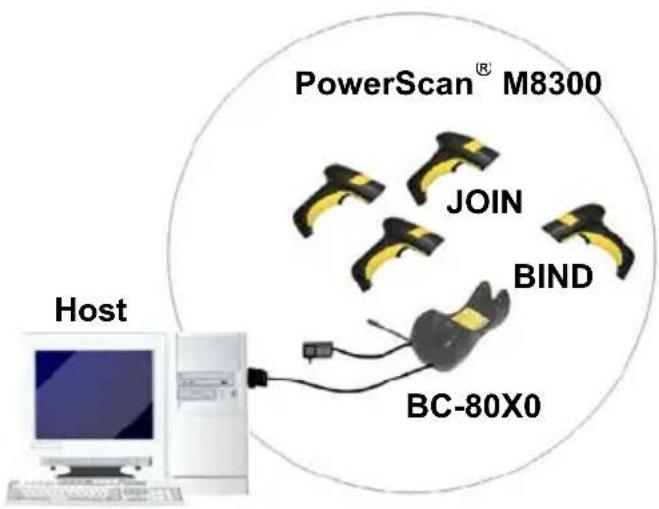
3.1.2 Stand-Alone Layout with Multiple Readers
text_image
PowerScan® M8300 JOIN BIND BC-80X0 HostIn stand-alone systems, each cradle is connected to a single Host.
3.1.3 Multiple Stand-Alone Layouts
Many stand-alone connections can operate in the same physical area without interference, provided all readers and cradles in the system have different addresses.

flowchart
graph TD
    subgraph Host
        A["Host"] --> B["PowerScan® M8300"]
        B --> C["BC-80X0"]
        C --> D["POWERScan® M8300"]
        D --> E["BOOT"]
        E --> F["PowerScan® M8300"]
        F --> G["BOOT"]
        G --> H["PowerScan® M8300"]
    end
    subgraph PowerScan® M8300
        I["PowerScan® M8300"] --> J["BOOT"]
        J --> K["PowerScan® M8300"]
        K --> L["BOOT"]
        L --> M["PowerScan® M8300"]
        M --> N["BOOT"]
        N --> O["PowerScan® M8300"]
    end
    subgraph BC-80X0
        P["PowerScan® M8300"] --> Q["BOOT"]
        Q --> R["PowerScan® M8300"]
        R --> S["BOOT"]
        S --> T["PowerScan® M8300"]
        T --> U["BOOT"]
        U --> V["PowerScan® M8300"]
    end
    style Host fill:#f9f,stroke:#333
    style PowerScan® M8300 fill:#ccf,stroke:#333
    style BC-80X0 fill:#cfc,stroke:#333
    style PowerScan® M8300 fill:#fcc,stroke:#333
Multiple Stand-alone Systems in the Same Area
Since the cradles can communicate to multiple PowerScan® M8300 readers, you might find it useful to employ one or more C-8000 battery chargers in addition to the BC-80X0 cradle, so that the battery re-charging operation can be performed for several scanners at the same time.
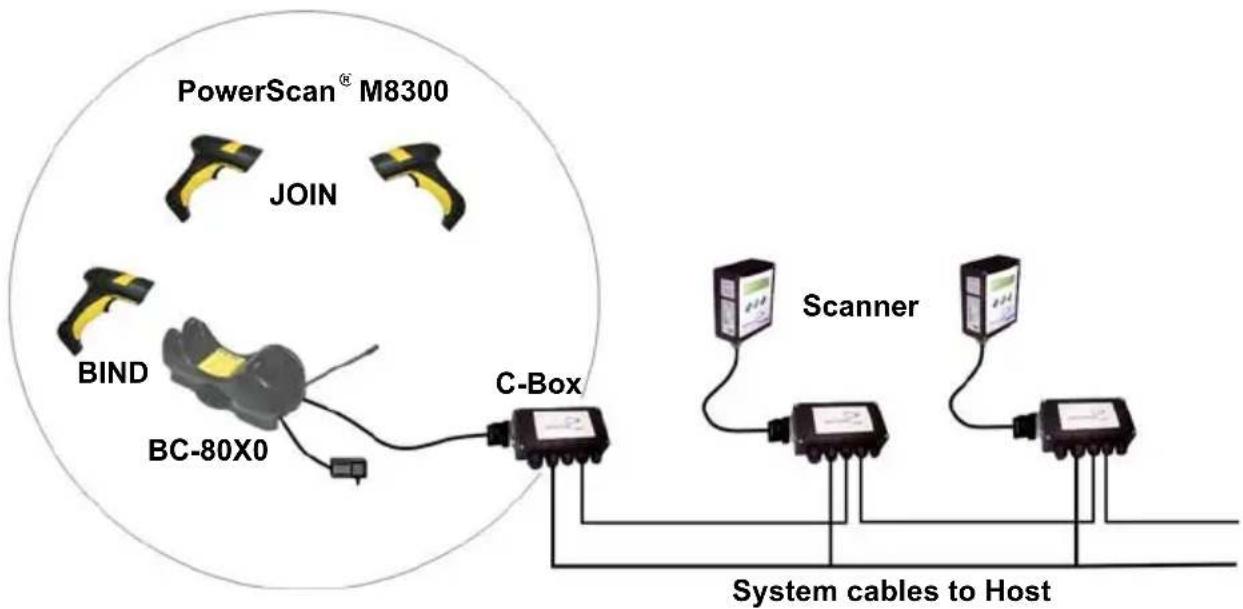
3.1.4 C-BOX Layout
flowchart
graph TD
    A["PowerScan® M8300"] --> B["JOIN"]
    B --> C["BIND"]
    C --> D["BC-80X0"]
    D --> E["C-Box"]
    E --> F["Scanner"]
    F --> G["System cables to Host"]
    style A fill:#f9f,stroke:#333
    style B fill:#ccf,stroke:#333
    style C fill:#cfc,stroke:#333
    style D fill:#fcc,stroke:#333
    style E fill:#cff,stroke:#333
    style F fill:#ffc,stroke:#333
    style G fill:#cfc,stroke:#333
In this layout the BC-80X0 cradle is connected by a dedicated cable using the RS-232 interface to a C-BOX connection box as part of a fixed scanner network. This allows the flexibility of a hand-held reading station integrated into a variety of fixed scanning applications so that all readers (both fixed and hand-held), in the system provide communications to the Host.
The various C-BOX models provide many interface types for the Host system such as RS-232, RS-485, Profibus.
3.2 MULTIDROP STAR-SYSTEM™ NETWORK LAYOUTS
Even though many stand-alone systems can operate in the same physical area without interfering with each other, it may be desirable to bridge data from multiple base stations in a network to a single Host. PowerScan® M8300 readers are compatible with STAR-System™ networks. These networks provide seamless active roaming for any RF reading device in the system.
3.2.1 Host Master Layout
flowchart
graph TD
    A["Device A"] -->|RS-232| B["Device B"]
    B -->|RS-485 + VDC| C["Internal Termination"]
    C -->|RS-485 Only| D["Device D"]
    D -->|CAB-428 Splitter| E["Internal Termination"]
    style A fill:#f9f,stroke:#333
    style B fill:#ccf,stroke:#333
    style C fill:#cfc,stroke:#333
    style D fill:#fcc,stroke:#333
    style E fill:#ffc,stroke:#333
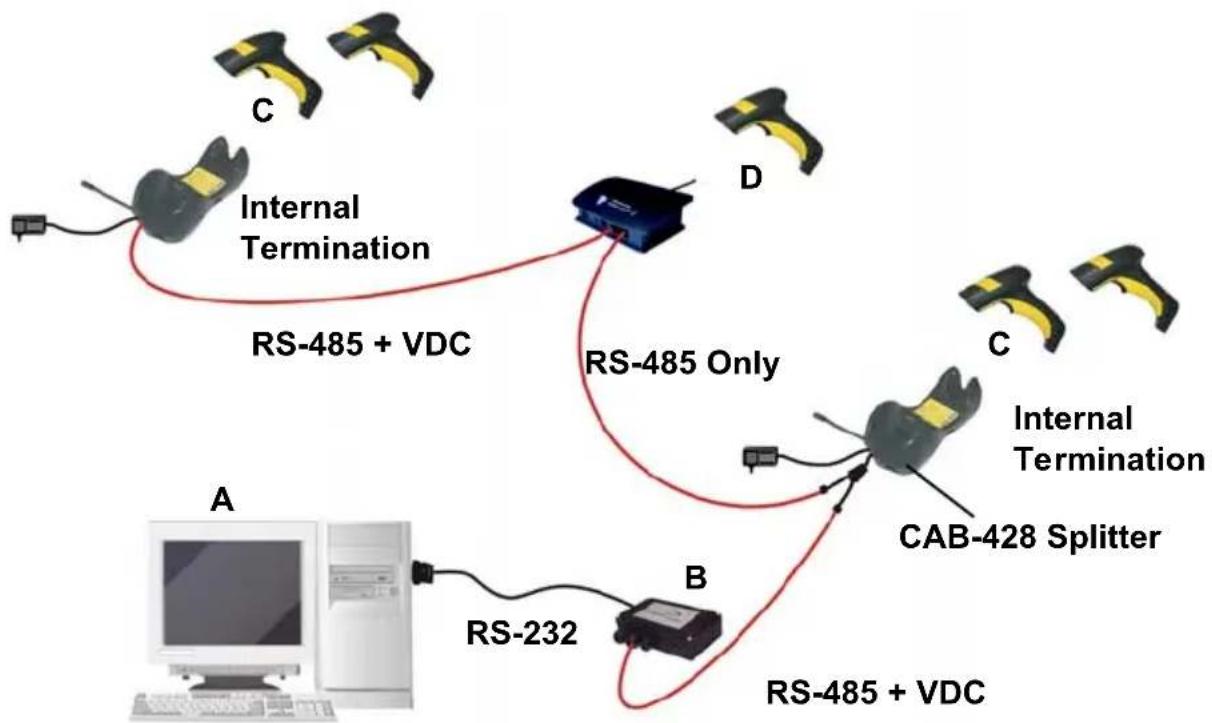
A. Host Master with STAR-Link™
B. STAR-Box ^TM converter
C. BC-8060 slave cradles
D. STARGATE™ base stations
Example Multidrop STAR-System™ Network with Host as Master
In this layout the Host acts as the Master using STAR-Link™ software. The Host is connected in RS-232 to a STAR-Box™ converter, which is connected to the first slave in the RS-485 network. In this way the base stations provide communications between a single Host and all readers in the system. STARGATE™ base stations are used as slaves in this network. The Slaves at the ends of the network must be terminated (see the STARGATE™ and STAR-Box™ Installation Manuals and par. 2.8.3).
See par. 4.6 and 4.7 or the Datalogic Aladdin™ Help On-Line for system configuration specifications.
3.2.2 BC-8060 Master Layout
flowchart
graph TD
    subgraph_A["Internal Termination"]
        A1["Device A"] -->|RS-485 + VDC| D["Device D"]
        A2["Device B"] -->|RS-485 Only| D
        A3["Device C"] -->|RS-485 Only| D
        A4["Device D"] -->|RS-485 Only| D
    end
    subgraph_B["Internal Termination"]
        B1["Device B"] -->|RS-485 Only| C["Device C"]
        B2["Device B"] -->|RS-485 Only| C
    end
    subgraph_C["Internal Termination"]
        C1["Device C"] -->|RS-485 Only| D
        C2["Device D"] -->|RS-485 Only| D
    end
    style A fill:#f9f,stroke:#333
    style B fill:#f9f,stroke:#333
    style C fill:#f9f,stroke:#333
    style D fill:#ccf,stroke:#333
USB, or RS-232, or Wedge, or Pen Emulation
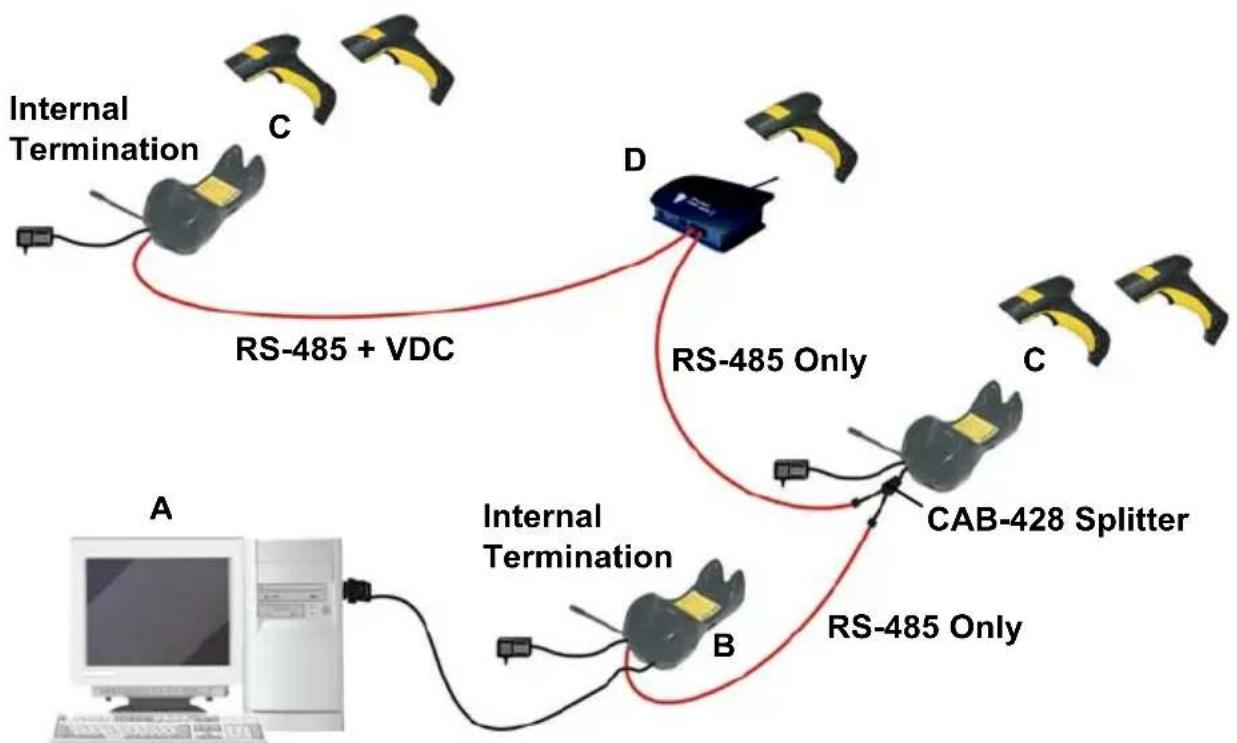
A. Host
B. BC-8060 Master cradle
C. BC-8060 Slave cradles
D. STARGATE ^TM base station
Example Multidrop STAR-System™ Network with BC-8060 as Master
In this layout an BC-8060 cradle acts as the Master. The Host is connected to the BC-8060 Master using any one of the multi-standard interfaces (RS-232, USB, WEDGE, or PEN Emulation). The Master is then connected to the slaves in the RS-485 network. In this way the slave cradles provide communications between a single Host and all readers in the system. STARGATE™ base stations can also be used as slaves in this network. The devices at the ends of the network must be terminated (see par. 2.8.3).
See pars. 4.6 and 4.7 or the Datalogic Aladdin™ Help On-Line for system configuration specifications.
3.2.3 Master BC-8060 Network Troubleshooting
Two diagnostic strings can be sent via RS-232 from the Host to the Master cradle in order to have feedback about the network itself.
#+LSlave
Returns a list of all the Slaves recognized at boot up.
Example:
In a network where the Master cradle has address 0188 and one Slave cradle with address 0001, the response is:
188
1
#+Alive
Executes a continuous Alive request to the slave xxxx in order to monitor the performance of the connection. A diagnostic message is displayed on the Host.
Example:
If this command is sent for slave cradle with address 0032, the response is:
/*32: BC-80X0 SOFTWARE RELEASE 1.00 20/10/2006*/
if there are no communication errors
/*32: FAIL*/
if there are communication errors.
To exit from this command, reset the system by cycling power to the Master cradle.
4 CONFIGURATION
4.1 CONFIGURATION METHODS
4.1.1 Reading Configuration Barcodes
This manual can be used for complete setup and configuration of your reader by following the setup procedures in this chapter (see par. 4.2 for an overview).
If you wish to change the default settings, this manual provides complete configuration of your reader in an easy way.
To configure your reader:
1) Open the folded page in Appendix C with the hex-numeric table and keep it open during the device configuration.
2) Read the Enter Configuration code ONCE, available at the top of each page of configuration.
3) Modify the desired parameters in one or more sections following the procedures given for each group.
4) Read the Exit and Save Configuration code ONCE, available at the top of each page of configuration.
Reference notes describing the operation of the more complex parameters are given in chapter 1.
4.1.2 Using Datalogic Aladdin™
Datalogic Aladdin ^™ is a multi-platform utility program providing a quick and user-friendly configuration method via the RS-232/USB-COM interface.
It also allows upgrading the software of the connected device (see the Datalogic Aladdin™ Help On-Line for more details).
4.1.3 Copy Command
A previously configured device (Master), can be used to send its configuration directly to other devices of the same type (Slaves). The particular procedure for each device is given in par. 5.14.
4.1.4 Sending Configuration Strings from Host
An alternative configuration method is provided in Appendix A using the RS-232 interface. This method is particularly useful when many devices need to be configured with the same settings. Batch files containing the desired parameter settings can be prepared to configure devices quickly and easily.
4.2 SETUP PROCEDURES
For PowerScan ^® D8330 Series readers, follow the setup procedures in pars. 4.3, and 4.8.
For PowerScan ^® M8300 Series readers, the setup procedures depend on two basic applications, Stand-alone or STAR-System ^™ .
Stand-alone applications allow communication with the Host by either the BC-80X0 cradle (par. 4.5), or by the STAR-Modem™ radio modem (par. 4.5.2).
STAR-System™ applications allow communication with the Host through an RS-485 network by the STARGATE™ RF base station or by the BC-8000 cradle (par. 4.6 and par. 4.7).
Proceed as shown in the following diagram:
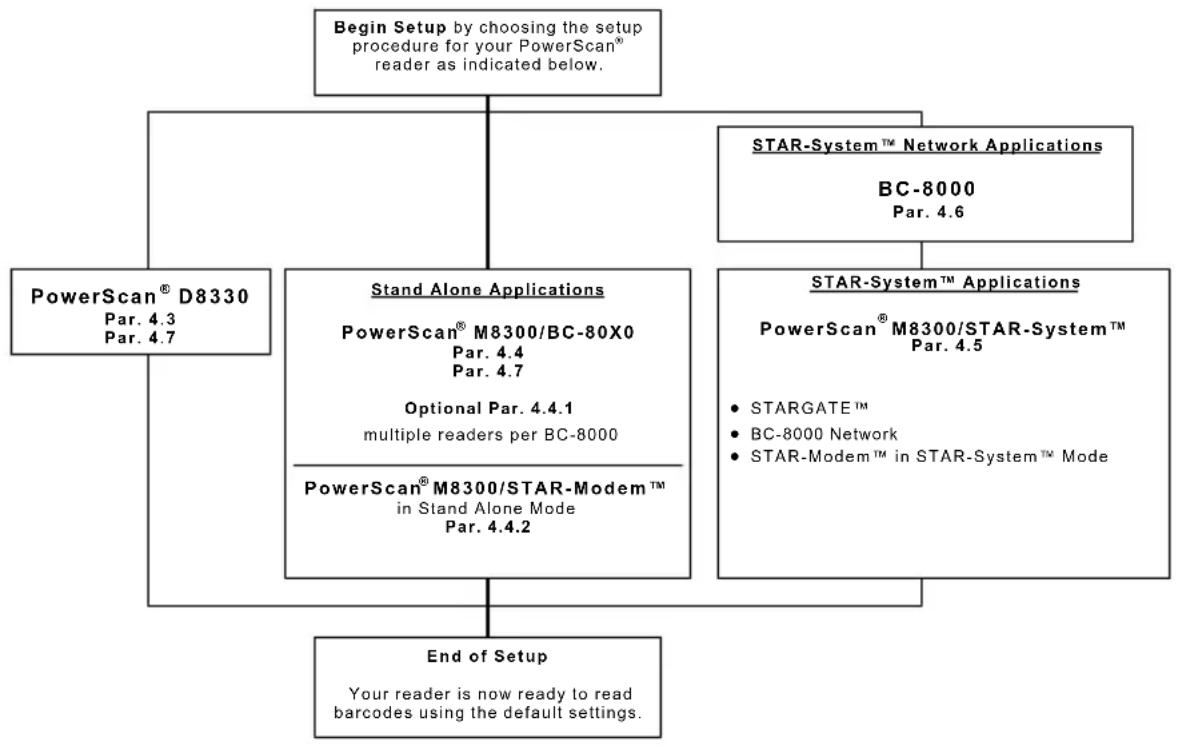
flowchart
graph TD
    A["Begin Setup by choosing the setup procedure for your PowerScan® reader as indicated below."] --> B["PowerScan® D8330<br>Par. 4.3<br>Par. 4.7"]
    A --> C["Stand Alone Applications<br>PowerScan® M8300/BC-80X0<br>Par. 4.4<br>Par. 4.7<br>Optional Par. 4.4.1<br>multiple readers per BC-8000"]
    A --> D["STAR-System™ Network Applications<br>BC-8000<br>Par. 4.6"]
    C --> E["PowerScan® M8300/STAR-Modem™<br>in Stand Alone Mode<br>Par. 4.4.2"]
    C --> F["STAR-System™ Applications<br>PowerScan® M8300/STAR-System™<br>Par. 4.5<br>• STARGATE™<br>• BC-8000 Network<br>• STAR-Modem™ in STAR-System™ Mode"]
    D --> G["End of Setup<br>Your reader is now ready to read barcodes using the default settings."]
4.3 POWERSCAN ^® D8330 SETUP
- Read the restore default parameters code below.
Restore PowerScan ^® D8330 Default

After reading the above code, go to par. 4.8 Interface Selection.
4.4 POWERSCAN ^® M8300/BC-80X0 POINT-TO-POINT SETUP
A rapid configuration procedure has been devised for point-to-point applications where a single reader is associated exclusively with its own BC-80x0 base station and where it is not necessary to set the Date and Time parameters.
A special pre-printed bind-address label provided in the BC-80x0 base station package can be used to bind the PowerScan® M8300 reader to the base station with the address coded on the label. The address is also written numerically on the label to be easily recognized. Valid addresses are in the range from 0000 to 1999. Make sure that all cradles used in the same area have different addresses.
To rapidly configure your point-to-point application:
- Apply the bind-address label onto the BC-80x0 base station as indicated in the BC-80x0 Quick Reference Guide.
- When the BC-80X0 cradle is connected and powered, read the Bind-Address label to pair the PowerScan ^® M8300 to the BC-80X0 cradle.
The green LED on the PowerScan ^® M8300 will blink: the reader is ready to be positioned onto the cradle.
- Firmly position the reader onto the cradle within 10 seconds, a beep will be emitted, signaling that the BC-80X0 cradle has been paired to the PowerScan® M8300, and the green LED on the reader will go off.

text_image
Green LEDIf it ever becomes necessary to change the reader, just read the bind-address label applied to the cradle and position the new reader onto the cradle.
Do not use multiple readers with this configuration method.
- Configure the BC-80X0 cradle, refer to the "BC-80X0 Quick Reference Guide".
END of procedure. YOUR READER IS NOW READY TO READ CODES.
4.5 POWERSCAN ^® M8300/BC-80X0 STAND-ALONE SETUP
Read the restore default parameters code below.
1 Restore PowerScan ^® M8300 Default

Follow the procedure below to set the radio address and bind PowerScan® M8300 to the BC-80X0 cradle.
- Enter Configuration
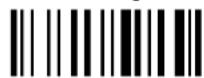
3 Set Date

six digits for Day, Month and Year (DDMMYY)
4 Set Time

four digits for Hour and Minutes (HHMM)
5.
Set Radio Address


four digits for the PowerScan ^® M8300 Address (from 0000 to 1999).
All readers used in the same area must have different addresses.
6.
Exit and Save Configuration
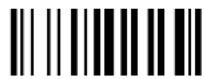
- Read the Bind code to pair the PowerScan ^® M8300 to the BC-80X0 cradle. The reader is dedicated to the cradle. Any previously bound reader will be excluded.
To connect several readers to the same cradle see the following paragraph 4.5.1, 'Using Multiple M8300 Series Readers with Same Cradle'.
Bind
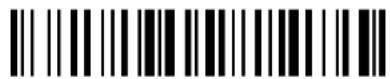
The green LED on the PowerScan ^® M8300 will blink; the reader is ready to be inserted into the cradle.
- Firmly insert the reader into the BC-80X0 cradle within 10 seconds, a beep will be emitted, signaling that the BC-80X0 cradle has been paired to the PowerScan ^® M8300, and the green LED on the reader will go off.

text_image
green LED9. Read the BC-80X0 restore default code:
Restore BC-80X0 Default

Go to par. 4.8 Interface Selection.
4.5.1 Using Multiple M-Series Readers with Same Cradle
If you want to use several M-Series readers with the same BC-80X0 cradle, you must first Bind the cradle with one of the readers (see previously described configuration procedure).
Successive readers can be associated with the same cradle by following the configuration procedure substituting the Bind command with Join (step 7).
7.
Join

The green LED on the PowerScan ^® M8300 will blink: the reader is ready to be positioned onto the cradle. Complete step 8.
END of procedure.

CAUTION
All readers associated with the same cradle must have different addresses.
YOUR READER IS NOW READY TO READ BARCODES.
To change the defaults see par. 4.10.
4.5.2 PowerScan ^ M8300/STAR-Modem ^TM in Stand-Alone Mode
To configure a PowerScan ^® M8300 reader to communicate with STAR-Modem ^™ in Stand-alone Mode, follow the procedure in par. 4.5 substituting steps 6 and 7 with those below:
6.
STAR-Modem™ Address

Read the code above and the four-digit address of the STAR-Modem™.
7.
Exit and Save configuration

END of procedure.
YOUR READER IS NOW READY TO READ BARCODES.
To change the defaults see par. 4.10.
4.6 POWERSCAN ^® M8300/STAR-SYSTEM ^TM SETUP
The following procedure allows configuring a PowerScan ^® M8300 reader to communicate with various STAR-System ^™ devices such as STARGATE ^™ RF base stations.
1 Restore PowerScan ^® M8300 Default

- Enter Configuration

3 Set Date
+ six digits for Day, Month and Year (DDMMYY)
- Set Time

+ four digits for Hour and Minutes (HHMM)
- Set the connection according to the length of the codes to be read:
Code Length ≤240 Characters

Code Length >240 Characters (not for systems with BC-8000 as Master)

6.
Set Radio Address


four digits from the Numeric Table in the range 0000-1999.
All readers must have different addresses.
7.
First STAR-System™ Address
Read the code above and the four-digit address of the First STAR-System™ device in the system.
8.
Set Last STAR-System™ Address
Read the code above and the four-digit address of the Last STAR-System ^™ device in the system.

NOTE
Whenever the system is composed of a single base station, the first and last base station addresses (steps 7 and 8) must have the same value.
9.
Exit and Save Configuratio

END of procedure.
YOUR READER IS NOW READY TO READ BARCODES.
To change the defaults see par. 4.10.
4.7 BC-8060 STAR-SYSTEM™ NETWORK SETUP
When the BC-8060 cradle model is used in an RS-485 network, it must be initially configured. To do this using configuration barcodes, follow the procedure below using any PowerScan ^® M8300 reader.
1.
Set BC-8060 Address

+
four digits for the BC-8060 Address (from 0000 to 1999).
All cradles used in the network must have different addresses.
2.
Exit and Save configuration
- Read the Bind code to pair the PowerScan ^® M8300 to the BC-8060 cradle for configuration.
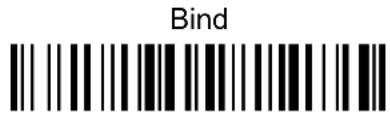
text_image
BindThe green LED on the PowerScan ^® M8300 will blink; the reader is ready to be inserted into the cradle.
- Firmly insert the reader into the BC-8060 cradle within 10 seconds, a beep will be emitted, signaling that the BC-8060 cradle has been paired to the PowerScan ^® M8300, and the green LED on the reader will go off.

text_image
green LED5. Read the BC-8060 restore default code:
6. Read the desired Enable Network code.
Enable RS-485 Master

Enable RS-485 Slave

END of procedure.
For Host Master Network Layouts (see par. 3.2), The network configuration parameters can be changed through STAR-Link™ software running on the PC. Star-Link™ software can be downloaded for free from the web site: www.scanning.datalogic.com.
For BC-8060 Master Network Layouts (see par. 3.2), The network configuration parameters can be changed either through the Datalogic Aladdin™ configuration software running on the PC or by reading the barcode selections in the Network section of this manual starting on page 64. If using configuration barcodes, it is advised to completely configure the cradles before reconfiguring the PowerScan® M8300 reader (see below).

NOTE
After completing the BC-8060 cradle configuration and connections in the network, you must reconfigure the PowerScan® M8300 reader using the STAR-System™ procedure in par. 4.6.
4.8 INTERFACE SELECTION
Read the interface selection code for your application.
RS-232

text_image
StandardPOS TERMINALS
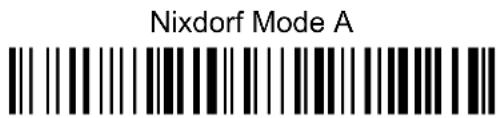
text_image
Nixdorf Mode A
text_image
Fujitsu
text_image
ICL ModeFor POS terminal default settings refer to par. 5.15.

text_image
PENWEDGE

IBM Terminals 31xx, 32xx, 34xx, 37xx:
To select the interface for these IBM Terminals, read the correct KEY TRANSMISSION code. Select the KEYBOARD TYPE if necessary (default = advanced keyboard).
KEY TRANSMISSION MODE
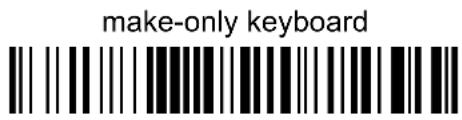
text_image
make-only keyboard
text_image
make-break keyboardKEYBOARD TYPE
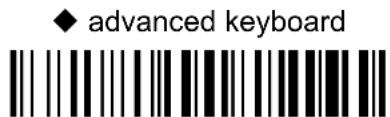
text_image
◆ advanced keyboard
text_image
typewriter keyboardWEDGE (CONTINUED)
ALT MODE
The ALT-mode selection allows barcodes sent to the PC to be interpreted correctly independently from the Keyboard Nationality used. You do not need to make a Keyboard Nationality selection.
(default = Num Lock Unchanged). Make sure the Num Lock key on your keyboard is ON.
IBM AT - ALT mode

PC Notebook - ALT mode

WYSE TERMINALS
ANSI Keyboard

PC Keyboard

ASCII Keyboard

VT220 style Keyboard

DIGITAL TERMINALS
VT2xx/VT3xx/VT4xx

4.9 USB READER CONFIGURATION
The USB interface is available for PowerScan ^® D8330, BC-80x0 and C-8000 devices and is compatible with the following Operating Systems:
Windows 98 (and later) IBM POS for Windows Mac OS 8.0 (and later) 4690 Operating System
USB Start-up
As with all USB devices, upon connection, the Host performs several checks by communicating with the device. During this phase normal operations are suspended (the LED on the PowerScan® D8330 reader blinks). Two basic conditions must be met before the device is ready, the correct USB driver must be loaded and sufficient power must be supplied to the reader.
① For all systems, the correct USB driver for the default USB-KBD interface is included in the Host Operating System and will either be loaded automatically or will be suggested by the O.S. and should therefore be selected from the dialog box (the first time only).
Normally the Host supplies sufficient power to the device and the start-up phase ends correctly. (The reader's LED stops blinking and the reader emits the beep OK signal).
In rare cases, if the Host does not supply sufficient power to the device, a dialog box will appear on the Host and the device will be blocked (the reader's LED continues blinking). In this case, disconnect the USB device cable at the Host (the reader's LED stops blinking), and then try a different USB port as indicated by the Operating System message. (The device emits the beep OK signal. You can now read codes).

flowchart
graph TD
    A["Connect device to Host"] -->|reader LED blinks| B["Load drivers (if re quested)"]
    B -->|reader LED off - BEEP OK| C["Select desired USB interface code (USB-KBD is default)"]
    C --> D["Load drivers (if requested)"]
    D --> E["Read test codes. Device is READY"]
② At this point you can read the USB interface configuration code according to your application. Load drivers from the O.S. (if requested). When configuring the USB-COM interface, the relevant files and drivers must be installed from the USB Device Installation software, which can be downloaded from the web page http://www.scanning.datalogic.com.
The device is ready. Successive start-ups will automatically recognize the previously loaded drivers.
USB

text_image
USB-KBD
text_image
USB-KBD-ALT-MODE
text_image
USB-KBD-APPLE
text_image
USB-COM*
text_image
USB-IBM-Table Top
text_image
USB-IBM-Hand Held* When configuring USB-COM, the relevant files and drivers must be installed from the USB Device Installation software, which can be downloaded from the web site http://www.scanning.datalogic.com.
4.10 CHANGING DEFAULT SETTINGS
Once your reader is setup, you can change the default parameters to meet your application needs. Refer to the preceding paragraphs for initial configuration in order to set the default values and select the interface for your application.
In this manual, the configuration parameters are divided into logical groups making it easy to find the desired function based on its reference group.
The first four groups are for Standard Interface parameter configuration for all PowerScan ^® D8330 series readers and PowerScan ^® M8300/BC-80X0 Stand-alone configurations only:
RS-232
USB
WEDGE
PEN EMULATION
NETWORK PARAMETERS are available only for BC-8060 Network configurations.
The following parameter groups are common to all interface applications:
DATA FORMAT parameters regard the messages sent to the Host system for all interfaces except Pen Emulation.
POWER SAVE manages overall current consumption in the reading device.
READING PARAMETERS control various operating modes and indicator status functioning.
DECODING PARAMETERS maintain correct barcode decoding in certain special reading conditions.
CODE SELECTION parameters allow configuration of a personalized mix of codes, code families and their options.
ADVANCED FORMATTING PARAMETERS allow code concatenation and advanced formatting of messages towards the Host. It cannot be used with Pen Emulation connections.
RADIO PARAMETERS (M8300 series only) allow configuration of radio control parameters.
DISPLAY PARAMETERS (some M8300 series models only) allow configuration of reader display parameters.
RS-232 PARAMETERS
All PowerScan ^® D8330 Series readers + PowerScan ^® M8300/BC-80X0 configurations only
| ⊙ | BAUD RATE | ⊙ |
| ⊙ | PARITY | ⊙ |
| ⊙ | DATA BITS | ⊙ |
| ⊙ | STOP BITS | ⊙ |
| ⊙ | HANDSHAKING | ⊙ |
| ⊙ | ACK/NACK PROTOCOL | ⊙ |
| ⊙ | FIFO | ⊙ |
| ⊙ | INTER-CHARACTER DELAY | ⊙ |
| ⊙ | RX TIMEOUT | ⊙ |
| ⊙ | SERIAL TRIGGER LOCK | ⊙ |
- Read the Enter Configuration code ONCE, available at the top of each page.
- Read configuration codes from the desired groups.

= Read the code and follow the procedure given
◆ = Default value
- Read the Exit and Save Configuration code ONCE, available at the top of each page.
BAUD RATE

PARITY
none
even parity

odd parity

DATA BITS
7 bits

◆ 8 bits

9 bits

STOP BITS
◆ 1 stop bit

2 stop bits

HANDSHAKING
◆ disable

hardware (RTS/CTS)

software (XON/XOFF)
RTS always ON
See par. 5.1.1 for details.
ACK/NACK PROTOCOL
◆ disable

enable

See par. 5.1.2 for details, particularly on implementing this parameter with PowerScan ^® M8300.
FIFO
disable

◆ enable

See par. 5.1.3 for details.
INTER-CHARACTER DELAY
delay between characters transmitted to Host

Read 2 numbers from the table where:
00 = DELAY disabled
01-99 = DELAY from 1 to 99 milliseconds
◆ delay disabled
RX TIMEOUT

timeout control in reception from Host

Read 2 numbers from the table where:
00 = TIMEOUT disabled
01-99 = TIMEOUT from .1 to 9.9 seconds
◆ rx timeout 5 seconds
See par. 5.1.4 for details.
SERIAL TRIGGER LOCK
◆ disabled


enable and select characters

Read 2 characters from the Hex/Numeric table in the range 00-FE where:
- First Character enables device trigger
– Second Character inhibits device trigger until the first character is received again.
USB PARAMETERS
©
USB-COM
©
Handshaking, Ack/Nack protocol, FIFO, Inter-character delay, Rx timeout, Serial trigger lock
©
USB-KBD
©
Keyboard nationality, FIFO, Inter-character delay, Inter-code delay, USB keyboard speed
©
USB-IBM
©
No parameter selection required.
- Read the Enter Configuration code ONCE, available at the top of each page.
- Read configuration codes from the desired groups.

= Read the code and follow the procedure given

= Default value
- Read the Exit and Save Configuration code ONCE, available at the top of each page.
HANDSHAKING
◆ disable

hardware (RTS/CTS)

software (XON/XOFF)
RTS always ON
See par. 5.1.1 for details.
ACK/NACK PROTOCOL
◆ disable

enable

See par. 5.1.2 for details, particularly on implementing this parameter with PowerScan ^® M8300.
FIFO
disable

◆ enable

See par. 5.1.3 for details.
INTER-CHARACTER DELAY

delay between characters transmitted to Host

Read 2 numbers from the table where:
00 = DELAY disabled
01-99 = DELAY from 1 to 99 milliseconds
◆ delay disabled
RX TIMEOUT

timeout control in reception from Host

Read 2 numbers from the table where:
00 = TIMEOUT disabled
01-99 = TIMEOUT from .1 to 9.9 seconds
◆ rx timeout 5 seconds
See par. 5.1.4 for details.
SERIAL TRIGGER LOCK
◆ disabled


enable and select characters

Read 2 characters from the Hex/Numeric table in the range 00-FE where:
- First Character enables device trigger
– Second Character inhibits device trigger until the first character is received again.
KEYBOARD NATIONALITY
Not Available for USB-KBD-ALT-MODE Interface
This parameter default value is restored through the Interface Selection code and not Restore Default.
Belgian

English (UK)

French

German

Italian

Spanish

Swedish

◆ USA

The Japanese and Eastern Block Keyboard Nationality selections are valid only for IBM AT compatible PCs.


Slovenian, Croatian,
Serbian (Latin)


FIFO
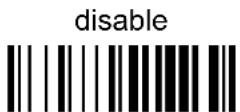
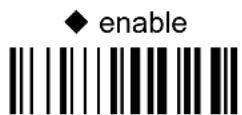
See par. 5.1.3 for details.
INTER-CHARACTER DELAY

delay between characters transmitted to Host

Read 2 numbers from the table where:
00 = DELAY disabled
01-99 = DELAY from 1 to 99 milliseconds
◆ delay disabled
INTER-CODE DELAY

delay between codes transmitted to Host

Read 2 numbers from the table where:
00 = DELAY disabled
01-99 = DELAY from 1 to 99 seconds
◆ delay disabled
USB KEYBOARD SPEED
Normal
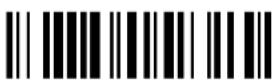
Fast
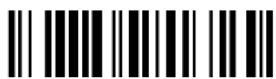
WEDGE PARAMETERS
All PowerScan ^® D8330 Series readers + PowerScan ^® M8300/BC-80X0 configurations only
KEYBOARD NATIONALITY
CAPS LOCK
CAPS LOCK
AUTO-RECOGNITION
- Num Lock
-
INTER-CHARACTER DELAY
INTER-CODE DELAY
KEYBOARD SETTING
WEDGE CONTROL CHARACTER EMULATION
-
Read the Enter Configuration code ONCE, available at the top of each page.
-
Read configuration codes from the desired groups.

= Read the code and follow the procedure given
◆ = Default value
- Read the Exit and Save Configuration code ONCE, available at the top of each page.
KEYBOARD NATIONALITY
Belgian

English (UK)

French

German

Italian

Spanish

Swedish

◆ USA
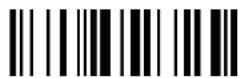
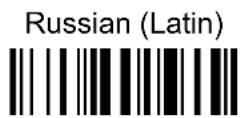
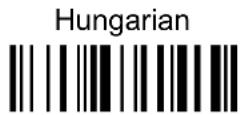
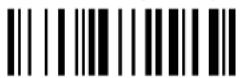
The Japanese and Eastern Block Keyboard Nationality selections are valid only for IBM AT compatible PCs.



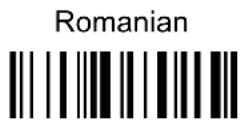
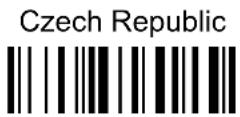
CAPS LOCK


Select the appropriate code to match your keyboard caps lock status.
NOTE: Caps lock manual configuration is ignored when Caps Lock Auto-Recognition is enabled.
For PC Notebook interface selections, the caps lock status is automatically recognized; therefore this command is not necessary.
CAPS LOCK AUTO-RECOGNITION (IBM AT COMPATIBLE ONLY)
disable
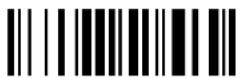
◆ enable

NUM LOCK
toggle num lock

◆ num lock unchanged

This selection is used together with the Alt Mode interface selection for AT or Notebook PCs.
It changes the way the Alt Mode procedure is executed; therefore it should be set as follows:
- if your keyboard Num Lock is normally on use num lock unchanged
- if your keyboard Num Lock is normally off use toggle num lock
In this way the device will execute the Alt Mode procedure correctly for your application.
INTER-CHARACTER DELAY

delay between characters transmitted to Host
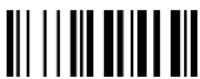
Read 2 numbers from the table where:
00 = DELAY disabled
01-99 = DELAY from 1 to 99 milliseconds
◆ delay disabled
INTER-CODE DELAY

delay between codes transmitted to Host

Read 2 numbers from the table where:
00 = DELAY disabled
01-99 = DELAY from 1 to 99 seconds
◆ delay disabled
KEYBOARD SETTING
ALPHANUMERIC KEYBOARD SETTING
The device (reader or cradle) can be used with terminals or PCs with various keyboard types and nationalities through a simple keyboard setting procedure.
The type of computer or terminal must be selected before activating the keyboard setting command.
Keyboard setting consists of communicating to the device how to send data corresponding to the keyboard used in the application. The keys must be set in a specific order.
Press and release a key to set it.
Some characters may require more than one key pressed simultaneously during normal use (refer to the manual of your PC or terminal for keyboard use). The exact sequence must be indicated to the reader in this case pressing and releasing the different keys.
Example:
If one has to press the "Shift" and "4" keys simultaneously on the keyboard to transmit the character "\" to the video, to set the "\", press and release "Shift" then press and release "4".
Each pressed and released key must generate an acoustic signal on the device; otherwise repress the key. Never press more than one key at the same time, even if this corresponds to the normal use of your keyboard.
Press "Backspace" to correct a wrong key entry. In this case the device emits 2 beeps.
NOTE: "CAPS LOCK" and "NUM LOCK" must be off before starting the keyboard setting procedure. "SHIFT" must be repressed for each character and cannot be substituted by "CAPS LOCK".

setting the alphanumeric keyboard

Read the code above.
Press the keys shown in the following table according to their numerical order.
WEDGE
Some ASCII characters may be missing as this depends on the type of keyboard: these are generally particular characters relative to the various national symbologies. In this case:
- The first 4 characters (Shift, Alt, Ctrl, and Backspace) can only be substituted with keys not used, or substituted with each other.
- characters can be substituted with other single symbols (e.g. "SPACE") even if not included in the barcode set used.
- characters can be substituted with others corresponding to your keyboard.
The device signals the end of the procedure with 2 beeps indicating the keys have been registered.
Do not place the reader onto the BC-80X0 cradle during this procedure. Otherwise, the battery charging will occur modifying the LEDs functioning.
CONTROL CHARACTER EMULATION
◆ Ctrl + Shift + Key

Ctrl + Key

PEN EMULATION
All PowerScan ^® D8330 Series readers + PowerScan ^® M8300/BC-80X0 configurations only
OPERATING MODE
MINIMUM OUTPUT PULSE
CONVERSION TO CODE 39
- OVERFLOW
-
OUTPUT LEVEL
IDLE LEVEL
INTER-BLOCK DELAY
- Read the Enter Configuration code ONCE, available at the top of each page.
- Read configuration codes from the desired groups.
◆ = Default value
- Read the Exit and Save Configuration code ONCE, available at the top of each page.
The operating mode parameters are complete commands and do not require reading the Enter and Exit configuration codes.
OPERATING MODE
◆ interpret mode

Interprets commands without sending them to the decoder.
transparent mode

Sends commands to the decoder without interpreting them.
MINIMUM OUTPUT PULSE

bar
| Resolution Code Emulation | Duration (μs) | | ------------------------- | ------------- | | 1 ms | 1.2 | | 600 μs | 600 | | 200 μs | 200 | | 400 μs | 400 |See par. 5.2.1 for details.
CONVERSION TO CODE 39 (D8330 SERIES ONLY)
disable conversion to Code 39

Transmits codes in their original format.
enable conversion to Code 3

Converts codes read into Code 39 format.
See par. 5.2.2 for details.
CONVERSION TO CODE 39 AND CODE 128 (M8300 SERIES ONLY)
enable conversion to Code 39

Converts codes read into Code 39 format.
enable conversion to Code 128

Converts codes read into Code 128 format.
See par. 5.2.2 for details.
OVERFLOW
narrow

medium
wide

See par. 5.2.3 for details.
OUTPUT LEVEL

text_image
◆ normal (white = logic level 0)
text_image
inverted (white = logic level 1)See par. 5.2.4 for details.
IDLE LEVEL

See par. 5.2.4 for details.
INTER-BLOCK DELAY

delay between character blocks transmitted to Host

Read 2 numbers from the table where:
00 = DELAY disabled 01-99 = DELAY from .1 to 9.9 seconds
◆ delay disabled
See par. 5.2.5 for details.
NETWORK PARAMETERS
BC-8060 model configurations only
RS-485 NETWORK
NETWORK BAUD RATE
SLAVE ADDRESS RANGE
- NETWORK WARNING MESSAGE
RECEPTION WARNING MESSAGE
MASTER CRADLE HEADER
- MASTER CRADLE TERMINATOR
- Read the Enter Configuration code ONCE, available at the top of each page.
- Read configuration codes from the desired groups.
- Read the Exit and Save Configuration code ONCE, available at the top of each page.
RS-485 NETWORK
◆ disable RS-485 network

enable RS-485 slave

enable RS-485 master

See par. 3.2 for details.

NOTE
If a BC-8060 cradle is errantly configured as a Slave but not connected to a network, it may not be able to receive further commands from the reader. In this case it can be reconfigured by executing the bind procedure, which returns the cradle to Stand-alone configuration.
NETWORK BAUD RATE


SLAVE ADDRESS RANGE

First Address

Read the code above and the four-digit address of the First Slave device in the system.

Last Address

Read the code above and the four-digit address of the Last Slave device in the system.
See par. 5.3.1 for details.
NETWORK WARNING MESSAGE
◆ network warning
message not transmitted

network warning message transmitted

See par. 5.3.2 for details.
RECEPTION WARNING MESSAGE
reception warning message not transmitted

◆ reception warning message transmitted

See par. 5.3.3 for details.
MASTER CRADLE HEADER
◆ no header

one character header



two character header

three character header


four character header

five character header



six character header

seven character header


eight character header

After selecting one of the desired Header codes, read the character(s) from the HEX table.
Valid characters are in the range: 00-FE
Example:

text_image
ur character header fo + 41 + 42 + 43 + 44 = Header ABCDFor more details about default and WEDGE Interface Extended Keyboard values, see par. 5.3.4, 5.4.1 and 5.4.2.
MASTER CRADLE TERMINATOR
◆ no terminator

one character terminator


two character terminator


three character terminator


four character terminator


five character terminator


six character terminator


seven character terminator


eight character terminator


After selecting one of the desired Terminator codes, read the character(s) from the HEX table.
Valid characters are in the range: 00-FE
Example:

For more details about default and WEDGE Interface Extended Keyboard values, see par. 5.3.4, 5.4.1 and 5.4.2.
DATA FORMAT
NOT FOR PEN INTERFACES
CODE IDENTIFIER
CUSTOM CODE IDENTIFIER
- HEADER
TERMINATOR
SPECIAL KEYS
FIELD ADJUSTMENT
FIELD ADJ. CHARACTER
CODE LENGTH TX
CHARACTER REPLACEMENT
ADDRESS STAMPING
ADDRESS DELIMITER
TIME STAMPING
TIME DELIMITER
- Read the Enter Configuration code ONCE, available at the top of each page.
- Read configuration codes from the desired groups.

= Read the code and follow the procedure given
◆ = Default value
- Read the Exit and Save Configuration code ONCE, available at the top of each page.
DATA FORMAT
| CODE IDENTIFIER TABLE | |||
| CODE | AIM STANDARD | DATALOGIC STANDARD | Custom |
| 2/5 interleaved ]I y N | |||
| 2/5 industrial ]X y P | |||
| 2/5 normal 5 bars ]S y O | |||
| 2/5 matrix 3 bars ]X y Q | |||
| EAN 8 ]E 4 A | |||
| EAN 13 ]E 0 B | |||
| UPC A ]X y C | |||
| UPC E ]X y D | |||
| EAN 8 with 2 ADD ON ]E 5 J | |||
| EAN 8 with 5 ADD ON ]E 6 K | |||
| EAN 13 with 2 ADD ON | ]E 1 L | ||
| EAN 13 with 5 ADD ON | ]E 2 | M | |
| UPC A with 2 ADD ON | ]X y F | ||
| UPC A with 5 ADD ON | ]X y G | ||
| UPC E with 2 ADD ON | ]X y H | ||
| UPC E with 5 ADD ON | ]X y | I | |
| Code 39 | ]A y V | ||
| Code 39 Full ASCII | ]A y | W | |
| CODABAR | ]F y | R | |
| ABC CODABAR | ]X y S | ||
| Code 128 | ]C y T | ||
| EAN 128 | ]C y k | ||
| ISBT 128 | ]C4 | f | |
| Code 93 | ]G y U | ||
| CIP/39 | ]X y | Y | |
| CIP/HR | ]X y | e | |
| Code 32 | ]X y X | ||
| MSI | ]M y | Z | |
| Code 11 | ]H y b | ||
| Code 16K | ]K 0 p | ||
| Code 49 | ]T y q | ||
| GS1 DataBarTM Expanded Linear and Stacked | ]e 0 | t | |
| GS1 DataBar Limited | ]e 0 | v | |
| GS1 DataBar 14 Linear and Stacked | ]e 0 u | ||
- AIM standard identifiers are not defined for all codes: the X identifier is assigned to the code for which the standard is not defined. The y value depends on the selected options (check digit tested or not, check digit tx or not, etc.).
- When customizing the Datalogic Standard code identifiers, 1 or 2 identifier characters can be defined for each code type. If only 1 identifier character is required, the second character must be selected as FF (disabled).
- The code identifier can be singly disabled for any code by simply selecting FF as the first identifier character.
• Write in the Custom character identifiers in the table above for your records.
CODE IDENTIFIER
◆ disable

Datalogic standard

AIM standard

custom

CUSTOM CODE IDENTIFIER

define custom code identifier(s)

① Read the above code.
(Code Identifiers default to Datalogic standard, see table on previous page).
② Select the code type from the code table in Appendix B for the identifier you want to change.
③ You can define 1 or 2 identifier characters for each code type. If only 1 identifier character is required, the second character must be selected as FF (disabled). Read the hexadecimal value corresponding to the character(s) you want to define as identifiers for the code selected in step ②: valid characters are in the range 00-FD.
Example: To define Code 39 Code Identifier = @
Read
define custom code identifier(s)

+
Code 39

+ 40 + FF
HEADER
no header

one character header



two character header

three character header


four character header

five character header


six character header

seven character header


eight character header

After selecting one of the desired Header codes, read the character(s) from the HEX table. Valid characters are in the range 00-FE. For Wedge and USB-KBD interfaces, it is also possible to read the Special Key(s) on page 74.
Example:

text_image
ur character header fo + 41 + 42 + 43 + 44 = Header ABCDFor more details see par. 5.4.1 and par. 5.4.2.
TERMINATOR
no terminator

one character terminator


two character terminator


three character terminator


four character terminator


five character terminator

six character terminator

seven character terminator


eight character terminator


After selecting one of the desired Header codes, read the character(s) from the HEX table. Valid characters are in the range 00-FE. For Wedge and USB-KBD interfaces, it is also possible to read the Special Key(s) on page 74.
Example:

text_image
two character terminator + 0D + 0A = Terminator CR LFFor more details see par. 5.4.1 and par. 5.4.2.
SPECIAL KEYS
Available only for Wedge IBM AT-PS/2 and USB-KBD Interfaces

NOTE
It is necessary to define each Special Key by following the procedure given in par. 5.4.2.
Select one or more of the following Special Keys u needs.
Special Key 1
Special Key 2

Special Key 3

Special Key 4

Special Key 5

FIELD ADJUSTMENT
◆ disable field adjustment

Field adjustment allows a number of characters n, to be added to or subtracted from the barcode read. The adjustment can be different for each enabled code type. To define the field adjustment:
① Read the enable field adjustment code:

text_image
enable field adjustment② Select the code type from the Code Identifier Table in Appendix B.
③ Select the type of adjustment to perform:
right addition

left addition

right deletion

left deletion

④ Read a number in the range 01 - 32 from the Hex/Numeric Table to define how many characters to add or delete:
Conditions:
- Adjustment is only performed on the barcode data, the Code Identifier and Code Length Transmission fields are not modified by the field adjustment parameter.
- If the field setting would subtract more characters than exist in the barcode, the subtraction will take place only to code length 0.
- You can set up to a maximum of 10 different field adjustments on the same barcode family or on different barcode families.
Example: To add 4 characters to the right of Standard Code 39 Codes:

text_image
enable field adjustment Code 39 right addition + 04FIELD ADJUSTMENT CHARACTER
① Read the field adjustment character code:
field adjustment character


② Read the hexadecimal value corresponding to the character you want to use for field adjustment. Valid characters are in the range 00-FE. For Wedge and USB-KBD interfaces, it is also possible to read the Special Key(s) on page 74.
Example:
To define the field adjustment character = A:
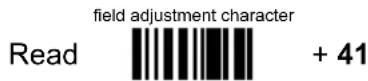
CODE LENGTH TX
◆ code length not transmitted

code length transmitted in variable-digit format

code length transmitted in fixed 4-digit format

The code length is transmitted in the message after the Headers and Code Identifier characters.
The code length is calculated after performing any field adjustment operations.
CHARACTER REPLACEMENT
◆ disable character replacement

This parameter allows up to three characters to be replaced from the barcode read. These substitutions are stored in memory. To define each character replacement:
① Read one of the following character replacement codes:
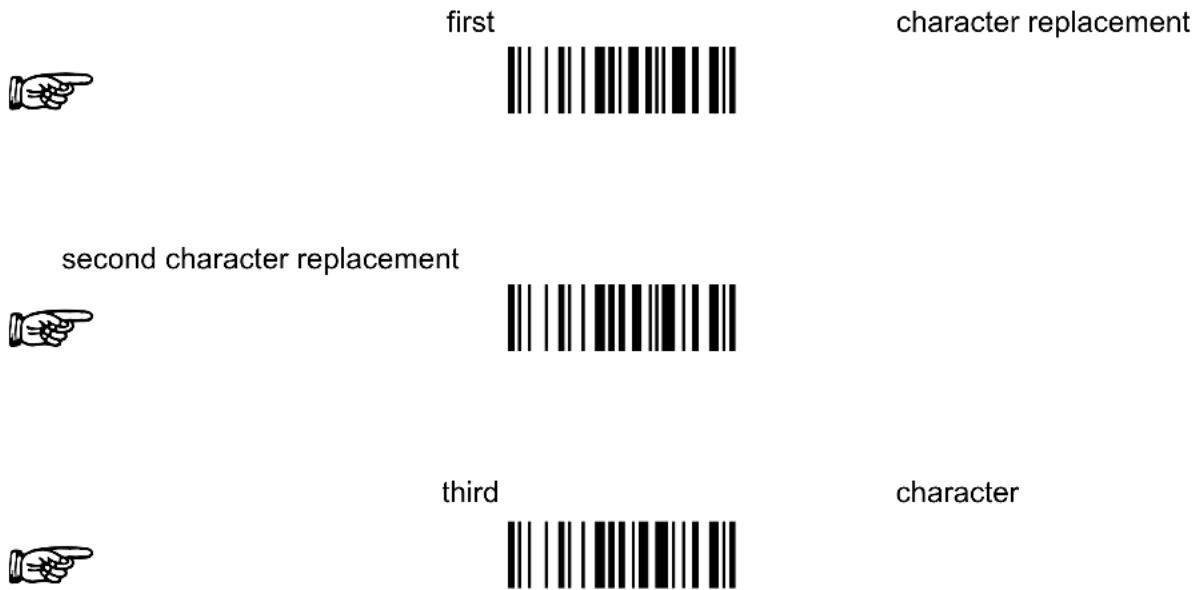
text_image
first character replacement second character replacement third character② From the Code Identifier Table in Appendix B, read the Code Identifier for the desired code family.
0 = character replacement will be effective for all code families.
③ From the Hex/Numeric Table read two characters corresponding to the Hex value (00-FE), which identifies the character to be replaced. For Wedge and USB-KBD interfaces, it is also possible to read the Special Key(s) on page 74.
④ From the Hex/Numeric Table read two characters corresponding to the Hex value (00-FE), which identifies the new character to replace. For Wedge and USB-KBD interfaces, it is also possible to read the Special Key(s) on page 74.
FF = the character to be replaced will be substituted with no character, that is, it will be removed from the code.
Example:
The following strings define:
- First Character Replacement: substitution in Code 39 barcodes of all occurrences of the 0 character with the 1 character.
- Second Character Replacement: substitution in Code 39 barcodes of all occurrences of the A character with the B character.
first character replacement
Code 39
ASCII characters corresponding to the HEX value for character 0
ASCII characters corresponding to the HEX value for character 1


- 30 + 31
For Code 39 codes containing the string "0123", the contents transmitted will be "1123".
second character replacement
Code 39
ASCII characters corresponding to the HEX value for character A
ASCII characters corresponding to the HEX value for character B

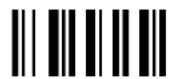
- 41 + 42
For Code 39 codes containing the string "ABCD", the contents transmitted will be "BBCD".
ADDRESS STAMPING (M8300 SERIES ONLY)
◆ disable reader address stamping
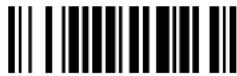
enable reader address stamping

◆ disable cradle address stamping

enable cradle address stamping

See par. 5.4.3 for details.
ADDRESS DELIMITER (M8300 SERIES ONLY)
◆ disable reader address delimiter
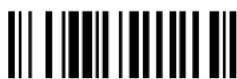
enable reader address delimiter and
select characters


◆ disable cradle address delimiter

enable cradle address delimiter and
select characters


Read 2 HEX characters in the range 00-FE.
Read 2 HEX characters in the range 00-FE.
See par. 5.4.4 for details.
TIME STAMPING (M8300 SERIES ONLY)
◆ disable

hour/minutes/seconds
month/day/year
hour/minutes/seconds
day/month/year

hour/minutes/seconds

month/day/year
day/month/year

See par. 5.4.5 for details.
TIME STAMPING DELIMITER (M8300 SERIES ONLY)
enable

◆ disable

select delimiter


Read 2 HEX characters in the range 00-FE.
See par. 5.4.6 for details.
POWER SAVE
SLEEP STATE
ENTER SLEEP TIMEOUT
-
Read the Enter Configuration code ONCE, available at the top of each page.
-
Read configuration codes from the desired groups.

= Read the code and follow the procedure given
◆ = Default value
- Read the Exit and Save Configuration code ONCE, available at the top of each page.
SLEEP STATE
◆ disable

enable

See par. 5.5.1 for details.
For M8300 series readers, sleep state is entered immediately after reading a code and is not configurable.
ENTER SLEEP TIMEOUT

enter sleep timeout

Read 2 numbers in the range 00-99:
00 = Enter Sleep state immediately
01-99 = corresponds to a max. 9.9 sec. delay before entering the Sleep state.
◆ enter sleep timeout = 0.6 sec.
See par. 5.5.2 for details.
READING PARAMETERS
- TRIGGER TYPE
TRIGGER SIGNAL
- TRIGGER CLICK
- TRIGGER-OFF TIMEOUT
FLASH MODE
- READS PER CYCLE
- SAFETY TIME
BEEPER INTENSITY
BEEPER TONE
BEEPER TYPE
BEEPER LENGTH
- Read the Enter Configuration code ONCE, available at the top of each page.
- Read configuration codes from the desired groups.

= Read the code and follow the procedure given
◆ = Default value
- Read the Exit and Save Configuration code ONCE, available at the top of each page.
TRIGGER TYPE
◆ hardware trigger

Restores TRIGGER MODE
software trigger

Enables FLASH MODE
always on

TRIGGER SIGNAL
◆ trigger active level
trigger active pulse

See par. 5.6.1 for details.
TRIGGER CLICK
◆ disable

enable

See par. 5.6.2 for details.
TRIGGER-OFF TIMEOUT

trigger-off timeout

Read 2 numbers in the range 00-99:
00 = disables the trigger-off timeout
01-99 = corresponds to a max. 99-sec. delay after the trigger press to allow the reader to turn off automatically.
◆ trigger-off timeout disabled
See par. 5.6.3 for details.
FLASH MODE

"FLASH" ON duration


"FLASH" OFF duration

Read 2 numbers in the range 01-99:
01 to 99 = from .1 to 9.9 seconds.
◆ Flash-ON = 1 sec. Flash-OFF = 0.6 sec
READS PER CYCLE
◆ one read per cycle

multiple reads per cycle

See par. 5.6.4 for details.
SAFETY TIME

safety time

Limits same code consecutive reading.
Read 2 numbers in the range 00-99:
00 = no same code consecutive reading until reader is removed (no decoding) for at least 400 ms.
01-99 = timeout from .1 to 9.9 seconds before a consecutive read on same code.
◆ safety time = 0.5 sec
See par. 5.6.5 for details.
BEEPER INTENSITY
* very low intensity

low intensity

medium intensity

◆ high intensity

* This sets the beeper OFF for data entry, while for all other beeper signals it has the meaning “very low intensity”. The Beeper Intensity parameter is effective for all operating conditions described in par. 7.6.
BEEPER TONE
tone 1

◆ tone 2

tone 3

tone 4

BEEPER TYPE
◆ monotone
bitonal
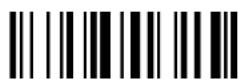
BEEPER LENGTH
long

◆ short

- Read the Enter Configuration code ONCE, available at the top of each page.
- Read configuration codes from the desired groups.
◆ = Default value
- Read the Exit and Save Configuration code ONCE, available at the top of each page.
INK SPREAD
disable

◆ enable

See par. 5.7.1 for details.
OVERFLOW CONTROL
disable

◆ enable

See par. 5.7.2 for details.
INTERDIGIT CONTROL
disable

◆ enable

See par. 5.7.3 for details.
DECODING SAFETY
◆ one read

(decoding safety disabled)
two reads
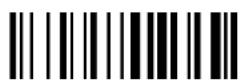
three reads
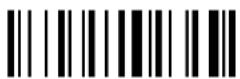
four reads
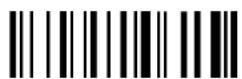
Required number of good reads before accepting code.
PUZZLE SOLVER™
◆ disable

enable

In the case of damaged or poorly printed codes, this parameter allows reading multiple parts of the single code to reconstruct it.
To read codes using this technology, simply move the illuminated bar over the code so that each line of the code is scanned. During this process a series of brief “ticks” indicates that reading is proceeding correctly.
Conditions:
- This parameter is only valid for the following codes:
| EAN 8 without Add-on | EAN 13 without Add-on | UPC A without Add-on |
| Code 128 Code 39 | ||
- For Code 39, Check digit control is forced.
- PuzzleSolver™ is not valid for ISBT 128 code.
CODE SELECTION
AUTO-CONFIGURATION
EAN/UPC FAMILY
2/5 FAMILY
CODE 39 FAMILY
CODE 128 FAMILY
CODABAR FAMILY
CODE 93
MSI
CODE 11
CODE 16K
CODE 49
GS1 DATABAR CODES
- Read the Enter Configuration code ONCE, available at the top of each page.
- Read configuration codes from the desired groups.

= Read the code and follow the procedure given
◆ = Default value
- Read the Exit and Save Configuration code ONCE, available at the top of each page.
Code selections may be performed according to two different procedures:
- Auto-configuration, allowing an automatic recognition and selection of the code families to be read;
- Manual configuration, requiring configuration and selection of each code family to be read.
AUTO-CONFIGURATION
The following codes do not require reading the Enter and Exit configuration codes.
In auto-configuration mode the reader enters a particular state, during which it reads, recognizes and saves all information received from the decoding of an existing code (with the exception of MSI, Code 49 and Code 16k code types). In this way, the code families will be automatically configured.
It is possible to configure up to 10 code types, whose length is variable and check digit ignored. If reading different codes belonging to the same family, information about the last code will overwrite the information about the previous one.
Follow the given procedure to auto-configure the desired code families:

CAUTION
If no code is read during the auto-configuration procedure (step ②), the configuration will be empty and therefore the reader will be unable to read codes.
① Read the following code to enter the ensemble-configuration


text_image
auto-configuration② Read an existing code belonging to the code families that you need to configure.
Read the following c③ normal functioning:
save the configuration automatically and return to the reader's
save auto-configuration

If you need to change the configuration, repeat the auto-configuration procedure, follow the manual configuration by setting the parameters for each single code family or read the "Restore Default" code on page 186. Be careful that in the latter case all reader parameters will be restored.
DISABLE ALL CODE FAMILIES


NOTE
The reader allows up to 10 code selections. This does not limit the number of CODES enabled to 10, as it depends on the code family.
SINGLE SELECTIONS =
• ONE combination code from the EAN family
- ONE code from the 2/5 family
Example
5 code selections: 1. 2/5 Interleaved
- 2/5 Industrial
- Code 128 + EAN 128
- Code 39 Full ASCII + Code 32
- UPC A/UPC E ____
- etc.
In this section all SINGLE code selections are underlined and in bold.
EAN/UPC FAMILY
disable the family

① Read the desired family code
NOTE: Since the EAN/UPC without ADD ON code selection is enabled by default, to correctly enable another selection, first disable the family.
EAN 8/EAN 13/UPC A/UPC E with and without ADD ON

WITHOUT ADD ON
◆ EAN 8/EAN 13/UPC A/UPC E

EAN 8/EAN 13

UPC A/UPC E

WITH ADD ON 2 AND 5
EAN 8/EAN 13/UPC A/UPC E

EAN 8/EAN 13

UPC A/UPC E

WITH ADD ON 2 ONLY
EAN 8/EAN 13

UPC A/UPC E

WITH ADD ON 5 ONLY
EAN 8/EAN 13

UPC A/UPC E

WITH AND WITHOUT ADD ON
◆ EAN/UPC with and without ADD ON no Autodiscrimination

EAN/UPC Autodiscrimination ADD ON by Prefix

By setting the EAN/UPC Autodiscrimination ADD ON by Prefix, the desired prefixes must be selected by reading the corresponding codes given in the following section, since no prefix is configured by default.
SELECT EAN/UPC PREFIXES

NOTE
When scanning the following codes, barcodes starting with the selected prefixes will be read and transmitted only if the ADD ON is present. If no ADD ON is found, the barcode will not be read. Barcodes starting with different characters are read regardless of ADD ON presence and transmitted always without ADD ON.
◆ Cancel All Selections

OR
select one or more of the following prefixes:

bar
| Label | Value | | --------- | ------ | | 378/379 | | | 434/439 | | | 414/419 | | | 977 | | | 978 | | | 979 | |The commands above are not mutually exclusive. They can be used to configure more than one set of prefixes simultaneously.
Example:
The following string allows reading and transmitting with ADD ON all EAN/UPC starting with the 434/439, 977 and 978 prefixes:
- EAN/UPC Autodiscrimination ADD ON by Prefix.
- 434/439: enables reading and transmission with ADD ON of all EAN/UPC barcodes starting with 434/439 prefixes.
- 977: enables reading and transmission with ADD ON of all EAN/UPC barcodes starting with 977 prefix.
- 978: enables reading and transmission with ADD ON of all EAN/UPC barcodes starting with 978 prefix.

bar
| Prefix | Value | |--------|-----------| | | 434/439 | | | + | | | 977 | | | 978 |To clear the current prefix selections:
- Cancel all Selections

EAN/UPC CHECK DIGIT TX SELECTIONS
For each code type in this family you can choose to transmit the check digit or not
CHECK DIGIT TRANSMISSION


NO CHECK DIGIT
TRANSMISSION


CONVERSION OPTIONS
UPC E to UPC A conversion

UPC E to EAN 13 conversion
UPC A to EAN 13 conversion

EAN 8 to EAN 13 conversion

Enable only ISBN conversion

Enable only ISSN conversion

Enable both ISBN and ISSN conversion

Disable both ISBN and ISSN conversion
2/5 FAMILY
disable the family

① Read the desired family code

text_image
◆ Interleaved 2/5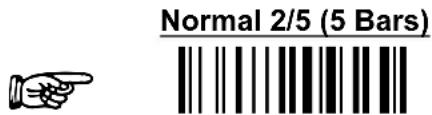
text_image
Normal 2/5 (5 Bars)
text_image
Industrial 2/5 (IATA)
text_image
Matrix 2/5 (3 Bars)The pharmaceutical code below is part of the 2/5 family but has no check digit or code length selections.

French pharmaceutical code
② Read a check digit selection
CHECK DIGIT TABLE
no check digit control
◆ check digit control and transmission

check digit control without transmission

③ Read 4 numbers for the code length where:
- First 2 digits = minimum code length.
- Second 2 digits = maximum code length.
The maximum code length is 99 characters.
The minimum code length must always be less than or equal to the maximum.
Examples:
0199 = variable from 1 to 99 digits in the code.
1010 = 10 digit code length only.
CODE 39 FAMILY
disables the family

① Read the desired family code
② Read a check digit selection
CHECK DIGIT TABLE

◆ Standard Code 39

◆ no check digit control

Full ASCII Code 39

check digit control
and transmission
check digit control
without transmission

The pharmaceutical codes below are part of the Code 39 family but have no check digit selections.
Code CIP39

French pharmaceutical code
Code 32

Italian pharmaceutical code
CODE LENGTH (optional)
The code length selection is valid for the entire Code 39 family
Read the code + 4 numbers for the code length where:
First 2 digits = minimum code length.
Second 2 digits = maximum code length.
set code length

The maximum code length is 99 characters.
The minimum code length must always be less than or equal to the maximum.
Examples: 0199 = variable from 1 to 99 digits in the code. 1010 = 10 digit code length only.
CODE 128 FAMILY
disable the family

① Read the desired family code
◆ Code 128

control without transmission of check digit
EAN 128
control without transmission of check digit
ISBT 128

enabling ISBT 128 automatically disables Puzzle Solver™.
Transmit GS Before Code
Code EAN 128 uses the ASCII
◆ disable

enable
If the
CODE LENGTH (optional)
The code length selection is valid for the entire Code 128 family and is calculated on the output string.
Read the code + 4 numbers for the code length where:
set code length
First 2 digits = minimum code length.

Second 2 digits = maximum code length.
The maximum code length is 99 characters.
The minimum code length must always be less than or equal to the maximum.
Examples: 0199 = variable from 1 to 99 digits in the code. 1010 = 10 digit code length only.
CODE 93
◆ disable the code

Code 93

control without transmission of check digit
CODABAR FAMILY
◆ disable the family

① Read the desired equality control code
② Read a start/stop transmission selection

Standard Codabar

no start/stop character equality control
START/STOP CHARACTER
TRANSMISSION
no transmission


Standard Codabar

start/stop character equality control
transmission
The Codabar ABC code below uses a fixed start/stop character transmission selection.
Codabar ABC
no start/stop character equality control but transmission.
Codabar ABC Forced Concatenation
enable Codabar ABC with forced concatenation

non start/stop character equality control but transmission
CODE LENGTH (optional)
The code length selection is valid for the entire Codabar family
Read the code + 4 numbers for the code length where:
set code length
First 2 digits = minimum code length.
Second 2 digits = maximum code length.
The maximum code length is 99 characters.
The minimum code length must always be less than or equal to the maximum.
Examples: 0199 = variable from 1 to 99 digits in the code. 1010 = 10 digit code length only.
START/STOP CHARACTER CASE IN TRANSMISSION
The start/stop character case selections below are valid for the entire Codabar family:
transmit start/stop characters in lower case
transmit start/stop characters in upper case

MSI
◆ disable the family

Enable the code by selecting one of the check digit selections.
no check digit control

MOD10 check digit control no check digit transmission

MOD10 check digit control check digit transmission

MOD11 - MOD10 check digit control no check digit transmission

MOD11 - MOD10 check digit control check digit transmission

MOD10 - MOD10 check digit control no check digit transmission

MOD10 - MOD10 check digit control check digit transmission

CODE 11
◆ disable the family

Enable the code by selecting one of the check digit selections.
no check digit control

Type C check digit control check digit transmitted

Type C check digit control check digit not transmitted
Type K check digit control check digit transmitted

Type K check digit control check digit not transmitted

Type C and Type K check digit control check digits transmitted

Type C and Type K check digit control check digits not transmitted

CODE 16K
◆ disable the code

Code 16K
To read stacked codes, simply move the reader over the code so that each line of the code is scanned. During this process a series of brief “ticks” indicates that reading is proceeding correctly.
CODE 49
◆ disable the code

Code 49

To read stacked codes, simply move the reader over the code so that each line of the code is scanned. During this process a series of brief “ticks” indicates that reading is proceeding correctly.
GS1 DATABAR™ CODES
◆ disable the family

DISABLE CODE
disable GS1 DataBar Expanded Linear and Stacked
disable GS1 DataBar Limited

disable GS1 DataBar 14 Linear and Stacked

ENABLE CODE
enable GS1 DataBar Expanded Linear and Stacked

enable GS1 DataBar Limited
enable GS1 DataBar 14 Linear and Stacked
To read stacked codes, simply move the reader over the code so that each line of the code is scanned. During this process a series of brief “ticks” indicates that reading is proceeding correctly.
ADVANCED FORMATTING
NOT FOR PEN INTERFACES
CONCATENATION
ADVANCED FORMATTING

NOTE
Please follow the setup procedure carefully for these parameters.

NOTE
The Advanced Formatting parameters may not be compatible with the IBM USB POS interface.
- Read the Enter Configuration code ONCE, available at the top of page.
- Repeated configuration codes precisely following the numbere given.
= Read the code and follow the procedure given
◆ = Default value
- Read the Exit and Save Configuration code ONCE, available at the top of page.
CONCATENATION
text_image
◆ disable enablePermits the concatenation of two codes defined by code type and length. It is possible to set a timeout for the second code reading and to define code transmission if the timeout expires.
The order of transmission is CODE 1-CODE 2.
Define Concatenation
1
Code 1

code ID
Read the code type from the Code Identifier Table beginning in Appendix B.

code length

Read a number in the range 01-99 from the Hex/Numeric Table.
2
Code 2

code ID

Read the code type from the Code Identifier Table beginning in Appendix B.

code length

Read a number in the range 01-99 from the Hex/Numeric Table.
3
Concatenation Result Code ID
use code 1 ID
use code 2 ID

Since you can concatenate codes from different families, you must select the Code ID character of the resulting code. The Code ID character will be sent in the output message only if it is enabled according to the Code Identifier selection (Datalogic, AIM, or Custom).
4
Concatenation Timeout
timeout


Read two numbers in the range 00 to 99
00= no timeout
01-99 = timeout from 1 to 99 seconds
Define the timeout, which determines the valid waiting period between the two codes, in order to accept concatenation. If the timeout expires, the resulting action will be based on the following selection. (HHDII)
5
Transmission after Timeout
no code transmitted after timeout
only code 1 transmitted (if read) after timeout

only code 2 transmitted (if read) after timeout

either code 1 or code 2 transmitted after timeout
ADVANCED FORMATTING
Advanced formatting has been designed to offer you complete flexibility in changing the format of barcode data before transmitting it to the host system. This formatting will be performed when the barcode data meets certain criteria, which you will define in the following procedure.
Up to 4 advanced code management formats can be defined and saved in memory. For each format you must complete the entire configuration procedure:
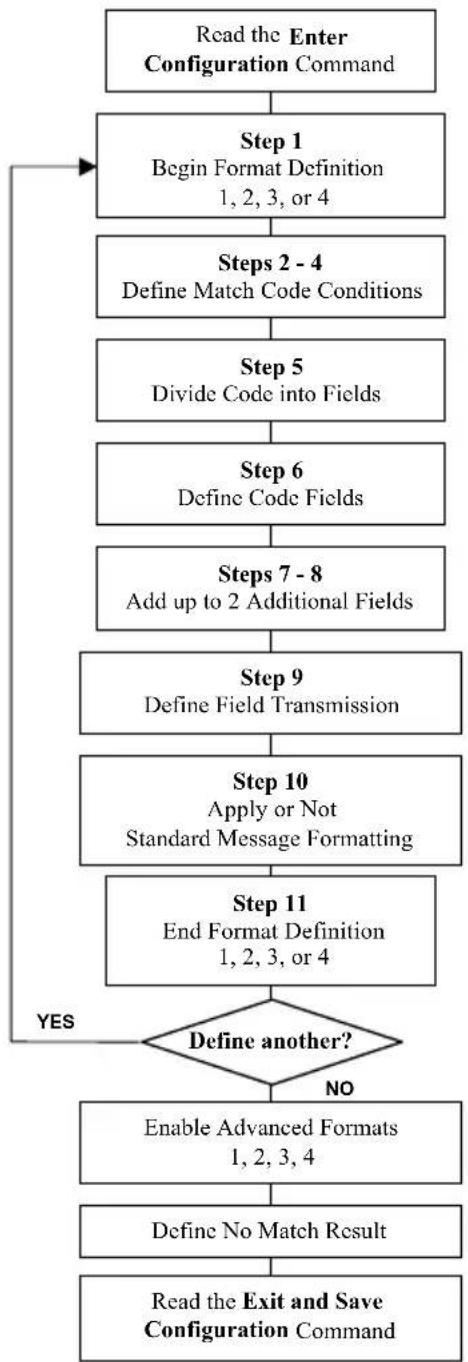
flowchart
graph TD
    A["Read the Enter Configuration Command"] --> B["Step 1 Begin Format Definition 1, 2, 3, or 4"]
    B --> C["Steps 2 - 4 Define Match Code Conditions"]
    C --> D["Step 5 Divide Code into Fields"]
    D --> E["Step 6 Define Code Fields"]
    E --> F["Steps 7 - 8 Add up to 2 Additional Fields"]
    F --> G["Step 9 Define Field Transmission"]
    G --> H["Step 10 Apply or Not Standard Message Formatting"]
    H --> I["Step 11 End Format Definition 1, 2, 3, or 4"]
    I --> J{Define another?}
    J -->|YES| B
    J -->|NO| K["Enable Advanced Formats 1, 2, 3, 4"]
    K --> L["Define No Match Result"]
    L --> M["Read the Exit and Save Configuration Command"]
1

Begin Format Definition
begin Format 1 definition


begin Format 2 definition


begin Format 3 definition

begin Format 4 definition

2
Match
Code

match code type

Read the above code + the code type to match from the Code Identifier Table in Appendix B.
OR
any code type

3
Match
Code

match code length

Read the above code + two numbers in the range 01 to 99 for the exact code length.
OR
any code length

4
Match with Predefined Characters

text_image
no match OR
match with 1 character


match with a 2-character string


match with a 3-character string


match with a 4-character string

After selecting the predefined match code, read the character(s) from the HEX table. Range of characters = 00-FE.
Example:
Match code with the 2-character predefined string = "@@".
Matc -chh with a 2 aracter string
Read

+ 40 + 40
AND position of first character in predefined string


Read the above code + two numbers in the range 01 to 99 representing the character position in the code where the first character of the predefined string must be found.
Read 00 if the match string can be found in any character position.
See par. 5.8.1 for details.
5
Divide Code into Fields
divide code into fields


Read one number in the range 1 to 5 to divide the code into fields.
6 Define Code Fields
define code fields
Each code field length can be set by either:
a) defining a field separator character to be found in the code itself. In this case you can choose to discard the code separator character or include it as the last character of the field.
OR BY
b) defining a match character to be found consecutively repeated in the code itself. In this case the field ends with the first character that does not match.
OR BY
c) specifying a specific character length up to the maximum of 99 characters.
OR BY
d) selecting the last field as variable length (if any).
You must define the same number of fields as selected in step 5, including fields that will not be transmitted.
DEFINE FIELD 1 BY: EITHER
a)

field separator

Read the field separator character from the HEX table. Range of characters = 00-FE. discard separator include separator


OR
b)

match character

Read the match character from the HEX table. Range of characters = 00-FE.
OR
c)

field length

Read two numbers in the range 01 to 99 to define the field length.
OR
d)

this is the last field (variable length)

AND
Field 1 Terminators
no field terminators

1 field terminator 2 field terminators



Read the field terminator character(s) from the HEX table. Valid range of characters for all readers = 00-FE. For Wedge and USB-KBD interface, it is also possible to read the Special Key(s) on page 74.
DEFINE FIELD 2 BY: EITHER
a)

field separator
Read the field separator character from the HEX table. Range of characters = 00-FE. discard separator include separator
OR
b)

match character

Read the match character from the HEX table. Range of characters = 00-FE.
OR
c)

field length

Read two numbers in the range 01 to 99 to define the field length.
OR
d)

this is the last field (variable length)
AND
Field 2 Terminators
no field terminators

2 field terminators
1 field terminator



Read the field terminator character(s) from the HEX table. Valid range of characters for all readers = 00-FE. For Wedge and USB-KBD interface, it is also possible to read the Special Key(s) on page 74.
DEFINE FIELD 3 BY: EITHER
a)

field separator
Read the field separator character from the HEX table. Range of characters = 00-FE. discard separator include separator


OR
b)

match character
Read the match character from the HEX table. Range of characters = 00-FE.
OR
c)

field length

Read two numbers in the range 01 to 99 to define the field length.
OR
d)

this is the last field (variable length)
AND
Field 3 Terminators
no field terminators

1 field terminator 2 field terminators


Read the field terminator character(s) from the HEX table. Valid range of characters for all readers = 00-FE. For Wedge and USB-KBD interface, it is also possible to read the Special Key(s) on page 74.
DEFINE FIELD 4 BY: EITHER
a)

field separator

Read the field separator character from the HEX table. Range of characters = 00-FE. discard separator include separator


OR
b)

match character
Read the match character from the HEX table. Range of characters = 00-FE.
OR
c)

field length

Read two numbers in the range 01 to 99 to define the field length.
OR
d)

this is the last field (variable length)
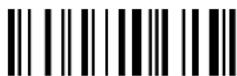
AND
Field 4 Terminators
no field terminators

1 field terminator 2 field terminators


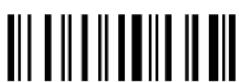
Read the field terminator character(s) from the HEX table. Valid range of characters for all readers = 00-FE. For Wedge and USB-KBD interface, it is also possible to read the Special Key(s) on page 74.
DEFINE FIELD 5 BY: EITHER
a)

field separator
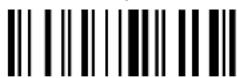
Read the field separator character from the HEX table. Range of characters = 00-FE. discard separator include separator


OR
b)

match character

Read the match character from the HEX table. Range of characters = 00-FE.
OR
c)

field length

Read two numbers in the range 01 to 99 to define the field length.
OR
d)

this is the last field (variable length)

AND
Field 5 Terminators
no field terminators

1 field terminator 2 field terminators


Read the field terminator character(s) from the HEX table. Valid range of characters for all readers = 00-FE. For Wedge and USB-KBD interface, it is also possible to read the Special Key(s) on page 74.
7
First Additional Fixed Field
no fixed field


1 character fixed field


2 character fixed field


3 character fixed field


4 character fixed field


5 character fixed field


6 character fixed field

After selecting one of the Additional Fixed Field codes, read the corresponding character(s) from the HEX table. Range of characters = 00-FE. For Wedge and USB-KBD interface, it is also possible to read the Special Key(s) on page 74.
Example:
4 Character Fixed Field

text_image
+ 4D + 41 + 49 + 4E = MAIN8
Second Additional Fixed Field
no fixed field
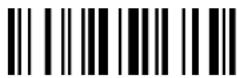

1 character fixed field


2 character fixed field

3 character fixed field


4 character fixed field


5 character fixed field


6 character fixed field
After selecting one of the Additional Fixed Field codes, read the corresponding character(s) from the HEX table. Range of characters = 00-FE. For Wedge and USB-KBD interface, it is also possible to read the Special Key(s) on page 74.
Example:
3 Character Fixed Field

9
Field Transmission
number of fields to transmit

Read one number in the range 1 to 7 for the number of fields to transmit. Include only fields to be transmitted.
Field Order Transmission
Read the codes corresponding to the fields to transmit in the order in which they are to be transmitted. A field can be transmitted more than once. See example.
field 1
field 2

field 3
field 4
field 5

additional field 1
additional field 2

Example:
The barcode is divided into 3 defined fields plus 1 additional fixed field.
Transmit in the order: Field 2, Additional Field 1, Field 1, Field 2.
Number of Fields

text_image
to Transmit + 4 + Field 2 + Additional Field 1 + Field 1 + Field 210
Standard Formatting
do not apply standard formatting

apply standard formatting

POWERSCAN® D8330: After performing Advanced Formatting on the barcode read, Standard Formatting (Headers, Code Length, Code ID, Terminators) can be applied to the message to be transmitted.
POWERSCAN ^® M8300: After performing Advanced Formatting on the barcode read, Standard Formatting (Code Length, Code ID) can be applied to the message to be transmitted.
11
End Format Definition
end Format 1 definition

end Format 2 definition

end Format 3 definition

end Format 4 definition

Enable Advanced Format
◆ no Advanced Formats enabled

enable | Advanced Format 1 | disable |
enable | Advanced Format 2 | disable |
enable | Advanced Format 3 | disable |
enable | Advanced Format 4 | disable |
No Match Result
clear data - no transmission

transmit data using standard format

This selection determines the action to be taken when codes read do not conform to the advanced format requisites (no match).
- Codes not matching can be ignored, cleared from memory and not transmitted.
- Codes not matching can be transmitted using the Standard formatting (Headers, Code Length, Code ID, Terminators).
RADIO PARAMETERS
PowerScan ^® M8300 Series readers only
- RADIO PROTOCOL TIMEOUT
- RADIO RX TIMEOUT
POWER-OFF TIMEOUT
TRANSMISSION MODE
BEEPER CONTROL FOR RADIO RESPONSE
● SINGLE STORE ●
◎ BATCH MODE ◎
● FIND ME ●
- Read the Enter Configuration code ONCE, available at the top of each page.
- Read configuration codes from the desired groups.
= Read the code and follow the procedure given - Read the Exit and Save Configuration code ONCE, available at the top of each page.
RADIO PROTOCOL TIMEOUT
radio protocol timeout


Read a number from the table where:
02-19 = timeout from 2 to 19 seconds
◆ 2 seconds
See par. 5.9.1 for details.
RADIO RX TIMEOUT
radio RX timeout
◆ disable

always on

Specify timeout

Read 2 numbers in the range 05-99:
05-99 = Radio RX timeout range from 05 to 99 seconds.

NOTE
This functionality is available only for stand-alone layout.
See par. 5.9.2 for details.
POWER-OFF TIMEOUT
power-off timeout


Read 2 numbers in the range 00-99:
00 = Power-off disabled; reader always ready
01-99 = corresponds to a max. 99 hour delay before power-off.
◆ power-off after 4 hours.
See par. 5.9.4 for details.
BEEPER CONTROL FOR RADIO RESPONSE


See par. 5.9.5 for details.
SINGLE STORE
◆ disable

one attempt
two attempts

three attempts

four attempts

five attempts

six attempts

seven attempts
eight attempts

nine attempts

See par. 5.9.6 for details
BATCH MODE
◆ disable batch

enable normal batch

enable automatic batch

See par. 5.9.7 for details.
The following batch management parameters are complete commands and do not require reading the Enter and Exit configuration codes.
start normal batch transmission

+BFlush
delete batch data

+BReset
FIND ME
disable

◆ enable

See par. 5.9.8 for details.
DISPLAY and KEYPAD PARAMETERS (3-Key Model)
PowerScan ^® M8300 Series Display and 3-Key readers only
DATE AND TIME
CONTRAST
- FONT SIZE
-
- BACKLIGHT
-
◎ DISPLAY OFF TIMEOUT ◎
◎ DISPLAY MODE ◎
KEYPAD
-
Read the Enter Configuration code ONCE, available at the top of each page.
-
Read configuration codes from the desired groups.
= Read the code and follow the procedure given
- Read the Exit and Save Configuration code ONCE, available at the top of each page.
DISPLAY PARAMETERS
DATE AND TIME

text_image
set dateRead 6 numbers for DDMMYY

set time
Read 4 numbers for HHMM
CONTRAST
darker

Read the code until the desired contrast is reached.
FONT SIZE

medium

large

BACKLIGHT
◆ backlight off

backlight on

DISPLAY-OFF TIMEOUT
timeout
Read 2 numbers in the range 00-99:
00 = disables display timeout (always on)
01 to 99 = timeout from 1 to 99 seconds.
◆ display-off after 8 seconds.
◆ delay disabled
DISPLAY MODE
normal

◆ local echo
clear display after decode
See par. 5.10.1 for details.
KEYPAD
disable 3-key keypad

◆ enable 3-key keypad and select characters


Read 3 HEX characters in the range 00-FE,
corresponding to the left, center and right keys respectively.
FF = KeyID disabled
◆ left = '<'
$$ \text { center } = ^ {\prime} = ^ {\prime} $$
$$ \text { right } = ^ {\prime} > ^ {\prime} $$
See par. 6.4 for details.
DISPLAY and KEYPAD PARAMETERS (16-Key Model)
PowerScan ^® M8300-DK 16-Key readers only
-
KEYPAD PARAMETERS
◎ DISPLAY PARAMETERS ◎
DATA FORMAT
OPERATIVE MODE
QTY/CODE MODE -
Read the Enter Configuration code ONCE, available at the top of each page.
-
Read configuration codes from the desired groups.
= Read the code and follow the procedure given
- Read the Exit and Save Configuration code ONCE, available at the top of each page.
KEYPAD PARAMETERS
16-KEY KEYPAD ENABLE
The software has the capability to disable or enable the 16-key keyboard.
16-key Keypad Disabled

◆ 16-Key Keypad
Enabled

INTERKEY TIMEOUT
The 16-key keypad is organized like a cell phone, with multi-tap access to alpha characters on numeric keys. In alphabetic mode (entered by toggling the Shift key), the keys must be pressed once, twice, or more to obtain the desired letter. See page 202 for more information about the keypad.
This command allows you to specify the time which occurs between a key press, and the confirmation of the letter by the scanner (when in alpha mode). The timeout can be configured in steps of 0.5 second.
text_image
1 second 2 seconds 0,5 seconds 1,5 secondsKEY PRESS SOUND
Enable/disable the KEY press sound ('click').
Key Press Sound
Disabled

◆ Key Press Sound Enabled

FUNCTION KEY PROGRAMMING
There are four function keys, F1, F2, F3, F4, plus the SHIFT key ( ), which can be defined as Function 5. Each of these keys can be programmed to perform a user-assigned function. This is done by associating a function key with an entry in the String Table, which is a database resident on the 16-key PowerScan. You can select either a predefined command or define your own custom string. See the “String Table” command on page 142 to define customized strings for the String Table. See the “Shift Key Programming” command on page 143 to define the SHIFT key as F5.
Each function key has an associated mnemonic label which shows in the display when active. The default labels are shown in the table below. To program the function key labels, see "Function Key Label" command on page 143.
The following table shows the list of commands and available strings.
| CMD_ID | Name Function | Default Label | |
| 0 | ENTER CMD | (Same as ENTER_KEY) | ← |
| 1 | String 1 | Associate with String 1 from the String Table | |
| 2 | String 2 | Associate with String 2 from the String Table | |
| 3 | String 3 | Associate with String 3 from the String Table | |
| 4 | String 4 | Associate with String 4 from the String Table | |
| 5 | String 5 | Associate with String 5 from the String Table | |
| 6 | Backlight CMD | Toggle the backlight ON/OFF | Lgt |
| 7 | Clear CMD | Cancel ALL data entered in the edit field | CLR |
| 8 | Backspace CMD Delete one char per key press from an edit field | ← | |
| 9 | Recall Last CMD | If pressed once it recalls from memory the last code sent out; If pressed twice it will attempt to resend the last sent code | Rec |
| A | Show Watch | Display the internal time | Tim |

text_image
define function key① Read the above code to associate a Function Key or the Shift key (if defined as F5).
② Specify which Function Key you want to associate (F1 - F4 or Shift ↑ F5) by scanning a barcode (1-5) from the hex numeric table in the back of this manual.
③ Select the label command you want to associate from the table on page 141. Scan a barcode from the hex numeric table corresponding to the command ID (0-A)
Example: To define Function Key 1= Clear command
| Read | Define Function Key | + | Func Key # | + | CMD ID |
STRING TABLE
The Powerscan 16-key model allows you to define a String Table, a database with room for five entries, from String1 to String5, which can be recalled using a Function Key. This is done with Function Key Programming, described on page 141.
The string can be a single 'char'. Default = empty strings.

text_image
define string① Read the above code.
② Select the string number you want to add by scanning a barcode (1 - 5) from the hex numeric table in the back of this manual.
③ Select the desired string length by scanning a barcode (0 – A) from the hex numeric table.
④ Define the label string by scanning characters or numerals from the hex numeric table.
Example: To define String 1 = DATALOGIC
| Read | Define string | String # | Length | Hex codes | String text |
| + 2 | + 9 | + 44+41+54+41+4C+4F+47+49+43 | = DATALOGIC |
FUNCTION KEY LABEL
This item allows the user to change the default mnemonic label associated to each individual function key (F1 – F4). This is done by programming a short acronym string or symbol to be shown in the bottom of the display. The purpose of the label is to serve as an indication of the programmed function of the Function Key below it. To program the Function Keys themselves, see the “Function Key Programming” command on page 141.
NOTE: Function key label length is fixed at 4 characters and is not programmable.

define function key label
① Read the above code.
② Specify which Function Key Label you want to change by scanning a barcode (1-4) from the hex numeric table in the back of this manual.
③ Define the label string by scanning 4 characters from the Hex numeric table.
Example: To define Function Key 2 label = D

text_image
Define function key label Function key # Hex codes Text string Read + 2 + 20 + 20 + 44 + 20 = space space D spaceLOWER CASE
This function enables/disables the capability to use the SHIFT key to switch to Lower Case (alphanumeric) mode. When enabled, the indication in the upper right corner of display is 'ab'.
◆ Disable Lower Case
Enable Lower Case

SHIFT KEY PROGRAMMING
The SHIFT key ( ) can be programmed to perform a function different than its standard (which is to toggle from numeric to alpha mode). After the Shift Key has been defined as Function 5, refer to the “Function Key Programming” command on page 141 for options.
◆ SHIFT KEY Normal mode
SHIFT KEY Function 5

ECHO
This function enables/disables the keypad echo. It works only when the scanner is in simple data input mode (no QTY/CODE).
◆ Full keypad echo

No echo on Function Key

No echo on any key

DISPLAY PARAMETERS
DATE AND TIME

set
date
Read 6 numbers for DDMMYY

set time
Read 4 numbers for HHMM
CONTRAST
lighter

darker

Read the code until the desired contrast is reached.
DISPLAY-OFF TIMEOUT
timeout


Read 2 numbers in the range 00-99:
00 = disables display timeout (always on)
01 to 99 = timeout from 1 to 99 seconds.
◆ display-off after 8 seconds.
◆ delay disabled
LAST CODE SHOWN TIMEOUT
After the CODE transmission, the last code read will be shown on the display for a configurable timeout (LAST CODE SHOWN TOUT).
NOTE: Just as in the settings for the standard Powerscan, the display has an active timeout before going in OFF state. This timeout has a higher priority than the LAST CODE SHOWN TOUT, so the two parameters should be combined to get the desired result.

bar
| Time Interval | Value | | ------------- | --------- | | Disabled | 1 second | | 2 seconds | 5 seconds | | 10 seconds | 25 seconds| | 40 seconds | 60 seconds| | 80 seconds | 99 seconds|BACKLIGHT
This feature defines the behavior of the 16-key scanner Backlight (both for display and keyboard).
◆ All backlighting disabled
Display enabled, keyboard disabled

Display disabled, keyboard enabled (rarely used)
Display enabled, keyboard enabled

SCREEN REFRESH
Disable screen refresh at the end of keyboard data input. This feature works only in Simple Data Input Mode (no QTY/CODE).
NOTE: When using two-way communication in which the scanner displays data received from the host, the refresh screen should normally be disabled to avoid overwriting messages coming from the host.


DATA FORMAT
Keypad Specific Formatting
KEYBOARD DATA FORMAT ENABLE/DISABLE
This feature allows you to enable/disable specific formatting for data entered by keyboard and barcode labels read by the scan engine.
Use this command only if you require differentiation in formatting between scanned barcodes and data that is input from the keyboard. Refer to the standard Data Format section for other formatting options.
NOTE: if you enable different formatting you must define the desired format, otherwise the default data format will be used.
See par. 5.17.1 in the References section for a more detailed description of this feature.
◆ Disabled
(Same as Code)

Enabled
(Different format allowed)

TIME STAMPING MODE
Time Stamping Mode can be applied when entering data from either a barcode, from the keyboard, or both.
NOTE: The standard Time Stamp enable/disable and setup are also applicable. Refer to the "Time Stamping" command on page 80 for more information on this feature.
◆ Data from both
barcode and keyboard

Data only from barcode

Data only from keyboard

SCANNER DATA HEADER/TERMINATOR
Scanner Data Header/Terminator creates an optional Header and Terminator data format added to a barcode read from the device.
NOTE: Keyboard data format enable/disable (on previous page) must be used to enable the Header and Terminator setup, so the two parameters should be combined to get the desired result.
HEADER

text_image
◆ no header two character header four character header six character header eight character header one character header three character header five character header seven character headerAfter selecting one of the desired Header codes, read the character(s) from the HEX table. Valid characters are in the range 00-FE. For Wedge and USB-KBD interfaces, it is also possible to read the Special Key(s) on page 74.
Example:

text_image
Four character header Hex codes Header Read + 41 + 42 + 43 + 44 = ABCDFor more details see par. 5.4.1 and par. 5.4.2. See also “Message Formatting” in par. 6.1 and 6.2.
TERMINATOR

bar
| Character Terminator | Value | | ------------------- | ----- | | no terminator | 1 | | two character terminator | 2 | | four character terminator | 3 | | six character terminator | 4 | | eight character terminator | 5 |After selecting one of the desired Header codes, read the character(s) from the HEX table. Valid characters are in the range 00-FE. For Wedge and USB-KBD interfaces, it is also possible to read the Special Key(s) on page 74.
Example:

text_image
Two character terminator Hex codes Read + 0D + 0A = TERMINator CR LFFor more details see par. 5.4.1 and par. 5.4.2. See also “Message Formatting” in par. 6.1 and par. 6.2.
KEYPAD DATA HEADER/TERMINATOR
Keypad Data Header/Terminator creates an optional Header and Terminator data format added to data typed on the keypad.
NOTE: Keyboard data format enable/disable must be used to enable the Header and Terminator setup, so the two parameters should be combined to get the desired result.
HEADER

text_image
◆ no header two character header four character header six character header eight character header one character header three character header five character header seven character headerAfter selecting one of the desired Header codes, read the character(s) from the HEX table. Valid characters are in the range 00-FE. For Wedge and USB-KBD interfaces, it is also possible to read the Special Key(s) on page 74.
Example:

text_image
Four character header Hex codes Read + 41 + 42 + 43 + 44 = Header ABCDFor more details see par. 5.4.1 and par. 5.4.2. See also "Message Formatting" in par. 6.1 and par. 6.2.
TERMINATOR

bar
| Number of Character Terminators | Value | | ------------------------------- | ----- | | no terminator | 1 | | two character terminator | 2 | | four character terminator | 3 | | six character terminator | 4 | | eight character terminator | 5 |After selecting one of the desired Header codes, read the character(s) from the HEX table. Valid characters are in the range 00-FE. For Wedge and USB-KBD interfaces, it is also possible to read the Special Key(s) on page 74.
Example:

text_image
Read Two character terminator Hex codes + 0D + 0A = Terminator CR LFFor more details see par. 5.4.1 and par. 5.4.2. See also "Message Formatting" in par. 6.1 and par. 6.2.
SCANNER CODE ID
This parameter forces the scanner to insert a code identifier. This feature acts similarly to the standard Code Identifier starting on page 70, but is specific to the DK model.

Datalogic standard


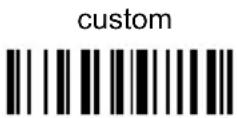
For more information on this feature see par. 5.17.2. See also “Message Formatting” in par. 6.1 and par. 6.2.
SCANNER CODE LENGTH
This feature forces the scanner to insert the Code Length. It works similarly to the standard Code Length TX on page 76, but is specific to the DK model.
Variable digit format


For more information on this feature see par. 5.17.3. See also “Message Formatting” in par. 6.1 and par. 6.2.
OPERATIVE MODE
MODE SELECTION
This feature allows the PowerScan PM8300-DK to operate in one of two basic operative modes:
- SDIM (Simple Data Input Mode) — data entered, either on the keypad or read via barcode, is transmitted the host once the enter key is pressed, following the formatting rules described in the previous paragraph.
- QTY/CODE (Quantity/Code Mode) — Refer to the next section, QTY/CODE MODE PARAMETERS.
◆ Simple Data Input Mode

Quantity/Code Mode
This command is active only when the scanner is in Simple Data Input Mode. It defines the behavior of the enter key when no data has been previously entered. By default an error sound is generated; it can also be configured to transmit a "null" character.
◆ Generate error sound
send null char
QTY/CODE MODE
When the scanner is in Quantity-Code Mode, the operator is prompted with two data fields named QTY= and CODE= . The normal position of the cursor is in the QTY field; the operator is required to type the quantity on the keypad, then press the "enter key" to move the cursor to the CODE field. Data in the CODE field can either be entered manually from the keypad or read through the scanner.
The pair quantity and code are then transmitted to the host in a single string with configurable header, terminators and separator. Use the commands in the following sections to define the configuration parameters.
QTY FIELD
This feature defines the behavior of the scanner if no data is entered in the QTY field so it is left empty. Options are:
• code is transmitted with default QTY ('1')
• code is transmitted alone (without any quantity information)
• code is discarded and an error beep is generated
◆ Transmit code with default QTY (1)

Discard barcode, generate error beep

Transmit code alone (without any quantity information)

QTY/CODE SEND MODE
This feature defines the rules that will be used to send a QTY/CODE pair:
- code is transmitted with QTY field (and its predefined format) preceding CODE field (and its predefined format)
- code is transmitted with CODE field (and its predefined format) preceding QTY field (and its predefined format)
- code in CODE field is sent out for the number of times defined in the QTY field (when using this option the maximum number of times is '9999');
NOTE: Use "Repeat Timeout" on the next page for to set the timeout for this feature.
◆ QTY precedes CODE

CODE sent out = QTY times

CODE precedes QTY

REPEAT TIMEOUT
Repeat Timeout allows the user to program an optional intercode delay (in msec.) between two codes in a set of codes to be transmitted from scanner to host via Radio interface, when the scanner is in quantity mode.
NOTE: Qty/Code Send Mode must be set to option 2 (code in CODE field is sent out for a QTY number of times). See Qty/Code Send Mode on the previous page).
The number of codes depends on the unit inserted via keypad by the user, to cope with different use cases. A minimum delay of 100 ms will be always present, the delay can be adjusted in 10ms increments.


① Read the above code.
② Select the length of the delay you want to set by scanning two barcodes (01 - 99) from the Hex Numeric table in the back of this manual.
Example: To program Repeat Timeout = 60ms

text_image
Read set Repeat Timeout + Value 06 = Time (ms) 60msQTY/CODE SEPARATOR
This feature allows the insertion of a separator between QTY/CODE pairs.
◆ Disable – no separator


define QTY/CODE separator
① Read the above code.
② Select the length of the separator you want to insert by scanning a barcode (1 - 8) from the Hex Numeric table in the back of this manual.
③ Define the separator string using a sequence of four hex ascii codes from the table at the back of this manual.
Example: To define QTY/CODE separator = : (colon)

text_image
Define QTY/CODE separator length Hex codes Text string Read + 1 + 20 + 20 + 3A + 20 = space space : spaceFor more information on this feature see "Message Formatting" starting in par. 6.1 and 6.2.
APPEND CODE
This function defines how a scanned barcode interacts with a pre-edited CODE field, or with a string entered by a pre-programmed FUNC KEY.
Options are:
- Barcode data overwrites what is written in the CODE field by keyboard and the code is transmitted;
- Barcode data is appended to any text in the CODE field and the code is transmitted;
- Barcode data is appended to any text in the CODE field but the code IS NOT transmitted. Data is transmitted when the enter key is pressed.
NOTE: Option 2 allows the addition of a footer to the scanned barcode ('just in time formatting').
◆ Overwrite CODE and transmit

Append to CODE, don't transmit

Append to CODE and transmit

5 REFERENCES
5.1 RS-232 PARAMETERS
5.1.1 Handshaking
Hardware handshaking: (RTS/CTS)
The RTS line is activated by the decoder before transmitting a character. Transmission is possible only if the CTS line (controlled by the Host) is active.

text_image
Signals at EIA levels RTS TX Transmitted data Transmitted data CTS Host busy RTS/CTS handshakingSoftware handshaking: (XON/XOFF)
During transmission, if the Host sends the XOFF character (13 Hex), the decoder interrupts the transmission with a maximum delay of one character and only resumes when the XON character (11 Hex) is received.
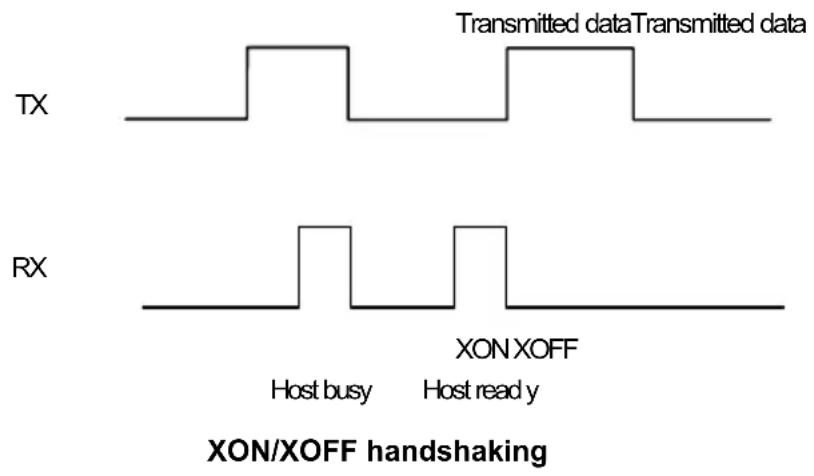
text_image
TX Transmitted data Transmitted data RX Host busy Host ready XON XOFF XON/XOFF handshaking5.1.2 ACK/NACK Protocol
PowerScan ^® D8330 Readers
This parameter sets a transmission protocol in which the Host responds to the reader after every code transmitted. The Host sends an ACK character (06 HEX) in the case of good reception or the NACK character (15 HEX) requesting re-transmission, in the case of bad reception.

flowchart
graph LR
    A["PowerScan® D8330"] -->|data| B(( ))
    B -->|cable| A
    A -->|Host| C["ACK or NACK"]
    C --> A
ACK/NACK enabled
If the reader does not receive an ACK or NACK, transmission is ended after the RX Timeout (see par. 5.1.4).
When ACK/NACK protocol is enabled, FIFO must be disabled manually, see par. 5.1.3.
PowerScan ^® M8300 Readers
The transmission protocol takes place between reader, cradle and Host. The reader passes its data (code read) to the cradle, which sends it to the Host. The management of responses (from Host or cradle) depends on the Transmission Mode parameter, see par. 5.9.4.
In the following descriptions the completed transmission is indicated by the Beeper Control for Radio Response parameter with its default setting to Normal, see par. 5.9.5.
When ACK/NACK is disabled (in One-Way tx mode), there is no control from cradle to Host transmission, the reader responds with the good reception tone.
Transmission Mode = One-Way

flowchart
graph LR
    A["PowerScan® M8300"] -->|data| B["BC-80X0"]
    B -->|data| C["Host"]
    B -->|cable| C
    D["good RX beep"] --> B
    style B fill:#f9f,stroke:#333
    style C fill:#ccf,stroke:#333
Transmission Mode = Two-Ways

flowchart
graph LR
    A["PowerScan® M8300"] -->|data| B["BC-80X0"]
    B -->|data| C["Host"]
    B -->|good RX beep| A
    B -->|NACK| B
    B -->|data| C
    B -->|ACK| C
    style A fill:#f9f,stroke:#333
    style B fill:#ccf,stroke:#333
    style C fill:#cfc,stroke:#333
When ACK/NACK is enabled (in Two-Way tx mode), the Host sends an ACK character (06 HEX) in the case of good reception or the NACK character (15 HEX) requesting re-transmission, in the case of bad reception. Only after the ACK character is received by the BC-80X0 does the reader respond with the good reception tone.
If the BC-80X0 does not receive an ACK or NACK, transmission is ended after the RX Timeout, see par. 5.1.4. See also Radio Protocol Timeout, par. 5.9.1.
When ACK/NACK protocol is enabled, FIFO must be disabled manually, see par. 5.1.3.
5.1.3 FIFO
PowerScan ^® D8330 Readers
This parameter determines whether data (barcodes) are buffered on a First In First Out basis allowing faster data collection in certain cases for example when using slow baud rates and/or hardware handshaking.
If the FIFO buffering is enabled, codes are collected and sent out on the serial line in the order of acquisition. About 800 characters can be collected (buffer full), after which the reader signals an error and discards any further codes until the transmission is restored.
If the FIFO buffering is disabled, each code must be transmitted before another one can be read.
PowerScan ^® M8300 Readers
If enabled, the BC-80X0 collects all messages sent by PowerScan ^® M8300 and sends them in order of acquisition to the connected Host.
If disabled, PowerScan ^® M8300 blocks message transmission until the BC-80X0 has completed transmission towards the Host.
5.1.4 RX Timeout
When the RS-232 interface is selected, the Host can be used to configure the device by sending it command strings (see Appendix A).
This parameter can be used to automatically end data reception from the Host after the specified period of time.
If no character is received from the Host, after the timeout expires, any incomplete string (any string not terminated by
5.2 PEN PARAMETERS
5.2.1 Minimum Output Pulse
This parameter sets the duration of the output pulse corresponding to the narrowest element in the barcode. In this way the code resolution is controlled by the signal sent to the decoder, independently of the physical resolution of the code read.
The shortest pulse (200 s) corresponds to a high-resolution code emulation and therefore a shorter transfer speed to the decoder (for decoders able to work on high resolution codes). Likewise, longer pulses correspond to low-resolution code emulation and therefore a longer transfer time to the decoder.
5.2.2 Conversion to Code 39 and Code 128
PowerScan® D8330 Series Readers
When using these readers it is possible to convert all codes to Code 39. By disabling this option the decoded codes will be transmitted in their original format, except for the following codes, which are ALWAYS converted into Code 39 format:
MSI, Code 11, Code 16K, Code 49, GS1 DataBar™.
PowerScan ^® M8300 Series Readers
When using these readers it is possible to choose between converting the decoded codes into either Code 39 format or Code 128 format. It is not possible to disable conversion.
5.2.3 Overflow
This parameter generates a white space before the first bar and after the last bar of the code. The selections are as follows:
narrow = space 10 times the minimum output pulse.
medium = space 20 times the minimum output pulse.
wide = space 30 times the minimum output pulse.
5.2.4 Output and Idle Levels
The following state diagrams describe the different output and idle level combinations for Pen emulation:
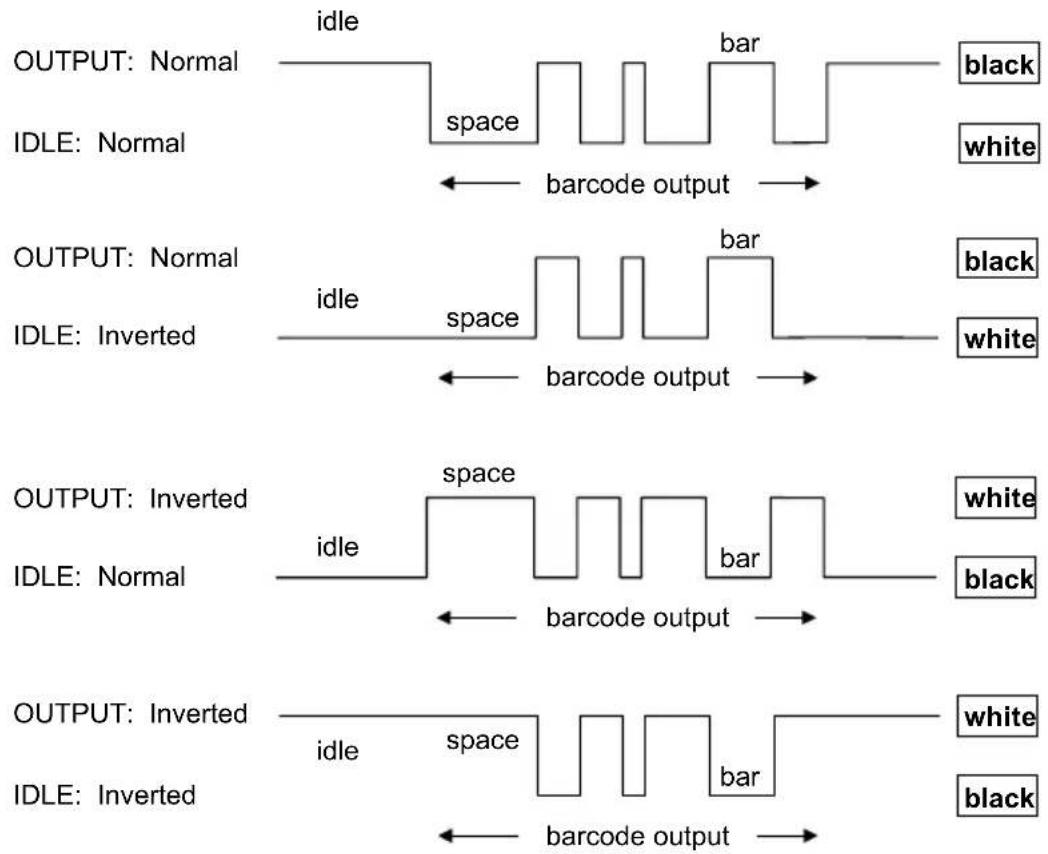
text_image
OUTPUT: Normal idle bar IDLE: Normal space barcode output OUTPUT: Normal idle bar IDLE: Inverted space barcode output OUTPUT: Inverted idle space bar IDLE: Normal space barcode output OUTPUT: Inverted idle space bar IDLE: Inverted space barcode output OUTPUT: Inverted black white white OUTPUT: Normal black IDLE: Normal white OUTPUT: Normal white IDLE: Inverted black white white OUTPUT: Inverted black IDLE: Inverted blackOutput and Idle Levels
5.2.5 Inter-Block Delay
For the PEN Emulation interface, data are sent to the Host in fixed size blocks of 20 characters each. The inter-block delay parameter allows setting a delay between each block sent to the Host.
5.3 NETWORK PARAMETERS
5.3.1 Slave Address Range First/Last
These parameters define the valid addresses for the Slave cradles on the network. Valid values are in the range 0 to 1999. However, the maximum number of cradles in a single network is 16, (including the Master if present). All cradles in the system must have different addresses.
To reduce system boot time, it is recommended to number the Slaves consecutively, while it is not necessary that the Master cradle address is contained in the range. The network addresses correspond to the radio addresses, see par. 4.7.
At system power-up, the Master searches for and initializes all the Slaves found in the valid address range. During this phase the yellow LED on the Master cradle blinks. The time to complete the start up procedure varies depending on the complexity of the network but is typically between a few seconds to a few minutes. Start up cannot be interrupted. At the end of this procedure the system will be operative and can collect data from all devices.

CAUTION
All Slaves must be powered up either before or together with the Master. Slaves successively powered will not be recognized by the system even if their address is in the specified range.
5.3.2 Network Warning Message
The Master cradle can transmit warning messages to the Host regarding some network errors.
/*Slave xxxx not responding*/: when the Master can no longer communicate with the specified Slave previously identified at start up.
/*Frame out of sequence for terminal xxxx*/: if a reader is sending data packets out of sequence. This can happen if there are transmission problems on the network (either connection or communication), or if the reader has correctly transmitted data to a device not on the network (reader configuration error).
The message is sent in the following format:
"Message" CR LF
5.3.3 Reception Warning Message
The Master cradle can transmit warning messages to the Host regarding wrong reception of data. Example:
/\*Two-Ways Out of Sequence!(.....)\*/
This message is transmitted to the Host by the Master cradle when the Master cradle receives a closing string from the Host for a Two-way tx communication, but this was either not open or already closed, therefore the data will be lost. See par. 5.9.4.
5.3.4 Master Header/Terminator Selection
In addition to the standard header/terminator selection, the Master cradle can add its own header/terminator to the entire message sent to the Host.
In the STAR-System ^™ network headers and terminators for all RF Devices are disabled by default.
The Master header and terminator default values are as follows depending on the interface selection towards the Host:
RS-232: no header, terminator CR-LF
WEDGE: no header, terminator ENTER
See par. 5.4.1 and 5.4.2.
5.4 DATA FORMAT
For an overview of Message Formatting see Chapter 6.
5.4.1 Header/Terminator Selection
The header/terminator selection is not effected by the reading of the restore default code. In fact, header and terminator default values depend on the interface selection:
RS-232: no header, terminator CR-LF
WEDGE: no header, terminator ENTER
These default values are always restored through the reading of RS-232 or WEDGE interface selection code, see chapter 2.
For the WEDGE interface, the following extended keyboard values can also be configured:
| EXTENDED KEYBOARD TO HEX CONVERSION TABLE | ||||
| IBM AT IBM 3153 APPLE ADB | IBM XT IBM | 31xx, 32xx, 34xx, 37xx | Wyse Digital | |
| HEX | KEY | KEY | KEY | KEY |
| 83 ENTER | ENTER | FIELD | EXIT | RETURN |
| 84 TAB | TAB | TAB | TAB | |
| 85 F1 | F1 | F1 | F1 | |
| 86 F2 | F2 | F2 | F2 | |
| 87 F3 | F3 | F3 | F3 | |
| 88 F4 | F4 | F4 | F4 | |
| 89 F5 | F5 | F5 | F5 | |
| 8A F6 | F6 | F6 | F6 | |
| 8B F7 | F7 | F7 | F7 | |
| 8C F8 | F8 | F8 | F8 | |
| 8D F9 | F9 | F9 | F9 | |
| 8E F10 | F10 | F10 | F10 | |
| 8F F11 | ESC | F11 | F11 | |
| 90 F12 | BACKSPACE | F12 | F12 | |
| 91 HOME | HOME | ENTER | F13 | |
| 92 | END | END | RESET | F14 |
| 93 | PG UP | PG UP | INSERT | F15 |
| 94 | PG DOWN | PG DOWN | DELETE | F16 |
| 95 | ↑ | ↑ | FIELD - | UP |
| 96 | ↓ | ↓ | FIELD + | DOWN |
| 97 | ← | ← | ENTER (Paddle) | LEFT |
| 98 | → | → | RIGHT | |
| 99 | ESC | ESC | ESC | |
| 9A | CTRL (Right) | CTRL (Right) | CTRL (Right) | |
| 9B | Euro | Space | Space | Space |
For all devices using IBM AT (compatible) Wedge or USB-KBD interfaces, all values from 9C to FE send the relative simulated keypress when available or else the relative ALT-Mode sequence. See the Hex to Character Conversion Table in Appendix C.
For all devices using other Wedge interfaces, all values from 9C to FE send the Space character.
5.4.2 Define Special Key Sequence
The Special Key(s) for Wedge IBM AT-PS/2 and USB-KBD interface users can be associated with a sequence of keyboard keys that otherwise could not be selected, i.e. ALT + F6, SHIFT + F1. These Special Keys can be used for:
- Headers/Terminators
- Character Replacement
- Field Adjustment
- Custom Code ID
- Advanced Formatting – Define Field
- Advanced Formatting – Additional Fixed Field
Follow the procedure to define the desired Special Key sequence:
- Read the Enter Configuration code above and select the Special Key to define (one at a time):
Define Special Key 1

Define Special Key 2

Define Special Key 3
Define Special Key 4

Define Special Key 5

2. Read only one code to be associated with the special key sequence:
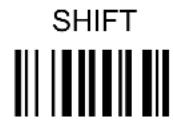
OR

OR

OR
CTRL + SHIFT

OR
ALT + SHIFT

OR
CTRL + ALT

- Select the character to be associated with the Special Key sequence by reading the codes corresponding to the 3 character values from Appendix C. Then, read the Exit and Save Configuration code above to complete the Special Key sequence.
The character values having the ^S and ^A symbols require SHIFT or ALT keys or key combinations in step 2, in particular:
^s = the character is obtained in combination with SHIFT
^A = the character is obtained in combination with ALT
The following character values change according to the keyboard nationality.
| KEYBCHAR | ITA | USA | FR | BE | DE | UK | ES | ||
| ! | 016^S | 016^S | 04A | 03E | 016^S | 016^S | 016^S | 016^S | 016^S |
| " | 01E^S | 052^S | 026 | 026 | 01E^S | 01E^S | 01E^S | 01E^S | 01E^S |
| # | 052^A | 026^S | 026^A | 026^A | 05D | 05D | 026^A | 026^S | 026^S |
| 025^S | 025^S | 05B | 05B | 025^S | 025^S | 025^S | 025^A | 025^S | |
| % | 02E^S | 02E^S | 052^S | 052^S | 02E^S | 02E^S | 02E^S | 02E^S | 02E^S |
| & | 036^S | 03D^S | 016 | 016 | 036^S | 03D^S | 036^S | 036^S | 036^S |
| ' | 04E | 052 | 025 | 025 | 05D^S | 052 | 04E | 05D | 03D^S |
| ( | 03E^S | 046^S | 02E | 02E | 03E^S | 046^S | 03E^S | 03E^S | 03E^S |
| ) | 046^S | 045^S | 04E | 04E | 046^S | 045^S | 046^S | 046^S | 046^S |
| * | 05B^S | 03E^S | 05D | 05B^S | 05B | 03E^S | 05B^S | 05D^S | 052^S |
| + | 05B | 055^S | 055^S | 04A^S | 05B | 055^S | 05B | 04E | 04C^S |
| , | 041 | 041 | 03A | 03A | 041 | 041 | 041 | 041 | 041 |
| - | 04A | 04E | 036 | 055 | 04A | 04E | 04A | 04A | |
| . | 049 | 049 | 041^S | 041^S | 049 | 049 | 049 | 049 | 049 |
| / | 03D^S | 04A | 049^S | 049^S | 03D^S | 04A | 03D^S | 03D^S | 04A |
| 0 | 045 | 045 | 045^S | 045^S | 045 | 045 | 045 | 045 | 045 |
| 1 | 016 | 016 | 016^S | 016^S | 016 | 016 | 016 | 016 | 016 |
| 2 | 01E | 01E | 01E^S | 01E^S | 01E | 01E | 01E | 01E | 01E |
| 3 | 026 | 026 | 026^S | 026^S | 026 | 026 | 026 | 026 | 026 |
| 4 | 025 | 025 | 025^S | 025^S | 025 | 025 | 025 | 025 | 025 |
| 5 | 02E | 02E | 02E^S | 02E^S | 02E | 02E | 02E | 02E | 02E |
| 6 | 036 | 036 | 036^S | 036^S | 036 | 036 | 036 | 036 | 036 |
| 7 | 03D | 03D | 03D^S | 03D^S | 03D | 03D | 03D | 03D | 03D |
| 8 | 03E | 03E | 03E^S | 03E^S | 03E | 03E | 03E | 03E | 03E |
| 9 | 046 | 046 | 046^S | 046^S | 046 | 046 | 046 | 046 | 046 |
| : | 049^S | 04C^S | 049 | 049 | 049^S | 04C^S | 049^S | 049^S | 052 |
| ; | 041^S | 04C | 041 | 041 | 041^S | 04C | 041^S | 041^S | 04C |
| < | 061 | 041^S | 061 | 061 | 061 | 041^S | 061 | 061 | 041^S |
| = | 045^S | 055 | 055 | 04A | 045^S | 055 | 045^S | 045^S | 04E^S |
| > | 061^S | 049^S | 061^S | 061^S | 061^S | 049^S | 061^S | 061^S | 049^S |
| ? | 04E | 04A^S | 03A^S | 03A^S | 04E^S | 04A^S | 04E^S | 04E^S | 04A^S |
| @ | 04C^A | 01E^S | 045^A | 01E^A | 015^A | 052^S | 01E^A | 01E^A | 054 |
| [ | 054^A | 054 | 02E^A | 054^A | 052^S | 054 | 054^A | 03E^A | 05B |
| \ | 00E | 05D | 03E^A | 061^A | 04C^S | 061 | 00E^A | 04E^A | 051 |
| ] | 05B^A | 05B | 04E^A | 05B^A | 054^S | 05B | 05B^A | 046^A | 05D |
| ^ | 055^S | 036^S | 046^A | 054 | 00E | 036^S | 054^S | 05B^S | 055 |
| _ | 04A^S | 04E^S | 03E | 055 | 04A^S | 04E^S | 04A^S | 04A^S | 051^S |
| '(accent) | - | 00E | 03D^A | 05D^A | 055^S | 00E | 054 | 055^S | 054^S$ |
| a | 01C | 01C | 015 | 015 | 01C | 01C | 01C | 01C | |
| b | 032 | 032 | 032 | 032 | 032 | 032 | 032 | 032 | 032 |
| c | 021 | 021 | 021 | 021 | 021 | 021 | 021 | 021 | 021 |
| d | 023 | 023 | 023 | 023 | 023 | 023 | 023 | 023 | 023 |
| e | 024 | 024 | 024 | 024 | 024 | 024 | 024 | 024 | 024 |
| f | 02B | 02B | 02B | 02B | 02B | 02B | 02B | 02B | 02B |
| g | 034 | 034 | 034 | 034 | 034 | 034 | 034 | 034 | 034 |
| h | 033 | 033 | 033 | 033 | 033 | 033 | 033 | 033 | 033 |
| i | 043 | 043 | 043 | 043 | 043 | 043 | 043 | 043 | 043 |
| j | 03B | 03B | 03B | 03B | 03B | 03B | 03B | 03B | 03B |
| k | 042 | 042 | 042 | 042 | 042 | 042 | 042 | 042 | 042 |
| l | 04B | 04B | 04B | 04B | 04B | 04B | 04B | 04B | 04B |
| m | 03A | 03A | 04C | 04C | 03A | 03A | 03A | 03A | 03A |
| n | 031 | 031 | 031 | 031 | 031 | 031 | 031 | 031 | 031 |
| o | 044 | 044 | 044 | 044 | 044 | 044 | 044 | 044 | 044 |
| p | 04D | 04D | 04D | 04D | 04D | 04D | 04D | 04D | 04D |
| q | 015 | 015 | 01C | 01C | 015 | 015 | 015 | 015 | 015 |
| r | 02D | 02D | 02D | 02D | 02D | 02D | 02D | 02D | 02D |
| s | 01B | 01B | 01B | 01B | 01B | 01B | 01B | 01B | 01B |
| t | 02C | 02C | 02C | 02C | 02C | 02C | 02C | 02C | 02C |
| u | 03C | 03C | 03C | 03C | 03C | 03C | 03C | 03C | 03C |
| v | 02A | 02A | 02A | 02A | 02A | 02A | 02A | 02A | 02A |
sv
01C
| CHAR\KEYB | ITA | USA | FR | BE | DE | UK | ES | ||
| w | 01D | 01D | 01A | 01A | 01D | 01D | 01D | 01D | 01D |
| x | 022 | 022 | 022 | 022 | 022 | 022 | 022 | 022 | 022 |
| y | 035 | 035 | 035 | 035 | 01A | 035 | 035 | 035 | 035 |
| z | 01A | 01A | 01D | 01D | 035 | 01A | 01A | 01A | 01A |
| { | - | 054^S | 025^A | 046^A | 052 | 054^S | 052^A | 03D^A | 05B^S |
| | | 00E^S | 05D^S | 036^A | 016^A | 04C | 061^S | 016^A | 061^A | 06A^S |
| } | - | 05B^S | 055^A | 045^A | 054 | 05B^S | 05D^A | 045^A | 05D^S |
| ~ | - | 00E^S | 01E^A | 04A^A | 04E | 05D^S | - | 05B^A | 055^S |

NOTE
To use upper case letters, it is necessary to read one of the SHIFT commands from step 2 before the value corresponding to the lower case letters.
The following key values are common to all the keyboard nationalities.
| KEYB KEY | ITA | USA | FR | BE | DE | UK | ES | SW | JP |
| ENTER | 05A | 05A | 05A | 05A | 05A | 05A | 05A | 05A | 05A |
| TAB | 00D | 00D | 00D | 00D | 00D | 00D | 00D | 00D | 00D |
| F1 | 005 | 005 | 005 | 005 | 005 | 005 | 005 | 005 | 005 |
| F2 | 006 | 006 | 006 | 006 | 006 | 006 | 006 | 006 | 006 |
| F3 | 004 | 004 | 004 | 004 | 004 | 004 | 004 | 004 | 004 |
| F4 | 00C | 00C | 00C | 00C | 00C | 00C | 00C | 00C | 00C |
| F5 | 003 | 003 | 003 | 003 | 003 | 003 | 003 | 003 | 003 |
| F6 | 00B | 00B | 00B | 00B | 00B | 00B | 00B | 00B | 00B |
| F7 | 083 | 083 | 083 | 083 | 083 | 083 | 083 | 083 | 083 |
| F8 | 00A | 00A | 00A | 00A | 00A | 00A | 00A | 00A | 00A |
| F9 | 001 | 001 | 001 | 001 | 001 | 001 | 001 | 001 | 001 |
| F10 | 009 | 009 | 009 | 009 | 009 | 009 | 009 | 009 | 009 |
| F11 | 078 | 078 | 078 | 078 | 078 | 078 | 078 | 078 | 078 |
| F12 | 007 | 007 | 007 | 007 | 007 | 007 | 007 | 007 | 007 |
| Home | 26C | 26C | 26C | 26C | 26C | 26C | 26C | 26C | 26C |
| End | 269 | 269 | 269 | 269 | 269 | 269 | 269 | 269 | 269 |
| PG UP | 27D | 27D | 27D | 27D | 27D | 27D | 27D | 27D | 27D |
| PG down | 27A | 27A | 27A | 27A | 27A | 27A | 27A | 27A | 27A |
| CHAR\KEYB | ITA | USA | FR | BE | DE | UK | ES | SW | JP |
| Up arrow | 275 | 275 | 275 | 275 | 275 | 275 | 275 | 275 | 275 |
| Downarrow | 272 | 272 | 272 | 272 | 272 | 272 | 272 | 272 | 272 |
| Leftarrow | 26B | 26B | 26B | 26B | 26B | 26B | 26B | 26B | 26B |
| Rightarrow | 274 | 274 | 274 | 274 | 274 | 274 | 274 | 274 | 274 |
| Esc | 076 | 076 | 076 | 076 | 076 | 076 | 076 | 076 | 076 |
| Ctrlright | 214 | 214 | 214 | 214 | 214 | 214 | 214 | 214 | 214 |
| € | 02E^A | 02E^A | 024^A | 024^A | 024^A | 025^A | 02E^A | 02E^A | - |
| SPACE | 029 | 029 | 029 | 029 | 029 | 029 |

NOTE
If Caps Lock Auto-Recognition is disabled, it is necessary to verify that the keyboard caps lock status matches the reader one.
EXAMPLES
- Defining Special Key Sequences -
- the following example allows defining Special Key 1 as SHIFT + F5:
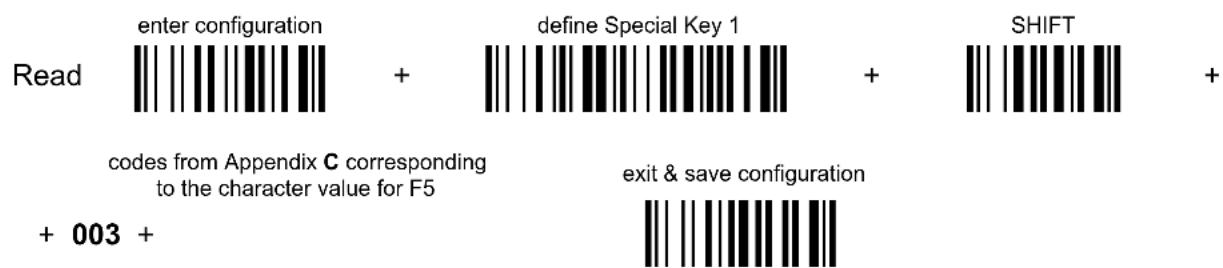
text_image
Enter configuration + define Special Key 1 + SHIFT Read codes from Appendix C corresponding to the character value for F5 exit & save configuration + 003 +- the following example allows defining Special Key 2 as CTRL + S (upper case):

text_image
Enter configuration + define Special Key 2 + CTRL + SHIFT Read codes from Appendix C corresponding to the character value for s (lower case) exit & save configuration + 01B +- the following example allows defining Special Key 3 as Alt + F6:

text_image
Enter configuration + define Special Key 3 + ALT codes from Appendix C corresponding to the character value for F6 exit & save configuration + 00B +- the following example allows defining Special Key 4 as Alt + Shift + F1:

text_image
Enter configuration Define Special Key 4 ALT + SHIFT Read + + + codes from Appendix C corresponding to the character value for F1 exit & save configuration + 005 +- Integrating Special Keys in Headers/Terminators -
- the following example allows setting Special Key 1 (defined in example 1 above) as terminator:

text_image
Enter configuration one character terminator special key 1 exit & save configuration Read- the following example allows setting Special Key 2 (defined in example 2 above) as header:

text_image
Enter configuration one character header special key 2 exit & save configuration Read- the following example allows setting Special Key 3 (defined in example 3 above) as header:

text_image
Enter configuration one character header special key 3 exit & save configuration Read- the following example allows setting Special Key 4 (defined in example 4 above) and ENTER character as terminators:

bar
| Category | Enter configuration | Two character terminator special key 4 | ASCII characters corresponding to the HEX value for character ENTER | | ---------------------------- | ------------------- | -------------------------------------- | ------------------------------------------------------------------------ | | Read | + | + | 83 | | Exit & save configuration | - | - | - |5.4.3 Address Stamping
It is possible to include the reader address in the message sent to the host. The Reader Address Stamping and the Cradle Address Stamping parameters consist of a 4-digit number in the range 0000 to 1999.
For message output format, refer to chapter 6.
5.4.4 Address Delimiter
The Address Delimiter allows a character to be included to separate the reader Address stamping field from the next field in the message. Any character can be included in the hexadecimal range from 00 to FE.
For message output format, refer to chapter 6.
5.4.5 Time Stamping Format
The Time Stamping parameter sets the format for hour and date information. It consists of 1 or 2 groups of numbers, each one made up of 6 decimal digits.
For example, setting the Hour/Minutes/Seconds/Month/Day/Year format, the information 17:03:16 on June 12, 2002 will be formatted as 170316061202.
5.4.6 Time Stamping Delimiter
The Time Stamping Delimiter allows a character to be included to separate the Time Stamping field from the next field in the message. Any character can be included in the hexadecimal range from 00 to FE.
5.5 POWER SAVE
5.5.1 Sleep State
When using interfaces other than USB, this mode allows the P in the reader to enter a “Sleep” state for minimum power consumption. For D-series readers, this command is only valid when hardware trigger type is selected.
Before entering Sleep mode, the following are verified:
- no commands coming from Host
- no data being transmitted to Host
• Enter Sleep Timeout ended (see par. 5.5.2)
To exit Sleep mode press the trigger.
For M8300 series readers, sleep state is entered immediately after reading a code and is not configurable. To exit Sleep mode press the trigger.
When using the USB interface, this mode allows the device to manage Selective Suspend conditions generated by the Host Operating System in which optimizing low power consumption (ex. Windows Stand-by). It is possible to exit the Suspend mode either from the Host (ex. moving the mouse during Stand-by) or through the barcode reader. The latter, called Remote Wakeup, makes the device wake up the Host restoring the communication. Remote Wakeup is possible by pressing the trigger.
5.5.2 Enter Sleep Timeout
For readers that have the Sleep state enabled, this timeout determines when the reader will enter this state.
5.6 READING PARAMETERS
5.6.1 Trigger Signal
This mode determines how the reading phase is controlled when the hardware trigger operating mode is selected:
- trigger active level: the reader goes ON when the trigger is pressed and goes OFF when it is released
- trigger active pulse: the reader goes ON at the first trigger press and goes OFF only at a second press
5.6.2 Trigger Click
When enabled, it activates a "click" sound upon each trigger pressure.
5.6.3 Trigger-Off Timeout
When this timeout is selected, the reader turns OFF automatically after the desired period of time.
5.6.4 Reads per Cycle
In general, a reading cycle corresponds to the ON + OFF times of a device.
The resulting effects of this parameter on code reading depend on other related configuration conditions. Here are the definitions of ON and OFF times.
- For readers using the software trigger parameter (FLASH MODE), a reading cycle corresponds to the flash on + flash off times. Code reading takes place during the flash on time.
- For readers using the hardware trigger parameter, a reading cycle corresponds to a trigger press (ON) + one of the following OFF events:
trigger release (for trigger active level)
a second trigger press (for trigger active pulse)
trigger-off timeout (see par. 5.6.3).
When one read per cycle is selected, the device decodes only one code during the ON period and immediately turns the reader OFF. It is only possible to read another code when the next ON time occurs.
In multiple reads per cycle, the ON period is extended so that the device can continue decoding codes until an OFF event occurs. For software trigger mode, the flash on period is immediately reset after each read and therefore extended. If another code is decoded before the reset flash on period expires, it is again reset and the effect is that the device remains ON, decoding codes until the flash on or timeout period expires.
The Safety Time parameter should be used in this case to avoid unwanted multiple reading of the same code, see par. 5.6.5.
5.6.5 Safety Time
Safety time prevents the device from immediately decoding the same code more than once. Same code consecutive reading can be disabled requiring the reader to be removed from the code (no decoding) for at least 400 ms, or a timeout can be set up to 9.9 seconds before the decoder will accept the same code. Reading is immediate if the code changes.
The safety time parameter is not applicable when reading stacked codes or when setting one read per cycle in hardware trigger operating mode, since these settings require voluntary action by the user.
5.7 DECODING PARAMETERS

CAUTION
These parameters are intended to enhance the decoding capability of the reader for particular applications. Used incorrectly, they can degrade the reading performance or increase the possibility of a decoding error.
5.7.1 Ink-Spread
The ink-spread parameter allows the decoding of codes, which are not perfectly printed because the page texture tends to absorb the ink.
5.7.2 Overflow Control
The overflow control parameter can be disabled when decoding codes printed on small surfaces, which do not allow the use of an overflow space.
This command does not affect code families 2/5, Code 128 and Code 93.
5.7.3 Interdigit Control
The interdigit control parameter verifies the interdigit spacing for code families Code 39 and Codabar.
5.8 ADVANCED FORMATTING
5.8.1 Match Conditions
Selecting an Advanced Formatting and specifying a Match restriction (Code Type, Code Length, Predefined Characters) the code will be transmitted according to the order of the defined formats.
For example, defining 2 formats where:
- Format 1: Match Code type = Code128
- Format 2: Match Code length = 15 and Match with Predefined Characters "DATA"
a Code128 "DATA:12345ABCDE" with code length 15 will be formatted following the Format 1.
To send the same code with the Format 2 it is necessary to invert the format order as follows:
- Format 1: Match Code length = 15 and Match with Predefined Characters "DATA"
- Format 2: Match Code type = Code128
5.9 RADIO PARAMETERS (M8300 SERIES ONLY)
5.9.1 Radio Protocol Timeout
This parameter sets the valid time to wait before transmission between the M8300 series reader and BC-80X0 cradle is considered failed.
This parameter should be set taking into consideration the radio traffic (number of readers in the same area).
If the RS-232 interface is used with ACK/NACK enabled, this parameter should be at least equal to the RX Timeout parameter for low traffic environments. It should be increased if there are many readers in the same area.
It can be set between 2 and 19 seconds.
5.9.2 Radio RX Timeout
When the scanner is used in a standalone layout (point-to-point or with multiple readers) it can be configured to receive “asynchronous” messages from the host at any time.
There are two modes which can enable the scanner to receive messages from the host:
1) Enable “2 way” Communication Protocol – After the transmission of each barcode, the scanner waits for an acknowledgement from the host ^1 . A message can be sent by the host accompanying this acknowledgement, or in place of it, to display something on the screen or execute a command (such as sound a beep sequence, turn an LED on or off, etc.). If no acknowledgement or message is received from the host within a programmable timeout duration, the radio will be switched off and an “error transmission” beep will be sounded.
2) Independent of the Selected Protocol – The scanner can be configured to keep the radio receiver “awake” for a defined period of time following each transmission. Any message coming from the host1 before expiration of the timeout is accepted. The parameter “Radio RX Timeout” is used for specifying how long the scanner have to wait for a message after receiving each code transmission.
In this mode, the radio can also be “awakened” by pressing the trigger.
The scanner can receive a message only if it is linked to the Base (i.e. the scanner has been joined to the Base and has had at last one “valid” transmission after the last power-on). Setting the “Radio RX timeout” value to “00” specifies that the radio never goes into sleep mode (always awake → the scanner can receive a message at any time). Choosing this setting will, of course, consume battery life more quickly.
^1 See Section 6.3 for Host to Scanner message formatting.
5.9.3 Power-Off Timeout
If this command is enabled, after the desired timeout in hours, the PowerScan ^® batteries are disconnected and all power consumption ceases. To restore power, press the trigger once. The reader will now be ready to read codes.
Power-off does not affect configuration parameters.
5.9.4 Transmission Mode
This parameter determines whether the reader receives responses or messages from the Host or not. In One-Way tx mode, neither Host nor cradle responds to the reader.
In Two-Way tx mode, the reader must receive a response from either the cradle or the Host.
The cradle responds (empty message) to the reader, only after good transmission to the Host, for the following conditions: ACK/NACK enabled, see par. 5.1.2; WEDGE or PEN interface. For these conditions, it is suggested to prolong the Radio Protocol Timeout, see par. 5.9.1.
Enabling Two-Way tx mode temporarily disables FIFO buffering see par. 5.1.3.
With ACK/NACK disabled, the Host responds to the reader (through the cradle) with an answer message (message to reader display or command to reader), see par. 6.3 and the following figure.
Transmission Mode = Two-Ways

flowchart
graph LR
    A["PowerScan® M8300"] -->|message| B["BC-80X0"]
    B -->|data| C["Host"]
    B -->|cable| C
    C -->|Host answer message Host answer| B
    B -->|data| C
5.9.5 Beeper Control for Radio Response
For M8300 series readers, the data entry good read tone normally results in two beeps; the first indicates that the reader has decoded the code; the second indicates whether BC-80X0 has received the data.
This can be changed according to the following selections:
♦ Normal: both good decode and good receptions are signaled (two beeps).
♦ Only Good Decode: only the first beep indicating a good read is signaled.
- Only Good Reception: only the second beep indicating a good reception is signaled.
- Off: Neither good read nor good reception beeps are signaled.
For all configurations, any transmission errors will always be signaled.
5.9.6 Single Store
When single store mode is enabled, if the PowerScan ^® M8300 fails to transmit a code to the cradle, it enters a special operating mode that prevents the user from reading barcodes. When such operating mode is entered, the trigger no longer enables barcode reading but is used to retry transmission itself for the number of attempts selected in configuration. Once the transmission is successful the reader returns to the standard mode. If transmission is not successful after the number of configured attempts, the code is discarded.
Single store may be useful if you often read codes at the limit of the coverage area and there is a chance that code transmission can fail. In such case single store allows you to move to a more favorable position or location (i.e. closer to the cradle) and retry transmission without the necessity of re-reading the code since it is already stored in the reader.
Conversely, if single store is disabled, and the user wants to retry transmission, the code must be read again, and therefore the attempt must be made from basically the same location. If the user gives up, he does not know if the transaction was successful. (Actually the transmission could have been successful but the cradle may have been unable to acknowledge the message). There are applications in which there is no risk of transmission failure. In such cases it may be better to disable single store so that the user perceives a more consistent behavior of the trigger in that it always corresponds to code reading.
5.9.7 Batch Mode
This Operating Mode allows storing read codes in the internal reader memory. The stored codes are transmitted to the base station at a later time according to the type of batch mode selected.
Batch mode can be enabled either manually (normal batch mode) or automatically.
Normal batch mode temporarily suspends radio communication between reader and base station allowing codes to be stored in the reader on a FIFO (first in, first out) basis. This can be useful, for example, if codes must be read from a location where there is no radio network. Upon returning to the system working area, this mode requires reading the Start Normal Batch Transmission barcode to successively transmit the list of stored codes to the base station. The FIFO management assures that the first code read will be the first code to be transmitted to the base station.
The Delete Batch Data barcode allows canceling all barcode data stored in the reader.
Automatic batch mode allows codes to be stored in the reader on a FIFO basis whenever the reader is out of radio range. In this case radio communication is not suspended and transmission is attempted after each code read. If transmission cannot be successfully completed, then the code is added to the list. When the
reader returns in range, transmission of the codes to the base station resumes automatically, according to the selected communication protocol, upon simply pressing and releasing the trigger or by successfully reading a new code.
In batch mode, the selected Transmission Mode determines the behavior of the reader at the time the list of codes is transmitted. If One-way mode is enabled, the codes are transmitted one after the other without interruption. In Two-way mode, after transmitting each code, the reader waits for the Host answer message to be shown on the display. Therefore, in Two-way transmission mode and normal batch mode, the Start Normal Batch Transmission barcode must be read after each code to continue; whereas with automatic batch mode, just pull and release the trigger after each code.
3-KEY MODEL
Each code is listed on the reader display together with its identifying position number and its total number of characters. The three keys under the display have the following function in batch mode:
| Key Function | ||
| ▲ | (left) Key | Scroll up in list |
| ENTER | (center) Key Delete highlighted code | |
| ▼ | (right) Key Scroll down in list | |
The code which has a transmission pending is shown on the display in reverse video, indicating that it cannot be deleted.
16-KEY DK MODEL
If the 'Enable Normal Batch' barcode is read (see page 134), the FUNCTION KEY1 (F1) is automatically re-configured to toggle between the two different operative modes described in the following paragraphs. The mnemonic label associated to the F1 is Bat (abbreviation of batch).
Operative modes:
- INSERT MODE – this is the common data entry mode and will reflect the operative mode of the system (Quantity Mode, Simple Data Input Mode). All data scanned via barcode or entered on the keyboard will be batched in the persistent memory. Functions keys F2 - F4 maintain their programmed functions.
- SCROLL MODE – in this mode the user can see and can delete previously inserted data. The action of the function keys changes to reflect the different user mode. It will be:
| Function Key | Action Label | |
| F1 toggles between INSERT MODE and SCROLL MODE | Bat | |
| F2 | Scroll up | |
| F3 deletes the currently shown data from the batch | Del | |
| F4 | Scroll down | |
After pressing F1 again, the operative mode moves back to "Insert Mode" and the function keys F2-F4 are returned to their originally programmed functions.
Note that the 16-key DK saves the automatic batch in RAM, while the normal batch mode saves to Flash. When entering normal batch mode on the 16-key via programming label, the display shows the message "Flash Erase" to describe the initialization.
5.9.8 Find Me (PowerScan ^® M8300 only)
If enabled, after a timeout of a few minutes in which PowerScan ^® M8300 is not used, it enters stand-by mode and its green LED starts blinking in order to signal its location.
5.10 DISPLAY PARAMETERS (SOME M8300 MODELS ONLY)
5.10.1 Display Mode
The user can control the reader display behavior according to the following selections:
Normal mode: When a barcode is read with the reader:
- The code is sent to the Host.
- The reader display is not cleared_. Therefore if any previous data was displayed on the reader screen it remains.
- There is no Local Echo to the reader display.
Clear Display After Decode mode: When a barcode is read with the reader:
- The code is sent to the Host.
- The reader display is cleared. Therefore if any previous data was displayed on the reader screen it is cancelled and the screen remains blank.
- There is no Local Echo of the code to the reader display.
Local Echo mode: When a barcode is read with the reader:
- The code is sent to the Host.
- The reader display is cleared.
- The code is also sent to the reader display (Local Echo).
- The cursor is positioned after the last printed character on the reader display.
Host messages sent to the reader are always written to the reader display.
5.11 CONFIGURATION EDITING COMMANDS
The following commands carry out their specific function and then exit the configuration environment.
| Command | Description |
 | Restore PowerScan® reader default configuration (see the relative Quick Reference Guide for default settings) |
 | Transmit the PowerScan® D8330 or PowerScan® M8300 software release |
 | Transmit PowerScan® reader configuration in ASCII format.This command is not effective with Pen emulation interface. |
 | Restore BC-80X0 default configuration (see the relative Quick Reference Guide for default settings) |
 | Transmit the BC-80X0 Software release. |
 | Transmit BC-80X0 configuration in ASCII format.This command is not effective with Pen emulation interface. |
5.12 CUSTOM DEFAULT CONFIGURATION
Read the following code to set the reader user-defined configuration as custom default configuration:
Save User-defined Configuration as Custom Default

Read the following code whenever you need to restore the custom default configuration:
Restore Custom Default Configuration
5.13 CODE TYPE RECOGNITION
This procedure allows the reader to enter a particular state during which it reads and transmits to the Host information about the family type of codes unknown to the user (with the exception of MSI, Code 49 and Code 16k code types). It is also possible to read and transmit configuration strings without interpreting them.
All codes are read ignoring the check digit.
Follow the given procedure:
① Read the following code to enter the code type recognition mode:


text_image
code type recognition② Read existing codes whose family type you need to check.
③ Read the following code to return to the reader's normal functioning:
exit code type recognition mode

5.14 CONFIGURATION COPYING COMMANDS
5.14.1 Copy PowerScan™ D8330 Series
Procedure:
① Connect the master (correctly configured reader) and the slave (reader to be configured) together through two RS-232 serial interface cables and external power supply. Accessory cables and power supply are available from your Datalogic distributor to provide this connection.
RS-232 Cables: CAB471 & CAB472
Power Supply: PG5
② Using the slave reader, read the Restore Default barcode and then the RS-232 interface barcode from chapter 4 of this manual or from the Quick Reference Guide.
③ With the master reader, read the Configuration Copy barcode below.
Copy Configuration

The configuration will be copied from the master to the slave reader. The slave reader signals the end of the procedure with a series of beeps.
NOTE: The master reader can be configured for any interface.
5.14.2 Copy PowerScan™ M8300 Series
Procedure:
① Using the slave reader and its BC-80X0 cradle, follow the initialization procedure in chapter 4 of this manual or from the Quick Reference Guide.
② With the master PowerScan™ M8300 (correctly configured reader), read the Copy Configuration barcode below. Then place it onto an BC-80X0 cradle within 10 seconds. The reader will beep indicating the configuration has been copied.
The configuration will be simultaneously sent over the RS-232 interface of the BC-80X0. If this causes undesired effects disconnect the RS-232 cable between the PC and BC-80X0 during this process.
Copy Configuration
③ With the slave PowerScan™ M8300, read the Get Configuration barcode below. Then place it onto the same BC-80X0 cradle used in the step above. The slave reader's address will not be changed.
Get Configuration
The configuration will be copied from the master to the slave PowerScan ^™ M8300. The slave PowerScan ^™ M8300 signals the end of the procedure with a series of beeps. It is now ready to be used with its own BC-80X0 cradle.
④ Repeat the procedure above to configure other slave readers. The BC-80X0 can continue to configure slave readers until it receives another command or data.
5.14.3 Copy BC-80X0
Procedure:
① Using the slave reader and its BC-80X0 cradle, read the Restore Default barcode, set the radio address, and then read the RS-232 interface barcode from chapter 4 of this manual or from the Quick Reference Guide.
② Connect the master BC-80X0 and the slave BC-80X0 (cradle to be configured) together through two RS-232 serial interface cables and external power supply. Accessory cables and power supply are available from your Datalogic distributor to provide this connection.
RS-232 Cables: CAB471 & CAB472
Power Supply: PG12
③ Read the Configuration Copy barcode below with a reader. Then place it onto the master BC-80X0 cradle.
Copy Configuration
The configuration will be copied from the master BC-80X0 to the slave BC-80X0. The reader signals the end of the procedure with a series of beeps.
④ Repeat the procedure above to configure other slave cradles.
NOTE: The master BC-80X0 can be configured for any interface.
5.15 DEFAULT PARAMETERS FOR POS TERMINALS
The default values of the RS-232 and Data Format parameters for POS terminals are listed in the following table:
| NIXDORF | Mode | A | FUJITSU | |
| RS-232 Group | ||||
| Baud Rate 9600 9600 9600 | ||||
| Parity | Odd | None | ||
| Data Bits 8 8 8 | ||||
| Stop Bits 1 1 1 | ||||
| Handshaking | Hardware (RTS/CTS) | None | RTS always ON | |
| ACK/NACK Protocol | Disabled | Disabled | Disabled | |
| FIFO | Disabled | Enabled | Enabled | |
| Inter-Character Delay Disabled | Disabled | Disabled | ||
| RX Timeout | 9.9 sec | 2 sec | 9.9 sec | |
| Serial Trigger Lock | Disabled | Disabled | Disabled | |
| Data Format Group | ||||
| Code Identifier | Custom | Custom | Custom | |
| Header | No Header | No Header | No Header | |
| Terminator | CR | CR | CR | |
| Field Adjustment | Disabled | Disabled | Disabled | |
| Code Length TX | Not Transmitted | Not Transmitted | Not Transmitted | |
| Character Replacement | Disabled | Disabled | Disabled | |
| Address Stamping | Disabled | Disabled | Disabled | |
| Address Delimiter | Disabled | Disabled | Disabled | |
| Time Stamping | Disabled | Disabled | Disabled | |
| Time Delimiter Disabled | Disabled | Disabled | ||
The table below lists all the Code Identifiers available for the POS terminals:
| CODE | NIXDORF Mode A | FUJITSU | ICL Mode |
| UPC-A | A0 | A | A |
| UPC-E | C0 | E | E |
| EAN-8 | B | FF | FF |
| EAN-13 | A | F | F |
| Code 39 | M | None | C [code length] |
| Codabar | N | None | N [code length] |
| Code 128 | K | None | L [code length] |
| Interleaved 2 of 5 | I | None | I [code length] |
| Code 93 | L | None | None |
| Industrial 2 of 5 | H | None | H [code length] |
| UCC/EAN 128 P | None | L [code length] | |
| MSI | O | None | None |
| GS1 DATABARTM E | None | None | |
| Other | None | None | None |
5.16 FIRMWARE UPGRADE
Device firmware upgrades can be performed from your PC through either a USB or serial connection (RS-232). Download the free configuration software tool Aladdin from the Datalogic web site: http://www.scanning.datalogic.com and install it by clicking on the setup file.
Procedure:
① Connect the device to the PC via USB or serial connection (RS-232).
② Launch Aladdin on your PC. From the menu, select Tools > firmware upgrade.
③ Read the code below and position the reader onto the cradle:
prepare device for firmware upgrade

OR
Press the cradle button if present (to update the cradle only).
The device will automatically be reset.
④ Proceed with the firmware upgrade (see the Aladdin on-line help for details).

CAUTION
Do not interrupt firmware upgrade downloading for any reason.
5.17 16-KEY POWERSCAN M8300-DK DISPLAY AND KEYPAD PARAMETERS
5.17.1 16-key Keyboard Data Format Enable/Disable
The default Data Format is configured in the scanner system, and valid for all PowerScan models. They will be applied to the read barcode by the scanner. This is the typical method of configuration for all M8300 models, including the M8300-DK. Therefore, the Keyboard Data Format on the DK model does not overwrite or substitute for the default Data Format, but is potentially additional.
On the M8300-DK the following configuration scenarios are available:
Keyboard Data Format= Disabled
- Scanner Data Header/Terminator = not null
Formatting is applied identically to a label read or data input from the keyboard (as programmed with Scanner Data Header/Terminator on page 146). Keypad Data Header/Terminator will be ignored in this case.
Keyboard Data Format= Enabled
- Scanner Data Header/Terminator = not null
Scanner Data Header/Terminator formatting is applied only to data received from a scanned barcode label (see page 146).
Keypad Data Header/Terminator formatting is applied only to data input from the keypad (see page 148).
In all the above cases Scanner Code ID and Scanner Code Length are not affected.
NOTE: This configuration item is part of the scanner configuration but is applied to the whole system. The configuration does not overwrite the default Data Format, but is additional.
5.17.2 Scanner Code ID
The default Data Format is valid for all M8300 models. Code Identifier and Code len TX (on pages 71,76 in this manual) are also valid for DK models. The item configuration is part of the cradle configuration and is applied to the scanner system.
Optionally, the DK 16-key scanner can be set for:
- Scanner Code ID
- Scanner Code Len TX
(with the same optional values as for standard formatting)
Differently from the other DK formatting, these two configuration items have priority over the corresponding standard formatting, and hide or substitute for them.
As a result the M8300-DK can have the following configuration scenarios:
Scanner Code ID = Disable
The settings from the standard Code ID on page 71 will be used (if programmed).
Scanner Code ID = any different value from Disable (option 1,2,3 – Datalogic standard, AIM standard, or custom)
Use the specific DK Scanner Code ID instead of the standard Code ID. DK Scanner Code ID will be applied and will take priority over any standard Code ID settings, even if programmed.
5.17.3 Scanner Code Length
The behavior of Scanner Code Length is similar to that described above for Scanner Code ID.
As a result the M8300-DK can have the following configuration scenarios:
Scanner Code Length = Disable
The settings from the standard Code Len TX on page 76 will be used (if programmed).
Scanner Code Length = any different value from Disable (variable digit format, fixed digit format)
Use the specific DK Scanner Code Length instead of the standard Code Len TX. Scanner Code Length will be applied and will take priority over any standard Code Len TX settings, even if programmed.
NOTE: Both of these configuration items are part of the scanner configuration but are applied to the whole system. The configuration item overwrites the default Data Format.
6 MESSAGE FORMATTING
6.1 STANDARD MESSAGE FORMATTING
The system always provides scanner to host data communication using the following message formatting:
Output Message from PowerScan® D8330 or standard PowerScan® M8300 Stand-alone Towards Host
[Header] [Scanner_Addr] [Scanner_Addr_delimiter] ] [Cradle_Addr] [Cradle_Addr_delimiter] [Time stamp] [Ts_delimiter] [Code ID] [Code Length] [Code Length] [Terminator]
[Items in square brackets are optional.]
Output Message from PowerScan ^® M8300 STAR-System ^™ Towards Host
[Time stamp] [Ts_delimiter] [Header] [Code ID] [Code Length] CODE [Terminator]
[Items in square brackets are optional.]
For PowerScan ^® M8300 models with display, if the RS-232 interface is selected for communication between the Host and the BC-80X0 cradle, then the following additional communications between Host and Scanner can occur:
- The Host can send messages to any scanner associated with that cradle to control the Scanner's display, LEDs and beeper.
- The Scanner can send up to 3 user-defined characters to the Host using the 3 command keys on the Scanner.
6.2 16-KEY DK MESSAGE FORMATTING
The general Data Format shown remains valid for the Powerscan M8300 DK with display and 16-key keypad. In addition, it also offers an extended message formatting.
The table below describes conventions and definitions used in the examples on the following page. In both the table and examples, formatting items valid only for the 16-key model are shown in italics. The prefix C means programmed from the standard Data Format parameters (beginning on page 69) and the prefix S means it is programmed from the 16-key Display and Keypad Parameters (Data Format section beginning on page 139).
| [S Header] | The optional Header programmed from Display and Keypad Parameters. It is additional to Header programmed from general Data Format.It can be:o [ Scanner Data Header]oro [ Keypad Data Header]depending on whether data is read from a barcode or typed on the keypad. |
| [S Terminator] | The optional Terminator programmed from Display and Keypad Parameters. It is additional to Terminator programmed from general Data Format.It can be:o [Scanner Data Terminator]oro [ Keypad Data Terminator]depending on whether data is read from a barcode or typed on the keypad. |
| [Code ID] The optional Code ID formatting. It can be programmed:from General Data Format, represented in the following as[C ID]from specific Data Format Display and Keypad Parameters, represented in the following as[S ID] | |
[Code len] The optional Code len formatting. It can be programmed:
- from General Data Format, represented in the following as [C len]
- from specific Data Format Display and Keypad Parameters, represented in the following as [S len]
[C Header] [Scanner_Addr] [Scanner_Addr delimiter] [Cradle_Addr] [Cradle_Addr_delimiter] [Time Stamp ][Time Stamp Delimiter] [S Header] [Code ID] [Ccode len] CODE [S Terminator] [C Terminator ]
Code ID, Code Length and Code can be different content in the 16-key DK model. These features can be programmed with Scanner Data Header/Terminator on page 149, or Keypad Data Header/Terminator on page 151.
Field code ID and Code length may also be programmed in the DK model:
[C Header] [Scanner Addr] [Scanner Addr delimiter] [Cradle Addr] [Cradle Addr delimiter] [Time Stamp ][Time Stamp Delimiter] [S Header] [C ID] [C len] CODE [S Term] [C Term ]
[C Header] [Scanner Addr] [Scanner Addr delimiter] [Cradle Addr] [Cradle Addr delimiter] [Time Stamp ][Time Stamp Delimiter] [S Header] [S ID] [S len] CODE [S Term] [C Term ]
The prefix C means programmed from general Data Format beginning on page 69, and the prefix S means it is programmed from Scanner Code ID and Scanner Code Length in Display and Keypad for 16-keys, on page 153.
NOTE: in case of double formatting for [Code ID] [Ccode len], only one of these is included in message formatting. Specific Data Format [Priority/Solver] takes general Data Format.
The code field [fiona] formatting in the 16-key model, when the device is programmed in Qty/Code mode.
6.3 MESSAGES FROM HOST TO READER
The general format to enable the Scanner for a 2 way communication is:
[Scanner\_Addr] [Scanner\_Addr\_delimiter] MESSAGE [CR]
NOTE:
- If you have enabled the Scanner Address Stamping or the Scanner Address Delimiter, you must specify them in every message.
The format for other asynchronous messages is:
[Scanner\_Addr] [Scanner\_Addr\_delimiter] [DC2MESSAGE [CR]
where DC2 is ASCII 0x12 (^R) character.
- If you have not enabled the Scanner Address Stamping or the Scanner Address Delimiter, you must not specify them. In this case all messages will be implicitly addressed to the 'binded' Scanner of the cradle directly connected to the serial line.
- The Scanner can only receive messages if two-way mode is enabled. (See par. 5.9.4, "Transmission Mode", the command is on page 180).
- Messages cannot start with '\$+' because they would be interpreted as a configuration command.
- You can send a message to the Scanner only while it is on. This happens when it has sent a message to the host and the radio timeout has not yet expired. (See par. 5.9.1, "Radio Protocol Timeout"; command is on page 130).
- If you want to control the Scanner's beeper from the host, you will also probably want to disable the good transmission beep that is emitted when the code is received from the cradle. (See command on page 86).
The message field can store plain text and escape sequences.
- Escape sequences are interpreted as commands.
- Plain text is directly printed on the display. If writing beyond the end of line, the display does not wrap automatically. Extra characters are ignored. Control characters are not interpreted (i.e. LF, FF, etc.).
6.3.1 Cursor Control
| ESC [nA | Up n rows, no scroll |
| ESC [nB | Down n rows, no scroll |
| ESC [nC | Right n columns |
| ESC [nD | Left n columns |
| ESC [G | CR |
| ESC [r;cH | Move to row r, column c(ESC[1;1H is the upper left character position of the display) |
| ESC D | Down 1 row, with scroll |
| ESC E | CR and cursor down 1 row with scroll |
| ESC M | Up 1 row and scroll |
NOTES:
- Since CR is used as the message terminator, you must use ESC [ G or ESC E to print a CR.
- The cursor row position is not affected by the currently selected font. The display always has 4 rows, so when writing with the large font, actually two rows are written to: the current one and the one below it. You will need two ESC E commands to step from one row to the next when using the large font.
- The cursor column position is affected by the currently selected font. Therefore, column 6 is 36 pixels from the left border only if you last selected the 6x8 font; otherwise it could be 48 or 72 pixels from the left border.
6.3.2 Font Selection
| ESC [0 m | Normal mode |
| ESC [7 m | Reverse mode |
| ESC # 4 | Large font: subsequent characters are written on the current row and the row below it using the 12x16 font which allows for two rows of eight characters on the display. |
| ESC # 5 | Normal font: subsequent characters are written using the 6x8 font, which allows for four rows of sixteen characters on the display. |
| ESC # 7 | Medium font: subsequent characters are written using the 8x8 font, which allows for four rows of twelve characters on the display. |
6.3.3 Clearing Display
| ESC [0 K | From cursor position to end of line inclusive |
| ESC [1 K | From beginning of line to cursor position (not inclusive) |
| ESC [2 K | Entire line |
| ESC [0 J | From cursor position to end of display inclusive |
| ESC [1 J | From beginning of display to cursor position (not inclusive) |
| ESC [2 J | Entire display; moves cursor to upper left corner on display |
6.3.4 LED and Beeper Control
| ESC [0 q | Emit short High tone + short delay |
| ESC [1 q | Emit short Low tone + short delay |
| ESC [2 q | Emit long Low tone + short delay |
| ESC [3 q | Emit good read tone |
| ESC [4 q | Emit bad tx tone |
| ESC [5 q | Wait 100 ms |
| ESC [6 q | Turn on the green LED |
| ESC [7 q | Turn off the green LED |
| ESC [8 q | Turn on the red LED |
| ESC [9 q | Turn off the red LED |
The LED control escape sequences are intended to activate the LEDs for short periods of time and can be used in combination with the Beeper. The LED and Beeper will be controlled by the system after the entire command sequence is interpreted.
Example:
ESC [6 q ESC [3 q ESC [7 q
Turns on the green LED, emits a good read tone, and turns off the green LED.
ESC [6 q ESC [5 q ESC [7 q
Turns on the green LED for 100 ms and then turns off the green LED.
6.3.5 Setting RTC
ESC [0 p d d m m y y ESC [1 p h h m m
Set date to day, month, year Set time to hours, minutes; seconds are automatically set to 00.
6.4 MESSAGES FROM SCANNER COMMAND KEYS
6.4.1 PowerScan M8300 keypad
The PowerScan ^® M8300 series scanners with display have 3 command keys that can each be associated with a character to send to the host.
By pressing the keys on the scanner, the associated character with its relative message formatting is sent to the Host. For example, keys can be used to select items from a menu sent to the scanner display by the application program.
The general format is:
[Header] [Scanner_Addr] [Scanner_Addr_delimiter] [Cradle_Addr] [Cradle_Addr_delimiter] [Time stamp] [Ts_delimiter] [Code ID] [Code Length] KeyID [Terminator]
[Items in square brackets are optional.]
The messages are handled by the system as if they were barcodes, that's why KeyID can have so many fields appended to it. If in your application there is some chance of reading a 1-char barcode identical to KeyID, the way you can distinguish between the two is to enable the Code ID: The KeyID is the only 1-character long EAN 8 code.
Refer to par. 5.3 for a compete description of the optional message fields in square brackets.
The default characters associated with each key (KeyID) are shown in the following table:
| Default Key Identifiers | ||
| Key KeyID | ||
| ▲ | (left) Key | '<' |
| ENTER | (center) Key '=' | |
| ▼ | (right) Key | '>' |
6.4.2 PowerScan M8300-DK 16-key keypad
The 16-key keypad contains 4 programmable functions keys (see Function Key Programming on page 141 for more information). In addition, there is a Shift key which is used to access the alphabetic part of the keyboard, and an Enter key used to confirm “manually” input data.

flowchart
graph TD
    A["Alpha-numeric keys"] --> B["1 ."]
    A --> C["4 ghi"]
    A --> D["7 pqrs"]
    E["Shift key"] --> F["↑"]
    G["Enter key"] --> H["0 ."]
    I["F1"] --> J["Function Keys"]
    K["F2"] --> J
    L["F3"] --> J
    M["F4"] --> J
    N["2 abc"] --> O["3 def"]
    P["5 jkl"] --> Q["6 mno"]
    R["8 tuv"] --> S["9 wxyz"]
    T["Def"] --> J
    U["Def"] --> J
The 16-key keypad is organized like a cell phone, with multi-tap access to alpha characters on numeric keys. Press the keys once, twice, or more to cycle through the alpha letters and symbols until the desired character appears in the display.
The following table shows the key press options for each alphanumeric key:
| Key | First Keypress | Second Keypress | Third Keypress | Fourth Keypress |
| 1 | . | |||
| 2 a b c | ||||
| 3 d e f | ||||
| 4 g h i | ||||
| 5 j k l | ||||
| 6 m n o | ||||
| 7 p q r s | ||||
| 8 | t u v | |||
| 9 | w x y z |
7 TECHNICAL FEATURES
7.1 POWERSCAN ^® D8330
| Electrical Features | PowerScan® D8330 PowerScan® D8330 AR | |
| Power Supply 4 to 30 VDC | ||
| Max. Consumption | ||
| @ 4V | 420 mA | 500 mA |
| @ 5V | 310 mA | 370 mA |
| @ 30 V | 62 mA | 70 mA |
| Sleep Mode | 4 mA | 4 mA |
| Reading Indicators | Good Read LED (green)Good Read Spot (green), Beeper | |
| Host Interfaces | ||
| RS-232 300 to 38400 baud | ||
| WEDGE | IBM AT or PS/2, XT, PC Notebook, IBM SURE1, IBM 3153, 31xx, 32xx, 34xx, 37xx terminals, Wyse terminals, Digital VT terminals, Apple ADB Bus supported | |
| PEN Emulation | Selectable minimum pulse from 200 μS to 1.2 mS | |
| USB | USB-KBD, USB-KBD-ALT-MODE, USB-KBD APPLE, USB-COM, USB-IBM-Table Top, USB-IBM-Hand Held | |
| Laser Features | D8330 | D8330 |
| Light Source VLD between 630~680 nm | ||
| Scan Rate 35 ± 5 scans/sec | ||
| Power (max) in mW 0.9 mW 1.3 mW | ||
| Scan Angle 42° | 13.5° ± 0.7 | |
| PCS minimum(Datalogic Test Chart) | 15% | 25% |
| Maximum Resolution 0.076 mm (3 mils) | 0.19 mm (7.5 mils) | |
| Reading Field Width | see reading diagrams (par. 7.7) | |
| Laser Safety Class | Class 2 EN 60825-1/CDRH | |
| Environmental Features | ||
| Working Temperature | -30° to +50 °C / -22° to +122 °F | |
| Storage Temperature | -30° to +70 °C / -22° to +158 °F | |
| Humidity | 90% non condensing | |
| Drop resistance (on concrete) | IEC 68-2-32 Test ED 2 m | |
| Protection class | IP65 | |
| Mechanical Features | ||
| Weight (without cable) | about 295 g (10.4 oz) | |
| Dimensions | 205 x 114 x 69 mm (8.07 x 4.49 x 2.72 in) | |
| Cable length | 2 m (6 ft 6 in) | |
| Material | Polycarbonate molded with rubber | |
7.2 POWERSCAN ^® M8300
| Electrical and General Features | ||
| Battery Type 2150 Li-Ion battery pack | ||
| Recharge Time | max. 4 hours with external power supply max 10 hours with Host power | |
| Operating autonomy (continuous reading) | 60,000 reads (typical) | |
| Display (Only available with some models) | LCD 4 lines x 16 chars Programmable font and backlight | |
| Indicators Good Read LED (green) | Good Read Spot (green), Beeper | |
| Laser Features | M8300 | M8300 |
| Light Source VLD between 630~680 nm | ||
| Scan Rate 35 ± 5 scans/sec | ||
| Power (max) in mW 0.9 mW 1.3 mW | ||
| Scan Angle 42° | 13.5° ± 0.7 | |
| PCS minimum (Datalogic Test Chart) | 15% | 25% |
| Maximum Resolution 0.076 mm (3 mils) | 0.19 mm (7.5 mils) | |
| Reading Field Width see reading diagrams (par. 7.7) | ||
| Laser Safety Class CLASS 2 EN 60825-1 / CDRH | ||
| Environmental Features | ||
| Working Temperature | -20° to +50 °C / -4° to +122 °F | |
| Storage Temperature | -20° to +70 °C / -4° to +158 °F | |
| Humidity | 90% non condensing | |
| Drop resistance (on concrete) IEC 68-2-32 Test ED | 2 m | |
| Protection Class | IP65 (IP64 for models with display) | |
| Mechanical Features | ||
| Weight (with batteries) | about 400 g (14.10 oz) | |
| Dimensions | 212 x 109 x 71 mm (8.34 x 4.49 x 2.79 in) | |
| Material | Polycarbonate molded with rubber | |
7.3 POWERSCAN ^® M8300-DK 16-KEY MODEL
| Electrical Features | ||
| Battery Type 2150 Li-lon battery pack | ||
| Time of recharge max. 4 hours with external power supplymax. 10 hours with Host power | ||
| Operating autonomy(continuous reading) | 60,000 reads (typical) | |
| Display LCD 4 lines x 16 chars | Programmable LED backlight | |
| Indicators | Good ReadGood Read Spot greenBeeper | |
| Laser Features | M8300-DK | M8300-DKAR |
| Power (max) in mW 0.9 mW 1.3 mW | ||
| Light Source VLD in the range between 630~680 nm | ||
| Scan Rate 35 ± 5 scans/sec | ||
| Reading Field Width (typical) see reading diagram | ||
| Max. Resolution 0.076 mm (3 mils) | 0.19 mm (7.5 mils) | |
| PCS minimum(Datalogic Test Chart) | 15% | 25% |
| Scan Angle 42° 13.5° 0.7 | ||
| Laser Safety Class 2 (EN 60825-1 / CDRH) | ||
| Radio Features | European Models USA | Models |
| Radio Frequency | 433.92 MHz | 910 MHz |
| Bit rate | 19200 baud | 36800 baud |
| Range (in open air) | 50 m 30 m | |
| System Configuration | BC-80X0 | STARGATETM |
| Max. number of devices per base station | 32 | 255 |
| Max. number of devices in the same reading area | 2000 | |
| Environmental Features | |
| Working Temperature -20° to +50°C | / -4 to +122°F |
| Storage Temperature -20° to +70°C | / -4 to +158°F |
| Humidity 90% non condensing | |
| Drop resistance (on concrete) 2 m | |
| Protection Class IP64 | |
| Mechanical Features | |
| Weight (with batteries) about 400 g ( | 14.10 oz) |
| Dimensions 212 x 109 x 71 mm (8.34 x 4.29 x 2.79 in) | |
| Material | Polycarbonate molded |
| Keyboard 16-key keypad with programmable LED Backlight | |
7.4 BC-80X0 / C-8000
| BC-80X0 | C-8000 | ||
| Electrical and General Features | |||
| Supply Voltage | |||
| External Power 10 to 30 VDC | |||
| Host Power 5 VDC ±10% | |||
| Power Consumption | |||
| External Power max. 10 W (charging)* | |||
| Host Power max. 500 mA (charging) | |||
| Indicators Ext. Power /Data yellow LED Host Power/Data yellow LED Reader batt. state green/red LED Aux. batt. state green/red LED (BC-8000/C-8000 only) beeper | |||
| Recharge Time | |||
| External Power max. 4 hours with 2150 mAh Li-Ion battery | |||
| Host Power max. 10 hours with 2150 mAh Li-Ion battery | |||
| Host Interfaces | |||
| RS-232 300 to 38400 baud 9600 baud | |||
| WEDGE | IBM AT or PS/2, XT, PC Notebook, IBM SURE1, IBM 3153, 31xx, 32xx, 34xx, 37xx terminals, Wyse terminals, Digital VT terminals, Apple ADB Bus supported | Not supported | |
| PEN Emulation | Selectable minimum pulse from 200 μS to 1.2 mS | Not supported | |
| USB | USB-KBD, USB-KBD-ALT-MODE, USB-KBD APPLE, USB-COM, USB-IBM-Table Top, USB-IBM-Hand Held | USB-COM | |
| Environmental Features | |||
| Working Temperature -20° to +50 °C / -4° to +122 °F** | |||
| Storage Temperature | -20° to +70 C / -4° to +158° F | ||
| Humidity | 90% non condensing | ||
| Protection | IP40 | ||
| Mechanical Features | |||
| Weight without cable | about 380 g / 13.4 oz | ||
| Dimensions (without antenna) | 204 x 108 x 95 mm / 9.44 x 4.25 x 3.74 in | ||
| Material | ABS | ||
* Having a switching regulator inside, the BC-80X0 and C-8000 draw the same power, regardless of the supply voltage. i.e. as the input voltage increases the current drawn decreases.
** Batteries must be charged at a temperature ranging from 0° to +40 °C / +32° to +104 °F.
7.5 SYSTEM AND RADIO FEATURES
| Radio Features | European Models USA Models | |
| Radio Frequency 433.92 MHz 910 MHz | ||
| Bit Rate 19200 36800 | ||
| Range (in open air) 50 m 30 m | ||
| System Configurations | BC-8000 model only ST | ARGATE ^TM |
| Maximum number of devices per base station | 32 | 255 |
| Maximum number of devices in the same reading area | 2000 | |
| Maximum number of base stations in network | 16 (including cradle Master) | |
7.6 STATUS INDICATORS
The scanner has two indicator LEDs and a Beeper. The BC-8000 and C-8000 cradles have four LED indicators (three for BC-8010 model) and a Beeper. They signal several operating conditions, which are described in the tables below.
$$ \mathbf {H} = \text { high tone } \quad \mathbf {L} = \text { low tone } $$
POWERSCAN® D8330/M8300 READER START-UP
| Beeper1 | Meaning |
| LLLL Parameters loaded correctly | |
| HHH long tones | Parameter loading error, reading or writing error in the non volatile memory |
| HLHL Hardware error in EEPROM | |
POWERSCAN ^® D8330/M8300 READER CONFIGURATION
| Beeper ^1 | Meaning |
| H H H H Correct entry or exit from Configuration mode | |
| L Good read of a command | |
| L L L | Command read error |
POWERSCAN ^® D8330/M8300 READER DATA ENTRY
| Beeper ^1 | LED | Good Read | Spot Meaning |
| one beep ^2 | ON ON | Correct read of | a code in normal mode |
| H L long | TX buffer full (when FIFO is enabled) or TX error between PowerScan ^ M8300 and BC-8000 | ||
| H long ON | ON Successful advanced format concatenation | ||
| H H H | Timeout expired – operation not completed | ||
| H H long | Error in advanced data formatting | ||
| OFF | OFF Ready to read a code | ||
^1 Only the Beeper Intensity command can modify these signals.
^2 The data entry good read tone is user-configurable with all the Beeper commands in the Reading Parameters section.
For M-series readers, normally this results in two beeps; the first indicates that the reader has decoded the code, the second indicates whether BC-80X0 has received the data. See also par. 5.9.5.
POWERSCAN® M8300 POWER
| Beeper | LED | Meaning |
| 10 short H | 10 short blinks | Low Battery |
| H M L | Power off |
H = high tone
M = medium tone
L = low tone
POWERSCAN ^® M8300 BIND, JOIN, COPY COMMANDS
| Beeper ^1 | LED | Meaning |
| Blinking | Command accepted; reader ready to be inserted into the cradle | |
| L | Success | |
| H L long tones | Failure |
BC-80X0/C-8000 POWER/COMMUNICATION
| Aux LED Host LED | Meaning | |
| Yellow | Yellow | |
| OFF | OFF | Device off |
| ON Power applied through an external power supply | ||
| ON Power applied through the Host | ||
| Flashing Flashing Transmission over the Host port | ||
BC-80X0/C-8000 CHARGE STATUS
| Reader LED | Meaning | ||
| Red | Green | Beeper | |
| OFF OFF No reader battery inserted | |||
| ON Reader battery in charge | |||
| ON single beep Reader battery completely charged | |||
| Flashing orange | Reader battery fault | ||
| Alternating red/green | repetitive beep | Charging out of temperature range, over-current or over-voltage conditions | |
| Alternating red/green every 30 seconds | beep every 30 seconds | Reader not correctly inserted onto cradle, no charging takes place | |
| Spare LED (not for BC-8010) | Meaning | ||
| Red | Green | Beeper | |
| OFF OFF No Spare battery inserted in the SBS-3000 slot | |||
| ON Spare battery in charge | |||
| ON | Spare battery completely charged | ||
| Flashing orange | Spare battery fault | ||
| Alternating red/green | repetitive beep | Charging out of temperature range, over-current or over-voltage conditions | |
| Alternating red/green every 30 seconds | beep every 30 seconds | Spare battery not correctly inserted into SBS-3000, no charging takes place | |
7.7 READING DIAGRAMS
POWERSCAN® D8330/M8300/DK

line
| Depth (cm) | Value | | ---------- | --------- | | 12 | 0.13 mm | | 24 | 0.19 mm | | 36 | 0.25 mm | | 48 | 0.33 mm | | 60 | 0.38 mm | | 72 | 0.50 mm | | 84 | 1.00 mm | | 96 | 1.38 mm | | 108 | 1.38 mm |POWERSCAN® D8330/M8300/ DK AR models

line
| Distance (mm) | Value | | ------------- | --------- | | 1.00 | 40 mils | | 1.38 | 55 mils | | 1.75 | 70 mils | | 2.50 | 100 mils |*on reflective labels.
NOTE: Typical performance at 20^ C / 68^ F on high quality barcodes
A HOST CONFIGURATION STRINGS
In this section we provide a description of how to modify the device configuration using serial strings sent from the Host.
This method requires the RS-232 interface.
The device configuration can be changed by receiving commands from the Host through the serial interface. When this method is used, the programming sequence format is the following:
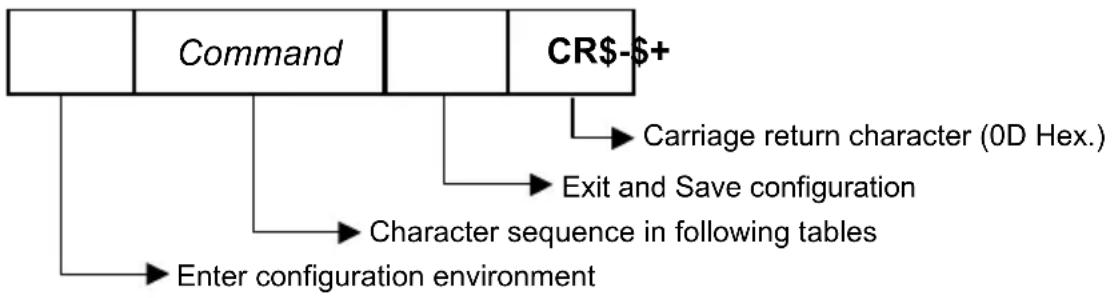
flowchart
graph TD
    A["Command"] --> B["CR-+"]
    B --> C["Carriage return character (0D Hex.)"]
    B --> D["Exit and Save configuration"]
    B --> E["Character sequence in following tables"]
    E --> F["Enter configuration environment"]
Example:
Multiple command programming sequence:

flowchart
graph TD
    A["$+"] --> B["BG1"]
    B --> C["AC410132BH0$-"]
    C --> D["CR"]
    D --> E["Carriage return character (0D Hex.)"]
    D --> F["Exit and save new configuration"]
    D --> G["Matrix 2/5 3 bars: no check digit, variable length code from 1 to 32 characters"]
    D --> H["Beeper tone 1"]
    D --> I["Beeper low intensity"]
    D --> J["Enter configuration environment"]
Each configuration parameter setting removes the condition previously active for that parameter.

NOTE
The device buffer can contain about 400 characters. If your programming string goes over this value, you must split it into separate groups and send each group after a delay of at least 3 seconds to give the reader time to empty the buffer and interpret the commands.
SERIAL CONFIGURATION STRINGS
| SPECIAL CONFIGURATION COMMANDS | |
| DESCRIPTION | STRING |
| Enter Configuration + | |
| Exit and Save Configuration- | |
| Restore Default +* | |
| Transmit Software Release (not for PEN emulation) +! | |
| Transmit Device Configuration in ASCII (not for PEN emulation) +& | |
| Set Custom Default +0 | |
| Restore Custom Default +1 | |
These commands do not require \$-.
| INTERFACE SELECTION | |||
| DESCRIPTION | STRING | ||
| RS-232 Standard CP0 | |||
| WEDGE | for IBM AT | CP500 | |
| for IBM Terminals: 31xx, 32xx, 34xx, 37xx; make-break keyboard | CP501 | ||
| for IBM Terminals: 31xx, 32xx, 34xx, 37xx; make-only keyboard | CP502 | ||
| Keyboard Type for IBM Terminals 31xx, 32xx, 34xx, 37xx | typewriter | FK0 | |
| advanced | FK1 | ||
| for IBM XT | |||
| for IBM Terminal 3153 | CP504 | ||
| for IBM PC Notebook | CP505 | ||
| for IBM SURE1 | |||
| for IBM AT - ALT mode | CP507 | ||
| for IBM PC Notebook - ALT mode | CP508 | ||
| for Wyse Terminal - ANSI Keyboard | CP509 | ||
| for Wyse Terminal - PC Keyboard | CP510 | ||
| for Wyse Terminal - ASCII Keyboard | CP511 | ||
| for Wyse Terminal - VT220 style Keyboard | CP514 | ||
| for Digital Terminals VT2xx/3xx/4xx | CP512 | ||
| PEN EMULATION | CP6 | ||
| USB | USB-KBD | UA03 | |
| USB-KBD-ALT-MODE | UA04 | ||
| USB-KBD-APPLE | UA05 | ||
| USB-COM | UA02 | ||
| USB-IBM-Table Top | UA00 | ||
| USB-IBM-Hand Held | UA01 | ||
| RS-232 | |||
| DESCRIPTION | STRING | ||
| Baud Rate 300 CD1 | |||
| 600 | CD2 | ||
| 1200 | CD3 | ||
| 2400 | CD4 | ||
| 4800 | CD5 | ||
| 9600 | CD6 | ||
| 19200 | CD7 | ||
| 38400 | CD8 | ||
| Parity | none CC0 | ||
| even | CC1 | ||
| odd | CC2 | ||
| Data Bits 7 CA0 | |||
| 8 CA1 | |||
| 9 CA2 | |||
| Stop Bits 1 CB0 | |||
| 2 CB1 | |||
| Handshaking | disable CE0 | ||
| RTS/CTS | CE1 | ||
| XON/XOFF | CE2 | ||
| RTS always On | CE3 | ||
| ACK/NACK Protocol | disable | ER0 | |
| enable | ER1 | ||
| FIFO | disable | EC0 | |
| enable | EC1 | ||
| Inter-character Delay (ms) | CK00 - CK99 | ||
| RX Timeout (100 ms) | CL00 - CL99 | ||
| Serial Trigger Lock | disable | CR0 | |
| enable and select characters | CR1ab | ||
a = Hex values representing an ASCII character from 00 to FE enabling the device trigger.
b = HEX values representing an ASCII character from 00 to FE inhibiting the device trigger.
| USB | ||
| DESCRIPTION | STRING | |
| USB-COM | ||
| Handshaking | disable | CE0 |
| RTS/CTS | ||
| XON/XOFF | ||
| RTS always | ||
| ACK/NACK Protocol disable ER0 | ||
| FIFO | enable | |
| Inter-character Delay (ms) CK00 - CK99 | ||
| RX Timeout (100 ms) | CL00 - CL99 | |
| Serial Trigger Lock disable CR0 | ||
| USB-KBD | ||
| Keyboard Nationality(not for USB-KBD-ALT-MODE) | Belgian FJ7 | |
| English (UK) | FJ4 | |
| French | ||
| German | FJ3 | |
| Italian | FJ1 | |
| Spanish | FJ6 | |
| Swedish | ||
| USA | FJ0 | |
| Keyboard Nationality(IBM AT compatible only) | Japanese | FJ8 |
| Russian (Latin) | FJ9 | |
| Russian (Cyrillic) | ||
| Hungarian | FJB | |
| Slovenian, Croatian, Serbian (Latin) | FJC | |
| Romanian | FJD | |
| Czech Republic | ||
| FIFO | disable | EC0 |
| enable | ||
| Delays | Inter-Character (ms) | CK00 - CK99 |
| Inter-Code (s) | FG00 - FG99 | |
| USB Keyboard Speed | normal | UT10 |
| fast | UT01 | |
a = Hex values representing an ASCII character from 00 to FE enabling the device trigger.
b = HEX values representing an ASCII character from 00 to FE inhibiting the device trigger.
| WEDGE | ||
| DESCRIPTION | STRING | |
| Keyboard Nationality Belgian FJ7 | ||
| English | (UK) | |
| French | ||
| German | FJ3 | |
| Italian | ||
| Spanish | FJ6 | |
| Swedish | FJ5 | |
| USA | ||
| Keyboard Nationality Japanese FJ8 (IBM AT compatible only) | ||
| Russian (Latin) FJ9 | ||
| Russian | (Cyrillic) | |
| Hungarian | FJB | |
| FJC | ||
| Romanian | FJD | |
| Czech | Republic | |
| Caps Lock | caps Lock ON | FE1 |
| caps | Lock | |
| Caps Lock Auto-Recognition (IBM AT compatible only) | disable | FP0 |
| enable | FP1 | |
| Num Lock num lock unchanged | toggle num lock | FL1 |
| FL0 | ||
| Delays | Inter-Character (ms) | CK00 - CK99 |
| Inter-Code (s) | FG00 - FG99 | |
| Control Character Emulation Ctrl + Key | Ctrl + Shift + Key | FO0 |
| FO1 | ||
| PEN | ||
| DESCRIPTION | STRING | |
| Operating Mode | interpret (does not require + or-) | ] |
| transparent (does not require+ or -) | [ | |
| Minimum Output Pulse | 200μs | DG0 |
| 400μs | DG1 | |
| 600μs | DG2 | |
| 800μs | DG3 | |
| 1 ms | DG4 | |
| 1.2 ms | DG5 | |
| Conversion to Code 39 and Code 128 | disable conversion to Code 39(D series only) | DA0 |
| enable conversion to Code 39 | DA1 | |
| enable conversion to Code 128(M series only) | DA2 | |
| Output Level | normal | DD0 |
| inverted | DD1 | |
| PEN (continued) | ||
| DESCRIPTION | STRING | |
| Idle Level normal DE0 | ||
| inverted | ||
| Overflow | narrow overflow | |
| medium | overflow | |
| wide overflow | ||
| Inter-block Delay (100 ms) | CK00-CK99 | |
| NETWORK | ||
| DESCRIPTION | STRING | |
| RS-485 Network Disable Network RZ0 | ||
| Enable RS-485 | ||
| Enable RS-485 | ||
| Slave Address Range | Minimum Address | JB0000-1999 |
| Maximum Address | ||
| Network Baud Rate | 9600 | JE0 |
| 19200 | JE1 | |
| 38400 | JE2 | |
| Network Warning Message | not transmitted | JG0 |
| transmitted | JG1 | |
| Transmission Warning Message | not transmitted | JH0 |
| transmitted | JH1 | |
| Master Header | no header | JA00 |
| one character | JA01x | |
| two characters | JA02xx | |
| three characters | JA03xxx | |
| four characters | JA04xxxx | |
| five characters | JA05xxxxx | |
| six characters | JA06xxxxxx | |
| seven characters | JA07xxxxxxx | |
| eight characters | JA08xxxxxxxxx | |
| Master Terminator | no terminator | JA10 |
| one character | JA11x | |
| two characters | JA12xx | |
| three characters | JA13xxx | |
| four characters | JA14xxxx | |
| Five characters | JA15xxxxx | |
| six characters | JA16xxxxxx | |
| seven characters | JA17xxxxxxx | |
| eight characters | JA18xxxxxxxxx | |
x = Hex value from 00 to FE representing an ASCII character
| DATA FORMAT | ||
| NOT FOR PEN EMULATION INTERFACES | ||
| DESCRIPTION | STRING | |
| Code Identifier disable EB0 | ||
| Datalogic standard | ||
| AIM standard | ||
| custom | ||
| Custom Code Identifier | EHabc | |
| Headers | no header | |
| one character | ||
| two characters | ||
| three characters | ||
| four characters | ||
| five characters | EA05xxxxx | |
| six characters | EA06xxxxxx | |
| seven characters | EA07xxxxxxx | |
| eight characters | EA08xxxxxxxxx | |
| Terminators | no terminator | EA10 |
| one character | ||
| two characters | ||
| three characters | ||
| four characters | ||
| five characters | EA15xxxxx | |
| six characters | EA16xxxxxx | |
| seven characters | EA17xxxxxxx | |
| eight characters | EA18xxxxxxxxx | |
EB3
E/
a = ASCII character.
b, c, x = HEX values representing an ASCII character.
a = ASCII character of the DATALOGIC STANDARD Code Identifier from the table on page 70.
b = Hex value of the first Custom Code Identifier character from 00 to FD;
FF = disable Code Identifier
c = Hex value of the second Custom Code Identifier character from 00 to FD;
FF = disable second character of Custom Code Identifier
x = Hex value from 00 to FE
| DATA FORMAT (continued) | ||
| NOT FOR PEN EMULATION INTERFACES | ||
| DESCRIPTION | STRING | |
| Code Length Tx not transmitted in variable-digit transmitted in fixed 4-digit format | EE0 | |
| format EE1 | ||
| format EE2 | ||
| Field Adjustment disable EF0 | ||
| right addition | ||
| left addition | ||
| right deletion | ||
| left deletion | ||
| Field Adjustment Character | EGe | |
| Character Replacement disable character replacement EO0 | ||
| first character | ||
| second character replacement | ||
| third character replacement | ||
| Address Stamping | disable reader address stamping | RU0 |
| enable reader address stamping | RU1 | |
| disable cradle address stamping | RW0 | |
| enable cradle address stamping RW1 | ||
| Address Delimiter | disable reader address delimiter | RV0 |
| enable reader address delimiter and select character | RV1h | |
| disable cradle address delimiter | RY0 | |
| enable cradle address delimiter and select character | RY1h | |
| Time Stamping | disable IL0 | |
| hour/minutes/seconds/month/day/year | IL1 | |
| hour/minutes/seconds/day/month/year | IL2 | |
| hour/minutes/seconds | IL3 | |
| month/day/year | IL4 | |
| day/month/year | IL5 | |
| Time Stamping Delimiter | disable time stamping delimiter | IMS0 |
| enable time stamping delimiter | IMS1 | |
| select time stamping delimiter character | IM1h | |
a = ASCII character.
d = a number from the Hex/Numeric Table
e, f, g, h = HEX values representing an ASCII character
a = ASCII character of the DATALOGIC STANDARD Code Identifier from the table on page 70.
d = a number in the range 01-32 from the Hex/Numeric Table
e = Hex value from 00 to FE
f = Hex value of the character to be replaced from 00 to FE
g = Hex value of the new character to insert from 00 to FE
FF = replace with no new character (remove character)
h = a HEX value in the range from 00 - FE representing the ASCII character.
| POWER SAVE | ||
| DESCRIPTION | STRING | |
| Sleep State disable BQ0(only for D8330 series) | ||
| enable BQ1 | ||
| Enter Sleep Timeout (100 ms) | BR00-BR99 | |
| READING PARAMETERS | ||
| DESCRIPTION | STRING | |
| Trigger Type software trigger BK0 | ||
| hardware trigger | ||
| always on | ||
| Trigger Signal trigger active level | BA0 | |
| trigger | active | |
| Trigger Click disable Bc0 | ||
| enable | Bc1 | |
| Trigger-off Timeout (s) | BD00 - BD99 | |
| FLASH ON (100 ms) | BB001 - BB099 | |
| FLASH OFF (100 ms) | BB101 - BB199 | |
| Reads per Cycle | one read | BC0 |
| multiple | reads | |
| Safety Time (100 ms) | BE00 - BE99 | |
| Beeper Intensity | very low intensity | BG0 |
| low intensity | ||
| medium intensity | ||
| high intensity | ||
| Beeper Tone | tone 1 | BH0 |
| tone 2 | ||
| tone 3 | ||
| tone 4 | ||
| Beeper Type | monotone | BJ0 |
| bitonal | BJ1 | |
| Beeper Length | long | BI0 |
| short | BI1 | |
| Good Read Spot Duration | disable | BV0 |
| short | BV1 | |
| medium | BV2 | |
| long | BV3 | |
| Aiming System | disabled | Bj0 |
| enabled | Bj1 | |
| Cradle Beeper Intensity | disable | JI0 |
| low intensity | ||
| medium intensity | ||
| high intensity | ||
| DECODING PARAMETERS | ||
| DESCRIPTION | STRING | |
| Ink-spread | disable AX0 | |
| enable | AX1 | |
| Overflow Control disable | AW1 | |
| enable | AW0 | |
| Interdigit Control disable | AV0 | |
| enable | AV1 | |
| Puzzle SolverTM | disable AU0 | |
| enable | AU1 | |
| Decoding Safety one read | ED0 | |
| two reads | ||
| three reads | ||
| four reads | ||
| CODE SELECTION | |||
| DESCRIPTION | STRING | ||
| DISABLE ALL FAMILY CODES | AZ0 | ||
| EAN/UPC | disable EAN/UPC family | AA0 | |
| EAN 8/EAN 13/UPC A/UPC E | without ADD ON | AA1 | |
| with ADD ON | AA5 | ||
| with and without ADD ON | AA8 | ||
| EAN 8/EAN 13 | without ADD ON | AA3 | |
| with ADD ON 2 ONLY | AAK | ||
| with ADD ON 5 ONLY | AAL | ||
| with ADD ON 2 AND 5 | AA6 | ||
| UPC A/UPC E | without ADD ON | AA4 | |
| with ADD ON 2 ONLY | AAM | ||
| with ADD ON 5 ONLY | AAN | ||
| with ADD ON 2 AND 5 | AA7 | ||
| EAN/UPC with and without Add On no Autodiscrimination | AA8Ad0 | ||
| EAN/UPC Autodiscrimination Add On by Prefix | AA8Ad1 | ||
| Select Prefixes | cancel all selections | ET0 | |
| 378/379 | ET1378ET2379 | ||
| 434/439 | ET3434ET4439 | ||
| 414/419 | ET5414ET6419 | ||
| 977 | ET7977 | ||
| 978 | ET8978 | ||
| 979 | ET9979 | ||
| EAN 8 check digit transmission | disable | AAG0 | |
| enable | AAG1 | ||
| EAN 13 check digit transmission | disable | AAH0 | |
| enable | AAH1 | ||
| CODE SELECTION (continued) | |||
| DESCRIPTION | STRING | ||
| UPC A check digit transmission disable AA10 enable | |||
| AA11 | |||
| UPC E check digit transmission disable AAJ0 enable | |||
| AAJ1 | |||
| conversions UPC E to UPC A AAAUPC E to EAN 13 AABEAN 13 AACEAN 13 AAD | |||
| enable ISBN AP1 | |||
| enable ISSN AP2 | |||
| enable ISBN and ISSN AP3 | |||
| disable ISBN and ISSN | AP0 | ||
| Code 39 disable Code 39 family | AB0 | ||
| Standard | no check digit control | AB11 | |
| check digit control and transmission | AB12 | ||
| check digit control without transmission | AB13 | ||
| Full ASCII | no check digit control | AB21 | |
| check digit control and transmission | AB22 | ||
| check digit control without transmission | AB23 | ||
| CIP 39 | AB3 | ||
| Code 32 | AB4 | ||
| code length | AB*xxxx | ||
| 2/5 | disable Code 2/5 family | AC0 | |
| Interleaved 2/5 | no check digit control | AC11xxxx | |
| check digit control and transmission | AC12xxxx | ||
| check digit control without transmission | AC13xxxx | ||
| Normal 2/5 5 bars | no check digit control | AC21xxxx | |
| check digit control and transmission | AC22xxxx | ||
| check digit control without transmission | AC23xxxx | ||
| Industrial 2/5 (IATA) | no check digit control | AC31xxxx | |
| check digit control and transmission | AC32xxxx | ||
| check digit control without transmission | AC33xxxx | ||
| Matrix 2/5 3 bars | no check digit control | AC41xxxx | |
| check digit control and transmission | AC42xxxx | ||
| check digit control without transmission | AC43xxxx | ||
| CIP/HR | AC5 | ||
xxxx = ASCII numbers that define the code length where:
- First 2 digits = minimum acceptable code length.
• Second 2 digits = maximum acceptable code length.
The minimum code length must always be less than or equal to the maximum.
The maximum code length for all codes is 99 characters:
Examples:
0132 = variable length from 1 to 32 digits in the code.
1010 = 10 digit code length only.
| CODE SELECTION (continued) | |||
| DESCRIPTION | STRING | ||
| Codabar Standard no start/stop character equality control | disable Codabar family AD0 | ||
| no start/stop character equality control | or transmission | AD111 | |
| top character equality control | but transmission | AD112 | |
| start/stop character equality control | character equality control | but no transmission | AD121 |
| start/stop character equality control | character equality control | and transmission | AD122 |
| ABC Codabar no start/stop character equality control | char no start/stop character equality control | but transmission | AD212 |
| Codabar ABC forced concatenation AD232 | |||
| code length | AD*xxxx | ||
| operator case in transmission lower case ADA0 | |||
| upper | case | ||
| Code 128 disable Code 128 family | AI0 | ||
| enable Code 128 - control without transmission of check digit | AI11 | ||
| enable EAN 128 - control without transmission of check digit | AI21 | ||
| Transmit GS before Code | disable | EQ0 | |
| enable | EQ1 | ||
| ISBT 128 | enable ISBT 128 | AI31 | |
| code length | AILxxxx | ||
| Code 93 disable Code 93 family | AK0 | ||
| enable Code 93 - control without transmission of check digit | AK1 | ||
| MSI | disable the family | AE0 | |
| no check | AE1 | ||
| MOD10 no tx | AE2 | ||
| MOD10 with tx | AE3 | ||
| MOD11-MOD10 no tx | AE4 | ||
| MOD11-MOD10 with tx AE5 | |||
| MOD10-MOD10 no tx | AE6 | ||
| MOD10-MOD10 with tx AE7 | |||
ADA1
xxxx = ASCII numbers that define the code length where:
- First 2 digits = minimum acceptable code length.
• Second 2 digits = maximum acceptable code length.
The minimum code length must always be less than or equal to the maximum.
The maximum code length for all codes is 99 characters:
EXAMPLES:
0132 = variable length from 1 to 32 digits in the code.
1010 = 10 digit code length only.
| CODE SELECTION (continued) | ||
| DESCRIPTION | STRING | |
| Code 11 disable the Type C with tx AG21Type C no tx AG22Type C and K with tx AG41Type C and K no tx AG42 | family AG0 | |
| no check | AG1 | |
| 21 | ||
| Type K with | ||
| Type K no | tx | |
| tx AG41 | ||
| AG42 | ||
| Code 16K disable AJ0 | ||
| Code 49 disable | AM0 | |
| GS1 DataBarTM Codes | disable the family | AQ0 |
| disable GS1 DataBar Expanded Linear and Stacked | AQ10 | |
| enable GS1 DataBar Expanded Linear and Stacked | AQ11 | |
| disable GS1 DataBar Limited | AQ20 | |
| enable GS1 DataBar Limited | AQ21 | |
| disable GS1 DataBar Linear and Stacked | AQ30 | |
| enable GS1 DataBar Linear and Stacked | AQ31 | |
| RADIO PARAMETERS | ||
| DESCRIPTION | STRING | |
| Radio Protocol Timeout | enable (seconds) | RH02-RH19 |
| Radio RX Timeout | RR00-RR99 | |
| Power-Off Timeout | RP00-RP99 | |
| Transmission Mode | one-way | RI0 |
| two-way | RI1 | |
| Beeper Control For Radio Response | normal | BF0 |
| only good decode | BF1 | |
| only good reception | BF2 | |
| off | BF3 | |
| Single Store | disable | RO0 |
| one attempt | RO1 | |
| two attempts RO2 | ||
| three attempts | RO3 | |
| four attempts | RO4 | |
| five attempts RO5 | ||
| six attempts | RO6 | |
| seven attempts | RO7 | |
| eight attempts | RO8 | |
| nine attempts | RO9 | |
| Find Me | disable | Bk0 |
| enable | Bk1 | |
| DISPLAY PARAMETERS | ||
| DESCRIPTION | STRING | |
| Date IAddmmyy | ||
| Time IBhhmm | ||
| lighter IC0 Contrast | ||
| darker IC1 | ||
| Font Size | small ID0 | |
| medium ID1 | ||
| large ID2 | ||
| off IE0 Backlight | ||
| on IE1 | ||
| Display-Off Timeout IFa | ||
| Display Mode | normal IG0 | |
| local echo IG1 | ||
| clear display after decode IG2 | ||
| disabled keys IK0 Keypad | ||
| enable and select KeyID characters | IK1bbb | |
ddmmyy = numbers from the Hex/Numeric Table representing day, month, year
hhmm = numbers from the Hex/Numeric Table representing hour, minutes
a = a number from the Hex/Numeric Table
b = HEX values representing an ASCII character
a = a number in the range 00-99 (sec.) from the Hex/Numeric Table
00 = Timeout disabled (always on).
b = 3 Hex values from 00 to FE representing the left, center and right keys.
FF = KeyID disabled.
| DISPLAY PARAMETERS 16-Keys | ||
| DESCRIPTION | STRING | |
| Keypad Disabled ISO Keypad Enable | ||
| Keypad Enabled IS1 | ||
| Interkey Timeout | 0.5 sec. BI0 | |
| 1 sec. BI1 | ||
| 1.5 sec. BI2 | ||
| 2 sec. BI3 | ||
| Disabled IQ0 Key Press Sound | ||
| Enabled IQ1 | ||
| Function Key Programming | INcx | |
| String Table | no terminator IPC0 | |
| one character IPC1b | ||
| two characters | lpc2bb | |
| three characters | lpc3bbb | |
| four characters | lpc4bbbb | |
| five characters | lpc5bbbb | |
| six characters | lpc6bbbbbbb | |
| seven characters | lpc7bbbbbbb | |
| eight characters | lpc8bbbbbbbb | |
| nine characters | lpc9bbbbbbbb | |
| Ten characters | lpcAbbbbbbbbb | |
| Function Key Label | IOcbbbb | |
| Lower Case | Disable Lower Case | Bn0 |
| Enabled Lower Case | Bn1 | |
| Shift Key Programming | Shift Key Normal Mode | Bo0 |
| Shift Key Function 5 | Bo1 | |
| Echo | Full Keypad Echo | Bq0 |
| No Echo Function Key | Bq1 | |
| No Echo on any Key | Bq2 | |
| Date | IAddmmyy | |
| Time | IBhhmm | |
| lighter | IC0 Contrast | |
| darker | IC1 | |
| Display-Off Timeout | IFtt | |
| Last Code Shown Timeout | IRtt | |
| Backlight | All Backlighting Disabled | IE0 |
| Display enabled, Keyboard disabled | IE1 | |
| Display disabled, Keyboard enabled | IE2 | |
| Display disabled, Keyboard disabled | IE3 | |
| Screen Refresh | Enabled | Bp0 |
| Disabled | Bp1 | |
| Keyboard Data Format Enable | Disabled | Be0 |
| Enabled | Be1 | |
| Time Stamping Mode | Data from both barcode and keyboard | Bf0 |
| Data only from barcode | Bf1 | |
| Data only from keyboard | Bf2 | |
| DISPLAY PARAMETERS 16-Keys (Continued) | ||
| Scanner Data Header | no header EU00 | |
| one character EU01b | ||
| two characters EU02bb | ||
| three characters | EU03bbb | |
| four characters | EU04bbbb | |
| five characters | EU05bbbb | |
| six characters | EU06bbbbbbb | |
| seven characters | EU07bbbbbbb | |
| eight characters EU08bbbbbbbb | ||
| Scanner Data Terminator | no terminator EU10 | |
| one character EU11b | ||
| two characters EU12bb | ||
| three characters | EU13bbb | |
| four characters | EU14bbbb | |
| five characters | EU15bbbb | |
| six characters | EU16bbbbbbb | |
| seven characters | EU17bbbbbbb | |
| eight characters EU18bbbbbbbb | ||
| Keypad Data Header | no header EV00 | |
| one character EV01b | ||
| two characters EV02bb | ||
| three characters | EV03bbb | |
| four characters | EV04bbbb | |
| five characters | EV05bbbb | |
| six characters | EV06bbbbbbb | |
| seven characters | EV07bbbbbbb | |
| eight characters EV08bbbbbbbb | ||
| Keypad Data Terminator | no terminator EV10 | |
| one character EV11b | ||
| two characters EV12bb | ||
| three characters | EV13bbb | |
| four characters | EV14bbbb | |
| five characters | EV15bbbb | |
| six characters | EV16bbbbbbb | |
| seven characters | EV17bbbbbbb | |
| eight characters EV18bbbbbbbb | ||
| Scanner Code ID | Disable Ez0 | |
| Datalogic standard Ez1 | ||
| AIM standard Ez2 | ||
| custom Ez3 | ||
| Scanner Code length | Disable EX0 | |
| Variable dighit format | EX1 | |
| Fixed digit format EX2 | ||
| Operative Mode Selection | Simple Data Input Mode | Bd0 |
| Quantity/code Mode | Bd1 | |
| Enter Key configuration | Display error message | Br0 |
| Send null char | Br1 | |
| QTY Field | Transmit code with dafault QTY Bh0 | |
| Transmit code alone Bh1 | ||
| Discard barcode, generate error beep Bh2 | ||
| QTY/CODE send mode | QTY precedes CODE Bg0 | |
| CODE precedes QTY Bg1 | ||
| Code sent out Bg2 | ||
| RepeatTimeout Bitt | ||
| QTY/CODE separator | no terminator EW0 | |
| one character EW1b | ||
| two characters EW2bb | ||
| three characters | EW3bbb | |
| four characters | EW4bbbb | |
| five characters | EW5bbbb | |
| six characters | EW6bbbbbbb | |
| seven characters | EW7bbbbbbb | |
| eight characters | EW8bbbbbbbb | |
| Append Code | Overwrite CODE and transmit | Bm0 |
| Append to CODE and transmit | Bm1 | |
| Append to code, don't transmit | Bm2 | |
ddmmyy = numbers from the Hex/Numeric Table representing day, month, year hhmm = numbers from the Hex/Numeric Table representing hour, minutes
a = a number from the Hex/Numeric Table
b = HEX values representing an ASCII character
c = a number from the Hex/Numeric Table in range [1..5] representing the
Function Key identifier
x = a number from the Hex/Numeric Table in range [0..A] representing the
CMD_ID identifier
t = a number in the range 00-99 (sec.) from the Hex/Numeric Table
00 = Timeout disabled (always on).
b = 3 Hex values from 00 to FE representing the left, centre and right keys.
FF = KeyID disabled.
2/5 Interleaved

2/5 Industrial

2/5 normal 5 bars
2/5 matrix 3 bars

EAN 8

EAN 13

UPC A

UPC E

EAN 8 with 2 ADD ON

EAN 8 with 5 ADD ON

EAN 13 with 2 ADD ON

EAN 13 with 5 ADD ON

UPC A with 2 ADD ON

UPC A with 5 ADD ON

UPC E with 2 ADD ON

UPC E with 5 ADD ON
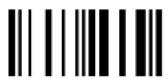
Code 39

Code 39 Full ASCII
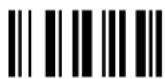
CODABAR

ABC CODABAR

Code 128
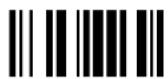
EAN 128

Code 93

CIP/39

CIP/HR

Code 32
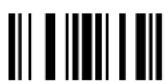
ISBT 128



GS1 DATABAR Expanded Linear and Stacked

GS1 DATABAR Limited

GS1 DATABAR 14 Linear and Stacked

C HEX AND NUMERIC TABLE
| CHARACTER TO HEX CONVERSION TABLE | |||||
| char | hex | char | hex | char | |
| NUL | 00 | * | 2A | U | 55 |
| SOH | 01 | + | 2B | V | 56 |
| STX | 02 | , | 2C | W | 57 |
| ETX | 03 | - | 2D | X | 58 |
| EOT | 04 | . | 2E | Y | 59 |
| ENQ | 05 | / | 2F | Z | 5A |
| ACK | 06 | 0 | 30 | [ | 5B |
| BEL | 07 | 1 | 31 | \ | 5C |
| BS | 08 | 2 | 32 | ] | 5D |
| HT | 09 | 3 | 33 | ^ | 5E |
| LF | 0A | 4 | 34 | - | 5F |
| VT | 0B | 5 | 35 | - | 60 |
| FF | 0C | 6 | 36 | a | 61 |
| CR | 0D | 7 | 37 | b | 62 |
| SO | 0E | 8 | 38 | c | 63 |
| SI | 0F | 9 | 39 | d | 64 |
| DLE | 10 | : | 3A | e | 65 |
| DC1 | 11 | ; | 3B | f | 66 |
| DC2 | 12 | < | 3C | g | 67 |
| DC3 | 13 | = | 3D | h | 68 |
| DC4 | 14 | > | 3E | i | 69 |
| NAK | 15 | ? | 3F | j | 6A |
| SYN | 16 | @ | 40 | k | 6B |
| ETB | 17 | A | 41 | l | 6C |
| CAN | 18 | B | 42 | m | 6D |
| EM | 19 | C | 43 | n | 6E |
| SUB | 1A | D | 44 | o | 6F |
| ESC | 1B | E | 45 | p | 70 |
| FS | 1C | F | 46 | q | 71 |
| GS | 1D | G | 47 | r | 72 |
| RS | 1E | H | 48 | s | 73 |
| US | 1F | I | 49 | t | 74 |
| SPACE | 20 | J | 4A | u | 75 |
| ! | 21 | K | 4B | v | 76 |
| " | 22 | L | 4C | w | 77 |
| # | 23 | M | 4D | x | 78 |
| $ | 24 | N | 4E | y | 79 |
| % | 25 | O | 4F | z | 7A |
| & | 26 | P | 50 | { | 7B |
| ' | 27 | Q | 51 | | | 7C |
| ( | 28 | R | 52 | } | 7D |
| ) | 29 | S | 53 | ~ | 7E |
| T | 54 | DEL | 7F | ||
hex
| CHARACTER TO HEX CONVERSION TABLE | |||||
| char | hex | char | hex | char | |
| € | 80 | a | AA | Õ | D5 |
| ☐ | 81 | « | AB | Õ | D6 |
| , | 82 | ¬ | AC | × | D7 |
| ENTER | 83 | - | AD | ∅ | D8 |
| TAB | 84 | ® | AE | Ù | D9 |
| F1 | 85 | - | AF | Ú | DA |
| F2 | 86 | ° | B0 | Û | DB |
| F3 | 87 | ± | B1 | Ü | DC |
| F4 | 88 | 2 | B2 | Ý | DD |
| F5 | 89 | 3 | B3 | Þ | DE |
| F6 | 8A | , | B4 | ß | DF |
| F7 | 8B | μ | B5 | à | E0 |
| F8 | 8C | ¶ | B6 | á | E1 |
| F9 | 8D | . | B7 | â | E2 |
| F10 | 8E | B8 | ã | E3 | |
| F11 | 8F | 1 | B9 | ä | E4 |
| F12 | 90 | ° | BA | å | E5 |
| HOME | 91 | » | BB | æ | E6 |
| END | 92 | 1⁄4 | BC | ç | E7 |
| Pg UP | 93 | 1⁄2 | BD | è | E8 |
| Pg Down | 94 | 3⁄4 | BE | é | E9 |
| ↑ | 95 | ¿ | BF | ê | EA |
| ↓ | 96 | Â | C0 | ë | EB |
| ← | 97 | Á | C1 | ì | EC |
| → | 98 | Â | C2 | í | ED |
| ESC | 99 | Ã | C3 | î | EE |
| CTRL(Right) | 9A | Ä | C4 | ï | EF |
| € | 9B | Â | C5 | õ | F0 |
| œ | 9C | Æ | C6 | ñ | F1 |
| || | 9D | Ç | C7 | ò | F2 |
| ž | 9E | É | C8 | ó | F3 |
| Ÿ | 9F | É | C9 | ô | F4 |
| NBSP | A0 | Ê | CA | õ | F5 |
| i | A1 | Ë | CB | ö | F6 |
| ∅ | A2 | ì | CC | ÷ | F7 |
| £ | A3 | í | CD | ø | F8 |
| ¤ | A4 | î | CE | ù | F9 |
| ¥ | A5 | ï | CF | ú | FA |
| | | A6 | Đ | D0 | û | FB |
| § | A7 | Ñ | D1 | ü | FC |
| .. | A8 | Ò | D2 | ý | FD |
| © | A9 | Ó | D3 | Reserved | FE |
| Ô | D4 | Reserved | FF | ||
hex
HEX / NUMERIC TABLE

0

2

4

6
8
A

C

E

1
3

5
7

9
B

D

F
Backspace
Cancels an incomplete configuration sequence
Australia
DatalogicScanningPtyLtd
Telephone:6198703200
australia.scanning@datalogic.com
FranceandBenelux
DatalogicScanningSAS
Telephone:[33].01.64.86.71.00
france.scanning@datalogic.com
Germany
DatalogicScanning, Inc
Telephone:(305)591-3222
latinamerica.scanning@datalogic.com
Singapore
DatalogicScanningSingaporePTELTD
Telephone:(65)6435-1311
singapore.scanning@datalogic.com
Iberia
DatalogicScanningSASSucursalenEspaña
Telephone:34917462860
spain.scanning@datalogic.com
UnitedKingdom
DatalogicScanningLTD
Telephone:44(0)1582464900
uk.scanning@datalogic.com

DATALOGIC™
www.scanning.datalogic.com
DatalogicScanning, Inc.
959TerryStreet
Eugene, OR97402
USA
Telephone:(541)683-5700
Fax:(541)345-7140
