FM420 - Barcode Reader Newland - Free user manual and instructions
Find the device manual for free FM420 Newland in PDF.


User questions about FM420 Newland
0 question about this device. Answer the ones you know or ask your own.
Ask a new question about this device
Download the instructions for your Barcode Reader in PDF format for free! Find your manual FM420 - Newland and take your electronic device back in hand. On this page are published all the documents necessary for the use of your device. FM420 by Newland.
USER MANUAL FM420 Newland
natural_image
Two black wireless device cables connected by a cable, showing ports and connectors (no text or symbols visible)FM420
NLS-FM420-MS-30
NLS-FM420-MS-38
Fixed Mount Barcode Scanner
Integration Guide

text_image
ScannerRevisions
| Version Description Date | ||
| V 1.0 Support as from FM420 firmware Version 3.06.021 and higher. 20100825 | ||
| V 1.1.1 | Modify the introduction for USB Interface; change the default status of Terminal to "off" (disable); update the "Figure 1. FM420 Top View". | 20110712 |
| V 1.1.2 | Renew "ASCII Function Key Mapping Table" of "USB HID-KBW" and correct the setting code of "Enable Reading All 2D. | 20110719 |
| V 1.1.3 Add | an "ASCII Table" in theAppendix. 20110822 | |
| V 1.1.4 Add | the "Dimensions of the FM420-MS-3X" section. 20140807 | |
© 1999-2014 by Newland Auto-ID Tech. Co., Ltd, All rights reserved.
No part of this publication may be reproduced, transmitted, or used in any form or by any means, electrical or mechanical, without prior written permission from Newland Auto-ID. The material in this manual is subject to change without notice.
All software, including firmware, is provided strictly on an “as is” basis and is provided without further warranty. Newland Auto-ID grants to the user a non-transferable and non-exclusive license to use each software or firmware program delivered hereunder (licensed program). Except as noted below, such license may not be assigned, sublicensed, or otherwise transferred by the user without prior written consent of Newland Auto-ID. No right to copy a licensed program in whole or in part is granted except as permitted under copyright law or as hereinafter expressly provided. The user agrees to maintain Newland Auto-ID’s copyright notice on the licensed programs delivered hereunder, and to include the same on any authorized copies it makes in whole or in part. The user agrees not to decompile, disassemble, decode, or reverse engineer any licensed program or product delivered to the user or any portion thereof.
Newland Auto-ID reserves the right to make changes and improvements to any software or product for reliability, function, or design.
Newland Auto-ID does not assume any responsibility or liability arising out of, or in connection with, the application or use of any product, circuit, or application described herein.
No license is granted, either expressly or implicitly, estoppels, or otherwise under any Newland Auto-ID intellectual property rights. An implied license only exists for equipment, circuits, and subsystems contained in Newland Auto-ID products.
Microsoft and Windows are either registered trademarks or trademarks of Microsoft Corporation. All other product or service names are the property of their respective owners.
Newland Auto-ID Tech. Co., Ltd.
Contents
About this guide
Introduction .... I
Graphic Notations .... 1
Newland Auto-ID Support Center 2
Getting to Start
Introduction....3
Unpacking....4
Unpacking....4
Outline of FM420 4
Data Interface....5
Communication Ports 6
Connecting with USB Cable....7
Connecting with RS232 Cable....8
Decode Zones 9
Dimensions of the FM420 10
Dimensions of the FM420-MS-3X....11
Programming the Engine
Introduction....12
Code Programming....12
Command Programming....12
QuickSet Programming 12
Programming Notation 13
Code Programming On/Off....14
Illumination....15
Aiming....16
Beep 17
Decoding Beep....17
Decoding Beep Type....17
Decoding Beep Volume 18
Power On Beep 18
Beep Denotation (Beeper Definitions)....18
Reading Mode....19
Reading Timeout and Delay 20
Sensitivity 21
Exposure Imaging Mode 22
Default 23
Factory Default 23
User Default....23
Serial Port 24
Baud Rate....24
RS232 Interface
Introduction....25
Serial Port 26
Baud Rate....26
Parity Check....27
Data Bits Transmitted 28
Stop Bits....28
Hardware Auto Flow Control 29
USB Interface
Introduction....30
USB HID-KBW 31
USB Country Keyboard Types 32
Unknown Characters, Beep 34
Emulate ALT + keypad 35
ASCII Function Key Mapping Table (Continued).... 38
Keystroke Delay 39
Caps Lock 39
Convert Case....40
Emulate Numeric Keypad....41
USB DataPipe 42
USB COM Port Emulation 43
HID-POS 44
Introduction....44
Access the Device in Your Program 45
Getting Scanned Data 45
VID and PID Table 45
Symbols
Introduction....46
General Options 47
Disable Reading All 47
Enable Reading All 47
Enable Reading All 1D 47
Disable Reading All 1D 47
Enable Reading All 2D 48
Disable Reading All 2D 48
Code 128....49
Load Factory Default 49
Enable/Disable Code 128 49
Select Message Length 50
EAN-8 51
Load Factory Default....51
Enable/Disable UCC/EAN-8 51
Check Digit....51
2 Digits Addenda Code....52
5 Digits Addenda Code....52
EAN-8 expand to EAN-13....53
EAN-13 54
Load Factory Default 54
Disable/EnableEAN-13 54
Check Digit 54
2 Digits Addenda Code....55
5 Digits Addenda Code....55
UPC-E 56
Load Factory Default 56
Disable/Enable UPC-E 56
Check Digit....56
2 Digits Addenda Code....57
5 Digits Addenda Code....57
Transmit Default "0" 58
UPC-E Expand to UPC-A....58
UPC-A....59
Load Factory Default 59
Disable/Enable UPC-A 59
Check Digit....59
2 Digits Addenda Code....60
5 Digits Addenda Code....60
Transmit Default "0" 61
Interleaved 2 of 5 62
Load Factory Default....62
Disable/Enable Interleaved 2 of 5....62
Select Message Length 63
Check Digit....64
Specified Lengths....65
ITF-14 66
ITF-6 67
Matrix 2 of 5 68
Load Factory Default....68
Disable/Enable Matrix 2 of 5....68
Select Message Length 69
Check Digit 70
Code 39....71
Load Factory Default....71
Enable/Disable Code 39 71
Transmit Start & Stop Character....71
Select Message Length 72
Check Digit 73
Decode ASCII....73
Codabar 74
Load Factory Default 74
Enable/Disable Codabar 74
Select Message Length 75
Check Digit 76
Transmit Start & Stop Character....77
Code 93....78
Load Factory Default 78
Enable /Disable Code 93 78
Select Message Length 79
Check Digit 80
UCC/EAN-128....81
Load Factory Default 81
Enable/Disable UCC/EAN-128 81
GS1 Databar....82
Load Factory Default 82
Enable/Disable GS1 Databar 82
Transmit AI(01) Character 82
EAN·UCC Composite....83
Load Factory Default 83
Enable/Disable EAN·UCC Composite 83
Code 11 84
Load Factory Default 84
Enable/Disable Code 11....84
Select Message Length 85
Check Digit 86
ISBN 87
Load Factory Default 87
Select Message Length 89
Check Digit 90
Standard 25 91
Load Factory Default....91
Enable/Disable Standard 25....91
Select Message Length 92
Check Digit....93
Plessey 94
Load Factory Default....94
Enable/Disable Plessey....94
Select Message Length 95
Check Digit....96
MSI-Plessey 97
Load Factory Default....97
Enable/Disable MSI-Plessey 97
Select Message Length 98
Check Digit....99
PDF417 100
Load Factory Default....100
Enable/Disable PDF417....100
Select Message Length 101
PDF417 Twin Code....102
Forward/Backward Direction PDF 417 .... 102
QR Code 103
Load Factory Default....103
Enable/Disable QR Code....103
Select Message Length 104
QR Twin Code 105
Aztec 106
Load Factory Default....106
Enable/Disable Aztec 106
Select Message Length 107
Reading Multi-barcodes of an Image....108
The number of Multi-barcodes 109
Data Matrix....110
Load Factory Default....110
Enable/Disable Data Matrix....110
Select Message Length ....111
Data Matrix Twin Code 112
Rectangular Symbols....113
Forward/Backward Direction Data Matrix 113
Maxicode 114
Load Factory Default....114
Enable/Disable Maxicode 114
Select Message Length ....115
Chinese Sensible Code....116
Load Factory Default....116
Enable/Disable Chinese Sensible Code....116
Select Message Length....117
OCR
Introduction....118
Prefix/Suffix
Introduction....119
General Programming....120
Disable or Enable Prefix/Suffix 120
Prefix Sequences....121
Disable or Enable User Prefix....122
Program User Prefix 122
AIM Prefix 123
Code ID Prefix 124
Code ID Default....124
Modify Code ID....125
User Suffix 128
Disable or Enable User Suffix 128
Program User Suffix 128
Terminal 129
Disable or Enable Terminal 129
Program Terminal 129
Message Interception & Pack
Introduction....130
Message Interception....131
Programming 1D Intercept Option 132
Programming 2D Intercept Option....133
Message Pack....134
Introduction....134
Normal Pack 134
Batch Programming
Introduction....135
How to build a batch command....136
Produce setting code 137
Use batch setting code 138
Appendix
Digit Code....139
Save and Abort....141
Factory Default List....142
AIM ID List 147
Code ID List....148
Symbols ID Number 149
About this guide
Introduction
This FM420 Embedded 1D/2D Barcode Scanner Integration Guide provides general instructions for OEM integration.
Graphic Notations

Tool - Handy item for a task.
Attention – Important subject to be aware of or to avoid.

Tips - Helpful information about a topic or a feature.

Example – Illustration of how to use a feature.
Newland Auto-ID Support Center
If you have a problem with your equipment, contact the Newland Support Center in your region. Before calling, have the model number, serial number, and several of your barcodes at hand.
Call the support Center from a phone near the scanning equipment so that the service person can try to talk you through your problem. If the equipment is found to be working properly and the problem is barcode readability, the Support Center will request samples of your bar codes for analysis at our plant.
If your problem cannot be solved over the phone, you may need to return your equipment for servicing. If that is necessary, you will be given specific directions.
Note: Newland Auto-ID Tech. is not responsible for any damages incurred during shipment.
For service information, warranty information or technical assistance contact or call the Support Center listed below. For the latest service information go to http://www.nlscan.com/en
Getting to Start
Introduction
FM420 is a fixed mount barcode scanner. Newland Auto-ID patented UIMG ^™ technology ensure FM420 fast image capture and accurate decoding. It provides the customer the best value.
This chapter presents an overall picture of how to use FM420 step by step. Please have an FM420 handy.
This chapter is recommended to general users, maintenance personnel, and software programmers.
Unpacking
Unpacking
Unpack FM420 and accessories. Check with the packing list. Make sure that there is no damage or missing part(s). If any damage or missing parts, please keep the original package and contact your supplier for services.
Outline of FM420
The figure below shows major components of FM420.
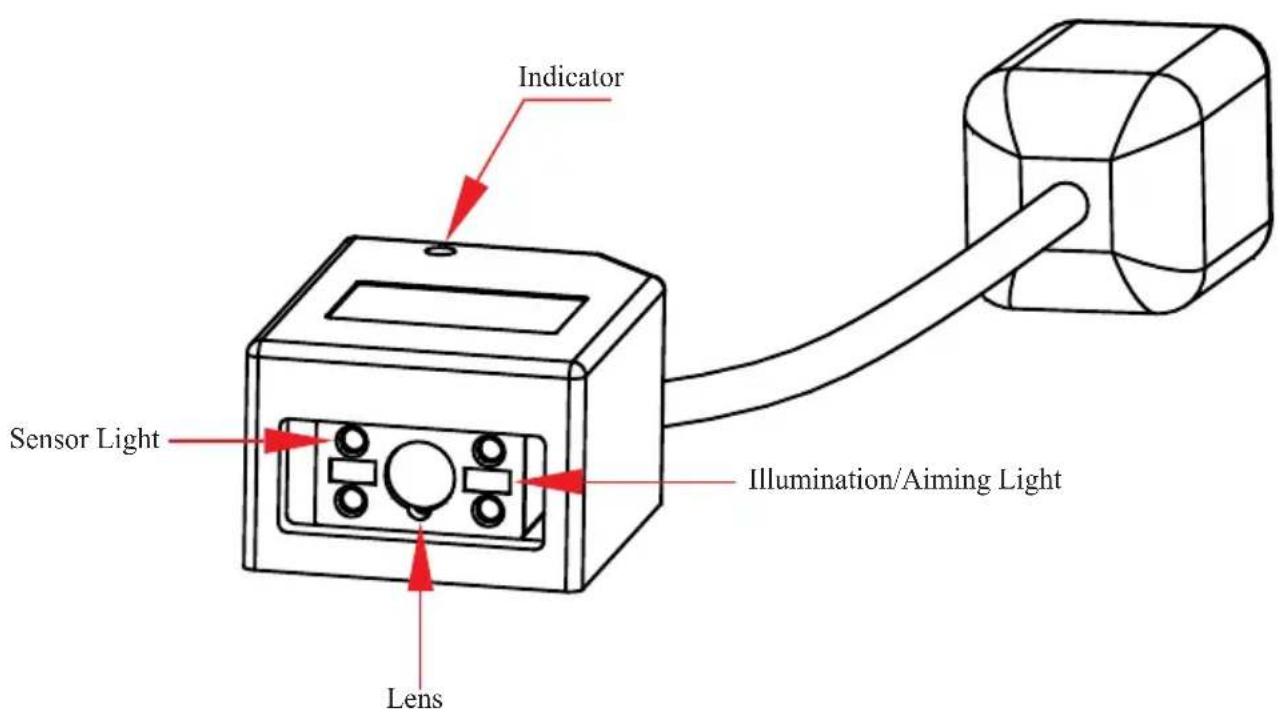
text_image
Indicator Sensor Light Lens Illumination/Aiming LightFM420 Outline
Note:
The scan window must be kept clean. Improper maintenance will breach the limited warranty. »
Avoid rough objects not to damage or scratch the window. »
Use brush to remove the stain. »
Use soft cloth (cloth for glasses) to clean. »
Prohibit spraying towards the window. »
Only use clean water as a cleanser. »
Unpacking
Data Interface
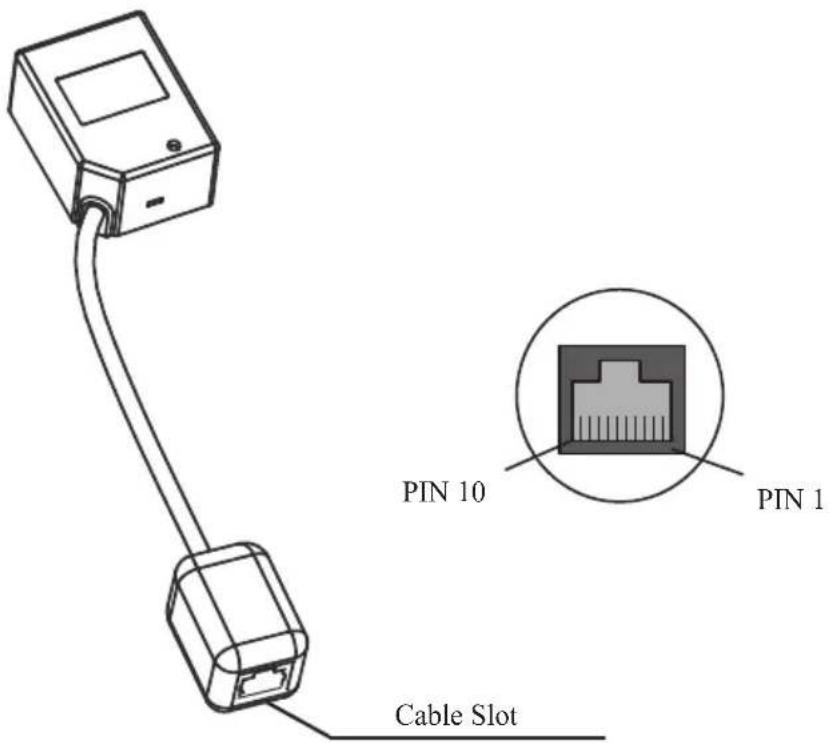
text_image
PIN 10 PIN 1 Cable Slot| Pin Function Type Name | ||
| 1 NC Null | ||
| 2 NC Null | ||
| 3 VCC P Power DC5V | ||
| 4 TXD O Serial Port Output, RS232 | ||
| 5 RXD I Serial Port Input, RS232 | ||
| 6 NC Null | ||
| 7 NC Null | ||
| 8 GND P Ground | ||
| 9 D- IO USB Data Signal | ||
| 10 D+ IO |
Communication Ports
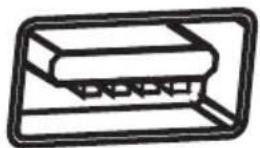
FM420 must connect to a Host to operate. A Host can be PC, POS, or any intelligent terminal with at least one of the following communication ports: USB, RS232, or PS/2.
USB 1、
USB port on Host:
RS232 2、
RS232 port on Host:

natural_image
Simple line drawing of a cylindrical object with internal zigzag pattern and two loop ends (no text or symbols)Please check the ports first to order the fitting cable.
Connecting with USB Cable
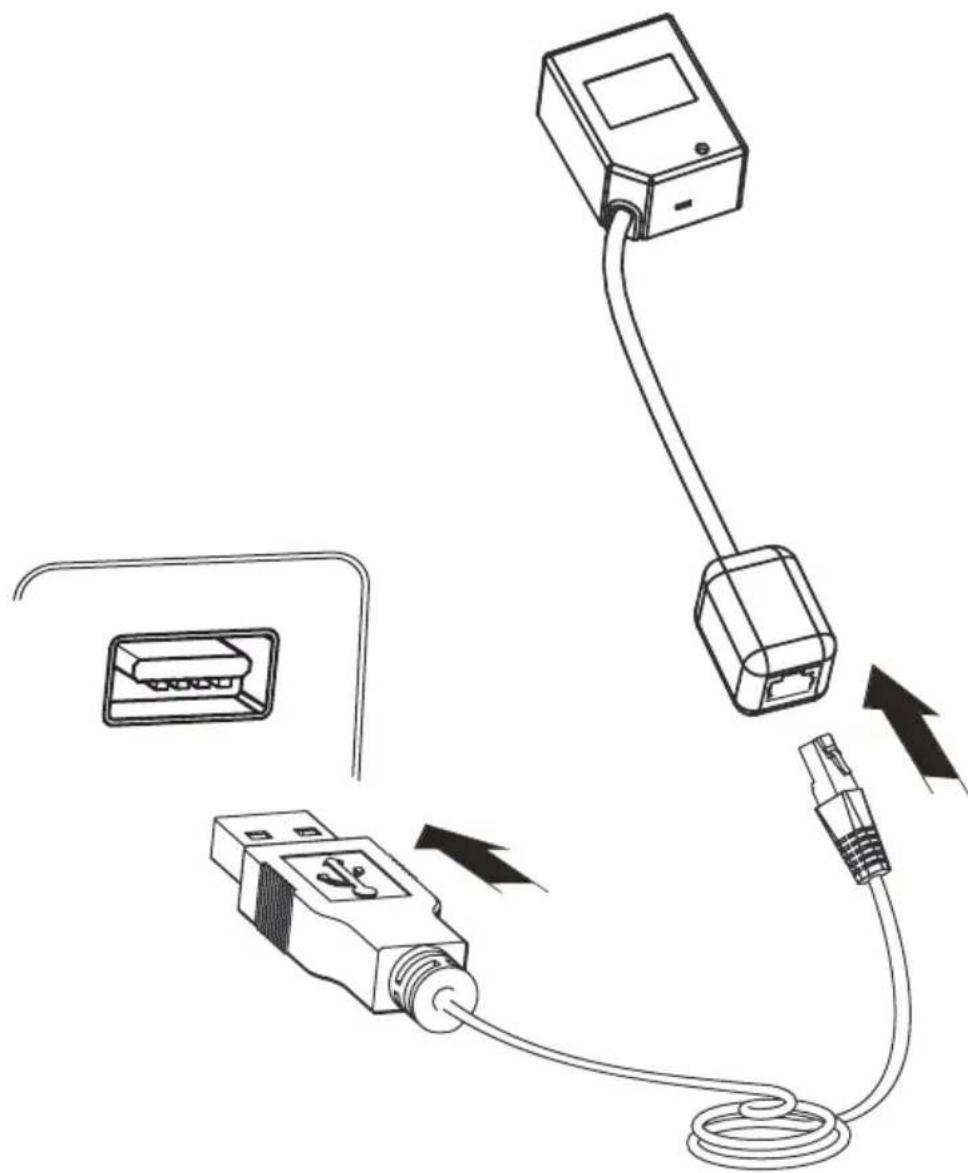
natural_image
Diagram of a USB cable connection showing cable routing from an Ethernet device to a USB socket (no text or symbols present)Insert USB Cable (RJ45 male head) into FM420 cable slot; 1、
2、Insert USB Cable (USB male head) into Host's (female) USB connector;
Connecting with RS232 Cable

text_image
Diagram showing connections of an audio device with labeled components including a power adapter, USB port, and connected cables.Insert RS232 cable (RJ45 male head) into FM420 cable slot; 1、
2、Insert RS232 cable (RS232 male head) into Host's (female) RS232 connector;
Connect RS232 cable and the mains with power adapter; 3、
Decode Zones
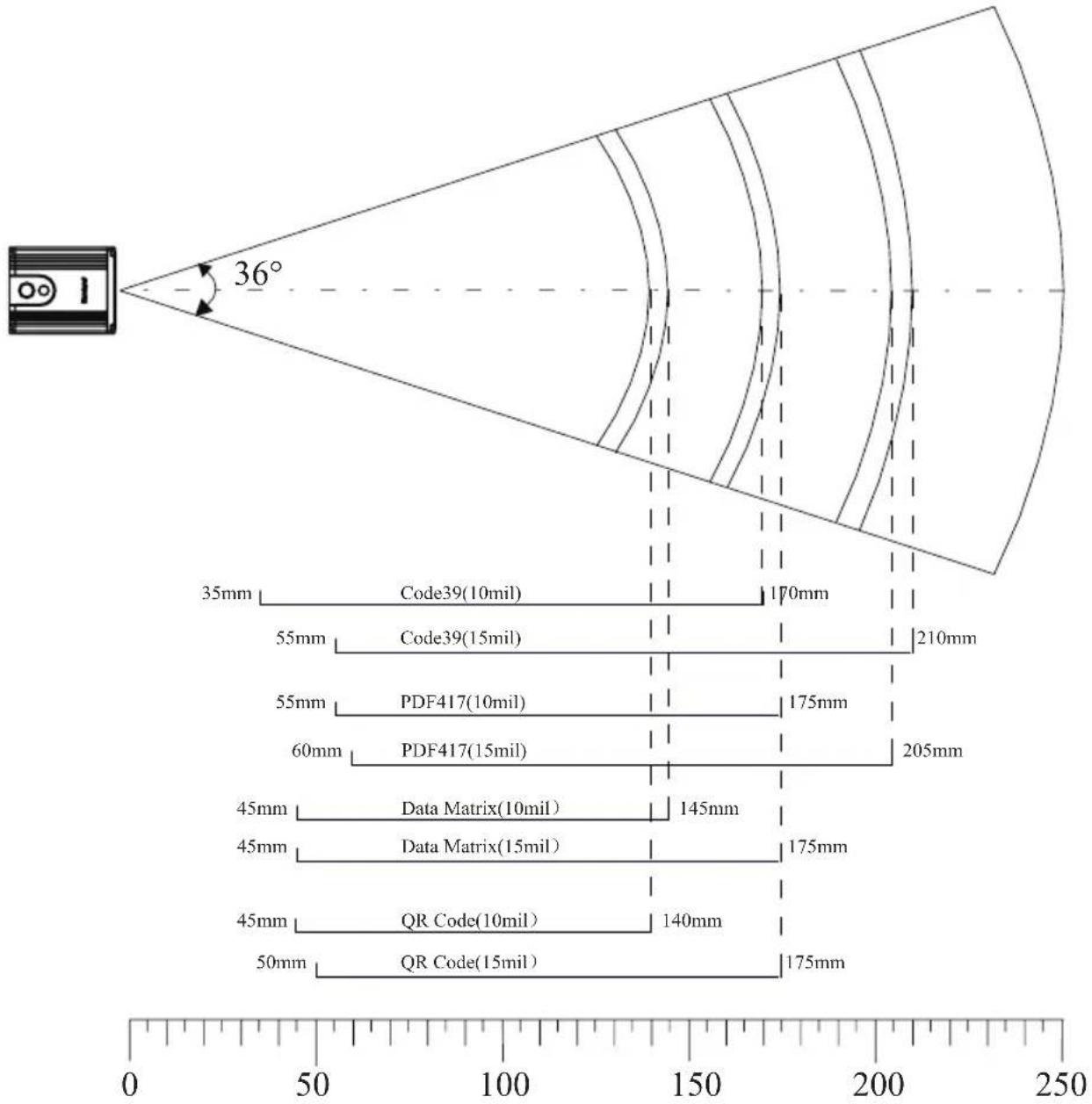
other
| Category | Value | | ------------------ | ------- | | Code39(10mil) | 35mm | | Code39(15mil) | 55mm | | PDF417(10mil) | 55mm | | PDF417(15mil) | 60mm | | Data Matrix(10mil) | 45mm | | Data Matrix(15mil) | 45mm | | QR Code(10mil) | 45mm | | QR Code(15mil) | 50mm | | Total Length | 36° | | Total Width | 170mm | | Total Radius | 210mm | | Total Diameter | 175mm | | Total Diameter | 205mm | | Total Diameter | 145mm | | Total Diameter | 175mm | | Total Diameter | 140mm | | Total Diameter | 175mm |Dimensions of the FM420
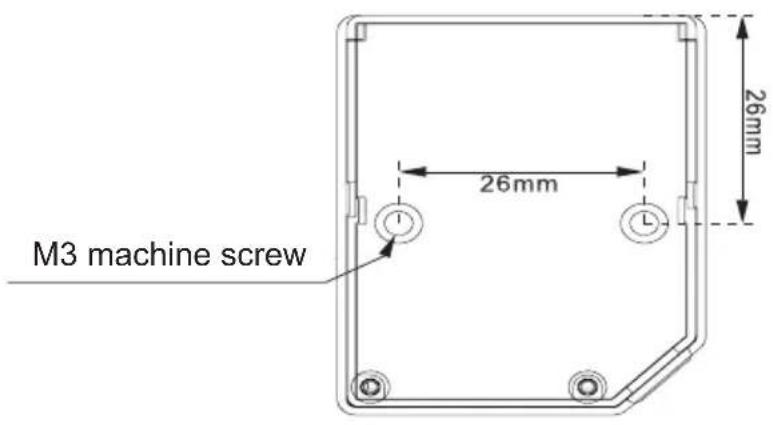
text_image
M3 machine screw 26mm 26mm
natural_image
Simple line drawing of a rectangular device with a circular button on top (no text or symbols)
text_image
12.5mm 25mm 29mm 37mm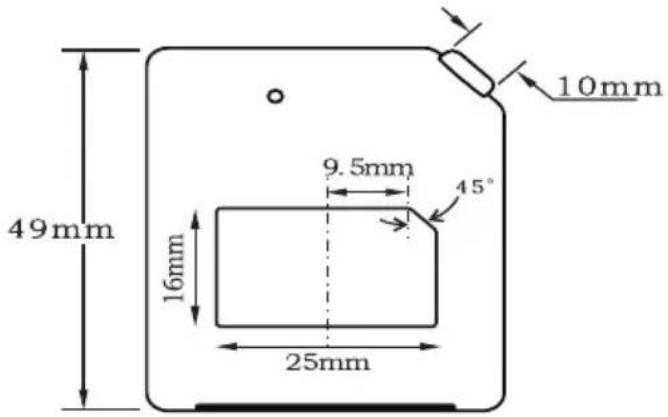
text_image
49mm 16mm 25mm 9.5mm 45° 10mmNote that the part of the mounting screws (M3 machine screw) into the scanner can not exceed 5mm.
Dimensions of the FM420-MS-3X
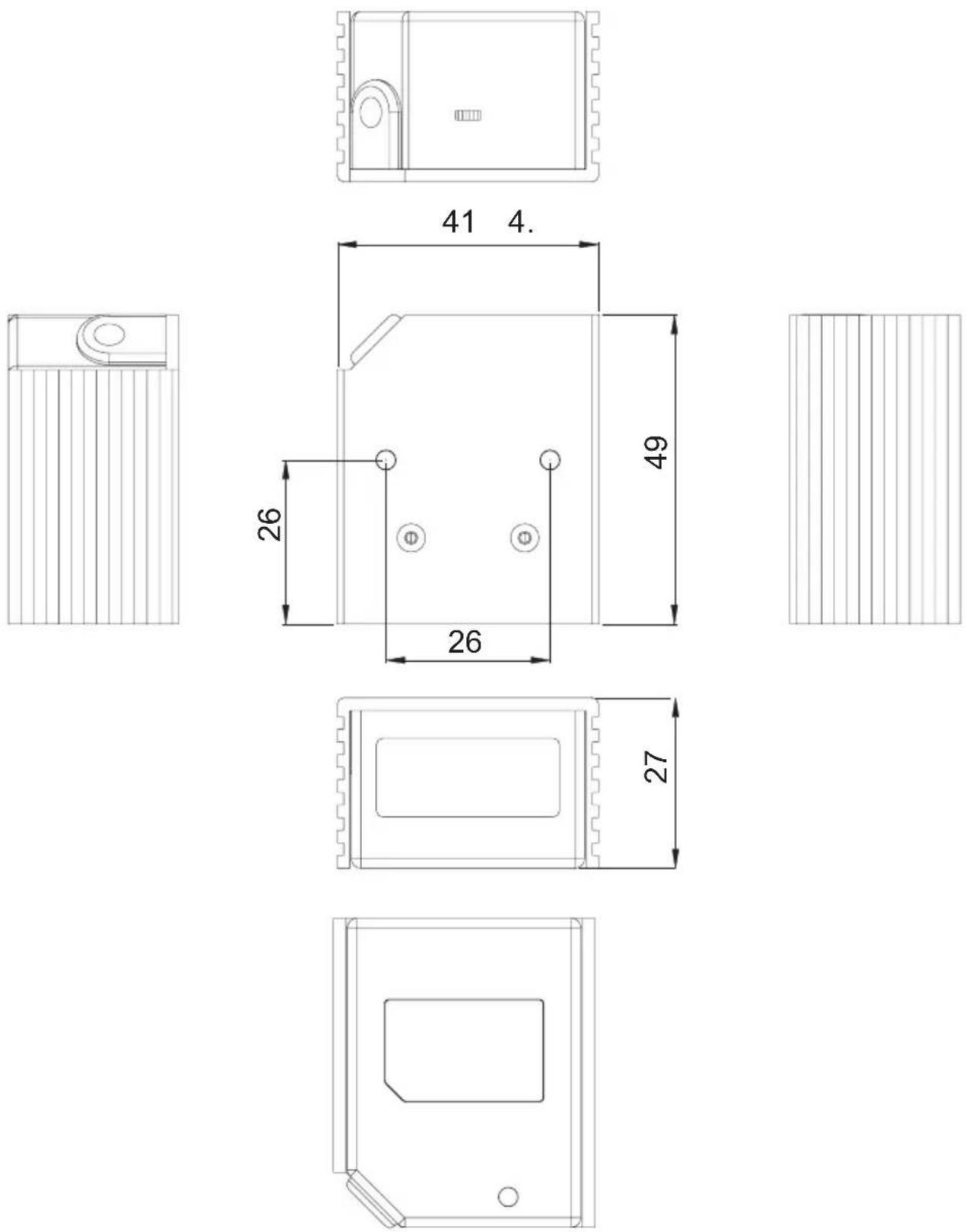
Note that the part of the mounting screws (M3 machine screw) into the scanner can not exceed 7mm.
Programming the Engine
Introduction
There are 3 ways to program (configure) the Engine, Code Programming, Command Programming, and QuickSet Programming.
Code Programming
The Engine reads a set of specially encoded barcodes to program features. In the following sections, we will explain the options and features available and provide the barcodes to program them.
This method of programming the Engine is most straight forward. However, it requires manually readings of each barcode. As all manual operations, errors are more likely to occur.
Command Programming
The Host can send the Pro CMD strings (see the chapter of Software Interface) to program the Engine. In the following sections, the Pro CMD strings will be included with the barcodes for Code Programming.
A fixture, such as EVK3000 or other simpler circuit board, could be used to program the Engines before they are installed into your equipments or systems. Another alternative is to design the configuration capability in your equipments or systems.
This method of programming the Engine could be automated. A software program can be developed to download all the configuration data to the Engine.
QuickSet Programming
QuickSet is a Windows based GUI program for Newland Auto-ID bar code readers. It displays decoded data and captured images. The engine with its circuit board can be easily configured through the interface of QuickSet.
This method of programming the Engine is similar as the Command Programming. QuickSet is a software program developed for Newland Auto-ID products.
Note: The programming results are restored in non-volatile memory. They will not be lost when the Engine is powered off.
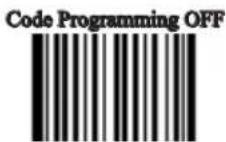
Programming Notation

Tools
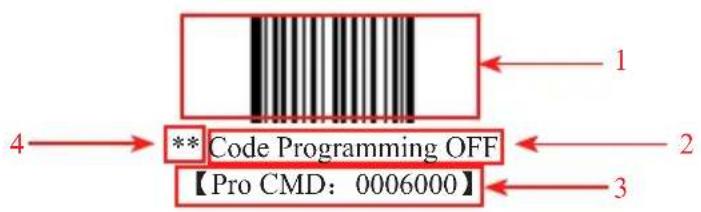
text_image
1 2 4 → ** Code Programming OFF 【Pro CMD: 0006000】 3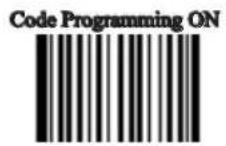

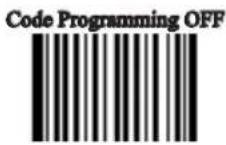
This is the notation to disable the Code Programming.
There are 4 parts of a notation:
1、The first part of the notation is the barcode for Code Programming
2、The second part of the notation is the name of the options or features, such as Disable Code Programming.
3、The third part of the notation is the corresponding Pro CMD string of the Code Programming.
4、If there is “**” in front of the name, it means the notation is factory default.
Code Programming On/Off

Tools
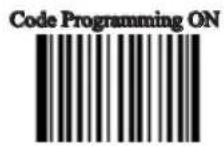
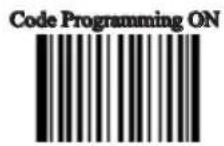
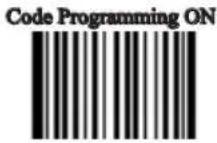
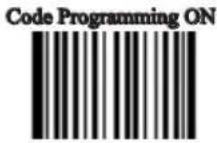
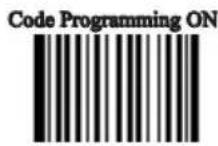
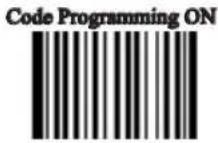
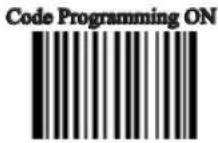
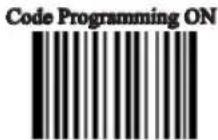
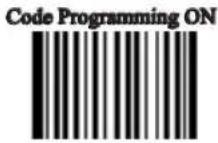
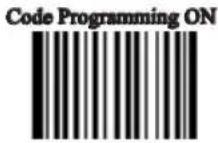
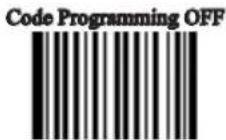
Read the “Code Programming ON” barcode to activate “Code Programming” function. One or more Code Programming barcodes can be read to configure the Engine.
If an option or feature needs additional parameters, such as digits, they can be found at the end of this chapter.
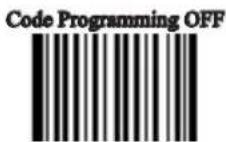
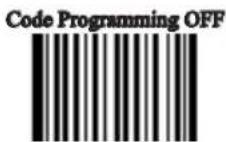
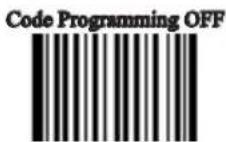
To exit Code Programming, read “Code Programming OFF” or any normal barcode.
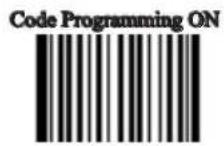

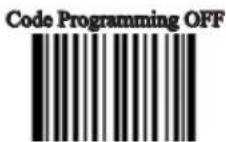
** Code Programming OFF
【Pro CMD: 0006000】
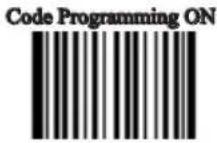
Code Programming ON
【Pro CMD: 0006010】
The value of code programming can be sent to the Host. For factory default, “No Send Pro Code Value”, the value of programming codes will not be sent to the Host; by reading “Send Pro Code Value”, the reader will send the value of Programming Code to the Host.
**No Send Pro Code Value
【Pro CMD: 0002000】

Send Pro Code Value
【Pro CMD: 0002010】
Illumination

Tools
Illumination LED lighting up barcodes are used to capture better images. There are 4 modes:
» “Illumination Wink”: LED keeps flashing when reading
» “Illumination Keep ON”: LED keeps on when Power ON
» “Illumination Read ON” : LED keeps on when reading “Illumination OFF” : LED is off all the time »


**Illumination Wink
【Pro CMD: 0200000】

Illumination Read ON
【Pro CMD: 0200030】
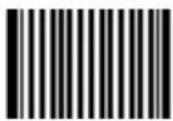
Illumination Keep ON
【Pro CMD: 0200010】
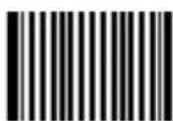
Illumination OFF
【Pro CMD: 0200020】
Aiming

Tools
There are 3 modes:
"Aim Wink": LED keeps flashing when reading »
“Aim Keep ON”: LED keeps on when Power ON »


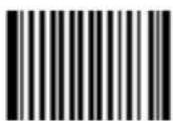
** Aim Wink
【Pro CMD: 0201000】

Aim Keep ON
【Pro CMD: 0201010】
Beep

Tools
Decoding Beep
Read “Beep ON” to enable all decoding beep denotation and read “Beep OFF” to disable.
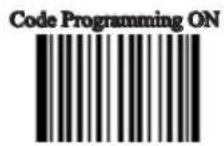
Decoding Beep Volume

** Loud
【Pro CMD: 0203030】
Code Programming ON
Medium
【Pro CMD: 0203031】
Low
【Pro CMD: 0203032】
Code Programming OFF
Power On Beep

** Beep On
【Pro CMD: 0204001】

Beep OFF
【Pro CMD: 0204000】
Beep Denotation (Beeper Definitions)
| Beep Denotation | |
| low-higher-higher-higher Power ON completed | |
| 1 beep successful reading of an ordinary barcode | |
| 2 beeps successful reading of an programming barcode | |
| 3 short low-2 high reading failure | |
| 1 long low Unknown Character, Virtual Keypad (USB connection) | |
Reading Mode

Tools
Auto Mode: The ambient luminance change in front of the engine auto-» matically initiates reading. After completion of reading, the engine goes to idle. Both luminance change and the Trigger can initiate reading when idle.

Continuous Mode: Pull the Trigger line low to start reading. The engine » will keep reading. To stop, pull trigger line low again.
**Auto Mode
【Pro CMD: 0302010】

Continuous Mode
【Pro CMD: 0302020】
Reading Timeout and Delay

Tools
One Reading Timeout: If the engine doesn't read any barcode during the timeout period, it will stop reading automatically. One Reading Timeout is valid in Auto mode. The default timeout is 3000ms.

Same Barcode Reading Delay: It is used to avoid misreading on the same barcode (the same format and message) in a Same Barcode Reading Delay Time. It is valid only in Auto mode. The default delay is 1500ms.

One Reading Timeout
【Pro CMD: 0313000】
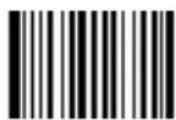
Same Barcode Reading Delay
【Pro CMD: 0313010】
There are two options available in Same Barcode Reading Delay:
(Multi-reading) Prohibit: The same symbol can be read after delay. »
» (Multi-reading) Semi-prohibit: The same symbol can be read more than once in the delay period if ambient illumination is changed, for example the bar code is removed out of reading area and moved back.
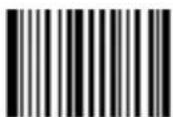
** Multi-reading Semi-prohibit
【Pro CMD: 0313020】
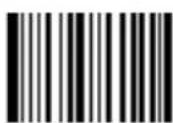
Multi-reading Prohibit
【Pro CMD: 0313030】

To set One Reading Timeout to 1500ms, read these programming codes:
1、“Code Programming ON”
2、“One Reading Timeout”
3、Digit Code “1”, “5”, “0”, “0”, see Digit Code “Save Programming” 4、
Sensitivity

Tools
Sensitivity is how sensitive the engine is to ambient illumination change. »
Sensitivity value is [1 .. 20] »
The lower the sensitivity value is the higher sensitivity will be. The low-»er the sensitivity value is the smaller illumination change will initiate reading.
High Sensitivity (= 8)
【Pro CMD: 0312020】

** Normal Sensitivity (= 11)
【Pro CMD: 0312010】

Enhanced Sensitivity (= 5)
【Pro CMD: 0312030】

Low Sensitivity (= 14)
【Pro CMD: 0312000】
Program Sensitivity
(Min:1, Max:20)
【Pro CMD: 0312040】
Exposure Imaging Mode

Tools

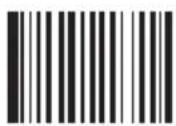
** Normal Exposure Mode
【Pro CMD: 0321000】

Reflections Eliminating Mode
【Pro CMD: 0321010】
Default

Tools
Factory Default
Read “Load All Factory Default” to reset all parameters to factory default.
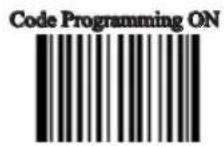
Applicable conditions:
User options programming wrong configuration leads to reading mal-» function
Forget details of previous programming and start over. »
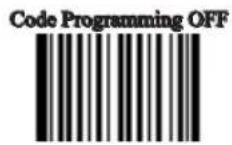
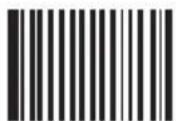
**Load All Factory Default
【Pro CMD: 0001000】
User Default
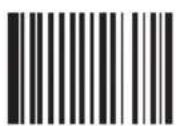
All user options can be saved as User Default. It will be restored in non-volatile memory. Read “Save as User Default” to save all the current user options to be User Default, and erase the previous User Default. Read “Load User Default” to restore the engine to User Default.

Save as User Default
【Pro CMD: 0001150】
Load User Default
【Pro CMD: 0001160】

If read “Load All Factory Default”, User Default will still be restored in non-volatile memory.
Serial Port

Tools
The engine and the Host should use the same serial port parameters: baud rate, parity check, data bits and stop bits. The sequence is as follows: 9600 (baud rate), null (parity check), 8 (data bits), 1 (stop bits).
Baud Rate
Baud rate is the number of bits of data transmitted per second. Set your scan engine baud rate to match the baud rate setting of the Host device. Otherwise, they can not communicate.

The engine supports the following baud rates (The default baud rate is 9600):
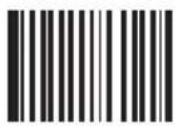
**9600
【Pro CMD: 0100030】

19200
【Pro CMD: 0100050】

1200
【Pro CMD: 0100000】
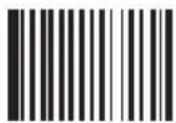
38400
【Pro CMD: 0100060】

2400
【Pro CMD: 0100010】
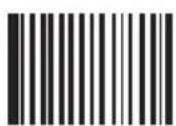
57600
【Pro CMD: 0100070】

4800
【Pro CMD: 0100020】
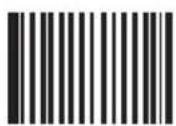
115200
【Pro CMD: 0100080】

14400
【Pro CMD: 0100040】
RS232 Interface
Introduction
When the scanner is connected to the Host with RS232 cable, system will select RS232 connection by default.
Under RS232 connection, the scanner and the Host use the same communication parameters: baud rate, parity
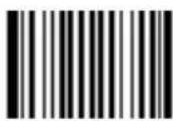
Select RS232 Connection
【Pro CMD: 1100000】
Serial Port

Tools
The scanner and the Host should use the same serial port parameters: baud rate, parity check, data bits and stop bits. The sequence is as follows: 9600 (baud rate), null (parity check), 8 (data bits), 1 (stop bits).

Baud Rate
Baud rate is the number of bits of data transmitted per second. Set your scanner baud rate to match the baud rate setting of the Host device. Otherwise, they can not communicate.
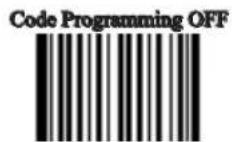
The scanner supports the following baud rates (The default baud rate is 9600):

**9600
【Pro CMD: 0100030】

19200
【Pro CMD: 0100050】

1200
【Pro CMD: 0100000】

38400
【Pro CMD: 0100060】
2400
【Pro CMD: 0100010】
57600
【Pro CMD: 0100070】
4800
【Pro CMD: 0100020】
115200
【Pro CMD: 0100080】
14400
【Pro CMD: 0100040】
Serial Port

Tools
Parity Check
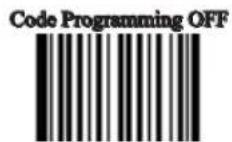
Parity check options should be the same on the scanner and the Host.
Select Odd parity: If data has an odd number of 1 bits, the parity bit » value is set to 0.
Select Even parity: If data has an even number of 1 bits, the parity bit » value is set to 0.
Select No Parity Check and parity bit will not be sent. »

**No Parity Check
【Pro CMD: 0101000】
Even Check
【Pro CMD: 0101010】
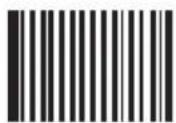
Odd Check
【Pro CMD: 0101020】
Serial Port

Tools
Data Bits Transmitted

Select data bits transmitted to be 5, 6, 7 and 8. Ensure the selections on the scanner and the Host are the same.
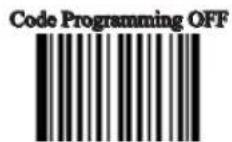
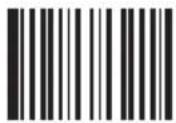
** 8 Data Bits
【Pro CMD: 0103030】

6 Data Bits
【Pro CMD: 0103010】
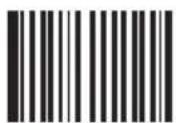
7 Data Bits
【Pro CMD: 0103020】

5 Data Bits
【Pro CMD: 0103000】
Stop Bits
Stop bit follows every byte to indicate the end of transmission and the start of the next transmission.
Default 1 stop bit.
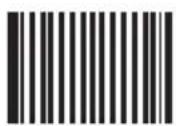
**1 Stop Bits
【Pro CMD: 0102000】
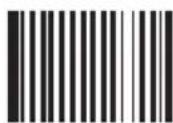
2 Stop Bits
【Pro CMD: 0102010】
Serial Port

Tools
Hardware Auto Flow Control
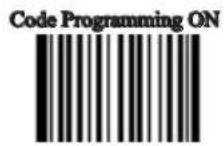
When enabled, the scanner will decide if the data should be sent in accordance with CTS signal level. When it is low level CTS signal, it means the serial port's cache memory of receiving end (such as PC) is full and the scanner will not send data through RS232 until CTS signal is set to high level by receiving end.
When the scanner is not ready for receiving, it will set RTS signal to low level.
When sending end (such as PC) detects it, it could not send data to the scanner any more, otherwise the data will be lost.
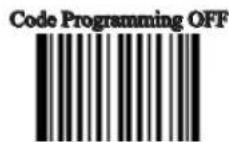
When disabled, data's sending and receiving through serial port will not be effected by RTS/CTS signal.
**Disable Hardware Auto Flow Control
【Pro CMD: 0104000】

Enable Hardware Auto Flow Control
【Pro CMD: 0104010】

Before enabling this function, please be sure that RTS/CTS signal line is contained in RS232 cable. If not, a RS232 communication error will occur.
USB Interface
Introduction
There are four options for USB connection, and any of them could be set as the default protocol on demand.
» USB HID-KBW: it emulates the unit's transmission to a USB keyboard input with no need of command settings or loading any driver. The barcode data could be entered by the virtual keyboard directly and it is also convenient for the Host to receive data.
» USB DataPipe: USB DataPipe is a transport protocol developed by Newland Auto-ID Tech Co., Ltd, which requires installation of a specific driver on the Host. It supports data transmission and user preference programming. The DataPipe driver for Windows is available in http://www.nlscan.com/home.php.
» USB COM Port Emulation: it emulates the USB port on the Host to an RS 232 port with the same data transport and settings as the real RS 232 port. This connection mode is based on USB DataPipe protocol and requires the USB DataPipe driver, too.
» HID-POS: it is based on the HID port, with no need for customized driver installation. Its transmission is much faster than that of virtual keyboard and traditional RS 232 interface.
When a USB connection and an RS 232 connection are used at the same time, the unit will select the USB connection by default for its priority.
USB HID-KBW

Tools
USB connection (no driver needed) supports simulating the Imager transmission to be a USB keyboard input. The Host receives keystrokes of the virtual keyboard. It works in "Plug and Play" base. There is no driver required.

Select USB HID-KBW
【Pro CMD: 1100020】

If the input field of the Host allows keyboard input, no software needed to assist HID-KBW input.
USB HID-KBW

Tools
USB Country Keyboard Types
The keyboard arrangements and country codes vary in different countries. Refer country codes to the table “USB Country Keyboard Types”. Follow the steps mentioned below to program.
1、“Code Programming ON”
2、“Select Country Code”
Read digit codes (according to country code) 3、
"Save programming" 4、
5、“Code Programming OFF”


Select Country Code
【Pro CMD: 1103000】

Emulate Norway keyboard:
- "Code Programming ON"
2."Select Country Code" - Digit code: "1", "5"
4."Save Programming"
5."Code Programming OFF"
USB HID-KBW
| Country/Language Number Country/Language Number | |||
| U.S. 0 Netherlands(Dutch) 14 | |||
| Belgium 1 Norway 15 | |||
| Brazil 2 Poland 16 | |||
| Canada(French) 3 Portugal 17 | |||
| Czechoslovakia 4 Romania 18 | |||
| Denmark 5 Russia 19 | |||
| Finland(Swedish) | 6 Slovakia | 21 | |
| France | 7 Spain | 22 | |
| Germany/Austria | 8 Sweden | 23 | |
| Greece | 9 Switzerland(German) | 24 | |
| Hungary | 10 | Turkey F | 25 |
| Israel(Hebrew) | 11 | Turkey Q | 26 |
| Italy | 12 | U.K | 27 |
| Latin-American | 13 | Japan | 28 |
USB HID-KBW

Tools
Unknown Characters, Beep
HID-KBW deems an unknown character to be a character is not included in a country keyboard type. It may not be able to allocate and send a keystroke, thus lead to an error beep.
** No Beep, Unknown Character
【Pro CMD: 1103030】


Beep, Unknown Character
【Pro CMD: 1103031】
Example
Suppose select country keyboard types France (number 7), read a barcode "ADF". Since the “D” (0xD0) is not included in France country code, the Imager skip “D” and transmit “AF”. For factory default, no beep produced. Read “Beep, Unknown Character” to indicate unknown character.
USB HID-KBW

Tools
Emulate ALT + keypad
When enabled, full ASCII characters (0x00\~0xff) can be sent over the numeric keypad regardless country keyboard selections.
“ALT” Make 1、
2、According to the ASCII value, input the numbers over the numeric keypad "ALT" Break 3、

** No Emulate ALT + keypad
【Pro CMD: 1103060】
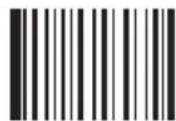
Emulate ALT + keypad
【Pro CMD: 1103061】

Too much keystroke emulation slows the sending speed.

Suppose country code "7", France is selected, and "Emulate ALT + keypad" is enabled. Barcode message "ADF" (65/208/70) will be sent as:
-
“ALT make” + “0, 6, 5” + “ALT Break”
-
“ALT make” + “2, 0, 8” + “ALT Break”
-
“ALT make” + “0, 7, 0” + “ALT Break”
USB HID-KBW

Tools
When enabled, function characters (0x00\~0x1F) are sent as ASCII sequences over the numeric keypad.
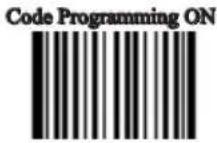
“Ctrl make” 1、
Hit function key 2、
“Ctrl Break” 3、


- Keystroke "A"
- Input "Ctrl I" by "Ctrl make", Keystroke "I", "Ctrl break"
- Keystroke "F"
For some text editors “Ctrl 1” is italic convert. So the output may be “AF”

Enable “Emulate ATL + keypad” will automatically disable “Emulate CTRL + keypad”
ASCII Function Key Mapping Table
| ASCII Function ASCII | Value(HEX) No Function Key Mapping Function Key Mapping | ||
| NUL 00 Null Ctrl+2 | |||
| SOH 01 Keypad Enter Ctrl+A | |||
| STX 02 Caps lock Ctrl+B | |||
| ETX 03 Null Ctrl+C | |||
| EOT 04 Null Ctrl+D | |||
| ENQ 05 Null Ctrl+F | |||
| ACK 06 Null Ctrl+F | |||
| BEL 07 Enter Ctrl+G | |||
| BS 08 | LeftArrow | Ctrl+H | |
| HT 09 | Tab | Ctrl+I | |
| LF 0A | DownArrow | Ctrl+J | |
| VT | 0B | Tab Ctrl+K | |
| FF 0C | Delete Forward | Ctrl+L | |
| CR | 0D | Enter | Ctrl+M |
| SO 0E | Insert | Ctrl+N | |
| SI | 0F | Escape | Ctrl+O |
| DLE 10 | F11 | Ctrl+P | |
| DC1 11 | Home | Ctrl+Q | |
| DC2 12 | PrintScreen | Ctrl+R | |
| DC3 13 Delete | Ctrl+S | ||
| DC4 14 | tab+shift | Ctrl+T | |
| NAK | 15 | F12 Ctrl+U | |
| SYN 16 | F1 | Ctrl+V | |
| ETB 17 | F2 | Ctrl+W | |
| CAN | 18 | F3 | Ctrl+X |
| EM | 19 | F4 | Ctrl+Y |
| SUB | 1A | F5 | Ctrl+Z |
| ESC 1B | F6 | Ctrl+[ | |
| FS 1C | F7 | Ctrl-\ | |
| GS | 1D | F8 | Ctrl+] |
| RS 1E | F9 | Ctrl+6 | |
| US 1F | F10 | Ctrl+- |
USB HID-KBW
ASCII Function Key Mapping Table (Continued)
The last five characters in the Full ASCII “CTRL” + column ( 6 - ), apply to US only. The following chart indicates the equivalents of these five characters for different countries.
| Country Codes | ||||||
| United States [ \ ] 6 - | ||||||
| Belgium [<] 6 - | ||||||
| Scandinavia 8 < 9 6 - | ||||||
| France ^ 8 S 6 = | ||||||
| Germany + 6 - | ||||||
| Italy + 6 - | ||||||
| Switzerland < .. 6 - | ||||||
| United Kingdom [ ¢ | ] 6 - | |||||
| Denmark | 8 \ | 9 6 - | ||||
| Norway 8 | \ 9 6 - | |||||
| Spain | [ \ ] 6 - | |||||
USB HID-KBW

Tools
Keystroke Delay
This parameter sets the delay, in milliseconds, between emulated keystrokes. Scan programming code below to increase the delay when the Host require a slower transmission of data.

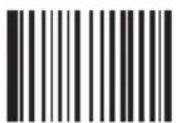
** No Delay
【Pro CMD: 1103050】

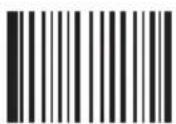
Short Delay(20ms)
【Pro CMD: 1103051】
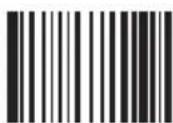
Long Delay(40ms)
【Pro CMD: 1103052】
Caps Lock
The case of the data is inverted regardless of the state of the Caps Lock key on the Host. Lower case and upper case are converted correspondingly.
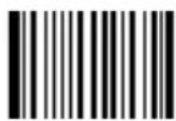
** Disable Caps Lock
【Pro CMD: 1103010】

Enable Caps Lock
【Pro CMD: 1103020】

“Convert Case”, “Emulate ALT + keypad” and “Function Key Mapping” option prevails “Enable Caps Lock”

“Enable Caps Lock”, barcode message “AbC” is transmitted as “aBc”
USB HID-KBW

Tools
Convert Case
The Imager converts all barcode messages to the selected case.

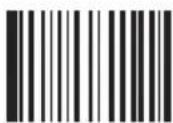
** No Case Conversion
【Pro CMD: 1103040】

Convert All to Upper Case
【Pro CMD: 1103041】
Convert All to Lower Case
【Pro CMD: 1103042】
Example
Read “Convert All to Lower Case”, Barcode message “AbC” is sent as “abc”
USB HID-KBW

Tools
Emulate Numeric Keypad
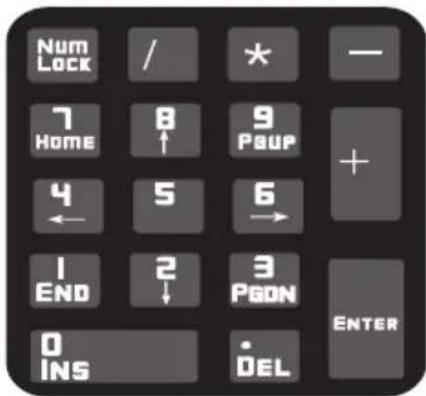
text_image
Num Lock / * — 7 Home 8 ↑ 9 PSUP + 4 ← 5 6 → 1 END 2 ↓ 3 PGDN ENTER 0 INS DEL

When disable, the whole barcode message will be emulated as keystrokes on main keyboard.
Read “Emulate Numeric Keypad” to enable the function. when “0\~9” is of the barcode message, it will be emulated as keystrokes on numeric keypad. But sign such as “+” “_” “*” “/” “.” is emulated as keystrokes on main keyboard.
Numeric keypad is normally at the right of a standard keyboard. This function is effected by the current state of “Num Lock” of Host's numeric keypad. The emulate numeric keypad couldn't control the state of “Num Lock”. So, if “Num Lock” light off, the output is function key instead of numbers.
** Disable Emulate Numeric Keypad
【Pro CMD: 1103110】
Check Num Lock light before use this function.
Enable “Emulate ALT + keypad” will automatically disable this function

Enable “Emulate Number Keyboard” and read the “A4.5” barcode. If “Num
Lock” on the Host is ON, the data received will be “A4.5”. If “Num Lock” is OFF, Host will receive the data from keyboard as follow:
Host receives data “A”. This character is not included in keyboard, thus the data will be sent as normal.
Next, Host receives data “4” corresponding to the instruction of “Cursor move to left”.
Then, Host receives data “.” corresponding to the instruction of “delete the character just back of cursor”.
There is no input generated by data “4” as the data “5” corresponds to NO instructions.
USB DataPipe

Tools
This protocol is defined by Newland Auto-ID. A driver has to be installed before using this protocol to communicate with scanner,
The advantage of using this protocol is the fast data transmission. Meanwhile, the SDK can be easily integrated into the application system.
Select USB DataPipe
【Pro CMD: 1100010】
USB COM Port Emulation

Tools
When the USB port is connected to Host serial port in order to receive data from scanner, the model of imitating USB-to-RS232 has to be chosen. Hence, the scanner and the Host must communicate at the same parameters and the parameters of real serial port and visual serial port must be the same.
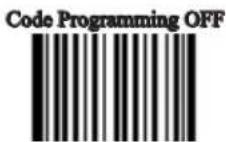

Select USB COM Port Emulation
【Pro CMD: 1100060】
HID-POS

Tools
Introduction
The IID POS interface is recommended for new applications. It can send up to 56 characters in a single USB report and is much faster than keyboard emulation.
Features: »
HID based, no custom driver required »
Much faster than keyboard emulation and traditional RS-232 »

Note: HID POS does not require a custom driver installation. However, a HID interface on Windows 98 does.

Select HID-POS
【Pro CMD: 1100080】
HID-POS

Tools
Access the Device in Your Program
CreateFile opens the device as a HID, then ReadFile delivers the scanned data to the application. Use WriteFile to send data to the device.
For complete information on USB and HID interfaces, please see www.USB.org or refer to one of the following manuals:

Getting Scanned Data
After scanning and decoding a bar code, the device sends the following input report:
| Bit | ||||||||
| Byte 7 6 5 | 4 3 2 1 0 | |||||||
| 0 Report ID = 0x02 | ||||||||
| 1 Length of the bar code (field "Decoded Data") | ||||||||
| 2-57 Decoded Data (1-56) | ||||||||
| 58-61 Reserved (1-4) | ||||||||
| 62 Newland Symbology Identifier or N/C: 0x00 | ||||||||
| 63 - - - - - - | - | Decode DataContinued | ||||||
VID and PID Table
USB uses two numbers to identify a device and find the correct drivers. The first is the VID (Vendor ID), assigned by the USB Implementers Forum. The Newland vendor ID (VID) is 1EAB (hex). The second is the PID (Product ID). A range of PIDs is used for each Newland product sub family, so each PID contains a base number and an interface type (keyboard, COM port, etc.).
| Device Interface Type PID(Hex) PID(Dec) | |||
| EM2027* | Base 0200 | 512 | |
| HID POS | 0210 | 528 | |
| HR200 | Base 0100 | 256 | |
| HID POS | 0110 | 272 | |
*EM2027: A 2D barcode scan engine which is also designed and manufactured by Newland. please see www.nlscan to get more EM2027 product info.
Symbols
Introduction
This chapter lists all the available symbols and provides the programming barcodes to enable/disable them.
Disabling reading of the symbols which do not apply, will improve reading performance. The few ablng reading of the symbols are, the fast the scanner will work.
General Options

Tools
Disable Reading All
Disable Reading All = Allow reading Programming Codes only.
Disable Reading All
【Pro CMD: 0001010】
Enable Reading All
Enable Reading All = Enable to read all symbols and Programming Codes.

Enable Reading All
【Pro CMD: 0001020】
Enable Reading All 1D

Enable Reading All 1D
【Pro CMD: 0001040】
Disable Reading All 1D

Disable Reading All 1D
【Pro CMD: 0001030】
General Options

Tools
Enable Reading All 2D
Enable Reading All 2D
【Pro CMD: 0001060】
Code Programming ON

Code Programming OFF
Disable Reading All 2D
Disable Reading All 2D
【Pro CMD: 0001050】
Code 128

Tools
Load Factory Default

** Load Code 128 Factory Default
【Pro CMD: 0400000】
Code Programming ON

Code Programming OFF

Enable/Disable Code 128

Disable Code 128
【Pro CMD: 0400010】
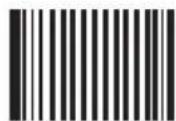
** Enable Code 128
【Pro CMD: 0400020】

When the scanner can not read Code 128, please read "Enable Code 128" and try again.
Code 128

Tools
Select Message Length
It is used to program the valid reading length of Code 128. The scanner will not send barcode message to the Host, if the decoded data length does not match the valid length.
Code 128 Message Length is defined by “Min. Message Length” and “Max. Message Length”.

Min Message Length (default: 1)
【Pro CMD: 0400030】

Max Message Length (default: 48)
【Pro CMD: 0400040】

1D bar code Message Length should not exceed 127 bytes. If Max Message Length is less than Min Message Length, it means the scanner will only support barcodes of the two lengths. If Max Message Length is equal to Min Message Length, the scanner will only support barcodes of the length.

To set Min Message Length of Code 128 to 8 bytes and Max Message Length to 12 bytes, read these programming codes
1、“Code Programming ON”
2、“Select Min Message Length”
3、Digit Code “8”, see Digit Code
4、“Save Programming”, see Digit Code
5、“Select Max Message Length”
6、Digit Code “1”
7、Digit Code “2”
"Save Programming" 8,
9、“Code Programming OFF”
EAN-8

Tools
Load Factory Default
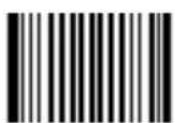
** Load UCC/EAN-8 Factory Default
【Pro CMD: 0401000】
Code Programming ON
Code Programming OFF

Enable/Disable UCC/EAN-8
** Enable UCC/EAN-8
【Pro CMD: 0401020】
Disable UCC/EAN-8
【Pro CMD: 0401010】
Check Digit
UCC/EAN-8 is fixed 8 digits barcode and the last digit is check digit.

**Transmit Check
【Pro CMD: 0401040】
Do Not Transmit Check
【Pro CMD: 0401030】
EAN-8

Tools
2 Digits Addenda Code
Addenda Code is the one to the right of an ordinary code. Picture below shows an ordinary code with a 2 digits Addenda Code. The left one in blue lines is an ordinary code. The right one in red lines is the 2 digits Addenda Code.

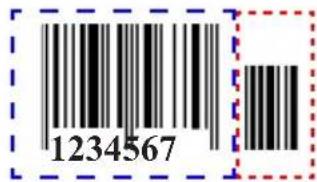
text_image
1234567
** Disable 2 Digits Addenda Code
【Pro CMD: 0401050】
Enable 2 Digits Addenda Code
【Pro CMD: 0401060】
5 Digits Addenda Code
5 Digits Addenda Code is the one to the right of an ordinary code. Picture below shows an ordinary code with a 5 digits Addenda Code. The left one in blue lines is an ordinary code. The right one in red lines is the 5 digits Addenda Code.
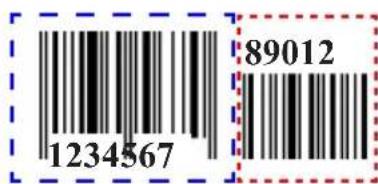
text_image
1234567 89012
** Disable 5 Digits Addenda Code
【Pro CMD: 0401070】

Enable5 Digits Addenda Code
【Pro CMD: 0401080】

“ Enable 2 Digits Addenda Code “ — read an ordinary code and 2 digits Addenda Code. “ Enable 5 Digits Addenda Code “ — read an ordinary code and 5 digits Addenda Code. “ Disable 2 Digits Addenda Code “ — read an ordinary code only, and ignore 2 digits Addenda Code.
EAN-8

Tools
EAN-8 expand to EAN-13
Expand EAN-8 to EAN-13, by adding 5 bytes of "0" to the left, and then transmit.
Code Programming ON
Code Programming OFF


** Do Not Expand to EAN-13
【Pro CMD: 0401090】
Expand to EAN-13
【Pro CMD: 0401100】
EAN-13

Tools
Load Factory Default

** Load EAN-13 Factory Default
【Pro CMD: 0402000】
Code Programming ON

Code Programming OFF
Disable/EnableEAN-13

** Enable EAN-13
【Pro CMD: 0402020】

Disable EAN-13
【Pro CMD: 0402010】
Check Digit
** Transmit Check
【Pro CMD: 0402040】

Do Not Transmit Check
【Pro CMD: 0402030】
EAN-13

Tools
2 Digits Addenda Code
Addenda Code is the one to the right of an ordinary code. Picture below shows an ordinary code with a 2 digits Addenda Code. The left one in blue lines is an ordinary code. The right one in red lines is the 2 digits Addenda Code.
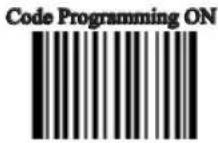
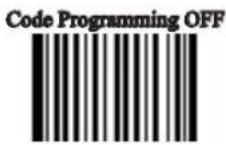
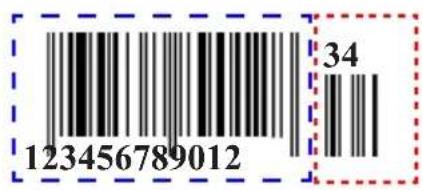
text_image
123456789012 34
** Disable 2 Digits Addenda Code
【Pro CMD: 0402050】

Enable 2 Digits Addenda Code
【Pro CMD: 0402060】
5 Digits Addenda Code
5 Digits Addenda Code is the one to the right of an ordinary code. Picture below shows an ordinary code with a 5 digits Addenda Code. The left one in blue lines is an ordinary code. The right one in red lines is the 5 digits Addenda Code.

text_image
123456789012 45678
** Disable 5 Digits Addenda Code
【Pro CMD: 0402070】

Enable5 Digits Addenda Code
【Pro CMD: 0402080】

“ Enable 2 Digits Addenda Code “ — read an ordinary code and 2 digits Addenda Code.
“ Enable 5 Digits Addenda Code “ — read an ordinary code and 5 digits Addenda Code.
“ Disable 2 Digits Addenda Code “ — read an ordinary code only, and ignore 2 digits Addenda Code.
UPC-E

Tools
Load Factory Default

** Load UPC-E Factory Default
【Pro CMD: 0403000】
Code Programming ON
Code Programming OFF
Disable/Enable UPC-E
** Enable UPC-E
【Pro CMD: 0403020】
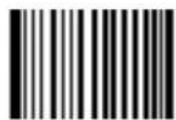
Disable UPC-E
【Pro CMD: 0403010】

When the scanner can not read UPC-E, please read “Enable UPC-E” and try again.
Check Digit
UPC-E is fixed 8 digits barcode and the last digit is check digit.

** Transmit Check
【Pro CMD: 0403040】

Do Not Transmit Check
【Pro CMD: 0403030】
UPC-E

Tools
2 Digits Addenda Code
Addenda Code is the one to the right of an ordinary code. Picture below shows an ordinary code with a 2 digits Addenda Code. The left one in blue lines is an ordinary code. The right one in red lines is the 2 digits Addenda Code.
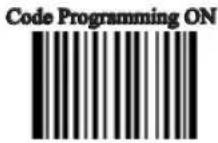

text_image
0123456 78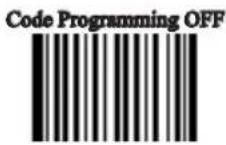
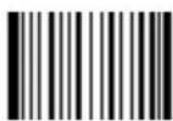
** Abort 2 Digits Addenda
【Pro CMD: 0403050】
Enable 2 Digits Addenda Code
【Pro CMD: 0403060】
5 Digits Addenda Code
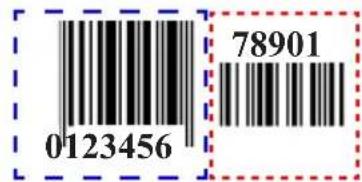
5 Digits Addenda Code is the one to the right of an ordinary code. Picture below shows an ordinary code with a 5 digits Addenda Code. The left one in blue lines is an ordinary code. The right one in red lines is the 5 digits Addenda Code.
text_image
0123456 78901
** Disable 5 Digits Addenda Code
【Pro CMD: 0403070】
Enable 5 Digits Addenda Code
【Pro CMD: 0403080】

“ Enable 2 Digits Addenda Code “ — read an ordinary code and 2 digits Addenda Code.
“ Enable 5 Digits Addenda Code “ — read an ordinary code and 5 digits Addenda Code.
“Disable 2 Digits Addenda Code “ — read an ordinary code only, and ignore 2 digits Addenda Code.
UPC-E

Tools
Transmit Default "0"
The first byte of UPC-E is default to “0”.
Code Programming ON

Code Programming OFF

** Do Not Transmit "0"
【Pro CMD: 0403090】

Transmit "0"
【Pro CMD: 0403100】
UPC-E Expand to UPC-A
Follow the standard algorithm to expand UPC-E to UPC-A.

**Do Not Expand to UPC-A
【Pro CMD: 0403110】
Expand to UPC-A
【Pro CMD: 0403120】
UPC-A

Tools
Load Factory Default
** Load UPC-A Factory Default
【Pro CMD: 0404000】
Code Programming ON

Code Programming OFF
Disable/Enable UPC-A
** Enable UPC-A
【Pro CMD: 0404020】

Disable UPC-A
【Pro CMD: 0404010】

When the scanner can not read UPC-A, please read "Enable UPC-A" and try again.
Check Digit
UPC-A is fixed 13 digits barcode and the last digit is Check Digit.
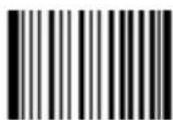
**Transmit Check
【Pro CMD: 0404040】
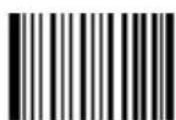
(Do) Not Transmit Check
【Pro CMD: 0404030】
UPC-A

Tools
2 Digits Addenda Code
Addenda Code is the one to the right of an ordinary code. Picture below shows an ordinary code with a 2 digits Addenda Code. The left one in blue lines is an ordinary code. The right one in red lines is the 2 digits Addenda Code.

text_image
12845678901 23
** Disable 2 Digits Addenda Code
【Pro CMD: 0404050】

Enable 2 Digits Addenda Code
【Pro CMD: 0404060】
5 Digits Addenda Code
5 Digits Addenda Code is the one to the right of an ordinary code. Picture below shows an ordinary code with a 5 digits Addenda Code. The left one in blue lines is an ordinary code. The right one in red lines is the 5 digits Addenda Code.

text_image
12545678901 23456
** Disable 5 Digits Addenda Code
【Pro CMD: 0404070】

Enable 5 Digits Addenda Code
【Pro CMD: 0404080】

“ Enable 2 Digits Addenda Code “ — read an ordinary code and 2 digits Addenda Code.
“ Enable 5 Digits Addenda Code “ — read an ordinary code and 5 digits Addenda Code.
“Disable 2 Digits Addenda Code “ — read an ordinary code only, and ignore 2 digits Addenda Code.
UPC-A

Tools
Transmit Default "0"
The first byte of UPC-A is default to "0".
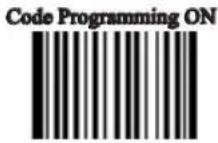
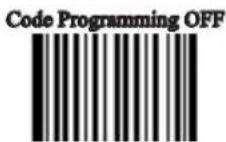

**Do Not Transmit "0"
【Pro CMD: 0404090】
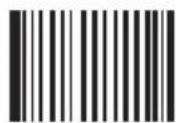
Transmit "0"
【Pro CMD: 0404100】

UPC-A has the default “0” but it is not printed out, unlike UPC-E. Read “Transmit 0” will add a “0” to transmit.
Interleaved 2 of 5

Tools
Load Factory Default

** Load Interleaved 2 of 5 Factory Default
【Pro CMD: 0405000】
Code Programming ON
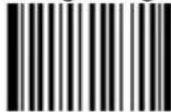
Code Programming OFF

Disable/Enable Interleaved 2 of 5

** Enable Interleaved 2 of 5
【Pro CMD: 0405020】
Disable Interleaved 2 of 5
【Pro CMD: 0405010】

When the scanner can not read Interleaved 2 of 5, please read “Enable Interleaved 2 of 5” and try again
Interleaved 2 of 5

Tools
Select Message Length
It is used to program the valid reading length of Interleaved 2 of 5. The scanner will not send barcode message to the Host, if the decoded data length does not match the valid length.

Interleaved 2 of 5 Message Length is defined by “Min. Message Length” and “Max. Message Length”

Min Message Length (default: 6)
【Pro CMD: 0405030】
Max Message Length (default: 80)
【Pro CMD: 0405040】

1D bar code Message Length should not exceed 127 bytes. If Max Message Length is less than Min Message Length, it means the scanner will only support barcodes of the two lengths. If Max Message Length is equal to Min Message Length, the scanner will only support barcodes of the length.

To set Min Message Length of Interleaved 2 of 5 as 8 bytes, and Max Message length as 12 bytes, read these programming codes:
- "Code Programming ON"
- "Select Min Message Length"
- Digit Code "8", see Digit Code Appendix (Pxxx)
- "Save Programming", see Digit Code Appendix (Pxxx)
- "Select Max Message Length"
- Digit Code "1"
- Digit Code "2"
- "Save Programming"
- "Code Programming OFF"
Interleaved 2 of 5

Tools
Check Digit
Interleaved 2 of 5 may include Check Digit (not compulsory) following its barcode messages. It verifies the barcode message.
» “NO Check, Transmit All” means to read without check and transmit all bytes including barcode message and Check digit.
» “Check, Do Not Transmit Check Digit” means to read and check. If verification is successful, transmits barcode message; if not, scanner will not send barcode message to the Host.
» “Check, Transmit All” means to read and check. If verification is successful, transmits all messages; if not, scanner will not send barcode message to the Host.

The number of Interleaved 2 of 5 barcode bits(check digit contained) must be even. If it is odd, a 0 will be added as the first digit. The check digit generates automatically when a barcode is produced.

** NO Check, Transmit All
【Pro CMD: 0405050】
Check, Do Not Transmit Check Digit
【Pro CMD: 0405060】

Check, Transmit All
【Pro CMD: 0405070】

When “Check, Do Not Transmit Check digit” is enabled and barcode message length minus one is less than Min Message Length, it will lead to an error.
E.g.: Reading a 4-byte (include check Digit) Interleaved 2 of 5 with the Min Message Length being 4 bytes and “Check, Do Not Transmit Check digit” enabled leads to an error.
Interleaved 2 of 5

Tools
Specified Lengths
Program the scanner to read specified lengths or ranges of specified lengths for Interleaved 2 of 5. The length value must be 3 decimal digits. And the length value MUST be an even number between 2 to 64.
Read “Enable Specified Length” to enable this feature or “Disable Specified Length” to disable.


** Disable Specified Length
【Pro CMD: 0405140】
Add Code Length
【Pro CMD: 0405160】

Enable Specified Length
【Pro CMD: 0405150】

Remove Code Length
【Pro CMD: 0405170】

The scanner only read Interleaved 2 of 5 which are 12 and 24 bytes.
- "Code Programming ON"
- "Enable Specified Length"
- "Add Code Length"
- Digit Code “0”, “1”, “2”
- "Save Programming"
- "Add code length"
- Digit Code "0", "2", "4"
- "Save Programming"
- "Code Programming OFF"
The scanner only read Interleaved 2 of 5 between 12 bytes and 24 bytes.
- "Code Programming ON"
- "Enable Specified Length"
- "Add Code Length"
- Digit Code “0”, “1”, “2”
- Digit Code "0", "2", "4"
- "Save Programming"
- "Code Programming OFF"
ITF-14

Tools
ITF-14 is a fixed length, 14 bytes Interleaved 2 of 5 barcode with Check digit. By factory default, it is disabled.

When enabled, ITF-14 precedes 14-byte Interleaved 2 of 5 barcode.

For instance, when ITF-14 is enabled and Interleaved 2 of 5 is disabled, the ITF-14 and 14 bytes Interleaved 2 of 5 with check digit can be read, but other Interleaved 2 of 5 can not.
ITF-6

Tools
ITF-6 is a fixed length 6 bytes Interleaved 2 of 5 barcode with check digit. When enabled, ITF-6 precedes 6-byte Interleaved 2 of 5 barcode.
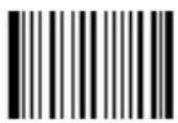
**Disable ITF-6 User Selection
【Pro CMD: 0405110】
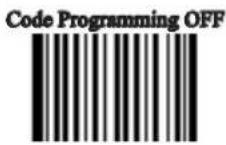

ITF-6, Read, Do Not Transmit Check Digit
【Pro CMD: 0405120】
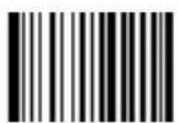
ITF-6, Read, Transmit Check Digit
【Pro CMD: 0405130】

For instance, when ITF-6 is enabled and Interleaved 2 of 5 is disabled, the ITF-6 and 6 bytes Interleaved 2 of 5 with check digit can be read, but other Interleaved 2 of 5 can not
Matrix 2 of 5

Tools
Load Factory Default

** Load Matrix 2 of 5 Factory Default
【Pro CMD: 0406000】
Code Programming ON
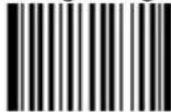
Code Programming OFF

Disable/Enable Matrix 2 of 5
Enable Matrix 2 of 5
【Pro CMD: 0406020】
** Disable Matrix 2 of 5
【Pro CMD: 0406010】

When the scanner can not read Interleaved 2 of 5, please read “Enable Interleaved 2 of 5” and try again
Matrix 2 of 5

Tools
Select Message Length

It is used to program the valid reading length of Matrix 2 of 5. The scanner will not send barcode message to the Host, if the decoded data length does not match the valid length.

Matrix 2 of 5 Message Length is defined by “Min. Message Length” and “Max. Message Length”
Min Message Length (default: 4)
【Pro CMD: 0406030】

MaxMessage Length (default: 80)
【Pro CMD: 0406040】

1D bar code Message Length should not exceed 127 bytes. If Max Message Length is less than Min Message Length, it means the scanner will only support barcodes of the two lengths. If Max Message Length is equal to Min Message Length, the scanner will only support barcodes of the length.

To set Min Message Length of Matrix 2 of 5 as 8 bytes, and Max Message length as 12 bytes, read these programming codes:
- "Code Programming ON"
- "Select Min Message Length"
- Digit Code "8", see Digit Code Appendix (Pxxx)
- "Save Programming", see Digit Code Appendix (Pxxx)
- "Select Max Message Length"
- Digit Code "1"
- Digit Code "2"
- "Save Programming"
- "Code Programming OFF"
Matrix 2 of 5

Tools
Check Digit
Matrix 2 of 5 may include Check Digit (not compulsory) following its barcode messages. It verifies the barcode message.
» “NO Check, Transmit All” means to read without check and transmit all bytes including barcode message and Check digit.
» “Check, Do Not Transmit Check Digit” means to read and check. If verification is successful, transmits barcode message; if not, scanner will not send barcode message to the Host.
» “Check, Transmit All” means to read and check. If verification is successful, transmits all messages; if not, scanner will not send barcode message to the Host.

The number of Matrix 2 of 5 barcode bits(check digit contained) must be even. If it is odd, a 0 will be added as the first digit. The check digit generates automatically when a barcode is produced.
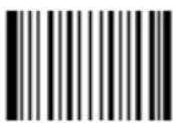
** NO Check, Transmit All
【Pro CMD: 0406050】

Check, Do Not Transmit Check Digit
【Pro CMD: 0406060】

Check, Transmit All
【Pro CMD: 0406070】

When “Check, Do Not Transmit Check digit” is enabled and barcode message length minus one is less than Min Message Length, it will lead to an error.
E.g.: Reading a 4-byte (include check Digit) Matrix 2 of 5 with the Min Message Length being 4 bytes and “Check, Do Not Transmit Check digit” enabled leads to an error.
Code 39

Tools
Load Factory Default
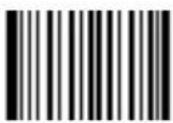
** Load Code 39 Factory Default
【Pro CMD: 0408000】
Code Programming ON
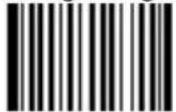
Code Programming OFF
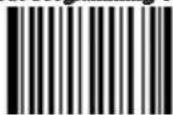
Enable/Disable Code 39
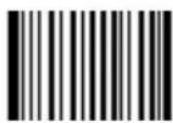
** Enable Code 39
【Pro CMD: 0408020】
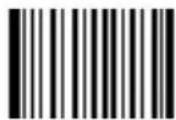
Disable Code 39
【Pro CMD: 0408010】

When the scanner can not read Code 39, please read "Enable Code 39" and try again
Transmit Start & Stop Character
Transmission of “*” can be selected.

**Transmit Both “*”
【Pro CMD: 0408090】
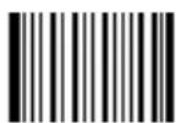
Transmit Neither “*”
【Pro CMD: 0408080】
Code 39

Tools
Select Message Length

It is used to program the valid reading length of Code 39. The scanner will not send barcode message to the Host, if the decoded data length does not match the valid length.
Code 39 Message Length is defined by “Min. Message Length” and “Max. Message Length”.
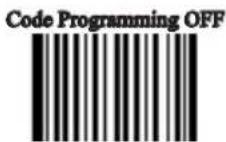

Min Message Length (default: 4)
【Pro CMD: 0408030】
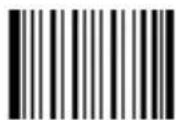
Max Message Length (default: 48)
【Pro CMD: 0408040】

1D bar code Message Length should not exceed 127 bytes. If Max Message Length is less than Min Message Length, it means the scanner will only support barcodes of the two lengths. If Max Message Length is equal to Min Message Length, the scanner will only support barcodes of the length.

To set Min Message Length of Code 39 to 8 bytes, and Max Message Length to 12 bytes, read these programming codes:
- "Code Programming ON"
- "Select Min Message Length"
- Digit Code "8", see Digit Code
- "Save Programming", see Digit Code
- "Select Max Message Length"
- Digit Code "1"
- Digit Code "2"
- "Save Programming"
- "Code Programming OFF"
Code 39

Tools
Check Digit
Code 39 may include Check Digit (not compulsory) following its barcode message. It verifies the barcode message.

"NO Check, Transmit All" means to read without check and transmit » all bytes including barcode message and Check Digit.
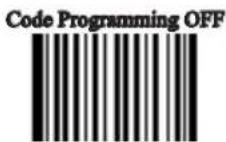
"Check, Do Not Transmit Check Digit" means to read and check. If » verification is successful, transmits barcode message; if not, scanner will not send barcode message to the Host.
» "Check, Transmit All" means to read and check. If verification is successful, transmits all messages; if not, scanner will not send barcode message to the Host.

** NO Check, Transmit All
【Pro CMD: 0408050】

Check, Do not transmit Check Digit
【Pro CMD: 0408060】

Check, Transmit All
【Pro CMD: 0408070】

When “Check, Do not Transmit Check digit” is enabled and barcode message length minus one is less than Min Message Length, it will lead to an error.
E.g.: Reading a 4-byte (include check byte) Code 39 with the Min Message Length being 4 bytes and “Check, Do not transmit Check Digit” enabled leads to an error.
Decode ASCII
Code 39 can include full ASCII characters. For factory default, the scanner only decodes part of them. Read “Full ASCII decode” to decode full ASCII characters.

**Partial ASCII Decode
【Pro CMD: 0408100】
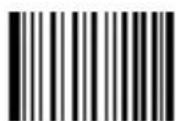
Full ASCII Decode
【Pro CMD: 0408110】
Codabar

Tools
Load Factory Default

** Load Codabar Factory Default
【Pro CMD: 0409000】
Code Programming ON
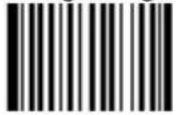
Code Programming OFF
Enable/Disable Codabar

** Enable Codabar
【Pro CMD: 0409020】

Disable Codabar
【Pro CMD: 0409010】

When the scanner can not read Codabar, please read "Enable Codabar" and try again.
Codabar

Tools
Select Message Length
It is used to program the valid reading length of Codabar. The scanner will not send barcode message to the Host, if the decoded data length does not match the valid length.
Codabar Message Length is defined by “Min. Message Length” and “Max. Message Length”.

Min Message Length (default: 2)
【Pro CMD: 0409030】
Max Message Length (default: 60)
【Pro CMD: 0409040】

1D bar code Message Length should not exceed 127 bytes. If Max Message Length is less than Min Message Length, it means the scanner will only support barcodes of the two lengths. If Max Message Length is equal to Min Message Length, the scanner will only support barcodes of the length.
Codabar

Tools
Check Digit
Codabar may include Check Digit (not compulsory) following its barcode message. It verifies the barcode message.
"NO Check, Transmit All" means to read without check and transmit » all bytes including barcode message and Check Digit.
"Check, Do Not Transmit Check Digit" means to read and check. If » verification is successful, transmits barcode message; if not, scanner will not send barcode message to the Host.
» "Check, Transmit All" means to read and check. If verification is successful, transmits all messages; if not, scanner will not send barcode message to the Host.
** NO Check, Transmit All
【Pro CMD: 0409050】
Check, Transmit All
【Pro CMD: 0409070】
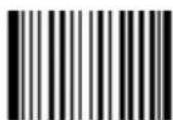
Check, Do not transmit Check Digit
【Pro CMD: 0409060】

When “Check, Do not Transmit Check digit” is enabled and barcode message length minus one is less than Min Message Length, it will lead to an error.
E.g.: Reading a 4-byte (include check byte) Codabar with the Min Message Length being 4 bytes and “Check, Do not transmit Check Digit” enabled leads to an error.
Codabar

Tools
Transmit Start & Stop Character
Codabar uses either one of “A”, “B”, “C” and “D” as the start character and the stop character. Transmission of them can be selected.
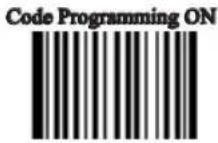
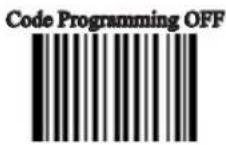

**Transmit Both Start & Stop Character
【Pro CMD: 0409090】

Transmit Neither Start & Stop Character
【Pro CMD: 0409080】

**Use ABCD/ABCD As Start & Stop Character
【Pro CMD: 0409100】

**Use Upper Letter
【Pro CMD: 0409120】

Use ABCD/TN*E As Start & Stop Character
【Pro CMD: 0409110】

Use Lower Letter
【Pro CMD: 0409130】
Code 93

Tools
Load Factory Default
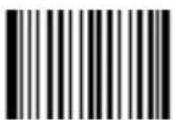
** Load Code 93 Factory Default
【Pro CMD: 0410000】
Code Programming ON

Code Programming OFF
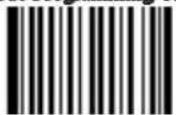
Enable /Disable Code 93

** Disable Code 93
【Pro CMD: 0410010】
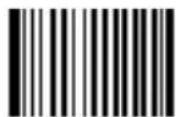
Enable Code 93
【Pro CMD: 0410020】

When the scanner can not read Code 93, please read "Enable Code 93" and try again.
Code 93

Tools
Select Message Length

It is used to program the valid reading length of Code 93. The scanner will not send barcode message to the Host, if the decoded data length does not match the valid length.
Code 93 Message Length is defined by “Min. Message Length” and “Max. Message Length.”
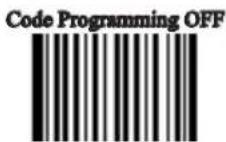

Min Message Length (default: 1)
【Pro CMD: 0410030】

Max Message Length (default: 48)
【Pro CMD: 0410040】

1D bar code Message Length should not exceed 127 bytes. If Max Message Length is less than Min Message Length, it means the scanner will only support barcodes of the two lengths. If Max Message Length is equal to Min Message Length, the scanner will only support barcodes of the length.

To set Min Message Length of Code 93 to 8 bytes and Max Message Length to 12 bytes, read these programming codes:
- "Code Programming ON"
- "Select Min Message Length"
- Digit Code "8", see Digit Code
- "Save Programming", see Digit Code
- "Select Max Message Length"
- Digit Code "1"
- Digit Code "2"
- "Save Programming"
- "Code Programming OFF"
Code 93

Tools
Check Digit
Code 93 may include Check Digits (not compulsory) following its barcode message. The two digits verify the barcode message.
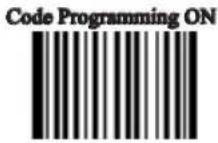
"NO Check, Transmit All" means to read without check and transmit » all bytes including barcode message and Check Digits.
"Check, Do Not Transmit Check Digit" means to read and check. If » verification is successful, transmits barcode message; if not, scanner will not send barcode message to the Host.
» "Check, Transmit All" means to read and check. If verification is successful, transmits all messages; if not, scanner will not send barcode message to the Host.
NO Check, Transmit All
【Pro CMD: 0410050】
** Check, Do not transmit Check Digit
【Pro CMD: 0410060】

Check, Transmit All
【Pro CMD: 0410070】

When “Check, Do not Transmit Check digit” is enabled and barcode message length minus one is less than Min Message Length, it will lead to an error.
E.g.: Reading a 4-byte (include check byte) Code 93 with the Min Message Length being 4 bytes and “Check, Do not transmit Check Digit” enabled leads to an error.
UCC/EAN-128

Tools
Load Factory Default

** Load UCC/EAN-128 Factory Default
【Pro CMD: 0412000】
Code Programming ON

Code Programming OFF

Enable/Disable UCC/EAN-128

** Enable UCC/EAN-128
【Pro CMD: 0412020】
Disable UCC/EAN-128
【Pro CMD: 0412010】

When the scanner can not read UCC/EAN-128, please read “Enable UCC/EAN-128” and try again.
GS1 Databar

Tools
Load Factory Default

** Load GS1 Databar Factory Default
【Pro CMD: 0413000】
Code Programming ON

Code Programming OFF

Enable/Disable GS1 Databar
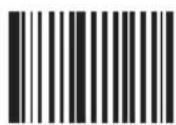
** Enable GS1 Databar
【Pro CMD: 0413020】

Disable GS1 Databar
【Pro CMD: 0413010】

When the scanner can not read GS1 Databar, please read “Enable GS1 Databar” and try again.
Transmit AI(01) Character
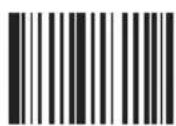
** Transmit AI(01) Character
【Pro CMD: 0413060】

Do not Transmit AI(01) Character
【Pro CMD: 0413050】
EAN·UCC Composite

Tools
Load Factory Default
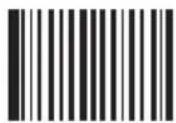
** Load EAN·UCC Composite Factory Default 【Pro CMD: 0414000】
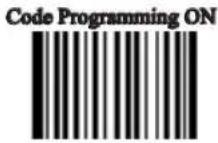
Enable/Disable EAN·UCC Composite

When the scanner can not read EAN·UCC Composite, please read “Enable EAN·UCC Composite” and try again.
Code 11

Tools
Load Factory Default
** Load Code 11 Factory Default
【Pro CMD: 0415000】
Code Programming ON
Code Programming OFF

Enable/Disable Code 11

Enable Code 11
【Pro CMD: 0415020】
** Disable Code 11
【Pro CMD: 0415010】

When the scanner can not read Code 11, please read "Enable Code 11" and try again.
Code 11

Tools
Select Message Length
It is used to program the valid reading length of Code 11. The scanner will not send barcode message to the Host, if the decoded data length does not match the valid length.
Code 11 Message Length is defined by “Min. Message Length” and “Max. Message Length.”
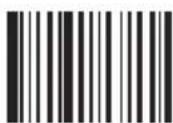
Min Message Length (default: 4)
【Pro CMD: 0415030】
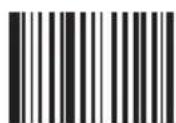
Max Message Length (default: 48)
【Pro CMD: 0415040】

1D bar code Message Length should not exceed 127 bytes. If Max Message Length is less than Min Message Length, it means the scanner will only support barcodes of the two lengths. If Max Message Length is equal to Min Message Length, the scanner will only support barcodes of the length.

To set Min Message Length of Code11 to 8 bytes and Max Message Length to 12 bytes, read these programming codes:
- "Code Programming ON"
- "Select Min Message Length"
- Digit Code "8", see Digit Code
- "Save Programming", see Digit Code
- "Select Max Message Length"
- Digit Code "1"
- Digit Code "2"
- "Save Programming"
- "Code Programming OFF"
Code 11

Tools
Check Digit
Code 11 may include Check Digit (not compulsory) following its barcode message. It verifies the barcode message.
"NO Check, Transmit All" means to read without check and transmit all » bytes including barcode message and Check Digit.

» "Check, Do Not Transmit Check Digit" means to read and check. If verification is successful, transmits barcode message; if not, scanner will not send barcode message to the Host.
» "Check, Transmit All" means to read and check. If verification is successful, transmits all messages; if not, scanner will not send barcode message to the Host.

NO Check, Transmit All
【Pro CMD: 0415050】
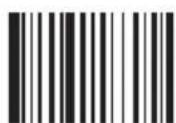
** Single Check Digit, MOD11
【Pro CMD: 0415060】

Double Check Digits, MOD11/MOD11
【Pro CMD: 0415070】

Double Check Digits, MOD11/MOD9
【Pro CMD: 0415080】
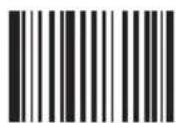
Single Check Digit MOD11 (Len <= 10)
Double Check Digits MOD11/MOD11 (Len > 10)
【Pro CMD: 0415090】
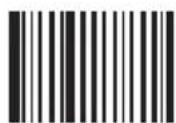
Single Check Digit MOD11 (Len <= 10)
Double Check Digits MOD11/MOD9 (Len > 10)
【Pro CMD: 0415100】

Do not transmit Check Digit
【Pro CMD: 0415110】
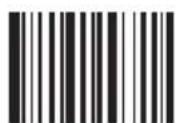
** Transmit Check Digit
【Pro CMD: 0415120】

When “Check, Do not Transmit Check digit” is enabled and barcode message length minus one is less than Min Message Length, it will lead to an error.
E.g.: Reading a 4-byte (include check byte) Code 11 with the Min Message Length being 4 bytes and “Check, Do not transmit Check Digit” enabled leads to an error.
ISBN

Tools
Load Factory Default

** Load ISBN Factory Default
【Pro CMD: 0416000】
Code Programming ON

Code Programming OFF
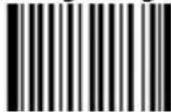
Enable/Disable ISBN

Enable ISBN
【Pro CMD: 0416020】

** Disable ISBN
【Pro CMD: 0416010】

When the scanner can not read ISBN, please read “Enable ISBN” and try again.
Transmit

** Transmit 13 digits
【Pro CMD: 0416030】
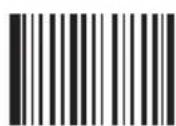
Transmit 10 digits
【Pro CMD: 0416040】
Industrial 25

Tools
Load Factory Default
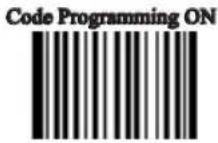
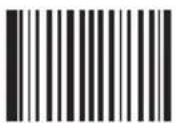
** Load Industrial 25 Factory Default
【Pro CMD: 0417000】

Enable/Disable Industrial 25
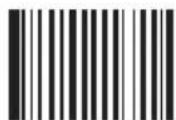
Enable Industrial 25
【Pro CMD: 0417020】

** Disable Industrial 25
【Pro CMD: 0417010】

When the scanner can not read Industrial 25, please read “Enable Industrial 25” and try again.
Industrial 25

Tools
Select Message Length
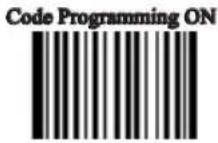
It is used to program the valid reading length of Industrial 25. The scanner will not send barcode message to the Host, if the decoded data length does not match the valid length.
Industrial 25 Message Length is defined by “Min. Message Length” and “Max. Message Length.”
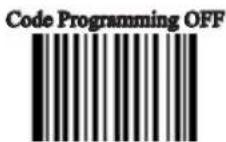
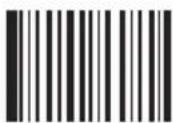
Min Message Length (default: 6)
【Pro CMD: 0417030】
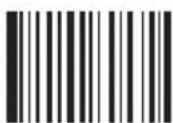
Max Message Length (default:48)
【Pro CMD: 0417040】

1D bar code Message Length should not exceed 127 bytes. If Max Message Length is less than Min Message Length, it means the scanner will only support barcodes of the two lengths. If Max Message Length is equal to Min Message Length, the scanner will only support barcodes of the length.

To set Min Message Length of Industrial 25 to 8 bytes and Max Message Length to 12 bytes, read these programming codes:
- "Code Programming ON"
- "Select Min Message Length"
- Digit Code "8", see Digit Code
- "Save Programming", see Digit Code
- "Select Max Message Length"
- Digit Code "1"
- Digit Code "2"
- "Save Programming"
- "Code Programming OFF"
Industrial 25

Tools
Check Digit
Industrial 25 may include Check Digit (not compulsory) following its barcode message. It verifies the barcode message.
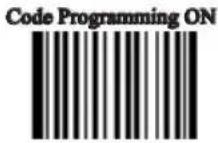
"NO Check, Transmit All" means to read without check and transmit all » bytes including barcode message and Check Digit.

» "Check, Do Not Transmit Check Digit" means to read and check. If verification is successful, transmits barcode message; if not, scanner will not send barcode message to the Host.
» "Check, Transmit All" means to read and check. If verification is successful, transmits all messages; if not, scanner will not send barcode message to the Host.
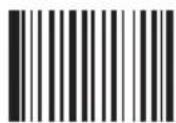
** NO Check, Transmit All
【Pro CMD: 0417050】
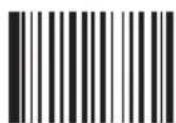
Check, Do Not Transmit Check Digit
【Pro CMD: 0417060】
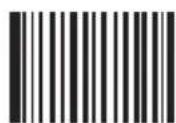
Check, Transmit All
【Pro CMD: 0417070】

When “Check, Do not Transmit Check digit” is enabled and barcode message length minus one is less than Min Message Length, it will lead to an error.
E.g.: Reading a 4-byte (include check byte) Industrial 25 with the Min Message Length being 4 bytes and “Check, Do not transmit Check Digit” enabled leads to an error.
Standard 25

Tools
Load Factory Default
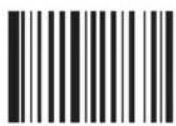
** Load Standard 25 Factory Default
【Pro CMD: 0418000】
Code Programming ON

Code Programming OFF

Enable/Disable Standard 25
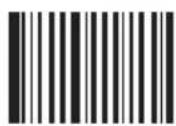
Enable Standard 25
【Pro CMD: 0418020】

** Disable Standard 25
【Pro CMD: 0418010】

When the scanner can not read Standard 25, please read “Enable Standard 25” and try again.
Standard 25

Tools
Select Message Length
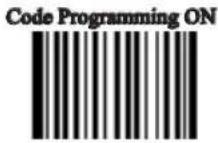
It is used to program the valid reading length of Standard 25. The scanner will not send barcode message to the Host, if the decoded data length does not match the valid length.
Standard 25 Message Length is defined by “Min. Message Length” and “Max. Message Length.”

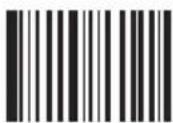
Min Message Length (default: 6)
【Pro CMD: 0418030】

Max Message Length (default:48)
【Pro CMD: 0418040】

1D bar code Message Length should not exceed 127 bytes. If Max Message Length is less than Min Message Length, it means the scanner will only support barcodes of the two lengths. If Max Message Length is equal to Min Message Length, the scanner will only support barcodes of the length.

To set Min Message Length of Standard 25 to 8 bytes and Max Message Length to 12 bytes, read these programming codes:
- "Code Programming ON"
- "Select Min Message Length"
- Digit Code "8", see Digit Code
- "Save Programming", see Digit Code
- "Select Max Message Length"
- Digit Code "1"
- Digit Code "2"
- "Save Programming"
- "Code Programming OFF"
Standard 25

Tools
Check Digit
Standard 25 may include Check Digit (not compulsory) following its barcode message. It verifies the barcode message.
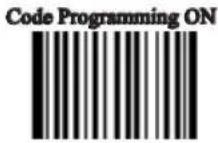
"NO Check, Transmit All" means to read without check and transmit all » bytes including barcode message and Check Digit.

» "Check, Do Not Transmit Check Digit" means to read and check. If verification is successful, transmits barcode message; if not, scanner will not send barcode message to the Host.
» "Check, Transmit All" means to read and check. If verification is successful, transmits all messages; if not, scanner will not send barcode message to the Host.
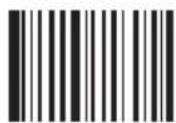
** NO Check, Transmit All
【Pro CMD: 0418050】

Check, Do Not Transmit Check Digit
【Pro CMD: 0418060】
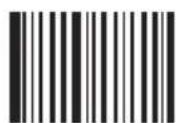
Check, Transmit All
【Pro CMD: 0418070】

When “Check, Do not Transmit Check digit” is enabled and barcode message length minus one is less than Min Message Length, it will lead to an error.
E.g.: Reading a 4-byte (include check byte) Industrial 25 with the Min Message Length being 4 bytes and “Check, Do not transmit Check Digit” enabled leads to an error.
Plessey

Tools
Load Factory Default

** Load Plessey Factory Default
【Pro CMD: 0419000】

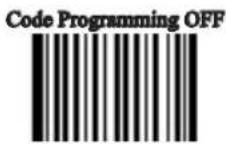
Enable/Disable Plessey
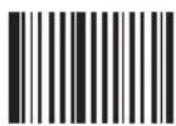
Enable Plessey
【Pro CMD: 0419020】

** Disable Plessey
【Pro CMD: 0419010】

When the scanner can not read Plessey, please read "Enable Plessey" and try again.
Plessey

Tools
Select Message Length
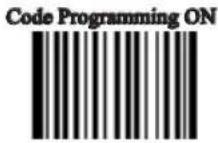
It is used to program the valid reading length of Plessey. The scanner will not send barcode message to the Host, if the decoded data length does not match the valid length.
Plessey Message Length is defined by “Min. Message Length” and “Max. Message Length.”
Min Message Length (default: 4)
【Pro CMD: 0419030】

Max Message Length (default:48)
【Pro CMD: 0419040】

1D bar code Message Length should not exceed 127 bytes. If Max Message Length is less than Min Message Length, it means the scanner will only support barcodes of the two lengths. If Max Message Length is equal to Min Message Length, the scanner will only support barcodes of the length.

To set Min Message Length of Plessey to 8 bytes and Max Message Length to 12 bytes, read these programming codes:
- "Code Programming ON"
- "Select Min Message Length"
- Digit Code "8", see Digit Code
- "Save Programming", see Digit Code
- "Select Max Message Length"
- Digit Code "1"
- Digit Code "2"
- "Save Programming"
- "Code Programming OFF"
Plessey

Tools
Check Digit
Plessey may include Check Digits (not compulsory) following its barcode message. The two digits verify the barcode message.
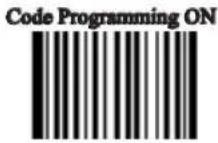
"NO Check, Transmit All" means to read without check and transmit all » bytes including barcode message and Check Digits.

» "Check, Do Not Transmit Check Digit" means to read and check. If verification is successful, transmits barcode message; if not, scanner will not send barcode message to the Host.
» "Check, Transmit All" means to read and check. If verification is successful, transmits all messages; if not, scanner will not send barcode message to the Host.
NO Check, Transmit All
【Pro CMD: 0419050】

Check, Do Not Transmit Check Digit
【Pro CMD: 0419060】

** Check, Transmit All
【Pro CMD: 0419070】

When “Check, Do not Transmit Check digit” is enabled and barcode message length minus one is less than Min Message Length, it will lead to an error.
E.g.: Reading a 4-byte (include check byte) Plessey with the Min Message Length being 4 bytes and “Check, Do not transmit Check Digit” enabled leads to an error.
MSI-Plessey

Tools
Load Factory Default

** Load MSI-Plessey Factory Default
【Pro CMD: 0420000】
Code Programming ON
Code Programming OFF

Enable/Disable MSI-Plessey
Enable MSI-Plessey
【Pro CMD: 0420020】

** Disable MSI-Plessey
【Pro CMD: 0420010】

When the scanner can not read MSI-Plessey, please read “Enable MSI-Plessey” and try again.
MSI-Plessey

Tools
Select Message Length
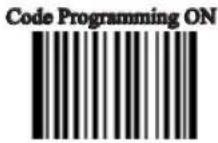
It is used to program the valid reading length of MSI-Plessey. The scanner will not send barcode message to the Host, if the decoded data length does not match the valid length.
MSI-Plessey Message Length is defined by “Min. Message Length” and “Max. Message Length.”
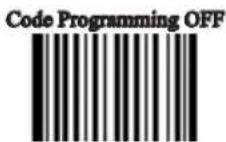

Min Message Length (default: 4)
【Pro CMD: 0420030】

Max Message Length (default:48)
【Pro CMD: 0420040】

1D bar code Message Length should not exceed 127 bytes. If Max Message Length is less than Min Message Length, it means the scanner will only support barcodes of the two lengths. If Max Message Length is equal to Min Message Length, the scanner will only support barcodes of the length.

To set Min Message Length of MSI-Plessey to 8 bytes and Max Message Length to 12 bytes, read these programming codes:
- "Code Programming ON"
- "Select Min Message Length"
- Digit Code "8", see Digit Code
- "Save Programming", see Digit Code
- "Select Max Message Length"
- Digit Code "1"
- Digit Code "2"
- "Save Programming"
- "Code Programming OFF"
MSI-Plessey

Tools
Check Digit
Plessey may include Check Digits(s) (not compulsory) following its barcode message. It may have one or two digits, which verify the barcode message.
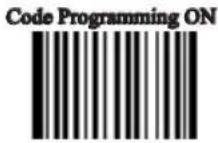
"NO Check, Transmit All" means to read without check and transmit all » bytes including barcode message and Check Digits.
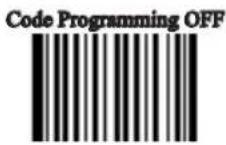
NO Check, Transmit All
【Pro CMD: 0420050】
Double Check Digits, MOD10/MOD11
【Pro CMD: 0420080】
** Single Check Digit, MOD10
【Pro CMD: 0420060】

NO Transmit Check Digits
【Pro CMD: 0420090】

Double Check Digits, MOD10/MOD10
【Pro CMD: 0420070】
** Transmit Check Digits
【Pro CMD: 0420100】

When “Check, Do not Transmit Check digit” is enabled and barcode message length minus one is less than Min Message Length, it will lead to an error.
E.g.: Reading a 4-byte (include check byte) MSI-Plessey with the Min Message Length being 4 bytes and “Check, Do not transmit Check Digit” enabled leads to an error.
PDF417

Tools
Load Factory Default
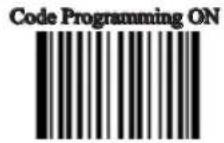
** Load PDF417 Factory
【Pro CMD: 0501000】
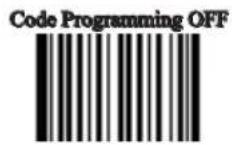
Enable/Disable PDF417

** Enable PDF417
【Pro CMD: 0501020】

Disable PDF417
【Pro CMD: 0501010】

When the scanner can not read PDF417, please read "Enable PDF417" and try again.
PDF417

Tools
Select Message Length
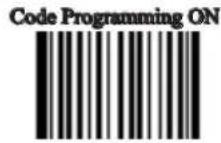
It is used to program the valid reading length of PDF417. The scanner will not send barcode message to the Host, if the decoded data length does not match the valid reading length.
PDF417 Message Length is defined by "Min. Message Length" and "Max. Message Length".
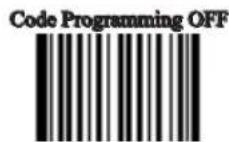

Min Message Length (default: 1)
【Pro CMD: 0501030】
Max Message Length (default: 2710)
【Pro CMD: 0501040】

2D bar code Message Length should not exceed 65535 bytes.
Max Message Length should not be less than Min Message Length.
To read a fixed length PDF417, Please program Max & Min Message Length to the same value.

To set Min Message Length of PDF417 to 8 bytes and Max Message Length to 12 bytes, read these programming codes:
- "Code Programming ON"
- "Select Min Message Length"
- Digit Code "8", see Digit Code
- "Save Programming", see Digit Code
- "SelectMax Message Length"
- Digit Code "1"
- Digit Code "2"
- "Save Programming"
- "Code Programming OFF"
PDF417

Tools
PDF417 Twin Code
PDF417 twin code is 2 PDF417 barcodes paralleled vertically or horizontally. They must have the same direction. Their specifications must be similar and the distance between them must be short.
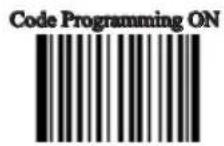
There are 3 options for reading PDF417 twin code:

Single »PDF417 Only: Read either PDF417 code.
» Twin PDF417 Only: Read both PDF417 codes. The transmission sequence is: left (upper) PDF417 code followed by right (lower) PDF417 code.
» Both Single & Twin: Read both PDF417 codes. If successful, transmit as twin PDF417 only. Otherwise, try single PDF417 only.

** Single PDF417 Only
【Pro CMD: 0501070】

Twin PDF417 Only
【Pro CMD: 0501080】

Both Single & Twin
【Pro CMD: 0501090】
Forward/Backward Direction PDF 417
PDF 417 has forward or backward direction.
Forward Direction Barcode: Light colour ground, Deep colour bars. Backward Direction Barcode: Deep colour ground, Light colour bars.
** Forward Direction Barcode Only 【Pro CMD: 0501320】
Backward Direction Barcode Only 【Pro CMD: 0501321】
When the scanner can not read QR Code, please read "Enable QR Code" and try again.
QR Code

Tools
Select Message Length
It is used to program the valid reading length of QR Code. The scanner will not send barcode message to the Host, if the decoded data length does not match the valid length.
QR Code Message Length is defined by "Min. Message Length" and "Max. Message Length".


Min Message Length (default: 1)
【Pro CMD: 0502030】

Max Message Length (default: 7089)
【Pro CMD: 0502040】

2D bar code Message Length should not exceed 65535 bytes.
Max Message Length should not be less than Min Message Length.
To read a fixed length QR Code, Please program Max & Min Message Length to the same value

To set Min Message Length of QR Code to 8 bytes and Max Message Length to 12 bytes, read these programming codes:
- "Code Programming ON"
- "Select Min Message Length"
- Digit Code "8", see Digit Code
- Save Programming", see Digit Code
- Select Max Message Length"
- Digit Code "1"
- Digit Code "2"
- "Save Programming"
- "Code Programming OFF"
QR Code

Tools
QR Twin Code
QR twin code is 2 QR barcodes paralleled vertically or horizontally. They must have the same direction. Their specifications must be similar and the distance between them must be short.
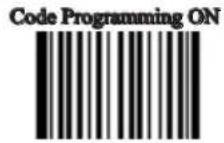
There are 3 options for reading QR twin code:
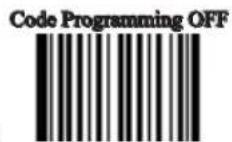
Single QR Only: Read either QR code. »
Twin QR Only: Read both QR codes. The transmission sequence is: left (up- per) QR code followed by right (lower) QR code.
Both Single & Twin: Read both QR codes. If successful, transmit as twin QR » only. Otherwise, try single QR only.
**Single QR Only
【Pro CMD: 0502070】
Both Single & Twin
【Pro CMD: 0502090】

Twin QR Only
【Pro CMD: 0502080】
Aztec

Tools
Load Factory Default
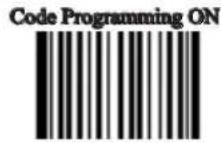

** Load Aztec Factory Default
【Pro CMD: 0503000】

Enable/Disable Aztec

Enable Aztec
【Pro CMD: 0503020】
** Disable Aztec
【Pro CMD: 0503010】

When the scanner can not read Aztec, please read "Enable Aztec" and try again.
Aztec

Tools
Select Message Length
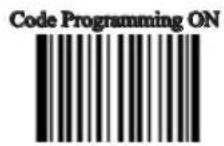
It is used to program the valid reading length of Aztec. The scanner will not send barcode message to the Host, if the decoded data length does not match the valid length.
Aztec Message Length is defined by “Min. Message Length” and “Max. Message Length”.
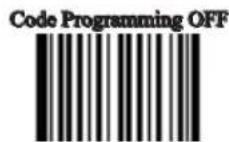
Min Message Length (default: 1)
【Pro CMD: 0503030】

Max Message Length (default: 3832)
【Pro CMD: 0503040】

2D bar code Message Length should not exceed 65535 bytes.
Max Message Length should not be less than Min Message Length.
To read a fixed length Aztec, Please program Max & Min Message Length to the same value.

To set Min Message Length of Aztec to 8 bytes and Max Message Length to 12 bytes, read these programming codes.
- "Code Programming ON"
- "Select Min Message Length"
- Digit Code "8", see Digit Code
- Save Programming", see Digit Code
- Select Max Message Length"
- Digit Code "1"
- Digit Code "2"
- "Save Programming"
- "Code Programming OFF"
Aztec

Tools
Reading Multi-barcodes of an Image
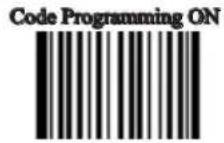
There are three modes:
Mode 1: Read one barcode only. »
Mode 2: Read fixed number of barcodes only. »
» Mode 3: Composite Reading. Read fixed number of barcodes first, if failed, read one barcode only.

** Mode 1
【Pro CMD: 0503070】
Mode 3
【Pro CMD: 0503090】
Mode 2
【Pro CMD: 0503080】
Aztec

Tools
The number of Multi-barcodes
Code Programming ON

Code Programming OFF
** 1
【Pro CMD: 0503060】

5
【Pro CMD: 0503064】
2
【Pro CMD: 0503061】

6
【Pro CMD: 0503065】
3
【Pro CMD: 0503062】
7
【Pro CMD: 0503066】
4
【Pro CMD: 0503063】

8
【Pro CMD: 0503067】
Data Matrix

Tools
Load Factory Default


** Load Data Matrix Factory Default
【Pro CMD: 0504000】
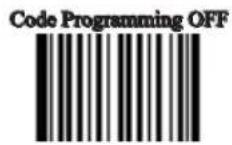
Enable/Disable Data Matrix

** Enable Data Matrix
【Pro CMD: 0504020】

Disable Data Matrix
【Pro CMD: 0504010】

When the scanner can not read Data Matrix, please read “Enable Data Matrix” and try again.
Data Matrix

Tools
Select Message Length
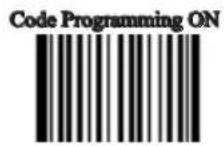
It is used to program the valid reading length of Data Matrix. The scanner will not send barcode message to the Host, if the decoded data length does not match the valid reading length.
Data Matrix Message Length is defined by "Min. Message Length" and "Max. Message Length".


Min Message Length (default: 1)
【Pro CMD: 0504030】

Max Message Length (default: 3116)
【Pro CMD: 0504040】

2D bar code Message Length should not exceed 65535 bytes.
Max Message Length should not be less than Min Message Length.
To read a fixed length Data Matrix, Please program Max & Min Message Length to the same value.

To set Min Message Length of Data Matrix to 8 bytes and Max Message Length to 12 bytes, read these programming codes.
- "Code Programming ON"
- "Select Min Message Length"
- Digit Code "8", see Digit Code
- Save Programming", see Digit Code
- Select Max Message Length"
- Digit Code "1"
- Digit Code "2"
- "Save Programming"
- "Code Programming OFF"
Data Matrix

Tools
Data Matrix Twin Code
Data Matrix twin code is 2 Data Matrix barcodes paralleled vertically or horizontally. They must have the same direction. Their specifications must be similar and the distance between them must be short.

There are 3 options for reading Data Matrix:

Single Data Matrix Only: Read either Data Matrix. »
Twin Data Matrix Only: Read both Data Matrix. The transmission sequence » is: left (upper) Data Matrix followed by right (lower) Data Matrix.
Both Single & Twin: Read both Data Matrix. If successful, transmit as twin » Data Matrix. Otherwise, try single Data Matrix only.
**Single Data Matrix Only
【Pro CMD: 0504070】
Twin Data Matrix Only
【Pro CMD: 0504080】

Both Single & Twin
【Pro CMD: 0504090】
Data Matrix

Tools
Rectangular Symbols
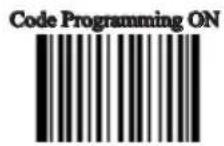
Data Matrix has two formats:
Square symbols, which has the same amount of models in length and » width: 10*10, 12*12.... 144*144。
Rectangular symbols, which has different amounts of models in length and » width: 6*16;6*14...14*22。
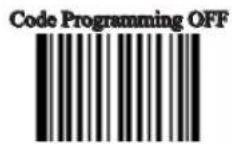

Data Matrix has forward or backward direction.
Forward Direction Barcode: Light colour ground, Deep colour bars. Backward Direction Barcode: Deep colour ground, Light colour bars.
** Forward Direction Barcode Only 【Pro CMD: 0504320】
When the scanner can not read Maxicode, please read "Enable Maxicode" and try again.
Maxicode

Tools
Select Message Length
It is used to program the valid reading length of Maxicode. The scanner will not send barcode message to the Host, if the decoded data length does not match the valid reading length.
Maxicode Message Length is defined by "Min. Message Length" and "Max. Message Length".
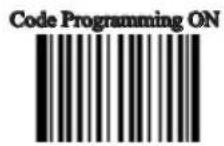


Min Message Length (default: 1)
【Pro CMD: 0505030】
Max Message Length (default:150)
【Pro CMD: 0505040】

2D bar code Message Length should not exceed 65535 bytes.
Max Message Length should not be less than Min Message Length.
To read a fixed length Maxicode, Please program Max & Min Message Length to the same value.

To set Min Message Length of Maxicode to 8 bytes and Max Message Length to 12 bytes, read these programming codes.
- "Code Programming ON"
- "Select Min Message Length"
- Digit Code "8", see Digit Code
- Save Programming", see Digit Code
- Select Max Message Length"
- Digit Code "1"
- Digit Code "2"
- "Save Programming"
- "Code Programming OFF"
Chinese Sensible Code

Tools
Load Factory Default

** Load Chinese Sensible Code Factory Default 【Pro CMD: 0508000】
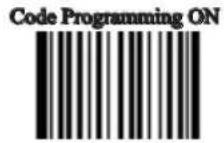
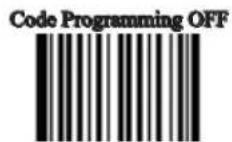
Enable/Disable Chinese Sensible Code
Enable Chinese Sensible Code 【Pro CMD: 0508020】
** Disable Chinese Sensible Code 【Pro CMD: 0508010】

When the scanner can not read Maxicode, please read “Enable Chinese Sensible Code” and try again.
Chinese Sensible Code

Tools
Select Message Length
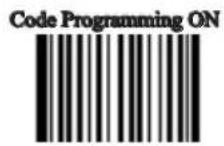
It is used to program the valid reading length of Chinese Sensible Code. The scanner will not send barcode message to the Host, if the decoded data length does not match the valid reading length.
Maxicode Message Length is defined by "Min. Message Length" and "Max. Message Length".
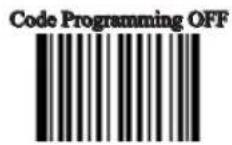
Min Message Length (default: 1)
【Pro CMD: 0508030】
Max Message Length (default:7827)
【Pro CMD: 0508040】

2D bar code Message Length should not exceed 65535 bytes.
Max Message Length should not be less than Min Message Length.
To read a fixed length Maxicode, Please program Max & Min Message Length to the same value.

To set Min Message Length of Chinese Sensible Code to 8 bytes and Max Message Length to 12 bytes, read these programming codes.
- "Code Programming ON"
- "Select Min Message Length"
- Digit Code "8", see Digit Code
- Save Programming", see Digit Code
- Select Max Message Length"
- Digit Code "1"
- Digit Code "2"
- "Save Programming"
- "Code Programming OFF"
Introduction
OCR (Optical Character Recognition) is the technology that captures image of printed information, and recognizes the image to editable characters.
The scanner supports OCR B standard and specific typefaces, such as:
0 1 2 3 4 5 6 7 8
- Nine numbers of OCR-B typeface must be included.
- There must be a space between No.7 and No.8 number.
- It must start and end with “■”. There must be a space between “■” and a number.
** Load SPEC OCR B Factory Default
【Pro CMD: 0600000】
** Disable OCR
【Pro CMD: 0600010】

EnableOCR
【Pro CMD: 0600020】
Prefix/Suffix
Introduction
1D barcodes could contain digits, letters and symbols, etc. 2D barcodes could contain more data, such as Chinese characters and other multi-byte characters. However, in reality, they do not and should not have all the information we need, such as barcode type, date and time of scan, delimiter, and so on, in order to keep the code short and flexible.
Prefix and Suffix are how to fulfill the needs mentioned above. They can be added, removed, and modified while the original barcode message is still in tact.

Barcode processing sequences:
-
Intercept barcode message
-
Add Prefix/Suffix
-
Pack
-
Terminate with Terminal and transmit
General Programming

Tools
Disable or Enable Prefix/Suffix
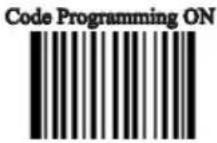
Disable All Prefix/Suffix: Transmit barcode message with no Prefix/Suffix.
Enable All Prefix/Suffix: Allow appending Code ID prefix, AIM prefix, User prefix, User suffix and Terminal to the barcode message.


** Disable All Prefix/Suffix
【Pro CMD: 0311000】

Enable All Prefix/Suffix
【Pro CMD: 0311010】
General Programming

Tools
Prefix Sequences
6 options of Prefix Sequences:
Code Programming ON
Code Programming OFF
** CodeID + AIM + User Prefix
【Pro CMD: 0317000】
AIM + User Prefix + CodeID
【Pro CMD: 0317030】

CodeID + User Prefix + AIM
【Pro CMD: 0317010】

User Prefix + CodeID + AIM
【Pro CMD: 0317040】

AIM + CodeID + User Prefix
【Pro CMD: 0317020】

User Prefix + AIM + CodeID
【Pro CMD: 0317050】
General Programming

Tools
Disable or Enable User Prefix
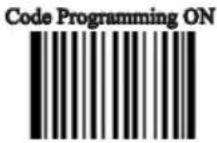
User Prefix is added before barcode message. For example, if the user prefix is “AB” and the barcode message is “123”, the Host receives “AB123”.
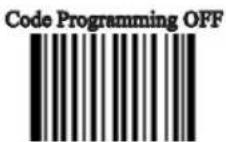

** Disable User Prefix
【Pro CMD: 0305000】
Enable User Prefix
【Pro CMD: 0305010】
Program User Prefix
Enable “Program User Prefix”. Then program user prefix byte(s). To end the prefix, read “Save programming” The user prefix byte is programmed in its hex values.
See example below.
Note: The maximum length for user prefix is 10 bytes.

Program User Prefix
【Pro CMD: 0300000】

Program “CODE” as user prefix (The hex of “CODE” are 0x43/0x4F/0x44/0x45):
- Read "Code Programming ON"
- Read "Program User Prefix"
- Read "4,3,4,F,4,4,4,5" in order
- Read "Save Programming"
-
Read "Code Programming OFF".
-
Read "Allow User Prefix" to enable above programming. "CODE" will appear to the left of a barcode.
AIM Prefix

Tools
AIM (Automatic Identification Manufactures) defines AIM prefix for many standard barcode formats.
AIM Prefix Format: “]” + AIM prefix + “0”
Code Programming ON

Code Programming OFF

** Disable AIM Prefix for All Barcodes
【Pro CMD: 0308000】
Enable AIM Prefix for All Barcodes
【Pro CMD: 0308030】

AIM ID is not customizable.
Code ID Prefix

Tools
Besides AIM prefix, Code ID prefix can be used to denote barcode format and can be customized.

The Code ID prefix MUST be one (1) or two (2) visible English letters.

** No Code ID Prefix
【Pro CMD: 0307000】
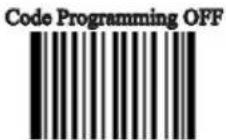
Allow Code ID Prefix
【Pro CMD: 0307010】
Code ID Default
All Bar codes, Load Code ID Factory Default 【Pro CMD: 0307020】
Code ID Prefix

Tools
Modify Code ID
See the examples below for how to modify a code ID and restore factory default code ID.


Modify PDF417 Code ID to be "p" (hex value is 0x70)
- Read "Code Programming ON"
- Read "Modify PDF417"
- Read Digit Code "7", "0"
- Read "Save Programming"
- Read "Code Programming OFF".
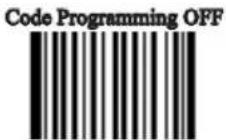
Load Code ID factory default (including PDF417)
- Read "Code Programming ON"
- Read "2D, Load Code ID Factory Default"
- Read "Code Programming OFF".

Modify PDF417
【Pro CMD: 0005000】
Modify QR Code
【Pro CMD: 0005010】
Modify Aztec
【Pro CMD: 0005020】

Modify Data Matrix
【Pro CMD: 0005030】
Modify Maxicode
【Pro CMD: 0005040】

User Define Code
【Pro CMD: 0005090】
Code ID Prefix

Tools
Modify EAN-8
【Pro CMD: 0004040】
Code Programming ON

Code Programming OFF


Modify EAN-13
【Pro CMD: 0004050】
Modify ITF-6
【Pro CMD: 0004100】

Modify UPC-E
【Pro CMD: 0004060】

Modify Code 39
【Pro CMD: 0004130】
Modify UPC-A
【Pro CMD: 0004070】

Modify Codabar
【Pro CMD: 0004150】

Modify Interleaved 2 of 5
【Pro CMD: 0004080】
Modify Code 93
【Pro CMD: 0004170】
Modify ITF-14
【Pro CMD: 0004090】
Code ID Prefix

Tools
Modify Code 128
【Pro CMD: 0004020】
Modify ISBN
【Pro CMD: 0004240】
Code Programming ON
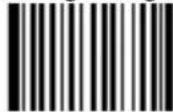
Code Programming OFF
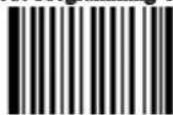
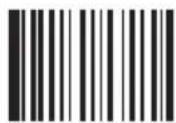
Modify UCC/EAN-128
【Pro CMD: 0004030】
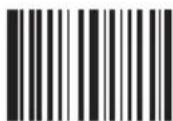
Modify Industrial 25
【Pro CMD: 0004250】

Modify Code 11
【Pro CMD: 0004280】
Modify Standard 25
【Pro CMD: 0004260】
Modify EAN•UCC Composite
【Pro CMD: 0004300】

Modify Plessey
【Pro CMD: 0004270】

Modify GS1 Databar
【Pro CMD: 0004310】

Modify MSI-Plessey
【Pro CMD: 0004290】
User Suffix

Tools
Disable or Enable User Suffix
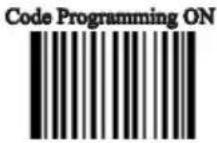
User suffix is appended to the right of barcode message. For example, if user suffix is “AB”, and the barcode message is “123”, The Host receives “123AB”.

**Disable User Suffix
【Pro CMD: 0306000】
Enable User Suffix
【Pro CMD: 0306010】
Program User Suffix
Read “Program User Suffix”. Then program user suffix byte(s). To end the suffix, read “Save programming”. The user suffix byte is programmed in its hex values. See example below.
Note: The maximum length for user suffix is 10 bytes.
Program User Suffix
【Pro CMD: 0301000】
Example
Program “CODE” as user suffix (The hex of “CODE” are 0x43, 0x4F, 0x44, and 0x45):
-
Read "Code Programming ON"
-
Read "Program User Suffix"
-
Read "4,3,4,F,4,4,4,5" in order
-
Read "Save Programming"
-
Read "Code Programming OFF"
-
Read "Allow User Suffix" to enable above programming. "CODE" will appear to the right of a barcode.
Terminal

Tools
Disable or Enable Terminal

“Terminal” is the termination for a string of barcode messages. It can not be formatted like other suffix and prefix. It is fixed to the right and the very end of a barcode transmission.
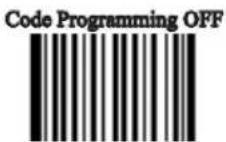
Read “Program Terminal”. Then program terminal byte(s). To end the suffix, read “Save programming”. The terminal byte is programmed in its hex values. See example below.
Note: The maximum length for terminal is 2 bytes.
Barcode message could divide information into different sections, such as product ID, manufacture ID, and so on. They are important overall. However, at certain situations, some of them are not of interest. This is where message interception comes in. Message interception feature allows transmission of selected section(s). Message intercept only applies to “raw” barcode messages.
The sequence of a read to transmit without message intercept is: Read a “raw” barcode —> Add prefix —> Append suffix —> Append terminal —> Transmit to Host.
The sequence of a read to transmit with message intercept is: Read a “raw” barcode —> Intercept Message —> Add prefix—> Append suffix —> Append terminal —> transmit to Host.
A special programming, pack, can insert barcode messages into a certain message format.
Then the processing sequence is: Read to obtain barcode message—>Intercept—>Add prefix—>Append suffix—>Pack—>Append terminal—>Transmit.
Message Interception

Tools
Interception Rule No.1: It only intercepts selected symbols' raw barcode messages and it effects all barcodes of the barcode format.

Interception Rule No.2: There are maximum 3 interception options restored in the non-volatile memory. If more than 3 are programmed, the last 3 are stored. For example, if there are 4 options are programmed in the order of Code 128, Code 39, QR Code, and UPC-A and “Save”. The 3 options are restored in the order of: Code 39, QR Code, UPC-A.
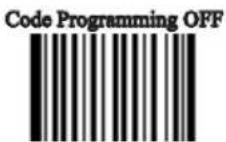
Interception Rule No.3: If there are more than one options programmed for a barcode format, the later one is used. For example, there are 3 options restored, Code 128 option A, QR Code option, Code 128 option B. The Code 128 option B is used when a Code 128 barcode is read.
"Enable Interception" barcode should be read before intercepting message.
Steps should be followed to erase certain barcode(EAN-13 e.g.) interception options:
1、Read "Erase Certain Barcode Interception Options" barcode;
Get Symbol ID, for example, EAN-13:005 2、
Read digit codes accordingly. 3、
Read "Save" barcode. 4、

**Disable Interception
【Pro CMD: 0315000】
Enable Interception
【Pro CMD: 0315010】

Program Intercept Option
【Pro CMD: 0316000】

Erase Certain Barcode Interception Options
【Pro CMD: 0316010】

Erase Latest Interception Options
【Pro CMD: 0316020】
Erase All Interception Options
【Pro CMD: 0316030】
Message Interception

Tools
Programming 1D Intercept Option
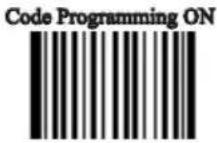
When programming 1D intercept option, read digit codes as interception command. The rules is as below:
The interception command format of 1D interception command regards » a 3-digit decimal number as a unit.
The interception command has two parts, which are barcode type » part(Symbol ID) and data interception part. A command could have several data interception parts.
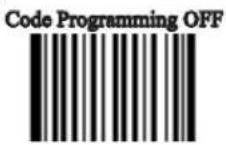
» A barcode type part(Symbol ID) uses a unit, such as “005”; a datainterception part uses three units, including intercepting direction unit:000(Ascending) or 001(Descending), start unit and stop unit.
There is only one type of barcode to be setted to intercept in a time. »

Intercept EAN-13 from 1st digit to 3rd ascending and from reciprocal 4th to reciprocal 1st:
1、Read “Code Programming ON”
2、Read “Allow Interception”
3、Read "Program Intercept Option"
4、Check Symbols ID Number table for EAN-13
5、Read below digit barcodes

flowchart
graph TD
    A["digit"] --> B["005"]
    B --> C["symbol ID"]
    C --> D["000"]
    D --> E["ascending"]
    E --> F["001"]
    F --> G["the 1st digit"]
    G --> H["003"]
    H --> I["the 3rd digit"]
    I --> J["001"]
    J --> K["descending"]
    K --> L["004"]
    L --> M["the 4th digit"]
    M --> N["001"]
    N --> O["the 1st digit"]

    P["Barcode Type"] --> Q["Data Interception 1"]
    Q --> R["Data Interception 2"]
Note:
Maximum sections of barcode message interception are 5. 1,
Maximum value is 127 for both start digital and end digital 2,
3、Overlaps of barcode message sections are allowed and work independently.
4、Start unit and end unit determine its message section. In the above example, descending “004” and “001” means the section of “last 4th”, “last 3rd”, “last 2nd”, and “last one” digits.
5、To intercept only one digit, program start unit and end unit to be the same value.
General Programming

Tools
Programming 2D Intercept Option

When programming 2D intercept option, read digit codes as interception command. The rules is as below:
The interception command has two parts, which are barcode type » part(Symbol ID) and data interception part. A command could have several data interception parts.
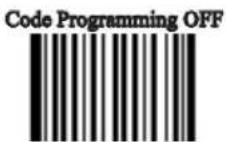
» A barcode type part(Symbol ID) uses a unit, such as “005”; a data interception part uses three units, including intercepting direction unit:000(Ascending) or 001(Descending), start unit and stop unit.
Barcode type part and intercepting direction regards a 3-digit decimal » number as a unit; but start and stop digit regards a 6-digit decimal number as a unit. They uses 6 digits to present 4-digit value. The first two digits are for thousandth and next two digits for hundredth. For example, 001013 means 113.
» There is only one type of barcode to be setted to intercept in a time.
Example
For example, intercept QR Code from 1st digit to 20th ascending and from 113th digit to 140th ascending.
- Read "Code Programming ON"
- Read "Enable Interception"
- Read "Program Intercept Option"
- Check Symbols ID Number table for QR Code
- Read below digit barcodes

flowchart
graph TD
    A["digit"] --> B["033"]
    B --> C["000"]
    C --> D["000001"]
    D --> E["000020"]
    E --> F["000"]
    F --> G["001013"]
    G --> H["001040"]
    I["Denote"] --> J["symbol ID"]
    J --> K["ascending"]
    K --> L["The 1st digit"]
    L --> M["The 20th digit"]
    M --> N["ascending"]
    N --> O["The 113th digit"]
    O --> P["The 140th digit"]
    Q["Barcode Type"] --> R["Data Interception 1"]
    S["Data Interception 2"] --> T["Data Interception 2"]
Rules:
Maximum intercept 3 barcode message sections 1,
Maximum value is 9999 for start digital and end digital 2,
3、Overlaps of barcode message sections are allowed and work independently.
4、Start unit and end unit determine its message section. In the above example, ascending "000001" and "000020" means the first 20 digits.
5、To intercept only one digit, program start unit and end unit to be the same value.
Message Pack

Tools
Introduction
Data Pack is for the special requirements of barcode message. There are 3 types of data pack. Data pack effects all data formats, in that be sure to load the default "Disable Pack" if pack is not required.


** Disable Pack
【Pro CMD: 0314000】
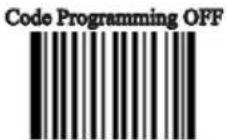
Normal Pack
Normal pack format::
$$ [ \mathrm{STX} + \mathrm{ATTR} + \mathrm{LEN} ] + [ \mathrm {AL_TYPE} + \mathrm{DATA} ] + [ \mathrm{LRC} ] $$
STX: 0x02 »
ATTR: 0x00 »
» LEN: Barcode message length is expressed by 2 bytes, range “0x0000\~0xFFFF” which is between 0 and 65535.
AL_TYPE: 0x36 »
DATA: Barcode message »
LRC: Parity byte »
The algorithm:
computation sequence is LRC=0xFF+STX+ATTR+LEN+AL_TYPE+DATA 1、
computation method is XOR, byte by byte. 2、

Normal Pack
【Pro CMD: 0314010】
Batch Programming

Tools
Introduction
Batch Programming can integrate a programming sequence into one barcode. Batch Programming Rules:
Sub-command is in this format: Programming Command + Parameters »
Sub-commands are terminated by semicolons. Note that there is no blank between » a sub-command and its terminator semicolon.
"Save Programming" (0000160) to terminate »
Use Barcode Generator software to make the 2D batch barcode. »

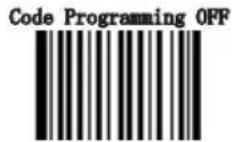
For example, to generate a batch barcode for "Illumination Keep ON"(0200030), "Auto Mode"(0302010), "One Reading Timeout = 2000"(0313000), and "Disable Fixed Length Selection"(0405140) for Interleaved 2 of 5.
0200030; 0302010; 0313000 = 2000; 0405140; 0000160; Generate a batch code.
Allow Read Batch Code
【Pro CMD: 0001110】
How to build a batch command
Batch command can contain many commands. Each command is divided by semicolon. Batch command must be ended with save command.
Command structure: command (+ equal mark + setting information)
The setting command list is provided below
There are 4 setting command modes
- Setting syntax 1: Command
The most command is the one can be set at one time without the command.
e.g.:
The command setting the baud rate as 38400 bps: 0100060
The command setting auto mode: 0302010
- Setting syntax 2: Command + equal mark + number
This command is used for setting the value of parameter, including the longest and shortest length of the barcode, one reading timeout setting, same barcode reading delay setting, sensitive value setting, etc.
e.g.:
The command setting the one reading timeout as 3000ms: 0313000 = 3000
The command setting the sensitive value as 10: 0312040 = 10
- Setting syntax 3: command + equal mark + hex (e.g., 0x101a, 0x2C03)
This command can be used as setting the user-defined prefix, user-defined suffix, ending suffix, CodeID, increase or cancel the barcode length value, information intercepting, etc. Note: every two hexes in the command stand for a setting character
e.g.:
Append the fixed length 4 of interleaved 2of 5 to 26: 0405160 = 0x041a
Setting the suffix information of the ending as CR/LF: 0310000 = 0x0d0a
- Setting syntax 4: command + equal mark+ double quotation marks
If the setting information is viewable character, then this mode of setting is appropriate.
e.g.:
The command setting the user-defined prefix information as AUTO-ID : 0300000 = "AUTO-ID"
Produce setting code
Make the command list (ended with save command) to a PDF417, QR code or DataMatrix.
For example, to produce a batch command means: light Always On, Auto Scan, change delay time to 2 seconds, Disable Fixed Length of I 2 of 5. Firstly find commands as follows
0200030; (light Always On)
0313000 = 2000; (change One Reading Timeout to 2 seconds)
0405140; (Disable Fixed Length of Interleaved 2 of 5)
0000160; (Save)
The batch setting code (PDF417) is as follow,

Use batch setting code

Tools
Read “Code Programming ON”, then read “enable batch setting code”, and then read the batch setting code produced just now, finally Read “Code Programming Off”
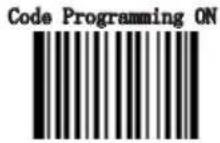

Code Programming ON
【Pro CMD: 0006010】


Allow Read Batch Code
【Pro CMD: 0001110】

Batch Setting Code


Code Programming OFF
【Pro CMD: 0006000】
Appendix
Digit Code
It is must to be read save after read digit code.
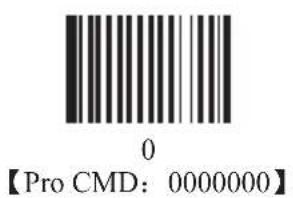
In order to save the received data “Save” has to be read after data transition completed. If error occurs when reading data, the wrong data can be deleted and the setting up can be done again..
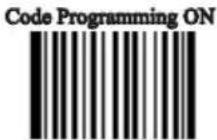
Eg, after a program code is received then ‘1 2 3’ in order is received, if then read “Abort One Data of Current Setting” the “3” will be deleted; if read “Abort One String of Current Setting” the ‘123’ will be deleted; if read “Abort Current Setting” both the program code and ‘123’ will be deleted, the device will be on status of “initiating program code”
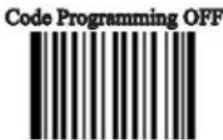

Save
【Pro CMD: 0000160】

Abort One Data of Current Setting
【Pro CMD: 0000170】
Abort Current Setting
【Pro CMD: 0000190】

Abort One String of Current Setting
【Pro CMD: 0000180】
Factory Default List
| Parameters Factory | Default Remark | |
| General Programming | ||
| Code Programming Off | ||
| Send Pro Code Value Off | ||
| Illumination Illumination Wink | ||
| Aiming Aiming Wink | ||
| Decoding Beep On | ||
| Decoding Beep Type Type 1 | ||
| Decoding Beep Volume Loud | ||
| Power On Beep On | ||
| Working Mode Auto Mode | ||
| One Reading Timeout 3000ms | ||
| Same Barcode Reading Delay | Multi-reading Semi-prohibit, 1500ms | |
| Sensitivity Normal Sensitivity Sensitivity = 11 | ||
| Exposure Imaging Mode | Normal Exposure Mode | |
| Power On, Send Product Info | Off | |
| OCR | Off | |
| Communication Programming | ||
| Baud Rate | 9600 | RS232 |
| Serial Port Check | No Check | RS232 |
| Transmit Digits | 8 Digits | RS232 |
| Stop Digit | 1 Digit | Fixed, RS232 |
| Unkown Character, Beep | Off | USB HID-KBW |
| Emulate ALT + keypad | Off | USB HID-KBW |
| Function Key Mapping | Off | USB HID-KBW |
| Keystroke Delay | No Delay | USB HID-KBW |
| Caps Lock | Off | USB HID-KBW |
| Convert Case | Off | USB HID-KBW |
| Emulate Numeric Keypad | Off | USB HID-KBW |
| Data Format Programming | ||
| Add Prefix/Suffix | Off | |
| Prefix Sequences | CodeID+User Prefix+AIMID | CodeID+AIMID+(Prefix+Data) +Suffix+Terminal |
| AIMID | Off | ]Cm Mark |
| CodeID | Off | One Digit, Capital or Small Letter |
| User Prefix | Off | No more than 10 digits |
| User Suffix | Off | No more than 10 digits |
| Terminal | Off | No more than 2 digits |
| Interception | Off | |
| Pack | Off | |
Factory Default List
| Parameters Factory Default Remark | ||
| Symbol | ||
| Code 128 | ||
| Enable On | ||
| Max Message Length 48 | ||
| Min Message Length 1 | ||
| EAN-8 | ||
| Enable On | ||
| Send Check Digit On | ||
| Enable 2 Digits Addenda Code Off | ||
| Enable 5 Digits Addenda Code Off | ||
| Expand to EAN-13 Off | ||
| EAN-13 | ||
| Enable On | ||
| Send Check Digit On | ||
| Enable 2 Digits Addenda Code Off | ||
| Enable 5 Digits Addenda Code Off | ||
| UPC-E | ||
| Enable On | ||
| Send Check Digit On | ||
| Enable 2 Digits Addenda Code Off | ||
| Enable 5 Digits Addenda Code Off | ||
| Expand to UPC-A Off | ||
| Send Default “0” Off | ||
| UPC-A | ||
| Enable On | ||
| Send Check Digit On | ||
| Enable 2 Digits Addenda Code Off | ||
| Enable 5 Digits Addenda Code Off | ||
| Send Default “0” Off | ||
| Interleaved 2 of 5 | ||
| Enable On | ||
| Check Off | ||
| Send Check Digit Off | ||
| Max Message Length 80 | ||
Factory Default List
| Min Message Length 6 No less than 4 | ||
| Specified Lengths Off | ||
| ITF-6 | ||
| Enable Off | ||
| ITF-14 | ||
| Enable Off | ||
| Matrix 2 of 5 | ||
| Enable Off | ||
| Check Off | ||
| Send Check Digit Off | ||
| Max Message Length 80 | ||
| Min Message Length 4 No less than 4 | ||
| Code 39 | ||
| Enable On | ||
| Check Off | ||
| Send Start & Stop Character On | ||
| Support Full ASCII Off | ||
| Max Message Length 48 | ||
| Min Message Length 4 No less than 4 | ||
| Codabar | ||
| Enable On | ||
| Check Off | ||
| Send Start & Stop Character On ABCD, ABCD, Upper Case | ||
| Max Message Length 60 | ||
| Min Message Length 2 | ||
| Code 93 | ||
| Enable Off | ||
| Check | On | |
| Send Check Digit | Off | |
| Max Message Length 48 | ||
| Min Message Length 1 No less than 1 | ||
| UCC/EAN-128 | ||
| Enable On | ||
| GS1 Databar | ||
| Enable On | ||
| Send AI(01) Character | On | |
Factory Default List
| EAN•UCC Composite | ||
| Enable Off | ||
| UPC/EAN Composite Enable Off | ||
| Code 11 | ||
| Enable Off | ||
| Send Check Digit On | ||
| 1 Digit, MOD11 Check On | ||
| Max Message Length 48 | ||
| Min Message Length 4 No less than 4 | ||
| ISBN | ||
| Enable Off | ||
| Transmit 13 Digits On | ||
| Industrial 25 | ||
| Enable Off | ||
| Check Off | ||
| Max Message Length 48 | ||
| Min Message Length 6 No less than 4 | ||
| Standard 25 | ||
| Enable Off | ||
| Check Off | ||
| Max Message Length 48 | ||
| Min Message Length 6 No less than 4 | ||
| Plessey | ||
| Enable Off | ||
| Check and Transmit Check Digits On | ||
| Max Message Length 48 | ||
| Min Message Length 4 No less than 4 | ||
| MSI-Plessey | ||
| Enable Off | ||
| Check and Transmit Check Digits On | ||
| Single MOD10 Check On | ||
| Max Message Length 48 | ||
| Min Message Length 4 No less than 4 | ||
Factory Default List
| PDF417 | ||
| Enable On | ||
| Read Single PDF417 Only On | ||
| Max Message Length 2710 | ||
| Min Message Length 1 | ||
| Read Forward Direction Barcode Only On | ||
| QR Code | ||
| Enable On | ||
| Read Single QR Only On | ||
| Max Message Length 7089 | ||
| Min Message Length 1 | ||
| Aztec | ||
| Enable Off | ||
| Max Message Length 3832 | ||
| Min Message Length 1 | ||
| Reading Multi-barcodes of an Image Off | ||
| Data Matrix | ||
| Enable On | ||
| Max Message Length 3116 | ||
| Min Message Length 1 | ||
| Read Single DM Only On | ||
| Rectangular Symbols On | ||
| Read Forward Direction Barcode Only On | ||
| Maxicode | ||
| Enable Off | ||
| Max Message Length 150 | ||
| Min Message Length 1 | ||
| Maxicode | ||
| Enable Off | ||
| Max Message Length 7827 | ||
| Min Message Length 1 | ||
AIM ID List
| Symbol AIM ID Possible AIM ID Modifiers(m) | ||
| Code 128 | ]C0 | |
| UCC/EAN-128 | ]C1 | |
| EAN-8 | ]E4 | |
| EAN-13 | ]E0 | |
| EAN-13 with Addon | ]E3 | |
| UPC-E | ]E0 | |
| UPC-E with Addon | ]E3 | |
| UPC-A | ]E0 | |
| UPC-A with Addon | ]E3 | |
| Interleaved 2 of 5 | ]Im 0,1,3 | |
| ITF-6 | ]Im 1,3 | |
| ITF-14 | ]Im 1,3 | |
| Matrix 2 of 5 ]Xm | ||
| Code 39 ]Am 0,1,3,4,5,7 | ||
| Codabar ]Fm 0,2,4 | ||
| Code 93 ]G0 | ||
| Code 11 ]Hm 0,1,3 | ||
| ISBN ]X0 | ||
| Industrial 25 ]S0 | ||
| Standard 25 ]R0 | ||
| Plessey ]P0 | ||
| MSI-Plessey | ]Mm | 0,1 |
| GS1 Databar | ]e0 | |
| EAN•UCC Composite | ]em | 0-3 |
| PDF417 ]Lm | 0-2 | |
| QR Code | ]Qm 0-6 | |
| Aztec ]zm 0-9, A-C | ||
| Data Matrix | ]dm | 0-6 |
| Maxicode | ]Um 0-3 | |
| Chinese Sensible Code | ]Xm | |
Reference:
» ISO/IEC 15424:2008
» Information technology – Automatic identification and data capture techniques – Data Carrier Identifiers (including Symbology Identifiers)
Code ID List
| Symbol Code ID | |
| Code 128 j | |
| UCC/EAN-128 j | |
| EAN-8 d | |
| EAN-13 d | |
| UPC-E c | |
| UPC-A c | |
| Interleaved 2 of 5 | e |
| ITF-6 e | |
| ITF-14 e | |
| Matrix 2 of 5 v | |
| Code 39 b | |
| Codabar a | |
| Code 93 i | |
| Code 11 II | |
| GS1 Databar R | |
| EAN•UCC Composite | y |
| ISBN B | |
| Industrial 25 I | |
| Standard 25 f | |
| Plessey n | |
| MSI-Plessey | m |
| PDF417 r | |
| QR Code s | |
| Aztec z | |
| Data Matrix u | |
| Maxicode | x |
| Chinese Sensible Code | h |
Symbols ID Number
| Symbol ID Number | |
| Code 128 002 | |
| UCC/EAN-128 003 | |
| EAN-8 004 | |
| EAN-13 005 | |
| UPC-E 006 | |
| UPC-A 007 | |
| Interleaved 2 of 5 008 | |
| ITF-14 009 | |
| ITF-6 010 | |
| Matrix 2 of 5 011 | |
| Code 39 013 | |
| Codabar 015 | |
| Code 93 | 017 |
| ISBN | 024 |
| Industrial25 025 | |
| Standard25 026 | |
| Plessey 027 | |
| Code11 028 | |
| MSI-Plessey 029 | |
| EAN•UCC Composite 030 | |
| GS1 Databar | 031 |
| PDF417 | 032 |
| QR Code | 033 |
| Aztec 034 | |
| DataMatrix | 035 |
| Maxicode | 036 |
| Chinese Sensible Code | 039 |
| User-Define Code | 041 |
| SPEC_OCR_B | 064 |