RS-232 - RS485/422 - Computer Cable StarTech.com - Free user manual and instructions
Find the device manual for free RS-232 - RS485/422 StarTech.com in PDF.


User questions about RS-232 - RS485/422 StarTech.com
0 question about this device. Answer the ones you know or ask your own.
Ask a new question about this device
Download the instructions for your Computer Cable in PDF format for free! Find your manual RS-232 - RS485/422 - StarTech.com and take your electronic device back in hand. On this page are published all the documents necessary for the use of your device. RS-232 - RS485/422 by StarTech.com.
USER MANUAL RS-232 - RS485/422 StarTech.com
Changing line signals is no longer a problem. StarTech.com's IC485S / GB / EU converts RS-232 serial interfaces to RS-485/422 serial interfaces. This 2 in 1 converter converts RS232C to either the RS 485 or RS 422 interface. Other features include DCE/DTE selectable modes, point to point multidrop configuration and the ability to monitor RS 485/422 signals.
The IC485S / GB / EU can be powered from the following two ways:
- DC 9V, 200mA power adapter
- The pin #9 of the RS-232 connector
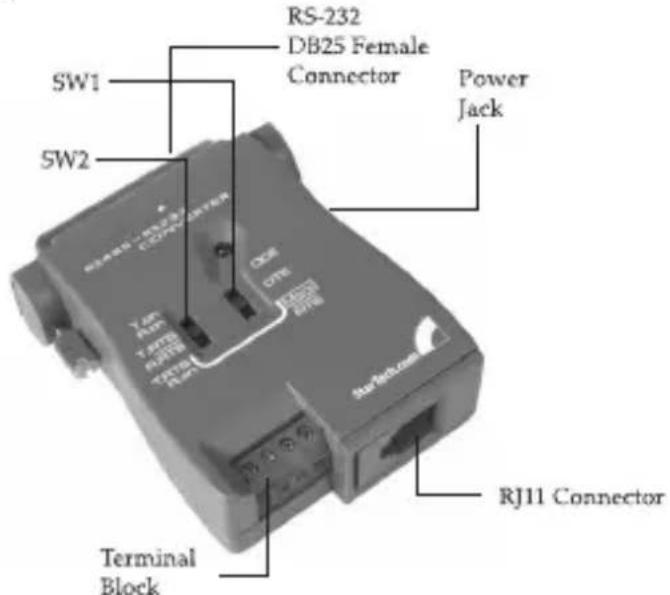
The following is a figure of the IC485S / GB / EU.
text_image
RS-232 DB25 Female Connector Power Jack SW1 SW2 Terminal Block RJ11 ConnectorFeatures
- Two in one converter-Converts RS232C to either RS-485 or RS-422
• DCE/DTE mode selectable
• Supports point to point multidrop configuration - Can be used to monitor RS-485/422 signals
• Full or half duplex operation
Specifications
| Data rate | Up to 1MB/sec |
| Cable length Up to 4000ft. | |
| RS-232 connector | DB25 Female |
| RS-485 connector | RJ11 Female or terminal block |
| Dimensions (mm) | 54 x 74 x 19 |
| Power | Self-powered or DC 9V 200mA |
Getting Started
This section is designed to help you prepare the IC485S / GB / EU for installation. Please read through this section carefully before attempting to install the converter.
Unpacking the IC485S / GB / EU
This package should contain:
1 x interface converter•
1 x power adapter•
Installation
Before installing the IC485S / GB / EU you will need a 4-wire cable. This cable must go from your location to the place you want to connect to.
- Decide on one of the 6 possible configurations suitable for your application. Check the Operation for the correct slide switch settings and phone wires connection, then connect the IC485S / GB / EU to the PC.
- Turn on the PCs.
- Insert the adapter's plug into the power jack on the right side of the converter.
- Plug the power adapter into an AC outlet. The unit is now ready for operation.
Switch Function Description
Device Mode Selection
Position 1: DCE means that the IC485S / GB / EU is set to the DCE mode and must be connected to a DTE device.
Position 2: DTE means that the IC485S / GB / EU is set to the DTE mode and it must be connected to a DCE device.
Position 3: Monitor means that the IC485S / GB / EU is set to the monitor mode and it is used to monitor the RS-485 line signals.
Transmitting and Receiving Mode Selection
Position 1: (TxON, RxON) means the IC485S / GB / EU is always in transmitting mode and in receiving mode (using in Point-to-Point mode).
Position 2: (TxRTS, RxRTS) means the IC485S / GB / EU is in transmitting mode while the RTS is at a high level and it is on receiving mode while the RTS signal is at a low level (using in Multidrop mode).
Position 3: (TxRTS, RxON) means the IC485 / GB / EU is always in receiving mode and it is in transmitting mode only while the RTS signal is at a high level (using in Multidrop mode to monitor the RS/485 line signal).
Note: DTE means Data Terminal Equipment. DCE means Data Communication Equipment. For more detailed information, refer to the Appendix.
Operation
The IC485S / GB / EU supports 4 kinds of functions in 6 types of configurations.
Point-to-Point
Point-to-Point configuration means two devices that locate different places can be linked together to communicate through a couple of IC485S / GB / EU devices.
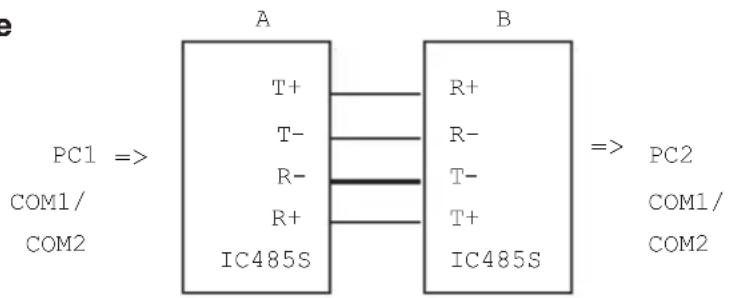
Point-to-Point/4-Wire Full Duplex
text_image
PC1 => A COM1/ COM2 T+ T- R- R+ IC485S B R+ R- T- T+ IC485S => PC2 COM1/ COM2Configuration
| Device | SW1 | SW2 |
| A | DCE/DTE | TxON, RxON |
| B | DCE/DTE | TxON, RxON |
If the PC1 is a DTE device, then the Device A SW1 should be set to DCE. If the PC1 is a DCE device, the the Device A SW1 should be set to DTE. The switch setting method for the Device B is identical to Device A's.
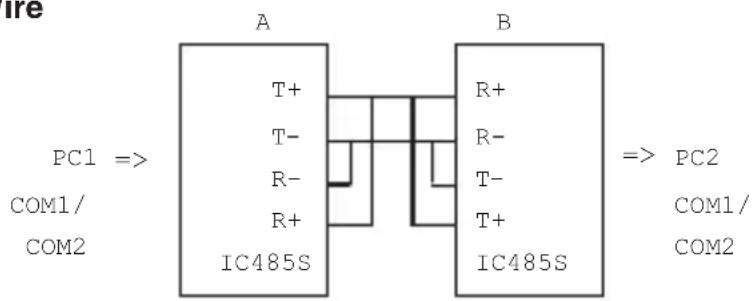
Point-to-Point/2-Wire Half Duplex
text_image
PC1 => A COM1/ COM2 T+ T- R- R+ IC485S B R+ R- T- T+ IC485S => PC2 COM1/ COM2Configuration
| Device | SW1 | SW2 |
| A | DCE/DTE | TxRTS, |
| B | DCE/DTE | TxRTS, |
Multidrop
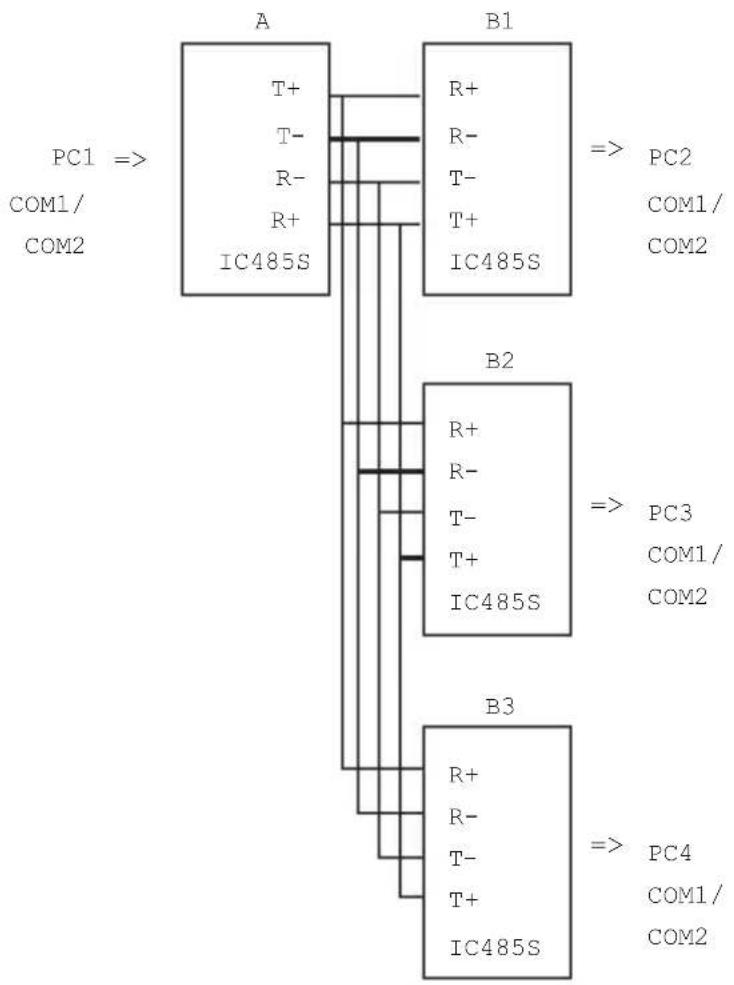
Multidrop configuration means that more than two devices can be linked all together to communicate to one another through many IC485S / GB / EU devices. In this configuration, one of the IC485S / GB / EU devices will be connected to a master device and the rest of the IC485S / GB / EU devices will be connected to many other slave devices.
Multidrop/4-Wire
Full Duplex
flowchart
graph TD
    A["PC1 => COM1/ COM2"] --> B["A"]
    B --> C["B1 => PC2 COM1/ COM2"]
    B --> D["B2 => PC3 COM1/ COM2"]
    B --> E["B3 => PC4 COM1/ COM2"]
    A --> F["T+ T- R- R+ IC485S"]
    B --> G["R+ R- T- T+ IC485S"]
    D --> H["R+ R- T- T+ IC485S"]
    E --> I["R+ R- T- T+ IC485S"]
Configuration
| Device | SW1 | SW2 |
| A | DCE/DTE | TxON, RxON |
| Bn | DCE/DTE | TxRTS, RxON |
Note: Bn means any one of the B1, B2, B3 and so on.
Multidrop/2-Wire
Half Duplex
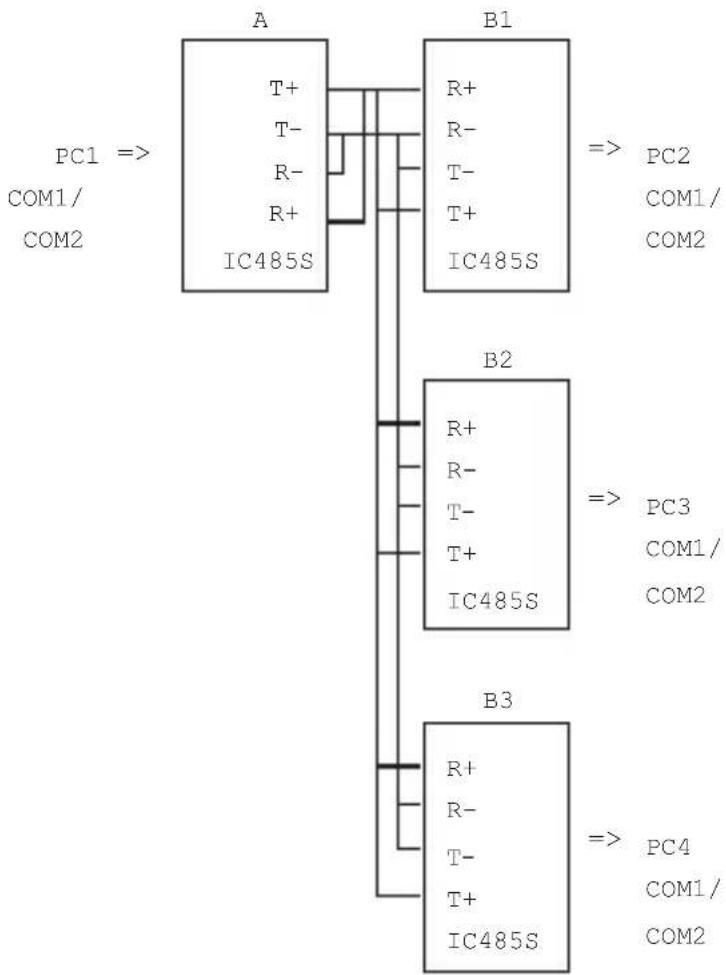
flowchart
graph TD
    PC1["PC1 => COM1/ COM2"] --> A["A"]
    A --> B1["B1"]
    A --> B2["B2"]
    B1 --> PC2["PC2 => COM1/ COM2"]
    B2 --> PC3["PC3 => COM1/ COM2"]
    B3["B3"] --> PC4["PC4 => COM1/ COM2"]
Configuration
| Device | SW1 | SW2 |
| A | DCE/DTE | TxRTS, |
| B | DCE/DTE | TxRTS, |
Simplex/Transmit, Receive Only
Simplex configuration means that more than two devices can be linked all together to communicate through many IC485S / GB / EU devices. Its configuration is like the Multidrop's, but the master device can talk only and the slave devices can listen only.
Simplex/Transmit, Receive Only
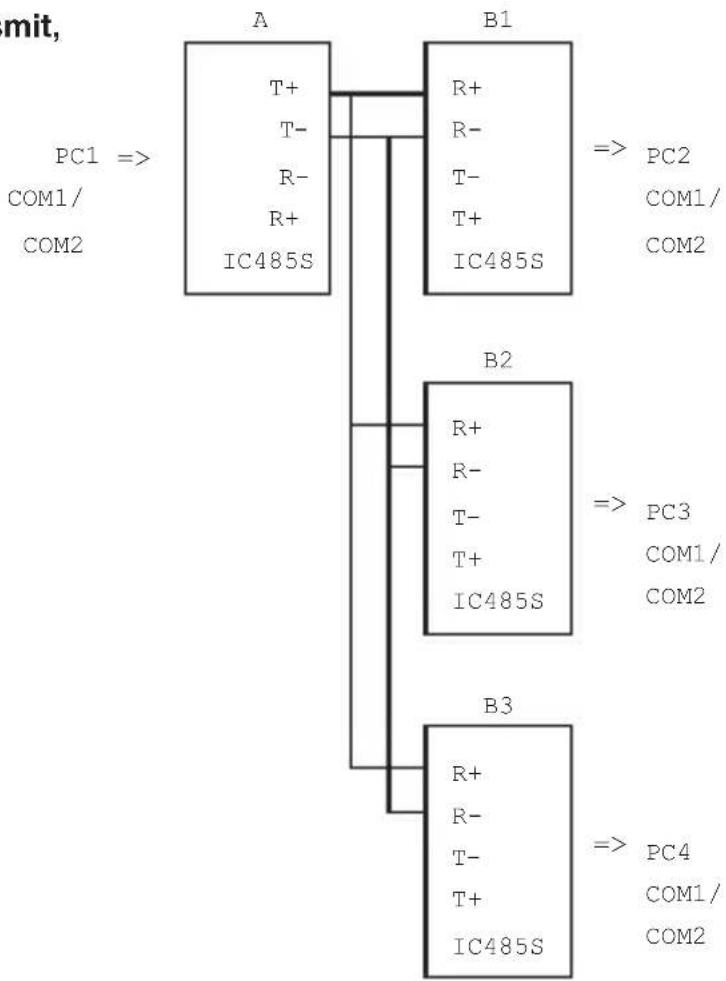
flowchart
graph TD
    A["PC1 => COM1/ COM2"] --> B["A"]
    B --> C["B1"]
    C --> D["=> PC2 COM1/ COM2"]
    B --> E["B2"]
    E --> F["=> PC3 COM1/ COM2"]
    B --> G["B3"]
    G --> H["=> PC4 COM1/ COM2"]
Configuration
| Device | SW1 | SW2 |
| A | DCE/DTE | TxON, RxON |
| Bn | DCE/DTE | TxON, RxON |
Note: Bn means any one of the B1, B2, B3 and so on.
Monitor Mode
Monitor configuration means an IC485S / GB / EU device can be wired to the lines of RS-232 or RS-422 devices to monitor the line signals. In this configuration the IC485S / GB / EU will change the function of the T+ and T- to R'+ and R'- respectively.
Before operating, the user must complete the installation according to the procedure mentioned.
Once the installation has been done, the device should operate as the setting function.
Monitoring
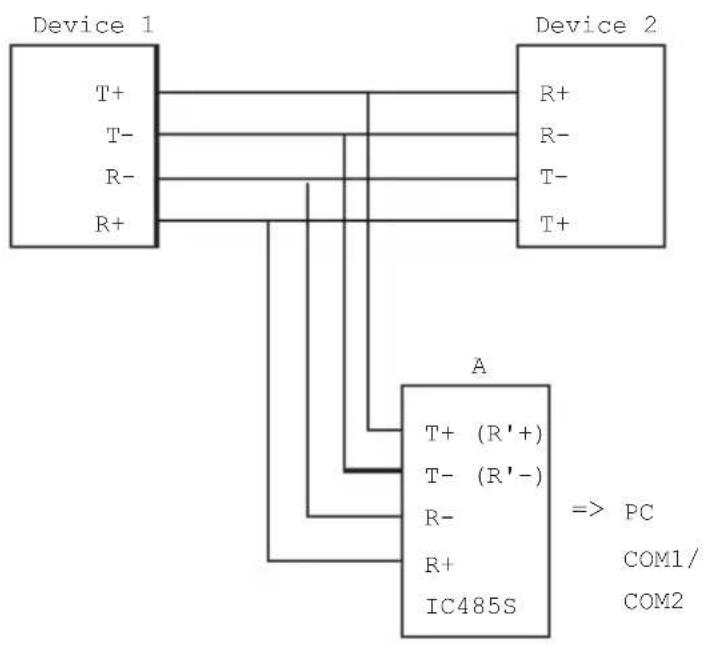
flowchart
graph TD
    A["Device 1"] -->|T+| B["Device 2"]
    A -->|R-| B
    A -->|R+| B
    B -->|R+| A
    B -->|R-| A
    B -->|T-| A
    B -->|T+| A
    B -->|T+| A
    C["IC485S"] -->|A| D["PC COM1/ COM2"]
    style C fill:#f9f,stroke:#333
    style D fill:#ccf,stroke:#333
Configuration
| Device | SW1 | SW2 |
| A | MONI | TxRTS, RxON |
Note: R+ and R- signals are converted and linked to the RS-232 port and DB25 pin 3. R'+ and R'-(T+ and T-) signals are converted and linked to the RS-232 port DB25 pin 2.
Note: The RTS must be at the low level in monitoring mode.
Others
Terminal Block Definition
The four-screw terminal block has different definitions in different operation modes.
In the DCE/DTE mode, the terminal #1 (+V) and #2 (-V) are configured to transmit data, the transmitter; the terminal #3 (-V) and #4 (+V) are configured to receive data, the receiver,
In the monitor mode, the terminals #1 and #2 are respectively the positive and negative of receiver #1; the terminal #3 and #4 are the positive and negative of receiver #2.
| Pin #1 DCE/DTE Monitor | |
| 1 Transmitter + V Receiver #1 + V | |
| 2 Transmitter - V Receiver #1 - V | |
| 3 Receiver - V Receiver #2 - V | |
| 4 Receiver + V Receiver #2 + V | |
Self Test
To test the internal circuit of the interface converter, connect a loop-back terminal to the unit and process as follows:
- Set SW1 to DCE (if the loop-back terminal is a DTE configuration).
- Set SW2 to TxON, RxON.
- Connect one wire from Tx+(#1) to Rx+(#4), and connect another wire from Tx-(#2) to Rx-(#3).
- Set the terminal to full duplex and enter data then the data should be displayed on the screen.
- If this occurs, the internal circuit is operational.
Appendix
Troubleshooting
If failure of printing still exists upon the above solutions, please contact your dealer for help.
| Problem Solution | |
| Failure of Data Transmission | Check that the DC9V power adapter 1. is available.Check that the IC485SEU is plugged 2. securely to the PC.Check that the 4-wire cable is 3. connected properly at both ends.Check that the SW1 and SW2 are 4. properly set. |
| Data Loss or Error | Check that the data rate and data format are the same for both devices. |
RS-232 DCE/DTE Description
| Device's Connector Pin # Cables IC485SEU | ||||||
| DCE DB9 | DTE DB9 | DCE DB25 | DTE DB25 | 25/25 or 9/25-Pin | DCE DB25 | DTE DB25 |
| 2 | 3 | 3 | 2 | T x | R x | |
| 3 | 2 | 2 | 3 | R x | T x | |
| 8 | 7 | 5 | 4 | R T S | C | |
| 7 | 8 | 4 | 5 | CTS RTS | 5 | 4 |
| 5 | 5 | 7 | 7 | GND GND | 7 | 7 |
2 3
Note: The DTE mode devices must be connected to a DCE mode device because the polarity of the communication signals are different.
Radio and TV Interference
Warning!!! This equipment generates, uses and radiates radio frequency energy and if not installed and used in accordance with the instruction manual may case interference to radio and television reception. It has been tested and found to comply with the limits for a Class A computing device in accordance with the specifications in Subpart J of Part 15 of FCC Rules, which are designed to provide reasonable protection against such interference when operated in a commercial environment. Operation of this equipment in a residential area is likely to cause interference, in which case the user at his own expense will be required to take whatever measures may be required to correct the interference.
If this equipment does cause interference to radio or television reception, which can be determined by turning the equipment off and on, the user is encouraged to try to correct the interference by one or more of the following measures:
- Reorient the receiving antenna.
- Relocate the computer with respect to the receiver.
- Move the computer away from the receiver.
- Plug the computer into a different outlet so that the computer and receiver are on different branch circuits.
- Ensure that the mounting screws, attachment connector screws and ground wires are tightly secured.
- Ensure that good quality, shielded and grounded cables are used for data communications.
If necessary, the user should consult the dealer or an experienced radio/television technician for additional suggestions.