
MSTDP123DP - Computer Cable StarTech.com - Free user manual and instructions
Find the device manual for free MSTDP123DP StarTech.com in PDF.


| Product Type | Multi Monitor DisplayPort MST Hub |
| Brand | StarTech.com |
| Model | MSTDP123DP |
| Video Signal | DisplayPort |
| Number of Ports | 3 (3x DisplayPort Female Output) |
| Input Connector | 1x DisplayPort Male (Integrated Cable) |
| Maximum Display Resolution | 4K Ultra HD at 30Hz |
| Supported Video Card | DisplayPort 1.2 enabled |
| Bandwidth | 10.2 Gbps shared across ports |
| Power Supply | Universal Power Adapter (NA/EU/UK/AUS) |
| Dimensions (Approx.) | 4.5 x 2.5 x 1.0 in (11.4 x 6.4 x 2.5 cm) |
| Weight (Approx.) | 0.3 lb (136 g) |
| Cable Length | Integrated DisplayPort cable (approx. 12 in) |
| Compatibility | Microsoft Windows (MST certified), DP 1.1/1.2 |
| Special Features | SCAN button to resync displays |
| Supported Display Types | DisplayPort, HDMI, DVI, VGA (with adapters) |
| Adapter Requirements | For non-DP displays, use StarTech.com adapters (DP2HDMI, DP2VGA3, DP2DVI2) - not included |
| Warranty | 3 Years |
| Technical Support | Lifetime (www.startech.com/support) |
| Cleaning Instructions | Wipe with a soft dry cloth; do not use liquids or solvents |
| Safety Note | Use only with provided power adapter; avoid moisture |
| Repairability | No user-serviceable parts; contact support for issues |
Frequently Asked Questions - MSTDP123DP StarTech.com
User questions about MSTDP123DP StarTech.com
0 question about this device. Answer the ones you know or ask your own.
Ask a new question about this device
Download the instructions for your Computer Cable in PDF format for free! Find your manual MSTDP123DP - StarTech.com and take your electronic device back in hand. On this page are published all the documents necessary for the use of your device. MSTDP123DP by StarTech.com.
USER MANUAL MSTDP123DP StarTech.com
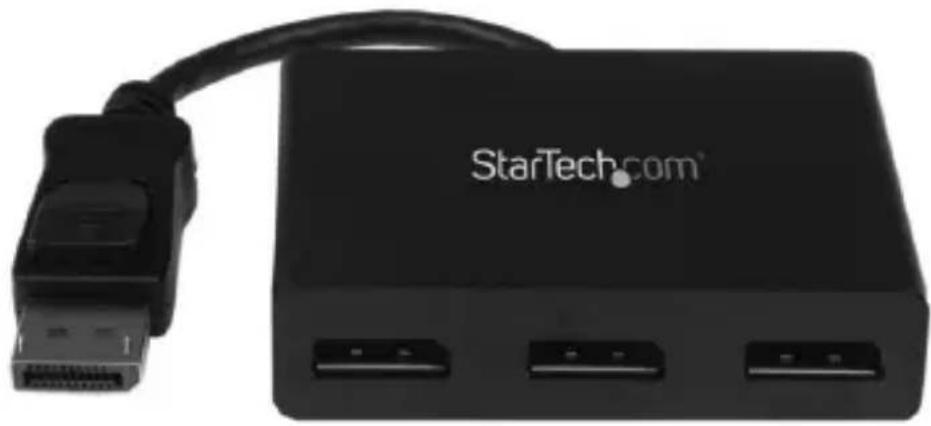
3-Port Multi Monitor DisplayPort® MST Hub
MSTDP123DP
natural_image
Black StarTech.com network device with USB port and connected cable (no visible text or symbols beyond branding)*actual product may vary from photos
For the most up-to-date information, please visit: www.startech.com
FCC Compliance Statement
This equipment has been tested and found to comply with the limits for a Class B digital device, pursuant to part 15 of the FCC Rules. These limits are designed to provide reasonable protection against harmful interference in a residential installation. This equipment generates, uses and can radiate radio frequency energy and, if not installed and used in accordance with the instructions, may cause harmful interference to radio communications. However, there is no guarantee that interference will not occur in a particular installation. If this equipment does cause harmful interference to radio or television reception, which can be determined by turning the equipment off and on, the user is encouraged to try to correct the interference by one or more of the following measures:
• Reorient or relocate the receiving antenna.
- Increase the separation between the equipment and receiver.
- Connect the equipment into an outlet on a circuit different from that to which the receiver is connected.
- Consult the dealer or an experienced radio/TV technician for help.
Use of Trademarks, Registered Trademarks, and other Protected Names and Symbols
This manual may make reference to trademarks, registered trademarks, and other protected names and/or symbols of third-party companies not related in any way to StarTech.com. Where they occur these references are for illustrative purposes only and do not represent an endorsement of a product or service by StarTech.com, or an endorsement of the product(s) to which this manual applies by the third-party company in question. Regardless of any direct acknowledgement elsewhere in the body of this document, StarTech.com hereby acknowledges that all trademarks, registered trademarks, service marks, and other protected names and/or symbols contained in this manual and related documents are the property of their respective holders.
Table of Contents
Product Overview .... 1
Front View .... 1
Packaging Contents .... 1
System Requirements....1
Important operation notes....2
Installation 3
Microsoft® Windows® Operation 3
Specifications......6
Technical Support 7
Warranty Information......7
Product Overview
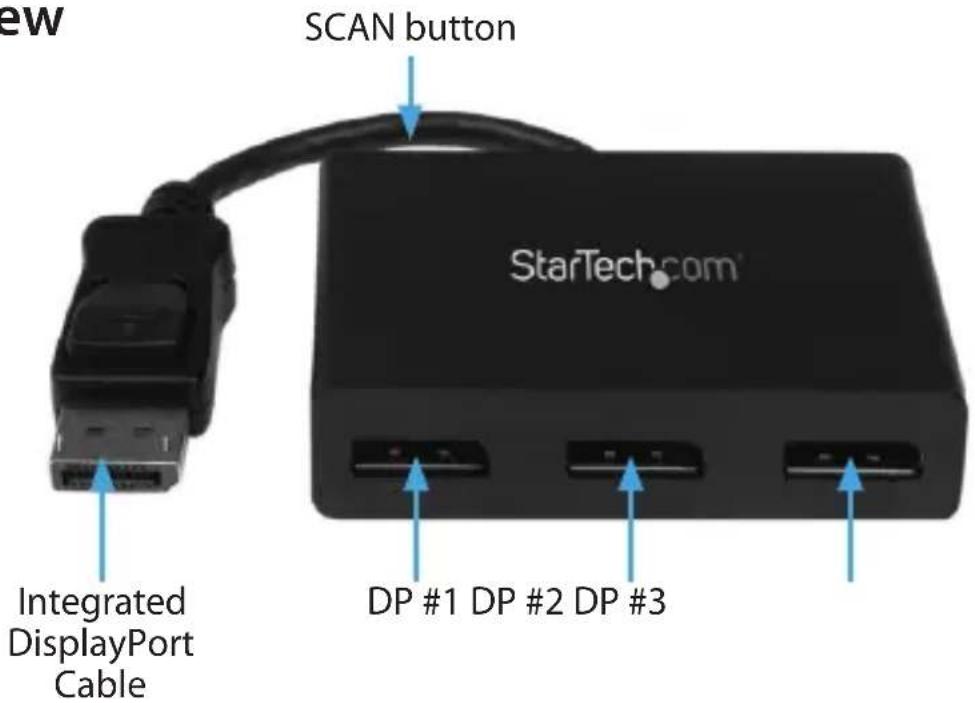
Front View
Packaging Contents
• 3-Port Multi Monitor DisplayPort® MST Hub
• 1x Universal Power Adapter (NA/EU/UK/AUS)
• 1x Instruction Manual
System Requirements
- DisplayPort 1.2 enabled computer system/video card
- Up to 3 DisplayPort enabled display devices (e.g. monitor) with cabling
Important operation notes
- Different types of displays, such as HDMI®, DVI, and VGA work with this MST hub, provided the appropriate DisplayPort adapter is used. DisplayPort adapters aren't included. The StarTech.com SKU for each adapter is listed below:
• DisplayPort to HDMI adapter (DP2HDMI)
• DisplayPort to VGA adapter (DP2VGA3)
• DisplayPort to DVI adapter (DP2DVI2)
- A DisplayPort 1.2 video card or source is required for MST support.
- When using a DisplayPort 1.1 video card, the MST hub acts as a splitter, automatically mirroring your video source across all of the displays.
- MST is certified for operation with Microsoft® Windows® devices. Other operating systems may adopt the technology; please check your operating system vendor to confirm support. Operating system support is subject to change. For the latest requirements, please visit www.startech.com/MSTDP123DP.
- After the MST hub is attached, it may be necessary to initiate the operation of additional displays from within your Display settings.
- The SCAN button resyncs all of the attached displays, and can be utilized if any of the displays aren't detected.
- Certain graphics adapters, such at the Intel® based chips found on the Microsoft Surface™ Pro 3, have limited MST support and will only output to three displays in total. If you attach more than three displays, all of the displays beyond that number will be disabled, including the touch screen on the Surface Pro 3.
- MST shares 10.2 Gbps of bandwidth across all of the attached displays. Higher resolutions can restrict the bandwidth available for the remaining ports. Please see the guidelines below to determine the ideal resolution for your setup.
Average resolution bandwidth allocation
1920 x 1080 (High-definition 1080p) @60hz - 22%
1920 x 1200 @60hz - 30%
2560 x 1440 @60hz - 35%
2560 x 1600 @60hz - 38%
3840 x 2160 (Ultra HD 4K) @30hz - 38%
Note: Exceeding 100% will reduce functionality.
Installation
- Ensure your computer system and DisplayPort Displays are powered off.
- Connect the integrated DisplayPort cable into the DisplayPort connector on the host computer system/video card.
- Connect the DisplayPort monitor/display device(s) into the DisplayPort #1/#2/#3 connectors on the MSTDP123DP MST Hub.
- Power on the monitor/display device(s).
- Turn on the computer system.
- The system will now detect the MST Hub, and add the attached displays to the Display Settings of the System.
Microsoft® Windows® Operation
With a DisplayPort 1.2 compatible video card, Microsoft Windows® will recognize the individual Displays (up to 3) and can either Extend or Duplicate the main Monitor.
Adjust video settings in Microsoft Windows®
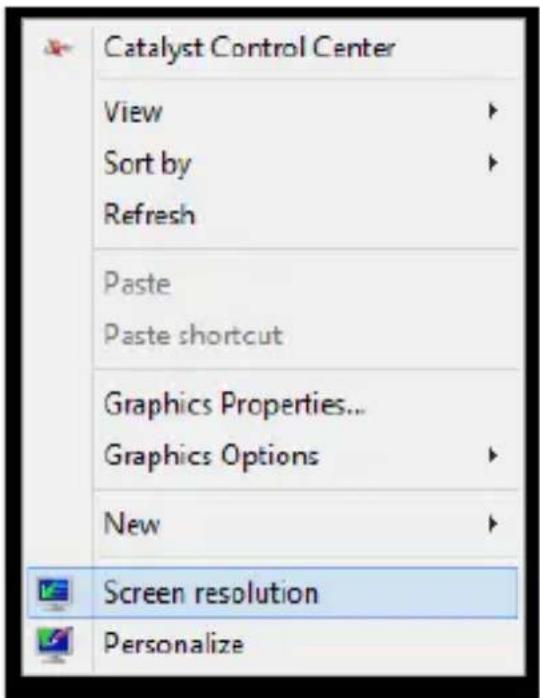
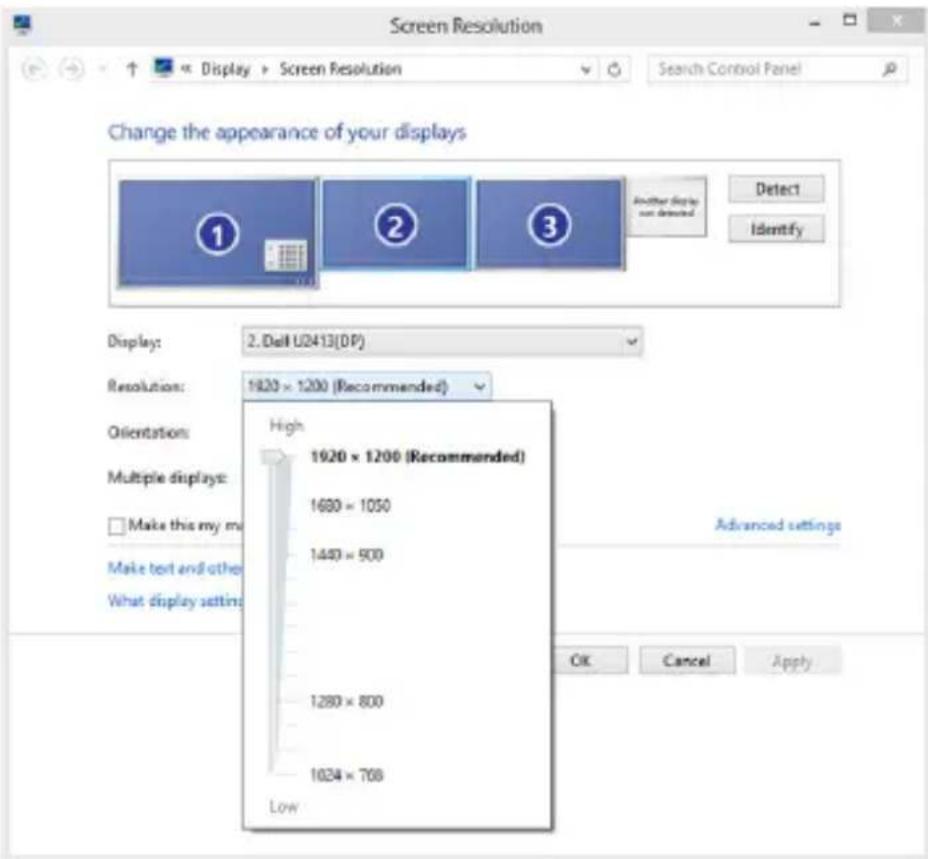
- Right click the Windows Desktop and select "Screen Resolution". The Display Settings window appears.
NOTE: Each monitor connected is represented by a number displayed under "Change the appearance of your displays". To determine which number corresponds with each display click the Identify button.
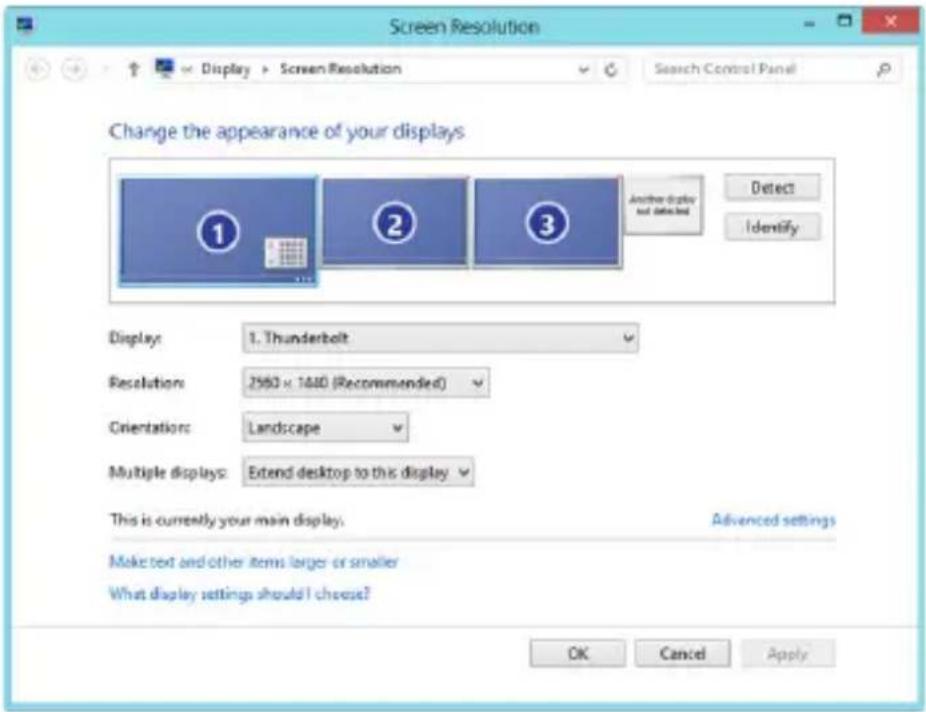
- To adjust the Resolution, click on the number that corresponds with the monitor you wish to adjust, and select the drop down menu next to "Resolution":
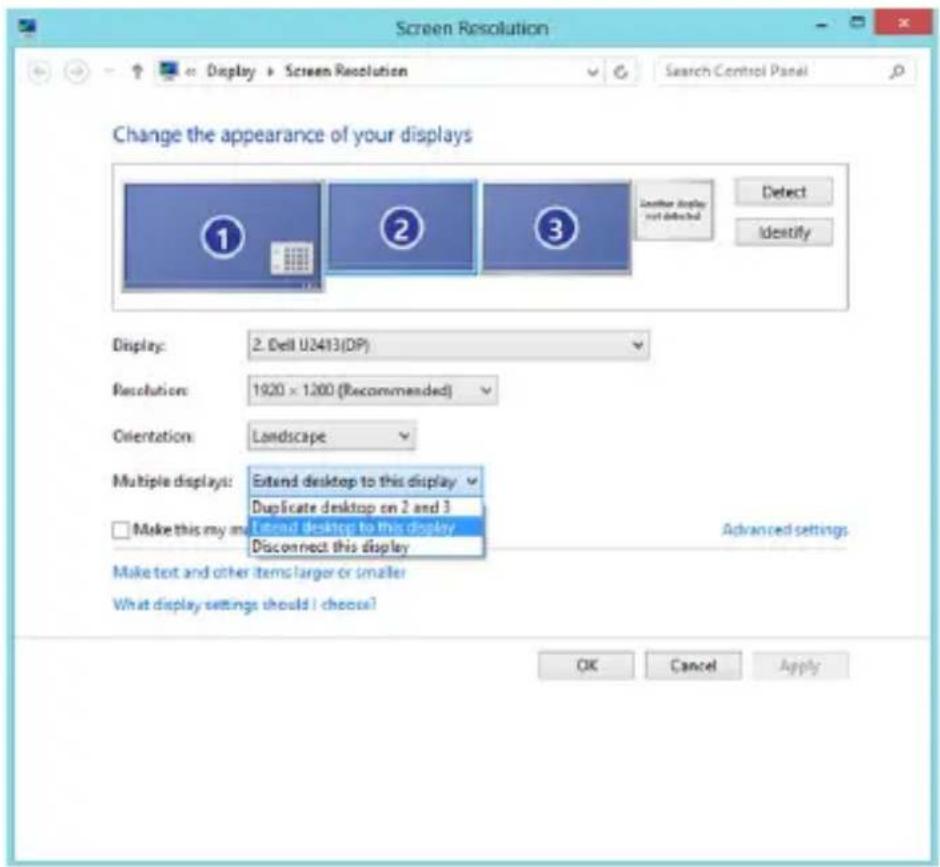
- To Choose whether the Monitor will Duplicate or Extend your main Monitor, select the number that corresponds with the Monitor you wish to adjust, and select the drop down menu next to "Multiple Displays": "Extend these displays" will extend your monitor main onto the selected monitor. "Duplicate these Displays" will show the same image as your main monitor on the selected monitor.
Specifications
| Video Signal DisplayPort | |
| Number of Ports 3 | |
| External Connectors | 1x DisplayPort Male3x DP Female |
| Maximum Display Resolution 4K at 30 Hz |
Technical Support
StarTech.com's lifetime technical support is an integral part of our commitment to provide industry-leading solutions. If you ever need help with your product, visit www.startech.com/support and access our comprehensive selection of online tools, documentation, and downloads.
For the latest drivers/software, please visit www.startech.com/downloads
Warranty Information
This product is backed by a three-year warranty.
In addition, StarTech.com warrants its products against defects in materials and workmanship for the periods noted, following the initial date of purchase. During this period, the products may be returned for repair, or replacement with equivalent products at our discretion. The warranty covers parts and labor costs only. StarTech.com does not warrant its products from defects or damages arising from misuse, abuse, alteration, or normal wear and tear.
Limitation of Liability
In no event shall the liability of StarTech.com Ltd. and StarTech.com USA LLP (or their officers, directors, employees or agents) for any damages (whether direct or indirect, special, punitive, incidental, consequential, or otherwise), loss of profits, loss of business, or any pecuniary loss, arising out of or related to the use of the product exceed the actual price paid for the product. Some states do not allow the exclusion or limitation of incidental or consequential damages. If such laws apply, the limitations or exclusions contained in this statement may not apply to you.
Hard-to-find made easy. At StarTech.com, that isn't a slogan. It's a promise.
StarTech.com is your one-stop source for every connectivity part you need. From the latest technology to legacy products — and all the parts that bridge the old and new — we can help you find the parts that connect your solutions.
We make it easy to locate the parts, and we quickly deliver them wherever they need to go. Just talk to one of our tech advisors or visit our website. You'll be connected to the products you need in no time.
Visit www.startech.com for complete information on all StarTech.com products and to access exclusive resources and time-saving tools.
StarTech.com is an ISO 9001 Registered manufacturer of connectivity and technology parts. StarTech.com was founded in 1985 and has operations in the United States, Canada, the United Kingdom and Taiwan servicing a worldwide market.

- 3-Port Multi Monitor DisplayPort® MST Hub
- FCC Compliance Statement
- Use of Trademarks, Registered Trademarks, and other Protected Names and Symbols
- Table of Contents
- Product Overview .... 1
- Installation 3
- Specifications......6
- Technical Support 7
- Warranty Information......7
- Product Overview
- Front View
- Packaging Contents
- System Requirements
- Important operation notes
- Average resolution bandwidth allocation
- Installation
- Microsoft® Windows® Operation
- Adjust video settings in Microsoft Windows®
- Specifications
- Technical Support
- Warranty Information
- Limitation of Liability
Brand : StarTech.com
Model : MSTDP123DP
Category : Computer Cable