Equip

USB 2.0 Data Transfer Cable - Computer Cable Equip - Free user manual and instructions

Find the device manual for free USB 2.0 Data Transfer Cable Equip in PDF.

📄 4 pages English EN Download 💬 AI Question
Notice Equip USB 2.0 Data Transfer Cable - page 2
Pick your language and provide your email: we'll send you a specifically translated version.

User questions about USB 2.0 Data Transfer Cable Equip

0 question about this device. Answer the ones you know or ask your own.

Ask a new question about this device

The email remains private: it is only used to notify you if someone responds to your question.

No questions yet. Be the first to ask one.

Download the instructions for your Computer Cable in PDF format for free! Find your manual USB 2.0 Data Transfer Cable - Equip and take your electronic device back in hand. On this page are published all the documents necessary for the use of your device. USB 2.0 Data Transfer Cable by Equip.

USER MANUAL USB 2.0 Data Transfer Cable Equip

natural_image Close-up of a black USB cable with a central connector labeled 'quip', shown against a white background (no text or symbols on the cable itself)

USB 2.0 Data Transfer Cable for WIN Vista

english

Installation

  1. Please install XP driver and select your language for your XP computer.
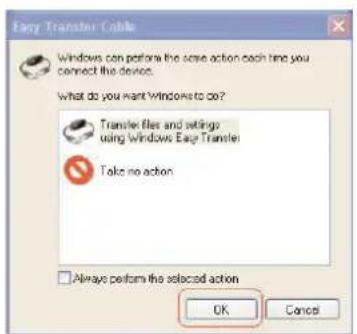
  2. Insert the equip data transfer cable to your old computer (O.S.: Windows XP) and your new computer (O.S.: Windows Vista), click "OK" of both your old computer and new computer. See Pic 1.
  3. When "Welcome to Windows Easy Transfer" appears on both your old and new computer click "Next". See Pic 2.
Equip USB 2.0 Data Transfer Cable - Installation - 1

text_image Easy Transfer Cable Windows can perform the save action each time you connect the device. What do you want Windows to do? Transfer files and settings using Windows Easy Transfer Take no action □ Always perform the selected action OK Cancel

Pic 1 Pic 2

Equip USB 2.0 Data Transfer Cable - Installation - 2

text_image Welcome to Windows to any Transfer Windows will restore your computer from the folder and configuration on the computer to another. For information is divided from your own computer. Details the process, you will not be able to use other computers. To ensure desktopization settings transfer from your computer, we can access the program or to another OS configuration you need. Find results of Windows with WindowsEast Topics? To validate how to improve your transfer performance. File Computer Your computer Hypercomputer Use more than 10 percent Options and/or providing more, better, and better Purpose setup Business settings and services Create settings, controls, and licenses Next
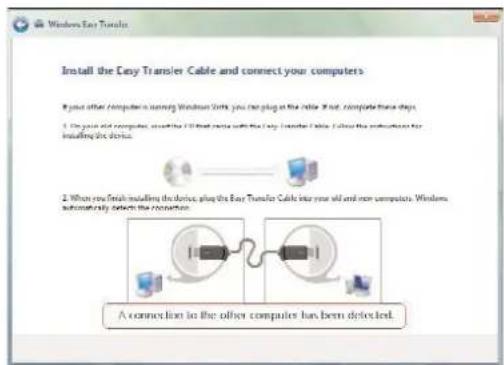
  1. Both of your old and new computer has been detected see Pic 3.
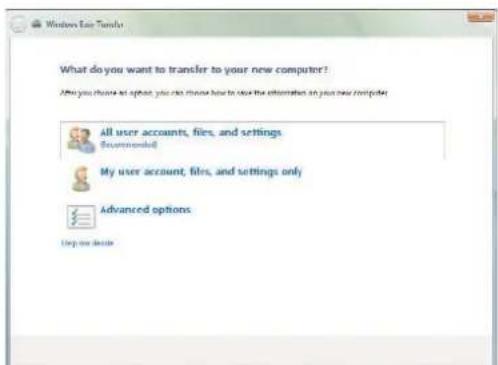
  2. After the system has detected both computers double click "All user accounts, files and settings" on the Windows XP computer. See Pic 4.
Equip USB 2.0 Data Transfer Cable - Installation - 3

text_image Windows Easy Transfer Install the Easy Transfer Cable and connect your computers If your other computer is naming Windows Start, you can plug on the inside. If not, complete these steps. 1. On your old computer, insert the CIP that adds with the Easy Transfer Cable. Click the instructions for installing this device. 2. When one finish installing the device, plug the Easy Transfer Cable into your old and more computers. Windows automatically detects the connection. A connection to the other computer has been detected.

Pic 3

Equip USB 2.0 Data Transfer Cable - Installation - 4

text_image What do you want to transfer to your new computer? Any you choose to option, you can choose how to use the information on your new computer. All user accounts, files, and settings Recommended My user account, files, and settings only Advanced options Up us decide

Pic 4

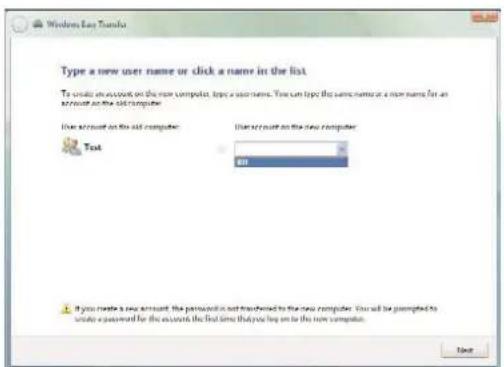
  1. To transfer all files and settings from the old computer to the new computer please click "Transfer". See Pic 5.

To begin the transfer please follow Pic 6 to Pic 8.

Equip USB 2.0 Data Transfer Cable - Installation - 5

text_image Windows 7.1.1.1 Review selected files and settings Is to choose files from locations after that closed folders in the documents folder for each user, then list in other locations, and then select such locations that you want to transfer. Windows will transfer data files in the locations you select? Systems and programs settings (all users) Left Applications Settings Documents Desktop My Documents My Monitor My Workshops Windows Settings File in other locations Introduction... Imported by: 2014 GB.

Pic 5

Equip USB 2.0 Data Transfer Cable - Installation - 6

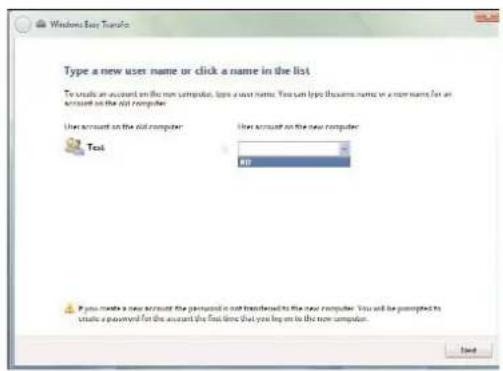
text_image Type a new user name or click a name in the list To study an account on the new computer, then a new name. You can type this name or a new name for an account on the new computer. User account on the old computer. User account on the new computer. Text M1 If you create a new account the password is not transferred to the new computer. You will be prompted to create a password for the account the first time that you begin to the new computer. End

Pic 6

Equip USB 2.0 Data Transfer Cable - Installation - 7

text_image Windows Easy Transfer Please wait until the transfer is complete. 1. If you try to use your computer or if you show this page, the transfer must be completed and your selections will not be closed. This information will be deleted from your all-computer, but you will need to start Windows Easy Transfer again. Saving D:\TEST\all\test.dbls.all.exe.

Pic 7

Equip USB 2.0 Data Transfer Cable - Installation - 8

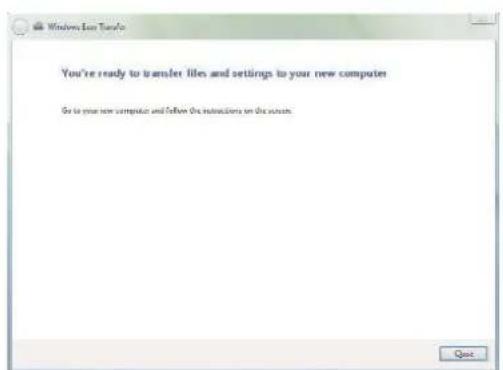
text_image You're ready to transfer files and settings to your new computer Go to your new computer and follow the instructions on the system.

Pic 8

  1. Wait until the data transfer is completed, then click "Close" to finish "Windows Easy Transfer".

Selected data transfer by using the "Customize" button.

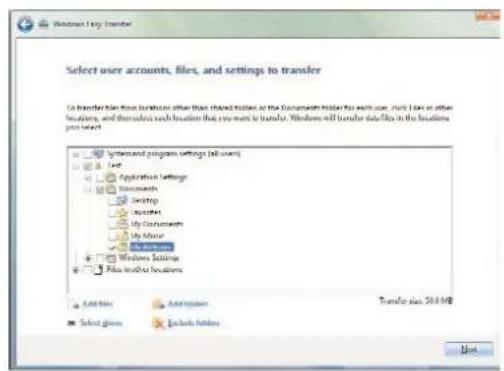
To transfer selected files and settings please click the "Customize" button (see Pic 5) and follow Pic 9 to Pic 13.

Equip USB 2.0 Data Transfer Cable - Selected data transfer by using the "Customize" button. - 1

text_image Select user accounts, files, and settings to transfer To transfer files from locations where then shared folders or the Documents folder for each user, click files in what locations, and translate each location that you want to transfer Windows and transfer details on the website. Windows and program settings (all users) Add Existing Add Updates Transfer key: 20.1 GB Select down Include Options Next

Pic 9

Equip USB 2.0 Data Transfer Cable - Selected data transfer by using the "Customize" button. - 2

text_image Windows Easy Transfer Select user accounts, files, and settings to transfer To transfer file from location or other than selected location as the Document holder for web user, root file on other locations, and therefore each location that you want to transfer. Windows will transfer data files in the locations your user. Systems and program settings (all users) Text Application Settings Documents Desktop Accessories My Documents My Mouse Windows Windows Settings Files worked locations Add Files Add tables Transfer size: 20.8 MB Select groups Include folders List

Pic 10

Equip USB 2.0 Data Transfer Cable - Selected data transfer by using the "Customize" button. - 3

text_image Type a new user name or click a name in the list To create an account on the new computer, type a new name. You can click the same name as a new name for an account on the old computer. User account on the old computer User account on the new computer Test If you create a new account, the person(s) is not transferred to the new computer. You will be prompted to create a password for the accounts the final time that you log on to the new computer.

Pic 11

Equip USB 2.0 Data Transfer Cable - Selected data transfer by using the "Customize" button. - 4

text_image Windows Log Transfer Please wait until the transfer is complete. A. If you're to access your computer or if you show this user, the transfer isn't be completed and your instructions will not be read. For information and it is deleted from your old computer, but you will need to start Windows Log Transfer as... Saving D:\TRIP\alluv3\triv401.com...

Pic 12

Equip USB 2.0 Data Transfer Cable - Selected data transfer by using the "Customize" button. - 5

text_image You're ready to transfer files and settings to your new computer To be your new computer and follow the instructions on the user.

Pic 13

  1. Wait until the data transfer is completed, then click "Close" to finish "Windows Easy Transfer".
Manual assistant
Powered by Anthropic
Waiting for your message
Product information

Brand : Equip

Model : USB 2.0 Data Transfer Cable

Category : Computer Cable